
DV-LX50 - Lecteur dvd PIONEER - Notice d'utilisation et mode d'emploi gratuit
Retrouvez gratuitement la notice de l'appareil DV-LX50 PIONEER au format PDF.



| Type de produit | Lecteur DVD |
| Marque | Pioneer |
| Modèle | DV-LX50 |
| Dimensions (L x H x P) | 420 x 102 x 314 mm |
| Poids | 5,3 kg |
| Alimentation | 220-240 V CA, 50/60 Hz |
| Consommation électrique | 15 W (fonctionnement), 0,8 W (veille) |
| Température de fonctionnement | +5°C à +35°C |
| Humidité de fonctionnement | 5% à 85% (sans condensation) |
| Sorties vidéo | HDMI, composite, S-Vidéo, composante, SCART (RGB) |
| Sorties audio | Analogique stéréo, analogique 5.1 canaux, numérique optique et coaxial, HDMI |
| Formats audio compatibles | DVD-Audio, SACD, CD, MP3, WMA, MPEG-4 AAC, Dolby Digital, DTS |
| Formats vidéo compatibles | DVD-Vidéo, Vidéo CD, Super VCD, DivX, WMV, JPEG |
| Fonctionnalités principales | HDMI Control, Pure Audio, PureCinema progressif, lecture Multi-Angle, zoom, répétition, programmation, Navigation Disc |
| Décodeurs audio intégrés | Dolby Digital, DTS |
| Résolutions vidéo | 480i/576i, 480p/576p, 720p, 1080i, 1080p (selon sortie) |
| Graveur CD/DVD | Non (lecture seule) |
| Entretien | Nettoyage des disques avec un chiffon doux ; éviter les solvants. Aucune pièce réparable par l'utilisateur. |
| Sécurité | Produit laser classe 1 ; ne pas ouvrir le boîtier ; ne pas exposer à l'humidité ; ne pas obstruer les fentes de ventilation. |
| Accessoires fournis | Télécommande, piles AA/R6P (x2), câble audio (RCA), câble vidéo (composite), câble d'alimentation, manuel d'utilisation, carte de garantie |
FOIRE AUX QUESTIONS - DV-LX50 PIONEER
Questions des utilisateurs sur DV-LX50 PIONEER
0 question sur cet appareil. Repondez a celles que vous connaissez ou posez la votre.
Poser une nouvelle question sur cet appareil
Téléchargez la notice de votre Lecteur dvd au format PDF gratuitement ! Retrouvez votre notice DV-LX50 - PIONEER et reprennez votre appareil électronique en main. Sur cette page sont publiés tous les documents nécessaires à l'utilisation de votre appareil DV-LX50 de la marque PIONEER.
MODE D'EMPLOI DV-LX50 PIONEER
Operating Instructions | Instruzioni per l'uso




HAMI
RW COMPATIBLE
DVD Player Lettore DVD
DV-LX50
Thank you for buying this Pioneer product.
Please read through these operating instructions so you will know how to operate your model properly.
After you have finished reading the instructions, put them away in a safe place for future reference.
IMPORTANT

The lightning flash with arrowhead symbol, within an equilateral triangle, is intended to alert the user to the presence of uninsulated "dangerous voltage" within the product's enclosure that may be of sufficient magnitude to constitute a risk of electric shock to persons.
CAUTION:
TO PREVENT THE RISK OF ELECTRIC SHOCK,DO NOT REMOVE COVER (OR BACK).NO USER-SERVICEABLE PARTS INSIDE.REFER SERVICING TO QUALIFIED SERVICE PERSONNEL.
CAUTION
RISK OF ELECTRIC SHOCK DO NOT OPEN

The exclamation point within an equilateral triangle is intended to alert the user to the presence of important operating and maintenance (servicing) instructions in the literature accompanying the appliance.
D3-4-2-1-1_En-A
WARNING
This equipment is not waterproof. To prevent a fire or shock hazard, do not place any container filled with liquid near this equipment (such as a vase or flower pot) or expose it to dripping, splashing, rain or moisture. D3-4-2-1-3_B_En
WARNING
Before plugging in for the first time, read the following section carefully.
The voltage of the available power supply differs according to country or region. Be sure that the power supply voltage of the area where this unit will be used meets the required voltage (e.g., 230 V or 120 V) written on the rear panel. D3-4-2-1-4_A_En
CAUTION
This product is a class 1 laser product, but this product contains a laser diode higher than Class 1. To ensure continued safety, do not remove any covers or attempt to gain access to the inside of the product.
Refer all servicing to qualified personnel.
The following caution label appears on your unit.
Location: inside of the unit
CLASS 1 LASER PRODUCT
CAUTION : CLASS 1M LASER RADIATION WHEN OPEN. DO NOT VIEW DIRECTLY WITH OPTICAL INSTRUMENTS. 726000A140 SH
Vorsicht : KLASSE 1M LASER Strahlung: Bei geöffnetem Gerät nicht mit optischen Geräten in den Laserstrahl blichen.
PRECAUCION : RADIACION LASER CLASE 1M, AL ABRIR NO MIRAR DIRECTAMENTE CON INSTRUMENTOIS OPTICOS
VIKTIG : KCLASS 1M LASER STRÄLNING: NÄR APPARATEN ÅR ÖPPEN, TITTA INTE RAKT IN I DEN, SPECIELT INTE OM DU HAR GLASÖGON PÄ DIG.
Varoitus! : Luokka 1M:n lasersäteily: Älä koskaan katso laitteen sisään sen ollessa auki-ei myoskään silmälaseillaa tai muilla optisilla laitteilla!
ADVARSEL : LASERSTRÄLER KLASSE 1M KIG IKKE DIREKTE IND I APPARATET. NÄR DETTE ER ÅBENT. IS/ER IKKE MED BRILLER ELLER ANDRE OPTISK OEJEKTER.
D3-4-2-1-8_B_En
WARNING
To prevent a fire hazard, do not place any naked flame sources (such as a lighted candle) on the equipment. D3-4-2-1-7a_A_En
D3-4-2-1-7a_A_En
Operating Environment
Operating environment temperature and humidity: +5^ C to +35^ C ( +41^ F to +95^ F) ; less than 85 % RH (cooling vents not blocked)
Do not install this unit in a poorly ventilated area, or in locations exposed to high humidity or direct sunlight (or strong artificial light) D3-4-2-1-7c_A_En
This product complies with the Low Voltage Directive 2006/95/EC and EMC Directive 2004/108/EC.
D3-4-2-1-9a_A_En
This product is for general household purposes. Any failure due to use for other than household purposes (such as long-term use for business purposes in a restaurant or use in a car or ship) and which requires repair will be charged for even during the warranty period.
VENTILATION CAUTION
When installing this unit, make sure to leave space around the unit for ventilation to improve heat radiation (at least 10cm at top, 10cm at rear, and 10cm at each side).
WARNING
Slots and openings in the cabinet are provided for ventilation to ensure reliable operation of the product, and to protect it from overheating. To prevent fire hazard, the openings should never be blocked or covered with items (such as newspapers, table-cloths, curtains) or by operating the equipment on thick carpet or a bed.
D3-4-2-1-7b_A_En
If the AC plug of this unit does not match the AC outlet you want to use, the plug must be removed and appropriate one fitted. Replacement and mounting of an AC plug on the power supply cord of this unit should be performed only by qualified service personnel. If connected to an AC outlet, the cut-off plug can cause severe electrical shock. Make sure it is properly disposed of after removal.
The equipment should be disconnected by removing the mains plug from the wall socket when left unused for a long period of time (for example, when on vacation). D3-4-2-2-1a_A_En
POWER-CORD CAUTION
Handle the power cord by the plug. Do not pull out the plug by tugging the cord and never touch the power cord when your hands are wet as this could cause a short circuit or electric shock. Do not place the unit, a piece of furniture, etc., on the power cord, or pinch the cord. Never make a knot in the cord or tie it with other cords. The power cords should be routed such that they are not likely to be stepped on. A damaged power cord can cause a fire or give you an electrical shock. Check the power cord once in a while. When you find it damaged, ask your nearest PIONEER authorized service center or your dealer for a replacement. S002_EN
CAUTION
The STANDBY/ON switch on this unit will not completely shut off all power from the AC outlet. Since the power cord serves as the main disconnect device for the unit, you will need to unplug it from the AC outlet to shut down all power. Therefore, make sure the unit has been installed so that the power cord can be easily unplugged from the AC outlet in case of an accident. To avoid fire hazard, the power cord should also be unplugged from the AC outlet when left unused for a long period of time (for example, when on vacation). D3-4-2-2a_A_En
This product incorporates copyright protection technology that is protected by method claims of certain U.S. patents and other intellectual property rights owned by Macrovision Corporation and other rights owners. Use of this copyright protection technology must be authorized by Macrovision Corporation, and is intended for home and other limited viewing uses only unless otherwise authorized by Macrovision Corporation. Reverse engineering or disassembly is prohibited.
This product includes FontAvenue® fonts licenced by NEC corporation. FontAvenue is a registered trademark of NEC Corporation.

If you want to dispose this product, do not mix it with general household waste. There is a separate collection system for used electronic products in accordance with legislation that requires proper treatment, recovery and recycling.
Private households in the member states of the EU, in Switzerland and Norway may return their used electronic products free of charge to designated collection facilities or to a retailer (if you purchase a similar new one).
For countries not mentioned above, please contact your local authorities for the correct method of disposal.
By doing so you will ensure that your disposed product undergoes the necessary treatment, recovery and recycling and thus prevent potential negative effects on the environment and human health.
K058_A_En
Contents
01 Before you start
Features. 5
What's in the box. 6
Hints on installation. 6
Disc/content format playback compatibility 7
02 Connections
Rear panel 9
Easy connections 10
Connecting using a SCART AV cable 11
Connecting using the S-Video output. 11
Connecting using the component video output 11
Connecting to an AV receiver. 12
Controlling this player via another Pioneer component 13
Connecting using HDMI 14
Changing the output resolution 15
03 Controls and displays
Front panel. 16
Display 17
Remote control 18
Setting up the remote to control your TV 19
04 Getting started
Switching on and setting up 20
Using the on-screen displays 21
Setting up the player for your TV. 21
Setting the language of this player's on-screen displays 21
Playing discs 22
05 Playing discs
Scanning discs 25
Playing in slow motion 25
Frame advance/frame reverse 25
Viewing a JPEG slideshow 25
Browsing DVD or Video CD/Super VCD disc with the Disc Navigator 26
Browsing WMA, MP3, MPEG-4 AAC, DivX video, WMV and JPEG
files with the Disc Navigator 26
Looping a section of a disc 27
Using repeat play 27
Using random play 28
Creating a program list 28
Searching a disc 29
Switching subtiles. 29
Switching audio language/channels 29
Zooming the screen 29
Switching camera angles. 30
Displaying disc information 30
06 Audio Settings and Video Adjust menus
Audio Settings menu 31
Video Adjust menu 31
07 Initial Settings menu
Using the Initial Settings menu 32
Digital Audio Out settings 32
Video Output settings 33
Language settings. 33
Display settings. 34
Options settings 34
Speakers settings 34
Parental Lock 35
DTSDownmix 35
About DivX® VOD content 36
Audio Output Mode. 36
Speaker Distance 39
Speaker Installation 39
08 Additional information
Taking care of your player and discs 40
Screen sizes and disc formats. 40
Setting the TV system 41
Resetting the player 41
DVD-Video regions 41
Selecting languages using the language code list 41
Troubleshooting 42
Glossary 45
Language code list 46
Country/Area code list. 46
Specifications 47
Chapter 1 Before you start
Features
- HDMI digital interface
The HDMI (High-Definition Multimedia Interface) interconnect provides high quality digital audio and video, all from a single user-friendly connector. HDMI is the first consumer electronics interface to support uncompressed standard, enhanced, or high-definition video plus standard to multi-channel surround sound audio, all using one interface. You can easily connect to a HDMI-equipped AV receiver or audiovisual device for high quality audio and video, and communication between the video source and (DTV) players, set-top boxes, and other audiovisual devices is also supported.
- HDMI, the HDMI logo and High-Definition Multimedia Interface are trademarks or registered trademarks of HDMI Licensing LLC.
HDMI Control
By connecting this unit to a Pioneer plasma television, AV system (amplifier or AV receiver etc.), or HD AV Converter with an HDMI cable, you can control this unit from the connected plasma television, as well as have the connected plasma television, AV system or HD AV Converter automatically change inputs in response to this unit starting playback or having the GUI screen (ex. Disc Navigator) displayed (known as the Auto-select function). The connected plasma television can thereby have its power turned from off to on by this function.
You can also have this unit turn on automatically when you control this unit from a connected plasma television that is turned on (Simultaneous power function).
Additionally, when the language information from a connected plasma television is received, you can have this unit's on-screen display language change automatically to that of the plasma television (only when playback is stopped and GUI screen is not displayed).
Refer to your plasma television's operating manual for more information regarding how your plasma television transmits language information.
For more information about which operations can be carried out by connecting via HDMI cable, refer to the operating manual for your plasma television, AV system or HD AV Converter.
DVD-Audio and SACD compatible
Experience the super high-quality audio performance of DVD-Audio and Super Audio CD (SACD).
The on-board 24-bit/192kHz DAC means that this player is fully compatible with high sampling-rate discs, capable of delivering exceptional sound quality in terms of dynamic range, low-level resolution and high frequency detail.
In addition, with SACD playback, you can select which part of the disc you want to hear (stereo audio, multi-channel audio and, for hybrid SACDs, standard CD audio) with the simple press of a button on the front panel.
Built-in Dolby Digital and DTS decoding with multichannel outputs


This player features multichannel analog outputs for connection to an AV amplifier to give you stunning surround sound from Dolby Digital, DTS and multichannel DVD-Audio discs.
- Manufactured under license from Dolby Laboratories. "Dolby", "Pro Logic", and the double-D symbol are trademarks of Dolby Laboratories.
- "DTS" is a registered trademark of DTS, Inc. and "DTS 96/24" is a trademark of DTS, Inc.
Pure Audio listening
The Pure Audio feature allows you to listen to analog audio sources with the video and digital outputs disabled, and the front panel display switched off. This is particularly useful when listening to high-quality audio formats such as DVD-Audio and Super Audio CD.
PureCinema Progressive Scan video
When connected to a progressive scan-compatible TV or monitor using the component video outputs, you can enjoy extremely stable, flicker free images, with the same frame refresh rate as the original movie.
- Analog video signal output capability in HD (High Definition)
The analog video signals output from the COMPONENT VIDEO OUT can be output as HD signals. JPEG files are output in JPEG HD format. DivX video/WMV signals in SD (Standard Definition) are converted into HD for output.
DivX® video compatibility

See DivX video compatibility on page 8.
- DivX, DivX Ultra Certified, and associated logos are trademarks of DivX, Inc. and are used under license.
MP3, WMA and MPEG-4 AAC compatibility
See Compressed audio compatibility on page 7.
JPEG compatibility
See JPEG file compatibility on page 8.
WMV compatibility
See CD-R/-RW compatibility on page 7 or About WMV on page 8.
Energy saving design
An auto power-off function switches the player into standby if not used for about 30 minutes.
Please confirm that the following accessories are in the box when you open it.
Remote control
AA/R6P dry cell batteries × 2
Audio cable (red/white plugs)
Video cable (yellow plug)
Power cable
- Operating instructions
Warranty card
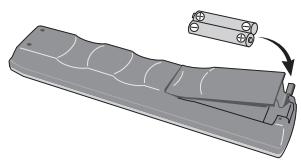
Putting the batteries in the remote
- Open the battery compartment cover and insert the batteries as shown.
Use two AA/R6P batteries and follow the indications ( ,) inside the compartment. Close the cover when you're finished.

Important
Incorrect use of batteries can result in hazards such as leakage and bursting. Please observe the following:
- Don't mix new and old batteries together.
- Don't use different kinds of battery together — although they may look similar, different batteries may have different voltages.
- Make sure that the plus and minus ends of each battery match the indications in the battery compartment.
- Remove batteries from equipment that isn't going to be used for a month or more.
- When disposing of used batteries, please comply with governmental regulations or environmental public instruction's rules that apply in your country/area.
- Do not use or store batteries in direct sunlight or other excessively hot place, such as inside a car or near a heater. This can cause batteries to leak, overheat, explode or catch fire. It can also reduce the life or performance of batteries.
Hints on installation
We want you to enjoy using this product for years to come, so please use the following guidelines when choosing a suitable location:
Do...
- Use in a well-ventilated room.
- Place on a solid, flat, level surface, such as a table, shelf or stereo rack.
Don't...
- Use in a place exposed to high temperatures or humidity, including near radiators and other heat-generating appliances.
- Place on a window sill or a place where the player will be exposed to direct sunlight.
- Use in an excessively dusty or damp environment.
- Place directly on top of an amplifier, or other component in your stereo system that becomes hot in use.
- Use near a television or monitor as you may experience interference — especially if the television uses an indoor antenna.
- Use in a kitchen or other room where the player may be exposed to smoke or steam.
- Use on a thick rug or carpet, or cover with cloth — this may prevent proper cooling of the unit.
- Place on an unstable surface, or one that is not large enough to support all four of the unit's feet.
Disc/content format playback compatibility
This player is compatible with a wide range of disc types (media) and formats. Playable discs will generally feature one of the following logos on the disc and/or disc packaging. Note however that some disc types, such as recordable CD and DVD, may be in an unplayable format — see below for further compatibility information.
Please also note that recordable discs cannot be recorded using this player.

AUDIO

VIDEO

R

DVD-R
DVD-RW
RW

DVD-Audio
DVD-Video

Video CD

CD-R

CD-RW

Super Audio CD

FUJCOLOR CD COMPATIBLE

FJUCOLOR CD compatible
Fujicolor CD
- This unit will play DVD+R/+RW discs.
DVD is a trademark of DVD Format/Logo Licensing
Corporation.
is a trademark of FUJIFILM Corporation.
- Also compatible with KODAK Picture CD
This player supports the IEC's Super VCD standard. Compared to the Video CD standard, Super VCD offers superior picture quality, and allows two stereo soundtracks to be recorded. Super VCD also supports the widenscreen size.


Super VCD
About DualDisc playback
A DualDisc is a new two-sided disc, one side of which contains DVD content video, audio, etc. while the other side contains non-DVD content such as digital audio material.
The non-DVD, audio side of the disc is not compliant with the CD audio specification and therefore may not play.
The DVD side of a DualDisc plays in this product. DVD-Audio content will not play.
For more detailed information on the DualDisc specification, please refer to the disc manufacturer or disc retailer.
CD-R/-RW compatibility
- Compatible formats: CD-audio, Video CD/Super VCD, ISO 9660 CD-ROM* containing MP3, WMA, MPEG-4 AAC, JPEG or DivX video/WMV files
-
ISO 9660 Level 1 or 2 compliant. CD physical format: Mode1, Mode2 XA Form1. Romeo and Joliet file systems are both compatible with this player.
-
Multi-session playback: No
- Unfinalized disc playback: No
- File structure (may differ): Up to 299 folders on a disc; up to 648 folders and files (combined) within each folder
DVD+R/+RW compatibility
Only DVD+R/DVD+RW discs recorded in 'Video Mode (DVD Video Mode)' which have been finalized, can be played back. However, some editing made during the recording may not be played back accurately.
DVD-R/-RW compatibility
- Compatible formats: DVD-Video, Video Recording (VR)*
- Edit points may not play exactly as edited; screen may go momentarily blank at edited points.
- Unfinalized playback: No
- MP3/WMA/MPEG-4 AAC/JPEG or DivX video/WMV file playback on DVD-R/-RW: No
Compressed audio compatibility
- Compatible formats: MPEG-1 Audio Layer 3 (MP3), Windows Media Audio (WMA), MPEG-4 AAC
- Sampling rates: 32 kHz, 44.1 kHz or 48 kHz
- Bit-rates: Any (128 kbps or higher recommended)
- VBR (Variable Bit Rate) MP3/WMA/MPEG-4 AAC playback: No
WMA lossless encoding compatible: No - DRM (Digital Rights Management) compatible: No (DRM-protected audio files will not play in this player — see also DRM in the Glossary on page 45)
- File extensions: .mp3, .wma, .m4a (these must be used for the player to recognize MP3, WMA and MPEG-4 AAC files — do not use for other file types)
About MPEG-4 AAC
Advanced Audio Coding (AAC) is at the core of the MPEG-4 AAC standard, which incorporates MPEG-2 AAC, forming the basis of the MPEG-4 audio compression technology. The file format and extension used depend on the application used to encode the AAC file. This unit plays back AAC files encoded by iTunes® bearing the extension '.m4a'. DRM-protected files will not play, and files encoded with some versions of iTunes® may not play, or filenames may display incorrectly.
Apple and iTunes are trademarks of Apple Inc., registered in the U.S. and other countries.
WMA (Windows Media™ Audio) compatibility
This player can playback Windows Media Audio content.
WMA is an acronym for Windows Media Audio and refers to an audio compression technology developed by Microsoft Corporation. WMA content can be encoded by using Windows Media Player for Windows XP, Windows Media Player 9 or Windows Media Player 10 series.
- Windows Media is a trademark of Microsoft Corporation.
- This product includes technology owned by Microsoft Corporation and cannot be used or distributed without a license from Microsoft Licensing, Inc.
About DivX video
DivX is a media technology created by DivX, Inc. DivX media files contain not only video but also include advanced media features like menus, subtitles, and alternate audiotracks. This player can play DivX videos burned on CD-R/-RW/-ROM discs. Keeping the same terminology as DVD-Video, individual DivX video files are called "Titles". When naming files/titles on a CD-R/-RW disc prior to burning, keep in mind that by default they will be played in alphabetical order.
Displaying external subtitle files
The font sets listed below are available for external subtitle files. You can see the proper font set on-screen by setting the
Subtitle Language (in Language settings on page 33) to match the subtitle file.
This player supports the following language groups:
| Group 1 | Albanian (sq), Basque (eu), Catalan (ca), Danish (da), Dutch (nl), English (en), Faroese (fo), Finnish (fi), French (fr), German (de), Icelandic (is), Irish (ga), Italian (it), Norwegian (no), Portuguese (pt), Rhaeto-Romantic (rm), Scottish (gd), Spanish (es), Swedish (sv) |
| Group 2 | Albanian (sq), Croatian (hr), Czech (cs), Hungarian (hu), Polish (pl), Romanian (ro), Slovak (sk), Slovenian (sl) |
| Group 3 | Bulgarian (bg), Byelorussian (be), Macedonian (mk), Russian (ru), Serbian (sr), Ukrainian (uk) |
| Group 4 | Hebrew (iw), Yiddish (ji) |
| Group 5 | Turkish (tr) |
- Some external subtitle files may be displayed incorrectly or not at all.
- For external subtitle files the following subtitle format filename extensions are supported (please note that these files are not shown within the disc navigation menu): .srt, .sub, .ssa, .smi
- The filename of the movie file has to be repeated at the beginning of the filename for the external subtitle file.
- The number of external subtitle files which can be switched for the same movie file is limited to a maximum of 10.
DivX video compatibility
- Official DivX® Ultra Certified product.
- Plays all versions of DivX® video (including DivX® 6) with enhanced playback of DivX® media files and the DivX® Media Format.
- File extensions: .avi and .divx (these must be used for the player to recognize DivX video files). Note that all files with the .avi extension are recognized as MPEG4, but not all of these are necessarily DivX video files and therefore may not be playable on this player.
About WMV
WMV is an acronym for Windows Media Video and refers to a video compression technology developed by Microsoft Corporation. WMV content can be encoded by using Windows Media® Encoder.
- This player is compatible with WMV9 files that are encoded by using the Windows Media® Encoder 9 Series, with .wmv as an extension.
- Compatible with size under 720 × 576 pixels/720 x 480 pixels.
- Advanced Profile is not supported.
- DRM-protected video files will not play in this player.
JPEG file compatibility
- Compatible formats: Baseline JPEG and EXIF 2.2 still image files up to a resolution of 3072 × 2048 .
File format used by digital still cameras. - Progressive JPEG compatible: No
- File extensions: .jpg (must be used for the player to recognize JPEG files—do not use for other file types)
PC-created disc compatibility
Discs recorded using a personal computer may not be playable in this unit due to the setting of the application software used to create the disc. In these particular instances, check with the software publisher for more detailed information.
Discs recorded in packet write mode (UDF format) are not compatible with this player.
Check the DVD-R/-RW or CD-R/-RW software disc boxes for additional compatibility information.
Chapter 2 Connections
Rear panel
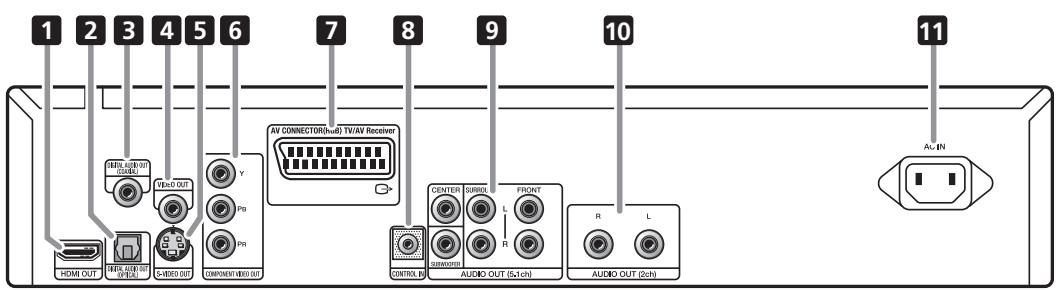
1 HDMI OUT HDMI output providing a high quality interface for digital audio and video (page 14).
2 DIGITAL AUDIO OUT OPTICAL Digital optical audio outputs for connection to a PCM, Dolby Digital, and/or DTS-compatible AV receiver (page 13).
3 DIGITAL AUDIO OUT COAXIAL Digital coaxial audio outputs for connection to a PCM, Dolby Digital, and/or DTS-compatible AV receiver (page 13).
4VIDEO OUT Video output (composite) that you can connect to your TV or AV receiver using the supplied video cable (page 10).
5 S-VIDEO OUT
S-Video output that you can use instead of the VIDEO OUT jacks (page 11).
6 COMPONENTVIDEO OUT High quality video output for connection to a TV, monitor or AV receiver that has component video inputs.
Connect using a commercially available three-way component video cable (page 11).
7 AV CONNECTOR (RGB) TV/AV Receiver Audio/video output SCART-type AV connector for connecting to a TV or other equipment with a SCART connector. The video output is switchable between video, S-Video and RGB (page 11).
8 CONTROL IN Use to control this player from the remote sensor of another Pioneer component with a CONTROL OUT terminal and bearing the mark. Connect the CONTROL OUT of the other component to the CONTROL IN of this player using a mini-plug cord (page 13).
9 AUDIO OUT (5.1ch)
Multi-channel (5.1ch) analog audio outputs for connection to an AV receiver with multi-channel analog audio inputs (page 12).
10 AUDIO OUT (2ch) Stereo analog audio outputs for connection to your TV, AV receiver or stereo system (page 10).
11 AC IN Connect the supplied power cord here, then plug into a power outlet.

Important
- Before making or changing any connections, switch off the power and disconnect the power cable from the AC outlet.
- The setup described here is a basic setup that allows you to play discs using just the cables supplied with the player. In this setup, stereo audio is played through the speakers in your TV.
- This player is equipped with copy protection technology. Do not connect this player to your TV via a VCR using audio/video or S-Video cables, as the picture from this player will not appear properly on your TV. (This player may also not be compatible with some combination TV/VCRs for the same reason; refer to the manufacturer for more information.)
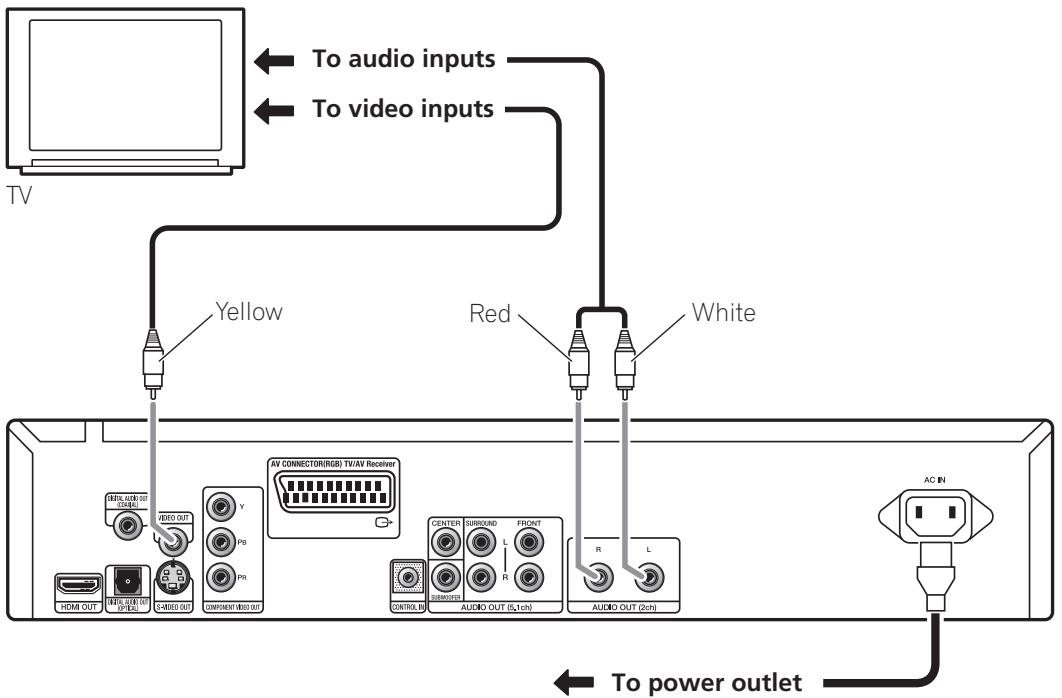
1 Connect the VIDEO OUT and AUDIO OUT (5.1ch) jacks to a set of A/V inputs on your TV.
Use the supplied audio/video cable, connecting the red and white plugs to the audio outputs and the yellow plug to the video output. Make sure you match up the left and right audio outputs with their corresponding inputs for correct stereo sound.
See page 11 if you want to use a component or S-Video or SCART cable for the video connection.
2 Connect the supplied AC power cable to the AC IN inlet, then plug into a power outlet.

Note
- Before unplugging the player from the power outlet, make sure you first switch it into standby using either the front panel
STANDBY/ON button, or the remote control, and wait of the -OFF- message to disappear from the player's display.
- For the above reasons, do not plug this player into a switched power supply found on some amplifiers and AV receivers.
Connecting using a SCART AV cable
A SCART-type AV connector is provided for connection to a TV or AV receiver. The video output is switchable between ordinary composite, S-Video and RGB. See AV Connector Out on page 33 for how to set it.
The SCART AV connector also outputs analog audio, so there is no need to also connect the AUDIO OUT (5.1ch) jacks.
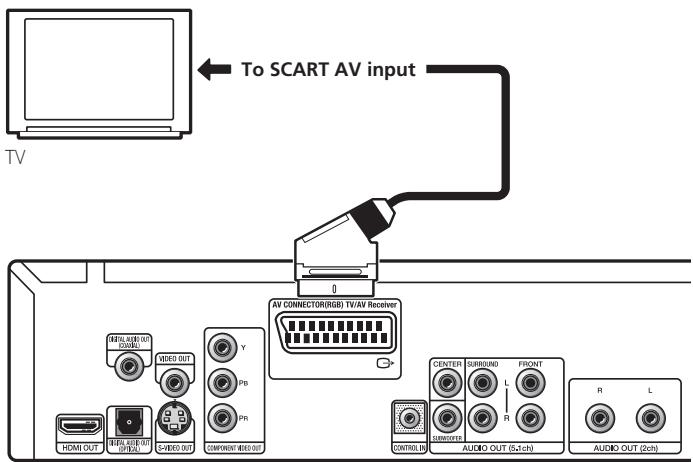
- Use a SCART cable (not supplied) to connect the AV CONNECTOR (RGB) TV/AV Receiver output to a SCART AV input on your TV (or AV receiver).
Connecting using the S-Video output
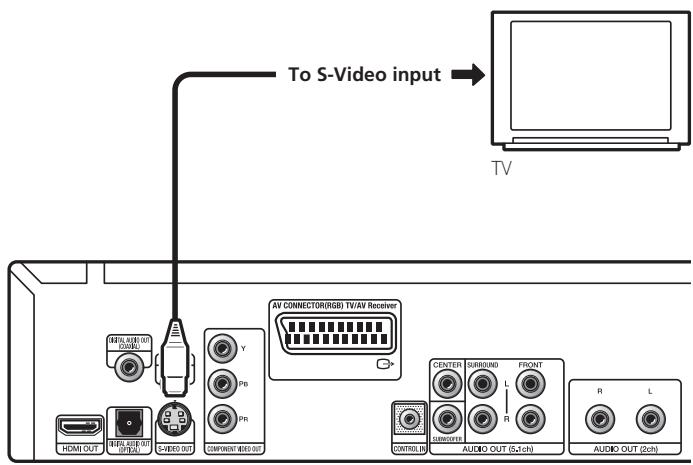
If your TV (or other equipment) has an S-Video input, you can use the S-Video output on this player instead of the standard (composite) output for a better quality picture.
- Use an S-Video cable (not supplied) to connect the S-VIDEO OUT to an S-Video input on your TV (or monitor or AV receiver).
Line up the small triangle above the jack with the same mark on the plug before plugging in.
Connecting using the component video output
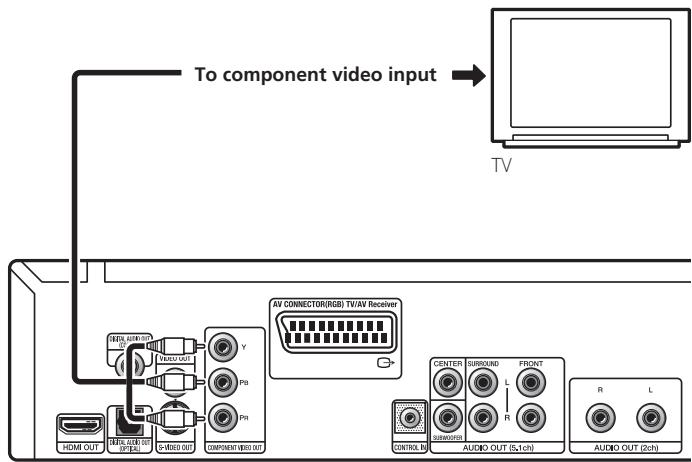
You can use the component video output instead of the standard video out jack to connect this player to your TV (or other equipment). This should give you the best quality picture from the three types of video output available.
- Use a component video cable (not supplied) to connect the COMPONENT VIDEO OUT jacks to a component video input on your TV, monitor or AV receiver.
Watching 1080i/720p/576p/480p from the component video outputs
This player can output 1080i/720p/576p/480p from the component video output. Compared to 576i/480i, 1080i/720p/576p/480p effectively doubles the scanning rate of the picture, resulting in a very stable, flicker-free image.
To set up the player for use with a progressive scan or HD (High Definition) TV, see Resolution (Max) on page 33. When the player is set to output progressive scan video, the PRGSVE indicator lights in the front panel display.

Important
- If you connect a TV that is not compatible with a 1080i/720p/576p/480p and switch the player to them, you will not be able to see any picture at all. In this case, switch everything off and reconnect using the supplied video cable (see Easy connections on page 10), then switch back to 576i/480i (see Switching the video output to 576i/480i using the front panel controls on page 12).
Switching the video output to 576i/480i using the front panel controls
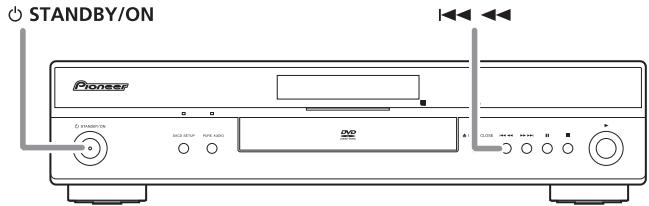
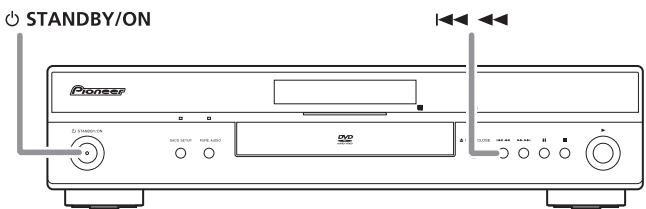
Switch the player to standby then, using the front panel controls, press STANDBY/ON while pressing to switch the player back to 576i/480i.
- If the player is connected using HDMI, disconnect the HDMI cable before resetting the player to 576i/480i output. (If left connected, the HDMI output resolution will be reset to its default — see Resetting the output resolution to the default setting with HDMI connection on page 15.)
Connecting to an AV receiver
You can connect this player to your AV receiver using the multichannel analog outputs or one of the digital outputs.
In addition to these connections, you should also connect the 2 channel analog outputs for compatibility with all discs.
You'll probably also want to connect a video output to your AV receiver. You can use any of the video outputs available on this player (the illustration shows a standard (composite) connection).
1 Connect the analog AUDIO OUT (2ch) and VIDEO OUT jacks on this player to a set of analog audio and video inputs on your AV receiver.
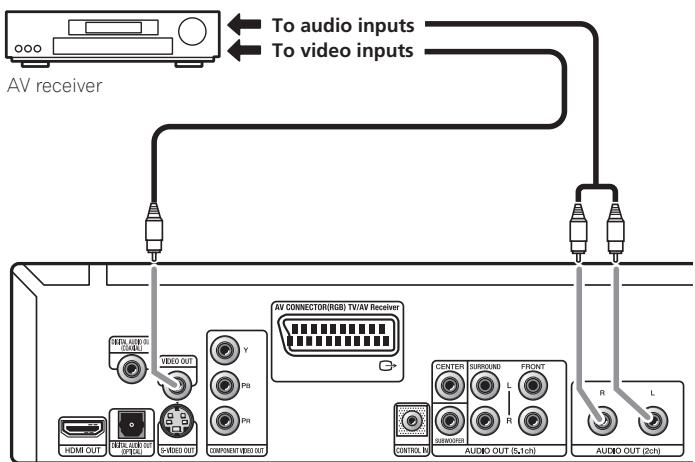
2 Connect the AV receiver's video output to a video input on your TV.
You can also use the SCART AV connector, the S-Video or component video jacks to connect to the AV receiver if you prefer.

Tip
- You usually have to connect the same kind of video cable between your DVD player and AV receiver, and between your AV receiver and TV.
Connecting the multichannel analog outputs
If your AV receiver has 5.1 channel analog inputs, we recommend connecting this player to it using the multichannel analog outputs. Doing this will ensure that you can enjoy all kinds of disc, including Dolby Digital and DTS DVD-Video discs, as well as high sampling rate and multichannel DVD-Audio and SACD discs.
- Connect the multi-channel audio outputs on this player to the multi-channel audio inputs on your AV receiver.
It's convenient to use three stereo audio cables; one for the FRONT, one for the SURROUND and one for the CENTER and SUBWOOFER channels.
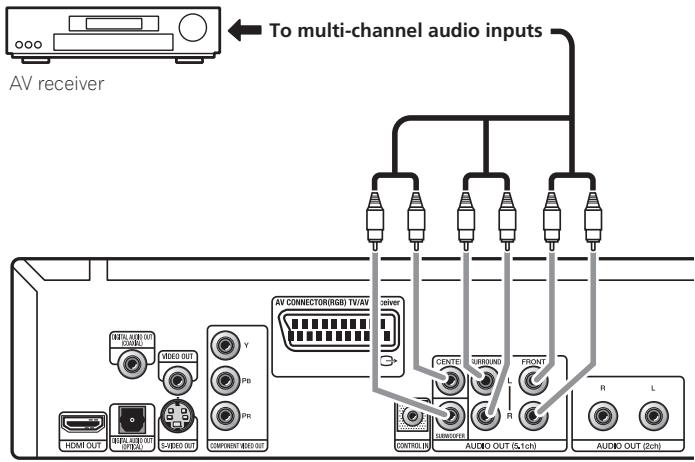
You can also use the SCART AV connector, the S-Video or component video jacks to connect to the AV receiver if you prefer.

Tip
- After connecting up and switching on, you should change the Audio Output Mode setting (page 36) in the Initial Setup menu from the default 2 Channel to 5.1 Channel.
Connecting the digital output
This player has both optical and coaxial-type digital audio outputs for connection to an AV receiver. Connect whichever is convenient.
Depending on the capabilities of your AV receiver, you might have to set up this player to output only digital audio in a compatible format. See Digital Audio Out settings on page 32 and refer to the operating instructions that came with your AV receiver.
Note that SACD audio is not output through these jacks, so this connection should be in addition to, rather than instead of, a 5.1 channel analog connection.
- Connect one of the DIGITAL AUDIO OUT (COAXIAL/OPTICAL) jacks on this player to a digital input on your AV receiver.
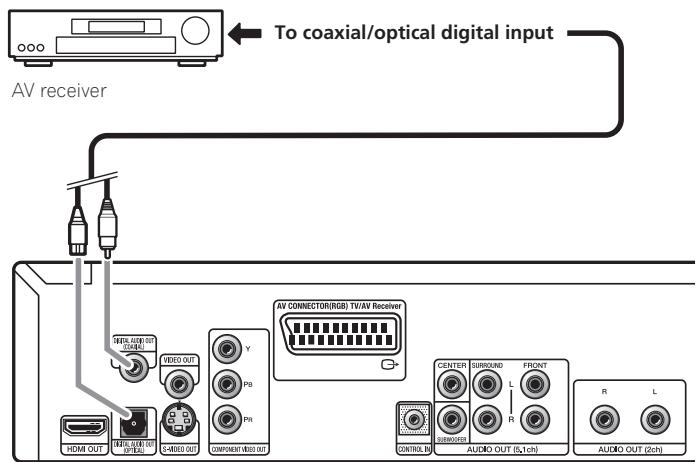
For an optical connection, use an optical cable (not supplied) to connect the DIGITAL AUDIO OUT OPTICAL jack to an optical input on your AV receiver.
For a coaxial connection, use a coaxial cable (similar to the supplied video cable) to connect the DIGITAL AUDIO OUT COAXIAL jack to a coaxial input on your AV receiver.
Controlling this player via another Pioneer component
The CONTROL IN jack allows you to control this player via the remote control sensor of another Pioneer component — typically an AV receiver — that has a CONTROL OUT jack. Remote control signals are passed through to the player from the remote sensor of the other component, allowing you greater freedom in the placement of your player.
- Use a miniplug cord (not supplied) to connect the CONTROL IN jack of this player with the CONTROL OUT jack of your other Pioneer component.
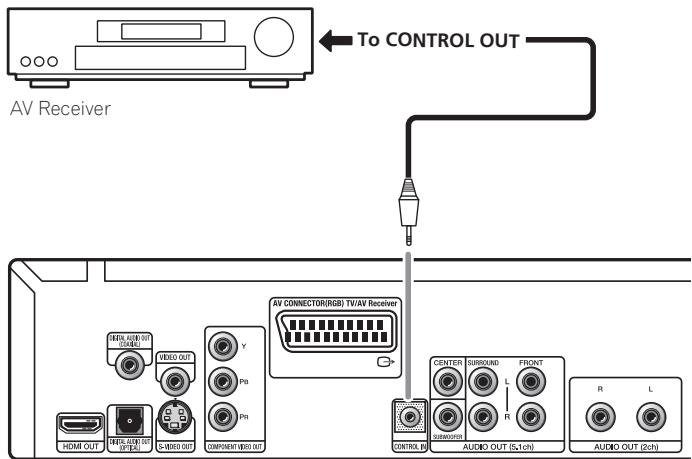
- You will also need to connect a coaxial digital cable, analog audio cable, or video cable.
- When connected via System Control, point the remote control toward the connected component (such as an AV receiver). The remote will not work correctly when pointed at this unit.
- You cannot connect use System Control with components that do not have a System Control jack or with components manufactured by companies other than Pioneer.
If you have a HDMI equipped monitor or display, you can connect it to this player using a commercially available HDMI cable.
The HDMI connector outputs uncompressed digital video, as well as almost every kind of digital audio that the player is compatible with, including DVD-Video, DVD-Audio (see below for limitations), SACD, Video CD/Super VCD, CD, WMA, MP3, MPEG-4 AAC, DivX video and WMV.
- Use an HDMI cable (not supplied) to connect the HDMI OUT interconnect on this player to an HDMI interconnect on a HDMI-compatible display.

The arrow on the cable connector body should be face up for correct alignment with the connector on the player.
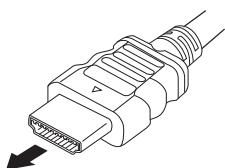

Note
- This unit has been designed to be compliant with HDMI (High-Definition Multimedia Interface). Depending on the component you have connected, using a DVI connection may result in unreliable signal transfers.
- When you change the component connected to the HDMI output, you will also need to change the HDMI settings to match the new component (see HDMI Out on page 32, Resolution (Max) and HDMI Color on page 33 to do this). However, the settings for each component are then stored in memory (for up to 2 components).
- The HDMI connection is compatible with 2 channel linear PCM signals (44.1 kHz to 192 kHz, 16 bit/20 bit/24 bit), and Dolby Digital, DTS, MPEG audio bitstream, multi channel DSD, and multi channel linear PCM signals, (5.1 channel signals up to 96 kHz, 16 bit/20 bit/24 bit).
- Depending on the HDMI cable being used, 1080p output may not appear correctly.
About HDMI
HDMI (High-Definition Multimedia Interface) supports both video and audio on a single digital connection for use with DVD players. DTV, set-top boxes, and other AV devices. HDMI was developed to provide the technologies of High-bandwidth Digital Content Protection (HDCP) as well as Digital Visual Interface (DVI) in one specification. HDCP is used to protect digital content transmitted and received by DVI-compliant displays.
HDMI has the capability to support standard, enhanced, or high-definition video plus standard to multi-channel surround-sound audio. HDMI features include uncompressed digital video, a bandwidth of up to five gigabytes per second (with HDTV signals), one connector (instead of several cables and connectors), and communication between the AV source and AV devices such as DTVs.
About HDMI Control
You can enable HDMI Control by turning the HDMI Control setting to On for all components connected via HDMI cable. Check the video output from this unit once you have completed making connections and settings for all components. You will need to check the video output each time you change connected components or remove the HDMI cable.
Note that HDMI Control may not operate properly if you do not use an HDMI cable that supports the HDMI 1.3 specification (Category 2) or later.
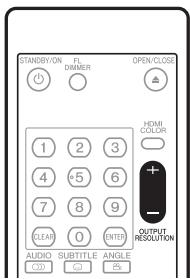
Use the OUTPUT RESOLUTION button located on the remote control to switch the output resolution for the HDMI and component video outputs.
Depending on the type of disc or file being played, the signals may not be output with the resolution set at Resolution (Max) (page 33). For details, see the table below.
| Resolution (Max) setting | |||||
| 480i/576i | 480p/576p | 1080i | 720p | 1080p | |
| DVD | 480i/576i | 480p/576p | 480p/576p | 480p/576p | 480p/576p |
| DVD-Audio | 480i/576i | 480p/576p | 480p/576p | 480p/576p | 480p/576p |
| DivX video/WMV | 480i/576i | 480p/576p | 1080i | 720p | 480p/576p |
| JPEG | 480i/576i | 480p/576p | 1080i | 720p | 480p/576p |
| Audio CD/Super Audio CD | 480i/576i | 480p/576p | 480p/576p | 480p/576p | 480p/576p |
| MP3/WMA/MPEG-4AAC | 480i/576i | 480p/576p | 1080i | 720p | 480p/576p |
| Video CD/Super VCD | 480i/576i | 480p/576p | 480p/576p | 480p/576p | 480p/576p |

Note
- If analog video signals are output at a resolution of 1080i or 720p, the GUI screen may look rough. This is not a malfunction.
Resetting the output resolution to the default setting with HDMI connection
Use the OUTPUT RESOLUTION button on the remote control to switch the player back to 576p/480p. You can also switch the player to standby then, using the front panel controls, press STANDBY/ON while pressing to switch the player back to 576p/480p.
Front panel
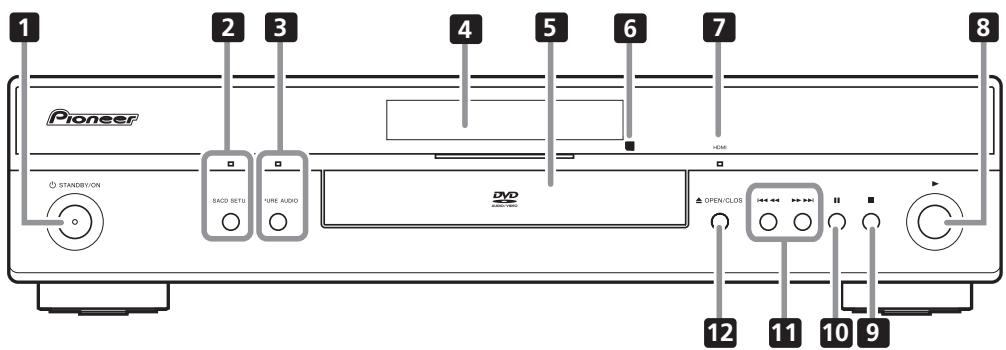
1 STANDBY/ON (page 20)
Press to switch the player on (the power indicator and indicator in the middle of the unit light up when the power is on) or into standby.
2 SACD SETUP
Press to select which part of an SACD disc you want to listen to — stereo audio (2ch Area), multi-channel audio (Multi-ch Area) and, for hybrid SACDs, standard CD audio(CD Area). See SACD
Playback on page 34 for more on this.
The indicator lights when an SACD disc is set and SACD Playback is set to 2ch Area or Multi-ch Area.
3 PURE AUDIO
When playback is stopped, press to switch off/on the front panel display and disable the video and digital outputs*. Use this when you want to hear audio from the analog outputs with no interference from other signals (when listening to a DVD-Audio disc, for example). The indicator lights when the Pure Audio feature is switched on.
This button only functions when Pure Audio Button (page 34) is set to Available.
*These include HDMI, and the coaxial and optical digital outputs.
4 Display (page 17)
5 Disc tray
6 Remote control sensor
The remote control has a range of up to about 7m
7 HDMI indicator
Lights when this player is recognized by another HDMI or DVI/HDCP compatible component.
8 (play) (page 22)
9 (stop) (page 22)
10 II (pause) (page 22)
11 1 and (page 22)
12 ▲ OPEN/CLOSE (page 22)
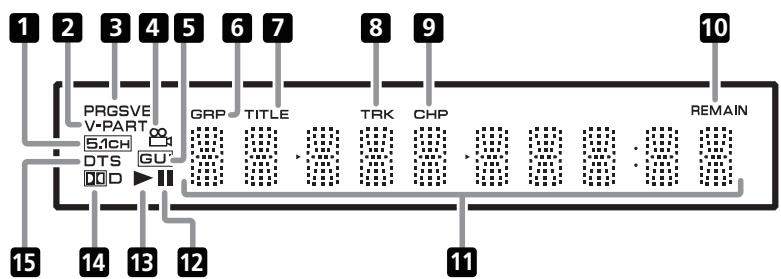
1 5.1CH
Lights when analog 5.1 channel output is selected (page 36).
2 V-PART
Lights when playing a video part of a DVD disc.
3 PRGSVE
Lights when the video output is 1080i/720p/576p/480p (page 11).
4
Lights during multi-angle scenes on a DVD disc (page 30).
5 GUI (Graphical User Interface)
Lights when a menu is displayed on-screen.
6 GRP
Indicates that the character display is showing a DVD-Audio group number
7 TITLE
Indicates that the character display is showing a DVD-Video title number.
8 TRK
Indicates that the character display is showing a track number.
9 CHP
Indicates that the character display is showing a DVD chapter number.
10 REMAIN
Lights when the character display is showing the time or number of tracks/titles/chapters remaining.
11 Character display
12 II
Lights when a disc is paused.
13
Lights when a disc is playing.
14 DDD
Lights when a Dolby Digital soundtrack is playing.
15 DTS
Lights when a DTS soundtrack is playing.
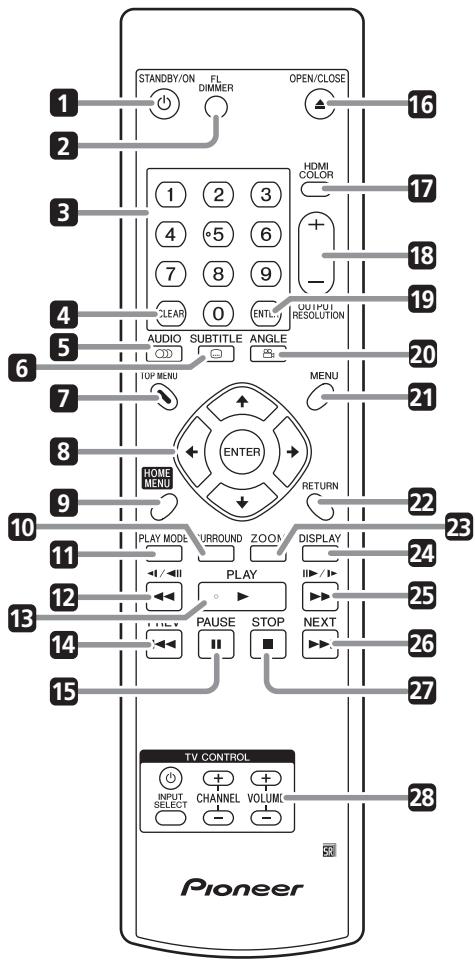
1 STANDBY/ON (page 20)
2 FL DIMMER Press to change the display brightness.
3 Number buttons (page 22)
4 CLEAR (pages 19 and 28)
5 AUDIO (page 29)
6 SUBTITLE (page 29)
7 TOP MENU (page 23)
8 ENTER & cursor buttons (page 21)
9 HOME MENU (page 21)
10 SURROUND (page 31)
11 PLAY MODE (page 27)
12 and / (pages 22 and 25)
13 PLAY (page 22)
14 PREV (page 22)
15 II PAUSE (page 22)
16 ▲ OPEN/CLOSE (page 22)
17 HDMI COLOR (page 33)
18 OUTPUT RESOLUTION + / - (pages 15 and 33)
19 ENTER (page 21)
20 ANGLE (page 30)
21 MENU (page 23)
22 RETURN (page 21)
23 ZOOM (page 29)
24 DISPLAY (page 30)
25 and I1>/(pages 22 and 25)
26 NEXT (page 28)
27 STOP (page 22)
28 TV CONTROL (page 19)
Using the remote control
Keep in mind the following when using the remote control:
- Make sure that there are no obstacles between the remote and the remote sensor on the unit.
- The remote has a range of about 7m .
- Remote operation may become unreliable if strong sunlight or fluorescent light is shining on the unit's remote sensor.
- Remote controllers for different devices can interfere with each other. Avoid using remotes for other equipment located close to this unit.
- Replace the batteries when you notice a fall off in the operating range of the remote.
Setting up the remote to control your TV
You can use the supplied remote to control your TV. To be able to use this feature you first have to program the remote with a maker code from the table below.
1 Press and hold down the CLEAR button, then enter the maker code for your TV.
See the table below for the list of maker codes. If there is more than one code given for your make, input the first one in the list.
- If the maker's name of your TV doesn't appear in the table below, you will not be able to use this remote to control your TV.
2 Press TV to check that the remote works with your TV.
If the remote is set up correctly, the TV should switch on/off. If it doesn't and there is another code given for your maker, repeat step 1 with a new code.
Using the TV remote control buttons
The table below shows how to use this remote control with your TV.
| Button | What it does |
| TV | Press to switch the TV on/off (standby) |
| INPUT SELECT | Press to change the TV's video input |
| VOLUME +/- | Use to adjust the TV volume |
| CHANNEL +/- | Use to change TV channels |
| Maker | Code |
| Aiwa | 38 |
| Funai | 36 |
| GE | 11, 28 |
| General | 34 |
| Goldstar | 10, 23 |
| Grandiente | 30 |
| Hitachi | 06, 24, 25, 32 |
| Magnavox | 12, 29 |
| Mitsubishi | 09 |
| NEC | 37 |
| Panasonic | 08, 22, 41 |
| Philips | 07 |
| Pioneer | 00, 35, 40, 44 |
| RCA | 01, 15, 16, 17, 18 |
| Samsung | 73, 75 |
| Sanyo | 14, 21 |
| Sharp | 02, 19, 27 |
| Sony | 04 |
| Toshiba | 05, 26, 31, 43 |
| JVC | 13, 33, 42 |
| Zenith | 03, 20 |
Chapter 4 Getting started
Switching on and setting up
When you switch the player on for the first time the Startup Navigator screen appears. We recommend using this to make a few basic player settings.
1 Switch on your TV and set the video input to this player.
2 Press the STANDBY/ON button on the remote control or the front panel to switch on.
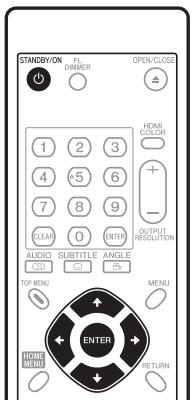
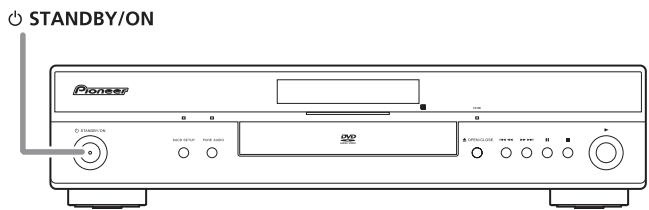
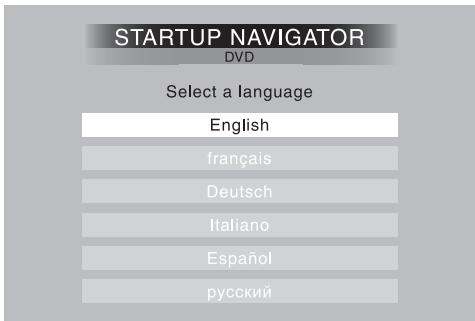
- When you switch on for the first time, your TV should display the Startup Navigator screen.
- When you have this unit connected to a plasma television that is compatible with HDMI Control, language settings are imported from the plasma television's OSD settings before Startup Navigator begins.
3 Use the / buttons to choose a language, then press ENTER.
4 Press ENTER to start setting up using the Startup Navigator.
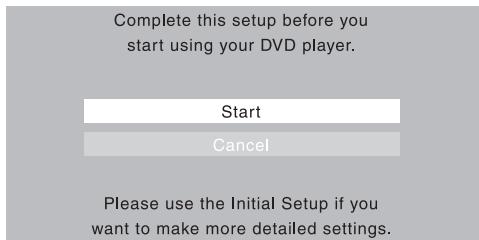
If you don't want to use the Startup Navigator, press ↓ to select Cancel, then press ENTER to exit the Startup Navigator.
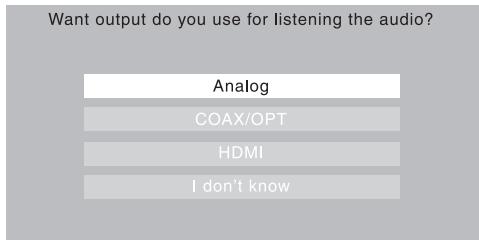
5 Use the / buttons to select the terminal from which the audio signals are to be output, then press ENTER.
- If you have selected Analog, proceed to step 6.
- If you have selected COAX/OPT, proceed to step 7.
- If you have selected HDMI or I don't know, proceed to step 8.
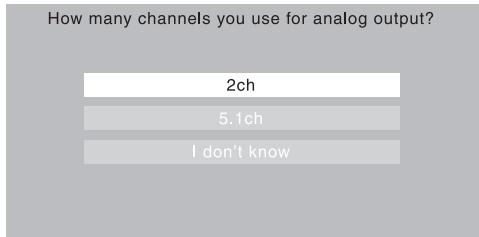
6 Use the / buttons to select whether to output the analog audio signals from the 2ch or 5.1ch audio outputs, then press ENTER.
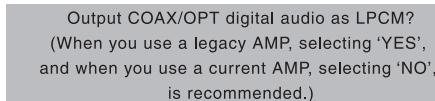
7 Use the / buttons to select whether or not to convert the digital audio signals output from the DIGITAL AUDIO OUT (COAXIAL/OPTICAL) into linear PCM format ('Yes' or 'No'), then press ENTER.
- Proceed to step 8.
Yes
No
I don't know
8 Use the / buttons to select whether or not to display a black band on the left and right sides of the screen when playing DVDs recorded with a 4:3 aspect ratio ('Yes' or 'No'), then press ENTER.
When you watch 4:3 DVD contents on wide- screen HDTV do you want to add black bars on either side of the screen?
(Select 'I don't know', if you have a standard(4:3) TV.)
Yes
No
I don't know
Resolution change is easily done by the remote control.
If you can't watch the video, change the resolution.
9 Select 'Finish' to accept the settings and exit the Startup Navigator, or 'Go Back' to go through the settings again.
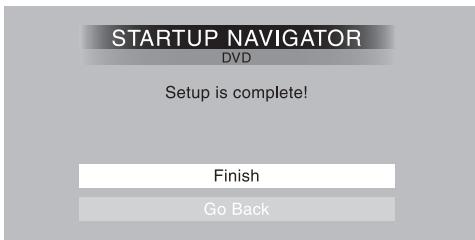

Note
- This player features a screen saver and an auto power off function. If the player is stopped and no button is pressed for around five minutes, the screen saver starts. If the disc tray is closed but no disc is playing and no control is pressed for about 30 minutes, the player automatically goes into standby.
- When the Startup Navigator is running, buttons other than OPEN/CLOSE, / / / , ENTER and RETURN will not function.
Using the on-screen displays
For ease of use, this player makes extensive use of graphical on-screen displays (OSDs).
All the screens are navigated in basically the same way, using the cursor buttons ( / / / ) to change the highlighted item and pressing ENTER to select it.
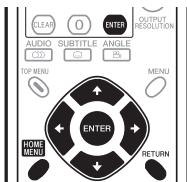
Button
What it does
HOME MENU
Display/exit the on-screen display.

Changes the highlighted menu item.
ENTER
Selects the highlighted menu item (both ENTER buttons on the remote work in exactly the same way).
RETURN
Returns to the main menu without saving changes.

Note
- From here on in this manual, the word 'select' generally means use the cursor buttons to highlight an item on-screen, then press ENTER.
Setting up the player for your TV
If you have a widenscreen (16:9) TV, you should setup the player so that the picture will be presented correctly. If you have a conventional (4:3) TV, you can leave the player on the default setting and move on to the next section.
1 Press HOME MENU and select 'Initial Settings'.

Initial Settings
2 Select 'TV Screen' from the 'Video Output' settings.

Initial Settings
Digital Audio Out
Video Output
Language
Display
Options
Speakers
TV Screen
AV Connector Out
Resolution (Max)
HDMI Color
4:3 (Letter Box)
4:3 (Pan&Scan)
16:9 (Wide)
16:9 (Compressed)
3 If you have a widescreen (16:9) TV, select '16:9 (Wide)' or '16:9 (Compressed)'.
If you have a conventional (4:3) TV, you can change the setting from 4:3 (Letter Box) to 4:3 (Pan & Scan) if you prefer. See Video Output settings on page 33 for more details.
4 Press HOME MENU to exit the menu screen.
Setting the language of this player's on-screen displays
This sets the language of the player's on-screen displays.
1 Press HOME MENU and select 'Initial Settings'.

Initial Settings
2 Select 'OSD Language' from the 'Display' settings.

Initial Settings
Digital Audio Out
Video Output
Language
Display
Options
Speakers
OSD Language
Angle Indicator
■ English
français
Deutsch
Italiano
Espanol
PYCCKN
3 Select a language.
The on-screen language will change according to your selection.
4 Press HOME MENU to exit the menu screen.
The basic playback controls for playing DVD, CD, SACD, Video CD/ Super VCD, DivX video/WMV and MP3/WMA/MPEG-4 AAC discs are covered here. Further functions are detailed in the next chapter. For details on playing JPEG picture discs, see Viewing a JPEG slideshow on page 25.

Important
- Throughout this manual, the term 'DVD' means DVD-Video, DVD-Audio and DVD-R/-RW. If a function is specific to a particular kind of DVD disc, it is specified.
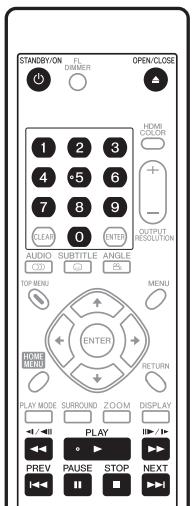
1 If the player isn't already on, press STANDBY/ON to switch it on.
If you're playing a DVD, disc containing DivX video/WMV files or Video CD/Super VCD, also turn on your TV and make sure that it is set to the correct video input.
2 Press OPEN/CLOSE to open the disc tray.
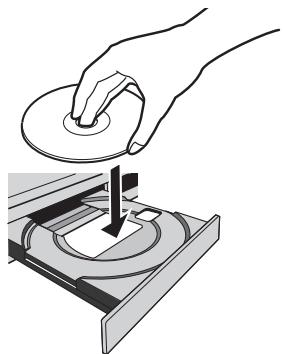
3 Load a disc.
Load a disc with the label side facing up, using the disc tray guide to align the disc (if you're loading a double-sided DVD disc, load it with the side you want to play face down).
4 Press PLAY to start playback.
If you're playing a DVD or Video CD/Super VCD, an on-screen menu may appear. See DVD-Video and DivX disc menus and Video CD/ Super VCD PBC menus on page 23 for more on how to navigate these.
- If you're playing a containing DivX video/WMV files or MP3/WMA/MPEG-4 AAC audio files, it may take a few seconds before playback starts, etc. This is normal.
- Please see Disc/content format playback compatibility on page 7 if you want to play a DualDisc (DVD/CD hybrid disc).

Note
- You may find with some DVD discs that some playback controls don't work in certain parts of the disc. This is not a malfunction.
- If a disc contains a mixture of movie (DivX video/WMV) and other media file types (MP3, for example), first select whether to play the movie files (DivX/WMV) or the other media file types (MP3/
WMA/MPEG-4 AAC/JPEG) from the on-screen display. The media file types are selected automatically when the Pure Audio Mode is turned on.
Basic playback controls
The table below shows the basic controls on the remote for playing discs. The following chapter covers other playback features in more detail.
| Button | What it does |
| ▶ PLAY | Starts playback. If the display shows RESUME or LAST MEM playback starts from the resume or last memory point (see also Resume and Last Memory on page 23). |
| II PAUSE | Pauses a disc that's playing, or restarts a paused disc. |
| ■ STOP | Stops playback. See also Resume and Last Memory on page 23. |
| (remote only) | Press to start fast reverse scanning. Press▶ (play) to resume normal playback. |
| (remote only) | Press to start fast forward scanning. Press▶ (play) to resume normal playback. |
| I▶ PREV | Skips to the start of the current track, title or chapter, then to previous tracks/titles/chapters. |
| ▶NEXT | Skips to the next track, title or chapter. |
| Numbers (relative only) | Use to enter a title/chapter/track number. Press ENTER to select. · If the disc is stopped, playback starts from the selected title (for DVD), group (for DVD-Audio) or track (for CD/SACD/Video CD/Super VCD). · If the disc is playing, playback jumps to the start of the selected title (VR mode DVD-RW), chapter (DVD-Video) or track (DVD-Audio*/SACD/CD/Video CD/Super VCD). *within the current group |
Resume and Last Memory
With the exception of DVD-Audio and SACD discs, when you stop playback of a DVD, CD, or Video CD/Super VCD or DivX video/WMV discs, RESUME is shown in the display indicating that you can resume playback again from that point.
If the disc tray is not opened, the next time you start playback the display shows RESUME and playback resumes from the resume point. (If you want to clear the resume point, press STOP while RESUME is displayed.)
With DVDs and Video CD/Super VCDs, if you take the disc out of the player after stopping playback, the last play position is stored in memory. If the next disc you load is the same one, the display shows LAST MEM and playback will resume. For DVD-Video discs, the player stores the play position of the last five discs. When one of these discs is next loaded, you can resume playback.

Note
- The Last Memory function doesn't work with VR format DVD-R/ -RW, DVD-Audio or SACD discs.
- If you don't need the Last Memory function when you stop a disc, you can press OPEN/CLOSE to stop playback and open the disc tray.
DVD-Video and DivX disc menus
Some DivX media files and many DVD-Video and DVD-Audio discs feature menus from which you can select what you want to watch. They may also give access to additional features, such as subtitle and audio language selection, or special features such as slideshows. See the disc packaging for details.
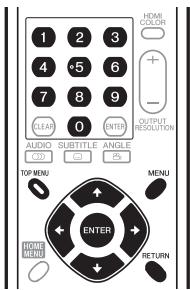
Sometimes DivX and DVD-Video menus are displayed automatically when you start playback; others only appear when you press MENU or TOP MENU.

Important
- Some DVD-Audio discs feature a 'bonus group'. To play this group you first have to input a password, which you can find on the disc's packaging. Use the number buttons to input the password.
Video CD/Super VCD PBC menus
Some Video CD/Super VCDs have menus from which you can choose what you want to watch. These are called PBC (Playback Control) menus.
You can play a PBC Video CD/Super VCD without having to navigate the PBC menu by starting playback using a number button to select a track, rather than the PLAY button.
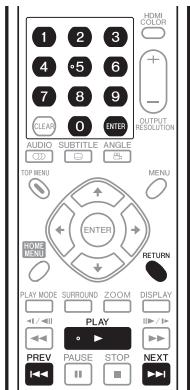
| Button | What it does |
| RETURN | Displays the PBC menu. |
| Numbers (remote only) | Use to enter a numbered menu option. Press ENTER to select. |
| PREV | Displays the previous menu page (if there is one). |
| NEXT | Displays the next menu page (if there is one). |

FAQ
- After I load a DVD disc, it ejects automatically after a few seconds!
Most likely, the disc is the wrong region for your player. The region number should be printed on the disc; check it against the region number of the player (which you can find on the rear panel). See also DVD-Video regions on page 41.
If the region number is OK, it may be that the disc is damaged or dirty. Clean the disc and look for signs of damage. See also Taking care of your player and discs on page 40.
- Why won't the disc I loaded play?
First check that you loaded the disc the right way up (label side up), and that it's clean and undamaged. See Taking care of your player and discs on page 40 for information on cleaning discs.
If a disc loaded correctly won't play, it's probably an incompatible format or disc type, such as DVD-ROM. See Disc/ content format playback compatibility on page 7 for more on disc compatibility.
- There's no picture!
Check the front panel and make sure that the PURE AUDIO indicator isn't lit. If it is, press the PURE AUDIO button to switch the video and HDMI outputs back on. See also Front panel on page 16.
Check that your TV is compatible with resolutions of 1080i, 720p, 576p or 480p. See Watching 1080i/720p/576p/480p from the component video outputs on page 11.
- I have a widescreen TV so why are there black bars at the top and bottom of the screen when I play some discs?
Some movie formats are such that even when played on a widescreen TV, black bars are necessary at the top and bottom of the screen. This is not a malfunction.
- I have a standard (4:3) TV and set the player to show widescreen DVDs in pan & scan format, so why do I still get black bars top and bottom with some discs?
Some discs override the display preferences of the player, so even if you have 4:3 (Pan & Scan) selected, those discs will still be shown in letter box format. This is not a malfunction.
- I've connected to a HDMI compatible component but I can't get any signal and the front panel HDMI indicator won't light!
Make sure that you've selected this player as the HDMI input in the settings for the component you're using. You may need to refer to the instruction manual of the component to do this. See Connecting using HDMI on page 14 for more on HDMI compatibility.
- There's no picture from the HDMI output!
This player cannot display pictures from DVI compatible sources. See Connecting using HDMI on page 14 for more on HDMI compatibility.
Make sure the resolution on this player matches that of the component you have connected using HDMI. See Resolution (Max) on page 33 to change the HDMI resolution.
- My AV receiver is definitely compatible with 96 kHz/88.2 kHz Linear PCM audio, but it doesn't seem to work with this player. What's wrong?
For digital copy-protection purposes, some 96 kHz/88.2 kHz DVD discs only output digital audio downsampled to 48 kHz/44.1 kHz. This is not a malfunction.
To fully take advantage of the high sampling rate audio, connect the analog audio outputs to your amplifier/receiver.
- Why can't I hear SACD audio through the digital outputs?
SACD digital audio is only available through the HDMI outputs when connected to an HDMI-compatible amp that can handle protected audio contents. Some DVD-Audio discs too only output digital audio through the HDMI outputs. - Is it better to listen to DVD-Audio discs through the analog outputs?
Some DVD-Audio discs do not output anything through the digital outputs, and multichannel discs are downmixed to stereo for the digital output. In addition, high sampling rate DVD-Audio discs (higher than 96kHz ) automatically downsample audio output from the digital outputs.
Using the multichannel analog audio outputs for DVD-Audio have none of these limitations. - My DVD-Audio disc starts playing, but then suddenly stops! The disc may have been illegally copied.
- There's no sound from the optical/coaxial outputs or the HDMI interface!
Check the front panel and make sure that the PURE AUDIO indicator isn't lit. If it is, press the PURE AUDIO button to switch the digital audio (optical/coaxial and HDMI) outputs back on.
You won't hear any sound from the HDMI output if the source component is only DVI/HDCP-compatible.
Chapter 5 Playing discs

Note
- Many of the functions covered in this chapter apply to DVD and SACD discs, Video CDs/Super VCDs, CDs, DivX video/WMV and MP3/WMA/MPEG-4 AAC/JPEG discs, although the exact operation of some varies slightly with the kind of disc loaded.
- Some DVDs restrict the use of some functions (random or repeat, for example) in some or all parts of the disc. This is not a malfunction.
- When playing Video CD/Super VCDs, some of the functions are not available during PBC playback. If you want to use them, start the disc playing using a number button to select a track.
Scanning discs
You can fast-scan discs forward or backward at four different speeds (only one speed for DivX video/WMV).
1 During playback, press or to start scanning.
- There is no sound while scanning DVDs (including DVD-Audio), DivX video/WMV and Video CD/Super VCDs.
2 Press repeatedly to increase the scanning speed.
- The scanning speed is shown on-screen.
3 To resume normal playback, press PLAY.
- When scanning a Video CD/Super VCD playing in PBC mode on a MP3/WMA/MPEG-4 AAC track, playback automatically resumes at the end or beginning of the track.
- Depending on the disc, normal playback may automatically resume when a new chapter is reached on a DVD disc.
Playing in slow motion
You can play DVD-Videos and DVD-R/-RW at four different slow motion speeds, forwards and backwards. Video CD/Super VCDs and DivX video/WMV can be played at four different forward slow motion speeds.
1 During playback, press II PAUSE.
2 Press and hold / or / until slow motion playback starts.
- The slow motion speed is shown on-screen.
- There is no sound during slow motion playback.
3 Press repeatedly to change the slow motion speed.
4 To resume normal playback, press PLAY.
- Depending on the disc, normal playback may automatically resume when a new chapter is reached.
Frame advance/frame reverse
You can advance or back up DVD-Video and DVD-R/-RW discs frame-by-frame. With Video CD/Super VCDs and DivX video/WMV file you can only use frame advance.
1 During playback, press II PAUSE.
2 Press / or / to reverse or advance a frame at a time.
3 To resume normal playback, press PLAY.
- Depending on the disc, normal playback may automatically resume when a new chapter is reached.
Viewing a JPEG slideshow
After loading a CD/CD-R/-RW containing JPEG picture files, press (play) to start a slideshow from the first folder/picture on the disc. The player displays the pictures in each folder in alphabetical order.
- If the folder contains MP3/WMA/MPEG-4 AAC files, playback of the slideshow and MP3/WMA/MPEG-4 AAC file repeats. During the audio playback, you can still use the skip (▶ PREV/▶ NEXT), scan (▶/▶) and pause (II PAUSE) functions.
Pictures are automatically adjusted so that they fill as much of the screen as possible (if the aspect ratio of the picture is different to your TV screen you may notice black bars at the sides, or at the top and bottom of the screen).
While the slideshow is running:
| Button | What it does |
| II PAUSE | Pauses the slideshow; press again to restart. |
| PREV | Displays the previous picture. |
| NEXT | Displays the next picture. |
| ←/→ | Pauses the slideshow and rotates the displayed picture 90° (counter) clockwise. (Press▶PLAY to restart slideshow.) |
| ↑/↓ | Pauses the slideshow and flips the displayed picture horizontally or vertically. (Press▶PLAY to restart slideshow.) |
| ZOOM | Pauses the slideshow and zooms the picture. Press again to toggle between 1x, 2x and 4x zoom. (Press▶PLAY to restart slideshow.) |
| MENU | Displays the Disc Navigator screen (see page 26). |

Note
- The time it takes for the player to load a file increases with large file sizes.
Browsing DVD or Video CD/Super VCD disc with the Disc Navigator
Use the Disc Navigator to browse through the contents of a DVD-Video, VR mode DVD-R/-RW or Video CD/Super VCD disc to find the part you want to play.

Important
- You can't use the Disc Navigator with Video CD/Super VCDs in PBC mode.
1 During playback, press HOME MENU and select 'Disc Navigator' from the on-screen menu.
2 Select a view option.
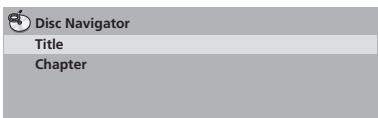
The options available depend on the kind of disc loaded and whether the disc is playing or not, but include:
- Title — Titles from a DVD-Video disc.
Chapter Chapters from the current title of a DVD-Video disc. - Track—Tracks from a Video CD/Super VCD disc.
- Time — Thumbs nails from a Video CD/Super VCD disc at 10 minute intervals.
- Original: Title — Original titles from a VR mode DVD-R/-RW disc.
- Play List: Title — Play List titles from a VR mode DVD-R/-RW disc.
- Original: Time — Thumbs nails from the Original content at 10 minutes intervals.
- Play List: Time — Thumbsails from the Play List at 10 minutes intervals.
The screen shows up to six moving thumbnail images displayed one after another. To display the previous/next six thumbnails, press 1 / (you don't have to wait for all the thumbnails to finish playing to display the previous/next page).
3 Select the thumbnail image for what you want to play.
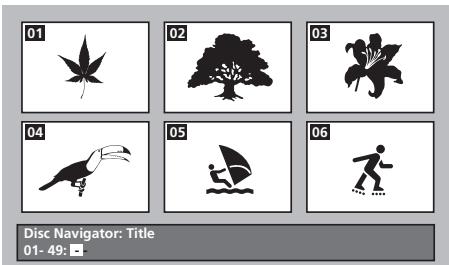
You can use either the cursor buttons (///) and ENTER to select a thumbnail, or the number buttons.
To select using the number buttons, enter a two-digit number then press ENTER.

Tip
- Another way to find a particular place on a disc is to use one of the search modes. See Searching a disc on page 29.
Browsing WMA, MP3, MPEG-4 AAC, DivX video, WMV and JPEG files with the Disc Navigator
Use the Disc Navigator to find a particular file or folder by filename. Note that if there are other types of files on the same disc, these will not be displayed in the Disc Navigator.
1 Press HOME MENU and select 'Disc Navigator' from the on-screen menu.
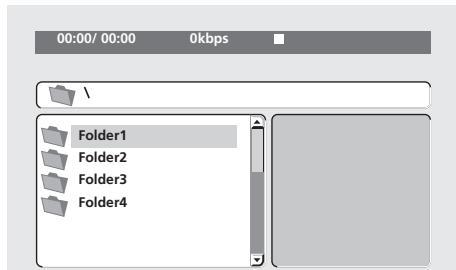
2 Use the cursor buttons ( / / / ) and ENTER to navigate. Use the cursor up/down buttons ( / ) to move up and down the folder/file list.
Use the cursor left button () to return to the parent folder. Use ENTER or cursor right () to open a highlighted folder.
- You can also return to the parent folder by going to the top of the list to the '...' folder, then pressing ENTER.
- When a JPEG file is highlighted, a thumbnail image is displayed on the right.
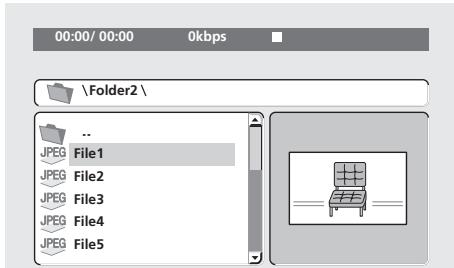
3 To play the highlighted track or DivX video/WMV file or display the highlighted JPEG file, press ENTER.
- When a MP3/WMA/MPEG-4 AAC or DivX video/WMV file is selected, playback begins, starting with the selected file, and continues until the end of the folder.
- When a JPEG file is selected, a slideshow begins, starting with that file, and continues to the end of the folder.

Tip
-
You can also play a JPEG slideshow while listening to MP3/WMA/MPEG-4 AAC playback. Simply select the audio file you want to listen to followed by the JPEG from which you want the slideshow to start. Playback of both the slideshow and the audio files repeats. Playback controls are effective for the JPEG slideshow only.
-
To play the contents of the whole disc rather than just the current folder, exit the Disc Navigator and start playback using the PLAY button.
Looping a section of a disc
The A-B Repeat function allows you to specify two points (A and B) within a track (CD, Video CD/Super VCD) or title (DVD-Video and DVD-RW) that form a loop which is played over and over.
- You can't use A-B Repeat with DVD-Audio, SACD, Video CD/ Super VCDs in PBC mode, or MP3/WMA/MPEG-4 AAC/DivX video/WMV files.
1 During playback, press PLAY MODE and select 'A-B Repeat' from the list of functions on the left.
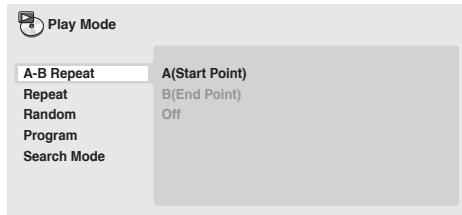
2 Press ENTER on 'A(Start Point)' to set the loop start point.
3 Press ENTER on 'B(End Point)' to set the loop end point.
After pressing ENTER, playback jumps back to the start point and plays the loop.
4 To resume normal playback, select 'Off' from the menu.
Using repeat play
There are various repeat play options, depending on the kind of disc loaded. It's also possible to use repeat play together with program play to repeat the tracks/chapters in the program list (see Creating a program list on page 28).

Important
- You can't use Repeat play with Video CD/Super VCDs in PBC mode, or with MP3/WMA/MPEG-4 AAC discs.
- You can't use repeat and random play at the same time.
1 During playback, press PLAY MODE and select 'Repeat' from the list of functions on the left.
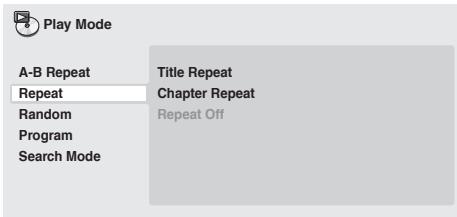
2 Select a repeat play option.
If program play is active, select Program Repeat to repeat the program list, or Repeat Off to cancel.
The repeat options available depend on the kind of disc loaded. For example, for DVD-Video and DVD-RW discs, you can select Title Repeat or Chapter Repeat (or Repeat Off).
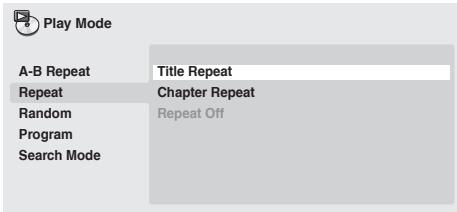
- For DVD-Audio discs, select Group Repeat or Track Repeat (or Repeat Off).
- For SACDs, CDs and Video CD/Super VCDs, select Disc Repeat or Track Repeat (or Repeat Off).
- For DivX video/WMV discs, select Title Repeat, and for some DivX media files, select Chapter Repeat (or Repeat Off).
Use the random play function to play titles or chapters (DVD-Video), Groups (DVD-Audio), or tracks (DVD-Audio, SACD, CD, Video CD/ Super VCD) at random. (Note that the same track/title/chapter may play more than once.)
You can set the random play option when a disc is playing or stopped.

Important
- Random play remains in effect until you select Random Off from the random play menu options.
- You can't use random play with VR format DVD-R/-RW discs, Video CD/Super VCDs playing in PBC mode, MP3/WMA/MPEG-4 AAC discs, DivX video/WMV discs, or while a DVD menu is being displayed.
- You can't use random play together with program or repeat play.
1 Press PLAY MODE and select 'Random' from the list of functions on the left.
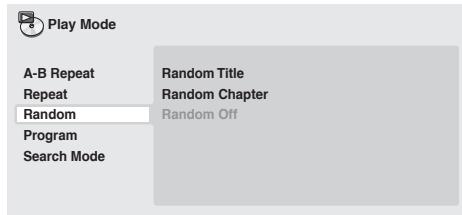
2 Select a random play option.
The random play options available depend on the kind of disc loaded. For example, for DVD-Video discs, you can select Random Title or Random Chapter (or Random Off).
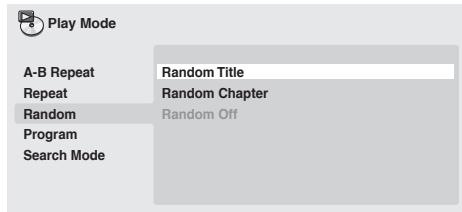
- For DVD-Audio discs, select Random Group or Random Track (or Random Off).
- For CDs, SACDs and Video CD/Super VCDs, select On or Off to switch random play on or off.

Tip
- Use the following controls during random play:
| Button | What it does |
| ▶NEXT | Selects a new track/title/chapter at random. |
| ←PREV | Returns to the beginning of the current track/title/chapter; further presses select another random track/title/chapter. |
Creating a program list
This feature lets you program the play order of titles/chapters/groups/tracks on a disc.

Important
- You can't use Program play with VR format DVD-R/-RW discs, Video CD/Super VCDs playing in PBC mode, MP3/WMA/MPEG-4 AAC discs, DivX video/WMV discs, or while a DVD menu is being displayed.
1 Press PLAY MODE and select 'Program' from the list of functions on the left.
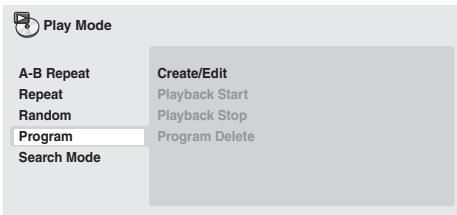
2 Select 'Create/Edit' from the list of program options.
3 Use the cursor buttons and ENTER to select a title, chapter or track for the current step in the program list.
For a DVD-Video disc, you can add a title or a chapter to the program list.
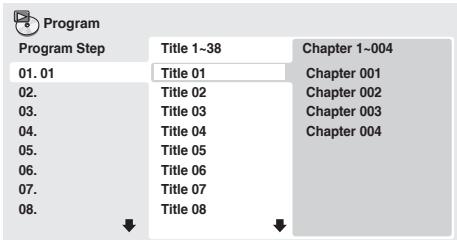
- For a DVD-Audio disc, you can add a whole group, or a track within a group to the program list.
- For a CD, SACD or Video CD/Super VCD, select a track to add to the program list.
After pressing ENTER to select the title/chapter/group/track, the step number automatically moves down one.
4 Repeat step 3 to build up a program list.
A program list can contain up to 24 titles/chapters/tracks.
- You can insert steps into the middle of a program list by just highlighting the position where you want the new step to appear and entering a title/chapter/group/track number.
- To delete a step, highlight it and press CLEAR.
5 To play the program list, press PLAY.
Program play remains active until you turn off program play (see page 29), erase the program list (see page 29), eject the disc or switch off the player.

Tip
- Use the following controls during program play:
Button What it does
PLAY MODE Save the program list and exit the program edit screen without starting playback (HOME MENU does the same).
NEXT Skip to the next step in the program list.
Other functions available from the program menu
There are a number of other options in the program menu in addition to Create/Edit.
- Playback Start - Starts playback of a saved program list
- Playback Stop - Turns off program play, but does not erase the program list
- Program Delete - Erases the program list and turns off program play
Searching a disc
You can search DVD-Video discs by title or chapter number, or by time; DVD-Audio discs can be searched by group or track number; SACDs by track number, CDs and Video CD/Super VCDs by track number or time; DivX video/WMV discs by time, and some DivX media files by chapter number.

Important
- Search functions are not available with Video CD/Super VCDs in PBC mode, or with MP3/WMA/MPEG-4 AAC discs.
1 Press PLAY MODE and select 'Search Mode' from the list of functions on the left.
2 Select a search mode.
The search options available depend on the kind of disc loaded.
- The disc must be playing in order to use time search.
3 Use the number buttons to enter a title, chapter or track number, or a time.
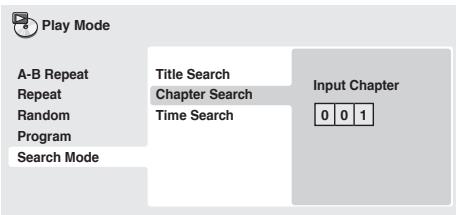
- For a time search, enter the number of minutes and seconds into the currently playing title (DVD/DivX video/WMV) or track (CD/Video CD/Super VCD) you want playback to resume from. For example, press 4, 5, 0, 0 to have playback start from 45 minutes into the disc. For 1 hour, 20 minutes and 30 seconds, press 8, 0, 3, 0.
- Some DVD-Audio discs feature pages of browsable pictures. Enter the page number you want.
4 Press ENTER to start playback.
Switching subtitles
Some DVD-Video and DivX video discs have subtitles in one or more languages; the disc box will usually tell you which subtitle languages are available. You can switch subtitle language during playback.
- Press SUBTITLE repeatedly to select a subtitle option.

Note
- Some discs only allow you to change subtitle language from the disc menu. Press TOP MENU or MENU to access.
- To set subtitle language preferences, see page 33.
- See Displaying external subtitle files on page 8 for more on DivX subtitles.
Switching audio language/channels
When playing a DVD-Video and DivX video disc recorded with dialog in two or more languages, you can switch audio language during playback.
When playing a VR format DVD-R/-RW disc recorded with dual-mono audio, you can switch between the main, sub, and mixed channels during playback.
When playing a DVD-Audio disc, you may be able to switch channels — see the disc box for details. (When you change the audio channel, playback restarts from the beginning of the current track.)
When playing a Video CD/Super VCD, you can switch between stereo, just the left channel or just the right channel.
- Press AUDIO repeatedly to select an audio language/channel option.
The language/channel information is shown on-screen.

Note
- Some DVD discs only allow you to change audio language from the disc menu. Press TOP MENU or MENU to access.
- To set DVD audio language preferences, see page 33.
Zooming the screen
Using the zoom feature you can magnify a part of the screen by a factor of 2 or 4, while watching a DVD, DivX video/WMV title or Video CD/Super VCD or playing a JPEG disc.
1 During playback, use the ZOOM button to select the zoom factor (Normal, 2x or 4x).
- Since DVD, Video CD/Super VCD, DivX video/WMV title and JPEG pictures have a fixed resolution, picture quality will deteriorate, especially at 4x zoom. This is not a malfunction.
2 Use the cursor buttons to change the zoomed area.
You can change the zoom factor and the zoomed area freely during playback.
- If the navigation square at the top of the screen disappears, press ZOOM again to display it.
Some DVD discs feature scenes shot from two or more angles — check the disc box for details.
When a multi-angle scene is playing, a icon appears on screen to let you know that other angles are available (this can be switched off if you prefer—see Display settings on page 34).
During playback, press ANGLE to switch angle.
Displaying disc information
Various track, chapter and title information, such as the elapsed and remaining playing time can be displayed on-screen while a disc is playing.
- To show/switch/hide the information displayed, press DISPLAY repeatedly.
- When a disc is playing, the information appears at the top of the screen. Keep pressing DISPLAY to change the displayed information.
Chapter 6
Audio Settings and Video Adjust menus
Audio Settings menu
The Audio Settings menu offers features for adjusting the way discs sound.
1 Press HOME MENU and select 'Audio Settings' from the on-screen display.
2 Select and change settings using the / / / (cursor) buttons, and ENTER.
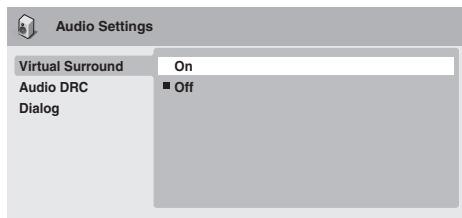
Audio DRC
- Settings: High, Medium, Low, Off (default)
When watching Dolby Digital DVDs at low volume, it's easy to lose the quieter sounds completely — including some of the dialog. Switching Audio DRC (Dynamic Range Control) to on can help by bringing up the quieter sounds, while controlling loud peaks.
How much of a difference you hear depends on the material you're listening to. If the material doesn't have wide variations in volume, you may not notice much change.

Note
- Audio DRC is only effective with Dolby Digital audio sources.
- Audio DRC is only effective through the digital output when Digital Out (page 32) is set to On, and Dolby Digital Out (page 32) is set to Dolby Digital > PCM.
- The effect of Audio DRC also depends on your speakers and AV receiver settings.
Virtual Surround
- Settings: On, Off (default)
Switch on Virtual Surround to enjoy realistic surround sound effects from just two speakers.

Tip
- You can also use the SURROUND button on the remote control to switch Virtual Surround on.

Note
- 96 kHz linear PCM audio is automatically downsampled to 48 kHz if Virtual Surround is switched on.
-
The Audio Output Mode (page 36) must be set to 2 Channel in order to be able to use Virtual Surround.
-
If the player is outputting Dolby Digital, DTS or MPEG bitstream audio (in other words, no conversion to PCM), Virtual Surround has no effect on the audio from the digital output. See Digital Audio Out settings on page 32 for how to set up the digital output formats.
- How good the surround effect is varies with the disc.
Dialog
- Settings: High, Medium, Low, Off (default)
The Dialog feature is designed to make the dialog stand out from other background sounds in the soundtracks.
Video Adjust menu
From the Video Adjust screen you can adjust various settings that affect how the picture is presented.
1 Press HOME MENU and select 'Video Adjust' from the on-screen display.

Video Adjust
2 Make settings using the / / / (cursor) buttons, and ENTER.
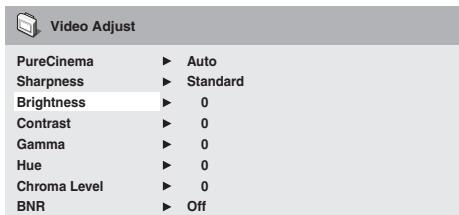
You can adjust the following picture quality settings:
- PureCinema - When watching DVDs, PureCinema optimizes the picture quality. The default setting is Auto, but if the picture appears unnatural, then set to Video1 or Video2, as appropriate.
- Sharpness - Adjusts the sharpness of edges in the picture (Fine, Standard (default), Soft).
- Brightness - Adjusts the overall brightness (-20 to +20) .
- Contrast - Adjusts the contrast between light and dark (-16 to +16).
- Gamma - Adjusts the 'gradation' of the picture (-3 to +3).
- Hue - Adjusts the red/green balance (green 9 to red 9).
- Chroma Level - Adjusts how saturated colors appear (-9 to +9).
- BNR - Switches on/off block noise reduction (On, Off (default)).
Adjust the Brightness, Contrast, Hue and Chroma Level settings using the / (cursor left/right) buttons.
Brightness
min
111
111
……
……
max
0
3 Press ENTER to return to the Video Adjust screen, or HOME MENU to exit.
Using the Initial Settings menu
The Initial Settings menu provides audio and video output settings, parental lock settings, and display settings, among others.
If an option is grayed out it means that it cannot be changed at the current time. This is usually because a disc is playing. Stop the disc, then change the setting.
1 Press HOME MENU and select 'Initial Settings'.

Initial Settings
2 Use the cursor buttons and ENTER to select the setting and option you want to set.
All the settings and options are explained on the following pages.

Note
- In the table below, the default option is marked with a .
- The Digital Audio Out settings only need to be set if you have connected the digital output of this player to an AV receiver, or other equipment.
- Check the operating instructions supplied with your other equipment to see which digital audio formats it's compatible with.
- Some settings, such as TV Screen, Audio Language and Subtitle Language may be overridden by the DVD disc. Often these settings can also be made from the DVD disc menu.
- The HDMI Out and HDMI Color settings only need to be set if you connected this player to an HDMI-compatible component using the HDMI connector.
- The Digital Audio Out, AV Connector Out and Speakers settings cannot be set if the player is connected to an HDMI-compatible component using the HDMI connector. Additionally, these settings may be changed automatically.
Digital Audio Out settings
| Setting | Option | What it means |
| HDMI Out | LPCM (2CH) | Set if your monitor or device only accepts stereo input. On this setting multichannel audio is downmixed to 2 channels for stereo linear PCM output. |
| LPCM (5.1CH) | Set if the monitor or device you have connected using HDMI is compatible with Liner PCM multi-channel formats. All audio signals are output as linear PCM 5.1 format. (Use this setting if you want to decode all streams by a player.) | |
| Auto • | Dolby Digital, DTS, MPEG and SACD sources are processed according to how they were encoded, and linear PCM sources are heard as is. | |
| Off | No HDMI audio output. Choose this option when you want to change the Digital Audio Out and Speakers settings. | |
| Digital Out | On • | Digital audio is output from the digital outputs. Note that there is no digital output when playing SACDs and some DVD-Audio discs regardless of this setting. |
| Off | No digital audio output. | |
| Dolby Digital Out | Dolby Digital • | Dolby Digital encoded digital audio is output when playing a Dolby Digital DVD disc. |
| Dolby Digital > PCM | Dolby Digital audio is converted to PCM audio before being output. | |
| DTS Out | DTS • | DTS encoded digital audio is output when playing a DTS disc. (Noise will be output if your amplifier/receiver is not compatible with DTS audio.) |
| DTS > PCM | No digital audio is output when playing a DTS disc.DTS audio is converted to PCM audio before being output. | |
| Linear PCM Out | Down Sample On • | 96 kHz digital audio is converted to 48 kHz for digital output. Note that High sampling rate DVD-Audio discs (192 kHz or 176.4 kHz) automatically output down-sampled audio through the digital outputs. |
| Down Sample Off | 96 kHz digital audio is output as is at 96 kHz. | |
| MPEG Out | MPEG > PCM • | MPEG encoded digital audio is converted to PCM audio for digital output. |
| MPEG | MPEG encoded digital audio is output as is. | |
| TV Screen (This setting effective for analog and HDMI video output. See also Screen sizes and disc formats on page 40.) | 4:3 (Letter Box) • | Set if you have a conventional 4:3 TV. Widescreen movies are shown with black bars top and bottom. |
| 4:3 (Pan & Scan) | Set if you have a conventional 4:3 TV. Widescreen movies are shown with the sides cropped so that the image fills the screen. | |
| 16:9 (Wide) | Set if you have a widescreen TV. | |
| 16:9 (Compressed) | This can only be selected when Resolution (Max) is set to 1920x1080p, 1920x1080i or 1280x720p. Video in 4:3 can be properly displayed on a 16:9 high definition television (with black bars shown on either side of the screen). | |
| AV Connector Out | Video • | Ordinary (composite) video output, compatible with all TVs. |
| S-Video | Almost the same quality as RGB, but can give better results if you are using a long SCART cable. | |
| RGB | If your TV is compatible, this setting gives the best picture quality. Note that there is no output from the component jacks when this setting selected. | |
| Resolution (Max) (The default when connected to another device using an HDMI cable is 720x480p (NTSC) or 720x576p (PAL)). | 1920x1080p | Set if your TV supports 1920 x 1080 pixel progressive-scan video (24 Hz frame rate is not supported). |
| 1920x1080i | Set if your TV supports 1920 x 1080 pixel interlace video. | |
| 1280x720p | Set if your TV supports 1280 x 720 pixel progressive-scan video. | |
| 720x480p (NTSC)/720x576p (PAL) | Set if your TV supports 720 x 480 pixel (NTSC)/720 x 576 pixel (PAL) progressive-scan video. | |
| 720x480i (NTSC)/720x576i (PAL) • | Set if your TV supports 720 x 480 pixel (NTSC)/720 x 576 pixel (PAL) interlace video. | |
| HDMI Color | Full range RGB | If colors are weak, this gives brighter colors and deeper black. |
| RGB | Use this setting if colors appear overly rich on the Full range RGB setting. | |
| Component • | Outputs component video format (default setting for HDMI-compatible devices). |
Language settings
| Setting | Option | What it means |
| Audio Language | English • | If there is an English soundtrack on the disc then it will be played. |
| Languages as displayed | If there is the language selected on the disc, then it will be played. | |
| Other Language | Select to choose a language other than the ones displayed (see page 41). | |
| Subtitle Language (See also Displaying external subtitle files on page 8.) | English • | If there are English subtitles on the disc then they will be displayed. |
| Languages as displayed | If there is the subtitle language selected on the disc, then it will be displayed. | |
| Other Language | Select to choose a language other than the ones displayed (see page 41). | |
| DVD Menu Lang. | w/Subtitle Lang. • | DVD disc menus will be displayed in the same language as your selected subtitle language, if possible. |
| Languages as displayed | DVD disc menus will be displayed in the selected language, if possible. | |
| Other Language | Select to choose a language other than the ones displayed (see page 41). | |
| Subtitle Display | On • | Subtitles are displayed according to your selected subtitle language (see above). |
| Off | Subtitles are always off by default when you play a DVD disc (note that some discs override this setting). | |
| OSD Language | English • | On-screen displays of the player are in English. |
| Languages as displayed | On-screen displays are shown in the language selected. | |
| Angle Indicator | On • | A camera icon is displayed on-screen during multi-angle scenes on a DVD disc. |
| Off | No multi-angle indication is shown. |
Options settings
| Setting | Option | What it means |
| HDMI Control | On • | Select when using the HDMI Control function. See HDMI Control on page 5. |
| Off | Select when not using the HDMI Control function. See HDMI Control on page 5. | |
| Pure Audio Button | Available | The Pure Audio Mode is turned on and off using the PURE AUDIO button on the front panel. |
| Unavailable • | The PURE AUDIO button on the front panel no longer functions. | |
| SACD Playback | 2ch Area • | Selects the 2 channel (stereo) SACD audio area of the disc for playback. |
| Multi-ch Area | Selects the multi-channel SACD audio area of the disc for playback. | |
| CD Area | Selects the standard CD audio area of an SACD/CD hybrid disc for playback. | |
| DVD Playback Mode | DVD-Audio • | All material on a DVD-Audio disc is playable. |
| DVD-Video | Only the DVD-Video part of a DVD-Audio disc is playable. | |
| DTS Downmix | STEREO • | Downmixes DTS for 2 channel output to regular stereo. (See also DTS Downmix on page 35.) |
| Lt/Rt | Downmixes DTS for 2 channel output to be compatible with Dolby Surround matrix decoders. (See also DTS Downmix on page 35.) | |
| Parental Lock | - | See Parental Lock on page 35. |
| DivX VOD | Display | See About DivX® VOD content on page 36. |
Speakers settings
| Setting | Option | What it means |
| Audio Output Mode | 2 Channel • | The player outputs analog audio in stereo only. See also Audio Output Mode on page 36. |
| 5.1 Channel | The player outputs 5.1 channel analog audio. See also Audio Output Mode on page 36. | |
| Speaker Distance | - | Specify the distance of your speakers from your listening position. See also Speaker Distance on page 39. |
| Speaker Installation | - | Specify the number and size of speakers in your system. See also Speaker Installation on page 39. |
Parental Lock
- Default level: Off; Default password: none; Default Country/Area code: us (2119)
To give you some control over what your children watch on your DVD player, some DVD-Video discs feature a Parental Lock level. If your player is set to a lower level than the disc, the disc won't play.
Some discs also support the Country/Area Code feature. The player does not play certain scenes on these discs, depending on the Country/Area Code you set.

Note
- Not all discs use Parental Lock, and will play without requiring the password first.
- If you forget your password, you'll need to reset the player to register a new password (see Resetting the player on page 41).
Registering a new password
You must register a password before you can change the Parental Lock level or enter a Country code.
1 Select 'Options', then 'Password'.
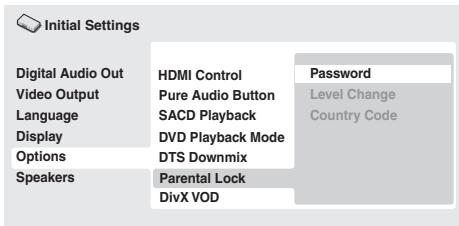
2 Use the number buttons to enter a 4-digit password.
The numbers you enter show up as asterisks (*) on-screen.
3 Press ENTER to register the password.
You will return to the Options menu screen.
Changing your password
To change your password, confirm your existing password then enter a new one.
1 Select 'Password Change'.
2 Use the number buttons to enter your existing password, then press ENTER.
3 Enter a new password and press ENTER.
This registers the new password and you will return to the Options menu screen.
Setting/changing the Parental Lock
1 Select 'Level Change'.
2 Use number buttons to enter your password, then press ENTER.
3 Select a new level and press ENTER.
- Press (cursor left) repeatedly to lock more levels (more discs will require the password); press (cursor right) to unlock levels. You can't lock level 1.
This sets the new level and you will return to the Options menu screen.
Setting/changing the Country/Area code
You can find the Country/Area code list on page 46.
1 Select 'Country Code'.
2 Use number buttons to enter your password, then press ENTER.
3 Select a Country/Area code and press ENTER.
There are two ways you can do this:
- Select by code letter: Use ↑/↓ (cursor up/down) to change the Country/Area code.
- Select by code number: Press (cursor right) then use the number buttons to enter the 4-digit Country/Area code.
The new Country/Area code is set and you will return to the Options menu screen. Note that the new Country/Area code doesn't take effect until the next disc is loaded (or the current disc is reloaded).
DTS Downmix
- Default setting: STEREO
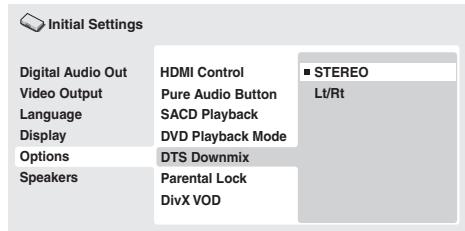
If you've selected DTS > PCM in DTS Out on page 32 or 2 Channel in Audio Output Mode on page 34, you can choose the way the signal is downmixed to PCM audio. STEREO will downmix the DTS signal to 2-channel stereo, whereas Lt/Rt will downmix to a
2-channel signal compatible with Dolby surround matrix decoders. (This allows you to hear surround sound if your AV receiver or amplifier has Dolby Pro Logic capability.)
In order to play DivX VOD (video on demand) content on this player, you first need to register the player with your DivX VOD content provider. You do this by generating a DivX VOD registration code, which you submit to your provider.

Important
- DivX VOD content is protected by a DRM (Digital Rights Management) system. This restricts playback of content to specific, registered devices.
- If you load a disc that contains DivX VOD content not authorized for your player, the message "Authorization Error" is displayed and the content will not play.
- Resetting the player (as described in Resetting the player on page 41) will not cause you to lose your registration code.
Displaying your DivX VOD registration code
1 Press HOME MENU and select 'Initial Settings'.
2 Select 'Options', then 'DivX VOD'.
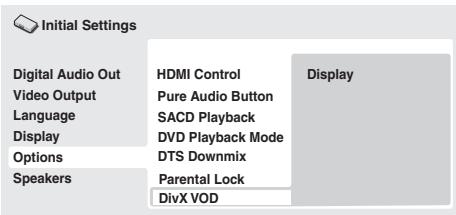
3 Select 'Display'.
Your 8-digit registration code is displayed.
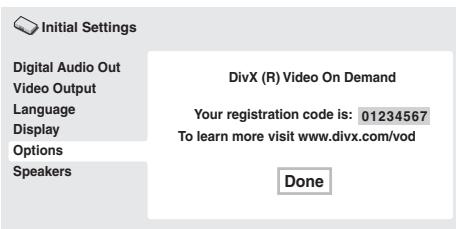
Make a note of the code as you will need it when you register with a DivX VOD provider.
Playing DivX® VOD content
Some DivX VOD content may only be playable a fixed number of times. When you load a disc containing this type of DivX VOD content, the remaining number of plays is shown on-screen and you then have the option of playing the disc (thereby using up one of the remaining plays), or stopping. If you load a disc that contains expired DivX VOD content (for example, content that has zero remaining plays), the message "Rental Expired" is displayed.
If your DivX VOD content allows an unlimited number of plays, then you may load the disc into your player and play the content as often as you like, and no message will be displayed.
Audio Output Mode
- Default setting: 2 Channel
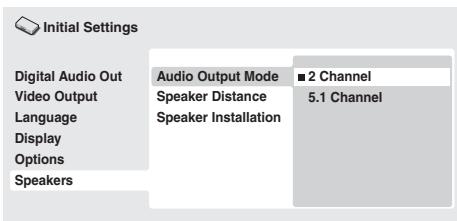
If you connected this player to your amplifier using the 5.1 channel analog outputs (front, surround, center and subwoofer outs), set this to 5.1 Channel; if you connected only the stereo outs, set to 2 Channel.

Note
- Even if you set Audio Output Mode to 5.1 Channel, you'll only get sound from all speakers when playing a 5.1 channel multi-channel disc.
- When set to 5.1 Channel, only the front left/right channels are output from the AUDIO OUT (2ch) jacks. Change to 2 Channel if you want to listen to downmixed stereo audio (for example, because you are listening through the TV's built-in speakers).
- When set to 5.1 Channel there is no digital output when playing DVD-Audio.
- If you set to 2 Channel, Dolby Digital, DTS and MPEG audio is mixed down to two channels so you still hear all the audio recorded on the disc. With DTS encoded audio, you can choose how the signal is downmixed to PCM audio. See DTS Downmix on page 35 to change the downmix setting.
- Some DVD-Audio discs don't allow down-mixing of audio. These discs always output multi-channel audio regardless of the setting made here.
About the audio output settings
The table below shows how the audio settings you make in the Initial Settings menu (page 32) affect the output from the 2 channel and the 5.1 channel analog outputs, and from the digital outputs with various types of disc.
| Disc audio format | Player setting | Front L/R analog outputs1 | Surround L/R, Center, Subwoofer outputs | Digital outputs PCM convert2 | Bitstream3 | |
| DVD | Dolby Digital | 2ch 5.1ch | 2ch downmix Front L/R | — Surround L/R, Center, Subwoofer | 2ch downmix | Dolby Digital |
| Dolby Digital karaoke | 2ch/5.1ch | Left/Right | — | Left/Right | Dolby Digital | |
| Linear PCM | 2ch/5.1ch | Left/Right | — | Left/Right | Left/Right | |
| DTS | 2ch 5.1ch | 2ch downmix Front L/R | — Surround L/R, Center, Subwoofer | 2ch downmix | DTS | |
| MPEG | 2ch 5.1ch | Left/Right Front L/R | — Surround L/R, Center, Subwoofer | Left/Right | MPEG | |
| DVD-Audio | 2ch 5.1ch | 2ch downmix4 Front L/R | — Surround L/R, Center, Subwoofer | 2ch downmix5 | 2ch downmix5 | |
| DVD-RW (VR mode) | 2ch/5.1ch | Left/Right6 | — | Left/Right | Dolby Digital MPEG or PCM | |
| Super Audio CD | 2ch 5.1ch | 2ch downmix Front L/R | — Surround L/R, Center, Subwoofer | — | — | |
| Audio CD/MP3/WMA/MPEG-4 AAC | 2ch/5.1ch | Left/Right | — | Left/Right | Left/Right | |
| DTS CD | 2ch 5.1ch | 2ch downmix Front L/R | — Surround L/R, Center, Subwoofer | 2ch downmix | DTS | |
| Video CD/Super VCD | 2ch/5.1ch | Left/Right | — | Left/Right | Left/Right | |
- When Audio Output Mode is set to 2 Channel, the AUDIO OUT (5.1ch) FRONT L/R jacks act as a second pair of stereo audio outputs.
- Dolby Digital > PCM, DTS > PCM or MPEG > PCM setting (page 32)
- Dolby Digital, DTS or MPEG setting (page 32)
- Discs that prohibit downmixing will be output as 5.1 channel even if 2 Channel is selected as the Audio Output Mode setting (page 36).
- Discs that prohibit downmixing also mute the digital output.
- When Audio Output Mode is set to 5.1 Channel, mono sources are heard from the center speaker only.
About the HDMI audio output settings
The table below shows how the audio settings you make in the HDMI Out (page 32) and Audio Output Mode (page 36) screens affect the HDMI output with various types of disc.
| Disc audio format | HDMI Out setting | |||
| LPCM (2CH) | LPCM (5.1CH) | Auto | ||
| DVD | Dolby Digital¹ | 2ch downmix | 5.1ch² | Dolby Digital³ |
| Dolby Digital (karaoke) | Left/Right | 5.1ch² | Dolby Digital³ | |
| Linear PCM¹ | Left/Right | Left/Right | Left/Right | |
| DTS | 2ch downmix | 5.1ch² | DTS³ | |
| MPEG¹ | Left/Right | 5.1ch² | MPEG³ | |
| DVD-Audio (with CPPM)⁴ | Left/Right or 2ch downmix⁵ | 5.1ch² | 5.1ch² | |
| DVD-Audio (without CPPM) | Left/Right or 2ch downmix⁵ | 5.1ch² | 5.1ch² | |
| Super Audio CD⁶ | Left/Right | 5.1ch² | 5.1ch (DSD)²,³ | |
| Audio CD/MP3/WMA/MPEG-4 AAC | Left/Right | Left/Right | Left/Right | |
| DTS CD | Left/Right | 5.1ch² | DTS³ | |
| Video CD/Super VCD | Left/Right | Left/Right | Left/Right | |
- These formats include DVD-RW discs.
- If the HDMI device you are using is not compatible with Multi-ch formats, the output signal is the same as LPCM (2CH) setting.
- If the HDMI device you are using is not compatible with these compressed formats, the signal is output as linear PCM.
- If the connected component is not DVD-Audio (CPPM) compatible, it is not possible to output CPPM copy-controlled DVD-Audio sources from the HDMI connection (see HDMI output with DVD-Audio and SACD sources below for more on this).
- If the discs prohibit downmixing, output AUDIO OUT (5.1ch) FRONT L/R
- If the connected HDMI device is not compatible with protected audio contents (such as DVD-Audio or SACD), SACD audio is not output from the HDMI terminal.
HDMI output with DVD-Audio and SACD sources
The way audio sources are output from the HDMI terminal depends on the specification of the connected component.
| Components specification | Example component | Disc format (DVD-Audio or SACD) | ||
| 2ch | 5.1ch | |||
| Component/ output | SACD, DVD-Audio and 5.1 channel compatible on HDM1 | VSX-LX70 VSX-LX60 | 2ch | 5.1ch2 |
| DVD-Audio and 5.1 channel compatible on HDM1 | VSX-AX4ASi-S VSX-AX2AS-S | 2ch | 5.1ch2 | |
| DVD-Audio and 2 channel compatible on HDM1 | PDP-5080XD PDP-4280XD | 2ch | Left/Right or 2ch downmix3 | |
| Incompatible with DVD-Audio on HDM1 | PDP-505XDF PDP-505HDE | No sound4 | No sound4 | |
- This unit checks the specification of the connected component (such sample rate/multichannel limitations and compatibility with protected audio contents) and outputs the signal accordingly. Note that 'DVD-Audio compatible' indicates compatibility with protected audio contents. 'SACD compatible' indicates compatibility with DSD signals.
- If HDMI Out setting (page 32) is set to LPCM (2CH), DVD-Audio multichannel sources will be downmixed to stereo. (In cases where the source is downmix-prohibited, only the front left/right channels are output.) For SACD sources, the 2 channel (stereo) SACD audio area is selected. If the output resolution is 480i, 576i, 480p or 576p, audio output may be limited to 2 channel (depending to the connected component).
- In cases where the source is downmix-prohibited, only the front left/right channels are output.
- If CPPM shows in the front panel display, it means it is not possible to output CPPM copycontrolled DVD-Audio sources from the HDMI connection. Discs with no CPPM protection are limited to 2 channel output.
Speaker Distance
- Default settings: all speakers 3.0m
You only need to make this setting if you connected this player to your amplifier using the 5.1 channel analog outputs.
These settings do not affect any digital audio output.
To get the best surround sound from your system, you should set up the speaker distances from your listening position.
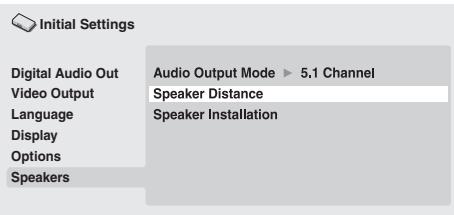
1 Use the / (cursor up/down) to select a speaker.
- The L and R speakers are paired; you can't set them differently.
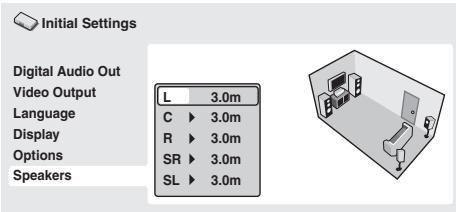
2 Press (cursor right) to change the speaker distance for the highlighted speaker.
3 Use the / (cursor up/down) to change the distance.
- When you change the distance settings of the front left (L) or front right (R) speakers, all the other speaker distances change relative to it.
- Front left/right (L/R) speaker distances can be set from 30 cm to 9 m in 30 cm increments.
- The center speaker (C) can be set from -2.1m to 0.0m relative to the front left/right speakers.
- Surround left/right (SL/SR) speakers can be set from -6.0m to 0.0m relative to the front left/right speakers.
- You can't set the subwoofer (SW) distance.
4 Press (cursor left) to go back to the speaker list if you want to modify another speaker, or press ENTER to exit the Speaker Distance screen.

Note
- During playback of MPEG-audio and DVD-Video discs, the effective C, SL and SR speaker distance settings are -0.9m to 0.0m relative to the front left/right speakers.
- Speaker Distance settings do not affect SACD playback.
Speaker Installation
- Default settings: L/R: Large | C: Large | SL/SR: Large | SW: On
You only need to make this setting if you connected this player to your amplifier using the 5.1 channel analog outputs.
This setting does not affect digital audio output.
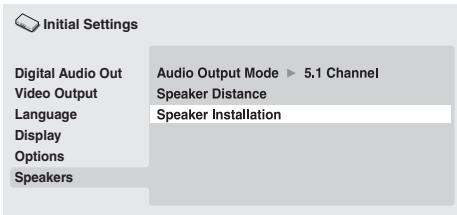
Use the Speaker Installation screen to tell the player what kinds of speakers you have connected.
1 Use the / (cursor up/down) buttons to select a speaker.
- The L and R, and SL and SR speakers are paired; you can't set them differently.
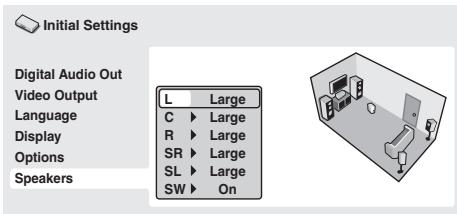
2 Press (cursor right) to modify the selected speaker.
3 Use the / (cursor up/down) buttons to change the current setting.
- You can see the effect of your changes in the room graphic on the right of the screen.
- Except for the subwoofer, you can set speaker size to Large or Small. If the main speaker cone in the speaker is 12cm or more, set to Large, otherwise set to Small (or Off if you don't have that speaker).
- If you set the front L and R speakers to Small, the center and surround speakers are automatically set to Small and the subwoofer to On.
- The subwoofer can only be set to On or Off.
4 Press (cursor left) to go back to the speaker list if you want to modify another speaker, or press ENTER to exit the Speaker Installation screen.
Chapter 8
Additional information
Taking care of your player and discs
General
Hold discs by the edge or by the center hole and edge.
When you're not using a disc, return it to its case and store upright. Avoid leaving discs in excessively cold, humid, or hot environments (including under direct sunlight).
Don't glue paper or put stickers on to discs. Do not use a pencil, ball-point pen or other sharp-tipped writing instrument to write on the disc.

Don't use self-adhesive disc labels on discs as these can cause the disc to warp slightly during playback causing distortion in the picture and/or sound.
Damaged and shaped discs
Do not use cracked, chipped, warped, or otherwise damaged discs as they may damage the player.
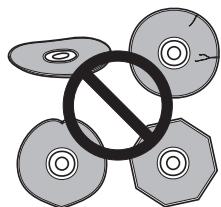
This player is designed to be used only with conventional, fully circular discs. Do not use shaped discs. Pioneer disclaims all liability arising in connection with the use of shaped discs.
Cleaning discs
Fingerprints and dust on discs can affect playback performance. Clean using a soft, dry cloth, wiping the disc lightly from the center to the outside edge as shown below.
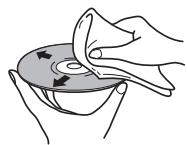
If necessary, use a cloth soaked in alcohol, or a commercially available CD/DVD cleaning kit to clean a disc more thoroughly. Never use benzine, thinner or other cleaning agents, including products designed for cleaning vinyl records.
Cleaning the unit's exterior
Unplug the unit before cleaning.
Use a dry cloth to wipe off dust and dirt. If the surfaces are very dirty, wipe with a soft cloth dipped in some neutral cleanser diluted five or six times with water and wrung out well, then wipe again with a dry cloth.
Do not use furniture wax or cleaners. Never use thinners, benzine or insecticide sprays or other chemicals on or near this unit.
If you use a chemical-impregnated cleaning cloth, read the instructions carefully before use. These cloths may leave smear marks on half-mirror finish surfaces; if this happens, finish with a dry cloth.
Cleaning the pickup lens
The DVD player's lens should not become dirty in normal use, but if for some reason it should malfunction due to dust or dirt, consult your nearest Pioneer-authorized service center. We do not recommend using commercially available lens cleaners for CD players.
Condensation
Condensation may form inside the player if it is brought into a warm room from outside, or if the temperature of the room rises quickly. Although the condensation won't damage the player, it may temporarily impair its performance. Leave it to adjust to the warmer temperature for about an hour before switching on.
Moving the player
If you need to move the player, first press STANDBY/ON on the front panel or remote control to turn the player off. Wait for "-OFF-" to disappear from the display, then unplug the power cable. Never lift or move the unit during playback—discs rotate at a high speed and may be damaged.
Caution for when the unit is installed in a rack with a glass door
Do not press the OPEN/CLOSE button on the remote control to open the disc table while the glass door is closed. The door will hamper movement of the disc table, and the disc table could be damaged.
Screen sizes and disc formats
DVD-Video discs come in several different screen aspect ratios, ranging from TV programs, which are generally 4:3, to CinemaScope widenscreen movies, with an aspect ratio of up to about 7:3.
Televisions, too, come in different aspect ratios; 'standard' 4:3 and widenscreen 16:9.
Widescreen TV users
If you have a widescreen TV, the TV Screen setting (page 33) of this player should be set to 16:9 (Wide) or 16:9 (Compressed).
When you watch discs recorded in 4:3 format with the 16:9 (Wide) setting, you can use the TV controls to select how the picture is presented. Your TV may offer various zoom and stretch options; see the instructions that came with your TV for details.
Please note that some movie aspect ratios are wider than 16:9, so even though you have a widescreen TV, these discs will still play in a 'letter box' style with black bars at the top and bottom of the screen.
Standard TV users
If you have a standard TV, the TV Screen setting (page 33) of this player should be set to 4:3 (Letter Box) or 4:3 (Pan & Scan), depending on which you prefer.
Set to 4:3 (Letter Box), widescreen discs are shown with black bars top and bottom.
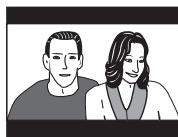
Set to 4:3 (Pan & Scan), widescreen discs are shown with the left and right sides cropped. Although the picture looks larger, you don't actually see the whole picture.
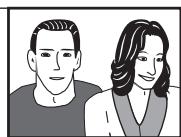
Please note that many widenscreen discs override the player's settings so that the disc is shown in letter box format regardless of the setting.

Note
- Using the 16:9 (Wide) or 16:9 (Compressed) setting with a standard 4:3 TV, or either of the 4:3 settings with a widescreen TV, will result in a distorted picture.
Setting the TV system
The default setting of this player is AUTO, and unless you notice that the picture is distorted when playing some discs, you should leave it set to AUTO. If you experience picture distortion with some discs, set the TV system to match your country or region's system. Doing this, however, may restrict the kinds of disc you can watch. The table below shows what kinds of disc are compatible with each setting (AUTO, NTSC and PAL).
1 If the player is on, press STANDBY/ON to switch it to standby.
2 Using the front panel controls, hold down then press STANDBY/ON to switch the TV system.
The TV system changes as follows:
- AUTO NTSC
- NTSC PAL
- PAL AUTO

Note
- You have to switch the player into standby (press STANDBY/ON) before each change.
| Disc Type | Player setting | |||
| Format | NTSC | PAL | AUTO | |
| DVD/Super VCD/Video CD/DivX video/WMV | NTSC | NTSC | PAL | NTSC |
| PAL | NTSC | PAL | PAL | |
| CD/MP3/WMA/MPEG-4 AAC/JPEG no disc | — | NTSC | PAL | NTSC or PAL |
Resetting the player
Use this procedure to reset all the player's settings to the factory default.
1 Switch the player into standby.
2 Using the front panel buttons, hold down the (stop) button and press STANDBY/ON to switch the player back on. All the player's settings are now reset.
DVD-Video regions
All DVD-Video discs carry a region mark on the case somewhere that indicates which region(s) of the world the disc is compatible with. Your DVD player also has a region mark, which you can find on the rear panel. Discs from incompatible regions will not play in this player. In this case the attention sentence "Incompatible disc region number Can't play disc" is displayed on screen. Discs marked ALL will play in any player. The diagram below shows the various DVD regions of the world.
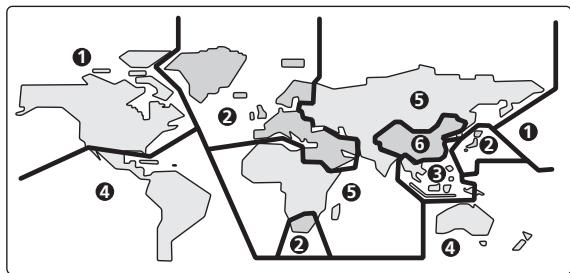
Selecting languages using the language code list
Some of the language options (such as DVD Menu Lang. in the Initial Settings) allow you to set your preferred language from any of the 136 languages listed in the language code list on Language code list on page 46.
1 Select 'Other Language'.
2 Use the / (cursor left/right) buttons to select either a code letter or a code number.
3 Use the / (cursor up/down) buttons to select a code letter or a code number.
See Language code list on page 46 for a complete list of languages and codes.
Incorrect operation is often mistaken for trouble or malfunction. If you think that there is something wrong with this component, check the points below. Sometimes the trouble may lie in another component. Inspect the other components and electrical appliances being used. If the trouble cannot be rectified after checking the items below, ask your nearest Pioneer authorized service center or your dealer to carry out repair work.
| Problem | Remedy |
| The disc won't play or is automatically ejected after loading. | ·Make sure the disc is free from dirt and dust and is not damaged (page 40).·Make sure the disc is loaded with the label side face-up and aligned properly in the disc tray guide.·Incompatible region number: If the region number on a DVD-Video disc does not match the number on the player, the disc cannot be used (page 41). In this case the attention sentence "Incompatible disc region number Can't play disc" is displayed on screen.·Condensation inside the player: Allow time for condensation to evaporate. Avoid using the player near an air-conditioning unit.·Disc is loaded upside down: Reload the disc with the label side face up.·A Super VCD that does not conform with the IEC standards might not play normally. |
| DVD-Audio playback stops. | ·The disc may have been illegally copied. |
| Picture playback stops and the operation buttons cannot be used. | ·Press STOP, then start playback again (▶ PLAY).·Press and hold the front panel STANDBY/ON button for about 10 seconds to switch the unit off, then press again to switch back on.·Switch the power off once, unplug from the wall socket, then plug back in and switch on again using the front panel STANDBY/ON button. |
| New settings made in the Setup screen menus while a disc is playing are ineffective. | ·Some settings can be changed while a disc is playing, but are not effective until the disc is stopped then restarted: Press STOP, then start playback again (▶ PLAY). |
| Settings are canceled. | ·When the power is cut due to power failure or by unplugging the power cord, settings will be canceled: Press STANDBY/ON on the front panel to turn the player off. Wait for "-OFF-" to disappear from the display, then unplug the power cord. |
| The remote control doesn't seem to work. | ·The remote control is too far from the player, or the angle with the remote sensor is too wide: Use the remote within its operating range (page 18).·The batteries are exhausted: Put in new ones (page 6).·The CONTROL IN jack on the rear panel is connected: Point the remote control at the connected component to control this player (page 13).·When the Startup Navigator is running, buttons other than ▲ OPEN/CLOSE, ↑/↓/←/→, ENTER and RETURN will not function. |
| No picture/No color. | ·Incorrect video connections: Check that connections are correct and that plugs are inserted fully. Also check the video cable for damage.·TV/monitor or AV amplifier settings are incorrect: Check the instruction manual of the connected equipment.·The output resolution is set to 1080p/1080i/720p/576p/480p but your TV/monitor is not compatible with these formats: See Switching the video output to 576i/480i using the front panel controls on page 12 for how to set to 576i/480i.·Check that the PURE AUDIO indicator is not lit. If it is, press the PURE AUDIO button (See also Front panel on page 16). |
| Screen is stretched or aspect does not change. | ·The TV Screen setting in the Initial Settings menu is incorrect. See Screen sizes and disc formats on page 40 for how to set it correctly for your TV/monitor. |
| Picture disturbance during playback or the picture is dark. | ·This player is compatible with Macro-Vision System copy guard. Some discs include a copy prevention signal, and when this type of disc is played back, stripes etc., may appear on some sections of the picture depending on the TV. This is not a malfunction.·Due to the player's copy protection circuits, connection of this device through a VCR or an AV selector may prevent recording or cause picture problems. This is not a malfunction.·Check whether the TV system is properly set (page 41). |
| The front panel display is dark or nothing is displayed. | ·Check the FL DIMMER setting. Switch the setting with the FL DIMMER button on the remote control (page 18). |
| No audio, or audio is distorted. | ·No audio is output during slow motion playback or when scanning discs other than Audio CDs and SACDs. ·Some DVD discs do not output digital audio: Switch your amplifier to the player's analog outputs. ·Check that the disc is free from dust and dirt, and that it is not damaged (page 40). ·Check that all interconnects are firmly inserted. ·Check that the plugs and terminals are free of dirt, oxide, etc. and clean if necessary. Also check the cable for damage. ·Make sure the player's output is not connected to the amplifier's phono (turntable) inputs. ·Check your amplifier/receiver's settings (volume, input function, speaker settings, etc.). |
| The analog audio is OK, but there appears to be no digital audio signal. | ·Make sure that the Digital Out (page 32) is set to On. ·Check that the Dolby Digital Out, DTS Out and MPEG Out (page 32) are suitable for your amplifier/ receiver — check the instruction manual that came with your amplifier/receiver. ·SACDs and some DVD-Audio discs do not output digital audio. Listen through the player's analog audio outputs. ·Check that the PURE AUDIO indicator is not lit. If it is, press the PURE AUDIO button (See also Front panel on page 16). |
| Noticeable difference in DVD and CD volume. | ·This is due to differences in the audio format and is not a malfunction. |
| Cannot play multi-channel audio. | ·Make sure that Audio Output Mode (page 36) is set to 5.1 Channel. ·Check that the Dolby Digital Out, DTS Out and MPEG Out (page 32) are suitable for your amplifier/ receiver—check the instruction manual that came with your amplifier/receiver. ·DVD-Audio and SACDs do not output multichannel digital audio. Listen through the player's analog outputs. ·Check that the settings in the Speaker Installation screen are correct (page 34). ·Check the audio options available from the disc menu. |
| Cannot listen to high-sampling rate audio through the digital output. | ·Make sure that Linear PCM Out (page 32) is set to Down Sample Off. ·As a copy-protection measure, some DVDs do not output 96 kHz audio. In this case, even if set to Down Sample Off, the player automatically outputs the audio at 48 kHz. This is not a malfunction. |
| Cannot output 192 kHz or 176.4 kHz digital audio. | ·The player does not output digital audio at these sampling rates. The digital output is automatically downsampled. |
| Cannot output 96 kHz or 88.2 kHz digital audio. | ·Check that Linear PCM Out (page 32) is set to Down Sample Off. ·Some discs are digital copy protected and do not output high sampling rate digital audio. In this case the output is automatically downsampled. |
| DTS audio signals are not output from the DIGITAL AUDIO OUT (COAXIAL/OPTICAL). | ·If this unit is connected to a non-DTS compatible amplifier or decoder using a digital audio cable, set DTS Out (page 32) to DTS > PCM. If you do not do this, noise will be output when you play a DTS disc. ·If this unit is connected to a DTS-compatible amplifier or decoder using a digital audio cable, check the amplifier settings, and that the cable is properly connected. |
| Audio mix does not sound right or sounds incomplete (for example, inaudible dialog). | ·Make sure that Audio Output Mode (page 36) is set to 2 Channel if you've connected to the stereo inputs on your amplifier or TV. |
| The audio recorded on a Super VCD disc is not output properly. | ·If the audio is switched to “2” when playing a Super VCD that contains only one stereo soundtrack, there may be no sound at all. Press CD/AUDIO to change the soundtrack. |
| Can't hear effect of Virtual Surround. | ·Virtual Surround does not work with SACD or DVD-Audio. ·The Virtual Surround effect is only output through the AUDIO OUT (2ch) analog audio outputs. ·Make sure that Audio Output Mode (page 36) is set to 5.1 Channel. ·The effectiveness of Virtual Surround varies with the disc. |
| The power automatically turns on. | ·This unit's power may be turned on when you control this unit from a connected TV. If you do not want this unit to be turned on in this way, set this unit's HDMI Control (page 34) to Off. |
| The power automatically turns off. | ·This unit's power may be turned off when you control this unit from a connected TV. If you do not want this unit to be turned off in this way, set this unit's HDMI Control (page 34) to Off. |
| Your TV and AV system automatically change inputs. | ·The connected TV and AV system automatically may change inputs in response to this unit starting playback or having the GUI screen (ex. Disc Navigator) displayed. If you do not want your TV and AV system to change inputs in this way, set this unit HDMI Control (page 34) to Off. |
HDMI troubleshooting
| Problem | Remedy |
| No HDMI audio output. | ·Check whether or not HDMI Out (page 32) is set to Off. ·This unit has been designed to be compliant with HDMI (High-Definition Multimedia Interface). Depending on the component you have connected, unreliable signal transfers may result. ·If the front panel HDMI indicator is lit: –You won't hear any sound from the HDMI output if the source component is only DVI/HDCP-compatible. ·If the front panel HDMI indicator is unlit then: –Make sure that you've selected this player as the HDMI input in the settings for the component you're using. You may need to refer to the instruction manual of the component to do this. –Check that the HDMI cable is connected properly and that the cable isn't damaged. –Check that components connected using the HDMI interface are switched on and HDMI compatible. ·Check that the PURE AUDIO indicator is not lit. If it is, press the PURE AUDIO button (See also Front panel on page 16). |
| No HDMI video output. | ·Make sure that you've selected this player as the HDMI input in the settings for the component you're using. You may need to refer to the instruction manual of the component to do this. ·Check that the HDMI cable is connected properly and that the cable isn't damaged. ·Check that components connected using the HDMI interface are switched on and HDMI compatible. ·This unit has been designed to be compliant with HDMI (High-Definition Multimedia Interface). Depending on the component you have connected, using a DVI connection may result in unreliable signal transfers. ·Make sure the resolution on this player matches that of the component you have connected using HDMI. See Resolution (Max) on page 33 to change the HDMI resolution. See Resetting the output resolution to the default setting with HDMI connection on page 15 if you want to reset the output resolution. ·Check that the PURE AUDIO indicator is not lit. If it is, press the PURE AUDIO button (See also Front panel on page 16). ·Depending on the HDMI cable being used, 1080p output may not appear correctly. |
| No multichannel HDMI audio. | ·Make sure that the HDMI Out (page 32) is set to Auto or LPCM (5.1CH) and that SACD Playback (page 34) is set to Multi-ch Area. See also About the HDMI audio output settings and HDMI output with DVD-Audio and SACD sources on page 38. |
| A connected DVI component (with HDCP) doesn't work with this player. | ·This unit has been designed to be compliant with HDMI (High-Definition Multimedia Interface). Depending on the component you have connected, using a DVI connection may result in unreliable signal transfers. |
| HDMI Control does not function. | ·Verify that the HDMI cable is firmly connected. ·Make sure that this unit's HDMI Control (page 34) is set to On. ·Make sure that the HDMI Control for the connected components is set to On. For more information, refer to the operating manual for the connected component. ·This function may not work properly if you have multiple components connected to a single plasma television, AV system (amplifier or AV receiver etc.), or HD AV Converter. For more information refer to the operating manual of your plasma television, AV system, or HD AV Converter. ·You can enable HDMI Control by turning the HDMI Control setting to On for all components connected via HDMI cable. Check the video output from this unit once you have completed making connections and settings for all components. You will need to check the video output each time you change connected components or remove the HDMI cable. ·Check whether the connected component supports HDMI Control or not. For more information refer to the operating manual of your plasma television, AV system (amplifier or AV receiver etc.), or HD AV Converter. ·Certain functions are not supported on some plasma televisions. ·This player does not support HDMI Control-compatible components other than those made by Pioneer. ·This unit will not function properly with components that do not support HDMI Control, or when connected with components other than those made by Pioneer. ·Note that HDMI Control may not operate properly if you do not use an HDMI cable that supports the HDMI 1.3 specification (Category 2) or later. ·HDMI Control may not work properly if an SCART cable and an HDMI cable are connected simultaneously. Set HDMI Control to Off when connecting SCART and HDMI cables simultaneously. |

Note
- Static electricity or other external influences may cause malfunctioning of this unit. In this case, unplug the power cord and then plug back in. This will usually reset the unit for proper operation. If this does not correct the problem, please consult your nearest Pioneer service center.
Glossary
| Analog audio | Direct representation of sound by an electrical signal. See also Digital audio. |
| Aspect ratio | The width of a TV screen relative to its height. Conventional TVs are 4:3; widescreen models are 16:9. |
| Bonus Group (DVD-Audio only) | An ‘extra’ group on some DVD-Audio discs that requires a key number to access. |
| Browsing pictures (DVD-Audio only) | A feature of some DVD-Audio discs in which the user can browse still pictures recorded on the disc as the audio is played. |
| Digital audio | Indirect representation of sound using numbers. See also Sampling frequency and Analog audio. |
| DivX | DivX is a media technology created by DivX, Inc. DivX media files contain not only video but also include advanced media features like menus, subtitles, and alternate audiotracks. |
| Dolby Digital | A multi-channel audio encoding system developed by Dolby Laboratories that enables far more audio to be stored on a disc than PCM encoding. See also PCM (Pulse Code Modulation). |
| DRM | DRM (digital rights management) copy protection is a technology designed to prevent unauthorized copying by restricting playback, etc. of compressed audio files on devices other than the PC (or other recording equipment) used to record it. For detailed information, please see the instruction manuals or help files that came with your PC and/or software. |
| DTS | A multi-channel audio encoding system developed by Digital Theater Systems that enables far more audio to be stored on a disc than PCM encoding. See also PCM (Pulse Code Modulation). |
| DSD (Direct Stream Digital) | The Digital Audio encoding system found on SACDs, that expresses the audio signals by the pulse density of one bit data. |
| EXIF (Exchangeable Image File) | A file format developed by FUJIFILM for digital still cameras. Digital cameras from various manufacturers use this compressed file format which carries date, time and thumbnail information, as well as the picture data. |
| File extension | A tag added to the end of a filename to indicate the type of file. For example,“.mp3” indicates an MP3 file. |
| HDMI | HDMI (High-Definition Multimedia Interface) is a high-speed digital interface which has the capability to support standard, enhanced, or high-definition video plus standard to multi-channel surround-sound audio on a single digital connection. HDMI features include uncompressed digital video, a bandwidth of up to 5 gigabytes per second and communication between the AV source and AV devices such as DTVs. |
| ISO 9660 format | International standard for the volume and file structure of CD-ROM discs. |
| JPEG | A standard file format used for still images. JPEG files are identified by the file extension“.jpg”. |
| MP3 | MP3 (MPEG1 audio layer 3) is a compressed stereo audio file format. Files are recognized by their file extension“.mp3”. |
| MPEG-4 AAC | MPEG-4 AAC is a compressed stereo audio file format. Files are recognized by the extension“.m4a”. Note that some files purchased with copyright protection (such as files from the iTunes store) may not playback. |
| MPEG audio | An audio format used on Video CD/Super VCDs and some DVD discs. |
| Packed PCM (DVD-Audio only) | A lossless compression system that enables more PCM audio to be stored on a DVD-Audio disc than would otherwise be possible. |
| PBC (PlayBack Control) | A system of navigating a Video CD/Super VCD through on-screen menus recorded onto the disc. |
| PCM (Pulse Code Modulation) | Digital audio encoding system found on CDs. Good quality, but requires a lot of data compared to Dolby Digital, DTS and MPEG encoded audio. See also Digital audio. |
| Progressive scan video | All the lines that make up a video picture are updated in one pass (compared to interlace which takes two passes to update the whole picture). |
| Regions (DVD-Video only) | These associate DVD-Video discs and players with particular areas of the world. See DVD-Video regions on page 41 for more information. |
| Sampling frequency | The rate at which sound is measured to be turned into digital audio data. The higher the rate, the better the sound quality. CD is 44.1 kHz; DVD can be up to 96 kHz. See also Digital audio. |
| Super Audio CD (SACD) | Super Audio CD is a high quality audio disc format that can accommodate high sampling rate stereo and multi-channel audio, as well as conventional CD audio all on the same disc. |
| WMA | WMA is short for Windows Media Audio and refers to an audio compression technology developed by Microsoft Corporation. Files are recognized by their file extension“.wma”. |
| WMV | WMV is an acronym for Windows Media Video and refers to a video compression technology developed by Microsoft Corporation. Files are recognized by the file extension“.wmv”. |
Language (Language code letter), Language code
Japanese (ja), 1001
English (en), 0514
French (fr), 0618
German (de), 0405
Italian (it), 0920
Spanish (es), 0519
Chinese (zh), 2608
Dutch (nl), 1412
Portuguese (pt), 1620
Swedish (sv), 1922
Russian (ru), 1821
Korean (ko), 1115
Greek (el), 0512
Afar (aa), 0101
Abkhazian (ab), 0102
Afrikaans (af), 0106
Amharic (am), 0113
Arabic (ar), 0118
Assamese (as), 0119
Aymara (ay), 0125
Azerbaijani (az), 0126
Bashkir (ba), 0201
Byelorussian (be), 0205
Bulgarian (bg), 0207
Bihari (bh), 0208
Bislama (bi), 0209
Bengali (bn), 0214
Tibetan (bo), 0215
Breton (br), 0218
Catalan (ca), 0301
Corsican (co), 0315
Czech (cs), 0319
Welsh (cy), 0325
Danish (da), 0401
Bhutani (dz), 0426
Esperanto (eo), 0515
Estonian (et), 0520
Basque (eu), 0521
Persian (fa), 0601
Finnish (fi), 0609
Fiji (fj), 0610
Faroese (fo), 0615
Frisian (fy), 0625
Irish (ga), 0701
Scots-Gaelic (gd), 0704
Galician (gl), 0712
Guarani (gn), 0714
Gujarati (gu), 0721
Hausa (ha), 0801
Hindi (hi), 0809
Croatian (hr), 0818
Hungarian (hu), 0821
Armenian (hy), 0825
Interlingua (ja), 0901
Interlingue (ie), 0905
Inupiak (ik), 0911
Indonesian (in), 0914
Icelandic (is), 0919
Hebrew (iw), 0923
Yiddish (ji), 1009
Javanese (jw), 1023
Georgian (ka), 1101
Kazakh (kk), 1111
Greenlandic (kl), 1112
Cambodian (km), 1113
Kannada (kn), 1114
Kashmiri (ks), 1119
Kurdish (ku), 1121
Kirghiz (ky), 1125
Latin (la), 1201
Lingala (In), 1214
Laothian (lo), 1215
Lithuanian (It), 1220
Latvian (lv), 1222
Malagasy (mg), 1307
Maori (mi), 1309
Macedonian (mk), 1311
Malayalam (ml), 1312
Mongolian (mn), 1314
Moldavian (mo), 1315
Marathi (mr), 1318
Malay (ms), 1319
Maltese (mt), 1320
Burmese (my), 1325
Nauru (na), 1401
Nepali (ne), 1405
Norwegian (no), 1415
Occitan (oc), 1503
Oromo (om), 1513
Oriya (or), 1518
Panjabi (pa), 1601
Polish (pl), 1612
Pashto,Pushto (ps),1619
Quechua (qu), 1721
Rhaeto-Romance (rm), 1813
Kirundi (m), 1814
Romanian (ro), 1815
Kinyarwanda (rw), 1823
Sanskrit (sa), 1901
Sindhi (sd), 1904
Sangho (sg), 1907
Serbo-Croatian (sh), 1908
Sinhalese (si), 1909
Slovak (sk), 1911
Slovenian (sl), 1912
Samoan (sm), 1913
Shona (sn), 1914
Somali (so), 1915
Albanian (sq), 1917
Serbian (sr), 1918
Siswati (ss), 1919
Sesotho (st), 1920
Sundanese (su), 1921
Swahili (sw), 1923
Tamil (ta), 2001
Telugu (te), 2005
Tajik (tg), 2007
Thai (th), 2008
Tigrinya (ti), 2009
Turkmen (tk), 2011
Tagalog (tl), 2012
Setswana (tn), 2014
Tonga (to), 2015
Turkish (tr), 2018
Tsonga (ts), 2019
Tatar (tt), 2020
Twi (tw), 2023
Ukrainian (uk), 2111
Urdu (ur), 2118
Uzbek (uz), 2126
Vietnamese (vi), 2209
Volapuk (vo), 2215
Wolof (wo), 2315
Xhosa (xh), 2408
Yoruba (yo), 2515
Zulu (zu), 2621
Country/Area code list
Country/Area, Country/Area code, Country/Area code letter
Argentina, 0118, ar
Australia, 0121, au
Austria, 0120, at
Belgium, 0205, be
Brazil, 0218, br
Canada, 0301.ca
Chile, 0312. cl
China, 0314, cn
Denmark, 0411, dk
Finland, 0609, fi
France, 0618, fr
Germany, 0405, de
Hong Kong, 0811,hk
India, 0914, in
Indonesia, 0904, id
Italy, 0920.it
Japan, 1016.jp
Republic of Korea 1118, kr
Malaysia, 1325, my
Mexico, 1324, mx
Netherlands, 1412, nl
New Zealand, 1426, nz
Norway, 1415, no
Pakistan, 1611, pk
Philippines, 1608, ph
Portugal, 1620, pt
Russian Federation, 1821, ru
Singapore, 1907, sg
Spain, 0519.es
Sweden, 1905, se
Switzerland, 0308, ch
Taiwan, 2023, tw
Thailand, 2008, th
United Kingdom, 0702, gb
USA, 2119, us
Specifications
General
Power requirements AC 220 V to 240 V, 50 Hz/60 Hz
Power consumption .15 W
Power consumption (standby) .0.8 W
Weight .5.3 kg
Dimensions 420 mm (W) x 102 mm (H) x 314 mm (D)
Operating temperature +5 °C to +35 °C
Operating humidity .5 % to 85 % (no condensation)
AV Connector (21-pin connector assignment)
AV connector output. 21-pin connector This connector provides the video and audio signals for connection to a compatible colour TV or monitor.
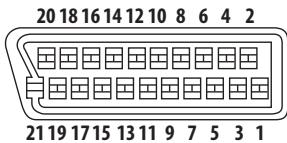
PIN no.
1. .Audio 2/R out
3. .Audio 1/L out
4. .GND
7. .B out
8. .Status
11. .G out
15. .R out
17. .GND
19. .Video out
21. .GND
HDMI output
HDMI output 19 pin
Component video output
Y (luminance) - Output level .1 Vp-p (75 P_B (color)-Output level 0.7 Vp-p (75 P_R (color)-Output level 0.7 Vp-p (75 Jack. RCA
S-Video output
Y (luminance) - Output level 1 Vp-p (75 Ω)
C (color) - Output level. 286 mVp-p (75 Ω)
Jack. S-Video
Video output
Output level 1 Vp-p (75Ω)
Jack. RCA
Audio output (1 stereo pair)
Output level. During audio output 200 mVrms (1 kHz, -20 dB) Number of channels .2
Jacks RCA
Audio output (multi-channel/L, R, C, SW, SL, SR)
Output level. .During audio output 200 mVrms (1 kHz, -20 dB) Number of channels .6
Jacks RCA
Audio characteristics
Frequency response 4 Hz to 44 kHz
S/N ratio 118 dB
Dynamic range 108 dB
Total harmonic distortion. 0.0010%
Wow and flutter Limit of measurement (±0.001 % W. PEAK) or lower
Digital output
Coaxial digital output . RCA Optical digital output . Optical
Other terminals
Control in. .Minijack(3.5 0)
Accessories
Remote control 1
AA/R6P dry cell batteries 2
Audio cable 1
Video cable 1
Power cable 1
Warranty card 1
Operating instructions
The specifications and design of this product are subject to change without notice, due to improvement.
Published by Pioneer Corporation. Copyright © 2007 Pioneer Corporation. All rights reserved.
Grazie per aver acquistato quello prodotto Pioneer.
Leggere attendamente quello manuale di istruzioni per familiarizzarsi con l'uso dell'apparecchio. Conservare poi il manuale per agli eventuale futuro riferimento.
IMPORTANT

Il simbolo del lampo con terminale a forma di freccia situato all'interno di un triangolo equilatero serve ad avvisare l'utilizzatore della presenza da una "tensione pericolosa" non isolata nella struttura del prodotto che potrebbe essere di un'intensità tale da provocare scosse elettriche all'utilizzatore.
ATTENZIONE:
PER EVITARE IL RISCHIO DI SCOSSE ELETRICHE, NON RIMUOVERE IL COPERCHIO (O IL RETRO). NON CI SONO PARTI INTERNE LA CUI MANUTENZIONE POSSA ESSERE EFFETUATA DALL'UTENTE. IN CASO DI NECCESSITA, RIVOLGERSI ESCLUSIVAMENTA A PERSONALE DI SERVIZIO QUALIFICATO.

Il punto esclamativo in un triangolo equilatero serve ad awisare l'utilizzatore della presenza di importanti istruzioni di funzionamento e manutenzione riportate nel libretto allegato al prodotto.
D3-4-2-1-1_1t
ATTENZIONE
Questo apparecchio non è impermeabile. Per prevenir pericoli di incendi o folgorazioni, non posizionare nelle vicinanze di questo apparecchio contentitori pieni di liquidi (quali vasi da fiori, o simili), e non esporre l'apparecchio a sgocciolii, schizzi, pioggia o umidità. D3-4-2-1-3_A_It
ATTENZIONE
Prima di collegare per la prima volta l'apparecchio alla sorgente di alimentazione leggere attendamente la sezione che segue.
La tensione della sorgente di elettricità differisce da Paese a Paese e da regione a regione. Verificare che la tensione di rete della zona in cui si intende utilizzato l'apparecchio suaQLA corretta, come indicato sul pannello posteriori dell'apparecchio stesso (ad es.: 230 V o 120 V). D3-4-2-1-4_A_1t
AVVERTENZA
Questo apparecchio è un prodotto al laser di Classe 1, ma contiene un diodo al laser di classe superiore alla Classe 1. Per ovi motivi di sicurezza, non togliere alcuno dei coperchi dell'apparecchio e non tentare di accedere ai dispositivi interni allo stesso.
Ogni e qualsiasi intervento o riparazione devono essere effettuate solamente da personale qualificato.
Sull'apparecchio si trovava applicata la seguente etichetta di averimento:
Posizione dell'etichetta: all'interno dell'unità.
CLASS 1 LASER PRODUCT
CAUTION : CLASS 1M LASER RADIATION WHEN OPEN. DO NOT VIEW DIRECTLY WITH OPTICAL INSTRUMENTS. 726000A140 SH
Vorsicht : KLASSE 1M LASER Strahlung: Bei geöffnetem Gerät nicht mit optischen Geräten in den Laserstrahl blichen. PRECAUCION : RADIACION LASER CLASE 1M. AL ABRIR NO MIRAR DIRECTAMENTE CON INSTRUMENTOIS OPTICOS.
VIKTIGT : KLASS 1M LASER STRALNING: NAR APPARATEN AROPPEN, TITTA INTE RAKT IN I DEN, SPECIELT INTE OM DU HAR GLASOGON PAG. DINOVAIOUS! Luokka 1M:n Lasersatei! Alia koskana katso laitteen sisaan o lesse aukti-ei myoskaan silmaseala laitmu minu taupila ossita laitteila ADVARSEL : LASERSTRALER KI ASSE MIK IGKE DIRDEKTE IND APPARATEN NAR DETTE ER ABENT, IS/ER IKKE MED BRILL ELLER ANDRE OPTISKOJDKETKR.
D3-4-2-1-8_B_It
ATTENZIONE
Per evitare il pericolo di incendi, non positizonare sull'apparecchio dispositivi con fiamme vivie (ad esempio una candela accesa, o simili). D3-4-2-1-7a_A_It
Questo prodotto è conforme con la Direttiva Bassa Tensione 2006/95/CE e con la Direttiva EMC 2004/108/CE.
D3-4-2-1-9a_A_It
Condizioni ambientali di funzionamento
Gamma ideale della temperatura ed umidità dell'ambiente di funzionamento:
da +5^ a +35^ , umidità relativiva inferiore all'85% (fessure di ventilazione non bloccate)
Non installare l'apparecchio in luoghi peu ventilati, o in luoghi esposti ad alte umidità o alla diretta luce del sole (o a sorgenti di luce artificiale molto forti).
Questo prodotto è destinato esclusivamente all'uso domestico. Eventuali disfunzioni dovute ad usi diversi (quali uso prolongato a scopi commerciali, in ristoranti, o uso in auto o su navi) e che richiedano particolari riparazioni, saranno a carico dell'utente,anche se nel corso del periodo di garanzia. K041_It
AVVERTENZA PER LA VENTILAZIONE
Installare l'apparecchio avendo cura di lasciare un certo spazio all'intorno dello stesso per consentire una adeguata circolazione dell'aria e migliorare la dispersione del calore (almeno 10 cm sulla parte superiore, 10 cm sul retro, e 10 cm su ciascuno dei lati).
ATTENZIONE
L'apparecchio è dotato di un certo numero di fissure e di aperture per la ventilazione, allo scopo di garantirne un funzionamento affidabile, e per proteggerlo dal surriscaldamento. Per prevenir possibili pericoli di incendi le aperture non devono mai venire bloccate o coperte con oggetti vari (quali giornali, tovaglie, tende o tendaggi, ecc.), e l'apparecchio non deve essere utilizzato appoggiandolo su tappeti spessi o sul fatto. D3-4-2-1-7b_A_1t
AVVERTIMENO RIGUARDANTE IL FILO DI ALIMENTAZIONE
Prendete sempre il filo di alimentazione per la spina.
Non tiratelo mai agendo per il filo stesso e non toccate mai il filo con le mani bagnati, perché questo potrebbe causare cortocircuito o scosse elettriche. Non collocate l'unità, oppure dei mobili sopra il filo di alimentazione e controllate che lo stesso non sia premuto. Non annodate mai il filo di alimentazione né collegatelo con altri fili. I fili di alimentazione devono essere collocati in tal modo che non saranno calpestati. Un filo di alimentazione danneggiato potrebbe causare incendi o scosse elettriche. Controllate il filo di alimentazione regolarmente. Quando localizzate un eventuale danno, rivolgetevi al più vicino centro assistenza autorizzato della PIONEER oppure al vostro rivenditore per la sostituzione del filo di alimentazione. S002.it
Questo prodotto include technologia di protezione dei diritti d'autore protetta da rivendicazioni
metodologiche di certi brevetti statunitensi e di altri diritti di proprietà intellettuale posseduti alla
MacroVision Corporation e da terme parti. L'uso di questa technologia di protezione dei diritti d'autore
deve venire autorizzata alla Macrovision Corporation. La technologia è riservata all'uso casalingo e ad altri usi limitati, salvo autorizzazione della MacroVision Corporation. Il reverse engineering e il disassemblaggio sono proibiti.
Se la spina del cavo di alimentazione di quello apparecchio non si adatta alla presa di corrente alternata di rete nella quale si intende insertire la spina stessa, QUESTa deve essere sostituita con una adatta allo scopo. La sostuzione della spina del cavo di alimentazione deve essere effettuata solamente da personale di servizio qualificato. Doplo la sostuzione, la vecchia spina, tagliata dal cavo di alimentazione, deve essere adeguatamente eliminata per evitare possibili scosse o folgorazioni dovute all'accidentale inserimento della spina stessa in una presa di corrente sotto tensione.
Se si pensa di non utilizzato l'apparecchio per un relativamente lungo periodo di tempo (ad esempio, durante una vacanza), staccare la spina del cavo di alimentazione dalla presa di corrente alternata di rete. D3-4-2-2-1a_A_1
AVVERTENZA
L'interruttore principale (° STANDBY/ON) dell'apparecchio non stacco completeness il flusso di corrente elettrica alla presa di corrente alternata di rete. Dal momento che il cavo di alimentazione costituisce l'unico disposizione di distacco dell'apparecchio alla sorgente di alimentazione, il cavo stesso deve essere staccato alla presa di corrente alternata di rete per sospendere completeness qualsiasi flusso da corrente. Verificare quando che l'apparecchio sia stato installato in modo da poter procedere confacilityalistacco del cavo di alimentazione alla presa di corrente, in caso di necessità. Per prevenire pericolodi incendi, inoltre, il cavo di alimentazione deve essere staccato alla presa di corrente alternata di rete se si pensa di non utilizzato l'apparecchio per periodi di tempo relativamente lunghi (ad esempio, durante una vacanza). D3-4-2-2-2a_A_It
Questo prodotto include caratteri FontAvenue® concessions in licenza da NEC Corporation. FontAvenue è un marchio registrato di NEC Corporation.

Se si vuole eliminare quello prodotto, non gettarlo insieme ai rifiuti domestici. Esiste un systema di raccolta differenziata in conformità alle leggi che richiedono apposti trattamenti, recupero e riciclo.
I privati cattadini dei paesi membri dell'UE, di Svizzera e Norvegia, possono restituire nella alcun costing i loro prodotti elettronici usati ad appositi servizi di raccolta o a un rivenditore (se si desidera acquistare uno simile).
Per i paesi non citati qui sopra, si prega di prendere contatto con le autorità locali per il corretto metod di smaltimento.
In isto mode, si e sicuri che il proprio prodotto eliminato subir il trattamento, il recupero e il riciclo necessari per prevenire gli effetti potenzialmente negativi sull'ambiente e sulla vita dell'uomo.
K058_A_It
Indice
01 Informazioni preliminari
Caratteristica 5
Contudo della confezione 6
Consiglio per l'installazione 6
Compatibilità di riproduzione dei diversi formati di disco/continuti 7
02 Collegamenti
Pannello posteriore 9
Collegamenti facili 10
Collegamento tramite cavo AV SCART 11
Collegamento tramite I'uscita S-Video 11
Collegamento tramite l'uscita video component 11
Collegamento a un ricevitore AV 12
Controllo di questolettoretramite unaltro
componente Pioneer 13
Collegamento tramite HDMI 14
Modifica della risoluzione in uscita 15
03 Comandi e display
Pannello anteriore 16
Display. 17
Telecomando 18
Impostare il telecomando per controllare il tevisore 19
04 Predisizione
Accensione e impostazione 20
Utilizzo dei display su schermo 21
Impostazione dellettore in base al teilevisore 21
Impostazione della lingua dei display su schermo dellettore... 21
Riproduzione di dischi 22
05 Riproduzione di dischi
Scansione dei dischi 25
Riproduzione in slow motion 25
Per avanzare/indietreggiare di un fotogramma 25
Visione di una sequenza JPEG 25
Come navigare nei DVD o nei dischi Video CD/Super VCD con Disc Navigator 26
Visione di file WMA, MP3, MPEG-4 AAC, video DivX, WMV e JPEG con Disc Navigator 26
Riproduzione ripetuta di una sezione di un disco 27
Utilizzo della riproduzione ripetuta 27
Utilizzo della riproduzione casuale 28
Creazione di un elenco di programmi 28
Ricerca su disco 29
Cambio dei sottotitoli 29
Cambio della lingua/del canale audio 29
Ingrandimento dello schermo 29
Per cancellare l'angolazione della telecamera 30
Visualizzazione delle informazioni del disco 30
06 Menu Audio Settings e Video Adjust
Menu Audio Settings 31
Menu Video Adjust 31
07 Menu Initial Settings
Utilizzo del menu Initial Settings 32
Impostazioni Digital Audio Out 32
Impostazioni Video Output. 33
Impostazioni Language 33
Impostazioni Display 34
Impostazioni Options 34
Impostazioni Speakers. 34
Parental Lock. 35
Audio Output Mode 36
Informazioni sule impostazioni di uscita audio HDMI 38
Uscita HDMI con fonti DVD-Audio e SACD 38
Speaker Distance. 39
Speaker Installation 39
08 Informazioni supplementari
Manutenzione dellettore edei dischi 40
Dimensioniellochermoeformatidi dischi 40
Impostazione delsystema teilevisio 41
Ripristino delle impostazioni predefinite dellettore 41
Aree dei DVD-Video 41
Selezione delle linguetramite I'elenco dei codici delle lingue...41
Risoluzione dei problemi 42
Glossario 45
Elenco dei codici delle lingue 46
Elenco codici Paese/area. 46
Specifiche tecniche 47
Caratteristiche
- Interfaccia digitale HDMI
L'interfaccia multimediae ad alta definizione HDMI (High-Definition Multimedia Interface) consente di ottenere,attraverso un unico connettore di semplice utilizzo, un collegamento video e audio digitale di alta qualità. HDMI è la prima interfaccia sul mercato dell'elettronica di consumo in grado di trasferire segnali video non compressi in formato standard, avanzato o ad alta definizione e segnali audio standard o surround multicanale atraverso un'unica interfaccia. Il collegamento a un ricevitore AV o a un dispositivo audiovisivo dotato di interfaccia HDMI, che consente di ottenere audio e video di alta qualità, è particolaremente facile; inoltre, è prevista una forma di comunità tra sorgente video elettori, set-top-box e altri dispositivi audiovisivi DTV.
- Il termine HDMI, il logo HDMI ed il termine High-Definition Multimedia Interface sono marchi di fabbrica o marchi di fabbrica depositati della HDMI Licensing LLC.
HDMI Control
Collegando quello apparecchio ad un tevisore al plasma Pioneer, a unsystema AV (amplificatore o ricevitore AV, ecc.) o a un convertitore HD AV con un cavo HDMI, è possibile controllare l'apparecchio dal tevisore al plasma collegato. Il collegamento del tevisore al plasma, del systema AV o del convertitore HD AV consente diambiare automaticamente gli ingressi in risposta all'avvio della riproduzione da parte dell'apparecchio o di visualizzare l'interfaccia grafica (ad es. Disc Navigator) (conosciuta come funzione di selezione automatica). Questa funzione è quindi in grado di spegnere o accendere il tevisore al plasma collegato. è inoltre possibile accendere automaticamente quello apparecchio quando viene controllato da un tevisore al plasma accesso (funzione di alimentazione simultanea).
Quando si ricevono le informazioni sulla lingua dal teilevisore al plasma Collegato, è possibile cancellare automaticamente la lingua visualizzata sullo schermo dell'apparecchio con quella del teilevisore al plasma (solo quando si arresta la riproduzione e non viene visualizzata l'interfaccia grafica).
Consultare il manuale operativo del teilevisore al plasma per ulteriori informazioni sulla trasmissione delle informazioni relative alla lingua da parte del teilevisore al plasma.
Per ulteriori informazioni sulle operazioni da eseguire con un collegamentotramite cavo HDMI, consultare il manuale operativo del tevisore al plasma, delsystema AV o del converter HD AV.
DVD-Audio e SACD compatibile
Si vivanno prestazioni di qualità estremamente elevata del suono prodotto dai DVD-Audio e dai Super Audio CD (SACD).
Il convertitore digitale/analogico a 24 bit/192 kHz integrato rende questolettore del toutocompatibile con i dischi ad alta frequenza di campionamento e consente di ottenere una qualità audio eccezionale in termini di gamma dinamica, risoluzione dei bassi e dettaglio delle alte frequenze.
Inoltre con la riproduzione di SACD, è possibile selezionare la parte del disco che si desidera ascoltare (audio stereo, multicanale e, per SACD ibridi, audio CD standard) premendo un solo tasto del pannello anteriore.
- Decodifica integrata Dolby Digital e DTS con uscite multicanale
DOLBY
DIGITAL

dt
Digital Surround | 96/24
Questolettore dispone di uscite analogiche multicanale per il collegamento con un amplificatore AV, in modo da produrre effetti surround eccezionali da dischi con codifica Dolby Digital, DTS e dischi DVD-Audio.
- Prodotto su licenza dei Dolby Laboratories. "Dolby", "Pro Logic" e il symbolo della dopbia D sono marchi dei Dolby Laboratories.
- "DTS" è un marchio di fabbrica depositato di DTS, Inc. e "DTS 96/24" è un marchio di fabbrica depositato di DTS, Inc.
Ascolto Pure Audio
La funzione Pure Audio consente di ascoltare fonti audio analogiche con le uscite video e digitale disattivate e il display del pannello anteriore spento. Questa funzione è particolaremente utile durante l'ascolto di formati audio di qualità elevata, quali DVD-Audio e Super Audio CD.
Video a scansione progressiva Pure Cinema
Se si usa un teilevisore o monitor compatibile con la scansione progressiva collegandolo a quello appearecchiotramite le uscite video component, si cui ottenere un'immagine estremamente stabile e priva di sfarfallii, con la stessa freuenza di aggiornamento del film originale.
- Uscita segnale video analogico in HD (High Definition)
I segnali video analogici di COMPONENT VIDEO OUT possono essere emessi come segnali HD. I file JPEG vengono emessi in lavorato JPEG HD. I segnali video DivX/WMV in SD (Standard Definition) vengono convertiti in HD per poter essere emessi.
- compatibilità con video DivX®


ULTRA
Consultare Compatabilità con video DivX a pagina 8.
- DivX, DivX Ultra Certified e i relativi logo sono marchi di DivX, Inc. e vengono utilizzati diaestro licenza.
- compatibilità con MP3, WMA e MPEG-4 AAC
Consultare Compatibilità con audio compresso a pagina 7.
- Compatibilità con JPEG
Consultare Compatabilità con file JPEG a pagina 8.
- Compatibilità con WMV
Consultare Compatibilità con dischi CD-R/-RW a categoria 7 o Informazioni su WMV a categoria 8.
Risparmio energetico
Una funzione di spegnimento automatico porta illettore nella modalitàstandby se non viene usato per 30 minuti circa.
Verificare che i seguenti accessori siano inclusi nella confezione.
- Telecomando
- Batterie a secco AA/R6P x 2
- Cavo audio (spine rosse/bianche)
- Cavo video (spina gialle)
- Cavo di alimentazione
- Istruzioni per l'uso
- Documento di garanzia
Inserimento delle batterie nel telecomando
- Aprire il coperchio del vano batterie ed insere le batterie come illustrato.
Utilizzare due batterie AA/R6P orientandone i poli nel modo indicate all'interno del vano stesso ( ,) . Una volta inserte le batterie, chiudere il coperchio.
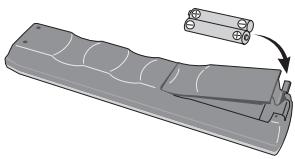

Importante
Un utilizzo errato delle batterie può causare danni, ad esempio la perdita di liquido ed esplosioni. Si consiglia di seguire le seguenti precauzioni:
- Nonutilizzato contemporamente batterie vecchie e nuove.
- Non utilizzato contemporaneamente tipi diversi di batterie. Anche se possono sembrare simili, batterie diverse potrebbero essere di tensione diversa.
- Verificare che i poli positivo e negativo di ciascuna batteria corrispondano alleindicazioni del vano batterie.
- Rimuovere le batterie dall'apparecchio se non viene utilizzato per un mese o più.
- Per lo smaltimento delle batterie usurate, attenerisi alle norme governative o delle istituzioni preposte all'ambiente in vigore nel proprio Paese o nella propria area.
- Non utilizzato né conservare le batterie alla luce diretta del sole o in luoghi eccessivamente caldi, ad esempio all'interno di un'automobile o in prossimità di un calorifero. Le batterie potrebbero perdere liquido, surriscaldarsi, esplodere o prendere fuoco, riducendone inoltre la durata e le prestazioni.
Consigli per l'installazione
Per poter'utilizzato quello prodotto per anni nella problemi, installarlo osservando le seguenti norme:
Si...
Utilizzare illettore in una stanza ben ventilata.
- Posizione are illettore su una superficie piatta e solida, quale un tavolo, uno scaffale o un rack per stereo.
No...
- Utilizzare illettore in un luogo esesto a temperature o umidità elevate, incluso vicino a caloriferi o altri generatori di calore.
- Posizione are su davanzali o altri luoghi dove illettore potrebbe essere esesto alla luce diretta del sole.
- Utilizzare illettore in un ambienteccessivamente polveroso o umido.
- Posizione are illettore su un amplificatore o su altri componenti dell'impianto stereo che si surriscaldano con l'uso.
- Utilizzare in prossimità di un tevisore o di un monitor: potrebbero verificarsi delle interferenze, in particolar modo se il tevisore è dotato di antenna per interni.
- Utilizzare illettore in una cucina o in un'alto locale in cui illettore potrebbe essere esesto a fumo o vapore.
- Posizione are illettore su un tappeto spesso o su moquette e non coprirlo con un telo, in quanto si impedirebbe il raffreddamento dell'apparecchio.
- Posizione illettore su una superficie instabile o su una superficie ristretta che non supporta i quattro piedini dell'apparecchio.
Compatibilità di riproduzione dei diversi formati di disco/continuti
Questolettore è compatibile con una vasta gamma di tipi di dischi (supporti) e di formati. I dischi riproducibili sono contrassegnati di norma con uno dei seguenti loghi del disco e/o sulla sua custodia. Tenere presente che alcuni tipi di disco, ad esempio i CD o DVD registrabili, possono essere di un tipo non riproducibile. Per ulteriori informazioni in proposito, vedere in seguito.
Tenereanchepresentechideschi registrarili non possono venire usati conthisolettore.

AUDIO

VIDEO

R

DVD-R
DVD-RW
RW

DVD-Audio
DVD-Video



CD-RW
CD audio
Video CD
CD-R

Super Audio CD

FUJICOLOR CD
COMPATIBLE

FUJICOLOR CD
COMPATIBLE
Fujicolor CD
- Questo apparecchio riproduce dischi DVD+R/+RW.
DVD è un marchio di fabbrica della DVD Format/Logo
Licensing Corporation.
- é un marchio registrar di FUJIFILM Corporation.
- Compatibleanche con i Picture CD della KODAK
Questolettore supporta il formato Super VCD di IEC.Paragonato allo standard Video CD,quello Super VCD offre una qualita di immagine superiore e consente la registrazione di due colonne sonore. Super VCD inoltre supporta il formato widescreen.


Super VCD
Informazioni sulla riproduzione DualDisc
Un DualDisc è un nuovo disco a due lati, uno contente dati DVD (video, audio, ecc.) e l'altro con contento non DVD, ad esempio materiale audio digitale.
Il lato audio non DVD del disco non èCompatible con le specifiche CD audio, pertanto potrebbe non essere riprodotto.
Il lato DVD dei DualDisc giene riprodotto normalmente con quello apparecchio. Il contento DVD-Audio non giene riprodotto.
Per ulteriori informazioni sulle specifiche tecniche DualDisc, consultare il produttore o il rivenditore del disco stesso.
Compatibilità con dischi CD-R/-RW
- Formati compatibili: CD audio, Video CD/Super VCD, ISO 9660 CD-ROM* contenti file MP3, WMA, MPEG-4 AAC, JPEG o video DivX/WMV
-
Conformeagli standard ISO 9660 Level 1 o 2. Formato fisico del CD: Mode1, Mode2 XA Form1. I file system Romeo e Joliet sono compatibili con quellolettore.
-
Riproduzione multisessione: No
- Riproduzione di dischi non finalizzati: No
- Struttura file (può variare): Fino a 299 cartelle su un disco; fino a 648 cartelle e file (in totale) all'interno di agli cartella
Compatibilità con dischi DVD+R/+RW
Possono essere riprodotti solo i dischi DVD+R/DVD+RW registrati in 'Video Mode (DVD Video Mode)' e finalizzati. Tuttavia, alcune modifiche effettuate durante la registrazione potrebbero non essere riprodotte accuramente.
Compatibilità con dischi DVD-R/-RW
- Formati compatibili: DVD-Video, Video Recording (VR)*
- I punti editati potrebbero non venire riprodotti esattamente come editati; l'immagine su schermo potrebbe interrompersi temporaneamente nei punti editati.
- Riproduzione non finalizzata: No
- Riproduzione di file MP3/WMA/MPEG-4 AAC/JPEG o video DivX/WMV su DVD-R/-RW: No
Compatibilità con audio compresso
- Formati compatibili: MPEG-1 Audio Layer 3 (MP3), Windows Media Audio (WMA), MPEG-4 AAC
- Freqenze di campionamento: 32 kHz, 44,1 kHz o 48 kHz
- Velocità di trasmissione binaria: Una qualsiasi (si raccomanda 128 kbps o superiore)
- Riproduzione VBR (Variable Bit Rate) di MP3/WMA/MPEG-4 AAC: No
- Compatibilità con codifica WMA lossless: No
- compatibilità DRM (Digital Rights Management): No (i file audio protetti da DRM non vengono riprodotti da quellolettore. Consultareanche DRM su Glossarioa pagina 45)
- Extensioni file:.mp3, .wma, .m4a (queste estensioni sono necessarie per il riconoscimento dei file MP3, WMA e MPEG-4 AAC da parte dellettore — non usarle per altri tipi di file)
Informazioni su MPEG-4 AAC
Advanced Audio Coding (AAC) è la parte essenziale dello standard MPEG-4 AAC, che comprende MPEG-2 AAC e costituisce la base della technologia di compressione audio MPEG-4. Il formato del file e l'estensione usata dipendono dall'applicazione utilizzata per la codifica del file ACC. Questo appearecchio riproduce file AAC codificati da iTunes® con l'estensione '.m4a'. I file protetti DRM non vengono riprodotti, quando può accadere che i file codificati con alcune versioni di iTunes® non vengano riprodotti o che i nomi di tali file non siano visualizzati correttamente.
Apple e iTunes sono marchi di fabbrica della Apple, Inc., depositati negli Stati Uniti ed in altri Paesi.
Compatibilità con WMA (Windows Media™ Audio)
Questolettore èin grado di riproduurre file Windows Media Audio.
WMA è l'acronimo di Windows Media Audio e si riferisce ad una Tecnologia di compressione audio sviluppata da Microsoft Corporation. I file WMA possono venire codificati con Windows Media Player per Windows XP, Windows Media Player 9 o Windows Media Player 10.
- Windows Media è un marchio di fabbrica della Microsoft Corporation.
- Questo prodotto include technologia di proprietà della Microsoft Corporation e non è utilizzatoleenza licenza della Microsoft Licensing, Inc.
Informazioni su video DivX
DivX è una Tecnologia multimediale creata da DivX, Inc. I file multimediai DivX contengono non solo video compresso, ma anche funzioni multimediai avanzate quali menu, sottitoli e colonne sonore alternate. Qestolettore è in grado di riproduire video DivX masterizzati su CD-R/-RW/-ROM. Utilizzato la stessa terminologia DVD-Video, i singoli file video DivX vengono chiamati "Titoli".
Quando si assegnano nomi/titoli ad un disco CD-R/-RW prima della masterizzazione, tenere presente che per default verranno riprodotti in ordine alfabetico.
Visualizzazione dei file dei sottotitoli esterni
I set di caratteri elencati di seguito sono disponibili per i file dei sottotitoli esterni. è possibile visualizzare sullo schermo il set di caratteri corretto impostando Subtitle Language (in Impostazioni Language a pagina 33) in modo che corrisponda al file sottotitoli.
Questolettore supporta i seguenti gruppi di lingue:
| Gruppo 1 | Albanian (sq), Basque (eu), Catalan (ca), Danish (da), Dutch (nl), English (en), Faroese (fo), Finnish (fi), French (fr), German (de), Icelandic (is), Irish (ga), Italian (it), Norwegian (no), Portuguese (pt), Rhaeto-Romanic (rm), Scottish (gd), Spanish (es), Swedish (sv) |
| Gruppo 2 | Albanian (sq), Croatian (hr), Czech (cs), Hungarian (hu), Polish (pl), Romanian (ro), Slovak (sk), Slovenian (sl) |
| Gruppo 3 | Bulgarian (bg), Byelorussian (be), Macedonian (mk), Russian (ru), Serbian (sr), Ukrainian (uk) |
| Gruppo 4 | Hebrew (iw), Yiddish (ji) |
| Gruppo 5 | Turkish (tr) |
- É possibile che alcuni file dei sottitoli esterni non vengano visualizzati o vengano visualizzati in modo non corretto.
- Per i file dei sottotitoli esterni, sono supportate le seguenti estensioni per nome di file del formato dei sottotitoli (questi file non vengono visualizzati all'interno del menu di navigazione del disco): .srt, .sub, .ssa, .smi
- Il nome di file del film deve essere ripetu all'inizio del nome di file relativivo al file dei sottotitoli esterni.
- Il numero dei file dei sottotitoli esterni che possono essere impostati in uno stesso file di film è limitato ad un massimo di 10.
Compatibilità con video DivX
- Prodotto DivX® Ultra Certified originale.
- Riproduce tutte le versioni di video DivX® (incluo DivX® 6) con riproduzione avanzata di file multimediali DivX® e del formato DivX® Media Format.
- Estensioni di file: .avi e .divx (dautilizzare affinché illettore riconosca i file video DivX). Tutti i file con estensione.avi sono riconosciuti come MPEG4, ma non tutti sono necessariamente file video DivX, quando potrebbero non essere riproducibili su quellolettore.
Informazioni su WMV
WMV è l'acronimo di Windows Media Video e si riferisce ad una Tecnologia di compressione video sviluppata alla Microsoft Corporation. Il materiale WMV può venire codificato con Windows Media® Encoder.
- Questolettore è compatibile con i file WMV9 codificati con Windows Media® Encoder 9, con estensione .wmv.
- Compatible con file da meno di 720 × 576 pixel/720 x 480 pixel.
- Advanced Profile non supportato.
- I file video protetti DRM non vengono riprodotti da quellolettore.
Compatibilità con file JPEG
- Formati compatibili: Immagini ferme Baseline JPEG ed EXIF 2.2 con risoluzione fino a 3072 × 2048 pixel.
Formato file utilizzato da fotocamere digitali. - Compatibilità con file Progressive JPEG: No
- Estensioni di file: .jpg (estensione necessaria per il riconoscimento di file JPEG da parte dellettore - non usarla per altri tipi di file)
Compatibilità con dischi creati con PC
I dischi registrati con PC possono non essere riproducibili su quello apparecchio con certe impostazioni del software applicativo usato per creare il disco. In tal caso, consultare in proposito il produttore del software per ulteriori informazioni.
I dischi registrati nella modalità di scrittura pacchetti (formato UDF) non sono compatibili con questolettore.
Sulle scatole per DVD-R/-RW o CD-R/-RW sono riportate ulteriori informazioni inerenti la compatibilità.
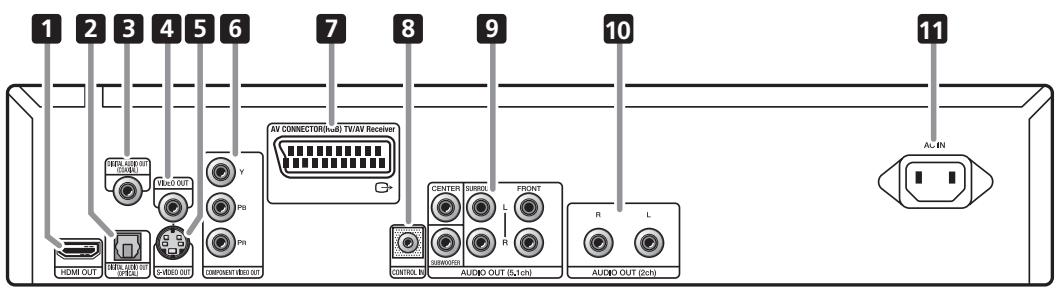
1 HDMI OUT
Uscita HDMI che dispone di un'interfaccia di alta qualità per audio e video digitale (pagea 14).
2 DIGITAL AUDIO OUT OPTICAL
Uscite audio ottiche digitali per il collegamento a un ricevitore AV compatibile con PCM, Dolby Digital e/o DTS (pagea 13).
3 DIGITAL AUDIO OUT COAXIAL
Uscite audio coassiali digitali per il collegamento a un ricevitore AV compatibile con PCM, Dolby Digital e/o DTS (pagea 13).
4VIDEO OUT
Uscita video (composita) collegabile al teilevisore o al ricevitore AV tramite il cavo video in dotazione (pagea 10).
5 S-VIDEO OUT
Uscita S-Video da utilizzato al posto delle prese VIDEO OUT (pagina 11).
6 COMPONENTVIDEO OUT
Uscita video di qualità elevata per il collegamento ad un teilevisore, monitor o ricevitore AV dotato di ingressi video component.
Effettuare il collegamento utilizzato un cavo video component a tre vie (pagina 11).
7 AV CONNECTOR (RGB) TV/AV Receiver
Connettore AV SCART per uscita audio/video per il collegamento ad un tevisore o altri apparentchi dotati di connettore SCART. L'uscita video è commutabile tra video, S-Video e RGB (pagina 11).
8 CONTROL IN
Utilizzato per controllare quellolettore dal sensore remoto di un'alto componente Pioneer con un terminale CONTROL OUT e recante il significato. Collegare CONTROL OUT dell'alto componente a CONTROL IN dellettore con uno spinotto (pagina 13).
9 AUDIO OUT (5.1ch)
Uscite audio analogico multicanale (5.1ch) per il collegamento a un ricevitore AV con ingressi audio analogico multicanale (pagea 12).
10 AUDIO OUT (2ch)
Uscite audio analogico stereo per il collegamento al teilevisore, al ricevitore AV o all'impianto stereo (pagea 10).
11 AC IN
Collegare il cavo di alimentazione in dotazione, quando insertirlo in una presa di rete.

Importante
- Prima di effettuare o modificare i collegamenti, spegnere l'apprecchio e scollegare il cavo di alimentazione alla presa CA.
- La seguente installation è basica e consente di riproduire del dischi utilizzato solo i cavi in dotazione con illettore. In questa installation l'audio stereo viene riprodottoattraverso i diffusori del teilevisore.
- Questolettore e dotato di una technologia di protezione contro la copia. Non collegare illettore al tevisoreattraverso un videoregistratore mediante cavi audio/video o S-Video,poichéla visualizzazione delle immagini sullo schermo tevisivo non risulterà nitida (Illettore potrebberisultarenon compatibile con alcune combinazioni di tevisori/videoregistratori per la stessa ragione.Per ulteriori informazioni,rivolgersi al fabbricante.)
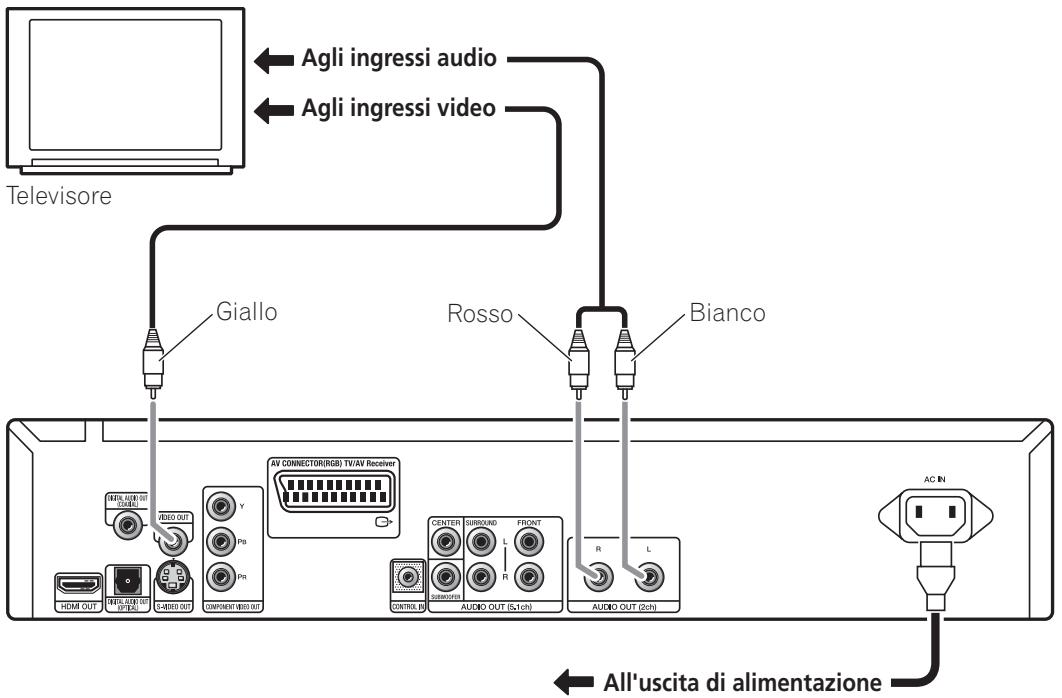
1 Collegare le prese VIDEO OUT e AUDIO OUT (5.1ch) alla série di ingressi A/V del tevisore.
Utilizzare il cavo audio/video in dotazione, collegando le spine rossa e bianca alle uscite audio e la spina gialla all'uscita video. Assicurarsi di collegare le uscite audio sinistra e destra ai corrispondenti ingressi per ottenere una riproduzione stereo ottimale.
Consultare pagina 11 se si desidera utilizzato un cavo component, S-Video o SCART per il collegamento video.
2 Collegare il cavo di alimentazione CA in dotazione alla presa AC IN, quindi inserirlo nella presa di rete.

Nota
- Prima di scollegare illettore alla presa di rete, assicurarsi di attivare la modalità standby premendo il tasto © STANDBY/ON sul pannello anteriore oppure sul telecomando e attendere che la scritta -OFF- scompaia dal display dellettore.
- Per tali ragioni, non collegare illettore alla presa di alimentazione di alcuni amplificatori e ricevitori AV.
Un connettore AV SCART è in dotazione per il collegamento ad un tevisore o ricevitore AV. L'uscita video è commutabile tra composito, S-Video e RGB. Per le modalità di selezione, consultare AV Connector Out a pagina 33.
Il connettore AV SCART inoltre emette audio analogico, per cui non è necessario collegare ancche le prese AUDIO OUT (5.1ch).
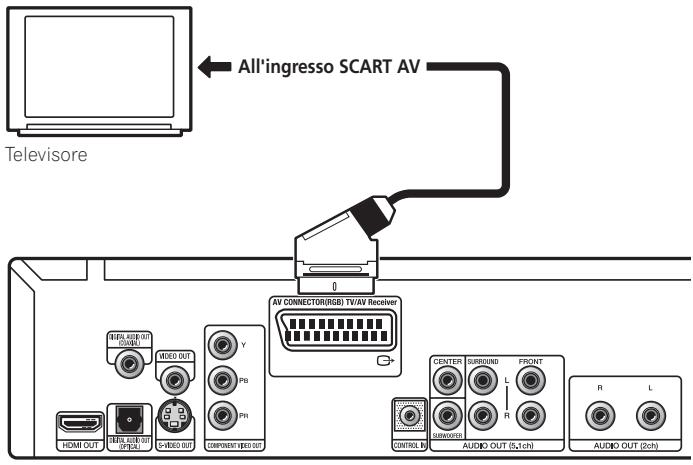
- Utilizzare un cavo scart (non in dotazione) per collegare l'uscita del AV CONNECTOR (RGB) TV/AV Receiver ad un ingresso SCART AV (non in dotazione).
Collegamento tramite l'uscita S-Video
Se il tevisore (o altri appearecchio) dispone di ingressro S-Video, è possibile utilizzare l'uscita S-Video di quellolettore piuttosto cheQLlla standard (composita) per ottenere una migliorie qualita dell'imagine.
- Utilizzare un cavo S-Video (non in dotazione) per collegare S-VIDEO OUT all'ingresso S-Video del teilevisore (o del monitor o del ricevitore AV).
Allineare il triangolino sopra la presa con lo stesso simbolo sulla spina prima di inseire la spina.
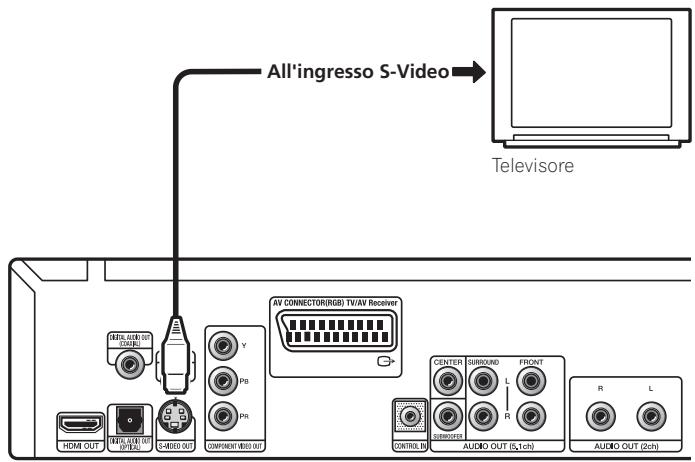
Collegamento tramite l'uscita video component
Per collegare quellolettore al tevisore (o altri apparecchio), è possibileutilizzare l'uscita video component piuttosto che la presa di uscita video standard. Cio dovrebbe garantire un'imagine di qualità ottimale da una delle tre uscite video disponibili.
- Utilizzare un cavo video component (non in dotazione) per collegare le prese COMPONENT VIDEO OUT all'ingresso video component del teileatore, monitor o ricevitore AV.
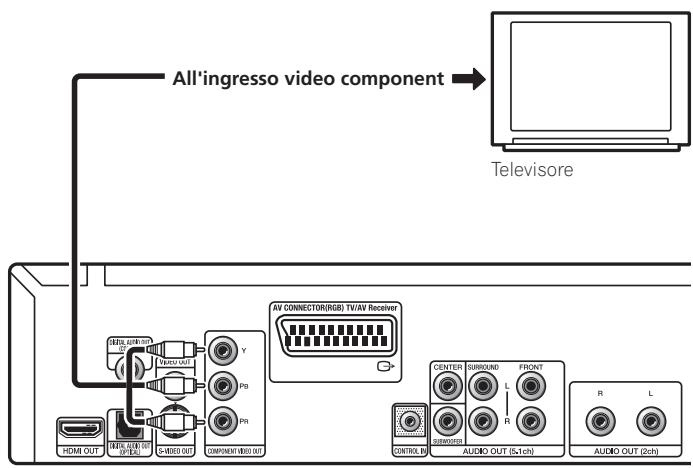
Riproduzione di 1080i/720p/576p/480p da uscite video component
Questolettore in grado di emettere 1080i/720p/576p/480p dall'uscita video component.A paragone con 576i/480i,1080i/720p/ 576p/480p,viene praticamente raddoppiata la velocità di scansionedell'immagine riprodotta in modo stabile e primo di sfarfallii.
Per impostare illettore per l'uso con un tevisore a scansione progressiva o HD (High Definition), consultare Resolution (Max) a pagina 33. Quando illettore emette video a scansione progressiva, I'indicatore PRGSVE del display del pannello anteriore si illumina.

Importante
- Se si collega un teilevisore non compatibile con 1080i/720p/576p/480p si commuta illettore su una di queste opzioni, non sare possibile vedere alcuna immagine. In questo caso, spegnere tutti i componenti ed effettuare di nuovo i collegamenti usando il cavo video in dotazione (vedere Collegamenti facili a pagina 10), quando tornare a 576i/480i (vedere Commutazione dell'uscita video interlacciato su 576i/480i con i comandi del pannello anteriore a pagina 12).
Commutazione dell'uscita video interlacciato su 576i/480i con i comandi del pannello anteriore
Portare illettore sullamoditatstandby,quindi, coni comandi del pannello anteriore, premere 念 STANDBY/ONmente si tiene premuto 一 一 一 一 per riportare illettore su 576i/480i.
- Se illettore è collegato mediante HDMI, scollegare il cavo HDMI prima di riportare illettore sull'uscita 576i/480i (Se rimane collegato, viene ripristinata l'impostazione predefinita della risoluzione HDMI in uscita; vedere Ripristino della risoluzione in uscita predefinita con un collegamento HDMI a pagina 15.)
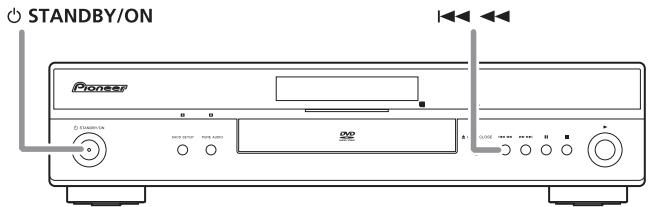
Collegamento a un ricevitore AV
É possibile collegare quellolettore al ricevitore AV usingle uscite analogiche multicanale o una delle uscite digitali.
Oltre a quosti collegamenti, è possibileanche collegare le uscite analogiche a 2 canali per la compatibilità con tutti i dischi.
Convieneanche collegare un'uscita video al ricevitore AV.E. possibileutilizzareuna delle uscitevideo disponibili sullettore (nell'illustrazioneviene mostrato un collegamento standard (composito)).
1 Collegare le prese analogiche AUDIO OUT (2ch) e VIDEO OUT dellettore alla serie di ingressi audio e video analogici del ricevitore AV.
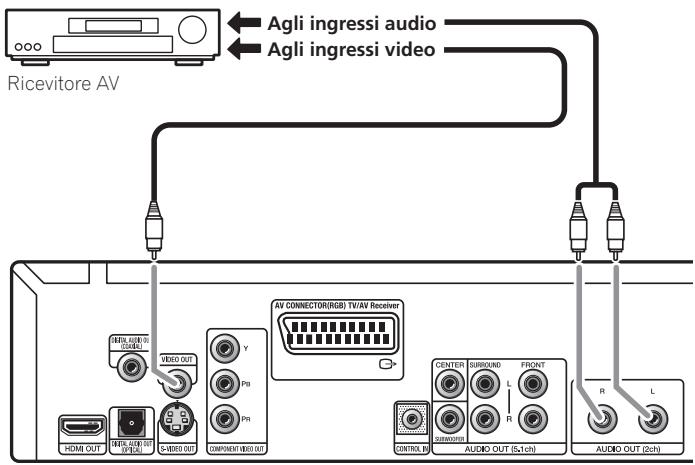
2 Collegare l'uscita video del ricevitore AV all'ingresso video del teilevisore.
Se desiderato, per collegarsi al ricevitore AV, è inoltre possibile utilizzato il connettore AV SCART, S-Video o component.

Consiglio
- Di solito è necessario collegare cavi video uguali fra illettore DVD e il ricevitore AV e fra il ricevitore AV ed il teilevisore.
Collegamento delle uscite analogiche multicanale
Se il ricevitore AV dispone di ingressi analogici a 5.1 canali, si consiglia di collegare quellolettore ad essitramite le uscite analogiche multicanale. In quello modo, si assicurata una riproduzione corretta di qualsiasi tipo di disco, compresi i dischi Dolby Digital and DTS DVD-Video,oltre che DVD-Audio e SACD ad alta Frequenza di campionamento e multicanale.
- Collegare le uscite audio multicanale di quellolettoreagli ingressi audio multicanale del ricevitore AV.
Si consiglia di usare tre cavi audio stereo, uno per il canale FRONT, uno per quello SURROUND e uno per i canali CENTER e SUBWOOFER.
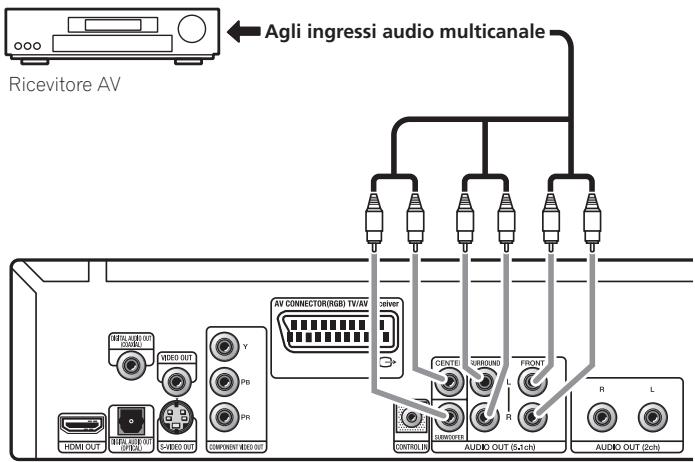
Se desiderato, per collegarsi al ricevitore AV, è inoltre possibile utilizzato il connettore AV SCART, S-Video o component.

Consiglio
- Dopo aver effettuato i collegamenti e accesso l'apparecchio, si deve cancellare l'impostazione Audio Output Mode (pagina 36) del del menu Initial Setup da 2 Channel predefinito a
5.1 Channel.
Collegamento di un'uscita digitale
Questolettore possiede uscite audio digitali di tipo ottico e di tipo coassiale per il collegamento ad un ricevitore AV. Collegare quale che si ritengono più convenienti.
A seconda delle caratteristiche del ricevitore AV, potrebbe essere necessario impostare quellolettore in modo che emetta solo audio digitale in un formato compatibile. Vedere Impostazioni Digital Audio Out a pagina 32 e consultare le istruzioni fornite con il ricevitore AV. Da queste prese non viene emesso alcun segnale audio SACD; tale collegamento dovrebbe essere aggiuntivo e non sostitutivo rispetto a un collegamento analogico a 5.1 canali.
- Collegare una delle prese DIGITAL AUDIO OUT (COAXIAL/OPTICAL) di quellolettore ad un ingresso digitale del ricevitatore AV.
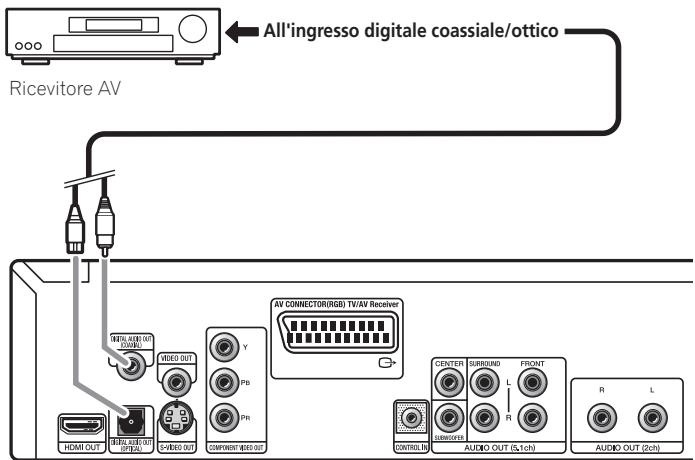
Per un collegamento ottico,utilizzare un cavo a fibre ottiche (non in dotazione) per collegare la presa DIGITAL AUDIO OUT OPTICAL ad un ingresso ottico del ricevitore AV.
Per un collegamento coassiale,utilizzare un cavo coassiale (simile al cavo video fornito) per collegare la presa DIGITAL AUDIO OUT COAXIAL ad un ingresso coassiale del ricevitore AV.
Controllo di quellolettoretramite unalto componente Pioneer
La presa CONTROL IN consente di controllare questolettoretramite il sensore remoto di un'alto componente (di norma, un ricevitore AV) che dispone di presa CONTROL OUT. I segnali del controlo remoto arrivano allettore dal sensore remoto dell'alto componente, consentendo una maggiore liberta nel posizionamento dellettore.
- Utilizzare uno spinotto (non in dotazione) per collegare la presa CONTROL IN dellettore con la presa CONTROL OUT dell'altro componente Pioneer.
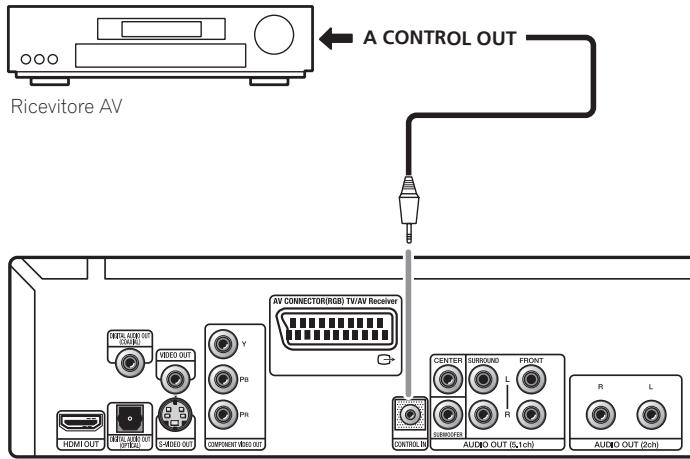
- É inoltre necessario collegare un cavo digitale coassiale, un cavo audio analogico o un cavo video.
- Se collegato tramite System Control, punctare il telecomando in direzione del componente collegato (ad esempio, un ricevitore AV). Il telecomando non funzionerà correttamente se puntato in direzione di quello appearecchio.
- Non è possibile utilizzato System Control con componenti che non dispongono di presa System Control oppure prodotti da comunità diverse da Pioneer.
Se si dispone di un monitor o di un display dotato di interfaccia HDMI, è possibile collegarlo allettore mediante un cavo HDMI disponibile in commercio.
Il connettore HDMI presente in uscita un segnale video digitale non compresso, nonché quasi tutti i tipi di segnali audio digitali con cui illettore è compatibile, compresi DVD-Video, DVD-Audio (vedere di seguito le limitazioni), SACD, Video CD/Super VCD, CD, WMA, MP3, MPEG-4 AAC, video DivX e WMV.
- Per collegare l'uscita HDMI OUT presente sullettore al terminale HDMI di un monitor compatibile con tale interfaccia, utilizzare un cavo HDMI (non in dotazione).
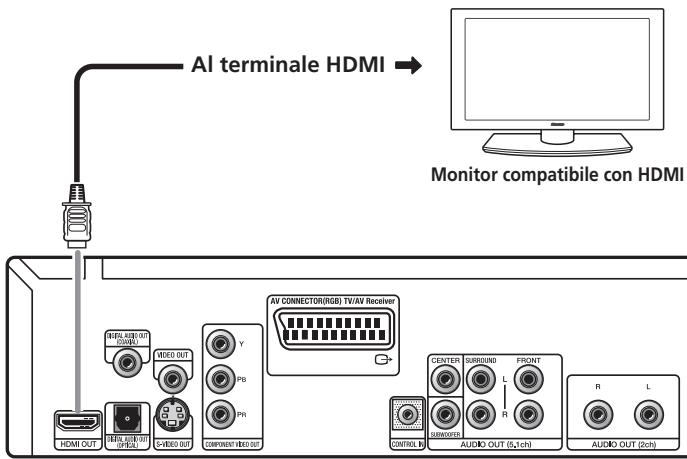
La freccia sul cavo del connettore deve essere rivolta verso l'alto per ottener un corretto allineamento con il connettore dellettore.
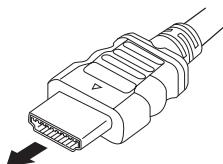

Nota
- Questo appearecchio è ideato in modo da essereCompatible con HDMI (High-Definition Multimedia Interface). A seconda del componente collegato, l'uso di un collegamento DVI può causare trasferimenti di segnale instabili.
- Se si modifica il componente collegato all'uscita HDMI, sare necessario modificareanche le impostazioni HDMI in modo che corrispondano al nuovo componente (a tal fine, vedere HDMI Out a pagina 32, Resolution (Max) e HDMI Color a pagina 33). Le impostazioni relative a ciascun componente vengono tuttavia memorizzate (per un massimo di 2 componenti).
- Il collegamento HDMI è compatibile con i segnali PCM lineari a 2 canali (da 44,1 kHz a 192 kHz, 16 bit/20 bit/24 bit) e segnali Dolby Digital, DTS, bitstream audio MPEG, DSD multicanale e segnali PCM lineari multicanale (segnali a 5.1 canali fino a 96 kHz, 16 bit/20 bit/24 bit).
- A seconda del cavo HDMI utilizzato, l'uscita 1080p potrebbe non essere corretta.
Informazioni su HDMI
HDMI (High-Definition Multimedia Interface) supports video and audio su un unico collegamento digitale da utilizzare conlettori DVD, DTV, set-top-box e altri dispositivi AV. L'interfaccia HDMI è stata sviluppata per offrirere congiuntamente le technologie HDCP (High-bandwidth Digital Content Protection) e DVI (Digital Visual Interface). HDCPiene usato per proteggere il contento digitale trasmesso e ricevuto da schermi compatibili DVI.
HDMI è in grado di trasferire segnali video in formato standard, avanzato o ad alla definizione e segnali audio standard o surround multicanale. Le caratteristiche di HDMI comprendono: segnale video digitale non compresso, ampiezza di banda fino a 5 gigabyte al secondo (con segnali HDTV), un unico connettore (piuttosto che varci cavi e connettori) e capacità di comunità tra la fonte AV e i dispositivi AV quali i DTV.
Informazioni su HDMI Control
È possibile attivare HDMI Control impostando HDMI Control su On per tutti i componenti collegati tramite cavo HDMI. Controllare l'uscita video di quello appearecchio dopo aver completato i collegamenti e le impostazioni di tutti i componenti. Sarà necessario controllare l'uscita video agli volte che si cambiano i componenti collegati o si rimuove il cavo HDMI.
Notare che HDMI Control non può funzionare correttamente se non si utilizza un cavo HDMI che supporta le specifiche HDMI 1.3 (Categoria 2) o superiori.
Utilizzato il tasting OUTPUT RESOLUTION situato sul telecomando per cancellare la risoluzione delle uscite HDMI e video component.
A seconda del tipo di disco o file riprodotto, i segnali potrebbero non essere emessi con la risoluzione impostata su Resolution (Max) (pagina 33). Per i dettagli, consultare la tabella di seguito.
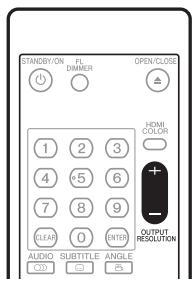
| Impostazione di risoluzione (max) | |||||
| 480i/576i | 480p/576p | 1080i | 720p | 1080p | |
| DVD | 480i/576i | 480p/576p | 480p/576p | 480p/576p | 480p/576p |
| DVD-Audio | 480i/576i | 480p/576p | 480p/576p | 480p/576p | 480p/576p |
| Video DivX/WMV | 480i/576i | 480p/576p | 1080i | 720p | 480p/576p |
| JPEG | 480i/576i | 480p/576p | 1080i | 720p | 480p/576p |
| CD audio/Super Audio CD | 480i/576i | 480p/576p | 480p/576p | 480p/576p | 480p/576p |
| MP3/WMA/MPEG-4 | 480i/576i | 480p/576p | 1080i | 720p | 480p/576p |
| AAC | |||||
| Video CD/Super VCD | 480i/576i | 480p/576p | 480p/576p | 480p/576p | 480p/576p |

Nota
- Se vengono emessi segnali video analogici ad una risoluzione di 1080i o720p, la schermata GUI più apparire grossolana. Non si tratta di un malfunzionamento.
Ripristino della risoluzione in uscita predefinita con un collegamento HDMI
Utilizzare il tasto OUTPUT RESOLUTION del telecomando per riportare illettore su 576p/480p. Portare illettore sulla modalità standby, quando, con i comandi del pannello anteriore, premere STANDBY/ON nelle si tiene premuto I< per riportare illettore su 576p/480p.
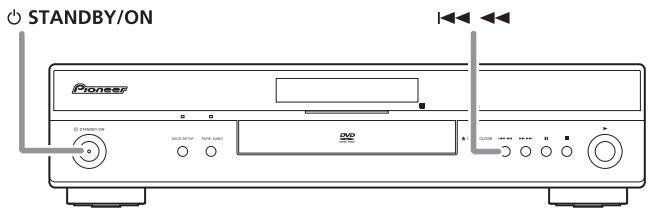
Pannello anteriore
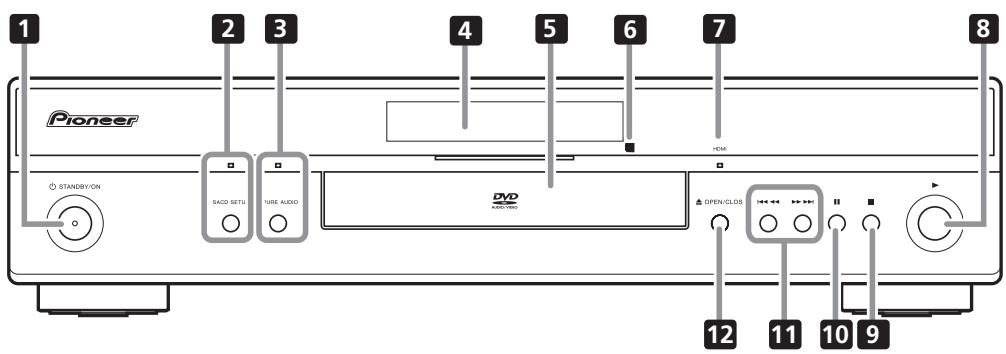
1 STANDBY/ON (pageina 20)
Premere per accendere illettore (l'indicatore di alimentazione e quello al centro dell'apparecchio si illuminano quando l'apparecchio è accesso) o portarlo in standby.
2 SACD SETUP
Premere per selezionare la parte di un disco SACD che si desidera ascoltare — audio stereo (2ch Area), audio multicanale (Multi-ch
Area) e, per SACD ibridi, audio CD standard (CD Area). Per ulteriori informazioni, consultare SACD Playback a pagina 34.
L'indicatore si illumina quando si insertisce un disco SACD e si imposta la riproduzione SACD su 2ch Area o Multi-ch Area.
3 PURE AUDIO
Quando si arresta la riproduzione, premere per spegnere/accendere il display del pannello anterio e disattivare le uscite video e digitale*. Utilizzato quando si desidera ascoltare audio delle uscite analogiche perché interferenze da altri segnali (ad esempio, quando si ascolta un disco DVD-Audio). L'indicatore si illumina quando si attiva la funzione Pure Audio.
Questo tasto funziona solo quando si imposta Pure Audio Button (pagina 34) su Available.
*Ciò include HDMI e le uscite digitali coassiale e ottica.
4 Display (page 17)
5 Vano del disco
6 Sensore remoto
Il telecomando dispone di un raggio di azione di circa 7m
7 Indicatore HDMI
Si illumina quando illettore viene riconosciuto da un alte componente compatibile con HDMI o DVI/HDCP.
8 (riproduzione) (pagina 22)
9 (arresto) (pagina 22)
10 II (pausa) (pagea 22)
11 1 (pagina 22)
12 △ OPEN/CLOSE (pagina 22)
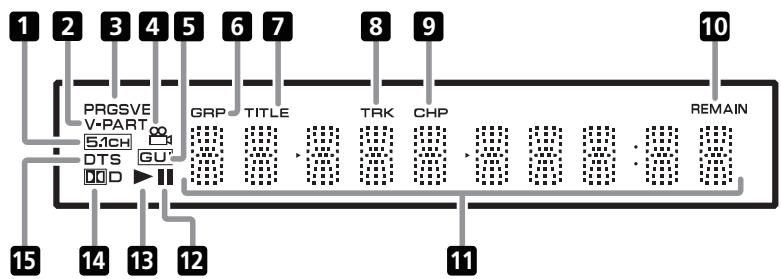
1 5.1CH
Si illumina quando si selezione l'uscita analogica a 5.1 canali (pagina 36).
2 V-PART
Si illumina quando si riproduce una porzione video di un DVD.
3 PRGSVE
Si illumina quando l'uscita video è 1080i/720p/576p/480p (pagina 11).
4
Si illumina durante le scene riprese da più angolazioni su un DVD (pagea 30).
5 GUI (Graphical User Interface)
Si illumina quando sullo schermo viene visualizzato un menu.
6 GRP
Indica che il display dei caratteri sta visualizzando un numero di gruppo DVD-Audio.
7 TITLE
Indica che il display dei caratteri sta visualizzando un numero di titolo DVD-Video.
8 TRK
Indica che il display dei caratteri sta visualizzando un numero di brano.
9 CHP
Indica che il display dei caratteri sta visualizzando un numero di capitolo DVD.
10 REMAIN
Si illumina quando il display dei caratteri visualizza il tempo o il numero dei brani/titoli/capitoli rimanenti.
11 Display dei caratteri
12 II
Si illumina quando si interrompe un disco.
13
Si illumina durante la riproduzione di un disco.
14 D
Si illumina quando si riproduce una colonna sonora Dolby Digital.
15 DTS
Si illumina durante la riproduzione di una colonna sonora DTS.
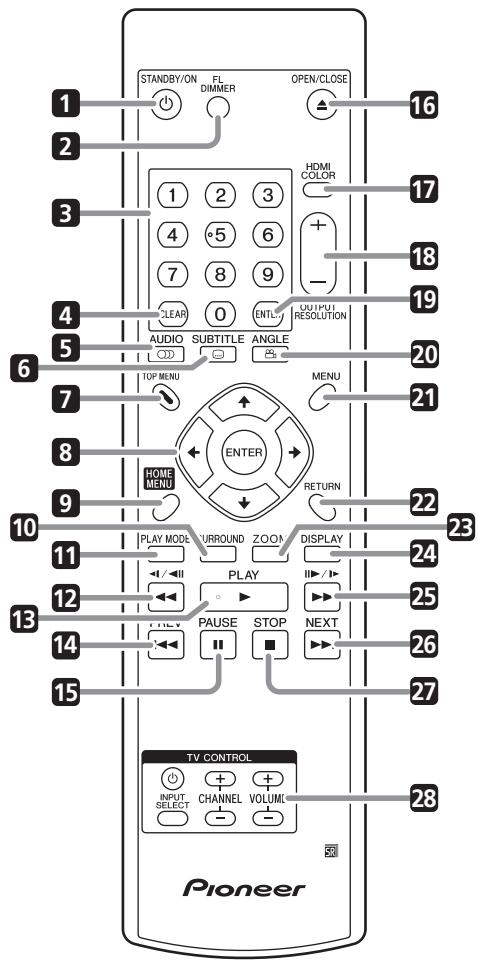
2 FL DIMMER
1 STANDBY/ON (pageina 20)
Premere per cancellare la luminosità del display.
3 Tasti numerici (pagina 22)
4 CLEAR (page 19 e 28)
5 AUDIO (pageina 29)
6 SUBTITLE (pageina 29)
7 TOP MENU (pagina 23)
8 ENTER e tasti cursore (pagina 21)
9 HOME MENU (pagina 21)
10 SURROUND (pagina 31)
11 PLAY MODE (pagina 27)
12 e / (page 22 e 25)
13 PLAY (pagea 22)
14 PREV (pagea 22)
15 II PAUSE (pagea 22)
16 ▲ OPEN/CLOSE (pagea 22)
17 HDMI COLOR (pagina 33)
18 OUTPUT RESOLUTION + / - (page 15 e 33)
19 ENTER (pagina 21)
20 ANGLE (pagea 30)
21 MENU (pagina 23)
22 RETURN (pagina 21)
23 ZOOM (pagea 29)
24 DISPLAY (pageina 30)
25 e I17/1 (page 22 e 25)
26 NEXT (pagea 28)
27 STOP (pagina 22)
28 TV CONTROL (pageina 19)
Utilizzo del telecomando
Quando si utilizes il telecomando, tenere presente quando segue:
- Assicurarsi che tra il telecomando e il sensore remoto dell'apparecchio non siano presenti ostacoli.
- Il telecomando ha un raggio di azione di circa 7m
- Il corretto funzionamento del telecomando può essere invenire compromesso se il sensore dell'apparecchio è illuminato alla luce solare diretta o da una luce fluorescente.
- I telecomandi di dispositivi diversi possono interferire reciprocamente. Evitare l'utilizzo del telecomando per un'altra apparecchiatura posizionata vicino aquesta unità.
- Sostituire le batterie quando sinota una diminuzione del raggio di azione del telecomando.
Impostare il telecomando per controllare il teilevisore
É possibile'utilizzare il telecomando in dotazione per controllare il teilevisore. Prima di'utilizzare但这a funzione, programmare il telecomando con un codice produttore della tabella di seguito.
1 Tenere premuto il tasto CLEAR, quindi digitare il codice produttore del tevisore.
Vedere la tabella di seguito, per l'elenco dei codici. In caso di più codici per il proprio prodotto, digitare il primo dell'elenco.
- Se lamarca del televisore non appeare nella tabella di seguito, non sare possibile utilizzato quello telecomando per il controllo del televisore.
2 Premere © TV per controllare che il telecomando funzioni con il tevisore.
Se il telecomando è impostato correttamente, il tevisore dovrebbe accendersi/spegneri. In caso contrario, se si dispone di un'alto codice produttore, ripetere le operazioni del passo 1 con un nuovo codice.
Utilizzo dei tasti del telecomando
Nella tabella di seguito viene illustrato come utilizzare quello telecomando con il tevisore.
| Tasto | A casa serve |
| © TV | Premere per accendere/spagnere (standby) il tevisore. |
| INPUT SELECT | Premere per cancellare l'ingresso video del tevisore. |
| VOLUME +/- | Utilizzato per regolare il volume del tevisore. |
| CHANNEL +/- | Utilizzato per cancellare i canali del tevisore. |
| Marca | Codice |
| Aiwa | 38 |
| Funai | 36 |
| GE | 11, 28 |
| General | 34 |
| Goldstar | 10, 23 |
| Grandiente | 30 |
| Hitachi | 06, 24, 25, 32 |
| Magnavox | 12, 29 |
| Mitsubishi | 09 |
| NEC | 37 |
| Panasonic | 08, 22, 41 |
| Philips | 07 |
| Pioneer | 00, 35, 40, 44 |
| RCA | 01, 15, 16, 17, 18 |
| Samsung | 73, 75 |
| Sanyo | 14, 21 |
| Sharp | 02, 19, 27 |
| Sony | 04 |
| Toshiba | 05, 26, 31, 43 |
| JVC | 13, 33, 42 |
| Zenith | 03, 20 |
Accensione e impostazione
Quando si accende illettore per la prima volta,appare la schermata Startup Navigator. Si consiglia diutilizzarla per le impostazioni basiche dellettore.
1 Accendere il teilevisore e impostare l'ingresso video sullettore.
2 Premere il tasto © STANDBY/ON del telecomando o del pannello anteriore per accenderlo.
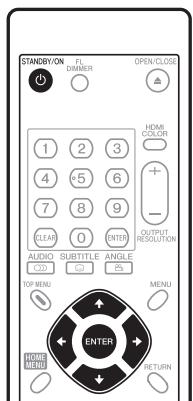
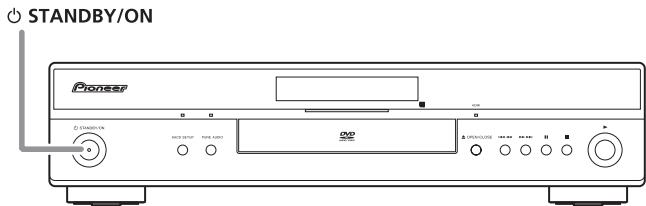
- Quando lo si accende per la prima volta, sul tevisore dovrebbe apparire la schermata Startup Navigator.
- Una volta collegato l'apparecchio ad un teilevisore al plasma compatible con HDMI Control, le impostazioni relative alla lingua vengono importate da quale degli OSD del teilevisore al plasma prima che inizi Startup Navigator.
3 Usare i tasti ↑/↓ per selezionare una lingua, quando premere ENTER.
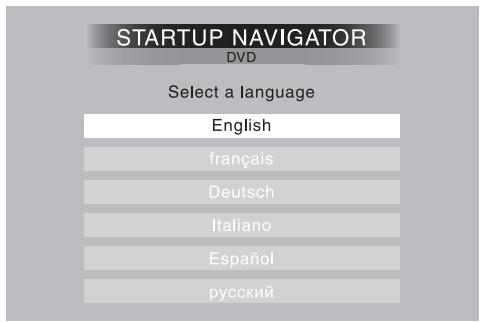
4 Premere ENTER per arrivare l'impostazione tramite Startup Navigator.
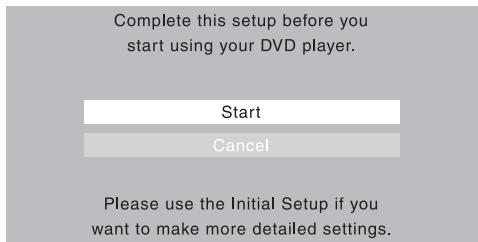
Se non si desidera utilizzato Startup Navigator, premere ↓ per selezionare Cancel, quando premere ENTER per uscire da Startup Navigator.
5 Utilizzato i tasti / per selezionare il terminale da cui émettere i segnali audio, quindi premere ENTER.
- Se si è selezionato Analog, procedere al passo 6.
- Se si è selezionato COAX/OPT, procedere al passo 7.
- Se si è selezionato HDMI o I don't know, procedere al passo 8.
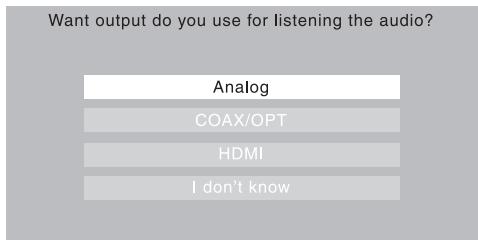
6 Utilizzato i tasti / per selezionare se emettere i segnali audio analogici dalle uscite audio 2ch o 5.1ch, quando premere ENTER.
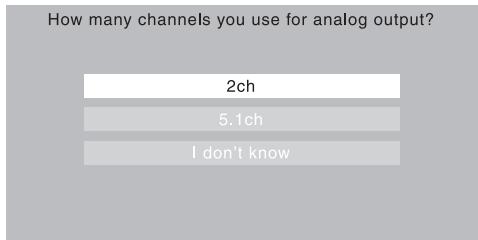
7 Utilizzare i tasti ↑/↓ per selezionare se convertire o meno i segnali audio digitali emessi da DIGITAL AUDIO OUT (COAXIAL/OPTICAL) in formato PCM lineare ('Yes' o 'No'), quindi premere ENTER.
- Procedere al passo 8.
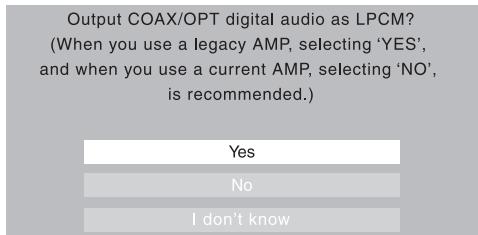
8 Utilizzare i tasti ↑/↓ per selezionare se visualizzare o meno una banda nera sui lati sinistro e destro dello schermo durante la riproduzione di DVD registrati con rapporto di fornato 4:3 ('Yes' o 'No'), quando premere ENTER.
When you watch 4:3 DVD contents on wide- screen HDTV do you want to add black bars on either side of the screen? (Select 'I don't know', if you have a standard(4:3) TV.)
Resolution change is easily done by the remote control. If you can't watch the video, change the resolution.
9 Selezionare 'Finish' per accettare le impostazioni e uscire da Startup Navigator o 'Go Back' per effettuare nuovamente le impostazioni.
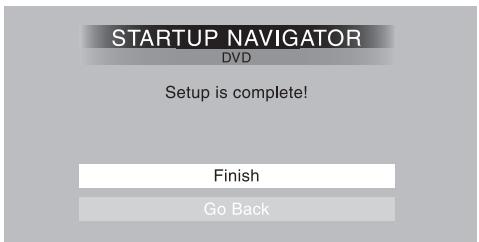

Nota
- Questolettore èdotodi screensaveré della funzione di spegnimento automatico. Se il funzionamento dellettore viene arrestato e non viene premuto alcun tasto per circa cinque minuti,si attiva lo screensaver. Se il vano del disco è chiuso ma non viene riprodotto alcun disco e non viene premuto alcun tasto per circa 30 minuti, illettore entra automaticamente in standby.
- Quando Startup Navigator è in esecuzione, non funzioni è alcuntastato se non OPEN/CLOSE, / / / , ENTER e RETURN.
Utilizzo dei display su schermo
Per magiore comodità di uso di quellolettore vengonoutilizzati display su schermo (OSD) grafici.
Si naviga su tutte le schermate alla stessa maniera,utilizzando i tasti del cursore ( / / /) per modificare le voci evidenziate e premendo ENTER per selezionarle.

| Tasto | Acosa serve |
| HOME MENU | Visualità/chiude il display su schermo. |
| ↑/↓/←/→ | Modifica la voce di menu evidenziata. |
| ENTER | Seleziona la voce di menu evidenziata (entrambi i tasti del telecomando ENTER funzionano allo stesso modo). |
| RETURN | Torna al menu principaleenza salvare le modifiche. |

Nota
- D'ora in poi in quello manuale, con il termine 'selectionare' si indichera l'uso dei tasti del cursore per evidenziare una voce su schermo e la pressione di ENTER.
Impostazione dellettore in base al teileisure
Se si dispone di un teilevisore widenscreen (16:9), impostare illettore in modo che riproduca un'immagine di tali dimensioni. Se si dispone di un teilevisore convenzionale (4:3), conservare le impostazioni predefinite e passare alla sezione successiva.
1 Premere HOME MENU e selezionare 'Initial Settings'.

Initial Settings
2 Selezionare 'TV Screen' dalle impostazioni Video Output'.
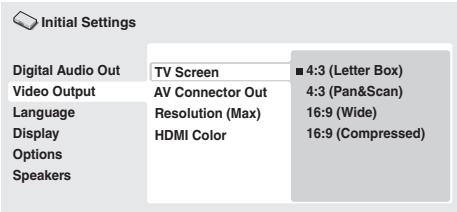
3 Se si dispone di un teilevisore widenscreen (16:9), selezionare '16:9 (Wide)' o '16:9 (Compressed)'.
Se si dispone di un tevisore convenzionale (4:3), se desiderato, è possibile modificare l'impostazione da 4:3 (Letter Box) a 4:3 (Pan & Scan). Per ulteriori dettagli, consultare Impostazioni Video Output a pagina 33.
4 Premere HOME MENU per uscire alla schermata dei menu.
Impostazione della lingua dei display sus schermo dellettore
Consente di impostare la lingua dei display su schermo dellettore.
1 Premere HOME MENU e selezionare 'Initial Settings'.

Initial Settings
2 Selezionare 'OSD Language' dalle impostazioni 'Display'.
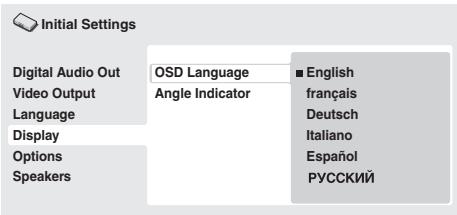
3 Scegliere una lingua.
La lingua della schermata cambia a seconda delle selezioni effettuate.
4 Premere HOME MENU per uscire alla schermata dei menu.
Di seguito vengono illustrati i comandi di base per la riproduzione di dischi DVD, CD, SACD, Video CD/Super VCD, video DivX/WMV e MP3/WMA/MPEG-4 AAC. Nel capitolo successivo vengono spiegate ulteriori funzioni.
Per i dettagli sulla riproduzione di dischi di immagini JPEG, consultare Visione di una sequenza JPEG a pagina 25.

Importante
- In quello manuale, con il termine 'DVD' si indica un DVD-Video, DVD-Audio o un DVD-R/-RW. Se una funzione è esclusiva di un tipo di DVD, quello viene specificato.
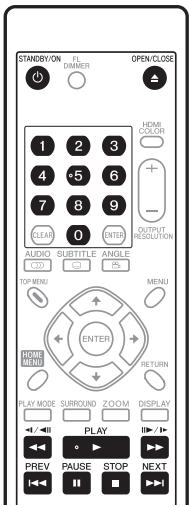
1 Se illettore non è ancorta acceso, accenderlo premendo STANDBY/ON.
Se si riproduce un DVD, un disco contente file video DivX/WMV o un Video CD/Super VCD, accendereanche il teilevisore e assicurarsi che sua impostato sull'ingresso video corretto.
2 Premere OPEN/CLOSE per aprire il vano del disco.
3 Inserire un disco.
Inserire il disco con l'etichetta rivolta versusl'altoutilizzando la guida del vano del disco per allineare il disco (se il disco è un DVD a doppio lato, inserirlo con il lato che si desidera riproduire rivolto versus il basso).
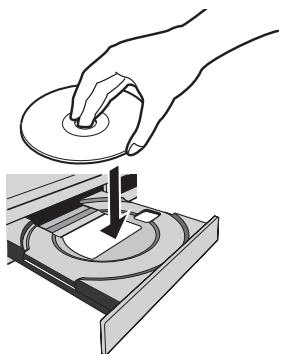
4 Premere PLAY per avviare la riproduzione.
Se si riproduce un DVD o Video CD/Super VCD, potrebbe apparire un menu su schermo. Per informazioni sulla navigazione nei menu, consultare Menu dei DVD-Video e dei dischi DivX e Menu Video CD/ Super VCD PBC a pagina 23.
- Se si riproduce un disco contenente file video DivX/WMV o file audio MP3/WMA/MPEG4 AAC, l'inizio della riproduzione potrebbe richiedere alcuni secondi. Cio è normale.
- Se si desidera riproduire un DualDisc (disco ibrido DVD/CD), consultare Compatibilità di riproduzione dei diversi formati di disco/contenuti a pagina 7.

Nota
- Con alcuni dischi DVD, in determinatesezionidel discoicomandi di riproduzione potrebbero non funzionare. Non si tratta di un problema di funzionamento.
- Se un disco contiene sua filmati (video DivX/WMV) sua altri tipi di file multimediali (MP3, ad esempio), selezionare innanzitutto se riproduire i file video (DivX/WMV) o gli altri tipi di file multimediali (MP3/WMA/MPEG-4 AAC/JPEG) dal display su schermo. Quando viene attivata la modalità Pure Audio i tipi di file multimediali vengono selezionati automaticamente.
Comandi basici per la riproduzione
Nella seguente tabella vengono illustrati i comandi basici per la riproduzione di dischitramite telecomando. Nel capitolo successivo vengono illustrate con maggiori dettagli le altre funzioni di riproduzione.
| Tasto | Acosa serve |
| ▲ PLAY | Avvia la riproduzione. Se sul display appara RESUME o LAST MEM, la riproduzione inizia dal punto di ripresa della riproduzione o dal punto di ultima memoria (vedereanche Ripristino e ultima memoria a pagina 23.) |
| II PAUSE | Interrompe la riproduzione di un disco o riavvia la riproduzione sospesa. |
| ■ STOP | Arresta la riproduzione. Consultare ancche Ripristino e ultima memoria a pagina 23. |
| ( solo telecomando) | Premere per avviare la scansione rapida all'indietro. Premere ▶ (riproduzione) per riprendere la riproduzione normale. |
| ( solo telecomando) | Premere per avviare la scansione rapida in avanti. Premere ▶ (riproduzione) per riprendere la riproduzione normale. |
| i▼ PREV | Salta all'inizio del brano, titolo o capitolo attuale, quando ai brani/titoli/capitoli precedenti. |
| ▲ I NEXT | Salta al brano, titolo o capitolo successivo. |
| Numeri(solo telecomando) | Si utilizzato per immettere un numero di titolo/capitolo/brano. Per selezionare, premere ENTER. • Se il disco è fermo, la riproduzione inizia dal titolo (per DVD), dal gruppo (per DVD-Audio) o dal brano selezioniati (per CD/SACD/Video CD/Super VCD). • Se il disco viene riprodotto, la riproduzione salute all'inizio del titolo (DVD-RW in modalità VR), capitolo (DVD-Video) o brano selezionati (DVD-Audio*/SACD/CD/Video CD/Super VCD). * entro il gruppo attuale |
Ripristino e ultima memoria
Ad eccezione dei dischi DVD-Audio e SACD, quando si arresta la riproduzione di un disco DVD, CD, Video CD/Super VCD o video DivX/WMV, sul display appeare la dicitura RESUME che indica la possibilità di riprendere la riproduzione a partire da quel punto. Se il vano del disco non viene aperto, la prossima volta che si inizia la riproduzione appeare la dicitura RESUME e la riproduzione riprende da quel punto (per cancellare il punto di ripresa della riproduzione, premere STOP nelle viene visualizzato RESUME.)
Con DVD e Video CD/Super VCD, se si estrae un disco dallettore\ dopo aver arrestato la riproduzione, viene memorizzata la posizione di ultima riproduzione. Se si insertisce nuovamente lo stesso disco, sul display appara la dicitura LAST MEM e la riproduzione riprende. Per dischi DVD-Video, illettore memorizza la posizione di\ riproduzione degli ultimi cinque dischi. Quando uno diassi viene\ inserito, è possibile riprendere la riproduzione.

Nota
- La funzione di ultima memoria non funziona con DVD-R/-RW di fornato VR, DVD-Audio e SACD.
- Se non si desidera'utilizzare la funzione di ultima memoria quando si arrasta un disco, premere OPEN/CLOSE per arrestre la riproduzione ed après il vano del disco.
Menu dei DVD-Video e dei dischi DivX
Alcuni file multimediai DivX e vari DVD-Video e DVD-Audio dispongono di menu che consentono di selezionare il materiale da vedere. Tali menu garantisco l'accesso a funzioni supplementari, quali la selezione della lingua dell'audio e dei sottotitoli, oppure a funzioni speciali, quali le sequenze. Per ulteriori informazioni, vedere la custodia del disco.
A volte, i menu dei DivX e dei DVD-Video vengono visualizzati automaticamente quando si avvia la riproduzione; in altri casi, i menu vengono visualizzati soltanto quando si preme MENU o TOP MENU.
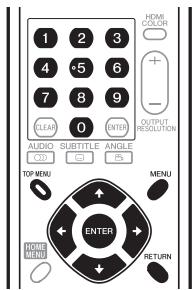

Importante
- Alcuni DVD-Audio dispongono di un 'gruppo bonus'. Prima di riproduire quello gruppo, digitare la password che si trovava sulla custodia del disco. Digitare la password con i tasti numerici.
Menu Video CD/Super VCD PBC
Alcuni Video CD/Super VCD presentano menu dai quali è possibile selezionare il programma desiderato. Essi vengono chiamati menu PBC (Playback Control).
É possible riproduire un Video CD/Super VCD PBCensa dovere aprire il menu PBC, avviando la riproduzione tramite un tastingo numero per selezionare il brano piuttosto che utilizzato il tastingo PLAY.
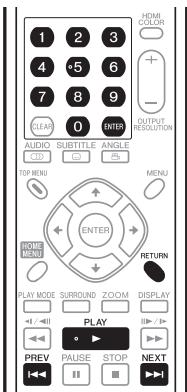
| Tasto | Acosa serve |
| RETURN | Visualizza il menu PBC. |
| Numeri (solo telecomando) | Utilizzati per immettere un'opzione di menu numerata. Per selezionare, premere ENTER. |
| PREV | Visualizza la pagina di menu precedente (se disponibile). |
| NEXT | Visualizza la pagina di menu successiva (se disponibile). |
- Quando si inserisce un disco DVD, quello viene espulso automaticamente après pochi secondi!
È probabile che il disco disponga di un codice area non corretto per illettore. Il codice area dovrebbe essere riportato sul disco; verificare che sia lo stesso dellettore (riportato sul pannello posteriori). ConsultareancheAree deiDVD-Videoa pagina 41. Se il codice area è corretto, il disco potrebbe essere danneggiato o sporco.Pulire il disco e verificare che non sia danneggiato. Consultareanche Manutenzione dellettoree dei dischi a pagina 40.
- Perché il disco inserto non viene riproduotto?
In primo luogo, verificare che il disco sia stato inserito correttamente (con l'etichetta rivolta verso l'alto) e che non sia sporco o danneggiato. Per informazioni sulla pulizia dei dischi, consultare Manutenzione dellettore e dei dischi a pagina 40.
Se un disco inserito correttamente non effettua la riproduzione, si tratta probabilmente di un formato o di un tipo di disco incompatibile, ad esempio un DVD-ROM. Per ulteriori informazioni sulla compatibilità dei dischi, consultare Compatibilità di riproduzione dei diversi formati di disco/continuti a pagina 7.
Non apparé nessuna imagine!
Controllare il pannello anteriore e verificare che l'indicatore PURE AUDIO non sia acceso. In caso contrario, premere il tasto PURE AUDIO per attivare nuovamente le uscite video e HDMI. Consultareanche Pannello anteriore a pagina 16.
Verificare che il tevisore sia compatibile con le risoluzioni 1080i, 720p, 576p o 480p. Consultare Riproduzione di 1080i/720p/ 576p/480p da uscite video component a pagina 11.
- Se si dispone di un teilevisore widscreen, perché, riproduccendo alcuni dischi, vengono visualizzate delle barre nere nelle parti superiore e inferiore dello schermo?
Alcuni formati di film sono tali che, sebbene riprodotti su teilevisori widescreen, sono necessarie le strisce nere nelle parti superiore ed inferiore dello schermo. Non è un problema di funzionamento.
- Se si dispone di un teilevisore standard (4:3) e si è impostato illettore sulla visualizzazione di DVD widscreen in formato Pan & Scan, perché riproduccendo alcuni dischi vengono visualizzate dellebarre nere nelle parti superiore e inferiore dello schermo?
Alcuni dischi ignorano le preferenze di visualizzazione impostate, quandoanche se si è selezionato 4:3 (Pan & Scan), la visualizzazione è in formato letterbox. Non è un problema di funzionamento.
- Dopo aver collegato l'apparecchio a un componente compatibile con HDMI, non si ottiene alcun segnale e l'indicatore HDMI del pannello anteriore non si illumina!
Accertarsi di aver selezionato illettore come ingresso HDMI nelle impostazioni relative al componente in uso. Per esquire但这a operazione potrebbe essere necessario consultare il manuale di istruzioni del componente. Per ulteri informazioni sulla compatibilità HDMI, consultare Collegamento tramite HDMI a pagina 14.
Non appeare nessuna immagine dall'uscita HDMI!
Questolettore non è in grado di visualizzare immagini provenienti da sorgenti compatibili con DVI.Per ulteriori informazioni sulla compatibilitàHDMI, consultare Collegamento tramiteHDMApagina14.
Accertarsi che la risoluzione impostata sullettore corrisponda a
quella del componente collegato tramite interfaccia HDMI. Consultare Resolution (Max) a pagina 33 perambiare la
risoluzione HDMI.
- Il ricevitore AV è sicuramente compatible con l'audio PCM lineare a 96 kHz/88,2 kHz, ma non sembra funzionare con quellolettore. Qual è il problema?
Per la protezione da copia, alcuni DVD da 96 kHz/88,2 kHz DVD producono solo audio digitale ricampionato a 48 kHz/44,1 kHz. Non è un problema di funzionamento.
Per ottenere un audio ad alta frequenza di campionamento, collegare le uscite audio analogiche all'amplificatore/al ricevitore.
- Perché non è possibile riproduire audio SACDattraverso le uscite digitali?
L'audio digitale SACD è disponibile solo dalle uscite HDMI se collegato ad un amplificatore compatible con HDMI con contentuti audio protetti. Anche alcuni DVD-Audio emettono audio digitale solo dalle uscite analogiche. Anche alcuni dischi DVD-Audio hanno solo una uscita audio digitaleintraverso le uscite HDMI.
- É meglio ascoltare i DVD-Audio atraverso le prese analogiche?
Alcuni dischi DVD-Audio non emettono segnali delle uscite digitali ed i dischi multicanale vengono sottoposti a downmix su stereo per l'uscita digitale. Inoltre, i dischi DVD-Audio ad alta frequenza di campionamento (oltre i 96 kHz) esuguono il ricampionamento automatico del segnale audio in uscita dalle uscite digitali.
Usando leuscite audio analogiche multicanale perDVD-Audio si eviteranno tutte queste limitazioni.
-
Il DVD-Audio inizia la riproduzione, ma si arresta subito! Il disco potrebbe essere una copia illegale.
-
Non viene emesso alcun suono dalle uscite ottiche/coassiali o dall'interfaccia HDMI!
Controllare il pannello anteriore e verificare che l'indicatore PURE AUDIO non sia acceso. In caso contrario, premere il tasto PURE AUDIO per attivare di nuovo le uscite audio digitali (ottica/coassiale e HDMI).
Se il componente sorgente è compatible solo con DVI/HDCP, non si udirà alcun suono dall'uscita HDMI.
Riproduzione di dischi

Nota
- Molte delle funzioni descripte in questo capitolo riguardano dischi DVD e SACD, Video CD/Super VCD, CD, video DivX/WMA e MP3/WMA/MPEG-4 AAC/JPEG, sebbene le modalità di funzionamento varino leggermente a seconda del tipo di disco insertito.
- Alcuni DVD limitano l'uso di alcune funzioni (ad esempio, la riproduzione casuole o ripetuta) in alcune parto o in tutto il disco. Non è un problema di funzionamento.
- Quando si riproducono dei Video CD/Super VCD, alcune funzioni non sono disponibili durante la riproduzione PBC. Se si desidera utilizzare tali funzioni, avviare la riproduzione con un tastingo numero per selezionare un brano.
Scansione dei dischi
É possibèse eseguire la scansione rapida del disco in avanti e all'indietro a quattro velocità differenti (una sola velocità per i video DivX/WMV).
1 Durante la riproduzione premere o per avviare la scansione.
- Durante la scansione di DVD, (compresi i dischi DVD-Audio), video DivX/WMV e Video CD/Super VCD non viene riprodotto l'audio.
2 Premere più volte per augmentare la velocità di scansione.
- La velocità di scansione viene visualizzata su schermo.
3 Per riprendere la riproduzione normale, premere PLAY.
- Durante la scansione di un Video CD/Super VCD riproduotto in modalità PBC o di un brano MP3/WMA/MPEG-4 AAC, la riproduzione riprende automaticamente alla fine o all'inizio del brano.
- A seconda del disco, quando si raggiunge un nuovo capitolo su un disco DVD, potrebbe riprenderere automaticamente la normale riproduzione.
Riproduzione in slow motion
É possibile riproduire DVD-Video e DVD-R/-RW a quattro velocità differenti slow motion, in avanti o all'indietro. I Video CD/Super VCD e i video DivX/WMV posso sono venire riprodotti a quattro velocità slow motion diverse.
1 Durante la riproduzione, premere II PAUSE.
2 Tenere premuto / o finché non si avvia la riproduzione in slow motion.
- La velocità di scansione viene visualizzata su schermo.
- Durante la riproduzione in slow motion non viene emesso alcun suono.
3 Premere più volte per modificare la velocità di scansione.
4 Per riprendere la riproduzione normale, premere PLAY.
- A seconda del disco, quando si raggiunge un nuovo capitolo, potrebbe riprendere automaticamente la normale riproduzione.
Per avanzare/indietreggiare di un fotogramma
É possible far avanzare o indietreggiare un DVD-Video e un DVD-R/-RW di un fotogramma perolta. Con i Video CD/Super VCD e con i file video DivX/WMV è possible utilizzato solo l'avanzamento per fotogrammi.
1 Durante la riproduzione, premere II PAUSE.
2 Premere 1 / 1 o / per indietreggiare o avanzare di un fotogramma perolta.
3 Per riprendere la riproduzione normale, premere PLAY.
- A seconda del disco, quando si raggiunge un nuovo capitolo, potrebbe riprendere automaticamente la normale riproduzione.
Visione di una sequenza JPEG
Dopo aver inserito un CD/CD-R/-RW contente file di immagini JPEG, premere (riproduzione) per avviare una sequenza alla prima cartella/immagine del disco. Illettore visualizza le immagini presenti in ciascuna cartella in ordine alfabetico.
- Se la cartella contiene file MP3/WMA/MPEG-4 AAC, si ripete la riproduzione della sequenza e del file MP3/WMA/MPEG-4 AAC. Durante la riproduzione audio, è comunque possibile usare le funzioni di salto (I-PREV/▶NEXT), scansione (▲/▶) e interrupzione (II PAUSE).
Le immagini vengono adattate allo schermo automaticamente e nel miglior modo possibile (se il rapporto di formato dell'immagine è diverso da quello del proprio tevisore, potrebbero apparire delle strisce nere ai lati o nelle parti superiore e inferiore dello schermo).
Durante l'esecuzione della sequenza:
| Tasto | Acosa serve |
| II PAUSE | Interrrompe la sequenza; premere nuovamente il tasting per riawiarla. |
| I←PREV | Visualizza l'immagine precedente. |
| ▶NEXT | Visualizza l'immagine successiva. |
| ←/→ | Interrrompe la sequenza e ruota di 90° in senso (anti) orario l'immagine visualizzata. (premere ➔ PLAY per riavviare la sequenza.) |
| ↑/↓ | Interrrompe la sequenza e capovolge l'immagine visualizzata orizzontalmente o verticalmente. (premere ➔ PLAY per riavviare la sequenza.) |
| ZOOM | Interrrompe la sequenza e ingrandisce l'immagine. Premere di nuovo per scorrere tra le modalità di zoom 1x, 2x e 4x. (premere ➔ PLAY per riavviare la sequenza.) |
| MENU | Visualizza la schermata Disc Navigator (vedere pagina 26). |

Nota
- Il tempo necessario allettore per il caricamento di un file aumenta in base alle dimensioni del file.
Come navigare nei DVD o nei dischi Video CD/Super VCD con Disc Navigator
Utilizzare Disc Navigator per esplorare un DVD-Video, un DVD-R/-RW in modalità VR o un Video CD/Super VCD e trovare la porzione da riproduire.

Importante
- Non è possibile utilizzato Disc Navigator con Video CD/ Super VCD in modalità PBC.
1 Durante la riproduzione, premere HOME MENU e selezionare 'Disc Navigator' dal menu su schermo.
2 Selezionare un'opzione di visualizzazione.
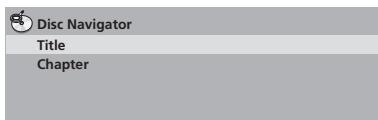
Le opzioni disponibili variano a seconda del tipo di disco inserto e se il disco è in riproduzione o meno, ma comprendono:
- Title — Titoli da un DVD-Video.
- Chapter — Capitoli dal titolo attuale di un DVD-Video.
- Track — Tracce da un Video CD/Super VCD.
- Time — Miniature da Video CD/Super VCD ad intervalli di 10 minuti.
- Original: Title — Titoli originali da un DVD-R/-RW in modalità VR.
- Play List: Title — Titoli di Play List da un DVD-R/RW in modalità VR.
- Original: Time — Miniature prese dal materiale originale ad intervalli di 10 minuti.
- Play List: Time — Miniature prese dallla Play List ad intervalli di 10 minuti.
Sullo schermo vengono visualizzate sono a sei miniature video in successione. Per visualizzare le sei miniature precedenti/successive, premere 1 (per visualizzare la pagina precedente/successiva non è necessario attendere la riproduzione di tutte le miniature).
3 Selezionare la miniatura che si desidera riproduire.
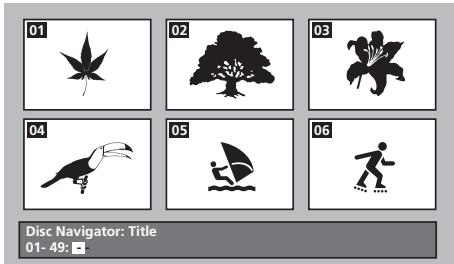
possiblere selezionare una miniatura con i tasti del cursore ( / / - ) ed ENTER oppure con i tasti numerici.
Per selezionare tramite i tasti numerici, digitare un numero a due cifre, quindi premere ENTER.

Consiglio
- Per trovare una particolare sezione del disco è inoltre possibile utilizzare le modalità di ricerca. Consultare Ricerca su disco a pagina 29.
Visione di file WMA, MP3, MPEG-4 AAC, video DivX, WMV e JPEG con Disc Navigator
Utilizzare Disc Navigator per trovare un determinato file o una cartellaattraverso ilnome del file. Se dello stesso disco si trovano altri tipidi file,questi non verranno visualizzati su Disc Navigator.
1 Premere HOME MENU e selezionare 'Disc Navigator' dal menu su schermo.
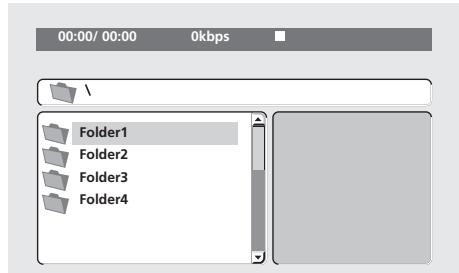
2 Utilizzato i tasti del cursore (///) ed ENTER per navigare.
Usare i tasti su/giù del cursore (↑/↓) per scorrere in alto o in basso l'élenco delle cartelle/dei file.
Per tornare alla cartella superiore, utilizzato il tasto del cursore a sinistra () .
Utilizzare ENTER o il tasto del cursore a destra () per aprire una cartella evidenziata.
- É inoltre possibile tornare alla cartella superiore passando alla parte superiore dell'elenco in corrispondenza della cartella '...' e premendo ENTER.
- Quando si evidenza un file JPEG, sulla destra viene visualizzata la miniatura.
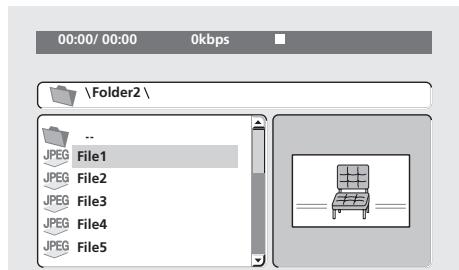
3 Per riproduire il brano o il file video DivX/WMV evidenziato oppure per visualizzare un file JPEG evidenziato, premere ENTER.
- Quando si selezione un file MP3/WMA/MPEG-4 AAC o video DivX/WMV, la riproduzione inizia dal file selezionato e continua sino alla fine della cartella.
- Selezionando un file JPEG,iene avviata una sequenza a partire da tale file e continua fino al termine della cartella.

Consiglio
- É inottre possibile riproduire una sequenza JPEG durante la riproduzione dei file MP3/WMA/MPEG-4 AAC. É sufficiente selezionare il file audio che si desidera ascoltare seguito dal file JPEG con cui si desidera iniziare la sequenza. La riproduzione di sequenze e file audio si ripete. I comandi di riproduzione sono efficaci solo su sequenze JPEG.
- Per riproduire il contento di un intero disco piuttosto che solo la cartella attuale, uscire da Disc Navigator ed iniziare la riproduzione con il tasting PLAY.
Riproducione ripetuta di una sezione di un disco
La funzione A-B Repeat consente di specificare due punti (A e B) all'interno di un brano (CD e Video CD/Super VCD) o di un titolo (DVD-Video e DVD-RW) che formano un passaggio riprodotto ripetutamente.
- Non è possibile utilizzato la funzione A-B Repeat con dischi DVD-Audio, SACD, Video CD/Super VCD in modalità PBC oppure con file MP3/WMA/MPEG-4 AAC/video DivX/WMV.
1 Durante la riproduzione, premere PLAY MODE e selezionare 'A-B Repeat' dall'élenco di funzioni sulla sinistra.
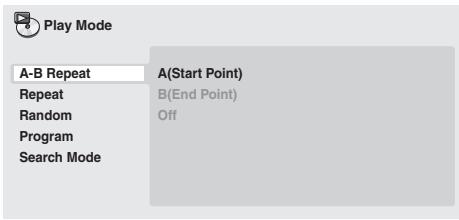
2 Premere ENTER su 'A(Start Point)' per impostare il punto iniziale del passaggio.
3 Premere ENTER su 'B(End Point)' per impostare il punto finale del passaggio.
Dopo aver premuto ENTER, la riproduzione ritorna al punto iniziale del passaggio, che viene riprodotto.
4 Per riprendere la normale riproduzione, selezionare 'Off' dal menu.
Utilizzato della riproduzione ripetuta
Esistono numerous opzioni di riproduzione ripetuta, a seconda del tipo di disco inserto. É inoltre possibile utilizzare la riproduzione ripetuta insieme alla riproduzione programmata per ripetere i brani/ capitoli nelle elenco dei programmi (vedere Creazione di un elenco di programmi a pagina 28).

Importante
- Non è possibile utilizzato la riproduzione ripetuta con Video CD/ Super VCD in modalità PBC o con dischi per file MP3/WMA/ MPEG-4 AAC.
- Non è possibile utilizzato contemporaneamente la riproduzione ripetuta e quella casuale.
1 Durante la riproduzione, premere PLAY MODE e selezionare 'Repeat' dall'élenco di funzioni sulla sinistra.
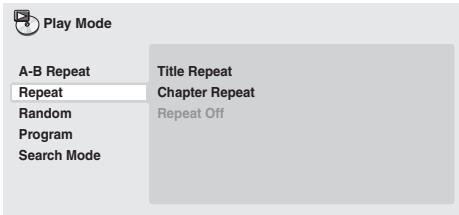
2 Selezionare un'opzione di riproduzione ripetuta.
Quando si attiva la riproduzione programmata, selezionare Program Repeat per ripetere l'elenco dei programmi o Repeat Off per cancellarlo.
Le opzioni di ripetizione disponibili dipendono dal tipo di disco inserto. Ad esempio, per DVD-Video e DVD-RW, è possibile selezioneare Title Repeat o Chapter Repeat (o Repeat Off).
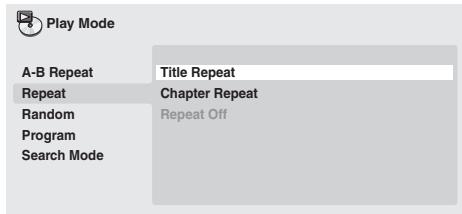
- Per DVD-Audio, selezionare Group Repeat o Track Repeat (o Repeat Off).
- Per SACD, CD e Video CD/Super VCD, selezionare Disc Repeat o Track Repeat (o Repeat Off).
- Per video DivX/WMV, selezionare Title Repeat e per alcuni file multimediai DivX, selezionare Chapter Repeat (o Repeat Off).
Utilizzato la funzione di riproduzione casuale per riproduire casualmente titoli o capitoli (DVD-Video), gruppi (DVD-Audio) o brani (DVD-Audio, SACD, CD, Video CD/Super VCD). (Io stesso brano/titolo/capitolo può venire riprodotto più di una volta.)
É possible impostare l'opzione di riproduzione casuale quando si riproduze o si arrresta un disco.

Importante
- La riproduzione casuale rimane attiva finché non si selezione Random Off dalle opzioni del menu di riproduzione casuale.
- La riproduzione casuale non è utilizzabile con dischi DVD-R/-RW in formato VR, Video CD/Super VCD riprodotti in modalità PBC, MP3/WMA/MPEG-4 AAC, video DivX/WMV o quando viene visualizzato il menu di un DVD.
- Non è possibile utilizzato la riproduzione casuale insieme alla riproduzione programmata o ripetuta.
1 Premere PLAY MODE e selezionare 'Random' dall'elenco di funzioni sulla sinistra.
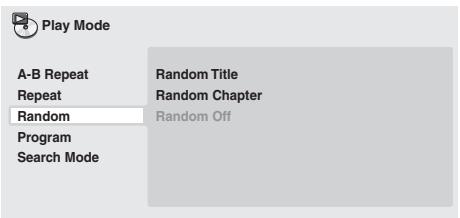
2 Selezionare un'opzione di riproduzione casuale.
Le opzioni di riproduzione casuale disponibili dipendono dal tipo di disco inserito. Ad esempio, per DVD-Video, è possible selezionale Random Title o Random Chapter (o Random Off).
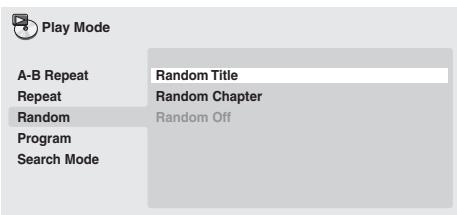
- Per DVD-Audio, selezionare Random Group o Random Track (o Random Off).
- Per CD, SACD e Video CD/Super VCD, selezionale On o Off per attivare e disattivare la riproduzione casuale.

Consiglio
- Durante la riproduzione casuale, usare i seguenti comandi:
| Tasto | A casa serve |
| ▶NEXT | Seleziona casually un nuovo brano/titolo/capitolo. |
| ←PREV | Ritorna all'inizio del brano/titolo/capitolo attuale; agli pressione successiva selezione casually un brano/titolo/capitolo differente. |
Creazione di un elenco di programmi
Questaratteristica permette di programmare l'ordine di riproduzione di titoli/capitoli/gruppi/brani.

Importante
- La riproduzione programmata non è utilizzabile con dischi DVD-R/-RW in formato VR, Video CD/Super VCD riprodotti in modalità PBC, MP3/WMA/MPEG-4 AAC, video DivX/WMV o quando viene visualizzato il menu di un DVD.
1 Premere PLAY MODE e selezionare 'Program' dall'elenco di funzioni sulla sinistra.
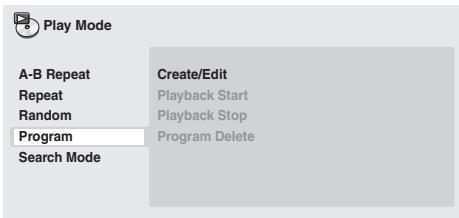
2 Selezionare 'Create/Edit' dalle opzioni dell'elenco programmi.
3 Utilizzato i tasti del cursore ed ENTER per selezione are un titolo, un capitolo o un brano per il passo attuale nell'elenco dei programmi.
Per un DVD-Video, è possibile aggiuungereanche un titolo o un capitolo all'elenco dei programmi.
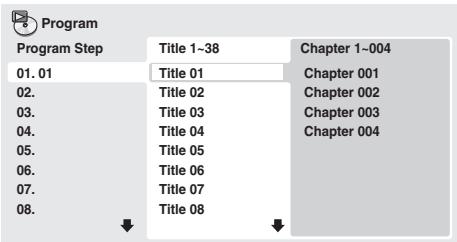
- Per un DVD-Audio, è possible aggiungere un intero gruppo o un brano di un gruppo all'élenco dei programmi.
- Per un CD, SACD o Video CD/Super VCD, selezionare un brano da aggiungere all'elenco dei programmi.
Quando si preme ENTER per selezionare un titolo/capitolo/gruppo/brano, si passa automaticamente al numero di passaggio successivo in basso.
4 Ripetere la fase 3 per create un elenco dei programmi.
L'elenco dei programmi cui po contene sono a 24 titoli/capitoli/brani.
- É possible insere nuovi passi nell'élenco dei programmi simplicitamente evidenziaro la posizione di inserimento del nuovo passo e iserendo il numero di titolo/capitolo/gruppo/brano.
- Per cancellare un passo, evidenziarlo e premere CLEAR.
5 Per riproduire l'elenco dei programmi, premere PLAY.
La riproduzione programmata rimane attivata finché non viene disattivata (vedere pagina 29), non si cancella l'elenco dei programmi (vedere pagina 29), non si estrae il disco o non si spegne illettore.
- Durante la riproduzione programmata, usare i seguenti comandi:
Tasto
Acosa serve
PLAY MODE
Salvare l'elenco dei programmi ed uscire alla schermata di editing del programma alla avviare la riproduzione (HOME MENU agisce alla stessa maniera).
NEXT
Saltare alla fase successiva dell'elenco dei programmi.
Altre funzioni disponibili nel menu dei programmi
Il menu dei programmi comprende altre opzioni及其他 a Create/Edit.
- Playback Start — Avvia la riproduzione dell'elenco programmi salvato
- Playback Stop — Disattiva la riproduzione programmata, ma non cancella l'elenco dei programmi
- Program Delete — Cancella l'élenco dei programmi e disattiva la riproduzione programmata
Ricerca su disco
É possibile cercare porzioni di DVD-Video per numero di titolo o di capitolo oppure in base al tempo; il contentuto di dischi DVD-Audio può essere cercato per numero di gruppo o di brano; quello di dischi SACD per numero di titolo, di CD e Video CD/Super VCD per numero di brano o in base al tempo; quello di dischi video DivX/WMV in base al tempo ed alcuni file multimediali DivX per numero di capitolo.

Importante
- Le funzioni di ricerca non sono disponibili con dischi Video CD/ Super VCD in modalità PBC o con dischi di file MP3/WMA/ MPEG-4 AAC.
1 Premere PLAY MODE e selezionare 'Search Mode' dall'élenco di funzioni sulla sinistra.
2 Selezionare una modalità di ricerca.
Le opzioni di ricerca disponibili dipendono dal tipo di disco inserto.
- Perutilizzare la ricerca in base al tempo è necessario riproduire il disco.
3 Utilizzato i tasti numerici per immettre un numero di titolo, capitolo o brano oppure un tempo.
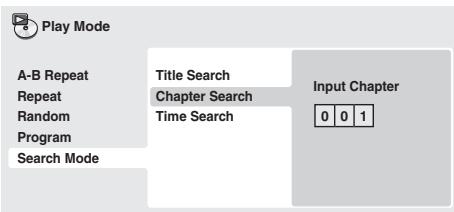
- Per una ricerca basata sul tempo, immettere il numero di minuti e secondi del titolo attualmente riproduotto (DVD/video DivX/WMV) o di brano (CD/Video CD/Super VCD) in corrispondenza dei quali si desidera riprendere la riproduzione. Premere, ad esempio, 4, 5, 0, 0 per avviare la riproduzione a 45 minuti dall'inizio del disco. Per 1 ora, 20 minuti e 30 secondi, premere 8, 0, 3, 0.
- Alcuni DVD-Audio dispongono di pagine di immagini esplorabili. Inserire il numero di pagina desiderato.
4 Premere ENTER per avviare la riproduzione.
Alcuni dischi DVD-Video e video DivX dispongono di sottotitoli in una o più lingue; sulla custodia del disco in genere vengono riportate le lingue disponibili nei sottotitoli. Durante la riproduzione è possibile cancellare la lingua dei sottotitoli.
- Premere più volte © SUBTITLE per selezionare un'opzione per i sottotitoli.

Nota
- Alcuni dischi consentono di cancellare la lingua dei sottitoli solo dal menu del disco. Premere TOP MENU o MENU per accedere.
- Per impostare le preferenze linguistiche dei sottotitoli, consultare pagina 33.
- Per ulteriori informazioni sui sottotitoli DivX, consultare Visualizzazione dei file dei sottotitoli esterni a pagina 8.
Cambio della lingua/del canale audio
Durante la riproduzione di un DVD-Video e video DivX registrati con dialoghi in due o più lingue, è possibleambiare la lingua durante la riproduzione.
Durante la riproduzione di un disco DVD-R/-RW in formato VR registrato con audio dual-mono, è possible selezionare il canale principale, secondario o entrambi.
Durante la riproduzione di DVD-Audio, potrebbe essere possibile camiare canale. Per i dettagli, vedere la custodia del disco (Quando si cambia canale audio, la riproduzione riprende dall'inizio del brano attuale.)
Durante la riproduzione di un Video CD/Super VCD, è possible effettuire la riproduzione stereo, solo dal canale sinistro o solo da quello destro.
- Premere più volte © AUDIO per selezionare un'opzione tra le lingue/i canali audio.
Le informazioni relative a lingua/canale vengono visualizzate sullo schermo.

Nota
- Alcuni DVD consento diambiare la lingua audio dal menu del disco. Premere TOP MENU o MENU per accedere.
- Per impostare le preferenze della lingua audio di un DVD, consultare pagina 33.
Ingrandimento dello schermo
Durante la riproduzione di un titolo DVD, video DivX/WMV, di Video CD/Super VCD o di un disco con file JPEG, è possibile ingrandire una parte dello schermo di un fattore di 2 o 4 voltetramite la funzione di zoom.
1 Durante la riproduzione, utilizzato il tasto ZOOM per selezionare il fattore di zoom (Normal, 2x o 4x).
- Dato che i titoli DVD, Video CD/Super VCD, video DivX/WMV e le immagini JPEG hanno una risoluzione fissa, la qualità delle immagini diminuisce, in particolare con lo zoom a 4x. Non è un problema di funzionamento.
2 Utilizzare i tasti del cursore per modificare l'area ingrandita. Durante la riproduzione è possibile modificare il fattore di zoom e l'area ingrandita.
- Se il riquadro di navigazione non è più visible nella parte superiore dello schermo, premere di nuovo ZOOM per visualizzarlo.
Alcuni dischi DVD dispongono di scene riprese da due o più angolazioni. Per i dettagli, vedere la custodia del disco.
Quando viene riprodotta una scenari multiangolo, viene visualizzata l'icona perindicare che sono disponibili ulteriori angolazioni (e possibile disattivare esta funzione, se desiderato.Consultare Impostazioni Display a pagina 34).
- Durante la riproduzione premere ANGLE perambiare angolazione.
Visualizzazione delle informazioni del disco
Sullo schermo durante la riproduzione di dischi è possibile visualizzare varie informazioni su brani, capitoli e titoli, ad esempio i tempi di riproduzione trascorsi e rimanenti.
-
Per visualizzare/cambiare/nascondere le informazioni visualizzate, premere più volte DISPLAY.
-
Quando viene riproduotto un disco, le informazioni vengono visualizzate nella parte superiore dello schermo. Tenere premuto DISPLAY per cancellare le informazioni visualizzate.
Menu Audio Settings e Video Adjust
Menu Audio Settings
Il menu Audio Settings offre funzioni di regolazione dell'audio di un disco.
1 Premere HOME MENU e selezionare 'Audio Settings' dal display su schermo.

Audio Settings
2 Selezionare e modificare le impostazioni tramite i tasti / / / (del cursore) e ENTER.
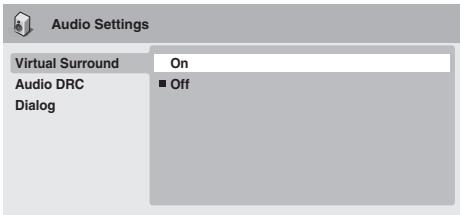
Audio DRC
- Impostazioni: High, Medium, Low, Off (predefinito)
Quando si riproducono DVD Dolby Digital a basso volume, spesso non è possibile avvertire i suoni più deboli, compresa parte del dialogo. Attivando Audio DRC (Dynamic Range Control), è possibile incremente il volume dei suoni più deboli pur controllando i picchi. La differenza che si avverte nel suono riprodotto dipende dal tipo di materiale utilizzato. Se il materiale non è caratterizzato da ampie variazioni in volume, si potrebbe non percepire alcun cambiamento.

Nota
- La funzione Audio DRC può essere utilizzata soltanto con fonti audio Dolby Digital.
- La funzione Audio DRC è operativa solo dall'uscita digitale quando si imposta Digital Out (pagea 32) su On e Dolby Digital Out (pagea 32) su Dolby Digital > PCM.
- L'effetto di Audio DRC dipende dai diffusori e nelle impostazioni del ricevitore AV.
Virtual Surround
- Impostazioni: On, Off (predefinito)
Attivare Virtual Surround per ottenere effetti surround realistici sostanto da due diffusori.

Consiglio
- Per attivare Virtual Surround, è possible utilizzato il tasto SURROUND del telecomando.

Nota
- L'audio PCM lineare a 96 kHz viene automaticamente ricampionato a 48 kHz se la funzione Virtual Surround viene attivata.
-
É possible impostare Audio Output Mode (pagea 36) su 2 Channel per utilizzato la funzione Virtual Surround.
-
Se illettore produce audio bitstream Dolby Digital, DTS o MPEG (overo l'audio non viene convertito in formato PCM), la funzione Virtual Surround non ha effetto sull'audio proveniente dall'uscita digitale. Per l'impostazione dei formati delle uscite digitali, consultare Impostazioni Digital Audio Out a pagina 32.
- L'effetto surround varia a seconda del disco riprodotto.
Dialog
- Impostazioni: High, Medium, Low, Off (predefinito)
La funzione Dialog è ideata per risaltare il dialogo dai suoni di sostofondo delle colonne sonore.
Menu Video Adjust
Dalla schermata Video Adjust è possibile regolare vari parametri che influiscono sull'aspetto dell'imagine.
1 Premere HOME MENU e selezionare 'Video Adjust' dal display su schermo.

Video Adjust
2 Effettuare le impostazioni tramite i tasti / / / (del cursore) e ENTER.
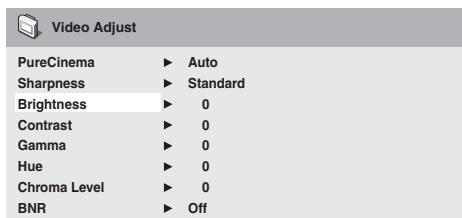
É possibile regolare i seguenti parametri di qualità delle immagini:
- PureCinema — Durante la visualizzazione di DVD, PureCinema ottimizza la qualità delle immagini. L'impostazione predefinita è Auto, ma se l'imagine non appeare naturale, impostare su Video1 o Video2.
- Sharpness — Regola la nitidezza dei bordi delle immagini (Fine, Standard (predefinito), Soft).
- Brightness — Regola la luminosità complessiva (da -20 a +20).
- Contrast — Regola il contrasto tra la luce e il buio (da -16 a +16).
- Gamma — Regola la 'gradazione' dell'imagine (da -3 a +3)
- Hue — Regola il bilanciamento del rosso/verde (da green 9 a red 9).
- Chroma Level — Regola la saturazione dei colori (da -9 a +9).
- BNR — Attiva o disattiva la riduzione del rumore a blocchi (On, Off (predefinito)).
Regolare le impostazioni Brightness, Contrast, Hue e Chroma Level con i tasti / (cursore sinistro/destro).
Brightness
mir
111
111
1
···
max
0
3 Premere ENTER per tornare alla schermata Video Adjust o HOME MENU per uscire.
Capitolo 7 Menu Initial Settings
Utilizzo del menu Initial Settings
Il menu Initial Settings consente di configurare, tra le altre, le impostazioni relative all'uscita audio e video, al blocco della visione e alla visualizzazione.
Se un'opzione non è disponibile significata che in quel determinato momento non può essere modificata. In genere ciò è dovuto al fatto che un disco si trova in fase di riproduzione. Arrestare la riproduzione, quando modificare l'impostazione.
1 Premere HOME MENU e selezionare 'Initial Settings'.

Initial Settings
2 Per selezionare l'impostazione e l'opzione da regolare, utilizzare i tasti del cursore e ENTER.
Tutte le impostazioni ed opzioni vengono illustrare nelle pagine seguenti.

Nota
- Nella tabella in basso, l'opzione predefinita è contrassegnata con un.
- Le impostazioni Digital Audio Out sono necessarie solo se si è collegata l'uscita digitale di quellolettore ad un ricevitore AV o ad un'alto appearecchio.
- Per videere quali formati audio digitali sono compatibili con il proprio appearecchio, consultare il manuale di istruzioni.
- Alcune impostazioni, ad esempio TV Screen, Audio Language e Subtitle Language, possono venire modificate dal disco DVD riprodotto. Spesso esse possono essere effettuate dal menu del disco DVD.
- Le impostazioni HDMI Out e HDMI Color devono essere effettuate solo se illettore è stato collegato a un componente compatibile HDMItramite il connettore HDMI.
- Non è possibile effettuare le impostazioni Digital Audio Out, AV Connector Out e Speakers se illettore è collegato a un componente compatibile HDMItramite il connettore HDMI. Inoltre,queste impostazioni possono essere modificate automaticamente.
Impostazioni Digital Audio Out
| Impostazione | Opzione | Significato |
| HDMI Out | LPCM (2CH) | Impostare questa opzione solo se il monitor o dispositivo accetta un segnale stereo in ingresso. Con questa impostazione l'audio multicanale viene sottomosto a downmix a 2 canali per l'uscita stereo PCM lineare. |
| LPCM (5.1CH) | Impostare questa opzione se il monitor o dispositivo collegato tramite terminale HDMI è compatible con i formati PCM lineare multicanale. Tutti i segnali audio vengono emessi nel formato PCM 5.1. (Utilizzato questa impostazione se si desidera decodificare tutti gli stream con unlettore.) | |
| Auto • | Le fonti Dolby Digital, DTS, MPEG e SACD vengono elaborate in base alla codifica originale e le fonti PCM lineare vengono emesse perché essere sottoposte a modifiche. | |
| Off | Emissione audio HDMI assente. Selezionare questa opzione per modificare le impostazioni Digital Audio Out e Speakers. | |
| Digital Out | On • | L'audio digitale viene prodotto solo delle uscite digitali. Non viene emesso alcun segnale digitale quando si riproducono dischi SACD e DVD-Audio a prescindere alla regolazione di quello parametro. |
| Off | Nessun segnale digitale in uscita. | |
| Dolby Digital Out | Dolby Digital • | L'audio digitale con codifica Dolby Digital viene prodotto quando si riproduce un DVD Dolby Digital. |
| Dolby Digital > PCM | L'audio Dolby Digital viene convertito in audio PCM subito prima di venire riproduotto. | |
| DTS Out | DTS • | L'audio digitale con codifica DTS viene emesso durante la riproduzione di un disco DTS (Se l'amplificatore/ricevitore non èCompatible con l'audio DTS, viene riproduotto del rumore). |
| DTS > PCM | Durante la riproduzione di dischi DTS non viene emesso alcun segnale audio digitale. L'audio DTS viene convertito in audio PCM prima di essere riproduotto. | |
| Linear PCM Out | Down Sample On • | L'audio digitale a 96 kHz viene convertito a 48 kHz per l'uscita digitale. I DVD-Audio ad alla frequenza di campionamento (192 kHz o 176,4 kHz) émettono automaticamente audio ricampionato dalle uscite digitali. |
| Down Sample Off | L'audio digitale a 96 kHz viene emessorawnza modifiche a 96 kHz. | |
| MPEG Out | MPEG > PCM • | L'audio digitale con codifica MPEG viene convertito in audio PCM per l'uscita digitale. |
| MPEG | L'audio digitale con codifica viene emessorawnza modifiche. |
Impostazioni Language
| Impostazione | Opzione | Significato |
| TV Screen(Questa impostazione èvalida per l'uscita videoanalogica e HDMI.Vedere anchesDimensioni delloschermo e formati dei dischi a pagina 40.) | 4:3 (Letter Box) • | Impostare QUESTosa opzione se si dispone di un tevisore convenzionale 4:3. I film widenscreenvengono riprodotti con strisce nere nelle parti superiore ed inferiore. |
| 4:3 (Pan & Scan) | Impostare QUESTosa opzione se si dispone di un tevisore convenzionale 4:3. I film widenscreenvengono tagliati sui lati in modo che l'imagine occipi tutto lo schermo. | |
| 16:9 (Wide) | Impostare QUESTosa opzione se si possiede un tevisore widenscreen. | |
| 16:9 (Compressed) | Non è possibile impostare QUESTosa opzione se si imposta Resolution (Max) su 1920x1080p,1920x1080i o 1280x720p. è possibile visualizzare correttamente video in rapporto 4:3 su untevisore 16:9 ad alta definizione (con barre nere su entrambi i lati dello schermo). | |
| AV Connector Out | Video • | Segnale video in uscita ordinario (composito) compatible con tutti i tevisori. |
| S-Video | Quasi la stessa qualità del segnale RGB, ma garantisce risultati migliori se si usa un cavo SCARTlungo. | |
| RGB | Se il tevisore è compatible,但这a impostazione produce una qualità di immagine ottimale.Non vi è alcun segnale in uscita dalle prese del componente quando si selezione Questaimpostazione. | |
| Resolution (Max)(L'impostazione predefinita quando si èeffettuito ilcollegamento ad unaltro dispositoriotramiteun cavo HDMI è720x480p (NTSC) o720x576p (PAL)). | 1920x1080p | Impostare QUESTaa opzione se il tevisore supporta video a scansione progressiva da 1920 x 1080pixel (frame rate a 24 Hz non supportato). |
| 1920x1080i | Impostare Questa opzione se il tevisore supporta video interlacciato da 1920 x 1080 pixel. | |
| 1280x720p | Impostare Questa opzione se il tevisore supporta video a scansione progressiva da 1280 x 720pixel. | |
| 720x480p (NTSC)/720x576p (PAL) | Impostare Questa opzione se il tevisore supporta video a scansione progressiva da 720 x 480pixel (NTSC)/720 x 576 pixel (PAL). | |
| 720x480i (NTSC)/720x576i (PAL) • | Impostare Questa opzione se il tevisore supporta video interlacciato da 720 x 480 pixel (NTSC)/720 x 576 pixel (PAL). | |
| HDMI Color | Full range RGB | Se i colori sono opachi,questa opzione li rende più luminosi, rendendo più scuro il nero. |
| RGB | Utilizzato questa impostazione se i colori appaiono troppo intensi nell'impostazione Full rangeRGB. | |
| Component • | Emette il fornato video component (impostazione predefinita per i dispositivi compatibili conHDMI). |
| Impostazione | Opzione | Significato |
| Audio Language | English • | Se il disco contiene un sonoro in inglese,esso viene utilizzato. |
| Lingue visualizzate | Se il disco contiene un sonoro nella lingua selezionata,esso viene utilizzato. | |
| Other Language | Selezionare questa opzione per scegliere una lingua diversa da那一 delle visualizzate (consultare , ). | |
| Subtitle Language (Vedereanche Visualizzazione dei file dei sottotitoli esterni a pagina 8.) | English • | Se il disco contiene sottotitoli in inglese,esso vengono visualizzati. |
| Lingue visualizzate | Se il disco contiene sottotitoli nella lingua selezionata,esso vengono visualizzati. | |
| Other Language | Selezionare questa opzione per scegliere una lingua diversa da那一 delle visualizzate (consultare, ). | |
| DVD Menu Lang. | w/Subtitle Lang. • | I menu dei dischi DVD vengono visualizzati,se possibile,nella lingua selezionata per i sottotitoli. |
| Lingue visualizzate | I menu del DVD vengono visualizzati,se possibile,nella lingua selezionata. | |
| Other Language | Selezionare questa opzione per scegliere una lingua diversa da那一 delle visualizzate (consultare ). | |
| Subtitle Display | On • | I sottotitoli vengono visualizzati nella lingua selezionata per i sottotitoli (vedere in precedenza). |
| Off | I sottotitoli vengono sempre inizialmente disattivati quando si riproduce un DVD (alcuni dischi posso sono modificare queste impostazioni). |
Impostazioni Options
| Impostazione | Opzione | Significato |
| OSD Language | English • | I display su schermo dellettore sono in inglse. |
| Lingue visualizzate | I display su schermo vengono visualizzati nella lingua selezionata. | |
| Angle Indicator | On • | Un'icona a forma di telecamera viene visualizzata quando un DVD contiene scene multiangolo. |
| Off | Non appeare alcunaindicazione multiangolo. |
Impostazioni Speakers
| Impostazione | Opzione | Significato |
| HDMI Control | On • | Selezionare quando utilizzare la funzione HDMI Control. Consultare HDMI Control a pagna 5. |
| Off | Selezionare quando non utilizzare la funzione HDMI Control. Consultare HDMI Control a pagna 5. | |
| Pure Audio Button | Available | La modalità Pure Audio viene attivata e disattivata tramite il tasto PURE AUDIO del pannello anteriore. |
| Unavailable • | Il tasto PURE AUDIO del pannello anteriore non funziona. | |
| SACD Playback | 2ch Area • | Seleziona l'area audio a 2 canali (stereo) di un SACD per la riproduzione. |
| Multi-ch Area | Seleziona l'area audio multicanale di un SACD per la riproduzione. | |
| CD Area | Seleziona l'area CD audio standard di un disco ibrido SACD/CD per la riproduzione. | |
| DVD Playback Mode | DVD-Audio • | Si più riproduire tutto il materiale dei dischi DVD-Audio. |
| DVD-Video | Si più riproduire solo la parte DVD-Video dei dischi DVD-Audio. | |
| DTS Downmix | STEREO • | Downmix del segnale DTS per l'uscita a 2 canali su steroe (Vedereanche DTS Downmix a pagna 35.) |
| Lt/Rt | Downmix del segnale DTS per l'uscita a 2 canali compatibile con decodificatori di matrice Dolby Surround (vedereanche DTS Downmix a pagna 35). | |
| Parental Lock | - | Consultare Parental Lock a pagna 35. |
| DivX VOD | Display | Consultare Informazioni sul contento DivX® VOD a pagna 36. |
| Impostazione | Opzione | Significato |
| Audio Output Mode | 2 Channel • | Illettore emette audio analogico solo in stereo. Consultareanche Audio Output Mode a pagina 36. |
| 5.1 Channel | Illettore emette audio analogico a 5.1 canali. Consultareanche Audio Output Mode a pagina 36. | |
| Speaker Distance | - | Specificare la distance dei propri diffusori alla posizione di ascolto. Consultareanche Speaker Distance a pagina 39. |
| Speaker Installation | - | Specificare il numero e le dimensioni dei diffusori delsystema. Consultareanche Speaker Installation a pagina 39. |
- Livello predefinito: Off; Password predefinita: nessuna; Codice Paese/area predefinito: us (2119)
Per garantire il controllo sui programmi visti dai bambini sullettore DVD, alcuni DVD-Video disponogo della funzione Parental Lock. Se illettore è impostato su un livello inferiore rispetto a quello del disco, il disco non viene riprodotto.
Alcuni dischi supportanoanche la funzione codice Paese/area.A seconda del codice Paese/area impostato, alcune scene non vengono riprodotte.

Nota
- Non tutti i dischi dispongono della funzione Parental Lock e, in tal caso, vengono riprodottirawnza una password.
- Se si dimentica la password, è necessario ripristinare le impostazioni predefinite dellettore, quando registrar una nuova password (consultare Ripristino delle impostazioni predefinite dellettore a pagana 41).
Registrazione di una nuova password
É necessario memorizzare una password prima di poter modificare il livello di Parental Lock o immettere un codice Paese.
1 Selezionare 'Options', quindi 'Password'.
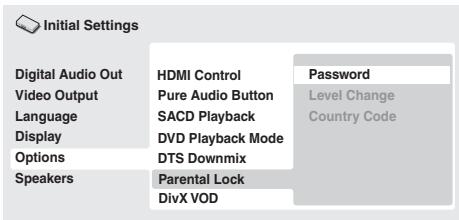
2 Utilizzato i tasti numerici per immettere una password a quattro cifre.
I numero immessi vengono visualizzati sullo schermo come asterischi (^*) .
3 Premere ENTER per memorizzare la password.
Si ritorna alla schermata del menu Options.
Modifica della password
Per modificare la password, conformare quella esistente, quando immetterne una nuova.
1 SeLECTIONARE 'Password Change'.
2 Utilizzato i tasti numerici per immettre la password esistente, quando premere ENTER.
3 Digitare una nuova password e premere ENTER.
In questo modo si memorizza la nuova password e si torna alla schermata del menu Options.
Impostazione/modifica di Parental Lock
1 Selezionare 'Level Change'.
2 Utilizzato i tasti numerici per immettre la password, quando premere ENTER.
3 Selezionare un nuovo livello e premere ENTER.
- Premere più volte (cursore sinistro) per bloccare più livelli (la maggior parte dei dischi richiedono una password); premere (cursore destro) per sbloccare i livelli. Non è possible bloccare il livello 1.
In quello mode si imposta il nuovo livello e si torna alla schermata del menu Options.
Impostazione/modifica del codice Paese/area
Si troverà un Elenco codici Paese/area a pagina 46.
1 Selezionare 'Country Code'.
2 Utilizzare i tasti numerici per immettre la password, quando premere ENTER.
3 Selezionare un codice Paese/area e premere ENTER.
possible eseguire I'operazione in due modi:
- Selezionale per lettera codice: Utilizzato / (cursore su/giù) per modificare il codice codice Paese/area.
- Selezionare per numero di codice: Premere (cursore a destra), quando utilizzato i tasti numerici per impostare un codice Paese/area a quattro cifre.
Il nuovo codice Paese/area è impostato e si ritornerà alla schermata del menu Options. Il nuovo codice Paese/area non diventa effettivo finché non viene inserito il disco successivo (o si insertisce di nuovo il disco attuale).
DTS Downmix
- Impostazione predefinita: STEREO
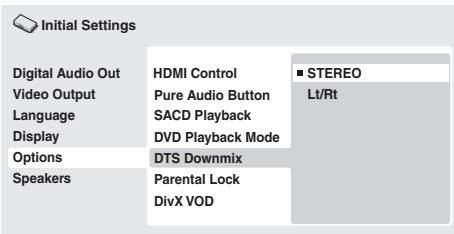
Se si è selezionato DTS > PCM su DTS Out a paglia 32 o 2 Channel su Audio Output Mode a paglia 34, è possibile scegliere il modo in cui il segnale viene rimissato su PCM audio. STEREO causa il rimissaggio del segnale DTS in segnale stereo a 2-canali, nelle Lt/Rt lo rimissa in segnale a 2 canali compatible con i decodificatori di matrice Dolby Surround (Cio consente di ascoltare un segnale surround se il ricevitore o amplificatore AV dispone della funzione Dolby Pro Logic).
Prima di riproduire contentuto DivX VOD (video on demand) su quellolettore,occorre registrare illettore presso ilprovider del contentutoDivxVOD.Ciòpuoessereeffettuatogenerando un codice di registrazione Divx VOD da presentare poi alprovider.

Importante
- Il contentuto DivX VOD è protetto da un sistema DRM (Digital Rights Management). QuestoSYSTEMA limita la riproduzione del contentuto a specifici dispositivi registrati.
- Se si inersisce un disco con contento DivX VOD non autorizzato per illettore, viene visualizzato il messaggio "Authorization Error" e il contento non viene riprodotto.
- L'eventuale ripristino dellettore (descritto su Ripristino delle impostazioni predefinite dellettore a pagna 41) non farà perdere il codice di registrazione.
Visualizzazione del codice di registrazione DivX VOD
1 Premere HOME MENU e selezionare 'Initial Settings'.
2 Selezionare 'Options', quindi 'DivX VOD'.
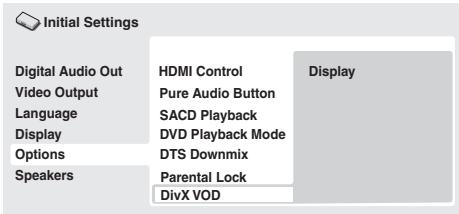
3 Selezionare 'Display'.
E visualizzato il codice di registrazione a otto cifre.
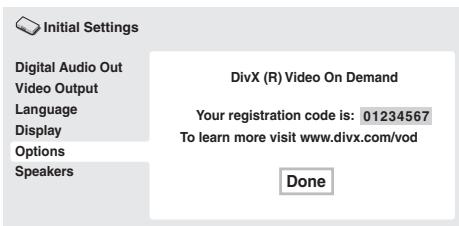
Annotare il codice perché servirà al momento della registrazione con un provider DivX VOD.
Riproduzione di contento DivX® VOD
In alcuni casi, il contento DivX VOD può essere riproduzione solo per un numero di volte prestabilitito. Quando si insertisce un disco con quello tipo di contento DivX VOD, il numero di riproduzioni rimanenti vieneindicato su schermo. Si ha quindi la possibilità di riproduurre (usando una delle riproduzioni residue) o arrestare il disco. Se si insertisce un disco con contento DivX VOD scaduto (ad esempio, con zero riproduzioni residue), viene visualizzato il messaggio "Rental Expired".
Se il contentuto DivX VOD consente un numero illimitato di riproduzioni, è possible insere il disco nellettore e riproduire il contentuto tutte le volte che si desidera essere che appaia alcun messaggio.
Audio Output Mode
- Impostazione predefinita: 2 Channel
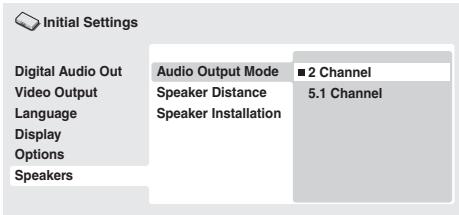
Se si è collegato quellolettore all'amplificatoretramite le uscite analogiche a 5.1 canali (canali anteriors, surround, centrale e del subwoofer),impostare quello parametro su 5.1 Channel.Se si sono collegate solo le uscite stereo, impostarlo su 2 Channel.

Nota
- Anche impostando Audio Output Mode su 5.1 Channel, l'audio verrà emesso da tutti i diffusori se il disco riprodotto è a 5.1 canali.
- Quando si imposta su 5.1 Channel, dalle prese AUDIO OUT (2ch)iene emesso solo l'audio dei canali anteriors destro/ sinistro. Spostare su 2 Channel se si desidera ascoltare l'audio rimissato in stereo (ad esempio, se si sta riproducendo l'audio dai diffusori incorporeti del teilevisore).
- Quando si imposta su 5.1 Channel, non viene emesso segnale digitale durante la riproduzione di DVD-Audio.
- Se si imposta su 2 Channel, l'audio Dolby Digital, DTS e MPEG viene rimissato in due canali in modo che possa venire riproduotto l'audio registrato su un disco. Per audio con codifica DTS, è possible scegliere il modo in cui il segnale viene rimissato in PCM audio. Per le impostazioni di downmix, consultare DTS Downmix a pagina 35.
- Alcuni dischi DVD-Audio non consentono il downmix dell'audio. Questi dischi emettono sempre segnale multicanale a prescindere dall'impostazione effettuata.
Informazioni sulle impostazioni di uscita audio
Nella tabella di seguito viene illustrato come le impostazioni audio effettuate nel menu Initial Settings (pagea 32) influiscano sull'uscita di segnale dai terminali analogici a 2 e a 5.1 canali,及其他 che delle uscite digitali con vari tipi di disco.
| Formato audio del disco | Impostazionelettore | Uscite analogicheL/R anteriori1 | Uscite surround L/R,centrale,subwoofer | Conversione PCM diuscite digitali2 | Bitstream3 | |
| DVD | Dolby Digital | 2ch5.1ch | 2ch downmixAnteriere L/R | —Surround L/R,centrale, subwoofer | 2ch downmix | Dolby Digital |
| Karaoke DolbyDigital | 2ch/5.1ch | Sinistra/destra | — | Sinistra/destra | Dolby Digital | |
| PCM lineare | 2ch/5.1ch | Sinistra/destra | — | Sinistra/destra | Sinistra/destra | |
| DTS | 2ch5.1ch | 2ch downmixAnteriere L/R | —Surround L/R,centrale, subwoofer | 2ch downmix | DTS | |
| MPEG | 2ch5.1ch | Sinistra/destraAnteriere L/R | —Surround L/R,centrale, subwoofer | Sinistra/destra | MPEG | |
| DVD-Audio | 2ch5.1ch | 2ch downmix4Anteriere L/R | —Surround L/R,centrale, subwoofer | 2ch downmix5 | 2ch downmix5 | |
| DVD-RW (modalità VR) | 2ch/5.1ch | Sinistra/destra6 | — | Sinistra/destra | Dolby DigitalMPEG o PCM | |
| Super Audio CD | 2ch5.1ch | 2ch downmixAnteriere L/R | —Surround L/R,centrale, subwoofer | — | — | |
| CD audio/MP3/WMA/MPEG-4 AAC | 2ch/5.1ch | Sinistra/destra | — | Sinistra/destra | Sinistra/destra | |
| CD DTS | 2ch5.1ch | 2ch downmixAnteriere L/R | —Surround L/R,centrale, subwoofer | 2ch downmix | DTS | |
| Video CD/Super VCD | 2ch/5.1ch | Sinistra/destra | — | Sinistra/destra | Sinistra/destra | |
- Quo si imposta Audio Output Mode su 2 Channel, le prese AUDIO OUT (5.1ch) FRONT L/R funzionano come un secondo paio di uscite audio stereo.
- Impostazione Dolby Digital > PCM, DTS > PCM o MPEG > PCM (pagea 32).
- Impostazione Dolby Digital, DTS o MPEG (pagea 32).
- I dischi che impedisco il downmix vengono riprodotti a 5.1 canali anche se si selezione 2 Channel come impostazione Audio Output Mode (pagina 36).
- I dischi che impedisco il downmix disattivano anche l'audio delle uscite digitali.
- Quando si imposta Audio Output Mode su 5.1 Channel, le fonti mono vengono riprodotte dal solo canale centrale.
Informazioni sulle impostazioni di uscita audio HDMI
Nella tabella di seguito viene illustrato in che modo le impostazioni audio delle schermate HDMI Out (pagina 32) e Audio Output Mode (pagina 36) influisce sull'uscita HDMI con vari tipi di dischi.
| Formato audio del disco | Impostazione HDMI Out | |||
| LPCM (2CH) | LPCM (5.1CH) | Auto | ||
| DVD | Dolby Digital1 | 2ch downmix | 5.1ch2 | Dolby Digital3 |
| Dolby Digital (karaoke) | Sinistra/destra | 5.1ch2 | Dolby Digital3 | |
| PCM lineare1 | Sinistra/destra | Sinistra/destra | Sinistra/destra | |
| DTS | 2ch downmix | 5.1ch2 | DTS3 | |
| MPEG1 | Sinistra/destra | 5.1ch2 | MPEG3 | |
| DVD-Audio (con CPPM)4 | Sinistra/destra o 2ch downmix5 | 5.1ch2 | 5.1ch2 | |
| DVD-Audio (senza CPPM) | Sinistra/destra o 2ch downmix5 | 5.1ch2 | 5.1ch2 | |
| Super Audio CD6 | Sinistra/destra | 5.1ch2 | 5.1ch (DSD)2,3 | |
| CD audio/MP3/WMA/MPEG-4 AAC | Sinistra/destra | Sinistra/destra | Sinistra/destra | |
| CD DTS | Sinistra/destra | 5.1ch2 | DTS3 | |
| Video CD/Super VCD | Sinistra/destra | Sinistra/destra | Sinistra/destra | |
- Questi formati includono i dischi DVD-RW.
- Se il dispositivo HDMI che si utilizza non è compatible con formati multicanale, il segnale emesso è simile a quello dell'impostazione LPCM (2CH).
- Se il dispositivo HDMI che si utilizza non è compatible con quosti formati compressi, il segnale viene emesso come segnale PCM lineare.
- Se il componente collegato non è comabile con DVD-Audio (CPPM), non è possible emettere fonti DVD-Audio protetto alla copia con ilsystema CPPM dal connettore HDMI (per ulteriori informazioni, consultare Uscita HDMI con fonti DVD-Audio e SACD di seguito).
- Se il disco proibisce il downmix, emettere AUDIO OUT (5.1ch) FRONT L/R
- Se il dispositivo HDMI collegato non è compatible con contentuti audio protetti (quali DVD-Audio o SACD), l'audio del SACD non viene emesso dal terminale HDMI.
Uscita HDMI con fonti DVD-Audio e SACD
La modalità di emissione delle fonti audio dal terminale HDMI dipende dalle specifiche del componente collegato.
| Specifiche componente | Componente esempio | Formato disco (DVD-Audio o SACD) | ||
| 2ch | 5.1ch | |||
| Componente/uscita | Compatible con SACD, DVD-Audio e 5.1 canali su HDMI1 | VSX-LX70 VSX-LX60 | 2ch | 5.1ch2 |
| Compatible con DVD-Audio e 5.1 canali su HDMI1 | VSX-AX4ASi-S VSX-AX2AS-S | 2ch | 5.1ch2 | |
| Compatible con DVD-Audio e 2 canali su HDMI1 | PDP-5080XD PDP-4280XD | 2ch | Sinistra/destra o 2ch downmix3 | |
| Incompatible con DVD-Audio su HDMI1 | PDP-505XDF PDP-505HDE | Assenza di audio4 | Assenza di audio4 | |
- Questo apparecchio verifica le specifiche dei componenti collegati (ad esempio le limitazioni di frequenza di campionamento/multicanale e la compatibilità con contentuti audio protetti) ed emette il segnale di conseguenza. La 'compatibilità con DVD-Audio' implica compatibilità con contentuti audio protetti. La 'compatibilità con SACD' implica compatibilità con segnali DSD.
- Se l'impostazione HDMI Out (pagina 32) è regolata su LPCM (2CH), le fonti multicanale DVD-Audio vengono rimissate su stereo (Se il rimissaggio è proibito, l'audio viene esesso solo dai canali anteriorsinisto/destro). Per fonti SACD, viene selezionata l'area audio del SACD a 2 canali (stereo). Se la risoluzione in uscita è 480i, 576i, 480p o 576p, l'uscita audio più essere limitata a 2 canali (a seconda del componente collegato).
- Se il rimissaggio è proibito, l'audio viene emesso solo dai canali anterioni sinistro/destro.
-
Se I'indicazione CPPM appeare nel display del pannello anterio, non è possibile emettere segnale da fonti DVD-Audio protette alla copia con ilsystema CPPM dal connettore HDMI. I dischi除去 protezione CPPM sono firmati all'uscita a 2 canali.
-
Impostazioni predefinite: tutti i diffusori 3.0m
Questa impostazione è necessaria solo se questolettore è stato
collegato ad un amplificatore usando le uscite analogiche a 5.1 canali. Queste impostazioni non influiscono su alcuna uscita audio digitale. Per ottenere il miglior suono surround dal proprioystema,
impostare le distance dei diffusori alla posizione di ascolto.
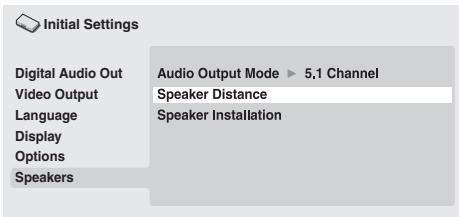
1 Utilizzato i tasti / (cursore su/giù) per selezionare un diffusore.
- I diffusori L e R sono accoppiati e non possono venire impostati separatamente.
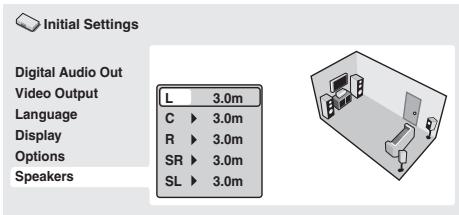
2 Premere (cursore a destra) per cancellare la distance del diffusore evidenziato.
3 Utilizzato i tasti / (cursore su/giù) perambiare la distance.
- Quando si cambiano le impostazioni relative alla distance dei diffusori anteriore sinistro (L) o anteriore destro (R), tutte le altre distance cambiano automaticamente in relazione adessa.
- É possibile impostare la distance tra i diffusori anteriorsinistro/ destro (L/R) da 30 cm a 9 m con incrementi di 30 cm.
- É possibile impostare il diffusore centrale (C) su una distanza da -2,1 m a 0,0 m rispetto ai diffusori anteriorsi sinistro/destro.
- É possibile impostare i diffusori surround sinistro/destro (SL/SR) su una distance da -6,0m a 0,0m rispetto ai diffusori anteriorsinistro/destro.
- La distanza del subwoofer (SW) non è regolabile.
4 Premere (cursore a sinistra) per tornare all'elenco dei diffusori e modificare un'alto diffusore oppure premere ENTER per uscire alla schermata Speaker Distance.

Nota
- Durante la riproduzione di dischi MPEG audio e DVD-Video, le impostazioni efficaci della distance dei diffusori C, SL e SR vanno da -0.9m a 0,0m in relazione ai diffusori anteriorsi sinistro/destro.
-
Le impostazioni Speaker Distance non influiscono sulla riproduzione dei SACD.
-
Impostazioni predefinite: L/R: Large | C: Large | SL/SR: Large| SW: On
Questa impostazione è necessaria solo se questolettore è stato
collegato ad un amplificatore usando le uscite analogiche a 5.1 canali. Questa impostazione non influsce sulle uscite audio digitali.
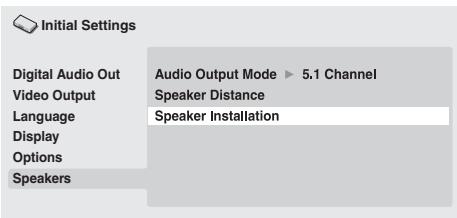
Utilizzato la schermata Speaker Installation per includare allettore i diffusori collegati.
1 Utilizzato i tasti / (cursore su/giù) per selezionare un diffusore.
- I diffusori L, R, SL e SR sono accoppiati e non sono venire impostati separatamente.
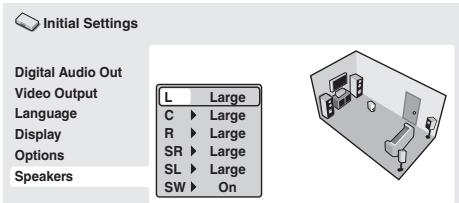
2 Premere (cursore a destra) per modificare il diffusore selezionato.
3 Utilizzato i tasti / (cursore su/giù) perambiare l'impostazione attuale.
- É possibile notare l'effetto delle modifiche nell'illustrazione sulla parte destra dello schermo.
- Ad eccezione del subwoofer, è possibile impostare le dimensioni dei diffusori su Large o Small. Se il cono principale del diffusore è da 12 cm o più, impostare su Large. In caso contrario, impostare su Small (o Off se non si dispone di quel diffusore).
- Se si impostano i diffusori anteriors L e R su Small, i diffusori centrale e surround vengono automaticamente impostati su Small e il subwoofer su On.
- Il subwoofer più essere impostato solo su On o Off.
4 Premere (cursore a sinistra) per tornare all'elenco dei diffusori e modificare un'alto diffusore oppure premere ENTER per uscire alla schermata Speaker Installation.
Informazioni supplementari
Manutenzione dellettore e dei dischi
Informazioni generali
Prendere il disco per le estremità o tra un bordo e il foro centrale.
Se non si utilizza un disco, riporlo nella custodia e conservarlo in posizione verticale. Evitare di lasciare i dischi in ambienticcess vivamente freddi, umidi o caldi (o esposti alla luce diretta del sole).
Non incollare carta o adesivi sui dischi. Non usare matite, penne a sfera o oggetti aguzzi per scrivere sul disco.

Non incollare etichette autoadesive sui dischi, in quanto potrebbero causare distorsioni del disco durante la riproduzione e quando irregularità del suono e/o dell'imagine.
Dischi danneggiati o di forma particolare
Non usare dischi danneggiati, scheggiati o di forma particolare, poiché potrebbero danneggiare illettore.
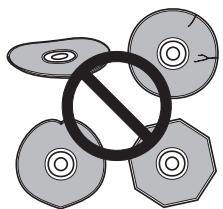
Questolettorepuoessereutilizzato solo condischiconvenzionalicircolari.Nonusaredischidi formadiversa.Pioneer non siritieneresponsabileperdannicausati dall'uso di un disco di forma nonstandard.
Pulizia dei dischi
Le impronte e la polvere su dischi possono influire sulla qualità della riproduzione. Pulire i dischi con un panno morbido ed asciutto, passandolo dal centro verso i bordi come illustrato di seguito.
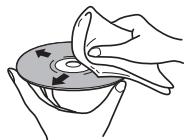
Se necessario, per pulire con maggiore accuratezza il disco, utilizzare un panno imbevuto di alcool o un kit di pulizia per CD/DVD disponibile in commercio. Non utilizzato mai benzene, solventi o altri detergenti, inclusi prodotti per la pulizia dei dischi in vinile.
Pulizia della parte esterna dell'apparechio
Scollegare illettore prima di effettuare la pulizia.
Pulire sporco e polvere con un panno asciutto. Qualora le superfici fosso partelormente sporche, pulire utilizzando un panno morbido leggermente inumidito con un detergente neutro diluito in cinque o sei parti di acqua; asciugare quindi con un panno asciutto.
Non utilizzato cera o prodotti detergenti per mobili. Non usare mai diluenti, benzina, insetticidi spray o altre sostanze chimiche per questo appearecchio o in prossimità diesso.
In caso di utilizzo di un panno impregnato di prodotti chimici per la pulizia, leggere attendamente le istruzioni prima dell'uso. Tali panni potrebbero lasciare delle sbavature sulle superfici lucide; in tal caso, rimuoverle con un panno asciutto.
Pulizia della lente dellettore
La lente dellettore DVD non dovrebbsporcarsi seutilizzatannormalmente. Se non funzionacorrettamente acause di polvere osporcizia, consultare il più vicino centro di assistenza autorizzato Pioneer.Non si consiglia l'uso dei prodotti per lenti di letterori CD disponibili in commercio.
Condensa
Se illettore viene portato in un ambiente caldo dall'esterno oppure se la temperatura ambientale cresce improvisamente, potrebbe formarsi della condensa all'interno dellettore. La condensa non danneggia illettore, ma potrebbe temporaneamente impedire la corretta riproduzione dei dischi. Prima di accendere l'apparecchio, lasciarlo risosare a temperature ambiente per circa un'ora affinché si riscaldi.
Spostamento dellettore
Se è necessario spostare illettore, spegnerlo prima premendo
STANDBY/ON sul pannello frontale o sul telecomando.
Attendere che la scritta "-OFF-" scompaia dal display, quando scollegare il cavo di alimentazione. Non sollevare o spostare l'apparecchio durante la riproduzione; il disco gira ad alta velocità e potrebbe danneggiarsi.
Fare attenzione quando l'unità viene posizionata in uno scaffale chiuso da uno sportello in vetro
Non premere il pulsante OPEN/CLOSE sul telecomando per apririe il supporto del disco quando lo sportello in vetro è chiuso. Lo sportello impedirà il movimento del supporto del disco, che si potrebbe danneggiare.
Dimensioni dello schermo e formati dei dischi
I dischi DVD-Video presentano numerousi formati che variano dai programmi tevisivi, in genere 4:3, ai film widescreen in CinemaScope, la cui immagine può averere proporzioni ancche da 7:3.
Anche i tevisori sono disponibili con proporzioni diverse: 4:3 'standard' e widscreen 16:9.
Agli utenti di teilevisori widescreen
Se si dispone di un tevisore widscreen, l'impostazione TV Screen (pagina 33) di quellolettore delve essere regolata su 16:9 (Wide) o 16:9 (Compressed).
Quando si riproducono dischi registrati in formato 4:3 con l'impostazione 16:9 (Wide), è possibile utilizzato i comandi del tevisore per selezionare le modalità di visualizzazione dell'immagine. Il tevisore potrebbe disporre di numerose opzioni di ingrandimento e allungamento. Per ulteri informazioni, consultare le istruzioni fornite con il tevisore.
Alcuni rapporti di forma cinematografici sono superiori a 16:9, quindianche disponendo di un teilevisore widscreen,questi dischi vengono riprodotti in formato letterbox' con barre nere nelle parti superiore e inferiore dello schermo.
Agli utenti di tevisori standard
Se si dispone di un tevisore standard, l'impostazione TV Screen (pagina 33) di quellolettoredeveseessereregolata su4:3 (LetterBox) o4:3 (Pan&Scan),in base alle proprie preferenze.
Se impostato su 4:3 (Letter Box), i dischi in widescen vengono riprodotti con barre nere nelle parti superiore e inferiore.
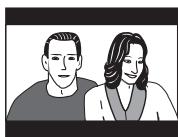
Se impostato su 4:3 (Pan & Scan), i dischi in widescen vengono riprodotti con le estremità sinistra e destra tagliate. Sebbene l'immagine sembri più grande sullo schermo, in realtà viene visualizzata una porzione inferiore di immagine.
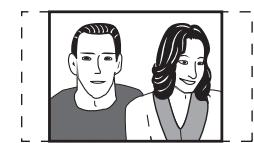
Molti dischi in widscreen ignorano le impostazioni dellettore e, indipendente me dell'impostazione selezionata, il disco viene riprodotto in formato letterbox.

Nota
- Se si utilizes l'impostazione 16:9 (Wide) o 16:9 (Compressed) con un tevisore 4:3 standard oppure una delle impostazioni 4:3 con un tevisore widescen, l'immagine visualizzata sera distorta.
Impostazione delsystema tevisivo
L'impostazione predefinita di quellolettore è AUTO e, a meno che non si noti una distorsione dell'immagine durante la riproduzione di alcuni dischi, si lascerà l'impostazione su AUTO. Se con alcuni dischi le immagini risultano distorte, impostare il teilevisore in modo che corrisponda alle impostazioni locali delsystema. Questa operazione può tuttavia limitare i tipi di disco che si possono guardare. Nella tabella di seguito viene illustrata la compatibilità tra i vari tipi di disco con le impostazioni disponibili (AUTO, NTSC e PAL).
1 Se illettore è acceso, premere © STANDBY/ON per portarlo in standby.
2 Utilizzato i comandi del pannello anteriore, tenere premuto , quando premere STANDBY/ON perambiareistema tevisivo.
Ilsystema teilevisivo cambia nel modo seguente:
- AUTO NTSC
- NTSC PAL
- PAL AUTO

Nota
- É necessario portare illettore in standby (premere STANDBY/ON) prima diogni modifica.
| Disco Tipo | Impostazionelettore | |||
| Formato | NTSC | PAL | AUTO | |
| DVD/Super VCD/Video CD/video DivX/WMV | NTSC | NTSC | PAL | NTSC |
| PAL | NTSC | PAL | PAL | |
| CD/MP3/WMA/MPEG-4 AAC/JPEGnessun disco | — | NTSC | PAL | NTSC oPAL |
Ripristino delle impostazioni predefinite dellettore
Utilizzato但这a procedura per ripristinare tutte le impostazioni predefinite dellettore.
1 Portare illettore in standby.
2 Tramite i tasti del pannello anteriore, tenere premuto il tasto (arresto), quando premere STANDBY/ON per riaccendere illettore.
Tutti i parametri dellettore vengonoosi ripristinati.
Aree dei DVD-Video
Tutti i DVD-Video recano un marchio dell'area sulla custodia ad indicare con quale area (aree) del mondo èCompatible il disco. Anche illettoreDVDpresenta un marchio dell'area sul pannello posteriori. Con questolettore non è possibile riproduire dischi di aree incompatibili. In questo caso sullo schermoviene visualizzato il messaggio di avviso "Incompatible disc region number Can't play disc". I dischi recanti il marchio ALL vengono riprodotti da qualsiasi lecture. Nell'imagine seguente sono indicate le varie aree DVD del mondo.
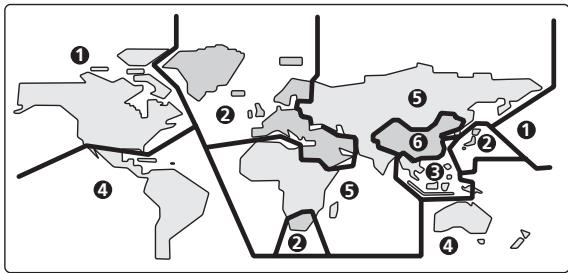
Selezione delle lingue tramite l'elenco dei codici delle lingue
Alcune delle opzioni relative alla lingua (ad esempio, DVD Menu Lang. di Initial Settings) consentono di selezionare la lingua desiderata tra le 136 elencate nell'elenco dei codici delle lingue riportato su Elenco dei codici delle lingue a pagna 46.
1 Selezionare 'Other Language'.
2 Utilizzare i tasti / (cursore a destra/sinistra) per selezionare una sigla o un codice.
3 Utilizzato i tasti / (cursore su/giù) per selezionare una sigla o un codice.
Per un elenco completo di lingue e codici, consultare Elenco dei codici delle lingue a pagina 46.
Un funzionamento anomalo viene spesso interpretato come un guasto o un problema di funzionamento. Se si ritiene che questo componente non funzioni correttamente, controllare la sezione di seguito. A volte il problema risiede in un altro componente. Controllare tutti i componenti ed apparecchi elettronici usati. Se non si riesce a risolverve il problema neppure dopo aver eseguito i controlli elencati di seguito, rivolgersi al più vicino centro di assistenza Pioneer autorizzato o al proprio rivenditore per la riparazione.
| Problema | Soluzione |
| Il disco non viene riproduzione o viven automaticamente espulso non appena inserito. | · Assicurarsi che il disco sua pulito e non sia danneggiato (paglia 40). · Assicurarsi che il disco sua inserito con l'etichetta rivolta versusl'alto ed allineato correttamente nella guida del vano del disco. · Codice area incompatibile: Se il codice area di un DVD-Video non corrisponde con quello dellettore, il disco non può venire riproduzione (paglia 41). In istesso sullo schermo viene visualizzato il messaggio di avviso "Incompatible disc region number Can't play disc". · Condensa nellettore: Attendere che la condensa evapori. Evitare di utilizzare illettore in prossimità di un condizionatore d'aria. · Disco inserito al contrario: Inserirlo di nuovo con il latodi dell'etichetta rivolta versusl'alto. · Un Super VCD non conformeagli standard IEC potrebbe non poter essere riproduzione normalmente. |
| La riproduzione di un DVD-Audio si arresta. | · Il disco potrebbe essere una copia ilegale. |
| La riproduzione di immagini si arresta ed i tasti operativi non rispondono. | · Premere ■ STOP, quando avviare nuovamente la riproduzione (▶ PLAY). · Tenere premuto il tasto Ⓞ STANDBY/ON del pannello anteriore per circa 10 secondi per spagnere l'apparecchio, quando riaccenderlo. · Spagnere l'apparecchio, scollegarlo alla presa a muro, ricollegarlo e riaccenderlotramite il tasto Ⓞ STANDBY/ON del pannello anteriore. |
| Le nuove impostazioni effettuate nei menu della schermata Setup durante la riproduzione di un disco non funzionano. | · Alcune impostazioni possono venire cambiate durante la riproduzione, ma non vengono applicate finché non si arresta e riavvia il disco: Premere ■ STOP, quando riavviare la riproduzione (▶ PLAY). |
| Le impostazioni vengono cancellate. | · Quando l'apparecchio si spelge a causa di cadute di tensione o perché il cavo di alimentazione viene scollegato, le impostazioni vengono cancellate: Premere Ⓞ STANDBY/ON sul pannello anteriore per spelgnere l'apparecchio. Attendere che la scritta "-OFF-" scompaia dal display, quando scollegare il cavo di alimentazione. |
| Il telecommando non funziona. | · Il telecommando è troppo lontano dallettore, o l'angolo del sensore remoto èccessivo: Utilizzato il telecommando entro il suo Campo di azione (pagea 18). · Batterie scariche: Inserirne delle nuove (pagea 6). · La presa CONTROL IN del pannello posteriore è collegata: Puntare il telecommando in direzione del componente collegato per controllare quellolettore (pagea 13). · Quando Startup Navigator è in esecuzione, non funzioniera alcun tasto se non ▲ OPEN/CLOSE, ↑/↓←/→, ENTER e RETURN. |
| Immagini/colori assenti. | · Controllare i collegamenti video: Controllare che i collegamenti siano corretti e che le spine siano completenesse inserte. Inoltre controllare che il cavo video non sa danneggiato. · Televisore/monitor o amplificatore AV impostato in modo non corretto: Controllare il manuale di istruzioni dell'apparecchio collegato. · La risoluzione in uscità è impostata su 1080p/1080i/720p/576p/480p, ma il televisore/monitor non è compatible con questi formati: Consultare Commutazione dell'uscita video interlacciato su 576i/480i con i comandi del pannello anteriore a pagana 12 per la modalità di impostazione su 576i/480i. · Controllare che l'indicatore PURE AUDIO non sua acceso. In tal caso, premeirel tasto PURE AUDIO (consultareanche Pannello anteriore a pagana 16). |
| L'immagine appare allungata o il formato non cambia. | · L'impostazione TV Screen del menu Initial Settings non è corretrata. Per impostare correttamente il proprio teilevisore/monitor, consultare Dimensioni dello schermo e formati dei dischi a pagana 40. |
| Le immagini riprodotte sono disturbate o scure durante la riproduzione. | · Questolettore èCompatible con il systemadi protezione da copia Macro-Vision System. Alcuni dischi includono un segnade di protezione da copia e quando questo tipo di disco viene riproduzione, alcune porzioni dell'immagine potrebbero apparire disturbate sul teilevisore. Non è un problema di funzionamento. · Acause dei circuiti di protezione anticopia del riproduzione, il collegamento di questo apparecchio con un VCR o un selettore AV potrebbe impedire la registrazione o causare problemi di immagine. Non è un problema di funzionamento. · Controllare che il systemadi teileviso siera impostato correttamente (pagea 41). |
| Il display del pannello frontale è scuro o non visualità nulla. | · Controllare l'impostazione FL DIMMER. Cambiare l'impostazione mediante il pulsante FL DIMMER sul telemcando (pagea 18). |
Problema
Soluzione
Audio assente o distorto.
- Durante la riproduzione in slow motion o la scansione di dischi diversi da CD audio o SACD, non viene prodotto alcun suono.
- Alcuni DVD non emettorno audio digitale: Impostare le uscite analogiche dellettore.
- Controllare che il disco sia pulito e non sia danneggiato (pagina 40).
- Controllare che tutti gli spinotti siano bene inseriti.
- Controllare che le prese e i terminali siano puliti e non ossidati, pulendoli se necessario. Controllare che il cavo non sia danneggiato.
- Assicurarsi che l'uscita dellettore non sia collegataagli ingressi fono (per giradischi) dell'amplificatore.
- Controllare le impostazioni dell'amplificatore/del ricevitore (volume, ingressi, impostazioni dei diffusori, ecc.).
Il segnale audio analogico è BUONO, ma quello digitale è assente.
- Assicurarsi che Digital Out (pagea 32) sia impostato su On.
- Controllare che Dolby Digital Out, DTS Out e MPEG Out (pagina 32) siano adatti all'amplificatore/ al ricevitore: controllare il manuale di istruzioni dell'amplificatore/del ricevitore.
- I dischi SACD e alcuni DVD-Audio non emettono audio digitale. Riproduire atraverso le uscite audio analogiche dellettore.
- Controllare che l'indicatore PURE AUDIO non sia acceso. In tal caso, premere il tasto PURE AUDIO (ConsultareanchePannelloanterioreapagina16).
Differenze considerevoli nel volume dei DVD e CD.
- Queste differenze sono intrinse che non sono dovute a guasti.
L'audio multicanale non può essere riproduotto.
- Assicurarsi che Audio Output Mode (pagina 36) sia impostato su 5.1 Channel.
- Controllare che Dolby Digital Out, DTS Out e MPEG Out (pagina 32) siano adatti all'amplificatore/ al ricevitore: Controllare il manuale di istruzioni dell'amplificatore/del ricevitore.
- I dischi DVD-Audio e SACD non emettono audio digitale multicanale. Riproduire attraverso le uscite audio analogiche dellettore.
- Controllare che le impostazioni effettuate nella schermata Speaker Installation siano corrette (pagina 34).
- Controllare le opzioni audio disponibili dal menu del disco.
Non è possibile ascoltare audio ad alta Frequenza di campionamento attraverso le uscite digitali.
- Assicurarsi che Linear PCM Out (pagea 32) sa impostato su Down Sample Off.
- Alcuni DVD non emettono audio a 96 kHz, come misura di protezione anticopia. In tal caso,anche se viene selezionato Down Sample Off, illettore emette automaticamente l'audio a 48kHz . Non è un problema di funzionamento.
Impossible emettere audio digitale a 192 kHz o 176,4 kHz.
- Illettore non emette audio digitale aqueste frequenze di campionamento. Il segnale digitale viene automaticamente ricampionato.
Impossible emettere audio digitale a 96 kHz o 88,2 kHz.
- Controllare che Linear PCM Out (pagea 32) sua impostato su Down Sample Off.
- Alcuni dischi sono protetti da copia digitale e non emettono audio digitale ad alte frequenze di campionamento. In tal caso, il segnale in uscita viene automaticamente ricampionato.
I segnali audio DTS non vengono emessi da DIGITAL AUDIO OUT (COAXIAL/OPTICAL).
- Se l'apparecchio è collegato ad un amplificatore o decodificatore non compatible con DTS tramite un cavo audio digitale, impostare DTS Out (pagina 32) su DTS > PCM. In caso contrario, la riproduzione di un disco DTS produce solo rumore.
- Se l'apparecchio è collegato ad un amplificatore o decodificatore compatible con DTStramite un cavodigitale audio, controllare le impostazioni dell'amplificatore e che il cavsoiallegato correttamente.
L'audio rimissato non sembra normale o suona incomplete (ad esempio, i dialoghi non sono udibili).
- Assicurarsi che Audio Output Mode (pagina 36) sia impostato su 2 Channel, se si è effettuato il collegamentoagli ingressi stereo dell'amplificatore o del teilevisore.
L'audio registrato su un disco Super VCD non viene riprodotto correttamente.
- Se l'audio viene fatto passare su "2" durante la riproduzione di un Super VCD che contiene solo una colonna sonora stereo, l'audio potrebbe non essere emesso. Premere ® AUDIO per cancellare colonna sonora.
L'effetto Virtual Surround non è udibile.
- Il sistema Virtual Surround non funzione con fonti SACD o DVD-Audio.
L'effetto Virtual Surround giene emesso solo dalle uscite audio analogiche AUDIO OUT (2ch). - Assicurarsi che Audio Output Mode (pagea 36) sua impostato su 5.1 Channel.
- L'efficacia delsystemaVirtualSurroundvaria in base al disco.
L'apparecchio si accende automaticamente.
- L'apparecchio potrebbe accendersi, se controllato da un tevisore collegato. Se non si desidera accendere l'apparecchio in quello modo, impostare HDMI Control (pagina 34) su Off.
L'apparecchio si spegne automaticamente.
- L'apparecchio potrebbe spegnersi, se controllato da un tevisore collegato. Se non si desidera spegnere l'apparecchio in quello modo, impostare HDMI Control (pagea 34) su Off.
Il teilevisore e ilsystema AV cambiano automaticamente ingressi.
- Il teilevisore e il systema AV collegati potrebbero cambiare automaticamente ingressi in risposta all'avvio della riproduzione da parte dell'apparecchio o di visualizzare l'interfaccia grafica (ad es. Disc Navigator). Se non si desidera che il teilevisore e il systema AV cambino ingressi, impostare HDMI Control (pagina 34) su Off.
| Problema | Soluzione |
| Emissione audio HDMI assente. | • Controllare se HDMI Out (pagagna 32) è impostato su Off. • Questo apparentecchio è ideato in modo da essereCompatible con HDMI (High-Definition Multimedia Interface). A seconda del componente collegato, il trasferimento dei segnali potrebbe risultare non completely affidabile. • Se l'indicatore HDMI del pannello anteriore è illuminato: - Se il componente sorgente èCompatible solo con DVI/HDCP, non si udirà alcuno suono dall'uscita HDMI. • Se l'indicatore HDMI del pannello anteriore è spento: - Accertarsi di aver selezionato illettore come ingressso HDMI nelle impostazioni relative al componente in uso. Per esquire quotta operazione potrebbe essere necessario consulutare il manuale di istruzioni del componente. - Verificare che il cavo HDMI sia collegato correttamente e non sia danneggiato. - Verificare che i componenti colgati mediante interfaccia HDMI siano accesi e che siano compatibili con HDMI. • Verificare che l'indicatore PURE AUDIO non sia acceso. In tal caso, premere il tasto PURE AUDIO (Consultareanche Pannello anteriore a pagagna 16). |
| Non viene emesso alcun segnale video HDMI. | • Accertarsi di aver selezionato illettore come ingressso HDMI nelle impostazioni relative al componente in uso. Per esquire quotta operazione potrebbe essere necessario consulutare il manuale di istruzioni del componente. • Verificare che il cavo HDMI sia collegato correttamente e non sia danneggiato. • Verificare che i componenti colgati mediante interfaccia HDMI siano accesi e che siano compatibili con HDMI. • Questo apparentecchio è ideato in modo da essere compatible con HDMI (High-Definition Multimedia Interface). A seconda del componente collegato, l'uso di un collegamento DVI può causaretrasferimenti di segnale instabili. • Accertarsi che la risoluzione impostata sullettore corrisponda aQLA del componente collegatotramite interfaccia HDMI. Consultare Resolution (Max) a pagagna 33 per cancellare la risoluzione HDMI. Consultare Ripristino della risoluzione in uscita predefinita con un collegamento HDMI a pagagna 15 se si desidera reimpostare la risoluzione in uscita. • Controllare che l'indicatore PURE AUDIO non sia acceso. In tal caso, premere il tasto PURE AUDIO (consultareanche Pannello anteriore a pagagna 16). • A seconda del cavo HDMI utilizzato, l'uscita 1080p potrebbe non essere corretta. |
| Non viene emesso alcun audio multicanale HDMI. | • Accertarsi che HDMI Out (pagagna 32) sia impostato su Auto o LPCM (5.1CH) e che la riproduzione SACD Playback (pagagna 34) sia impostata su Multi-ch Area. Consultareanchesl'informazioni sulleimpostazioni di uscita audio HDMI e Uscita HDMI con fonti DVD-Audio e SACD a pagagna 38. |
| Un componente DVI (compatible con HDCP) collegato non funziona con illettore. | • Questo apparentecchio è ideato in modo da essere compatible con HDMI (High-Definition Multimedia Interface). A seconda del componente collegato, l'uso di un collegamento DVI può causaretrasferimenti di segnale instabili. |
| HDMI Control non funziona. | • Verificare che il cavo HDMI via collagenato saldamente. • Assicurarsi che HDMI Control (pagagna 34) sia impostato su On. • Assicurarsi che HDMI Control dei componenti collegati via impostato su On. Per ulteri informazioni, consultare il manuale di istruzioni del componente collegato. • Questa opzione potrebbe non funzionate correttamente se si sono collegati variet componenti ad un solo teilevisore al plasma, sistema AV (amplificatore o ricevitore AV, ecc.) o converter HD AV. Per ulteri informazioni, consultare il manuale di istruzioni del teilevisore al plasma, del sistema AV o del converter HD AV. • è possibile attivare HDMI Control impostando HDMI Control su On per tutti i componenti collegati tramite cavo HDMI. Controllare l'uscita video di quello apparentecchio dopo aver completingi a collagenamenti e le impostazioni di tutti i componenti. Sarà necessario controllare l'uscita video agli volta che si cambiano i componenti collegati o si rimuove il cavo HDMI. • Controllare se il componente collegato supporta HDMI Control. Per ulteri informazioni, consultare il manuale di istruzioni del teilevisore al plasma, del sistema AV (amplificatore o ricevitore AV, ecc.) o delconverter HD AV. • Alcuni televori al plasma non supportano determinate funzioni. • Questolettore supporta solo i componenti compatibili con HDMI Control Pioneer. • Questo apparentecchio non funzionale correttamente con componenti che non supportano HDMI Control o se collagenato a componenti non prodotti da Pioneer. • Notare che HDMI Control nonould funzionate correttamente se non si utilizza un cavo HDMI che supporta le specifiche HDMI 1.3 (Categoria 2) o superiori. • HDMI Control nonould funzionate correttamente se sono connessi un cavo SCART e un cavo HDMI contemporaneamente. Impostare HDMI Control su Off quando si connetto simultaneamente i cavi SCART e HDMI. |

Nota
L'eletricita statica o altri fattori esterni potrebbero causare problemi di funzionamento. In tal caso, scollegare il cavo di alimentazione e ricollegarlo immediatamente. Ci di solito ripristina il funzionamento normale dell'apparecchio. In caso il problema non venga risolto, consultare il più vicino centro di assistenza Pioneer.
Glossario
| Audio analogico | Rappresentazione diretta di suoni con un segnale elettrico. Consultareanche Audio digitale. |
| Rapporto di formato | Rapporto tra la larghezza e l'altezza dello schermodel teilevisore. I teilevisori normali hanno un rapporto di formato pari a 4:3, quelli wipesen dehanno uno a 16:9. |
| Gruppo bonus(solo DVD-Audio) | Un gruppo 'extra' posseduto da alcuni dischiDVD-Audio che richiede un password per venire riproduotto. |
| Immagini esplorabili(solo DVD-Audio) | Una caratteristiche di alcuni dischi DVD-Audio con la quale l'utente puosplashore le immagini ferme del disco nelle disco perché l'audio viene riproduotto. |
| Audio digitale | Rappresentazione indiretta di suiottiattraverso numeroi. Consultareanche Freqenza di campionamento e Audio analogico. |
| DivX | DivX è una technologia multimedia creata da DivX, Inc. I file multimediiali DivX contengono non solo video compreso, maanche funzioni multimediai avanzate quali menu, sottotitoli e colonne sonore alternate. |
| Dolby Digital | Unsystema di codifica audio multicanale sviluppato alla Dolby Laboratories che consente di memorizzare una quantità maggiore di audio su disco rispetto alla codifica PCM. Consultareanche PCM (Pulse Code Modulation). |
| DRM | DRM (Digital Rights Management) è una Tecnologia di protezione dei diritti d'autore che intendere prevenire la duplicazione illegale di file audio compressi protetiuti, impedendone la riproduzione su computer (o altri dispositivi in grado di fare registrazioni) che non siano quelli che lo avevano registrato. Per informazioni dettagliate, leggere il manuale o i file Leggimi in dotazione al proprio computer e/o al rispettivo software. |
| DTS | Unsystema di codifica audio multicanale sviluppato da Digital Theater Systems che consente di memorizzare una quantità maggiore di audio in un disco rispetto alla codifica PCM. Consultareanche PCM (Pulse Code Modulation). |
| DSD(Direct Stream Digital) | Sistema di codifica audio digitale di SACD, che esprime i segnali audio in base alla densità di impulsi di un bit dati. |
| EXIF (Exchangeable Image File) | Formato di file sviluppato da FUJIFILM per le fotocamere digitali. Le fotocamere digitali di varie marche utilizzato quello fornato file compreso per le informazioni relative a data, ora e miniature, altre ai dati dell'imagine. |
| Estensionedei file | Tre lettere aggiunte alla fine del nome del file per indicare il tipo di file. Ad esempio ".mp3" indica un file MP3. |
| HDMI | HDMI (High-Definition Multimedia Interface) è un'interfaccia digitale ad alta velocità in grado ditrasferire segnali video non compressi in formato standard, avanzato o ad alta definizione e segnali audio standard surround multicanale tramite un unico collegamento digitale. Le caratteristiche di HDMI comprendono: segnale video digitale non compreso, ampietza di banda fino a 5 gigabyte al secondo e capità di communazione tra la fonte AV e i dispositivi AV, quali i DTV. |
| Formato ISO 9660 | Standard internazionale che definite nce il volume e il file system dei dischi CD-ROM. |
| JPEG | Standard per file contenti immagini. I file JPEG sono identificati dall'estensione ".jpg". |
| MP3 | MP3 (MPEG1 audio layer 3) è un formato di file audio stereo compresso. I file MP3 vengono riconosciuti dall'estensione ".mp3". |
| MPEG-4 AAC | MPEG-4 AAC è un formato di file audio stereo compresso. I file vengono riconosciutto dall'estensione“.m4a”. Alcuni file acquistati e protetti da copia (ad esempio, i file acquistati su iTunes Store) potrebbero non venire riprodotti. |
| Audio MPEG | Un formato audio usato per Video CD/Super VCD e alcuni DVD. |
| Packed PCM (solo DVD-Audio) | Unsystema di compressione senza perdita di dati che consente la memorizzazione di una quantità maggiore di dati PCM su un disco DVD-Audio. |
| PBC (PlayBack Control) | Unsystema di navigazione di Video CD/Super VCDtramite i menu su schermo registrati sul disco. |
| PCM (Pulse Code Modulation) | Sistema di codifica audio digitale usato per CD.Buona qualità, ma richiede grande quantità di dati se paragonato ai formati audio Dolby Digital, DTS e MPEG. Consultareanche Audio digitale. |
| Video a scansionegressiva | Le linee che compongono un'immagine videovengono aggiornate con un solo passaggio (mente l'interlacciamento ne richiede due). |
| Aree(solo DVD-Video) | I DVD-Video e ilettori vengono associati ad determinate aree del mondo. Per ulteriori informazioni, consultareAree deiDVD-Video a pagina 41. |
| Frequenza di campionamento | Frequenza cui un suono deve venire misurato quando deve venire trasformato in dati audio digitali.Maggiore è la frequenza, migliorare sare la qualità del suono. I CD possono aver frequenze a 44,1 kHz, iDVD sino a 96 kHz. Consultareanche Audio digitale. |
| Super Audio CD (SACD) | I Super Audio CD sono dischi con segnale audio di alla qualità che contengono suono stereo ad alta frequenza di campionamento ed audio multicanale,oltre al segnale audio CD tradizionale. |
| WMA | WMA è l'acronimo di Windows Media Audio e siri riferisce ad una Tecnologia di compressione dati audio sviluppata da Microsoft Corporation. I file vengono riconosciuti dall'estensione“.wma”. |
| WMV | WMV è l'acronimo di Windows Media Video e siri riferisce ad una Tecnologia di compressione videoe sviluppata da Microsoft Corporation. I file vengono riconosciuti dall'estensione“.wmv”. |
Lingua (lettera codice), Codice della lingua
Japanese (ja), 1001
English (en), 0514
French (fr), 0618
German (de), 0405
Italian (it), 0920
Spanish (es), 0519
Chinese (zh), 2608
Dutch (nl), 1412
Portuguese (pt), 1620
Swedish (sv), 1922
Russian (ru), 1821
Korean (ko), 1115
Greek (el), 0512
Afar (aa), 0101
Abkhazian (ab), 0102
Afrikaans (af), 0106
Amharic (am), 0113
Arabic (ar), 0118
Assamese (as), 0119
Aymara (ay), 0125
Azerbaijani (az), 0126
Bashkir (ba), 0201
Byelorussian (be), 0205
Bulgarian (bg), 0207
Bihari (bh), 0208
Bislama (bi), 0209
Bengali (bn), 0214
Tibetan (bo), 0215
Breton (br), 0218
Catalan (ca), 0301
Corsican (co), 0315
Czech (cs), 0319
Welsh (cy), 0325
Danish (da), 0401
Bhutani (dz), 0426
Esperanto (eo), 0515
Estonian (et), 0520
Basque (eu), 0521
Persian (fa), 0601
Finnish (fi), 0609
Fiji (fj), 0610
Faroese (fo), 0615
Frisian (fy), 0625
Irish (ga).0701
Scotts-Gaelic (gd), 0704
Galician (gl), 0712
Guarani (gn), 0714
Gujarati (gu), 0721
Hausa (ha), 0801
Hindi (hi), 0809
Croatian (hr), 0818
Hungarian (hu), 0821
Armenian (hy), 0825
Interlingua (ia), 0901
Interlingue (ie), 0905
Inupiak (ik), 0911
Indonesian (in), 0914
Icelandic (is), 0919
Hebrew (iw), 0923
Yiddish (ji), 1009
Javanese (jw), 1023
Georgian (ka), 1101
Kazakh (kk), 1111
Greenlandic (kl), 1112
Cambodian (km), 1113
Kannada (kn), 1114
Kashmiri (ks), 1119
Kurdish (ku), 1121
Kirghiz (ky), 1125
Latin (la), 1201
Lingala (In), 1214
Laothian (Io), 1215
Lithuanian (lt), 1220
Latvian (lv), 1222
Malagasy (mg), 1307
Maori (mi), 1309
Macedonian (mk), 1311
Malayalam (ml), 1312
Mongolian (mn), 1314
Moldavian (mo), 1315
Marathi (mr), 1318
Malay (ms), 1319
Maltese (mt), 1320
Burmese (my), 1325
Nauru (na), 1401
Nepali (ne), 1405
Norwegian (no), 1415
Occitan (oc), 1503
Oromo (om), 1513
Oriya (or), 1518
Panjabi (pa), 1601
Polish (pl), 1612
Pashto,Pushto (ps),1619
Quechua (qu), 1721
Rhaeto-Romance (rm), 1813
Kirundi (rn), 1814
Romanian (ro), 1815
Kinyarwanda (rw), 1823
Sanskrit (sa), 1901
Sindhi (sd), 1904
Sangho (sg), 1907
Serbo-Croatian (sh), 1908
Sinhalese (si), 1909
Slovak (sk), 1911
Slovenian (sl), 1912
Samoan (sm), 1913
Shona (sn), 1914
Somali (so), 1915
Albanian (sq), 1917
Serbian (sr), 1918
Siswati (ss), 1919
Sesotho (st), 1920
Sundanese (su), 1921
Swahili (sw), 1923
Tamil (ta), 2001
Telugu (te), 2005
Tajik (tg), 2007
Thai (th), 2008
Tigrinya (ti), 2009
Turkmen (tk), 2011
Tagalog (tl), 2012
Setswana (tn), 2014
Tonga (to), 2015
Turkish (tr), 2018
Tsonga (ts), 2019
Tatar (tt), 2020
Twi (tw), 2023
Ukrainian (uk), 2111
Urdu (ur), 2118
Uzbek (uz), 2126
Vietnamese (vi), 2209
Volapuk (vo), 2215
Wolof (wo), 2315
Xhosa (xh), 2408
Yoruba (yo), 2515
Zulu (zu), 2621
Elenco codici Paese/area
Paese/area, codice Paese/area, lettera codice Paese/area
Argentina, 0118, ar
Australia, 0121, au
Austria, 0120, at
Belgio, 0205, be
Brasile, 0218, br
Canada, 0301, ca
Cile, 0312. cl
Cina, 0314, cn
Danimarca, 0411, dk
Finlandia, 0609, fi
Francia, 0618, fr
Germania, 0405, de
Hong Kong, 0811,hk
India, 0914, in
Indonesia, 0904, id
Italia, 0920, it
Giappone, 1016.jp
Repubblica di Corea 1118, kr
Malesia, 1325, my
Messico, 1324, mx
Olanda, 1412, nl
Nuova Zelanda, 1426, nz
Norvegia, 1415, no
Pakistan, 1611, pk
Filippine, 1608, ph
Portogallo, 1620, pt
Federazione russa, 1821, ru
Singapore, 1907, sg
Spagna, 0519, es
Svezia, 1905, se
Svizzera, 0308, ch
Taiwan, 2023.tw
Tailandia, 2008, th
Regno Unito, 0702, gb
Stati Uniti, 2119, us
Informazioni generali
Alimentazione CA da 220 V a 240 V, 50 Hz/60 Hz
Consumo 15 W
Consumo in standby .0,8 W
Peso 5,3kg
Dimensioni. 420 mm (L) x 102 mm (A) x 314 mm (P)
Temperatura di funzionamento Da +5^ a +35^
Umidità tollerata Da 5 % a 85 % (senza condensa)
Connettore AV (assegnazione connettore a 21 pin)
Uscita connettore AV. Connettore a 21 pin Tramite quello connettore vengono forniti segnali audio e video per il collegamento ad un telesore o monitor a colori compatible.
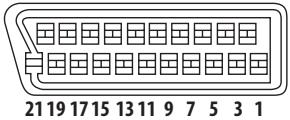
2018161412108642
| N. PIN | |
| 1. | Uscita audio 2/R |
| 3. | Uscita audio 1/L |
| 4. | Terra |
| 7. | Uscita B |
| 8. | Stato |
| 11. | Uscita G |
| 15. | Uscita R |
| 17. | Terra |
| 19. | Uscita video |
| 21. | Terra |
Uscita HDMI
Uscita HDMI. 19 pin
Uscite video component
Y (luminanza) - Livello di uscita 1 Vp-p (75 Ω)
P_B (colore)- Livello di uscita. 0,7 Vp-p (75 Ω)
P_R (colore) - Livello di uscita. 0,7 Vp-p (75 Ω)
Presa. RCA
Uscita S-Video
Y (luminanza) - Livello di uscita 1 Vp-p (75 Ω)
C (colore) - Livello di uscita. 286 mVp-p (75 Ω)
Presa. S-Video
Uscita video
Livello di uscita 1 Vp-p (75 Ω)
Presa. RCA
Uscita audio (1 coppia stereo)
Livello di uscita .Durante l'uscita audio
200 mVrms (1 kHz, -20 dB)
Numero di canali 2
Prese. RCA
Uscita audio (multicanale/L, R, C, SW, SL, SR)
Livello di uscita. .Durante l'uscita audio 200 mVrms (1 kHz, -20 dB)
Numero di canali 6
Prese. RCA
Caratteristiche audio
Risposta in frequenza Da 4 Hz a 44 kHz
Rapporto S/R 118 dB
Gamma dinamica 108 dB
Distorsione armonica totale. 0,0010 %
Fluttuazione di velocità . . . . Limite misurazione (±0,001 % W. PEAK) o inferiore
Uscita digitale
Uscita digitale coassiale. RCA
Uscita digitale ottica. Ottica
Altri terminali
Ingresso controlo . Spinotto (3,5 0)
Accessori
Telecomando 1
Batterie a secco AA/R6P 2
Cavo audio 1
Cavo video 1
Cavo di alimentazione. 1
Documento di garanzia 1
Istruzioni per l'uso
Le specifiche e il disegno di quello prodotto sono soggette a modifiche nella preavviso dovute a miglioramenti.
Pubblicato da Pioneer Corporation.
Copyright © 2007 Pioneer Corporation.
Tutti diritti riservati.
Discover the benefits of registering your product online at http://www.pioneer.co.uk (or http://www.pioneer.eu)
Registra il suo prodotto su http://www.pioneer.it (o http://www.pioneer.eu) e scopri subito qualivantaggi puoi ottenere!
PIONEER CORPORATION
4-1, Meguro 1-Chome, Meguro-ku, Tokyo 153-8654, Japan
PIONEER ELECTRONICS (USA) INC.
P.O. BOX 1540, Long Beach, California 90801-1540, U.S.A. TEL: (800) 421-1404
PIONEER ELECTRONICS OF CANADA, INC.
300 Allstate Parkway, Markham, Ontario L3R 0P2, Canada TEL: 1-877-283-5901, 905-479-4411
PIONEER EUROPE NV
Haven 1087, Keetberglaan 1, B-9120 Melsele, Belgium TEL: 03/570.05.11
PIONEER ELECTRONICS ASIACENTRE PTE. LTD.
253 Alexandra Road, #04-01, Singapore 159936 TEL: 65-6472-7555
PIONEER ELECTRONICS AUSTRALIA PTY. LTD.
178-184 Boundary Road, Braeside, Victoria 3195, Australia, TEL: (03) 9586-6300
PIONEER ELECTRONICS DE MEXICO S.A. DE C.V.
Blvd. Manuel Avila Camacho 138 10 piso Col.Lomas de Chapultepec, Mexico,D.F. 11000 TEL: 55-9178-4270
K002_B_En
Published by Pioneer Corporation.
Copyright © 2007 Pioneer Corporation.
All rights reserved.
- IMPORTANT
- CAUTION:
- CAUTION
- WARNING
- Operating Environment
- VENTILATION CAUTION
- POWER-CORD CAUTION
- Contents
- Before you start
- Connections
- Controls and displays
- Getting started
- Playing discs
- Audio Settings and Video Adjust menus
- Initial Settings menu
- Additional information
- Chapter 1 Before you start
- Features
- - HDMI digital interface
- HDMI Control
- DVD-Audio and SACD compatible
- Pure Audio listening
- PureCinema Progressive Scan video
- - Analog video signal output capability in HD (High Definition)
- DivX® video compatibility
- MP3, WMA and MPEG-4 AAC compatibility
- JPEG compatibility
- WMV compatibility
- Energy saving design
- Putting the batteries in the remote
- - Open the battery compartment cover and insert the batteries as shown.
- Hints on installation
- Do...
- Don't...
- Disc/content format playback compatibility
- About DualDisc playback
- CD-R/-RW compatibility
- DVD+R/+RW compatibility
- DVD-R/-RW compatibility
- Compressed audio compatibility
- About MPEG-4 AAC
- WMA (Windows Media™ Audio) compatibility
- About DivX video
- Displaying external subtitle files
- DivX video compatibility
- About WMV
- JPEG file compatibility
- PC-created disc compatibility
- Chapter 2 Connections
- Rear panel
- Connect the VIDEO OUT and AUDIO OUT (5.1ch) jacks to a set of A/V inputs on your TV.
- Note
- Connecting using a SCART AV cable
- Connecting using the S-Video output
- Connecting using the component video output
- Watching 1080i/720p/576p/480p from the component video outputs
- Switching the video output to 576i/480i using the front panel controls
- Connecting to an AV receiver
- Connect the analog AUDIO OUT (2ch) and VIDEO OUT jacks on this player to a set of analog audio and video inputs on your AV receiver.
- Connect the AV receiver's video output to a video input on your TV.
- Tip
- Connecting the multichannel analog outputs
- - Connect the multi-channel audio outputs on this player to the multi-channel audio inputs on your AV receiver.
- Connecting the digital output
- Controlling this player via another Pioneer component
- About HDMI
- About HDMI Control
- Resetting the output resolution to the default setting with HDMI connection
- Front panel
- STANDBY/ON (page 20)
- SACD SETUP
- Playback on page 34 for more on this.
- PURE AUDIO
- Remote control sensor
- HDMI indicator
- 5.1CH
- V-PART
- PRGSVE
- 4
- GUI (Graphical User Interface)
- GRP
- TITLE
- TRK
- CHP
- REMAIN
- Character display
- II
- 13
- DDD
- DTS
- Using the remote control
- Setting up the remote to control your TV
- Press and hold down the CLEAR button, then enter the maker code for your TV.
- Press TV to check that the remote works with your TV.
- Using the TV remote control buttons
- Chapter 4 Getting started
- Switching on and setting up
- Using the on-screen displays
- Button
- What it does
- HOME MENU
- ENTER
- RETURN
- Setting up the player for your TV
- Press HOME MENU and select 'Initial Settings'.
- Select 'TV Screen' from the 'Video Output' settings.
- Setting the language of this player's on-screen displays
- Select 'OSD Language' from the 'Display' settings.
- Select a language.
- If the player isn't already on, press STANDBY/ON to switch it on.
- Press OPEN/CLOSE to open the disc tray.
- Load a disc.
- Press PLAY to start playback.
- Basic playback controls
- Resume and Last Memory
- DVD-Video and DivX disc menus
- Video CD/Super VCD PBC menus
- FAQ
- Chapter 5 Playing discs
- Scanning discs
- Playing in slow motion
- Frame advance/frame reverse
- Viewing a JPEG slideshow
- Browsing DVD or Video CD/Super VCD disc with the Disc Navigator
- During playback, press HOME MENU and select 'Disc Navigator' from the on-screen menu.
- Select a view option.
- Select the thumbnail image for what you want to play.
- Browsing WMA, MP3, MPEG-4 AAC, DivX video, WMV and JPEG files with the Disc Navigator
- Press HOME MENU and select 'Disc Navigator' from the on-screen menu.
- Use the cursor buttons ( / / ← / ) and ENTER to navigate. Use the cursor up/down buttons ( / ) to move up and down the folder/file list.
- To play the highlighted track or DivX video/WMV file or display the highlighted JPEG file, press ENTER.
- Looping a section of a disc
- Using repeat play
- Press PLAY MODE and select 'Random' from the list of functions on the left.
- Select a random play option.
- Creating a program list
- Press PLAY MODE and select 'Program' from the list of functions on the left.
- Select 'Create/Edit' from the list of program options.
- Use the cursor buttons and ENTER to select a title, chapter or track for the current step in the program list.
- Repeat step 3 to build up a program list.
- To play the program list, press PLAY.
- Button What it does
- Other functions available from the program menu
- Searching a disc
- Press PLAY MODE and select 'Search Mode' from the list of functions on the left.
- Select a search mode.
- Use the number buttons to enter a title, chapter or track number, or a time.
- Press ENTER to start playback.
- Switching subtitles
- - Press SUBTITLE repeatedly to select a subtitle option.
- Switching audio language/channels
- Zooming the screen
- During playback, use the ZOOM button to select the zoom factor (Normal, 2x or 4x).
- Use the cursor buttons to change the zoomed area.
- Displaying disc information
- Chapter 6
- Audio Settings and Video Adjust menus
- Audio Settings menu
- Audio DRC
- Virtual Surround
- Dialog
- Video Adjust menu
- Using the Initial Settings menu
- Digital Audio Out settings
- Language settings
- Options settings
- Speakers settings
- Parental Lock
- Registering a new password
- Select 'Options', then 'Password'.
- Use the number buttons to enter a 4-digit password.
- Press ENTER to register the password.
- Changing your password
- Setting/changing the Parental Lock
- Setting/changing the Country/Area code
- Select a Country/Area code and press ENTER.
- DTS Downmix
- Displaying your DivX VOD registration code
- Select 'Options', then 'DivX VOD'.
- Select 'Display'.
- Playing DivX® VOD content
- Audio Output Mode
- About the audio output settings
- About the HDMI audio output settings
- HDMI output with DVD-Audio and SACD sources
- Speaker Distance
- Use the / (cursor up/down) to select a speaker.
- Press (cursor right) to change the speaker distance for the highlighted speaker.
- Use the / (cursor up/down) to change the distance.
- Press (cursor left) to go back to the speaker list if you want to modify another speaker, or press ENTER to exit the Speaker Distance screen.
- Speaker Installation
- Use the / (cursor up/down) buttons to select a speaker.
- Press (cursor right) to modify the selected speaker.
- Use the / (cursor up/down) buttons to change the current setting.
- Press ← (cursor left) to go back to the speaker list if you want to modify another speaker, or press ENTER to exit the Speaker Installation screen.
- Chapter 8
- Additional information
- Taking care of your player and discs
- General
- Damaged and shaped discs
- Cleaning discs
- Cleaning the unit's exterior
- Cleaning the pickup lens
- Condensation
- Moving the player
- Caution for when the unit is installed in a rack with a glass door
- Screen sizes and disc formats
- Widescreen TV users
- Standard TV users
- Setting the TV system
- Resetting the player
- DVD-Video regions
- Selecting languages using the language code list
- Country/Area code list
- Specifications
- AV Connector (21-pin connector assignment)
- HDMI output
- Component video output
- S-Video output
- Video output
- Audio output (1 stereo pair)
- Audio output (multi-channel/L, R, C, SW, SL, SR)
- Audio characteristics
- Digital output
- Other terminals
- Accessories
- ATTENZIONE:
- ATTENZIONE
- AVVERTENZA
- CLASS 1 LASER PRODUCT
- Condizioni ambientali di funzionamento
- AVVERTENZA PER LA VENTILAZIONE
- AVVERTIMENO RIGUARDANTE IL FILO DI ALIMENTAZIONE
- Indice
- Informazioni preliminari
- Collegamenti
- Comandi e display
- Predisizione
- Riproduzione di dischi
- Menu Audio Settings e Video Adjust
- Menu Initial Settings
- Informazioni supplementari
- Caratteristiche
- - Interfaccia digitale HDMI
- DVD-Audio e SACD compatibile
- Ascolto Pure Audio
- Video a scansione progressiva Pure Cinema
- - Uscita segnale video analogico in HD (High Definition)
- - compatibilità con video DivX®
- - compatibilità con MP3, WMA e MPEG-4 AAC
- - Compatibilità con JPEG
- - Compatibilità con WMV
- Risparmio energetico
- Inserimento delle batterie nel telecomando
- - Aprire il coperchio del vano batterie ed insere le batterie come illustrato.
- Importante
- Consigli per l'installazione
- Si...
- No...
- Compatibilità di riproduzione dei diversi formati di disco/continuti
- Informazioni sulla riproduzione DualDisc
- Compatibilità con dischi CD-R/-RW
- Compatibilità con dischi DVD+R/+RW
- Compatibilità con dischi DVD-R/-RW
- Compatibilità con audio compresso
- Informazioni su MPEG-4 AAC
- Compatibilità con WMA (Windows Media™ Audio)
- Informazioni su video DivX
- Visualizzazione dei file dei sottotitoli esterni
- Compatibilità con video DivX
- Informazioni su WMV
- Compatibilità con file JPEG
- Compatibilità con dischi creati con PC
- HDMI OUT
- DIGITAL AUDIO OUT OPTICAL
- DIGITAL AUDIO OUT COAXIAL
- 4VIDEO OUT
- S-VIDEO OUT
- COMPONENTVIDEO OUT
- AV CONNECTOR (RGB) TV/AV Receiver
- CONTROL IN
- AUDIO OUT (5.1ch)
- AUDIO OUT (2ch)
- AC IN
- Collegare le prese VIDEO OUT e AUDIO OUT (5.1ch) alla série di ingressi A/V del tevisore.
- Collegare il cavo di alimentazione CA in dotazione alla presa AC IN, quindi inserirlo nella presa di rete.
- Nota
- Collegamento tramite l'uscita S-Video
- Collegamento tramite l'uscita video component
- Riproduzione di 1080i/720p/576p/480p da uscite video component
- Commutazione dell'uscita video interlacciato su 576i/480i con i comandi del pannello anteriore
- Collegamento a un ricevitore AV
- Collegare le prese analogiche AUDIO OUT (2ch) e VIDEO OUT dellettore alla serie di ingressi audio e video analogici del ricevitore AV.
- Collegare l'uscita video del ricevitore AV all'ingresso video del teilevisore.
- Consiglio
- Collegamento delle uscite analogiche multicanale
- - Collegare le uscite audio multicanale di quellolettoreagli ingressi audio multicanale del ricevitore AV.
- Channel.
- Collegamento di un'uscita digitale
- Controllo di quellolettoretramite unalto componente Pioneer
- Informazioni su HDMI
- Informazioni su HDMI Control
- Ripristino della risoluzione in uscita predefinita con un collegamento HDMI
- Pannello anteriore
- STANDBY/ON (pageina 20)
- Sensore remoto
- Indicatore HDMI
- Display dei caratteri
- D
- FL DIMMER
- Utilizzo del telecomando
- Impostare il telecomando per controllare il teilevisore
- Tenere premuto il tasto CLEAR, quindi digitare il codice produttore del tevisore.
- Premere © TV per controllare che il telecomando funzioni con il tevisore.
- Utilizzo dei tasti del telecomando
- Accensione e impostazione
- Utilizzo dei display su schermo
- Impostazione dellettore in base al teileisure
- Impostazione della lingua dei display sus schermo dellettore
- Se illettore non è ancorta acceso, accenderlo premendo STANDBY/ON.
- Premere OPEN/CLOSE per aprire il vano del disco.
- Inserire un disco.
- Premere PLAY per avviare la riproduzione.
- Comandi basici per la riproduzione
- Ripristino e ultima memoria
- Menu dei DVD-Video e dei dischi DivX
- Menu Video CD/Super VCD PBC
- Riproduzione di dischi
- Scansione dei dischi
- Riproduzione in slow motion
- Per avanzare/indietreggiare di un fotogramma
- Visione di una sequenza JPEG
- Come navigare nei DVD o nei dischi Video CD/Super VCD con Disc Navigator
- Durante la riproduzione, premere HOME MENU e selezionare 'Disc Navigator' dal menu su schermo.
- Selezionare un'opzione di visualizzazione.
- Selezionare la miniatura che si desidera riproduire.
- Visione di file WMA, MP3, MPEG-4 AAC, video DivX, WMV e JPEG con Disc Navigator
- Premere HOME MENU e selezionare 'Disc Navigator' dal menu su schermo.
- Utilizzato i tasti del cursore (//←/) ed ENTER per navigare.
- Per riproduire il brano o il file video DivX/WMV evidenziato oppure per visualizzare un file JPEG evidenziato, premere ENTER.
- Riproducione ripetuta di una sezione di un disco
- Utilizzato della riproduzione ripetuta
- Creazione di un elenco di programmi
- Tasto
- Acosa serve
- PLAY MODE
- NEXT
- Altre funzioni disponibili nel menu dei programmi
- Ricerca su disco
- Premere PLAY MODE e selezionare 'Search Mode' dall'élenco di funzioni sulla sinistra.
- Selezionare una modalità di ricerca.
- Utilizzato i tasti numerici per immettre un numero di titolo, capitolo o brano oppure un tempo.
- Premere ENTER per avviare la riproduzione.
- Cambio della lingua/del canale audio
- Ingrandimento dello schermo
- Durante la riproduzione, utilizzato il tasto ZOOM per selezionare il fattore di zoom (Normal, 2x o 4x).
- Utilizzare i tasti del cursore per modificare l'area ingrandita. Durante la riproduzione è possibile modificare il fattore di zoom e l'area ingrandita.
- Visualizzazione delle informazioni del disco
- Menu Audio Settings e Video Adjust
- Menu Audio Settings
- Menu Video Adjust
- Capitolo 7 Menu Initial Settings
- Utilizzo del menu Initial Settings
- Premere HOME MENU e selezionare 'Initial Settings'.
- Per selezionare l'impostazione e l'opzione da regolare, utilizzare i tasti del cursore e ENTER.
- Impostazioni Digital Audio Out
- Registrazione di una nuova password
- Selezionare 'Options', quindi 'Password'.
- Utilizzato i tasti numerici per immettere una password a quattro cifre.
- Premere ENTER per memorizzare la password.
- Modifica della password
- SeLECTIONARE 'Password Change'.
- Utilizzato i tasti numerici per immettre la password esistente, quando premere ENTER.
- Digitare una nuova password e premere ENTER.
- Impostazione/modifica di Parental Lock
- Selezionare 'Level Change'.
- Utilizzato i tasti numerici per immettre la password, quando premere ENTER.
- Selezionare un nuovo livello e premere ENTER.
- Impostazione/modifica del codice Paese/area
- Selezionare 'Country Code'.
- Utilizzare i tasti numerici per immettre la password, quando premere ENTER.
- Selezionare un codice Paese/area e premere ENTER.
- Visualizzazione del codice di registrazione DivX VOD
- Riproduzione di contento DivX® VOD
- Informazioni sulle impostazioni di uscita audio
- Informazioni sulle impostazioni di uscita audio HDMI
- Uscita HDMI con fonti DVD-Audio e SACD
- Utilizzato i tasti / (cursore su/giù) per selezionare un diffusore.
- Utilizzato i tasti / (cursore su/giù) perambiare la distance.
- Premere (cursore a sinistra) per tornare all'elenco dei diffusori e modificare un'alto diffusore oppure premere ENTER per uscire alla schermata Speaker Distance.
- Utilizzato i tasti / (cursore su/giù) perambiare l'impostazione attuale.
- Premere ← (cursore a sinistra) per tornare all'elenco dei diffusori e modificare un'alto diffusore oppure premere ENTER per uscire alla schermata Speaker Installation.
- Informazioni supplementari
- Manutenzione dellettore e dei dischi
- Informazioni generali
- Dischi danneggiati o di forma particolare
- Pulizia dei dischi
- Pulizia della parte esterna dell'apparechio
- Pulizia della lente dellettore
- Condensa
- Spostamento dellettore
- Fare attenzione quando l'unità viene posizionata in uno scaffale chiuso da uno sportello in vetro
- Dimensioni dello schermo e formati dei dischi
- Agli utenti di teilevisori widescreen
- Agli utenti di tevisori standard
- Impostazione delsystema tevisivo
- Ripristino delle impostazioni predefinite dellettore
- Aree dei DVD-Video
- Selezione delle lingue tramite l'elenco dei codici delle lingue
- Problema
- Soluzione
- Lingua (lettera codice), Codice della lingua
- Elenco codici Paese/area
- Paese/area, codice Paese/area, lettera codice Paese/area
- Connettore AV (assegnazione connettore a 21 pin)
- Uscita HDMI
- Uscite video component
- Uscita S-Video
- Uscita video
- Uscita audio (1 coppia stereo)
- Uscita audio (multicanale/L, R, C, SW, SL, SR)
- Caratteristiche audio
- Uscita digitale
- Altri terminali
- Accessori
- PIONEER CORPORATION
Marque : PIONEER
Modèle : DV-LX50
Catégorie : Lecteur dvd