OT-S211C - Téléphone mobile ALCATEL - Notice d'utilisation et mode d'emploi gratuit
Retrouvez gratuitement la notice de l'appareil OT-S211C ALCATEL au format PDF.


| Intitulé | Description |
|---|---|
| Type de produit | Téléphone mobile |
| Caractéristiques techniques principales | Écran de 2,4 pouces, résolution 240 x 320 pixels |
| Alimentation électrique | Batterie Li-Ion 800 mAh |
| Dimensions approximatives | 118 x 50 x 13,5 mm |
| Poids | 90 g |
| Compatibilités | Réseaux GSM 900/1800 MHz |
| Type de batterie | Batterie amovible |
| Tension | 3,7 V |
| Fonctions principales | Appels, SMS, radio FM, lampe de poche |
| Entretien et nettoyage | Nettoyer avec un chiffon doux, éviter l'eau |
| Pièces détachées et réparabilité | Réparabilité limitée, pièces disponibles sur demande |
| Sécurité | Ne pas exposer à des températures extrêmes, éviter les chocs |
| Informations générales utiles | Idéal pour les utilisateurs recherchant un téléphone simple et fonctionnel |
FOIRE AUX QUESTIONS - OT-S211C ALCATEL
Questions des utilisateurs sur OT-S211C ALCATEL
0 question sur cet appareil. Repondez a celles que vous connaissez ou posez la votre.
Poser une nouvelle question sur cet appareil
Téléchargez la notice de votre Téléphone mobile au format PDF gratuitement ! Retrouvez votre notice OT-S211C - ALCATEL et reprennez votre appareil électronique en main. Sur cette page sont publiés tous les documents nécessaires à l'utilisation de votre appareil OT-S211C de la marque ALCATEL.
MODE D'EMPLOI OT-S211C ALCATEL
Contents
- Your mobile 1
- Getting started 4
- Basic functions 5
- FM radio 8
- Recent calls 9
- Entertainment 10
- Alarm 10
- Contact 10
- Messages 12
- Settings 15
- Profile 17
- Tools 17
- FAQ 18
- Safety and use 19
Friendly reminder:
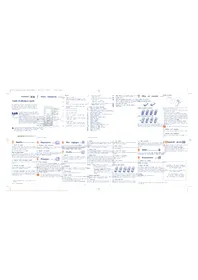
This user manual applies to the OT-S211C mobile phone. If there are minor differences in the description or illustrations between the manual and the actual product the actual product shall take precedence. Customers will not be notified separately of any upgraded model of this mobile phone. Please contact our Customer service.
We reserve the right to revise anytime the contents of this manual without prior notice.
1. Your mobile
1.1 Basic specifications
| Item | Specifications |
| Mobile Phone | Size: 98mm[L]×44mm[W]×12.3mm[Thickness] |
| Weight: 60g approx.(Including lithium battery) | |
| Screen resolution | 128×128 |
| Contacts | 500 entries |
| Call Memory | 30 entries |
| Message | 350 entries |
| Li-ion battery | Rated capacity: 670mAh |
| Standard voltage: 3.7V | |
| Talk time: 100 to 180 minutes | |
| Standby time: 60 – 120 hours (approx.) | |
| Operating temperature: -10°C to +55°C |
Explanation:
Standby time refers to the time when the phone although in operating mode is not used for making calls or remains idle. Standby time and call time are both related to the conditions of use, the network situation and the environment.
The SAR standard is 2.0 ~W / Kg . This phone's highest actual value: 0.86 ~W / kg
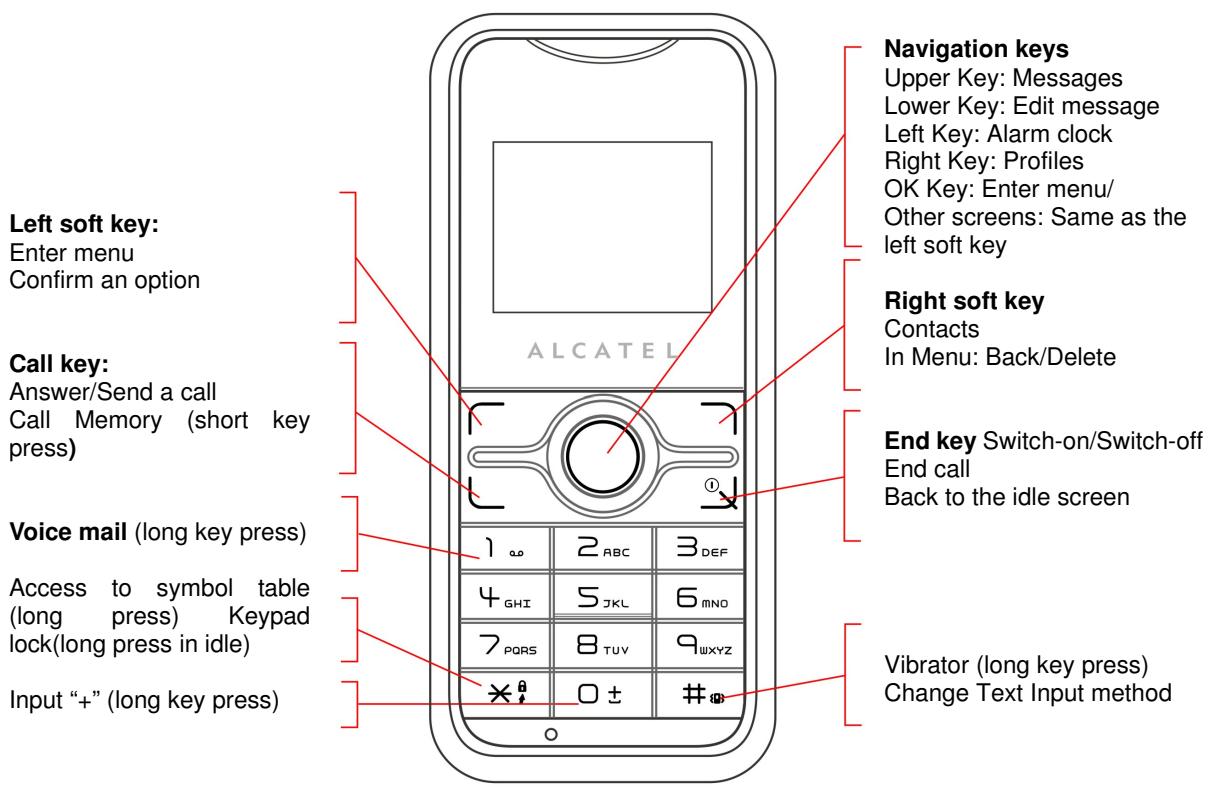
Please make appropriate use of the product to reduce the effects of EMF.1.2 Key pad indications
1.3 Main Menu
From the main menu, use the navigation key to select the item you want. After selection, press the left soft key to confirm.

FM radio:
Access to FM radio operation interface

Call Memory:
Access the Call Memory

Games:
Access the games embedded in the phone

Alarm clock:
Access the alarm clock setting

Contact:
Enter the contact list where you can check or create a contact (the person data) and select a contact's phone number

Messages:
Read, write and send SMS messages, view the Inbox and the Outbox. Manage the settings applied to the messages

Settings:
Set the Time, Date, Language, Answer and security modes in your phone

Profiles:
Use this option to set the phone ringing mode

Tools:
Set or use the stop-watch, the calendar and the world clock
1.2 Screen Icons
Battery charge level
Silent mode
Vibration mode
Unread message
Inbox full
Voice mail
Missed call
Call forwarding activated: Your calls will be forwarded
Alarm clock activated
Roaming instructions
Signal strength indicator
2. Getting started
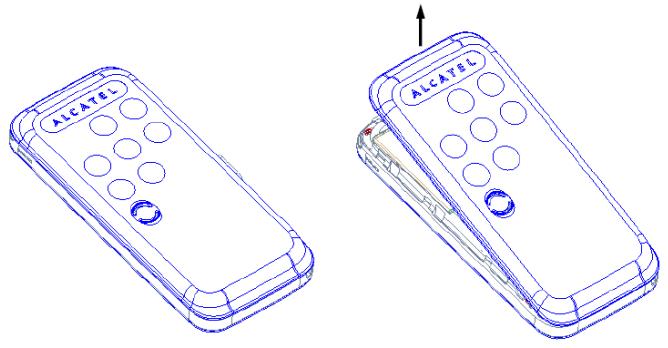
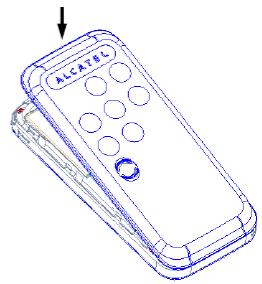
2.1 Removing the back cover
2.2 Inserting the UIM card
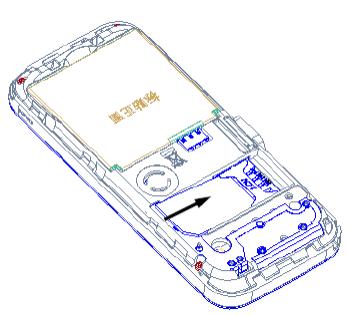
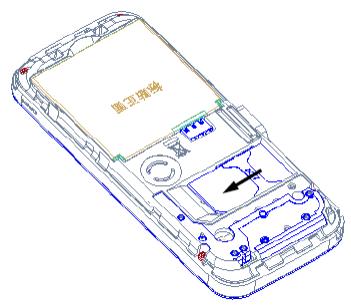
The mobile phone can only be used with the UIM card inserted. Press and hold the end key. Insert the UIM card with the metallic contact downwards, sliding it into the slot as shown by the arrow, paying attention to the position of the slanted angle. To remove the UIM card, slide the card out in the direction shown.
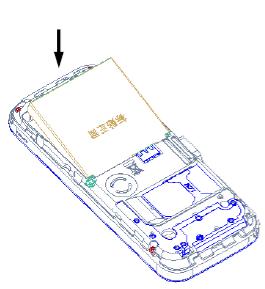
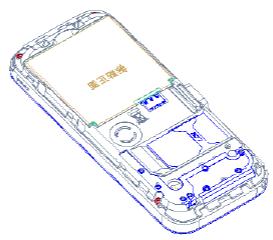
2.3 Installing / Removing the battery
Remove the back cover and remove the battery as shown (direction of the arrow).
3. Basic functions
3.1 Switch-on/off
When power is sufficient, press and hold the end key to switch on. If you have activated a password or a PIN code, you will be prompted to enter it. Normally the phone is ready for use as soon as you enter the password or the PIN code. For details on the use of the PIN code and password, please refer to Menu/Settings/Security settings. When the phone is on, press and hold the key end to turn it off.
3.2 Making a call
3.2.1 Entering the number directly
In the standby mode, use the number key to enter a phone number, then press the call key to make the call.
3.2.2 Dialling a number in the Call Memory
In the standby mode, press the call key to access the Call Memory, and press this key again to dial the selected number.
3.2.3 Speed dialling
In the standby mode, make a long key press on keys 2 to 9 to speed-dial a number. If you have not set the number for speed dialling, the phone will display "Speed dial is empty". Press the left soft key to access the "Contact" and select speed dial. For details regarding speed dial setting, please refer to "Contacts/Speed dial".
3.2.4 Emergency call
Enter 911 or a different emergency number, and then press the call key. In any situation, with or without the PIN lock activated, your phone can still make an emergency call.
3.3 Functions available during a call
During a call, access the Menu by pressing the left soft key.
3.4 Input mode
The text input mode is used when you need to save contacts, to search a contact or to edit a SMS and other text input circumstances.
3.4.1 Text input operating sequence
Select the Text input method.
Enter the text.
You can change the input mode while entering the text.
3.4.2 Changing the text input method
In the text input mode, press the "#" to change the input method. Press the "+" key to switch
from the upper case to the lower case characters when you need.
3.4.3 Text input methods
The phone includes four text input methods: Ar, T9Ar, Ab, En and numbers.
3.4.4 Introduction to the input method
Inserting punctuations and special symbols
When you are editing a text using the Ar and English input mode, press key “1” to select the punctuation mark or a special symbol or press and hold “” to access the symbol table. In the number input mode, press “” to insert a “”, and press and hold the “” key to access the table of symbols.
English input method
The English characters are shown on the keypad keys
As soon as you insert letters in sequence to form a word, the word is automatically spelled out. If this word is not the one you expect, use the up and down keys to select the required word. Press the * key and confirm if you want to the first letter of the word to appear in capital. Press "0" to insert a space.
Note:
We provide over 20,000 commonly used English words. If you correctly entered the characters and cannot find the suitable word with the navigation key, you may insert it by using English input method, repeatedly pressing the relevant key until the right letter inserted.
b) The ** key is used to switch between lower case, only the first letter in upper case or all characters in capitals.
Character input method (subdivided into upper case and lower case modes)
Single characters or numbers can be entered. Their distribution on the key pad is shown below:
| 0 | 0 |
| 1 | 1, commonly-used symbols |
| 2 | a, b, c, A, B, C, 2 |
| 3 | d, e, f, D, E, F, 3 |
| 4 | g, h, i, G, H, l, 4 |
| 5 | j, k, l, J, K, L, 5 |
| 6 | m, n, o, M, N, O, 6 |
| 7 | p, q, r, s, P, Q, R, S, 7 |
| 8 | t, u, v, T, U, V, 8 |
| 9 | w, x, y, z, W, X, Y, Z, 9 |
Number input method (123)
Press the number key to enter the corresponding number, press ** to enter **.
4. FM radio
Before start to enjoy FM radio, please install the headset which is provided in the package. After access FM radio operation interface, multiple FM control function will present to you, as Play on back, auto global search, channel list review, tuning mode selection and so on. In FM Radio, when pressing "End" key, it will switch off and return to the idle screen.
Quit: select Option/Quit to back to the main menu,
Play on back: select Option/Play on back, you can use other functions like sending SMS, playing games, change features, or even make a phone call while listen to the radio, but when you dial out, the FM will temperature turns off. When the call finished, FM radio will automatically turns on.
Global search: select Option/Global search, all the channels will be automatically searched out, and generate a channel list for user reference
Channel list: select Option/Channel list, access to Channel list menu, press left soft key, you can add new channel, delete the exist channel, or play the channel you choose. Press ok key to input the specific channel you like.
Tuning mode: select Mode, there are three mode present: list mode, manual mode and auto mode.
List mode: select this mode, when you press left or right navigation key, the channel will be tuned by the sequence that the channel list you saved.
Manual mode: tuning channel by manually press left or right navigation key
Auto mode: tuning channel automatically by pres left or right navigation key
Volume adjusts: press upper or lower key to increase or decrease the volume of FM radio.
5. Recent calls
From the standby screen, press the call key to display the list of dialled numbers. Press the left and right keys to toggle between: Dialled calls, Missed calls and Answered calls. In the "recent calls" menu you can also access the following options: Missed calls, received calls, outgoing calls, Call time and Delete all.
5.1 Missed calls, received calls, outgoing calls
Select Missed calls/ received calls/ outgoing calls from the Call Memory Menu to access the submenus of the various call logs. Use the left soft key to access the options such as Detail, Save, Call, IP call Send message, Send contact and Delete.
Detail: Check the data on the selected number.
Save: Save the selected number in Contacts.
Call: Call the selected number.
IP call: Call the selected number with IP prefix.
Send message: Send a message to the selected number.
Send contact: Send the selected number to another party.
Delete: Delete the selected number.
5.2 Call time
Select Menu/Recent calls/Call time to display the time record of all received calls, outgoing calls and all calls. The call time of all calls can be set to zero any time by resetting the timer.
5.3 Delete All
Select Recent calls/Delete All to clear all Missed Calls, Received Calls, Outgoing calls and the Call Memory contents altogether.
6. Entertainment
The phone is embedded with three games: Tetris, Brick attack and Blackjack. Please refer to the game instructions for details about their operation.
7. Alarm
Users can edit up to six alarm clocks. From the standby screen, press Menu/Alarm to display the Alarm clock editing screen. Press the left soft key and select Edit, Cancel (this option appears as you choose to set the alarm), Clear and Clear All.
Edit: you may edit the Alarm clock status, time, and mode. The status is either Enable or Disable. If you have selected 24 hour Time Format under Settings-Phone, then you can input 0-24; if you have selected 12 hour Time Format, you can choose AM or PM for time by pressing OK key, input from 0-12, if the number you input is out of the range, phone will not show. The available modes are: One day, Monday to Friday, Monday to Saturday and Everyday.
Cancel: Stop using the alarm clock
Clear: Clear the alarm settings
Clear All: Clear all alarm settings
8. Contact
The phone can store up to 500 contacts. From the standby mode press the right soft key to display the list of contacts. The contact list can also be accessed through Menu/Contact.
8.1 Contact list
Select Menu/Contact/Contact list to access the contact records. Select the left soft key for the following options: View, Edit, Call, IP Call, Send message, Send contact, Delete, and Search View: Check the contact's personal information.
Edit: Access the contact data to edit it, to classify it in a group, to set a ring tone to the contact.
Call: Call the contact.
IP Call: Call the contact with IP prefix.
Send message: Send a text message to the contact
Send contact: Add the contact details to the SMS being edited
Delete: Delete a contact details in Contacts
Copy: Copy the contact to UIM card or phone memory
Search: Return to the contact list, search for other records.
8.2 Search
Select Menu/Contact/Search for the options: Search by name, Search by group.
Search by name: You can look for a contact name by entering the whole name or part of it.
Search by group: You can search by the group which you have already set. And also to search all the contact in UIM card by select UIM option
8.3 Delete
Select Menu/Contact/Delete to access the option. Select the contact to be deleted using the left soft key, press OK to confirm.
8.4 Add a new contact
Select Menu/Contact/Add. If the default save position is phone memory, you can enter Mobile number, home number, office number and a fax number, email address, address, website address, memo, group and ring tone. If the default save position is UIM card, you can only enter Mobile number and contact name. please refer save position by select settings/position menu.
8.5 Copy/Move
Select Menu/Contacts/Copy/Move. You can copy or cut and paste all the records in the UIM or telephone. You can also copy one or several records in contacts.
8.6 Settings
Select Menu/Contacts/ settings for the available options: Save position, view mode.
Save position: you may choose to save a contact in the phone or in the UIM card.
View mode: Since the contacts are stored in various saving locations, you may choose to browse only the UIM or the telephone or both.
8.7 Speed dial
Select Menu/Contact/Speed dial to set keys 2 to 9 for speed dialling. If the number key has not been set, press the left soft key and select a phone number from Contacts. If the number key has been set, press the left soft key and the following options will be available: Set number, clear.
Set number: Re-set the speed dialling for a key
clear: cancel the speed dial number
8.8 Memory status
Select Menu/Contact/Memory status to view the number of entries stored and check the memory used up for the contact in the phone memory or UIM card.
9. Messages
Press lower key directly to access the message editing screen. Press upper key or press the left soft key to select Messages to access the Messages menu.
9.1 New message
Select Menu/Messages/New message to access the message editing screen. Please refer to "Input mode" section for instructions on message editing.
In the message editing screen, press the left soft key for the following options: Send, Send to many, Insert domain symbol, Insert contact, Templates and Insert emoticons.
Send: Send a message to a contact
Send to many: Send a message to a number of contacts
Insert domain symbol: Insert the commonly used network symbols in a message
Insert contact: Add different contact details from Contacts to a message
Templates: Add commonly-used terms to a message
Insert emoticons: Add an expression to a message
9.2 Inbox
Select Menu/Messages/Incoming to access the list of messages in this box. Press the left soft key for the following options: View, Reply, Delete, Forward, Call, IP Call, Copy to phone/UIM, and Move to phone/UIM.
View: Review the contents of the current messages. From the contents, press the left soft key for the following options: Reply, Delete, Forward, Extract details, Call, IP call.
Reply: Send a message to the sender of the current message.
Delete: Delete a message.
Forward: Modify the contents of a message and send it.
Call: Call the number of the sender of the message.
IP Call: Call the number of the sender of the message with IP prefix.
Copy to phone/UIM: copy a SMS saved in UIM card or phone to Phone or UIM card.
Move to phone/UIM: cut and paste a SMS saved in UIM card or phone to Phone or UIM card.
9.3 Outbox
Select Menu/SMS/Outbox to access the list of messages in this box. Press the left soft key for the following options: View, Resend, Forward, and Delete.
View: review the detailed contents of a message. Press the left soft key in the message detailed contents for the options: Resend, Forward or Delete.
Resend: Resend the message.
Forward: Modify the message and send it
Delete: Delete the message.
9.4 Drafts
Select Menu/SMS/Drafts to access the list of messages in the drafts box. Press the left soft key for the following options: View, Delete and Forward.
View: Review the message currently in the drafts.
Delete: Delete the message.
Forward: Modify the message and send it.
9.5 Template
Select Menu/SMS/Template to access the list of messages template. Press the up/down key to select the message you want.
Press the left soft key for the following options: View, Send, Edit and Add.
It has 10 message templates in factory reset mode, and you may edit it optionally or add more templates accordingly.
9.6 Delete message
Select Menu/SMS/Delete message to access delete function. You may delete the messages in Inbox, Outbox, Draft box, UIM card, and phone memory and also clear all the messages.
9.7 Setting message
Select Menu/SMS/Setting to access submenu with below options: Priority, Delivery report, Call back number, Storage location, and Message Validity.
Priority: Choose the priority sequence such as normal, urgent, Emergency.
Delivery report: You may activate/deactivate this function. The mobile phone will receive the information message notification that inform message sent or unsent.
Call back number: You may activate/deactivate this function. When you activate it, you need to enter the number which you want the receiver to call you back.
Storage location: You may choose to save to phone or UIM card as the priority. If choose the phone as priority, received message will be saved to phone firstly and then transfer to UIM card when full memory in phone.
Validity: Choose the validity of message.
9.8 Memory Status
Select Menu/SMS/Memory Status to check SMS storage status in phone and in UIM card.
9.9 Voice mail
Select Menu/SMS/Voice mail to enter the voice mail submenu, Voice mail, listen voice mail
and voicemail number are displayed.
Voice mail: Check how much voice mail is in the phone, press 1 to access to the voicemail, press 2 to clear the number of voice mail
Listen voice mail: Dial the voice mail hotline**9"and access to voicemail center to listen it
Voicemail number: Set the voice mail number
Note: "SMS Sent to many" When you have completed the SMS, press the contact person number directly or select "search" to access to Directory. If the contact person has the unique number, press the left soft key to choose the number that you want to send and then press OK key to send out. If the contact person has many numbers, you may switch between the numbers by pressing the left key or the right key, and then choose the numbers you want to send by pressing the left soft key and press OK key to send out.
10. Settings
Select Menu/Settings to access to set the parameter of mobile.
10.1 Display
Wallpaper: Choose the wallpaper and set it as main screen.
Style: Choose a scheme of display. There are 6 available styles for you to choose
Backlight time: Set the backlight time - 10 sec.30 sec.50 sec. always switch on
Contrast: Set contrast of the display. There are light dark, normal, light bright for you to choose.
10.2 Phone settings
Language: Choose language for message, Traditional Chinese and English available.
Time Format: Set 12 hrs mode and 24 hrs mode.
Date Format: Set date format and you may have three options: dd/mm/yy, mm/dd/yy, yy/mm/dd.
10.3 Call setting
IP number set: you can set 10 prefix number by select add. When you choose an existing IP number, you can choose "set default" to make the present number as default number, choose
edit to reset the IP number, and choose delete to clear the present number.
Answer mode: You may access to below option such as Any key answer, Flip answer, Send answer, and headset auto.
Minute alert: You will hear the alert sound every 50 seconds if you activate this function.
Voice privacy: activated this feature, voice service will be protected by encoding.
Auto radial: The cell phone will radial automatically while call out failed.
Supply services: You may access to call forward and call waiting by choosing this item.
Call forward: You can activate the status of call forward to the other phone in the following conditions. Busy, no answer, unreachable.
Call waiting (require the network support): Activating call waiting, you can pick up or end the second calling when you are on the phone.
10.4 Auto power on
You can activate or inactivate Auto power on function, and set the time when you want the phone power on automatically.
10.5 Auto power off
You can activate or inactivate Auto power off function, and set the time when you want the phone power off automatically.
Note: For Auto power on/ off: If you have selected 24 hour Time Format, then you can input 0-24; if you have selected 12 hour Time Format, you can choose AM or PM for time by pressing OK key, input from 0-12, if the number you input is out of the range, phone will not show.
10.6 Security
Select menu/settings/security, then enter the security submenu by inputting the phone code (default code is 1234). You can set entry code for your SMS, phone book, call memory there.
Phone lock: including phone code activation and inactivation, and password resetting, if you activate the phone code, you have to enter the phone code every time when the cell phone powers on
PIN code setting: including PIN code checking and PIN code resetting. When PIN code is activated, the PIN code need to be input when cell phone turns on.
Contact lock: setting protective code to phone book, the default code is the same as phone code (1234)
Recent call lock: setting protective code for call memory, the default code is the same as phone code (1234)
SMS lock: setting protective code for SMS service, the default code is the same as phone code (1234)
Call barring: setting the restriction of incoming and outgoing calls
Reset settings: chosen this item, the phone will be resumed to original settings when it came out from the factory. Please be attention that after selecting the factory setting, all the information of users will be deleted
11. Profile
Select menu-profile, you will enter to the profile menu, there you can set the ringtone mode of the cell phone according to the external circumstances of the time.
5 modes are provided: normal, silence, meeting, outdoor and in car.
Select left soft key to enter the operation submenu, you can proceed the following operations
Activate: active the present mode
Personalise: resetting the volume, the ringtones of incoming call, SMS, Alarm, and power on/off, and the alert mode of incoming call, SMS, and the unanswered call.
Load default: resumed the mode you choose to the factory settings.
12. Tools
12.1 Stop watch
Press the left soft key to start counting and the right soft key to stop it. While counting, press the left soft key to record the previous count. Up to ten recordings can be stored. When the counting is stopped, press the left soft key to reset and the right soft key to exit the stop watch function.
12.2 Calculator
Your phone has a timer function and can carry out simple operations, i.e. the "Four Arithmetic
Operations". Numbers are entered using number keys, "*" can be used to input decimal points, the left soft key can be used to insert the plus and minus symbols, the right soft key is used to clear the entries, the left key to insert "-" and the right key to insert " ÷ ", the upper key is used to insert "+" and the lower key to insert "x". Press the OK key to display the result of the calculation.
12.3 World time
This function allows you to find out the time in different cities around the world. Press the navigation key to select the city you want.
13. FAQ
If an anomaly occurs when you are using your mobile phone, please refer to the following table. If the problem remains unsolved, please contact the phone vendor.
| FAQ | Item to be checked |
| The telephone does not charge properly | Make sure that the charger is correctly connected to the phone and the power socket. Make sure you are using a charger specifically designed for this phone. |
| The phone does not switch on | Check the battery charge level. Make sure the battery is properly installed. Press and hold the ON key until the screen comes on. |
| The phone card has been inserted but the card information cannot be read | Make sure the UIM card is properly inserted. Make sure your UIM card is valid. Make sure the card's contact face is not dirty, if it is, wipe it with a clean cloth. |
| The phone displays “Enter PUK number” | Contact the network operator for a PUK number. Unlock the phone using the PUK number. |
| Unable to dial a number | Make sure you have dialled a valid phone number. Check if your phone is connected to the network. |
| Poor sound quality | Check if the reception signal is strong enough. If you are inside a building, rotate the phone or move close to a window. |
| The other party cannot hear you during a call | Make sure the mouthpiece is not blocked. |
| The receiver volume is low | Check if the receiver volume is set to maximum. |
| The phone signal is poor or switches off frequently | Make sure the phone antenna is not damaged. Check the phone signal strength. If there is no signal, use your phone in a location where the signal is strong. |
| The phone displays “out of network” or “network failure”. | Check if you are in an area where the signal is weak (in a tunnel or surrounded by building). Move to another location and try again. Make sure you are not trying to use a service that you haven’t subscribed to. If you require this service, contact the network for details. |
| When you cannot connect to the network normally | (1) The network provider does not provide this service or you have not subscribed to this service. Please contact your provider for details on the subscription and use of these services. (2) Incorrect setting. Please set the correct parameters |
14. Safety and use
Please read carefully and observe the following regulations to avoid damaging your telephone or using it against the law.
Electronic devices/Health care facilities.
Turn off your phone when you are near high-precision electronic devices in use to avoid causing malfunction or interfering with their operation (fire alarms, automatic doors and automatic control equipment).
Turn off your phone in hospitals or places where the use of mobile phones is restricted. Mobile phones affect the normal operation of electronic devices and medical instruments, such as pacemakers, hearing aids and other electronic medical devices.
Pacemaker manufacturers recommend that mobile phones are kept at least 15 cm away from
pacemakers to prevent the phone interference. When using the phone, you should hold it against the ear on the opposite side to the device, to reduce interference.
Mobile phones should be forbidden inside an operating theatre, Intensive Care Unit (ICU) or Cardiac Care Unit (CCU).
Pay attention to the settings of the sound volume and the vibration to avoid disturbing the patients.
Flammable or explosive areas
Turn off your phone near flammable or explosive areas. Do not install/remove or charge the battery or use the phone in these areas to prevent any explosion or fire. Flammable and explosive areas include: chemical plants, facilities with chemical substances or particles in the air (grains, dust and metal powder), petrol stations and fuel depots, fuel storage areas (for example, under a ship's deck), areas with explosion warning signs, areas with "turn off two-way radio equipment" signs and places where you are usually recommended to switch off car engines.
Safety of use in a vehicle
Please observe the relevant local or national regulations related to the use of mobile phones in a vehicle. Please refrain from using the phone while driving. If you are driving and need to use the phone in an emergency, use a hands-free device (optional purchase) to be safe. Otherwise, park the car before using the phone.
Do not place your phone on the dashboard or within an airbag deployment area to avoid causing injury to passengers in the car when the bag inflates or bursts.
Using the phone on an airplane is strictly forbidden. Turn off your phone before you board an aircraft. It is recommended to remove the battery to avoid the phone being turned on accidentally.
Storing environment
To avoid demagnetizing problem, keep the phone away from magnetic materials, such as magnetic discs and credit cards.
Ensure that the phone does not come into contact with liquids. If it does, turn it off immediately, remove the battery and quickly contact the vendor.
Do not store the phone, battery or charger in an environment with a strong magnetic field, such as an electromagnetic pot or a microwave oven, to avoid causing the phone to malfunction, catch fire or explode.
Do not subject the phone, battery or charger to heavy impact or vibration to avoid battery leakage, phone malfunction, overheating, fire or explosion
Do not place sharp metallic items such as needles, near the receiver because the receiver will attract them and you may be injured when using the phone.
Do not place the phone in the back pocket of your trousers or skirt to avoid damaging it when you sit down
Child health
Keep the phone, battery and charger out of the reach of children. Do not let children use the phone, battery or charger without supervision.
Do not let a child put a battery in his/her mouth to avoid electrolyte poisoning.
Keep children away from small phone accessories to prevent suffocation or blocking of the oesophagus as a result of swallowing.
Operating environment
This phone is equipped with a built-in antenna. When the phone is on, unless necessary, do not touch the antenna area (top of the phone) for optimal communication quality.
Do not use your phone while it is being charged during thunderstorms, or use it outdoors to avoid being struck by lightning or other injury.
Do not use your mobile phone in dusty, wet, dirty places or places near magnetic fields to prevent malfunction of its internal circuits. Keep the phone as dry as possible. Keep the phone, battery and charger away from water and water vapour and do not clean the phone with a wet cloth to avoid short circuits, malfunction due to corrosion and electric shocks.
Do not turn in or off the phone against your ear to avoid your ears and body from being impaired.
To comply with regulations on radio frequency exposure, keep the antenna at least one inch (2.5 cm) away from your body when holding your phone or using its data functions.
If you feel unwell (epileptic seizures or blackouts) after playing the games with your phone for a long period of time, please seek medical assistance immediately.
Move your mobile phone away from your ear while using the hands-free mode, because the amplified volume might cause hearing damage.
Make sure you switched off your phone in areas where mobile phone use is prohibited!
Cleaning and maintenance
Switch off the phone before cleaning and maintenance. The charger should be unplugged from the power socket and the phone and charger disconnected to prevent any electric shock
or short circuiting of the battery or charger.
Do not wipe the phone or charger using chemical substance (alcohol benzene), chemical agents or abrasive cleaning agents to avoid damaging its parts or causing a malfunction. You may clean with a slightly damp anti-static soft cloth.
Do not scrape or alter the phone case as paint substances may cause an allergic reaction. If such a reaction occurs, cease using the phone immediately and seek medical help.
Wipe dust off the power plug and keep it dry to avoid risk of fire
If the phone or accessories do not work properly, contact your local vendor
Do not dismantle the phone or its accessories yourself.
Protecting the environment
Please observe the local regulations on phone packaging, battery and used phone disposal and bring them to the collection point for proper recycling. Do not dispose of used phones or batteries in a household rubbish bin.
Please take your used, unwanted lithium batteries to a designated place. Do not dispose of them in a rubbish bin.


Emergency call
In an emergency situation, if the phone is on and you are within the network range, it can be used to make an emergency call. However, emergency call numbers may not be reachable on all networks; you should never rely on your mobile phone for emergency calls.
Using the battery/charger
Only use batteries and chargers approved by the manufacturer. Do not use batteries or chargers that are not compatible with your model to avoid any explosion.
Do not throw a battery in a fire as it might catch fire or explode. Do not cause a short circuit to the charger as it might result in malfunction, smoke or fire.
Do not place conductors like metals, keys or jewels, against the battery poles or allow them to touch the ends of the battery to avoid short circuiting the battery and causing injury (burns, for example) as a result of battery overheating
If the power cable is damaged (wires exposed or broken) or the connection to the plug is loose, do not use it to avoid electric shock, short-circuit of the charger or a fire.
Do not dismantle the battery or weld the two poles of the battery to prevent the battery from leaking, overheating, catching fire or exploding.
Keep the charger away from any container of water or other liquids. Infiltration of liquid may cause electric leakage or other malfunction to the charger.
If the battery leaks, emits smoke or a strange odour, cease use immediately and move it far away from naked flames or people to avoid a fire or injury from explosion.
Do not charge the battery in a dusty or damp environment and keep the cable away from heated objects.
The battery is not fully charged when leaving the factory. Therefore, you should charge the battery for two hours before use. Before charging, make sure the charge plug is correctly inserted in the power socket. If it is incorrectly inserted, electric shock might occur and the phone or battery may catch fire or explode. When charging is completed, pull out the charger plug from the power socket, and do not pull the cable.
If the liquid in the battery splashes into your eyes, do not rub the eyes to avoid damaging your vision, rinse the eyes immediately in clean water and go to a hospital for assistance.
Do not place heavy objects on the charger cable. Do not damage, twist or pull the cable to avoid causing electric shock or fire.
When the battery cannot be installed correctly in the phone, do not press down on it heavily to prevent it from leaking or exploding. Do not remove the battery when the phone is on.
If the battery is distorted, has changed colour or is unusually hot when charging or when it is stored, remove immediately the battery and stop using it or it may leak, become overheated, explode or catch fire.
If a battery is not used for a long period of time after charging, store it at room temperature Do not touch the power socket, power cable or charger with wet hands to avoid electric shock. If water or other liquid enters the charger, immediately disconnect the charger plug from the power socket to prevent it from overheating, catching a fire or malfunction.
Explanation: The instructions in this user manual apply to Traditional Chinese language mode. In other language operating modes, slight differences may appear.
Warning: The manufacturer disclaims any liability for damage, which may result as a consequence of improper use of this mobile phone or use contrary to the instructions contained in this manual.
Alcatel logo and Alcatel name are Trademark of Alcatel-Lucent used under license by TCT Mobile Limited
All rights reserved © Copyright 2008TCT Mobile Limited
TCT Mobile Limited reserves the right to Alter material or technical specification without Prior notice.
CJA2060ALAAA