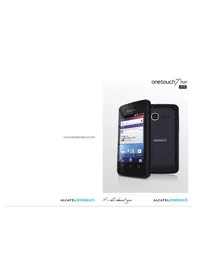
OT-710A - Téléphone mobile ALCATEL - Notice d'utilisation et mode d'emploi gratuit
Retrouvez gratuitement la notice de l'appareil OT-710A ALCATEL au format PDF.


| Type de produit | Téléphone mobile |
| Écran | 3.2 pouces, TFT, 240 x 320 pixels |
| Processeur | Processeur simple cœur |
| RAM | 128 Mo |
| Stockage interne | 256 Mo, extensible via microSD |
| Appareil photo | 2 MP, sans flash |
| Connectivité | GPRS, EDGE, Bluetooth 2.1, USB |
| Alimentation électrique | Batterie Li-Ion 1000 mAh |
| Dimensions approximatives | 105 x 55 x 12 mm |
| Poids | 90 g |
| Compatibilités | Compatible avec les réseaux GSM |
| Type de batterie | Batterie amovible |
| Tension | 3.7 V |
| Fonctions principales | Appels, SMS, navigation web, radio FM |
| Entretien et nettoyage | Utiliser un chiffon doux, éviter les produits chimiques |
| Pièces détachées et réparabilité | Réparabilité limitée, pièces disponibles sur le marché secondaire |
| Sécurité | Ne pas exposer à l'eau, éviter les températures extrêmes |
| Informations générales | Modèle d'entrée de gamme, idéal pour les utilisateurs basiques |
FOIRE AUX QUESTIONS - OT-710A ALCATEL
Questions des utilisateurs sur OT-710A ALCATEL
0 question sur cet appareil. Repondez a celles que vous connaissez ou posez la votre.
Poser une nouvelle question sur cet appareil
Téléchargez la notice de votre Téléphone mobile au format PDF gratuitement ! Retrouvez votre notice OT-710A - ALCATEL et reprennez votre appareil électronique en main. Sur cette page sont publiés tous les documents nécessaires à l'utilisation de votre appareil OT-710A de la marque ALCATEL.
MODE D'EMPLOI OT-710A ALCATEL
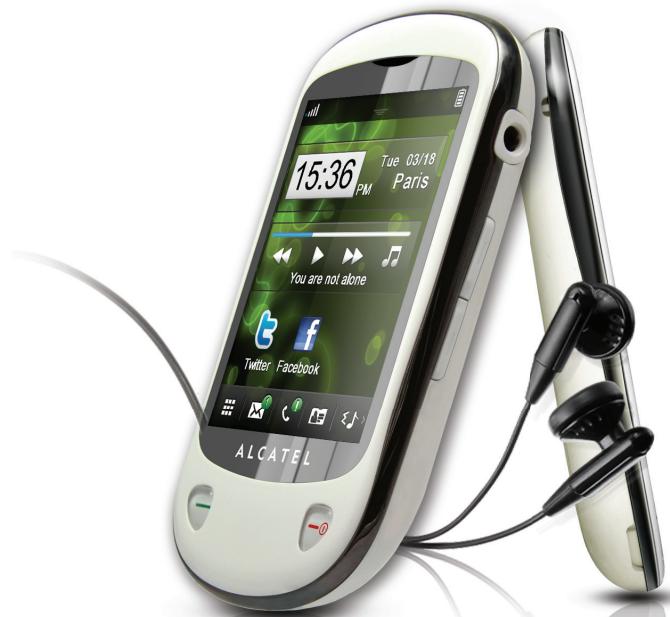
text_image
15:36 Tue 03/18 PM Paris You are not alone Twitter Facebook ALCATELOT-710
ALCATEL
mobile phones
www.alcatel-mobilephones.com
ALCATEL
mobile phones
Introduction......
TCT Mobile Limited would like to thank you for purchasing this mobile phone.
Desktop
- Convenient at-a-glance view of Widget applications
- Menu shortcuts for quick access
- Neat organization of applications along any edge
Power media applications
- Music player & Radio
- Webcam
The 2.0 Megapixel camera is the best companion for PC instant messaging.
Bluetooth
With Bluetooth 2.0 supporting A2DP profiles, enjoy handsfree conversations.
My friends
Popular websites (like Bebo, Friendster, hi5, Myspace, etc.) to stay in touch with your friends wherever you are, whenever you want.
Table of contents
Safety and use......6
General information....II
I Getting started....13
1.1 Set-up 13
1.2 Power on your phone....15
1.3 Power off your phone....15
1.4 Using the touchscreen....15
2 Your mobile....16
2.1 Status bar icons....18
2.2 Status list 20
2.3 Desktop 20
2.4 Toolbar 21
3 Dialer....22
3.1 Making a call....22
3.2 Calling your voicemail 23
3.3 Receiving a call....23
3.4 During a call 24
3.5 Conference calls 25
3.6 Line switching....26
4 Menu arrange 27
5 Messages 28
5.1 Access 28
5.2 Conversational mode and conventional mode 28
5.3 Create message....29
5.4 Search....29
5.5 Alerts....29
5.6 Available options....30
6 Email....33
6.1 Access 33
6.2 Email account set-up....33
6.3 Create Email 34
6.4 Inbox....34
6.5 Outbox....34
6.6 Sent....34
6.7 Drafts....34
6.8 Available options....35
7 Palringo 36
7.1 Access 36
7.2 Open a Palringo account online....36
7.3 Sign in/Sign out....36
7.4 Add service....37
7.5 Chat....37
7.6 Contacts 37
7.7 Groups....37
8 Directory....38
8.1 Consulting your directory....38
8.2 Adding a contact....39
8.3 Available options....40
9 Call log....41
9.1 Access 41
9.2 Available options....41
10 Media applications 45
10.1 Music....45
10.2 Image 48
10.3 Video 49
10.4 Radio....49
II Internet ....51
II.1 My friends....51
11.2 Opera....51
11.3 Wap....51
11.4 News....53
11.5 Weather 54
11.6 Facebook....55
11.7 mTweet....55
12 Entertainment....56
12.1 Stopwatch....56
12.2 Ebook 56
12.3 Java....57
13 Camera 59
13.1 Access 59
13.2 Camera....59
13.3 Video 60
14 Profiles....62
14.1 General 62
14.2 Meeting....63
14.3 Outdoor 63
14.4 Indoor....63
14.5 Silence 63
14.6 Flight mode....63
15 File manager....64
15.1 My audios 64
15.2 My images....65
15.3 My videos 65
15.4 Ebook 65
15.5 My creations....65
15.6 Other files....65
15.7 Phone....65
15.8 Memory card....66
15.9 Managing audios, images, videos and others....67
15.10 Formats and compatibility 68
15.11 Memory status 68
16 Bluetooth....69
17 Others....71
17.1 Calendar 71
17.2 Calculator....71
17.3 Notes....72
17.4 Tasks....72
17.5 Clock....73
17.6 Converter....74
18 Settings 75
18.1 Phone settings 75
18.2 Call settings 78
18.3 Security 78
18.4 Network....79
18.5 Connectivity....79
19 Making the most of your mobile....80
19.1 PC suite 80
19.2 Webcam 80
20 Latin input mode/character table....81
21 Telephone warranty 84
22 Accessories 86
23 Troubleshooting......87
Safety and use......
We recommend that you read this chapter carefully before using your phone. The manufacturer disclaims any liability for damage, which may result as a consequence of improper use or use contrary to the instructions contained herein.
• TRAFFIC SAFETY:
Given that studies show that using a mobile phone while driving a vehicle constitutes a real risk, even when the hands-free kit is used (car kit, headset...), drivers are requested to refrain from using their mobile when the vehicle is not parked.
When driving, do not use your phone and headphone to listen to music or to the radio. Using a headphone can be dangerous and forbidden in some areas.
When switched on, your phone emits electromagnetic waves that can interfere with the vehicle's electronic systems such as ABS anti-lock brakes or airbags. To ensure that there is no problem:
- do not place your phone on top of the dashboard or within an airbag deployment area,
- check with your car dealer or the car manufacturer to make sure that the dashboard is adequately shielded from mobile phone RF energy.
• CONDITIONS OF USE:
You are advised to switch off the telephone from time to time to optimise its performance.
Switch the phone off before boarding an aircraft.
Switch the phone off when you are in health care facilities, except in designated areas. As with many other types of equipment now in regular use, mobile telephones can interfere with other electrical or electronic devices, or equipment using radio frequency.
Switch the phone off when you are near gas or flammable liquids. Strictly obey all signs and instructions posted in a fuel depot, petrol station, or chemical plant, or in any potentially explosive atmosphere.
When the phone is switched on, it should be kept at least 15 cm from any medical device such as a pacemaker, a hearing aid or insulin pump, etc. In particular when using the phone, you should hold it against the ear on the opposite side to the device, if any.
To avoid hearing impairment, pick up the call before holding your phone to your ear. Also move the handset away from your ear while using the “hands-free” mode because the amplified volume might cause hearing damage.
Do not let children use the phone and/or play with the telephone and accessories without supervision.
When replacing the cover please note that your phone may contain substances that could create an allergic reaction.
Always handle your phone with care and keep it in a clean and dust-free place.
Do not allow your phone to be exposed to adverse weather or environmental conditions (moisture, humidity, rain, infiltration of liquids, dust, sea air, etc). The manufacturer's recommended operating temperature range is -10^ to +55^ .
At over 55^ the legibility of the phone's display may be impaired, though this is temporary and not serious.
Emergency call numbers may not be reachable on all cellular networks. You should never rely only on your phone for emergency calls.
Do not open, dismantle or attempt to repair your mobile phone yourself.
Do not drop, throw or bend your mobile phone.
Do not paint it.
Use only batteries, battery chargers, and accessories which are recommended by TCT Mobile Limited and its affiliates and are compatible with your phone model (see Accessories List, page 86). TCT Mobile Limited and its affiliates disclaim any liability for damage caused by the use of other chargers or batteries.
Remember to make back-up copies or keep a written record of all important information stored in your phone.
Some people may suffer epileptic seizures or blackouts when exposed to flashing lights, or when playing video games. These seizures or blackouts may occur even if a person never had a previous seizure or blackout. If you have experienced seizures or blackouts, or if you have a family history of such occurrences, please consult your doctor before playing video games on your phone or enabling a flashing-lights feature on your phone.
Parents should monitor their children's use of video games or other features that incorporate flashing lights on the phones. All persons should discontinue use and consult a doctor if any of the following symptoms occur: convulsion, eye or muscle twitching, loss of awareness, involuntary movements, or disorientation. To limit the likelihood of such symptoms, please take the following safety precautions:
- Do not play or use a flashing-lights feature if you are tired or need sleep.
- Take a minimum of a 15-minute break hourly.
- Play in a room in which all lights are on.
- Play at the farthest distance possible from the screen.
- If your hands, wrists, or arms become tired or sore while playing, stop and rest for several hours before playing again.
- If you continue to have sore hands, wrists, or arms during or after playing, stop the game and see a doctor.
When you play games on your phone, you may experience occasional discomfort in your hands, arms, shoulders, neck, or other parts of your body. Follow the instructions to avoid problems such as tendinitis, carpal tunnel syndrome, or other musculoskeletal disorders.

Prolonged exposure to music at full volume on the music player may damage the listener's hearing.
Set your phone volume safely. Use only headphones recommended by TCT Mobile Limited and its affiliates.
- PRIVACY:
Please note that you must respect the laws and regulations in force in your jurisdiction or other jurisdiction(s) where you will use your mobile phone regarding taking photographs and recording sounds with your mobile telephone. Pursuant to such laws and regulations, it may be strictly forbidden to take photographs and/or to record the voices of other people or any of their personal attributes, and duplicate or distribute them, as this may be considered to be an invasion of privacy. It is the user's sole responsibility to ensure that prior authorisation be obtained, if necessary, in order to record private or confidential conversations or take a photograph of another person; the manufacturer, the seller or vendor of your mobile phone (including the operator) disclaim any liability which may result from the improper use of the mobile phone.
• BATTERY:
Before removing the battery from your phone, please make sure that the phone is switched off.
Observe the following precautions for battery use:
- Do not attempt to open the battery (due to the risk of toxic fumes and burns).
- Do not puncture, disassemble or cause a short-circuit in a battery,
- Do not burn or dispose of a used battery in household rubbish or store it at temperatures above 60^ C.
Batteries must be disposed of in accordance with locally applicable environmental regulations. Only use the battery for the purpose for which it was designed. Never use damaged batteries or those not recommended by TCT Mobile Limited and/or its affiliates.

This symbol on your telephone, the battery and the accessories means that these phones must be taken to collection points at the end of their life:
- Municipal waste disposal centres with specific bins for these items of equipment
- Collection bins at points of sale.
They will then be recycled, preventing substances being disposed of in the environment, so that their components can be reused.
In European Union countries:
These collection points are accessible free of charge.
All phones with this sign must be brought to these collection points.
In non European Union jurisdictions:
Items of equipment with this symbol are not to be thrown into ordinary bins if your jurisdiction or your region has suitable recycling and collection facilities; instead they are to be taken to collection points for them to be recycled.
CAUTION: RISK OF EXPLOSION IF BATTERY IS REPLACED BY AN INCORRECT TYPE. DISPOSE OF USED BATTERIES ACCORDING TO THE INSTRUCTIONS.
- CHARGERS
Mains powered chargers will operate within the temperature range of: 0^ C to 40^ C.
The chargers designed for your mobile phone meet with the standard for safety of information technology equipment and office equipment use. Due to different applicable electrical specifications, a charger you purchased in one jurisdiction may not work in another jurisdiction. They should be used for this purpose only.
• RADIO WAVES:
Proof of compliance with international standards (ICNIRP) or with European Directive 1999/5/EC (R&TTE) is required of all mobile phone models before they can be put on the market. The protection of the health and safety for the user and any other person is an essential requirement of these standards or this directive.
THIS MOBILE PHONE COMPLIES WITH INTERNATIONAL AND EUROPEAN REQUIREMENTS REGARDING EXPOSURE TO RADIO WAVES.
Your mobile phone is a radio transmitter/receiver. It was designed and manufactured to comply with the radiofrequency (RF) exposure thresholds recommended by international requirements (ICNIRP) ^(1) and by the Council of the European Union (Recommendation 1999/519/EC) ^(2) .
These limits are part of a set of requirements and establish authorised radiofrequency levels for the public. These limits were established by independent groups of experts on the basis of regular and detailed scientific assessments. They include a significant safety margin intended to ensure the safety of all, regardless of age or state of health.
The exposure standard for mobile phones is determined by a measurement unit known as the Specific Absorption Rate or “SAR”. The SAR limit is set by international requirements or by the Council of the European Union at 2 watts/kilogram (W/kg) averaged over 10 grams of body tissue. The tests used to determine SAR levels were carried out on the basis of standard usage modes with the phones transmitting at their maximum power level over the entire range of frequency bands. Although the SAR was established at the highest certified level, the actual SAR level for the mobile phone during use is generally much lower than the maximum values. In fact, since mobile phones are designed to operate at many different power levels, they only use the minimum level of power required to provide a connection to the network. In theory, the closer you are to a base station antenna, the lower the power level required by the mobile phone.
The highest tested SAR value for this mobile phone for use at the ear and compliance against the standard is 1.1 W/kg. While there may be differences between the SAR levels on various phones and at various positions, they all meet the relevant International guidelines and EU requirements for RF (radio-waves) exposure.
The World Health Organisation (WHO) considers that present scientific information does not indicate the need for any special precautions for use of mobile phones. If individuals are concerned, they might choose to limit their own or their children's RF exposure by limiting the length of calls, or using “hands-free” devices to keep mobile phones away from the head and body (fact sheet n° 193). Additional information about electromagnetic fields and public health are available on the following site: http://www.who.int/peh-emf.
Although no danger relating to the use of telephone was ever proved, the World Health Organisation advises as a precautionary measure to use your telephone with a good level of network reception as indicated on the telephone display (4 to 5 bars). It is also advised to keep the telephone, during communications, away from the belly of pregnant women and from the lower abdomen for teenagers.
Your telephone is equipped with a built-in antenna. For optimal operation, you should avoid touching it or degrading it.
(1) The ICNIRP requirements are applicable in the following regions: Central America (except Mexico), South America, North and South Africa, Pacific Asia (except Korea), Australia.
(2) The European recommendation (1999/519/EC) is applicable in the following regions: Europe, Israel.
As mobile devices offer a range of functions, they can be used in positions other than against your ear. In such circumstances the device will be compliant with the guidelines when used with headset or usb data cable. If you are using another accessory ensure that whatever product is used is free of any metal and that it positions the phone at least 2cm away from the body.
• LICENCES
Obigo®
is a registered trademark of Obigo AB.

microSD Logo is a trademark.

The Bluetooth word mark and logos are owned by the Bluetooth SIG, Inc. and any use of such marks by TCT Mobile Limited and its affiliates is under license. Other trademarks and trade names are those of their respective owners.
OT-710 Bluetooth QD ID B017053
[τ] eZiText™
eZiText ^TM and Zi ^TM are trademarks of Zi Corporation and/or its Affiliates.
zicorporation

Java ^™ and all Java ^™ based trademarks and logos are trademarks or registered trademarks of Sun Microsystems, Inc. in the U.S. and other countries.

Opera Mini™
is a registered trademark of Opera Mini.

Facebook and the f Logo are trademarks of Facebook, Inc., and are used under license.

Twitter and the T Logo are trademarks of Twitter, Inc., and are used under license.
General information......
- Internet address: www.alcatel-mobilephones.com
- Hot Line Number: see “TCT Mobile Services” leaflet or go to our Internet site.
On our Internet site, you will find our FAQ (Frequently Asked Questions) section. You can also contact us by e-mail to ask any questions you may have.
An electronic version of this user guide is available in English and other languages according to availability on our server:
www.alcatel-mobilephones.com
Your telephone is a transceiver that operates on GSM networks with 850, 900, 1800 and 1900 MHz bands.
C€1588
This equipment is in compliance with the essential requirements and other relevant provisions of Directive 1999/5/EC. The entire copy of the Declaration of Conformity for your telephone can be obtained through our website: www.alcatel-mobilephones.com.
Protection against theft ^(1)
Your telephone is identified by an IMEI (phone serial number) shown on the packaging label and in the phone's memory. We recommend that you note the number the first time you use your telephone by entering * # 0 6 # and keep it in a safe place. It may be requested by the police or your operator if your telephone is stolen. This number allows your mobile telephone to be blocked preventing a third person from using it, even with a different SIM card.
Disclaimer
There may be certain differences between the user manual description and the phone's operation, depending on the software release of your telephone or specific operator services.

Getting started ....
1.1 Set-up
Removing or installing the back cover
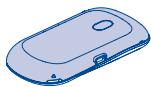
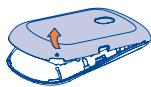
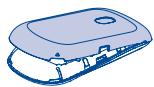

Inserting or removing the SIM card ^(1)
You must insert your SIM card to make phone calls. Please power off your phone before inserting or removing the SIM card.
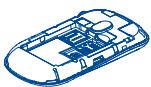
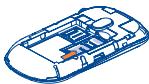
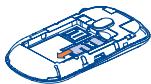
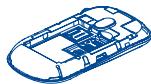
Place the SIM card with the chip facing downwards and slide it into its housing. Make sure that it is correctly inserted. To remove the card, press and slide it out.
(1) Check with your network operator to make sure that your SIM card is 3V or 1.8V compatible. The old 5 Volt cards can no longer be used. Please contact your operator.
Installing or removing the battery
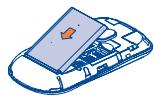
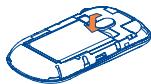
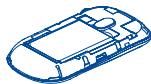
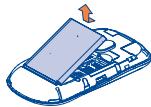
- Insert and click the battery into place, then close the telephone cover.
- Unclip the cover, then remove the battery.
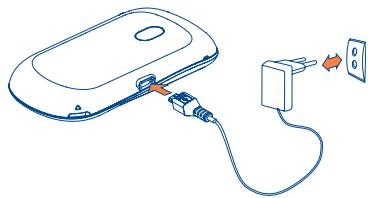
Charging the battery
natural_image
Line drawing of a computer mouse connected to a plug and outlet (no text or symbols)Connect the battery charger
- Charging may take about 20 minutes to start if the battery is flat.
- Be careful not to force the plug into the socket.
- Make sure the battery is correctly inserted before connecting the charger.
- The mains socket must be near to the phone and easily accessible (avoid electric extension cables).
- When using your telephone for the first time, charge the battery fully (approximately 3 hours). You are advised to fully charge the battery (☐).

The charge is complete when the animation stops.
1.2 Power on your phone
Hold down the ⏻ key until the telephone powers on, type in your PIN code if necessary and then confirm. The main screen is displayed.
If you do not know your PIN code or if you have forgotten it, contact your network operator. Do not leave your PIN code with your telephone. Store this information in a safe place when not in use.
If cell broadcast messages are displayed, tap to browse through them or press 🔍 to return to the main screen.
While the phone is searching for a network, "Searching/Emergency" will be displayed.
In the power on screen, you also have access to the functions of “Radio”, “Camera”, “Music”, etc. even if there is no SIM card inserted.
1.3 Power off your phone
Hold down the ⏻ key from the main screen.
1.4 Using the touchscreen
Tap
To access an application, tap it with your finger.
Drag
Place your finger on the screen to drag the object to the destination.
Scroll
Slide the screen to scroll up and down the applications, images, web pages...at your convenience.
2 Your mobile ....
text_image
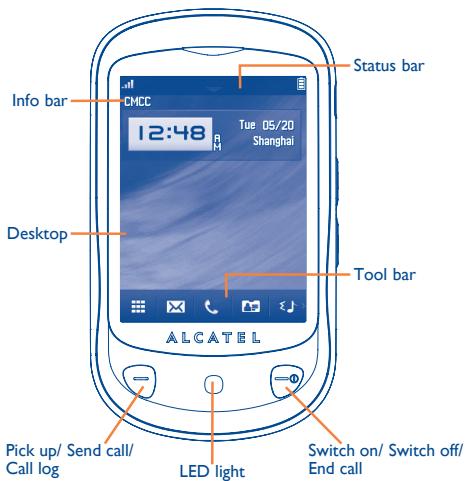
Info bar CMCC 12:48 AM Tue 05/20 Shanghai Desktop Status bar Tool bar ALCATEL Pick up/ Send call/ Call log LED light Switch on/ Switch off/ End call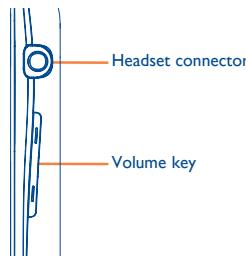
text_image
Headset connector Volume key
- Pick up
- Send a call
- Access call log (Redial) (short key press)

- Switch on/Switch off the telephone (long key press)
• End call - Return to the main screen
- Lock the screen from the main screen (short key press)

• Volume key: Volume up/down
Zoom in/out
Calibration of LCD (long key press from the main screen)

- Flashes when a new event occurs (Missed call, Voice mail, Message,).
- Flashes with breath effect when an incoming call arrives.
- Remains lit when charging until disconnected.
2.1 Status bar icons (I)

Battery charge level

Vibrate alert: your phone vibrates, but does not ring or beep with the exception of the alarm (see page 62).

Bluetooth status (Activated).

Bluetooth status (Connected to an audio device).

Headset connected.

Keypad & LCD touch locked.

Call forwarding activated: your calls are forwarded (see page 43).

Alarm or appointments programmed (see page 71, 73).

Level of network reception.

Voicemail message arrived.

Missed calls.

Stopwatch is active.

Radio is on.

WAP alerts (2).
(1) The icons and illustrations in this guide are provided for information purposes only.
(2) Depending on your network operator.

Roaming.

Memory card scanning completed.

SIM card missing.

Line switching ^(1) : indicates the selected line.

GPRS connection status (Activated).

GPRS connecting.

Music player active.

Message receipt in progress.

Sending a SMS.

Sending a MMS.

Silence mode: your phone does not ring, beep or vibrate with the exception of the alarm (see page 63).

SMS unread.

(Flickering) Message list is full: your phone cannot accept any new messages. You must access the message list and delete at least one message on your SIM card.

Flight mode.

A2DP connected.

Broadcast is on.
(1)
Depending on your network operator.
2.2 Status list
The Status list contains information about significant events, like Missed calls, Unread messages, E-mails as well as the Radio & Music player current playing information., etc. The purpose is to allow you faster access to the interactive applications.
Touch status bar and drag it downward to open it;
To hide it, tap or drag it upwards.
To open an application, tap a menu when a list is open.
2.3 Desktop
Bring all the things you love or use most frequently to your desktop for quick access.
Adding items
To add an item from the main menu, press and hold its icon in the main menu list. To add a widget, press → from tool bar or long press a blank area on the main screen, tap "Add widgets" to access widget lists and select the item you wish to add.
Editing/Removing/Re-organizing items
Long press the application on the desktop to edit/remove/re-organize it, touch ✅ to edit (only for my favourites), touch ✗ to remove. Touch and hold the application until a location frame shows up on the desktop, drag it to the location you desire, and then confirm by tapping "Done".
Wallpaper
To personalize your wallpaper, press from tool bar or long press blank area from the main screen, tap "Wallpaper". You will be directed to "My images" with this option. You may choose one image as your favourite wallpaper (see page 48).
2.4 Toolbar
Tool bar with menu items as a shortcut for quick access.
3 Dialer ....

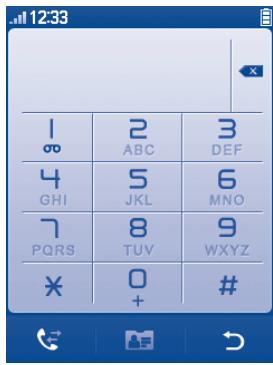
To access this feature, you may select one of the following:
- Select directly from tool bar on Home screen.
- Select from tool bar to enter the main menu, then tap 12 24.
3.1 Making a call
text_image
12:33 1 2 3 ∞ ABC DEF 4 5 6 GHI JKL MNO 7 8 9 PQRS TUV WXYZ * 0 #Enter the desired number from keypad directly or select a contact from Directory by tapping 📄, then press 🔕 key or tap 🔔 to place the call. The number you entered can be saved to Directory by selecting 🔕. If you make a mistake, you can delete the incorrect digits by tapping 🔕.
To hang up the call, press the ⏻ key.
Making an emergency call
If your phone has network coverage, dial emergency number and press the ☑ key or tap ☐ to make an emergency call. This works even without a SIM card and without typing the PIN code.
3.2 Calling your voicemail (1)
Your voicemail is provided by your network to avoid missing calls. It works like an answering machine that you can consult at any time. To access your voicemail, hold down □ on screen keypad.
If the access number for your operator's voicemail service does not work, dial the number that you were given. To change this number at a later date, refer to "My numbers" (see page 41).

To use your voicemail service from abroad, contact your network operator before leaving.
3.3 Receiving a call
When you receive an incoming call, press the 🔑 key to talk and then hang up using the 🔑 key.
If the 🎨️ icon is displayed, the vibrator is activated and there is no ringtone.


icon is displayed, the phone neither rings nor vibrates.

The caller's number is displayed if it is transmitted by the network (contact your network operator to check service availability).
(1) Contact your network operator to check service availability.
Muting the ringtone
You may mute ringtone of current incoming call by tapping .
Answer the call by pressing the 🔒 key.
Rejecting a call
Press the ➕ key once to reject the call, or reject call with SMS by tapping 📧.
3.4 During a call ^(1)
Available functions
During a call, press ☐ to use your directory, calendar, short messages etc. without losing your caller.
Ongoing call
Lock the screen
Turn speaker on
Turn speaker off
Mute on
Mute off
Show the keypad
End call
Unlock the screen
[1] Close the keypad
(1) Contact your network operator to check service availability.
WARNING: move the handset away from your ear while turn on the speaker because the amplified volume might cause hearing damage.
To hold on a call, tap 11.
You can switch the audio function from handset to Bluetooth device when connected.
Adjusting the volume
You can adjust the sound level during a call using the Volume key.
Handling two calls
- Answering a second call (ensure that “Call waiting” is activated, see page 42).
- To call a second party during a call, you may tap and select "New call".
3.5 Conference calls (1)
Your phone allows you to talk to several people at the same time (up to five). If you are on a double call, press 📊 and select “Conference”. If a third call comes in, answer it by pressing the 🔺 key and speak with your new caller.
This caller becomes a member of the conference if you press and select "Conference call".
3.6 Line switching ^(1)
Your SIM card can contain two distinct telephone numbers. Under “Call log”, choose “Line switching” and then select a default line; all your outgoing calls will be made from this number. Incoming calls, however, will continue to use either of the two lines.
The services programmed on the default line do not impact those selected on the other line.
4 Menu arrange......

The main menu is designed to vary according to your preference.
To access this function, select ☐ to enter the main menu, tap ☐.
Change the order
Access "Menu arrange", focus on the main menu item you want to move, and then tap "Options\Move", it will go to the main menu screen and tick “√” will be shown on the main menu you selected, then release it to your favourite destination.
Show/Hide
Access “Menu arrange”, tap the left check box of the selected menu once to show/hide, then tap “Options\Save” to save the operation.
Restore default
From the main menu, select "Menu arrange", then tap "Options\Restore default" to return to the default menu display.
5 Messages......

You can create, edit and receive SMS and MMS with this mobile phone.
MMS enables you to send video clips, images, photos, animations and sounds to other compatible mobiles and e-mail addresses.

The MMS function can only be used if the service is provided by your operator, and if your contract includes the MMS option and if all the parameters for MMS have been entered (see page 32).
5.1 Access
You may access this menu using the following options:
- Press 📄 to enter the main menu screen, and then select 📋.
- Access from tool bar by selecting ✗.
5.2 Conversational mode and conventional mode
In conversational view mode, you can view chat history in chronological order. In conventional view mode, you may have access to the following folders: Inbox, Outbox, Sent, Broadcast SMS, Voicemail, Drafts, Empty folder, Templates, Settings. Conversational view mode is set as default. You may switch to conventional view mode by selecting "Options\Settings\Conversational mode\On(Off)". The following instructions are based on conversational mode.
5.3 Create message
Press ✉ from tool bar on the main screen or select "Messages\Write msg" from the main menu to create text/multimedia message. One or more recipients can be added in the list. To remove a recipient, move the cursor to the back of recipient, and press 🔊 key. Press 🔊 to select a recipient from Directory.
An SMS will be converted to MMS automatically when: images, videos, audio, slides or attachments are inserted; Subject, CC/BCC/email address is added; or the message contains more than 8 pages of text.
Timer send
Schedule a SMS/MMS to be sent out at predefined time (select "Timer send" through ☐).

An SMS message of more than a certain number of characters (the number of characters depends on your language) will be charged as several SMS. An MMS message containing photos and/or sounds may also be billed as more than one message.
5.4 Search
To search for a thread, you may tap "Search" and input the initial of a contact name. Subsequent letters may be added to refine the search.
5.5 Alerts
5.5.1 Setting messages
The storage of provisioning messages.
5.5.2 Voicemail
View and edit the voicemail number.
5.5.3 Broadcast SMS
Store the received Broadcast SMS.
5.5.4 WAP alerts
Store WAP push messages.
5.6 Available options
5.6.1 View
With this option, you can view details of the selected thread.
5.6.2 Delete
To delete a thread (containing all chat history), select "Options\Delete" and then confirm.
5.6.3 Settings
Conversational mode
This option enables you to switch on/off conversational message view mode.
Text messages
| Profile settings | Profiles can be retrieved directly from SIM card. Alternatively, you can create your own profile. |
| Common settings | Delivery report, request for acknowledgement of delivery report On/Off. Reply path (1): show reply path. |
| Alphabet management | Enables the definition of SMS data coding for SMS sending. |
| Memory status | Memory used on the phone. |
| Preferred storage | Select default message storage, SIM or phone. |
| Preferred bearer | Bearer preference. |
Multimedia messages
| Edit | Set slide timing, edit mode, image size signature, etc. |
| Sending | Set the values for validity period, Read report, etc. |
| Retrieve | Set the values for Home network, Roaming network, etc. |
| Edit profile | Follow the same procedure as for setting your WAP connection. |
| Memory status | Memory used on the phone. |
| Broadcast SMS (1) | |
| Receiving mode | Enable to receive broadcast SMS. |
| Languages | Language selection. |
| Channel settings | Select/Add/Edit/Delete channels. |
5.6.4 Delete all
You may delete all threads with this option.
Your phone has an email client with the settings predefined for a few popular email services like – GoogleMail, Windows live, Yahoo, AOL, etc. Besides this, you can set up other POP3 or IMAP4 email accounts that you may be using.
6.1 Access
Tap from tool bar to enter the main menu, select "Email".
6.2 Email account set-up
Pre-defined email service
If you own an email account of predefined services, you can install it to your phone by selecting the service (GoogleMail, yahoo, etc.), entering the username, password and account name, and then confirming with "Save" on screen keypad.
New email service
To set up a new email account other than the predefined email services, press "Options\New account", select "Other Email accounts".
You are required to enter your email address, display name, password, account name, then confirm with "Save" on screen keypad. After you'll need to select protocol (1) (POP3 or IMAP4) and network, then enter your incoming server address and outgoing server address, select "Save".
6.3 Create Email
Select "Email\Options\Create Email" to enter write email interface.
Select To to add receiver from Directory.
6.4 Inbox
Folder of all received Emails.
6.5 Outbox
Folder of all unsent Emails.
6.6 Sent
Folder of all sent Emails.
6.7 Drafts
Folder of all draft Emails.
6.8 Available options
| Send and receive all accounts | To connect all email accounts’ server in order to receive/send mails. |
| Create Email | To create a new Email. |
| Edit account | To edit the detailed configuration information of the selected account. |
| Delete account | To delete the current selected account. |
| New account | To create a new email account. |
| Empty folder | Delete all emails in “Inbox/Outbox/Sent/Drafts”. |
| Empty all folders | Delete all emails in all folders. |
| Delete marked | To delete the marked mail in the selected folder. |
| Delete all | To delete all the mails in the selected folder. |
| Delete all marked | To delete all marked mails in all folders. |
7 Palringo (1)......

Palringo Instant messaging (IM) allows you to chat with other people using Palringo account. You can also connect to other popular IM services through Palringo, like Yahoo, AIM, GG, ICQ, Google talk, iChat etc.
Please note that the services may be upgraded depending on your client version.
7.1 Access
To access Palringo, tap ☐ to enter the main menu, select Ⓟ.
7.2 Open a Palringo account online
Before activating this service, you are required to open a Palringo account online. There are two ways to do this:
- Click "Menu", select "Register".
- You can also open account directly on website: http://www.palringo.com/en/gb/.
7.3 Sign in/Sign out
To connect to Palringo instant messaging server, please click "Menu", then select "Sign in". You are required to input your Palringo account information, like username (Email address), password, sign in status, etc.
To sign out, click "Menu", then "Sign out".
7.4 Add service
Various services (Yahoo, Google, ICQ etc.) can be added by "Menu\Services\Add Service".
7.5 Chat
To start a chat, select one online contact, then "Menu\Private chat".
During chat, you can also exchange voice or photo messages with your community.
7.6 Contacts
Add a contact
To add a contact, click "Menu", then select "Add contact".
First, you need to specify which service, Yahoo for example, you want to add the new contact to. Then input the contact's email address.

Your request will be sent to the contact for approval. Once accepted, the contact's name and status will appear on your contact list.
Delete a contact
To delete a contact, select one contact, then "Menu\Delete contact".
The selected contact will be removed from your contact list.
7.7 Groups
With this menu, you can "Join a group" or "Create a new group". You can begin chatting with all members in the group simultaneously.
8 Directory ....

8.1 Consulting your directory
To access the Directory, tap ☐ from tool bar on the main screen, or select "Directory" from the main menu.
The whole contact list is categorized by Favourite/Most called and All contacts.

Favourite

Most called
Searching for a contact
Press 🔒 and you can search for a contact by inputting the initial of their name. Subsequent letters may be added to refine the search. Or you may scroll up/down to find the contact you need when reaches the initial letter among contact list part (A-Z).
Viewing a contact
Select a name from your directory to read the contact information. Tap to send message, tap 📋 to edit the contact.
Sending vCard via Bluetooth
You may send the vCard you wish by Bluetooth, MMS, Email, etc. through
8.2 Adding a contact
You can add a new contact by tapping 📋.
Following fields are accessible when you create a new contact in the directory: Name, Mobile, Copy to SIM/Not copy to SIM, Home, Work, Email, Birthday, Birthday reminder, URL, Address, Ringtone, Group.
You can move from one field to another by scrolling up and down or using the Volume key.
Birthday reminder
You can set a birthday reminder when editing contact information. This will remind you at regular intervals during the day prior to the set date (see page 71).

If you use your phone abroad, store the numbers in your directories in international format “+” followed by the country code (see page 22).
8.3 Available options
From the list of names in Favourite/Most called, All contacts, you can access the following options:
| Send message | Send an SMS/MMS/Email to a contact you selected from the directory. |
| Group | You can view, send messages or e-mails to the group you select or you can create, delete groups as you want. |
| Delete contact | Delete the selected contact. |
| View mode | You may view contacts stored in phone only or both in SIM and phone. |
| Show/Hide most called | Show/Hide the number or contact you called most. |
| More | My number | Type in, modify or send the user’s own number by SMS. |
| Memory status | View used and available space in SIM and Phone directory. | |
| Import from SIM | Copy the whole directory to the Phone directory only if there is sufficient memory. | |
| Export to SIM | Copy the whole directory to SIM only if there is sufficient memory. |
9.1 Access
You may access this function from the main menu "Call log" or by pressing ☐. Once enter this menu, following list will be displayed:

Missed calls

Outgoing calls (Redial)

Answered calls/Rejected calls
9.2 Available options
When you tap ⊕, You may have access to Delete, Send message, Save to directory, Edit before call, etc.
9.2.1 My numbers
Type in or modify your telephone number or the number to access your voicemail and confirm by pressing “OK”. Your telephone number is usually written on your SIM card.
9.2.2 Billing ^(1)
You can access different items with this option:
Last call cost/Total You can view the total cost of charged calls, cost/Max cost/Reset modify it or reset it and enter the cost of a call cost/Price per unit in the currency of your choice.
Duration
You can view the total duration of all outgoing calls or reset it.
GPRS counter
Management of data usage volume (in kilobytes).
Beep duration
You can activate or cancel the beep emitted during a call with a specified frequency (enter the frequency and confirm by “√” on screen keypad).
9.2.3 Call settings (1)
You can access a number of items with this option:
Call waiting
Activate/deactivate the notification of a second incoming call by a beep.
Call forwarding
You can activate, cancel or verify the status of the call forwarding to the voicemail or to a specified number. The following configurations are possible:
- Unconditional: systematic forwarding of all your calls. The 📋 icon is displayed.
- Conditional: if your line is busy, if you don't answer or if you are outside the network range.
Call barring
You can activate or deactivate the call barring for outgoing and incoming calls. The various options are:
Outgoing calls
The following configurations are possible:
• All calls All outgoing calls are barred.
• International calls Outgoing international calls are barred.
• International except home Outgoing international calls except those to your country of subscription are barred.
Incoming calls
The following configurations are possible:
• All calls All incoming calls are barred.
• Roaming Incoming calls are barred when you are abroad.
Cancel all barring
Deactivate all call barring.
Change barring Password
Change the original Password for activating call barring.
Caller ID
Activate/deactivate CLIR.
Line switching (1)
Line switch between line 1 and line 2.
Auto redial
You can activate or deactivate the automatic callback of your party for calls that do not get through the first time.
10 Media applications......
10.1 Music....

To access this function, tap ☐ to enter the main menu and select ⚙.
You will have full flexibility of managing music both on your mobile and memory card.
You can have access to your music files through one of the following:
All songs
Contains all songs both on phone memory and memory card.
My star list
You can simply add your favourite songs to "My star list" by tapping ☆ on the screen (max 100).
Folders
Category of songs in folder.
Album/Artist/Genre
Music files are categorized by Album, Artist or Genre based on information stored in the tags. Those missing such information will be classified as “Unknown files”.
Update songs
Update the information of songs saved in phone or memory card.
10.1.1 Music playing mode
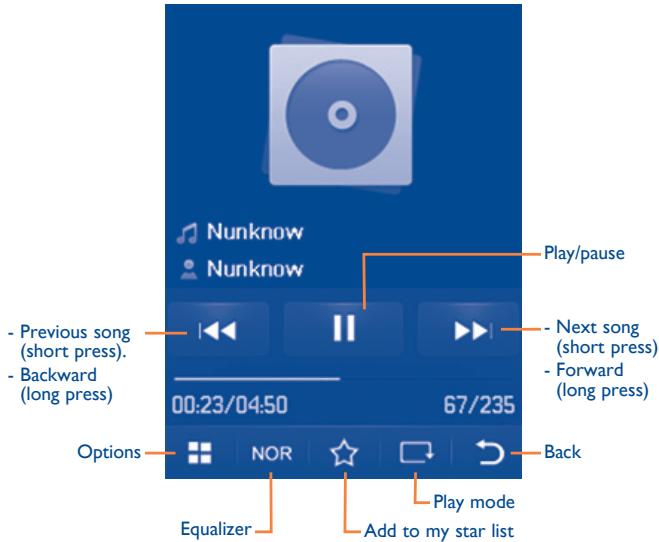
text_image
Nunknow Nunknow Play/pause - Previous song (short press). - Backward (long press) 00:23/04:50 67/235 Options NOR Back Equalizer Play mode Add to my star listTo adjust the volume, use the Volume key.
10.1.2 Settings
Access by pressing the right navigation key for following options:
| Play mode | Normal, Repeat current, Repeat all, Shuffle and Repeat shuffle. You may also customise it simply by taping ☐ on the screen. |
| Equalizer | Different music styles preset in the phone for your selection. You may also customise it simply by tapping NOR on the screen. |
| Play in Bluetooth/Play in Phone & Bluetooth | Play music in Bluetooth or both in phone & Bluetooth. |
| Display | Enable your player to display song information. or lyric. |
| Broadcast | You may share music with others when you tune in the same frequency. |
10.1.3 Playing with lyrics
Lyrics can be displayed in synchronization with the music.
10.2 Image ......

A library links to the images in “My creations” in phone to be shown in list, slide, or thumbnail, set as Wallpaper, Screen saver, Power on/off display, and Contact ID, or sent by MMS, Email, Bluetooth.
Useful icons:
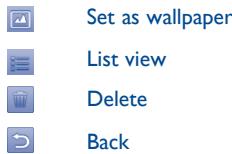
text_image
Set as wallpaper List view Delete BackTap a image once to view it in full screen:
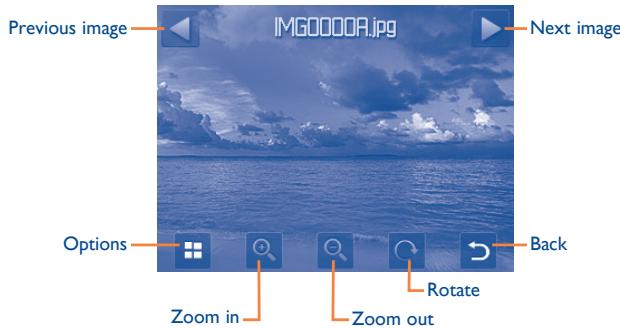
text_image
Previous image IMG0000A.jpg Next image Options Zoom in Zoom out Rotate Back10.3 Video......

"My videos" album contains video clips recorded, received or downloaded. All video clips in this folder can be played, set as contact ID, sent, deleted, renamed, sorted.
Useful icons/keys:

Switch between Normal screen and Full screen display.

Set as play/pause

Set the volume level

Previous/next video

Back to previous menu.
10.4 Radio ....

Your phone is equipped with a radio ^(1) with RDS functionality. You can use the application as a traditional radio with saved channels or with parallel visual information related to the radio program on the display if you tune to stations that offer Visual Radio service. You can listen to it while running other applications.
(1) The quality of the radio depends on the coverage of the radio station in that particular area.

To use it, you must plug in your headset, which works as an antenna connected with your phone.
Available options:
| Turn off | Stop playing the radio. |
| Channel list | Open the list of saved stations. |
| Auto search | Start auto search and stations will be automatically saved to “Channel list”. |
| Enter the frequency | Enter the frequency manually. |
| Save channel | Save the current tuned station to the “Channel list”. |
| Radio recording | Record the radio: files will be automatically saved to “Notes”. |
| Settings | Scroll up and down to manage settings. |
| Activate loudspeaker/Play in headset | Listen to the radio using loudspeaker or headset. |
11.1 My friends

It migrates self-contained sub-trees of the websites to let you stay in touch with your friends by flicking through Bebo, Friendster, Hi5, Myspace, etc.
11.2 Opera

Not only does Opera Mini give you the full Web experience where you stay in touch with your friends, obtain information, do your online banking etc., but it is also designed to save time by using compressed web pages.
11.3 Wap

11.3.1 Homepage
Launch the Wap browser with the preset homepage.
11.3.2 Bookmarks
Access your favourite sites.
(1) Depending on your network operator. May cause additional network charges for data flow to provide this service. Extra fees might also be charged in roaming states.
11.3.3 Go to URL
Enter the URL of Wap site.
11.3.4 Recent pages
Pages which you recently browsed.
11.3.5 Offline pages
Pages available for offline viewing.
11.3.6 Service inbox
Store WAP push messages.
11.3.7 Settings
Customise your browser preferences.
11.4 News

It is a huge time saver providing news updates from a website in a simple form.
Once subscribed to a channel, it gives you the ability to track and manage all your favourite RSS content on your mobile phone at anytime, anywhere!
Available options:
| View | Message title or message summary of a channel with URL will be shown. |
| Update | Refresh the content of a channel. |
| Create channel | Create a new channel with name and URL. |
| Delete | Delete the channel. |
| Edit | Edit the name or URL of a channel. |
| Update all | Refresh all channels. |
| Settings | Select a regular interval to retrieve updates automatically, set to show images or not, as well as a WAP account to connect to. |
| Enable/Disable all auto-update | Activate auto-update or not to all channels. |
11.5 Weather

Your phone is equipped with a weather function for consulting up to 3-day forecasts of favourite cities.
To access the function from the main screen, press from tool bar to access the main menu and select 🤒.
Tap ◀/scroll left or right to switch the cities.

Tap “AccuWeather.com” to access online website, which may charge extra fee.
Available options:
| More information | Search more weather information online. |
| Forecast | Display 3-day weather forecast. |
| Update | Refresh weather information. |
| My cities | List all my cities, you can add new city, set my favourite city, delete the selected city, etc. via “My cities\Options”. |
| Settings | Set unit, update mode and network. |
11.6 Facebook

Facebook is a social utility that connects people with friends and others who work, study and live around them. It provides a number of features with which users may interact: Wall, a space on every user's profile page that allows friends to post messages for the user to see; Pokes, which allow users to send a virtual "poke" to each other; Gifts, a feature allowing users to send virtual gifts which appear on the recipient's profile; Market places, which lets users post free classified goods, etc.
To open an account online, please go to: http://www.facebook.com/.
11.7 mTweet

Twitter is a social networking and microblogging service that has gained notability and popularity worldwide. This feature enables phone users to exchange news updates and ideas with a community in the form of messages or posts. Posts are displayed on the author's profile page and delivered to the author's subscribers or followers.
To open an account online, please go to: http://twitter.com/.
12 Entertainment......
12.1 Stopwatch

The stopwatch is a simple application for measuring time with the possibility to register several results and suspend/resume measurement.
12.2 Ebook

A bookshelf contains the electronic books (.txt and .pdb file only). While reading the book, you may add bookmarks, or reach the text by searching words, phrases (Options\Find, Options\Jump to).
Available options:
| Open | Open the current ebook |
| Book information | Display the detailed information (title, size and format) about the book. |
| Delete | Delete the current book. |
| Delete all | Delete all the books. |
| Sort | Sort the books by name, type, time or size. |
| Settings | Set the font, scroll mode, display format, storage, etc. |
| Help | List all hotkeys. |
To avoid character corruption, please ensure that the encoding format is correct (Global settings or Settings\Encoding format).
12.3 Java......
12.3.1 Launch an application
Select "Java applications" to launch applications.
12.3.2 Java settings
The “Java” menu allows you to manage Java settings, in which you may set Java audio, vibration, network and identify how much Heap size is available.
12.3.3 Java downloading
You can download new Java™ applications in the “Java” menu by selecting “Download application”. The list of available Web bookmarks dedicated to the application download will then be displayed.
Select the appropriate bookmark to go to the desired Web page.

Each downloaded Java game can be assigned as a main menu for quick access.
12.3.4 Trusted certificates
View detailed information of the trusted certificates supported by your phone.
Disclaimer
Downloading or running applications will not damage or alter any software already in your mobile telephone designed to support Java™ technology. TCT Mobile Limited and its affiliates waive any responsibility and refuse to guarantee applications that are subsequently used, as well as for all applications not embedded in the handset upon purchase. The purchaser alone bears the risk of loss, damage or defect of the handset, or of applications/software, and generally of any damage or consequence resulting from the use of the said applications/software. In the event that the said applications/software, or the subsequent setup of any function are lost due to technical reasons resulting from the handset being replaced/ repaired, the mobile phone owner should repeat the operation and download or set up again. TCT Mobile Limited and its affiliates grant no guarantee and disclaim any responsibility if the operation cannot be repeated or cannot be performed without incurring some cost.
13 Camera......

Your mobile phone is fitted with a camera for taking photos and shooting videos that you can use in different ways:
- store them in your "File manager\My creations".
- send them in a multimedia message (MMS) to a mobile phone or an email address.
- send them directly by Email or Bluetooth.
- customise your main screen (see page 75).
- select them as incoming call image to a contact in your directory.
- transfer them by data cable or microSD card to your computer.
13.1 Access
To access the function from the main screen, press from tool bar to access the main menu and select the icon.
13.2 Camera
13.2.1 Take a photo, save or delete
The screen acts as the viewfinder. Position the object or landscape in the viewfinder and press 📷 or tap anywhere on screen other than left and bottom bar to take the image and the images will be automatically saved. If you don't want it, you may directly delete it by tapping 📤.
13.2.2 Settings in framing mode
Before taking the photo, you can adjust a number of settings by using the following shortcuts:
From the photo shot screen, press ⊕ to access: "Image size", "Capture mode", "Quality", "Timer", "Night mode", "Exposure Value", "Color mode", "Storage".
Press 📷 to access My creations to view the photos you have taken.

Image size

Capture mode

Quality

Timer

Night mode

Exposure Value

Color mode

My creations

Storage
13.2.3 Options available after taking the photo
Once you have taken a photo, five icons appear on the photo so you can choose to send your photo by Bluetooth, MMS and Email, assign it to a contact, or set it as wallpaper.
13.3 Video
You can record a video clip of unlimited length, as long as the battery sustains and there is sufficient memory.

We strongly advise you to change the default folder to "Memory card" to store your photos and videos.
13.3.1 Framing mode
When you enter the "Video" function, you are in Framing mode. Use the mobile screen as a viewfinder and press for the Capture mode, Exposure Value, Night mode, Quality, Record audio, Color mode, and Storage settings, and to access "File manager/My videos".
13.3.2 Recording mode
Once you have chosen your settings, you can launch the recording of your video-clip by pressing the 📄 or by tapping anywhere on the screen other than the left and bottom bar.

If you receive a call in recording mode, video recording will be stopped and a pop up message will inquire if you want to save it.
13.3.3 Further operations after shooting a video
After shooting a video, three icons will appear on the screen so you can choose to send your video by Email, MMS, or Bluetooth.
In the list of "My videos", press "Options" to play the video, set as contact ID, Rename, etc.
14 Profiles......

With this menu, you may personalise ringtones for different events and environments.
14.1 General
To modify the sound settings within any profile, press “Options” and select “Edit” and you will see the functions below by scrolling up/down or using Volume key:
Ringtone
Select a melody from the list by scrolling up and down or using the Volume key then confirm by pressing “Options\Select” (see page 46).
Mode
You may set your phone ringtone to Normal, Discreet (ring with beep), Vibration (all sounds are replaced by vibrations except for alarms), Vibration and Melody, Vibration then Melody, Beep and Vibration, Silence (no sounds except for alarms, the 📞 icon will be displayed).
Volume
Adjust the volume using the Volume key.
Key beep
Select the type of key beep.
Message beep
Select a melody for a new incoming message.
Power on beep
Select a Power on melody for your phone.
Power off beep
Select a Power off melody for your phone.
14.2 Meeting
When this is selected the phone will not ring or beep unless an alarm has been set. A new event will cause it to vibrate.
14.3 Outdoor
It is a profile designed for outdoor users who require louder ringtones.
14.4 Indoor
Ringtone/beep volume will be slightly lower than General mode volume.
14.5 Silence
This profile will turn off all ringtones, including notification sounds.
14.6 Flight mode
Voice calls, Bluetooth and messaging functions are barred. Can be used to increase standby duration.
15 File manager......

You will have access to all audio and visual files stored in phone or memory card in File manager.
Two icons behind will indicate the saving locations of each file:
Saved in phone
Saved in memory card
15.1 My audios
Choose an audio file for an incoming call ringtone, a message alert beep, power on/off ringtone, contact ID tone or an alarm and appointment alert beep.
The “My audios” album contains the following folders ^(1) :
• Music: full track music.
- Melodies: melodies that can be set as ringtone.
• Recorded: all recorded sounds.
- General: contains all audio files stored in phone or memory card.

DRM: Digital Rights Management feature allows sounds and images to be played while protecting the associated copyright. DRM counter-based files and files with expired rights will not be automatically played when scrolling the list.
(1) The embedded folder names cannot be modified. However, in certain cases, you can modify, delete and add items included in these folders.
15.2 My images
You can select an image or a photo as wallpaper, ON/OFF screen, or assign it to a contact in the directory.

The images will be displayed in alphabetical order.
15.3 My videos
"My videos" album contains video clips recorded, received or downloaded
15.4 Ebook
A bookshelf containing the electronic books (.txt and .pdb files only).
15.5 My creations
This feature stores all the photos captured by your mobile phone.
15.6 Other files
A folder contains all downloaded Java applications.
15.7 Phone
An access point for all files in all folders stored in phone.
15.8 Memory card
You can access all files stored in the memory card here.

When a memory card is inserted for the first time, it will be scanned and default folders will be created.
Inserting the memory card:
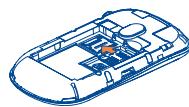
natural_image
Isometric technical line drawing of a vehicle chassis with internal components (no text or symbols)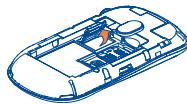
natural_image
Isometric technical line drawing of a car interior with no visible text or symbols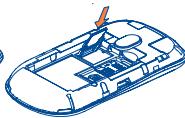
natural_image
Isometric line drawing of a vehicle chassis with a handle and dashboard (no text or symbols)To release the microSD card holder, slide it in the direction of the arrow and lift it. Then insert the microSD card with the golden contact downward. Finally, turn down the microSD holder and slide it in the opposite direction to lock it.
Available options
Open
Open a folder.
Create folder
Create more folders.
Delete folder
Remove folders.
Rename folder
Edit folder's name.
Empty folder
Delete all files in one folder.
Memory card
To format or to query its memory status.
15.9 Managing audios, images, videos and others
According to the item chosen, you can access some of the functions below:
View View the selected image.
Play Play the selected video/audios.
Send ^(1) Send the audio/image/video/Java.
Delete Delete the audio/image/video selected (not applicable for embedded items).
Set as - Image→wallpaper, screen saver, switch ON/OFF, assign it to a contact.
- Sound→ringtone, message beep, switch ON/OFF, assign it to a contact.
Mark/Unmark Mark/Unmark a tick on a file for further operation.
Tap "Mark all" on Mark menu to mark all directly.
Download Download new items.
Rename Rename the audio/image/video.
Sort Sort the files by name, type, time and size.
Move to phone/ memory card Move a file from the phone memory to the memory card and vice-versa
Install Install downloaded Java applications.
Properties Display part of the ID3 Tag content of an MP3 file.
Activate DRM file option.
Copy to phone/memory card Copy a file to the phone memory or the memory card.
15.10 Formats and compatibility ^(1)
• Sounds: mp3, m4a, aac, midi, wav, amr, wma
- Images: jpg, gif
- Videos: 3gp, mp4
15.11 Memory status
Indicates how much space is used and how much is currently free on your phone and memory card (if any).
15.11.1 Phone
View available memory space.
Your phone's memory is shared among several functions: directory, calendar, messages, images, melodies, games and video clips.
15.11.2 Memory card (MicroSD card)
View the memory available on your MicroSD card.
You are advised to save large files (like songs) on your microSD card.
16
Bluetooth™ (I)
●●●●●●●●●●●●

Access this feature by pressing ☐ to enter the main menu, then selecting "Bluetooth".
To use your phone with a Bluetooth device, you need to proceed in two steps:
• Pair and register the device to your phone,
- Select it to use hands-free communication. Only one Bluetooth audio device (your Bluetooth headset or your Bluetooth car kit) can be connected during the communication.
Pair and register your Bluetooth device
Activate the Bluetooth feature by selecting the “Bluetooth\Activation\On” option. Then enter the “Device list” menu to search for connectable Bluetooth devices and select the device you want to be paired with in the list. If the bluetooth device has no keyboard, enter its default password to register it with your phone. If the Bluetooth device has keyboard/keypad, enter the same set of password on both handset and the device to get it registered.
From the list, press “Options” to connect/disconnect, rename, search for new devices or delete an unconnected one from the list.

Don't forget to turn on your Bluetooth device and activate the pairing mode while pairing it with your phone.
(1) You are highly recommended to use Alcatel OT-BM82 (mono) Bluetooth headset, which has been tested and proved fully compatible with OT-710.
Available functions
Data transmit Exchange files with another bluetooth device.
Handle a call Initiate or receive a phone call with a Bluetooth headset.
Listen to music Support A2DP profile.
PBAP (Phonebook access profile) Make contacts in Directory & Call log easily accessible and even directly operated on car kit or Bluetooth headset if PBAP supported.
Settings
Visibility
Select whether you want to hide (“Hidden”) or show to all (“Visible to all”) your phone.
My phone's name
You may change your phone name, which is visible to the others.

Always activate Bluetooth in your phone first before connecting it to a Bluetooth device. Be aware that Bluetooth activation will slightly affect battery life of your phone.
Bluetooth technology allows free wireless connections between all Bluetooth-compliant devices within short range. Please make sure that the Bluetooth headset or the Bluetooth car kit and your mobile phone are in this range and set as “Visible to all”.
Your phone is Bluetooth ^TM v1.1, v1.2 and v2.0 compatible.
17 Others......
17.1 Calendar
15
To access this function, tap ☐ to enter the main menu and select 15 , there is a monthly-view calendar for you to keep track of important meetings, appointments, etc. Days with events entered will be marked in color.
Available options:
| Today’s appointments | See today’s appointments. |
| All appointments | See all the created appointments. |
| Jump to date | Input the required date and it will be immediately highlighted. |
| Create | Create an appointment. |
| Synchronization | Synchronize with the account you’ve set. |
17.2 Calculator

Access this feature by selecting "Calculator" from the main menu.
Enter a number, select the type of operation to be performed, and enter the second number, then press “=” to display the result.
Once an operation is complete, you can select “AC” to clear numbers and carry out a new operation.
To return to the main screen, press ⏻.
17.3 Notes

You can create a note in text or voice format by accessing "Notes" from the main menu.
Available options:
| Open | Open and view note. |
| Send | Send by SMS, MMS, Email or Bluetooth. |
New text note/voice Add new text note or voice memo. memo
| Delete | Delete note. |
| Delete all | Delete all notes. |
While recording a voice memo, you can define the audio format (AMR, WAV or AWB), Quality (High/Low), and Storage (Phone, memory card).
17.4 Tasks

Enables you to easily manage and track the progress of a task with priorities. All the tasks will be sorted by due date.
Available options:
| View | View current task |
| Create | Add new task |
| Delete | Delete the current task |
| Mark as done/Mark as not done | Change task's status |
17.5 Clock

17.5.1 Alarm
Your mobile phone has a built-in alarm clock with a snooze feature. You can set up to five separate alarms and choose whether or not the alarm should repeat.
Repeat
You may select Once (default)/Every day/Days or customize to your desire.
Snooze
The alarm will repeat at regular intervals.
Mode
You may select the mode of Ringtone: Ring, Vibration only, FM Radio (1) or Vibration and Ring.
17.5.2 World clock
The World clock shows current local time and the time zone in different cities. You may view up to 3 cities at one time (Options\Set as my city).
17.5.3 Clock
Allows you to have settings of date and time, including 12/24h format.
You can also set the daylight saving adjustment.
(1) In Radio mode, you are required to plug in headset first. Your phone will power on automatically before Radio is on.
17.6 Converter

17.6.1 Unit converter
You can use the Weight and Length conversion by selecting the unit you wish to convert via ◀▶, then tap to input the digits. Finally go back to the unit converter screen with results.
17.6.2 Currency converter
The currency converter allows you to:
- Convert a currency directly into euros and vice versa (1).
- Convert between international currencies, both currencies must be selected by tapping ◀. You are requested to input the appropriate exchange rate.
(1) For the former European national currencies, the currency converter uses the final Euro conversion rates set on 31/12/1998, which are used in accordance with official conversion rules.
18 Settings......

From the main menu, select the menu icon 🔒 and select the function of your choice in order to customise your telephone.
18.1 Phone settings
18.1.1 Display
Wallpaper
The wallpaper is displayed when you switch on your telephone.
By selecting “Wallpaper” you can customise it by replacing the default image or animation displayed on your telephone.
Screen saver
If you activate this option, the screen saver will be displayed a little while after the wallpaper. You can choose a image or an animation as your screen saver.
Theme
This function enables you to customise the graphic style and the colours of your telephone.
Power On/Off ^(1)
You can customise your welcome animation or image that appears when you switch on your phone.
You can also customise your OFF screen with an image or animation.
(I) Depending on the model.
Brightness
You may adjust black level with respect to LCD display by pressing the key.
Backlight
- Screen
Allows you to reduce brightness for enhanced battery performance and to save power during periods of expected inactivity. - Keypad
You may customise your keypad light by selecting On/Off or inputting your preferred duration directly.
18.1.2 Languages (1)
Display language for messages (select using ◆). The “Automatic” option selects the language according to the home network (if available).
18.1.3 Headset mode
Switch audio play (incoming call, message beep, alarm beep...) between Headset only and Phone & Headset.
(1) Contact your network operator to check service availability.
18.1.4 Touch settings
LCD Touch
To calibrate the touch screen, tap anywhere on the screen to start calibration.
Calibration
Touch Vibration
When “On”, the phone vibrates when the screen is touched.
18.1.5 Numeric keys
By customising your keys, you can access any function directly from the main screen.
18.1.6 Auto lock
Your keypad will be locked automatically or you may lock it manually with a short press of the ➕ key from the main screen.
Unlock the keypad
To unlock the keypad, you may drag left or right on the lock screen.

The keypad will be unlocked automatically on receiving a call or plugging in the charger.
18.1.7 Screen lock during call
Select "On"/"Off" to activate/deactivate screen lock during call.
18.1.8 Input mode (1)
Please see chapter “Latin input mode”, page 81. In addition to the specific characters table for Cyrillic, Chinese, other data input modes are also available in your telephone. This feature allows you to write short messages and add names with special characters to your directory.
18.2 Call settings
See page 42.
18.3 Security
Activate PIN
The SIM card protection code is requested each time the phone is powered on if this code is activated.
Change PIN
Change PIN code.
Change PIN2
A protection code for certain SIM card features (Billing/Cost/FDN, etc.) will be requested if you attempt to access it, if the code is activated. Select to update it with a new one (between 4 and 8 digits).
Activate phone code
Code is requested each time the phone is powered on.
Change phone code
Change phone password, its initial one is 1234.
Fixed dialed number
Allows the phone to be “locked” so that it can only dial certain numbers, or numbers with certain prefixes. To activate this function, PIN2 code is mandatory.
18.4 Network
Network selection
Preferred network List of networks to which you wish to be connected in order of priority.
Select network The choice of network connection is left up to the user.
Search mode Network connection can be switched between "Manual" and "Automatic".
GPRS connection ^(1)
When needed GPRS mode active depending on connection requirements.
Always GPRS mode continuously active.
GPRS international roaming GPRS data services can be used while roaming overseas.
18.5 Connectivity
A set of profile settings for messaging (MMS, Email...) and Web connection.
19 Making the most of your mobile......
19.1 PC suite
You can download software upgrade for free from the website. The PC suite includes:
- Backup/restore
You can backup the important data in your mobile and restore them when needed.
• GPRS Modem
Use your mobile phone to connect PC to the internet.
• Multimedia Personalization
Customize your mobile with images, animations and melodies.
- Messaging
You can compose SMS/MMS easily on your PC and transfer them to your phone.
Supported Operating Systems
Windows 2000/XP/Vista/Windows 7.
19.2 Webcam (I)
You can use your phone as a webcam for instant messaging on your PC.
- Connect your phone to PC via USB cable.
- Go to “My computer” folder on your PC and find USB video device (Under Scanners & Cameras).
20
Latin input mode/
character table
● ● ● ● ● ● ● ● ● ● ● ● ● ● ● ● ●
There are two text entry methods that can be used to write messages
- Normal
• Predictive with the eZi mode
Normal
This mode allows you to type text by choosing a letter or a sequence of characters.
Predictive eZi mode
This mode speeds up the writing of your text.
Press the key once and the word will be modified each time you press a key. As you go on, the word will keep changing.
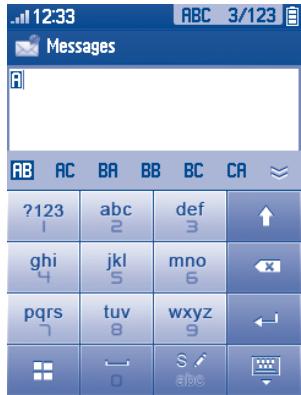
Touch inputting
text_image
12:33 ABC 3/123 Messages ?123 abc def ↑ 1 2 3 ghi jkl mno x 4 5 6 pqrs tuv wxyz ← 7 8 9 ← 0 abc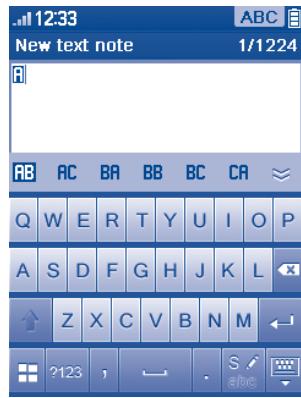
text_image
12:33 New text note 1/1224 AB AC BA BB BC CA Q W E R T Y U I O P A S D F G H J K L Z X C V B N M ?123 , - . S / abcSwitch by dragging the keypad from right to left
text_image
?123 S / abc ↑ ← x ← ↓Access the Symbol and number table
Switch mode of input method
Switch between ABC/abc/Abc
- Tap to delete one by one
- Long touch to delete all
Confirm an option
Switch to a new line (in SMS/ Email/IM)
Close input keypad
Symbol & Number table
Tap the ^7123 key to display the symbols & number table; Tap ^60 to access emoticon list ^(1) .
| 1 | 2 | 3 | , | . | abc |
| 4 | 5 | 6 | ? | ! | x |
| 7 | 8 | 9 | - | ‘ | #&... |
| @ | 0 | / | : | ; |
21 Telephone warranty......
Your phone is warranted against any defect which may occur in conditions of normal use during the warranty period of twelve (12) months ^(1) from the date of purchase as shown on your original invoice.
Batteries ^(2) and accessories sold with your phone are also warranted against any defect which may occur during the first six (6) months ^(1) from the date of purchase as shown on your original invoice.
In case of any defect of your phone which prevents you from normal use thereof, you must immediately inform your vendor and present your phone with your proof of purchase.
If the defect is confirmed, your phone or part thereof will be either replaced or repaired, as appropriate. Repaired Phone and accessories are entitled to a one (1) month warranty for the same defect. Repair or replacement may be carried out using reconditioned components offering equivalent functionality.
This warranty covers the cost of parts and labor but excludes any other costs.
This warranty shall not apply to defects to your phone and/or accessory due to (without any limitation):
I) Non-compliance with the instructions for use or installation, or with technical and safety standards applicable in the geographical area where your phone is used,
2) Connection to any equipment not supplied or not recommended by TCT Mobile Limited,
3) Modification or repair performed by individuals not authorised by TCT Mobile Limited or its affiliates or your vendor,
4) Inclement weather, lightning, fire, humidity, infiltration of liquids or foods, chemical products, download of files, crash, high voltage, corrosion, oxidation...
Your phone will not be repaired in case labels or serial numbers (IMEI) have been removed or altered.
There are no express warranties, whether written, oral or implied, other than this printed limited warranty or the mandatory warranty provided by your jurisdiction.
In no event shall TCT Mobile Limited or any of its affiliates be liable for incidental or consequential damages of any nature whatsoever, including but not limited commercial loss, to the full extent those damages can be disclaimed by law.
Some countries/states do not allow the exclusion or limitation of incidental or consequential damages, or limitation of the duration of implied warranties, so the preceding limitations or exclusions may not apply to you.
22 Accessories (1)......
The latest generation of Alcatel GSM mobile phones offers a built-in handsfree feature that allows you to use the telephone from a distance, placed on a table for example. For those who prefer to keep their conversations confidential, an earpiece is also available known as the headset.
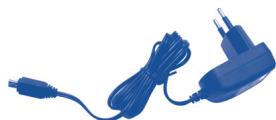
natural_image
Blue plastic electrical plug with coiled cable and terminal connector (no text or symbols visible)Standard charger
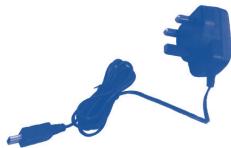
natural_image
Blue handheld electrical plug with cable and plug (no text or symbols visible)UK charger

Battery

natural_image
Blue cable with two USB connectors tied at the end (no text or symbols visible)USB cable
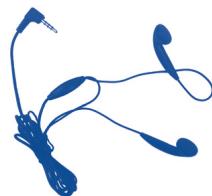
natural_image
Blue line drawing of earplugs and earphones (no text or symbols)Stereo headset

Only use your telephone with Alcatel batteries, chargers and accessories in your box.
(1) Images for reference only.
23 Troubleshooting......
Before contacting the aftersales department, you are advised to follow the instructions below:
- You are advised to switch off the telephone from time to time to optimise its performance.
- You are advised to fully charge (目) the battery for optimal operation.
- Avoid storing large amounts of data in your telephone as this may affect the performance of your telephone.
and carry out the following checks:
My mobile phone will not switch on
- Press — until the screen comes on
- Check the battery charge level
- Check the battery contacts, remove and reinstall your battery, then turn your telephone back on
My phone has not responded for several minutes
- Press the -① key
- Remove the battery and re-insert it, then switch the phone back on
My screen is difficult to read
- Clean your screen
- Use your mobile phone in accordance with the recommended conditions of use
My mobile phone turns off by itself
- Check that your keypad is locked when you are not using your mobile phone
- Check the battery charge level
My mobile phone will not charge properly
- Make sure that your battery is not completely discharged; the battery charge indicator can take several minutes and may be accompanied by a quiet whistling sound
• Make sure charging is carried out under normal conditions (0°C +40°C) - Make sure your battery is inserted. It must be inserted before plugging in the charger
• Make sure you are using an Alcatel battery and charger in the box
- When abroad, check that the electrical current is compatible
My mobile phone will not connect to a network
- Try connecting in another location
- Verify the network coverage with your operator
- Check with your operator that your SIM card is valid
- Try selecting the available network(s) manually (see page 79)
- Try connecting at a later time if the network is overloaded
SIM card error
• Make sure the SIM card has been correctly inserted (see page 13)
- Verify with your operator that your SIM card is 3V or 1.8V compatible; the old 5V SIM cards cannot be used
• Make sure the chip on your SIM card is not damaged or scratched
Unable to make outgoing calls
• Make sure you have dialled a valid number and press the - key
- For international calls, check the country and area codes
- Make sure your mobile phone is connected to a network, and that the network is not overloaded or unavailable
- Check your subscription status with your operator (credit, SIM card valid, etc.)
• Make sure you have not barred outgoing calls (see page 43)
Unable to receive incoming calls
- Make sure your mobile phone is switched on and connected to a network (check for overloaded or unavailable network)
- Check your subscription status with your operator (credit, SIM card valid, etc.)
• Make sure you have not forwarded incoming calls (see page 43)
• Make sure that you have not barred certain calls
The caller's name does not appear when a call is received
- Check that you have subscribed to this service with your operator
- Your caller has concealed his/her number
The sound quality of the calls is not optimal
- You can adjust the volume during a call by means of the Volume key
- Check the network strength
I am unable to use the features described in the manual
- Check with your operator to make sure that your subscription includes this service
• Make sure this feature does not require an Alcatel accessory
When I select a number from my directory, the number is not dialled
• Make sure that you have correctly recorded the number in your file
- Make sure that you have selected the country prefix when calling a foreign country
I am unable to add a contact in my directory
- Make sure that your SIM card directory is not full; delete some contacts or save the contacts in the phone directory (i.e. your professional or personal directories)
My callers are unable to leave messages on my voicemail
- Contact your network operator to check service availability
I cannot access my voicemail
- Make sure your operator's voicemail number is correctly entered in “My numbers”
• Try later if the network is busy
I am unable to send and receive MMS
- Check your phone memory available as it might be full
- Contact your network operator to check service availability and check MMS parameters (see page 32)
- Verify the server centre number or your MMS profile with your operator
- The server centre may be swamped; try again later
The flickering ✉ icon is displayed on my standby screen
- You have saved too many short messages on your SIM card; delete some of them or archive them in the phone memory
“No service” is displayed
- You are outside of the network coverage area
I have already entered 3 incorrect PIN codes
- Contact your network operator to obtain the PUK code (Personal Unblocking Key)
I am unable to connect my telephone to my computer
• Install first of all Alcatel's PC suite
- Use “Install the connection” and perform the installation
- Check that your computer meets the requirements for Alcatel's PC Suite installation
I am unable to download new files
- Check for free space
- Delete some files
- Select the MicroSD Card to store the files you downloaded
- Check your subscription status with your operator
The phone can't be detected by others via Bluetooth
- Make sure that Bluetooth is turned on and your mobile phone is visible to other users (see page 69)
My mobile phone is frozen, can't power on
• Make sure your battery is not completely used up or damaged
- Remove your battery, remove your SIM card then reinstall them to power on again, if still does not work
- Hold down Volume key (up) and press Power on/off key for a while to reset the phone

ALL User phone data: contacts, photos, messages and files, downloaded applications like Java games will be lost permanently.
How to make your battery last longer
• Make sure you followed the complete charge time (minimum 3 hours)
• After a partial charge, the battery level indicator may not be exact. Wait for at least 20 minutes after removing the charger to obtain an exact indication
- Switch on the backlight upon request.
- Extend email auto-check interval as long as possible.
- Update news, weather information. upon demand manually or set its auto-check interval longer.
- Exit Java background-running applications if they are not being used for a long time.
- Deactivate Bluetooth when not in use.
ALCATEL is a trademark of Alcatel-Lucent and is used under license by TCT Mobile Limited.
All rights reserved © Copyright 2010 TCT Mobile Limited.
TCT Mobile Limited reserves the right to alter material or technical specification without prior notice.