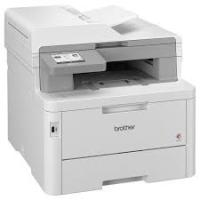
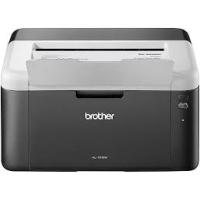
HL-L1210W - Imprimante laser BROTHER - Notice d'utilisation et mode d'emploi gratuit
Retrouvez gratuitement la notice de l'appareil HL-L1210W BROTHER au format PDF.


| Type de produit | Imprimante laser monochrome |
| Résolution d'impression | 2400 x 600 dpi |
| Vitesse d'impression | Jusqu'à 20 pages par minute |
| Connectivité | Wi-Fi, USB 2.0 |
| Capacité du bac à papier | 150 feuilles |
| Dimensions approximatives | 340 x 238 x 189 mm |
| Poids | 7.2 kg |
| Compatibilités | Windows, macOS, Linux |
| Consommation électrique | En fonctionnement : 380 W, En veille : 30 W |
| Niveau sonore | 48 dB (en fonctionnement) |
| Entretien et nettoyage | Nettoyage régulier du tambour et du rouleau de transfert recommandé |
| Pièces détachées et réparabilité | Tambour, toner, rouleau de transfert disponibles en pièces détachées |
| Garantie | 1 an |
| Caractéristiques de sécurité | Protection contre les surcharges, certification CE |
| Fonctions principales | Impression monochrome, impression sans fil |
FOIRE AUX QUESTIONS - HL-L1210W BROTHER
Questions des utilisateurs sur HL-L1210W BROTHER
0 question sur cet appareil. Repondez a celles que vous connaissez ou posez la votre.
Poser une nouvelle question sur cet appareil
Téléchargez la notice de votre Imprimante laser au format PDF gratuitement ! Retrouvez votre notice HL-L1210W - BROTHER et reprennez votre appareil électronique en main. Sur cette page sont publiés tous les documents nécessaires à l'utilisation de votre appareil HL-L1210W de la marque BROTHER.
MODE D'EMPLOI HL-L1210W BROTHER
User's Guide
Brother Laser Printer
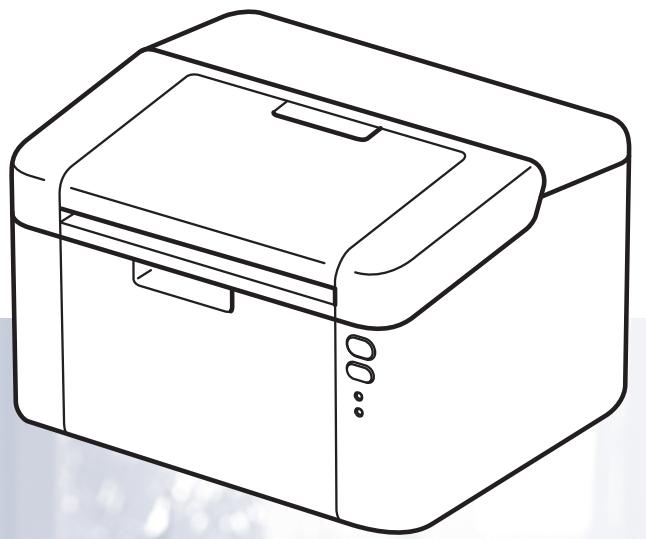
HL-1200
HL-1201
HL-1210W
HL-1211W
For visually-impaired users
You can read this manual with Screen Reader 'text-to-speech' software.
You must set up the hardware and install the driver before you can use the machine.
Please use the Quick Setup Guide to set up the machine. You can find a printed copy in the box.
Please read this User's Guide thoroughly before you use the machine.
Please visit us at http://support.brother.com where you can get product support, the latest driver updates and utilities, and answers to frequently asked questions (FAQs) and technical questions.
Note: Not all models are available in all countries.
Brother numbers
IMPORTANT
For technical and operational help, you must call the country where you bought the machine.
Register your product
Please complete the Brother Warranty Registration or, for your convenience and most efficient way to register your new product, register on-line at
http://www.brother.com/registration
Frequently asked questions (FAQs)
The Brother Solutions Center is our one-stop resource for all your machine needs. You can download the latest drivers, software and utilities, read FAQs and troubleshooting tips to learn how to get the most from your Brother product.
http://support.brother.com
You can check here for Brother driver updates.
Customer Service
Visit http://www.brother.com for contact information on your local Brother office.
Internet Addresses
Brother Global website: http://www.brother.com
For Frequently Asked Questions (FAQs), Product Support and Technical Questions, and Driver Updates and Utilities: http://support.brother.com
User's Guides and where to find them?
| Which manual? | What's in it? | Where is it? | |
| Windows users | Macintosh users | ||
| Product Safety Guide | Read this Guide first. Please read the Safety Instructions before you set up your machine. See this Guide for trademarks and legal limitations. | http://support.brother.com | |
| Quick Setup Guide | Follow the instructions for setting up your machine and installing the drivers and software for the operating system and connection type you are using. | http://support.brother.com | |
| User's Guide | Learn the print operations, how to replace consumables, and performing routine maintenance. See troubleshooting tips. | http://support.brother.com | http://support.brother.com |
| Network User's Guide (HL-1210W and HL-1211W) | This Guide provides useful information about wireless network settings and security settings using the Brother machine. You can also find supported protocol information for your machine and detailed troubleshooting tips. | http://support.brother.com | http://support.brother.com |
| Mobile Print/Scan Guide for Brother iPrint&Scan (HL-1210W and HL-1211W) | This Guide provides useful information about printing from your mobile device and scanning from your Brother machine to your mobile device when connected on a Wi-Fi® network. | http://support.brother.com | |
Using the documentation
Thank you for buying a Brother machine! Reading the documentation will help you make the most of your machine.
Symbols and conventions used in the documentation
The following symbols and conventions are used throughout the documentation.

WARNING
WARNING indicates a potentially hazardous situation which, if not avoided, could result in death or serious injuries.
IMPORTANT
IMPORTANT indicates a potentially hazardous situation which, if not avoided, may result in damage to property or loss of product functionality.
NOTE
NOTE specifies the operating environment, conditions for installation, or special conditions of use.

Prohibition icons indicate actions that must not be performed.

Electrical Hazard icons alert you to possible electrical shock.

Fire Hazard icons alert you to the possibility of fire.

Hot Surface icons warn you not to touch machine parts that are hot.
Bold
Italics
Bold style identifies keys on the machine control panel or computer screen.
Italicized style emphasizes an important point or refers you to a related topic.
Accessing Brother Utilities (Windows®)
Brother Utilities is an application launcher that offers convenient access to all Brother applications installed on your device.
1 (Windows® XP, Windows Vista®, Windows® 7, Windows Server® 2003, Windows Server® 2008 and Windows Server® 2008 R2)
Click (Start) > All Programs > Brother > Brother Utilities.
(Windows® 8 and Windows Server® 2012)
Tap or double-click (Brother Utilities) either on the Start screen or the desktop.
(Windows® 8.1 and Windows Server® 2012 R2)
Move your mouse to the lower left corner of the Start screen and click (if you are using a touchbased device, swipe up from the bottom of the Start screen to display the Apps screen). When the
Apps screen appears, tap or click (Brother Utilities).
2 Select your machine.
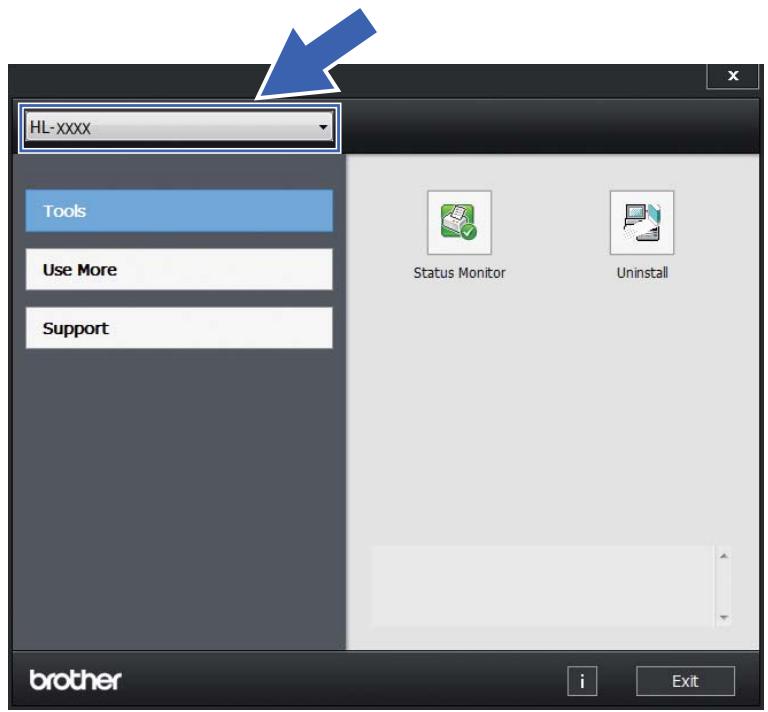
Choose the operation you want to use.
Table of Contents
1 Printing Methods 1
About this Machine 1
Machine overview. 1
Acceptable paper 2
Paper capacity of the paper tray. 2
2-sided printing 3
Guidelines for printing on both sides of the paper 3
Manual 2-sided printing 4
2 Driver and Software 5
Printer driver 5
Printing a document. 6
Printer driver settings 7
Windows 8
Accessing the printer driver settings. 8
Features in the Windows® printer driver 8
Basic tab. 9
Advanced tab. 15
Print Profiles tab 21
Device Settings tab. 23
Support 24
Uninstalling the printer driver 25
Status Monitor 26
Macintosh 28
Features in the printer driver (Macintosh) 28
Choosing page setup options 28
Removing the printer driver 35
Status Monitor 35
Software 37
Remote Printer Console (Windows® HL-1200 and HL-1201 only) 37
Software for networks (HL-1210W and HL-1211W only) 37
3 General Information 38
Control panel 38
LEDs (Light Emitting Diodes) 38
Service call indications 43
Power On/Off key 44
Print a Printer Settings page 45
Using the Power On/Off key 45
Using the printer driver 45
Ecology features 46
Toner Save 46
Sleep Time 46
Deep Sleep mode 46
Auto Power Off 47
A Troubleshooting and other information 48
Consumable items 48
Toner Setting 50
Identifying your problem 51
Error messages in the Status Monitor 52
Improving the print quality 53
Paper jams. 57
If you are having difficulty with your machine 61
Cleaning and Checking the machine 63
Machine Information 64
Default settings 64
B Specifications 66
General 66
Print media. 69
Important information for choosing your paper. 70
Printer 71
Network (LAN) (HL-1210W and HL-1211W only). 72
C Index 73
1 Printing Methods
About this Machine
Machine overview
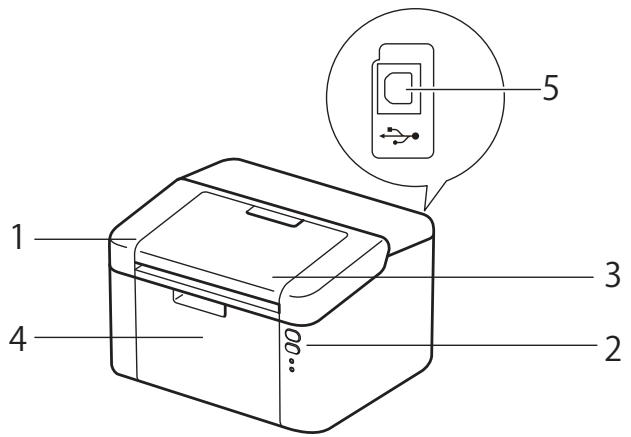
1 Top cover
2 Control panel
3 Face-down output tray support flap (support flap)
4 Paper tray
5 USB port
NOTE
For details about how the LEDs show the machine's status, see LEDs (Light Emitting Diodes) on page 38.
For the Power On/Off key functions, see Power On/Off key on page 44.
Acceptable paper
Print quality may vary according to the type of paper you are using.
For best results, follow the instructions below:
- DO NOT put different types of paper in the paper tray at the same time because it may cause paper jams or misfeeds.
■ For correct printing, you must choose the same paper size from your software application as the paper in the tray. - Avoid touching the printed surface of the paper immediately after printing.
Before you buy a lot of paper, test a small quantity to make sure that the paper is suitable.
Paper capacity of the paper tray
| Paper size | Paper types | No. of sheets | Paper weight |
| A4, Letter, Legal, Folio 1, A5, A5(Long Edge), B5, Executive | Plain paper and Recycled paper | Up to 150 sheets (80 g/m2) | 65 - 105 g/m2 |
1 Folio size is 215.9 mm x 330.2 mm.
2-sided printing
The supplied printer drivers all enable 2-sided printing. For more information about how to choose the settings, see 2-sided / Booklet on page 12 for Windows® and 2-sided Printing on page 34 for Macintosh.
Guidelines for printing on both sides of the paper
If the paper is thin, it may wrinkle.
If paper is curled, straighten it and put it back in the paper tray. If the paper continues to curl, replace the paper.
If the paper is not feeding correctly, it may be curled. Remove the paper and straighten it. If the paper continues to curl, replace the paper.
■ When you use the manual 2-sided function, it is possible that there may be paper jams or poor print quality. (If there is a paper jam, see Paper jams on page 57. If you have a print quality problem, see Improving the print quality on page 53.)
Manual 2-sided printing
If you are using the Macintosh Printer Driver, see Manual 2-sided Printing on page 34.
Manual 2-sided printing with the Windows® printer driver
Choose the following settings from each drop-down list of the printer driver.
Paper Size
You can use all the paper sizes specified for the tray you are using.
Media Type
You can use all the media types that are specified for the tray you are using.
2-sided / Booklet
Choose 2-sided (Manual).
2-sided Type in 2-sided Settings
There are four options for each orientation. (See 2-sided / Booklet on page 12.)
■ Binding Offset in 2-sided Settings
You can specify the offset for binding. (See 2-sided/Booklet on page 12.)
For any other settings, see Driver and Software in Chapter 2.
2 Send the print data to the machine. The machine will print all the even-numbered pages on one side of the paper first. Then, the Windows® driver instructs you (with a pop-up message) to reinsert the paper to print the odd-numbered pages.
NOTE
Before reinserting the paper, straighten it well, or you may get a paper jam. Very thin or thick paper is not recommended.
2 Driver and Software
Printer driver
A printer driver is software that translates data from the format used by a computer to the format that a particular printer needs. Typically, this format is page description language (PDL).
The printer drivers for the supported versions of Windows® is on the CD-ROM we have supplied and for Macintosh it is on the Brother Solutions Center website at http://support.brother.com. Install the drivers by following the steps in the Quick Setup Guide. The latest printer drivers for Windows® and Macintosh can be downloaded from the Brother Solutions Center website at:
http://support.brother.com
For Windows®
Windows® printer driver (the most suitable printer driver for this product)
For Macintosh
Macintosh printer driver (the most suitable printer driver for this product)
For Linux® 12
LPR printer driver
CUPS printer driver
1 For more information and to download the printer driver for Linux please visit your model page at http://support.brother.com or use the link on the CD-ROM we have supplied.
2 Depending on Linux distributions, the driver may not be available or it may be released after the initial release of your model.
Printing a document
When the machine receives data from your computer, it begins printing by picking up paper from the paper tray. The paper tray can feed plain paper and recycled paper to the machine. (See Paper capacity of the paper tray on page 2.)
1 From your application, choose the Print command.
If any other printer drivers are installed on your computer, choose Brother HL-XXXX (Where XXXX is your model name.) as your printer driver from the Print or Print Settings menu in your software application, and then click OK or Print to begin printing.
2 Your computer sends the data to the machine. The Ready LED (O) will blink.
3 When the machine finishes printing all the data, the Ready LED (O) finishes blinking.
NOTE
- You can choose the paper size and orientation in your application software.
- If your application software does not support your custom paper size, choose the next largest paper size.
- Then adjust the print area by changing the right and left margins in your application software.
Printer driver settings
You can change the following printer settings when you print from your computer:
■ Print Quality (For HL-1200 and HL-1201) Resolution (For HL-1210W and HL-1211W)
Paper Size
Orientation
Copies
Media Type
■ Print Settings
Multiple Page
2-sided / Booklet
Print Preview
Scaling
Reverse Print
Use Watermark
Header-Footer Print
Toner Save Mode
■ Administrator
Density Adjustment
Improve Print Output
Skip Blank Page
Print Text in Black
Print Archive
Print Profile
Windows®
Accessing the printer driver settings
1 (For Windows® XP and Windows Server® 2003)
Click Start, and then Printers and Faxes.
(For Windows Vista® and Windows Server® 2008)
Click the (Start) button, Control Panel, Hardware and Sound, and then Printers.
(For Windows® 7 and Windows Server® 2008 R2)
Click the (Start) button, and then click Devices and Printers.
(For Windows® 8)
Move your mouse to the lower right corner of your desktop. When the menu bar appears, click Settings, and then click Control Panel. In the Hardware and Sound group, click View devices and printers.
(For Windows Server® 2012 and Windows Server® 2012 R2)
Move your mouse to the lower right corner of your desktop. When the menu bar appears, click Settings, and then click Control Panel. In the Hardware group, click View devices and printers.
Right-click the Brother HL-XXXX icon (where XXXX is your model name) and select Printer properties (Properties), and Brother HL-XXXX if necessary. The printer properties dialog box appears.
3 Choose the General tab and then click Preferences... (Printing Preferences...).
Features in the Windows® printer driver
For more information, see the Help text in the printer driver.
NOTE
- The screens in this section are from Windows® 7. The screens on your PC will vary depending on your operating system.
- To access the printer driver settings, see Accessing the printer driver settings on page 8.
Basic tab
You can also change the Page Layout settings by clicking the illustration on the left side of the Basic tab.
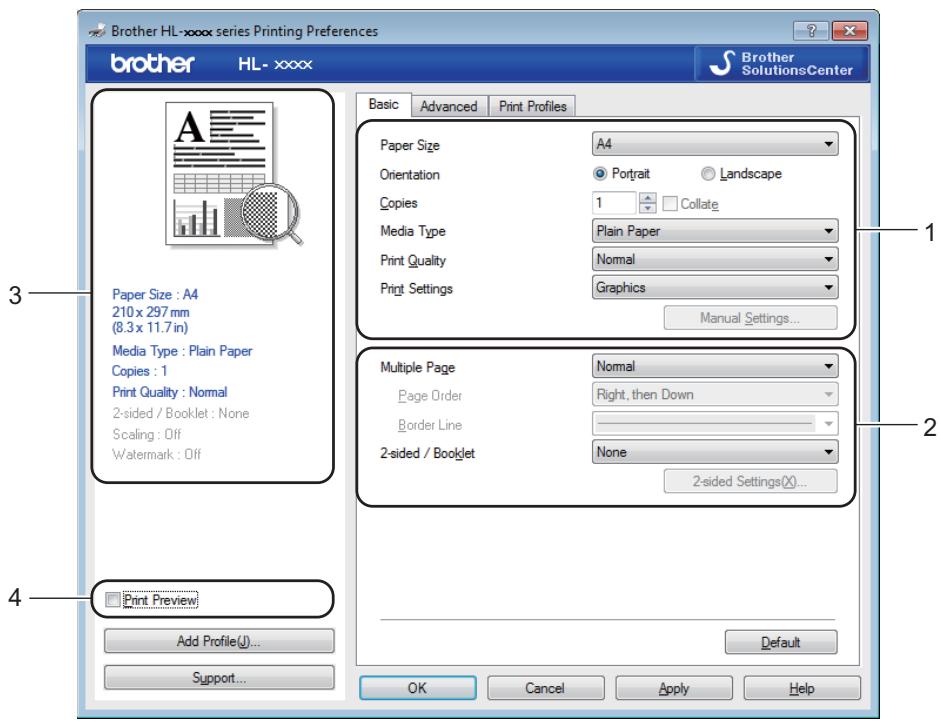
1 Choose the Paper Size, Orientation, Copies, Media Type, Print Quality ^1 or Resolution ^2 and Print Settings (1).
2 Choose Multiple Page and 2-sided / Booklet (2).
3 Confirm your current settings in the window (3).
4 Click OK to apply your chosen settings. To return to the default settings, click Default, then OK.
1 For HL-1200 and HL-1201
2 For HL-1210W and HL-1211W
NOTE
If you want to preview your document before printing, check the Print Preview check box (4).
Paper Size
From the drop-down list choose the Paper Size you are using.
Orientation
Orientation selects the position of how your document will be printed (Portrait or Landscape).
| Portrait (Vertical) | Landscape (Horizontal) |
| A | A |
Copies
The copies selection sets the number of copies that will be printed.
Collate
With the Collate check box selected, one complete copy of your document will be printed and then repeated for the number of copies you selected. If the Collate check box is not selected, then each page will be printed for all the copies selected before the next page of the document is printed.
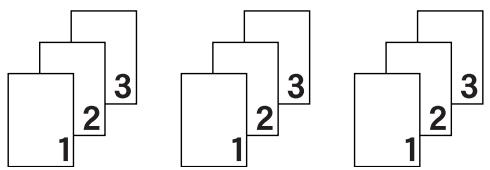
Collate checked
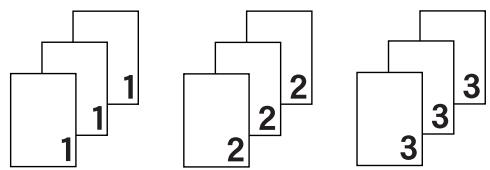
Collate non-checked
Media Type
You can use the following types of media in your machine. For the best print quality, select the type of media that you wish to use.
Plain Paper
Recycled Paper
Print Quality (For HL-1200 and HL-1201)
You can change the print quality as follows:
Draft
Normal
■ Fine
Resolution (For HL-1210W and HL-1211W)
You can change the resolution as follows:
300 dpi
600 dpi
HQ 1200
Print Settings
You can change the print settings as follows:
■ Graphics
This is the best mode for printing documents that contain graphics.
Text
This is the best mode for printing text documents.
Manual
You can change the settings manually by choosing Manual and clicking the Manual Settings... button. You can set brightness, contrast and other settings.
Multiple Page
The Multiple Page selection can reduce the image size of a page allowing multiple pages to be printed on one sheet of paper or enlarge the image size for printing one page on multiple sheets of paper.
Page Order
When N in 1 option is selected, the page order can be selected from the drop-down list.
Border Line
When printing multiple pages onto one sheet, with the Multiple Page feature, you can choose to have a solid border, dash border or no border around each page on the sheet.
Print cut-out line
When 1 in NxN Pages option is selected, the Print cut-out line option can be selected. This option allows you to print a faint cut-out line around the printable area.
2-sided / Booklet
When you want to print a booklet or do 2-sided printing, use this function.
None
This disables 2-sided printing.
2-sided (Manual)
When you want to do 2-sided printing, use this option.
2-sided (Manual)
The machine prints all the even numbered pages first. Then the printer driver will stop and show the instructions required to re-insert the paper. When you click OK the odd numbered pages will be printed.
When you choose 2-sided (Manual), the 2-sided Settings... button becomes available to choose. You can set following settings in the 2-sided Settings dialog box.
2-sided Type
There are four types of 2-sided binding directions available for each orientation.
Portrait
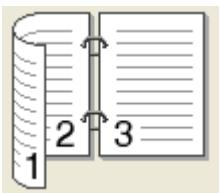
Long Edge (Left)
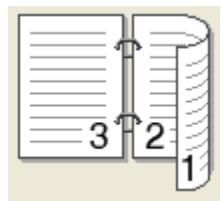
Long Edge (Right)

Short Edge (Top)
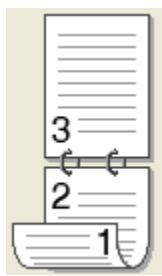
Short Edge (Bottom)
Landscape
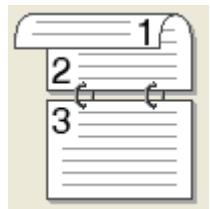
Long Edge (Top)
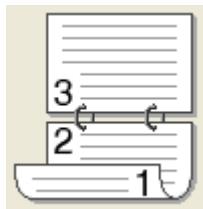
Long Edge (Bottom)
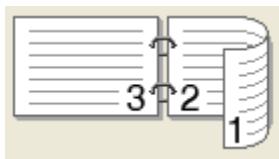
Short Edge (Right)
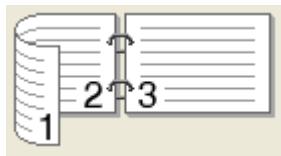
Short Edge (Left)
- Binding Offset
When you check Binding Offset, you can also specify the offset for binding in inches or millimetres.
■ Booklet (Manual)
Use this option to print a document in booklet format using 2-sided printing; it will arrange the document according to the correct page number and allows you to fold at the centre of the print output without having to change the order of the page number.
- Booklet (Manual)
The machine prints all the even numbered sides first. Then the printer driver will stop and show the instructions required to re-install the paper. When you click OK the odd numbered sides will be printed.
When you choose Booklet (Manual), the 2-sided Settings... button becomes available to choose. You can set the following settings in the 2-sided Settings dialog box.
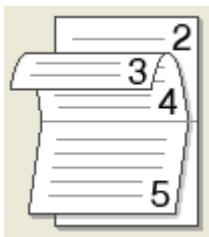
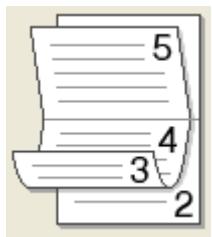
2-sided Type
There are two types of 2-sided binding directions available for each orientation.
Portrait
Left Binding
Right Binding
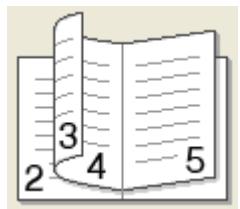
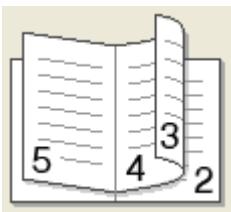
Landscape
Top Binding
Bottom Binding
- Booklet Printing Method
When Divide into Sets is selected:
This option allows you to print the whole booklet into smaller individual booklet sets, it still allows you to fold at the center of the smaller individual booklet sets without having to change the order of the page number. You can specify the number of sheets in each smaller booklet set, from 1 to 15. This option can help when folding the printed booklet that has a large number of pages.
- Binding Offset
When you check Binding Offset, you can also specify the offset for binding in inches or millimetres.
Print Preview
You can preview a document before it is printed. If you check the Print Preview check box, the Print Preview Viewer window will open before printing starts.
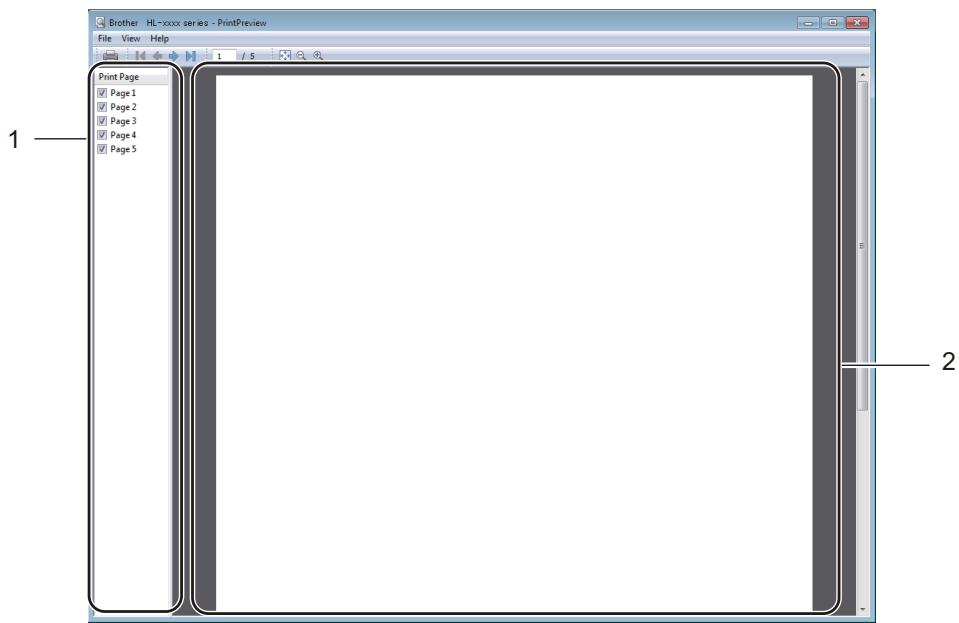
1 Page List Area
The Page List Area displays the page numbers for the actual pages that will be printed. If you chose a page in this list, a preview of the print results for the page will be displayed in the Preview Area. If you do not want to print a page, clear the check mark.
2 Preview Area
The Preview Area displays a preview of the print results for the pages chosen in the Page List Area.
NOTE
If 2-sided (Manual) or Booklet (Manual) was chosen in the Printer driver settings, you cannot use the Print Preview function.
Advanced tab
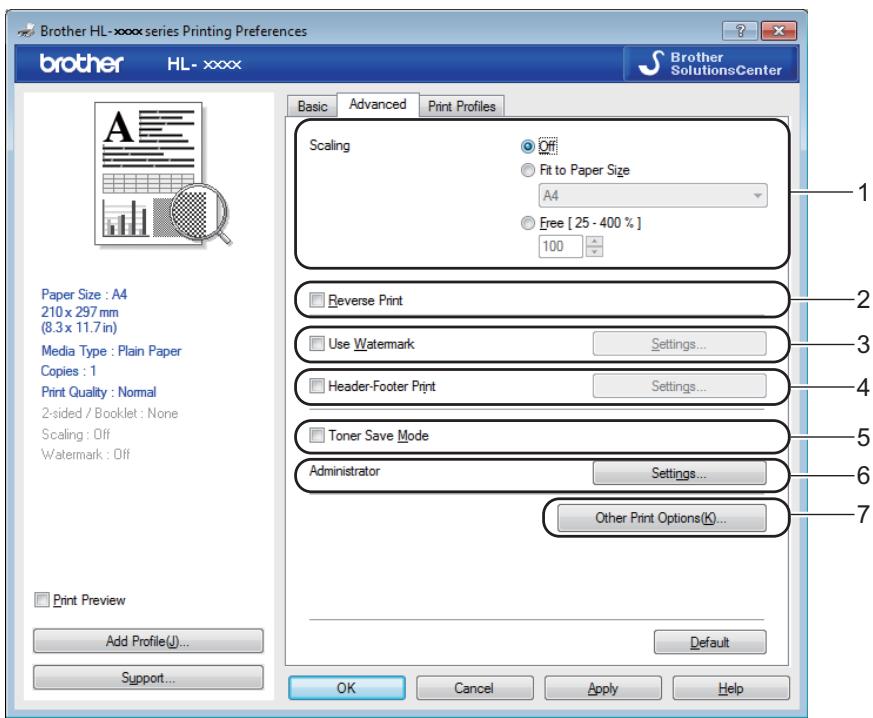
Change the tab settings by clicking one of the following selections:
Scaling (1)
Reverse Print (2)
Use Watermark (3)
Header-Footer Print (4)
Toner Save Mode (5)
■ Administrator (6)
Other Print Options (7)
Scaling
You can change the print image scaling.
Reverse Print
Check Reverse Print to reverse the data from up to down.
Use Watermark
You can put a logo or text into your document as a watermark. You can choose one of the preset Watermarks, or you can use a bitmap file that you have created. Check Use Watermark and then click the Settings... button.
Watermark Settings
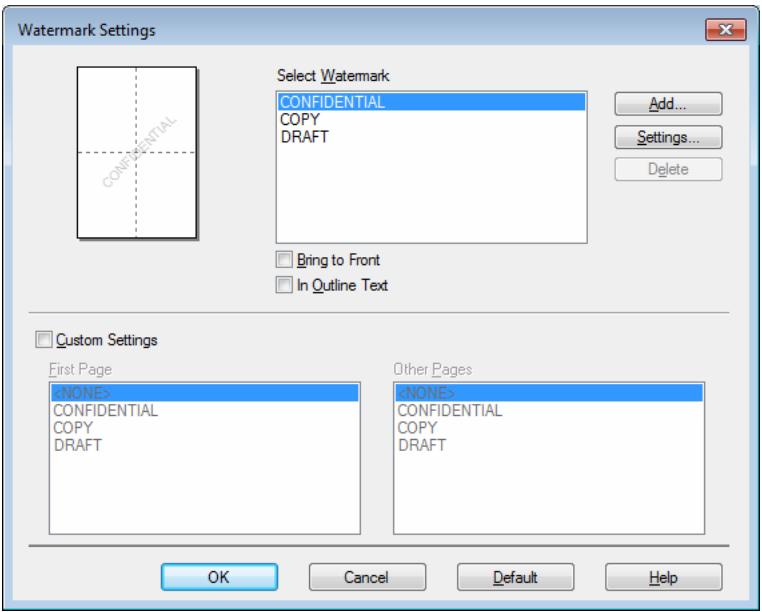
Select Watermark
Choose a watermark to use.
To make an original watermark, click the Add button to add the watermark settings and then choose Use Text or Use Image file in Watermark Style.
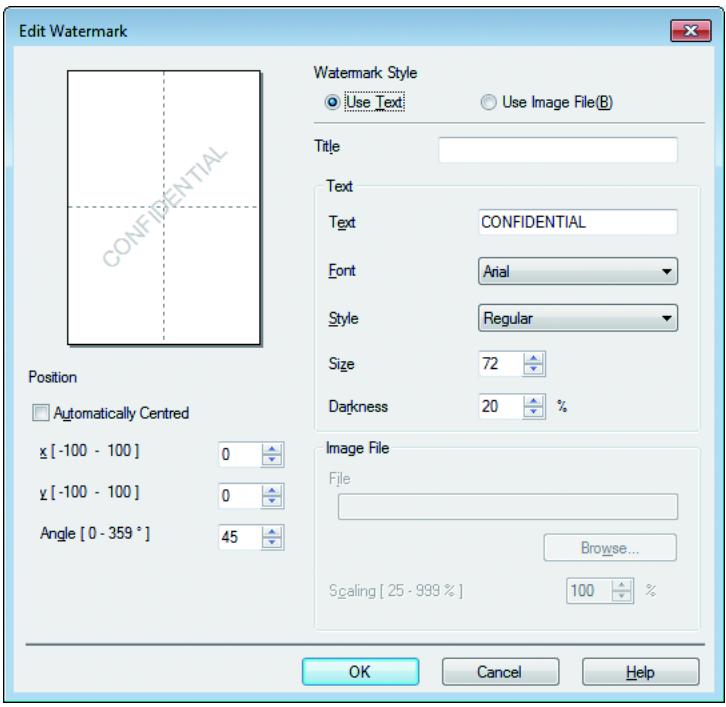
Title
Enter a suitable title into the field.
- Text
Enter your Watermark Text into the Text box, and then choose the Font, Style, Size and Darkness.
- Image File
Enter the file name and location of your bitmap image in the File box, or click Browse to search for the file. You can also set the scaling size of the image.
- Position
Use this setting if you want to control the position of the watermark on the page.
Bring to Front
This option will overlay the selected characters or image onto your printed document.
In Outline Text
Check In Outline Text if you only want to print an outline of the watermark. It is available when you choose a text watermark.
Custom Settings
You can choose which watermark is to be printed on the first page or on the other pages.
Header-Footer Print
When this feature is enabled, it will print the date and time on your document from your computer's system clock and the PC login user name or the text you entered. By clicking Settings, you can customize the information.
ID Print
If you select Login User Name, your PC login user name will be printed. If you select Custom and enter text in the Custom edit box, the text you entered will be printed.
Toner Save Mode
You can conserve toner use with this feature. When you set Toner Save Mode to on, print appears lighter. The default setting is off.
NOTE
- We do not recommend Toner Save Mode for printing photo or Greyscale images.
- Toner Save Mode is not available for Fine for Print Quality ^1 or HQ 1200 for Resolution ^2 is selected.
Administrator
Administrators have the authority to limit access to functions such as scaling and watermark.
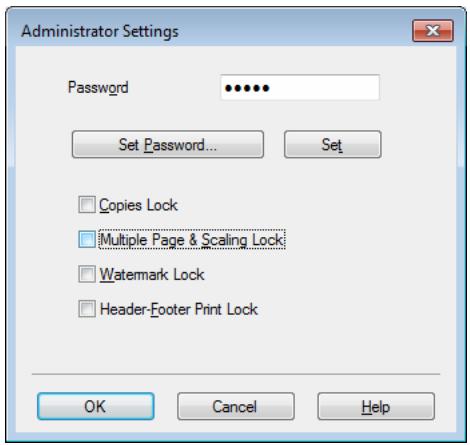
■ Password
Enter the password into this box.
NOTE
Click Set Password... to change the password.
Copies Lock
Lock the copy pages selection to prevent multiple copy printing.
Multiple Page & Scaling Lock
Lock the scaling setting and multiple page setting.
Watermark Lock
Lock the current settings of the Watermark option to prevent changes being made.
Header-Footer Print Lock
Lock the current settings of the Header-Footer Print option to prevent changes being made.
Other Print Options
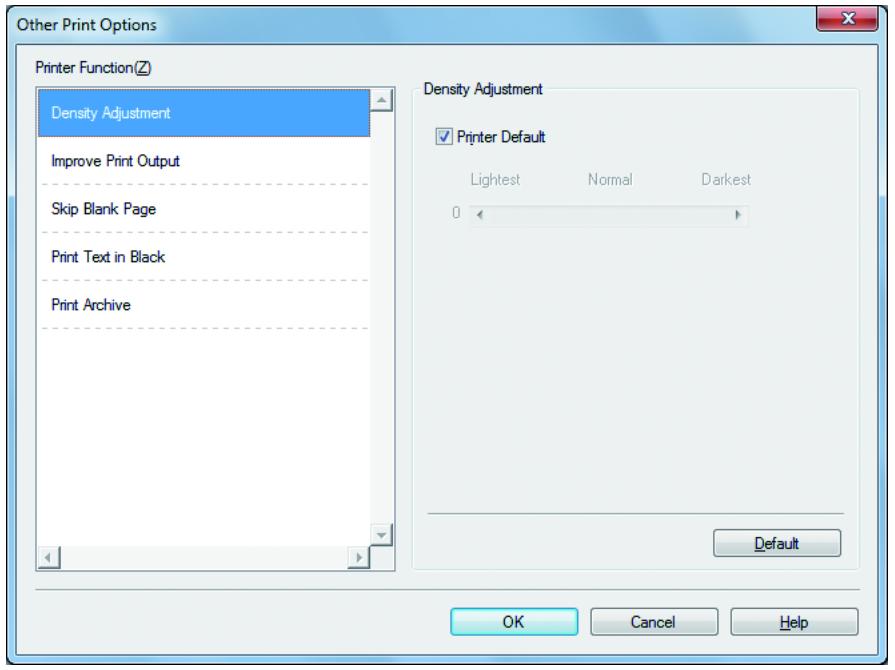
You can set the following in Printer Function:
Density Adjustment
Improve Print Output
Skip Blank Page
■ Print Text in Black
Print Archive
Density Adjustment
Increase or decrease the print density.
Improve Print Output
This feature allows you to improve a print quality problem.
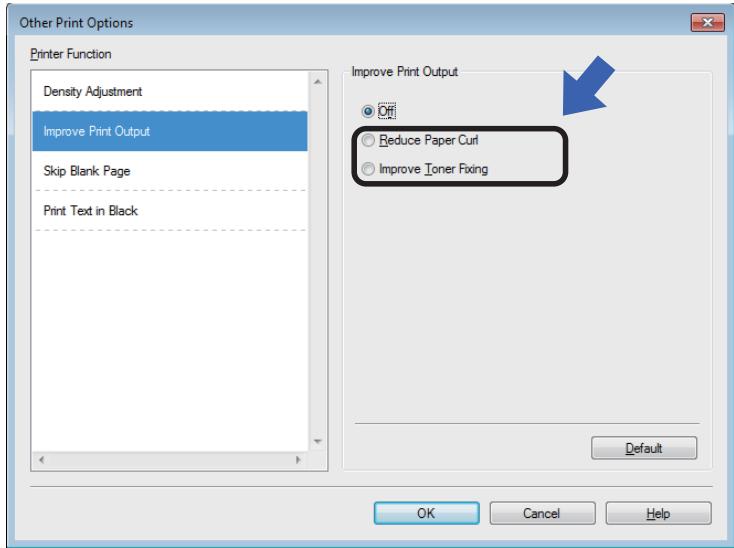
Reduce Paper Curl
If you choose this setting, the paper curl may be reduced.
If you are printing only a few pages, you do not need to choose this setting.
NOTE
This operation will decrease the temperature of the machine's fusing process.
■ Improve Toner Fixing
If you choose this setting, the toner fixing capabilities may be improved.
NOTE
This operation will increase the temperature of the machine's fusing process.
Skip Blank Page
If Skip Blank Page is checked, the printer driver automatically detects blank pages and excludes them from printing.
NOTE
This option does not work when you choose the following options:
- Use Watermark
- Header-Footer Print
- N in 1 and 1 in NxN Pages in Multiple Page
- 2-sided (Manual), Booklet (Manual) in 2-sided / Booklet
- Print Preview
Print Text in Black
This function enables all text to be printed in Black instead of grey scale.
NOTE
It may not work with certain characters.
Print Archive
A copy of your printout can be saved as a PDF file to your computer. To change the file size, move the File Size slider to the right or left. The resolution is set according to the file size.
NOTE
By enabling this feature, there may be a longer wait before your machine begins printing.
Print Profiles tab
Print Profiles are editable presets designed to give you quick access to frequently used printing configurations.
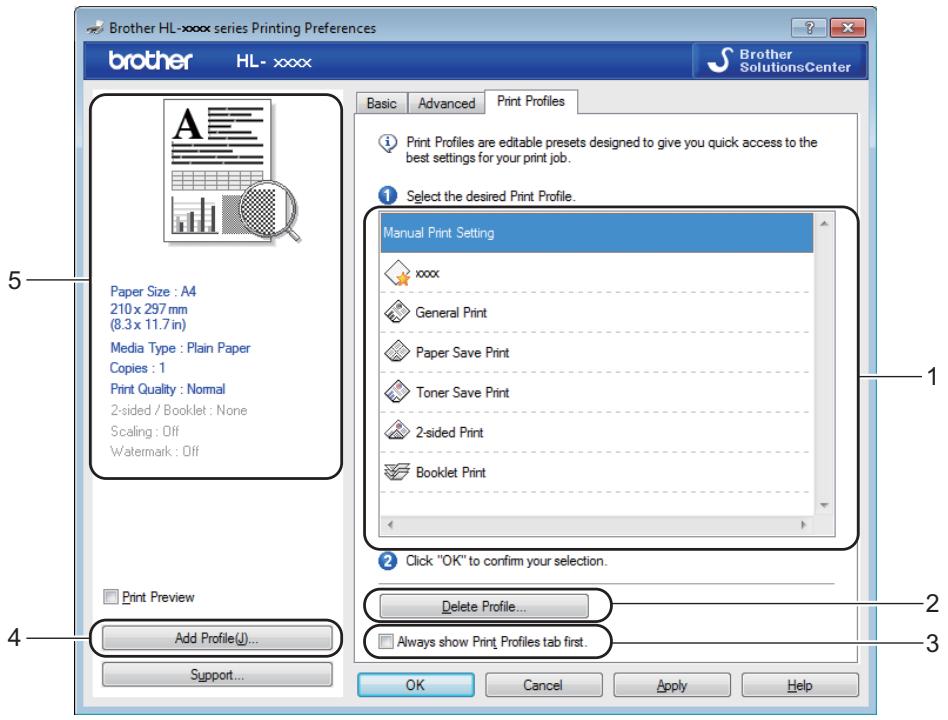
■ Print profile list box (1)
Delete Profile (2)
Always show Print Profiles tab first (3)
Add Profile (4)
Current print profile view (5)
Choose your profile from the print profile list box.
If you want to display the Print Profiles tab at the front of the window from the next time you print, check Always show Print Profiles tab first.
3 Click OK to apply your chosen profile.
Add Profile
The Add Profile dialog box appears by clicking Add Profile. You can add 20 new profiles with your preferred settings.
1 Enter the desired title in Name.
Choose an icon you want to use from the Icon list, then click OK.
The current settings shown on the left side of the printer driver window will be saved.
Delete Profile
The Delete Profile dialog box appears by clicking Delete Profile. You can delete any of the profiles you have added.
Choose your profile from the print profile list box.
2 Click Delete.
3 Click Yes.
The selected profile will be deleted.
Device Settings tab
NOTE
To access the Device Settings tab, see Accessing the printer driver settings on page 8.
You can auto detect the serial number in the Device Settings tab as follows.
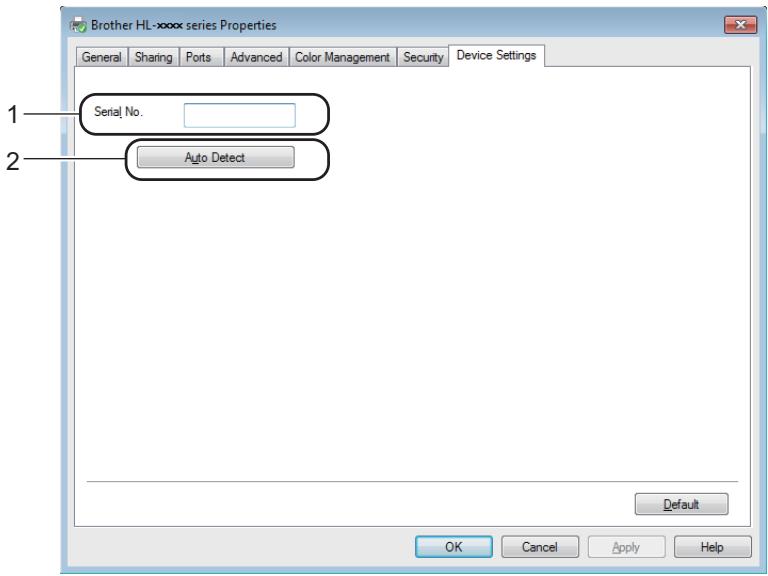
Serial No. (1)
By clicking Auto Detect (2), the printer driver will probe the machine and display its serial number. If it fails to receive the information, the screen will display "--------".
NOTE
The Auto Detect (2) function is not available under the following machine conditions:
- The machine is turned off.
- The machine is in an error state.
- The machine is connected to the print server using a USB cable in a shared network environment.
- The cable is not connected to the machine correctly.
Support
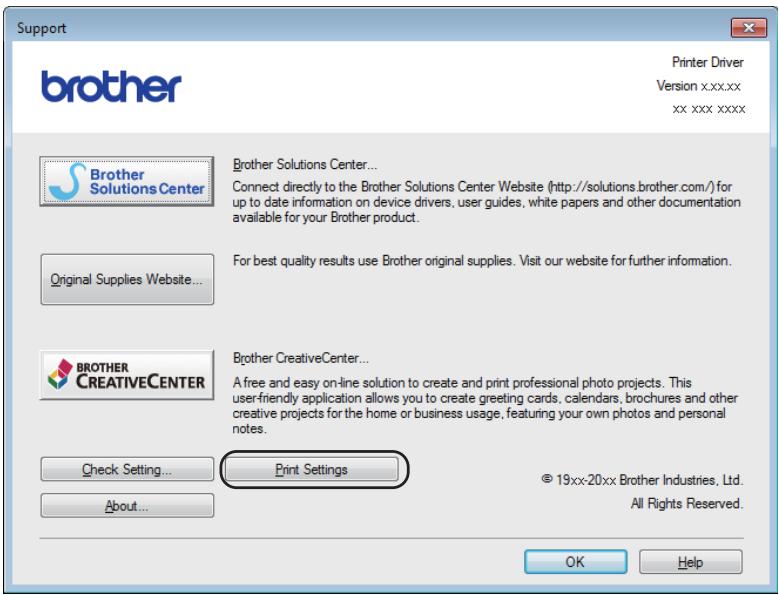
Click Support... in the Printing Preferences dialog box.
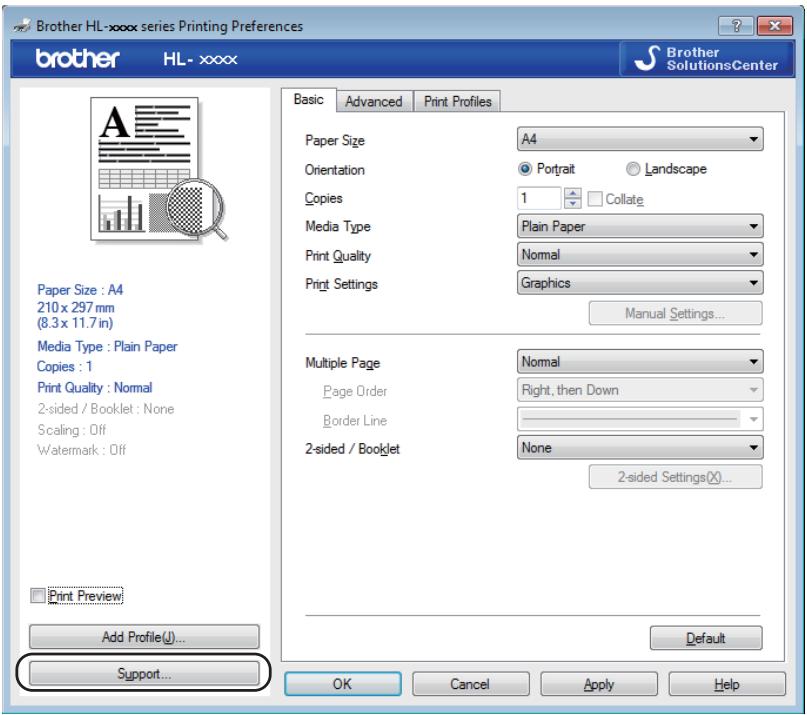
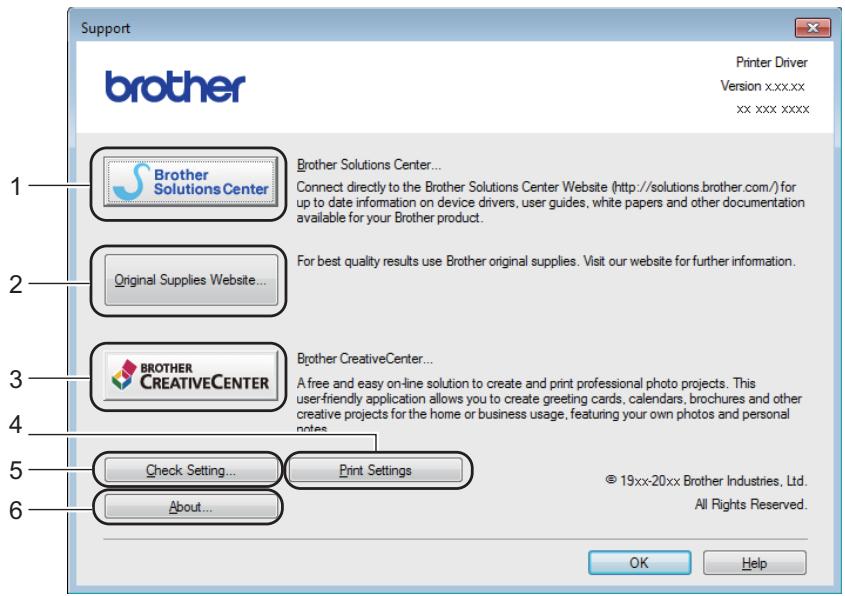
Brother Solutions Center (1)
The Brother Solutions Center (http://support.brother.com) is a website offering information about your Brother product including FAQs (Frequently Asked Questions), User's Guides, driver updates and tips for using your machine.
Original Supplies Website (2)
You can visit our website for original/genuine Brother supplies by clicking this button.
■ Brother CreativeCenter (3)
You can visit our website for free and easy online solutions for business and home users by clicking this button.
■ Print Settings (4)
This button will print the pages that show how the internal settings of the machine have been configured.
Check Setting... (5)
You can check the current driver settings.
About... (6)
This button will list the printer driver files and version information.
Uninstalling the printer driver
You can uninstall the printer driver that you have installed with the following steps.
NOTE
- This is not available if you originally installed the printer driver from the Windows® Add a printer function.
- After uninstalling, we recommend that you restart your computer to remove files that were in use during the uninstall.
(For Windows® XP, Windows Vista® and Windows® 7)
Click

(Start) > All Programs > Brother > Brother Utilities.
(For Windows® 8)
Click

(Brother Utilities).
2 Click the drop-down list and select your model name (if not already selected).
3 Click Tools in the left navigation bar.
4 Click Uninstall.
5 Follow the instructions on the screen.
Status Monitor
The Status Monitor utility is a configurable software tool for monitoring the status of one or more devices, allowing you to get immediate notification of error messages.
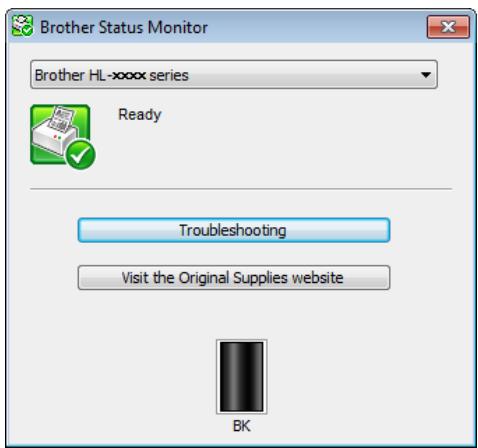
You can check the device status at anytime by double-clicking the icon in the tasktray or by choosing Status Monitor located in Brother Utilities on your PC.
(For Windows® XP, Windows Vista® and Window® 7)
Click

(Start) > All Programs > Brother > Brother Utilities, and then click the drop-down list and
select your model name (if not already selected). Click Tools in the left navigation bar, and then Click Status Monitor.
(Windows® 8)

(Brother Utilities), and then click the drop-down list and select your model name (if not already
selected). Click Tools in the left navigation bar, and then click Status Monitor.
To show the Status Monitor icon on your taskbar, click the button. The Status Monitor icon will appear in the small window. Then drag the icon to the taskbar.
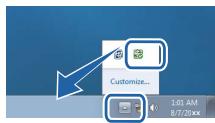
NOTE
The automatic software update feature is active when the status monitor feature is active. With the update feature you can receive both Brother applications and machine firmware updates automatically.
Monitoring the machine's status
The Status Monitor icon will change colour depending on the machine status.
A green icon indicates the normal stand-by condition.

A yellow icon indicates a warning.

A red icon indicates a printing error has occurred.

There are two locations where you can display the Status Monitor on your PC - in the tasktray or on the desktop.
Macintosh
Features in the printer driver (Macintosh)
This machine supports OS X v10.7.5, 10.8.x, 10.9.x.
NOTE
- The screens in this section are from OS X v10.7.5. The screens on your Macintosh will vary depending on your operating system version.
- The printer driver for Macintosh is available from the download page for your model on the Brother Solutions Center (http://support.brother.com).
Choosing page setup options
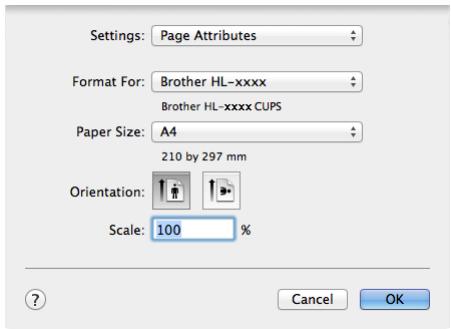
You can set the Paper Size, Orientation and Scale.

From an application such as TextEdit, click File, then Page Setup. Make sure Brother HL-XXXX (where XXXX is your model name.) is chosen in the Format For pop-up menu. You can change the settings for Paper Size, Orientation and Scale, then click OK.

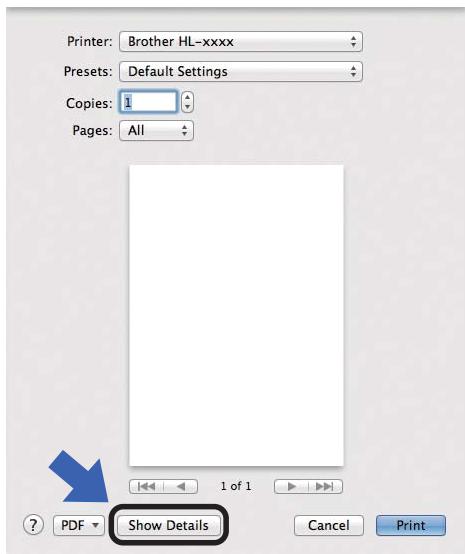
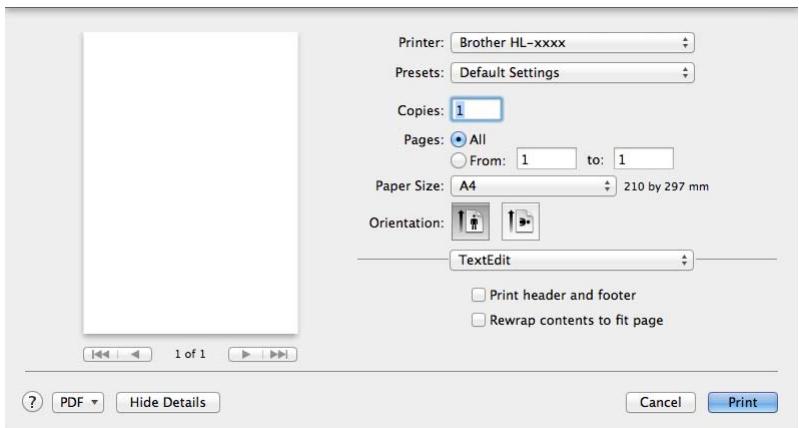
From an application such as TextEdit, click File, then Print to start printing. For more page setup options, click the Show Details button.
NOTE
You can save the current settings as a preset by choosing Save Current Settings as Preset... from the Presets pop-up menu.
Choosing printing options
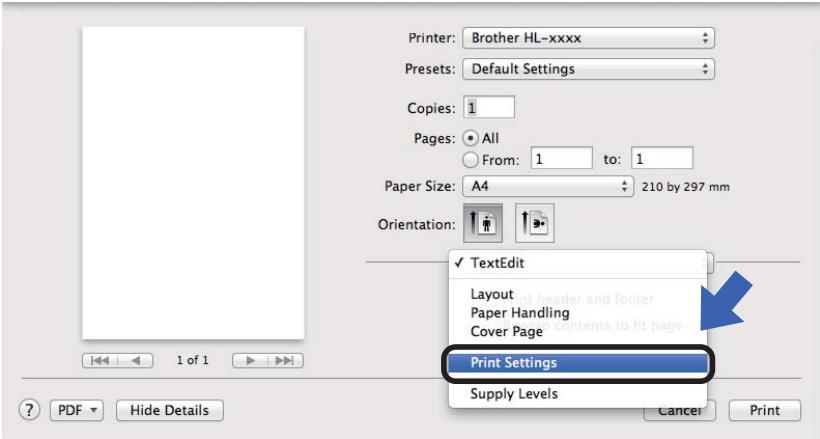
To control special printing features, choose Print Settings from the Print dialog box. For the details of available options, see the following descriptions of each option.
Cover Page
You can choose the following cover page settings:
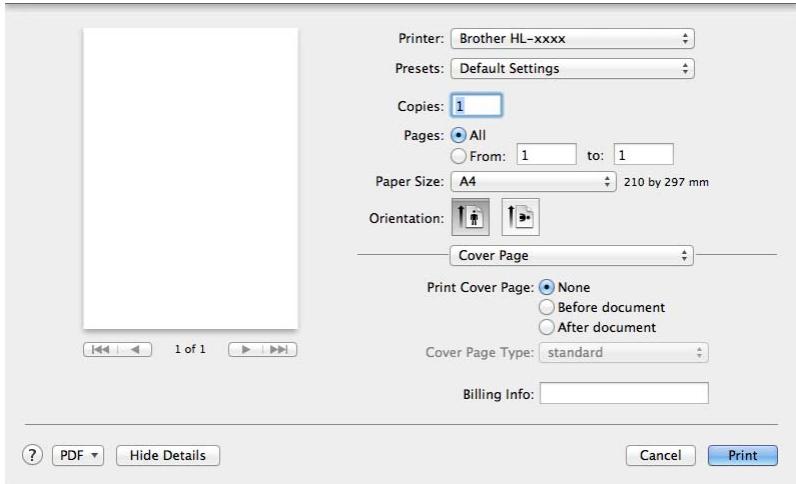
■ Print Cover Page
If you want to add a cover page to your document, use this function.
Cover Page Type
Choose a template for the cover page.
Billing Info
If you want to add the billing information to the cover page, enter text in the Billing Info box.
Layout
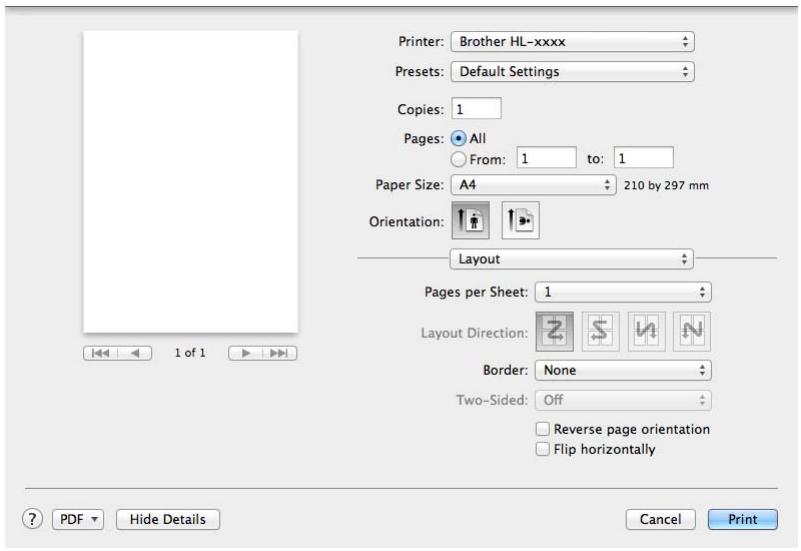
Pages per Sheet
The Pages per Sheet selection can reduce the image size of a page by allowing multiple pages to be printed on one sheet of paper.
■ Layout Direction
When you specify the pages per sheet, you can also specify the direction of the layout.
Border
If you want to add a border, use this function.
Reverse page orientation
Check Reverse page orientation to reverse the data from up to down.
Flip horizontally
Check Flip horizontally to print as a reflection flipped left-to-right.
Print Settings
You can change settings by choosing a setting in the Print Settings list:
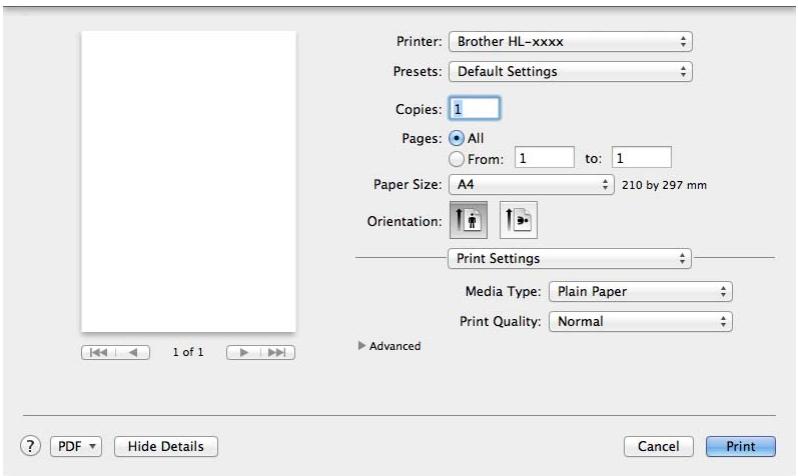
Media Type
You can change the media type to one of the following:
- Plain Paper
Recycled Paper
■ Print Quality (For HL-1200 and HL-1201)
You can change the print quality as follows:
- Draft
Normal - Fine
■ Resolution (For HL-1210W and HL-1211W)
You can change the resolution as follows:
300 dpi
- 600 dpi
HQ 1200
Advanced print settings
When you click the triangle mark (▶) beside Advanced, the advanced print settings appear.
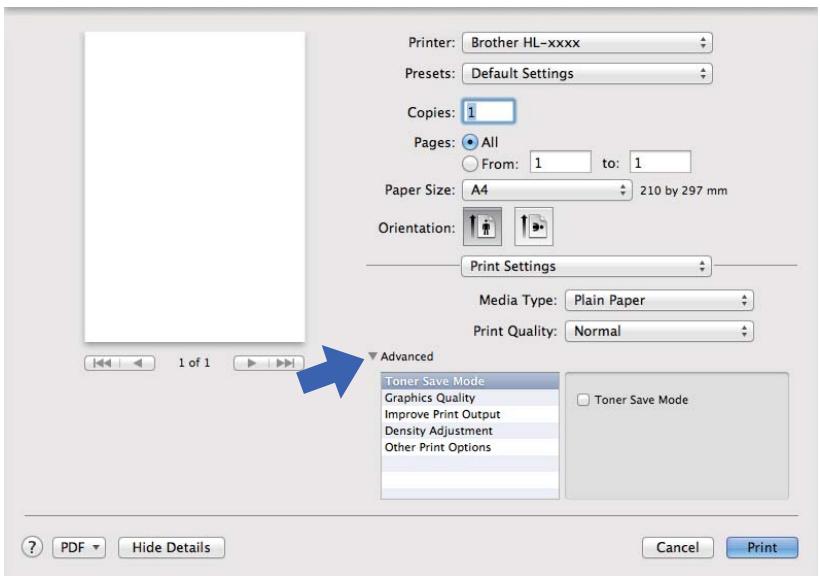
Toner Save Mode
You can conserve toner use with this feature. When you set Toner Save Mode to on, print appears lighter. The default setting is off.
NOTE
- We do not recommend Toner Save Mode for printing Photo or Greyscale images.
- Toner Save Mode is not available for Fine for Print Quality ^1 or HQ 1200 for Resolution ^2 is selected.
■ Graphics Quality
You can change the print quality as follows:
- Graphics
This is a graphics mode (contrast priority). Choose this setting for printing text and figures, such as business and presentation documents. You can represent sharp contrasts between shaded areas.
Text
This is the best mode for printing text documents.
Improve Print Output
This feature allows you to improve a print quality problem.
- Reduce Paper Curl
If you choose this setting, the paper curl may be reduced.
If you are printing only a few pages, you do not need to choose this setting.
NOTE
This operation will decrease the temperature of the machine's fusing process.
- Improve Toner Fixing
If you choose this setting, the toner fixing capabilities may be improved.
NOTE
This operation will increase the temperature of the machine's fusing process.
Density Adjustment
Increase or decrease the print density.
Other Print Options
- Skip Blank Page
If Skip Blank Page is checked, the printer driver automatically detects blank pages and excludes them from printing.
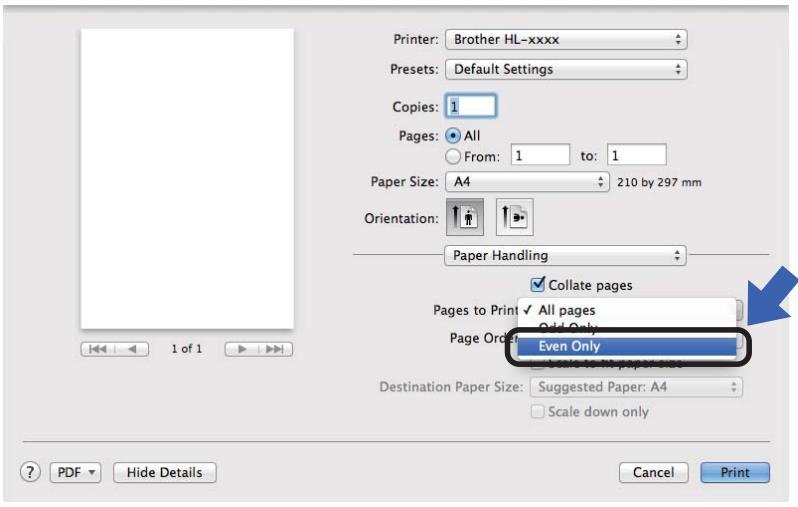
2-sided Printing
Manual 2-sided Printing
Select Paper Handling.
- Choose Even Only and Print. Reload the printed paper into the tray (blank side face up and the top page first). Choose Odd Only and Print.
Removing the printer driver
1 Log in as an 'Administrator'.
From the Apple menu, choose System Preferences. Click Print & Scan or Printers & Scanners 1, then choose the printer you want to remove and remove it by clicking the - button.
3 Click Delete Printer.
Printers & Scanners for OS X v10.9.x users
Status Monitor
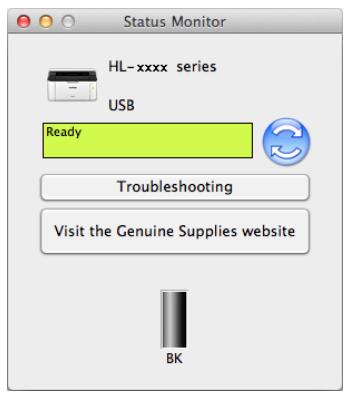
The Status Monitor utility is a configurable software tool for monitoring the status of the machine, letting you see error messages at pre-set update intervals.
You can check the device status by launching Brother Status Monitor following these steps:
1 Run the System Preferences, select Print & Scan or Printers & Scanners ^1 , then choose the machine.
2 Click the Options & Supplies.... Select the Utility tab then click Open Printer Utility. Status Monitor will start up.
Printers & Scanners for OS X v10.9.x users
Updating the machine's status
If you want the latest machine status while the Status Monitor window is open, click the Refresh icon. You can set the interval at which the software will update the machine status information. Go to the menu bar, Brother Status Monitor and choose Preferences.
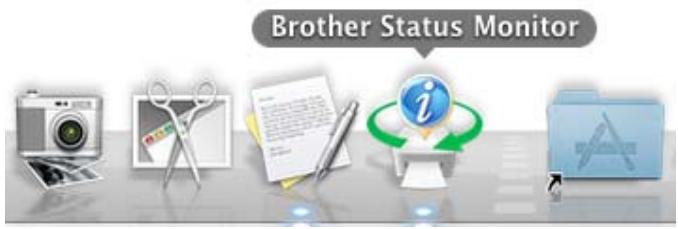
Hiding or showing the window
After starting the Status Monitor, you can hide or show the window. To hide the window, go to the menu bar, Brother Status Monitor and choose Hide Status Monitor. To show the window, click the Brother Status Monitor icon in the dock.
Quitting the window
Click Brother Status Monitor in the menu bar and then choose Quit Status Monitor from the pop-up menu.
Web Based Management (Network Connection only)
You can access the Web Based Management System by clicking the machine icon on the Status Monitor screen. A standard Web Browser can be used to manage your machine using HTTP (Hyper Text Transfer Protocol).
More information on the Web Based Management, see Network User's Guide.
Software
Remote Printer Console (Windows® HL-1200 and HL-1201 only)
Remote Printer Console is software to change many of the printer settings independently of your application. For example, you can change the settings for printer margin and so on. These settings are then remembered and used by the machine. The application and printer driver settings will take priority over the Remote Printer Console settings.
NOTE
Not available to countries subject to applicable export regulations.
How to use and install the Remote Printer Console software
To use the Remote Printer Console software, follow the steps below.
1 Put the supplied installer CD-ROM into your CD-ROM drive and close the opening screen when it appears.
Open Windows Explorer and choose the CD-ROM drive.
3 Double-click the tools folder.
Double-click the rpcc folder.
Refer to the RPC_USER's_Guide.pdf for how to install and use the Remote Printer Console.
Software for networks (HL-1210W and HL-1211W only)
For the information about network utility software, see Network User's Guide.
3 General Information
Control panel
LEDs (Light Emitting Diodes)
This section refers to the two LEDs and the two buttons on the control panel.



1 Power On/Off
You can turn the machine on and off.
Press and hold down to turn the machine on.
Press and hold down to turn the machine off. All the LEDs turn off when you enable the Power Off mode.
Also, you can use the following functions:
Current Job Cancel / All Jobs Cancel
Error recovery / Form feed
For details, see Power On/Off key on page 44
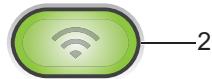
2 WiFi (HL-1210W and HL-1211W only)
Press the WiFi button and launch the wireless installer on your computer. Follow the on-screen instructions to set up a wireless connection between your machine and your network.
When the WiFi light is on, your Brother machine is connected to a wireless access point. When the WiFi light blinks, the wireless connection is down, or your machine is in the process of connecting to a wireless access point.
3 Error LED (!)
The Error LED (!) indicates that the machine is in error state.
Also, the Error LED (!) indicates the kind of error in combination with other LEDs.
4 Ready LED (O)
The Ready LED (O) will blink depending on the machine status.
The LED indications shown in the table below are used in the illustrations in this chapter.
| ○ | LED is off. |
| ○or ○ | LED is on. |
| ○ | LED is dimmed. |
| ○- or ○- | LED is blinking. |
| LEDs | Machine Status |
| ! | Sleep The machine is in Sleep Mode (Power Save mode). While the machine is in Sleep Mode, the Ready LED (○) is dimmed, but the machine can still receive data. Receiving a print job will automatically wake up the machine to start printing. For more information, see Sleep Time on page 46. |
| Deep Sleep The machine is in Deep Sleep Mode, reducing more power consumption than Sleep mode. While the machine is in Deep Sleep Mode, the Ready LED (○) is dimmed, but the machine can still receive data. Receiving a print job will automatically wake up the machine to start printing. For more information, see Deep Sleep mode on page 46. | |
| ! | Ready The machine is ready to print. |
| ! | Printing The machine is printing. The Ready LED (○) will blink in 0.5 second intervals. |
| Please Wait The machine is warming up. The Ready LED (○) will blink in 1 second intervals. | |
| Cooling Down The inside of the machine is extremely hot. The machine will pause its current print job and go into Cooling Down mode. Wait until the machine is in Ready mode. The Ready LED (○) will blink in 1 second intervals. | |
| Receiving Data The machine is either receiving data from the computer or processing data in the memory. The Ready LED (○) will blink in 0.5 second intervals. | |
| ! | Data Remaining There is remaining print data in the machine's memory. If the Ready LED (O) is blinking for a long time and nothing has printed, press to print the remaining data in the memory. The Ready LED (O) will blink in 0.5 second intervals. |
| ! | Toner Low The toner cartridge will need to be replaced soon. Buy a new Brother toner cartridge and have it ready for when Replace Toner is indicated. Both the Ready (O) and Error (!) LEDs will turn on together, then the Error LED (!) will turn off after 0.5 seconds and the Ready LED (O) will turn off after 1 second, they will then both be off for a further 1 second. This procedure is repeated until the error is corrected. If the printout is faint, hold the drum unit and toner cartridge assembly level with both hands and gently shake it from side to side several times to spread the toner evenly inside the cartridge. |
| Replace Toner (Continue mode) The machine continues printing until the LED indicates Toner Ended. Both the Ready (O) and Error (!) LEDs will turn on together, then the Error LED (!) will turn off after 0.5 seconds and the Ready LED (O) will turn off after 1 second, they will then both be off for a further 1 second. This procedure is repeated until the error is corrected. For details about Continue mode, see Toner Setting on page 50. | |
| ○ | Replace Toner (Stop mode) Replace the toner cartridge with a new one. The Error LED (!) will blink once in 1.5 seconds intervals. For details about Stop mode, see Toner Setting on page 50. (See the instructions printed on the box of the new brother toner cartridge.) |
| No Toner Remove the drum unit and toner cartridge assembly, remove the toner cartridge from the drum unit, and re-install the toner cartridge back into the drum unit again. Re-install the drum unit and toner cartridge assembly back in the machine. If the problem continues, replace the toner cartridge. The Error LED (!) will blink once in 1.5 seconds intervals. (See the instructions printed on the box of the new brother toner cartridge.) | |
| Toner Ended Replace the toner cartridge with a new one. The Error LED (!) will blink once at 1.5 seconds intervals. (See the instructions printed on the box of the new brother toner cartridge.) | |
| ○ | Cartridge Error The drum unit and toner cartridge assembly is not installed correctly. Take the drum unit and toner cartridge assembly out of the machine and put it back in. Use only a Brother Original drum unit and Brother Original toner cartridge. The Error LED (!) will blink 4 times and turn off for 1 second. |
| ! | Drum End Soon / Replace Drum Replace the drum with a new one. Reset the drum counter. (See the insertion included with the drum unit.) We recommend you keep a Brother Original drum unit ready for installation. The Error LED (!) will blink 3 times at 0.5 second intervals and the Ready LED (○) will light up. Then both LEDs will turn off for 1 second. |
| Drum! The corona wire needs to be cleaned. See Cleaning the corona wire on Improving the print quality. The Error LED (!) will blink 3 times and turn off for 1 second. | |
| No Drum If the toner cartridge is placed in the machine without the drum unit, put the toner cartridge into the drum unit, and then reinstall the drum unit and toner cartridge assembly in the machine. The Error LED (!) will blink 3 times and turn off for 1 second. | |
| Jam Tray / Jam Inside 1 / Jam Inside 2 / Jam Inside 3 Clear the paper jam. See Paper jams on page 57. If the machine does not start printing, press Ⓞ. The Error LED (!) will blink twice and turn off for 1 second. | |
| Wrong Paper Type The width or length of the paper in the paper tray is too small. Put paper that can be used in the paper tray, and then press Ⓞ. Acceptable paper sizes are: A4, Letter, Legal, Folio, A5, A5(Long Edge), B5 and Executive. (See Acceptable paper on page 2.) The Error LED (!) will blink twice and turn off for 1 second. | |
| No Paper Put paper in the paper tray you are using. The Error LED (!) will blink twice and turn off for 1 second. | |
| Size Mismatch The paper in the tray is not the correct size. Load the correct size of paper in the tray and set the size of paper to the tray. The Error LED (!) will blink twice. | |
| ! ○ ○ | Cover is Open Close the top cover of the machine. The Error LED (!) will blink 4 times and turn off for 1 second. |
| Out of Memory Press and hold ∅ for about 2 seconds until all the LEDs light up and then release it. The machine will cancel the print job and clear it from the memory. The machine also cancels the print job and clears it from the memory automatically one minute after entering the Out of Memory state. Reduce the complexity of your document or lower the print quality. The Error LED (!) will blink 4 times and turn off for 1 second. | |
| ! ○ ○ | Cancel Printing The machine is canceling the job. The Error LED (!) and Ready LED (○) will light up alternately. |
Service call indications
If there is an error that cannot be cleared by the user, the machine will show that a service call is needed by lighting up all the LEDs as shown below.

If you see the service call indication shown above, turn off the machine, and then turn it back on and try to print again.
If the error is not cleared after turning the machine off and then back on, press . The LEDs will light up as shown in the following table to identify the error. The number under the LED icon shows how many times the LED will blink.
LED error indication
| LEDs | Main PCB failure | Fuser unit failure1 | Laser unit failure | Main motor failure | High voltage failure | Zero Cross error |
| Error | ◎ | ◎ | ◎ | ◎ | ◎ | ◎ |
| Ready | (7)/(4) | (3) | (5) | (6) | (2) | (1) |
If this error occurs, turn off the machine, wait a few seconds, and then turn it on again. Leave the machine for approx. 15 minutes with the power on. If the error occurs again, call Brother customer service or your local Brother dealer.
For example, the LED indication below shows a fuser unit failure.
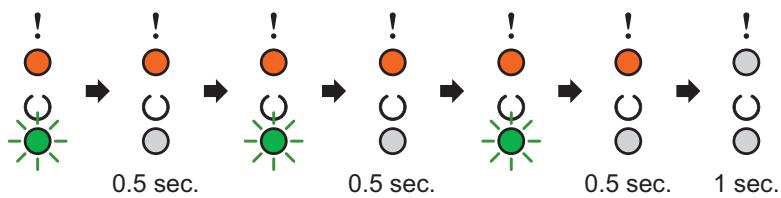
Make a note of the indication, referring to LED error indication on page 43, and report the error status to Brother customer service or your local Brother dealer.
NOTE
Make sure that the top cover is completely closed before you report a service call.
Power On/Off key
Power On/Off key has the following functions:
Power Off
Make sure that the machine is in the Ready mode, then hold down for about 2 seconds. All the LEDs turn off when you enable the Power Off mode. For details about Power Off mode, see Auto Power Off on page 47.
■ Cancel printing
Cancel the current job being printed: Press and hold for about 2 seconds. The machine will then eject the paper. The Error LED (!) and Ready LED (O) will light up alternately. Then release .
Cancel all the received jobs: To delete all jobs, cancel the current job first following the procedure above. While all the LEDs light up alternately, press again. All the LEDs will keep on lighting up alternately as the job(s) is being canceled.
Error recovery
If there is an error, the machine will recover automatically from some errors. If an error is not automatically cleared, press to clear the error, and then continue to use the machine.
Form feed
If the Ready LED (O) blinks for a long time, press . The machine will print any data that is left in the machine's memory.
Print a Printer Settings page
You can print the current settings using the control panel button or printer driver.
Using the Power On/Off key
1 Make sure that the top cover is closed and the power cord is plugged in.
Turn on the machine and wait until the machine is in Ready mode.
3 Press three times. The machine will print the current printer settings page.
Using the printer driver
If you are using the Windows® printer driver, you can print the current printer settings page by clicking the Print Settings button in the Support dialog box.
Ecology features
Toner Save
You can save toner using this feature. When you set Toner Save to on, prints appear lighter. The default setting is off.
You can change the toner save mode setting on the printer driver.
To change the toner save mode setting, see the following:
Advanced tab on page 15 (Windows® printer driver)
■ Print Settings on page 32 (Macintosh printer driver)
Sleep Time
The Sleep mode setting can reduce power consumption. When the machine is in Sleep Mode (Power Save mode) it acts as though it were turned off. The machine will wake up and start printing when it receives a print job.
The machine automatically goes into Sleep mode after it is idle for 1 minute. When the machine receives a print file or document, the timer will be reset. While the machine is in Sleep mode the Ready LED (O) glows dimly.
Deep Sleep mode
If the machine is in Sleep mode and does not receive any jobs for a certain length of time, the machine will go into Deep Sleep mode automatically and the Ready LED (O) glows dimly. Deep Sleep mode uses less power than Sleep Mode. The machine will wake up, when the machine receives a print job.
Auto Power Off
If the machine is in Deep Sleep mode for 1 hour, it enters Power Off mode automatically. Power Off mode is the lowest power consumption mode, which achieves a power consumption of less than 0.28 ~W . To start printing, hold key on the control panel until all the LEDs light up. Then send the print data.
NOTE
(HL-1200 and HL-1201)
You can change the Power Off mode setting through the Remote Printer Console. For more information on the Remote Printer Console, see Remote Printer Console (Windows® HL-1200 and HL-1201 only) on page 37.
- (HL-1210W and HL-1211W)
You can change the Power Off mode setting through the Web Based Management. For more information, see the Network User's Guide.
The machine does not go into Power Off mode when the machine is connected to a wireless network.
A
Troubleshooting and other information
Consumable items
The drum unit and toner cartridge are two separate consumables. Make sure both are installed as an assembly. For more information on how to replace the consumable items, see the instructions included with the drum unit for replacing the drum unit or see the instructions listed on the box of the toner cartridge for replacing the toner cartridge.
| Toner cartridge | Drum unit |
| Model Name: (For Australia and New Zealand) TN-1070 (For Vietnam) TN-1010 (For India) TN-1020 (For Turkey) TN-1040 (For Indonesia) TN-1080 (For other countries) TN-1000 | Model Name: (For Australia and New Zealand) DR-1070 (For Vietnam) DR-1010 (For India) DR-1020 (For Turkey) DR-1040 (For Indonesia) DR-1080 (For other countries) DR-1000 |
IMPORTANT
- Brother machines are designed to work with toner of a particular specification and will work to a level of optimum performance when used with Brother Original toner cartridges. Brother cannot guarantee this optimum performance if toner or toner cartridges of other specifications are used. The machine may not detect toner or toner cartridges of other specifications correctly but may instead detect such items as standard yield toner cartridges. Brother does not therefore recommend the use of cartridges other than Brother Original cartridges with this machine, or the refilling of empty cartridges with toner from other sources. If damage is caused to the drum unit or other parts of this machine as a result of the use of toner or toner cartridges other than Brother Original products due to the incompatibility or lack of suitability of those products with this machine, any repairs required as a result may not be covered by the warranty.
- For best performance, use a Brother Original drum unit and a Brother Original toner cartridge. Printing with a third party drum unit or toner cartridge may reduce not only the print quality but also the quality and life of the machine itself. Warranty coverage may not apply to problems caused by the use of a third party drum or toner cartridge.
NOTE
- Discard used consumable items according to local regulations, keeping it separate from domestic waste. If you have questions, call your local waste disposal office. Be sure to reseal the consumable items tightly so that the material inside does not spill.
- Availability of toner cartridges differs from one country to another. Visit the Brother Solutions Center at http://support.brother.com or contact your local Brother office for further details.
Toner Setting
The printing operation varies depending on the machine setting:
Default setting (Stop mode)
The machine will stop printing until you replace the toner cartridge with a new one when the LEDs indicate Replace Toner.
Continue mode
To force the machine to continue printing after the LEDs indicate Replace Toner, press seven
times to enter Continue mode (all the LEDs blink twice, and then the Ready LED (O) turns on). The machine will continue printing until the LEDs indicate Toner Ended.
To return to the default setting (Stop mode), press seven times (all the LEDs blink once).
NOTE
- Make sure that the top cover is closed before you change the mode.
- When the LEDs indicate an error mode, you cannot change the mode.
- If you continue printing in the Continue mode, we cannot guarantee the print quality.
While using Continue mode the print may appear faint.
Identifying your problem
First, check the following.
The machine's power cord is connected correctly and the machine is turned on.
All of the protective parts have been removed.
Paper is inserted correctly in the paper tray.
The interface cable is securely connected to the machine and the computer.
If you did not solve your problem with the above checks, identify your problem and then go to the page suggested below:
If you are having difficulty with your machine on page 61
Improving the print quality on page 53
If the machine is connected to a PC, depending on the error, a Popup application may appear on the PC. Follow the instructions on the screen to resolve the error.
Error messages in the Status Monitor
The most common error and maintenance messages are shown below.
If you need more help, the Brother Solutions Center offers the latest FAQs and troubleshooting tips: Visit us at http://support.brother.com.
| Error message | Cause | Action |
| Cartridge Error | The toner cartridge is not installed correctly. | Pull out the drum unit and toner cartridge assembly, take out the toner cartridge, and put it back into the drum unit again. Put the drum unit and toner cartridge assembly back in the machine. If the problem continues, call your Brother Customer Service. |
| Verify you are using a genuine Brother toner cartridge. | Use only a genuine Brother Original drum unit and genuine Brother Original toner cartridge. | |
| Cooling Down | The inside of the machine is extremely hot. | The machine will pause its current print job and go into Cooling Down mode. Wait until the machine is in Ready mode. |
| Cover is Open | The top cover is not closed completely. | Close the top cover of the machine. |
| Drum End Soon | The drum unit is near the end of its life. | Order a new drum unit now so a replacement drum unit will be available when the Status Monitor indicates Replace Drum. (See Drum End Soon / Replace Drum on LEDs (Light Emitting Diodes).) |
| Replace Drum | It is time to replace the drum unit. | Replace the drum unit. (See the instructions that are supplied with the new drum unit.) |
| The drum unit counter was not reset when a new drum was installed. | Reset the drum unit counter. (See the instructions that are supplied with the new drum unit.) | |
| Replace Toner | The toner cartridge is at the end of its life. The machine will stop all print operations. | Replace the toner cartridge. (See the instructions printed on the box of the new Brother toner cartridge.) |
| Toner Low | If the Status Monitor shows Toner Low you can still print; however, the machine is telling you that the toner cartridge is near the end of its life. | Order a new Brother toner cartridge now so a replacement toner cartridge will be available when the Status Monitor shows Replace Toner. |
Improving the print quality
NOTE
Brother does not recommend the use of cartridges other than genuine Brother Original cartridges or the refilling of used cartridges with toner from other sources.
If you are having problems with print results, check the following:

1 The machine's environment.
Choose a location where the temperature remains between 10^ and 32^ and the humidity is between 20% to 80% (without condensation).
2 Acceptable paper is loaded in the paper tray.
See Acceptable paper on page 2
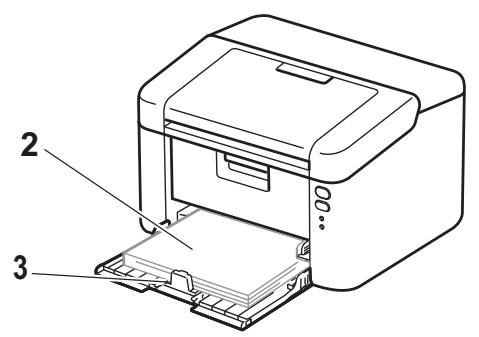
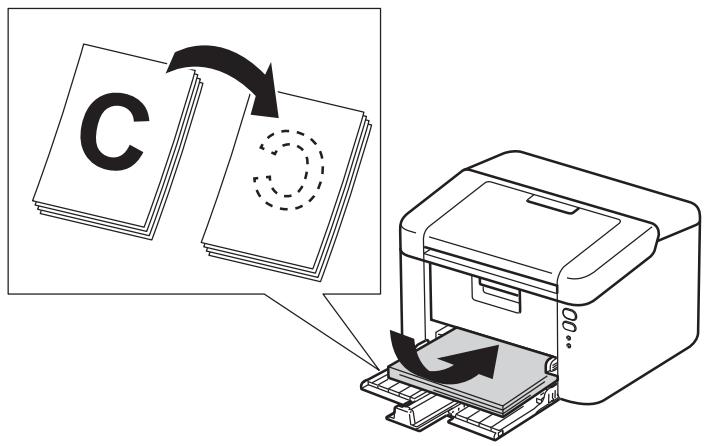
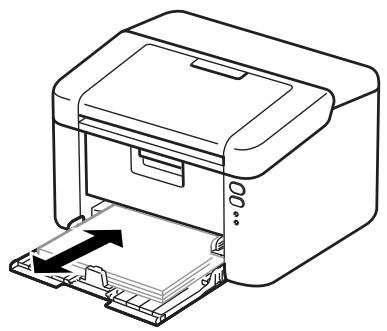
3 The paper is loaded correctly in the machine.
Turning the paper over may help paper loading become smoother.
Adjusting the guide may help paper loading become smoother.
Troubleshooting and other information
4 Replace the toner cartridge or the drum unit.
For more information on how to replace the consumable items, see the instructions included with the drum unit for replacing the drum unit or see the instructions listed on the box of the toner cartridge for replacing the toner cartridge.
5 Clean the inside of the machine.
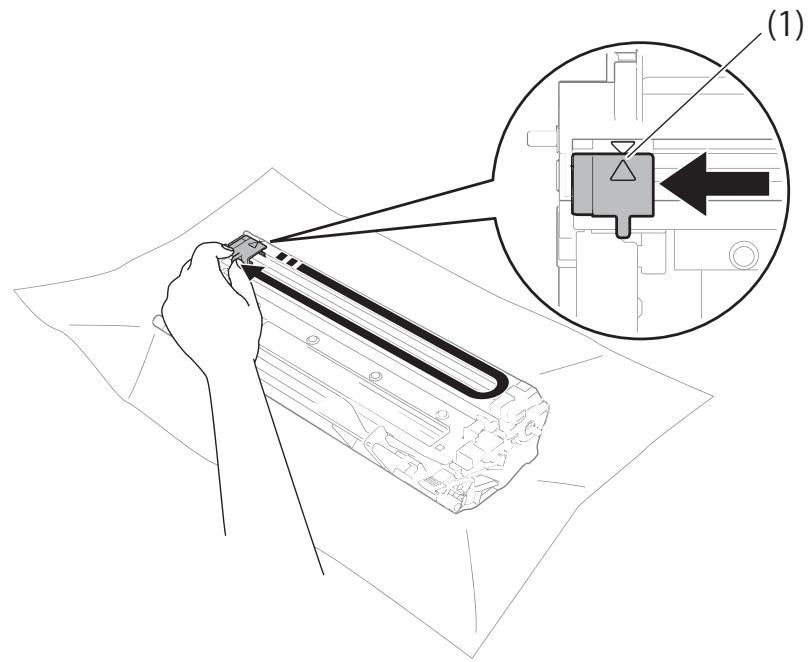
Cleaning the corona wire
Slide the green tab from left to right and right to left several times.
NOTE
Be sure to return the tab to the home position (▲) (1). If you do not, printed pages may have a vertical stripe.
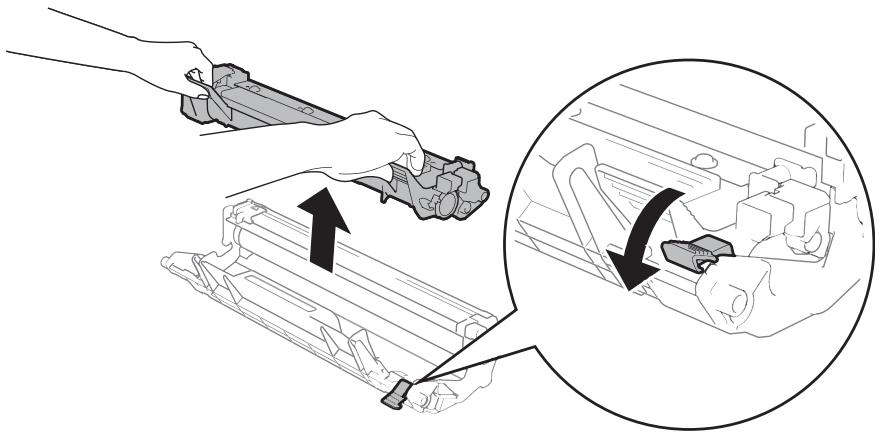
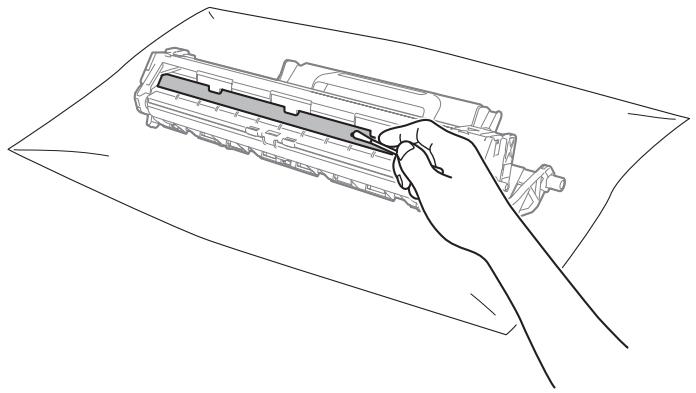
Clean the drum unit if black or white dots appear on printed pages
Push down the lock lever and take the toner cartridge out of the drum unit.
Turn the drum unit gear by hand while looking at the surface of the drum roller (1).
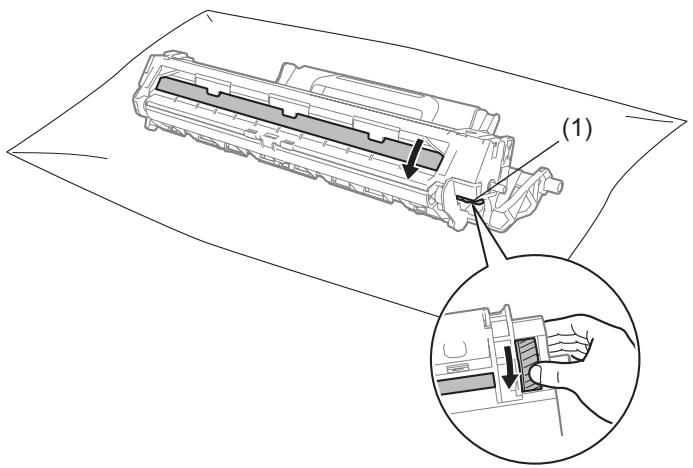
Wipe the surface of the drum gently with a dry cotton swab until the dust or glue on the surface comes off.
Troubleshooting and other information
6 Check the printer driver settings.
Try changing the Print Settings in Basic tab.

If the paper is curled or the toner is not fixed well on the paper, you can adjust these settings in Improve Print Output. Click Other Print Options in the Advanced tab.
Paper jams
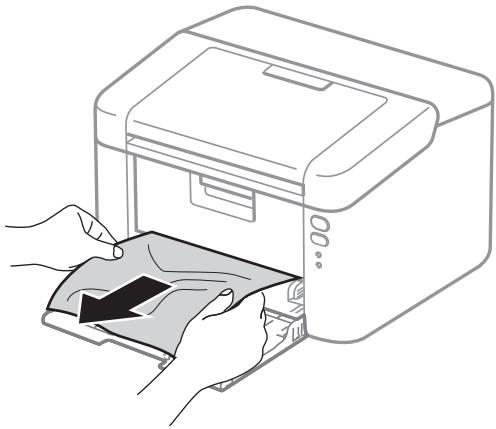
If a paper jam occurs inside the machine or the paper tray, the Error LED (!) will blink twice.

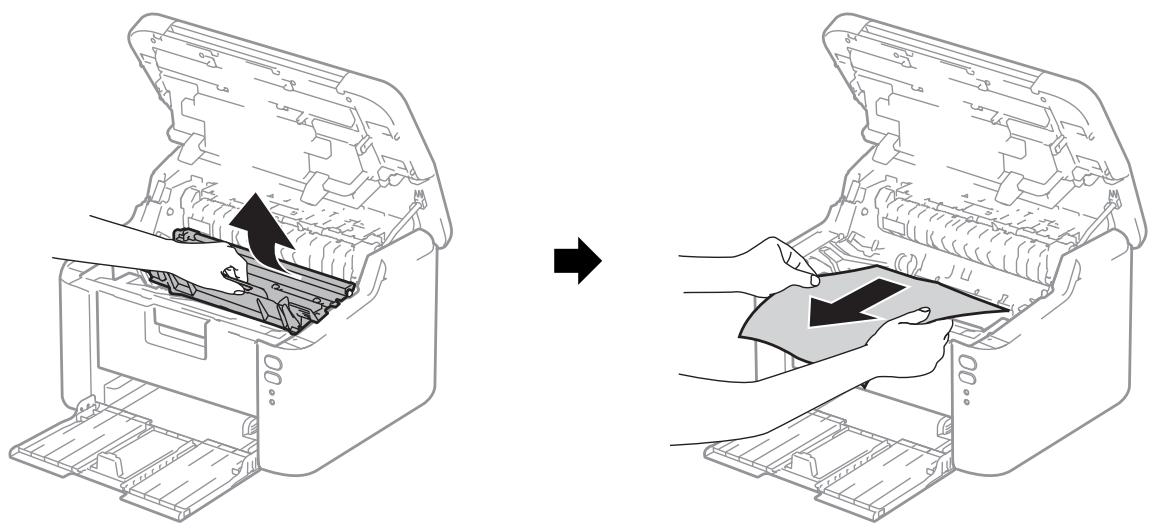
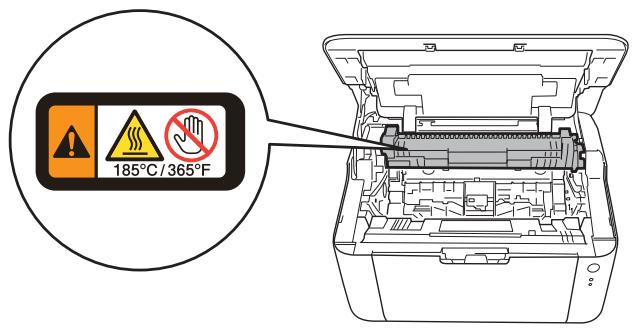
1 Leave the machine turned on for 15 minutes for the product to cool down before you touch the internal parts of the product.
Use both hands to slowly pull out the jammed paper.
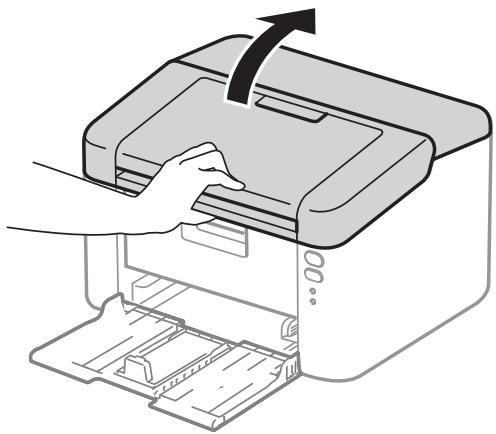
3 Open the top cover.

Slowly take out the drum unit and toner cartridge assembly. The jammed paper may be pulled out with the drum unit and toner cartridge assembly, or this may release the paper so you can pull it out from inside of the machine.

WARNING

HOT SURFACE
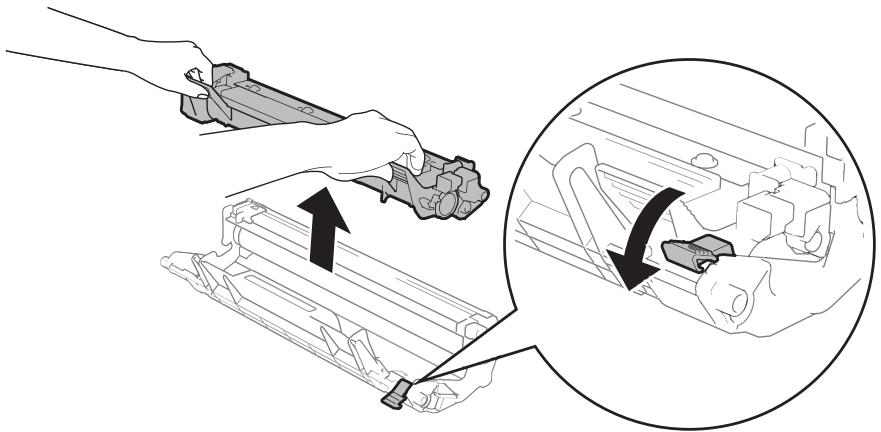
Push down the lock lever and take the toner cartridge out of the drum unit. Remove the jammed paper if there is any inside the drum unit.
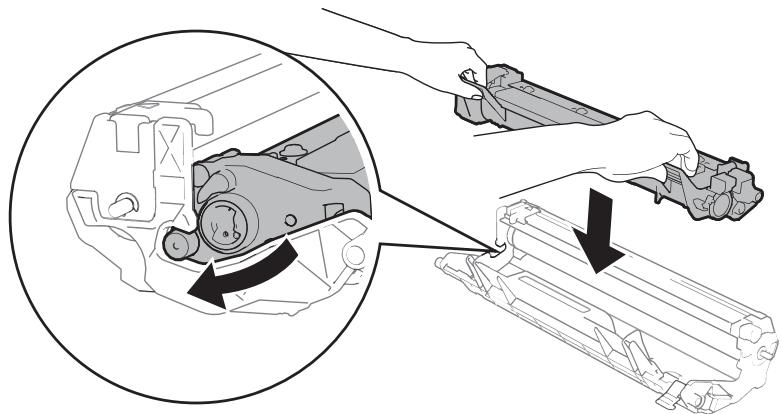
6 Put the toner cartridge back into the drum unit until you hear it lock into place. If you put the cartridge in correctly, the lock lever on the drum unit will lift automatically.
Put the drum unit and toner cartridge assembly back into the machine.
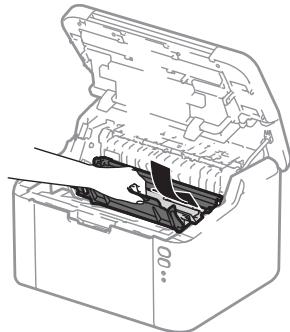
8 Close the top cover of the machine.
9 Make sure that the paper is below the protruding section of the rear guide. Slide the paper guides to fit the paper size. Make sure that the guides are firmly in the slots.
NOTE
If you turn the machine off during a paper jam, the machine will print any incomplete data from your computer when you turn the machine back on. Before you turn the machine on, delete the print spool job on your computer.
10 Make sure that the Error LED (!) is off and that the Ready LED (O) is green.
If you are having difficulty with your machine
IMPORTANT
- For technical help, you must call Brother customer service or your local Brother dealer.
- If you think there is a problem with your machine, check the chart below and follow the troubleshooting tips. Most problems can be easily resolved by yourself.
- If you need additional help, the Brother Solutions Center offers the latest FAQs and troubleshooting tips. Visit us at http://support.brother.com.
Printing difficulties
| Difficulties | Suggestions |
| No printout. | Check that the correct printer driver has been installed and chosen. |
| Check to see if the LEDs are indicating any error.(See LEDs (Light Emitting Diodes) on page 38 and Error messages in the Status Monitor on page 52.) | |
| Check the machine is online:(For Windows Server® 2012 R2)Click Control Panel on the Start screen. In the Hardware and Sound group, click View devices and printers. Right-click Brother HL-XXXX. Click See what's printing. If printer driver options appear, select your printer driver. Click Printer in the menu bar and make sure Use Printer Offline is not selected.(For Windows® 8 and Windows Server® 2012)Move your mouse to the lower right corner of your desktop. When the menu bar appears, click Settings, and then click Control Panel. In the Hardware and Sound group, click View devices and printers. Right-click Brother HL-XXXX and click See what's printing. Click Printer and make sure Use Printer Offline is unchecked.(Windows® 7 and Windows Server® 2008 R2)Click the (Start) button and Devices and Printers. Right-click Brother HL-XXXX and click See what's printing. Click Printer and make sure Use Printer Offline is unchecked.(Windows Vista® and Windows Server® 2008)Click the (Start) button > Control Panel > Hardware and Sound > Printers. Right-click Brother HL-XXXX. Make sure that Use Printer Online is deselected.(Windows® XP and Windows Server® 2003)Click the Start > Printers and Faxes. Right-click Brother HL-XXXX. Make sure that Use Printer Online is deselected. | |
| The machine is not printing or prints unexpectedly. | Press and hold Ⓞfor about 2 seconds until all the LEDs light up and then release it. The machine will cancel the print job and clear it from the memory. The printout may be incomplete. |
Network difficulties
| Difficulties | Suggestions |
| The Brother software cannot be installed. | (Windows®) If the Security Software warning appears on the PC screen during the installation, change the Security Software settings to permit the Brother product setup program or other program to run. (Macintosh) If you are using a firewall function of anti-spyware or antivirus security software, temporarily disable it and then install the Brother software. |
| Cannot connect to wireless network. | Investigate the problem using the WLAN Report. To print the WLAN Report, see Network User's Guide. |
| For other problems concerning using your machine on a Network, see Network User's Guide | |
Cleaning and Checking the machine
Clean the outside and inside of the machine regularly with a dry, lint-free cloth. When you replace the toner cartridge or the drum unit, make sure that you clean the inside of the machine. If printed pages are stained with toner, clean the inside of the machine with a dry, lint-free cloth.

WARNING

DO NOT use flammable substances, any type of spray, or an organic solvent/liquid containing alcohol or ammonia to clean the inside or outside of the machine. Doing so could cause a fire or electrical shock. Instead, use only a dry, lint-free cloth.
(See Product Safety Guide)



Machine Information
Default settings
The machine has three levels of default settings; the default settings have been set at the factory before shipment.
Network Reset (HL-1210W and HL-1211W only)
Factory Reset
Settings Reset
NOTE
- You cannot modify the preset default settings.
- Page counters can never be changed.
Network Reset (HL-1210W and HL-1211W only)
To reset only the print server back to its default settings (by resetting all network information such as the password and IP address), follow these steps:
1 Turn the machine off.
2 Make sure that the top cover is closed and the power cord is plugged in.
3 While holding down , open and close the top cover once.
4 Release . Make sure that all the LEDs turn off.
Press six times. Make sure that all the LEDs light up to indicate the machine has been reset to its network default settings. The machine will restart.
Factory Reset
You can partially reset the machine back to its default printer settings:
1 Turn off the machine.
2 Make sure that the top cover is closed and the power cord is plugged in.
3 While holding down, open and close the top cover once.
4 Release . Make sure that all the LEDs turn off.
Press eight times. Make sure that all the LEDs light up to indicate the machine has been reset to its factory default settings. The machine will restart.
Settings Reset
This operation will reset all the machine settings back to the settings that were set at the factory:
1 Turn off the machine.
2 Make sure that the top cover is closed and the power cord is plugged in.
3 While holding down , open and close the top cover once.
4 Release . Make sure that all the LEDs turn off.
Press ten times. The machine will automatically restart.
General
| Model | HL-1200 | HL-1201 | HL-1210W | HL-1211W | |||
| Printer Type | Laser | ||||||
| Print Method | Electrophotographic Laser Printer | ||||||
| Memory Capacity | Standard | 1 MB | 32 MB | ||||
| Power Source | 220 - 240 V AC 50/60Hz | ||||||
| Power Consumption(Average) | Peak1 | Approx. 1056 W | |||||
| Printing1 | Approx. 380 W at 25 °C | ||||||
| Networked Standby23 | Approx. 0.5 W | Approx. 1.3 W | |||||
| Ready1 | Approx. 40 W at 25 °C | ||||||
| Deep Sleep1 | Approx. 0.5 W | Approx. 0.7 W | |||||
| Power Off145 | Approx. 0.28 W | ||||||
| Dimension | HL-1200, HL-1201 | ||||||
| HL-1210W, HL-1211W | |||||||
| HL-1210W, HL-1211W | |||||||
| HL-1210W, HL-1211W | |||||||
| HL-1210W, HL-1211W | |||||||
| HL-1210W, HL-1211W | HL-1211W | ||||||
| Weights (with consumables) | 4.6 kg | ||||||
| NoiseLevel | SoundPressure | Printing | LPAm = 51 dB (A) | ||||
| SoundPower | Printing | LwAd = 6.6 B (A) | |||||
| Temperature | Operating | 10 to 32 °C | |||||
| Storage | 0 to 40 °C | ||||||
| Model | HL-1200 | HL-1201 | HL-1210W | HL-1211W | |||
| Humidity | Operating | 20 to 80% (without condensation) | |||||
| Storage | 35 to 85% (without condensation) | ||||||
| Interface | USB | Full-Speed USB 2.0 6 7It is recommended you use a USB 2.0 cable (Type A/B) that is no more than 2.0 metres long. | Hi-Speed USB 2.0 6 7It is recommended you use a USB 2.0 cable (Type A/B) that is no more than 2.0 metres long. | ||||
| Wireless LAN 8 | - | IEEE 802.11 b/g/n (Infrastructure mode/Ad-hoc mode) | |||||
| Support OS | Windows® | Windows® XP Home, Windows® XP Professional,Windows® XP Professional x64 Edition, Windows Vista®, Windows® 7,Windows® 8, Windows® 8.1, Windows Server® 2003,Windows Server® 2003 x64 Edition, Windows Server® 2008,Windows Server® 2008 R2, Windows Server® 2012,Windows Server® 2012 R2 | |||||
| Mac OS | OS X v10.7.5, 10.8.x, 10.9.x | ||||||
| Model | HL-1200 | HL-1201 | HL-1210W | HL-1211W | ||
| Consumables | Toner Cartridge (Inbox) | (For Australia and New Zealand) Approx. 700 pages A4 or Letter page 9 (For Vietnam and India) Approx. 1500 pages A4 or Letter page 9 (For other countries) Approx. 1000 pages A4 or Letter page 9 | ||||
| Toner Cartridge (Standard) | (For Vietnam and India) Approx. 1500 pages A4 or Letter page 9 (For other countries) Approx. 1000 pages A4 or Letter page 9 | |||||
| Model Name | (For Australia and New Zealand) TN-1070 (For Vietnam) TN-1010 (For India) TN-1020 (For Turkey) TN-1040 (For Indonesia) TN-1080 (For other countries) TN-1000 | |||||
| Drum Unit | Approx. 10,000 pages A4 or Letter pages (1 page / job) 10 | |||||
| Model Name | (For Australia and New Zealand) DR-1070 (For Vietnam) DR-1010 (For India) DR-1020 (For Turkey) DR-1040 (For Indonesia) DR-1080 (For other countries) DR-1000 | |||||
1 Measured when the machine is connected to the USB interface.
2 All wireless network ports activated and all wired network ports connected according to Regulation (EU) No 801/2013.
To deactivate the wireless function, press the WiFi button on the machine 7 times. To activate the wireless function again, press the WPS or AOSS™ button on your wireless LAN access point/rodter, and then press and hold the WiFi button on your machine for 2 seconds.
4 Power consumption varies slightly depending on the usage environment or part wear.
5 Measured according to IEC 62301 Edition 2.0.
The machine can also be connected to a computer that has a USB 1.1 interface.
7 Third-party USB ports are not supported.
8 For detailed network specifications, see Network (LAN) (HL-1210W and HL-1211W only) on page 72 and Network User's Guide.
9 Approx. cartridge yield is declared in accordance with ISO/IEC 19752.
10 Drum life is approximate and may vary by type of use.
Print media
| Model | HL-1200 | HL-1201 | HL-1210W | HL-1211W | ||
| Paper Input | Paper Tray | Paper Type | Plain paper, Recycled paper | |||
| Paper Size | A4, Letter, Legal, Folio, A5, A5(Long Edge), B5, Executive Width: 148 to 216 mmLength: 148 to 355.6 mm | |||||
| Paper Weight | 65 to 105 g/m2 | |||||
| Maximum Paper Capacity | Up to 150 sheets of 80 g/m2 Plain paper | |||||
| Paper Output | Face-Down Output Tray | Up to 50 sheets of 80 g/m2 Plain paper (face-down delivery to the face-down output paper tray) | ||||
Important information for choosing your paper
The information in this section will help you choose paper to use with this machine.
NOTE
If you use paper that is not recommended, a paper jam or misfeed may occur in the machine.
Before you buy a large quantity of paper
Make sure that the paper is suitable for the machine.
Paper for plain paper copies
Paper is divided by usage, such as paper for printing and paper for copying. The usage is usually written on the paper's package. Check the package to see whether it is suitable for laser printers. Use paper that is suitable for laser printers.
Basis weight
The basis weight of the paper in general use varies in different countries. We recommend that you use paper that weighs 70 to 90g / m^2 , although this machine is able to cope with thinner or thicker paper than these weights.
Long grain and short grain
The pulp fiber of the paper is aligned during paper manufacturing. And paper can be classified into two types, long grain and short grain.
Long grain paper fibers run in the same direction as the long edge of the paper. Short grain paper fibers run perpendicular to the long edge of the paper. Though most plain paper for copying is long grain, some is short grain. We recommend that you use long grain paper for this machine. Short grain paper is too weak for the paper transport of the machine.
Acid paper and neutralized paper
Paper can be classified as either acid paper or neutralized paper.
Though modern paper manufacture methods started with acid paper, neutralized paper is recently taking the place of acid paper because of environmental issues.
However, many forms of acid paper can be found in recycled paper. We recommend that you use neutralized paper for this machine.
You can use an acid paper check pen to distinguish acid paper from neutral paper.
Print surface
The characteristics of the face side and reverse side of a sheet of paper may vary a little.
Usually, the opening side of the paper ream package is the print side. Follow the instructions on the paper package. Typically, the print side is indicated by an arrow.
Printer
| Model | HL-1200 | HL-1201 | HL-1210W | HL-1211W | |
| Resolution | Up to 600 × 600 dpi (2400 × 600 dpi with Resolution Control) | Up to 2400 × 600 dpi (HQ 1200 technology) | |||
| Print Speed1 | Single side print | Up to 20 ppm (A4 size) | |||
| Up to 21 ppm (Letter size) | |||||
| First Print Time2 | Less than 10 seconds at 23 °C / 230 V | ||||
1 The print speed may change depending on the type of document you print.
2 From Ready mode
Network (LAN) (HL-1210W and HL-1211W only)
| Model | HL-1210W | HL-1211W | |
| LAN | You can connect your machine to a network for Network Printing. Also included is Brother BRAdmin Light 12 Network Management software. | ||
| Protocols | IPv4 | ARP, RARP, BOOTP, DHCP, APISA(Auto IP), WINS/NetBIOS name resolution, DNS resolver, mDNS, LLMNR responder, LPR/LPD, Custom Raw Port/Port 9100, IPP, FTP Server, SNMPv1/v2c, HTTP Server, TFTP Client and Server, SMTP Client, ICMP, Web Services (Print) | |
| IPv6 | NDP, RA, DNS Resolver, mDNS, LLMNR responder, LPR/LPD, Custom Raw Port/Port 9100, IPP, FTP Server, SNMPv1/v2c, HTTP Server, TFTP Client and Server, SMTP Client, ICMPv6, Web Services (Print) | ||
| Security Protocols | Wireless | SMTP-AUTH | |
| Wireless Network Security | WEP 64/128 bit, WPA-PSK (TKIP/AES), WPA2-PSK (AES) | ||
| Wireless Network Setup Support Utility | AOSSTM | Yes | |
| WPS | Yes | ||
1 (For Windows® users) Brother BRAdmin Light is available from the CD-ROM provided with the machine. (For Macintosh users) Brother BRAdmin Light is available as a download from http://support.brother.com.
2 (For Windows® users) If you require more advanced printer management, use the latest Brother BRAdmin Professional utility version that is available as a download from http://support.brother.com.
C
Index
Numerics
2-sided/Booklet 12
2-sided printing 3
A
Administrator 15, 18
Auto Power Off 47
B
Brother numbers
C
Cleaning 63
Consumable items 48
Control panel 38
D
Deep sleep mode 39,46
Default settings 64
Device Settings tab 23
Dimensions 66
E
Error messages 52
F
Folio 2
H
Header-Footer Print 15, 17
L
LED (Light Emitting Diode) 38
Linux 5
M
Macintosh 5
Manual 2-sided printing 4
Media specifications 69
Memory 66
N
Network difficulties 62
P
Paper 2,70
size 2
type 2
Paper jams 57
Password 18
Print difficulties 61, 62
Macintosh
Printer driver 28
Windows® 2-sided printing 12
Booklet printing 13
Printer driver 8
Print Profiles 21
Print quality 53
Printer driver 5, 25, 35
R
Register your product
S
Sleep mode 39,46
Software for networks 37
Status Monitor Macintosh 35
Windows 26
Support 24
T
Toner Setting (Continue mode) 50
Troubleshooting 61
if you are having difficulty
printing 61, 62
U
Utilities
W
Watermark 15, 18
Weights 66
For Australia Only:
Support - For technical support of your Brother Product other than what you can resolve through the User's Guide, please visit our website or Solutions website (see below) to find an answer to FAQs/Troubleshooting, locating Drivers & Software.
Alternatively, please contact the Product Support Centre for any customer care/technical support enquiry.
To contact Brother International (Aust) Pty Ltd for support on a Brother product please see the details listed below:
Product Support Centre: Australia
Brother International (Aust) Pty Ltd
Phone: 0288756000
Fax: 0298707223
Solutions Site: http://support.brother.com
Website: www.brother.com.au
Email: To submit an e-mail enquiry, visit www.brother.com.au go to
Service and Support area and follow the prompts.
Our Technical Support Consultants are available 5 days a week by phone during the hours of 8.30am to 5.00pm (EST/EDST) Monday to Friday.
For New Zealand Only:
For technical support for your Brother Product please refer to this user guide and the FAQ's available on our Brother Solutions website, http://support.brother.com.
Drivers, software, user guides and technical references are all available on our Brother Solutions website.
If you require further assistance please contact Brother International (NZ) Limited on the following numbers
Initial setup and 14 day product support 0800 454 677
Technical Support for those using Genuine Brother Consumables 0800 329 111
Technical Support for those not using Genuine 0900 552 152
Consumables
24/7 Automated Self Help 0800652152
Brother Recycle Assistance 0800632467
Fax Assistance 0800 837 822
Our Technical Support Consultants are available 7 days a week by phone during the hours of 8.30am to 5pm Monday to Friday and 9am to 5pm Saturday and Sunday.
Email Assistance
Please visit www.brother.co.nz and submit a helpdesk enquiry from our Service and Support page.
Web Assistance
Please visit www.brother.co.nz under Service and Support for Frequently Asked Questions, Driver downloads, Warranty information and Service Centres.