
KXFC235E - Télécopieur PANASONIC - Notice d'utilisation et mode d'emploi gratuit
Retrouvez gratuitement la notice de l'appareil KXFC235E PANASONIC au format PDF.


| Type de produit | Télécopieur multifonction |
| Caractéristiques techniques principales | Impression, copie, numérisation, envoi et réception de fax |
| Alimentation électrique | AC 220-240 V, 50/60 Hz |
| Dimensions approximatives | 360 x 360 x 130 mm |
| Poids | Environ 4,5 kg |
| Compatibilités | Compatible avec Windows et Mac OS |
| Type de batterie | Non applicable |
| Tension | Non applicable |
| Puissance | Environ 300 W (en fonctionnement), 10 W (en veille) |
| Fonctions principales | Fax, impression, copie, numérisation couleur |
| Entretien et nettoyage | Nettoyer régulièrement les rouleaux et la vitre du scanner |
| Pièces détachées et réparabilité | Disponibilité de pièces détachées selon le revendeur |
| Sécurité | Équipé de protections électriques et de sécurité pour l'utilisateur |
| Informations générales utiles | Vérifiez la compatibilité avec votre ligne téléphonique avant l'achat |
FOIRE AUX QUESTIONS - KXFC235E PANASONIC
Questions des utilisateurs sur KXFC235E PANASONIC
0 question sur cet appareil. Repondez a celles que vous connaissez ou posez la votre.
Poser une nouvelle question sur cet appareil
Téléchargez la notice de votre Télécopieur au format PDF gratuitement ! Retrouvez votre notice KXFC235E - PANASONIC et reprennez votre appareil électronique en main. Sur cette page sont publiés tous les documents nécessaires à l'utilisation de votre appareil KXFC235E de la marque PANASONIC.
MODE D'EMPLOI KXFC235E PANASONIC
Panasonic
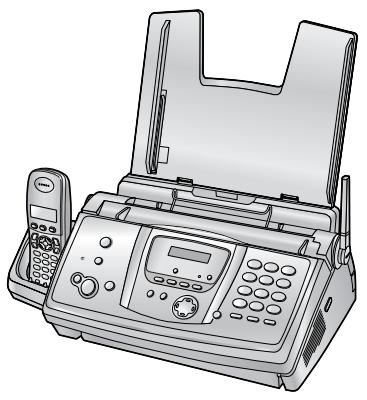
Compact Plain Paper Fax with DECT
Operating Instructions
Model No. KX-FC235E

Please read these operating instructions before using the unit and save for future reference.
This unit is compatible with Caller ID and SMS. To use these features, you must subscribe to the appropriate service of your service provider.
Be sure to use the telephone line cord included in this unit.
This model is designed to be used only in the United Kingdom and Ireland.
How to use the operating instructions
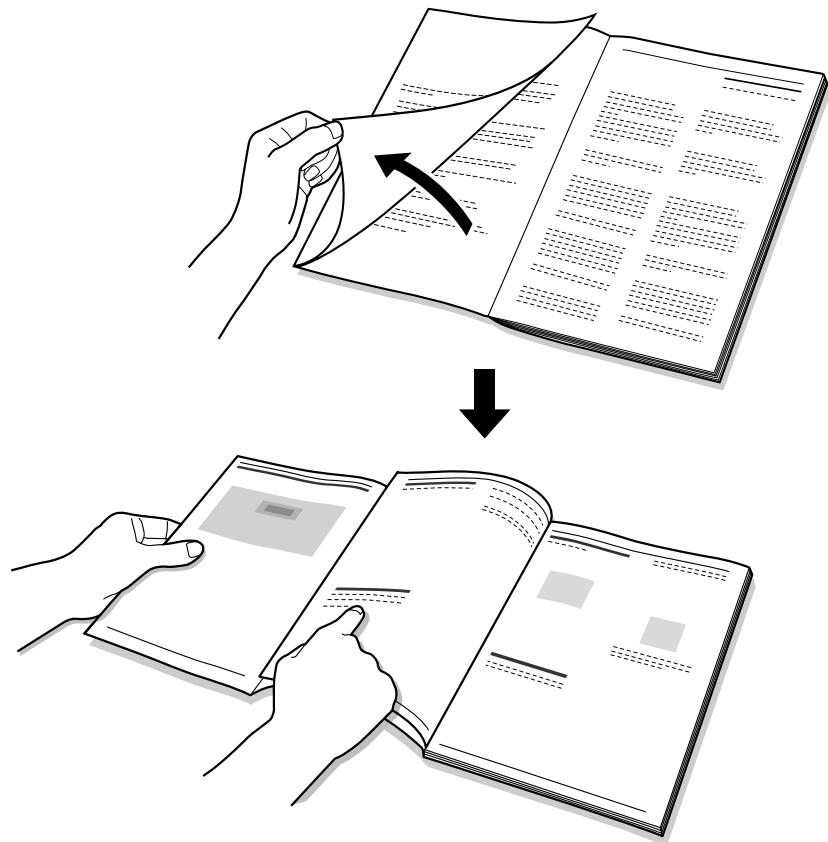
When following operating instructions, always keep the front cover page (next page) open for easy reference to the buttons.
Location of Controls
Please keep this page open when following operating instructions.
For a description of each button, see page 12, 13.
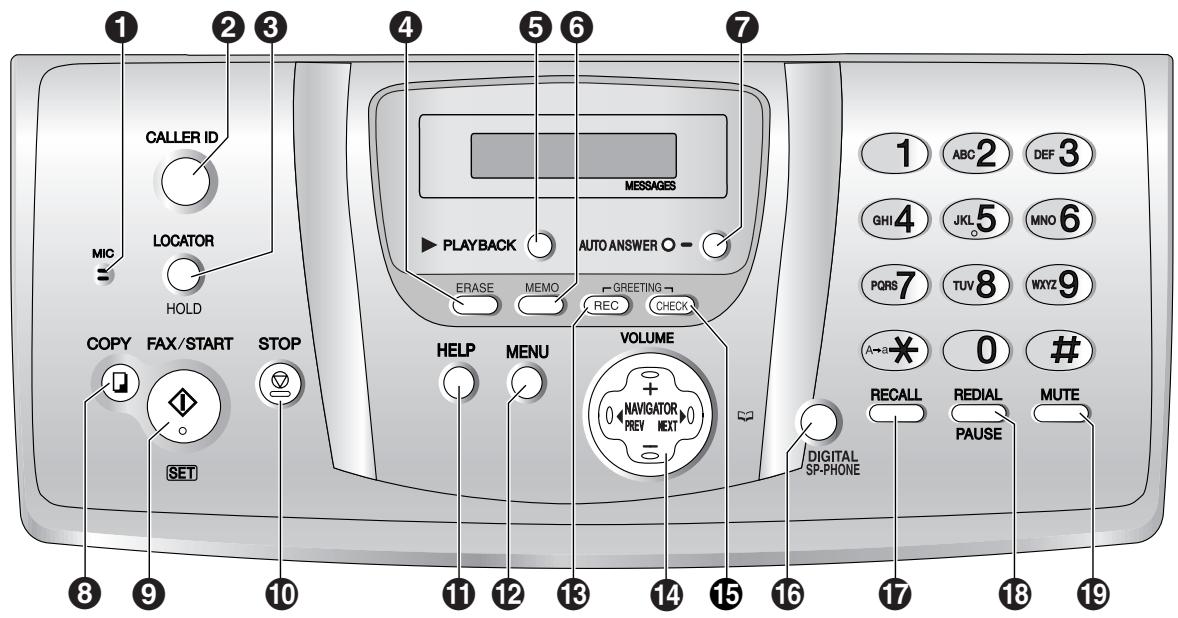
Base unit
Buttons (Listed in alphabetical order)
| AUTO ANSWER 7 | HELP 11 |
| CALLER ID 2 | HOLD 3 |
| COPY 3 | LOCATOR 3 |
| DIGITAL SP-PHONE 16 | MEMO 6 |
| ERASE 4 | MENU 12 |
| FAX/START 9 | MIC 1 |
| GREETING/CHECK 15 | MUTE 19 |
| GREETING/REC 18 | NAVIGATOR 14 |
PAUSE 18
PLAYBACK ⑤
RECALL 17
REDIAL 13
SET 9
START 9
STOP 10
VOLUME 14
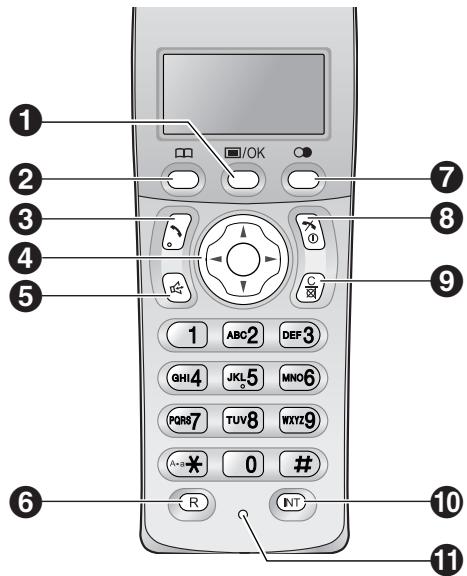
Handset
Buttons
//OK (Menu/OK) 1
□ (Phonebook) 2
(Talk) 3
Navigator 4
(Speakerphone) 5
R (Recall) 6
(C) (Redial/Pause) 7
× 0 (Off/Power) 8
C/ (Clear/Mute) 9
INT (Intercom) 10
Microphone 1
Thank you for purchasing a Panasonic fax machine.
For your future reference
Date of purchase
Serial number (found on the rear of the unit)
Dealer's name and address
Dealer's telephone number
Attach your sales receipt here.

Caution:
- Note that the images of copied or received documents will remain on the used ink film. Use discretion when disposing of the used ink film.
- Do not rub or use an eraser on the printed side of recording paper, as the print may smear.
- In the event of problems, you should contact your equipment supplier in the first instance.
- This equipment is designed for use on the UK and Republic of Ireland analogue telephone network.
Declaration of Conformity:
- Panasonic Communications Co., Ltd. declares that this equipment is in compliance with the essential requirements and other relevant provisions of Radio & Telecommunications Terminal Equipment (R&TTE) Directive 1999/5/EC.
Declarations of Conformity for the relevant Panasonic products described in this manual are available for download by visiting:
http://www.doc.panasonic.de
Contact:
Panasonic Services Europe
a Division of Panasonic Marketing Europe GmbH
Panasonic Testing Centre
Winsbergring 15, 22525 Hamburg, Germany
Trademarks:
- Eatoni and LetterWise are trademarks of Eatoni Ergonomics, Inc.
Important safety instructions
When using this unit, basic safety precautions should always be followed to reduce the risk of fire, electric shock, or personal injury.
- Read and understand all instructions.
- Follow all warnings and instructions marked on this unit.
- Unplug this unit from power outlets before cleaning. Do not use liquid or aerosol cleaners. Use a damp cloth for cleaning.
- Do not use this unit near water, for example near a bathtub, wash bowl, kitchen sink, etc.
- Place the unit securely on a stable surface. Serious damage and/or injury may result if the unit falls.
- Do not cover slots and openings on the unit. They are provided for ventilation and protection against overheating. Never place the unit near radiators, or in a place where proper ventilation is not provided.
- Use only the power source marked on the unit. If you are not sure of the type of power supplied to your home, consult your dealer or local power company.
- For safety purposes this unit is equipped with a grounded plug. If you do not have this type of outlet, please have one installed. Do not defeat this safety feature by tampering with the plug.
- Do not place objects on the mains lead. Install the unit where no one can step or trip on the cord.
- Do not overload power outlets and extension cords. This can result in the risk of fire or electric shock.
- Never push any objects through slots in this unit. This may result in the risk of fire or electric shock. Never spill any liquid on the unit.
- To reduce the risk of electric shock, do not disassemble this unit. Take the unit to an authorised service centre when service is required. Opening or removing covers may expose you to dangerous voltage or other risks. Incorrect reassembly can cause electric shock when the unit is subsequently used.
- Unplug this unit from power outlets and refer servicing to an authorised service centre when the following conditions occur:
A. When the mains lead is damaged or frayed.
B. If liquid has been spilled into the unit.
C. If the unit has been exposed to rain or water.
D. If the unit does not work normally by following the operating instructions. Adjust only controls covered by the operating instructions. Improper adjustment may require extensive work by an authorised service centre.
E. If the unit has been dropped or physically damaged.
F. If the unit exhibits a distinct change in performance.
- During thunderstorms, avoid using telephones except cordless types. There may be a remote risk of an electric shock from lightning.
- Do not use this unit to report a gas leak, when in the vicinity of the leak.
SAVE THESE INSTRUCTIONS
CAUTION:
Installation
- Never install telephone wiring during a lightning storm.
- Never install telephone sockets in wet locations unless the socket is specifically designed for wet locations.
- Never touch uninsulated telephone wires or terminals unless the telephone line has been disconnected at the network interface.
- Use caution when installing or modifying telephone lines.
- Do not touch the plug with wet hands.
- This unit should not be used near emergency/intensive care medical equipment and should not be used by people with pacemakers.
Battery
To reduce the risk of fire or injury to persons, read and follow these instructions.
- Use only the battery(ies) specified.
- Do not dispose of the battery(ies) in a fire. They may explode. Check with local waste management codes for special disposal instructions.
- Do not open or mutilate the battery(ies). Released electrolyte is corrosive and may cause burns or injury to the eyes or skin. The electrolyte may be toxic if swallowed.
- Exercise care when handling the battery(ies). Do not allow conductive materials such as rings, bracelets or keys to touch the battery(ies), otherwise a short circuit may cause the battery(ies) and/or the conductive material to overheat and cause burns.
- Charge the battery(ies) provided with or identified for use with this product only in accordance with the instructions and limitations specified in these operating instructions.
- Only use the included base unit (or charger) to charge the battery(ies). Do not tamper with the base unit (or charger). Failure to follow these instructions may cause the battery(ies) to swell or explode.
WARNING:
- To prevent the risk of fire or electrical shock, do not expose this product to rain or any type of moisture.
- Unplug this unit from power outlets if it emits smoke, an abnormal smell or makes unusual noise. These conditions can cause fire or electric shock. Confirm that smoke has
stopped and contact an authorised service centre.
Information on Disposal for Users of Waste Electrical & Electronic Equipment (private households)


This symbol on the products and/or accompanying documents means that used electrical and electronic products should not be mixed with general household waste.
For proper treatment, recovery and recycling, please take these products to designated collection points, where they will be accepted on a free of charge basis. Alternatively, in some countries you may be able to return your products to your local retailer upon the purchase of an equivalent new product.
Disposing of this product correctly will help to save valuable resources and prevent any potential negative effects on human health and the environment which could otherwise arise from inappropriate waste handling. Please contact your local authority for further details of your nearest designated collection point.
Penalties may be applicable for incorrect disposal of this waste, in accordance with national legislation.
For business users in the European Union If you wish to discard electrical and electronic equipment, please contact your dealer or supplier for further information.
Information on Disposal in other Countries outside the European Union
This symbol is only valid in the European Union. If you wish to discard this product, please contact your local authorities or dealer and ask for the correct method of disposal.
For best performance
Battery charge
- Place the handset on the cradle of the base unit for about 7 hours before initial use.
For details, see page 22.

Operating distance and noise
- The base unit and handset use radio waves to communicate with each other.
For maximum distance and noise-free operation, we recommend the following:
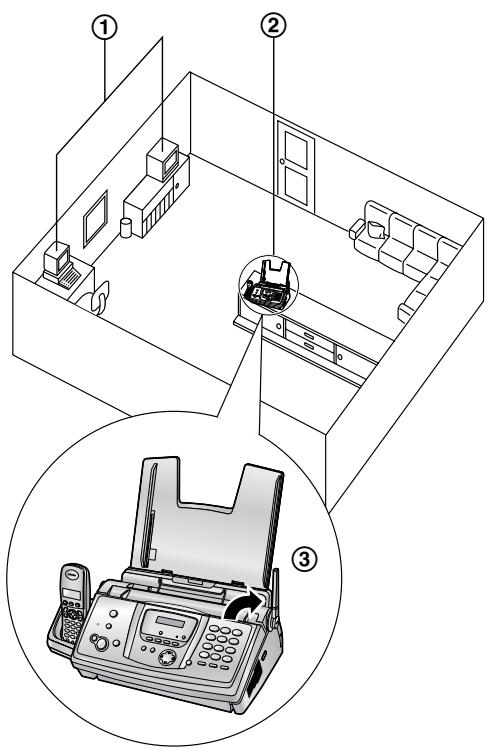
(1) Placing your base unit away from electrical appliances such as TVs, radios, personal computers or other phones.
(2) Placing the base unit in a HIGH and CENTRAL location with no obstructions such as walls.
③ Raising the antenna vertically.
Environment
- Keep the unit away from electrical noise generating devices, such as fluorescent lamps and motors.
- The unit should be kept free from dust, high temperature and vibration.
- The unit should not be exposed to direct sunlight.
- Do not place heavy objects on top of the unit.
- The unit should be kept away from heat sources such as heaters, kitchen stoves, etc. It should not be placed in rooms where the temperature is less than 5^ C or greater than 35^ C (base unit) / 40^ C (handset). Damp basements should also be avoided.
Routine care
- Wipe the outer surface of the unit with a soft cloth. Do not use benzine, thinner, or any abrasive powder.
Recording paper
- Store unused paper in the original packaging, in a cool and dry place. Not doing so may affect print quality.
Important Information
The connection to the telecommunication systems must not be hard wired and must be unplugged before the earth is disconnected.
Method of connection
This apparatus is connected to the exchange line or PABX/PMBX extension by the new standard British Telecom plug and socket. Arrangements for provision of this type of termination can be made through the nearest British Telecom Sales Office.
This apparatus may be connected to the following types of installation.
a) For connection to the public switched telephone network (PSTN) and compatible PBX (Private Branch Exchange), which use DTMF signalling. (Please consult your supplier for an up to date list of compatible PBX's.)
b) The apparatus can be used on extension sockets connected to a direct exchange line (D.E.L.).
c) This apparatus is suitable for connection to the telecommunication system directly or via compatible private branch exchange as an extension. The supplier of the apparatus should be consulted for an up to date list of PBX's with which the apparatus is compatible.
It cannot be guaranteed that the apparatus will operate under all possible conditions of connection to compatible PBX's.
- This apparatus is suitable for connection to a PBX with or without initial proceed indication.
- This apparatus is suitable for connection to a PBX with or without secondary proceed indication.
Any cases of difficulty should be referred in the first instance to the supplier of the apparatus.
d) The apparatus must not be connected in the following manner:
-As an extension to a pay phone
-As a party line with shared service
NOTES:
- If you experience any problems with the normal use of your apparatus, you should unplug it from the telephone outlet and connect a known working telephone in its place. If the known working telephone still gives problems, then please contact the customer service department of your PSTN operator (e.g. BT etc.). If it operates properly, then the problems are likely to be a fault in your apparatus. In this case, consult your supplier for advice.
- Your PSTN operator may charge you if they attend a service call that is not due to apparatus supplied by them.
For your safety
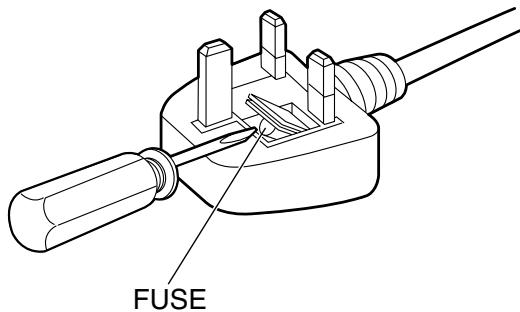
This appliance is supplied with a moulded three pin mains plug for your safety and convenience.
A 5 amp fuse is fitted in this plug. Should the fuse need to be replaced please ensure that the replacement fuse has a rating of 5 amps and that it is approved by ASTA or BSI to BS1362.
Check for ASTA mark A or the BSI
mark on the body of the fuse.
If the plug contains a removable fuse cover you must ensure that it is refitted when the fuse is replaced.
If you lose the fuse cover the plug must not be used until a replacement cover is obtained.
A replacement fuse cover can be purchased from your local Panasonic dealer.
IF THE FITTED MOULDED PLUG IS UNSUITABLE FOR THE SOCKET OUTLET IN YOUR HOME THEN THE FUSE SHOULD BE REMOVED AND THE PLUG CUT OFF AND DISPOSED OF SAFELY. THERE IS A DANGER OF SEVERE ELECTRICAL SHOCK IF THE CUT OFF PLUG IS INSERTED INTO ANY 13 AMP SOCKET.
If a new plug is to be fitted please observe the wiring code as shown below. If in any doubt please consult a qualified electrician.
WARNING: THIS APPLIANCE MUST BE EARTHED.
IMPORTANT:
The wires in this mains lead are coloured in accordance with the following code:
Green-and-Yellow: Earth
Blue: Neutral
Brown: Live
As the colours of the wire in the mains lead of this appliance may not correspond with the coloured markings identifying the terminals in your plug, proceed as follows.
The wire which is coloured GREEN-AND-YELLOW must be connected to the terminal in the plug which is marked with the letter E or by the Earth symbol 12 or coloured GREEN or GREEN-AND-YELLOW.
The wire which is coloured BLUE must be connected to the terminal in the plug which is marked with the letter N or coloured BLACK.
The wire which is coloured BROWN must be connected to the terminal in the plug which is marked with letter L or coloured RED.
How to replace the fuse: Open the fuse compartment with a screwdriver and replace the fuse (and fuse cover).
1. Introduction
Accessories
1.1 Included accessories.. 10
1.2 Accessory information 11
Finding the Controls
1.3 Button descriptions of the base unit .12
1.4 Button descriptions of the handset... 13
1.5 Display descriptions of the handset..14
1.6 Overview 15
2. Installation
Base Unit
2.1 Ink film installation / replacement .... 16
2.2 Paper tray 18
2.3 Recording paper 19
Handset
2.4 Battery installation / replacement.....20
3. Preparation
Connections and Setup
3.1 Connections 21
3.2 Battery charge 22
3.3 Turning the handset power ON/OFF 23
Help Button
3.4 Base unit help function 23
Volume
3.5 Adjusting handset volume 24
3.6 Adjusting base unit volume.. 24
Initial Programming
3.7 Date and time 25
3.8 Your logo 26
3.9 Your fax number 28
4. Telephone
Making and Answering Calls
4.1 Making phone calls 29
4.2 Answering phone calls 31
4.3 Using the recall feature 31
Automatic Dialling
4.4 Handset phonebook 32
4.5 Base unit phonebook 34
Caller ID
4.6 Caller ID service 36
4.7 Viewing and calling back using caller information 37
4.8 Editing a caller's telephone number before calling back 38
4.9 Erasing caller information 39
4.10 Storing caller information into the phonebook 40
SMS
4.11 SMS (Short Message Service) 41
4.12 Turning SMS ON/OFF 41
4.13 Changing SMS message centre numbers 41
4.14 Registering mailboxes 42
4.15 Sending a message 42
4.16 Receiving a message 43
4.17 Guide to SMS settings 45
4.18 Available character entries for SMS .47
5. Fax
Sending Faxes
5.1 Sending a fax manually 49
5.2 Documents you can send 50
5.3 Sending a fax using the base unit phonebook.. 51
5.4 Broadcast transmission 51
Receiving Faxes
5.5 Selecting the way to use your fax machine 53
5.6 Auto receive 53
5.7 Manual receive 54
5.8 Receiving a fax manually - Auto answer OFF 55
5.9 Receiving a fax automatically - Auto answer ON............ 57
5.10 Receive polling (retrieving a fax placed on another fax machine) 58
5.11 Junk fax prohibition (preventing fax reception from undesired callers)....59
6. Copy
Copying
6.1 Making a copy 60
7. Answering Machine
Greeting
7.1 Recording your greeting message....62
Incoming Messages
7.2 Listening to recorded messages 63
Memo Message
7.3 Leaving a message for others or yourself 63
Remote Operation
7.4 Operating from a remote location.....65
8. Programmable Features
Base Unit
8.1 Base unit programming 67
8.2 Basic features 68
8.3 Advanced features 69
8.4 Direct commands for programming
features. 72
Handset
8.5 Handset programming 75
9. Multi-unit Operation
Additional Units
9.1 Operating additional units.. 82
9.2 Registering a handset to a base unit 82
9.3 Handset locator 83
9.4 Intercom between handsets 84
9.5 Transferring calls between handsets / Conference calls 84
9.6 Copying handset phonebook items...85
10.Useful Information
Useful Information
10.1 Available character entries for the handset 86
11.Help
Error Messages
11.1 Error messages - Reports 88
11.2 Error messages - Base unit display.89
Troubleshooting
11.3 When a function does not work, check here 91
Jams
11.4 Recording paper jams 98
11.5 Document jams - sending 101
Cleaning
11.6 Document feeder / scanner glass cleaning 102
11.7 Thermal head cleaning. 103
12.General Information
Printed Reports
12.1 Reference lists and reports (Base unit only). 105
Specifications
12.2 Specifications 106
Guarantee
12.3 Condition of guarantee 108
13.Index
13.1 Index 109
1.1 Included accessories
| No. | Item | Part number*1 | Quantity | Notes |
| ① | Mains lead | PFJA03A005X | 1 | -------- |
| ② | Telephone line cord | PFJA04B012Y | 1 | for UK |
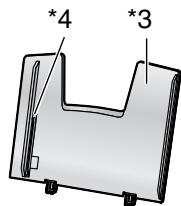
| ③ | Paper tray | Tray: PFKS1088Y1*3 Guide: PFKS1120Z1*4 | 1 | -------- |
| ④ | Starter ink film (10 metres long) | -------- | 1 | prints about 28 A4-sized pages.*2 |
| ⑤ | Handset | -------- | 1 | -------- |
| ⑥ | Rechargeable batteries | HHR-4EPT | 2 | AAA (R03) size |
| ⑦ | Handset cover | PQYNTCD320ET | 1 | -------- |
| ⑧ | Operating instructions | PFQX2180W | 1 | -------- |
| ⑨ | Quick installation guide | PFQW2265Z | 1 | -------- |
1 Part numbers are subject to change without notice.
2 For replacement film, see page 11.

(1)

(2)
(3)
(4)

(5)


(6)
(7)


(8)

(9)
Note:
- If any items are missing or damaged, contact the place of purchase.
- Save the original carton and packing materials for future shipping and transportation of the unit.
1.2 Accessory information
1.2.1 Sales and Support Information
Customer Care Centre
For customers within the UK: 08701 580560
For customers within the Republic of Ireland: 01 289 8333
- Visit our website for product information
E-mail: customer.care@panasonic.co.uk
Direct Sales at Panasonic UK
- Order accessory and consumable items for your product with ease and confidence by phoning our Customer Care Centre Monday - Thursday 9:00am - 5:30pm, Friday 9:30am - 5:30pm (Excluding public holidays).
- Or go on line through our Internet Accessory ordering application at www.panasonic.co.uk.
- Most major credit and debit cards accepted.
- All enquires transactions and distribution facilities are provided directly by Panasonic UK Ltd.
It couldn't be simpler! - Also available through our Internet is direct shopping for a wide range of finished products, take a browse on our website for further details.
Additional/replacement accessories
| Model No. | Item | Specifications/Usage |
| KX-FA54X | Replacement film*1 | 35 m × 2 rolls (Each roll will print about 105 A4-sized pages.) |
| P03P | Rechargeable batteries | 2 rechargeable nickel metal hydride (Ni-MH) batteries |
| KX-TCA121E | Additional handset | -------- |
| KX-A272 | DECT repeater | -------- |
*1 We recommend that you buy a full-size replacement film for continuous use of your unit. Please use genuine Panasonic replacement film. The ink film is not reusable. Do not rewind and use the ink film again.
1.3 Button descriptions of the base unit
- Keep the front cover page open for button locations.
【MIC】(Microphone)
The built-in microphone.
2 [CALLER ID]
- To use Caller ID features (page 38).
3 [LOCATOR][HOLD]
-
To locate a handset (page 83).
-
To put a call on hold.
4 [ERASE]
To erase messages (page 62, 63).
5 [PLAYBACK]
- To play messages (page 63).
6【MEMO】
- To record a memo message (page 63).
7【AUTO ANSWER】
- To turn the auto answer setting ON/OFF (page 53).
[COPY]
- To copy a document (page 60).
[ FAX/START][SET]
- To start sending or receiving a fax.
- To store a setting during programming.
10 [STOP]
- To stop an operation or programming session.
- To erase a character/number (page 27). Press and hold to erase all characters/numbers.
【HELP】
- To print helpful information for quick reference (page 23).
12【MENU】
- To initiate or exit programming.
[GLEETING/REC]
- To record a greeting message (page 62).
14 [NAVIGATOR][VOLUME]
- To adjust volume (page 24).
- To search for a stored item (page 35, 51).
- To select features or feature settings during programming (page 67).
- To navigate to the next operation.
15 [GREETING/CHECK]
- To check a greeting message (page 62).
16 [DIGITAL SP-PHONE]
- For speakerphone operation (page 30).
【RECALL】
- To access special telephone services such as call waiting (page 31) or for transferring extension calls.
13 [REDIAL][PAUSE]
- To redial the last number dialled from the base unit.
- To insert a pause during dialling.
19 [MUTE]
- To mute your voice to the other party during a conversation. Press again to resume the conversation.
1.4 Button descriptions of the handset
- Keep the front cover page open for button locations.
1 [3/OK] (Menu/OK)
- To initiate programming.
- To store a setting during programming.
- To lock/unlock the handset buttons (page 30).
2 [□] (Phonebook)
To access the phonebook (page 32).
3【 】(Talk)
To make/answer calls (page 29, 31).
4 Navigator
- To adjust volume (page 24).
- To search for a stored item (page 32).
- To select features or feature settings during programming.
- To navigate to the next operation.
[Speakerphone]
- For speakerphone operation (page 29).
[R] (Recall)
- To access special telephone services such as call waiting (page 31) or for transferring extension calls.
7 [C] (Redial/Pause)
To redial one of the last 10 numbers dialled from the handset (page 29).
- To insert a pause during dialling.
【 心 0 】(Off/Power)
- To turn power ON/OFF (page 23).
- To hang up (page 29, 31).
- To stop an operation or programming session.
- To exit programming.
9 [C/☑] (Clear/Mute)
- To erase a character/number (page 32). Press and hold to erase all characters/numbers.
- To mute your voice to the other party during a conversation. Press again to resume the conversation.
10 [INT] (Intercom)
- To page or locate another handset (page 84).
11 Microphone
The built-in microphone.
Note:
- Up to 3 menu items can be displayed at a time. To select a menu item not shown on the
current page, scroll up or down by pressing the navigator key, [ ] or [ ] , respectively.
1.5 Display descriptions of the handset
Display icons
Various icons appear on the handset display to indicate the current status of the unit.
| Display icon | Meaning |
| Y | Within range of a base unit • When flashing: Handset is searching for base unit (out of range of base unit, handset is not registered to base unit, no power on base unit) |
| - | Handset is on an outside call |
| × | Call bar is ON (page 78) |
| [HE] | Battery strength (page 22) |
| “[VE]” | Voice enhancer is set to high or low tone (page 29) |
| “[N]” | Night mode is ON (page 76) |
| “[X]” | Key lock is ON (page 30) |
| “[2]” | Handset number: The left icon shows handset 2 example (page 77) |
| “-2-” | Base unit number: The left icon shows base unit 2 example (page 77) |
| × | New SMS message received (SMS users only, page 43) |
| [IN USE] | Line is being used by another handset |
1.6 Overview
1.6.1 Base unit
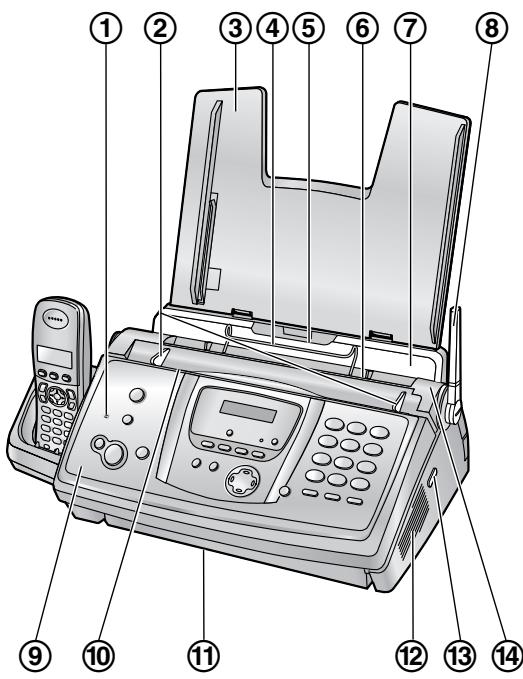
① Microphone
② Document guides
③ Paper tray
④ Metal recording paper guide
⑤ Recording paper entrance
⑥ Recording paper exit
⑦ Tension plate
Antenna
⑨ Front cover
10 Document entrance
1 Document exit
Speaker
Green button (Back cover release button)
Back cover
1.6.2 Handset
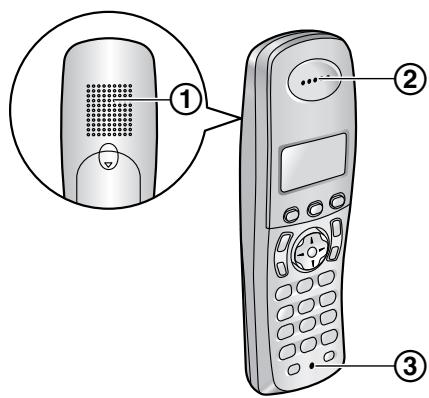
① Speaker
② Receiver
③ Microphone
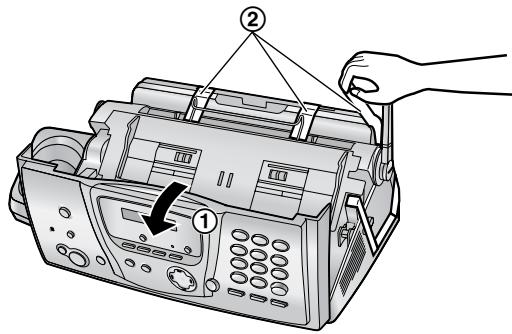
Removing the shipping tape
Open the front cover by pulling up the centre part (①), then remove the shipping tape (②).
2.1 Ink film installation / replacement
The included film roll is a starter ink film.
Important:
- Remove all blue shipping tape from the unit before installation.
2.1.1 Installing the ink film
The included film roll is a starter ink film.
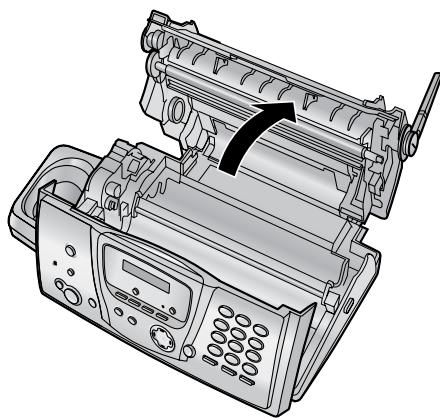
1 Open the front cover by pulling up the centre part.
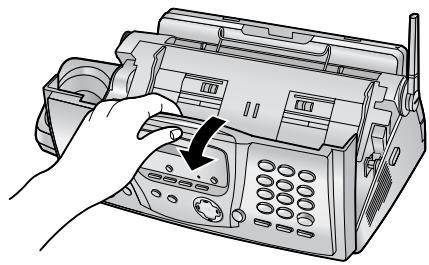
2 Release the back cover by pushing the green button (①).
- You can also release the back cover by pushing in the green lever (②).
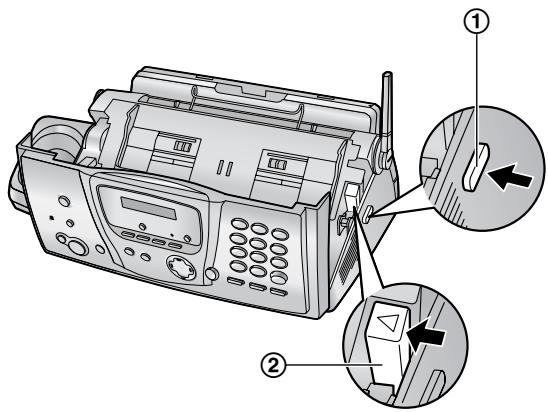
3 Open the back cover.
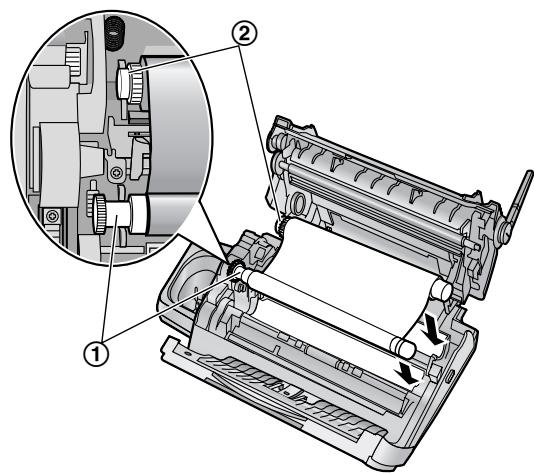
4 Insert the front ink film roll by inserting its blue gear into the left slot of the unit (①). Insert the rear ink film roll by inserting its white gear into the left slot of the unit (②).
- The ink film is safe to touch and will not rub off on your hands like carbon paper.
- Make sure the blue gear (①) and white gear (②) are installed as shown.
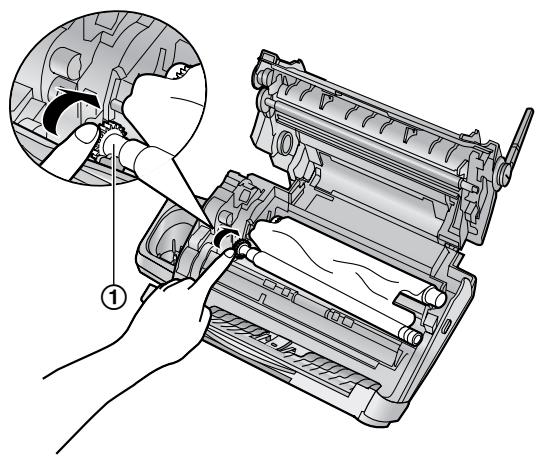
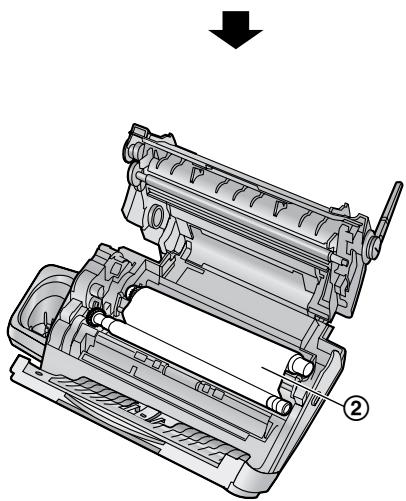
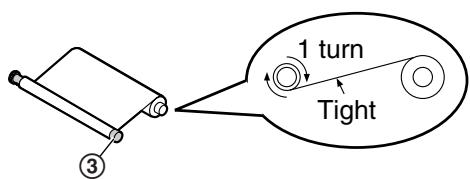
5 Turn the gear of the blue core (①) in the direction of the arrow until the ink film is tight (②).
Correct
- The ink film is wrapped around the blue core (③) at least once.
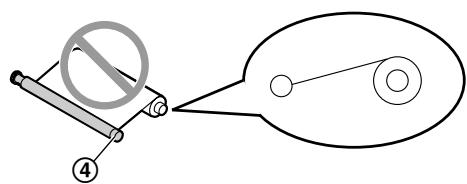
Incorrect
- The ink film is not wrapped around the blue core (④).
The ink film is reversed.
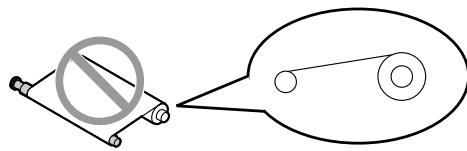
- The ink film is slack or creased.

6 Close the back cover securely by pushing down on the notched area at both ends (①).
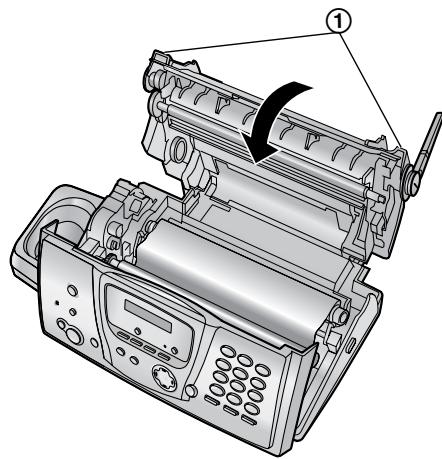
7 Close the front cover securely.
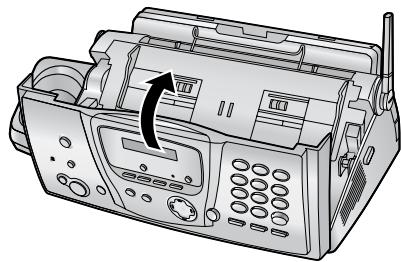
2.1.2 Replacing the ink film
To ensure that the unit operates properly, we recommend the use of Panasonic replacement film. See page 11 for accessory information.
- We cannot be responsible for any damage to the unit or degradation of print quality which may occur from the use of non-Panasonic replacement film.
1 Open the covers (see steps 1 to 3 on page 16).
2 Remove the used core (①) and used ink film (②).
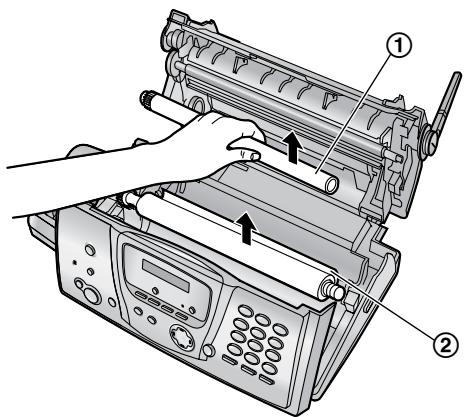
3 Remove the stoppers (①) and tags (②) from the new ink film (③).
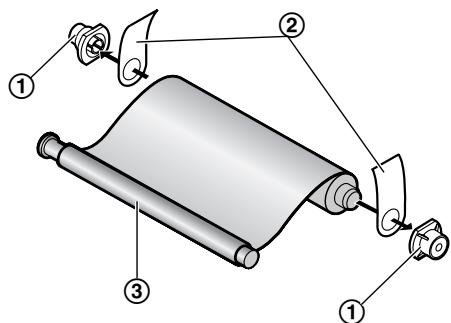
4 Insert the ink film and close the covers (see steps 4 to 7 on page 16).
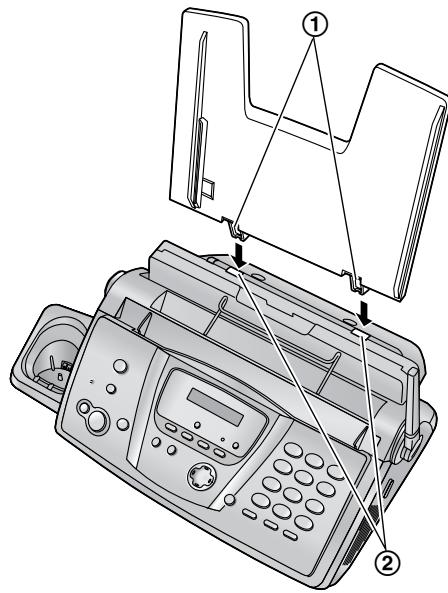
2.2 Paper tray
Insert the tabs on the paper tray (①) into the slots on the back of the unit (②).
2.3 Recording paper
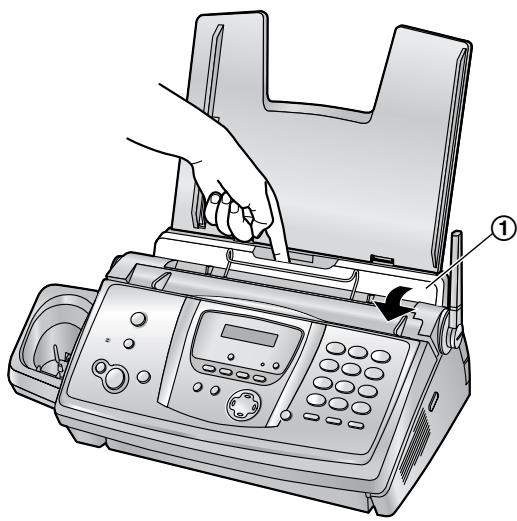
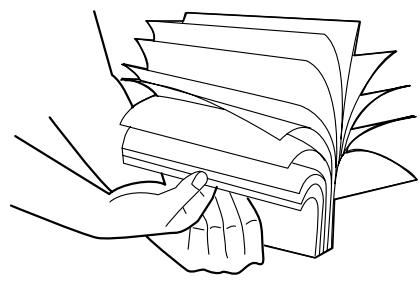
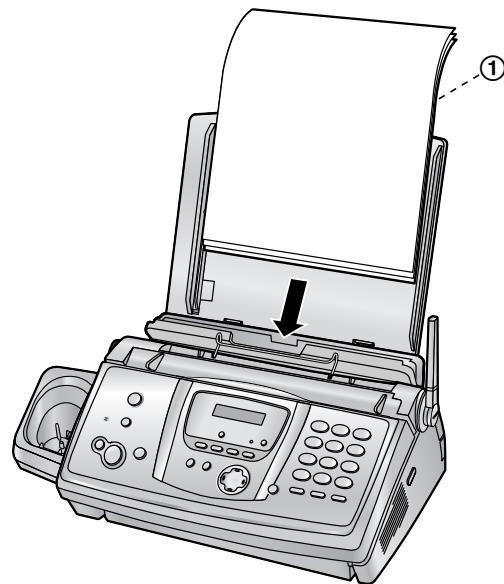
The unit can hold up to 30 sheets of 80g / m^2 paper.
Please refer to page 106 for information on recording paper.
1 Pull the tension plate forward (①).
2 Fan the paper to prevent paper jams.
3 Insert the paper, print-side down (①).
4 Push the tension plate back (①).
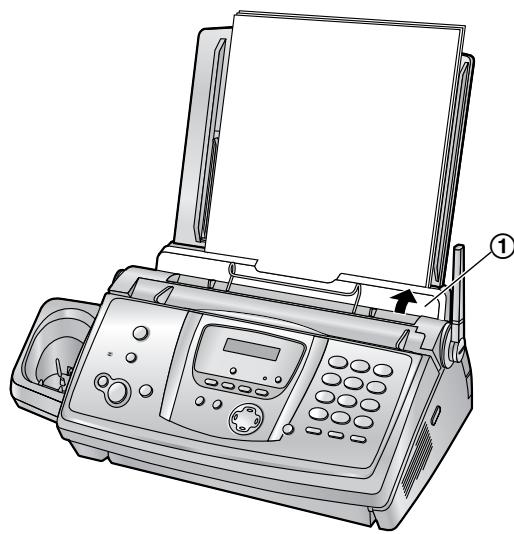
- If the paper is not inserted correctly, readjust the paper, or the paper may jam.

Correct
Incorrect

2.4 Battery installation / replacement
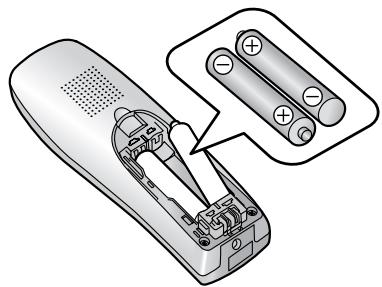
2.4.1 Installing the batteries
1 Insert the batteries negative (Θ) terminal first.
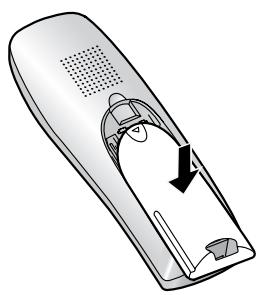
2 Close the handset cover.
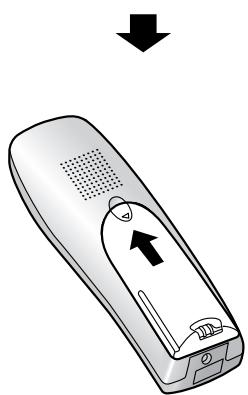
2.4.2 Replacing the batteries
If flashes even after the handset batteries have been charged for 7 hours, the batteries must be replaced. We recommend the use of Panasonic batteries. See page 11 for accessory information.
Important:
- Use only rechargeable batteries. If you install non-rechargeable batteries and start charging, the batteries may leak electrolyte.
- Do not mix old and new batteries.
1 Press the notch on the handset cover firmly and slide it in the direction of the arrow.
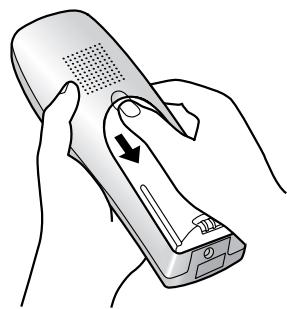
2 Remove the old batteries positive () terminal first and install the new ones. See the battery installation procedure.
3.1 Connections
Important:
- The unit will not function when there is a power failure. To make calls in emergency situations, you should connect a telephone that can function during a power failure to the telephone line.
① Mains lead
- Connect to Household Mains Supply (220 V - 240 V, 50 Hz).
② Telephone line cord
- Connect to telephone network.
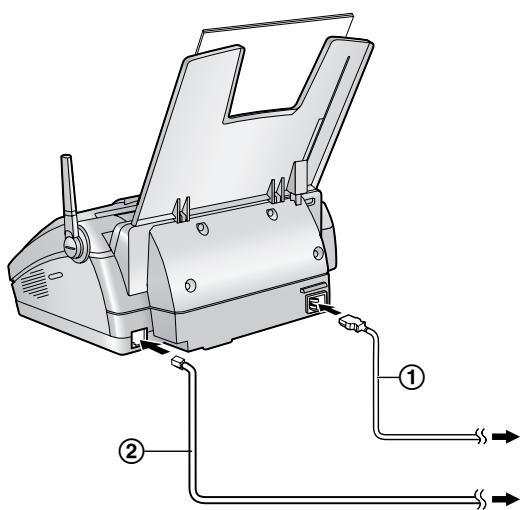
Caution:
- The mains lead must remain connected at all times.
- After connection, you must charge the batteries to make or answer calls with the handset (page 22).
- Never install telephone wiring during a lightning storm.
- When you operate this product, the power outlet should be near the product and easily accessible.
- Be sure to use the telephone line cord included in this unit.
- Do not extend the telephone line cord.
Note:
- If any other device is connected to the same telephone line, this unit may disturb the network condition of the device.
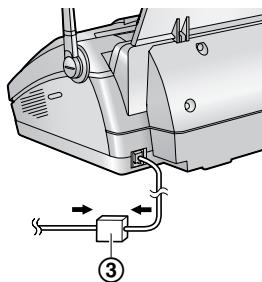
- If you use the unit with a computer and your internet provider instructs you to install a filter
(3), please connect the telephone line cord as follows.
3.2 Battery charge
Place the handset on the cradle of the base unit for about 7 hours before initial use.
When charging, the battery icon is shown as follows.
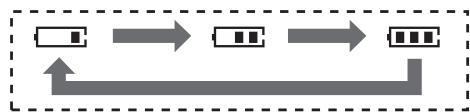
When the batteries are fully charged, remains on the display.
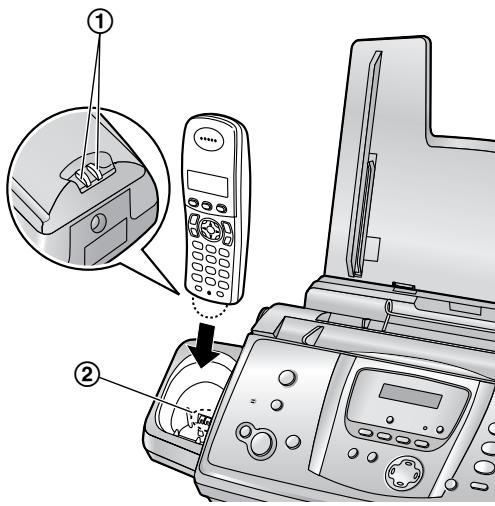
Note:
- Clean the handset charge contacts (①) and the charger charge contacts (②) with a soft, dry cloth once a month, otherwise the batteries may not charge properly. Clean more often if the unit is exposed to grease, dust or high humidity.
Battery strength
You can confirm the battery strength on the handset display.
| Battery icons | Battery strength |
| High | |
| Medium | |
| Low ● When flashing: Needs to be charged |
Note:
-
If the handset is turned OFF, it will be turned ON automatically when it is placed on the base unit.
-
If flashes when you lift the handset off the base unit, charge the batteries at least 15 minutes.
Battery life
After your Panasonic batteries are fully charged, you can expect the following performance:
Ni-MH Batteries (typical 700 mAh)
| Operation | Operating Time |
| While in use (talking) | 20 hours approx. |
| While not in use (standby) | 170 hours approx. |
Note:
- Actual battery performance depends on a combination of how often the handset is in use (talking) and how often it is not in use (standby).
- Battery operating time may be shortened over time depending on usage conditions and ambient temperature.
3.3 Turning the handset power ON/OFF
3.3.1 Power ON
Press [空 0] for about 1 second.
The display will change to the standby mode.
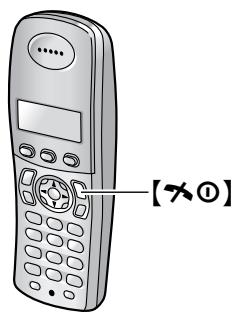
3.3.2 Power OFF
Press [心 0] for about 2 seconds.
The display will go blank.
3.4 Base unit help function
The unit contains helpful information which can be printed for quick reference.
"BASIC SETTINGS":
How to set the date, time, your logo and fax number.
"FEATURE LIST":
How to program the features.
"PHONEBOOK":
How to store names and numbers in the base unit phonebook and how to dial them.
"TAM OPERATION":
How to use the telephone answering machine.
"FAX RECEIVING":
How to set the base unit to receive taxes.
"COPIER":
How to use the copier function.
"REPORTS":
List of available reports.
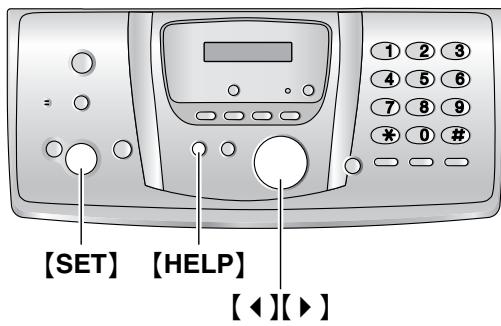
1 Press [HELP].
2 Press [] or [] repeatedly to display the desired item.
3 Press [SET].
The selected item will be printed.
3.5 Adjusting handset volume
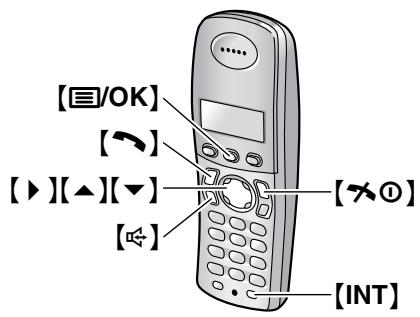
Ringer volume
- Press [国/OK].
- Select "Handset Setup", then press [▶].
- Select "Ringer Setup", then press [▶].
- Select "Ringer Volume", then press [▶].
- Press [▲] or [▼] repeatedly to select the desired volume.
- Press [▶].
- Press [水 0]
Note:
- Alarms will sound and the handset will ring for intercom calls and when paged even if the ringer is turned OFF.
Ring tone
You can select one of 15 ring tones for outside calls and intercom calls (page 76). Caller ID service users can also use a different ringer for each category (page 36).
Receiver volume
While using [] or [INT], press [] or [] .
Speaker volume
While using [] , press [] or [] .
3.6 Adjusting base unit volume
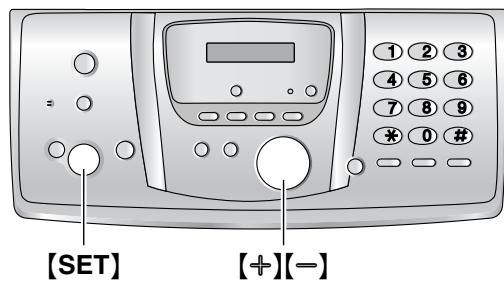
Ringer volume
While the unit is idle, press [+ or [-] .
- If any documents are in the document entrance, you cannot adjust the volume. Confirm that there are no documents in the entrance.
To turn the ringer OFF
- Press [] repeatedly to display "RINGER OFF= OK?"
-
Press [SET].
-
When a call is received, the base unit will not ring and will display "INCOMING CALL".
- To turn the ringer back ON, press [+ ]
Ring tone
You can select the ring tones from one of 3 tones for outside calls (feature #17 on page 68).
Speaker volume
While using the speakerphone, press [+] or [-] .
Answering machine volume
While listening to messages, press [+ ] or [-] .
3.7 Date and time
You must set the date and time for both the handset and the base unit.
Times are set independently and may not necessarily be identical.
- The other party's fax machine will print the date and time on each page you send according to your base unit's date and time setting.
- The accuracy of the clock is approximately ± 60 seconds a month.
3.7.1 With the handset
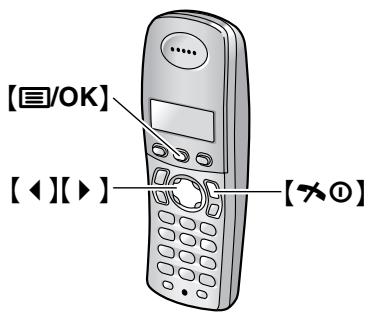
Important:
- Confirm that the mains lead of the base unit is connected.
- Ensure that is not flashing.
- If a power failure occurs, set the date and time for the handset again.
1 Press [OK].
2 Select "Handset Setup", then press [▶].
3 Select "Time Settings", then press [▶].
4 Select "Set Date & Time", then press [▶].
- The cursor (■) will appear on the display.
5 Enter the current date/month/year by selecting 2 digits for each.
Example: 10 August, 2005
Press [1][0][0][8][0][5].
| Date :10-08-05 |
| Time :00:00 |
| *=12/24 |
6 Enter the current hour/minute by selecting 2 digits for each. Press [× ] repeatedly to select "AM", "PM", or 24-hour time entry.
Example: 3:15 PM (12-hour time entry)
- Press [0][3] [1][5].
| Date :10-08-05 |
| Time :03:15 |
| *=12/24 |
- Press [长 ] repeatedly to display "PM".
| Date :10-08-05 |
| Time :03:15 PM |
| *=12/24 |
7 Press [国/OK].
8 Press [70].
To correct a mistake
Press [] or [] to move the cursor to the incorrect number, and make the correction.
Note:
- The date and time on the handset will be lost after a power failure and must be reset, but the base unit has backup to keep the time.
3.7.2 With the base unit
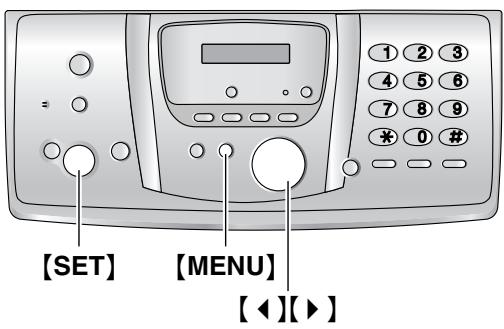
1 Press [MENU].
SYSTEM SETUP PRESS NAVI.[< ]
2 Press [] or [] repeatedly to display the following.
SET DATE & TIME PRESS SET
3 Press [SET].
- The cursor (■) will appear on the display.
D:01/M:01/Y:05
TIME: 00:00
4 Enter the current date/month/year by selecting 2 digits for each. Example: 10 August, 2005 Press [1][0][0][8][0][5].
D:10/M:08/Y:05
TIME: 00:00
5 Enter the current hour/minute by selecting 2 digits for each. Press [ ¥ ] repeatedly to select “AM”, “PM”, or 24-hour time entry. Example: 3:15PM (12-hour time entry) 1. Press [0][3] [1][5].
D:10/M:08/Y:05 TIME: 03:15
- Press [长 ] repeatedly to display "PM".
D:10/M:08/Y:05 TIME: 03:15PM
6 Press [SET].
The next feature will be displayed.
7 Press [MENU].
To correct a mistake
Press [] or [] to move the cursor to the incorrect number, and make the correction.
3.8 Your logo
Your logo will be printed on the top of each page sent from your unit.
The logo can be your name or the name of your company.
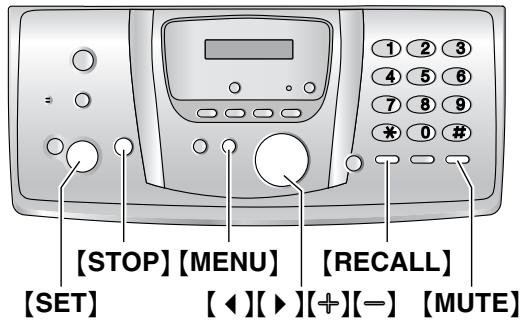
1 Press [MENU].
SYSTEM SETUP PRESS NAVI. [ ]
2 Press [] or [] repeatedly to display the following.
YOUR LOGO PRESS SET
3 Press [SET].
- The cursor (■) will appear on the display.
LOGO=
4 Enter your logo, up to 30 characters. See the following character table for details.
5 Press [SET].
The next feature will be displayed.
6 Press [MENU].
To select characters with the base unit dial keypad
| Keypad | Characters |
| [1] | Space # & ' ( ) * , - . / 1 |
| [2] | A B C 2 |
| a b c 2 | |
| [3] | D E F 3 |
| d e f 3 | |
| [4] | G H I 4 |
| g h i 4 | |
| [5] | J K L 5 |
| j k l 5 | |
| [6] | M N O 6 |
| m n o 6 | |
| [7] | P Q R S 7 |
| p q r s 7 | |
| [8] | T U V 8 |
| t u v 8 | |
| [9] | W X Y Z 9 |
| w x y z 9 | |
| [0] | Space 0 |
| [*] | To change uppercase or lowercase letter. |
| [RECALL] | To enter a hyphen. |
| [MUTE] | To insert a space. |
| [STOP] | To delete a digit. |
Note:
- To enter another character that is located on the same dial key, press [] to move the cursor to the next space.
To enter your logo
Example:"BILL
- Press 2 2 times.
LOGO=B
- Press [4] 3 times.
LOGO BI
- Press [5] 3 times.
LOGO=BIL
- Press [▶] to move the cursor to the next space and press [5] 3 times.
LOGO=BILL
To change uppercase or lowercase letters
Pressing the [ ] button will change to uppercase or lowercase letters alternately.
- Press 2 2 times.
LOGO=B
- Press [4] 3 times.
LOGO BI
- Press [] .
LOGO=B1
- Press [5] 3 times.
LOGO=Bil
To correct a mistake
Press【←】or【→】to move the cursor to the incorrect character, and make the correction.
To delete a character
Press【←】or【→】to move the cursor to the character you want to delete and press [STOP].
- To erase all characters, press and hold [STOP].
To insert a character
- Press [] or [] to move the cursor to the position to the right of where you want to insert the character.
- Press [MUTE] to insert a space and enter the character.
To select characters using [+ or [-]
Instead of pressing the dial keys, you can select characters using [+] or [-] .
- Press [=] repeatedly to display the desired character. Characters will be displayed in the following order:
(1) Uppercase letters
② Number
③ Symbol
(4) Lowercase letters
-
If you press [±] , the order will be reversed.
-
Press [] to insert the character.
- Return to step 1 to enter the next character.
3.9 Your fax number
Your fax number will be printed on the top of each page sent from your unit.
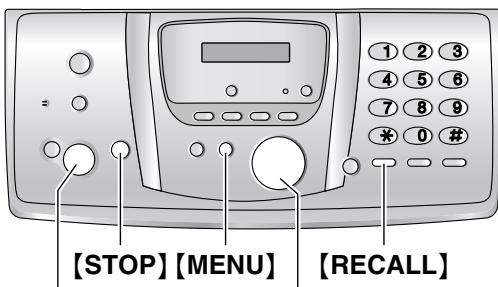
【SET】
【4】【B】
1 Press [MENU].
SYSTEM SETUP
PRESS NAVI. [< ]
2 Press [] or [] repeatedly to display the following.
YOUR FAX NO.
PRESS SET
3 Press [SET].
- The cursor (■) will appear on the display.
NO. =
4 Enter your fax number, up to 20 digits.
Example:
NO. = 1234567
5 Press [SET].
The next feature will be displayed.
6 Press [MENU].
Note:
- The [] button enters a "+" and the [#] button enters a space.
Example: +234 5678
- To enter a hyphen in a telephone number, press [RECALL].
To correct a mistake
Press [] or [] to move the cursor to the incorrect number, and make the correction.
To delete a number
Press【4】or【▶】to move the cursor to the number you want to delete and press [STOP].
- To erase all numbers, press and hold [STOP].
4.1 Making phone calls
4.1.1 With the handset
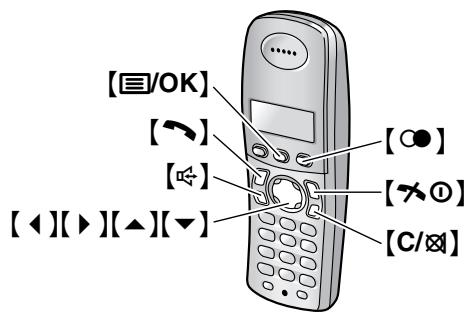
1 Lift the handset and press [or].
2 Dial the telephone number.
3 When finished talking, press [x] or place the handset on the base unit.
Speakerphone operation
For best performance, please note the following:
- Use the speakerphone in a quiet environment.
- Speak alternately with the caller.
- If you or the other party have difficulty hearing each other, press [▲] or [▼] repeatedly to adjust the speaker volume as necessary.
To redial the last number dialled from the handset
Press [ ] or [ ] , then press [ ] .
To radial automatically
Press [] , then press [] .
- If the line is busy, the unit will automatically redial the number up to 11 times. While the handset is waiting to redial, 【4】will flash. While the handset is redialling, mute is automatically turned ON.
Note:
- If mute does not turn OFF after the line is connected, press [C / ] .
To make a call using the radial list
The last 10 telephone numbers dialled from the handset are stored in the radial list.
-
Press [C].
-
The last number dialled will be displayed.
-
Press [▲] or [▼] repeatedly to select the desired number.
-
To exit the list, press [% 0] .
-
Press [ ] or [ ]
- If [] is pressed, the unit will redial automatically if the other party's line is engaged.
To edit a number in the radial list before calling it
- Press [] .
- Press [ ] or [ ] repeatedly to select the desired number, then press [OK].
- Select "Edit and Call", then press [▶].
-
Press [] or [] to move the cursor, then edit the number.
-
Place the cursor on the number you wish to erase, then press C / 且 .
-
Place the cursor to the right of where you want to insert a number, then make the correction.
-
Press [ ] or [ ]
To erase numbers in the radial list
- Press [C].
- Press [▲] or [▼] repeatedly to select the desired number, then press [☑/OK].
-
Select "Erase", then press [▶].
-
If you want to erase all numbers in the list, select "Erase A11", then press [▶].
-
Select "Yes", then press [▶].
- Press [天 0]
To store a number from the radial list into the handset phonebook
- Press [] .
- Press [] or [] repeatedly to select the desired number, then press [OK].
- Select "Add Phonebook", then press [▶].
- Enter a name, up to 16 characters (see page 86 for character entry), then press [国/OK].
- Edit the phone number if necessary, then press [OK].
- Select the desired category (page 32), then press [] .
- Select "save", then press [▶].
- Press [× 0]
Voice enhancer
You can change the tone quality of the receiver while you are on a call. 3 settings are available.
-
Press [国/OK] during a call.
-
Select "Voice Enhancer", then press [▶].
- Select the desired setting, then press [▶].
Note:
- If you select "High Tone" or "Low Tone", "[VE]" is displayed.
Mute
You can mute your voice during a conversation. While mute is turned ON, you will be able to hear the other party, but the other party will not be able to hear you.
- To mute your voice, press [C/].
- To return to the conversation, press [C/☑] again.
Key lock
The handset can be locked so that no calls or settings can be made. Incoming calls can be answered, but all other functions are disabled while key lock is ON. Emergency calls (page 80) cannot be made until key lock is turned OFF.
To turn key lock ON, press [OK] for about 2 seconds.
- "[x]" is displayed.
To turn key lock OFF, press [国/OK] for about 2 seconds.
Note:
- Key lock is turned OFF when the handset is turned OFF.
4.1.2 With the base unit
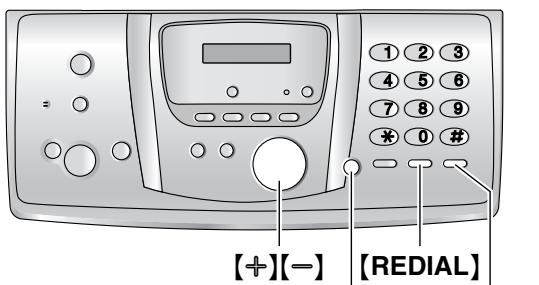
[DIGITAL SP-PHONE] [MUTE]
1 Press [DIGITAL SP-PHONE].
2 Dial the telephone number.
3 When finished talking, press [DIGITAL SP-PHONE].
Speakerphone operation
For best performance, please note the following:
- Use the speakerphone in a quiet environment.
-
Speak alternately with the caller.
-
If you or the other party have difficulty hearing each other, press [+] or [=] repeatedly to adjust the speaker volume as necessary.
To redial the last number dialled from the base unit
Press [DIGITAL SP-PHONE], then press [REDIAL].
To radial automatically
Press [DIGITAL SP-PHONE], then press [REDIAL].
- If the line is busy, the unit will automatically redial the number up to 11 times. While the base unit is redialling, mute is automatically turned ON.
Note:
- If mute does not turn OFF after the line is connected, press [MUTE].
4.2 Answering phone calls
4.2.1 With the handset
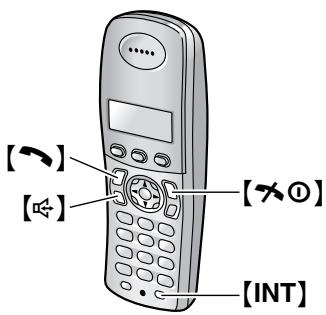
1 Lift the handset and press [or].
- You can also answer a call by pressing any dial key from [0] to [9], [×], [‡] or [INT]. (Any key answer feature)
2 When finished talking, press [×○] or place the handset on the base unit.
Auto talk feature
You can answer calls simply by lifting the handset off the base unit. You do not need to press [ ] .To turn this feature ON, see page 78.
4.2.2 With the base unit
[DIGITAL SP-PHONE]
1 Press [DIGITAL SP-PHONE].
2 When finished talking, press [DIGITAL SP-PHONE].
4.3 Using the recall feature
- Keep the front cover page open for button locations.
【RECALL】(base unit) /【R】(handset) is used to access optional telephone services such as call waiting. Contact your telephone company business office for details.
Call waiting
When a call waiting tone is heard during a conversation, place the existing call on hold and answer the second call by pressing [RECALL] / [R].
Each time you press [RECALL] / [R], you can switch between the first and second call.
- Incoming calls cannot be dropped by the person who has received the call.
Note:
- If your unit is connected to a PBX, pressing [RECALL] / [R] allows you to access some features of your host PBX such as transferring an extension call.
- You can change the recall time for the handset (page 79).
4.4 Handset phonebook
The handset phonebook allows you to make calls without having to dial manually. You can add 200 names and phone numbers to the phonebook, assign each phonebook item to the desired category, and search for phonebook items by name or category. When the system has additional handsets (page 82), each handset can have its own phonebook. You can copy phonebook items between two handsets (page 85).
- The base unit has its own individual phonebook (page 34).
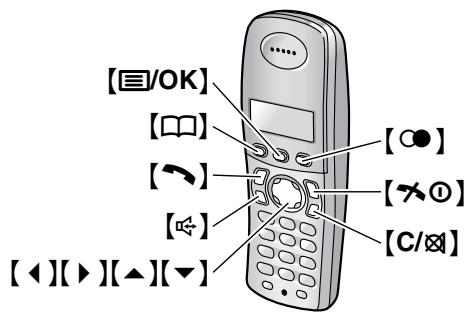
4.4.1 Storing phonebook items
1 Press [□□], then press [国/OK].
2 Select "New Entry", then press [▶].
3 Enter the name, up to 16 characters (see page 86 for character entry), then press [O].
4 Enter the telephone number, up to 24 digits, then press [国/OK].
5 Select the desired category for the item, then select .
- Caller ID service users can use additional private category features (page 36).
- You can search for handset phonebook items by category (page 33).
- You can change the category names (page 32).
6 Select "save", then press [▶].
- To program other items, repeat steps 3 to 6.
7 Press [70].
Note:
- If there is no space to store new items, "Memory Full" will be displayed. Erase unnecessary items (page 33).
To correct a mistake
- Press [ ] or [ ] to move the cursor to the incorrect character/number.
- Press [C/xt].
To erase all characters/numbers, press and hold [C / ] - Enter the correct character/number.
4.4.2 Categories
Categories can help you find items in the handset phonebook quickly and easily. When adding an item to the handset phonebook you can assign it to the desired category. You can change the names of categories assigned for handset phonebook items ("Friends", "Family", etc.) and then search for phonebook items by category. Additional category features are available for Caller ID users (page 36).
To change category names
- Press [□□], then press [国/OK].
- Select "Category", then press [▶].
- Select the category you want to change the name of, then press [] .
- Select "Category Name", then press [▶].
- Edit the name, up to 10 characters (see page 86 for character entry), then press [国/OK].
- Press [天 0]
4.4.3 Making a phone call using the phonebook
Before using this feature, store the desired names and telephone numbers in the handset phonebook (page 32).
1 Press [□].
2 Press [▲] or [▼] repeatedly to display the desired item.
- To search by first character (index search), see page 32. To search by category, see page 33.
3 Press [or].
- The handset will start dialling automatically.
To search for a name by first character (index search)
- Press [□], then press [C].
-
Select "Index Search", then press [▶].
-
Select the character entry mode that contains the character you are searching for, and press [] .
-
Press the dial key ([0] to [9]) which contains the character you are searching for (page 86).
-
Press the same dial key repeatedly to display the first item corresponding to each letter located on that dial key.
-
If there is no item corresponding to the letter you selected, the next item will be displayed.
-
Press [] repeatedly to display the desired item.
To search for a name by category
- Press [□□], then press [C].
- Select "Category Search", then press [▶].
-
Select the category you want to search, then press .
-
The first item in that category is displayed.
-
If you select "A11", the unit will end the category search.
-
Press [] repeatedly to display the desired item.
4.4.4 Editing a stored item
1 Press [□].
2 Press [▲] or [▼] repeatedly to display the desired item.
- To search by first character (index search), see page 32. To search by category, see page 33.
3 Press [OK].
4 Select "Edit", then press [▶].
- If you do not need to edit the name, skip to step 6.
5 Edit the name. For further details, see the storing procedure on page 32.
6 Press [国/OK].
- If you do not need to edit the telephone number, skip to step 8.
7 Edit the telephone number. For further details, see the storing procedure on page 32.
8 Press [O/K].
9 Select the desired category for the item, then press [] .
10 Select "save", then press [ ].
- To edit other items, repeat steps 2 to 10.
11 Press [x0].
4.4.5 Erasing stored items
To erase an item
1 Press [□].
2 Press [▲] or [▼] repeatedly to display the desired item.
- To search by first character (index search), see page 32. To search by category, see page 33.
3 Press [O/K].
4 Select "Erase", then press [▶].
5 Select "Yes".
- To cancel erasing, press [× 0] .
6 Press [▶].
7 Press【70】.
To erase all items
1 Press [□], then press [O/K].
2 Select "Erase All", then press [▶].
3 Select "Yes", then press [▶].
4 Select "Yes" again, then press [▶].
5 Press [70].
4.4.6 One touch dial
Handset dial keys [1] to [9] can each be used as a one touch dial, allowing you to dial a number from the handset phonebook by simply pressing a dial key.
To assign an item to a one touch dial key
- Press [□].
-
Press [▲] or [▼] repeatedly to select the desired item.
-
To search by first character (index search), see page 32. To search by category, see page 33.
-
Press [国/OK].
- Select "One Touch Dial", then press [▶].
-
Press [] or [] to select the desired dial key number, then press [] .
-
When the dial key is already used as a one touch dial key, “*” is displayed next to the dial key number. If you select this dial key, “Overwrite” is displayed. You can overwrite the previous assignment if necessary.
-
If you do not wish to overwrite, select "Go Back".
- Select "save", then press [▶].
- Press [× 0]
To make a call using a one touch dial key
- Press and hold the desired one touch dial key ([1] to [9]).
- You can view other one touch dial assignments by pressing [▲] or [▼].
- Press [ ] or [ ]
To erase a one touch dial assignment
- Press and hold the desired one touch dial key ([1] to [9]).
- Press [国/OK], then press [▶].
- Select "Yes", then press [▶].
Note:
- The number erased from a one touch dial key will not be deleted from the phonebook. To erase from the phonebook, see page 33.
4.4.7 Chain dial
This feature allows you to dial phone numbers in the handset phonebook while you are on a call. This feature can be used, for example, to dial a calling card access number or bank account PIN that you have stored in the handset phonebook, without having to dial manually.
1 During a phone call, press [□].
2 Press [▲] or [▼] repeatedly to select the desired item.
- To search by first character (index search), see page 32. To search by category, see page 33.
3 Press [ ] to dial the number.
4.5 Base unit phonebook
The base unit phonebook allows you to make calls without having to dial manually. You can store 100 names and telephone numbers to the phonebook.
- You can also send faxes using the base unit phonebook (page 51).
- The handset has its own individual phonebook (page 32).
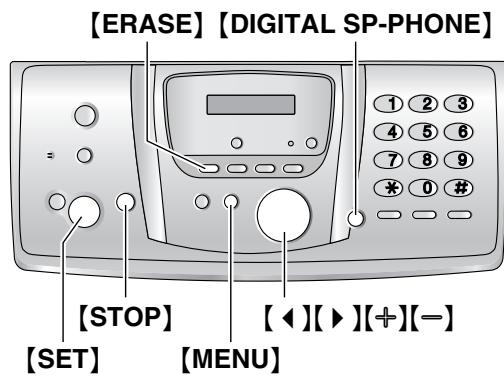
4.5.1 Storing phonebook items
1 Press [MENU] repeatedly to display "PHONEBOOK SET".
2 Press [] .
3 Enter the name, up to 16 characters (see page 26 for instructions).
4 Press [SET].
5 Enter the telephone number, up to 24 digits.
6 Press [SET].
- To program other items, repeat steps 3 to 6.
7 Press [MENU].
Helpful hints:
- You can confirm the stored items by printing the fax number list (page 105).
To correct a mistake
Press【4】or【▶】to move the cursor to the incorrect character/number, and make the correction.
To delete a character/number
Press[ ] or [ ] to move the cursor to the character/number you want to delete, and press [STOP].
- To erase all characters/numbers, press and hold [STOP].
4.5.2 Making a phone call using the phonebook
Before using this feature, store the desired names and telephone numbers in the base unit phonebook (page 34).
1 Press [▶].
2 Press [± ] or [ ] repeatedly to display the desired item.
3 Press [DIGITAL SP-PHONE].
- The base unit will start dialling automatically.
To search for a name by initial Example: "LISA"
- Press [▶].
- Press [+ or [-] to initiate the phonebook.
-
Press [5] repeatedly to display any name with the initial "I" (see the character table, page 26).
-
To search for symbols, press [1].
-
Press [-] repeatedly to display "LISA".
-
To stop the search, press [STOP].
- To dial the displayed party, press [DIGITAL SP-PHONE].
4.5.3 Editing a stored item
1 Press [▶].
2 Press [± ] or [ ] repeatedly to display the desired item.
3 Press [MENU].
4 Press [] .
- If you do not need to edit the name, skip to step 6.
5 Edit the name. For further details, see the storing procedure on page 34.
6 Press [SET].
- If you do not need to edit the telephone number, skip to step 8.
7 Edit the telephone number. For further details, see the storing procedure on page 34.
8 Press [SET].
4.5.4 Erasing a stored item
1 Press [▶].
2 Press [± ] or [ ] repeatedly to display the desired item.
3 Press [MENU].
4 Press [#].
- To cancel erasing, press [STOP].
5 Press [SET].
Another method to erase a stored item
- Press [▶].
- Press [± ] or [ ] repeatedly to display the desired item.
- Press [ERASE].
- Press [SET].
4.6 Caller ID service
This unit is compatible with Caller ID service offered by your local telephone company. To use this feature, you must subscribe to Caller ID service.
Important:
- This unit is designed in accordance with the ETS (European Telecommunication Standard) and only supports the basic CLIP (Calling Line Identification Presentation) features.
- This unit will only display the caller's telephone number and name.
- This unit will not support future additional telephone services.
- Depending on the service of the local telephone company, the date/time of the call or the caller's name may not be displayed.
Make sure the following ring setting is set to 2 or more rings beforehand.
- TEL/FAX ring setting (feature #78, page 71)
Note:
- Depending on the service of the local telephone company, caller information may not be displayed on the handset in TEL/FAX mode. In this case, change the TEL/FAX ring setting to 1 (feature #78 on page 71).
4.6.1 How Caller ID is displayed
When an outside call is received, the calling party's telephone number or name will be displayed. You then have the option of whether or not to answer the call.
The unit will automatically store caller information (telephone number, name, date and time of the call) of the last 30 (base unit)/50 (handset) callers. Caller information is stored by the most recent to the oldest call. When the 31st (base unit)/51st (handset) call is received, the oldest call is deleted.
Caller information can be viewed on the display one item at a time (page 37) or confirmed by printing the Caller ID list (page 105).
Note:
-
When caller information is received and it matches a telephone number stored in the unit's phonebook:
-
The stored name will be displayed and logged.
The handset will use the ring tone assigned to the caller's category. -
If the unit is connected to a PBX (Private Branch Exchange) system, caller information may not be received properly. Consult your PBX supplier.
- If the unit cannot receive caller information, the following will be displayed: "OUT OF AREA": The caller dialled from an area which does not provide Caller ID service.
"PRIVATE CALLER": The caller requested not to send caller information.
To confirm caller information by printing the Caller ID list
- To print manually, see page 105.
- To print automatically after every 30 new calls, activate feature #26 (page 69).
Note:
- Unviewed calls are listed as new.
Call Waiting Caller ID (Handset only)
This is a service of your service provider and will only operate if you have subscribed to this service. When you hear a call waiting tone during a conversation, the display will show the second caller's information. You can answer the second call, keeping the first call on hold. Please consult your service provider for details of this service.
Note:
- The second caller's information will not be displayed when:
the base unit is in use, or
another telephone on the same line is in use.
Category features for handset phonebook
Categories can help you identify who is calling by using different ring tones for different categories of callers.
When adding an item to the handset phonebook you can assign it to the desired category (page 32). When a call is received from a caller assigned to a category, the category's ring tone you select is used.
Changing category ring tones
You can select a ring tone for each category. If you select "Ext. Ringtone", the unit will use the external ring tone you set on page 76 when calls from this category are received. The default setting is "Ext. Ringtone".
- Press [□□], then press [国/OK].
- Select "category", then press [▶].
-
Select a category, then press [▶].
-
Select the current setting of the category ring tone, then press [] .
- Select the desired ring tone, then press [▶].
- Press [× 0] .
4.7 Viewing and calling back using caller information
You can easily view caller information and call back.
Important:
- Calling back will not be possible if the caller information does not include a telephone number.
4.7.1 With the handset
The display will show the number of new calls in standby mode.
Example:
10 Calls 10 Aug 3:15
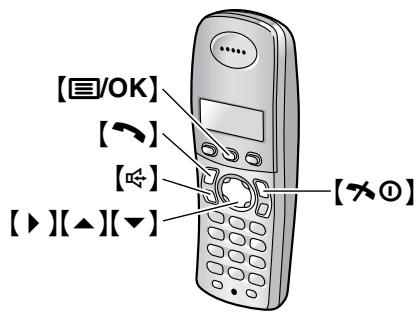
1 Press [国/OK].
2 Select "Caller List", then press [▶].
The most recent call is displayed.
3 Press [] to search from the most recently received caller information.
- If you press [] , the display order will be reversed.
- A is displayed next to items which have already been viewed or answered, even if they were viewed or answered using another handset.
4 Press [] or [] to return the call.
- The handset will start dialling automatically.
To stop viewing
Press【 心 0 】after step 3.
4.7.2 With the base unit
The display will show the number of new calls in standby mode.
Example:
10 NEW CALLS
10:59
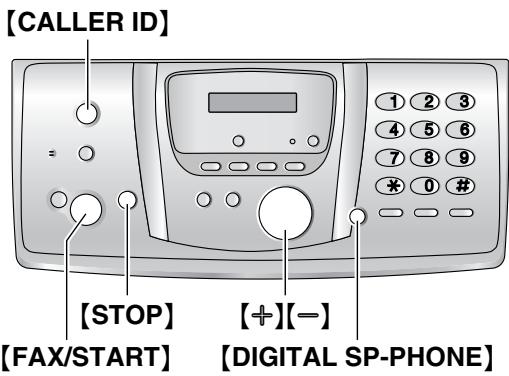
1 Press [CALLER ID].
2 Press [-] to search from the most recently received caller information.
- If you press [±] , the display order will be reversed.
3 Press [DIGITAL SP-PHONE] to return the call.
- The unit will start dialling automatically.
- To send a fax, insert the document FACE DOWN and press [FAX/START].
To change the way caller information is displayed
Press [CALLER ID] repeatedly after step 2.
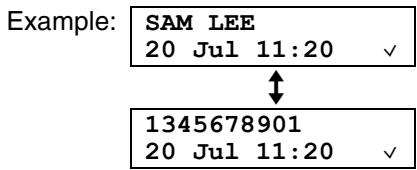
- A on the display means the item has already been viewed or answered.
Display while viewing
When the unit could not receive a name, the display will show "NO NAME RCVD".
To stop viewing
Press [STOP] after step 2.
4.8 Editing a caller's telephone number before calling back
- Keep the front cover page open for button locations.
4.8.1 With the handset
1 Press [O/OK].
2 Select "Caller List", then press [▶].
3 Press [▲] or [▼] repeatedly to display the desired item.
4 To add a number
Press the dial key ([0] to [9]).
- The number you pressed is added to the top of the current number.
To erase a number
Press【图/OK】, select“Edit and Call”, then press【 】.
Press【 】or【 】to place the cursor on the number you wish to erase, then press [C / 且]
5 Press [or].
4.8.2 With the base unit
1 Press [CALLER ID].
2 Press [± ] or [ ] repeatedly to display the desired item.
3 Press [CALLER ID] repeatedly to display the telephone number.
4 To insert a number in front of the telephone number, press the desired dial key ([0] to [9]).
- You can also initiate the editing mode by pressing [] .
5 Press [DIGITAL SP-PHONE] to call back the edited number.
- The unit will start dialling automatically.
- To send a fax, insert the document FACE DOWN and press [FAX/START].
To correct a mistake
- Press [4] or [▶] to move the cursor to the incorrect number.
- Press [STOP] to delete the number.
- Enter the correct number.
To delete a number
Press[4] or [▶] to move the cursor to the number you want to delete and press [STOP].
- To erase all numbers, press and hold [STOP].
To insert a number
- Press [4] or [▶] to move the cursor to the position to the right of where you want to insert the number.
- Enter the number.
4.9 Erasing caller information
- Keep the front cover page open for button locations.
4.9.1 With the handset
1 Press [图/OK].
2 Select "Caller List", then press [▶].
3 Press [] or [] repeatedly to display the desired item, then press [OK].
4 Select "Erase", then press [▶].
To erase all items, select "Erase All", then press [▶].
5 Select "Yes", then press [▶].
6 Press [70].
4.9.2 With the base unit
To erase all caller information
- Press [CALLER ID].
- Press [ERASE].
-
Press [SET].
-
To cancel erasing, press [STOP].
To erase specific caller information
- Press [CALLER ID].
- Press [+ ] or [-] repeatedly to display the desired item.
-
Press【4】.
-
To cancel erasing, press [STOP] 2 times.
-
Press [SET].
- To erase other items, repeat steps 2 to 4.
- Press [STOP].
Another method to erase a specific caller information
- Press [CALLER ID].
- Press [+ or [-] repeatedly to display the desired item.
-
Press [ERASE].
-
To erase other items repeat steps 2 to 3.
- Press [STOP].
4.10 Storing caller information into the phonebook
- Keep the front cover page open for button locations.
Important:
- This feature is not available if the caller information does not include a telephone number.
4.10.1 Into the handset phonebook
1 Press [图/OK].
2 Select "Caller List", then press [▶].
3 Press [] or [] repeatedly to display the desired item, then press [OK].
4 Select "Add Phonebook", then press [▶].
5 Enter the name, up to 16 characters (see page 86 for character entry), then press [☑/OK].
6 Enter the telephone number, up to 24 digits, then press [国/OK].
7 Select the desired category for the item, then select
8 Select "Save", then press [▶].
9 Press [X0].
Note:
- To edit a name and number, see page 33.
- If there is no space to store new items, "Memory Full" will be displayed. Erase unnecessary items (page 33).
4.10.2 Into the base unit phonebook
1 Press [CALLER ID].
2 Press [+ or [-] repeatedly to display the desired item.
3 Press [MENU].
4 If a name is required, enter up to 16 characters for the name (page 26).
5 Press [SET].
6 Press [SET].
Note:
- You can confirm the stored items in the base unit phonebook by printing the fax number list (page 105).
- To edit a name and number, see page 35.
4.11 SMS (Short Message Service)
SMS allows you to send and receive text messages between other fixed-line and mobile phones that support compatible SMS networks and features.
Important:
-
To use SMS features, you must:
-
subscribe to the Caller ID and/or appropriate service
- confirm SMS is turned ON for both the handset and the base unit
- set to TEL mode, TAM/FAX mode or FAX ONLY mode
- confirm the correct message centre numbers are stored
Consult your service provider for details and availability.
Using public mailbox and private mailboxes
SMS messages can be sent to and received from a public mailbox or any one of the 6 private mailboxes available in this unit. Public mailbox can be accessed freely without password protection. For privacy, private mailboxes are password protected.
Important:
To use the public mailbox, you must:
- register the public mailbox with BT Text (page 42)
To use any of the private mailboxes, you must:
- create private mailboxes (store the name and password; page 45)
register each private mailbox with BT Text (page 42)
Note:
- A total of 47 messages (at 160 characters/message) in all mailboxes added together can be saved. Total number may be more than 47 if length of messages are less than 160 characters/message.
- If the unit is connected to a PBX system, you may not be able to use SMS features.
4.12 Turning SMS ON/OFF
You must turn SMS ON for both the handset and the base unit.
- Keep the front cover page open for button locations.
4.12.1 With the handset
1 Press [O/OK].
2 Select "SMS", then press [▶].
3 Select "Public", then press [▶].
4 Select "settings", then press [▶].
5 Enter "0000" (default base unit PIN).
- If you changed the PIN, enter it (page 80).
6 Select "SMS on/off", then press [▶].
7 Select "on" or "off" (default), then press [▶].
8 Press [70].
4.12.2 With the base unit
1 Press [MENU].
2 Press [#], then [5][3].
3 Press [± ] or [-] repeatedly to select "ON" or "OFF" (default).
4 Press [SET].
5 Press [MENU].
Note:
- If you try to send a message while SMS is turned OFF, a tone sounds and the message is placed in the receive list with "FD" attached to it.
- If someone tries to send you a message while SMS is turned OFF, the message will not be received and the message centre number will be logged in the Caller ID list.
4.13 Changing SMS message centre numbers
SMS message centre telephone numbers must be stored in order to send and receive SMS messages.
The following numbers (used for SMS services provided by BT Text) are preprogrammed in this unit. You can change them if necessary.
- Message Centre 1: 1470PP17094009 ("P" indicates a dialling pause.)
- Message Centre 2:0800587529
Message Centre 1 is used for sending SMS messages, and Message Centre 2 is used for receiving messages.
-
Keep the front cover page open for button locations.
-
Consult your service provider for more information.
1 Press [国/OK].
2 Select "SMS", then press [▶].
3 Select "Public", then press [▶].
4 Select "settings", then press [▶].
5 Enter "0000" (default base unit PIN).
- If you changed the PIN, enter it (page 80).
6 Select "Message Centre1" or "Message Centre2", then press [▶].
7 Edit the number as necessary, then press [OK].
8 Select "save", then press [▶].
9 Press [x0].
Note:
- If your phone is connected to a PBX, you need to add the PBX line access number and a dialling pause to the beginning of the Message Centre 1 phone number.
4.14 Registering mailboxes
Each SMS mailbox you wish to use must be registered with BT Text. There are two ways you can register a mailbox:
- Send an SMS message to another person.
- Send the text message 'REGISTER' to destination number 00000.
4.15 Sending a message
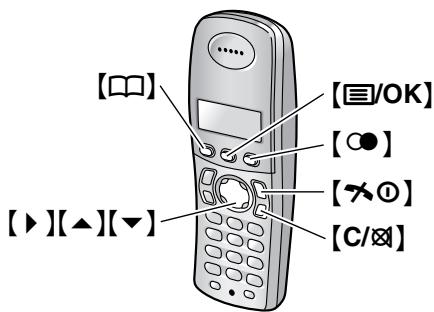
4.15.1 Writing and sending a new message
1 Press [图/OK].
2 Select "SMS", then press [▶].
3 To access the public mailbox
Select "Public", then press [▶].
To access a private mailbox
Select the desired mailbox, press [] , then enter its password.
4 Select "Create", then press [▶].
- If “▲Use Last Text?” is displayed, you can use the text from the last message you created by pressing [▲]. This message will be displayed only if the last message was created using the same mailbox you selected in step 3.
5 Enter the message (page 47), then press [OK].
6 Enter the destination telephone number.
Manually:
Enter the number, up to 20 digits.
Using the handset phonebook:
- Press [□].
-
Press [▲] or [▼] repeatedly to display the desired item.
-
You can also find an item using one of the search methods on page 32.
-
Press [国/OK].
Using the Caller ID list:
- Press [▲] or [▼] repeatedly to select the party.
- Press [国/OK].
Using the radial list:
- Press [] repeatedly to select the telephone number.
- Press [国/OK].
7 If you wish to send the message to the other party's mailbox, enter the other party's mailbox number after the destination phone number.
Example: The other party's phone number is 123456 and their mailbox number is 1. Enter 1234561.
- To send the message to the public mailbox, skip to step 8.
8 Press [OK].
9 To save the message, select "Yes", then press [▶].
- To send the message without saving it, select "No", then press [▶].
10 To send the message, select "Send", then press [ ].
- To cancel sending, press [× 0] .
Note:
- This unit supports SMS messages of up to 612 characters, however, the maximum number of characters you can send or receive may be limited by your SMS service provider. Consult your SMS service provider for details.
- If your message contains over 160 characters, "Long Message" is displayed. Your service provider may treat long messages differently from other messages. Consult your SMS service provider for details.
- "Invalid Number" is displayed if you try to send a message to a phone number saved in the handset phonebook, Caller ID list, or radial list that is over 20 digits long.
- When sending a message, "Sending Message" is displayed momentarily, then "Transferring Message" is displayed.
- If your unit is connected to a PBX, store the PBX line access number (page 45).
4.15.2 Displaying / Sending a saved message
1 Press [O/OK].
2 Select "SMS", then press [▶].
3 To access the public mailbox Select "Public", then press [ ]. To access a private mailbox Select the desired mailbox, press [ ], then enter its password.
4 Select "Send List", then press [▶].
5 To display a saved message, press [▲] or [▼] repeatedly to select the message, then press [☑/OK].
- Messages are displayed in chronological order and by destination phone number.
6 To send the message, press [国/OK], select "Send", then press [▶].
To send the message to the same destination number, press [国/OK], then continue from step 9, "4.15.1 Writing and sending a new message", page 42.
- To send the message to a different destination number, erase the displayed number by pressing [C / ] , then continue from step 6, "4.15.1 Writing and sending a new message", page 42.
4.15.3 Editing a saved message
1 Press [O/OK].
2 Select "SMS", then press [▶].
3 To access the public mailbox Select "Public", then press [ ]. To access a private mailbox Select the desired mailbox, press [ ], then enter its password.
4 Select "Send List", then press [▶].
5 Press [▲] or [▼] repeatedly to select the message, then press [☑/OK].
6 Press [OK], select "Edit Message", press , then continue from step 5, "4.15.1 Writing and sending a new message", page 42.
4.15.4 Erasing saved messages
1 Press [图/OK].
2 Select "SMS", then press [▶].
3 To access the public mailbox Select "Public", then press [ ]. To access a private mailbox Select the desired mailbox, press [ ], then enter its password.
4 Select "Send List", then press [▶].
5 Press [▲] or [▼] repeatedly to select the message, then press [☑/OK].
6 Press [国/OK], select "Erase", then press [▶]. To erase all messages in the selected mailbox, select "Erase All", then press [▶].
7 Select "Yes", then press [▶].
8 Press [70].
4.16 Receiving a message
When an SMS message is received:
- a tone is heard (if the ringer is turned OFF, this tone is not heard)
- "Receiving SMS Message" is displayed
-
is displayed
-
the message centre number is stored in the Caller ID list (page 37)
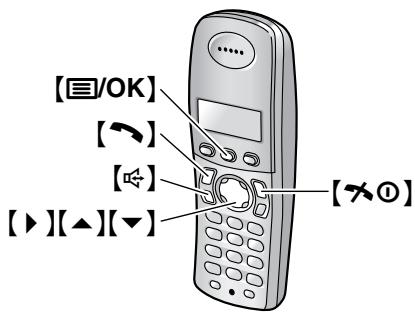
4.16.1 Displaying a received message
1 Press [图/OK].
2 Select "SMS", then press [▶].
3 To access the public mailbox Select "Public", then press [ ]. To access a private mailbox
Select the desired mailbox, press [] , then enter its password.
- If a mailbox contains new (unread) SMS messages, “*” is displayed next to the total number of messages for that mailbox.
4 Select "Receive List", then press [▶].
5 Press [▲] or [▼] repeatedly to select a message.
- Messages which have already been read are indicated by a , even if they were read using another handset.
6 Press [国/OK] to read the message content.
Note:
To call the message sender, press or
- If "SMS Full" is displayed, new SMS messages cannot be received. Erase unnecessary messages (page 43, 44).
- If you receive a message from a party saved in the handset phonebook, the stored name is displayed.
- Some SMS service providers attach a 1-digit number to the message sender's telephone number. As a result, sender names stored in the handset phonebook may not be displayed.
4.16.2 Replying to a message
1 While reading a received message, press [图/OK].
2 Select "Reply", then press [▶].
3 Enter a message (page 47), then press [OK].
4 Edit the destination telephone number and/or press [图/OK].
5 Continue from step 9, "4.15.1 Writing and sending a new message", page 42.
Editing/forwarding a message
- While reading a received message, press [OK].
- Select "Edit Message", then press [▶].
- Continue from step 5, "4.15.1 Writing and sending a new message", page 42.
4.16.3 Erasing received messages
1 While reading a received message, press [OK].
2 Select "Erase", then press [▶].
- To erase all messages in the selected mailbox, select "Erase A11", then press [▶].
3 Select "Yes", then press [▶].
4 Press【70】.
4.16.4 Storing the sender's number in the handset phonebook
1 While reading a received message, press [OK].
2 Select "Add Phonebook", then press [▶].
3 Continue from step 3, "4.4.1 Storing phonebook items", page 32.
4.16.5 Editing the sender's number before calling back
1 While reading a received message, press [OK].
2 Select "Edit and Call", then press [▶].
3 Edit the number, then press [ ] or [ ]
4.17 Guide to SMS settings
Important:
- All SMS-related settings and messages will be deleted or reset to their default settings by resetting handset programming that use the base unit PIN (page 80).
- Keep the front cover page open for button locations.
4.17.1 Creating private mailboxes
Private mailboxes can be used for sending and receiving SMS messages. Each private mailbox is password protected.
1 Press [国/OK].
2 Select "SMS", then press [▶].
3 Select "Public", then press [▶].
4 Select "settings", then press [▶].
5 Enter "0000" (default base unit PIN).
- If you changed the PIN, enter it (page 80).
6 Select "Private Mailbox", then press [▶].
7 Select the desired new mailbox number ("Mailbox1" to "Mailbox6"), then press [▶].
8 Enter a name for the mailbox, up to 5 characters (see page 47 for character entry), then press [☑/OK].
9 Enter a 4-digit password for the mailbox, then press [☑/OK].
10 Select "Save", then press [▶].
11 Press [x0].
Note:
- To receive SMS messages using a mailbox, inform others of your mailbox number.
4.17.2 Changing private mailbox settings
You can change the password or name of the private mailbox and erase the mailbox.
1 Press [图/OK].
2 Select "SMS", then press [▶].
3 Select "Public", then press [▶].
4 Select "settings", then press [▶].
5 Enter "0000" (default base unit PIN).
- If you changed the PIN, enter it (page 80).
6 Select "Private Mailbox", then press [▶].
7 Select the desired mailbox name, then press []2 times.
8 Enter the mailbox's 4-digit password.
9 Edit the mailbox name, up to 5 characters (see page 47 for character entry), then press [OK].
- To erase the mailbox, press and hold [C / 且] , press [O/OK], select "Yes", press [] , then press [× 0] to finish.
10 Enter a 4-digit password for the mailbox, then press [☑/OK].
11 Select "Save", then press [▶].
12 Press [x0].
Note:
- If you change the name of a mailbox which has messages in the receive list, the messages will remain in the receive list under the new mailbox name.
- If you erase a mailbox, its messages will also be erased.
4.17.3 Storing the PBX line access number (for PBX users only)
Store your PBX line access number (up to 4 digits) so that SMS messages are sent properly. When sending SMS messages to items in the handset phonebook or radial list, the PBX line access number will be deleted.
1 Press [O/OK].
2 Select "SMS", then press [▶].
3 Select "Public", then press [▶].
4 Select "settings", then press [▶].
5 Enter "0000" (default base unit PIN).
- If you changed the PIN, enter it (page 80).
6 Select "PBX Access No.", then press [▶].
7 Select "on", then press [▶].
8 Enter your PBX line access number (up to 4 digits) and a dialling pause, if necessary, then press [国/OK].
9 Select "Save", then press [▶].
4. Telephone
10 Press [x].
4.18 Available character entries for SMS
Important:
- For character entry when entering the name for phonebook, etc., see page 86.
The handset dial keys are used to enter characters and numbers. Each dial key has multiple characters assigned to it. The available character entry modes are, LetterWise®, Alphabet, Numeric, Greek and Extended. When in Alphabet (ABC), Greek (ABΓ), or Extended (AÄÄ) character entry modes, you can select which character is entered by pressing a dial key repeatedly.
-
When the handset displays the character entry screen:
-
Press [] or [] to move the cursor.
- Press dial keys to enter characters and numbers.
- Press [C / ] to erase the character or number highlighted by the cursor. Press and hold [C / ] to erase all characters or numbers.
- Press [× ] to switch between uppercase and lowercase.
- To enter another character located on the same dial key, press [] to move the cursor to the next space, then press the appropriate dial key. (This is not necessary when entering text in LetterWise mode.)
4.18.1 Character entry modes
Several character entry modes are available. When the handset displays the character entry screen, press , then select a character entry mode, and press [ ] . The default mode is Alphabet.
Letterwise character table (for English)
LetterWise is a simplified text entry system which suggests the most likely letter to follow the previously entered text. Text can be input faster because the number of key presses are reduced. You can change which language is used for LetterWise character entry (page 78).
How to enter characters
Each time you press a dial key, LetterWise will suggest a character.
- If the suggested character is incorrect, press 且 repeatedly to display the desired character.
| 0 | 1 | ABC2 | DEF3 | GHI4 | JKL5 | MNO6 | PQRS7 | TUV8 | WXYZ9 |
| Space 0 | Space . @ / : ; *# + - 1 " , ! i ? & % \ ^ ~ ! < > = □ § | A B C 2 | D E F 3 | G H I 4 | J K L 5 | M N O 6 | P Q R S 7 | T U V 8 | W X Y Z 9 |
| a b c 2 | d e f 3 | g h i 4 | j k l 5 | m n o 6 | p q r s 7 | t u v 8 | w x y z 9 |
Alphabet character table (ABC)
| 0 | 1 | ABC2 | DEF3 | GHI4 | JKL5 | MNO6 | PQRS7 | TUV8 | WXYZ9 |
| Space 0 | Space . @ / : ; *# + - 1 " , ! i ? £ € £ ¥()[] & %\^~! < > = ₱ | A B C 2 | D E F 3 | G H I 4 | J K L 5 | M N O 6 | P Q R S 7 | T U V 8 | W X Y Z 9 |
| a b c 2 | d e f 3 | g h i 4 | j k l 5 | m n o 6 | p q r s 7 | t u v 8 | w x y z 9 |
Numeric entry table (0-9)
| 0 | 1 | ABC2 | DEF3 | GHI4 | JKL5 | MNO6 | PQRS7 | TUV8 | WXYZ9 |
| 0 | 1 | 2 | 3 | 4 | 5 | 6 | 7 | 8 | 9 |
Greek character table (ABΓ)
| 0 | 1 | ABC2 | DEF3 | GHI4 | JKL5 | MNO6 | PQRS7 | TUV8 | WXYZ9 |
| Space 0 | Space . @ / : ; *# + - 1 " , ! i ? i _ € £ ¥()[] & %\^~! < > = ₱ | A B Γ 2 | Δ E Z 3 | H Θ I 4 | K ∧ M 5 | N Ξ O 6 | Π P Σ 7 | Τ Y Φ 8 | X Φ Ω 9 |
Extended character table (AÄÄ)
| 0 | 1 | ABC2 | DEF3 | GHI4 | JKL5 | MNO6 | PQRS7 | TUV8 | WXYZ9 |
| Space 0 | Space . @ / : ; *# + - 1 " , ! i ? ñ € £ ¥()[] & % ^ ~ | < > = a | A à A ñ ñ ñ ñ ñ ñ C C 2 | DÉ É É É ñ E F 3 | G G H I I I i I I 4 | J K L 5 | M N N O O O ñ ñ ñ ñ ñ 6 | P Q R S S B 7 | T U U ñ ñ ñ ñ V 8 | W X Y Z 9 |
| a à a ñ ñ ñ ñ ñ ñ ñ c 2 | d é e é e ñ f 3 | g ĵ h i i i i i i i 4 | j k l 5 | m n n o o ñ ñ ñ ñ 6 | p q r s S B 7 | t u ñ ñ ñ ñ V 8 | w x y z 9 |
- The following are used for both uppercase and lowercase:
0 S
5.1 Sending a fax manually
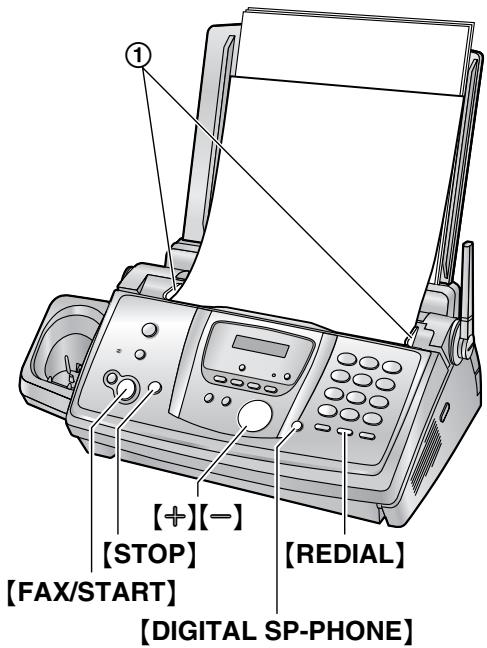
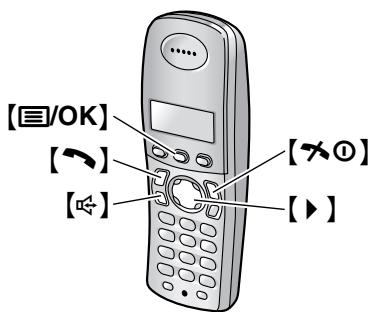
1 Adjust the width of the document guides (①) to fit the actual size of the document.
2 Insert the document (up to 10 pages) FACE DOWN until a single beep is heard and the unit grasps the document.
- If the document guides are not adjusted to fit the document, re-adjust them.
3 If necessary, press [± ] or [ ] repeatedly to select the desired resolution.
4 Press [DIGITAL SP-PHONE].
5 Dial the fax number.
6 When a fax tone is heard: Press [FAX/START].
When the other party answers your call: Ask them to press their start button. When the fax tone is heard, press [FAX/START].
To select the resolution
Select the desired resolution according to the type of document.
- "STANDARD": For printed or typewritten documents with normal-sized characters.
- "FINE": For documents with small print.
- "SUPER FINE": For documents with very small print. This setting is effective only when the other party has a compatible fax machine.
-
"PHOTO": For documents containing photographs, shaded drawings, etc.
-
Using the "FINE", "SUPER FINE" and "PHOTO" settings will increase transmission time.
- If the resolution setting is changed during feeding, it will be effective from the next page.
To redial the last number
- Press [REDIAL].
-
Press [FAX/START].
-
If the line is busy, the unit will automatically redial the number up to 5 times.
- To cancel redialling, press [STOP].
To send more than 10 pages at a time
Insert the first 10 pages of the document. Add the other pages (up to 10 at a time) on top of the previously inserted pages while the last page is being fed into the unit.
To predial a fax number
You can dial the fax number first before inserting the document. This is convenient if you need to refer to the document for the other party's fax number.
- Enter the fax number.
- Insert the document.
- Press [FAX/START].
To send from memory (Quick scan feature)
You can scan the document into memory before sending. To use this feature, activate feature #34 (page 69) beforehand.
-
Insert the document.
-
Enter the fax number.
-
Press [FAX/START].
-
The document will be fed into the unit and scanned into memory. The unit will then transmit the data. If the document exceeds the memory capacity, sending will be cancelled and this feature will be turned OFF automatically. You must send the entire document manually.
- This feature cannot be used if the handset is in use, or [DIGITAL SP-PHONE] on the base unit, [~] or [←] on the handset is pressed.
To send a fax using the handset
- While talking to the other party, insert the document, then press [国/OK].
- Select "Fax Start", then press [].
- Press [×①] or place the handset on the base unit.
To stop transmission Press [STOP].
Printing a sending report
A sending report provides you with a printed record of transmission results. To print sending reports, make sure feature #04 is activated (page 68). For an explanation of error messages, see page 88.
Printing a journal report
A journal report provides you with a printed record of the 30 most recent faxes. To print manually, see page 105. To print automatically after every 30 new fax transmissions and receptions, make sure feature #22 is activated (page 69). For an explanation of error messages, see page 88.
5.2 Documents you can send
Minimum document size
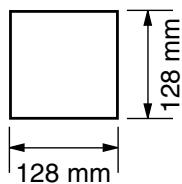
Maximum document size
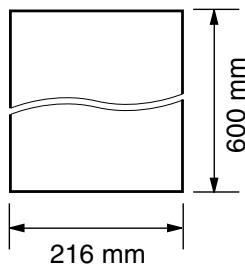
Effective scanning area
- Shaded area will be scanned.
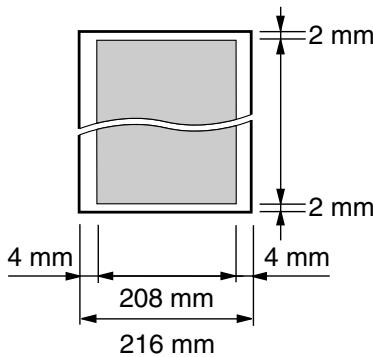
Document weight
- Single sheet: 45 ~g / m^2 to 90 ~g / m^2
- Multiple sheets: 60 g/m^2 to 80 g/m^2
Note:
- Remove clips, staples or other fasteners.
-
Do not send documents that are on the following types of paper: (Make a copy of the document and send the copy.)
-
Chemically treated paper such as carbon or carbonless duplicating paper
- Electrostatically charged paper
Badly curled, creased or torn paper - Paper with a coated surface
- Paper with a faint image
-
Paper with printing on the opposite side that can be seen through the other side, such as newsprint.
-
Check that ink, paste or correction fluid has dried completely.
- To send a document with a width of less than 210 ~mm , we recommend using a copy machine to copy the original document onto A4 or letter-sized paper, then sending the copied document.
5.3 Sending a fax using the base unit phonebook
Before using this feature, store the desired names and telephone numbers into the base unit phonebook (page 34).
- Keep the front cover page open for button locations.
1 Adjust the width of the document guides to fit the actual size of the document.
2 Insert the document (up to 10 pages) FACE DOWN until a single beep is heard and the unit grasps the document.
- If the document guides are not adjusted to fit the document, re-adjust them.
3 If necessary, press [+ ] or [-] repeatedly to select the desired resolution (page 49).
4 Press [▶].
5 Press [+] or [-] repeatedly to display the desired item and press [FAX/START].
Fax auto radial
If the line is busy or if there is no answer, the unit will automatically redial the number up to 5 times.
- To cancel redialling, press [STOP].
If your unit does not send a fax
- Confirm that you have entered the number correctly, and that the number is a fax number.
- Confirm that the other party's fax machine is answering by turning ON the connecting tone feature (feature #76 on page 71).
5.4 Broadcast transmission
By storing base unit phonebook items (page 34) into the broadcast memory, you can send the same document to multiple parties (up to 20). Your programmed items will remain in the broadcast memory, allowing frequent re-use.
- Keep the front cover page open for button locations.
5.4.1 Programming items into the broadcast memory
1 Press [MENU] repeatedly to display "PHONEBOOK SET".
2 Press [#].
- The number in brackets indicates the number of registered items.
3 Press [十 ] or [一 ] repeatedly to display the desired item.
4 Press [SET].
- If you program the wrong item, press [STOP] to erase the item.
- To program other items, repeat steps 3 and 4 (up to 20 items).
5 Press [SET].
Note:
- Confirm the stored items by printing a broadcast programming list (page 105).
5.4.2 Adding a new item into the broadcast memory
After initial programming, you can add new items (up to a combined total of 20).
1 Press [▶].
2 Press [+] or [-] repeatedly to display "
3 Press [MENU].
4 Press [] .
5 Press [十 ] or [-] repeatedly to display the desired item you want to add.
6 Press [SET].
- To add other items, repeat steps 5 and 6 (up to 20 items).
7 Press [STOP].
5.4.3 Erasing a stored item from the broadcast memory
1 Press [▶].
2 Press [+] or [-] repeatedly to display "BROADCAST"
3 Press [MENU].
4 Press [tt].
5 Press [± ] or [ ] repeatedly to display the desired item you want to erase.
- To cancel erasing, press [STOP].
6 Press [SET].
7 Press [SET].
- To erase other items, repeat steps 5 to 7.
8 Press [STOP].
5.4.4 Sending the same document to pre-programmed parties
1 Insert the document FACE DOWN.
2 If necessary, press [+ ] or [−] repeatedly to select the desired resolution (page 49).
3 Press [▶].
4 Press [± ] or [ ] repeatedly to display "BROADCAST]".
5 Press [FAX/START].
- The document will be fed into the unit and scanned into memory. The unit will then send the data to each party, calling each number sequentially.
- After transmission, the stored document will be erased from memory automatically, and the unit will automatically print a report (Broadcast sending report).
Note:
- If you select "FINE", "SUPER FINE" or "PHOTO" resolution, the number of pages that the unit can send will decrease.
- If the document exceeds the memory capacity, sending will be cancelled.
- If a party is busy or does not answer, it will be skipped and redialled later up to 5 times.
To send the same document to a one-time group of parties
You can also select a one-time group of parties to send the same document to. After transmission, this group will be deleted.
- Insert the document.
- Press [▶].
- Press [±] or [] repeatedly to display "
". - Press [SET] to start programming the parties you want to send the document to.
- Press [+] or [-] repeatedly to display the desired party.
-
Press [SET].
-
If you program the wrong item, press [STOP] to erase the item.
-
To program other parties, repeat steps 5 and 6 (up to 20 items).
-
Press [FAX/START] to start transmission to the programmed parties.
To cancel broadcast transmission
- Press [STOP] while "BROADCASTING" is displayed.
The display will show "SEND CANCELLED?".
- Press [SET].
5.5 Selecting the way to use your fax machine
Depending on your situation, select the way you prefer to use your fax machine.
Auto receive
- Use as a telephone answering machine and/or fax (TAM/FAX mode)
- Use only as a fax (FAX ONLY mode)
Manual receive
- Use mostly as a telephone (TEL mode)
Use as a telephone and/or fax (TEL/FAX mode)
5.6 Auto receive
5.6.1 Use as a telephone answering machine and/or fax (TAM/FAX mode)
Your situation
You want to answer phone calls using the telephone answering machine and receive taxes automatically.
Setup
Set the fax machine to TAM/FAX mode (page 57) by pressing [AUTO ANSWER] repeatedly.
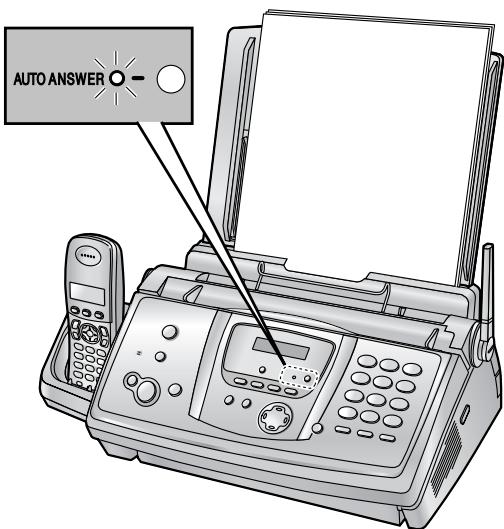
Note:
- Make sure feature #77 is set to "TAM/FAX" beforehand (page 71).
- Do not connect an answering machine to the same telephone line. If connected, set the
automatic answer feature to OFF by pressing [AUTO ANSWER] repeatedly.
How phone calls and faxes are received
If the call is a phone call, the fax machine will record the caller's message automatically.
If a fax calling tone is detected, the fax machine will receive the fax automatically.
5.6.2 Use only as a fax (FAX
ONLY mode)
Your situation
You have a separate telephone line just for faxes.
Setup
Set the fax machine to FAX ONLY mode (page 58) by pressing [AUTO ANSWER] repeatedly.
Note:
- Make sure feature #77 is set to "FAX ONLY" beforehand (page 71).
How taxes are received
All incoming calls will be answered as faxes.
5.7 Manual receive
5.7.1 Use mostly as a telephone (TEL mode)
Your situation
You want to answer calls by yourself. If a fax call is received, you must receive the fax manually.
Setup
Set the fax machine to TEL mode (page 55) by pressing [AUTO ANSWER] repeatedly.
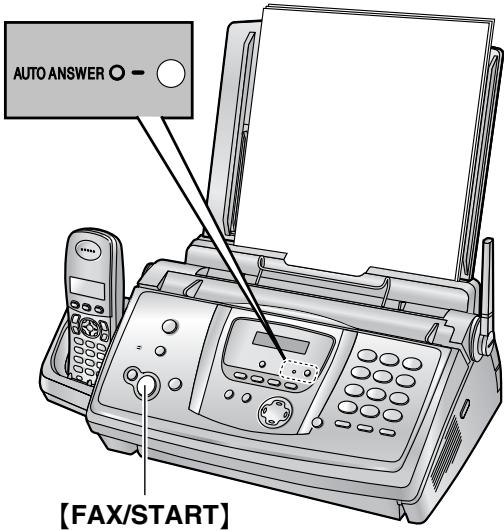
Note:
- Make sure feature #73 is set to "TEL" beforehand (page 71).
How to receive phone calls and faxes
You have to answer all calls manually. To receive a fax, press [FAX/START].
5.7.2 Use as a telephone and/or fax
Your situation
You want to answer phone calls yourself and receive faxes automatically without rings.
Setup
Set the fax machine to TEL/FAX mode (page 56) by pressing [AUTO ANSWER] repeatedly.
Note:
- Make sure feature #73 is set to "TEL/FAX" beforehand (page 71).
How phone calls and faxes are received If the call is a phone call, the fax machine will ring.
If a fax calling tone is detected, the fax machine will receive the fax automatically without ringing.
5.8 Receiving a fax manually – Auto answer OFF
5.8.1 Activating TEL mode
1 Make sure feature #73 is set to "TEL" beforehand (page 71).
2 Press [AUTO ANSWER] repeatedly to display the following.
TEL MODE
- The [AUTO ANSWER] indicator on the base unit turns OFF.
Note:
- By default, the unit reduces the size of the received document to 92% when printing (See feature #36 on page 69 for details).
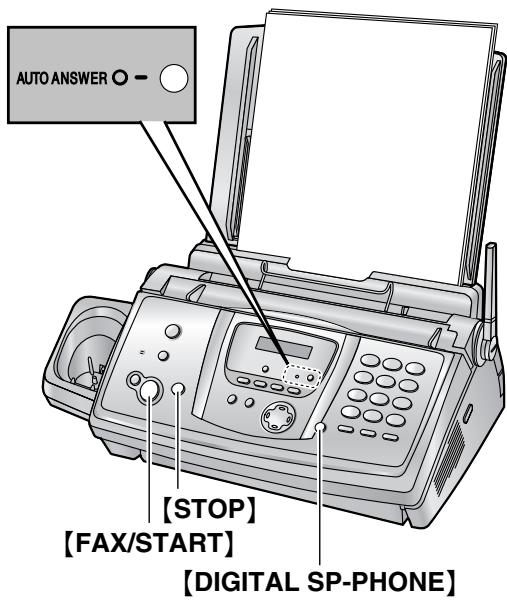
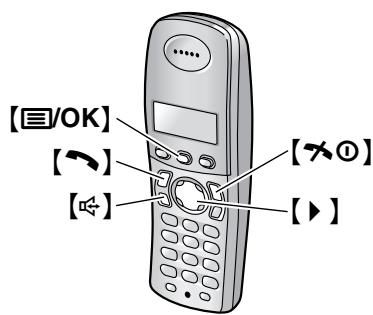
How to receive phone calls and faxes with the base unit
- Press [DIGITAL SP-PHONE] to answer the call.
- When:
document reception is required,
- a fax calling tone (slow beep) is heard, or
- no sound is heard,
press [FAX/START].
CONNECTING. . . .
- The unit will start fax reception.
How to receive phone calls and faxes with the handset
- Lift the handset and press [] or [] to answer the call.
- When:
document reception is required,
- a fax calling tone (slow beep) is heard, or
- no sound is heard,
press [国/OK].
- Select "Fax Start", then press [▶].
- Press [×○] or place the handset on the base unit.
How to receive phone calls and faxes with an extension telephone
If you have another telephone connected to the same line (extension telephone), you can use the extension telephone to receive faxes.
- When the extension telephone rings, lift the handset of the extension telephone.
- When:
document reception is required,
- a fax calling tone (slow beep) is heard, or
- no sound is heard,
press [丰 ] [#][9] (default fax activation code) firmly.
-
The fax machine will start fax reception.
-
Replace the handset.
Note:
- To receive fax documents using the extension telephone, make sure remote fax activation is turned ON beforehand (feature #41 on page 70). The default setting is ON.
To stop receiving
Press [STOP].
5.8.2 Activating TEL/FAX mode
1 Make sure feature #73 is set to "TEL/FAX" beforehand (page 71).
2 Press [AUTO ANSWER] repeatedly to display the following.
TEL/FAX MODE
- The [AUTO ANSWER] indicator on the base unit turns OFF.
3 The ringer volume setting should be ON (page 24).
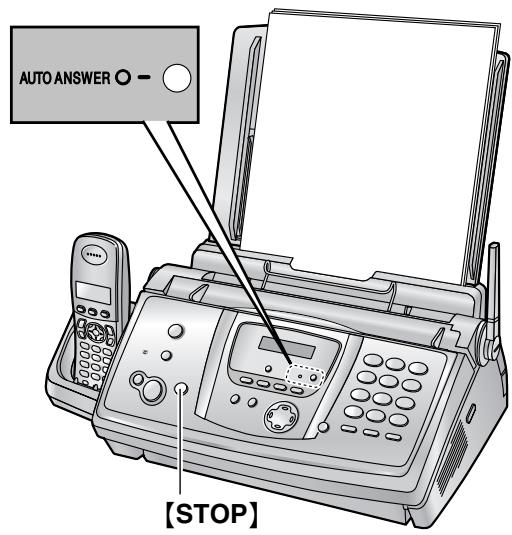
How phone calls and faxes are received
- "INCOMING CALL" will be displayed but the unit will not ring.
-
The unit will wait for the duration of 2 rings before answering the call.
-
The number of rings is determined by the "TEL/FAX delayed ring setting" (feature #78 on page 71).
-
During this time, an extension telephone (if connected to the same line) will ring.
-
The unit will answer the call and try to detect a fax calling tone.
When a fax calling tone is detected
The unit receives the fax automatically without ringing.
When a fax calling tone is not detected
1 The unit will ring. You may answer the call.
- Callers will hear a ring back tone different from the one generated by the telephone company.
- An extension telephone (if connected to the same line) will not ring at this time.
2 If you do not answer the call, the unit will activate the fax function.
- Some fax machines do not generate fax calling tones when sending faxes, therefore the unit will try to receive a fax even if no fax calling tone is detected.
Note:
- If you answer a call with the extension telephone, the fax machine may activate the fax function depending on the type of an extension telephone. Press [STOP] on the fax machine to talk with the calling party.
- By default, the unit reduces the size of the received document to 92% when printing (See feature #36 on page 69 for details).
5.9 Receiving a fax automatically – Auto answer ON
5.9.1 Activating TAM/FAX mode
1 Make sure feature #77 is set to "TAM/FAX" beforehand (page 71).
2 Press [AUTO ANSWER] repeatedly to display the following.
TAM/FAX MODE
- The [AUTO ANSWER] indicator on the base unit turns ON.
The remaining time for recording incoming messages will be displayed.
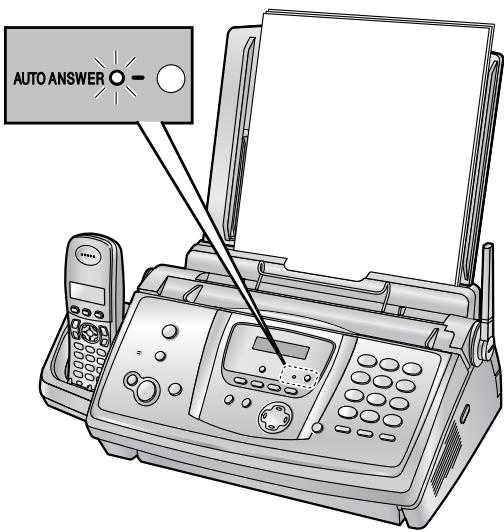
Note:
- The maximum recording time for incoming message can be changed (feature #10 on page 68).
- While an incoming call is being recorded, you can monitor it through the speaker. If this feature is not required, set feature #67 to OFF (page 71).
- If the unit displays the memory is full, erase unnecessary messages (page 63).
How phone calls and faxes are received
When receiving calls, the unit works as an answering machine and/or fax.
-
If the call is a phone call, the unit will record the caller's message automatically.
-
If a fax calling tone is detected, the unit will receive the fax automatically.
Note:
- By default, the unit reduces the size of the received document to 92% when printing (See feature #36 on page 69 for details).
Receiving a voice message and fax document in one call
The caller can leave a voice message and send a fax document during the same call. Inform the caller of the following procedure beforehand.
- The caller calls your unit.
- The answering machine will answer the call.
- The caller can leave a message after the greeting message.
- The caller presses [丰][9] .
- The unit will activate the fax function.
- The caller presses the start button to send a fax.
Ring setting in TAM/FAX mode
You can change the number of rings before the unit answers calls. You can choose from "2" (default), "3", "4", "TOLL Saver" and "RINGER OFF". This setting can be changed by feature #06 on page 68.
"TOLL SAVER": The unit answers after 2 rings when new messages have been recorded, and after 4 rings when there are no new messages. If you call your unit from outside to listen to new messages (page 65), you will know that there are no new messages when the unit rings for the 3rd time. You can then hang up without being charged for the call.
Note:
- To turn the ringer OFF for the handset, see page 24.
5.9.2 Activating FAX ONLY mode
1 Make sure feature #77 is set to "FAX ONLY" beforehand (page 71).
2 Press [AUTO ANSWER] repeatedly to display the following.
FAX ONLY MODE
- The [AUTO ANSWER] indicator on the base unit turns ON.
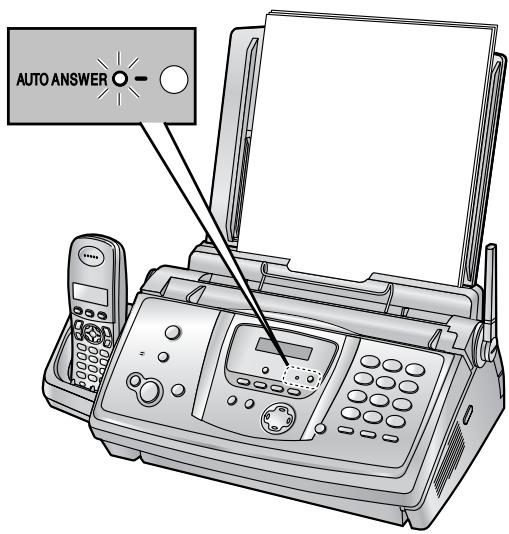
How taxes are received
When receiving calls, the unit will automatically answer all calls and only receive fax documents.
Note:
- The number of rings before a call is answered in FAX ONLY mode can be changed (feature #06 on page 68).
- By default, the unit reduces the size of the received document to 92% when printing (See feature #36 on page 69 for details).
5.10 Receive polling (retrieving a fax placed on another fax machine)
This feature allows you to retrieve a document from another compatible fax machine. Therefore you pay for the call.
Make sure that no documents are fed into your unit and that the other party's machine is ready for your call.
- Keep the front cover page open for button locations.
1 Press [MENU] repeatedly to display "POLLING".
2 Press [SET].
3 Dial the fax number.
4 Press [SET].
- The unit will start fax reception.
5.11 Junk fax prohibitor (preventing fax reception from undesired callers)
If you subscribe to Caller ID service, this feature prevents fax reception from calls that do not show caller information.
Additionally, the fax machine will not accept taxes originating from numbers that match a programmable junk fax prohibition list.
- Keep the front cover page open for button locations.
Important:
- This feature does not work when manual reception is performed.
5.11.1 Activating the junk fax inhibitor
1 Press [MENU] repeatedly to display "JUNK FAX PROH."
2 Press [▶].
3 Press [+ or [-] repeatedly to select "ON".
4 Press [SET].
5 Press [MENU].
- While the junk fax prohibition is activated, "JUNK FAX ON" is displayed.
5.11.2 Storing undesired callers
You can register up to 10 undesired numbers from the Caller ID list (page 36) if you do not wish to receive taxes from them.
1 Press [MENU] repeatedly to display "JUNK FAX PROH."
2 Press【▶】repeatedly to display "JUNK LIST SET".
3 Press [SET].
4 Press [+] or [-] repeatedly to display the party you wish to prevent fax reception from.
5 Press [SET].
- To program other parties, repeat steps 4 to 5.
6 Press [STOP] to exit the program.
Note:
- If there is no space to store new items, "LIST FULL" is displayed in step 3 or step 5. Erase unnecessary items.
To display the junk fax prohibitor list
- Press [MENU] repeatedly to display "JUNK FAX PROH."
- Press [▶] repeatedly to display "JUNK LIST DISP."
- Press [SET].
- Press [+ or [-] repeatedly to display the items on the list.
- Press [MENU] to exit the program.
To print the junk fax prohibitor list
- Press [MENU] repeatedly to display "JUNK FAX PROH."
- Press [▶] repeatedly to display "JUNK LIST PRINT".
- Press [SET].
- Press [MENU] to exit the list.
To erase an item from the junk fax inhibitor list
- Press [MENU] repeatedly to display "JUNK FAX PROH."
- Press [▶] repeatedly to display "JUNK LIST DISP."
- Press [SET].
- Press [+ or [-] repeatedly to display the desired item.
-
Press【4】.
-
To cancel erasing, press [STOP], then press [MENU].
-
Press [SET].
-
The item is erased.
-
To erase other items, repeat steps 4 to 6.
-
Press [MENU] to exit the list.
6.1 Making a copy
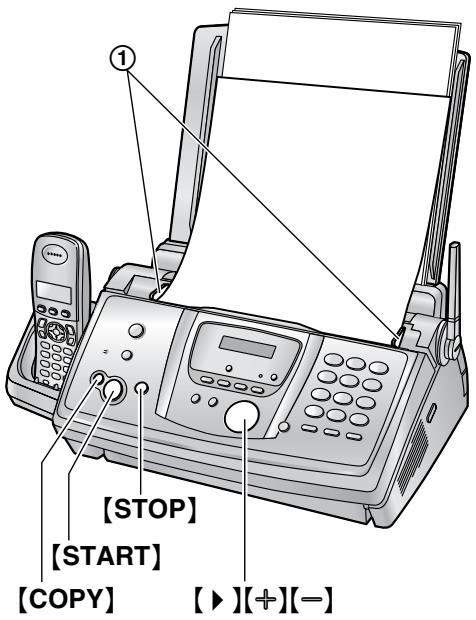
1 Adjust the width of the document guides (①) to fit the actual size of the document.
2 Insert the document (up to 10 pages) FACE DOWN until a single beep is heard and the unit grasps the document.
- If the document guides are not adjusted to fit the document, re-adjust them.
3 If necessary, press [+ or [-] repeatedly to select the desired resolution.
4 Press [COPY].
- If necessary, enter the number of copies (up to 30).
5 Press [START], or wait for 15 seconds.
The unit will start copying.
Note:
- Any document which can be sent as a fax can also be copied (page 50).
To select the resolution
Select the desired resolution according to the type of document.
- "FINE": For printed or typewritten documents with small print.
- "SUPER FINE": For documents with very small print.
- "PHOTO": For documents containing photographs, shaded drawings, etc.
- If you select "STANDARD", copying will be done using "FINE" mode.
Quick scan feature
This feature is helpful when you want to copy the document, then remove it for other uses. To use this feature, activate feature #34 (page 69) beforehand. The default setting is OFF.
- The document will be fed into the unit and scanned into memory. The unit will then print the data.
If the document exceeds the memory capacity, copying of the exceeded document will be cancelled and this feature will be turned OFF automatically.
However this feature will not turn OFF automatically when:
you enter the number of copies, and memory becomes full during copying.
memory becomes full during enlarge, reduce or collate copy.
To stop copying
Press [STOP].
6.1.1 More copying features
To enlarge a document
- Insert the document, then press [COPY].
- Press [▶].
-
Press [+] repeatedly to select "150%" or "200%" then press [START].
-
The unit will only enlarge the centre of the upper part of the document. To make an enlarged copy of the bottom of the document, turn the document around, and then make a copy.
Example: 150% enlarged copy
Original document
Enlarged copy
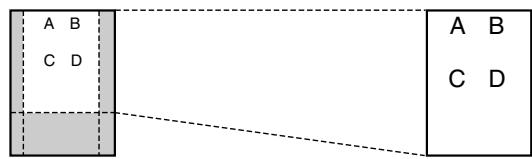
To reduce a document
- Insert the document, then press [COPY].
- Press [▶].
- Press [一] repeatedly to select "92%", "86%" or "72%", then press [START].
| Setting | Recording paper size | Original document size |
| “100%” (default) | A4 | A4, Letter |
| “92%” | A4 | A4 |
| “86%” | A4 | A4 |
| “72%” | A4 | Legal |
A4 = 210 mm × 297 mm
Legal = 216mm× 356mm
Letter = 216mm× 279mm
Note:
- If the appropriate reduction rate is not selected, the document may be divided and the top of the second sheet will be deleted.
- If the image at the bottom of the document is not copied when you copy a document that is the same length as the recording paper, try 92% or 86% .
To collate multiple copies
The unit can collate multiple copies in the same order as the original document pages.
- Insert the document, then press [COPY].
- Enter the number of copies (up to 30).
- Press [] 2 times to display "COLLATE OFF".
- Press [+ or [-] repeatedly to display "COLLATE ON".
- Press [START].
Example: Making 2 copies of a 4-page original document
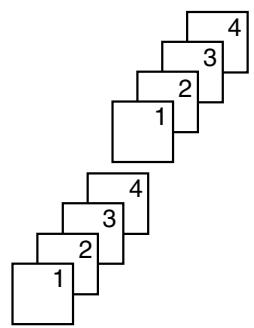
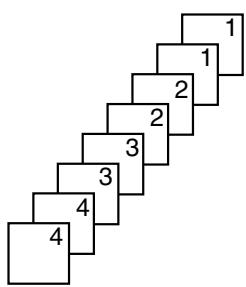
Collated pages
Uncollated pages
Note:
-
The unit will store the documents into memory while collating the copies. If memory becomes full while storing, the unit will only print out the stored pages.
-
After copying, the collating feature will turn OFF automatically.
- If the unit has run out of recording paper, the unit will scan the document but will not print, and the data will not be stored in the memory. Insert more paper, press [START], then try copying again.
7.1 Recording your greeting message
The unit has a pre-recorded greeting message for TAM/FAX mode. If you record your own greeting message, it will be played instead of the pre-recorded greeting message when a call is received.
You can record your own greeting message for a maximum of 16 (default) or 60 seconds in length.
We recommend you record a message of less than 12 seconds to make it easier to receive faxes.
Make sure feature #77 is set to "TAM/FAX" beforehand (page 71).
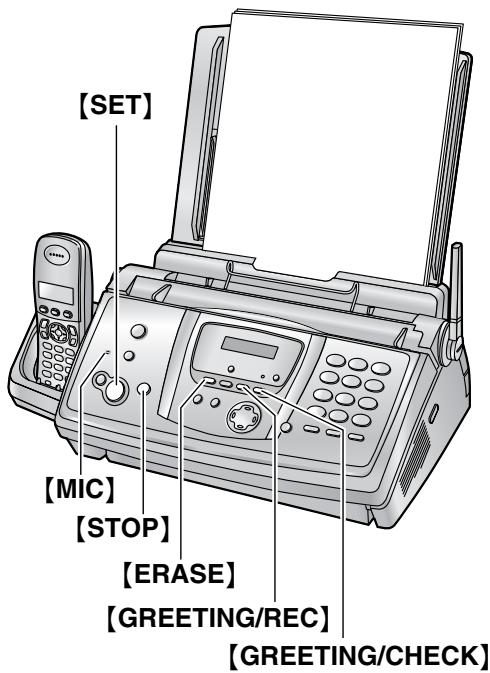
1 Press [GREETING/REC].
A long beep will sound.
2 Speak clearly about 20 cm away from [MIC].
- The display will show the remaining recording time.
3 To stop recording, press [STOP].
- The unit will repeat your message.
Note:
- You can change the maximum TAM/FAX greeting message recording time to 60 seconds (feature #54 on page 71).
If you change the setting to 60 seconds, we recommend that you tell the caller in your TAM/FAX greeting message to press [水 ] before starting fax transmission.
- If you change the setting from 60 seconds to 16 seconds, your TAM/FAX greeting message will be deleted. The prerecorded greeting message will be played when a call is received.
To check the greeting message
Press [GREETING/CHECK].
The unit will play the greeting message.
7.1.1 Erasing your recorded greeting message
1 Press [ERASE] 2 times.
2 Press [SET].
- To cancel erasing, press [STOP].
3 Press [SET].
Note:
- If you erase your TAM/FAX greeting message, the pre-recorded greeting message will be played when a call is received.
7.2 Listening to recorded messages
When the unit has recorded new voice messages:
- The [AUTO ANSWER] indicator will flash when the auto answer setting is turned ON.
The total number of recorded messages will flash on the base unit display.
Example:
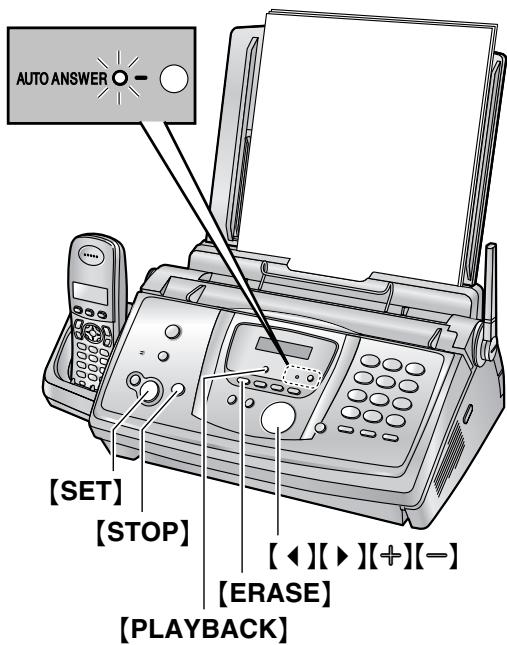
Press [PLAYBACK].
- Only new messages will be played.
-
Adjust the speaker volume using [+ or [-] .
After playing back all of the new messages; -
the [AUTO ANSWER] indicator will stop flashing but will remain lit up when the auto answer setting is turned ON.
-
the total number of recorded messages will stop flashing and remain displayed.
If you press [PLAYBACK] at this time, all recorded messages will be played.
Note:
- The total recording time of all messages (greeting, incoming and memo) is about 18 minutes. If messages are recorded in noisy environment, the actual recording time may be less.
To repeat a message
Press【4】while listening to the message.
- If you press [] within 5 seconds of the beginning of the message, the previous message will be played.
- To play back a specific message, press [] or [] and search for the message you want to listen to.
To skip a message
Press to play the next message.
To stop playback temporarily
Press [STOP].
- If you press [PLAYBACK] within 1 minute, the unit will resume playing the rest of the messages.
Voice time/day stamp
During playback, the unit will announce the day of the week and time that each message was recorded.
7.2.1 Erasing recorded messages
To erase a specific message
Press [ERASE] while listening to the message you want to erase.
To erase all messages
1 Press [ERASE].
2 Press [SET].
- To cancel erasing, press [STOP].
3 Press [SET] again.
7.3 Leaving a message for others or yourself
To leave a private message for yourself or someone else, you can record a voice memo. Recorded messages are treated as new messages. To listen to the recorded messages, see page 63.
- Keep the front cover page open for button locations.
1 Press [MEMO] to display "MEMOMESSAGE".
2 Press [SET].
- A long beep will sound.
3 Speak clearly about 20 cm away from [MIC].
4 To stop recording, press [MEMO].
- You can also stop recording by pressing [STOP].
7.4 Operating from a remote location
You can call your unit from a remote location and access the answering machine.
Important:
- Program the remote operation ID beforehand (feature #11 on page 68).
- Set the unit to TAM/FAX mode before going out (page 57).
- Use a touch tone telephone for remote operations.
Helpful hints:
- When you press a key, press firmly.
- Please make a copy of the following table, and carry it with you when you go out.
| Answering machine remote operation | |||
| 1. Call your unit. 2. Enter the remote operation ID during or after the TAM/FAX greeting message. 3. Enter a remote command within 10 seconds. | [5] | Plays all messages | |
| [7] | Records greeting message | ||
| [8] | Continues operation | ||
| [9] | Stops recording of the greeting message | ||
| Key | Remote command | [×][4] | Erases a specific message |
| [1] | Repeats a message | [×][5] | Erases all messages |
| [2] | Skipping a message | [0] | Skipping the greeting message |
| [4] | Plays new messages | [8][0] | Turns OFF auto answer setting |
7.4.1 Summary of remote operation
1 Call your unit.
2 During the TAM/FAX greeting message, enter the remote operation ID.
3 When there are new recorded messages
- A long beep will sound.
-
Short beep(s) will sound up to 8 times.
-
This indicates the number of new messages.
-
New messages will be played back.
When there are no new messages
- A long beep will sound (short beep will not sound).
- Press [5].
- All the recorded messages will be played back.
4 To end remote operation, hang up.
Note:
- When the voice memory is full, 6 beeps will sound after playing back the recorded messages. Erase any unnecessary messages.
7.4.2 Remote operation using remote commands
[1] Repeat (During playback)
- The current message is repeated.
- If pressed within 5 seconds of playback, the previous message will be played.
2 Skip (During playback)
- The current message is skipped. The next message is played.
[4] New message playback
- New messages are played back.
[5] All message playback
- All messages are played back.
[7] Record greeting message
- Speak after the long beep and press [9] to stop the operation.
[8] Continue operation
- If you do not press any command keys during playback for over 2 minutes and 40 seconds, the unit will beep twice and pause message playback.
To continue playback, press [8] within 10 seconds after hearing the 2 beeps.
[9] Stop
- Recording of the greeting message is stopped.
[*][4] Erase a specific message (During playback)
- The current message is erased and the next message will be played.
[*][5] Erase all messages
- All recorded messages are erased.
[0] Skip greeting message
The greeting message is skipped.
[8][0] Turn OFF auto answer setting
- The receive mode will be changed from TAM/FAX mode to TEL mode or TEL/FAX mode depending on the setting of feature #73 (page 71).
- You cannot return to TAM/FAX mode in the same call.
To turn ON the auto answer setting
-
Call your unit and wait for 25 rings.
-
A beep will sound.
-
Enter the remote operation ID (feature #11 on page 68) within 8 seconds.
-
The auto answer setting will be turned ON. The receiving mode will be set to TAM/FAX or FAX ONLY mode, depending on the setting of feature #77 (page 71).
-
Hang up the handset.
Note:
- You cannot turn ON the auto answer setting when the unit is set to TEL/FAX mode.
Recording a marker message
After playing back the messages, you can leave an additional message.
- Wait for 3 beeps indicating the end of the remote operation.
- Hear 1 beep.
- Wait about 10 seconds.
- Hear the voice guide or hear 1 beep.
- Leave a message.
Note:
- If you do not enter a remote command key within 10 seconds after the last operation, the unit will ask you to leave a marker message.
8.1 Base unit programming
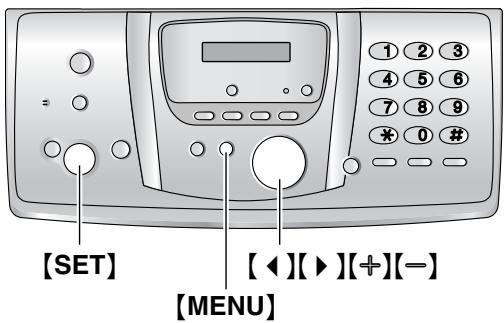
8.1.1 Programming basic features
1 Press [MENU].
2 Select the feature you wish to program. Press or repeatedly to display the desired feature.
- The current setting of the feature will be displayed.
3 Press [+ or [-] repeatedly to display the desired setting.
- This step may be slightly different depending on the feature.
4 Press [SET].
- The setting you selected is set, and the next feature will be displayed.
5 To exit programming, press [MENU].
8.1.2 Programming advanced features
1 Press [MENU].
2 Press [←] or [▶] repeatedly to display "ADVANCE SETTINGS".
3 Press [SET].
4 Select the feature you wish to program. Press or repeatedly to display the desired feature.
- The current setting of the feature will be displayed.
5 Press [+ or [-] repeatedly to display the desired setting.
- This step may be slightly different depending on the feature.
6 Press [SET].
- The setting you selected is set, and the next feature will be displayed.
7 To exit programming, press [MENU] at any time.
To program by entering the program code number directly
You can select a feature by directly entering its program code (# and a 2-digit number) instead of using [] or [] .
- Press [MENU].
- Press [#] and the 2-digit code (page 68 to page 71).
-
Press [+] or [-] repeatedly to display the desired setting.
-
This step may be slightly different depending on the feature.
-
Press [SET].
- To exit programming, press [MENU].
To cancel programming
Press [MENU] to exit.
8.2 Basic features
Code #01: Setting the date and time
SET DATE & TIME
PRESS SET
See page 26 for details.
Code #02: Setting your logo
YOUR LOGO PRESS SET
See page 26 for details.
Code #03: Setting your fax number
YOUR FAX NO. PRESS SET
See page 28 for details.
Code #04: Printing a sending report
SENDING REPORT = ERROR [±]
To print a sending report for fax transmission results (page 50).
"ERROR" (default): A sending report will be printed only when fax transmission fails.
"ON": A sending report will be printed after every transmission.
"OFF": Sending reports will not be printed.
Code #06: Changing the ring setting in FAX ONLY mode
FAX RING COUNT RINGS=2 [±]
To change the number of rings before the unit answers a call in FAX ONLY mode.
You can select "2" (default), "3", "4", "5", "6", "7", "8" or "9".
Note:
- Set feature #77 to "FAX ONLY" (page 71) beforehand.
Code #06: Changing the ring setting in TAM/FAX mode
TAM RING COUNT RINGS=2 [±]
To change the number of rings before the unit answers a call in TAM/FAX mode. You can select "2" (default), "3", "4", "TOLL Saver" or "RINGER OFF". See page 57 for details.
Note:
- Set feature #77 to "TAM/FAX" (page 71) beforehand.
Code #10: Changing the maximum recording time for incoming messages
RECORDING TIME =Vox [±]
"vox" (default): Unlimited.
"1 MIN"-9 MIN": 1 minute to 9 minutes.
Code #11: Setting the remote operation ID
REMOTE TAM ID =ON [±]
- Press [MENU].
- Press [#], then [1][1].
- Press [+ ] or [-] repeatedly to select "ON".
- Press [SET].
- Enter any 3-digit number except a number using 0 or 7.
The default ID is "111".
- Press [SET].
- Press [MENU].
Code #17: Setting the ring tone for outside calls
EXT.RINGTONE [±]
To set the base unit ring tone from one of 3 tones for outside calls. You can select "A" (default), "B" or "C".
Note:
- To set the handset ring tone, see page 76.
8.3 Advanced features
Code #22: Setting the journal report to print automatically
AUTO JOURNAL =ON [±]
"ON" (default): The unit will print a journal report automatically after every 30 new fax transmissions and receptions (page 50).
"OFF": The unit will not print a journal report, but will keep a record of the last 30 fax transmissions and receptions.
Code #23: Sending documents overseas
OVERSEAS MODE = ERROR [±]
If you cannot send a fax overseas even if the number is correct and the line is connected, activate this feature before sending the fax. This feature improves the reliability by reducing the transmission speed.
"ERROR" (default): When the previous fax transmission fails and you wish to re-send the document.
"NEXT FAX": This setting is effective only for the next attempted fax transmission. After transmission, the unit will return to the previous setting.
"OFF": Deactivates this feature.
Note:
- This feature is not available for broadcast transmission.
- Calling charges may be higher than usual.
Code #25: Sending a fax at a specific time
DELAYEDSEND = OFF [±]
This feature allows you to take advantage of low-cost calling hours offered by your telephone company. This feature can be set up to 24 hours in advance of the desired time.
To send a document:
- Insert the document.
- If necessary, press [+] or [-] repeatedly to select the desired resolution (page 49).
- Press [MENU].
- Press [#] then 2[5].
- Press [+ ] or [-] repeatedly to select "ON".
- Press [SET].
-
Enter the fax number.
-
To enter an item using the base unit phonebook, press [+] or [-] repeatedly to display the desired item.
8. Press [SET].
-
Enter the transmission start time.
-
If you select 12-hour time entry when you set the date and time (page 26), press [× ] repeatedly to select “AM” or “PM”.
- If you selected 24-hour time entry when you set the date and time (page 26), the time is set using 24-hour time entry.
10. Press [SET].
11. Press [MENU].
Note:
- To cancel after programming, press [STOP] then [SET].
Code #26: Setting the Caller ID list to print automatically
AUTOCALL.LIST = OFF [±]
"on": The Caller ID list will be printed automatically each time the base unit logs 30 different callers (page 36).
"OFF" (default): The Caller ID list will not be printed, but the base unit will keep a record of the information for the last 30 different callers.
Code #34: Setting the quick scan
QUICK SCAN OFF [±]
This feature is helpful when you want to remove the document for other uses, because the unit will release the document before sending or copying.
"ON": The unit will scan the document and store it into memory first, then the unit will start sending or copying.
"OFF" (default): Deactivates this feature.
Note:
- If the document exceeds the memory capacity, sending of the whole document or copying of the exceeded document will be cancelled and this feature will be turned OFF automatically.
However this feature will not turn OFF automatically when:
you enter the number of copies, and memory becomes full during copying.
memory becomes full during enlarge, reduce or collate copy.
Code #36: Receiving oversized documents
RCV REDUCTION =92% [±]
If the size of the document sent by the other party is as large as, or larger than the recording paper, the unit can reduce the document and print it. Select the desired reduction rate.
| Setting | Recording paper size | Original document size |
| “100%” | A4 | Letter |
| “92%” (default) | A4 | A4 |
| “86%” | A4 | A4 |
| “72%” | A4 | Legal |
Note:
- The information of the sending party is printed on the top of each page. Therefore, even if the original document is the same size as the recording paper, the document will be divided into 2 sheets when printed at 100% . Select 92% to print on 1 sheet.
Code #39: Changing the display contrast
| LCD CONTRAST =NORMAL | [±] |
"NORMAL" (default): For normal contrast.
"DARKER": Used when the display contrast is too light.
Code #41: Changing the fax activation code
| FAX ACTIVATION =ON [±] |
If you wish to use the extension telephone (page 55) to receive taxes, activate this feature and program the activation code.
- Press [MENU].
- Press [#], then [4][1].
- Press [+ ] or [-] repeatedly to select "ON".
- Press [SET].
-
Enter your code (2 to 4 digits) using the dial keys [0]–[9], [×] and [‡].
-
The default code is “*#9”.
-
Do not enter "0000".
-
Press [SET].
- Press [MENU].
Code #42: Setting the message alert
| MESSAGE ALERT =OFF | [±] |
To alert you when a new voice message is recorded. The unit beeps slowly until you listen to the recorded messages.
"ON": You will be alerted to new messages by a beeping sound.
"OFF" (default): Deactivates this feature.
Code #43: Setting the recording time alert
| REC. | TIME | ALERT |
| =OFF | [±] |
To alert you with beeps when there is less than 60 seconds of remaining recording time. The slow beeps will continue until you erase the recorded messages (page 63).
"ON": You will be alerted that you have reached the recording time limit by a beeping sound.
"OFF" (default): Deactivates this feature.
Code #44: Setting the memory reception alert
| RECEIVE ALERT =ON | [±] |
To alert you with a beeping sound when a received fax document is stored into memory due to some existing problem.
The slow beeps will continue until you clear the printing problem and make sure the unit is supplied with enough paper to print the stored document.
"ON" (default): You will be alerted to a reception problem by a beeping sound.
"OFF": Deactivates this feature.
Code #46: Setting friendly reception
| FRIENDLY RCV =ON | [±] |
To receive a fax automatically when you answer a call using the base unit and hear a fax calling tone (slow beep).
"ON" (default): You do not have to press [FAX/START] for fax reception.
"OFF": You have to press [FAX/START] for fax reception.
Code #47: Setting the voice guidance
| VOICE | GUIDANCE |
| =ON | [±] |
If you wish to hear voice guidance, activate this feature.
"ON" (default): You will hear the friendly reception voice guide, pre-recorded messages and voice time/day stamp.
"OFF": Deactivates this feature.
Code #53: Turning SMS ON/OFF
| SMS =OFF | [±] |
See page 41 for details.
Code #54: Changing the recording time for your TAM/FAX greeting message
| GREETING TIME =16s | [±] |
"16s" (default): Maximum recording time is 16 seconds.
"60s": Maximum recording time is 60 seconds. See page 62 for details.
Code #58: Setting the scan contrast
| SCAN CONTRAST =NORMAL | [±] |
To send or copy a document with faint or dark writing, set this feature before transmission or copying.
"NORMAL" (default): Used for normal writing.
"LIGHT": Used for dark writing.
"DARKER": Used for faint writing.
Code #67: Setting the incoming message monitor
| ICM MONITOR | |
| =ON | [±] |
To hear an incoming message (ICM) from the speaker when the answering device is recording the message.
"ON" (default): You can monitor the incoming message.
"OFF": Deactivates this feature.
Code #68: Setting the Error Correction Mode (ECM)
| ECM SELECTION =ON | [±] |
This feature is available when the transmitting/receiving fax machines are ECM compatible.
"ON" (default): If there is an error during fax transmission/reception, the fax machine will support the communication.
"OFF": Deactivates this feature.
Note:
- You cannot change the setting when received documents are in memory.
Code #73: Changing the receiving mode in the manual answer setting
| MANUAL ANSWER =TEL | [±] |
"TEL" (default): Telephone mode (page 55)
"TEL/FAX": Telephone/Fax mode (page 56)
Code #76: Setting the connecting tone
| CONNECTING TONE =ON | [±] |
If you often have trouble when sending faxes, this feature allows you to hear connecting tones: fax tone, ring back tone and busy tone. You can use these tones to confirm the status of the other party's machine.
"ON" (default): You will hear connecting tones. "OFF": Deactivates this feature.
Note:
- If the ring back tone continues, the other party's machine may not be a fax machine or may have run out of paper. Check with the other party.
- The connecting tone volume cannot be adjusted.
Code #77: Changing the receiving mode in the auto answer setting
| AUTO ANSWER =TAM/FAX | [±] |
"TAM/FAX" (default): Telephone Answering Machine/Fax mode (page 57)
"FAX ONLY": Fax only mode (page 58)
Code #78: Changing the TEL/FAX delayed ring setting
| TEL/FAX RING | |
| RINGS=2 | [±] |
If you use an extension telephone in TEL/FAX mode, select the desired number of times the extension telephone rings before the unit answers the call. You can select “1”, “2” (default), “3”, “4”, “5”, “6”, “7” “8” or “9”. See page 56 for details.
Code #80: Resetting advanced features to their default settings
| SET DEFAULT | |
| RESET=NO | [±] |
To reset the advanced features:
- Press [MENU].
- Press [#], then [8][0].
-
Press [+ or [-] repeatedly to select "YES".
-
Press [SET].
- Press [SET] again.
- Press [MENU].
Note:
- The ECM selection (feature #68 on page 71) will not be reset.
8.4 Direct commands for programming features
You can also select the desired setting by directly entering the program code (# and a 2-digit number) and direct command.
For more details on the features, see page 68 to page 71.
1 Press [MENU].
2 Press [#] and the 2-digit code number.
3 Press the desired direct command to display the desired setting.
- This step may be slightly different depending on the feature.
4 Press [SET].
5 To exit programming, press [MENU].
8.4.1 Program code and direct command button
[?] [0][1] Date and time
- Enter the date and time using the dial keypad. See page 26 for details.
[#][0]2 Your logo
- Enter your logo using the dial keypad. See page 26 for details.
[?] [0][3] Your fax number
- Enter your fax number using the dial keypad. See page 28 for details.
[#][0][4]Sending report
-【1】:“ON”
- 2: "OFF"
- 【3】: “ERROR” (default)
[##][0]6 FAX ring count
- 【2】: “2” (default)
-【3】:“3”
-【4】:“4”
-【5】:“5” - 【7】: “7”
-【8】:“8”
-【9】:“9”
[#][0]6 TAM ring count
- 【2】: “2” (default)
-【3】:“3” - 【4】: “4”
-【5】:“TOLL SAVER”
-【6】:“RINGER OFF”
【#】【1】【0】Message recording time
- 【0】: “vox” (default)
- [1]: "1 MIN"
- 2: "2 MIN"
-【3】:“3 MIN” - [4]: "4 MIN"
-【5】:“5 MIN” - 6: "6 MIN"
- [7]: "7 MIN"
-【8】:“8 MIN” - [9]: "9 MIN"
[?] [1][1] Remote operation ID
- 【1】: "ON" (default)
-
If you select "ON", enter a 3-digit number except a number using 0 or 7.
[?] [1] [7] External ring tone
-【1】:“A”(default)
- 2: “B”
-【3】:“c”
[#][2][2] Automatic journal report
- 【1】: “ON” (default)
[sharp][2][3]Overseasmode
- 【1】: “NEXT FAX”
-【2】:“OFF” - 【3】: “ERROR” (default)
[?] [2] [5] Delayed transmission
【1】:“ON”
-【2】: “OFF” (default)
- If you select "ON", next enter the fax number and transmission time using the dial keypad (see feature #25 on page 69 for details).
[?] [2][6] Automatic Caller ID list
-【1】:“ON”
- 【2】: “OFF” (default)
[?] [3] [4] Quick scan
-【1】:“ON”
- 【2】: “OFF” (default)
[#][3][6]Receiving reduction
- 【1】:“72%”
- 【3】: “92%” (default)
- 【4】: “100%”
【#】【3】【9】Display contrast
-
【1】: “NORMAL” (default)
-
【2】: “DARKER”
【#】【4】【1】Fax activation code
- 【1】: “ON” (default)
-
If you select "ON", next enter your 2 to 4 digit code using [0]–[9], [×] and [‡].
[?] [4][2] Message alert
- 【1】: “ON”
- 【2】: “OFF” (default)
[4][3] Recording time alert
【1】:“ON”
- 【2】: “OFF” (default)
[4] [4] Memory reception alert
- 【1】: “ON” (default)
[4][6] Friendly reception
- 【1】: “ON” (default)
【#】【4】【7】Voice guidance
- 【1】: “ON” (default)
[#][5][3]SMS
- 【1】: “ON”
- 【2】: “OFF” (default)
[#][5][4] Greeting recording time
- 【1】: “16s” (default)
-【2】:“60s”
[?] [5][8] Scan contrast
- 【1】: “NORMAL” (default)
- 【2】: “LIGHT”
- 【3】: “DARKER”
[sharp][6][7] Incoming message monitor
- 【1】: “ON” (default)
[?] [6][8] ECM selection
- 【1】: “ON” (default)
-【2】:“OFF”
【#】【7】【3】Manual receive mode
-【1】: “TEL” (default)
- 2: "TEL/FAX"
[#][7][6] Connecting tone
- 【1】: “ON” (default)
【#】【7】【7】Auto answer
- 【1】: “FAX ONLY”
- 【2】: “TAM/FAX” (default)
【#】【7】【8】TEL/FAX ring setting
- 【1]:“1”
- 【2]:“2” (default)
- 【3]:“3”
- 【4]:“4”
- 【5]:“5”
- 【6]:“6”
- 【7]:“7”
- 【8]:“8”
- 【9]:“9”
[?] [8] [0] Set default
- [1]: "YES"
- [2]: "NO" (default)
- If you select "YES", press [SET] 2 times, then press [MENU] to exit programming.
8.5 Handset programming
- When customising, the current item or setting is indicated by .
| Menu | Sub-menu | Sub-menu 2 | Default setting | Page |
| “Time Settings” | “Set Date & Time” | -------- | page 25 | |
| “Alarm” | “Off” | page 76 | ||
| “Ringer Setup” | “Ringer Volume” | Maximum | page 24 | |
| “Ext. Ringtone” | “Ringtone 1” | page 76 | ||
| “Int. Ringtone” | “Ringtone 1” | page 76 | ||
| “Night Mode” | “Start/End” | 23:00/06:00 | page 77 | |
| "On/Off" | “Off” | page 76 | ||
| “Ring Delay” | “60 sec.” | page 77 | ||
| “Select Category” | -------- | page 77 | ||
| “Display Setup” | “Standby Display” | “Off” | page 77 | |
| “Select Language” | “English” | page 77 | ||
| “Contrast” | Level 3 | page 78 | ||
| “Call Options” | “Call Bar” | -------- | page 78 | |
| “Auto Talk” | “Off” | page 78 | ||
| “Registration” | “Register H.set” | -------- | page 82 | |
| “Select Base” | -------- | “Auto” | page 82 | |
| “Other Options” | “Handset PIN” | “0000” | page 78 | |
| “LetterWise” | “English” | page 78 | ||
| “Keytones” | "On" | page 78 | ||
| “Reset Handset” | -------- | page 79 | ||
Using the base unit PIN
| Menu | Sub-menu | Sub-menu 2 | Default setting | Page |
| “Call Options” | “Recall” | “100 msec.” | page 79 | |
| “Pause Length” | “3 sec.” | page 79 | ||
| “Emergency No.” | “112” and “999” | page 80 | ||
| “Call Restrict” | -------- | page 80 | ||
| “Other Options” | “Base Unit PIN” | “0000” | page 80 | |
| “Repeater Mode” | “Off” | page 83 | ||
| “Reset Base” | -------- | page 80 | ||
Note:
- Up to 3 menu items can be displayed at a time. To select a menu item not shown on the current page, scroll up or down by pressing the navigator key, [▲] or [▼], respectively.
8.5.1 Programmable functions
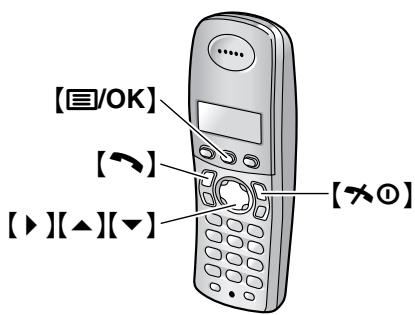
Helpful hints:
- To exit programming, press【×】at any time.
8.5.2 Alarm
Setting alarm
An alarm will sound for 3 minutes at the set time once or daily.
Set the date and time beforehand (page 25).
- Press [国/OK].
- Select "Handset Setup", then press [▶].
- Select "Time Settings", then press [▶].
- Select "Alarm", then press 2 times.
-
Select an alarm mode, then press [▶].
-
"Once": The alarm will sound once at the set time. Enter the desired day and month by selecting 2 digits for each.
- "Daily": An alarm will sound daily at the set time.
-
“Off” (default): Turns the alarm OFF. Press [] again, then press (× 0) to finish.
-
Enter the desired hour and minute by selecting 2 digits for each.
-
You can select “AM”, “PM” or 24-hour time entry by pressing [×] repeatedly.
-
Press [国/OK].
- Select the ring tone that will sound at the set time, then press .
-
Select "save", then press [▶].
-
Press [x0].
Note:
- To stop the alarm, press any dial key.
- When the handset is in talk or intercom mode, the alarm will not sound until the call has ended.
-
Alarm volume depends on handset ringer volume (page 24).
-
The alarm will sound at the set time even when the ringer is turned OFF.
- If you select "Once", the setting will be changed to "Off" after the alarm sounds.
8.5.3 Ringer options
Changing ring tones
You can choose the ring tone used by the handset.
"Ext. Ringtone": Selects the ring tone for outside calls.
"Int. Ringtone": Selects the ring tone for intercom calls.
- Press [国/OK].
- Select "Handset Setup", then press [▶].
- Select "Ringer Setup", then press [▶].
- Select the desired item, then press [▶].
- Select the desired ring tone, then press [▶].
- Press【 心 0 】.
Note:
- If you select one of the melody ring tones, the ring tone will continue to sound for several seconds if the caller hangs up before you answer. You may hear a dial tone or no one on the line when you answer a call.
- The preset melodies in this product are used with permission of © 2004 M-ZoNE Co., Ltd.
- To set the base unit ring tone, see feature #17 on page 68.
8.5.4 Night mode
Night mode allows you to select a block of time during which the handset will not ring for outside calls. This feature is useful for times when you do not want to be disturbed, for example, while sleeping.
Using the handset phonebook's category feature (page 32), you can also select categories of callers whose calls will override night mode and ring the handset (Caller ID users only).
Set the date and time beforehand (page 25).
Note:
- The base unit will ring regardless of this setting.
Setting night mode ON/OFF
- Press [国/OK].
- Select "Handset Setup", then press [▶].
- Select "Ringer Setup", then press [▶].
- Select "Night Mode", then press [▶].
-
Select "on/off", then press [▶].
-
Select "On" or "Off" (default), then press [▶].
- Press [× 0]
Note:
- When the night mode is turned ON, “[N]” is displayed.
- Set the receiving mode to TEL mode.
Setting the start and end time for night mode
- Press [国/OK].
- Select "Handset Setup", then press [▶].
- Select "Ringer Setup", then press [▶].
- Select "Night Mode", then press [▶].
- Select "Start/End", then press [▶].
-
Enter the desired hour and minute you wish to start this feature by selecting 2 digits for each.
-
If you use 12-hour time entry, select "AM" or "PM" by pressing [ ¥ ] repeatedly before entering the time.
-
Enter the desired hour and minute you wish to end this feature by selecting 2 digits for each.
- If you use 12-hour time entry, select "AM" or "PM" by pressing [×] repeatedly before entering the time.
- Press [国/OK].
- Press [× 0]
Setting the ring delay for night mode
This setting allows the handset to ring during night mode if the caller waits long enough. After the selected delay time has passed, the handset will ring. If you select "No Ringing", the handset will not ring during night mode.
- Press [国/OK].
- Select "Handset Setup", then press [▶].
- Select "Ringer Setup", then press [▶].
- Select "Night Mode", then press [▶].
- Select "Ring Delay", then press [▶].
- Select "30 sec." or "60 sec.", then press [▶].
- Press [× 0]
Note:
- Delayed ring will not sound if this feature is set either to "90 sec." or "120 sec." This is because the base unit detects an incoming call prior to handset.
Selecting categories to bypass night mode
- Press [国/OK].
- Select "Handset Setup", then press [▶].
- Select "Ringer Setup", then press [▶].
- Select "Night Mode", then press [▶].
- Select "Select Category", then press [▶].
-
Press the desired category numbers, then press [图/OK].
-
The selected category number will flash.
-
To cancel a selected category number, press the number again. The number will stop flashing.
-
Press [天 0]
8.5.5 Display setup
Selecting the standby mode display
"Base Number": The current base unit number is displayed.
"Handset Number": The current handset number is displayed.
"Off" (default): Only the current date and time are displayed.
- Press [国/OK].
- Select "Handset Setup", then press [▶].
- Select "Display Setup", then press [▶].
- Select "Standby Display", then press [▶].
- Select the desired setting, then press [▶].
- Press [天 0]
Note:
- If "Base Number" is selected and the current base unit number is 2, "-2-" is displayed.
- If "Handset Number" is selected and the current handset number is 2, "2" is displayed.
Changing the display language
- Press [国/OK].
- Select "Handset Setup", then press [▶].
- Select "Display Setup", then press [▶].
- Select "Select Language", then press [▶].
- Select the desired language, then press [▶].
- Press【 心 0 】.
Note:
- If you select a language you cannot read, press [空 0] , [国/OK], press [] 2 times,
press [ ] , press [ ] 2 times, press [ ] press [ ] , press [ ] , select the desired language, then press [ ] . Press [空 0]
Changing the display contrast
- Press [国/OK].
- Select "Handset Setup", then press [▶].
- Select "Display Setup", then press [▶].
- Select "Contrast", then press [▶].
- Press [] or [] repeatedly to select the desired contrast, then press [] .
- Press [水 0]
8.5.6 Call options
Setting call bar
This feature prohibits making outside calls with the handset. When call bar is turned ON, only intercom calls and emergency calls can be made. To store emergency numbers, see page 80.
- Press [国/OK].
- Select "Handset Setup", then press [▶].
- Select "Call Options", then press [▶].
- Select "Call Bar", then press [▶].
- Enter "0000" (default handset PIN).
- If you changed the PIN, enter it (page 78).
- Select "On" or "Off" (default), then press [▶].
- Press [空 0] .
Note:
- When call bar is turned on, 是 is displayed.
Setting auto talk
When this feature is turned ON, you can answer calls simply by lifting the handset off the base unit. You do not need to press [] .
- Press [国/OK].
- Select "Handset Setup", then press [▶].
- Select "Call Options", then press [▶].
- Select "Auto Talk", then press [▶].
- Select "On" or "Off" (default), then press [▶].
- Press [空 0] .
8.5.7 Other options
Changing the handset PIN (personal identification number)
For security, the handset PIN must be entered when changing certain settings. The default PIN is "0000".
Important:
-
If you change the PIN, please make note of your new PIN. The unit will not reveal the PIN to you. If you forget your PIN, consult our Customer Care Centre.
-
Press [国/OK].
- Select "Handset Setup", then press [▶].
- Select "other Options", then press [▶].
- Select "Handset PIN", then press [▶].
- Enter the current 4-digit handset PIN.
- Enter the new 4-digit handset PIN, then press 【OK】.
- Press [70].
Changing the LetterWise language
You can change which language is used for LetterWise character entry (page 47, 86).
- Press [国/OK].
- Select "Handset Setup", then press [▶].
- Select "Other Options", then press [▶].
- Select "Letterwise", then press [▶].
- Select the desired language, then press [▶].
- Press [70].
Setting key tone
You can select whether or not key tones are heard when keys are pressed. Includes confirmation tones and error tones.
- Press [国/OK].
- Select "Handset Setup", then press [▶].
- Select "Other Options", then press [▶].
- Select "Keytones", then press [▶].
- Select "on" (default) or "off", then press [▶].
- Press【 心 0 】.
Note:
- If key tones are turned OFF, error tones will not sound when you enter the wrong PIN or when memory is full.
Resetting the handset to its default settings
- Press [国/OK].
- Select "Handset Setup", then press [▶].
- Select "Other Options", then press [▶].
- Select "Reset Handset", then press [▶].
-
Enter "0000" (default handset PIN).
-
If you changed the PIN, enter it (page 78).
-
Select "Yes", then press [▶].
- Press [空] .
Note:
- The following items will be deleted or reset to their default settings:
- Settings listed on page 75 (not including items using the base unit PIN)
- Redial list
Voice enhancer
Category names
Category ring tones
The following items will be retained:
- Handset phonebook items (category names and ring tones will be reset to their default settings.)
- Date and time
8.5.8 Programmable functions using the base unit PIN
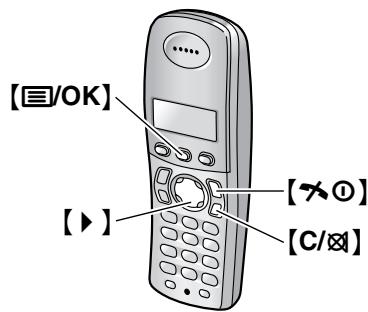
Helpful hints:
- To exit programming, press [× 0] at any time.
8.5.9 Call Options
Changing the recall time
Change the recall time of the handset, if necessary, depending on the requirements of your service provider or PBX.
- Press [国/OK].
- Select "Base Unit Setup", then press [▶].
-
Enter "0000" (default base unit PIN).
-
If you changed the PIN, enter it (page 80).
-
Select "Call Options", then press [▶].
- Select "Recall", then press [▶].
- Select the desired setting, then press [▶].
- Press [70].
Setting pause length
Change the pause length of the handset, if necessary, depending on the requirements of your service provider or PBX.
- Press [国/OK].
- Select "Base Unit Setup", then press [▶].
- Enter "0000" (default base unit PIN). If you changed the PIN, enter it (page 80).
- Select "Call Options", then press [▶].
- Select "Pause Length", then press [▶].
- Select the desired setting, then press [▶].
- Press [70].
Storing/changing emergency numbers
These settings determine which telephone numbers can be dialled while the call bar feature is ON (page 78).
- Press [国/OK].
- Select "Base Unit Setup", then press [▶].
-
Enter "0000" (default base unit PIN).
-
If you changed the PIN, enter it (page 80).
-
Select "Call Options", then press [▶].
- Select "Emergency No.", then press [▶].
-
Select a memory location, then press [▶].
-
If the memory location already contains an emergency number, the number is displayed.
-
Enter/edit the number, then press [国/OK].
To erase an emergency number, press and hold C / - Press [× 0]
Setting call restriction
You can restrict selected handsets from dialling certain numbers. You can assign up to 6 phone numbers to be restricted, and select which handsets will be restricted. Storing area codes here will prevent the restricted handsets from dialling any phone number in that area code. If a restricted number is dialled, the call will not be connected and the restricted number will flash on the display.
- Press [国/OK].
- Select "Base Unit Setup", then press [▶].
-
Enter "0000" (default base unit PIN).
-
If you changed the PIN, enter it (page 80).
-
Select "Call Options", then press [▶].
- Select "Call Restrict", then press [▶].
-
Set which handsets will be restricted by pressing the desired handset number.
-
All the registered handset numbers will be displayed.
- Flashing numbers indicate call restriction is turned ON for the corresponding handset.
-
To turn call restriction OFF for a handset, press the number again. The number will stop flashing.
-
Press [国/OK].
-
Select a memory location, then press [▶].
-
If the memory location already contains a restricted number, the number is displayed.
-
Enter the phone number or area code to be restricted (up to 8 digits), then press 【OK】.
To erase a restricted number, press [C/]. -
Press [X 0].
8.5.10 Other options
Changing the base unit PIN (personal identification number)
For security, the base unit PIN must be entered when changing certain settings. The default PIN is "0000".
Important:
-
If you change the PIN, please make note of your new PIN. The unit will not reveal the PIN to you. If you forget your PIN, consult our Customer Care Centre.
-
Press [国/OK].
- Select "Base Unit Setup", then press [▶].
-
Enter "0000" (default base unit PIN).
-
If you changed the PIN, enter it.
-
Select "other Options", then press [▶].
- Select "Base Unit PIN", then press [▶].
- Enter the new 4-digit base unit PIN, then press [国/OK].
- Press [天 0]
Resetting handset programming that uses the base unit PIN
Handset programming that uses the base unit PIN will be reset (page 75).
-
Press [国/OK].
-
Select "Base Unit Setup", then press [▶].
-
Enter "0000" (default base unit PIN). If you changed the PIN, enter it (page 80).
-
Select "Other Options", then press [▶].
-
Select "Reset Base", then press [▶].
-
Select "Yes", then press [▶].
-
Press【 心 0 】.
Note:
- The following items will also be deleted or reset to their default settings:
-
All SMS-related settings and messages (page 41)
-
Caller ID list for the handset (page 37)
-
The repeater mode will be retained (page 83).
9.1 Operating additional units
9.1.1 Additional handsets
Up to 6 handsets can be registered to a single base unit. Additional handsets, for example, will allow you to have an intercom call with another handset while a third handset is on an outside call. See page 11 for accessory information.
9.1.2 Additional base units
Handsets can be registered to up to 4 base units, allowing you to add additional base units and extend the area in which your handset(s) can be used. If a handset moves out of range of its base unit when "Auto" is selected on base unit selection (page 82), it will look for another base unit to make or receive calls. Each base unit forms 1 radio cell.
Note:
- Calls will be disconnected when the handset moves from one radio cell to another.
- Intercom calls and call transfers are only possible between handsets in the same radio cell.
9.2 Registering a handset to a base unit
The included handset and base unit are preregistered. After purchasing an additional handset, register it to the base unit. Ensure that the additional handset is switched ON. If it is not ON, press and hold [×①] for few seconds to turn the handset ON.
- Keep the front cover page open for button locations.
9.2.1 Easy registration
1 Lift the additional handset and press [× 0] to put the handset in standby mode.
2 Press and hold [LOCATOR] on the base unit for about 3 seconds, until the registration tone sounds.
3 Place the additional handset on the base unit. The registration tone continues to sound. With the handset still on the base unit, wait until a confirmation tone sounds and stops flashing.
Note:
- If an error tone sounds, or if is still flashing, register the handset manually.
- If all registered handsets start ringing in step 2, press [LOCATOR] to stop. Start again from step 1.
- Charge the batteries of your additional handset for about 7 hours before initial use.
- This registration method cannot be used for handsets that have already been registered to a base unit. Register the handset manually.
9.2.2 Manual registration
1 Press [国/OK].
2 Select "Handset Setup", then press [▶].
3 Select "Registration", then press [▶] 2 times.
4 Press and hold [LOCATOR] on the base unit for about 3 seconds, until the registration tone sounds.
- If all registered handsets start ringing, press [LOCATOR] to stop, then repeat this step.
- After pressing [LOCATOR], the rest of this procedure must be completed within 1 minute.
5 Select a base unit number, then press [▶].
- This number is used by the handset as a reference only.
6 Wait until "Enter Base PIN" is displayed, then enter "0000" (default base unit PIN), then press [OK].
- If you changed the PIN, enter it (page 80).
- When the handset has been registered successfully, will stop flashing. If key tones are turned ON (page 78), a confirmation tone will be heard.
9.2.3 Selecting a base unit
When "Auto" is selected, the handset will automatically use any available base unit it is registered to. When a specific base unit is selected, the handset will make and receive calls using that base unit only. If the handset is out of range of that base unit, no calls can be made or received.
1 Press [国/OK].
2 Select "Handset Setup", then press [▶].
3 Select "Select Base", then press [▶].
4 Select the desired base unit number, or "Auto", then press [▶].
- The handset starts searching for the base unit.
9.2.4 Cancelling a handset
A handset can cancel its own registration (or the registration of another handset) that is stored in the base unit. This will allow the base unit to forget the handset.
1 Press [图/OK].
2 Select "Base Unit Setup", then press [▶].
3 Enter "0000" (default base unit PIN).
- If you changed the PIN, enter it (page 80).
4 Enter "335".
5 Select "Cancel Handset", then press [▶].
- The numbers of all handsets registered to the base unit are displayed.
6 Select the handset(s) you want to cancel, by pressing the desired handset number.
- The selected handset number(s) will flash.
- To cancel a selected handset number, press the number again. The number will stop flashing.
7 Press [O/OK].
8 Select "Yes", then press [▶].
9.2.5 Cancelling a base unit
A handset can cancel a base unit that it is registered to. This allows the handset to forget the base unit.
1 Press [图/OK].
2 Select "Handset Setup", then press [▶].
3 Select "Registration", then press [▶].
4 Enter "335".
5 Select "Cancel Base", then press [▶].
6 Enter "0000" (default handset PIN).
- If you changed the PIN, enter it (page 78).
7 Select the base unit(s) you want to cancel, by pressing the desired base unit number.
- The selected base unit number(s) will flash.
- To cancel a selected base unit number, press the number again. The number will stop flashing.
8 Press [国/OK].
9 Select "Yes", then press [▶].
10 Press [x].
Note:
- To register the handset to another base unit or to the same base unit again, see manual registration on page 82.
9.2.6 Increasing the range of the base unit
You can increase the range of the base unit by using a DECT repeater. Please use only Panasonic DECT repeater. See page 11 for accessory information.
Important:
- Before registering the repeater to this base unit, you must turn the repeater mode ON.
Setting the repeater mode
- Press [国/OK].
- Select "Base Unit Setup", then press [▶].
-
Enter "0000" (default base unit PIN).
-
If you changed the PIN, enter it (page 80).
-
Select "other Options", then press [▶].
- Select "Repeater Mode", then press [▶].
- Select "On" or "Off" (default), then press [▶].
- Press [空] .
Note:
- After turning repeater mode ON/OFF, you will not be able to make or receive calls for a few moments.
9.3 Handset locator
Using this feature, you can locate the handset if it has been misplaced.
- Keep the front cover page open for button locations.
1 Press [LOCATOR].
- The base unit will page the handset for about 1 minute.
2 To stop paging, press [LOCATOR] on the base unit or [空 空 ] on the handset.
Note:
- This feature is not available while using [DIGITAL SP-PHONE].
9.4 Intercom between handsets
Intercom calls can be made between handsets in the same radio cell, but not in different radio cells.
- Keep the front cover page open for button locations.
Example: When handset 1 calls handset 2
- Handset 1:
Press [INT] and 2 (desired handset number).
The handset 2 will ring. - Handset 2:
Press [ ] or [ ] to answer. - When finished talking, press [x].
9.5 Transferring calls between handsets / Conference calls
Outside calls can be transferred between 2.
handsets.
2 people can have a conference call with an outside party.
- Keep the front cover page open for button locations.
Example: When handset 1 transfers a call to handset 2
- Handset 1:
During an outside call, press [INT] and 2 (desired handset number).
The outside call will be put on hold.
- If there is no answer, press [INT] or [~] to return to the outside call.
- Handset 2:
Press [INT], [~] or [<] to answer.
-
Handset 2 can talk with handset 1.
-
Handset 1:
To complete the call transfer, press [x0]. To establish a conference call, press [3].
To transfer a call without speaking to the handset 2 user
After step 1, press [× 0] on the handset 1.
- flashes to indicate the outside call is on hold.
-
Handset 2 rings if it is within range of the base unit and turned ON.
-
If the transferred call is not answered within 60 seconds, the handset 1 will ring again. Press [INT] or [] to return to the outside call.
9.6 Copying handset phonebook items
Phonebook items (page 32) can be copied from the handset to the phonebook of another handset.
- Keep the front cover page open for button locations.
Copying a stored item
- Find the desired item (page 32), then press [OK].
- Select "copy", then press [▶].
- Enter the handset number you wish to send the item to.
-
To continue copying another item, select "Yes", then press [] . Find the desired item, then press [] .
-
To finish copying, select "No", then press [▶].
-
Press [天 0]
Copying all stored items
- Press [□□], then press [国/OK].
- Select "Copy A11", then press [▶].
-
Enter the handset number you wish to send the items to.
-
When all items have been copied, "Completed" is displayed.
-
Press [× 0]
Note:
- If the other handset (the receiver) is not in standby mode, "Failed" is displayed on your handset (the sender).
- If copying failed after copying at least 1 item, "Incomplete" is displayed on your handset (the sender).
10.1 Available character entries for the handset
Important:
- For character entry when writing SMS messages, see page 47.
The handset dial keys are used to enter characters and numbers. Each dial key has multiple characters assigned to it. The available character entry modes are, LetterWise, Alphabet, Numeric, Greek,
Extended 1, Extended 2, and Cyrillic. When in Alphabet (ABC), Greek (ABΓ), Extended 1 (ÄÄÄ),
Extended 2 (S\(S), or Cyrillic (A5B) character entry modes, you can select which character is entered by pressing a dial key repeatedly.
-
When the handset displays the character entry screen:
-
Press [] or [] to move the cursor.
- Press dial keys to enter characters and numbers.
- Press [C / ] to erase the character or number highlighted by the cursor. Press and hold [C / ] to erase all characters or numbers.
- Press [× ] to switch between uppercase and lowercase.
- To enter another character located on the same dial key, press [] to move the cursor to the next space, then press the appropriate dial key. (This is not necessary when entering text in LetterWise mode.)
10.1.1 Character entry modes
Several character entry modes are available. When the handset displays the character entry screen, press , then select a character entry mode, and press . The default mode is Alphabet.
Letterwise character table (for English)
LetterWise is a simplified text entry system which suggests the most likely letter to follow the previously entered text. Text can be input faster because the number of key presses are reduced. You can change which language is used for LetterWise character entry (page 78).
Each time you press a dial key, LetterWise will suggest a character.
- If the suggested character is incorrect, press 且 repeatedly to display the desired character.
How to enter characters
| 0 | 1 | ABC2 | DEF3 | GHI4 | JKL5 | MNO6 | PQRS7 | TUV8 | WXYZ9 |
| Space 0 | Space # & '() *, - . / 1 | A B C 2 | D E F 3 | G H I 4 | J K L 5 | M N O 6 | P Q R S 7 | T U V 8 | W X Y Z 9 |
| a b c 2 | d e f 3 | g h i 4 | j k l 5 | m n o 6 | p q r s 7 | t u v 8 | w x y z 9 |
Alphabet character table (ABC)
| 0 | 1 | ABC2 | DEF3 | GHI4 | JKL5 | MNO6 | PQRS7 | TUV8 | WXYZ9 |
| Space 0 | Space # & '() *, - . / 1 | A B C 2 | D E F 3 | G H I 4 | J K L 5 | M N O 6 | P Q R S 7 | T U V 8 | W X Y Z 9 |
| a b c 2 | d e f 3 | g h i 4 | j k l 5 | m n o 6 | p q r s 7 | t u v 8 | w x y z 9 |
Numeric entry table (0-9)
| 0 | 1 | ABC2 | DEF3 | GHI4 | JKL5 | MNO6 | PQRS7 | TUV8 | WXYZ9 |
| 0 | 1 | 2 | 3 | 4 | 5 | 6 | 7 | 8 | 9 |
Greek character table (ABΓ)
| 0 | 1 | ABC2 | DEF3 | GHI4 | JKL5 | MNO6 | PQRS7 | TUV8 | WXYZ9 |
| Space 0 | Space # & '() *, - . / 1 | A B Γ 2 | Δ E Z 3 | H Θ I 4 | K ∧ M 5 | N Ξ O 6 | Π P Σ 7 | Τ Y Φ 8 | X Φ Ω Χ 9 |
Extended 1 character table (AÄÄ)
| 0 | 1 | ABC2 | DEF3 | GHI4 | JKL5 | MNO6 | PQRS7 | TUV8 | WXYZ9 |
| Space 0 | Space # & '() *, - . / 1 | A À Á A û û û Å ë B C C 2 | D E E É E E E F 3 | G G H I I I I I I I 4 | J K L 5 | M N N O O O O O O O O O O 6 | P Q R S S B 7 | T U U U U U V 8 | W W X Y y Z 9 |
| a à a ñ ñ ñ ñ ñ ñ c 2 | d e e é e e ñ f 3 | g g h i i i i i i i i 4 | j k l 5 | m n n o o o o o o 6 | p q r s S B 7 | t u u ã u ã ã v 8 | w W x y y z 9 |
- The following are used for both uppercase and lowercase:
$$ \varnothing \subsetneq \hat {W} \hat {Y} $$
Extended 2 character table (S$$)
| 0 | 1 | ABC2 | DEF3 | GHI4 | JKL5 | MNO6 | PQRS7 | TUV8 | WXYZ9 |
| Space 0 | Space # & '() *, - . / 1 | A A A A B C C' C 2 | D D E E E F 3 | G H I 14 | J K L L L 5 | M N N N O O O 6 | P Q R R R S S S 7 | T T U U U U V 8 | W X Y y Y Z Z Z Z 9 |
| a a a A b c C' C 2 | d d e e E e f 3 | g h i i 4 | j k l l L' L 5 | m n N n o o o 6 | p q r R r s S S 7 | t t u u u u u v 8 | w x y y y z Z Z Z Z 9 |
- The following are used for both uppercase and lowercase:
$$ A C C E L L N R S S \text {S u y} Z Z Z $$
Cyrillic character table (A5B)
| 0 | 1 | ABC2 | DEF3 | GHI4 | JKL5 | MNO6 | PQRS7 | TUV8 | WXYZ9 |
| Space 0'∈'i'y | Space # &'( )*, -./1 | A B B Γ 2 | ДЕЖ 3 3 | Ий К Л 4 | Мно П 5 | РCT у 6 | Фхц Ч 7 | Шш ыbl 8 | Бэю Я 9 |
11.1 Error messages – Reports
If a problem occurs during fax transmission or reception, one of the following messages will be printed on the sending and journal reports (page 50).
COMMUNICATION ERROR
(Code: 40-42, 46-72, FF)
- A transmission or reception error occurred. Try again or check with the other party.
COMMUNICATION ERROR
(Code:43,44)
- A line problem occurred. Connect the telephone line cord to a different socket and try again.
- An overseas transmission error occurred. Try using the overseas mode (feature #23 on page 69).
DOCUMENT JAMMED
- The document is jammed. Remove the jammed document (page 101).
ERROR-NOT YOUR UNIT
(Code: 54, 59, 70)
- A transmission or reception error occurred because of a problem with the other party's fax machine. Check with the other party.
JUNK FAX PROH. REJECT
- The fax was rejected by the junk fax inhibitor feature (page 59).
MEMORY FULL
- The memory is full of received documents due to a lack of recording paper, a lack of ink film or a recording paper jam. Install paper (page 19), install ink film (page 16) or clear the jammed paper (page 98).
NO DOCUMENT
- The document was not fed into the unit properly. Re-insert it and try again.
OTHER FAX NOT RESPONDING
- The other party's fax machine is busy or has run out of recording paper. Try again.
- The other party's fax machine rings too many times. Send the fax manually (page 49).
- The other party's machine is not a fax machine. Check with the other party.
The number you dialled is not in service.
PRESSED THE STOP KEY
- [STOP] was pressed, and fax transmission or reception was cancelled.
OK
- Fax transmission or reception was successful.
11.2 Error messages – Base unit display
If the unit detects a problem, one or more of the following messages will appear on the display.
| Display | Cause and Solution |
| “CALL SERVICE” | ·There is something wrong with the unit. Contact our service personnel. |
| “CHECK DOCUMENT” | ·The document was not fed into the unit properly. Re-insert the document. If misfeeding occurs frequently, clean the document feeder rollers (page 102) and try again. ·Attempted to send a document longer than 600 mm. Press [STOP] to remove the document. Divide the document into two or more sheets and try again. |
| “CHECK FILM” | ·The ink film is empty. Replace the ink film with a new one (page 18). ·The ink film is not installed. Install it (page 16). ·The ink film is slack or creased. Tighten it (see step 5 on page 17). |
| “CHECK MEMORY” | ·Memory (telephone numbers, parameters, etc.) has been erased. Re-program. |
| “CHECK PAPER” | ·Recording paper is not installed or the unit has run out of paper. Install paper and press [START] to clear the message. ·The recording paper was not fed into the unit properly (page 100). Reinstall paper (page 19) and press [START] to clear the message. ·The recording paper has jammed near the recording paper entrance. Clear the jammed paper (page 98) and press [START] to clear the message. |
| “COVER OPEN” | ·The back cover is open. Close it. |
| “FAX IN MEMORY” | ·The unit has a document in memory. See the other displayed message instructions to print out the document. For fax memory capacity, see page 106. |
| “FAX MEMORY FULL” | ·The memory is full of received documents due to a lack of recording paper, a lack of ink film or a recording paper jam. Install paper (page 19), install ink film (page 16) or clear the jammed paper (page 98). ·When performing memory transmission, the document being stored exceeded the memory capacity of the unit. Send the entire document manually. |
| “FILM EMPTY” | ·The ink film is empty. Replace the ink film with a new one (page 18). ·The ink film is slack. Tighten it (see step 5 on page 17) and install again. ·The fax machine is positioned near appliances such as TVs or speakers which generate an intense magnetic field. |
| “FILM NEAR EMPTY” | ·The remaining ink film is low. Prepare a new ink film (page 11). |
| “MEMORY FULL” | ·When making a copy, the document being stored exceeded the memory capacity of the unit. Press [STOP] to clear the message. Divide the document into sections. |
| “MESSAGE FULL” | ● There is no memory available to record voice messages. Erase unnecessary messages (page 63). |
| “MODEM ERROR” | ● There is something wrong with the unit's modem. Contact our service personnel. |
| “NO FAX REPLY” | ● The other party's fax machine is busy or has run out of recording paper. Try again. |
| “OPEN CABINET CHECK FILM SLACK” | ● Please use genuine Panasonic replacement film (page 11). |
| “OPEN CABINET CHECK FILM TYPE” | ● The ink film is slack. Tighten it (see step 5 on page 17). |
| ● The fax machine is positioned near appliances such as TVs or speakers which generate an intense magnetic field. | |
| “PAPER JAMMED” | ● A recording paper jam occurred. Clear the jammed paper (page 98). |
| “PLEASE WAIT” | ● The unit is checking that there is no slack or crease on the ink film. Wait for a moment while the check is completed. |
| “PHONEBOOK FULL” | ● There is no space to store new items in the base unit phonebook. Erase unnecessary items (page 35). |
| “POLLING ERROR” | ● The other party's fax machine does not support polling. Check with the other party. |
| “REDIAL TIME OUT” | ● The other party's fax machine is busy or has run out of recording paper. Try again. |
| “REMOVE DOCUMENT” | ● The document is jammed. Remove the jammed document (page 101). |
| ● Press [STOP] to eject the jammed document. | |
| “TRANSMIT ERROR” | ● A transmission error occurred. Try again. |
| “UNIT OVERHEATED” | ● The unit is too hot. Stop using the unit for a while and let the unit cool down. |
11.3 When a function does not work, check here
If you still have difficulties after following the instructions in this section, reset the unit. Disconnect the mains lead and turn OFF the handset. Reconnect the mains lead and turn ON the handset.
11.3.1 Initial settings
| Problem | Cause & Solution |
| I cannot hear a dial tone. | ● If you use a splitter to connect the unit, remove the splitter and connect the unit to the wall socket directly. If the unit operates properly, check the splitter. ● Disconnect the unit from the telephone line and connect a known working telephone. If the working telephone operates properly, contact our service personnel to have the unit repaired. If the working telephone does not operate properly, contact your telephone company. ● The mains lead or telephone line cord is not connected. Check the connections. ● If you connected the fax machine through a computer modem, connect the fax machine directly to a telephone line socket. |
| The unit does not ring. | ● The ringer volume is turned OFF. Adjust it (page 24). |
11.3.2 General
| Problem | Cause & Solution |
| The unit displays“CHECK PAPER” even though paper is inserted. | ● The paper is inserted halfway. Insert it correctly (page 19) and press [START] to clear the message. |
| The other party complains they only hear a fax tone and cannot talk. | ● FAX ONLY mode is set. Tell the other party the number is only used for faxes. ● Change the receiving mode to TAM/FAX mode (page 57), TEL mode (page 55) or TEL/FAX mode (page 56). |
| The [REDIAL] / [PAUSE] button does not function properly. | ● If this button is pressed during dialling, a pause will be inserted. If pressed immediately after a dial tone is obtained, the last number dialled will be redialled. |
| During programming, I cannot enter the code or ID number. | ● All or part of the numbers are the same as another code or ID. Change the number: - remote operation ID: feature #11 on page 68. - fax activation code: feature #41 on page 70. |
| The ink film runs out quickly. | ● The help printing function, copy function, and reports also use ink film. ● Even if there are only a few sentences, every page that comes out of the machine is considered a full page. ● Turn OFF the following features: - sending report: feature #04 on page 68. - journal report: feature #22 on page 69. - Caller ID list: feature #26 on page 69. |
| The base unit beeps. | ● Recording paper/ink film has run out. Press [STOP] to stop the beeps and install paper/ink film. |
| The speakerphone is not working. | ● Use the speakerphone in a quiet room. ● If you have difficulty hearing the other party, adjust the volume. |
| I cannot locate a handset. | ● The called handset is too far from the base unit. ● The called handset is in use. Try again later. |
| Caller information is not displayed. | ● You have not subscribed to Caller ID service. ● The caller requested not to send his/her information. ● Depending on the service of the local telephone company, caller information may not be displayed on the handset in TEL/FAX mode. In this case, change the TEL/FAX ring setting to 1 (feature #78 on page 71). |
| While viewing caller information, the display returns to standby mode. | ● Do not pause for over 1 minute on the handset or 3 minutes on the base unit while searching. |
11.3.3 Handset
| Problem | Cause & Solution |
| The handset does not work. | ● Make sure that the batteries are installed correctly (page 20). ● Fully charge the batteries (page 22). ● Clean the charge contacts and charge again (page 22). ● Turn the handset power OFF, then ON (page 23). ● Check that the mains lead is connected properly. ● The handset has not been registered to the base unit. Register the handset (page 82). ● Re-install the batteries (page 20) and fully charge them. |
| The handset display is blank. | ● The handset is not turned ON. Turn the power ON (page 23). |
| The handset will not turn ON. | ● Make sure that the batteries are installed correctly (page 20). ● Fully charge the batteries (page 22). ● Clean the charge contacts and charge again (page 22). |
| Y is flashing. | ● The handset is not registered to the base unit. Register it (page 82). ● The handset is too far from the base unit. Move closer. ● The mains lead is not connected. Check the connections. |
| The handset does not ring. | ● The night mode feature is turned ON. Turn it OFF (page 76). ● The ringer volume is turned OFF. Adjust it (page 24). |
| The batteries should be charging but the battery icon does not change. | ● Clean the charge contacts and charge again (page 22). ● The mains lead is disconnected. Plug in the mains lead. |
| A busy tone is heard when [←] is pressed. | ● The handset is too far from the base unit. Move closer and try again. ● The base unit or another handset is on an outside call. Wait for the other user to complete the call. |
| Static, sound cuts in/out, fades. Interference from other electrical units. | ● Move the handset and the base unit away from other electrical appliances. ● Move closer to the base unit. |
| The handset stops working while being used. | ● Disconnect the mains lead and turn OFF the handset to reset the unit. Connect the mains lead, turn ON the handset and try again. |
| While storing an item in the phonebook or assigning a one touch dial, the handset starts to ring. | To answer a call, press [▼] or [◇]. Storing will be cancelled. Store the name and number again. |
| I assigned a phonebook item to a desired category, but category ring tones will not sound. | You must subscribe to Caller ID service. Set to TEL mode, TAM/FAX mode or FAX ONLY mode to use SMS features. |
| I cannot redial by pressing [○]. | If the redialled number was more than 24 digits long, the number will not be redialled. Redial the number manually. |
| □ flashes or the handset beeps intermittently while it is in use. | Fully charge the batteries (page 22). |
| I fully charged the batteries, but still flashes. | Clean the charge contacts and charge again (page 22). It is time to replace the batteries (page 20). |
| I cannot receive documents using the handset. | The memory is full of received documents due to a lack of recording paper or a recording paper jam. Install paper (page 19) or clear the jammed paper (page 98). |
| I cannot make a call with the handset. | The call bar feature is set. Turn it OFF (page 78). You dialled a call restricted number. Remove the number from the call restricted list (page 80). The key lock feature is turned ON. Turn it OFF (page 30). |
| I cannot register a handset to a base unit. | The maximum number of base units are already registered to the handset. Cancel unused base unit registrations from the handset (page 83). The maximum number of handsets are already registered to the base unit. Cancel unused handset registrations from the base unit (page 83). You entered the wrong PIN. If you forget your PIN, consult our Customer Care Centre. Locate the handset and the base unit away from other electrical appliances. |
11.3.4 Fax - sending
| Problem | Cause & Solution |
| I cannot send documents. | ● The other party's fax machine is busy or has run out of recording paper. Try again. ● The other party does not have a fax machine. Check with the other party. ● The other party's fax machine failed to answer the fax automatically. Send the fax manually (page 49). ● The memory is full of received documents and the quick scan (feature #34 on page 69) is ON. Turn this feature OFF, and send the fax again. |
| I cannot send a fax overseas. | ● Use the overseas transmission mode of feature #23 (page 69). ● Add two pauses at the end of the telephone number or dial manually. |
| The other party complains that letters on their received document are distorted or not clear. | ● If your line has special telephone services such as call waiting, the service may have been activated during fax transmission. Connect the unit to a line that does not have these services. ● Another telephone on the same line is off the hook. Hang up the telephone and try again. ● Try copying the document. If the copied image is clear, there may be something wrong with the other party's machine. ● Adjust the scan contrast using feature #58 (page 71). |
| The other party complains that black lines, white lines or smudges appear on their received document. | ● The scanner glass, white plate or rollers are dirty with correction fluid, etc. Clean them (page 102). Please do not insert a document before correction fluid has dried completely. |
11.3.5 Fax - receiving
| Problem | Cause & Solution |
| I cannot receive documents. | ● The ink film is empty. Replace the ink film with a new one (page 18). |
| I cannot receive documents automatically. | ● The receiving mode is set to TEL mode. Change the receiving mode to TAM/FAX mode (page 57), FAX ONLY mode (page 58) or TEL/FAX mode (page 56). ● The time taken to answer the call is too long. Decrease the number of rings before the unit answers a call (feature #06 on page 68 and #78 on page 71). ● The greeting message is too long. Record a shorter message (page 62). |
| The display shows “CONNECTING . . .”, but faxes are not received. | ● The receiving mode is set to FAX ONLY mode and the incoming call is not a fax. Change the receiving mode to TEL mode (page 55), TAM/FAX mode (page 57) or TEL/FAX mode (page 56). |
| A blank sheet is ejected. | ● If a blank sheet is ejected after the received document is printed out, the size of the document sent by the other party is as large as, or larger than, the recording paper, or the receiving reduction rate is not programmed correctly. Program the proper rate in feature #36 (page 69). ● The other party placed the document in their fax machine the wrong way. Check with the other party. |
11.3.6 Copying
| Problem | Cause & Solution |
| The printing quality is poor. | Please do not reuse the ink film! Please use genuine Panasonic replacement film. Refer to page 11 for further details. • The thermal head is dirty. Clean it (page 103). • Some paper has instructions recommending which side to print on. Try turning the paper over. • You may have used paper with a cotton and/or fibre content that is over 20%, such as letterhead or resume paper. • If documents can be copied properly, the unit is working normally. The other party may have sent a faint document or there may be something wrong with the other party's machine. Ask them to send a clearer copy of the document or to check their fax machine. |
| The other party complains that they cannot send a document. | • The receiving mode is set to TEL mode. Receive the document manually (page 54) or change the receiving mode to TAM/FAX mode (page 57) or FAX ONLY mode (page 58). • The memory is full of received documents due to a lack of recording paper, a lack of ink film or a recording paper jam. Install paper (page 19) or clear the jammed paper (page 98). |
| I cannot select the desired receiving mode. | • If you want to set TAM/FAX or FAX ONLY mode, set the desired mode using feature #77 (page 71), and press [AUTO ANSWER] repeatedly to select the desired mode. • If you want to set TEL or TEL/FAX mode, set the desired mode using feature #73 (page 71), and press [AUTO ANSWER] repeatedly to select the desired mode. |
| I cannot receive documents using the handset. | • The memory is full of received documents due to a lack of recording paper, a lack of ink film or a recording paper jam. Install paper (page 19) or clear the jammed paper (page 98). |
| When an extension telephone is connected, I cannot receive documents by pressing [×][#][9]. | • You must set remote fax activation to ON (feature #41 on page 70) beforehand. • Press [×][#][9] firmly. • The memory is full of received documents due to a lack of recording paper, a lack of ink film or a recording paper jam. Install paper (page 19) or clear the jammed paper (page 98). |
| Problem | Cause & Solution |
| The unit will not make a copy. | ● The ink film is empty. Replace the ink film with a new one (page 18). ● You cannot make a copy during programming. ● You cannot make a copy during a telephone conversation. |
| A black line, a white line or smudge appears on the copied document. | ● The scanner glass, white plate or rollers are dirty with correction fluid, etc. Clean them (page 102). Please do not insert a document before correction fluid has dried completely. |
| The copied image is distorted. | ● Adjust the width of the document guides to fit the actual size of the document. |
| The printing quality is poor. | Please do not reuse the ink film! Please use genuine Panasonic replacement film. Refer to page 11 for further details. Original Copy ABC ABC ● Some paper has instructions recommending which side to print on. Try turning the paper over. ● You may have used paper with a cotton and/or fibre content that is over 20%, such as letterhead or resume paper. ● The thermal head is dirty. Clean it (page 103). |
11.3.7 Answering machine
| Problem | Cause & Solution |
| The answering machine is turned ON, but caller messages are not recorded. | ● The message memory is full. Erase unnecessary messages (page 63). |
| I cannot retrieve recorded messages from a remote location. | ● Activate the remote operation feature by setting the remote operation ID beforehand (feature #11 on page 68). ● Press the remote operation ID correctly and firmly (page 65). ● The unit is not in TAM/FAX mode. Change to TAM/FAX mode (page 57). ● You are using a pulse telephone. Try again using a touch tone phone. |
| The other party complains that they cannot leave a voice message. | ● The memory is full. Erase unnecessary messages (page 63). |
| While recording a greeting message or listening to messages, the unit rings and recording stops. | ● A call is being received. Answer the call and try again later. |
11.3.8 SMS
| Problem | Cause & Solution |
| I cannot send or receive SMS messages. | ● You have not subscribed to the appropriate service. Consult your service provider. ● The SMS message centre number(s) are not stored or are incorrect. Store the correct numbers (page 41). ● Message transmission was interrupted. Wait until the message has been sent before using other telephone functions. ● SMS message memory is full. Erase unnecessary message in the receive and send lists (page 43, 44). |
| “FD” is displayed. | ● The unit could not connect to the SMS message centre. Confirm that the correct SMS message centre numbers are stored (page 41). Confirm that SMS is turned ON (page 41). |
| “FE” is displayed. | ● An error occurred while sending the message. Try again. |
| “E0” is displayed. | ● Your telephone number is permanently withheld or you have not subscribed to the appropriate service. Consult your service provider. |
| ✓ is not displayed after you display a message. An error code (“FD”, “FE”, or “E0”) is displayed. | ● When an error code is displayed, ◆ will not be displayed even if you have displayed the message. |
11.3.9 If a power failure occurs
- The unit will not function.
- The unit is not designed for making emergency telephone calls when the power fails. Alternative arrangements should be made for access to emergency services.
Fax transmission and reception will be interrupted. - If delayed transmission (feature #25 on page 69) is programmed and power failure prevents the document from being sent at the set time, the document will be sent after power is restored.
- If any fax documents are stored in the memory, they will be lost. When power is restored, a power down report will be printed stating which documents in memory have been erased.
11.4 Recording paper jams
11.4.1 When the recording paper has jammed in the unit
The base unit display will show the following.
PAPER JAMMED
1 Open the front cover by pulling up the centre part.
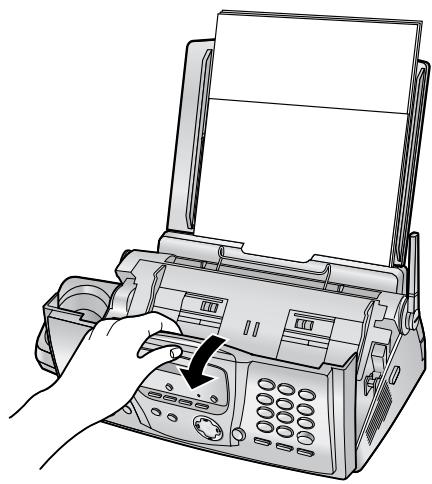
2 Release the back cover by pushing the green button (①).
- You can also release the back cover by pushing in the green lever (②).
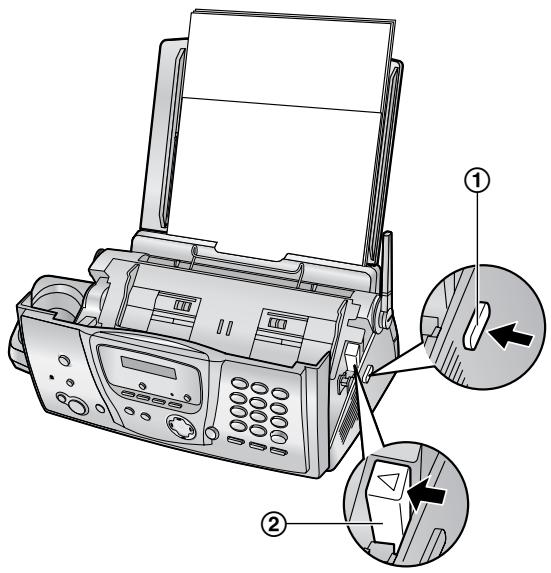
3 Open the back cover.
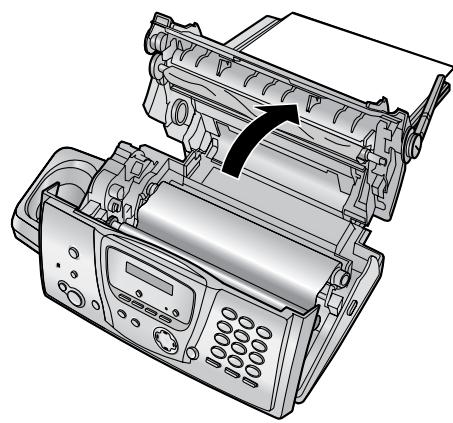
4 Remove the jammed recording paper (①).
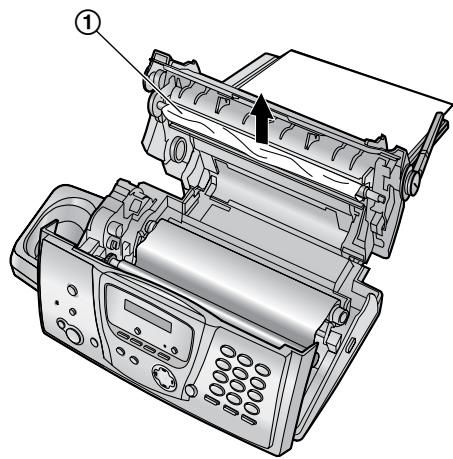
5 Turn the gear of the blue core (①) in the direction of the arrow until the ink film is tight (②).
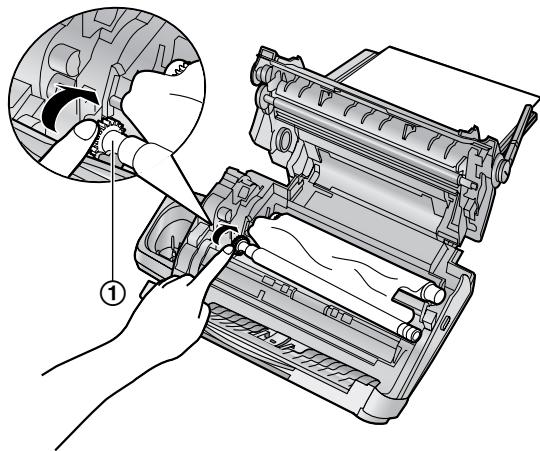
↓
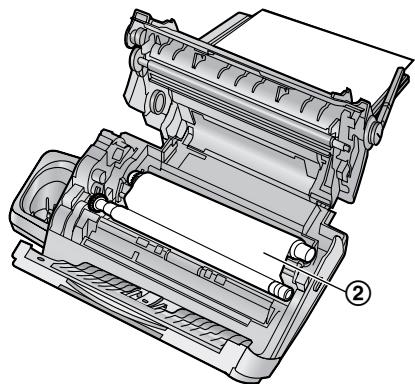
Correct
- The ink film is wrapped around the blue core (③) at least once.
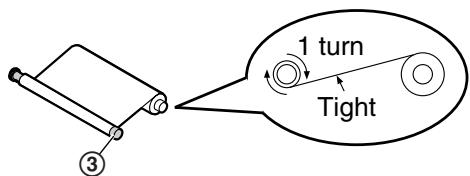
Incorrect
- The ink film is not wrapped around the blue core (④).
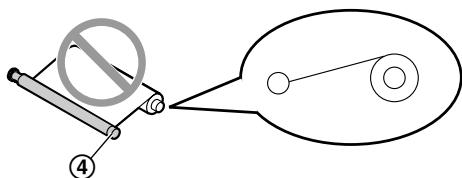
The ink film is reversed.
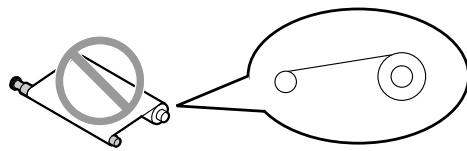
The ink film is slack or creased.

6 Close the back cover securely by pushing down on the notched area at both ends (①).
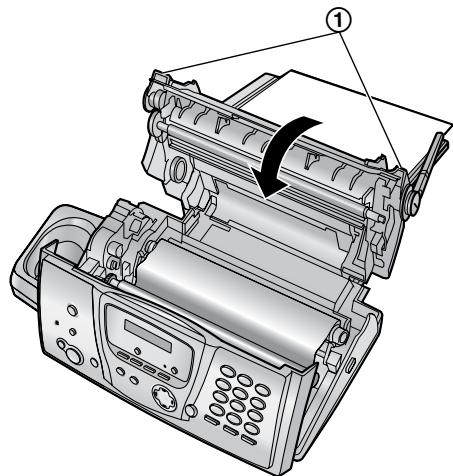
7 Close the front cover securely.

8 Remove the recording paper and straighten. Pull the tension plate forward (①) and insert the paper. Then push the tension plate back.
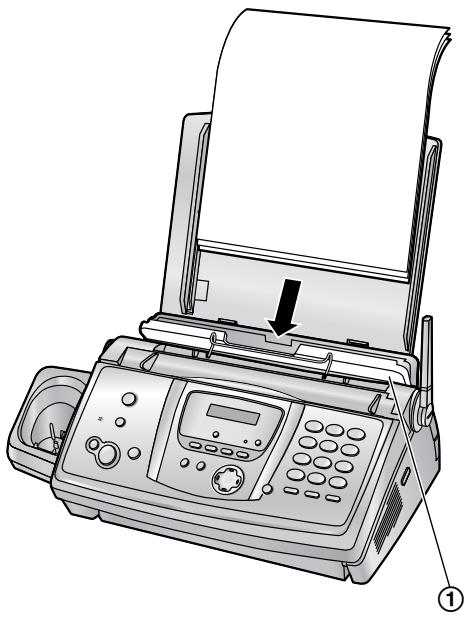
11.4.2 When the recording paper was not fed into the unit properly
The base unit display will show the following.
CHECK PAPER
Remove the recording paper and straighten. Pull the tension plate forward (①) and insert the paper. Push the tension plate back, then press [START] to clear the message.
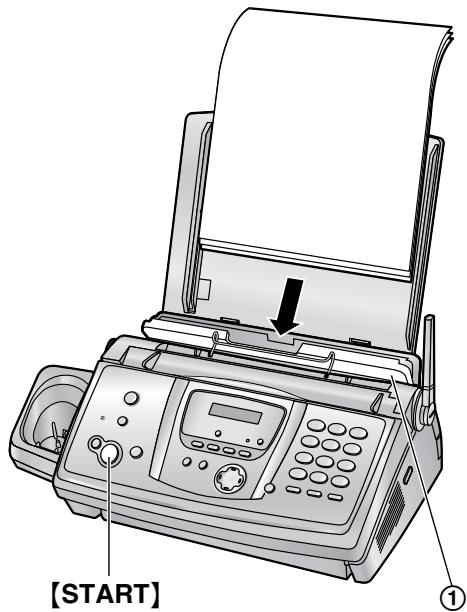
11.5 Document jams – sending
1 Open the front cover by pulling up the centre part. Remove the jammed document carefully (①).
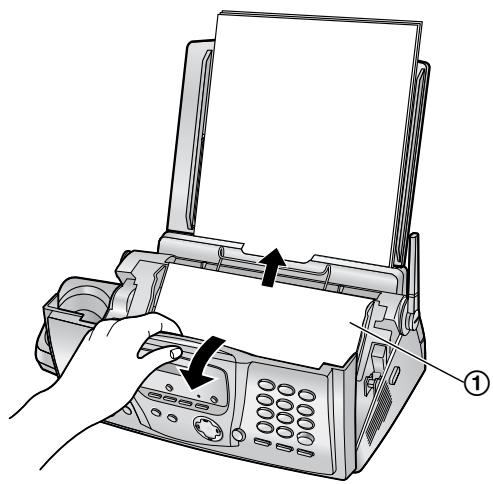
2 Close the front cover securely.
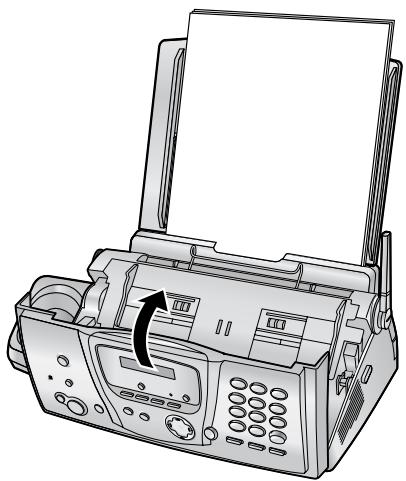
Note:
- Do not pull out the jammed paper forcibly before opening the front cover.
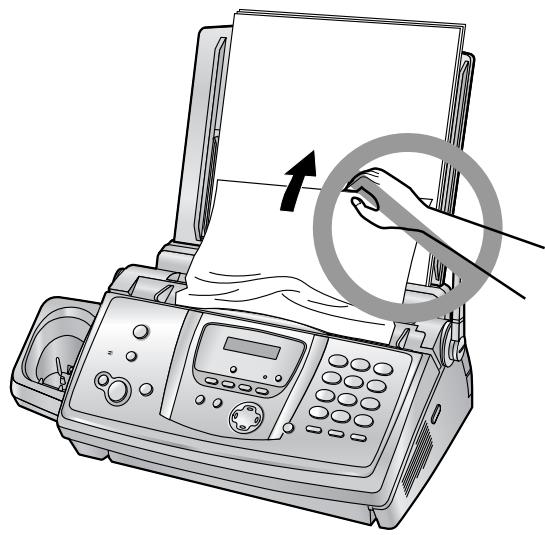
11.6 Document feeder / scanner glass cleaning
Clean the document feeder/scanner glass when:
- Documents frequently misfeed.
Smudges or black/white lines appear on the original document when sending or copying.
1 Disconnect the mains lead and the telephone line cord.
2 Open the front cover by pulling up the centre part.
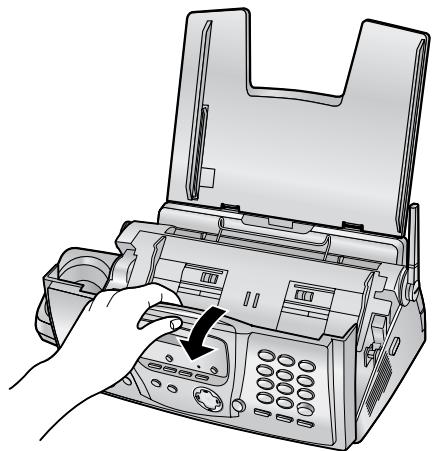
3 Clean the document feeder rollers (①) and rubber flap (②) with a cloth moistened with isopropyl rubbing alcohol, and let all parts dry thoroughly. Clean the scanner glass (③) with a soft, dry cloth.
Caution:
- Do not use paper products, such as paper towels or tissues.
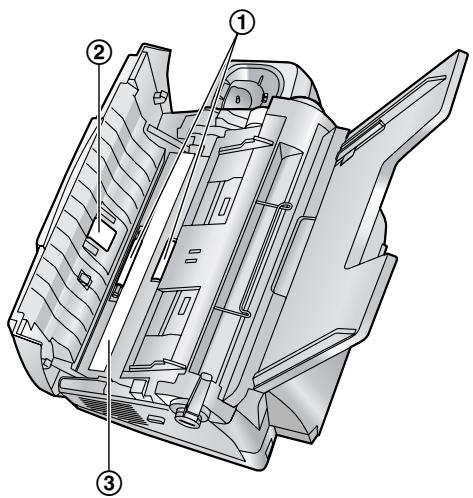
4 Close the front cover securely.
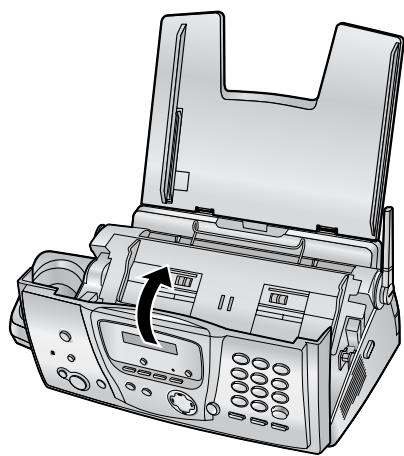
5 Connect the mains lead and the telephone line cord.
11.7 Thermal head cleaning
If smudges or black/white lines appear on a copied/received document, check whether there is dust on the thermal head. Clean the thermal head to remove the dust.
1 Disconnect the mains lead and the telephone line cord.
2 Open the front cover by pulling up the centre part.

3 Release the back cover by pushing the green button (①).
- You can also release the back cover by pushing in the green lever (②).
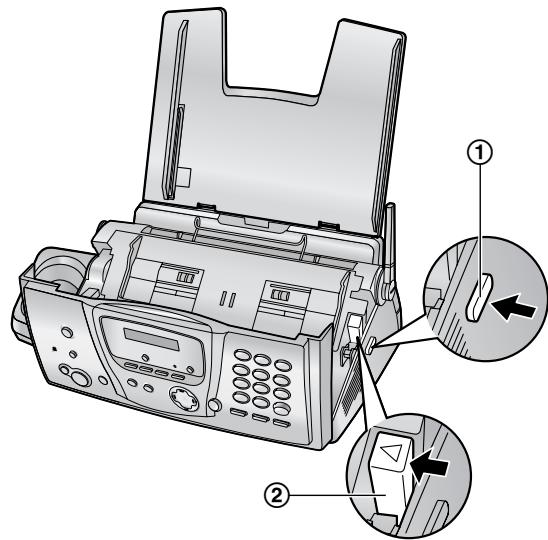
4 Open the back cover.
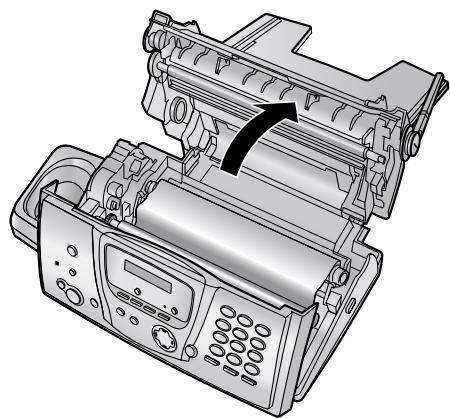
5 Remove the ink film (①).
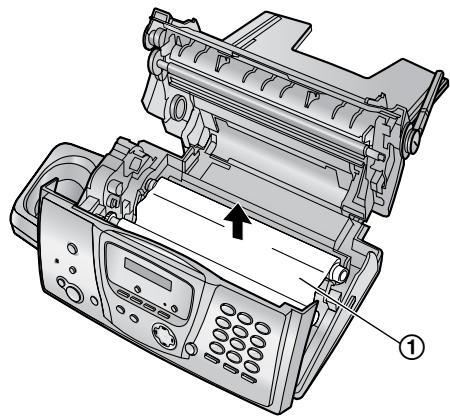
6 Clean the thermal head (①) with a cloth moistened with isopropyl rubbing alcohol, and let it dry thoroughly.
Caution:
- To prevent a malfunction due to static electricity, do not use a dry cloth and do not touch the thermal head directly.
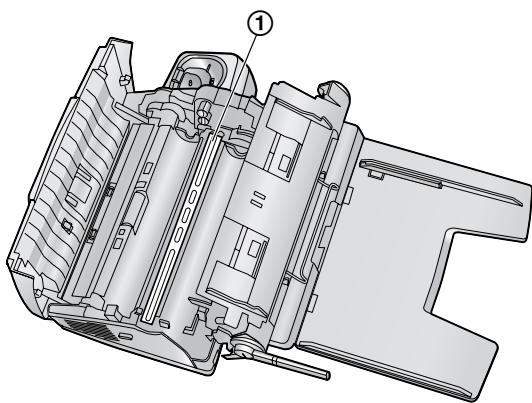
7 Reinstall the ink film and close the covers (see steps 4 to 7 on page 16).
8 Connect the mains lead and the telephone line cord.
12.1 Reference lists and reports (Base unit only)
You can print out the following lists and reports for your reference.
"SETUP LIST":
provides you with the current settings of the base unit programming features (page 68 to page 71).
"FAX NO. LIST":
provides you with names and numbers which are stored in the base unit phonebook.
"JOURNAL REPORT":
keeps records of fax transmission and reception.
This report can be printed automatically after every 30 fax communications (feature #22 on page 69).
"PRINTER TEST":
allows you to check the print quality of your unit. If the test print has a smudge, or blurred points or lines, clean the thermal head (page 103).
"BROADCAST LIST":
provides you with names and numbers which are stored in the broadcast memory (page 51).
"CALLER ID LIST":
keeps records of the last 30 different callers of the base unit after subscribing to a Caller ID service. To print automatically after every 30 callers, activate feature #26 (page 69).
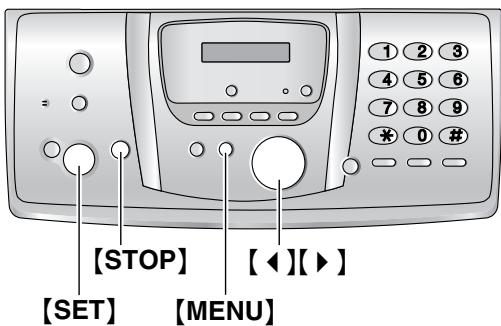
1 Press [MENU] repeatedly to display "PRINT REPORT".
2 Press [4] or [▶] repeatedly to display the desired item.
3 Press [SET] to start printing.
- To stop printing, press [STOP] 2 times.
4 Press [MENU].
12.2 Specifications
12.2.1 Base unit
Applicable lines:
Public Switched Telephone Network
Document size:
Max. 216 mm in width, Max. 600 mm in length
Effective scanning width:
208 mm
Effective printing width:
A4:202mm
Transmission time ^+1 :
Approx. 8 s/page (ECM-MMR)*2
Scanning density:
Horizontal: 8 pels/mm
Vertical: 3.85 lines/mm - in standard resolution,
7.7 lines/mm - in fine/photo resolution,
15.4 lines/mm - in super fine resolution
Photo resolution:
64-level
Scanner type:
Contact Image Sensor
■ Printer type:
Thermal Transfer on plain paper
Data compression system:
Modified Huffman (MH), Modified READ (MR), Modified Modified READ (MMR)
Modem speed:
14,400 / 12,000 / 9,600 / 7,200 / 4,800 / 2,400
bps; Automatic Fallback
Operating environment:
5 °C - 35 °C, 20 % - 80 % RH (Relative
Humidity)
Dimensions:
Approx. height 128mm× width 389mm× depth 242 mm
Mass (Weight):
Approx. 3.4kg
Power consumption:
Standby: Approx. 6 W
Transmission: Approx. 16 W
Reception: Approx. 50 W (When receiving a 20 % black document)
Copy: Approx. 50 W (When copying a 20 % black document)
Maximum: Approx. 130 W (When copying a 100
% black document)
Power supply:
220 V - 240 V AC, 50 Hz
Fax memory capacity*3:
Approx. 25 pages of memory transmission
Approx. 28 pages of memory reception
(Based on the ITU-T No. 1 Test Chart in standard resolution, without using the Error Correction Mode.)
Voice memory capacity ^*4 :
Approx. 18 minutes of recording time including greeting messages
Copy memory capacity:
Approx. 10 pages (Based on the ITU-T No. 1 Test Chart in fine resolution.)
1 Transmission speed depends upon the contents of the pages, resolution, telephone line conditions and capability of the other party's machine.
2 Transmission speed is based upon the ITU-T No. 1 Test Chart. If the capability of the other party's machine is inferior to your unit, the transmission time may be longer.
3 If an error occurs during fax reception, such as a paper jam or if the recording paper runs out, the fax and subsequent faxes will be retained in memory.
4 Recording time may be reduced by the calling party's background noise.
ITU-T No. 1 Test Chart
Recording paper specifications
Recording paper size: A4: 210 mm × 297 mm
Recording paper weight: 64 g/m² to 80 g/m²
Note for recording paper:
-
Do not use the following types of paper:
-
Paper with a cotton and/or fibre content that is over 20% , such as letterhead paper or paper used for resumes
- Extremely smooth or shiny paper, or paper that is highly textured
-
Coated, damaged or wrinkled paper
-
Paper with foreign objects attached, such as tabs or staples
- Paper which has dust, lint or oil stains
-
Paper that will melt, vaporize, discolour, scorch or emit dangerous fumes near 200 ^ C , such as vellum paper. These materials may transfer onto the fusing roller and cause damage.
-
Moist paper
-
Some paper only accepts print on one side. Try using the other side of the paper if you are not happy with the print quality or if misfeeding occurs.
- For proper paper feeding and best print quality, we recommend using long-grained paper.
- Do not use paper of different types or thickness at the same time. This may cause a paper jam.
- Avoid double-sided printing.
- Do not use paper printed from this unit for double-sided printing with other copiers or printers. This may cause a paper jam.
- To avoid curling, do not open paper packs until you are ready to use the paper. Store unused paper in the original packaging, in a cool and dry location.
12.2.2 Handset
Standard:
DECT (Digital Enhanced Cordless
Telecommunications)
GAP (Generic Access Profile)
Number of channels:
120 Duplex Channels
Frequency range:
1.88 GHz to 1.9 GHz
Duplex procedure:
TDMA (Time Division Multiple Access)
■ Channel spacing:
1,728 kHz
Bit rate:
1,152 kbit/s
Modulation:
GFSK
RF transmission power:
Approx. 250mW
Operating environment:
5 °C - 40 °C, 20 % - 80 % RH (Relative
Humidity)
Dimensions:
Approx. height 148mm× width 48mm× depth 32mm
Mass (Weight):
Approx. 130 g
Note:
- Design and specifications are subject to change without notice.
- The pictures and illustrations in these instructions may vary slightly from the actual product.
12.3 Condition of guarantee
- This machine is supplied with a one year swap out warranty. Please retain your Proof of Purchase and Packaging in the unlikely event that your machine should require attention. For further information please contact us on 08701 580560 for UK or 01 6130082 for the Republic of Ireland, in addition you can visit our web site at www.panasonic.co.uk
- This warranty is in addition to and does not in any way affect any statutory or other right of consumer purchasers. This warranty relates only to product used within Mainland Great Britain, please refer to your dealer warranty information relating to use elsewhere within the United Kingdom and Ireland.
- This product is designed for use only on the United Kingdom and Ireland's Public Switched Telephone Network and should be used only for normal purposes and in accordance with standard operating instructions.
- You should complete the registration form overleaf and fax it to us with 7 days of purchase; failure to do so may result in delays in providing warranty service.
- This warranty covers breakdowns due to design or manufacturing faults; it does not apply to damage, however caused, wear or tear, neglect, incorrect adjustment or repair, or to any items of limited natural life.
- This warranty does not cover consumables, i.e. ink films, film refills, ink cartridges, toner cartridges, drum units, paper and paper loads or any optional accessories which may have been purchased either at the same time as, or subsequent to, the main unit. Such accessories should be returned to the point of purchase if found to be faulty.
- In the event of a failure, please take the following action;
a) Refer to the "Help" section of your instruction manual in order to identify and possibly correct the problem:
b) If the problem is not resolved after referring to the user guide, please contact our customer helpline on 08701 580560 for UK or 01 6130082 for the Republic of Ireland
- In the event the helpline cannot resolve the problem, a like for like exchange fax will be despatched. The helpline operator will give you specific instructions on how the exchange will be executed. Failure to comply with these instructions may result in delay and cost to you.
- The exchange fax will be delivered in a customised case by courier. It is the customer's responsibility to promptly remove the exchange fax and insert the faulty fax in the case provided for collection, to enable the courier to return it to Panasonic.
- The exchange fax is to be regarded as a like for like exchange under warranty and the balance of the warranty period will transfer to the exchange unit. The purchaser's sole and exclusive remedy under this guarantee against Panasonic is for the repair or replacement of the appliance or any defective parts and no other remedy, including, but not limited to; incidental or consequential damage or loss of whatsoever nature shall be available to the purchaser.
- Where the original fax is found to be faulty as a result of unauthorised repairs or modifications or damage either by accident, misuse or improper installation then Panasonic reserves the right to charge the customer a contribution towards repair costs.
- If at any time during the guarantee period any parts of the appliance are replaced with parts not supplied or approved by us or of an objective quality, safe and suitable for the appliance, or has been dismantled or repaired by any person not authorised by us, we shall have the right to terminate this guarantee in whole or in part immediately without further notice.
- This warranty applies to the original purchaser only and is not transferable.
- The warranty period applicable to this product shall be 12 months from the date of purchase.
Please keep these Operating Instructions with your receipt.
Panasonic Business Systems U.K.
| Receipt No. | Date of Purchase |
| Model No. KX-FC235E | Serial No. |
13.1 Index
#01 Date and time: 26
02 Your logo: 26
03 Your fax number: 28
04 Sending report: 50, 68
06 FAX ring setting: 68
06 TAM ring setting: 57, 68
10 Message recording time: 68
11 Remote operation ID: 68
17 External ring tone: 68
22 Automatic journal report: 50, 69
23Overseasmode:69
25 Delayed transmission: 69
26 Automatic Caller ID list: 69
34 Quick scan: 49, 60, 69
36 Receiving reduction: 69
39 Display contrast: 70
41 Fax activation code: 70
42 Message alert: 70
43 Recording time alert: 70
44 Memory reception alert: 70
46 Friendly reception: 70
47 Voice guidance: 70
53 SMS: 41
54 Greeting recording time: 62, 71
58 Scan contrast: 71
67 Incoming message monitor: 71
68 ECM selection: 71
73 Manual answer mode: 71
76 Connecting tone: 71
77 Auto answer: 71
78 TEL/FAX ring setting: 71
80 Set default: 71
A Accessories: 10
Paper tray: 18
Advanced features: 69
Alarm: 76
Auto answer setting: 71
Auto talk feature: 31, 78
B Base unit
Additional base units: 82
Cancelling: 83
PIN: 80
Selecting: 82
Base unit phonebook
Editing: 35
Erasing: 35
Making a phone call: 35
Sending faxes: 51
Storing: 34
Basic features: 68
Battery
Charge: 22
Installation: 20
Life: 22
Replacement: 20
Broadcast transmission: 51
Button description
Base unit: 12
Handset: 13
C Call bar: 78
Caller ID: 36
Calling back: 37
Storing: 40
Caller ID list: 36, 69, 105
Call restriction: 80
Call waiting: 31, 36
Category: 32
Chain dial: 34
Character entry
Base unit: 26
Handset: 86
SMS: 47
Cleaning: 102, 103
Conference calls: 84
Connecting tone: 71
Connections: 21
Copy: 60
Collation: 61
Enlarge: 60
Reduce: 60
D Date and time: 25
Delayed transmission: 69
Display (Base unit)
Contrast: 70
Error messages: 89
Display (Handset)
Contrast: 78
Description: 14
Language: 77
Standby mode: 77
Document size: 50
E ECM selection: 71
Emergency call: 80
Error messages: 88
Extension telephone: 55
F Fax activation code: 70
Fax number: 28
FAX ONLY mode: 53, 58
Friendly reception: 70
G Greeting message: 62
Handset Additional handsets: 82
Cancelling: 83
Locator: 83
PIN: 78
Registration: 82
Handset phonebook
Copying: 85
Editing: 33
Erasing: 33
Making a phone call: 32
Storing: 32
Help: 23
I Incoming message monitor: 71
Ink film
Installing: 16
Replacing: 18
Intercom:84
J Jams Document: 101 Recording paper: 98
Journal report: 50, 69
Junk fax inhibitor: 59
K Key lock: 30
Key tone: 78
L Language: 77
LetterWise: 47, 78, 86
Listening to recorded messages: 63
From a remote location: 65
Logo: 26
M Manual answer setting: 71 Memory reception alert: 70
Message alert: 70
Message recording time: 68
N Navigator: 12, 13
Night mode: 76
One touch dial: 33
Overseas mode: 69
P Pause length: 79
Phonebook
Base unit: 34
Handset: 32
PIN: 78, 80
Polling: 58
Power failure: 97
Power ON/OFF (Handset): 23
Programming Base unit programming: 67 Handset programming: 75
Q Quick scan: 49, 60, 69
R Recall: 31, 79
Receiving taxes
Automatically: 57
Manually: 55
Receiving reduction: 69
Recording
Greeting message: 62
Memo message: 63
Recording paper: 19, 106
Recording time alert: 70
Recording time for TAM/FAX greeting message: 62, 71
Redialling
Base unit: 30, 49, 51
Handset: 29
Redial list: 29
Registration: 82
Remote operation: 65
Remote operation ID: 68
Repeater: 83
Reports
Broadcast programming: 105
Broadcast sending: 52
Caller ID list: 36, 69, 105
Fax number: 105
Journal: 50, 69, 105
Power down: 97
Printer test: 105
Sending: 50, 68
Setup: 105
Reset
Base unit: 71
Handset: 79, 80
Resolution: 49, 60
Ringer volume
Base unit: 24
Handset: 24
Ring setting
FAX ONLY: 68
TAM/FAX: 68
TEL/FAX: 71
Ring tone
Base unit: 68
Handset: 76
S Scan contrast: 71
Sending taxes
Base unit phonebook: 51
Broadcast: 52
From memory: 49
Manually: 49
Sending report: 50, 68
SMS feature: 41
Storing
Broadcast: 51
One touch dial: 33
Phonebook: 32, 34
T TAM/FAX mode: 53, 57
TEL/FAX mode: 54, 56
TEL mode: 54, 55
Toll saver: 57
Transferring calls: 84
V Voice enhancer: 29
Voice guidance: 70
Voice time/day stamp: 63
Volume
Base unit: 24
Handset: 24
CE 0682 : Base Unit
CE 0436 : DECT Cordless Handset
Sales Department:
Panasonic Business Systems U.K.
Panasonic House, Willoughby Road, Bracknell, Berkshire, RG12 8FP
Manufacturer:
Panasonic Communications (Malaysia) Sdn. Bhd.
PLO No.1, Kawasaki Perindustrian Senai, KB No. 104, 81400 Senai, Negeri Johor Darul Ta'zim, Malaysia
Global web site:
http://www.panasonic.co.jp/global/
Copyright:
- This material is copyrighted by Panasonic Communications Co., Ltd., and may be reproduced for internal use only. All other reproduction, in whole or in part, is prohibited without the written consent of Panasonic Communications Co., Ltd.
© 2005 Panasonic Communications Co., Ltd. All Rights Reserved.