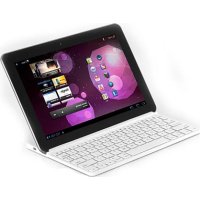
Solo - Clavier Zagg - Notice d'utilisation et mode d'emploi gratuit
Retrouvez gratuitement la notice de l'appareil Solo Zagg au format PDF.

| Type de produit | Clavier Bluetooth pour tablette |
| Marque | Zagg |
| Modèle | Solo |
| Alimentation | Batterie lithium-polymère rechargeable, charge via câble micro-USB |
| Autonomie | Plusieurs semaines d'utilisation normale |
| Connectivité | Bluetooth |
| Fonctions principales | Touches spéciales (Accueil, Recherche, Lecteur audio, Volume, etc.), mode portrait/paysage, mode veille automatique |
| Indicateurs lumineux | Voyant de charge (allumé en charge, éteint quand chargé) ; voyant d'état (clignote pour batterie faible ou appairage) |
| Positionnement | Rainure centrale, inclinaison possible, compatible portrait et paysage |
| Compatibilité | iPad 2 et Galaxy Tab 10.1 |
| Entretien | Nettoyer avec un chiffon doux et sec ; ne pas utiliser de liquides |
| Sécurité | Éviter les chocs, l'humidité et les températures extrêmes |
| Pièces détachées | Câble micro-USB fourni |
| Réparabilité | Batterie intégrée non remplaçable par l'utilisateur |
| Informations générales | Marque Zagg, modèle Solo, fabriqué en Chine, brevet en instance |
FOIRE AUX QUESTIONS - Solo Zagg
Questions des utilisateurs sur Solo Zagg
0 question sur cet appareil. Repondez a celles que vous connaissez ou posez la votre.
Poser une nouvelle question sur cet appareil
Téléchargez la notice de votre Clavier au format PDF gratuitement ! Retrouvez votre notice Solo - Zagg et reprennez votre appareil électronique en main. Sur cette page sont publiés tous les documents nécessaires à l'utilisation de votre appareil Solo de la marque Zagg.
MODE D'EMPLOI Solo Zagg
Positioning
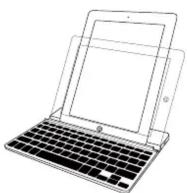
Place the device into the central groove and lean back. Most devices can be used in both portrait and landscape mode.
Powering on and pairing your keyboard
The Bluetooth ^® keyboard should only need to pair to your device once as follows:
- On the keyboard, slide the power switch on. The status light illuminates for four seconds, and then it turns off.
- Apple®: Select Settings > General > Bluetooth® > On. Android™: Apps > Settings > Wireless Networks > Bluetooth® (to turn on the Bluetooth®.) Then select Bluetooth® Settings > Find Nearby Devices.
- Press the Connect button on the keyboard to make it discoverable. The status light flashes on keyboard and the device displays "ZAGG Keyboard" as an available device.
- Select "ZAGG Keyboard" on the device. The device will display a unique code.
- Type the code using the keyboard and press Enter. The keyboard is now paired to the device.
Charge the ZAGG Keyboard
Plug the micro-USB cable into the micro-USB port on the keyboard. Plug the other end of the cable into a powered USB port on a computer, your device wall charger, or any other USB compatible charger.
Lights and buttons
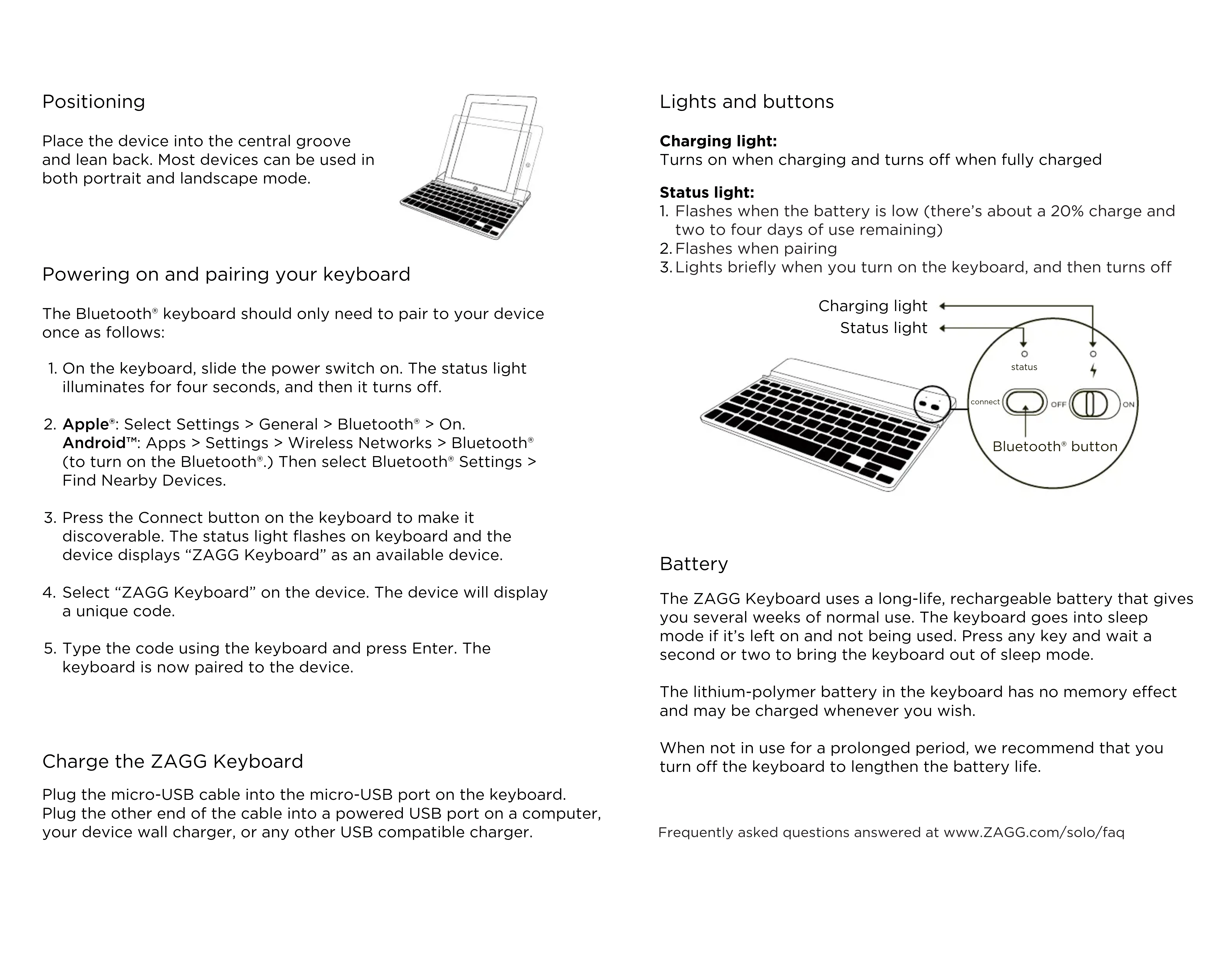
Charging light:
Turns on when charging and turns off when fully charged
Status light:
- Flashes when the battery is low (there's about a 20% charge and two to four days of use remaining)
- Flashes when pairing
- Lights briefly when you turn on the keyboard, and then turns off

text_image
Charging light Status light status connect OFF ON Bluetooth® buttonBattery
The ZAGG Keyboard uses a long-life, rechargeable battery that gives you several weeks of normal use. The keyboard goes into sleep mode if it's left on and not being used. Press any key and wait a second or two to bring the keyboard out of sleep mode.
The lithium-polymer battery in the keyboard has no memory effect and may be charged whenever you wish.
When not in use for a prolonged period, we recommend that you turn off the keyboard to lengthen the battery life.
Frequently asked questions answered at www.ZAGG.com/solo/faq
Special function keys
The ZAGG Keyboard has special function keys to give you more control of your device.
Home Displays the device home screen
Search Displays the device search screen
Slide-Show Plays a slide-show of saved pictures*
Keyboard Hide/Show Hides or shows device on-screen keyboard*
Android™ Key Activates marked functions for Android™ users. (Simply press the Android™ Key first, then the desired function)
Cut Cuts selected text to clipboard
Copy Copies selected text to clipboard
Paste Pastes clipboard content in selected field
Previous Track Skips to previous track on current playlist
▶II Play/Pause Starts or stops current playlist
▶ Next Track Skips to the next track on the current playlist
Mute Mutes audio
Volume Down Decreases volume
Volume Up Increases volume
Lock Activates and deactivates sleep mode on device*
International Keyboard Toggles between international keyboards (if selected in iPad settings)*
← Back Takes you back to previous activity**
* Does not work on Android™
** Does not work on Apple®
Must press Android™ Key before special function key to use on Android™.

KEYBOARD INNOVATION

A ST ATE OF THE ART TABL ET ACCESSO RY → FOR iPAD® 2 AND GALAXY TAB™ 10.1
www.ZAGG.com/solo/faq
©2005 - 2011 ZAGG Inc. All Rights Reserved.
PATENT PENDING | NASDAQ: ZAGG | MADE IN CHINA
iPad® 2 and Apple® are registered trademarks of Apple, Inc
Android™ and the Android™ logo are trademarks of Google Inc.
Samsung™ and Galaxy Tab™ 10.1 are trademarks of Samsung Group.
ZAGG, and ZAGGKeys Solo, are trademarks or registered trademarks of ZAGG, Inc.
The Bluetooth word mark and logos are owned by the Bluetooth SIG, Inc. and any use of such marks by ZAGG is under license.