
SLV-SE710K - Enregistreur vidéo SONY - Notice d'utilisation et mode d'emploi gratuit
Retrouvez gratuitement la notice de l'appareil SLV-SE710K SONY au format PDF.


| Type de produit | Enregistreur vidéo (magnétoscope) VHS Hi-Fi |
| Marque | Sony |
| Modèle | SLV-SE710K |
| Couleur | Noir (typique) |
| Dimensions (L × H × P) | Environ 430 × 98 × 283 mm |
| Poids | Environ 4,1 kg |
| Alimentation électrique | 220-240 V CA, 50 Hz |
| Consommation électrique | 20 W (en fonctionnement), 1,2 W min. en veille |
| Système de couleur | PAL (B/G ou D/K) et MESECAM (enregistrement/lecture) ; NTSC (lecture uniquement) |
| Vitesses de bande | SP : 23,39 mm/s (PAL/MESECAM) ; LP : 11,70 mm/s ; NTSC : 33,35 mm/s (lecture uniquement) |
| Durée maximale d'enregistrement/lecture | 10 heures en mode LP avec cassette E300 |
| Temps de rembobinage/avance rapide | Environ 1 minute avec cassette E180 |
| Connecteurs d'entrée | Prise péritel LINE-1 (TV) / ANTENNE IN / DECODER/LINE-2 IN (péritel) |
| Connecteurs de sortie | Prise péritel LINE-1 (TV) / ANTENNE OUT / Jacks audio R/D L/G |
| Fonctions principales | Enregistrement programmé (ShowView, minuterie, Dial Timer), lecture multivitesse, recherche d'index, montage audio, arrêt programmé |
| Entretien et nettoyage | Nettoyer le boîtier avec un chiffon doux et sec. Utiliser une cassette de nettoyage des têtes vidéo Sony (T-25CLD ou équivalent) |
| Sécurité | Ne pas exposer à la pluie ni à l'humidité. Débrancher avant nettoyage. Confier les réparations à un personnel qualifié. |
| Pièces détachées et réparabilité | Contacter un centre de service Sony agréé. Utiliser des pièces détachées d'origine. |
| Informations générales | Fonctionnement sur secteur 220-240 V, 50 Hz. Température de fonctionnement : 5°C à 40°C. |
FOIRE AUX QUESTIONS - SLV-SE710K SONY
Questions des utilisateurs sur SLV-SE710K SONY
0 question sur cet appareil. Repondez a celles que vous connaissez ou posez la votre.
Poser une nouvelle question sur cet appareil
Téléchargez la notice de votre Enregistreur vidéo au format PDF gratuitement ! Retrouvez votre notice SLV-SE710K - SONY et reprennez votre appareil électronique en main. Sur cette page sont publiés tous les documents nécessaires à l'utilisation de votre appareil SLV-SE710K de la marque SONY.
MODE D'EMPLOI SLV-SE710K SONY
Magnétoscope
Mode d'emploi

PAL
Hi-Fi
SLV-SE610N/K
SLV-SE710N/K
SLV-SX710N/K
SLV-SE810N/K
SHOWVIEW
SHOWVIEW
SHOWVIEW
AVERTISSEMENT
Pour éviter tout risque d'incendie ou de choc électrique, n'exposez pas l'appareil à la pluie ou à l'humidité.
Pour éviter tout choc électrique, n'ouvrez pas le boîtier.
Confiez toute réparation à un personnel qualifié uniquement.
Le cordon d'alimentation ne doit être remplacé que dans un atelier de réparation agréé.
Précautions
Sécurité
Cet appareil fonctionne sur 220 - 240VAC 50Hz. Vérifiez que la tension de fonctionnement de l'appareil est identique à celle de votre alimentation locale. - Si un objet tombe dans le boîtier, débranchez l'appareil et faites-le vérifier par du personnel qualifié avant de le réutiliser. - L'appareil n'est pas déconnecté du secteur tant qu'il est branché sur la prise, même s'il est éteint. - Débranchez l'appareil de la prise murale si vous ne comptez pas l'utiliser pendant une période prolongée. Pour débrancher le cordon, tirez sur la fiche, jamais sur le cordon.
Installation
- Laissez une circulation d'air suffisante pour éviter l'accumulation de chaleur interne.
- Ne placez pas l'appareil sur des surfaces (tapis, couvertures, etc.) ou à proximité de matériaux (rideaux, tentures) qui pourraient bloquer les fentes de ventilation.
- N'installez pas l'appareil près de sources de chaleur telles que radiateurs ou conduits d'air, ni dans un endroit exposé à la lumière directe du soleil, à une poussière excessive, à des vibrations mécaniques ou à des chocs.
- N'installez pas l'appareil en position inclinée. Il est conçu pour fonctionner uniquement en position horizontale.
- Tenez l'appareil et les cassettes à l'écart des équipements dotés d'aimants puissants, tels que les fours à micro-ondes ou les gros haut-parleurs.
- Ne posez pas d'objets lourds sur l'appareil.
- Si l'appareil est transporté directement d'un endroit froid à un endroit chaud, de l'humidité peut se condenser à l'intérieur du magnétoscope et endommager la tête vidéo et la bande. Lors de la première installation de l'appareil, ou lors d'un déplacement d'un endroit froid à un endroit chaud, attendez environ trois heures avant de faire fonctionner l'appareil.
Avertissement
Les émissions de télévision, les films, les cassettes vidéo et autres matériels peuvent être protégés par le droit d'auteur. L'enregistrement non autorisé de ces matériels peut être contraire aux dispositions des lois sur le droit d'auteur. De plus, l'utilisation de cet enregistreur avec la transmission par câble peut nécessiter une autorisation du transmetteur de télévision par câble et/ou du propriétaire du programme.
Systèmes de couleurs compatibles
Ce magnétoscope est conçu pour enregistrer en utilisant le système de couleur PAL (B/G ou D/K) ou MESECAM (B/G ou D/K) et pour lire en utilisant les systèmes de couleur PAL (B/G ou D/K) ou MESECAM (B/G ou D/K).
L'enregistrement de sources vidéo basées sur d'autres systèmes de couleur ne peut être garanti.
SHOWVIEW est une marque déposée de Gemstar Development Corporation. Le système SHOWVIEW est fabriqué sous licence de Gemstar Development Corporation.
Table des matières
Préparation
4 Index des pièces et commandes 10 Étape 1 : Déballage 11 Étape 2 : Installation de la télécommande 15 Étape 3 : Raccordement du magnétoscope 19 Étape 4 : Réglage de votre téléviseur sur le magnétoscope 22 Étape 5 : Configuration du magnétoscope avec la fonction de réglage automatique 25 Étape 6 : Réglage de l'horloge 29 Sélection de la langue 30 Préréglage des chaînes 34 Modification/désactivation des positions de programme 39 Réglage du décodeur Canal Plus (non disponible sur SLV-SE610N/K)
Opérations de base
44 Lecture d'une cassette 46 Enregistrement de programmes TV 50 Enregistrement de programmes TV avec la minuterie de numérotation (SLV-SE810N/K uniquement) 55 Enregistrement de programmes TV avec le système ShowView (non disponible sur SLV-SE610N/K) 59 Enregistrement de programmes TV avec la minuterie
Opérations supplémentaires
63 Lecture/recherche à différentes vitesses 65 Réglage de la durée d'enregistrement 66 Enregistrement synchronisé (non disponible sur SLV-SE610N/K) 68 Vérification/modification/annulation des réglages de minuterie 70 Enregistrement de programmes stéréo et bilingues 73 Recherche avec la fonction Smart Search 75 Stockage, recherche et suppression d'informations sur les programmes (Smart Search Plus) 80 Recherche avec la fonction d'index 81 Réglage de l'image 83 Réduction de la consommation d'énergie du magnétoscope 84 Modification des options de menu
Montage
87 Raccordement à un magnétoscope ou à une chaîne stéréo 89 Montage de base 90 Doublage audio (SLV-SE810N/K uniquement)
Informations complémentaires
91 Dépannage 96 Spécifications 98 Index
Dos de couverture
Guide de démarrage rapide
Index des pièces et commandes
Reportez-vous aux pages indiquées entre parenthèses ( ) pour plus de détails.
Panneau avant
SLV-SE810N/K

1 Interrupteur I/O (marche/veille) (19) 2 Compartiment à cassette Capteur de télécommande (11) 4 (éjection) (44) 5 Bague navette (63) 6 (lecture) (44) (63) 7 Bouton JOG (64) REC (enregistrement) (46) (65) (89) 9 (pause) (44) (89) 10 (arrêt) (44) (89) 11 (avance rapide) (44) (63) 12 (retour rapide) (44) (63)
13 DIAL TIMER (50) 14 Boutons PROGRAM + / - (22) (64) (81) 15 Bouton AUDIO DUB (90) 16 Bouton AUTO SET UP/ RF (Radio Frequency) CHANNEL (19) (22) 17 Bouton SYNCHRO REC (enregistrement synchronisé) (67) Prises LINE-2 L (gauche) R (droite) (cachées) (87) (88)
Comment ouvrir le couvercle des prises
1 Appuyez sur le bas du couvercle. 2 Accrochez votre doigt sur le bord supérieur du couvercle et tirez pour l'ouvrir.
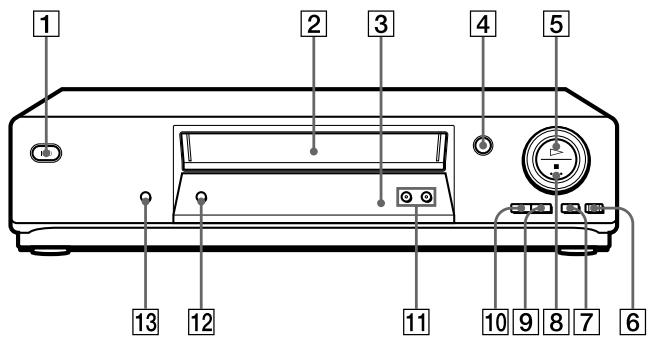
1 Interrupteur I/ (marche/veille) (19) 2 Compartiment à cassette Capteur de télécommande (11) 4 (éjection) (44) 5 (lecture) (44) (63) REC (enregistrement) (46) (65) (89) 7 (pause) (44) (89) 8 (arrêt) (44) (89)
- non disponible sur SLV-SE610N/K
9 (avance rapide) (44) (63) 10 (retour rapide) (44) (63) 11 Boutons PROGRAM + / - (22) (64) (81) 12 Bouton AUTO SET UP/ RF (Radio Frequency) CHANNEL (19) (22) 13 Bouton SYNCHRO REC (enregistrement synchronisé)* (67)
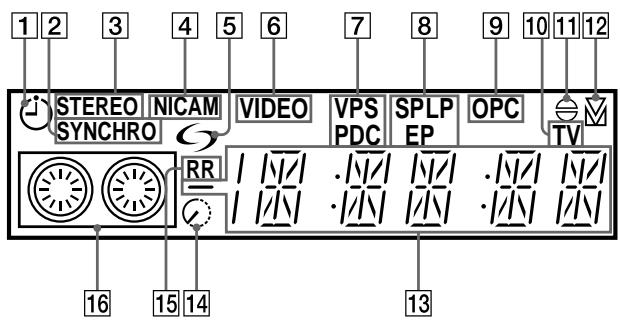
1 Voyant de minuterie (52) (57) (60) 2 Voyant SYNCHRO*1 (67) 3 Voyant STEREO (70) 4 Voyant NICAM*2 (70) Voyant (smartlink)*1 (17) 6 Voyant VIDEO (16) (47) Voyant VPS (Video Programme System)/ PDC (Programme Delivery Control)*1 (57) 8 Voyants de vitesse de bande (46)
9 Voyant OPC (Optimum Picture Control) (82) Voyant TV*1 (48) 11 Voyant d'incrustation audio*3 (90) 12 Voyant de suivi (81) Indicateur de compteur de temps/horloge/ligne/position de programme (44) (46) (89) 14 Voyant de temps restant (47) 15 Voyant RR (Reality Regenerator) (81) 16 Voyant de bande/enregistrement (46)
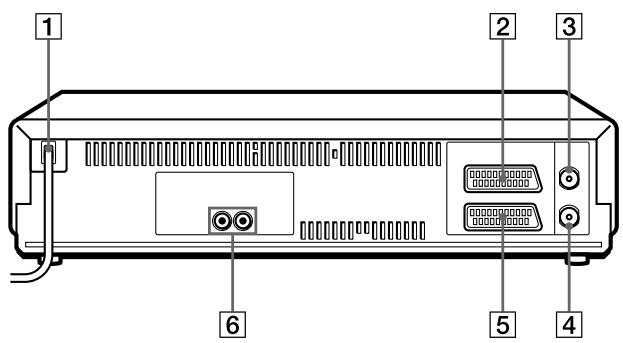
1 Cordon d'alimentation (15) (16) 2 Connecteur DECODER/LINE-2 IN DECODEUR/ENTREE LIGNE- 2*1 (18) (39) (66) (88)
DÉCODEUR/LIGNE-3 ENTRÉE LIGNE-3 connecteur*2 (18) (39) (66) (88)
3 ANTENNE ENTRÉE connecteur (15) (16)
SLV-SE710N/K et SX710N/K uniquement 2 SLV-SE810N/K uniquement *3 non disponible sur SLV-SE610N/K
4 ANTENNE SORTIE connecteur (15) (16) LIGNE-1 (TV) connecteur (16) (39) 6 一 (sortie audio) R/D (droite) L/G (gauche) prises*3 (18)
Télécommande
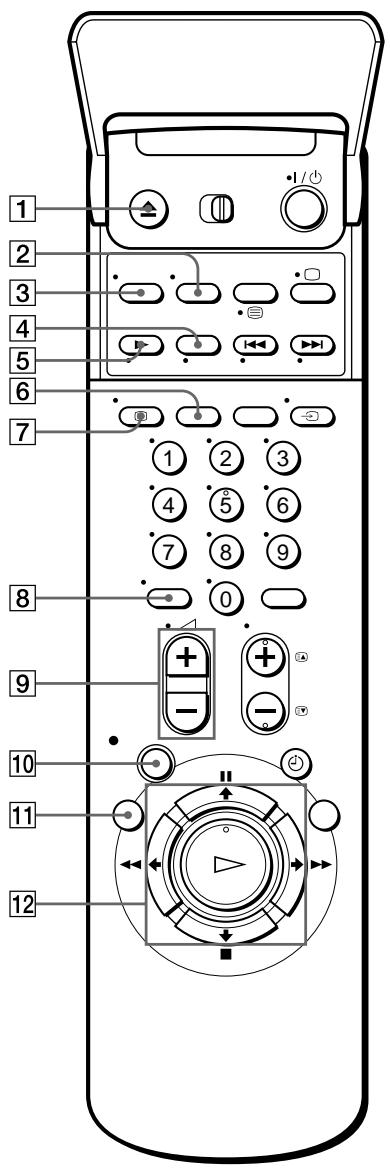
1 Bouton EJECT (44) 2 Bouton WIDE (pour TV) (13) 3 Bouton AUDIO MONITOR (70) 4× 2 bouton* (63) Bouton SLOW* (63) 6 Bouton SP (Standard Play)/LP (Long Play) (46) 7 1 + Bouton DISPLAY (47) 8-1-- (bouton des dizaines) (12) (47) 9 Boutons (volume) +/- (pour TV) (13) Bouton REC (enregistrement) (46) (65) 11 Bouton MENU (25) (68) 12 Bouton PAUSE/↑ (25) (44) Bouton STOP/ (25) (44) Bouton REW (rembobinage)/ (44) (63) Bouton FF (avance rapide)/ → (44) (63) Bouton PLAY/OK (25) (44)
- Boutons FASTEXT (pour TV) (SLV-SE810N/K uniquement)
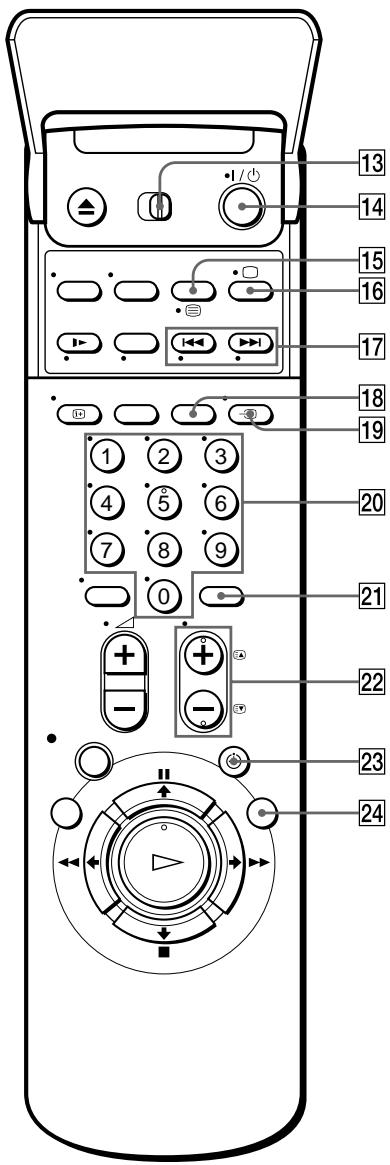
13 Interrupteur TV/VIDEO de la télécommande (11) 14 Interrupteur I/ (marche/veille) (12) (57) 15 Bouton COUNTER/REMAIN (47) Bouton (Télétexte)*2 (pour TV) (13) 16 Bouton TV power on/TV mode select*2 (pour TV) (12) 17 Boutons INDEX SEARCH*1 (80) 18 Bouton CLEAR (44) (56) (68) Bouton TV/VIDEO (12) (16) (47) 20 Boutons de numéros de programme (12) (47) 21 Bouton INPUT SELECT (47) (60) (89) Boutons PROG (programme) + / - (12) (31) (46) Boutons d'accès aux pages de télétexte*2 (pour TV) (13) 23 Bouton TIMER (55) (59) Bouton SMART SEARCH (73)
Étape 1 : Déballage
Vérifiez que vous avez reçu les articles suivants avec le magnétoscope :
Télécommande
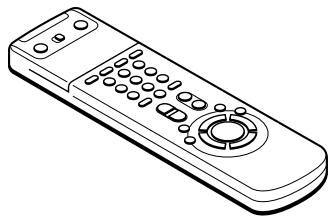
Câble d'antenne

Piles R6 (taille AA)

Vérifiez le nom de votre modèle
Les instructions de ce manuel concernent les 8 modèles : SLV-SE610N, SE610K, SE710N, SE710K, SX710N, SX710K, SE810N et SE810K. Vérifiez le numéro de votre modèle en regardant le panneau arrière de votre magnétoscope.
Le modèle SLV-SE810N est utilisé à titre d'illustration. Toute différence de fonctionnement est clairement indiquée dans le texte, par exemple, "SLV-SE710N uniquement".
Étape 2 : Réglage de la télécommande
Insertion des piles
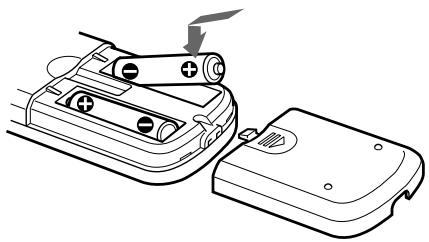
Insérez deux piles R6 (format AA) en faisant correspondre les signes + et - des piles avec le schéma à l'intérieur du compartiment à piles.
Insérez d'abord l'extrémité négative (-), puis poussez vers le bas jusqu'à ce que l'extrémité positive (+) s'enclenche.
Utilisation de la télécommande
Vous pouvez utiliser cette télécommande pour faire fonctionner ce magnétoscope et un téléviseur Sony. Les boutons de la télécommande marqués d'un point () peuvent être utilisés pour faire fonctionner votre téléviseur Sony. Si le téléviseur ne possède pas le symbole près du capteur de télécommande, cette télécommande ne pourra pas faire fonctionner le téléviseur.
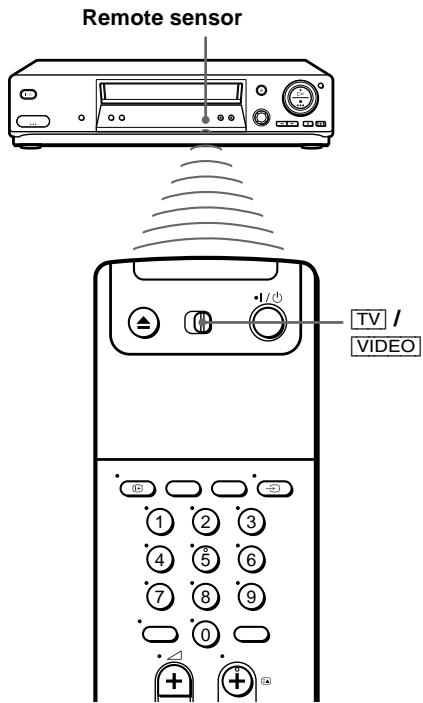
| To operate | Set TV /VIDEO to |
| the VCR | VIDEO and point at the remote sensor at the VCR |
| a Sony TV | TV and point at the remote sensor at the TV |
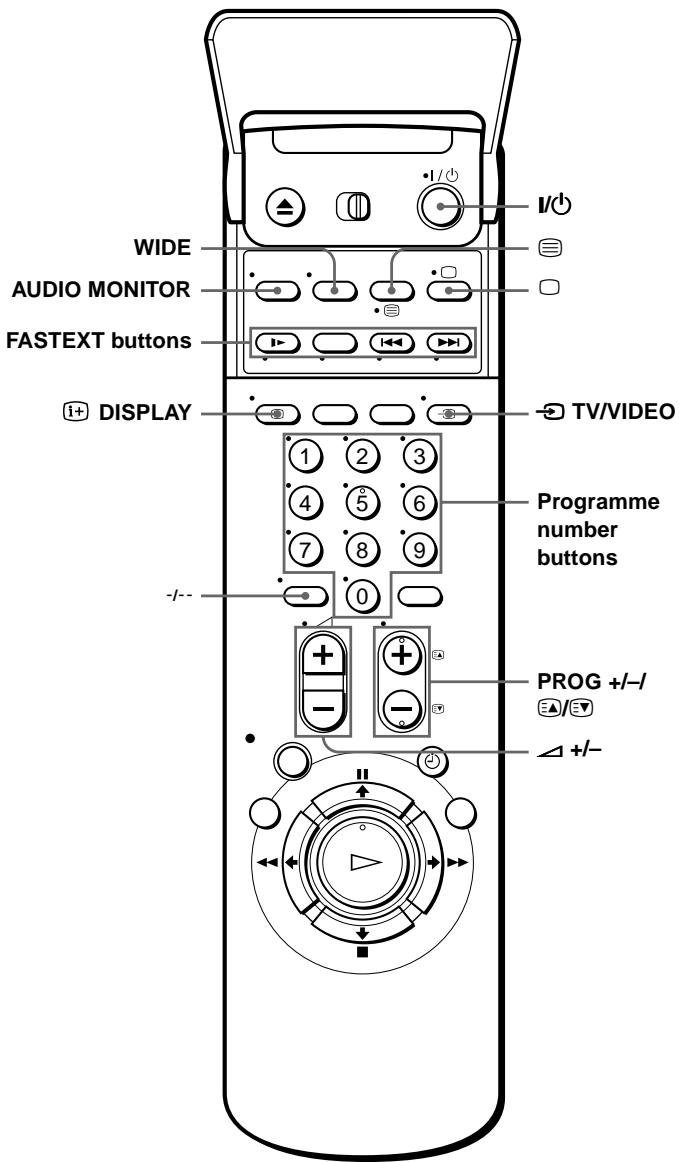
Boutons de contrôle du téléviseur
| To | Press |
| Set the TV to standby mode | I/O |
| Select an input source: aerial in or line in | TV/VIDEO |
| Select the TV's programme position | Programme number buttons, -I-, PROG +/- |
| Adjust the volume of the TV | ▲ +/- |
| Switch to TV (Teletext off)* | ☐ (TV) |
| Switch to Teletext* | ◎ (Teletext) |
| Select the sound | AUDIO MONITOR |
| Use FASTEXT* | FASTEXT buttons |
| Call up the on-screen display | ⊕+ DISPLAY |
| Change the Teletext page* | ◎/◎ |
| Switch to/from wide mode of a Sony wide TV (For other manufactures' wide TVs, see "Controlling other TVs with the remote commander (SLV-SE810N/K only)" below.) | WIDE |
Remarques
- En usage normal, les piles devraient durer environ trois à six mois.
- Si vous n'utilisez pas la télécommande pendant une période prolongée, retirez les piles pour éviter tout dommage dû à une fuite de piles.
- N'utilisez pas une pile neuve avec une pile usagée.
- N'utilisez pas différents types de piles ensemble.
- Certains boutons peuvent ne pas fonctionner avec certains téléviseurs Sony.
- SLV-SE810N/K uniquement
Contrôle d'autres téléviseurs avec la télécommande (SLV-SE810N/K uniquement)
La télécommande est préprogrammée pour contrôler les téléviseurs non Sony. Si votre téléviseur figure dans le tableau suivant, réglez le code du fabricant approprié.
1 Réglez TV/VIDEO en haut de la télécommande sur TV. 2 Maintenez enfoncé I/O, puis saisissez le code de votre téléviseur à l'aide des touches de numéro de programme. Relâchez ensuite I/O.
Vous pouvez maintenant utiliser les touches de contrôle TV suivantes pour contrôler votre téléviseur : [1/1], [~] TV/VIDEO, touches de numéro de programme, -/- (chiffre des dizaines), PROG +/-, Δ +/-, [0] (TV), [≡] (Télétexte), touches FASTEXT, WIDE, MENU, ↑/↓/←/→ et OK.
- Ces touches peuvent ne pas fonctionner avec tous les téléviseurs.
Codes des téléviseurs contrôlables
Si plusieurs codes sont répertoriés, essayez de les saisir un par un jusqu'à ce que vous trouviez celui qui fonctionne avec votre téléviseur.
Pour passer en mode large, reportez-vous aux notes de bas de tableau pour les codes applicables.
| Manufacturer | Code number |
| Sony | 01*1, 02 |
| Akai | 68 |
| Ferguson | 52 |
| Grundig | 10*1, 11*1 |
| Hitachi | 24 |
| JVC | 33 |
| Loewe | 45 |
| Mivar | 09, 70 |
| NEC | 66 |
| Nokia | 15, 16, 69*3 |
| Manufacturer | Code number |
| Panasonic | 17*1, 49 |
| Philips | 06*1, 07*1, 08*1 |
| Saba | 12, 13 |
| Samsung | 22, 23 |
| Sanyo | 25 |
| Sharp | 29 |
| Telefunken | 36 |
| Thomson | 43*2 |
| Toshiba | 38 |
1 Appuyez sur WIDE pour activer ou désactiver le mode image large. 2 Appuyez sur WIDE, puis sur Δ +/- pour sélectionner le mode image large souhaité. *3 Appuyez sur WIDE. Le menu apparaît à l'écran. Ensuite, appuyez sur ↑/↓/←/→ pour sélectionner le mode large souhaité et appuyez sur OK.
Astuce
- Lorsque vous réglez correctement le code de votre téléviseur alors que le téléviseur est allumé, celui-ci s'éteint automatiquement.
Remarques
- Si vous saisissez un nouveau code, le code précédemment saisi sera effacé.
- Si le téléviseur utilise un système de télécommande différent de celui programmé pour fonctionner avec le magnétoscope, vous ne pouvez pas contrôler votre téléviseur avec la télécommande.
- Lorsque vous remplacez les piles de la télécommande, le numéro de code peut changer. Réglez le numéro de code approprié à chaque remplacement des piles.
Étape 3 : Connexion du magnétoscope
Si votre téléviseur dispose d'un connecteur Scart (EURO-AV), voir page 16.
Si votre téléviseur ne dispose pas d'un connecteur Scart (EURO-AV)
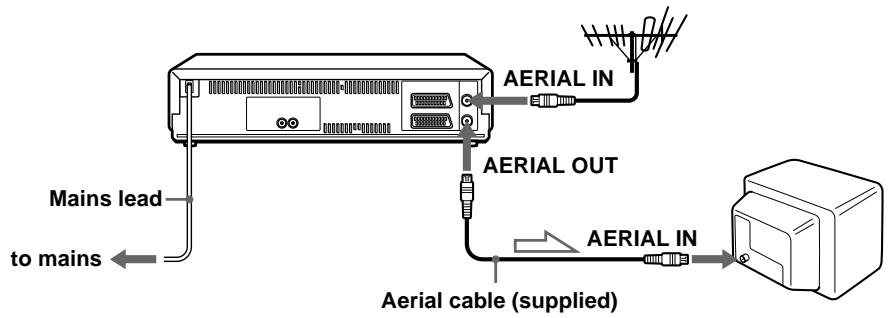

: Flux du signal
1
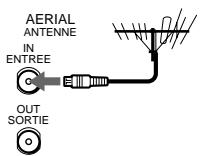
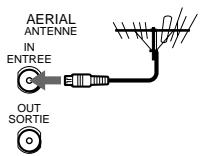
Débranchez le câble d'antenne de votre téléviseur et connectez-le à AERIAL IN sur le panneau arrière du magnétoscope.
2
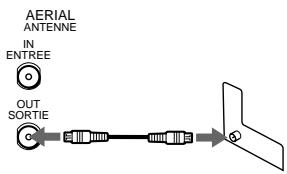
Connectez AERIAL OUT du magnétoscope et l'entrée d'antenne de votre téléviseur à l'aide du câble d'antenne fourni.
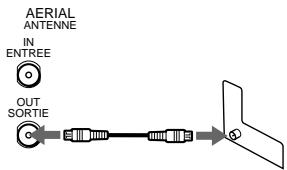
3
Connectez le cordon d'alimentation à la prise secteur.
Remarque
- Si vous connectez le magnétoscope et votre téléviseur uniquement avec un câble d'antenne, vous devez régler votre téléviseur sur le magnétoscope (voir page 19).
Si votre téléviseur dispose d'un connecteur Scart (EURO-AV)
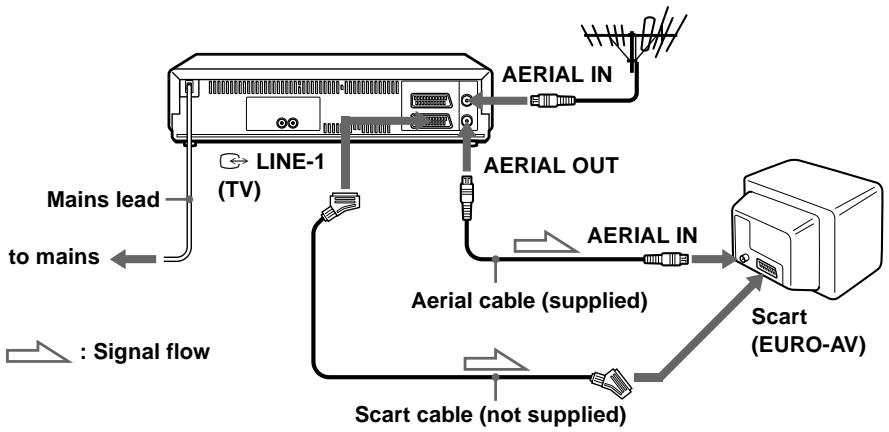
1 Débranchez le câble d'antenne de votre téléviseur et connectez-le à l'entrée AERIAL IN située à l'arrière du magnétoscope.
2 Connectez la sortie AERIAL OUT du magnétoscope à l'entrée d'antenne de votre téléviseur à l'aide du câble d'antenne fourni.
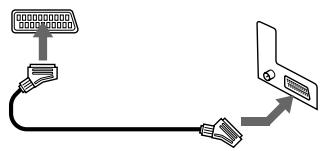
3 Connectez la prise LINE-1 (TV) du magnétoscope au connecteur Scart (EURO-AV) du téléviseur à l'aide du câble Scart en option. Cette connexion améliore la qualité de l'image et du son. Chaque fois que vous souhaitez regarder l'image du magnétoscope, appuyez sur → TV/VIDEO pour afficher l'indicateur VIDEO dans la fenêtre d'affichage.
4 Branchez le cordon d'alimentation sur la prise secteur.
Remarque
- Si le téléviseur est connecté au connecteur LINE-1 (TV), il est recommandé de régler le canal RF sur OFF. En position OFF, seul le signal provenant de l'antenne est émis par le connecteur AERIAL OUT (voir page 21).
À propos des fonctions SMARTLINK (non disponibles sur le SLV-SE610N/K)
Si le téléviseur connecté est compatible SMARTLINK, MEGALOGIC*, EASYLINK*, Q-Link*, EURO VIEW LINK* ou T-V LINK*, ce magnétoscope exécute automatiquement la fonction SMARTLINK après avoir terminé les étapes de la page précédente (l'indicateur apparaît dans la fenêtre d'affichage du magnétoscope lorsque vous allumez le téléviseur). Vous pouvez profiter des fonctions SMARTLINK suivantes.

Téléchargement des préréglages
- Vous pouvez télécharger les données de préréglage du tuner de votre téléviseur sur ce magnétoscope et régler le magnétoscope en fonction de ces données lors de la configuration automatique. Cela simplifie grandement la procédure de configuration automatique. Veillez à ne pas débrancher les câbles ni à quitter la fonction de configuration automatique pendant la procédure.
- Voir « Réglage du magnétoscope avec la fonction de configuration automatique » à la page 22.
- Enregistrement direct TV
- Vous pouvez facilement enregistrer ce que vous regardez à la télévision. Pour plus de détails, voir « Enregistrement de ce que vous regardez à la télévision (Enregistrement direct TV) (non disponible sur le SLV-SE610N/K) » à la page 48.
- Lecture en une touche
- One Touch Play
- Avec One Touch Play, vous pouvez démarrer la lecture automatiquement sans allumer le téléviseur. Pour plus de détails, voir « Démarrer la lecture automatiquement en une seule touche (One Touch Play) (non disponible sur SLV-SE610N/K) » à la page 45.
- Menu One Touch
- Vous pouvez allumer le magnétoscope et le téléviseur, régler le téléviseur sur la chaîne vidéo et afficher automatiquement l'affichage à l'écran du magnétoscope en appuyant sur MENU de la télécommande.
- Minuterie One Touch
- Vous pouvez allumer le magnétoscope et le téléviseur, régler le téléviseur sur la chaîne vidéo et afficher automatiquement le menu d'enregistrement programmé (le menu TIMER METHOD, le menu TIMER ou le menu SHOWVIEW) en appuyant sur TIMER de la télécommande.
- Vous pouvez définir le menu d'enregistrement programmé affiché à l'aide de TIMER OPTIONS dans le menu OPTIONS-2 (voir page 85). Coupure automatique Vous pouvez faire en sorte que le magnétoscope s'éteigne automatiquement si le magnétoscope n'est pas utilisé après avoir éteint le téléviseur. 1 « MEGALOGIC » est une marque déposée de Grundig Corporation. 2 « EASYLINK » est une marque de Philips Corporation. 3 « Q-Link » est une marque de Panasonic Corporation. 4 « EURO VIEW LINK » est une marque de Toshiba Corporation. *5 « T-V LINK » est une marque de JVC Corporation.
Remarque
- Tous les téléviseurs ne répondent pas aux fonctions ci-dessus.
Raccordements supplémentaires
À un système stéréo (non disponible sur SLV-SE610N/K)
Vous pouvez améliorer la qualité sonore en raccordant un système stéréo aux prises → R / D L/G comme illustré à droite.
Flux du signal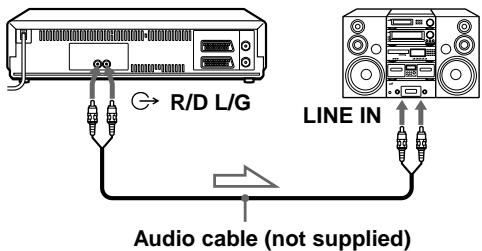
À un tuner satellite ou numérique avec Line Through (non disponible sur SLV-SE610N/K)
Grâce à la fonction Line Through, vous pouvez regarder les programmes d'un tuner satellite ou numérique raccordé à ce magnétoscope sur le téléviseur même lorsque le magnétoscope est éteint. Lorsque vous allumez le tuner satellite ou numérique, ce magnétoscope envoie automatiquement le
Flux du signal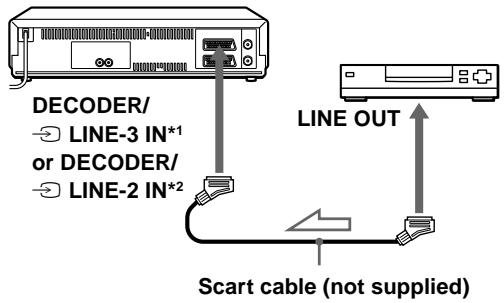
signal provenant du satellite ou du tuner numérique vers le téléviseur sans s'allumer.
1 Connectez le satellite ou le tuner numérique au connecteur DECODER/LINE-3 IN*1 (ou DECODER/LINE-2 IN*2) comme indiqué ci-dessus. 2 Réglez DECODER/LINE3*1 (ou DECODER/LINE2*2) sur LINE3*1 (ou LINE2*2) dans le menu OPTIONS-2. 3 Réglez POWER SAVE sur OFF ou PARTIAL*3 dans le menu OPTIONS-2. 4 Éteignez le magnétoscope.
Pour regarder un programme, allumez le satellite ou le tuner numérique et le téléviseur.
Remarque
- Vous ne pouvez pas regarder les programmes sur le téléviseur pendant l'enregistrement, sauf si vous enregistrez un programme satellite ou numérique.
SLV-SE810N/K uniquement 2 SLV-SE710N/K et SX710N/K uniquement *3 non disponible sur SLV-SE610N/K
Étape 4 : Réglage de votre téléviseur sur le magnétoscope
Si votre téléviseur possède un connecteur Scart (EURO-AV), voir page 21.
Si votre téléviseur ne possède pas de connecteur Scart (EURO-AV)
Suivez les étapes ci-dessous pour que votre téléviseur reçoive correctement les signaux vidéo de votre magnétoscope.
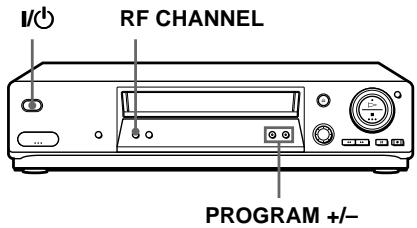
| 1 | Press I/() (on/standby) to turn on the VCR. |
| 2 | AUTO SET UP RF CHANNEL Press RF CHANNEL on the VCR lightly. The factory-preset RF channel appears in the display window. The VCR signal is output through this channel to the TV. |
| 3 | Turn on your TV and select a programme position for the VCR picture. This programme position will now be referred to as the video channel. |
| 4 | AUTO SET UP RF CHANNEL Press RF CHANNEL. The TV system appears in the display window. |
5 - PROGRAM + Appuyez sur PROGRAM + / - (à plusieurs reprises) pour sélectionner le système TV approprié pour votre région. Sélectionnez "G" pour le système TV B/G, ou "K" pour le système TV D/K.
6 Réglez le téléviseur sur le même canal que celui affiché dans la fenêtre d'affichage du magnétoscope afin que l'image à droite apparaisse clairement sur l'écran du téléviseur. Reportez-vous au manuel de votre téléviseur pour les instructions de réglage. Si vous sélectionnez le mauvais système TV à l'étape 5, l'image à droite peut ne pas apparaître. Sélectionnez le système TV approprié et réglez à nouveau le téléviseur. Si l'image n'apparaît pas clairement, voir "Pour obtenir une image claire du magnétoscope" ci-dessous.
7 AUTO Appuyez sur RF CHANNEL. SET UP RF CHANNEL Vous avez maintenant réglé votre téléviseur sur le magnétoscope. Chaque fois que vous voulez lire une cassette, réglez le téléviseur sur le canal vidéo.
Pour vérifier si le réglage du téléviseur est correct
Réglez le téléviseur sur le canal vidéo et appuyez sur PROGRAM + / - sur le magnétoscope. Si l'écran du téléviseur change de programme à chaque pression sur PROGRAM + / - , le réglage du téléviseur est correct.
Pour obtenir une image claire du magnétoscope
Si l'image n'apparaît pas clairement à l'étape 6 ci-dessus, passez à l'étape 7 pour terminer cette procédure une fois. Puis recommencez à partir de l'étape 2. Après avoir appuyé sur RF CHANNEL à l'étape 2, appuyez sur PROGRAM + / - pendant que le canal RF est affiché, afin qu'un autre canal RF apparaisse. Ensuite, réglez le téléviseur sur le nouveau canal RF pour obtenir une image claire.
Remarque
- Si vous réglez un mauvais système de télévision, vous pouvez ne pas avoir de son ou le son peut être déformé.
Si votre téléviseur possède un connecteur Scart (EURO-AV)
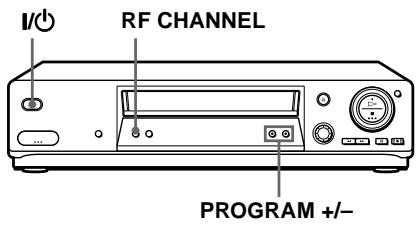
| 1 | Press I/() (on/standby) to turn on the VCR. |
| 2 | Press RF CHANNEL on the VCR lightly. The factory-preset RF channel appears in the display window. The VCR signal is output through this channel to the TV. |
| 3 | Press PROGRAM +/- to set the RF channel to OFF, and press RF CHANNEL again. RF channel set up is complete. |
Étape 5 : Réglage du magnétoscope avec la fonction de configuration automatique
Avant d'utiliser le magnétoscope pour la première fois, réglez-le à l'aide de la fonction de configuration automatique. Avec cette fonction, vous pouvez régler automatiquement la langue de l'affichage à l'écran, les chaînes de télévision, les chaînes guides pour le système ShowView et l'horloge du magnétoscope.
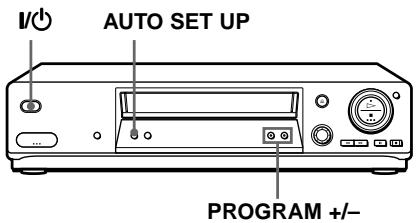
1 AUTO Maintenez enfoncée la touche AUTO SET UP du magnétoscope pendant plus de trois secondes.
RF CHANNEL Le magnétoscope s'allume automatiquement et l'abréviation du pays apparaît dans la fenêtre d'affichage.

2 - PROGRAM + Appuyez sur PROGRAM + / - pour sélectionner l'abréviation de votre pays dans le tableau de la page 23.
Pour certains pays, il y a une sélection de langues parmi lesquelles choisir. Si votre pays n'apparaît pas, sélectionnez ELSE.
Appuyez légèrement sur AUTO SET UP.
Le magnétoscope commence à rechercher toutes les chaînes recevables et les présente selon le système de télévision que vous avez sélectionné dans "Réglage de votre téléviseur sur le magnétoscope" à la page 19.
Si vous souhaitez modifier l'ordre des chaînes ou désactiver des positions de programme indésirables, voir "Modification/désactivation des positions de programme" à la page 34.
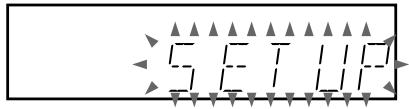
Si vous utilisez la connexion SMARTLINK (non disponible sur SLV-SE610N/K), la fonction Preset Download démarre et l'indicateur clignote dans la fenêtre d'affichage pendant le téléchargement.
Pour SLV-SE710N/K, SX710N/K et SE810N/K :
Une fois la recherche ou le téléchargement terminé, l'heure actuelle s'affiche dans la fenêtre d'affichage pour toutes les stations qui transmettent un signal horaire.
Pour SLV-SE610N/K :
Lorsqu'aucune autre chaîne captable n'est trouvée, le préréglage s'arrête et "SET UP" disparaît de la fenêtre d'affichage.
Les abréviations des pays et des langues sont les suivantes :
| Abbreviation | Country | Language |
| CZ | Czecho | Czech |
| HUN | Hungary | Hungarian |
| PL | Poland | Polish |
| SK | Slovakia | Slovak |
| TR | Turkey | Turkish |
| RUS | Russia | Russian |
| ELSE | Other countries | English |
Pour annuler la fonction de réglage automatique
Appuyez sur AUTO SET UP.
Astuce
- Si vous souhaitez modifier la langue de l'affichage à l'écran par rapport à celle préréglée par la fonction de réglage automatique, reportez-vous à la page 29.
Remarques
- Si vous arrêtez la fonction de réglage automatique pendant l'étape 3, vous devez répéter le réglage à partir de l'étape 1.
- Chaque fois que vous utilisez la fonction de réglage automatique, certains réglages (ShowView*, minuterie, etc.) sont réinitialisés. Si cela se produit, vous devez les régler à nouveau.
- non disponible sur SLV-SE610N/K
Étape 6 : Réglage de l'horloge
Vous devez régler l'heure et la date sur le magnétoscope pour utiliser correctement les fonctions de minuterie.
La fonction de réglage automatique de l'horloge (non disponible sur SLV-SE610N/K) ne fonctionne que si une station de votre région diffuse un signal horaire. Si le réglage automatique n'a pas réglé l'horloge correctement pour votre région, essayez une autre station pour la fonction de réglage automatique de l'horloge.
Réglage manuel de l'horloge
Avant de commencer...
- Allumez le magnétoscope et le téléviseur.
- Réglez le téléviseur sur la chaîne vidéo.
- Reportez-vous à "Index des pièces et commandes" pour l'emplacement des boutons.
1
MENU

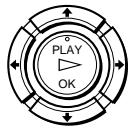
Appuyez sur MENU, puis sur ↑/↓ pour mettre en surbrillance RÉGLAGES et appuyez sur OK.
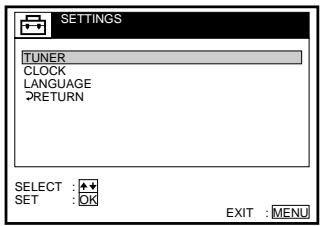
2
Appuyez sur ↑/↓ pour mettre en surbrillance HORLOGE, puis appuyez sur OK.
Pour SLV-SE610N/K, seul le menu de réglage de l'horloge apparaît. Ignorez l'étape suivante et passez à l'étape 4.
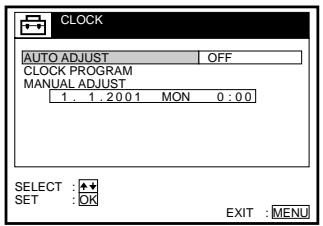
3
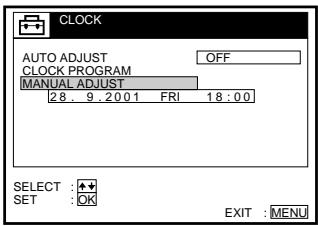
Appuyez sur / pour mettre en surbrillance RÉGLAGE MANUEL, puis appuyez sur OK.
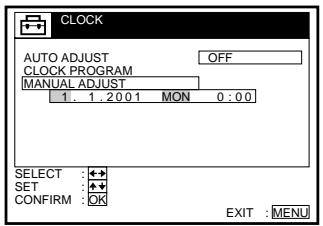
4
Appuyez sur / pour régler le jour.
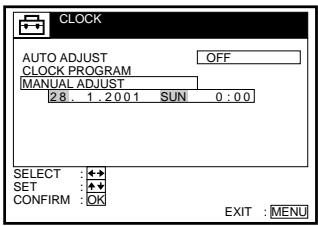
5
Appuyez sur → pour mettre en surbrillance le mois et réglez le mois en appuyant sur / .
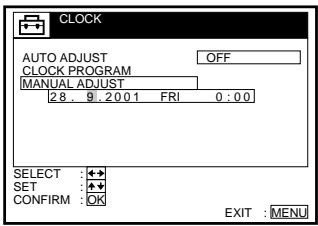
6
Réglez l'année, l'heure et les minutes dans l'ordre, en appuyant sur → pour mettre en surbrillance l'élément à régler, et appuyez sur / pour sélectionner les chiffres.
Le jour de la semaine est réglé automatiquement.
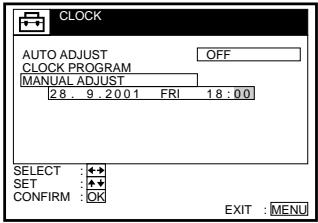
7
Appuyez sur OK pour démarrer l'horloge.
8
MENU
Appuyez sur MENU pour quitter le menu.

Conseils
- Pour modifier les chiffres pendant le réglage, appuyez sur ← pour revenir à l'élément à modifier, et sélectionnez les chiffres en appuyant sur / .
- Si vous souhaitez revenir au menu précédent, sélectionnez RETURN et appuyez sur OK.
Remarque
- Le menu disparaît automatiquement si vous ne continuez pas pendant plus de quelques minutes.
Changement de la station pour la fonction de réglage automatique de l'horloge (non disponible sur SLV-SE610N/K)
Avant de commencer...
- Allumez le magnétoscope et le téléviseur.
- Réglez le téléviseur sur la chaîne vidéo.
- Reportez-vous à "Index des pièces et commandes" pour l'emplacement des boutons.
1
MENU

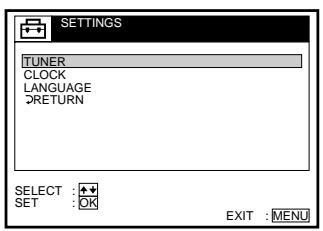
Appuyez sur MENU, puis sur ↑/↓ pour sélectionner SETTINGS et appuyez sur OK.
2
Appuyez sur ↑/↓ pour sélectionner CLOCK, puis appuyez sur OK.
AUTO ADJUST est sélectionné.
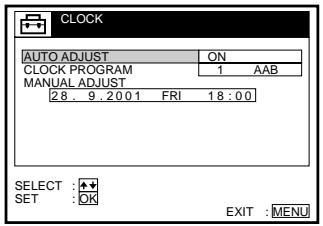
3
Appuyez sur OK.
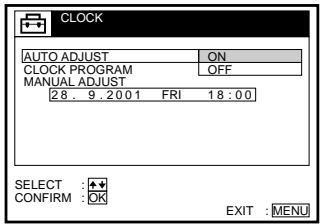
4
Appuyez sur / pour mettre en surbrillance ON, puis appuyez sur OK.

5
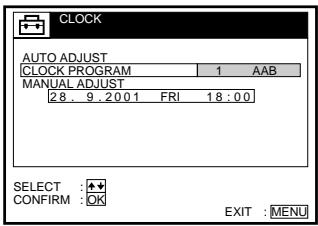
Appuyez sur pour mettre en surbrillance CLOCK PROGRAM, puis appuyez sur OK.
6
Appuyez sur / à plusieurs reprises jusqu'à ce que la position de programme de la station qui diffuse un signal horaire apparaisse. Si le magnétoscope ne reçoit pas de signal horaire d'aucune station, AUTO ADJUST revient automatiquement à OFF.
7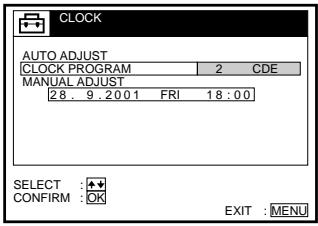
MENU
Appuyez sur MENU pour quitter le menu.

Conseils
- Si vous réglez AUTO ADJUST sur ON, la fonction Auto Clock Set est activée chaque fois que le magnétoscope est éteint. L'heure est ajustée automatiquement en se référant au signal horaire de la station dont la position de programme est affichée dans la ligne "CLOCK PROGRAM". Si vous n'avez pas besoin de la fonction Auto Clock Set, sélectionnez OFF.
- Si vous souhaitez revenir au menu précédent, mettez en surbrillance RETURN et appuyez sur OK.
Remarque
- Le menu disparaît automatiquement si vous ne continuez pas pendant plus de quelques minutes.
Sélection d'une langue
Vous pouvez modifier la langue d'affichage à l'écran parmi celles proposées lors de la configuration automatique.
Avant de commencer...
- Allumez le magnétoscope et le téléviseur.
- Réglez le téléviseur sur la chaîne vidéo.
- Reportez-vous à la section « Index des pièces et commandes » pour connaître l'emplacement des boutons.
1
MENU

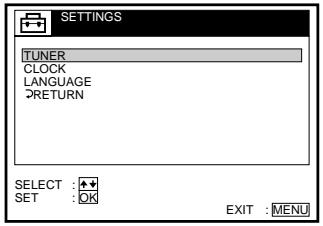
Appuyez sur MENU, puis sur ↑/↓ pour mettre en surbrillance RÉGLAGES et appuyez sur OK.
2
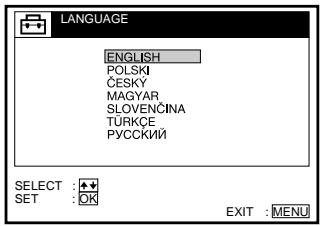
Appuyez sur ↑/↓ pour mettre en surbrillance LANGUE, puis appuyez sur OK.
3
Appuyez sur ↑/↓ pour mettre en surbrillance la langue souhaitée, puis appuyez sur OK.
4
MENU

Appuyez sur MENU pour quitter le menu.
Astuce
- Si vous souhaitez revenir au menu précédent, mettez en surbrillance RETOUR et appuyez sur OK.
Remarque
- Le menu disparaît automatiquement si vous ne continuez pas pendant plus de quelques minutes.
Préréglage des chaînes
Si certaines chaînes n'ont pas pu être préréglées à l'aide de la fonction de configuration automatique, vous pouvez les prérégler manuellement.
Avant de commencer...
- Allumez le magnétoscope et le téléviseur.
- Réglez le téléviseur sur la chaîne vidéo.
- Reportez-vous à "Index des pièces et commandes" pour connaître l'emplacement des boutons.
1
MENU

Appuyez sur MENU, puis sur ↑/↓ pour mettre en surbrillance RÉGLAGES et appuyez sur OK.
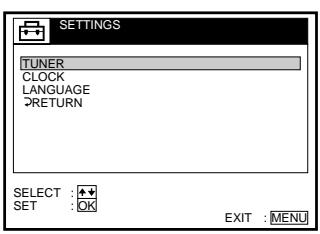
2
Appuyez sur ↑/↓ pour mettre en surbrillance TUNER, puis appuyez sur OK.
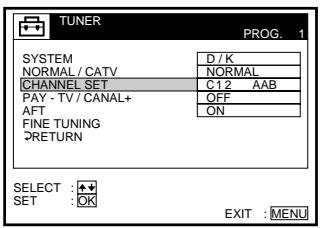
3
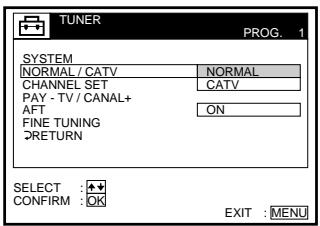
Appuyez sur ↑/↓ pour mettre en surbrillance NORMAL/CATV, puis appuyez sur OK.
4
Appuyez sur ↑/↓ pour mettre en surbrillance NORMAL, puis appuyez sur OK.
Pour prérégler les chaînes CATV (télévision par câble), sélectionnez CATV.
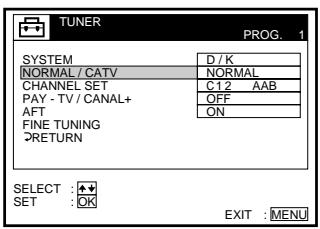
5
PROG

Appuyez sur PROG + / - pour sélectionner la position du programme.
Position du programme sélectionnée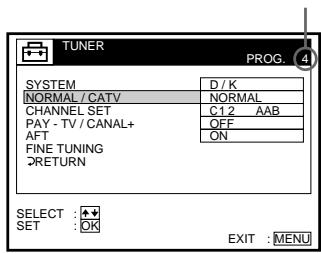
6
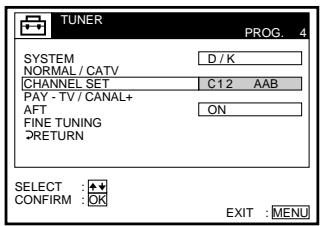
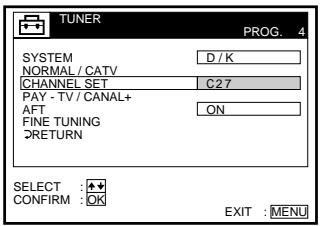
Appuyez sur ↑/↓ pour mettre en surbrillance CHANNEL SET, puis appuyez sur OK.
7
Appuyez sur ↑/↓ à plusieurs reprises jusqu'à ce que la chaîne souhaitée soit affichée.

Les chaînes apparaissent dans l'ordre suivant :
| B/G TV system | D/K TV system | ||
| Channel number in the CHANNEL SET field | Receivable Channel | Channel number in the CHANNEL SET field | Receivable Channel |
| C02 | E2 | C02 | R1 |
| C03 | E3 | C05 | R6 |
| C04 | E4 | C06 | R7 |
| C05 | E5 | C12 | R12 |
| C06 | E6 | C13 | R2 |
| C07 | E7 | C14 | R3 |
| C08 | E8 | C15 | R4 |
| C09 | E9 | C16 | R5 |
| C10 | E10 | C17 | R8 |
| C11 | E11 | C18 | R9 |
| C12 | E12 | C19 | R10 |
| C21–C69 | E21–E69 | C20 | R11 |
| S01–S41 | S1–S41 | C21–C69 | R21–R69 |
| S42–S46 | S01–S05 | ||
Si vous connaissez le numéro de la chaîne souhaitée, appuyez sur les touches numériques du programme. Par exemple, pour la chaîne 5, appuyez d'abord sur "0", puis sur "5".
8
Si le son du téléviseur est déformé ou parasite, appuyez sur / pour mettre en surbrillance SYSTÈME, puis appuyez sur OK. Ensuite, appuyez sur / pour sélectionner B/G ou D/K afin d'obtenir un meilleur son.
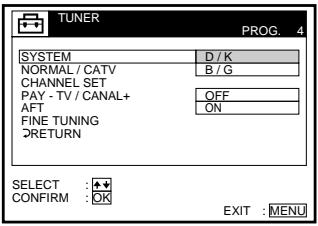
9
Pour prérégler une autre position de programme, répétez les étapes 5 à 7.
10
MENU

Appuyez sur MENU pour quitter le menu.
Si l'image n'est pas nette
Normalement, la fonction de syntonisation automatique fine (AFT) règle automatiquement les chaînes de manière nette. Cependant, si l'image n'est pas nette, vous pouvez également utiliser la fonction de syntonisation manuelle.
1 Appuyez sur PROG + / - ou sur les touches numériques du programme pour sélectionner la position de programme pour laquelle vous ne pouvez pas obtenir une image nette. 2 Appuyez sur MENU, puis sélectionnez RÉGLAGES et appuyez sur OK. 3 Sélectionnez SYNTONISEUR, puis appuyez sur OK. 4 Sélectionnez SYNTONISATION FINE, puis appuyez sur OK. Le compteur de syntonisation fine apparaît.
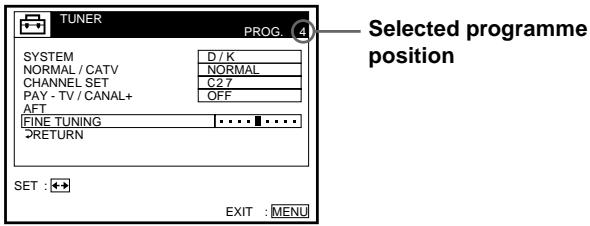
Appuyez sur pour obtenir une image plus nette, puis appuyez sur MENU pour quitter le menu. Notez que le réglage AFT (syntonisation automatique fine) passe sur OFF.
Astuce
- Si vous souhaitez revenir au menu précédent, mettez en surbrillance RETOUR et appuyez sur OK.
Remarques
- Le menu disparaît automatiquement si vous ne continuez pas pendant plus de quelques minutes.
- Lors du réglage de la SYNCHRONISATION FINE, le menu peut devenir difficile à lire en raison des interférences de l'image reçue.
Modification/désactivation des positions de programme
Après avoir réglé les chaînes, vous pouvez modifier les positions de programme comme vous le souhaitez. Si certaines positions de programme sont inutilisées ou contiennent des chaînes indésirables, vous pouvez les désactiver.
Vous pouvez également modifier les noms de stations (non disponible sur SLV-SE610N/K). Si les noms de stations ne sont pas affichés, vous pouvez les saisir manuellement.
Modification des positions de programme
Avant de commencer...
- Allumez le magnétoscope et le téléviseur.
- Réglez le téléviseur sur la chaîne vidéo.
- Reportez-vous à « Index des pièces et commandes » pour l'emplacement des boutons.
1 MENU Appuyez sur MENU, puis sur ↑/↓ pour mettre en surbrillance LISTES et appuyez sur OK.
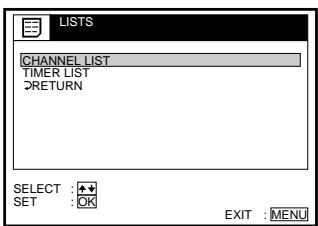
2 Appuyez sur ↑/↓ pour mettre en surbrillance LISTE DES CHAÎNES, puis appuyez sur OK.
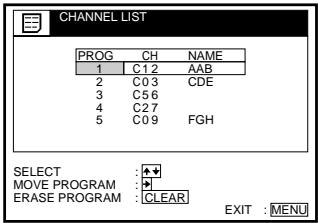
3 Appuyez sur ↑/↓ pour mettre en surbrillance la ligne dont vous souhaitez modifier la position de programme, puis appuyez sur →. Pour afficher d'autres pages pour les positions de programme 6 à 60, appuyez plusieurs fois sur ↑/↓.
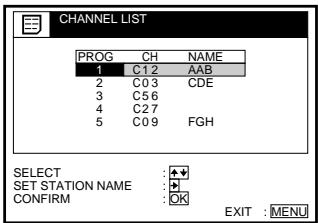
4
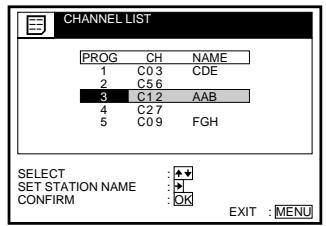
Appuyez sur ↑/↓ jusqu'à ce que la ligne de chaîne sélectionnée se déplace vers la position de programme souhaitée.
La chaîne sélectionnée est insérée à la nouvelle position de programme et les chaînes intermédiaires sont décalées pour combler l'espace.
5
6
Appuyez sur OK pour confirmer le réglage.
Pour changer la position de programme d'une autre station, répétez les étapes 3 à 5.
MENU
Appuyez sur MENU pour quitter le menu.
7
Astuce
- Si vous souhaitez revenir au menu précédent, sélectionnez RETOUR et appuyez sur OK.
Remarque
- Le menu disparaît automatiquement si vous ne faites rien pendant plus de quelques minutes.
Désactivation des positions de programme inutilisées
Après avoir préréglé les chaînes, vous pouvez désactiver les positions de programme inutilisées. Les positions désactivées seront ensuite ignorées lorsque vous appuierez sur les boutons PROG + / -.
Avant de commencer...
- Allumez le magnétoscope et le téléviseur.
- Réglez le téléviseur sur la chaîne vidéo.
- Reportez-vous à « Index des pièces et commandes » pour connaître l'emplacement des boutons.
MENU
1
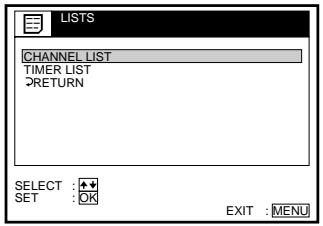
Appuyez sur MENU, puis sur ↑/↓ pour mettre en surbrillance LISTES, puis appuyez sur OK.
2
Appuyez sur ↑/↓ pour mettre en surbrillance LISTE DES CHAÎNES, puis appuyez sur OK.
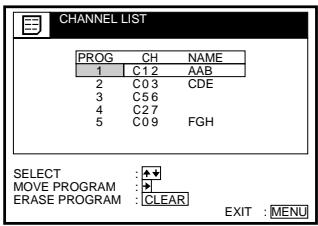
3
Appuyez sur ↑/↓ pour mettre en surbrillance la ligne que vous souhaitez désactiver.
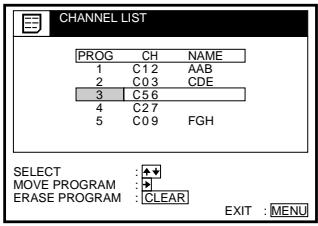
4 EFFACER
Appuyez sur EFFACER.
La ligne sélectionnée sera effacée comme indiqué à droite.
5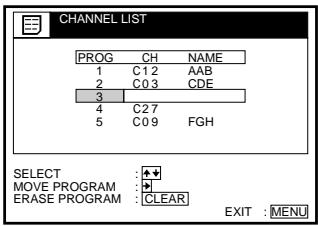
MENU
6 MENU
Répétez les étapes 3 et 4 pour toute autre position de programme que vous souhaitez désactiver.
Appuyez sur MENU pour quitter le menu.
Astuce
- Si vous souhaitez revenir au menu précédent, mettez en surbrillance RETURN et appuyez sur OK.
Remarques
- Le menu disparaît automatiquement si vous ne continuez pas pendant plus de quelques minutes.
- Assurez-vous de sélectionner correctement la position de programme que vous souhaitez désactiver. Si vous désactivez une position de programme par erreur, vous devez régler manuellement cette chaîne.
Changement des noms de stations (non disponible sur SLV-SE610N/K)
Vous pouvez modifier ou saisir les noms de stations (jusqu'à 5 caractères). Le magnétoscope doit recevoir les informations de chaîne (par exemple, les informations SMARTLINK) pour que les noms de stations apparaissent automatiquement.
Avant de commencer...
- Allumez le magnétoscope et le téléviseur.
- Réglez le téléviseur sur la chaîne vidéo.
- Reportez-vous à "Index des pièces et commandes" pour l'emplacement des boutons.
1 MENU Appuyez sur MENU, puis appuyez sur / pour mettre en surbrillance LISTS et appuyez sur OK.
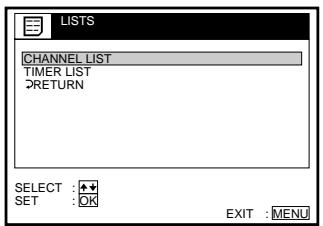
2 Appuyez sur ↑/↓ pour mettre en surbrillance CHANNEL LIST, puis appuyez sur OK.
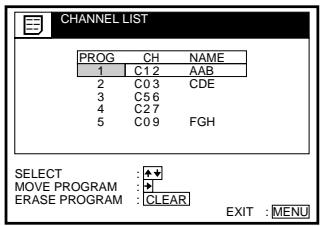
3 Appuyez sur ↑/↓ pour mettre en surbrillance la ligne que vous souhaitez modifier ou saisir le nom de la station, puis appuyez sur →.
Pour afficher d'autres pages pour les positions de programme 6 à 60, appuyez plusieurs fois sur ↑/↓.
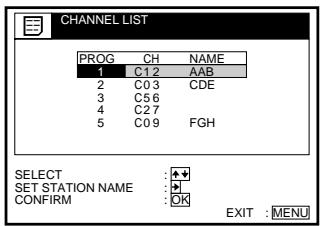
4 Appuyez sur →
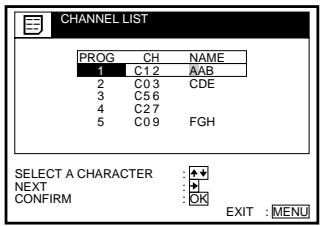
5
Saisissez le nom de la station.
1 Appuyez sur ↑/↓ pour sélectionner un caractère. Chaque fois que vous appuyez sur ↑, le caractère change comme indiqué ci-dessous. A → B → ... → Z → a → b → ... → z → 0 → 1 → ... → 9 → (symboles) → (espace) → A
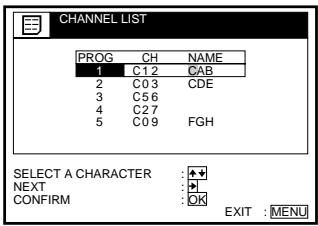
2 Appuyez sur → pour définir le caractère suivant.
L'espace suivant est mis en surbrillance.
Pour corriger un caractère, appuyez sur ←/→ jusqu'à ce que le caractère à corriger soit mis en surbrillance, puis réinitialisez-le.
Vous pouvez définir jusqu'à 5 caractères pour le nom de la station.
6
Appuyez sur OK pour confirmer le nouveau nom.
7
MENU

Appuyez sur MENU pour quitter le menu.
Astuce
- Si vous souhaitez revenir au menu précédent, sélectionnez RETOUR et appuyez sur OK.
Remarques
- Le menu disparaît automatiquement si vous ne faites rien pendant plus de quelques minutes.
- Si vous saisissez un symbole à l'étape 5, il apparaîtra comme un espace vide dans la fenêtre d'affichage.
Réglage du décodeur Canal Plus (non disponible sur le SLV-SE610N/K)
Vous pouvez regarder ou enregistrer des programmes Canal Plus si vous connectez un décodeur (non fourni) au magnétoscope.
Connexion d'un décodeur
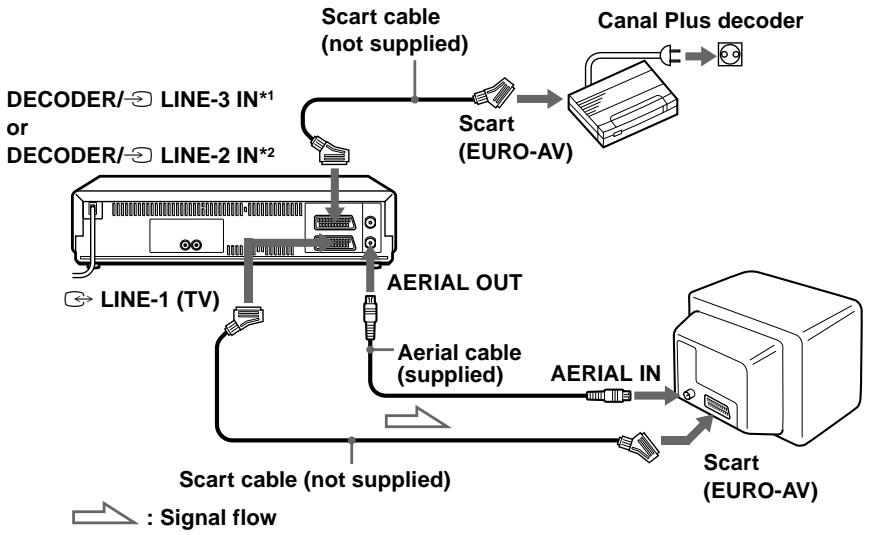
Réglage des chaînes Canal Plus
Pour regarder ou enregistrer des programmes Canal Plus, réglez votre magnétoscope pour recevoir les chaînes à l'aide de l'affichage à l'écran.
Pour régler correctement les chaînes, assurez-vous de suivre toutes les étapes ci-dessous.
Avant de commencer...
- Allumez le magnétoscope, le téléviseur et le décodeur.
- Réglez le téléviseur sur la chaîne vidéo. Reportez-vous à "Index des pièces et commandes" pour connaître l'emplacement des boutons.
MENU

Appuyez sur MENU, puis sur ↑/↓ pour mettre en surbrillance OPTIONS et appuyez sur OK.
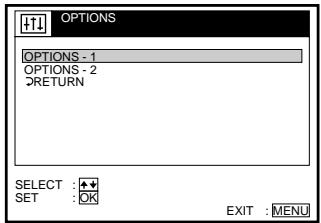
Appuyez sur ↑/↓ pour mettre en surbrillance OPTIONS-2, puis appuyez sur OK.
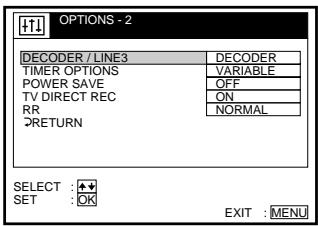
Appuyez sur ↑/↓ pour mettre en surbrillance DECODER/LINE3¹ (ou DECODER/LINE2²), puis appuyez sur OK.
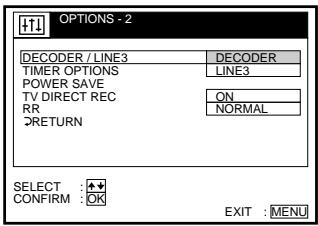
Appuyez sur ↑/↓ pour mettre en surbrillance DECODER, puis appuyez sur OK.
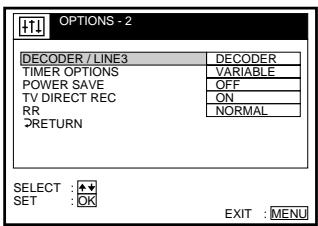
MENU

Appuyez sur MENU pour quitter le menu.
Le menu disparaît de l'écran du téléviseur.
MENU
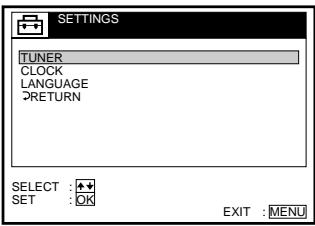
Appuyez à nouveau sur MENU. Ensuite, appuyez sur ↑/↓ pour mettre en surbrillance RÉGLAGES, puis appuyez sur OK.
7
Appuyez sur ↑/↓ pour mettre en surbrillance TUNER, puis appuyez sur OK.
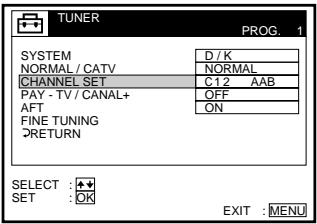
8
Appuyez sur ↑/↓ pour mettre en surbrillance NORMAL/CATV, puis appuyez sur OK.
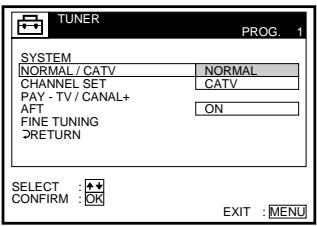
9
Appuyez sur ↑/↓ pour mettre en surbrillance NORMAL, puis appuyez sur OK.
Pour prérégler les chaînes CATV (télévision par câble), sélectionnez CATV.
10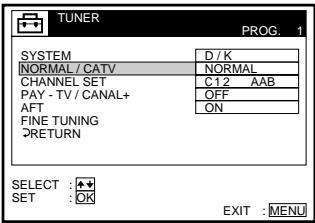
PROG

Appuyez sur PROG + / - pour sélectionner la position de programme souhaitée.
Position de programme sélectionnée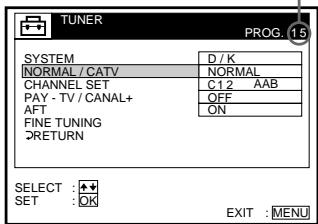
11
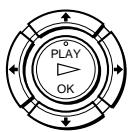
Appuyez sur ↑/↓ pour mettre en surbrillance RÉGLAGE DES CHAÎNES, puis appuyez sur OK.

12
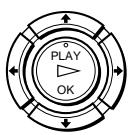
Appuyez sur / pour sélectionner les chaînes Canal Plus, puis appuyez sur OK.
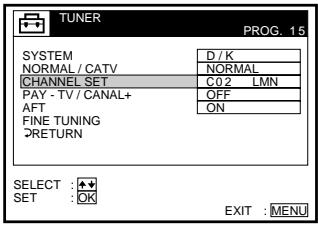
13
Appuyez sur / pour mettre en surbrillance PAY-TV/ CANAL+, puis appuyez sur OK.
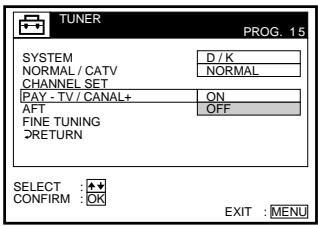
14
Appuyez sur / pour mettre en surbrillance ON, puis appuyez sur OK.
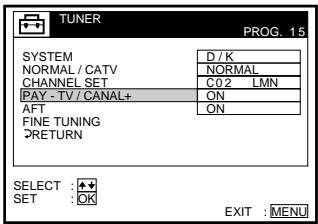
15
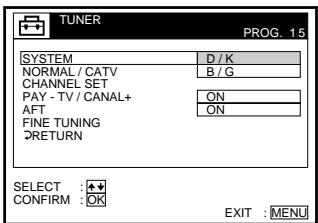
Si le son du téléviseur est déformé ou parasite, appuyez sur / pour mettre en surbrillance SYSTEM et appuyez sur OK. Ensuite, appuyez sur / pour sélectionner B/G ou D/K afin d'obtenir un meilleur son.
Astuce
- Si vous souhaitez revenir au menu précédent, mettez en surbrillance RETURN et appuyez sur OK.
Remarques
- Le menu disparaît automatiquement si vous ne continuez pas pendant plus de quelques minutes.
- Pour superposer les sous-titres lors du visionnage des programmes Canal Plus, effectuez les deux connexions décodeur-magnétoscope et magnétoscope-téléviseur à l'aide de câbles Scart à 21 broches compatibles avec les signaux RVB. Vous ne pouvez pas enregistrer les sous-titres sur le magnétoscope.
- Lorsque vous regardez des programmes Canal Plus via l'entrée RFU du téléviseur, appuyez sur → TV/VIDEO pour que l'indicateur VIDEO apparaisse dans la fenêtre d'affichage.
- Si POWER SAVE est réglé sur FULL, vous ne pouvez pas regarder ni enregistrer les programmes Canal Plus en mode veille. Réglez POWER SAVE dans le menu OPTIONS-2 sur OFF ou PARTIAL.
SLV-SE810N/K uniquement 2 SLV-SE710N/K et SX710N/K uniquement
Lecture d'une cassette
Avant de commencer...
- Reportez-vous à « Index des pièces et commandes » pour connaître l'emplacement des boutons.
1 Allumez votre téléviseur et réglez-le sur la chaîne vidéo.
2 Insérez une cassette.
Le magnétoscope s'allume et commence la lecture automatiquement si vous insérez une cassette dont la languette de protection a été retirée.
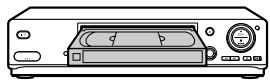
3 Appuyez sur LECTURE.
Lorsque la cassette atteint la fin, elle se rembobine automatiquement.
Tâches supplémentaires
| To | Press |
| Stop play | ■ STOP |
| Pause play | ■ PAUSE |
| Resume play after pause | ■ PAUSE or▷ PLAY |
| Fast-forward the tape | ▷ FF during stop |
| Rewind the tape | ▷ REW during stop |
| Eject the tape | ▲ EJECT |
Pour régler le système de couleur
Si l'image de lecture n'a pas de couleur ou si des traînées apparaissent pendant la lecture, réglez SYSTÈME DE COULEUR dans le menu OPTIONS-1 pour qu'il corresponde au système avec lequel la cassette a été enregistrée (voir page 85). (Normalement, réglez l'option sur AUTO.)
Pour utiliser le compteur de temps
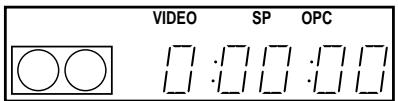
Appuyez sur EFFACER au point de la cassette que vous souhaitez retrouver plus tard. Le compteur dans la fenêtre d'affichage se remet à « 0:00:00 ». Recherchez ensuite ce point en vous référant au compteur.
Pour afficher le compteur sur l'écran du téléviseur, appuyez sur + AFFICHAGE.
Remarques
- Le compteur se remet à "0:00:00" chaque fois qu'une cassette est réinsérée.
- Le compteur s'arrête de compter lorsqu'il atteint une portion sans enregistrement.
- Le compteur de temps n'apparaît pas à l'écran du téléviseur lors de la lecture d'une cassette enregistrée en NTSC.
- Selon votre téléviseur, les phénomènes suivants peuvent se produire lors de la lecture d'une cassette enregistrée en NTSC :
- L'image devient en noir et blanc.
- L'image tremble.
- Aucune image n'apparaît à l'écran du téléviseur.
- Des traînées noires apparaissent horizontalement à l'écran du téléviseur.
- La densité des couleurs augmente ou diminue.
- Si vous lisez une cassette en mode LP ou EP avec le système NTSC, le son devient monophonique.
- La couleur de l'image peut être affectée lors de la lecture d'une cassette enregistrée en MESECAM en mode LP.
- Lors du réglage du menu à l'écran du téléviseur, les boutons de lecture de la télécommande ne fonctionnent pas.
Démarrage automatique de la lecture en une seule touche (One Touch Play) (non disponible sur SLV-SE610N/K)
Si vous utilisez la connexion SMARTLINK, vous pouvez allumer le magnétoscope et le téléviseur, régler le téléviseur sur la chaîne vidéo et démarrer la lecture automatiquement en une seule touche.
1 Insérez une cassette.
Le magnétoscope s'allume automatiquement.
Si vous insérez une cassette dont la languette de protection est retirée, le téléviseur s'allume et passe sur la chaîne vidéo. La lecture démarre automatiquement.
2 Appuyez sur PLAY.
Le téléviseur s'allume et passe automatiquement sur la chaîne vidéo. La lecture démarre.
Astuce
- Lorsqu'une cassette est déjà dans le magnétoscope, le magnétoscope et le téléviseur s'allument, le téléviseur est réglé sur la chaîne vidéo et la lecture démarre automatiquement en une seule séquence lorsque vous appuyez sur PLAY.
Remarque
- Lorsque vous utilisez la fonction One Touch Play, laissez le téléviseur allumé ou en mode veille.
Enregistrement de programmes TV
Avant de commencer...
- Reportez-vous à "Index des pièces et commandes" pour connaître l'emplacement des boutons.
| 1 | Turn on your TV and set it to the video channel. To record from a decoder, turn it on. |
| 2 | Insert a tape with its safety tab in place. |
| 3 | • PROG + - • • • • • • • • • • • • • • • • • • • • • • • • • • • • • • • • • • • • • • • • • • • • • • • • • • VIDEO SP OPC ○○ | | | | | | | | |
| VIDEO | LP OPC |
4 Appuyez sur SP/LP pour sélectionner la vitesse de bande, SP ou LP. LP (Long Play) offre un temps d'enregistrement deux fois plus long que SP. Cependant, SP (Standard Play) produit une meilleure qualité d'image et de son. 5 Appuyez sur REC pour démarrer l'enregistrement. L'indicateur d'enregistrement s'allume en rouge dans la fenêtre d'affichage.

Pour arrêter l'enregistrement
Appuyez sur STOP.
Pour vérifier le temps restant
Appuyez sur + DISPLAY. Avec l'affichage activé, appuyez sur COUNTER/REMAIN pour vérifier le temps restant. Chaque fois que vous appuyez sur COUNTER/REMAIN, le compteur de temps et le temps restant apparaissent en alternance. L'indicateur indique le temps restant.
Compteur de temps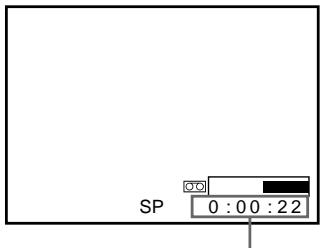
Temps restant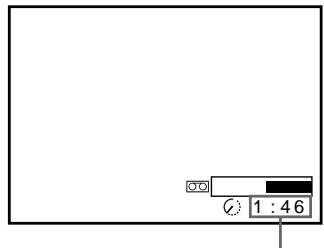
Pour obtenir une indication précise du temps restant, assurez-vous que TAPE LENGTH dans le menu OPTIONS-1 est réglé selon le type de bande que vous utilisez (voir page 85).
Pour regarder une autre chaîne de télévision pendant l'enregistrement
1 Appuyez sur → TV/VIDEO pour éteindre l'indicateur VIDEO dans la fenêtre d'affichage. 2 Sélectionnez une autre position de chaîne sur le téléviseur.
Pour protéger un enregistrement
Pour éviter un effacement accidentel, cassez la languette de protection comme illustré. Pour réenregistrer sur la même bande, recouvrez le trou de la languette avec du ruban adhésif.
Languette de protection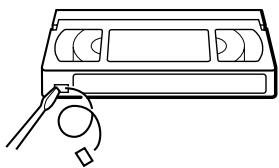
Conseils
- Pour sélectionner une position de chaîne, vous pouvez utiliser les boutons de numéros de programme sur la télécommande. Pour les nombres à deux chiffres, appuyez sur le bouton -I-- (chiffre des dizaines) suivi des boutons de numéros de programme.
- Si vous connectez un équipement supplémentaire à un connecteur ou à une prise LINE, vous pouvez sélectionner le signal d'entrée à l'aide des boutons INPUT SELECT ou PROG +/-.
- Les informations DISPLAY apparaissent sur l'écran du téléviseur et indiquent des informations sur la cassette, mais elles ne sont pas enregistrées sur la cassette.
- Si vous ne souhaitez pas regarder la télévision pendant l'enregistrement, vous pouvez éteindre le téléviseur. Si vous utilisez un décodeur, assurez-vous de le laisser allumé.
Remarques
- Les informations DISPLAY n'apparaissent pas en mode pause ou en lecture au ralenti.
- Les informations DISPLAY n'apparaissent pas lors de la lecture d'une cassette enregistrée en NTSC.
- Si une cassette contient des passages enregistrés en PAL (MESECAM) et en NTSC, le compteur de temps ne sera pas correct. Cet écart est dû à la différence entre les cycles de comptage des deux systèmes vidéo.
- Vous ne pouvez pas regarder une émission Canal Plus tout en enregistrant une autre émission Canal Plus.*
- Lorsque vous insérez une cassette non standard disponible dans le commerce, le temps restant peut ne pas être correct.
- Le temps restant est fourni à titre indicatif uniquement.
- Environ 30 secondes après le début de la lecture de la cassette, le temps restant de la cassette s'affiche.
- Le nom de la station* peut ne pas apparaître si le magnétoscope ne reçoit pas les signaux d'informations sur le nom de la station.
- non disponible sur SLV-SE610N/K
Enregistrement de ce que vous regardez à la télévision (enregistrement direct TV) (non disponible sur le SLV-SE610N/K)
Si vous utilisez la connexion SMARTLINK, vous pouvez facilement enregistrer ce que vous regardez à la télévision (autre que les cassettes en cours de lecture sur le magnétoscope).
1 Insérez une cassette avec sa languette de protection en place. 2 Appuyez sur REC pendant que vous regardez un programme TV ou une source externe.
Le magnétoscope s'allume automatiquement, puis l'indicateur TV s'allume et le magnétoscope commence à enregistrer ce que vous regardez à la télévision.
Conseils
- L'indicateur TV apparaît dans la fenêtre d'affichage après avoir appuyé sur REC dans certaines situations, par exemple :
- lorsque vous regardez une source connectée à l'entrée ligne du téléviseur, ou
- lorsque les données de préréglage du syntoniseur TV pour la position de programme sont différentes de celles du préréglage du syntoniseur du magnétoscope.
- S'il y a une cassette avec sa languette de protection en place dans le magnétoscope, celui-ci s'allume automatiquement et commence à enregistrer ce que vous regardez à la télévision lorsque vous appuyez sur REC.
- Vous pouvez activer ou désactiver la fonction d'enregistrement direct TV dans le menu OPTIONS-2 (voir page 86).
Remarques
- Vous ne pouvez pas enregistrer ce que vous regardez en utilisant cette méthode lorsque le magnétoscope est dans les modes suivants : pause, attente de minuterie, préréglage du syntoniseur, configuration automatique et enregistrement.
- Lorsque l'indicateur TV est allumé dans la fenêtre d'affichage, ne éteignez pas le téléviseur et ne changez pas la position de programme TV. Lorsque l'indicateur TV n'est pas allumé, le magnétoscope continue d'enregistrer le programme même si vous changez la position de programme TV sur le téléviseur.
Enregistrement de programmes TV à l'aide de la minuterie à cadran
(SLV-SE810N/K uniquement)
La fonction Minuterie à cadran vous permet de programmer des enregistrements sans allumer votre téléviseur. Réglez la minuterie d'enregistrement pour enregistrer jusqu'à huit programmes, y compris les réglages effectués avec d'autres méthodes de minuterie, qui seront diffusés dans le mois à venir. L'heure de début et l'heure de fin d'enregistrement peuvent être réglées par intervalles d'une minute.
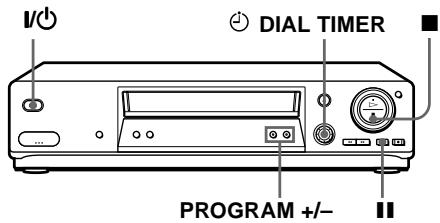
Avant de commencer...
- Insérez une cassette avec sa languette de protection en place. Assurez-vous que la cassette est plus longue que la durée totale d'enregistrement.
- Pour enregistrer à partir d'un décodeur, allumez-le.
- Reportez-vous à « Index des pièces et commandes » pour l'emplacement des boutons.
1
MINUTERIE À CADRAN

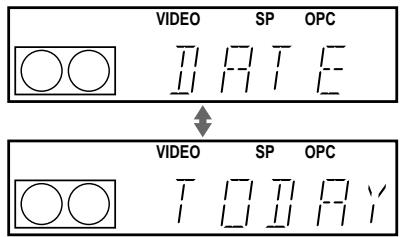
Appuyez sur MINUTERIE À CADRAN.
« DATE » et « AUJOURD'HUI » apparaissent en alternance dans la fenêtre d'affichage.
Si la date et l'heure ne sont pas réglées, « JOUR » apparaîtra. Voir l'étape 2 dans la section suivante, « Pour régler l'horloge » pour régler la date et l'heure.
2
MINUTERIE À CADRAN

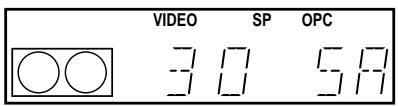
Tournez MINUTERIE À CADRAN pour régler la date d'enregistrement.
3
MINUTERIE À CADRAN

Appuyez sur DIAL TIMER.
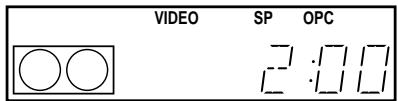
« START » et l'heure actuelle apparaissent en alternance dans la fenêtre d'affichage.
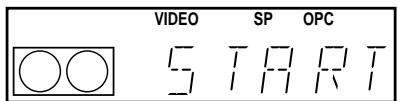

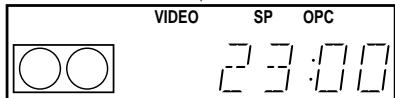
4
DIAL TIMER
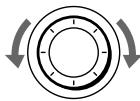
Tournez DIAL TIMER pour régler l'heure de début d'enregistrement.
Vous pouvez régler l'heure de début d'enregistrement par intervalles de 15 minutes ou ajuster l'heure par intervalles d'une minute en appuyant sur les boutons PROGRAM + / -.
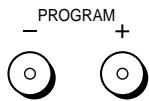
5
DIAL TIMER

Appuyez sur DIAL TIMER.
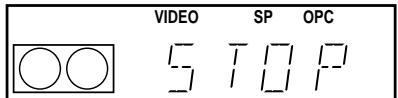
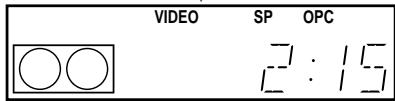
« STOP » et l'heure d'arrêt d'enregistrement apparaissent en alternance dans la fenêtre d'affichage.

6
DIAL TIMER

Tournez DIAL TIMER pour régler l'heure d'arrêt d'enregistrement.
Vous pouvez régler l'heure d'arrêt d'enregistrement par intervalles de 15 minutes ou ajuster l'heure par intervalles d'une minute en appuyant sur les boutons PROGRAM + / -.
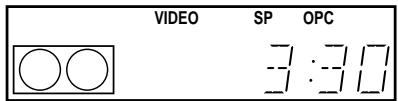
7
MINUTEUR

Appuyez sur MINUTEUR.
La position du programme ou le nom de la station apparaît dans la fenêtre d'affichage.
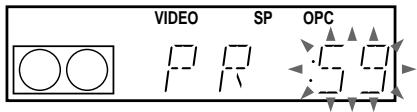
8
MINUTEUR

Tournez MINUTEUR pour régler la position du programme.
Pour enregistrer à partir d'un décodeur ou d'une autre source connectée à une ou plusieurs des entrées LINE, tournez MINUTEUR ou appuyez sur SÉLECTION D'ENTRÉE pour afficher la ligne connectée dans la fenêtre d'affichage.
SÉLECTION D'ENTRÉE

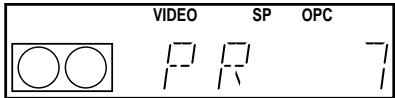
9
MINUTEUR

Appuyez sur MINUTEUR pour terminer le réglage.
"OK" apparaît dans la fenêtre d'affichage pendant environ cinq secondes.
L'indicateur apparaît dans la fenêtre d'affichage et le magnétoscope se met en veille pour l'enregistrement.
Pour enregistrer à partir d'un décodeur ou d'une autre source, laissez l'équipement connecté allumé.
Pour revenir à l'étape précédente
Pour revenir à l'étape précédente, appuyez simultanément sur les boutons PROGRAM + et - du magnétoscope pendant les réglages du minuteur à cadran.
Pour arrêter l'enregistrement
Pour arrêter le magnétoscope pendant l'enregistrement, appuyez sur STOP.
Pour utiliser le magnétoscope après avoir réglé le minuteur
Pour utiliser le magnétoscope avant le début d'un enregistrement, appuyez simplement sur I/0. L'indicateur s'éteint et le magnétoscope s'allume. N'oubliez pas d'appuyer sur I/0 pour remettre le magnétoscope en mode d'attente d'enregistrement après utilisation.
Vous pouvez également effectuer les tâches suivantes pendant l'enregistrement :
- Réinitialiser le compteur (page 44).
- Afficher les informations de la cassette à l'écran (page 47).
- Vérifier les réglages du minuteur (page 68).
- Regarder une autre chaîne de télévision (page 47).
Pour régler l'horloge
1 Tournez DIAL TIMER jusqu'à ce que "CLOCK" apparaisse dans la fenêtre d'affichage. Appuyez sur DIAL TIMER.
"DAY" apparaît dans la fenêtre d'affichage.
3 Tournez DIAL TIMER pour régler le jour. 4 Appuyez sur DIAL TIMER.
"MONTH" apparaît dans la fenêtre d'affichage.
5 Tournez et appuyez sur DIAL TIMER pour régler le mois, puis l'année. Après avoir réglé l'année, "CLOCK" réapparaît dans la fenêtre d'affichage. 6 Tournez et appuyez sur DIAL TIMER pour régler l'heure et les minutes. 7 Une fois le réglage de l'heure terminé, appuyez sur DIAL TIMER pour démarrer l'horloge.
Conseils
- Pour annuler un réglage de la minuterie DIAL, appuyez sur (arrêt) sur le magnétoscope pendant que vous effectuez le réglage.
- Le programme est enregistré dans le mode de vitesse de bande actuel. Pour changer la vitesse de bande, appuyez sur SP/LP avant de terminer le réglage à l'étape 9.
- Lorsque vous enregistrez un programme en mode SP et que la bande restante devient plus courte que le temps d'enregistrement, la vitesse de bande passe automatiquement en mode LP. Notez que des interférences apparaîtront sur l'image au moment du changement de vitesse. Si vous souhaitez conserver la même vitesse, réglez AUTO LONG PLAY sur OFF dans le menu OPTIONS-1 (page 85).
- Pour vérifier, modifier ou annuler le réglage du programme, voir "Vérification/modification/annulation des réglages de la minuterie" (page 68).
Remarques
- Si huit programmes ont déjà été réglés à l'aide du système ShowView ou du menu TIMER, "FULL" apparaît dans la fenêtre d'affichage pendant environ cinq secondes.
- L'indicateur clignote dans la fenêtre d'affichage lorsque vous terminez le réglage à l'étape 9 sans avoir inséré de cassette.
- Si vous réglez l'horloge à l'aide de la fonction Auto Clock Set et que AUTO ADJUST est réglé sur ON, l'horloge se réglera automatiquement sur le signal horaire entrant, indépendamment des réglages effectués avec la minuterie DIAL. Assurez-vous d'avoir réglé correctement l'Auto Clock Set.
- Le nom de la station peut ne pas apparaître si le magnétoscope ne reçoit pas les signaux d'information sur le nom de la station.
À propos du mode de démonstration
La fonction DIAL TIMER dispose d'un mode de démonstration qui permet à l'utilisateur, par exemple un vendeur, de saisir plus de huit exemples de réglages de minuterie lors d'une démonstration. Ce mode annule l'avertissement FULL qui apparaît lorsque huit programmes ont déjà été réglés. N'utilisez pas le mode de démonstration pour effectuer des enregistrements programmés. Cela pourrait entraîner des réglages inexacts.
Pour activer le mode de démonstration
Appuyez sur (pause) sur le magnétoscope tout en tournant DIAL TIMER. "DEMO" apparaît dans la fenêtre d'affichage pendant quelques secondes.
Pour annuler le mode de démonstration
Éteignez l'appareil et débranchez le cordon d'alimentation. Bien que le mode de démonstration soit annulé, les réglages de la minuterie effectués pendant son utilisation restent en mémoire. Veillez à annuler manuellement les réglages de la minuterie avant d'utiliser la minuterie de numérotation ou toute autre méthode de minuterie après avoir rebranché le cordon d'alimentation (voir page 68).
Enregistrement de programmes TV à l'aide du système ShowView (non disponible sur le modèle SLV-SE610N/K)
Le système ShowView est une fonction qui simplifie la programmation des enregistrements programmés sur le magnétoscope. Il suffit de saisir le numéro ShowView indiqué dans le guide des programmes TV. La date, les heures et la position du programme sont alors réglées automatiquement. Vous pouvez prérégler un total de huit programmes, y compris les réglages effectués avec d'autres méthodes de minuterie.
Avant de commencer...
- Vérifiez que l'horloge du magnétoscope est réglée sur l'heure et la date correctes.
- Insérez une cassette avec sa languette de protection en place. Assurez-vous que la cassette est plus longue que la durée totale d'enregistrement.
- Pour enregistrer à partir d'un décodeur, allumez-le.
- Allumez votre téléviseur et réglez-le sur la chaîne vidéo.
- Réglez TIMER OPTIONS sur SHOWVIEW ou VARIABLE dans le menu OPTIONS-2 (voir page 85).
- Reportez-vous à "Index des pièces et commandes" pour connaître l'emplacement des boutons.
1
Appuyez sur TIMER.
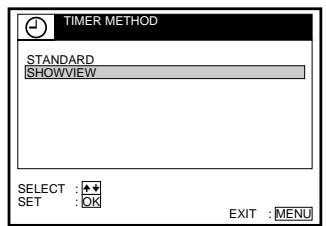
- Lorsque vous réglez TIMER OPTIONS sur VARIABLE : Le menu TIMER METHOD apparaît à l'écran du téléviseur. Appuyez sur ↑/↓ pour sélectionner SHOWVIEW, puis appuyez sur OK.
- Lorsque vous réglez TIMER OPTIONS sur SHOWVIEW : Le menu SHOWVIEW apparaît à l'écran du téléviseur.
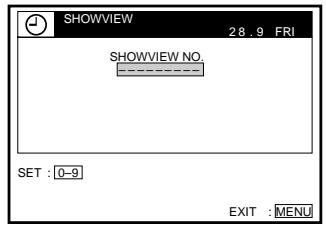





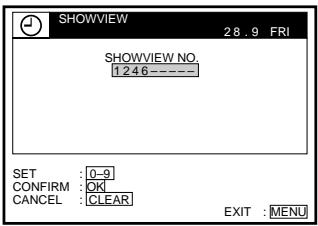
Appuyez sur les touches de numéros de programme pour saisir le numéro ShowView.
Si vous faites une erreur, appuyez sur CLEAR et saisissez à nouveau le numéro correct.
SÉLECTION D'ENTRÉE
EFFACER
Appuyez sur OK.
La date, les heures de début et de fin, la position du programme ou le nom de la station, la vitesse de bande et le réglage VPS/PDC apparaissent à l'écran du téléviseur.
- Si « - - » apparaît dans la colonne « PROG. » (programme) (cela peut arriver pour les émissions locales), vous
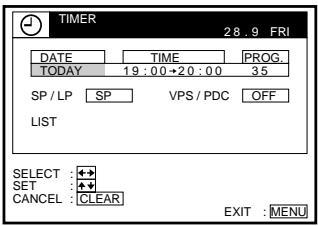
devez régler manuellement la position du programme appropriée. Appuyez sur / pour sélectionner la position souhaitée.
Pour enregistrer à partir d'un décodeur ou d'une autre source connectée à une ou plusieurs des entrées LINE, appuyez sur SÉLECTION D'ENTRÉE pour afficher la ligne connectée dans la position « PROG. ».
Vous n'aurez à effectuer cette opération qu'une seule fois pour la chaîne concernée. Le magnétoscope mémorisera ensuite votre réglage.
Si les informations sont incorrectes, appuyez sur EFFACER pour annuler le réglage.
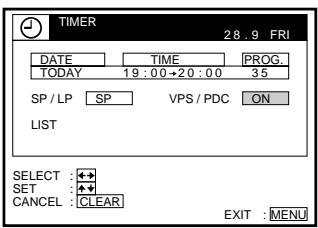
Si vous souhaitez modifier la date, la vitesse de bande et le réglage VPS/PDC :
1. Appuyez sur / pour sélectionner l'élément à modifier. 2. Appuyez sur / pour le régler.
Pour enregistrer le même programme tous les jours ou le même jour chaque semaine, voir « Enregistrement quotidien/hebdomadaire » à la page 57. - Pour utiliser la fonction VPS/PDC, réglez VPS/PDC sur ON. Pour plus de détails sur la fonction VPS/PDC, voir « Enregistrement programmé avec signaux VPS/PDC » à la page 57.
5
MENU
Appuyez sur MENU pour quitter le menu.
Appuyez sur I/O pour éteindre le magnétoscope.
L'indicateur apparaît dans la fenêtre d'affichage et le magnétoscope se met en veille pour l'enregistrement.
Pour enregistrer à partir d'un décodeur ou d'une autre source, laissez l'équipement connecté allumé.
Pour arrêter l'enregistrement
Pour arrêter le magnétoscope pendant l'enregistrement, appuyez sur STOP.
Enregistrement quotidien/hebdomadaire
À l'étape 4 ci-dessus, appuyez sur pour sélectionner le mode d'enregistrement. Chaque pression sur change l'indication comme indiqué ci-dessous. Appuyez sur pour changer l'indication dans l'ordre inverse.
AUJOURD'HUI → DIM-SAM (dimanche à samedi) → LUN-SAM (lundi à samedi) → LUN-VEN (lundi à vendredi) → SAM (chaque samedi) ....... → LUN (chaque lundi) → DIM (chaque dimanche) → 1 mois plus tard → (les dates décomptent) → DEMAIN → AUJOURD'HUI
Enregistrement programmé avec signaux VPS/PDC
Certains systèmes de diffusion transmettent des signaux VPS (Video Programme System) ou PDC (Programme Delivery Control) avec leurs programmes TV. Ces signaux garantissent que vos enregistrements programmés sont effectués malgré les retards de diffusion, les démarrages anticipés ou les interruptions de diffusion (lorsque l'indicateur VPS ou PDC est allumé dans la fenêtre d'affichage).
Pour utiliser la fonction VPS/PDC, réglez VPS/PDC sur ON à l'étape 4 ci-dessus. Vous pouvez également utiliser la fonction VPS/PDC pour une source connectée à une ou plusieurs entrées LINE.
Pour enregistrer des émissions satellite
Si vous connectez un tuner satellite et le magnétoscope, vous pouvez enregistrer des programmes satellite.
1 Allumez le tuner satellite. 2 Sur le tuner satellite, sélectionnez le programme satellite pour lequel vous souhaitez effectuer un réglage de minuterie. 3 Suivez les étapes 1 à 6 ci-dessus. 4 Laissez le tuner satellite allumé jusqu'à ce que le magnétoscope ait fini d'enregistrer le programme satellite pour lequel vous avez effectué un réglage de minuterie.
Pour utiliser le magnétoscope après avoir réglé la minuterie
Pour utiliser le magnétoscope avant le début d'un enregistrement, appuyez simplement sur I/O. L'indicateur s'éteint et le magnétoscope s'allume. N'oubliez pas d'appuyer sur I/O pour remettre le magnétoscope en mode d'attente d'enregistrement après avoir utilisé le magnétoscope.
Vous pouvez également effectuer les tâches suivantes pendant que le magnétoscope enregistre :
- Réinitialiser le compteur (page 44).
- Afficher les informations de la cassette à l'écran du téléviseur (page 47).
- Vérifier les réglages de la minuterie (page 68).
- Regarder une autre chaîne de télévision (page 47).
Conseils
- Pour régler la position du programme, vous pouvez également utiliser les boutons PROG +/- ou les boutons de numéro de programme.
- Pour régler la position du programme avec un numéro à deux chiffres, appuyez sur le bouton -I-- (chiffre des dizaines) suivi des boutons de numéro de programme.
- Pour régler la source vidéo d'entrée ligne, vous pouvez également utiliser les boutons PROG +/-.
- Pour régler la vitesse de la bande, vous pouvez également utiliser la touche SP/LP.
- Lorsque vous enregistrez un programme en mode SP et que la bande restante devient plus courte que le temps d'enregistrement, la vitesse de la bande passe automatiquement en mode LP. Notez que des interférences apparaîtront sur l'image au moment du changement de vitesse. Si vous souhaitez conserver la même vitesse, réglez AUTO LONG PLAY sur OFF dans le menu OPTIONS-1 (page 85).
- Pour vérifier, modifier ou annuler le réglage du programme, appuyez sur ← / → pour choisir LIST, puis sur OK à l'étape 4. Pour plus de détails, voir l'étape 3 dans « Vérification/modification/annulation des réglages de la minuterie » (page 68).
Remarques
- Si le signal VPS/PDC est trop faible ou si la station de diffusion n'a pas transmis les signaux VPS/PDC, le magnétoscope commencera l'enregistrement à l'heure réglée sans utiliser la fonction VPS/PDC.
- L'indicateur ⊙ clignote dans la fenêtre d'affichage lorsque vous appuyez sur I/ sans qu'aucune cassette ne soit insérée.
- Lorsque vous réglez TIMER OPTIONS sur STANDARD dans le menu OPTIONS-2, le menu SHOWVIEW n'apparaît pas à l'écran. Sélectionnez SHOWVIEW ou VARIABLE.
- La fonction VPS/PDC est automatiquement désactivée pour l'enregistrement programmé d'un programme satellite.
- Le nom de la station peut ne pas apparaître si le magnétoscope ne reçoit pas les signaux d'information sur le nom de la station.
Enregistrement de programmes TV à l'aide de la minuterie
Vous pouvez prérégler un total de huit programmes, y compris les réglages effectués avec d'autres méthodes de minuterie.
Avant de commencer...
- Vérifiez que l'horloge du magnétoscope est réglée à l'heure et à la date correctes.
- Insérez une cassette avec sa languette de protection en place. Assurez-vous que la cassette est plus longue que le temps d'enregistrement total.
- Pour enregistrer à partir d'un décodeur, allumez-le.
- Allumez votre téléviseur et réglez-le sur la chaîne vidéo.
- Réglez TIMER OPTIONS sur STANDARD ou VARIABLE dans le menu OPTIONS-2 (voir page 85).* Reportez-vous à "Index des pièces et commandes" pour l'emplacement des boutons.
1
Appuyez sur TIMER.
Pour SLV-SE610N/K :
Le menu TIMER apparaît à l'écran du téléviseur.
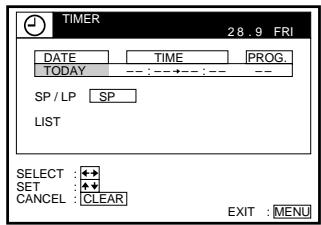
Pour SLV-SE710N/K, SX710N/K et SE810N/K :
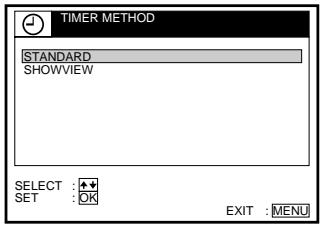
- Lorsque vous réglez TIMER OPTIONS sur VARIABLE :
Le menu TIMER METHOD apparaît à l'écran du téléviseur. Appuyez sur
/ pour sélectionner STANDARD, puis appuyez sur OK.
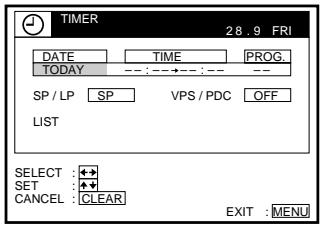
- Lorsque vous réglez TIMER OPTIONS sur STANDARD :
Le menu TIMER apparaît à l'écran du téléviseur.
2
SÉLECTION D'ENTRÉE
Réglez la date, les heures de début et de fin, la position de programme ou le nom de la station, la vitesse de bande et la fonction VPS/PDC :
1 Appuyez sur → pour mettre chaque élément en surbrillance. 2 Appuyez sur / pour régler chaque élément.
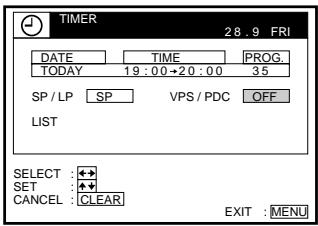
Pour corriger un réglage, appuyez sur ← pour revenir à ce réglage et le réinitialiser.
- Pour enregistrer le même programme tous les jours ou le même jour chaque semaine, voir « Enregistrement quotidien/hebdomadaire » à la page 60.
- Pour utiliser la fonction VPS/PDC*, réglez VPS/PDC sur ON. Pour plus de détails sur la fonction VPS/PDC, voir « Enregistrement programmé avec signaux VPS/PDC » à la page 57.
- Pour enregistrer à partir d'un décodeur ou d'une autre source connectée à une ou plusieurs entrées LINE, appuyez sur INPUT SELECT pour afficher la ligne connectée dans la position « PROG. ».
3
MENU

Appuyez sur MENU pour quitter le menu.
4

Appuyez sur I/ pour éteindre le magnétoscope.
L'indicateur apparaît dans la fenêtre d'affichage et le magnétoscope se met en veille pour l'enregistrement.
Pour enregistrer à partir d'un décodeur ou d'une autre source, laissez l'équipement connecté allumé.
Pour arrêter l'enregistrement
Pour arrêter le magnétoscope pendant l'enregistrement, appuyez sur STOP.
Enregistrement quotidien/hebdomadaire
À l'étape 2 ci-dessus, appuyez sur pour sélectionner le mode d'enregistrement. Chaque fois que vous appuyez sur , l'indication change comme indiqué ci-dessous. Appuyez sur pour changer l'indication dans l'ordre inverse.
AUJOURD'HUI → DIM-SAM (dimanche à samedi) → LUN-SAM (lundi à samedi) → LUN-VEN (lundi à vendredi) → SAM (chaque samedi) ....... → LUN (chaque lundi) → DIM (chaque dimanche) → 1 mois plus tard → (les dates décomptent) → DEMAIN → AUJOURD'HUI
Pour enregistrer des émissions satellite
Si vous connectez un tuner satellite et le magnétoscope, vous pouvez enregistrer des programmes satellite.
1 Allumez le tuner satellite. 2 Sur le tuner satellite, sélectionnez le programme satellite pour lequel vous souhaitez effectuer un réglage de minuterie. 3 Suivez les étapes 1 à 4 ci-dessus. 4 Laissez le tuner satellite allumé jusqu'à ce que le magnétoscope ait fini d'enregistrer le programme satellite pour lequel vous avez effectué un réglage de minuterie.
Pour utiliser le magnétoscope après avoir réglé la minuterie
Pour utiliser le magnétoscope avant le début d'un enregistrement, appuyez simplement sur I/0. L'indicateur s'éteint et le magnétoscope s'allume. N'oubliez pas d'appuyer sur I/0 pour remettre le magnétoscope en mode d'attente d'enregistrement après avoir utilisé le magnétoscope.
Vous pouvez également effectuer les tâches suivantes pendant que le magnétoscope enregistre :
- Réinitialiser le compteur (page 44).
- Afficher les informations de la cassette sur l'écran du téléviseur (page 47).
- Vérifier les réglages de la minuterie (page 68).
- Regarder une autre chaîne de télévision (page 47).
Conseils
- Pour régler la position du programme, vous pouvez également utiliser les touches PROG +/- ou les touches numériques de programme.
- Pour régler la position du programme avec un nombre à deux chiffres, appuyez sur la touche -/-- (chiffre des dizaines) suivie des touches numériques de programme.
- Pour régler la source vidéo d'entrée ligne, vous pouvez également utiliser les boutons PROG + / -.
- Pour régler la vitesse de la bande, vous pouvez également utiliser le bouton SP/LP.
- Lorsque vous enregistrez un programme en mode SP et que la bande restante devient plus courte que le temps d'enregistrement, la vitesse de la bande passe automatiquement en mode LP. Notez que des interférences apparaîtront sur l'image au moment du changement de vitesse. Si vous souhaitez conserver la même vitesse, réglez AUTO LONG PLAY sur OFF dans le menu OPTIONS-1 (page 85).
- Même si vous réglez TIMER OPTIONS* sur SHOWVIEW dans le menu OPTIONS-2, vous pouvez régler la minuterie manuellement. Appuyez sur MENU pour sélectionner TIMER, puis passez à l'étape 2.
- Pour vérifier, modifier ou annuler le réglage du programme, appuyez sur ← / → pour choisir LIST, puis appuyez sur OK à l'étape 2. Pour plus de détails, voir l'étape 3 dans "Vérification/modification/annulation des réglages de minuterie" (page 68).
Remarques
- Lors du réglage de la minuterie avec les signaux VPS/PDC, saisissez les heures de début et de fin exactement comme indiqué dans le guide des programmes TV. Sinon, la fonction VPS/PDC* ne fonctionnera pas.
- Si le signal VPS/PDC est trop faible ou si la station de diffusion n'a pas transmis les signaux VPS/PDC, le magnétoscope commencera l'enregistrement à l'heure réglée sans utiliser la fonction VPS/PDC*.
- L'indicateur clignote dans la fenêtre d'affichage lorsque vous appuyez sur I/ sans qu'aucune cassette ne soit insérée.
- La fonction VPS/PDC* est automatiquement réglée sur OFF pour l'enregistrement programmé d'un programme satellite.
- Le nom de la station* peut ne pas apparaître si le magnétoscope ne reçoit pas les signaux d'information sur le nom de la station.
- non disponible sur SLV-SE610N/K
Lecture/recherche à différentes vitesses
Avant de commencer...
- Reportez-vous à « Index des pièces et commandes » pour l'emplacement des boutons.
| Playback options | Operation |
| View the picture during fast-forward or rewind | During fast-forward, hold down ➔ FF/ ➔. During rewind, hold down ⇌ REW/ ⇌. |
| Play at high speed | • During playback, press ➔ FF or ⇌ REW on the remote commander. • During playback, hold down ➔ FF/ ➔ or ⇌ REW/ ⇌. When you release the button, normal playback resumes. |
| Play at twice the normal speed | During playback, press ×2. |
| Play in slow motion | During playback, press ➔ SLOW. |
| Play frame by frame | During pause, press ➔ FF or ⇌ REW on the remote commander. Hold down ➔ FF or ⇌ REW to play one frame each second. |
| Rewind and start play | During stop, press ➔ (play) on the VCR while holding down ⇌ on the VCR. |
Pour reprendre la lecture normale
Appuyez sur LECTURE.
Utilisation de la bague de navette (SLV-SE810N/K uniquement)
Avec la bague de navette, vous pouvez utiliser différentes options de lecture. Il y a deux façons d'utiliser la bague de navette : le mode normal et le mode jog.
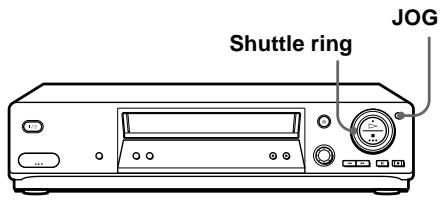
Pour utiliser la bague de navette en mode normal
Pendant la lecture ou la pause, tournez la bague de navette dans le sens horaire ou antihoraire. Chaque changement de position de la bague modifie le mode de lecture de la manière suivante.
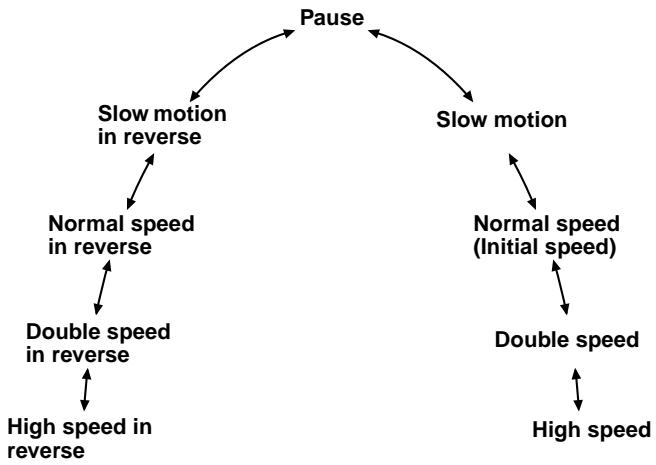
Pour utiliser la bague de navette en mode jog
Utilisez ce mode pour une lecture image par image.
Appuyez sur JOG pour passer en mode jog. Le bouton JOG s'allume. Si vous passez en mode jog pendant un mode de lecture, la lecture se met en pause afin que vous puissiez voir une image fixe. Chaque changement de position de la bague déplace l'image d'une image. Pour déplacer les images en arrière, tournez la bague dans le sens antihoraire. La vitesse de déplacement des images dépend de la vitesse à laquelle vous tournez la bague.
Pour revenir au mode normal, appuyez à nouveau sur JOG. Le bouton JOG s'éteint.
Astuce
- Réglez l'image à l'aide des boutons PROGRAMME + / - du magnétoscope si :
- Des traînées apparaissent lors de la lecture au ralenti.
Des bandes apparaissent en haut ou en bas lors de la pause.
- L'image tremble lors de la pause.
Pour régler le suivi sur la position centrale, appuyez simultanément sur les deux boutons (+ / -).
Remarques
- Le son est coupé pendant ces opérations.
- En mode LP, du bruit peut apparaître ou il peut n'y avoir pas de couleur.
- Si l'indicateur de mode de lecture n'apparaît pas à l'écran du téléviseur, appuyez sur 1+ DISPLAY.
Réglage de la durée d'enregistrement
Après avoir commencé l'enregistrement de la manière normale, vous pouvez faire en sorte que le magnétoscope arrête automatiquement l'enregistrement après une durée spécifiée.
Avant de commencer...
- Reportez-vous à "Index des pièces et commandes" pour connaître l'emplacement des boutons.
1 Pendant l'enregistrement, appuyez sur REC.
L'indicateur apparaît dans la fenêtre d'affichage.
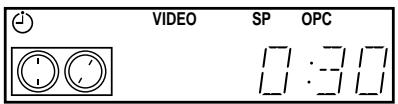
2 Appuyez plusieurs fois sur REC pour régler la durée d'enregistrement.
Chaque pression augmente la durée par incréments de 30 minutes.

Le compteur de bande décompte minute par minute jusqu'à 0:00, puis le magnétoscope arrête l'enregistrement et s'éteint automatiquement.
Pour prolonger la durée
Appuyez plusieurs fois sur REC pour régler une nouvelle durée d'enregistrement.
Pour annuler la durée
Appuyez plusieurs fois sur REC jusqu'à ce que l'indicateur disparaisse et que le magnétoscope revienne en mode d'enregistrement normal.
Pour arrêter l'enregistrement
Pour arrêter le magnétoscope pendant l'enregistrement, appuyez sur STOP.
Remarque
- Vous ne pouvez pas afficher le temps de bande actuel dans la fenêtre d'affichage lors du réglage de la durée d'enregistrement.
Enregistrement synchronisé (non disponible sur SLV-SE610N/K)
Vous pouvez régler le magnétoscope pour enregistrer automatiquement des programmes provenant d'équipements tels qu'un tuner satellite en connectant l'équipement au connecteur DECODER/LINE-3 IN*1 (ou DECODER/LINE-2 IN*2). L'équipement connecté doit avoir une fonction de minuterie pour que cette fonction fonctionne.
Lorsque l'équipement connecté s'allume, le magnétoscope s'allume également automatiquement et commence à enregistrer un programme depuis DECODER/LINE-3 IN 1 (ou DECODER/LINE-2 IN 2 ).
Comment connecter pour l'enregistrement synchronisé
Connectez le connecteur DECODER/LINE-3 IN 1 (ou DECODER/LINE-2 IN 2 ) du magnétoscope au connecteur TV_Scart du tuner satellite. Ensuite, connectez le connecteur LINE-1 (TV) au téléviseur.
Flux du signal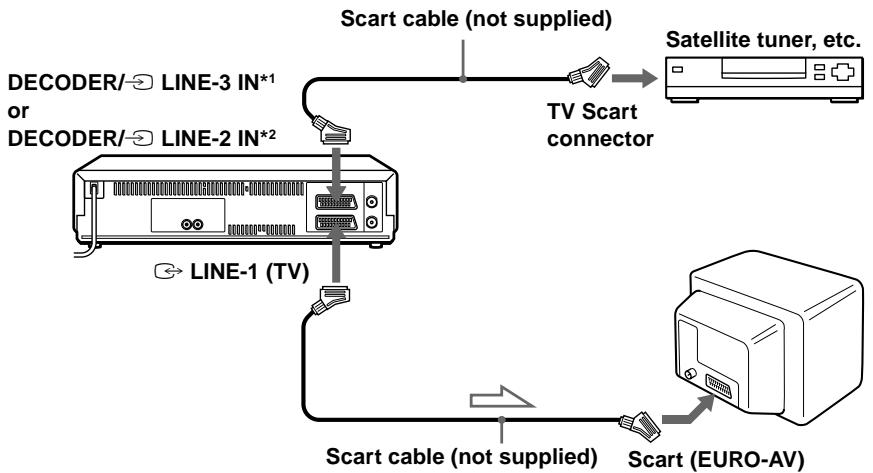
Enregistrement de programmes à l'aide de la fonction d'enregistrement synchronisé
Avant de commencer...
- Insérez une cassette avec sa languette de protection en place. Assurez-vous que la cassette est plus longue que la durée totale d'enregistrement.
- Réglez DECODER/LINE3 1 (ou DECODER/ LINE2 2 ) sur LINE3 1 (ou LINE2 2 ) dans le menu OPTIONS-2 (voir page 85). Reportez-vous à "Index des pièces et commandes" pour l'emplacement des boutons.
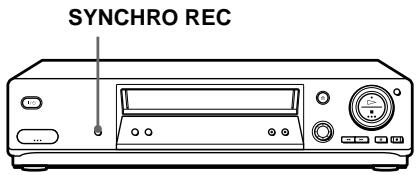
1 Appuyez sur INPUT SELECT ou PROG + / - pour afficher "L3*1 (ou L2*2) dans la fenêtre d'affichage. 2 Réglez la minuterie sur l'équipement connecté à l'heure du programme que vous souhaitez enregistrer, puis éteignez-le. 3 Appuyez sur SP/LP pour sélectionner la vitesse de la bande. 4 Maintenez enfoncé SYNCHRO REC pendant plus de deux secondes.
L'indicateur SYNCHRO apparaît dans la fenêtre d'affichage et le magnétoscope se met en veille pour l'enregistrement.
Le magnétoscope s'allume automatiquement et commence l'enregistrement lorsqu'il reçoit un signal d'entrée de l'équipement connecté.
Le magnétoscope arrête automatiquement l'enregistrement lorsque la bande atteint la fin ou lorsque l'équipement connecté cesse de transmettre un signal d'entrée.
Pour annuler la fonction d'enregistrement synchronisé
Appuyez sur SYNCHRO REC. L'indicateur SYNCHRO disparaît.
Pour arrêter l'enregistrement
Appuyez sur STOP pendant l'enregistrement.
Remarques
- Cette fonction peut ne pas fonctionner avec certains types de tuners satellite.
- Certains téléviseurs ou autres équipements dotés de fonctions de minuterie s'éteignent automatiquement si aucune opération n'est effectuée pendant un certain temps. Dans ce cas, l'enregistrement synchronisé s'arrête également automatiquement.
- Lorsque l'équipement connecté s'allume alors que l'indicateur SYNCHRO est affiché, l'enregistrement démarre automatiquement.
- Si les réglages d'enregistrement programmé et d'enregistrement synchronisé se chevauchent, le programme qui commence en premier a la priorité et le deuxième programme ne commence l'enregistrement qu'après la fin du premier.
- La fonction de réglage automatique de l'horloge ne fonctionne pas pendant que le magnétoscope est en veille pour l'enregistrement synchronisé.
SLV-SE810N/K uniquement 2 SLV-SE710N/K et SX710N/K uniquement
Vérification, modification ou annulation des réglages de minuterie
Avant de commencer...
- Allumez votre téléviseur et réglez-le sur la chaîne vidéo.
- Reportez-vous à la section « Index des pièces et commandes » pour connaître l'emplacement des boutons.
1 Appuyez sur I/O pour allumer le magnétoscope. 2 Appuyez sur MENU, puis sur ↑/↓ pour mettre en surbrillance Lists et appuyez sur OK. 3 Appuyez sur ↑/↓ pour mettre en surbrillance TIMER LIST, puis appuyez sur OK :
- Si vous souhaitez modifier ou annuler un réglage, passez à l'étape suivante.
- Si vous n'avez pas besoin de modifier ou d'annuler les réglages, appuyez sur MENU, puis éteignez le magnétoscope pour revenir en mode veille d'enregistrement.
4 Appuyez sur ↑/↓ pour sélectionner le réglage à modifier ou à annuler, puis appuyez sur OK.
Le réglage sélectionné apparaît dans le menu TIMER.
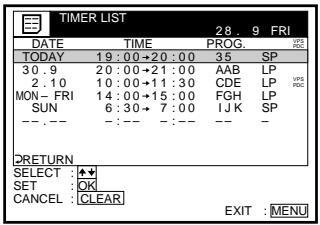
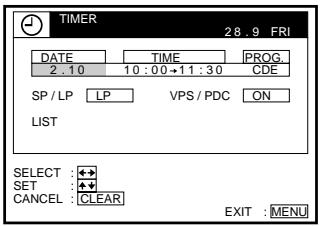
- Pour modifier un réglage, appuyez sur ← pour mettre en surbrillance l'élément à modifier, puis appuyez sur ↑/↓ pour le régler.
- Pour annuler le réglage, appuyez sur CLEAR. 6 Appuyez sur MENU pour quitter le menu.
Si des réglages restent, éteignez le magnétoscope pour revenir en mode d'attente d'enregistrement.
Lorsque les réglages de minuterie se chevauchent
Le programme qui commence en premier a la priorité et le deuxième programme ne commence l'enregistrement qu'après la fin du premier. Si les programmes commencent en même temps, le programme listé en premier dans le menu a la priorité.
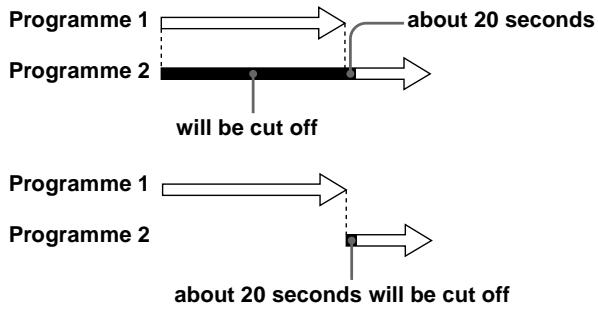
Astuce
- À l'étape 6 ci-dessus, vous pouvez vérifier la LISTE DES MINUTERIES en sélectionnant LISTE et en appuyant sur OK. Appuyez sur MENU pour quitter la LISTE DES MINUTERIES.
Enregistrement de programmes stéréo et bilingues
Système ZWEITON (stéréo allemand)
Ce magnétoscope reçoit et enregistre automatiquement les programmes stéréo et bilingues selon le système ZWEITON. Lorsqu'un programme stéréo ou bilingue est reçu, l'indicateur STEREO apparaît dans la fenêtre d'affichage.
Pour sélectionner le son bilingue pendant l'enregistrement
Appuyez sur AUDIO MONITOR pour sélectionner le son souhaité.
| To listen to | On-screen display | Display window |
| Main | MAIN | STEREO |
| Sub | SUB | STEREO |
| Main and sub | MAIN/SUB | STEREO |
Système NICAM
(SLV-SE610N, SE710N, SX710N et SE810N uniquement)
Ce magnétoscope reçoit et enregistre les programmes stéréo et bilingues selon le système NICAM (l'indicateur NICAM apparaît). Lorsqu'un programme stéréo ou bilingue est reçu, l'indicateur STEREO apparaît dans la fenêtre d'affichage.
Pour enregistrer un programme NICAM, HIFI AUDIO dans le menu OPTIONS-1 doit être réglé sur NICAM (réglage initial). Pour vérifier le réglage du menu, voir page 85 pour plus de détails.
Pour sélectionner le son pendant l'enregistrement
Appuyez sur AUDIO MONITOR pour sélectionner le son souhaité.
Programmes stéréo
| To listen to | On-screen display | Display window |
| Stereo | STEREO | STEREO |
| Standard sound* | No indicator | No indicator |
- Généralement le son mixé des canaux gauche et droit (mono)
Programmes bilingues
| To listen to | On-screen display | Display window |
| Main | MAIN | STEREO |
| Sub | SUB | STEREO |
| Main and sub | MAIN/SUB | STEREO |
| Standard sound* | No indicator | No indicator |
- Généralement le son principal (mono)
Sélection du son pendant la lecture
Appuyez sur AUDIO MONITOR pour sélectionner le son souhaité.
| To listen to | On-screen display | Display window |
| Stereo/main and sub(left and right channels) | STEREO | STEREO |
| Left channel/main | LCH | STEREO |
| Right channel/sub | RCH | STEREO |
| Standard sound | No indicator | No indicator |
Comment le son est enregistré sur une cassette vidéo
Le magnétoscope enregistre le son sur deux pistes distinctes. Le son Hi-Fi est enregistré sur la piste principale avec l'image. Le son mono est enregistré sur la piste audio normale le long du bord de la bande.
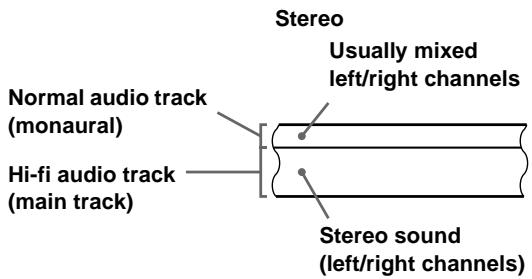
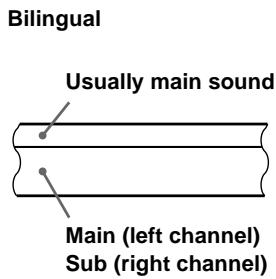
Remarques
- Pour écouter le son en stéréo pendant la lecture, vous devez utiliser les connexions Scart ou AUDIO OUT.
- Lorsque vous lisez une cassette enregistrée en mono, le son est entendu en mono quel que soit le réglage AUDIO MONITOR.
- Si le bouton AUDIO MONITOR ne fonctionne pas, vérifiez que AUDIO MIX*1 dans le menu OPTIONS-1 est réglé sur OFF (voir page 84).
- Si HIFI AUDIO*1 est réglé sur STANDARD, le son standard sera enregistré sur les pistes audio hi-fi et normales. Appuyer sur AUDIO MONITOR ne changera pas le son.
*SLV-SE610N, SE710N, SX710N, et SE810N uniquement
Recherche à l'aide de la fonction Smart Search
Si vous enregistrez plusieurs programmes sur une cassette, vous pouvez utiliser la fonction Smart Search pour voir ce qui a été enregistré sur votre cassette. Vous pouvez voir des informations telles que la date, l'heure et la position du programme des programmes enregistrés. Vous pouvez également démarrer la lecture directement à partir du programme sélectionné à l'aide de l'écran SMART SEARCH.
Tous les programmes sont listés à l'écran, quelle que soit la manière dont le programme a été enregistré.
Pour stocker les informations du programme, voir "Stockage des informations du programme" à la page 75. Si vous éjectez la cassette avant de stocker les informations, celles-ci seront effacées.
Avant de commencer...
- Allumez votre téléviseur et réglez-le sur la chaîne vidéo.
- Reportez-vous à "Index des pièces et commandes" pour connaître l'emplacement des boutons.
1 Après l'enregistrement, appuyez sur I/O pour allumer le magnétoscope. 2 Appuyez sur SMART SEARCH. Appuyez sur / / ← / → pour sélectionner le programme que vous souhaitez commencer à regarder.
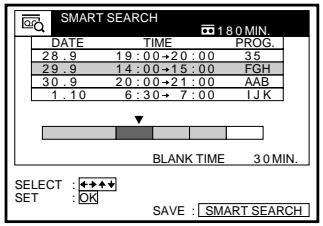
4 Appuyez sur OK.
Le magnétoscope commence la recherche, et la lecture démarre automatiquement depuis le début du programme sélectionné.
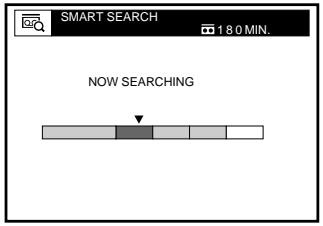
Pour arrêter la recherche
Appuyez sur STOP.
Pour quitter l'écran SMART SEARCH
Appuyez sur MENU.
Pour enregistrer dans un espace vierge
Un espace vierge sur la cassette apparaîtra comme une ligne vide dans l'écran SMART SEARCH. Sélectionnez la dernière ligne vide à l'étape 3, puis appuyez sur OK. Le magnétoscope rembobine/avance rapidement la cassette jusqu'au début de l'espace vierge, puis s'arrête. Commencez l'enregistrement. Notez que "BLANK TIME" et l'indication de temps restant ne se réfèrent qu'à la longueur du dernier espace vierge.
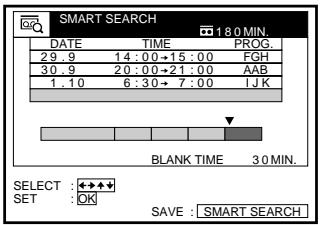
Conseils
- Vous pouvez stocker des informations pour jusqu'à 24 programmes sur une seule liste.
- Pendant l'enregistrement, vous pouvez afficher l'écran SMART SEARCH à l'aide du bouton SMART SEARCH. Si vous décidez d'arrêter l'enregistrement, appuyez d'abord sur MENU pour faire disparaître l'écran SMART SEARCH. Puis appuyez sur STOP.
- Vous pouvez faire rappeler au lecteur les données de la dernière cassette utilisée pour enregistrer des programmes même après avoir éjecté la cassette (page 78).
Remarques
- Vous ne pouvez pas utiliser cette fonction à moins que l'horloge ne soit réglée.
- Selon la cassette, le temps total ou restant peut ne pas s'afficher correctement.
- Si de nombreux programmes courts sont enregistrés sur une cassette, plusieurs programmes peuvent être inclus dans un seul bloc. Dans ce cas, seules les informations du dernier programme apparaîtront dans l'écran SMART SEARCH.
- Le temps vierge est mesuré de la fin du dernier programme enregistré à la fin de la cassette. Cependant, si vous éjectez la cassette puis faites un nouvel enregistrement sur la même cassette, le ou les programmes enregistrés à l'origine s'affichent comme un espace vierge.
- Le nom de la station* peut ne pas apparaître si le magnétoscope ne reçoit pas les signaux d'informations sur le nom de la station.
- Si vous commencez à enregistrer un programme "D" au milieu d'un programme précédemment enregistré "A" et dans un autre programme précédemment enregistré "B", les informations Smart Search pour le deuxième programme "B", qui est enregistré par-dessus, sont supprimées.
Programmes enregistrés à l'origine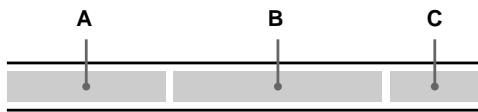
Enregistrement du programme "D" sur les programmes "A" et "B" * non disponible sur le modèle SLV-SE610N/K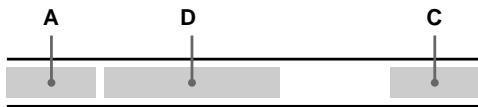
Stockage, recherche et suppression des informations de programme (Smart Search Plus)
Vous pouvez stocker les informations de programme, telles que la date et l'heure d'enregistrement, et la position du programme, pour un maximum de quatre cassettes. Vous pouvez sélectionner un programme et démarrer la lecture en rappelant directement les informations depuis l'écran Smart Search Plus.
Stockage des informations de programme
Vous pouvez stocker les informations de programme pour un maximum de quatre cassettes. Avant d'enregistrer un programme, sélectionnez un numéro de banque mémoire dans la liste de l'écran SMART SEARCH.
L'appareil ne mémorise pas le numéro de banque mémoire pour chaque cassette. Notez le numéro que vous avez attribué à chaque cassette.
Avant de commencer...
- Allumez votre téléviseur et réglez-le sur la chaîne vidéo. Reportez-vous à "Index des pièces et commandes" pour l'emplacement des boutons.
1 Insérez une cassette pour l'enregistrement.
Le magnétoscope s'allume automatiquement.
Appuyez sur SMART SEARCH.
L'écran SMART SEARCH -RAPPEL- apparaît.
RAPPEL est surligné et les données de la dernière cassette utilisée pour enregistrer des programmes apparaissent.
3 Appuyez sur pour sélectionner un numéro de banque mémoire.
Notez le numéro de banque mémoire sur la cassette.
Pour annuler le processus, appuyez sur SMART SEARCH.
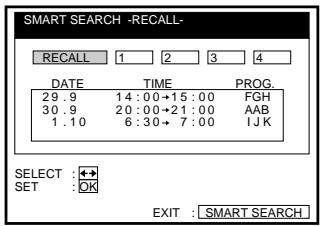
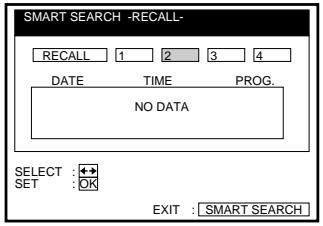
4 Appuyez sur OK. 5 Commencez l'enregistrement.
Les informations sur le programme enregistré seront stockées sur le numéro de mémoire sélectionné.
Pour attribuer un numéro de mémoire après l'enregistrement
Après avoir enregistré un programme, vous pouvez stocker les informations du programme comme nouvelle mémoire avant d'éjecter la cassette. Cependant, vous ne pouvez pas ajouter la mémoire sur le numéro de banque de mémoire existant. Pour stocker la mémoire comme supplémentaire, sélectionnez le numéro de banque de mémoire avant.
1 Appuyez sur I/O pour allumer le magnétoscope. 2 Appuyez sur SMART SEARCH.
3 Appuyez à nouveau sur SMART SEARCH. L'écran SMART SEARCH -SAVE- apparaît. 4 Appuyez sur pour sélectionner un numéro de banque de mémoire.
Sélectionnez le numéro de banque de mémoire sans information ou le numéro de banque de mémoire à supprimer.
Pour annuler le processus, sélectionnez CANCEL.
5 Appuyez sur OK.
Pour quitter l'écran SMART SEARCH
Appuyez sur SMART SEARCH.
Remarque
- Si vous sélectionnez un numéro qui contient déjà des programmes, les anciennes informations du programme sont effacées et les nouvelles informations du programme sont stockées.
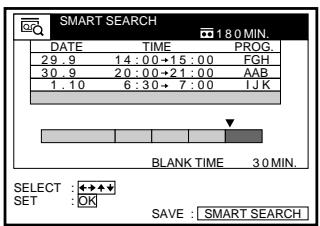
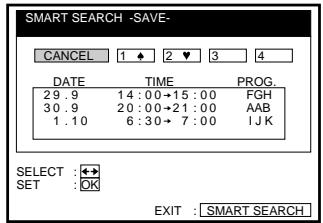
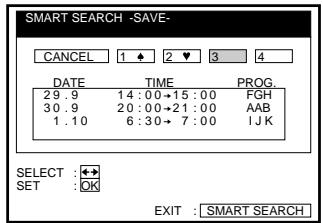
Recherche des informations de programme stockées sur le numéro de banque de mémoire
Vous pouvez démarrer la lecture du programme enregistré après avoir rappelé les informations du programme depuis l'un des quatre numéros de banque mémoire.
Avant de commencer...
- Allumez votre téléviseur et réglez-le sur la chaîne vidéo.
1 Insérez la cassette pour laquelle vous souhaitez utiliser le numéro de banque mémoire. Le magnétoscope s'allume automatiquement. 2 Appuyez sur SMART SEARCH. L'écran SMART SEARCH -RAPPEL- apparaît.
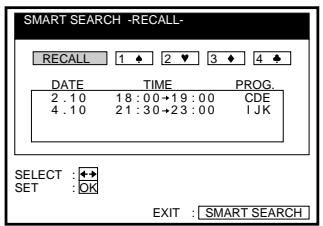
3 Appuyez sur pour sélectionner le numéro de banque mémoire correspondant à la cassette insérée.
Les informations du programme contenues dans le numéro de banque mémoire sélectionné apparaissent.
Si vous avez sélectionné un mauvais numéro de banque mémoire, éjectez la cassette et répétez les étapes à partir de l'étape 1.
4 Appuyez sur OK. Le numéro de banque mémoire sélectionné apparaît sur l'écran SMART SEARCH.
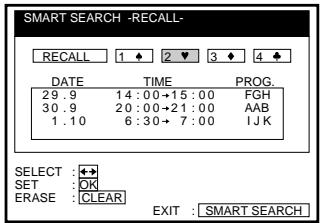
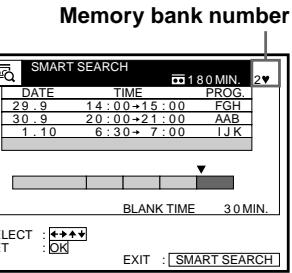
Appuyez sur / / ← / → pour sélectionner le programme que vous souhaitez regarder. 6 Appuyez sur OK. Le magnétoscope commence la recherche, et la lecture démarre automatiquement depuis le début du programme sélectionné.
Pour arrêter la recherche
Appuyez sur STOP.
Pour quitter l'écran SMART SEARCH
Appuyez sur SMART SEARCH.
Rappel des informations du programme le plus récent
Les informations de programme non enregistrées dans l'un des numéros de banque mémoire sont effacées lorsque la cassette est éjectée. La banque mémoire RAPPEL mémorisera temporairement les informations du programme de la dernière cassette utilisée pour l'enregistrement, au cas où elle serait éjectée accidentellement.
Si vous réinsérez la cassette que vous avez éjectée par erreur à l'étape 1, puis sélectionnez RAPPEL à l'étape 3, les données de la dernière cassette utilisée pour enregistrer des programmes apparaissent. Appuyez sur OK et les dernières informations s'affichent à l'écran RECHERCHE INTELLIGENTE. Vous pouvez ensuite ajouter de nouvelles informations à cette liste de programmes. Pour une explication sur la visualisation des informations de programme sans utiliser l'une des banques de mémoire, voir page 73.
Si vous souhaitez effacer les dernières informations de la banque de mémoire RAPPEL, appuyez sur le bouton RECHERCHE INTELLIGENTE au lieu du bouton OK à l'étape 3, puis fermez l'écran RECHERCHE INTELLIGENTE. Les nouvelles informations remplaceront toutes les informations actuelles de la banque de mémoire RAPPEL.
Remarque
- Lorsque vous insérez une cassette dont les informations n'existent pas dans le numéro de banque de mémoire, vous ne pouvez pas rechercher le programme enregistré.
Suppression des informations de programme
Vous pouvez supprimer les informations de programme stockées dans un numéro de mémoire.
Avant de commencer...
- Allumez votre téléviseur et le magnétoscope.
- Réglez le téléviseur sur la chaîne vidéo.
1 Appuyez sur RECHERCHE INTELLIGENTE. L'écran RECHERCHE INTELLIGENTE -RAPPEL- apparaît.
2 Appuyez sur pour sélectionner le numéro de banque de mémoire à supprimer.
Les informations de programme du numéro de banque de mémoire sélectionné apparaissent. Vérifiez les informations que vous souhaitez supprimer.
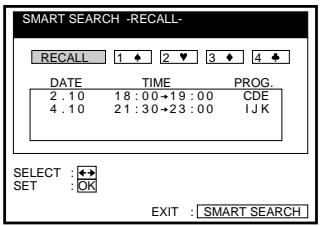
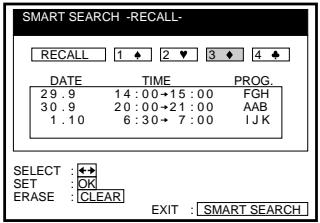
3 Appuyez sur EFFACER. Les informations de programme sont supprimées.
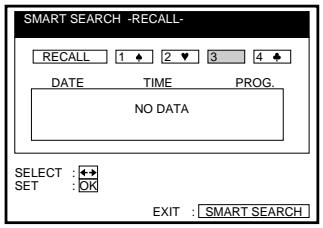
4 Appuyez sur RECHERCHE INTELLIGENTE. L'écran RECHERCHE INTELLIGENTE disparaît.
Remarque
À propos du mode de démonstration
La fonction Smart Search Plus dispose d'un mode de démonstration qui permet à l'utilisateur, comme un vendeur, d'afficher automatiquement les écrans Smart Search Plus.
Pour activer le mode de démonstration
Lorsque le magnétoscope est allumé, maintenez enfoncés les boutons (arrêt) et (éjection) du magnétoscope pendant quelques secondes. La démonstration démarre et les quatre types d'écrans Smart Search Plus s'affichent en boucle. Si vous utilisez le magnétoscope, le mode de démonstration s'interrompt temporairement. Après environ cinq minutes, la démonstration reprend.
Pour annuler le mode de démonstration
Lorsque le magnétoscope est éteint, maintenez enfoncés les boutons (arrêt) et (éjection) du magnétoscope pendant quelques secondes. Vous pouvez également annuler le mode de démonstration en éteignant l'appareil et en débranchant le cordon d'alimentation.
Recherche à l'aide de la fonction d'index
Le magnétoscope marque automatiquement la cassette avec un signal d'index au début de chaque enregistrement. Utilisez ces signaux comme références pour trouver un enregistrement spécifique.
1 Insérez une cassette indexée dans le magnétoscope. Appuyez sur ▶INDEX SEARCH.
Pour rechercher vers l'avant, appuyez sur INDEX SEARCH. Pour rechercher vers l'arrière, appuyez sur INDEX SEARCH.
Le magnétoscope commence la recherche et la lecture démarre automatiquement à partir de ce point.
INDEX SEARCH
Pour arrêter la recherche
Appuyez sur STOP.
Notes
- Aucun signal d'index ne sera ajouté lors du démarrage de l'enregistrement à partir d'une pause d'enregistrement. Cependant, un signal d'index sera marqué si vous changez la position du programme pendant la pause d'enregistrement.
- Lorsque vous appuyez sur INDEX SEARCH, si rien n'est enregistré avant le signal d'index sélectionné, la lecture peut ne pas démarrer exactement au signal d'index.
Réglage de l'image
Réglage du tracking
Bien que le magnétoscope ajuste automatiquement le tracking lors de la lecture d'une cassette (le témoin clignote dans la fenêtre d'affichage, puis s'éteint), des distorsions peuvent apparaître si l'enregistrement est de mauvaise qualité. Dans ce cas, ajustez manuellement le tracking.
Pendant la lecture, appuyez sur PROGRAM + / - sur le magnétoscope pour afficher le compteur de tracking. La distorsion devrait disparaître lorsque vous appuyez sur l'un des deux boutons (le témoin s'allume).
Pour reprendre les ajustements automatiques du tracking, éjectez la cassette et réinsérez-la.
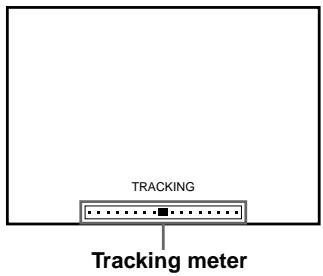
À propos de la fonction Reality Regenerator (RR)
La fonction Reality Regenerator restaure automatiquement la qualité d'image d'origine pendant la lecture.
Pour utiliser la fonction Reality Regenerator
Appuyez sur MENU, puis sélectionnez OPTIONS et appuyez sur OK. 2 Appuyez sur ↑/↓ pour mettre en surbrillance OPTIONS-2, puis appuyez sur OK. 3 Appuyez sur ↑/↓ pour mettre en surbrillance RR, puis appuyez sur OK.
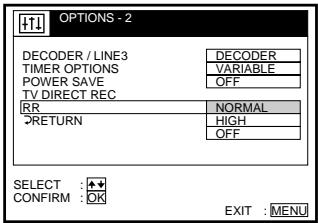
4 Appuyez sur / pour régler RR sur NORMAL ou HIGH, puis appuyez sur OK.
Le témoin RR s'allume dans la fenêtre d'affichage.
Appuyez sur MENU pour revenir à l'écran d'origine.
Pour l'éteindre, sélectionnez OFF à l'étape 4. L'indicateur RR s'éteint dans la fenêtre d'affichage.
À propos de la fonction Optimum Picture Control (OPC)
La fonction Optimum Picture Control (OPC) améliore automatiquement la qualité d'enregistrement et de lecture en ajustant le magnétoscope à l'état des têtes vidéo et de la bande. Pour une meilleure qualité d'image, nous vous recommandons de régler OPC sur ON dans le menu OPTIONS-1 (l'indicateur OPC s'allume dans la fenêtre d'affichage). Pour plus de détails, voir page 84.
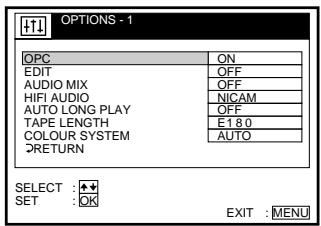
Lecture OPC
La fonction OPC fonctionne automatiquement sur tous les types de bandes, y compris les bandes de location et les bandes qui n'ont pas été enregistrées avec OPC.
Enregistrement OPC
Chaque fois que vous insérez une bande et commencez l'enregistrement pour la première fois, le magnétoscope s'ajuste à la bande à l'aide de la fonction OPC (l'indicateur OPC clignote rapidement). Cet ajustement est conservé jusqu'à l'éjection de la bande.
Pour désactiver la fonction OPC
Réglez OPC sur OFF dans le menu OPTIONS-1. L'indicateur OPC dans la fenêtre d'affichage s'éteint.
Astuce
- Pour régler le tracking sur la position centrale, appuyez simultanément sur les boutons PROGRAM + et - du magnétoscope.
Remarques
- Vous pouvez régler le tracking pour une bande enregistrée en NTSC, mais le compteur de tracking ne s'affichera pas.
- Avec la fonction Auto Long Play activée, la fonction OPC ne fonctionnera qu'en mode SP. Si la vitesse de la bande passe automatiquement de SP à LP, la fonction OPC se désactive. Si, toutefois, l'ensemble du programme est enregistré en mode LP, la fonction OPC fonctionnera.
- Il y a un délai d'environ dix secondes avant que le magnétoscope ne commence réellement l'enregistrement pendant qu'il analyse la bande. Pour éviter ce délai, réglez d'abord le magnétoscope sur pause d'enregistrement (l'indicateur OPC clignote lentement) et appuyez sur REC pour que le magnétoscope analyse la bande (l'indicateur OPC clignote rapidement) et revienne en pause d'enregistrement. Une fois que l'indicateur OPC cesse de clignoter, appuyez sur PAUSE pour démarrer l'enregistrement immédiatement.
Si vous souhaitez démarrer l'enregistrement rapidement sans utiliser la fonction OPC, réglez d'abord le magnétoscope sur pause d'enregistrement (l'indicateur OPC clignote lentement), puis appuyez à nouveau sur PAUSE pour démarrer l'enregistrement.
Réduction de la consommation électrique du magnétoscope
Vous pouvez éteindre les indicateurs de la fenêtre d'affichage lorsque le magnétoscope est éteint (mode veille) afin de réduire sa consommation électrique.
Appuyez sur MENU, puis sélectionnez OPTIONS et appuyez sur OK. 2. Appuyez sur ↑/↓ pour mettre en surbrillance OPTIONS-2, puis appuyez sur OK. 3. Appuyez sur ↑/↓ pour sélectionner POWER SAVE, puis appuyez sur OK.
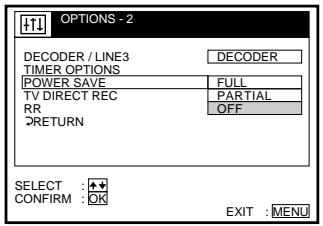
4. Appuyez sur ↑/↓ pour mettre en surbrillance l'option, puis appuyez sur OK. Pour SLV-SE710N/K, SX710N/K et SE810N/K :
- FULL pour réduire la consommation électrique au minimum. PARTIAL pour réduire la consommation électrique.
Pour SLV-SE610N/K : - ON pour réduire la consommation électrique au minimum.
Appuyez sur MENU pour revenir à l'écran d'origine.
Pour allumer les indicateurs de la fenêtre d'affichage
Réglez POWER SAVE sur OFF à l'étape 4.
Remarques
- Lorsque le magnétoscope est en veille pour l'enregistrement, les indicateurs de la fenêtre d'affichage restent allumés même si POWER SAVE est réglé sur FULL, PARTIAL ou ON.
- Si POWER SAVE est réglé sur FULL*, vous ne pouvez pas regarder ni enregistrer les programmes de votre décodeur Canal Plus, satellite ou tuner numérique en mode veille (page 86).
- non disponible sur SLV-SE610N/K
Modification des options du menu
1 Appuyez sur MENU, puis sélectionnez OPTIONS et appuyez sur OK.
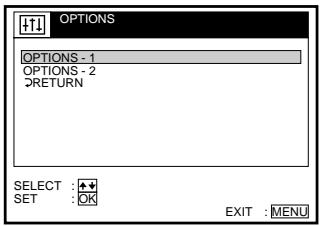
2 Appuyez sur ↑/↓ pour mettre en surbrillance OPTIONS-1 ou OPTIONS-2, puis appuyez sur OK.
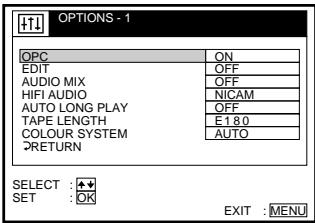
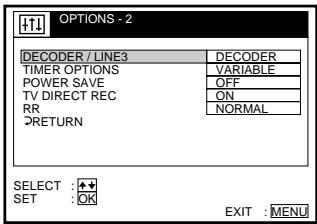
3 Appuyez sur ↑/↓ pour sélectionner l'option, puis appuyez sur OK. 4 Appuyez sur ↑/↓ pour modifier le réglage, puis appuyez sur OK. Appuyez sur MENU pour revenir à l'écran d'origine.
Choix du menu
Les réglages initiaux sont indiqués en gras.
OPTIONS-1
| Menu option | Set this option to |
| OPC | ON to switch on the OPC (Optimum Picture Control) function and improve picture quality. OFF to switch off OPC. |
| EDIT | ON to minimize picture deterioration when editing. OFF to turn off EDIT. |
| AUDIO MIX | ON to listen to the hi-fi and normal audio tracks at the same time. The AUDIO MONITOR button will not function. OFF to listen to the hi-fi and normal audio tracks separately. Select the sound using the AUDIO MONITOR button. If you press ▲ EJECT, AUDIO MIX will be reset to OFF. For details, see page 72. |
| HIFI AUDIO*1 | ·NICAM to record NICAM broadcasts on the hi-fi audio track. ·STANDARD to record standard sound on the hi-fi audio track. For details, see page 70. |
| AUTO LONG PLAY | ·ON to change the timer recording tape speed automatically to the LP mode when the remaining tape length becomes shorter than the recording time. Note that for AUTO LONG PLAY to work correctly, the TAPE LENGTH setting must be accurate. ·OFF to keep the set tape speed. |
| TAPE LENGTH | ·E180 to use an E-180 or shorter type tape. ·E195 to use an E-195 type tape. ·E240 to use an E-240 type tape. ·E300 to use an E-300 type tape. |
| COLOUR SYSTEM | ·AUTO to set the colour system automatically. ·PAL to play back a tape recorded in the PAL colour system. ·MESECAM to play back a tape recorded in the MESECAM colour system. If you press ▲ EJECT or turn the VCR off, COLOUR SYSTEM will be reset to AUTO. |
OPTIONS-2
| Menu option | Set this option to |
| DECODER/ LINE2*2 | • DECODER to use the DECODER/LINE-2 IN connector as the Canal Plus decoder connector. • LINE2 to use the DECODER/LINE-2 IN connector as the line input connector. |
| DECODER/ LINE3*3 | • DECODER to use the DECODER/LINE-3 IN connector as the Canal Plus decoder connector. • LINE3 to use the DECODER/LINE-3 IN connector as the line input connector. |
| TIMER OPTIONS*4 | • VARIABLE to display the TIMER METHOD menu for selecting STANDARD or SHOWVIEW when pressing the ◎ TIMER button. • STANDARD to display the TIMER menu when pressing the ◎ TIMER button. • SHOWVIEW to display the SHOWVIEW menu when pressing the ◎ TIMER button. For details, see page 55 and 59. |
| POWER SAVE*4 | FULL to turn off the indicators in the display window during standby mode to reduce the VCR's power consumption to a minimum. For using the Line Through function (page 18) or the decoder (page 39), select PARTIAL or OFF.PARTIAL to turn off the indicators in the display window to conserve the VCR's powerOFF to turn on the indicators in the display window while the VCR is standing by. |
| POWER SAVE*5 | ON to turn off the indicators in the display window during standby mode to reduce the VCR's power consumption to a minimumOFF to turn on the indicators in the display window while the VCR is standing by. |
| TV DIRECT REC*4 | ON to activate the TV Direct Rec function.OFF to deactivate it. |
| RR | NORMAL for normal everyday use.HIGH for well-used video tapes such as rented tapes SELECT this option when NORMAL does not improve the picture quality.OFF to switch off the Reality Regenerator function. |
Remarques
- Lorsque le magnétoscope est en veille pour enregistrement, les indicateurs de la fenêtre d'affichage restent allumés même si POWER SAVE est réglé sur FULL, PARTIAL ou ON.
- Avec l'option EDIT activée, la fonction OPC ne fonctionne pas.
1 SLV-SE610N, SE710N, SX710N et SE810N uniquement 2 SLV-SE710N/K et SX710N/K uniquement 3 SLV-SE810N/K uniquement 4 non disponible sur SLV-SE610N/K 5 SLV-SE610N/K uniquement
Connexion à un magnétoscope ou à une chaîne stéréo
Comment connecter pour enregistrer sur ce magnétoscope
Connectez les sorties ligne de l'autre magnétoscope au connecteur ou aux prises LINE IN de ce magnétoscope. Reportez-vous aux exemples A à C et choisissez la connexion qui convient le mieux à votre magnétoscope.
Exemple A : câble Scart VMC-2121HG (non fourni) Sens du signal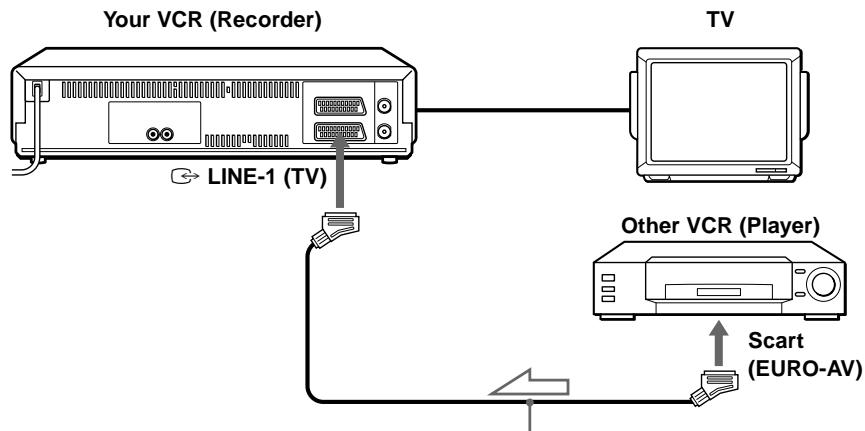
Exemple B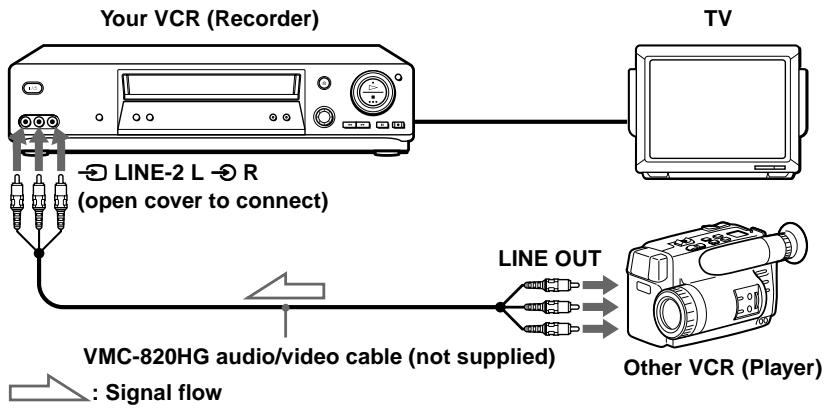
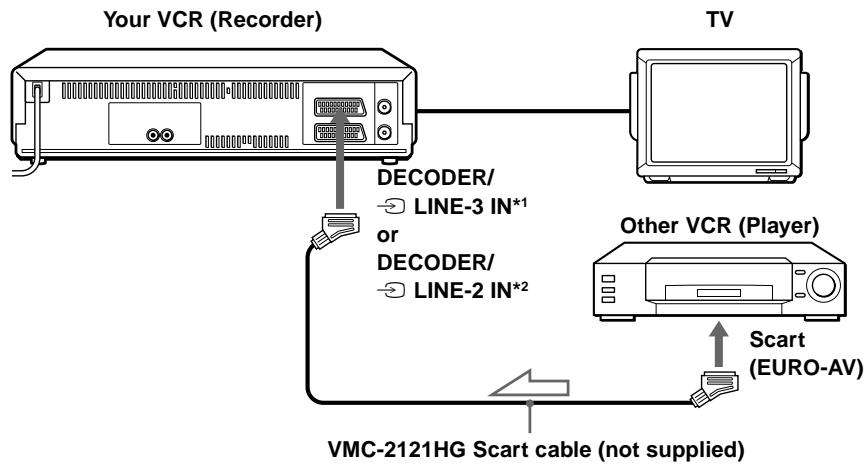

Sens du signal
Comment se connecter à une chaîne stéréo (SLV-SE810N/K uniquement)
Connectez les prises LINE-2 L et R de ce magnétoscope aux prises de sortie audio de la chaîne stéréo, à l'aide du câble audio RK-C510HG (non fourni).
Remarques
- Assurez-vous de connecter les fiches aux prises de même couleur.*1
- Si l'autre magnétoscope est de type monaural, laissez les fiches rouges non connectées.
- Si vous connectez ce magnétoscope à la fois aux prises LINE IN et LINE OUT de l'autre magnétoscope, sélectionnez correctement l'entrée pour éviter un ronflement.
- Si l'autre magnétoscope ne possède pas de connecteur Scart (EURO-AV), utilisez plutôt le câble VMC-2106HG et connectez-le aux prises de sortie ligne de l'autre magnétoscope.
- Lorsque vous connectez un autre magnétoscope au connecteur DECODER/LINE-3 IN*1 (ou DECODER/LINE-2 IN*2), réglez DECODER/LINE3*1 (ou DECODER/LINE2*2) sur LINE3*1 (ou LINE2*2) dans le menu OPTIONS-2.
*1 SLV-SE810N/K uniquement
*2 SLV-SE710N/K et SX710N/K uniquement
Montage de base
(lors de l'enregistrement sur ce magnétoscope)
Avant de commencer le montage
- Allumez votre téléviseur et réglez-le sur le canal vidéo.
- Appuyez sur INPUT SELECT pour afficher la ligne connectée dans la fenêtre d'affichage.
- Appuyez sur SP/LP pour sélectionner la vitesse de bande, SP ou LP.
- Sur ce magnétoscope, réglez EDIT sur ON dans le menu OPTIONS-1. Si l'autre magnétoscope a une fonction similaire, activez-la également.
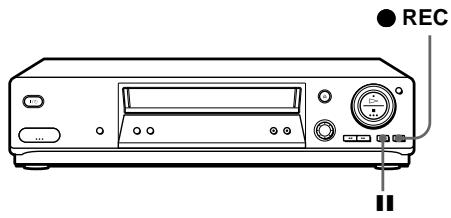
1 Insérez une cassette source dont la languette de protection est retirée dans l'autre magnétoscope (lecture). Recherchez le point de départ de la lecture et mettez-le en pause de lecture. 2 Insérez une cassette avec sa languette de protection en place dans ce magnétoscope (enregistrement). Recherchez le point de départ de l'enregistrement et appuyez sur I (pause). 3 Appuyez sur ● REC sur ce magnétoscope pour le mettre en pause d'enregistrement. 4 Pour commencer le montage, appuyez simultanément sur les boutons (pause) des deux magnétoscopes.
Pour arrêter le montage
Appuyez sur les boutons ■ (arrêt) des deux magnétoscopes.
Astuce
- Pour couper les scènes indésirables pendant le montage, appuyez sur I (pause) sur ce magnétoscope lorsqu'une scène indésirable commence. Lorsqu'elle se termine, appuyez à nouveau sur I (pause) pour reprendre l'enregistrement.
Remarque
- Si vous commencez le montage en suivant la procédure ci-dessus, le magnétoscope ne démarrera pas l'enregistrement avec la fonction OPC. Pour enregistrer une cassette avec la fonction OPC, appuyez à nouveau sur ● REC pendant la pause d'enregistrement à l'étape 3 afin que le magnétoscope analyse la cassette. Ensuite, appuyez sur ■ (pause) après que l'indicateur OPC cesse de clignoter pour démarrer l'enregistrement. Si vous appuyez sur ■ (pause) avant que l'indicateur OPC cesse de clignoter, la fonction OPC est annulée.
Doublage audio (SLV-SE810N/K uniquement)
Cette fonction vous permet d'enregistrer par-dessus la piste audio normale. Le son monophonique précédemment enregistré est remplacé tandis que le son hi-fi d'origine reste inchangé. Utilisez cette fonction pour ajouter des commentaires à une cassette que vous avez enregistrée avec un caméscope.
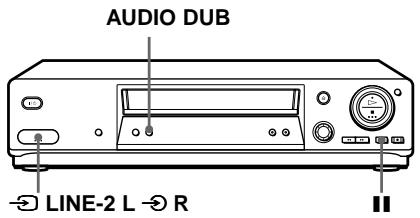
Avant de commencer...
- Ouvrez le couvercle des prises LINE-2 L/R sur la face avant et connectez une source de lecture.
- Allumez le téléviseur et réglez-le sur la chaîne vidéo.
1 Insérez une cassette source dans votre chaîne stéréo (ou le magnétoscope de lecture). Recherchez le point de départ de la lecture et mettez-le en pause de lecture. 2 Insérez une cassette préenregistrée avec sa languette de protection en place dans ce magnétoscope (d'enregistrement). Recherchez le début de la section à remplacer et appuyez sur I (pause).
Le magnétoscope passe en mode pause.
3 Appuyez sur AUDIO DUB. La position du programme change à « L2 » et l'indicateur apparaît dans la fenêtre d'affichage. 4 Pour démarrer le montage, appuyez simultanément sur les boutons (pause) de ce magnétoscope et de la chaîne stéréo (ou de l'autre magnétoscope).
Après avoir utilisé cette fonction, l'audio en mode lecture est automatiquement réglé sur monaural.
Pour arrêter le montage
Appuyez sur (stop) sur ce magnétoscope et sur la chaîne stéréo (ou l'autre magnétoscope).
Pour écouter à la fois l'audio hi-fi et l'audio normal
Réglez AUDIO MIX sur ON dans le menu OPTIONS-1 (page 84). Utilisez cette fonction pour écouter l'audio doublé par-dessus l'audio hi-fi d'origine. Lorsque AUDIO MIX est sur ON, le bouton AUDIO MONITOR ne fonctionne pas.
N'oubliez pas de remettre AUDIO MIX sur OFF après avoir lu la cassette.
Remarque
- Si vous éjectez la cassette ou éteignez le magnétoscope, AUDIO MIX est automatiquement réglé sur OFF.
Dépannage
Si vous avez des questions ou des problèmes non couverts ci-dessous, veuillez consulter votre centre de service Sony le plus proche.
| Symptom | Remedy | |
| Power | The I/O (on/standby) switch does not function. | Connect the mains lead to the mains securely. |
| The power is turned on but the VCR does not operate. | Moisture condensation has occurred. Turn the power off, unplug the mains lead and leave the VCR to dry for over three hours. | |
| The VCR is plugged in but the display window remains dark. | Set POWER SAVE in the OPTIONS-2 menu to OFF (see page 86). | |
| Clock | The clock has stopped and “-:-” appears in the display window. | The clock stops if the VCR is disconnected from the mains for more than one hour. Reset the clock (and timer). |
| Playback | The playback picture does not appear on the TV screen. | Make sure the TV is set to the video channel. If you are using a monitor, set it to video input. If the VCR is connected to the TV with the Scart cable, make sure the VIDEO indicator is lit in the display window. Use the TV/VIDEO button on the remote commander to light up the VIDEO indicator. |
| The picture is not clear. | If your TV is connected to the VCR with both Scart and aerial cables, make sure the RF channel is set to OFF (see page 21). Existing broadcasts may interfere with the VCR. Reset the RF channel output of your VCR. Adjust the tracking with the PROGRAM +/- buttons on the VCR. The video heads are dirty (see the last page of Troubleshooting). Clean the video heads using the Sony T-25CLD, E-25CLDR, or T-25CLW video head cleaning cassette. If these cleaning cassettes are not available in your area, have the heads cleaned at your nearest Sony service facility (a standard service charge will be required). Do not use a commercially available liquid type cleaning cassette other than Sony's, as it may damage the video heads. The video heads may have to be replaced. Consult your local Sony service facility for more information. | |
| The picture has no colour. | The COLOUR SYSTEM option in the OPTIONS-1 menu is set to the wrong position. Set the option to conform to the system that the tape was recorded in. | |
| Playback | The picture rolls vertically during picture search. | ·Adjust the vertical hold control on the TV or monitor. |
| The picture has no sound. | ·The tape is defective. ·If you made A/V connections, check the audio cable connection. | |
| The sound is unstable or has an echo. | ·When you play a tape with the same sound recorded on both the hi-fi and normal audio tracks, make sure AUDIO MIX in the OPTIONS-1 menu is set to OFF. | |
| The sound from a tape recorded with the VCR is not in stereo or the STEREO indicator in the display window is flashing. | ·Adjust the tracking. ·The video heads are dirty. Clean the video heads using the Sony T-25CLD, E-25CLDR, or T-25CLW video head cleaning cassette as explained above. | |
| Recording | No TV programme appears on the TV screen. | ·Make sure the TV is set to the video channel. If you are using a monitor, set it to video input. ·If your TV is connected to the VCR with both Scart and aerial cables, make sure the RF channel is set to OFF (see page 21). ·Existing broadcasts may interfere with the VCR. Reset the RF channel output of your VCR. ·Select the correct source with the INPUT SELECT button. Select a programme position when recording TV programmes; select a line input when recording from other equipment. |
| TV reception is poor. | ·Make sure the aerial cable is connected securely. ·Adjust the TV aerial. ·Make sure the TV system is correctly set for your TV. ·Make sure SYSTEM (B/G or D/K) in the TUNER menu is set to the same system in your local area. | |
| The tape starts playing as soon as it is inserted. | ·The safety tab has been removed. To record on this tape, cover the tab hole (see page 47). | |
| The tape is ejected when you press ●REC. | ·The safety tab has been removed. To record on this tape, cover the tab hole (see page 47). | |
| Nothing happens when you press ●REC. | ·Make sure the tape is not at its end. | |
| Timer recording | The timer does not operate. | ·Check that the clock is set. ·Make sure a tape has been inserted. ·Check that the safety tab has not been removed. ·Make sure the tape is not at its end. ·Make sure a programme has been set for timer recording. ·Make sure your timer settings are past the current time. ·Check that the decoder is turned on. ·Check that the satellite tuner is turned on. ·The clock stops if the VCR is disconnected from the mains for more than one hour. Reset the clock and timer. ·Turn the power off and unplug the mains lead. |
| The SHOWVIEW menu or the TIMER menu does not appear. | ·Check that TIMER OPTIONS in the OPTIONS-2 menu is set correctly (see page 85). | |
| The VPS/PDC function does not operate properly. | ·Check that the clock and the date are set correctly. ·Check that the VPS/PDC time you set is the correct one (there might be a mistake in the TV programme guide). If the broadcast you wanted to record did not send the good VPS/PDC information, the VCR will not start recording. ·If the reception is poor, the VPS/PDC signal might be altered and the VCR might not start recording. | |
| Synchronized Recording | The SYNCHRO REC button turns off while recording or does not go back to recording standby mode. | ·The tape has reached its end. Insert a new tape and press SYNCHRO REC again. |
| The Synchronized Recording function does not work. | ·The connected equipment was not turned off. Turn off the connected equipment and press SYNCHRO REC again. ·There was a power failure. Press SYNCHRO REC again. | |
| The programme recorded with the Synchronized Recording function is incomplete. | ·If the settings for timer recordings and Synchronized Recording overlap, the programme that starts first has priority and the second programme starts recording only after the first programme has finished. ·There was a power failure. Press SYNCHRO REC again. | |
| PAY-TV/Canal Plus | You cannot set channels as PAY-TV/Canal Plus in the TUNER menu. | ·Check that DECODER/LINE3 (or DECODER/LINE2) in the OPTIONS-2 menu is set to DECODER (see page 85). |
| You cannot watch Canal Plus programmes when the VCR is in standby mode. | ·Check that DECODER/LINE3 (or DECODER/LINE2) in the OPTIONS-2 menu is set to DECODER (see page 85).·Make sure the Canal Plus Scart cable is plugged securely.·Check that POWER SAVE in the OPTIONS-2 menu is set to PARTIAL or OFF (see page 86). | |
| A Canal Plus programme is always recorded scrambled. | ·Make sure the Canal Plus Scart cable is plugged securely.·Check that DECODER/LINE3 (or DECODER/LINE2) in the OPTIONS-2 menu is set to DECODER (see page 85).·Check that this channel is set as PAY-TV/Canal Plus in the TUNER menu (see page 39). | |
| Others | A tape cannot be inserted. | ·Check that a tape isn't already in the tape compartment. |
| The remote commander does not function. | ·Make sure you are pointing the remote commander at the remote sensor on the VCR.·Replace all the batteries in the remote commander with new ones if they are weak.·Make sure the TV /VIDEO remote control switch is set correctly. | |
| The selected input line connector number does not appear in the display window. | ·Check that DECODER/LINE3 (or DECODER/LINE2) in the OPTIONS-2 menu is set to LINE3 (or LINE2) (see page 85). | |
| The SMARTLINK function does not work. | ·Check that your TV complies with SMARTLINK, MEGALOGIC, EASYLINK, Q-Link, EURO VIEW LINK, or T-V LINK.·Make sure you use the Scart cable to connect the VCR and your TV.·Make sure the Scart cable is connected securely. | |
| The tracking meter does not appear on the TV screen. | ·The recording condition of the tape is very poor and tracking cannot be adjusted.·The tracking meter does not appear when playing back an NTSC-recorded tape. | |
| You cannot control other TVs. | ·Set your TV's code number. The code number may change when you replace the batteries of the remote commander. | |
| The display window becomes dim. | ·The display window automatically becomes dim when the VCR is in standby or timer recording mode. | |
| The VCR needs to be cleaned. | ·Clean the cabinet, panel and controls with a dry, soft cloth, or a soft cloth slightly moistened with a mild detergent solution. Do not use any type of solvent, such as alcohol or benzine. |
Symptômes causés par des têtes vidéo contaminées
Image normale - Image grossière Image floue - Pas d'image (ou écran noir et blanc)


contamination initiale terminale
Spécifications
Système
Couverture des canaux
PAL (B/G, D/K)
VHF E2-E12, R1-R12
UHF E21-E69, R21-R69
CATV S1-S41, S01-S05
Signal de sortie RF
Canaux UHF 21-69
Sortie antenne
Prise antenne asymétrique 75 ohms
Vitesse de bande
SP : PAL/MESECAM
23,39 mm/s (enregistrement/lecture)
NTSC
33,35 mm/s (lecture uniquement)
LP : PAL/MESECAM
11,70 mm/s (enregistrement/lecture)
NTSC
16,67 mm/s (lecture uniquement)
EP : NTSC
11,12 mm/s (lecture uniquement)
Durée maximale d'enregistrement/lecture
10 h en mode LP (avec cassette E300)
Temps d'avance rapide et de rembobinage
Environ 1 min (avec cassette E180)
Entrées et sorties
→ LIGNE-1 (TV)
21 broches
Entrée vidéo : broche 20
Entrée audio : broches 2 et 6
Sortie vidéo : broche 19
Sortie audio : broches 1 et 3
DÉCODEUR/LIGNE-2 IN
(SLV-SE710N/K, SX710N/K)
21 broches
Entrée vidéo : broche 20
Entrée audio : broches 2 et 6
DÉCODEUR/LIGNE-3 IN
(SLV-SE810N/K)
21 broches
Entrée vidéo : broche 20
Entrée audio : broches 2 et 6
LIGNE-2 L → R (SLV-SE810N/K)
ENTRÉE VIDÉO, prise phono (1)
Signal d'entrée : 1 Vc-c, 75 ohms,
asymétrique, synchronisation négative
ENTRÉE AUDIO, prise phono (2)
Niveau d'entrée : 327 mVrms
Impédance d'entrée : supérieure à 47 kilohms
⇒ R/D L/G (SLV-SE710N/K, SX710N/K,
SE810N/K)
Prise phono (2)
Niveau de sortie nominal : 327 mVrms
Impédance de charge : 47 kilohms
Impédance de sortie : inférieure à 10 kilohms
Généralités
Alimentation : 220 - 240 V CA, 50 Hz
Consommation électrique : 20 W
1,2 W (mode ÉCONOMIE D'ÉNERGIE réglé sur COMPLET/ACTIVÉ, minimum)
Température de fonctionnement : 5 °C à 40 °C
Température de stockage : -20 °C à 60 °C
Dimensions, parties saillantes et commandes comprises
Environ 430 × 98 × 283 mm (l / h / p)
(SLV-SE610N/K, SE710N/K, SX710N/K)
Environ 430 × 98 × 289 mm (l / h / p)
(SLV-SE810N/K)
Masse
Environ 4,1 kg
Accessoires fournis
Télécommande (1)
2 piles R6 (format AA)
1 câble d'antenne
La conception et les spécifications sont sujettes à modification sans préavis.
Index
A
Réglage
image 33, 81
piste 81
Branchement de l'antenne 15
AFT (réglage fin automatique) 33
Doublage audio 90
Piste audio 71
Réglage automatique de l'horloge 27
Lecture longue automatique 85
Configuration automatique 22
C
Canal Plus 39
CATV (Cable Television) 30, 41
Changement des positions de programme 34
Changement des noms de station 37
Nettoyage des têtes vidéo 91
Réglage de l'horloge 25
Système de couleur : systèmes de couleur compatibles 2, réglage 44
Connexion
du magnétoscope et de votre téléviseur 15, 16
à un tuner satellite 18
à un système stéréo 18
à un téléviseur avec connecteur Scart
(EURO-AV) 16
Compteur 44
Démonstration 54, 79
Minuterie de dialogue 50
Désactivation du programme
positions 35
Doublage. Voir Montage
E
Montage 87
Mode EP 45
H
Piste audio Hi-fi 71
1
Recherche d'index 80
L
Sélection de la langue 29
LP mode 46
M
Monophonique 70
Contrôle pendant la lecture 71
pendant l'enregistrement 70
N
Émissions NICAM 70
Piste audio normale 71
O
OPC (Optimum Picture
Control) 82
Réglage optionnel 84
P
PAY-TV 39
PDC (Programme Delivery
Control) 57
Picture adjustment. See
Adjusting
Playback 44
at various speeds 63
frame-by-frame 63
selecting the sound 71
slow motion 63
Power save 83, 86
Presetting channels 30
R
Reality Regenerator 81
Recording 46
bilingual programmes 70
duration time 65
enregistrement 47
programmes stéréo 70
réglage de la minuterie 59
utilisation de la minuterie à cadran 50
utilisation du système ShowView
système 55
ce que vous regardez à
la télévision 48
pendant que vous regardez un autre
programme 47
canal RF 19, 21
s
onglet Sécurité 47
connexion Scart 16
Recherche
à différentes vitesses 63
utilisation de la fonction index 80
utilisation de la fonction Smart Search 73
ShowView
enregistrement 55
Smart Search 73
SMARTLINK
mise hors tension automatique 17
menu One Touch 17
lecture One Touch 17, 45
minuterie One Touch 17
téléchargement de préréglages 17
enregistrement direct TV 17, 48
mode SP 46
stéréo 70
Enregistrement synchronisé 66
T
Réglage de la minuterie 59
annulation 68
modification 68
vérification 68
enregistrement quotidien/hebdomadaire 57, 60
utilisation de la minuterie à cadran 50
utilisation du système ShowView 55
Réglage de la poursuite. Voir
Réglage
V
VPS (Système de
programme vidéo) 57
Z
Guide de démarrage rapide
1 Connexion du magnétoscope
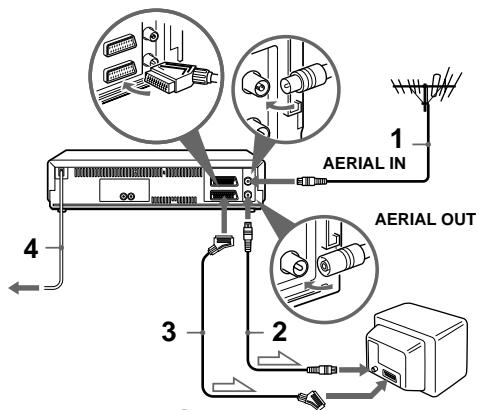
: Flux du signal LINE-1 (TV)
1... Connectez l'antenne à l'entrée AERIAL IN du magnétoscope. 2... Connectez la sortie AERIAL OUT à l'entrée antenne de votre téléviseur à l'aide du câble d'antenne fourni. 3... Pour une meilleure image et un meilleur son, connectez LINE-1 (TV) à votre téléviseur à l'aide d'un câble Scart si votre téléviseur possède un connecteur Scart (EURO-AV). 4... Connectez le cordon d'alimentation au secteur.
2 Réglage de votre téléviseur sur le magnétoscope
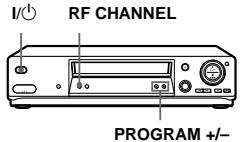
A Si votre téléviseur ne possède pas de connecteur Scart (EURO-AV)
1... Appuyez sur I/ (marche/veille) pour allumer le magnétoscope. 2... Appuyez légèrement sur RF CHANNEL sur le magnétoscope. 3... Allumez votre téléviseur et sélectionnez une position de programme pour l'image du magnétoscope. 4... Appuyez sur RF CHANNEL. 5... Appuyez sur PROGRAM + / - (à plusieurs reprises) pour sélectionner le système de télévision approprié pour votre région (G ou K).
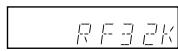
6... Réglez le téléviseur sur le même canal que celui affiché dans la fenêtre d'affichage du magnétoscope afin que SONY VIDEO CASSETTE REORDER apparaisse clairement à l'écran. Reportez-vous au manuel d'instructions de votre téléviseur pour les instructions de réglage. 7... Appuyez sur RF CHANNEL.
B Si votre téléviseur possède un connecteur Scart (EURO-AV)
1... Appuyez sur I/ (marche/veille) pour allumer le magnétoscope. 2... Appuyez légèrement sur RF CHANNEL sur le magnétoscope. 3... Appuyez sur PROGRAM + / - pour régler le canal RF sur OFF.
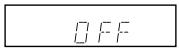
4... Appuyez sur RF CHANNEL.
3 Utilisation de la fonction de configuration automatique
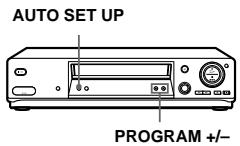
Vous pouvez régler la langue de l'affichage à l'écran et les chaînes.
1... Maintenez enfoncée la touche AUTO SET UP sur le magnétoscope pendant plus de trois secondes. 2... Appuyez sur PROGRAM + / - pour sélectionner l'abréviation de votre pays dans le "tableau des abréviations de pays". 3... Appuyez légèrement sur AUTO SET UP.
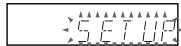
Lorsque tous les canaux recevables sont préréglés, « SET UP » disparaît de la fenêtre d'affichage. Vous pouvez réorganiser les positions de programme dans l'ordre de votre choix (voir « Modification/désactivation des positions de programme »).
Vous pouvez maintenant utiliser votre magnétoscope.




- MAGNÉTOSCOPE
- AVERTISSEMENT
- PRÉCAUTIONS
- SÉCURITÉ
- INSTALLATION
- SYSTÈMES DE COULEURS COMPATIBLES
- TABLE DES MATIÈRES
- PRÉPARATION
- OPÉRATIONS DE BASE
- OPÉRATIONS SUPPLÉMENTAIRES
- MONTAGE
- INFORMATIONS COMPLÉMENTAIRES
- DOS DE COUVERTURE
- INDEX DES PIÈCES ET COMMANDES
- PANNEAU AVANT
- SLV-SE810N/K
- COMMENT OUVRIR LE COUVERCLE DES PRISES
- TÉLÉCOMMANDE
- ÉTAPE 1 : DÉBALLAGE
- VÉRIFIEZ LE NOM DE VOTRE MODÈLE
- ÉTAPE 2 : RÉGLAGE DE LA TÉLÉCOMMANDE
- INSERTION DES PILES
- UTILISATION DE LA TÉLÉCOMMANDE
- REMARQUES
- CONTRÔLE D'AUTRES TÉLÉVISEURS AVEC LA TÉLÉCOMMANDE (SLV-SE810N/K UNIQUEMENT)
- CODES DES TÉLÉVISEURS CONTRÔLABLES
- ASTUCE
- ÉTAPE 3 : CONNEXION DU MAGNÉTOSCOPE
- REMARQUE
- SI VOTRE TÉLÉVISEUR DISPOSE D'UN CONNECTEUR SCART (EURO-AV)
- À PROPOS DES FONCTIONS SMARTLINK (NON DISPONIBLES SUR LE SLV-SE610N/K)
- RACCORDEMENTS SUPPLÉMENTAIRES
- À UN SYSTÈME STÉRÉO (NON DISPONIBLE SUR SLV-SE610N/K)
- À UN TUNER SATELLITE OU NUMÉRIQUE AVEC LINE THROUGH (NON DISPONIBLE SUR SLV-SE610N/K)
- ÉTAPE 4 : RÉGLAGE DE VOTRE TÉLÉVISEUR SUR LE MAGNÉTOSCOPE
- SI VOTRE TÉLÉVISEUR NE POSSÈDE PAS DE CONNECTEUR SCART (EURO-AV)
- POUR VÉRIFIER SI LE RÉGLAGE DU TÉLÉVISEUR EST CORRECT
- POUR OBTENIR UNE IMAGE CLAIRE DU MAGNÉTOSCOPE
- SI VOTRE TÉLÉVISEUR POSSÈDE UN CONNECTEUR SCART (EURO-AV)
- ÉTAPE 5 : RÉGLAGE DU MAGNÉTOSCOPE AVEC LA FONCTION DE CONFIGURATION AUTOMATIQUE
- LES ABRÉVIATIONS DES PAYS ET DES LANGUES SONT LES SUIVANTES
- POUR ANNULER LA FONCTION DE RÉGLAGE AUTOMATIQUE
- ÉTAPE 6 : RÉGLAGE DE L'HORLOGE
- RÉGLAGE MANUEL DE L'HORLOGE
- AVANT DE COMMENCER
- CONSEILS
- CHANGEMENT DE LA STATION POUR LA FONCTION DE RÉGLAGE AUTOMATIQUE DE L'HORLOGE (NON DISPONIBLE SUR SLV-SE610N/K)
- SÉLECTION D'UNE LANGUE
- PRÉRÉGLAGE DES CHAÎNES
- SI L'IMAGE N'EST PAS NETTE
- MODIFICATION/DÉSACTIVATION DES POSITIONS DE PROGRAMME
- MODIFICATION DES POSITIONS DE PROGRAMME
- DÉSACTIVATION DES POSITIONS DE PROGRAMME INUTILISÉES
- CHANGEMENT DES NOMS DE STATIONS (NON DISPONIBLE SUR SLV-SE610N/K)
- RÉGLAGE DU DÉCODEUR CANAL PLUS (NON DISPONIBLE SUR LE SLV-SE610N/K)
- CONNEXION D'UN DÉCODEUR
- RÉGLAGE DES CHAÎNES CANAL PLUS
- LECTURE D'UNE CASSETTE
- TÂCHES SUPPLÉMENTAIRES
- POUR RÉGLER LE SYSTÈME DE COULEUR
- POUR UTILISER LE COMPTEUR DE TEMPS
- DÉMARRAGE AUTOMATIQUE DE LA LECTURE EN UNE SEULE TOUCHE (ONE TOUCH PLAY) (NON DISPONIBLE SUR SLV-SE610N/K)
- ENREGISTREMENT DE PROGRAMMES TV
- POUR VÉRIFIER LE TEMPS RESTANT
- POUR REGARDER UNE AUTRE CHAÎNE DE TÉLÉVISION PENDANT L'ENREGISTREMENT
- POUR PROTÉGER UN ENREGISTREMENT
- ENREGISTREMENT DE CE QUE VOUS REGARDEZ À LA TÉLÉVISION (ENREGISTREMENT DIRECT TV) (NON DISPONIBLE SUR LE SLV-SE610N/K)
- ENREGISTREMENT DE PROGRAMMES TV À L'AIDE DE LA MINUTERIE À CADRAN
- (SLV-SE810N/K UNIQUEMENT)
- POUR REVENIR À L'ÉTAPE PRÉCÉDENTE
- POUR ARRÊTER L'ENREGISTREMENT
- POUR UTILISER LE MAGNÉTOSCOPE APRÈS AVOIR RÉGLÉ LE MINUTEUR
- POUR RÉGLER L'HORLOGE
- À PROPOS DU MODE DE DÉMONSTRATION
- POUR ACTIVER LE MODE DE DÉMONSTRATION
- POUR ANNULER LE MODE DE DÉMONSTRATION
- ENREGISTREMENT DE PROGRAMMES TV À L'AIDE DU SYSTÈME SHOWVIEW (NON DISPONIBLE SUR LE MODÈLE SLV-SE610N/K)
- ENREGISTREMENT QUOTIDIEN/HEBDOMADAIRE
- ENREGISTREMENT PROGRAMMÉ AVEC SIGNAUX VPS/PDC
- POUR ENREGISTRER DES ÉMISSIONS SATELLITE
- POUR UTILISER LE MAGNÉTOSCOPE APRÈS AVOIR RÉGLÉ LA MINUTERIE
- ENREGISTREMENT DE PROGRAMMES TV À L'AIDE DE LA MINUTERIE
- LECTURE/RECHERCHE À DIFFÉRENTES VITESSES
- POUR REPRENDRE LA LECTURE NORMALE
- UTILISATION DE LA BAGUE DE NAVETTE (SLV-SE810N/K UNIQUEMENT)
- POUR UTILISER LA BAGUE DE NAVETTE EN MODE NORMAL
- POUR UTILISER LA BAGUE DE NAVETTE EN MODE JOG
- RÉGLAGE DE LA DURÉE D'ENREGISTREMENT
- POUR PROLONGER LA DURÉE
- POUR ANNULER LA DURÉE
- ENREGISTREMENT SYNCHRONISÉ (NON DISPONIBLE SUR SLV-SE610N/K)
- COMMENT CONNECTER POUR L'ENREGISTREMENT SYNCHRONISÉ
- ENREGISTREMENT DE PROGRAMMES À L'AIDE DE LA FONCTION D'ENREGISTREMENT SYNCHRONISÉ
- POUR ANNULER LA FONCTION D'ENREGISTREMENT SYNCHRONISÉ
- VÉRIFICATION, MODIFICATION OU ANNULATION DES RÉGLAGES DE MINUTERIE
- LORSQUE LES RÉGLAGES DE MINUTERIE SE CHEVAUCHENT
- ENREGISTREMENT DE PROGRAMMES STÉRÉO ET BILINGUES
- SYSTÈME ZWEITON (STÉRÉO ALLEMAND)
- POUR SÉLECTIONNER LE SON BILINGUE PENDANT L'ENREGISTREMENT
- SYSTÈME NICAM
- (SLV-SE610N, SE710N, SX710N ET SE810N UNIQUEMENT)
- POUR SÉLECTIONNER LE SON PENDANT L'ENREGISTREMENT
- SÉLECTION DU SON PENDANT LA LECTURE
- COMMENT LE SON EST ENREGISTRÉ SUR UNE CASSETTE VIDÉO
- RECHERCHE À L'AIDE DE LA FONCTION SMART SEARCH
- POUR ARRÊTER LA RECHERCHE
- POUR QUITTER L'ÉCRAN SMART SEARCH
- POUR ENREGISTRER DANS UN ESPACE VIERGE
- STOCKAGE, RECHERCHE ET SUPPRESSION DES INFORMATIONS DE PROGRAMME (SMART SEARCH PLUS)
- STOCKAGE DES INFORMATIONS DE PROGRAMME
- POUR ATTRIBUER UN NUMÉRO DE MÉMOIRE APRÈS L'ENREGISTREMENT
- RECHERCHE DES INFORMATIONS DE PROGRAMME STOCKÉES SUR LE NUMÉRO DE BANQUE DE MÉMOIRE
- RAPPEL DES INFORMATIONS DU PROGRAMME LE PLUS RÉCENT
- SUPPRESSION DES INFORMATIONS DE PROGRAMME
- RECHERCHE À L'AIDE DE LA FONCTION D'INDEX
- NOTES
- RÉGLAGE DE L'IMAGE
- RÉGLAGE DU TRACKING
- À PROPOS DE LA FONCTION REALITY REGENERATOR (RR)
- POUR UTILISER LA FONCTION REALITY REGENERATOR
- À PROPOS DE LA FONCTION OPTIMUM PICTURE CONTROL (OPC)
- LECTURE OPC
- ENREGISTREMENT OPC
- POUR DÉSACTIVER LA FONCTION OPC
- RÉDUCTION DE LA CONSOMMATION ÉLECTRIQUE DU MAGNÉTOSCOPE
- POUR ALLUMER LES INDICATEURS DE LA FENÊTRE D'AFFICHAGE
- MODIFICATION DES OPTIONS DU MENU
- CHOIX DU MENU
- OPTIONS
- CONNEXION À UN MAGNÉTOSCOPE OU À UNE CHAÎNE STÉRÉO
- COMMENT CONNECTER POUR ENREGISTRER SUR CE MAGNÉTOSCOPE
- COMMENT SE CONNECTER À UNE CHAÎNE STÉRÉO (SLV-SE810N/K UNIQUEMENT)
- MONTAGE DE BASE
- AVANT DE COMMENCER LE MONTAGE
- POUR ARRÊTER LE MONTAGE
- DOUBLAGE AUDIO (SLV-SE810N/K UNIQUEMENT)
- POUR ÉCOUTER À LA FOIS L'AUDIO HI-FI ET L'AUDIO NORMAL
- DÉPANNAGE
- SYMPTÔMES CAUSÉS PAR DES TÊTES VIDÉO CONTAMINÉES
- SPÉCIFICATIONS
- SYSTÈME
- ENTRÉES ET SORTIES
- GÉNÉRALITÉS
- ACCESSOIRES FOURNIS
- INDEX
- A
- C
- E
- H
- L
- M
- N
- O
- P
- R
- S
- T
- V
- Z
- GUIDE DE DÉMARRAGE RAPIDE
- CONNEXION DU MAGNÉTOSCOPE
- RÉGLAGE DE VOTRE TÉLÉVISEUR SUR LE MAGNÉTOSCOPE
- UTILISATION DE LA FONCTION DE CONFIGURATION AUTOMATIQUE
- VOUS POUVEZ MAINTENANT UTILISER VOTRE MAGNÉTOSCOPE
Marque : SONY
Modèle : SLV-SE710K
Catégorie : Enregistreur vidéo