
MZ-NE410 - Lecteur MiniDisc SONY - Notice d'utilisation et mode d'emploi gratuit
Retrouvez gratuitement la notice de l'appareil MZ-NE410 SONY au format PDF.


| Type de produit | Lecteur MiniDisc portable |
| Marque | Sony |
| Modèle | MZ-NE410 |
| Dimensions (l × h × p) | 81 × 28,9 × 74,4 mm (sans saillies) |
| Poids (appareil seul) | Environ 106 g |
| Alimentation | 1 pile alcaline LR6 (AA) non fournie |
| Autonomie (lecture SP) | Environ 42 heures |
| Autonomie (lecture LP2) | Environ 48 heures |
| Autonomie (lecture LP4) | Environ 56 heures |
| Nombre de pistes transferables (SP) | 75 pistes (environ 5 min chacune) |
| Modes de lecture | Normal, 1 piste, Aléatoire, Répétition, Lecture par groupe |
| Fonctions audio | DSP TYPE-S, Digital Sound Preset (grave/aigu), G-PROTECTION, AVLS |
| Fonction groupe | Oui, jusqu'à 99 groupes par disque |
| Connectivité | USB 1.1 (câble dédié fourni) pour transfert Net MD |
| Logiciel fourni | SonicStage Ver. 1.5 et Net MD Simple Burner Ver. 1.1 (CD-ROM) |
| Accessoires fournis | Écouteurs, câble USB, CD-ROM |
| Entretien et nettoyage | Chiffon doux sec ; ne pas utiliser de solvants ; nettoyer les fiches et les bornes |
| Sécurité | Ne pas exposer à la pluie, à la chaleur excessive, aux champs magnétiques ; utiliser la fonction HOLD pour éviter les manipulations accidentelles |
| Pièces détachées et réparabilité | Piles disponibles ; pour toute réparation, contacter un centre Sony agréé |
| Informations générales | Compatibilité Windows (XP, Me, 2000, 98 SE) ; logiciel non compatible Macintosh |
FOIRE AUX QUESTIONS - MZ-NE410 SONY
Questions des utilisateurs sur MZ-NE410 SONY
0 question sur cet appareil. Repondez a celles que vous connaissez ou posez la votre.
Poser une nouvelle question sur cet appareil
Téléchargez la notice de votre Lecteur MiniDisc au format PDF gratuitement ! Retrouvez votre notice MZ-NE410 - SONY et reprennez votre appareil électronique en main. Sur cette page sont publiés tous les documents nécessaires à l'utilisation de votre appareil MZ-NE410 de la marque SONY.
MODE D'EMPLOI MZ-NE410 SONY
Enregistreur MiniDisc portable
Mode d'emploi
Utilisation de l'enregistreur, page 11
Utilisation du logiciel

WALKMAN
NetMD

MDLP
"WALKMAN" est une marque déposée de Sony Corporation pour représenter les produits stéréo à casque. WALKMAN est une marque de Sony Corporation.
MZ-NE410
AVERTISSEMENT
Pour éviter tout risque d'incendie ou de choc électrique, n'exposez pas l'appareil à la pluie ou à l'humidité.
N'installez pas l'appareil dans un espace confiné, comme une bibliothèque ou un meuble encastré.
Pour éviter tout risque d'incendie, ne couvrez pas les ouvertures de ventilation de l'appareil avec des journaux, des nappes, des rideaux, etc. Et ne placez pas de bougies allumées sur l'appareil.
Pour éviter tout risque d'incendie ou de choc électrique, ne placez pas d'objets remplis de liquide, tels que des vases, sur l'appareil.
Certains pays peuvent réglementer l'élimination de la batterie utilisée pour alimenter ce produit. Veuillez consulter les autorités locales.
Attention
L'utilisation d'instruments optiques avec ce produit augmente le risque de lésions oculaires.
ATTENTION : RAYONNEMENT LASER INVISIBLE EN CAS D'OUVERTURE
ÉVITER TOUTE EXPOSITION AU FAISCEAU
Informations
EN AUCUN CAS LE VENDEUR NE SAURAIT ÊTRE TENU RESPONSABLE DE DOMMAGES DIRECTS, ACCESSOIRES OU CONSÉCUTIFS DE QUELQUE NATURE QUE CE SOIT, NI DE PERTES OU DÉPENSES RÉSULTANT D'UN PRODUIT DÉFECTUEUX OU DE L'UTILISATION D'UN PRODUIT QUELCONQUE.
Pour les clients ayant acheté ce produit aux États-Unis
Registre du propriétaire
Le numéro de série se trouve à l'arrière du couvercle du compartiment à disque et le numéro de modèle se trouve en haut et en bas. Notez le numéro de série dans l'espace prévu ci-dessous. Référez-vous-y chaque fois que vous contactez votre revendeur Sony concernant ce produit.
N° de modèle : MZ-NE410
N° de série
Enregistrement du produit
Veuillez enregistrer ce produit en ligne à l'adresse www.sony.com/walkmanreg
http://www.sony.com/walkmanreg
Un enregistrement correct nous permettra de vous envoyer périodiquement des courriers concernant les mises à jour logicielles, les nouveaux produits, les services et d'autres annonces importantes. Merci.
Si vous avez des questions concernant ce produit, contactez :
http://www.sony.com/ walkmansupport — Assistance téléphonique Sony Network Portable Audio : 1-(866)-456-7669 — Centre d'information et de services clients Sony : 12451 Gateway Blvd. Fort Myers, FL 33913
Déclaration de conformité
Nom commercial : SONY
Numéro de modèle : MZ-NE410
Partie responsable : Sony Electronics Inc.
Adresse : 680 Kinderkamack Road, Oradell, NJ 07649 USA
Numéro de téléphone : 201-930-6972
Cet appareil est conforme à la partie 15 des règles de la FCC. Son fonctionnement est soumis aux deux conditions suivantes : (1) cet appareil ne doit pas causer d'interférences nuisibles, et (2) cet appareil doit accepter toute interférence reçue, y compris les interférences susceptibles de provoquer un fonctionnement indésirable.
Cet équipement a été testé et déclaré conforme aux limites d'un appareil numérique de classe B, conformément à la partie 15 des règles de la FCC. Ces limites sont conçues pour fournir une protection raisonnable contre les interférences nuisibles dans une installation résidentielle. Cet équipement génère, utilise et peut émettre de l'énergie radiofréquence et, s'il n'est pas installé et utilisé conformément aux instructions, peut causer des interférences nuisibles aux communications radio. Cependant, il n'y a aucune garantie que des interférences ne se produiront pas dans une installation particulière. Si cet équipement provoque des interférences nuisibles à la réception radio ou télévision, ce qui peut être déterminé en éteignant et en allumant l'équipement, l'utilisateur est encouragé à essayer de corriger les interférences par une ou plusieurs des mesures suivantes :
Réorienter ou déplacer l'antenne de réception. Augmenter la distance entre l'équipement et le récepteur. - Connecter l'équipement à une prise sur un circuit différent de celui auquel le récepteur est connecté.
- Consulter le revendeur ou un technicien radio/TV expérimenté pour obtenir de l'aide.
Vous êtes averti que tout changement ou modification non expressément approuvé dans ce manuel pourrait annuler votre droit d'utiliser cet équipement.
SONY MZ-NE410

Testé conforme aux normes FCC
Pour une utilisation à la maison ou au bureau
- SonicStage, OpenMG et le logo OpenMG, MagicGate, Memory Stick et le logo MagicGate Memory Stick, Memory Stick et le logo Memory Stick, Net MD et le logo Net MD sont des marques de Sony Corporation.
- Microsoft, Windows, Windows NT et Windows Media sont des marques ou des marques déposées de Microsoft Corporation aux États-Unis et/ou dans d'autres pays.
- IBM et PC/AT sont des marques déposées d'International Business Machines Corporation.
- Macintosh est une marque d'Apple Computer, Inc. aux États-Unis et/ou dans d'autres pays.
- MMX et Pentium sont des marques ou des marques déposées d'Intel Corporation.
- Toutes les autres marques et marques déposées sont des marques ou des marques déposées de leurs détenteurs respectifs.
- Les marques TM et sont omises dans ce manuel.
Avis aux utilisateurs
Sur le logiciel fourni
Les lois sur le droit d'auteur interdisent de reproduire le logiciel ou le manuel qui l'accompagne, en tout ou en partie, ou de louer le logiciel sans l'autorisation du détenteur du droit d'auteur. - En aucun cas, SONY ne pourra être tenu responsable de tout dommage financier ou perte de profits, y compris les réclamations faites par des tiers, découlant de l'utilisation du logiciel fourni avec cet enregistreur. - En cas de problème avec ce logiciel dû à un défaut de fabrication, SONY le remplacera. Cependant, SONY n'assume aucune autre responsabilité. - Le logiciel fourni avec cet enregistreur ne peut pas être utilisé avec un équipement autre que celui qui est désigné. - Veuillez noter que, en raison des efforts continus pour améliorer la qualité, les spécifications du logiciel peuvent être modifiées sans préavis. L'utilisation de cet enregistreur avec un logiciel autre que celui fourni n'est pas couverte par la garantie.
Programme © 2001, 2002 Sony Corporation Documentation © 2003 Sony Corporation
Table des matières
Opérations de l'enregistreur
Examen des commandes 12
Pour commencer ! 14
Lire un MD immédiatement ! 16
Différentes méthodes de lecture 18
Sélection du mode de lecture 18
Réglage des aigus ou des graves (Préréglage numérique du son) 19
Sélection de la qualité sonore 19
Réglage de la qualité sonore 19
Utilisation de la fonction de groupe 21
Qu'est-ce que la fonction de groupe ? 21
Lecture d'une plage en lecture de groupe 21
Sélection du mode de lecture pour la lecture de groupe (Mode de lecture de groupe) 22
Autres opérations 23
Affichage de diverses informations 23
Démarrage rapide de la lecture (Mode rapide) 24
Protection de votre ouïe (AVLS) 25
Verrouillage des commandes (HOLD) 25
Informations complémentaires 26
Précautions 26
Spécifications 28
Dépannage et explications 29
Problèmes et solutions 29
Pendant la lecture 29
Utilisation de la fonction de groupe 30
Autres 30
Explications 31
Utilisation du logiciel
Qu'est-ce qu'un Net MD ? 33
Opérations de base 34
Flux opérationnel de base avec le Net MD 34
Configuration système requise 35
Configuration requise 35
Installation du logiciel sur votre ordinateur 36
Avant d'installer le logiciel 36
Installation de SonicStage Ver.1.5 37
Connexion du Net MD à votre ordinateur 39
Stockage des données audio sur votre ordinateur 40
Démarrage de SonicStage 40
Enregistrement de CD audio sur le disque dur 41
Étiquetage des données audio 43
Transfert des données audio de votre ordinateur vers le
Net MD (Check-out) 44
Extraction de fichiers audio vers le Net MD 44
Écoute d'un MD 47
Écoute d'un MD avec le Net MD connecté à l'ordinateur 47
Écoute d'un MD avec le Net MD déconnecté de l'ordinateur 47
Opérations avancées 48
Utilisation d'autres fonctions ! 48
Utilisation de l'aide en ligne SonicStage 48
Autres informations 50
Paramètres et précautions 50
Paramètres selon le système d'exploitation 50
Pour les utilisateurs ayant OpenMG Jukebox, SonicStage ou SonicStage Premium installé sur leur ordinateur 52
Remarque sur l'espace du disque dur 53
Remarques sur les modes veille/hibernation du système 53
Sauvegarde des données audio 53
Remarque sur la batterie 53
Désinstallation du logiciel SonicStage 54
Pour les utilisateurs de Windows XP 54
Pour les utilisateurs de Windows Millennium Edition/Windows 98 Deuxième Édition .54
Pour les utilisateurs de Windows 2000 55
Dépannage 56
Si votre ordinateur ne reconnaît pas le Net MD 58
Si l'installation n'a pas réussi 58
Si l'extraction (ou la réintégration) n'a pas réussi 59
Informations et explications 60
FAQ Net MD 60
Sur la protection des droits d'auteur 61
Glossaire 63
Index 65
Avant d'utiliser ce produit
Cet enregistreur ne peut enregistrer que des contenus provenant de l'ordinateur connecté. Ce manuel explique le fonctionnement de l'enregistreur ainsi que l'installation et l'utilisation de base du logiciel SonicStage fourni. Pour plus de détails sur les différentes opérations, reportez-vous aux pages indiquées ci-dessous.
Lors de l'utilisation de l'enregistreur
Fonctionnement de l'enregistreur (pages 11 à 31)
Les pages 11 à 31 de ce manuel expliquent l'utilisation du Net MD comme un MiniDisc Walkman ordinaire.
Dépannage et explications (page 29)
Cette section présente les problèmes que vous pouvez rencontrer lors de l'utilisation de l'enregistreur, ainsi que leurs solutions.
Lors de l'utilisation du Net MD (l'enregistreur) connecté à votre ordinateur
Utilisation du logiciel (pages 32 à 64)
Les pages 32 à 64 de ce manuel expliquent l'installation et les opérations de base du logiciel SonicStage fourni. Reportez-vous à ces pages pour plus de détails.
Autres informations (page 50)
Cette section présente les problèmes que vous pouvez rencontrer lors de l'utilisation du logiciel SonicStage, ainsi que leurs solutions. Elle contient également la liste des questions fréquemment posées et leurs réponses.
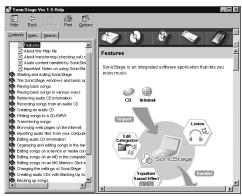
Aide de SonicStage Ver. 1.5
Il s'agit d'une aide en ligne que vous pouvez consulter sur l'écran de votre ordinateur.
Reportez-vous à l'aide en ligne pour plus de détails sur l'utilisation du logiciel. Pour afficher la fenêtre d'aide, voir page 48.
Remarques sur la section "Utilisation du logiciel"
- Les éléments affichés dans les illustrations de cette section peuvent différer des éléments réellement affichés par le logiciel.
- Les explications de cette section supposent une connaissance de base des opérations Windows. Pour plus de détails sur l'utilisation de votre ordinateur et du système d'exploitation, veuillez vous référer aux manuels correspondants.
- Les explications de cette section couvrent les produits Net MD génériques. Pour cette raison, certaines explications (et certaines illustrations) peuvent ne pas s'appliquer à votre Net MD. Veuillez également vous référer au mode d'emploi de votre Net MD.
Vérification des accessoires fournis
Casque/écouteurs (1)
Câble USB dédié (1)
CD-ROM (SonicStage Ver. 1.5 et Net MD Simple Burner Ver. 1.1) (1)*
*Ne pas lire un CD-ROM sur un lecteur de CD audio.
Examen des commandes
Face avant de l'enregistreur
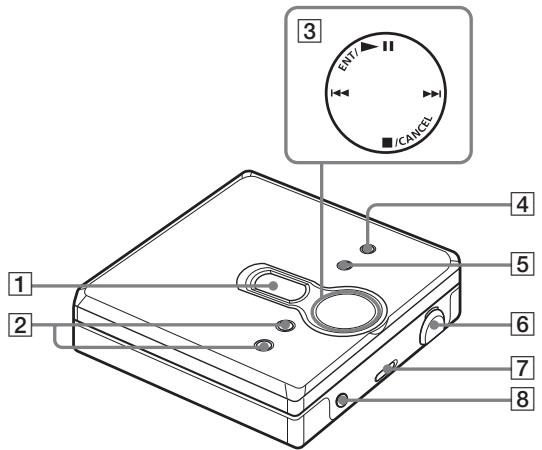
1 Fenêtre d'affichage 2 Bouton VOL ^+ et -
- Le bouton VOL + comporte un point tactile.
3 Touche de commande à 4 positions
ENT/ (entrée/lecture/pause)*
et (recherche/AMS)
■/CANCEL (arrêt/annulation)
- La touche ENT/▶ comporte un point tactile.
4 Touche MENU 5 Touche GROUP Prise USB
Lors de la connexion à votre ordinateur, branchez le câble USB dédié à cette prise.
Interrupteur HOLD 8 Prise (casque/écouteurs)
Dos de l'enregistreur
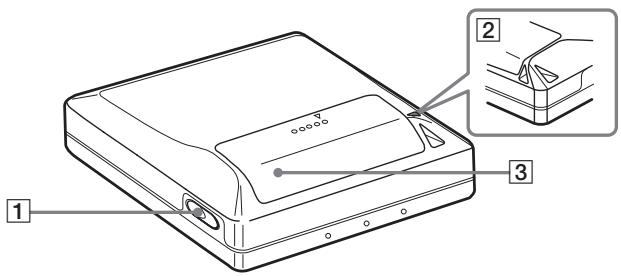
1 Bouton OPEN 2 Trou pour dragonne Utilisez le trou pour attacher votre propre dragonne.
3 Couvercle du compartiment à piles
La fenêtre d'affichage de l'enregistreur
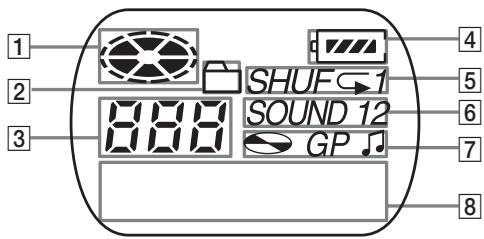
1 Indication de disque 2 Indication de mode groupe S'allume lorsque le mode groupe est activé. 3 Affichage du numéro de piste 4 Indication du niveau de batterie Indique l'état approximatif de la batterie.
5 Indication du mode de lecture Indique le mode de lecture du MD. 6 Indication SOUND 7 Indication disque, groupe, piste 8 Affichage des informations de caractères Affiche les noms des pistes, le temps écoulé, etc.
Pour commencer !
1 Insérez une pile alcaline sèche.
Faites glisser pour ouvrir le couvercle du compartiment à piles.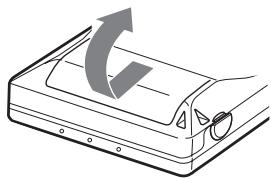
Insérez une pile alcaline sèche LR6 (taille AA) extrémité négative en premier.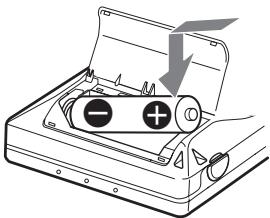
Fermez le couvercle.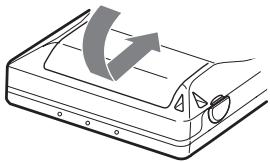
Quand remplacer la pile
Vous pouvez vérifier l'état de la pile grâce à l'indicateur de batterie pendant l'utilisation de l'enregistreur.
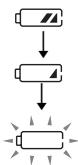
Batterie en cours de décharge
Batterie faible
La batterie est épuisée.
"LoBATT" clignote à l'écran et l'appareil s'éteint.
Durée de vie de la batterie1)
| When | SP Stereo | LP2 Stereo | LP4 Stereo |
| playing2) | Approx. 42 hours | Approx. 48 hours | Approx. 56 hours |
| checking out audio data from the computer3) | 75 tracks (of about 5 minutes each) | 300 tracks (of about 5 minutes each) | 600 tracks (of about 5 minutes each) |
1) Lors de l'utilisation d'une pile alcaline sèche Sony LR6 (format AA) "STAMINA" neuve (fabriquée au Japon). 2) Mesurée conformément à la norme JEITA (Japan Electronics and Information Technology Industries Association). 3) Le nombre de pistes pouvant être extraites varie selon l'environnement d'exploitation de l'ordinateur.
Remarques
- Débranchez le câble USB dédié avant de remplacer la pile sèche.
- La durée de vie de la pile peut être plus courte que celle spécifiée, selon les conditions d'utilisation, la température du lieu et les types de piles.
2
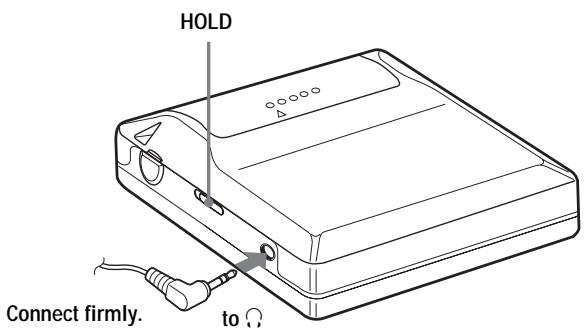
Effectuez les connexions et déverrouillez la commande.
1 Connectez le casque/les écouteurs à
Faites glisser HOLD dans le sens opposé à la flèche indiquée sur l'enregistreur (HOLD → ) pour déverrouiller la commande.
Lecture immédiate d'un MD !
1 Insérez un MD.
Appuyez sur OPEN pour ouvrir le couvercle.
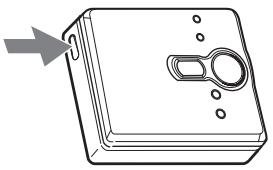
Insérez un MD dans le sens de la flèche, avec le côté étiquette vers l'avant, et appuyez sur le couvercle pour le fermer.
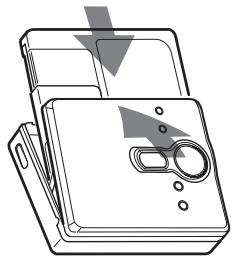
2 Lire un MD.
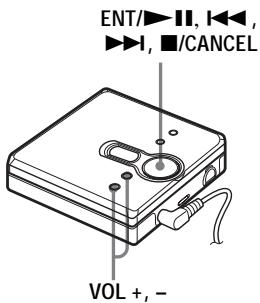
Appuyez sur II. Appuyez sur VOL + ou - pour régler le volume. L'indicateur de volume apparaît à l'écran pour vous permettre de vérifier le niveau de volume.
Pour arrêter la lecture, appuyez sur .
La lecture reprend à partir du point où vous l'avez arrêtée.
Pour démarrer la lecture depuis le début de la première plage, maintenez enfoncé pendant 2 secondes ou plus.
| To | Operation |
| Pause | Press▶■. Press▶■ again to resume play. |
| Find the beginning of the current track or the previous track1) | Press▶. Press▶ repeatedly until the beginning of the desired track appears. |
| Find the beginning of the next track2) | Press▶ once. |
| Go backwards or froward while playing | Hold down▶ or▶. |
| Search for a point in a track while viewing the elapsed time (Time search) | While pausing, press and hold▶ or▶. |
| Search for a specific track while viewing track numbers (Index search) | While the recorder is stopped, press and hold▶ or▶. |
| Remove the MD | Press■, and then press OPEN.3) |
1) Si vous appuyez deux fois de suite pendant la lecture de la première plage du disque, l'enregistreur passe au début de la dernière plage du disque. 2) Si vous appuyez sur pendant la lecture de la dernière plage du disque, l'enregistreur passe au début de la première plage du disque. 3) Si vous ouvrez le couvercle, la lecture reprendra depuis le début de la première plage (sauf si le mode groupe est activé).
Suppression des sauts de son (G-PROTECTION)
La fonction G-PROTECTION a été développée pour offrir un niveau de résistance aux chocs supérieur à celui des lecteurs existants, afin de permettre l'utilisation de l'enregistreur pendant le jogging.
Remarque
Le son peut sauter si :
l'enregistreur reçoit des chocs continus plus forts. - un MiniDisc sale ou rayé est lu.

- Le MZ-NE410 prend en charge DSP TYPE-S pour ATRAC/ATRAC3. Il vous permet ainsi de profiter d'un son de haute qualité TYPE-S à partir de MD enregistrés en mode MDLP sur des platines MD équipées de TYPE-S, etc.
- L'enregistreur peut lire les plages enregistrées en mode longue durée 2 × ou 4 × (LP2 ou LP4). La lecture stéréo normale, la lecture stéréo LP2, la lecture stéréo LP4 ou la lecture monaurale est automatiquement sélectionnée en fonction de la source audio.
Sélection du mode de lecture
Vous pouvez sélectionner différents modes de lecture tels que la lecture normale, la lecture d'une seule plage (1 Trk) ou la lecture aléatoire (Shuff). Vous pouvez également sélectionner la lecture répétée avec le mode de lecture sélectionné.
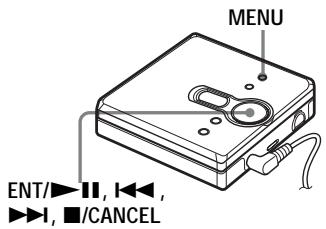
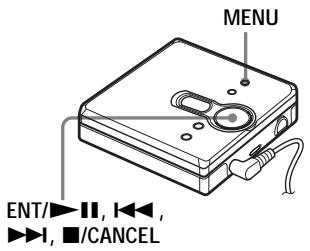
1. Appuyez sur MENU. 2. Appuyez à plusieurs reprises sur \\ ou \\ jusqu'à ce que "P-MODE" apparaisse à l'écran, puis appuyez sur ENT. 3. Appuyez à plusieurs reprises sur \\ ou \\ pour sélectionner le mode de lecture, puis appuyez sur ENT.
Chaque fois que vous appuyez sur \\, l'élément affiché indiqué par A change comme suit :
Appuyer sur ENT pendant que \A\ clignote permet d'entrer dans le mode de lecture.
Appuyer à plusieurs reprises sur \\ change A.
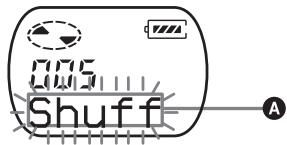
| Display A1) | Play mode |
| Normal (normal play) | All the tracks are played once. |
| 1 Trk (single-track play) | A single track is played once. |
| Display A1) | Play mode |
| Shuff(shuffle play) | All the tracks areplayed in random order. |
1) Le mode de lecture par groupe ( \\ ) apparaît chaque fois que vous lisez un disque avec des réglages de groupe. Pour plus de détails, voir "Lecture d'une plage en mode groupe" (page 21). 4. Appuyez à plusieurs reprises sur \\ ou \\ jusqu'à ce que "RepOFF" ou "RepON" (lecture répétée d'une plage) apparaisse à l'écran, puis appuyez sur ENT pour valider la sélection.
Si vous sélectionnez "RepON", "C" apparaît sur \B\ et la lecture se répète avec le mode de lecture sélectionné à l'étape 3.
s'allume lorsque vous appuyez sur ENT II.
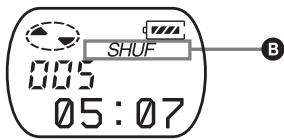
| Display ① | Play mode |
| ← | Repeat play of all tracks |
| →1 | Repeat play of a selected track |
| SHUF ← | Repeat shuffle play of all tracks |
Pour annuler la procédure
Appuyez sur MENU.
Pour revenir aux réglages précédents
Appuyez sur CANCEL.
Réglage des aigus ou des graves (Digital Sound Preset)
Vous pouvez régler les aigus et les graves selon vos goûts. Le lecteur peut mémoriser deux ensembles de réglages aigus/graves, qui peuvent ensuite être sélectionnés pendant la lecture.
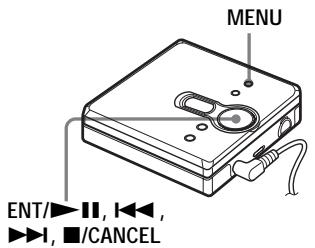
Sélection de la qualité sonore
Réglages d'usine
Les réglages d'usine du préréglage sonore numérique sont les suivants :
"ROUND1" : graves +1, aigus ±0 - "SOUND2" : graves +3, aigus ±0
1 Pendant la lecture, appuyez sur MENU. 2 Appuyez sur ou à plusieurs reprises jusqu'à ce que "SOUND" apparaisse à l'écran, puis appuyez sur ENT. 3 Appuyez sur ou à plusieurs reprises pour sélectionner "SOUND1", "SOUND2" ou "OFF" à l'écran, puis appuyez sur ENT/ pour valider la sélection. La sélection de "OFF" désactive la fonction de préréglage sonore numérique.
Réglage de la qualité sonore
Vous pouvez modifier la qualité sonore préréglée. Pour modifier la qualité sonore préréglée, sélectionnez au préalable "SOUND1" ou "SOUND2", celui que vous souhaitez modifier.
1 Pendant la lecture, appuyez sur MENU. 2 Appuyez sur ou à plusieurs reprises jusqu'à ce que "SOUND" apparaisse à l'écran, puis appuyez sur ENT. 3 Appuyez sur ou à plusieurs reprises jusqu'à ce que "SET" apparaisse à l'écran, puis appuyez sur ENT. 4 Appuyez sur ou à plusieurs reprises jusqu'à ce que "SOUND1" ou "SOUND2" apparaisse à l'écran, puis appuyez sur ENT/
L'écran affiche le réglage sonore "BASS" actuel.
5 Appuyez sur ou à plusieurs reprises pour régler le niveau sonore.
Indique que "SOUND1" ou "SOUND2" est sélectionné
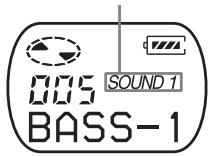
Le son peut être réglé en 8 étapes. (-4, -3, ..., +0, ..., +2, +3)
6 Appuyez sur ENT/II.
"BASS" est réglé et l'écran passe en mode de réglage "TRE" (aigus).
7 Appuyez sur ou à plusieurs reprises pour régler le niveau sonore, puis appuyez sur ENT pour valider la sélection.
"TRE" (aigus) est réglé.
Les réglages sonores sont enregistrés et l'écran de lecture réapparaît.
Pour annuler la procédure
Appuyez sur MENU.
Pour revenir aux réglages précédents
Appuyez sur /CANCEL.
Remarque
Lors de l'utilisation d'un préréglage sonore numérique, le son peut se couper ou se déformer si le volume est trop élevé, selon les réglages ou le morceau. Dans ce cas, modifiez les réglages de la qualité sonore.
Qu'est-ce que la fonction de groupe ?
La fonction de groupe permet la lecture de disques avec des réglages de groupe. Elle est pratique pour la lecture de MD sur lesquels plusieurs albums ou singles CD ont été enregistrés en mode MDLP (LP2/LP4).
Qu'est-ce qu'un disque avec des réglages de groupe ?
L'enregistreur peut exécuter diverses fonctions par unité de groupe ; c'est-à-dire des plages qui ont été enregistrées sur un disque en tant que groupes séparés, comme indiqué ci-dessous.
Avant les réglages de groupe
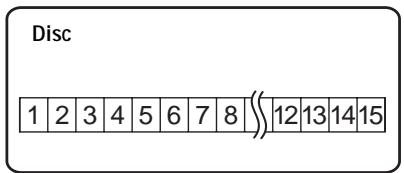
Les plages 1 à 5 sont assignées au groupe 1. Les plages 8 à 12 sont assignées au groupe 2. Les plages 13 à 15 sont assignées au groupe 3. Les plages 6 à 7 ne sont assignées à aucun groupe.
Après le réglage du groupe (lecture de groupe)
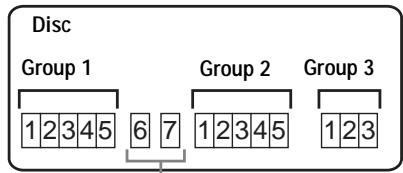
Les plages qui n'ont pas été assignées à un groupe sont traitées comme faisant partie de "GP --".
Vous pouvez créer un maximum de 99 groupes sur un disque.
Note
L'enregistreur ne prend pas en charge l'enregistrement des réglages de groupe sur l'enregistreur. Utilisez le logiciel SonicStage fourni pour attribuer des pistes à un groupe. Pour plus de détails, consultez la section "Utilisation du logiciel" (page 32).
Lecture d'une piste en lecture de groupe
En lecture de groupe, tous les groupes sont lus dans l'ordre, en commençant par le groupe 1, suivis des pistes non assignées ("GP --"). La lecture s'arrête après la lecture de toutes les pistes.
1 Appuyez sur MENU. 2 Appuyez sur ou de manière répétée jusqu'à ce que "P-MODE" apparaisse à l'écran, puis appuyez sur ENT. 3 Appuyez sur ou de manière répétée jusqu'à ce que "" et "Normal" apparaissent à l'écran, puis appuyez sur ENT/■. 4 Appuyez sur ou de manière répétée jusqu'à ce que "RepOFF" apparaisse à l'écran, puis appuyez sur ENT pour valider la sélection.
Pour se rendre au début d'un groupe (Saut de groupe)
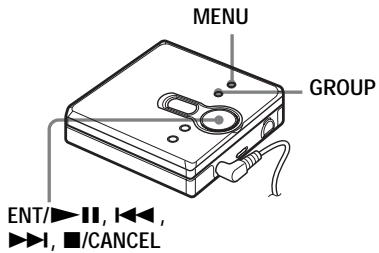
1 Pendant la lecture, appuyez sur GROUP. 2 Appuyez sur ou
Appuyer sur le bouton 1 ou 2 permet de se rendre à la première piste du groupe précédent ou suivant.
Sélection du mode de lecture pour la lecture de groupe (Mode de lecture de groupe)
Les fonctions de lecture aléatoire et de lecture répétée peuvent être utilisées en mode lecture de groupe.
1 Appuyez sur MENU. 2 Appuyez sur ou jusqu'à ce que "P-MODE" apparaisse à l'écran, puis appuyez sur ENT/11. 3 Appuyez sur ou de manière répétée pour sélectionner le mode de lecture, puis appuyez sur ENT/II.
Après la lecture normale (page 18), les modes de lecture suivants sont affichés.
| Display | Play mode |
| , Normal (Normal Group Play) | All tracks in the groups play back once (starting with the first track in group 1). |
| , Shuffle (In-Group Shuffle) | Shuffle play starts with the group that is currently playing, and continues with the succeeding groups. |
4 Appuyez sur ou de manière répétée jusqu'à ce que "RepOFF" ou "RepON" apparaisse à l'écran, puis appuyez sur ENT/ pour valider la sélection.
Si vous sélectionnez "RepON", "←" apparaît à l'écran et la lecture se répète dans le mode de lecture de groupe respectif (lecture répétée de groupe).
| Display | Play mode |
| ☐, ⊥ | Repeat play of tracks within a group |
| ☐, SHUF ⊥ | Repeat shuffle play of tracks within a group |
Pour annuler la procédure
Appuyez sur MENU.
Pour revenir aux réglages précédents
Appuyez sur /CANCEL.
Affichage de diverses informations
Vous pouvez vérifier le nom de la piste, le nom du disque, etc. pendant la lecture. Les éléments liés au groupe n'apparaissent que lorsqu'une piste avec des réglages de groupe est lue.
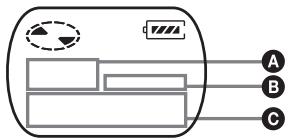
| A | B | C |
| Track number | — | The elapsed time |
| Track number | ● | Track name |
| The number of total tracks in the groups | GP | Group name |
| The number of total tracks | ● | Disc name |
| Track number | — | Track mode |
1 Appuyez sur MENU. 2 Appuyez sur ou à plusieurs reprises jusqu'à ce que "DISP" apparaisse à l'écran, puis appuyez sur ENT/
3 Appuyez sur ou à plusieurs reprises jusqu'à ce que l'information souhaitée apparaisse à l'écran, puis appuyez sur ENT/ pour valider la sélection.
Chaque fois que vous appuyez sur , l'affichage change comme suit :
| Display | Meaning |
| LapTim | The elapsed time of the current track |
| T:Name | Track name |
| G:Name | Group name |
| D:Name | Disc name |
| T-MODE | Indicates the recording mode selected on the MD recorder used; i.e., “SP”, “LP2”, “LP4”, or “MONO”. |
Remarques
Selon les réglages du groupe, les conditions de fonctionnement et les réglages du disque, il se peut que vous ne puissiez pas sélectionner certaines indications ou que celles-ci apparaissent différemment. - L'indication "T-MODE" n'apparaît que pendant la lecture. Elle apparaît pendant quelques secondes, puis est remplacée par le temps écoulé de la piste en cours.
Pour annuler la procédure
Appuyez sur MENU.
Pour revenir aux réglages précédents
Appuyez sur /CANCEL.
Démarrage rapide de la lecture (mode rapide)
Après avoir appuyé sur le bouton de lecture ou fait une recherche sur la piste, la lecture peut démarrer rapidement.
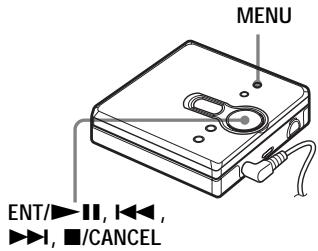
1 Appuyez sur MENU. 2 Appuyez à plusieurs reprises sur ou jusqu'à ce que "OPTION" apparaisse à l'écran, puis appuyez sur ENT/ 3 Appuyez à plusieurs reprises sur ou jusqu'à ce que "Power" apparaisse à l'écran, puis appuyez sur ENT/ 4 Appuyez à plusieurs reprises sur ou jusqu'à ce que "QUICK" apparaisse à l'écran, puis appuyez sur ENT.
Pour revenir au réglage normal
Sélectionnez "NORMAL" à l'étape 4.
Pour annuler la procédure
Appuyez sur MENU.
Pour revenir aux réglages précédents
Appuyez sur ■/CANCEL.
Remarques
- Lorsque le mode d'alimentation est réglé sur "QUICK", l'alimentation reste active dans l'enregistreur même si rien n'apparaît à l'écran. Cela réduit la durée de vie de la batterie.
- Si aucune opération de l'enregistreur (y compris l'ouverture ou la fermeture du couvercle) n'est effectuée pendant une heure, l'alimentation de l'enregistreur s'éteint automatiquement. Pour cette raison, la prochaine fois que vous démarrerez la lecture ou effectuerez une autre opération, l'enregistreur ne répondra pas rapidement. L'appareil reviendra toutefois en mode rapide par la suite.
Protection de votre ouïe (AVLS)
La fonction AVLS (Automatic Volume Limiter System) limite le volume maximal pour protéger vos oreilles.
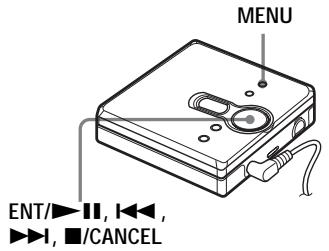
1 Appuyez sur MENU. 2 Appuyez à plusieurs reprises sur ou jusqu'à ce que "OPTION" apparaisse à l'écran, puis appuyez sur ENT/II. 3 Appuyez à plusieurs reprises sur ou jusqu'à ce que "AVLS" apparaisse à l'écran, puis appuyez sur ENT/ 4 Appuyez à plusieurs reprises sur ou jusqu'à ce que "ON" apparaisse à l'écran, puis appuyez sur ENT pour valider la sélection. "ON" apparaît à l'écran, et après quelques secondes, l'affichage de lecture réapparaît.
Pour annuler la fonction AVLS
Sélectionnez "OFF" à l'étape 4.
Pour annuler la procédure
Appuyez sur MENU.
Pour revenir aux réglages précédents
Appuyez sur /CANCEL.
Verrouillage des commandes (HOLD)
Pour éviter que les boutons ne soient actionnés accidentellement lorsque vous portez le lecteur, utilisez cette fonction.

1 Faites glisser HOLD dans le sens de la flèche pour verrouiller.
Pour déverrouiller les commandes
Faites glisser HOLD dans le sens opposé à la flèche.
Précautions
Sécurité
- Ne transportez pas et ne rangez pas la pile sèche avec des objets métalliques tels que des pièces de monnaie, des porte-clés ou des colliers. Cela peut provoquer un court-circuit et un dégagement de chaleur.
- Une utilisation incorrecte de la pile peut provoquer une fuite du liquide ou l'éclatement de la pile. Pour éviter de tels accidents, assurez-vous que la pile est installée avec les pôles + et - orientés correctement.
- En cas de fuite de la pile, essuyez soigneusement et complètement le liquide de la pile dans le compartiment à piles avant d'insérer une nouvelle pile.
- Si vous n'utilisez pas l'enregistreur pendant une longue période, assurez-vous de retirer la pile sèche.
Manipulation
- Ne faites pas tomber l'enregistreur et ne le heurtez pas. Cela pourrait provoquer un dysfonctionnement.
- Ne tirez pas sur les cordons des écouteurs/casque.
- Ne placez pas l'enregistreur dans les endroits suivants :
— Un endroit extrêmement chaud (plus de 60 °C (140 °F)) : un endroit exposé à la lumière directe du soleil ou près d'un radiateur, dans une voiture vitres fermées (surtout en été), dans un endroit humide comme une salle de bain, près d'une source de champs électromagnétiques comme un aimant, un haut-parleur ou un téléviseur, dans un endroit poussiéreux.
Accumulation de chaleur
De la chaleur peut s'accumuler dans l'enregistreur s'il est utilisé pendant une période prolongée. Cela n'est toutefois pas un dysfonctionnement.
Bruit mécanique
L'enregistreur émet un bruit mécanique pendant son fonctionnement, causé par le système d'économie d'énergie. Cela n'est pas un dysfonctionnement.
Installation
N'utilisez jamais l'enregistreur dans un endroit soumis à des conditions extrêmes de lumière, de température, d'humidité ou de vibrations.
Cartouche MiniDisc
- Ne touchez pas directement le disque interne. Forcer l'ouverture du volet peut endommager le disque interne.
- Lors du transport d'un MiniDisc, conservez-le dans son boîtier.
- Ne placez pas la cartouche dans un endroit exposé à la lumière, à la température, à l'humidité ou à la poussière.
- N'apposez pas l'étiquette en dehors de la zone spécifiée sur le MD. Assurez-vous que l'étiquette est placée dans l'espace en retrait sur le disque.
Sur les écouteurs/casques
Sécurité routière
- N'utilisez pas d'écouteurs/casques en conduisant, en faisant du vélo ou en utilisant un véhicule motorisé. Cela peut entraîner un accident de la route et est illégal dans de nombreux endroits. Il peut également être dangereux d'écouter votre enregistreur à volume élevé en marchant, en particulier aux passages pour piétons. Vous devez faire preuve d'une extrême prudence ou cesser d'utiliser l'enregistreur dans des situations potentiellement dangereuses.
- Si vous ressentez une réaction allergique aux écouteurs/casques fournis, cessez de les utiliser immédiatement et consultez un médecin ou un centre de service Sony.
Prévention des dommages auditifs
Évitez d'utiliser des écouteurs/casques à volume élevé. Les experts en audition déconseillent une écoute continue, forte et prolongée. Si vous ressentez des bourdonnements dans les oreilles, réduisez le volume ou cessez l'utilisation.
Respect des autres
Maintenez le volume à un niveau modéré. Cela vous permettra d'entendre les sons extérieurs et de respecter les personnes autour de vous.
Nettoyage
- Après avoir essuyé le boîtier de l'enregistreur avec un chiffon doux légèrement humidifié avec de l'eau, essuyez-le à nouveau avec un chiffon sec. N'utilisez pas de tampon abrasif, de poudre à récurer ou de solvant tel que l'alcool ou le benzène, car cela pourrait ternir la finition du boîtier.
- Essuyez la cartouche du disque avec un chiffon sec pour éliminer la saleté.
- La poussière sur la lentille peut empêcher l'appareil de fonctionner correctement. Assurez-vous de fermer le couvercle du compartiment à disque après avoir inséré ou éjecté un MD. Pour maintenir une bonne qualité sonore, utilisez un chiffon doux pour nettoyer les fiches des écouteurs/casques. Une fiche sale peut provoquer du bruit ou des interruptions intermittentes du son pendant la lecture.
- Nettoyez les bornes périodiquement avec un coton-tige ou un chiffon doux comme illustré.
Compartiment à piles sèches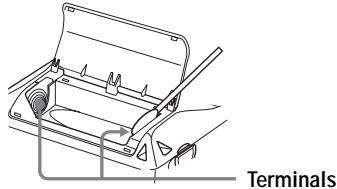
Pour protéger un MD enregistré
Pour protéger un MD contre l'enregistrement, faites glisser la languette sur le côté du MD pour ouvrir le volet. Dans cette position, le MD ne peut pas être enregistré. Pour réenregistrer, faites glisser la languette en arrière pour que le volet soit visible.
Dos du MD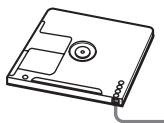
Le matériel enregistré est protégé.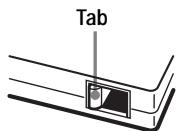
Le matériel enregistré n'est pas protégé.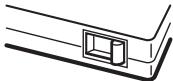
Si vous avez des questions ou des problèmes concernant votre enregistreur, veuillez consulter votre revendeur Sony le plus proche. (Si un problème survient alors que le disque est dans l'enregistreur, nous recommandons de laisser le disque dans l'enregistreur lorsque vous consultez votre revendeur Sony afin que la cause du problème puisse être mieux comprise.)
Lorsque vous consultez votre revendeur Sony, assurez-vous d'apporter l'enregistreur et les écouteurs/casque.
Spécifications
Lecteur MD
Système de lecture audio
Système audio numérique MiniDisc
Propriétés de la diode laser
Matériau : GaAlAs
Longueur d'onde : λ = 790nm
Durée d'émission : continue
Puissance du laser : inférieure à 44,6 μW
(Cette puissance est la valeur mesurée à une distance de 200 mm de la surface de la lentille de l'objectif sur le bloc de lecture optique avec une ouverture de 7 mm.)
Durée d'enregistrement et de lecture (avec MDW-80)
Maximum 160 min en monaural
Maximum 320 min en stéréo LP4
Vitesses de rotation
Environ 380 tr/min à 2 700 tr/min
Correction d'erreurs
ACIRC (Advanced Cross Interleave Reed
Solomon Code)
Fréquence d'échantillonnage
44,1 kHz
Codage
ATRAC (Adaptive TRansform Acoustic
Codage
ATRAC3 - LP2/LP4
Système de modulation
EFM (modulation huit à quatorze)
Nombre de canaux
2 canaux stéréo
1 canal monaural
Réponse en fréquence
20 à 20 000 Hz ± 3 dB
Sorties
: mini-prise stéréo, niveau de sortie maximal
5 mW + 5 mW, impédance de charge 24 Ω (États-Unis)
5 mW + 5 mW, impédance de charge 16 Ω (Canada)
Généralités
Alimentation
Une pile alcaline LR6 (format AA) (non fournie)
Température recommandée pour l'enregistrement/la lecture
+5 °C (+41 °F) ou plus
Durée de fonctionnement de la pile
Voir « Autonomie de la pile » (page 14)
Dimensions
Environ 81 × 28,9 × 74,4 mm (l / h / p) (3 1/4 ×
1 3/16 × 3 po) sans les parties saillantes.
Masse
Environ 106 g (3,8 oz) (enregistreur seul)
Brevets américains et étrangers sous licence de Dolby Laboratories.
La conception et les spécifications sont sujettes à modification sans préavis.
Accessoires en option
Casques/écouteurs stéréo de la série MDR* Haut-parleurs actifs de la série SRS
- Lorsque vous utilisez un casque en option, utilisez uniquement des casques/écouteurs avec fiches mini-stéréo. Vous ne pouvez pas utiliser de casques/écouteurs avec fiches micro.
Votre revendeur ne propose peut-être pas certains des accessoires énumérés ci-dessus. Veuillez demander à votre revendeur des informations détaillées sur les accessoires disponibles dans votre pays.
Problèmes et solutions
Si vous rencontrez des problèmes lors de l'utilisation de l'enregistreur, suivez les étapes ci-dessous.
1 Consultez cette section, « Problèmes et solutions » (page 29). 2 Si vous ne parvenez pas à résoudre le problème après avoir effectué les vérifications, consultez votre revendeur Sony le plus proche.
Pendant la lecture
| Symptom | Cause/Remedy |
| An MD is not played normally. | ·Repeat play is selected. →Use MENU on the recorder to change back to the normal play (page 18). ·Playback mode is changed. →Use MENU on the recorder to change back to the normal play (page 18). |
| An MD is not played from the first track. | ·Disc playing stopped before it came to the last track. →Press▶■ for 2 seconds or more to start playing. ·Group play mode is selected. →Use MENU on the recorder to change back to the normal play (page 18), and then press▶■ for 2 seconds or more to start playing. |
| The digital sound preset function does not work. | ·The digital sound preset is off. →Select “SOUND1” or “SOUND2” (page 19). |
| Playback sound skips. | ·The recorder is placed where it receives continuous vibration. →Put the recorder on a stable place. ·A very short track may cause sound to skip. →Try not to create a track under one second long. |
| Sound has a lot of static. | ·Strong magnetism from a television or such device is interfering with operation. →Move the recorder away from the source of strong magnetism. |
| Noise is momentarily heard. | ·The sound was recorded in LP4 stereo mode. →Because of the nature of the compression method used in LP4 mode, noise may be output on very rare occasions during playback of sound recorded in this mode. |
| Volume cannot be turned up. | ·AVLS is on. →Release AVLS settings (page 25). |
| No sound comes through the headphones/earphones. | ·The headphones/earphones plug is not firmly connected. →Plug in the plug of the headphones/earphones firmly to ⋅. ·Volume is too low. →Adjust the volume by pressing VOL + or -. ·The plug is dirty. →Clean the plug. |
| The recorder skips to several tracks ahead or behind when you press 〈or 〉. | ·The GROUP button has been pressed (▷ is flashing in the display). →The recorder returns to normal if no operation has made for 5 seconds. |
| The edited tracks may exhibit sound dropout during search operations. | ·This occurs due to the MiniDisc system limitation. The fragmentation of data may cause sound dropout while searching because the tracks are played in higher speed than normal playback. |
Utilisation de la fonction de groupe
| Symptom | Cause/Remedy |
| The group function does not operate. | While using a disc with no group setting, an attempt was made to select some group-related menu ("No Gp" appears in the display).→ Use a disc with group setting. |
| A track cannot be checked out to a new group. A new group cannot be created on the supplied SonicStage software. | This is due to the MiniDisc system limitations. Group information has been written to the area where the disc name is stored. The disc name and track names are recorded in the same area, which can store a maximum of approximately 1,700 characters. If the total number exceeds this amount, a new group cannot be created even though group mode is on. It is also impossible to make group settings at this time. |
Autres
| Symptom | Cause/Remedy |
| The recorder does not work or works poorly. | • The volume is low. → Turn up the volume. • No disc is inserted (“NoDISC” appears in the display). → Insert a recorded disc. |
| The recorder does not work or works poorly. | ·The HOLD function is turned on (“HOLD” appears in the display when you press an operation button on the recorder). →Disable HOLD by sliding the HOLD switch to the opposite direction of the arrow. ·The lid is not firmly closed. →Close the lid until it clicks. ·Moisture has condensed inside the recorder. →Take the MD out and leave the recorder in a warm place for several hours until the moisture evaporates. ·The dry battery is weak (“LoBATT” flashes or nothing appears). →Replace the dry battery with a new one. ·The dry battery have been inserted incorrectly. →Insert the battery correctly. ·An MD with nothing recorded on is inserted (“BLANK” appears in the display). →Insert a recorded MD. ·The disc is damaged or does not contain proper recording (“Rd ERR” appears in the display). →Reinsert the disc. If the error message still appears, replace it with another disc. ·While operating, the recorder received a mechanical shock, too much static, abnormal power voltage caused by lightning, etc. →Restart the operation as follows. 1 Remove the dry battery from the recorder. 2 Leave the recorder for about 30 seconds. 3 Insert the dry battery. |
Explications
À propos du DSP TYPE-S pour ATRAC/ATRAC3
Cet enregistreur prend en charge la lecture avec la spécification DSP TYPE-S pour les platines MiniDisc haut de gamme de Sony équipées de processeurs de signal numérique (DSP). Cette spécification permet de lire les pistes enregistrées en mode MDLP avec une qualité sonore élevée. Étant donné que cet enregistreur prend également en charge la spécification DSP TYPE-R, un son superbe est produit lors de la lecture en mode SP (stéréo normale).
Suppression des sauts de son (G-PROTECTION)
La fonction G-PROTECTION a été développée pour offrir une résistance aux chocs supérieure à celle des lecteurs existants.
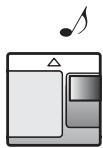
Enregistrement de données audio sur votre ordinateur
Vous pouvez enregistrer des données audio sur votre ordinateur à partir de sources telles que des CD audio et Internet (page 40).
CD audio
Internet
Sur l'ordinateur
Écoute
Vous pouvez écouter un CD audio dans le lecteur de CD-ROM de votre ordinateur, ou des données audio sur le disque dur (page 47).

Qu'est-ce qu'un Net MD ?
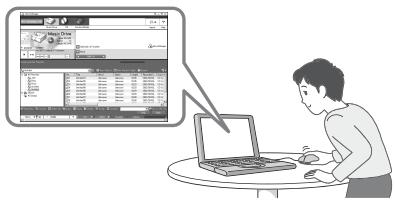
Net MD est une norme qui permet le transfert de données audio d'un ordinateur vers un appareil MiniDisc. Pour utiliser ce Net MD avec votre ordinateur, vous avez besoin d'un logiciel appelé "SonicStage".
Le logiciel SonicStage fournit une base de données pour gérer les données audio sur l'ordinateur et des fonctions pour lire les données audio dans différents modes de lecture, éditer les données et transférer les résultats vers d'autres appareils et matériels connectés à l'ordinateur. C'est un logiciel intégré avec une variété de fonctions pour profiter de la musique.
Transfert de données audio vers le Net MD
Vous pouvez transférer des données audio stockées sur votre ordinateur vers un MD (page 44).
Édition
Vous pouvez facilement éditer des données audio ou ajouter des étiquettes à partir du clavier (page 43).
Vers un Net MD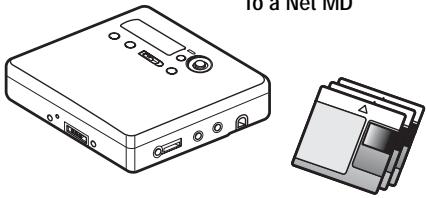
Création d'une bibliothèque musicale
Vous pouvez créer une bibliothèque musicale de vos chansons préférées sur votre ordinateur.
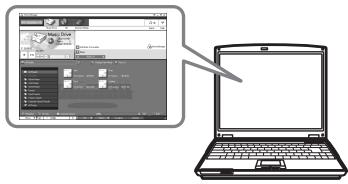
Flux de fonctionnement de base avec le Net MD
Voici les étapes de base que vous suivrez après l'achat de votre enregistreur. Grâce à ces étapes, vous préparerez et configurerez votre ordinateur pour utiliser votre enregistreur en tant que Net MD. Suivez les étapes suivantes et reportez-vous aux pages indiquées pour plus de détails.
1 Fournir l'environnement système requis. (page 35) 2 Installer le logiciel sur votre ordinateur. (page 36) 3 Connecter le Net MD à votre ordinateur. (page 39) 4 Stocker les données audio sur votre ordinateur.
Dans ce manuel, l'enregistrement à partir d'un CD audio est expliqué.
(page 40)
5 Transférer les données audio de votre ordinateur vers un MD (Check-out).
(page 44)
6 Écouter un MD.
Vous pouvez écouter les données audio qui ont été extraites de votre ordinateur vers votre Net MD.
(page 47)
Fournir l'environnement système requis
Configuration système requise
Le matériel et les logiciels suivants sont nécessaires pour utiliser le logiciel SonicStage pour le Net MD.
| Computer | IBM PC/AT or Compatible |
| • CPU: Pentium II 400 MHz or higher (Pentium III 450 MHz or higher is recommended.)• Hard disk drive space1): 120 MB or more• RAM: 64 MB or higher (128 MB or higher is recommended) | |
| Others• CD-ROM drive (capable of digital playback by WDM)• Sound Board• USB port (supports USB 2.0 Full Speed (previously USB 1.1)) | |
| Operating System | Factory installed:Windows XP Home Edition/Windows XP Professional/Windows Millennium Edition/Windows 2000 Professional/Windows 98 Second Edition |
| Display | High Color (16bit) or greater, 800 × 480 dots or more (800 × 600 dots or more is recommended) |
| Others | • Internet access: for Web registration and EMD services• Windows Media Player (version 7.0 or higher) installed for playing WMA files |
1) Voir page 53 pour plus de détails.
Ce logiciel n'est pas pris en charge par les environnements suivants :
Macintosh - Versions de Windows XP autres que Home Edition ou Professional - Versions de Windows 2000 autres que Professional - Versions de Windows 98 autres que Second Edition - Windows NT - Windows 95 - PC construits personnellement ou systèmes d'exploitation - Un environnement qui est une mise à niveau du système d'exploitation installé par le fabricant d'origine - Environnement multi-démarrage - Environnement multi-moniteur
Notes
- Nous ne garantissons pas un fonctionnement sans problème sur tous les ordinateurs qui satisfont aux exigences système.
- Nous ne garantissons pas le fonctionnement sans problème de la fonction de suspension, de veille ou d'hibernation du système sur tous les ordinateurs.
Installation du logiciel sur votre ordinateur
Cette section explique l'installation du logiciel SonicStage Ver.1.5 fourni avec votre Net MD.
Avant d'installer le logiciel
1 Assurez-vous de noter les points suivants avant d'installer le logiciel.

Ne connectez pas le câble USB dédié avant l'installation !
Le logiciel SonicStage peut ne pas se charger ou fonctionner correctement si le câble USB dédié est connecté à votre ordinateur pendant l'installation.

Fermez toutes les autres applications Windows avant de commencer l'installation !
Assurez-vous de fermer tout logiciel antivirus, car ces logiciels exigent généralement d'importantes ressources système.
2 Selon le système d'exploitation ou le logiciel déjà installé sur votre ordinateur, reportez-vous aux pages de référence avant d'installer le logiciel.
| Windows XP → page 50 | ·To install this software, you must log on with a user name with “Computer Administrator”. ·If you perform the “System Restore” function in the Windows “System Tools” menu, the tracks managed by SonicStage may become corrupted and rendered unplayable. |
| Windows Millennium Edition → page 51 | ·If you perform the “System Restore” function of the Windows “System Tools” menu, the tracks managed by SonicStage may become corrupted and rendered unplayable. |
| Windows 2000 → page 51 | ·You must log on as “Administrator” before installing the software. |
| OpenMG Jukebox, SonicStage, or SonicStage Premium → page 52 | ·Depending on the version of your software, the existing software may be overwritten by the new version or it may co-exist with SonicStage Ver.1.5. As the installation process will depend on the version, see the reference page for details. |
Installation de SonicStage Ver.1.5
1 Allumez votre ordinateur et démarrez Windows. 2 Insérez le CD-ROM d'installation de SonicStage dans le lecteur de CD-ROM de votre ordinateur.
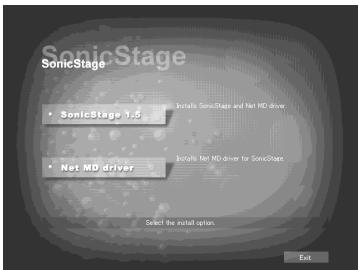
Le programme d'installation démarre automatiquement et la fenêtre d'installation de SonicStage Ver.1.5 apparaît.
3 Cliquez pour sélectionner [SonicStage 1.5].
Pour utiliser ce logiciel avec le Net MD, vous devez installer SonicStage Ver.1.5 et le pilote Net MD.
Cliquez sur [SonicStage 1.5].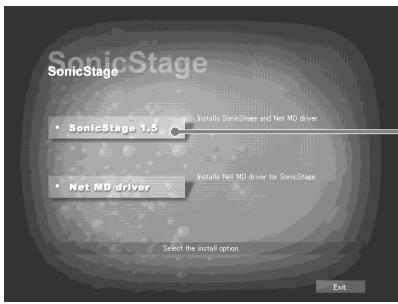
- Lors de la première installation de SonicStage
- Lorsque SonicStage, SonicStage Premium ou OpenMG Jukebox est installé sur l'ordinateur
4 Suivez les instructions affichées.
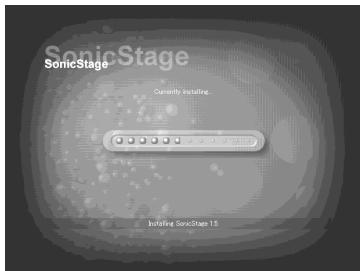
Lisez attentivement les instructions.
L'installation peut prendre de 20 à 30 minutes, selon votre environnement système (page 59).
5 Une fois l'installation terminée, cliquez sur [Redémarrer] pour redémarrer l'ordinateur.
![SONY MZ-NE410 - Une fois l'installation terminée, cliquez sur [Redémarrer] pour redémarrer l'ordinateur. - 1](/content/2020/04/46986/images/f08247896ef15faeec7d44a152798f53c11dbc3d72c3b22c973153d8ebb12553.jpg)
Assurez-vous de redémarrer votre ordinateur uniquement après la fin de l'installation.
L'installation a-t-elle réussi ?
Si un problème survient pendant l'installation, consultez la section « Dépannage » (page 56).
Remarques
- Ne supprimez pas, ne déplacez pas et ne modifiez pas les dossiers installés à l'aide de l'Explorateur ou de toute autre application. Cela pourrait rendre la base de données SonicStage instable ou corrompue.
- Pendant que l'installation est encore en cours, n'interrompez pas l'opération et ne retirez pas le CD-ROM du lecteur de CD-ROM. Cela pourrait rendre impossible l'installation du logiciel par la suite.
Connexion du Net MD à votre ordinateur
Une fois l'installation du logiciel terminée, connectez le Net MD à votre ordinateur.
Reportez-vous également au mode d'emploi du Net MD.
1 Assurez-vous que la pile sèche a suffisamment de puissance restante.
Remarque
Débranchez le câble USB dédié avant de remplacer la pile sèche.
2 Insérez un disque enregistrable dans le Net MD. 3 Connectez la source d'alimentation et le câble USB dédié au Net MD et à l'ordinateur.
* Si une station d'accueil est fournie avec votre Net MD, connectez le câble USB dédié à la station d'accueil USB et placez le Net MD sur la station d'accueil USB.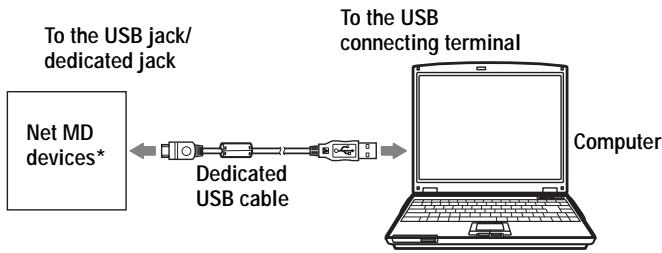
4 Vérifiez les connexions.
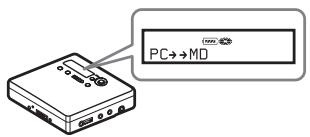
Lorsque les connexions sont correctement établies, "PC → MD"* apparaît sur l'écran du Net MD.
*Selon l'appareil, "Net MD" peut être affiché.
Remarques
- Lorsque vous utilisez le Net MD connecté à votre ordinateur, assurez-vous de faire fonctionner l'enregistreur avec une pile sèche neuve. Nous ne garantissons pas les résultats en cas de mauvais fonctionnement, d'échec de l'extraction ou de destruction des données audio causés par une puissance de pile insuffisante.
- Placez l'enregistreur sur une surface stable afin que le câble USB dédié ne se détache pas.
Stockage des données audio sur votre ordinateur
Cette section explique comment enregistrer et stocker des données audio d'un CD audio sur le disque dur de votre ordinateur.
La procédure décrite dans cette section est utilisée pour enregistrer toutes les pistes d'un CD audio. Pour enregistrer uniquement certaines pistes d'un CD, ou à partir d'autres sources sonores, consultez l'aide en ligne pour plus de détails (page 48).
Remarque
Le système peut mal fonctionner si votre ordinateur passe en mode veille ou hibernation pendant que le logiciel lit, enregistre ou se connecte à un périphérique externe ou à un support* tel qu'un Net MD. Assurez-vous de désactiver tout changement de mode veille ou hibernation. Voir page 53 pour plus de détails.
- Pour ce logiciel, le mot « MD » désigne la fente MD intégrée à l'ordinateur, et « Périphérique/Support » désigne un Net MD connecté en externe via un câble USB.
Démarrage de SonicStage
Effectuez l'une des opérations suivantes :
- Double-cliquez sur SonicStage (icône [SonicStage]) sur l'ordinateur.
- Sélectionnez [Démarrer] - [Programmes]* - [SonicStage] - [SonicStage].
- [Tous les programmes] dans le cas de Windows XP
SonicStage démarre et la fenêtre principale apparaît.
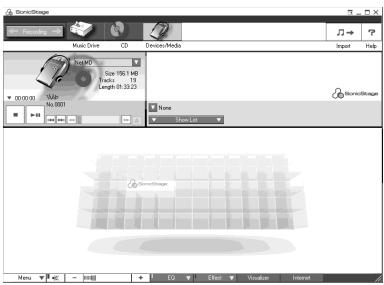
Enregistrement de CD audio sur le disque dur
Dans SonicStage Ver.1.5, le disque dur est appelé « Music Drive ». Le Music Drive gère toutes les données audio stockées par SonicStage.
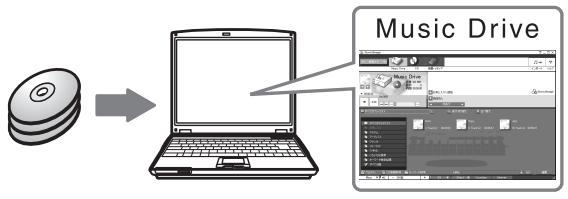
1 Insérez le CD audio que vous souhaitez enregistrer dans le lecteur de CD-ROM de votre ordinateur.
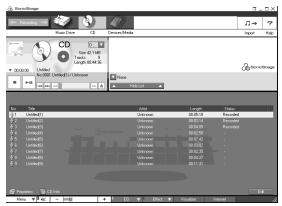
La fenêtre du CD apparaît à l'écran.
Remarque
Lorsque vous enregistrez un CD audio à partir de votre lecteur de CD-ROM pour la première fois, la boîte de dialogue "Optimisation du lecteur de CD" apparaît lorsque vous insérez le CD audio. Cliquez sur [Démarrer] pour lancer une vérification du lecteur de CD-ROM afin de confirmer qu'il est capable d'effectuer l'enregistrement correctement.
2 Cliquez sur Enregistrement
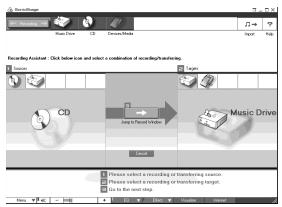
La fenêtre de navigation d'enregistrement* apparaît à l'écran.
*La fenêtre de navigation d'enregistrement facilite la réalisation d'un enregistrement. En effectuant simplement les étapes 1, 2 et 3 de l'étape suivante, vous pouvez sélectionner la source audio dans le panneau de gauche et la destination d'enregistrement dans le panneau de droite.
3 Sélectionnez CD) pour [1 Sources] et (Music Drive) pour [2 Cibles], puis cliquez sur 3 → [Aller à la fenêtre d'enregistrement].
![SONY MZ-NE410 - Sélectionnez CD) pour [1 Sources] et (Music Drive) pour [2 Cibles], puis cliquez sur 3 → [Aller à la fenêtre d'enregistrement]. - 1](/content/2020/04/46986/images/b30f24f623f0b0219a3676e20dcc01e8f0f9456002c51209a992a323db30d6a7.jpg)
L'affichage change pour la fenêtre d'enregistrement.
4 Cliquez sur ATRAC3 132kbps au milieu de la fenêtre d'enregistrement et sélectionnez le mode d'enregistrement.
![SONY MZ-NE410 - Sélectionnez CD) pour [1 Sources] et (Music Drive) pour [2 Cibles], puis cliquez sur 3 → [Aller à la fenêtre d'enregistrement]. - 2](/content/2020/04/46986/images/02e28930386c0c192e0f5697e5849fc4aad55b660c2999b63396576314fa3445.jpg)
Lors de l'enregistrement de données en mode LP2 : sélectionnez ATRAC3 132kbps. Lors de l'enregistrement de données en mode LP4 : sélectionnez ATRAC3 66kbps.
5 Si le panneau de liste n'est pas affiché, cliquez sur Afficher la liste
![SONY MZ-NE410 - Sélectionnez CD) pour [1 Sources] et (Music Drive) pour [2 Cibles], puis cliquez sur 3 → [Aller à la fenêtre d'enregistrement]. - 3](/content/2020/04/46986/images/3c0057f7a84bfe8655d3795199d3dccac57df9dd9deb8e7cc34bc6771ceb8b55.jpg)
Les panneaux de liste apparaissent sous la fenêtre d'enregistrement. Le contenu du CD audio apparaît dans le panneau de liste de gauche.
6 Cliquez sur [Enregistrer tout].
L'enregistrement démarre. Une fois terminé, les pistes enregistrées apparaissent dans le panneau de liste de droite.
Pour arrêter l'enregistrement
Cliquez sur ([Stop]). Pour reprendre l'enregistrement, cliquez sur . Lorsque l'enregistrement reprend, il commence depuis le début de la piste qui a été arrêtée en dernier.
Étiquetage des données audio
Une fois l'enregistrement terminé, vous pouvez étiqueter les données audio dans le Music Drive. Une fois les données audio du Music Drive étiquetées, les informations d'étiquette seront transférées sur un disque avec les données audio, ce qui vous permet de visualiser les données sur votre Net MD.
1 Démarrez SonicStage (page 40) et cliquez sur (Music Drive).
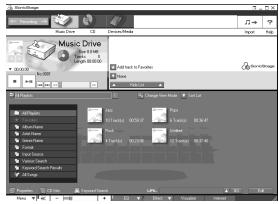
"Toutes les listes de lecture" apparaît et tous les albums stockés sur le Music Drive apparaissent dans la fenêtre Music Drive.
2 Double-cliquez sur le nom de l'album souhaité.
Une liste des fichiers audio de cet album apparaît.
3 Cliquez sur Modifier dans la partie inférieure droite de l'écran.
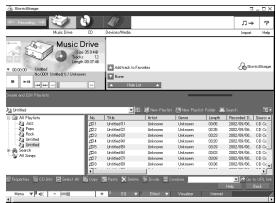
Le panneau d'édition apparaît à l'écran.
4 Sélectionnez un élément en cliquant sur [Titre], [Album], [Artiste] ou [Genre], puis cliquez avec le bouton droit et sélectionnez [Renommer].
Vous pouvez également cliquer sur [] à côté de [Album] ou [Artiste] pour afficher une liste déroulante, puis sélectionner un élément dans la liste.
5 Lorsque le titre de la piste est surligné, saisissez les données texte à l'aide du clavier.

Vous pouvez également importer des noms depuis une base de données avec le bouton ([Infos CD]) pour étiqueter des pistes ou des albums. Voir l'aide en ligne pour plus de détails (page 48).
Transfert des données audio de votre ordinateur vers le Net MD (Check-out)
Les données audio stockées sur le Music Drive peuvent être transférées vers votre Net MD. Ce processus est appelé "Check-out". Le nombre de fois qu'un morceau peut être extrait est limité dans ce logiciel pour la protection des droits d'auteur (page 61).
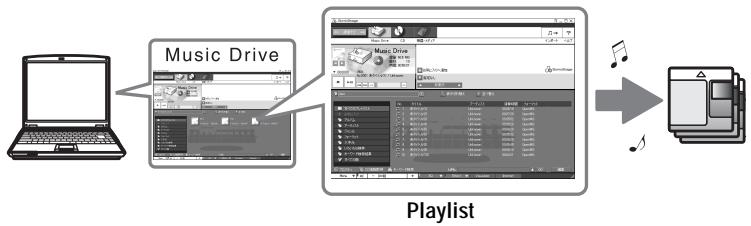
Extraction de fichiers audio vers le Net MD
Cette section explique comment extraire tous les fichiers audio d'une playlist*.
- Une playlist est un conteneur qui permet de classer les fichiers audio stockés dans le Music Drive par genre, artiste, etc.
Remarques
- Assurez-vous que la puissance restante de la pile sèche est suffisante.
- Les extractions doivent être effectuées à une température de +5°C (+41°F) ou plus.
1 Cliquez sur Recording pour afficher la fenêtre de navigation d'enregistrement.
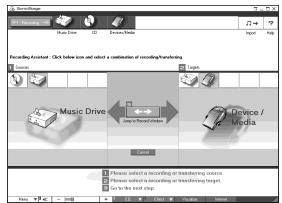
2 Sélectionnez (Music Drive) pour [1 Sources] et (Device/Media) pour [2 Targets], puis cliquez sur 3 ↔ ([Jump to Record Window]).
L'affichage change pour la fenêtre d'enregistrement.
3 Cliquez sur Normal au milieu de l'affichage et sélectionnez le mode d'enregistrement (page 42).
Mode de transfert standard : les données sont transférées dans le format des fichiers d'origine.
Espace de transfert maximal disponible : toutes les données sont transférées en mode LP4.
Mode de transfert SP : toutes les données sont converties et transférées en mode stéréo normal. Sélectionnez ce mode si vous écoutez les données extraites sur un équipement qui ne prend pas en charge le mode MDLP.
4 Si le panneau de liste n'est pas affiché, cliquez sur Show List
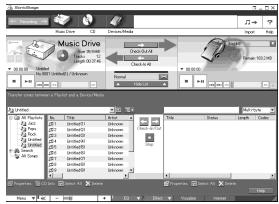
Une liste de lecture apparaît à l'écran.
5 Vérifiez que les fichiers audio que vous êtes sur le point d'extraire sont prêts à être extraits.
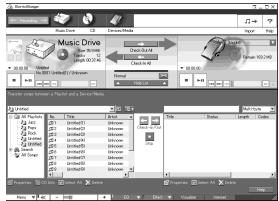
Les notations musicales à côté du numéro de piste dans le panneau gauche de la liste représentent le nombre de fois que le fichier peut être extrait (par exemple, 是 = la piste peut être extraite trois fois de plus). Si 是 apparaît à côté du numéro de piste, le fichier ne peut pas être extrait.
6 Cliquez sur [Extraire tout].
L'extraction des fichiers commence.
Tous les fichiers de la liste de lecture sont extraits vers le Net MD connecté.
Pour annuler une extraction
Cliquez sur ([Arrêt]).
Remarques
- Assurez-vous que la batterie est suffisamment chargée avant d'extraire (ou de réintégrer) des données audio. Si la batterie s'épuise pendant une extraction (ou une réintégration), l'extraction (ou la réintégration) ne sera pas terminée. Si cela se produit, remplacez la pile sèche par une neuve et réessayez.
- Veillez à ne pas débrancher le câble USB dédié ou la source d'alimentation avant la fin de l'opération une fois l'extraction (ou la réintégration) commencée. Le non-respect de cette consigne peut entraîner la perte de l'autorisation d'extraction. Même si une extraction échoue, le fichier audio peut être considéré comme extrait côté SonicStage et l'autorisation d'extraction du fichier peut être réduite.
- Veillez à ne pas heurter le Net MD après le début de l'extraction. Si vous le faites, le contenu de l'enregistrement peut ne pas être stocké correctement.
- En raison des limitations du système MD, il se peut que vous ne puissiez pas enregistrer la totalité du temps d'enregistrement restant.
- En raison des limitations du système MD, un maximum d'environ 1 700 caractères peut être stocké pour le nom du disque, les noms de groupe et les noms de piste sur le disque. Tenez compte de ce fait lors de l'extraction d'un grand nombre de pistes.
- L'extraction de données audio peut prendre plus de temps si la batterie est faible.
Écoute d'un MD
Vous pouvez écouter un MD sur le Net MD lorsqu'il est connecté à votre ordinateur. Lorsqu'il est déconnecté de votre ordinateur, le Net MD peut être utilisé comme un appareil MiniDisc ordinaire.
Pour plus de détails sur les opérations Net MD, reportez-vous à la section « Opérations de l'enregistreur ».
Écoute d'un MD avec le Net MD connecté à l'ordinateur
Si vous écoutez un MD avec le Net MD connecté à l'ordinateur, assurez-vous d'écouter avec le Net MD lui-même (en connectant des écouteurs/casques, des haut-parleurs, etc.). Le son du MD ne peut pas être entendu depuis les écouteurs/casques connectés à l'ordinateur.
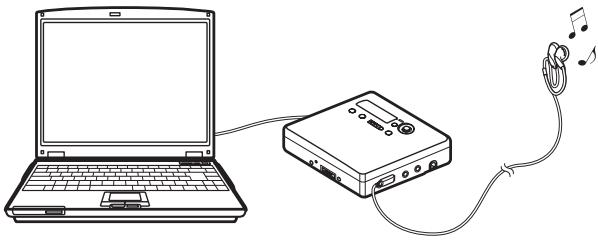
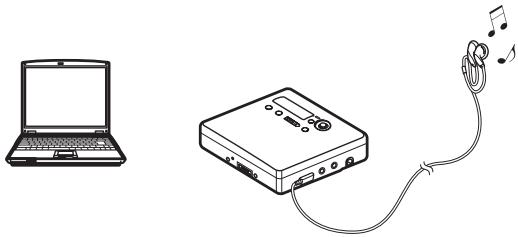
Écoute d'un MD avec le Net MD déconnecté de l'ordinateur
Écoutez le MD après avoir déconnecté le câble USB dédié de l'ordinateur et du Net MD.
Remarques
En général, vous ne pouvez pas effacer ni diviser/combiner des fichiers audio extraits. Si vous souhaitez modifier ces fichiers, réimportez-les d'abord. Les fichiers extraits peuvent être modifiés sur certains appareils MD ; cependant, effacer une piste diminuera le nombre de fois où le fichier peut être extrait, et diviser ou combiner des pistes rendra le fichier impossible à réimporter dans l'ordinateur (page 60).
Utilisation d'autres fonctions !
Utilisation de l'aide en ligne SonicStage
Ce manuel explique uniquement les opérations de base du logiciel SonicStage. Cependant, le logiciel possède de nombreuses autres fonctions qui vous permettent d'effectuer diverses opérations, telles que l'importation de fichiers audio depuis Internet, la classification et la gestion de fichiers audio, et la lecture dans différents modes de lecture. Pour plus d'informations et de détails sur les différents menus et opérations, consultez l'aide en ligne.
Pour afficher l'aide en ligne
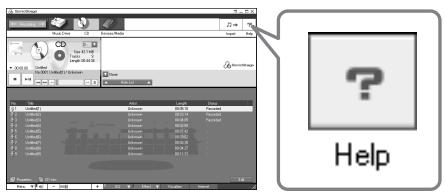
Cliquez sur [Aide] pendant que le logiciel SonicStage est en cours d'exécution.

Vous pouvez afficher l'aide en ligne en sélectionnant ce qui suit :
[Démarrer]-[Programmes]*-[SonicStage]-[Aide SonicStage]
- [Tous les programmes] dans le cas de Windows XP.
Consultation de l'aide en ligne

Découvrons d'abord comment utiliser l'aide en ligne. Une explication sur l'utilisation de l'aide en ligne se trouve également dans l'aide en ligne.
1 Double-cliquez sur [Vue d'ensemble] dans le cadre de gauche. 2 Cliquez sur [À propos de ce fichier d'aide].
L'explication apparaîtra dans le cadre de droite. 3 Lisez le texte.
Faites défiler l'affichage si nécessaire.
Cliquez sur les mots soulignés pour accéder à leurs explications.
Remarque
Dans l'aide en ligne, "Périphérique/Support" est le terme général pour les périphériques externes tels que les Net MD, les Network Walkman (c'est-à-dire les lecteurs audio portables IC ou les lecteurs audio portables "Memory Stick"), et les MusicClips.
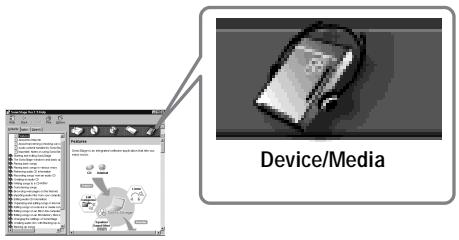
Paramètres et précautions
Paramètres selon le système d'exploitation
Les paramètres et les précautions diffèrent selon le système d'exploitation utilisé.
Vérifiez les éléments qui s'appliquent à votre système.

Pour les utilisateurs de Windows XP
Restrictions lors de l'utilisation du logiciel SonicStage sous Windows XP
- Pour installer ce logiciel, vous devez vous connecter avec un nom d'utilisateur possédant l'attribut "Administrateur de l'ordinateur"*.
- Vous devez vous connecter avec le nom d'utilisateur "Administrateurs" ou "Utilisateurs avec pouvoir" pour utiliser le logiciel SonicStage.
- Les deux éditions de Windows XP (Home/Professional) peuvent être utilisées.
- Le format NTFS de Windows XP Édition familiale ou Windows XP Professionnel (installé en usine) ne peut être utilisé qu'avec les paramètres standard (d'usine).
- Pour vérifier si le nom d'utilisateur possède l'attribut "Administrateur de l'ordinateur"
Allez dans [Démarrer] - [Panneau de configuration] - [Comptes d'utilisateurs], puis vérifiez le nom d'utilisateur affiché dans la
fenêtre.
Lors de l'utilisation de SonicStage sous Windows XP
Si vous utilisez la fonction "Restauration du système" dans les "Outils système" de Windows, les données audio gérées par SonicStage peuvent être corrompues et devenir illisibles.
Avant d'exécuter la procédure de restauration du système, vous devez d'abord sauvegarder tous les fichiers audio et les restaurer après avoir effectué la procédure de restauration du système.
Pour plus de détails sur les procédures de sauvegarde, reportez-vous à l'aide en ligne.
Remarque
La restauration des données de sauvegarde nécessite un accès à Internet. Si un fichier audio devient illisible après la restauration du système, une boîte de dialogue d'erreur peut apparaître. Si cela se produit, suivez les instructions du message.
Lors de l'utilisation de SonicStage sous Windows Millennium Edition
Si vous utilisez la fonction "Restauration du système" dans "Outils système" de Windows, les données audio gérées par SonicStage peuvent être corrompues et devenir illisibles.
Avant d'exécuter la procédure de restauration du système, vous devez d'abord sauvegarder tous les fichiers audio et les restaurer après avoir effectué la procédure de restauration du système.
Pour plus de détails sur les procédures de sauvegarde, reportez-vous à l'aide en ligne.
Remarque
La restauration des données de sauvegarde nécessite un accès à Internet. Si un fichier audio devient illisible après la restauration du système, une boîte de dialogue d'erreur peut apparaître. Si cela se produit, suivez les instructions du message.

Pour les utilisateurs de Windows 2000
Restrictions lors de l'exécution du logiciel SonicStage sous Windows 2000
- Vous devez vous connecter en tant qu'"Administrateur" pour installer le logiciel SonicStage.
- Vous devez vous connecter avec le nom d'utilisateur "Administrateurs" ou "Utilisateurs avec pouvoir" pour utiliser le logiciel SonicStage.
- Parmi les versions de Windows 2000, SonicStage est pris en charge uniquement par Windows 2000 Professional.
- Le format NTFS de Windows 2000 Professional (installé en usine) ne peut être utilisé qu'avec les paramètres standard (d'usine).

Pour les utilisateurs de Windows 98 Second Edition
Importation de fichiers MP3 sur l'ordinateur ou lecture de fichiers WAV sur l'ordinateur
Microsoft Media Player version 7.0 ou supérieure est requis pour importer des fichiers MP3 ou lire des fichiers WAV. Les utilisateurs de versions antérieures peuvent télécharger la version la plus récente depuis le site Web de Microsoft (http://www.microsoft.com/).
Pour les utilisateurs ayant OpenMG Jukebox, SonicStage ou SonicStage Premium installé sur leur ordinateur
Remarque
Vérifiez si des pistes ont été extraites de votre ordinateur. Si des pistes ont été extraites avec OpenMG Jukebox, une version antérieure de SonicStage ou SonicStage Premium, il peut être impossible de les réintégrer avec SonicStage Ver.1.5. Il est recommandé de réintégrer les pistes avant d'installer SonicStage Ver.1.5.
Vérifiez le contenu suivant avant d'installer SonicStage Ver.1.5.
Les éléments d'installation et la procédure varient selon le logiciel installé sur votre ordinateur.
Utilisateurs avec OpenMG Jukebox installé
| Installed Version | What to do |
| Ver.1.0~2.1 | Install SonicStage 1.5. OpenMG Jukebox Ver.1.0-2.1 is automatically uninstalled and replaced.1) |
| Ver.2.2 | OpenMG Jukebox Ver.2.2 and SonicStage Ver.1.5 can co-exist in the computer.If you install SonicStage Ver.1.5, then OpenMG Jukebox Ver.2.2 will be automatically upgraded to the latest version. |
1) Les fichiers audio enregistrés avec OpenMG Jukebox Ver.1.0-2.1 sont automatiquement convertis en fichiers SonicStage Ver.1.5. Par mesure de sécurité, il est recommandé de sauvegarder vos données audio avec l'outil de sauvegarde avant de procéder à la mise à niveau vers SonicStage Ver.1.5.
Utilisateurs avec une version antérieure de SonicStage installée
| Installed Version | What to do |
| Ver.1.0~1.5 | Install SonicStage Ver.1.5. The earlier version is automatically uninstalled and replaced.1) |
1) Les fichiers audio enregistrés avec SonicStage Ver.1.0-1.5 sont automatiquement convertis en fichiers SonicStage Ver.1.5. Par mesure de sécurité, il est recommandé de sauvegarder vos données audio avec l'outil de sauvegarde avant de procéder à la mise à niveau vers SonicStage Ver.1.5.
Utilisateurs avec SonicStage Premium installé
| Installed Version | What to do |
| SonicStage Premium | Install SonicStage Ver.1.5. SonicStage Ver.1.5 and SonicStage Premium can co-exist in the computer. |
Précautions concernant la coexistence de SonicStage Ver. 1.5 avec OpenMG Jukebox Ver.2.2 ou SonicStage Premium
- Assurez-vous que l'icône OpenMG Jukebox Ver.2.2 n'est pas affichée dans la zone de notification. Si c'est le cas, le Net MD peut ne pas être reconnu par votre ordinateur.
- Les données audio enregistrées sur l'ordinateur sont stockées dans un fichier commun et utilisées par les deux applications. Par conséquent, si vous supprimez un fichier audio (par exemple, un album) dans une application, il sera également supprimé dans l'autre logiciel.
Précaution lors de l'utilisation d'un ordinateur sur lequel OpenMG Jukebox Ver.1.0-2.1 ou SonicStage Ver.1.0-1.2 est installé
Après l'installation de SonicStage Ver. 1.5, assurez-vous de ne pas remplacer SonicStage Ver.1.5 par OpenMG Jukebox Ver.1.0-2.1 ou SonicStage Ver.1.0-1.2, car toutes les données audio du Music Drive pourraient être perdues. Si vous commencez l'installation d'OpenMG Jukebox Ver.1.0-2.1 ou de SonicStage Ver.1.0-1.2 par erreur, arrêtez immédiatement l'installation.
Remarque sur l'espace disque dur
Un espace libre de 120 Mo ou plus sur le disque dur est requis. Si votre ordinateur ne dispose pas de suffisamment d'espace, le logiciel ne sera pas installé correctement. L'espace libre requis varie selon la version de votre système d'exploitation Windows ou la quantité de fichiers audio que vous manipulez.
Remarques sur le mode veille/hibernation du système
- Si l'ordinateur passe en mode veille/hibernation pendant l'enregistrement d'un CD ou l'extraction/insertion d'un fichier de données, les données audio peuvent être perdues ou l'ordinateur peut ne pas se réveiller correctement. La fonction de veille/hibernation de l'ordinateur doit donc être désactivée.
- Si vous changez le support pendant que l'ordinateur est en mode veille/hibernation, les données audio peuvent être perdues après le réveil de l'ordinateur.
- Si l'ordinateur passe en mode veille/hibernation, il peut ne pas reconnaître le Net MD au réveil. Si cela se produit, déconnectez le câble USB dédié et reconnectez-le.
Sauvegarde des données audio
Avant d'effectuer toute procédure susceptible d'affecter le système d'exploitation lui-même (comme une récupération système), vous devez sauvegarder toutes vos données audio à l'aide de l'outil de sauvegarde SonicStage à partir de Démarrer - Programmes - SonicStage.
Remarque sur la batterie
- Assurez-vous que la batterie est suffisamment chargée avant d'extraire (ou d'insérer) des données audio. Si la batterie s'épuise pendant une extraction (ou une insertion), l'extraction (ou l'insertion) ne sera pas terminée. Si cela se produit, remplacez la pile sèche par une neuve et réessayez.
- Lors du remplacement d'une pile sèche, assurez-vous de déconnecter le câble USB dédié.
Désinstallation du logiciel SonicStage
Pour désinstaller le logiciel SonicStage, suivez les procédures ci-dessous.
Pour les utilisateurs de Windows XP
Connectez-vous avec un nom d'utilisateur ayant l'attribut "Administrateur de l'ordinateur". Reportez-vous au manuel d'utilisation de votre ordinateur pour plus de détails sur la connexion en tant qu'administrateur.
1 Cliquez sur [Démarrer] – [Panneau de configuration].
La fenêtre "Panneau de configuration" s'affiche.
2 Double-cliquez sur [Ajout/Suppression de programmes].
La boîte de dialogue "Ajout/Suppression de programmes" s'affiche.
3 Cliquez sur [Modifier ou supprimer des programmes]. 4 Cliquez sur [SonicStage 1.5.XX] dans la liste des "Programmes actuellement installés", puis cliquez sur [Modifier/Supprimer]. 5 Cliquez sur [OpenMG Secure Module 3.1]* dans la liste des "Programmes actuellement installés", puis cliquez sur [Modifier/Supprimer].
Suivez les instructions du message et redémarrez l'ordinateur. Une fois l'ordinateur redémarré, la désinstallation sera terminée.
- Si SonicStage Ver.1.5 coexiste avec OpenMG Jukebox Ver.2.2 ou SonicStage Premium sur votre ordinateur, et que vous désinstallez l'un ou l'autre, assurez-vous que [OpenMG Secure Module 3.1] n'est pas désinstallé, car il est utilisé en commun par les deux logiciels.
Pour les utilisateurs de Windows Millennium Edition/Windows 98 Deuxième édition
1 Cliquez sur [Démarrer] – [Paramètres] – [Panneau de configuration].
La fenêtre "Panneau de configuration" s'affiche.
2 Double-cliquez sur [Ajout/Suppression de programmes]. La fenêtre des propriétés d'Ajout/Suppression de programmes s'affiche. 3 Cliquez sur [SonicStage 1.5.XX] dans la liste des programmes à supprimer automatiquement, puis cliquez sur [Ajouter/Supprimer]. 4 Cliquez sur [OpenMG Secure Module 3.1]* dans la liste des programmes à supprimer automatiquement, puis cliquez sur [Ajouter/Supprimer].
Suivez les instructions du message et redémarrez l'ordinateur. Une fois l'ordinateur redémarré, la désinstallation sera terminée.
Pour les utilisateurs de Windows 2000
Connectez-vous en tant qu'"Administrateur", puis suivez les instructions ci-dessous.
Reportez-vous aux instructions d'utilisation de votre ordinateur pour savoir comment vous connecter en tant qu'administrateur.
1 Cliquez sur [Démarrer] – [Paramètres] – [Panneau de configuration]. La fenêtre "Panneau de configuration" s'affiche. 2 Double-cliquez sur [Ajout/Suppression de programmes]. La boîte de dialogue "Ajout/Suppression de programmes" s'affiche. 3 Cliquez sur [Modifier ou supprimer des programmes]. 4 Cliquez sur [SonicStage 1.5.XX] dans la liste des "Programmes actuellement installés", puis cliquez sur [Modifier/Supprimer]. 5 Cliquez sur [OpenMG Secure Module 3.1]* dans la liste des "Programmes actuellement installés", puis cliquez sur [Modifier/Supprimer].
Suivez les instructions du message et redémarrez l'ordinateur. Une fois l'ordinateur redémarré, la désinstallation sera terminée.
Dépannage
Veuillez suivre les étapes suivantes si vous rencontrez un problème lors de l'utilisation du logiciel SonicStage. Si un message apparaît, il est recommandé de le noter.
Étape 1 : Vérifiez les symptômes dans cette section "Dépannage".
Vous pouvez également trouver diverses informations dans les procédures d'utilisation et dans "Paramètres et précautions" (page 50).
Étape 2 : Vérifiez les symptômes dans l'aide en ligne de SonicStage 1.5 (page 48).
Consultez "Dépannage" sous "Informations complémentaires" dans l'aide en ligne.
Des informations utiles peuvent également se trouver dans d'autres sections de l'aide en ligne.
Étape 3 : Si le problème ne peut pas être résolu après avoir vérifié les références ci-dessus.
Consultez le tableau suivant, puis contactez votre revendeur Sony le plus proche.
| Computer • Manufacturer: • Model: • Type: Desktop type / Laptop type |
| Name of operating system: |
| RAM capacity: |
| Hard disk drive (containing SonicStage and audio data) • Capacity of the drive: • Free space: |
| Installed folder containing SonicStage (if other than the default folder)1) • Location of the installed folder: |
| Version of the software (SonicStage Ver.1.5)2): |
| Error Message (if one appeared): |
| If an externally connected CD-ROM drive is used • Manufacturer: • Model: • Type: CD-ROM / CD-R/RW / DVD-ROM / Other ( ) • Type of connection to the computer: PC card / USB / IEEE1394 / Other ( ) |
| If another device with USB connection is used • Name of the device (or devices): |
1) Si vous ne spécifiez pas la destination, le logiciel est installé dans C:\Program Files\Sony\SonicStage. 2) Pour vérifier la version du logiciel SonicStage, allez dans [Menu] - [À propos de SonicStage] dans la fenêtre SonicStage, ou consultez les informations de version sur le CD-ROM fourni.
Si votre ordinateur ne reconnaît pas le Net MD
- Le Net MD est-il correctement connecté à votre ordinateur ?
- Si le Net MD n'est pas fermement connecté à l'ordinateur, il ne sera pas reconnu par votre ordinateur.
- Rebranchez le câble USB dédié. Si l'ordinateur ne reconnaît toujours pas le Net MD, débranchez le Net MD, redémarrez l'ordinateur, puis rebranchez le câble USB dédié.
Un MD est-il inséré dans le Net MD ?
Vérifiez si un MD est inséré dans le Net MD.
- Si votre ordinateur ne reconnaît pas votre Net MD même lorsqu'il est connecté et qu'un disque est inséré, le pilote du Net MD n'est peut-être pas correctement installé.
Accédez à [Contrôleur USB] dans la fenêtre du Gestionnaire de périphériques de Windows pour vérifier que votre Net MD est correctement reconnu.
Un point d'exclamation [!] dans la fenêtre du Gestionnaire de périphériques indique que votre Net MD n'est pas correctement reconnu. Réinstallez le pilote du Net MD.
1 Cliquez sur [Démarrer] – [Paramètres] – [Panneau de configuration]. 1) 2 Double-cliquez sur [Système] dans le panneau de configuration. 2) 3 Cliquez sur l'onglet [Matériel] 3), puis cliquez sur [Gestionnaire de périphériques].
La fenêtre du Gestionnaire de périphériques s'affiche.
1) Sous Windows XP, sélectionnez [Démarrer] – [Panneau de configuration]. 2) Sous Windows XP, double-cliquez sur [Système] si le panneau de configuration est au format « classique », ou cliquez sur [Performances et maintenance] puis sur [Système] si le panneau de configuration est au format « par catégorie ». 3) Selon votre système, l'onglet [Matériel] peut ne pas être disponible. Dans ce cas, cliquez sur l'onglet [Gestionnaire de périphériques] pour afficher la fenêtre du Gestionnaire de périphériques.
Si l'installation n'a pas réussi
- Assurez-vous de fermer toutes les applications Windows avant de commencer l'installation.
Si vous démarrez l'installation alors que d'autres programmes sont en cours d'exécution, un dysfonctionnement peut survenir. Cela est particulièrement vrai pour les programmes qui nécessitent d'importantes ressources système, comme les logiciels antivirus.
- Veillez à ne pas connecter le Net MD à votre ordinateur avant de commencer l'installation.
Si le câble USB dédié est connecté à votre ordinateur avant l'installation, l'installation ne peut pas être effectuée correctement. Connectez le câble USB dédié après la fin de l'installation.
- Assurez-vous que votre ordinateur dispose de suffisamment d'espace sur le disque dur.
120 Mo d'espace libre ou plus sur le disque dur sont requis. Si votre ordinateur ne dispose pas de suffisamment d'espace, l'installation peut ne pas être possible.
- Si l'installation semble être arrêtée
L'installation peut prendre 30 minutes ou plus, selon votre ordinateur ou votre lecteur de CD-ROM.
Pendant l'installation, soyez attentif à l'apparition de l'un des problèmes suivants.
| Problem | Cause/Remedy |
| The installation appears to have stopped before it has completed. | Check for the appearance of an error message beneath the installation window. →Press the [Tab] key while holding down the [Alt] key. If an error message has appeared, press the [Enter] key. The installation will resume. If there is no message, the installation is still in progress. Wait a little while longer. |
| The progress bar on the display is not moving. The access lamp has not lit for a few minutes. | The installation is progressing normally. Please wait. |
- Si l'installation échoue toujours après tout ce que vous avez fait.
- L'installation peut être effectuée en copiant tous les fichiers sur le disque dur comme suit : 1 Créez un nouveau dossier sur le disque dur. 2 Insérez le CD-ROM fourni (SonicStage Ver.1.5) dans le lecteur de CD-ROM. 3 Lorsque la fenêtre d'installation apparaît, cliquez sur [Quitter] pour annuler l'installation. 4 Cliquez avec le bouton droit sur le menu Démarrer et lancez l'Explorateur. 5 Sélectionnez [SS15E] sur le lecteur de CD-ROM, puis cliquez sur [Edition] - [Sélectionner tout]. 6 Cliquez sur [Edition] - [Copier dans un dossier] (ou [Edition] - [Copier]) pour copier tous les fichiers dans le dossier que vous avez créé à l'étape 1. 7 Retirez le CD-ROM du lecteur de CD-ROM, ouvrez le dossier copié sur le disque dur et double-cliquez sur [setup.exe]. 8 Lorsque la fenêtre d'installation apparaît, suivez les instructions affichées pour installer [SonicStage 1.5].
- L'installation peut être effectuée en installant le logiciel à partir de [Démarrer] - [Exécuter].
Si l'extraction (ou la réintégration) n'a pas réussi
- La batterie était-elle suffisamment chargée ?
Si la batterie s'épuise pendant une extraction (ou une réintégration), l'extraction (ou la réintégration) ne sera pas terminée. Dans ce cas, remplacez la pile sèche par une neuve et réessayez.
La température ambiante est-elle trop basse ?
Pendant une extraction (ou une réintégration), assurez-vous que la température ambiante est de +5°C (+41°F) ou plus. Si la température est basse, le fonctionnement de l'enregistreur deviendra lent en raison de la nature de la batterie.
Informations et explications
FAQ Net MD
Cette section présente les questions fréquemment posées et leurs réponses sur le Net MD.

À propos du Net MD
Qu'est-ce qu'un "Net MD" ?
Net MD est une spécification qui permet de transférer des données audio d'un ordinateur vers un MiniDisc via un câble USB.
Jusqu'à présent, les MiniDiscs ne pouvaient être utilisés que pour enregistrer des sources analogiques (via un microphone ou une entrée analogique) ou des sources PCM telles que les CD. L'enregistrement de fichiers audio sur un ordinateur était impossible. Cependant, grâce à SonicStage et à d'autres logiciels de gestion musicale basés sur des technologies de protection des droits d'auteur telles que "OpenMG" et "MagicGate", la conversion de fichiers audio au format ATRAC ou ATRAC3 utilisé sur les MD est devenue possible, permettant l'enregistrement de fichiers informatiques sur des MD.
1) Technologie de protection des droits d'auteur pour gérer les données audio enregistrées sur des ordinateurs, etc. 2) Technologie pour vérifier le statut de protection des droits d'auteur des données audio lors des opérations d'extraction/retour entre un ordinateur et un périphérique Net MD. 3) Type de fichier pour l'enregistrement sur un MD.
Comment le logiciel SonicStage rend-il l'utilisation des MD plus pratique ?
- Il vous permet d'enregistrer des données audio de votre ordinateur sur votre MD.
- Les opérations d'édition sont facilement effectuées à l'aide d'opérations à l'écran.
- Étiquetage : permet d'utiliser le clavier pour étiqueter facilement le contenu.
- Déplacement de pistes ou de groupes : permet de déplacer des pistes ou des groupes simplement par glisser-déposer. Les déplacements de pistes sont faciles à voir.
- Paramètres de groupe : les groupes sont faciles à créer ou à supprimer.
Ces opérations permettent de modifier les pistes d'un disque dans le Net MD. Si vous souhaitez modifier le contenu d'un MD, connectez le Net MD à votre ordinateur et modifiez les pistes dans la fenêtre SonicStage Device/Media.
Peut-on réintégrer sur un ordinateur les pistes enregistrées sur le Net MD ?
Non, c'est impossible.
Les données audio initialement extraites d'un ordinateur ne peuvent être réintégrées que sur le même ordinateur. Les pistes enregistrées sur le Net MD à l'aide d'un microphone ou via une connexion analogique ou numérique ne peuvent pas être transférées vers l'ordinateur ni copiées.
Ordinateur ⇒ MiniDisc : OK.
MiniDisc ⇒ Ordinateur : OK uniquement pour les pistes initialement extraites de l'ordinateur.
Protection des droits d'auteur
La technologie OpenMG* vous permet de profiter de la musique numérique tout en respectant les droits de ses détenteurs. OpenMG Jukebox chiffre les fichiers audio au format OpenMG et les stocke sur le disque dur de votre ordinateur afin d'empêcher toute distribution non autorisée.
- La technologie de protection des droits d'auteur de ce logiciel est conforme aux spécifications SDMI (Secure Digital Music Initiative).
Ce logiciel impose certaines restrictions sur l'enregistrement et la lecture afin de protéger les droits d'auteur.
Vous ne pouvez réintégrer des fichiers audio que sur l'ordinateur à partir duquel ils ont été extraits.
Ils ne peuvent pas être copiés ou réintégrés sur d'autres ordinateurs.
Pour plus de détails, voir « Fonctionnalités de protection des droits d'auteur par OpenMG » (page 62).
Vous ne pouvez réintégrer des fichiers audio que sur l'ordinateur à partir duquel ils ont été extraits.
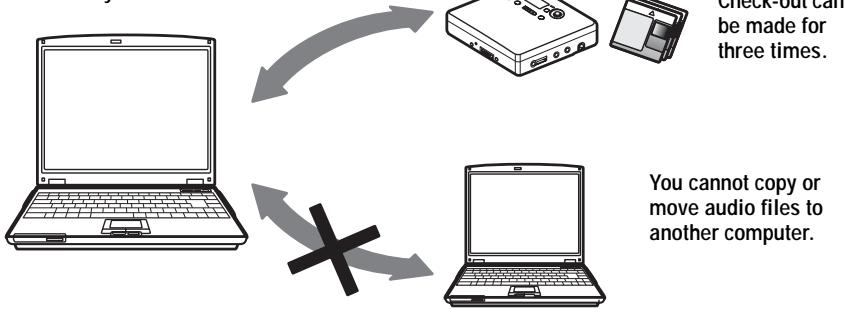
Restrictions sur le contenu audio
Un contenu audio numérique de haute qualité est largement disponible via les services de distribution de musique sur Internet. Pour protéger les droits d'auteur de ses détenteurs contre la distribution non autorisée, certains contenus audio sont distribués avec certaines restrictions d'enregistrement et de lecture. Par exemple, la durée de lecture ou le nombre de lectures des données peuvent être limités. Dans de tels cas, l'extraction (check-out) du contenu audio peut ne pas être possible.
Selon le contenu, certaines données audio qui peuvent être extraites sont soumises à des restrictions d'édition sur le Net MD ; par exemple, le contenu audio ne peut pas être effacé ou des marques de piste ne peuvent pas être ajoutées ou effacées.
Il n'est pas possible de réintégrer (check-in) des pistes autres que celles qui ont été extraites de votre ordinateur (par exemple, des pistes enregistrées à l'aide d'un microphone ou via une connexion analogique ou numérique).
Fonctionnalités de protection des droits d'auteur par OpenMG
Le logiciel SonicStage intègre OpenMG, une technologie de protection des droits d'auteur développée par Sony pour protéger les droits d'auteur musicaux. OpenMG utilise une technologie cryptographique de haut niveau pour protéger les contenus musicaux sur les ordinateurs.
Les utilisateurs doivent être conscients des restrictions décrites ci-dessous.
- La musique enregistrée sur le disque dur à l'aide du logiciel SonicStage ne peut pas être lue lorsqu'elle est copiée sur d'autres ordinateurs.
- L'installation du même logiciel SonicStage sur d'autres ordinateurs n'est pas autorisée. Règles d'utilisation
Si des règles d'utilisation sont incluses dans la musique par le détenteur des droits d'auteur ou le distributeur, l'exploitation sera limitée à l'utilisation permise par la règle d'utilisation. Pour la musique, comme les disques compacts, qui ne contient pas de règle d'utilisation, la règle d'utilisation par défaut de SDMI s'appliquera. Cette règle d'utilisation par défaut stipule qu'un fichier ne peut être extrait que trois fois au maximum.
- Sur les contenus musicaux qui ne sont pas compatibles avec le logiciel SonicStage Sous la supervision de SDMI, ce logiciel interdit l'enregistrement de musique avec un signal d'interdiction de copie.
- Mise à niveau du logiciel SonicStage
Ce logiciel a été développé conformément à l'arrangement actuel entre Sony et SDMI. Si cet arrangement est modifié à l'avenir, certaines fonctions du logiciel pourraient devenir indisponibles. Sony pourrait alors proposer un kit de mise à niveau moyennant des frais supplémentaires pour l'utilisateur.
Glossaire
ATRAC3
ATRAC3, qui signifie Adaptive Transform Acoustic Coding3, est une technologie de compression audio qui répond à la demande de haute qualité sonore et de taux de compression élevés. Le taux de compression ATRAC3 est environ 10 fois supérieur à celui du CD audio, ce qui augmente la capacité de données des supports.
"Extraction / Retour"
L'extraction consiste à transférer des fichiers musicaux d'un ordinateur personnel vers un périphérique externe ou un support (comme un Network Walkman). Le retour des fichiers musicaux extraits vers le même ordinateur est appelé retour. (Vous ne pouvez pas déplacer les fichiers musicaux extraits vers un autre ordinateur.)
Vous pouvez extraire un fichier musical, le retourner, puis l'extraire à nouveau un nombre infini de fois. Les règles SDMI prévoient que jusqu'à quatre copies d'un fichier musical peuvent être extraites à la fois. OpenMG utilise une méthode permettant d'extraire simultanément trois copies d'une chanson, tandis que la quatrième copie est conservée comme maître sur votre PC.
Service de distribution de musique électronique (EMD)
EMD est un site Web qui distribue des fichiers musicaux disponibles à l'achat.
MP3
MP3, qui signifie MPEG-1 Audio Layer3, est une norme de compression de fichiers audio déterminée par le groupe d'experts en images animées, un groupe de travail de l'ISO (Organisation internationale de normalisation). Il permet de compresser les fichiers audio à environ 1/10 de la taille des données d'un disque compact standard. Étant donné que l'algorithme d'encodage MP3 est divulgué, il existe divers encodeurs/décodeurs conformes à cette norme, y compris des logiciels gratuits disponibles sans frais. La norme MP3 est donc largement utilisée dans le domaine informatique.
Music Drive
Music Drive est une base de données musicale pour gérer les données audio sur un ordinateur. Dans Music Drive, les fichiers audio peuvent être gérés avec des informations telles que les noms d'artistes, les titres de pistes et les images de pochettes de CD, ou peuvent être combinés et classés dans différentes listes de lecture.
OpenMG
Technologie de protection des droits d'auteur pour l'importation et la gestion de contenu musical provenant de services de distribution ou de CD. En utilisant des logiciels conformes à OpenMG, les contenus audio peuvent être chiffrés avant d'être stockés sur un disque dur pour permettre la lecture de ces fichiers audio sur cet ordinateur. OpenMG empêche également la distribution non autorisée du contenu via Internet ou d'autres réseaux.
[ Album ]
Une liste de lecture est comme un conteneur qui peut être utilisé pour contenir et classer les fichiers stockés dans Music Drive. Par exemple, en créant une liste de lecture "jazz" et en y plaçant vos morceaux de jazz préférés, vous pouvez lire tous les morceaux en boucle ou les extraire tous en même temps.
suite
Mode d'enregistrement (débit binaire)
Il s'agit d'une mesure du volume de données par seconde. Le débit est exprimé en bps (bits par seconde). Dans SonicStage, le débit binaire peut être sélectionné pour l'enregistrement d'un CD audio ou la conversion de fichiers audio MP3 et WAV au format ATRAC3 parmi trois débits : 132 kbps, 105 kbps ou 66 kbps. Dans le cas de 105 kbps, 105 000 bits d'information sont traités par seconde. Si le débit binaire est élevé, cela signifie qu'une grande quantité d'informations est utilisée pour lire la musique. Ainsi, des données à 105 kbps produisent une meilleure qualité sonore que des données à 66 kbps, et des données à 132 kbps offrent une meilleure qualité sonore que des données à 105 kbps. Cependant, les fichiers audio dans des formats tels que MP3 ont des méthodes d'encodage différentes, et la qualité sonore n'est donc pas déterminée uniquement par le débit binaire.
SDMI
SDMI, qui signifie Secure Digital Music Initiative, est un forum composé de plus de 130 entreprises dans les domaines du contenu audio enregistré, de l'informatique et de l'électronique grand public. Il est dédié au développement de technologies intégrées de protection des droits d'auteur utilisables dans le monde entier.
SDMI travaille à la création d'un cadre pour empêcher l'utilisation inappropriée des fichiers audio et promouvoir des services de distribution musicale légaux. La technologie de protection des droits d'auteur OpenMG est basée sur la norme SDMI.
Windows Media Audio
Il s'agit d'une technologie de compression audio qui inclut le système de gestion appelé "Windows Media Rights Manager".
Windows Media Technology
Il s'agit d'une technologie qui inclut un système de gestion de contenu appelé Windows Media Rights Manager qui chiffre le contenu et distribue le contenu musical avec ses conditions d'utilisation, de distribution, etc. Les fichiers audio prenant en charge Windows Media Technologies (WMT) téléchargés via EMD* peuvent être importés et gérés dans OpenMG Jukebox.
- EMD peut ne pas être disponible dans certaines régions du monde.
Index
A
Accessoires
en option 28
fournis 11
ATRAC3 60, 63
Audio CD 32, 41
AVLS 25
B
back up 53
Battery life 14
C
CD-ROM 35
Check-in 60, 63
Check-out 44, 60, 63
Cleaning 27
Connecting 39
copyright protection 61
D
delete (software) 54
Périphérique/Média 44, 49
Préréglage sonore numérique 19
DSP TYPE-S 31
E
Services EMD 63
G
G-PROTECTION 17
Groupe
fonction 21
lecture 21
saut 21
H
disque dur
espace libre 35, 53
stockage 41
Maintien 15,25
1
Recherche par index 17
Installation 37
L
étiquetage 43
M
MP3 63
Music Drive 41, 63
N
Net MD 33, 60
Pilote Net MD 58
0
Aide en ligne 48
OpenMG 63
OpenMG Jukebox software 36, 52
P
Mode de lecture
groupe 22
pistes 18
Liste de lecture 44, 63
0
Mode rapide 24
R
Mode d'enregistrement (débit binaire) 42, 45, 64
Fenêtre de navigation d'enregistrement 41
s
SDMI 64
SonicStage Premium 36, 52
Logiciel SonicStage (version antérieure) 36, 52
Démarrage (logiciel) 40
Environnement système 35
Limitations du système 35
T
Recherche par heure 17
Transfert
vers l'ordinateur 40
vers le Net MD 44
U
Désinstallation
Windows 2000 55
Windows 98 Deuxième édition 54
Windows Millennium Edition 54
Windows XP 54
Câble USB 11
W
Windows 2000 55
Windows 98 Second Edition 54
Windows Millennium Edition 54
Windows XP 54
WMA 64
WMT 64
SONY®
Lecteur audio portable Memory Stick
Lecteur audio portable IC
Enregistreur MiniDisc portable
GARANTIE LIMITÉE
Sony du Canada (« Sony ») garantit ce produit (y compris les accessoires) contre tout défaut de matériau ou de fabrication comme suit :
- MAIN-D'ŒUVRE : Pendant une période de 90 jours à compter de la date d'achat, si ce produit est jugé défectueux, Sony réparera ou remplacera le produit, à son choix, sans frais, ou paiera les frais de main-d'œuvre à tout centre de service agréé Sony. Après la période de garantie, vous devez payer tous les frais de main-d'œuvre.
- PIÈCES : De plus, Sony fournira, sans frais, des pièces de remplacement neuves ou reconstruites en échange de pièces défectueuses pendant une période d'un (1) an. Après 90 jours à compter de la date d'achat, la main-d'œuvre pour le retrait et l'installation est disponible auprès des centres de service agréés Sony ou d'un centre de service Sony à vos frais.
Vous pouvez prolonger la période de garantie de neuf mois supplémentaires en enregistrant votre produit (www.sonystyle.ca). Une fois votre produit enregistré, la période de garantie limitée est de douze mois à compter de la date d'achat initiale auprès de Sony ou d'un revendeur agréé Sony. La période de garantie de quatre-vingt-dix (90) jours ne peut être prolongée que pour l'acheteur initial, pour une période supplémentaire de neuf (9) mois, soit un total de douze (12) mois à compter de la date d'achat, lorsque le produit est enregistré électroniquement. Après la période applicable, vous devez payer toutes les pièces et la main-d'œuvre.
Pour obtenir un service de garantie, vous devez apporter le produit ou le livrer, port payé, dans son emballage d'origine ou dans un emballage offrant un degré de protection équivalent, à tout centre de service agréé Sony.
Cette garantie ne couvre pas les instructions au client, l'installation, les réglages ou les problèmes de réception du signal.
Cette garantie ne couvre pas les dommages esthétiques ou les dommages causés par des actes de Dieu, un accident, une mauvaise utilisation, un abus, une négligence, une utilisation commerciale, ou la modification de toute partie du produit, y compris l'antenne. Cette garantie ne couvre pas les dommages dus à une utilisation ou un entretien inapproprié, à un branchement sur une alimentation électrique inadéquate, ou à une tentative de réparation par une personne autre qu'un centre agréé par Sony pour réparer le produit. Cette garantie ne couvre pas les produits vendus « tels quels » ou « avec tous leurs défauts », ni les consommables (tels que les fusibles ou les piles). Cette garantie n'est valable qu'au Canada.
Une preuve d'achat sous forme de facture ou de reçu daté, attestant que l'appareil est dans la période de garantie, doit être présentée pour obtenir un service de garantie.
Cette garantie est invalide si le numéro de série apposé en usine a été modifié ou retiré du produit.
LA RÉPARATION OU LE REMPLACEMENT PRÉVU PAR CETTE GARANTIE EST LE SEUL RECOURS DU CONSOMMATEUR. SONY NE SAURAIT ÊTRE TENU RESPONSABLE DES DOMMAGES ACCESSOIRES OU INDIRECTS RÉSULTANT DE LA VIOLATION DE TOUTE GARANTIE EXPRESSE OU IMPLICITE SUR CE PRODUIT. SAUF DANS LA MESURE INTERDITE PAR LA LOI APPLICABLE, TOUTE GARANTIE IMPLICITE DE QUALITÉ MARCHANDE OU D'ADAPTATION À UN USAGE PARTICULIER SUR CE PRODUIT EST LIMITÉE À LA DURÉE DE CETTE GARANTIE.
Certaines provinces n'autorisent pas l'exclusion ou la limitation des dommages accessoires ou indirects, ni les limitations sur la durée d'une garantie implicite. Par conséquent, les limitations ou exclusions ci-dessus peuvent ne pas s'appliquer à vous. Cette garantie vous confère des droits légaux spécifiques, et vous pouvez également bénéficier d'autres droits qui varient d'une province à l'autre.
Pour votre commodité, Sony of Canada Ltd. a mis en place des numéros de téléphone pour les questions fréquemment posées :
Pour trouver le centre de service ou le revendeur le plus proche, ou pour obtenir de l'aide en matière de service ou la résolution d'un problème de service, ou pour des informations sur le produit ou son fonctionnement, appelez :
Centre d'information clientèle Sony
1(877)770-7669
ou écrivez à :
Sony of Canada Ltd.
115 Gordon Baker Road, Toronto, Ontario M2H 3R6 CANADA
ou visitez ;
www.sonystyle.ca/productregistration
Audio portable
Ces informations sont utilisées pour traiter votre enregistrement de garantie et à des fins de service après-vente. Elles peuvent également être utilisées par Sony of Canada Ltd et les sociétés affiliées de Sony pour le développement et l'analyse des relations avec la clientèle, et pour vous fournir des informations et des offres promotionnelles sur d'autres produits et services susceptibles de vous intéresser. Pour obtenir une copie de notre Code de confidentialité, veuillez visiter notre site Web à l'adresse www.sonystyle.ca/privacy ou appeler le 1-877-899-7669.
SONY®
Lecteur audio portable à Memory Stick / Enregistreur MiniDisc portable / Lecteur CD portable
GARANTIE LIMITÉE
Audio portable
Sony Electronics Inc. (« Sony ») garantit ce produit (y compris les accessoires) contre les défauts de matériaux et de fabrication comme suit :
- MAIN-D'ŒUVRE : Pendant une période de 90 jours à compter de la date d'achat, si ce produit est jugé défectueux, Sony réparera ou remplacera le produit, à son choix, sans frais, ou paiera les frais de main-d'œuvre à tout centre de service agréé Sony. Après la période de garantie, vous devez payer tous les frais de main-d'œuvre.
- PIÈCES : En outre, Sony fournira, sans frais, des pièces de rechange neuves ou remises à neuf en échange de pièces défectueuses pendant une période d'un (1) an. Après 90 jours à compter de la date d'achat, la main-d'œuvre pour le retrait et l'installation est disponible auprès des centres de service agréés Sony ou d'un centre de service Sony à vos frais.
Pour obtenir un service de garantie, vous devez apporter le produit, ou le livrer en port payé, dans son emballage d'origine ou un emballage offrant un degré de protection équivalent, à tout centre de service agréé Sony.
Cette garantie ne couvre pas les instructions au client, l'installation, les réglages de configuration ou les problèmes de réception du signal.
Cette garantie ne couvre pas les dommages esthétiques ou les dommages causés par des actes de Dieu, un accident, une mauvaise utilisation, un abus, une négligence, une utilisation commerciale, ou la modification de, ou de toute partie du produit, y compris l'antenne. Cette garantie ne couvre pas les dommages dus à une utilisation ou un entretien inapproprié, à un branchement sur une tension d'alimentation incorrecte, ou à une tentative de réparation par une personne autre qu'un centre agréé par Sony pour réparer le produit. Cette garantie ne couvre pas les produits vendus « EN L'ÉTAT » ou « AVEC TOUS LES DÉFAUTS », ni les consommables (tels que les fusibles ou les piles). Cette garantie n'est valable qu'aux États-Unis.
Une preuve d'achat sous forme de facture ou de reçu attestant que l'appareil est dans la période de garantie doit être présentée pour obtenir un service de garantie.
Cette garantie est invalide si le numéro de série appliqué en usine a été modifié ou retiré du produit.
LA RÉPARATION OU LE REMPLACEMENT PRÉVU PAR LA PRÉSENTE GARANTIE EST LE SEUL RECOURS DU CONSOMMATEUR. SONY NE SAURAIT ÊTRE TENU RESPONSABLE DES DOMMAGES ACCESSOIRES OU INDIRECTS RÉSULTANT DE LA VIOLATION DE TOUTE GARANTIE EXPRESSE OU IMPLICITE SUR CE PRODUIT. SAUF DANS LA MESURE INTERDITE PAR LA LOI APPLICABLE, TOUTE GARANTIE IMPLICITE DE QUALITÉ MARCHANDE OU D'ADAPTATION À UN USAGE PARTICULIER SUR CE PRODUIT EST LIMITÉE EN DURÉE À LA DURÉE DE LA PRÉSENTE GARANTIE.
Certains États n'autorisent pas l'exclusion ou la limitation des dommages accessoires ou indirects, ni les limitations sur la durée d'une garantie implicite. Par conséquent, les limitations ou exclusions ci-dessus peuvent ne pas s'appliquer à vous. De plus, si vous concluez un contrat de service avec Sony Partnership dans les 90 jours suivant la date de vente, la limitation sur la durée d'une garantie implicite ne s'applique pas à vous. Cette garantie vous confère des droits légaux spécifiques, et vous pouvez également bénéficier d'autres droits qui varient d'un État à l'autre.
Pour votre commodité, Sony Electronics Inc. a établi des numéros de téléphone pour les questions fréquemment posées :
Pour localiser le réparateur ou le revendeur le plus proche, ou pour obtenir de l'aide ou une solution à un problème de service, ou pour des informations sur le produit ou son fonctionnement, contactez :
www.sony.com/walkmansupport
Ligne d'assistance Sony Network Portable Audio : 1-(866)-456-7669
Sony Customer Information Service Center 12451 Gateway Blvd. Fort Myers, FL 33913
Pour un accessoire ou une pièce non disponible auprès de votre revendeur agréé, appelez :
1-(800)-488-SONY(7669)

Imprimé avec de l'encre végétale sans COV (composés organiques volatils).
http://www.sony.net/
Imprimé en Malaisie
D 324343302
- ENREGISTREUR MINIDISC PORTABLE
- MODE D'EMPLOI
- AVERTISSEMENT
- ATTENTION
- INFORMATIONS
- POUR LES CLIENTS AYANT ACHETÉ CE PRODUIT AUX ÉTATS-UNIS
- REGISTRE DU PROPRIÉTAIRE
- ENREGISTREMENT DU PRODUIT
- DÉCLARATION DE CONFORMITÉ
- SONY MZ-NE
- AVIS AUX UTILISATEURS
- SUR LE LOGICIEL FOURNI
- TABLE DES MATIÈRES
- OPÉRATIONS DE L'ENREGISTREUR
- DIFFÉRENTES MÉTHODES DE LECTURE
- UTILISATION DE LA FONCTION DE GROUPE
- AUTRES OPÉRATIONS
- INFORMATIONS COMPLÉMENTAIRES
- DÉPANNAGE ET EXPLICATIONS
- UTILISATION DU LOGICIEL
- QU'EST-CE QU'UN NET MD
- OPÉRATIONS DE BASE
- OPÉRATIONS AVANCÉES
- AUTRES INFORMATIONS
- AVANT D'UTILISER CE PRODUIT
- LORS DE L'UTILISATION DE L'ENREGISTREUR
- FONCTIONNEMENT DE L'ENREGISTREUR (PAGES 11 À 31)
- DÉPANNAGE ET EXPLICATIONS (PAGE 29)
- LORS DE L'UTILISATION DU NET MD (L'ENREGISTREUR) CONNECTÉ À VOTRE ORDINATEUR
- UTILISATION DU LOGICIEL (PAGES 32 À 64)
- AUTRES INFORMATIONS (PAGE 50)
- AIDE DE SONICSTAGE VER
- REMARQUES SUR LA SECTION "UTILISATION DU LOGICIEL
- VÉRIFICATION DES ACCESSOIRES FOURNIS
- EXAMEN DES COMMANDES
- FACE AVANT DE L'ENREGISTREUR
- DOS DE L'ENREGISTREUR
- LA FENÊTRE D'AFFICHAGE DE L'ENREGISTREUR
- POUR COMMENCER
- INSÉREZ UNE PILE ALCALINE SÈCHE
- QUAND REMPLACER LA PILE
- REMARQUES
- EFFECTUEZ LES CONNEXIONS ET DÉVERROUILLEZ LA COMMANDE
- LECTURE IMMÉDIATE D'UN MD
- INSÉREZ UN MD
- LIRE UN MD
- POUR ARRÊTER LA LECTURE, APPUYEZ SUR
- SUPPRESSION DES SAUTS DE SON (G-PROTECTION)
- REMARQUE
- SÉLECTION DU MODE DE LECTURE
- POUR ANNULER LA PROCÉDURE
- POUR REVENIR AUX RÉGLAGES PRÉCÉDENTS
- RÉGLAGE DES AIGUS OU DES GRAVES (DIGITAL SOUND PRESET)
- SÉLECTION DE LA QUALITÉ SONORE
- RÉGLAGES D'USINE
- RÉGLAGE DE LA QUALITÉ SONORE
- QU'EST-CE QUE LA FONCTION DE GROUPE
- QU'EST-CE QU'UN DISQUE AVEC DES RÉGLAGES DE GROUPE
- AVANT LES RÉGLAGES DE GROUPE
- APRÈS LE RÉGLAGE DU GROUPE (LECTURE DE GROUPE)
- NOTE
- LECTURE D'UNE PISTE EN LECTURE DE GROUPE
- POUR SE RENDRE AU DÉBUT D'UN GROUPE (SAUT DE GROUPE)
- SÉLECTION DU MODE DE LECTURE POUR LA LECTURE DE GROUPE (MODE DE LECTURE DE GROUPE)
- AFFICHAGE DE DIVERSES INFORMATIONS
- DÉMARRAGE RAPIDE DE LA LECTURE (MODE RAPIDE)
- POUR REVENIR AU RÉGLAGE NORMAL
- PROTECTION DE VOTRE OUÏE (AVLS)
- POUR ANNULER LA FONCTION AVLS
- VERROUILLAGE DES COMMANDES (HOLD)
- POUR DÉVERROUILLER LES COMMANDES
- PRÉCAUTIONS
- SÉCURITÉ
- MANIPULATION
- ACCUMULATION DE CHALEUR
- BRUIT MÉCANIQUE
- INSTALLATION
- CARTOUCHE MINIDISC
- SUR LES ÉCOUTEURS/CASQUES
- SÉCURITÉ ROUTIÈRE
- PRÉVENTION DES DOMMAGES AUDITIFS
- RESPECT DES AUTRES
- NETTOYAGE
- POUR PROTÉGER UN MD ENREGISTRÉ
- SPÉCIFICATIONS
- LECTEUR MD
- SYSTÈME DE LECTURE AUDIO
- PROPRIÉTÉS DE LA DIODE LASER
- DURÉE D'ENREGISTREMENT ET DE LECTURE (AVEC MDW-80)
- VITESSES DE ROTATION
- CORRECTION D'ERREURS
- FRÉQUENCE D'ÉCHANTILLONNAGE
- CODAGE
- SYSTÈME DE MODULATION
- NOMBRE DE CANAUX
- RÉPONSE EN FRÉQUENCE
- SORTIES
- GÉNÉRALITÉS
- ALIMENTATION
- TEMPÉRATURE RECOMMANDÉE POUR L'ENREGISTREMENT/LA LECTURE
- DURÉE DE FONCTIONNEMENT DE LA PILE
- DIMENSIONS
- MASSE
- ACCESSOIRES EN OPTION
- PROBLÈMES ET SOLUTIONS
- EXPLICATIONS
- À PROPOS DU DSP TYPE-S POUR ATRAC/ATRAC
- ENREGISTREMENT DE DONNÉES AUDIO SUR VOTRE ORDINATEUR
- SUR L'ORDINATEUR
- ÉCOUTE
- TRANSFERT DE DONNÉES AUDIO VERS LE NET MD
- ÉDITION
- CRÉATION D'UNE BIBLIOTHÈQUE MUSICALE
- FLUX DE FONCTIONNEMENT DE BASE AVEC LE NET MD
- FOURNIR L'ENVIRONNEMENT SYSTÈME REQUIS
- CONFIGURATION SYSTÈME REQUISE
- CE LOGICIEL N'EST PAS PRIS EN CHARGE PAR LES ENVIRONNEMENTS SUIVANTS
- NOTES
- INSTALLATION DU LOGICIEL SUR VOTRE ORDINATEUR
- AVANT D'INSTALLER LE LOGICIEL
- NE CONNECTEZ PAS LE CÂBLE USB DÉDIÉ AVANT L'INSTALLATION
- FERMEZ TOUTES LES AUTRES APPLICATIONS WINDOWS AVANT DE COMMENCER L'INSTALLATION
- INSTALLATION DE SONICSTAGE VER
- SUIVEZ LES INSTRUCTIONS AFFICHÉES
- UNE FOIS L'INSTALLATION TERMINÉE, CLIQUEZ SUR [REDÉMARRER] POUR REDÉMARRER L'ORDINATEUR
- L'INSTALLATION A-T-ELLE RÉUSSI
- CONNEXION DU NET MD À VOTRE ORDINATEUR
- STOCKAGE DES DONNÉES AUDIO SUR VOTRE ORDINATEUR
- DÉMARRAGE DE SONICSTAGE
- ENREGISTREMENT DE CD AUDIO SUR LE DISQUE DUR
- INSÉREZ LE CD AUDIO QUE VOUS SOUHAITEZ ENREGISTRER DANS LE LECTEUR DE CD-ROM DE VOTRE ORDINATEUR
- CLIQUEZ SUR ENREGISTREMENT
- SÉLECTIONNEZ CD) POUR [1 SOURCES] ET (MUSIC DRIVE) POUR [2 CIBLES], PUIS CLIQUEZ SUR 3 → [ALLER À LA FENÊTRE D'ENREGISTREMENT]
- POUR ARRÊTER L'ENREGISTREMENT
- ÉTIQUETAGE DES DONNÉES AUDIO
- DÉMARREZ SONICSTAGE (PAGE 40) ET CLIQUEZ SUR (MUSIC DRIVE)
- DOUBLE-CLIQUEZ SUR LE NOM DE L'ALBUM SOUHAITÉ
- CLIQUEZ SUR MODIFIER DANS LA PARTIE INFÉRIEURE DROITE DE L'ÉCRAN
- SÉLECTIONNEZ UN ÉLÉMENT EN CLIQUANT SUR [TITRE], [ALBUM], [ARTISTE] OU [GENRE], PUIS CLIQUEZ AVEC LE BOUTON DROIT ET SÉLECTIONNEZ [RENOMMER]
- LORSQUE LE TITRE DE LA PISTE EST SURLIGNÉ, SAISISSEZ LES DONNÉES TEXTE À L'AIDE DU CLAVIER
- TRANSFERT DES DONNÉES AUDIO DE VOTRE ORDINATEUR VERS LE NET MD (CHECK-OUT)
- EXTRACTION DE FICHIERS AUDIO VERS LE NET MD
- POUR ANNULER UNE EXTRACTION
- ÉCOUTE D'UN MD
- ÉCOUTE D'UN MD AVEC LE NET MD CONNECTÉ À L'ORDINATEUR
- ÉCOUTE D'UN MD AVEC LE NET MD DÉCONNECTÉ DE L'ORDINATEUR
- UTILISATION D'AUTRES FONCTIONS
- UTILISATION DE L'AIDE EN LIGNE SONICSTAGE
- POUR AFFICHER L'AIDE EN LIGNE
- CONSULTATION DE L'AIDE EN LIGNE
- PARAMÈTRES ET PRÉCAUTIONS
- PARAMÈTRES SELON LE SYSTÈME D'EXPLOITATION
- POUR LES UTILISATEURS DE WINDOWS XP
- RESTRICTIONS LORS DE L'UTILISATION DU LOGICIEL SONICSTAGE SOUS WINDOWS XP
- LORS DE L'UTILISATION DE SONICSTAGE SOUS WINDOWS XP
- LORS DE L'UTILISATION DE SONICSTAGE SOUS WINDOWS MILLENNIUM EDITION
- POUR LES UTILISATEURS DE WINDOWS
- RESTRICTIONS LORS DE L'EXÉCUTION DU LOGICIEL SONICSTAGE SOUS WINDOWS
- POUR LES UTILISATEURS DE WINDOWS 98 SECOND EDITION
- IMPORTATION DE FICHIERS MP3 SUR L'ORDINATEUR OU LECTURE DE FICHIERS WAV SUR L'ORDINATEUR
- POUR LES UTILISATEURS AYANT OPENMG JUKEBOX, SONICSTAGE OU SONICSTAGE PREMIUM INSTALLÉ SUR LEUR ORDINATEUR
- VÉRIFIEZ LE CONTENU SUIVANT AVANT D'INSTALLER SONICSTAGE VER
- UTILISATEURS AVEC OPENMG JUKEBOX INSTALLÉ
- UTILISATEURS AVEC UNE VERSION ANTÉRIEURE DE SONICSTAGE INSTALLÉE
- UTILISATEURS AVEC SONICSTAGE PREMIUM INSTALLÉ
- PRÉCAUTIONS CONCERNANT LA COEXISTENCE DE SONICSTAGE VER. 1.5 AVEC OPENMG JUKEBOX VER.2.2 OU SONICSTAGE PREMIUM
- PRÉCAUTION LORS DE L'UTILISATION D'UN ORDINATEUR SUR LEQUEL OPENMG JUKEBOX VER.1.0-2.1 OU SONICSTAGE VER.1.0-1.2 EST INSTALLÉ
- REMARQUE SUR L'ESPACE DISQUE DUR
- REMARQUES SUR LE MODE VEILLE/HIBERNATION DU SYSTÈME
- SAUVEGARDE DES DONNÉES AUDIO
- REMARQUE SUR LA BATTERIE
- DÉSINSTALLATION DU LOGICIEL SONICSTAGE
- POUR LES UTILISATEURS DE WINDOWS MILLENNIUM EDITION/WINDOWS 98 DEUXIÈME ÉDITION
- DÉPANNAGE
- ÉTAPE 1 : VÉRIFIEZ LES SYMPTÔMES DANS CETTE SECTION "DÉPANNAGE
- ÉTAPE 2 : VÉRIFIEZ LES SYMPTÔMES DANS L'AIDE EN LIGNE DE SONICSTAGE 1.5 (PAGE 48)
- ÉTAPE 3 : SI LE PROBLÈME NE PEUT PAS ÊTRE RÉSOLU APRÈS AVOIR VÉRIFIÉ LES RÉFÉRENCES CI-DESSUS
- SI VOTRE ORDINATEUR NE RECONNAÎT PAS LE NET MD
- SI L'INSTALLATION N'A PAS RÉUSSI
- SI L'INSTALLATION SEMBLE ÊTRE ARRÊTÉE
- SI L'INSTALLATION ÉCHOUE TOUJOURS APRÈS TOUT CE QUE VOUS AVEZ FAIT
- SI L'EXTRACTION (OU LA RÉINTÉGRATION) N'A PAS RÉUSSI
- LA BATTERIE ÉTAIT-ELLE SUFFISAMMENT CHARGÉE
- LA TEMPÉRATURE AMBIANTE EST-ELLE TROP BASSE
- INFORMATIONS ET EXPLICATIONS
- FAQ NET MD
- À PROPOS DU NET MD
- QU'EST-CE QU'UN "NET MD
- COMMENT LE LOGICIEL SONICSTAGE REND-IL L'UTILISATION DES MD PLUS PRATIQUE
- PEUT-ON RÉINTÉGRER SUR UN ORDINATEUR LES PISTES ENREGISTRÉES SUR LE NET MD
- PROTECTION DES DROITS D'AUTEUR
- RESTRICTIONS SUR LE CONTENU AUDIO
- FONCTIONNALITÉS DE PROTECTION DES DROITS D'AUTEUR PAR OPENMG
- GLOSSAIRE
- ATRAC
- EXTRACTION / RETOUR
- SERVICE DE DISTRIBUTION DE MUSIQUE ÉLECTRONIQUE (EMD)
- MP
- MUSIC DRIVE
- OPENMG
- [ ALBUM ]
- MODE D'ENREGISTREMENT (DÉBIT BINAIRE)
- SDMI
- WINDOWS MEDIA AUDIO
- WINDOWS MEDIA TECHNOLOGY
- INDEX
- A
- B
- C
- D
- E
- G
- H
- L
- M
- N
- P
- R
- S
- T
- U
- W
- GARANTIE LIMITÉE
Marque : SONY
Modèle : MZ-NE410
Catégorie : Lecteur MiniDisc