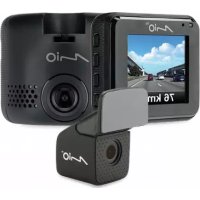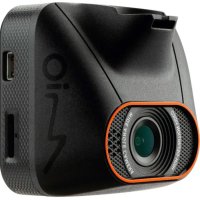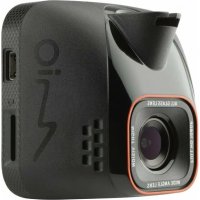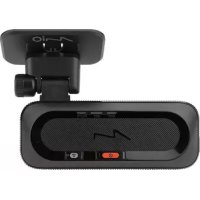
MiVue J60 - Dashcam MIO - Notice d'utilisation et mode d'emploi gratuit
Retrouvez gratuitement la notice de l'appareil MiVue J60 MIO au format PDF.


| Type de produit | Dashcam pour voiture |
| Marque | Mio |
| Modele | MiVue J60 |
| Resolutions video | Full HD 1080p |
| Angle de vision | 130 degres |
| Capteur | Capteur G (acceleration) |
| Enregistrement continu | Oui, automatique au demarrage du vehicule |
| Enregistrement d'evenements | Oui, declenche par impact ou virage brusque |
| Mode stationnement | Oui, detection de mouvement ou vibration |
| Connectivite | Wi-Fi (via application MiVue Pro) |
| Application mobile | MiVue Pro (iOS et Android) |
| Stockage | Carte microSD Classe 10, 8 Go a 128 Go |
| Alimentation | Via la prise accessoire 12V du vehicule |
| Batterie integree | Oui (capacite non specifiee) |
| Dimensions (approx.) | 6 x 5 x 4 cm |
| Poids (approx.) | 60 g |
| Indicateurs lumineux | Wi-Fi (bleu), REC (vert/rouge), MUTE (ambre), Stationnement (blanc) |
| Microphone | Integre, avec fonction mute |
| Haut-parleur | Integre |
| Logiciel PC | MiVue Manager (optionnel) |
| Entretien et nettoyage | Nettoyer l'objectif avec un chiffon doux et sec |
| Securite | Ne pas utiliser en conduisant ; fixer solidement |
| Pieces detachees et reparabilite | Carte microSD, support de montage, cable USB |
| Informations generales | Conforme a la directive 2014/53/EU ; marquage CE |
FOIRE AUX QUESTIONS - MiVue J60 MIO
Questions des utilisateurs sur MiVue J60 MIO
0 question sur cet appareil. Repondez a celles que vous connaissez ou posez la votre.
Poser une nouvelle question sur cet appareil
Téléchargez la notice de votre Dashcam au format PDF gratuitement ! Retrouvez votre notice MiVue J60 - MIO et reprennez votre appareil électronique en main. Sur cette page sont publiés tous les documents nécessaires à l'utilisation de votre appareil MiVue J60 de la marque MIO.
MODE D'EMPLOI MiVue J60 MIO
Quick Start Guide
MiVue™ J60/J80 Series
1
2
3
b
4

MITAC Europe Ltd. Spectrum House, Beethive King Road London Dalembi Airport, PHI 6.O/ UNITED KINGDOM Revision: RSI (70248)
CE ≡
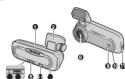
Getting to know your dash cam
① Systems indicator (WIFI/RECMUTE) ② WIFI/Mate bus ③ Microphone
Device mount Camera lens Shutdown button Forward
① Memory card slot ② Parking index
- PowerEvent button - Mini-USB connector WIFI indicator (Blue)
• Glows in blue when the WIFI mode is turned on.
- Flashes in blue when the dash cam is connected to the smartphone.
REC indicator (Green/Red)
- Glows in green when the recording is in progress. - Flashes in green when an event recording is in pro
- Glows in red when there is an error with the memory card.
- Plastics in 100 When the memory care is being formulated on an over-the-air (OTA) update is in progress.
- Flashes in green and red alternately when the battery power is love.
MUTE indicator (Amber)
• Glows in amber to indicate the microphone is heated during recording.
Parking indicator (White) • Gloves in white when the
Power/Event button
- Press the button briefly to turn the dash ram on. - When the dash ram is powered no, press the button
When the start will be performed at a press and address later, to start an event recording.
- When the dash-cam is powered on, press and hold button for 5 seconds to turn the dash cam off.
WIFI/Mute button 1. Press the button briefly in mute or unmute the microphone
During the past year, a total of 100% of the UWD during recording.
- Press and hold the button for 5 seconds to turn the wrist mode on or off.
[Non-Text]
Milyue Pro app
The MI/ve Pro are a
the videos recorded on a M/Vue dash cam via WIFI. Search for "M/Vue Pro" in Angie Auto Store or in Google Play Store to
Download the app for free.
Setting up a WIF 1. On the M'View day
- On the network domain, gross and hold the WiFi 5000MHz seconds to enable the WiFi node.
-
Mio on the network has enabled the WiFi 5000MHz
-
Make sure that you have enabled the Wi-Fi function on the smartphone.
-
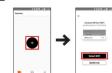
Open the MIVue Pro app on the connected smartphone and then tap the "-" icon.
-
Tap Select WIFI and then select the dash care you want to connect in
-
Tap Done to complete the WIFI connedia
Using your dash cam in a vehicle
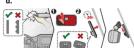
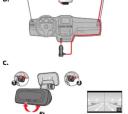
Make sure that your car is parked on level ground. Follow the instructions to mount your dash car in a vehicle securely.
Note: Depending on your model, your device may support a near-camera (in the walk) separately. For more information on using the rear camera, see the
In this reference [3.4] of the information being the full content for the provided documentation in its package.
Calculus: Del rox operator the device while driving. Using this product does not change the requirement for a driver to take full responsibility for his or her behavior. This responsibility includes abloming of traffic, air, and revolution.
behavior. The responsibility includes soiling at farm, rural and regulation order to avoid accidents, personal injury w property damage.
Using a memory card
The dash cam supports the Class 10 memory cards with 8 GB - 120 GB capacity.
Hold the card (MicroSO) by the edges and gently insert it into the slot as shown in the illustration. To remove a card, gently push
the top edge of the card inwards to release it and pull it out of the slot.
Formatting a car
Open the MVue Pro app on the connected smartphone and the format a memory card ( > Settings > Format 8D Card)
Recording in driving mode
Continuous recording
The dash cam automatically turns on once the vehicle engine is started. By default, the system will automatically start continuous
recording in few seconds after start-up.
Event recording
By default, if an event happens such as sudden impact, high-
speed driving, an aggressive turn or an accidental crash during continuous recording, the G sensor will prompt the dash care to
start an event recording. The event recording can last up to 1 minute if the sensor is triggered again during the recording.
Parking mode
To enable the function, open the MVue Pro app on the connected smartphone and then select > Settings >
Parking mode > Detection > On. When the Parking mode detection is enabled, the system will
enter Parking mode when the car stops moving for about 5 minutes, in the Parking mode parking refrigerator could be
minutes. In the Parking hole, parking recordings could be triggered only when movements or vibrations are detected. The following surveying was lost up in 1 minute if five seconds is within
parking recording can lead up to 1 Finland in the section a bigger again during the recording.
System setting
Open the IMVue Pro app on the connected smartphone. Tap > Settings to customise the system settings of the dash
carr.
Note: Not all setting items and options are available for all models. MiVue Manager
M'luo Manager™ in
a MIVue dash.com. Download MIVue Manager from the Support page of Mio™ website (www.mio.com/support) and follow the
on-screen prompts to install it.
For more information
For the detailed information on using the dash cam, downloaded the User Manual from Mio website: www.mio.com
Declaration of conformity
For regulatory identification purposes, MVAe J60J30 Series is assigned a model number of N606. Hereby, MITAC declares the
this N606 is in compliance with the essential requirements and other relevant provisions of Directive 2014/53/EU.
Visit Mio website (www.mio.com) for the full text of the declaration for your device.
- 2017年1月1日至2018年1月1日(含)的公司股票交易均价为4.56元/股,与前一交易日收盘价相比,涨幅为-0.97%。
en
Seznámení s rekordéren
① Indikator syatému (AMR/BEC/MUTE) ② Tlačíško WIFIŽlum ③ Wirotka
Držák přístroje Objektiv kamery
① Técnko Vypědott ② Reproduktor ③ Dýors rep namědňovu kartu ④ In děříve nátoru
① Tlačníko Nagutjení/údštěkost ② Indikator parkovom ③ Tlačníko Nagutjení/údštěkost ④ Kanektor mini-USB
Kontrolka Wi-Fi (nodri)
- Šviti modře, pokud je ložní IIIF1 zapruľy. - Blíká modře, pekud je k citytrímu teloforu přípojné
autokamera.
Koetrolka REC (zeleru/kervesá) • 8větí zelerů, celud ombihá zázov
• Eliká zelemů, pokudí probřihá zluznám událizrostí
- Svlti červenš, pokud došlo k chybě pamělové karty.
- bika bervené, jokou se finnăsje jornetová kana neb probihál aktualizace typu OTA.
- Bliká rdřídavě zeienů a červenů, pokud je napájení bá nížků
Kontrolka ZTLUMIT (jarančovd)
• 8viti ovančově a signalizuje, že nikofon je během záz zřupenoí
Kontrolka parkovani (Djali)
- Svití bíle, pokud systém vstougié da režinu pa
Tlačitka Napájeni/Událost • Kořížím stinkom dím bělčitka indikomoru, janného
- Reškyim autoklami strokla zlozkameru z Šapniki. - Poleud je autokamera zapnutá, krátkjim stisknutím tlač
spustilo záznam učáliosí.
- Počuč je zautskamera zapničta, tatsknutin i podrženir tlačitka po dobu 5 sekund zautskameru vypnete.
Tiačka Wi-FiZtumit
- Kralseyn roskutim tizraka ztiunhao nikdorh Nlob zru zflumení nikrofanu během záznamu.
• Stisknutim a podtžením tlečitko na dobu 5 solund zap nebo varpreta celim WIP
Ново-удриво-леса-МГ 1:
→
Aplikace MiVue Pro
Aplikace MIVue Pro umožňuje sledování, sdílení a zálohování výdní zahozvůků svolzomové MIVů na mího v.K.WIŠL 10.10.2017
Vivir haniangjor adokamlerou MIV be jnen ##. WIV L Vynkogja vijraz „MIVve Pro“ na webu Apple App Store nebe Google Play
Store a stáhněte a rainstakuje aplikaci Mív'ae Pro zdarma. Nastvinyí přípojení WiFi
- Na autokamele MVue povolite stiskrutim a podzjenim
- Halten Sie die WLAN-Tarte an der MVue-Aktiva en den 20% AV Martin & Schade
tačlka WIFI go dobu 5 sekund račim WIFI. 2. Stellen Sie sicher, dass Sie die WLAN-Fun
- Ujslave se, zala jisle na šloven olyvani televans povami tokko WBFL Smartphone aktiviert haben.
-
Öffron Ein die Am Miova Dm und limpen
-
Otevinte aplikaci miVue Pro a klepněte na ikoru 1+?
- Kompléve na Ivskart MWI a poti valente aplikamomu, ho ktori
-
Otemi Use Use App Infrasi Pro brd tópen 1+,+-Symbol.
-
Třepříso na výčina: We ra jozé výčina se autokanika, se kané se choceta připojt.
-
Tippen Sie auf WLAN wählen und wählen
-
Připojení WIFI dokončila klepnutim na l'Hotovo. basnicah, zo den 548 eine Verbriefung her
- Třinev Sie zum Abschleňen der WI AN-V
Použivání rekordéru ve vozidle
Zaparkujte vozidlo na rovniem nistě. Pro bezpečnau nortád: Die dashcam in einem Fahrzeug
Nektoriša do Vazdila pevispojek bič pokryku. Poznátek: V zíviskosti na vašem modelu miže vale zařízeni odoornovat Vergowissem: Sie sich, dava Ihr Fahrzeug auf Umlawgrund abgestellt ist. Folgen Sie die Ärve
zadní kameru (ze dokoupiť samostatně). Dalů informacek o používání zadní Riekondler sichker in einem Fahrzeug zu montieren.
kamiery najporevi v dokumentaz, kiera je souzadai tadevi. Uwogemelné: Nepončlveite sítőzné sít / iznesí. Přudčivání telsto ořístroje Heravěst: Je nach brodeti anterhužt iri Geral mogozentkrese eine hědekanierta (kann separat erworben werber). Weitere Informationen zur Benutzung der
Heckkvarnava finden Sie in der bereitgestellten Dokumentation. Vorsicht: Bedienen Sie das Gerät nicht während der Fahrt. Die Nutzung
zostelisi netsi škodáns a majetka.
Vložení paměťové karty
Doporučuje ne použivat paměřovou kettu třídy 10 o kapacitím algevě 8 O8 – 126 O8
Sachscháden.
Einsetzen einer Speicherkarte
Uchogte kartu (BilicroSD) za okzaje a opatrně zasuillte do štěrbiny Es wird empfohlen, eine Class 10-Speicherkarta mit einer
podle obrádu. Choela-ši kartu vyjmout, opatmým zetačením na beroj oloži ši vysložte a vysložte 2 atovu. Kapazitát von mindestena 8 GB – 120 GB zu verwenden. Fussen Sie die MicroSD-Sowirbadkarte an den Kartien und
Formátováni karty Auburna, 80, 2010. Výkosté (2.30.00) schieben Sie die Kafte senít wie in der Abbildung gezeigt in den Stockplatz. Um eine Karte zu entnehmen, drücken Sie die
Otonhete aplikaci M/Vuo Pro na pripojeném chytném telefonu. Oberkante der Karte vonsichtig in den Steckplatz hinein, sodass sie sich litet, und tieben Sie sie bereau
Pomoci aplikace MWue Pro natomsátuje penėtowci kartu i
Naštneri > Formikowat SD kartu Fine Karte formatieren
76
Zaznam v rezímu jzdy
Pruběbry záznam On produktovní automotní výdňů, se autotřejnostníne příklady. Aufnehmen im Fahrmodius
Po nastalokom holoru vozela se zastinadoby zaprie rekorder. Via výchozín nastavení je po zapruti rekortělna itred zahlájen Kortiruierliche Aufnahme
ZEBIZAFY.
Záznam udístosti
Djeido-li k udállostí, například k náhlómu peškození, jizdě vysoko
nychlosti, přetočení nebo nárazu při nehodě, ve výtohozín gestavní vydě. G. svyzs zekordáru novem je svutělní nikvany
„pří Měhošť“ (záznam událostí). Záznam událostí ružte trvat až.
- Minica, joka se firmac derem sistema zrove spase.
Kežim parkovani
Číctele-š funkci povolt, blavitati āpikaid Mirsá i připojením ctytrím telefonu a potá výberla
Režins parkování > Detekce > Zapruto.
Pokud je povolena detekzo v režinu parkováni, systemi vistupi do systímu parkovániins. Pokud víz asi na 5 minut zastaví. V
nežímu parkování lze zlaznámny parkování aktivovat pouze v olikadě databučne celstří pebo vitrací. Třiznámý parkování svitřa
práček běříků výršču hědů khorost. Čazlami pěkování trázá trvat až 1 minuťa, pokud se snímač běřem záznamu znevu
spati.
Systémová nastavení
Otevřete aplikaci M'Vlue Pro na připojenení chyta Kivmučnu na 16 a Montvani všlimušihlo na
Alophimira ( > kataleni propanzione kataleni autokamery.
Poznámka: V závisketí na valem modelu MIVue nemusí být něktené možnos
natalorem II. dopozd.
MiVue Manager
Mihad Manager – je nasloj k premazem učen hovranyu pomocí rekordéru MVue. Stáhněte si aplikaci MVue Manager
ze stránky Podpera na webu spoločnostki Mie (www.mio.com/svopert) a pojedstavita ili podle zobrazenički polemu).
Support: 6.1 mmHg per year, 2020, 2021;
Dalsi informace
Podrobné pokyny pro pouziwani nekordenu najdele v azwiodelske of'ručce, kderou lze rátroput z naleho webu: www.mia.com
Declaration of conformity Neuanderlassen können: www.rsc.org Konformaktivserklimung
Pro úbely regulatorní identifikace było výrobku, MÍVao Řada
JUDURO prizszena číslo inodelu Nisk. Společnost M1NC: tříno prohlešuje, že lento přístroj IV05 solňenie půkladní požadňky a
daški příslušná ustanovení směrnice 2014/03/EU. Příslu osňa/sohlídovní a stroklé význeblenom je k dízenelé na
Příslé zůření prů taltění v štědost něktoněnímý jér k. běpůstou na vebových stinkách společností Mio (www.miz.com).
Die Komponenten des Rekorders
Systemanzeige WLAN/Stamm-Taste
(WITMELKOMTE) ① Gerätehalterung ② Kamersobiekdiv
① Öflung ② Lautspescher
① Stackplatz für speichlenkarta ② Parkerzeige ③ Betriebs-/Foxpinstasta ④ Mr. UEBT Abschluss
Wt A&I-Service (Plan)
- Leuchtet blau, wenn der WLAN-Modus eingeschaltet ist.
- Blink1 bleu, wenn die doscom mit dem Smartphone
verbanden ist RPO Arwin (Institute)
• Leuchtet während der Aufnahme grin.
- Blink grin, wenn ein Ensignis aufgenommen wird.
- Leuchtet ist, wenn ein Fehler mit der Speicherkarte vorlieg
- Blink1 nsL wenn die Speicherkarte formation wird oder eine OTAGOver-The-Air)Aktualsierungs erfolgt
- Birlikt abwechselnd grün und ret, wenn der Akkustand ges
int. Bis, Bis and Bis
Stanni-Arzeige (jelis) 1. Leuchtlei gelb, wenn den Mikkelon während der Aufstrasse
davonien gegen, wenn das sonstlichen Fassels der Raumleistet stäumen geschaltet ist.
Parkaszeige (veil.)
- Leuchtfekt svills, wenn das System den Parkmodus aufruft.
Betriebs-/Ernignistasi • Drücken Sie die Taste zum Einschalten der dashcam kurz
- Wenn die dasfoam eingeschaltet ist, drücken Sie die Taste
zure Starten einer Emsignsaufnahme kurz.
- Wenn die basichart eingeschiedet bis, halten Sie bei Sie habe zum Abschalten der dashcans 5 Sekunden lang gedrückt.
WLAN/Stummer-Taste
- Weekend einer Aufnahme, drueden Sie kurz die Taste, u die bilanzierte Geschäftungen zu Produktivieren.
- Helten Sie die Taste zum Ein- oder Ausschalten des WLAN
Modus 5 Sekunden lang gedrückt.
App MiVue Pro
(No text)
Die App MIVue Pro ermöglicht Ihnen das Anzeigen, Freigeben
und Sichern der an einer MVAus-dashcam aufgenommenen Videos per WW AN. Suchen Sie im Apple Auto Store oder Game
Play Store nach der kostenlos herunterladbaren App /M/Vue
Pfd.
Einstellung einer WLAN Verbindung 1. Halten Sie die WLAN-Taste an der MVue-dashcars zur
Aktivierung des WILAN-Modus 5 Sekunden lang gedrückt.
-
Stellen Sie sicher, dass Sie die WAN-Fundtion am Svastobere aktiviert haben
-
Öffnen Sie die App M/Vus Pro und tippen Sie auf das
,+Symbol.
-
Tippen Sie auf WLAN wählen und willtien Sie dann die dashvors. Zu der Sie eine Verbindungen herstellen möchten
-
Tippen Sie zum Abschließen der WLAN-Verbindung auf
Fertig
Die dashcam in einem Fahrzeug
Vergewissem Sie sich, dass Ihr Fahrzeug auf einem oberen Umlargrund abgestellt ist. Folgen Sie die Anweisungen, um der
Rekorder sichler in einem Fahrzeug zu montieren.
Härwirk: Je nach moden unterstützt im Gerät möglichenkeise eine Redexa (kann sepal erworben werden). Weitere Informationen zur Benutzung der
Heckkamera findem Sie in der bereitgestelltem Dokumentation.
Verbindlichkeiten sind das dererichts karten von Fert, die Nutzung dieses Produktes änderf. nicht daran, dass der Fahrer die rechte Verantwort
für sein Verhalten trägt. Diese Verantwortung beinhaltet die Einhaltung allen Verkehrsgesamt und Richtlinien zur Vermeidung von ünfällen. Personen- und
Sachschäden.
Einsetzen einer Speicherkarte
Es wird empfohlen, eine Class 10-Speicherkarte mit einer Kapazität von mindesterna δ GB – 120 GB zu verwenden.
Fassen Sie die MicroSD-Speicherkarte an den Kantien und schreiben Sie die Kerta signt wie in der Abbildung gezeigt in
den Steckplatz. Um eine Karte zu entnetreten, dracket Sie die Obekante der Karte vorrichtig in den Steckplatz hinein, soda
davert sich an der Haer von Stelling in den Einkopäse, Nahen (schaff) sie sich löst, und ziehen Sie sie heraus.
Eine Karte formatieren
Übriffen Sie die App Mivole Ho am Verbanbenin 34h16phone.
Verwenden Sie zur Formatierung einer Speicherkzete die App
M'Vas Pro ( ■ > Einstellungen > 5D-Karte formatieren).
Aufnehmen im Fahrmodus
Kontinuierliche Aufnahme
→
Sobald der Fahrzeugmotor gestartet wird, schaltet sich die
Antioxidant alkaline auszinschritt. Die Aktiante Beginn standardmäßig gleich nach dem Einschalten des Rekordens.
Eventaufnahme Bei einem Zinschaffeld, a D. einum alltelfischer Oxbode, Fab
Bei einem Zinschennal, 2. B. einem pluglichen Sitzdern, Farn mit hoher Geschwindigkeit, einer verpassenden Kreuzung oder eine Kreditgeschäft, die durchschaffte (e)
Orrfall, Verantwort der G-Siemlar den Sekzöder Standzeinflussig zu einer Aufnahme im Notfall (seiner Eventaufnahme). Die
Ureignitaufnahme kann bei zu 1 Minute dagein, wenn der Sie während der Aufnahme erneut ausgelöst wird.
Parkmodus
Zur Aktivierung der Funktion öffnen Sie die App M/Vue Pro an verbundenen Sprachbore und wählen. » Einstellungen »
Parkmodus > Erkennung > Ein.
Wenn die Parknadusekennung aktiviert ist, hat das System den Parknodus auf, wenn das Fahrzeug etwa 5 Minuten lang
gestoppt ist. Im Postnodus können Parkaufnahmen nur bei Erkennung von Bevegungen oder Vibrationen ausgelöst werden
Die Parkaufnahme kann bis zu 1 Minute dauern, wenn der Sensor während der Aufnahme erneut ausgelöst wird.
Systemeinstellungen
Öffnen Sie die App MIVue Pro am verbundenen Smartphone. Tioneo Sie zur Ängesung der Systemeinstellungen der dash
Einstellungen.
Hinweis: Je nach MVue llobell können bestimmte Einstellungssptionen verfügbare sein.
MiVue Manager
M/Vas Manager™ ist ein Software-Application, mit dem Sie auf einem M/Vas-Belkorder aufzuvergruppe Videns erwehen wir-
Laden Sie den Ml'Ve Manager aus dem Support-Bereich der Mo-Itebsite (www.ma.or/support) terunter, lassen Sie sich
von den Hinweisen auf den Bildschenn durch die Installation fähro
Weiterführende Informationen
Deteillierto Hinweise zum Einsatz des Recorders finden Sie in
der Beziehungsanwicklung, die sie aber unsere Interaktion herunterlarten können: www.mio.com
Konformüberklärung
Zür Rechnikenberleistung. Die Mitra JeuJEU Seite ist der Modellnummer N605 zugeordnet. Hiermit erklärt die MITAC, eine diese M605 mit den verfüllliches Referenzenes und sonstige
daten Notiv mit den Veräußerer Ansprativer und fällig Vorgaben der Richtlinie 2014/53/EU übersiratimmt.
Den vollständigen Monstalt der Konformitätsenkierung für IR Rekonders können Sie auf der Website von Mio-essen (www.m
corti.
(3)
Intro
egistreu
“
pozna
nadzorno
0mm
-
kedés a me
ō kam
m
Pre
ne de
store
-
Intro
egistreu
“
pozna
rino
0mm
-
kedés a me
ō kam WIFIN
the
Pre
ne de sistema
store ③ Tax
。
Intro
egistreu
“
pozna
[Non-Text]
[Non-Text]
[Non-Text]
[Non-Text]
[Non-Text]
[Non-Text]
[Non-Text]
[Non-Text]
[Non-Text]
[Non-Text]
Intro
egistreu
“
pozna
račina rada.
0mm
-
| Susiapinkite su valdyma skykiloik kamera | |||||||||
| Keminsmaken met de descham | Nanwana widowajestrata | Aprenstasiu da gravador | Familizatans cu dispintivul de higretirati | Spoznajte smenitik | Nohja m keamerini tuaj tõ kroskiti | Araq kamerenz tamma | |||
| Mirellar, Mirellar, Mirellar, Mirellar, Mirellar, Mirellar, Mirellar, Mirellar, Mirellar, Mirellar, Mirellar, Mirellar, Mirellar, Mirellar, Mirellar, Mirellar, Mirellar, Mirellar, Mirellar, Mirellar, Mirellar, Neri | Nanwana widowajestrata | Nanwana widowajestrata | Nanwana widowajestrata | Nanwana widowajestrata | Nanwana widowajestrata | Nanwana widowajestrata | |||
| Mirellar, Mirellar, Mirellar, Mirellar, Mirellar, Mirellar, Mirellar, Mirellar, Mirellar, Mirellar, Mirellar, Mirellar, Mirellar, Mirellar, Mirellar, Mirellar, Mirellar, Mirellar, Mirellar, MIREllar, Mirellar, Mirellar, Mirellar, Mirellar, Mirellar, Mirellar, Mirellar, Mirellar, Mirellar, Mirellar, Mirellar, Mirellar, Mirellar, Mirellar, Mirellar, Mirellar, Mirellar, Mirellar, Mirellar, MIREllar, Neri | Nanwana widowajestrata | Nanwana widowajestrata | Nanwana widowajestrata | Nanwana widowajestrata | Nanwana widowajestrata | Nanwana widowajestrata | |||
| Wash WSH [s#####] | Nanwana widowajestrata | Nanwana widowajestrata | Nanwana widowajestrata | Nanwana widowajestrata | Nanwana widowajestrata | Nanwana widowajestrata | |||
| Lodin, Lodin, Lodin, Lodin, Lodin, Lodin, Lodin, Lodin, Lodin, Lodin, Lodin, Lodin, Lodin, Lodin, Lodin, Lodin, Lodin, Lodin, Lodin, Lodin, Lodin, Lodin, Lodin, Lodin, Lodin, Lodin, Mirellar, Mirellar, Mirellar, Mirellar, Mirellar, Mirellar, Mirellar, Mirellar, Mirellar, Mirellar, Mirellar, Mirellar, Mirellar, Mirellar, Mirellar, Mirellar, Mirellar, Mirellar, Mirellar, Mirellal, Mirellar, Mirellar, Mirellar, Mirellar, Mirellar, Mirellar, Mirellar, Mirellar, Mirellar, Mirellar, Mirellar, Mirellar, Mirellar, Mirellar, Mirellar, Mirellar, Mirellar, Mirellar, Mirellar, Mirellel, Mirellar, Mirellar, Mirellar, Mirellar, Mirellar, Mirellar, Mirellar, Mirellar, Mirellar, Mirellar, Mirellar, Mirellar, Mirellar, Mirellar, Mirellar, Mirellar, Mirellar, Mirellar, Mirellar, Mirellall, Mirellar, Mirellar, Mirellar, Mirellar, Mirellar, Mirellar, Mirellar, Mirellar, Mirellar, Mirellar, Mirellar, Mirellar, Mirellar, Mirellar, Mirellar, Mirellar, Mirellar, Mirellar, Mirellar, Mirelllar, Mirellar, Mirellar, Mirellar, Mirellar, Mirellar, Mirellar, Mirellar, Mirellar, Mirellar, Mirellar, Mirellar, Mirellar, Mirellar, Mirellar, Mirellar, Mirellar, Mirellar, Mirellar, Mirellar, Mirellari, Mirellar, Mirellar, Mirellar, Mirellar, Mirellar, Mirellar, Mirellar, Mirellar, Mirellar, Mirellar, Mirellar, Mirellar, Mirellar, Mirellar, Mirellar, Mirellar, Mirellar, Mirellar, Mirellar, Mirellara, Mirellar, Mirellar, Mirellar, Mirellar, Mirellar, Mirellar, Mirellar, Mirellar, Mirellar, Mirellar, Mirellar, Mirellar, Mirellar, Mirellar, Mirellar, Mirellar, Mirellar, Mirellar, Mirellar, Mirella, Mirellar, Mirellar, Mirellar, Mirellar, Mirellar, Mirellar, Mirellar, Mirellar, Mirellar, Mirellar, Mirellar, Mirellar, Mirellar, Mirellar, Mirellar, Mirellar, Mirellar, Mirellar, Mirellar, Mirell. | Nanwana widowajestrata | Nanwana widowajestrata | Nanwana widowajestrata | Nanwana widowajestrata | |||||
| Wash WSH [s#####] | Nanwana widowajestrata | Nanwana widowajestrata | Nanwana widowajestrata | Nanwana widowajestrata | Nanwana widowajistrata | Nanwana widowajistrata | |||
| Lodin, Lodin, Lodin, Lodin, Lodin, Lodin, Lodin, Lodin, Lodin, Lodin, Lodin, Lodin, Lodin, Lodin, Lodin, Lodin, Lodin, Lodin, Lodin, Lodin, Lodin, Lodin, Lodin, Lodin | Nanwana widowajestrata | Nanwana widowajestrata | Nanwana widowajestrata | Nanwana widowajestrata | Nanwana widowajestrata | Nanwana widowajestrata | |||
| Wash WSH [s#####] | Nanwana widowajestrata | Nanwana widowajestrata | Nanwana widowajistrata | Nanwana widowajestrata | Nanwana widowajestrata | Nanwana widowajestrata | |||
| Lodin, Lodin, Lodin, Lodin, Lodin, Lodin, Lodin, Lodin, Lodin, Lodin, Lodin, Lodin, Lodin, Lodin, Lodin, Lodin, Lolind, Lodin, Lodin, Lodin, Lodin, Lodin, Lodin, Lodin, Lodin, Lodin, Lodin, Lodin, Lodin, Lodin, Lodin, Lodin, Lodin, Lodin, Lodin, Lodin, Lodin, Lodin, Lodin, Lodin, Lodin, Lodine, Lodin, Lodin, Lodin, Lodin, Lodin, Lodin, Lodin, Lodin, Lodin, Lodin, Lodin, Lodin, Lodin, Lodin, Lodin, Lodin, Lodin, Lodin, Lodin, Lodin, Lodin, Lodin, Lodin, Lodin, Lodid, Lodin, Lodin, Lodin, Lodin, Lodin, Lodin, Lodin, Lodin, Lodin, Lodin, Lodin, Lodin, Lodin, Lodin, Lodin, Lodin, Lodin, Lodin, Lodin, Lodin, Lodin, Lodin, Lodin, Lodin, Loddin, Lodin, Lodin, Lodin, Lodin, Lodin, Lodin, Lodin, Lodin, Lodin, Lodin, Lodin, Lodin, Lodin, Lodin, Lodin, Lodin, Lodin, Lodin, Lodin, Lodin, Lodin, Lodin, Lodin, Lodin, Lodinin, Lodin, Lodin, Lodin, Lodin, Lodin, Lodin, Lodin, Lodin, Lodin, Lodin, Lodin, Lodin, Lodin, Lodin, Lodin, Lodin, Lodin, Lodin, Lodin, Lodin, Lodin, Lodin, Lodin, Lodin, Lodina, Lodin, Lodin, Lodin, Lodin, Lodin, Lodin, Lodin, Lodin, Lodin, Lodin, Lodin, Lodin, Lodin, Lodin, Lodin, Lodin, Lodin, Lodin, Lodin, Lodin, Lodin, Lodin, Lodin, Lodin, Lodnin, Lodin, Lodin, Lodin, Lodin, Lodin, Lodin, Lodin, Lodin, Lodin, Lodin, Lodin, Lodin, Lodin, Lodin, Lodin, Lodin, Lodin, Lodin, Lodin, Lodin, Lodin, Lodin, Lodin, Lodin, Lodinn, Lodin, Lodin, Lodin, Lodin, Lodin, Lodin, Lodin, Lodin, Lodin, Lodin, Lodin, Lodin, Lodin, Lodin, Lodin, Lodin, Lodin, Lodin, Lodin, Lodin, Lodin, Lodin, Lodin, Lodin, Lodind, Lodin, Lodin, Lodin, Lodin, Lodin, Lodin, Lodin, Lodin, Lodin, Lodin, Lodin, Lodin, Lodin, Lodin, Lodin, Lodin, Lodin, Lodin, Lodin, Lodin, Lodin, Lodin, Lodin, Lodin, Lolind, Lodin, Lodin, Lodin, Lodin, Lodin, Lodin, Lodin, Lodin, Korellar, Korellar, Korellar, Korellar, Korellar, Korellar, Korellar, Korellar, Korellar, Korellar, Korellar, Korellar, Korellar, Korellar, Korellar, Korellar, Korellar, Korellar, Korellar, Korellar, Korellal, Korellar, Korellar, Korellar, Korellar, Korellar, Korellar, Korellar, Korellar, Korellar, Korellar, Korellar, Korellar, Korellar, Korellar, Korellar, Korellar, Korellar, Korellar, Korellar, Korellel, Korellar, Korellar, Korellar, Korellar, Korellar, Korellar, Korellar, Korellar, Korellar, Korellar, Korellar, Korellar, Korellar, Korellar, Korellar, Korellar, Korellar, Korellar, Korellar, Korell ar. | Nanwana widowajestrata | Nanwana widowajestrata | Nanwana widowajestrata | Nanwana widowajestrata | |||||
| Wash WSH [s#####] | Nanwana widowajestrata | Nanwana widowajestrata | Nanwana widowajestrata | Nanwana widowajestrata | Nanwana widowahstrata | Nanwana widowahstrata | |||
| Lodin, Lodin, Lodin, Lodin, Lodin, Lodin, Lodin, Lodin, Lodin, Lodin, Lodin, Lodin, Lodin, Lodin, Lodin, Lodin, Lodin, Lodin, Lodin, Lodin, Lodin, Lodin, Lodin, Lodin (1) | Nanwana widowajestrata | Nanwana widowajestrata | Nanwana widowajestrata | Nanwana widowajestrata | Nanwana widowajestrata | Nanwana widowajestrata | |||
| Wash WSH [s#####] | Nanwana widowajestrata | Nanwana widowajestrata | Nanwana widowajstrata | Nanwana widowajestrata | Nanwana widowajestrata | Nanwana widowajestrata | |||
| Lodin, Lodin, Lodin, Lodin, Lodin, Lodin, Lodin, Lodin, Lodin, Lodin, Lodin, Lodin, Lodin, Lodin, Lodin, Lodin, Llodin | Nanwana widowajestrata | Nanwana widowajestrata | Nanwana widowajestrata | Nanwana widowajestrata | Nanwana widowajestrata | Nanwana widowajestrata | |||
| Wash WSH [s#####] | Nanwana widowajestrata | Nanwana widowajestrata | Nanwana widowahstrata | Nanwana widowahstrata | Nanwana widowahstrata | Nanwana widowahstrata | |||
| Lodin, Lodin, Lodin, Lodin, Lodin, Lodin, Lodin, Lodin, Lodin, Lodin, Lodin, Lodin, Lodin, Lodin, Lodin, Lodin, Lodin, Lodin, Lodin | Nanwana widowajestrata | Nanwana widowahstrata | Nanwana widowahstrata | Nanwana widowahstrata | Nanwana widowahstrata | Nanwana widowahstrata | |||
| Wash WSH [s#####] | Nanwana widowajestrata | Nanwana widowahstrata | Nanwana widowahstrata | Nanwana widowahstrata | Nanwana widowahstrata | Nanwana widowahstrata | |||
| Lodin, Lodin, Lodin, Lodin, Lodin, Lodin, Lodin, Lodin, Lodin, Lodin, Lodin, Lodin, Lodin, Lodin | Nanwana widowajestrata | Nanwana widowahstrata | Nanwana widowahstrata | Nanwana widowahstrata | Nanwana wideowahstrata | Nanwana wideowahstrata | |||
| Wash WSH [s#####] | Nanwana widowajestrata | Nanwana widowahstrata | Nanwana widowahstrata | Nanwana widowahstrata | Nanwana wideowahstrata | Nanwana wideowahstrata | |||
| Lodin, Lodin, Lodin, Lodin, Lodin, Lodin, Lodin, Lodin, Lodin, Lodin, Lodin, Lodin, Lodin, Lodin, Lodin, Lodin, Lodin, Lodin, Lodin, Lodin, Lodin, Lodin, Lodin, Sotin | Nanwana widowajestrata | Nanwana widowahstrata | Nanwana widowahstrata | Nanwana wideowahstrata | Nanwana wideowahstrata | Nanwana wideowahstrata | |||
| Wash WSH [s#####] | Nanwana widowajestrata | Nanwana widowahstrata | Nanwana widowahstrata | Nanwana wideowahstrata | Nanwana wideowahstrata | Nanwana wideowahstrata | |||
| Lodin, Lodin, Lodin, Lodin, Lodin, Lodin, Lodin, Lodin, Lodin, Lodin, Lodin, Lodin, Lodin, Lodin, Lodin, Lodin, Lodin, Lodin, Sotin | Nanwana widowajestrata | Nanwana widowahstrata | Nanwana wideowahstrata | Nanwana wideowahstrata | Nanwana wideowahstrata | Nanwana wideowahstrata | |||
| Wash WSH [s#####] | Nanwana widowajestrata | Nanwana widowahstrata | Nanwana wideowahstrata | Nanwana wideowahstrata | Nanwana wideowahstrata | Nanwana wideowahstrata | |||
| Lodin, Lodin, Lodin, Lodin, Lodin, Lodin, Lodin, Lodin, Lodin, Lodin, Lodin, Lodin, Lodin, Lodin, Lodin, Lodine | Nanwana widowajestrata | Nanwana widowahstrata | Nanwana wideowahstrata | Nanwana wideowahstrata | Nanwana wideowahstrata | Nanwana wideowahstrata | |||
| Wash WSH [s#####] | Nanwana widowajestrata | Nanwana widowahstrata | Nanwana wideowahustrata | Nanwana wideowahstrata | Nanwana wideowahstrata | Nanwana wideowahstrata | |||
| Lodin, Lodin, Lodin, Lodin, Lodin, Lodin, Lodin, Lodin, Lodin, Lodin, Lodin, Lodin, Lodin, Lodin, Lodin, Lodin, Lolind | Nanwana widowajestrata | Nanwana widowahstrata | Nanwana wideowahstrata | Nanwana wideowahstrata | Nanwana wideowahstrata | Nanwana wideowahstrata | |||
| Lodin, Lodin, Lodin, Lodin, Lodin, Lodin, Lolind | Nanwana widowajestrata | Nanwana widowahstrata | Nanwana wideowahstrata | Nanwana wideowahstrata | Nanwana wideowahstrata | Nanwana wideowahstrata | |||
| Lodin, Lodin, Lodim | Nanwana widowajestrata | Nanwana widowahstrata | Nanwana wideowahstrata | Nanwana wideowahstrata | Nanwana wideowahstrata | Nanwana wideowahstrata | |||
| Lodin, Lodin, Lolind | Nanwana widowajestrata | Nanwana widowahstrata | Nanwana wideowahstrata | Nanwana wideowahstrata | Nanwana wideowahstrata | Nanwana wideowahstrata | |||
| Lodin, Lolind | Nanwana widowajestrata | Nanwana widowahstrata | Nanwana wideowahstrata | Nanwana wideowahstrata | Nanwana wideowahstrata | Nanwana wideowahstrata | |||
| Lolind | Nanwana widowajestrata | Nanwana widowahstrata | Nanwana wideowahstrata | Nanwana wideowahstrata | Nanwana wideowahstrata | Nanwana wideowahstrata | |||
| Lolind | Nanwana widowajestrata | Nanwana widowahstrata | Nanwana wideowahstrata | Nonvadiony kornitima kortine | Vandiony kornitima kortine | Vandiony kornitima kortine | |||
| Lolind | Nanwana widowajestrata | Nanwana widowahstrata | Nonvadiony kornitima kortine | Vandiony kornitima kortine | Vandiony kornitima kortine | Vandiony kornitima kortine | |||
| Lolind | Nanwana widowajestrata | Nanwana widowahstrata | Nonvadiony kornitima kortine | Vandiony kornitima kortine | Vandiony kornitima kortine | Vandioy kornitima kortine | |||
| Lolind | Nanwana widowajestrata | Nanwana widowahstrata | Nonvadiony kornitima kortine | Vandiony kornitima kortine | Vandiony kornitima kortine | Vandiony kornitima kortine | |||
| Lolind | Nanwana widowajestrata | ||||||||