MODE D'EMPLOI SZCB7 PANASONIC
natural_image
Abstract 3D geometric sculpture with layered pyramid and checkered base, no text or symbols present
Contents
page
Description of this software....2
Important SD-Jukebox
usage information ....2
Registration....2
Before you start
- System Requirements ....3
Installation
- Installation ....4
- Concerning SD-JukeboxV2.4 ......6
- Starting the program......6
- Troubleshooting......6
Reference
- USB Reader/Writer Specifications....7
■ To ensure proper use, carefully read these Operating Instructions and the Operating Instructions included with your Technics Electronic Keyboard SX-KN7000.
■ For U.S.A.-Panasonic Consumer Electronics Company,
Division of Matsushita Electric Corporation of America
One Panasonic Way Secaucus, New Jersey 07094
E-mail:consumerproducts@panasonic.com
■ For other countries. Matsushita Electric Industrial Co., Ltd.
Web site: http://www.panasonic.co.jp/global/
■ The followings are included in this kit.
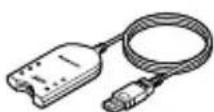
• CD-ROM • USB Reader/Writer
Description of this software
Copyright-protected music data can be written to an SD Memory Card through a USB Reader/Writer by using SD-Jukebox V2.4 (a software program included with the SD Audio PC writing kit) in combination with a PC.
- This software is used to write music data recorded on the PC to the SD Memory Card.
In order to write music data recorded on the PC to the SD Memory Card, a USB Reader/Writer is necessary.
- The function described in “Recording CDs to your PC” in the “Operating Instructions (PDF On-line manual)” is not guaranteed.
Note
Some PC may not be able to read CD music data, depending on the particular combination of PC and CD-ROM drive.
- SD-Jukebox cannot play and record music CDs that does not have a mark on the disc label.
- In compliance with the stipulations of SDMI (Secure Digital Music Initiative), SD-Jukebox incorporates copyright protection technology using encryption technology in order to protect copyrights, to ensure the healthy development of music culture, and to protect the rights of valid purchasers.

- SD-Jukebox records music data in encrypted form onto your hard disk drive. Encrypted music cannot be moved/copied to other folders, drives, and other computers for use.
- Unique information pertaining to your PC's processor and hard disk drive is used in the encryption process. Therefore, if either the processor or hard disk drive is replaced, previously created music data will no longer be available for use.
- Depending on your computer system, you may experience problems such as being unable to record or use recorded music data. Please note that Matsushita is in no way liable for any music data you lose, or for any other direct or indirect damages.
Registration
Web site: http://www.panasonic.co.jp/customer/mi/usr/cb7e.html
In order to use SD-JukeboxV2.4, you need an IBM PC/AT or compatible computer satisfying the system requirements shown below.
(SD-Jukebox does not run on Macintosh systems.)
OS: Microsoft® Windows® 98/98SE, Windows® 2000(Professional SP2), Windows® Me, Windows® XP(Home Edition/Professional)
SD-Jukebox does not run on Microsoft Windows 3.1/ Windows 95, or Windows NT.SD-Jukebox may not run properly if your computer has been upgraded from Windows 3.1/ 95 to Windows 98/98SE, Windows 2000, Windows Me, or Windows XP. SD-Jukebox may not run properly on computers with dual CPUs or multi-boot systems.
If you are upgrading from Windows 98/98SE or Windows Me to Windows XP, select "Upgrade installation (recommended)". If you select "New installation", music data created with SD-JukeboxV2.x prior to upgrading to Windows XP will no longer be available for use.
Hardware requirements
- CPU: Pentium® 233 MHz MMX or faster (Pentium® II 333 MHz or faster recommended)
For Windows XP: Pentium® II 333 MHz or faster (Pentium® III 500 MHz or faster recommended)
• RAM: 64MB or more (for Windows XP: 128MB or more)
- Hard disk drive: At least 30MB free disk space (more space may be required for music data and depending on your version of Windows)
- Display: 800 ×600 or higher resolution
Set to High Color (16-bit) or higher
• Sound device: Creative Labs Sound Blaster 16 or compatible device
- CD-ROM drive (required for installation and for CD recording):
A CD-ROM drive capable of digital recording is required. Four-speed or higher is recommended. (Recording may not work properly with CD-ROM drives connected through an IEEE1394 or USB connection.)
- USB port (required for connecting SD Memory Card)
(SD-Jukebox may not run properly if the SD Memory Card is connected through a USB hub or USB extension cable.)
- If you are using the CDDB function, then an Internet connection is also required.
(1) SD-Jukebox may not run properly on all PCs meeting the recommended system specifications.
(2) SD-Jukebox may not run properly on user-built PCs.
Install the software following the procedures shown below before using SD-Jukebox.
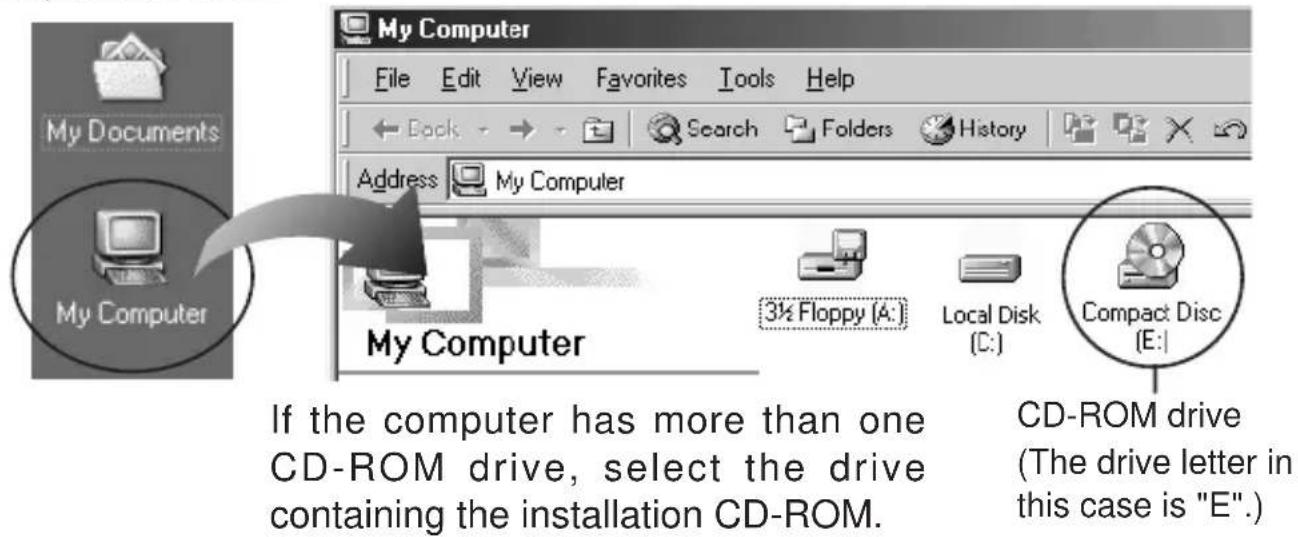
Checking the drive letter
You may need to specify a drive letter during the installation process. Turn on your PC and start Windows, then check the drive letter before installation as described below.
Double-click "My
Computer" in the upper
left part of the screen.
(*):
From the Windows Start menu, click "My Computer".
Installation procedure
1 Turn on the PC and start Windows.
② Insert the installation CD-ROM in the CD-ROM drive.
When you insert the CD-ROM, the installer starts automatically and the appears.
If the installer does not start, enter the setup file path to start installation.(page 5)
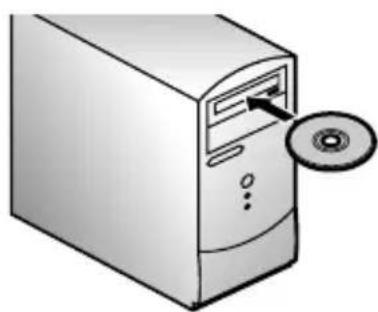
natural_image
Illustration of a desktop computer tower with an open CD and a circular inset showing a disc (no text or symbols)
Next, follow the on-screen instructions.
3 Click "Finish" on the .
If you select "Yes, I want to restart my computer now.", the PC will automatically restart and installation will be completed.
If the installer does not start automatically
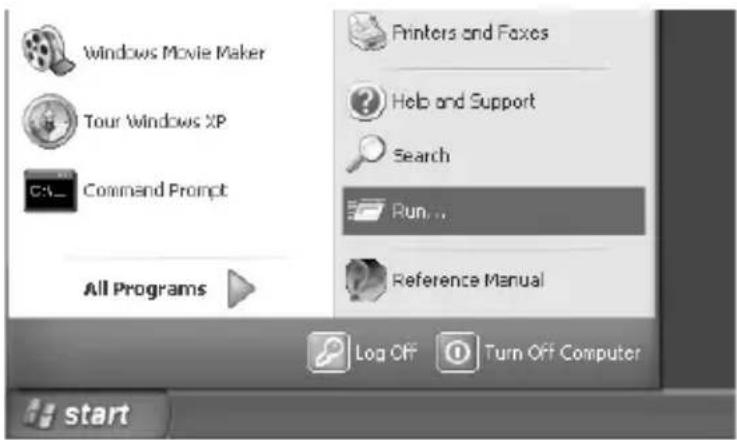
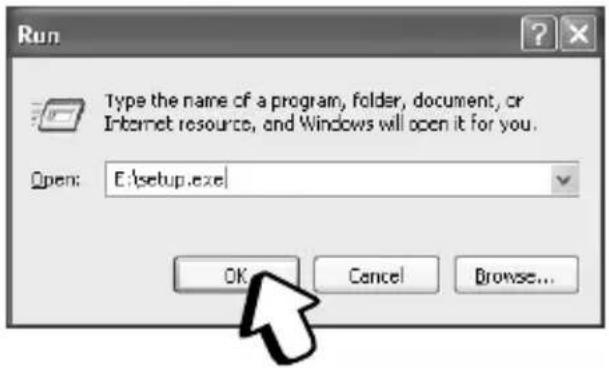
② Enter [ \* setup.exe] and click [OK].
- The install program starts. Now follow the on-screen instructions.
- Enter the CD-ROM drive letter in place of above (Drive letter
checking procedure page 4).
- The file path may be entered in either upper case or lower case.
NOTE
Be sure to use your computer's administrator account to install SD-Jukebox on a Windows XP or a Windows 2000 system.
- Details that explain how to use the application software are provided in the Operating Instructions (PDF on-line manual) which are installed at the same time as the software.
- Adobe Acrobat Reader is required to read the Operating Instructions.
- When you read the "Operating Instructions", click ☐ the , or select [start] → [programs] → [Cnc] → [SD-Jukebox V2] → [SD-Jukebox V2.4 manual].
Starting the program
- Double-click the icon on the desktop.
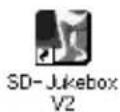
The appears after the .</p>
<p><Title Screen></p>
<p><img src="/content/2026/03/448332/images/f76b878d264df233d62adb0322f3fe822ed066f78fe1d91fd360abb649df23e0.jpg" alt="Panasonic SD-Jukebox Version2.4 Copyright (c) Mansinha Eletrico Industrial Co., Ltd. 2004-2005" loading="lazy" decoding="async"></p>
<h2 id="note-3">NOTE</h2>
<ul>
<li>If the icon does not appear on the desktop, then from the Start menu, select [Programs] [Cnc] [SD-JukeboxV2] [SD-JukeboxV2.4]. <br />
• SD-Jukebox version information</li>
</ul>
<p>To check which version you have, start SD-Jukebox and right-click the SD-Jukebox icon on the task tray. Next, select "About SD-Jukebox".</p>
<p><img src="/content/2026/03/448332/images/6e4dd687bfb1c9d073a8c6b2bf50b92f638376f4bcf6e0b17dade4864e5a407f.jpg" alt="10:42 AM" loading="lazy" decoding="async"></p>
<p>SD-Jukebox icon</p>
<h2 id="caution">CAUTION</h2>
<p>While SD-Jukebox is running, we recommend disabling any power-saving functions on your equipment (e.g., the PC).</p>
<h2 id="troubleshooting">Troubleshooting</h2>
<ul>
<li>Please see "Troubleshooting" in the "Operating Instructions (PDF on-line manual)" if you have any trouble using this software. </li>
<li>If you are in doubt about some of the check points, or if the remedies indicated in the chart do not solve the problem, contact</li>
</ul>
<p>For U.S.A.: The Panasonic Customer Call Center at 1-800-211-7262</p>
<p>or E-mail:consumerproducts@panasonic.com,</p>
<p>or Web site: http://www.panasonic.com</p>
<p>For other countries: Matsushita Electric Industrial Co., Ltd.</p>
<p>Web site:http://www.panasonic.co.jp/global/</p>
<table><tr><td>Media supported SD Memory Card</td><td>MultiMediaCard(readable/writable types)</td></tr><tr><td>Interface Complies with USB specification</td><td>Rev. 1.1.</td></tr><tr><td>Power supply voltage DC 5V</td><td></td></tr><tr><td>Operating conditions 0 – 40 °C</td><td></td></tr><tr><td>External dimensions</td><td>Approx. 92 x 56 x 15 mm (3 ^3/_5 " x 2 ^7/_32 " x ^3/_5 ")</td></tr><tr><td>Cable length Approx. 850 mm</td><td></td></tr><tr><td>Mass Approx. 65 g (0.15 lbs)</td><td></td></tr></table>
<ul>
<li>Specifications are subject to change without notice. </li>
<li>An SD Memory Card is necessary to enjoy music using SD Audio players or SD-Jukebox.</li>
</ul>
<p>THE FOLLOWING APPLIES ONLY IN THE U.S.A.</p>
<h2 id="caution-2">CAUTION:</h2>
<p>This equipment has been tested and found to comply with the limits for a Class B digital device, pursuant to Part 15 of the FCC Rules. These limits are designed to provide reasonable protection against harmful interference in a residential installation. This equipment generates, uses and can radiate radio frequency energy and, if not installed and used in accordance with the instructions, may cause harmful interference to radio communications. However, there is no guarantee that interference will not occur in a particular installation. If this equipment does cause harmful interference to radio or television reception, which can be determined by turning the equipment off and on, the user is encouraged to try to correct the interference by one or more of the following measures:</p>
<ul>
<li>Reorient or relocate the receiving antenna. </li>
<li>Increase the separation between the equipment and receiver. </li>
<li>Connect the equipment into an outlet on a circuit different from that to which the receiver is connected. </li>
<li>Consult the dealer or an experienced radio/TV technician for help.</li>
</ul>
<h2 id="fcc-warning">FCC Warning:</h2>
<p>To assure continued FCC emission limit compliance, use only the provided power supply cord and the shielded interface cable when connecting this device to the computer. Also, any unauthorized changes or modifications to this equipment would void the user's authority to operate this device.</p>
<p>This device complies with Part 15 of the FCC Rules.</p>
<p>Operation is subject to the following two conditions:</p>
<p>(1) This device may not cause harmful interference, and (2) this device must accept any interference received, including interference that may cause undesired operation.</p>
<p>Responsible Party:</p>
<p>Matshshita Electric Corporation of America</p>
<p>One Panasonic Way</p>
<p>Secaucus, NJ, 07094 USA</p>
<p>Telephone No.: 1-800-211-7262</p>
<ul>
<li>Panasonic assumes no liability for damaged music data or cases where music cannot be recorded due to problems with this product or your PC. <br />
· This product and the contents of this document are subject to change without prior notice. </li>
<li>This document presents examples of the operating screens that appear on a system running Windows XP. <br />
The illustrations and screens in this document may be somewhat different from those on an actual screen.</li>
</ul>
<p>· The SD logo is a trademark. <br />
- Portions of this product are protected under copyright law and are provided under license by ARIS / SOLANA /4C. <br />
- Microsoft and the Microsoft logo, Windows, Windows NT and Windows Media are registered trademarks of Microsoft Corporation in the US and other countries. <br />
- Windows Media and the Windows logo are registered trademarks or trademarks of Microsoft Corporation in the US and other countries.</p>
<p><img src="/content/2026/03/448332/images/1376a778d749def08f5a725bd0373761ad60f68a1e50259839504051c95b4654.jpg" alt="PANASONIC SZCB7 - FCC Warning: - 1" loading="lazy" decoding="async"></p>
<p><img src="/content/2026/03/448332/images/3548d1e4fe903819f7eb1bd75c1c54c94410e6064fb6a6e506b27c8fe6fc9ff2.jpg" alt="PANASONIC SZCB7 - FCC Warning: - 2" loading="lazy" decoding="async"></p>
<p>· Pentium and MMX are registered trademarks of Intel Corporation of the US.</p>
<p>· Sound Blaster 16 is a trademark of Creative Technology, Ltd. of the US.</p>
<p>- IBM and PC/AT are registered trademarks of International Business Machines Corporation of the US.</p>
<p>· Macintosh is a trademark of Apple Computer, Inc., registered in the US and other countries.</p>
<p>· CDDB is a registered trademark of Gracenote.</p>
<p>- Music recognition technology and related data are provided by Gracenote and the Gracenote CDDB® Music Recognition Service ^SM .</p>
<p>Gracenote is the industry standard in music recognition technology and related content delivery. For more information go to www.gracenote.com.</p>
<p>Gracenote is CDDB, Inc. d/b/a “Gracenote.” CD and music related data from Gracenote CDDB® Music Recognition Service ^SM © 2000, 2001 Gracenote. Gracenote CDDB Client Software © 2000, 2001 Gracenote. U.S. Patents Numbers #5,987,525; #6,061,680; #6,154,773, and other patents issued or pending.</p>
<p>CDDB is a registered trademark of Gracenote. CDDB-Enabled, the Gracenote logo, the CDDB Logo, and the "Powered by Gracenote CDDB" logo are trademarks of Gracenote.</p>
<p>Music Recognition Service and MRS are service marks of Gracenote.</p>
<p><img src="/content/2026/03/448332/images/4e3c392ec43e87d2fbd47ce75349c934d798fc2147cbbd9538c617b1c0c1a8c5.jpg" alt="PANASONIC SZCB7 - FCC Warning: - 3" loading="lazy" decoding="async"></p>
<p>- Other system names and product names appearing in this document are in general the registered trademarks or trademarks of the respective developer companies. Note that the ^TM mark and ^® mark do not appear in this document.</p>
<p>· This manual was printed on recycled paper.</p>
<p>· This manual was printed with soy based ink.</p>
<p>- This manual was printed on recycled paper.
- This manual was printed with soy based ink.</p>
<p><img src="/content/2026/03/448332/images/3c59539cc288e6486c53d845e0373a36c23cb9295608b9153f1f674ad73461fb.jpg" alt="PRINTED WITH SOYINK™" loading="lazy" decoding="async"></p>
<p><img src="/content/2026/03/448332/images/5f50ae675942ba895f663972747b8b5f8b3a2b72e5064c67fe405e7880524e3b.jpg" alt="PANASONIC SZCB7 - FCC Warning: - 5" loading="lazy" decoding="async"></p>
<details>
<summary>natural_image</summary>
Abstract 3D geometric sculpture with layered pyramid and circular elements, rendered in grayscale (no text or symbols)
</details>
<h2 id="inhaltsverzeichnis">Inhaltsverzeichnis</h2>
<p>Seite</p>
<p>Beschreibung dieser Software .....10</p>
<p>Wichtige Informationen zum</p>
<p>Gebrauch von SD-Jukebox......10</p>
<p>Registrierung....10</p>
<h2 id="vor-der-inbetriebnahme">Vor der Inbetriebnahme</h2>
<p>- Systemvoraussetzungen......11</p>
<h2 id="installation-2">Installation</h2>
<p>• Installation....12</p>
<p>• Hinweise zu SD-JukeboxV2.4......14</p>
<p>- Starten des Programms......14</p>
<p>• Fehlersuche ....14</p>
<h2 id="referenz">Referenz</h2>
<p>• Technische Daten USB Reader/Writer ...15</p>
<p>■ Bitte lesen Sie diese Installationsanleitung und die Bedienungsanleitung Ihres elektronischren Technics-Keyboard SX-KN7000, um einen korrekten Gebrauch zu gewährleisten. <br />
In den Vereinigten Staaten—Panasonic Consumer Electronics Company, Division of Matsushita Electric Corporation of America</p>
<p>One Panasonic Way Secaucus, New Jersey 07094</p>
<p>E-mail:consumerproducts@panasonic.com</p>
<p>In anderen ländern Matsushita Electric Industrial Co., Ltd.</p>
<p>Web site:http://www.panasonic.co.jp/global/</p>
<p>■ Dieser Satz enthält die folgenden Artikel.</p>
<p>• CD-ROM • USB Reader/Writer</p>
<p><img src="/content/2026/03/448332/images/98fcf311dcdf1e35ac80ef5f4a3289a019a2535d3077e5ae0a98dbe65e29d7dc.jpg" alt="PANASONIC SZCB7 - Referenz - 1" loading="lazy" decoding="async"></p>
<h2 id="beschreibung-dieser-software">Beschreibung dieser Software</h2>
<p>Der Einsatz von SD-Jukebox V2.4 (ein Programm im Lieferumfang des SD Audio PC-Schreibsatzes) auf einem Personalcomputer in Verbindung mit einem USB Reader/Writer ermöglicht es, urheberrechtlich geschützte Musikdaten auf eine SD-Speicherkarte schreiben.</p>
<h2 id="wichtige-informationen-zum-gebrauch-von-sd-jukebox">Wichtige Informationen zum Gebrauch von SD-Jukebox</h2>
<ul>
<li>Diese Software dient zum Schreiben von Musikdaten, die auf der Festplatte eines Personalcomputers abgespeichert sind, auf eine SD-Speicherkarte. Zum Schreiben von Musikdaten von der Festplatte eines Personalcomputers auf eine SD-Speicherkarte ist ein USB Reader/Writer erforderlich. </li>
<li>Der einwandfreie Betrieb der Funktion „Aufzeichnen von CDs auf die Festplatte Ihres Personalcomputers“ in der „Bedienungsanleitung (PDF Online-Handbuch)“ kann nicht garantiert werden.</li>
</ul>
<h2 id="hinweis">Hinweis</h2>
<p>In Abhängigkeit von der Kombination von PC und CD-ROM-Laufwerk sind bestimmte Personalcomputer nicht zum Lesen von CD-Musikdaten imstande.</p>
<ul>
<li>SD-Jukebox kann ausschließlich von Abspielen und Aufzeichnen von Musik-CDs verwendet werden, deren Etikett die Kennzeichnung tract. </li>
<li>Gemäß den Auflagen der SDMI (Secure Digital Music Initiative) arbeitet SD-Jukebox mit einer Verschlüsselungstechnik, die Musikdaten mit Kopierschutz chiffriert, um den gesetzlich vorgeschriebenen Schutz der Urheberrechte zu gewährleisten, die Interessen der Musikindustrie zu fördern und die Rechte des Käufers zu wahren.</li>
</ul>
<p>- SD-Jukebox zeichnet Musikdaten in chiffrierter Form auf das Festplattenlaufwerk Ihres Personalcomputers auf. Chiffrierte Musikdaten können nicht auf andere Ordner, Laufwerke oder Computer bewegt bzw. kopiert werden.</p>
<p>- Bei der Chiffrierung werden eindeutige Informationen über den Prozessor und das Festplattenlaufwerk Ihres Personalcomputers verwendet. Dies bedeutet, dass alle vorher erstellten Musikdaten nach einem Austausch von Prozessor oder Festplattenlaufwerk nicht mehr zur Verfügung stehen.</p>
<p>- Je nach Konfiguration Ihres Computersystems kann es vorkommen, dass Probleme bei der Aufzeichnung von Musikdaten oder beim Gebrauch der aufgezeichneten Musikdaten auftreten. Bitte beachten Sie, dass Matsushita keinerlei Haftung für den Verlust von Musikdaten und andere direkte Schäden oder Folgeschäden übernimmt.</p>
<h2 id="registrierung">Registrierung</h2>
<p>Website: http://www.panasonic.co.jp/customer/mi/usr/cb7e.html</p>
<p>Zum Gebrauch von SD-JukeboxV2.4 ist ein IBM PC/AT oder kompatibler Personalcomputer erforderlich, die der nachstehenden Systemvoraussetzungen erfüllt. (SD-Jukebox läuft nicht auf Macintosh-Systemen.)</p>
<h2 id="betriebssystem-microsoft-windows-9898se-windows-2000-professional-sp2-windows-me-windows-xp-home-editionprofessional">Betriebssystem: Microsoft® Windows® 98/98SE, Windows® 2000 (Professional SP2), Windows® Me, Windows® XP (Home Edition/Professional)</h2>
<p>SD-Jukebox läuft nicht unter Microsoft Windows 3.1/Windows 95 oder Windows NT. Falls Sie eine Aufrüstung Ihres Betriebssystems von Windows 3.1/95 zu Windows 98/98 SE, Windows 2000, Windows Me oder Windows XP ausgeführt haben, läuft SD-Jukebox u.U. nicht einwandfrei. Auf einem Computer mit zwei Zentraleinheiten oder einem System mit Mehrbetriebssystem-Start ist ebenfalls kein einwandfreier Betrieb von SD-Jukebox gewährleistet.</p>
<p>Wenn Sie später eine Aufrüstung von Windows 98/98SE oder Windows Me zu Windows XP ausführen, wählen Sie „Installation aufrüsten (empfohlen)“ aus. Wird „Neue Installation“ ausgewählt, stehen Musikdaten, die vor der Aufrüstung zu Windows XP mit SD-JukeboxV2.x erstellt wurden, nicht mehr zur Verfügung.</p>
<h2 id="hardware-voraussetzungen">Hardware-Voraussetzungen</h2>
<ul>
<li>Zentraleinheit: Pentium® 233 MHz MMX oder schneller (Empfehlung: Pentium® II 333 MHz oder schneller) <br />
Für Windows XP: Pentium® II 333 MHz oder schneller (Empfehlung: Pentium® III 500 MHz oder schneller) </li>
<li>Arbeitsspeicher: Mindestens 64MB (für Windows XP: mindestens 128 MB) </li>
<li>Festplattenlaufwerk: Mindestens 30 MB freier Speicherplatz (Zusätzlicher Speicherplatz ist für Musikdaten und möglicherweise für das jeweilige Betriebssystem erforderlich.) <br />
• Monitor: Auflösung mindestens 800 x 600 <br />
Einstellung auf High Color (16 Bit) oder höher </li>
<li>Soundkarte: Creative Labs Sound Blaster 16 oder kompatibles Gerät </li>
<li>CD-ROM-Laufwerk (für Installation und CD-Aufzeichnung erforderlich): <br />
Das CD-ROM-Laufwerk muss für Digitalaufnahmen geeignet sein. Eine Geschwindigkeit von mindestens 4x wird empfohlen. (Bei Anschluss des CD-ROM-Laufwerks über eine IEEE 1394-Schnittstelle oder einen USB-Anschluss ist keine einwandfreie Aufzeichnung gewährleistet.) </li>
<li>USB-Anschluss (für den Anschluss von SD-Speicherkarten erforderlich)</li>
</ul>
<p>(Bei Anschluss der SD-Speicherkarte über eine USB-Buchse oder ein USB-Verlängerungskabel läuft SD-Jukebox u.U. nicht einwandfrei.)</p>
<p>- Zur Verwendung der CDDB-Funktion ist ein Internet-Anschluss erforderlich.</p>
<p>(1) Je nach Systemkonfiguration kann es vorkommen, dass SD-Jukebox nicht einwandfrei auf jedem Personalcomputer läuft, der die obigen Voraussetzungen erfüllt. <br />
(2) SD-Jukebox läuft u.U. nicht einwandfrei auf einem vom Benutzer im Eigenbau konstruierten Personalcomputer.</p>
<p>Bei den in dieser Anleitung gezeigten Abbildungen von Bildschirmanzeigen handelt es sich um Beispiele beim Einsatz der Anwendung unter einer englischsprachigen Betriebssystem-Version. Installieren Sie die Software anhand des nachstehend beschriebenen Verfahrens, bevor Sie SD-Jukebox in Betrieb nehmen.</p>
<h2 id="überprüfen-des-laufwerks-bezeichners">Überprüfen des Laufwerks-Bezeichners</h2>
<p>Während des Installationsvorgangs müssen Sie u.U. einen Laufwerks-Bezeichner vorgeben. Schalten Sie Ihren Computer ein, starten Sie Windows und überprüfen Sie den Laufwerks-Bezeichner (Buchstaben), bevor Sie mit der Installation beginnen.</p>
<p>Doppelklicken Sie auf „My Computer“ links oben auf dem Bildschirm. *</p>
<p><img src="/content/2026/03/448332/images/ba7bde71a1b7ac475e35fa4a930890bb37afaaab2ec69f76300bb162a8889371.jpg" alt="My Documents My Computer My Computer 3½ Floppy (A:) Local Disk (C:) Compact Disc (E:)" loading="lazy" decoding="async"></p>
<p>Wenn Ihr Computer über mehr als ein CD-ROM-Laufwerk verfügt, wählen Sie das Laufwerk aus, das die Installations-CD-ROM enthält.</p>
<p>CD-ROM-Laufwerk (In diesem Beispiel ist der Laufwerks-Bezeichner „E“.)</p>
<p>(*): <Windows XP></p>
<p>Klicken Sie im Start-Menü von Windows auf „My Computer“.</p>
<h2 id="installationsverfahren">Installationsverfahren</h2>
<p>1 Schalten Sie Ihren Computer ein und starten Sie Windows.</p>
<p>② Legen Sie die Installations-CD-ROM in das CD-ROM-Laufwerk ein.</p>
<p>Nach Einlegen der CD-ROM startet das Installationsprogramm automatisch, und das Fenster <Willkommen> erscheint.</p>
<p>Falls das Installationsprogramm nicht automatisch startet, geben Sie den Verzeichnispfad der Setup-Datei ein, um die Installation zu starten. (Seite 13)</p>
<p><img src="/content/2026/03/448332/images/bf57584a8593166032e64df56fa82ae20b802479f4e7f7c7cbcfb0dc346d86dd.jpg" alt="PANASONIC SZCB7 - Installationsverfahren - 1" loading="lazy" decoding="async"></p>
<details>
<summary>natural_image</summary>
Illustration of a desktop computer tower with an open CD and a circular disc (no text or symbols)
</details>
<p>Folgen Sie anschließend den Anweisungen, die auf dem Bildschirm erscheinen.</p>
<h2 id="3-klicken-sie-im-fenster-installation-abgeschlossen-auf-finish">3 Klicken Sie im Fenster <Installation abgeschlossen> auf „Finish“.</h2>
<p>Wenn Sie „Yes, I want to restart my computer now.“ auswählen, wird automatisch ein System-Neustart ausgeführt, womit die Installation abgeschlossen ist.</p>
<h2 id="falls-das-installationsprogramm-nicht-automatisch-startet">Falls das Installationsprogramm nicht automatisch startet</h2>
<h2 id="1-klicken-sie-im-start-menü-von-windows-auf-run">1 Klicken Sie im Start-Menü von Windows auf „Run“.</h2>
<p><img src="/content/2026/03/448332/images/cf385a9065ea02473825264a0aaa97c8334cafb799adf27172514ad2b773cc4a.jpg" alt="Windows Movie Maker Tour Windows XP Command Prompt All Programs Printers and Foxes Help and Support Search Run... Reference Manual Log Off Turn Off Computer start" loading="lazy" decoding="async"></p>
<h2 id="2-geben-sie-setupexe-ein-und-klicken-sie-dann-auf-ok">2 Geben Sie [※ setup.exe] ein und klicken Sie dann auf [OK].</h2>
<ul>
<li>Das Installationsprogramm startet. Folgen Sie den Anweisungen, die auf dem Bildschirm erscheinen. </li>
<li>Geben Sie anstelle des Sternzeichens „*im obigen Pfadnamen den tatsächlichen Buchstaben des CD-ROM-Laufwerks ein ( [IMAGE] „Überprüfen des Laufwerks-Bezeichners“ auf Seite 12).</li>
</ul>
<p>- Der Dateipfad kann wahlweise in Groß- oder Kleinbuchstaben eingegeben werden.</p>
<p><img src="/content/2026/03/448332/images/83a4836fc2f36cf5ba8d8dc7129ac5e0acb0f4b6604fc42f675ff98379de892d.jpg" alt="Run Type the name of a program, folder, document, or Internet resource, and Windows will open it for you. Open: E:\setup.exe OK Cancel Browse..." loading="lazy" decoding="async"></p>
<h2 id="hinweis-2">HINWEIS</h2>
<p>Achten Sie bei der Installation von SD-Jukebox auf einem Windows XP- oder Windows 2000-System unbedingt darauf, das Netzkonto des Systemadministrator.</p>
<ul>
<li>Einzelheiten zum Gebrauch dieser Anwendungssoftware finden Sie in der „Bedienungsanleitung (PDF Online-Handbuch)“, die gemeinsam mit der Software installiert wird. </li>
<li>Zum Anzeigen der Bedienungsanleitung ist Adobe Acrobat Reader erforderlich. </li>
<li>Um die Bedienungsanleitung anzuzeigen, klicken Sie auf <Hauptfenster>, oder wählen Sie [start] → [programs] → [Cnc] → [SD-Jukebox V2] → [SD-Jukebox V2.4 manual] aus.</li>
</ul>
<h2 id="starten-des-programms">Starten des Programms</h2>
<p>- Doppelklicken Sie auf das Symbol in der Arbeitsfläche.</p>
<p><img src="/content/2026/03/448332/images/94cf8a8fee494d79ced53d7f2eff5555533d682e3aad0e8ab4bb9c6b237e243a.jpg" alt="PANASONIC SZCB7 - Starten des Programms - 1" loading="lazy" decoding="async"></p>
<p>Nach dem <Eröffnungsbildschirm> erscheint das <Hauptfenster>.</p>
<p><Eröffnungsbildschirm></p>
<p><img src="/content/2026/03/448332/images/ad8001dc1dfd977b9ea1097b8771f7ca6f14a7c880029cf597e4459cc8d95e66.jpg" alt="Panasonic SD-Jukebox Version2.4 Copyright © Mitsubishi Electric Industrial Co., Ltd 2004-2005" loading="lazy" decoding="async"></p>
<h2 id="hinweise">HINWEISE</h2>
<ul>
<li>Falls das Symbol nicht in der Arbeitsfläche erscheint, wählen Sie im Start-Menü [programs] → [Cnc] → [SD-Jukebox V2] → [SD-JukeboxV2.4] aus. </li>
<li>Versionsinformationen über SD-Jukebox Um die Version Ihrer Software zu überprüfen, starten Sie SD-Jukebox und klicken Sie dann mit der rechten Maustaste auf das Symbol für SD-Jukebox in der Taskablage. Anschließend wählen Sie „About SD-Jukebox“ aus. <br />
Symbol für SD-Jukebox</li>
</ul>
<p><img src="/content/2026/03/448332/images/ea8a5e83e6c19bc9c49030a4b52db535f2a950af92544862280cc64396b3484a.jpg" alt="10:42 AM" loading="lazy" decoding="async"></p>
<h2 id="achtung">ACHTUNG</h2>
<p>Es wird empfohlen, alle Energieeinsparungs-Funktionen des Systems (z.B. am Computer selbst) zu sperren, während SD-Jukebox läuft.</p>
<h2 id="fehlersuche">Fehlersuche</h2>
<p>- Falls beim Gebrauch dieser Software eine Störung auftritt, schlagen Sie bitte im Abschnitt „Fehlersuche“ der „Bedienungsanleitung (PDF Online-Handbuch)“ nach.
- Wenn Sie Fragen zu den Prüfpunkten haben oder sich eine Störung anhand der in der Tabelle angegebenen Abhilfemaßnahmen nicht beseitigen lässt, nehmen Sie bitte mit unserem Kundendienst Kontakt auf.</p>
<p>In den Vereinigten:</p>
<p>Panasonic Customer Call Center unter der Telefon-Nr. 1-800-211-7262 oder E-mail:consumerproducts@panasonic.com, oder Netzstelle: http://www.panasonic.com</p>
<p>In anderen Ländern: Matsushita Electric Industrial Co., Ltd.</p>
<p>Netzstelle:http://www.panasonic.co.jp/global/</p>
<h2 id="technische-daten-usb-readerwriter">Technische Daten USB Reader/Writer</h2>
<table><tr><td colspan="2">Unterstützte Datenträger SD-SpeicherkarteMultiMediaCard(lesbare/beschreibbare Ausführungen)</td></tr><tr><td colspan="2">Schnittstelle Gemäß USB-Spezifikation Rev. 1.1.</td></tr><tr><td colspan="2">Spannungsversorgung 5 V Gleichstrom</td></tr><tr><td>Betriebstemperaturbereich</td><td>0 °C bis 40 °C</td></tr><tr><td>Außenabmessungen Ca. 92 mm x Kabellänge Ca. 850 mm</td><td>56 mm x 15 mm</td></tr><tr><td>Masse Ca. 65 g</td><td></td></tr></table>
<ul>
<li>Änderungen der technischen Daten jederzeit vorbehalten. </li>
<li>
<p>Für Musikwiedergabe mit einem SD Audio Player oder mit SD-Jukebox ist eine SD-Speicherkarte erforderlich.</p>
</li>
<li>
<p>Panasonic übernimmt keinerlei Haftung für beschädigte Musikdaten oder für den Fall, dass eine Musikaufzeichnung aufgrund von Defekten dieses Produkts oder des verwendeten Personalcomputers nicht möglich ist. </p>
</li>
<li>Änderungen an diesem Produkt sowie dem Inhalt dieses Dokuments bleiben jederzeit vorbehalten. </li>
<li>Die Abbildungen in diesem Dokument zeigen Beispiele von Bildschirmanzeigen bei einem System, das unter Windows XP läuft.</li>
</ul>
<p>Daher können die in diesem Dokument enthaltenen Abbildungen von den tatsächlich erscheinenden Bildschirmanzeigen abweichen.</p>
<ul>
<li>Beim SD-Logo handelt es sich um ein Warenzeichen. </li>
<li>Teile dieses Produkts sind urheberrechtlich geschützt und werden unter Lizenz von ARIS/SOLANA/4C geliefert. </li>
<li>„Microsoft“ und das Microsoft-Logo, „Windows“, „Windows NT“ und „Windows Media“ sind eingetragene Warenzeichen von Microsoft Corporation in den Vereinigten Staaten und anderen Ländern. </li>
<li>„Windows Media“ und das Windows-Logo sind eingetragene Warenzeichen bzw. Warenzeichen von Microsoft Corporation in den Vereinigten Staaten und anderen Ländern.</li>
</ul>
<p><img src="/content/2026/03/448332/images/66fc42b4cb3db7a8f5b5806222c2f6d8d460ba4caa2a296512a2a1ef6e494868.jpg" alt="PANASONIC SZCB7 - Technische Daten USB Reader/Writer - 1" loading="lazy" decoding="async"></p>
<p>„Pentium“ und „MMX“ sind eingetragene Warenzeichen des US-Unternehmens Intel Corporation. <br />
- „Sound Blaster 16“ ist ein Warenzeichen des US-Unternehmens Creative Technology, Ltd. <br />
- „IBM“ und „PC/AT“ sind eingetragene Warenzeichen des US-Unternehmens International Business Machines Corporation. <br />
„Macintosh“ ist ein eingetragenes Warenzeichen von Apple Computer, Inc. in den Vereinigten Staaten und anderen Ländern. <br />
- „CDDB“ ist ein eingetragenes Warenzeichen von Gracenote. <br />
- Musik-Erkennungstechnologie und damit zusammenhängende Daten werden von Gracenote und dem Gracenote CDDB® Music Recognition Service ^SM geliefert.</p>
<p>Gracenote ist der Industriestandard in Musik-Erkennungstechnologie und damit zusammenhängender Inhaltslieferung. Weitere Informationen hierzu finden Sie unter www.gracenote.com.</p>
<p>Bei Gracenote handelt es sich um das Unternehmen CDDB, Inc. d/b/a „Gracenote“. Daten im Zusammenhang mit CDs und Musik von Gracenote CDDB® Music Recognition Service™ © 2000, 2001 Gracenote. Gracenote CDDB Client-Software © 2000, 2001 Gracenote. US-Patent Nr. 5,987,525; Nr. 6,061,680; Nr. 6,154,773 sowie weitere Patente erteilt oder angemeldet.</p>
<p>„CDDB“ ist ein eingetragenes Warenzeichen von Gracenote. „CDDB-Enabled“, das Gracenote-Logo, das CDDB-Logo sowie das Logo „Powered by Gracenote CDDB“ sind Warenzeichen von Gracenote.</p>
<p>„Music Recognition Service“ und „MSR“ sind Dienstleistungsmarken von Gracenote.</p>
<p><img src="/content/2026/03/448332/images/64487f9f3cdd6bd8ba37998638d9945ab863a9997d2e168b7f099ba83e100779.jpg" alt="PANASONIC SZCB7 - Technische Daten USB Reader/Writer - 2" loading="lazy" decoding="async"></p>
<p>- Bei allen anderen in diesem Dokument erwähnten System- und Produktbezeichnungen handelt es sich um eingetragene Warenzeichen bzw. Warenzeichen der betreffenden Unternehmen. Bitte beachten Sie, dass die Symbole „™“ und „®“ in diesem Dokument allgemein nicht verwendet werden.</p>
<ul>
<li>Dieses Handbuch wurde auf Recycling-Papier gedruckt. </li>
<li>Dieses Handbuch wurde mit Tinte auf Sojabasis gedruckt.</li>
</ul>
<p><img src="/content/2026/03/448332/images/95b360b1bf935ca8921e6eb512c86c36115e079ce4ddf73fff672e12fb31b856.jpg" alt="PANASONIC SZCB7 - Technische Daten USB Reader/Writer - 3" loading="lazy" decoding="async"></p>
<p><img src="/content/2026/03/448332/images/cc8c09431aaefd74bd42a82ff1d5a48eb2727cbc487e3033298b8b25441a78a7.jpg" alt="PANASONIC SZCB7 - Technische Daten USB Reader/Writer - 4" loading="lazy" decoding="async"></p>
<p><img src="/content/2026/03/448332/images/a5eea6a904db1d66c9b83ad2f830b6a86d2a34842a3a3fd56135654a655a1b9b.jpg" alt="PANASONIC SZCB7 - Technische Daten USB Reader/Writer - 5" loading="lazy" decoding="async"></p>
<details>
<summary>natural_image</summary>
Abstract 3D geometric sculpture with layered pyramid and checkered pattern, no text or symbols present
</details>
<h2 id="table-des-matières">Table des matières</h2>
<p>page</p>
<p>Description du logiciel .....18</p>
<p>Informations importantes sur</p>
<p>l'utilisation de SD-Jukebox....18</p>
<p>Enregistrement....18</p>
<h2 id="avant-de-commencer-lutilisation">Avant de commencer l'utilisation</h2>
<p>• Système nécessaire......19</p>
<h2 id="installation-3">Installation</h2>
<ul>
<li>Installation....20 </li>
<li>À propos de SD-Jukebox V2.4......22 <br />
• Démarrage du programme......22 <br />
• Dépannage ......22</li>
</ul>
<h2 id="référence">Référence</h2>
<p>- Spécifications du Lecteur/ enregistreur USB....23</p>
<p>■ Afin d'assurer une utilisation adéquate, veuillez lire attentivement les présentes instructions d'utilisation et celles qui accompagnent le clavier électronique Technics SX-KN7000.</p>
<p>■ Pour les Étas-Unis Panasonic Consumer Electronics Company,
Division of Matsushita Electric Corporation of
America
One Panasonic Way Secaucus, New Jersey 07094
E-mail: consumerproducts@panasonic.com</p>
<p>■ Pour les autres pays Matsushita Electric Industrial Co., Ltd.
Web site: http://www.panasonic.co.jp/global/</p>
<p>■ Les éléments suivants sont compris dans le kit.
• CD-ROM • Lecteur/enregistreur USB</p>
<p><img src="/content/2026/03/448332/images/9fe767a4376323c86bb83a5bfac5827bc9c4870e22b8d326f2f0bbf4e9d16ad2.jpg" alt="PANASONIC SZCB7 - Référence - 1" loading="lazy" decoding="async"></p>
<h2 id="description-du-logiciel">Description du logiciel</h2>
<p>Les données musicales protégées contre le piratage peuvent être écrites sur une carte mémoire SD via un lecteur/enregistreur USB au moyen de SD-Jukebox V2.4 (un programme fourni avec le kit d'enregistrement PC audio SD) et d'un ordinateur.</p>
<h2 id="informations-importantes-sur-lutilisation-de-sd-jukebox">Informations importantes sur l'utilisation de SD-Jukebox</h2>
<ul>
<li>Ce logiciel est utilisé pour l'écriture sur la carte mémoire SD des données musicales enregistrées sur l'ordinateur. <br />
Un lecteur/enregistreur USB est nécessaire pour pouvoir écrire sur la carte mémoire SD les données musicales enregistrées sur l'ordinateur. </li>
<li>La fonction décrite dans "Enregistrement de CD sur votre ordinateur" dans les "Instructions d'utilisation" (mode d'emploi en ligne de format PDF) n'est pas garantie.</li>
</ul>
<h2 id="remarque">Remarque</h2>
<p>Suivant le type d'ordinateur et de lecteur CD-ROM utilisés, il se peut que la lecture des données de musique CD ne soit pas possible sur l'ordinateur.</p>
<p>- SD-Jukebox ne peut ni lire ni enregistrer les CD de musique dont l'étiquette ne porte pas le symbole</p>
<p>- Conformément aux stipulations de SDMI (Secure Digital Music Initiative), une technologie de protection des droits d'auteur par codage des données audio est intégrée à SD-Jukebox, afin de protéger les droits d'auteur, d'assurer le développement harmonieux de la culture musicale et de protéger les droits des personnes qui font l'achat des produits authentiques.</p>
<ul>
<li>SD-Jukebox enregistre les données musicales sur votre disque dur sous forme codée. La musique codée ne peut pas être déplacée/copiée vers d'autres dossiers, lecteurs, ordinateurs, etc. </li>
<li>Des informations spécifiques au processeur et au disque dur de votre ordinateur sont utilisées lors du processus de codage. Par conséquent, les données musicales créées précédemment ne seront plus disponibles si vous remplacez le processeur ou le disque dur.</li>
</ul>
<p>- Suivant le type d'ordinateur que vous utilisez, il se peut que vous ne puissiez pas enregistrer des données musicales, que vous ne puissiez pas utiliser des données enregistrées, etc. Veuillez noter que Matsushita décline toute responsabilité quant à toute perte de données musicales, ou à tout autre dommage direct ou indirect subi.</p>
<h2 id="enregistrement">Enregistrement</h2>
<p>Site Web : http://www.panasonic.co.jp/customer/mi/usr/cb7e.html</p>
<p>Pour pouvoir utiliser SD-Jukebox V2.4, vous aurez besoin d'un ordinateur IBM PC/AT ou compatible dont les caractéristiques répondent aux exigences ci-dessous.</p>
<p>(SD-Jukebox ne fonctionne pas sur les ordinateurs Macintosh.)</p>
<p>Système d'exploitation : Microsoft® Windows® 98/98 SE, Windows® 2000 (Professionnel SP2), Windows® Me, Windows® XP (Edition familiale/professionnelle)</p>
<p>SD-Jukebox ne fonctionne pas sous Microsoft Windows 3.1, Windows 95 ou Windows NT. Il se peut que SD-Jukebox ne fonctionne pas correctement si votre ordinateur a fait l'objet d'une mise à niveau de Windows 3.1/95 à Windows 98/98SE, Windows 2000, Windows Me ou Windows XP. Il se peut que SD-Jukebox ne fonctionne pas correctement sur les ordinateurs équipés d'une double unité centrale ou d'un système d'amorçage multiple.</p>
<p>Si vous effectuez une mise à niveau de Windows 98/98 SE ou Windows Me à Windows XP, sélectionnez "Installation par mise à niveau (recommandée)". Si vous sélectionnez "Nouvelle installation", les données musicales créées avec SD-Jukebox V2.x ou avec une version antérieure avant la mise à niveau vers Windows XP ne seront plus disponibles.</p>
<h2 id="configuration-matérielle-requise">Configuration matérielle requise</h2>
<ul>
<li>Unité centrale : Pentium® 233 MHz MMX ou plus rapide (Pentium® II 333 MHz ou plus rapide recommandé) <br />
Pour Windows XP : Pentium® II 333 MHz ou plus rapide (Pentium® III 500 MHz ou plus rapide recommandé)</li>
</ul>
<p>• RAM : 64 Mo ou plus (pour Windows XP : 128 Mo ou plus)</p>
<p>- Disque dur : Au moins 30 Mo d'espace disque disponible (il se peut que davantage d'espace soit nécessaire pour les données musicales ou suivant la version de Windows utilisée)</p>
<p>- Affichage : Résolution de 800 x 600 ou plus élevée
Régler sur Couleurs (16 bits) ou plus</p>
<p>- Carte de son : Creative Labs Sound Blaster 16 ou autre carte compatible</p>
<p>- Lecteur de CD-ROM (nécessaire pour l'installation et pour l'enregistrement de CD) : Un lecteur de CD-ROM capable d'effectuer des enregistrements numériques est nécessaire. 4x ou plus recommandé. (Il se peut que l'enregistrement ne s'effectue pas correctement avec un lecteur de CD-ROM raccordé par une connexion IEEE1394 ou USB.)</p>
<p>- Port USB (nécessaire pour raccorder la carte mémoire SD)
(Il se peut que SD-Jukebox ne fonctionne pas correctement si la carte mémoire SD est raccordée via un hub USB ou un câble d'extension USB.)</p>
<p>- Pour utiliser la fonction CDDB, une connexion à Internet est également nécessaire.</p>
<p>(1) Il se peut que SD-Jukebox ne fonctionne pas correctement sur certains ordinateurs même s'ils ont les spécifications système recommandées.</p>
<p>(2) Il se peut que SD-Jukebox ne fonctionne pas correctement sur les ordinateurs montés par l'utilisateur lui-même.</p>
<p>Les écrans de ce mode d'emploi sont exemples lors de l'exécution de l'application dans le système d'exploitation anglais.</p>
<p>Avant d'utiliser SD-Jukebox, installez le logiciel en suivant les procédures indiquées ci-dessous.</p>
<h2 id="vérification-de-la-lettre-assignée-au-lecteur">Vérification de la lettre assignée au lecteur</h2>
<p>Il se peut que vous deviez spécifier une lettre de lecteur lors de la procédure d'installation. Allumez l'ordinateur et démarrez Windows, puis vérifiez la lettre assignée au lecteur avant de procéder à l'installation, de la façon décrite ci-dessous.</p>
<p>Double-cliquez sur "My Computer" dans la partie supérieure gauche de l'écran. *</p>
<p><img src="/content/2026/03/448332/images/71990d02cecd0afd19982e4dbb414f13fd63eccda9067fd417819f29d923d407.jpg" alt="My Documents My Computer My Computer 3½ Floppy [A:) Local Disk [C:] Compact Disc [E:]" loading="lazy" decoding="async"></p>
<p>Si l'ordinateur est équipé de plus d'un lecteur de CD-ROM, sélectionnez celui où est inséré le CD-ROM d'installation.</p>
<p>Lecteur de CD-ROM (Dans le cas présent, la lettre du lecteur est "E".)</p>
<p>(*: <Windows XP></p>
<p>Dans le menu Démarrer de Windows, cliquez sur "My Computer".</p>
<h2 id="procédure-dinstallation">Procédure d'installation</h2>
<p>1 Allumez l'ordinateur et démarrez Windows. <br />
② Insérez le CD-ROM d'installation dans le lecteur de CD-ROM.</p>
<p>Lorsque vous insérez le CD-ROM, l'installateur démarre automatiquement et un <Écran de bienvenue> apparaît.</p>
<p>Si l'installateur ne démarre pas, saisissez le chemin du fichier de montage pour lancer l'installation.( page 21)</p>
<p><img src="/content/2026/03/448332/images/adc109eb196a7e725f92faa57c33c3913d462087f7f463399c2021310feb95cd.jpg" alt="PANASONIC SZCB7 - Procédure d'installation - 1" loading="lazy" decoding="async"></p>
<details>
<summary>natural_image</summary>
Illustration of a desktop computer tower with an open CD and a circular disc (no text or symbols)
</details>
<p>Suivez ensuite les instructions à l'écran.</p>
<h2 id="③-cliquez-sur-finish-dans-écran-dinstallation-terminée">③ Cliquez sur "Finish" dans <Écran d'installation terminée>.</h2>
<p>Si vous sélectionnez "Yes, I want to restart my computer now.", l'ordinateur redémarre automatiquement et l'installation sera complétée.</p>
<h2 id="si-linstallateur-ne-démarre-pas-automatiquement">Si l'installateur ne démarre pas automatiquement</h2>
<h2 id="1-dans-le-menu-démarrer-de-windows-cliquez-sur-run">1 Dans le menu Démarrer de Windows, cliquez sur "Run".</h2>
<p><img src="/content/2026/03/448332/images/5360b495df6d7b21209fa6afa9f468d669948989866189d3ec93c8690d96e07c.jpg" alt="Windows Movie Maker Tour Windows XP Command Prompt All Programs Printers and Foxes Help and Support Search Run... Reference Manual Log Off Turn Off Computer start" loading="lazy" decoding="async"></p>
<h2 id="②-saisissez-setupexe-puis-cliquez-sur-ok">② Saisissez [※ setup.exe] puis cliquez sur [OK].</h2>
<ul>
<li>Le programme d'installation démarre. Suivez ensuite les instructions à l'écran. </li>
<li>Saisissez la lettre du lecteur de CD-ROM à la place de xi-dessus (Procédure de vérification de la lettre assignée au lecteur page 20). </li>
<li>Vous pouvez saisir le chemin du fichier en majuscules ou en minuscules.</li>
</ul>
<p><img src="/content/2026/03/448332/images/c21ceabfdef20fd465c7b9f34b21245f6935c50c8b33b1d27b26f84761164ce1.jpg" alt="Run Type the name of a program, folder, document, or Internet resource, and Windows will open it for you. Open: E:\setup.exe OK Cancel Browse..." loading="lazy" decoding="async"></p>
<h2 id="remarque-2">REMARQUE</h2>
<p>Assurez-vous d'avoir utilisé le compte administrateur de l'ordinateur pour installer SD-Jukebox sur Windows XP ou Windows 2000.</p>
<h2 id="à-propos-de-sd-jukebox-v24">À propos de SD-Jukebox V2.4</h2>
<ul>
<li>Des détails sont fournis pour l'utilisation du logiciel, dans les Instructions d'utilisation (mode d'emploi en ligne de format PDF) installées en même temps que le logiciel. </li>
<li>Adobe Acrobat Reader est nécessaire pour lire les instructions d'utilisation. </li>
<li>Pour consulter les "Operating Instructions", cliquez sur dans <Écran principal> ou sélectionnez [start] → [programs] → [Cnc] → [SD-Jukebox V2] → [SD-Jukebox V2.4 manual].</li>
</ul>
<h2 id="démarrage-du-programme">Démarrage du programme</h2>
<h2 id="double-cliquez-sur-licône-du-bureau">- Double-cliquez sur l'icône du Bureau.</h2>
<p><img src="/content/2026/03/448332/images/f2f1a7e6ee62fdf4ee3ea570e702a833bad124bb839bd28bfb19378385119228.jpg" alt="PANASONIC SZCB7 - - Double-cliquez sur l'icône du Bureau. - 1" loading="lazy" decoding="async"></p>
<p><Écran titre> apparaît, puis <Écran principal>.</p>
<p><Écran titre></p>
<p><img src="/content/2026/03/448332/images/4c8aa31ef6bed55c3965f67050a5562abd61689abf7c9c2ab14a978d698b3baa.jpg" alt="Panasonic SD-Jukebox Version2.4 Copyright (©) Manushita Electric Industrial Co., Ltd. 2008-2012" loading="lazy" decoding="async"></p>
<h2 id="remarques">REMARQUES</h2>
<p>- Si l'icône n'apparaît pas sur le Bureau, accédez au menu Démarrer, puis sélectionnez [programs] → [Cnc] → [SD-JukeboxV2] → [SD-JukeboxV2.4].</p>
<p>• Information sur la version de SD-Jukebox Pour vérifier la version, démarrez SD-Jukebox puis cliquez avec le bouton droit de la souris sur l'icône de SD-Jukebox sur la barre des tâches. Ensuite, sélectionnez "About SD-Jukebox".</p>
<p><img src="/content/2026/03/448332/images/557cae3c540ea5529ace7eef319214695bbd42af2765b6f703b9f53250d0b2e6.jpg" alt="10:42 AM" loading="lazy" decoding="async"></p>
<p>Icône de SD-Jukebox</p>
<h2 id="attention">ATTENTION</h2>
<p>Pendant le fonctionnement de SD-Jukebox, il est préférable de désactiver toutes les fonctions d'économie d'énergie sur les appareils utilisés (par exemple, sur l'ordinateur).</p>
<h2 id="dépannage">Dépannage</h2>
<p>- Veuillez consulter la section "Dépannage" dans les "Instructions d'utilisation" (mode d'emploi en ligne de format PDF) en cas de difficulté lors de l'utilisation du logiciel.
- En cas de doute sur certains points, ou si les solutions indiquées dans le tableau ne permettent pas de régler le problème, contactez :</p>
<p>Pour les États-Unis : Panasonic Customer Call Center au 1-800-211-7262</p>
<p>ou E-mail : consumerproducts@panasonic.com,</p>
<p>ou Web site : http://www.panasonic.com</p>
<p>Pour les autres pays : Matsushita Electric Industrial Co., Ltd.</p>
<p>Web site : http://www.panasonic.co.jp/global/</p>
<h2 id="spécifications-du-lecteurenregistreur-usb">Spécifications du Lecteur/enregistreur USB</h2>
<table><tr><td colspan="2">Supports pris en charge Carte mémoire SDMultiMediaCard(types qui permettent la lecture et l'écriture)</td></tr><tr><td>Interface</td><td>Conforme à la Révision 1.1 de la spécification USB.</td></tr><tr><td colspan="2">Tension d'alimentation électrique C.C. 5 V</td></tr><tr><td>Conditions d'utilisation 0 à 40 °C</td><td></td></tr><tr><td>Dimensions externes</td><td>Environ 92 x 56 x 15 mm ( 3^3/_5 " x 2^7/_32 " x ^3/_5 ")</td></tr><tr><td colspan="2">Longueur de câble Environ 850 mm</td></tr><tr><td>Poids Environ 65 g (0,15 lbs)</td><td></td></tr></table>
<ul>
<li>Spécifications sujettes à modifications sans préavis. </li>
<li>
<p>Une carte mémoire SD est nécessaire pour faire l'écoute de la musique au moyen d'un lecteur audio SD ou de SD-Jukebox.</p>
</li>
<li>
<p>Panasonic décline toute responsabilité pour d'éventuels dommages aux données musicales, ainsi que dans les cas où l'enregistrement de musique n'est pas possible en raison de problèmes sur le présent appareil ou sur votre ordinateur. </p>
</li>
<li>Cet appareil et le contenu du présent document sont sujets à modification sans préavis. </li>
<li>Les écrans fournis en exemple dans le présent document sont ceux qui apparaissent lors de l'utilisation d'un ordinateur fonctionnant sous Windows XP.</li>
</ul>
<p>Les illustrations et écrans du présent document peuvent être légèrement différents de ceux qui apparaissent en réalité.</p>
<p>- Le logo SD est une marque de commerce.</p>
<p><img src="/content/2026/03/448332/images/bb5acc81f59a8a64af1b8f0cfa5774c068b282621d5176fe1ae480c3aaab1ed9.jpg" alt="PANASONIC SZCB7 - Spécifications du Lecteur/enregistreur USB - 1" loading="lazy" decoding="async"></p>
<p>- Certaines pièces de cet appareil sont protégées par la loi sur le droit d'auteur et sont fournis sous licence par ARIS/SOLANA/4C.</p>
<p>- Microsoft, le logo Microsoft, Windows, Windows NT et Windows Media sont des marques de commerce déposées de Microsoft Corporation aux États-Unis et dans d'autres pays.</p>
<p>- Windows Media et le logo Windows sont des marques de commerce déposées ou des marques de commerce de Microsoft Corporation aux États-Unis et dans d'autres pays.</p>
<p><img src="/content/2026/03/448332/images/de8a1ca6d8a08d3ec175b54a00656388f68f98ae93aa8ac8af623e59294783f5.jpg" alt="PANASONIC SZCB7 - Spécifications du Lecteur/enregistreur USB - 2" loading="lazy" decoding="async"></p>
<ul>
<li>Pentium et MMX sont des marques de commerce déposées d'Intel Corporation des États-Unis. </li>
<li>Sound Blaster 16 est une marque de commerce de Creative Technology, Ltd. des États-Unis. </li>
<li>IBM et PC/AT sont des marques de commerce déposées d'International Business Machines Corporation des États-Unis. </li>
<li>Macintosh est une marque de commerce d'Apple Computer, Inc. déposée aux États-Unis et dans d'autres pays. </li>
<li>CDDB est une marque de commerce déposée de Gracenote. </li>
<li>La technologie de reconnaissance musicale et les données qui lui sont liées sont fournies par Gracenote et par le Music Recognition Service ^SM (service de reconnaissance musicale) CDDB ^ de Gracenote.</li>
</ul>
<p>Gracenote est la norme industrielle en technologie de reconnaissance musicale et de fourniture de produits liés à cette technologie. Pour de plus amples informations, veuillez visiter le site www.gracenote.com.</p>
<p>Gracenote correspond à CDDB, Inc. d/b/a "Gracenote". Données de CD et de musique de Gracenote CDDB® Music Recognition Service ^SM © 2000, 2001 Gracenote. Gracenote CDDB Client Software © 2000, 2001 Gracenote. Brevets américains n°s 5,987,525 ; 6,061,680 ; 6,154,773, et autres brevets émis ou en instance.</p>
<p>CDDB est une marque de commerce déposée de Gracenote. CDDB-Enabled, le logo Gracenote, le logo CDDB et le logo "Powered by Gracenote CDDB" sont des marques de commerce de Gracenote.</p>
<p>Music Recognition Service et MRS sont des marques de service de Gracenote.</p>
<p><img src="/content/2026/03/448332/images/460249e5dda7bceb5d6f25a91abebdf0f34172df0989901da6b5d7c67e3f87f8.jpg" alt="PANASONIC SZCB7 - Spécifications du Lecteur/enregistreur USB - 3" loading="lazy" decoding="async"></p>
<p>- Les autres noms de systèmes et de produits mentionnés dans ce document sont généralement les marques de commerce déposées ou les marques de commerce des fabricants respectifs desdits systèmes et produits. Veuillez noter que les symboles ^TM et ^® ne sont pas utilisés dans le présent document.</p>
<ul>
<li>Ce mode d'emploi a été imprimé sur du papier recyclé. </li>
<li>Ce mode d'emploi a été imprimé avec de l'encre à base de soja.</li>
</ul> </div><!-- /modetexte-inner -->
</div><!-- /modetexte -->
<div class="related-notices-section" id="related-notices-section">
<div class="related-notices-header">
<h3>
<i class="fa fa-book" style="margin-right:10px;color:#2780e3;"></i>
Autres manuels PANASONIC </h3>
<p>
Découvrez d'autres manuels et modes d'emploi de la marque PANASONIC </p>
</div>
<div class="related-notices-grid">
<a href="https://www.notice-facile.com/notice/104463/panasonic+voice-_f"
class="related-notice-card"
title="Notice d'utilisation VOICE PANASONIC"
data-ga-event="related_notice_click"
data-ga-location="related_notices"
data-ga-label="VOICE">
<div class="related-notice-img">
<img src="/assets/marques/8.png" alt="VOICE PANASONIC" class="notice-main-img" width="220" height="280" loading="lazy" onerror="this.onerror=function(){this.onerror=null;this.outerHTML='<div class=\'notice-logo-placeholder\'><span>PANASONIC</span></div>';};this.src='/assets/marques/8.png';this.classList.remove('notice-main-img');this.classList.add('notice-logo-img');this.style.objectFit='contain';"> </div>
<div class="related-notice-content">
<div class="related-notice-category">Logiciel informatique</div>
<h4 class="related-notice-title">VOICE</h4>
<div class="related-notice-brand">
<i class="fa fa-tag"></i>PANASONIC </div>
</div>
<div class="related-notice-cta">
Voir la notice <i class="fa fa-arrow-right" style="margin-left:5px;"></i>
</div>
</a>
<a href="https://www.notice-facile.com/notice/1562017/panasonic+wings-rp-bts35-a"
class="related-notice-card"
title="Notice d'utilisation Wings RP-BTS35-A PANASONIC"
data-ga-event="related_notice_click"
data-ga-location="related_notices"
data-ga-label="Wings RP-BTS35-A">
<div class="related-notice-img">
<div class="notice-logo-placeholder"><span>PANASONIC</span></div> </div>
<div class="related-notice-content">
<div class="related-notice-category">Casque audio</div>
<h4 class="related-notice-title">Wings RP-BTS35-A</h4>
<div class="related-notice-brand">
<i class="fa fa-tag"></i>PANASONIC </div>
</div>
<div class="related-notice-cta">
Voir la notice <i class="fa fa-arrow-right" style="margin-left:5px;"></i>
</div>
</a>
<a href="https://www.notice-facile.com/notice/1561997/panasonic+th-47lfv5u"
class="related-notice-card"
title="Notice d'utilisation TH-47LFV5U PANASONIC"
data-ga-event="related_notice_click"
data-ga-location="related_notices"
data-ga-label="TH-47LFV5U">
<div class="related-notice-img">
<div class="notice-logo-placeholder"><span>PANASONIC</span></div> </div>
<div class="related-notice-content">
<div class="related-notice-category">Moniteur</div>
<h4 class="related-notice-title">TH-47LFV5U</h4>
<div class="related-notice-brand">
<i class="fa fa-tag"></i>PANASONIC </div>
</div>
<div class="related-notice-cta">
Voir la notice <i class="fa fa-arrow-right" style="margin-left:5px;"></i>
</div>
</a>
<a href="https://www.notice-facile.com/notice/1561994/panasonic+wings-rp-bts35"
class="related-notice-card"
title="Notice d'utilisation Wings RP-BTS35 PANASONIC"
data-ga-event="related_notice_click"
data-ga-location="related_notices"
data-ga-label="Wings RP-BTS35">
<div class="related-notice-img">
<div class="notice-logo-placeholder"><span>PANASONIC</span></div> </div>
<div class="related-notice-content">
<div class="related-notice-category">Casque audio</div>
<h4 class="related-notice-title">Wings RP-BTS35</h4>
<div class="related-notice-brand">
<i class="fa fa-tag"></i>PANASONIC </div>
</div>
<div class="related-notice-cta">
Voir la notice <i class="fa fa-arrow-right" style="margin-left:5px;"></i>
</div>
</a>
<a href="https://www.notice-facile.com/notice/1561893/panasonic+plcd42hd"
class="related-notice-card"
title="Notice d'utilisation PLCD42HD PANASONIC"
data-ga-event="related_notice_click"
data-ga-location="related_notices"
data-ga-label="PLCD42HD">
<div class="related-notice-img">
<div class="notice-logo-placeholder"><span>PANASONIC</span></div> </div>
<div class="related-notice-content">
<div class="related-notice-category">Moniteur</div>
<h4 class="related-notice-title">PLCD42HD</h4>
<div class="related-notice-brand">
<i class="fa fa-tag"></i>PANASONIC </div>
</div>
<div class="related-notice-cta">
Voir la notice <i class="fa fa-arrow-right" style="margin-left:5px;"></i>
</div>
</a>
</div>
</div>
<script>
const CHAT_CONTEXT = {
marque: "PANASONIC",
categorie: "Logiciel informatique",
reference: "SZCB7",
id_notice: 448332,
pdf_url: "\/file\/2026\/03\/m_69aa5e3a3e229.pdf",
locale: "fr",
// Libelles ecrits par viewer.js pendant la conversation. Sans eux ils
// restaient en francais sur toutes les versions traduites.
t: {"assistant_recherche":"Assistant en recherche","recherche_en_cours":"Recherche en cours","assistant_repond":"Assistant répond","erreur_reseau":"Erreur réseau. Réessayez dans un instant","erreur_survenue":"Une erreur est survenue","photo_envoi":"Envoi de la photo","photo_prete":"Photo prête","photo_lourde":"Photo trop lourde (max 8 Mo)","echec":"Échec"}};
</script>
<style>
#nf-back-to-top {
position: fixed;
right: 20px;
bottom: 20px;
width: 46px;
height: 46px;
border-radius: 50%;
background: #115192;
color: #fff;
border: none;
box-shadow: 0 4px 14px rgba(17,81,146,.35);
cursor: pointer;
display: flex;
align-items: center;
justify-content: center;
opacity: 0;
visibility: hidden;
transform: translateY(12px);
transition: opacity .25s ease, transform .25s ease, visibility .25s, background .15s;
z-index: 2147483646;
padding: 0;
}
#nf-back-to-top.is-visible {
opacity: 1;
visibility: visible;
transform: translateY(0);
}
#nf-back-to-top:hover { background: #0d3f73; }
#nf-back-to-top svg { width: 22px; height: 22px; display: block; }
@media (max-width: 575px) {
#nf-back-to-top { right: 14px; bottom: 70px; width: 42px; height: 42px; }
}
</style>
<button id="nf-back-to-top" type="button" aria-label="Revenir en haut de la page" title="Revenir en haut">
<svg xmlns="http://www.w3.org/2000/svg" viewBox="0 0 24 24" fill="none"
stroke="currentColor" stroke-width="2.5" stroke-linecap="round" stroke-linejoin="round"
aria-hidden="true">
<path d="M12 19V5"></path>
<path d="M5 12l7-7 7 7"></path>
</svg>
</button>
<script>
(function () {
var btn = document.getElementById('nf-back-to-top');
if (!btn) return;
var threshold = 300; // px scrollés avant d'afficher le bouton
var ticking = false;
function update() {
var y = window.pageYOffset || document.documentElement.scrollTop;
btn.classList.toggle('is-visible', y > threshold);
ticking = false;
}
window.addEventListener('scroll', function () {
if (!ticking) {
window.requestAnimationFrame(update);
ticking = true;
}
}, { passive: true });
btn.addEventListener('click', function () {
window.scrollTo({ top: 0, behavior: 'smooth' });
if (typeof window.nfTrack === 'function') {
window.nfTrack('back_to_top_click', { location: 'floating_button' });
}
});
update();
})();
</script>
<script>
(function () {
var btn = document.getElementById('ctaDownloadPdfBtn');
if (!btn) return;
var nid = 448332;
/* Ce jeton ne sert qu'au bouton de téléchargement, mais lancé au chargement
il occupait 1 323 ms du chemin critique mesuré par Lighthouse, sans que
rien d'affiché n'en dépende. Il part donc au premier temps mort du
navigateur, et immédiatement si le visiteur approche du bouton avant. */
var demande = false;
function demanderJeton() {
if (demande) { return; }
demande = true;
fetch('/dl-token.php?n=' + nid, { credentials: 'same-origin' })
.then(function (r) { return r.ok ? r.json() : null; })
.then(function (d) {
if (d && d.ok && d.token) {
btn.href = '/dl.php?n=' + nid + '&token=' + encodeURIComponent(d.token);
}
// Si d.captcha=true ou erreur : href reste /dl.php?n=NID (captcha géré par dl.php)
})
.catch(function () { /* fallback silencieux */ });
}
['pointerenter', 'touchstart', 'focus'].forEach(function (e) {
btn.addEventListener(e, demanderJeton, { once: true, passive: true });
});
function auCalme() {
if (window.requestIdleCallback) {
requestIdleCallback(demanderJeton, { timeout: 3000 });
} else {
setTimeout(demanderJeton, 1200);
}
}
if (document.readyState === 'complete') { auCalme(); }
else { window.addEventListener('load', auCalme, { once: true }); }
})();
</script>
</div>
<div class="col-lg-4" id="assistant-col">
<div class="ai-sidebar">
<div class="toc-container" id="toc-container" aria-label="Sommaire">
<div class="toc-header">
<div class="toc-title">
<strong>Sommaire</strong>
<span class="toc-sub">
Cliquez un titre pour y accéder </span>
</div>
<button type="button" class="toc-toggle" id="toc-toggle" aria-expanded="true"
data-label-show="Afficher le sommaire"
data-label-hide="Masquer">
Afficher le sommaire </button>
</div>
<div class="toc-search-wrap" style="padding:8px 12px 4px;">
<input type="text" id="toc-search" class="form-control form-control-sm"
placeholder="Rechercher dans le sommaire..."
autocomplete="off"
style="width:100%;padding:6px 10px;border:1px solid #ddd;border-radius:6px;font-size:13px;">
</div>
<ul class="toc-list" id="toc-list">
<li class="toc-row">
<a class="toc-item toc-item-anchor"
href="#contents"
data-ga-event="toc_item_click"
data-ga-location="toc"
data-ga-label="Contents"
style="text-decoration:none;display:flex;align-items:center;justify-content:space-between;width:100%;">
<span class="toc-item-title">Contents</span>
</a>
</li>
<li class="toc-row">
<a class="toc-item toc-item-anchor"
href="#before-you-start"
data-ga-event="toc_item_click"
data-ga-location="toc"
data-ga-label="Before you start"
style="text-decoration:none;display:flex;align-items:center;justify-content:space-between;width:100%;">
<span class="toc-item-title">Before you start</span>
</a>
</li>
<li class="toc-row">
<a class="toc-item toc-item-anchor"
href="#installation"
data-ga-event="toc_item_click"
data-ga-location="toc"
data-ga-label="Installation"
style="text-decoration:none;display:flex;align-items:center;justify-content:space-between;width:100%;">
<span class="toc-item-title">Installation</span>
</a>
</li>
<li class="toc-row">
<a class="toc-item toc-item-anchor"
href="#reference"
data-ga-event="toc_item_click"
data-ga-location="toc"
data-ga-label="Reference"
style="text-decoration:none;display:flex;align-items:center;justify-content:space-between;width:100%;">
<span class="toc-item-title">Reference</span>
</a>
</li>
<li class="toc-row">
<a class="toc-item toc-item-anchor"
href="#description-of-this-software"
data-ga-event="toc_item_click"
data-ga-location="toc"
data-ga-label="Description of this software"
style="text-decoration:none;display:flex;align-items:center;justify-content:space-between;width:100%;">
<span class="toc-item-title">Description of this software</span>
</a>
</li>
<li class="toc-row">
<a class="toc-item toc-item-anchor"
href="#important-sd-jukebox-usage-information"
data-ga-event="toc_item_click"
data-ga-location="toc"
data-ga-label="Important SD-Jukebox usage information"
style="text-decoration:none;display:flex;align-items:center;justify-content:space-between;width:100%;">
<span class="toc-item-title">Important SD-Jukebox usage information</span>
</a>
</li>
<li class="toc-row">
<a class="toc-item toc-item-anchor"
href="#note"
data-ga-event="toc_item_click"
data-ga-location="toc"
data-ga-label="Note"
style="text-decoration:none;display:flex;align-items:center;justify-content:space-between;width:100%;">
<span class="toc-item-title">Note</span>
</a>
</li>
<li class="toc-row">
<a class="toc-item toc-item-anchor"
href="#registration"
data-ga-event="toc_item_click"
data-ga-location="toc"
data-ga-label="Registration"
style="text-decoration:none;display:flex;align-items:center;justify-content:space-between;width:100%;">
<span class="toc-item-title">Registration</span>
</a>
</li>
<li class="toc-row">
<a class="toc-item toc-item-anchor"
href="#os-microsoft-windows-9898se-windows-2000professional-sp2-windows-me-windows-xphome-editionprofessional"
data-ga-event="toc_item_click"
data-ga-location="toc"
data-ga-label="OS: Microsoft® Windows® 98/98SE, Windows® 2000(Professional SP2), Windows® Me, Windows® XP(Home Edition/Professional)"
style="text-decoration:none;display:flex;align-items:center;justify-content:space-between;width:100%;">
<span class="toc-item-title">OS: Microsoft® Windows® 98/98SE, Windows® 2000(Professional SP2), Windows® Me, Windows® XP(Home Edition/Professional)</span>
</a>
</li>
<li class="toc-row">
<a class="toc-item toc-item-anchor"
href="#hardware-requirements"
data-ga-event="toc_item_click"
data-ga-location="toc"
data-ga-label="Hardware requirements"
style="text-decoration:none;display:flex;align-items:center;justify-content:space-between;width:100%;">
<span class="toc-item-title">Hardware requirements</span>
</a>
</li>
<li class="toc-row">
<a class="toc-item toc-item-anchor"
href="#checking-the-drive-letter"
data-ga-event="toc_item_click"
data-ga-location="toc"
data-ga-label="Checking the drive letter"
style="text-decoration:none;display:flex;align-items:center;justify-content:space-between;width:100%;">
<span class="toc-item-title">Checking the drive letter</span>
</a>
</li>
<li class="toc-row">
<a class="toc-item toc-item-anchor"
href="#installation-procedure"
data-ga-event="toc_item_click"
data-ga-location="toc"
data-ga-label="Installation procedure"
style="text-decoration:none;display:flex;align-items:center;justify-content:space-between;width:100%;">
<span class="toc-item-title">Installation procedure</span>
</a>
</li>
<li class="toc-row">
<a class="toc-item toc-item-anchor"
href="#3-click-finish-on-the-installation-finished-screen"
data-ga-event="toc_item_click"
data-ga-location="toc"
data-ga-label="3 Click "Finish" on the ."
style="text-decoration:none;display:flex;align-items:center;justify-content:space-between;width:100%;">
<span class="toc-item-title">Click "Finish" on the .</span>
</a>
</li>
<li class="toc-row">
<a class="toc-item toc-item-anchor"
href="#if-the-installer-does-not-start-automatically"
data-ga-event="toc_item_click"
data-ga-location="toc"
data-ga-label="If the installer does not start automatically"
style="text-decoration:none;display:flex;align-items:center;justify-content:space-between;width:100%;">
<span class="toc-item-title">If the installer does not start automatically</span>
</a>
</li>
<li class="toc-row">
<a class="toc-item toc-item-anchor"
href="#1-from-the-windows-start-menu-click-run"
data-ga-event="toc_item_click"
data-ga-location="toc"
data-ga-label="1 From the Windows Start menu, click "Run"."
style="text-decoration:none;display:flex;align-items:center;justify-content:space-between;width:100%;">
<span class="toc-item-title">From the Windows Start menu, click "Run".</span>
</a>
</li>
<li class="toc-row">
<a class="toc-item toc-item-anchor"
href="#②-enter-setupexe-and-click-ok"
data-ga-event="toc_item_click"
data-ga-location="toc"
data-ga-label="② Enter [ \* setup.exe] and click [OK]."
style="text-decoration:none;display:flex;align-items:center;justify-content:space-between;width:100%;">
<span class="toc-item-title">② Enter [ \* setup.exe] and click [OK].</span>
</a>
</li>
<li class="toc-row">
<a class="toc-item toc-item-anchor"
href="#starting-the-program"
data-ga-event="toc_item_click"
data-ga-location="toc"
data-ga-label="Starting the program"
style="text-decoration:none;display:flex;align-items:center;justify-content:space-between;width:100%;">
<span class="toc-item-title">Starting the program</span>
</a>
</li>
<li class="toc-row">
<a class="toc-item toc-item-anchor"
href="#caution"
data-ga-event="toc_item_click"
data-ga-location="toc"
data-ga-label="CAUTION"
style="text-decoration:none;display:flex;align-items:center;justify-content:space-between;width:100%;">
<span class="toc-item-title">CAUTION</span>
</a>
</li>
<li class="toc-row">
<a class="toc-item toc-item-anchor"
href="#troubleshooting"
data-ga-event="toc_item_click"
data-ga-location="toc"
data-ga-label="Troubleshooting"
style="text-decoration:none;display:flex;align-items:center;justify-content:space-between;width:100%;">
<span class="toc-item-title">Troubleshooting</span>
</a>
</li>
<li class="toc-row">
<a class="toc-item toc-item-anchor"
href="#caution-2"
data-ga-event="toc_item_click"
data-ga-location="toc"
data-ga-label="CAUTION:"
style="text-decoration:none;display:flex;align-items:center;justify-content:space-between;width:100%;">
<span class="toc-item-title">CAUTION:</span>
</a>
</li>
<li class="toc-row">
<a class="toc-item toc-item-anchor"
href="#fcc-warning"
data-ga-event="toc_item_click"
data-ga-location="toc"
data-ga-label="FCC Warning:"
style="text-decoration:none;display:flex;align-items:center;justify-content:space-between;width:100%;">
<span class="toc-item-title">FCC Warning:</span>
</a>
</li>
<li class="toc-row">
<a class="toc-item toc-item-anchor"
href="#inhaltsverzeichnis"
data-ga-event="toc_item_click"
data-ga-location="toc"
data-ga-label="Inhaltsverzeichnis"
style="text-decoration:none;display:flex;align-items:center;justify-content:space-between;width:100%;">
<span class="toc-item-title">Inhaltsverzeichnis</span>
</a>
</li>
<li class="toc-row">
<a class="toc-item toc-item-anchor"
href="#vor-der-inbetriebnahme"
data-ga-event="toc_item_click"
data-ga-location="toc"
data-ga-label="Vor der Inbetriebnahme"
style="text-decoration:none;display:flex;align-items:center;justify-content:space-between;width:100%;">
<span class="toc-item-title">Vor der Inbetriebnahme</span>
</a>
</li>
<li class="toc-row">
<a class="toc-item toc-item-anchor"
href="#referenz"
data-ga-event="toc_item_click"
data-ga-location="toc"
data-ga-label="Referenz"
style="text-decoration:none;display:flex;align-items:center;justify-content:space-between;width:100%;">
<span class="toc-item-title">Referenz</span>
</a>
</li>
<li class="toc-row">
<a class="toc-item toc-item-anchor"
href="#beschreibung-dieser-software"
data-ga-event="toc_item_click"
data-ga-location="toc"
data-ga-label="Beschreibung dieser Software"
style="text-decoration:none;display:flex;align-items:center;justify-content:space-between;width:100%;">
<span class="toc-item-title">Beschreibung dieser Software</span>
</a>
</li>
<li class="toc-row">
<a class="toc-item toc-item-anchor"
href="#wichtige-informationen-zum-gebrauch-von-sd-jukebox"
data-ga-event="toc_item_click"
data-ga-location="toc"
data-ga-label="Wichtige Informationen zum Gebrauch von SD-Jukebox"
style="text-decoration:none;display:flex;align-items:center;justify-content:space-between;width:100%;">
<span class="toc-item-title">Wichtige Informationen zum Gebrauch von SD-Jukebox</span>
</a>
</li>
<li class="toc-row">
<a class="toc-item toc-item-anchor"
href="#hinweis"
data-ga-event="toc_item_click"
data-ga-location="toc"
data-ga-label="Hinweis"
style="text-decoration:none;display:flex;align-items:center;justify-content:space-between;width:100%;">
<span class="toc-item-title">Hinweis</span>
</a>
</li>
<li class="toc-row">
<a class="toc-item toc-item-anchor"
href="#registrierung"
data-ga-event="toc_item_click"
data-ga-location="toc"
data-ga-label="Registrierung"
style="text-decoration:none;display:flex;align-items:center;justify-content:space-between;width:100%;">
<span class="toc-item-title">Registrierung</span>
</a>
</li>
<li class="toc-row">
<a class="toc-item toc-item-anchor"
href="#betriebssystem-microsoft-windows-9898se-windows-2000-professional-sp2-windows-me-windows-xp-home-editionprofessional"
data-ga-event="toc_item_click"
data-ga-location="toc"
data-ga-label="Betriebssystem: Microsoft® Windows® 98/98SE, Windows® 2000 (Professional SP2), Windows® Me, Windows® XP (Home Edition/Professional)"
style="text-decoration:none;display:flex;align-items:center;justify-content:space-between;width:100%;">
<span class="toc-item-title">Betriebssystem: Microsoft® Windows® 98/98SE, Windows® 2000 (Professional SP2), Windows® Me, Windows® XP (Home Edition/Professional)</span>
</a>
</li>
<li class="toc-row">
<a class="toc-item toc-item-anchor"
href="#hardware-voraussetzungen"
data-ga-event="toc_item_click"
data-ga-location="toc"
data-ga-label="Hardware-Voraussetzungen"
style="text-decoration:none;display:flex;align-items:center;justify-content:space-between;width:100%;">
<span class="toc-item-title">Hardware-Voraussetzungen</span>
</a>
</li>
<li class="toc-row">
<a class="toc-item toc-item-anchor"
href="#überprüfen-des-laufwerks-bezeichners"
data-ga-event="toc_item_click"
data-ga-location="toc"
data-ga-label="Überprüfen des Laufwerks-Bezeichners"
style="text-decoration:none;display:flex;align-items:center;justify-content:space-between;width:100%;">
<span class="toc-item-title">Überprüfen des Laufwerks-Bezeichners</span>
</a>
</li>
<li class="toc-row">
<a class="toc-item toc-item-anchor"
href="#installationsverfahren"
data-ga-event="toc_item_click"
data-ga-location="toc"
data-ga-label="Installationsverfahren"
style="text-decoration:none;display:flex;align-items:center;justify-content:space-between;width:100%;">
<span class="toc-item-title">Installationsverfahren</span>
</a>
</li>
<li class="toc-row">
<a class="toc-item toc-item-anchor"
href="#3-klicken-sie-im-fenster-installation-abgeschlossen-auf-finish"
data-ga-event="toc_item_click"
data-ga-location="toc"
data-ga-label="3 Klicken Sie im Fenster auf „Finish“."
style="text-decoration:none;display:flex;align-items:center;justify-content:space-between;width:100%;">
<span class="toc-item-title">Klicken Sie im Fenster auf „Finish“.</span>
</a>
</li>
<li class="toc-row">
<a class="toc-item toc-item-anchor"
href="#falls-das-installationsprogramm-nicht-automatisch-startet"
data-ga-event="toc_item_click"
data-ga-location="toc"
data-ga-label="Falls das Installationsprogramm nicht automatisch startet"
style="text-decoration:none;display:flex;align-items:center;justify-content:space-between;width:100%;">
<span class="toc-item-title">Falls das Installationsprogramm nicht automatisch startet</span>
</a>
</li>
<li class="toc-row">
<a class="toc-item toc-item-anchor"
href="#1-klicken-sie-im-start-menü-von-windows-auf-run"
data-ga-event="toc_item_click"
data-ga-location="toc"
data-ga-label="1 Klicken Sie im Start-Menü von Windows auf „Run“."
style="text-decoration:none;display:flex;align-items:center;justify-content:space-between;width:100%;">
<span class="toc-item-title">Klicken Sie im Start-Menü von Windows auf „Run“.</span>
</a>
</li>
<li class="toc-row">
<a class="toc-item toc-item-anchor"
href="#2-geben-sie-setupexe-ein-und-klicken-sie-dann-auf-ok"
data-ga-event="toc_item_click"
data-ga-location="toc"
data-ga-label="2 Geben Sie [※ setup.exe] ein und klicken Sie dann auf [OK]."
style="text-decoration:none;display:flex;align-items:center;justify-content:space-between;width:100%;">
<span class="toc-item-title">Geben Sie [※ setup.exe] ein und klicken Sie dann auf [OK].</span>
</a>
</li>
<li class="toc-row">
<a class="toc-item toc-item-anchor"
href="#starten-des-programms"
data-ga-event="toc_item_click"
data-ga-location="toc"
data-ga-label="Starten des Programms"
style="text-decoration:none;display:flex;align-items:center;justify-content:space-between;width:100%;">
<span class="toc-item-title">Starten des Programms</span>
</a>
</li>
<li class="toc-row">
<a class="toc-item toc-item-anchor"
href="#hinweise"
data-ga-event="toc_item_click"
data-ga-location="toc"
data-ga-label="HINWEISE"
style="text-decoration:none;display:flex;align-items:center;justify-content:space-between;width:100%;">
<span class="toc-item-title">HINWEISE</span>
</a>
</li>
<li class="toc-row">
<a class="toc-item toc-item-anchor"
href="#achtung"
data-ga-event="toc_item_click"
data-ga-location="toc"
data-ga-label="ACHTUNG"
style="text-decoration:none;display:flex;align-items:center;justify-content:space-between;width:100%;">
<span class="toc-item-title">ACHTUNG</span>
</a>
</li>
<li class="toc-row">
<a class="toc-item toc-item-anchor"
href="#fehlersuche"
data-ga-event="toc_item_click"
data-ga-location="toc"
data-ga-label="Fehlersuche"
style="text-decoration:none;display:flex;align-items:center;justify-content:space-between;width:100%;">
<span class="toc-item-title">Fehlersuche</span>
</a>
</li>
<li class="toc-row">
<a class="toc-item toc-item-anchor"
href="#technische-daten-usb-readerwriter"
data-ga-event="toc_item_click"
data-ga-location="toc"
data-ga-label="Technische Daten USB Reader/Writer"
style="text-decoration:none;display:flex;align-items:center;justify-content:space-between;width:100%;">
<span class="toc-item-title">Technische Daten USB Reader/Writer</span>
</a>
</li>
<li class="toc-row">
<a class="toc-item toc-item-anchor"
href="#table-des-matières"
data-ga-event="toc_item_click"
data-ga-location="toc"
data-ga-label="Table des matières"
style="text-decoration:none;display:flex;align-items:center;justify-content:space-between;width:100%;">
<span class="toc-item-title">Table des matières</span>
</a>
</li>
<li class="toc-row">
<a class="toc-item toc-item-anchor"
href="#avant-de-commencer-lutilisation"
data-ga-event="toc_item_click"
data-ga-location="toc"
data-ga-label="Avant de commencer l'utilisation"
style="text-decoration:none;display:flex;align-items:center;justify-content:space-between;width:100%;">
<span class="toc-item-title">Avant de commencer l'utilisation</span>
</a>
</li>
<li class="toc-row">
<a class="toc-item toc-item-anchor"
href="#référence"
data-ga-event="toc_item_click"
data-ga-location="toc"
data-ga-label="Référence"
style="text-decoration:none;display:flex;align-items:center;justify-content:space-between;width:100%;">
<span class="toc-item-title">Référence</span>
</a>
</li>
<li class="toc-row">
<a class="toc-item toc-item-anchor"
href="#description-du-logiciel"
data-ga-event="toc_item_click"
data-ga-location="toc"
data-ga-label="Description du logiciel"
style="text-decoration:none;display:flex;align-items:center;justify-content:space-between;width:100%;">
<span class="toc-item-title">Description du logiciel</span>
</a>
</li>
<li class="toc-row">
<a class="toc-item toc-item-anchor"
href="#informations-importantes-sur-lutilisation-de-sd-jukebox"
data-ga-event="toc_item_click"
data-ga-location="toc"
data-ga-label="Informations importantes sur l'utilisation de SD-Jukebox"
style="text-decoration:none;display:flex;align-items:center;justify-content:space-between;width:100%;">
<span class="toc-item-title">Informations importantes sur l'utilisation de SD-Jukebox</span>
</a>
</li>
<li class="toc-row">
<a class="toc-item toc-item-anchor"
href="#remarque"
data-ga-event="toc_item_click"
data-ga-location="toc"
data-ga-label="Remarque"
style="text-decoration:none;display:flex;align-items:center;justify-content:space-between;width:100%;">
<span class="toc-item-title">Remarque</span>
</a>
</li>
<li class="toc-row">
<a class="toc-item toc-item-anchor"
href="#enregistrement"
data-ga-event="toc_item_click"
data-ga-location="toc"
data-ga-label="Enregistrement"
style="text-decoration:none;display:flex;align-items:center;justify-content:space-between;width:100%;">
<span class="toc-item-title">Enregistrement</span>
</a>
</li>
<li class="toc-row">
<a class="toc-item toc-item-anchor"
href="#configuration-matérielle-requise"
data-ga-event="toc_item_click"
data-ga-location="toc"
data-ga-label="Configuration matérielle requise"
style="text-decoration:none;display:flex;align-items:center;justify-content:space-between;width:100%;">
<span class="toc-item-title">Configuration matérielle requise</span>
</a>
</li>
<li class="toc-row">
<a class="toc-item toc-item-anchor"
href="#vérification-de-la-lettre-assignée-au-lecteur"
data-ga-event="toc_item_click"
data-ga-location="toc"
data-ga-label="Vérification de la lettre assignée au lecteur"
style="text-decoration:none;display:flex;align-items:center;justify-content:space-between;width:100%;">
<span class="toc-item-title">Vérification de la lettre assignée au lecteur</span>
</a>
</li>
<li class="toc-row">
<a class="toc-item toc-item-anchor"
href="#procédure-dinstallation"
data-ga-event="toc_item_click"
data-ga-location="toc"
data-ga-label="Procédure d'installation"
style="text-decoration:none;display:flex;align-items:center;justify-content:space-between;width:100%;">
<span class="toc-item-title">Procédure d'installation</span>
</a>
</li>
<li class="toc-row">
<a class="toc-item toc-item-anchor"
href="#③-cliquez-sur-finish-dans-écran-dinstallation-terminée"
data-ga-event="toc_item_click"
data-ga-location="toc"
data-ga-label="③ Cliquez sur "Finish" dans"
style="text-decoration:none;display:flex;align-items:center;justify-content:space-between;width:100%;">
<span class="toc-item-title">③ Cliquez sur "Finish" dans</span>
</a>
</li>
<li class="toc-row">
<a class="toc-item toc-item-anchor"
href="#si-linstallateur-ne-démarre-pas-automatiquement"
data-ga-event="toc_item_click"
data-ga-location="toc"
data-ga-label="Si l'installateur ne démarre pas automatiquement"
style="text-decoration:none;display:flex;align-items:center;justify-content:space-between;width:100%;">
<span class="toc-item-title">Si l'installateur ne démarre pas automatiquement</span>
</a>
</li>
<li class="toc-row">
<a class="toc-item toc-item-anchor"
href="#1-dans-le-menu-démarrer-de-windows-cliquez-sur-run"
data-ga-event="toc_item_click"
data-ga-location="toc"
data-ga-label="1 Dans le menu Démarrer de Windows, cliquez sur "Run"."
style="text-decoration:none;display:flex;align-items:center;justify-content:space-between;width:100%;">
<span class="toc-item-title">Dans le menu Démarrer de Windows, cliquez sur "Run".</span>
</a>
</li>
<li class="toc-row">
<a class="toc-item toc-item-anchor"
href="#②-saisissez-setupexe-puis-cliquez-sur-ok"
data-ga-event="toc_item_click"
data-ga-location="toc"
data-ga-label="② Saisissez [※ setup.exe] puis cliquez sur [OK]."
style="text-decoration:none;display:flex;align-items:center;justify-content:space-between;width:100%;">
<span class="toc-item-title">② Saisissez [※ setup.exe] puis cliquez sur [OK].</span>
</a>
</li>
<li class="toc-row">
<a class="toc-item toc-item-anchor"
href="#à-propos-de-sd-jukebox-v24"
data-ga-event="toc_item_click"
data-ga-location="toc"
data-ga-label="À propos de SD-Jukebox V2.4"
style="text-decoration:none;display:flex;align-items:center;justify-content:space-between;width:100%;">
<span class="toc-item-title">À propos de SD-Jukebox V2.4</span>
</a>
</li>
<li class="toc-row">
<a class="toc-item toc-item-anchor"
href="#démarrage-du-programme"
data-ga-event="toc_item_click"
data-ga-location="toc"
data-ga-label="Démarrage du programme"
style="text-decoration:none;display:flex;align-items:center;justify-content:space-between;width:100%;">
<span class="toc-item-title">Démarrage du programme</span>
</a>
</li>
<li class="toc-row">
<a class="toc-item toc-item-anchor"
href="#double-cliquez-sur-licône-du-bureau"
data-ga-event="toc_item_click"
data-ga-location="toc"
data-ga-label="- Double-cliquez sur l'icône du Bureau."
style="text-decoration:none;display:flex;align-items:center;justify-content:space-between;width:100%;">
<span class="toc-item-title">- Double-cliquez sur l'icône du Bureau.</span>
</a>
</li>
<li class="toc-row">
<a class="toc-item toc-item-anchor"
href="#remarques"
data-ga-event="toc_item_click"
data-ga-location="toc"
data-ga-label="REMARQUES"
style="text-decoration:none;display:flex;align-items:center;justify-content:space-between;width:100%;">
<span class="toc-item-title">REMARQUES</span>
</a>
</li>
<li class="toc-row">
<a class="toc-item toc-item-anchor"
href="#attention"
data-ga-event="toc_item_click"
data-ga-location="toc"
data-ga-label="ATTENTION"
style="text-decoration:none;display:flex;align-items:center;justify-content:space-between;width:100%;">
<span class="toc-item-title">ATTENTION</span>
</a>
</li>
<li class="toc-row">
<a class="toc-item toc-item-anchor"
href="#dépannage"
data-ga-event="toc_item_click"
data-ga-location="toc"
data-ga-label="Dépannage"
style="text-decoration:none;display:flex;align-items:center;justify-content:space-between;width:100%;">
<span class="toc-item-title">Dépannage</span>
</a>
</li>
<li class="toc-row">
<a class="toc-item toc-item-anchor"
href="#spécifications-du-lecteurenregistreur-usb"
data-ga-event="toc_item_click"
data-ga-location="toc"
data-ga-label="Spécifications du Lecteur/enregistreur USB"
style="text-decoration:none;display:flex;align-items:center;justify-content:space-between;width:100%;">
<span class="toc-item-title">Spécifications du Lecteur/enregistreur USB</span>
</a>
</li>
</ul>
</div>
<script>
(function(){
document.addEventListener('click', function(e){
const item = e.target.closest('.toc-item');
if (item && typeof window.nfTrack === 'function') {
window.nfTrack('toc_item_click', {
page_target: parseInt(item.dataset.page || '0', 10),
label: item.dataset.gaLabel || '',
location: 'toc'
});
}
}, true);
// Recherche live dans le sommaire
var searchInput = document.getElementById('toc-search');
if (searchInput) {
var tocList = document.getElementById('toc-list');
var rows = tocList ? tocList.querySelectorAll('.toc-row') : [];
var tracked = false;
searchInput.addEventListener('input', function() {
var q = this.value.toLowerCase().trim();
// Analytics : tracker la première saisie
if (q.length > 0 && !tracked && typeof window.nfTrack === 'function') {
window.nfTrack('toc_search_used', { location: 'toc' });
tracked = true;
}
for (var i = 0; i < rows.length; i++) {
var title = rows[i].textContent.toLowerCase();
rows[i].style.display = (q === '' || title.indexOf(q) !== -1) ? '' : 'none';
}
});
}
})();
</script>
<div id="chatgpt-box-notice" class="panel panel-default" style="border:1px solid #e5e5e5;">
<div class="panel-heading" style="background-color:#115192;color:white;padding:10px;">
<div style="margin:0;font-size:18px;font-weight:bold;">
Assistant notice <svg xmlns="http://www.w3.org/2000/svg" viewBox="0 0 20 20" fill="currentColor" width="1em" height="1em" aria-hidden="true" style="vertical-align:-0.15em;display:inline-block;flex-shrink:0;"><path d="M10 1.5a.75.75 0 0 1 .75.75v.5h2.5a2 2 0 0 1 2 2v.25h.25a2 2 0 0 1 2 2v6.5a2 2 0 0 1-2 2h-.25v.25a2 2 0 0 1-2 2h-6.5a2 2 0 0 1-2-2v-.25H4.5a2 2 0 0 1-2-2v-6.5a2 2 0 0 1 2-2h.25V4.75a2 2 0 0 1 2-2h2.5v-.5a.75.75 0 0 1 .75-.75ZM7.5 8.25a.75.75 0 1 0 0 1.5.75.75 0 0 0 0-1.5Zm5 0a.75.75 0 1 0 0 1.5.75.75 0 0 0 0-1.5Zm-5.5 4a.75.75 0 0 0 0 1.5h6a.75.75 0 0 0 0-1.5H7Z"/></svg> </div>
<span class="small">Powered by Anthropic</span>
</div>
<div class="panel-body" style="padding:10px;">
<div id="chatgpt-messages-notice"
style="height:500px;overflow:auto;background:#fafafa;border:1px solid #eee;padding:8px;border-radius:4px;margin-bottom:10px;display:flex;flex-direction:column;">
<div id="waiting-prompt" style="display:none;margin-bottom:6px;text-align:left;">
<span class="chat-bubble"
style="display:inline-block;background:#fff;border:1px solid #eee;padding:8px 12px;border-radius:12px;max-width:90%;white-space:pre-wrap;">
💬 Bonjour ! Je suis votre assistant notice.Je connais votre<strong> PANASONIC SZCB7</strong>.
En quoi puis-je vous aider ? (utilisation, réglages, code erreur, entretien, explication d'une étape de la notice, etc.)💡 <strong>Exemples :</strong>
• Comment l'utiliser ?
• Code erreur E3 ?
• Comment nettoyer ?
</span>
</div>
<div id="chatgpt-waiting-line" class="chatgpt-waiting-line" style="margin-top:auto;">
<span class="chatgpt-waiting-text">
En attente de votre message <span class="chatgpt-dots" aria-hidden="true"><span></span><span></span><span></span></span>
</span>
</div>
</div>
<div id="chatgpt-composer">
<div id="chatgpt-photo-preview" style="display:none;align-items:center;gap:8px;margin-top:8px;">
<span style="position:relative;display:inline-block;">
<img id="chatgpt-photo-thumb" src="" alt="" style="max-height:64px;max-width:90px;border-radius:8px;border:1px solid #cbd5e1;display:block;">
<button id="chatgpt-photo-remove" type="button" aria-label="Retirer la photo" style="position:absolute;top:-7px;right:-7px;width:20px;height:20px;border:none;border-radius:50%;background:#ef4444;color:#fff;font-size:13px;line-height:18px;cursor:pointer;padding:0;">×</button>
</span>
<span id="chatgpt-photo-status" style="font-size:12px;color:#64748b;"></span>
</div>
<div class="mt-2" style="display:flex;flex-wrap:nowrap;gap:6px;margin-top:8px;align-items:center;">
<div style="position:relative;flex:1 1 auto;min-width:0;">
<label id="chatgpt-photo-btn" for="chatgpt-photo-input"
title="Joindre une photo"
aria-label="Joindre une photo"
style="position:absolute;left:9px;top:50%;transform:translateY(-50%);margin:0;display:flex;align-items:center;justify-content:center;width:22px;height:22px;color:#64748b;cursor:pointer;user-select:none;">
<svg viewBox="0 0 24 24" width="19" height="19" fill="none" stroke="currentColor" stroke-width="1.7" stroke-linecap="round" stroke-linejoin="round" aria-hidden="true" focusable="false">
<path d="M3 8.5A1.5 1.5 0 0 1 4.5 7h2.7l1.2-1.9A1 1 0 0 1 9.2 4.6h5.6a1 1 0 0 1 .8.5L16.8 7h2.7A1.5 1.5 0 0 1 21 8.5v9A1.5 1.5 0 0 1 19.5 19h-15A1.5 1.5 0 0 1 3 17.5z"/>
<circle cx="12" cy="12.9" r="3.3"/>
</svg>
</label>
<input id="chatgpt-photo-input" type="file" accept="image/*" style="display:none;">
<input id="chatgpt-photo-camera" type="file" accept="image/*" capture="environment" style="display:none;">
<div id="chatgpt-photo-menu" hidden
style="position:absolute;left:0;bottom:calc(100% + 6px);z-index:30;background:#fff;border:1px solid #dbe1ea;border-radius:10px;box-shadow:0 6px 20px rgba(15,23,42,.15);overflow:hidden;min-width:190px;">
<button type="button" data-photo-act="camera"
style="display:flex;align-items:center;gap:8px;width:100%;padding:10px 12px;border:0;background:none;font-size:14px;color:#1f2937;text-align:left;cursor:pointer;">
<svg viewBox="0 0 24 24" width="17" height="17" fill="none" stroke="currentColor" stroke-width="1.7" stroke-linecap="round" stroke-linejoin="round" aria-hidden="true"><path d="M3 8.5A1.5 1.5 0 0 1 4.5 7h2.7l1.2-1.9A1 1 0 0 1 9.2 4.6h5.6a1 1 0 0 1 .8.5L16.8 7h2.7A1.5 1.5 0 0 1 21 8.5v9A1.5 1.5 0 0 1 19.5 19h-15A1.5 1.5 0 0 1 3 17.5z"/><circle cx="12" cy="12.9" r="3.3"/></svg>
Prendre une photo </button>
<button type="button" data-photo-act="gallery"
style="display:flex;align-items:center;gap:8px;width:100%;padding:10px 12px;border:0;border-top:1px solid #eef2f7;background:none;font-size:14px;color:#1f2937;text-align:left;cursor:pointer;">
<svg viewBox="0 0 24 24" width="17" height="17" fill="none" stroke="currentColor" stroke-width="1.7" stroke-linecap="round" stroke-linejoin="round" aria-hidden="true"><rect x="3" y="5" width="18" height="14" rx="2"/><circle cx="8.5" cy="10" r="1.5"/><path d="M21 15.5 16.5 11 6 19"/></svg>
Choisir une photo </button>
</div>
<input id="chatgpt-input-notice"
type="text"
class="form-control input-sm"
placeholder="Poser une question sur cette notice..."
autocomplete="off"
style="width:100%;padding-left:38px;">
</div>
<button id="chatgpt-send-notice"
style="flex:0 0 auto;white-space:nowrap;"
class="btn btn-primary btn-sm"
data-ga-event="assistant_send_click"
data-ga-location="assistant_box"
data-ga-label="send_button">
Envoyer </button>
</div>
<div id="chatgpt-status-notice" class="small text-muted mt-1" style="min-height:18px;margin-top:4px;"></div>
</div><!-- /chatgpt-composer -->
</div>
</div>
<script>
(function () {
const input = document.getElementById('chatgpt-input-notice');
const send = document.getElementById('chatgpt-send-notice');
if (!input || !send) return;
let conversationStarted = false;
input.addEventListener('focus', function () {
if (typeof window.nfTrack === 'function') {
window.nfTrackOnce('assistant_input_focus', 'assistant_input_focus', {
location: 'assistant_box'
});
}
});
input.addEventListener('keydown', function (e) {
if (e.key === 'Enter') {
const val = (input.value || '').trim();
if (!val) return;
if (typeof window.nfTrack === 'function') {
window.nfTrack('assistant_message_send', {
method: 'enter_key',
message_length: val.length,
location: 'assistant_box'
});
if (!conversationStarted) {
conversationStarted = true;
window.nfTrack('assistant_conversation_start', {
first_message_length: val.length,
location: 'assistant_box'
});
}
}
}
});
send.addEventListener('click', function () {
const val = (input.value || '').trim();
if (!val) return;
if (typeof window.nfTrack === 'function') {
window.nfTrack('assistant_message_send', {
method: 'send_button',
message_length: val.length,
location: 'assistant_box'
});
if (!conversationStarted) {
conversationStarted = true;
window.nfTrack('assistant_conversation_start', {
first_message_length: val.length,
location: 'assistant_box'
});
}
}
});
})();
</script>
<div class="panel panel-default" style="margin-top:15px;border:1px solid #e5e5e5;">
<div class="panel-heading" style="background-color:#f5f5f5;padding:10px;">
<div style="margin:0;font-size:16px;font-weight:bold;">
<i class="fa fa-info-circle"></i>
Informations produit </div>
</div>
<div class="panel-body" style="padding:10px;">
<p><strong>Marque :</strong> PANASONIC</p>
<p><strong>Modèle :</strong> SZCB7</p>
<p><strong>Catégorie :</strong> Logiciel informatique</p>
</div>
</div>
</div><!-- /ai-sidebar -->
</div>
</div>
<script>
(function(){
function moveMobile(){
if (window.innerWidth >= 992) return;
// Sommaire → avant le viewer
var toc = document.getElementById('toc-container');
var tocSlot = document.getElementById('toc-mobile-slot');
if (toc && tocSlot && !tocSlot.contains(toc)) {
tocSlot.appendChild(toc);
}
// Assistant notice + Questions fréquentes → sous le viewer
var assistantSlot = document.getElementById('mobile-assistant-slot');
if (!assistantSlot) return;
var chat = document.getElementById('chatgpt-box-notice');
if (chat && !assistantSlot.contains(chat)) {
assistantSlot.appendChild(chat);
}
var faqPanel = document.getElementById('sidebar-userfaq-panel');
if (faqPanel && !assistantSlot.contains(faqPanel)) {
assistantSlot.appendChild(faqPanel);
}
}
// 2026-07-31 : appel IMMEDIAT, sans attendre DOMContentLoaded.
// Le sommaire, l'assistant et la FAQ sont declares plus haut dans le
// document (lignes ~2080, 2170, 2290), ils existent donc deja ici. En
// attendant DOMContentLoaded, le deplacement avait lieu APRES le premier
// affichage : le sommaire s'inserait au-dessus du viewer et poussait toute
// la page vers le bas. C'etait la premiere cause de decalage de mise en
// page du site sur mobile (CLS 0,25 des le chargement).
moveMobile();
})();
</script>
</div>
<footer id="footer" class="nf-footer">
<style>
/* ============================================================
FOOTER MODERNE
============================================================ */
.nf-footer {
background: linear-gradient(180deg, #0f172a 0%, #0a1426 100%);
color: #cbd5e1;
margin-top: 40px;
padding: 40px 0 0;
font-size: 14px;
line-height: 1.6;
}
.nf-footer a { color: #cbd5e1; text-decoration: none; transition: color .15s; }
.nf-footer a:hover { color: #60a5fa; text-decoration: none; }
.nf-footer-top {
max-width: 1200px;
margin: 0 auto;
padding: 0 20px 32px;
display: grid;
grid-template-columns: 2fr 1fr 1fr 1fr 1fr;
gap: 32px;
}
@media (max-width: 1024px) {
.nf-footer-top { grid-template-columns: 1fr 1fr 1fr; gap: 28px; }
.nf-footer-col--about { grid-column: 1 / -1; }
}
@media (max-width: 600px) {
.nf-footer-top { grid-template-columns: 1fr 1fr; gap: 24px; padding: 0 16px 24px; }
.nf-footer-col--about { grid-column: 1 / -1; }
}
.nf-footer-col h4,
.nf-footer-col h5 {
color: #f1f5f9;
font-size: 14px;
font-weight: 700;
text-transform: uppercase;
letter-spacing: 0.5px;
margin: 0 0 14px;
}
.nf-footer-col ul {
list-style: none;
padding: 0;
margin: 0;
}
.nf-footer-col li {
margin-bottom: 8px;
}
/* Col "À propos" : branding + stats */
.nf-footer-brand {
display: flex;
align-items: center;
gap: 10px;
margin-bottom: 12px;
}
.nf-footer-brand h4 {
margin: 0;
font-size: 18px;
text-transform: none;
letter-spacing: 0;
color: #fff;
}
.nf-footer-brand i {
font-size: 22px;
color: #60a5fa;
}
.nf-footer-desc {
color: #cbd5e1;
margin: 0 0 16px;
max-width: 340px;
}
.nf-footer-stats {
display: flex;
gap: 18px;
flex-wrap: wrap;
}
.nf-footer-stat {
background: rgba(96, 165, 250, 0.08);
border: 1px solid rgba(96, 165, 250, 0.18);
border-radius: 10px;
padding: 10px 14px;
min-width: 120px;
}
.nf-footer-stat-num {
display: block;
font-size: 18px;
font-weight: 800;
color: #f1f5f9;
line-height: 1.2;
}
.nf-footer-stat-lbl {
display: block;
font-size: 12px;
color: #cbd5e1;
margin-top: 2px;
}
/* Badges de réassurance */
.nf-footer-badges {
display: flex;
flex-wrap: wrap;
gap: 10px;
margin-top: 16px;
}
.nf-footer-badge {
display: inline-flex;
align-items: center;
gap: 6px;
font-size: 12px;
color: #cbd5e1;
background: rgba(255, 255, 255, 0.04);
padding: 6px 10px;
border-radius: 999px;
border: 1px solid rgba(255, 255, 255, 0.06);
}
.nf-footer-badge i { color: #4ade80; }
/* Bas de footer : copyright + legal */
.nf-footer-bottom {
border-top: 1px solid rgba(255, 255, 255, 0.08);
background: rgba(0, 0, 0, 0.2);
padding: 16px 20px;
font-size: 13px;
color: #cbd5e1;
}
.nf-footer-bottom-inner {
max-width: 1200px;
margin: 0 auto;
display: flex;
justify-content: space-between;
align-items: center;
flex-wrap: wrap;
gap: 12px;
}
.nf-footer-bottom-links {
display: flex;
gap: 18px;
flex-wrap: wrap;
}
.nf-footer-bottom-links a { color: #cbd5e1; }
.nf-footer-bottom-links a:hover { color: #fff; }
.nf-footer-bottom-links button {
background: none;
border: 0;
padding: 0;
color: #cbd5e1;
font: inherit;
cursor: pointer;
}
.nf-footer-bottom-links button:hover { color: #fff; }
@media (max-width: 600px) {
.nf-footer-bottom-inner { justify-content: center; text-align: center; }
.nf-footer-bottom-links { justify-content: center; }
}
</style>
<!-- Bloc principal -->
<div class="nf-footer-top">
<div class="nf-footer-col nf-footer-col--about">
<div class="nf-footer-brand">
<i class="fa fa-book"></i>
<h4>Notice Facile</h4>
</div>
<p class="nf-footer-desc">
Retrouvez tous les manuels d'utilisation de vos appareils électroménagers, véhicules, téléphones et autres appareils électroniques grâce à Notice Facile, l'annuaire complet des notices françaises. </p>
<div class="nf-footer-stats">
<div class="nf-footer-stat">
<span class="nf-footer-stat-num">3 000 000+</span>
<span class="nf-footer-stat-lbl">Manuels</span>
</div>
<div class="nf-footer-stat">
<span class="nf-footer-stat-num">5 000+</span>
<span class="nf-footer-stat-lbl">Marques</span>
</div>
<div class="nf-footer-stat">
<span class="nf-footer-stat-num">52</span>
<span class="nf-footer-stat-lbl">Langues</span>
</div>
</div>
<div class="nf-footer-badges">
<span class="nf-footer-badge"><i class="fa fa-lock"></i> Site sécurisé</span>
<span class="nf-footer-badge"><i class="fa fa-check-circle"></i> 100% gratuit</span>
<span class="nf-footer-badge"><i class="fa fa-download"></i> Sans inscription</span>
</div>
</div>
<!-- Navigation -->
<div class="nf-footer-col">
<h5>Navigation</h5>
<ul>
<li><a href="https://www.notice-facile.com/">Accueil</a></li>
<li><a href="/marques">Toutes les marques</a></li>
<li><a href="/categories">Toutes les catégories</a></li>
<li><a href="/a-propos">À propos</a></li>
<li><a href="/contact">Contact</a></li>
<li><a href="https://www.notice-facile.com/blog">Actualités</a></li>
<li><a href="/last">Derniers ajouts</a></li>
</ul>
</div>
<div class="nf-footer-col">
<h5>Marques populaires</h5>
<ul>
<li><a href="https://www.notice-facile.com/marque/1/samsung">Samsung</a></li>
<li><a href="https://www.notice-facile.com/marque/18/bosch">Bosch</a></li>
<li><a href="https://www.notice-facile.com/marque/5/philips">Philips</a></li>
<li><a href="https://www.notice-facile.com/marque/16/lg">LG</a></li>
<li><a href="https://www.notice-facile.com/marque/6/sony">Sony</a></li>
<li><a href="https://www.notice-facile.com/marque/31/apple">Apple</a></li>
<li><a href="https://www.notice-facile.com/marque/57/miele">Miele</a></li>
<li><a href="https://www.notice-facile.com/marque/9/hp">HP</a></li>
</ul>
</div>
<!-- Catégories populaires — pointent vers les vraies pages catégories
/categorie/{id}/{slug} (indexables, contenu éditorial dédié) -->
<div class="nf-footer-col">
<h5>Catégories populaires</h5>
<ul>
<li><a href="https://www.notice-facile.com/categorie/55/refrigerateur">Réfrigérateur</a></li>
<li><a href="https://www.notice-facile.com/categorie/177/televiseur">Téléviseur</a></li>
<li><a href="https://www.notice-facile.com/categorie/4/lave-linge">Lave-linge</a></li>
<li><a href="https://www.notice-facile.com/categorie/30/lave-vaisselle">Lave-vaisselle</a></li>
<li><a href="https://www.notice-facile.com/categorie/148/aspirateur">Aspirateur</a></li>
<li><a href="https://www.notice-facile.com/categorie/1472/four">Four</a></li>
<li><a href="https://www.notice-facile.com/categorie/8/climatiseur">Climatiseur</a></li>
<li><a href="https://www.notice-facile.com/categorie/160/ordinateur-portable">Ordinateur portable</a></li>
</ul>
</div>
<div class="nf-footer-col">
<h5>Informations</h5>
<ul>
<li><a href="/mentions-legales">Mentions légales</a></li>
<li><a href="/confidentialite">Politique de confidentialité</a></li>
<li><a href="/cgu">Conditions générales d'utilisation</a></li>
<li><a href="/contact">Signaler un contenu</a></li>
</ul>
</div>
</div>
<!-- Bas de footer -->
<div class="nf-footer-bottom">
<div class="nf-footer-bottom-inner">
<div>
© 2026 <a href="https://www.notice-facile.com" style="text-decoration:underline !important;text-underline-offset:2px">Notice Facile</a>
— Tous droits réservés </div>
<div class="nf-footer-bottom-links">
<a href="/mentions-legales">Mentions légales</a>
<a href="/confidentialite">Confidentialité</a>
<a href="/cgu">CGU</a>
<a href="/contact">Contact</a>
</div>
</div>
</div>
</footer>
</main>
</body>
</html>
<script>
(function(){
var m = document.cookie.match(/(?:^|; )admingpt_role=([^;]+)/);
if (!m) return;
var role = decodeURIComponent(m[1]);
if (role !== 'admin' && role !== 'content_manager') return;
var nid = 448332;
var label = role === 'admin' ? 'admin' : 'content';
var init = function(){
if (document.getElementById('admingpt-bar')) return;
var bar = document.createElement('a');
bar.id = 'admingpt-bar';
bar.href = '/admingpt/?q='+nid;
bar.target = '_blank';
bar.rel = 'noopener';
bar.title = 'Éditer #'+nid+' ('+label+')';
bar.style.cssText = [
'position:fixed','top:10px','right:10px','z-index:2147483647',
'width:42px','height:42px','border-radius:50%',
'background:linear-gradient(135deg,#6366f1,#8b5cf6)',
'color:#fff','text-decoration:none',
'display:flex','align-items:center','justify-content:center',
'box-shadow:0 2px 10px rgba(99,102,241,.35)',
'font-size:18px','line-height:1',
'transition:transform .15s ease,box-shadow .15s ease'
].join(';');
bar.textContent = '\u270F\uFE0F';
bar.onmouseover = function(){ this.style.transform='scale(1.15)'; this.style.boxShadow='0 4px 16px rgba(99,102,241,.5)'; };
bar.onmouseout = function(){ this.style.transform=''; this.style.boxShadow='0 2px 10px rgba(99,102,241,.35)'; };
document.body.appendChild(bar);
// Second bouton : vide le cache full-page de cette notice, puis recharge.
// Sert a voir tout de suite le resultat d'une modification sans attendre
// une invalidation depuis le backoffice.
var vider = document.createElement('button');
vider.id = 'admingpt-purge';
vider.type = 'button';
vider.title = 'Vider le cache de cette page et recharger';
vider.style.cssText = [
'position:fixed','top:60px','right:10px','z-index:2147483647',
'width:42px','height:42px','border-radius:50%','border:0','padding:0',
'background:linear-gradient(135deg,#0ea5e9,#22c55e)',
'color:#fff','cursor:pointer',
'display:flex','align-items:center','justify-content:center',
'box-shadow:0 2px 10px rgba(14,165,233,.35)',
'font-size:22px','line-height:1',
'transition:transform .15s ease,box-shadow .15s ease'
].join(';');
vider.textContent = '↻';
vider.onmouseover = function(){ this.style.transform='scale(1.15)'; this.style.boxShadow='0 4px 16px rgba(14,165,233,.5)'; };
vider.onmouseout = function(){ this.style.transform=''; this.style.boxShadow='0 2px 10px rgba(14,165,233,.35)'; };
var anim = document.createElement('style');
anim.textContent = '@keyframes nf-tourne{to{transform:rotate(360deg)}}';
document.head.appendChild(anim);
vider.onclick = function(){
if (vider.disabled) return;
vider.disabled = true;
vider.onmouseover = null;
vider.onmouseout = null;
vider.style.transform = '';
vider.style.animation = 'nf-tourne .8s linear infinite';
var cible = '/admingpt/purge_page.php?ajax=1&n=' + nid
+ '&u=' + encodeURIComponent(location.pathname + location.search);
fetch(cible, { credentials: 'same-origin', cache: 'no-store' })
.then(function(r){ return r.ok ? r.json() : Promise.reject(r.status); })
.then(function(){ location.reload(); })
.catch(function(err){
vider.style.animation = '';
vider.disabled = false;
vider.style.background = 'linear-gradient(135deg,#ef4444,#f97316)';
vider.title = 'Echec de la purge (' + err + ')';
});
};
document.body.appendChild(vider);
};
if (document.readyState === 'loading') {
document.addEventListener('DOMContentLoaded', init);
} else {
init();
}
})();
</script>