UE-55ES7000 - Téléviseur SAMSUNG - Notice d'utilisation et mode d'emploi gratuit
Retrouvez gratuitement la notice de l'appareil UE-55ES7000 SAMSUNG au format PDF.



| Type de produit | Téléviseur LED 55 pouces |
|---|---|
| Résolution | Full HD (1920 x 1080 pixels) |
| Technologie d'affichage | LED |
| Fréquence de rafraîchissement | 200 Hz |
| Connectivité | 3 x HDMI, 3 x USB, Wi-Fi intégré, Ethernet |
| Audio | 2 x 10 W, Dolby Digital Plus |
| Dimensions (L x H x P) | 123,2 x 78,6 x 3,9 cm (sans pied) |
| Poids | 17,5 kg (avec pied) |
| Alimentation électrique | AC 100-240 V, 50/60 Hz |
| Consommation énergétique | Environ 90 W (en fonctionnement), 0,1 W (en veille) |
| Fonctions principales | Smart TV, accès à des applications, fonction de partage d'écran |
| Entretien et nettoyage | Nettoyer avec un chiffon doux, ne pas utiliser de produits chimiques agressifs |
| Pièces détachées et réparabilité | Réparabilité limitée, pièces disponibles via le service après-vente |
| Normes de sécurité | CE, RoHS |
| Informations générales | Garantie de 2 ans, support technique disponible |
FOIRE AUX QUESTIONS - UE-55ES7000 SAMSUNG
Questions des utilisateurs sur UE-55ES7000 SAMSUNG
0 question sur cet appareil. Repondez a celles que vous connaissez ou posez la votre.
Poser une nouvelle question sur cet appareil
Téléchargez la notice de votre Téléviseur au format PDF gratuitement ! Retrouvez votre notice UE-55ES7000 - SAMSUNG et reprennez votre appareil électronique en main. Sur cette page sont publiés tous les documents nécessaires à l'utilisation de votre appareil UE-55ES7000 de la marque SAMSUNG.
MODE D'EMPLOI UE-55ES7000 SAMSUNG
If you have any questions or comments relating to Samsung products, please contact the SAMSUNG customer care centre.
Contact SAMSUNG WORLDWIDE
| Country | Customer Care Centre | Web Site |
| ALBANIA | 42 27 5755 | - |
| AUSTRIA | 0810 - SAMSUNG (7267864, € 0.07/min) | www.samsung.com |
| BELGIUM | 02-201-24-18 | www.samsung.com/be (Dutch) www.samsung.com/be_fr (French) |
| BOSNIA | 05 133 1999 | - |
| BULGARIA | 07001 33 11 | www.samsung.com |
| CROATIA | 062 SAMSUNG (062 726 7864) | www.samsung.com |
| CZECH | 800 - SAMSUNG (800-726786) | www.samsung.com |
| Samsung Zrt., Česká organizačné složka, Oasis Florenc, Sokolovská394/17, 180 00, Praha 8 | ||
| DENMARK | 70 70 19 70 | www.samsung.com |
| FINLAND | 030 - 6227 515 | www.samsung.com |
| FRANCE | 01 48 63 00 00 | www.samsung.com |
| GERMANY | 01805 - SAMSUNG (726-7864 0,14 €/Min. aus dem dt. Festnetz, aus Mobilfunknetzen max. 0,42 €/Min.) | www.samsung.com |
| CYPRUS | From landline: 8009 4000 | www.samsung.com |
| GREECE | From landline: 80111-SAMSUNG(7267864) From landline & mobile: (+30) 210 6897691 | www.samsung.com |
| HUNGARY | 06-80-SAMSUNG (726-7864) | www.samsung.com |
| ITALIA | 800-SAMSUNG (726-7864) | www.samsung.com |
| KOSOVO | +381 0113216899 | - |
| LUXEMBURG | 261 03 710 | www.samsung.com |
| MACEDONIA | 023 207 777 | - |
| MONTENEGRO | 020 405 888 | - |
| NETHERLANDS | 0900-SAMSUNG (0900-7267864) (€ 0,10/Min) | www.samsung.com |
| NORWAY | 815-56 480 | www.samsung.com |
| POLAND | 0 801-1-SAMSUNG (172678) +48 22 607-93-33 | www.samsung.com |
| PORTUGAL | 808 20-SAMSUNG (808 20 7267) | www.samsung.com |
| ROMANIA | From landline: 08010-SAMSUNG (7267864) From landline & mobile: (+40) 21 206 01 10 | www.samsung.com |
| SERBIA | 0700 Samsung (0700 726 7864) | www.samsung.com |
| SLOVAKIA | 0800 - SAMSUNG (0800-726 786) | www.samsung.com/sk |
| SPAIN | 902 - 1 - SAMSUNG (902 172 678) | www.samsung.com |
| SWEDEN | 0771 726 7864 (SAMSUNG) | www.samsung.com |
| SWITZERLAND | 0848 - SAMSUNG(7267864, CHF 0.08/min) | www.samsung.com/ch www.samsung.com/ch_fr/(French) |
| U.K | 0330 SAMSUNG (7267864) | www.samsung.com |
| EIRE | 0818 717100 | www.samsung.com |
| LITHUANIA | 8-800-77777 | www.samsung.com |
| LATVIA | 8000-7267 | www.samsung.com |
| ESTONIA | 800-7267 | www.samsung.com |
| TURKEY | 444 77 11 | www.samsung.com |
LED TV user manual
Thank you for purchasing this Samsung product.
To receive more complete service, please register your product at
www.samsung.com/register
Model _ Serial No. _.
A detailed User's Manual is built into your TV.
For more information about how to view this e-Manual see page 19.
Figures and illustrations in this User Manual are provided for reference only and may differ from actual product appearance. Product design and specifications may be changed without notice.
Digital TV notice
- Functionalities related to Digital TV (DVB) are only available in countries/areas where DVB-T (MPEG2 and MPEG4 AVC) digital terrestrial signals are broadcasted or where you are able to access to a compatible DVB-C (MPEG2 and MPEG4 AAC) cable-TV service. Please check with your local dealer the possibility to receive DVB-T or DVB-C signal.
- DVB-T is the DVB European consortium standard for the broadcast transmission of digital terrestrial television and DVB-C is that for the broadcast transmission of digital TV over cable. However, some differentiated features like EPG (Electric Programme Guide), VOD (Video On Demand) and so on, are not included in this specification. So, they cannot be workable at this moment.
- Although this TV set meets the latest DVB-T and DVB-C standards, as of [August, 2008], the compatibility with future DVB-T digital terrestrial and DVB-C digital cable broadcasts cannot be guaranteed.
- Depending on the countries/areas where this TV set is used some cable-TV providers may charge an additional fee for such a service and you may be required to agree to terms and conditions of their business.
- Some Digital TV functions might be unavailable in some countries or regions and DVB-C might not work correctly with some cable service providers.
- For more information, please contact your local Samsung customer care centre.
The rection quality of TV may be affected due to differences in broadcasting method between the countries. Please check the TV performance in the local SAMSUNG Authorized Dealer, or the Samsung Call Centre whether it can be improved by reconfiguring TV setting or not.
Still image warning
Avoid displaying still images (like JPEG picture files) or still image element (like TV programme logo, panorama or 4:3 image format, stock or news bar at screen bottom etc.) on the screen. Constant displaying of still picture can cause ghosting of LED screen, which will affect image quality. To reduce risk of this effect, please follow below recommendations:
- Avoid displaying the same TV channel for long periods.
- Always try do display any image on full screen, use TV set picture format menu for best possible match.
- Reduce brightness and contrast values to minimum required to achieve desired picture quality, exceeded values may speed up the burnout process.
- Frequently use all TV features designed to reduce image retention and screen burnout, refer to e-Manual for details.
Providing Proper Ventilation for Your TV
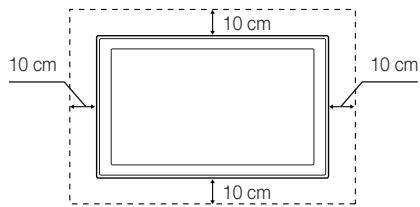
When you install your TV, maintain a distance of at least 4 inches between the TV and other objects (walls, cabinet sides, etc.) to ensure proper ventilation. Failing to maintain proper ventilation may result in a fire or a problem with the product caused by an increase in its internal temperature.

Whether you install your TV using a stand or a wall-mount, we strongly recommend you use parts provided by Samsung Electronics only.
If you use parts provided by another manufacturer, it may cause difficulties with the product or result in injury caused by the product falling.
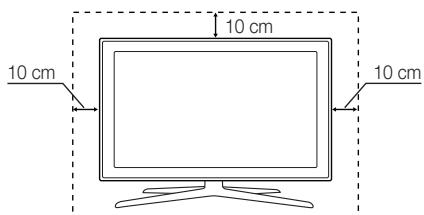
Installation with a stand.
Installation with a wall-mount.

OtherWarnings
The actual appearance of the TV may differ from the images in this manual, depending on the model.
Be careful when you touch the TV. Some parts can be somewhat hot.
Correct Disposal of This Product (Waste Electrical & Electronic Equipment)
(Applicable in the European Union and other European countries with separate collection systems)
This marking on the product, accessories or literature indicates that the product and its electronic accessories (e.g. charger, headset, USB cable) should not be disposed of with other household waste at the end of their working life. To prevent possible harm to the environment or human health from uncontrolled waste disposal, please separate these items from other types of waste and recycle them responsibly to promote the sustainable reuse of material resources. Household users should contact either the retailer where they purchased this product, or their local government office, for details of where and how they can take these items for environmentally safe recycling. Business users should contact their supplier and check the terms and conditions of the purchase contract. This product and its electronic accessories should not be mixed with other commercial wastes for disposal.
Correct disposal of batteries in this product
(Applicable in the European Union and other European countries with separate battery return systems)
This marking on the battery, manual or packaging indicates that the batteries in this product should not be disposed of with other household waste at the end of their working life. Where marked, the chemical symbols Hg, Cd or Pb indicate that the battery contains mercury, cadmium or lead above the reference levels in EC Directive 2006/66. If batteries are not properly disposed of, these substances can cause harm to human health or the environment. To protect natural resources and to promote material reuse, please separate batteries from other types of waste and recycle them through your local, free battery return system.
An administration fee may be charged if either
(a) an engineer is called out at your request and there is no defect in the product (i.e. where you have failed to read this user manual)
(b) you bring the unit to a repair centre and there is no defect in the product (i.e. where you have failed to read this user manual).
The amount of such administration charge will be advised to you before any work or home visit is carried out.
List of Features
3D: This exciting new feature enables you to view 3D content from some broadcasting or 3D BD players.
SMART HUB: The Gateway to all content integrated in one place
It's all integrated to guide you to easier and diverse entertainment choices
Control your entertainment life with easy and simple user friendly UI
- Access to diverse Apps that are adding up every day
- Customize your TV, by App grouping & sorting to your taste
AllShare Play: AllShare Play lets you access, view, or play photos, videos, or music located on USB devices, digital cameras, cell phones, and PCs. PCs, cell phones, and other compatible devices can be accessed wirelessly, through your wireless network.
- Anynet+ (HDMI-CEG): Allows you to control all connected Samsung devices that support Anynet+ with your Samsung TV's remote.
e-Manual: Allows you to read on screen full manual. (p. 19)
Accessories
Please make sure the following items are included with your TV. If any items are missing, contact your dealer.
The items' colours and shapes may vary depending on the models.
Cables not included in the package contents can be purchased separately.
Check that there is no accessory hidden behind packing materials when you open the box.
CAUTION: INSERT SECURELY LEST SHOULD BE DETACHED IN SET
Smart Touch Control & Batteries (AA x 2)
- IR Blaster & Batteries (AA x 4)
Remote Control & Batteries (AAA x 2)
- Warranty Card (Not available in some locations) / Safety Guide
Power Cord
- Cleaning-Cloth
Samsung 3D Active Glasses
- User Manual
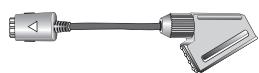
Scart Adapter

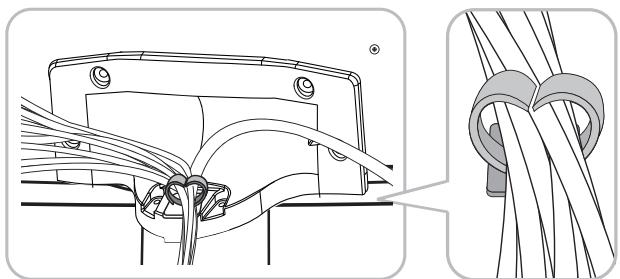
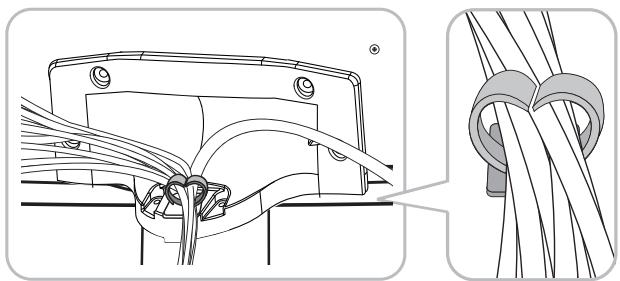
Holder-Wire stand

Holder Ring x 4
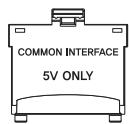
CI Card Adapter
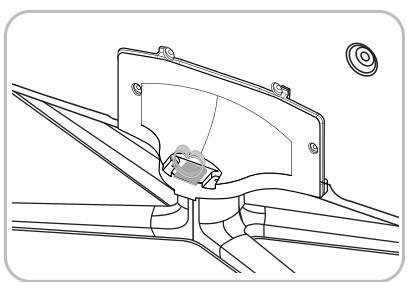
Assembling the Stand Wire Holder
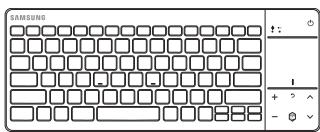
Wireless Keyboard (Sold Separately)
Wireless Keyboard
Using the TV's Controller (Panel Key)
The TV's Controller, a small joy stick like button on the rear right side of the TV, lets you control the TV without the remote control.
The product colour and shape may vary depending on the model.
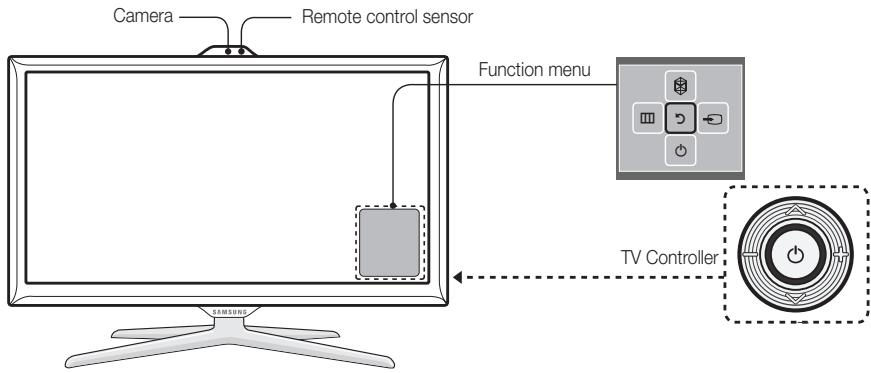
Follow these instructions facing the front of your TV.
When you use a TV camera, you should check whether a tape attached or not in rear of the TV camera, and then you can use a TV camera after adjust a camera angle. If you do not intend to use the TV camera, move the camera lens upwards so that the lens is not revealed. In this case, Face recognition and Motion control are not available.
| Power on | Turn the TV on by pressing the Controller when the TV is in standby mode. |
| Adjusting the volume | Adjust the volume by moving the Controller from side to side when the power is on. |
| Selecting a channel | Select a channel by moving the Controller upwards and downwards when the power is on. |
| Using the Function menu | To view and use the Function menu, press and release the Controller when the power is on. To close the Function menu, press and release the Controller again. |
| Selecting the MENU (III) | With the Function menu visible, select the MENU (III) by moving the Controller to the left. The OSD (On Screen Display) Menu appears. Select an option by moving the Controller to the right. Move the Controller to the right or left, or backwards and forwards to make additional selections. To change a parameter, select the it, and then press the Controller. additional selections. To change a parameter, select the it, and then press the Controller. |
| Selecting the SMART HUB (♀) | With the Function menu visible, select SMART HUB (♀) by moving the Controller upwards. The SMART HUB main screen appears. Select an application by moving the Controller, and then pressing the Controller. |
| Selecting a Source (♂) | With the Function menu visible, open the Source (♂) by moving the Controller to the right. The Source screen appears. To select a Source, move the Controller back and forth. When the source you want is highlighted, press the Controller. |
| Power off (♂) | With the Function menu visible, select Power off (♂) by moving the Controller downwards, and then press the Controller. |
To close the Menu, Smart Hub, or Source, press the Controller for more than 1 second.
Standby mode
Your TV enters Standby mode when you turn it off and continues to consume a small amount of electric power. To be safe and to decrease power consumption, do not leave your TV in standby mode for long periods of time (when you are away on vacation, for example). It is best to unplug the power cord.
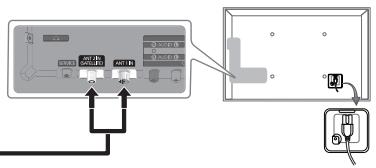
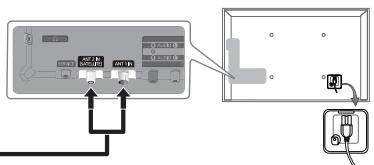
Connecting to an Aerial
Plug the power cord into a wall outlet only after you have made all other connections.
If you are connecting your TV to a cable or satellite box using HDMI, Component, or Composite connections, you do not need to connect the ANT IN jack to an aerial or a cable connection.
Using two-way radio mobile and portable units or amateur radio or AM radio near your TV may cause the TV to malfunction.
Use caution when you move or swivel the TV if the aerial cable is tightly connected. You could break the aerial jack off the TV.
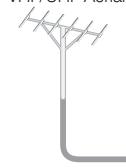
VHF/UHF Aerial

Satellite
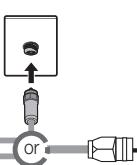
Cable

For more detailed information about Smart Touch Control, see "Using the Smart Touch Control" in e-Manual.
Smart Touch Control
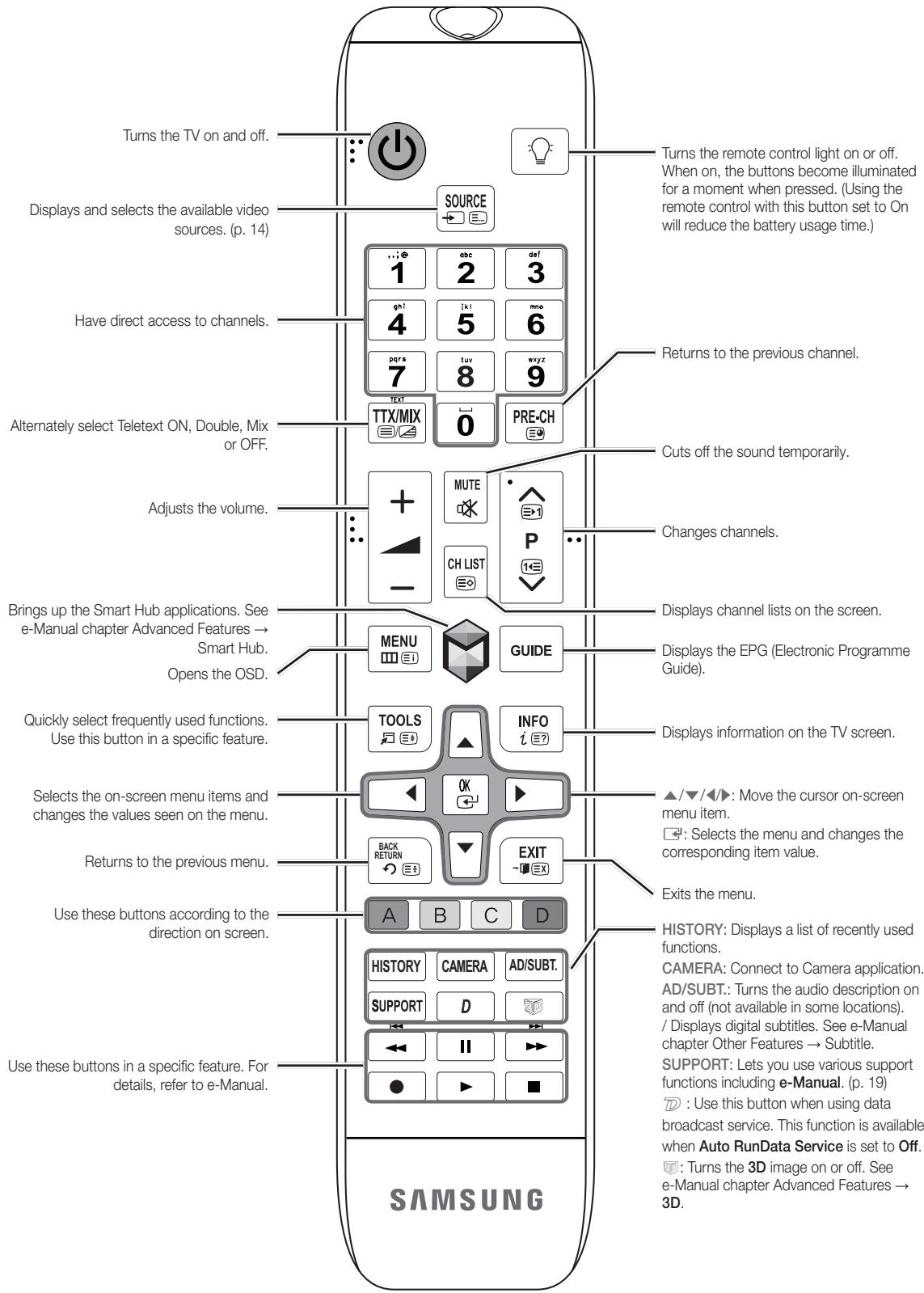
Turns the TV on and off.
Displays a list of recently used functions. You can select a function again using the Touch Pad easily and quickly.

+: Adjusts the Volume.
Displays the shortcut functions list. You can select a function using the Touch Pad.
RETURN: Returns to the previous menu.
VOICE: Lets you access the Voice Control function. When you press the button, the TV displays the command list. You can speak using the microphone embedded in your remote. For more detailed information about the Voice
Control function, see "SMART Interaction" in the e-manual or see page 14.
NUMBER: Displays the Number button screen. You can select a number using the Touch Pad.
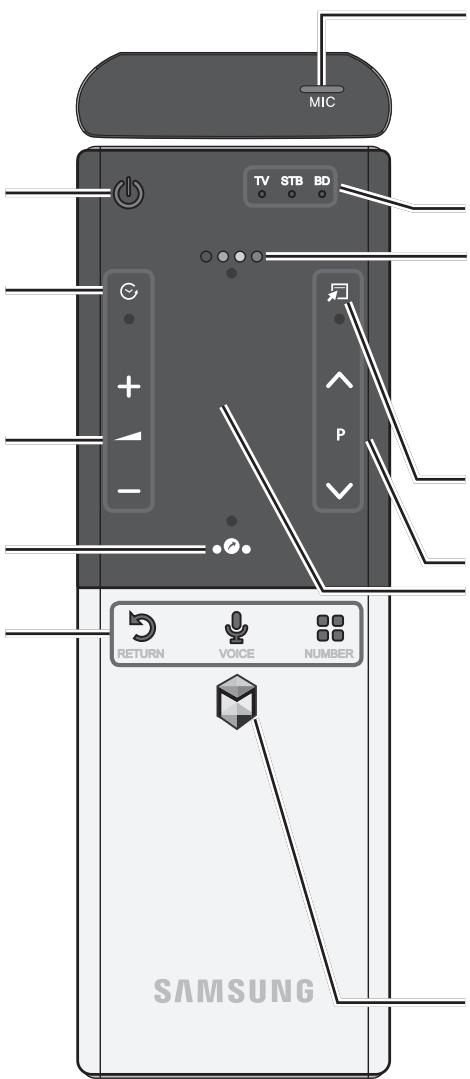
You can speak a voice command that displayed to the TV using MIC. To use MIC, press the VOICE button on your remote.

Voice Control function can be affected recognition by unclear pronunciation, voice level, or surrounding noise.
LED to show the active device.
Displays Colour and playing control functions. You can select a function using the Touch Pad.
- Use these buttons according to the directions on screen.
playing control buttons: Use these buttons in a specific feature. For details, refer to the e-Manual.
: Quickly select frequently used functions. Use this button in a specific feature. For details, refer to e-Manual.

P: Changes channels.
Touch Pad
- You can use the Touch Pad in the same way you use the Touch Pad on a laptop.
- If you don't press any button within 30 seconds, the Smart Touch Control is set to Sleep mode automatically.
- To wake up the Smart Touch Control, press the Touch Pad.
- If you press the Touch Pad for 2 seconds, it has the same effect as pressing the MUTE button on your remote. (Available only when Source is set to TV.)
Brings up the Smart Hub applications. See the e-Manual chapter Advanced Features Smart Hub.
To exit an application that is running easily, press the button.
Installing batteries (Battery size : AA)
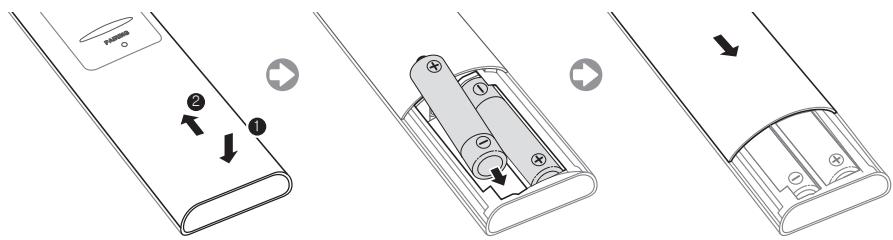
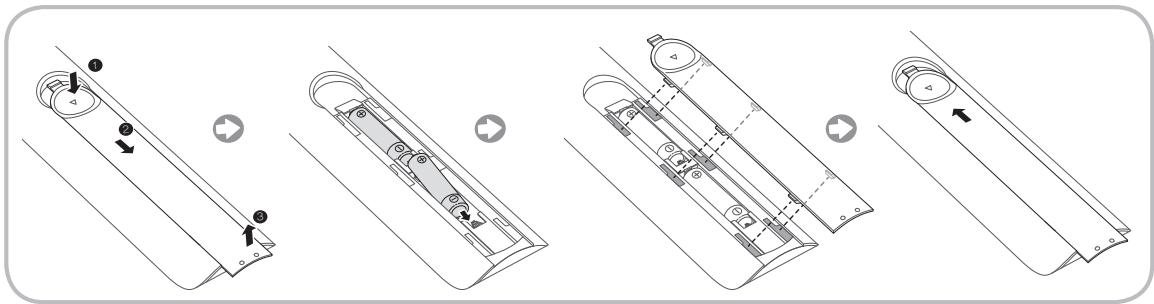
- Press the back of the remote at the very bottom with both thumbs, and then slide the battery cover up in the direction of the arrow.
- Install two batteries so that the polarity of the batteries (+/-) matches the illustration in the battery compartment.
- Slide the cover down in the direction of the arrow to close the battery cover.
IR Blaster
To control to external devices connected to your TV, setting up the Universal Remote.
If you control Smart Touch Control to adjust to the external device, the IR Blaster will send the IR signal to an external device.
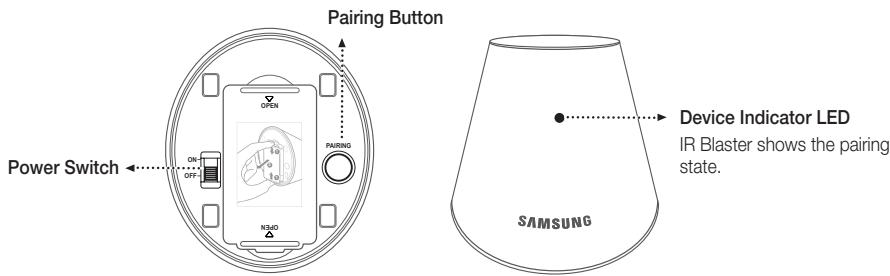
Installing batteries (Battery size : AA)
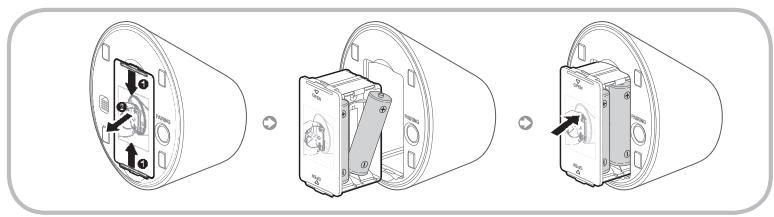
- Hold the both sides of the battery holder and pull it out.
- Install four batteries so that the polarity of the batteries (+/-) matches the illustration in the battery compartment.
- Push it back.
Initial Pairing
When you connect an IR Blaster with your TV, you can control connected external devices with your TV using the Smart Touch Control.
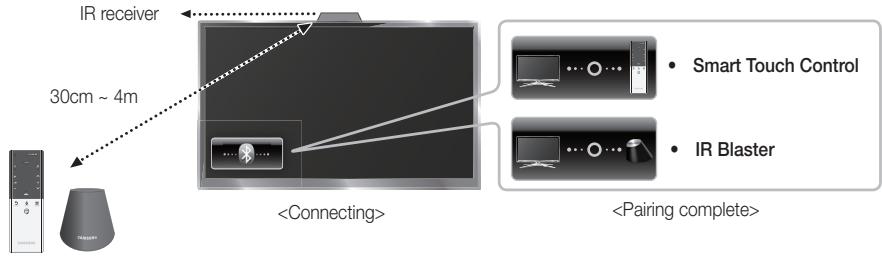
Smart Touch Control
After you have run the Initial Setup on your TV, you should connect your Smart Touch Control to your TV.
- Turn the TV on by pressing the button on.
- The connection icons appear on the bottom left of the screen, and the TV connects to your Smart Touch Control automatically.
If you want to perform the pairing process again, press the reset button in the centre of the back cover using a pin or the tip of an unbent paper clip. The Smart Touch Control will be initialized.
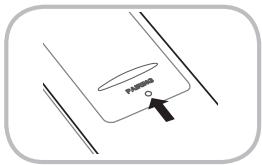
- Smart Touch Control PAIRING Reset button
IR Blaster
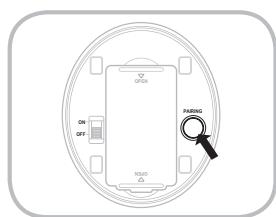
- Turn on the IR Blaster. When Indicator LED blinks, you should connect IR Blaster to TV.
- Move the IR Blaster to the direction of your TV's IR receiver, and then press the PAIRING button once shortly on the bottom of the IR Blaster.
- The connection icons appear on the bottom left of the screen, and the TV connects to IR Blaster automatically.
If the connection process failed, please turn off and on the IR Blaster, try again from step2.
Calibrating the Touch Pad
To calibrate the touch pad on the Smart Touch Control, follow these steps:
- Press the NUMBER button for 3 seconds. The calibration starts.
- When done, all the LEDs on the top of the Smart Touch Control blink twice simultaneously.
While calibrating, don't touch the touch pad.
If the touch pad looses accuracy, re-calibrate the touch pad by repeating Steps 1 and 2.
Using the Touch Pad
To display the shortcut functions list on the bottom of the screen, press the button at the bottom of the touch pad. This list includes Menu, Source, CH List, 3D, AllShare Play, Support, and a number of other functions.
To display the colour and playing control functions on the top of the screen, press the button on the top of the touch pad.
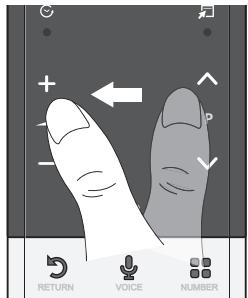
To Move the Highlight: Rest your finger on the touch pad, and then slide it from one side to the other, from top to bottom, or bottom to top.
To move the Highlight continuously, flick your finger across the touch pad from right to left, left to right, top to bottom, or bottom to top.
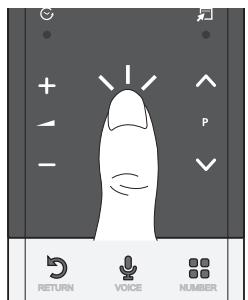
To Select an item: Press the Touch Pad.
Using the Scroll mode
If you press the Touch Pad when using Smart Hub, Web Browser, and AllShare Play, the Touch Pad switches to the Scroll mode.
In the Scroll mode, slide your finger in the Touch Pad from one side to the other, the highlight moves page units.
To return to the general mode of the Touch Pad, press the Touch Pad or RETURN button on your Smart Touch Control.
To Enter a channel number through Smart Touch Control
- While watching a broadcast, press the NUMBER button on the Smart Touch Control. The TV displays the number button screen.
- Using the touch pad, highlight a number, and then press the touch pad. The TV displays a list of channels that start with the number you selected.
- Using the touch pad, highlight the channel in the list you want, and then press the touch pad.
You can also change the channel by touching the up or down channel icon on the touch pad. If you touch the touch pad immediately after, the TV displays the list of memorized channels. Select a channel by moving or flicking your finger up or down, and then pressing the touch pad.
To Display the Tools Menu
Press the button on the right side of the touch pad.
To Display a History of the Channels You Watched
Press the button on the left side of the touch pad.
Setting up Smart touch control to use as a Universal Remote Control
Let you control a Set-Top-Box (STB) or a BD player or both connected to the TV using your Smart Touch Control. After you connect the device to the TV, the Smart Touch Control can control the navigation, number, and other keys needed to operate and control the device.
The Universal Remote Control can adjust TV's volume, but STB's volume cannot be adjusted. Watch STB after adjusting STB's volume to appropriate level.
Depending on the version of an application, the Universal remote setup instructions may differ. In this case, please follow the instructions on the screen.
To connect the external device to your Smart Touch Control, follow these steps:
- Select Set up a device to control, and then press the Touch Pad.
- Select an external device from the connected devices, and then press the Touch Pad.
- Select the port used to connect the external device, and then press the Touch Pad.
Make sure that the selected device is on. If it is turned off, turn the power on and press Refresh.
- Select Search brands/TV service providers, and then press the Touch Pad. A keyboard and an entry field appear. Enter the first few letters of the brand name of your device using the Smart Touch Control, and then select Done at the bottom of the keyboard. In the list that appears below the entry field, select the brand name of your device, and then press the Touch Pad. If you want to search the brand of STB (Set-Top box), you can search the STB by using the brand name or a cable provider.
- Select Search model, and then press the Touch Pad. A keyboard and an entry field appear. Enter the first few letters and numbers of the model name of your device using the Touch Control, and then select Done at the bottom of the keyboard. In the list that appears below the entry field, select the model name of your device, and then press the Touch Pad.
If the search for model name does not work properly, search with a part of the model name or use the search for recommended model code.
- Select Download, and then press the Touch Pad. Download the configuration data for the IR Blaster in the same way.
- When all the settings are complete, select the Complete button and press the Touch Pad.
To reset IR Blaster and Smart Touch Control, press the button on Smart Touch Control, and then select Universal remote setup.
Using the Search for recommended model code.
- In the Search model name step in the integrated remote control setup, select the Recommended model and press the Touch Pad.
- Select Download to download the recommended model code.
- Point the Smart Touch Control forward to the IR sensor of the external device and press the Touch Pad to test if the device works.
- If the downloaded recommended model code does not work, repeat the steps from step 3.
When you use the BD home theater by using Universal Remote, some buttons may not be supported. In this case, we recommend to use Anynet+ (HDMI-CEC) function.
Viewing the Remote Control
This is a special remote control for the visually impaired persons and has Braille points on the Power, Channel and Volume buttons.
Match the polarity of the batteries to the symbols in the battery compartment.

NOTE
Install the batteries so that the polarity of the batteries (+/-) matches the illustration in the battery compartment.
Use the remote control within 23 feet of the TV.
Bright light may affect the performance of the remote control. Avoid using when near special fluorescent lights or neon signs.
The colour and shape may vary depending on the model.
Setup (Initial Setup)
When you turn the TV on for the first time, a sequence of prompts and screens will assist you in configuring basic settings. To begin Setup, press the button on your remote.
Setup is available only when the input source is set to TV. See "Changing the Input Source" (p. 14).
To return to the previous step in the Setup sequence, Select Previous.
Before you begin, make sure you have connected the TV to an aerial or a cable connection and that the TV is plugged in. (p. 5).
To start the Setup select Start.
| 1 | Menu Language: Select a Language. | Select a menu language you want using your remote, and then select Next. The TV will be displayed a menu using the selected language since next step. |
| 2 | Use Mode: Select the Home Use Mode. | Select Home Use using your remote, and then select Next. Store Demo mode is for retail environments. |
| 3 | Network Settings: Configure network settings To connect later, select Skip. | To set up your network connection, select Start using your remote. If you do not know your network set up information or want to set to it later, select Skip. For more detailed information, refer to “Setting up the Wired or Wireless Network” in the e-Manual for set up requirements and instructions, and the Network Connection section of this manual (p. 18). You can set up the network connection later using the Network menu. |
| 4 | Software Upgrade: Upgrading the software to latest version To upgrade later, select Skip. | Select Next to upgrade TV software. Your TV will automatically upgrade, if your TV need a software upgrade. If you want to upgrade later, select the Skip. For more information, refer to Software Upgrade (Preference Features → Support Menu) in the e-Manual. This may take some time, depending on network status. |
| 5 | Terms of Service Agreement | When the Network Settings is completed, The Terms of Service Agreement screen appears. The screen can take a few seconds to appear. The General Disclaimer screen appears. Select Agree. The Privacy policy screen appears. Select Agree. To use the Smart Hub, you should select Agree from the Terms of Service Agreement. |
| 6 | Select Country. (Depending on the country) | Select the appropriate country. After selecting the country in the Country menu, some models may proceed with an additional option to setup the pin number. |
| 7 | Auto Tuning (1): Selecting how you watch your TV | Let's find and store channels on your TV. Do you need to search for channels? • Yes, I need to.: All the channels available will be found and stored on your TV. • No, I don't need to.: My set-top box provides all the channels that are available, so I don't need to search for channels. |
| 8 | Auto Tuning (2): Selecting a search options and Region Selection (Depending on the country) | Select the channel source to memorise. When setting the aerial source to Cable, a step appears allowing you to assign numerical values (channel frequencies) to the channels. For more information, refer to Auto Tuning (Channel Menu → Memorizing Channels) in the e-Manual. When Air or Cable is selected first: After all Air or Cable channels are stored, the step for storing Satellite channels is displayed. When Satellite is selected first: After all Satellite channels are stored, the step for storing Air or Cable channels is displayed. Select Stop at any time to interrupt the memorization process. • Auto: Set the current time automatically. • Manual: Allows you to manually set the current date and time. |
| 9 | Clock: Setting the Clock Mode | |
| 10 | Time Zone (Depending on the country): Setting the your Time Zone | This step is only available when the clock mode is set to Auto. • Auto: Set the time zone automatically. • Manual: Set the time zone manually. If you selected Manual, you can select whether to turn DST (Daylight Savings Time) On or Off. (Depending on the country) |
| 11 | Voice and motion control: Setting the Voice and Gesture Control function. | You can turn the Voice and motion control function On or Off. Select Off or On, and then select Next. For more detailed information, refer to “SMART Interaction” (p.14) |
| 12 | Setup Complete | Select Close to finish. The completed settings are displayed. |
If You Want to Reset This Feature...
Menu System Setup
Select System - Setup (Initial Setup). Enter your 4 digit PIN number. The default PIN number is "1-1-1-1". If you want to change the PIN number, use the Change PIN function.
You should do Setup (Menu System) again at home although you did in shop.
If you forget the PIN code, press the remote control buttons in the following sequence in Standby mode, which resets the PIN to "1-1-1-1": MUTE 8 2 4 POWER (on).

For more information, refer to Connecting the TV in the e-Manual.
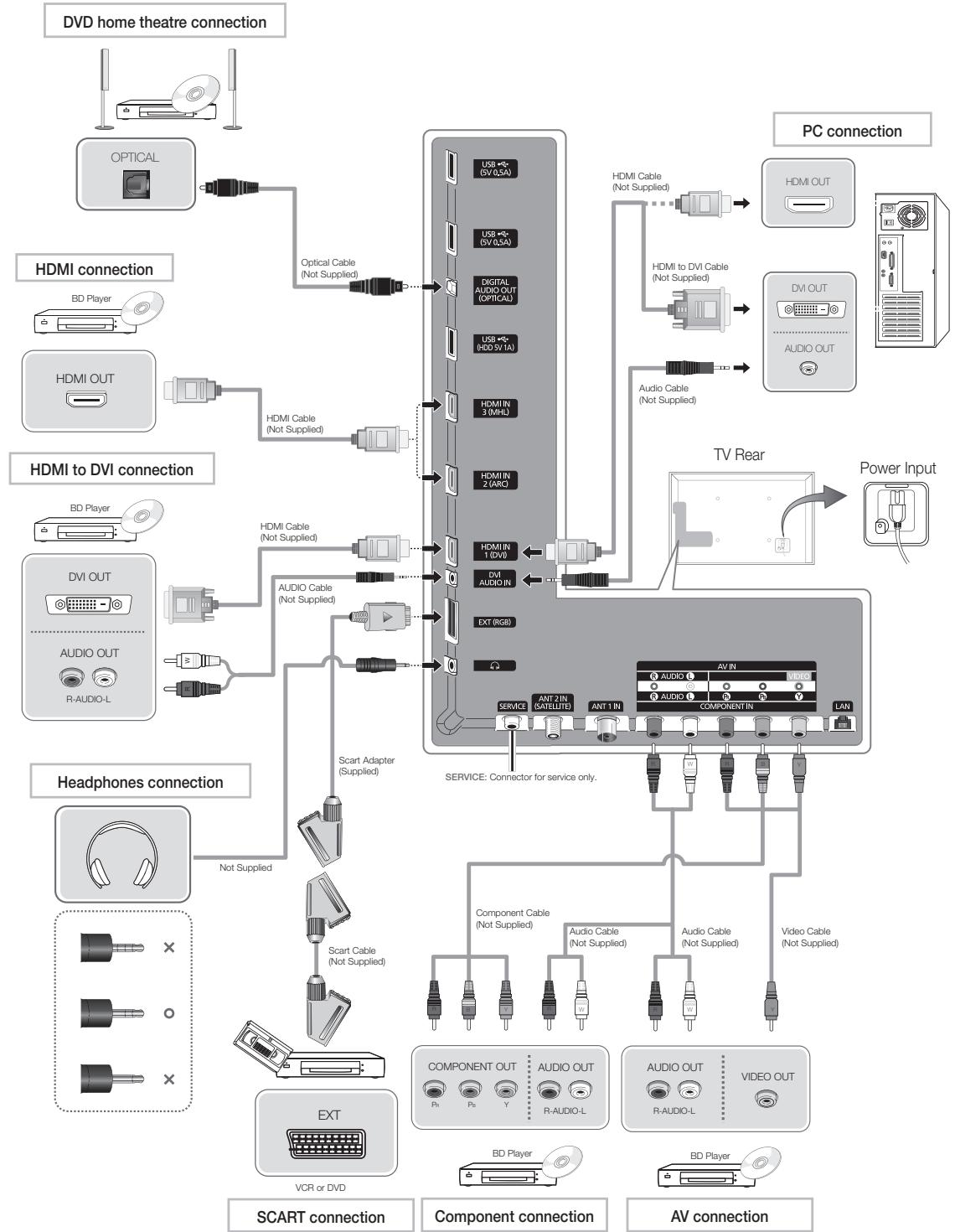

For best cable connection to this product, be sure to use cables with a maximum thickness as below:
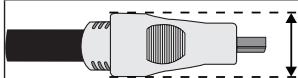
Maximum thickness - 0.55 inches (14mm)
Source
Source
When you are watching TV and you want to watch a movie on your DVD player or Blu-ray player or switch to your cable box or STB satellite receiver, you need to change the Source.
TV/Ext./HDMI1/DVI/HDMI2/HDMI3/AV/Component
- Press the button on your remote. The Smart Hub screen appears.
- Select Source. The Source screen appears.
- Select a desired external input source.
Alternatively, you can access the Source screen by selecting the Source button on your standard remote or selecting Source with the Smart Touch Control (see page 6).
You can only choose external devices that are connected to the TV. In the displayed Source list, connected inputs are highlighted.
How to Use Edit Name
Edit Name lets you associate a device name to an input source. To access Edit Name, open the Tools menu when the Source list is displayed. The following selections appear under Edit Name:
VCR / DVD / Cable STB / Satellite STB / PVR STB / AV Receiver / Game / Camcorder / PC / DVI PC / DVI Devices / TV / IPTV / Blu-ray / HD DVD / DMA: Select an input jack, and then select the name of the device connected to that jack from the list that appears. For example, if you have your Blu-ray player attached to HDMI IN 2, select Blu-ray for that input.
If you connect a PC to the HDMI IN 1 (DVI) port with an HDMI cable, assign PC to HDMI1/DVI in Edit Name.
If you connect a PC to the HDMI IN 1 (DVI) port with an HDMI to DVI cable, assign DVI PC to HDMI1/DVI in Edit Name.
If you connect an AV device to the HDMI IN 1 (DVI) port with an HDMI to DVI cable, assign DVI Devices to HDMI1/DVI in Edit Name.
Information
You can see detailed information about the selected external device.
Refresh
If the external devices are not displayed in the Source list, open the Tools menu, and then select Refresh. The list will display all connected devices.
Alternatively, you can refresh the Source list screen by selecting A using your remote.
SMART Interaction
Using this function, you can access and control menu options and functions using speech, gestures or face recognition.
INFORMATION BOOKLET DISCLAIMER
- Face Recognition Log-in
In order for Face recognition to function, a thumbnail image of your face will be stored in your TV for logging-in purposes.
Logging into the Smart Hub using Face recognition may be less secure than using an ID and password.
TV Camera Usage
Before using the TV Camera, you should be aware that under some circumstances and under certain legal conditions your misuse of the TV Camera can result in legal liability for you. By using the TV Camera, you agree that you will not use the camera (i) in locations where cameras are generally prohibited (such as bathrooms, locker rooms or changing rooms), (ii) in any manner that will result in an invasion of a person's privacy or (iii) in violation of any applicable laws, regulations or statutes.
Voice Control
Menu System Voice and motion control Voice Control
Enable or disable the voice recognition function. Lets you access and control menu options and functions using speech.
Voice Control function can be affected recognition by unclear pronunciation, voice level, or surrounding noise.
To use Voice Control, you must pronounce words and phrases clearly and correctly in the language you selected in Language.
Ambient noise may cause Voice Control to malfunction.
Your TV can "hear" your voice commands in two ways:
Using the TV's microphone. (Distant Recognition)
We are recommended using Voice Control function within about 13 ft with your TV. You can check the usable distance by using Voice Control Environment Test (System Voice and motion control Voice Control Voice Control Environment Test).
Using the VOICE button on your remote. (Close Proximity Recognition)
When you use the TV's microphone, the words may not be recognized because of ambient noise. If this occurs, try using the VOICE button on your remote. The TV will be able to recognize a voice command more easily.
The VOICE button on your remote is always activated. If you want to use the TV's microphone, turn on Voice Control (System Voice and motion control Voice Control).
If a menu option or function is not supported by the Voice Control function, we suggest trying the Motion control function. To use gestures, spread your hand in the direction of the camera, and shake it three or four times from a side to side.
Voice Control
Turns the Voice Control function on or off.
The VOICE button on your remote is always activated.
Language
Select the recognition language you want to use.
Trigger words
You can select the Trigger words that start the Voice Control function. Alternatively you can turn on your TV using the Trigger words if Voice Control function is set to On. If the Trigger words is set to Hi TV, say Hi TV Power On. If the Trigger words is set to Smart TV, say Smart TV Power On
Voice command bar size
- Set the Voice command bar size mode to Minimum or Full.
- Minimum displays the least number of words and phrases you can use.
- Full displays all the words and phrases.
Voice Sensitivity
Set the sensitivity of Voice recognition.
- Howling: Set echo level.
Recognition responsiveness: Set the responsiveness level of Voice recognition.
Voice Control Environment Test
You can test the noise level on the TV microphone.
- Noise Test: This test checks the noise level of the TV microphone. Select Next using your remote. The test will start and should only take a few seconds. Please keep as quiet as possible during the test.
- Mic & Speaker Test: This test checks the noise level of the TV microphone and speaker. Select Start using your remote. The test will start and should only take a few seconds. Please keep as quiet as possible during the test.
Available only when Speaker Select is set to TV Speaker.
Voice Control Test: This test checks the volume level and clarity of your voice when using Voice Control. Select Start using your remote. The test will start. Please say a guide message as loud and clearly as you can to complete this test.
If the test is not completed, select Retest, and then say a guide message loudly and clearly again.
To use the Voice Control function, follow these steps:
If Voice Control function is set to On, the TV may be turned on automatically by effect of the ambient environment.
- Speak the Trigger words that you selected using the microphone embedded in the TV or press and hold the VOICE button on your remote. The TV displays the Voice Control Environment Test.
If you use the Voice Control, the volume will be set to 5 automatically.
- Speak a word or phrase listed in the Voice Control Environment Test. If you use the VOICE button on your remote, release the button.
Pronounce the word or phrase clearly and correctly in the language you selected in Language.
- Wait until recognition is complete, and then speak the next command.
To exit the Voice Control mode, speak a Trigger words or "Cancel" using the TV's microphone, or press the VOICE button on your remote again.
Using the Voice Text Input Mode
- Speak "Search All" while in the Voice Control mode.
When you use a QWERTY keypad screen, you can use the Voice Text Input Mode. Speak the Trigger words that you selected using the microphone embedded in the TV or press and hold the VOICE button on your remote.
- Say the word or phrase you wish to search for.
- The TV executes the spoken function.
Voice Control performance levels will vary based on the language spoken.
Motion control
Menu System Voice and motion control Motion control Enable or disable the Motion control function. Lets you control your TV by moving the TV cursor using specific gestures.
Some applications may not support Motion control.
We are recommended using Motion control function within about 5 - 13 ft with your TV. TV Camera's recognition range may differ depending on the angle of camera or other conditions. You can check the recognition range of TV camera by using Motion control environment test (System Voice and motion control Motion control Motion control environment test).
Motion control
Turns the Motion control function on or off.
Motion guide bar size
Set the Motion guide bar size mode between Minimum or Full.
Motion control environment test
You can test the brightness of room and the camera angle.
- Brightness Test: This test checks to see if your room is bright enough for Motion control to work properly. Select Start using your remote. The test will start and should take only a few seconds.
- Camera Angle Test: Start Camera Angle Test Select Start using your remote. Please put yourself in the rectangle on the screen by adjusting the camera or moving around. If you are not located in the correct position, the test may not work properly. When done, please spread your hand in the direction of the camera, and shake it three or four times from a side to side.
To use the Motion control function, follow these steps:
- To use the Motion control, raise your hand while opening it toward the screen, hold it for a moment and then wave it 3 - 4 time to the left and right. Motion control starts. If the Motion control starts, the cursor is displayed at the center of the screen and the Motion guide bar size is at the bottom of the screen.
- Control the TV using your hands.
Note that the Motion control function closes if your hands go out of the camera range.
While using the Motion control, if you use the other device (i.e. remote control, keyboard, etc.), Motion control closes.
Controlling the TV with your hands using Motions
Access Motion Control
Action: Spread your hand in the direction of the camera, and shake it three or four times from a side to side.
Pointing Navigation
Moves the cursor to the position you want.
Action: Spread your hand and guide the cursor to position you want.
Run
Selects an item or executes a command that is indicated by the cursor or is highlighted.
Action: Clench your fist.
Back
Return to the previous menu.
Action: Spread your hand and rotate it counter clockwise.
Channel / Volume Control
Changes the channel or adjust the volume.
If you use the Motion control function while watching a channel, the channel / volume control screen appears.
- Action: Use the Pointing Navigation gesture to move the cursor to the channel or volume controller, and then uses the Run gesture to adjust the channel or volume.
If you use the Run gesture once, it has the same effect as pressing a button on your remote. If you hold the Run gesture, it has the same effect as pressing and holding a button on your remote.
Scroll
Scroll the page in the direction you want. For example, suppose that you want to scroll down.
Some applications may not support this function.
- Move the cursor to the bottom of the screen (page scroll zone) using the Pointing Navigation gesture.
- Move the cursor to the centre of the screen using the Pointing Navigation gesture.
- The page will move down.
Face recognition
Tools Settings Account Manager Change account information Register face
Enable or disable the Face recognition function. Lets you register your face in your Samsung account. Also, you can log in to the Samsung account using the Face recognition function without inputting your account ID or your account password.
You can register your face in only one account.
To register your face in your Samsung account, follow these steps:
To use this function, you must log into Smart Hub. If you don't have a Samsung Account, you should create one before using this function. To create your Samsung Account, refer to "Creating an Account" (Advanced Features Smart Hub) in the e-Manual.
1. On the Smart Hub screen, open the Tools menu using your remote, and then select Settings.
2. Select Account Manager. The Account Manager screen appears.
3. Select Change account information. The Change account information screen appears.
4. Select Register face. If you agree to use facial recognition, select OK.
5. Enter your account password.
6. Move your face into the facial lines at the centre of the screen, and then wait until the facial lines changes from red to green. If Face recognition fails, select Retry and try again.
7. When finished, your face is now registered in your Samsung account.
To log in to your Samsung account using Face recognition, follow
these steps:
If you use Face recognition to log into Smart Hub, it may be less secure than logging in with a password.
- With the Smart Hub screen displayed, select A using your remote. The ID/password screen appears.
- Select Face Recognition Mode. The Face recognition screen appears.
To return to the ID/password screen, select Password mode.
-
The TV starts Face recognition. Face the front of the TV screen. The TV will recognize your face automatically.
If the TV fails to recognize your face, try again. -
The TV logs you into your Samsung account automatically.
If the TV recognizes two or more registered faces, the Samsung account list appears. Select your account to log in.
If your face is unregistered, you can register your face in your Samsung account. Follow steps 4 through 5 in the "To register your face to your Samsung account" procedure above.
If you have no account, you can create one. For more detailed information, refer to "Creating an Account" (Advanced Features Smart Hub) in the e-Manual.
Attaching the CI Card Adapter
Attach the adapter as shown below.
To connect the CI CARD Adapter, follow these steps.
We recommend attaching the adapter before installing the wall mount, or inserting the "Cl or Cl+ CARD".
To install the CI card adapter, please remove the sticker attached to the TV.
- Insert the CI CARD Adapter into the two holes on the product 1.
Please find a two holes on the rear of the TV. A two holes is beside the COMMON INTERFACE port.
- Connect the CI CARD Adapter into the COMMON INTERFACE port on the product ②.
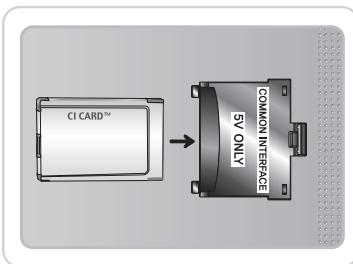
- Insert the "Cl or Cl+ CARD".
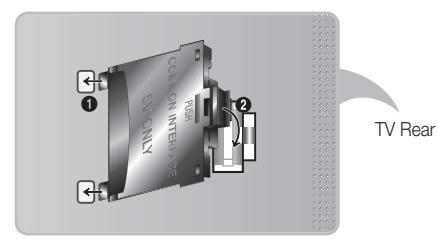
To install the CI card adapter, please remove the sticker attached to the TV.

We recommend that you insert the Cl card before you mount the TV on a wall. It may be difficult to insert after the mounting. Insert the card after attaching the Cl Card Adapter on TV. It is difficult to attach the module if you insert the card before attaching.
Using the "Cl or Cl+ CARD"
To watch paid channels, the "CI or CI+ CARD" must be inserted.
- If you don't insert the "CI or CI+ CARD", some channels will display the message "Scrambled Signal".
- The pairing information containing a telephone number, the "CI or CI+ CARD" ID the Host ID and other information will be displayed in about 2~3 minutes. If an error message is displayed, please contact your service provider.
- When the configuration of channel information has finished, the message "Updating Completed" is displayed, indicating the channel list is updated.

NOTE
- You must obtain a "CI or CI+ CARD" from a local cable service provider.
- When removing the "CI or Cl+ CARD", carefully pull it out with your hands since dropping the "CI or Cl+ CARD" may cause damage to it.
- Insert the "Cl or Cl+ CARD" in the direction marked on the card.
- The location of the COMMON INTERFACE slot may be different depending on the model.
- "CI or CI+ CARD" is not supported in some countries and regions; check with your authorized dealer.
If you have any problems, please contact a service provider. - Insert the "CI or CI+ CARD" that supports the current aerial settings. The screen will be distorted or will not be seen.
The Evolution Kit Slot (Kit Sold Separately)
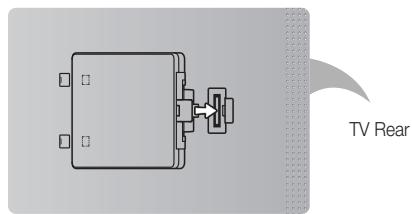
This socket is designed to accept an extension device called Evolution Kit. The Evolution Kit enables the TV to run a variety of the latest applications for a better user experience.
The Evolution Kit, which may not be available depending on the product, will be sold separately in 2013 or later.
Network Connection
You can set up your TV so that it can access the SMART TV applications. through your local area network (LAN) using a wired or wireless connection.
Network Connection - Wireless
You can connect your TV to your LAN through a standard wireless router or modem.
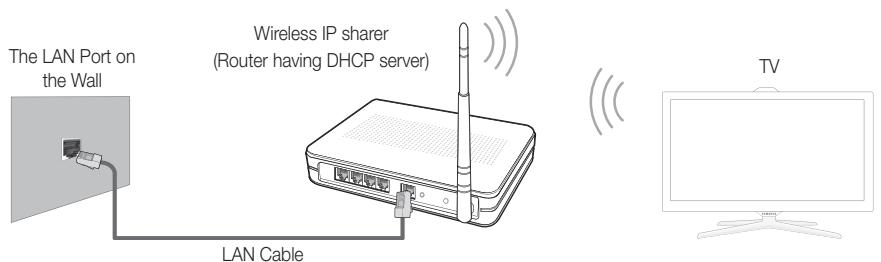
Samsung's Wireless LAN adapter supports the IEEE 802.11a/b/g and n communication protocols. Samsung recommends using IEEE 802.11n. When you play the video over a IEEE 802.11b/g connection, the video may not play smoothly.
Most wireless network systems incorporate a security system that requires devices that access the network through an access point or wireless router (typically a wireless IP Sharer) to transmit an encrypted security code called an access key.
If Pure High-throughput (Greenfield) 802.11n mode is selected and the Encryption type is set to WEP, TKIP or TKIP AES (WPS2Mixed) for your wireless router, Samsung TVs will not support a connection in compliance with new Wi-Fi certification specifications.
Network Connection - Wired
There are two main ways to connect your TV to your network using cable, depending on your network setup. They are illustrated below:
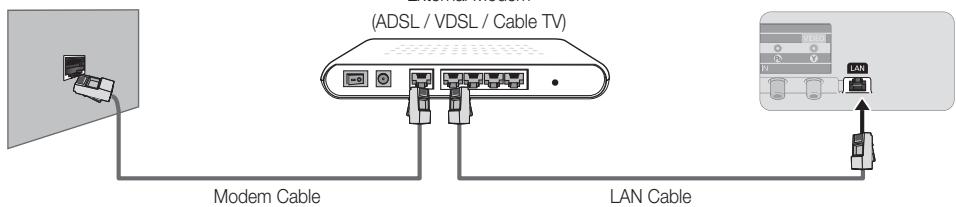
The Modem Port on the Wall
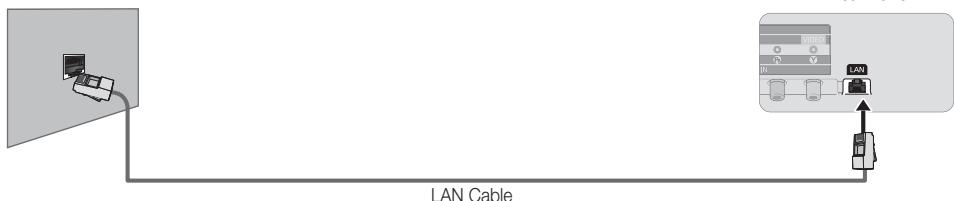
The LAN Port on the Wall
The TV does not support network speeds less than or equal to 10Mbps.
Use Cat 5 or 6 (STP Type) cable for the connection. (Shielded Twisted Pair)
How to view the e-Manual
You can find instructions for your TV's features in the e-Manual. To open the e-Manual, press the SUPPORT button on your standard remote or select Support using the Smart Touch Control.
You can also access it through the menu:
Menu Support e-Manual
Access the e-Manual
To use the e-Manual, follow these steps:
- When you need to help, select Support using your remote. The Support screen appears.
- Select e-Manual using your remote. The e-Manual screen appears.
- Select a desired category.
- Select a desired topic. The e-Manual displays the page you want to see.
Blue words in e-Manual refer to menu options or selections in the TV's on screen menu.
Green icons in the e-Manual refers to a button on your remote.
Arrow steps (e.g. Menu Support e-Manual) in the e-Manual signify the sequence of steps required to access an option or activate a function.
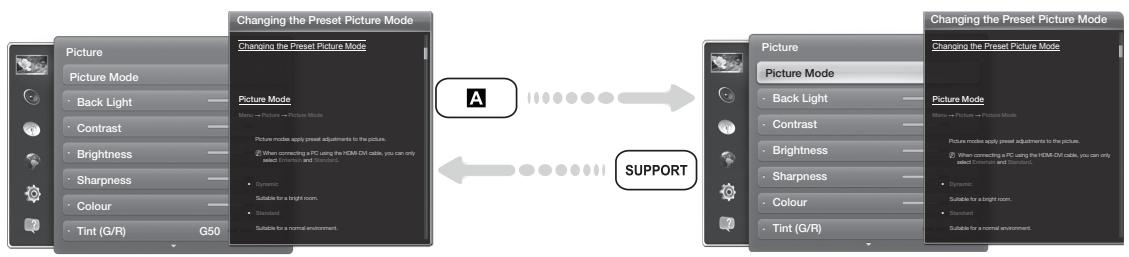
How to toggle between an e-Manual topic and the corresponding OSD menu(s).
This function is not enabled in some menus.
You can't use the Try now function if the menu is not available.
- To go to the topic's corresponding menu option, select A using your remote.
- To return to the e-Manual screen, select Support using your remote.
Using the coloured and function buttons with the e-Manual
- Scroll bar: Scroll the e-Manual screen up or down.
- / /: Moves to the previous or next chapter.
- Try now: Move the OSD menu that corresponds to the topic. To return to the e-Manual screen, select Support using your remote.
Home:Moves to the e-Manual home screen. - Position: Each time you select c ,using your remote,you change the position of the e-Manual screen.
- D Index: Displays the Index screen.
- Return: Return to the previous screen.
How to search for a topic on the index page
- Select D using your remote. The Index screen appears.
- To search for a topic, select a letter. The Index displays a list of topics and keywords that begin with the letter you selected.
- Select a topic or keyword you want.
- The e-Manual page with the topic appears.
To close the Index screen, press the RETURN button.
To Change the screen position of the e-Manual
If the e-Manual screen is not invisible well because the OSD Menu screen, you can change the e-Manual screen's position.
- Move the Highlight to the e-Manual screen by pressing the SUPPORT button on your standard remote or select Support using the Smart Touch Control.
- Press the button on your standard remote, or select using the Smart Touch Control. Each time you select using your remote, the position of the e-Manual will change.
Installing the Wall Mount
Installing the Wall Mount Kit
The wall mount kit (sold separately) allows you to mount the TV on the wall.
For detailed information on installing the wall mount, see the instructions provided with the wall mount. Contact a technician for assistance when installing the wall mount bracket. We do not advice you to do it yourself.
Samsung Electronics is not responsible for any damage to the product or injury to yourself or others if you elect to install the TV on your own.
Preparing before installing Wall-Mount
Case A. Installing the SAMSUNG Wall-Mount
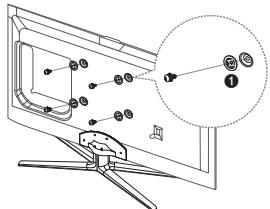
To install a wall-mount, use the Holder-Ring 1.
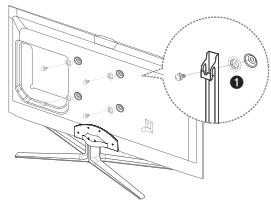
Case B. Installing another company's Wall-Mount
Wall Mount Kit Specifications (VESA)
The wall mount kit is not supplied, but sold separately.
Install your wall mount on a solid wall perpendicular to the floor. When attaching to other building materials, please contact your nearest dealer. If installed on a ceiling or slanted wall, it may fall and result in severe personal injury.
NOTE
- Standard dimensions for wall mount kits are shown in the table below.
- When purchasing our wall mount kit, a detailed installation manual and all parts necessary for assembly are provided.
- Do not use screws that do not comply with the VESA standard screw specifications.
- Do not use screws that are longer than the standard dimension or do not comply with the VESA standard screw specifications. Screws that are too long may cause damage to the inside of the TV set.
- For wall mounts that do not comply with the VESA standard screw specifications, the length of the screws may differ depending on the wall mount specifications.
- Do not fasten the screws that are too strongly; this may damage the product or cause the product to fall, leading to personal injury. Samsung is not liable for these kinds of accidents.
Samsung is not liable for product damage or personal injury when a non-VESA or non-specified wall mount is used or the consumer fails to follow the product installation instructions. - Do not mount the TV at more than a 15 degree tilt.
Always have two people mount the TV on a wall.
| Product Family | inches | VESA Spec. (A * B) | Standard Screw | Quantity |
| LED-TV | 40 | 200 X 200 | M8 | 4 |
| 46~60 | 400 X 400 |
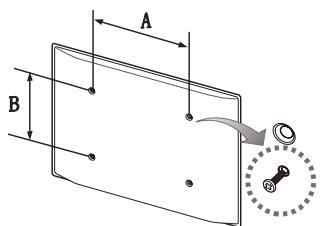
Unscrew the hole around before installing Wall-Mount on the wall.

Do not install your Wall Mount Kit while your TV is turned on. It may result in personal injury due to electric shock.
Storage and Maintenance
If you attached some stickers on the TV screen, it remains some debris after removing the sticker. Please clean it to watch TV.
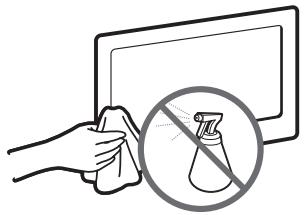
Do not spray water directly onto the product. Any liquid that goes into the product may cause a failure, fire, or electric shock.
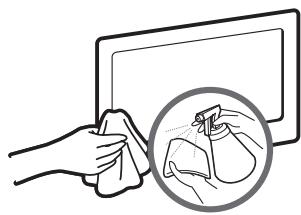
Clean the product with a soft cloth dapped in a small amount of water. Do not use a flammable liquid (e.g. benzene, thinners) or a cleaning agent.
Securing the TV to the Wall
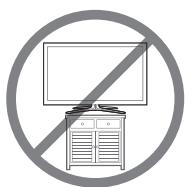
Caution: Pulling, pushing, or climbing on the TV may cause the TV to fall. In particular, ensure your children do not hang over or destabilize the TV. Doing so may cause the TV to tip over, causing serious injuries or death. Follow all safety precautions provided in the included Safety Flyer with your TV. For added stability and safety, you can purchase and install the anti fall device as described below.
To Avoid the TV from Falling
- Put the screws into the clamps and firmly fasten them onto the wall. Confirm that the screws have been firmly installed onto the wall.
You may need additional material such as an anchor depending on the type of wall.
Since the necessary clamps, screws, and string are not supplied, please purchase these additionally.
- Remove the screws from the back centre of the TV, put the screws into the clamps, and then fasten the screws onto the TV again.
Screws may not be supplied with the product. In this case, please purchase the screws of the following specifications.
Screw Specifications
For a 19~27 inch: M4
For a 32~75 inch: M8
- Connect the clamps fixed onto the TV and the clamps fixed onto the wall with a strong cable and then tie the string tightly.

NOTE
Install the TV near to the wall so that it does not fall backwards.
- It is safe to connect the string so that the clamps fixed on the wall are equal to or lower than the clamps fixed on the TV.
- Untie the string before moving the TV.
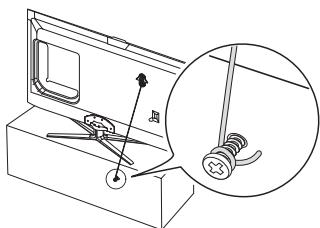
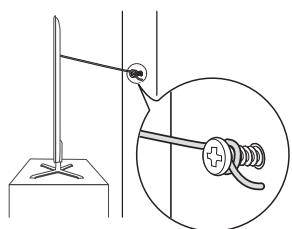
- Verify all connections are properly secured. Periodically check connections for any sign of fatigue for failure. If you have any doubt about the security of your connections, contact a professional installer.
Troubleshooting
If you have any questions about the TV, first refer to this list. If none of these troubleshooting tips apply, please visit "www.samsung.com," then click on Support, or contact the call centre listed on the back-cover of this manual.
| Issues | Solutions and Explanations |
| The TV won't turn on. | ·Make sure the AC power cord is securely plugged in to the wall outlet and the TV. ·Make sure the wall outlet is working. ·Try pressing the POWER button on the TV to make sure the problem is not the remote. If the TV turns on, refer to “Remote control does not work” below. |
| There is no picture/video. | ·Check cable connections (remove and reconnect all cables connected to the TV and external devices). ·Set your external device's (Cable/Sat Box, DVD, Blu-ray etc) video outputs to match the connections to the TV input. For example, if an external device's output is HDMI, it should be connected to an HDMI input on the TV. ·Make sure your connected devices are powered on. ·Reboot the connected device by reconnecting the device's power cable. |
| The remote control does not work. | ·Replace the remote control batteries with the poles (+/-) in the right direction. ·Clean the sensor's transmission window on the remote. ·Try pointing the remote directly at the TV from 5~6 feet away. |
| The cable/set top box remote control doesn't turn the TV on or off, or adjust the volume. | ·Programme the Cable/Set remote control to operate the TV. Refer to the Cable/Set user manual for the SAMSUNG TV code. |
Some of above pictures and functions are available at specific models only.
You can keep your TV as optimum condition to upgrade the latest firmware on web site (samsung.com Support Downloads) by USB.
Display Resolution
| Mode | Resolution | Horizontal Frequency (KHz) | Vertical Frequency (Hz) | Pixel Clock Frequency (MHz) | Sync Polarity (H / V) |
| IBM | 640 x 350 | 31.469 | 70.086 | 25.175 | +/- |
| 720 x 400 | 31.469 | 70.087 | 28.322 | -/+ | |
| MAC | 640 x 480 | 35.000 | 66.667 | 30.240 | -/- |
| 832 x 624 | 49.726 | 74.551 | 57.284 | -/- | |
| 1152 x 870 | 68.681 | 75.062 | 100.000 | -/- | |
| VESA DMT | 640 x 480 | 31.469 | 59.940 | 25.175 | -/- |
| 640 x 480 | 37.861 | 72.809 | 31.500 | -/- | |
| 640 x 480 | 37.500 | 75.000 | 31.500 | -/- | |
| 800 x 600 | 37.879 | 60.317 | 40.000 | +/+ | |
| 800 x 600 | 48.077 | 72.188 | 50.000 | +/+ | |
| 800 x 600 | 46.875 | 75.000 | 49.500 | +/+ | |
| 1024 x 768 | 48.363 | 60.004 | 65.000 | -/- | |
| 1024 x 768 | 56.476 | 70.069 | 75.000 | -/- | |
| 1024 x 768 | 60.023 | 75.029 | 78.750 | +/+ | |
| 1152 x 864 | 67.500 | 75.000 | 108.000 | +/+ | |
| 1280 x 720 | 45.000 | 60.000 | 74.250 | +/+ | |
| 1280 x 800 | 49.702 | 59.810 | 83.500 | -/+ | |
| 1280 x 1024 | 63.981 | 60.020 | 108.000 | +/+ | |
| 1280 x 1024 | 79.976 | 75.025 | 135.000 | +/+ | |
| 1366 x 768 | 47.712 | 59.790 | 85.500 | +/+ | |
| 1440 x 900 | 55.935 | 59.887 | 106.500 | -/+ | |
| 1600 x900RB | 60.000 | 60.000 | 108.000 | +/+ | |
| 1680 x 1050 | 65.290 | 59.954 | 146.250 | -/+ | |
| 1920 x 1080 | 67.500 | 60.000 | 148.500 | +/+ |

NOTE
The interlace mode is not supported.
- The set might operate abnormally if a non-standard video format is selected.
Specifications
| Display Resolution | 1920 x 1080 | ||
| Environmental Considerations | |||
| Operating Temperature | 10°C to 40°C (50°F to 104°F) | ||
| Operating Humidity | 10% to 80%, non-condensing | ||
| Storage Temperature | -20°C to 45°C (-4°F to 113°F) | ||
| Storage Humidity | 5% to 95%, non-condensing | ||
| TV System | Analogue: B/G, D/K, L, I (Depending on your country selection)Digital: DVB-T/DVB-C/DVB-S2 | ||
| Colour/Video System | Analogue: PAL, SECAM, NTSC-4.43, NTSC-3.58, PAL60Digital: MPEG-2 MP@ML, MPEG-4, H.264/AVC MP@L3, MP@L4.0, HP@L4.0 | ||
| Sound System | BG, DK, L, NICAM, MPEG1, DD, DD+, HEAAC. | ||
| HDMI IN | Video: 1080 24p, 1080p, 1080i, 720p, 576p, 480pAudio: 2Ch Linear PCM 32/44.1/48kHz, 16/20/24bits. | ||
| Stand Swivel (Left / Right) | -20° ~ 20° | ||
| Model Name | UE40ES7000 | UE46ES7000 | UE55ES7000 |
| Screen Size | 40 inches | 46 inches | 55 inches |
| Sound(Output) | 10 W X 2 | ||
| Dimensions (WxHxD) | |||
| Body | 914.4 X 545.7 X 29.7 mm | 1046.8 X 620.2 X 29.7 mm | 1238.4 X 728 X 29.7 mm |
| With stand | 914.4 X 611.2 X 241.3 mm | 1046.8 X 691.2 X 276.7 mm | 1238.4 X 790.4 X 276.7 mm |
| Weight | |||
| Without Stand | 9.5 kg | 11.9 kg | 16.4 kg |
| With Stand | 10.9 kg | 13.8 kg | 18.3 kg |
Smart Control
| Model Name | RMCTPE1 | |
| Power | Source | Battery (AA x 2) |
| To extend the battery life, use of alkaline battery is recommended | ||
| Input | Button | 14 Keys |
| Touch Pad | Capacitive Touch Sensor (45mmx55mm) | |
| Output | Indicator | Device Indicator LED x 3 |
| IR | Infrared Emitting Diode x 1 | |
| Features | Touch Control | Absolute Coordinate |
| MBR | Universal Control | |
| Voice | Voice Transfer via Bluetooth | |
| Bluetooth | Bluetooth 2.1 Supported | |
| MBR | MBR Database Coverage | Global |
| Supported Device Mode | 3 Mode (TV, STB, BD) | |
| Maximum Working Distance | 12m | |
| Voice | Voice Transfer | Bluetooth HID protocol |
| Supported Audio Data Rate | 16KHz, 16bit | |
| Suggested Sound Level | -15.5dB (from 0dB Full-scale) | |
| Bluetooth | RF | 2.4GHz, CSM Band |
| Pairing Method | IR Triggered Standard Pairing | |
| Maximum Pairing Distance | 4m (Line of Sight, Targeting IR Receiver on TV) | |
| Maximum Working Distance | 10m (Line of Sight) | |
| Setup | Pairing with TV | Yes |
| Programming MBR | TV Widget needed | |
| Operating | Operating Temperature | 32°F to 104°F (0°C to 40°C) |
| Working Distance | IR: Normal 10m, Max 12m / BT: 10m | |
| Working Hours | 3 month (200 times button pressed / day) | |
| Compatibility | LED TV | Above LED E7000 |
| PDP TV | E8000 | |
| Dimension | Set (mm) | 154x52x19.5 |
| Weight | Set (without Batteries)(g) | 119 |
| Set (Including Batteries)(g) | 165 | |
| Accessory | Batteries (AAX2) | |
IR Blaster
| Model Name | VG-IRB2000 | |
| Power | Source | Battery (AA x 4) |
| To extend the battery life, use of alkaline battery is recommended | ||
| Input | Button | 2 Keys (Pairing, Power on/off) |
| Output | Indicator | Indicator LED x 1 |
| IR | Infrared Emitting Diode x 5 | |
| Features | MBR | Universal Control |
| Bluetooth | Bluetooth 2.1 Supported | |
| MBR | MBR Database Coverage | Global |
| Supported Device Mode | 3 Mode (TV, STB, BD) | |
| Maximum Working Distance | 8m | |
| Bluetooth | RF | 2.4GHz, CSM Band |
| Pairing Method | IR Triggered Standard Pairing | |
| Maximum Pairing Distance | 4m (Line of Sight, Targeting IR Receiver on TV) | |
| Maximum Working Distance | 10m (Line of Sight) | |
| Setup | Pairing with TV | Yes |
| Programming MBR | TV Widget needed | |
| Operating | Operating Temperature | 32°F to 104°F (0°C to 40°C) |
| Working Distance | IR : Normal 10m, Max 12m / BT : 10m | |
| Working Angle | 360 degree | |
| Working Hours | 3 month (200 times button pressed / day) | |
| Compatibility | LED TV | Above LED E7000 |
| PDP TV | E8000 | |
| Dimension | Set (mm) | W95×D79×H65 |
| (WxDxH) | Package (mm) | W88×D71×H102 |
| Weight | Set (without Batteries)(g) | 86.5 |
| Set (Including Batteries)(g) | 178.5 | |
| Package(g) | 30.6 | |
| Accessory | Batteries (AAx4) | |
Design and specifications are subject to change without prior notice.
For information about power supply, and more about power consumption, refer to the label attached to the product.
Typical power consumption is measured according to IEC 62087 Ed.2
Recommendation - EU Only

Hereby, Samsung Electronics, declares that this LED TV is in compliance with the essential requirements and other relevant provisions of Directive 1999/5/EC.
The official Declaration of Conformity may be found at http://www.samsung.com, go to Support > Search Product Support and enter the model name.
This equipment may only be used indoors.
This equipment may be operated in all EU countries.
Licence
DOLBY
DIGITAL PLUS
PULSE

dtts
Premium Audio
DIVX
HD
Hami

guide


Le figure e le illustrazioni presenti in thiso Manuale dell'utente sono fornite unicamente a titolo di riferimento e possono differire da quelle del prodotto attuale. Le specifiche e il design del prodotto sono varie alla preavviso.
Avviso relative alla trasmissione TV digitale
- Le funzioni relative alla trasmissione teilevisa digitale (DVB) sono disponibili solo nei paesi o nelle aree in cui vengono trasmessi segnali digitali terrestit DVB-T (MPEG2 E MPEG4 AVC) o laddove l'utente abbia la possibilità di acceder e un servizio TV via cavo DVB-C (MPEG2 e MPEG4 AAC) compatibile. Verificare con il rivenditore locale la possibilità di ricevere segnali DVB-T o DVB-C.
- DVB-T è lo standard del consorzio europeo DVB per la trasmissione della televisione digitale terrestre nelle DVB-C è lo standard per la trasmissione della televisione digitale via cavo. Tuttavia, alcune funzioni quali EPG (Electronic Program Guide), VOD (Video on Demand) e altre non sono incluse in queste specifiche. Per quello motivo, al momento non sono disponibili.
- Sebbene quello apparetcchio TV soddisfi i più recenti standard DVB-T e DVB-C, aggiornati a [Agosto 2008], la compatibilità con future trasmissioni digitali via cavo DVB-C e terresti DVB-T non più assere garantita.
- In base al paese o all'area in cui si utilizza thiso teilevisore, alcuni foritori di trasmissioni TV via cavo potrebbero aplicare una tarff aggiuntiva per tali servizi e richiedere all'tente di accettare i termini e le condizioni della loro offerta.
- Alcune funzioni della trasmissione TV digitale potrebbero non essere disponibili in alcune nazioni o regioni e DVB-C potrebbe non funzionare correttamente con alcuni fornitori di servizi via cavo.
- Per maggiori informazioni, contattare il locale centro assistenza clienti Samsung.
La qualita di ricezione del teilevisore cui esere influenzata dai diversi metodi di trasmissione esistenti nei vari paesi. Verificare le prestazioni del teilevisore presso un Rivenditore autorizzato SAMSUNG o presso un Call Centre Samsung per sapere se la qualita di ricezione cui è essere migliorata o meno riconfigurando le impostazioni dell'apparecchio.
Avertenza per la visualizzazione di immagini fisse
Evitare la visualizzazione di immagini fisse (per es. file jpeg) o di elementi grafici fissi (como ad esempio il logo di un programma TV, il formato panorama o 4:3, la barra dei titoli di borsa o delle notizie nella parte inferiore dello schermo). La visualizzazione continua da una immagine fissa cui causare immagini residue sullo schermo LED e influenzare la qualità della riproduzione. Per ridurre questo rischio, seguire QUESTi consigili:
- Evitare di visualizzare lo stesso canale tevisivo per un lungo periodo di tempo.
Visualizzare sempre le immagini a scherno pieno, usando il menu del fornato immagini per impostarlo al valore più appropriato. - Ridurre la luminosità e il contrasto al valore minimo necessario per ottener la qualità visiva desiderata; valori troppo elevati sono accelerare il processo di bruciatura dello schermo.
- Usare frequentemente todas le funzioni TV progettate per ridurre la ritenzione delle immagini e la bruciatura dello schermo. Per maggiori informazioni, consulire la relativa sezione del manuale elettronico.
Garantire un'aeguata ventilazione al tevisore
Per garantire un'aeguata ventilazione all'appareccchio TV, durante l'installazione lasciare una distanza minima di 10 cm tra il tevisore e gli elementi circostanti (per esempio pareti, pannelli laterali del vano TV, ecc...). Una ventilazione inadeguata può causare l'innalzamento della temperatura interna del tevisore e il rischio di incidio.
Se il teileisore viene installato su un piedistallo o un systema di montaggio a parete,utilzzare solo componenti forniti da Samsung Electronics.
L'uso di componenti di altri produttori cui potrerecessare malfunzionamenti o lesioni personali per la caduta del prodotto.
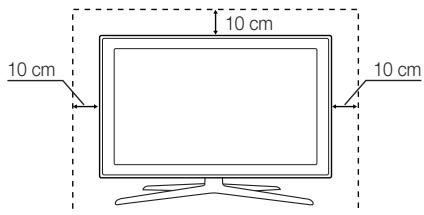
Installazione con piedistallo.
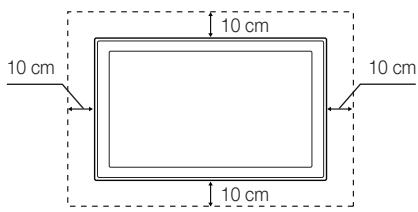
Installazione con supporto a parete.
A ltre avertenze
L'aspetto del teilevisore cui differere dallemimagini presenti in quosto manuale a seconda del modello acquistato.
Prestare attenuationo quandosi tocca il teilevisore. Alcune parti potrebbero essere calde.
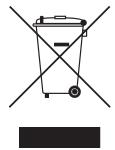
Corretto smaltimento di quello prodotto (WEEER/RAEE, Rifiuti da apparecchiature elettriche ed elettroniche) (applicable nei paesi dell'Unione Europea e in quelli conSYSTEMA di raccolta differenziata)
Questo simbolo riportato sul prodotto, sugli accessori e sulla documentazione indica che il prodotto e i dati accessori elettronici (per es. caricatore, cuffe, cavo USB) non devono essere smaliti unitamente ai rifiuti domestici al termine del loro ciclo vitae. Per prevenir eventuali danni all'ambiente o alla salute delle persone derivata da uno smaltingmente non appropriato, separari da altri tipi di rifiuti e riciclari in modo responsable per promuovere il niutilizzo sostenibile delle risorse materiali. Gli utenti residenziali sono invitati a contattare il rivenditore presso il quale hanno acquistato il prodotto, o l'ufficio locale preposto, per richiedere le informazioni relative alla raccolta differenziate e al riciclaggio di questo tipo di prodotto. Gli utenti aziendali sono invitati a contattare il proprio fornitore e verificare i termini e le condizioni del contratto d'acquisto. Questo prodotto e i dati accessori elettronici non devono essere smaliti insiemeagli和其他i rifiuti commerciali.
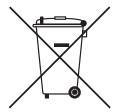
Corretto smaltimento delle batterie utilizzate in quello prodotto
(applicable nei paesi dell'Unione Europea e in quelli con sistemi di raccolta differenziata delle batterie)
Questo contrassegnoippo sullabatteria, sul manuale o sull'imballaggio, indica che le batterie containe in questo prodotto non devono essere smalitte insieme ai rifiuti domestici una volta esauste. Laddove presenti, i simboli chimici Hg, Cd o Pb indicano che le batterie contengono mercurio, cadmio o piombo sopra i limiti stabiliti nell'ambito della Direttiva CE 2006/66. Se le batterie non vengono smalitte in modo corretto, tali sostanze possono causare danni alla salute o all'ambiente. Per proteggere le risorse naturali e promuoverile il riutilizzo del materiali, separare le batterie degli altri rifiuti e riciclarle utilizzando il system locale Gratis di nitro delle batterie esauste.
- Può essere richiesto un rimborso se
(a) l'uscita del technique in seguito a una chiamata non rileva difetti nel prodotto (per es. nel caso l'utente abbia omesso di leggere il presente manuale)
(b) l'utente ha portato l'unità presso un centro di riparazione che non rileva difetti nel prodotto (per es. nel caso l'utente abbia omesso di leggere il presente manuale).
L'importo di tale rimborso verrà comunicato all'utente prima di eseguire una visita a domicilio o un eventuale intervenzione di manutenzione.
Elenco delle funzioni disponibili
3D: Questa entusiasmante nuova funzione consente di vedere i contenuiti 3D trasmessi dalle emittenti o riprodotti da lettori BD 3D.
SMART HUB: Il Gateway a tutti i contentuti integrati in un'unica posizione
E' tout integrato per guidare l'utente in modo simplice alle varie opzioni di intrattenimento
L'interfaccia utente consente un controllo simplice e intuitivo delle opzioni di intrattenimento
- Accesso alle diverse App, che giorno per giorno diventano sempre di più
- Personalizzazione del teilevisore, raggruppando e ordinando le Apps in base ai propri gusti
AllShare Play: AllShare Play consente di accedere, visualizzare e riproduire file fotografici, video e musicali memorizzati su dispositivi USB, videocamere digitali, cellulari e PC. E' possible accedere in modalità wireless a PC, cellulari e altri dispositivi compatibili atraverso la propria rete wireless.
- Anynet+ (HDMI-CEC): Consente di controllare mediante il telecomando del teilevisore Samsung tutti i dispositivi Samsung collegati che supportano Anynet+.
e-Manual: Consente di leggere a schermo l'intero manuale. (p. 19)
Accessori
Controllare che nell'imballaggio siano contenti i seguenti componenti. Se eventuali componenti risultano mancanti, contattare il rivenditore.
La forma e il colore dei componenti possono variare in base al modello.
Eventuali cavi non forniti in dotazione possono essere acquistati separatamente.
Una volta aperta la confezione, verificare che non vi siano accessori nascosti dietro i materiali di imballaggio.
ATTENZIONE: INSERIRE SALDAMENTE PER EVITARE UNO SCOLLEGAMENTO ACCIDENTALE DALL'APPARECCHIO
Smart Touch Control e batterie (2 tipo AA)
- IR Blaster e batterie (4 tipo AA)
Telecomando e batterie (2 tipo AAA)
- Scheda di garanzia (non disponibile in tutti i paesi) / Guida alla sicurezza
Cavo di alimentazione
- Panno per la pulizia
- Occhiali 3D Active Glasses Samsung
- Manuale dell'utente
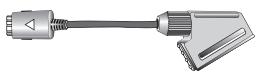
Adattatore scart

Piedistallo con fermacavo

4 anelli di ritenuta
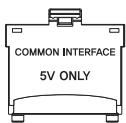
Adattatore schema Cl
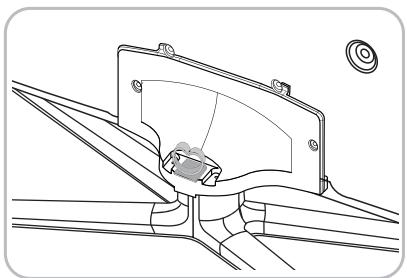
Montaggio del Piedistallo con fermacavo
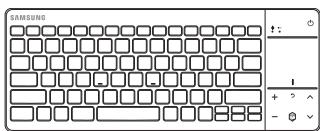
Tastiera wireless (venduta separamente)
Tastiera wireless
Uso del Controller TV (tasto pannello)
ll Controller TV, un piccolo tasto simile a un joy stick posizionato sul lato posteriori destro del tevisore, consente di controllare l'apparecchio TV zenza I'uso del telecomando.
La forma e il colore del prodotto possono variate in base al modello.
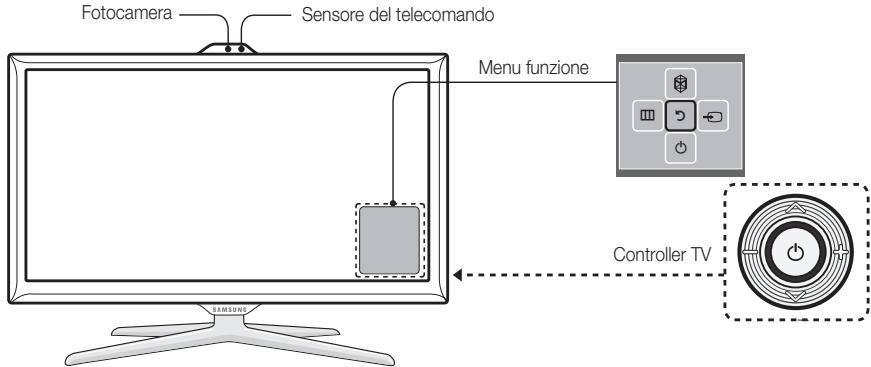
Collocarsi di fronte al teilevisore e seguire queste istruzioni.
Prima di utilizzare la webcam TV, verificare la presenza di un nastro sul retro e regolare l'angolazione della webcam. Se non si desidera utilizzato la webcam TV, rivolgere l'obiettivo versuso l'alto. In quello caso, non sare possibile utilizzare le funzioni Riconoscimento facciale e Contr. del movimento.
| Accensione | Quando il tevisore si trova in modalità standby, accenderlo premendo il Controller. |
| Regolazione del volume | Regolare il volume spostando il controller da un dato all'alto nelle Orezione il tevisore è accesso. |
| Selezione del canale | Selezionare un canale spostando il Controller versuso l'alto e verso il basso nelle Orezione il tevisore è accesso. |
| Uso del menu Funzione | Per visualizzare e usare il menu Funzione, premere e rilasciare il Controller nelle Orezione il tevisore è accesso.Per chiudere il menu Funzione, premere e rilasciare nuovamente il Controller. |
| Selezione MENU (III) | Con il menu Funzione visible sullo schermo, selezionare MENU (III) spostando il Controllerersionsinistra. Viene visualizzato il menu OSD (On Screen Display). Selezionare un'opzione spostando ilController versuso destra. Spostare il Controller versuso destra o sinistra, indietro o avanti per eseguirele selezioni desiderate. Per modificare un parametro, selezionario e premere il Controller. |
| Selezione SMART HUB (♀) | Con il menu Funzione visible sullo schermo, selezionare SMART HUB (♀) spostando il Controllerersionl'alto. Viene visualizzata la schermata principale SMART HUB. Selezionare un'applicazione spostandoe premendo il Controller. |
| Selezione di una Sorgente (♂) | Con il menu Funzione visible sullo schermo, aprire la schermata Sorgente (♂) spostando il Controllerverso destra. Viene visualizzata la schermata Sorgente. Per selezionare una Sorgente, spostare ilController indietro e avanti. Una volta evidenziata la sorgente desiderata, premere il Controller. |
| Spegnimento (♂) | Con il menu Funzione visible sullo schermo, selezionare Spegnimento (♂) spostando il Controllerverso il basso, quindi premere il Controller. |
Per chidere Menu, Smart Hub, o Sorgente, premere il Controller per più di 1 secondo.
Modalità Standby
Quando si spegne il tevisore con il telecomando o il controller, il tevisore entra in modalità Standby e continua a consumare una piccola quantità di energia elettrica. Per ragioni di sicurezza e per ridurre il consumo elettrico, non lasciare il tevisore in modalità standby per un lungo periodo di tempo (per esempio quando si parte per le vacanze). Si consiglia d'scollegare il cavo di alimentazione.
Collegamento all'antenna
Inserire la spina di alimentazione nella presa a parete solo dopo aver eseguito tutti gli altri collegamenti.
Se si sta esuguendo il collegamento del teilevore a un ricevitore satellitate o via cavo mediate connessioni HDMI, Component o Composite, non è necessario collegare il jack ANT IN alla connessione via cavo o antenna.
Se nelle vicinanze del tevisore vengono utilizzati dispositivi portatili o ricetrasmittenti, oppure sistemi per radioamatori o AM, il tevisore potrebbe presentare malfunzionamenti.
Prestare attenuationo quand si sposto o si ruota il teilevisore con il cavo dell'antenna collegato. Una disattenzione potrebbe causare la rottura del jack dell'antenna del teilevisore.
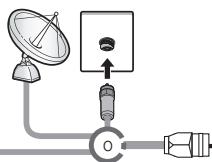
Antenna VHF/UHF
Satellite
Cavo
Per ulteriori dettagli sullo Smart Touch Control, vedere la sezione "Uso dello Smart Touch Control" sul Manuale elettronico.
Smart Touch Control
Spegne e accende il tevisore.
: Viene visualizzato un elenco di funzioni usate di recente. E' possible selezione are nuovamente una funzione con il Touch Pad in modo semplice e rapido.
- +: Regola il volume.
Visualizza l'elenco delle funzioni di scelta rapida. E'possible selezionare una funzione con il Touch Pad.
RETURN:Ritorna al menu precedente.
VOICE: Permette di accedere alla funzione Controllo vocale. Premendo il tasto, il tevisore visualizzata l'elenco dei comandi. E' possible pronunciare i comandi utilizzato il microfono del telecomando. Per ulteriori informazioni sulla funzione Controllo vocale, vedere la sezione "Interazione SMART" sul Manuale elettronico o vedere quello manuale a pagina 14.
Per uscire alla funzione Controllo vocale, premere nuovamente il tasting.
NUMBER: Visualizza la schermata dei tasti numerici. E' possible selezionare un numero con il Touch Pad.
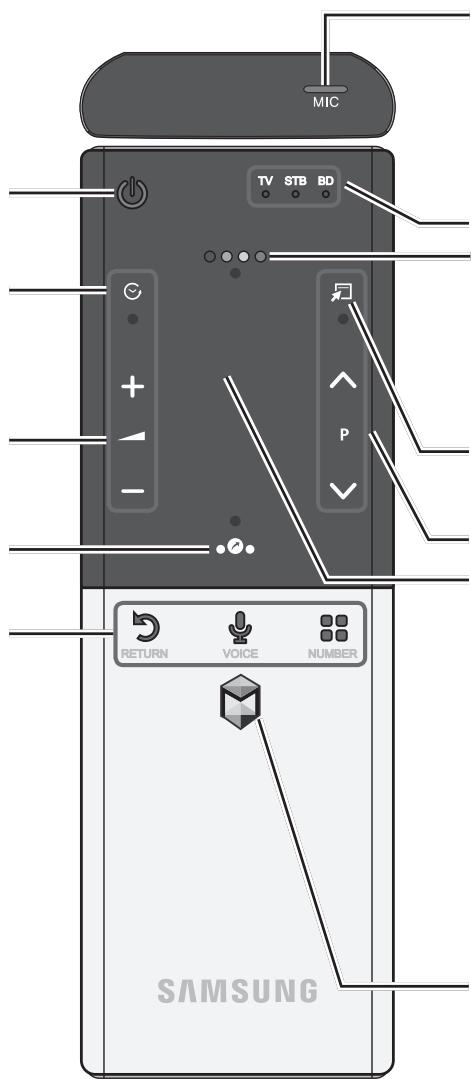
Utilizzando il microfono è possible pronunciare un commando vocale visualizzato sul teilevisore. Perutilizzare il microfono, premere VOICE sul telecomando.
Unapronunciation non chiara, un tono di voce inadeguato o la presenza di rumori ambientali sono influire sul riconosimento dei comandi eseguiti tramite Controllo vocale.
Questo LED indica il dispositoatto attivo.
Visualizza le funzioni di controllo della riproduzione e i tasti colorati. E' possible selezione una funzione con il Touch Pad.
- Utilizzato questi tasti in base alle struzioni a schermo.
tasti per la regolazione della riproduzione: Utilizzato quosti tasti per funzioni specifiche. Per maggiori informazioni, vedere il manuale elettronico.
:Scelta rapida delle funzioni usate più di frequente. Utilizzare questo tasto per una funzione specifica. Per maggiori informazioni, vedere il manuale elettronico.
P :Cambia i canali.
Touch Pad
- E' possible use il Touch Pad allo stesso modo del Touch Pad di un laptop.
Non premendo alcun tasting per 30 secondi, lo Smart Touch Control si imposta automaticamente in modalità Sleep.
Per riattivare lo Smart Touch Control, premere il Touch Pad. - Premendo il Touch Pad per 2 secondi, si ha lo"This risultato che si ottiene premendo MUTE sul telecomando. (Available only when Source is set to TV.)
Raccoglie le varie applicazioni Smart Hub. Vedere il Manuale elettronico al capitolo Funzioni anvazate Smart Hub.
Per uscire da una applicazione correttamente in uso, premere
Inserimento delle batterie (tip: AA)
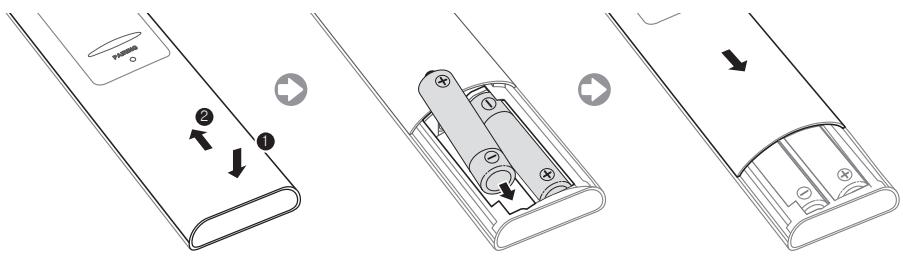
- Premere sul retro il fondo del telecomando con entrambi i polici, quindi far scorrere il coperchio del vano batterie versus l'alto nella direzione indicata alla freccia.
- Installare due batterie in modo che le polarità (+/-) corrispondano ai simboli presenti nel vano batterie.
- Per chiudere il vano batterie, far scorrere al suo posto il coperchio nella direzione individata alla freccia.
IR Blaster
Per controllare i dispositivi esterni collegati al teilevisore, configurare il telecomando universale.
Se atraverso lo Smart Touch Control si regola il dispositorio esterno, l'IR Blaster invierte un segnale IR al dispositorio esterno.
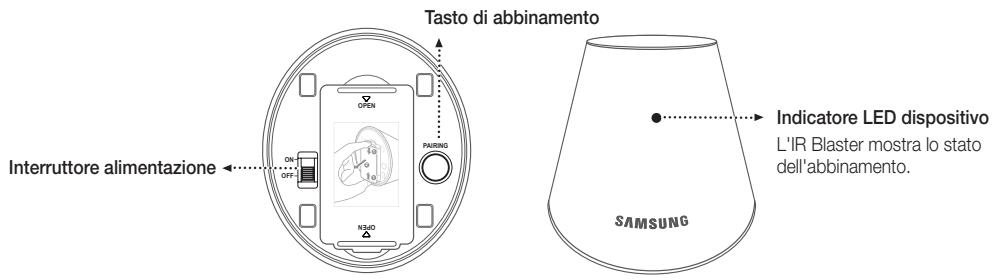
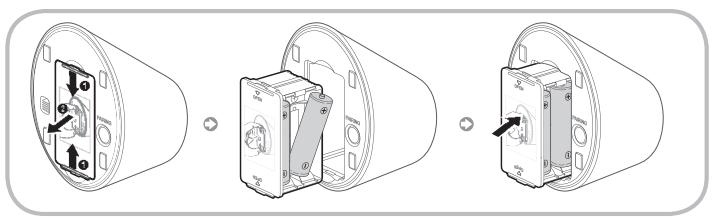
Inserimento delle batterie (tip: AA)
- Afferrare il portabatterie da entrambi i lati ed estrarlo.
- Installare quattro batterie in modo che le polarità (+/-) corrispondano ai simboli presenti nel vano batterie.
- Inserire nuovamente in sede il portabatterie.
Abbinamento iniziale
Collegando un IR Blaster al teilevisore, è possible controllare i dispositivi esterni collegati utilizzando lo Smart Touch Control del teilevisore.
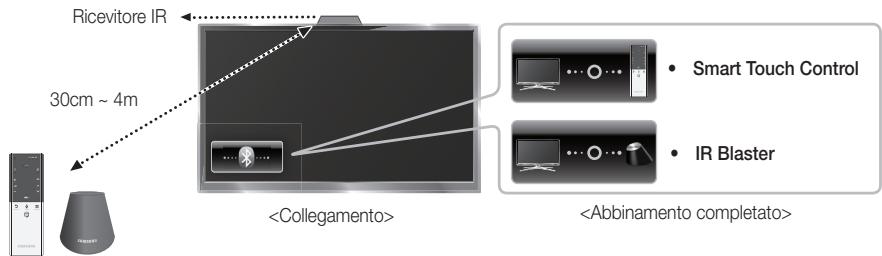
Smart Touch Control
Dopo aver eseguito l'Impostazione iniziale sul teilevisore, collegare lo Smart Touch Control all'apparecchio TV.
- Accendere il tevisore premendo 日
- Le icone di collegamento appaiono in basso a sinistra dello schermo e il teilevisore si collega automaticamente allo Smart Touch Control.
Per eseguire nuovamente l'abbinamento, premere il foro Reset al centro del coperchio posteriore utilizzando uno spillo o la punta di una graffetta aperta. Lo Smart Touch Controliene inizializzato.
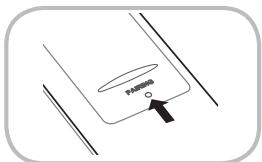
- Tasto Reset PAIRING dello Smart Touch Control.
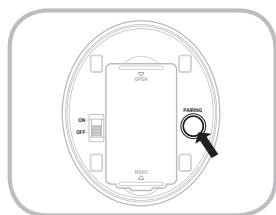
IR Blaster
- Accendere I'IR Blaster. Quando il LED lampeggia, collegare I'IR Blaster al tevisore.
- Spostare l'IR Blaster nella direzione del ricevitore IR del teilevisore, quando premere brevamente il tasto PAIRING sul fondo dell'IR Blaster.
- Le icone di collegamento appaiano in basso a sinistra dello schermo e il tevisore si collega automaticamente all'IR Blaster.
Se il processo di collegamento non riesce, spegnere e riaccendere l'IR Blaster, e riprendere il processo dal passaggio 2.
Calibrazione del Touch Pad
Per calibrare il Touch Pad sullo Smart Touch Control, seguire quosti passaggi:
- Premere NUMBER per 3 secondi. La calibrazione si avvia.
- Al termine, tutti i LED nella parte superiore dello Smart Touch Control lampeggiano due volte simultaneamente.
Durante la calibrazione, non toccare il Touch Pad.
Se la precisione del Touch Pad diminuisce, ricalibrarlo ripetendo i passaggi 1 e 2.
Uso del Touch Pad
Per visualizzato l'elenco delle funzioni di scelta rapida nella parte bassa dello schermo, premere in fondo al Touch Pad. L'elenco include Menu, Sorgente, El. CH, 3D, AllShare Play, Supporto e numerouser alte funzioni.
Per visualizzare le funzioni di controllo della riproduzione e i tasti colorati nella parte alta dello schermo, premere : in cima al Touch Pad.
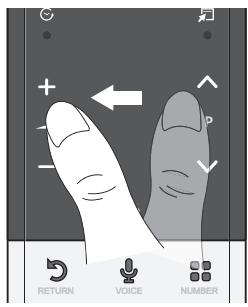
Per spostare la selezione: Tenere il dito sul Touch Pad, quando farlo scorrere da un lato all'alto, dall'alto in basso o dal basso verso l'alto.
Per spostare continuamente la selezione, far scorrere il dito sul Touch Pad da destra verso sinistra, da sinistra verso destra, dall'alto in basso o dal basso verso l'alto.
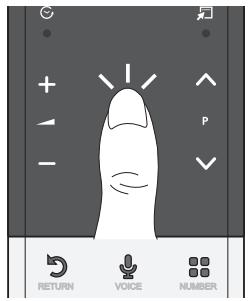
Per selezionare una voce: Premere il Touch Pad.
Uso della modalità Scorrimento
Toccando il Touch Pad durante l'uso di Smart Hub, Web Browser e AllShare Play, il Touch Pad passa in modalità Scorrimento.
In modalità Scorrimento, per scorrere le pagine della schermata far passare il dito da una parte all'altra del Touch Pad.
Per tornare alla modalità normale, premere il Touch Pad o il tasto RETURN sullo Smart Touch Control.
Per immettere il numero di un canale con lo Smart Touch Control
- Mentre si guarda un programma in onda, premere NUMBER sullo Smart Touch Control. Il teilevisore visualizza la schermata dei tasti numerici.
- Mediante il Touch Pad, evidenziar un numero, quindi premere il Touch Pad. Il teilevisore visualizza un elenco di canali che iniziano con il numero selezionato.
- Mediente il Touch Pad, evidenziare il canale desiderato tra quelli in elenco, quindi premere il Touch Pad.
E' inolre possibie cambiare canale toccando licona del canale in su o in giu sul Touch Pad. Toccando subito dopo il Touch Pad, il tevisore visualizza I'elenco dei canali memorizzati. Selezionare un canale muovendo o spostando il dito in su o in giu, quindi premere il Touch Pad.
Per visualizzare il menu Strumenti
Premere a destra del Touch Pad.
Per visualizzare la cronologia dei canali sui quali ci si è sintonizzati
Premere a sinistra del Touch Pad.
Configurazione dello Smart touch control per l'uso come telecomando universale
Consente di controllare atraverso lo Smart Touch Control il ricevitore Set-Top-Box (STB) o illettore BD, o entrambi, quando sono collegati al teilevisore. Una volta collegato il disposativo al teilevisore, lo Smart Touch Control più essere usato per controllare la navigazione, la numerozza e gli altri tasti di regolazione del disposivo.
Il telecomando universale regola il volume del teilevisore, ma non quello dell'STB. Si consiglia di guardare I'STB dopo averne regolato il volume a un livello appropriato.
Le istruzioni relative alla Config. telec. universale possono variare in base alla versione dell'applicazione. Seguire pertanto le istruzioni visualizzate a schermo.
Per collegare il dispositiivo esterno allo Smart Touch Control, seguire quosti passaggi:
- Selezionare Impostare dispon. da controll., quindi premere il Touch Pad.
- elezionare il dispositivo esterno dall'elenco dei dispositivi collegati, quando premere il Touch Pad.
- Selezionare la porta utilizzata per collegare il dispositivo esterno, quindi premere il Touch Pad.
Verificare che il dispositivo selezionato sia acceso. Se è spento, accenderlo e premere Aggiorna.
- Selezionale Ricerca marche/fornitori di servizi TV, quando premere il Touch Pad. Viene visualizzata una tastiera e ilcampo in cui immettere il testo. Immettere le prime lettere della marca del dispositivo utilizzato lo Smart Touch Control, quando selezione Fare Fatto in fondo alla tastiera. Nell'elenco visualizzato quello campo di immissione, selezione la marca del dispositivo, quando premere il Touch Pad. Per cercare lamarca dell'STB (Set-Top box), usare il nome della marca o il fornitore del servizio via cavo.
- Selezionale CERCA MODELLO, quando premere il Touch Pad. Viene visualizzata una tastiera e il Campo in cui immettere il testo. Immettere le prime lettere del nome del modello del dispositivo mediente il Touch Control, quando selezione Fatto in fondo alla tastiera. Nell'elenco visualizzato tutto il Campo di immissione, selezione il nome del modello del dispositivo, quando premere il Touch Pad.
Se la ricerca del nome del modello non offre risultati, impostare per la ricerca una parte del nome del modello o utilizzare l'opzione search for recommended model code (Cerca codice modello raccomandato).
- Selezionare Scarica, quindi premere il Touch Pad. Scaricare i dati di configurazione per l'IR Blaster utilizingla stessa procedura.
- Quando tutte le impostazioni sono complete, selezionare completata e premere il Touch Pad.
Per configurare nuovamente Smart Touch Control e IR Blaster, premere sullo Smart Touch Control. Selezionare Config. telec. universalse.
Uso della ricerca per individuire il codice del modello consigliato.
- Al passaggio CERCA MODELLO nella procedura di configurazione del telecomando integrato, selezionare Modelo consigliato e premere il Touch Pad.
- Selezionare Scarica per scaricare il codice del modello consigliato.
- Puntare lo Smart Touch Control verso il sensore IR del dispositorio esterno e premere il Touch Pad per verificare il corretto funzionamento del dispositorio.
- Se il codice del modello scaricato non funziona, ripetere la procedura dal passaggio 3.
Quando si usa un telecomando universale per controllare ilsystema BD home theater, alcuni tasti potrebbero non essere supportati. In\ vuoto caso, si consiglia di utilizzato la funzione Anynet+ (HDMI-CEC).
Vista del telecomando
Questo speciale telecomando, progettato per aiutare chi ha problemi di vista, presenta puncti in braille sui tasti Power, Channel e Volume.
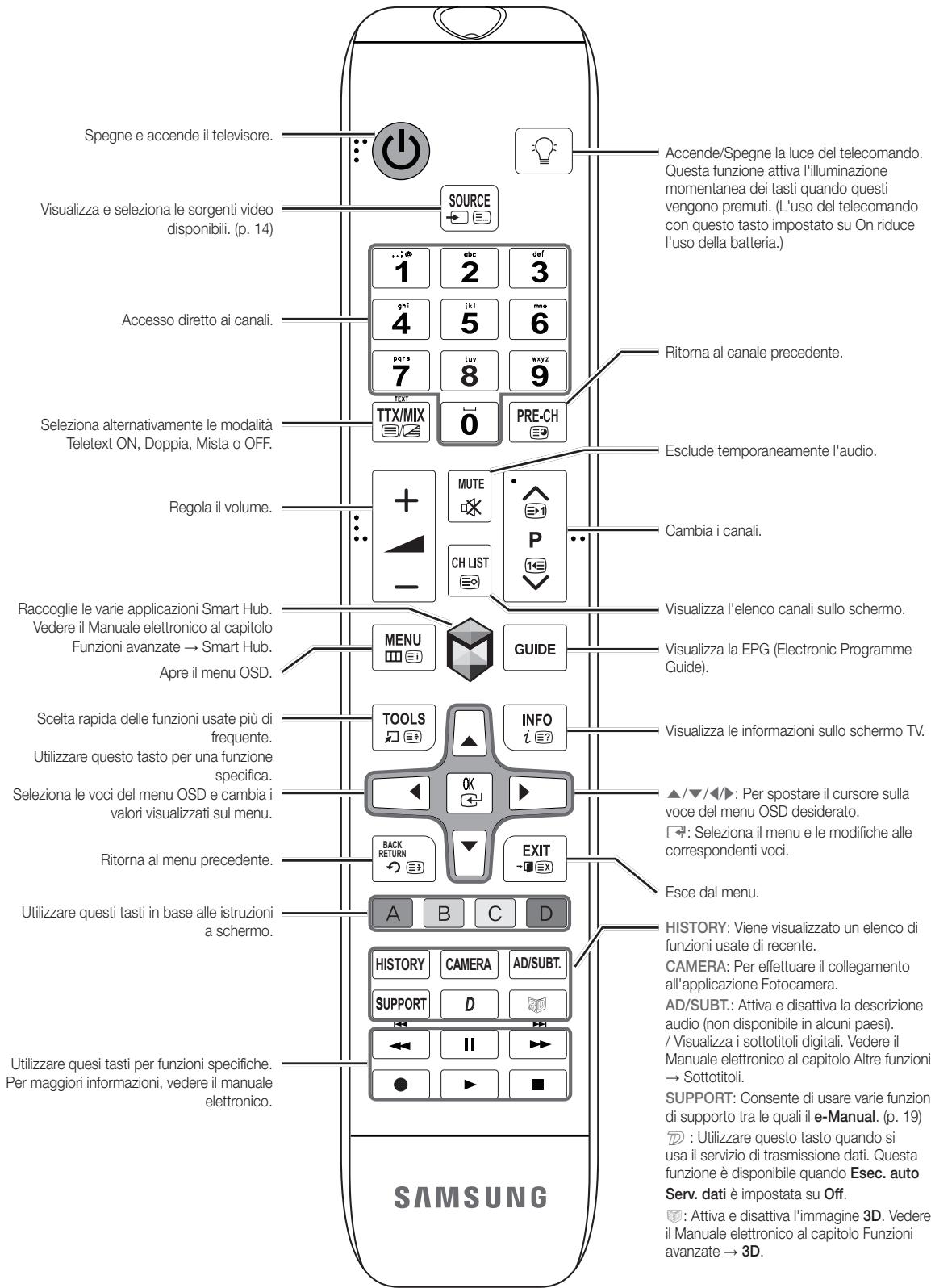
Far corrispondere le polarità delle batterie con i symboli presenti nel vano batterie.
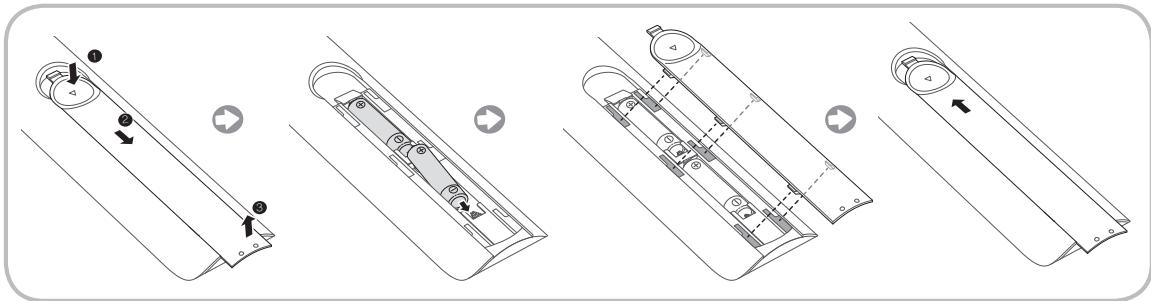

NOTA
- Installare le batterie in modo che le polarità (+/-) corrispondano ai simboli presenti nel vano batterie.
- Usare il telecomando entro un raggio di 7 metri dal tevisore.
- Una illuminazione intensa può influenzare le prestazioni del telecomando. Evitare l'uso del telecomando nelle immediate vicinanze di lampade fluorescenti o insegnare al neon.
La forma e il colore possono variare in base al modello.
Impostazione (Impostazione iniziale)
Quando si accende il teilevisore per la prima volta, vengono visualizzate alcune schermate che aiutano l'utente a configurare le impostazioni di base. Per awiare l'Impostazione, premere sul telecomando.
Impostazione è disponibile solo se la sorgente di ingresso è impostata su TV. Vedere "Modifica della sorgente di ingresso" (p. 14).
Per tornare al passaggio precedente nella sequenza dell'Impostazione, selezionare Precedente.
Prima di iniziare, accertarsi di aver collegato il teilevisore via antennà o cavo e che la spina del teilevisore sua insertita nella presa. (p. 5).
Per avviare l'Impostazione, selezionare Avvio.
| 1 | Lingua menu: Selezionare una lingua. | Selezionare la lingua del menu mediante il telecomando, quando selezionare Succ.. Il tevisore visualizzerà i menu nella lingua selezionata sin dal prossimo passaggio. |
| 2 | Modalità d'uso: Selezionare la modalità Uso domestico. | Selezionare Uso domestico mediante il telecomando, quando selezionare Succ.. La modalità Demo Negozio è dedicata a un uso commerciale. |
| 3 | Impostazioni di rete: Configurare le impostazioni di rete Per eseguire la connessione in un momento successivo, selezionare Salta. | Per configurare la connessione di rete, selezionare Avvio mediante il telecomando. Se non si consocono le informazioni per la configurazione della rete o si preferisce eseguire l'impostazione in un momento successivo, selezionare Salta. Per ulteriori dettagli, consulire il manuale elettronico alla sezione "Configurazione della rete via cavo o wireless" per le informazioni e i requisiti di configurazione, e la sezione "Connessione di rete" di questo manuale (p. 18). E' possible configurare la connessione di rete in un momento successivo utilizzato il menu Rete. |
| 4 | Aggiornamento software: Aggiornamento del software alla versione più recente Per eseguire l'aggiornamento in un momento successivo, selezionare Salta. | Selezionare Succ. per aggiornare il software del tevisore. Il tevisore si aggiornere automaticamente, qualora necessario. Per aggiornare l'apprecchio in un momento successivo, selezionare Salta. Per ulteriori informazioni vedere la sezione Aggiornamento software (Funzioni preferite → Menu Supporto) sul manuale elettronico. La procedura potrebbe richiedere del tempo, a seconda dello stato della rete. |
| 5 | Condiz. Contratto assistenza | Al termine delle Impostazioni di rete, viene visualizzata la schermata Condiz. Contratto assistenza. La visualizzazione della schermata richiede alcuni secondi. Viene visualizzata la schermata Esclusione di responsabilità. Selezionare Accetto. Viene visualizzata la schermata Inform. privacy. Selezionare Accetto. Per utilizzato il servizio Smart Hub, selezionare Accetto dalle Condiz. Contratto assistenza. |
| 6 | Selezionare il Paese. (In base alla nazione) | Selezionare la nazione appropriata. Dopo aver selezionato il paese nel menu Nazione, alcuni modelli potrebbero richiedere un'opzione aggiuntiva per l'impostazione del pin. |
| 7 | Sintonizzazione automatica (1): Sezione modalità di visione del teilevisore | Troviamo e memorizzato i canali sul teilevisore. Avete bisogno di cercare i canali? • Si, ne ho bisogno: Tutti i canali disponibili saranno trovati e memorizzati sul vostro teilevisore • No, non ne ho bisogno: Il mio set-top box esterno fornisce tutti i canali che sono disponibili, quindi non ho bisogno di cercare i canali. |
| 8 | Sintonizzazione automatica (2): Sezione opioni di ricerca e Sezione regione (In base alla nazione) | Selezionare la sorgente del canale da memorizzare. Quando si imposta la sorgente antenna su Cavo, viene visualizzata una procedura che consente di assegnare valori numerici ai canali (frequenze canale). Per ulteriori informazioni, vedere la funzione Sintonizzazione automatica (Menu canale → Memorizzazione dei canali) sul Manuale elettronico. • Nel caso si stata selezionata per prima l'opzione Antenna o Cavo: Dopao la memorizzazione di tutti i canali trasmessi via Antenna o Cavo, viene visualizzata la procedura per la memorizzazione dei canali via Satellite. • Nel caso si stata selezionata per prima l'opzione Satellite: Dopao la memorizzazione di tutti i canali trasmessi via Satellite, viene visualizzata la procedura per la memorizzazione dei canali via Antenna o Cavo. • Selezionare Arresta in qualsiasi momento per interrompere il processo di memorizzazione. |
| 9 | Orologio: Impostazione Modalità orologio | • Auto: Per impostare automaticamente l'ora corrente. • Manuole: Consente di impostare manually le data e l'ora corrente. |
| 10 | Fuso orario (in base alla nazione): Impostazione del fuso orario | Questo passaggio è disponibile solo quando la modalità orologio è impostata su Auto. • Auto: Per impostare automaticamente il fuso orario. • Manuole: Per impostare manually il fuso orario. • Se è stata selezionata l'opzione Manuale, è possibile scegliere se impostare l'opzione DST (Daylight Savings Time) su On o Off. (in base alla nazione) • E' possible impostare la funzione Contr. vocale e del movimento su On o Off. Selezionare Off o On, quando selezionare Succ.. Per maggiori informazioni vedere il capitolo "Interazione SMART" (p. 14) |
| 11 | Contr. vocale e del movimento: Impostazione del Controllo vocale e del Controllo gestuale. | |
| 12 | Impostazione completata | Selezionare Chiudi per terminare. • Vengono visualizzate le impostazioni complete. |
Per reimpostare esta funzione...
Menu Sistema Impostazione
Selezionare Sema - Impostazione (Impostazione iniziale). Digitare il PIN a 4 cire. Il PIN predefinito è "1-1-1-1". Per cambiare il codice PIN, utilizzare la funzione Cambia PIN.
Eseguir nuovamente l'Impostazione (Menu Sistema) una volta installato il teilevisore a casa anche se la stessa funzione è stata eseguita in negazio al momento dell'acquisto.
Nel caso si sia dimenticato il PIN, in modalità Standby premere la seguente sequenza di tasti sul telecommando per ripristinare il PIN all'impostazione predefinita "1-1-1-1": MUTE 8 2 4 POWER (accensione).
II PIN "0-0-0-0" è vietata.

Per ulteriori informazioni vedere la sezione Connessione del teilevisore sul e-Manual.
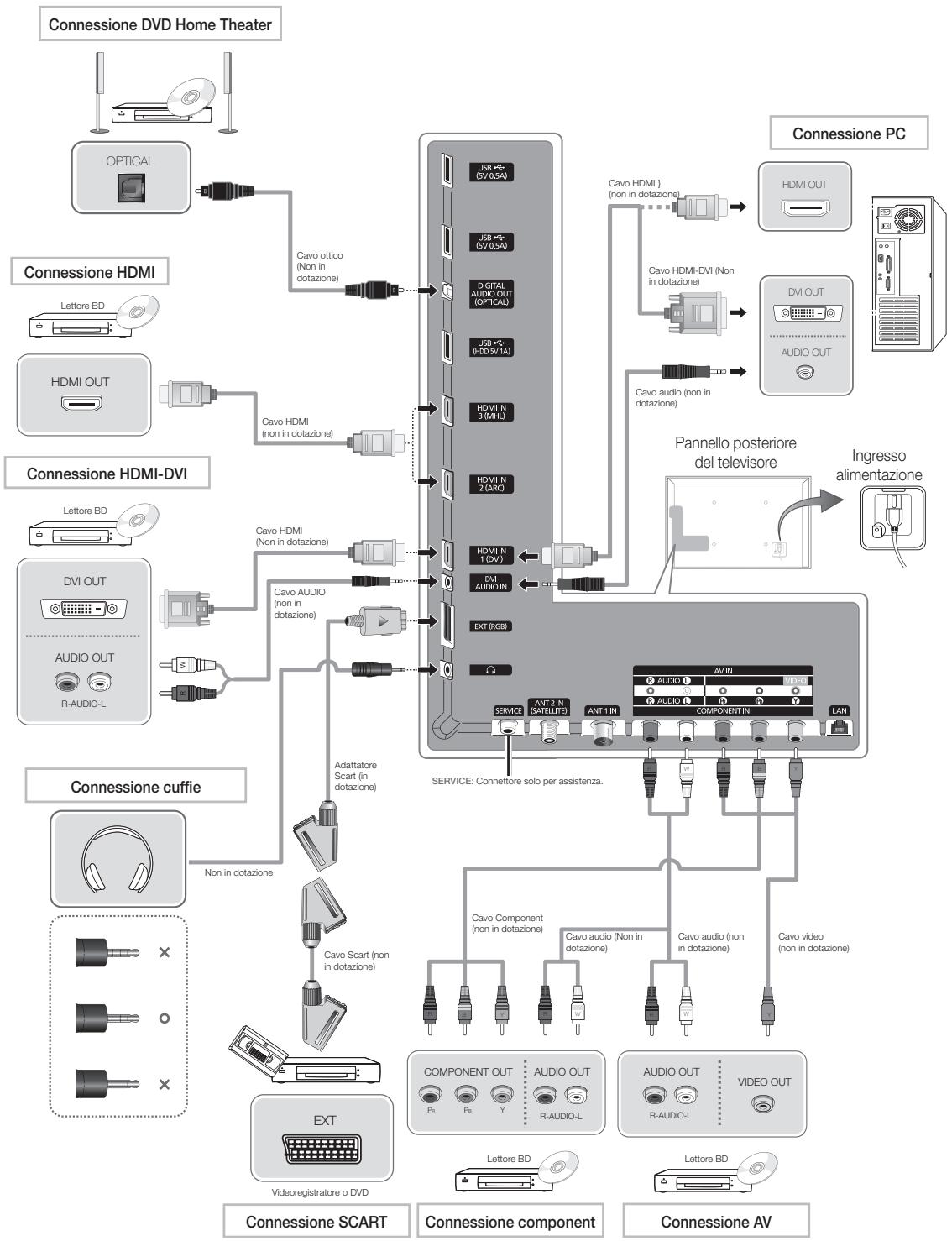

Per la migliorione connessione via cavo a quello prodotto, utilizzato cavi del diametro massimo indicato di seguito:
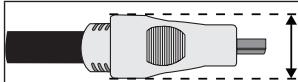
Diametro massimo - 0,55 pollici (14 mm)
Sorgente
Sorgente
Quando si guarda la television e si desidera finden un film riprodotto atraverso illettore DVD o Blu-ray, oppure si vuole passare al ricevitore satellitaire STB o via cavo, è necessario cancellare la Sorgente.
TV / Est. / HDMI1/DVI / HDMI2 / HDMI3 / AV / Comp.
- Premere sul telecomando. Viene visualizzata la schermata Smart Hub.
- Selezionare Sorgente. Viene visualizzata la schermata Sorgente.
- Selezionare la sorgente di ingresso esterna desiderata.
In alternatively, acceder alla schermata Sorgente premendo il tasto Sorgente sul telecomando o selezionando Sorgente con lo Smart Touch Control (vedere pag. 6).
E' possible selezionare solo dispositivi esterni collegati al teilevisore. In Sorgente, gli ingressi collegati vengono evidenziati.
Istruzioni per l'uso della funzione Modifica Nome
Modifica Nome consente di associare il nome di un dispositivo a una sorgente d'ingresso. Per acceder alla funzione Modifica Nome, après il menu Strumenti quando viene visualizzata la schermata Sorgente. Sotto Modifica Nome sono disponibili le seguenti selezioni:
VCR / DVD / STB cavo / STB satellite / STB PVR / Ricevitore AV / Giochi / Videocamera / PC / DVI PC / Dispositivi DVI / TV / IPTV / Blu-ray / HD DVD / DMA: SeLECTIONARE il jack d'ingresso, quindi selezione dall'elenco il nome del dispositivo collegato al jack. Per esempio, se illettore Blu-ray è collegato alla porta HDMI IN 2, selezione Blu-ray per quell'ingresso.
Se si collega un PC alla porta HDMI IN 1 (DVI) mediante un cavo HDMI, assegnare PC a HDMI1/DVI nel camino Modifica Nome.
Se si collega un PC alla porta HDMI IN 1 (DVI) mediante un cavo HDMI-DVI, assegnare DVI PC a HDMI1/DVI nelcampo Modifica Nome.
Se si collega un dispositivo AV alla porta HDMI IN 1 (DVI) mediante un cavo HDMI-DVI, assegnare Dispositivi DVI a HDMI1/DVI nel camino Modifica Nome.
Informazioni
E' possible visualizzare informazioni dettagiate sul dispositorio esterno selezionato.
Aggiorna
Se i dispositivi esterni non vengono visualizzati nella schermata Sorgente, après il menu Strumenti, quando selezionare Aggiorna. Tutti i dispositivi collegati vengono visualizzati in elenco.
In alternatively, è possible aggiornare la schermata Sorgente selezionando A sul telecomando.
Interazione SMART
Utilizzando esta funzione, è possible acceder e controllare funzioni e opzioni di menu mediante comandi vocali, gestuali o il riconoscimento facciale.
DISCLAIMER SUL LIBRETTO INFORMATIVO
- Accesso al riconoscimento facciale
La funzione Riconoscimento facciale prevede la memorizzazione di una miniatura del molto dell'utente sul teilevisore per consentire l'accesso.
Tuttavia, l'accesso al servizio Smart Hub mediante la funzione Riconoscimento facciale potrebbe risultare meno sicuro rispetto a un accesso con ID e password.
- Uso della webcam TV
Prima di usare la webcam TV è necessario essere consapevoli che, in date circostanze e condizioni legali, l'uso/l'abuso della webcam TV può accomportare responsabilità legali per l'utente. Utilizzando la webcam TV, l'utente accetta di non utilizzato la webcam (i) in luoghi nei quali l'uso delle telecomere è generalmente proibito (per es. inotine, spogliatori o camerini), (ii) in qualsiassi modo ciò possacludere la privacy personale o (iii) in violazione di qualsvoglia legge, normativa o statuto applicabile.
Controllo vocale
Menu Sistema Contr. vocale e del movimento Controllo vocale
Per attivare o disattivare la funzione di riconoscimento vocale. Consente di accedere e controllare funzioni e opzioni di menu mediante comandi vocali.
Perutilizzare ilControllo VOCale,pronunciare in modo chiaro e preciso il comando nella lingua selezionata in Lingua.
I rumori ambientali possono causare il malfunzionamento del Controllo vocale.
Il tevisore più "udire" i comandi vocali in due modi diversi:
Utilizzato il microfono del teilevisore. (riconoscimento a distanza)
Utilizzato il tasting VOICE del telecomando. (riconoscimento di prossimità)
Quando si usa il microfono del teilevisore, i comandi vocali potrebbero non essere riconosciuti a causa del rumore ambientale. In quello caso, provare a utilizzare il tasto VOICE del telecomando. Il teilevisore sare in grado di riconoscere il commando vocale più facilemente.
Il tasto VOICE sul telecomando è sempre attivo. Perutilizzare il microfono TV,attivare Controllo vocale (Sistema Contr.vocale e del movimento Controllo vocale)
Se una funzione o un'opzione di menu non è supportata dal Controllo vocale, suggeriamo di provare a usare il Contr. del movimento. Per utilizzare il controllo gestuale, après le mani in direzione della videocamera e muoverle tre o quattro volte da un lato all'alto.
Controllo vocale
Attiva e disattiva la funzione Controllo vocale.
Il tasto VOICE sul telecomando è sempre attivo.
Lingua
Selezionare la lingua associata al riconoscimento vocale che si desidera usare.
Parole di attivaz.
E' possible selezionare le Parole di attivaz. da utilizzare per avviare la funzione Controllo vocale. In alternatively, è possible accendere il teilevisore utilizzato le Parole di attivaz. se la funzione Controllo vocale è impostata su On.
Se le Parole di attivaz. sono impostate su "Ciao TV", pronunciation Ciao Smart TV.
Se le Parole di attivaz. sono impostate su "Smart TV", pronunciation Smart TV accendi.
Dimens. barra comando vocale
Impostare la modalità Dimens. barra lavoro vocale su Minimo o Intera. Minimo per visualizzato il numero minimo di parole e frasi che è possible utilizzato. Intera visualizza tutte le parole e le frasi utilizzabili.
Sensibilità voc.
Impostare il livello di sensibilità del riconoscimento vocale.
- Reaz.acust.: per impostare il livello di eco.
- Velocità di risp. riconos.: per impostare il livello di risposta del riconoscimento vocale.
Test dell'ambiente per controlo vocale
Per testare il livello di rumore sul microfono TV.
Test del rumore: Questo test verifies il livello di rumore del microfono TV. Selezionale Succ. con il telecomando. Il test si avvia e viene completato in pochi secondi. Durante il test, Maintainere l'ambiente il più silenzioso possibile.
- Test microfono e altoparlanti: Questo test verifica il livello di rumore del microfono e dell'altoparlante TV. Selezionale Avvio con il telecomando. Il test si avvia e viene completato in pochi secondi. Durante il test, mantenere l'ambiente il più silenzioso possible.
Disponibile solo quando Seleziona altoparlante è impostata su Altoparlante TV.
- Test del controllo vocale: Questo test verifies il livello di volume e la chiarezza della voce durante l'uso del menu Controllo vocale. Selezionare Avvio con il telecomando. Il test si avvia. Pronunciare un dato a voce alta e chiara per completare il test.
Se il test non viene completato, selezionare Esegui nuovam. test, quando pronunciare nuovamente un messaggio a você alta e chiara.
Per usare la funzione Controllo vocale, seguire questi passaggi:
Se la funzione Controllo vocale è impostata su On, il tevisore potrebbe accendersi automaticamente.
- Pronunciare la Parole di attivaz. selezionata utilizzando il microfono TV o tenerdo premuto il tasto VOICE sul telecomando. Il tevisore visualizza a schermo la Test dell'ambiente per controlo vocale.
Utilizzato la funzione Controllo vocale, il volume viene automaticamente impostato al livello 5.
- Pronunciare una parola o una frase visualizzata nella Test dell'ambiente per controllo vocale. Se si usa il tasto VOICE sul telecomando, una volta pronunciationi il lavoro rilasciate il tasto.
Pronunciare in modo miglior e preciso il dato nella lingua selezionata nel menu Lingua.
- Attendere il riconoscimento, quando pronunciatione il dato successivo.
Per uscire alla modalità Controllo vocale, pronunciare la Parole di attivaz. o "Annulla"utilizzando il microfono TV o premendo nuovamente il tasto VOICE ⑥ sul telecomando.
Uso della modalità Immissione vocale del testo
- Pronunciare "Search All" in modalità Controllo vocale.
Quando si usa la schermata del tastierino QWERTY, è possible utiliser la modalità di immissione vocale del testo. Pronunciare la Parole di attivaz. selezionata utilizzando il microfono TV o tenendo premuto il tasto VOICE sul telecomando.
- Pronunciare la parola o la frase che si desidera cercare.
- Il televisore esgue la funzione specificata.
I livelli prestazionali della funzione Controllo vocale variano in base alla lingua.
Contr. del movimento
Menu Sistema Contr. vocale e del movimento Contr. del movimento
Per attivare o disattivare la funzione Contr. del movimento. Consente di controllare il teilevisore spostandone il cursore mediante specifici gesti.
Alcune applicazioni potrebbero non supportare il Contr. del movimento.
Contr. del movimento
Attiva e disattiva la funzione Contr. del movimento.
Dimens. barra guida del movimento
Per cancellare la modalità Dimens. barra guida del movimento tra Minimo o Intera.
Test dell'amb. per contr. del movimento
E' possible testare la luminosità dell'ambiente e l'angolo di ripresa.
- Test della luminosità: Questo test serve per controllare se l'ambiente è sufficientemente luminoso per il corretto funzionamento del Contr. del movimento. Selezionare Avvio con il telecomando. Il test si avvia e viene completato in pochi secondi.
Test angolaz. della telecamera: Awiare Test angolaz. della telecamera. Selezionare Avvio con il telecomando. Collocarsi entro il rettangolo dello schermo regolando la videocamera o spostandosi per posizionarsi meglio davanti all'obietto. Se non ci si posizione correttamente, il test potrebbe non funzionare. Al termine, après le mani in direzione della videocamera e muoverle tre o quattro volte da un lato all'alto.
Per usare la funzione Contr. del movimento, seguire quosti
passaggi:
- Perutilizzare il Contr.del movimento, sollevare la mano aprendola davanti allo schermo,tenerla in questa posizione per un momento, quando muoverla 3 o 4 volte da un lato all'alto. La funzione Contr.del movimento si avvia. Se il Contr.del movimento si avvia, il cursore viene visualizzato al centro dello schermo e la Dimens. barra guida del movimento si troverà quando in fondo allo schermo.
- Controllare il tevisore con i gesti.
Da notare che la funzione Contr. del movimento si chiude se le mani escono dal raggio visivo della videocamera.
Se durante l'uso della funzione Contr. del movimento si usa contemporaneamente un'alto dispositorio di controllo (per es. il telecomando o una tastiera), la funzione Contr. del movimento si chiude.
Controll del televisore con la funzione gestuale
Accedere alla funzione Controllo gestuale
- Azione: Apire le mani in direzione della videocamera e muoverle tre o quattro volte da un lato all'alto.
Puntamento
Muove il cursoro nella posizione desiderata.
- Azione: Aprire le mani e guidare il cursore nella posizione desiderata.
Presa
Selezione una voce, evidenza o esgue un dato indicato dal cursore.
- Azione: Pugno chiuso.
Rotazione in senso antiorario
Ritorna al menu precedente.
- Azione: Aprire la mano e ruotarla in senso antiorario.
Controllo volume / canale
Perambiare canale o regolare il volume.
Utilizzato la funzione Contr. del movimento quando si guarda un canale, viene visualizzata la schermata di controllo del volume / canale.
- Azione: Utilizzato la funzione gestuale Puntamento per spostare il cursore sul controller del canale o del volume, quando utilizzato la funzione Presa per regolare il canale o il volume desiderato.
Utilizzato la funzione Presa una volta, equivale a premere un tasto sul telecomando. Mantenendo la Presa, equivale a tenere premuto un tasto sul telecomando.
Scorrimento pagina
Scorre la pagnia nella direzione desiderata. Per esempio, supponendo di voler scorrere la pagnia verso il basso.
Alcune applicazioni potrebbero non supportare esta funzione.
1. Spostare il cursore in fondo allo schermo (nell'area di scorrimento della pagina) mediante il dato di Puntamento.
2. Spostare il cursore al centro dello schermo mediante il lavoro di Puntamento.
3. Il testo scorrera di 1 pagina.
Riconoscimento facciale
Strumenti Impostazioni Gestione account Modifica informazioni account Registra faccia
Per attivare o disattivare la funzione di riconoscimento facciale. Consente di registrate il proprio molto nell'account Samsung. Inoltre, è possible accedere all'account Samsung mediante la funzione Riconoscimento facciale perché dover immettere l'ID o la password dell'account.
E' possible registrar il proprio voito in un solo account.
Per registrar il proprio fatto nell'account Samsung, seguire questi
passaggi:
Perutilizzarequesta funzione,accedereaSmartHub.Se non si disponedi un Account Samsung,crearne uno prima di usare questa funzione.Per createunAccount Samsung,vedere la sezione“Creazione di un account”(Funzioni avanzate Smart Hub)sul manuale elettronico.
- Nella schermata Smart Hub, après il menu Strumenti con il telecomando, quando selezionare Impostazioni.
- Selezionare Gestione account. Viene visualizzata la schermata Gestione account.
- Selezionare Modifica informazioni account. Viene visualizzata la schermata Modifica informazioni account.
- Selezionare Regina faccia. Per accettare l'uso del riconoscimento facciale, selezionare OK.
- Immettere la password dell'account.
- Posizione il molto entro la linea tratteggiata al centro dello schermo e attendere che il colore della linea passi dal rosso al verde.
Se la funzione Riconoscimento facciale non si avvia, selezionare Riprova e riprovare.
- Al termine, il volta viene registrarato nell'account Samsung.
Per acceder e all'account Samsung mediante il Riconoscimento
facciale, seguire questi passaggi:
Se si usa la funzione Riconoscimento facciale per acceder a Smart Hub, potrebbe essere meno sicuro rispetto a un accesso con password.
- Con la schermata Smart Hub visualizzata sul teilevisore, selezionare A sul telecomando. Viene visualizzata la schermata ID/Password.
- Selezionare Modalità riconosc. facciale. Viene visualizzata la schermata Riconoscimento facciale.
Per tornare alla schermata ID/Password, selezionare Modalità password.
-
Il tevisore avvia il Riconoscimento facciale. Posizionarsi di fronte allo scherno del tevisore. Il tevisore riconoscere è il molto automaticamente.
Se il tevisore non riconosce il volto, riprovare. -
Il televisore consentirà di accedere automaticamente all'account Samsung.
Se il tevisore riconosce più di un volta registrato, viene visualizzato un elenco di account Samsung. Selezionare l'account al quale accedere.
Se il proprio fatto non è registrato, è possibile registrarlo nell'account Samsung. Seguire i passaggi 4 e 5 indicati nella sezione "Per registrare il proprio fatto nell'account Samsung:" sulla descritta.
Se non si disponone di un account, crearne uno. Per ulteriori informazioni, vedere "Creazione di un account" (Funzioni avanzate Smart Hub) sul manuale elettronico.
Collegamento dell'adattatore di schede CI
Collegare l'adattatore come mostrato sotto.
Per collegare l'adattatore della SCHEDA Cl, seguire quosti passaggi.

Si consiglia di collegare l'adattatore prima di eseguire l'installazione delsystema di montaggio a parete o di inserire la "SCHEDA Cl o Cl+.
- Inserire l'adattatore della SCHEMA CI nella presa a due poli sul prodotto 1.
Cercare la presa a due poli sul retro del teilevisore. Le due aperture sono posizionate lateralmente alla porta COMMON INTERFACE. - Inserire l'adattatore della SCHEDA CI nella porta COMMON INTERFACE sul prodotto 2.
- Inserire la "SCHEDA Cl o Cl+".
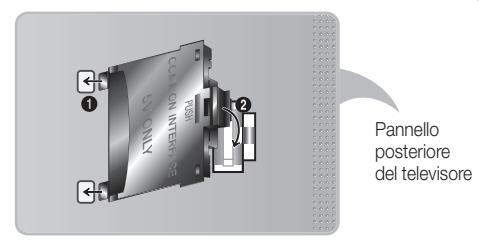
Per installare I'adattatore di schede Cl, rimuovere I'adesivo sul tevisore.

Si consiglia di inserire la schedà Cl prima di installare il teilevisore a parete. In caso contrario, l'insertimento della schedà potrebber risultare difficoltoso. Inserire la schedà solo après aver collegato l'adattatore della SCHEDA Cl al teilevisore. In caso contario, potrebbe risultare difficoltoso collegare il modulo.
Uso della "SCHEDA Cl o Cl+
Per la visione di canali a pagamento è necessario insereira una "SCHEDA Cl o Cl+".
- Non inserendo una "SCHEMA Cl o Cl+", alcuni canali visualizzeranno il messaggio "Scrambled Signal" (Segnale criptato).
- Le informazioni di pairing che contengono un numero Telefonico, l'ID della "SCHEDA Cl o Cl+", l'ID host e altri dati, verranno visualizzate entro 2~3 minuti. Se viene visualizzato un messaggio di erre, contattare il fornitore del servizio.
- Quando la configurazione delle informazioni relative al canale è completata, viene visualizzato il messaggio "Updating Completed" (Aggiornamento completato), aindicare che l'elenco dei canali è stato aggiornato.

NOTA
- E' necessario richiedere una "SCHEDA Cl o Cl+ al fornitore del servizio locale.
- Estrarre con delicatzezza la "SCHEDA Cl o Cl+ tirandola con le dita e prestando attenzione a non farla cadere poiché potrebbe subire danni.
- Inserire la "SCHEDA Cl o Cl+" nella direzione individata sulla scheda stessa.
- La posizione dell'alloggiamento COMMON INTERFACE può variar a seconda del modello.
La "SCHEDA Cl or Cl+ " non è supportata in alcune nazioni e regioni; controllare con il rivenditore autorizzato di zona. - In caso di problemi, contattare il fornitore del servizio.
- Inserire la "SCHEDA Cl o Cl+ in grado di supportare le impostazioni antenna correnti. Lo schermo non visualizzato è le immagini oppureQLsque se saranno distorte.
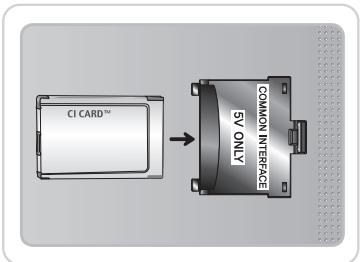
Alloggamento Evolution Kit (venduto separamente)
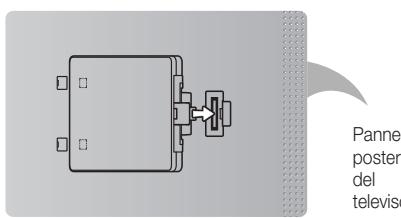
Questo socket è progettato per alloggiare un particolare disposito denominato Evolution Kit. L'Evolution Kit consente al teilevisore di eseguire le più recenti applicazioni allo scopo di soddisfare sempre più le esigenze degli utenti.
L'Evolution Kit, disponible in base al prodotto, sare in vendita a partire dal 2013 o più avanti.
Connessione di rete
E' possibl impostare il tevisore in modo da poter accedere alle applicazioni SMART TV attraverso una LAN con un collegamento via cavo o wireless.
Connessione di rete - Wireless
E' possible collegare il tevisore alla LAN utilizzando un modem o un router wireless standard.
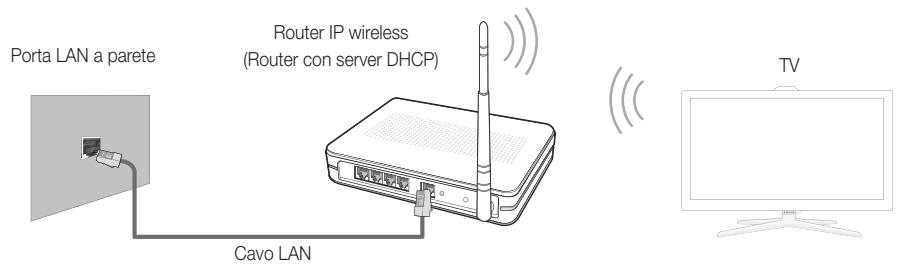
L'adattatore LAN wireless Samsung技术支持 comunicazione IEEE 802.11a/b/g e n. Samsung consiglia di utilizzare il protocollo IEEE 802.11n. La riproduzione di un video mediante connessione IEEE 802.11b/g potrebbe non essere fluida.
La maggior parte dei sistemi di rete wireless dispone di un sistema di sicurezza che implicà l'uso di dispositivi che accedano alla reteattraverso un AP o un router wireless (tipicamente un router IP wireless) per la trasmissione di un codice di sicurezza crittografato denominato chiave di accesso.
Selezionando la modalità Pure High-throughput (Greenfield) 802.11n con critografia di tipo WEP, TKIP o TKIP AES (WPS2Mixed) per il proprio router wireless, i teilevisori Samsung non supporteranno una connessione conforme alle nuove specifiche di certificazione Wi-Fi.
Connessione di rete - Via cavo
Esistono principalmente due modi per collegare il teileisore alla rete via cavo, a seconda dell'impostazione di rete. Di seguito vengono descritti più in dettaglio:
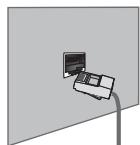
Porta modem a parete
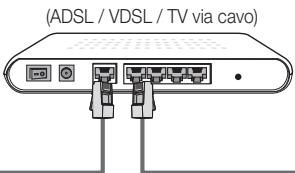
Modem esterno
Pannello posteriore del teilevisore
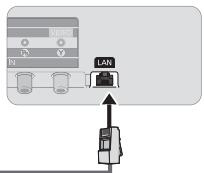
Cavo LAN
Cavo modem
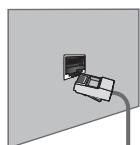
Porta LAN a parete
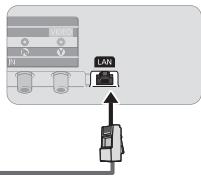
Pannello posteriore del tevisore
Cavo LAN
Il tevisore non supporta velocità di rete pari o inferiori a 10Mbps.
Per la connessione, usare un cavo Cat 5 o 6 (tipo STP*). *(Shielded Twisted Pair)
Come visualizzare l'e-Manual
Nel manuale elettronico è possible reperire le istruzioni per l'uso delle funzioni TV. Per aprire il Manuale elettronico, premere Supporto sul telecomando o selezionale il menu Supporto con lo Smart Touch Control.
E' inotre accesibili detraverso la sequenza di menu:
Menu Supporto e-Manual
Accedere all'e-Manual.
Perutilizzare la funzione e-Manual,seguire quosti passaggi:
- Per assistenza, selezionare Supporto dal telecomando. Viene visualizzata la schermata Supporto.
- Selezionare e-Manual con il telecomando. Viene visualizzata la schermata e-Manual.
- Selezionare una categoria.
- Selezionare un argomento. Sull'e-Manual viene visualizzata la pagina desiderata.
Le parole evidenziate in blu nell'e-Manual si riferiscono a opzioni di menu o a selezioni nel menu a schermo del teilevisore.
L'icona verde sul Manuale elettronico indica un tasting del telecomando.
I passaggi inframmezzati da freccce (per es. Menu Supporto e-Manual) sul Manuale elettronico indicano la sequenza di passaggi da completare per accederà a un'opzione o attivare una funzione.
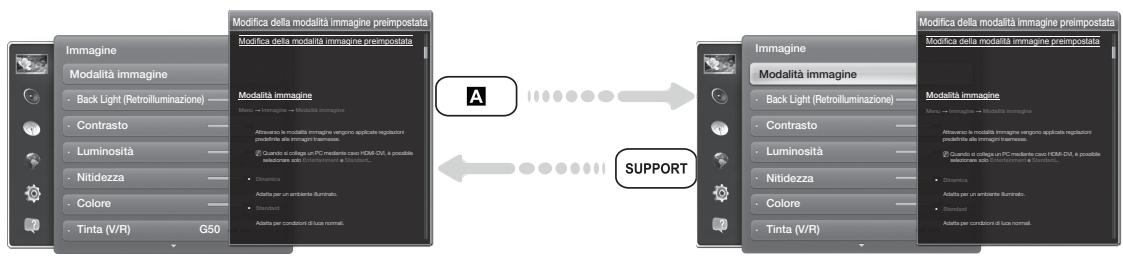
Passaggio dagli argomenti trattati sull'e-Manual ai menu OSD corrispondenti.
Questa funzione non è disponibile in alcuni menu.
Se il menu non è attivo, la funzione Prova ora non è disponibile.
1. Per eseguire l'opzione di menu corrispondente all'argumento, selezionare A con il telecomando.
2. Per tornare alla schermata dell'e-Manual, selezionare Supporto con il telecomando.
Uso dei tasti funzione e colorati con l'e-Manual
- Barra di scorrimento: Per scorrere verso l'alto o il basso la schermata dell'e-Manual.
- / : Passa al capitolo precedente o successivo.
Prova ora: Passa al menu OSD corrispondente all'argomento. Per tornare alla schermata del Manuale elettronico, selezionare Supporto con il telecomando.
B Pag. iniziale: Per accedere alla schermata principale dell'e-Manual. - C Posizione: A agli selezione di c con il telecomando, la posizione della schermata del Manuale elettronico cambia di consequences.
- D Indices: Visualizza la schermata dell'indice.
- Ritorna_i : Ritorna alla schermata precedente.
Ricerca di un argomento nella pagina dell'indice
- Selezionare D con il telecomando. Viene visualizzata la schermata dell'Indice.
- Per cercare un argomento, selezionare una lettera. L'indice visualizza un elenco di argomenti e parole chiave che iniziano con la lettera selezionata.
- Selezionare un argomento o la parola chiave desiderata.
- Viene visualizzata la pagina dell'e-Manual relative alla'argomento selezionato.
Per chiudere la schermata Indice, premere RETURN.
Per modificare la posizione della schermata dell'e-Manual
E' possible modificare la posizione della schermata dell'e-Manual se quest'sultima nasconde la schermata del menu OSD.
- Spostare la selezione sulla schermata dell'e-Manual premendo SUPPORT sul telecomando o selezionando il menu Supporto con lo Smart Touch Control.
- Premere sul telecomando o selezionare con lo Smart Touch Control. A agli selezione di con il telecomando, la posizione della schermata dell'e-Manual cambia di consegenza.
Installazione del supporto a parete
Installazione del kit di supporto a parete
Il kit di supporto a parete (venduto separamente) consente di montare il tevisore direttamente a una parete.
Per informazioni dettagliate sull'installazione a parete, consulare le istruzioni fornite insieme al kit. Rivolgersi a un technician per il montaggio della staffa a parete. Si sconsiglia di eseguire il montaggio autonomamente.
Samsung Electronics non più essere ritenuta responsable per eventuali danni al prodotto o infortuni causati da una installmente autonoma del teilevisore da parte dell'utente.
Preparazione per l'installazione di un supporto a parete
Esembio A. Installazione del supporto a parete SAMSUNG
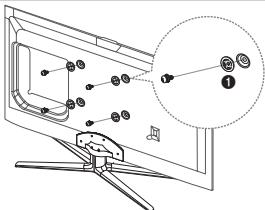
Per installare un supporto a parete,utilizzare un anello di ritenuta 1.
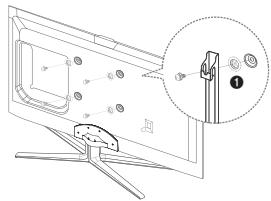
Esempio B. Installazione di un supporto a parete di altremarca.
Specifiche del kit di supporto a parete (VESA)
Il kit di montaggio a parete non è fornito in dotazione ma è venduto separamente.
Installare il supporto su una parete solida perpendicular al pavimento. Se il supporto deve essere fissato ad altri tipi di materia, consultare il rivenditore di zona. Una installationa soffitto o su pareti inclinate può provocare la caduta dell'unità e lesioni personali.

NOTA
- Nella tabella sotto riportata vengono indicate le dimensioni standard dei kit di supporto a parete.
All'acquisto di un kit di supporto a parete, verrà fornita la guida all'installazione e tutte le parti necessarie per il montaggio.
Nonutilizzareviti non conformi agli standard VESA.
Non utilizzare viti più lunghe delle dimensioni standard o non conformi alle specifiche dello standard VESA. Viti troppo lunghe sono danneggiare i componenti interni del teilevisore.
Per montaggi a parete non conformi alle specifiche delle viti standard VESA, la lunghezza delle viti potrebbe differire in base alle loro specifiche.
Non serrare le viti con excessiva forza poiché ciò potrebbe danneggiare il prodotto o causarne la caduta provocando lesions personali. Samsung non più essere ritenuta responsable per tali incidenti.
Samsung non pue essere ritenuta responsabile per eventuali danni o lesioni personali qualora vengano usati kit di supporto a parete non conformi allo standard VESA o l'utente non segua le istruzioni di installatione fornite.
Non montare il teilevisore con una inclinazione superiore ai 15 gradi.
E' necessario che I'installazione a parete del teilevisore sua eseguita da due persone.
| Famiglia di prodotti | pollici | Spec. VESA (A * B) | Vite standard | Quantità |
| TV LED | 40 | 200 X 200 | M8 | 4 |
| 46~60 | 400 X 400 |
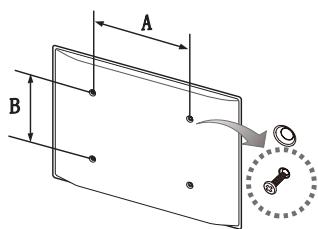
Svitare le viti prima di installare la staffa a parete.

Non installare il kit di supporto a parete nelle televisore è accesso. In caso contrario, potrebbero verificarsi incidenti con lezioni personali causate da scosse elettriche
Conservazione e manutenzione

Eventuali adesivi applicati allo schermo TV potrebbero lasciare residui una volta rimossi. Pulire lo schermo prima di guardare i programmi TV.
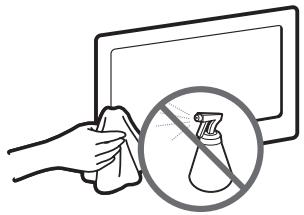
Non spruzzare acqua direttamente sul prodotto. Qualsiasi liquido che riesca a penetrare all'interno del prodotto più provocare giasti, incendio o una scossa elettrica.
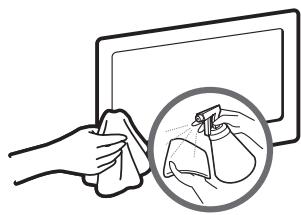
Pulire il prodotto con un panno morbido appena inumidito. Non utilizzare liquidi infiammabili (per es. benzene o diluenti) né soluzioni detergenti.
Fissaggio del tevisore alla parete
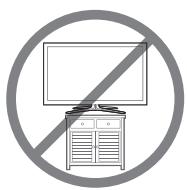
Attenzione: Tirare, spingere o arrampicarsi sul teilevisore sono azioni che possono provocare la caduta. In particolare, si raccomanda di non far giocare i bambini con il teilevisore poiché potrebbero appendervisi o destabilizzato. Se ciò dovesse verificarsi, il teilevisore potrebbe cadere provocando lesioni personali gravi e perfino mortali.Seguire tutte le precauzioni di sicurezza descritte della documentazione allegata al teilevisore. Per una maggiore stabilità e sicurezza del prodotto, è possible acquistare e installare il dispositivo anticaduta come segue.
Per evitare una eventuale caduta del teilevisore
- Avvitare saldamente i ganci alla parete. Verificare che le viti siano state fissate saldamente alla pareti.
A seconda del tipo di parete, potrebbe essere necessario utilizzare anche un fisher.
Poichi ganci, le viti e il cavo di sicurezza non sono forniti in dotazione, è necessario-acquistare tali materiali separatamente.
- Rimuovere le viti dal centro del pannello posteriore del teilevisore, inseirle nei ganci e quando avitare nuovamente al teilevisore.
Le viti potrebbero non essere fornite insieme al prodotto. In quello caso, acquistare le viti separamente in base alle specifiche qui riportate.
Specifiche delve viti
Perimodelli da 19~27 pollici: M4
Per i modelli da 32 ~ 75 pollici: M8
- Collegare i ganci fissati al televisore a quelli fissati alla parete utilizzando un cavo resistente, quando legarlo strettamente.

NOTA
- Installare il televisore il più vicino possibile alla parete in modo che non possa cadere all'indietro.
Collegare il cavo in modo che i ganci fissati alla parete si trovino allineati o leggermente più in basso di quelli fissati al teilevisore.
Slegare l cavoprimadi spostare itelevisore.
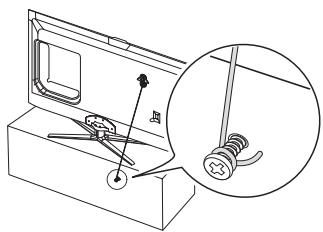

- Accertarsi che tutte le connessioni siano adeguatamente fissate. Controllare periodicamente le connessioni per verificarne l'eventuale usura o rottrura. Per qualsiassi dubbio relativo alla sicurezza delle connessioni effettuate, contattare un installmentere specializzato.
Risoluzione dei problemi
In caso di domande sul funzionamento del teilevisore, consultare per prima casa l'elenco sottostante. Se nessuno dei consiglio si dimostra utile per risolverere il problema, visitare il site "www.samsung.com", quindi fareblicksulla voce Supporto, oppure chiamare il numero del Call Center riportato in ultima paginadel manuale.
| Problemi | Solutazioni e spiegazioni |
| Il televisore non si accende. | Verificare che la spina del cavo di alimentazione CA sia correttamente collegata a una presa a muro e al televisore.Verificare che la presa a parete sia funzionante.Provar a premere il tasto POWER sul tevisore per verificare che il problema non sia il telecomando.Se il tevisore si accende, vedere la sezione "Il telecomando non funziona" riportata sotto. |
| Nessuna immagine/video. | Verificare le connessioni dei cavi (scollegare e ricollegare tutti i cavi del tevisore e dei dispositivi esterni).Impostare l'uscita video del dispositivo esterno (ricevitore via cavo/STB,lettore DVD,Blu-ray, ecc) in modo che le connessioni corrispondano all'ingresso del tevisore. Ad esempio,se l'uscita di un dispositivo esterno è HDMI,deve essere collegata a un ingresso HDMI sul tevisore.Verificare che il dispositivo collegato sia accesso.Riavviare il dispositivo dopo averne scollegato e ricollegato il cavo di alimentazione. |
| Il telecomando non funziona. | Sostituire le batterie prestandoattenza a rispettore le polarità (+/-).Pulire la finestra di trasmissione del sensore sul telecomando.Puntare il telecomando direttamente sul tevisore a una distanza di 150~180 cm. |
| Il telecomando del ricevitore via cavo/satellitare non risce ad accendere o spegnere il tevisore o a regolare il volume. | Programmare il telecomando del ricevitore via cavo/satellitare in modo che possa controlare le funzioni del tevisore.Consultare il manuale dell'utente del ricevitore via cavo/satellitare per il codice TV SAMSUNG. |
Alcune delle immagini e funzioni sopra riportate sono disponibili solo per determinati modelli.
E' possible Maintainere il teilevisore nelle condizioni ottimali eseguendregolarmente tramite USB l'aggiornamento del firmware all'ultima versione disponibile sul sito (samsung.com Supporto Download).
Risoluzione del display
| Modalità | Risoluzione | Frequenza orizzontale (kHz) | Frequenza verticale (Hz) | Frequenza di clock dei pixel (MHz) | Polarità sync (H / V) |
| IBM | 640 x 350 | 31,469 | 70,086 | 25,175 | +/- |
| 720 x 400 | 31,469 | 70,087 | 28,322 | -/+ | |
| MAC | 640 x 480 | 35,000 | 66,667 | 30,240 | -/- |
| 832 x 624 | 49,726 | 74,551 | 57,284 | -/- | |
| 1152 x 870 | 68,681 | 75,062 | 100,000 | -/- | |
| VESA DMT | 640 x 480 | 31,469 | 59,940 | 25,175 | -/- |
| 640 x 480 | 37,861 | 72,809 | 31,500 | -/- | |
| 640 x 480 | 37,500 | 75,000 | 31,500 | -/- | |
| 800 x 600 | 37,879 | 60,317 | 40,000 | +/+ | |
| 800 x 600 | 48,077 | 72,188 | 50,000 | +/+ | |
| 800 x 600 | 46,875 | 75,000 | 49,500 | +/+ | |
| 1024 x 768 | 48,363 | 60,004 | 65,000 | -/- | |
| 1024 x 768 | 56,476 | 70,069 | 75,000 | -/- | |
| 1024 x 768 | 60,023 | 75,029 | 78,750 | +/+ | |
| 1152 x 864 | 67,500 | 75,000 | 108,000 | +/+ | |
| 1280 x 720 | 45,000 | 60,000 | 74,250 | +/+ | |
| 1280 x 800 | 49,702 | 59,810 | 83,500 | -/+ | |
| 1280 x 1024 | 63,981 | 60,020 | 108,000 | +/+ | |
| 1280 x 1024 | 79,976 | 75,025 | 135,000 | +/+ | |
| 1366 x 768 | 47,712 | 59,790 | 85,500 | +/+ | |
| 1440 x 900 | 55,935 | 59,887 | 106,500 | -/+ | |
| 1600 x900RB | 60,000 | 60,000 | 108,000 | +/+ | |
| 1680 x 1050 | 65,290 | 59,954 | 146,250 | -/+ | |
| 1920 x 1080 | 67,500 | 60,000 | 148,500 | +/+ |

NOTA
La modalità interlacciata non è supportata.
- Questo dispositorio potrebbe non funzionare correttamente se si selezione un formato video non standard.
Specifiche
| Risoluzione del display | 1920 x 1080 | ||
| Caratteristiche ambientali | |||
| Temperatura di esercizio | Da 10°C a 40°C | ||
| Umidità di esercizio | Dal 10% all'80%,enza condensa | ||
| Temperatura di stoccaggio | Da -20°C a 45°C | ||
| Umidità di stoccaggio | Dal 5% al 95%,enza condensa | ||
| Sistema TV | Analogico: B/G, D/K, L, I (in base alla nazione selezionata) | ||
| Digitale: DVB-T/DVB-C/DVB-S2 | |||
| Sistema colore/video | Analogico: PAL, SECAM, NTSC-4.43, NTSC-3.58, PAL60 | ||
| Digitale: MPEG-2 MP@ML, MPEG-4, H.264/AVC MP@L3, MP@L4.0, HP@L4.0 | |||
| Sistema audio | BG, DK, L, NICAM, MPEG1, DD, DD+, HEAAC. | ||
| HDMI IN | Video: 1080 24p, 1080p, 1080i, 720p, 576p, 480p | ||
| Audio: 2Ch Linear PCM 32/44.1/48kHz, 16/20/24bits. | |||
| Piedistallo rotabile (Sinistra / Destra) | -20° ~ 20° | ||
| Modello | UE40ES7000 | UE46ES7000 | UE55ES7000 |
| Dimensione schermo | 40 polici | 46 polici | 55 polici |
| Suono (Uscita) | 2 x 10 W | ||
| Dimensioni (Lar x Alt x Pro) | |||
| Corpo | 914,4 X 545,7 X 29,7 mm | 1046,8 X 620,2 X 29,7 mm | 1238,4 X 728 X 29,7 mm |
| Con piedistallo | 914,4 X 611,2 X 241,3 mm | 1046,8 X 691,2 X 276,7 mm | 1238,4 X 790,4 X 276,7 mm |
| Peso | |||
| Senza piedistallo | 9,5 kg | 11,9 kg | 16,4 kg |
| Con piedistallo | 10,9 kg | 13,8 kg | 18,3 kg |
Smart Touch Control
| Modello | RMCTPE1 | |
| Alimentazione | Sorgente | Batterie (2 tipo AA) |
| Per una maggiore durata delle batterie, si consiglia l'uso di batterie alcaline | ||
| Ingresso | Tasto | 14 tasti |
| Touch Pad | Sensore capacitivo sensibile al tocco (45 mm x 55 mm) | |
| Uscita | Indicatore | 3 indicatori LED stato dispositivo |
| IR | 1 diodo trasmittente a infrarossi | |
| Caratteristiche | Touch Control | Coordinate assoluta |
| Telecomandi multimarca | Telecomando universale | |
| Voce | Trasferimento vocale via Bluetooth | |
| Bluetooth | Bluetooth 2.1 supportato | |
| Telecomandi multimarca | Copertura database telecomandi multimarca | Globale |
| Modalità dispositivo supportate | 3 modalità (TV, STB, BD) | |
| Distanza operativa massima | 12 m | |
| Voce | Trasferimento vocale | Protocollo HID Bluetooth |
| Data rate audio supportata | 16KHz, 16bit | |
| Livello audio consigliato | -15,5dB (da 0dB Full-scale) | |
| Bluetooth | RF | 2,4GHz, Banda CSM |
| Metodo abbinamento | Abbinamento standard IR Triggered | |
| Distanza abbinamento massima | 4 m (in linea visiva, dal ricevitore IR del tevisore) | |
| Distanza operativa massima | 10 m (in linea visiva) | |
| Impostazione | Abbinamento con il tevisore | Si |
| Programmazione telecomandi multimarca | TV Widget richiesto | |
| Funzionamento | Temperatura d'esercizio | Da 0°C a 40°C |
| Distanza d'esercizio | IR: Normale 10 m, Max 12 m / BT: 10 m | |
| Ore di funzionamento | 3 mesi (con 200 pressioni di tasting al giorno) | |
| Compatibilità | TV LED | Superiore ai LED Serie E7000 |
| TV PDP | E8000 | |
| Dimensioni | apparecchio (mm) | 154 x 52 x 19,5 |
| Peso | Apparecchio (senza batterie) (g) | 119 |
| Apparecchio (con batterie) (g) | 165 | |
| Accessorì | Batterie (2 tipo AA) | |
IR Blaster
| Modello | VG-IRB2000 | |
| Alimentazione | Sorgente | Batterie (4 tipo AA) |
| Per una maggiore durata delle batterie, si consiglia l'uso di batterie alcaline | ||
| Ingresso | Tasto | 2 tasti (Abbinamento, Accensione/Spagnimento) |
| Uscita | Indicatore | 1 LED indicator |
| IR | 5 diodi trasmittenti a infrarossi | |
| Caratteristiche | Telecomandi multimarca | Telecomando universale |
| Bluetooth | Bluetooth 2.1 supportato | |
| Telecomandi multimarca | Copertura database telecomandi multimarca | Globale |
| Modalità dispositivo supportate | 3 modalità (TV, STB, BD) | |
| Distanza operativa massima | 8 m | |
| Bluetooth | RF | 2,4GHz, Banda CSM |
| Metodo abbinamento | Abbinamento standard IR Triggered | |
| Distanza abbinamento massima | 4 m (in linea visiva, dal ricevitore IR del teilevisore) | |
| Distanza operativa massima | 10 m (in linea visiva) | |
| Impostazione | Abbinamento con il teilevisore | Si |
| Programmazione telecomandi multimarca | TV Widget richiesto | |
| Funzionamento | Temperatura d'esercizio | 32Da °a 104°F (da 0°C a 40°C) |
| Distanza d'esercizio | IR: Normale 10 m, Max 12 m / BT: 10 m | |
| Angolo operativo | 360 gradi | |
| Ore di funzionamento | 3 mesi (con 200 pressioni di tasting al giorno) | |
| Compatibilità | TV LED | Superiore ai LED Serie E7000 |
| TV PDP | E8000 | |
| Dimensioni | appareccchio (mm) | L 95×P 79×A 65 |
| (L x P x A) | Imballo (mm) | L 88×P 71×A 102 |
| Peso | Appareccchio (senza batterie) (g) | 86.5 |
| Appareccchio (con batterie) (g) | 178.5 | |
| Imballo (g) | 30.6 | |
| Accessorì | Batterie (4 tipo AA) | |
Design e specifiche sono soggetti a modifiche sera preavviso.
Per l'alimentazione elettrica e il consumo di corrente, consultare l'etichetta apposta al prodotto.
Il consumo elettrico tipico viene misurato conformamente allo standard IEC 62087 Ed.2
Raccomandazioni - Solo UE
C E ①
- Con la presente, Samsung Electronics dichiarare che lo tve TV LED e conforme ai requisiti essenziali e alle altre clausole pertinenti indcate nella Direttiva 1999/5/CE.
La Dichiarazione di conformità ufficiale reperibile all'indirizzo http://www.samsung.com, accendendo alla pagina Supporto > Certificati CE, e immettendo i dati richiesti per l'identificazione del prodotto. - Questa apparecchiatura può essere utilizzata solo in interno.
L'uso di esta appearechiatura è consentito in tutti i paesi europei.
Licenza
DOLBY
DIGITAL PLUS
PULSE

dt
Premium Audio
DIVX
HD
HOMI

guide
MHL

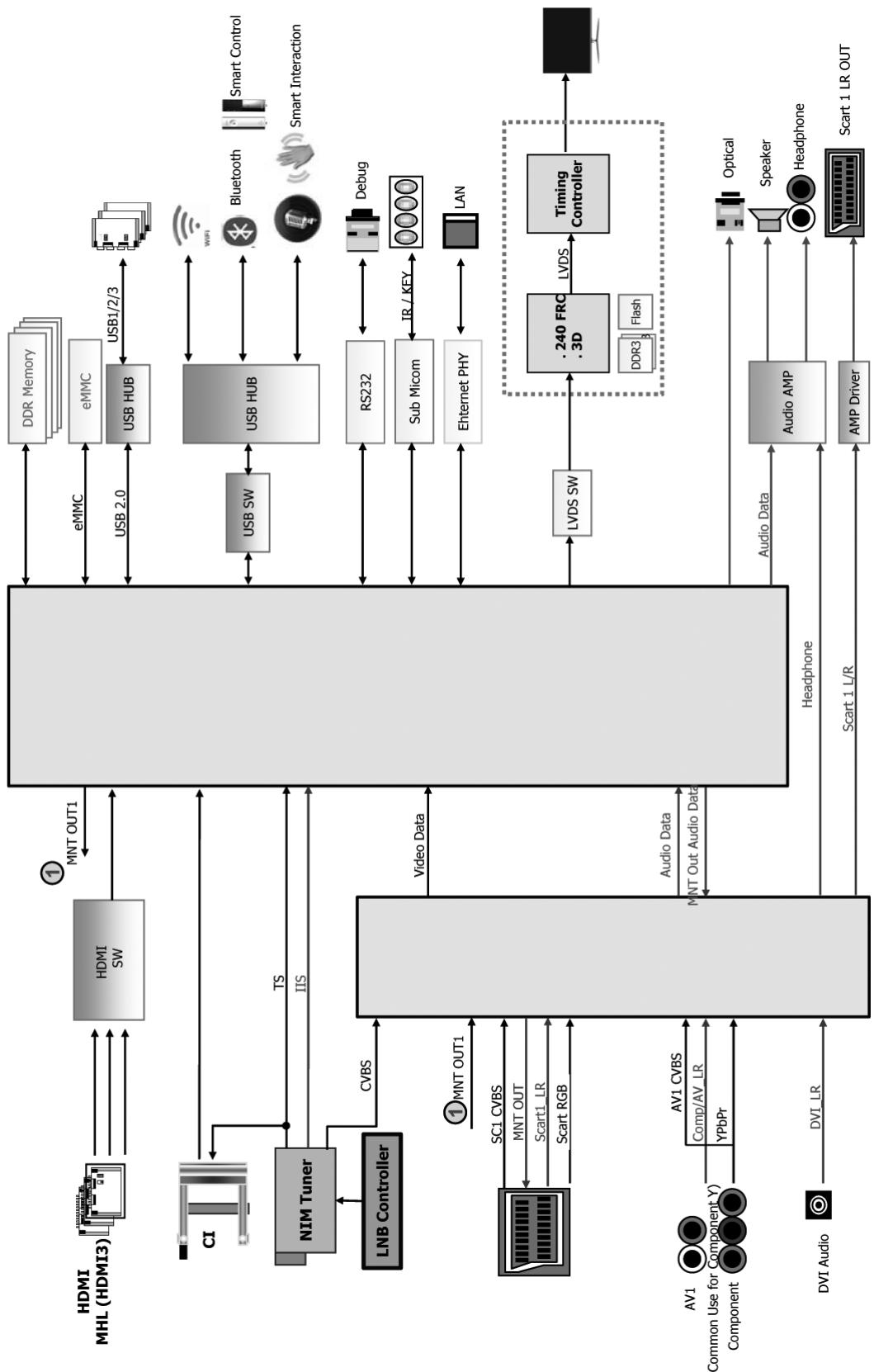
Die Abbildungen und Illustrationen in thisem Handbuch dienen nur zur Information und konnen vom tatsächlichen Aussehen des Geräts abweichen. Änderungen an Ausführung und technischen Daten vorbehalten.
Hinweis zu Digitalfernsehen
- Die Funktionalitäten für Digitalfernsehen (DVB) stehen nur in Ländern/Regionen zur Verfugung, in denen digitale terrestrische DVB-T-Signale (MPEG2 und MPEG4 AVC) gesendet werden oder in denen Sie Zugang zu einem kompatiblen Kabelfernsehdienst mit DVB-C (MPEG2 und MPEG4 AAC) haben. Fragen Sie ihren örtlichen Handlcr, wenn Sie Informationen über die Verfurbarkeit von DVB-T oder DVB-C in ihrer Gegend benöttigen.
- DVB-T ist der Standard des europäischen DVB-Konsortiums für die Übertragung von digitalem Fernsehen, und DVB-C ist der Standard für die Übertragung von digitalem Kabelfernsohen. Allerdings werden manche Unterscheidungsmerkmale wie EPG (elektronischer Programmfrüher), VOD (Video on Demand) usw. in dieser Spezifikation nicht berücksichtigt. Deshalb können sie zum zeitigen Zeitpunkt noch nicht eingesetzt werden.
- Zwart hält these Fernsehgerät die aktuellen Standards der DVB-T- und DVB-C-Spezifikationen [August 2008] ein, aber es kann nicht garantiert werden, dass die Kompatibilität mit zukünftigen digitalen terrestrischen DVB-T- und DBV-C-Signalen gewährt bleibt.
- Je nach den Ländern/Regionen, in denen thises Fernseherat eingesetzt wird, verlangen manche Kabelfernsehanbieter zusätzliche Gebühren für solch einen Dienst, und möglicherweise wird verlangt, dass Sie den Vertragsbedingungen des Unternehmens zustimmen.
- Manche Digitalfernsehfunktionen sind in einigen Ländern oder Regionen möglicherweise nicht verfügbar, und bei DVB-C kann das Gerät möglicherweise mit manchen Kabelfernsehanbietern nicht störungsfrei zusammenarbeiten.
- Für weitere Informationen setzen Sie sichitte mit dem Samsung-Kundendienstzentrum in Verbindung.
Die Empfangsqualität des Fernsehgeräts kann durch Unterschiede bei den Sendeverfahren in verschiedenen Ländern beeinträchtigt werden. Kontrollieren Sie die Leistung des Fernsehgeräts bei ihrem örtlichen SAMSUNG-Händler oder wenden Sie sich an das Samsung-Callcenter um festzustellen, ob sich die Empfangsqualität durch Ändern der Fernseheinstellungen verbessernläst.
Warning bei Standbildern
Vermeiden Sie die Anzeige von Standbildern (wie z. B. JPEG-Bilddateien) oder Standbildelementen (wie z. B. Senderlogos, Panorama- oder 4:3-Bilder, Aktien- oder Laufschriften mit Nachrichten am unteren Bildschirmrand usw.) auf dem Bildschirm. Durch lang anhaltende Anzeige von Standbildern kann es zu Schattenbildern auf dem LED-Bildschirm kommt, wodurch die Bildqualität beeinträchtigt wird. Um die Gefahr dieseres Effekt zu vermindern, befolgen Sieitte die nachfolgenden Empfehlungen:
- Vermeiden Sie es, für lange Zeit denselben Fernsehsender anzuzeigen.
Versuchen Sie, Abbildungen immer als Vollbild anzuzeigen. Verwenden Sie das Bildformatmenü des Fernsehgeräts, um die Beste Anzeigemöglichkeit zu finden. - Reduzieren Sie die Helligeits- und Kontrastwerte soweit wie möglich, um immer noch die gewünschte Bildqualität zu erreichen. Zu hohe Werte können das Einbrennen beschleugen.
- Verwenden Sie regelmäßige Funktionen Ihres Fernsehgeräts, die dazu dieren, das Einbrennen von Bildern und das Ausbrennen des Bildschirms zu reduzieren. Weitere Informationen hierzu finden Sie im e-Manual.
Ausreichende Belüftung Ihres Fernsehgeräts und sichere Aufstellung
Halten Sie beim Aufstellen des Fernsehgeräts einen Abstand von mindestens 10 cm zu anderen Objekten (Wänden, Schrankwänden usw.) ein, um eine ausreichende Lüftung zu gewährleisten. Wenn Sie nicht für eine ausreichende Lüftung sorgen, können aufgrund des Temperaturanstiegs im Innern des Geräts ein Brand oder ein Problem mit dem Gerät die Folge sein.

Wenn Sie einen Standfuß oder eine Wandhalterung einsetzen, empfehlen wir Ihnen dringend, ausschließlich Teile von Samsung Electronics zu verwenden.
- Wenn Sie Teile eines anderen Herstellers verwenden, kann es zu Problemen mit dem Gerät oder zu Verletzungen kommt, weil das Gerät herunterfällt.
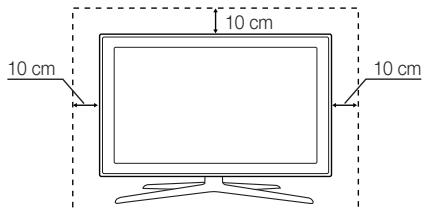
Aufstellen des Geräts mit dem Standfuß
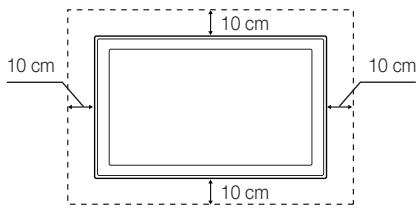
Installation des Geräts mit der Wandhalterung

Sonstige Warnhinweise

Das tatsächliche Aussehen des Fernsehgerats kann je nach Modell von den im Handbuch enthaltenen Abbildungen abweichen.

Seien Sie vorsichtig, wenn Sie das Fermsehergerät berühren. Einige Teile konnen während des Betriebs sehr heiß werden.
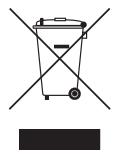
Ordnungsgemäß Entsorgung these Geräts (Elektro- und Elektronik-Altgeräte)
(Anwendbar in der Europäischen Union und anderen europäischen Staaten mit Systemen zur getrennten Sammlung von Wertstoffen)
These Kennzechnung auf dem Gerät, dem Zubehör oder der Dokumentation bedeutet, dass das Gerät sowie das elektronische Zubehör (z. B. Ladegérät, Headset, USB-Kabel) am Ende ihrer Lebensdauer nicht im normalen Hausmüll entsorgt werden)duren. Entsorgn Sie diese Geräteibegetrennt von anderen Abfallen, um der Umwelt bzw. der menschlichen Gesundheit nicht durch unkontrollierte Müllbeseitigung zu schaden. Recycleln Sie das Gerät, um die nachhaltige Wiederverwertung von stofflichen Ressourcen zufordern. Private Nutzer sollen den Handler, bei dem das Produkt gekauft wurde, oder die zuständigen Behörden kontaktieren, um in Erfahrung zu bringen, wie sie das Gerät auf umweltfreundliche Weise recycleln konnen. Gewerbliche Benutzer wenden sich an ihren Lieferanten und überprüften die Kitiondienes hisk Kaufvertrags. Dieses Gerät und seine elektronischen Zubehörnteile duren nicht zusammen mit anderen Gewerbebμll entsorgt werden.
Ordnungsgemäß Entsorgung der Batterien these Products
(Anzuwenden in den Ländern der Europäischen Union und anderen europäischen Ländern mit einem separaten Sammelsystem für Batterien)
These Kennzeichnung auf der Batterie, dem Handbuch oder der Verpackung bedeutet, dass die Batterie am Ende ihrer Lebensdauer nicht im normalen Hausmüll entsorgt werden darf. Die Kennzeichnung mit den chemischen Symbolen für Hg, Cd oder Pb bedeutet, dass die Batterie Quecksilber, Kadmium oder Blei in Mengen enthalt, die die Grenzwerte der EU-Directive 2006/66 übersteigen. Wenn Batterien nicht ordnungsgemäß entsorgt werden, können diese Substanzen die Gesundheit von Menschen oder die Umwelt gefährden. Zum Schutz der natürlichen Ressourcen und zur Forderung der Wiederverwertung von Materialien trennen Sie die Batterien von anderen Müll und führen Sie sie Ihr örtlichen Recyclingsystem zu.
- Verwaltungskosten werden abgerechnet, wenn:
(a) auf ihren Wunsch ein Servicetechniker zu Hinnen geschickt wird, und es liegt kein Defekt des Geräts vor (d.h. wenn Sie these Benutzerhandbuch nicht gelesen haben)
(b) Sie das Gerät in eine Reparaturwerkstatt bringen, und es liegt kein Defekt des Geräts vor (d.h. wenn Sie these Benutzerhandbuch nicht gelesen haben)
- Der abgerechnete Betrag wird Ihnen mitgeteilt, ehe irgendwelche Arbeiten oder Kundenbesuche ausgeführrt werden.
Listeder Funktionen
3D: Mit dieser fascinierenden neuen Funktion konnen Sie die 3D-Inhalte bestimmter Sender oder eines 3D-fahigen BD-Players anzeigen.
SMART HUB: Der Gateway zu allen integrierten Inhalten
- Smart Hub hilf Ichnen bei der vielfälligen Auswahl Ihres Unterhaltungsprogramms.
- Dadurch können Sie ihre Unterhaltung Schnell und einfach über eine benutzerfreundliche Benutzeroberfläche steuern.
Greifen Sie auf zahlreiche Anwendungen zu, die tätig ch neu hinzugefug werden.
Richten Sie ihre Fernsehgerät nach ihren Wünschen ein, indem Sie die Anwendungen gemäß ihren Vorlieben gruppieren und sortieren.
AllShare Play: Mit AllShare Play können Sie Fotos, Videos und Musik auf USB-Geräten, Digitalkameras, Mobilgaräten und PCs anzeigen bzw. wiedergeben und darauf zugreifen. Sie können über Ihr Drahtlosnetzwerk auf PCs, Mobilgaräte und andere kompatible Geräte zugreifen.
- Anynet+ (HDMI-CEC): Sie können alle angeschlossenen Samsung-Geräte, die Anynet+ unterstützen, mit der Fernbedierung für Ihr Samsung-Fernsehgerät bedieren.
e-Manual: Sie konnen das vollständige Handbuch auf Ihrlem Fernsehbildschirm anzeigen. (S. 19)
Zubehör
Vergewissern Sie sich, dass im Lieferumfang des Fernsehgerats folgende Komponenten enthalten sind. Falls irgendwelche Teile fehlen sollenten, setzen Sie sichitte mit Ihr Handler in Verbindung.
Farbe und Form der Teile konnen sich je nach Modell untersuchen.
Kabel, die nicht zum Paketinhalt gehören, können gesondert erworben werden.
Achten Sie darauf, dass Sie beim Auspacken keine Zubehörteile übersehen, die durch Verpackungsmaterialien verdeckt werden.
ACHTUNG: STELEN SIE DIE VERBINDUNG DAUERHAFT HER, DAMIT DAS NETZTEIL NICTVOM GERÄT GETRENNT WERDEN KANN
- Smart Touch Control und 2 Batterien (Typ AA)
- IR Blaster und 4 Batterien (Typ AA)
Fernbedienung und 2 Batterien (Typ AAA) - Garantiekarte (nicht überall verfügbar) / Sicherheitshinweise
Netzkabel
Reinigungstuch
Samsung 3D-Aktivbrille
Benutzerhandbuch
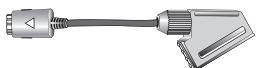
Scart-Adapter

Kabelhalter fur den StandfuB

Halteringe (4 Stk.)
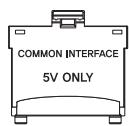
Cl-Kartenadapter
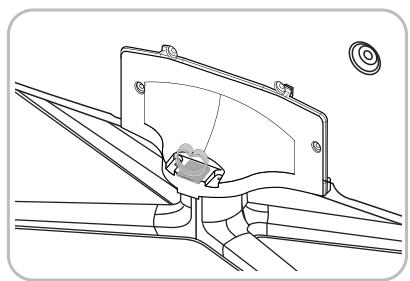
Montieren des Kabelhalters am Standfuß
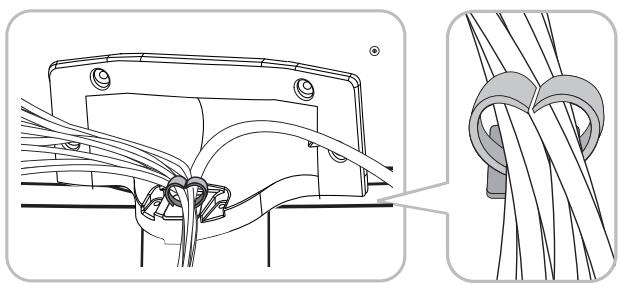
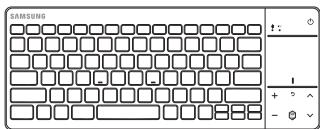
Drahtlose Tastatur (separatehätlich)
Drahtlose Tastatur
Verwenden des TV-Controllers (Tasten)
Mit Hilfe des TV-Controllers, einer kleinen Joystick-ähnlichen Taste rechts auf der Rückseite des Fernsehgeräts, können Sie den Fernseher ohne Fernbediedung bedieren.
Form und Farbe des Gerats konnen je nach Modell unterscheidlich sein.
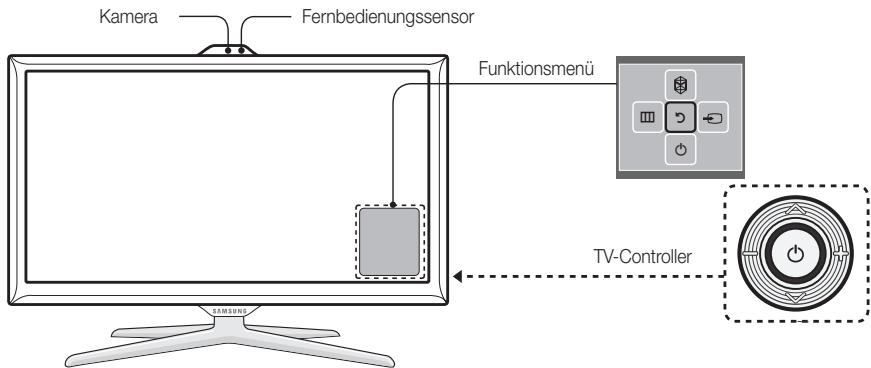
Befolgen Sie diese Anweisungen, und schauen Sie damit von vorne auf das Fernsehgerät.
Wenn Sie eine TV-Kamera verwenden, prufen Sie, ob auf der Rückseite ein Band befestigt ist. Wenn ja, können Sie die TV-Kamera verwenden, nach dem Sie den Kamerawinkel eingestellt haben. Wenn Sie keine TV-Kamera verwenden möchten, empfehlen wir, das Kameraobjektiv nach oben gerichtet zu fixieren. In thisem Fall sind Geschitserkennung und Bewegungssteuerung nicht verfügbar.
| Einschalten | Im Standby-Modus können Sie das Fernsehgerät einschalten, indem Sie auf den Controller drucken. |
| Einstellen der Lautstärke | Sie können die Lautstärke bei eingeschalteten Fernsehgerät einstellen, indem Sie den Controller nach links bzw. rechts bewegen. |
| Auswahlen eines Senders | Den Sender wechseln Sie, indem Sie den Controller bei eingeschalteten Fernsehgerät nach oben bzw. einzelnen bewegen. |
| Verwenden des Funktionsmenüs | Zum Anzeigen und Verwenden des Funktionsmenü drücken Sie bei eingeschalteten Fernsehgerät kurz auf den Controller. Wenn Sie das Funktionsmü schlieben möchten, drucken Sie erneut kurz auf den Controller. |
| Auswahlen einer Option unter MENU (III) | Bei geöffnetem Funktionmenü können Sie das MENU (III) auswähen, indem Sie den Controller nach links bewegen. Das Bildschirmenu wird angezeigt. Durch Bewegen des Controllers nach rechts können Sie eine Option auswählen. Weitere Optionen können Sie durch Bewegen des Controllers nach rechts, links,heiten oder vorne auswählen. Zum Ändern eines Parameters wären Sie diesen aus und drucken auf den Controller. |
| Auswahlen von SMART HUB (♀) | Wenn Sie SMART HUB (♀) auswählen möchten, bewegen Sie den Controller bei geöffnetem Funktionsmü nach oben. Das Hauptfenster von SMART HUB wird angezeigt. Wenn Sie eine Anwendung auswählen möchten, wären Sie sie aus, und drucken Sie dann auf den Controller. |
| Auswahlen einer Quelle (♂) | Bei geöffnetem Funktionmenü können Sie die Liste Quelle (♂) auswählen, indem Sie den Controller nach rechts drucken. Das Fenster „Quelle" wird angezeigt. Zum Auswahlen einer Quelle bewegen Sie den Controller nach halten bzw. vorne. Wenn die gewünschte Quelle markiert ist, drucken Sie auf den Controller. |
| Ausschalten (♂) | Wahren Sie bei geöffnetem Funktionmenü Ausschalten (♂), indem Sie den Controller nach einzelnen bewegen und dann aufihn drucken. |
Zum Schlieben der Fenster Menu, Smart Hub oder Quelle halten Sie den Controller länger als 1 Sekunde lang gedrückt.
Standby-Modus
Wenn Sie den Fernseher ausschalten, wechsel das Gerät in den Standby-Modus und verbraucht auch weiterhin eine keine Menge an Strom. Um sicher zu gehen und den Energieverbrauch zu reduzieren, sollen Sie Ihr Fernsehgerät nicht über einen längeren Zeitraum im Standby-Modus laufen lessen (z. B. wenn Sie verreist sind). Ziehen Sie in solchen Fällen das Netzkabel aus der Steckdose.
AnschlieBen an eine Antenne
Verbinden Sie das Netzkabel erst dann mit der Wandsteckdose, wenn Sie alle anderen Anschlüsse vorgenommen haben.
Wenn Sie das Fermseherat über ein HDMI-, Komponenten- oder Composite-Kabel an einen Kabel- oder Satellitenreceiver anschließen, müssen Sie die ANT IN-Buchse nicht mit einer Antenne oder einem Kabel verbunden.
Wenn Sie ein Mobiltelefon mit Zweiwegradio oder Mobilgeräte, die das Amateurfunk- und Mittelwellenband nutzen, in der Naze des Fernsehgeräts verwenden, kann dies zu Störungen am Fernseher führen.
Gehen Sie beim Bewegen oder Drehen des Fernsehgeräts vorsichtig wenn, wenn das Antennenkabel fest angeschlüssen ist. Sie können die Antennenbuchse des Fernsehgeräts beschädigen.
VHF/UHF-Antenne
Satellit
Kabel
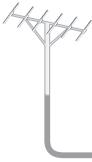
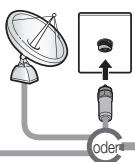
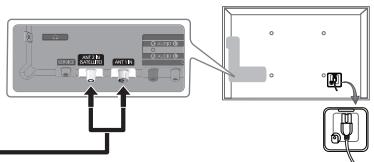
Detailliertere Informationen über die Smart Touch Control finden Sie im e-Manual unter „Verwenden der Smart Touch Control".
Smart Touch Control
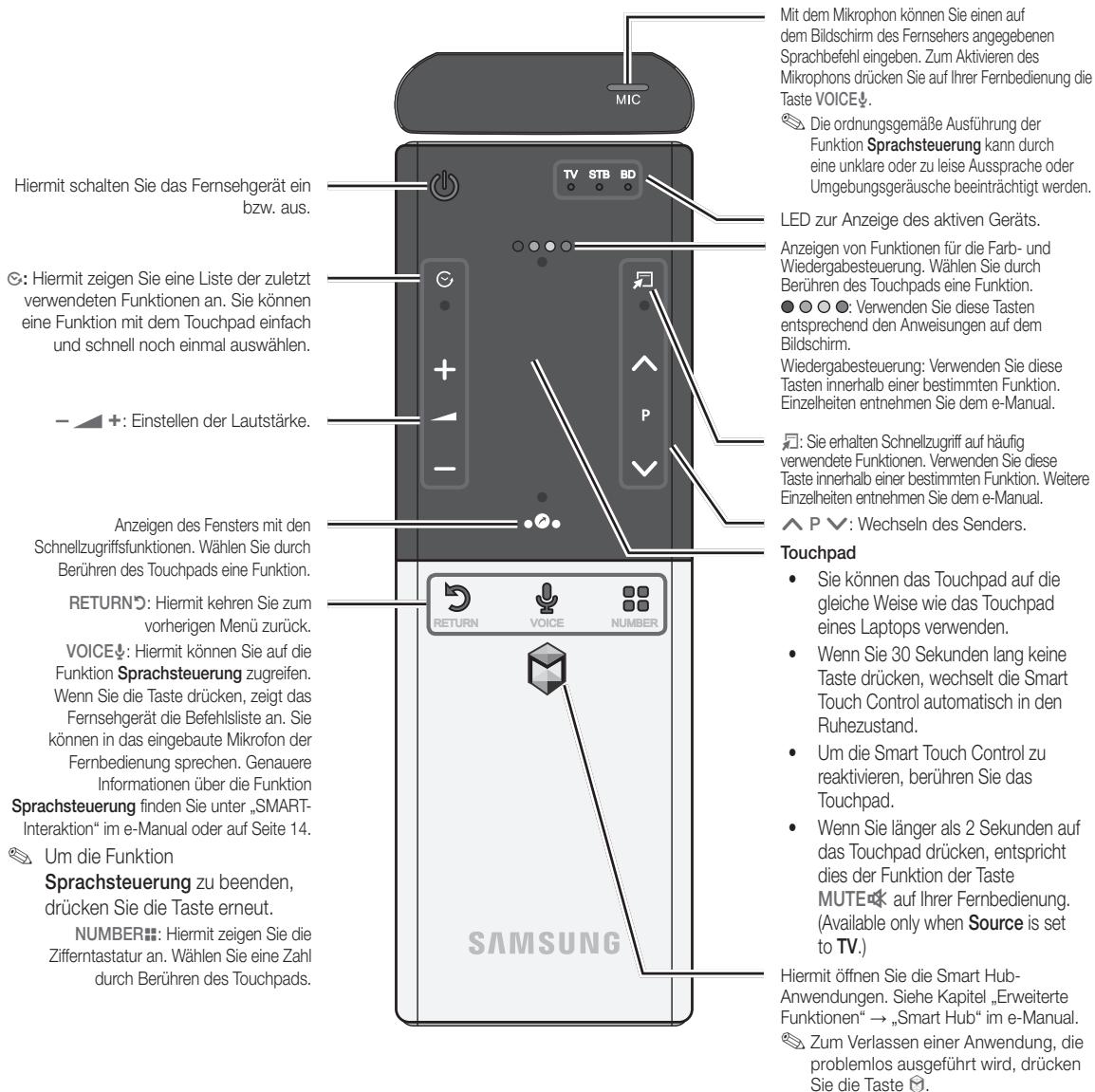
Einlagen von Batterien (Batteriegroße: AA)
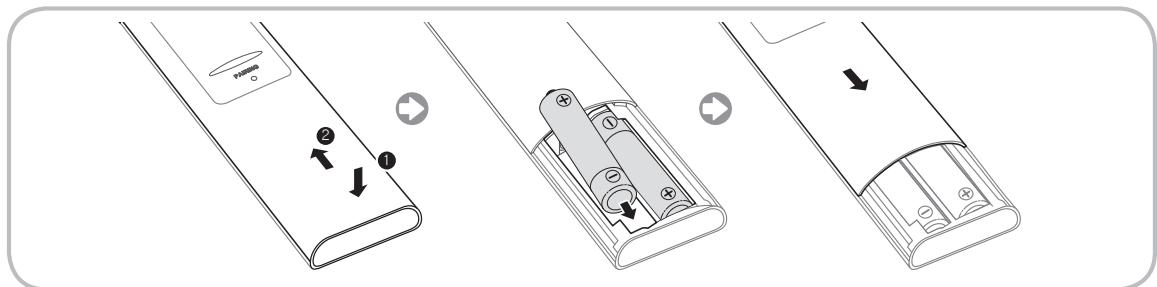
- Drucken Si me with beiden Daumen ganz unten auf der Ruckseite auf die Fernbedienung, und schiben Sie die Batteriefachabdeckung in Pfeilrichtung.
- Setzen Sie zwei Batterien mit der richtigen Polung (+/-) entsprechend der Abbildung im Batteriefach ein.
- Schieben Sie die Abdeckung zum Schlieben in Pfeilrichtung nach unten.
IR-Blaster
Damit Sie die an ihren Fernseher angeschlossenen externen Geräte bedieten können, müssen Sie die Universal-Fernbedienung konfigurieren. Wenn Sie die Smart Touch Control auf das externe Gerät einstellen, sendet der IR Blaster ein IR-Signal an das externe Gerät.
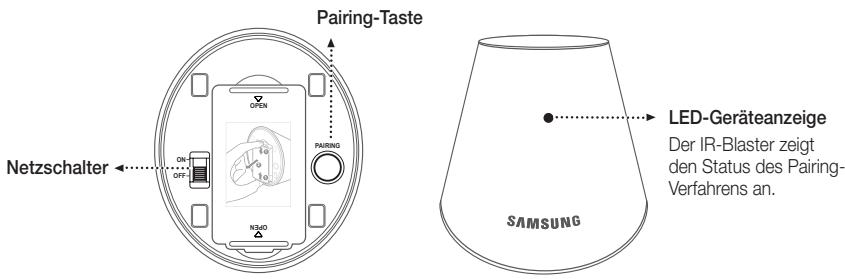
Einlagen von Batterien (Batteriegroße: AA)
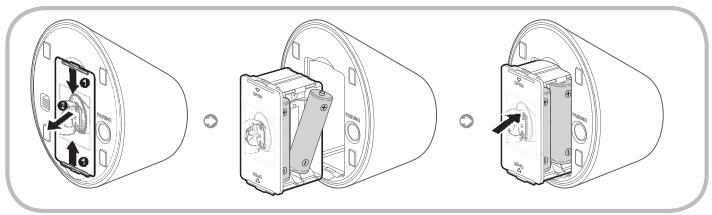
- Halten Sie die Batteriehalterung an beiden Seiten fest, und ziehen Sie sie heraus.
- Setzen Sie vier Batterien mit der wichtigen Polung (+/-) entsprechend der Abbildung im Batteriefach ein.
- Schieberen Sie die Halterung wieder in die ursprüngliche Position.
Anfangliches Pairing
Wenn Sie einen IR-Blaster an Ihr Fernseherat anschließen, können Sie an den Fernseher angeschlossene externe Geräte mit Hilfe der Smart Touch Control bedieren.
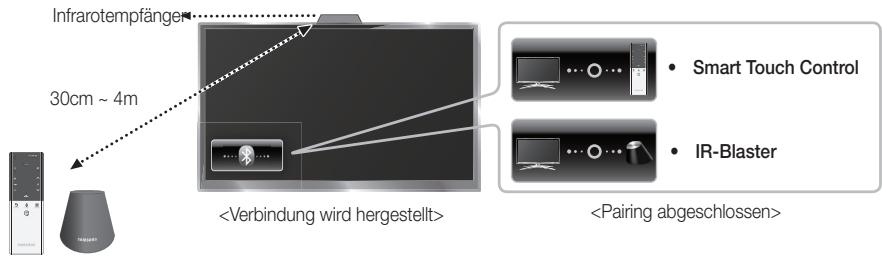
Smart Touch Control
Sobald Sie die Anfangseinstellung Ihres Fernsehgeräts durchgefuhrt haben, sollen Sie Ihr Smart Touch Control mit dem Fernseher verbinden.
- Schalten Sie das Fernsehgerät durch Drücken der Taste ein.
- Links unter auf dem Bildschirm werden die Verbindungssymbole angezeigt, und das Fernsehgerät stellt automatisch eine Verbindung zur Smart Touch Control her.

Wenn Sie das Pairing-Verfahren erneut durchfuhren möchten, drücken Sie mit einem Stift oder der Spitze einer auseinander gebogenen Heftklammer in die Rücksetzöffnung hinter in der Mitte der Abdeckung. Die Smart Touch Control wird initialisiert.
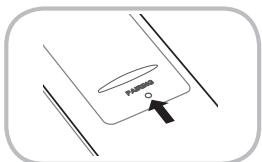
Rücksetztaste für das PAIRING der Smart Touch Control
IR-Blaster
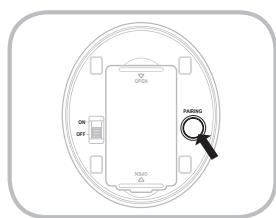
- Schalten Sie den IR-Blaster ein. Sobald die LED-Anzeige blinking, müssen Sie den IR-Blaster mit dem Fermsehgerät verbinden.
- Bewegen Sie den IR-Blaster in Richtung des IR-Empfängers an Ihr Fremsehgerät, und drücken Sie dann einmal kurz die Taste PAIRING auf der Unterseite des IR-Blasters.
- Links unter auf dem Bildschirm werden die Verbindungssymbole angezeigt, und das Fernsehgerät stellt automatisch eine Verbindung zum IR Blaster her.
Wenn das Herstellen der Verbindung fehlschläft, schalten Sie den IR-Blaster aus und wieder ein, und wiederholen Sie das Verfahren ab Schritt 2.
Kalibrieren des Touchpads
Gehen Sie folgendermaßen vor, um das Touchpad der Smart Touch Control zu kalibrieren:
- Halten Sie die Taste NUMBER 3 Sekunden lang gedrückt. Die Kalibrierung wird gestartet.
- AnschlieBend blinken alle LEDs im oberen Bereich der Smart Touch Control gleichzeitig zweimal.
Berühren Sie während der Kalibrierung nicht das Touchpad.
Wenn das Touchpad nicht mehr genau genug reagiert, wiederholen Sie die Schritte 1 und 2, um es erneut zu kalibrieren.
Verwendendes Touchpads
Zum Anzeigen der listenede mit den Schnellzugriffskounen im unteren Bereich des Bildschirms drucken Sie auf die Taste unten am Touchpad.
Thesee Listemerglicht den Schnellzugriff auf die Menus Menu,Quelle,SENDERL.,3D,AIIShare Play,Unterstutzung sowie eine Reihe anderer Funktionen.
Wenn Sie die Taste : oben am Touchpad drücken, können Sie im oberen Bereich des Bildschirms die Funktionen für die Farb- und Wiedergabesteuierung aneigen.
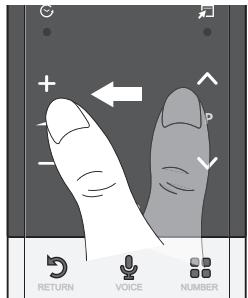
Zum Verschieben der Markierung: Legen Sie ihren Finger auf das Touchpad, und bewegen Sieihn dann auf dem Touchpad von links nach rechts oder von oben nach unter bzw. umgekehrt.
Wenn Sie die Markierung kontinuierlich bewegen möchen, bewegen Sie den Finger schnell von links nach rechts oder von oben nach unten bzw. umgekehrt.
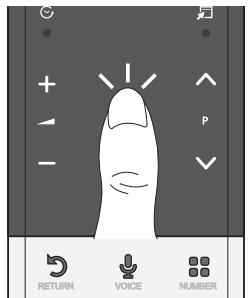
Zum Auswahlen eines Elements: Tippen Sie auf das Touchpad.
Verwendendes Blättermodus
Wenn Sie das Touchpad während dem Verwenden der Funktionen Smart Hub, Webbrowser und AllShare Play berühren, wechselt das Touchpad in den Blättermodus.
Wenn Sie im Blättermodus Ihr Finger auf dem Touchpad von einer Seite zur anderen bewegen, wird auf dem Bildschirm zur{nachsten oder vorherigen Seite geleblättert.
Um zum Standardmodus des Touchpads zusückzukehren, tippen Sie entweder auf das Touchpad oder drücken Sie die Taste RETURN auf Ihr Smart Touch Control.
Eingeben einer Sendernummer mit der Smart Touch Control
- Drucken Sie während Sie fernsehen die Taste NUMBER auf der Smart Touch Control. Auf dem Fernsehgerät wird das Fenster mit der Zifferntastatur angezeigt.
- Markieren Sie mit Hilfe des Touchpads eine Nummer, und tippen Sie dann auf das Touchpad. Auf dem Bildschirm wird eine Listc mit Sendern angezeigt, die mit der von Ihnen ausgewählten Nummer beginnen.
- Markieren Sie mit Hilfe des Touchpads den gewünschten Sender in der Beste, und tippen Sie dann auf das Touchpad.
Sie konnen den Sender ebenfals wechsein, indem Sie auf dem Touchpad das Auf- oder Ab-Symbol fur den Senderwechsel berhren. Wenn Sie unmittelbar danach auf das Touchpad tippen, wird die List der gespeicherten Sender angezeigt. Wahlen Sie einen Sender aus, indem Sie den Finger langsam oder schnll bewegend und dann auf das Touchpad tippen.
Zum Anzeigen des Menü „Extras"
Drucken Sie die Taste rechts am Touchpad.
Zum Anzeigen einer Seite der bisher angezeigten Sender
Drücken Sie die Taste links am Touchpad.
Einrichten der Smart touch control für die Verwendung als Universalfernbedierung
Hiermit konnen Sie einen an Ihren Fernseher angeschlossenen Receiver (STB) oder BD-Player mit Hilfe der Smart Touch Control bedienen. Nach dem Sie das exter Gerat an das Fernsehgerat angeschlossen haben, kann die Smart Touch Control die Navigation, die Zahlen und anderen Tasten steuern, die zum Bedieren deses Gerats benotigt werden.
Mit der Universalfernbedienung konnen Sie zur die Lautstärke des Fernsehgeräts, noch nicht die des Receivers regeln. Stellen Sie die Lautstärke des Receivers auf den gewünschten Wert ein, wenn Sie über diesen fernsehen möchten.
Je nach Version der Anwendung können die Anweisungen für das Verfahrens Universalfernb. - Einr. entsprechlich sein. Befolgen Sie in thisem Fall die Anweisungen auf dem Bildschirm.
Gehen Sie folgendermaßen vor, um mit Hilfe Ihrer Smart Touch Control eine Verbindung zum externen Gerät herzustellen:
- Wahlen Sie Zu steuerndes Gerä einrichten, und drücken Sie dann auf das Touchpad.
- Wahlen Sie das gewünschte externe Gerät in der Beste der angeschlossenen Geräte aus, und drücken Sie dann auf das Touchpad.
- Wahlen Sie den Anschluss aus, über den das gewährte externe Gerät angeschlossen ist, und drücken Sie dann auf das Touchpad.
Stien Sier, dass ausgewahte Gerat eingeschaltet ist. Wnd das Gerat ausgeschaltet ist, schalten Si es nun ein, und wahlen Sie Aktual..
- Wahlen Sie Herst./Dienstanb. des Fernsehers suchen, und drücken Sie dann auf das Touchpad. Auf dem Bildschirm werden eine Tastatur und ein Eingabefeld angezeigt. Geben Sie mit Hilfe der Smart Touch Control die ersten Buchstaben des Markennamens Ihr's Geräts ein, und wahren Sie anschließend am unteren Rand der Tastatur die Option Fertig. Wahlen Sie in der unter dem Eingabefeld angezeigten Ende den Markennamen Ihr's Geräts aus, und drücken Sie dann auf das Touchpad.
Um nach einem bestimmten Receiver (Set-Top-Box) zuuchen, können Sie den Markennamen oder einen Kabeldienstanbieter als Suchbegriff verwenden.
- Wahlen Sie MODELL SUCHEN, und drücken Sie dann auf das Touchpad. Auf dem Bildschirm werden eine Tastatur und ein Eingabefeld angezeigt. Geben Sie mit Hilfe der Touch Control die ersten Buchstaben und Zahlen der Modellbezeichnung Ihres Geräts ein, und wahren Sie anschließend am unteren Rand der Tastatur die Option Fertig. Wahlen Sie in der unter dem Eingabefeld angezeigten Listie die Modellbezeichnung Ihres Geräts aus, und drücken Sie dann auf das Touchpad.
Wen die Sache nach der Modellbezeichnung nicht das gewünschte Ergebnis erbringt, wiederholen Sie die Sue mit nur einem Teil der Modellbezeichnung oder verwenden Sie die Option „search for recommended model code (Nach empfohlenem Modelcode suchen)”. - Wahlen Sie Download, und drücken Sie dann auf das Touchpad. Laden Sie auf die gleiche Weise die Konfigurationsdaten für den IR Blaster herunter.
- Wenn alle Einstellungen abgeschlossen sind, wahlen Sie abgeschl., und drücken Sie auf das Touchpad.
Wenn Sie die Smart Touch Control und den IR-Blaster erneut einrichten mochen, drucken Sie auf der Smart Touch Control die Taste -Universalfernb.
-Einr.
Suchen nach dem empfohlenen Modellcode.
- Wahlen Sie im Schritt MODELL SUCHEN für das Einrichten der integrierten Fernbedienung die Option Empfohlenes Modell, und drücken Sie auf das Touchpad.
- Wahlen Sie Download, um den empfohlenen Modelcode herunterzuladen.
- Richten Sie die Smart Touch Control auf den IR-Sensor am externen Geräts, und drücken Sie dann auf das Touchpad, um die ordnungsgemäß Funktionseweise des Geräts zu überprüfen.
- Wenn der heruntergeladene empfohlene Modellcode nicht Funktioniert, wiederholen Sie das Verfahren ab Schritt 3.
Wenn Sie das BD-Heimkinosystem mit Hilfe einer Universalfernbedienung steuern, stehen eine Schaltflächen möglicherweise nicht zur Verfugung. In thisem Fall empfehlen wir die Verwendung der Funktion Anynet+ (HDMI-CEC).
Fernbedienung

Dies ist eine spezielle Fernbedienung fur Personen mit eingeschränktem Sehvermögen. Die Ein/Aus-Taste sowie die Tasten zum Einstellen des Senders und der Lautstärke sind in Braille beschrittet.
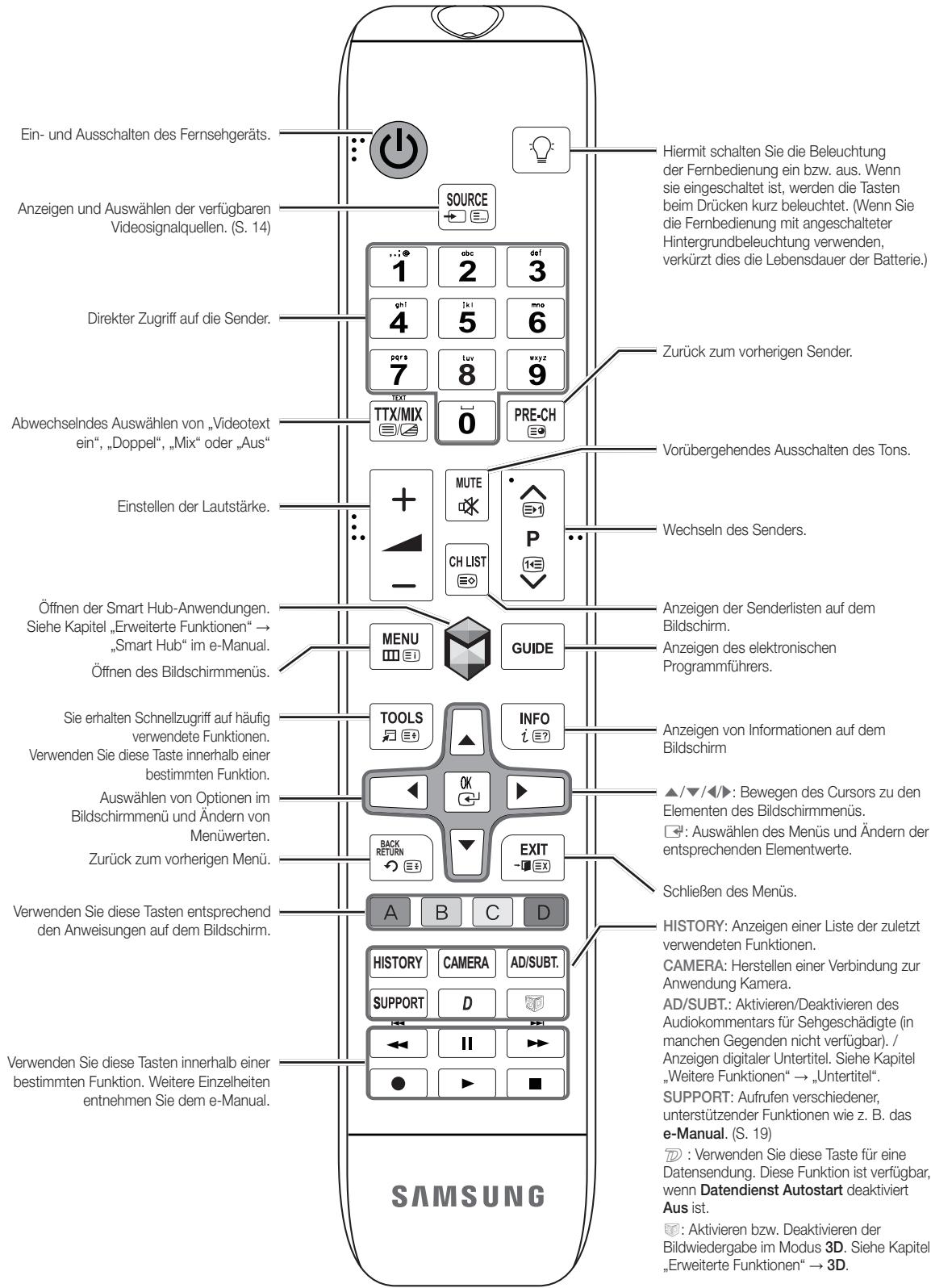
Setzen Sie die Batterien mit der richtigen Polung entsprechend den Symbolen im Batteriefach ein.
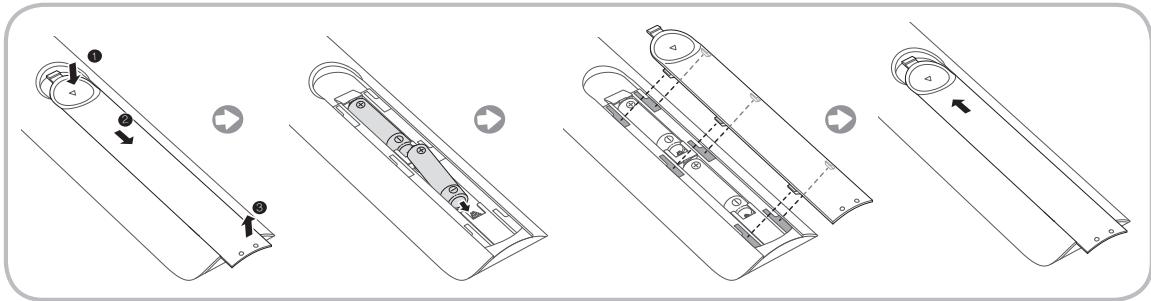

HINWEISE
- Setzen Sie die Batterien mit der richtigen Polung (+/-) entsprechend der Abbildung im Batteriefach ein.
- Setzen Sie die Fernbedienung bis zu einer Entfernung von maximal 7 m zum Fernsehgerät ein.
- Helles Licht kann die Leistung der Fernbedienung verschlechtern. Vermeiden Sie Leuchtstoffrähren oder ein Neonschild in der Höhe der Fernbedienung.
- Form und Farbe können je nach Modell unterschied sein.
Einstellung (Anfangseinstellung)
Wenn Sie das Fernsehgerät zum ersten Mal einschalten,HELP eine Reihe aufeinanderfolgender Abfragen und Fenster beim Durchführung der Grundeinstellungen. Drücken Sie zum Konfigurieren der Einstellungen die Taste 已 auf ihrer Fermbedienung.
Das Menu Einstell. ist nur verfügbar, wenn die Eingangssquelle auf "TV" eingestellt ist. Siehe Ändern der Eingangssquelle" (S. 14).
Um zum vorherigen Schritt für das Konfigurieren der Einstellungen zurückzukehren, wahren Sie Zurück.
Zunachst müssen Sie sicherstellen, dass das Fermseherat an eine Antenne oder ein Kabel angeschlossen ist (S. 5).
Wahlen Sie zum Starten der Funktion Einstell. die Option Start.
| 1 | Menüsprache: Auswählen der Sprache. | Wahlen Sie mit Hilfe der Fernbedienung die gewünschte Menüsprache aus, und wahren Sie dann Weiter. Ab dem{nachsten Schritt zeigt das Fernsehgerät die Menü in der ausgewählten Sprache an. |
| 2 | Modusauswahl: Auswählen des Modus „Privatgebrauch". | Wahlen Sie mit Hilfe der Fernbedienung zunachst Privatgebrauch und dann Weiter. Der Modus Shop-Demo ist für den Betrieb beim Fachhändler bestimmt. |
| 3 | Netzwerkeinstellungen: Konfigurierten der Netzwerkeinstellungen Wenn Sie die Verbindung zu einem später Zeitpunkt herstellen möchten, wahren Sie Überspr. | Wenn Sie die Netzwerkverbindung jetzt einrichten möchten, wahren Sie mit Hilfe der Fernbedienung Start. Wenn Sie ihre Netzwerkinformationen nicht kennen oder sie später einrichten möchten, wahren Sie Überspr. Weitere Informationen zu den Konfigurationsanforderungen und -anweisungenfinden Sie im e-Manual unter „Konfigurierten des Kabel- und Drahtlosnetzwerks" sowie im Abschnitt zur Netzwerkverbindung in dieser Handbuch (Seite 18). Sie können die Netzwerkverbindung später mit Hilfe des Menü Netzwerk einrichten. |
| 4 | Software-UpDate: Aktualisieren der Software mit der neusten Version Wenn Sie das Update später durchführten möchten, wahren Sie Überspr. Weitere Informationen finden Sie im e-Manual unter Software-UpDate ("Voreinstellungen") → Menu „Unterstützung"). Dies kann je nach Netzwerkstatus eine Zeit dauern. | |
| 5 | Vertragsbedingungen | Wenn Sie die Werte unter Netzwerkeinstellungen konfiguriert haben, wird das Fenster Vertragsbedingungen angezeigt. Es kann eine Seite kunden dauern, bis das Fenster angezeigt wird. Das Fenster Allg. Haftungsausschl. wird angezeigt. Wahlen Sie Zustimmen. Das Fenster D.-Sch.-Richtl. wird angezeigt. Wahlen Sie Zustimmen. Wenn Sie die Funktion Smart Hub verwenden möchen, müssen Sie zunachst unter Vertragsbedingungen die Option Zustimmen auswällen. |
| 6 | Das Land wahren. (Je nach Land) | Wahren Sie das gewünschte Land aus. Nachdem Sie im Menu „Land" das Land eingestellt haben, werden Sie bei manchen Modellen aufgefordert, die PIN-Nummer einzurichten. |
| 7 | Autom. Sendersuchlauf (1): Auswahlen, wie Sie fernsehen wollen. | Sendereinstellung: Ist es erforderlich, am Fernsehergerät Sender zuuchen und einzustellen? Ja, Sendersuchl. ausführten: Alle verfügbaren Sender werden gesucht und im Fernsehergerät gespeichert. Nein, nicht erforderlich: Sender werden über Set-Top-Box (externen Receiver) empfangen, keine Sendersuche am Fernsehergerät erforderlich. |
| 8 | Autom. Sendersuchlauf (2): Auswahlen von Suchoptionen und Regionsauswahl (Je nach Land) | Wahren Sie den Sendertype für den Suchlauf aus. Wenn Sie den Antennentyp auf Kabel einstellen, können Sie den Sendern im nächsten Schritt einen Zahlenwert (Senderfrequenzen) zuweisen. Weitere Informationen finden Sie im e-Manual unter Autom. Sendersuchlauf (Menü „Sender“ → „Speichern von Sendern"). Wenn zuerst die Option Terrestrisch oder Kabel gewählt wird: Nachdem alle Sender für die Optionen Terrestrisch oder Kabel gespeichert wurden, wird der Schritt zum Speichern von Sendern für die Option Satellit angezeigt. Wenn zuerst die Option Satellit gewählt wird: Nachdem alle Sender für die Option Satellit gespeichert wurden, wird der Schritt zum Speichern von Sendern für die Optionen Terrestrisch und Kabel angezeigt. Wahren Sie zum Unterbrenchen des Speichervorgangs zu einem beliebigen Zeitpunkt die Option Stopp. Auto: Hiermit wird die aktuelle Uhrzeit automatisch eingestellt. Manuell: Hiermit konnen Sie das Datum und die Uhrzeit manuell einstellen. |
| 9 | Uhr: Einstellen des Uhrmodus | |
| 10 | Zeitzone (Je nach Land) Einstellen ihrer Zeitzone | These Funktion ist nur verfügbar, wenn Sie den Uhrmodus auf Auto eingestellt haben. Auto: Hiermit wird die Zeitzone automatisch eingestellt. Manuell: Hiermit wird die Zeitzone manuell eingestellt. Wenn Sie Manuell gewählt haben, konnen Sie auswählen, ob Sie die Sommerzeit aktivieren (Ein) oder deaktivieren (Aus) möchten. (je nach Land) |
| 11 | Sprach- und Bewegungssteuerung: Hiermit richten Sie die Sprach- und Gestionsteuerungsfunktion ein. | Sie konnen die Funktion Sprach- und Bewegungssteuerung aktivieren (ein) oder deaktivieren (aus). Deaktivieren oder aktivieren Sie die Funktion, und wahren Sie dann Weiter. Weitere Informationen finden Sie unter „SMART-Interaktion“ auf Seite 14 |
| 12 | Einstell. abgeschlossen | Wahren Sie zum Fertigstellen Schließen. Alle vorgenommenen Einstellungen werden angezeigt. |
So setzen Sie diese Funktion zurück:
Menu System Einstell.
Wahlen Sie System - Einstell. (Anfangseinstellung). Geben Sie ihre 4-stellige PIN ein. Die Standard-PIN lautet „1-1-1-1“. Verwenden Sie zum Änder der PIN die Funktion PINändern.
Sie sollen den Verfahrenn für Einstell. (Menu System) zuhause erneut durchfuhren, selbst wenn Sie es bereits im Geschäft durchgefuhlten haben.
Wenn Sie den PIN-Code vergessen haben, drücken Sie die Tasten auf der Fernbedienung im Standby-Modus in der angegebenen Reihenfolge, um die PIN auf „1-1-1-1" zurückzusetzen: MUTE 8 2 4 POWER (Ein).

Weitere Informationen finden Sie im e-Manual unter Anschlieben des Fernsehgerats.
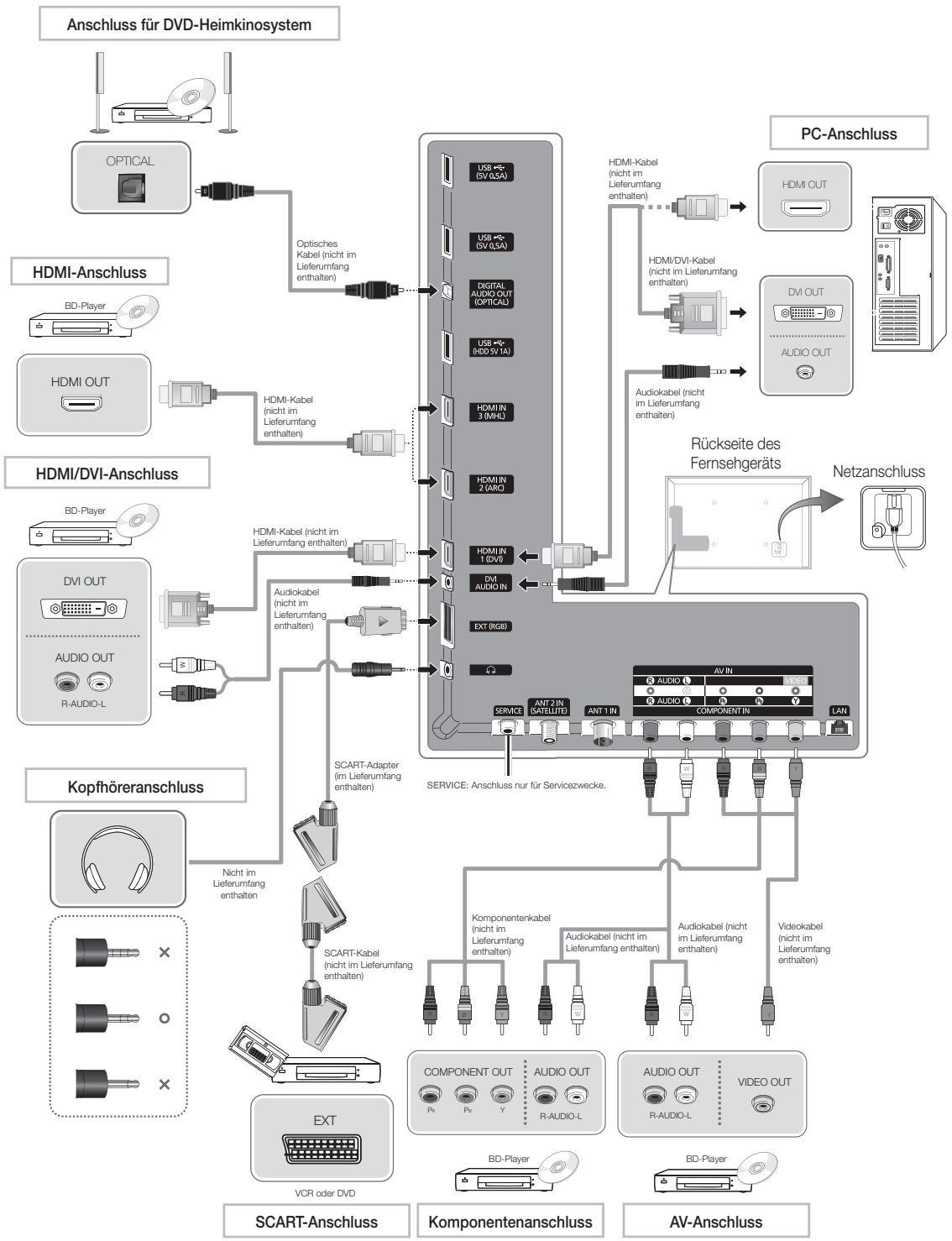

Die optime Kabelverbindung ist bei thisem Gerat gewährleistet, wenn Sie Kabel mit den nachfolgenden angegebenen MaBen verwenden:
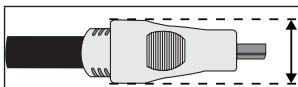
Maximaler Durchmesser - 14 mm
Ändern der Eingangsquelle
Quelle
Quelle
Wenn Sie fernsehen und einen Film über ihren DVD- oder Blu-ray-Player wiedergeben oder über ihren Kabel- oder Satellitenreceiver fernsehen möchten, müssen Sie zunachst die Quelle ändern.
TV/Ext./HDMI1/DVI/HDMI2/HDMI3/AV/Component
- Drücken Sie auf ihrer Fembedienung die Taste . Das Fenster Smart Hub wird angezeigt.
- Wahlen Sie Quelle. Das Fenster Quelle wird angezeigt.
- Wahlen Sie die gewünschte extere Eingangsquelle.
Alternative können Sie das Fenster Quelle öffnen, indem Sie auf Ihr Standardfernbedienung die Taste Quelle drücken oder mit Hilfe der Smart Touch Control Quelle auswahlen (siehe Seite 6).
Sie konnen lediglich externe Geräte auswahlen, die an das Fernsehgerat angeschlossen sind. In der angezeigten Liste Quelle sind die angeschlossenen Eingangssquellen hervorgehoben.
Verwendend der Funktion Name bearb.
Name bear. ermöglicht Ohnen, einer Eingangsgquelle einen Gerätenamen zuzuweisen. Um die Funktion Name bear. zu verwenden, öffnen Sie in der Kundenque das Menu Extras. Die Funktion Name bear. bietet die folgenden Auswahlmöglichekeiten:
VCR / DVD / Kabel-STB / Sat-STB / PVR-STB / AV-Receiver / Spiel / Camcorder / PC / DVI PC / DVI-Geräte / TV / IPTV / Blur-ray / HD DVD / DMA: Wahlen Sie eine Eingangsbuchse und dann den Name des an diese Buchse angeschlossenen Geräts aus der angezeigten Liste aus. Wenn Sie beispiesweise einen Blu-rayPlayer an den HDMI IN 2-Eingang angeschlossen haben, müssen Sie für diese Buchse die Option „Blu-ray" wahren.
Wenn Sie einen PC über ein HDMI-Kabel an den Eingang HDMI IN 1 (DVI) anschließen, wahren Sie im Fenster Name bearb. unter HDMI1/DVI die Option PC aus.
Wenn Sie einen PC über ein HDMI/DVI-Kabel an den Eingang HDMI IN 1 (DVI) anschließen, wahren Sie im Fenster Name bearb. unter HDMI1/DVI die Option DVI PC aus.
Wenn Sie ein AV-Gerät über ein HDMI/DVI-Kabel an den Eingang HDMI IN 1 (DVI) anschließen, wahren Sie im Fenster Name bearb. unter HDMI1/DVI die Option DVI-Geräte aus.
Information
Sie können Detailinformationen zum ausgewählten externen Gerät anzeigen.
Aktual.
Wenn das gewünschte externe Gerät nicht in der Liste Quelle angezeigt wird, wahren Sie im Menu Extras die Option Aktual.. In der Liste werden alle angeschlossenen Geräte angezeigt.
Alternative können Sie die Liste der verfügbaren Quellen im Fenster Quelle anzeigen, indem Sie mit Hilfe der Fernbedienung die Option A auswahlen.
SMART-Interaktion
Mit Hilfe dieser Funktion konnen Sie mit Hilfe von Sprache, Gesten oder Geschäftserkennung auf Menüoptionen und Funktionen zugreifen und diese ausführten oder bearbeiten.
HAFTUNGAUSSCHLUSS IN DER INFORMATIONSBROSCHÜRE
Anmeldung mit der Gesichtserkennung
Damit Sie sich mit Hilfe der Gesichtserkennung bei einer Funktion anmelden können, wird ein Miniaturbild Ihres Gersichts in Ihr Fernsehgerat gespeichert.
Wenn Sie sich mit Hilfe der Gesichtserkennung bei Smart Hub anmelden, ist dieser Vorgang möglicherweise unsicherer als die Anmeldung mit Hilfe einer Benutzerkennung und eines Kennworts.
- Verwendung der TV-Kamera
Sie sollenn sich vor Verwendung der TV-Kamera bewusst machen, dass Sie unter bestimmten Umständen und bestimmten rechtlichen Bedingungen für ihre missbrächliche Verwendung der TV-Kamerarechtlich haften. Daher müssen Sie vor dem Verwendern der TV-Kamera zustimmen, dass Sie die Kamera nicht nutzen (i) an Orten, an denen das Filmen mit Kamas generell verboten ist (wie z. B. in Badezimmerm, Umkleiden oder Ankleidezimmern), (ii) in einer Art und Weise, die zu einer Verletzung der Privatsphäre anderer Personen führt oder (iii) gegen geltende Gesetze, Bestimmungen oder Regelungen verstört.
Sprachsteuerung
Menu System Sprach- und Bewegungssteuerung Sprachsteuerung
Hiermit aktivieren bzw. deaktivieren Sie die Spracherkennung. Hiermit können Sie mit Hilfe von Sprache auf Menüoptionen und Funktionen zugreifen und diese ausführten oder bearbeiten.
Um die Funktion Sprachsteuerung nutzen zu konnen, müssen Sie die Begriffe und Sätze klar und deutlich sowie in der von Ihnern unter Sprache ausgewählten Sprache richtig aussprechen.
Die Funktion Sprachsteuerung wird je nach Umgebungsgeräussen möglicherweise nicht ordnungsgemäß ausgeführht.
Sie können die Sprachbefehle auf zweierlei Weise an das Fernsehgerät übermitteln:
- Über das integrierte Mikrofon des Fernsehgeräts. (Erkennung aus der Distanz)
- Mit Hilfe der Taste VOICE auf ihrer Fernbedienung. (Erkennung aus nachster Höhe)
Wenn Sie das im Fernsehergät eingebaute Mikrofon verwenden, werden die gesprochenen Worte aufgrund der Umgebungsgeräusa possiblewise nicht eindeutig erkannt. Versuchen Sie in thisem Fall die Taste VOICE auf ihrer Fernbedierung. Auf diese Weise kann das Fernsehergät einen Sprachbefehlleitung erkennen.
Die Taste VOICE auf Ihrer Fernbedienung ist immer aktiviert. Wenn Sie das im Fernsehgerät integrierte Mikrofon verwenden möchten, aktivieren Sie die Funktion Sprachsteuerung (System → Sprach- und Bewegungssteuerung → Sprachsteuerung).
Wenn eine Menüoption oder Funktion von der Sprachsteuerung nicht Unterstützung wird, empfehlen wir, die Funktion Bewegungssteuerung auszuprobieren. Zum Verwenden der Gestensteuerung halten Sie anschließend ihre Hand in Richtung der Kamera, und bewegen Sie sie drei- oder viermal von einer Seite zur anderen.
Sprachsteuerung
Hiemit wird die Funktion Sprachsteuerung aktiviert bzw. deaktiviert.
Die Taste VOICE auf ihrer Fernbedienung ist immer aktiviert.
Sprache
Hiermit wahren Sie die Sprache aus, die Sie für die Erkennungsfunktion verwenden möchten.
Wörter einschalten
Sie können die für die Funktion Wörter einschalten verwendeten. Begriffe auswahlen, mit denen die Sprachsteuerung aktiviert wird. Wenn die Sprachsteuerung aktiviert Ein ist, konnen Sie das Fernsehgeräte bereits mit Höhe der Funktion Wörter einschalten if einschalten.
Wenn die Funktion Wörter einschalten auf „Hi TV“ eingestellt ist, sagen Sie Hi TV einschalten.
Wenn die Funktion Wörter einschalten auf „Smart TV“ eingestellt ist, sagen Sie Smart TV einschalten.
GröBe der Sprachsteuerungsleiste
Hiermit konnen Sie im Modus Groß der Sprachsteuerungsleiste zwischen den Optionen Minimum oder Vollst. wahren. Minimum zeigt die Mindestanzahl von Begriffen und Sätzen an, die Sie verwenden können. Vollst. zeigt alle Begriffe und Sätze an.
Sprachempf.
Hiermit stellen Sie die Empfindlichkeit der Spracherkennungsfunktion ein.
Gerausch: Hiermit stellen Sie die Gerauschebenen ein.
- Erkennungsfähigkeit: Hiermit stellen Sie die Reaktionsgeschwindigkeit der Spracherkennungsfunktion ein.
Test der Sprachsteuerungsumgebung Test der Sprachsteuerungsumgebung
Sie konnen den Gerauschpegel über das im Fermsehgerat integrierte Mikrofon überprüfen.
- Gerauschtest: Mit dieser Test überprüfen Sie den Gerauschpegel des TV-Mikrofonds. Wahlen Sie mit Hilfe der Fernbedienung Weiter. Der Test wird gestartet und dauer in der Regel weniger Sekunden. Seien Sie während der Dauer des Tests so leise wie möglich.
- Mikrofon- und Lautsprechertest: Mit thisem Test überprüfen Sie den Gerausschiegel des TV-Mikrofons und der Lautsprecher. Wahlen Sie mit Hilfe der Fernbedienung Start. De'V Test wird gestartet und dauer in der Regel weniger Sekunden. Seien Sie während der Dauer des Tests so leise wie möglich.
Nur verfügbar, wenn die Option Lautsprecher ausgehalten auf TV-Lautsprecher eingestellt ist.
- Sprachsteuerungstest: Mit thisem Test überprüfen Sie die Lautstärke und Klarheit ihrer Stimme für die Verwendung der Funktion Sprachsteuerung. Wahlen Sie mit Hilfe der Fembedienung Start. Der Test wird gestartet. Lesen Sie den vorgegebenen Text für den Test so laut und deutlich wie möglich vor.
Wenn der Test nicht durchgefuhrt wird, wahlen Sie die Option Neu testen, undlesen Sie den vorgegebenen Text wieder laut und deutlich vor.
Gehen Sie folgendermaBen vor, um die Funktion Sprachsteuerung
zu verwenden:
Wenn die Funktion Sprachsteuerung auf Ein eingestellt ist, wird das Fernsehgerät aufgrund der Umgebungsbedingungen möglichereise nicht angeschaltet.
1. Sprechen Sie das von Ihnen ausgewählte Schlüsselwort in das im Fernsehgerat integrierte Mikrofon, oder halten Sie die Taste VOICE auf ihrer Fernbedienung gedrückt. Auf dem Bildschirm wird das Fenster Test der Sprachsteuerungsumgebung angezeigt.
Wenn Sie die Funktion Sprachsteuerung verwenden, wird die Lautstärke automatisch auf 5 eingestellt.
2. Lesen Sie einen Begriff oder Satz vor, der im Test der Sprachsteuerungsumgebung aufgelistet ist. Wenn Sie dazu die Taste VOICE auf ihrer Fernbedienung gedrück gehalten haben, geben Sie sie nun frei.
Sprechen Sie den Begriff oder Satz deutlich und korrekt in der von Ihnen unter Sprache gewährten Sprache aus.
3. Warten Sie, bis die Erkennung abgeschlossen ist, und sprechen Sie dann den nachsten Befehl.
Wenn Sie den Modus Sprachsteuerung beenden möchten, sprechen Sie das Schlüsselwort oder den Begriff "Abbrechen" in das im Fernsehgerat integrierte Mikrofon, oder drücken Sie erneut die Taste VOICE auf ihrer Fernbedienung.
Verwendenden des Modus „Voice Text Input (Texteingabe durch Sprache) ^4
- Wechseln Sie zum Modus Sprachsteuerung, und sagen Sie laut die Wörter „Alle suchen".
Statt der Bildschirmastatur QWERTY konnen Sie auch den Modus „Voice Text Input (Texteingabe durch Sprache)" verwenden. Sprechen Sie das von Ohnen ausgewählte Schlüsselwort in das im Fernsehgerät integrierte Mikrofon, oder halten Sie die Taste VOICE auf Ihr Fernbedienung gedrück.
- Sagen Sie laut den Begriff oder Satz, nach dem Sieuchen möchten.
- Das Fernsehgerät führt die von Ihnen per Sprachsteuerung gewährte Funktion aus.
Die Leistung der Sprachsteuerung ist abhängig von der ausgewählten Sprache.
Bewegungssteuerung
Menu System Sprach- und Bewegungssteuerung Bewegungssteuerung
Hiermit aktivieren bzw. deaktivieren Sie die Funktion Bewegungssteuerung. Hiermit können sie das Fernsehgerat bedieten, indem sie den Mauszeiger mit Hilfe von Gestion auf dem Bildschirm bewogen.
Die Funktion Bewegungssteuerung wird von einzeligen Anwendungen möglicherweise nicht unterstutzt.
Bewegungssteuerung
Hiermit wird die Funktion Bewegungssteuerung aktiviert bzw. deaktiviert.
GröBe der Bewegungshilfeleiste
Hiermit konnen Sie im Modus Große der Bewegungshilfeleiste zwischen den Optionen Minimum und Vollst. wahlen.
Test der Bewegungssteuerungsumgebung
Hiermit konnen Sie die Helligkeit im Raum und den Kamerawinkel testen.
- Helligeitstest: Der Test überprüft, ob die im Raum herrschende Helligkeit ausreichend ist, damit die Funktion Bewegungssteuerung ordnungsgemäß ausgeführrt wird. Wahlen Sie mit Hilfe der Fermbedienung Start. Der Test wird gestartet und dauer in der Regel nur weniger Sekunden.
- Kamerawinkeltest: Starten Sie die Funktion Kamerawinkeltest. Wahlen Sie mit Höhe der Fernbedienung Start. Richten Sie die Kamera so aus oder bewegene Sie sich so, dass Ihr Bild genau in das auf dem Bildschirm angezeigte Rechte passst. Wenn Sie sich nicht an der richtigen Position befinden, wird der Test möglicherweise nicht ordnungsgemäß ausgeführct. Halten Sie anschließend ihre Hand in Richtung der Kamera und bewegene Sie die drei- oder viermal von einer Seite zur anderen.
Gehen Sie folgendermaßen vor, um die Funktion
Bewegungssteuerung zu verwenden:
- Zum Starten der Funktion Bewegungssteuerung halten Sie ihre Handfläche einen Moment lang ruhig in Richtung des Bildschirms, und bewegen Sie sie dann 3 - 4 Mal nach links und rechts. Bewegungssteuerung gestartet. Sobald die Funktion Bewegungssteuerung gestartet wurde, erscheint in der Mitte des Bildschirms der Cursor und am unteren Rand des Bildschirms wird die Grübe der Bewegungshilfeleiste angezeigt.
- Bedieren Sie das Fernsehgerät mit Hilfe von Gesten.
Beachten Sie, dass die Funktion Bewegungssteuerung geschlossen wird, sobald sich ihre Höhe nicht mehr innerhalb des Bildbereichs der Kamera befinden.
Wenn Sie bei aktivierten Funktion Bewegungssteuerung andere Steuergeräte verwenden (d. h. Fernbedienung, Tastatur usw.), wird die Funktion Bewegungssteuerung geschlossen.
Bedieren des Fernsehgeräts mit Hilfe von Gosten
Starten der Gestensteuerungsfunktion
- Aktion: Halten Sie ihre Hand in Richtung der Kamera, und bewegen Sie sie drei- oder viermal von einer Seite zur anderen.
Zeigen
Hiemit bewegen Sie den Mauszeiger an die gewünschte Position.
- Aktion: Halten Sie ihre Hand in das Kamerafeld, und bewegen Sie der Mauszeiger an die gewünschte Position.
Ausfuhren
Hiermit wahren Sie Elemente oder führren Befehle aus, die markiert sind oder auf die der Mauszeiger zeigt.
Aktion: Ballen Sie eine Faust.
Zurück
Hiermit kehren Sie zum vorherigen Menu zurück.
Aktion: Spreizen Sie ihre Hand, und drehen Sie sie entgegen dem Uhrzeigersinn.
Senderwahl / Lautstärkeeinstellung
Hiermit schalten Sie zwischen Sendern um bzw. stellen die Lautstärke ein.
Wenn Sie die Gestersteuerung beim Fernsehen verwenden, wird der Bildschirm für Senderwahl bzw. Lautstärkeeinstellung angezeigt.
- Aktion: Bewegen Sie den Mauszeiger per Zeigernavigation zur Sender- bzw. Lautstärkesteuerung und stellen Sie den Sender bzw. die Lautstärke mit der Geste Ausführten ein.
Einmaliges Verwendungen der Geste Ausführten führt zum gleichen Ergebnis wie das Drücken einer Taste auf der Fernbedienung. Beibehalten der Geste Ausführren (Hand bleibt geballt) entspricht dem Drücken und Halten einer Taste auf der Fernbedienung.
Blattern
Hiermit blättern Sie in der gewünschten Richtung durch die Seite.
Beispiel: Sie möchen nach unten blättern.
Eingene Anwendungen unterstützenn diese Funktion eventuell nicht.
- Bewegen Sie den Mauszeiger per Zeigernavigation an den unteren Seitenrand (Bereich zum Blättern).
- Bewegen Sie den Mauszeiger per Zeigernavigation zur Seitenmitte.
- Auf dem Bildschirm wird eine Seite weiter geblattert.
Gesichtserkennung
Extras Einstell. Kontoverwaltung Kontoinformationen
ändern Gesicht registr.
Hiermit schalten Sie die Funktion zur Geschäftserkennung ein oder aus. Sie können Ihr Gesicht für Ihr Samsung-Konto registrierten. Dann konnen Sie sich über die Geschäftserkennung bei ihrem Samsung-Konto anmelden, ohne die Kennung oder das Password für das Konto einzugeben.
Sie konnen Ihr Gesicht nur für ein Konto registrieren.
Gehen Sie folgendermaBen vor, um Ihr Gesicht für Ihr Samsung-
Konto zu erfassen:
Zur Verwendung dieser Funktion mussen Sie sich bei Smart Hub anmelden. Wenn Sie noch kein Samsung-Konto besitzen, sollen Sie zunachst ein Konto anlagen. Weitere Informationen zum Anlagen eines Samsung-Kontos finden Sie unter "Erstellen eines Kontos" (Erweiterte Funktionen -> Smart Hub) im e-Manual.
1. Öffnen Sie im Fenster Smart Hub das Menu Extras mit Hilfe der Fernbedienung, und wahlen Sie die Option Einstell.
2. Wahlen Sie Kontoverwaltung. Das Fenster Kontoverwaltung wird angezeigt.
3. Wahlen Sie Kontoinformationen ändern. Das Fenster Kontoinformationen ändern wird angezeigt.
4. Wahlen Sie Gesicht registr.. Wenn Sie die Geschitserkennung verwenden möhen, wahren Sie OK.
5. Geben Sie das Kennwort Ihres Kontos ein.
6. Bewegen Sie Ihr Gesicht in die Mitte des auf dem Bildschirm angezeigten Gesichtsumrisses, und warten Sie, bis die Farbe des Umrisses von rot zu grün wechselt.
Wenn die Gesichtserkennung fehlschlägt, wahlen Sie die Option Erneut vers. und versuchen es erneut.
- Ihr Gesicht wurde für Ihr Samsung-Konto registriert.
Gehen Sie folgendermaßen vor, um sich mit Hilfe der Funktion
Gesichtserkennung bei ihrem Samsung-Konto anzumelden:
Wenn Sie sich mit Hilfe der Funktion Geschichtserkennung bei Smart Hub anmelden, ist der Vorgang eventuell weniger sich as die Anmeldung mit einem Password.
- Wahlen Sie im Fenster Smart Hub mit Hilfe der Fermbedienung die Option A. Das Fenster ID/Password wird angezeigt.
-
Wahlen Sie Geschäftserkennungsmodus. Das Fenster Geschäftserkennung wird angezeigt.
Wenn Sie zum Fenster ID/Password zurückkehren möchten, wahlen Sie die Option Kennwortmodus. -
Die Funktion Geschäftserkennung wird ausgeführrt. Blichen Sie dazuitte frontal auf den Fernsehbildschirm. Ihr Gesicht wird vom Fernsehgerät automatisch abgeglichen.
Wenn die Gesichtserkennung fehlschlägt, versuchen Sie es erneut. -
Wenn das vom Fernsehgerät erkannte Gesicht registriert ist, werden Sie automatisch für das entsprechende Konto angemeldet.
Wenn vom Fernsehgerät mehrere registrierte Gesichter erkannt werden, wird die Liste der Samsung-Konten angezeigt.
Wenn das erkannte Gesicht noch nicht registriert ist, können Sie es für Ihr Samsung-Konto registrierten. Befolgen Sie dazu die Anweisungen in den Schritten 4 bis 5 im Abschnitt „Gehen Sie folgendermaßen vor, um Ihr Gesicht für Ihr Samsung-Konto zu erfassen".
Wenn Sie noch kein Konto besitzen, für das Sie Ihr Gesicht registrierten können, konnen Sie ein Konto erstehen. Genauere Informationen finden Sie unter "Erstellen eines Kontos" (Erweiterte Funktionen Smart Hub) im e-Manual.
Befestigen des Cl-Kartenadapters
Befestigen Sie den Adapter wie unter gezeigt.
Gehen Sie folgendermaBen vor, um den Cl-Kartenadapter anzuschlieBen.

Wir empfehlen, den Adapter anzuschlieben, bevor Sie die Wandhalterung befestigen oder die „Cl“- oder „Cl+“-Karte einstecken.
- Setzen Sie den CI-Kartenadappter in die beiden Aussparungen 1 am Fernsehgerät ein. Die beiden Aussparungen befinden sich auf der Rückseite des Fernsehgeräts. geben dem Anschluss COMMON INTERFACE.
- Schließen Sie den Cl-Kartenadapter an den Anschluss COMMON INTERFACE 2 am Fernsehgerät an.
- Setzen Sie die Cl^ -oder Cl^+ -Karte ein.
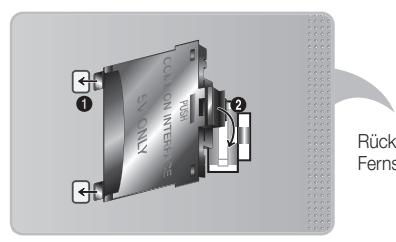
Rückseite des Fernsehgeräts
Entfernen Sie zum Installieren des Cl-Kartenadapters den Aufkleber am Fernsehgerät.

Wir empfehlen, die CI-Karte einzustecken, bevor Sie das Fernsehgerät an der Wand befestigen. Es konnte schwierig sein, sie erst nach der Montage einzustecken. Stecken Sie die Karte ein, nachdem Sie den CI-Kartenadapter am Fernsehgerät befestigt haben. Es ist schwierig, das Modul zu befestigen, wenn Sie die Karte bereits eingesteckt haben.
Verwendend der „Cl“- oder „Cl+“-Karte
Um Bezahlender zu sehen, müssen Sie eine „Cl- oder „Cl+“-Karte einsetzen.
- Wenn Sie keine „Cl“- oder „Cl+“-Karte einsetzen, wird bei einigen Sendern die Meldung „Verschlüsseltes Signal“ angezeigt.
Die Verbindungsinformationen mit Telefonnummer, Kennung der „Cl“- oder „Cl+“-Karte, Hostkennung und anderen Angaben wird nach ungebär 2 bis 3 Minuten angezeigt. Wenn eine Fehlermeldung angezeigt wird, wenden Sie sichitte anihn Dienstanbieter. - Wenn das Konfigurieren der Senderinformationen abgeschlossen ist, wird die Meldung „Udating Completed" (Aktualisierung abgeschlossen) angezeigt. Dies bedeutet, dass die Senderlisteactualisiert ist.

HINWEISE
- Sie können die „Cl“- oder „Cl+“-Karte bei einem der örtlichen Kabelnetzbetreiber erwerben.
- Ziehen Sie die „Cl“- oder „Cl+“-Karte vorsichtig mit den Händen hersa. Sie können beim Herunterfallen ansonsten beschädigt werden.
Die Richtung, in der Sie die ^ - oder ^+ -Karte einsetzen müssen, ist auf der Karte markiert.
Die Position des Steckplatzes COMMON INTERFACE ist modellabhängig. - „Cl“- oder „Cl+“-Karten werden in einigen Ländern und Regionen nicht Unterstützung. Fragen Sie diesbezüglich ihren autorisierten Fachhändler.
Wenden Sie sich bei Problemen an den Dienstanbieter. - Setzen Sie eine „Cl“- oder „Cl+“-Karte ein, die für die aktuellen Antenneneinstellungen geeignet ist. Andernfalls ist das Bild gestört oder es fällt aus.
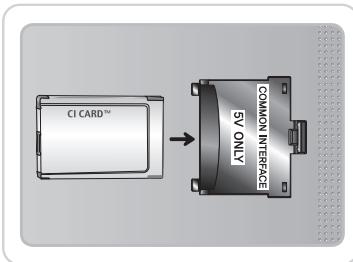
Evolution Kit-Stockplatz (Kit ist separat erhältlich)
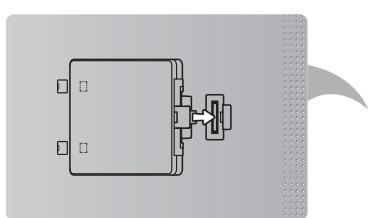
Dieser Steckplatz dient zum Anschlieben eines Erweiterungsgeräts mit dem Namen Evolution Kit. Mit dem Evolution Kit können Sie eine Vielzahl neuster Anwendungen ausführen.
Das Evolution Kit steht nur für bestimmte Geräte zur Verfügung und ist frühestens ab 2013 separat erhältlich.
Netzwerkverbindung
Sie konnen Ihr Fernsehgerät so einrichten, dass es über Ihr lokales Netzwerk (LAN) und eine Kabel- oder WLAN-Verbindung auf die Anwendungen von SMART TV zugreifen kann.
Netzwerkverbindung - Drahtlos
Sie konnen Ihr Fernsehgerät über einen standardmäßigen WLAN-Router oder ein Modem mit Ihrlem LAN verbinden.
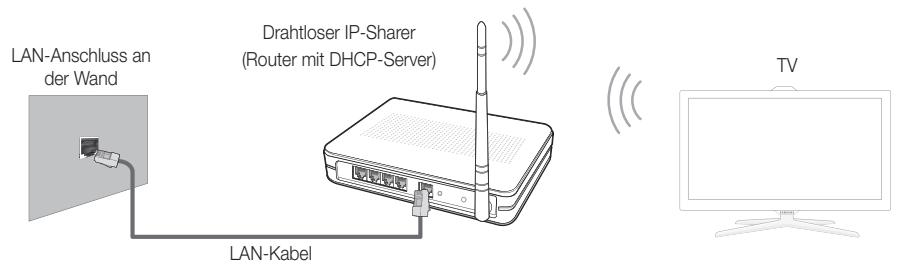
Der Samsung WLAN-Adapter unterstutz die Kommunikationsprotokolle IEE 802.11a/b/g und n. Samsung empfehl, das Protokoll IEEE 802.11 N zu verwenden. Wenn Sie Videos über die IEEE 802.11b/g-Verbindung aneigen, wird das Videobild möglicherweise nicht ohne Unterbrechungen angezeigt.
Die meisten Drahtlosnetzwerke verfügen über ein Sicherheitssystem, bei dem alle Geräte, die über einen Zugangspunkt oder einen drahtlosen Router (in der Regel einen drahtloser IP-Sharer) auf das Netzwerk zugreifen sollen, einen verschlüssenen Sicherheitscode (den so genommen Zugriffsschluss) übertragen müssen.
Wenn Sie im 802.11n-Modus Pure High-throughput (Greenfield) wahlen und als Verschlussungstyp ist für ihren Funkrouter WEP, TKIP oder TKIP AES (WPS2Mixed) eingestellt, so besteht das Samsung-Fernsehgeräne Verbindung gemäß der Spezifikation für die neue Wi-Fi-Zertifizierung nicht.
Netzwerkverbindung - Kabel
Je nach der Konfiguration Ihres Netzwerks können Sie Ihr Fernsehgerät auf zwei Arten über ein Kabel mit ihrem Netzwerk verbinden. Diese sind im Folgenden abgebildet:
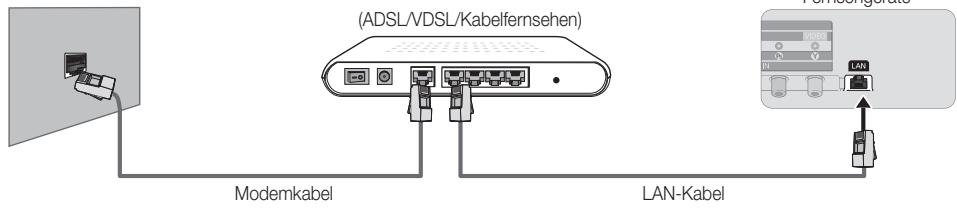
Modemanschluss an der Wand
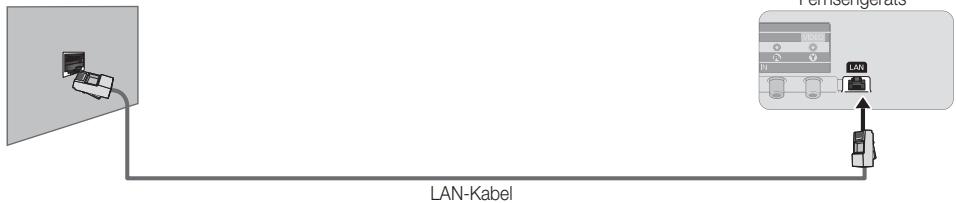
LAN-Anschluss an der Wand
Rückseite des
Fernsehgerats
Eine Netzwerkgeschwindigkeit von weniger als oder gleich 10 Mbit/s wird vom Fernsehergat nicht unterstützt.
Verwenden Sie ein CAT5- oder CAT6-Kabel (STP-Typ) für den Anschluss. (Shielded Twist Pair = Abgeschirmtes Kabel mit verdrillten Leiterpaaren)
Anzeigen des e-ManualManuals
Die Anweisungen zu den Funktionen Ihres Fernsehgeräts finden Sie im e-Manual. Zum Anzeigen des e-Manuals drücken Sie entweder die Taste SUPPORT auf ihrer Standardfernbedienung oder wahlen Sie mit Hilfe der Smart Touch Control die Option Unterstützung.
Sie können auch über das entsprechende Menu darauf zugefristen:
Menu Unterstutzung e-Manual
Zugreifen auf das e-Manual
Gehen Sie folgendermaßen vor, um die Funktion e-Manual zu verwenden:
- Wenn Sie Hilfe benöttigen, wahren Sie mit Hilfe der Fernbedienung die Funktion Unterstützung. Das Fenster Unterstützung wird angezeigt.
- Wahlen Sie mit Hilfe der Fernbedienung e-Manual. Das Fenster e-Manual wird angezeigt.
- Wahlen Sie die gewünschte Kategorie.
- Wahlen Sie das gewünschte Thema. Die gewünschte Seite im e-Manual wird angezeigt.
Die blauen Begriffe im e-Manual entsprechen den Optionen oder Auswahlmöglichkeiten im Bildschirmmenü des Fernsehgeräts.
Die grünen Symbole im e-Manual stehen für eine Taste auf der Fernbedienung.
Mit Pfeilen verbundene Begriffe (z. B. Menu Unterstützung e-Manual) im e-Manual bedeuten, dass eine Abfolge von Schritten erforderlich ist, um eine Option auszuwahlen oder eine Funktion zu aktivieren.
So wechseln Sie zwischen den Themen im e-Manual und den entsprechenden Bildschirmmenus.
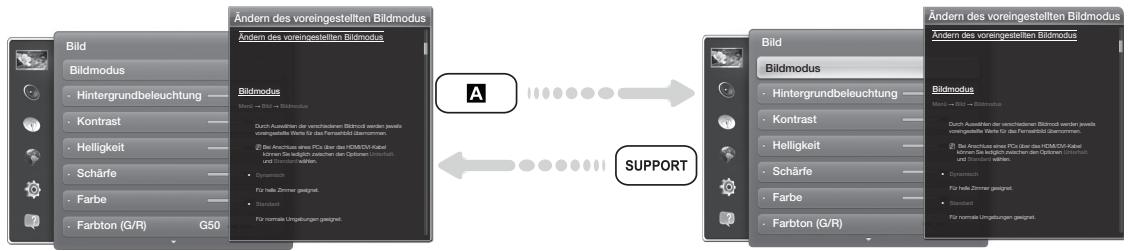
These Funktion ist in manchen Menüs nicht verfügbar.
Wenn das Menu deaktiviert ist, können Sie die Funktion Netanyahu test. nicht verwenden.
- Wahlen Sie mit Hilfe der Fernbedienung die Option A, um zum Theme der entsprechenden Menüoption zu wechseln.
- Wenn Sie zum e-Manual zurückkehren möchten, drücken Sie auf der Fernbedierung die Taste SUPPORT.
Verwenden der Farb- und Funktionstasten in Verbindung mit e-Manual
- Bildlaufleiste: Hiermit blättern Sie im e-Manual nach oben oder unter.
- / : Hiermit wechseln Sie zum vorherigen oder{nachsten Kapitel.
- A Zeit test.: Anzeigen des zum Thema passenden Bildschimmenu. Wenn Sie zum e-Manual zusückkehren möchten, drücken Sie auf der Fermbedienung die Taste SUPPORT.
- 3 Start: Hiermit wechseln Sie zum Startfenster im e-Manual.
- Position: Jedes Mal, wenn Sie mit Hilfe der Fernbedienung die Option auswahlen,ändert sich die Position des e-Manuals.
Index: Hiermit zeigen Sie das Index-Fenster an.
Zurück: Zurück zum vorherigen Fenster.
So suchen Sie auf der Indexeite nach einem Thema
- Wahlen Sie mit Hilfe der Fernbedienung D. Das Index-Fenster wird angezeigt.
- Um nach einem Thema zuuchen, wahren Sie den Anfangsbuchstaben des Themas aus. Auf der Indexseite wird eine Listc mit Themen und Stichwortern angezeigt, die mit dem ausgewählten Buchstaben beginnen.
- Wahlen Sie das gewünschte Thema oder Stichwort aus.
- Die entsprechende Seite im e-Manual wird angezeigt.
Drucken Sie zum Schlieben des Fensters Index die Taste RETURN.
Soändern Sie die Position des e-Manual-Fensters auf dem Bildschirm
Wenn Sie das e-Manual aufgrund geöffneter Bildschirmmenü nicht gut erkennen, können Sie die Position des e-Manual-Fensters auf dem Bildschirm ändern.
- Markieren Sie das e-Manual-Fenster, indem Sie auf der Standardfembedienung die Taste SUPPORT drücken oder mit Hilfe der Smart Touch Control die Option Unterstützung auswahlen.
- Drücken Sie entweder die Taste auf der Standardfernbedienung oder wahlen Sie mit Hilfe der Smart Touch Control die Option C. Jedes Mal, wenn Sie mit Hilfe der Fernbedienung die Option C auswahlen,ändert sich die Position des e-Manual-Fensters.
Anbringen der Wandhalterung
Anbringen der Wandhalterung
Mit der (separate erhältlichen) Wandhalterung konnen Sie das Fernsehgerät an einer Wand befestigen.
Detaillerte Informationen zum Montieren der Wandhalterung finden Sie in den Anweisungen, die im Lieferumfang der Wandhalterung enthalten sind. Lassen Sie sich beim Anbringen der Wandhalterung von einem Techniker halten. Wir raten ihren davon ab, dies selbst zu tun.
Samsung Electronics haftet nicht für Schäden an Gerät oder Personen, wenn die Montage vom Kunden selbst durchgeführt wird.
Vorbereitung zum Anbringen der Wandhalterung
Fall A. Anbringen der SAMSUNG-Wandhalterung
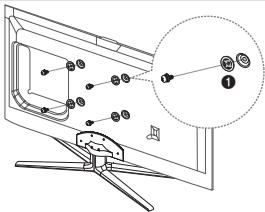
Beim Einbau einer Wandhalterung, verwenden Sie die Halteringe 1.
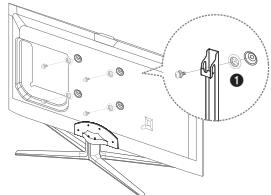
Fall B. Anbringen der Wandhalterung eines anderen Herstellers
Spezifikation (VESA) der Wandhalterung
Die Wandhalterung wird nicht mitgeliefert, ist aber gesondert erhältlich.
Montieren Sie die Wandhalterung an einer festen Wand, die senkrecht zum Boden steht. Bei Installation auf anderen Trägermaterialien wenden Sie sichitte an Ihren Fachhandler. Bei Montage an einer Decke oder schragen Wand kann das Fermseherat herunterfallen und zu Verletzungen führen.

HINWEISE
Die Standardabmessungen der Wandhalterung finden Sie in der nachfolgenden Tabelle.
- Beim Kauf unserer Wandhalterung erhalten Sie eine detailierte Installationsanleitung sowie alle für die Montage erforderlichen Teile.
- Verwenden Sie keine Schrauben, die nicht der VESA-Standardspezifikation für Schrauben entsprechen.
- Verwenden Sie keine Schrauben, die länger sind als in der VESA-Standardspezifikation für Schrauben angegeben. Zu lange Schrauben können Schäden an den inneren Bauteilen des Fernsehgeräts verursachen.
- Bei Wandhalterungen, die nicht der VESA-Standardspezifikation für Schrauben entsprechen, hängt die Länge der Schrauben von der Spezifikation der Wandhalterung ab.
Ziehen Sie die Schrauben nicht zu fest an, weil Sie auf diese Weise das Gerät beschädigten konnten oder weil das Gerät dadurch herunterfallen und damit Verletzungen verursachen könnte. Samsung haftet nicht bei derartigen Unfälle.
Samsung haftet nicht fur Gerateschaden oder Verletzungen, wenn eine Wandhalterung verwendet wird, die nicht dem VESA-Standard entspricht oder nicht spezifiziert ist, oder wenn der Verbraucher die Installationsanleitung für das Produkt nicht befolgt.
Montieren Sie das Fernsehgerät nicht in einem Winkel von mehr als 15 Grad.
- Lassen Sie immer zwei Personen das Fernsehgerät an der Wand montieren.
| Produktfamilie | Zoll | VESA-Spezifikation (A * B) | Standardschraube | Menge |
| LED-Fernseher | 40 | 200 X 200 | M8 | 4 |
| 46 - 60 | 400 X 400 |
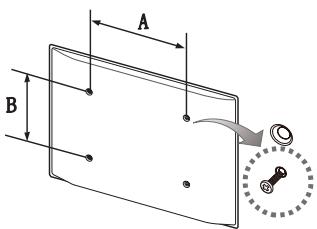

Lösen Sie die Schrauben der Montageöffnungen, ehe Sie die Wandhalterung an der Wand befestigen.

Installieren Sie die Wandhalterung nicht bei eingeschalteten Fernsehgerät. Sie können damit einen Stromschlag erhalten und sich verletzen.
Lagerung und Wartung

Wenn Sie Aufkleber auf dem Bildschirm des Monitors anbringen, bleiben nach dem Entfernen Kleberrückstände zurück. Entfernen Sie diese, bevor Sie fernsehen.
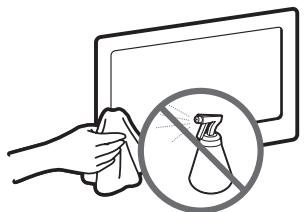
Sprühen Sie kein Wasser direkt auf das Gerät. Jede Flüssigkeit, die in das Gerät eindringt, kann zu einer Funktionstörung, einem Brand oder einem Stromschlag führen.
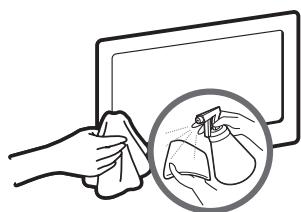
Reinigen Sie das Gerät mit einem weichen Tuch, das Sie vorher mit einer klinen Menge Wasser anfeuchten. Verwenden Sie keine entzündlichen Flüssigkeiten (z. B. Benzol, Verdünner) oder Reinigungsmittel.
Befestigen des Fernsehgeräts an der Wand
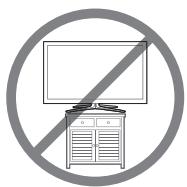
Achtung: Das Fernsehgerät kann hinfallen, wenn Sie daran ziehen, es schieberen oder darauf klettern. Stellen Sie insbesondere sichere, dass sich keine Kinder über das Fernsehgerät hangen oder es in sonstiger Weise destabilisieren. Andernfalls kann das Fernsehgerät umkippen und schwere oder tödliche Verletzungen zur Folge haben. Beachten Sie alle in den Sicherheitschinweisen genannten Anweisungen, die Ihr Frem Fernsehgerät begebung sind. Für zusätzliche Stabilität und Sicherheit konnen Sie wie unter beschreiben die Absturzsicherung erwerben und anbringen.
So verhindern Sie, dass das Fernsehgerät herunterfällt
- Stecken Sie die Schrauben durch die Halterungen, und befestigen Sie sie fest an der Wand. Vergewissem Sie sich, dass die Schrauben gut halten.
Je nach Ausführung der Wand benötigen Sie zum Befestigen weiteres Material, wie z. B. Dübel.
Da die bereitsigen Halterungen, Schrauben und das Band nicht zum Lieferumfang gehoren, müssen Sie diese Teile gesondert erwerben.
- Entfernen Sie die Schrauben in der Mitte auf der Rückseite des Fernsehgeräts. Setzen Sie diese Schrauben in die Halterungen ein, und befestigen Sie die Schrauben dann wieder am Fernsehgerät.
Die Schrauben sind im Lieferumfang des Geräts möglicherweise nicht enthalten. Kaufen Sie in thissem Fall Schrauben entsprechend den folgenden Angaben.
Daten der Schrauben
Beiinem19-27-Zoll-Gerat:M4
Bei einem 32-75-Zoll-Gerät: M8
- Verbinden Sie die Halterungen an der Wand und die Halterung am Fermsehgerät mit einem festen Kabel miteinander, undziehen Sie es dann fest.

HINWEISE
- Stellen Sie das Fernsehgerät in der Nähe der Wand auf, damit es nicht nach halten kippen kann.
- Es ist nochNICHER, wenn die Halterungen an der Wand niedriger als die Halterungen amFernsehgerat sind.
- Lösen Sie das Band, ehe Sie den Fernseher bewegen.
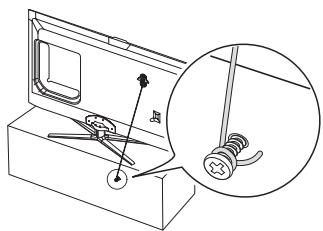
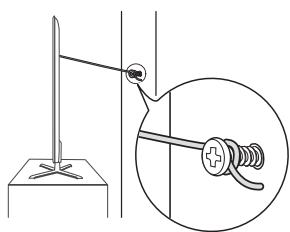
- Kontrolieren Sie, ob alle Anschlusse weiterhin fest verbunden sind. Prufen Sie regelmäß die Verbindungen auf Zeichen von Ermudung oder Versagen. Bei Zweifeln hinsichtlich der Sicherheit ihrer Halterungen wenden Sie sich an einen professionellen Installationsbetrieb.
Fehlerbehebung
Bei Fragen zum Fernsehergerät schauen Sie zuerst in dieser Seite nach. Wenn keiner dieser Tipps zur Fehlerbehebung weiterhilt, wechseln Sie zur Website „www.samsung.com“, und klichen Sie Dort auf „Support“ oder wenden Sie sich an das in der Seite auf der letzten Seite angegebene Callicenter.
| Probleme | Lösungen und Erklärungen |
| Der Fernseher kann nicht eingeschaltitet werden. | · Vergewissem Sie sich, dass das Netzkabel sicher mit der Wandsteckdose und dem Fernseherigkeit verbunden ist. · Vergewissem Sie sich, dass die Netzsteckdose Strom liefert. · Drücken Sie die Taste POWER am Fernseherität, um zu prüfen, ob die Fernbedienung richtig funktioniert. Wenn das Fernseherigkeit eingeschaltitet wird, lesen Sie den Abschnitt „Die Fernbedienung Funktioniert nicht" weiter unter. |
| Kein Bild/Video. | · Überprüfen Sie die Kabelverbindungen. Unterbrechen Sie kurzzeitig alle Kabelverbindungen zwischen dem Fernseherität und den externen Geräten. · Stellen Sie den Videoausgang Ihres externen Geräts (Kabel-/Satellitenreceiver, DVD-/Blu-ray-Player usw.) so ein, dass er zur Verbindung mit dem Fernseherigkeit passst. Zum Beispiel: Wenn der HDMI-Ausgang des externen Geräts verwendet wird, schreiben Sie es an den HDMI-Eingangs Ihres Fernsehers an. · Stellen Sie safer, dass die angeschlossenen Geräte eingeschaltet sind. · Schreiben Sie das Netzkabel an, um das angeschlossene Gerät neu zu starten. |
| Die Fernbedienung fakturiert nicht. | · Ersetzen Sie die Batterien der Fernbedienung, und achtEN Sie darauf auf die richtige Polung (+/-). · Reinigen Sie das Sendefeld der Fernbedienung. · Versuchen Sie, die Fernbedienung aus einer Entfernung von 1,5 bis 1,8 m aus direkt auf das TV-Gerät zu halten. |
| Die Fernbedienung des Kabel-/Satellitenreceivers schaltet das Fernseherität nicht ein/aus und regelt auch nicht die Lautstärke. | · Programmieren Sie die Fernbedienung des Kabel-/Satellitenreceivers so, dass sie das Fernseherigkeit anspricht. Den Code für SAMSUNG TV finden Sie in der Bedienungsanleitung für ihren Kabel-/Satellitenreceiver. |
Manche der obigen Abbildungen und Funktionen gelten nur für bestimmte Modelle.
Sie konnen den optimalen Zustand Ihres Fernsehgeräts erhalten, indem Sie regelmäß die aktuelle Firmware per USB von der Website (samsung.com Support Downloads) herunterlagen.
Anzeigeauflosung
| Modus | Auflösung | Horizontalfrequenz (kHz) | Vertikalfrequency (Hz) | Pixeltakt (MHz) | Synchronisationspolarität (H/V) |
| IBM | 640 x 350 | 31,469 | 70,086 | 25,175 | +/- |
| 720 x 400 | 31,469 | 70,087 | 28,322 | -/+ | |
| MAC | 640 x 480 | 35,000 | 66,667 | 30,240 | -/- |
| 832 x 624 | 49,726 | 74,551 | 57,284 | -/- | |
| 1152 x 870 | 68,681 | 75,062 | 100,000 | -/- | |
| VESA DMT | 640 x 480 | 31,469 | 59,940 | 25,175 | -/- |
| 640 x 480 | 37,861 | 72,809 | 31,500 | -/- | |
| 640 x 480 | 37,500 | 75,000 | 31,500 | -/- | |
| 800 x 600 | 37,879 | 60,317 | 40,000 | +/+ | |
| 800 x 600 | 48,077 | 72,188 | 50,000 | +/+ | |
| 800 x 600 | 46,875 | 75,000 | 49,500 | +/+ | |
| 1024 x 768 | 48,363 | 60,004 | 65,000 | -/- | |
| 1024 x 768 | 56,476 | 70,069 | 75,000 | -/- | |
| 1024 x 768 | 60,023 | 75,029 | 78,750 | +/+ | |
| 1152 x 864 | 67,500 | 75,000 | 108,000 | +/+ | |
| 1280 x 720 | 45,000 | 60,000 | 74,250 | +/+ | |
| 1280 x 800 | 49,702 | 59,810 | 83,500 | -/+ | |
| 1280 x 1024 | 63,981 | 60,020 | 108,000 | +/+ | |
| 1280 x 1024 | 79,976 | 75,025 | 135,000 | +/+ | |
| 1366 x 768 | 47,712 | 59,790 | 85,500 | +/+ | |
| 1440 x 900 | 55,935 | 59,887 | 106,500 | -/+ | |
| 1600 x900RB | 60,000 | 60,000 | 108,000 | +/+ | |
| 1680 x 1050 | 65,290 | 59,954 | 146,250 | -/+ | |
| 1920 x 1080 | 67,500 | 60,000 | 148,500 | +/+ |

HINWEISE
Das Zeilensprungverfahren wird nicht unterstützt.
Das Fernseherat Funktioniert möglicherweise nicht ordnungsgemäß, wenn kein Standard-Videoformat ausgewähl wird.
Technische Daten
| Anzeigeauflösung | 1920 x 1080 | ||
| Umgebung'sbedingungen | |||
| Betriebstemperatur | 10° C bis 40° C | ||
| Luftfeuchtigkeit (bei Betrieb) | 10% bis 80%, nicht kondensierend | ||
| Temperatur (Lagerung) | -20° C bis 45°C | ||
| Luftfeuchtigkeit (Lagerung) | 5% bis 95%, nicht kondensierend | ||
| TV-System | Analog: B/G, D/K, L, I (je nach eingestelltem Land)Digital: DVB-T/DVB-C/DVB-S2 | ||
| Fernsehnorm/Video system | Analog: PAL, SECAM, NTSC-4.43, NTSC-3.58, PAL60Digital: MPEG-2 MP@ML, MPEG-4, H.264/AVC MP@L3, MP@L4.0, HP@L4.0 | ||
| Audiosystem | BG, DK, L, NICAM, MPEG1, DD, DD+, HEAAC. | ||
| HDMI IN | Video: 1080 24p, 1080p, 1080i, 720p, 576p, 480pAudio: 2-Kanal-Linear-PCM 32/44.1/48 kHz, 16/20/24 Bit. | ||
| Drehbarer Fuß (links / rechts) | -20° ~ 20° | ||
| Modellbezeichnung | UE40ES7000 | UE46ES7000 | UE55ES7000 |
| Bildschirmgroße | 40 Zoll | 46 Zoll | 55 Zoll |
| Ton(Ausgang) | 10 W x 2 | ||
| Abmessungen (BxHxT)GehäuseMit Fuß | 914,4 X 545,7 X 29,7 mm914,4 X 611,2 X 241,3 mm | 1046,8 X 620,2 X 29,7 mm1046,8 X 691,2 X 276,7 mm | 1238,4 X 728 X 29,7 mm1238,4 X 790,4 X 276,7 mm |
| GewichtOhne FußMit Fuß | 9,5 kg10,9 kg | 11,9 kg13,8 kg | 16,4 kg18,3 kg |
Smart Touch Control
| Modellbezeichnung | RMCTPE1 | |
| Stromversorgung | Energiequelle | 2 Batterien (Typ AA) |
| Um die Lebendauer der Batterien zu verlangern, empfehlen wir die Verwendung von Alkaline-Batterien. | ||
| Bedienung | Tasten | 14 Tasten |
| Touchpad | Kapazitiver Berührungssensor (45 mm x 55 mm) | |
| Ausgabe (Output) | Anzeige | 3 LED-Geräteanzeigen |
| IR | 1 Infrarot-Sendediode | |
| Funktionen | Touch Control | Absolute Koordinaten |
| Universalfernbedienung | Universalfernbedienung | |
| Sprachsteuerung | Sprachübertragung über Bluetooth | |
| Bluetooth | Bluetooth 2.1 wird unterstützt | |
| Universalfernbedienung | Abdeckung der Datenbank in der Universalfernbedienung | Global |
| Unterstützer Gerätemodus | 3 Modi (TV, STB, BD) | |
| Max. Betriebsabstand | 12 m | |
| Sprachsteuerung | Sprachübertragung | Bluetooth HID-Protekoll |
| Unterstützte Audio-Datenrate | 16 kHz, 16 bit | |
| Empfohler Lautstärkekepegel | -15,5 dB (auf einer Skala bis 0 dB) | |
| Bluetooth | HF | 2,4 GHz, CSM-Band |
| Pairing-Methode | Infrarot gesteuetes Standard-Pairing | |
| Max. Pairing-Abstand | 4 m (Sichtlinie bei Ausrichtung auf den IR-Empfänger des Fernsehergebnis) | |
| Max. Betriebsabstand | 10 m (Sichtlinie) | |
| Einstellungen | Pairing mit dem Fernsehergät | Ja |
| Programmierung der Universalfernbedienung | TV-Widget erforderlich | |
| Betrieb | Betriebstemperatur | 10°C bis 40°C |
| Betriebsabstand | IR: normal 10 m, max. 12 m / BT: 10 m | |
| Betriebsdauer | 3 Monate (200 Tastendrücker/Tag) | |
| Kompatibilität | LED-Fernseher | Alle LED-Fernsehergeäte ab Serie E7000 |
| Plasmafernsehergeäte | Serie E8000 | |
| MaBe | Gerät (mm) | 154 x 52 x19,5 |
| Gewicht | Gerät (ohne Batterien) (g) | 119 |
| Gerät (mit Batterien) (g) | 165 | |
| Zubehör | 2 Batterien (Typ AA) | |
IR-Blaster
| Modellbezeichnung | VG-IRB2000 | |
| Stromversorgung | Energiequelle | 4 Batterien (Typ AA) |
| Um die Lebendauer der Batterien zu verlangern, empfehlen wir die Verwendung von Alkaline-Batterien. | ||
| Bedienung | Tasten | 2 Tasten (Pairing, Ein/Aus-Taste) |
| Ausgabe (Output) | Anzeige | 1 LED-Anzeige |
| IR | 5 Infrarot-Sendediode | |
| Funktionen | Universalfernbedienung | Universalfernbedienung |
| Bluetooth | Bluetooth 2.1 wird unterstützt | |
| Universalfernbedienung | Abdeckung der Datenbank in der Universalfernbedienung | Global |
| Unterstützer Gerätemodus | 3 Modi (TV, STB, BD) | |
| Max. Betriebsabstand | 8 m | |
| Bluetooth | HF | 2,4 GHz, CSM-Band |
| Pairing-Methode | Infrarot gesteuertes Standard-Pairing | |
| Max. Pairing-Abstand | 4 m (Sichtlinie bei Ausrichtung auf den IR-Empfänger des Fernsehgeräts) | |
| Max. Betriebsabstand | 10 m (Sichtlinie) | |
| Einstellungen | Pairing mit dem Fernseherität | Ja |
| Programmierung der Universalfernbedienung | TV-Widget erforderlich | |
| Betrieb | Betriebstemperatur | 0 °C bis 40 °C |
| Betriebsabstand | IR: normal 10 m, max. 12 m / BT: 10 m | |
| Betriebswinkel | 360° | |
| Betriebsdauer | 3 Monate (200 Tastendrücke/Tag) | |
| Kompatibilität | LED-Fernseher | Alle LED-Fernsehergeäte ab Serie E7000 |
| Plasmafernsherträte | Serie E8000 | |
| Maße | Gerät (mm) | 95×79×65 |
| (B x T x H) | Verpackung (mm) | 88×71×102 |
| Gewicht | Gerät (ohne Batterien) (g) | 86,5 |
| Gerät (mit Batterien) (g) | 178,5 | |
| Verpackung (g) | 30,6 | |
| Zubehör | 4 Batterien (Typ AA) | |
Änderungen der technischen Daten und des Gerätedesigns vorbehalten.
Die technischen Daten zur benöttigen Netzspannung und zum Energieverbrauch finden Sie auf dem Etikett am Produkt.
Der typische Stromverbrauch wird gemäß IEC 62087 Ed.2 gemessen.
Empfehlung - Nur EU
C E ①
- Hiermit erklart Samsung Electronics, dass ces LED-Fernsehgerät mit allen wesentlichen Anforderungen und sonstigen relevanten Bestimmungen der Richtlinie 1999/5/EG konform ist.
Die officielle Konformitätserklung finden Sie unter http://www.samsung.com. Wechseln Sie zu Support > Produktische, und geben Sie den Modellnamen ein. - Dieses Gerät ist ausschließlich für die Verwendung in geschlossenen Räumen geeignet.
- Dieses Gerät kann in allen Ländern in der EU verwendet werden.
Lizenz
DOLBY
DIGITAL PLUS
PULSE

dtts
Premium Audio
DIVX
HD
Hami

guide

MHL