
DRX 2002 - Autoradio SCOTT - Notice d'utilisation et mode d'emploi gratuit
Retrouvez gratuitement la notice de l'appareil DRX 2002 SCOTT au format PDF.

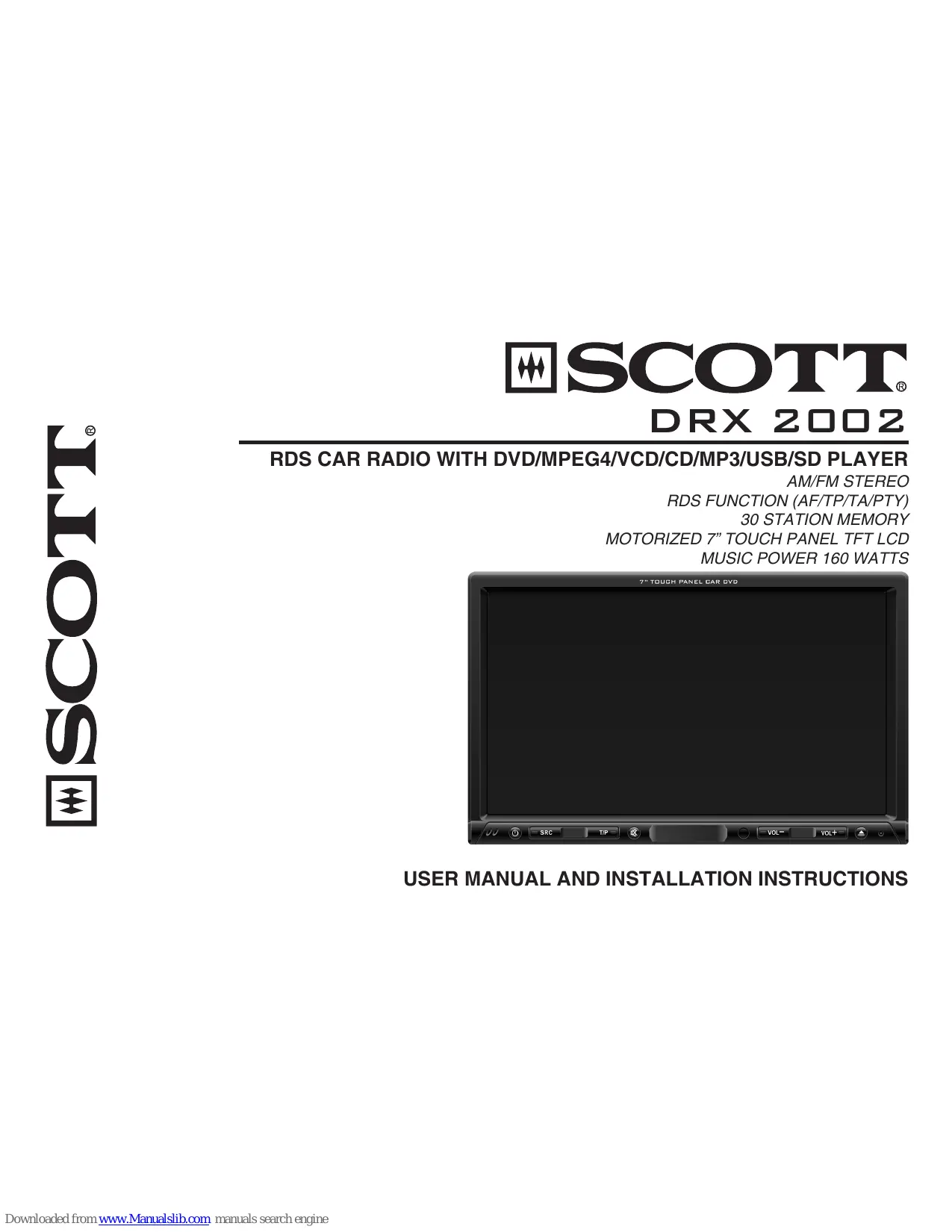

| Type de produit | Autoradio avec lecteur DVD/MPEG4/VCD/CD/MP3/USB/SD/MMC, tuner AM/FM RDS, écran tactile motorisé 7" |
| Dimensions (L x H x P) | 178 x 100 x 164 mm |
| Poids | 3 kg |
| Alimentation | 12 V CC (11-16 V admissible) |
| Puissance de sortie | 40 W x 4 (max) / 25 W x 4 (RMS) |
| Impédance des haut-parleurs | 4 à 8 Ω |
| Tension de sortie préampli | 4,0 V (1 kHz, 0 dB, charge 10 kΩ) |
| Fusible | 15 A |
| Écran | TFT LCD 7" (diagonale), 16:9, résolution 480 x 234, angle de vue 130°H / 105°V, contraste 300:1, luminosité 350 cd/m² |
| Radio FM | Fréquence 87,5-108 MHz, sensibilité 8 dBμ, séparation stéréo 30 dB (1 kHz), rapport signal/bruit 55 dB |
| Radio MW | Fréquence 522-1620 kHz, sensibilité 30 dBμ |
| Formats de disque pris en charge | DVD, DVD±R/RW, CD-DA, CD-R/RW, MP3, JPEG, SVCD, VCD 2.0, MPEG4, Xvid |
| Port USB | USB 1.1 (compatible 2.0), capacité max. 2 Go (FAT/FAT32) |
| Slot SD/MMC | Capacité max. 2 Go |
| Mémoire radio | 30 stations (FM1/FM2/FM3/MW1/MW2) |
| Fonctions RDS | AF (fréquences alternatives), TP/TA (annonces trafic), PTY (type de programme), CT (horloge), REG (région) |
| Entrée auxiliaire | AUX (AV IN) avec audio et vidéo |
| Caméra de recul | Fonction compatible (activation par fil et entrée vidéo) |
| Égaliseur | Rock, Pop, Classique, Plat, Arrêt |
| Réglages audio | Basse, aiguë, balance, fader, loudness |
| Réglages vidéo | Luminosité, contraste, couleur, teinte, netteté |
| Accessoires fournis | Câblage ISO, cadre de montage, boulons, vis, télécommande, manuel |
| Sécurité | Arrêt vidéo en roulant (nécessite frein à main enclenché pour lecture DVD) |
FOIRE AUX QUESTIONS - DRX 2002 SCOTT
Questions des utilisateurs sur DRX 2002 SCOTT
0 question sur cet appareil. Repondez a celles que vous connaissez ou posez la votre.
Poser une nouvelle question sur cet appareil
Téléchargez la notice de votre Autoradio au format PDF gratuitement ! Retrouvez votre notice DRX 2002 - SCOTT et reprennez votre appareil électronique en main. Sur cette page sont publiés tous les documents nécessaires à l'utilisation de votre appareil DRX 2002 de la marque SCOTT.
MODE D'EMPLOI DRX 2002 SCOTT
SCOTT
DRX 2002
RDS CAR RADIO WITH DVD/MPEG4/VCD/CD/MP3/USB/SD PLAYER
AM/FM STEREO
RDS FUNCTION (AF/TP/TA/PTY)
30 STATION MEMORY
MOTORIZED 7" TOUCH PANEL TFT LCD
MUSIC POWER 160 WATTS
USER MANUAL AND INSTALLATION INSTRUCTIONS
CONTENTS
ACCESSIONS 1
SAFETY PRECAUTIONS 2
INSTALLATION 3-5
MAINTENANCE 6
PANEL CONTROL 7
REMOTE CONTROL 8
BASIC OPERATION 9
TUNER 10
DVD/VCD PLAYBACK 11
CD PLAYBACK 12
MP3/MPEG4 FILES/JPEG FILES ON A DISC/USB
DEVICE OR SD/MMC CARD. 12-13
ADVANCED PLAYBACK FUNCTIONS 14
AUX IN FUNCTION. 14
SYSTEM SETUP 15-16
DVD SETUP 17-19
INFORMATION ON DISC COMPATIBILITY 20
TROUBLESHOOTING GUIDE 21
TECHNICAL SPECIFICATIONS 22
ACCESSORIES
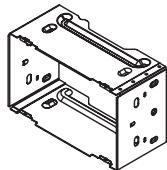
Mounting sleeve (already mounted on the unit)
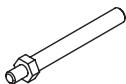
Mounting bolt
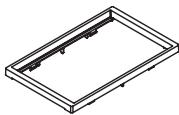
Outer trim frame

ISO wire connector
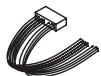

Bolt rubber
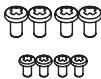
Screws: M5x6(4x)
M2,6x5 (4x)
(already mounted
on the unit)
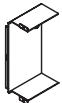
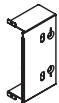
Brackets (2x) (already mounted on the unit)
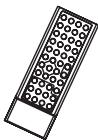
Remote control
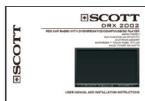
User manual
SAFETY PRECAUTIONS
- Be sure to connect the color-coded leads according to the diagram. Incorrect connections may cause the unit to malfunction or damage the vehicle's electrical system.
- Be sure to observe the correct polarity when connecting the speaker leads to the speaker terminals. Never connect the left and right speaker cables to each other or to a metal part of the vehicle.
- Make sure all the connections are correct before turning on your unit.
- When replacing the fuse(s), the replacement must be of the same amperage indicated in the technical specifications.
- Do not block ventilation openings. Blocking them will cause heat to build up inside the unit and may result in fire.
- Do not use the unit for too long after the car has stopped in order to prevent the car battery from going flat.
- Do not expose the unit to very high temperatures.
- Do not use the unit in extreme temperatures, and avoid exposure to humidity and direct sunlight. Ensure that the temperature inside the vehicle is between -10°C and +60°C .
- In order to avoid interference, stay away from the unit when using a mobile phone.
- Do not expose the remote control to high temperatures or direct sunlight as this may cause it to malfunction.
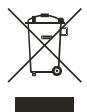
If at any time in the future you should need to dispose of this product please note that waste electrical products should not be disposed of with household waste. Please recycle where facilities exist. Check with your Local Authority or retailer for recycling advice (Waste Electrical and Electronic Equipment Directive).
INSTALLATION
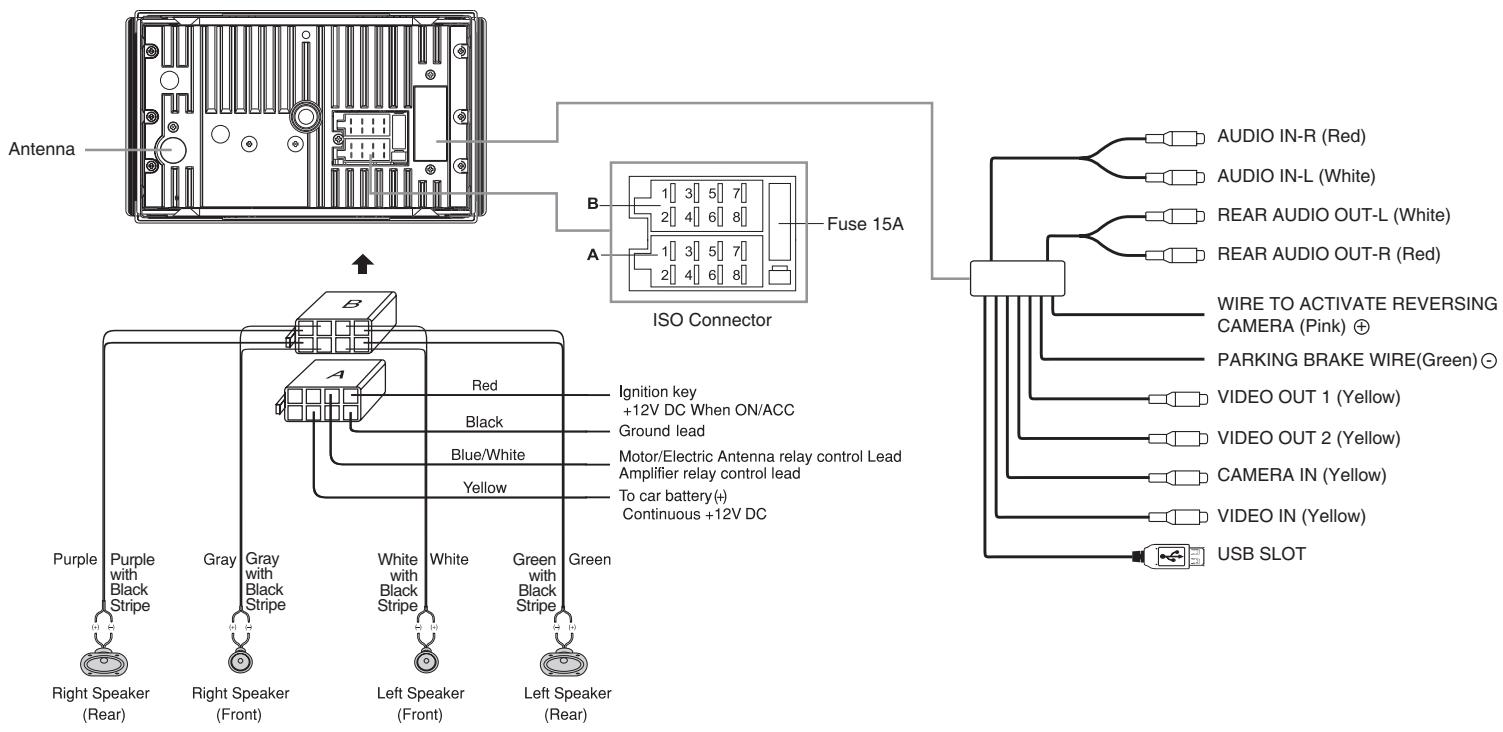
Wiring Diagram
INSTALLATION
Connections
Many vehicles are already fitted with ISO connectors behind the dashboard, including all the electrical cabling for installing a car radio. In such cases, the connections fitted to the vehicle can be directly plugged into the car radio connectors. If your car is not already fitted with these connectors, we strongly advise you to obtain an ISO connector from a specialist shop or from your car dealership. Once you have obtained the connector, you will only need to connect your loudspeakers and the power supply to the ISO cable following the connection instructions below.
| Location | Function | |
| Connector A | Connector B | |
| 1 | Rear Right (+) - Purple | |
| 2 | Rear Right (-) - Purple with Black Stripe | |
| 3 | Front Right (+) - Gray | |
| 4 | Battery 12V(+)yellow | Front Right (-) - Gray with Black Stripe |
| 5 | Antenna/Amp control/blue | Front Left(+) - White |
| 6 | Front Left(-) - White with Black Stripe | |
| 7 | ACC+/red | Rear Left (+) - Green |
| 8 | Ground/black | Rear Left (-) - Green with Black Stripe |
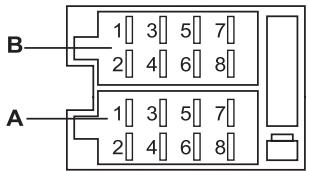
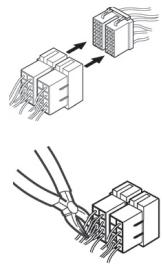
Note: Incorrect wiring or operation will void the warranty of this unit. The manufacturer cannot be held responsible for any malfunctions if the connections are not made properly.
INSTALLATION
Installation procedure
- If relevant, remove any other audio system from the car.
- After unscrewing the four car radio attachment screws, insert the mounting sleeve into the dashboard. Fix it firmly in place by folding down the metal tabs.
-
If this has not already been done, attach the brackets (2x) to the car radio. In order to do this, use the supplied flat head screws (M5x6mm).
-
Perform the required electrical connections:
-
If necessary, connect the hand brake wire to your hand brake contact in order to activate the video display when playing a DVD (when the car is parked).
- Connect the wire that activates the reversing camera to the reversing sensor or to a reversing light. If necessary, connect your reversing camera to the car radio's reversing camera input using a video cable (not supplied).
-
Ensure that you now place the USB cable located at the back of the unit in such a way that it comes out of the dashboard or the glove box.
-
Then check that everything works before installing the main unit in the mounting sleeve.
Note: if necessary, use the mounting screws and bolt rubber to complete installation of the unit. - Install the car radio in the dashboard using the supplied flat head screws (M2, 6x5mm).
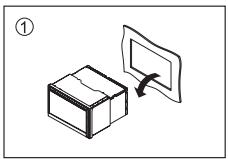
- Turn on the unit and slide down the panel, then attach the outer trim frame.
If you are not sure how to install this unit correctly, contact a qualified technician.
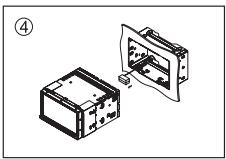
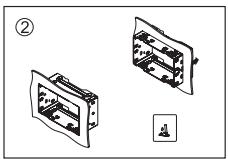
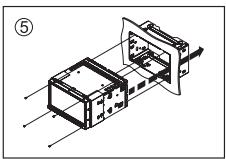
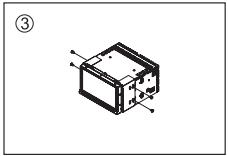
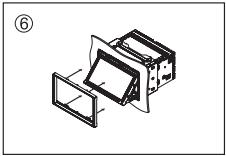
MAINTENANCE
Replacing fuses
Make sure the amperage matches the specified value when replacing the fuses. If the fuse is blown, check the power connection and replace with a new one. If the same problem occurs, there must be a malfunction. In such cases, please consult your retailer.
Warning:
Never use a fuse with a rated amperage over the one specified, otherwise you risk damaging the unit.
Replacing the battery
When the operation range of the remote control becomes shorter or if it no longer works, replace the lithium battery with a new button cell (CR2025). Make sure the battery polarities match.
- Open the battery compartment in the remote control unit.
- Insert a CR2025 button-type battery with the plus sign (+) facing upward. Close the battery compartment.
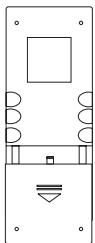
Pull out
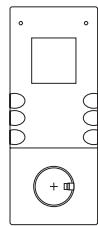
Replace the battery
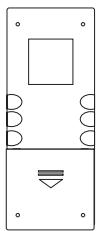
Push up
Warning:
Improper handling of the battery may lead to explosion. Do not charge the battery, disassemble it or throw it into a fire.
Precautions when using lithium batteries
Always keep the lithium battery out of the reach of children. If a battery is swallowed, see a doctor immediately. In order to ensure optimum performance clean the battery with a dry cloth.
Make sure that the polarities are correct when loading the battery. To prevent short circuits, do not use a metal object to insert the battery.
PANEL CONTROL
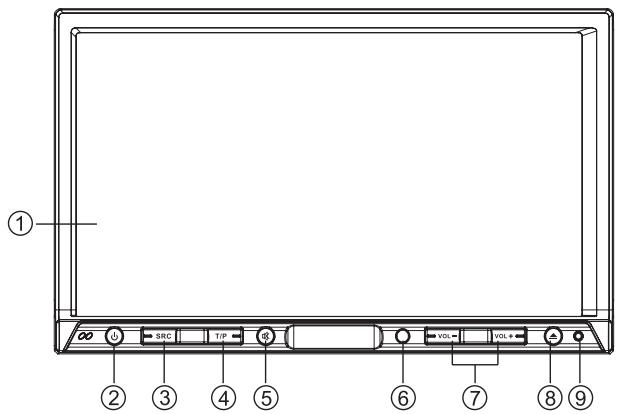
Front Panel
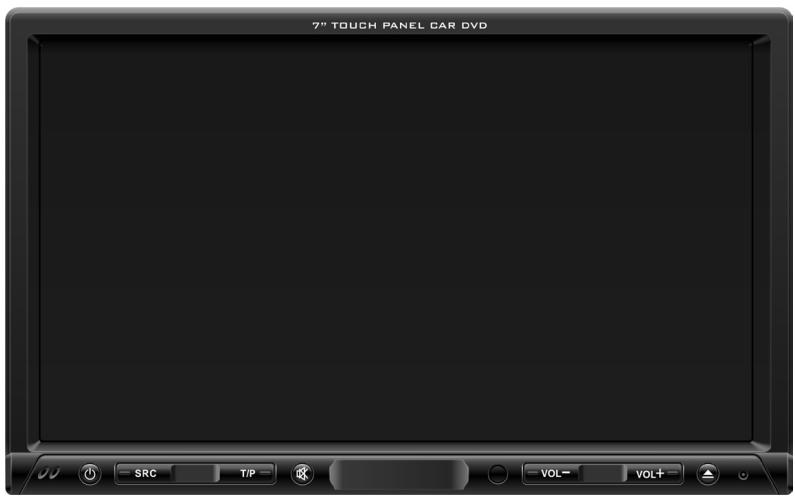
- Touch panel TFT LCD display
- (1) button: Turn the unit on/off
-
SRC (SOURCE) button: Select the following sources:
-
Radio ("BAND")
- "DISC" (when a disc is inserted)
- "USB" (when a USB device is connected)
-
SD/MMC card ("SD") (when an SD/MMC card is inserted)
-Aux in ("AUX") -
T/P (TA/PTY) button - Press briefly to turn the RDS TA (traffic announcement) on/off. Press for more than 2 seconds to enter RDS PTY mode (select a program type).
- MUTE (M) button - Press briefly to turn off the sound. Press for more than 2 seconds to switch off the LCD display.
- Remote control sensor: Receive the infrared signal from the remote control.
- VOL +/- button: Adjust the volume level.
- button: - Press briefly to open/close the panel - Press for more than 2 seconds to enter the panel menu.
Open the panel
> Eject the disc.
Close the panel
Adjust the panel angle ("TILT+/-")
- Reset button: Use a pointed object such as a pen to press this button in order to reset the unit.
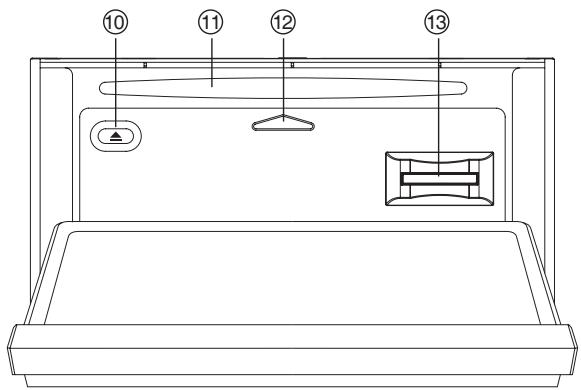
Front view of car radio after sliding down the front panel
10.▲ button:Eject disc.
11. Disc slot: Insert disc.
12. Panel status indicator: This indicator will light up when you slide the panel down.
13. SD/MMC card slot.
REMOTE CONTROL
-
SRC (SOURCE): Select one of the following sources:
-
Radio ("Band")
- "DISC" (when a disc is inserted)
- "USB" (when a USB device is connected)
-
SD/MMC card ("SD") (when an SD/MMC card is inserted).
-AUX (AV IN). -
: Eject\ disc .
- MENU (in DVD mode): Display the root menu.
PBC (in VCD mode): Playback control on/off. - TITLE (in DVD mode): Display the title menu.
- GOTO: Search.
- BAND: FM1->FM2->FM3->MW1->MW2. P/N: TV color system PAL/NTSC/AUTO.
-
SEL: Enter the select menu to adjust the sound effects and picture quality.
-
DVD SETUP
- TILT 公 : Close the panel.
- TILT Open the panel.
11.ZOOM (DVD/VCD mode): Increase/reduce the picture size. - OK: Confirm selection.
- / / direction buttons.
- ■ : Stop playback/Return to list of files (in MPEG4 mode).
15.0-9, 10+ (number keys).
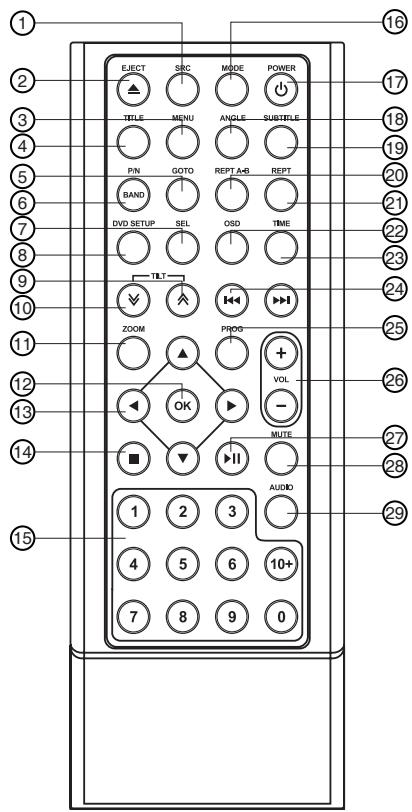
- MODE: Enter source selection menu.
- : Turn the unit on/off.
18.ANGLE (DVD mode). - SUBTITLE: select a subtitle language (DVD mode).
- REPT A-B: A-B repeat playback.
- REPT: Repeat playback.
- OSD: On Screen Display.
- TIME: Time display.
24.11/1: In radio mode: Tuning.
In DVD mode: Press briefly to change chapter or track, press and hold down to search forward/backward.
25.PROG:Programmed playback. - VOL +/-: Adjust the volume.
27.▶: Play/Pause playback.
28.MUTE: - Press briefly to turn off the sound -Press for more than 2 seconds to switch off the LCD display
29.AUDIO:
DVD mode: Select audio language
VCD mode: Select audio channel (MONO L/MONO R/STEREO).
BASIC OPERATION
Source Select
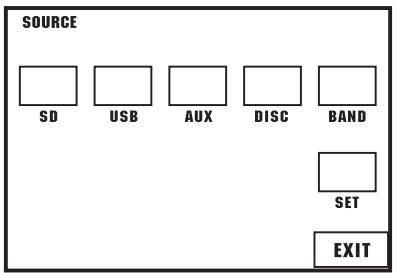
Press the button to turn on the unit. Then press the MODE button on the remote control to enter the source menu.
On the source menu:
Touch the corresponding icon to access the desired source.
Touch the "EXIT" button to return to the previous menu.
On the unit panel:
Press the SRC button to select the desired source.
Panel Control
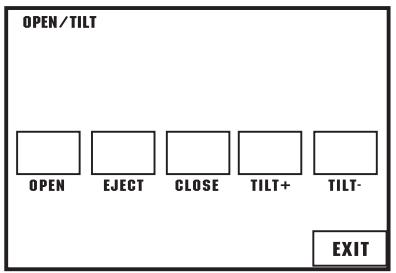
Hold down the button on the panel to display the [OPEN/TILT] menu.
Touch the panel to carry out the desired operations.
Loading a disc or an SD/MMC card
To open the panel first, press the button on the panel. Insert a disc with label side facing up or an SD/MMC card into the corresponding slot. When a disc is inserted, the panel will close automatically.
Note: You can control the panel using the touch panel control, refer to previous section: "Panel Control".
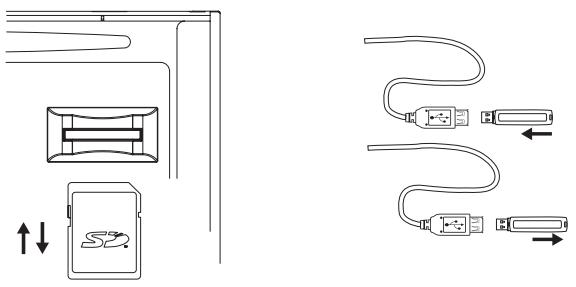
Inserting a USB device
Connect your USB device to the USB cable which you placed in the dashboard or glove box during installation of the car radio.
Notes:
- When connecting a USB device or inserting an SD/MMC card, the unit will read the files automatically.
- If more than one source is available, refer to the previous section – "Source Select" to select the source of your choice.
- To eject the disc, open the panel and press the button.
- To remove the card or USB device, you should first select another source, in order to avoid damaging the card or USB device.
TUNER
RADIO
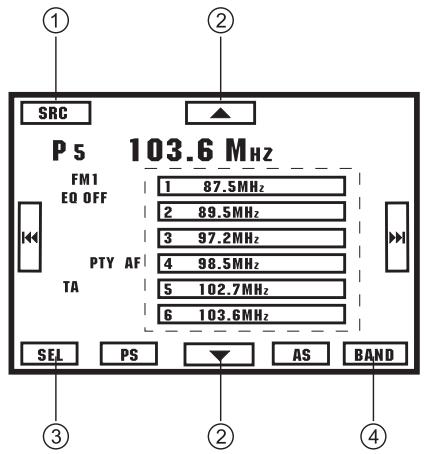
On the source menu, touch the "BAND" button to enter radio mode.

Touch the icon to access the following functions:
- SRC: Display the source selection menu.
- / : Tune manually.
- | | | | Touch briefly to tune a station automatically. Touch for more than 2 seconds and hold to tune manu
- 1-6,..MHz: Select a preset station.
- SEL: Display the select menu to adjust the sound effects and picture quality.
- PS: Scan preset stations.
- AS: Auto search and store stations.
- BAND: FM1->FM2->FM3->MW1->MW2
RDS
Buttons on the car radio:
Press the T/P button briefly to turn AF (alternative frequencies) on/off. Hold the T/P button more than 2 seconds to turn the PTY function (selection of program type) on/off.
In the PTY menu:
Touch the icon to access the following functions:
1. SRC: Display the source selection menu.
2. / : Move up/down within the program type list.
3. SEL: Display the select menu to adjust the sound effects and picture quality
4. BAND: FM1->FM2->FM3->MW1->MW2
DVD/VCD PLAYBACK
DVD Playback
In the source menu, touch the "DISC" button to enter the DISC mode when a DVD disc is inserted.
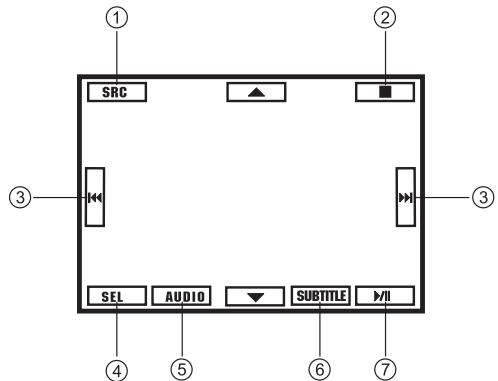
Touch the icon to access the following functions:
- SRC: Display the source selection menu.
- ■: Stop playback.
- 丨 & 丨 \ & 丨 : Press briefly to skip to the previous/next chapter. Press and hold down to search forward/backward.
- SEL: Display the select menu to adjust the sound effects and picture quality.
- AUDIO: Select audio language (if more than one language is available on the DVD).
- SUBTITLE: Select a subtitle language (if more than one language is available on the DVD).
7.▶:Play/Pause playback,Enter.
Press the REPT button on the remote control to choose a repeat play mode: "REP CHAPTER", "REP TITLE", "REP OFF".
For playback operations, touch the center of the screen to display the control icons.
VCD Playback
In the source menu, touch the "DISC" button to enter the disc mode when a VCD is inserted.
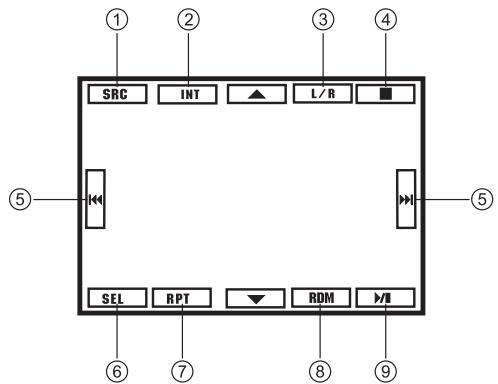
- SRC: Display the source selection menu.
- INT: Play the first 15 seconds of each track.
- L/R: Select the audio channel: MONO L/ MONO R/ STEREO
- ■: Stop playback.
- / : Press briefly to skip to the previous/next track. Press and hold down to search forward/backward.
- SEL: Display the select menu to adjust the sound effects and picture quality.
- RPT: Repeat play: "REP ONE", "REP ALL", "REP OFF".
- RDM: Random play.
9.▶:Play/Pause playback
CD PLAYBACK
CDPlayback
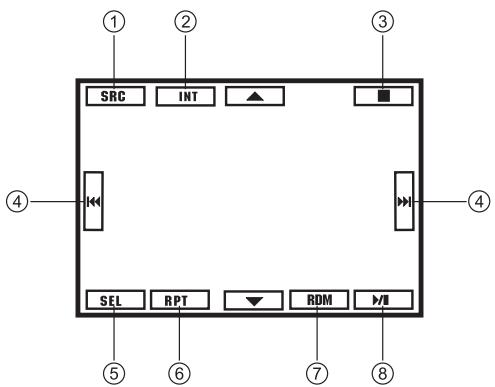
In the source menu, touch the "DISC" button to enter the disc mode when a CD is inserted.
- SRC: Display the source selection menu.
- INT (intro): Play the first 15 seconds of each track.
- ■: Stop playback.
- 1 / 1 / 1 :Skip/Seekprevious/nexttrack.
- SEL: Display the select menu to adjust the sound effects and picture quality.
- RPT: Repeat play - REP ONE, REP ALL, REP OFF.
- RDM: Random play.
8.▶:Play/Pause playback
MP3/MPEG4/JPEG FILES ON A DISC, USB DEVICE OR SD/MMC CARD
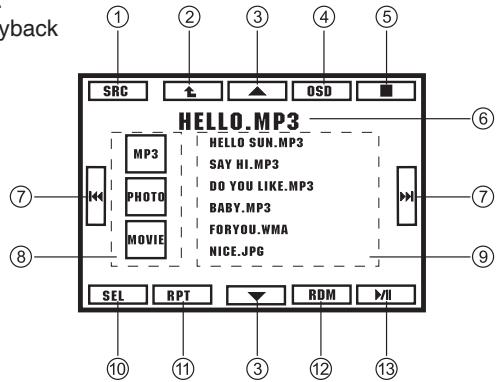
MP3/MPEG4/JPEG Menu
This menu is displayed in "DISC", "SD" and "USB" mode when the source contains MP3/MPEG4/JPEG files.
- SRC: Display the source selection menu.
- Back to previous file directory.
- / : Search up/ down the file list.
- OSD: Display playback information.
- ■: Stop playback.
- Track name and ID3 display.
- / : Press briefly to skip to previous/next file.
Press and hold down to search forward/backward (for MP3/MPEG4 files only).
- "MP3"/"PHOTO"/"MOVIE": Select the file type.
- File list.
- SEL: Display the select menu to adjust the sound effects and picture quality.
- RPT: Repeat play: REP ONE, REP DIR, REP ALL, REP OFF.
- RDM: Random play.
13.▶:Play/Pause playback
MP3/MPEG4/JPEG FILES ON A DISC, USB DEVICE OR SD/MMC CARD
MPEG4 playback
During MPEG4 file playback, touch the center of the screen to display the control icons.
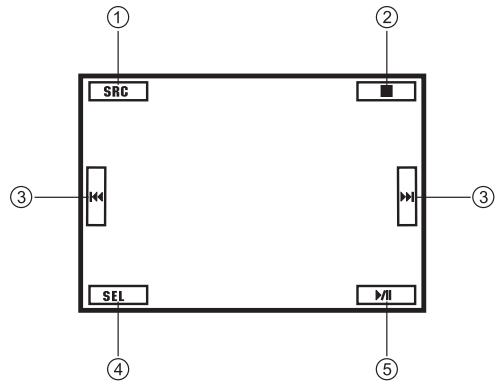
- SRC: Display the source selection menu.
- ■: Stop playback.
- 1 1 / 1 1 : Press briefly to skip to the previous/next file. Press and hold down to search forward/backward.
- SEL: Display the select menu to adjust the sound effects and picture quality.
5.▶:Play/Pause playback.
PHOTO playback (JPEG files)
During JPEG file playback, touch the center of the screen to display the control icons.
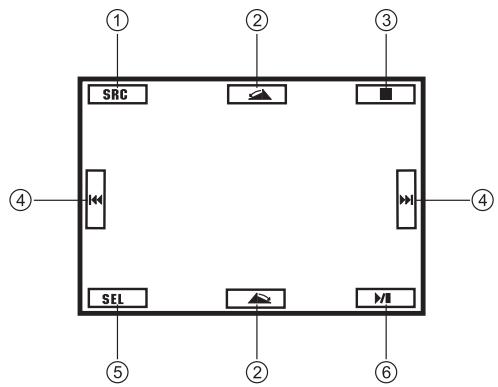
- SRC: Display the source selection menu.
- / : Rotate the picture clockwise/counterclockwise.
- : Stop playback.
- / : Skip to the previous/ next file.
- SEL: Display the select menu to adjust the sound effects and picture quality.
6.▶:Play/Pause playback.
ADVANCED PLAYBACK FUNCTIONS
GOTO
You can use the search feature to select a title/chapter/track number or go to a specific point in a title, chapter or track. First, press the GOTO button on the remote control to display the search menu. Secondly, press the arrow buttons / to highlight the title/chapter/ track (for CD/VCD) number or the time option. Thirdly, use the number buttons to enter the title/chapter/track you want to play or the elapsed time you want to go to in that title, chapter or track. Finally, press the OK button to start playback.
Repeat a specific segment
- During normal playback, press the REPT A-B button once and "REPEAT A-" will appear on the screen. This indicates that the segment to be repeated will start at this point.
- Press REPT A-B again and "REPEAT A-B" will be displayed on the screen. This indicates that the segment to be repeated will end at this point.
- The unit will play from set point A to set point B until you turn off the repeat function.
- Press REPT A-B again to cancel the repeat function.
PROGRAM
Press the PROG button to display the program menu. Move the cursor to select the title/chapter number (DVD) or track number (for CD/VCD). If you want to clear all entries, move the cursor to "CLEAR" and press the OK button. To start the programmed playback, move the cursor to "PLAY" and press OK. During this process, press or press PROG to cancel the programmed playback.
AUX (AV IN) FUNCTION
- Connect an external A/V device to the AUDIO IN-R, AUDIO IN-L and VIDEO IN jacks (connected from extension cables) on the unit.
- In the source menu, touch the "AUX" button to enter the AUX (AV IN) mode.
Note: You can also use the SRC button on the remote control to select the source.
- Operate the external A/V device to select and play a file.
- Adjust the volume controls on both the external A/V device and this unit to the desired volume level.
SYSTEM SETUP
SELECT Menu
SEL: Display the select menu to adjust the sound effects and picture quality.
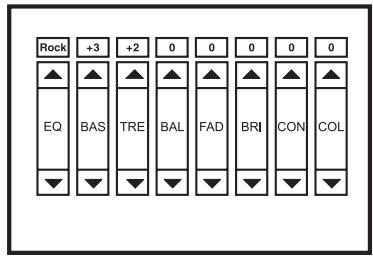
Sound effects
EQ: "Rock", "Pop", "Classic", "Flat", "OFF"
BAS:Bass
TRE: Treble
BAL: Balance.
FAD:Fader.
Picture quality
BRI: Brightness
CON: Contrast.
COL:Color.
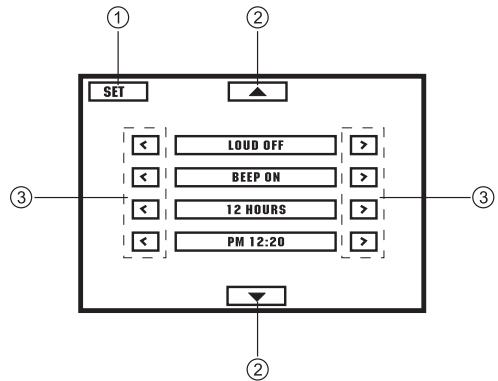
SETUP Menu
In the source menu, touch the "SET" button to enter the setup menu.
- SRC: Display the source menu.
- / : Search up/ down the list .
- / : Adjust the settings.
LOUD ON/OFF: Turn loudness on/off.
BEEP ON/OFF: Turn button beep sound on/off.
12/24 HOURS: Select 12 -hour or 24-hour display.
① /AM/PM: Touch the < button to set the hours and touch the > button to set the minutes.
PARKING ON/OFF: Turn parking warning on/off.
When this function is switched on, the screen will show "DO NOT WATCH VIDEO WHILE DRIVING", during playback of a video if the hand brake is not activated. The screen will be blank.
SYSTEM SETUP
CAMERA ON/OFF: Turn reversing camera on/off.
MIRROR ON/OFF: Turn mirror mode on/off. If this mode is on, the camera image is a mirror image.
LCD CALIBRATE: Calibrate the touch screen.
TA SEEK/ALARM: Choose TA ALARM or TA SEEK mode.
(TA: traffic announcements)
TA ALARM mode: A beep sound warns you when a traffic announcement is being broadcast.
TA SEEK mode: The car radio automatically searches for traffic announcements.
RETUNE-L/S: (long/short retune) Select "RETUNE-S" or "RETUNE-L".
"RETUNE-S" (Short retune): The car radio waits 45 seconds between two searches for traffic announcements.
"RETUNE-L" (Long retune): The car radio waits 180 seconds between two searches for traffic announcements.
Note: the setting for this function is only useful in "TA SEEK" mode.
AF ON/OFF: Turn the Alternative Frequency function on/off.
When reception is poor and the AF mode is activated, an RDS station broadcasting the same program is tuned in automatically.
TA VOL: Adjust TA volume.
VOL LAST/ADJUST: Select "VOL LAST" so that the volume level when the unit switches on is the same volume level before it was last switched off. Select "VOL ADJUST" so that the unit always switches on at a predefined volume level using the "A VOL" function.
A VOL: Adjust the volume level when VOL ADJUST mode is active.
REG ON/OFF (region on/off): Turn RDS REG mode on/off.
Only regional versions of stations are received when the regional mode is on.
RDS CT ON/OFF: Turn RDS CT mode on/off.
When receiving an RDS station, the CT (Clock Time) service automatically adjusts the time when "RDS CT ON" is selected.
Safety Notes:
The DVD video display of the unit will not operate while the vehicle is moving. This is a safety feature to prevent driver distraction. DVD video functions will only operate when the vehicle is stopped and the parking brake is engaged. It is illegal in most countries for the driver to view videos while the vehicle is in motion.
DVD SETUP menu
In DVD mode, press the DVD SETUP button on the remote control to display the setup menu on the screen. (A disc must be inserted in the unit).
Use the / buttons to select one of the following setup items:
"SYSTEM" - "LANGUAGE" - "AUDIO" - "VIDEO" - "DIGITAL".
Use the / / / buttons to select the setting and press the OK button to confirm.
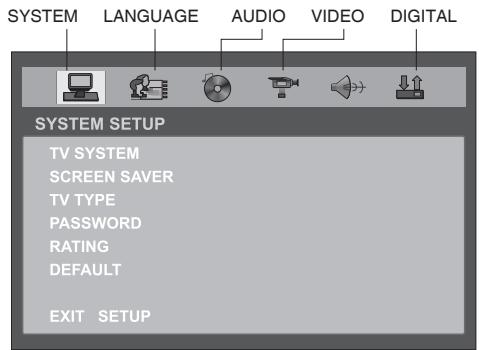
DVD SETUP
SYSTEM SETUP
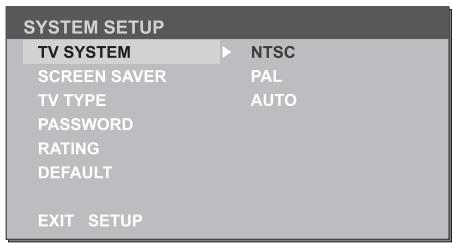
TV SYSTEM
Set the TV system: NTSC/PAL/AUTO.
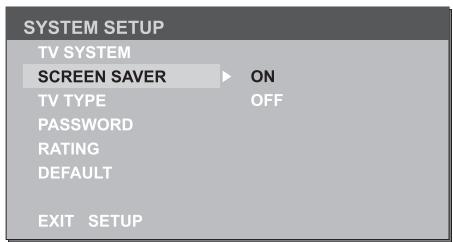
SCREENSAVER
Select "ON" (default setting) for the screenshot to appear when the unit has stopped for more than 3 minutes.
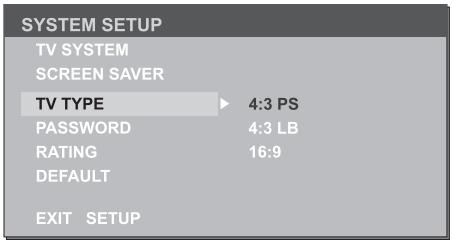
"TV TYPE" (display format)
Select the display format to watch widescreen movies.
4:3 PS (Pan Scan): For 4:3 screens, the left and right edges will be cut.
4:3 LB (Letter Box): For 4:3 screens, black bars will appear at the top and bottom.
16:9: For a widenscreen TV.
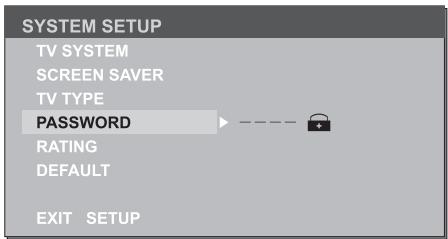
Password
The default password is "0000". To change the password, enter the old password, and then enter the new one.
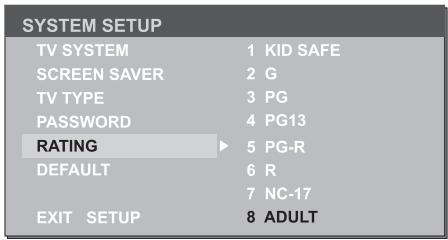
RATING
The rating of the disc is from 1 to 8:
(1): with the maximum limit when playing.
(8): with the minimum limit when playing. The default setting is "8".
Note: The rating can only be selected in the password unlocked status. The limit only works when the password lock is activated (a).
DVD SETUP
SYSTEM SETUP
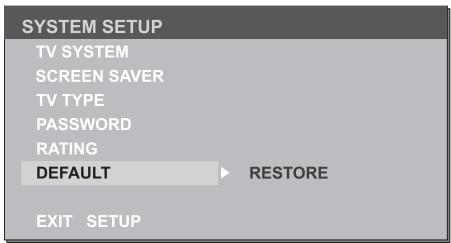
DEFAULT
Restore the factory default settings.
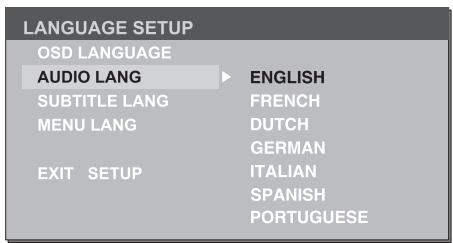
AUDIO LANGUAGE
Select the default audio language (if several languages are available on the DVD).
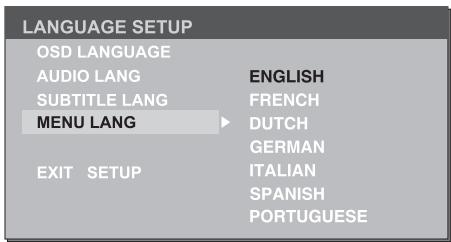
MENULANGUAGE
Select the default menu language (if several languages are available on the DVD).
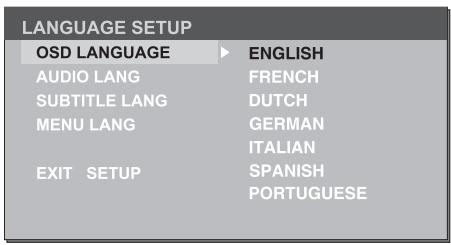
LANGUAGE SETUP
OSD LANGUAGE
Select the On Screen Display language.
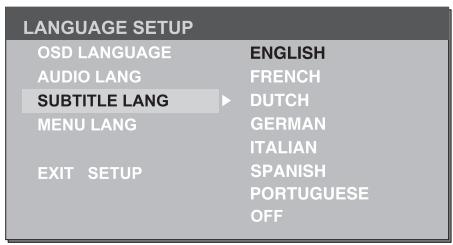
SUBTITLE LANGUAGE
Select the default subtitle language (if several languages are available on the DVD).
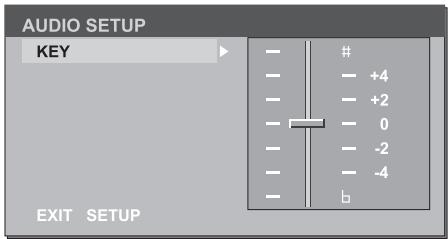
AUDIO SETUP
Use the / buttons to adjust the setting.
KEY
Use the / buttons to adjust the tone.
DVD SETUP
VIDEO SETUP
BRIGHTNESS
Adjust the brightness of the display.
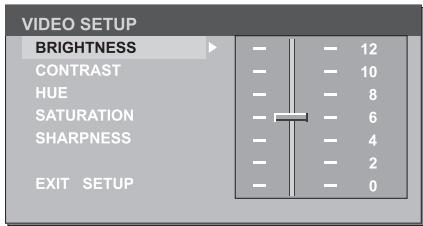
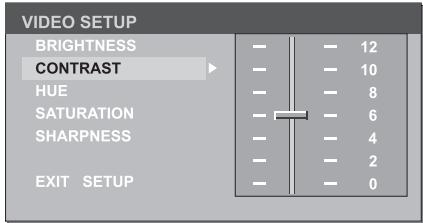
CONTRAST
Adjust the contrast of the display.
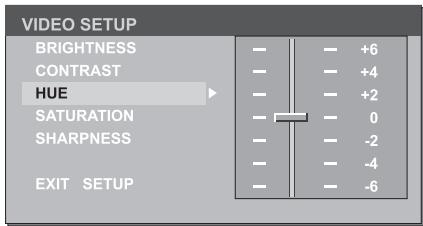
HUE
Adjust the hue of the display.
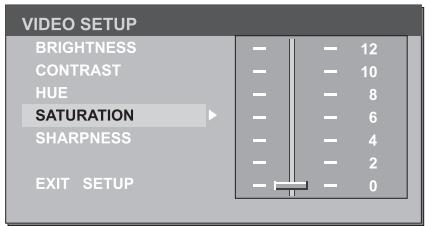
SATURATION
Adjust the saturation of the display.
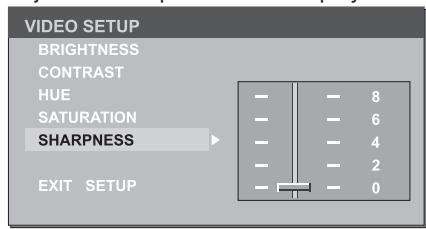
SHARPNESS
Adjust the sharpness of the display.
DIGITAL SETUP
OP MODE
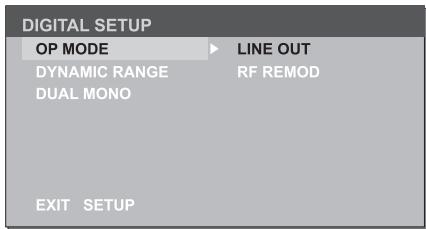
This option allows the user to adjust the dynamic compression in order to limit variations in volume.
"LINE OUT": Compress the signal. The variation in volume is small.
"RF MOD": The variation in volume is large.
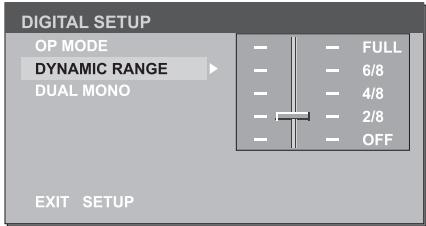
DYNAMIC RANGE
Select "LINE OUT" in OP MODE to adjust the compression rate.
Select "FULL" to limit the volume variations as much as possible. Select "OFF", to switch off the dynamic compression function.
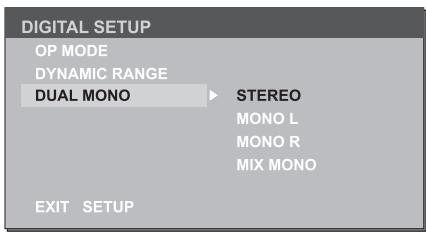
DUAL MONO
Select the audio channel: STEREO, MONO L, MONO R or MIX MONO.
INFORMATION ON DISC COMPATIBILITY
Disc formats supported by this DVD player:
| DISC TYPE | CONTENT | SIZE | MAXIMUM TIME |
| DVD | 133 min (SS-SL) | ||
| DVD-R | Audio + Video | 12 cm | 242 min (SS-DL) |
| DVD+R | 266 min (DS-SL) | ||
| DVD-RW | 484 min (DS-DL) | ||
| DVD+RW | |||
| SVCD | Audio + Video | 12 cm | 45 min |
| VCD | Audio + Video | 12 cm | 74 min |
| CD | Audio | 12 cm | 74 min |
| HD-CD | Audio | 12 cm | 74 min |
| MP3/JPEG | Audio / Image | 12 cm | 600 min |
- The operating characteristics of some DVD discs are specified by the software maker. Please refer to the disc instruction manual for further information.
- This DVD Player will play most recordable (CD-R) OR re-writable (CD-RW) CDs, and most recordable (DVD-R, DVD+R) or re-writable (DVD-RW, DVD+RW) DVDs. In some cases, discs created by a computer require finalization of the disc to enable playback. Discs created by some computers and/or software programs may not be compatible. This will affect playback but is not the result of a defect in this device.
Disc terminology:
Title:
Generally, DVDs are divided into several sections called "titles".
Chapter:
This is a smaller segment of picture or music within a DVD title. A title is comprised of one or more chapters, each numbered for easy searching. Some discs may not have chapters.
Track:
This is a segment of a picture or music on a CD or other disc. Each track is numbered for easy searching.
Care of discs
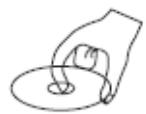
- Hold the disc on the outer edge and/or the center spindle hole. Do not touch the disc surface.
- Do not bend or press the disc.
- Do not expose the disc to direct sunlight or sources of excessive heat. Store discs vertically in a cabinet, in dry conditions.


Prevent exposure to:
- direct sunlight
-heat - extreme humidity.
Clean the disc surface with a soft, dry cleaning cloth. Wipe the disc surface gently, from the center towards the outer edge.
Do not apply thinner, alcohol, chemical solvent, or sprays to discs when cleaning them. Such cleaning fluids will permanently damage the disc surface.
TROUBLESHOOTING GUIDE
The following checklist can help you solve the problems which you may encounter when using the unit. Before consulting it, check the connections and follow the instructions in the user manual.
| Problem | Possible cause | Solution |
| General | ||
| The unit will not switch on. | Car ignition is not on.Cable is not properly connected.Fuse is burnt. | Turn your car key in the ignition.Check cable connection.Replace fuse with a new fuse of the same capacity. |
| No sound | Volume is set at minimum or the mute function is on. | Check the volume or switch the mute function off. |
| The unit or screen does not function normally. | The unit system is unstable. | Press the RESET button. |
| DVD mode | ||
| The appliance will not play discs. | The disc is inserted incorrectly.The disc is dirty or damaged. | Disc must be inserted with the label side facing up. Clean the disc and check for damage. Try another disc. |
| Sound skips due to vibration. | Mounting angle is over 30°.Mounting is unstable. | Adjust mounting angle to less than 30°.Mount the unit securely with the supplied parts. |
| TUNER mode | ||
| Unable to receive stations. | The antenna is not connected properly. | Connect the antenna properly. |
| Poor quality reception of radio station. | The antenna is not fully extended or it is broken. | Fully extend the antenna and if broken, replace it with a new one. |
| Preset stations are lost. | The battery cable is not properly connected. | Connect the permanent live on the unit to the permanent live on the vehicle. |
| USB/SD/MMC mode | ||
| Unable to insert USB device or SD/MMC card. | The memory card or USB device has been inserted the wrong way round. | Insert it the other way around. |
| The USB device or SD/MMC card cannot be read. | NTFS format is not supported. | Check that the USB disk file system or memory card is in FAT or FAT32 format. Due to different formats, some models of USB, SD/MMC storage devices or MP3 players may not be read. |
| Remote control | ||
| The remote control is not working or does not work properly | The batteries are low or empty. | Change the batteries. |
SPECIFICATIONS
General
Power supply
Music power output
RMS power output
Speaker impedance required
Pre-amp output voltage
Fuse
Dimensions (W x H x D)
Weight
12V DC (11V-16V allowable)
40W×4
25W x 4
4-8 Ohm
4.0V (CD mode: 1 kHz, 0 dB, 10 kΩ
load)
15 A
178 × 100 × 164 mm
3 Kg
TFT LCD display
Size
Resolution
View angle
Contrast ratio
Brightness
7" (diagonal), 16:9
480× 234
130° (Horizontal), 105° (Vertical)
300:1
350 cd/m²
FM Radio
Frequency range
IF range
Usable sensitivity
Frequency response
Stereo separation
Signal to noise ratio
87.5-108.0MHz
10.7MHz
8 dBμ
30 Hz - 15 kHz
30 dB (1 kHz)
55dB
MW Radio
Frequency range
Usable sensitivity
522-1620kHz
30 dBμ
DVD
Discs and files supported
Video system
Video output level
Frequency response
Signal to noise ratio
Channel separation
Distortion
DVD, DVD+R/RW, DVD-R/RW, CD-
DA, CD-R/RW, MP3, JPEG, SVCD,
VCD2.0, MPEG4, Xvid
PAL, AUTO, NTSC
1 ± 0.2V
20 Hz - 20 kHz
80 dB
60 dB
<0.2% (1kHz)
USB/SD/MMC
USB port type
USB port handling capacity
SD/MMC handling capacity
1.1 (supports 2.0)
2GB
2GB
Note: Due to continuing improvements, these technical specifications are subject to change without notice.

- SCOTT
- DRX 2002
- RDS CAR RADIO WITH DVD/MPEG4/VCD/CD/MP3/USB/SD PLAYER
- CONTENTS
- ACCESSORIES
- SAFETY PRECAUTIONS
- INSTALLATION
- CONNECTIONS
- INSTALLATION PROCEDURE
- MAINTENANCE
- REPLACING FUSES
- WARNING
- REPLACING THE BATTERY
- PRECAUTIONS WHEN USING LITHIUM BATTERIES
- PANEL CONTROL
- FRONT PANEL
- FRONT VIEW OF CAR RADIO AFTER SLIDING DOWN THE FRONT PANEL
- REMOTE CONTROL
- BASIC OPERATION
- SOURCE SELECT
- ON THE SOURCE MENU
- ON THE UNIT PANEL
- LOADING A DISC OR AN SD/MMC CARD
- INSERTING A USB DEVICE
- TUNER
- RADIO
- TOUCH THE ICON TO ACCESS THE FOLLOWING FUNCTIONS
- RDS
- BUTTONS ON THE CAR RADIO
- IN THE PTY MENU
- DVD/VCD PLAYBACK
- DVD PLAYBACK
- VCD PLAYBACK
- CD PLAYBACK
- CDPLAYBACK
- MP3/MPEG4/JPEG FILES ON A DISC, USB DEVICE OR SD/MMC CARD
- MP3/MPEG4/JPEG MENU
- MPEG4 PLAYBACK
- PHOTO PLAYBACK (JPEG FILES)
- ADVANCED PLAYBACK FUNCTIONS
- GOTO
- REPEAT A SPECIFIC SEGMENT
- PROGRAM
- AUX (AV IN) FUNCTION
- SYSTEM SETUP
- SELECT MENU
- SOUND EFFECTS
- PICTURE QUALITY
- DVD SETUP MENU
- DVD SETUP
- SCREENSAVER
- PASSWORD
- RATING
- LANGUAGE SETUP
- AUDIO SETUP
- VIDEO SETUP
- BRIGHTNESS
- CONTRAST
- HUE
- SATURATION
- SHARPNESS
- DIGITAL SETUP
- DYNAMIC RANGE
- DUAL MONO
- INFORMATION ON DISC COMPATIBILITY
- DISC TERMINOLOGY
- TITLE
- CHAPTER
- TRACK
- CARE OF DISCS
- PREVENT EXPOSURE TO
- TROUBLESHOOTING GUIDE
- SPECIFICATIONS
- GENERAL
- TFT LCD DISPLAY
- FM RADIO
- MW RADIO
- DVD
- USB/SD/MMC
Marque : SCOTT
Modèle : DRX 2002
Catégorie : Autoradio