
VIDEOCAM EXPRESSII - Caméra vidéo GENUIS - Notice d'utilisation et mode d'emploi gratuit
Retrouvez gratuitement la notice de l'appareil VIDEOCAM EXPRESSII GENUIS au format PDF.


| Type de produit | Caméra vidéo numérique |
| Caractéristiques techniques principales | Résolution vidéo : 640x480 pixels, Capteur : CMOS, Fréquence d'images : 30 fps |
| Alimentation électrique | Alimentation par USB ou batterie rechargeable |
| Dimensions approximatives | 120 x 60 x 30 mm |
| Poids | 200 g |
| Compatibilités | Compatible avec Windows et Mac OS |
| Type de batterie | Batterie lithium-ion rechargeable |
| Tension | 5 V |
| Puissance | 2 W |
| Fonctions principales | Enregistrement vidéo, prise de photos, fonction webcam |
| Entretien et nettoyage | Essuyer avec un chiffon doux, éviter les produits chimiques |
| Pièces détachées et réparabilité | Disponibilité limitée des pièces, consulter le service après-vente |
| Sécurité | Ne pas exposer à l'eau, éviter les chocs violents |
| Informations générales utiles | Vérifier la compatibilité avec le système d'exploitation avant l'achat |
FOIRE AUX QUESTIONS - VIDEOCAM EXPRESSII GENUIS
Questions des utilisateurs sur VIDEOCAM EXPRESSII GENUIS
0 question sur cet appareil. Repondez a celles que vous connaissez ou posez la votre.
Poser une nouvelle question sur cet appareil
Téléchargez la notice de votre Caméra vidéo au format PDF gratuitement ! Retrouvez votre notice VIDEOCAM EXPRESSII - GENUIS et reprennez votre appareil électronique en main. Sur cette page sont publiés tous les documents nécessaires à l'utilisation de votre appareil VIDEOCAM EXPRESSII de la marque GENUIS.
MODE D'EMPLOI VIDEOCAM EXPRESSII GENUIS

Important Notice:
Please install the driver first and then connect VideoCAM ExpressII to the USB port.
Please read the important notice before the installation.
1. Installing VideoCAM ExpressII software
a. Insert the VideoCAM ExpressII software CD into CD-ROM drive.
b. After few seconds, the setup screen will show the picture of VideoCAM ExpressII. Click the "Utility Driver" then simply follow the on-screen instructions.
c. Please remember to install DirectX of the CD-ROM.
Notice:
If the setup screen doesn't show the picture of VideoCAM ExpressII, please precede the following installation:
- Go to the taskbar and click Start then Execute.
- Type D:\SETUP.EXE, then click Enter key.
(Suppose your CD-ROM is in Drive D)
2. Connect the VideoCAM ExpressII to your computer.
Connect the VideoCAM ExpressII to the USB port as shown on the right drawing.
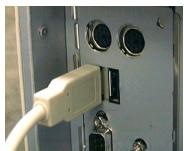
USB Port
3. To get rid of driver installation, please go to the taskbar and follow "Start
Program VideoCAM ExpressII VideoCAM ExpressII Uninstall, then follow the on-screen instruction to remove the installation.
4. You can install the recognize software for video conferencing or chat with your friends.
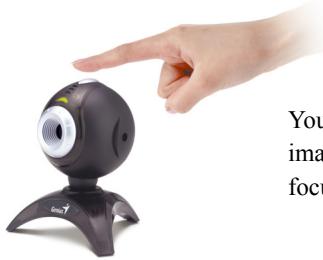
You can use snapshot button to capture still image or rotate the lens cover to adjust the focus.
5. Function description for the major icon
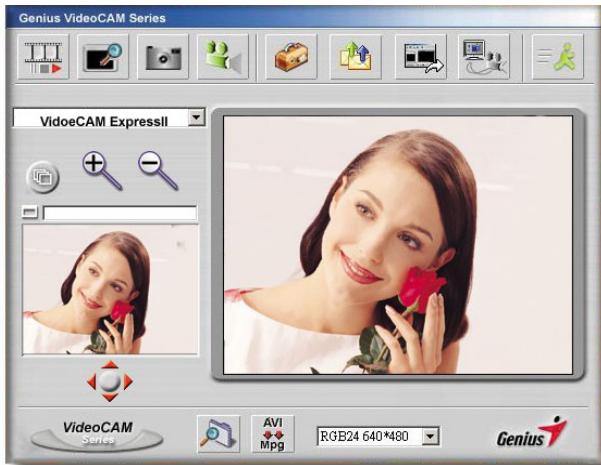
A.

Play the .avi file.
B.

Preview the video image.
C.

Take a picture.
D.

Capture image with full motion video.
E.

Camera Control
F.

Send photo through e-mail.
G.

Use PC camera as a security monitoring system.
H.

Exit the Genius VideoCAM Series UI.
I.

Convert AVI files into MPEG-1 format
J.

Zoom In (Web Cam mode Only)
K.

Zoom Out (Web Cam mode Only)
L.

You can adjust the image to the position you would like to have by clicking Left, Right, Up, or Down. (Web Cam mode Only)
- Make sure to install the USB driver before connecting the device otherwise unable to install properly. If you encounter problems, uninstall the driver and software then follow the proper installation.
Should you need the device under high luminance environment, please follow the steps as below:

Camera Control Control Exposure
Should you need the device to activate the animation function, please follow the steps as below:

Capture image with full motion video Click the
- Function description for the security monitoring system icon.
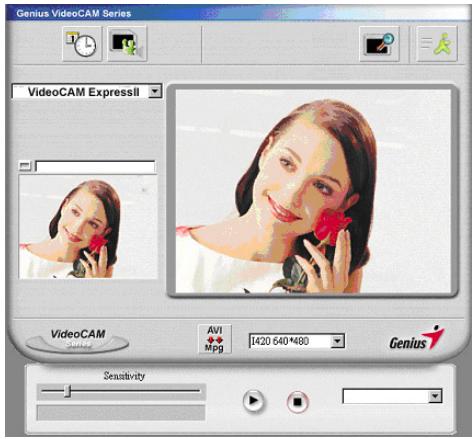
You can record any movements that appear in front of your monitor automatically. It can also record anytime until the HD is full. If there's no movement, it will shut down automatically after four seconds or until there is new movement. It's a great security monitoring system and you can set the software so it works at times when you're not around.
A.

Setup time of the security monitoring system.
When you start to record video, please press the play button.

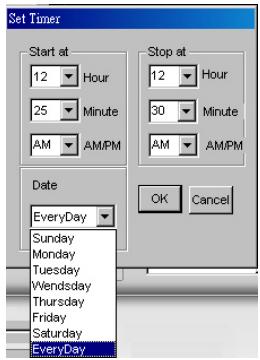

NOTE
The recording file will be retained in C:\WINDOWS\Album.
-
The camera is compatible with MSN Messenger, Yahoo Messenger, and CUSeeMe.
-
MSN Messenger Guide
Microsoft Windows Messenger has been included with Microsoft Windows XP (or you can download from http://www.msnmessenger-download.com) to provide videoconferencing service.
Using MSN Messenger as for Videoconferencing
- If you are using MSN Messenger included with Windows XP, please follow the procedure as below:
Click the person's name you would like to connect with Click the Start cameras button The text message window will display the message: "You have asked to have a video and voice conversation. Please wait for a response or Cancel (Alt +Q) the pending invitation." the other person will click Accept or Decline to begin or terminate the video and voice conversation.
- If you download the MSN Messenger from the website (http://www.msnMessenger-download.com), please follow the procedure as below:
Click the person's name you would like to connect with Click the Webcam button the other person will click Accept or Decline to begin or terminate the video and voice conversation. Click Get a webcam
- Yahoo Messenger Guide
- From the main Messenger window, click the Tools menu, select Start My Webcam, then press the Broadcast button press the camera icon on the toolbar select the Friend menu and choose Invite to View My Webcam
CUseeMe (for more detail, please access http://www.cuworld.com/join_room.asp) Click "Join a Group Video Chat and Meet CUWorld
"Members" on the main CUSeeMe window The webpage of Join a CUworld Video Chatroom Select a channels link under the icon on left of the webpage Pick a Room from the list you want to join You will automatically be launched into a video chat

NOTE
Please make sure you already installed the camera driver and connect the camera to the computer before running video conferencing or video chat.
Please make sure you close the other webcam program before running the video conferencing or video chat.