
2652W - Point d'accès sans fil SMC - Notice d'utilisation et mode d'emploi gratuit
Retrouvez gratuitement la notice de l'appareil 2652W SMC au format PDF.


| Type de produit | Point d'accès sans fil |
| Marque | SMC |
| Modèle | 2652W |
| Normes réseau | IEEE 802.3 10Base-T, IEEE 802.11b |
| Bande de fréquence | 2,4 - 2,4835 GHz (ETSI) |
| Débit maximal | 11 Mbps par canal |
| Modulation | CCK, BPSK, QPSK |
| Puissance de sortie | +13 dBm minimum |
| Sensibilité | 1, 2, 5,5 Mbps : -80 dBm ; 11 Mbps : -76 dBm typique |
| Nombre de canaux | ETSI : 13 |
| Nombre maximal de clients | 128 |
| Alimentation | Adaptateur secteur 9 V CC, 1 A (entrée 100-240 V CA, 50-60 Hz) |
| Dimensions (L × l × H) | 13 × 18 × 4 cm |
| Poids | 365 g |
| Indicateurs LED | Alimentation, Liaison Ethernet, Activité Ethernet, Liaison sans fil, Activité sans fil |
| Gestion réseau | Interface web (navigateur), utilitaire Windows 95/98/NT/2000 |
| Température de fonctionnement | 0 à 50 °C |
| Température de stockage | 0 à 70 °C |
| Humidité de fonctionnement | 5% à 8% (sans condensation) |
| Entretien et nettoyage | Nettoyer avec un chiffon doux et sec. Ne pas utiliser de produits chimiques. |
| Sécurité | Utiliser uniquement l'adaptateur secteur fourni. Ne pas exposer à l'humidité. |
| Pièces détachées et réparabilité | Contacter le support SMC ou un revendeur agréé. |
| Garantie | Garantie limitée à vie (selon conditions SMC) |
FOIRE AUX QUESTIONS - 2652W SMC
Questions des utilisateurs sur 2652W SMC
0 question sur cet appareil. Repondez a celles que vous connaissez ou posez la votre.
Poser une nouvelle question sur cet appareil
Téléchargez la notice de votre Point d'accès sans fil au format PDF gratuitement ! Retrouvez votre notice 2652W - SMC et reprennez votre appareil électronique en main. Sur cette page sont publiés tous les documents nécessaires à l'utilisation de votre appareil 2652W de la marque SMC.
MODE D'EMPLOI 2652W SMC
User Guide
SMC2652W
Hello and welcome! - NEW TEXT??
The SMC EZ Connect Network Kit contains everything you need to quickly and easily connect computers in your home or office together to form your own network or extend and improve your existing network.
The SMC EZ Connect Network Kit continues the SMC Home and Small Office network range and offers the fastest performance out of all of the products.
We know that you want to get started, but before you go any further and start plugging things in, please read through this manual as it will make the installation as easy to understand as possible.
Simply follow the A,B,C steps and you will be up and running very quickly.
Thank you for choosing SMC for your networking requirements. For more information on the rest of the SMC Home and Small office networking range either view the brochure contained on the CD or go to www.smc-europe.com for full information and support.
Operating systems
This network kit is compatible and comes with drivers for the following operating systems:
- Microsoft Windows for Workgroup 3.11,
- Microsoft Windows (r) 95 /98 /NT /2000,
- Netware 4.11,,5.0,FreeBSD 2.2.x,3.0,Linux,
- MAC OS v8.51 or higher
- SCO Unixware 7
It is not necessary that both PCs run the same operating system.
Computer
A PC or Power Macintosh with an available PCI slot.
Package Checklist:
1 x EZ Connect Wireless Access point - SMC2652W
1 x Antenna (dipole, omni-directional)
1 x DC power adapter
1 x Software CD (contains software drivers, utility and manual)
1 x User guide
Description
SMC's EZ connect Wireless Access point serves as a media access control (MAC) bridge between your wired Local area network (LAN) and one or more wireless Local Area Networks (WLAN's)
Just attach the access point anywhere along your Ethernet LAN to provide wireless stations within it's area of coverage with transparent access to the local wired and wireless LAN.
The EZ connect wireless Access Point supports an 11Mbps half-duplex connection to Ethernet networks for each active channel. It is fully compliant with 2.4Ghz DSSS CSMA/CA wireless networking as defined in IEEE802.11b and 10Mbps Ethernet as defines in IEEE 802.3.
Applications
The EZ Connect Wireless products offer a fast, reliable and cost effective solution for wireless client access to the network in applications such as:
- Remote access to corporate network information - Email, file transfer and terminal emulation
- Difficult to wire environments - Old buildings and open areas where wiring is difficult
- Frequency changing environments - Retailers, manufacturers and banks who frequently rearrange the workplace and change location.
- Temporary LANS for special projects - Trade shows, exhibitions and construction sites which need temporary set up for a short time period.
- Home users - Home users and people who work from home who need easy and quick installation of a small computer network.
LED Indicators
The EZ Connect Wireless Access point includes five status LED indicators, as shown below.
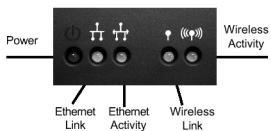
| LED | Status | Description |
| Power | On Red | Indicates that power is being supplied. |
| Ethernet Link | On Green | Indicates a valid Ethernet cable link. |
| Ethernet Activity | Flashing Yellow | Indicates that the access point is transmitting or receiving data on the 10 mbps Ethernet LAN. |
| Wireless Station Link | Flashing Green | Indicates valid wireless station links. The rate of flashing increases with the number of links. |
| Wireless Activity | Flashing Yellow | Indicates that the access point is receiving or transmitting data through wireless links. |
System requirements
Before you install the EZ Connect Wireless Access point, be sure you can meet the following requirements:
- An AC power outlet (100-240V, 50-60Hz)
- An available RJ45 port on a 10Base-T Ethernet hub or switch.
- 802.11 compliant wireless Ethernet adapters with TCP/IP compatible protocol installed.
- Web browser for configuration.
Installation:
- Select a site - Choose a proper place for your SMC2652W Access point. In general, the best location to place the access point is at the centre of your wireless coverage area, within line of sight to all your mobile stations.
- Attach the Antenna - Screw the antenna into the antenna connector (ANT) on the back panel. Normally, the higher you place the antenna, the better the performance.
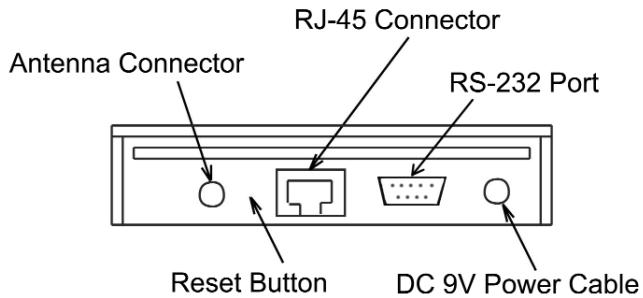
- Connect the Ethernet cable - The SC2652W can be wired to a 10Base-T Ethernet network with a network device such as a hub or switch. Connect into the RJ45 connector socket on the back panel with category 3, 4 or 5 UTP Ethernet cable and an RJ45 connector.
- Connect the power cable - Connect the power adapter cable to the 9V DC power socket on the rear panel.
Warning: ONLY USE the power adapter supplied with the SMC2652W. otherwise, the product may be damaged.
Configuration
Your SMC2652W is a plug and Play device. This means that you do not need to configure it in most cases. If you are adding this devices into an already existing wireless network, or if you need to configure some advanced settings, follow the instructions below.
The diskette labelled "Utility Diskette" that comes with the package contains a utility program for the EZ Connect Wireless Access Point. Any updates can be downloaded from SMC's website (www.smc.com)
Warning: back up your utility diskette and se the copy as a working diskette to protect the original from accidental damage.
The SMC2652W can be configured over an Ethernet network using RJ45 cable. You may connect the SMC2652W to a network device such as a hub or switch. Then, run the utility program and configure the SMC2652W remotely as described below.
Windows NT/95/98/2000 Installation
- Insert the SMC2652W utility disk into the floppy drive on your PC and then enter the following command: "A:\utility\setup". Follow the on-screen instructions to install the utility program.
- When you run the installed utility, click on "AP" and then select "scan" from the menu. The program will then detect all the SMC2652Ws wired to the Ethernet network.
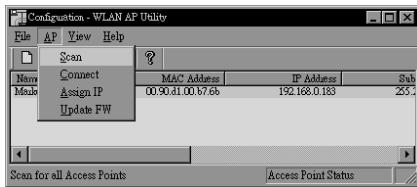
- from the list of detected SMC2652W's, select and double click on the unit you want to configure. The web browser page will appear as follows:
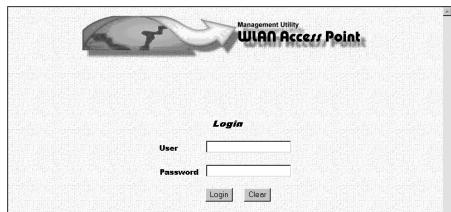
- enter the user name "default" and the password "WLAN_AP". This will take you to the home page.
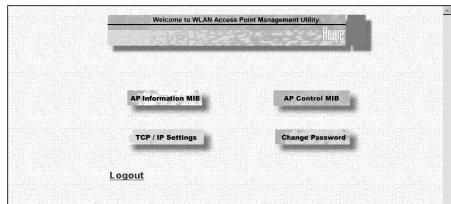
- Click on "AP information MIB", "AP control MIB", "TCP/IP settings" or "change password" to select the page required.
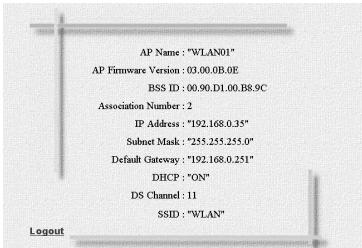
The information MIB screen displays the categories of information shown above.
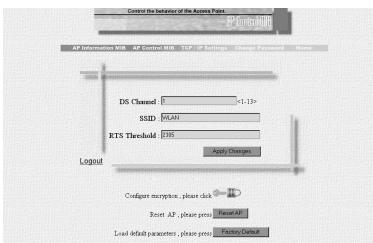
In the "AP control MIB page", set the parameters and then double click on "apply" to implement the settings.
DS channel - Set the channel number as the operating radio channel.
Note: the available channel settings are displayed to the right of the "DS channel" field. Local regulations determine which channels are available.
FCC/IC: 1-11. ETSI:1-13, france:10-13, Spain:10-11, MKK: 1-14.
SSID: This should be set to the same value as other stations in your network. (default: "Wlan")
RTS Threshold: et the RTS threshold to the same as that used by other devices in your network. (default:2305, which means disabled)
Encryption: Click Encryption icon for the WEP setting.
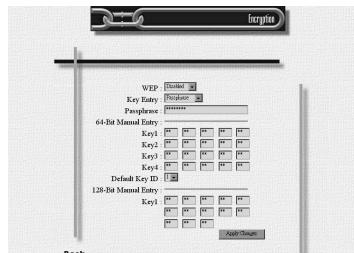
WEP: For more secure data transmission, set the "WEP" to "Wep_128" or "WEP_64" to ensure wireless network security. The advanced wired equivariant privacy (WEP) is implemented in this device to prevent unauthorized access. The 128 bit setting gives a higher level of security but the setting must be the same as other clients in your wireless network. (default: disabled)
Key entry - This field can be set to " passphrase" or "manual Entry". Select "Entry". The " passphrase" means the key elements will be auto generated by the internal algorithm according the string defined in the passphrase field. The "Manual Entry" means the key elements allow/need user key in by manually. (2 hexadecimal digits in each block)
Passphrase - The security key for WEP encryption is generated from your Passphrase string, so it should be the same as all the otherstations in your network.
64-Bit manual Entry:
Key1-4 - each key ID contains 10 HEX digits. All wireless devices must have the same key ID elements values to communicate.
Key ID - Choose the Key ID that has the encryption string you prefer. All wireless devices must have the same Key ID element values to communicate.
Key 1 - Key ID value contains 26 HEX digits. All wireless devices must have the same key ID element values to communicate.
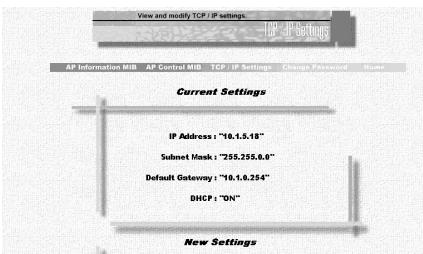
The TCP/IP settings page allows you to view and change the network settings on the access point.
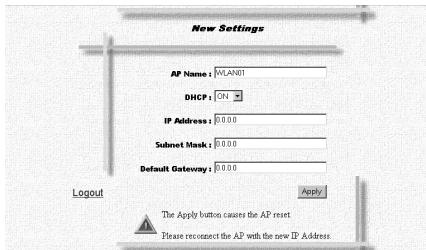
With DHCP "ON", the IP address and subnet are set automatically. If you want to set these yourself, enter a new IP address and subnet mask in the "New settings" section of the "TCP/IP settings" screen, then click on "Apply".
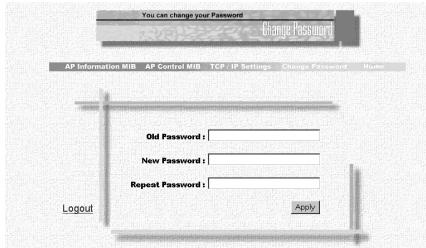
In the change password screen you may change the password on the access point. As password is required to configure the SMC2652W Access point. We suggest changing your password from the default to ensure network security.
EZ Connect Wireless Network Configuration and Planning
SMC's EZ Connect Wireless Solution supports a stand-alone wireless network configuration, as well as an integrated configuration with 10 Mbps Ethernet LANs.
The SMC2652W PCI adapter can be configured as:
- Ad hoc for departmental or SOHO LANs
Infrastructure for enterprise LANs
Network Topologies
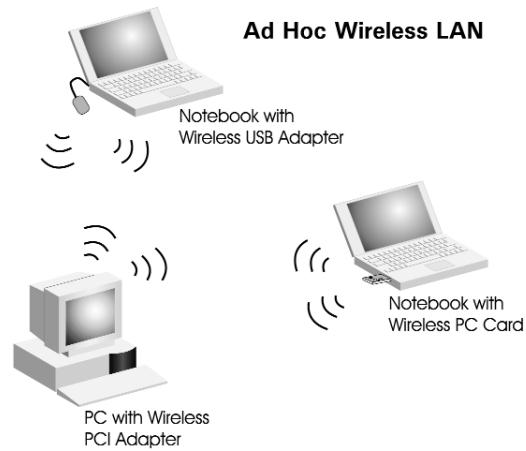
Ad hoc Wireless LAN
An ad hoc wireless LAN consists of a group of computers, each equipped with a wireless adapter, connected via radio signals as an independent wireless LAN. Computers in a specific ad hoc wireless LAN must therefore be configured to the same radio channel.
An ad hoc wireless LAN can be used for a branch office or SOHO operation.
Infrastructure Wireless LAN
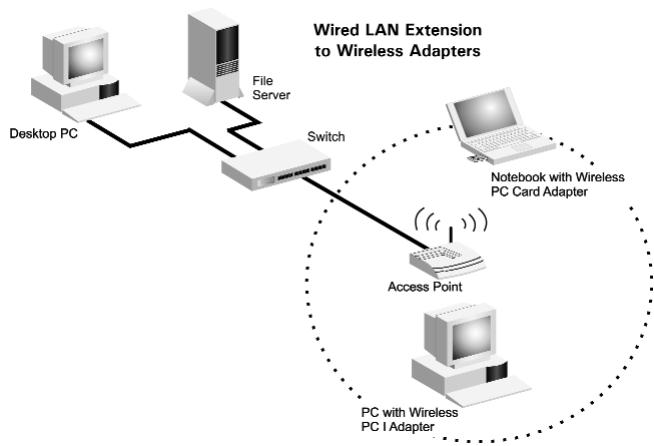
The SMC2652W can also provide access to a wired LAN for wireless workstations. An integrated wired and wireless LAN is called an Infrastructure configuration. A Basic Service Set (BSS) consists of a group of wireless PC users, and an access point that is directly connected to the wired LAN. Each wireless PC in this BSS can talk to any computer in its wireless group via a radio link, or access other computers or network resources in the wired LAN infrastructure via the access point.
The infrastructure configuration not only extends the accessibility of wireless PCs to the wired LAN, but also doubles the effective wireless transmission range for wireless PCs by passing their signal through one or more access points.
A wireless infrastructure can be used for access to a central database, or for connection between mobile workers, as shown in the following figure.
Setting the Communication Domain
Stationary Wireless PCs The Basic Service Set (BSS) is the communication domain for each SMC2652W access point. For wireless PCs that do not need to support roaming, set the domain identifier (SSID) for the wireless card to the BSS ID of the access point you want to connect to. Check with your administrator for the BSS ID of the SMC2652W access point he wants you to connect to. Roaming Wireless PCs
A wireless infrastructure can also support roaming for mobile workers. More than one access point can be configured to create an Extended Service Set (ESS). By placing the access points so that a continuous coverage area is created, wireless users within this ESS can roam freely.
Before setting up an ESS for roaming, you need to choose a clear radio channel and ideal location for the SMC2652W access points to maximize performance.
Trouble shooting:
Check the following items before contacting SMC technical support.
- If the mobile users do not have roaming access to the SMC2652W access point, check the following:
a. Make sure that all the SMC2652W's and stations in the ESS in which the WLAN mobile users can roam are configured to the same WEPsettings, SSID and authentication algorithm.
- If the SMC2652W cannot be configured using the web browser:
a. Power down the the AP
i. Push in the reset button located on the back of the SMC2652W.
ii. While holding in the button, apply power to the AP
iii. Wait until both the RF activity LED and the RF link LED both start to flash on and off together.
iv. Please the push button and the LED's will turn off. You are now in the control mode.
v. Select the desired function by pressing the reset button (Note: hold the button until the LED's change to the next configuration)
| Link | Activity | Function |
| Off | Off | No action, will boot normally |
| Off | ON | Revert to factory default settings |
| On | Off | Force boot from primary code image |
| On | On | No action, will boot normally. |
The function changes to the next in sequence every time the push button is pressed. The pattern repeats
(Function: 0,1,2,3,0,1,2,3,0,...) as the push button is pressed repeatedly.
Control mode is automatically exited when the AP has not detected any push button preeses for approx. 3 seconds. At that point it will flash both LED's twice, indicating it is proceeding with the boot.
SPECIFICATIONS
Model
Maximum channels
Maximum clients
Operating range
SMC2652W
ETSI: 13
128
Cell seperation
(for roaming clients)
Data Rate
Network configuration
30M between access points
1, 2, 5.5, 11Mbps per channel
Lan to access point to wireless card, access point to wireless card.
Operating Frequency
Sensitivity
ETSI: 2.400-2.4835 GHz.
1, 2, 5.5 Mbps - 80dBm,
11Mbps: -76dBm typical.
Modulation
Power supply
CCK, BPSK, QPSK
Input: 100-240 AC, 50-60Hz
Output: 9VDC, 1A
Output power
Physical size
+13 dBm minimum
13× 18× 4cm
Weight
LED indicators
365 grams
Power, Ethernet link, Ethernet activity,
Wireless link and Wireless activity.
Network management
HTML web-browser interface,
Windows 95/98/NT/2000
Temperature
Operating: 0 to 50^
Storage: 0 to 70 C
Humidity
5% to 8% (non condensing)
Compliances
CE mark - EN55022 Class B, EN55024,
IEC 61000-42/3/4/6/11
Emissions
FCC Part 15(B), ETS 300 328, RCR STD-33A
Safety
CSA/NTRL (CSA 22.2 No. 950 & UL 1950)
EN60950 (TUV/GS)
Vibration/Shock
IEC 68-2-34/IEC 68-2-32
Standards
IEEE 802.3 10baseT, IEEE 802.11b
Warranty
Limited lifetime.
Copyright - New Text ??
Information furnished by SMC brand is believed to be accurate and reliable. However, no responsibility is assumed by SMC for its use, nor for any infringements of patents or other rights of third parties which may result from its use. No license is granted by implication or otherwise under any patent or patents by SMC.SMC reserves the right to change specifications at any time without notice.
Trademarks
SMC is a registered trademark. Other product and company names are trademarks or registered trademarks of their respective holders.
Warranty
Complete warranty information for all SMC products is available on the SMC web site at http://www.smc-europe.com.
EC Conformance Declaration
The information technology products comply with ISO/IEC Guide 22 and EN4501. They conform to the following specifications: EMC:EN55022 (1988)/CISPR-22(1985)Class A/Class B EN50082-1:IEC 1000-4-2/3/4/6
These information technology products comply with the requirements of the LOW Voltage Directive 73/23/EC and the EMC directive 89/336/EEC.
07/00