
TWINWHEEL 900FF - Volant de jeu vidéo GENIUS - Notice d'utilisation et mode d'emploi gratuit
Retrouvez gratuitement la notice de l'appareil TWINWHEEL 900FF GENIUS au format PDF.


| Type de produit | Volant de jeu vidéo |
| Marque | GENIUS |
| Modèle | TWINWHEEL 900FF |
| Compatibilité | PC (Windows VISTA/XP/ME/2000/98) et PlayStation 3 |
| Alimentation | Adaptateur secteur fourni |
| Connexion | USB |
| Fonctions principales | Retour de force, rotation angle réglable 900°/270°, fonction Turbo, 13 boutons, palettes de vitesse, pédales |
| Contenu du pack | Volant, pédales, levier de vitesses, CD de pilotes, adaptateur secteur, manuel multilingue |
| Entretien | Nettoyer avec un chiffon sec, éviter l'exposition directe au soleil et les liquides |
| Sécurité | Ne pas utiliser de détergents, débrancher avant tout nettoyage |
FOIRE AUX QUESTIONS - TWINWHEEL 900FF GENIUS
Questions des utilisateurs sur TWINWHEEL 900FF GENIUS
0 question sur cet appareil. Repondez a celles que vous connaissez ou posez la votre.
Poser une nouvelle question sur cet appareil
Téléchargez la notice de votre Volant de jeu vidéo au format PDF gratuitement ! Retrouvez votre notice TWINWHEEL 900FF - GENIUS et reprennez votre appareil électronique en main. Sur cette page sont publiés tous les documents nécessaires à l'utilisation de votre appareil TWINWHEEL 900FF de la marque GENIUS.
MODE D'EMPLOI TWINWHEEL 900FF GENIUS
1. Package Contents:
TwinWheel 900FF steering wheel
TwinWheel 900FF Pedal
TwinWheel 900FF Gear shift
Driver CD
Mounting clamp (Y typed)
AC Adapter
Multi-language user's guide
2. System Requirements:
For PC
- IBM PC Pentium 166MHz compatibles or higher.
- Microsoft Windows VISTA/XP/ME/2000/98
- CD/DVD-ROM Drive for driver installation.
For PlayStation
PlayStation 3
3. Setting-up your TwinWheel 900FF series
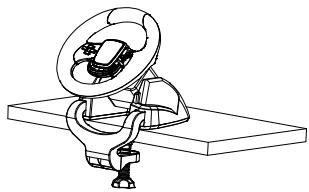
Connect and tightly screw the "Y-typed" mounting clamp to the edge of the table through the two hidden holes in front of the wheel's chassis.
4. Installation
- Installation for PC system
a. Turn the computer on and insert the driver's disc into the CD-ROM drive, then the setup program will start automatically. If it doesn't, start the setup program manually by selecting Start/Run and type in "E:setup" (where "E" represents the location of the CD-ROM drive), then press the Enter key.
b. Follow the instructions on the screen to finish the driver installation.
c. After the installation is completed, you can plug in the USB connector of the cable to the USB port on your computer. TwinWheel F900FF wheel will recognize that you have plugged it into the PC system automatically as the DIGITAL mode LED indicator will be lit. Depending on your requirement, press "MODE" button to shift to "ANALOG" mode or "DIGITAL" mode, and the LED indicators will be lit according to your selection.
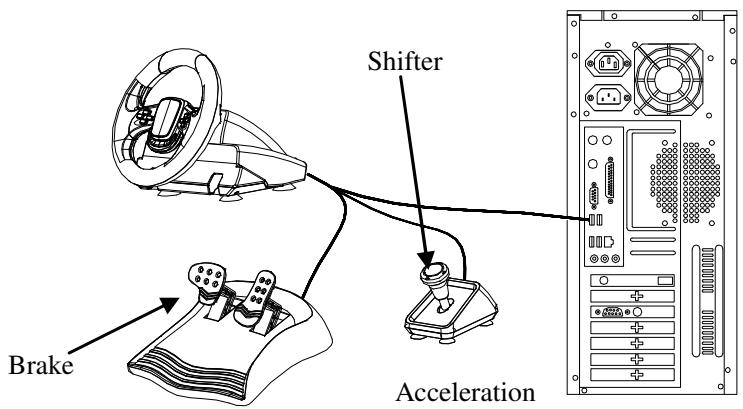
Note: Turn your USB Hub on after connecting this device, because it needs at least 500mA to operate the vibration feature.
d. Connect the AC Adapter power with the steering wheel chassis. At this moment the wheel will turn left and right for regulation and testing, so don't touch the wheel.
e. Click Start / Setting / Control Panel and double click on "Game controller" or "Gaming Options" icon.
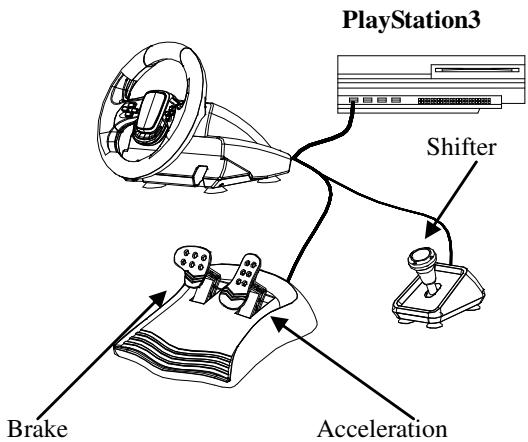
f. Plug in the pedal's connector to the steering wheel.
g. Plug in the gearshift's connector to the steering wheel.
h. You can calibrate and test your game controller in the "Game controller" or "Gaming Options" screen and complete the installation.
Important:
a. The driver will work with DirectX 7.0a or newer version in your PC system. Check the DirectX version on your system, and upgrade if necessary.
b. The vibration effect occurs according to game software.
c. Remove any other wheel driver before you install TwinWheel 900FF driver.
- Installation for PlayStation 3
a. Turn the PlayStation 3 on and plug in TwinWheel 900FF's USB cable to the PlayStation 3.
b. TwinWheel 900FF will recognize you have plugged it into PlayStation 3 and the PlayStation 3 mode LED indicator will be lit automatically.
c. When you finish the connection, you can play any game now.
d. The game controller's function is according to the game software you are using.
Important: The force feedback feature only works in PC systems.
5. Operation and function
- Basic button function setting
There are 13 functioning buttons built in to the TwinWheel 900FF, and each button has a different function depending on your game software.
| PC | PlayStation3 |
| Eight ways D-Pad | Eight ways D-Pad |
| Button 1, 2, 3, 4 | X,O,□,△ |
| Button 5, 6, 7, 8, 11, 12 | L1, R1, L2, R2, L3, R3 |
| Button 9, 10 | Select, Start |
| Turbo Button | Turbo Button |
| MODE Button (DIGITAL/ANALOG mode shift button) | PS |
| LED indicator DIGITAL (PC-Digital Mode) /ANALOG (PC-Analog Mode) / PS (PlayStation® 3 Mode) | |
Note: Under PC system, "MODE" Button can be pressed to shift between DIGITAL or ANALOG mode.
Under PlayStation 3 console, "MODE" Button will be the "PS button" function.
6. TURBO function setting
In some games, you may need the Turbo function, so follow these steps:
a. Press the "TURBO" function key and hold it. Then press the button that you want to make a "Turbo" function.
Release the "TURBO" function key. The button's Turbo function setting is now complete.
Note: The following buttons can be set up to the TURBO function:
X, , , , L1, L2, R1, R2, Select, Start, L3, R3
b. To remove a button's TURBO function: press the "TURBO" function key and hold it; then press the button that you want to remove the TURBO function.
c. If you want to clear all the buttons using the TURBO function at once: unplug the wheel's cable and re-plug it into the PC system or PlayStation 3 console, and buttons will be cleared and reset.
Note: When you press the button that has been set with the Turbo function, the mode LED indicator will flash.
The mode LED indicator will flash depending on the mode you are in, in PC (Analog/Digital) or in PlayStation 3.
7. TwinWheel 900FF Wheel's 900^ & 270^ rotation angle shift function.
TwinWheel 900 FF has wheel rotation angle shift function. Depending on different games, you can adjust this wheel's rotation angle directly by these steps:
a. The wheel's default rotation angle is 900^ and in 900^ mode, the wheel can rotate 2 1/2 times.
b. If you need to change the wheel's rotation angle to 270^ , press and hold button "11 (L3)", then press "MODE (PS)" button once, and the wheel's rotation angle is shifted to 270^ .
c. If you need to adjust the rotation angle back to 900^ , follow step b again.
d. You can rotate the angle shift from 900^ 270^ 900^ whenever needed.
8. Gear shift's R2/L2 R1/L1 shift function.
Under most PlayStation® 3 games, the Gearshift's UP/DOWN function should correspond to buttons “R2/L2”.
But, there is possibility under some PlayStation® 3 games; the gear shift's UP/DOWN function may be required to correspond to buttons "R1/L1".
This function provides the gearshift with better compatibility against different PS3 games. Follow these steps to set it:
a. The default setting for the Gearshift UP/DOWN corresponds to "R2/L2".
b. If a PS3 game requires it to correspond to "R1/L1, just press and hold button "12 (R3)", then press "MODE (PS)" button once, the Gearshift UP/DOWN function now corresponds to "R1/L1".
c. If you need to adjust this setting back to "R2/L2", follow step b again.
d. You can change the buttons setting at any time.
Note: This function may be required mostly under PlayStation® 3 games.
9. Care Of the Unit
The TwinWheel 900FF is a well-designed mechanical device. However, it still requires a degree of care in its use and storage. Follow these guidelines when using, connecting or storing the TwinWheel 900FF:
a. Do not expose the unit to direct sunlight for long periods of time, as this will cause the plastic to fade and become brittle.
b. Do not spill liquids on the unit. If you accidentally spill anything on the TwinWheel 900FF, use a dry cloth immediately to clean it.
c. Do not use any detergents or cleaners on the TwinWheel 900FF.
- Package Contents:
- System Requirements:
- For PC
- For PlayStation
- Setting-up your TwinWheel 900FF series
- Installation
- - Installation for PC system
- Important:
- - Installation for PlayStation 3
- Operation and function
- - Basic button function setting
- TURBO function setting
- TwinWheel 900FF Wheel's 900° & 270° rotation angle shift function.
- Gear shift's R2/L2 → R1/L1 shift function.
- Care Of the Unit
Marque : GENIUS
Modèle : TWINWHEEL 900FF
Catégorie : Volant de jeu vidéo