
TWINWHEEL FXE - Volant de jeu vidéo GENIUS - Notice d'utilisation et mode d'emploi gratuit
Retrouvez gratuitement la notice de l'appareil TWINWHEEL FXE GENIUS au format PDF.


| Marque | GENIUS |
| Modèle | TWINWHEEL FXE |
| Type de produit | Volant de jeu vidéo |
| Compatibilité PC | Windows VISTA/XP/ME/2000/98 |
| Compatibilité PlayStation | PlayStation 3 |
| Angles de rotation réglables | 75°, 60°, 45°, 30°, 15°, 0°, -90° |
| Nombre de boutons | 13 boutons programmables |
| Fonction Turbo | Oui (réglable par bouton) |
| Modes de fonctionnement | DIGITAL, ANALOG (PC) / PlayStation 3 |
| Rétroaction vibratoire | Oui (uniquement sur PC) |
| Pédalier | Inclus (se connecte au volant) |
| Système de fixation | Serre-joint en Y (pour table) |
| Alimentation | Via port USB (500 mA minimum) |
| Installation | Pilote sur CD-ROM inclus |
| Indicateur LED | DIGITAL/ANALOG/PS |
| Touches directionnelles | Croix directionnelle 8 directions |
| Boutons | X, O, □, △, L1, R1, L2, R2, L3, R3, Select, Start, PS |
| Logiciel requis | DirectX 7.0a ou ultérieur |
| Câble | USB intégré |
| Calibration | Via Panneau de configuration Windows "Contrôleurs de jeu" |
| Entretien | Nettoyer avec un chiffon doux sec |
| Sécurité | Utiliser sur une surface stable, éviter l'humidité |
FOIRE AUX QUESTIONS - TWINWHEEL FXE GENIUS
Questions des utilisateurs sur TWINWHEEL FXE GENIUS
0 question sur cet appareil. Repondez a celles que vous connaissez ou posez la votre.
Poser une nouvelle question sur cet appareil
Téléchargez la notice de votre Volant de jeu vidéo au format PDF gratuitement ! Retrouvez votre notice TWINWHEEL FXE - GENIUS et reprennez votre appareil électronique en main. Sur cette page sont publiés tous les documents nécessaires à l'utilisation de votre appareil TWINWHEEL FXE de la marque GENIUS.
MODE D'EMPLOI TWINWHEEL FXE GENIUS
1. Package Contents:
- TwinWheel FX/FXE steering wheel
- TwinWheel FX/FXE pedal
- Driver CD
- Mounting clamp (Y typed)
Multi-language user's guide
2. System Requirements:
For PC
- IBM PC Pentium 166MHz compatibles or higher.
- Microsoft Windows VISTA/XP/ME/2000/98
CD/DVD-ROM Drive for driver installation.
For PlayStation
PlayStation 3
3. Adjustable wheel:
The TwinWheel FX/FXE steering wheel can be set to the following angles.
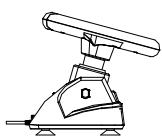
75^0
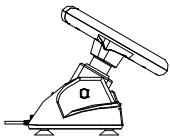
60°
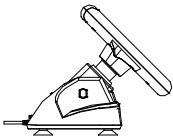
45°
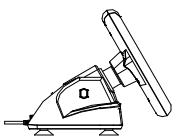
30°
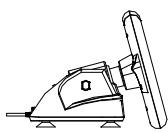
15°
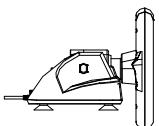
0
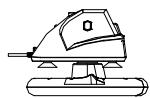
-90°
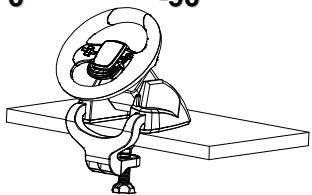
4. Setting-up your TwinWheel FX/FXE series
Connect and tightly screw the "Y-typed" mounting clamp to the edge of the table through the two hidden holes in front of the wheel's chassis.
5. Installation
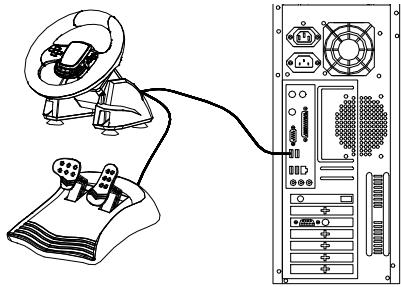
Installation for PC system
a. Turn the computer on and insert the driver's disc into the CD-ROM drive, then the
setup program will start automatically. If it doesn't, start the setup program manually by selecting Start/Run and type in "E:\setup" (where "E" represents the location of the CD-ROM drive), then press the Enter key.
b. Follow the instructions on the screen to finish the driver installation.
c. After the installation is completed, you can plug in the USB connector of the cable to the USB port on your computer. TwinWheel FX/FXE wheel will recognize that you have plugged it into the PC system automatically as the DIGITAL mode LED indicator will be lit. Depending on your requirement, press "MODE" button to shift to "ANALOG" mode or "DIGITAL" mode, and the LED indicators will be lit according to your selection.
d. Note: Turn your USB Hub on after connecting this device, because it needs at least 500mA to operate the vibration feature.
e. Click Start / Setting / Control Panel and double click on "Game controller" or "Gaming Options" icon.
f. Plug in the pedal's connector to the steering wheel.
g. You can calibrate and test your game controller in the "Game controller" or "Gaming Options" screen and complete the installation.
Important:
a. The driver will work with DirectX 7.0a or newer version in your PC system. Check the DirectX version on your system, and upgrade if necessary.
b. The vibration effect occurs according to game software.
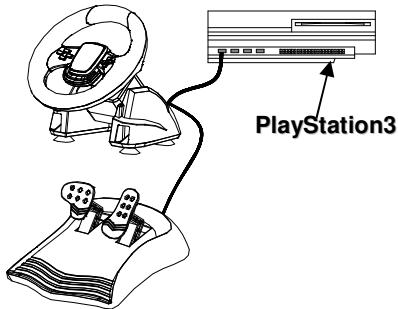
- Installation for PlayStation 3
a. Turn the PlayStation 3 on and plug in TwinWheel FX/FXE's USB cable to the PlayStation 3.
b. TwinWheel FX/FXE will recognize you have plugged it into PlayStation 3 and the PlayStation 3 mode LED indicator will be lit automatically.
C. When you finish the connection, you can play any game now.
d. The game controller's function is according to the game software you are using.
Important: The vibration feature only works in PC systems.
6. Operation and function
- Basic button function setting
There are 13 functioning buttons built in to the TwinWheel FX/FXE, and each button has a different function depending on your game software.
| PC | PlayStation |
| Eight way D-Pad | Eight-way D-Pad |
| Button 1, 2, 3, 4 | X, ○, □, △ |
| Button 5, 6, 7, 8, 11, 12, 13 | L1, R1, L2, R2, L3, R3, PS |
| Button 9, 10 | Select, Start |
| MODE Button (DIGITAL/ANALOG mode shift button) | PS |
| LED indicator DIGITAL (PC-Digital Mode)/ANALOG (PC-Analog Mode)/ PS (PlayStation 3 Mode) | |
Note: Under PC system, "MODE" Button can be pressed to shift between DIGITAL or ANALOG mode. Under PlayStation 3 console, "MODE" Button will be the "PS button" function.
7. TURBO function setting
In some games, you may need the Turbo function, so follow these steps:
a. Press the "TURBO" function key and hold it. Then press the button that you want to make a "Turbo" function. Release the "TURBO" function key. The button's Turbo function setting is now complete.
Note: The following buttons can be set up to the TURBO function:
X, O, △, L1, L2, R1, R2, Select, Start, L3, R3
b. To remove a button's TURBO function: press the "TURBO" function key and hold it; then press the button that you want to remove the TURBO function.
C. If you want to clear all the buttons using the TURBO function at once: unplug the wheel's cable and re-plug it into the PC system or PlayStation 3 console, and buttons will be cleared and reset.
Note: When you press the button that has been set with the Turbo function, the mode LED indicator will flash. The mode LED indicator will flash depending on the mode you are in, in PC (Analog/Digital) or in PlayStation 3.