GENIUS NB300 - Caméra vidéo

NB300 - Caméra vidéo GENIUS - Notice d'utilisation et mode d'emploi gratuit

Retrouvez gratuitement la notice de l'appareil NB300 GENIUS au format PDF.

📄 4 pages Français FR Télécharger 💬 Question IA 10 questions ⚙️ Specs
Notice GENIUS NB300 - page 1
Voir la notice : Français FR English EN
Choisissez votre langue et indiquez votre email : nous vous enverrons une version traduite specifiquement.
Type de produit Caméra vidéo USB
Marque GENIUS
Modèle NB300
Connectivité USB 2.0
Résolution 640 x 480 pixels (estimation)
Cadence d'images 30 ips (estimation)
Capteur CMOS (estimation)
Mise au point Rotation du capuchon de l'objectif
Fonctions principales Webcam, capture d'images, enregistrement vidéo, moniteur de sécurité
Formats vidéo AVI, conversion MPEG
Moniteur de sécurité Détection de mouvement, arrêt automatique après 4 secondes
Alimentation Port USB (5V)
Poids Environ 80 g (estimation)
Dimensions Environ 70 x 40 x 30 mm (estimation)
Système d'exploitation Windows (d'après l'installation)
Logiciel inclus Pilote, utilitaire VideoCAM, DirectX
Entretien Nettoyer l'objectif avec un chiffon doux
Stockage des enregistrements C:\WINDOWS\Album

FOIRE AUX QUESTIONS - NB300 GENIUS

Comment installer le pilote du Genius NB300 ?
Insérez le CD-ROM du logiciel VideoCAM NB300. L'écran d'installation devrait apparaître automatiquement. Cliquez sur Utility Driver et suivez les instructions. Assurez-vous d'installer DirectX depuis le CD. Si l'écran ne s'affiche pas, rendez-vous dans le menu Démarrer > Exécuter et tapez D:\SETUP.EXE (en supposant que votre lecteur CD est D).
Que faire si l'écran d'installation n'apparaît pas ?
Si l'écran d'installation ne s'affiche pas automatiquement, ouvrez le menu Démarrer, cliquez sur Exécuter et tapez D:\SETUP.EXE (remplacez D par la lettre de votre lecteur CD-ROM). Suivez ensuite les instructions à l'écran.
Comment utiliser le moniteur de sécurité ?
Dans l'interface VideoCAM, cliquez sur l'icône du moniteur de sécurité (icône F). Vous pouvez configurer la plage horaire. La caméra enregistre automatiquement les mouvements. S'il n'y a aucun mouvement, l'enregistrement s'arrête après 4 secondes. Les fichiers sont sauvegardés dans C:\WINDOWS\Album.
Comment régler l'exposition en environnement lumineux ?
En cas de luminosité élevée, ouvrez le menu Camera Control > Control > Exposure dans l'interface VideoCAM pour ajuster l'exposition de la caméra.
Où sont sauvegardés les enregistrements vidéo ?
Les enregistrements vidéo sont stockés par défaut dans le dossier C:\WINDOWS\Album.
Comment désinstaller le logiciel ?
Pour désinstaller le logiciel, allez dans le menu Démarrer > Programmes > VideoCAM NB300 > VideoCAM NB300 Uninstall. Suivez les instructions à l'écran pour supprimer complètement le logiciel et le pilote.
Comment prendre une photo avec cette webcam ?
Utilisez le bouton de capture d'écran sur l'interface VideoCAM (icône D) ou appuyez sur le bouton Snapshot situé sur le boîtier de la caméra pour prendre une photo. La photo sera sauvegardée dans le dossier par défaut.
Comment convertir un fichier AVI en MPEG ?
Dans l'interface VideoCAM, utilisez l'icône H pour convertir un fichier AVI en format MPEG. Cette fonction permet de réduire la taille des fichiers vidéo.
La webcam fonctionne-t-elle avec les applications de visioconférence ?
Oui, la Genius NB300 est compatible avec les logiciels de visioconférence et de chat vidéo. Vous pouvez l'utiliser avec des applications comme Skype, Zoom, etc.
Que faire si la webcam n'est pas reconnue ?
Assurez-vous d'avoir installé le pilote USB avant de brancher la caméra. Débranchez la caméra, désinstallez le pilote et le logiciel via le menu Démarrer > Programmes > VideoCAM NB300 > Uninstall. Réinstallez ensuite le pilote en suivant la procédure correcte : installez d'abord le logiciel, puis branchez la caméra.

Questions des utilisateurs sur NB300 GENIUS

0 question sur cet appareil. Repondez a celles que vous connaissez ou posez la votre.

Poser une nouvelle question sur cet appareil

L'email reste privé : il sert seulement à vous prévenir si quelqu'un répond à votre question.

Aucune question pour l'instant. Soyez le premier à en poser une.

Téléchargez la notice de votre Caméra vidéo au format PDF gratuitement ! Retrouvez votre notice NB300 - GENIUS et reprennez votre appareil électronique en main. Sur cette page sont publiés tous les documents nécessaires à l'utilisation de votre appareil NB300 de la marque GENIUS.

MODE D'EMPLOI NB300 GENIUS

GENIUS NB300 - 1

Important Notice:

Please install the driver first and then connect VideoCAM NB 300 to the USB port.

Please read the important notice before the installation.

1. Installing VideoCAM NB 300 software

A. Insert the VideoCAM NB 300 software CD into CD-ROM drive.
B. After few seconds, the setup screen will show the picture of VideoCAM NB 300. Click the "Utility Driver" then simply follow the on-screen instructions.
C. Please remember to install DirectX of the CD-ROM.

Notice:

If the setup screen doesn't show the picture of VideoCAM NB 300, please proceed the following installation:

  • Go to the taskbar and click Start then Execute.
  • Type D : \SETUP.EXE , then click Enter

key.

(Suppose your CD-ROM is in Drive D)
GENIUS NB300 - Notice: - 1
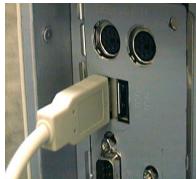
USB Port

2. Connect the VideoCAM NB 300 to your computer.

Connect the VideoCAM NB 300 to the USB port as shown on the right drawing.

  1. To get rid of driver installation, please go to the taskbar and follow "Start Program VideoCAM NB 300 VideoCAM NB 300 Uninstall, then follow the on-screen instruction to remove the installation.
  2. You can install the recognize software for video conferencing or chat with your friends.
GENIUS NB300 - Connect the VideoCAM NB 300 to your computer. - 1

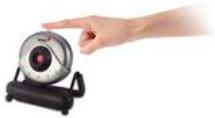
You can use snapshot button to capture still image or rotate the lens cover to adjust the focus.

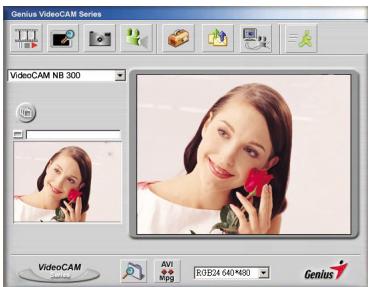
5. Function description for the major icon
GENIUS NB300 - Function description for the major icon - 1

A.

GENIUS NB300 - Function description for the major icon - 2

Play the .avi file.

B.

GENIUS NB300 - Function description for the major icon - 3

Preview the video image.

C.

GENIUS NB300 - Function description for the major icon - 4

Capture image with full motion video.

D.

GENIUS NB300 - Function description for the major icon - 5

Take a picture.

E.

GENIUS NB300 - Function description for the major icon - 6

Send photo through e-mail.

F.

GENIUS NB300 - Function description for the major icon - 7

Use PC camera as a security monitoring system.

G.

GENIUS NB300 - Function description for the major icon - 8

Exit the Genius VideoCAM Series UI.

H.

GENIUS NB300 - Function description for the major icon - 9

Convert AVI files into MPEG format

GENIUS NB300 - Function description for the major icon - 10

NOTE

  • Make sure to install the USB driver before connecting the device otherwise unable to install properly. If you encounter problems, uninstall the driver and software then follow the proper installation.
  • Should you need the device under high luminance environment, please follow the steps as below:

GENIUS NB300 - NOTE - 1

Camera Control Control Exposure

  1. Function description for the security monitoring system icon.
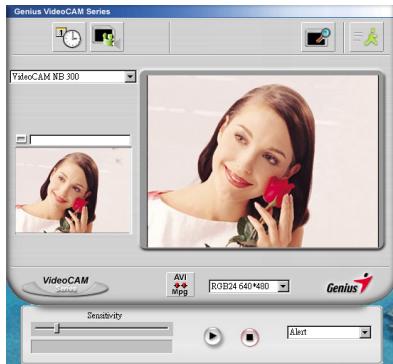
GENIUS NB300 - NOTE - 2

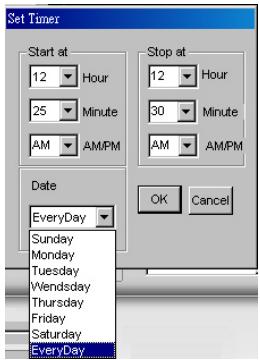
You can record any movements that appear in front of your monitor automatically. It can also record anytime until the HD is full. If there's no movement, it will shut down automatically after four seconds or until there is new movement. It's a great security monitoring system and you can set the software so it works at times when you're not around.

A.

GENIUS NB300 - NOTE - 3

Setup time of the security monitoring system.

When you start to record video, please press the play button.

GENIUS NB300 - NOTE - 4

GENIUS NB300 - NOTE - 5

GENIUS NB300 - NOTE - 6

NOTE

  • The recording file will be retained in C:\WINDOWS\Album.
Assistant notice
Powered by Anthropic
En attente de votre message
Informations produit

Marque : GENIUS

Modèle : NB300

Catégorie : Caméra vidéo