
MT900BT - Écouteurs sans fil GENIUS - Notice d'utilisation et mode d'emploi gratuit
Retrouvez gratuitement la notice de l'appareil MT900BT GENIUS au format PDF.


| Type de produit | Écouteurs sans fil Bluetooth |
| Marque | GENIUS |
| Modèle | MT900BT |
| Version Bluetooth | 5.0 |
| Portée sans fil | Jusqu'à 10 mètres |
| Autonomie de la batterie | Jusqu'à 8 heures d'écoute |
| Temps de charge | Environ 1,5 heure |
| Type de batterie | Lithium-ion rechargeable (intégrée) |
| Connecteur de charge | USB-C |
| Réponse en fréquence | 20 Hz – 20 kHz |
| Impédance | 32 Ω |
| Compatibilité | Appareils Bluetooth (smartphones, tablettes, ordinateurs) |
| Fonctions | Contrôle du volume, lecture/pause, appel mains-libres, commandes de piste |
| Réduction de bruit | Passive (conception intra-auriculaire) |
| Poids (par écouteur) | Environ 5 g |
| Dimensions (écouteur) | 2,5 x 2 x 2 cm |
| Accessoires inclus | Câble USB-C, embouts en silicone (S/M/L), manuel d'utilisation |
| Entretien | Nettoyer avec un chiffon doux et sec. Ne pas immerger dans l'eau. |
| Précautions de sécurité | Ne pas exposer à des températures élevées ou à l'humidité. Utiliser uniquement le câble fourni. |
| Pièces détachées disponibles | Embouts de rechange, câble USB-C |
| Garantie | 2 ans |
FOIRE AUX QUESTIONS - MT900BT GENIUS
Questions des utilisateurs sur MT900BT GENIUS
0 question sur cet appareil. Repondez a celles que vous connaissez ou posez la votre.
Poser une nouvelle question sur cet appareil
Téléchargez la notice de votre Écouteurs sans fil au format PDF gratuitement ! Retrouvez votre notice MT900BT - GENIUS et reprennez votre appareil électronique en main. Sur cette page sont publiés tous les documents nécessaires à l'utilisation de votre appareil MT900BT de la marque GENIUS.
MODE D'EMPLOI MT900BT GENIUS
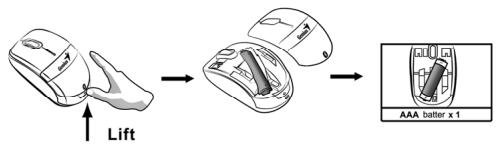
Hardware Installation
- Install one AA battery in the mouse.
Factory Settings
1.Left Button: Provides traditional mouse functions like click, double click and drag.
2. Magic-Roller: Press the "Magic-Rol to surf the Internet and Windows documents.
3. Right Button: Provides traditional mouse click functions.

Pairing Process in 7, Vista and Windows XP SP2
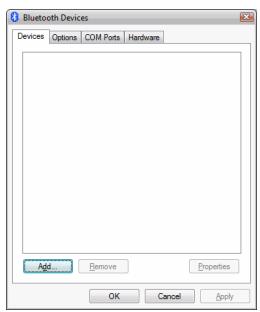
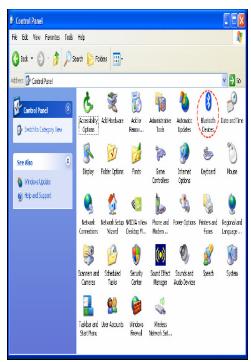
- Open the Windows control panel, then select "Bluetooth devices".
-
Click "Add...."
-
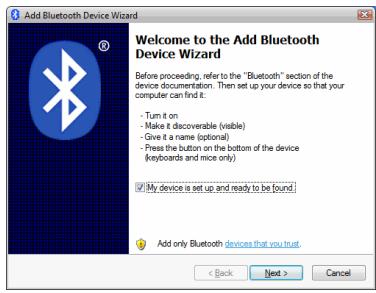
Select "My device is setup and ready to be found", then click "Next".
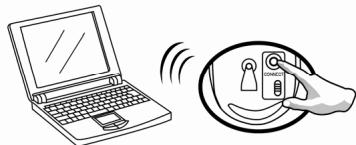
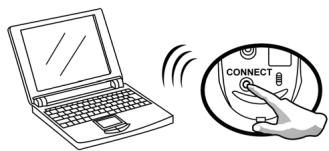
- Press and hold the "CONNECT" button under the mouse until the blue LED flashes.
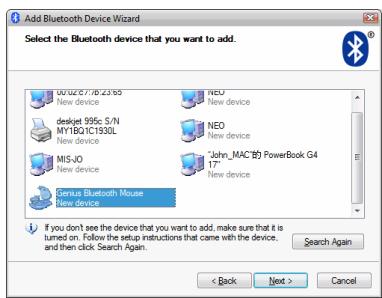
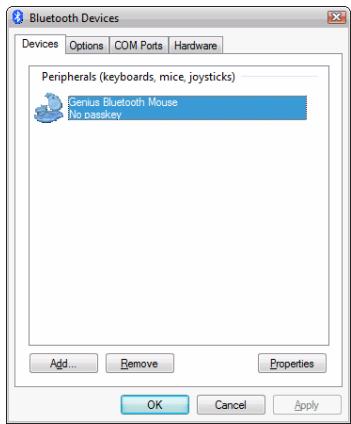
- In "Peripherals (Keyboards, mice, joysticks)", select Genius Bluetooth Mouse and click "Next".
ENGLISH
-
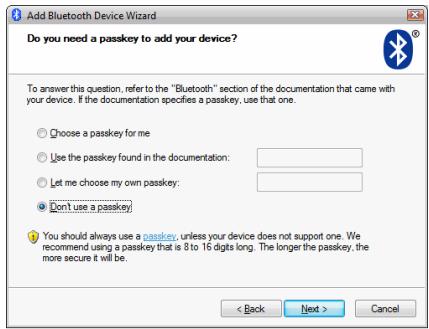
Select "Don't use a passkey" and click "Next".
-
Windows will start to connect the Genius Bluetooth Mouse automatically. Press the finish button after the connection process is completed.
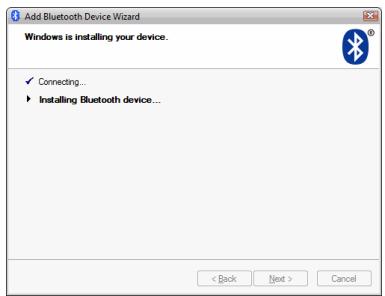
Once the connection between the Genius Bluetooth Mouse and your computer is established, the connection will be kept permanently. That means the connection will re-establish automatically each time you run Windows.
Pairing Process in Mac OS X 10.2.8 or later
- Press and hold the "CONNECT" button under the mouse.
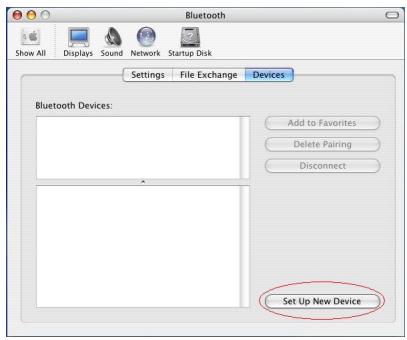
- Click the Bluetooth icon on the task bar and select "Setup Bluetooth device".
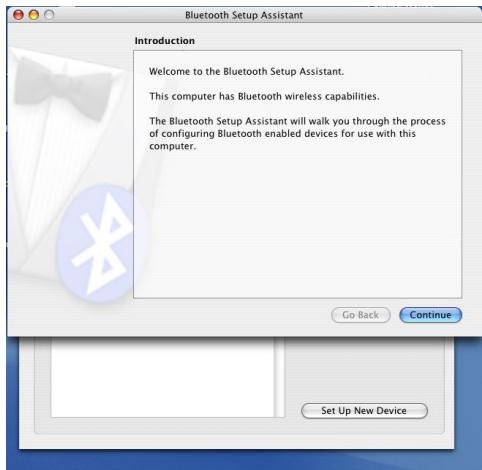
- Click "Continue" when the "Bluetooth Setup Assistant" appears.
ENGLISH
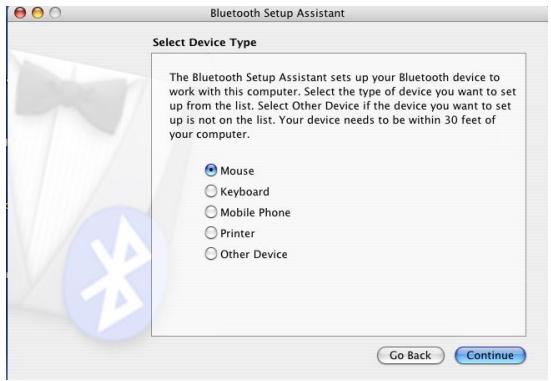
- Choose "Mouse" and press "Continue" to the next step.
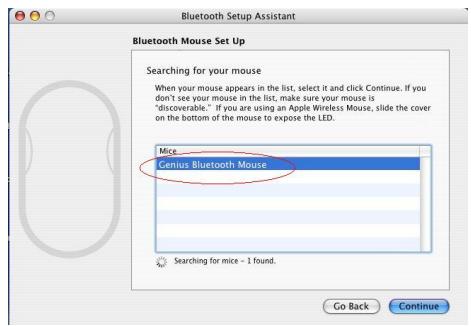
- When Bluetooth finds the "Genius Bluetooth Mouse", please press "Continue" to the next step.
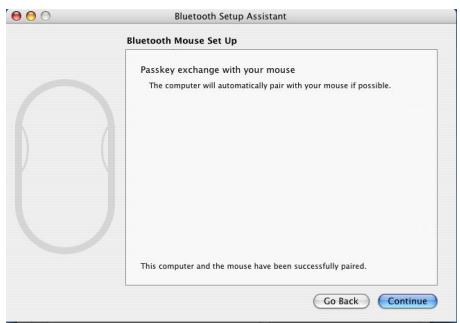
- Click "Continue" when the "Passkey exchange with your mouse" appears.
ENGLISH
- The connection is now successful and you can use your Genius Bluetooth Mouse.
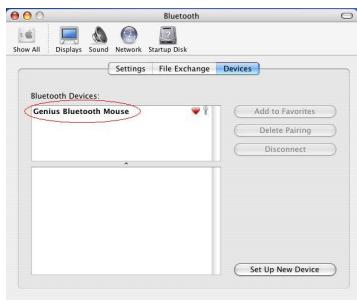
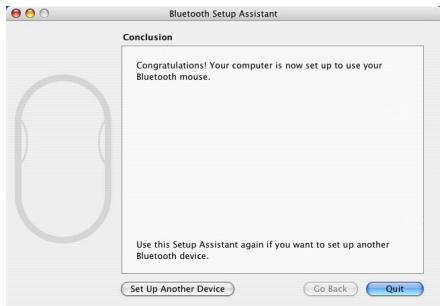
Now you can use the Genius Bluetooth Mouse wirelessly with a Bluetooth enabled Apple computer. Afterwards, the connection of the Genius Bluetooth mouse will re-establish automatically each time Mac OS X runs.
Marque : GENIUS
Modèle : MT900BT
Catégorie : Écouteurs sans fil