
MT900BT - Wireless Earbuds GENIUS - Free user manual and instructions
Find the device manual for free MT900BT GENIUS in PDF.


| Product Type | Bluetooth Wireless Earbuds |
| Brand | GENIUS |
| Model | MT900BT |
| Bluetooth Version | 5.0 |
| Wireless Range | Up to 10 meters |
| Battery Life | Up to 8 hours of playback |
| Charging Time | Approximately 1.5 hours |
| Battery Type | Rechargeable lithium-ion (built-in) |
| Charging Connector | USB-C |
| Frequency Response | 20 Hz – 20 kHz |
| Impedance | 32 Ω |
| Compatibility | Bluetooth devices (smartphones, tablets, computers) |
| Functions | Volume control, play/pause, hands-free calling, track controls |
| Noise Reduction | Passive (in-ear design) |
| Weight (per earbud) | Approximately 5 g |
| Dimensions (earbud) | 2.5 x 2 x 2 cm |
| Included Accessories | USB-C cable, silicone ear tips (S/M/L), user manual |
| Maintenance | Clean with a soft, dry cloth. Do not immerse in water. |
| Safety Precautions | Do not expose to high temperatures or humidity. Use only the provided cable. |
| Spare Parts Available | Replacement ear tips, USB-C cable |
| Warranty | 2 years |
Frequently Asked Questions - MT900BT GENIUS
User questions about MT900BT GENIUS
0 question about this device. Answer the ones you know or ask your own.
Ask a new question about this device
Download the instructions for your Wireless Earbuds in PDF format for free! Find your manual MT900BT - GENIUS and take your electronic device back in hand. On this page are published all the documents necessary for the use of your device. MT900BT by GENIUS.
USER MANUAL MT900BT GENIUS
Hardware Installation
- Install one AA battery in the mouse.
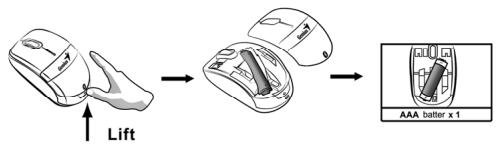
Factory Settings
1.Left Button: Provides traditional mouse functions like click, double click and drag.
2. Magic-Roller: Press the "Magic-Rol to surf the Internet and Windows documents.
3. Right Button: Provides traditional mouse click functions.

Pairing Process in 7, Vista and Windows XP SP2
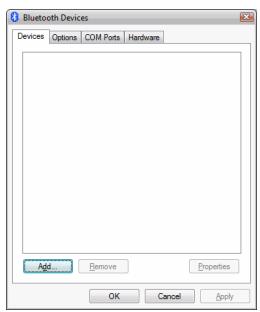
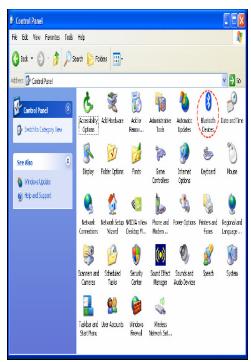
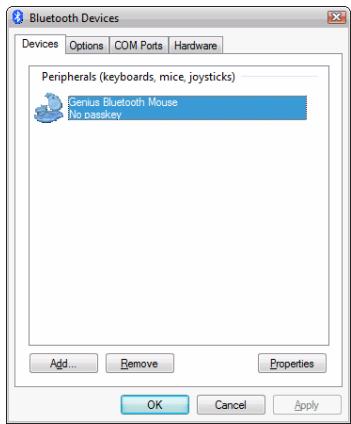
- Open the Windows control panel, then select "Bluetooth devices".
-
Click "Add...."
-
Select "My device is setup and ready to be found", then click "Next".
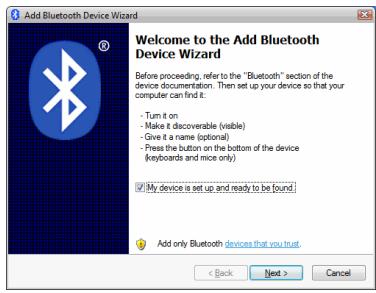
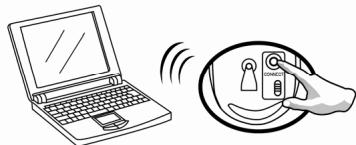
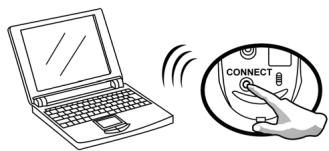
- Press and hold the "CONNECT" button under the mouse until the blue LED flashes.
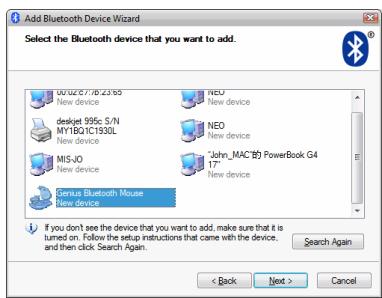
- In "Peripherals (Keyboards, mice, joysticks)", select Genius Bluetooth Mouse and click "Next".
ENGLISH
-
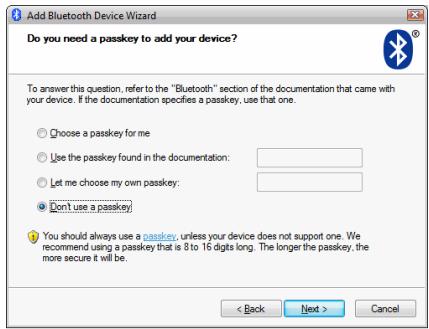
Select "Don't use a passkey" and click "Next".
-
Windows will start to connect the Genius Bluetooth Mouse automatically. Press the finish button after the connection process is completed.
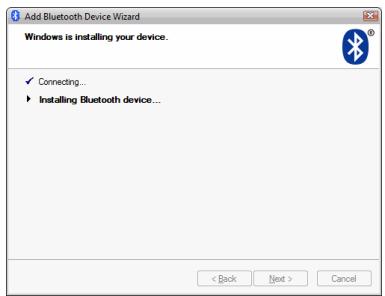
Once the connection between the Genius Bluetooth Mouse and your computer is established, the connection will be kept permanently. That means the connection will re-establish automatically each time you run Windows.
Pairing Process in Mac OS X 10.2.8 or later
- Press and hold the "CONNECT" button under the mouse.
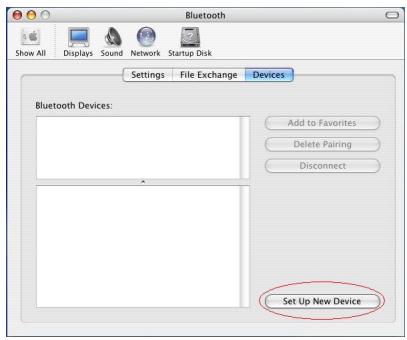
- Click the Bluetooth icon on the task bar and select "Setup Bluetooth device".
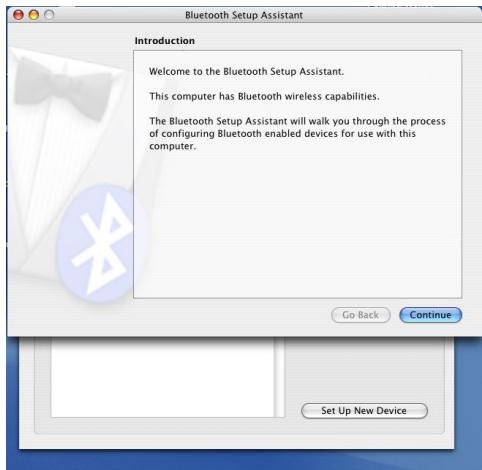
- Click "Continue" when the "Bluetooth Setup Assistant" appears.
ENGLISH
- Choose "Mouse" and press "Continue" to the next step.
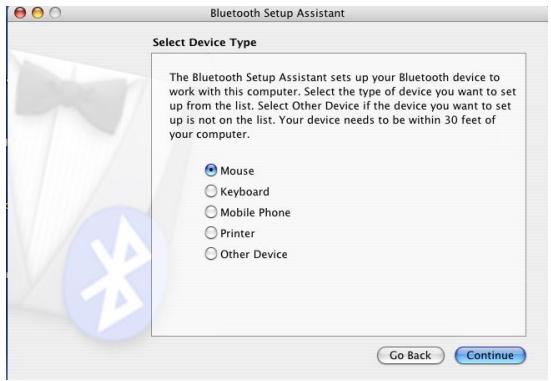
- When Bluetooth finds the "Genius Bluetooth Mouse", please press "Continue" to the next step.
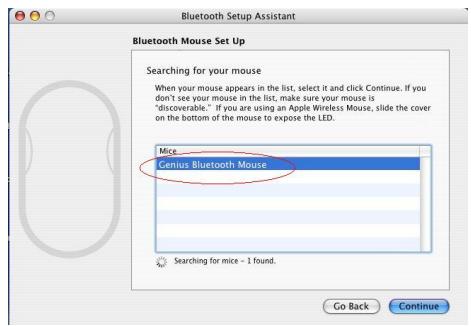
- Click "Continue" when the "Passkey exchange with your mouse" appears.
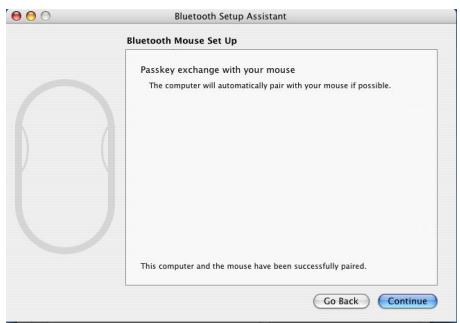
ENGLISH
- The connection is now successful and you can use your Genius Bluetooth Mouse.
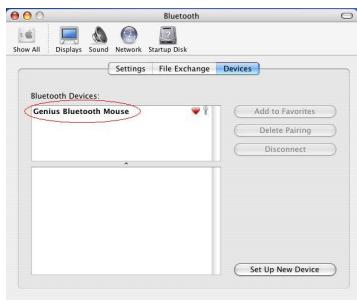
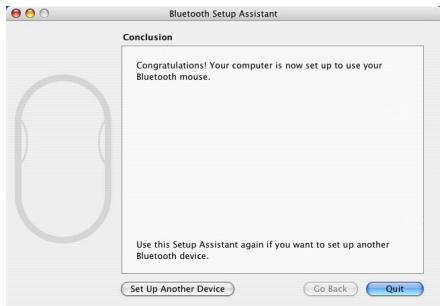
Now you can use the Genius Bluetooth Mouse wirelessly with a Bluetooth enabled Apple computer. Afterwards, the connection of the Genius Bluetooth mouse will re-establish automatically each time Mac OS X runs.
Brand : GENIUS
Model : MT900BT
Category : Wireless Earbuds