MODE D'EMPLOI 7 PREMIUM RELOADED NERO
nemo
7 PREMIUM
Reloaded
QUICKSTART GUIDE
www.nero.com
The Nero 7 QuickStart Guide and all its contents are protected by copyright and are the property of Nero AG. All rights reserved. This QuickStart Guide contains material that is protected by internationally valid copyright. No part of this QuickStart Guide may be reproduced, transmitted, or transcribed without the express written permission of Nero AG.
All trade names and trademarks are the property of their respective owners.
Nero AG rejects any claims that transcend the clauses of the guarantee rights. Nero AG does not undertake any liability for the correctness of the content of the Nero 7 QuickStart Guide. The contents of the software supplied, as well as of the Nero 7 QuickStart Guide, may be changed without prior warning.
The trademarks mentioned here are named for information purposes only.
Some applications within Nero 7 Premium Reloaded require third-party technologies, some of which are available in this edition as demo versions.
Free online activation is available to acquire unlimited access to these technologies. This will help ensure full functionality of Nero 7 Premium Reloaded.
Internet connection or fax equipment is required for this activation. Nero will transmit only the data that is necessary for activating the third-party technologies
Unless you own the copyright or have the permission of the copyright holder, the unauthorized copying of discs can represent a violation of national or international laws and may result in serious penalties.
Copyright © 2007 Nero AG and its licensors. All rights reserved.
Contents
1 The Nero Suite 4
1.1 General System Requirements 4
1.2 Special Minimum Requirements for Individual Applications 5
1.3 Applications of the Nero 7 Suite 6
1.4 Nero 7 Suite Plug-ins 11
1.5 Mini-Applications of the Nero 7 Suite 12
2 Installation 13
2.1 Installing Nero Suite 13
3 Starting the Nero 7 Suite Using Nero StartSmart 15
3.1 Managing Favorites 17
4 Nero ProductSetup 18
4.1 Calling Nero ProductSetup 18
4.2 Refresh 18
4.3 Language 19
4.4 Setup 20
4.5 License 21
1 The Nero Suite
1.1 General System Requirements
DVD-ROM drive for the installation
Windows® 2000 (Service Pack 4 or higher), Windows® XP, Windows® Server™ 2003, Windows® Media Center Edition 2005, Windows Vista™
Windows® XP Professional x64 (all applications except InCD, Nero Scout, and Nero ImageDrive work in the x86 emulator that allows 32-bit Windows applications to run)
Windows® Internet Explorer® 5.5 or higher
- Internet connection for the registration and the update of the Nero 7 applications/help files/other functions. It is also required for the activation of the complete functional range (DVD, MPEG-2, MPEG-4, and AVC) which will be required 30 days after installation. This activation is free of charge. The costs for the Internet connection are carried by the user.
To install Nero 7 you must have administrative rights for all operating systems higher than Windows® 2000.
Processor and Installed Memory
For writing audio and data discs: 800 MHz Intel Pentium III processor, AMD™ Sempron™ 2200+ or equivalent, 128 MB RAM (512 MB RAM for Windows Vista™)
For TV recording, DVD and video authoring: 1.2 GHz Intel Pentium III processor or AMD™ Sempron™ 2200+, 128 MB RAM (512 MB RAM for Windows Vista™)
For capturing and burning in real time: 1.6 GHz Intel® Pentium® 4 processor or AMD™ Sempron™ 2600+, 128 MB RAM (512 MB RAM for Windows Vista™)
Hard Drive Space
1 GB hard drive space for standard installation of all components
Up to 9 GB free hard drive space for DVD images and temporary files
Up to 50 GB free hard drive space for Blu-ray Disc BD-R/RE dual layer disc images
Up to 30 GB free hard drive space for HD DVD-R/RW dual layer disc images
Display Settings
Microsoft® DirectX® 9.0 or higher
- Graphics card with at least 8 MB video memory and minimum resolution of 800 × 600 pixels and 16-bit color settings. However, 24-bit or 32-bit are recommended.
Optical Device
CD and/or DVD/DVD-RAM recorder
Sound Devices and Speakers
16-bit Windows® compatible sound devices and speakers
■ Installation of the latest WHQL (Microsoft® Windows® Hardware Quality Labs) certified device driver recommended
1.2 Special Minimum Requirements for Individual Applications
Nero Mobile
Microsoft PocketPC/smartphone, Microsoft Windows Mobile 5.0
Intel XScale™, minimum frequency required: 200 MHz (Audio + Video Soft), 24 MHz (LC AAC Audio), 78 MHz (HE-AAC Audio) Freescale i.MX21/31, minimum frequency required: 200 MHz (Audio + Video Soft), 24 MHz (LC AAC Audio), 78 MHz (HE-AAC Audio) ARM4 compatible, minimum frequency required: 200 MHz (Audio + Video Soft), 24 MHz (LC AAC Audio), 78 MHz (HE-AAC Audio) TI OMAP 17xx/24xx
4 MB hard drive space required for a full installation
Microsoft ActiveSync, USB cable, and/or Bluetooth connection for the communication between smartphone/PDA and computer
Nero Home
Optional:
TV tuner or video capture card for analog or digital (DVB-T, DVB-S, DVB-C, and ATSC) recording, compatible with the BDA (Broadcast Driver Architecture) driver standard. Nero Home does not support video recording via FireWire® (OHCI 1394).
List of compatible devices: http://www.nero.com/link.php?topic_id=91
DVD-Video Multichannel Plug-in or DVD-Video Plug-in and/or Multichannel Plug-in* for DVD functions and encoding in Dolby® Digital 2-channel
Nero Burning ROM, Nero Express, Nero BackItUp
Optional:
LightScribe® capable recorder (LightScribe® host software must be installed) and LightScribe® capable disc
LabelFlash™ capable recorder and LabelFlash™ capable disc
- Blu-ray recorder and disc
HD DVD recorder and HD DVD
Nero Vision
Optional:
FireWire® (IEEE 1394) Controller for DV capturing
USB recording device (web cam)
- Analog or digital TV card (analog, DVB-T, DVB-S, DVB-C, and ATSC) to the BDA driver standard
- DirectShow compatible video capture card (optional)
Nero Decode
Optional:
DVD-Video Multichannel Plug-in, or DVD-Video Plug-in, and/or Multichannel Plug-in* for DVD video recording and the "DVD-9-to-5" function.
Multi-core processor
Nero Cover Designer
Optional:
LightScribe® recorder (LightScribe® host software must be installed) and LightScribe® disc
LabelFlash™ recorder and LabelFlash™ disc
Nero ShowTime
Optional:
DVD-Video Multichannel Plug-in, DVD-Video Plug-in, and/or Multichannel Plug-in* for DVD playback
Optional:
- Analog or digital TV card (analog, DVB-T, DVB-S, DVB-C, and ATSC) according to the BDA driver standard
Certified UPnP™ devices (you will find a list of the certified UPnP™ devices under http://www.upnp-ic.org/certification/default.asp#devices)
Windows Vista™ Media Center or Windows XP Media Center Edition 2005 Rollup 2
At least 1.6 GHz or equivalent processor, 256 MB RAM
- Graphics card with overlay support, at least 8 MB video memory, minimum resolution of 800 × 600 pixels, and 16-bit color settings. However, 24-bit or 32-bit true color is recommended.
- Nero MediaHome 2.0 must be installed on the server (when using the Nero Media-Streaming MCE Plug-in)
Mini Application Nero DiscCopy
Windows VistaTM
1.3 Applications of the Nero 7 Suite**
This QuickStart Guide explains how to install the Nero 7 Suite and provides a brief description of the individual applications. For detailed information on working with the applications please refer to the relevant user manuals or the online help which is also installed during the installation of Nero. You can find the latest manuals for the individual applications and the constantly updated online help files on our website under www.nero.com.
Nero Mobile
Nero Mobile is an impressive media suite that provides a central repository for various media files, thereby turning smartphones and personal digital assistants (PDAs) into a powerful mobile media center. The integrated Nero Mobile media archive makes accessing all types of media file much easier and also provides direct access to them when the user is away from the computer. Load the desired media files - videos, music, or photos on your PDA or smartphone with the ease of a mouse click using the Nero Suite on your computer.
Nero Home
Nero Home combines TV and the recording of TV channels with the playback of DVD-Videos and audio/video files in one easy-to-use interface. Not only can Nero Home play all your media files but it can also catalog them and organize them in individual libraries. It allows you to compile files from various media into a playlist; an example of such a compilation would be a slide show with videos and images accompanied by background music. The intelligent sorting functions allow you to sort not only by file type, title, artist, album, etc. but also by meta information. Hot-plugging devices such as cameras and memory cards are detected immediately and their content can be added directly to the database. Wizards are provided to assist you with the configuration - e.g. scanning for television channels and regional settings - so that you can find your way without any difficulties. Nero Home is controlled over the computer or various computer remote controls. A list of the supported remote controls can be found under www.nero.com.
Nero Burning ROM 7
The powerful burning software Nero Burning ROM 7 allows you to burn your data, music titles, and videos to disc. Expert users can let their imaginations run wild with Nero Burning ROM 7 while retaining full control over the projects to be burned. You can – among other things – define the file system, the length of the file name, and the character set; you can also change the disc label. Of course you can also customize the Nero Burning ROM 7 toolbar and change the keyboard shortcuts. Despite its wide range of functions, Nero Burning ROM 7 has remained an easy-to-use burning program that creates discs in just a few steps. You select the disc type to be burned (CD/DVD/DL/DVD Blu-ray/HD DVD), define the project type, add the required data, and start burning.
Nero Scout
Nero Scout is a database program that creates a database from all media files on your computer; this database is indexed, cataloged, and made available for other Nero Suite programs. Unlike other databases which are produced by various media players and which only catalog the files associated with this program, Nero Scout databases are universal and are therefore available on all playback programs. Nero Scout creates an entry in Windows Explorer so that you have a complete overview of the media library at all times. Nero Search will enable you to find the files indexed by Nero Scout in a flash. Nero Scout is of particular significance for Nero Home, since file searches using Nero Home only find and display cataloged files. We therefore recommend that you always leave Nero Scout enabled.
Nero Search
Nero Search is a search wizard that allows you to search for files on your computer quickly and easily. Note however that the desktop search function can only find files indexed by Nero Scout. Nero Search also provides a web search function. Nero Search can be accessed in the taskbar. In addition, it is also integrated into the Nero applications Nero Burning ROM, Nero Express, Nero Vision, Nero WaveEditor, Nero SoundTrax, Nero Recode, and Nero PhotoSnap. Nero Search is an integral part of the Nero Suite and does not need to be installed separately. Nero Scout must be enabled to be able to use the desktop search function of Nero Search.
Nero StartSmart
Nero StartSmart is the user-friendly command center of the Nero Suite. You merely have to select the desired task and the corresponding software starts automatically. You can also select the required language here. In addition, using your online connection, Nero StartSmart allows you to check whether new program versions of Nero are available (in which case you can download them directly).
Nero Express
Nero Express provides all the performance and efficiency of Nero Burning ROM with a simplified user interface. Whether you are a beginner or an expert, Nero Express guides you quickly and easily through your desired burning tasks. The default settings are selected to automatically achieve best results. Using the program is remarkably easy: simply select the object to be burned, add the files, and start burning.
Nero Vision
Nero Vision is a program for recording, editing, and burning films/slide shows with an extremely user-friendly interface. Using Nero Vision you can transfer your videos from DV video cameras or other external video devices to your computer and burn them as DVD-Video, DVD-VR/DVD-VFR (video mode)/DVD+VR, Video CD (VCD), Super Video CD (SVCD), miniDVD, or HD-BURN; alternatively you can also store them in a folder on your hard drive. With the many features offered in this powerful multimedia software, you will have numerous options for creating and collecting your memories. Even users who are new to the world of videos will find Nero Vision easy to use. Nero Vision allows you to shorten videos quickly and easily, add effects to videos, produce chapters with the help of automatic scene detection, manually define chapter marks, produce your own menus from pre-defined menu templates with animated buttons, add your background pictures and text, use the preview screen over the handy virtual remote control to view your project, and much more.
Using your DV video camera, a FireWire card, and the appropriate hardware, you can import your own videos from your camera. If you have a DirectShow compatible video capture card you can use Nero Vision to record videos directly from the video capture card. If you do not have any video hardware at all you can still work with video files that are on your computer or that you downloaded from the Internet.
Nero Decode
Nero Recode allows you to copy non-copy-protected DVD-Videos to DVD, which is a method of archiving your content. If the source video exceeds 4.7 GB, it will be compressed to fit into one layer of a DVD disc without loss of quality. You can also exclude unwanted material on the source DVD from the copying process (including subtitles or soundtracks) thereby making space for additional videos or for better video quality. As an alternative, the target DVD can also be recorded on the hard drive in the form of a DVD video directory or it can be created on the hard drive as a so-called disk image. Of course, you can also choose to produce your own compilation from the contents of various (non-copyrighted) DVDs and then, for example, export the contents to the future-oriented Nero Digital™ MPEG-4/ H.264 AVC which can then be burned to disc. No matter whether the video is intended for playing on mobile devices or HDTV, the various export profiles allow you to adjust the output format to your requirements - and you will always receive the best quality for your respective file size thanks to the various export profiles. Thus, Nero Recode lets you copy, recompile, and recode the contents of DVs and DVDs and then to burn the results to disc.
Nero WaveEditor
Nero WaveEditor allows you to record pieces of music, edit the corresponding audio files, using, for example, various filters and sound optimization methods, and finally burn them using Nero Burning ROM or Nero Express. With Nero WaveEditor you edit the audio files non-destructively in real time. Thanks to an internal reference-based audio format, the editing history is simultaneously stored so that changes can also be undone. Various effects (e.g. chorus, delay, flanger, or hall), numerous tools (e.g. stereo processor, equalizer, or noise gate), sophisticated improvement algorithms (band extrapolation, noise suppression, or declicker) as well as the filters are provided to assist you in editing your files.
Nero SoundTrax
Nero SoundTrax is the professional application for the production of audio CDs. Instead of simply compiling audio files into a playlist for a CD as before, you can now mix or change the contents of the audio files. A number of wizards are provided to help you copy your records or cassettes to your computer in just a few steps. Thanks to the many templates, even demanding projects are no longer a problem: 5.1. Surround, 7.1 Surround - simply select the template and Nero SoundTrax opens along with the relevant tracks. In addition, the integrated Nero ScratchBox provides user-friendly functions for mixing and scratching.
Nero CoverDesigner
Nero CoverDesigner allows you to design covers, booklets, and labels. You can also produce them for a wide range of formats (DVD envelope, jewel case, multi-box CD, maxi CD, CD slim pack, mini CD, and business card CD). If you are using a recorder with LightScribe® or LabelFlash™, Nero CoverDesigner will also allow you to label a suitable disc directly in the recorder.
Nero ShowTime
Nero ShowTime allows you to play all digital recordings (e.g. movies, TV programs, home videos, or DVD-Video) with excellent picture and sound quality. The application features a reminder function for each disc inserted and allows you to create screenshots of the video being shown during playback. Nero ShowTime supports the formats DVD-Video (also from a hard drive), VCD, SVCD, miniDVD, Nero Digital™, MPEG-1/-2/-4, as well as AVI - in both PAL and NTSC. The video window can be scaled or viewed in full-screen mode. The audio output of Nero ShowTime supports Dolby® Digital AC3, LPCM, MPEG-1/-2, and S/PDIF for digital sound.
Nero PhotoSnap
Nero PhotoSnap allows you to edit photos and improve their quality using various optimization options. Among other things, you can rotate and cut the images, choose from a variety of effects, eliminate errors, change the resolution, and save the result in many different file formats. You can capture photos directly from a digital camera or scanner and edit them directly.
Nero PhotoSnap Viewer
Nero PhotoSnap Viewer allows you to display image and photo files and search for them in image directories.
Nero MediaHome allows you to stream TV, videos, music, and pictures on UPnP™ (Universal Plug and Play) capable devices and also on Nero ShowTime. At the same time you have a certified UPnP™ AV (audio/video) Media Server 1.0 at your command which transcodes the media into different target formats in real-time. You can define which media files (e.g. MP3, MPEG-2, or Nero Digital™ MPEG-4) you want to release across the network. The data can be categorized according to type (audio, video, photos, playlists, artist, album, and genre) so that your data is available quickly and easily. The released folders are automatically updated each time a modification is made.
InCD
InCD, the packet writing application, allows you to format CDs/DVDs so that they can be used as diskettes. You can copy files to the disc using drag and drop in Windows Explorer or save them to the disc from other applications. InCD uses the UDF file system and is compatible with the UDF reader in Windows 2000 and Windows XP. The disc can be checked for errors following formatting. InCD can access data in defective sectors of file systems as of UDF 2.50 thanks to the option of duplicated meta data, thus offering additional data protection. With SmartDetect, InCD also features a technology which automatically detects the writing characteristics of recorders, even if the recorder is newer
than the InCD version. Of course media written with InCD is compatible with other standard UDF software products.
Nero BackItUp
Nero BackItUp allows you to back up and restore data easy and conveniently, thereby providing a cost-effective means of archiving to CD/DVD, external hard drives, FTP servers, or a LAN. Furthermore, it allows you to create bootable media for restoring a system. Nero BackItUp secures everything while retaining the original folder structure: this includes everything from individual files and folders to complete partitions and systems. If the backup does not fit to a single disc then it is simply distributed over several discs. The backup process is very easy thanks to the wizards and yet extremely secure thanks to password protection and encryption. Backups can be planned using a timer function and also run when Nero BackItUp is not active. A file type filter enables the selection or the preclusion of specific file types for backup.
Nero Tools contain Nero Product Setup, Nero BurnRights, Nero ImageDrive, Nero DiscSpeed, Nero DriveSpeed, and Nero InfoTool.
Nero ProductSetup allows you to determine if new updates for your Nero Suite are available. These can then be downloaded and installed. Also, (a) selected language(s) can be selected or installed afterwards. In addition, you have the option of modifying the existing installation of Nero 7, to retrieve information about serial numbers, or to delete/add serial numbers.
As of Windows® 2000, Nero BurnRights allows a system administrator to grant users without administrator rights permission to burn discs and connect new burners. This is necessary as users without administrator rights do not have access to the drivers needed for burning discs or for connecting new burners.
Nero ImageDrive allows you to set up a virtual drive that looks like a real drive and behaves in the same way, i.e. it allows you to open and view files and programs that are located on this virtual drive (image). Nero ImageDrive simultaneously supports up to two image drives and mounts the images directly after the computer is started. This very fast hard drive simulation is seamlessly integrated into Microsoft Windows Explorer and supports the file formats NRG and ISO.
Nero DiscSpeed, the standard benchmark tool for CD/DVD drives, allows you to determine the speed of available CD/DVD drives. Results can be viewed either as a graphic display or as a test log. In addition, Nero DiscSpeed creates special test media for data and audio.
Nero DriveSpeed allows you to set the reading speed of discs and thereby noticeably reduce the noise level. This can be very beneficial when playing games or when playing music. The spin-up and spin-down times of the drives can also be optimized so that damaged files can still be read, for example, or game discs accessed with greater speed.
Nero InfoTool allows you to call up information about the most important features of installed drives, inserted discs, installed software, and much more. You obtain detailed data on drive properties such as firmware, buffer size, serial number, production date, and, for DVD drives, the current DVD region code. Furthermore, Nero InfoTool tells you the computer's hardware configuration and the name and version number of the operating system, the ASPI manager, and the installed burning applications.
Nero Sipps
Nero Sipps allows you to add the functions of a high-feature Internet telephone to your computer. Nero Sipps connects calls from one computer to another via the Internet, thereby reducing your telephone costs as the only charges incurred are the standard costs for the connection to the Internet. Furthermore, the Nero calling card allows you to make low-cost calls to fixed network and mobile numbers around the world. Not only does Nero Sipps enable you to make calls over the Internet, the application also offers functions such as call recording, call forwarding, and chat messaging. Nero Sipps is closely connected with the My Nero community, a communication network whose members can communicate with each other at no charge. The My Nero Community provides an online meeting place for friends, family, and like-minded individuals. The foundation of the application is the Voice-over-IP technology SIP (Session Initiation Protocol). SIP represents a new form of voice transmission over the Internet or IP network and enables the transmission of data, speech, and video over the Internet. The voice data is digitized, compressed, and then packed in voice packages before it is transmitted across the IP network.

You will find detailed information on how to use the described applications within the Nero Suite in the respective manuals. These can be downloaded from our website www.nero.com.
1.4 Nero 7 Suite Plug-ins
mp3PRO
The mp3PRO® Plug-in allows you to generate files that are smaller in size than original MP3 files but offer the same or better sound quality. For example, at 64 kbit/s, the new codec promises near-CD quality, which is significantly better than MP3 at the same bit rate. You can continue to play your old MP3 files on a new mp3PRO® player as usual. Of course, mp3PRO® files that are played on a new mp3PRO decoder offer an optimum sound experience. This plug-in gives you the opportunity to encode unlimited audio files in mp3PRO® or MP3 format. This way, for example, you can archive all your CDs on your hard drive.
This plug-in is already included in the full version of the Nero Suite.
The MediaStreaming Plug-in allows you to stream multimedia data from a computer running under the Windows® XP Media Center Edition (MCE) operating system to a computer running under a conventional Windows® XP operating system in conjunction with Nero MediaHome. This means that you can access the multimedia data on your MCE computer from any computer in the network. TV streaming is also supported. If you have an Xbox™ 360 connected to your MCE computer you can also access your multimedia data through your Xbox™ 360. This plug-in is already included in the full version of the Nero Suite and installs automatically when dealing with Windows® Media Center Edition.
The Nero Burn Plug-in under Windows XP Media Center Edition (MCE) allows you burn data, music files, and video files from your media collection over the MCE interface; you could, for example, burn a presentation in this fashion. Moreover, with the help of the Nero Burn Settings Plug-in you can define various settings for creating the CDs and automatically convert various file formats to a uniform format. This plug-in is already included in the full version of the Nero Suite and installs automatically when dealing with Windows Media Center Edition.
DVD-Video Multichannel Plug-in
The new DVD-Video Multichannel Plug-in unites the functions of the Multichannel Plug-in and the DVD-Video Plug-in. The DVD-Video Multichannel Plug-in by Nero allows you generate DVDs in digital surround-sound quality, thereby enabling a more enjoyable viewing experience. You can be sure that the files will be available in the correct MPEG format during burning and that they will be playable on any DVD player. The DVD-Video Multichannel Plug-in supports Dolby® Digital (AC-3) 2.0 encoding/decoding, Dolby® Digital 5.1 decoding, Dolby® Digital 5.1 encoding, Pro Logic®-decoding, MPEG-2/DVD encoding/decoding, MPEG-2/SVCD encoding/decoding, and the reading of CPRM protected media. This plug-in is already included in the full version of the Nero Suite.
Nero Sipps Plug-ins
You can extend the functional scope of Nero Sisps with numerous plug-ins. The multiprovider plug-in allows you to use gateway providers other than the preset My Nero. The video plug-in unlocks video transmission for a free test period. Also, the plug-in for ring-tones and skins allow you to customize your Nero Sisps version to your own specific specifications.
1.5 Mini-Applications of the Nero 7 Suite
Nero DiscCopy
Windows Vista offers so-called mini-applications, which, when placed on the sidebar or on the desktop, allows one to run often used applications quickly and with easy access. Nero DiscCopy is such a mini-application for Windows Vista. It is used to directly copy and burn discs or to store them as an image file.
This mini-application is already included in the full version of the Nero Suite and is installed automatically if Windows® Vista™ is used as an operating system.
2 Installation
2.1 Installing Nero Suite

To install Nero 7 you need administrator rights for all operating systems.
The Nero Suite installation wizard walks you through the quick and uncomplicated installation. Proceed as follows:
- Close all Microsoft Windows programs and exit any anti-virus software that may be running.
- Enter the Nero 7 disc into the CD/DVD drive or start the installation process by double-clicking the downloaded installation file.
The required files are automatically unzipped and stored on the C:\ drive in a temporary folder from which they are automatically deleted once they have been used.
The Nero Ask Toolbar screen is displayed.

If the program does not start automatically, select the CD/DVD drive containing the Nero 7 disc in Explorer. Double-click the setup.exe file in the root directory to manually start the installation wizard.
- If you want to use the Nero Ask Toolbar, please read the licensing agreement carefully and select the first option field.
→ You have hereby selected Nero Ask Toolbar for installation and have agreed to the licensing agreement.
- Active the appropriate check box if you want to also make ASK your standard search engine.

The Nero Ask Toolbar is not available in some languages.
- If you do not want to use the Nero Ask Toolbar, activate the second option field.
- Click the Next button to continue with the installation.
The License Agreement screen is displayed.
- Carefully read through the license agreement. If you agree to the terms of the license agreement, click 'I accept all terms of the preceding License Agreement'. Installation will not be possible without this agreement.
- Click the Next button to continue with the installation.
The Customer Details screen is displayed.
- Enter your name and serial number in the text fields. Corporate customer should also include their company's name.
- Click the Next button to continue with the installation.
The Setup Type screen is displayed.

The serial number can be found on the back of the disc jacket. If you are using the download version you will have received the serial number per e-mail.
- Enter the desired installation type. You can choose between the Normal installation, which includes most of the applications, and a User-defined installation with which you can select the languages, the Nero 7 applications, and the installation directory.
- Click the Next button to continue with the installation.
If you have selected the normal installation, the Ready to Install the Program screen is displayed.
If you chose custom installation, the Language Selection screen is displayed.
- If you chose the Normal installation, click the Install button to start the installation.
The Nero 7 applications will be installed in the default installation directory C:\Programs\Nero\Nero 7. A progress bar informs you of the installation process. The Settings screen is displayed at the end of the installation.
-
If you chose the user-defined installation, click the Install button to start the installation.
-
In the Language Selection screen, check the boxes for the languages you wish to install. Click the Next button to continue with the installation.
The screen in which the applications can be selected is displayed. The applications that will be installed are indicated by a hard drive icon. The applications that are not to be installed are indicated by a red X.
- To select an application, click the hard drive icon or the red X and choose one of the following installation options from the context menu:
This feature will be installed on local hard drive installs the application without additional components such as help files and templates.
This feature, and all subfeatures will be installed on local hard drive installs the application and all additional components.
This feature will not be available does not install the associated application.
-
To redefine the installation directory, click the Change button and select the required directory in the Browse Folder window that is displayed. Click OK to accept the input.
-
Click the Next button to continue with the installation.
→ The Start Installation screen is displayed.
- Click the Install button to start the installation.
The Nero 7 applications will be installed in the default installation directory C:\Programs\Nero\Nero 7; a progress bar informs you of the installation progress. The Settings screen is displayed at the end of the installation.
-
On the relevant tabs, check the boxes for the photo, video, and music file formats which are to be automatically opened with the appropriate Nero 7 application.
-
On the Options tab, check the boxes for the required options.
-
Activate the Configure Nero Scout on first usage check box if you want to define the Nero 7 directories after the first start. These are the directories whose media files have been cataloged by the database program Nero Scout and made available to the Nero 7 applications.
-
Carefully read through the license agreement. If you agree to the terms of the license agreement, click 'I accept all terms of the preceding License Agreement'. Installation will not be possible without this agreement.
Click the Next button to continue the installation.
The final screen of the installation wizard is displayed.
- Click the Exit button.
The installation wizard is closed.
The Nero StartSmart icon is now available on the computer's desktop.

You can also open any Nero 7 application directly without using Nero StartSmart through Start > Programs > Nero 7
3 Starting the Nero 7 Suite Using Nero StartSmart
The Nero StartSmart icon will appear on the desktop of your computer after the installation of the Nero suite. Nero StartSmart, the "command center" of the Nero suite, provides convenient access to all applications. Start Nero StartSmart as follows:
- Double-click the Nero StartSmart icon
The default Nero StartSmart window will be opened.
- Click the arrow button to the left in the frame of the window.
Nero StartSmart's extended features will be displayed.
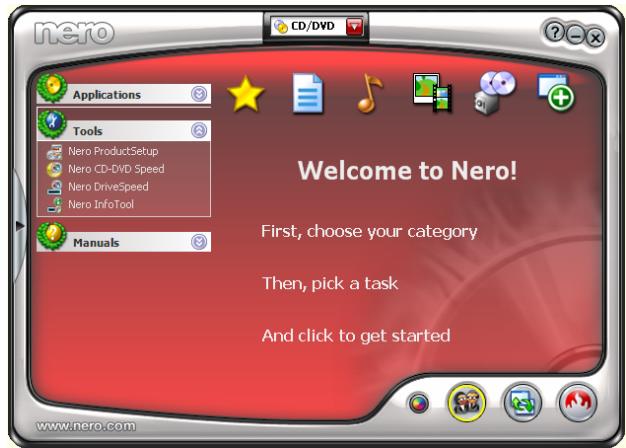
Fig. 1: Extended Nero StartSmart window
The following control options are available:
| Maximizes/minimizes the user interface in the areas
Applications with direct access to all applications of the Nero Suite,
Tools with direct access to all applications of the Nero Suite,
Manuals with direct access to all available manuals. |
| Changes the background interface color. |
| Switches from default mode to expert mode. Default mode provides a selec-
tion of the most frequently used tasks. |
| Switches from expert mode to default mode. All tasks are available in expert
mode. |
| Opens the configuration area. Here you can define the tasks for which the in-
dividual applications of the Nero Suite will be started. |
| Opens Nero ProductSetup (see the section Nero ProductSetup). |
| Opens the Nero StartSmart help file. |
| Minimizes Nero StartSmart in the Microsoft® Windows® taskbar. |
| Exits Nero StartSmart. |
CD/DVD Combo Box
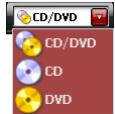
This menu offers the project types available for selection based on the installed recorder and provides the available tasks, based on the selection, in the categories. For example, you can only create an audio CD if you have selected CD as the project type.
The menu icons in the top right corner of the initial Nero StartSmart screen represent categories in which related tasks are grouped together. The scope of the tasks offered in the individual categories differs depending on the project type selected and whether Nero StartSmart is in default or expert mode. The available tasks are displayed as menu icons when you hover the mouse pointer over the category icons.
| Favorites | Provides menu icons for the most frequently used tasks from all categories in the task area. You can customize the task composition in the Favorites category with the help of the context menu by deleting tasks or adding tasks from other categories (see the section Managing Favorites). |
| Data | Provides menu icons for creating and copying data CDs and data DVDs in the task area. |
| Audio | Provides menu icons for compiling, converting, and encoding audio files in the task area. You can also create and copy audio CDs and audio DVDs here. |
| Photo, Video, and TV | Provides menu icons for viewing and editing photos and videos, recording and recoding videos, creating slide shows and films, viewing TV, and much more in the task area. You can also create CDs and DVDs as well as photo CDs and DVDs here. |
| Backup | Provides menu icons for backing up all media file formats in the task area. You can schedule and restore backups, back up entire DVD-Videos or hard drives to CD or DVD, and burn images to a disc. You can also copy CDs and DVDs here. |
| Extras | Provides menu icons for various tasks in the task area. You can erase CDs and DVDs, create covers or labels, configure burning rights, set drive speeds, test drives, search media compilations, share music/photos/videos, and much more here. |

Changing the Allocation of the Applications to Tasks
Hovering the mouse pointer over the menu icons in the task area displays a dialog area giving the name of the application with which the respective task is processed. If there are a number of suitable applications you can also select an application here and make it the default application for this task.
3.1 Managing Favorites
You can arrange the Favorites category to your specific requirements by adding those tasks you frequently use or by removing those which are not important to you in this category. All the tasks remain in their original categories so that you can go back to tasks you have deleted from the Favorites category at any time.
3.1.1 Allocating New Tasks to Favorites
Proceed as follows to allocate new tasks to the Favorites category:
- If the default Nero StartSmart window is currently active, click the arrow button on the left-hand side of the window to extend it.
- Click the menu icon of the category containing the new task you want to allocate to the Favorites category.
The tasks in the selected category are displayed.
- Hover the mouse pointer over the menu icon of the task to be added to the Favor- ites category.
A dialog area specifying, among other things, the application used to edit this task is displayed.
- Click the Add to Favorites button in this dialog area.
The desired task, besides being located in the original category, is also located in the Favorites category.
3.1.2 Removing Tasks from Favorites
Tasks removed from the Favorites category are not deleted from Nero StartSmart. They are still available in their respective original categories.
Proceed as follows to remove a task from the Favorites category:
- If the default Nero StartSmart window is currently active, click the arrow button on the left-hand side of the window to extend it.
- Click the star-shaped menu icon in the Favorites category.
The tasks in the Favorites category are displayed.
- Hover the mouse pointer over the menu icon of the task you want to remove.
A dialog area specifying, among other things, the application used to edit this task is displayed.
- Click the Remove from Favorites button in this dialog area.
The selected task is removed from the Favorites category but is still retained in the original category.
4 Nero ProductSetup
In the Nero ProductSetup screen you can update Nero 7, define the languages to be available in the applications within Nero 7, modify the existing Nero 7 installation, and retrieve information about the serial numbers or delete/add serial numbers.
4.1 Calling Nero ProductSetup
You can open Nero ProductSetup in the Nero StartSmart window using the Nero button in the top left corner of the frame, the flame button in the bottom right corner of the frame, and the corresponding entry in the Tools selection list. You can, for example, proceed as follows:
- If the default Nero StartSmart window is currently active, click the arrow button on the left-hand side of the window to extend it.
- Open the Tools selection list and click the Nero ProductSetup entry.
The Nero ProductSetup window is opened. As a standard setting, the window will show in which version each Nero 7 application is installed and if an update is available. It also offers buttons which lead to the Update, Language, Setup, and License areas.
4.2 Refresh
This function requires you to have an Internet connection; you can, however, also update your installation using a downloaded update which you have stored on your computer. In the update screen of Nero ProductSetup you can define whether you want a check to be performed for the availability of updates under www.nero.com, and if so, at what intervals. You can also start an update or an update availability check directly.
4.2.1 Updating Nero
To do this, proceed as follows:
- Click the Update button in the Nero ProductSetup window.
A list of all installed Nero 7 applications is displayed. The installed version of each application will be displayed along with the availability of an update if one has been released.
- Click the Check for updates button to see if further updates are available.
A dialog box which informs you of the progress and the result of the search will be displayed.
- Click the Update Now button to download the new updates.
A dialog window that allows you to choose between updating via the Internet and using an update file downloaded previously and stored on the computer is displayed.
- Click the Download button to update through the Internet.
The dialog window will appear informing you of the progress and the result of the download process. It will also inform you of the fact that an existing version of Nero 7 must first be uninstalled before the update can be installed and automatically implemented.
-
To use an update file already available on your computer, enter the file's directory path in the text field of the displayed dialog box or click the Browse button to select the path.
-
Click the OK button.
The update is executed. The relevant version designations are displayed in the Installed Versions column.
If there are no updates available for the applications selected, a dialog window containing an appropriate message will be displayed.

Microsoft Windows Firewall is Blocking the Update Process
If this happens, a window will be displayed to notify you and you will be offered the option of automatically configuring the firewall to permit an Internet connection for the update process. If you accept, the update process will be continued. If you would prefer to manually configure the firewall, decline this offer.
4.2.2 Configuring an Automatic Update Check
This function is enabled by default, i.e. a check is automatically performed for new updates every 30 days. Proceed as follows to change this value:
- Make sure that the check box for regular automatic updates is checked.
- Enter the number of days after which the automatic update should be performed in the corresponding text field.
- Click the OK button.
The time interval for automatic update checks is redefined.
4.3 Language
You can define which languages the Nero applications should currently use and which should generally be available in the Language Selection of Nero Product Setup.
4.3.1 Defining Currently Used Languages
Proceed as follows to define the language which should currently be used by all Nero applications.
- Click the Languages button in the Nero ProductSetup window.
The language selection windows will appear.
-
Select your desired language in the selection menu.
-
Click the Change language now button.
The selected language is used immediately.
4.3.2 Defining Generally Available Languages
- Click the Languages button in the Nero ProductSetup window.
The language selection screen with a list of all languages that can be installed is displayed; the check boxes of the languages which are already installed are checked. The entry Partly installed will indicate if different languages for different Nero products have been selected.
- Activate/deactivate the check boxes of those languages which additionally/no longer should be available.
Additionally selected languages have the entry Add while deactivated languages have the entry Remove.
- Click the Add / remove languages button.
Nero checks automatically if the corresponding installation file is available with the corresponding language files.
- Confirm the installation of activated/deactivated language files in the appearing dialog box when the language files are found.
The additionally activated languages files are available, the deactivated ones have been removed.
- If the language files cannot be found, a dialog box will appear offering a corresponding search function on all drives which are locally accessible; it will also offer access to the Internet so that the latest files may be downloaded. Decide on one of the two possibilities and click the OK button.
Valid language files will be automatically installed when they are found using one of the two methods.
4.4 Setup
All installed Nero products are listed along with their file size in the Setup screen of Nero ProductSetup. Here you can configure individual products (i.e. add or remove applications) as well as completely uninstall products. For each product, you can also call up the information required to contact the support department.
To access product-specific information, please use the link Click here to get support information.
The Support Info window is displayed and shows the version number of the respective products as well as the links to the support or update area on the Nero website.
4.4.2 Modifying Nero Suite
If you selected the Custom Installation option during the initial installation of Nero 7, you may want to install further applications afterwards. To do so, proceed as follows:
- Select the Nero 7 Premium entry in the Setup screen.
- Click the Change button.
The Custom Installation screen is displayed. The applications that will be installed are indicated by a hard drive icon. The applications that are not to be installed are indicated by a red X.
- To select an application, click the hard drive icon or the red X and select one of the following installation options from the context menu:
This feature will be installed on local hard drive installs the application without additional components such as help files or templates.
This feature, and all subfeatures will be installed on local hard drive installs the application and all additional components.
This feature will not be available does not install the associated application or uninstall it.
- Click the Next button.
The selected Nero Suite applications are installed in the default installation directory C:\Programs\Nero\Nero 7 and the Settings screen is displayed.
-
On the relevant tabs, activate the check boxes for the photo, video, and music file formats which are to be automatically opened with the corresponding Nero 7 application.
-
On the Options tab, activate the check boxes for the required options. Please also activate the Configure Nero Scout on first usage check box if you want to define the Nero 7 directories after the first start; these are the directories whose media files have been cataloged by the database program Nero Scout and made available to the Nero Suite applications.
-
Click the Next button to continue the installation.
The installation is finished, the Nero ProductSetup screen appears, and the Nero Suite is available in modified form.
4.4.3 Removing Nero Suite
To remove Nero 7 completely from your computer, proceed as follows:
- Select the Nero 7 entry in the Setup screen.
- Click the Remove button and confirm the process in the appearing dialog box.
Nero 7 is removed completely and the final screen of the installation wizard is displayed.
- Click the Exit button.
The installation wizard is closed. Nero 7 has been removed from your computer.
4.5 License
You can display all Nero programs installed on your computer together with their serial numbers in the Serial Numbers screen of Nero ProductSetup. The expiration date is indicated for installed demo versions. You can also enter new serial numbers. To do so, proceed as follows:
- Click the License button in the Nero ProductSetup window.
A list of all Nero products installed on your computer together with their serial numbers is displayed.
-
Click the Add button to enter a new serial number.
-
Enter the new serial number in the text field of the dialog window that is displayed.
-
Click the OK button.
The new serial number is added to the list.
-
Click the Remove button to remove a serial number.
-
Confirm the process in the dialog box that is displayed.
The serial number is removed from the list.
- Click the OK button.
The new serial number is available, the old serial number has been removed.

Where can I find step-by-step instructions for Nero applications?
Beside the manuals and help texts which you can download from our website www.nero.com under the Downloads category, you also have at your disposal detailed tutorials with step by step instructions in the Support category.

One of my encoders has expired! What should I do?
For licensing reasons, we are only permitted to integrate test versions for a few encoders in Nero 7. This gives you the chance to test the encoder functions for a limited time. When the test version has expired you must purchase the corresponding encoder plug-in. You can do so in the online shop under www.nero.com. We decided to take this step so that only those users who actually want to use these functions would have to pay the license fees.

Why do I not have a Help file?
To enable full access to the help functions, please go to http://www.nero.com/link.php?topic_id=90 to download the latest update and the latest help files in the desired language.

Why can I not find InCD after the installation?
The standard installation of the Nero Suite does not include the installation of InCD. For that reason, please select Nero StartSmart Tools > Nero ProductSetup > Setup > Modify and follow the installation wizard. You can install InCD after the main installation (see Modifying Nero Suite) on the Custom Installation screen.
Nero 7 is a Nero AG product.
nero
7 PREMIUM
Nero AG
Im Stoeckmaedle 13-15
76307 Karlsbad
Germany
Internet: www.nero.com
Help: support.nero.com
E-mail: techsupport@nero.com
Fax: +49 724 892 8499
Copyright © 2007 Nero AG and its licensors. All rights reserved.
Printed in Germany