
AU10 - Carte son ABIT - Notice d'utilisation et mode d'emploi gratuit
Retrouvez gratuitement la notice de l'appareil AU10 ABIT au format PDF.


| Type de produit | Carte son interne PCI 5.1 canaux |
| Marque et modèle | ABIT Home Theater AU10 |
| Connectique | Interface PCI 2.1, sorties audio avant/arrière/central/subwoofer, entrée ligne, microphone, MIDI/joystick, S/PDIF (optionnel), CD-IN, AUX-IN, TAD, VIDEO-IN |
| Contrôleur audio | ForteMedia FM801-AU |
| Canaux audio | 5.1 canaux (avant, arrière, central/subwoofer) |
| Compatibilité logicielle | Microsoft DirectX, MMSystem, EAX, A3D 1.0, Sound Blaster Pro, AdLib, MPU401, DOS natif |
| Synthétiseur wavetable | 128 voix, Yamaha XG |
| Formats audio supportés | MP3, WAV, MIDI, Audio CD, MPEG-1/2 (via WinDVD), Dolby AC-3, DTS (décodage logiciel) |
| Alimentation | Via le bus PCI, 5 V |
| Dimensions (estimation) | Carte PCI standard (env. 120 x 50 mm) |
| Poids (estimation) | Environ 50 g |
| Contenu de la boîte | Carte audio, câble G9 6 canaux, télécommande infrarouge (optionnel), câble récepteur IR (optionnel), manuel utilisateur, CD d'installation et d'utilitaires |
| Systèmes d'exploitation supportés | Windows 98/ME/2000/XP, DOS |
| Entretien et nettoyage | Nettoyer avec un chiffon doux et sec. Éviter l'humidité et la poussière. |
| Sécurité | Débrancher l'ordinateur avant toute manipulation. Manipuler la carte avec précaution pour éviter les décharges électrostatiques. |
| Pièces détachées et réparabilité | Les composants ne sont pas remplaçables individuellement. En cas de problème, contacter le service technique ABIT ou le revendeur. |
FOIRE AUX QUESTIONS - AU10 ABIT
Questions des utilisateurs sur AU10 ABIT
0 question sur cet appareil. Repondez a celles que vous connaissez ou posez la votre.
Poser une nouvelle question sur cet appareil
Téléchargez la notice de votre Carte son au format PDF gratuitement ! Retrouvez votre notice AU10 - ABIT et reprennez votre appareil électronique en main. Sur cette page sont publiés tous les documents nécessaires à l'utilisation de votre appareil AU10 de la marque ABIT.
MODE D'EMPLOI AU10 ABIT
Copyright and Warranty Notice
The information in this document is subject to change without notice and does not represent a commitment on part of the vendor, who assumes no liability or responsibility for any errors that may appear in this manual.
No warranty or representation, either expressed or implied, is made with respect to the quality, accuracy or fitness for any particular part of this document. In no event shall the manufacturer be liable for direct, indirect, special, incidental or consequential damages arising from any defect or error in this manual or product.
Product names appearing in this manual are for identification purpose only and trademarks and product names or brand names appearing in this document are the property of their respective owners.
This document contains materials protected under International Copyright Laws. All rights reserved. No part of this manual may be reproduced, transmitted or transcribed without the expressed written permission of the manufacturer and authors of this manual.
If you do not properly set the audio card settings causing the audio card to malfunction or fail, we cannot guarantee any responsibility.
ABIT Home Theater AU10 5.1 Channel Audio Card User's Manual
Index
CHAPTER 1. GETTING STARTED 1-1
1-1. KEY FEATURES 1-1
1-2 FEATURES AND BENEFITS 1-2
1-3. WHAT'S IN THE BOX? (PACKAGE LIST) 1-3
CHAPTER 2. HARDWARE INSTALLATION. 2-1
2-1. CARD LAYOUT 2-1
2-2. CONNECTORS AND HEADERS 2-2
2-3. CARD INSTALLATION 2-3
CHAPTER 3. DRIVER INSTALLATION 3-1
3-1. WINDOWS 98/ME 3-1
3-2. WINDOWS 2000 3-3
3-3. WINDOWS XP 3-6
CHAPTER 4. UTILITY SETUP 4-1
4-1. THE WINDVD 4-1
4-2. THE WINRIP 4-7
4-3. YAMAHA SOFTSYNTHESIZER 4-15
4-4. THE DIRECTX 4-19
APPENDIX A. PRODUCT FAQ. .A-1
APPENDIX B. HOW TO GET TECHNICAL SUPPORT. B-1
Chapter 1. Getting Started
Congratulations! You have chosen one of the most powerful high performance 3D audio cards available. In this chapter we will show you the key features, features and benefits, and the package list of ABIT Home Theater AU10 audio card.
1-1. Key Features
- ForteMedia FM801-AU audio controller
5.1 channel output
PCI 2.1 Compliant
Soft MPEG-II Support
Microsoft DirectX and MMSystem Compliance
128-voice Software WaveTable Synthesizer support
Superior 3D positional Audio Support - Creative Environmental Audio (EAX), A3D 1.0 game titles Compatible
- Native DOS Game Support without Software Emulation
- Analog/Digital Joystick Interface
Legacy Audio compatibility
Hardware Sound Blaster Pro compatibility
AdLib compatible Music Synthesizer - MPU401 UART mode MIDI interface
1-2. Features and Benefits
| Features | Benefits |
| Yamaha XG | High-quality sound rivaling CD audioSupports the XG format with a rich array of sounds and diverse effectsDynamic filtering allows subtle musical nuances to be reproducedSimultaneous playback of MIDI and audio is now possible |
| WinDVD | WinDVD is software DVD decoder/player that capitalizes on the growing demand for DVD playback on the PC. This software DVD decoder/player includes integrated MPEG1 and MPEG2 file playback, a powerful VCD 2.0 player, MP3 audio file and SVCD playback. The Dolby AC-3 and DTS decoding function supports 6-channel output. |
| Remote Control Kit | The world's only complete remote control allows you to sit back, relax and enjoy watching your DVDs, listening to the 5.1 channel digital output. Just like your regular TV remote, there is no need to get up in order to control how and what you see and hear.The remote control can also be used in the office in controlling your PowerPoint presentations. |
| Great Sound Clarity | Provide highest quality of playback and recording performance by separating digital controller (FM801) and CODEC (AC'97). |
| Sound Accuracy to the Music Notes | Supports software wavetable synthesizer (music synthesizer engine). |
| WinRipTM | Provide you with a complete audio playback and recording environment for all currently available audio formats, including the MP3, MP2, WAVE, MIDI, and Audio CD formats for Abit's 5.1 channel playing device. |
| 3D Positional Sound | Q3D is the positional 3D sound algorithm provided by QSound. It provides the ability to simulate a two-speaker system as a full surround sound source. It supports Microsoft® direct sound and positional 3D games. That means with this driver, your AU10 PCI audio card can be used to play those amazing games with positional 3D audio. |
1-3. What's in the box? (Package List)
Check the following list. If there is any item damaged or missing, please contact your local dealer.
(1) ABIT Home Theater AU10 audio card
(1) G9 6-Channel Cable Red jack: To connect Front speakers White jack: To connect Rear speakers Black jack: To connect Center speaker/Subwoofer
(1) Remote Controller (Optional)
(1) Remote Receiver Cable (Optional)
(1) User's manual
(1) AU10 Installation and Utility CD.
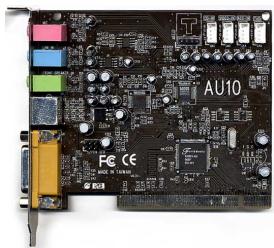
ABIT Home Theater AU10 audio card
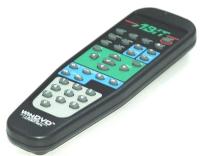
Remote Controller (Optional)
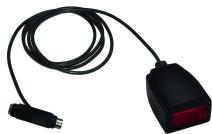
Receiver Cable (Optional)
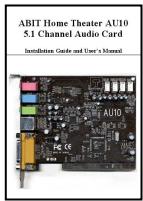
User's Manual

Installation and
Utility CD
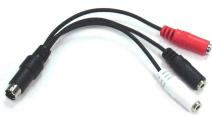
G9 6-Channel Cable
Figure 1-1. Package list of ABIT Home Theater AU10 audio card
Note
Carefully examine your ABIT Home Theater AU10 audio card to make sure there is no loosen or broken component on the card. If the audio card appeared to be damaged, return it to the store for exchange as soon as possible.
Chapter 2. Hardware Installation
It is fast and easy to install the hardware of ABIT Home Theater AU10 audio card. Simply insert the ABIT Home Theater AU10 audio card into any empty PCI slot on your motherboard, and then fix it to the back panel.
2-1. Card Layout

Figure 2-1. Connection diagram of ABIT Home Theater AU10 audio card
2-2. Connectors and Headers
- MIC: To connect a microphone.
LINE IN: To connect an external audio source. - FRONT: To connect the 2-speaker audio system.
5.1CH OUT: To connect the 6-speaker audio system. - MIDI/GAME: To connect a MIDI player or Joystick.
- CD-IN: To connect the Audio-Out connector of internal CD/DVD-ROM drive.
VIDEO-IN: To connect a video add-on card. - AUX-IN: To connect an auxiliary audio input.
TAD: To connect the modem card. - S/PDIF I/O: To connect the digital audio input. Note that the connection of S/PDIF requires an optional daughter card.
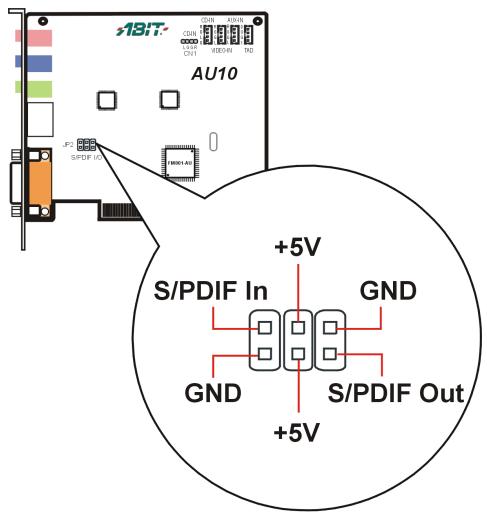
Figure 2-2. Pin definition of S/PDIF I/O connector
2-3. Card Installation
- Turn off the PC and all external peripherals connected to it (e.g. printer...etc.), and then remove the PC system cover.
- Locate an empty PCI expansion slot. Your ABIT Home Theater AU10 audio card can be installed in any available PCI expansion slot. Remove the metal bracket corresponding to the slot you have chosen. Save the screw.
- Align the ABIT Home Theater AU10 audio card to the expansion slot. Hold the audio card by its edges and insert the card into the slot without using excessive force or pressing any components on the audio card. Make sure it is firmly and completely fixed into the slot.
- Secure the ABIT Home Theater AU10 audio card to the expansion slot. Align the notch in the mounting bracket of the audio card with the screw hole in the rear panel of the computer case. Use the screw that you had removed from the metal bracket to secure the audio card in place.
- Use the audio cable that came with your CD/DVD-ROM to connect the CD/DVD-ROM audio output to the audio connector on the ABIT Home Theater AU10 audio card (refer to Fig. 2-1).
- Connect the required cables to the audio card - there are 3 external audio jacks at the back end of the audio card: "MIC", "LINE IN", and "FRONT". Connect your speaker cable to the "FRONT" jack.
- Replace the system cover. You are now ready to boot up your PC system.

Chapter 3. Driver Installation
3-1. Windows 98/ME
Start Windows. Insert the Installation CD into CD-ROM drive, it should execute the installation program automatically. If not, double-click the execution file at the main directory of this Installation CD to enter the installation menu.
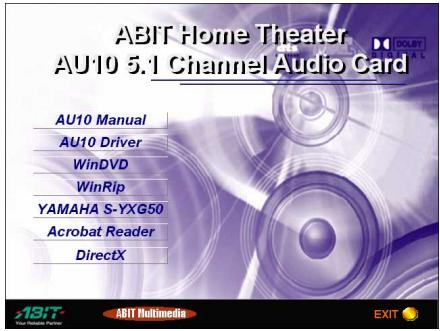
Click "AU10 Driver".
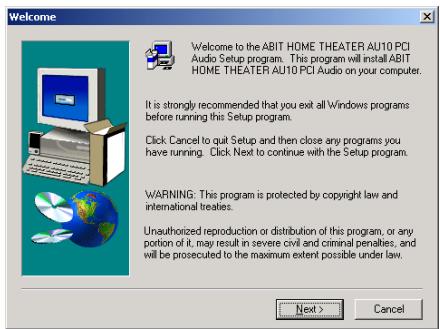
The welcome screen appears, click "Next" to start installation.
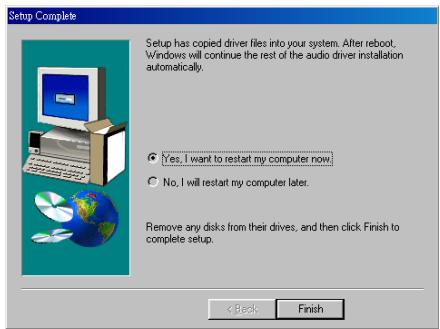
Choose "Yes, I want to restart my computer now", and click "Finish" to end the installation".
Speaker Test and Driver Un-Installation
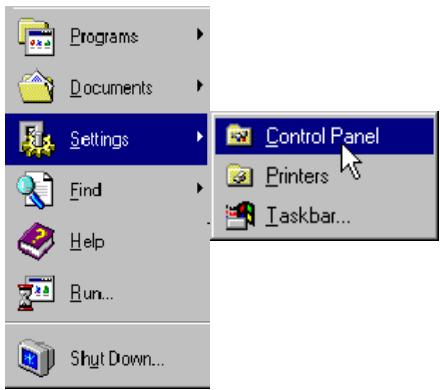
Go to the "Control Panel" by clicking on the "Start" Menu, selecting "Settings" and choosing "Control Panel".
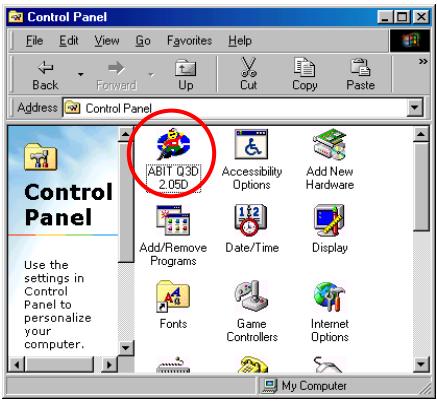
Double-click on "ABIT Q3D" Icon in "Control Panel".
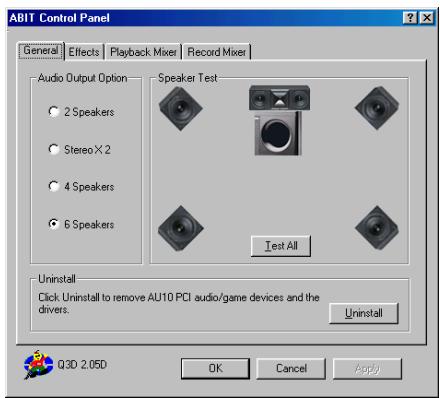
To test if all the speakers were properly installed, click on "Test All" button. Please watch carefully the movement of the music note shown on the screen to verify the correct placement of your speakers.
To uninstall the ABIT Home Theater AU10 Audio Card drivers, click on "Uninstall" button to disable the driver.
3-2. Windows 2000
Plug and Play Setup:

Found New Hardware Wizard
Welcome to the Found New Hardware Wizard
This wizard helps you install a device driver for a hardware device.
To continue, click Next.
<Back
Next>
Cancel
Install Hardware Device Drivers
A device driver is a software program that enables a hardware device to work with an operating system.

Found New Hardware Wizard
This wizard will complete the installation for this device:

Multimedia Audio Controller
A device driver is a software program that makes a hardware device work. Windows uses the device driver to run your new device. To locate driver files and complete the installation click Next.
What do you want the wizard to do?
Search for a suitable driver for my device (recommended)
Display a list of the known drivers for this device so that I can choose a specific driver
<Back
Next>
Cancel
Locate Driver Files
Where do you want Windows to search for driver files?

Found New Hardware Wizard
Search for diver files for the following hardware device:

Multimedia Audio Controller
The wizard searches for suitable drivers in its driver database on your computer and in any of the following optional search locations that you specify.
To start the search, click Next. If you are searching on a floppy disk or CD-ROM drive, insert the floppy disk or CD before clicking Next.
Optional search locations:
Floppy disk drives
CD-ROM drives
√ Specify a location
Microsoft Windows Update
<Back
Next>
Cancel
Start Windows.
When Windows detects your ABIT Home Theater AU10 audio card, the Found New Hardware Wizard dialog box appears. Click "Next".
Select "Search for a suitable driver for my device [recommended]", and then click "Next".
Select "Specify a location", and then click "Next".
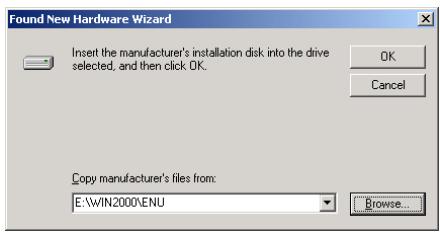
Insert the Installation CD into CD-ROM drive. Use the "Browse..." button to locate the driver, or type "E:\WIN2000\ENU" to specify the path. E is the CD-ROM drive. Click "OK" to continue.
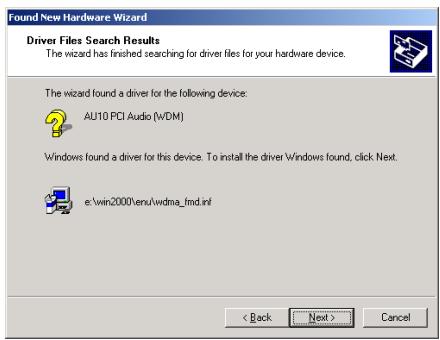
The wizard has found the driver for this device. Click "Next>" to continue.
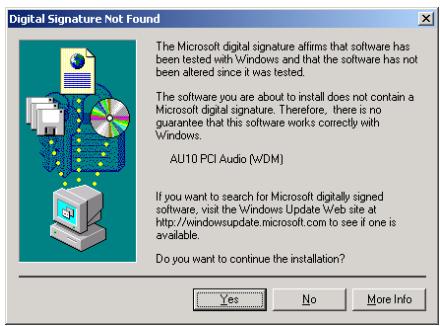
Click "Yes" to continue.
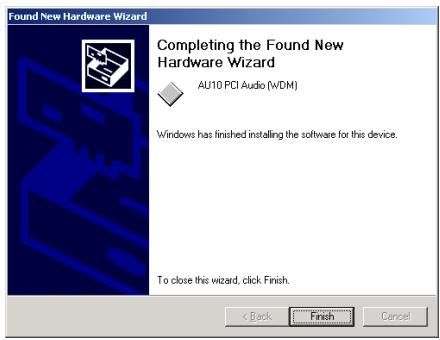
Windows has finished installing the software for this device. Click "Finish" to close the wizard.
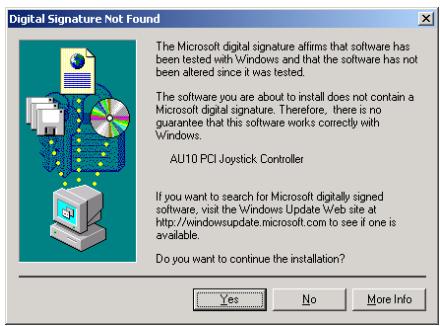
Now the system will detect AU10 PCI Joystick Controller automatically. Click "Yes" to end the installation.
Auto Setup:
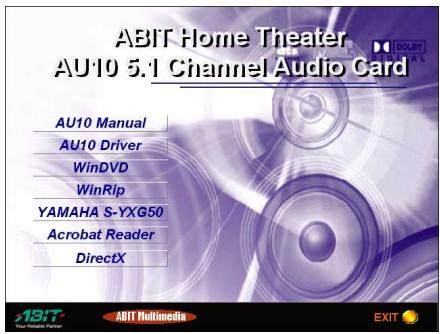
Start Windows. Insert the Installation CD into CD-ROM drive, it should execute the installation program automatically. If not, execute the execution file at the main directory of this Installation Disk. After it has been executed, the setup screen appears. Click "AU10 Driver" to start installation.
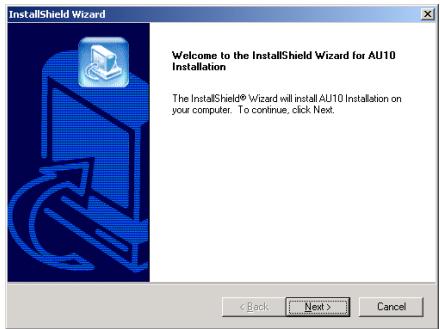
The welcome screen appears, click "Next" to start installation.
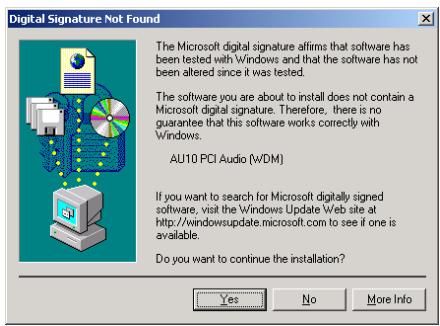
Click "Yes" to continue.
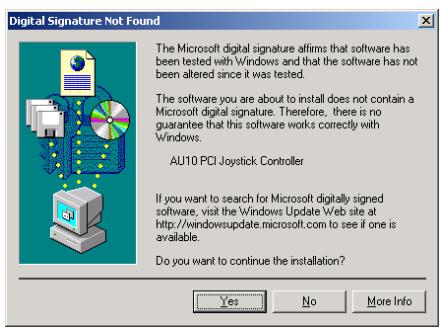
Click "Yes" to continue.

Click "Finish" to close the wizard.
3-3. Windows XP
The procedures of driver installation on Windows XP are similar to those on Windows 2000. Please refer to the section of Windows 2000 for installing driver on Windows XP.
Chapter 4. Utility Setup
4-1. The WinDVD
The WinDVD is a simple-to-use DVD player combining all the features you would expect to find in a standard consumer DVD player, in addition to some very advanced functionality, such as full VCD 2.0 support, full precision video decode, a choice of user interfaces, and video display options. You can play DVD titles or Video CDs - WinDVD automatically determines the type of disc in the DVD drive and uses the correct playback method.
Start Windows. Insert the Installation CD into CD-ROM drive, it should execute the installation program automatically. If not, double-click the execution file at the main directory of this Installation CD to enter the installation menu.
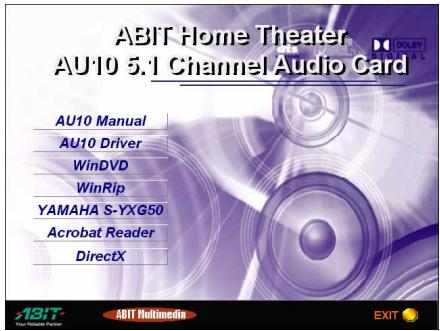
Click "WinDVD".
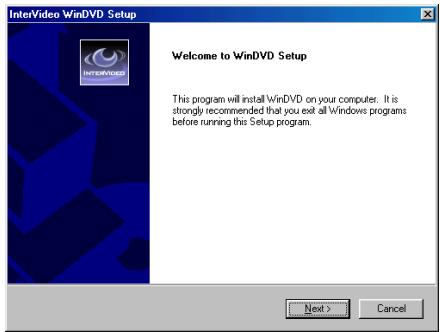
The welcome screen appears. Click "Next" to start installation.
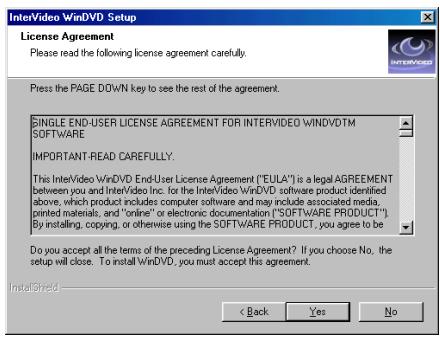
Read the license agreement. Click "Yes" to continue.
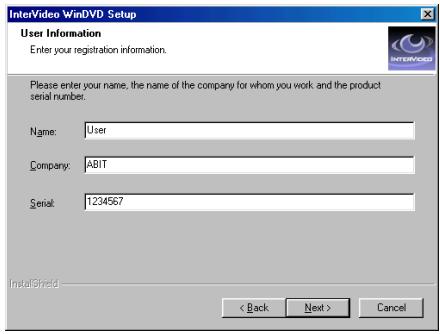
Enter your name, the name of the company for whom you work, and the product serial number. Click "Next" to continue.
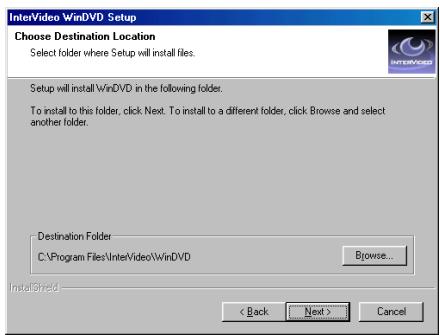
Setup will install WinDVD in the following folder. To install to this folder, click "Next". To install to a different folder, click "Browse..." and select another folder.
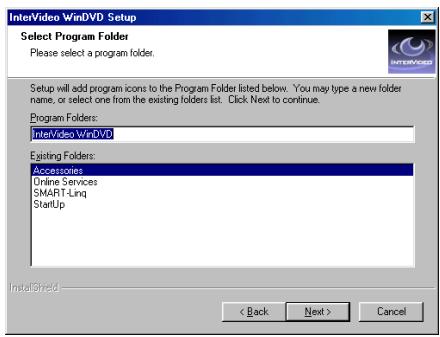
Type a new folder name, or select one from the existing folders list. Click "Next" to continue.
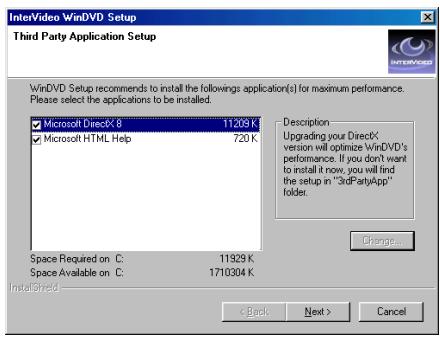
Select the application you want to install, and then click "Next".
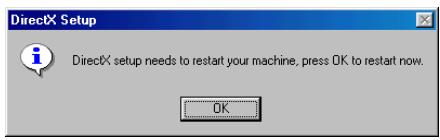
When the installation has finished installing all the necessary procedures, it will prompt you to restart your computer. Click "OK" to complete the installation.
Remote Control Kit (Optional):
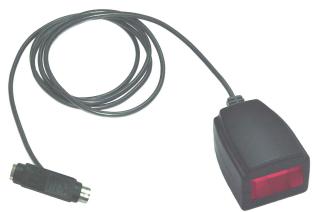
Remote Control Kit
Receiver Cable
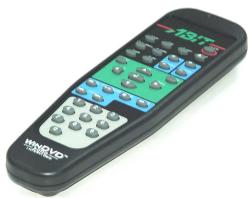
Remote Controller
We provide a specially designed IR remote control kit with the ABIT Home Theater AU10 audio card for the convenience of our users. This remote control kit can replace the keyboard function when a user is watching DVD/VCD movies with the WinDVD software.
This remote control kit not only can control the WinDVD playback but also can be used as a pointing device to control Microsoft PowerPoint presentation software.
The installation procedure:
- Remove the keyboard from the PS/2 port on your motherboard.
-
Connect one end of the receiver cable to the PS/2 Keyboard port on your motherboard.
-
Connect your PS/2 keyboard connector to the other end of the receiver cable.
- Place the IR receiver to the most convenient location facing towards you. Please avoid having any obstacle in between to block the IR transmission.
- If you have already installed the WinDVD multi-channel version that is included with the ABIT Home Theater AU10 audio card, you can verify the installation by trying out the IR remote function.
Note
This IR remote control kit will only be functional with the WinDVD specially designed for audio products from ABIT. It will not work with other versions of WinDVD nor other software DVD playback utilities.
Remote Controller (Optional):
We provide a specially designed IR remote control kit with the ABIT Home Theater AU10 audio card for the convenience of our users. This remote control kit can replace the keyboard function when one is watching VCD or DVD movies with the WinDVD software.
On/Off: Power On/Off
- Eject: Ejects the disk from the drive
- Screen: Select the size of viewing screen.
- Title: Opens a submenu showing you all of the titles available on the DVD disc currently being played and allows you to select a new title to play back.
- Subtitle: Displays the subtitle menu. If multiple language subtitles are available, use this menu to select your choice.
Audio: Displays the audio track options. If multiple audio tracks or language are available, use this menu to select your choice.
- Mute: Mutes the sound on the disk currently playing
- Chap Menu: Shows the Chapter menu
- Angle: When available, select the angle to view from a list of optional angles.
Volume: Increase or decrease audio output
- Brightness: Increase or decrease the brightness of the video output
- Menu: shows menu selections
- Up/Down/Right/Left: Use the directional buttons just as you would the mouse button or Tab key
- Enter/Play: Enter Plays the current title, restores play after a pause
- ESC: To escape from the Menu selection
- Fast Forward: Plays the disk in fast forward mode
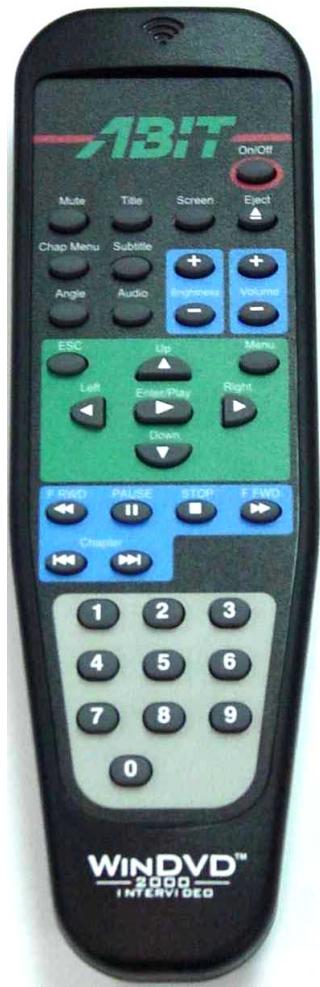
- Stop: Stops the current playback
- Pause: Pauses the current playback
- Fast Backward: Plays the disk in fast reverse mode
Previous Chapter: Jump to the previous chapter
Next Chapter: Jump to the next chapter
Chapter: Opens a submenu showing you the chapter currently being played. You can select another chapter from this menu. - Numeric Keypad: The numeric keypad provides you with a method of selecting numbers. This is more likely to be used while playing a Video CD than a DVD disc. Any time that you enter a numeric value, click the corresponding key on the numeric keypad and then click the enter button to accept that number
4-2. The WinRip
WinRip is an application developed by InterVideo to provide you with a complete audio playback and recording environment for all currently available audio formats, including the MP3, MP2, WAVE, MIDI, and Audio CD formats for ABIT's 5.1 channel playing device. WinRip enables you to swap and convert between these formats freely.
Install WinRip:
Start Windows. Insert the Installation CD into CD-ROM drive, it should execute the installation program automatically. If not, double-click the execution file at the main directory of this Installation CD to enter the installation menu.
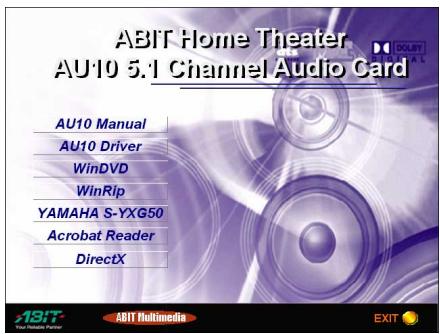
Click "WinRip".
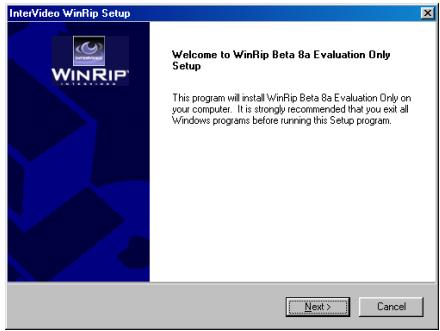
Click "Next".
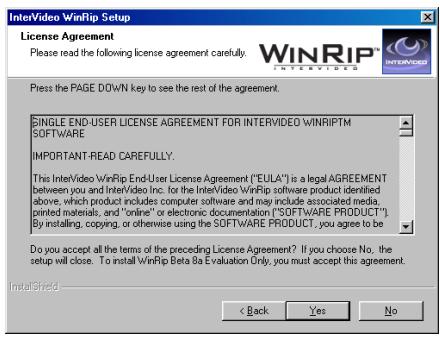
Click "Yes".
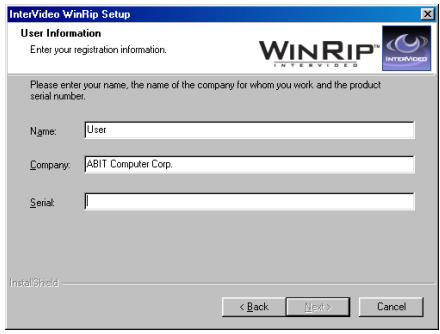
Type in your name, company name, and serial number of this software. Click "Next" to go on.
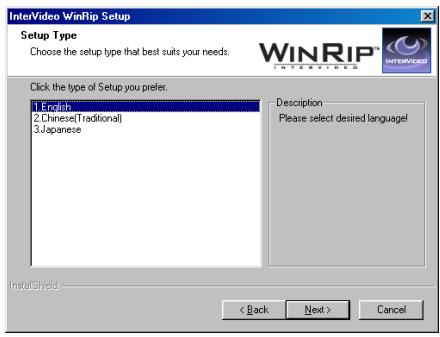
Select the setup language you want. Click "Next" to go on.
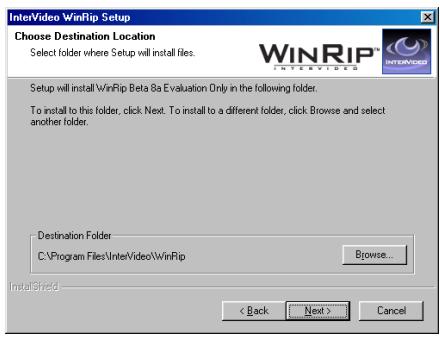
Choose the destination location you want by entering the "Browse..." button, or you may click "Next" to go on.
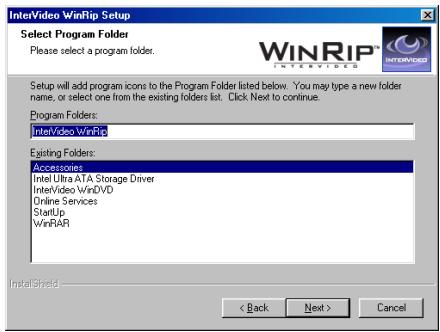
Type in the new folder name you want, or you may Click "Next" to go on.
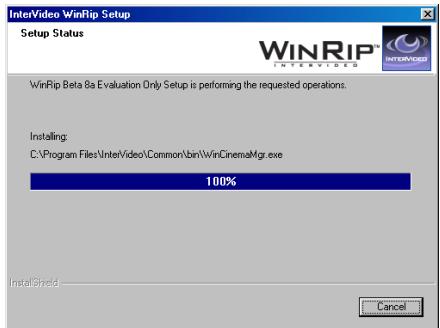
WinRip is now installing.
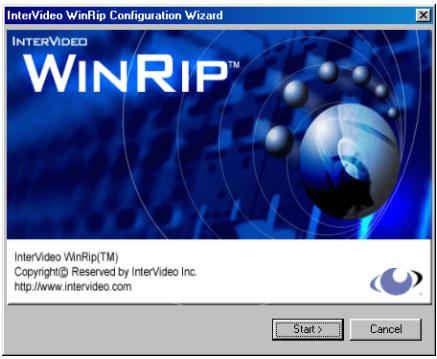
Click "Start>" to go on.
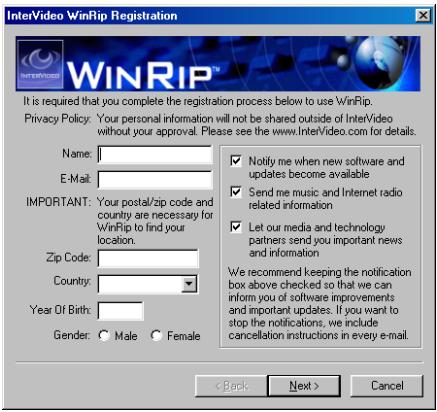
Type in your own registration information and click "Next" to go on. Or you may click "Cancel" button to skip this step, finish the registration later, and jump directly to steps 14 to complete the installation.
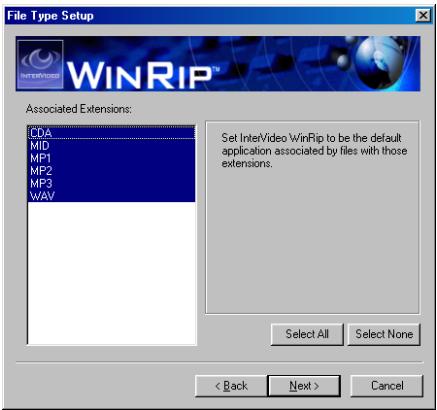
Select the extensions names associated with WinRip, and click "Next" to go on.
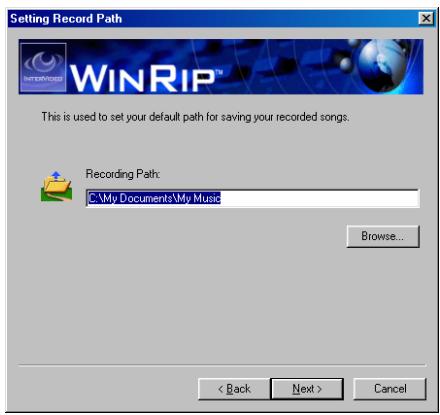
Type in the recording path of your recorded songs, or you may click "Next" to go on with the default path.
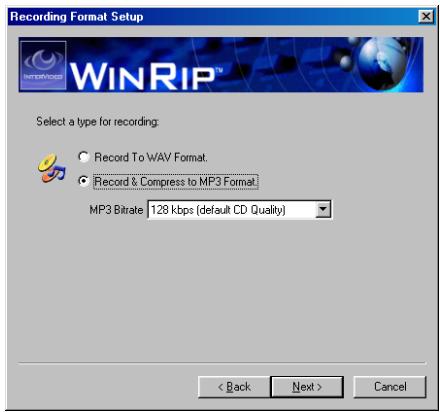
Check the type of recording. There are 128 (default), 160, 192, 224, 256, and 320 kbps options to select. Click "Next>" to go on.
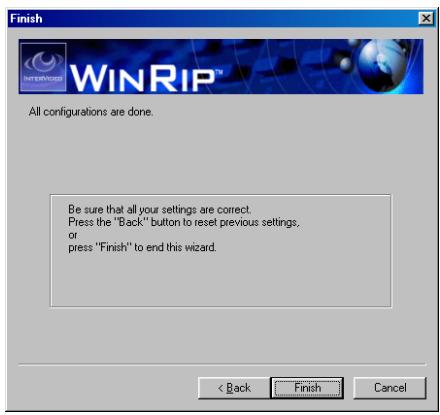
Click "Finish" to end the installation.
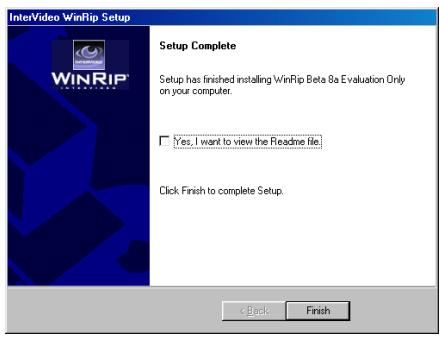
Windows has finished installing WinRip. Enable the check box if you want to view the Readme file, or click "Finish" to go on.
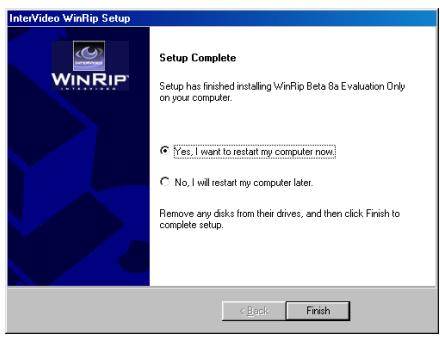
Choose "Yes, I want to restart my computer now", and click "Finish" to complete the setup.
WinRip Configuration:
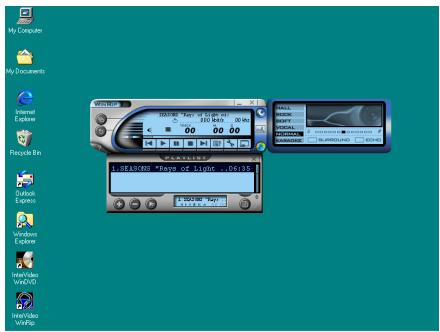
Double-click on the WipRip icon on the desktop.
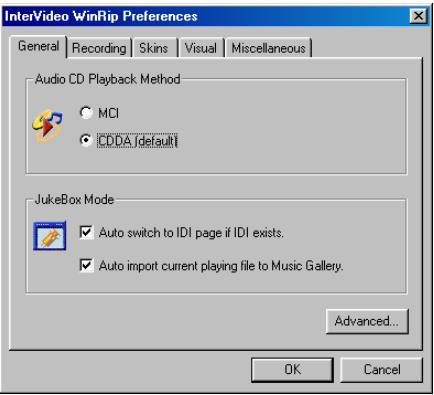
Click the "Advanced..." button to go on.
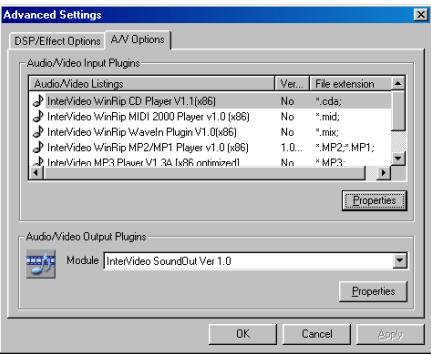
Select the A/V Options tab, and click the "Properties" button of Audio/Video Output Plugins to go on.
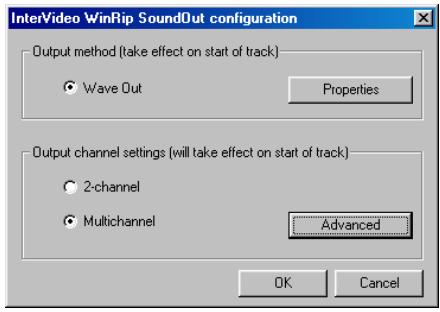
Choose "Multichannel" and click the "Advance" button.
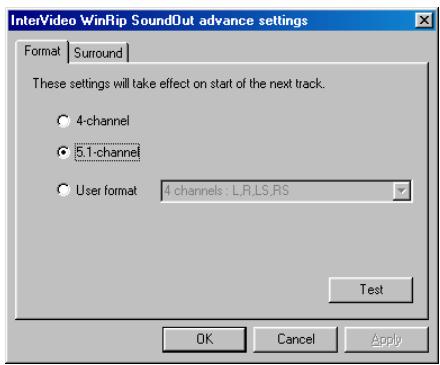
Choose 5.1-channel and click "OK" button.
Keep clicking "OK" button in the up-coming screens.
The output channel settings will take effect immediately on the start of next track.
4-3. YAMAHA SoftSynthesizer
The YAMAHA SoftSynthesizer is an application to control the audio quality of your ABIT Home Theater AU10 audio card.
Start Windows. Insert the Installation CD into CD-ROM drive, it should execute the installation program automatically. If not, double-click the execution file at the main directory of this Installation CD to enter the installation menu.
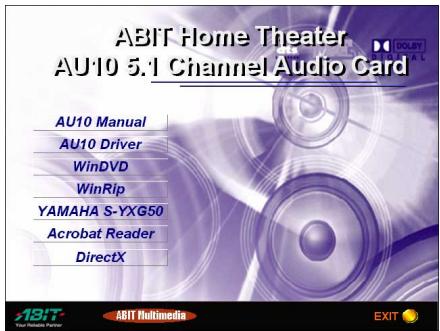
Click "YAMAHA S-YXG50" to start installing.
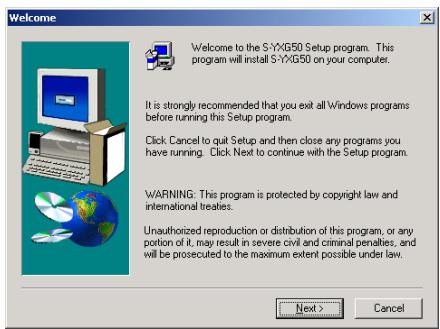
The welcome screen appears. Click "Next" to start installation.
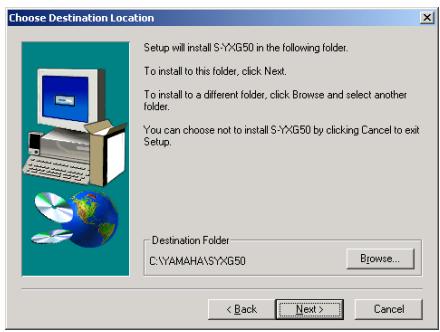
Setup will install S-YXG50 in the following folder. To install to this folder, click "Next". To install to a different folder, click "Browse..." and select another folder.
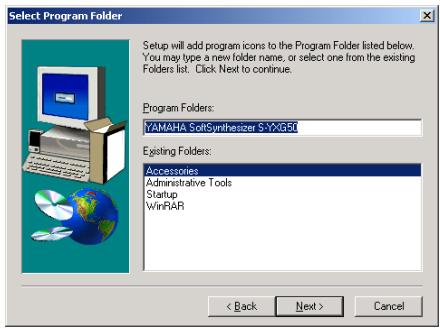
Type a new folder name, or select one from the existing folders list. Click "Next" to continue.
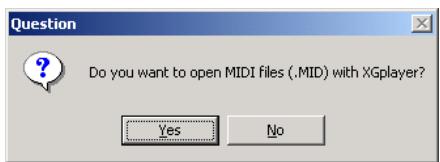
Click "Yes" if you want to open MIDI files (.MID) with Xgplayer.
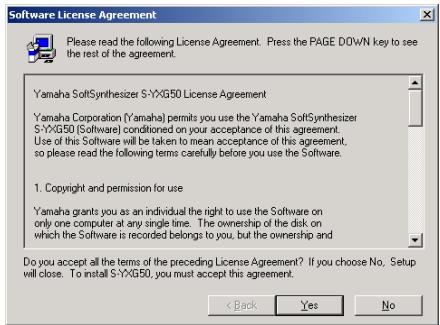
Read the following license agreement carefully. Click "Yes" to continue.

Click "Yes" to restart the computer now.
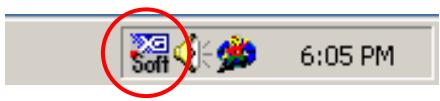
After computer restarted, double click on the YAMAHA SoftSynthesizer icon in task bar to bring out control panel.
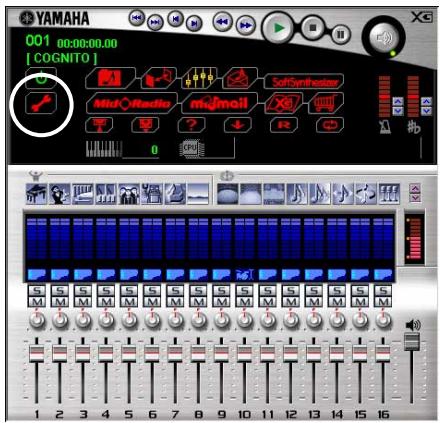
Click on the adjustment tool to enter the "MIDI Output Port" selection screen.
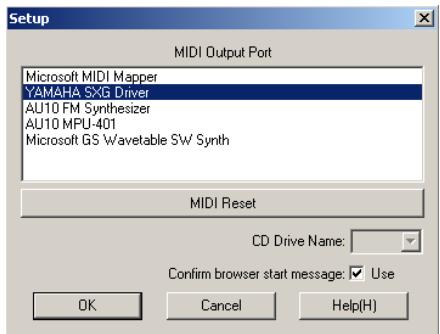
Choose your MIDI output port. Click "OK" to exit.
In order to acquire a normal operation of the 6-channel output, it is highly recommended to set the hardware acceleration to the fullest for a maximum usage of the CPU.
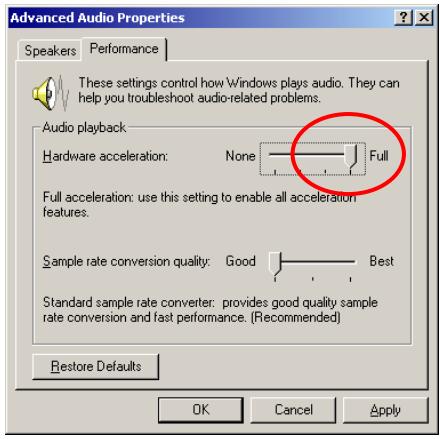
Go to "Start" "Control Panel" "Sounds and Multimedia" "Audio" "Advanced" "Performance". Move the slider of "Hardware acceleration" to "Full" position.
4-4. The DirectX
For the best gaming capability in 3D hardware acceleration, please install the latest DirectX driver.
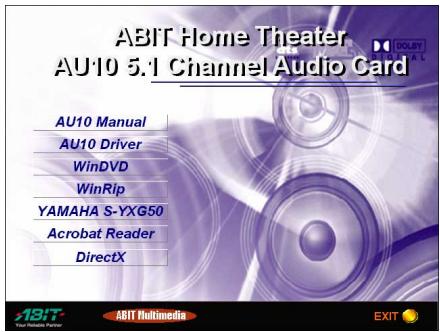
Start Windows. Insert the Installation CD into CD-ROM drive, it should execute the installation program automatically. If not, execute the execution file at the main directory of this Installation Disk. After it has been executed, the setup screen appears. Click "DirectX" to start the installation.
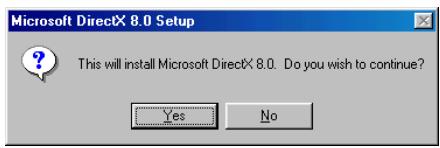
Click "Yes" to start installation.
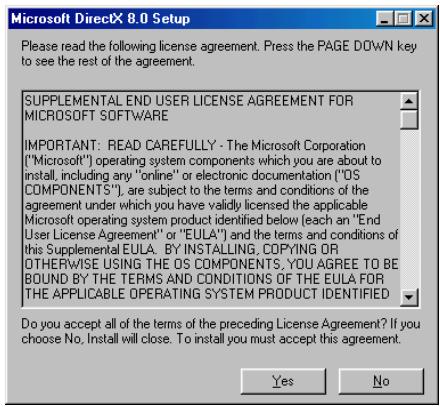
Read the following license agreement carefully. Click "Yes" to continue.
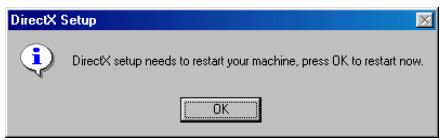
When the installation has finished installing all the necessary procedures, it will prompt you to restart your computer. Click "OK" to complete the installation.
Note: Some games written for older DirectX version may not work properly under DirectX 8.0. Please make sure your application support DirectX 8.0 before installation. Also note that the DirectX 8.0 cannot be uninstalled in normal way.
Appendix A. Product FAQ
The following tips for troubleshooting is to examine the evidence you have, gain as much information as you can, and eliminate possibilities one by one. In most cases, the source of the problem will soon become clear. For example, if ABIT Home Theater AU10 audio card works fine when you remove all the other add-on cards from your computer, but it stops working when you replace your fax-modem, there maybe a conflict between the audio card and the fax-modem (such as port address or IRQ). Often, problems are extremely simple: cable not plugged in or turned on, etc. Check the obvious first, not last.
Q1: What are the configuration problems?
Adding new hardware and software to your computer requires ensuring that there are no conflicts with your existing system. If you have difficulty with the installation procedure or are unable to make the card work, a conflict may be present. There are three major configuration settings to consider: I/O Port Address, Interrupt Request lines (IRQ), and Direct Memory Access channels (DMA).
Even though the ABIT Home Theater AU10 audio card is a plug and play card, the presence of other legacy cards can still cause resource conflicts. To resolve such conflicts, it is important to know the settings of other cards (it is best to remove other audio cards) and peripherals currently in your system, including the mouse, fax-modem, video accelerators, etc. Many peripherals come with setup software similar to ABIT Home Theater AU10 audio card that lets you see and change the current configuration. There are also utility programs that investigate and report on the configuration of your system and its peripherals. In either event, make a record of the settings used by all the peripherals in your system for reference when installing new hardware and software or trouble shooting problems.
Generally, you will only have a DMA conflict if your system contains another audio card or an external CD/DVD-ROM drive.
Q2: What are DMA Channels and PCI?
Under Windows 9x, the ABIT Home Theater AU10 audio card is capable of full duplex. This means that the card can playback one .WAV file while recording another. With the PCI bus full duplex is possible without any DMA channels.
There is no microphone support in the MS-DOS Mode and therefore only a single DMA is required for legacy emulation.
Q3: What should I do if I have problems with playing games?
Make sure that you have the game set up in a music option that the ABIT Home Theater AU10 audio card supports. If the game takes advantage of DirectX or DirectXSound be sure that you have the latest DirectX drivers from Microsoft. If you are having a problem with external joystick or gamepad, make sure that the Joystick is enabled and the Windows 9x Gameport Joystick drivers are loaded and working properly in the Device Manager.
In order to use two joysticks, you will need to use a SoundBlaster-compatible Y-connector (such as Radio Shack part # 26-380), or use an industry-standard MIDI Joystick kit. This will make allowances for the proper direct connections for dual joysticks.
Q4: Can I install two audio cards?
Having another audio card in your system in addition to the ABIT Home Theater AU10 audio card will greatly increase the chances of having system conflicts. We highly recommend that any other sound devices and their associated Windows drivers be removed before installing the ABIT Home Theater AU10 audio card.
Q5: Why are some of the Windows Multimedia Components (i.e. Media Player) missing?
If you install the ABIT Home Theater AU10 audio card after Windows 9x is installed, Windows will not install the sound utilities that you would expect to find. Features such as the Audio CODEC, the Media Player, and the Microsoft Mixer may not be present. This may cause your audio card to not function properly, even when our drivers are installed. If this is the case, these applications must be installed onto the system from the Windows 9x installation media.
Q6: What happened if my AU10 soundcard and driver are both properly installed, yet, there is still no sound?
If the ABIT Home Theater AU10 audio card and drivers are properly installed with no conflicts, yet there is no sound, the problem may be with your audio connections. Here are some suggestions:
Try playing both a ".WAV" file and a .MID file to ascertain that there is no sound at all coming from the speakers. If you hear one and not the other, the problem is internal and has nothing to do with your audio system.
Be sure that your monitoring system is properly set up. Try connecting a sound source other than ABIT Home Theater AU10 audio card, such as an audio CD player, and establishing whether or not you can hear it.
Be sure that the audio card is properly connected to the monitoring system (a 1/8-inch mini-phone cable should be running from ABIT Home Theater AU10
audio card "FRONT" connector to a line input on the monitoring system). To eliminate the possibility of a bad cable, try plugging a pair of high-impedance headphones to the ABIT Home Theater AU10 audio card "FRONT" jack and see if you hear any sound.
Q7: How do I change volume and balance levels in Windows 9x?
Enter the volume control menu by double-clicking the volume control icon located at the right side of the taskbar.
Q8: My microphone records at very low levels, with distortion, or not at all?
For ease of installation, we recommend that you use a dynamic microphone. These require the least amount of setup. Do the following steps to be sure that your software is set up correctly for MIC input:
Double-click the volume control icon located at the right side of the taskbar.
Under the Recording panel of Mixer make sure MIC is checked.
Make sure the MIC slider is all the way up, the mute box is not checked and the Boost box is checked.
If you experience distortion with a dynamic microphone adjust the volume levels of the Microphone and Master audio devices.
Q9: Why doesn't my CD audio work?
First, be sure that your CD volume is turned up to the maximum in the Mixer. If you still aren't getting music, you will need to verify that the internal patch cable is connected between your CD ROM drive and the audio card's CD Input. This is typically a small connector with four wires coming out of it.
Another tip is to obtain a 1/8 stereo patch cord and connect one end to the "headphone out" on the front of the CD/DVD-ROM drive, and the other end to the Line Input on the back of the audio card. Make sure the headphone volume dial on the CD/DVD-ROM drive is at maximum, and try playing a CD. You should hear the music playing. If your internal patch cable is missing or defective, contact your CD/DVD-ROM manufacturer for information on how to obtain another cable.
Q10: What to do if audio card is not found or IRQ is not assigned to AU10 PCI audio card?
Change slot: insert the ABIT Home Theater AU10 audio card into another PCI slot. (Do so by first shutting down the computer. Remove the audio card and insert it into another PCI slot.) If the problem persists: if you are a new user, uninstall the driver and re-install it from the beginning. (For uninstalling instructions, see "UN-installing the AU10 driver" section below.)
Adjust BIOS settings: get into BIOS (usually, hit <F1> , <Del> or <F10> after Reboot), get into the Section with title "PCI/PnP", make sure it reserves enough IRQ for PCI devices. If there is a "Reset Configuration" option, change it to "Yes/Enable", if there is a "PnP OS" option, change it to "NO".
Q11: The SB Games are not working properly...
DOS games run best with PCI IRQ 5/7/9 assigned to audio card. This can be verified through "Control Panel" "Device Manager" "Sound, Video, and Games" "AU10 PCI Audio".
For the best results of DOS game play and to reduce potential problem(s) of the additional layer of routing, change BIOS setting to reserve PCI IRQ 5/7/9/10 for PCI Devices.
Some old DOS games may not work in a Windows DOS Box. If this is the case, shut down the system to MS-DOS mode and play the game in Real DOS mode.
Q12: How to adjust SB IRQ/IO/DMA for some DOS Games?
Some DOS games may need certain fixed resource (IRQ and DMA). This adjustment can be achieved by selecting the following path: "Control Panel" (from the Windows Main Menu, click the Start button located at the lower left hand corner and select Control Panel from Settings) "System" "Device Manager" "Sound, Video, and Games" "Legacy Audio Device".
Click "Resource" Tab to change the Legacy Audio Device I/O, IRQ, and DMA.
Q13: I have bought the audio card with Yamaha software Wavetable synthesizer in the package. But I can not install Yamaha Wavetable synthesizer in my computer.
Please install AU10 Win98 driver first, before you install Yamaha Software Wavetable Synthesizer. AU10 sound driver has to be installed first in order to install Yamaha Wavetable driver.
Q14: Does AU10 audio card support Linux OS?
ABIT Home Theater AU10 audio card supports Windows 98, Windows NT 4.0 and DOS. Linux is not supported by AU10 in the current driver set.
Q15: What are the 2-speaker, 4-speaker and 6-speaker Audio Output Options used that can be found in Control Panel?
These buttons are designed for the end users to configure how many speakers have been connected to your audio card. For example, If your audio card is a 4-channel audio card, then you can choose to connect 2 speakers or 4 speakers to your system. The default will be set to 4 speakers. However, if you choose to connect to 2 speakers, ABIT Home Theater AU10 audio card driver will not
allow you to select Quad mode in your QSound Control Panel (for the driver bundled with Q3D only) or in some of the software DVD player setup menu.
Q16: Why are two interrupts allocated for my AU10 audio card?
The PCI audio uses one PCI interrupt for operation. Additional IRQ is used for ISA legacy support, an additional to the PCI IRQ.
One PCI IRQ is needed for the audio to function under a PnP operating systems such as Windows 9x. One additional ISA IRQ is dedicated for legacy audio support. Legacy audio support is used for DOS based applications and games that are SoundBlaster compatible. Most DOS based applications and games only use SoundBlaster compatible legacy audio requiring the use of a ISA IRQ. By disabling the ISA legacy audio support in the operating system the dedicated ISA IRQ is freed, thus using only one PCI IRQ. DOS Applications and games that require SoundBlaster Audio support will have no audio output if ISA legacy audio is disabled.
Another way to save one IRQ is to make the BIOS assign IRQ5 or IRQ7 or IRQ9 to ABIT Home Theater AU10 audio card. In this way, ISA legacy audio can also be supported via ABIT Home Theater AU10 audio card. Please refer to BIOS user manual to see the details of how to allocate the IRQ to PCI slots.
Q17: How to Get Technical Support
If you encounter any problems and need help from our technical staff, please take the time to fill out the Technical Support Form and send it to your dealer or our technical support mailbox. The mailbox address is: technical@abit.com.tw. We will try to solve your problem as soon as possible. You must provide specific information on your equipment. Also please describe in detail the problems you encountered. It's helpful and enables our technicians to analyze your problems more quickly.
Information on items marked with an asterisk “*” on the Technical Support Form are required.
Technical Support Form

Company Name:

Phone Number:

Contact Person:

Fax Number:

E-mail Address:
| Audio Card Product Name | * | Audio Card Software and Driver Version | * |
| Motherboard Manufacturer, Model Name and Chipset type | * | * | |
| Operating System Type | * | * | |
| Hardware name | Type | Specifications | |
| CPU Type and Speed | * | ||
| HDD IDE1IDE2 | |||
| CD-ROM IDE1Drive IDE2 | |||
| System Memory Size (SDRAM) | * | ||
| Add-On Card | * | ||
Problem Description:
Appendix B. How to Get Technical Support
(From our website) http://www.ubit.com.tw
(In North America) http://www.ubit-usa.com
(In Europe) http://www.abet.nl
Thank you for choosing ABIT products. ABIT sells all our products through distributors, resellers and system integrators; we have no direct sales to end-users. Before sending email for tech support please check with your resellers or integrators if you need any services, they are the ones who sold you your system and they should know best as to what can be done, how they serve you is a good reference for future purchases.
We appreciate every customer and would like to provide the best service to you. Providing fast service to our customers is our top priority. However we receive many phone calls and a huge amount of email from all over the world. At the present time it is impossible for us to respond to every single inquiry. Therefore it is quite possible that if you send an email to us that you may not receive a response.
We have done many compatibility tests and reliability tests to make sure our products have the best quality and compatibility. In case you need service or technical support, please understand the constraint we have and always check with the reseller who sold the product to you first.
To expedite service, we recommend that you follow the procedures outlined below before contacting us. With your help, we can meet our commitment to provide the best service to the greatest number of ABIT customers:
- Check the Manual. It sounds simple but we have taken a lot of care in making a well-written and thorough manual. It is full of information that doesn't only pertain to motherboards. The CD/DVD-ROM included with your board will have the manual as well as drivers. If you don't have either one go to our Program Download Area of the website or FTP server.
- Download latest BIOS, software or drivers. Please go to our Program Download area on our website to check to see if you have the latest driver. They are developed over periods of time to fix bugs or incompatibilities. Also please make sure you have the latest drivers from your peripheral cards makers!
-
Check the ABIT Technical Terms Guide and FAQ on our website. We are trying to expand and make the FAQs more helpful and information rich. Let us know if you have any suggestions. For hot topics check out our HOT FAQ!
-
Internet Newsgroups. They are a great source of information and many people there can offer help. ABIT's Internet News group, alt.comp.periphs.mainboard.abit, is an ideal forum for the public to exchange information and discuss experiences they have had with ABIT products. Many times you will see that your question has already been asked before. This is a public Internet news group and it is reserved for free discussions, Here is a list of some of the more popular ones:
alt.comp.periphs.mainboard.abit
comp.sysibm.pc.hardware.chips
alt.comp.hardware.overclocking
alt.comp.hardware.homebuilt
alt.comp.hardware.pc-homebuilt
- Ask your reseller. Your ABIT authorized distributor should be able to provide the fastest solution to your technical problem. We sell our products through distributors who sell to resellers and stores. Your reseller should be very familiar with your system configuration and should be able to solve your problem much more efficiently than we could. After all, your reseller regards you as an important customer who may purchase more products and who can urge your friends to buy from him or her as well. They integrated and sold the system to you. They should know best what your system configuration is and your problem. They should have reasonable return or refund policies. How they serve you is also a good reference for your next purchase.
- Contacting ABIT. If you feel that you need to contact ABIT directly you can send email to the ABIT technical support department. First, please contact the support team for the branch office closest to you. They will be more familiar with local conditions and problems and will have better insight as to which resellers offer what products and services. Due to the huge number of emails coming in every day and other reasons, such as the time required for problem reproduction, we will not be able to reply to every email. Please understand that we are selling through distribution channels and don't have the resources to serve every end-user. However, we will try to do our best to help every customer. Please also remember that for many of our technical support team English is a second language, you will have a better chance of getting a helpful answer if your question can be understood in the first place. Be sure to use very, simple, concise language that clearly states the problem, avoid rambling or flowery language and always list your system components. Here is the contact information for our branch offices:
In North America and South America please contact:
ABIT Computer (USA) Corporation
46808 Lakeview Blvd.
Fremont, California 94538 U.S.A.
sales@abit-usa.com
technical@abit-usa.com
Tel: 1-510-623-0500
Fax: 1-510-623-1092
In the UK and Ireland:
ABIT Computer Corporation Ltd.
Unit 3, 24-26 Boulton Road
Stevenage, Herts
SG1 4QX, UK
abituksales@compuserve.com
abituktech@compuserve.com
Tel: 44-1438-228888
Fax: 44-1438-226333
In Germany and Benelux (Belgium, Netherlands, Luxembourg) countries:
AMOR Computer B.V. (ABIT's European Office)
Van Coehoornstraat 7,
5916 PH Venlo, The Netherlands
sales@abit.nl
technical@abit.nl
Tel: 31-77-3204428
Fax: 31-77-3204420
All other territories not covered above please contact:
Taiwan Head Office
When contacting our headquarters please note we are located in Taiwan and we are 8+ GMT time. In addition, we have holidays that may be different from those in your country.
ABIT Computer Corporation
3F-7, No. 79, Sec. 1, Hsin Tai Wu Rd.
Hsi Chi, Taipei Hsien, Taiwan
sales@abit.com.tw
market@abit.com.tw
technical@abit.com.tw
Tel: 886-2-2698-1888
Fax: 886-2-2698-1811
- RMA Service. If your system has been working but it just stopped, but you have not installed any new software or hardware recently, it is likely that you have a defective component. Please contact the reseller from whom you bought the product. You should be able to get RMA service there.
- Reporting Compatibility Problems to ABIT. Because of tremendous number of email messages we receive every day, we are forced to give greater weight to certain types of messages than to others. For this reason, any compatibility problem that is reported to us, giving detailed system configuration information and error symptoms will receive the highest priority. For the other questions, we regret that we may not be able to reply directly. But your questions may be posted to the Internet news group in order that a larger number of users can have the benefit of the information. Please check the news group from time to time.
Thank you, ABIT Computer Corporation http://www.abit.com.tw

- Copyright and Warranty Notice
- ABIT Home Theater AU10 5.1 Channel Audio Card User's Manual
- CHAPTER 1. GETTING STARTED 1-1
- CHAPTER 2. HARDWARE INSTALLATION. 2-1
- CHAPTER 3. DRIVER INSTALLATION 3-1
- CHAPTER 4. UTILITY SETUP 4-1
- APPENDIX A. PRODUCT FAQ. .A-1
- APPENDIX B. HOW TO GET TECHNICAL SUPPORT. B-1
- Chapter 1. Getting Started
- 1-1. Key Features
- 1-2. Features and Benefits
- 1-3. What's in the box? (Package List)
- Note
- Chapter 2. Hardware Installation
- 2-1. Card Layout
- 2-2. Connectors and Headers
- 2-3. Card Installation
- Chapter 3. Driver Installation
- 3-1. Windows 98/ME
- Speaker Test and Driver Un-Installation
- 3-2. Windows 2000
- Plug and Play Setup:
- Welcome to the Found New Hardware Wizard
- Install Hardware Device Drivers
- Locate Driver Files
- Auto Setup:
- 3-3. Windows XP
- Chapter 4. Utility Setup
- 4-1. The WinDVD
- Remote Control Kit (Optional):
- The installation procedure:
- Remote Controller (Optional):
- 4-2. The WinRip
- Install WinRip:
- WinRip Configuration:
- 4-3. YAMAHA SoftSynthesizer
- 4-4. The DirectX
- Appendix A. Product FAQ
- Q1: What are the configuration problems?
- Q2: What are DMA Channels and PCI?
- Q3: What should I do if I have problems with playing games?
- Q4: Can I install two audio cards?
- Q5: Why are some of the Windows Multimedia Components (i.e. Media Player) missing?
- Q6: What happened if my AU10 soundcard and driver are both properly installed, yet, there is still no sound?
- Q7: How do I change volume and balance levels in Windows 9x?
- Q8: My microphone records at very low levels, with distortion, or not at all?
- Q9: Why doesn't my CD audio work?
- Q10: What to do if audio card is not found or IRQ is not assigned to AU10 PCI audio card?
- Q11: The SB Games are not working properly...
- Q12: How to adjust SB IRQ/IO/DMA for some DOS Games?
- Q13: I have bought the audio card with Yamaha software Wavetable synthesizer in the package. But I can not install Yamaha Wavetable synthesizer in my computer.
- Q14: Does AU10 audio card support Linux OS?
- Q15: What are the 2-speaker, 4-speaker and 6-speaker Audio Output Options used that can be found in Control Panel?
- Q16: Why are two interrupts allocated for my AU10 audio card?
- Q17: How to Get Technical Support
- Technical Support Form
- Appendix B. How to Get Technical Support
- Thank you, ABIT Computer Corporation http://www.abit.com.tw
Marque : ABIT
Modèle : AU10
Catégorie : Carte son