
WIRELESS DESKTOP MOUSE - Souris sans fil VERBATIM - Notice d'utilisation et mode d'emploi gratuit
Retrouvez gratuitement la notice de l'appareil WIRELESS DESKTOP MOUSE VERBATIM au format PDF.


| Type de produit | Souris sans fil |
| Marque | Verbatim |
| Modèle | Wireless Desktop Mouse |
| Technologie de connexion | Radiofréquence 27 MHz |
| Codage d'identification | 256 codes ID pour éviter les interférences |
| Alimentation | 2 piles AAA (rechargeables via câble USB) |
| Fonction veille | Automatique pour économiser l'énergie |
| Type de capteur | Optique |
| Boutons | Gauche, droit, molette de défilement, bouton ID sous la souris |
| Compatibilité système | Windows 95/98/Me/2000/XP, Mac OS 9.x/10.x |
| Poids (estimé) | Environ 100 g |
| Dimensions (estimées) | Environ 100 x 60 x 35 mm |
| Portée (estimée) | Jusqu'à 10 mètres |
| Contenu du colis | Souris, récepteur USB, câble USB |
| Entretien | Nettoyer avec un chiffon doux et sec |
| Sécurité d'utilisation | Éviter les surfaces réfléchissantes (verre, tapis 3D) |
| Réparabilité | Piles remplaçables par l'utilisateur ; consulter un technicien pour toute autre réparation |
| Certification | Conforme à la partie 15 des règles FCC (classe B) |
FOIRE AUX QUESTIONS - WIRELESS DESKTOP MOUSE VERBATIM
Questions des utilisateurs sur WIRELESS DESKTOP MOUSE VERBATIM
0 question sur cet appareil. Repondez a celles que vous connaissez ou posez la votre.
Poser une nouvelle question sur cet appareil
Téléchargez la notice de votre Souris sans fil au format PDF gratuitement ! Retrouvez votre notice WIRELESS DESKTOP MOUSE - VERBATIM et reprennez votre appareil électronique en main. Sur cette page sont publiés tous les documents nécessaires à l'utilisation de votre appareil WIRELESS DESKTOP MOUSE de la marque VERBATIM.
MODE D'EMPLOI WIRELESS DESKTOP MOUSE VERBATIM
Wireless Desktop Mouse User Manual
Product Features
- Radio frequency 27MHz wireless transmission
- Use of 256 ID codes to prevent interference between several wireless mice being used simultaneously
- Automatic power sleep function to extend battery life
- Rechargeable batteries can be recharged by connecting the mouse to the computer USB port using the supplied USB cable
System Compatibility
Win 95/98/Me/2000/XP
Macintosh 9.x, 10.x
Initial Set up
- Turn the computer power on and log in
- Connect wireless mouse receiver to USB port
- Ensure batteries are installed in the mouse and mouse power is turned on (See instructions below).
- Hold mouse close to the receiver
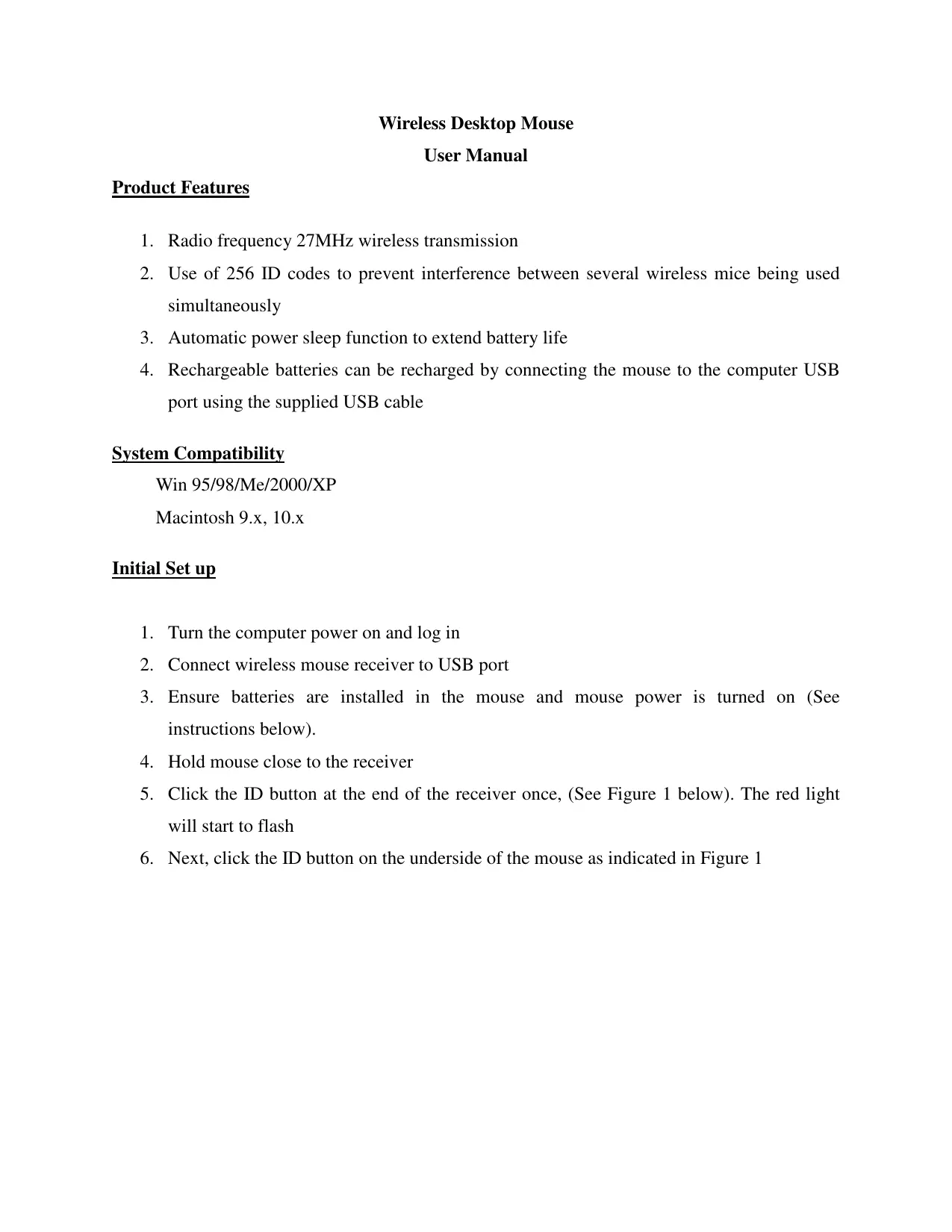
- Click the ID button at the end of the receiver once, (See Figure 1 below). The red light will start to flash
- Next, click the ID button on the underside of the mouse as indicated in Figure 1.
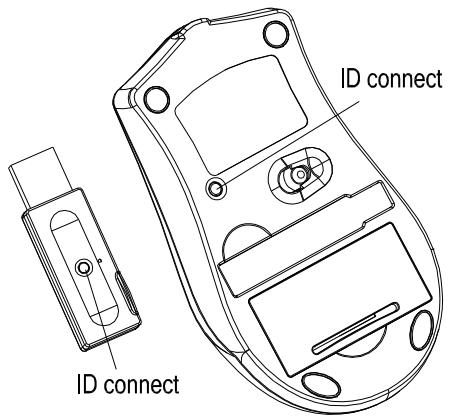
Figure 1
- The red light on the receiver will flash rapidly for a few seconds then stop flashing
- Now the mouse is ready for use
Battery Installation
- See Figure 2 below.
- Remove the battery cover from the underside of the mouse. See Figure 2 below.
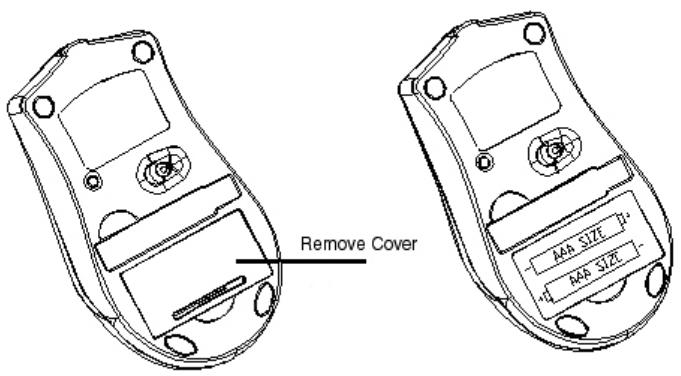
Figure 2
- Insert 2 x AAA batteries as indicated
- Replace the mouse cover over the batteries
- To turn the mouse power on push the ID button, as indicated by Figure 3 below, for 3 seconds or more until the light comes on
Figure 3
Receiver Storage
The USB receiver is stored on the underside of the mouse. See Figure 4 below for receiver storage and removal.
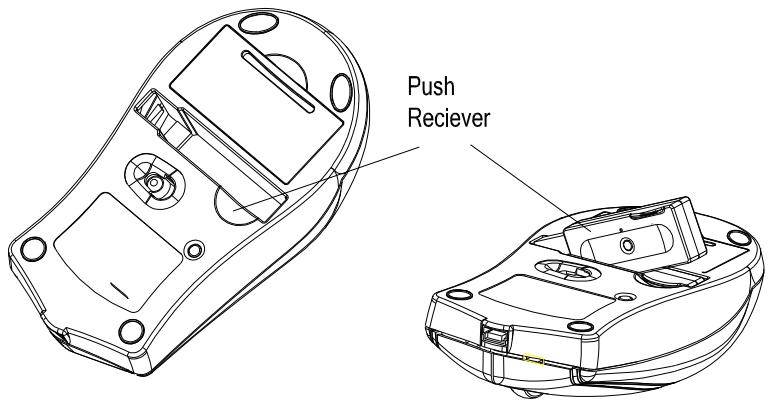
Figure 4
Charge Function
When using the mouse, if the red led of the low battery beside the wheel flashes, please change batteries or charge them. The mouse can use the supplied USB cable to charge the batteries through the computer USB port. It can charge while the mouse is being used. The batteries will charge within about 3-4 hours. Then unplug the USB cable to stop charging. Please note that the time of charge may vary depending on the amount of charging required.

Figure 5
Note:
- Please remove the batteries if the mouse will not be used for an extended period of time
- If the mouse has entered power sleep mode please press any mouse button or move the mouse to make it active again
- To turn the mouse power off click on the ID button on the underside of the mouse for over 3 seconds until the light turns off
- Optical mouse will not operate correctly on any reflecting surface such as glass or 3D mouse pads
Caution
Any changes or modifications not expressly approved by the party responsible for compliance could void the user's authority to operate the equipment. Note: This equipment has been tested and found to comply with the limits for a Class B digital device, pursuant to part 15 of the FCC Rules. These limits are designed to provide reasonable protection against harmful interference in a residential installation. This equipment generates, uses and can radiate radio frequency energy and, if not installed and used in accordance with the instructions, may cause harmful interference to radio communications. However, there is no guarantee that interference will not occur in a particular installation. If this equipment does cause harmful interference to radio or television reception, which can be determined by turning the equipment off and on, the user is encouraged to try to correct the interference by one or more of the following measures:
- Reorient or relocate the receiving antenna.
- Increase the separation between the equipment and receiver.
- Connect the equipment into an outlet on a circuit different from that to which the receiver is connected.
- Consult the dealer or an experienced radio/TV technician for help.