
MO251V2 - Modem/Routeur SWEEX - Notice d'utilisation et mode d'emploi gratuit
Retrouvez gratuitement la notice de l'appareil MO251V2 SWEEX au format PDF.


| Type de produit | Modem/Routeur ADSL 2/2+ sans fil 54 Mbps Annex A |
| Marque | SWEEX |
| Modèle | MO251V2 |
| Dimensions (L x P x H) | Environ 160 x 110 x 30 mm |
| Poids | Environ 200 g |
| Alimentation | Adaptateur secteur 9V DC (inclus) |
| Normes ADSL | ADSL 2/2+ (Annex A) |
| Norme Wi-Fi | IEEE 802.11g, débit jusqu'à 54 Mbps |
| Ports Ethernet | 4 ports 10/100 Mbps (RJ45) |
| Port ADSL | 1 port RJ11 |
| Antenne | Connecteur SMA, antenne amovible |
| Bouton Reset | Oui, sur le côté |
| Sécurité Wi-Fi | WEP, WPA, WPA2 (Pre-Shared Key) |
| Pare-feu intégré | Oui, avec redirection de ports et DMZ |
| Configuration | Interface web via 192.168.251.1, identifiants par défaut : admin/admin (sweex/mysweex) |
| Température de fonctionnement | Éviter températures extrêmes, rayonnement solaire direct |
| Humidité de fonctionnement | Éviter environnements très poussiéreux ou humides |
| Entretien et nettoyage | Nettoyer avec un chiffon sec et doux. Ne pas utiliser de produits abrasifs ou de solvants. |
| Sécurité | Ne pas ouvrir le boîtier, ne pas exposer aux chocs, ne pas utiliser à proximité d'un élément chauffant. |
| Pièces détachées et réparabilité | Aucune pièce remplaçable par l'utilisateur. Garantie de 3 ans, contacter le revendeur. |
| Informations générales | Splitter ADSL non inclus. Mise à jour du firmware possible via le site web SWEEX. |
FOIRE AUX QUESTIONS - MO251V2 SWEEX
Questions des utilisateurs sur MO251V2 SWEEX
0 question sur cet appareil. Repondez a celles que vous connaissez ou posez la votre.
Poser une nouvelle question sur cet appareil
Téléchargez la notice de votre Modem/Routeur au format PDF gratuitement ! Retrouvez votre notice MO251V2 - SWEEX et reprennez votre appareil électronique en main. Sur cette page sont publiés tous les documents nécessaires à l'utilisation de votre appareil MO251V2 de la marque SWEEX.
MODE D'EMPLOI MO251V2 SWEEX
Introduction
- Do not expose the Sweex Wireless ADSL 2/2+ Modem/Router 54 Mbps Annex A to extreme temperatures. Do not place the device in direct sunlight or in the direct vicinity of heating elements.
- Do not use the Sweeex Wireless ADSL 2/2+ Modem/Router 54 Mbps Annex A in extremely dusty or moist surroundings.
- Protect the device against powerful shocks or jolts - they may damage the internal electronics.
- Never attempt to open the device yourself - it will cause the warranty to lapse.
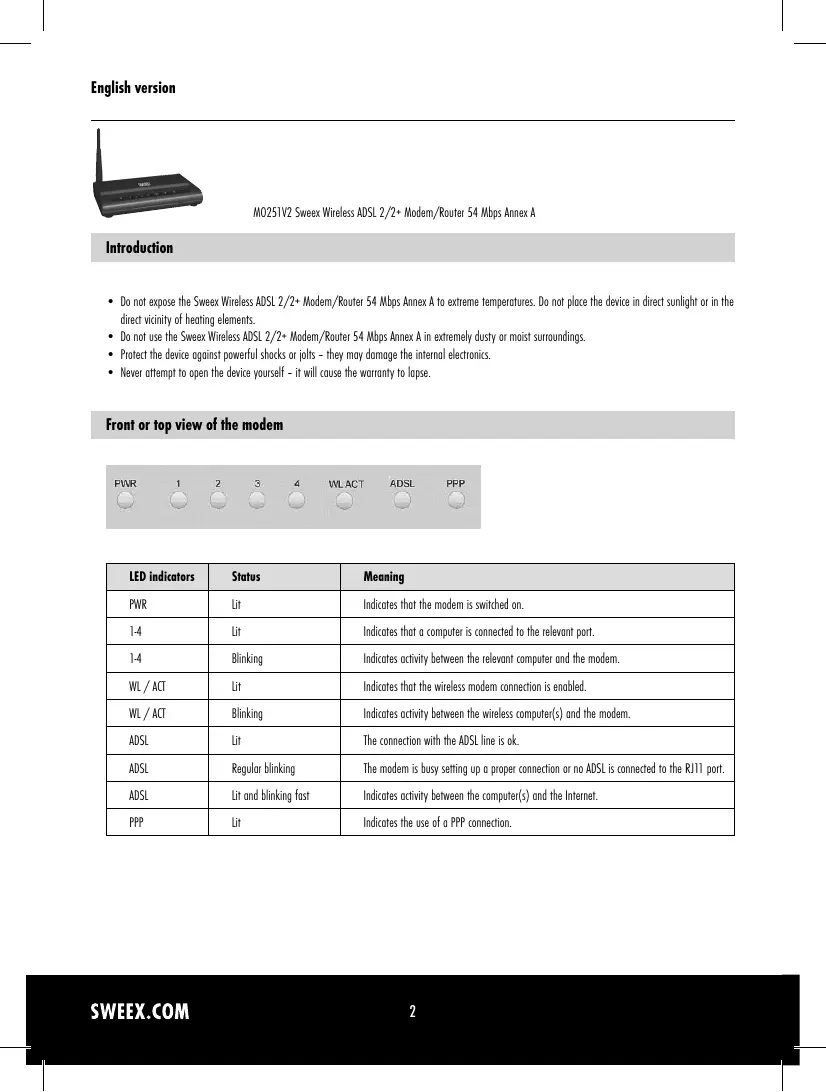
Front or top view of the modem

| LED indicators | Status | Meaning |
| PWR | Lit | Indicates that the modem is switched on. |
| 1-4 | Lit | Indicates that a computer is connected to the relevant port. |
| 1-4 | Blinking | Indicates activity between the relevant computer and the modem. |
| WL / ACT | Lit | Indicates that the wireless modem connection is enabled. |
| WL / ACT | Blinking | Indicates activity between the wireless computer(s) and the modem. |
| ADSL | Lit | The connection with the ADSL line is ok. |
| ADSL | Regular blinking | The modem is busy setting up a proper connection or no ADSL is connected to the RJ11 port. |
| ADSL | Lit and blinking fast | Indicates activity between the computer(s) and the Internet. |
| PPP | Lit | Indicates the use of a PPP connection. |
Rear view of the modem

ADSL
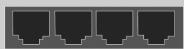
4 x 10/100 Mbps Ethernet Switch

Power

Antenna
Starting on the left, the following connections can be found at the rear of the modem:
- ADSL port for connecting the ADSL line with telephone cable RJ11.
- UTP Ethernet ports 1, 2, 3 and 4 for connecting computers with an Ethernet network cable RJ45.
Power port for connecting the power adaptor. - Antenna connector type SMA
Side view
The Reset button is located on the side of the modem. Use a thin item to press the button. Press and hold the button for 15 seconds. Note! After this, all settings which apply to your connection and network need to be reconfigured.
The splitter
In order to separate the ADSL signal from the normal telephone signal, you need to use a splitter. This enables you to simultaneously make calls and surf the Internet using the same telephone line. The signal comes from the wall socket or the meter cupboard and enters the splitter. Two telephone cables are connected to the output of the splitter. One leads to the modem and the other to the telephone.
Note! The ADSL modem does not include a splitter. It can be obtained from various DIY stores.
Connecting the Sweex ADSL 2 Modem
- Connect the power adaptor (included) to the rear of the modem and the mains socket. The LED under PWR is lit. In the event the LED is not lit, check the connections of the power adaptor to the ADSL modem and the mains socket.
- Connect the telephone cable (R111) carrying the ADSI signal to the ADSI port at the rear of the modem. The LED under ADSL will now start to blink. After approximately 30 seconds the LED will be lit continuously. In the event the LED is not lit, check whether the splitter is properly connected and/or whether the ADSL line is ok.
- Switch on the computer and connect it to the rear of the modem using a network cable (UTP R145). You can select any of the ports 1, 2, 3 and 4. The corresponding LED at the front of the modem will be lit. In the event the LED fails to light up, check whether the network cable is properly connected to the computer and the modem.
Configuring the computer to connect to the modem
Windows Vista
In the bottom left of your screen, go to "Start" (Start) "Control Panel" (Control Panel).
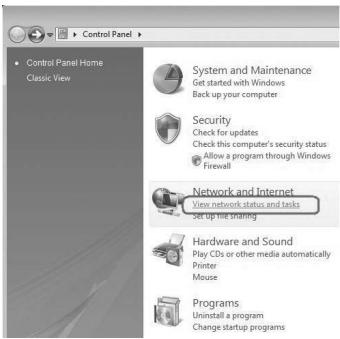
Click on "View network status and tasks" (View network status and tasks).
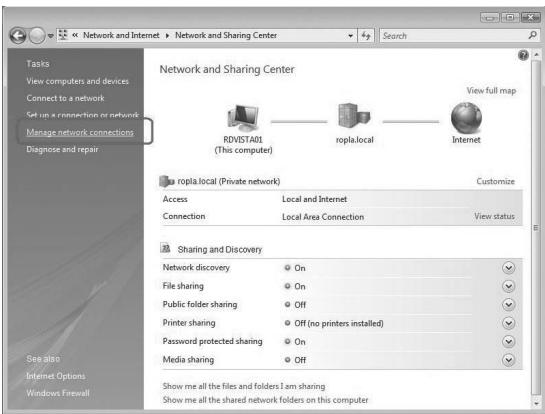
Left in the column, click on "Manage network connections" (Manage network connections).
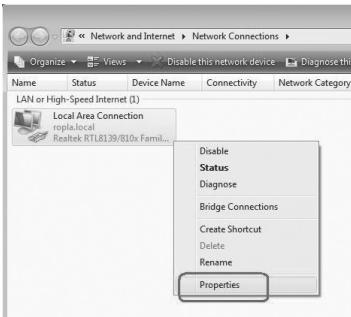
Right-click "LAN Connection" (LAN Connection) or "Wireless Network connection" (Wireless Network connection) and select "Properties" (Properties). The following screen appears:

Now select "Internet Protocol Version 4 (TCP/IPv4)" and click "Properties" (Properties).
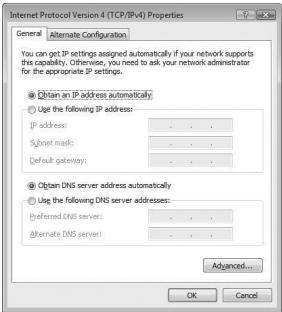
Select the options "Obtain an IP address automatically" (Obtain an IP address automatically) and "Obtain DNS server address automatically" (Obtain DNS server address automatically).
Confirm the settings by clicking "OK". The network settings have now been configured correctly for Vista. The correct settings for the Internet browser will be discussed later in this manual.
Windows XP
Go to "Start" (Start) "Control Panel" (Control Panel). Then go to "Network and Internet Connections" (Network and Internet Connections). Open "Network Connections" (Network Connections).
Or, if the Windows classic style is used:
"Start" (Start) Settings "Network Connections" (Network Connections).
Right-click "LAN Connection" (LAN Connection) or "Wireless Network connection" (Wireless Network connection) and select "Properties" (Properties). The following screen appears:
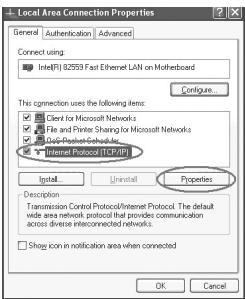
Under the tab "General (General) select TCP/IP and click "Properties" (Properties).
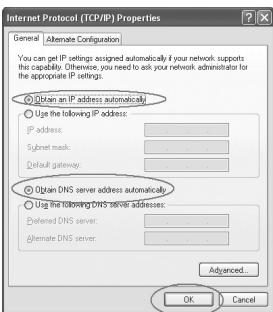
Select the options "Obtain an IP address automatically" (Obtain an IP address automatically) and "Obtain DNS server address automatically" (Obtain DNS server address automatically).
Confirm the settings by clicking "OK" (OK). The network settings for Windows XP have now been configured correctly. The correct settings for the Internet browser will be discussed later in this manual.
Windows 2000
Go to "Start" (Start) "Control Panel" (Control Panel). Then go to "Network and Internet Connections" (Network and Internet Connections). Open "Network Connections" (Network Connections).
Or, if the Windows classic style is used:
"Start" (Start) Settings Open "Network Connections" (Network Connections).
Right-click "LAN Connection" (LAN Connection) or "Wireless Network connection" (Wireless Network connection) and select "Properties" (Properties). The following screen appears:
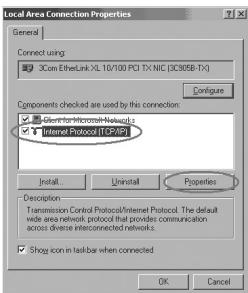
Now select "Internet Protocol (TCP/IP)" and click "Properties" (Properties).
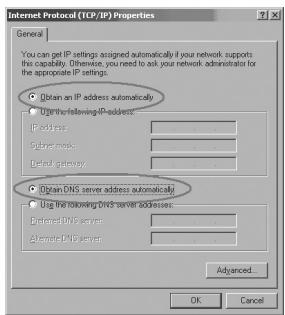
Select the options "Obtain an IP address automatically" (Obtain an IP address automatically) and "Obtain DNS server address automatically" (Obtain DNS server address automatically). Click "OK" (OK) twice.
The network settings for Windows 2000 have now been configured correctly. The correct settings for the Internet browser will be discussed later in this manual.
Windows 98SE
Go to "Start" (Start), "Setting" (Settings), "Control Panel" (Control Panel) and click "Network" (Network).
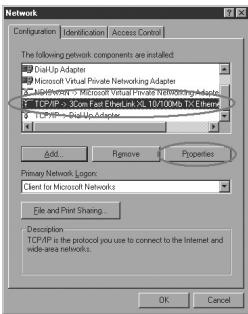
Under the tab "Configuration" (Configuration), select the line "TCP/IP " which corresponds with your network card and click "Properties" (Properties).
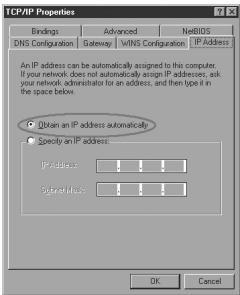
Under the tab "IP Address" (IP Address), select the option "Obtain an IP address automatically" (Obtain an IP address automatically).
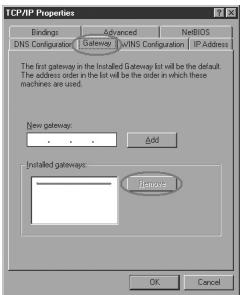
Under the tab "Gateway", the list of "Installed gateways" (Installed gateways) must be empty. If so required, select each gateway and click "Remove" (Remove).
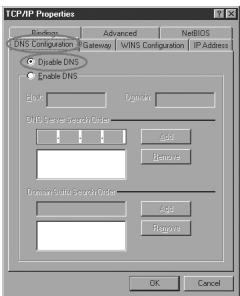
Under the tab "DNS Configuration", select the option "Disable DNS" (Disable DNS). Click "OK" (OK) twice.
The network settings for Windows 98SE have now been configured correctly. The correct settings for the Internet browser will be discussed below.
Internet browser settings for Windows 98SE, 2000 and XP
- In order to properly access the modem, the browser settings must be correct. This is easy to check by starting up Internet Explorer and selecting "Tools" (Tools) from the menu bar and then selecting the option "Internet Options" (Internet Options).
- In this window, go to "Connections" (Connections) and select "Never dial a connection" (Never dial a connection) or remove all connections listed in the field above.
- At the bottom, click "LAN Settings" (LAN Settings), remove all ticks and click "OK" (OK).
- Restart the computer.
Setting the wireless network
How does it work?
In order to create a wireless network, you need a wireless router, wireless modem or WiFi access point. The wireless router, modem or access point transmits the wireless network. The name of this network, also referred to as SSID, depends on your wireless router, modem or access point and often differs per model or brand. You can often determine the name yourself and thus recognise your own wireless network.
Protection
You could compare a wireless network to radio signals. However, the range of a wireless network at home is not as big. Your home wireless network often has a range of 20 to 30 metres. This means that neighbours and passers-by too can make use of your network. As a result they can get away with surfing on your Internet connection, and they may gain access to your shared folders and files on your network. That is why it is often recommended to secure your wireless network. This protection is set up on the device transmitting the network. In most cases that is the wireless router, modem or access point. By adding a WEP or WPA protection code, you secure the network. This code is also referred to as the network key. Enter this code on each computer that wants to connect to that secured network. You can only be part of that network if you enter this code. If you did not enter the network key into the router or modem yourself, ask the installer, manufacturer, supplier or provider for this code.
Connecting the computer to the wireless network
In the bottom left of your screen, go to "Start (Start) "Control Panel" (Control Panel).
Then go to "Network and Internet Connections" (Network and Internet Connections). Open "Network Connections" (Network Connections).
Or, if the Windows classic style is used:
"Start" (Start) "Settings" (Settings) "Network Connections" (Network Connections).
Right-click "LAN Connection" (LAN Connection) or "Wireless Network connection" (Wireless Network connection) and select "View Available Wireless Networks" (View Available Wireless Networks).
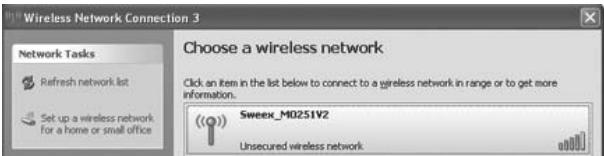
Always click "Refresh network list" (Refresh network list) top left in this window first, to obtain the most recent listing.
Select the name (also referred to as SSID) "Sweex MO251V2" by clicking it once. Now click "Connect (Connect). If it has successfully connected to the wireless network, the notification "Connected" (Connected) appears after a couple of seconds. You now have an active wireless network.
If you receive a notification saying the wireless connection cannot be configured because it is managed by another programme, disable that software and start again.
We recommend securing the wireless part of the modern. How to do this is described further down in this manual. Once secured, the network will show as "Sweex M0251V2" with a message below detailing "Security-enabled wireless network" (Security-enabled wireless network). When connecting to this secured network you will be prompted for the "Network key" (Network key). If the network key you have entered is incorrect, a notification saying "Limited or no network connection" appears after a couple of seconds. Your wireless connection is not satisfactory. Re-connect to the wireless network and check the network key.
If you change something in the wireless settings of the modem causing you to lose the wireless connection, then complete these steps again.
Modem access (Login)
Open your web browser. In this example we use 'Internet Explorer'.

The standard modem IP address is: 192.168.251.1. An IP address is a unique number required by each network device, including a computer or modem, in order to be active within that network. Without an IP address you are unable to make connections within a network. Type the modem IP address 192.168.251.1 in the browser address bar. You can now access the modem.
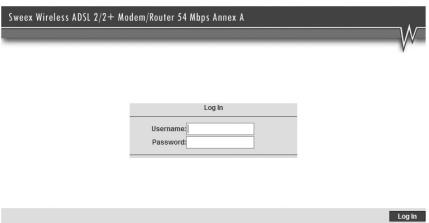
The modem login screen appears. Fill out the login name and the corresponding password. The standard login is "sweex" and the corresponding password is "mysweex".
If this login screen fails to appear, recheck the settings of your Internet browser as described above. Also check the IP address of your computer. In this IP address, only the digits after the last dot may deviate from the IP address of the modem (e.g.: 192.168.251.xxx). Do this as follows:
Win2000/WinXP: Click "Start" (Start) - "Run" (Run) - Type cmd - press ENTER - In the black window type ipconfig - press ENTER and your IP address is displayed.
Win98/Me: Click "Start" (Start) - "Run" (Run) - Type winipcfg - press ENTER. In the window, select your network adaptor. (Usually NOT the ppp adaptor) and your IP address is displayed.
Once logged in, the main screen of the modem appears.
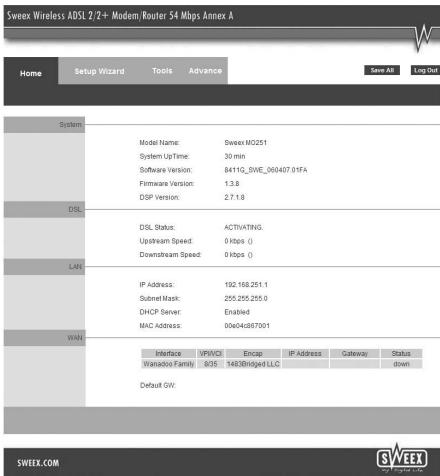
This screen displays the current Internet connection and a variety of system information.
Setting the Internet Provider (ISP)
In order to facilitate the installation process, the Sweex ADSL 2/2+ Modem/Router Annex A disposes of a pre-programmed list of provider settings.
To this end, go to the "Internet Connection". The following screen appears:
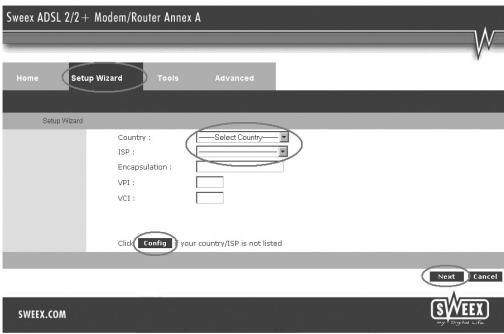
Under "Country" select the appropriate country and under "ISP", select the corresponding Internet Provider. The modem will now automatically complete the settings. Then click "Next". After this, some Internet providers require a user name and password to be filled out. Check this with the list of providers further down in this manual or with the details you received from your Internet provider. Alternatively, contact your Internet provider. Click "Apply" to store and activate the settings.
In order to check whether the settings for your provider have been entered correctly, click "Home". In the line underneath "Connection Status", you can check the "State" of your Internet connection. "Connected" indicates that the connection with your provider has been set up successfully. You can now surf the Internet.
In the event that your provider has not been listed, you can enter alternative settings via the "Config" option. In order to obtain these alternative settings, contact your Internet provider. In order to store the settings click "Apply" and then "Save All". Subsequently, in the next window, click "Apply" once more.
Wireless settings and security
We always recommend setting the modem with a computer physically connected with the modem by means of a cable. This is because you will lose the wireless connection with the modem while storing these settings.
In the main menu click "Advanced" and then "Wireless".
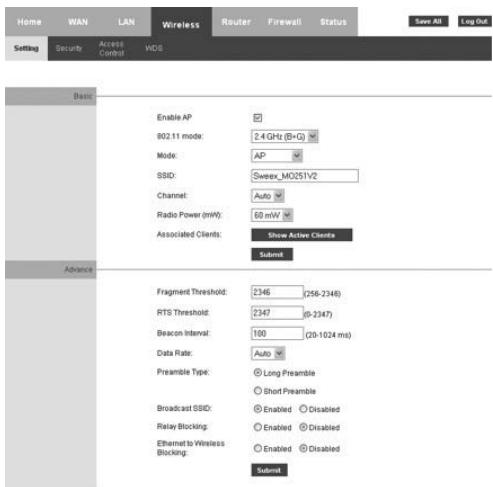
You can enable or disable the wireless part by means of "Enable AP". This feature is enabled by default. "AP" (Access Point) refers to the wireless part of the modem.
The standard SSD is "SweeK MO251V2". You can change this under "SSID". We recommend not changing this so you can always recognise the modem. Here you can also find other options such as "Channel" and "802.11 Mode". We again recommend maintaining the default values.
Securing the wireless network
While in the "Wireless" window, click "Security".
The modem is now secured. Reconnect your wireless computer.
Complete the following steps for enabling WPA security:
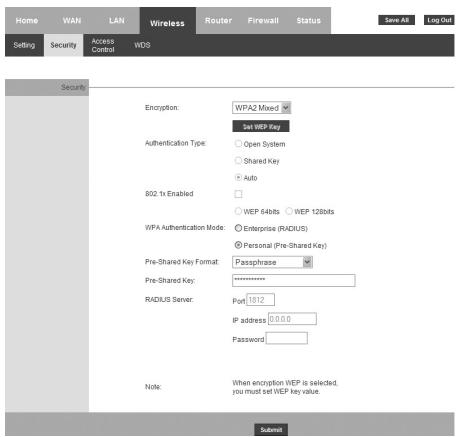
- You can now see only a single line with options. Select "WPA".
- Underneath, select "WPA" or "WPA2". This depends on the type supported by the wireless card in your computer. Not all wireless adaptors support WPA2.
- Select "Pre-Shared Key"
- Under "PSK String", enter your network code. You can create your own network key which may contain 8 to 63 characters (numbers and letters).
- Click "Apply" to save the settings.
- Click "restart AP" to activate the settings.
- Click "Apply" to restart the modem.
The modem is now secured. Reconnect your wireless computer.
Opening ports in the modem (Port Forwarding and DMZ)
The built-in firewall in this modem cannot be disabled. However, ports can be opened for programmes and games which require this. Go to "Advanced" -> "Firewall" "Port Forwarding" to change the port settings.
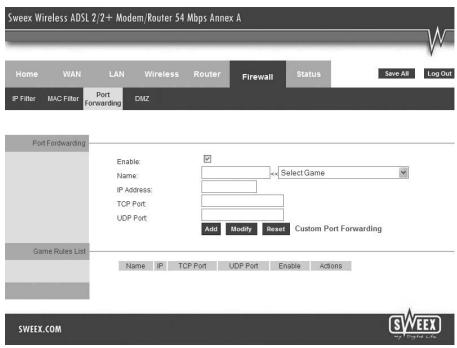
The Sweex ADSL 2 Modem offers a pre-programmed list with common programmes and games.
- Tick "Enable".
- Now select the programme or the game from the list under "Select Game".
- Under "IP Address", enter the IP address of the computer for which you want to open the ports.
- Click on "Add", then on "Save All" to activate the settings.
If the programme or game is not listed, ports can also be opened manually.
- Tick "Enable".
- Under "Name", enter a unique random name.
- Under "IP Address", enter the IP address of the computer for which you want to open the ports.
- Under "TCP Port" and/or "UDP Port", enter the relevant port. You can also open a range of ports (e.g.: 2300-2310). When in doubt, enter both TCP and UDP.
- Click on "Add", then on "Save All" to activate the settings.
In some instances, or when a game console is used, you may opt to place a computer or game console entirely outside the firewall. This can be done in the so-called "demilitarized zone" ("DMZ"). This option can be found in the main screen of the port settings ("Port Forwarding" under "Advanced"). Note however, you no longer take advantage of the protection offered by the firewall of the router. All ports to the computer placed in the DMZ are open. Only a single computer can be placed in the DMZ.
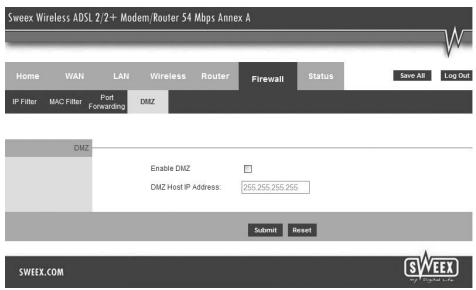
- Click on DMZ.
- Here tick the option "Enable DMZ".
- Under "DMZ Host IP Address", enter the IP address of the computer for which you want to open the ports.
- Click on "Submit" and "Save All".
Where to find the IP address of the computer
Win2000/WinXP: Click Start - Run- Type in "cmd" - press ENTER- In the black window, type "ipconfig" - press ENTER and your IP address is displayed.
Win98/Me: Click Start - Run- Type "winipcfg" - press ENTER. In the window, select your network adaptor. (Usually NOT the ppp adaptor) and your IP address is displayed.
LAN settings
The network settings (LAN) can be changed as follows. In the main window, go to "Advanced". The option "LAN" is displayed next to it. Select this option. All settings you will change under "Ethernet" apply to both wired and wireless computers.
Changing the password (Password)
The standard login of the Sweex ADSL 2 can be changed as follows: in the main window select "Tools" and go to "Password".
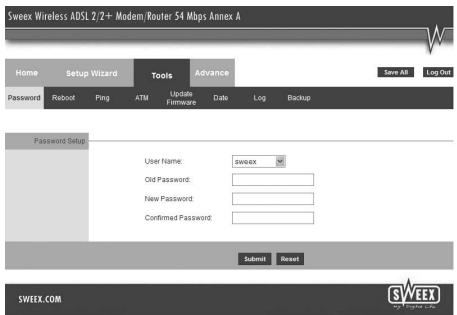
Here, under "User name", you can choose a different login name and under "Password" the corresponding password. Repeat this password under "Confirmed Password".
Note! If you want to reactive the standard login, the modem must be reset to the standard factory settings.
In order to store the settings click "Apply" and then "Save All". Subsequently, in the next window, click "Apply" once more.
Upgrading the firmware of the modem (Update firmware)
In order to provide the modem with updates, the so-called 'firmware' needs updating. You can do so by going to the menu, then "Tools" and selecting "Update firmware".
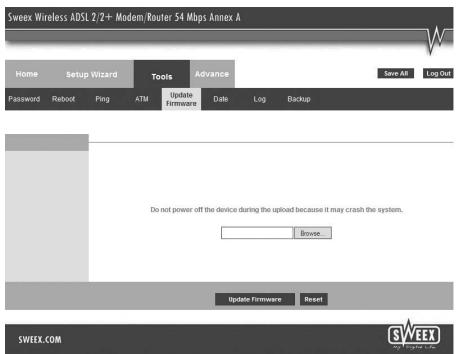
Here the firmware of the modem can be updated. New firmware can be downloaded from the Sweex website under "Service and support". If the firmware file is zipped, make sure you select and extract the file first on a location on your computer where you can retrieve it easily.
Now click "Browse" and select the extracted firmware file. In many cases the name of this file will end in "...firmware.update.img".
In order to start the firmware update, click "Update Firmware". Do not interrupt this procedure. This may damage the modem. Wait for the upgrade to be completed. The bar will have filled up and the connection between the computer and the modem will be momentarily interrupted. Reset the modem.
Subsequently, log into the modem to check the new "Firmware Version" in the "Home" window.
Resetting the Modem to its factory settings
The Sweex ADSL 2 Modem can be reset to its factory settings in two different ways.
Note! After this, all settings which apply to your connection and network need to be reconfigured. After the reset, the modem will restart. During start-up, the factory settings are reloaded and the computer will lose connection with the modem for around 30 seconds. After this, the modem can be accessed via the standard IP address (192.168.251.1).
- The reset button is located on the side of the modem. Use a thin item to press the button. Press and hold the button for 15 seconds.
- In the menu of the modem go to "Tools". Click on "Reboot". Click "Reset to Defaults" and "OK" to confirm.
Warranty
All products under the Sweex brand are warranted for a period of three years. We do not grant support or warranties for any software and/or (rechargeable) batteries included. Settlement of guarantee only takes place via the dealer where you have purchased the product in question.
The rightful owner has and retains title to all brand names and related rights mentioned in this manual.
GPL source code
This Swee x product includes a software code developed by third parties, including a software code that is subject to the GNU General Public License ("GPL") or GNU Lesser General Public License ("LGPL").
Most users do not need the GPL source codes at all. It is only required during programming in order to alter the code. The GPL source codes are listed on our website.