
LW153 - Adaptateur réseau USB SWEEX - Notice d'utilisation et mode d'emploi gratuit
Retrouvez gratuitement la notice de l'appareil LW153 SWEEX au format PDF.


| Type de produit | Adaptateur réseau USB Wi-Fi |
| Norme Wi-Fi | IEEE 802.11n (150 Mbps) |
| Interface | USB 2.0 |
| Sécurité sans fil | WEP, WPA, WPA2, WPS |
| Systèmes d'exploitation supportés | Windows XP, Windows Vista, Windows 7 |
| Contenu du paquet | Adaptateur, CD-ROM avec pilotes et manuel |
| Garantie | 2 ans standard, extensible à 12 ans sur enregistrement |
| Installation | Via CD-ROM (Assistant d'installation) |
| Configuration | Utilitaire SweeX ou intégré Windows |
| Portée | 20 à 30 mètres en intérieur |
| Température de fonctionnement | Éviter températures extrêmes |
| Humidité | Éviter environnements très humides ou poussiéreux |
| Entretien | Ne pas ouvrir, pas de pièces réparables par l'utilisateur |
| Chocs | Protéger contre les chocs et chutes |
FOIRE AUX QUESTIONS - LW153 SWEEX
Questions des utilisateurs sur LW153 SWEEX
0 question sur cet appareil. Repondez a celles que vous connaissez ou posez la votre.
Poser une nouvelle question sur cet appareil
Téléchargez la notice de votre Adaptateur réseau USB au format PDF gratuitement ! Retrouvez votre notice LW153 - SWEEX et reprennez votre appareil électronique en main. Sur cette page sont publiés tous les documents nécessaires à l'utilisation de votre appareil LW153 de la marque SWEEX.
MODE D'EMPLOI LW153 SWEEX
LW153 SweeX Wireless 150N Adapter USB
Please notice! On the included CD-ROM you will find the Setup Wizard. This easy install procedure will show you how to setup the adapter step-by-step.
- Do not expose the Sweeex Wireless 150N Adapter USB to extreme temperatures. Do not place the device in direct sunlight or in the direct vicinity of heating elements.
- Do not use the Sweex Wireless 150N Adapter USB in extremely moist or dusty surroundings.
- Protect the device against powerful shocks and falls - they may damage the internal electronics.
- Never attempt to open the device yourself, there are no serviceable parts inside. Opening the device will cause the warranty to lapse.
Package contents
In this package you will find:
- Wireless 150N Adapter USB
- CD with driver, software and this manual
If you find that any of the package contents are missing, please return the package to the sales point where it was bought.
Terminology list
This manual will contain a number of technical terms. It is important to know what they mean before you begin installing and configuring the adapter.
- Adapter: This is the Sweex Wireless 150N Adapter USB, the product you have just bought.
- Wireless network: Wireless networks are based on the Wi-Fi standard. The adapter enables you to connect to Wi-Fi networks at a speed of up to 150Mbps, provided that the network supports this speed (or higher)
- (wireless)Adapter, modem, access point: These are devices (amongst others) can transmit a wireless network signal.
- Wireless security: Wireless security is a form of protection for wireless networks that allows only authorized devices access to the network and prevents eavesdropping. There are several different forms of wireless security, as is explained further on in this manual.
Installation Windows XP, Vista and 7
Place the SweeX CD in the CD player, click "Drivers and Software" and follow the instructions on screen.
Setting up the wireless network
How does it work?
To create a wireless network you need a wireless adapter, wireless modem or Wi-Fi access point. The wireless adapter, modem or access point distributes the wireless network. The name of this network, also called the SSID, is dependant on your wireless adapter, modem or access point and is different per type or brand. You can often change the name, so you can easily identify your own wireless network.
Security
A wireless network is comparable with radio signals. However, a wireless network at home does not have such a long range. The range of a home network often has a range of 20 to 30 meters. This means that neighbours and passers-by can also use your network. This way they can surf on your internet connection and possibly access your shared folders
and files on your network unpunished. That is why it is recommended to secure your wireless network. This security is configured on the device that transmits the network. In most cases this is the wireless adapter, modem or access point.
By means of a WEP or WPA security code you can secure your network. This code is also called the network key. Enter this code on every computer that wants to connect to the secured network. Only with this key you can be part of the
network. If you did not enter the network key yourself in the adapter or modem, ask the installer, manufacturer, supplier or provider for this code.
WPS (Wi-Fi Protected Setup)
Securing the wireless network in the adapter can be done in two ways. The trusted manual way (WEP, WPA and WPA2), where you determine and enter your own network key, or with the WPS (Wi-Fi Protected Setup) function, where the modem, adapter or access point and the computer "agree" on a WPA(2) network key and use it automatically with one push of a button to secure the network. This function only works with a modem, adapter or access point that also supports WPS.
Note: Windows Vista from SP2 onwards and Windows 7 already support WPS out-of-the-box. When connecting to a WPS secured network, simply follow the instructions on screen. The procedure described below is for Windows XP only
Connecting and securing with WPS
After activating the WPS function be pressing the WPS button on the adapter or via the WPS configuration, you have the computer scan for the automatically generated network key, the network is secured automatically.
- Ensure you have the Utility installed on your computer.
- Start the WPS function on the modem, adapter or access point.
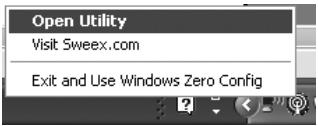
- Right-click the "SweeX Wireless Utility" icon and choose "Open Utility".
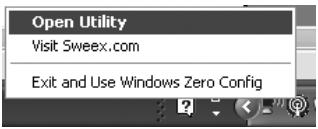
The Sweex Utility will appear. Click on the "WPS Setting" tab, you should see the following screen:
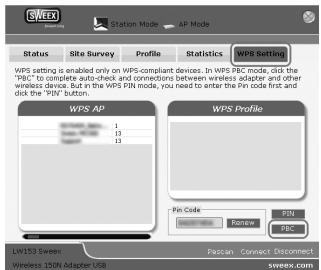
To connect to a WPS secured network, first press the WPS button on your adapter, then click the "PBC" button in the Sweex Utility. The utility will automatically find your network and establish a WPS secured connection to it. After a WPS connection has been successfully established, you will see it in the "WPS Profile" table on the right.
Connecting to a wireless network
Windows XP
Right-click on your wireless adapter's icon at the bottom right of your screen and click "View Available Wireless Networks":
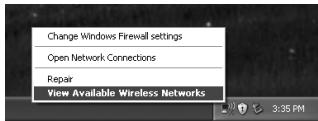
A window titled "Choose a wireless network" will appear. In this window, select your network, click the "Connect" button and follow the instructions on screen:
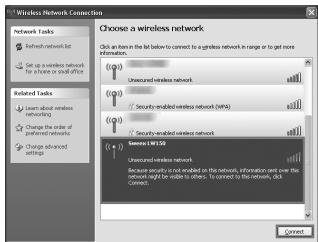
Windows XP with SweeX Utility:
Right-click on the "Sweeex Wireless Utility" icon at the bottom right of your screen and click "Open Utility".
Click on the "Site Survey" tab, select your network, click the "Connect" button and follow the instructions on screen:
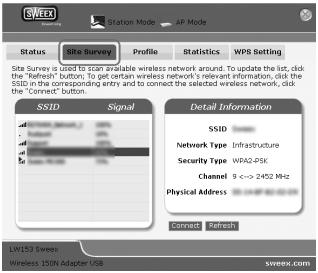
Note: In case the network you're connecting to is secured, do not forget to enter the security key!
Windows Vista:
Right click on the Network & Sharing Center icon in the bottom right of your screen, and click "Connect to a network":
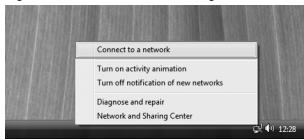
A window titled "Connect to a network" will appear. In this window, select your network, click the "Connect" button and follow the instructions on screen:
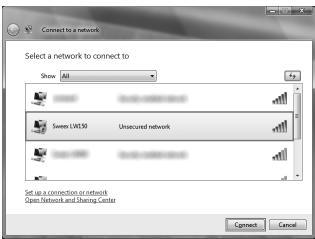
Note: If you see a red cross near the network and the text: "The settings saved on this computer for the network do not match the requirements of the network", please refer to the troubleshooting section of this manual.
Windows 7:
Windows 7 will indicate when wireless networks are available. You can recognise this by the following icon in the bottom-right of your screen:
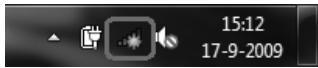
Note: If you see a small red cross through the icon, no networks are in range of your computer. Please consult the troubleshooting section of this manual if this is the case.
Click the icon and a list of wireless networks will appear, select the "Sweex LW150" network, check the "Connect Automatically" checkbox, click "Connect" and follow the instructions on-screen:
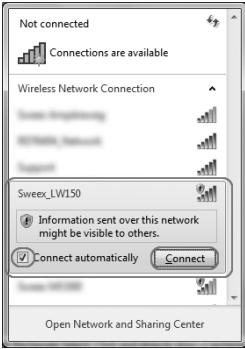
Note: If you see a red cross next to the network and are unable to connect, please refer to the troubleshooting section of this manual.
Troubleshooting
This chapter of the manual will explain a number of common issues that you may run into and possible solutions.
- I can connect to a network but I cannot access the internet or other computers on the network
- This issue may arise from incorrect IP settings on your computer. You can check and adjust your settings as follows:
Windows XP
1 Click the start button at the bottom right of your screen and click "Control Panel"
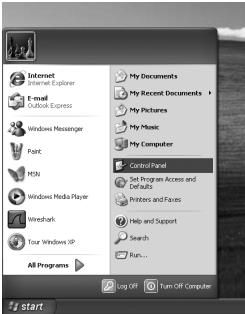
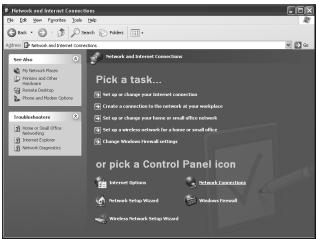
2 In the control panel, click "Network and Internet Connections and open the "Network Connections" icon. If your control panel is in Classic View, you may open the "Network Connections" icon straightaway.
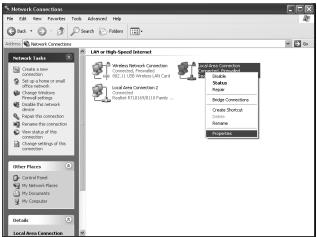
3 Right click the first connected LAN or High-Speed Internet Connection, in this example the "Local Area Connection", and click "Properties" from the context menu. If you have multiple connected connections, repeat steps 3 to 6 for each connection.
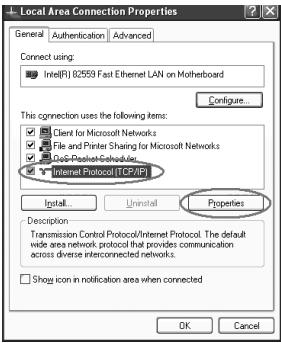
4 The connection's property window appears. In this windows, select the "Internet Protocol" from the list of items and click the "Properties" Button:
5 The Internet Protocol's property window appears. In this window, ensure that both settings are set to "Obtain automatically":
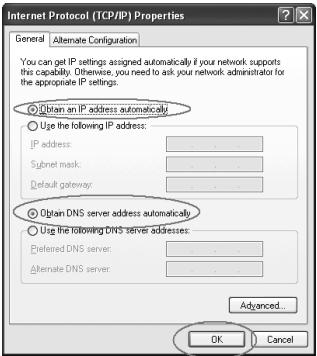
6 Confirm the settings by clicking "OK". The network settings for XP are now properly configured for your adapter.
Windows Vista
1 Click the start button at the bottom right of your screen and click "Control Panel"
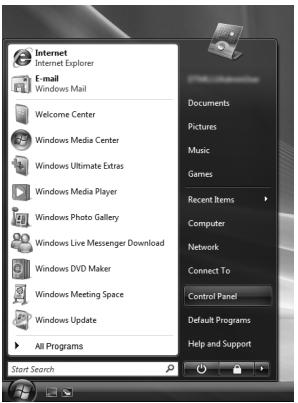
2 In the Control Panel, click "View network status and tasks". If your Control Panel is in classic view, open the "Network and Sharing Center" icon:
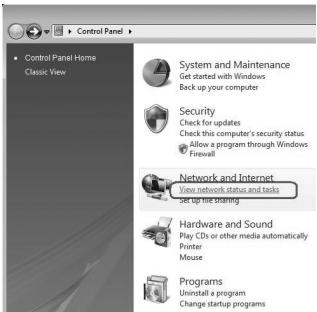
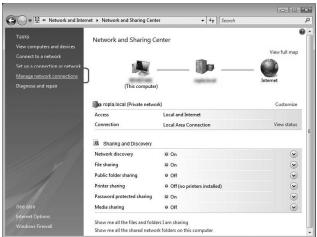
3 The Network and Sharing Center window should now open.
In the Network and Sharing Center, click "Manage network connections" in the bar on the left side:
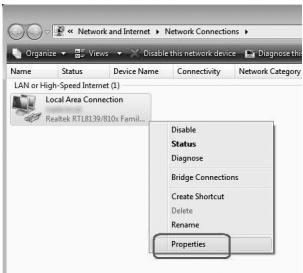
4 Right click the first connected LAN or High-Speed Internet Connection, in this example the "Local Area Connection", and click "Properties" from the context menu. If you have multiple connected connections, repeat steps 4 to 7 for each connection:
5 The connection's property window appears. In this windows, select the "Internet Protocol Version 4" from the list of items and click the "Properties" Button:
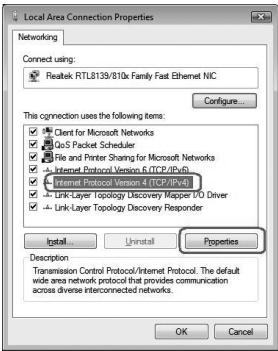
6 The Internet Protocol Version 4's property window appears. In this window, ensure that both settings are set to "Obtain automatically":
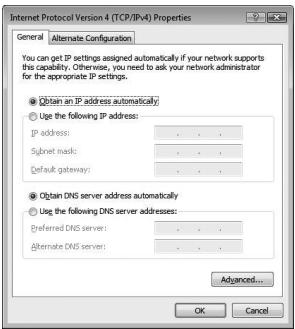
7 Confirm the settings by clicking "OK". The network settings for Vista are now properly configured for your adapter.
Windows 7
1 Click the start button at the bottom right of your screen and click "Control Panel"
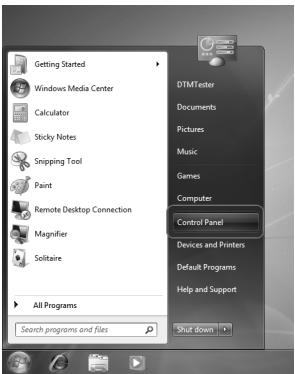
2 In the Control Panel, click "View network status and tasks". If your Control Panel is in icon view, open the "Network and Sharing Center" icon:
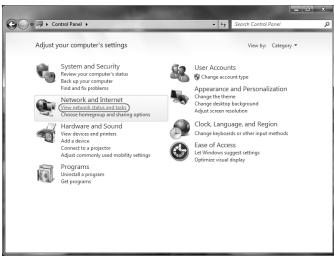
3 The Network and Sharing Center window should now open.
In the Network and Sharing Center, click "Change adapter settings" in the bar on the left side:
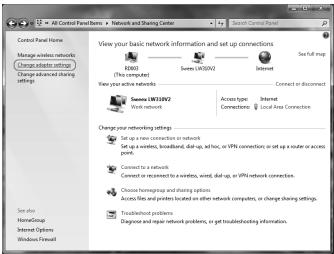
4 Right click the first connected connection, in this example the "Local Area Connection", and click "Properties" from the context menu. If you have multiple connected connections, repeat steps 4 to 7 for each connection:
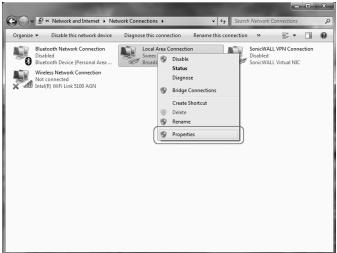
5 The connection's property window appears. In this windows, select the "Internet Protocol Version 4" from the list of items and click the "Properties" Button:
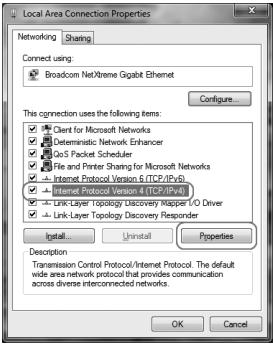
6 The Internet Protocol Version 4's property window appears. In this window, ensure that both settings are set to "Obtain automatically":
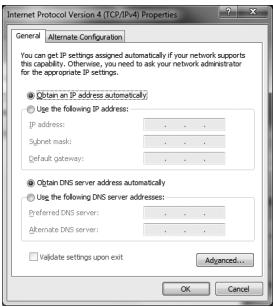
7 Confirm the settings by clicking "OK". The network settings for Windows 7 are now properly configured for your adapter.
- I appear to be connected but Internet Explorer still displays an error message "Internet Explorer cannot display the webpage" or similar.
- This problem may arise from incorrect proxy server settings. You can adjust these settings as follows:
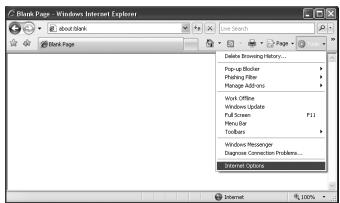
1 In Internet Explorer, click the "Tools" menu or icon and choose "Internet Options".
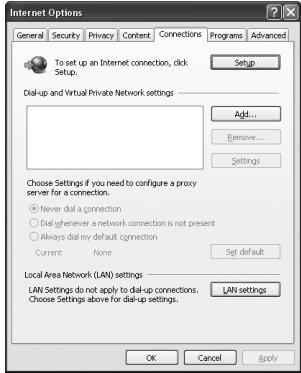
2 The "Internet Options" window will now open.
3 In this window, click the "Connections" tab and in this tab, the "LAN Settings" button.
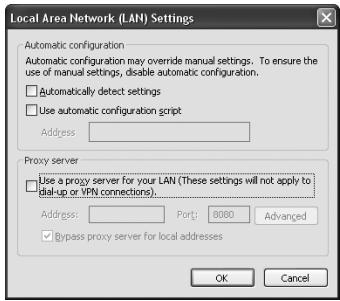
4 The "LAN Settings" window will now open. Ensure that all checkboxes are unchecked and confirm the settings by clicking "OK".
- I have Windows Vista and I get the error message "the settings saved on this computer for the network do not match the requirements of the network" when I try to connect. wirelessly.
- This problem can be solved as follows:
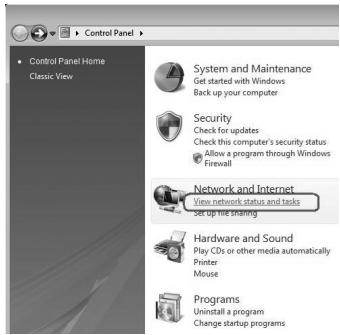
1 In the Control Panel, click "View network status and tasks". If your Control Panel is in classic view, open the "Network and Sharing Center" icon:
2 The Network and Sharing Center window should now open. In the Network and Sharing Center, click "Manage wireless networks" in the bar on the left side:
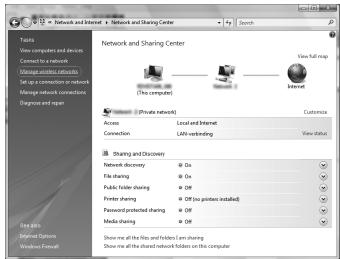
3 The Manage Wireless Networks window now opens. In this window, select the conflicting network and click "Delete". After the network has been deleted, you can close the window and follow the steps described in the "Connecting to a wireless network" section of the manual.
- I have Windows 7 and I cannot connect to my wireless network. A red cross is displayed next to the network
- This problem can be solved as follows:
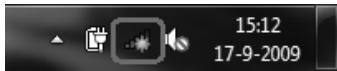
1 Click the Network and Sharing Center icon in the bottom right of your screen:
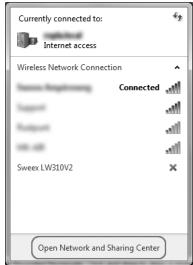
2 Next click "Open Network and Sharing Center":
3 In the Network and Sharing Center, click "Manage wireless networks":
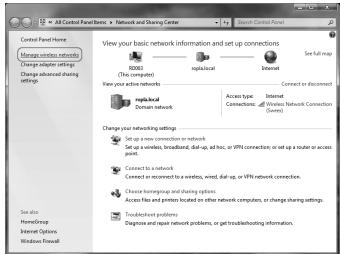
4 The following window will appear, right click the network that was indicated with a red cross in step 2 and click "Remove network":
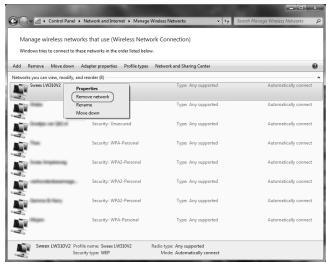
After the network has been removed, you can close the window and follow the steps described in the "Connecting to a wireless network" section of the manual.
Warranty
Thank you for purchasing this Sweeex product. Sweeex devotes ample attention and care to the quality, reliability, functionality, durability and user friendliness of all its products. In this way Sweeex distinguishes itself in the market and can we convince you as a buyer to continue purchasing products of the Sweeex brand. We wish you a lot of pleasure with your purchase.
An important extra advantage for you is the possibility of product registration.
After the registration of your product Sweex offers you a number of important yet equally useful advantages.
The biggest advantage is that by means of the online registration on www.sweex.com/12yearswarranty the warranty on the product is extended by a 10-year manufacturer's warranty (see the applicable conditions on this website). This in addition to the statutory 2-year warranty which is already available for the product. In total the warranty period will therefore amount to 12 years.
There are also other advantages:
For example, if you wish so, you are regularly informed by us of the latest developments in our assortment by means of a digital newsletter.
Where applicable, you also automatically receive the latest drivers and/or firmware from us for the product you purchased to preserve or improve the compatibility and the performance.
Moreover, our support desk can assist you faster in case of possible support questions about the product if you registered the product.
Sweex warranty conditions.
2-year standard warranty within the EU
- In a standard manner a warranty period of 2 years as from the purchase date is available for this Sweex product within the EU.
- Should you wish to invoke this warranty within the first 2 years after the purchase then you can directly apply to the point of sale where you purchased the product for the conditions and procedures.
10-year manufacturer's warranty
- However, in addition to the statutory 2-year standard warranty Sweex offers you an extended quality warranty of no less than 10 years, if you purchased your product within the EU.
- For more information, conditions and the registration form go to www.sweex.com/12yearswarranty and register within 30 days after the purchase of your product for the extended warranty period of in total 12 years.
Matters that are excluded from the warranty
- The warranty of Sweex only covers manufacturing defects. Excluded from the warranty are accessories like batteries, rechargeable batteries and also supplied software, where applicable.
- The liability of Sweex is limited to the costs of repair and/or replacement of the product covered by the warranty.
- Both warranty types (the 2-year standard warranty and the 10-year extended manufacturer's warranty) are null and void if the product has been opened, changes have been made, physical damage was caused to the product and if the product is used for another purpose than for which it is originally meant.
All brand names and associated rights mentioned in this manual are and remain the sole property of the rightful claimant.