MODE D'EMPLOI LW053 SWEEX
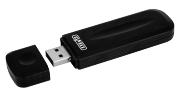
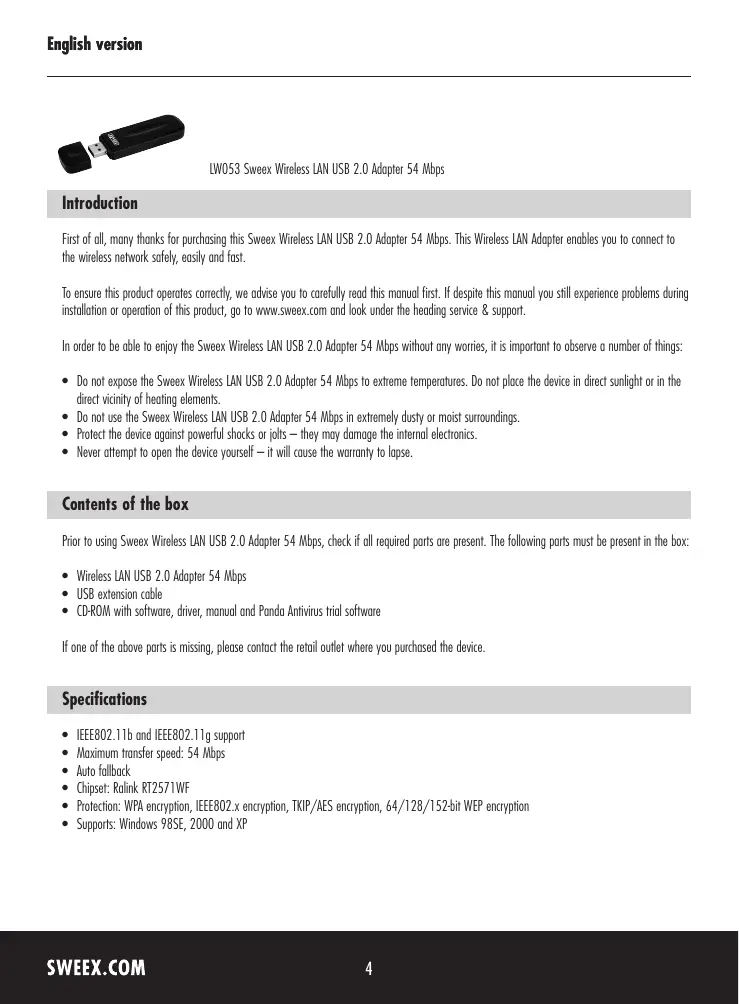
LW053 Sweeex Wireless LAN USB 2.0 Adapter 54 Mbps
Introduction
First of all, many thanks for purchasing this Sweeex Wireless LAN USB 2.0 Adapter 54 Mbps. This Wireless LAN Adapter enables you to connect to the wireless network safely, easily and fast.
To ensure this product operates correctly, we advise you to carefully read this manual first. If despite this manual you still experience problems during installation or operation of this product, go to www.sweex.com and look under the heading service & support.
In order to be able to enjoy the Sweex Wireless LAN USB 2.0 Adapter 54 Mbps without any worries, it is important to observe a number of things:
- Do not expose the Sweex Wireless LAN USB 2.0 Adapter 54 Mbps to extreme temperatures. Do not place the device in direct sunlight or in the direct vicinity of heating elements.
- Do not use the Sweex Wireless LAN USB 2.0 Adapter 54 Mbps in extremely dusty or moist surroundings.
- Protect the device against powerful shocks or jolts - they may damage the internal electronics.
- Never attempt to open the device yourself—it will cause the warranty to lapse.
Contents of the box
Prior to using Sweeex Wireless LAN USB 2.0 Adapter 54 Mbps, check if all required parts are present. The following parts must be present in the box:
- Wireless LAN USB 2.0 Adapter 54 Mbps
- USB extension cable
- CD-ROM with software, driver, manual and Panda Antivirus trial software
If one of the above parts is missing, please contact the retail outlet where you purchased the device.
Specifications
- IEEE802.11b and IEEE802.11g support
Maximum transfer speed: 54 Mbps
- Auto fallback
- Chipset: Ralink RT2571WF
Protection: WPA encryption, IEEE802.x encryption, TKIP/AES encryption, 64/128/152-bit WEP encryption
Supports:Windows 98SE,2000 and XP
Installation under Windows 2000 and XP
We advise you to ensure the operating system is up-to-date before starting the installation. This is easy to check by starting up Internet Explorer and selecting the option "Windows Update" in the "Extra" menu.
Connect the Sweex Wireless LAN USB 2.0 Adapter 54 Mbps to a free USB port on the computer. Windows will automatically detect the device and show the following screen.
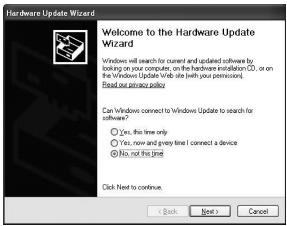
Click "Next".
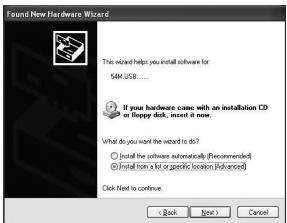
Insert the Sweex CD-ROM in the CD-ROM player. If you have already done so, briefly open the CD-ROM loader and close it again. Windows will automatically start searching for drivers on the CD-ROM you have just inserted.
If Windows is unable to detect any drivers, you can also carry out a manual driver search. To that end, select "Install from a list or specific location" and click "Next".
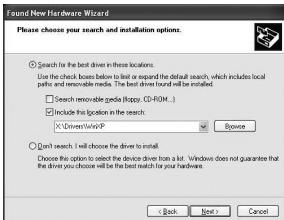
Tick the option: "Include this location in the search". Insert the Sweex CD-ROM in the CD-ROM player. Go to the Sweex CD-ROM via "Browse", and select the folder "Drivers". In this folder, select the relevant operating system. Then click "Next".
Note: In the illustration, "X" stands for our CD-ROM drive. This may be a different letter.
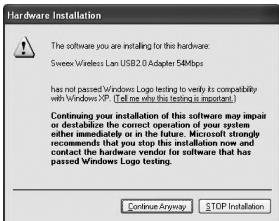
Windows will note that the driver is not certified. This will not affect the correct functioning of the Sweeex Wireless LAN USB 2.0 Adapter 54 Mbps. All Sweeex products and corresponding drivers are tested extensively. Here select the option "Continue Anyway". Windows will now install the drivers. Click on "Finish" to complete the installation.
Installation of Windows 98SE
Important!
Install the driver prior to connecting the Sweex Wireless LAN USB 2.0 Adapter 54 Mbps!
Insert the SweeX CD-ROM in the CD-ROM player. If you have already done so, briefly open the CD-ROM loader and close it again. The CD-ROM will start automatically. A menu will automatically appear.
In the event that the autorun menu does not appear, it can also be started manually. In order to do this, open "My computer" and go to X: (X being the letter of your CD-ROM drive). Here you will find the "autorun.exe" file. Double-click to execute.
Click on "Driver Windows 98SE" to start the installation process.

Driver Windows 98SE
Follow the installation procedure and select "restart the computer".
After the computer has restarted, connect the Sweeex Wireless LAN USB 2.0 Adapter 54 Mbps to a free USB port. Windows will automatically detect and install it.
Setting the wireless network
How does it work?
In order to create a wireless network, you need a wireless router, wireless modem or WiFi access point. The wireless router, modem or access point transmits the wireless network. The name of this network, also referred to as SSID, depends on your wireless router, modem or access point and often differs per model or brand. You can often determine the name yourself and thus recognise your own wireless network.
Protection
You could compare a wireless network to radio signals. However, the range of a wireless network at home is not as extensive. Your home wireless network often has a range of 20 to 30 metres. This means that neighbours and passers-by too can make use of your network. As a result they can get away with surfing on your Internet connection, and they may gain access to your shared folders and files on your network. That is why it is often recommended to secure your wireless network. This protection is set up on the device transmitting the network. In most cases that is the wireless router, modem or access point. By adding a WEP or WPA protection code, you secure your network. This code is also referred to as the network key. Enter this code on each computer that wants to connect to that secured network. You can only be part of that network if you enter this code. If you did not enter the network key into the router or modem yourself, ask the installer, manufacturer, supplier or provider for this code.
Connecting the computer to the wireless network
After having installed the drivers of the SweeX Wireless LAN USB 2.0 Adapter 54 Mbps, you can connect your wireless computer to your wireless network. This procedure is outlined below.
Windows 2000 and XP
In the bottom left of your screen, go to Start "Control Panel".
Then go to "Network and Internet Connections". Open "Network Connections".
Or, if the Windows classic style is used:
Start Settings "Network connections". The following window appears.

Right-click "Wireless Network connection" and select "View Available Wireless Networks".
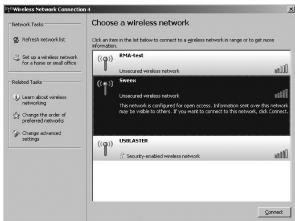
This window shows you which wireless networks are detected by your computer. In our example, it has found the "RMA-test", "Sweex" and "USBMASTER" networks. In your situation, the detected networks will differ from this picture.
In order to let the computer again check any networks it detects, click on "Refresh network list" in the left column. This will always give you the most up-to-date and latest situation.
The network called "Sweex" is an unsecured network. You do not need a security code to connect your computer to this network. The "USBLASTER" network is secured. You do need a security code to connect your computer to this network.
If no list appears, but you are told no wireless networks can be detected, check whether the wireless router, modem or access point is switched on and whether the distance to the wireless computer is not too big.
If you receive a notification saying the wireless connection cannot be configured because it is managed by another programme, disable that software and go back to the previous step to start again.
In order to connect to one of the networks detected, select it and then click "Connect".

This notification appears when you are connecting to an unsecured network. Click "Connect Anyway".
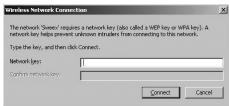
This window appears when you are connecting to a secured network. You are prompted for the security code, also referred to as network key. Enter the network key in both lines and click "Connect".
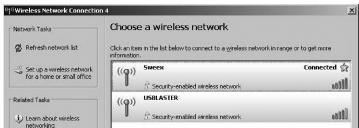
If the connection to the wireless network has been successful, the notification "Connected" appears after a couple of seconds. You now have an active wireless network.
If the network key you have entered is incorrect, a notification saying "Limited or no network connection" appears after a couple of seconds. Your wireless connection is not satisfactory. Check the network key. Check the wireless router, modem or access point which must provide the computer with an IP address. This is a unique number required for each computer that is part of a network. In most cases, the computer is automatically given an IP address. Also check the computer settings.
View the computer settings under Windows 2000 and XP
In the bottom left of your screen, go to Start "Control Panel".
Then go to "Network and Internet Connections". Open "Network Connections".
Double-click the wireless network connection.
Or, if the Windows classic style is used:
Start Settings "Network connections".
Double-click "Wireless Network connection".
A window appears, indicating the status of the wireless connection.
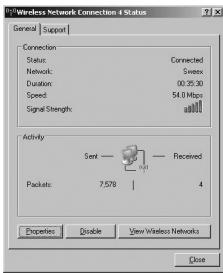
Click on the "Support" tab to view your IP address. If the connection is successful, the IP address shown usually is that of the wireless router or modem. If you need to enter or change the IP address settings, return to the "General" tab and click "Properties".
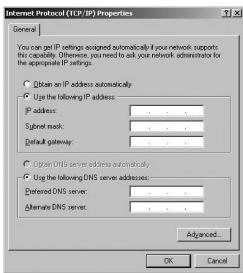
Here, either choose to obtain an IP address automatically or enter the IP address you want to use. Click "OK" to save the settings.
Connecting the computer to the wireless network under Windows 98SE
Following the computer's restart, click on the Sweex WiFi Utility icon on your desktop in order to connect your computer to the wireless network.

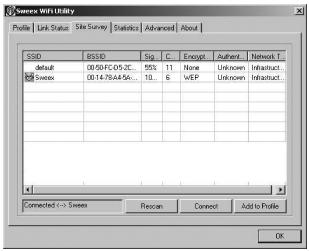
Click on the "Site Survey" tab in order to view a list of wireless networks detected by your computer. In our example, the "Sweex" network has been found. In your situation, the detected networks will differ from this picture.
"WEP" is shown in the "Encryption" column. It indicates that this is a secured network. In order to connect to "Sweex", you need a network key. Select your wireless network and click on "Connect".
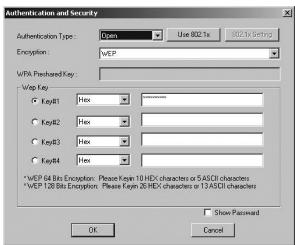
When connecting to a secured wireless network, you can set the WPA or WEP encryption here. Select "Open" or "Shared" under "Authentication Type" if you want to use WEP encryption. Select "WPA-PSK" under "Authentication Type" if you want to use WPA encryption.
If you enter the network key correctly and click "OK" to confirm, a small green hand will appear after the relevant wireless network, indicating you have successfully connected to that network.
Warranty
All products under the Sweex brand are warranted for a period of three years. We do not grant support or warranties for any software and/or (rechargeable) batteries included. Settlement of guarantee only takes place via the dealer where you have purchased the product in question.
The rightful owner has and retains title to all brand names and related rights mentioned in this manual.