
LC203 - Adaptateur réseau SWEEX - Notice d'utilisation et mode d'emploi gratuit
Retrouvez gratuitement la notice de l'appareil LC203 SWEEX au format PDF.


| Type d'appareil | Adaptateur réseau Powerline |
| Vitesse de transmission | Jusqu'à 200 Mbps |
| Installation | Plug and play |
| Connexion réseau | Ethernet |
| Nombre de ports | 1 port Ethernet |
| Compatibilité | PC, routeur |
| Protection contre surtensions | Non recommandé |
| Température d'utilisation | Non précisé |
| Environnement d'utilisation | Éviter poussière et humidité |
| Montage | Prise murale standard |
| Garantie | Non précisé |
| Dimensions | Non précisées |
| Poids | Non précisé |
| Consommation électrique | Non précisée |
| Matériau | Plastique |
| Couleur | Noir |
FOIRE AUX QUESTIONS - LC203 SWEEX
Questions des utilisateurs sur LC203 SWEEX
0 question sur cet appareil. Repondez a celles que vous connaissez ou posez la votre.
Poser une nouvelle question sur cet appareil
Téléchargez la notice de votre Adaptateur réseau au format PDF gratuitement ! Retrouvez votre notice LC203 - SWEEX et reprennez votre appareil électronique en main. Sur cette page sont publiés tous les documents nécessaires à l'utilisation de votre appareil LC203 de la marque SWEEX.
MODE D'EMPLOI LC203 SWEEX
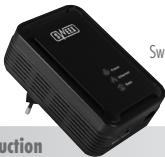
Sweex Powerline 200 Adapter
Introduction
- Do not expose the Sweex Powerline Ethernet Adapter 200 Mbps to extreme temperatures. Do not place the product in direct sun light or close to heating elements.
- Do not use the Sweex Powerline Ethernet Adapter 200 Mbps in extremely dusty or moist environments.
- Prevent hard shocks or impacts of the product, as this can cause damage to the internal electronics.
- Never try to open the product yourself, this voids the warranty.
Important!
Do not connect the Sweex Powerline Ethernet Adapter 200 Mbps to a UPS or a socket with surge protection and/or filter. This can negatively influence the quality of the signal. Usage in secured plug sockets or extension leads is also not recommended.
Hardware Installation
Prior to installing the hardware, follow these precautionary instructions:
- Ensure that there is at least 1 free plug socket available for every adapter.
- Place the second and possibly third (etc.) adapter in a different plug socket.
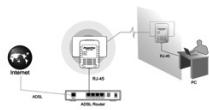
- Connect the adapter with the network and/or the computer by means of the network cables. There are 3 connection possibilities:
1: From router/switch to PC (see image underneath)
2: From PC to PC
3: From router/switch to router/switch
- Check if the LEDs are lit as indicated in the topic "LED indications".
Software installation Windows 2000, XP and Vista
No drivers are needed for the Sweex Powerline Ethernet Adapter. The utility that will be installed ensures extra functionality and security. If you do not need this you do not have to install the software. Without software you can immediately use the Sweex Powerline Ethernet Adapter.
Before you start the installation we recommend you to ensure that your operating system is up-to-date. This is easily checked by selecting the "Extra" menu in Internet Explorer and then the option "Windows Update".
Place the Sweeex CD-ROM in the CD-ROM player. The auto run menu will start automatically.
In this menu choose the option "Drivers Windows 2000, XP and Vista"
When this auto run menu does not appear you can start the software manually. To do this open "My Computer" and go to X\software(X is the letter of the CD-ROM drive). Here is the file 'LC202软件'. Execute this file. Windows will install the software automatically.
Software Power Adapter Utility
Configuring the Sweex Powerline Ethernet Adapter 200 Mbps is done with the 'PowerPacket Utility'. These can be found as follows:
Go to START -> "All Programs" -> "Power Packet 5.0" -> "Power Packet 5.0"
or when the classic view is being used:
Go to START -> "Programs" -> "Power Packet 5.0" -> "Power Packet 5.0"
The following screen appears:
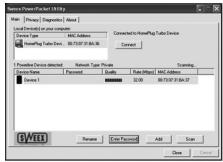
The program will immediately search for the Powerline devices, which are connected with the powerline adapter of your computer via the power grid. The found devices will appear in the window under "Device Name". Here you can see the password (Default setting empty), the quality of the connection, the effective data speed ("Rate (Mbps)" and the MAC address of the adapter.
When you want to use the security possibilities you have to enter the password of the adapter. This password ("PWR:xxxxxxxxx-xxxxxx") is unique for every adapter and is located on the sticker underneath the adapter under the MAC address ("MAC:xxxxxxxxxxxxxx"). We advise you to write these details on a piece of paper before you start the installation, this way you can easily find the details.
Select the device you want to configure and click "Enter Password". The following screen appears:
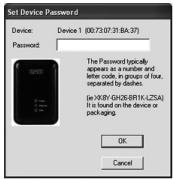
Enter the password that is on the adapter. Pay attention that the MAC address of the adapter is the same as the MAC address in the program, so that the right password is entered!
Security
It is not necessary to configure the security for the Sweex Powerline Ethernet Adapter 200 Mbps to work properly. If someone has access to your plug sockets, that person (when you did not setup security) could access internet via that plug socket. This is not practical and will hardly ever occur, because the Powerline is limited to your own house. Powerline does go over all groups within your house.
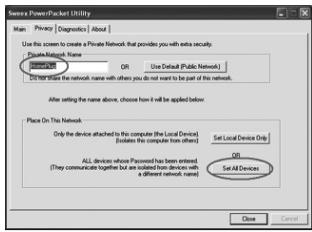
Applying the security is done in the second tab. Here you can give a unique network name (default is "HomePlug"). This network name is also the password to connect to the Powerline network. After entering a network name you have to click on "Set All Devices". This will only work when the "Password" of all adapters are entered. The network is now secured and can be connected to by all adapters that have the unique network name.
When the passwords of the adapters are not entered, only the locally connected adapter can be configured. This adapter will then be isolated from the network, because only this adapter has a unique network name.
Only adapters with the same network name can create a network together. The default network name is "HomePlug". When you do not need security you do not have to configure anything.
Securing with the Security and reset buttons
To create a secured network with two or more Powerline Adapters you can use the "Security" button. The security code is sealed in the device, so it can not be read.
Scenario 1: Adapter A and adapter B want to be a secured network.
- Press the "Security" button on adapter A for 10 seconds until the lights go out.
- Press the "Security" button on adapter B for 10 seconds until the lights go out.
- Press the "Security" button on adapter A for 1 second
- Press the "Security" button on adapter B for 1 second
- On both adapters the lights will go out and turn back on. After a maximum of 1 minute the connection is established and secured.
Scenario 2: An extra adapter (C) has to be added to the network of A and B.
- Press the "Security" button on adapter C for 10 seconds until the lights go out.
- Press the "Security" button on adapter A for 1 second
- Press the "Security" button on adapter C for 1 second
- On adapter C all lights will go out and turn back on. After a maximum of 1 minute the connection is established and secured.
The reset button
With the "reset" button you can restore the factory default settings. The adapter will be unsecured and can only communicate with unsecured adapters. Hold the button for 2 seconds. All lights will go out shortly.
LED indications
The SweeX Powerline Ethernet Adapter 200 Mbps has 3 LEDs:
| LED Indicator | Status | Indication |
| Data | On | An other adapter is detected on the same network. |
| Off | No other adapter is detected in the same network. | |
| Blinking | There is activity on the Powerline network. | |
| Power | On | The adapter is turned on. |
| Ethernet | On | The network port is correctly connected and ready to send/receive data. |
| Off | The network port is not connected correctly. | |
| Blinking | The network port sends/receives data. |
Warranty
Thank you for purchasing this Sweeex product. Sweeex devotes ample attention and care to the quality, reliability, functionality, durability and user friendliness of all its products. In this way Sweeex distinguishes itself in the market and can we convince you as a buyer to continue purchasing products of the Sweeex brand. We wish you a lot of pleasure with your purchase.
An important extra advantage for you is the possibility of product registration.
After the registration of your product Sweex offers you a number of important yet equally useful advantages.
The biggest advantage is that by means of the online registration on www.sweex.com/12yearswarranty the warranty on the product is extended by a 10-year manufacturer's warranty (see the applicable conditions on this website). This in addition to the statutory 2-year warranty which is already available for the product. In total the warranty period will therefore amount to 12 years.
There are also other advantages:
For example, if you wish so, you are regularly informed by us of the latest developments in our assortment by means of a digital newsletter.
Where applicable, you also automatically receive the latest drivers and/or firmware from us for the product you purchased to preserve or improve the compatibility and the performance.
Moreover, our support desk can assist you faster in case of possible support questions about the product if you registered the product.
Sweex warranty conditions.
2-year standard warranty within the EU
- In a standard manner a warranty period of 2 years as from the purchase date is available for this SweeX product within the EU.
- Should you wish to invoke this warranty within the first 2 years after the purchase then you can directly apply to the point of sale where you purchased the product for the conditions and procedures.
10-year manufacturer's warranty
- However, in addition to the statutory 2-year standard warranty Sweex offers you an extended quality warranty of no less than 10 years, if you purchased your product within the EU.
- For more information, conditions and the registration form go to www.sweex.com/12yearswarranty and register within 30 days after the purchase of your product for the extended warranty period of in total 12 years.
Matters that are excluded from the warranty
- The warranty of Sweex only covers manufacturing defects. Excluded from the warranty are accessories like batteries, rechargeable batteries and also supplied software, where applicable.
- The liability of Sweex is limited to the costs of repair and/or replacement of the product covered by the warranty.
- Both warranty types (the 2-year standard warranty and the 10-year extended manufacturer's warranty) are null and void if the product has been opened, changes have been made, physical damage was caused to the product and if the product is used for another purpose than for which it is originally meant.
All brand names and associated rights mentioned in this manual are and remain the sole property of the rightful claimant.