D-80 - Enregistreur numérique FOSTEX - Notice d'utilisation et mode d'emploi gratuit
Retrouvez gratuitement la notice de l'appareil D-80 FOSTEX au format PDF.
| Type de produit | Enregistreur numérique multipiste |
| Marque | FOSTEX |
| Modèle | D-80 |
| Catégorie | Enregistreur numérique |
| Support d'enregistrement | Disque dur 3,5 pouces, 850 Mo (IDE), amovible |
| Nombre de pistes | 8 (enregistrement simultané possible) |
| Fréquence d'échantillonnage | 44,1 kHz |
| Quantification | 16 bits linéaires |
| Convertisseurs A/N et N/A | 18 bits, suréchantillonnage 64x, Delta-Sigma |
| Nombre de programmes | 5 maximum |
| Temps d'enregistrement maximal | Environ 18 minutes avec disque 850 Mo ; environ 30 minutes avec option Model 9041B |
| Entrées analogiques | 8 x RCA (cinch), impédance 10 kΩ, niveau -10 dBV |
| Sorties analogiques | 8 x RCA (cinch), impédance 10 kΩ, niveau -10 dBV |
| Entrée numérique | 1 x optique (IEC 958 / S/P DIF) |
| Sortie numérique | 1 x optique (IEC 958 / S/P DIF) |
| MIDI | Entrée, sortie, thru (DIN 5 broches) |
| Connecteur pour pédale | Jack pour foot switch (Model 8051 en option) |
| Dimensions | 482 x 148 x 329 mm (3U) |
| Poids | Environ 8,2 kg (avec télécommande et disque dur) |
| Alimentation | 120 V CA 60 Hz ou 230 V CA 50/60 Hz |
| Consommation électrique | Environ 27 W |
| Fonctions principales | Copier/coller, déplacer/coller, effacer, couper, annuler/rétablir, auto punch in/out, auto locate, auto return, auto play, métronome, synchronisation MTC/MMC |
FOIRE AUX QUESTIONS - D-80 FOSTEX
Questions des utilisateurs sur D-80 FOSTEX
0 question sur cet appareil. Repondez a celles que vous connaissez ou posez la votre.
Poser une nouvelle question sur cet appareil
Téléchargez la notice de votre Enregistreur numérique au format PDF gratuitement ! Retrouvez votre notice D-80 - FOSTEX et reprennez votre appareil électronique en main. Sur cette page sont publiés tous les documents nécessaires à l'utilisation de votre appareil D-80 de la marque FOSTEX.
MODE D'EMPLOI D-80 FOSTEX
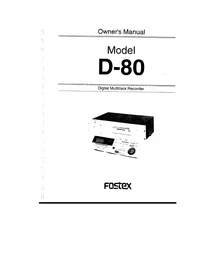
Owner's Manual
Model D-80
Digital Multitrack Recorder

Fostex


The lightning flash with arrowhead symbol, within an equilateral triangle, is intended to alert the user to the presence of uninsulated "dangerous voltage" within the product's enclosure that may be of sufficient magnitude to constitute a risk of electric shock to persons.

CAUTION: TO PREVENT ELECTRIC SHOCK, MATCH WIDE BLADE OF PLUG TO WIDE SLOT, FULLY INSERT.
ATTENTION: POUR EVITER LES CHOCS ÉLECTRIQUES, INTRODUIRE LA LAME LA PLUS LARGE DE LA FICHE DANS LA BORNE CORRESPONDANTE DE LA PRESE ET POUSSER JUSQU'AU FOND.
"WARNING"
TO REDUCE THE RISK OF FIRE OR ELECTRIC SHOCK. DO NOT EXPOSE THIS APPLIANCE TO RAIN OR MOISTURE.
SAFETY INSTRUCTIONS
- Read Instructions - All the safety and operating instructions should be read before the appearance is observed.
- Retain instructions - The safety and operating instructions should be retained for future reference.
- HeedWarnings—All warnings on the appliance and in the operating instructions should be adhered to.
- Follow Instructions - All operating and use instructions should be followed.
- Water and Moisture - The appliance should not be used near waier - for example, near a paintbrush, washbowl, kitchen sink, laundry tub, in a wet basement, or near a swimming pool, and the like.
- Carts and Stands - The appliance should be used only with a cart or stand that is recommended by the manufacturer.

An appliance and cart combination should be moved with care. Quick stops, excessive force, and uneven surfaces may cause the appliance and cart combination to overturn
- Wall or Ceiling Mounting - The appliance should be mounted to a wall or ceiling only as recommended by the manufacturer.
-
Ventilation - The appliance should be situated so that its location or position does not interfere with its proper ventilation. For example, the appliance should not be situated on a bed, sofa, rug, or similar surface that may block the ventilation openings; or, placed in a built-in installation, such as a bookcase or cabinet that may impede the flow of air through the ventilation openings:
-
Heat - The appliance should be situated away from heat sources such as radiators, heat registers, stoves, or other appliances (including amplifiers) that produce heat.
- Power Sources - The appliance should be connected to power supply only of the type described in the operatin instructions or as marked on the appliance.
- Grounding or Polarization - The precautions that should be taken so that the grounding or polarization means an appliance is not defeated.
- Power Cord Protection - Power supply cords should be routed so that they are not likely to be walked on or pinched by items placed upon or against them, paying particular attention to cords at plugs, convenience receptacles, and the point where they exit from the appliance.
- Cleaning - The appliance should be cleaned only as recommended by the manufacturer.
- Nonuse Periods - The power cord of the appliance should be unplugged from the outlet when left unused for a long period of time.
- Object and Liquid Entry - Care should be taken so that objects do not fall and liquids are not spilled into the enclosure through openings.
- Damage Requiring Service - The appliance should be serviced by qualified service personnel when:
A. The power supply cord or the plug has been damaged; or
B. Objects have fallen, or liquid has been spilled into the appliance; or
C. The appliance has been exposed to rain: on
D. The appliance does not appear to operate normally or exhibits a marked change in performance: cr
E. The appliance has been dropped, or the enclosure damaged.
7 Servicing - The user should not attempt to service the appliance beyond that described in the operating instructions. All other servicing should be referred to qualified service personnel:
How to use a dust cap (included)
Plug the included dust cap onto the connector of the D-80's removable hard disk to protect the disk from static electricity, dust and dirt before you store or transport the hard disk.
A hard disk is a precision device. Handle it with care and avoid vibration, humidity, strong magnetic fields, static electricity, dust, etc. In particular, do not touch the connector with your hands to protect the hard disk from static electricity.

Plug the dust cap onto the connector. (Do not touch the connector with your hands.)
Declaration of EMC Directive
This equipment is compatible with the EMC Directive (89/336/EEC) - Directive on approximation of member nation's ordinance concerning the electromagnetic compatibility.
The Affect of Immunity on This Equipment
The affect of the European specification EN50082-1 (coexistence of electromagnetic waves - common immunity specification) on this equipment are as shown below.
- In the electrical fast transient/burst requirements, radiated electromagnetic field requirements and static electricity discharging environment, this could be affected by generation of noise in some cases. The display content could also differ from actual figures.
Please comply to the precautions below to make this equipment compatible with European Specification EN50082-1 (coexistence of electro-magnetic waves - common immunity specification).
- Caps are installed on the rear panel MIDI IN/OUT/THRU connectors. The purpose of these caps are to prevent static electricity from affecting this equipment. Do not remove thes caps except when using the MII OUT/THRU connectors.
Table of Contents
Introduction. 6
Precautions. 6
Notes about power supply. 6
Notes on handling the hard disk. 7
Notes on the setup location. 7
Notes on repair. 8
About copyrights. 8
About damages. 8
Notes on using the Detachable Controller. 8
Main Features of D-80. 9
Names and Functions. 14
Front panel. 14
Remote controller. 15
Rear panel. 24
Display section 25
- Display shown when the power is turned on 25
2.Preset display. 25 - Switching the display using the DISP SEL key.. 26
- Switching the Time Base display using the EXECUTE/YES key and DISP SEL key. 27
- Changing Programs using the STORE key and
the HOLD/>key. 28 - Warning messages.. 29
Before operating the D-80. 32
- The difference between a tape-based multitracker and a hard disk multitracker. 32
- Input monitor and Repro monitor 33
3.Time Base. 34 - Replacing the hard disk 35
Installing an encased hard disk 36 - Installing a hard disk in removable case Model 9040B....375
-
Formatting a hard disk 387
-
Extending the Remote controller 39
Recording/Playback. 41
1.Basic connections. 41
2. The default setting on the D-80. 43
3. Recording an analog signal 44
3-1. Basic recording and playback 44
3-2. Recording while using the Program Change function. 46
3-3.Multitrack recording using overdubbing. 48
3-4.Mixdown. 49
- Recording a digital signal 50
4-1. Recording digital data from an external digital device to the D-80. 50
4-2. Recording digitally from
the D-80 to an external digital device. 52
5.Application guide. 53
5-1. Ping-pong recording.. 53
5-2. MIDI clock synchronization system.. 54
5-3. MTC synchronization/machine control system.. 56
5-4. Synchronizing multiple D-80s in Slave mode.. 58
5-5.Machine Control 24-track system. 60
Punch In/Out. 63
-
Auto Punch In/Out 64
Storing the Punch In/Out point. 64
Auto Punch In/Out Rehearsal mode 66
Auto Punch In/Out Take mode 68 -
Punch In/Out recording using a foot switch.. 69
Punch In/Out Rehearsal. 70
Punch In/Out Take. 71
Locate function. 73
- Locate. 73
2.Auto Play mode. 74
3.Auto Return mode. 74
Setting the Auto Return Start/End point. 75
4.Auto Repeat mode. 78
Edit function. 79
- Copy & Paste 80
Copying. 80
Copy & Pasting. 82 - Move & Paste 85
Moving. 85
Move & Pasting. 87
3.Erase & Cut. 90
Erasing. 91
Cutting. 92
Setup mode. 94
- Entering Setup mode 94
- Setting the time signature ("BAR") 99
- Tempo setting ("TEMPO"). 100
- Metronome function On/Off ("CLICK" ON/OFF) 102
- Saving and loading the recordings ("SAVE", "LOAD"). 103
- Formatting the hard disk ("FORMAT"). 108
- Setting the preroll time for the locate operation ("PREROLL TIME"). 109
- Selecting the synchronized signal output from the MIDI OUT connector ("MIDI SYNC OUT"). 110
- Setting the MTC frame rate ("FRAME RATE"). 111
- Setting MTC offset time ("MTC OFFSET") 112
-
Setting recording Enable/Disable mode ("rEc" ENABLE/DISABLE). 113
-
Setting a digital input channel ("dG in"). 114
- Setting a digital output channel ("dG out"). 116
- Setting resolution mode On/Off ("rESoLu") 117
- Setting Slave mode On/Off ("SLAVE"). 118
- Setting MIDI device ID ("dEVicE"). 119
- Setting the Undo function range ("Undo"). 120
MIDI Implementation Chart. 121
MMC command list. 122
Inquiry Message list. 122
Fostex MIDI System Exclusive Message Format.....123
Maintenance. 133
Specifications. 133
Introduction
Thank you for purchasing the Fostex Model D-80!
The D-80 is an eight-track digital multitrack recorder with an 850Mbyte IDE removable hard disk.
It enables you to achieve high-quality recording/playback with a quantization of 16 bit, and a sampling rate of 44.1kHz , which is approximately equivalent to CD quality.
The D-80 incorporates many advanced functions thanks to the inclusion of a hard disk, such as copy & paste, move & paste, cut, erase (using time value or MIDI bar/beat/clock), and undo/redo.
Once standard hard disk can manage up to five programs (Program Change function), and you can record, play back, edit, and archive (save and load) each Program.
The D-80 is also equipped with a jog wheel and a shuttle dial for speedy operation, a song data save/load function for use with an external DAT recorder, and an AUTO function that includes 9-point AUTO locate, AUTO return/play, and AUTO punch in/out (with rehearsal function).
The unit can also transmit MIDI clock data and Song Position Pointers via the internal programmable tempo map, and is compatible with MTC, MMC, and Fostex System Exclusive Message. You can also control and synchronize an external MIDI sequencer or sequencing software from the D-80.
Please read this Owner's Manual thoroughly and keep it in a safe place so that you will be able to produce high-definition, high tonal quality music.
Precautions
Notes about power supply
- Be sure to connect the D-80 to the power supply specified in the Specifications section of this Owner's Manual. Do not use an AC outlet of any other voltage.
- Do not connect the D-80 to the same AC outlet to which devices that could generate noise (such as a large motor or dimmer), or the devices that consume a large amount of power (such as an air conditioning system or a large electric heater) are connected.
- If you use the unit in an area with a different power voltage, first consult your dealer or the nearest FOSTEX service station. You can use the unit with a power frequency of 50Hz or 60Hz.
- It is very dangerous to use a power cord that is frayed or damage. In such a case, stop using the unit immediately and ask your dealer to repair the cord.
- To avoid possible electric shock and damage to the D-80, avoid contact with water or other liquids, or do not handle the power plug while your hands are wet.
D-80 Owner's Manual (Introduction)
- To prevent possible electric shock and damage to the D-80, do not remove the main unit cover or reach the inside the unit.
- Do not let water or other liquid, or metal objects such as pins, accidentally enter the inside of the unit because this may lead to electric shock or damage. Should water enter the inside of the unit, remove the power plug from the AC outlet, and consult your dealer or the nearest FOSTEX service station.
- To prevent damage to the D-80, be sure to power on the connected devices first, then turn on the power to the D-80. When you remove or connect the cables to the input/output connectors on the D-80, make sure that the channel INPUT faders and volume controls are set to "0."
Notes on handling the hard disk
- The D-80 is equipped with a high-precision hard disk. Do not expose the unit to excessive vibration at any time. In particular, do not move the unit or allow an impact to the unit when the power is on.
- Before turning the power off to the D-80, first quit Setup mode and make sure that the recorder section is stopped. Especially, never attempt to turn off the power to the unit while the hard disk is accessing data(the HD ACCESS LED is lit or flashing). Otherwise, not only will you lose recorded data, but you may damage to the unit. FOSTEX is not responsible for data lost during operation of the unit.
-
Before you change the location of the D-80, pack the unit in the shipping carton or an impact-resistant case.
Make sure that the unit is kept free from external vibration or impact since the unit is very sensitive to vibration. -
If you wish to replace the included hard disk (850MB) with another hard disk, refer to "Before operating the D-80" on page "35."
Notes on the setup location
-
Do not install the unit in locations subject to the following:
-
Extremely high or low temperature, or significant changes in temperature
- Excessive humidity or dust
- Excessive changes in power supply voltage
- Unstable or significantly vibrating or shaking surfaces
-
Near a strong magnetic field (such as a TV or speakers)
-
If you move the unit from a place with an excessively low temperature to a warm place, or if you use the unit in a room in which the temperature varies significantly during winter, condensation may occur on the hard disk or other parts. In such cases, leave the unit for about an hour in the new location before you turn on the power.
Notes on repair
- This unit does not use any parts that users can repair easily. Contact your dealer or the nearest FOSTEX service station to ask about repairs.
- Use the packing carton designed for the D-80 when you transport the unit to the dealer for repair or return. If you have discarded the packing box, try to pack the unit completely using shock absorbing materials. Fostex is not responsible for malfunction or damage due to incomplete packaging or caused during transport.
About copyrights
- It is prohibited by law to use any part of a CD recording or video images or audio data for which copyright is possessed by a third party for commercial purposes such as contents, broadcasts, sales, or distribution - any purpose other than for your personal pleasure.
About damages
- Fostex is not responsible for any "direct damage" or "indirect damage" caused by using the D-80.
Notes on using the Detachable Controller
- When you use the detachable controller remotely using an extension cable, the D-80 may malfunction due to electromagnetic interference. In this case, turn the power off, then on to the D-80 to restore the normal condition. Fostex is not responsible for malfunction of the D-80 caused by electromagnetic interference.
Main Features of D-80
The D-80 is equipped with the following functions:
High-quality sound, 8-track digital hard disk recorder
- The D-80 is shipped with a 3.5-inch, IDE-type, 850MB hard disk as standard, which replaces conventional cassette tapes and allows for a maximum of 18 minutes of recording and playback.
- Eight tracks enable eight track simultaneous recording.
- Sixteen bit linear quantization and a sampling rate of 44.1kHz , which enables you to record and playback high quality sounds that are approximately equivalent to CD quality.
Removable hard disk
- The standard hard disk that comes with the D-80 is removable, allowing you to easily replace it with another hard disk from the front panel. Using a larger hard disk (more than 850MB) will extend available recording time, expanding the D-80's recording and editing capabilities. (For more information, refer to page "35.")
Managing up to five programs using the Program Change function
- Using the Program Change function allows you to record, play back, and edit up to five songs individually on the hard disk. (The standard hard disk allows for 18 minutes of recording time in total for five programs.) In this way, you can utilize the hard disk to manage different programs at any time, without the necessity of archiving (backing up) data to an external DAT machine. (Refer to pages "32" and "103" for more detaile.)
Versatile editing functions are made possible by the hard disk
- The D-80 allows you to use non-linear, non-destructive audio editing functions, such as copy & paste, move & paste, cut, and erase. These edit operations can refer not only to time values such as ABS and MIDI timecode, but to MIDI bar/beat/clock values. (Refer to page "79" for details.)
- You need only one action to monitor the copied audio data using the Clipboard Play function. (Refer to pages "82" and "87" for details.)
- The Over Time Monitor function lets you know the overtime length when you try to copy & paste or move & paste data in excess of the currently-available disk space. (Refer to pages "82" and "87" for details.)
Undo/Redo function to support edit works
-
The Undo/Redo functions will cancel the latest edit and restore the data obtained before the edit, or restore the data obtained after the edit respectively. (Refer to pages "84, 89, 92, 93, 120" for details.)
-
The Can't Undo function provides you with an alarm indicating that the undo area is insufficient for the Auto Punch In/Out operation. (Refer to page "29" for details.)
Song data Save/Load function
- You can save recordings (audio data plus corresponding setup data) of each Program individually or all Programs simultaneously to an external DAT machine. You can also load a set of data to a desired Program. The Save/Load function will take about four times as long as recording (i.e., it takes 16 minutes to save or load a four-minute song). (Refer to page "106" for details.)
Convenient Disk Remain Display function
- The Disk Remain function facilitates checking the available recording time. This function is compatible with all types of time references - ABS, MTC, MIDI bar, and beat.
Three types of time reference
- The 10-digit, 7-segment display shows the current time (position) of the recorder using ABS time, MIDI timecode, or MIDI bar/beat.
- ABS and MTC function with sub-frame precision (1/100 frame), and the MIDI bar/beat is 96 clock precision. These are used for data display and the memory register.
Various Auto functions
- The D-80 is equipped with six time memories that can be edited. Using these memories, you can perform auto locate, auto return and auto play between two points, and auto punch in/out (crossfade time: 10ms). (Refer to pages "63" and "73" for details.)
- Auto locate to ABS 0 or ABS END is also possible. In addition, the LOCATE key has its own memory. This is very useful for a repeated locate operation. (Refer to page "73" for details.)
- There are two modes for Auto Punch In/Out function: "Take" mode, which is used for actual recording, and "Rehearsal," which is used to switch the part located between the In and Out points to the input monitor. (Refer to page "63" for details.)
- The Pre-roll function is used to "park" a specified time prior to the locate point. Pre-roll time can be set in the range of 0 - 10 seconds. (Refer to page "109" for details.)
MIDI function using MMC, MTC, and Fostex System Exclusive Message
- You can add an offset of less than six hours to the ABS time value to output MTC (MIDI timecode). The MTC frame rate is compatible with all formats - 24, 25, 30DF, and 30ND. (Refer to page "111" for setting the frame rate, and to page "112" for setting the offset time.)
D-80 Owner's Manual (Main features of D-80)
- The D-80 responds to MMC (MIDI Machine Control) and Fostex System Exclusive Message sent from external sequencing software. (Refer to pages "56, 60, 123" for more details.)
Syncing multipule D-80s by the Slave Sync function
- The Slave Sync function allows you to operate multiple D-80s in synchronization, creating more than 8 to 24-track recording system. (Refer to page "58" for details.)
Internal programmable Tempo Map
- The D-80 is equipped with an internal programmable Tempo Map that allows the MIDI clock and Song Position Pointer to be transmitted to an external sequencer (switchable to MTC output) for complete synchronization with a hardware sequencer. You can also use Track 8 as a Metronome playback track, which will generate counts according to a Tempo Map. (Refer to pages "95" ~ "101" for details.)
- Eleven types of Tempo Map signature are available: 1/4, 2/4, 3/4, 4/4, 5/4, 1/8, 3/8, 5/8, 6/8, 7/8, and 8/8. Maximum 64 points of signature can be set.
- Up to 64 points of tempo on a Tempo Map can be set on any point determined by the signature settings, in the range of 30 - 250 per quarter note. (Refer to page "99" for details.)
Setup Menu function
- The D-80 is equipped with the following setup Menu functions for the interactive operation system. You can use a highly visible FL tube display and the jog/shuttle dial to set the parameters. (Refer to page "94" for details.)
Main Setup Menu
LOAD (loading audio and setup data) (Refer to page "103" for details.)
SAVE (saving audio and setup data) (Refer to page "103" for details.)
FORMAT (formatting the internal hard disk) (Refer to page "108" for details.)
PREROLL (setting the Pre-roll time) (Refer to page "109" for details.)
MIDI SYNC OUT (selecting MTC, MIDI clock, or OFF) (Refer to page "110" for details.)
FRAME RATE (setting the MTC frame rate) (Refer to page "111" for details.)
MTC OFFSET (setting the MTC offset value against the ABS time) (Refer to page "112" for details.)
BAR/BEAT SET (setting the signature) (Refer to page "99" for details.)
TEMPO SET (setting the tempo) (Refer to page "100" for details.)
CLICK ON/OFF (switching the Metronome function ON/OFF) (Refer to page "102" for details.)
REC ENABLE (setting the REC ENABLE or REC DISABLE) (Refer to page "113" for details.)
dG in (selecting a digital input channel) (Refer to page "114" for details.)
dG out (selecting a digital output channel) (Refer to page "116" for details.)
rESoLu (setting Display Resolution mode ON/OFF) (Refer to page "117" for details.)
SLAvE (setting Slave mode ON/OFF) (Refer to page "118" for details.)
dEvicE (setting a device iD) (Refer to page "119" for details.)
undo (setting an effective range of the Undo function) (Refer to page "120" for details.)
Easy-to-use jog/shuttle dial
- Using the shuttle dial allows for +/-1, 2, 3, 5, 9, 12, or 20-time speed cueing (fast-forward while monitoring audio).
- Using the jog dial allows for digital audio scrubbing. Using this function, you can locate data efficiently while monitoring audio without any changes in pitch.
- The jog/shuttle dial is also used to recall parameters and to enter data.
An easy-to-use detachable controller
- The D-80 is equipped with a detachable controller useful not only for remote control but for checking all information at hand. Using an optional extension cable (Model 8551 5m) allows for remote control from a maximum of 10 meters away. (Refer to page "39" for details.)
When you use the detachable controller remotely using an extension cable, the D-80 may malfunction due to electromagnetic interference. In this case, turn the power off, then on to the D-80 to restore the normal condition. Fostex is not responsible for malfunction of the D-80 caused by electromagnetic interference.
Other recorder functions
- In addition to 30-time speed FF/REW, 5-time speed cueing (PLAY+FF/REW) is also available.
- Connect an optional foot switch Model 8051 to the PUNCH IN/OUT connector for punch in/out (and rehearsal) operation to free your hands. (Refer to page "69" for details.)
- A highly visible FL-tube level meter shows the output level of Tracks 1-8.
- The D-80 can record data digitally to and from an external digital device.
D-80 Owner's Manual (Names and Functions)

FRONT PANEL

REAR PANEL
Names and Functions

1. Remote controller connector
The remote controller is connected here.
You can remove the controller. Connect an optional extension cable (Model 8551) to extend the distance.
Refer to page "39" for information on extending the remote controller connection.
2. Power switch
This switch turns the main power to the D-80 on/off.
Before turning the power off to the D-80, first quit Setup mode and make sure that the recorder section is stopped. Especially, never attempted to turn off the power to the unit while the hard disk is accessing data (the HD ACCESS LED is lit or flashing). Otherwise, not only will you lose recorded data, but you may damage to the unit.
3. Controller mount
The remote controller is mounted on the front panel.
4. Hard disk access LED
This LED lights up or blinks when the hard disk is writing or reading data. (Same as the HD ACCESS LED on the controller.)
5. Hard disk power LED
This LED lights up if the hard disk operates correctly when you turn the power on to the unit. If the Lock key is not locked, the power to the hard disk will not be turned on, and the LED will not light up.
6. Hard disk
Hard disk has been installed here.
The hard disk is removable. You can replace it with an optional hard disk.
Refer to page "35" for more information on compatible hard disks and information on how to replace the disk.
D-80 Owner's Manual (Names and Functions)
7. Lock/Unlock key
When you remove or install the hard disk, you need to lock/unlock here using the included key. Be sure to turn the power off to the D-80 before locking or unlocking.
If the key is not locked, the power to the hard disk will not be turned on.
After installing the hard disk, be sure to lock the key using the included key.

8. Meter display
This meter display shows the signal level and settings.
- Refer to the "Display section" on page "25."
9. Record Track Select key [RECORD TRACK]
The Record Track Select key selects "SAFE-READY" for the recording track. When you press this key once, the track enters the READY status, and the track indication on the display will blink. Pressing it again changes this status to "SAFE" and the track indication will go out. When you start recording, the blinking track indication becomes illuminated. When you press only the RECORD button while the track is in the READY status, the track becomes an input monitor, allowing you to adjust the recording level. Pressing only the RECORD button again, the track become a reproduction monitor. This key is also used to select a track for the Copy & Paste, Move & Paste, Erase, or other editing operation.
- Refer to page "33" for details about the reproduction monitor and the input monitor.
10. Auto Play/Auto Return key
Pressing this key repeatedly will change Auto Play mode, Auto Return mode, and Repeat mode On/Off as follows: (C:LED off. ●:LED light up)

Auto Play mode:
In this mode, playback will start automatically after the START point is located. This function is effective at any locate points other than the ABS END point.
Auto Return mode:
When the END point is reached during playback, the START point is automatically located in this mode. This function is effective only when the START and END points have been specified.
Auto Return function is effective only during playback. In recording mode, the START point will not be located automatically when the END point is reached.
Auto Repeat mode:
This mode is a combination of Auto Play and Auto Return, and plays back the part between the START and END points repeatedly. The auto repeat function is effective only when the START and END points have been specified correctly.
Refer to page "73" for details.
11. Clipboard In key [CLIPBOARD IN]
When audio data is copied or moved, the start point of the copied part is stored in memory. Pressing this key following the RECALL key (or pressing only this key) will show the stored data on the display and the recording section will enter edit mode. In edit mode, use the HOLD/> key or shuttle dial to move around the digits, and use the jog dial to increase/decrease the value.
If you press this key following the STORE key after the edit operation, the edited value will be stored into the key memory.
The data stored by this key can be used to locate data.
This memory is reset to the factory default value when the power is turned off.
- Refer to page "79" for copying/moving data.
- Refer to page "73" for locating the CLIPBOARD IN point.
12. Clipboard Out key [CLIPBOARD OUT]
When audio data is copied or moved, the end point of the copied part is stored in the memory. Pressing this key following the RECALL key (or pressing only this key) will show the stored data on the display and the recording section enters edit mode. In edit mode, use the HOLD/> key or shuttle dial to move around the digits, and use the jog dial to increase/decrease the value. If you press this key following the STORE key after the edit operation, the edit value will be stored into the key memory. The data stored by this key can be used as locate data. When you turn the power to the D-80, the memory will be reset to the factory default setting.
D-80 Owner's Manual (Names and Functions)
- Refer to page "73" for locating the CLIPBOARD OUT point.
Refer to page "79" for copying/moving data.
13. Auto Return Start key [AUTO RTN START]
This key stores the Start point for Auto Return or Auto Repeat. Pressing the RECALL key, then this key (or pressing only this key) will display data currently stored at this key, and put the unit into Edit mode.
If you press the STORE key, then this key after editing, the edited value will be stored at this key. Data stored at this key can be used as a locator.
When you turn off the power to the D-80, the memory will be set to the factory default value.
- Refer to page "74" for more information about Auto Return and Auto Repeat.
14. Auto Return End key [AUTO RTN END]
This key stores the End point for Auto Return or Auto Repeat. Pressing the RECALL key, then this key (or pressing only this key) will display data currently stored at this key, and will place the unit into Edit mode.
If you press the STORE key, then this key after editing, the edited value will be stored at this key. Data stored at this key can be used as a locator.
When you turn off the power to the D-80, the memory will be set to the factory default value.
- Refer to page "74" for more information about Auto Return and Auto Repeat.
15. Auto Punch In key [AUTO PUNCH IN]
This key stores the Punch In point for Auto Punch In/Out recording. Pressing the RECALL key, then this key (or pressing only this key) will display data currently stored at this key, and will place the unit in Edit mode.
If you press the STORE key, then this key after editing, the edited value will be stored at this key. In addition to storing a Punch In point, this key can store the paste start point, erase start point, and cut start point. Data stored at this key can be used as a locator.
When you turn off the power to the D-80, the memory will be set to the factory default value.
- Refer to page '64" for more information about Auto Punch In/Out recording.
- Refer to page '79" for more information about pasting data.
- Refer to page '90" for more information about the Erase and Cut operations.
16. Auto Punch Out key [AUTO PUNCH OUT]
This key stores the Punch Out point for Auto Punch In/Out recording. Pressing the RECALL key, then this key (or pressing only this key) will display data currently stored at this key, and will place the unit in Edit mode.
If you pressing the STORE key, then this key after editing, the edited value will be stored at this key. In addition to storing a Punch Out point, this key can store the erase end point. Data stored at this key can be used as a locator. When you turn off the power to the D-80, the memory will be set to the factory default value.
- Refer to page '64" for more information about Auto Punch In/Out recording.
- Refer to page "90" for more information about the Erase operation.
17. Display Select key [DISP SEL]
This key is used to change the display mode. Pressing this key repeatedly will change the display mode as follows:
![FOSTEX D-80 - Display Select key [DISP SEL] - 1](/content/2025/01/168442/images/f72c781aacbd911084fc90f895fb3c22737485c04f11eb630ae1f9c90c5389ac.jpg)
- Refer to page "26" for more information about the REMAIN.
- Refer to page "94" for more information about the SETUP mode.
Pressing this key while holding down the EXECUTE key will switch the Time Base () as follows. The Time Base can be set when the display shows the recorder's current position or the available disk space (REMAIN).
![FOSTEX D-80 - Display Select key [DISP SEL] - 2](/content/2025/01/168442/images/9841f54789b0ddde3205f501703650fea3db8f68b691cd6cc343282932295a41.jpg)
(*) Time Base:
The D-80 uses time display (ABS or MTC) or Bar/Beat/Clock display to indicate the current position of the recorder section. These displays are called "Time Base." ABS (Absolute Time) shows the absolute time of the disk, and MTC (MIDI Timocode) shows the relative time obtained by adding an MTC offset value to the ABS value. Bar/Beat/Clock (BAR/ /CLK) indicates a position within a piece of music and conforms to the MIDI clock and Song Position Pointers created on the internal Tempo Map.
- Refer to pages "99", "111" and "112" for more information about MTC and the internal Tempo Map.
- Refer to page "34" for more information about Timebase.
18. Execute/Yes key [EXECUTE/YES]
Press this key to execute the operation when you try to edit data on the hard disk using the edit functions such as Paste and Erase, when you put the D-80 into SETUP mode, or when you set the parameters in the SETUP menu. Pressing the DISP SEL key while holding down the [EXECUTE/YES] key allows you to select the Time Base. (Refer to the explanation about the DISP SEL key.)
- Refer to page 79 for more information about using this key for the Paste or Erase operation.
- Refer to page "94" for more information about using this key in SETUP mode.
19.Exit key/No key [EXIT/NO]
Contrary to the EXECUTE/YES key, this key is used to stop the operation.
- Refer to page 79 for more information about using this key for the Paste or Erase operation.
- Refer to page "94" for more information about using this key in SETUP mode.
20. Recall key [RECALL]
Press this key to recall the stored time value (or Bar/Beat/Clock value). Pressing this key, then one of the following keys will display the data stored at the key you pressed, and you will be able to edit the data.
| RECALL key -> CLIPBOARD IN key | The Clipboard In point is recalled and the unit enters edit mode. |
| RECALL key -> CLIPBOARD OUT key | The Clipboard Out point is recalled and the unit enters edit mode. |
| RECALL key -> AUTO PUNCH IN key | The Auto Punch in point is recalled and the unit enters edit mode. |
| RECALL key -> AUTO PUNCH OUT key | The Auto Punch Out point is recalled and the unit enters edit mode. |
| RECALL key -> AUTO RTN START key | The Auto Return Start point is recalled and the unit enters edit mode. |
| RECALL key -> AUTO RTN END key | The Auto Return End point is recalled and the unit enters edit mode. |
| RECALL key -> LOCATE key | The Locate key data is recalled and the unit enters edit mode. |
D-80 Owner's Manual (Names and Functions)
To exit edit mode, press the EXIT/NO key, DISP SEL key, or STOP button.
- Refer to page "79" for more information about the clipboard.
Refer to page "64" for more information about Auto Punch In/Out recording.
Refer to page "74" for more information about Auto Return.
21. Store key [STORE]
This key is used to store a time value (or Bar/Beat/Clock value) to one of the memory keys.
Pressing this key, then one of the following keys will cause the data shown on the display to be stored to the corresponding memory key you pressed. Pressing the STORE key while holding down the HOLD/> key will change a Program.
| STORE key -> CLIPBOARD IN key | Data is stored as a Clipboard In point. The stored data can be used as a locator. |
| STORE key -> CLIPBOARD OUT key | Data is stored as a Clipboard Out point. The stored data can be used as a locator. |
| STORE key -> AUTO PUNCH IN key | Data is stored as an Auto Punch In point. The stored data can be used as a locator. |
| STORE key -> AUTO PUNCH OUT key | Data is stored as an Auto Punch Out point. The stored data can be used as a locator. |
| STORE key -> AUTO RTN START key | Data is stored as an Auto Return Start point. The stored data can be used as a locator. |
| STORE key -> AUTO RTN END key | Data is stored as an Auto Return End point. The stored data can be used as a locator. |
| STORE key -> LOCATE key | Data is stored as a LOCATE key data. |
After pressing this key, if you change your mind and wish to cancel the store operation, press the EXIT/NO key, DISP SEL key, or STOP button.
- Refer to page "79" for more information about the clipboard.
- Refer to page "73" for more information about the Locate function.
- Refer to page "64" for more information about Auto Punch In/Out recording.
Refer to page "74" for more information about Auto Return.
22. Hold/Digit Move key [HOLD/>]
Pressing this key while the recorder transport is operating will hold the time value (or Bar/Beat/Clock value), display the value on the screen, and will place the unit into edit mode. (If you press this key while the recorder section is stopped, the D-80 will enter edit mode.) Pressing this key repeatedly allows you to select the digit (column) to edit. To cancel edit mode, press the STOP button, DISP SEL key, or EXIT/NO key.
Pressing the STORE key while holding down the HOLD/> key will change a Program.
- Refer to pages "46" and "64" for more information about using this key.
23. Jog/Shuttle dial
Jog dial (inside):
If you turn the jog dial when the recorder is stopped, you can perform jogging (forward and reverse digital audio scrubbing), without altering the audio quality. In edit mode, turning the jog dial will increase/decrease the value. In Setup mode, using the jog dial allows you to set the parameters.
Shuttle dial (outside):
The shuttle dial is used for the forward and reverse cueing at -/-1, 2, 3, 5, 9,
12, or 20 times speed. In edit mode, it is used to move around the digits.
- Refer to pages "64, 75 and 80" for more information about the editing the memory data.
Refer to page "94" for more information about Setup mode.
24. Redo [REDO]
Pressing this key after you press the UNDO key lets you to restore the status obtained before you undo recording or editing. This key is activated only when the recorder transport section is stopped.
Refer to pages "84, 89, 92, 93 and 120" for more information about the Redo operation.
25. Undo key [UNDO]
After using an edit function such as Paste, Erase, or Cut, or after auto punch in/ out recording, pressing this key will restore the previous status obtained before editing or recording. This key is activated only when the recorder transport section is stopped.
- Refer to pages "84, 89, 92, 93 and 120" for more information about the Undo operation.
26. Erase key [ERASE]
This key has two functions: the Erase function, which erases data (creates silence) within a specified region on the readied track. The other is the Cut function, which cuts data from the region beginning at the specified point. Pressing this key when all tracks are ready will activate the Cut function. Pressing this key while one or more tracks are safe will activate the Erase function.
A region to be erased is defined between the Auto Punch In point and the Auto Punch Out point. A region to be cut is defined only by the Auto Punch In point. This Cut operation requires only the start point of the region to be cut, that is, the Auto Punch In point.
Specify the area to be erased, using the Auto Punch In/Out points and the RECORD TRACK select key. To use the Cut function, set all tracks to the ready condition, and set the start point of the data to be cut as the Auto Punch In point.
This key is activated only when the recorder transport section is stopped.
- Refer to page "90" for more information about the Erase/Cut operation.
27. Paste key [PASTE]
Press this key to copy data or move data that has been copied to the clipboard to a location stored at the AUTO PUNCH IN key. The data will be pasted at the point stored in the Auto Punch In key. You can select the paste destination track using the RECORD TRACK select key. A destination track to which data is pasted is identical to the source track.
This key is activated only when the recorder transport section is stopped.
- Refer to page "79" for more information about the Copy & Paste, and Move & Paste operation.
28. Move key [MOVE]
This key is used to enter into the clipboard data stored in memory by the CLIPBOARD IN/OUT keys. Pressing the MOVE key will store the data in the Clipboard as Move data.
To enter data to be moved, one or more tracks must be readied, and a correct value must be stored for the In and Out points.
If you attempt to enter data when all tracks are safe, all track indications and "SELECT trk" indication on the display will blink to warn you. If a correct value is not set for the Clipboard In or Out, a warning message of "Void In" or "Void Out" will appear.
- Refer to page "79" for more information about the Copy & Paste, and Move & Paste operation.
29. Copy key [COPY]
This key is used to copy data stored in the memory using the CLIPBOARD IN/OUT keys. Pressing the COPY key will store the data in the Clipboard as Copy data. To execute the copy operation, one or more tracks must be readied, and a correct value must be stored for the In and Out points. If you attempt to copy data when all tracks are safe, all track indications and a "SELECT trk" indication on the display will blink to warn you. If a correct value is not set for the Clipboard In or Out points, "Void out" warning will appear.
- Refer to page "79" for more information about copying data.
30. Auto Punch Mode On/Off key [AUTO PUNCH]
Switch this key ON for auto punch in/out.
When you press this key while a correct value is stored to the AUTO PUNCH IN key and the AUTO PUNCH OUT key, both the REHEARSAL LED and TAKE LED will blink, indicating that Auto Punch mode is on. (If a correct value is not stored, pressing the AUTO PUNCH key will not turn the parameter ON, and the message "Void Out" will appear.)
Pressing the PLAY button under this condition will put the unit into "Rehearsal mode" for Auto Punch In/Out recording. Pressing the PLAY button and RECORD button simultaneously will put the unit into "Take mode."
There are five combinations of the REHEARSAL LED and TAKE LED that indicate the status of the unit regarding auto punch recording:
| Auto Punch mode OFF | Both REHEARSAL LED and TAKE LED are off. |
| Auto Punch mode ON | Both REHEARSAL LED and TAKE LED are blinking. |
| Auto Punch Take mode | Only the TAKE LED (red) is lit. |
| Auto Punch Rehearsal mode | Only the REHEARSAL LED (green) is lit. |
| Rehearsal mode entered by means of MMC or foot switch | Only the REHEARSAL LED (green) is blinking. |
- Refer to page "64" for more information about the Punch In/Out.
![FOSTEX D-80 - Auto Punch Mode On/Off key [AUTO PUNCH] - 1](/content/2025/01/168442/images/4e27d85857fb4e8f90c5236b44da28d2520d82f02cc52f1bdc65ebeb96daacbb.jpg)
31. Locate key [LOCATE]
Press this key to locate a data point.
The D-80 will locate the point stored in the CLIPBOARD IN/OUT key, AUTO PUNCH IN/OUT key, or AUTO RTN START/END key when you press the corresponding key and then press the LOCATE key.
The LOCATE key has a memory and stores the previously-located point. Therefore, you only need to press this key to locate the same point repeatedly. To check the memory of the LOCATE key, press the RECALL key, then the LOCATE key. You can also store a locate point by pressing the STORE key, then the LOCATE key after you edit data using the JOG dial and/or the HOLD/>key.
When you turn off the power to the D-80, the memory will be reset to the factory default setting.
" Refer to page "73" for more information about the Locate function.
32. Record button [RECORD]
Pressing only this button places the readied tracks into input monitoring status. Pressing this button again will reset the tracks to playback monitoring. (The RECORD LED will blink when the readied tracks are under the input monitoring status.)
Pressing the PLAY button while holding down this button will place the readied tracks into recording. At this time, the PLAY LED and RECORD LED will be lit, and the readied track indication will be lit steadily (instead of blinking).
- Refer to page "33" of the "Before Starting" section for more information about input monitoring and reproduce monitoring.
33. Stop button [STOP]
Pressing this button will stop playback of the recorder section.
Pressing the PLAY, REWIND, or F FWD button while holding down this button will execute the following operation:
| STOP button + PLAY button | Clipboard Play operation (The STOP LED will blink, and the PLAY LED will be lit.) |
| STOP button + REWIND button | ABS 0 will be located. |
| STOP button + F FWD button | ABS END will be located. |
You can turn Rehearsal mode on/off by pressing the foot switch while holding down this button for Punch In/Out recording.
*1 CLIPBOARD PLAY operation
This operation plays back data copied or moved to the Clipboard. During the operation, the display will show the contents of data ("COPY" for copy data, and "MOVE" for move data) and time, and the track indicator of the copy or move source will blink, making it clear which data on which track is on the Clipboard.
*2 Locating to ABS 0 (LOCATE ABS 0):
The D-80 will locate the beginning of recorded audio on the hard disk (ABS TIME: 00M 00S 00F).
*3 Locating to ABS END (LOCATE ABS END):
The D-80 will locate the end of recorded audio on the hard disk (the end ABS TIME).
Refer to page "34" of the "Before Starting" section for more information about ABS 0 and ABS END.
Refer to page "69" for more information about Punch In/Out recording using the foot switch.
34. Play button [PLAY]
Pressing this button will start playback on the recorder section.
Pressing this button while holding down the RECORD button will start recording. Pressing this button while holding down the STOP button will execute the Clipboard Play operation. (Refer to the "STOP button:" section for more information about the Clipboard Play operation.)
Pressing the this button during recording will stop recording (Punch Out).
35. Rewind button [REWIND]
Pressing this button while the recorder section is stopped will rewind data at 30 times speed. Pressing this button in Play mode will cue data (you can hear sound while rewinding) at five times speed. Pressing this button while holding down the STOP button will perform the "LOCATE ABS 0" operation, and immediately locate the beginning of the hard disk (ABS TIME: 00M:00S:00F). (Refer to the "STOP button" section for more information about LOCATE ABS 0.)
36. Fast Forward button [F FWD]
Pressing this button while the recorder section is stopped will fast forward data at 30 times speed. Pressing this button in Play mode will cue data (you can hear sound during the fast forward operation) at five times speed. Pressing this button while holding down the STOP button will initiate the "LOCATE ABS END" operation, and immediately locate the end of the recorded data on the hard disk (ABS END). (Refer to the "STOP button" section for more information about LOCATE ABS END.)
37. Locked LED [LOCKED]
This LED flashes when the "Slave Mode" in Setup mode is set to "ON." It will light up when the lock operation is complete.
- Refer to page "118" for more information on the "SLAVE" settings in Setup mode.
38. Hard disk access LED
This LED lights up or blinks when the hard disk is writing or reading data.
Do not turn the power off while the LED is lit or blinking. Otherwise, the data in the hard disk may be damaged.
39. MIDI Time Code In LED [MTC IN]
This LED lights up when MTC (MIDI Time Code) is input from an external MIDI device to the MIDI IN connector of the D-80.
40. Punch In/Out jack [PUNCH IN/OUT] (Connector: PHONE jack)
Connecting the optional foot switch will let you control punch In/Out (and rehearsal) recording. Use a Fostex Model 8051 foot switch.
- Refer to page "69" for information about Punch In/Out recording using the foot switch.
![FOSTEX D-80 - Punch In/Out jack [PUNCH IN/OUT] (Connector: PHONE jack) - 1](/content/2025/01/168442/images/c91e1bb6c514acf4a63158748051193b8627ad29949977bd7c8c6263b3ea15e8.jpg)
41
- Input jack [INPUT 1-8] (connector: RCA pin)
Analog audio signal from the mixer is routed here.
Connect this jack to the Group out (BUSS OUT) connector of the mixer.
- Output jack [OUTPUT 1-8] (connector: RCA pin)
Analog audio signal of the D-80 is output here.
Connect this jack to the TAPE IN connector of the mixer.
- Data Input connector [DATA INPUT] (connector: OPTICAL)
Digital signal from the CD/MD players is input here.
Connect this terminal to the OPTICAL OUT connector on the digital device. This
connector is also used to load song data (audio data plus corresponding setup).
data) from external DAT machine. Refer to pages 56~62, and 103 for details.
- Data Output connector [DAT OUTPUT] (connector: OPTICAL)
Digital signal of the D-80 is output here.
Connect this terminal to the OPTICAL IN connector of the external device.
This connector is also used to backup data to an external DAT machine.
-
Refer to pages 56-62, and 103 for details.
-
MIDI Input/Output/Thru connector [MIDI INPUT/OUTPUT/THRU]
connector:DIN 5-pin)
MIDI INPUT:
Connect the MIDI OUT connector of an external MIDI device here.
The D-80 can be controlled remotely via an external MMC (MIDI Machine Control)
or FEX (Fostex System Exclusive Message).
MIDI OUTPUT:
Connect the MIDI IN connector of the external MIDI device here.
The D-80 will output MTC (MIDI Time Code), MIDI Clock signal, MMC (MIDI
Machine Control) response, and FEX (Fostex System Exclusive Message) response.
MIDI THRU:
This connector outputs the input signal at the MIDI INPUT connector without
modification. When using multiple D-80s via MIDI, connect this terminal to the
MIDI INPUT connector of the second D-80.
-
Refer to pages 56-62 for details.
-
Power cable
Connect the power cable to an AC outlet of the specified voltage.
D-80 Owner's Manual (Names and Functions)
The display of the D-80 integrates the level meter of a high-visibility FL tube with a time display of 10 digits and 7 segments.
The level meter shows the Track 1-8 output level of the recorder section. The time display shows the current time of the recorder section using ABS TIME (Absolute time), MTC (MIDI timecode), or MIDI BAR/BEAT (bar/beat).
This display also shows the messages required for interactive operation. The following section explains the display functions and provides with some examples.
1. Display shown when the power is turned on
When you turn on the power to the D-80, the display shows "in it iL," "wait" (Initializing. Please wait.), and the time display shows the time using the time base (ABS, MTC, or BAR/BEAT/CLK) that was selected before the power was turned off.

2. Preset display

1. Level meter
The level meter shows the recorder output level and the recording level for Tracks 1-8.
2. Track indication
The track indication blinks when the corresponding track is ready. It turns off when the track is safe, and is lit during recording.
3. LOCATE
This appears when the D-80 enters edit mode, telling you that pressing the LOCATE key will cause the point to be located.
4. REMAIN
Refer to "2. Switching the display using the DISP SEL key."
5. SETUP
Refer to "2. Switching the display using the DISP SEL key."
6. CAN'T UNDO
If you try to perform Auto Punch In/Out recording after the D-80 enters Auto Punch In/Out mode, this message appears to warn you that you will be unable to undo the recording even if you can record, because there is not enough Undo area on the disk.
7.COMPLETED!
This message indicates that an operation such as copy, move, and paste has been completed.
8. ARE YOU SURE?
This message is shown to confirm whether or not you wish to execute a certain operation.
9. LOAD, SAVE, FORMAT, MTC OFFSET, FRAME RATE, MIDI SYNC OUT, PREROLL TIME, TEMPO, BAR,
When the D-80 enters Setup mode, the preceding words appear as names for the parameters being set.
10. MIDI IN
This indication lights up when the D-80 receives effective MIDI messages from an external MIDI device.
11. DIGITAL IN
This indication lights up when the D-80 is receiving a digital signal properly at the DATA IN connector while loading data from a DAT machine. If this indication is blinking, the digital signal is not being received correctly.
12.7-segment Display
This display shows the ABS time, MTC time, BAR/BEAT/CLK, and Program number.
3. Switching the display using the DISP SEL key.
Let's assume that you turned off the power while the time display was using a time base of "ABS," and then you turned the power on again. The D-80 time display will again use a time base of "ABS." (Underline->Displayed program number)
ABS TIME display
| OVER | |||||||||||||||||||||||||||||||||||||||||||||||||||||||||||||||||||||||||||||||||||||||||||||||||||||||||||||||||||||||||||||||||||||||||||||||||||||||||||||||||||||||||||||||||||||||||||||||||||||||||||||||||||||||||||||||||||||||||||||||||||||||||||||||||||||||||||||||||||||||||||||||||||||||||||||||||||||||||||||||||||||||||||||||||||||||||||||||||||||||||||||||||||||||||||||||||||||||||||||||||||||||||||||||||||||||||||||||||||||||||||||||||||||||||||||||||||||||||||||||||||||||||||||||||||||||||
| 0 | |||||||||||||||||||||||||||||||||||||||||||||||||||||||||||||||||||||||||||||||||||||||||||||||||||||||||||||||||||||||||||||||||||||||||||||||||||||||||||||||||||||||||||||||||||||||||||||||||||||||||||||||||||||||||||||||||||||||||||||||||||||||||||||||||||||||||||||||||||||||||||||||||||||||||||||||||||||||||||||||||||||||||||||||||||||||||||||||||||||||||||||||||||||||||||||||||||||||||||||||||||||||||||||||||||||||||||||||||||||||||||||||||||||||||||||||||||||||||||||||||||||||||||||||||||||||||
| 3 | 0 | 0 | 0 | M | 0 | S | 0 | 0 | M | 0 | S | ||||||||||||||||||||||||||||||||||||||||||||||||||||||||||||||||||||||||||||||||||||||||||||||||||||||||||||||||||||||||||||||||||||||||||||||||||||||||||||||||||||||||||||||||||||||||||||||||||||||||||||||||||||||||||||||||||||||||||||||||||||||||||||||||||||||||||||||||||||||||||||||||||||||||||||||||||||||||||||||||||||||||||||||||||||||||||||||||||||||||||||||||||||||||||||||||||||||||||||||||||||||||||||||||||||||||||||||||||||||||||||||||||||||||||||||||||||||||||||||||||||||||||||||
| 8 | |||||||||||||||||||||||||||||||||||||||||||||||||||||||||||||||||||||||||||||||||||||||||||||||||||||||||||||||||||||||||||||||||||||||||||||||||||||||||||||||||||||||||||||||||||||||||||||||||||||||||||||||||||||||||||||||||||||||||||||||||||||||||||||||||||||||||||||||||||||||||||||||||||||||||||||||||||||||||||||||||||||||||||||||||||||||||||||||||||||||||||||||||||||||||||||||||||||||||||||||||||||||||||||||||||||||||||||||||||||||||||||||||||||||||||||||||||||||||||||||||||||||||||||||||||||||||
At this time if you press the DISP SEL key, the Disk Remain display (available recording time on the recorder) will appear.
DISK REMAIN display
| OFFER 0.5 1.0 1.5 2.0 2.5 3.0 3.5 4.0 4.5 5.0 5.5 6.0 6.5 7.0 7.5 8.0 8.5 9.0 9.5 10.0 10.5 11.0 11.5 12.0 12.5 13.0 13.5 14.0 14.5 15.0 15.5 16.0 16.5 17.0 17.5 18.0 18.5 18.5 18.5 18.5 18.5 18.5 18.5 18.5 18.5 18.5 18.5 18.5 18.5 18.5 18.5 18.5 18.5 18.5 18.5 18.5 18.0 18.5 18.5 18.5 18.5 18.5 18.5 18.5 18.5 18.5 18.5 18.5 18.5 18.5 18.5 18.5 18.5 18.5 18.5 16.0 16.5 16.5 16.5 16.5 16.5 16.5 16.5 16.5 16.5 16.5 16.5 16.5 16.5 16.5 16.5 16.5 16.5 16.5 16.5 16.5 16.0 16.5 16.5 16.5 16.5 16.5 16.5 16.5 16.5 16.5 16.5 16.5 16.5 16.5 16.5 16.5 16.5 16.5 16.5 18.0 18.5 18.5 18.5 18.5 18.5 18.5 18.5 18.5 18.5 18.5 18.5 18.5 18.5 18.5 18.5 18.5 18.5 18.5 19.0 19.5 19.5 19.5 19.5 19.5 19.5 19.5 19.5 19.5 19.5 19.5 19.5 19.5 19.5 19.5 19.5 19.5 19.5 19.5 19.5 19.0 19.5 19.5 19.5 19.5 19.5 19.5 19.5 19.5 19.5 19.5 19.5 19.5 19.5 19.5 19.5 19.5 19.5 19.5 18.0 18.5 18.5 18.5 18.5 18.5 18.5 18.5 18.5 18.5 18.5 18.5 18.5 18.5 18.5 18.5 18.5 18.5 18.5 10.0 10.5 10.5 10.5 10.5 10.5 10.5 10.5 10.5 10.5 10.5 10.5 10.5 10.5 10.5 10.5 10.5 10.5 10.5 10.5 10.5 10.0 10.5 10.5 10.5 10.5 10.5 10.5 10.5 10.5 10.5 10.5 10.5 10.5 10.5 10.5 10.5 10.5 10.5 10.5 18.0 18.5 18.5 18.5 18.5 18.5 18.5 18.5 18.5 18.5 18.5 18.5 18.5 18.5 18.5 18.5 18.5 18.5 18.5 12.0 12.5 12.5 12.5 12.5 12.5 12.5 12.5 12.5 12.5 12.5 12.5 12.5 12.5 12.5 12.5 12.5 12.5 12.5 12.5 12.5 12.0 12.5 12.5 12.5 12.5 12.5 12.5 12.5 12.5 12.5 12.5 12.5 12.5 12.5 12.5 12.5 12.5 12.5 12.5 18.0 18.5 18.5 18.5 18.5 18.5 18.5 18.5 18.5 18.5 18.5 18.5 18.5 18.5 18.5 18.5 18.5 18.5 18.5 13.0 13.5 13.5 13.5 13.5 13.5 13.5 13.5 13.5 13.5 13.5 13.5 13.5 13.5 13.5 13.5 13.5 13.5 13.5 13.5 13.5 13.0 13.5 13.5 13.5 13.5 13.5 13.5 13.5 13.5 13.5 13.5 13.5 13.5 13.5 13.5 13.5 13.5 13.5 13.5 18.0 18.5 18.5 18.5 18.5 18.5 18.5 18.5 18.5 18.5 18.5 18.5 18.5 18.5 18.5 18.5 18.5 18.5 18.5 14.0 14.5 14.5 14.5 14.5 14.5 14.5 14.5 14.5 14.5 14.5 14.5 14.5 14.5 14.5 14.5 14.5 14.5 14.5 14.5 14.5 14.0 14.5 14.5 14.5 14.5 14.5 14.5 14.5 14.5 14.5 14.5 14.5 14.5 14.5 14.5 14.5 14.5 14.5 14.5 18.0 18.5 18.5 18.5 18.5 18.5 18.5 18.5 18.5 18.5 18.5 18.5 18.5 18.5 18.5 18.5 18.5 18.5 18.5 17.0 17.5 17.5 17.5 17.5 17.5 17.5 17.5 17.5 17.5 17.5 17.5 17.5 17.5 17.5 17.5 17.5 17.5 17.5 17.5 17.5 17.0 17.5 17.5 17.5 17.5 17.5 17.5 17.5 17.5 17.5 17.5 17.5 17.5 17.5 17.5 17.5 17.5 17.5 17.5 18.0 18.5 18.5 18.5 18.5 18.5 18.5 18.5 18.5 18.5 18.5 18.5 18.5 18.5 18.5 18.5 18.5 18.5 18.0 18.5 18.0 18.5 18.5 18.5 18.5 18.5 18.5 18.5 18.5 18.5 18.5 18.5 18.5 18.5 18.5 18.5 18.5 18.5 18.0 19.0 19.0 19.0 19.0 19.0 19.0 19.0 19.0 19.0 19.0 19.0 19.0 19.0 19.0 19.0 19.0 19.0 19.0 19.0 19.0 18.0 18.0 18.0 18.0 18.0 18.0 18.0 18.0 18.0 18.0 18.0 18.0 18.0 18.0 18.0 18.0 18.0 18.0 18.0 18.0 19.0 19.0 19.0 19.0 19.0 19.0 19.0 19.0 19.0 19.0 19.0 19.0 19.0 19.0 19.0 19.0 19.0 19.0 19.2 19.2 19.2 19.2 19.2 19.2 19.2 19.2 19.2 19.2 19.2 19.2 19.2 19.2 19.2 19.2 19.2 19.2 19.2 19.2 19.0 19.0 19.0 19.0 19.0 19.0 19.0 19.0 19.0 19.0 19.0 19.0 19.0 19.0 19.0 19.0 19.0 19.0 19.0 19.2 18.0 18.0 18.0 18.0 18.0 18.0 18.0 18.0 18.0 18.0 18.0 18.0 18.0 18.0 18.0 18.0 18.0 18.0 18.0 18.5 18.0 18.0 18.0 18.0 18.0 18.0 18.0 18.0 18.0 18.0 18.0 18.0 18.0 18.0 18.0 18.0 18.0 18.0 18.0 18.2 18.2 18.2 18.2 18.2 18.2 18.2 18.2 18.2 18.2 18.2 18.2 18.2 18.2 18.2 18.2 18.2 18.2 18.2 18.2 18.0 18.0 18.0 18.0 18.0 18.0 18.0 18.0 18.0 18.0 18.0 18.0 18.0 18.0 18.0 18.0 18.0 18.0 18.0 19.2 19.2 19.2 19.2 19.2 19.2 19.2 19.2 19.2 19.2 19.2 19.2 19.2 19.2 19.2 19.2 19.2 19.2 19.2 18.0 18.0 18.0 18.0 18.0 18.0 18.0 18.0 18.0 18.0 18.0 18.0 18.0 18.0 18.0 18.0 18.0 18.0 18.2 18.0 18.0 18.0 18.0 18.0 18.0 18.0 18.0 18.0 18.0 18.0 18.0 18.0 18.0 18.0 18.0 18.0 18.0 18.2 19.0 19.0 19.0 19.0 19.0 19.0 19.0 19.0 19.0 19.0 19.0 19.0 19.0 19.0 19.0 19.0 19.0 19.0 19.0 18.2 18.2 18.2 18.2 18.2 18.2 18.2 18.2 18.2 18.2 18.2 18.2 18.2 18.2 18.2 18.2 18.2 18.2 18.2 19.0 19.0 19.0 19.0 19.0 19.0 19.0 19.0 19.0 19.0 19.0 19.0 19.0 19.0 19.0 19.0 19.0 19.0 19.2 19.0 19.0 19.0 19.0 19.0 19.0 19.0 19.0 19.0 19.0 19.0 19.0 19.0 19.0 19.0 19.0 19.0 19.0 19.2 18.2 18.2 18.2 18.2 18.2 18.2 18.2 18.2 18.2 18.2 18.2 18.2 18.2 18.2 18.2 18.2 18.2 18.2 18.2 19.2 19.2 19.2 19.2 19.2 19.2 19.2 19.2 19.2 19.2 19.2 19.2 19.2 19.2 19.2 19.2 19.2 19.2 19.2 18.2 18.2 18.2 18.2 18.2 18.2 18.2 18.2 18.2 18.2 18.2 18.2 18.2 18.2 18.2 18.2 18.2 18.2 18.0 19.0 19.0 19.0 19.0 19.0 19.0 19.0 19.0 19.0 19.0 19.0 19.0 19.0 19.0 19.0 19.0 19.0 19.0 19.5 19.5 19.5 19.5 19.5 19.5 19.5 19.5 19.5 19.5 19.5 19.5 19.5 19.5 19.5 19.5 19.5 19.5 19.0 19.0 19.0 19.0 19.0 19.0 19.0 19.0 19.0 19.0 19.0 19.0 19.0 19.0 19.0 19.0 19.0 19.0 19.0 19.5 18.0 18.0 18.0 18.0 18.0 18.0 18.0 18.0 18.0 18.0 18.0 18.0 18.0 18.0 18.0 18.0 18.0 18.0 18.0 19.4 19.4 19.4 19.4 19.4 19.4 19.4 19.4 19.4 19.4 19.4 19.4 19.4 19.4 19.4 19.4 19.4 19.4 19.4 19.4 19.2 19.2 19.2 19.2 19.2 19.2 19.2 19.2 19.2 19.2 19.2 19.2 19.2 19.2 19.2 19.2 19.2 19.2 19.2 19.4 19.4 19.4 19.4 19.4 19.4 19.4 19.4 19.4 19.4 19.4 19.4 19.4 19.4 19.4 19.4 19.4 19.4 19.4 19.0 19.0 19.0 19.0 19.0 19.0 19.0 19.0 19.0 19.0 19.0 19.0 19.0 19.0 19.0 19.0 19.0 19.0 19.0 19.4 19.4 19.4 19.4 19.4 19.4 19.4 19.4 19.4 19.4 19.4 19.4 19.4 19.4 19.4 19.4 19.4 19.4 19.4 18.0 18.0 18.0 18.0 18.0 18.0 18.0 18.0 18.0 18.0 18.0 18.0 18.0 18.0 18.0 18.0 18.0 18.0 18.0 18.4 18.4 18.4 18.4 18.4 18.4 18.4 18.4 18.4 18.4 18.4 18.4 18.4 18.4 18.4 18.4 18.4 18.4 18.4 18.4 18.0 18.0 18.0 18.0 18.0 18.0 18.0 18.0 18.0 18.0 18.0 18.0 18.0 18.0 18.0 18.0 18.0 18.0 18.0 19. 0. 0. 0. 0. 0. 0. 0. 0. 0. 0. 0. 0. 0. 0. 0. 0. 0. 0. 0. 0. 0. 0. 0. 0. 0. 0. 0. 0. 0. 0. 0. 0. 0. 0. 0. 0. 0. 0. 0. 0. 0. 0. 0. 0. 0. 0. 0. 0. 0. 0. 2. 2 2 2 2 2 2 2 2 2 2 2 2 2 2 2 2 2 2 2 2 2 2 2 2 2 2 2 2 2 2 2 2 2 2 2 2 2 2 2 2 2 2 2 2 2 2 2 2 2 2 2 |
If "BAR/ /CLK" is selected for the timebase (explained later), the DISK REMAIN indication will show a value (in terms of the number of measures) calculated based on the last beat/tempo data on the tempo map of the recorded song.
D-80 Owner's Manual (Names and Functions)
When you press the DISP SEL key again, the Setup mode display will appear. At this time, the D-80 has not entered Setup mode. To put the D-80 into Setup mode, press the EXECUTE/YES key. After pressing the EXECUTE/YES key, if you wish to go back to the previous status, press the EXIT/NO key.
Setup mode display
| 1 | 2 | 3 | 4 | 5 | 6 | 7 | 8 | 9 | 10 |
| 1/2 | 1/2 | 1/2 | 1/2 | 1/2 | 1/2 | 1/2 | 1/2 | 1/2 | 1/2 |
| 1/2 | 1/2 | 1/2 | 1/2 | 1/2 | 1/2 | 1/2 | 1/2 | 1/2 | 1/2 |
| 1/2 | 1/2 | 1/2 | 1/2 | 1/2 | 1/2 | 1/2 | 1/2 | 1/2 | 1/2 |
| 1/2 | 1/2 | 1/2 | 2/1 | 2/1 | 2/1 | 2/1 | 2/1 | 2/1 | 2/1 |
| 1/2 | 1/2 | 1/2 | 2/1 | 2/1 | 2/1 | 2/1 | 2/1 | 2/1 | 2/1 |
| 1/2 | 1/2 | 1/2 | 2/1 | 2/1 | 2/1 | 2/1 | 2/1 | 2/1 | 2/1 |
| 1/2 | 1/2 | 1/2 | 1/2 | 2/1 | 2/1 | 2/1 | 2/1 | 2/1 | 2/1 |
| 1/2 | 1/2 | 1/2 | 1/2 | 2/1 | 2/1 | 2/1 | 2/1 | 2/1 | 2/1 |
| 1/2 | 1/2 | 1/2 | 1/2 | 2/1 | 2/1 | 2/1 | 2/2 | 2/2 | 2/2 |
| 1/2 | 1/2 | 1/2 | 1/2 | 2/1 | 2/1 | 2/1 | 2/1 | 2/1 | 2/1 |
| 1/2 | 1/2 | 1/2 | 1/2 | 2/1 | 2/1 | 2/1 | 2/1 | 2/1 | 2/1 |
| 1/2 | 1/2 | 1/2 | 2/1 | 2/1 | 2/1 | 2/1 | 2/1 | 2/1 | 2/1 |
| 1/2 | 1/2 | 1/2 | 1/2 | 2/1 | 2/1 | 2/1 | 2/2 | 2/2 | 2/2 |
| 1/2 | 1/2 | 1/2 | 1/2 | 2/1 | 2/1 | 2/1 | 2/2 | 2/2 | 2/2 |
When you press the DISP SEL key again, the screen returns to the "ABS TIME" display.
4. Switching the Time Base display using the EXECUTE/YES key and DISP SEL key
When the screen is showing the ABS TIME or REMAIN display, if you press the DISP SEL key repeatedly while holding down the EXECUTE/YES key, the TIME BASE display will change cyclically. You can select one of the following Time Base displays.
ABS (Absolute Time)
| 1 | 2 | 3 | 4 | 5 | 6 | 7 | 8 | 9 | 10 | 11 | 12 | 13 | 14 | 15 | 16 | 17 | 18 | 19 | 20 | ABS |
BAR/BEAT/CLK (Bar/Beat/Clock)
| 1 | 2 | 3 | 4 | 5 | 6 | 7 | 8 | 9 | 10 | 11 | 12 | 13 | 14 | 15 | 16 | 17 | 18 | 19 | 20 |
| 1 | 1 | 1 | 1 | 1 | 1 | 1 | 1 | 1 | 1 | 1 | 1 | 1 | 1 | 1 | 1 | 1 | 1 | 1 | |
| 1 | 1 | 1 | 1 | 1 | 1 | 1 | 1 | 1 | 1 | 1 | 1 | 1 | 1 | 1 | 1 | 1 | 1 | 1 | |
| 1 | 1 | 1 | 1 | 1 | 1 | 1 | 1 | 1 | 1 | 1 | 1 | 1 | 1 | 1 | 1 | 1 | 1 | 1 | |
| 1 | 1 | 1 | 1 | 1 | 1 | 1 | 1 | 0 | 0 | 0 | 0 | 0 | 0 | 0 | 0 | 0 | 0 | 0 | |
| 1 | 1 | 1 | 1 | 1 | 1 | 1 | 1 | 0 | 0 | 0 | 0 | 0 | 0 | 0 | 0 | 0 | 0 | 0 | |
| 1 | 1 | 1 | 1 | 1 | 1 | 1 | 1 | 0 | 0 | 0 | 0 | 0 | 0 | 0 | 0 | 0 | 0 | 0 | |
| 1 | 1 | 1 | 1 | 1 | 1 | 1 | 1 | 1 | 0 | 0 | 0 | 0 | 0 | 0 | 0 | 0 | 0 | 0 | |
| 1 | 1 | 1 | 1 | 1 | 1 | 1 | 1 | 0 | 0 | 0 | 0 | 0 | 0 | 0 | 0 | 0 | 0 | 0 | |
| 1 | 1 | 1 | 1 | 1 | 1 | 1 | 1 | 0 | 0 | 0 | 0 | 0 | 0 | 0 | 0 | 0 | 0 |
MTC (MIDI Timecode)
| 1 | 2 | 3 | 4 | 5 | 6 | 7 | 8 | 9 | 10 | 11 | 12 | 13 | 14 | 15 | 16 | 17 | 18 | 19 | 20 |
| 1 | 2 | 3 | 4 | 5 | 6 | 7 | 8 | 9 | 10 | 11 | 12 | 13 | 14 | 15 | 16 | 17 | 18 | 19 | 20 |
| 1 | 2 | 3 | 4 | 5 | 6 | 7 | 8 | 9 | 10 | 11 | 12 | 13 | 14 | 15 | 16 | 17 | 18 | 20 | 21 |
| 1 | 2 | 3 | 4 | 5 | 6 | 7 | 8 | 9 | 10 | 11 | 12 | 13 | 14 | 15 | 16 | 17 | 18 | 20 | 21 |
| 1 | 2 | 3 | 4 | 5 | 6 | 7 | 8 | 9 | 10 | 11 | 12 | 13 | 14 | 15 | 16 | 17 | 19 | 20 | 21 |
| 1 | 2 | 3 | 4 | 5 | 6 | 7 | 8 | 9 | 10 | 11 | 12 | 13 | 14 | 15 | 16 | 17 | 19 | 20 | 21 |
| 1 | 2 | 3 | 4 | 5 | 6 | 7 | 8 | 9 | 10 | 11 | 12 | 13 | 14 | 15 | 17 | 19 | 20 | 21 | 22 |
| 1 | 2 | 3 | 4 | 5 | 6 | 7 | 8 | 9 | 10 | 11 | 12 | 13 | 14 | 15 | 16 | 17 | 19 | 20 | 21 |
| 1 | 2 | 3 | 4 | 5 | 6 | 7 | 8 | 9 | 10 | 11 | 12 | 13 | 14 | 15 | 16 | 17 | 18 | 20 | 21 |
| 1 | 2 | 3 | 4 | 5 | 6 | 7 | 8 | 9 | 10 | 11 | 12 | 13 | 14 | 15 | 17 | 18 | 20 | 21 | 22 |
5. Changing Programs using the STORE key and the HOLD/> key
The Program Change function allows you to select any of five Programs (1-5) to which the hard disk space is allotted, so you can record, playback, edit, and archive up to five songs individually on a single hard disk (as long as there is adequate free space on the disk). You can create an individual song, so that example the first song is in Program 1, the second song in Program 2 etc. To perform recording, playback, edit, and archive, first select a desired Program.
Press the STORE key while pressing and holding down the HOLD/> key and repeatedly will select from Program 1 to Program 5. Each Program automatically selects the Time Base (ABS, MTC, or BAR/BEAT/CLK) that was used before you previously turned the power off. The following diagram shows how the Program number with the corresponding Time Base is displayed. If you operate the JOG dial while the Program number with the ABS or MTC Time Base is displayed, the Program indication will change to the sub-frame indication. However, using the transport buttons or the SHUTTLE dial will switch back to the Program number indication. (When the BAR/BEAT/CLK display is used, the Program number indication will not change.)
You can record data of up to about 18 minutes in total in Program 1 to 5. For example, if you have recorded 10 minutes of data in Program 1, you can record a total of 8 minutes of data in Program 2-5. Check the REMAIN display while recording.
Program number with the ABS Time Base (ex: Program P1)
| 1 | 2 | 3 | 4 | 5 | 6 | 7 | 8 | OVER | ABS | ||||
| 1/2 | 1/2 | 1/2 | 1/2 | 1/2 | 1/2 | 1/2 | 1/2 | 1/2 | 1/2 | 1/2 | 1/2 | 1/2 | 1/2 |
| 0.000 | 0.000 | 0.000 | 0.000 | 0.000 | 0.000 | 0.000 | 0.000 | 0.000 | 0 | M | S | ||
| 0.000 | 0.000 | 0.000 | 0.000 | 0.000 | 0.000 | 0.000 | 0.000 | 0.000 | 3 | ||||
| 0.000 | 0.000 | 0.000 | 0.000 | 0.000 | 0.000 | 0.000 | 0.000 | 0.000 | 3 | ||||
| 0.000 | 0.000 | 0.000 | 0.000 | 0.000 | 0.010 | 0.010 | 0.010 | 0.010 | 8 | ||||
| 0.000 | 0.000 | 0.000 | 0.000 | 0.000 | 0.000 | 0.000 | 0.000 | 0.000 | 9 | ||||
| 0.000 | 0.000 | 0.000 | 0.000 | 0.000 | 0.000 | 0.000 | 0.000 | 0.000 | 10 | ||||
| 0.000 | 0.000 | 0.000 | 0.000 | 0.000 | 0.000 | 0.000 | 0.000 | 0.000 | 11 | ||||
| 0.000 | 0.000 | 0.000 | 0.000 | 0.000 | 0.000 | 0.000 | 0.000 | 0.000 | 12 | ||||
| 0.000 | 0.000 | 0.000 | 0.000 | 0.000 | 0.000 | 0.000 | 0.000 | 0.000 | 13 | ||||
| 0.000 | 0.000 | 0.000 | 0.000 | 0.000 | 0.000 | 0.000 | 0.000 | 0.000 | 14 | ||||
Program number with the BAR/BEAT/CLK indication (ex: Program P3)
| 1 | 2 | 3 | 4 | 5 | 6 | 7 | 8 | 9 | 10 | 11 | 12 | 13 | 14 | 15 | 16 | 17 | 18 | 19 | 20 |
| 1 | 2 | 3 | 4 | 5 | 6 | 7 | 8 | 9 | 10 | 11 | 12 | 13 | 14 | 15 | 16 | 17 | 18 | 19 | 20 |
| 1 | 2 | 3 | 4 | 5 | 6 | 7 | 8 | 9 | 10 | 11 | 12 | 13 | 14 | 15 | 16 | 17 | 18 | 20 | 21 |
| 1 | 2 | 3 | 4 | 5 | 6 | 7 | 8 | 9 | 10 | 11 | 12 | 13 | 14 | 15 | 16 | 17 | 18 | 20 | 21 |
| 1 | 2 | 3 | 4 | 5 | 6 | 7 | 8 | 9 | 10 | 11 | 12 | 13 | 14 | 15 | 16 | 17 | 19 | 20 | 21 |
| 1 | 2 | 3 | 4 | 5 | 6 | 7 | 8 | 9 | 10 | 11 | 12 | 13 | 14 | 15 | 16 | 17 | 19 | 20 | 21 |
| 1 | 2 | 3 | 4 | 5 | 6 | 7 | 8 | 9 | 10 | 11 | 12 | 13 | 14 | 15 | 17 | 19 | 20 | 21 | 22 |
| 1 | 2 | 3 | 4 | 5 | 6 | 7 | 8 | 9 | 10 | 11 | 12 | 13 | 14 | 15 | 16 | 17 | 19 | 20 | 21 |
| 1 | 2 | 3 | 4 | 5 | 6 | 7 | 8 | 9 | 10 | 11 | 12 | 13 | 14 | 15 | 16 | 17 | 18 | 20 | 21 |
Program number with the MTC Time Base (ex: Program P5)
| 1 | 2 | 3 | 4 | 5 | 6 | 7 | 8 | 9 | 10 | 11 | 12 | 13 | 14 | 15 | 16 | 17 | 18 | 19 | 20 |
| MTC | |||||||||||||||||||
| C | H | K | L | M | N | O | P | Q | R | S | |||||||||
| G | G | G | G | G | G | G | G | G | G | G | |||||||||
| F | F | F | F | F | F | F | F | F | F | F | |||||||||
| A | B | B | B | B | B | B | B | B | B | B | |||||||||
| C | D | D | D | D | D | D | D | D | D | D | |||||||||
| E | E | E | E | E | E | E | E | E | E | E | |||||||||
6. Warning messages
The following warning messages appear automatically when you operate the D-80 incorrectly, input invalid or improper data, or when their errors occur:
Invalid data indication (The input data is not appropriate for the operation).
Action to take:
Input correct data.

Invalid In/Out indication (The In or Out points is not appropriate for the operation).
Action to take:
Input correct data.


Overtime indication (The available disk space is insufficient for the length of time (the number of measures) indicated on the display.)
Action to take:
During the copy & paste and move & paste operation, try to shorten the length of the copied data by the indicated amount. Alternatively, use the "CUT" function to move the ABS END point backward to obtain enough disk space for editing.
During Auto Punch In/Out mode, shorten the length of data between the In and Out points, or move the ABS END point backward.
If this warning message appears when you start Auto Punch In/Out mode, the message will automatically disappear and the display will show the next message "CAN'T UNDO." This message means that if you try to punch in record, you will be able to record but unable to undo the recording due to insufficient undo space on the disk. If you wish to see the overtime indication again, press the AUTO PUNCH IN/OUT key again.

Unassigned track indication (Select any track)
Action to take: Use the RECORD TRACK select key to ready any track.

Event overflow indication (The editing points are overflowed)
Action to take:
You edited too much. The warning means "you cannot paste or erase any more." In this case, first use the "SAVE" function from the Setup mode to save data to an external DAT machine, then load the data back to the D-80. In this way, the editing points will be cleared and you will be able to continue editing.

Load error indication (You cannot load data because the data input to the DATA IN connector contains an error)
Action to take:
Check to see if there is an abnormality with the external DAT machine connected to the DATA IN connector or with the DAT type itself. Try to "LOAD" again.

Un-formatted indication (The internal hard disk is damaged or not formatted yet.)
After this message is shown for about 10 seconds, "FORMAT" in Setup mode will flash on the display. Pressing the EXECUTE/YES key at this moment will erase all data and reformat the hard disk.
Action to take:
Press the EXECUTE/YES key to format the disk. (All audio and other data on the disk will be lost.)

D-80 Owner's Manual (Names and Functions)
Disk error indication (This disk cannot be read)
Action to take:
Contact the Fostex service station as soon as possible.
| 1 | 2 | 3 | 4 | 5 | 6 | 7 | 8 | 9 | 10 |
| 1/2 | 1/2 | 1/2 | 1/2 | 1/2 | 1/2 | 1/2 | 1/2 | 1/2 | 1/2 |
| 1/2 | 1/2 | 1/2 | 1/2 | 1/2 | 1/2 | 1/2 | 1/2 | 1/2 | 1/2 |
| 1/2 | 1/2 | 1/2 | 1/2 | 1/2 | 1/2 | 1/2 | 1/2 | 1/2 | 1/2 |
| 1/2 | 1/2 | 1/2 | |||||||
| 1/2 | 1/2 | 1/2 | 1/2 | 1/2 | 1/2 | 1/2 | 1/2 | 1/2 | 1/2 |
| 1/2 | 1/2 | 1/2 | 1/2 | 1/2 | 1/2 | 1/2 | 1/2 | 1/2 | 1/2 |
| 1/2 | 1/2 | 1/2 | |||||||
| 1/2 | 1/2 | 1/2 | 1/2 | 1/2 | 1/2 | 1/2 | 1/2 | 1/2 | 1/2 |
| 1/2 | 1/2 | 1/2 | 1/2 | 1/2 | 1/2 | 1/2 | 1/2 | 1/2 | 1/2 |
| 1/2 | 1/2 | 1/2 | 2/3 | 2/3 | 2/3 | 2/3 | 2/3 | 2/3 | 2/3 |
| 1/2 | 1/2 | 1/2 | 2/3 | 2/3 | 2/3 | 2/3 | 2/3 | 2/3 | 2/3 |
| 1/2 | 1/2 | 1/2 | 2/3 | 2/3 | 2/3 | 2/3 | 2/3 | 2/3 | 2/3 |
| 1/2 | 1/2 | 1/2 | |||||||
| 1/2 | 1/2 | 1/2 | |||||||
| 1/2 | 1/2 | 1/2 | |||||||
| 1/2 | 1/2 | 1/2 | |||||||
| 1/2 | 1/2 | 1/2 | |||||||
| 1/2 | 1/2 | 1/2 |
Error indication (Intrenal error occurred)
Action to take:
Stop the operation, and inform the Fostex service station of the error message number.
| 1 | 2 | 3 | 4 | 5 | 6 | 7 | 8 | 9 | 10 |
| 0 | 3 | 3 | 3 | 3 | 3 | 3 | 3 | 3 | 3 |
| 0 | 0 | 0 | 0 | 0 | 0 | 0 | 0 | 0 | 0 |
| 0 | 0 | 0 | 0 | 0 | 0 | 0 | 0 | 0 | 0 |
| 0 | 0 | 0 | 0 | 0 | 0 | 0 | 0 | 0 | 0 |
| 0 | 0 | 0 | 0 | 0 | 0 | 0 | 0 | 0 | 0 |
| 0 | 0 | 0 | 0 | 0 | 0 | 0 | 0 | 0 | 0 |
| 0 | 0 | 0 | 0 | ||||||
| 0 | 0 | 0 | 0 | ||||||
| 0 | 0 | 0 | 0 |
Disk Lock error: (The hard disk is not installed correctly, or not securely locked by the key.)
Action to take:
Install the hard disk correctly or confirm that the disk is set properly, and be sure to lock it using the included key.
| 1 | 2 | 3 | 4 | 5 | 6 | 7 | 8 | 9 | 10 |
| a | b | c | d | e | f | g | h | i | j |
| 1.0000000000000000000000000000000000000000000000000000000000000000000000000000000000000000000000000000 | |||||||||
Before operating the D - 80
This section explains the following issues you will need to learn before operating the D-80.
- The difference between a tape-based multitracker and a hard disk multitracker
- Input monitoring and playback monitoring
- Time Base
- Replacing the hard disk
- Expanding the remote controller section
1. The difference between a tape-based multitracker and a hard disk multitracker
The D-80 uses a hard disk as the recording media. Recording and playing back data on the D-80 is slightly different than on a conventional tape-based multitracker.
On a tape-based multitracker, you can play the tape from any point between the beginning and the end of the tape as shown below. However, hard disk recording allows you to play between the ABS time (absolute time) - that is, "0", and the "END" point. (The end point represents the end of the recording.) You could make the analogy that the D-80 has a built-in tape with a maximum duration of 18-minutes. If you made a five-minute recording, you would work with a five-minute tape; if you recorded one additional minute, it would be like using a six-minute tape.

The Program Change function of the D-80 allows you to record and edit up to five songs individually on the built-in hard disk. This can be described with the analogy of individual rooms as shown below, where you can record, play back, and edit in each room without giving any influence to the other rooms.

Individual rooms (Program 1-5)
D-80 Owner's Manual (Before operating the D-80)
One of the important things here is that the total recording time for five Programs is 18 minutes using the standard built-in hard disk. (If you replace the hard disk, the total time would be the maximum recording time of the new hard disk.) That is, if you record 18-minutes of data in one Program, you cannot record any more data in the other Programs. (If each song is three-minutes long, you can record each song in five Programs.)
| Program 1 | Program 2 | Program 3 | Program 4 | Program 5 |
| Total recording time (Approx. 18 minutes)~ | ||||
| Program 1 | Program 2 ~ 5 | |||
- Refer to the "Recording" section for how to use the Program Change function.
2. Input monitor and Repro monitor
There are two ways to monitor track data on the recorder: Input monitor and Repro monitor. These are defined as follows:
Input monitor:
Input monitoring enables you to listen to the input signal that is routed to and output through the tracks just as it is. That is, listening to (monitoring) the post-recorder input signal (not the pre recorder signal). Eight tracks on the D-80 can be set to either "Input monitoring" or "Repro monitoring" status. Follow the steps below to set the tracks to Input monitor.
- Set the track to recording status.
To set the track to recording status, first ready the track, the press the PLAY button while holding down the RECORD button. At this time, the recording track is in Input monitoring status.
Alternatively,
- Ready the track, and press the RECORD button once. (If you press the RECORD button again, the track enters the repro monitoring status.)

- At this time, the RECORD LED next to the RECORD button will flash, and the currently selected tracks will enter input monitoring status.
Repro monitor:
Repro monitoring enables you to monitor the playback signal on the tracks; that is, to listen to the output of the recorded signal.

3. Time Base
The D-80 indicates the location of the recorder (the current position) using the ABS time, MTC, or MIDI Bar/Beat/Clock. This time reference is called "timebase."
ABS (Absolute Time) refers to an absolute time on the hard disk; MTC (MIDI timocode) refers to a relative time obtained by adding a certain value (MTC offset value) to the ABS value; and BAR/BEAT/CLK (bar/ / clock) indicates a position in a song that corresponds to the MIDI Clock/ Song Position Pointer and can be created using the internal Tempo Map. (The following diagram shows the relationship between the three types of timebase.)

4. Replacing the hard disk
The D-80 utilizes a removable hard disk cartridge, making it quick and easy to transport and replace the hard disk. (The hard disk is inside this cartridge.)
Using an optional removable hard disk cartridge Model 9041 (1.3GB hard disk built-in) allows you to replace the cartridge or extend the recording time (about 30 minutes) very easily.
- Refer to next page for more information on replacing the removable hard disk cartridge.
You can install an ATA (IDE) standard hard disk in an optional removable case Model 9040 (without hard disk). The following is a list of recommended hard disks that have already been tested for operation on the D-80.
Recommended hard disks (as of February 15, 1996): All disks are ATA (IDE) standard products.
| Manufacturer | Model name | Capacity | Recording time |
| Quantum | Fireball | 540MB | About 12 minutes |
| Quantum | Fireball | 1.08GB | About 25 minutes |
| Quantum | Fireball | 640MB | About 15 minutes |
| Quantum | Fireball | 1.28GB | About 30 minutes |
| Quantum | Trailblazer | 850MB | About 18 minutes |
| IBM | Diskstar | 540MB | About 12.5 minutes |
| IBM | DPEA-31080 | 1.08GB | About 25 minutes |
| IBM | DJAA-31700 | 1.71GB | About 40 minutes |
| Seagate | ST51080A | 1.08GB | About 25 minutes |
| Seagate | ST51270A | 1.27GB | About 30 minutes |
| Seagate | CFA1275A | 1.275GB | About 30 minutes |
Using a hard disk that is not recommended may cause malfunction of the D-80 (for example, shorter recording time).
The D-80 will accept any ATA (IDE) standard hard disk from the manufacturers listed above that has 500MB or more memory space for both sides, with a disk speed of 4,500rpm or higher.
Installing an encased hard disk
Follow the procedure below to replace the built-in hard disk (850MB) with an optional hard disk (Model 9041) or a hard disk encased in removable case Model 9040B:
1. Turn the power off to the D-80.

- Remove the connector from the remote controller section, and remove the controller section.
- Release the lock using the key included in the package. (Refer to the figure on the right below.)

- Pull the disk cartridge toward you to remove it.
The hard disk is a precision device. Handle it with care. - Insert a new disk cartridge.
Gently push it in until a click noise is heard. - Lock the cartridge using the key. (Refer to the figure on the right above.)
- Install the controller section, and fix the connectors securely using the screws.

- After installing a new disk, follow the steps described in the " Formatting a hard disk" on page "38."
Installing a hard disk in removable case Model 9040B
If you have purchased one of the hard disks listed in the table on page 35, you need to install the disk in optional removable case Model 9040B. Follow the procedure below to install the disk in the removable case, then install the case in the D-80 as explained on the previous page, and format the disk.
A hard disk consists of precision parts, and is sensitive to strong shocks (such as being dropped). Handle the disk with care. Install the disk on the level, stable surface. Fostex is not responsible for any malfunction or damage caused by incorrect handling.
1. Disassemble the removable case.
Refer to the diagram to remove the bottom of the case.

- Insert the disk unit into the case, and connect the cable connectors on the case to the appropriate connectors on the disk unit.

- Secure the disk unit using the screws that come with the removable case. (Use two screws on each side as shown in the diagram.)

- Replace the bottom. (Before installation, read the following note.)
If any part of the disk unit touches the case bottom, paste an "insulation seal (diameter):
18mm) included in the package of the case at the point of contact.
Some disk units may be in such a dimension that the part may touch the case. If you use
a disk with a part touching the case, a short circuit, malfunction. or damage may result.
Make sure that no part of the disk will touch the case, or paste the seal.
- Install the entire case and disk in the D-80 following the steps on page 36 (don't forget to lock the key!) and proceed to formatting.
Be sure to set the DIP switch or the JUMPER switch on the hard disk to "MASTER" when you install the hard disk in the removable case. The disk will not operate if the setting is "SLAVE." (Refer to Hard disk Owner's Manual for details.)
Formatting a hard disk
After replacing the hard disk cartridge, follow this procedure to format the disk. When you turn the power on to a D-80 that has an unformatted disk, the unit automatically enters Setup "FORMAT" mode.
- Confirm that the cartridge is locked by the key, and turn on the power to the D80. The display will show the initial screen, then change to the following screen:

2. Press the EXECUTE/YES key.
The display will change to the following screen, and formatting will start. The display will show the time required for the formatting operation as a negative value, and count down.

When formatting is complete, the following screen will appear, and the hard disk will stop.

-
Press the EXIT/NO key or the STOP button to quit Setup mode.
-
If you are using a hard disk that already contains some data from when it was used in a computer, the D-80 may not enter formatting mode automatically. In this case, press the DISP SEL key to force the unit to enter Setup mode, then select "FORMAT" to format the disk. (See page 108 for more information on "FORMAT" in Setup mode.)
5. Extending the remote controller
You can remove the remote controller from the main unit and extend it using an optional extension cable Model 8551.
This optional cable is five meters long, and is equipped with D-sub 15-pin male and female connectors.

- Turn the power off to the D-80 before connecting a cable.
- Loosen the screw for the connector that connects the controller to the D-80, and remove the connector.
- Remove the controller from the D-80.
Pull the controller toward you while pushing it up with your hand to remove it easily.

- Insert the male connector of the extension cable to the D-80's connector, and secure it with a screw.
- Connect the female connector on the cable and the male connector on the controller cable, and secure them with a screw.

- Turn the power on to the D-80, and operate the buttons and keys on the controller to confirm that the D-80 operates correctly.
When you use the detachable controller remotely using an extension cable, the D-80 may malfunction due to electromagnetic interference. In this case, turn the power off, then on to the D-80 to restore the normal condition.
Fostex is not responsible for malfunction of the D-80 caused by electromagnetic interference.
Recording/Playback
This section explains how to record and play back data on the D-80.
1. Basic connections
The D-80 is an 8-track recorder, equipped with analog INPUTs 1-8 and OUTPUTs 1-8. Refer to the following diagram to connect the D-80 to an external mixing console for multitrack recording.
The optimum mixing console for the D-80 would be equipped with 8 TAPE IN connectors and 8 BUSS OUT connectors (or GROUP OUT connectors), although you can also use a mixer with 8 TAPE IN connectors and 4 BUSS OUT connectors. Refer to the following examples depending on your type of your mixer.
Connecting a mixer equipped with 8 TAPE IN, 8 BUSS OUT (or GROUP OUT): This connection allows for 8-track simultaneous recording.
- Connect the mixer TAPE IN 1-8 with the D-80 OUTPUT 1-8.
- Connect the mixer BUSS OUT (GROUP OUT) 1-8 with the D-80 INPUT 1-8.


Input signals (Guitar, Keyboard and Vocal etc.)
Connecting a mixer equipped with 8 TAPE IN, 4 BUSS OUT (or GROUP OUT): In this example, you would record tracks 1-4 first, then tracks 5-8.
- Connect the mixer TAPE IN 1-8 with the D-80 OUTPUT 1-8.
- Connect the mixer BUSS OUT (GROUP OUT) 1-4 with the D-80 INPUT 1-4 to record tracks 1-4. To record tracks 5-8, connect INPUT 5-8 instead of INPUT 1-4. (Using a patch bay allows you to change the connection from the front.)

2. The default settings on the D-80
Before you start operating the D-80 or proceed to the next step, you may want to arrange the controls and switches to restore the initial settings so that you will not, for example, erase important data on a track by using incorrect settings.
In this manual, this procedure is called "setting defaults." For default settings, the controls and switches should be arranged as shown in the figure below.
Make it a rule to return to these default settings before you proceed to a new step.
Default settings:
- Turn all the RECORD TRACK select keys to "SAFE." (Track indication is turned off.)
- Auto Return/Auto Play mode is "OFF." (The AUTO RTN/AUTO PLAY LEDs are off.)
- Auto Punch mode is "OFF." (The REHEARSAL/TAKE LEDs are off.)
- The STOP button LED is lit.
- The STORE key and the RECALL keys are "OFF." (The STORE/RECALL LEDs are off.)
"EnAbLE rEc" is selected in Setup mode.
-dG in" is assigned to "L:-r:-" in Setup mode.
"SLAvE" is off in Setup mode.

3. Recording an analog signal
Assume that you have connected a mixer to the D-80 as described in the "Basic connection" paragraph and that sound data is input from the mixer BUSS OUT (GROUP OUT) to the D-80.
- Restore the default settings on the D-80.
- The internal hard disk (850MB) has already been formatted in the factory; you can proceed with recording immediately.
3-1. Basic recording and playback
Assume that we are going to record data in Program P1. If you wish to select other Program, refer to the following paragraph 3-2.

Turn the power on to the D-80, and confirm that the display Time Base is "ABS" "00M 00S 00F" and that Program P1 is selected.
Selecting a recording track
- Press any RECORD TRACK select key (1-8) to "READY" the track.
The number of the selected track will blink on the display.
Adjusting the recording level
- Press the RECORD button once.
The D-80 does not have a recording level control. You need to adjust the recording level on a connected device that sends out sound data. Primarily use the GROUP OUT master faders (or the faders that control the output level of BUSS OUT 1-8) on the mixer. The recording track of the D-80 also needs to enter input monitoring status.
The READY track enters input monitoring status. Raise the GROUP OUT master fader on the mixer so that the meter of the "READY" track approaches level "0-3" at peak volume. If the "OVER" indication is lit, the recording level is too high.
Unlike an analog recorder, if the recording level is too high, the signal may be distorted on a digital recorder. In particular, recording vocal or acoustic musical instruments requires more attention because the recording level may change suddenly, causing signal overflow. It may be a good idea to use a compressor/limiter connected to an INSERT connector on the mixer.
Start recording
- After adjusting the recording level, press the RECORD button while holding down the PLAY button.
The blinking RECORD LED and track indicator will light up. - To stop recording, press the STOP button.
Playback
- Press the "READY" track's RECORD TRACK select key to switch to "SAFE." (The track indicator will turn off.)
- Press the STOP button and the REWIND button simultaneously to locate the beginning of the disk (ABS 0).
- Press the PLAY button. The recorder will start playback data. Adjust the TAPE IN input level on the mixer while monitoring.
In this way you can record sound source to any track (a single track or multiple tracks).
3-2. Recording while using the Program Change function (Switching Programs 1-5)
As previously explained, the D-80 has a "Program Change function" to manage up to five songs. You can record, play back, and edit each Program separately.
The following section explains basic recording and playback using the Program Change function.
- Restore the default settings on the D-80.
Changing Programs
- Press the STORE key while pressing and holding down the HOLD/> key, repeatedly will select from Program 1 to Program 5 as shown in the diagram below. (The following example uses ABS TIME for the Time Base. You can also use the Program Change function when BAR/BEAT/CLK or MTC is selected as the Time Base.) Each Program automatically selects the Time Base that was used before you turned the power off previously. You can change the Time Base by pressing the DISP SEL key while holding down the EXECUTE/YES key. Press only the DISP SEL key to switch to the REMAIN indication. (This indication shows the remaining recordable time for all Programs 1-5, but not for each Program.)


The following parameters are available for each Program:
- Time signature (BAR BEAT)
EAT) TEMPO
MTCOFFSET
- PREROLL TIME • SLA
/EON/OFF
* ENABLE/ DISABLE REC
MTC FRAME RATE MIDISYNCOUT
- TIME BASE
*CLOCK ON/OFF
The following parameters are commonly applied to all Programs:
- DEVICE ID
DOLUTION ON/OFF
- UNDO ALL/EDIT
DIGITAL IN (一)
DIGITAL OUT (^)
*Locate memory (^*)
(*) These parameters return to the default settings when the power is turned off.
D-80 Owner's Manual (Recording/Playback)
Recording procedure
- Select a Program and follow the recording steps described in "2-1. Basic recording and playback."
Playback
- Select a Program to play back.
- Follow the playback steps described in "2-1. Basic recording and playback."
On the standard internal hard disk (850MB), you can record data of up to about 18 minutes, which is the total length of Programs 1 to 5.
That is, you can record an 18-minute song if you are recording only one Program. If you record multiple Programs, the remaining recordable time would be calculated by subtracting the total length of the already-recorded songs from 18 minutes. For example, if you have recorded 5 minutes of data in Program 1 and 3 minutes of data in Program 2, you can record a total of 10 minutes of data in Programs 3-5. Pressing the DISP SEL key will show this total REMAIN time. If you continue recording data in multiple Programs, use caution regarding time distribution among Programs.
3-3. Multitrack recording using overdubbing
You have mastered basic recording/playback in the previous section. In this section, we will make a multitrack recording.
Multitrack recording is a series of operations in which you record sound sources to multiple tracks and combine these recordings into two mixes (L, R). In this process, the most important step is "overdubbing." "Overdubbing" means recording a new sound source to another track using input monitoring, while listening to the playback of the pre-recorded sound (that is, playback monitoring).
The following is an example of an overdubbing procedure:
Step 1: Record a drum machine to Track 1
Step 2: Overdub an electric bass to Track 2 while listening to Track 1.
Step 3: Overdub an electric lead guitar on Track 3 while listening to Tracks 1 and 2
Step 4: Overdub an electric side guitar on Track 4 while listening to Tracks 1, 2, and 3
In this way, we will overdub sound sources to Tracks 1 through 8 as shown in the diagram below.
| Track 1 | Track 2 | Track 3 | Track 4 | Track 5 | Track 6 | Track 7 | Track 8 |
| Drum Machine | E. Bass | E. Guitar | E. Guitar | Vocal 1 | Vocal 2 | Piano | Synth. |
- Restore the default setting on the D-80.
- Stay in the same Program until you finish overdubbing.
Selecting a recording track
- Press the RECORD TRACK select key of an overhub rack to "READY" the track. For example, if you are overdubbing Track 2 while listening to Track 1, set the RECORD TRACK select key "2" to "READY." (Number "2" will blink.)
Adjusting the recording level (rehearsal)
- Press the RECORD button once. (The RECORD LED will blink.)
The "READY" track will enter input monitoring mode, and "SAFE" tracks will enter playback monitoring mode. - Press the PLAY button to play back data from the beginning of the disk (ABS 0). Adjust the playback monitoring level of the "SAFE" tracks, and play a musical instrument while adjusting the GROUP OUT level on the mixer (that is, a recording level on the recorder).
- Rewind data to the beginning of the disk. (Press the STOP button and the REWIND button simultaneously.)
Start over dubbing
- Press the RECORD button while holding down the PLAY button.
Recording will start, and the RECORD LED and the "READY" track indicator will light up. - Play the instrument while listening to the playback as you did during rehearsal.
- When recording is complete, stop the recorder, and locate the beginning of the data.
Playback
- To prevent accidental recording, switch the RECORD TRACK select key of the "READY" track to "SAFE."
D-80 Owner's Manual (Recording/Playback)
- Press the PLAY button to start playing back the recording. On the mixing console, adjust the playback monitoring level of the already recorded tracks and newly recorded track.
Repeat the steps described above to overdub Tracks 1 through 8.
3-4. Mixdown
Mixdown is the final step in multitrack recording and allows you to combine multiple track recordings to L and R channels (two mixes), and copy the data to a master recorder. The mixdown signal is output from the STEREO OUT L/R connector. Connect the Inputs of the master recorder to the STEREO OUT L/R.
- Set the D - 80 to the default setting.
- This manual assumes that you have already recorded sound sources to all eight tracks.
- Refer to the mixer instruction manual for applying effects.
- Connect the master recorder to the mixer STEREO OUT L/R as shown in the diagram.

Mixdown rehearsal
- Confirm that all the RECORD TRACK select keys are set to "SAFE."
- Locate the beginning of the sound data on the recorder. (Press the STOP button and the REWIND button simultaneously.)
- Set the master recorder to REC-STANDBY mode.
- Press the PLAY button on the D-80 to play back recordings, adjust the tonal quality and mix balance of the playback sound on the mixer channels, and adjust the recording level on the master recorder. (Adjust the input level of the master recorder so that the mixer STEREO OUT L/R meters and the level meters of the master recorder move in the same manner.)
- Locate the beginning of the disk (ABS 0).
Mixdown
- Start recording on the master recorder.
- Press the PLAY button on the D-80 to start playback.
- When mixdown is complete, press the STOP button to stop the D-80. Stop the master recorder, and listen to the mixdown song.
4. Recording a digital signal
4-1. Recording digital data from an external digital device to the D-80
Here, we are recording digitally from an external digital device (CD, MD, or DAT) to any track on the D-80.
Assign any two tracks of analog inputs 1-8 to the digital inputs L/R on the D-80 using "dG in" in SETUP mode.
Connecting an external digital device
- Connect the DATA IN of the D-80 to the OPTICAL OUT of the external digital device (CD, MD, or DAT).
If the external digital device has only a COAXIAL type for the digital output, use an optional COP-1 (optical/ coaxial converter).

Selecting a recording Program (1-5)
-
Press the HOLD/> key and the STORE key simultaneously to select a recording Program. If you have already recorded sound in other Programs, press the DISP SEL key show the REMAIN display and check the available recording time. If there is n enough time left for recording, use the Cut function to move the ABS END point of the other Programs backward, or back up the data to a DAT machine to obtain sufficient free disk space.
-
Refer to page "90" for the Cut function, and page "103" for the save operation.
Selecting a recording track
- In "dG in" of Setup mode, select a recording track.
You can select any track from Tracks 1-8.
If the digital signal is being input correctly, the display will show the illuminated message "DIGITAL IN". If the signal input is incorrect, this message will blink.
D-80 Owner's Manual (Recording/Playback)
- Press the RECORD TRACK select key for the track you assigned in Step 1 to set the track to "READY".
Refer to page "114" for details on "dG in" of Setup mode.
Starting/finishing recording
- Press the REWIND button while pressing and holding down the STOP button to locate the beginning of the recordable area (ABS 0) on the disk.
- Confirm that "DIGITAL IN" on the display is lit, and press the RECORD button while holding down the PLAY button on the D-80 to start recording. (If "DIGITAL IN" is not lit, start playing back data on the external digital device first, or check to see if digital signal is output from the OPTICAL OUT connector of the digital device.) You do not need to adjust the digital recording level.
- Start playing back data on the external digital device.
- When recording is complete, press the STOP button.
* Important*
After digital recording is complete, or during the time when you are not performing digital recording, set the digital input L/R channels to " - " (no assign). If the digital input channels remain assigned to the tracks and you set the tracks in recording mode (or in input monitoring mode), abnormal digital signals ("DIGITAL IN" is blinking) may cause the digital signals to form loops and oscillate internally, leading to possible damage to the external speakers.
* Important*
After completing digital recording, if you wish to continue a different digital recording session, make sure to supply correct digital signals to the D-80 until a series of digital recording sessions is finished. (Do not remove the optical cable or turn off the power to the external device during the session.)
You cannot record analog signals to those tracks to which the digital inputs are routed. When you finish recording digital data, be sure to set the assignment to "..." (no assignment). You can route analog signals from the mixer inputs (or RECORDER IN connector) to any track that is not assigned as digital input L or R.
It is prohibited by law to record and use any piece of music for which copyright is possessed by a third party for commercial purpose - such as contents, broadcasting, and sales - any purpose other than for your personal pleasure.
4-2. Recording digitally from the D-80 to an external digital device
This section explains how to record songs that already exist on the D-80 to an external CD or MD recorder. Only the following combinations of the tracks can output data digitally: 1-2, 3-4, 5-6, 7-8. Using the "DG out" field in Setup mode, assign any track combination described above to the digital output channel L/R. (You can still get analog output of the track that is assigned to digital output channel.)
- Set the D-80 to the default setting.
Connecting an external digital device
-
Connect an optical cable to the D-80's DATA OUT and to the OPTICAL IN connector on the external digital device.
-
If the external digital device has only coaxial connectors for digital input, use an optional COP-1 (optical/coaxial converter).

DAT/MD etc.
OPTICAL INPUT
Selecting an output Program and track
- Pressing the STORE key while holding down the HOLD/> key simultaneously to select an output Program.
-
Assign an output track in "dG out" of Setup mode on the D-80. If you select tracks 1-2, 3-4, 5-6, or 7-8, the odd-numbered track will be assigned to digital output L channel, and the even-numbered track will be assigned to digital output R channel.
-
Refer to page "116" for details on "dG out" of Setup mode.
Starting/finishing recording
- Press the REWIND button while pressing and holding down the STOP button to locate the beginning of the data (ABS 0) on the disk.
- Start recording on the external digital device.
- Press the PLAY button on the D-80 to start playing back data.
- When recording is complete, press the STOP button on both the D-80 and the digital device.
5. Application Guide
This section explains how to perform ping-pong recording. It also describes the MIDI Clock synchronization system, the MTC sync/machine control system, and recording in D-80 Slave mode, using the D-80 MIDI functions.
5-1. Ping-pong recording
Ping-pong recording enables you to combine multiple recorded tracks and copy them to an empty track. You can then overdub additional sounds onto the previously-recorded tracks, adding instrumentation or musical parts to your recording.
- In this example, we are going to ping-pong Tracks 1 through 6 to Tracks 7 and 8. Since effects cannot be applied to each sound individually after ping-pong recording, we need to apply effects here on the mixer and record the effect sound to Tracks 7 and 8.
- Set the D-80 to the default setting.
First select a Program.

Selecting a recording track
- Press the RECORD TRACK select keys 7 and 8 to "READY" Tracks 7 and 8.
Level adjustment/Rehearsal
- Press the RECORD button once. (The RECORD LED will blink.) Tracks 7 and 8 enter input monitoring status.
- Press the PLAY button to start playback. Use the mixer to send the signal in Tracks 1-6 to Tracks 7 and 8 and adjust the recording level.
- After rehearsal is complete, locate the beginning of the disk (ABS 0).
Actual ping-pong recording
- Press the RECORD button while pressing and holding down the PLAY button to start ping-pong recording.
2 MIDI Clock synchronization system
In this section, we will learn how to insert a time signature at any location of the song and set the tempo using the internal Program Tempo Map, in order to synchronize an external MIDI sequencer to the MIDI Clock. You can use all eight tracks on the D-80 (unlike conventional tape multitrack recorders, on which you must sacrifice one track for the FSK signal).
- Set the D-80 to the default setting.
- First select a Program.

Connecting an external device (Refer to the connection diagram.)
- Connect the D-80 MIDI OUT connector to the MIDI IN connector on the MIDI sequencer.
- Set the MIDI sequencer to "MIDI Clock Slave mode" and connect the MIDI sound source that plays sequence data to the INPUT jack of the D-80. This MIDI sound source will not be recorded (only for sync play on a MIDI sequencer), and does not need to be sent to the BUSS OUT routed to the D-80 input. Set the mixer so that you can monitor the sound.
MIDI SYNC OUT settings
-
Set "MIDI SYNC OUT" in Setup mode to "MIDI Clock (CLocK) OUT." If you wish to use the metronome function, set "CLiCK" in Setup mode to ON.
-
Refer to page "110" for details on "MIDI SYNC OUT" of Setup mode.
- Refer to page "102" for details on "CLiCK" of Setup mode.
Creating a Tempo Map
- Set a time signature for each measure using the "BAR" parameter in Setup mode. Then, set the tempo for each bar/beat location using the "TEMPO" parameter in Setup mode.
- Refer to page "99" for details on setting "BAR BEAT" and "TEMPO" in Setup mode.
- Run the D-80 in record mode to confirm that the MIDI sequencer will synchronize to the Tempo Map. (You do not need to record any particular sound because this step just makes an already-recorded disk area.) (If data has already been recorded up to the end point of the song, just play back the D-80.) Set the Time Base to "BAR/BEAT/CLK" to check whether the playback position on the MIDI sequencer matches that on the D-80.
If recording was made just to create an accessible disk area or no recording has been made, MIDI clock will not be output and sync operation is not possible.
Over dubbing
- Overhub performance data to Tracks 1-8 while accompanying the synchronizing MIDI source output (as if the source was data already recorded on the track). Alternatively, you can actually record the MIDI sound source in a track as a guide or accompaniment track.
Mixdown while synchronizing the MIDI sound source
When overdubbing is complete, you can start mixdown.
As shown in the figure, connect the MIDI sound source to the D-80 to route the source signal to the mixer's STEREO L/R, and using this as a virtual track, synchronize other tracks while mixing down.
- Refer to the instruction manual of the mixer for details on how to use the mixer.
5-3. MTC Synchronization/Machine Control system
This paragraph explains the control system via computer using MMC (MIDI Machine Control), and the synchronization system using MTC (MIDI Time Code) output from the D-80. The D-80 can output MTC at any frame rate by adding a time offset (less than six hours) to the ABS (absolute) time of the hard disk. You can also control the D-80 from an external device by sending MMC (MIDI Machine Control) or Fostex System Exclusive Messages. In this case, you will set a DEVICE ID number in the "DEVICE" parameter of Setup mode on the D-80. Therefore, multiple D-80s can be controlled individually by changing the DEVICE ID number within the messages sent from the computer.
Refer to "MMC List" on page 122 for more information on MMC, and to "Fostex Exclusive List" on page 123 for more information on Fostex System Exclusive Messages. When the D-80 receives the MMC Rehearsal messages (WRITE: 40h, RECORD MODE: 4ch), the REHEARSAL LED will blink, indicating that Manual Punch In/Out recording Rehearsal mode is entered.
- Set the D-80 to the default setting.
First select a Program.

Connecting an external device
- Connect the MIDI IN/OUT connectors on the D-80 to the MIDI IN/OUT connectors of a computer (using a MIDI interface). (Start a sequencing software application on your computer that is compatible with MMC/MTC.)
- Set the sequencing software application to MTC slave mode and MMC output mode, and select a desirable frame rate. Refer to the "MIDI Clock Synchronization system" section for connecting the MIDI sound source and effect units to the D-80.
Setting the MIDI SYNC OUT
-
Select "MTC (mtc)" for "MIDI SYNC OUT" in Setup mode. At this time, it is useful to set Time Base to "MTC."
-
Refer to page "110" for details about setting "MIDI SYNC OUT" in Setup mode.
Setting MTC OFFSET
- Set the difference in time (offset time - less than six hours) from ABS time for "MTC OFFSET" in Setup mode.
- Refer to page "112" for details on setting "MTC OFFSET in Setup mode.
Setting frame rate
- Select the same MTC frame rate as that of the sequencing software application for the "FRAME RATE" parameter in Setup mode.
- Refer to page "111" for details on setting "FRAME RATE" in Setup mode.
Setting device ID number
- Select the same MMC device number (and the Fostex System Exclusive Message Device number) as that of the sequencing software application for the "dEvicE" parameter in Setup mode. You do not need to set this parameter if the sequencing software is sending "7F", which means "ALL DEVICE."
- Refer to page "119" for details on setting "dEvicE" in Setup mode.
Checking synchronization and machine control
- Run the D-80 in record mode to confirm that the sequencing software application synchronizes with the D-80 MTC output. (You do not need to record any particular sound because this step just makes an already-recorded disk area.) (If data has already been recorded up to the end point of the song, just play back the D-80.) Also, check to see that the D-80 responds correctly when you use the PLAY, STOP, or LOCATE functions on the computer.
If recording was made just to create an accessible disk area or no recording has been made, MIDI clock will not be output and sync operation is not possible.
Over dubbing
- Overdub performance data to Tracks 1-8, as explained in "MIDI Clock synchronization system."
Mixdown while synchronizing a MIDI sound source
Connect a MIDI sound source as shown in the figure below, patching the MIDI source signal to any of the INPUT faders 1-8 as a virtual track to which to synchronize. Apply the effects and mixdown.
- Refer to the mixer's instruction manual for information on mixer operation.
5-4. Synchronizing multiple D-80s in Slave mode
This section explains how to configure a 24-track system using the Slave mode function of the D-80. As an example, we will synchronize two slave D-80s to the master Fostex DMT-8 digital multitracker.

Connection
- Connect the DMT-8 MIDI OUT to the first D-80's MIDI IN. Connect the DMT-8 DATA OUT to the first D-80's DATA IN using an optical cable.
The first D-80's MIDI THRU is connected to the second D-80's MIDI IN, and the first D-80's DATA OUT is connected to the second D-80 DATA IN.
Make sure that the MIDI data of the first D-80 is output via the "THRU" connector, not the "MIDI OUT" connector.
To operate the D-80 in slave mode, it will need an external digital signal as well as an external MTC.
Therefore, connect the master DMT-8's (or D-80's) DATA OUT connector to the slave D-80's DATA IN connector using an optical cable.
Setting the DMT-8 MIDI SYNC OUT
- Set the DMT-8 "MIDI SYNC OUT" (sync signal output from the DMT-8) in Setup mode to "MTC." (Refer to the Owner's Manual of the DMT-8 for details.)
Setting the DMT-8 FRAME RATE
- Set the DMT-8 "FRAME RATE" (frame rate of the MTC output from the DMT-8) in Setup mode to a desired value.
Setting the D-80 MTC OFFSET and FRAME RATE
- Set the MTC OFFSET and FRAME RATE of both D-80s to the same value as those of the DMT-8 (master).
Setting Slave mode on the D-80s
- Set both D-80s: "SLAVE" setting in Setup mode to "on." When "on" is selected, the LOCKED LED will blink. (This means that Slave mode has been set to "on" but synchronization has not been established. When synchronization is established, the LED will light up.) After Slave mode of the first D-80 is turned on, its "DIGITAL IN" will light up once digital signal output from the DMT-8 (optical signal transmitted from the DATA OUT connector) is read correctly. (The message will blink if the signal is read incorrectly.) In the same way, after Slave mode of the second D-80 is turned on, its "DIGITAL IN" will light up once digital signal output from the first D-80 (optical signal transmitted from the DATA OUT connector) is read correctly. (The message will blink if the signal is read incorrectly.)
Do not connect or disconnect the optical cable to or from the DATA IN connector when Slave mode is set to "on." Otherwise, the D-80 may generate noise, affecting the external devices.
Checking the sync operation
-
Press the PLAY button on the DMT-8 to start playback. When both D-80s start reading the MTC signal from the DMT-8 correctly, "MTC IN" LED on both D-80s will light up. When the sync operation starts, the blinking "LOCKED" LED will light up.
-
You can perform normal recording and punch in/out recording on each D-80 individually even while they areSyncing to the external MTC signal.
- The D-80 Rechase window is fixed at "10 frames". That is, if the digital signal sent to the slave machine is interrupted (or if you try to perform a sync operation using only the MTC, without sending any digital signal), the slave D-80 will continue operating synchronizaton as long as the offset between the master and slave position is within 10 frames. However, if the offset exceeds 10 frames, the slave machine will adjust the position in relation to the master device position. (This is called a "Rechase operation.") Audio output will be muted during the rechase operation.
5-5. Machine Control 24-track system
Connection
- As shown in the diagram below, connect the signal from the external computer (MMC or Fostex System Exclusive Messages - called "FEX") to the first D-80's MIDI IN. Connect MIDI OUT of the first D-80 to the MIDI IN of the second D-80, and the MIDI THRU of the second D-80 to the MIDI IN of the third D-80. Connect MIDI OUT of the third D-80 to the MIDI IN of the computer.

- The D-80s will merge and send the MMC and FEX from the MIDI IN connector to the MIDI OUT connector. In the example above, the master D-80 will merge the self-generated MTC, the MMC/FEX reply message, and MMC and FEX that are output from the computer. This merged signal is sent to the MIDI OUT connector, then to the slave unit 1.
- The MIDI THRU connector of the D-80 will output MTC and MMC/FEX sent from the MIDI IN connector just as they are. In the example, the D-80 slave unit 1 will send the MTC signal from the master D-80, the MMC/FEX reply message, and MMC and FEX from the computer to slave unit 2.
- You can select any "MIDI SYNC OUT" setting regardless of the Slave mode On/Off status. In this example, the D-80 slave unit 2 will output the sync signal selected by on its "MIDI SYNC OUT" setting via the MIDI OUT connector to the computer.
If the computer software can receive reply messages from the D-80, based on the handshake operation, the following connection would be preferred in order to enable bi-directional communication between the computer and each D-80. In this case, all MIDI OUT signals from the D-80s are collected in the MIDI merge box, and the signal is sent out from the MIDI OUT connector of the merge box to the MIDI IN connector of the computer.

- Use a MIDI thru box and merge box that do not filter the MTC, MMC, or FEX.
- Set the MIDI SYNC OUT parameter of the slave 1 and 2 to "OFF" so that any sync signal other than the MTC output from the master D-80 will not be routed to the computer.
- In this case, the computer will become an MTC slave, not a MIDI CLOCK slave.
Setting the MIDI device ID
- Set the MIDI device ID of each D-80 using "dEvicE" parameter of Setup mode. You can set any number between 00 through 99 for the device ID number.
Master: dEvicE = 00
Slave 1: dEvicE = 01
Slave 2: dEvicE = 02
- Refer to page "119" for setting the "dEvicE" parameter of Setup mode.
Set the three MMC output device ID numbers on the computer software to 00, 01, and 02 so that you can control each D-80's RECORD TRACK select key individually.
- Refer to the computer software manual for more details.
Setting Slave mode
-
Set "SLAvE" in Setup mode on the Slave 1 and Slave 2 D-80s to "on." (The LOCKED LED will blink, indicating that Slave mode is on.)
-
Refer to page "118" for information on setting "SLAvE" in Setup mode.
Do not connect or disconnect the optical cable to or from the DATA IN connector
when Slave mode is set to "on." Otherwise, the D-80 may generate noise,
affecting the external devices.
Setting MTC OFFSET
-
Set the "MTC OFFSET" of Setup mode of all D-80s to the same value.
-
Refer to page "112" for information on setting "MTC OFFSET" in Setup mode.
Setting FRAME RATE
-
Set the "FRAME RATE" in Setup mode of all D-80s to the same value.
-
Refer to page "111" for information on setting "FRAME RATE" in Setup mode.
Setting MIDI SYNC OUT
- Set "MIDI SYNC OUT" in Setup mode on the master D-80 to "mtc" so that the master D-80 will send the MTC signal to Slave 1 and Slave 2. You can select any setting on the Slave 1 D-80.
Set this parameter on the Slave 2 D-80 to "mtc" or "cLock", according to the situation.
- Refer to page "110" for information on setting "MIDI SYNC OUT" in Setup mode.
Setting Sync mode of the computer software, and setting the Tempo Map of the Slave 2
- Set the parameter so that the computer software will synchronize with the sync signal (MTC or MIDI CLOCK) that has been selected on the Slave 2 D-80. If "cLock" is selected, you need to create a Tempo Map using "BARJ" and "TEMPO" in Setup mode on the Slave 2 D-80.
Refer to the computer software manual for details.
Refer to page "99" for information on setting "BAR" and "TEMPO" in Setup mode.
Checking the sync operation
- Using the computer software, send the MMC PLAY command of device number "00" to the master D-80.
When the master D-80 starts playback and the Slave 1 D-80 starts reading the correct MTC sent from the master, "MTC IN" LEDs on both Slave 1 and Slave 2 will light up. When the sync operation starts, the blinking "LOCKED" LED will light up.
-
Confirm that the computer software is syncing to the signal (MTC or MIDI CLOCK) that is output from the MIDI OUT connector of the Slave 2 D-80.
-
You can perform normal recording and punch in/out recording on each D-80 individually even while they areSyncing to the external MTC signal.
- The D-80 rechase window is fixed at "10 frames". That is, if the digital signal sent to the slave machine is interrupted (or if you try to perform sync operation using only the MTC, without sending any digital signal), the slave D-80 will continue operating synchronization as long as the offset between the master and slave position is within 10 frames. However, if the offset exceeds 10 frames, the slave machine will adjust the position in relation to the master device position. (This is called the "Rechase operation.") Audio output will be muted during the rechase operation.
D-80 Owner's Manual (Punch In/Out)
Punch In/Out
Punch In/Out recording is used to re-record data onto a certain area of a pre-recorded track. For example, you can replace a phrase from your guitar solo with a better performance.
There are two ways to Punch In/Out record: Auto Punch In/Out recording, in which you specify the Punch In/Out points; and Manual Punch In/Out recording, in which you use optional foot switch Model 8051. In either case, the Rehearsal function allows you to practice before actual take. Using the Punch In/Out recording technique, you can easily and quickly replace mistakes or phrases you do not like with more desirable takes. Choose one of these methods to suit your preferences and applications.
- The example here explains how to replace "part of the guitar solo" recorded on Track 3 with a new phrase by playing the guitar (connected to input jack 1), while listening to the drum and bass sound recorded on Tracks 1 and 2. Once you master Punch In/Out recording, you can use this technique for other tracks.
- Assume that the guitar is connected to the mixer input, and that the output signal from the mixer is routed to Track 3 of the D-80.
- Do not change the Program until a series of punch in/out operations is complete.
- First make sure that the D-80 is set to the default setting.

1. Auto Punch In/Out
To perform Auto Punch In/Out recording, first you need to specify the In point (recording start point) and the Out point (recording end point). Once these two points are stored, the D-80 automatically starts recording at the In point and stops recording at the Out point while the recorder is in "Take mode." When you use the Auto Punch In/Out function, you can select "Rehearsal mode" to practice to your satisfaction before you record.
Storing the Punch In/Punch Out point
Here, we assume that Program 1 with the "ABS" Time Base has been selected. If you wish to choose other Program, press the STORE key while holding down the HOLD/> key.
Storing the Punch In point
4 1,2

- Press the HOLD/> key to enter edit mode.
The following example shows that a time of two minutes, 40 seconds, 3 frames, and 28 sub-frames is held, and the Program indication is changed to the sub-frame indication.

-
Pressing the STORE key will also cause the D-80 to enter hold/edit status. In this case, you can omit step 3 below.
-
Press the HOLD/> key or turn the SHUTTLE dial to select the digit you wish to edit, then use the JOG dial to change the time value.

- Press the STORE key. (The STORE LED will light up.)
- Press the AUTO PUNCH IN key.
The specified time value will be stored as a Punch In point, and the STORE LED will go off.

- Press the HOLD/> key to enter edit mode.

- Press the HOLD/> key or turn the SHUTTLE dial to select the digit you wish to edit, then use the JOG dial to change the time value.

- Press the STORE key. (The STORE LED will light up.)
- Press the AUTO PUNCH OUT key.
The specified time value will be stored as a Punch Out point, and the STORE LED will go off.
- To check the stored Punch In/Out point, press the RECALL key, then press the AUTO PUNCH IN key and/or the AUTO PUNCH OUT key. Alternatively, press the AUTO PUNCH IN/AUTO PUNCH OUT key. The display will show the stored time value.
Auto Punch In/Out Rehearsal mode
Set the "READY" track into Input monitoring status for the part between the Punch In point and the Punch Out point in Rehearsal mode. (Other tracks are in playback monitoring status.) In Rehearsal mode, nothing is actually recorded. You can repeat rehearsal as many times as you wish adjusting the In point, Out point, and the recording level.

- Press the RECORD TRACK select "3" key to ready Track 3. ("3" on the display will blink.)
- Locate a point just before the Punch In point, using one of the following methods: Press the AUTO PUNCH IN key, then the LOCATE key. The display will show the Punch In point parameter, and the Punch In point will be located immediately. Press the REWIND button or turn the SHUTTLE dial counter-clockwise to rewind a little.
Alternatively, you can store the playback start point (time) at the AUTO RTN START for the future locate operations. (You need to use the AUTO RTN START key for step 4 of "Storing the Punch In point.")
- Press the AUTO PUNCH key. (The REHEARSAL and TAKE LEDs will light up.) If there is not enough disk space for the undo operation, the display will show an "overtime indication" and a "CAN'T UNDO" indication at this time. For more details, refer to "Warning Message" in the "Display Section."
- Press the PLAY button.
Rehearsal mode is engaged as follows:
- Rehearse the guitar part while playing back the drum and bass sounds.
You will hear the guitar sound you are playing only between the punch in and punch out points.
D-80 Owner's Manual (Punch In/Out)
| Rehearsal Mode (Auto Punch In/Out) | |||
| AUTO PUNCH IN point | AUTO PUNCH OUT point | ||
| All tracks are under REPRO monitoring status. | Only track 3 enters INPUT monitoring status. (However, the D-80 will not record any data in Rehearsal mode.) | All tracks are under REPRO monitoring status. | |
| RECORD TRACK display | 3 blink | 3 light up | 3 blink |
| REHEARSAL LED TAKE LED | REHEARSAL LED will light up. | REHEARSAL LED will light up. | REHEARSAL LED will light up |
| PLAY button LED | PLAY LED will light up. | PLAY LED will light up. | PLAY LED will light up. |
| RECORD button LED | RECORD LED will blink. | ||
* Hints
When you are rehearsing repeatedly, it is an effective time-saver to use the Auto Return function along with the Auto Play function.
As shown in the diagram below, specifying the Start and End points for the Auto Return and Auto Play functions allows you to easily rehearse as many times as you like. This enables you to pay more attention to the recording level and your own performance. Refer to pages "75" ~ "77" for more information on setting the Start/End points for the Auto Return/Auto Play functions.

Auto Punch In/Out Take mode (actual recording)
- As in Rehearsal mode, locate the point just before the Punch In point. (Assume that Auto Punch mode is on; that is, both REHEARSAL and TAKE LEDs are blinking.)
- Press the RECORD button while pressing and holding down the PLAY button. The REHEARSAL LED will go off and the TAKE LED will light up.
-
Play the guitar while listening to the playback sound. As shown in the illustration below, the recorder will start recording automatically at the Punch In point, and stop recording at the Punch Out point.
-
When recording is finished, Auto Punch mode will be cancelled, and both REHEARSAL and TAKE LEDs will go off.
| TAKE mode (Auto Punch In/Out) | |||
| AUTO PUNCH IN point | AUTO PUNCH OUT point | ||
| All tracks are under REPRO monitoring status. | Only Track 3 enters INPUT monitoring status. (Unlike in Rehearsal mode, the D-80 will record data.) | All tracks are under REPRO monitoring status. | |
| RECORD TRACK display | 3 blink | 3 light up | 3 blink |
| REHEARSAL LED TAKE LED | TAKE LED will light up. | TAKE LED will light up. | Both LEDs will go off. |
| PLAY button LED | PLAY LED will light up. | PLAY LED will light up. | PLAY LED will light up. |
| RECORD button LED | RECORD LED will blink | RECORD LED will light up. | |
Undo/Redo of Auto Punch In
When you auto punch in/out record while the "CANT UNDO" warning message is not displayed, you will be able to undo or redo the take.
Pressing the UNDO key after recording will restore the status obtained before you made Punch In/Out recording. Pressing the REDO key will restore the status obtained before you pressed the UNDO key.
You can use the undo/redo functions while the D-80 is in stop mode.
Under the following circumstances, you will be unable to use the undo/redo functions:
- if you make a new recording,
- if you make a new edit (copy & paste, move & paste, erase, or cut),
- if the Auto Punch In point was passed in play or record mode while Auto Punch mode was on, or
- if you turned off the power to the DMT-8, then turned it back on.
D-80 Owner's Manual (Punch In/Out)
2. Punch In/Out Recording using a foot switch
"Take mode" and "Rehearsal mode" are also available in this application. Pressing the foot switch repeatedly while holding down the STOP button will toggle between "take" and "rehearsal." The REHEARSAL LED of the AUTO PUNCH key will blink during Rehearsal mode, and the LED will be off during "Take mode."
- Select the track onto which you wish to punch in/out record.
- Start playback just before the punch in point.
- Press the foot switch when you want to start recording.
- Press the foot switch again when recording is finished.
In this lesson, we are going to replace part of the guitar solo recorded on Track 3, as we did in the Auto Punch In/Out section.

Punch In/Out Rehearsal (Using a foot switch)
- Press the foot switch once while holding down the STOP button.
The recorder enters "Rehearsal" mode, and the 7-segment display on the upper row of the screen will show "rEHSAL", and the 7-segment display on the bottom row will show "on" for one second. Only the REHEARSAL LED (green) will blink. - Press the PLAY button at a location just before the punch in point to play back data.
- Rehearse the guitar part while playing back the drum and bass sounds.
- Press the foot switch once at the Punch In point, and press the foot switch again at the Punch Out point. The following diagram illustrates this operation.
You will hear the guitar sound you are playing only between the punch in and out points.

End of rehearsal
- Press the foot switch again while holding down the STOP button to cancel Rehearsal mode.
The 7-segment display on the upper row of the screen will show "REHSAL", and 7-segment display on the bottom row will show "oFF" for one second. Also, the REHEARSAL LED (green) will turn off, indicating that you quit Rehearsal mode.
* Hints
When you are rehearsing repeatedly, it is an effective time-saver to use the Auto Return function along with the Auto Play function.
As shown in the diagram below, specifying the Start and End points for the Auto Return and Auto Play functions allows you to easily rehearse as many times as you like. In this way, you can pay more attention to the recording level and your own performance.
Refer to pages "75" ~ "77" for more information on setting the Start/End points for the Auto Return/Auto Play functions.

Punch In/Out Take (manual Punch In/Out)
- Locate the point just before the punch in point and play back the data.
- Play the guitar while listening to the playback.
- Press the foot switch once at the punch in point, and press the foot switch again at the punch out point. When you finish punch out recording, the DMT-8 will quit recording mode.

Once you perform Punch In/Out recording using a footswitch, you need to stop the D-80 before performing the next Punch In/Out take.
* Hints
Besides the foot switch, you can also use the PLAY button and RECORD button for Manual Punch In/Out recording. (Please note that you can use these buttons only once.)
- Start playing back from a point just before the punch in point.
- At the punch in point, press the RECORD button while holding down the PLAY button. (Punch In)
- At the punch out point, press only the PLAY button. (Punch Out)
- You can also rehearse if you "press only the RECORD button" instead of steps 2 and 3 described above.
Locate Function
Since the D-80 uses a hard disk as storage media, it can locate any point immediately. Using the Locate function allows you to quickly locate points stored at the CLIP BOARD IN/OUT key, AUTO PUNCH IN/OUT key, AUTO RTN START/END key, LOCATE key, or at the beginning of the hard disk (ABS TIME 0), or at the end of recording area (ABS TIME END).
This function is also very useful for rehearsal before recording, rehearsing during mixdown, and rehearsal for Auto Punch In/Out recording. This chapter describes how to use these Locate functions.
1. Locate
Use the following key sequences to locate a certain point. In this table, "+" indicates that you need to press the specified key while pressing and holding down the STOP button. "->" indicates that you need to first press one key, then press a second key.
| 1 | STOP+REWIND | Locates the beginning of the hard disk (ABS 0). |
| 2 | STOP+F FWD | Locates the end of the recorded area on the hard disk (ABS END). |
| 3 | CLIPBOARD IN->LOCATE | Locates the stored Clipboard In point. |
| 4 | CLIPBOARD OUT->LOCATE | Locates the stored Clipboard Out point. |
| 5 | AUTO RTN START->LOCATE | Locates the stored Auto Return Start point. |
| 6 | AUTO RTN END->LOCATE | Locates the stored Auto Return End point. |
| 7 | AUTO PUNCH IN->LOCATE | Locates the stored Auto Punch in point. |
| 8 | AUTO PUNCH OUT->LOCATE | Locates the stored Auto Punch out point. |
| 9 | LOCATE | Locates the stored Locate point (see the note below). |

2. Auto Play mode
Turn Auto Play mode on before using the Direct Llocate function, and the D-80 will automatically start playback from the located point (except when the ABS END point is located). The diagram below illustrates this operation. To turn Auto Play mode on, press the AUTO PLAY/AUTO RTN key so that the AUTO PLAY LED will light up. To cancel this mode, press the AUTO PLAY/AUTO RTN key again so that the AUTO PLAY LED will go off.

3. Auto Return mode
To turn Auto Return mode on, press the AUTO PLAY/AUTO RTN key so that the AUTO RTN LED will light up.
To use the Auto Return function, first you need to specify the Auto Return Start point and Auto Return End point.
As shown in the diagram below, the D-80 will play back data to the Auto Return End point, then automatically locate the Auto Return Start point, and stop.

Setting the Auto Return Start/End point
There are two ways to set the Auto Return Start point and End point: one is to hold and store a desired time value in real-time during playback or while the D-80 is stopped; the other is to edit and store a desired time.
Storing the Start/End point in real-time

-
While the D-80 is playing back or stopped, press the HOLD/> key at the location you wish to store as a Start point. The time value obtained when you press the HOLD/> key will be held, and the D-80 will enter edit mode.
-
The Display Resolution mode setting is available when BAR/BEAT/CLK is used for the Time Base. Refer to page 117 for details.
-
Press the STORE key. (The STORE LED will light up.)
- Press the AUTO RTN START key. The time value you held will be stored as a Start point, and the display will go back to the previous screen that was obtained before the time value was held. (The STORE LED will go off.)
- Press the HOLD/> key again at the location you wish to store as an End point.
- Press the STORE key. (The STORE LED will light up.)
- Press the AUTO RTN END key. The time value you held will be stored as an End point, and the display will go back to the previous screen that was obtained before the time value was held.
In steps 1 and 4 described above, you can press the STORE key instead of the HOLD/> key, then press the AUTO RTN START/AUTO RTN END key to set the data more quickly.
Editing and storing the Start/End point

- Press the HOLD/> key while the D-80 is playing back or stopped.
The time value at the moment when you pressed the HOLD/> key will be held and the unit will enter edit mode.
-
The Display Resolution mode setting is available when BAR/BEAT/CLK is used for the Time Base. Refer to page 117 for details.
-
Move the cursor to the time value (bar) using the HOLD/> key or SHTUTTLE dial, and use the JOG dial to change the value.
- Press the STORE key. (The STORE LED will light up.)
- Press the AUTO RTN START key.
The edited time value will be stored as a Start point, and the display will return to the screen displayed before you held the time value. (The STORE LED will go off.)
- Press the HOLD/> key again.
- Enter the value as you did in step 2.
- Press the STORE key. (The STORE LED will light up.)
- Press the AUTO RTN END key.
The edited time value will be stored as an End point, and the display will go back to the screen obtained previously before you held the time value.
In steps 1 and 5 described above, you can press the STORE key instead of the HOLD/> key, edit the time value (bar), then press the AUTO RTN START/AUTO RTN END key to set the data more quickly.
Changing the stored Start/End points

- Press the RECALL key, then the AUTO RTN START key or AUTO RUN END key. (As a short-cut, you can press the AUTO RTN START key or AUTO RTN END key directly.)
The display will show the time value stored at the key, and the unit will enter edit mode. - Move the cursor to the time value (bar) using the HOLD/> key or SHUTTLE dial, and use the JOG dial to change the value.
- Press the STORE key, then press the AUTO RTN START key. The edited time value will be stored as a Start point or End point.
Pay attention to the location of the Start and End points. If you have set a larger value to the Start point than the End point while both Auto Return mode and Auto Play mode are on, the DMT-8 will jump to the Start point and continue to play the rest of the data after playing to the End point (which is located before the Start point). Therefore, the repeat operation (explained later) will not be carried out correctly). Auto Return mode is effective only when the unit is in play mode.
4. Auto Repeat
The Auto Repeat function is a combination of Auto Play mode and Auto Return mode. To access the Auto Repeat function, press the AUTO PLAY/ AUTO RTN key so that both AUTO RTN LED and AUTO PLAY LED will be lit. You also need to set the Auto Return Start point and the Auto Return End point, as you did for the Auto Return function. (Refer to the previous section "Auto Return" for information on setting the Start and End points.) With the Auto Repeat function, the D-80 plays data up to the Auto Return End point, then automatically locates the Auto Return Start point, and plays back data between the Start and End points repeatedly, until you cancel the playback using the STOP button.
Refer to page 15 of "Names and Functions" for instructions on using the AUTO PLAY and AUTO RTN keys.

Hints:
When you are rehearsing Auto Punch In/Out recording, using the Auto Repeat function allows you to rehearse as many times as you want without tedious operations. For example, by setting the Start point just before the Auto Punch In point and the End point just before the Auto Punch Out point, you do not worry about locating the data and can concentrate on rehearsing.

Edit Function
This chapter describes various editing functions on the D-80. The D-80 uses the hard disk as a recording media, which allows for nonlinear, non-destructive, quick audio editing. The edit function includes the Copy & Paste, Move & Paste, Erase, and Cut functions.
The D-80 contains Programs 1-5, each of which can be separately recorded and edited. Before you start editing, confirm that you have selected a correct Program to edit by pressing the STORE key while holding down the HOLD/> key. If you start editing the wrong Program, the original Program data will be lost forever. Be sure to check your Program selection before editing. Also, do not select another Program until all editing operations are complete.
Difference between Copy & Paste and Move & Paste
- The Copy & Paste function pastes data (that is copied on the Clippboards shown below) to any location of any track. The copy source data remains intact.
- The Move & Paste function is almost the same as the Copy & Paste, except that executing the Move & Paste function will erase the move source data (the Clipboard will be also cleared).


1. Copy & Paste
The Copy & Paste functions use the clipboard of the D-80, allowing you to copy sound data and paste it to the specified area. The copied data remains on the clipboard after you paste it, and you can paste the same data as many times as you want to different places. The Copy & Paste functions can reference any one of the following time bases: ABS time, MTC time, MIDI Bar/Beat/Clock.
- To perform the Copy operation, you first need to set the start point (Clipboard In point) and the end point (Clipboard Out point) of the copied data and the copy source track. To perform the Paste operation, you need to set the start point (Auto Punch In point) and the paste destination point.
The data on the Clipboard will be replaced by new data each time you press the COPY key or the MOVE key.
If pasted data overlaps the source data, the content of the source data will be altered.
Copying
First, you need to specify the area to be copied (using the Clipboard In/Out points and copy track).
The following procedure is based on data with the ABS Time Base.
To change the Time Base to MTC or MIDI BAR/BEAT/CLK, press the DISP SEL key while pressing and holding down the EXECUTE/YES key.

Entering and storing the CLIPBOARD IN point
- Press the RECALL key, then the CLIPBOARD IN key (or press only the CLIPBOARD IN key), and the unit will enter edit mode.
- Move the cursor to the digit you wish to change using the HOLD/> key or the SHUTTLE dial, and change the value using the JOG dial.
D-80 Owner's Manual (Edit function)
- After setting the value, press the STORE key, then the CLIPBOARD IN key. The time value will be stored as the Clipboard In time; edit mode will disengage, and the display will return to the previous screen.
Entering and storing the CLIPBOARD OUT point
- Press the RECALL key, then the CLIPBOARD OUT key (or press only the CLIPBOARD OUT key), and the unit enters edit mode.
- Move the cursor to the digit you wish to change using the HOLD/> key or the SHUTTLE dial, and change the value using the JOG dial.
-
After setting the value, press the STORE key, then the CLIPBOARD OUT key. The time value will be stored as the Clipboard Out time, edit mode will disengage, and the display will return to the previous screen.
-
To check the stored In/Out points, press the CLIPBOARD IN key and CLIPBOARD OUT key respectively. The time value you just stored will be shown on the display.
- You can perform steps 1-3 in real-time. (Pressing the STORE key, then the CLIPBOARD IN key while playing back the recorder will store data.)
Hints: When you are storing the In/Out points in real-time while using the "BAR/BEAT/CLK" Time Base, you can store them in steps of beats if the "rESoLu" (Display Resolution mode On/Off) in Setup mode is "ON."
When this resolution mode is "ON", the CLK value will be rounded up or off to "00" (at the beginning of the beat) as soon as you press the STORE key. This function is useful when you wish to use the Copy & Paste or Move & Paste function in steps of beats. Refer to page "117" for detailed operation.
Copying the track data after storing the CLIPBOARD IN/OUT points
-
Select the copy track using the RECORD TRACK select keys (you can select multiple tracks).
-
You can select a mono track or multiple tracks. When using the Copy & Paste or Move & Paste function, however, you can change the paste destination track only when you have selected a mono track, or an odd-numbered track and the adjacent even-numbered track (i.e.: 1-2, 3-4, 5-6, or 7-8). If you have copied multiple tracks (other than the above combination), the data will be pasted to the copy source tracks. (track 1 -> track 1.../track 3 -> track 3 etc.)
-
Press the COPY key.
Copy is immediately completed. The display will show "COMPLETED!" and return to the previous screen.
In this way, the specified part of the sound data of the selected track(s) is copied to the clipboard.
If you press the COPY key without selecting a copy source track by the RECORD TRACK select key, the display will show "SELECT Trk" (meaning "Select a track.") and return to the previous screen. In this case, select a copy source track and try again to copy the data.
If the Out point has been specified before the In point (the In point value is the same or larger than the Out point value), the display will show the error message "Void In" or "Void Out" and return to the previous screen. In this case, set correct In/Out points and try again to copy the data.
The data on the Clipboard will be replaced by new data each time you press the COPY key or the MOVE key.
Listening to sound data copied on the clipboard (Clipboard Play function)
To listen to the sound data currently copied to the clipboard, press the PLAY button while holding down the STOP button (Clipboard Play mode). The data will be played back from the beginning. To stop the playback in the middle, press the STOP button.
- During the clipboard playback, the display shows the position of the source data referenced to the selected time base.
Copy & Pasting
You can paste data to the same track as the source. For example, if you copied data on Track 1, data will be pasted on Track 1. Data will be pasted starting from the Auto Punch In point.
You need enough unrecorded space on the hard disk to execute the Copy & Paste operation. If you press the EXECUTE/YES key to try to paste data with insufficient disk space, the display will immediately show the error message "Over time", then show the excess time using the currently-selected Time Base (time or bar). In this case, shorten the copy data by the amount of excess time. Alternatively, move ABS END backward using the CUT function as described in page "90" of this manual in order to obtain more free space on the disk.

Entering and storing the paste Punch In point
- Press the RECALL key, then the AUTO PUNCH IN key (or press only the AUTO PUNCH IN key), and the unit enters edit mode.
- Move the cursor to the digit you wish to edit using the HOLD/> key or the SHUTTLE dial, and set the value using the JOG dial.
- After setting the time value, press the STORE key, then the AUTO PUNCH IN key. The time value will be stored as the start point of the pasting area, and the display will go back to the previous screen.
Executing the paste operation
- Press the PASTE key.
The display will show the blinking message "ARE YOU SURE?" and the bottom row of the 7-segment display will show "rPt 01" ("01" will blink) and "PAST."
-
Specify the copy destination track and the number of repeats to paste.
-
Specifying the copy & paste destination track;
Select the destination track using the RECORD TRACK select key. (You do not need to specify the track if you are going to copy & paste data in the copy source track.)
- Specifying the number of repeats to copy & paste;
Turn the JOG dial to change the blinking number "01" to any value between 01 and 99. (If there is not enough free space on the hard disk, the repeat time will be limited to a number less than 99, and you will be unable to specify a larger number when you turn the JOG dial.)
- Press the EXECUTE/YES key.
The upper row of the display will show the time taken for the copy & paste operation, then "CoPY", "PA St", then "COMPLETED!". Press the EXIT/NO key to go back to the previous screen.
Now the audio data on the Clipboard has been pasted to the specified track starting with the AUTO PUNCH IN point.
For example, executing the function with a repeat number of "rPt 03" (three times) will paste the data as shown in the diagram below.
AUTO PUNCH IN point
| Repeat number of "01" | 1 | |||
| Repeat number of "03" | 1 | 2 | 3 | |
- To cancel the paste operation, press the EXIT/NO key while the message "ARE YOU SURE?" is blinking on the display.
If you wish to cancel the paste operation after you press the EXECUTE/YES key, press the STOP button or the EXIT/NO key before the "COMPLETED!" message appears on the display.
If you abort the paste operation using this procedure (even in the middle of the operation), no data will be pasted.
Copy & Paste Undo/Redo
If you wish to restore data that existed before you executed the Copy & Paste function, press the UNDO key to restore the status obtained before you pasted the data. Pressing the REDO key after pressing the UNDO key will restore the status before the Undo operation (that is, after pasting). The Undo and Redo functions are effective only while the D-80 is stopped.
After the UNDO key or REDO key is pressed, the display will show "COMPLETED!" and return to the previous screen.
You can use the undo/redo functions while the D-80 is in stop mode.
Under the following circumstances, you will be unable to use the undo/redo functions:
- if you make a new recording,
- if you make a new edit (copy & paste, move & paste, erase, or cut),
- if the Auto Punch In point was passed in play or record mode while Auto Punch mode was on, or
- if you turned off the power to the DMT-8, then turned it back on.
If the pasted data overlaps the source area and you wish to redo the paste operation later, erasing the pasted data will change the source data.
Be sure to use the Undo function to redo the paste operation, instead of erasing the paste data.


The data specified for the paste operation will be erased.


2.Move & Paste
The Move & Paste function "moves" sound data to the Clipboard, and "pastes" the data in the samen track or another track. You can specify the number of repeats of the paste operation (0-99) to paste data repeatedly. The difference between the Copy & Paste and the Move & Paste operation is that after the Move & Paste operation the source data and the data on the Clipboard will be removed. You can use this function with any Time Base.
- To perform the Move operation, you first need to set the start point (Clipboard In point) and the end point (Clipboard Out point) of the data to be moved, and the move source track. To perform the Paste operation, you need to set the start point (Auto Punch In point) and the paste destination point.
The data on the Clipboard will be replaced by new data each time you press the COPY key or the MOVE key.
Moving
First, you need to specify the area to be moved (using the Clipboard In/Out points and move track).
- The following procedure is based on data with the ABS Time Base. To change the Time Base to MTC or MIDI BAR/BEAT/CLK, press the DISP SEL key while pressing and holding down the EXECUTE/YES key.

Entering and storing the CLIPBOARD IN point
- Press the RECALL key, then the CLIPBOARD IN key (or press only the CLIPBOARD IN key), and the unit will enter edit mode.
- Move the cursor to the digit you wish to change using the HOLD/> key or the SHUTTLE dial, and change the value using the JOG dial.
- After setting the value, press the STORE key, then the CLIPBOARD IN key. The time value will be stored as the Clipboard In time, edit mode will disengage, and the display will return to the previous screen.
Entering and storing the CLIPBOARD OUT point
- Press the RECALL key, then the CLIPBOARD OUT key (or press only the CLIPBOARD OUT key), and the unit enters edit mode.
- Move the cursor to the digit you wish to change using the HOLD/> key or the SHUTTLE dial, and change the value using the JOG dial.
-
After setting the value, press the STORE key, then the CLIPBOARD OUT key. The time value will be stored as the Clipboard Out time, edit mode will disengage, and the display will return to the previous screen.
-
To check the stored In/Out points, press the CLIPBOARD IN key and CLIPBOARD OUT key respectively. The time value you just stored will be shown on the display.
- You can perform steps 1-3 in real-time. (Pressing the STORE key, then the CLIPBOARD IN key while playing back the recorder will store data.)
Hints:
When you are storing the In/Out points in real-time while using the "BAR/BEAT/CLK" Time Base, you can store them in steps of beats if the "rESoLu" (Display Resolution mode On/Off) in Setup mode is "ON."
When this resolution mode is "ON", the CLK value will be rounded up or off to "00" (at the beginning of the beat) as soon as you press the STORE key. This function is useful when you wish to use the Copy & Paste or Move & Paste function in steps of beats. Refer to page ** for detailed operation.
Moving the track data after storing the CLIPBOARD IN/OUT points
-
Select the move track using the RECORD TRACK select keys (you can select multiple tracks).
-
You can select a mono track or multiple tracks.
When using the Copy & Paste or Move & Paste function, however, you can change the paste destination track only when you have selected a mono track, or an odd-numbered track and the adjacent even-numbered track (i.e.: 1-2, 3-4, 5-6, or 7-8). If you have copied multiple tracks (other than the above combination), the data will be pasted to the copy source tracks. (track 1 track 1 track 3 track 3 etc.)
- Press the MOVE key.
Copy is immediately completed. The display will show "Move Clip" and "COMPLETED!" and return to the previous screen.
Now the sound data in the specified track has been moved to the Clipboard. At this point, the move source data has yet been deleted. It will be deleted after you perform the paste operation.
If you press the MOVE key without selecting a move source track by the RECORD TRACK select key, the display will show "SELECT trk" (meaning "Select a track.") and return to the previous screen. In this case, select a move source track and try again to move the data.
If the Out point has been specified before the In point (the In point value is the same or larger than the Out point value), the display will show the error message "Void In" or "Void Out" and return to the previous screen. In this case, set correct In/Out points and try again to mover the data.
The data on the Clipboard will be replaced by new data each time you press the COPY key or the MOVE key.
Listening to sound data copied on the clipboard (Clipboard Play function)
To listen to the sound data currently moved to the clipboard, press the PLAY button while holding down the STOP button (Clipboard Play mode). The data will be played back from the beginning. To stop the playback in the middle, press the STOP button.
- During the clipboard playback, the display shows the position of the source data referenced to the selected time base.
Move & Pasting
The data will be move & pasted at the point stored in the Auto Punch In key. You can select the paste destination track the RECORD TRACK select key.
You need enough unrecorded space on the hard disk to execute the Copy & Paste operation. If you press the EXECUTE/YES key to try to paste data with insufficient disk space, the display will immediately show the error message "Over time", then show the excess time using the currently-selected Time Base (time or bar). In this case, shorten the copy data by the amount of excess time. Alternatively, move ABS END backward using the CUT function as described in page ** of this manual in order to obtain more free space on the disk.

Entering and storing the paste Punch In point
- Press the RECALL key, then the AUTO PUNCH IN key (or press only the AUTO PUNCH IN key), and the unit enters edit mode.
- Move the cursor to the digit you wish to edit using the HOLD/> key or the SHUTTLE dial, and set the value using the JOG dial.
- After setting the time value, press the STORE key, then the AUTO PUNCH IN key. The time value will be stored as the start point of the pasting area, and the display will go back to the previous screen.
Executing the paste operation
- Press the PASTE key.
The display will show the blinking message "ARE YOU SURE?" and the bottom row of the 7-segment display will show "rPt 01" ("01" will blink) and "MoVE."
-
Specify the move & paste destination track and the number of repeats to paste.
-
Specifying the move & paste destination track;
Select the destination track using the RECORD TRACK select key. (You do not need to specify the track if you are going to move & paste data in the copy source track.)
- Specifying the number of repeats to move & paste;
Turn the JOG dial to change the blinking number "01" to any value between 01 and 99. (If there is not enough free space on the hard disk, the repeat time will be limited to a number less than 99, and you will be unable to specify a larger number when you turn the JOG dial.)
- Press the EXECUTE/YES key.
The upper row of the display will show the time taken for the copy & paste operation, then "Mo VE", "PA St", then "COMPLETED!". Press the EXIT/NO key to go back to the previous screen.
Now the audio data on the Clipboard has overwritten the data in the specified track from the Auto Punch In point. At this point, the move source data and the data on the Clipboard will be deleted. For example, executing the function with a repeat number of "rPt 03" (three times) will paste the data as shown in the diagram below.
AUTO PUNCH IN point
| Repeat number of "01" | 1 | |||
| Repeat number of "03" | 1 | 2 | 3 | |
To cancel the paste operation, press the EXIT/NO key while the message "ARE YOU SURE?" is blinking on the display.
If you wish to cancel the paste operation after you press the EXECUTE/YES key, press the STOP button or the EXIT/NO key before the "COMPLETED!" message appears on the display.
If you abort the paste operation using this procedure (even in the middle of the operation), no data will be pasted.
The data on the Clipboard will be cleared after the Move & Paste operation is complete. Unlike the Copy & Paste operation, you cannot move and paste the same data repeatedly.
Move & Paste Undo/Redo
If you wish to restore data that existed before you executed the Move & Paste function, press the UNDO key to restore the status obtained before you pasted the data. Pressing the REDO key after pressing the UNDO key will restore the status before the Undo operation (that is, after pasting). The Undo and Redo functions are effective only while the D-80 is stopped.
After the UNDO key or REDO key is pressed, the display will show "COMPLETED!" and return to the previous screen.
You can use the undo/redo functions while the D-80 is in stop mode. Under the following circumstances, you will be unable to use the undo/redo functions:
- if you make a new recording,
- if you make a new edit (copy & paste, move & paste, erase, or cut),
- If the Auto Punch In point was passed in play or record mode while Auto Punch mode was on, or
- if you turned off the power to the DMT-8, then turned it back on.
If the pasted data overlaps the source area and you wish to redo the paste operation later, erasing the pasted data will change the source data.
Be sure to use the Undo function to redo the paste operation, instead of erasing the paste data.


3. Erase & Cut
The Erase function and Cut function are two different functions, and are defined as follows on the D-80. Make sure that you understand the difference before using these functions.
The Cut/Erase function is effective only for the currently-selected Program.
Erase:
This function deletes (creates silence) only a specified area (between the Auto Punch In and Auto Punch Out points) of any track on the hard disk. Refer to the diagram below. You cannot erase data on all tracks simultaneously. (To erase data, "ready" up to seven tracks using the RECORD TRACK select keys.) Refer to the following note for information on erasing all track data.

The Cut function erases data from all tracks simultaneously (described later). To erase data from all tracks, divide the tracks into two groups and apply the Erase function to each group. (For example, first erase Tracks 1-4, then erase Tracks 5-8.)
Cut:
This function deletes data starting from a certain point (Auto Punch In point) on the hard disk. You need to set all the tracks RECORD TRACK select keys to "READY." Only the start point is needed. Refer to the following diagram:


Erasing
Entering and storing the erase Punch In (start) point
- Press the RECALL key, then the AUTO PUNCH IN key (or press only the AUTO PUNCH IN key), and the unit enters edit mode.
- Move the cursor to the digit you wish to edit using the HOLD/> key or the SHUTTLE dial, and set the value using the JOG dial.
- After setting the time value, press the STORE key, then press the AUTO PUNCH IN key. The time value will be stored as a start point of the "pasting area", and the display will return to the previous screen.
Entering and storing the erase Punch Out (end) point
- Press the RECALL key, then the AUTO PUNCH OUT key (or press only the AUTO PUNCH OUT key), and the unit enters edit mode.
- Move the cursor to the digit you wish to edit using the HOLD/> key or the SHUTTLE dial, and set the value using the JOG dial.
-
After setting the time value, press the STORE key, then the AUTO PUNCH OUT key. The time value will be stored as an end point of the "erasing area," and the display will return to the previous screen.
-
To check the erase In/Out point, press the AUTO PUNCH IN and AUTO PUNCH OUT keys respectively. The display will show the stored time value.
Erasing
- Press the RECORD TRACK select key of the track from which you wish to erase data (to ready the track).
Pressing the RECORD TRACK select keys to set all tracks in ready status will cut data as described later.
- Press the ERASE key.
The upper row of the 7-segment display will show "ErAS," and the message "ARE YOU SURE?" will blink.
- Press the EXECUTE/YES key.
When the operation is completed, the "ErAS" message is lit on the bottom row of the display, and message "COMPLETED!" appears. Press the EXIT/NO key to return to the previous display.
In this way, the sound data of the specified area is erased.
Undo/Redo the Erase operation
If you wish to restore data that existed before you executed the Erase function, press the UNDO key to restore the status of the D-80 before you erased the data. Pressing the REDO key after pressing the UNDO key will restore the status of the D-80 prior to the Undo operation. The Undo and Redo functions are effective only while the D-80 is stopped.
After the UNDO key or REDO key is pressed, the display will show "COMPLETED!" and return to the previous screen.
You can use the undo/redo functions while the D-80 is in stop mode.
Under the following circumstances, you will be unable to use the undo/redo functions:
- if you make a new recording,
- if you make a new edit (copy & paste, move & paste, erase, or cut),
- if the Auto Punch In point was passed in play or record mode while Auto Punch mode was on. or
- if you turned off the power to the DMT-8, then turned it back on.

Cutting
Entering and storing the cut Punch In (start) point
- Press the RECALL key, then the AUTO PUNCH IN key (or press only the AUTO PUNCH IN key), and the unit enters edit mode.
- Move the cursor to the digit you wish to edit using the HOLD/> key or the SHUTTLE dial, and set the value using the JOG dial.
D-80 Owner's Manual (Edit function)
- After setting the time value, press the STORE key, then press the AUTO PUNCH IN key.
The time value will be stored as a start point of the cut area, and the display will return to the previous screen.
- To check the cut In point, press the AUTO PUNCH IN key. The display will show the stored time value.
Executing the cut operation
- Press all RECORD TRACK select keys (to ready all tracks).
- Press the ERASE key.
The upper row of the 7-segment display will show "Cut," and message "ARE YOU SURE?" will blink.
- Press the EXECUTE/YES key.
When the operation is complete, the display shows the message "COMPLETED!", then returns to the previous screen.
- In this way, sound data starting from a specified position is cut, and an unwritten area will be left on the hard disk.
Undo/Redo the Cut operation
If you wish to restore data that existed before you executed the Cut function, press the UNDO key to restore the status of the D-80 prior to the cut. Pressing the REDO key after you press the UNDO key will restore the status prior to the Undo operation. The Undo and Redo functions are effective only while the D-80 is stopped. After the UNDO key or REDO key is pressed, the display will show "COMPLETED!" and return to the previous screen.
You can use the undo/redo functions while the DMT-8 is in stop mode.
Under the following circumstances, you will be unable to use the undo/redo functions:
- if you make a new recording,
- if you make a new edit (copy & paste, move & paste, erase, or cut),
- if the Auto Punch In point was passed in play or record mode while Auto Punch mode was on, or
- if you turned off the power to the DMT-8, then turned it back on.
If you try to cut the data for a Program in its entirety by storing the ABS 0 point at the Auto Punch In point, about 100ms of data may remain at the beginning.
In this case, use the ERASE function to erase the unnecessary part. (The Erase function can erase data that was not deleted by the Cut function.)
Setup mode
The Setup mode of the DMT-8 allows you to set various parameters related to the applications and environment. The following items are included in Setup mode. This chapter explains the basics of Setup mode, including how to set the parameters.
| Indication | Function | Commonness | Default setting |
| *BARJ" | Sets the time signature on the Tempo Map | ○ | 001 BAR 04 04 |
| (selected from 11 signatures: 1/4 -8/8). | |||
| *TEMPO" | Sets the tempo onb the Tempo Map. | ○ | 001 BAR 1. 120 |
| "CClick" | Turns the Metronome function on/off. | ○ | OFF |
| "LOAD" | Loads a data file saved on a DAT to the D-80. | ○ | |
| "SAVE" | Saves recordings/setup data from the hard disk to the DAT machine. | ○ (*1) | |
| "FORMAT" | Initializes the hard disk. | ● | |
| *PREROLL TIME" | Sets the preroll value for the locate point. | ○ | 00S |
| *MIDI SYNC OUT" | Selects the signal output from the MIDI OUT connector. | ○ | CLOCK |
| *FRAME RATE" | Selects the frame rate for MTC output. | ○ | 25 frame |
| *MTC OFFSET" | Sets the offset value between MTC and ABS time. | ○ | OH 59M 57S 00F 00SF |
| *EnAbLE rEc" | Selects recording enable/disable. | ○ | ENABLE |
| "dG in" | Selecting a digital input channel. | ○ (*2) | L-, R- |
| *dG out" | Selecting a digital output channel. | ○ (*2) | ch 1, 2 |
| *rE So Lu * | Setting Display Resolution mode ON/OFF. | ● | OFF |
| "SLAvE" | Setting Slave mode ON/OFF. | ○ | OFF |
| *dE vi cE" | Setting a device ID. | ● | 00 |
| "un do" | Setting an effective range of the Undo function. | ● | EDIT |
1: Only the currently-selected Program, or all Programs 1-5 will be saved.
2: The parameters will be set to default when the power is turned off (as well as the locate memory).
*3: You can set the Time Base for each Program individually.
1. Entering Setup mode
Follow the steps below to select a desired Setup mode:
- Press the DISP SEL key to select Setup mode (the "SETUP" indicator will blink).

- Press the EXECUTE/YES key. (The "SETUP" indicator will be lit.)
The display will change as shown below, indicating that the DMT-8 has entered the first hierarchy.

When you use the D-80 for the first time, or when you turn on the power to the D-80 after initializing the hard disk, "BAR" will blink on the first stage. Otherwise, the SETUP item last specified will be shown.
D-80 Owner's Manual (SETUP mode)
- Turn the JOG dial to show the desired item.
Turning the dial clockwise or counter-clockwise will show each item's title (blinking) on the display.

- After displaying the desired SETUP item, pressing the EXECUTE/YES key again will select each item. (Second stage)
"BAR">Time signature (Default: 1 bar - 4/4)

"TEMP0"->Tempo setting (Default: 1 bar - 1st beat - 120)

"CLick"->Metronome function (Default: off)
| SET UP | # | # | # | # | # | # | # | # | # | # | # | # | # | # | # | # | # | # | # | # | # | # | # | # | # | # | # | # | # | # | # | # | # | # | # | # | # | # | # | # | # | # | # | # | # | # | # | # | # | # |
"LOAD">Load function (DIGITAL IN is blinking: This indicates that digital signal is not being transmitted correctly from an external DAT to the D-80.)
| OVER | |
| 0 | |
| 1 | |
| 2 | |
| 3 | |
| 4 | |
| 5 | |
| 6 | |
| 7 | |
| SET UP | |
| 8 | |
| 9 | |
| 10 | |
| 11 | |
| 12 | |
| 13 | |
| 14 | |
| 15 | |
| 16 | |
| 17 | |
| 18 | |
| 19 | |
| 20 | |
| 21 | |
| 22 | |
| 23 | |
| 24 | |
| 25 | |
| 26 | |
| 27 | |
| 28 | |
| 29 | |
| 30 | |
| 31 | |
| 32 | |
| 33 | |
| 34 | |
| 35 | |
| 36 | |
| 37 | |
| 38 | |
| 39 | |
| 40 | |
| 41 | |
| 42 | |
| 43 | |
| 44 | |
| 45 | |
| 46 | |
| 47 | |
| 48 | |
| 49 | |
| 50 | |
| 51 | |
| 52 | |
| 53 | |
| 54 | |
| 55 | |
| 56 | |
| 57 | |
| 58 | |
| 59 | |
| 60 | |
| 61 | |
| 62 | |
| 63 | |
| 64 | |
| 65 | |
| 66 | |
| 67 | |
| 68 | |
| 69 | |
| 70 | |
| 71 | |
| 72 | |
| 73 | |
| 74 | |
| 75 | |
| 76 | |
| 77 | |
| 78 | |
| 79 | |
| 80 | |
| 81 | |
| 82 | |
| 83 | |
| 84 | |
| 85 | |
| 86 | |
| 87 | |
| 88 | |
| 89 | |
| 90 | |
| 91 | |
| 92 | |
| 93 | |
| 94 | |
| 95 | |
| 96 | |
| 97 | |
| 98 | |
| 99 | |
| 100 | |
"SAVE"-->Save function
| OVER | ||||||||||
| 1 | 2 | 3 | 4 | 5 | 6 | 7 | 8 | 9 | - | blink |
| 0 | 1 | 2 | 3 | 4 | 5 | 6 | 7 | 8 | - | blink |
| 12 | 13 | 14 | 15 | 16 | 17 | 18 | 19 | 20 | ARE YOU SURE? | |
| SAVE | ||||||||||
"FORMAT"->Format function
| 1 | 2 | 3 | 4 | 5 | 6 | 7 | 8 | 9 | 10 | 11 | 12 | 13 | 14 | 15 | 16 | 17 | 18 | 19 | 20 | 21 | 22 | 23 | 24 | 25 | 26 | 27 | 28 | 29 | 30 | 31 | 32 | 33 | 34 | 35 | 36 | 37 | 38 | 39 | 40 | 41 | 42 | 43 | 44 | 45 | 46 | 47 | 48 | 49 | 50 | 51 | 52 | 53 | 54 | 55 | 56 | 57 | 58 | 59 | 60 | 61 | 62 | 63 | 64 | 65 | 66 | 67 | 68 | 69 | 70 | 71 | 72 | 73 | 74 | 75 | 76 | 77 | 78 | 79 | 80 | 81 | 82 | 83 | 84 | 85 | 86 | 87 | 88 | 89 | 90 | 91 | 92 | 93 | 94 | 95 | 96 | 97 | 98 | 99 | 100 | 101 | 102 | 103 | 104 | 105 | 106 | 107 | 108 | 109 | 110 | 111 | 112 | 113 | 114 | 115 | 116 | 117 | 118 | 119 | 120 | 121 | 122 | 123 | 124 | 125 | 126 | 127 | 128 | 129 | 130 | 131 | 132 | 133 | 134 | 135 | 136 | 137 | 138 | 139 | 140 | 141 | 142 | 143 | 144 | 145 | 146 | 147 | 148 | 149 | 150 | 151 | 152 | 153 | 154 | 155 | 156 | 157 | 158 | 159 | 160 | 161 | 162 | 163 | 164 | 165 | 166 | 167 | 168 | 169 | 170 | 171 | 172 | 173 | 174 | 175 | 176 | 177 | 178 | 179 | 180 | 181 | 182 | 183 | 184 | 185 | 186 | 187 | 188 | 189 | 190 | 191 | 192 | 193 | 194 | 195 | 196 | 197 | 198 | 199 | 200 | 201 | 202 | 203 | 204 | 205 | 206 | 207 | 208 | 209 | 210 | 211 | 212 | 213 | 214 | 215 | 216 | 217 | 218 | 219 | 220 | 221 | 222 | 223 | 224 | 225 | 226 | 227 | 228 | 229 | 230 | 231 | 232 | 233 | 234 | 235 | 236 | 237 | 238 | 239 | 240 | 241 | 242 | 243 | 244 | 245 | 246 | 247 | 248 | 249 | 250 | 251 | 252 | 253 | 254 | 255 | 256 | 257 | 258 | 259 | 260 | 261 | 262 | 263 | 264 | 265 | 266 | 267 | 268 | 269 | 270 | 271 | 272 | 273 | 274 | 275 | 276 | 277 | 278 | 279 | 280 | 281 | 282 | 283 | 284 | 285 | 286 | 287 | 288 | 289 | 290 | 291 | 292 | 293 | 294 | 295 | 296 | 297 | 298 | 299 | 300 | 301 | 302 | 303 | 304 | 305 | 306 | 307 | 308 | 309 | 310 | 311 | 312 | 313 | 314 | 315 | 316 | 317 | 318 | 319 | 320 | 321 | 322 | 323 | 324 | 325 | 326 | 327 | 328 | 329 | 330 | 331 | 332 | 333 | 334 | 335 | 336 | 337 | 338 | 339 | 340 | 341 | 342 | 343 | 344 | 345 | 346 | 347 | 348 | 349 | 350 | 351 | 352 | 353 | 354 | 355 | 356 | 357 | 358 | 359 | 360 | 361 | 362 | 363 | 364 | 365 | 366 | 367 | 368 | 369 | 370 | 371 | 372 | 373 | 374 | 375 | 376 | 377 | 378 | 379 | 380 | 381 | 382 | 383 | 384 | 385 | 386 | 387 | 388 | 389 | 390 | 391 | 392 | 393 | 394 | 395 | 396 | 397 | 398 | 399 | 400 | 401 | 402 | 403 | 404 | 405 | 406 | 407 | 408 | 409 | 410 | 411 | 412 | 413 | 414 | 415 | 416 | 417 | 418 | 419 | 420 | 421 | 422 | 423 | 424 | 425 | 426 | 427 | 428 | 429 | 430 | 431 | 432 | 433 | 434 | 435 | 436 | 437 | 438 | 439 | 440 | 441 | 442 | 443 | 444 | 445 | 446 | 447 | 448 | 449 | 450 | 451 | 452 | 453 | 454 | 455 | 456 | 457 | 458 | 459 | 460 | 461 | 462 | 463 | 464 | 465 | 466 | 467 | 468 | 469 | 470 | 471 | 472 | 473 | 474 | 475 | 476 | 477 | 478 | 479 | 480 | 481 | 482 | 483 | 484 | 485 | 486 | 487 | 488 | 489 | 490 | 491 | 492 | 493 | 494 | 495 | 496 | 497 | 498 | 499 | 500 | 501 | 502 | 503 | 504 | 505 | 506 | 507 | 508 | 509 | 510 | 511 | 512 | 513 | 514 | 515 | 516 | 517 | 518 | 519 | 520 | 521 | 522 | 523 | 524 | 525 | 526 | 527 | 528 | 529 | 530 | 531 | 532 | 533 | 534 | 535 | 536 | 537 | 538 | 539 | 540 | 541 | 542 | 543 | 544 | 545 | 546 | 547 | 548 | 549 | 550 | 551 | 552 | 553 | 554 | 555 | 556 | 557 | 558 | 559 | 560 | 561 | 562 | 563 | 564 | 565 | 566 | 567 | 568 | 569 | 570 | 571 | 572 | 573 | 574 | 575 | 576 | 577 | 578 | 579 | 580 | 581 | 582 | 583 | 584 | 585 | 586 | 587 | 588 | 589 | 590 | 591 | 592 | 593 | 594 | 595 | 596 | 597 | 598 | 599 | 600 | 601 | 602 | 603 | 604 | 605 | 606 | 607 | 608 | 609 | 610 | 611 | 612 | 613 | 614 | 615 | 616 | 617 | 618 | 619 | 620 | 621 | 622 | 623 | 624 | 625 | 626 | 627 | 628 | 629 | 630 | 631 | 632 | 633 | 634 | 635 | 636 | 637 | 638 | 639 | 640 | 641 | 642 | 643 | 644 | 645 | 646 | 647 | 648 | 649 | 650 | 651 | 652 | 653 | 654 | 655 | 656 | 657 | 658 | 659 | 660 | 661 | 662 | 663 | 664 | 665 | 666 | 667 | 668 | 669 | 670 | 671 | 672 | 673 | 674 | 675 | 676 | 677 | 678 | 679 | 680 | 681 | 682 | 683 | 684 | 685 | 686 | 687 | 688 | 689 | 690 | 691 | 692 | 693 | 694 | 695 | 696 | 697 | 698 | 699 | 700 | 701 | 702 | 703 | 704 | 705 | 706 | 707 | 708 | 709 | 710 | 711 | 712 | 713 | 714 | 715 | 716 | 717 | 718 | 719 | 720 | 721 | 722 | 723 | 724 | 725 | 726 | 727 | 728 | 729 | 730 | 731 | 732 | 733 | 734 | 735 | 736 | 737 | 738 | 739 | 740 | 741 | 742 | 743 | 744 | 745 | 746 | 747 | 748 | 749 | 750 | 751 | 752 | 753 | 754 | 755 | 756 | 757 | 758 | 759 | 760 | 761 | 762 | 763 | 764 | 765 | 766 | 767 | 768 | 769 | 770 | 771 | 772 | 773 | 774 | 775 | 776 | 777 | 778 | 779 | 780 | 781 | 782 | 783 | 784 | 785 | 786 | 787 | 788 | 789 | 790 | 791 | 792 | 793 | 794 | 795 | 796 | 797 | 798 | 799 | 800 | 801 | 802 | 803 | 804 | 805 | 806 | 807 | 808 | 809 | 810 | 811 | 812 | 813 | 814 | 815 | 816 | 817 | 818 | 819 | 820 | 821 | 822 | 823 | 824 | 825 | 826 | 827 | 828 | 829 | 830 | 831 | 832 | 833 | 834 | 835 | 836 | 837 | 838 | 839 | 840 | 841 | 842 | 843 | 844 | 845 | 846 | 847 | 848 | 849 | 850 | 851 | 852 | 853 | 854 | 855 | 856 | 857 | 858 | 859 | 860 | 861 | 862 | 863 | 864 | 865 | 866 | 867 | 868 | 869 | 870 | 871 | 872 | 873 | 874 | 875 | 876 | 877 | 878 | 879 | 880 | 881 | 882 | 883 | 884 | 885 | 886 | 887 | 888 | 889 | 890 | 891 | 892 | 893 | 894 | 895 | 896 | 897 | 898 | 899 | 900 | 901 | 902 | 903 | 904 | 905 | 906 | 907 | 908 | 909 | 910 | 911 | 912 | 913 | 914 | 915 | 916 | 917 | 918 | 919 | 920 | 921 | 922 | 923 | 924 | 925 | 926 | 927 | 928 | 929 | 930 | 931 | 932 | 933 | 934 | 935 | 936 | 937 | 938 | 939 | 940 | 941 | 942 | 943 | 944 | 945 | 946 | 947 | 948 | 949 | 950 | 951 | 952 | 953 | 954 | 955 | 956 | 957 | 958 | 959 | 960 |
"PREROLL TIME"->Preroll Time setting (Default: 00s)
"MIDI SYNC OUT">MIDI SYNC OUT setting (Default: Clock signal)
| OVER | |||||
| SET UP | |||||
| MIDI SYNC OUT |
"FRAME RATE">MTC Frame Rate setting (Default: 25F)
| SET UP | |
| FRAME RATE |
"MTC OFFSET"->MTC Offset setting (Default: 0H:59M:57S)

"rEc">Recording enable/disable setting (Default: ENABLE)

"dG in"->Selecting a digital input channel (Default: L; -, R; -)

"dG out"->Selecting a digital output channel (Default: ch 1,2)

"rESoLu"->Setting Display Resolution mode ON/OFF (Default: OFF)

"SLAvE"->Setting Slave mode ON/OFF (Default: OFF)

"dEvicE"->Setting a device ID (Default: 00)

"Undo"-->Setting an effective range of the Undo function (Default: Edit)


- Press the STOP button or the EXIT/NO key to change your selection or to exit Setup mode. Each time you press the STOP button or the EXIT/NO key, the display will return to the previous stage, allowing you to select a different item or to exit Setup mode.
Now you have selected the SETUP items. The following paragraphs explain how to set and execute each item. Refer to the following information on each item for details.
2. Setting the time signature ("BAR J")
Setup item "BAR" sets a time signature for a measure.
For example, the first and second measures could have a time signature of 4/4 , and the third and subsequent measures could have a time of 2/4 . You can set up 64 points in any time signature for each measure.
This setting is available for each program, and will be maintained after the power is turned off.
- Press the DISP SEL key to select "SETUP", then press the EXECUTE/YES key. (The "SETUP" indicator will light up.) Use the JOG dial to select "BAR J" (blinking), then press the EXECUTE/YES key. (The "BAR J" indicator will light up.) (In the initial setting, the first measure has a time signature of 4/4. This means that the following measures will be played with a time signature of 4/4 unless you set a different time signature after the first measure.)
In this case, turning the JOG dial will allow you to check the current time signatures one by one.

2. Press the EXECUTE/YES key again.
"BAR" on the display will blink, and you will be able to edit the BAR (measure) parameter. Use the JOG dial to enter a desired measure number, then use the HOLD/> key or the SHUTTLE dial so that "J" is blinking, enabling you to edit a time signature. Turn the JOG dial to enter a time signature value for the specified measure.
| Measures for the "BAR" parameter: | 001 - 999 |
| Time signature for the "J" parameter: | 1/4, 2/4, 3/4, 4/4, 5/4, 1/8, 3/8, 5/8, 6/8, 7/8, 8/8, ... |
| ... means "none" and is used to delete time signature data. |
3. Each time you enter bar and time signatures, press the EXECUTE/YES key to store the setting.
Repeat this step to set the necessary time signature for the bar.
-
You cannot assign "... to measure 001.
-
To cancel edit or quit Setup mode, press the STOP button or the EXIT/NO key. Pressing the STOP button or the EXIT/NO key repeatedly will step back through the previous settings, then quit Setup mode.
Follow the procedure below to modify (delete) a stored time signature
- While the "BAR" indicator is blinking, turn the JOG dial to enter the number of the measure you wish to modify.
The measure number and time signature you set will be displayed. - Use the HOLD/> key or the SHUTTLE dial to move the cursor to the blinking "J" field.
- Use the JOG dial to enter a new time signature value.
Assigning "--" deletes the stored value.
-
After modifying the value, press the EXECUTE/YES key.
-
If the bar/beat position of the tempo data (stored by the tempo setting procedure explained later) is lost when you modify or delete the stored beat data, the tempo data will be automatically erased for ever. (For example, if you change the time signature to 3/4 for BAR 001, the existing tempo data at BAR 001 4 will be automatically deleted.)
-
To cancel a selection or quit Setup mode, press the STOP button or the EXIT/NO key. Pressing the STOP button or the EXIT/NO key repeatedly will step you back through the previous settings, then quit Setup mode.
Follow the procedure below to clear all stored beat/tempo data
- While "BAR" is blinking, turn the JOG dial counter-clockwise. The information on the first measure will appear, followed by subsequent information. The beat data and the tempo data (explained later) will be ready for the all-clear operation.

- Press the EXECUTE/YES key.
All stored time signature and tempo data will be cleared, and the default setting will be restored.
- If you do not want to clear all of the time signature and tempo data, press the STOP button or the EXIT/NO key.
If you attempt to enter time signature and tempo data in a position that exceeds the maximum recording time, the value will be not effective.
3. Tempo setting ("TEMPO")
The Setup "TEMPO" allows you to set the tempo on the tempo map.
You can set up to 64 points in the range of quarter note = 30 to 250 at any position in the song (if it has been structured by the beat settings). For example, you can set a specific tempo value on a specific beat in the certain measure.
The setting sequence is "BAR" -> "J" -> "TEMPO."
- Press the STORE key while pressing and holding down the HOLD/> key to select a Program.
- Press the DISP SEL key to select "SETUP" and press the EXECUTE/YES key. ("SETUP" will light up.) Then, use the JOG dial to select "TEMPO" (blinking) and press the EXECUTE/YES key. ("TEMPO" will light up.) At this time, turning the JOG dial allows you to check the current tempo settings one by one. (The default value for the first beat of the first bar is 120. This means that unless you set a different tempo after the first beat of the first measure, the tempo will continue to be j = 120 .)

- Press the EXECUTE/YES key again.
"BAR" on the display will blink, indicating that "BAR" (measure) can be edited now. Use the HOLD/> key or SHUTTLE dial to select a desirable editing item ("BAR", "", or "TEMPO"), modify the value using the JOG dial, and press the EXECUTE/YES key.
- Bar and beat values for "BAR" -> The range of the bar and beat specified by the time signature settings.
- Values for "TEMPO" -> 30 to 250, and -- {"--" indicates "none" and is used to delete tempo data.)
- You cannot store "---" in the position of 001BAR 1.
After setting the time signature as follows, set a desired tempo.


| Tempo Map | |
| Time Signature | Tempo |
| 001SMAR 0404 | 001SMAR 1° 120TEMPOR0304 1° 90TEMPOR |
| 005SMAR 0304 | 005SMAR 3° 60TEMPOR070SMAR 2° 120TEMPOR |
Follow the procedure below to modify or delete stored tempo data
- While "BAR" is blinking, turn the JOG dial to recall the measure in which the tempo data to be modified is stored.
- While is blinking (move the cursor here using the HOLD/> key or the SHUTTLE dial), use the JOG dial to recall the beat at which the tempo data to be modified is stored.
The display will show the current tempo data setting.
- While "TEMPO" is blinking, enter a new tempo value using the JOG dial. If you select "---" (located between 30 and 250), stored data will be deleted.
-
When you finish modifying the value, press the EXECUTE/YES key.
-
If you wish to cancel the procedure or quit Setup mode, press the STOP button or the EXIT/NO key. Pressing the STOP button or the EXIT/NO key repeatedly will take you to the step just before you quit Setup mode.
Follow the procedure below to clear all stored tempo data.
Refer to "2 Setting the Time Signature" to clear all tempo data along with the time signature data. So far, the time signature and tempo have been set on the tempo map. The tempo map information will be output as the MIDI clock and Song Position Pointer information to an external sequencer via the D-80 MIDI OUT connector. (Refer to page "54" for details about the MIDI clock sync system.)
In addition, using the metronome function on the D-80 allows you to play back the tempo map data on track 8 using the click sound. Refer to the following section for information on the metronome function.
The D-80 will play back only recorded data from the disk. If nothing has been recorded, no tempo map information will be output from the MIDI OUT connector.
4. Metronome Function On/Of ("CLICK" ON/OFF)
You can listen to the data set in the "Setting the time signature" and "Setting the tempo" using the metronome sound. You can also record the parts to accompany the metronome sound.
This setting is available for each Program, and will be maintained after the power is turned off.
When the metronome function is ON, Track 8 will play back the metronome sound.
Therefore, you cannot play back recorded audio data on Track 8. Do not set Track 8 to record mode while the metronome sound is playing.
When the metronome function is ON, Track 8 will play the metronome sound regardless of the MIDI SYNC OUT setting.
- Press the STORE key while pressing and holding down the HOLD/> key to select a Program.
- Press the DISP SEL key to select "SETUP," and press the EXECUTE/YES key. Use the JOG dial to select "Click" (blinking) and press the EXECUTE/YES key. "CLICK" will light up, and the display will show the current setting. (The default setting is "off.")


- Use the JOG dial to select "on" or "off."
Turning the JOG dial clockwise will select "on," and turning it counter-clockwise will select "off." (In this example, turn the dial clockwise to select "on.")
4. Press the EXECUTE/YES key again.
Press the STOP button or the EXIT/NO key to quit Setup mode (as explained previously).
- Set the recorder in Play mode to monitor the metronome sound.
Adjust the volume level and stereo image.
The D-80 will play back only recorded data from the disk.
If nothing has been recorded, the metronome sound will not play.
5. Saving and loading the recordings ("SAVE", "LOAD")
You can select whether you wish to save the "currently-selected" single Program (audio data plus Setup data) or "all" Programs to the connected DAT machine. This function allows you to store finished or incomplete songs to the DAT machine temporarily, and is useful when you wish to create more recording space.
Since the save/load operation for each Program is executed as illustrated in the diagram below, the process duration will be four times the total length of all Program data (time length up to ABS END).
| D-80 (one program) |
| Track 8 |
| Track 7 |
| Track 6 |
| Track 5 |
| Track 4 |
| Track 3 |
| Track 2 |
| Track 1 |

If you save all Programs, the process duration will be four times the total length of all Program data to save them. The following diagram shows the sequence of the Programs saved to the DAT machine:
P1 -> (10 seconds between the songs) -> P2 (10 seconds between the songs) -> P3 (10 seconds between the songs) -> P4 (10 seconds between the songs) -> P5.
Data output pattern when "SAVE ALL (saving all Programs 1-5)" is selected:
Gray: Setup data (You will hear the beep.)
Black: Audio data (You will hear the audio data.)
White: Non data (Non recorded area.)

You can save all Programs 1-5 at once, but you cannot load them back to the D-80 at once. (You can load Programs one by one.) For details, refer to the "Loading from the DAT Machine (LOAD)" for details.
Connecting a DAT machine to save/load data
- Use optical cables to connect the D-80 DATA IN connector with the DAT OPTICAL OUT connector, and the D-80 DATA OUT connector with the DAT OPTICAL IN connector.
- Insert a DAT recording tape in the DAT machine.
- Set the DAT machine so that it will record digital data input from the optical connector. For more information on DAT settings, refer to the instruction manual that came with your DAT machine.
To save and load data, you can use only a DAT machine that allows for digital recording with 16 bit/44.1kHz, non-compression recording, optical, S/P DIF format. Other media cannot be used appropriately for save/load operations. For example, you cannot use an MD or DCC that uses a compression recording method, a CD-R machine that makes an automatic correction between songs, any devices that convert sampling rates, or any devices that have Adat optical connectors. Some devices equipped with SCMS can be used if they satisfy the conditions described above.
The following models can correctly save/load data. Basically, any DAT machines equipped with optical in/out connectors in the S/P DIF format should work fine. However, please note that some models may cause errors to occur.

FOSTEX:D-10,D-5 SONY:TCD-D7,DTC-790
When you are loading data from a DAT connected to the D-80, and if that DAT plays back data in sync with an external clock (e.g., if it is a professional level DAT machine) with its INPUT (or EXTERNAL SYNC) switch set to "OPTICAL," the digital clock will form loops as shown below, preventing the D-80 from loading data correctly.

In this case, set the DAT sync mode to "INTERNAL" or remove the optical cable from the D-80 DATA OUT connector. (On the other hand, while data is saved, its DATA IN will not function. Thus, no problem will occur.)

Saving data to a DAT machine (SAVE)
- Press the STORE key while pressing and holding down the HOLD/> key to select a Program.
- Press the DISP SEL key to select "SETUP" and press the EXECUTE/YES key. ("SETUP" will light up.)
Turn the JOG dial to select "SAVE" (blinking) and press the EXECUTE/YES key. The display will change as shown below, and the Program number currently selected ("P1" in this example) will blink. At this time, you can select whether you wish to save only this Program, or to save all Programs. Turn the JOG dial clockwise to select "ALL" or counter-clockwise to select "P1."

- Press the EXECUTE/YES key again. The display will change to something like this, and the D-80 will enter Save Standby mode.

- Start recording on the DAT machine. At this time, recording the DAT START ID is useful when you wish to locate a data point.
- Press the EXECUTE/YES key again. The Save operation will start, and the display will count down the time (a negative number appears) required for the save operation.

When saving all data is finished, the display will show "COMPLETED!" and the unit will automatically quit Setup mode.
- To cancel the save operation or quit Setup mode, press the STOP button or the EXIT/NO key. Each time you press the STOP button or the EXIT/NO key, the display will return to the previous stage, allowing you to select a different item or exit Setup mode.
- Refer to the earlier explanation for more information on the save operation and its process duration.
Loading data from a DAT machine (LOAD)
You can save Programs 1-5 simultaneously, but you cannot load them back to the D-80 simultaneously. (You can load Programs one by one.) To load data, first select the Program number, then send the data of the song from the DAT. (Only one song can be loaded into each Program.)
- Press the STORE key while pressing and holding down the HOLD/> key to select a Program.
- Locate a position a little before the beginning of data on the DAT tape (preroll). (If the data begins from the top of the tape, rewind the tape all the way.)
- Press the DISP SEL key to select "SETUP" and press the EXECUTE/YES key. ("SETUP" will light up.)
Turn the JOG dial to select "LOAD" (blinking) and press the EXECUTE/YES key. The display changes as shown below, and the D-80 enters load stand-by mode.


If optical cables are not connected to the DATA IN/OUT connectors, or if a correct signal (digital clock) is not being supplied to the D-80, "DIGITAL IN" on the display will blink, indicating that you are unable to load data. In this case, check the optical cable connections, the DAT output settings, and the contents of the DAT tape.
- Press the EXECUTE/YES key again.
"PLAY dAt" starts blinking on the display as shown below. (This means "Start recording on the DAT machine.)


Do not connect or disconnect the optical cable during the load stand-by status. Otherwise, D-80 may generate noise, affecting the external devices.
- Start playback the DAT machine.
As soon as the loading operation starts, the display will show the time taken for the load operation, then count down. The data will be loaded to the currently-selected Program.
| OVER | |||||||||||||||||||||||||||||||||||||||||||||||||||||||||||||||||||||||||||||||||||||||||||||||||||||||||||||||||||||||||||||||||||||||||||||||||||||||||||||||||||||||||||||||||||||||||||||||||||||||||||||||||||||||||||||||||||||||||||||||||||||||||||||||||||||||||||||||||||||||||||||||||||||||||||||||||||||||||||||||||||||||||||||||||||||||||||||||||||||||||||||||||||||||||||||||||||||||||||||||
| S | |||||||||||||||||||||||||||||||||||||||||||||||||||||||||||||||||||||||||||||||||||||||||||||||||||||||||||||||||||||||||||||||||||||||||||||||||||||||||||||||||||||||||||||||||||||||||||||||||||||||||||||||||||||||||||||||||||||||||||||||||||||||||||||||||||||||||||||||||||||||||||||||||||||||||||||||||||||||||||||||||||||||||||||||||||||||||||||||||||||||||||||||||||||||||||||||||||||||||||||||
| 1 | |||||||||||||||||||||||||||||||||||||||||||||||||||||||||||||||||||||||||||||||||||||||||||||||||||||||||||||||||||||||||||||||||||||||||||||||||||||||||||||||||||||||||||||||||||||||||||||||||||||||||||||||||||||||||||||||||||||||||||||||||||||||||||||||||||||||||||||||||||||||||||||||||||||||||||||||||||||||||||||||||||||||||||||||||||||||||||||||||||||||||||||||||||||||||||||||||||||||||||||||
| 2 | |||||||||||||||||||||||||||||||||||||||||||||||||||||||||||||||||||||||||||||||||||||||||||||||||||||||||||||||||||||||||||||||||||||||||||||||||||||||||||||||||||||||||||||||||||||||||||||||||||||||||||||||||||||||||||||||||||||||||||||||||||||||||||||||||||||||||||||||||||||||||||||||||||||||||||||||||||||||||||||||||||||||||||||||||||||||||||||||||||||||||||||||||||||||||||||||||||||||||||||||
D-80 Owner's Manual (SETUP mode)
- To cancel the load operation, press the STOP button or the EXIT/NO key. Pressing this key will cancel the load operation, and the unit will quit Setup mode.
When loading all data is finished, the display will show "COMPLETED!" and the unit will automatically quit Setup mode.
Once the loading operation starts, aborting the operation in progress will erase all existing data in the Program, and data up until the moment of that abort will be loaded.
For example, if you have loaded two minutes of data into Program 1 (P1), which already holds a six-minute song, the existing data after two minutes will be erased. (The ABS END position of P1 is 'two minutes.")
Make sure that you have selected the correct Program number before using the Load function.
Refer to the diagram below if you are loading Program 3 data from the DAT into Program 1.

6. Formatting the hard disk ("FORMAT")
Setup "FORMAT" allows you to format (initialize) the hard disk. When you format the disk, all the existing recordings and other data, as well as the Setup data, will be initialized to factory default settings. (The disk has already been formatted in the factory. You do not need to format it again when you record data for the first time.)
-
Refer to page "35" for more information on replacing the removable hard disk cartridge.
-
Press the DISP SEL key to select "SETUP" and press the EXECUTE/YES key. ("SETUP" will light up.)
Turn the JOG dial to select "FORMAT" (blinking) and press the EXECUTE/YES key. The display changes as shown below, and the D-80 enters format stand-by mode.

To cancel the format operation, press the STOP button or the EXIT/NO key.
Once you start formatting the disk, you cannot cancel the operation once it is underway. (Even the STOP button and the EXIT/NO key are disabled.) If you do not with to lose the recorded audio data, do not press the EXECUTE/YES key at this time.
- Press the EXECUTE/YES key again.
The Format operation will start, and the display will show the available recording time (not the time taken for formatting), and count down the time.

- When formatting is complete, the display will change as shown below.

- Pressing the STOP button or the EXIT/NO key will allow you to quit Setup mode, and the D-80 will stop at the position (timebase = ABS 00M 00S 00F) obtained right after you turned on the power to the D-80 for the first time.
D-80 Owner's Manual (SETUP mode)
7. Setting the preroll time for the Locate operation ("PREROLL TIME")
The D-80 is equipped with a preroll function that parks the D-80 a specified time before the locate point when you perform the locate operation.
You can set any preroll time between 0-10 seconds using the Setup "PREROLL TIME" parameter. This function is useful when you wish to start monitoring data slightly before the stored locate point.
This setting is available for each Program, and will be maintained after the power is turned off.

- Press the STORE key while pressing and holding down the HOLD/> key to select a Program.
- Press the DISP SEL key to select "SETUP" and press the EXECUTE/YES key. ("SETUP" will light up.)
Turn the JOG dial to select "PREROLL TIME" (blinking), and press the EXECUTE/YES key.
The display will change as shown below, and will show the default value. (The default setting is 00 second.)

- Press the EXECUTE/YES key again. ("PREROLL" will light up.)
"S" on the display will blink, indicating that you can edit the value.

- Use the JOG dial to enter a desirable preroll time.
Turning the dial clockwise will increment the value, and turning it counterclockwise will decrement the value. - After setting the value, press the EXECUTE/YES key again.
The display will go back to that obtained in step 2, and the setting will be complete. - Press the STOP key or EXIT/NO key to quit Setup mode.
8. Selecting the synchronized signal output from the MIDI OUT connector ("MIDI SYNC OUT")
Setup "MIDI SYNC OUT" allows you to select the sync signal output from the D-80 MIDI OUT connector to the external MIDI device.
Output signals can be MIDI Clock & Song Position Pointer, or "Mtc" (MIDI timecode). Select "Clock signal," "Mtc," or "None" according to your application.
This setting is available for each Program, and will be maintained after the power is turned off.
-
Press the STORE key while pressing and holding down the HOLD/> key to select a Program.
-
Press the DISP SEL key to select "SETUP" and press the EXECUTE/YES key. ("SETUP" will light up.)
Turn the JOG dial to select "MIDI SYNC OUT" (blinking), and the display will change as shown below and show the default setting. (The default setting is "CLock.")

3. Press the EXECUTE/YES key again.
"ClocK" on the display will blink, indicating that you can edit the parameter.

- Select a desirable option using the JOG dial.
| CLocK | MIDI Clock signal and song position pointer is output. |
| Mtc | MIDI timcode is output. |
| oFF | No signal is output. |
- After selection, press the EXECUTE/YES key again.
The display will return to that displayed in step 2, and the setting will be complete.
-
Press the STOP button or the EXIT/NO key to quit Setup mode.
-
See pages "56" and "60" for more information on using a D-80 connected to a MIDI sequencer or computer.
9. Setting the MTC Frame Rate ("FRAME RATE")
"FRAME RATE" in Setup mode allows you to set the MTC frame rate when you select "MTC" for the "MIDI SYNC OUT" parameter to output MIDI timecode to an external computer. You can select 25F, 24F, 30DF, or 30ND for a frame rate. This setting is available for each Program, and will be maintained after the power is turned off.
- Press the STORE key while pressing and holding down the HOLD/> key to select a Program.
- Press the DISP SEL key to select "SETUP" and press the EXECUTE/YES key. ("SETUP" will light up.)
Turn the JOG dial to select "FRAME RATE" (blinking), and the display will change as shown below and will display the default setting. (The default setting is "25F.")

- Press the EXECUTE/YES key again. "F" on the display will blink, indicating that you can edit the parameter.

- Select a desirable option using the JOG dial.
| 25 | 25 frames |
| 24 | 24 frames |
| 2dF 30 | 30 drop frames |
| nd 30 | 30 non-drop frames |
- After you select a frame rate, press the EXECUTE/YES key again. The display will return to that displayed in step 2, and the setting will be complete.
-
Press the STOP button or the EXIT/NO key to quit Setup mode.
-
See pages "56" and "60" for more information on using a D-80 connected to a MIDI sequencer or computer.
10. Setting MTC Offset Time ("MTC OFFSET")
"MTC OFFSET" in Setup mode allows you to create a time offset from ABS time when you select "MTC" for the "MIDI SYNC OUT" parameter to output MIDI timecode to an external computer. You can specify any time within a range of 0H:00M:00S:00F:00SF - 5H:59M:59S:29F:99SF. This setting is available for each Program, and will be maintained after the power is turned off.
- Press the STORE key while pressing and holding down the HOLD/> key to select a Program.
- Press the DISP SEL key to select "SETUP" and press the EXECUTE/YES key. ("SETUP" will light up.) Turn the JOG dial to select "MTC OFFSET" (blinking), and the display will change as shown below and will display the default setting. (The default setting is "0:59:57:00:00.")

- Press the EXECUTE/YES key again.
"S" on the display will blink, indicating that you can edit the parameter. Use the HOLD/> key or the SHUTTLE dial to select the digit you wish to edit (hour, minute, second, frame, sub-frame), and use the JOG dial to set or change the value.

- After setting the value, press the EXECUTE/YES key again.
The display will return to that displayed in step 2, and the setting will be complete. - Press the STOP button or the EXIT/NO key to quit Setup mode.
11. Setting Recording Enable/Disable mode ("rEc" ENABLE/ DISABLE)
"REC ENABLE" in Setup mode is used to turn on/off recording enable/disable mode to prevent accidental recording. (This function is similar to breaking the tab on a cassette tape to protect a recording.)
This setting is available for each Program, and will be maintained after the power is turned off.
If you select record disable mode (rEc DISABLE), and you try to-record, paste, erase, or cut data on any selected track, the display will show "diSAbi rEc" for about one second, indicating that these operations are disabled. If you wish to use one of these operations, first select record enable mode (rEc ENABLE).
- Press the STORE key while pressing and holding down the HOLD/> key to select a Program.
- Press the DISP SEL key to select "SETUP" and press the EXECUTE/YES key. ("SETUP" will light up.)
Turn the JOG dial to select "ENABLE REC" (blinking), and the display will change as shown below and will display the default setting. (The default setting is "ENABLE.")

- Press the EXECUTE/YES key again.
"ENABLE" on the display will blink, indicating that you can edit the parameter.

- Turn the JOG dial clockwise to select "REC DISABLE," or turn it counter-clockwise to select "REC ENABLE."
- After setting the value, press the EXECUTE/YES key again.
The display will return to that displayed in step 2, and the setting will be complete. - Press the STOP button or the EXIT/NO key to quit Setup mode.
12. Setting a digital input channel ("dG in")
Using "dG in" of Setup menu, you can assign any of the analog inputs 1-8 to digital inputs L and R. This assignment will allow you to record digital data from an external digital device (such as CD, MD, etc.) to the DMT-8 through DATA IN. (You can record data digitally directly to the hard disk, without using an A/D converter.) This setting will be shared by all Programs. Turning the power off will set this setting to "OFF."
You cannot use the tracks for analog recording if they are assigned to digital input.
Therefore, return this parameter to the "OFF" setting after digital recording is complete.
- Press the DISP SEL key to select "SETUP" and press the EXECUTE/YES key. (The "SETUP"will light up.)
Turn the JOG dial to select the blinking "dG in". The display will change to something like this, and the current value will appear. (The default setting is "L-, R-", indicating that both are off.)

- Press the EXECUTE/YES key again.
Letter "L-" on the display will blink, and you can now edit the value.

- Use the SHUTTLE dial (or HOLD/> key) to select blinking "L-" or "R-", and turn the JOG dial to input numeric data (1-8).
If you assign the same track to both digital inputs L and R , the L channel will have priority and the R channel will automatically be "OFF."
- Press the EXECUTE/YES key again.
The display in Step 1 will appear, and the setting is complete.
Do not connect or disconnect the optical cable to or from the DATA IN connector while the digital input is routed to any track. Otherwise, the D-80 may generate noise, affecting the external device.
D-80 Owner's Manual (SETUP mode)
- Press the STOP button or the EXIT/NO key to quit Setup mode.
It is prohibited by law to record and use any piece of music for which copyright is possessed by a third party for commercial purposes - such asconcerts, broadcasting, and sales - any purpose other than for your personal pleasure.
- Important*
After digital recording is complete, or during the time when you are not performing digital recording, set the digital input L/R channels to "." (no assign). If the digital input channels remain assigned to the tracks and you set the tracks in recording mode (or in input monitoring mode), abnormal digital signals ("DIGITAL IN" is blinking) may cause the digital signals to form loops and oscillate internally, leading to possible damage to the external speakers.
Important
After completing digital recording, if you wish to continue a different digital recording session, make sure to supply correct digital signals to the D-80 until a series of digital recording sessions is finished. (Do not remove the optical cable or turn off the power to the external device during the session.)
When you are performing a new digital recording session (or input monitoring), abnormal digital signals ("DIGITAL IN" is blinking) may cause the digital signals to form loops and oscillate internally, leading to possible damage to the external speakers.
13. Setting a digital output channel ("dG out")
Using "dG out" of Setup menu, you can assign any of analog outputs 1-8 to digital output L or R. Select any one combination from "1-2", "3-4", "5-6", "7-8".
This assignment will allow you to record digital data from the D-80's DATA OUT to an external digital device (such as CD, MD, etc.)
This setting will be shared by all Programs.
The default setting is "1-2". Turning the power off will set this setting to default.
- Press the DISP SEL key to select "SETUP" and press the EXECUTE/YES key. (The "SETUP" indicator will light up.)
Turn the JOG dial to select blinking "dG out".
The display will change to something likethis, and the current value will appear. (The default setting is "cH 1-2".)

- Press the EXECUTE/YES key again.
The letter "cH 1-2" on the display will blink, and you can now edit the value.

- Use the JOG dial to select from "1-2", "3-4", "5-6", and "7-8".
- Press the EXECUTE/YES key again.
The display in Step 1 will appear, and the setting is complete. - Press the STOP button or the EXIT/NO key to quit Setup mode.
14. Setting Display Resolution mode On/Off ("rESoLuJ")
"rESoLu" in Setup menu allows you to turn Display Resolution mode on and off. When you are storing the In/Out points in real-time while using the "BAR/BEAT/CLK" Time Base, you can store them in steps of beats if the "rESoLu" (Display Resolution mode On/Off) in Setup mode is "ON".
When this resolution mode is "ON", the CLK value will be rounded up or off to "00" (at the beginning of the beat) as soon as you press the STORE key. This function is useful when you wish to use the Copy & Paste or Move & Paste function in steps of beats.
This setting will be shared by all Programs and maintained after you turn off the power.
- For example, if you try to store value "001BAR", "1BEAT", "46CLK" as the copy start point, and "002BAR", "4BEAT", "51CLK" as the end point while using the BAR/BEAT/CLK Time Base, these values will be stored as follows when they are held if Display Resolution mode has been set to on:
The following example uses a time signature of 4/4.
"001BAR", "1BEAT", "46CLK" -> "001BAR", "1BEAT", "00CLK" (CLK value is cut off.)
"002BAR", "4BEAT", "51CLK"-> "003BAR", "1BEAT", "00CLK"(CLK value is rounded up.)
- Press the DISP SEL key to select "SETUP" and press the EXECUTE/YES key. (The "SETUP" indicator will light up.)
Turn the JOG dial to select blinking "rESolu". The display will change to something similar to this, and the current value will appear. (The default setting is "OFF.")

- Press the EXECUTE/YES key again.
Letters "oFF" on the display will blink, and you can now edit the value.

- Use the JOG dial to select "off" or "on".
Turning the JOG dial counter-clockwise will select "off", and turning it clockwise will select "on". - Press the EXECUTE/YES key again.
The display in Step 1 will appear, and the setting is complete. - Press the STOP button or the EXIT/NO key to quit Setup mode.
15. Setting Slave mode On/Off ("SLAvE")
The "SLAvE" option in the Setup menu allows you to turn Slave mode on and off. When this mode is on, the D-80 will be able to synchronize the MTC (MIDI time code) sent from the master DMT-8 (or D-80). (Along with the MTC, the master DMT-8 (or D-80) will send digital signals to the slave DMT-8 as a reference). This setting is effective only in the selected Program and will be maintained after you turn off the power.
- Press the STORE key while pressing and holding down the HOLD/> key to select a Program.
- Press the DISP SEL key to select "SETUP" and press the EXECUTE/YES key. (The "SETUP" indicator will light up.)
Turn the JOG dial to select blinking "SLAvE".
The display will change to something similar to this, and the current value will appear. (The default setting is "oFF".)

- Press the EXECUTE/YES key again.
The letters "oFF" on the display will blink, and you can edit the valuenow.

- Use the JOG dial to select "off" or "on".
Turning the JOG dial counter-clockwise will select "off", and turning it clockwise will select "on".
- Press the EXECUTE/YES key again.
The display in Step 2 will appear, and the setting is complete.
Do not connect or disconnect the optical cable to or from the DATA IN connector while the digital input is routed to any track. Otherwise, the D-80 may generate noise, affecting the external device.
- Press the STOP button or the EXIT/NO key to quit Setup mode.
The D-80 requires an external digital as well as an external MTC for its slave operation. Therefore, connect the DATA OUT terminal of the master D-80 or DMT-8 to the DATA IN terminal of the slave unit using an optical cable. (You do not need to set any other settings on the master unit, since the master unit's DATA OUT connector always outputs digital signal.)
If you have not connected the units as described above (or in the slave unit does not receive digital signals correctly for some reason), the "DIGITAL IN" indicator of the slave unit will blink, indicating an error.
D-80 Owner's Manual (SETUP mode)
You can perform normal recording and punch in/out recording on one of the D-80s even if it isSyncing the externaMTC (and digital signals) with Slave mode "ON". You can also select any "MIDI SYNC OUT" setting regardless of the Slave mode On/Off status.
The D-80 Rechase window is fixed at "10 frames". That is, if the digital signal sent to the slave machine is interrupted (or if you try perform a sync operation using only the MTC, without sending any digital signal), the slave D-80 will continue operating synchronization as long as the offset between the master and slave position is within 10 frames. However, if the offset exceeds 10 frames, the slave machine will adjust the position in relation to the master device position. (This is called a "Rechase operation.") Audio output will be muted during the rechase operation.
16. Setting MIDI device ID ("dEVicE")
The "dEVicE" in Setup menu allows you to set the device ID for controlling the D-80 via MMC or Fostex System Exclusive Message sent from external sequencing software. (The transmit device ID is linked to this setting.) The range of the device ID is 00 through 99. (However, if the device ID number of the received message is "7F", the D-80 will follow this message regardless of the device ID setting.) The setting will be shared by all Programs, and once you change this setting, the change will apply to all Programs. This setting is maintained after you turn off the power.
- Press the DISP SEL key to select "SETUP" and press the EXECUTE/YES key. (The "SETUP" indicator will light up.)
Turn the JOG dial to select the blinking "dEVicE". The display will change to something similar to this, and the current value will appear. (The default setting is "00".)

- Press the EXECUTE/YES key again.
"00" on the display will blink, and you can now edit the value.

- Use the JOG dial to set the value between 00 and 99.
Turning the JOG dial counter-clockwise will decrease the value, and turning it clockwise will increase it. - Press the EXECUTE/YES key again.
The display in Step 1 will appear, and the setting is complete. - Press the STOP button or the EXIT/NO key to quit Setup mode.
17. Setting the Undo function range ("Undo")
You can set an effective range for the Undo function in "Undo" in Setup mode. Two modes are available for the Undo function: "Edit": Non-destructive mode OFF - this mode allows for undo of auto punch in/out, copy & paste, and move & paste, and "ALL": Non-destructive mode ON - this mode allows for undo of all types of recording and editing.
When executing direct recording in "undo ALL" mode, you need enough free disk space to accommodate real-time recording data. If you record a large amount of data in this mode, the remaining disk space may run out during your performance.
In this case, use the Undo function as soon as possible. (Once you perform any edit operation, you will not be able to use the Undo function.) To maximize the available disk space, cut an unnecessary part of another Programs, and move the ABS END point of each Program backward as much as possible.
- Press the DISP SEL key to select "SETUP" and press the EXECUTE/YES key. (The "SETUP" indicator will light up.)
Turn the JOG dial to select blinking "Undo".
The display will change to something similar to this, and the current value will appear. (The default setting is "Edit".)

- Press the EXECUTE/YES key again.
The letters "Edit" on the display will blink, and you can edit the value now.

- Use the JOG dial to select "Edit" or "ALL".
Turning the JOG dial counter-clockwise will select "Edit", and turning it clockwise will select "ALL".
| *Edit* (Non-destructive mode off) | The Undo function is effective only on the Auto Punch In/Out, Paste, Erase, and Cut functions. |
| *ALL* (Non-destructive mode on) | The Undo function is effective on normal recording as well as the Auto Punch In/Out, Paste, Erase, and Cut functions. |
- Press the EXECUTE/YES key again.
The display in Step 1 will appear, and the setting is complete.
- Press the STOP button or the EXIT/NO key to quit Setup mode.
D-80 Owner's Manual (MMC/FEX List/Maintenance/Specifications)
| Function.................................................. | Transmitted | Recognized | Remarks | |
| Basic Channel | Default | × | × | |
| Changed | × | × | ||
| Mode | Default | × | × | |
| Message | × | × | ||
| Altered | ********** | × | ||
| Note Number: | True voice | × | × | |
| Voice ON | × | × | ||
| Note OFF | × | × | ||
| Velocity | Key's | × | × | |
| Touch | Channel's | × | × | |
| Pitch Bend | × | × | ||
| Control Change | × | × | ||
| Program Change: | True # | × | × | |
| ********** | × | |||
| System Exclusive | ○ (rem. 1) | ○ (rem. 2) | ||
| Common : Song Position | ○ | × | ||
| Song Select | × | × | ||
| Tune | × | × | ||
| System : Clock | ○ | × | ||
| Real Time : Commands | × | × | ||
| Aux. Mes-sage : Active Sense | × | × | ||
| Reset | × | × | ||
| Notes | rem. 1: MMC (Device ID=00), MTC, Identity reply rem. 2: MMC (Device ID=00 or 7F), Identity reply | |||
Mode 1: OMNI ON, POLY
Mode 2: OMNI ON, MONO
Yes
Mode 3: OMNI OFF. POLY
Mode 4: OMNI OFF, MONO
X:No
MMC Command List
| Command List | Movement (Recorder) |
| 01: STOP | STOP |
| 02: PLAY | PLAY |
| 03: DEFERRED PLAY | DEFERRED PLAY |
| 04: FAST FORWARD | F FWD |
| 05: REWIND | REWIND |
| 06: RECORD STROBE | REC |
| 07: RECORD EXIT | PUNCH OUT. |
| 09: PAUSE | STOP |
| 40: WRITE | Refer to MMC Response/Information Field List |
| 41: MASKED WRITE | Refer to MMC Response/Information Field List |
| 42: READ | Refer to MMC Response/Information Field List |
| 44: LOCATE | LOCATE to Setting Data |
| 47: SHUTTLE | CUE/REVIEW (± 1~60 times) |
| MMC Response/Information Field List Command | |
| 01: SELECTED TIME CODE | READ |
| 48: MOTION CONTROL TALLY | READ |
| 4C: RECORD MODE | READ/WRITE |
| 4E: TRACK RECORD STATUS | READ |
| 4F: TRACK RECORD READY | READ/WRITE/MASKED WRITE |
| 51: RECORD MONITOR | READ/WRITE |
Inquiry Message List
IDENTITY REQUEST: F0, 7E, 01, 06, 01, F7
IDENTITY REPLY: F0, 7E, 01, 06, 02, 51, 01, 00, 09, 00, 01, 00, 7F, 7F, F7
51:Fostex ID
01, 00: Device family code
09, 00: Device family number DMT
01, 00, 7F, 7F: Software version
Fostex MIDI System Exclusive Message Format for D-80/DMT-8 ver 2.0
Following protocol is effective only in equipment which will reply by Identity Reply = F0 7E
against the Inquiry Message = F0 7E
Fostex System Exclusive Message
General Structure = F0 51
- Numbers are all expressed in hexadecimal units.
Table: ()
| Command or Model Set Controller to D-80/DMT-8 ver 2.0 | Acknowledge or Status D-80/DMT-8 ver 2.0 to Controller | |
| Loop on/off | 12 22 (<on/off>) | |
| Post locate | 12 28 (<post locate mode>) | |
| Auto rec | 12 2D (<on/off>) | 32 2D (<edit message>) |
| Lock enable | 12 41 (<lock enable>) | |
| Copy clip | 12 45 (<count><mmc track>) | 32 45 (<edit message>) |
| Copy paste | 12 46 (<count=01><repeat count>) or 12 46 (<count><repeat count><mmc track>) | 32 46 (<edit message>) |
| Erase | 12 47 (<count><mmc track>) | 32 47 (<edit message>) |
| Cut | 12 48 | 32 48 (<edit message>) |
| Clipboard play | 12 49 | 32 49 (<edit message><mmc track>) |
| Undo | 12 4A | 32 4A (<edit message>) |
| Redo | 12 4B | 32 4B (<edit message>) |
| Nondes. mode | 12 4C (on/off) * Refer to Note 1. | |
| Move clip | 12 4D (<count><mmc track>) | 32 4D (<edit message>) |
| Move paste | 12 4E (<count=01><repeat count>) or 12 4E (<count><repeat count><mmc track>) | 32 4E (<edit message>) |
| Digital in ch. | 13 41 (<channel><channel>) | |
| Digital out ch. | 13 42 (<channel><channel*) * Refer to Note 2. | |
| Program change | 13 43 (<program>) | |
| Click on/off | 13 44 (on/off) | |
Status Request
| Status request command Controller to D-80/DMT-8 ver 2.0 | Status reply D-80/DMT-8 ver 2.0 to controller | |
| Loop op. status | 22 21 | 32 21 (<Loop op. mode = 12>) |
| Loop status | 22 22 | 32 22 (<on/off>) |
| Post locate status | 22 28 | 32 28 (<post locate status>) |
| Auto rec status | 22 2D | 32 2D (<edit message>) |
| Lock status | 22 41 | 32 41 (<lock status>) |
| Copy clip status | 22 45 | 32 45 (<edit message=01 or =1+) |
| Copy paste status | 22 46 | 32 46 (<edit message=02><mmc time>)or32 46 (<edit message=00>) |
| Erase status | 22 47 | 32 47 (<edit message=02><mmc time>)or32 47 (edit message=00>) |
| Nondes. mode | 22 4C | 32 4C (con/off>) |
| Move clip status | 22 4D | 32 4D (<edit message=01 or =14>) |
| Move paste status | 22 4E | 32 4E (<edit message=02><mmc time>)or32 4E (<edit message=00>) |
| Digital in ch. st. | 23 41 | 33 41 (<channel><channel>) |
| Digital out ch. st. | 23 42 | 33 42 (<channel><channel>) |
| Program status | 23 43 | 33 43 (<program>) |
| Click status | 23 44 | 33 44 (<con/off>) |
| Level status | 23 45 | 33 45 (<count=08><level data>) |
Nondes.mode:
Abbreviation for "non destructive recording mode". when this mode is ON, not only "takes" made by various sound editing or AUTO PUNCH IN/OUT but "takes" recorded by simultaneous pressing of the PLAY and RECORD buttons (direct recording) will always be possible to UNDO (However, free disc memory space equivalent to the recording length will always be required). This is the same function of switching between "undo:ALL (Nondes.mode:on) Edit (Nondes. mode:off)" in the setup menu on the main unit.
There is a limitation on specifying the
EXPLANATION ON READ/WRITE INTO THE VARIOUS EDIT POIN TMEMORY
The MMC response/information field "GPO~GP6" are allotted in the edit point memories(clipboard in, clipboard out, auto punch in, auto punch outmemory, etc.) which is necessary at editing. Therefore, at registering and readout of the edit point memory, the "WRITE (40)" command and the "READ (42)" command of MMC must be used. Relationship between the Edit point memory of D-80/DMT-8 and GPO~GP6 are shown below:
08 GPO: locate memory
OA GP2 : clipboard out memory
OCGP4:auto punch in memory
OE GP6 : end memory
09 GP1 : clipboard in memory
OB GP3: start men
OD GPS : auto punch out memory
OF GP7:reserved
Data Type
| <loop op.node> | 12=stopIndicates the next operating mode following locating to the start point (GP3) upon arriving at the end point (GP6) by the play mode. In D-80/DMT-8, 12=stop only is effective. |
| <post locate mode> | 12=stop15=playSpecifies operating mode in which D-80/DMT-8 should enter upon completing the locate operation. Corresponds to the setting of AUTO PLAY ON ("15"/OFF ("12") on the main unit. |
| <count> | 01~7FSpecifies succeeding data byte numbers. |
| <mmc track> | Complies to the MMC (MIDI MACHINE CONTROL) standard track bit map. In D-80/DMT-8, you always need to specify two byte combinations of "r0" and "r1." |
| edit message> | 00 = no message01 = completed (completion flag)02 = active (execution flag)02<mmc time> = Indicates unprocessed time by active (execution flag) and <mmc time>.02<mmc track> = Indicates source track by active (execution flag) and <mmc track>. Used for clipboard play.03 = cancel (execution stop)05 = indicates rehearsal (rehearsal mode of auto rec). Possible of undo.06 = indicates take (take mode of auto rec). Possible of undo.10 = over value error10 <mmc time> = Capacity shortage time is indicated by over value error (error by capacity shortage) and <mmc time>. In copy paste. it indicates capacity shortage time required for a minimum one time paste.11 = Indicates in point error (incorrect in point).12 = Indicates out point error (incorrect out point).14 = Indicates void data (data necessary for paste does not exist).18 = Indicates track select error (track necessary to execute copy/move or erase/cut is not correctly setup).19<repeat count> = Indicates repeat number error and repeat numbers executable by <repeat count>.1A = Indicates disable rec (record disable mode).25 = Indicates can't undo rehearsal (rehearsal mode of auto rec). Impossible to undo.26 = Indicates can't undo take (take mode of auto rec). Impossible toundo.71 = Indicates on.72 = Indicates off. |
| <mmc time> | hr mn sc fr /ff/stl complies to the MMC standard time code. |
| <on/off> | 70 = default71 = on72 = off |
| <repeat count> | 01~7FEspecially when executing commands such as paste, the number of pasting times to be continuously repeated following the auto punch in point is specified. |
| <channel> | 00~08Selects tracks 1~8 of the recorder section. "00" means that no setup (default setup) is made. |
| <lock enable> | 00 = lock disable, chase disable01 = lock enable, chase enableCorresponds to SLAVE ON ("01"/OFF ("00") in the main unit. |
| <lock status> | 00 = lock disable, chase disable01 = lock enable (unlocked), chase enable (unlocked)11 = lock enable (locked), chase enable (locked) |
| <program> | 01~7FIndicates program numbers (P1~P5) on the main unit. However, D-80/DMT-8 can specify only 01 (corresponds to P1)~05 (corresponds to P5). |
| <level data> | t1, t2......tnn: Indicates the track number tn: Indicates absolute 8 bits of the Audio 16 bit data (Range: 00A'7F). |
Explanation on the Command/Mode Set
12 22 (): loop on/off command
The command for setting the "loop mode on/off" (=ON/OFF of AUTO RTN) of D-80 DMT-8. Default figure of the loop operation mode is "12-stop" and this cannot be changed.
12 28 (): post locate command
The command for setting the "post locate mode" (=ON/OFF of AUTO PLAY) of D-80/DMT-8. It will stop after locating if "post locate mode=12." It will enter play after locating if "post locate mode=15."
122D():auto rec command
The command for setting "auto rec mode on/off" (=ON/OFF of AUTO PUNCH) of D-80/ DMT-8. Upon receiving this command, D-80/DMT-8 will immediately reply the operating condition by sending "32 2D (
12 41 (): lock enable command
The command for setting "slave mode on/off" (setup menu) of D-80/DMT-8.
12 45 ():copy clip command
When this command is received, D - 80 / DMT - 8 will copy (multiple number of tracks can be copied simultaneously) the sound data, as data for copy paste, from the pre-registered clipboard-in point to the clipboard-out point in the track specified by
If copy cannot be executed due to improper figures of the pre-registered clipboard in/ clipboard out points or incorrect track section, the corresponding
12 46 (): copy paste command
When this command is received, D-80/DMT-8 will paste the sound data which has been copied into the clipboard, on the same track from the pre-registered auto punch in point as the starting point for the number of time specified by
However, if the sound data length in the clipboard is less than 10ms, the specifying the
Also, by specifying
Since time corresponding to length of the copy clipped sound data is required to complete the copy paste operation, D-80/DMT-8 immediately replies with "32 46(
Successively upon completing the paste operation, "32 46 (
If paste cannot be executed due to improper figures of the pre-registered auto punch in point, insufficient disc capacity, no sound data in the clipboard, etc., the corresponding
12 47 (): erase command
When this command is received, D - 80 / DMT-8 will erase the data (writes in "0" data) in the section from the pre-registered auto punch in point through auto punch out point in the track specified by
D-80 Owner's Manual (MMC/FEX List/Maintenance/Specifications)
After the completion of erase operation, "32 +7 (
1248:cut
When this command is received, D - 80 / DMT - 8 will cut whole the section following the pre-recorded auto punch in point under the assumption that whole the tracks are nonrecorded section. With completion of the cut operation, this equipment will immediately reply with "3248 (
12 49: clipboard play
When this command is received, D-80/DMT-8 will playback once from the head of the sound data copied in the clipboard by the copy clip and move clip commands. Immediately after receiving the command, D-80/DMT-8 will reply with "32 49 (
Upon completion of playback, "32 49 (<edit message=01 (completed) is sent and clipboard play is ended. If there is no sound data in the clipboard, "32 49 (
12 4A:undo
Upon receiving this command, D-80/DMT-8 will revert to the condition prior to editing copy paste, erase, move paste, cut, redo operation. With completion of undo operation, D-80/DMT-8 will reply with "32 4A (
If D-80/DMT-8 is not possible to undo, "32 4A (
124B:redo
When this command is received, D-80/DMT-8 will return to the condition prior to undo operation.
With completion of redo operation, D-80/DMT-8 will reply with "32 4B (
If D-80/DMT-8 is not possible to redo. "32 4B (
12 4C: (): nondes_mode
The command for setting on/off of non destructive mode on D-80/DMT-8. If
※Nondes.mode:
Abbreviation for "non destructive recording mode". When this mode is ON, not only "takes" made by various sound editing or AUTO PUNCH IN/OUT but "takes" recorded by simultaneous pressing of the PLAY and RECORD buttons (direct recording) will always be possible to UNDO (However, free disc memory space equivalent to the recording length will always be required). This is the same function of switching between "undo: ALL (Nondes.model:on) Edit (Nondes.model:off)" in the setup menu on the main unit.
12 4D (): move clip command
When this command is received, D - 80 / DMT - 8 will copy (multiple tracks can be copied simultaneously) the sound data from the pre-registered clipboard in point to the clipboard out point. as data for move paste operation.
With completion copying the data into the clipboard, D-80/DMT-8 will immediately reply with "32 4D (
If copy cannot be executed by the reason of pre-registered improper clipboard in/clipboard out point figures or incorrect track section, etc., the corresponding
124E(): move paste command
12 4E (): move paste command
When this command is received, D-80/DMT-8 will paste the sound data which have been move clipped in the clipboard, for the number of times specified by
At the same time, the move clipped original sound data will be erased (data "0" is written in). However, when sound data length in the clipboard is less than 10ms, specifying the
Also, by specifying the
Since time corresponding to length of the move clipped sound data is required to complete the move paste operation, D-80/DMT-8 will immediately reply with "32 4E (
Following completion of the move paste operation, "32 4E (
If paste cannot be executed due to improper figures of the previously registered auto punch in point, insufficient disc capacity, no sound data is in the clipboard, etc., the corresponding
13 41 (): digital in ch.select command
The command assigning the digital audio signal (S/P DIF) input from the D-80/DMT-8 DATA IN connector to the track specified by
13 42 (): digital out ch.select command
This command selects the source track for the digital audio signal (S/P DIF) output from the D-80/DMT-8 DATA OUT connector.
Normally, the track specified by the first
13 43():program change command
The command for PROGRAM CHANGE of D-80/DMT-8. The present program number can be changed to the figure indicated by
D-80 Owner's Manual (MMC/FEX List/Maintenance/Specifications)
13 44 (): click on/off command
The command for setting the metronome on/off of D-80/DMT-8. When ON is set, the metronome signal will be fed to the track 8 output (analog output only) of D-80/DMT-8.
The Status Request Command
22 21: loop operation status request
The command inquiring the loop operation mode setup status. D-80/DMT-8 will reply with "32 21 (
22 22: loop on/off status request
The command inquiring the loop on/off (=ON/OFF of AUTO RETURN) setup status. D-80/DMT-8 will reply with "32 22 (
22 28: post locate status request
The command inquiring the post locate mode (ON/OFF of AUTO PLAY) setup status. D-80/DMT-8 will reply with "32 28 (
22 2D: auto rec status request
The command inquiring the auto rec mode setup status and this is replied by "32 2D (
= 06 : Possible to undo take mode.
= 25 : Impossible to undo rehearsal mode.
= 26 : Impossible to undo take mode.
= 72 :off
22 41: lock status request
The command inquiring the slave on/off setup status and the lock status. D-80/DMT-8 will reply with "32 41 (
22 45: copy clip status request
The command inquiring the clipboard condition. If there is a copy paste data in the clipboard, D-80/DMT-8 will reply with "32 45 (
22 46: copy paste status request
The command inquiring execution status of copy paste editing. When this command is received, D-80/DMT-8 will reply with either "32 46 (
22 47: erase status request
The command inquiring execution status of erase.
When this command is received, D-80/DMT-8 will reply by either "32 47 (
22 4C: nondes.mode request
The command inquiring the non destructive mode status. When this command is received, D - 80 / DMT - 8 will reply with "324C (
※ Nondes.mode:
Abbreviation for "non destructive recording mode". When this mode is ON, not only "takes" made by various sound editing or AUTO PUNCH IN/OUT but "takes" recorded by simultaneous pressing of the PLAY and RECORD buttons (direct recording) will always be possible to UNDO (However, free disc memory space equivalent to the recording length will always be required). This is same function of switching between "undo:ALL (.Nondes.mode:on) Edit (Nondes.mode:off)" in the setup menu on the main unit.
22 4D: move clip status request
The command inquiring the clipboard status. If there is a move paste data on the clipboard, D-80/DMT-8 will reply with "32 4D (
22 4E: move paste status request
The command inquiring the move paste execution status. When this command is received, D-80/DMT-8 will reply with "32 4E (
23 41: digital in channel status request
The command inquiring the digital in channel setup status. When this command is received, D-80/DMT-8 will reply with "33 41 (
23 42: digital out channel status request
The inquiring the digital out channel setup status. When this command is received, D - 80 / DMT - 8 will reply with "3342 (
23 43: program status request
The command inquiring the presently operating program number. When this command is received, D-80/DMT-8 will reply with "33 43 (
23 44: click on/off status request
The command inquiring the metronome on/off status of D-80/DMT-8. When this command is received, D-80/DMT-8 will reply with "33 44 (
23 45: level status request
The command inquiring the present output level data of the 1A^ 8 tracks. In D-80/DMT-8, as the level data is updated about every 40msec., inquiry in 40msec. units is effective. When this command is received, D-80/DMT-8 will reply with "33 45 (
Explanation on the Status Reply
32 21 (
This is the reply against the "22 21" loop operation status request command.
32 22 (
This is the reply against "22 22" loop on/off status request.
32 28 (
This is the reply against "22 28" post locate status request.
32 2D (
This is the reply against the "12 2D" auto rec command or the "22 2D" auto rec status request.
32 41 (
This is the reply against the "22 41" lock status request.
32 45 (
This is the reply against the "12 45" copy clip command or the "22 45" copy clip status request.
32 46 (
32 46 (
This is the reply against the "12 46" copy paste command or the "22 46" copy paste status request.
32 47 (
32 47 (
This is the reply against "12 47" erase command or "22 47" erase status request.
32 48 (
This is the reply against the "12 48" cut command.
32 49 (
This is the reply against the "12 49" clipboard play command. If there is no sound data in the clipboard, "32 49"(edit message=14 (void data)) will be replied.
32 4A (
This is the reply against the "12 4A" undo command. Either <edit message=01 (completed) or
32 4B (
This is the reply against the "12 4B" redo command. Either
32 4C (
This is the reply against the "22 4C" nondes.mode status request.
32 4D (): move clip status
This is the reply against the "12-4D" move clip command or "22-4D" move clip status request.
32 4E (): move paste status
The reply against the "12 4E" move paste command or the "22 4E" move paste status request.
33 41 (): digital in channel status
This is the reply against the "23 41" digital in ch.st.request.
The first
33 42 (): digital out channel status
This is the reply against the "23 42" digital out ch.st.request.
It indicates that the track indicated by the first
33 43 (): program status
This is the reply against the "23 43" program status request.
33 44 (): click status
This is the reply against the "23 44" click status request.
It indicates the on/off setting of the metronome function.
33 45 (): level status
This is the reply against the "23-45" level status request and it indicates the present track 1 8 output level data.
In D-80/DMT-8, as level data is updated +0 msec., it will be effective if inquiry is made in +0 msec. units.
Maintenance
Cleaning the exterior
- For normal cleaning, use a soft dry cloth.
For stubborn dirt, moisten a cloth in diluted detergent, wring it out firmly, and wipe the dirt off. Then polish with a dry cloth.
Never use solvents such as alcohol, thinner or benzene, since these will damage the printing and finish of the exterior.
Specifications
Recorder Section
Input/Output
INPUT
Connector : RCA pin jack ( X 8 )
Input impedance : 10k ohm or more
Input level : -10dBV
OUTPUT
Connector : RCA pin jack (X 8)
Load impedance : 10k ohm or more
Output level : -10dBV
DATA IN/OUT
Connector : Optical (X 2)
Format : IEC 958 Part 2 (=S/P DIF)
MIDI IN/OUT/THRU
Connector : DIN SPIN (X 3)
Format : Complying to MIDI standard
PUNCH IN/OUT
Connector : Phone jack (X 1)
(An optional FOOT SW Model 8051 can be
connected.)
REMOTE
Connector : D-sub 15PIN (X 1)
Recording/Reproducing
Recording medium : 3.5 inch, 850MB, hard disk x 1 (E-IDE type),
removable type
Recording format : FDMs*2 (*:Fostex Disk Management System)
Save/Load format : FDIO*-1 (*: Fostex Data In/Out)
Sampling frequency : 44.1kHz
Quantization : 16-bit linear
A/D: 18-bit 64-time, over sampling, Delta-Sigma
D/A: 18-bit 64-time, over sampling, Delta-Sigma
D-80 Owner's Manual (MMC/FEX List/Maintenance/Specifications)
Recording time :approx.18 minutes (at 850MB)
:approx.30 minutes (at Optional Model 9041B)
No. of recording track : 8 tracks
Program No. : Maximum 5 tunes
Crossfade : 10msec.
Recording/reproducing
frequency : 20Hz 20kHz
Dynamic range : more than 92dB
General
Dimensions : 482 (W) X 148 (H) X 329 (D) mm, 3U size
Weight : About 8.2kg (with REMOTE controller and HD)
Power supply : 120VAC 60Hz
230V 50 / 60Hz
Power consumption : approx. 27W
- Specifications and appearance are subject to change without notice for product improvement.
INDEX
[A]
About copyrights 8
About damages 8
Auto play/Auto return key 15
Auto punch mode ON/OFF key 21
Auto punch in key 17
Auto punch out key 17
Auto return start key 17
Auto return end key 17
ABS time display 26
AB5 34
Analog recording 44
Application guide 53
Auto Punch In/Out rehearsal mode 66
Auto Punch In/Out take mode 68
Auto play mode 74
Auto return mode 74
Auto repeat mode 78
[B]
BAR/BEAT/CLK display 26
Before operating the D-80 32
BAR/BEAT/CLK 34
Basic connections 41
Basic recording and playback 44
[C]
Clipboard in key 16
Clipboard out key 16
Copy key 21
Changing Programs 28,46
Changing the stored start/end point 83
Copy and Paste 80
Copying 80
Copy & pasting 82
Cutting 92
Can't UNDO 29
[D]
Display section 25
Display select key 17
DATA IN connector 24
DATA OUT connector 24
DISK remain display
Disk error indication 31
Difference from a tape MTR 32
Default settings on the D-80
Digital recording 50
Disable 113
[E]
Erase kev 20
Execute/Yes key 18
Exit/No key 18
Event overflow indication 30
Editing and storing the start/end point 76
Edit function 79
Erasing 91
Entering Setup mode 94
[F]
Fast forward button 23
Formatting the hard disk 38, 108
Frame rate 111
[H]
Hold/Digit move key 19
Hard disk operation LED 1-4, 23
Hard disk 35
[1]
Introduction 6
Input jack 24
Invalid data indication 29
Invalid In/Out indication 29
Input monitor 33
Inquiry message list 122
Installing an encased hard disk 36
Installing a hard disk 38
[J]
Jog dial 19
[L]
Locate key 21
Load error indication 30
Locate function 73
Loading data from a DAT machine 103
[M]
Main features 9
Meter display 25
MIDI IN connector 24
MIDI OUT connector 24
MIDITHRU connector 24
MTC display 27
MTC 34
Mixdown 49
MIDI clock synchronization system 54
MTC synchronization system 56
Metronome function ON/OFF 102
MIDI SYNC OUT 110
MTC OFFSET 112
MIDI implementation chart 121
MMC command list 122
Maintenance 133
[N]
Notes about power supply 6
Notes on handling the hard disk 7
Notes on the setup location 7
Notes on repair 8
Notes on using detachable controller 8
[O]
Overtime indication 29
Overdubbing 48
[P]
Precautions 6
Paste key 20
Play button 22
Punch in/out jack 23
Power switch 14
Power cable 46
Preset display 25
Ping-pong recording 53
Punch In/Out 63
Punch In/Out recording using a foot switch 69
Punch In/Out rehearsal using a foot switch 70
Punch In/Out take using a foot switch 71
Pasting 82
Paste Undo/Redo 84,89
Pramerl time 109
[U]
Undo key 20
Un-formatted indication 30
Undo/Redo of Auto Punch In/Out 68
Undo/Redo the paste operation 84, 89
Undo/Redo the erase operation 92
Undo/Redo the cut operation 93
[W]
Warning message 29
[R]
Record track select key 15
Redokey 20
Recall key 20
Record button 22
Rewind button 23
Repro monitor 33
REC ENABLE/DISABLE 113
[S]
Store key 19
Shuttle dial 19
Stop button 22
SETUPmodedisplay 27,94
Storing the Punch In point 64
Storing the Punch Out
Setting the auto return start/end point 75
Storing the start/end point in real-time 75
SETUP mode 94
Setting the time signature 99
Setting tempo 100
Saving and Loading the recordings 103
Saving data to a DAT machine 103
Setting the preroll time for the locate
operation 109
Selecting the synchronized signal output from
the MIDI OUT connector 110
Setting the MTC frame rate 111
Setting MTC Offset time
Setting recording enable/disable mode 113
Setting a digital input channel 114
Setting a digital output channel 116
Setting display resolution mode ON/OFF 117
Setting Slave mode ON/OFF 118
Setting MIDI device ID 119
Setting the Undo function range 120
Specifications 133
[T]
Timebase 34
FOSTEX
FOSTEX CORPORATION
3-2-35 Musashino, Akishima-shi, Tokyo, Japan 196
FOSTEX CORPORATION OF AMERICA
15431, Blackburn Ave., Norwalk, CA 90650. U.S.A
PRINTED IN JAPAN MAR. 1996 8288 367 000 FX