
SR8300 - Amplificateur audio-vidéo MARANTZ - Notice d'utilisation et mode d'emploi gratuit
Retrouvez gratuitement la notice de l'appareil SR8300 MARANTZ au format PDF.


| Type de produit | Amplificateur audio-vidéo |
| Marque | MARANTZ |
| Modèle | SR8300 |
| Dimensions (L x H x P) | 440 x 165 x 385 mm |
| Poids | 19,3 kg |
| Alimentation | 120 V ~ 60 Hz |
| Consommation électrique | 400 W |
| Nombre de canaux | 7.1 (6 amplifiés + 1 subwoofer) |
| Puissance de sortie (8 ohms) | 105 W par canal (tous canaux) |
| Puissance de sortie (6 ohms) | 130 W par canal |
| Rapport signal/bruit (analogique, Source Direct) | 106 dB |
| Réponse en fréquence (analogique, Source Direct) | 8 Hz – 100 kHz (±3 dB) |
| Réponse en fréquence (numérique, 96 kHz PCM) | 8 Hz – 45 kHz (±3 dB) |
| Formats audio pris en charge | Dolby Digital, DTS, DTS-ES, Dolby Pro Logic II, Circle Surround II, THX Surround EX, PCM (jusqu'à 192 kHz/24 bits) |
| Entrées numériques | 6 (3 coaxiales, 3 optiques) + 1 optique en façade (AUX1) |
| Sorties numériques | 2 (1 coaxiale, 1 optique) |
| Entrées composantes vidéo | 2 (Y/Cb/Cr) |
| Entrées/sorties vidéo composites et S-Vidéo | 5 entrées / 2 sorties |
| Entrée 7.1 canaux | Oui (pour lecteurs SACD/DVD-Audio) |
| Section tuner FM | 87,5 – 108 MHz, sensibilité 1,8 µV |
| Section tuner AM | 520 – 1710 kHz |
| Multiroom | Sorties audio (L/R), vidéo composite, et bornier haut-parleur dédié |
| Télécommande | RC3200A programmable avec écran tactile LCD et rétroéclairage |
| Fonctions d'économie d'énergie | Mode veille, minuterie de mise en veille, mode nuit |
| Entretien et nettoyage | Débrancher avant nettoyage ; utiliser un chiffon humide (pas de liquide ni aérosol) |
| Sécurité | Fiche polarisée, mise à la terre antenne, protection contre les surcharges, ne pas exposer à l'humidité |
| Pièces détachées et réparabilité | Utiliser exclusivement des pièces recommandées par le fabricant ; confier toute réparation à un technicien qualifié |
| Informations générales | THX Select certifié, entrées numériques assignables, port RS-232 pour mises à jour, télécommande RC3200A avec possibilité d'apprentissage et macros |
FOIRE AUX QUESTIONS - SR8300 MARANTZ
Questions des utilisateurs sur SR8300 MARANTZ
0 question sur cet appareil. Repondez a celles que vous connaissez ou posez la votre.
Poser une nouvelle question sur cet appareil
Téléchargez la notice de votre Amplificateur audio-vidéo au format PDF gratuitement ! Retrouvez votre notice SR8300 - MARANTZ et reprennez votre appareil électronique en main. Sur cette page sont publiés tous les documents nécessaires à l'utilisation de votre appareil SR8300 de la marque MARANTZ.
MODE D'EMPLOI SR8300 MARANTZ
imarantz
Model SR8300 User Guide
AV Surround Receiver
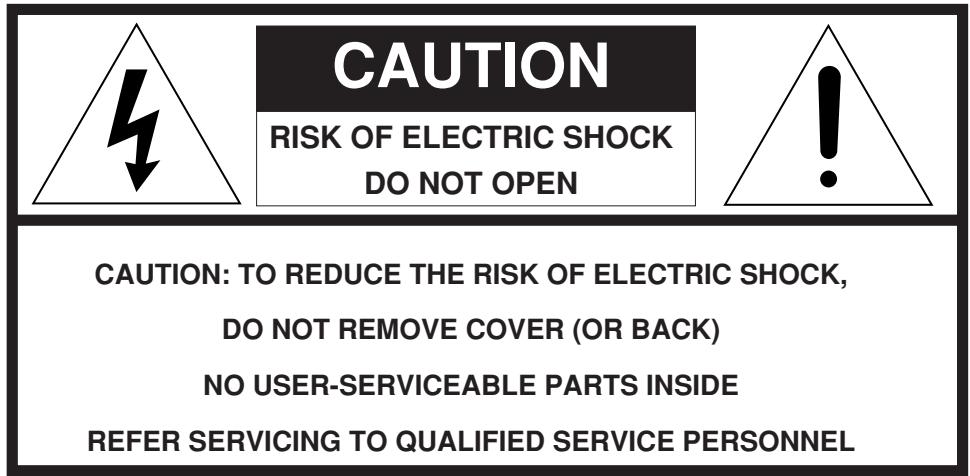

The lightning flash with arrowhead symbol within an equilateral triangle is intended to alert the user to the presence of uninsulated "dangerous voltage" within the product's enclosure that may be of sufficient magnitude to constitute a risk of electric shock to persons.
The exclamation point within an equilateral triangle is intended to alert the user to the presence of important operating and maintenance (servicing) instructions in the literature accompanying the product.
WARNING
TO REDUCE THE RISK OF FIRE OR ELECTRIC SHOCK, DO NOT EXPOSE THIS PRODUCT TO RAIN OR MOISTURE.
CAUTION: TO PREVENT ELECTRIC SHOCK, MATCH WIDE BLADE OF PLUG TO WIDE SLOT, FULLY INSERT.
ATTENTION: POUR ÉVITER LES CHOC ÉLECTRIQUES, INTRODUIRE LA LAME LA PLUS LARGE DE LA FICHE DANS LA BORNE CORRESPONDANTE DE LA PRESE ET POUSSER JUSQU'AU FOND.
NOTE TO CATV SYSTEM INSTALLER:
This reminder is provided to call the CATV (Cable-TV) system installer's attention to Section 820-40 of the NEC which provides guidelines for proper grounding and, in particular, specifies that the cable ground shall be connected to the grounding system of the building, as close to the point of cable entry as practical.
NOTE:
This equipment has been tested and found to comply with the limits for a Class B digital device, pursuant to Part 15 of the FCC Rules. These limits are designed to provide reasonable protection against harmful interference in a residential installation. This equipment generates, uses and can radiate radio frequency energy and, if not installed and used in accordance with the instructions, may cause harmful interference to radio communications. However, there is no guarantee that interference will not occur in a particular installation. If this equipment does cause harmful interference to radio or television reception, which can be determined by tuning the equipment off and on, the user is encouraged to try to correct the interference by one or more of the following measures:
- Reorient or relocate the receiving antenna.
- Increase the separation between the equipment and receiver.
- Connect the equipment into an outlet on a circuit different from that to which the receiver is connected.
- Consult the dealer or an experienced radio/TV technician for help.
NOTE:
Changes or modifications not expressly approved by the party responsible for compliance could void the user's authority to operate the equipment.
IMPORTANT SAFETY INSTRUCTIONS
READ BEFORE OPERATING EQUIPMENT
This product was designed and manufactured to meet strict quality and safety standards. There are, however, some installation and operation precautions which you should be particularly aware of.
1. Read Instructions - All the safety and operating instructions should be read before the product is operated.
2. Retain Instructions - The safety and operating instructions should be retained for future reference.
3. HeedWarnings - All warnings on the product and in the operating instructions should be adhered to.
4. Follow Instructions - All operating and use instructions should be followed.
5. Cleaning - Unplug this product from the wall outlet before cleaning. Do not use liquid cleaners or aerosol cleaners. Use a damp cloth for cleaning.
6. Attachments - Do not use attachments not recommended by the product manufacturer as they may cause hazards.
7. Water and Moisture - Do not use this product near water-for example, near a bath tub, wash bowl, kitchen sink, or laundry tub, in a wet basement, or near a swimming pool, and the like.
8. Accessories - Do not place this product on an unstable cart, stand, tripod, bracket, or table. The product may fall, causing serious injury to a child or adult, and serious damage to the product. Use only with a cart, stand, tripod, bracket, or table recommended by the manufacturer, or sold with the product. Any mounting of the product should follow the manufacturer's instructions, and should use a mounting accessory recommended by the manufacturer.
9. A product and cart combination should be moved with care. Quick stops, excessive force, and uneven surfaces may cause the product and cart combination to overturn.

- Ventilation – Slots and openings in the cabinet are provided for ventilation and to ensure reliable operation of the product and to protect it from overheating, and these openings must not be blocked or covered. The openings should never be blocked by placing the product on a bed, sofa, rug, or other similar surface. This product should not be placed in a built-in installation such as a bookcase or rack unless proper ventilation is provided or the manufacturer's instructions have been adhered to.
-
Power Sources - This product should be operated only from the type of power source indicated on the marking label. If you are not sure of the type of power supply to your home, consult your product dealer or local power company. For products intended to operate from battery power, or other sources, refer to the operating instructions.
-
Grounding or Polarization - This product may be equipped with a polarized alternating-current line plug (a plug having one blade wider than the other). This plug will fit into the power outlet only one way. This is a safety feature. If you are unable to insert the plug fully into the outlet, try reversing the plug. If the plug should still fail to fit, contact your electrician to replace your obsolete outlet. Do not defeat the safety purpose of the polarized plug.
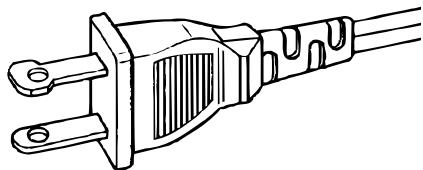
AC POLARIZED PLUG
- Power-Cord Protection - Power-supply cords should be routed so that they are not likely to be walked on or pinched by items placed upon or against them, paying particular attention to cords at plugs, convenience receptacles, and the point where they exit from the product.
- Protective Attachment Plug - The product is equipped with an attachment plug having overload protection. This is a safety feature. See Instruction Manual for replacement or resetting of protective device. If replacement of the plug is required, be sure the service technician has used a replacement plug specified by the manufacturer that has the same overload protection as the original plug.
- Outdoor Antenna Grounding - If an outside antenna or cable system is connected to the product, be sure the antenna or cable system is grounded so as to provide some protection against voltage surges and built-up static charges. Article 810 of the National Electrical Code, ANSI/NFPA 70, provides information with regard to proper grounding of the mast and supporting structure, grounding of the lead-in wire to an antenna discharge unit, size of grounding conductors, location of antenna-discharge unit, connection to grounding electrodes, and requirements for the grounding electrode. See Figure 1.
- Lightning – For added protection for this product during a lightning storm, or when it is left unattended and unused for long periods of time, unplug it from the wall outlet and disconnect the antenna or cable system. This will prevent damage to the product due to lightning and power-line surges.
- Power Lines - An outside antenna system should not be located in the vicinity of overhead power lines or other electric light or power circuits, or where it can fall into such power lines or circuits. When installing an outside antenna system, extreme care should be taken to keep from touching such power lines or circuits as contact with them might be fatal.
- Overloading - Do not overload wall outlets, extension cords, or integral convenience receptacles as this can result in a risk of fire or electric shock.
-
Object and Liquid Entry – Never push objects of any kind into this product through openings as they may touch dangerous voltage points or short-out parts that could result in a fire or electric shock. Never spill liquid of any kind on the product.
-
Servicing - Do not attempt to service this product yourself as opening or removing covers may expose you to dangerous voltage or other hazards. Refer all servicing to qualified service personnel.
- Damage Requiring Service – Unplug this product from the wall outlet and refer servicing to qualified service personnel under the following conditions:
a. When the power-supply cord or plug is damaged.
b. If liquid has been spilled, or objects have fallen into the product.
c. If the product has been exposed to rain or water.
d. If the product does not operate normally by following the operating instructions. Adjust only those controls that are covered by the operating instructions as an improper adjustment of other controls may result in damage and will often require extensive work by a qualified technician to restore the product to its normal operation.
e. If the product has been dropped or damaged in any way, and
f. When the product exhibits a distinct change in performance – this indicates a need for service.
- Replacement Parts - When replacement parts are required, be sure the service technician has used replacement parts specified by the manufacturer or have the same characteristics as the original part. Unauthorized substitutions may result in fire, electric shock, or other hazards.
- Safety Check - Upon completion of any service or repairs to this product, ask the service technician to perform safety checks to determine that the product is in proper operating condition.
- Wall or Ceiling Mounting - The product should be mounted to a wall or ceiling only as recommended by the manufacturer.
- Heat – The product should be situated away from heat sources such as radiators, heat registers, stoves, or other products (including amplifiers) that produce heat.
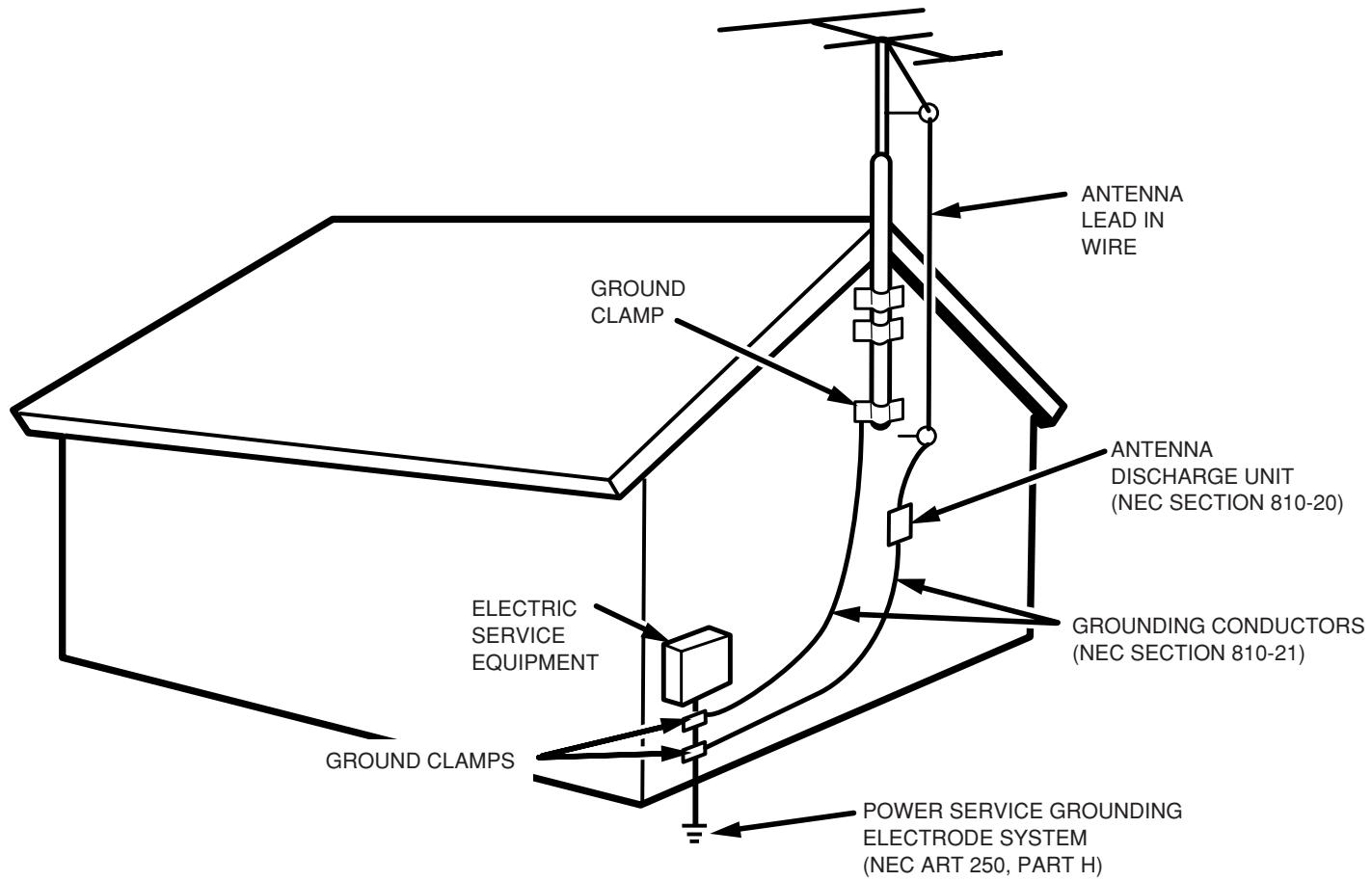
FIGURE 1
EXAMPLE OF ANTENNA GROUNDING AS PER
NATIONAL ELECTRICAL CODE, ANSI/NFPA 70
NEC - NATIONAL ELECTRICAL CODE
TABLE OF CONTENTS
FEATURES 2
AMPLIFIER FEATURES 2
AUDIO/VIDEO FEATURES 2
FLEXIBILITY FEATURES 2
OTHER FEATURES 2
PRECAUTIONS 2
DESCRIPTION 3
FRONT PANEL 5
FL DISPLAY 7
REAR PANEL 9
REMOTE CONTROL UNIT RC3200A 11
LOADING BATTERIES 11
ACTIVATING THE RC3200A 12
OPERATING DEVICES 12
REMOTE-CONTROLLABLE RANGE 12
OPERATING AMP & TUNER 13
SHOW THE STATUS OF SR8300 ON THE LCD OF RC3200A ......... 15
WORKING WITH MODES 16
ADJUSTING THE SETTINGS 16
LEARNING COMMANDS 18
RECORDING MACROS 18
RC3200EDIT 20
IMPORTANTNOTICES 21
CLEANING RC3200A 21
HOW TO RESET THE RC3200A 21
CONNECTIONS 22
SPEAKER PLACEMENT 22
CONNECTING SPEAKERS 23
CONNECTING THE AUDIO COMPONENTS 24
CONNECTINGVIDEOCOMPONENTS 25
ADVANCED CONNECTING 27
CONNECTING THE ANTENNA TERMINALS 28
CONNECTING REMOTE CONTROL JACKS 29
CONNECTING FOR THE MULTI ROOM 29
SETUP 30
ON SCREEN DISPLAY MENU SYSTEM 30
INPUT SETUP (ASSIGNABLE DIGITAL INPUT) 31
SPEAKER SETUP 31
PREFERENCE 33
SURROUND 34
PLII (PRO LOGIC II) MUSIC PARAMETER 34
CS II (CIRCLE SURROUND II) PARAMETER 34
MULTI ROOM 35
7.1 CH INPUT LEVEL 35
DC TRIGGER SETUP 35
BASIC OPERATION (PLAY BACK) 36
SELECTING AN INPUT SOURCE. 36
SELECTING THE SURROUND MODE 36
ADJUSTING THE MAIN VOLUME 36
ADJUSTING THE TONE(BASS & TREBLE) CONTROL. 36
TEMPORARILY TURNING OFF THE SOUND 37
USING THE SLEEP TIMER 37
NIGHT MODE 37
DIALOGUE NORMALIZATIONMESSAGE 37
SURROUND MODE 38
OTHER FUNCTION 42
TV AUTO ON/OFF FUNCTION 42
ATTENUATION TO ANALOG INPUT SIGNAL 42
LISTENING OVER HEADPHONES 42
VIDEO ON/OFF 42
DISPLAY MODE 42
SELECTING ANALOG AUDIO INPUT OR DIGITAL AUDIO INPUT ....42
RECORDING AN ANALOG SOURCE 43
RECORDING A DIGITAL SOURCE 43
7.1 CH INPUT 44
AUX2 INPUT 44
BASIC OPERATION (TUNER) 45
LISTENING TO THE TUNER 45
PRESET MEMORY 45
MULTI ROOM SYSTEM 48
MULTI ROOM PLAYBACK USING THE MULTI ROOM
OUT TERMINALS 48
MULTI ROOM PLAYBACK USING THE MULTI SPEAKER
TERMINALS 48
OPERATION TO MULTI ROOM OUTPUTS WITH THE REMOTE
CONTROLLER FROM SECOND ROOM. 48
TROUBLESHOOTING 49
TECHNICAL SPECIFICATIONS. 51
DIMENSION 51
FEATURES
AMPLIFIER FEATURES
THX Select certified
6ch amplifiers have enough power for even the most difficult conditions found in large rooms.
Enormous power reserves endow the system with substantial dynamic ability at high sound levels.
130 watts to each of the six main channels the power amp section features an advanced, premium high- storage power supply capacitors, and fully discrete output stages housed in cast aluminum heat sinks .
- Current feedback 6ch Amplifier
Current feedback topology combines total operation stability with excellent frequency response,
while requiring only minimal amounts of negative feedback.
It makes excellent transient response and superb sonic transparency.
AUDIO/VIDEO FEATURES
- THX SURROUND EX built in to decode the additional two surround buck channels from THX Surround EX-encoded DVDs and laserdiscs.
- DTS-ES decoder built in to decode the impeccable 6.1-channel discrete digital audio from DTS-ES encoded DVD-Video discs, DVD-Audio discs, CDs and laserdiscs.
- DOLBY DIGITAL decoder built in to decode the 5.1-channel digital audio of DVDs, Digital TV, HDTV, satellite broadcasts and other sources.
- DOLBY PRO LOGIC II decoder provides better spatiality and directionality on Dolby Surround program material; provides a convincing three-dimensional sound field on conventional stereo music recordings.
- CIRCLE SURROUND II decoder built in to decode surround sound from any stereo or passive matrix-encoded material.
- Multi-channel (7.1ch)direct inputs accommodate future multi-channel sound formats or an external digital decoder.
192kHz/24-bit D/A CONVERTERS for all channels. - ADDC (Advanced Double Differential Converter) output for STEREO playback.
- Source Direct mode bypasses, tone controls and bass management for purest audio quality.
- Two sets of Y/Cr/Cb component video inputs and component video outputs provide unsurpassed video quality and switching flexibility from component video sources.
- Easy to use on-screen menu system in all video monitor output.
FLEXIBILITY FEATURES
FUTURE-PROOF INTERFACE ARCHITECTURE
a versatile RS232 port allows the SR8300's internal Flash Memory to be directly computer accessed for installing such future upgrades as new DSP algorithms, new surround formats/parameters, and other types of processing updates.
MULTIROOM CAPABILITY
a full set of line outs for audio, composite video, allows for set-up of an additional system in another room, and complete second-room control can be achieved with such A/V distribution control systems as Xantech, Niles, to name but a few.
Digital I/O
Assignable six Digital inputs, for connection to other sources, such as DVD, DSS or CD.
A optical Digital input on front AUX1 terminals, for connection to portable player or game.
Two Digital outputs for connection to digital recorder as CD-R or MD.
OTHER FEATURES
- High-quality AM/FM tuner with 50 station presets.
- 2way programmable learning remote control RC3200A.
PRECAUTIONS
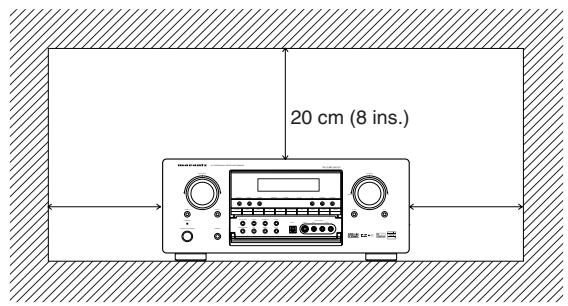
CAUTIONS ON INSTALLATION
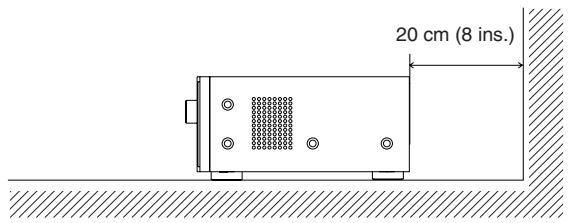
For heat dispersal, leave at least 20~cm / 8 inch of space between the top, back and sides of this unit and the wall or other components.
- Do not obstruct the ventilation holes.
DESCRIPTION

THX® is an exclusive set of standards and technologies established by the world-renowned film production company, Lucasfilm Ltd. THX resulted from George Lucas' desire to reproduce the movie soundtrack as faithfully as possible both in the movie theater and in the home theater.
THX engineers developed patented technologies to accurately translate the sound from a movie theater environment into the home, correcting the tonal and spatial errors that occur.
When the THX mode of the SR8300 is on, three distinct THX technologies are automatically added:
Re-Equalization-restores the correct tonal balance for watching a movie in a home environment.
These sounds are otherwise mixed to be brighter for a large movie theater. Re-EQ compensates for this and prevents the soundtracks from being overly bright and harsh when played in a home theater.
Timbre Matching-filters the information going to the surround speakers so they more closely match the tonal characteristics of the sound coming from the front speakers.
This ensures seamless panning between the front and surround speakers. Adaptive Decorrelation-slightly changes one surround channel's time and phase relationship with respect to the other surround channel.
This expands the listening position and creates with only two surround speakers the same spacious surround experience as in a movie theater with multiple surround speakers.
The Marantz SR8300 was required to pass a rigorous series of quality and performance tests, in addition to incorporating the technologies explained above, in order to be THX certified by Lucasfilm Ltd.
THX requirements cover every aspect of performance including pre-amplifier and power amplifier performance and operation, and hundreds of other parameters in both the digital and analog domain.
Movies which have been encoded in Dolby Digital, DTS, Dolby Pro Logic, stereo and Mono will all benefit from the THX mode when being viewed. The THX mode should only be activated when watching movies which were originally produced for a movie theater environment.
THX need not be activated for music, movies made especially for TV, or shows such as sports programming, talk shows, etc.
This is because they were originally mixed for a small room environment.
"Lucasfilm®" and "THX®" are registered trademarks of Lucasfilm Ltd.
Lucasfilm and THX are trademarks or registered trademarks of Lucasfilm Ltd. ©Lucasfilm Ltd. & TM. Surround EX is a jointly developed technology of THX and Dolby Laboratories, Inc. and is a trademark of Dolby Laboratories, Inc. All rights reserved. Used under authorization.
THX SURROUND EX
THX Surround EX - Dolby Digital Surround EX is a joint development of Dolby Laboratories and the THX division of Lucasfilm Ltd.
In a movie theater, film soundtracks that have been encoded with Dolby Digital Surround EX technology are able to reproduce an extra channel which has been added during the mixing of the program.
This channel, called Surround Back, places sounds behind the listener in addition to the currently available front left, front center, front right, surround right, surround left and subwoofer channels.
This additional channel provides the opportunity for more detailed imaging behind the listener and brings more depth, spacious ambience and sound localization than ever before.
Movies that were created using the Dolby Digital Surround EX technology when released into the home consumer market may exhibit a Dolby Digital Surround EX logo on the packaging.
A list of movies created using this technology can be found on the Dolby web site at
http://www.dolby.com.
"SURROUND EX™" is a trademark of Dolby Laboratories. Used under authorization.

DTS was introduced in 1994 to provide 5.1 channels of discrete digital audio into home theater systems.
DTS brings you premium quality discrete multi-channel digital sound to both movies and music.
DTS is a multi-channel sound system designed to create full range digital sound reproduction.
The no compromise DTS digital process sets the standard of quality for cinema sound by delivering an exact copy
of the studio master recordings to neighborhood and home theaters. Now, every moviegoer can hear the sound exactly as the moviemaker intended.
DTS can be enjoyed in the home for either movies or music on of DVD's, LD's, and CD's.
"DTS" and "DTS Digital Surround" are registered trademarks of Digital Theater Systems, Inc.

The advantages of discrete multichannel systems over matrix are well known.
But even in homes equipped for discrete multichannel, there remains a need for high-quality matrix decoding. This is because of the large library of matrix surround motion pictures available on disc and on VHS tape; and analog television broadcasts.
The typical matrix decoder of today derives a center channel and a mono surround channel from two-channel matrix stereo material. It is better than a simple matrix in that it includes steering logic to improve separation, but because of its mono, band-limited surround it can be disappointing to users accustomed to discrete multichannel.
Neo 6 offers several important improvements as follow.
- Neo 6 provides up to six full-band channels of matrix decoding from stereo matrix material. Users with 6.1 and 5.1 systems will derive six and five separate channels, respectively, corresponding to the standard home-theater speaker layouts.
- Neo 6 technology allows various sound elements within a channel or channels to be steered separately, and in a way which follows naturally from the original presentation.
- Neo 6 offers a music mode to expand stereo nonmatrix recordings into the five- or six-channel layout, in a way which does not diminish the subtlety and integrity of the original stereo recording.

DTS-ES Extended Surround is a new multi-channel digital signal format developed by Digital Theater Systems Inc. While offering high compatibility with the conventional DTS Digital Surround format, DTS-ES Extended Surround greatly improves the 360-degree surround impression and space expression thanks to further expanded surround signals. This format has been used professionally in movie theaters since 1999.
In addition to the 5.1 surround channels (FL, FR, C, SL, SR and LFE), DTS-ES Extended Surround also offers the SB (Surround Back) channel for surround playback with a total of 6.1 channels. DTS-ES Extended Surround includes two signal formats with different surround signal recording methods, as DTS-ES Discrete 6.1 and DTS-ES Matrix 6.1.
"DTS", "DTS-ES Extended Surround" and "Neo:6" are trademarks of Digital Theater Systems, Inc.
The stereo CD is a 16-bit medium with sampling at 44.1kHz . Professional audio has been 20- or 24-bit for some time, and there is increasing interest in higher sampling rates both for recording and for delivery into the home. Greater bit depths provide extended dynamic range. Higher sampling rates allow wider frequency response and the use of anti-alias and reconstruction filters with more favorable aural characteristics.
DTS 96/24 allows for 5.1 channel sound tracks to be encoded at a rate of 96kHz / 24 bits on DVD-Video titles.
When DVD-video appeared, it became possible to deliver 24-bit, 96 kHz audio into the home, but only in two channels, and with serious limitations on picture. This capability has had little use.
DVD-audio allows 96/24 in six channels, but a new player is needed, and only analog outputs are provided, necessitating the use of the D/A converters and analog electronics provided in the player.
DTS 96/24 offers the following:
- Sound quality transparent to the original 96/24 master.
- Full backward compatibility with all existing decoders. (Existing decoders will output a 48 kHz signal)
- No new player required: DTS 96/24 can be carried on DVD-video, or in the video zone of DVD-audio, accessible to all DVD players.
4.96/24 5.1-channel sound with full-quality full-motion video, for music programs and motion picture soundtracks on DVD-video.
Dolby Digital identifies the use of Dolby Digital (AC-3) audio coding for such consumer formats as DVD and DTV. As with film sound, Dolby Digital can provide up to five full-range channels for left, center, and right screen channels, independent left and right surround channels, and a sixth (".1") channel for low-frequency effects.
Dolby Surround Pro Logic II is an improved matrix decoding technology that provides better spatiality and directionality on Dolby Surround program material; provides a convincing three-dimensional soundfield on conventional stereo music recordings; and is ideally suited to bring the surround experience to automotive sound. While conventional surround programming is fully compatible with Dolby Surround Pro Logic II decoders, soundtracks will be able to be encoded specifically to take full advantage of Pro Logic II playback, including separate left and right surround channels. (Such material is also compatible with conventional Pro Logic decoders.)
Dolby Digital EX creates six full-bandwidth output channels from 5.1-channel sources. This is done using a matrix decoder that derives three surround channels from the two in the original recording. For best results, Dolby Digital EX should be used with movies soundtracks recorded with Dolby Digital Surround EX.
Manufactured under license from Dolby Laboratories. "Dolby", "Pro Logic", and the double-D symbol are trademarks of Dolby Laboratories.

Circle Surround II (CS-II) is a powerful and versatile multi-channel technology. CS-II is designed to enable up to 6.1 multi-channel surround sound playback from mono, stereo, CS encoded sources and other matrix encoded sources. In all cases the decoder extends it into 6 channels of surround audio and a LFE/subwoofer signal. The CS-II decoder creates a listening environment that places the listener "inside" music performances and dramatically improves both hi-fi audio conventional surround-encoded video material. CS-II provides composite stereo rear channels to greatly improve separation and image positioning - adding a heightened sense of realism to both audio and A/V productions.
CS-II is packed with other useful feature like dialog clarity (SRS Dialog) for movies and cinema-like bass enrichment (TruBass). CS-II can enable the dialog to become clearer and more discernable in movies and it enables the bass frequencies contained in the original programming to more closely achieve low frequencies – overcoming the low frequency limitations of the speakers by full octave.
SRS Circle Surround II, SRS Dialog, SRS TruBass, SRS and () symbol are trademarks of SRS Labs, Inc.
SRS Circle Surround II, SRS Dialog and SRS TruBass technology are incorporated under license from SRS Labs, Inc.
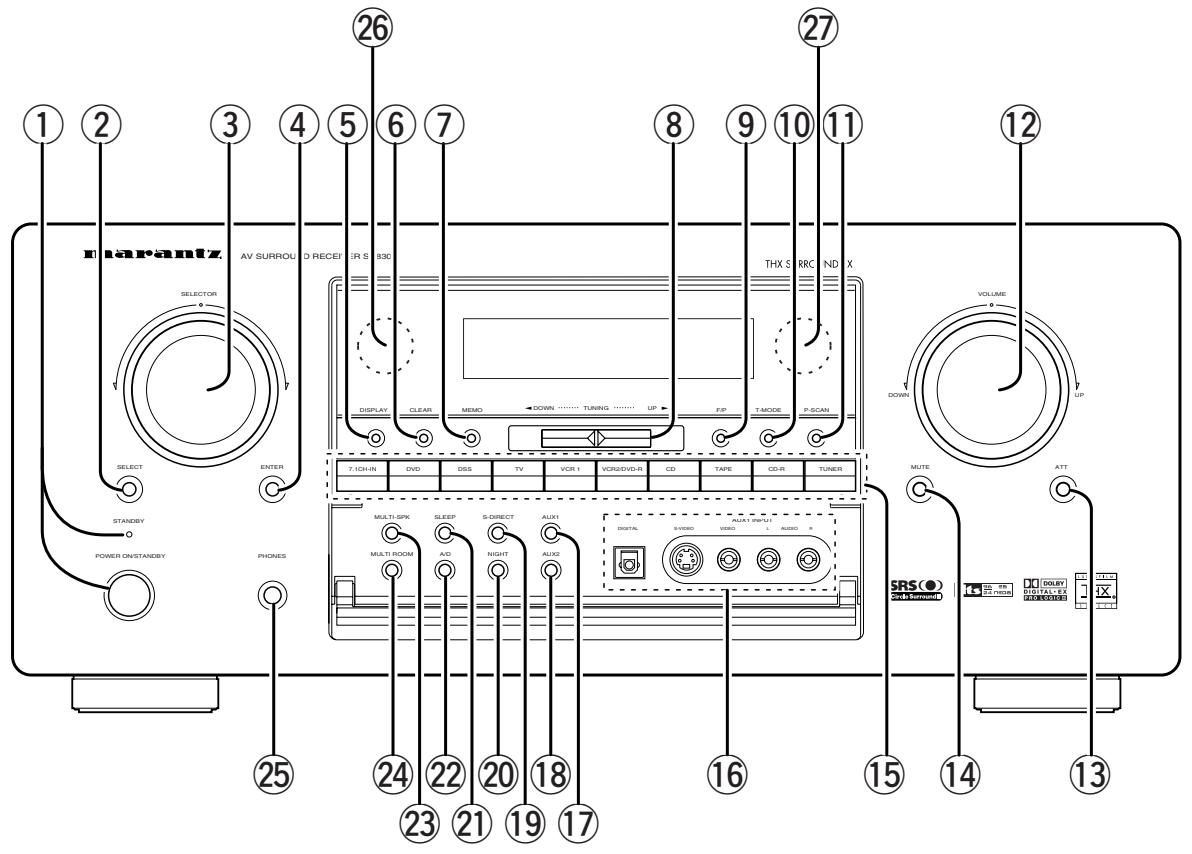
① POWER switch and STANDBY indicator
When this switch is pressed once, the unit turns ON and display appears on the display panel. When pressed again, the unit turns OFF and the STANDBY indicator lights.
When the STANDBY indicator is turned on, the unit is NOT disconnected from the AC power.
(2) SELECT (MULTI FUNCTION MODE SELECT) button
Press this button to change the mode for MULTI FUNCTION control dial.
③ SURROUND MODE Selector & MULTI FUNCTION control dial
This dial changes surround mode sequentially or select contents of OSD menu system.
(4) ENTER (MULTI FUNCTION ENTER) button
Press this button to enter the setup by MULTI FUNCTION dial.
⑤ DISPLAY mode button
When this button is pressed, the FL display mode is changed as NORMAL Auto Off Off and the display off indicator(DISP) lights up in condition of DISPLAY OFF.
⑥ CLEAR button
Press this button to cancel the station-memory setting mode or preset scan tuning.
(7) MEMO (memory) button
Press this button to enter the tuner preset memory numbers or station names.
(8) TUNING UP / DOWN buttons
Press theses buttons to change the frequency or the preset number.
(9) F/P (FREQUENCY / PRESET) button
During reception of AM (MW/LW) or FM, you can change the function of the UP/DOWN buttons for scanning frequencies or selecting preset stations by pressing these buttons.
10 T-MODE button
Press this button to select the auto stereo mode or mono mode when the FM band is selected.
The "AUTO" indicator lights in the auto stereo mode.
(1) P.SCAN (preset scan) button
This button is used to scan preset stations automatically.
When pressed, the tuner starts scanning the all preset stations. Press again to cancel the P-SCAN.
⑫ VOLUME control knob
Adjusts the overall sound level. Turning the control clockwise increases the sound level.
⑬ ATT (Attenuate) button
If the selected analog audio input signal is greater than the capable level of internal processing, PEAK indicator will light. If this happens, you should press the ATT button. "ATT" is displayed when this function is activated.
The signal-input level is reduced by about the half. Attenuation will not work with the output signal of "REC OUT" (TAPE, CD-R/MD, VCR1 and VCR2 output). This function is memorized for each input function.
MUTE button
Press this button to mute the output to the speakers. Press it again to return to the previous volume level.
⑤ INPUT FUNCTION SELECTOR buttons (AUDIO/VIDEO)
These buttons are used to select the input sources.
The video function selector, such as TV, DVD, DSS, VCR1 and VCR2, selects video and audio simultaneously.
Audio function sources such as CD, TAPE, CDR/MD, TUNER, and 7.1CH-IN may be selected in conjunction with a Video source.
This feature (Sound Injection) combines a sound from one source with a picture from another.
Choose the video source first, and then choose a different audio source to activate this function.
Press TUNER button to switch the between FM or AM.
16 AUX1 input jacks
These auxiliary video/audio and optical digital input jacks accept the connection of a camcorder, portable DVD, game etc.
AUX1 button
This button is used to select the AUX1 input source.
18 AUX2 button
This button is used to select the AUX2 (L/R input of 7.1 CH. IN).
S. (Source) DIRECT button
When this button is pressed, the tone control circuitry is bypassed as well as Bass Management.
Notes:
- The surround mode is automatically switched to AUTO when the source direct function is turned on.
- Additionally, Speaker Configurations are fixed automatically as follow.
- Front SPKR = Large, Center SPKR = Large, Surround SPKR = Large, Sub woofer = On
20 NIGHT button
This button is used to set night mode. This feature reduces the input level of dolby digital sources by 1/3 to 1/4 at their loudest thresholds, preventing the dynamic range or loud sounds without restricting the dynamic range or volume of other sounds or at less than maximum levels.
② SLEEP button
Set the sleep timer function with this button.
22 A/D (Analog/Digital) SELECTOR button
This is used to select between the analog and digital inputs.
Note:
- This button is not used for an input source that is not set to a digital input in the system setup menu.
23 M-SPKR (Multi Room Speaker) button
Press this button to activate the Multiroom Speaker system. "M-SPKR" indicator will light in the display.
24 MULTI (Multi Room) button
Press this button to activate the Multiroom system. "MULTI" indicator will light in the display.
25 PHONES jack for stereo headphones
This jack may be used to listen to the SR8300's output through a pair of headphones. Be certain that the headphones have a standard 1/4" stereo phone plug. Note that the main room speakers will automatically be turned off when the headphone jack is in use.
Notes:
- When using headphones, the surround mode will automatically change to STEREO.
- The surround mode returns to the previous setting as soon as the plug is removed from the jack.
26 INFRARED transmitting sensor window
This window transmits infrared signals for the remote control unit.
27 INFRARED receiving sensor window
This window receives infrared signals for the remote control unit.
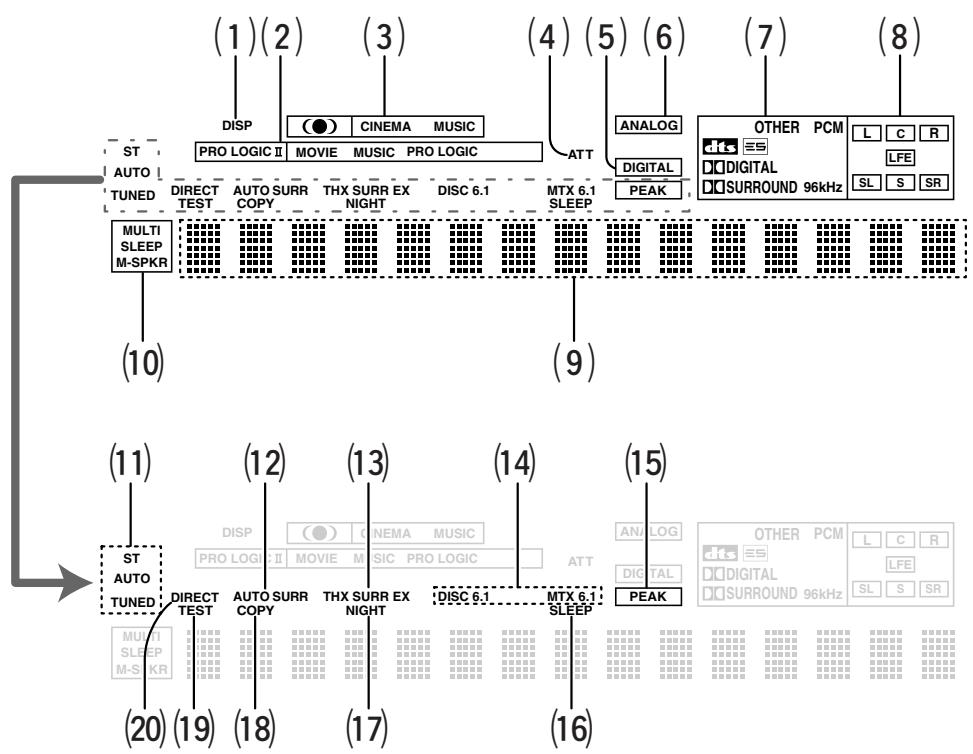
(1) DISP(Display Off) indicator
This indicator lights when the SR8300 is in the display off condition.
(2) PRO LOGIC II mode indicators (MOVIE, MUSIC, PRO LOGIC)
These indicators illuminate when one of the Dolby Pro Logic II modes is in use.
(3) Circle Surround mode indicators (CINEMA, MUSIC)
These indicators illuminate when one of the Circle Surround modes is in use.
(4) ATT (Attenuation) indicator
This indicator lights when the attenuation function is active.
(5) DIGITAL Input Indicator
This indicator lights when digital input has been selected.
(6) ANALOG input indicator
This indicator lights when an analog input source has been selected.
(7) SIGNAL FORMAT indicators
DIGITAL, SURROUND, dts, ES, PCM, 96kHz and OTHER
When the selected input is a digital source, some of these indicators will light to display the specific type of signal in use.
(8) ENCODED CHANNEL STATUS indicators
These indicators display the channels that are encoded with a digital input signal. If the selected digital input signal is Dolby Digital 5.1ch or DTS 5.1ch, "L", "C", "R", "SL", "SR" and "LFE" will light up. If the digital input signal is 2 channel PCM-audio, "L" and "R" will be displayed. If Dolby Digital 5.1ch signal with Surround EX flag or DTS-ES signal comes in, "L", "C", "R", "SL", "S", "SR" and "LFE" will show.
(9) Main Information Display
This display shows messages relating to the status, input source, surround mode, tuner, volume level or other aspects of unit's operation.
(10) Multi-room system indicator
MULTI : This indicator lights when the multi-room system is active.
SLEEP : This indicator lights when the sleep timer to multi-room system is active.
M-SPKR : This indicator lights when the Multi-room Speaker output is active.
(11) TUNER's indicators
ST(Stereo) : This indicator illuminates when an FM station is being tuned in stereo condition.
AUTO : This indicator illuminates when the tuner's Auto mode is in use.
TUNED : This indicator illuminates when a station is being received with sufficient signal strength to provide acceptable listening quality.
(12) AUTO.SURR (Auto Surround mode) indicator.
This indicator illuminates to show that the AUTO SURROUND mode is in use.
(13) THX SURR EX (THX Surround EX mode) indicator.
When THX surround EX mode is selected, this indicator lights.
(14) DTS-ES mode indicators (DISC6.1, MTX6.1)
These indicators will show to DTS-ES decoding mode.
(15) PEAK indicator
This indicator is a monitor for an analog audio input signal. If the selected analog audio input signal is greater than the capable level of internal processing, this will light. If this happens, you should press the ATT button.
(16) SLEEP timer indicator
This indicator lights when the seep timer function in main-room is in use.
(17) NIGHT mode indicator
This indicator lights when the SR8300 is in the Night mode, which reduces the dynamic range of digital program material at low volume levels.
(18) COPY indicator
This indicator lights when DIGITAL COPY system is active.
(19) TEST tone indicator
This indicator blinks in generating the test tone in speaker level setup.
(20) DIRECT (Soruce direct) indicator
This indicator lights when the SR8300 is in the SOURCE DIRECT mode.
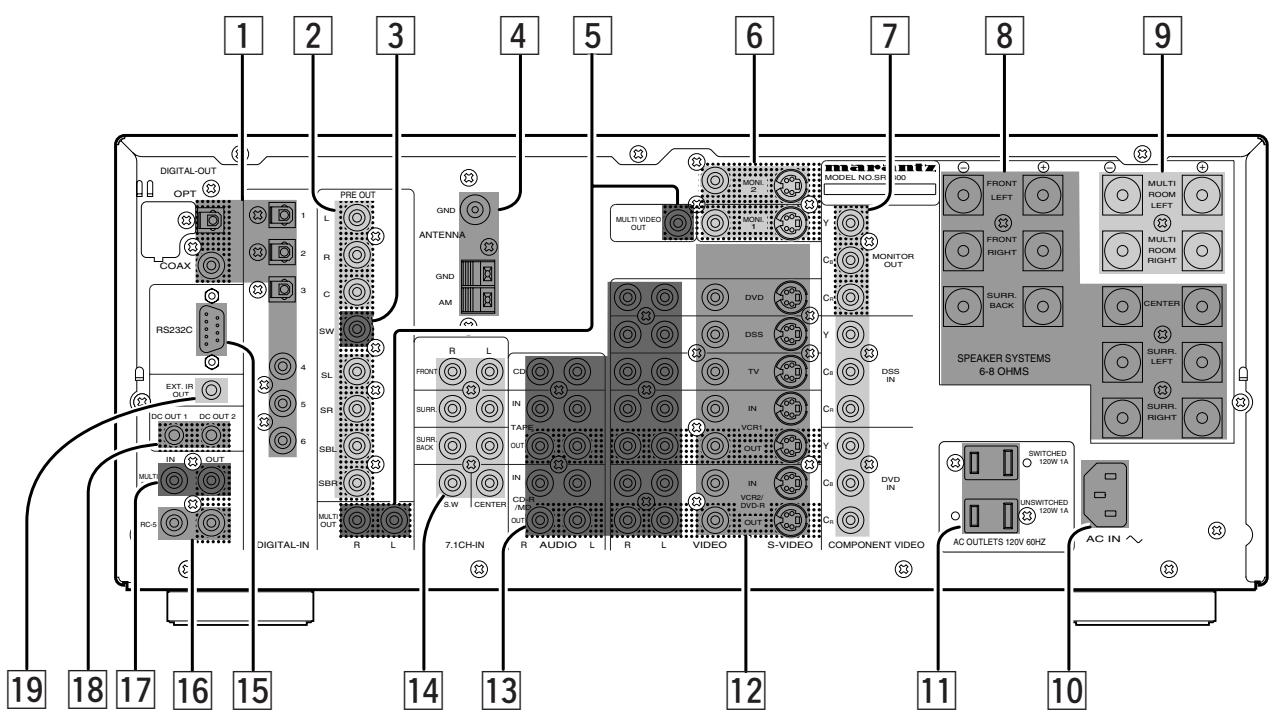
1 DIGITAL INPUT (Dig.1 - 6) / OUTPUT (coaxial, optical)
These are the digital audio inputs and outputs. There are 3 digital inputs with coaxial jacks, 3 with optical jacks.
The inputs accept digital audio signals from a compact disc, LD, DVD, or other digital source component.
For digital output, there is 1 coaxial output and 1 optical output.
The digital outputs can be connected to MD recorders, CD recorders, DAT decks, or other similar components.
2 Preamp Outputs (L, R, SL, SR, SBL, SBR, C)
Jacks for L(front left),R(front right), C(Center), SL(surround left), SR(surround right),SBL(surround back left)and SBR(surround back right).
Use these jacks for connection to some external power amplifiers.
3 Subwoofer Output
Connect this jack to the line level input of a powered subwoofer. If an external subwoofer amplifier is used, connect this jack to the subwoofer amplifier input. If you are using two subwoofoers, either powered or with a 2 channel subwoofer amplifier, connect a "Y" connector to the subwoofer output jack and run one cable from it to each subwoofer amplifier.
4 FM antenna terminal (75 ohms)
Connect an external FM antenna with a coaxial cable, or a cable network FM source.
AM antenna and ground terminals
Connect the supplied AM loop antenna. Use the terminals marked "AM" and "GND". The supplied AM loop antenna will provide good AM reception in most areas. Position the loop antenna until you hear the best
5 Multiroom Outputs (Audio L&R, Video)
These are the audio and video output jacks for the remote zone (Multi Room).
Connect these jacks to the optional audio power amplifiers or video display devices to view and listen to the source selected by the mulitroom system in a remote room.
6 MONITOR OUT
There are 2 monitor outputs and each one includes both composite video and S-video configurations. When connecting two video monitors or televisions, be aware that the OSD interface can be used with both MONITOR OUT.
7 COMPONENTVIDEOINPUT/OUTPUT
If your DVD player or other device has component video connectors, be sure to connect them to these component video connectors on the SR8300. The SR8300 has two component video input connectors to obtain the color information (Y, C₈, C₉) directly from the recorded DVD signal or other video component and one component video output connector to output it directly into the matrix decoder of the display device.
By sending the pure DVD component video signal directly, the DVD signal forgoes the extra processing that normally would degrade the image. The result is vastly increased image quality, with incredibly lifelike colors and crisp detail.
Notes:
- This component video output is available to OSD menu system.
8 Speaker outputs terminals (for Main room)
Six terminals are provided for the front left, front right, front center, surround left, surround right and surround back (LEFT) speakers.
9 Speaker outputs terminals (for Multiroom)
Two terminals are provided for the left and right speakers for Multiroom(2nd zone)
Notes:
- Connect the these jacks to the matching + or - terminals on your speakers. When making speaker connections, always make certain to maintain correct polarity by connecting the red (+) terminals on the SR8300 to the red terminals on the speaker and the black (-) terminals on the SR8300 to the black terminals on the speakers.
10 AC INLET
Plug the supplied power cord into this AC INLET and then into the power outlet on the wall.
11 AC OUTLETS
Connect the AC power cables of components such as a DVD and CD player to these outlets. SWITCHED and UNSWITCHED outlets are provided.
The one marked SWITCHED provides power only when the SR8300 is turned on and is useful for components which you use every time you play your system.
The one marked UNSWITCHED is always live as long as the SR8300 is plugged into a live outlet.
A component connected here may be left on permanently, or may be switched off with its own power switch.
Caution:
- In order to avoid potential turn-off thumps, anything plugged in here should be powered up before the SR8300 is turned on.
- The capacity of this AC outlet is 120W. Do not connect devices that consume electricity more than the capacity to this AC outlet. If total power consumption of connected devices exceeds the capacity, protection circuit shuts down the power supply.
VIDEO IN/OUT (TV, DVD, DSS, VCR1, VCR2)
These are the video inputs and outputs. There are 5 video inputs and 2 video outputs and each one includes both composite video and S-video configurations. Connect VCRs, DVD players, and other video components to the video inputs.
S-video sources can be viewed through the S-video outputs, and composite sources can only be viewed through the composite output. The 2 video output channels can be used to be connected to video tape recorders for making recordings.
13 AUDIO IN/OUT (CD, TAPE, CD-R, TV, DVD, DSS, VCR1, VCR2)
These are the analog audio inputs and outputs. There are 9 audio inputs (5 of which are linked to video inputs) and 4 audio outputs (2 of which are linked to video outputs). The audio jacks are nominally labeled for cassette tape decks, compact disc players,DVD players and etc.... The audio inputs and outputs require RCA-type connectors.
14 7.1 CHANNEL INPUT
By connecting a DVD Audio player, SACD player, or other component that has a multi channel port, you can playback the audio with 5.1 channel or 7.1 channel output.
15 RS232C
The RS232C port is to be used in conjunction with an external controller to control the operation of the SR8300 by using an external device.
The RS232C port may also be used in the future to update the operating software of the SR8300 so that it will be able to support new digital audio formats and the like as they are introduced.
16 REMOTE CONT. IN/OUT terminals
Connect to a Marantz component equipped with remote control (RC-5) terminals.
17 MULTI ROOM REMOTE IN/OUT terminals
IN: Connect to multi-room remote control device, available from your Marantz dealer.
OUT: Connect to the Marantz component equipped with remote control (RC-5) terminals in another room (Second zone).
DC TRIGGER output terminals
Connect a device that needs to be triggered by DC under certain conditions (screen, power strip, etc...)
Use the system OSD setup menu to determine the conditions by which these jacks will be active.
Note:
- This output voltage is for (status) control only, It is not sufficient for drive capability.
19 External IR transmitter terminal
If the SR8300 is located inside a rack or cabinet that will not allow infrared beams to transmit to 2way remote commander, you will need to connect a IR transmitter to this output to be able to use the 2way remote controller.
Then install the remote transmitter in an unblocked location where you can easily receive IR signal.
Note:
- An optional remote transmitter kit is required.
REMOTE CONTROL UNIT RC3200A
This chapter describes the functions which control the SR8300. Please look at the user guide of the RC3200A for operation instructions.
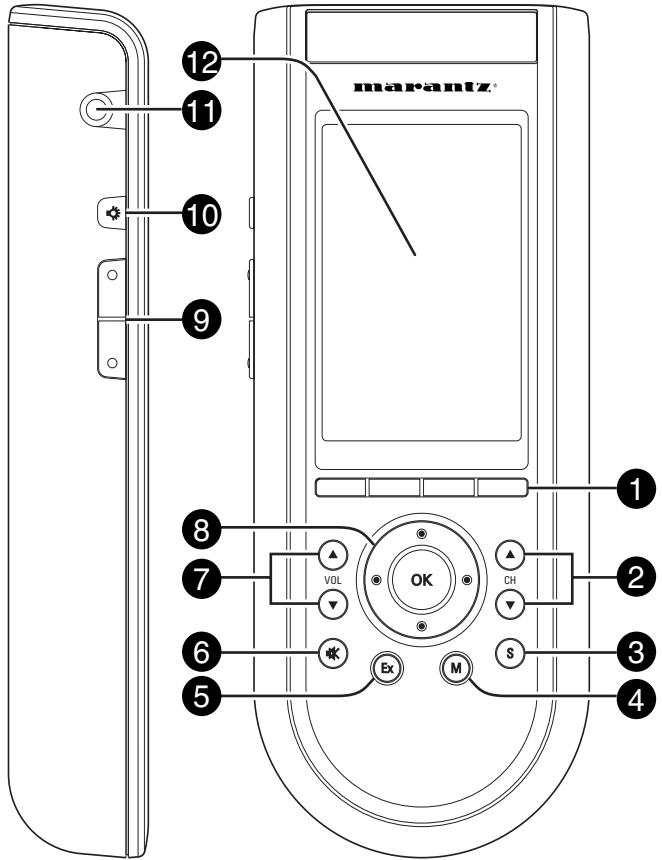
1 Select buttons to Navigation bar
These buttons work with navigation bar in LCD. Each function may also be provided with an alphanumeric function indicator visible in navigation bar of LCD display.
CH (Channel) ▲ UP and ↓DOWN buttons
Use these buttons to select the preset number of tuner in the SR8300 or channel of TV.
S (Status) button
Press this button to see (jump to) the status of SR8300 on LCD panel.
M (Menu) button
Use this button to entry the OSD menu system.
Ex (Exit) button
Press this button to exit on screen menu.
( mute) button
Press this button to mute the sound temporarily.
VOL(Volume) ▲ UP and ↓DOWN buttons
Use these buttons to raise and lower the SR8300's volume level.
OK and cursor (Up / Down / Left / Right) buttons
Use these buttons to navigate through on-screen menus. (Refer to "ON-SCREEN MENU SYSTEM" on page 30-35)
Page scroll Up /Down buttons
Use these buttons to scroll up or down the device of LCD screen.
10 button
Press this button turns on the backlight to LCD display.
Serial port
To connect the RC3200A with your computer by attached serial cable for future upgrades.
LCD touch screen
The LCD touch screen is divided into different sections:

Navigation bar:
These are the labels of the 4 hard buttons below the touch screen.
LOADING BATTERIES
When you use RC3200A for the first time, you have to install the batteries.
The RC3200A requires 3 AA-batteries (3× 1,5V) to function.
Note
-
Attached batteries are to check basic function of remote commander, you can use either primary or rechargeable batteries.
-
Remove the back cover.
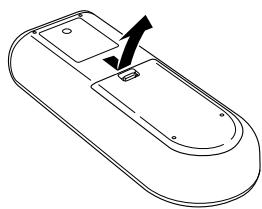
- Insert the new batteries (AA type) with correct (+) and (-) polarity.
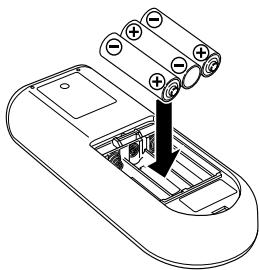
- Close until it clicks.
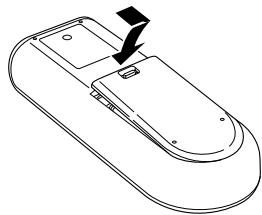
ACTIVATING THE RC3200A
When the RC3200A is switched on for the first time or when it is reset, the Introduction screen appears for a few seconds. The RC3200A then automatically switches to the HOME screen that displays all available devices on your RC3200A. You can return to this HOME screen from within other screens by pressing the HOME button. See "Activating the HOME screen" for more details.
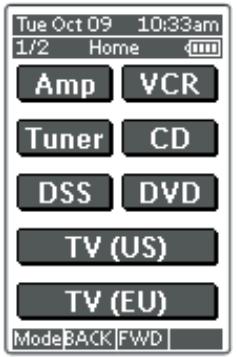
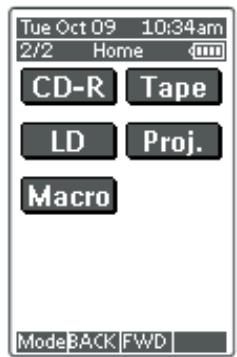
TURNING ON THE DISPLAY AND THE BACKLIGHT
RC3200A's display can be activated in two different ways: Tap the touch screen gently with your finger or a blunt, soft object like a pencil eraser.
The display is activated.
- Press button on the left side of the RC3200A.
The display and the backlight are activated.
If the LCD touch screen stays blank or becomes black when turning on the display, read the next section "Changing the LCD Contrast" to adjust the contrast of the LCD touch screen.
Note :
- RC3200A has a timeout feature: the LCD touch screen and the backlight automatically turn off to save power.
- See "Adjusting the Settings" to adjust the timeout for the LCD and the backlight.
CHANGING THE LCD CONTRAST
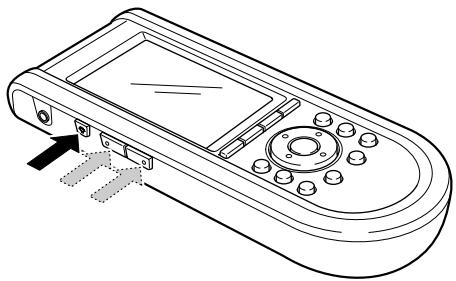
- Press and hold the Backlight button. The screen lights up.
- While still holding the Backlight button, press the Page Up button once to increase the LCD contrast one level.
The LCD contrast is adjusted one level up. or press the Page Down button once to decrease the LCD contrast one level. The LCD contrast is adjusted one level down.
- Release the Backlight button when the contrast is satisfactory. The LCD contrast can be adjusted 16 levels.
Note
- To adjust the contrast multiple levels, you have press the Page Up or Page Down button multiple times.
- When you press and hold the Page Up or Page Down button, the LCD contrast will only change one level.
THE BATTERY STATUS
The battery icon indicates the status of your batteries.
When the battery status is low, the Low Battery icon Low appears at the top of the touch screen.
You can still operate your devices, but you cannot adjust the settings, learn commands or record macros anymore.
OPERATING DEVICES
To operate devices on your RC3200A you have to switch to the HOME screen.
This screen displays the available devices like TV, VCR, DVD, Amp and so on.
ACTIVATING THE HOME SCREEN
Press the HOME button.
The HOME screen appears, showing the available devices in the RC3200A.
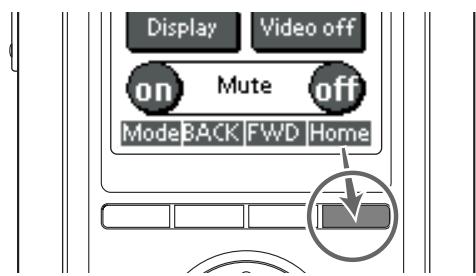
SELECTING A DEVICE ON THE HOME SCREEN
Tap the soft button of the device you want to operate.
The first page of the selected device appears. "Using the Page Up and Page Down Buttons" to go to another page of the device.
You operate devices using the buttons on your RC3200A:
- Soft buttons (touch screen buttons);
- Hard buttons.
USING THE SOFT BUTTONS
By tapping the soft buttons on the LCD touch screen you send IR commands to the device you have selected.
The name of the active device is indicated at the top of the touch screen.
Note
- You can operate the soft buttons in the same way you operate hard buttons on a conventional remote control. When you keep the soft button pressed instead of tapping it, RC3200A keeps sending the IR command.
REMOTE-CONTROLLABLE RANGE
The distance between the transmitter of the remote control unit and the IR SENSOR of the SR8300 should be less than about 5 meters. If the transmitter is pointed to a direction other than the IR SENSOR or if there is an obstacle between them, remote control may not be possible.
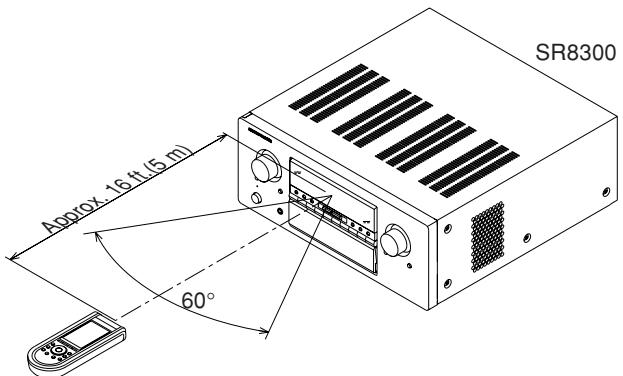
Remote control unit (RC3200A)
OPERATING AMP & TUNER
To control the SR8300 by your RC3200A, you have to select the device AMP or TUNER on HOME screen.
MAIN
AMP PAGE 1/8
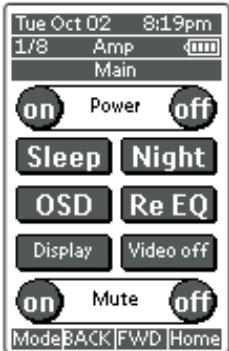
Power on and off buttons
These buttons are used to turn on or off SR8300
Sleep button
This button is used to set the sleep timer. (see page 37)
Night button
This button is used to set night mode. (see page 37)
Display button
This button is used to select the display mode for front display. (see page 42)
Video off button
This button is used to turn off or on the video signal outputs from MONITOR OUT terminals. (see page 42)
Cinema RE-EQ button
This button is used to active the Cinema Re-EQ™, press again this is inactive.
OSD button
This button is used to turn on the On Screen Display for general information.
You can find the current condition of SR8300.
INPUT SELECT1
AMP PAGE 2/8
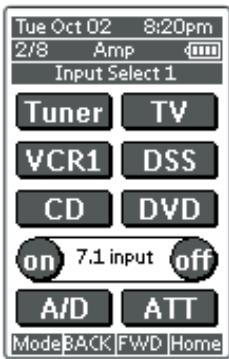
Tuner, TV, VCR1, DSS, CD, DVD, buttons
These buttons are used for selecting an input source. (see page 36)
7.1 INPUT On/Off buttons
These buttons are used to select 7.1ch Input source. (see page 44)
A/D button
This button is used to select the Auto digital input, fixed digital input or analog input. (see page 42)
ATT button
This button is used to attenuate to analog input signals. (see page 42)
INPUT SELECT 2
AMP PAGE 3/8
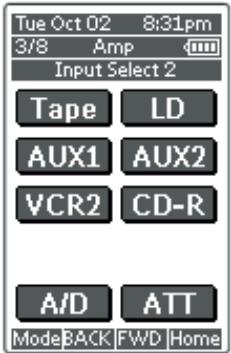
Tape, LD, AUX1, AUX2, VCR2, CD-R
These buttons are used for selecting an input source.(see page 36)
A/D button
This button is used to select the Auto digital input, fixed digital input or analog input.(see page 42)
ATT button
This button is used to attenuate to analog input signals. (see page 42)
TONE ADJUST
AMP PAGE 4/8
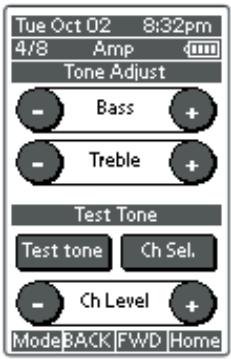
BASS + and -
These buttons are used to adjust the tone of low-frequency sound. (see page 36)
Treble + and -
These buttons are used to adjust the tone of high-frequency sound. (see page 36)
Test tone
This button is used to generate the test tone noise signal.
You can check the balance of output signal level.
Ch sel.
This button is used to change the test tone noise signal output channel.
Ch. Level + and -
This button is used to adjust the output level of each channel.
SURROUND MODE1
AMP PAGE 5/8
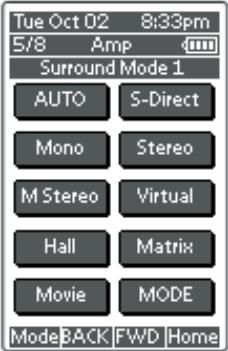
AUTO, S-DIRECT, Mono, Stereo, M-Stereo(Multi channel stereo), Virtual, hall, matrix, Movie.
These buttons are used to select surround mode.(see page 38, 39)
SURROUND MODE 2
AMP PAGE 6/8
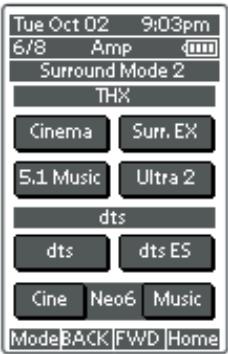
THX
CINEMA and Surr.EX (THX Surround EX)
These buttons are used to select THX mode. (see page 38)
DTS
dts, dts-ES, Neo6-cinema and Neo6-music
These buttons are used to select DTS mode. (see page 38)
SURROUND MODE 3
AMP PAGE 7/8
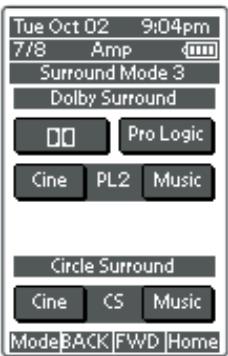
DOLBY SURROUND
and PL (Pro Logic), PL2-movie, PL2-music
These buttons are used to select Dolby Surround mode. (see page 38)
Circle Surround
CSII-cinema and CSII-music
These buttons are used to select SRS Circle Surround mode. (see page 39)
Note:
- Use MODE button (AMP page 5/8) to select CSII-Mono.
MULTI ROOM
AMP PAGE 8/8
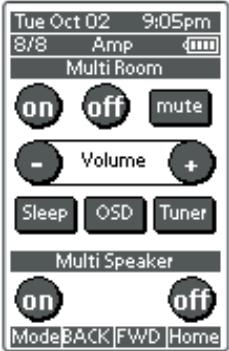
On/Off
These buttons are used to switch the unit to multi room mode.
Volume + and -
These buttons are used to adjust the sound level to multiroom system.
Mute
This button is used to mute the sound to multi room system temporarily.
Sleep
This button is used to set the sleep timer to multi room system.
Tuner
This button is to jump to TUNER's screen in this remote control unit.
OSD button
This button is used to turn on the On Screen Display for general information.
Multi room speaker On and Off
These buttons are used to switch the unit to multi room speaker mode.
Note:
- See page 48 to detail of Multi Room system.
TUNER
TUNER PAGE 1/3
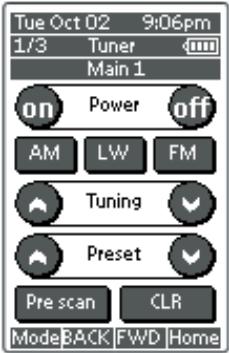
Power On and Off buttons
These buttons are used to turn on or off SR8300
AM, (LW), FM buttons
These buttons are used to switch between FM and AM mode of the tuner.
Tuning (\^:up/v:down) buttons
These buttons are used to change the frequency.
Preset (\^:up/v:down) buttons
These buttons are used to change the preset station.
Preset Scan button
This button is used to start a scan automatically through the stations preset into the receiver's memory.
CLR (Clear) button
This button is used to cancel certain memory or programming of tune operations.
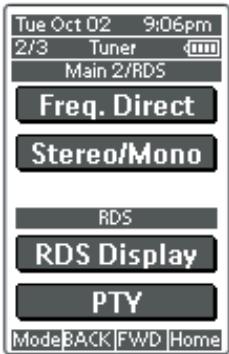
Frequency Direct button
This button is used to select the mode of frequency direct input.
Stereo/Mono button
This button is used to select the FM tuning mode, auto stereo or mono.
RDS Display button (European model only)
Selects display mode function in RDS (Radio Data System) by this button.
PTY button (European model only)
Selects PTY function in RDS (Radio Data System) by this button.
TUNER PAGE 3/3
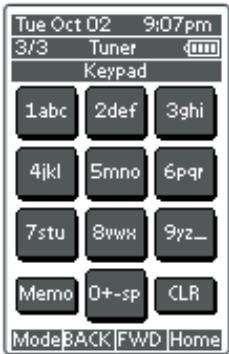
Ten keypad (0, 1 - 9)
These buttons are used to change the preset station name or input frequency directly.
Memo button
This button is used to enter the tuner's preset memory numbers and station names.
CLR (Clear) button
This button is used to cancel certain memory or programming operations.
SHOW THE STATUS OF SR8300 ON THE LCD OF RC3200A
RC3200A has 2way communication with SR8300, it shows some status screen for SR8300.
1/2 Status
To show 1^st page of status screen, press S button.
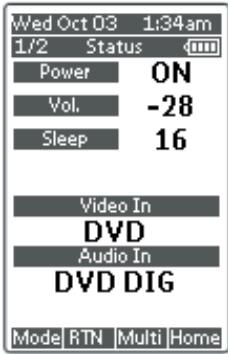
This status screen shows Power condition, Volume level, Sleep timer, Video Input ,and Audio input in Main room.
2/2 Status
If you desire to see 2^nd page of status screen, press Page UP button.
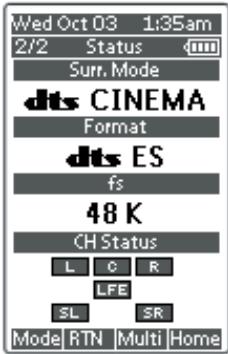
This status screen shows surround mode, format and channel status of input signal, in Main room.
Multiroom Status
If you desire to see status screen to Multiroom, press Multi button of navigation bar.
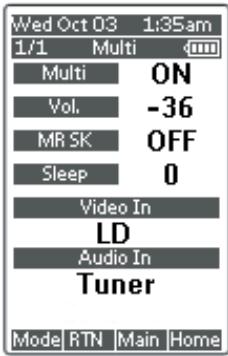
This status screen shows Multiroom condition, Volume level, Sleep timer, Video Input ,and Audio input in Multi room.
If you desired to exit from status screen, pres RTN button.
WORKING WITH MODES
RC3200A starts up in Use mode. In this mode you operate your devices. For customizing the RC3200A (adjusting the settings, learning buttons or recording macros) you have to switch to the appropriate mode.
Note
- When switching between modes you will always return to the last active screen.
The RC3200A can be put into 4 different modes. These modes are:
Use mode: For operating your devices. See "Operating Devices".
Setup mode: For changing the RC3200A system settings. See "Adjusting the Settings" for more details.
Learn mode: For learning commands from other remote controls. See "Learning Commands" for more details.
Macro mode: For recording macros. You can assign multiple commands to one single button. See "Recording Macros" for more details.
Note
-
Learning commands and recording macros is only possible per device. This means that you first have to select a specific device to perform these actions.
-
On the HOME screen tap the soft button of the device you want to customize.
The first page of the selected device appears.
- Press and hold the Mode button for 3 seconds. The Mode screen appears.
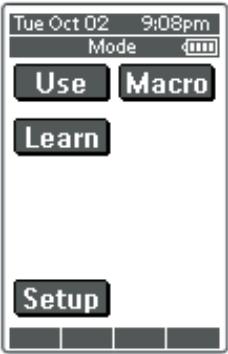
Note
You have to press and hold the Mode button for 3 seconds to prevent accidental changes.
- Select the desired mode from the Mode screen.
Note
- When you switch to another mode from the HOME screen, you cannot choose the Learn mode and Macro mode. To switch to these modes you first have to go to the specific device you want to customize.
ADJUSTING THE SETTINGS
The RC3200A settings can be adjusted in the Setup mode.
- Press and hold the Mode button for 3 seconds. The Mode screen appears.
- Tap Setup in the Mode screen. The first Setup page appears.
The RC3200A settings consist of 3 setup pages with several settings per page.
Use the Page Up and Page Down buttons to navigate to the appropriate setup page.
FIRST SETUP PAGE
On the first setup page you can adjust:
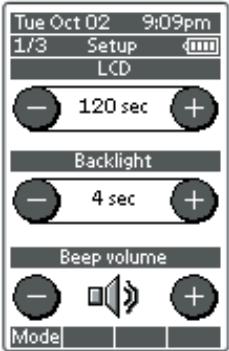
- the LCD timeout;
- the backlight timeout;
thebeep volume.
Adjust the LCD Timeout
The LCD timeout indicates how long the LCD touch screen stays active before it turns off.
The LCD will only time out when you don't touch any buttons.
You can set the timeout between 1 second and 120 seconds.
Press "+" to increase or -" to decrease the time the LCD stays active.
- Tap "+" or "-" once to adjust the timeout 1 second up or down.
- Press and hold “+” or “-” to adjust the timeout per 10 seconds up or down.
Adjust the Backlight Timeout
The backlight setting indicates how long the backlight of the LCD touch screen and the buttons stays active.
The backlight timeout can be set between 1 second and 120 seconds.
Note
- The backlight cannot stay active longer than the LCD. If you increase the backlight timeout, the LCD timeout will automatically increase as well.
Press "+" to increase or "-" to decrease the time the backlight stays active.
- Tap “+” or “-” once to adjust the timeout 1 second up or down.
- Press and hold “+” or “-” to adjust the timeout per 10 seconds up or down.
Note
- When the settings for the LCD timeout and the backlight timeout are high, the battery lifetime may be reduced.
Change the Beep volume
The beep volume setting adjusts or turns off the volume of all button and system beeps on the RC3200A. The beep volume levels are mute, soft, medium and loud.
- Press “+” to increase or “-” to decrease the beep volume.
SECOND SETUP PAGE
On the second setup page you can adjust:
the date;
the time.
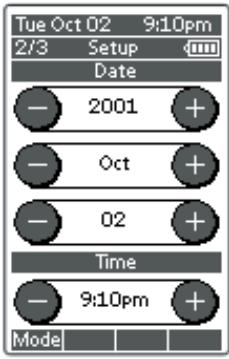
Adjust the Date
You can set the year, the month and the day in the date settings.
Press "+" to increase or "-" to decrease the value for the year, month and day.
- Tap “+” or “-” once to adjust the year, month and day one value up or down.
- Press and hold “+” or “-” to adjust the values for the year and the month more rapidly. The value for the day settings will change per 5 days.
The RC3200A will immediately reflect the date change at the top of the screen.
Adjust the Time
- Tap "+" or "-" once to adjust the time 1 minute up or down.
- Press and hold “+” or “-” to adjust the time more rapidly. The time will increase or decrease per 30 minutes.
The RC3200A will immediately reflect the time change at the top of the screen.
THIRD SETUP PAGE
RC3200A Information
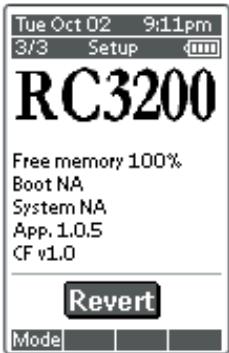
This page contains information that may be important to the dealer in case of a defect.
The following information is displayed on this screen:
- Free memory (in percentage), which gives you an indication on how much memory is left to (further) customize the RC3200A;
- Boot version;
Application version; - Configuration file.
Revert
Warning
- When you revert the RC3200A, all customization is lost permanently. You loose all RC3200A settings learned codes and recorded macros.
By tapping the Revert button the RC3200A will be reverted to the default configuration.
Reverting to the original configuration restores the RC3200A to its initial state.
You might have to revert when you notice that scrolling through pages is slowing down. This might be the case when you have added a lot of commands to the RC3200A.
- Tap the Revert button.
A message screen appears to confirm or cancel the revert process.
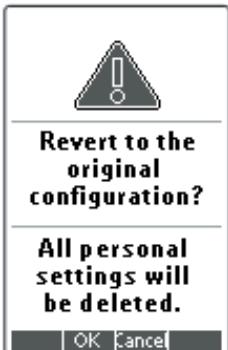
- Press OK or Cancel.
TO EXIT SETUP MODE
- Press the Mode button.
The Mode screen appears. - Tap the Mode button you want to go to. RC3200A switches to this mode. See also "Working with Modes".
LEARNING COMMANDS
If an IR code or a brand is not in the database, you can program RC3200A commands by transmitting IR signals from your existing remote controls to RC3200A's learning eye. To do this, place RC3200A and the device's remote control on a flat surface, 1 to 4 inches (2 to 10cm ) apart.
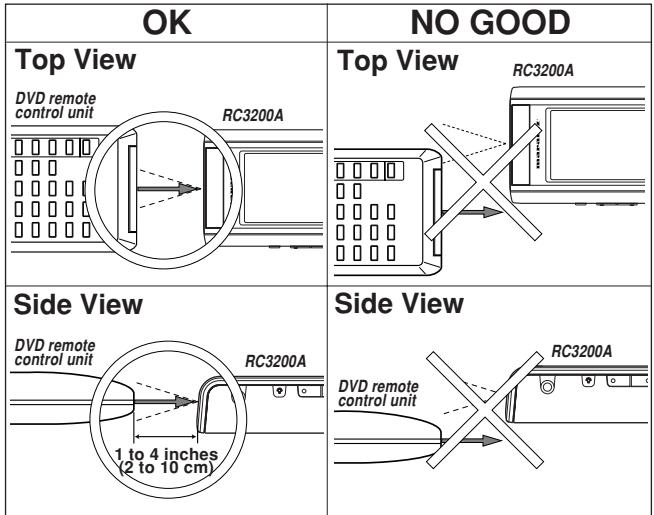
To learn commands from other remote controls, RC3200A has to be in Learn mode. Switching to Learn mode is only possible from a specific device, not from the Device Overview. See "Working with Modes". Per device you can learn all soft and hard buttons on the RC3200A, except for:
- the Backlight button;
- the Page Up and Page Down buttons;
- the buttons to navigation bar.
- the Status button.
THE LEARN SEQUENCE
- Set the RC3200A in Use Mode. See "Working with Modes".
- Select the device, e.g. DVD, with the buttons you want to learn. The device screen appears.
- Press and hold the Mode button for 3 seconds. The Mode screen appears.
- Tap Learn on the Mode screen.
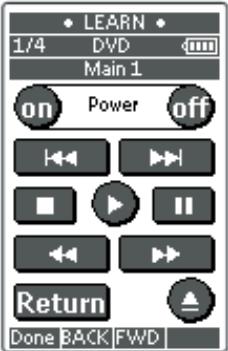
RC3200A is now in Learn Mode. 'Learn' and the label of the selected device appear at the top of the touch screen.
- Use, if necessary, the Page Up or Page Down button to go to the next button you want to learn.
- Press the soft or hard button you want to learn on the RC3200A. The Learn label changes to Learning, which means RC3200A is ready to receive commands from an existing remote control. The RC3200A will wait for 5 seconds to receive an IR code from another remote control.
Note
When a hard button is pressed to learn, there is no on screen feedback to indicate which button is pressed.
- Press and hold the button on the existing remote control you want to learn to the RC3200A.
When the RC3200A receives an IR code:
- You hear a confirmation beep;
- The label changes from Learning to OK. The Learn sequence has been successful.
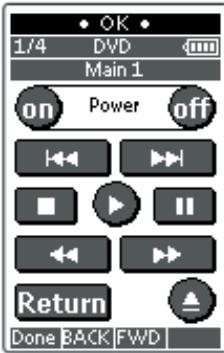
When the RC3200A does not receive an IR code in 5 seconds:
- You will hear an error beep;
- The label changes from Learning to Failed. The Learn sequence has failed.
- RC3200A will return to Learn mode. Return to step 5 of the Learn sequence to relearn the button.
Tip
You do not have to wait for the OK or Failed to disappear. If you press another button (soft or hard button), the RC3200A Learn sequence immediately goes back to step 5.
- Go to other pages of the selected device with the Page Up and Page Down buttons.
Repeat steps 6. and 7. until you have copied all the commands of the existing remote control. - Press Done when you have finished learning commands to the buttons of your choice.
RC3200A returns to Use Mode. You can try out the new IR codes or select another device to learn.
RECORDING MACROS
A macro allows you to send a sequence of commands using one single button. You can for instance, switch on your TV, turn to a movie channel and prepare your VCR for recording by rewinding the videotape. All this can be done by pressing a single button on your RC3200A.
To record macros, RC3200A has to be in Macro mode.
- Set the RC3200A in Use Mode. See "Working with Modes".
- Press the HOME button. and press the Page Up button once. The HOME screen 2/2 appears.
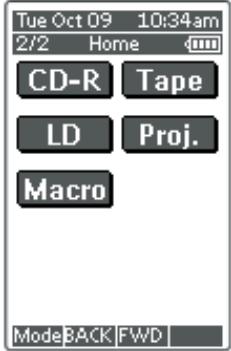
- Tap Macro button. Macro screen appears.
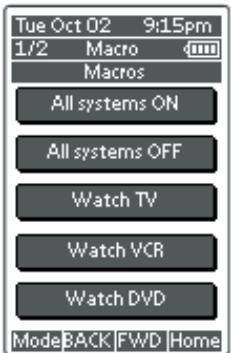
- Press and hold the Mode button for 3 seconds. The Mode screen appears.
- Tap Macro on the Mode screen. A message screen appears. RC3200A is now in Macro Mode.
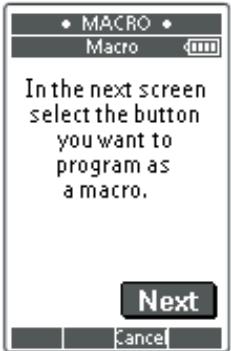
- Tap Next. The device screen with the Macro label appears.
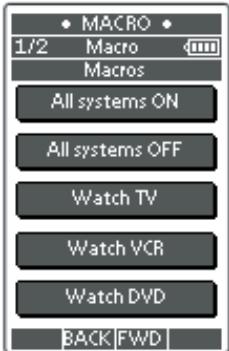
With the Page Up and Page Down buttons you can go to other screens of the selected device.
- Tap the soft button you want to select as a macro. A message screen appears.
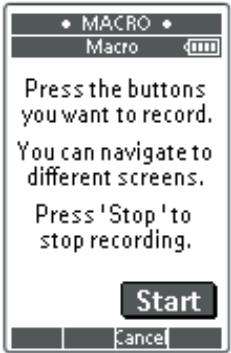
- Tap Start. The HOME screen appears with the 'Recording' label at the top of the screen. The buttons you tap on this screen will not be recorded. From the HOME you can go to the different devices or you can press the Extra hard button to go to the Extra screen with delays and beeps.
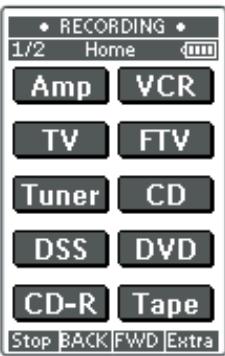
- Tap the button of the device you want to go to. The device screen appears.
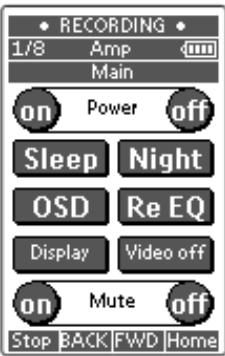
- Tap the soft or hard buttons with the commands you want to record.
- Press the Page Up and Page Down buttons to go to different screens of the same device or press the Home button to go to the HOME screen again.
- To add delays and beeps to the macro, press the Extra hard button on the HOME screen. The Extra screen appears.
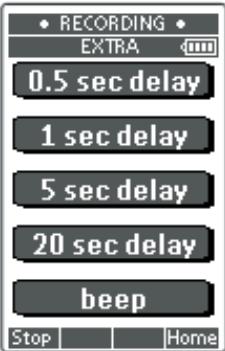
1) To add a delay, tap one of the Delay buttons. By tapping several Delay buttons, the duration of the delay will be increased.
2) To add a beep, tap the beep button.
3) Press the Home button to go to the HOME screen again.
- Press Stop to stop recording. A message screen appears.
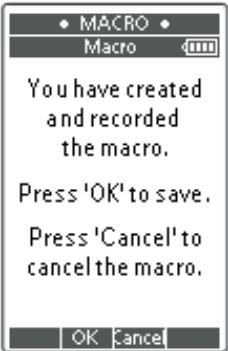
- Press OK to save the macro and return to the Mode screen. The existing command of the selected button is replaced by the macro or press Cancel to return to the Mode screen without saving the macro. The button retains its previous command.
- Set the RC3200A in Use mode to test the recorded macro.
RC3200 EDIT
If you want to personalize your RC3200A even more beyond its standard programming features, RC3200edit is the tool for you to use. You can find more information and updates of the software on http:// www.marantz.com.
RC3200edit is the visual editor for creating and configuring RC3200A Configuration Files (NCF) on your computer. An NCF is a file that is used to define the RC3200A behaviour and look for the LCD touch screen.
Note
- It is advised to make backup copies of your own configurations. This can be done with RC3200edit.
With RC3200edit you can:
- generate the Home Screen;
- design the page layout and the appearance of buttons;
- configure the behavior of the hard buttons and soft buttons;
- access RC3200edit's extended help system by pressing F1.
- save, duplicate and share NCFs, devices, buttons, bitmaps or codes with another RC3200A;
- preview the NCF on the RC3200emulator;
-
download the new configurations to your RC3200A by means of the included serial cable;
-
Plug one end of the serial cable in the serial port on your computer.
- Plug the other end of the serial cable in the serial port on the RC3200A.
Note
- When the RC3200A is connected to the PC, the battery lifetime may be reduced.

MINIMUM SYSTEM REQUIREMENTS
PC with a Pentium 166 MHz or higher
- Windows 95/98/ME/XP or NT 4.0/2000
32 MB of RAM
16 MB of free hard disk space
Free serial port
- Microsoft and Windows are trademarks of the Microsoft Corporation of the U. S. A. and are registered in the U. S. and other countries.
- Pentium is trademarks of Intel Corporation in the United States and other countries.
IMPORTANTNOTICES
Take care not to scratch the touch screen
Use your finger to tap the LCD touch screen or use plastic-tipped pens intended for use with touch screens.
Never use an actual pen, pencil or other sharp object on the LCD touch screen.
Protect RC3200A from extreme temperatures
Keep RC3200A away from heaters and other heat sources.
RC3200A is not waterproof
RC3200A should not be exposed to rain or moisture.
Do not store or use RC3200A in any location that is extremely damp or wet.
When you have spilled water on RC3200A, you have to take out the batteries and let RC3200A dry for 48 hours before you place the batteries back.
When you have spilled other liquids like coffee on the RC3200A, you can clean it with distilled water. Make sure no water gets into the housing.
The touch screen of RC3200A contains a glass element
Do not drop RC3200A or subject it to any strong impact.
Replace batteries
In case of replacing batteries, the RC3200A has a backup function to prevent some memory data such as the learned RC code, Macro from being erased.
But, the memory of setup page (LCD, Lighting, Date, etc.) will be cleared.
Please set again these contents, after you insert new batteries.
CLEANING RC3200A
Use a soft, damp cloth to clean RC3200A.
If the LCD touch screen of RC3200A is spoiled, clean it with a soft cloth moistened with a diluted window-cleaning solution.
Do not use a corrosive detergent or an abrasive sponge.
Avoid the use of abundant water.
HOW TO RESET THE RC3200A
Under normal circumstances, you will never have to reset the RC3200A.
However, on rare occasions, if the RC3200A's touch screen freezes or if you notice unusual behavior, you need to perform a reset to get the RC3200A running again. All customized commands and devices are retained.
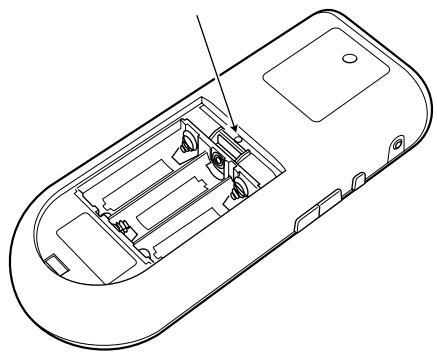
- Slide the battery cover off the back of the RC3200A.
You will see the Reset button in the battery compartment.
- Use an unfolded paperclip to carefully press the Reset button.
The RC3200A restarts and an Introduction screen appears. The RC3200A beeps twice to indicate it is ready for use.
CONNECTIONS
SPEAKER PLACEMENT
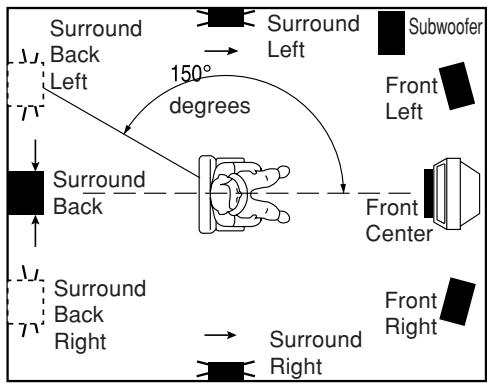
The ideal surround speaker system for this unit is 7-speaker systems, using front left and right speakers, a center speaker, surround left and right speakers, a surround back and a subwoofer.
For best results we recommend that all front speakers be of the same type, with identical or similar driver units. This will deliver smooth pans across the front sound stage as the action moves from side to side.
Your center channel speaker is very important as over 80% of the dialog from a typical motion picture emanates from the center channel. It should possess similar sonic characteristics to the main speakers. Surround channel speakers need not be identical to the front channel speakers, but they should be of high quality.
The surround back speaker is useful for playback of Dolby Digital Surround EX or DTS-ES. One of the benefits of both Dolby Digital (AC-3) and DTS is that surround channels are discrete full range, while they were frequency limited in earlier "Pro Logic" type systems. Bass effects are an important part of home theater. For optimal enjoyment a subwoofer should be used as it is optimized for low frequency reproduction. If you have full range front speakers, however, they may be used in place of a subwoofer with proper setting of the switches in the menu system.
Front left and right speakers
We recommend to set the front L and R speakers with 45-60 degrees from the listening position.
Center speaker
Align the front line of the center speaker with the front L/R speakers. Or place the center speaker a little backward from the line.
Surround left and right speakers
Place the speakers right beside of the listening position or a little forward.
Surround back speaker
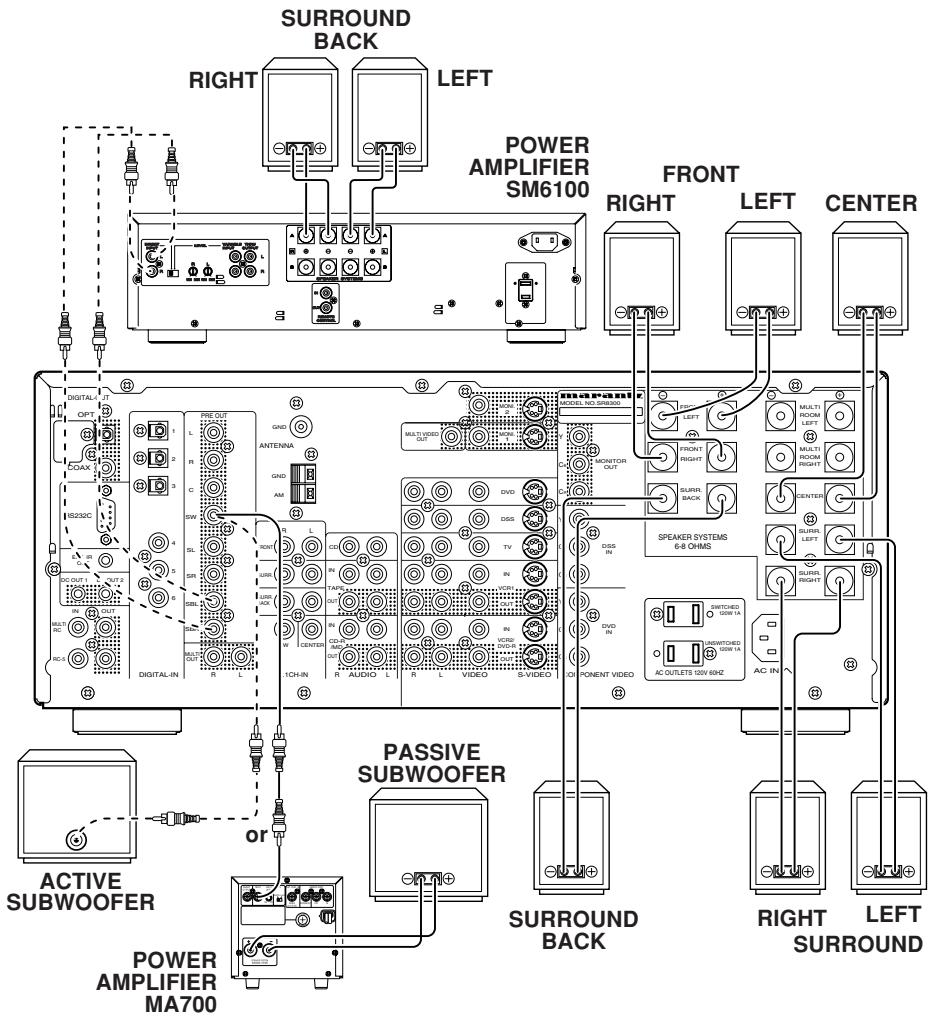
To connect two surround back speakers, connect a 2 channel power amplifierto the PRE OUT SBL and SBR terminals on the SR8300, and connect the surround back left & right speakers to that power amplifier.
You will also need to make the appropriate setting in the OSD Menu: SPEAKER SETUP SPEAKER SIZE SURR BACK=2CH (see page 31).
Subwoofer
We recommend to use a sub-woofer to have maximum bass effect. Sub-woofer bears only low frequency range so you can place it anywhere in the room.
HEIGHT OF THE SPEAKER UNITS
Front left and right speakers, and a center speaker
Align the tweeters and mid-range drivers on the three front speakers on the same height as well as possible.
Surround left and right speakers, and surround back speaker
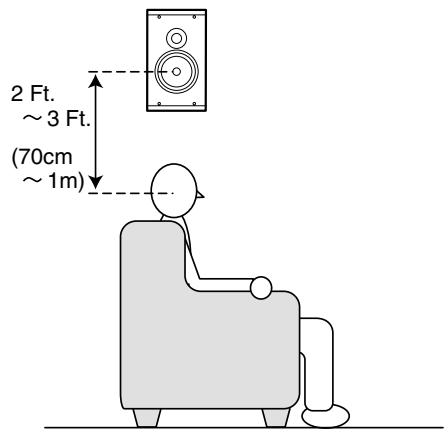
Place the surround left, right and surround back speakers higher to your ears 2 Ft. - 3 Ft.(70cm - 1m). Also place the speakers on the same height.
Note;
- Use magnetically-shielded speakers for front left, right and the center speakers when the speakers are installed near the TV and the TV is a monitor type.
CONNECTING SPEAKER WIRE
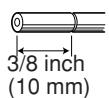
- Strip away approx. 3/8 inch (10 mm) of wire insulation.
- Twist the bared wire ends tight to prevent short circuits.
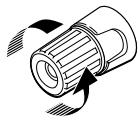
- Loosen the knob by turning counterclockwise.
- Insert the bare part of the wire into the hole in the side of each terminal.
- Tighten the knob by turning clockwise to secure the wire.
1.
3.

2.
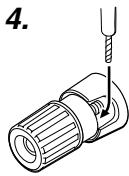
4.
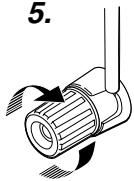
5.
CONNECTING BANANA PLUG
Banana plug connections are also possible.
Tighten the knob by turning clockwise and then insert the banana plug.
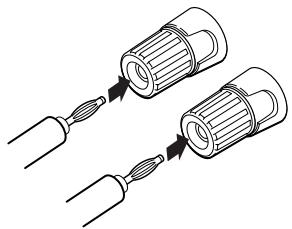
Caution:
- Be sure to use speakers with the specified impedance shown on the rear panel of this unit.
- To prevent damage to circuitry, do not let the bare speaker wires touch each other and do not let them touch any metal part of this unit.
- Do not touch the speaker terminals when the power is on. It may cause electric shocks.
- Do not connect more than one speaker cable to one speaker terminal. Doing so may damage this unit.
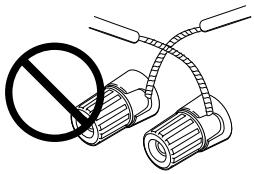
Note:
- Be sure to connect the positive and negative cables for the speaker properly. If they are miss-connected, the signal phase will reversed and the signal quality will be corrupted.
CONNECTING A SUBWOOFER
Use the PRE OUT SUBWOOFER jack to connect a powered subwoofer (power amplifier built in).
If your subwoofer is passive type (power amplifier is not built in), connect a monaural power amplifier to the PRE OUT SUBWOOFER jack and connect the subwoofer to the amplifier.
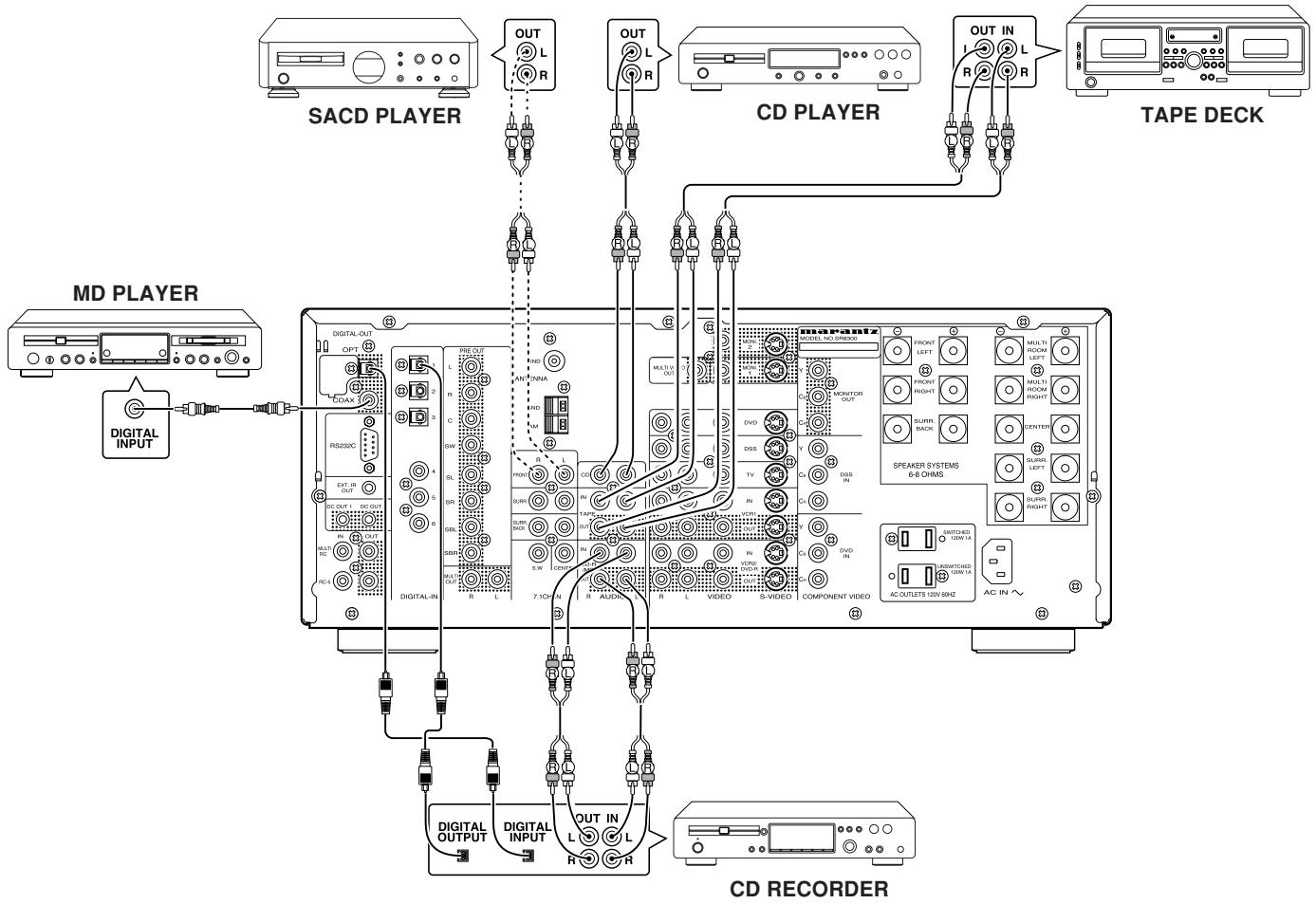
The output audio signal from the TAPE OUT jack and the CD-R/MD OUT jack is the sound source currently selected.
Caution:
- Do not connect this unit and other components to mains power until all connections between components have been completed.
Notes:
- Insert all plugs and connectors securely. Incomplete connections may make noise.
- Be sure to connect the left and right channels properly.
Red connectors are for the R (right) channel, and white connectors are for the L (left) channel.
- Be sure to connect input and output properly.
- Refer to the instructions for each component that is connected with this unit.
- Do not bind audio/video connection cables with power cords and speaker cables will result in generating hum or other noise.
CONNECTING DIGITAL AUDIO COMPONENTS
- There are 6 digital inputs, 3 coaxial jacks and 3 optical jacks, on the rear panel. You can use these jacks to input PCM, Dolby Digital and DTS bitstream signals from a CD, DVD or other digital source components.
- There are one digital output with coaxial jack and one with optical jack on the rear panel. These jacks can be connected to CD recorder, MD deck.
- Setup the digital audio format of DVD player, or other digital source component. Refer to the instructions for each component to be connected to digital input jacks.
- Use fiber optical cables (optical) for DIG-1, 2, 3 input jacks. Use 75 ohms coaxial cables (for digital audio or video) for DIG-4, 5, 6 input jacks.
- You can designate the input for each digital input/output jacks according to your component. See page 31.
Notes:
- There is no Dolby Digital RF input jack. Please use an external RF demodulator Dolby Digital decoder when connecting the Dolby Digital RF output jack of the video disc player to the digital input jack.
- The digital signal jacks on this unit conform to the EIA standard. If you use a cable that does not conform to this standard, this unit may not function properly.
Each type of audio jack works independently. Signals input through the digital and analog jacks are output through the corresponding digital and analog jacks, respectively.
CONNECTINGVIDEOCOMPONENTS
CONNECT TO THE VIDEO JACKS
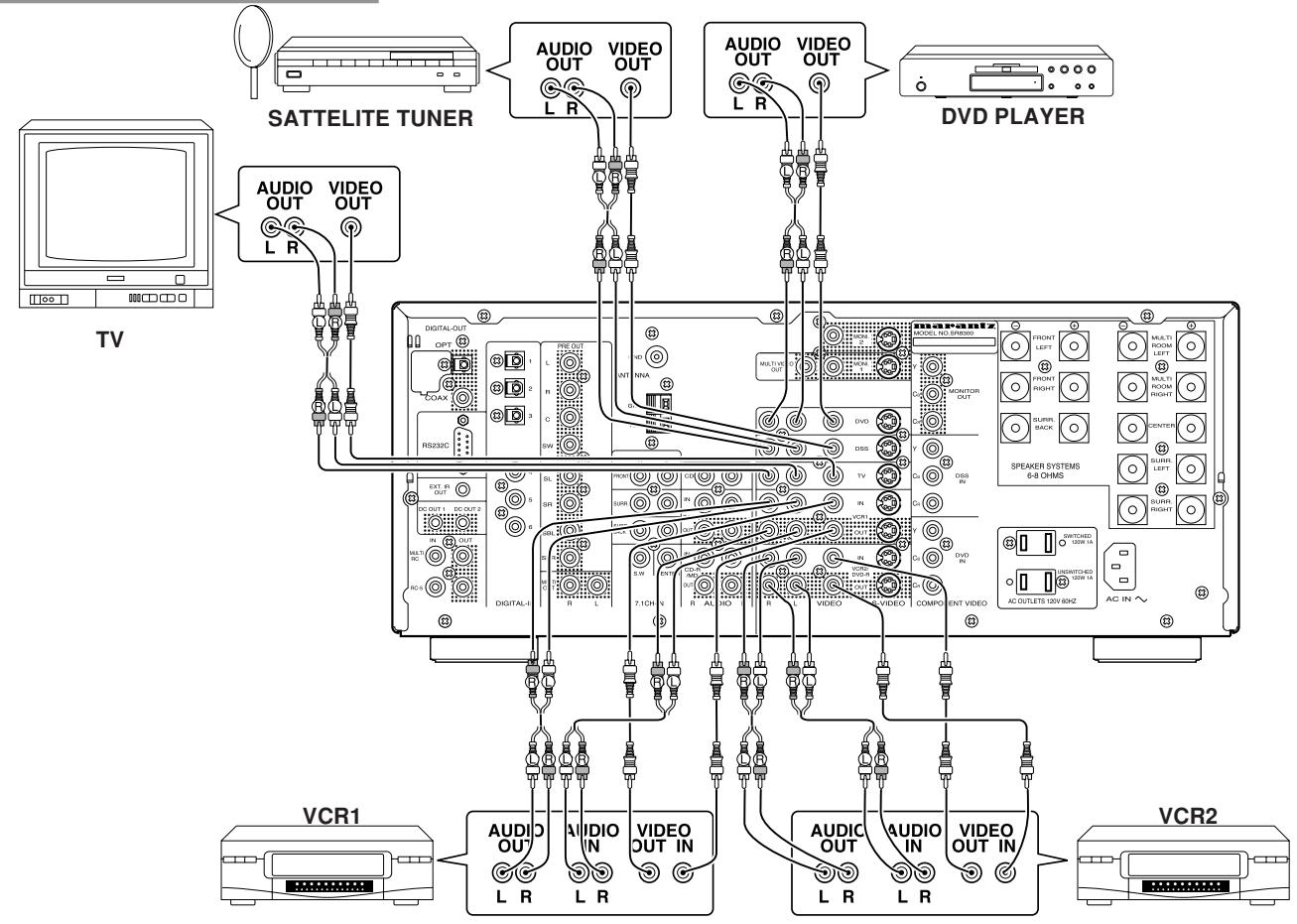
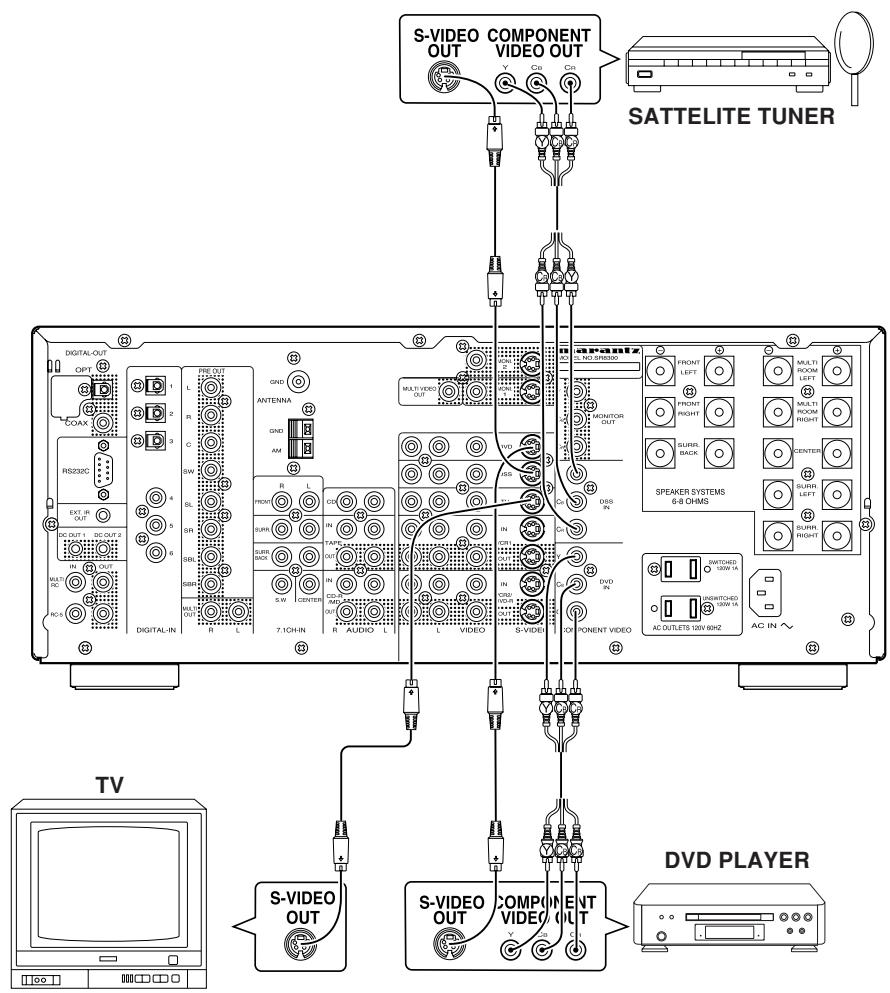
CONNECT TO THE S-VIDEO JACKS AND COMPONENT
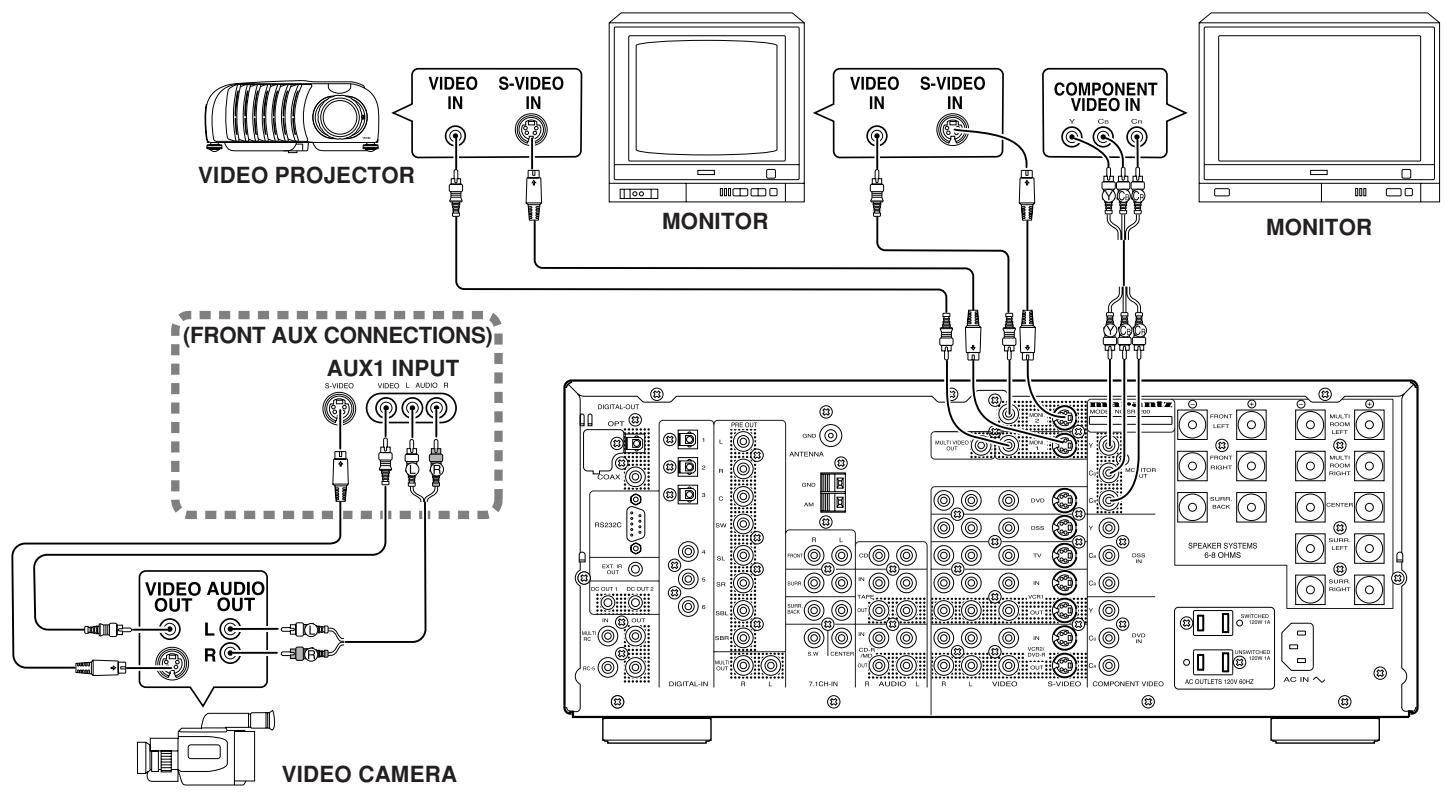
VIDEO, S-VIDEO, COMPONENT JACKS
There are 3 types of video jacks on the rear panel.
VIDEO jack
The video signal for the VIDEO jacks is the conventional composite video signal.
S-VIDEO jack
The video signal is separated into luminance (Y) and color (C) signals for the S-VIDEO jack. The S-VIDEO signals enable high-quality color reproduction. If your video component has an S-VIDEO output, we recommend to use it. Connect the S-VIDEO output jack on your video component to the S-VIDEO input jack on this unit.
Component jack
Make component video connections to a TV or monitor with component inputs to produce a higher quality video images. Use component video cable or 3 video cords to connect the component video out jacks on the SR8300 to the monitor.
Notes:
- Be sure to connect the left and right audio channels properly. Red connectors are for the R (right) channel, and white connectors are the for L (left) channel.
- Be sure to connect input and output of video signal properly.
- If you connect the S-VIDEO or component signal to the S-VIDEO or component jack on this unit, it is not necessary to connect the conventional video signal to the VIDEO (composite) jack. If you use both video inputs, this unit gives priority to the S-VIDEO signal.
-
Each type of video jack works independently. Signals input to the VIDEO (composite) and S-VIDEO jacks or component are output to the corresponding VIDEO (composite) and S-VIDEO or component jacks, respectively.
-
This unit has the "TV-AUTO ON/OFF" function to turn ON or OFF automatically the power by the incoming video signal from VIDEO jacks.
- You may need to setup the digital audio output format of your DVD player, or other digital source component. Refer to the instructions of the each component connected to the digital input jacks.
- There is no Dolby Digital RF input jack. Please use an external RF demodulator with Dolby Digital decoder to connect a video disc player with the Dolby Digital RF output jack to the digital input jack on this unit.
ADVANCED CONNECTING
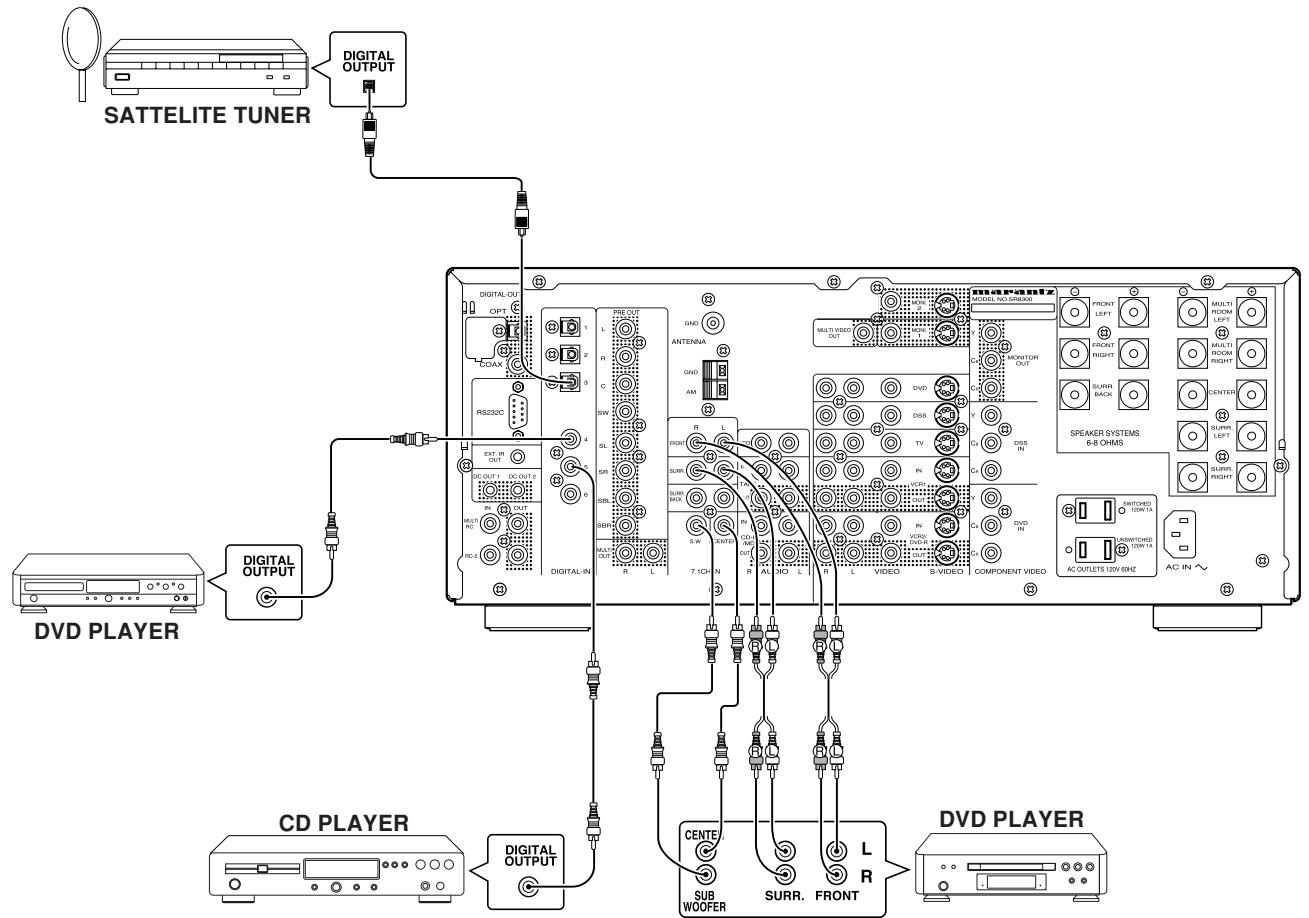
The 7.1CH INPUT jacks are for multi channel audio source such as SACD multi channel player, DVD audio player or external decoder. If you use these jacks, switch on 7.1CH INPUT and setup 7.1CH INPUT level by using SETUP MAIN MENU. See page 35.
CONNECTING EXTERNAL POWER AMPLIFIER
The PREOUT jacks are for connecting external power amplifiers, you can have better sound quality. Be sure to connect each speaker to the corresponding external power amplifier.
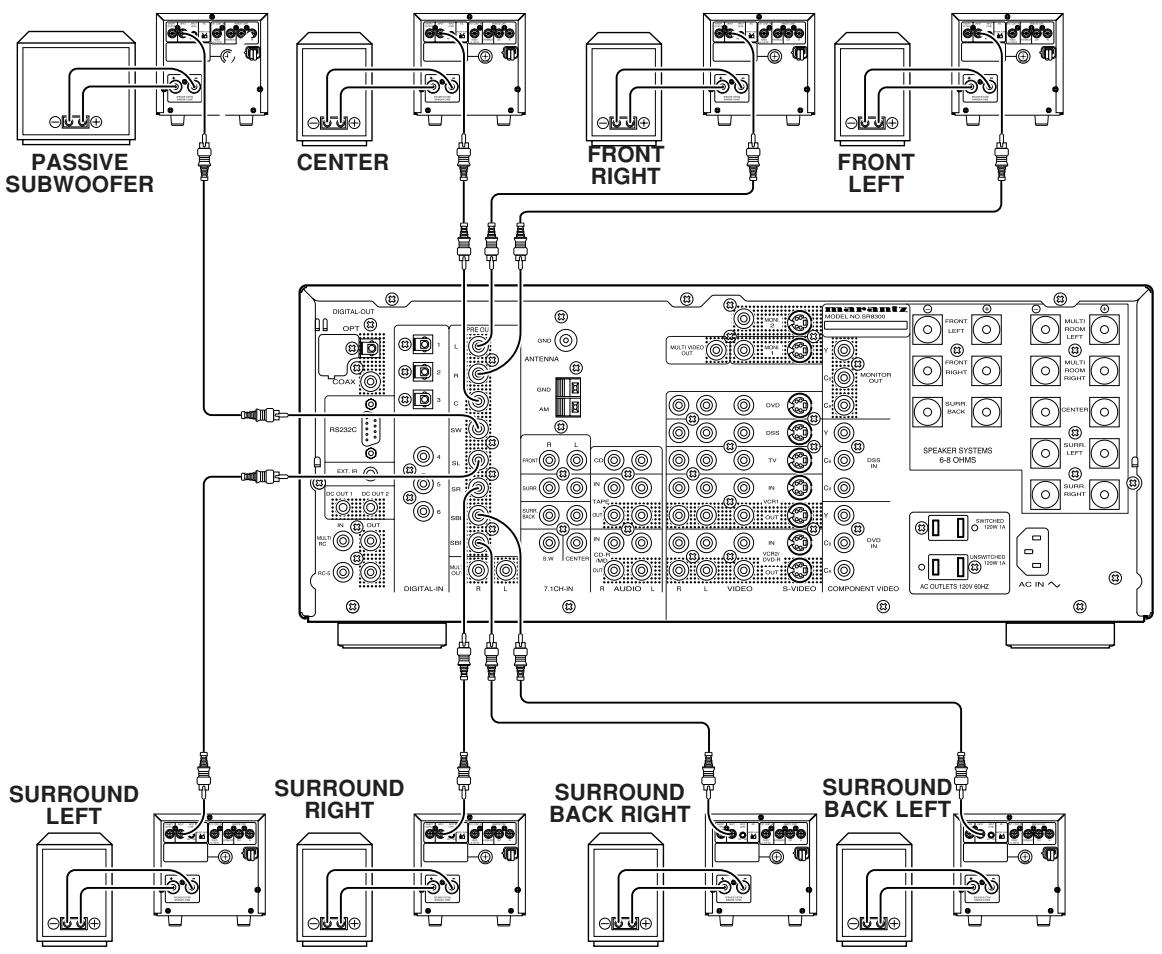
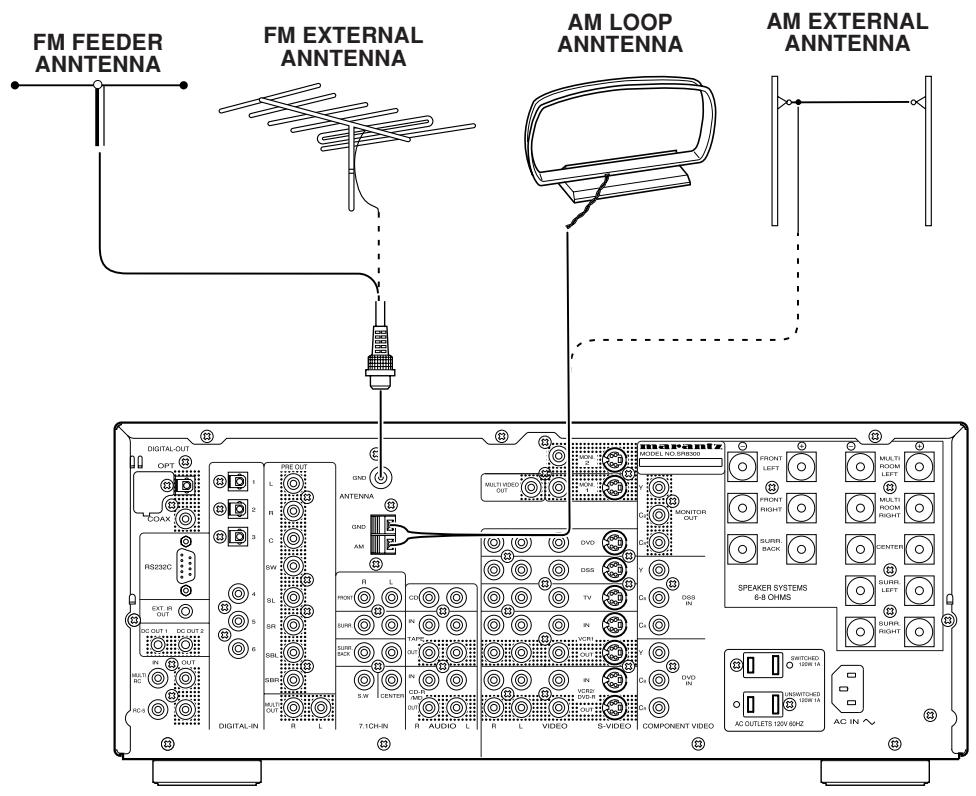
ASSEMBLING THE AM LOOP ANTENNA
- Release the vinyl tie and take out the connection line.
- Bend in the reverse direction.
- Inserting into the hole to attach the loop antenna to the antenna stand.
- With the antenna on top any stable surface.
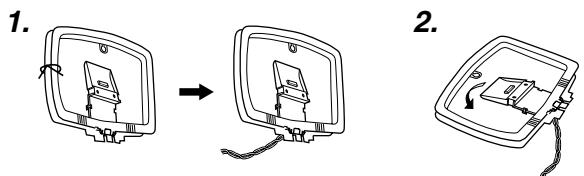
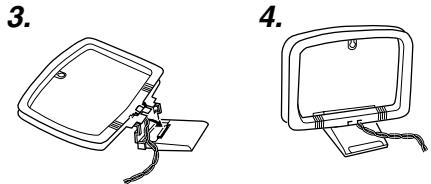
CONNECTING THE SUPPLIED ANTENNAS
Connecting the supplied FM feeder antenna
The supplied FM feeder antenna is for indoor use only.
During use, extend the antenna and move it in various directions until the clearest signal is received.
Fix it with push pins or similar implements in the position that will cause the least amount of distortion.
If you experience poor reception quality, an outdoor antenna may improve the quality.
Connecting the supplied AM loop antenna
The supplied AM loop antenna is for indoor use only. Set it in the direction and position where you receive the clearest sound. Put it as far away as possible from the unit, televisions, speaker cables, and power cords.
If you experience poor reception quality, an outdoor antenna may improve the quality.
- Press and hold down the lever of the AM antenna terminal.
- Insert the bared wire into the antenna terminal.
- Release the lever.
CONNECTING AN FM OUTDOOR ANTENNA
Notes:
- Keep the antenna away from noise sources (neon signs, busy roads, etc.).
- Do not put the antenna close to power lines. Keep it well away from power lines, transformers, etc.
- To avoid the risk of lightning and electrical shock, grounding is necessary.
CONNECTING AN AM OUTDOOR ANTENNA
An outdoor antenna will be more effective if it is stretched horizontally above a window or outside.
Notes:
- Do not remove the AM loop antenna.
- To avoid the risk of lightning and electrical shock, grounding is necessary.
CONNECTING REMOTE CONTROL JACKS
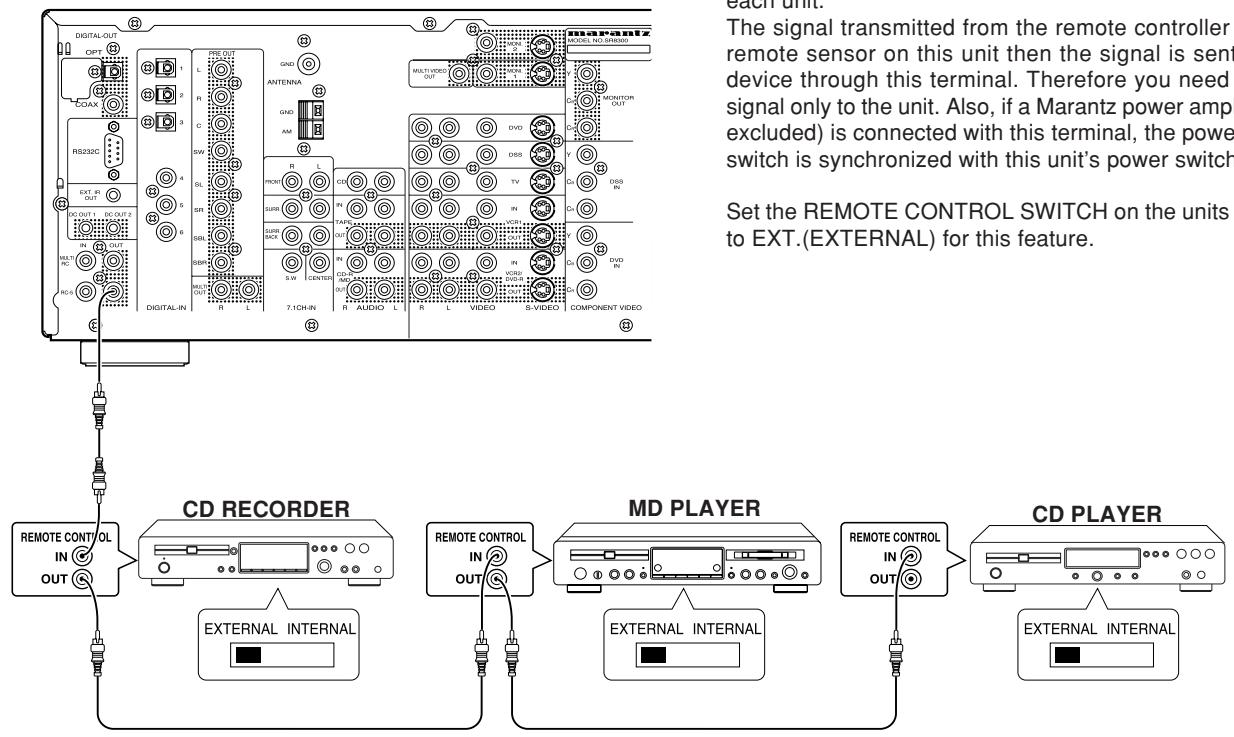
You can control other Marantz products through this unit with the remote controller by connecting REMOTE CONTROL terminals on each unit.
The signal transmitted from the remote controller is received by the remote sensor on this unit then the signal is sent to the connected device through this terminal. Therefore you need to aim the remote signal only to the unit. Also, if a Marantz power amplifier (some models excluded) is connected with this terminal, the power amplifier's power switch is synchronized with this unit's power switch.
Set the REMOTE CONTROL SWITCH on the units other than this unit to EXT.(EXTERNAL) for this feature.
CONNECTING FOR THE MULTI ROOM
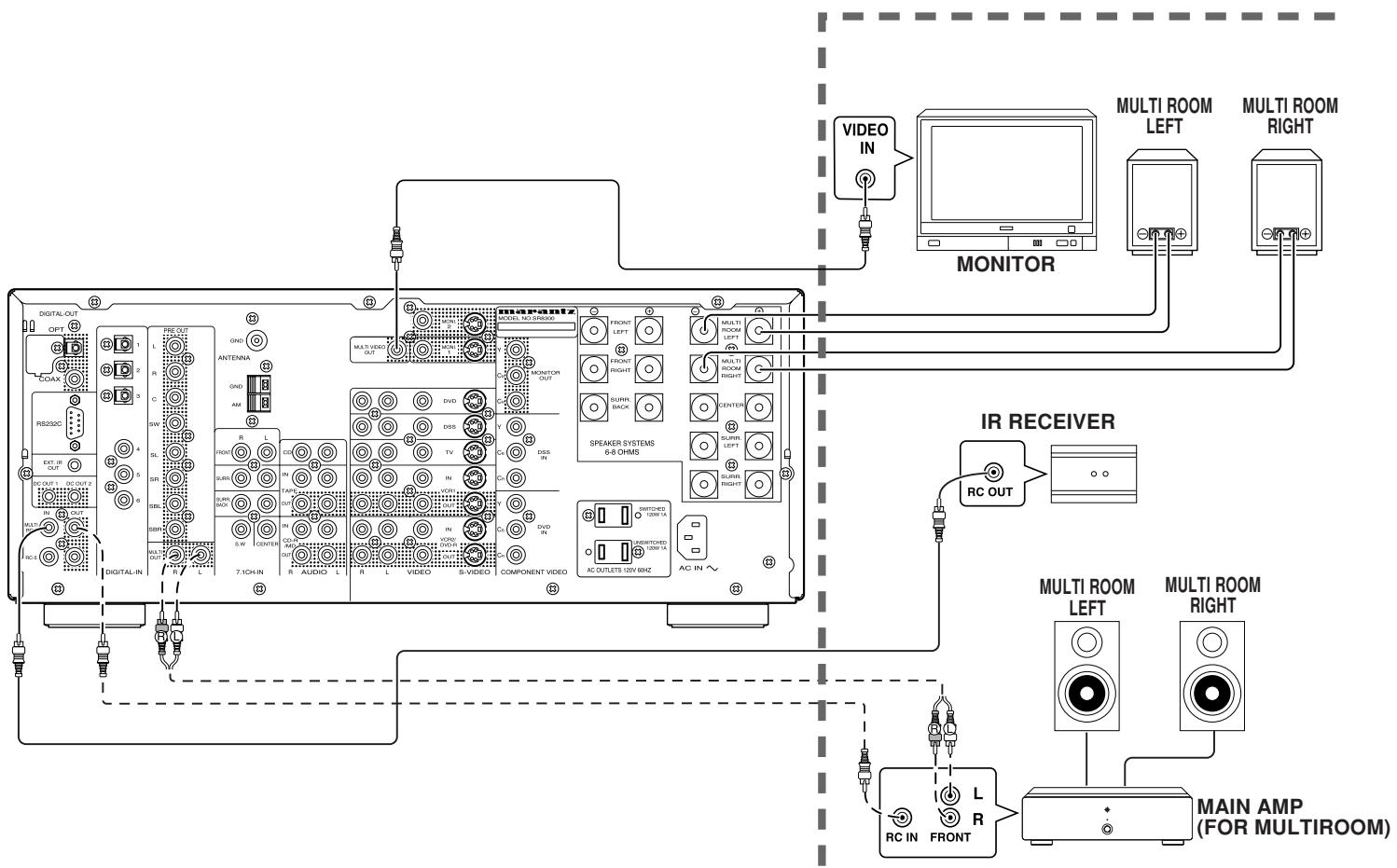
SETUP
After all components are connected, initial setup must be performed.
ON SCREEN DISPLAY MENU SYSTEM
The SR8300 incorporates an on-screen menu system, which makes various operations possible by using the cursor (Up, Down, Left, Right) and OK buttons on the remote control unit.
Notes:
- To view the on-screen displays, make certain you have made a connection from the Monitor Out jack (VIDEO, S-VIDEO or COMPONENT) on the rear panel to the composite, S-Video or component input of your TV or projector. (see 25 page)
-
In order to view the SR8300's displays, the correct video source must be selected on the video display.
-
Select the AMP mode in remote commander.
- Press M (menu) button on the remote commander to display the "MAIN SETUP MENU" of the OSD menu system. There are 8 items in the MAIN SETUP MENU.
- Select a desired sub-menu with Up or Down cursor button, and press the OK button to entry.
The display will change to selected sub-menu.
You can lock the condition of setup to each sub-menu with Left or Right cursor buttons.
Notes: If you desire to adjust any sub-menu, you need to set UNLOCKED. - If you desire to exit from this menu system, press Ex (exit) button or move the cursor to EXIT and press the OK button.
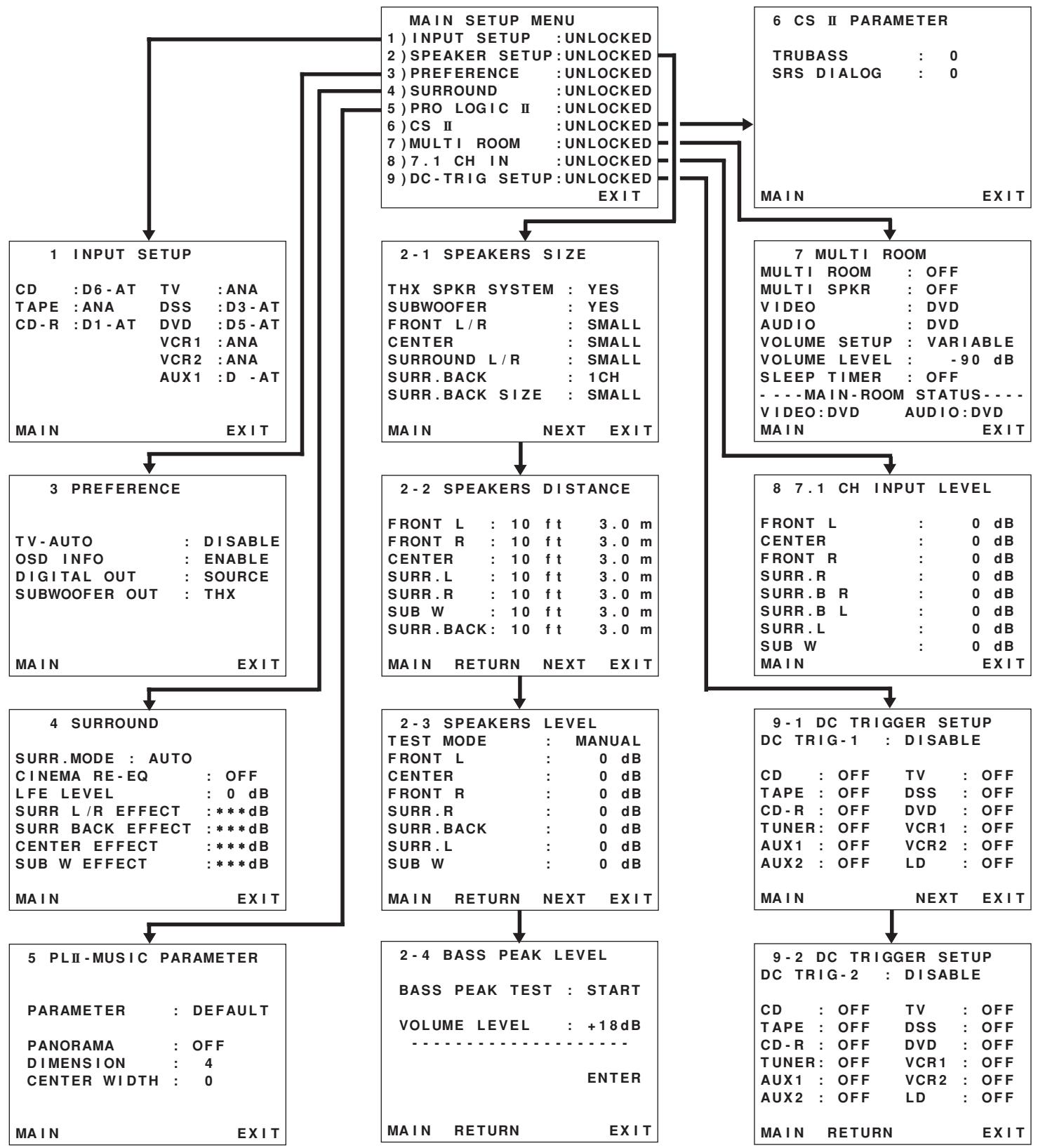
INPUT SETUP (ASSIGNABLE DIGITAL INPUT)
Six digital inputs can be assigned as the desired source.
Use this menu to select the digital input jack to be assigned to the input source.
- Select "INPUT SETUP" in MAIN SETUP MENU with Up or Down cursor button, and press the OK button.
| 1 | INPUT | SETUP | |
| CD :D6-AT TV :D4-AT | |||
| TAPE :ANA DSS :D3-AT | |||
| CD-R :D1-AT DVD :D5-AT | |||
| VCR1 :ANA | |||
| VCR2 :ANA | |||
| AUX1 :D-AT | |||
| MAIN | EXIT | ||
-
To select the input source, press Up or Down cursor button.
-
To select the digital input jack, press the Left or Right cursor buttons.
Select "Dx-AT" for input sources, for automatic detection of the digital input signal condition.
If no digital signal is input, the input signals to the analog input jacks will be played.
Select "Dig x" for input sources, for fixed the digital input jack.
Select "ANA" for input sources for which no digital input jacks are used.
- If you finish the setup in this sub-menu, move cursor to MAIN with Up or Down cursor buttons and press OK button.
Notes:
- The TUNER is fixed to the analog input, and cannot be selected for any digital input.
- When a DTS-LD or DTS-CD is playing, this setup is not available. This is to avoid noise being generated from the analog input.
- If "Dx-AT" is selected and a DVD, compact disc or LD is fast-forwarded during playback, decoded signals may produce a skipping sound. In such cases, change the setting to DIGITAL.
SPEAKER SETUP
After you have installed the SR8300, connected all the components, and determined the speaker layout, it is now time to perform the settings in the Speaker Setup menu for the optimum sound acoustics for your environment and speaker layout.
Before you perform the following settings, it is important that you first determine the following characteristics:
Note:
- You can not entry these setup, when you use MULTI SPEAKER function.
SPEAKER SIZE
When setting the speaker size in the SPEAKER SIZE sub-menu, use the guidelines given below.
Large: The complete frequency range for the channel you are setting will be output from the speaker.
Small: Frequencies of the channel you are setting lower than 80Hz will be output from the subwoofer.
If the Subwoofer is set to "NONE" and the front speakers are set to "Large," then the sound may be output from both the left and right speakers.
| 2-1 SPEAKERS SIZE | |
| THX SPKR SYSTEM : YES | |
| SUBWOOFER : YES | |
| FRONT L/R : SMALL | |
| CENTER : SMALL | |
| SURROUND L/R : SMALL | |
| SURR.BACK : 1CH | |
| SURR.BACK SIZE : SMALL | |
| MAIN NEXT EXIT |
- Select "SPEAKER SETUP" in MAIN SETUP MENU with Up or Down cursor button, and press the OK button.
- To select the each speaker, press Up or Down cursor button.
- To select the setting of size to each speaker, press the Left or Right cursor buttons.
- If you finish these setup, move cursor to "NEXT" with Up or Down cursor button and then press OK button to go to next page.
THX SPEAKER SYSTEM
YES: If you use full THX speaker systems which are approved by LUCASFILM LTD. The front, center and surround speaker size will be "Small" and the subwoofer will be "Yes".
You need to set number of surround back speaker only.
NO : You desire to set each speaker size setup.
SUBWOOFER:
YES: Select when a subwoofer is connected.
NONE: Select when a subwoofer is not connected.
FRONT L/R
LARGE: Select if the front speakers are large sized.
SMALL: Select if the front speakers are small sized.
- If "NONE" is selected for the Subwoofer setting, then this setting is fixed to "Large."
CENTER
NONE: Select if no center speaker is connected.
LARGE: Select if the center speaker is large sized.
SMALL: Select if the center speaker is small sized.
SURROUND L/R
NONE: Select if no surround left and right speakers are connected.
LARGE: Select if the surround left and right speakers are large sized.
SMALL: Select if the surround left and right speakers are small sized.
SURR. BACK
NONE: Select if no surround back left and right speakers are connected.
2CH: (Preout only) Select if surround back left and right speakers are connected.
1CH: Select if the one surround back speaker connected.
- If "None" is selected for the Surround L/R setting, then this setting is fixed to "None."
- Required for enjoying THX Surround EX audio. Lucasfilm/THX recommends the use of two Surround Back speakers to enjoy the full potential of THX Surround EX.. However, if you are unable to position two speakers in your listening environment, a single surround speaker can be used. In this case, connect this speaker to Surr Back Left Speaker terminal and you will also need to make the appropriate setting SURR BACK=1CH
SURR. BACK SIZE
LARGE: Select if the surround back speakers are large sized.
SMALL: Select if the surround back speakers are small sized.
- If "None" is selected for the Surround L/R setting, then this setting is not available.
SPEAKER DISTANCE (TIME ALIGNMENT)
Use this parameter to specify the distance of each speaker's position from the listening position. The delay time is automatically calculated according to these distances.
Begin by determining the ideal or most commonly used seating position in the room.
This is important for the timing of the acoustics to create the proper sound space that the SR8300 and today's sound systems are able to produce.
Note that the speakers that you selected "No" or "None" for in the Speaker Config sub-menu will not appear here.
(There are several usefull books and special DVD and LD's available to guide you through proper home theater configuration. If you are unsure, have your Marantz dealer perform the installation for you.)
They are trained professionals familiar with even the most sophisticated custom installations. Marantz recommends the WWW.CEDIA.ORG website for further information about this).
| 2-2 SPEAKERS DISTANCE | |||
| FRONT L : 10 ft 3.0 m | |||
| FRONT R : 10 ft 3.0 m | |||
| CENTER : 10 ft 3.0 m | |||
| SURR.L : 10 ft 3.0 m | |||
| SURR.R : 10 ft 3.0 m | |||
| SUB W : 10 ft 3.0 m | |||
| SURR.BACK : 10 ft 3.0 m | |||
| MAIN RETURN NEXT EXIT |
- To select the each speaker, press Up or Down cursor button.
- To set the distance for each speaker, press the Left or Right cursor buttons.
- If you finish these setup, move cursor to "NEXT" with Up or Down cursor button and then press OK button to go to next page.
Front -L : Set the distance from the front left speaker to your normal listening position between 1 and 30 feet in 1.0 foot interval (0.3 to 9 meters in 0.3-meter intervals).
Front -R : Set the distance from the front right speaker to your normal listening position between 1 and 30 feet in 1.0 foot interval (0.3 to 9 meters in 0.3-meter intervals).
Center : Set the distance from the center speaker to your normal listening position between 1 and 30 feet in 1.0 foot interval
(0.3 to 9 meters in 0.3-meter intervals).
Surr Left : Set the distance from the surround left speaker to your normal listening position between 1 and 30 feet in 1.0 foot interval (0.3 to 9 meters in 0.3-meter intervals).
Surr Right : Set the distance from the surround right speaker to your normal listening position between 1 and 30 feet in 1.0 foot interval (0.3 to 9 meters in 0.3-meter intervals).
Subwoofer: Set the distance from the subwoofer to your normal listening position between 1 and 30 feet in 1.0-foot intervals (0.3 to 9 meters in 0.3-meter intervals).
Surr BACK: Set the distance from a surround back speaker to your normal listening position between 1 and 30 feet in 1.0-foot intervals (0.3 to 9 meters in 0.3-meter intervals).
Surr B L : Set the distance from the surround back left speaker to your normal listening position between 1 and 30 feet in 1.0-foot intervals (0.3 to 9 meters in 0.3-meter intervals).
Surr B R : Set the distance from the surround back right speaker to your normal listening position between 1 and 30 feet in 1.0-foot intervals (0.3 to 9 meters in 0.3-meter intervals).
Notes
- Speakers that you selected "No" or "None" for in the Speaker Size menu will not appear.
- The setting of Surr.Back L and Surr.Back R appears if set for two surround back speakers in the Speaker Size menu.
- The setting of Surr.Back appears if set for one surround back speaker in the Speaker Size menu.
SPEAKERS LEVEL
Here you will set the volume for each speaker so that they are all heard by the listener at the same level.
Note:
- The speaker level settings is not available in 7.1 channel input mode and S-Direct mode.
| 2-3 SPEAKERS LEVEL | |
| TEST MODE : MANUAL | |
| FRONT L : 0 dB | |
| CENTER : 0 dB | |
| FRONT R : 0 dB | |
| SURR.R : 0 dB | |
| SURR.BACK : 0 dB | |
| SURR.L : 0 dB | |
| SUB W : 0 dB | |
| MAIN RETURN NEXT EXIT |
TEST MODE : Selects "MANUAL" or "AUTO" for generating mode of test tone Left or Right cursor button.
If you select "AUTO", the test tone will be cycled through in a circular pattern which is Left Center Right Surround Right Surround Back Right Surround Back Left Surround Left Subwoofer Left inc increments of 3 seconds for each channel.
Using the Left and Right cursor buttons, adjust the volume level of the noise from the speaker so that it is the same level for all speaker.
If you select "MANUAL", adjust the output level of each speaker as follow.
- When you move cursor to FRONT L by pressing Down cursor button, the SR8300 will emit a pink noise from the front left speaker.
At this time, the master volume automatically increases to the reference level (0dB).
Remember the level of this noise and then press the Down cursor button.
(Note that this can be adjusted to any level between -10 and +10 dB in 1db intervals.)
The SR8300 will now emit the pink noise from the center speaker.
- Using the Left and Right cursor buttons, adjust the volume level of the noise from the center speaker so that it is the same level as the front left speaker.
- Press the Down cursor button again. The SR8300 will now emit the pink noise from the front right speaker.
- Repeat steps 2 and 3 above for the front right and other speakers until all speakers are adjusted to the same volume level.
If you finish these setup, press OK button, the cursor will move to "NEXT" and then press OK button to go to next page.
Notes:
- Speakers that you selected "No" or "None" for in the Speaker Size menu will not appear.
- The setting of Surr.Back L and Surr.Back R appears if set for two surround back speakers in the Speaker Size menu.
- The setting of Surr.Back appears if set for one surround back speaker in the Speaker Size menu.
- The setup level for each channel is memorized for reproduction in all surround mode.
- To adjust the speaker levels for 7.1-channel input sources, you will need to use the 7.1CH-INPUT sub menu. (See page 32).
- In order to correctly set the output levels, use a hand-held Sound Pressure Level meter (SPL), set to C-Weighting and Slow averaging. A Radio Shack® SPL meter (catalogue number 330 - 2055) works well. Using the internal channel noise generators, set each channel so that you read 75 dB SPL from each channel when seated at the listening position.
BASS PEAK LEVEL
With Dolby Digital and DTS, not only the LFE (Low Frequency Effects), but also the bass of all channels can be heard from the Subwoofer or Large-speakers. This procedure prevents these speakers from becoming too loud and creating an unbalanced sound. Since the sound is output at a loud volume, perform this operation carefully.
Note:
- If your system does not include a subwoofer, this setting will set the bass peak level for your front speakers.
| 2-4 BASS PEAK LEVEL |
| BASS PEAK TEST : START |
| VOLUME LEVEL : +18dB |
| ENTER |
| MAIN RETURN EXIT |
TEST SIGNAL: Press the OK or Left button, START is indicated and it begins to generate a Bass test tone from the speaker which was designated "bass signal output" during setup.
There will be no audible sound yet because the Master volume is set to minimum automatically.
Press Down cursor button to move the cursor to VOLUME control.
VOLUME: Adjust the bass test tone output level up until the bass begins to distort or you reach the maximum level with the VOL+, VOL- or Right / Left cursor button.
Press Down cursor button to move the cursor to ENTER.
ENTER: Press the OK button, ENTER will blink and stop generating the Bass Peak test tone.
The Bass Peak Limit Level for your system has now been memorized.
If you finish these setup, move cursor to "MAIN" with Up or Down cursor button and then press OK button to go to MAIN menu.
Notes:
Each time the subwoofer level is changed, perform the Bass Peak Level setup and correct the setting.
- The bass peak level is not available in SOURCE-DIRECT and 7.1CH-INPUT mode.
- The selected value is displayed in the volume column before the test signal starts.
PREFERENCE
| 3 PREFERENCE | |
| TV-AUTO | : DISABLE |
| OSD INFO | : ENABLE |
| DIGITAL OUT | : SOURCE |
| SUBWOOFER OUT | : THX |
| MAIN | EXIT |
- Select "PREFERENCE" in MAIN SETUP MENU with Up or Down cursor button, and press the OK button.
- To select a desired content, press Up or Down cursor button.
TV AUTO: Select the TV AUTO ON/OFF function to enable or disable with Left or Right cursor button. (refer to page 42)
OSD Info: Select the OSD information function to enable or disable with Left or Right cursor button. If you select "ENABLE", SR8300 will display the status of the feature (Volume up/down, input select, etc.) on the TV monitor. But if you do not desire this information, select "DISABLE".
DIG. OUT: Select the digital source to output the DIGITAL OUT terminals with Left or Right cursor button. This is for digital dubbing to a CD-R recorder or MD deck. (See page 43)
The source is switched in the following sequence.
SOURCE DIG.1 DIG.2 DIG.5 DIG.6 AUX OFF SOURCE
SUB-W OUT: "THX" position is required, but If you desire an additional front L/R mixed subwoofer output in the STEREO mode, select "L/R MIX" with Left or Right button.
If you finish the setup in this item, move cursor to "MAIN" with Up or Down cursor buttons and press OK button.
4 SURROUND
SURR_MODE : AUTO
CINEMA RE-EQ : OFF
LFE LEVEL : 0 dB
SURRL/R EFFECT :***dB
SURR BACK EFFECT :***dB
CENTER EFFECT :***dB
SUBW EFFECT :***dB
MAIN
EXIT
- Select "SURROUND" in MAIN SETUP MENU with Up or Down cursor button, and press the OK button.
- To select a desired content, press Up or Down cursor button.
SURR-MODE: Select the desired surround mode with Left or Right cursor button.
CINEMA RE-EQ™: Select to active the Cinema Re-EQ™ with Left or Right cursor button.
The tonal balance of a film soundtrack will be excessively bright and harsh when played back over audio equipment in the home. This is because film soundtracks were designed to be played back in large movie theater environments. Activating the Cinema Re-EQ™ feature when watching a film made for movie theaters corrects this and restores the correct tonal balance.
Cinema Re-EQ™ is therefore not necessary for material that was not designed for movie theaters (for example, sports programming, television shows, made for TV movies, etc.).
The Cinema Re-EQ™ feature can be activated only while in Dolby Pro Logic Mode, or while decoding Dolby Digital or DTS encoded material.
LFE LEVEL : Select the output level of the LFE signal included in the Dolby Digital signal or the DTS signal.
Select 0dB, -10 dB or OFF with Left or Right cursor button.
The level is ordinarily set to 0 dB except DTS-Music mode. In the DTS-Music mode, default level is set to -10 dB.
EFFECT LEVEL
SURR L/R EFFECT: Set the effect level of the Surround speaker between -3 and +3 level in 1 level interval.
- If "None" was selected for the Surround speakers setting in the Speaker size, then this setting will not appear.
SURR BACK EFFECT : Set the effect level of the Surround Back speaker between -3 and +3 level in 1 level interval . - If "None" was selected for the Surround back speakers setting in the Speaker size, then this setting will not appear.
CENTER EFFECT : Set the effect level of the center speaker between -3 and +3 level in 1 level interval . - If "None" was selected for the Center speaker setting in the Speaker size, then this setting will not appear.
SUBW EFFECT: Set the effect level of the subwoofer speaker between -3 and +3 level in 1 level interval. - If "None" was selected for the Subwoofer speaker setting in the Speaker size, then this setting will not appear.
Note:
- These effect level set up are available only while in HALL, MATRIX, MOVIE, Multi CH. STEREO.
If you finish the setup in this item, move cursor to "MAIN" with Up or Down cursor buttons and press OK button.
PLII (PRO LOGIC II) MUSIC PARAMETER
Pro Logic II-Music mode creates a rich and enveloping surround ambience from stereo sources such as CDs.
In this mode, SR8300 includes three controls to fine-tune the soundfield as follow.
| 5 PLII-MUSIC PARAMETER | |
| PARAMETER : DEFAULT | |
| PANorama : OFF | |
| DIMENSION : 4 | |
| CENTER WIDTH : 0 | |
| MAIN | EXIT |
Select "PRO LOGIC II" in MAIN SETUP MENU with Up or Down cursor button, and press the OK button.
PARAMETER: Select "DEFAULT" or "CUSTOM" with Left or Right cursor button
If you select "CUSTOM", you can adjust three parameters as follow
PANorama: Select the Panorama mode On or Off with Left or Right cursor button.
Panorama wraps the sound of the front left and right speakers around you for an exciting perspective.
DIMENSION: Set the Dimension level between 0 and 6 level in 1 level interval with Left or Right cursor button.
Adjust the soundfield either towards the front or towards the rear.
This can be useful to help achieve a more suitable balance from all the speakers with certain recordings.
CENTER WIDTH: Set the Center width level between 0 and 7 level in 1 level interval with Left or Right cursor button.
Center Width allows you to gradually spread the center channel sound into the front left and right speakers.
At its widest setting, all the sound from the center is mixed into the left and right.
This control may help achieve a more spacious sound or a better blend of the front image.
If "None" was selected for the Center speaker setting in the Speaker size, then this setting will not appear.
If you finish the setup in this menu, move cursor to "MAIN" with Up or Down cursor buttons and press OK button.
CS II (CIRCLE SURROUND II) PARAMETER
| 6 CS II PARAMETER | |
| TRUBASS:0 | |
| SRS DIALOG:0 | |
| MAIN | EXIT |
- Select "CS II" in MAIN SETUP MENU with Up or Down cursor button, and press the OK button.
- To Select desired contents as below, press Up or Down cursor button
TRUBASS: Set the TRUBASS level between 0 and 6 level in 1 level interval with Left or Right cursor button. TRUBASS produced by the speakers to be an octave below the actual physical capabilities of the speakers adding exciting, deeper bass effects.
SRS DIALOG: Set the SRS DIALOG level between 0 and 6 level in 1 level interval with Left or Right cursor button.
This can be popped out of the surround audio effects allowing the listener to easily discern what the actors say.
If "NONE" was selected for the Center speaker setting in the Speaker size, then this setting will not appear.
If you finish the setup in this menu, move cursor to "MAIN" with Up or Down cursor buttons and press OK button.
MULTI ROOM
SR8300 has some feature to MULTI ROOM SYSTEM as source selector, OSD information, sleep timer, Multi Room Speaker output and remote control.
You can set such feature by this sub-menu.
| 7 MULTI ROOM | |
| MULTI ROOM | OFF |
| MULTI SPKR | OFF |
| VIDEO | DVD |
| AUDIO | DVD |
| VOLUME SETUP | VARIABLE |
| VOLUME LEVEL | -90 dB |
| SLEEP TIMER | OFF |
| ----MAIN-ROOM STATUS---- | |
| VIDEO:DVD | AUDIO:DVD |
| MAIN | EXIT |
- Select "MULTI ROOM" in MAIN SETUP MENU with Up or Down cursor button, and press the OK button.
- To Select desired contents as bellow, press Up or Down cursor button
MULTI ROOM: To switch on the Multi-room output, press Left or Right cursor button.
MULTI SPKR: To switch on the Multi-room speaker output, press Left or Right cursor button.
VIDEO: Select the video source of the Multi-room output with Left or Right cursor button.
AUDIO: Select the audio source of the Multi-room output with Left or Right cursor button.
VOLUME SETUP: Select whether the Multi-room output level is variable or fixed with a Left or Right cursor button.
VOLUME LEVEL: Adjust the Multi-room output level with Left or Right cursor button.
SLEEP TIMER: SLEEP timer function is available during the multiroom is active, set the time with Left or Right cursor button.
MAIN ROOM STATUS: Selected input source in the main room will be displayed.
Notes:
- If "VOLUME" is set to "FIXED", the multi-room output level cannot be adjusted from the second zone.
If you finish the setup in this menu, move cursor to "MAIN" with Up or Down cursor buttons and
press OK button.
7.1 CH INPUT LEVEL
This sub-menu is to adjust the speaker levels for 7.1-channel input sources.
Here you will adjust the volume for each channel so that they are all heard by the listener at the same level.
| 8 7.1 CH INPUT LEVEL | |
| FRONT L | : 0 dB |
| CENTER | : 0 dB |
| FRONT R | : 0 dB |
| SURR.R | : 0 dB |
| SURR.B R | : 0 dB |
| SURR.B L | : 0 dB |
| SURR.L | : 0 dB |
| SUB W | : 0 dB |
| MAIN | EXIT |
- Select "7.1CH IN" in MAIN SETUP MENU with Up or Down cursor button, and press the OK button.
- To Select desired channel, press Up or Down cursor button.
- Using the Left or Right cursor buttons, adjust the volume level of each channel.
- If you finish the setup in this menu, move cursor to "MAIN" with Up or Down cursor buttons and press OK button.
Note:
- The condition of these setup will be memorized to 7.1CH INPUT source.
DC TRIGGER SETUP
SR8300 has two DC trigger control jacks, each one is selectable to link with input functions for the main room or multi room.
- Select "DC TRIGGER" in MAIN SETUP MENU with Up or Down cursor button, and press the OK button.
| 9-1 DC TRIGGER SETUP | |||
| DC TRIG-1 : DISABLE | |||
| CD : OFF | TV : OFF | ||
| TAPE : OFF | DSS : OFF | ||
| CD-R : OFF | DVD : OFF | ||
| TUNER : OFF | VCR1 : OFF | ||
| AUX1 : OFF | VCR2 : OFF | ||
| AUX2 : OFF | |||
| MAIN | NEXT | EXIT | |
- You can select MAIN ROOM, MULTI ROOM or DISABLE by pressing Left and Right cursor buttons.
- To Select desired input source, press Up or Down cursor button.
- To set ON or OFF, press Left or Right cursor button.
- If you finish the setup to DC-1 trigger, move cursor to "NEXT" with Up or Down cursor buttons and press OK button to go to next page.
| 9-2 DC TRIGGER SETUP | |||
| DC TRIG-2 : DISABLE | |||
| CD : OFF | TV : OFF | ||
| TAPE : OFF | DSS : OFF | ||
| CD-R : OFF | DVD : OFF | ||
| TUNER : OFF | VCR1 : OFF | ||
| AUX1 : OFF | VCR2 : OFF | ||
| AUX2 : OFF | |||
| MAIN RETURN | EXIT | ||
- You can select MAIN ROOM, MULTI ROOM or DISABLE by pressing Left and Right cursor buttons.
- To Select desired input source, press Up or Down cursor button.
- To set ON or OFF, press Left or Right cursor button.
- If you finish the setup to these menu, move cursor to "MAIN" with Up or Down cursor buttons and press OK button.
BASIC OPERATION (PLAY BACK)
SELECTING AN INPUT SOURCE.
Before you can listen to any input media, you must first select the input source at the SR8300.
E.G.: DVD
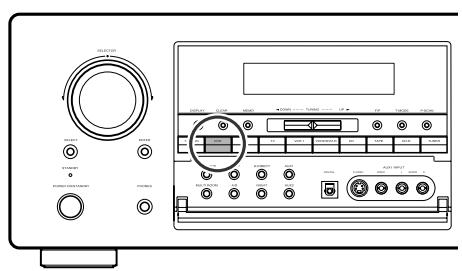
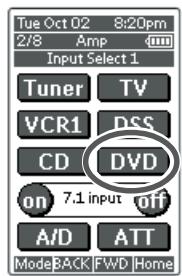
To select DVD, simply press the DVD button on the front panel or tap DVD on the remote.
After you have selected DVD, simply turn on the DVD player and play the DVD.
- As the input source is changed, the new input name will appear momentarily as an OSD information on the video display. The input name will also appear in the display on the front-panel.
- As the input is changed, the SR8300 will automatically switch to the digital input, surround mode, attenuation, and night mode status that were entered during the configuration process for that source.
- When an audio source is selected, the last video input used remains routed to the VCR1 & VCR2 Outputs and Monitor 1&2 Outputs. This permits simultaneous viewing and listening to different sources.
- When a Video source is selected, the video signal for that input will be routed to the Monitor 1&2 Outputs jack and will be viewable on a TV monitor connected to the SR8300.
If a component video input is connected to the DVD or DSS component inputs, it will be routed to the Component Video Output. Make certain that your TV is set to the proper input to view the signal.
SELECTING THE SURROUND MODE
E.G.: AUTO SURROUND
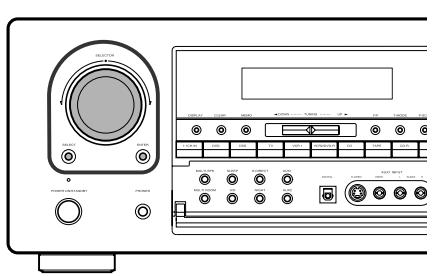
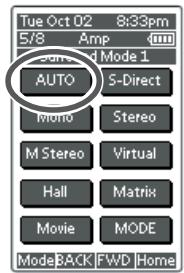
To select the surround mode during playback, turn the SELECT knob on the front panel or tap the surround mode icon on the remote.
ADJUSTING THE MAIN VOLUME
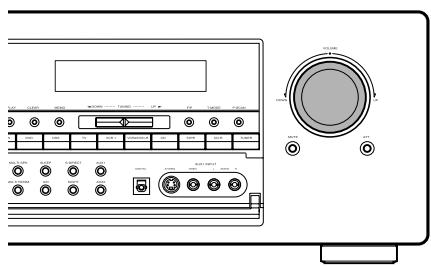
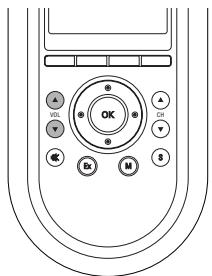
Adjust the volume to a comfortable level using the VOLUME control knob on the front panel or VOL / buttons.
To increase the volume, turn the VOLUME knob to the right or press VOL button on the remote, to decrease the volume, turn the it to the left or press VOL button on the remote.
Notes:
- The volume can be adjusted within the range of - to 18dB , in steps of 1dB .
However, when the channel level is set as described on page 32, if the volume for any channel is set at +1 dB or greater, the volume cannot be adjusted up to 18dB
(In this case the maximum volume adjustment range is "18 dB - (Maximum value of channel level").)
ADJUSTING THE TONE(BASS & TREBLE) CONTROL.
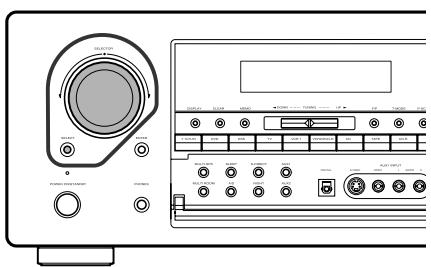
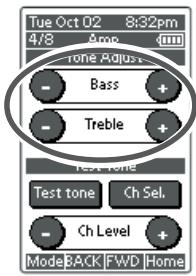
During a listening session you may wish to adjust the Bass and Treble Control to suit your listening tastes or room acoustics.
(using the SR8300)
To change the selector mode, press SELECT button, until "BASS" or "TREBLE" is shown on front display.
Turn the SELECTOR knob to desired level of tone control.
(Using the remote control unit)
To adjust the bass effect, tap Bass+ or Bass- on the remote.
To adjust the treble effect, tap Treble+ or Treble- on the remote.
Notes :
- The tone control function can work in the AUTO Surround, Stereo, Dolby PLII, DTS, DTS-ES, and Multi Ch. Stereo mode.
- If digital input signal is PCM 96kHz , tone control is disable.
TEMPORARILY TURNING OFF THE SOUND
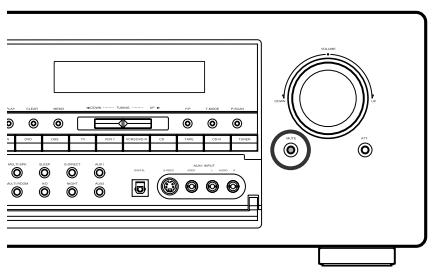
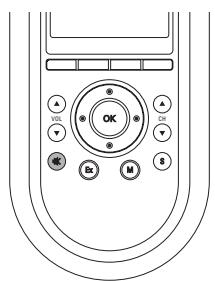
To temporarily silence all speaker outputs such as when interrupted by a phone call, press the MUTE button on the front panel or ※ button on the remote.
This will interrupt the output to all speakers and the head-phone jack, but it will not affect any recording or dubbing that may be in progress. When the system is muted, the display will show "MUTE".
Press the MUTE button again to return to normal operation.
USING THE SLEEP TIMER
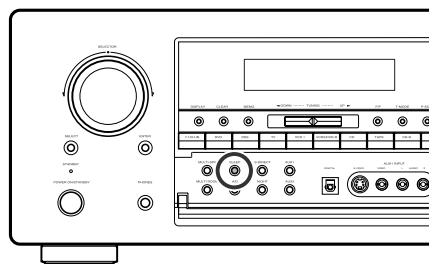
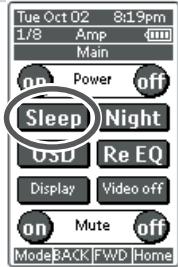
To program the SR8300 for automatic standby, press SLEEP buton or tap the Sleep on the remote.
Each press of the button will increase the time before shut down in the following sequence.

The sleep time will be shown for a few seconds in the display on the front panel, and it will count down until the time has elapsed.
When the programmed sleep time has elapsed, the unit will automatically turn off.
Note that the SLEEP indicator on the display will light up when the Sleep function is programmed.
To cancel the Sleep function, press the Sleep button until the display shows to "SLEEP OFF" and the SLEEP indicator disappear.
NIGHT MODE
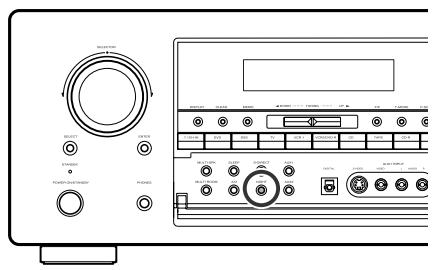
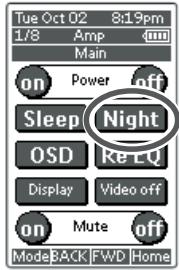
Press the NIGHT button or tap the Night on the remote to turn on the NIGHT mode.
Selecting the Night Mode ON is effective in Dolby Digital only, and it compresses the dynamic range.
This softens loud passages such as sudden explosions, to help prevent disturbing others late at night.
To turn off the Night mode, press the NIGHT button or tap the Night button again.
DIALOGUE NORMALIZATIONMESSAGE
Dialogue Normalization (Dial Norm) is a feature of Dolby Digital. When playing back software which has been encoded in Dolby Digital, sometimes you may see a brief message in the front panel display which will read "Dial Norm X dB" (X being a numeric value).
Dialogue Normalization serves to let you know if the source material has been recorded at a higher or lower level than usual. For example, if you see the following message: "Dial Norm + 4 dB" in the front panel display, to keep the overall output level constant just turn down the volume control by 4 dB. In other words, the source material that you are listening to has been recorded 4 dB louder than usual.
If you do not see a message in the front panel display, then no adjustment of the volume control is necessary.
SURROUND MODE
The SR8300 is equipped with many surround modes. These are provided to reproduce a variety of surround sound effects, according to the content of the source to be played.
The available surround modes may be restricted depending on the input signal and speaker setup.
AUTO
When this mode is selected, the receiver determines whether the digital input signal is Dolby Digital, Dolbuy Digital Surround EX, DTS, DTS-ES or PCM-audio.
Surround EX & DTS-ES will operate for multi channel source that has a Dolby Digital Surround EX or DTS-ES auto trigger flag in the digital signal.
When a Dolby Digital or DTS signal is input, the number of channels for which the corresponding signal is encoded will be played.
Inputting a Dolby Digital two channel signal with Dolby surround status automatically subjects that signal to Pro Logic II movie processing before play.
PCM 96 KHz source material can be played in this mode.
Note:
- When you use this mode with certain DVD and CD players, performing operations such as "Skip" or "Stop" may momentarily interrupt the output.
S (SOURCE) - DIRECT
In the source direct mode, the tone control circuit and bass management configuration are bypassed for full range frequency response and the purist audio reproduction.
96 KHz PCM source material can be play back in this mode.
Notes:
- Internal speaker size is setup to front L / R = Large, Center = Large, Surround L / R = Large and Subwoofer = yes automatically. Tone controls and additional processing are also defeated.
- When you use this mode with certain DVD and CD players, performing operations such as "Skip" or "Stop" may momentarily interrupt the output.
THX CINEMA
THX Cinema mode applies additional processing to Dolby Digital, DTS, and Dolby Pro Logic multi-channel, surround sources. The THX processing was developed by Lucasfilm Ltd. to recreated the sound of top-quality theater.
Use the THX Cinema mode for all movies on disc, tape or broadcast. In this mode, THX Surround EX will not operate in this mode.
THX SURROUND EX
In a movie theater, film soundtracks that have been encoded with Dolby Digital surround EX technology are able to reproduce an extra channel which has been added during the mixing of the program.
This channel, called Surround Back, places sounds behind the listener in addition to the currently available front left, front center, front right, surround right, surround left and subwoofer channels.
This additional channel provides the opportunity for more detailed imaging behind the listener and brings more depth, spacious ambience and sound localization than ever before.
THX Surround EX will operate for any 5.1 channel source whenever THX is active.
THX Surround EX is not available in the system without surround back speaker(s).
Notes:
- When playing Dolby Digital Surround EX-encoded software in 6.1 channels, it is required to set the THX Surround EX mode.
DTS-CINEMA & DTS-MUSIC
This mode is for DTS encoded source materials such as LASER DISC, CD, and DVD.
In the DTS Music mode, the LFE signal is reduced by 10 dB. With DTS music material, you should select the DTS Music mode.
When playing DTS movie discs select DTS cinema mode for proper reproduction of the LFE channel.
The DTS mode cannot use when an analog input has been selected. When the signal in another digital format is input, output of SR8300 will be muted.
DTS-ES (DISCRETE 6.1, MATRIX 6.1)
Both DTS-ES Discrete 6.1 and DTS-ES Matrix 6.1 add the surround back channel audio to the DTS 5.1-channel format to improve the acoustic positioning and makes acoustic image movement more natural with the 6.1-channel reproduction.
This receiver incorporates a DTS-ES decoder, which can handle DTS-ES Discrete-encoded and DTS-ES Matrix-encoded program sources from DVD, etc..
DTS-ES Discrete 6.1 features digital discrete recording of all channels including the surround back channels and higher quality of audio reproduction.
DTS-ES is not available in the system without surround back speaker(s).
DTS NEO: 6
This mode decodes 2-channel signals into 6-channel signals using high-accuracy digital matrix technology.
The DTS NEO:6 decoder has near-discrete properties in the frequency characteristics of the channels as well as in channel separation.
According to the signals to be played back, DTS NEO:6 uses either the NEO:CINEMA mode optimized for movie playback or the NEO:MUSIC mode optimized for music playback.
PRO LOGIC II MOVIE, PRO LOGIC II MUSIC, PRO LOGIC
This mode is used with source materials encoded in Dolby Digital and Dolby Surround.
Dolby Pro Logic II brings the excitement of surround sound to any stereo mix, while making existing Dolby Surround mixes sound more like discrete 5.1 channels Surround sound.
Dolby Pro Logic II has below 3 modes.
Pro Logic II MOVIE provides 5.1 channel surround sound from Dolby Surround encoded stereo movie sound tracks.
Pro Logic II MUSIC mode provides 5.1 channel surround sound from conventional stereo sources, analog or digital, such as CD, tape, FM, TV, stereo VCR, etc.
PRO LOGIC emulated original Dolby Pro Logic decoding (3/1 surround) suit for Dolby Surround encoded stereo movie soundtracks.
Notes:
- Pro Logic II mode is available to 2ch input signal which is encoded Dolby Digital or PCM format.
- PCM-audio signals can be subjected to Pro Logic processing when the sampling frequency is 32kHz , 44.1kHz or 48kHz .
DSP SURROUND (HALL, MATRIX, MOVIE)
These modes provide surround effect processing from each input source material.
They will produce theater, concert hall and stadium like atmospheres. Select as your taste desires.
STEREO
This mode bypasses all surround processing.
Stereo program sources the left and right channels play normally when PCM-audio or analog stereo is input.
With Dolby Digital and DTS sources, the 5.1 multi-channels are converted to two channel stereo. 96kHz source material can be playback in stereo mode.
CIRCLE SURROUND II (CSII-CINEMA, CSII-MUSIC, CSII-MONO)
Circle Surround is designed to enable multi-channel surround sound playback of non-encoded and multi-channel encoded material.
Backward compatibility provides listeners with up to 6.1 channels of surround performance from entire collection of music and film, including broadcast, videotape and stereo recorded music.
Regarding to source material, you can select CSII-Cinema mode, CSII-Music mode or CSII-Mono mode.
Note:
- CS II mode is available to 2ch input signal which is encoded Dolby Digital or PCM format.
- PCM-audio signals can be subjected to Pro Logic processing when the sampling frequency is 32kHz , 44.1kHz or 48kHz .
MULTI CH. STEREO
This mode is used to create a wider, deeper and more natural soundstage from two channel source material.
This is done by feeding the left channel signal to both left front and left surround speaker and the right channel signal to both right front and right surround speaker. Additionally, the center channel reproduces a mix of the right and left channel.
VIRTUAL
This mode creates a virtualized surround sound experience from a two-speaker (front L and R) playback system playing any multichannel audio source (such as found on DVDs and digital broadcasts), including Dolby Digital, Dolby Pro Logic or DTS.
CAUTION
NOTE for Dolby Digital Surround EX signal
- When playing Dolby Digital Surround EX-encoded software in 6.1 channels, it is required to set the THX Surround EX mode. Note that some of Dolby Digital Surround EX-encoded software does not contain the identification signal. In this case, set the THX Surround EX manually.
NOTE for 96kHz PCM audio
- AUTO, Source- DIRECT, and STEREO modes can be used when playing PCM signals with a sampling frequency of 96kHz (such as from DVD-Video discs that contain 24 bit, 96kHz audio). If such signals are input during playback in one of the other surround modes, output from SR8300 will be muted.
- Certain DVD player models inhibit digital output. For details, refer to the player's operation manual.
- Some DVD formatted discs featured copy protection. When using such disc, 96 kHz PCM signal is not output from the DVD player. For details, refer to the player's operation manual.
NOTE for DTS signal
- Connected DVD-player, laser-disc player or CD-player needs to support DTS-digital output. You may not be able to play some DTS source signals from certain CD players and LD players even if you connect the player to the SR8300 digitally. This is because the digital signal has been processed (such as the output level, sampling frequency, or frequency response) and the SR8300 cannot recognize the signal as DTS data.
- If you press the PAUSE or SKIP button on the player while playing a DTS source, a short noise may be heard. This is not a malfunction. In such cases, select the surround mode the "DTS" or "DTS-ES".
- If DTS cinema, DTS music or DTS-ES mode is selected, digital input cannot be switched to analog input.
- When the analog input function has been selected, Surround mode cannot be switched to DTS cinema, DTS music or DTS-ES mode.
- While signals from DTS-laser disc or CD are playing in another Surround mode, you cannot switch to digital input or from digital input to analog input by INPUT SETUP in OSD menu system or A/D button.
- You cannot listen to DTS-encoded source in MULTI ROOM.
- The outputs for the VCR 1 OUT, VCR 2 OUT, TAPE OUT, and CD-R OUT output analog audio signals. Do not record from CDs or LDs that support DTS using these outputs. If you do, the DTS-encoded signal will be recorded as noise.
The surround mode is selected with the surround mode buttons on SR8300 or the remote control unit. However, the sound you hear is subject to the relationship between the selected surround mode and input signal. That relationship is as follows;
The relation between the selected surround mode and the input signal
| Surround Mode | Input Signal | Output Channel | Front information display | |||||||
| L/R | C | SLSR | SBLSBR | SubW | Signal format indicators | Channel status | Dot matrix display | Segments | ||
| AUTO | Dolby D Surr. EX | O | O | O | O | O | DIGITAL | L,C,R,SL,SR,S,LFES | THX SUR EX | AUTO SURR |
| DTS-ES | O | O | O | O | O | dts , ES | L,C,R,SL,SR,S,LFES | DTS ES | AUTO SURR | |
| Dolby D (5.1ch) | O | O | O | - | O | DIGITAL | L,C,R,SL,SR,LFES | DOLBY D | AUTO SURR | |
| DTS(5.1ch) | O | O | O | - | O | dts | L,C,R,SL,SR,LFES | DTS Cinema | AUTO SURR | |
| Dolby D(2ch) | O | - | - | O | O | DIGITAL | L,R | DOLBY D | AUTO SURR | |
| Dolby D(2ch Surr) | O | O | O | - | O | DIGITAL , DIGURL | L,R,S | DOLBY PL2 | AUTO SURR | |
| PCM(Audio) | O | - | - | O | O | PCM | L,R | STEREO | AUTO SURR | |
| PCM 96kHz | O | - | - | O | O | PCM, 96kHz | L,R | STEREO | AUTO SURR | |
| DTS 96/24 | O | O | O | - | O | dts | L,C,R,SL,SR,LFES | DTS 96/24 | AUTO SURR | |
| Analog | O | - | - | O | ANALOG | - | STEREO | AUTO SURR | ||
| S-DIRECT | Dolby D Surr. EX | O | O | O | O | O | DIGITAL | L,C,R,SL,SR,S,LFES | S-DIRECT | AUTO SURR |
| DTS-ES | O | O | O | O | O | dts , ES | L,C,R,SL,SR,S,LFES | S-DIRECT | AUTO SURR | |
| Dolby D (5.1ch) | O | O | O | - | O | DIGITAL | L,C,R,SL,SR,LFES | S-DIRECT | AUTO SURR | |
| DTS(5.1ch) | O | O | O | - | O | dts | L,C,R,SL,SR,LFES | S-DIRECT | AUTO SURR | |
| Dolby D(2ch) | O | - | - | - | - | DIGITAL | L,R | S-DIRECT | AUTO SURR | |
| Dolby D(2ch Surr) | O | O | O | - | - | DIGITAL , DIGURL | L,R,S | S-DIRECT | AUTO SURR | |
| PCM(Audio) | O | - | - | - | - | PCM | L,R | S-DIRECT | AUTO SURR | |
| PCM 96kHz | O | - | - | - | - | PCM, 96kHz | L,R | S-DIRECT | AUTO SURR | |
| DTS 96/24 | O | O | O | - | O | dts | L,C,R,SL,SR,LFES | S-DIRECT | AUTO SURR | |
| Analog | O | - | - | - | ANALOG | - | S-DIRECT | AUTO SURR | ||
| DTS cinema/music | Dolby D Surr. EX | - | - | - | - | - | DIGITAL ) | - | (NO DTS INPUT) | |
| DTS-ES | O | O | O | - | O | dts , ES | L,C,R,SL,SR,S,LFES | DTS CINEMA or DTS MUSIC | ||
| Dolby D (5.1ch) | - | - | - | - | - | DIGITAL ) | - | (NO DTS INPUT) | ||
| DTS(5.1ch) | O | O | O | - | O | dts | L,C,R,SL,SR,LFES | DTS CINEMA or DTS MUSIC | ||
| Dolby D(2ch) | - | - | - | - | - | DIGITAL , DIGURL | - | (NO DTS INPUT) | ||
| Dolby D(2ch Surr) | - | - | - | - | - | DIGITAL , DIGURL | - | (NO DTS INPUT) | ||
| PCM(Audio) | - | - | - | - | - | (PCM) | - | (NO DTS INPUT) | ||
| PCM 96kHz | - | - | - | - | - | PCM, (96kHz) | - | (NO DTS INPUT) | ||
| DTS 96/24 | O | O | O | - | O | dts | L,C,R,SL,SR,LFES | DTS 96/24 | AUTO SURR | |
| Analog | - | - | - | - | ANALOG | - | (NO DTS INPUT) | |||
| DTS ES | Dolby D Surr. EX | - | - | - | - | - | DIGITAL ) | - | (NO DTS INPUT) | |
| DTS-ES | O | O | O | O | O | dts , ES | L,C,R,SL,SR,S,LFES | DTS ES | Disc 6.1 | |
| Dolby D (5.1ch) | - | - | - | - | - | DIGITAL ) | - | (NO DTS INPUT) | ||
| DTS(5.1ch) | O | O | O | O | O | dts | L,C,R,SL,SR,S,LFES | DTS ES | Mtx 6.1 | |
| Dolby D(2ch) | - | - | - | - | - | DIGITAL , DIGURL | - | (NO DTS INPUT) | ||
| Dolby D(2ch Surr) | - | - | - | - | - | DIGITAL , DIGURL | - | (NO DTS INPUT) | ||
| PCM(Audio) | - | - | - | - | - | (PCM) | 3 | (NO DTS INPUT) | ||
| PCM 96kHz | - | - | - | - | - | PCM, (96kHz) | - | (NO DTS INPUT) | ||
| DTS 96/24 | O | O | O | - | O | dts | L,C,R,SL,SR,LFES | DTS 96/24 | AUTO SURR | |
| Analog | 3 | - | - | - | ANALOG | - | (NO DTS INPUT) | |||
| Neo6 | Dolby D Surr. EX | O | O | O | - | O | DIGITAL | L,C,R,SL,SR,S,LFES | (NO DTS INPUT) | |
| DTS-ES | O | O | O | O | O | dts ES | L,C,R,SL,SR,S,LFES | DTS ES | Disc 6.1 | |
| Dolby D (5.1ch) | O | O | O | - | O | DIGITAL | L,C,R,SL,SR,S,LFES | (NO DTS INPUT) | ||
| DTS(5.1ch) | O | O | O | - | O | (dts) | L,C,R,SL,SR,LFES | DTS ES | Mtx 6.1 | |
| Dolby D(2ch) | O | O | O | O | O | DIGITAL | L,R | NEO 6 | ||
| Dolby D(2ch Surr) | O | O | O | O | O | DIGITAL , DIGURL | - | NEO 6 | ||
| PCM(Audio) | O | O | O | O | O | PCM | - | NEO 6 | ||
| PCM 96kHz | - | - | - | - | - | PCM, (96kHz) | - | NEO 6 | ||
| Analog | O | O | O | O | ANALOG | - | NEO 6 | |||
| THX EX | Dolby D Surr. EX | O | O | O | - | O | DIGITAL | L,C,R,SL,SR,S,LFES | THX 5.1 | |
| DTS-ES | O | O | O | - | O | dts , ES | L,C,R,SL,SR,S,LFES | THX 5.1 | ||
| Dolby D (5.1ch) | O | O | O | - | O | DIGITAL | L,C,R,SL,SR,LFES | THX 5.1 | ||
| DTS(5.1ch) | O | O | O | - | O | dts | L,C,R,SL,SR,S,LFES | THX 5.1 | ||
| Dolby D(2ch) | O | O | O | - | O | DIGITAL | L,R, LFES | THX CINEMA | PLII, MOVIE | |
| Dolby D(2ch Surr) | O | O | O | - | O | DIGITAL , DIGURL | L,R,S,LFES | THX CINEMA | PLII, MOVIE | |
| PCM(Audio) | O | O | O | - | O | PCM | L,R | THX CINEMA | PLII, MOVIE | |
| PCM 96kHz | - | - | - | - | - | PCM, (96kHz) | L,R | THX CINEMA | PLII, MOVIE | |
| Analog | O | O | O | - | ANALOG | - | THX CINEMA | PLII, MOVIE | ||
| THX EX | Dolby D Surr. EX | O | O | O | O | O | DIGITAL | L,C,R,SL,SR,S,LFES | THX SUR EX | THX Sur Ex |
| DTS-ES | O | O | O | O | O | dts , ES | L,C,R,SL,SR,S,LFES | THX SUR EX | THX Sur Ex | |
| Dolby D (5.1ch) | O | O | O | O | O | DIGITAL | L,C,R,SL,SR,LFES | THX SUR EX | THX Sur Ex | |
| DTS(5.1ch) | O | O | O | O | O | dts | L,C,R,SL,SR,S,LFES | THX SUR EX | THX Sur Ex | |
| DTS(5.1ch) | O | O | O | O | O | dts | L,C,R,SL,SR,S,LFES | THX SUR EX | THX Sur Ex | |
| Dolby D(2ch) | O | O | O | - | O | DIGITAL | L,R, LFES | THX SUR EX | THX Sur Ex | |
| Dolby D(2ch Surr) | O | O | O | - | O | DIGITAL , DIGURL | L,R,S,LFES | THX CINEMA | THX Sur Ex, PLII, MOVIE | |
| PCM(Audio) | O | O | O | - | O | PCM | L,R | THX CINEMA | THX Sur Ex, PLII, MOVIE | |
| PCM 96kHz | O | O | O | - | O | dts | L,C,R,SL,SR,LFES | DTS 96/24 | AUTO SURR | |
| Analog | O | O | O | - | ANALOG | - | THX CINEMA | THX Sur Ex, PLII, MOVIE | ||
| DOLBY (PL2-music) (PL2-PL) | Dolby D Surr. EX | O | O | O | O | O | DIGITAL | L,C,R,SL,SR,S,LFES | DOLBY D | |
| DTS-ES | - | - | - | - | - | (dts , ES) | L,C,R,SL,SR,S,LFES | DOLBY D | ||
| Dolby D (5.1ch) | O | O | O | - | O | DIGITAL | L,C,R,SL,SR,LFES | DOLBY D | ||
| DTS(5.1ch) | - | - | - | - | - | (dts) | L,C,R,SL,SR,S,LFES | DOLBY D | ||
| Dolby D(2ch) | O | O | O | - | O | DIGITAL | L,R, LFES | DOLBY PL2 | PLII, MOVIE or MUSIC or PL | |
| Dolby D(2ch Surr) | O | O | O | - | O | DIGITAL , DIGURL | L,R,S,LFES | DOLBY PL2 | PLII, MOVIE or MUSIC or PL | |
| PCM(Audio) | O | O | O | - | O | PCM | L,R | DOLBY PL2 | PLII, MOVIE or MUSIC or PL | |
| PCM 96kHz | - | - | - | - | - | PCM, (96kHz) | L,R | DOLBY D | PLII, MOVIE or MUSIC or PL | |
| Analog | O | O | O | - | ANALOG | - | DOLBY PL2 | PLII, MOVIE or MUSIC or PL | ||
| CSII music CSII cinema CSII mono | Dolby D Surr. EX | O | O | O | - | O | (D) DIGITAL | L,C,R,SL,SR,S,LFE | DOLBY D | |
| DTS-ES | O | O | O | O | O | dts , ES | L,C,R,SL,SR,S,LFE | DTS-ES | ||
| Dolby D (5.1ch) | O | O | O | - | O | (D) DIGITAL | L,C,R,SL,SR,LFE | DOLBY D | ||
| DTS(5.1ch) | O | O | O | - | O | dts | L,C,R,SL,SR,LFE | DTS cinema | ||
| Dolby D(2ch) | O | O | O | O | O | (D) DIGITAL | L,R, LFE | CSII | ●MUSIC or CINEMA | |
| Dolby D(2ch Surr) | O | O | O | O | O | (D) DIGITAL , DSSURROUND | L,R,S,LFE | CSII | ●MUSIC or CINEMA | |
| PCM(Audio) | O | O | O | O | O | PCM | L,R | CSII | ●MUSIC or CINEMA | |
| PCM 96kHz | - | - | - | - | - | PCM, (96kHz) | L,R | CSII | ●MUSIC or CINEMA | |
| Analog | O | O | O | O | O | ANALOG | - | CSII | ●MUSIC or CINEMA | |
| STEREO | Dolby D Surr. EX | O | - | - | - | O | (D) DIGITAL | L,C,R,SL,SR,S,LFE | STEREO | |
| DTS-ES | O | - | - | - | O | dts , ES | L,C,R,SL,SR,S,LFE | STEREO | ||
| Dolby D (5.1ch) | O | - | - | - | O | (D) DIGITAL | L,C,R,SL,SR,LFE | STEREO | ||
| DTS(5.1ch) | O | - | - | - | O | dts | L,C,R,SL,SR,LFE | STEREO | ||
| Dolby D(2ch) | O | - | - | - | O | (D) DIGITAL | L,R, LFE | STEREO | ||
| Dolby D(2ch Surr) | O | - | - | - | O | (D) DIGITAL , DSSURROUND | L,R,S,LFE | STEREO | ||
| PCM(Audio) | O | - | - | - | O | PCM | L,R | STEREO | ||
| PCM 96kHz | O | - | - | - | O | PCM, 96kHz | L,R | STEREO | ||
| Analog | O | - | - | - | O | ANALOG | - | STEREO | ||
| Virtual | Dolby D Surr. EX | O | - | - | - | O | (D) DIGITAL | L,C,R,SL,SR,S,LFE | VIRTUAL | |
| DTS-ES | O | - | - | - | O | dts , ES | L,C,R,SL,SR,S,LFE | VIRTUAL | ||
| Dolby D (5.1ch) | O | - | - | - | O | (D) DIGITAL | L,C,R,SL,SR,LFE | VIRTUAL | ||
| DTS(5.1ch) | O | - | - | - | O | dts | L,C,R,SL,SR,LFE | VIRTUAL | ||
| Dolby D(2ch) | O | - | - | - | O | (D) DIGITAL | L,R, LFE | VIRTUAL | ||
| Dolby D(2ch Surr) | O | - | - | - | O | (D) DIGITAL , DSSURROUND | L,R,S,LFE | VIRTUAL | ||
| PCM(Audio) | O | - | - | - | O | PCM | L,R | VIRTUAL | ||
| PCM 96kHz | - | - | - | - | - | PCM, (96kHz) | L,R | VIRTUAL | ||
| Analog | O | - | - | - | O | ANALOG | - | VIRTUAL | ||
| Multi Ch. Stereo | Dolby D Surr. EX | O | O | O | O | O | (D) DIGITAL | L,C,R,SL,SR,S,LFE | M-CH ST | |
| DTS-ES | O | O | O | O | O | dts , ES | L,C,R,SL,SR,S,LFE | M-CH ST | ||
| Dolby D (5.1ch) | O | O | O | O | O | (D) DIGITAL | L,C,R,SL,SR,LFE | M-CH ST | ||
| DTS(5.1ch) | O | O | O | O | O | dts | L,C,R,SL,SR,LFE | M-CH ST | ||
| Dolby D(2ch) | O | O | O | O | O | (D) DIGITAL | L,R, LFE | M-CH ST | ||
| Dolby D(2ch Surr) | O | O | O | O | O | (D) DIGITAL , DSSURROUND | L,R,S,LFE | M-CH ST | ||
| PCM(Audio) | O | O | O | O | O | PCM | L,R | M-CH ST | ||
| PCM 96kHz | - | - | - | - | - | PCM, (96kHz) | L,R | M-CH ST | ||
| Analog | O | O | O | O | O | ANALOG | - | M-CH ST | ||
| MOVIE HALL MATRIX | Dolby D Surr. EX | O | O | O | - | O | (D) DIGITAL | L,C,R,SL,SR,S,LFE | MOVIE, HALL, MATRIX | |
| DTS-ES | O | O | O | - | O | dts , ES | L,C,R,SL,SR,S,LFE | MOVIE, HALL, MATRIX | ||
| Dolby D (5.1ch) | O | O | O | - | O | (D) DIGITAL | L,C,R,SL,SR,LFE | MOVIE, HALL, MATRIX | ||
| DTS(5.1ch) | O | O | O | - | O | dts | L,C,R,SL,SR,LFE | MOVIE, HALL, MATRIX | ||
| Dolby D(2ch) | O | O | O | - | O | (D) DIGITAL | L,R, LFE | MOVIE, HALL, MATRIX | ||
| Dolby D(2ch Surr) | O | O | O | - | O | (D) DIGITAL , DSSURROUND | L,R,S,LFE | MOVIE, HALL, MATRIX | ||
| PCM(Audio) | O | O | O | - | O | PCM | L,R | MOVIE, HALL, MATRIX | ||
| PCM 96kHz | - | - | - | - | - | PCM, (96kHz) | L,R | MOVIE, HALL, MATRIX | ||
| Analog | O | O | O | - | O | ANALOG | - | MOVIE, HALL, MATRIX | ||
Note: DOLBY-D(2ch Surr)signals have Dolby Surround flag.
SPKRS setup is full THX system (8ch Speakers).
L/R : Front speaker
SL/SR : Surround speaker
SB : Surround back speaker
C : Center speaker
SubW : Sub woofer speaker
PL: The PRO LOGIC indicator lights
PLII: The PRO LOGIC II indicator lights
( ): The indicator blinks
OTHER FUNCTION
TV AUTO ON/OFF FUNCTION
This function allows the component connected to the TV-VIDEO in jack to control the power (ON/OFF) to the SR8300.
AUTO POWER ON
- Be sure TV auto mode is ENABLE. (Refer page 33 : System Setup)
- Connect your TV TUNER (etc) to the TV-VIDEO in terminal. Be sure to connect the VIDEO input.
- Turn OFF the power to the TV TUNER and the SR8300.
- Turn ON the TV TUNER and tune in a receivable station.
- When the station is received, the SR8300 turns ON and TV is selected automatically.
AUTO POWER OFF
- In the above situation, turn the TV TUNER OFF or select a channel that does not contain any broadcast.
- The power to the SR8300 switches to STANDBY after approx. 5 minutes.
Notes:
- AUTO POWER OFF is canceled if the SR8300 is set to a source other than TV.
The function reactivates when TV is selected again. - Some TV broadcasts may cause the TV AUTO FUNCTION to turn ON.
- S-Video terminal does not support "TV AUTO ON/OFF" function.
ATTENUATION TO ANALOG INPUT SIGNAL
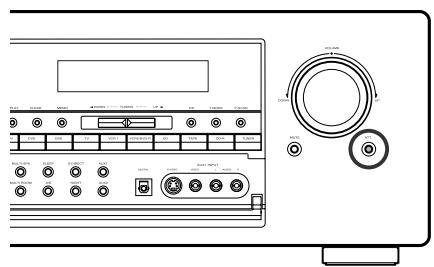
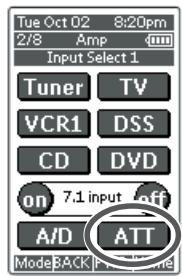
If the selected analog audio input signal is greater than the capable level of internal processing, "PEAK" indicator will light up on the front display. If this happens, you should press the ATT button or tap ATT on the remote.
"ATT" indicator will light up when this function is activated. The signal-input level is reduced by about the half. Attenuation will not work with the output signal of TAPE-OUT, CD-R/MD-OUT, VCR1-OUT, VCR2-OUT and MULTI ROOM OUT.
This function is memorized for each individual input source.
LISTENING OVER HEADPHONES
This jack may be used to listen to the SR8300's output through a pair of headphones. Be certain that the headphones have a standard 1/4" stereo phone plug. (Note that the main room speakers will automatically be turned off when the headphone jack is in use.)
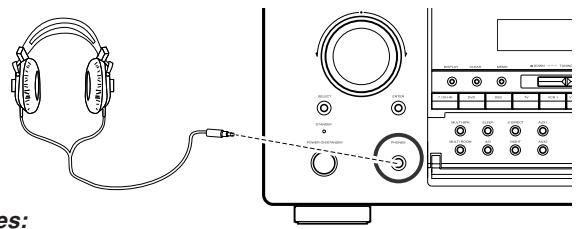
Notes:
- When using headphones, the surround mode will automatically change to STEREO.
- The surround mode returns to the previous setting as soon as the plug is removed from the jack.
VIDEO ON/OFF
When no video signals of a DVD, etc., are connected to the SR8300 or the DVD, etc., are connected directly to a TV, the unnecessary video circuit can be turned off by selecting the "VIDEO OFF" setting.
To select video off condition, tap Video off on the remote.
Notes that VIDEO OFF will not work with the output signal of VCR1-OUT and VCR2-OUT and MULTI ROOM OUT.
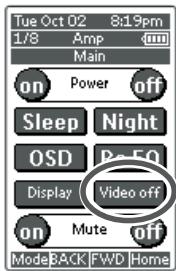
DISPLAY MODE
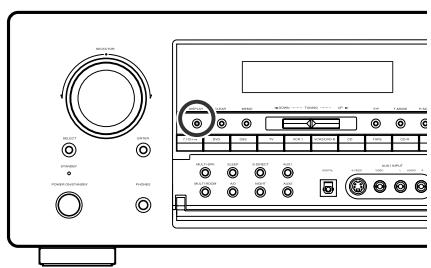
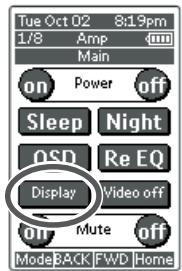
You can select the display mode for the front display of the SR8300. To select this mode, press DISP button on the front panel or tap Display on the remote control unit.
When this button is pressed, the display mode is switched in the following sequence.
Auto-display Off Display Off Normal Auto-display Off .... In Auto display off mode, turn the display on automatically, after that any condition of SR8300 is changed.
In Display off mode, turn the display off completely.
Notes:
- Only Disp will light up on the front display in display off condition
SELECTING ANALOG AUDIO INPUT OR DIGITAL AUDIO INPUT
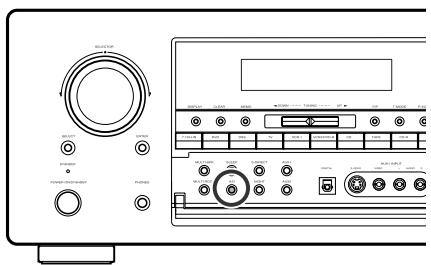
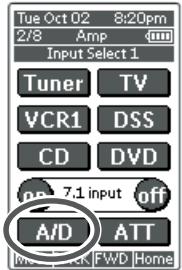
If you have already assign any digital input to input source.
You can select temporarily the audio input mode for each input source with A/D button on the remote controller or front panel.
When this button is pressed, the input mode is switched in the following sequence.
Digital Auto Digital Analog Digital Auto....
In Digital Auto mode, the types of signals being input to the digital and analog input jacks for the selected input source are detected automatically.
If no digital signal is being input, the analog input jacks are selected automatically.
In Digital mode, input is fixed to an assigned digital input terminal.
In analog mode, the analog input jacks are selected.
This selecting is temporarily, so the result will not be stored in memory. If you need to change input mode completely, use SYSTEM SETUP in OSD menu system.(see page 31)
RECORDING AN ANALOG SOURCE
In normal operation, the audio or video source selected for listening through the SR8300 is sent to the record outputs.
This means that any program you are watching or listening to may be recorded simply by placing machines connected to the outputs for TAPE OUT, CD-R/MD OUT, VCR1 OUT and VCR2/DVD-R OUT in the record mode.
To record the input source signal you are currently watching or listening to
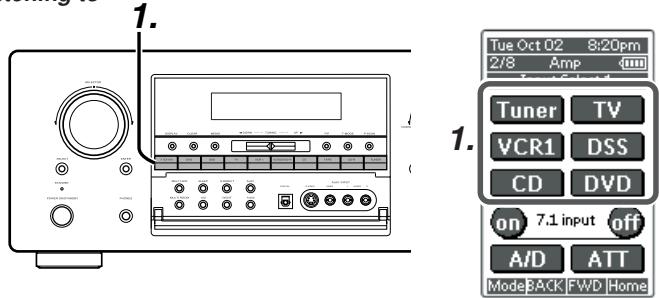
- Select the input source to record by pressing the corresponding input selector button.
The input source is now selected and you may watch or listen to it as desired. - Outputs the currently selected input source signal to the TAPE OUT, CD-R/MD OUT, VCR1 OUT and VCR2/DVD-R OUT outputs for recording.
- Start recording at the recording component as desired.
Recording the video from one source and the audio from another
You can add the sound from one source to the video of another source to make your own video recordings.
Below is an example of recording the sound from a compact disc player connected to CD IN and the video from a video camera connected to AUX1 IN to video cassette tape in a video cassette recorder connected to the VCR1 OUT jack.
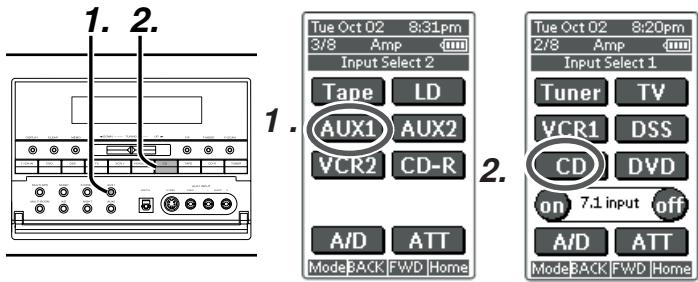
- Press the AUX1 input source button to set video output.
- Press the CD input source button to set audio output.
- Now "CD" has been selected as the audio input source and "AUX1" as the video input source.
Notes:
- If you change the input source during recording, you will record the signals from the newly selected input source.
- You cannot record the surround effects.
- Digital input signals are only output to the digital outputs. There is no conversion from digital to analog.
When connecting CD players and other digital components, do not connect only the digital terminals, but the analog ones as well.
RECORDING A DIGITAL SOURCE
When a digital audio recorder is connected to the DIGITAL outputs, you are able to record the digital signal using a CD-R, MiniDisc or other digital recording system.
You can select the digital source from the DIGITAL output for digital by OSD menu system.(see page 31)
To record the input source signal you are currently watching or listening to
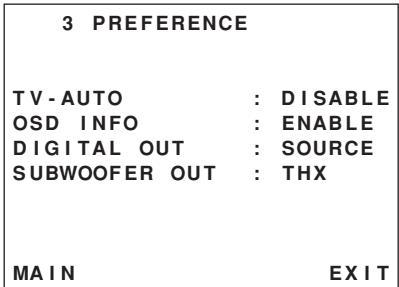
- Set DIGITAL OUT to "SOURCE" in OSD menu system.
- Select the input source to record by pressing the corresponding input selector button.
The input source is now selected and you may watch or listen to it as desired.
- Outputs the currently selected digital input source signal to the DIGITAL OUT for recording.
- Start recording at the recording component as desired.
To record an input source signal different from that you are currently watching or listening to
This method outputs to the digital outputs the signal from the input source that you select here.
This allows you to record an digital input source signal different from that that you are listening to or watching at the time of recording.
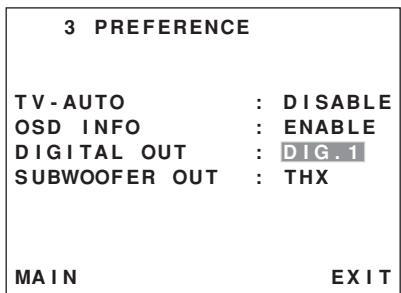
- Set DIGITAL OUT to desired digital input in OSD menu system.
- Outputs the selected digital input source signal by OSD menu system to the DIGITAL OUT for recording.
- Start recording at the recording component as desired.
Notes:
- The digital outputs are active only when a digital signal is present, and they do not convert an analog input to a digital signal, or change the format of the digital signal.
- In addition, the digital recorder must be compatible with the output signal.
For example, the PCM digital input from a CD player may be recorded on a CD-R or MiniDisc, but Dolby Digital or DTS signals may not.
7.1 CH INPUT.
The SR8300 is equipped for future expansion through the use of Multi channel SACD or DVD-Audio player.
This is selected, the input signals connected to the FL(front left), FR(front right), CENTER, SL (surround left), SR (surround right), SBL (surround back left) and SBR (surround back right) channels of the 7.1 CH. In jacks are output directly to the front (left and right), center, surround (left and right) and surround back(left and right) speaker systems as well as the pre-out jacks without passing through the surround circuitry.
In addition, the signal input to the SW (subwoofer) jack is output to the PRE OUT SW (subwoofer) jack.
When 7.1 CH. INPUT is selected, the last video input used remains routed to the Monitor 1&2 Outputs.
This permits simultaneous viewing with video sources.
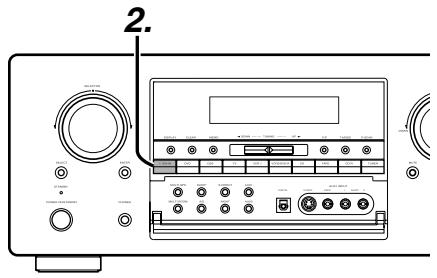
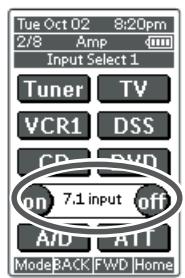
- Select a desired Video source to decide the routed video signal to the Monitor 1&2 Outputs.
- Press the 7.1 CH-IN button or tap 7.1 input on on the remote to switch the 7.1 channel input.
- If necessary to adjust the output level of each channel, use "7.1 Ch. INPUT LEVEL" in OSD menu system as desired.
Adjust the speaker output levels so that you can hear the same sound level from each speaker at the listening position. For the front left, front right, center, surround left, surround right, surround back left and surround back right speakers, the output levels can be adjusted between -10 to +10 dB.
The subwoofer can be adjusted between -15 and +10 dB.
These adjusting result will be stored to 7.1 Ch. INPUT condition. (see to page 35w)
- Adjust the main volume with the MAIN VOLUME knob or the VOL buttons on the remote.
To cancel the 7.1 Ch. INPUT setting, press the 7.1 CH-IN button on the front panel or tap 7.1 input off on the remote.
Notes:
- When the 7.1 Ch. Input is in use, you may not select a surround mode, as the external decoder determines processing.
- In addition, there is no signal at the record outputs when the 7.1 Ch. Input is in use.
AUX2 INPUT
If you don't need to connect 7.1 Ch. input terminals with multi channel decoder,
FL(front left) and FR(front right) inputs terminals are available as AUX2 input.
In this case, You can connect additional audio source to AUX2 as other audio input terminals.
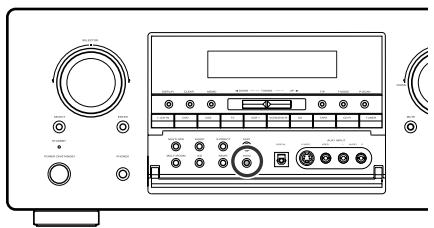
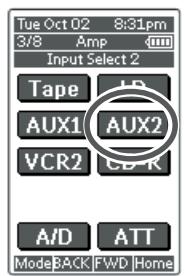
BASIC OPERATION (TUNER)
LISTENING TO THE TUNER
Frequency scan step for AM is selectable.
Default setup is 10 kHz step, if your country's standard is 9 kHz step, touch "AM" button on the remote more than 6 seconds. Scan step will change.
Note:
- Preset memory for the tuner will clear by changing this setup.
AUTO TUNING
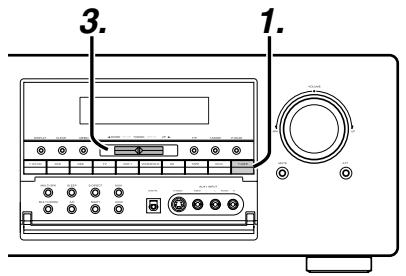
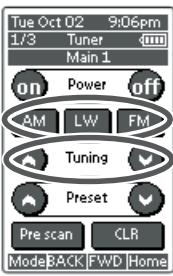
1.
2.
(USING THE SR8300)
- To select tuner and desired band (FM or AM), press the TUNER button on the front panel.
- F/P button on the front panel to display the frequency..
- Press the TUNING UP or DOWN button on the front panel for more than 1 second to start the Auto tuning function.
- Automatic searching begins then stops when a station is tuned in.
(Using the remote control unit)
- To select tuner and desired band (FM or AM), tap desired band FM or AM on the remote.
- Touch Tuning or Tuning more than 1 second on the remote.
- Automatic searching begins then stops when a station is tuned in.
If tuning does not stop at the desired station, use to the "Manual tuning" operation.
MANUAL TUNING
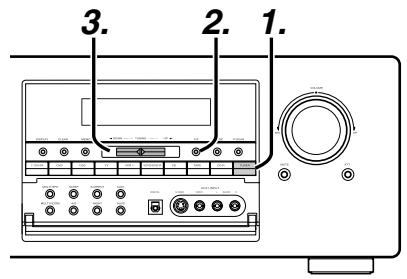
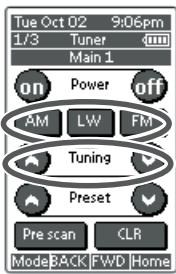
1.
2.
(USING THE SR8300)
- To select tuner and desired band (FM or AM), press the TUNER button on the front panel
- Press the F/P(Frequency/Preset) button on front panel, to appear frequency on the display.
- Press the TUNING UP or DOWN button.
(Using the remote control unit)
- To select tuner and desired band (FM or AM), tap desired band FM or AM on the remote.
- Tap Tuning or Tuning on the remote to tune in the desired station.
DIRECT FREQUENCY CALL
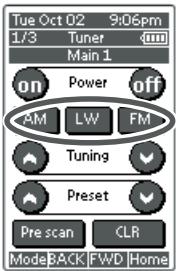
1.
2.
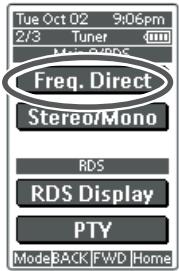
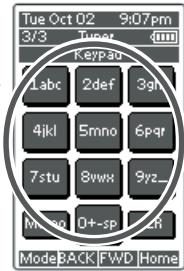
3.
- To select tuner and desired band (FM or AM), tap desired band FM or AM on the remote.
- Tap the Freq. Direct on the remote, display will show "FREQ --".
- Input your desired station's frequency with ten keypad on the remote.
- The desired station will automatically be tuned.
(FM) TUNING MODE (AUTO STEREO OR MONO)
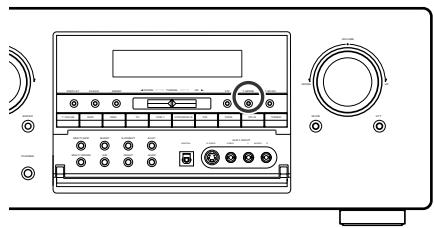
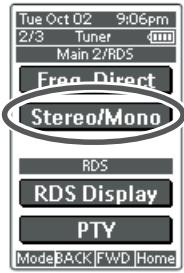
When in the auto stereo mode, AUTO indicator keeps to light on the display.
The "ST" indicator lights on when a stereo broadcast is tuned in.
At open frequencies, the noise is muted and the "TUNED" and "ST" indicators turn off.
If the signal is weak, it may be difficult to tune into the station in stereo. In such a case, press the T-MODE button n the front panel or tap Stereo/Mono on the remote control unit.
"AUTO" indicators turn off, FM stereo broadcasts are received in monaural and the "ST" indicator turns off.
To return to auto stereo mode, press the T-MODE button or tap Stereo/ Mono on the remote control unit again. AUTO indicator lights on the display.
PRESET MEMORY
With this unit you can preset up to 50 FM/AM stations in any order. For each station, you can memorize the frequency and reception mode if desired.
AUTO PRESET MEMORY
This function automatically scans the FM and AM band and enters all stations with proper signal strength into the memory.
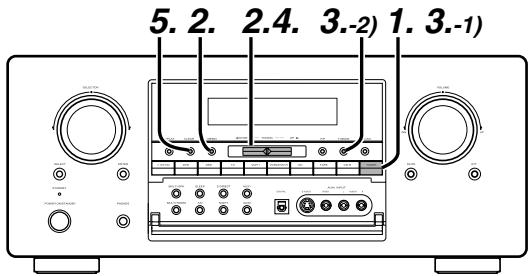
- To select FM, press the TUNER button on the front panel.
- While pressing the MEMO button, press the TUNING UP or DOWN button to up.
"AUTO PRESET" will appear on the display, and scanning starts from lowest frequency.
- Each time the tuner finds a station, scanning will pause and the station will be played for five seconds.
During this time, the following operations are possible.
1) The band can be changed by TUNER button.
2) The tuning mode can be changed by T-MODE button.
- If no button is pressed during this period, the current station is memorized in location Preset 02
If you wish to skip the current station, press the TUNING UP or DOWN button during this period, this station is skipped and auto presetting continues.
5. Operation stops automatically when all 50 preset memory positions are filled or when auto scanning attains the highest endof all bands. If you desire to stop the auto preset memory at anytime, press the CLEAR button.
MANUAL PRESET MEMORY
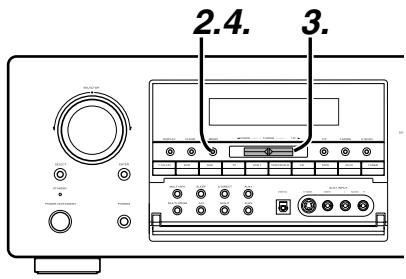
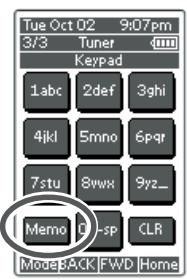
2.
(Using the SR8300)
- Tune into the radio station you desire (Refer to the "MANUAL TUNING" or "AUTO TUNING" section).
- Press the MEMO button on the front panel. “- -” (preset number) starts blinking on the display.
- Select the preset number by pressing the TUNING UP or DOWN button, while this is still blinking (approx. 5 seconds)
- Press the MEMO button again to enter. The display stops blinking. The station is now stored in the specified preset memory location.
(Using the remote control unit)
- Tune into the radio station you desire (Refer to the "MANUAL TUNING" or "AUTO TUNING" section).
- Tap the Memo on the remote unite. “- - ” (preset number)starts blinking on the display.
- Enter the desired preset number by tapping ten keypad.
Note:
- When entering a single digit number (2 for example), either input "02" or just input "2" and wait for a few seconds.
RECALLING A PRESET STATION

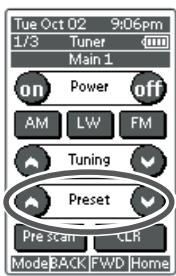
1.
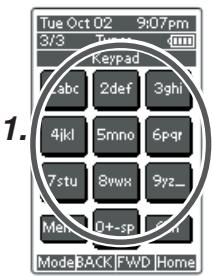
1.
(Using the SR8300)
- Press the F/P button to show the preset station on the display.
- Select the desired preset station by pressing the TUNING UP or DOWN button on the front panel
(Using the remote control unit)
- Tap the Preset or Presetv button to select the desired preset station, or input your desired preset channel with ten keypad on the remote.
CHECKING THE PRESET STATIONS
The preset broadcast stations can be checked on the on screen display.
Press M button, "Tuner Preset Stations" screen appears on the on screen display.
Note:
- The device of remote control units need to be Tuner.
PRESET SCAN
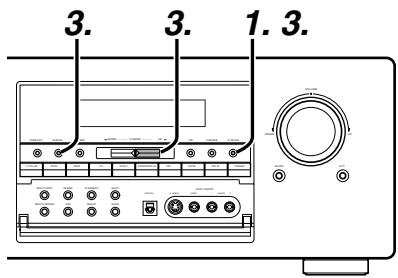
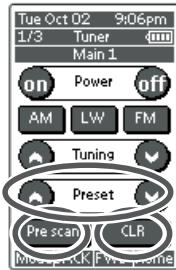
3.
1.3.
3.
(Using the SR8300)
- Press the P-SCAN button.
"PRESET SCAN" appears on the display and then the preset station with the lowest preset number is recalled first.
- Preset stations are recalled in sequence (No.1 → No.2 → etc.) for 5 seconds each.
No stored preset number will be skipped. - You can fast forward the preset stations by tapping the TUNING UP continuously.
When the desired preset station is received, cancel the preset scan operation by tapping the CLEAR or P-SCAN.
(Using the remote control unit)
- Tap the Pre scan on LCD of remote control unit.
"PRESET SCAN" appears on the display and then the preset station with the lowest preset number is recalled first. - Preset stations are recalled in sequence (No.1 No.2 etc.) for 5 seconds each.
No stored preset number will be skipped. - You can fast forward the preset stations by tapping the Preset ^ continuously.
When the desired preset station is received, cancel the preset scan operation by tapping the CLR or Pre scan.
CLEARING STORED PRESET STATIONS
You can remove preset stations from memory using the following procedure.
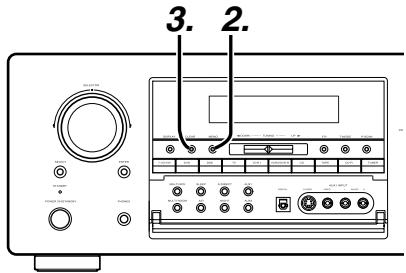
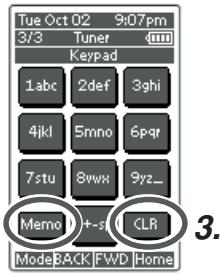
2.
- Recall the preset number to be cleared with the method described in "Recalling" a preset station.
- Press the MEMO button on the front panel or tap Memo on the remote.
- Stored preset number blinks in the display for 5 seconds. While blinking, press the CLEAR button on the front panel or tap CLR on the remote unit.
- "xx CLEAR" appears on the display to indicate that the specified preset number has been cleared.
Notes:
- To clear stored all preset stations, press and hold the CLEAR and the F/P buttons for two seconds.
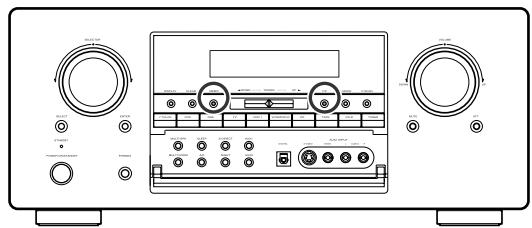
Stored preset stations number can be kept line.
To sort the numbers, press and hold the MEMO and the F/P buttons.
"PRESET SORT" will appear on the display and sorting will be done.
NAME INPUT OF THE PRESET STATION.
This function allows the name of each preset channel to be entered using alphanumeric characters.
Before name inputting, need to store preset stations with the preset memory operation.
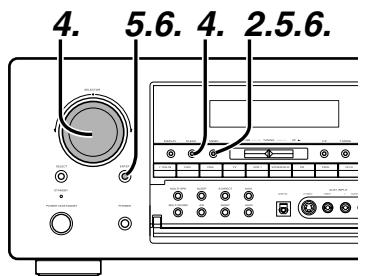
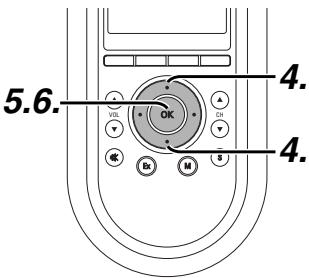
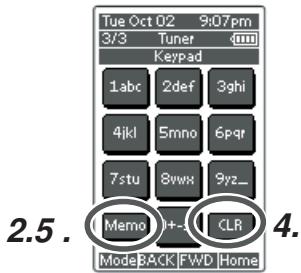
- Recall the preset number to be inputted name with the method described in "Recalling" a preset station.
- Press the MEMO button on the front panel or touch Memo on the remote for more than 3 seconds.
- The left most column of the station name indicator flashes, indicating the character entry ready status.
- When the SELECT knob is turned or press Up / Down button on the remote alphabetic and numeric characters will be displayed in the following order:
$$ \begin{array}{l} \mathbf {A} \rightarrow \mathbf {B} \rightarrow \mathbf {C} \dots \mathbf {Z} \rightarrow 1 \rightarrow 2 \rightarrow 3 \dots \dots 0 \rightarrow - \rightarrow + \rightarrow / \rightarrow (\text {B l a n k}) \rightarrow \mathbf {A} \ \mathbf {U P} \rightarrow \ \leftarrow \text {D O W N} \ \end{array} $$
To fill blank, press CLEAR button or tap CLR on the remote.
- After selecting the first character to be entered, press the MEMO or ENTER buttons, press OK button on the remote.
The entry in this column is fixed and the next column starts to flash. Fill the next column same as.
To move back and forth between the characters, press the TUNING UP / DOWN button or press Left / Right buttons on the remote.
Note:
Unused columns should be filled by entering blanks.
- To save name, press the MEMO or ENTER button, press OK button on the remote for more than 2 seconds.
MULTI ROOM SYSTEM
The Multi Room system is a function which allows you to listen to the same or a different source in a room other than the room in which the SR8300 is located.
To use this function, a multi room remote unit and remote control signal receiver available from your Marantz dealer are necessary.
The operations possible with the multi room function are explained briefly below.
For details, refer to the instruction manual supplied with the multi room remote control unit and receiver.
When the outputs of the MULTI ROOM OUT terminals are wired and connected to amplifiers installed in other rooms or MULTI SPEAKER OUT terminals are wired and connected to L&R speakers in other room, different sources can be played in rooms other than the main room in which this unit and the playback devices are installed.
SR8300 has some feature to MULTI ROOM SYSTEM as source selector, OSD information, sleep timer, Multi Room Speaker output and remote control.
MULTI ROOM PLAYBACK USING THE MULTI ROOM OUT TERMINALS
The SR8300 is equipped with audio pre-out terminals for which the volume is adjustable and composite video output terminals as the MULTI ROOM output terminals.
A separately sold stereo power amplifier (PM8100) can be connected to enjoy multi room playback.
Operation to MULTI ROOM OUT without the remote controller.
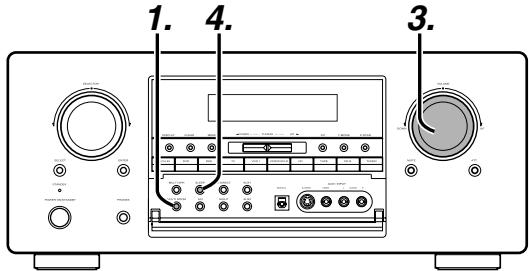
- Press the MULTI button. The unit enters multi room mode and the display indicates "SELECT SOURCE" and flashes the "MULTI" indicator for approx. 10 seconds.
- In this time, you can select the input source by pressing the input selector buttons.
Then, the display indicates "MULTI VOL" "VOLUME xx dB" for approx. 5 seconds.
- During this time, you can set the volume level in the multi room as desired.
This will only set the volume in the second room. - If you desire to set sleep timer to multi room, press SLEEP button to setup the time.
MULTI ROOM PLAYBACK USING THE MULTISPEAKER TERMINALS
The SR8300 allows you to connect another set of speakers and place them in a different room or separated area for listening to music.
Operation to MULTI ROOM SPEAKER without the remote controller.
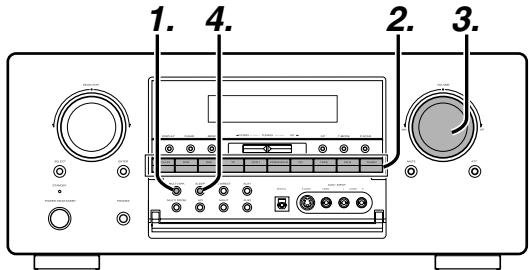
-
Press the MSPK button. The unit enters multi room mode and the display indicates "SELECT SOURCE" and flashes the "MULTI" & "M-SPKR" indicators for approx. 10 seconds.
-
In this time, you can select the input source by pressing the input selector buttons.
- Then, the display indicates "MULTI VOL" "VOLUME xx dB" for approx. 5 seconds.
During this time, you can set the volume level in the multi room as desired.
This will only set the volume in the multi room.
- If you desire to set sleep timer to multi room, press SLEEP button to setup the time.
Notes for MULTI ROOM SPEAKER
- MULTI ROOM SPEAKER On/ Off is available in main room only.
- You can only play the source in the Stereo mode or Virtual mode in the main room, when MULTI SPEAKER is active.
- You can not turn MULTI SPEAKER on, when you set Speaker setup in OSD menu.
OPERATION TO MULTI ROOM OUTPUTS WITH THE REMOTE CONTROLLER FROM SECOND ROOM.
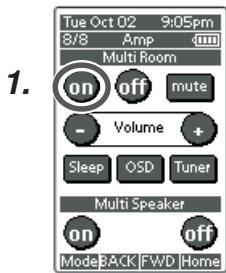
- Tap the MULTI ROOM on on multi room remote control unit from the MULTI ROOM.
This operations will put the SR8300 into multi room mode and "MULTI" will light in the display.
MULTI ROOM Video output will show OSD information to condition of MULTI ROOM setup.
| MULTI ROOM | |
| MULTI ROOM : OFF | |
| MULTI SPKR : OFF | |
| VIDEO : DVD | |
| AUDIO : DVD | |
| VOLUME SETUP : VARIABLE | |
| VOLUME LEVEL : -90 dB | |
| SLEEP TIMER : OFF | |
| ----MAIN-ROOM STATUS---- | |
| VIDEO:DVD AUDIO:DVD | |
| MAIN EXIT |
- Press the VOL + or VOL - button on the multi room remote control unit to set the desired sound volume.
- In multi room mode, the multi room remote control unit can be used in the multiroom to operate the following functions.
General:
Controlling volume level, sleep timer, and muting. Selecting input audio and video source
Tuner:
Selecting band, controlling preset channel up and down, tuning up and down, direct frequency call.
Notes for multi room system:
- The MULTI ROOM OUT and MULTI SPEAKER terminals are analog outputs.
These are not support to digital signals input.
If no sound is heard from the selected input source, check if the component is connected to the analog inputs.
- If Tuner (FM or AM) is active in main room, you can not control any function of tuner.
In this case, You can listen the same condition as main room.
TROUBLESHOOTING
In case of trouble, check the following before calling for service:
- Are the connections made properly?
- Are you operating the unit properly following user's guide?
- Are the power amplifiers and speaker working properly?
If the unit does not operate properly, check items shown in the following table.
If your trouble cannot be recovered with the remedy actions listed in the following table, malfunction of the internal circuitry is suspected; immediately unplug the power cable and contact your dealer, nearest Marantz distributor or the Marantz Service Center in your country.
| SYMPTOM | CAUSE | REMEDY |
| SR8300 cannot be turned up. | The power plug is not connected. | Connect the power plug to the outlet. |
| No sound and picture are output even when power is on. | Mute is on.The input cable is not connected correctly.The master volume control is turned all the way down.The function selector position is wrong. | Cancel mute using the remote control unit.See the connection diagram and connect the cables correctly.Adjust the master volume.Select correct position. |
| Speaker not outputting any sound. | The headphones are connected to the headphone jack. | Disconnect the headphones.(Speakers will not output sound when headphones are connected.) |
| Sound and pictures from other than equipment selected with the function selector. | Input cable connected incorrectly. | Connect the cable correctly by referring to the connection diagram. |
| Sound from the wrong channel is output from the speaker. | Speaker cable connected incorrectly. | Connect the cable correctly by referring to the connection diagram. |
| No sound is output from the center speaker. | The center speaker cable connection is incomplete.STEREO has been selected for Surround mode.Center = NONE has been selected in SETUP mode. | Connect the cable correctly.When STEREO is selected for Surround mode, no sound will be output from the center speaker. Set another Surround mode.Make the correct setting. |
| No sound is output from the surround speaker. | The surround speaker cable connection is incomplete.STEREO has been selected for Surround mode.Surround = NONE has been selected in SETUP mode. | Connect the cable correctly.When STEREO has been selected for Surround mode, no sound will be output from the surround speaker. Set another Surround mode.Make the correct setting. |
| No output to Subwoofer Out. | Sub-woofer = NONE has been selected in SETUP mode. | Select Sub-woofer = YES. |
| Surround mode cannot be changed. | The headphones are connected to the jack. | Disconnect the headphones.(When headphones are connected, Surround mode will be fixed to STEREO.) |
| Noise is produced during DTS-encoded CD or laser disc play. | Analog has been selected for input. | Be sure to perform digital connection, select digital input, then play. |
| DTS sources cannot be played. | Surround mode is set to DOLBY.The DVD or LD player is not DTS digital out capable. | Select other mode.Use a player which responds to DTS-digital out. |
| Player skips during play of a DTS source and produces noise. | Data error occurred during player skip. | Set Surround mode to DTS-cinema or DTS-music.. |
| A 96kHz PCM signal cannot be played. | The disc player is not 96kHz PCM digital out capable.Surround mode is set to other than STEREO and AUTO. | Use a player that responds to 96kHz PCM digital out.Set Surround mode to STEREO or AUTO. |
| A normal PCM signal (CD or laser disc) cannot be played. | Surround mode is set to DTS-cinema, DTS-music or DTS-ES. | Select other mode. |
| A Dolby Digital signal cannot be played. | Surround mode is set to DTS-cinema, DTS-music or DTS-ES. | Select other mode. |
| A specific channel does not produce output. | Nothing recorded on source. | Check the encoded channel on the source side. |
| FM or AM reception fails. | Antenna connection is incomplete. | Correctly connect the indoor FM and AM antennas to FM and AM antenna outlets. |
| Noise is heard during AM reception. | Reception is affected by other electrical fields. | Try changing location where the AM indoor antenna is set up. |
| Noise is heard during FM reception. | The radio waves from the broadcasting station are weak. | Install an FM outdoor antenna or use cable TV/FM. |
| Cannot get programmed station when the PRESET button is pressed. | Preset data has been erased. | Disconnecting power plug for long periods of time will erase preset data. If that happens, input the preset data again. |
| Nothing appears on the remote commander display. | Batteries are consumed. | Replace all the batteries with new ones. |
| Control with the remote control unit fails. | Batteries are consumed..Remote controller's function-key setting is wrong.The distance between this SR8300 and the remote commander is too far.Something is blocking SR8300 and the remote commander. | Replace all the batteries with new ones..Select different position from which equipment will be controlled.Move closer to this SR8300.Remove offending object. |
| No sound is output from the surround back speaker. | The surround speaker cable connection is incomplete.STEREO has been selected for Surround mode.Surr. Back = NONE has been selected in SETUP mode surround back speaker.Surround mode is not THX surround EX. | Connect the cable correctly.Surround back channel is active in THX surround EX mode, in other Surround mode, no sound will be output from the surround speaker.Set THX Surround EX mode. |
GENERAL MALFUNCTION
If the equipment malfunctions, this may be because an electrostatic discharge or AC line interference has corrupted the information in the equipment memory circuits. Therefore:
- disconnect the plug from the AC line supply
- after waiting at least three minutes, reconnect the plug to the AC line supply
- re-attempt to operate the equipment
Memory backup
- In case a power outage occurs or the power cord is accidentally unplugged, the SR8300 is equipped with a backup function to prevent memory data such as the preset memory from being erased.
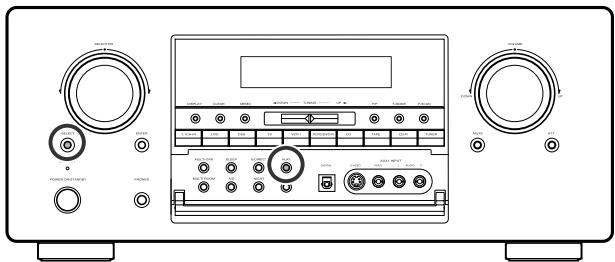
HOW TO RESET THE UNIT
Should the operation or display seem to be abnormal, reset the unit with the following procedure.
The SR8300 is turned on, press and hold the SELECT and AUX1 buttons simultaneously for 3 seconds or more.
Remember that the procedure will reset the settings of the function selector, Surround mode, delay time, TUNER PRESET etc., to their initial settings.
TECHNICAL SPECIFICATIONS
FM TUNER SECTION
Frequency Range 87.5 - 108.0 MHz
Useable Sensitivity . IHF 1.8 uV/16.4 dBf
Signal to Noise Ratio ....... Mono/Stereo 76/72 dB
Distortion . Mono/Stereo 0.2/0.3 %
Stereo Separation 1 kHz 45 dB
Alternate Channel Selectivity ± 300kHz 60 dB
Image Rejection 98 MHz 70 dB
Tuner Output Level. 1 kHz, ±75 kHz Dev 800 mV
AM TUNER SECTION
Frequency Range 520 - 1710 kHz
Signal to Noise Ratio 50 dB
Usable Sensitivity . Loop 400 V
Distortion 1 kHz, 30% Mod. 0.5%
Selectivity ± 20kHz70dB
AUDIO SECTION
Power Output (20 Hz - 20 kHz/THD=0.08%)
Front L&R 8 ohms 105 W / Ch
Center . . . . . . . . . . . . . . . . . . . . . . . . . . . . . . . . . . . . . . . . . . . . . . . . . . . . . . . . . . . 8 ohms 105 W / Ch
Surround L&R . . . . . . . . . . . . . . . . . . . . . . . . . . . . . . . . . . . . . . . . . . . . . . . . . . . . . 8 ohms 105 W / Ch
Surround Back 8 ohms 105 W / Ch
Front L&R 6 ohms 130 W / Ch
Center . . . 6 ohms 130 W / Ch
Surround L&R . 6 ohms 130 W / Ch
Surround Back 6 ohms 130 W / Ch
Input Sensitivity/Impedance 168mV/47 Kohms
Signal to Noise Ratio(Analog Input / Source Direct) .... 106 dB
Frequency Response (Analog Input / Source Direct)
8 Hz - 100 kHz (±3 dB)
(Digital Input / 96 kHz PCM) ... 8 Hz - 45 kHz (±3 dB)
VIDEO
Television Format NTSC
Input Level/Impedance 1 Vp-p/75 ohms
Output Level/Impedance 1 Vp-p/75 ohms
Video Frequency Response 5 Hz to 10 MHz (-3 dB)
Component Video Frequency Response .. 5 Hz to 50 MHz (-3 dB)
S/N 60 dB
GENERAL
Power Requirement AC 120 V 60 Hz
Power Consumption 400 W
Weight 42.5 lbs (19.3 Kg)
ACCESSIONS
Remote Control Unit RC3200A 1
AA-size batteries 3
FM Antenna 1
AM Loop Antenna 1
RS232C Cable 1
Specifications subject to change without prior notice.
DIMENSION
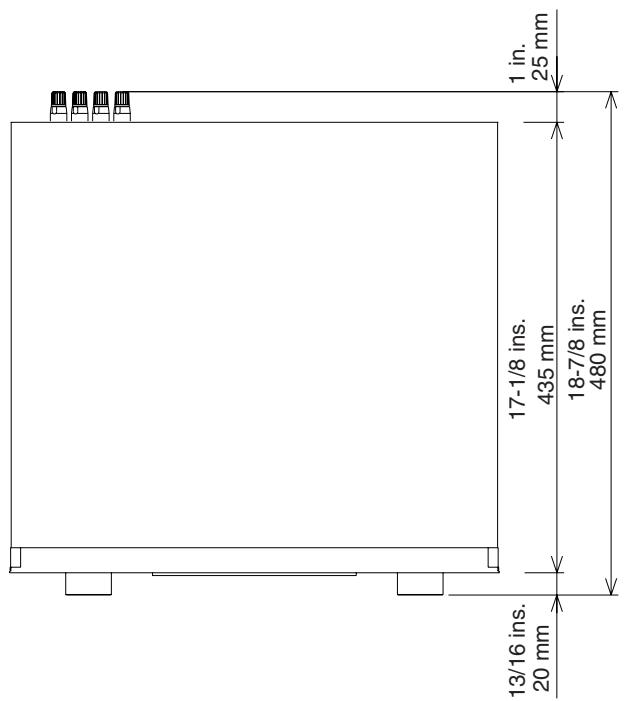
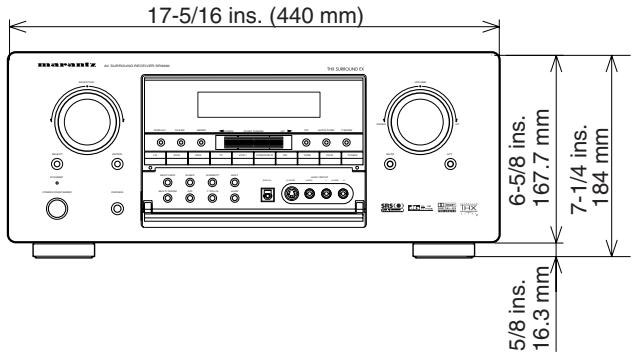
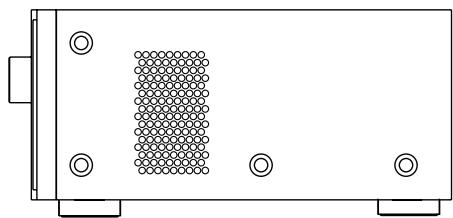
| COUNTRY | COMPANY | ADDRESS |
| ALGERIE | Azur 2000 | 8, Lotissement Ben Hatadi, Alger, Algeria |
| ARMENIA | NGYIG Ltd. | 47 A/75 St. Lalaiants, 375000 Yerevan, Armenia |
| AUSTRALIA | QualiFi Pty. Ltd., | P.O. Box 350, Mt. Waverley, VIC 3149, Australia |
| AUSTRIA | Huber & Prohaska GmbH | Taborstraße 95 / Ladestraße 1, Gebäude Hangartner, A-1200 Wien, Austria |
| BAHREIN | Ambassador Stores | P.O. Box 237,141, Government Avenue, Manama,Bahrain |
| BANGLADESH | Target | 1078, Ramjoy Mohanja Lane Asadgonj, Chittagong 4000, Bangladesh |
| BELGIUM | Van der Heyden Audio N.V. | Brusselbaan 278, 9320 Erembodegem, Belgium |
| BULGARIA | Ariescommerce GmbH | Makedonia Blvd. 16, 1606 Sofia, Bulgaria |
| CANADA | Lenbrook Industries Limited | 633 Granite Court, Pickering, Ontario |
| CHINA | Guang Chang Audio International Co., Ltd. | No.38 Yushan Road, ShiQiao, Pan Yu, Guang Dong, China |
| CYPRUS | Empire Hifi systems Ltd. | P.O. Box 5604, Nicosa, Cyprus |
| CZECH REPUBLIC | Audio International | Sokolska 41, 67902 Rajecko, OKR,Blansko, Czech Republic |
| DENMARK | Audio Nord | Dali Allé 1, 9610 Noerager, Denmark |
| DUBAI | V.V.& SONS | P.O. Box 105, Dubai, U.A.E. |
| EGYPT | Solimco | 9, El Attibaa St. Doki, Cairo, Egypt |
| ESTONIA | HiFi Club Estonia | Ehte 4, 90503 Haapsalu, Estonia |
| F.Y.R.O.M. | T.P. KODI | ul.Cedomir Kantargiev 21a, Skopje, Former Yugoslavian Republic of Macedonia |
| FINLAND | Audio Nord | Udenmaankatu 4-6, Helsinki SF-00120, Finland |
| FRANCE | Marantz France | A division of Marantz Europe B.V., P.O. Box 301, 92 156 Suresnes Cedex, France |
| GERMANY | Marantz Deutschland | Hakenbusch 3, 49078 Osnabrück, Germany |
| GREECE | Adamco S.A. | 188, Hippocraticus Street, 11471 Athens, Greece |
| HEADQUARTERS EUROPE: | Marantz Europe B.V. | P.O. Box 8744, 5605 LS Eindhoven, The Netherlands |
| HONG KONG | Marantz Hong Kong Ltd. | Unit 1706, Metroplasa II, 223 Hing Fong Road, Kwai Fong, N.T., Kowloon, Hong Kong |
| HUNGARY | Infovox Ltd. | Terez Kr.t31, 1067 Budapest, Hungary |
| ICELAND | ID Electronics Ltd. | Armula 38, 108 Reykjavik, Iceland |
| INDIA | NOVA Audio Private | 8,Punam Co-op.Society 29/30 Road#5, Union Park MUMBAI 400052, India |
| IRAN | Home Co. | 5th floor no 878 Philips Building Enghelab ave, P.O. 11365/7844 Tehran, Iran |
| IRELAND | Marantz Ireland | Clonskeagh, Dublin 14, Ireland |
| ISRAEL | Elmor Ltd. | 52 Heh Beiyar Street, Kikar Hamedina, Tel Aviv, Israel |
| ITALY | Marantz Italy | Via Casati 23, 20052 Monza (Milano), Italy, Servizio Consumatori 1678-20026,Numero Verde |
| IVORY COAST | Hifivoir | B.P. 2428, Abidjan 01, Ivory Coast |
| JAPAN | Marantz Japan Inc. | 35-1 Sagami Ohno 7-Chome, Sagamihara-shi, Kanagawa 228-8505, Japan |
| KOREA | MK Enterprises Ltd. | Rm604, Electro-officetel, 16-58, Hangang-ro 3Ga, Yongsan-Ku, Seoul, Korea |
| KUWAIT | alAlamiah Electronics Intl. | P.O. Box 8196, Salmiah 22052, Kuwait |
| LATvia | Ace Ltd. | 61, LacPlesa Str., Riga LV 1011, Latvia |
| LEBANON | AZ Electronics S.A., 1, | P.O. Box 11 2833, Beirut, Lebanon |
| LITHUANIA | Accapella Ltd. | Ausros, Vartu G/5, Pasazo SKG., 2001 Vilnius, Lithuania |
| MALAYSIA | Wo Kee Hong Electronics Sdn. Bhd. | 2nd Floor Bangnan Infinite Centre, Lot1, Jalan 13/6, 46200 Petaling Jaya, Selangor Datul Ehsan, Malaysia |
| MALTA | Doneo Co Ltd. | 78 The Strand, Sliema SLM07, Malta |
| MAURITIUS | SKR Electronics Ltd. | P.O. Box 685, Bell Village, Port Louis, Mauritius |
| MILITARY MARKET EUROPE | PASCO GmbH | PO BOX 1280, Sandhausen 69200, Germany |
| NEW ZEALAND | Wildash Audio Systems | 14 Malvern Road, Mt. Albert, Auckland, New Zealand |
| NORWAY | Audio Nord | Sandkerveien 64, Oslo 0483, Norway |
| OMAN | Mustafa & Jawad Trading CO. | P.O. Box 1918, Ruwi, Oman |
| POLAND | Philips Polska Sp. z.o.o. | Al.Jerozolinskie 195b, 02 222 Warszawa, Poland |
| PORTUGAL | Corel2 | Comércio de Elétrcnica Lda., Av. Luis Bivar, No 85 A, 1050 Lisboa, Portugal |
| PROFESSIONAL EUROPE | Marantz U.K. Ltd. | Kingsbridge House, Padbury Oaks, 575-583 Bath Road, Longford, Middlesex UB7 0EH, U.K. |
| PROFESSIONAL U.S.A. | Marantz America Inc. | 1100 Maplewood Drive Itasca, IL 60143, U.S.A. |
| QATAR | Almana & Partners W.W.L. | P.O. Box 49, Doha, Qatar |
| REUNION | Vision + | 180 Rue du Marechal Leclerc, 97400 Saint Denis, Ile de la Reunion |
| ROMANIA | Nova Music Entertainment | 5, Zagazuliui Str. Bl.1G.apt.18, sector 1,Bucharest, Romania |
| RUSSIA | Absolute Audio | 7/2, Montazhnaya Street, 107497 Moscow, Russia |
| SAUDI ARABIA | Adawlia Univ. Electr. Apl. | P.O. Box 2154, Alkhobar 31952, Saudi Arabia |
| SINGAPORE | Wo Kee Hong Distribution PTE Ltd. | 130 Joo Seng Road, #03-02 Olivine Building, Singapore 368357 |
| SLOVAKIA | Bis Audio s.r.o. | Nam. SNP 10, 96001 Zvolem, Slovakia |
| SLOVENA | Bofex | Smartinska 152, HALA V/3, 61000 Ljubljana, Slovenia |
| SOUTH AFRICA | Coherent Imports (PTY) Ltd. | P.O. Box 1614, Alberton, 1450, South Africa |
| SPAIN | Marantz Spain | Martinez Villergas 2, Apartado 2065, Madrid 28027, Spain |
| SRI LANKA | The listening Room | Mezzanine Floor, The Landmark 385, Galle Road, Colombo - 3, Sri Lanka |
| SWEDEN | Audio Nord | Almedalsvagen 4, Gotenberg 402-23, Sweden |
| SWITZERLAND | Sound Company AG | Postfach, 8010 Zürich, Switzerland |
| SYRIA | Hamzeh & Partners | Hafez Ibrahim Str. No 117, Damascus Shalan, Syria |
| TAHITI | Covecolor | Av. Prince Hinoi, Cours de l'union sacré, P.O. Box 2334, Papeete, Tahiti |
| TAIWAN | Pai-Yuong Co. Ltd. | 6th No 148 Sung Kiang Road, Taipei 10429, Taiwan R.O.C. |
| THAILAND | MRZ Standard Co. Ltd. | 746-750 Mahachai Road, Wangburapa, Bangkok 10200, Thailand |
| TUNESIA | Societe EDEVIG | 40, Avenue du Golfe Arabe, El Menzah, 1004, Tunisia |
| TURKEY | Türk Phillips Ticaret A.S. | Yukari Dudullu Organize sanayi Bolgesi, 2.Cadde no.28, 81260 Umraniye-Istanbul, Turkey |
| U.K. | Marantz U.K. Ltd. | Kingsbridge House, Padbury Oaks, 575-583 Bath Road, Longford, Middlesex UB7 0EH, U.K. |
| U.S.A. | Marantz America Inc. | 1100 Maplewood Drive Itasca, IL 60143, U.S.A. |
| YUGOSLAVIA | ITM Company | Omladinskikh Brigada 86, 11070 Belgrade, Yugoslavia |
www.marantz.com
Manufactured under license from Dolby Laboratories. "Dolby", "AC-3", "Pro Logic" and the double-D symbol are trademarks of Dolby Laboratories. Confidential Unpublished Works. © 1992-1997 Dolby Laboratories, Inc. All rights reserved.
Manufactured under license from Digital Theater Systems, Inc. US Pat. No. 5,451,942 and other worldwide patents issues and pending. "DTS" and "DTS Digital Surround" are trademarks of Digital Theater Systems, Inc. © 1996 Digital Theater Systems, Inc. All rights reserved.
"Lucasfilm®" and "THX®" are registered trademarks of Lucasfilm Ltd. "SURROUND EX™" is a trademark of Dolby Laboratories. Used under authorization.
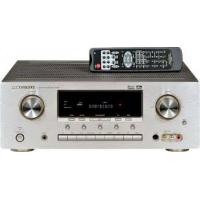
- imarantz
- WARNING
- NOTE TO CATV SYSTEM INSTALLER:
- NOTE:
- IMPORTANT SAFETY INSTRUCTIONS
- READ BEFORE OPERATING EQUIPMENT
- TABLE OF CONTENTS
- FEATURES
- AMPLIFIER FEATURES
- THX Select certified
- - Current feedback 6ch Amplifier
- AUDIO/VIDEO FEATURES
- FLEXIBILITY FEATURES
- FUTURE-PROOF INTERFACE ARCHITECTURE
- MULTIROOM CAPABILITY
- Digital I/O
- OTHER FEATURES
- PRECAUTIONS
- CAUTIONS ON INSTALLATION
- DESCRIPTION
- THX SURROUND EX
- MUTE button
- ⑤ INPUT FUNCTION SELECTOR buttons (AUDIO/VIDEO)
- AUX1 input jacks
- AUX1 button
- AUX2 button
- (Source) DIRECT button
- Notes:
- NIGHT button
- ② SLEEP button
- A/D (Analog/Digital) SELECTOR button
- M-SPKR (Multi Room Speaker) button
- MULTI (Multi Room) button
- PHONES jack for stereo headphones
- INFRARED transmitting sensor window
- INFRARED receiving sensor window
- DIGITAL INPUT (Dig.1 - 6) / OUTPUT (coaxial, optical)
- Preamp Outputs (L, R, SL, SR, SBL, SBR, C)
- Subwoofer Output
- FM antenna terminal (75 ohms)
- AM antenna and ground terminals
- Multiroom Outputs (Audio L&R, Video)
- MONITOR OUT
- COMPONENTVIDEOINPUT/OUTPUT
- Speaker outputs terminals (for Main room)
- Speaker outputs terminals (for Multiroom)
- AC INLET
- AC OUTLETS
- Caution:
- VIDEO IN/OUT (TV, DVD, DSS, VCR1, VCR2)
- AUDIO IN/OUT (CD, TAPE, CD-R, TV, DVD, DSS, VCR1, VCR2)
- 7.1 CHANNEL INPUT
- RS232C
- REMOTE CONT. IN/OUT terminals
- MULTI ROOM REMOTE IN/OUT terminals
- DC TRIGGER output terminals
- External IR transmitter terminal
- REMOTE CONTROL UNIT RC3200A
- Select buttons to Navigation bar
- CH (Channel) ▲ UP and ↓DOWN buttons
- S (Status) button
- M (Menu) button
- Ex (Exit) button
- ( mute) button
- VOL(Volume) ▲ UP and ↓DOWN buttons
- OK and cursor (Up / Down / Left / Right) buttons
- Page scroll Up /Down buttons
- button
- Serial port
- LCD touch screen
- LOADING BATTERIES
- Note
- ACTIVATING THE RC3200A
- TURNING ON THE DISPLAY AND THE BACKLIGHT
- Note :
- CHANGING THE LCD CONTRAST
- THE BATTERY STATUS
- OPERATING DEVICES
- ACTIVATING THE HOME SCREEN
- SELECTING A DEVICE ON THE HOME SCREEN
- USING THE SOFT BUTTONS
- REMOTE-CONTROLLABLE RANGE
- OPERATING AMP & TUNER
- MAIN
- Power on and off buttons
- Sleep button
- Night button
- Display button
- Video off button
- Cinema RE-EQ button
- OSD button
- INPUT SELECT1
- Tuner, TV, VCR1, DSS, CD, DVD, buttons
- INPUT On/Off buttons
- A/D button
- ATT button
- INPUT SELECT 2
- Tape, LD, AUX1, AUX2, VCR2, CD-R
- TONE ADJUST
- BASS + and -
- Treble + and -
- Test tone
- Ch sel.
- Ch. Level + and -
- SURROUND MODE1
- SURROUND MODE 2
- THX
- DTS
- SURROUND MODE 3
- DOLBY SURROUND
- Circle Surround
- MULTI ROOM
- On/Off
- Volume + and -
- Mute
- Sleep
- Tuner
- Multi room speaker On and Off
- AM, (LW), FM buttons
- Tuning (\^:up/v:down) buttons
- Preset (\^:up/v:down) buttons
- Preset Scan button
- CLR (Clear) button
- Frequency Direct button
- Stereo/Mono button
- RDS Display button (European model only)
- PTY button (European model only)
- TUNER PAGE 3/3
- Ten keypad (0, 1 - 9)
- Memo button
- SHOW THE STATUS OF SR8300 ON THE LCD OF RC3200A
- 1/2 Status
- 2/2 Status
- Multiroom Status
- WORKING WITH MODES
- ADJUSTING THE SETTINGS
- FIRST SETUP PAGE
- Adjust the LCD Timeout
- Adjust the Backlight Timeout
- Change the Beep volume
- SECOND SETUP PAGE
- Adjust the Date
- Adjust the Time
- THIRD SETUP PAGE
- Revert
- TO EXIT SETUP MODE
- LEARNING COMMANDS
- THE LEARN SEQUENCE
- Tip
- RECORDING MACROS
- RC3200 EDIT
- MINIMUM SYSTEM REQUIREMENTS
- IMPORTANTNOTICES
- Take care not to scratch the touch screen
- Protect RC3200A from extreme temperatures
- RC3200A is not waterproof
- The touch screen of RC3200A contains a glass element
- Replace batteries
- CLEANING RC3200A
- HOW TO RESET THE RC3200A
- CONNECTIONS
- SPEAKER PLACEMENT
- Front left and right speakers
- Center speaker
- Surround left and right speakers
- Surround back speaker
- Subwoofer
- HEIGHT OF THE SPEAKER UNITS
- Front left and right speakers, and a center speaker
- Surround left and right speakers, and surround back speaker
- Note;
- CONNECTING SPEAKER WIRE
- CONNECTING BANANA PLUG
- CONNECTING A SUBWOOFER
- CONNECTING DIGITAL AUDIO COMPONENTS
- CONNECTINGVIDEOCOMPONENTS
- CONNECT TO THE VIDEO JACKS
- CONNECT TO THE S-VIDEO JACKS AND COMPONENT
- VIDEO, S-VIDEO, COMPONENT JACKS
- VIDEO jack
- S-VIDEO jack
- Component jack
- ADVANCED CONNECTING
- CONNECTING EXTERNAL POWER AMPLIFIER
- ASSEMBLING THE AM LOOP ANTENNA
- CONNECTING THE SUPPLIED ANTENNAS
- Connecting the supplied FM feeder antenna
- Connecting the supplied AM loop antenna
- CONNECTING AN FM OUTDOOR ANTENNA
- CONNECTING AN AM OUTDOOR ANTENNA
- CONNECTING REMOTE CONTROL JACKS
- CONNECTING FOR THE MULTI ROOM
- SETUP
- ON SCREEN DISPLAY MENU SYSTEM
- INPUT SETUP (ASSIGNABLE DIGITAL INPUT)
- SPEAKER SETUP
- SPEAKER SIZE
- THX SPEAKER SYSTEM
- SUBWOOFER:
- FRONT L/R
- CENTER
- SURROUND L/R
- SURR. BACK
- SURR. BACK SIZE
- SPEAKER DISTANCE (TIME ALIGNMENT)
- Notes
- SPEAKERS LEVEL
- BASS PEAK LEVEL
- PREFERENCE
- EFFECT LEVEL
- PLII (PRO LOGIC II) MUSIC PARAMETER
- CS II (CIRCLE SURROUND II) PARAMETER
- CH INPUT LEVEL
- DC TRIGGER SETUP
- BASIC OPERATION (PLAY BACK)
- SELECTING AN INPUT SOURCE.
- SELECTING THE SURROUND MODE
- ADJUSTING THE MAIN VOLUME
- ADJUSTING THE TONE(BASS & TREBLE) CONTROL.
- (using the SR8300)
- (Using the remote control unit)
- Notes :
- TEMPORARILY TURNING OFF THE SOUND
- USING THE SLEEP TIMER
- NIGHT MODE
- DIALOGUE NORMALIZATIONMESSAGE
- SURROUND MODE
- AUTO
- S (SOURCE) - DIRECT
- THX CINEMA
- DTS-CINEMA & DTS-MUSIC
- DTS-ES (DISCRETE 6.1, MATRIX 6.1)
- DTS NEO: 6
- PRO LOGIC II MOVIE, PRO LOGIC II MUSIC, PRO LOGIC
- DSP SURROUND (HALL, MATRIX, MOVIE)
- STEREO
- CIRCLE SURROUND II (CSII-CINEMA, CSII-MUSIC, CSII-MONO)
- MULTI CH. STEREO
- VIRTUAL
- CAUTION
- NOTE for Dolby Digital Surround EX signal
- NOTE for 96kHz PCM audio
- NOTE for DTS signal
- OTHER FUNCTION
- TV AUTO ON/OFF FUNCTION
- AUTO POWER ON
- AUTO POWER OFF
- ATTENUATION TO ANALOG INPUT SIGNAL
- LISTENING OVER HEADPHONES
- VIDEO ON/OFF
- DISPLAY MODE
- SELECTING ANALOG AUDIO INPUT OR DIGITAL AUDIO INPUT
- RECORDING AN ANALOG SOURCE
- RECORDING A DIGITAL SOURCE
- CH INPUT.
- AUX2 INPUT
- BASIC OPERATION (TUNER)
- LISTENING TO THE TUNER
- AUTO TUNING
- MANUAL TUNING
- DIRECT FREQUENCY CALL
- (FM) TUNING MODE (AUTO STEREO OR MONO)
- PRESET MEMORY
- AUTO PRESET MEMORY
- MANUAL PRESET MEMORY
- RECALLING A PRESET STATION
- CHECKING THE PRESET STATIONS
- PRESET SCAN
- CLEARING STORED PRESET STATIONS
- NAME INPUT OF THE PRESET STATION.
- MULTI ROOM SYSTEM
- MULTI ROOM PLAYBACK USING THE MULTI ROOM OUT TERMINALS
- MULTI ROOM PLAYBACK USING THE MULTISPEAKER TERMINALS
- Notes for MULTI ROOM SPEAKER
- OPERATION TO MULTI ROOM OUTPUTS WITH THE REMOTE CONTROLLER FROM SECOND ROOM.
- General:
- Tuner:
- Notes for multi room system:
- TROUBLESHOOTING
- In case of trouble, check the following before calling for service:
- GENERAL MALFUNCTION
- Memory backup
- TECHNICAL SPECIFICATIONS
- FM TUNER SECTION
- AM TUNER SECTION
- AUDIO SECTION
- VIDEO
- GENERAL
- ACCESSIONS
- DIMENSION
Marque : MARANTZ
Modèle : SR8300
Catégorie : Amplificateur audio-vidéo