
CORE 100HT-BD - Mini PC ASROCK - Notice d'utilisation et mode d'emploi gratuit
Retrouvez gratuitement la notice de l'appareil CORE 100HT-BD ASROCK au format PDF.


| Type de produit | Mini PC |
| Marque | ASROCK |
| Modèle | CORE 100HT-BD |
| Dimensions (L x H x P) | 195 x 70 x 186 mm |
| Poids | Environ 1,5 kg |
| Alimentation | Adaptateur secteur 90W / 19V CC |
| Processeur supporté | Intel Core i3/i5/i7 mobile (Arrandale) |
| Chipset | Mobile Intel HM55 Express |
| Mémoire | 2 x SO-DIMM DDR3 800/1066 MHz, max. 8 Go |
| Stockage | 2 x disques durs 2,5" SATA, 1 lecteur optique (DVD Super Multi ou BD Combo) |
| Graphiques | Intel HD Graphics intégrés |
| Connectique avant | 2 x USB 3.0, 1 x micro, 1 x écouteurs |
| Connectique arrière | 1 x HDMI, 1 x VGA, 6 x USB 2.0, 1 x S/PDIF optique, 1 x eSATA, Gigabit LAN, WiFi 802.11b/g/n |
| Son | 7.1 canaux HD Audio avec THX TruStudio Pro |
| Télécommande | Oui, compatible MCE (Media Center) |
| Fonctions principales | Démarrage rapide (Instant Boot), overclocking (OC Tuner), charge rapide Apple (APP Charger), AIWI (iPhone en manette), CyberLink DVD Suite, Norton Antivirus (version d'essai) |
| Entretien et nettoyage | Débrancher avant nettoyage ; ne pas obstruer les ouvertures de ventilation ; éviter l'humidité et la poussière |
| Sécurité | Ne pas ouvrir le boîtier (perte de garantie) ; batterie lithium (perchlorate) : manipuler selon la réglementation ; ne pas exposer à l'eau ou à des sources de chaleur |
| Pièces détachées et réparabilité | Disques durs, mémoire, lecteur optique, adaptateur secteur, câbles SATA, télécommande, kit anti-dérapant, adaptateur HDMI vers DVI |
| Informations générales | Volume 2,5 L ; notice d'utilisation disponible au format PDF ; site ASRock : www.asrock.com |
FOIRE AUX QUESTIONS - CORE 100HT-BD ASROCK
Questions des utilisateurs sur CORE 100HT-BD ASROCK
0 question sur cet appareil. Repondez a celles que vous connaissez ou posez la votre.
Poser une nouvelle question sur cet appareil
Téléchargez la notice de votre Mini PC au format PDF gratuitement ! Retrouvez votre notice CORE 100HT-BD - ASROCK et reprennez votre appareil électronique en main. Sur cette page sont publiés tous les documents nécessaires à l'utilisation de votre appareil CORE 100HT-BD de la marque ASROCK.
MODE D'EMPLOI CORE 100HT-BD ASROCK
ASRock
Core 100 Series
User Manual
Version 1.0
Published April 2010
Copyright©2010 ASRock INC. All rights reserved.
Copyright Notice:
No part of this manual may be reproduced, transcribed, transmitted, or translated in any language, in any form or by any means, except duplication of documentation by the purchaser for backup purpose, without written consent of ASRock Inc.
Products and corporate names appearing in this manual may or may not be registered trademarks or copyrights of their respective companies, and are used only for identification or explanation and to the owners' benefit, without intent to infringe.
Disclaimer:
Specifications and information contained in this manual are furnished for informational use only and subject to change without notice, and should not be constructed as a commitment by ASRock. ASRock assumes no responsibility for any errors or omissions that may appear in this manual.
With respect to the contents of this manual, ASRock does not provide warranty of any kind, either expressed or implied, including but not limited to the implied warranties or conditions of merchantability or fitness for a particular purpose.
In no event shall ASRock, its directors, officers, employees, or agents be liable for any indirect, special, incidental, or consequential damages (including damages for loss of profits, loss of business, loss of data, interruption of business and the like), even if ASRock has been advised of the possibility of such damages arising from any defect or error in the manual or product.

This device complies with Part 15 of the FCC Rules. Operation is subject to the following two conditions:
(1) this device may not cause harmful interference, and
(2) this device must accept any interference received, including interference that may cause undesired operation.
CALIFORNIA, USA ONLY
The Lithium battery adopted on this product contains Perchlorate, a toxic substance controlled in Perchlorate Best Management Practices (BMP) regulations passed by the California Legislature. When you discard the Lithium battery in California, USA, please follow the related regulations in advance.
"Perchlorate Material-special handling may apply, see www.dtsc.ca.gov/hazardouswaste/perchlorate"
ASRock Website: http://www.asrock.com
Safety Instructions
Your system is designed and tested to meet the latest standards of safety for information technology equipment. However, to ensure your safety, it is important that you read the following safety instructions.
Setting up your system
- Read and follow all instructions in the documentation before you operate your system.
- Do not use this product near water or a heated source such as a radiator.
- Set up the system on a stable surface.
- Openings on the chassis are for ventilation. Do not block or cover these openings. Make sure you leave plenty of space around the system for ventilation. Never insert objects of any kind into the ventilation openings.
- Use this product in environments with ambient temperatures between 0^ and 40^ .
- If you use an extension cord, make sure that the total ampere rating of the devices plugged into the extension cord does not exceed its ampere rating.
Care during use
- Do not walk on the power cord or allow anything to rest on it.
- Do not spill water or any other liquids on your system.
-
When the system is turned OFF, a small amount of electrical current still flows. Always unplug all power, modem, and network cables from the power outlets before cleaning the system.
If you encounter the following technical problems with the product, unplug the power cord and contact a qualified service technician or your retailer. -
The power cord or plug is damaged.
- Liquid has been spilled into the system.
- The system does not function properly even if you follow the operating instructions.
- The system was dropped or the cabinet is damaged.
- The system performance changes.
No disassembly

NOTE:
The warranty does not apply to products (including HDD, ODD, memory and warranty seal) that have been damaged as a result of attempting to disassemble/reassemble the system or modifying the hardware configuration.
Safety cautions and warnings
Optical Drive Safety Information
Optical drives sold with this system contains a CLASS 1 LASER PRODUCT.

CAUTION:
Invisible laser radiation when open. Do not stare into beam or view directly with optical instruments.

WARNING:
Making adjustments or performing procedures other than those specified in the user's manual may result in hazardous laser exposure. Do not attempt to disassemble the optical drive. For your safety, have the optical drive serviced only by an authorized service provider.
Product disposal notice

IMPORTANT:
This symbol of the crossed out wheeled bin indicates that the product (electrical and electronic equipment) should not be placed in municipal waste. Check local regulations for disposal of electronic products.
Nordic Lithium Cautions (for lithium-ion batteries)

CAUTION!
Danger of explosion if battery is incorrectly replaced. Replace only with the same or equivalent type recommended by the manufacturer. Dispose of used batteries according to the manufacturer's instructions.
Installation Notices
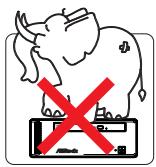
Do not place this product underneath heavy loads or in an unstable position.
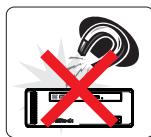
Do not use or expose this product around magnetic fields as magnetic interference may affect the performance of the product.
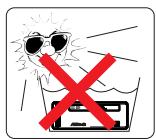
Do not expose this product to high levels of direct sunlight, high-humidity or wet conditions.
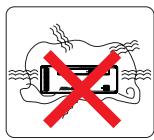
Do not block the air vents to this product or impede the airflow in any way.
Contents
1 Introduction 7
1.1 Package Contents 7
1.2 Specifications 8
1.3 System Motherboard Components 9
1.4 Rear Panel Connections 11
1.5 System Chassis 12
1.6 Remote Controller 13
2 System Quick Installation 14
3 System Components Reinstallation 18
4 Installing Second HDD 20
5 Driver Installation 22
6 UTILITY MEMU 23
6.1 Instant Boot 23
6.1.1 Introduction 23
6.1.2 Installation 24
6.2 ASRock OC Tuner 26
6.2.1 Introduction 26
6.2.2 Installation 26
6.3 CyberLink DVD Suite free bundle (Trial version, including PowerDVD, PowerDirector, etc) 30
6.4 Symantec Norton AntiVirus Software free bundle (Trial version) 32
6.5 THX TruStudio PRO Software free bundle 33
6.6 ASRock AIWI Utility 34
6.7 The best Apple charge companion - ASRock APP Charger 35
7 BIOS SETUP UTILITY 36
7.1 Introduction 36
7.1.1 BIOS Menu Bar 36
7.1.2 Navigation Keys 37
7.2 Main Screen 37
7.3 OC Tweaker Screen 38
7.4 Advanced Screen 41
7.4.1 CPU Configuration 42
7.4.2 Chipset Configuration 44
7.4.3 ACPI Configuration 45
7.4.4 Storage Configuration 46
7.4.5 USB Configuration 47
7.5 Hardware Health Event Monitoring Screen 48
7.6 Boot Screen 48
7.6.1 Boot Settings Configuration 49
7.7 Security Screen 50
7.8 Exit Screen 51
8 Software Support 52
8.1 Install Operating System 52
8.2 Support CD Information 52
8.2.1 Running Support CD 52
8.2.2 Drivers Menu 52
8.2.3 Utilities Menu 52
8.2.4 Contact Information 52
Chapter 1 Introduction
Thank you for purchasing ASRock Core 100 Series, a reliable product
produced under ASRock's consistently stringent quality control. It delivers excellent performance with robust design conforming to ASRock's commitment to quality and endurance.
In this manual, chapter 1 and 2 contain introduction of the hardware and step-by-step guide to the hardware installation. Chapter 3 and 4 contain the configuration guide to BIOS setup and information of the Support CD.

Because the hardware specifications and the BIOS software might be updated, the content of this manual will be subject to change without notice. In case any modifications of this manual occur, the updated version will be available on ASRock website without further notice. You may find the latest VGA cards and CPU support lists on ASRock website as well. ASRock website http://www.asrock.com
If you require technical support related to this product, please visit our website for specific information about the model you are using. www.asrock.com/support/index.asp
1.1 Package Contents
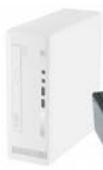
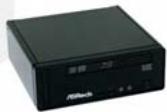
ASRock Support CD
ASRock Quick Start Guide
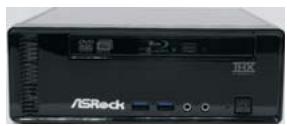
ASRock Core 100 Series
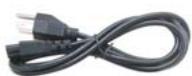
One AC Power Cord
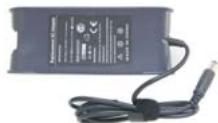
One AC/DC Adapter
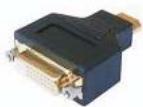
One HDMI to DVI Adapter

One Anti-Slip Pad
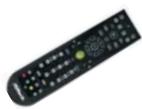
Remote Controller
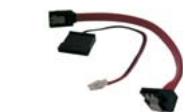
SATA and Power Cables
(Core 100HT / Core 100HT-BD)
1.2 Specifications
- For barebone system, it may not contain memory, HDD or ODD.
| Processor | Support Intel® Core™ i3/i5/i7 Mobile Processor (Arrandale CPU) |
| Chipset | Mobile Intel® HM55 Express chipset1 |
| Memory | Support DDR3 800/1066MHz, 2 x SO-DIMM slots, maximun up to 8GB |
| VGA | Intel® HD Graphics |
| HDD | 2.5” HDD, support second 2.5” HDD |
| DVD | DVD Super Multi (Core 100 / Core 100HT) BD Combo2 (Core 100HT-BD) |
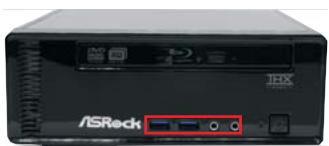
| Front I/O | 2 x USB3.0, 1 x Microphone, 1 x Earphone |
| Rear I/O | 1 x HDMI, 1 x D-Sub VGA, 6 x USB2.0, 1 x S/PDIF, 1 x eSATAI3 |
| Sound | 7.0 Ch HD Audio with THX TruStudio Pro™ |
| LAN | Gigabit LAN |
| WiFi | 802.11b/g/n wireless LAN (Core 100HT / Core 100HT-BD) |
| Remote Controller | Support MCE function (Core 100HT / Core 100HT-BD) |
| Power | 90W/19V Adapter |
| Dimension | 195mm(W)x70mm(H)x186m(L) |
| Volume (liters) | 2.5L |
Due to WinXP and PCH chipset (HM55) limitations, if you use WinXP, please disable the BIOS option "USB2.0 Rate Matching Hub" to make USB devices work properly. (For example, in the process of installing WinXP or using USB3.0 devices.)
2 For CD-RW write type, only support 4x, 8x, 10x CD-RW DISC format.
For eSATA function, Hot Plug function is supported in AHCI mode only. IDE mode does not support Hot Plug function.
WARNING
Please realize that there is a certain risk involved with overclocking, including adjusting the setting in the BIOS, or using the third-party overclocking tools. Overclocking may affect your system stability, or even cause damage to the components and devices of your system. It should be done at your own risk and expense. We are not responsible for possible damage caused by overclocking.
1.3 System Motherboard Components
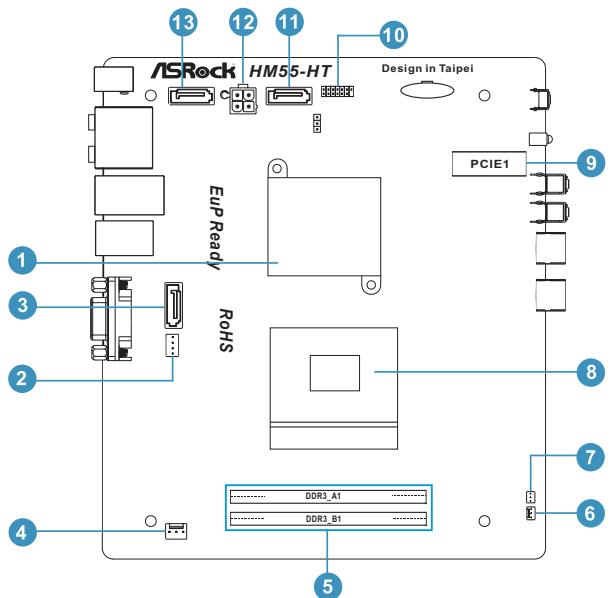
- Northbridge heatsink
- J1 jumper: For second HDD SATA power cable
- SATA connector: For second HDD SATA data cable
- Fan connector
- Memory socket
- Fan connector
- Infrared module header
- CPU socket
- Mini-PCI Express expansion slot: For WiFi module
- Clear CMOS jumper
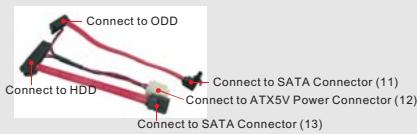
- SATA connector: For ODD SATA data cable
- ATX5V output power connector for slim ODD & 2.5" HDD
- SATA connector: For HDD SATA data cable
NOTE.
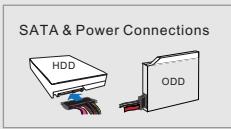
1. SATA and Power Connections
2. Fan Connection
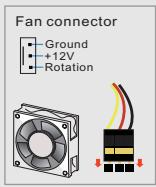
item 4
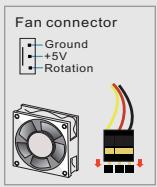
item 6
1.4 Rear Panel Connectinos
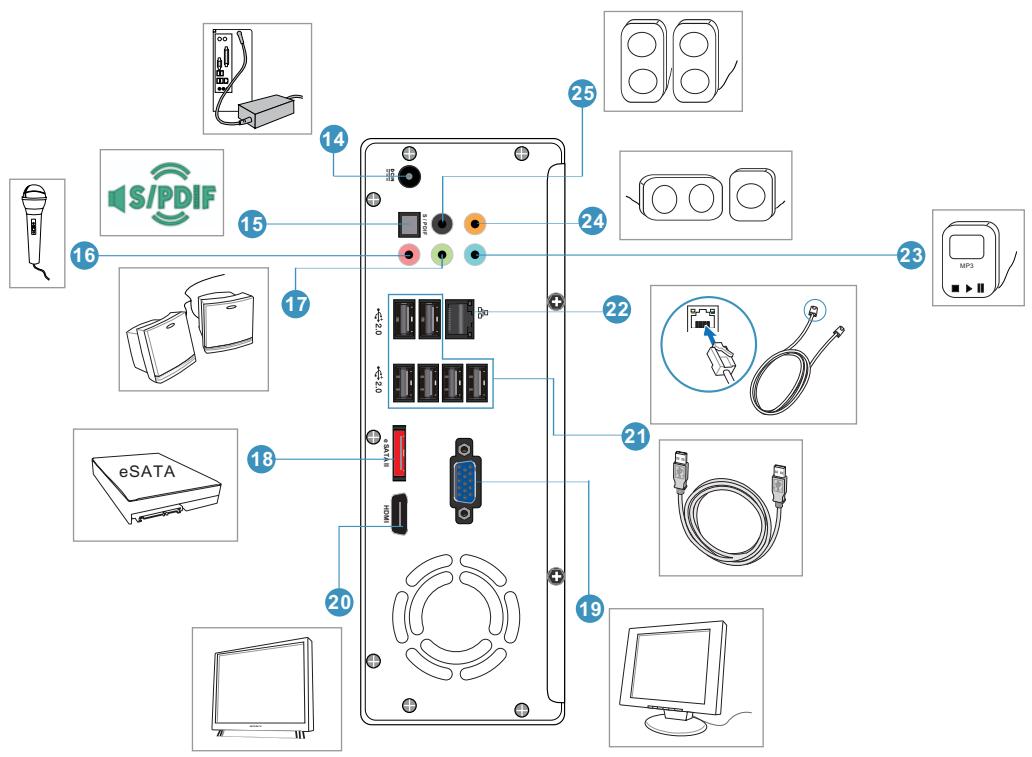
- DC-In jack
- Optical S/PDIF Out port
- Mic In (Pink): Microphone
- Front L/R Out (Lime): Stereo speakers or headphones
- eSATAI connector
- Display (VGA) port
- HDMI connector
- USB2.0 ports: USB devices
- LAN (RJ-45) port: Local Area Network
- Line In (Blue) for 2/4/6 channel; Rear (Blue) for 8 channel
- Center/LFE (Orange): Center / subwoofer speakers
- Side port for side speakers
1.5 System Chassis
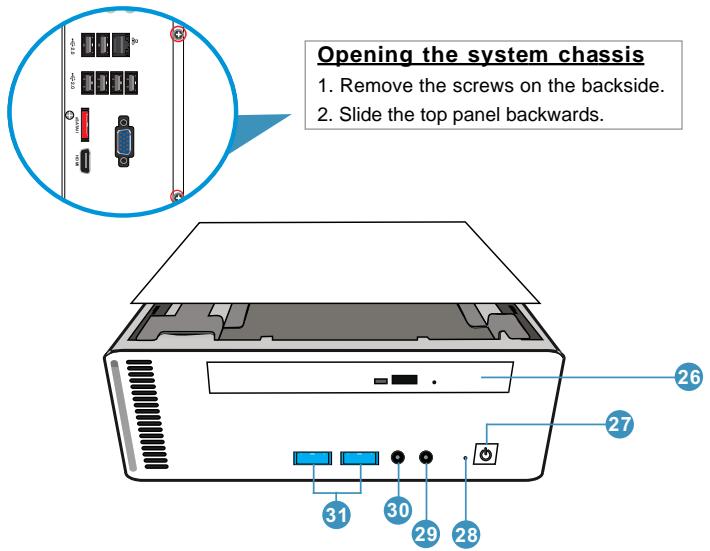
- Optical Disc Drive
- Power ON/OFF button with status indicator
- Drive activity indicator
- Earphone
- Microphone
- USB3.0 ports: USB devices
1.6 Remote Controller (Core 100HT / Core 100HT-BD)
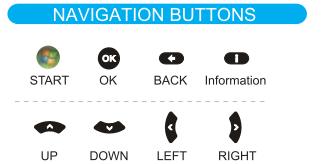
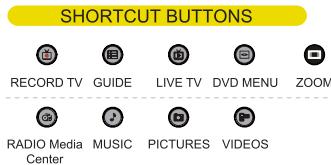
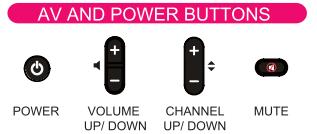
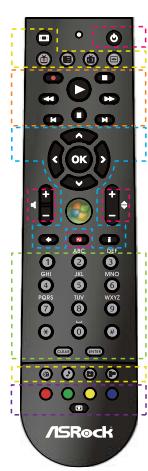
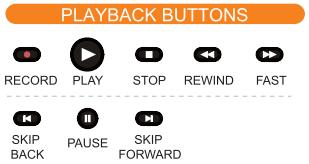
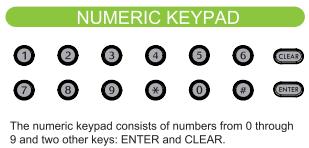
TELETEXT BUTTONS
Media Center supports Teletext when it is available. The colored Fastext buttons on the remote control for Media Center PC work much like the Teletext buttons on a standard Teletext-enabled TV.

Some remote controller functions listed above are only available with the relative hardware equipments. If the hardware equipments you adopt are not compatible with the system, you are not allowed to use these functions. This product is designed to meet MCE standards.
Chapter 2 System Quick Installation
- Connecting USB Devices (USB2.0 Ports)
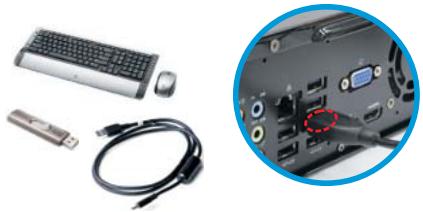
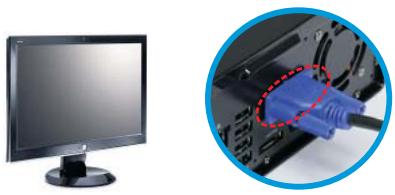
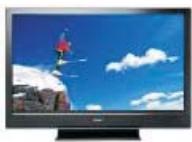
- Connecting VGA Monitor (Display (VGA) Port)
- Connecting the Network (LAN (RJ-45) Port)
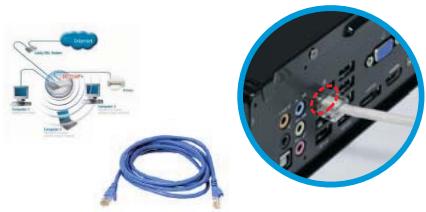
- Connecting HDMI Device (HDMI Port)
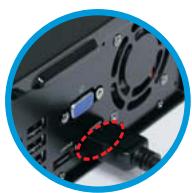
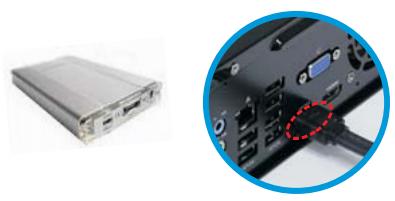
5. Connecting eSATA Device (eSATA Port)
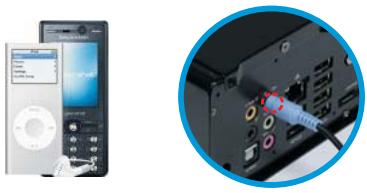
6. Connecting External Audio Device
(Line In Port for 2/4/6 Channel; Rear Port for 8 Channel)
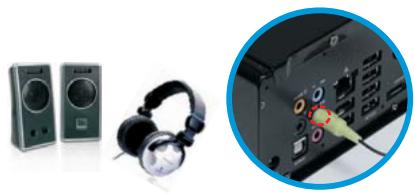
7. Connecting Stereo Speakers or Headphones (Front L/R Out Port)
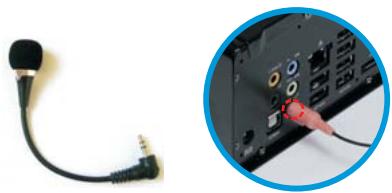
8. Connecting Microphone (Mic In Port)
- Connecting Center / Subwoofer Speakers (Center/LEF Port)
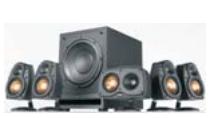
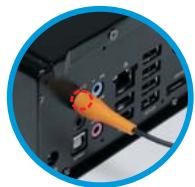
- Connecting Side Speakers (Side Port for 4/6/8 Channel)
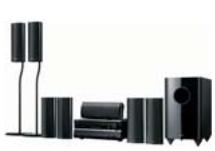
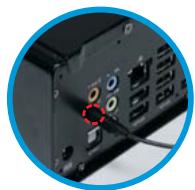
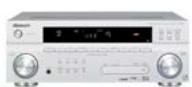
- Connecting Optical Device (Optical S/PDIF Out Port)
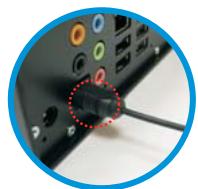
- Connecting Power (DC-In Jack Port)
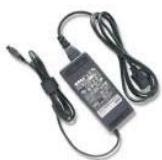
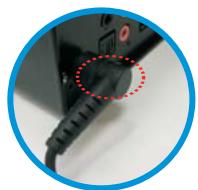
- Power on the System (Power Switch)
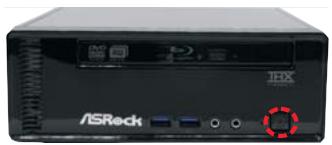
- Connecting Earphone / Microphone / USB3.0 Devices
Chapter 3 System Components Reinstallation
- Remove the cover screws on the rear panel.
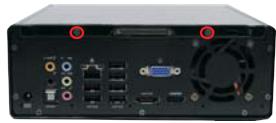
Note: For safety reasons, please ensure that the power cord is disconnected before opening the case.
- Slide the side cover toward the rear panel and pull the side cover upwards.
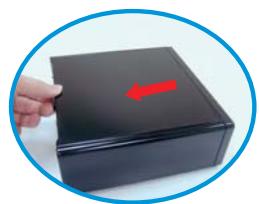
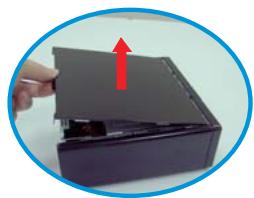
- To change the storage drives, you need to remove SATA and power cables from ODD / HDD first, and unscrew the screws from both side.
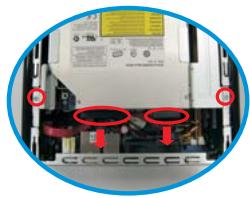
- Pull ODD / HDD rack backwards and take it out from the bay.
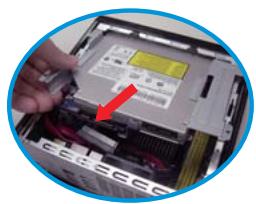
- Unscrew the screws from the side of ODD / HDD rack, and change your required ODD / HDD.
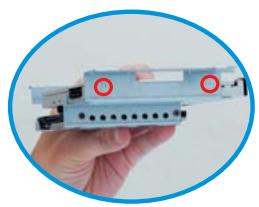
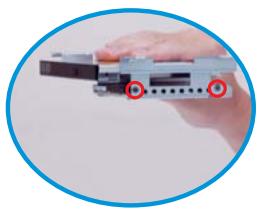
- Refer to above steps to place the new ODD / HDD to the chassis. Replace the side cover and fasten the screws.
Chapter 4 Installing Second HDD
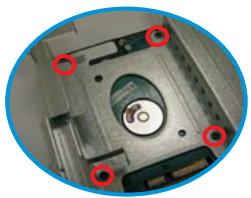
- To install the second HDD, please follow above step 1 to 4, and remove the ODD and the first HDD in advance. Then fasten the screws of the second HDD to the rack.
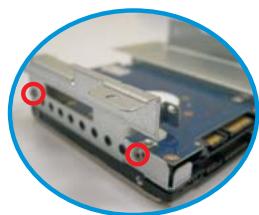
- Place the first HDD to the rack and fasten the screws from both side.
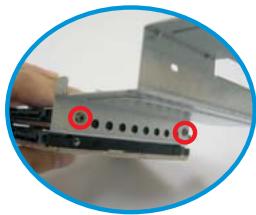
- Place the ODD to the rack and fasten the screws from both side. Replace the rack to the chassis.
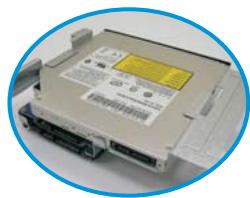
- Connect one end of SATA and power cables to the ODD and the other end to the bottom HDD.
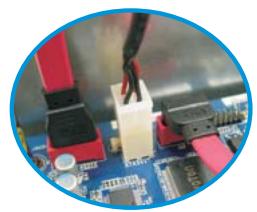
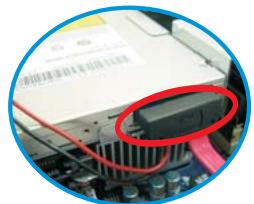
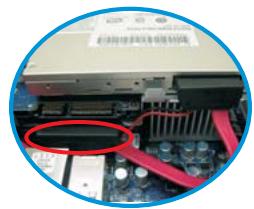
- Connect the other SATA and power cables to SATAII_3 and J1 connectors on the motherboard.
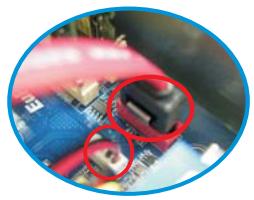
- Connect the other end to the top HDD.
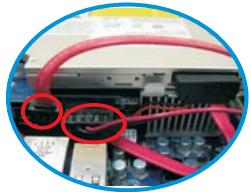
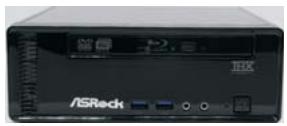
- Replace the side cover and fasten the screws.
Chapter 5 Driver Installation
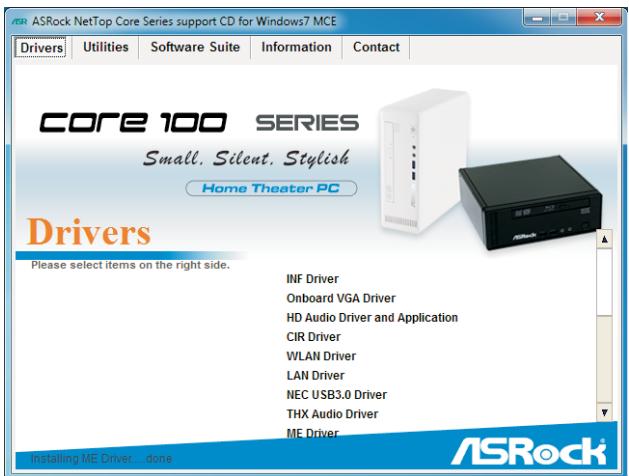
To install the drivers to your system, please insert the support CD to your optical drive first. Then, the drivers compatible to your system can be auto-detected and listed on the support CD driver page. Please follow the order from up to bottom side to install those required drivers. Therefore, the drivers you install can work properly.
Chapter 6 Utility Menu
The utilities meu shows the applications and other software that this product supports.
6.1 Instant Boot
6.1.1 Introduction
Instant Boot, a user-friendly tool that allows you to turn on your PC in just a few seconds, provides a much more efficient way to save energy, time, money, and improves system running speed for your system *. It is applicable to Windows® 7 / 7 64-bit / Vista™ / Vista™ 64-bit / XP / XP 64-bit.
Instant Boot leverages the S3 and S4 ACPI (Advanced Configuration and Power Interface) features which normally enable the Sleep/Standby and Hibernation modes in Windows® to shorten boot up time. By calling S3 and S4 at specific timing during the shutdown and startup process, Instant Boot allows you to enter your Windows® desktop in a few seconds.
There are two modes of Instant Boot available: Fast Mode and Regular Mode. In Fast Mode, it uses S3 and takes only a few seconds for OS to resume to working state, which is 10 times faster than traditional boot up time (50 to 60 seconds). Even the Regular Mode is 3 times faster than traditional boot up time.
Instant Boot guarantees a clean Windows® boot to consume less power, time and money without any accumulated garbage data, and you can still keep your data safe even there is a power cut. Also, the Windows® update speed will become faster.
- This function is applicable ONLY to single user that does not secure ID and Password to their systems.
- The boot up time depends on the hardware configuration.
6.1.2 Installation
Please read below procedures carefully before you install Instant Boot.
A. Install Instant Boot driver from ASRock support CD, or you may click following link to get the latest utility and BIOS: http://www.asrock.com/features/InstantBoot/download.asp
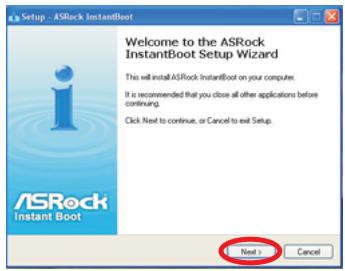
B. Execute the Instant Boot installation program under Windows®. Please follow the instructions on Instant Boot setup page.
a. Click "Next" to continue.
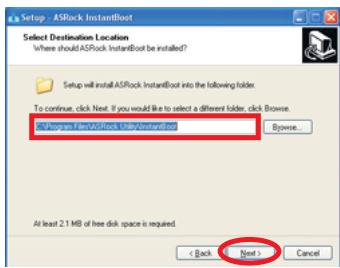
b. Select destination location. You may choose a different folder if you need, and click "Next".
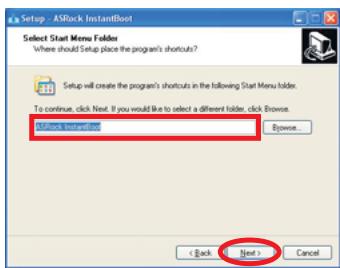
c. Select the start menu folder. You may choose a different folder if you need, and click "Next".
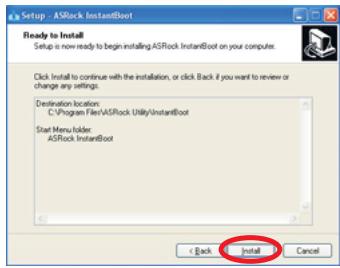
d. Click "Install" to begin installing Instant Boot driver.
e. Click "Finish" to complete and exit the setup.
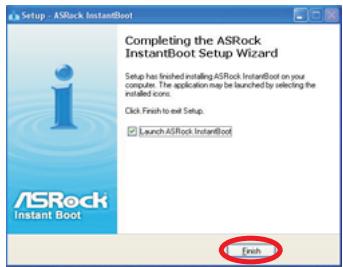
C. After the installation is completed, you will find an ASRock Instant Boot icon

on the Windows® desktop.
D. Double click ASRock Instant Boot icon on the desktop, then Instant Boot main menu will pop up.
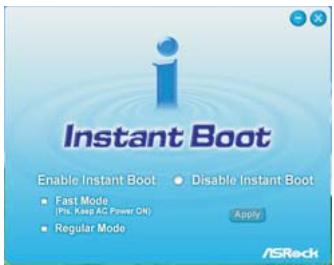
E. On Instant Boot main menu, you can choose "Fast Mode", "Regular Mode" or "Disable Instant Boot". After that, please click "Apply" to save the change. Please notice that you need to keep AC power on if you select "Fast Mode".
F. When you want to shut down the computer, please simply select "Shut Down" from Windows® "Start menu".
G. Now, the system will restart once automatically. After reentering into OS, the system will shutdown again.
H. Next time when you turn on your system, you can enjoy the benefit of Instant Boot.
6.2 ASRock OC Tuner
6.2.1 Introduction
ASRock OC Tuner is a user-friendly overclocking tool which allows you to guard your system by hardware monitor function and overclock your hardware devices to get the best system performance.
There are 3 major sections that are easy to fine-tune and monitor:
Overclocking, Voltage Control, and Hardware Monitor. In Overclocking section, you are allowed to overclock CPU frequency for optimal system performance. In Voltage Control section, you can adjust voltage for DRAM, chipset and CPU to enhance compatibility and the boost overclocking. In Hardware Monitor section, it shows the major readings of your system.
6.2.2 Installation
Please read below procedures carefully before you install ASRock OC Tuner.
A. Install ASRock OC Tuner driver from ASRock support CD, or you may click following link to get the latest utility: http://www.asrock.com/features/OCTuner/download.asp
B. Execute the ASRock OC Tuner installation program under Windows®. Please follow the instructions on Instant Boot setup page. a. Click "Next" to continue.
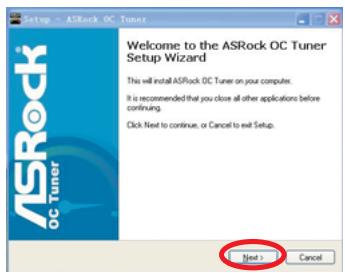
b. Select destination location. You may choose a different folder if you need, and click "Next".
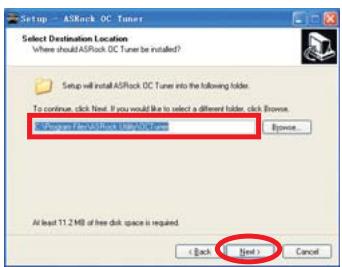
c. Select the start menu folder. You may choose a different folder if you need, and click "Next".
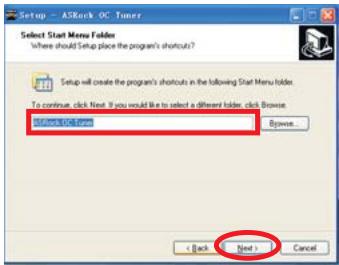
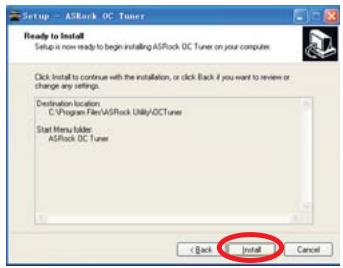
d. Click "Install" to begin installing ASRock OC Tuner driver.
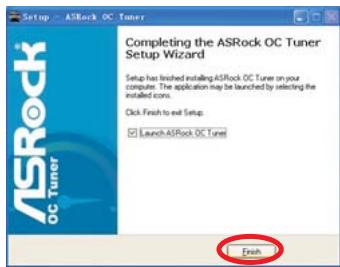
e. Click "Finish" to complete and exit the setup.
C. After the installation is completed, you will find an ASRock OC Tuner icon
on the Windows® desktop.
D. Double click ASRock OC Tuner icon on the desktop, then ASRock OC Tuner main menu will pop up.
Auto apply when program starts
Auto apply when program starts
If you check this button, it will save your settings when you close OC Tuner window. And next time when you run OC Tuner, it will start with the settings you made. If you do not check this button, next time when you run OC Tuner, it will start with the default settings.
Note: Before you select "Auto apply when program starts", it is recommended to run some test programs to make sure your system is running very stably.
Auto run when Windows starts
If you click this button, every time you turn on your system and enter
Windows®, the system will automatically start the OC Tuner.
Note: It is not recommended to overclock your system. Overclocking and over-voltage may affect your system stability, or even cause damage to your hardware devices. It should be done at your own risk and expense. ASRock is not responsible for possible damage caused by overclocking and over-voltage.
Note: If system hangs after overclocking, please remove AC power cord and plug AC power cord again before you power on your system.
WiFi Radio
If you click this button, the system will automatically start WiFi Radio function. If you click this button again, and the button shows "OFF WiFi Radio", WiFi Radio function will be turned off.
E. There are three sections in ASRock OC Tuner main menu: System Health, Hardware Monitor, Overclocking and Voltage Control.
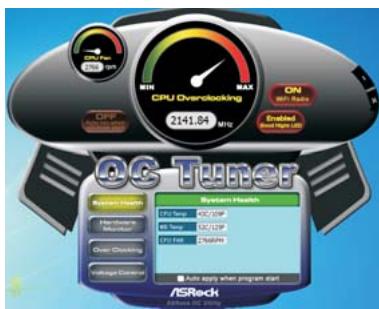
System Health - In the System Health section, there are two major chapters: System Health and CPU Quiet Fan. Under the System Health chapter, it shows the major readings of CPU, chipset and GPU Temperature. You may find out if there's any abnormal situation occurs to your system's temperature. Under the CPU Quiet Fan chapter, the Chassis Fan Speed will show the default settings of your system. You are able to adjust the setting too by clicking the "Up/Down" arrows and confirm by "Go" afterward.
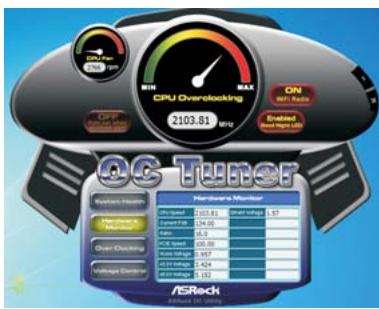
Hardware Monitor - In the Hardware Monitor section, it shows the major readings of your system. There are CPU speed, Current FSB, Ratio, PCIE Speed and respective voltages.
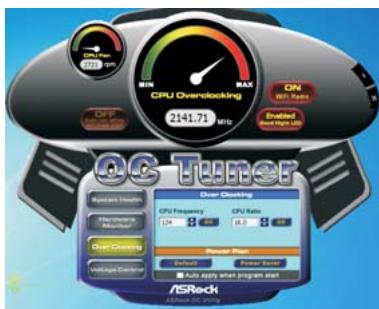
Overclocking – In the Overclocking section, there is a CPU chapter for parameter settings adjustment in pursuit of optimal system performance. Under the CPU chapter, you are able to fine-tune the CPU frequency and CPU ratio by clicking the "Up/Down" arrows at the display panel. After confirmation of the settings, please click on the "Go" button.
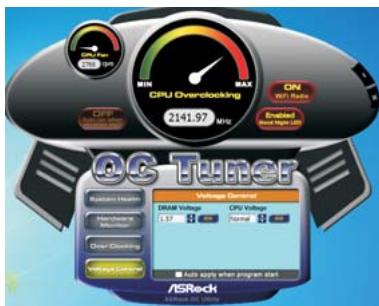
Voltage Control – In the Voltage Control section, there are many voltage adjustment items, such as DRAM and CPU items. The voltage control is relevant to overclocking. You may adjust respective voltages by clicking the "Up/Down" arrows and confirm by "Go" respectively.
6.3 CyberLink DVD Suite free bundle (Trial version, including PowerDVD, PowerDirector, etc)
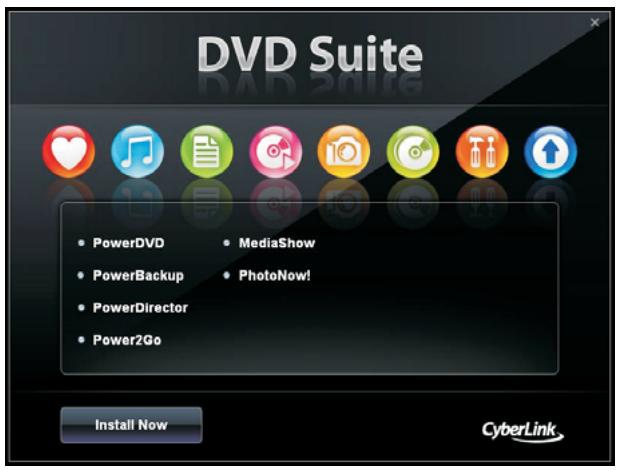
CyberLink DVD Suite includes five softwares: PowerDVD, PowerBackup, PowerDirector, Power2Go and MediaShow. Please read below description for details.
PowerDVD
World-renowned and award-winning PowerDVD delivers the ultimate DVD and high-definition movie experience on the PC. Feature-rich navigation controls enhance and personalize the movie experience. Moreover, the latest version comes with leading video and audio technologies to deliver an exceptional level of viewing and listening quality. PowerDVD is the obvious choice for anyone looking to enjoy DVDs and high-definition Discs on the PC.
- The bundled PowerDVD is PowerDVD 8 DTS trial version, which only supports DVD playback with DTS function. To play back other media such as Blu-ray or Dolby disc, please download PowerDVD 9 trial version from CyberLink website: www.cyberlink.com
PowerBackup
PowerBackup is a powerful yet practical tool for protecting essential data, offering a step-by-step approach to saving data onto a disc, a local hard drive, or via a network.
PowerDirector
CyberLink PowerDirector provides cool features to ensure editing movies is fun and fast! Whether you are an advanced or entry-level video editor, PowerDirector lets you enhance your camcorder videos and produce professional home movies. PowerDirector offers a dual mode editing interface, comprehensive production tools, technologies that save time and maintain your video quality, and a built-in CD/DVD authoring program. It is your total video editing solution!
Power2Go
- CyberLink Power2Go features two easy interfaces for handling all kinds of content. Express mode allows simple drag-and-drop turning of Data, Music, and Video files, as well as double-click activation of copying personal discs.
- Power2Go advanced mode allows configuration of burning and copying settings, in addition to utilities for tasks such as ripping files and erasing discs.
MediaShow
MediaShow is an advanced software that lets you create, present and share multimedia slide shows. It allows you to incorporate images, videos, audio clips and even PowerPoint slides and add loads of transition effects, tilting effects, background music to create a dazzling slide show.
6.4 Symantec Norton AntiVirus Software free bundle (Trial version)
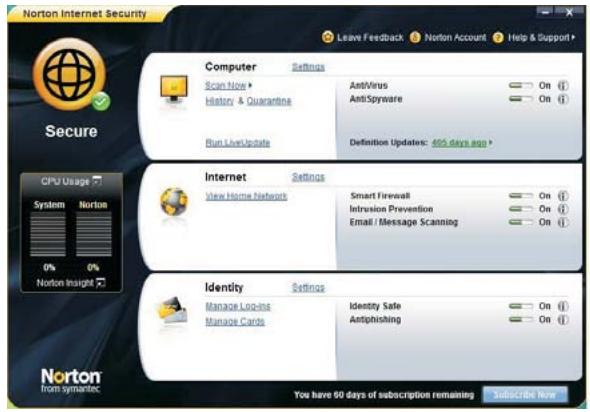
Protect your PC with Norton Internet Security, the fastest virus, spyware, Internet protection. Norton Internet Security can stop online identity theft, viruses, spyware, bots and more, stop attacks before they get on your PC, deliver clear threat and performance explanations, identify unsafe web sites right in your search results, and use intelligence-driven Norton Insight Network for faster, fewer, shorter scans.
6.5 THX TruStudio PRO Software free bundle
After you install THX audio driver from our support CD, there will be a shortcut
shown on the desktop. Please double-click this icon to install THX audio driver to your system. Please make sure to connect your system to the internet during installation process. Then your system will automatically connect to THX's website to active. After the installation completes, the shortcut will be auto-removed. You will find the THX icon on the Windows® task bar.
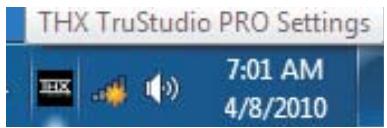
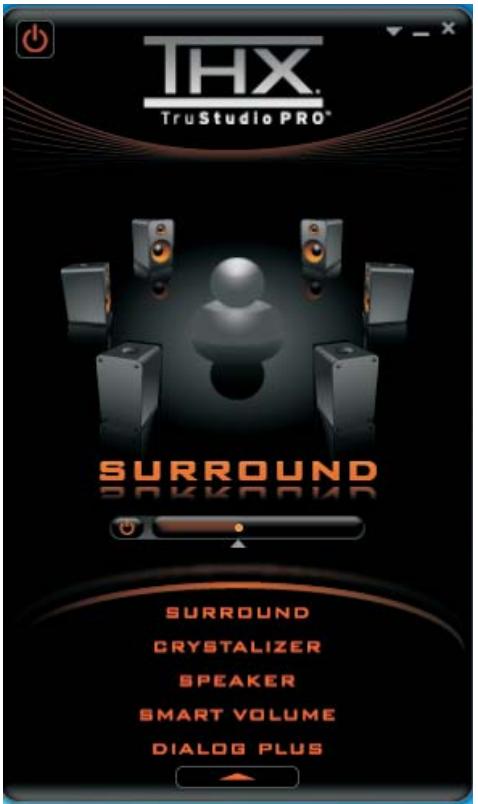
Click the THX icon on the Windows® task bar, you will see THX TruStudio PRO software application as below, which provides Surround /Crystalizer/Speaker/Smart volume/Dialog plus functions for you. Therefore, you can adjust your required function and freely enjoy the benefit of THX TruStudio PRO.
6.6 ASRock AIWI Utility
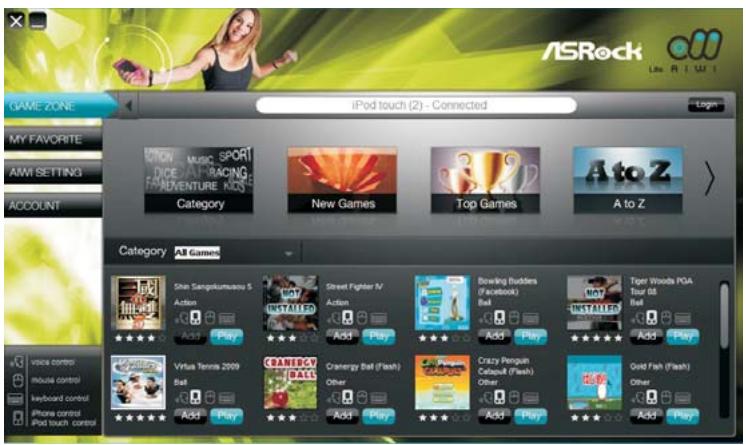
To experience intuitive motion controlled games is no longer only available at Wii. ASRock AIWI utility introduces a new way of PC gaming operation. ASRock AIWI is the world's first utility to turn your iPhone/iPod touch as a game joystick to control your PC games. All you have to do is just to install the ASRock AIWI utility either from ASRock official website or ASRock software support CD to your motherboard, and also download the free AIWI Lite from App store to your iPhone/ iPod touch. Connecting your PC and apple devices via Bluetooth or WiFi networks, then you can start experiencing the exciting motion controlled games. Also, please do not forget to pay attention to ASRock official website regularly, we will continuously provide you the most up-do-date supported games!
6.7 The best Apple charge companion
- ASRock APP Charger
Fast Charge & Charge Anytime!
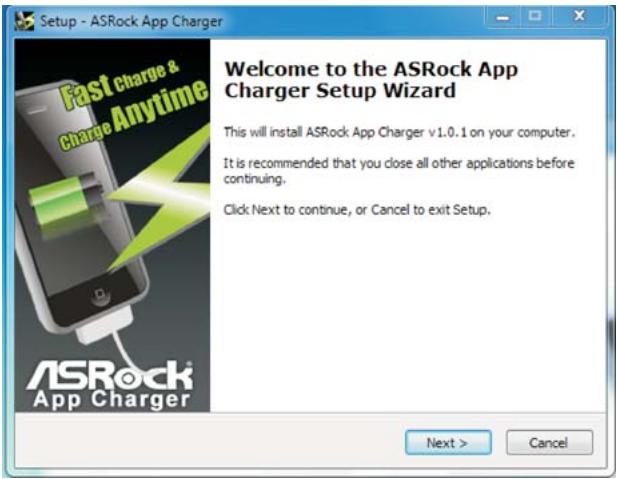
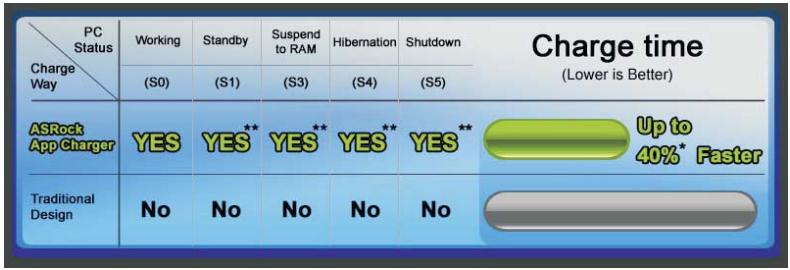
If you desire a faster, less restricted way of charging your Apple devices, such as iPhone/iPod/iPad Touch, ASRock has prepared a wonderful solution for you iV ASRock App Charger. Simply installing the App Charger driver, it makes your iPhone charged much quickly from your computer and up to 40% faster than before. ASRock App Charger allows you to quickly charge many Apple devices simultaneously and even supports continuous charging when your PC enters into Standby mode (S1), Suspend to RAM(S3), hibernation mode (S4) or power off (S5)^* . With App Charger driver installed, you can easily enjoy the marvelous charging experience than ever.
Chapter 7 BIOS SETUP UTILITY
7.1 Introduction
This section explains how to use the BIOS SETUP UTILITY to configure your system. The BIOS chip on the system stores the BIOS SETUP UTILITY. You may run the BIOS SETUP UTILITY when you start up the computer. Please press <F2> or <Del> during the Power-On-Self-Test (POST) to enter the BIOS SETUP UTILITY, otherwise, POST will continue with its test routines.
If you wish to enter the BIOS SETUP UTILITY after POST, restart the system by pressing <Ctrl> + <Alt> + <Delete> , or by pressing the reset button on the system chassis. You may also restart by turning the system off and then back on.

Because the BIOS software is constantly being updated, the following BIOS setup screens and descriptions are for reference purpose only, and they may not exactly match what you see on your screen.
7.1.1 BIOS Menu Bar
The top of the screen has a menu bar with the following selections:
Main To set up the system time/date information
OC Tweaker To set up overclocking features
Advanced To set up the advanced BIOS features
H/W Monitor To display current CPU/MB temperature & Vcore voltage
Boot To set up the default system device to locate and load the Operating System
Security To set up the security features
Exit To exit the current screen or the BIOS SETUP UTILITY
Use <> key or <> key to choose among the selections on the menu bar, and then press
7.1.2 Navigation Keys
Please check the following table for the function description of each navigation key.
Navigation Key(s) Function Description
| ←/ → | Moves cursor left or right to select Screens |
| ↑ / ↓ | Moves cursor up or down to select items |
| + / - | To change option for the selected items |
| <Enter> | To bring up the selected screen |
| <F1> | To display the General Help Screen |
| <F9> | To load optimal default values for all the settings |
| <F10> | To save changes and exit the BIOS SETUP UTILITY |
| <ESC> | To jump to the Exit Screen or exit the current screen |
7.2 Main Screen
When you enter the BIOS SETUP UTILITY, the Main screen will appear and display the system overview
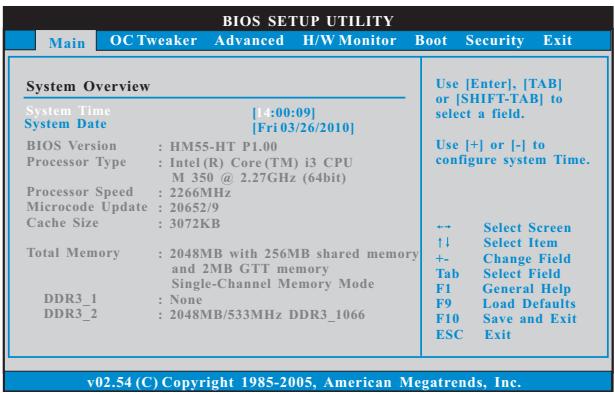
System Time [Hour:Minute:Second]
Use this item to specify the system time.
System Date [Day Month/Date/Year]
Use this item to specify the system date.
7.3 OC Tweaker Screen
In the OC Tweaker screen, you can set up overclocking features.
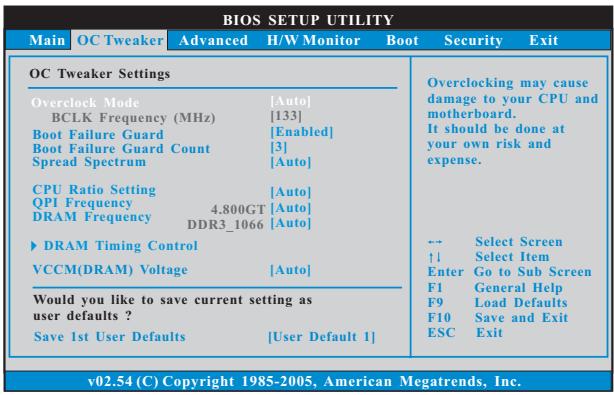
Overclock Mode
Use this to select Overclock Mode. Configuration options: [Auto], [Manual] and [Optimized]. The default value is [Auto].
BCLK Frequency (MHz)
Use this option to adjust BCLK (Internal Base Clock) frequency.
Boot Failure Guard
Enable or disable the feature of Boot Failure Guard.
Boot Failure Guard Count
Enable or disable the feature of Boot Failure Guard Count.
Spread Spectrum
This item should always be [Auto] for better system stability.
CPU Ratio Setting
If the ratio status is unlocked, you will find this item appear to allow you changing the ratio value of this motherboard.
QPI Frequency
Use this option to adjust QPI (QuickPath Interconnect) frequency. Configuration options: [Auto], [3.200GT], [3.733GT], [4.266GT] and [4.800GT]. The default value is [Auto].
DRAM Frequency
If [Auto] is selected, the motherboard will detect the memory module(s) inserted and assigns appropriate frequency automatically. You may select [Auto], [400MHz DDR3_800)] or [533MHz DDR3_1066]).
DRAM Timing Control
Use this item to control DRAM Timing.
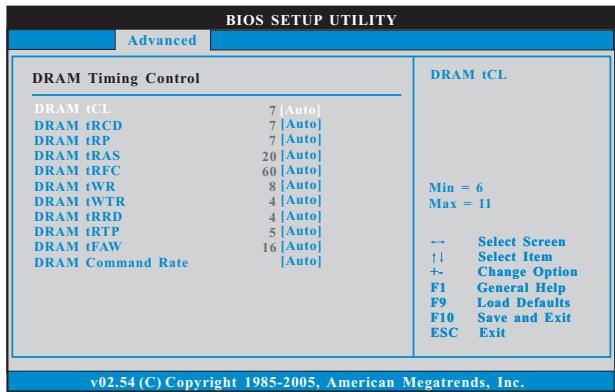
DRAM tCL
Use this item to adjust the means of memory accessing. Configuration
options : [Auto], [6] to [11].
DRAM tRCD
This controls the number of DRAM clocks for TRCD. Configuration options: [Auto], [3] to [15].
DRAM tRP
This controls the number of DRAM clocks for TRP. Configuration options: [Auto], [3] to [15].
DRAM tRAS
This controls the number of DRAM clocks for TRAS. Configuration options: [Auto], [9] to [31].
DRAM tRFC
This controls the number of DRAM clocks for TRFC. Configuration options: [Auto], [15] to [255].
DRAM tWR
This controls the number of DRAM clocks for TWR. Configuration options: [Auto], [3] to [15].
DRAM tWTR
This controls the number of DRAM clocks for TWTR. Configuration options: [Auto], [2] to [10].
DRAM tRRD
This controls the number of DRAM clocks for TRRD. Configuration options:
Configuration options: [Auto], [4] to [7].
DRAM tRTP
This controls the number of DRAM clocks for TRTP. Configuration options:
[Auto], [2] to [13].
DRAM tFAW
This controls the number of DRAM clocks for TFAW. Configuration options: [Auto], [1] to [63].
DRAM Command Rate
Use this item to adjust DRAM Command Rate. Configuration options : [1], [2] and [Auto].
VCCM(DRAM) Voltage
Use this to select VCCM(DRAM) Voltage. Configuration options: [Auto], [1.350V] to [1.801V]. The default value is [Auto].
Would you like to save current setting user defaults?
In this option, you are allowed to load and save three user defaults according to your own requirements.
7.4 Advanced Screen
In this section, you may set the configurations for the following items: CPU Configuration, Chipset Configuration, ACPI Configuration, Storage Configuration and USB Configuration.
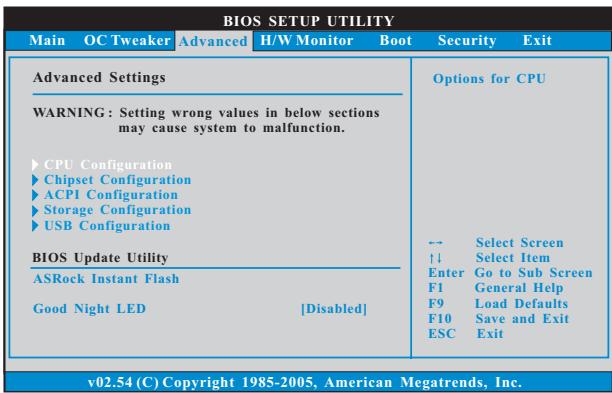

Setting wrong values in this section may cause the system to malfunction.
ASRock Instant Flash
ASRock Instant Flash is a BIOS flash utility embedded in Flash ROM. This convenient BIOS update tool allows you to update system BIOS without entering operating systems first like MS-DOS or Windows®. Just launch this tool and save the new BIOS file to your USB flash drive, floppy disk or hard drive, then you can update your BIOS only in a few clicks without preparing an additional floppy diskette or other complicated flash utility. Please be noted that the USB flash drive or hard drive must use FAT32/16/12 file system. If you execute ASRock Instant Flash utility, the utility will show the BIOS files and their respective information. Select the proper BIOS file to update your BIOS, and reboot your system after BIOS update process completes.
Good Night LED
Enable this option to turn off Power LED and Lan LED when the system is power on. The keyboard LED will also be turned off in S1, S3 and S4 state. The default value is [Disabled].
7.4.1 CPU Configuration
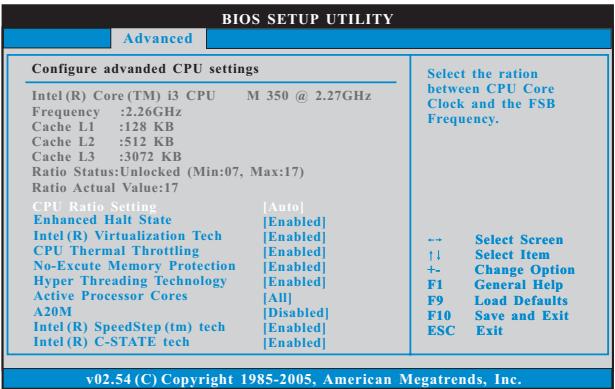
CPU Ratio Setting
If the ratio status is unlocked, you will find this item appear to allow you changing the ratio value of this motherboard.
Enhance Halt State
All processors support the Halt State (C1). The C1 state is supported through the native processor instructions HLT and MWAIT and requires no hardware support from the chipset. In the C1 power state, the processor maintains the context of the system caches.
Intel (R) Virtualization Tech
When this option is set to [Enabled], a VMM (Virtual Machine Architecture) can utilize the additional hardware capabilities provided by Vanderpool Technology.
CPU Thermal Throttling
You may select [Enabled] to enable CPU internal thermal control mechanism to keep the CPU from overheated.
No-Excute Memory Protection
No-Execution (NX) Memory Protection Technology is an enhancement to the IA-32 Intel Architecture. An IA-32 processor with "No Execute (NX) Memory Protection" can prevent data pages from being used by malicious software to execute code.
Hyper Threading Technology
To enable this feature, it requires a computer system with an Intel® processor that supports Hyper-Threading technology and an operating system that includes optimization for this technology, such as Microsoft® Windows® XP / Vista™ / 7. Set to [Enabled] if using Microsoft® Windows® XP / Vista™ / 7, or Linux kernel version 2.4.18 or higher.
Active Processor Cores
Use this item to select the number of cores to enable in each processor package. Configuration options: [All], [1] and [2]. The default value is [All].
A20M
Use this item to enable or disable A20M. Legacy OS and AP may need A20M enabled. The default value is [Disabled].
Intel (R) SpeedStep(tm) tech.
Intel (R) SpeedStep(tm) tech. is Intel's new power saving technology. Processor can switch between multiple frequency and voltage points to enable power savings. The default value is [Enabled]. Configuration options: [Auto], [Enabled] and [Disabled]. If you install Windows® XP and select [Auto], you need to set the "Power Schemes" as "Portable/Laptop" to enable this function. If you install Windows® Vista™ / 7 and want to enable this function, please set this item to [Enabled].

Please note that enabling this function may reduce CPU voltage and lead to system stability or compatibility issue with some power supplies. Please set this item to [Disable] if above issue occurs.
Intel (R) C-STATE tech.
Intel (R) C-STATE tech. is achieved by making the power and thermal control unit part of the core logic and not part of the chipset as before. Migration of the power and thermal management flow into the processor allows us to use a hardware coordination mechanism in which each core can request any C-state it wishes, thus allowing for individual core savings to be maximized. The CPU C-state is determined and entered based on the lowest common denominator of both cores' requests, portraying a single CPU entity to the chipset power management hardware and flows. Thus, software can manage each core independently, while the actual power management adheres to the platform and CPU shared resource restrictions.
C State package limit setting
This item appears only when you set the item "Intel (R) C-STATE tech." to [Enabled]. The selected option will programme into C State package limit register. Configuration options: [Auto], [C3] and [C6]. The default value is [Auto].
7.4.2 Chipset Configuration
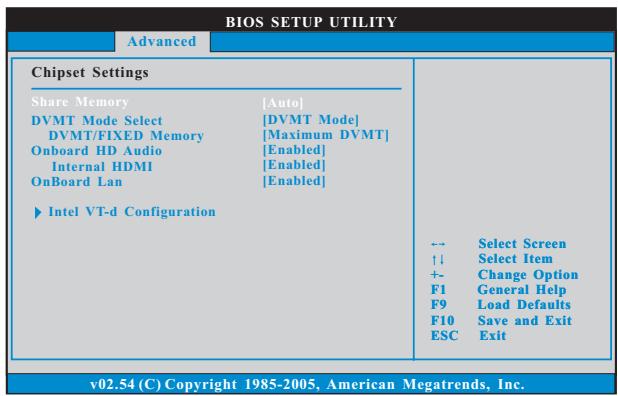
Share Memory
This allows you to set share memory feature. The default value is [Auto]. Configuration options: [Auto], [32MB], [64MB], [128MB] and [256MB].
DVMT Mode Select
Use this option to adjust DVMT mode. The default value is [DVMT Mode]. DVMT (Dynamic Video Memory Technology) is an architecture that offers breakthrough performance for the motherboard through efficient memory utilization. In DVMT mode, the graphics driver allocates memory as needed for running graphics applications and is cooperatively using this memory with other system components. This item will not be used under Windows® Vista™ / 7 OS because the driver will intelligently detect physical memory available and allocate necessary video memory.
DVMT/FIXED Memory
You are allowed to adjust the shared memory size in this item if you set DVMT Mode Select as [DVMT Mode]. Configuration options: [128MB], [256MB] and [Maximum DVMT]. The option [Maximum DVMT] only appears when you adopt the memory module with 1024MB or above.
Onboard HD Audio
This allows you to enable or disable the onboard HD Audio feature.
Internal HDMI
This allows you to enable or disable the Internal HDMI.
OnBoard Lan
This allows you to enable or disable the onboard Lan feature.
Intel VT-d Configuration
Use this to enable or disable Intel® VT-d technology (Intel® Virtualization Technology for Directed I/O). The default value of this feature is [Disabled].
7.4.3 ACPI Configuration

Suspend to RAM
This field allows you to select whether to auto-detect or disable the Suspend-to-RAM feature. Select [Auto] will enable this feature if the system supports it.
Check Ready Bit
Use this item to enable or disable the feature Check Ready Bit. This option only appears when you set "Suspend to RAM" to [Auto].
Restore on AC/Power Loss
This allows you to set the power state after an unexpected AC/Power loss. If [Power Off] is selected, the AC/Power remains off when the power recovers. If [Power On] is selected, the AC/Power resumes and the system starts to boot up when the power recovers.
Ring-In Power On
Use this item to enable or disable Ring-In signals to turn on the system from the power-soft-off mode.
PCI Devices Power On
Use this item to enable or disable PCI devices to turn on the system from the power-soft-off mode.
RTC Alarm Power On
Use this item to enable or disable RTC (Real Time Clock) to power on the system.
ACPI HPET Table
Use this item to enable or disable ACPI HPET Table. The default value is [Disabled]. Please set this option to [Enabled] if you plan to use this motherboard to submit Windows® Vista™ certification.
7.4.4 SATA Configuration
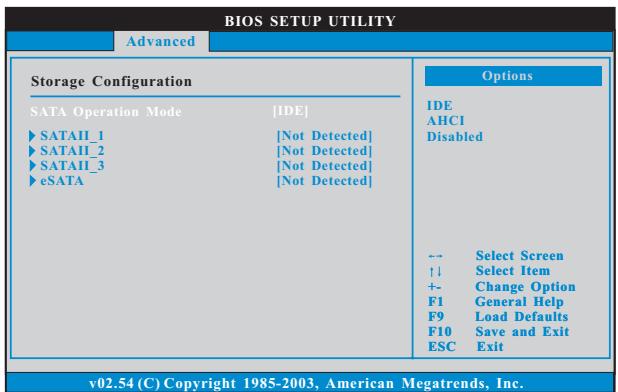
SATA Operation Mode
Use this item to adjust SATA Operation Mode. The default value of this option is [IDE]. Configuration options: [IDE], [AHCI] and [Disabled]. Please noted that AHCI mode is not supported under Windows XP / XP 64-bit OS.

AHCI (Advanced Host Controller Interface) supports NCQ and other new features that will improve SATA disk performance but IDE mode does not have these advantages.
7.4.5 USB Configuration
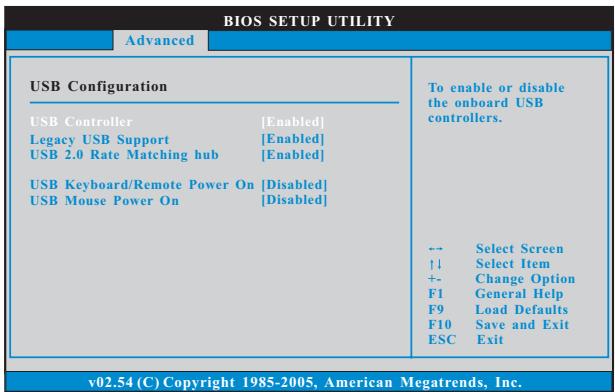
USB Controller
Use this item to enable or disable the use of USB controller.
Legacy USB Support
Use this option to select legacy support for USB devices. There are four configuration options: [Enabled], [Auto], [Disabled] and [BIOS Setup Only]. The default value is [Enabled]. Please refer to below descriptions for the details of these four options:
[Enabled] - Enables support for legacy USB.
[Auto] - Enables legacy support if USB devices are connected.
[Disabled] - USB devices are not allowed to use under legacy OS and BIOS setup when [Disabled] is selected. If you have USB compatibility issue, it is recommended to select [Disabled] to enter OS.
[BIOS Setup Only] - USB devices are allowed to use only under BIOS setup and Windows / Linux OS.
USB 2.0 Rate Matching hub
Use this item to enable or disable the USB 2.0 Rate Matching hub.

Due to WinXP and PCH chipset (HM55) limitations, if you use WinXP, please disable the BIOS option "USB2.0 Rate Matching Hub" to make USB devices work properly. (For example, in the process of installing WinXP or using USB3.0 devices.)
USB Keyboard/Remote Power On
Use this item to enable or disable USB Keyboard/Remote Power On on the system.
USB Mouse Power On
Use this item to enable or disable USB Mouse Power On on the system.
7.5 Hardware Health Event Monitoring Screen
In this section, it allows you to monitor the status of the fan speed.
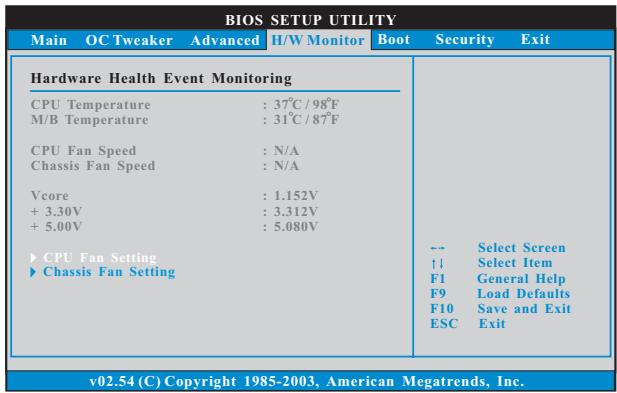
CPU Fan Setting
This allows you to set the CPU fan speed. Configuration options: [Full On], [Automatic mode] and [Manual Mode]. The default is value [Automatic mode].
Chassis Fan Setting
This allows you to set the chassis fan speed. Configuration options: [Full On], [Automatic mode] and [Manual Mode]. The default is value [Automatic mode].
7.6 Boot Screen
In this section, it will display the available devices on your system for you to configure the boot settings and the boot priority.

7.6.1 Boot Settings Configuration
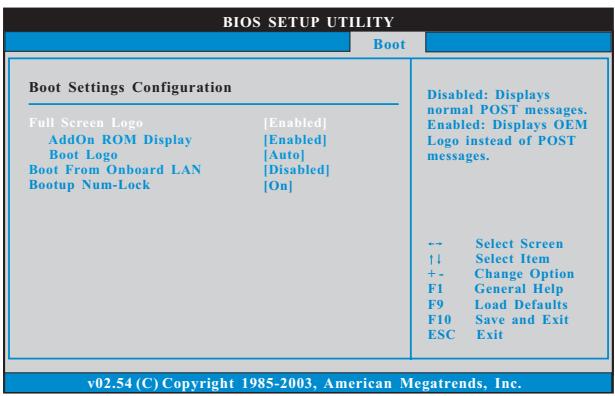
Full Screen Logo
Use this item to enable or disable OEM Logo. The default value is [Enabled].
AddOn ROM Display
Use this option to adjust AddOn ROM Display. If you enable the option
"Full Screen Logo" but you want to see the AddOn ROM information when the system boots, please select [Enabled]. Configuration options: [Enabled] and [Disabled]. The default value is [Enabled].
Boot Logo
Use this option to select logo in POST screen. This option only appears when you enable the option "Full Screen Logo". Configuration options: [Auto], [EuP], [Scenery] and [ASRock]. The default value is [Auto].
Boot From Onboard LAN
Use this item to enable or disable the Boot From Onboard LAN feature.
Boot Up Num-Lock
If this item is set to [On], it will automatically activate the Numeric Lock function after boot-up.
7.7 Security Screen
In this section, you may set or change the supervisor/user password for the system.
For the user password, you may also clear it.
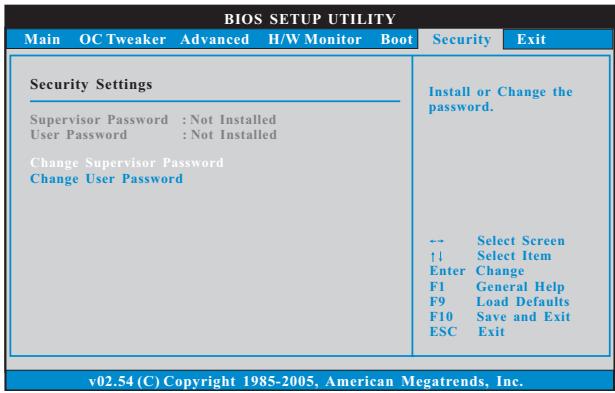
7.8 Exit Screen
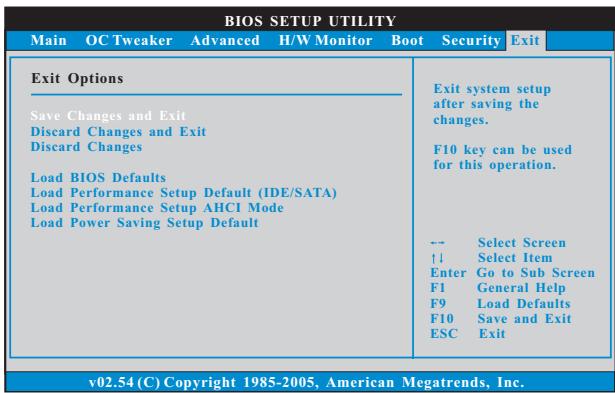
Save Changes and Exit
When you select this option, it will pop-out the following message, "Save configuration changes and exit setup?" Select [OK] to save the changes and exit the BIOS SETUP UTILITY.
Discard Changes and Exit
When you select this option, it will pop-out the following message, "Discard changes and exit setup?" Select [OK] to exit the BIOS SETUP UTILITY without saving any changes.
Discard Changes
When you select this option, it will pop-out the following message, "Discard changes?" Select [OK] to discard all changes.
Load BIOS Defaults
Load BIOS default values for all the setup questions. F9 key can be used for this operation.
Load Performance Setup Default (IDE/SATA)
This performance setup default may not be compatible with all system configurations. If system boot failure occurs after loading, please resume optimal default settings. F5 key can be used for this operation.
Load Performance Setup AHCI Mode
This performance setup AHCI mode may not be compatible with all system configurations. If system boot failure occurs after loading, please resume optimal default settings. F3 key can be used for this operation.
Load Power Saving Setup Default
Load power saving setup default. F6 key can be used for this operation.
Chapter 8 Software Support
8.1 Install Operating System
This system supports various Microsoft® Windows® operating systems: 7 / 7 64-bit / Vista™ / Vista™ 64-bit / XP / XP 64-bit. Refer to your OS documentation for more information.
8.2 Support CD Information
The Support CD contains necessary drivers and useful utilities that enhance the system features.
8.2.1 Running The Support CD
To begin using the support CD, insert the CD into your CD-ROM drive. The CD automatically displays the Main Menu if "AUTORUN" is enabled in your computer. If the Main Menu did not appear automatically, locate and double click on the file "ASSETUP.EXE" from the BIN folder in the Support CD to display the menus.
8.2.2 Drivers Menu
The Drivers Menu shows the available devices drivers if the system detects installed devices. Please install the necessary drivers to activate the devices.
8.2.3 Utilities Menu
The Utilities Menu shows the applications software that the system supports. Click on a specific item then follow the installation wizard to install it.
8.2.4 Contact Information
If you need to contact ASRock or want to know more about ASRock, welcome to visit ASRock's website at http://www.asrock.com; or you may contact your dealer for further information.
- ASRock
- Core 100 Series
- User Manual
- Copyright Notice:
- Disclaimer:
- CALIFORNIA, USA ONLY
- Safety Instructions
- Setting up your system
- Care during use
- No disassembly
- NOTE:
- Safety cautions and warnings
- Optical Drive Safety Information
- CAUTION:
- WARNING:
- Product disposal notice
- IMPORTANT:
- Nordic Lithium Cautions (for lithium-ion batteries)
- CAUTION!
- Installation Notices
- Contents
- Introduction 7
- System Quick Installation 14
- System Components Reinstallation 18
- Installing Second HDD 20
- Driver Installation 22
- UTILITY MEMU 23
- BIOS SETUP UTILITY 36
- Software Support 52
- Chapter 1 Introduction
- Package Contents
- Specifications
- WARNING
- System Motherboard Components
- NOTE.
- SATA and Power Connections
- Fan Connection
- Rear Panel Connectinos
- System Chassis
- Remote Controller (Core 100HT / Core 100HT-BD)
- TELETEXT BUTTONS
- Chapter 2 System Quick Installation
- Chapter 3 System Components Reinstallation
- Chapter 4 Installing Second HDD
- Chapter 5 Driver Installation
- Chapter 6 Utility Menu
- Instant Boot
- Introduction
- Installation
- ASRock OC Tuner
- Introduction
- Installation
- Auto apply when program starts
- Auto run when Windows starts
- WiFi Radio
- CyberLink DVD Suite free bundle (Trial version, including PowerDVD, PowerDirector, etc)
- PowerDVD
- PowerBackup
- PowerDirector
- Power2Go
- MediaShow
- Symantec Norton AntiVirus Software free bundle (Trial version)
- THX TruStudio PRO Software free bundle
- ASRock AIWI Utility
- The best Apple charge companion
- - ASRock APP Charger
- Fast Charge & Charge Anytime!
- Chapter 7 BIOS SETUP UTILITY
- Introduction
- BIOS Menu Bar
- Navigation Keys
- Main Screen
- OC Tweaker Screen
- Overclock Mode
- BCLK Frequency (MHz)
- Boot Failure Guard
- Boot Failure Guard Count
- Spread Spectrum
- CPU Ratio Setting
- QPI Frequency
- DRAM Frequency
- DRAM Timing Control
- DRAM tCL
- DRAM tRCD
- DRAM tRP
- DRAM tRAS
- DRAM tRFC
- DRAM tWR
- DRAM tWTR
- DRAM tRRD
- DRAM tRTP
- DRAM tFAW
- DRAM Command Rate
- VCCM(DRAM) Voltage
- Would you like to save current setting user defaults?
- Advanced Screen
- ASRock Instant Flash
- Good Night LED
- CPU Configuration
- Enhance Halt State
- Intel (R) Virtualization Tech
- CPU Thermal Throttling
- No-Excute Memory Protection
- Hyper Threading Technology
- Active Processor Cores
- A20M
- Intel (R) SpeedStep(tm) tech.
- Intel (R) C-STATE tech.
- C State package limit setting
- Chipset Configuration
- Share Memory
- DVMT Mode Select
- DVMT/FIXED Memory
- Onboard HD Audio
- Internal HDMI
- OnBoard Lan
- Intel VT-d Configuration
- ACPI Configuration
- Suspend to RAM
- Check Ready Bit
- Restore on AC/Power Loss
- Ring-In Power On
- PCI Devices Power On
- RTC Alarm Power On
- ACPI HPET Table
- SATA Configuration
- SATA Operation Mode
- USB Configuration
- USB Controller
- Legacy USB Support
- USB 2.0 Rate Matching hub
- USB Keyboard/Remote Power On
- USB Mouse Power On
- Hardware Health Event Monitoring Screen
- CPU Fan Setting
- Chassis Fan Setting
- Boot Screen
- Boot Settings Configuration
- Full Screen Logo
- AddOn ROM Display
- Boot Logo
- Boot From Onboard LAN
- Boot Up Num-Lock
- Security Screen
- Exit Screen
- Save Changes and Exit
- Discard Changes and Exit
- Discard Changes
- Load BIOS Defaults
- Load Performance Setup Default (IDE/SATA)
- Load Performance Setup AHCI Mode
- Load Power Saving Setup Default
- Chapter 8 Software Support
- Install Operating System
- Support CD Information
- Running The Support CD
- Drivers Menu
- Utilities Menu
- Contact Information
Marque : ASROCK
Modèle : CORE 100HT-BD
Catégorie : Mini PC