MODE D'EMPLOI TL-PA7010P TP-LINK
Guide de l'utilisateur
Adaptateur CPL Gigabit Passthrough AV1000 TL-PA7010P
Sommaire
À propos de ce guide 1
Chapitre 1. Découvrir votre adaptateur CPL
- Présentation du produit. 2 1.2. Apparence du produit 2
Chapitre 2. Utiliser votre adaptateur CPL
2.1. Avant de commencer 5 2.2. Étendre votre réseau filaire par Plug & Play 6 2.3. Sécuriser votre réseau CPL par appairage 7 2.4. Ajouter un autre adaptateur CPL 8 2.5. Gérer votre réseau CPL via l'utilitaire tpPLC 9
FAQ (Foire aux questions) 10
À propos de ce guide
Ce guide est un complément au Guide d'installation rapide. Le Guide d'installation rapide fournit des instructions pour une configuration Internet rapide, tandis que ce guide contient des détails sur chaque fonction et montre comment les configurer dans des scénarios typiques.
Lors de l'utilisation de ce guide, veuillez noter que les fonctionnalités de l'adaptateur CPL peuvent varier légèrement selon le modèle et la version logicielle que vous possédez, ainsi que selon votre emplacement et votre langue. Toutes les images, paramètres et descriptions documentés dans ce guide sont utilisés à des fins de démonstration uniquement.
Conventions
Dans ce guide, les conventions suivantes sont utilisées :
| Convention | Description |
| Teal Underlined | Hyperlinks are in teal and underlined. You can click to redirect to a website or a specific section. |
| Teal | Key information appears in teal, including management page text such as menus, items, buttons and so on. |
| ■ Note: | Ignoring this type of note might result in a malfunction or damage to the device. |
| © Tips: | Indicates important information that helps you make better use of your device. |
Plus d'informations
- Les derniers logiciels, applications de gestion et utilitaires sont disponibles dans le Centre de téléchargement à l'adresse http://www.tp-link.com/support.
- Le Guide d'installation rapide (QIG) se trouve à l'endroit où vous avez trouvé ce guide ou dans l'emballage du produit.
- Les spécifications sont disponibles sur la page produit à l'adresse http://www.tp-link.com.
- Un forum de support technique est mis à votre disposition pour discuter de nos produits à l'adresse http://forum.tp-link.com.
- Les coordonnées de notre support technique sont disponibles sur la page Contactez le support technique à l'adresse http://www.tp-link.com/support.
Chapitre 1
Découvrez votre adaptateur CPL
Ce chapitre présente ce que l'adaptateur CPL peut faire et décrit son apparence.
Il contient les sections suivantes :
Présentation du produit Apparence du produit
1.1. Présentation du produit
L'adaptateur CPL TP-LINK vise à étendre votre réseau domestique passionnant, à l'aide du circuit électrique de votre maison.
La prise électrique intégrée sur l'adaptateur CPL fournit une sortie pour d'autres appareils électroniques. Son filtre anti-bruit intégré élimine le bruit du signal électrique et garantit ainsi une transmission de données de haute qualité via le courant porteur en ligne.
1.2. Apparence du produit
Votre adaptateur CPL peut présenter un aspect légèrement différent de celui illustré, selon la région et la version du produit.
1.2.1. Légende des voyants
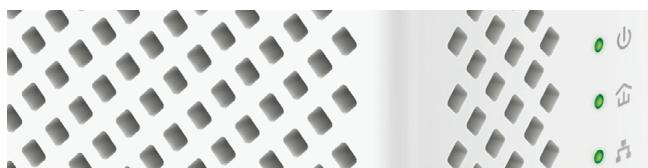
Les voyants indiquent l'état de fonctionnement de l'adaptateur CPL. Pour plus de détails, veuillez vous référer au tableau suivant.
| Name | Status | Indication |
| Power | On/Off | The powerline adapter is on or off. |
| Blinking | Once every second: Pairing is taking place. |
| Once every 3 seconds: Power-Saving Mode* is on. |
| Powerline | Yellow-green | The powerline adapter is in a location with a good signal strength. |
| Red | The powerline adapter is in a location with a poor signal strength. We recommend trying another wall socket. |
| Off | The powerline adapter is not connected to any powerline network or is in Power-Saving Mode. |
| Ethernet | On | The Ethernet port is connected. |
| Off | The Ethernet port is disconnected. |
- Si le périphérique connecté à l'adaptateur est éteint ou inactif pendant plus de 5 minutes, l'adaptateur CPL passe automatiquement en mode d'économie d'énergie.
1.2.2. Interface physique
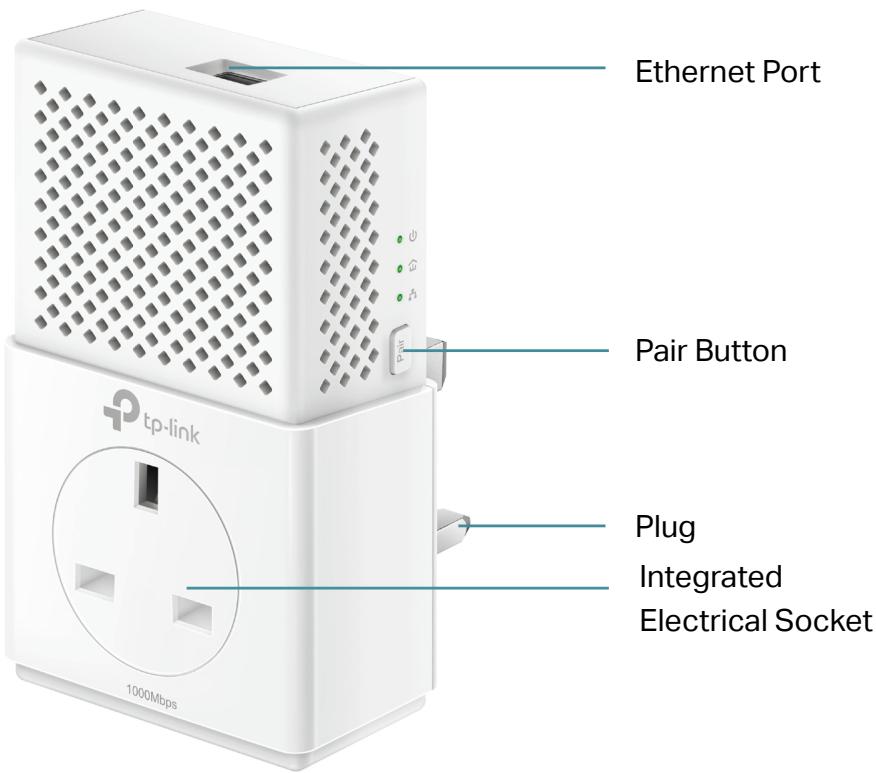
Prise électrique intégrée
La prise électrique intégrée est une prise secteur traversante utilisée pour alimenter d'autres appareils électroniques. Son filtre anti-parasites intégré réduit le bruit électrique et garantit ainsi les performances.
Fiche d'alimentation
L'adaptateur CPL est doté d'une fiche qui peut être connectée à toute prise de courant standard.
Appuyez sur le bouton et maintenez-le enfoncé pendant 1 seconde pour rejoindre un réseau CPL. Consultez la section « Sécurisez votre réseau CPL par appairage » pour plus d'informations.
Appuyez sur le bouton et maintenez-le enfoncé pendant environ 8 secondes pour quitter le réseau CPL existant.
Appuyez sur le bouton et maintenez-le enfoncé pendant plus de 15 secondes pour réinitialiser l'adaptateur CPL aux paramètres d'usine.
Port Ethernet
Connectez le port Ethernet à vos appareils filaires, tels qu'un ordinateur, un routeur ou une console de jeux, à l'aide d'un câble Ethernet.
Chapitre 2
Utilisation de votre adaptateur CPL
Ce chapitre vous guide sur l'utilisation de l'adaptateur CPL.
Il contient les sections suivantes :
Avant de commencer - Étendez votre réseau filaire par branchement simple - Sécurisez votre réseau CPL par appairage - Ajoutez un autre adaptateur CPL - Gérez votre réseau CPL via l'utilitaire tpPLC
2.1. Avant de commencer
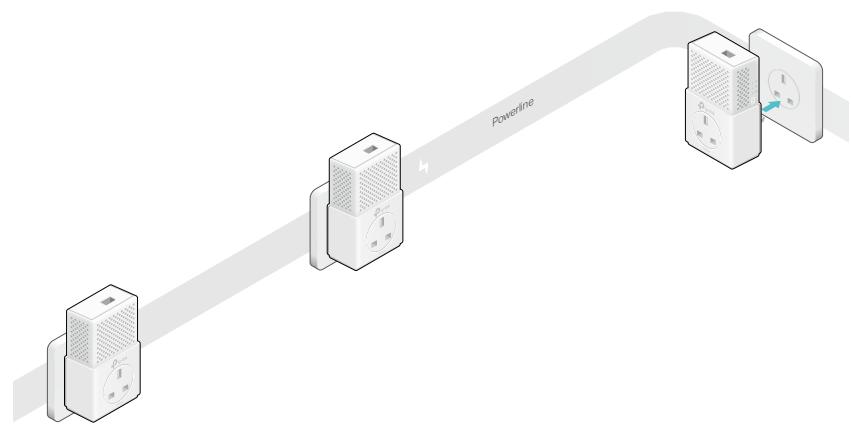
Les adaptateurs CPL fonctionnent par paires. Vous devez avoir au moins deux produits CPL pour créer un réseau CPL. Pour optimiser les performances de votre réseau, veuillez suivre ces principes :
- Tous les adaptateurs CPL doivent être sur le même circuit électrique.
- Évitez de brancher les adaptateurs CPL à proximité d'appareils électroménagers puissants (comme les machines à laver et les réfrigérateurs).
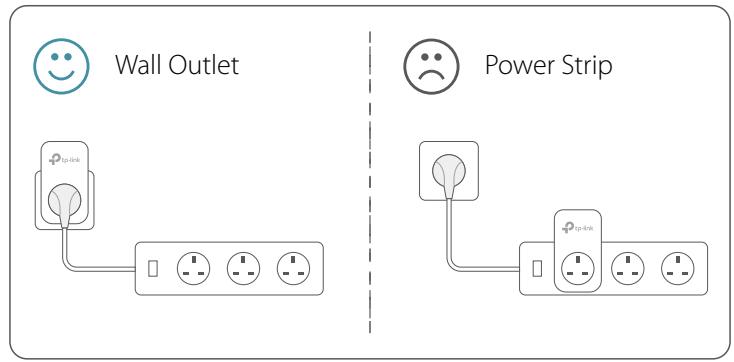
- Branchez l'adaptateur CPL directement dans une prise murale. Ne branchez pas l'adaptateur CPL sur une multiprise, une rallonge ou un parasurtenseur.
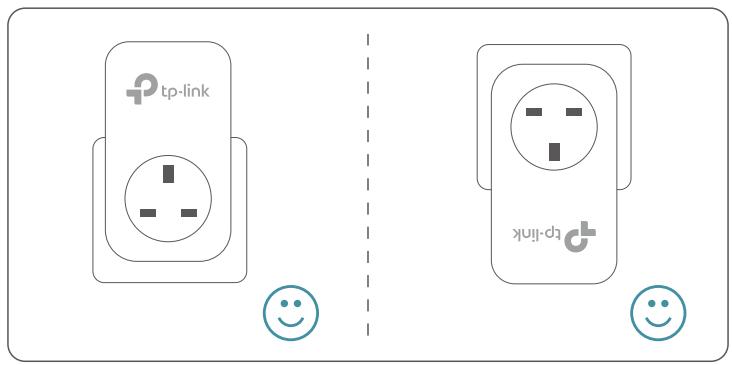
- Utilisez l'adaptateur CPL uniquement dans les directions ci-dessous.
2.2. Étendez votre réseau filaire par branchement simple
Je veux :
Utiliser deux adaptateurs CPL pour créer un nouveau réseau CPL dans ma maison.
Par exemple, j'ai un routeur chez moi, mais il n'y a pas assez de ports LAN pour tous mes appareils filaires. Je ne veux pas de câblage complexe et coûteux. On m'a dit que je peux résoudre ce problème avec deux adaptateurs CPL.
Comment puis-je faire cela ?
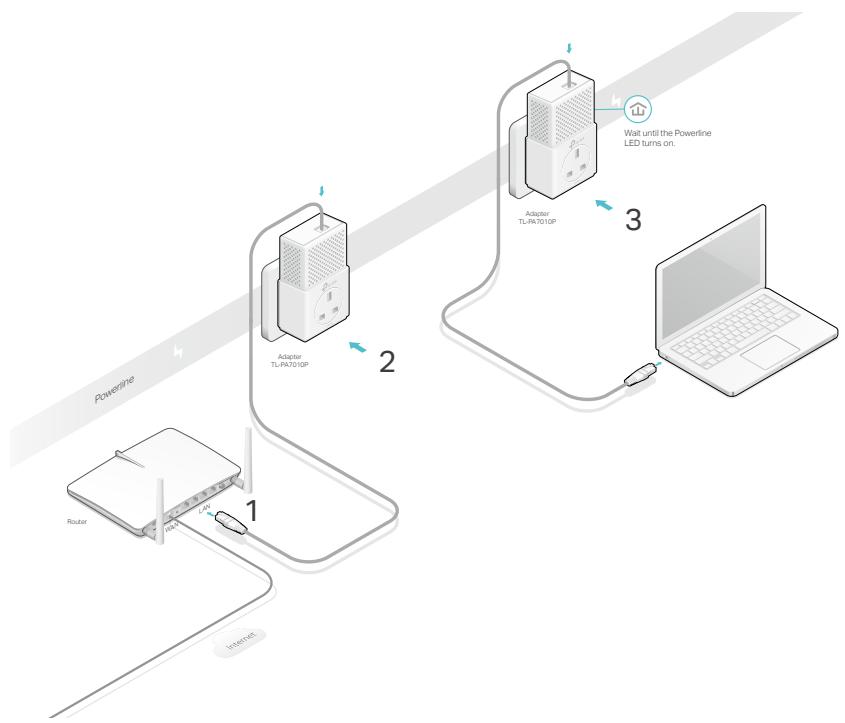
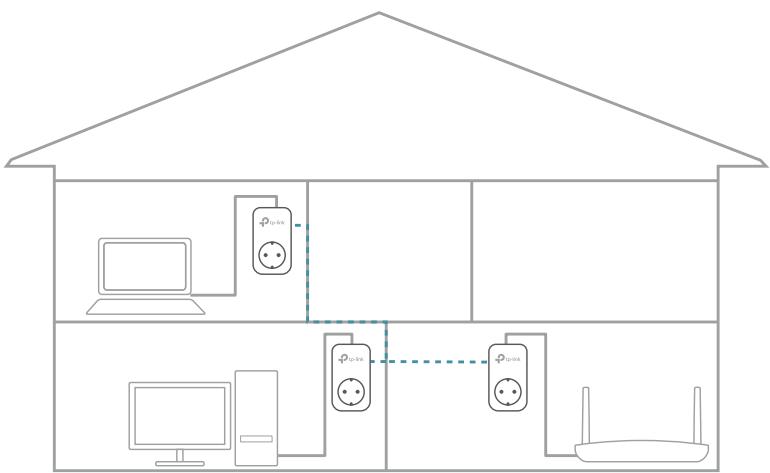
- Connectez l'un des adaptateurs CPL à un port LAN disponible du routeur à l'aide d'un câble Ethernet.
- Branchez l'adaptateur CPL dans une prise murale.
- Branchez l'autre adaptateur CPL dans une prise murale sur le même circuit électrique à l'endroit où vous souhaitez avoir Internet. Attendez que le voyant CPL s'allume.
Remarque : Si le voyant CPL ne s'allume pas, réinitialisez chaque adaptateur CPL à ses paramètres d'usine par défaut. Reportez-vous à la section « Comment réinitialiser mon adaptateur CPL ? » pour plus de détails.
- Connectez votre appareil filaire, tel qu'un ordinateur ou une console de jeux, à l'adaptateur CPL via un câble Ethernet.
Terminé !
Profitez maintenant d'Internet !
2.3. Sécurisez votre réseau CPL en appariant
Tous les adaptateurs CPL partagent certains paramètres d'usine communs et peuvent communiquer entre eux. Si vous souhaitez que vos adaptateurs CPL ne communiquent qu'avec vos propres adaptateurs CPL, vous devez les apparier. Ainsi, un réseau CPL sécurisé est formé et les autres adaptateurs CPL ne peuvent plus rejoindre votre réseau CPL sans être appariés.
Remarque : Vous ne pouvez apparier que deux appareils à la fois.
Je veux :
Sécuriser mon réseau CPL et empêcher d'autres appareils CPL d'être ajoutés à mon réseau.
Par exemple, j'ai étendu mon réseau en utilisant la méthode Plug & Play. Maintenant, je veux sécuriser mon réseau.
Comment puis-je faire cela ?
- Vérifiez que les voyants d'alimentation de tous les adaptateurs CPL sont allumés en continu. Astuce : nous recommandons de brancher vos adaptateurs CPL les uns à côté des autres, ou aussi proches que possible lors de l'appairage. Vos paramètres ne seront pas affectés. Une fois l'appairage terminé, vous pouvez déplacer les adaptateurs à l'endroit souhaité.
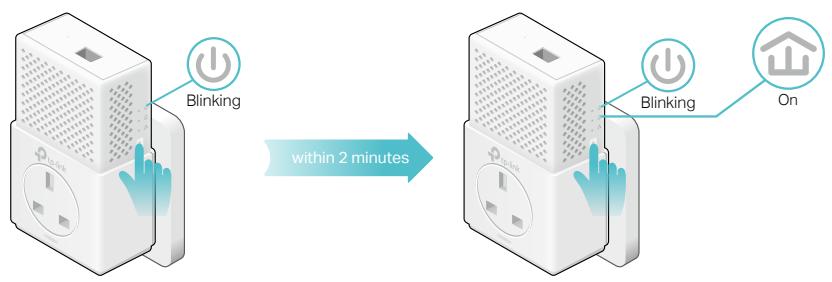
- Appuyez sur le bouton Pair de l'un des adaptateurs CPL pendant 1 seconde. Son voyant d'alimentation commence à clignoter.
- Dans les deux minutes, appuyez sur le bouton Pair d'un autre adaptateur CPL pendant 1 seconde. Son voyant d'alimentation commence à clignoter. Lorsque le voyant CPL reste allumé en continu, l'appairage est terminé.
Terminé ! Profitez de votre réseau CPL sécurisé !
2.4. Ajouter un autre adaptateur CPL
Je veux :
Ajouter un nouvel adaptateur CPL au réseau CPL existant pour étendre mon réseau.
Par exemple, j'ai déjà configuré un réseau CPL avec des adaptateurs CPL, mais le réseau ne couvre pas tous les endroits nécessaires. J'en ai acheté un autre pour étendre davantage mon réseau.
Comment faire ?
- Branchez le nouvel adaptateur CPL dans une prise murale à proximité de l'un des adaptateurs CPL existants.
- Attendez une minute, puis vérifiez si le voyant CPL reste allumé en continu. S'il est allumé, passez à l'étape 3. Sinon, continuez avec l'étape 2 pour appairer le nouvel adaptateur CPL au réseau CPL sécurisé.
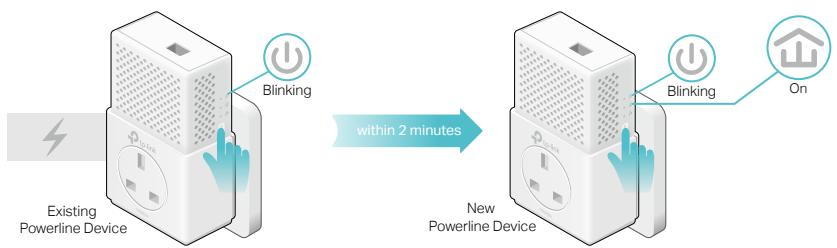
a. Appuyez sur le bouton Pair de l'un des adaptateurs CPL existants pendant 1 seconde. Son voyant d'alimentation commence à clignoter. b. Dans les deux minutes, appuyez sur le bouton Pair du nouvel adaptateur CPL pendant 1 seconde. Son voyant d'alimentation commence à clignoter. Lorsque le voyant CPL reste allumé en continu, l'appairage est terminé.
- Déplacez le nouvel adaptateur CPL à l'endroit où vous avez besoin d'un accès Internet filaire.
Terminé !
Profitez d'Internet via votre réseau étendu !
2.5. Gérer votre réseau CPL via l'utilitaire tpPLC
L'utilitaire tpPLC vous permet de visualiser et de gérer votre réseau CPL TP-LINK. Son interface claire et intuitive vous aide à configurer facilement chaque appareil CPL.
Vous pouvez trouver l'utilitaire et son guide d'utilisation sur la page d'assistance produit à l'adresse http://www.tp-link.com.
FAQ (Foire aux questions)
Q1. Comment réinitialiser mon adaptateur CPL ?
Avec l'adaptateur CPL branché sur la prise murale, maintenez enfoncé son bouton Pair pendant plus de 15 secondes jusqu'à ce que le voyant Power s'éteigne momentanément puis se rallume.
Q2. Comment résoudre un problème de connexion Internet via mon réseau CPL ?
- Assurez-vous que tous les appareils CPL sont sur le même circuit électrique.
- Assurez-vous que les voyants Powerline sont allumés sur tous vos appareils CPL. S'ils ne le sont pas, appairez tous les appareils CPL conformément à la section « Sécurisez votre réseau CPL par appairage ».
- Assurez-vous que tous les appareils sont correctement et solidement connectés.
- Vérifiez que vous avez une connexion Internet en connectant votre ordinateur directement au modem ou au routeur.
Q3. Que faire si un appareil CPL appairé avec succès ne se reconnecte pas après avoir été déplacé vers un nouvel emplacement ?
- Essayez une autre prise sur le même circuit électrique.
- Essayez de l'appairer à nouveau et assurez-vous que le voyant Powerline est allumé.
- Vérifiez les interférences possibles dues aux machines à laver, climatiseurs ou autres appareils électroménagers. Certains appareils CPL ont une prise électrique intégrée. Vous pouvez brancher des appareils sur cette prise pour éliminer le bruit électrique qu'ils génèrent, en utilisant une multiprise si nécessaire.
COPYRIGHT & MARQUES
Les spécifications peuvent être modifiées sans préavis. TP-Link est une marque déposée de TP-LINK TECHNOLOGIES CO., LTD. Les autres marques et noms de produits sont des marques ou des marques déposées de leurs détenteurs respectifs.
Aucune partie des spécifications ne peut être reproduite sous quelque forme ou par quelque moyen que ce soit, ni utilisée pour créer un dérivé tel qu'une traduction, une transformation ou une adaptation, sans l'autorisation de TP-LINK TECHNOLOGIES CO., LTD. Copyright © 2016 TP-LINK TECHNOLOGIES CO., LTD. Tous droits réservés.
Cet équipement a été testé et déclaré conforme aux limites applicables à un appareil numérique de classe B, conformément à la partie 15 des règles de la FCC. Ces limites sont conçues pour fournir une protection raisonnable contre les interférences nuisibles dans une installation résidentielle. Cet équipement génère, utilise et peut émettre de l'énergie radiofréquence et, s'il n'est pas installé et utilisé conformément aux instructions, peut provoquer des interférences nuisibles aux communications radio. Cependant, il n'y a aucune garantie que des interférences ne se produiront pas dans une installation particulière. Si cet équipement provoque des interférences nuisibles à la réception radio ou télévision, ce qui peut être déterminé en éteignant et en allumant l'équipement, l'utilisateur est encouragé à essayer de corriger les interférences par une ou plusieurs des mesures suivantes :
- Réorienter ou déplacer l'antenne de réception.
- Augmenter la distance entre l'équipement et le récepteur.
- Brancher l'équipement sur une prise d'un circuit différent de celui auquel le récepteur est connecté.
- Consulter le revendeur ou un technicien radio/TV expérimenté pour obtenir de l'aide.
Cet appareil est conforme à la partie 15 des règles de la FCC. Son fonctionnement est soumis aux deux conditions suivantes :
1) Cet appareil ne doit pas provoquer d'interférences nuisibles. 2) Cet appareil doit accepter toute interférence reçue, y compris les interférences susceptibles de provoquer un fonctionnement indésirable.
Tout changement ou modification non expressément approuvé par la partie responsable de la conformité pourrait annuler le droit de l'utilisateur à utiliser l'équipement.
Avertissement de la marque CE

Ceci est un produit de classe B. Dans un environnement domestique, ce produit peut provoquer des interférences radio, auquel cas l'utilisateur peut être tenu de prendre des mesures adéquates.
Déclaration d'Industrie Canada
CANICES-3(B)/NMB-3(B)
Avis de sécurité et précautions
· Utilisez uniquement l'adaptateur secteur d'origine ou conformément au type d'alimentation indiqué sur le produit. - Débranchez le câble d'alimentation avant de nettoyer le produit. N'utilisez pas de liquides, de nettoyants en spray ou de chiffons humides pour le nettoyage.
- Protégez le produit de l'humidité. Ne renversez pas d'eau ou d'autres liquides sur le produit.
- Les fentes et ouvertures sont prévues pour la ventilation, afin d'assurer un fonctionnement fiable du produit et d'éviter toute surchauffe. Ne bloquez pas et ne couvrez pas ces ouvertures. · Ne placez pas le produit à proximité d'une source de chaleur. Ne le placez pas dans un espace clos sans ventilation adéquate. · N'ouvrez pas le boîtier vous-même et n'essayez pas de réparer le produit vous-même. Confiez toute réparation à un professionnel agréé.

Le produit est certifié conformément aux règles du système UkrSEPRO, en conformité avec les exigences des documents normatifs et les exigences prévues par les actes législatifs en vigueur en Ukraine.
EAC
- Si le produit est équipé d'un bouton d'alimentation, ce bouton est l'un des moyens de mettre le produit hors tension ; en l'absence de bouton d'alimentation, le seul moyen de couper complètement l'alimentation est de débrancher le produit ou l'adaptateur secteur de la source d'alimentation.
- Ne démontez pas le produit et ne le réparez pas vous-même. Vous risquez un choc électrique et l'annulation de la garantie limitée. Si vous avez besoin d'une réparation, veuillez nous contacter.
- Évitez l'eau et les endroits humides.
Explication des symboles sur l'étiquette du produit
| Symbol | Explanation |
| ~ | AC voltage |
| Indoor use only |
| RECYCLING
This product bears the selective sorting symbol for Waste electrical and electronic equipment (WEEE). This means that this product must be handled pursuant to European directive 2012/19/EU in order to be recycled or dismantled to minimize its impact on the environment.
User has the choice to give his product to a competent recycling organization or to the retailer when he buys a new electrical or electronic equipment. |