
WAVE MUSIC SYSTEM SOUNDLINK - Système audio BOSE - Notice d'utilisation et mode d'emploi gratuit
Retrouvez gratuitement la notice de l'appareil WAVE MUSIC SYSTEM SOUNDLINK BOSE au format PDF.

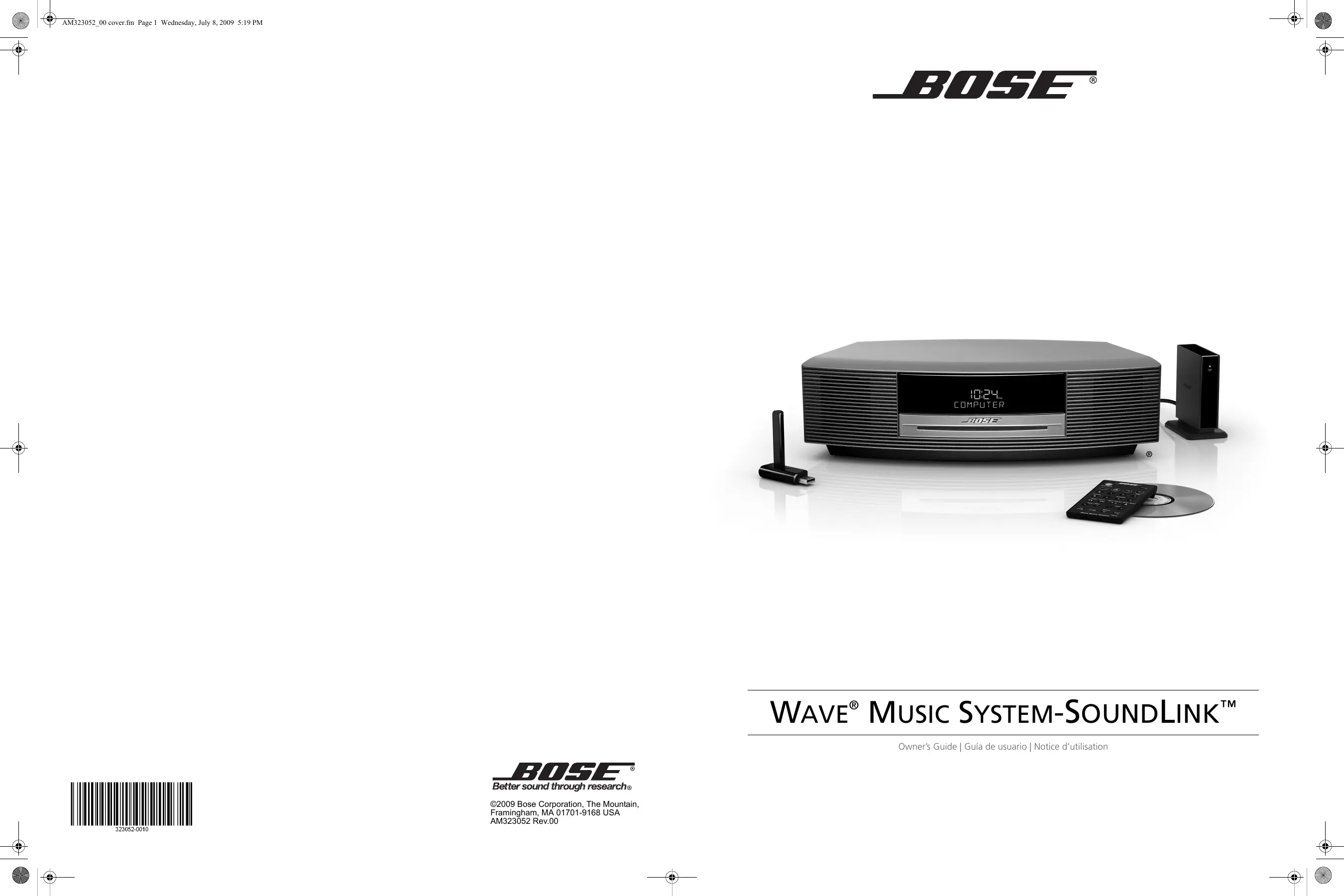

| Type de produit | Système audio avec lecteur CD, radio FM/AM, connexion sans fil SoundLink |
| Marque | BOSE |
| Modèle | WAVE MUSIC SYSTEM SOUNDLINK |
| Dimensions (L x P x H) | 36,8 cm x 21,9 cm x 10,6 cm |
| Poids | 3,9 kg |
| Alimentation | 120 V~, 50/60 Hz, 60 W |
| Sources audio | CD (audio et MP3), radio FM/AM, ordinateur via SoundLink (sans fil), entrée auxiliaire (AUX IN) |
| Fonctions principales | Réveil programmable, minuterie de sommeil, mode Talk Radio, navigation MP3, présélections radio (6 FM/6 AM) |
| Technologie audio | Double guide d'onde conique (acoustic waveguide) pour des basses étendues |
| Connectivité sans fil | Adaptateur SoundLink avec clé USB, portée jusqu'à 18,5 mètres |
| Affichage | Écran rétro-éclairé avec luminosité réglable, horloge 12/24 h |
| Commandes | Télécommande infrarouge (pile CR2032 incluse), touches sur l'appareil |
| Entrées/sorties | Prise casque 3,5 mm, entrée auxiliaire 3,5 mm, connecteur Bose link, antenne FM externe |
| Entretien et nettoyage | Chiffon doux et sec ; ne pas utiliser de produits liquides ou abrasifs |
| Sécurité | Ne pas exposer à l'eau, ne pas obstruer les ventilations, utiliser uniquement avec les accessoires spécifiés |
| Pièces détachées et réparabilité | Télécommande, adaptateur SoundLink, clé USB, câble d'alimentation. Réparations par un technicien qualifié uniquement. |
| Garantie | Garantie limitée transférable (détails sur la carte d'enregistrement) |
FOIRE AUX QUESTIONS - WAVE MUSIC SYSTEM SOUNDLINK BOSE
Questions des utilisateurs sur WAVE MUSIC SYSTEM SOUNDLINK BOSE
0 question sur cet appareil. Repondez a celles que vous connaissez ou posez la votre.
Poser une nouvelle question sur cet appareil
Téléchargez la notice de votre Système audio au format PDF gratuitement ! Retrouvez votre notice WAVE MUSIC SYSTEM SOUNDLINK - BOSE et reprennez votre appareil électronique en main. Sur cette page sont publiés tous les documents nécessaires à l'utilisation de votre appareil WAVE MUSIC SYSTEM SOUNDLINK de la marque BOSE.
MODE D'EMPLOI WAVE MUSIC SYSTEM SOUNDLINK BOSE
BOSE®
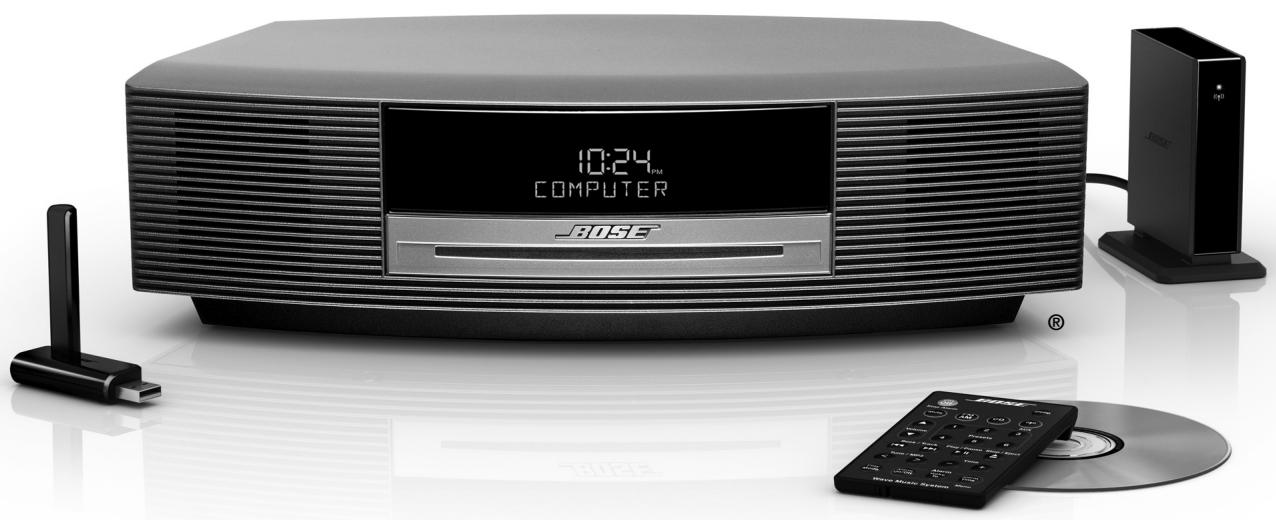
WAVE® MUSIC SYSTEM-SOUNDLINK™
Owner's Guide | Guía de usuario | Notice d'utilisation
Please read this owner's guide
Please take the time to follow the instructions in this owner's guide carefully. It will help you set up and operate your system properly and enjoy all of its advanced features. Please save this owner's guide for future reference.
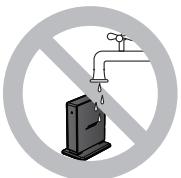
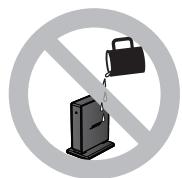
WARNING: To reduce the risk of fire or electrical shock, do not expose the product to rain or moisture.

WARNING: Do not expose this apparatus to dripping or splashing, and do not place objects filled with liquids, such as vases, on or near the apparatus. As with any electronic products, use
care not to spill liquids into any part of the system. Liquids can cause a failure and/or a fire hazard.
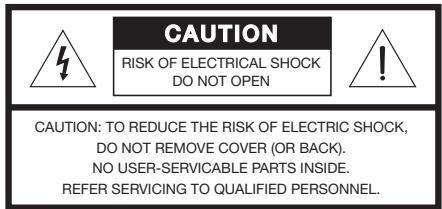
The lightning flash with arrowhead symbol within an equilateral triangle alerts the user to the presence of uninsulated dangerous voltage within the system enclosure that may be of sufficient magnitude to constitute a risk of electrical shock.
The exclamation point within an equilateral triangle, as marked on the system, is intended to alert the user to the presence of important operating and maintenance instructions in this owner's guide.
WARNING: To prevent electric shock, match the wide blade of the line cord plug to the wide slot of the AC (mains) receptacle. Insert fully.
WARNING: Use of controls or adjustments or performance of procedures other than those specified herein may result in hazardous radiation exposure. The compact disc player should not be adjusted or repaired by anyone except properly qualified service personnel.
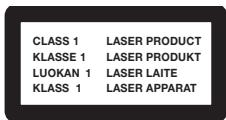
Class 1 laser product
This CD player is classified as a
CLASS 1 LASER PRODUCT
according to EN 60825-1:1994+A1+A2,
IEC 60825-1:1993+A1+A2.
WARNING: Keep the remote control battery away from children. It may cause a fire or chemical burn if mishandled. Do not recharge, disassemble, heat above 100^ (212°F), or incinerate. Dispose of used batteries promptly. Replace only with a battery of the correct type and model number.
WARNING: Danger of explosion if battery is incorrectly replaced. Replace only with Duracell, Eveready, Energizer, Maxell, Toshiba, or Shun Wo CR2032 or DL2032 3-volt lithium battery.

Please dispose of used batteries properly, following any local regulations. Do not incinerate.
WARNING: Do not place any naked flame sources, such as lighted candles, on or near the apparatus.
WARNING: Contains small parts that may be a choking hazard. Not suitable for children under age 3.
Note: The product label is located on the bottom of the product.
CAUTION: Make no modifications to the system or accessories. Unauthorized alterations may compromise safety, regulatory compliance, and system performance.
CAUTION: Long-term exposure to loud music may cause hearing damage. It is best to avoid extreme volume when using headphones, especially for extended periods.
Note: Where the mains plug or appliance coupler is used as the disconnect device, such disconnect device shall remain readily operable.
Note: The product must be used indoors. It is neither designed nor tested for use outdoors, in recreation vehicles, or on boats.
CE This product conforms to all EU Directive requirements as applicable by law. The complete Delcaration of Conformity can be found at:
www.Bose.com/static/compliance.
- Read these instructions – for all components before using this product.
- Keep these instructions – for future reference.
- Heed all warnings – on the product and in the owner's guide.
- Follow all instructions.
- Do not use this apparatus near water or moisture – Do not use this product near a bathtub, washbowl, kitchen sink, laundry tub, in a wet basement, near a swimming pool, or anywhere else that water or moisture are present.
- Clean only with a dry cloth – and as directed by Bose Corporation. Unplug this product from the wall outlet before cleaning.
- Do not block any ventilation openings. Install in accordance with the manufacturer's instructions – To ensure reliable operation of the product and to protect it from overheating, put the product in a position and location that will not interfere with its proper ventilation. For example, do not place the product on a bed, sofa, or similar surface that may block the ventilation openings. Do not put it in a built-in system, such as a bookcase or a cabinet that may keep air from flowing through its ventilation openings.
- Do not install near any heat sources, such as radiators, heat registers, stoves or other apparatus (including amplifiers) that produce heat.
- Do not defeat the safety purpose of the polarized or grounding-type plug. A polarized plug has two blades with one wider than the other. A grounding-type plug has two blades and a third grounding prong. The wider blade or third prong are provided for your safety. If the provided plug does not fit in your outlet, consult an electrician for replacement of the obsolete outlet.
- Protect the power cord from being walked on or pinched, particularly at plugs, convenience receptacles, and the point where they exit from the apparatus.
- Only use attachments/accessories specified by the manufacturer.
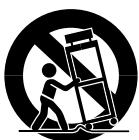
- Use only with the cart, stand, tripod, bracket, or table specified by the manufacturer or sold with the apparatus. When a cart is used, use caution when moving the cart/apparatus combination to avoid injury from tip-over.
- Unplug this apparatus during lightning storms or when unused for long periods of time – to prevent damage to this product.
- Refer all servicing to qualified service personnel. Servicing is required when the apparatus has been damaged in any way: such as power-supply cord or plug is damaged; liquid has been spilled or objects have fallen into the apparatus; the apparatus has been exposed to rain or moisture, does not operate normally, or has been dropped – Do not attempt to service this product yourself. Opening or removing covers may expose you to dangerous voltages or other hazards. Please call Bose to be referred to an authorized service center near you.
- To prevent risk of fire or electric shock, avoid overloading wall outlets, extension cords, or integral convenience receptacles.
- Do not let objects or liquids enter the product – as they may touch dangerous voltage points or short-out parts that could result in a fire or electric shock.
- See product enclosure bottom for safety-related markings.
-
Use proper power sources – Plug the product into a proper power source, as described in the operating instructions or as marked on the product.
-
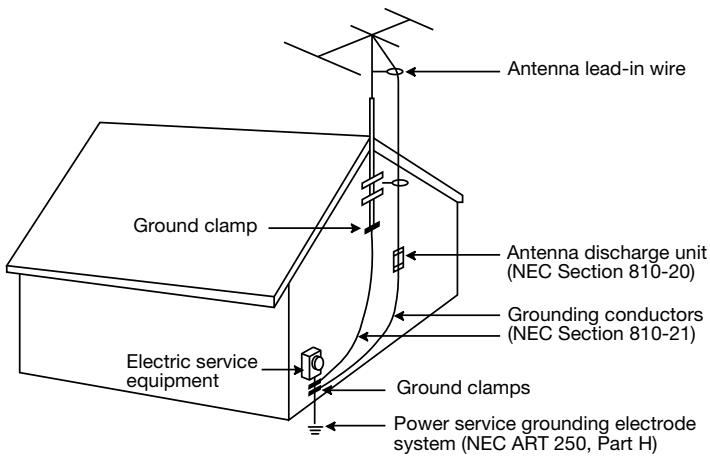
Avoid power lines – Use extreme care when installing an outside antenna system to keep from touching power lines or circuits, as contact with them may be fatal. Do not install external antennas near overhead power lines or other electric light or power circuits, nor where an antenna can fall into such circuits or power lines.
-
Ground all outdoor antennas – If an external antenna or cable system is connected to this product, be sure the antenna or cable system is grounded. This will provide some protection against voltage surges and built-up static charges.
Section 810 of the National Electrical Code ANSI/ NFPA No. 70 provides information with respect to proper grounding of the mast and supporting structure, grounding of the lead-in wire to an antenna discharge unit, size of grounding conductors, location of antenna-discharge unit, connection to grounding electrodes, and requirements for the ground electrode. Refer to the antenna grounding illustration on this page.
Antenna grounding
Example of antenna grounding as per National Electrical Code, ANSI/NFPA 70.
Note to CATV system installer
This reminder is provided to call the CATV system installer's attention to Article 820-40 of the NEC (of U.S.A) that provides guidelines for proper grounding. In particular, it specifies that the cable ground shall be connected to the grounding system of the building, as close to the point of cable entry as is practical.
Information about products that generate electrical noise
This device complies with FCC and industry Canada RF radiation exposure limits set forth for general population. It must not be co-located or operating in conjunction with any other antenna or transmitter.
U.S.A. only
This device complies with Part 15 of the FCC Rules. Operation is subject to the following two conditions: (1) This device may not cause harmful interference, and (2) this device must accept any interference received, including interference that may cause undesired operation.
This equipment has been tested and found to comply with the limits for a Class B digital device, pursuant to Part 15 of the FCC rules. These limits are designed to provide reasonable protection against harmful interference in a residential installation. This equipment generates, uses, and can radiate radio frequency energy and, if not installed and used in accordance with the instructions, may cause harmful interference to radio communications. However, this is no guarantee that interference will not occur in a particular installation. If this equipment does cause harmful interference to radio or television reception, which can be determined by turning the equipment off and on, you are encouraged to try to correct the interference by one or more of the following measures:
- Reorient or relocate the receiving antenna.
- Increase the separation between the equipment and receiver.
- Connect the equipment to an outlet on a different circuit than the one to which the receiver is connected.
- Consult the dealer or an experienced radio/TV technician for help.
Note: Unauthorized modification of the receiver or radio remote control could void the user's authority to operate this equipment.
Canada
This Class B digital apparatus complies with the Canadian ICES-003 Class B specifications.
The radio communications device incorporated into this apparatus meets all requirements of the Industry Canada standard RSS-210.
Operation is subject to the following two conditions:
(1) This device may not cause interference, and (2) this device must accept any interference, including interference that may cause undesired operation of the device.
SETTING UP YOUR WAVE® MUSIC SYSTEM . . 2
Introduction 2
Special Features 2
Unpacking 3
Selecting a location 3
Connecting the Wave® music system 3
Making the wireless connection 4
Setting the clock 5
Enjoying the sound 5
OPERATING YOUR WAVE® MUSIC SYSTEM . . . 6
Using the remote control 6
Reading the display 7
Turning the Wave® music system on and off . . . . 7
Controlling the volume 7
USING YOUR COMPUTER AS A MUSIC SOURCE 8
Listening to music on your computer 8
Controlling the playback 8
LISTENING TO FM/AM RADIO 9
Turning on the radio 9
Tuning to a station 9
Storing a radio station to memory (Presents) 10
TALK RADIO mode 10
USING COMPACT DISCS 11
Playing CDs 11
CD play modes 11
Navigating through MP3s 12
Play modes for music file CDs 12
USING THE ALARM AND SLEEP FEATURES . . . 13
Setting up the alarm 13
Choosing a radio station or CD for wake-up 13
Setting the alarm time 13
To confirm your alarm settings 13
Using the alarm 13
Stopping a sounding alarm 13
To turn the alarm on or off 13
Snoozing an alarm. 14
Setting the system for automatic turn off (Sleep). 14
CONNECTING OTHER EQUIPMENT 15
Rear panel inputs/outputs 15
Connecting an external FM antenna 15
Using headphones 16
Adding audio devices 16
PERSONALIZING YOUR WAVE® MUSIC SYSTEM 17
Using the setup menu 17
Adjusting the snooze time 18
Choosing what plays after a CD ends 18
Changing the clock time format 19
Adjusting the display brightness 19
Setting the room code 20
Performing a system reset 20
MAINTAINING YOUR WAVE® MUSIC SYSTEM . . 21
Cleaning 21
Replacing the remote control battery 21
Troubleshooting 22
Manually linking the SoundLink™ adapter and USB key 24
Customer service 24
Limited warranty 24
Technical information 25
INDEX 26
Introduction
Thank you for purchasing the Bose® Wave® music system, an elegant way to bring high-quality sound into any room.
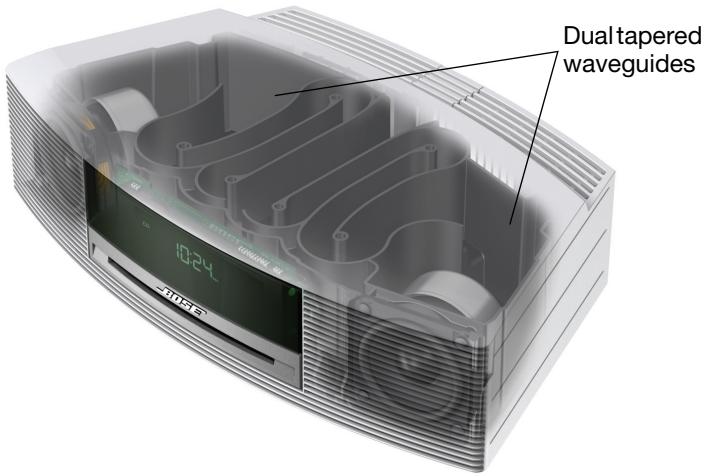
Over fourteen years of research by Bose Corporation bring you the benefits of award-winning proprietary acoustic waveguide speaker technology. Using this technology, a tube efficiently transfers energy from a small speaker to the outside air over a wide range of low frequencies. And long waveguides, folded into intricate patterns, fit into products small enough to be placed comfortably in your home.
Your Wave® music system features dual tapered waveguide speaker technology, connecting two speakers to two 26" (.7 m) tapered waveguides, which combine to produce unprecedented instrument timbre from a system this size.
Special Features
The wireless connection turns your computer into another music source
By plugging in the SoundLink™ USB key, you make the music files on your computer and Internet radio stations available to play on your Wave® music system.
For details, see "Using your computer as a music source" on page 8.
Playing MP3 CDs adds flexibility for enjoying your favorite music files
Your Wave® music system can play MP3 music files recorded on CD-R and CD-RW discs.
You can use the remote control to easily navigate through your MP3 files and play your favorites. For details, see "Navigating through MP3s" on page 12.
Alarm settings let you wake to your favorite radio station or CD track
You can set your Wave® music system to wake to your favorite CD track.
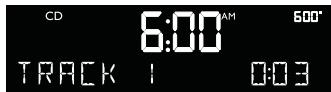
For more details, see "Using the alarm" on page 13.
The setup menu allows you to personalize system operation
Factory system settings have been set to satisfy most owners. If you wish to change the settings, see "Using the setup menu" on page 17.
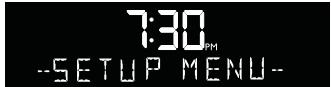
The setup menu allows you to change the following system settings to your liking:
- Snooze time
- Play a radio station automatically after a CD ends
-
Clock time format (12- or 24-hour)
-
Display brightness level
- Bose® link room code
- Reset to factory settings
Unpacking
Please check the shipping carton for the following items:
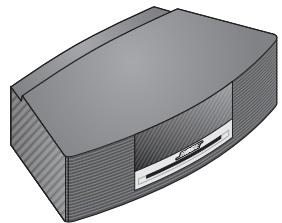
Wave® music system
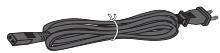
Power cable
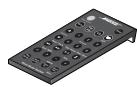
Remote control (battery pre-installed)
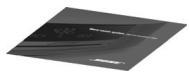
Demonstration CD
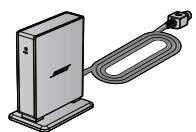
SoundLink™ adapter

SoundLink™ USB key
Selecting a location
- For best performance, place your Wave® music system across the room from where you will be listening.
- Place it on a table or other flat surface and position it within 2 feet (.7 m) of a wall but away from a corner.
- Place the adapter in a convenient location. It does not need to be within view.
If the adapter is to the left of the system (as you face it), be sure the two are at least 2 in. (5 cm) apart to eliminate any interference with AM reception.
CAUTIONS:
- DO NOT place your Wave® music system on a metal surface, which could interfere with AM reception.
- Avoid placing it on a heat-sensitive surface. Like all electrical equipment, it generates some heat.
- Avoid placing it in a damp location or any other place where moisture can get inside.
- Placing the adapter close to a TV, refrigerator, fluorescent lamps, halogen lamps, dimmer switches, or other electronic equipment can cause electrical noise interference.
Connecting the Wave® music system
- Insert the flat plug on the power cable into the connector labeled AC POWER on the rear panel of your Wave® music system.
- Insert the plug at the other end of the cable into an electrical outlet.
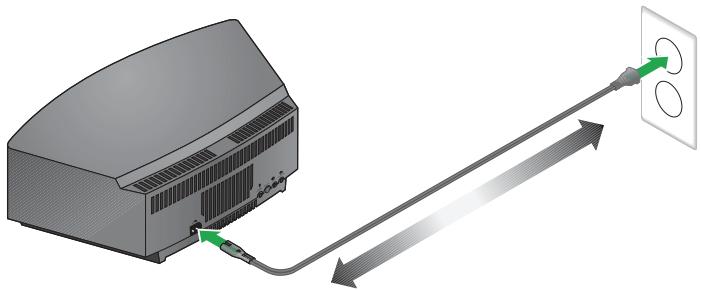
- Unwind and straighten the power cable to ensure the best FM reception. Your Wave® music system uses the power cord as an FM antenna.
- Plug the SoundLink™ adapter cable (with the words Bose® link facing up) into the connector labeled Bose link on the rear of the Wave® music system.
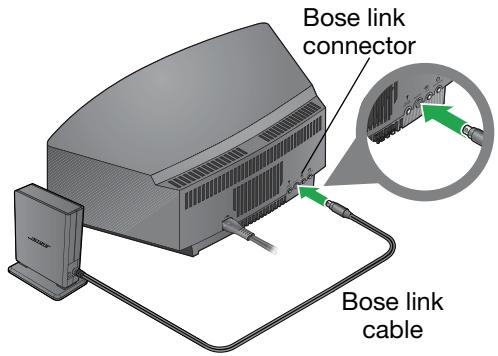
Note: You can find information on using the adapter in "Listening to music on your computer" on page 8.
Making the wireless connection
- Using the provided SoundLink™ remote control, press the SoundLink/AUX button to select the computer as the music source.
Your Wave® system turns on and SOUNDLINK, CONNECTING, DISCOVERABLE appear in sequence on the front panel display. - With your computer turned on, lift the antenna on the SoundLink™ USB key to the vertical position and plug the key into a USB port on your computer.
Note: To locate a USB port on your computer, look for the identifying symbol .
If you are using a USB hub with your computer, make sure it is a powered hub.
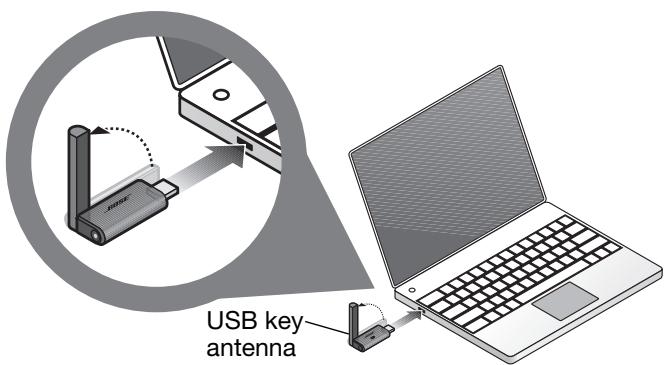
- Check to be sure the SoundLink™ USB key power light turns on and begins to flash.

- Wait for your computer to recognize the SoundLink™ USB key. It can take up to 20 seconds the first time this occurs.
CONNECTING appears on the Wave® system display and lights on the USB key and SoundLink™ adapter flash rapidly. The lights stop blinking and the Wave® system emits a brief beep when the SoundLink™ then connection is ready for use.
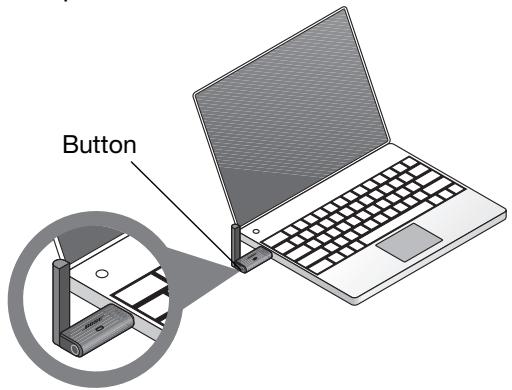
To disconnect your Wave® music system from the computer:
Press the button on the end of the SoundLink™ USB key. Then you can remove the USB key from the computer USB port.
To reconnect to your Wave® music system:
When you plug the SoundLink USB key into the USB port on your computer, it should reconnect automatically to your Wave® music system. Make sure your system is turned on and COMPUTER appears on the system display.
If you have problems connecting, see "Troubleshooting" on page 22.
Setting the clock
After plugging in your Wave® music system, set the clock using the remote. Just aim the remote at the front panel and press the buttons.
- Press and hold Time - or Time + for several seconds until - CLOCK SET - appears on the display
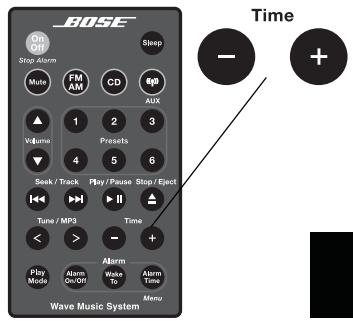
- Press Time - to adjust the displayed time backward or press Time + to adjust the displayed time forward until it matches the current time. For rapid adjustments, press and hold the button.
- Wait five seconds for the system to exit the clock setup mode automatically.
To change the clock display from 12-hour (AM/PM) time to 24-hour (Military) time, see “Changing the clock time format” on page 19.
Note: In the event that the Wave® music system loses power, the clock time and other system settings are stored in backup memory for up to 48 hours. This feature retains the system settings when you unplug and move the unit or when a power outage occurs.
Enjoying the sound
We encourage you to begin by listening to the demonstration CD provided.
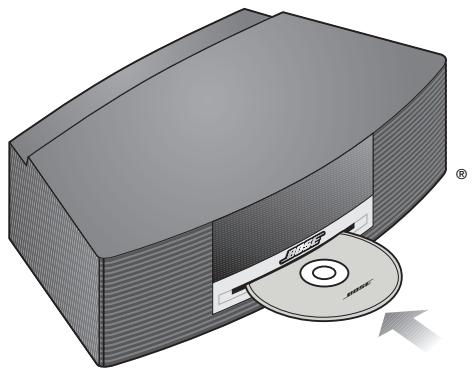
Simply insert the disc (label side up) and your Wave® music system will play the CD automatically. While listening, you can explore the other features of your new system, as explained in this guide.
Stop / Eject
Press Stop/Eject to remove the disc after it plays.
Using the remote control
The remote control gives you access to all the features of your Wave® music system. Just aim the remote at the front panel and press the buttons. The remote normally works within 20 feet (6 meters) of the front panel.
Basic button functions are described below. Details on which buttons to use appear with the instructions that follow.
Note: Pressing FM/AM, CD, or SoundLink/AUX turns on the Wave® music system to the source selected.
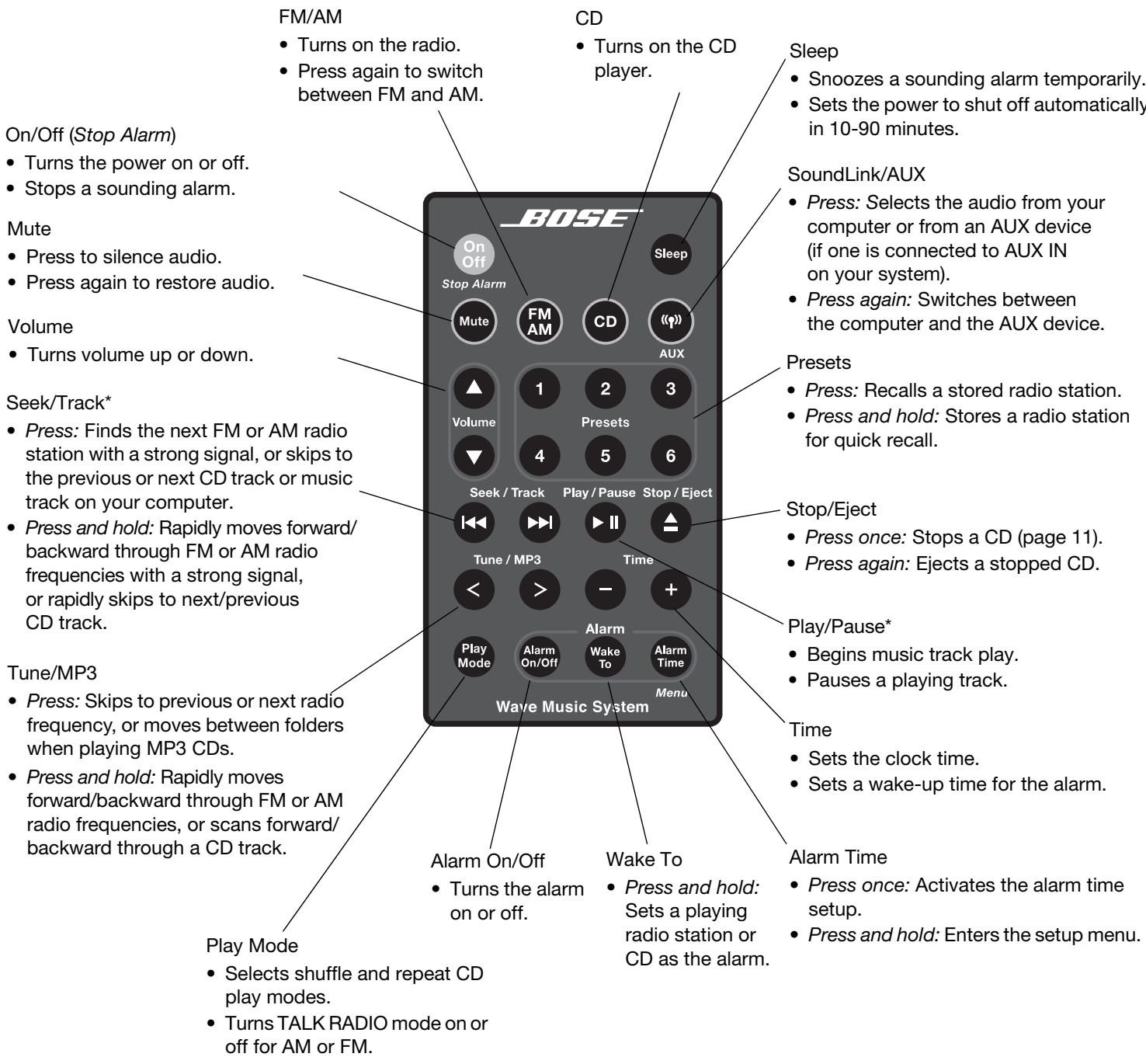
*May not work with Internet radio and some music applications.
Reading the display
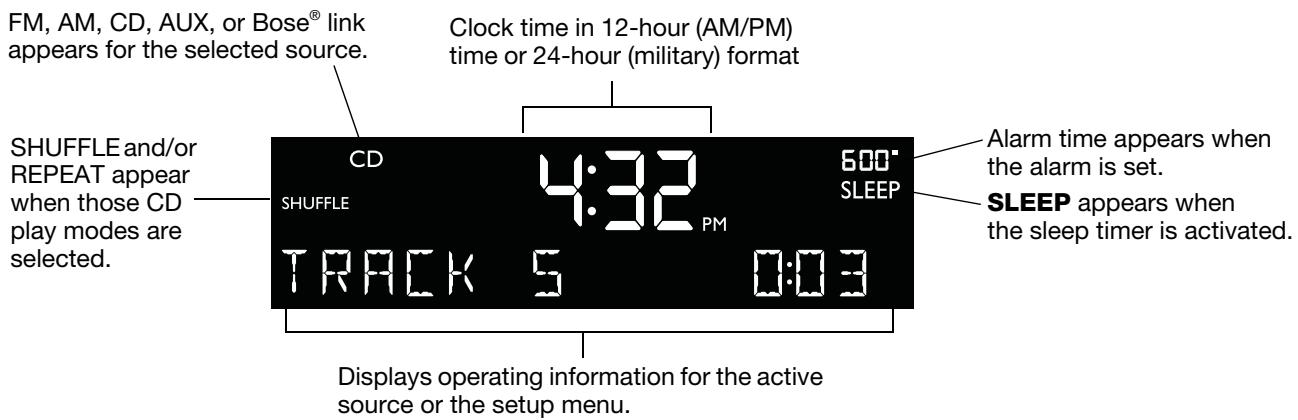
Turning the Wave® music system on and off
Press On/Off once to turn the Wave® music system on or off. The Wave® music system turns on to the last source played.
OR


Press any source button to turn the Wave® music system on to that source.
Pressing the SoundLink/AUX button does not turn on a connected device (such as your computer or TV), so turn that on first.
Controlling the volume
Press and hold Volume or to adjust the volume level.
VOLUME - 0 (silent) to 99 (loud) appears on the display to indicate the level.

Press Mute to silence the Wave® music system; Press Mute again, or press Volume ▲ to unmute the system.
To lower the volume before unmuting, press Volume while muted.
Note: When the Wave® music system is off, the volume can only be adjusted between 10 and 75.
Listening to music on your computer
- Press the SoundLink/AUX button on the Wave® music system remote to select your computer as the source.

- With your computer turned on and the USB key connected to it, set your computer to the maximum volume you use for the best audio performance.
- Open a music application or locate an Internet radio station on your computer and set the music to play.
Important for Mac computer users: On first using the USB key, you may need to open your computer Sound settings in System Preferences and select "Bose SoundLink Audio."
Controlling the playback
Play/Pause

Press Play/Pause to pause the track playing on your computer. Press Play/Pause again to resume play.
Note: The Play/Pause and Seek/Track buttons on your Wave® music system remote may not work with Internet radio and with some music applications.
Press Volume + to increase or Volume - to decrease the level of the sound. Press and hold the button for faster adjustment.

Press Mute to silence the sound. Press Mute again to restore the sound.
Seek / Track


Press Seek/Track to skip back to the previous track. Press and hold to scan backward though the current track.
Press Seek/Track to skip to the next track. Press and hold to scan forward quickly through the current track.
Note: While listening to music from your computer, no sound plays through the computer's internal speakers or sound card. On some computers, you can choose a separate audio out for your music and still hear computer alerts on its internal speakers.
Turning on the radio

Press FM/AM to turn on the radio to the FM or AM station last selected.
Press FM/AM again to switch between FM and AM.
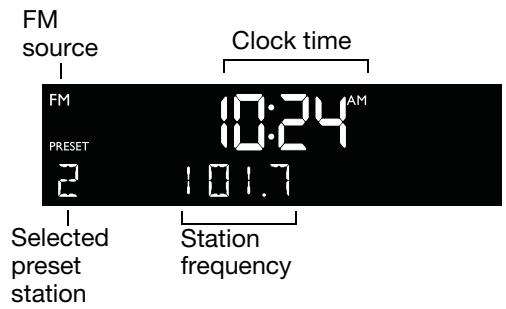
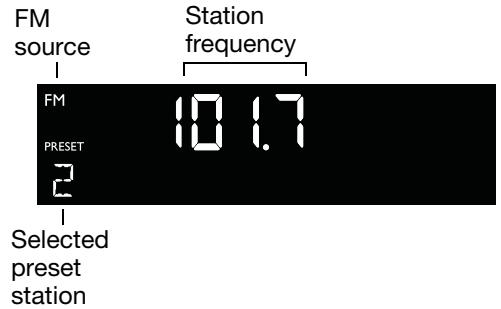
When the radio is playing, radio station information is displayed:
Tuning to a station

Press FM/AM to switch between FM and AM.
Press Seek/Track to find a lower frequency station with a strong signal; press Seek/Track to find a higher frequency station with a strong signal.
Press Tune/MP3 to manually tune to a lower frequency; press Tune/MP3 to manually tune to a higher frequency.
Press and hold Tune/MP3 to move rapidly down through the frequency band; press and hold Tune/MP3 to move rapidly up through the frequency band.
When you press FM/AM, Seek/Track, or Tune/MP3 to tune to a radio station, the frequency appears in the center of the display while you are tuning.
Storing a radio station to memory (Presents)
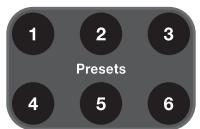
You can store up to six FM and six AM radio stations for quick recall using the Presets buttons.
- Tune to the station you want to save as a preset.
- Press and hold one of the six Presets buttons until you hear a double beep and the preset number and station frequency appear on the display.
- Press one of the Presets buttons to quickly tune to a previously stored FM or AM station.
Note: Setting a radio station to a specific preset number will replace any station previously stored to that preset number.
Note: During a power outage, stored presets are saved in a backup memory system for 48 hours.
TALK RADIO mode
Talk radio broadcasts can be greatly affected by either the microphone selection or the boosting of low frequencies by some radio stations. They do so in an attempt to improve speech when heard through conventional radios.
In high-quality audio products, this results in sound that is unnatural or bass heavy. By selecting the TALK RADIO mode, your Wave® music system automatically adjusts to compensate for artificially boosted low frequencies.

When the radio is playing, press Play Mode twice to turn the TALK RADIO mode on or off.
When on, TALK RADIO- ON is displayed.
When off, TALK RADIO- OFF is displayed.
Note: The TALK RADIO setting is automatically cancelled when you tune to another station, switch to another source, or turn your Wave® music system off.
Playing CDs
Insert the disc, label side up, into the CD slot below the display. The disc player pulls the disc in farther and begins playing (if CD is the selected source).
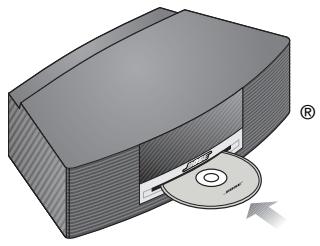

If the CD source is not selected, press CD.
Note: - NO DISC - will be displayed if you press CD when there is no disc in the disc player.
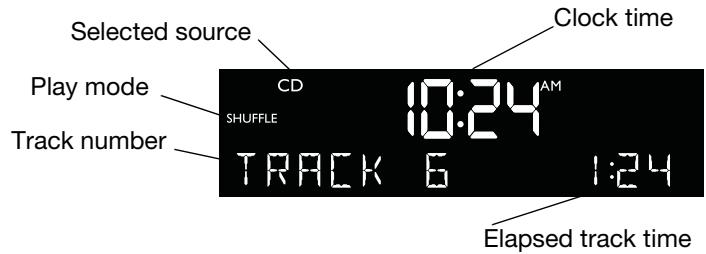
When an audio CD is playing, CD source information is displayed:

Play / Pause

Seek/Track

Press Play/Pause to pause a playing CD. The elapsed time flashes while paused. Press Play/Pause again to resume play.
Press Seek/Track to skip to beginning of the current track; press Seek/Track twice to skip to the beginning of the previous track; press Seek/Track to skip to the next track.

Tune / MP3

Press and hold Tune/MP3 to scan backward quickly through a track; press Tune/MP3 to scan forward quickly through a track.

Stop / Eject
Press Stop/Eject to stop a CD. Press Stop/Eject again to eject a CD. If a CD is playing, press and hold Stop/Eject to stop a CD and eject it.
Note: When you play a stopped CD it will always resume from the place it was stopped.
Note: If you eject a CD but do not remove it from the CD player slot within 10 seconds, the CD player will pull the CD back into the player. However, play will not begin until you press the Play/Pause button.
CAUTION: DO NOT INSERT mini CDs or non-circular CDs into the disc player. These discs may not play properly and could interfere with the system's ability to eject them.
CD play modes

While a CD is playing, you can change the way it is played. Press Play Mode repeatedly until the play mode you want is displayed:
- NORMAL PLAY - Plays tracks once in sequential order.
- SHUFFLE DISC - Plays all tracks once in random order.
- SHUFFLE RPT - Repeats all tracks in a random order that changes each time the disc is repeated.
- REPEAT DISC - Repeats the disc from the beginning after the last track is played.
- REPEAT TRACK - Repeats the selected track continuously.
The play mode will return to NORMAL PLAY whenever a CD is inserted.
Navigating through MP3s

Tune / MP3


Seek/Track

Press Tune/MP3 to skip to the previous folder; press Tune/MP3 to skip to the next folder.
Press Seek/Track to skip to the beginning of the current track; press Seek/Track twice to skip to the beginning of the previous track; press Seek/Track to skip to the next track.
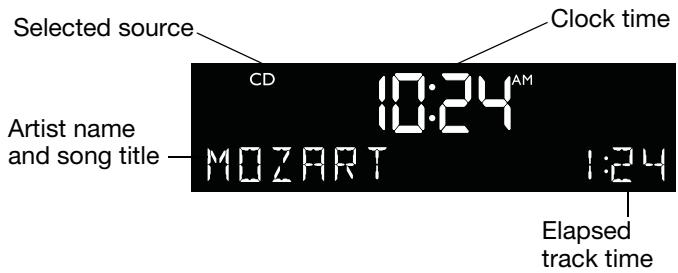
When navigating an MP3 CD, folder number and track number are displayed:

Once the track begins playing, artist name, song title, and elapsed track time will return to the display:
Play modes for music file CDs

While a music file CD is playing, you can change the way it is played. Press Play Mode repeatedly until the play mode you want is displayed:
- NORMAL PLAY - Plays tracks once in sequential order.
- SHUFFLE DISC - Plays all tracks once in random order.
- SHUFFLE FOLDR - Plays all tracks in the selected folder in random order.
- SHUF RPT FLDR - Repeats all tracks in a folder in a random order that changes each time the folder is repeated.
- SHUF RPT DISC - Repeats all tracks on a disc in a random order that changes each time the disc is repeated.
- REPEAT DISC - Repeats all tracks on a disc in order.
- REPEAT FOLDER - Repeats all tracks in a folder in order.
- REPEAT TRACK - Repeats the selected track continuously.
The play mode will return to NORMAL PLAY whenever a CD is inserted.
Setting up the alarm
You can choose how and when you want to wake up, then turn on the alarm for use.
Choosing a radio station or CD for wake-up
- Turn on your Wave® music system and tune to the radio station or play the CD track you want to hear when you wake up.
- Adjust the volume to the wake-up level you want to hear.
- Press and hold Wake To until you hear a double beep. Your alarm is now set to wake you to your chosen radio station or CD track.


Note: Neither your computer nor any device connected to AUX IN on your system can be selected as the wake up sound source.
Setting the alarm time
- Press Alarm Time to enter the alarm time setup mode. The alarm time appears in the center of the display and flashes in the upper right corner.

- Press Time - or Time + to set your wake-up time.
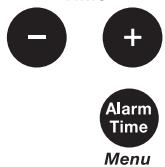
- Press Alarm Time again. Your alarm time is now set.

- Press the Alarm On/Off button to make the alarm active.
Note: During setup, if more than 10 seconds elapses between button presses, the Wave® music system will automatically exit the alarm time setup mode.
To confirm your alarm settings
Press Alarm Time. Alarm Time and Wake To settings will be displayed for 10 seconds.
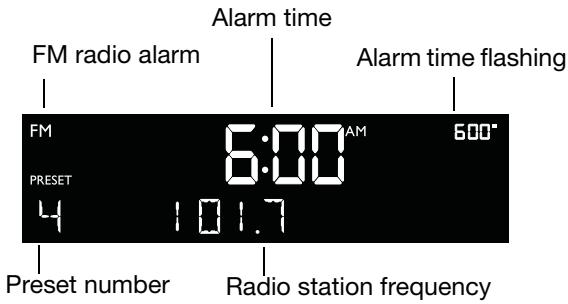
Example: Alarm is set to play radio station Preset 4, 101.7 FM, at 6:00 A.M.
Using the alarm
Stopping a sounding alarm

Press On/Off (Stop Alarm) to stop a sounding alarm and reset it for the next day.
To turn the alarm on or off

Press Alarm On/Off to turn the alarm on or off. It's on when the alarm time is displayed in the upper right-hand corner. It's off when the alarm time is not visible in the upper right-hand corner of the display.
Snoozing an alarm
Sleep
Press Sleep to snooze a sounding alarm.
During the snooze time, SNOOZE is displayed. After the snooze time expires, the alarm sounds again. Pressing Sleep again will silence the alarm for another 10 minutes.
The factory default setting for the snooze time is 10 minutes. See "Adjusting the snooze time" on page 18.
Setting the system for automatic turn off (Sleep)
You can use this feature while you listen to FM/AM, CD, AUX, or a computer that is connected wirelessly to the system.
Sleep
Press Sleep to set the Wave® music system to turn off automatically after a selected period of time.
- SLEEP - 30 MIN (or your last setting) appears on the display and the sleep timer begins counting down. The last source selected will start playing when the count down ends.
- Press Sleep again to change the countdown period (10 to 90 minutes) or to turn OFF the countdown.
- When the sleep setting is not displayed, press Sleep to review the time that remains.
- If your Wave® music system is off, press Sleep to turn it on and immediately set the sleep time.
- To cancel the sleep timer, press On/Off.
Note: While in sleep timer setup mode, if more than 10 seconds elapses between button presses, the Wave® music system will automatically exit the sleep timer setup mode.
Note: This feature controls the Wave® music system only. It does not automatically shut down your computer or turn off a device that is connected to the system AUX IN.
Rear panel inputs/outputs
The rear panel of your Wave® music system provides connections for external equipment.
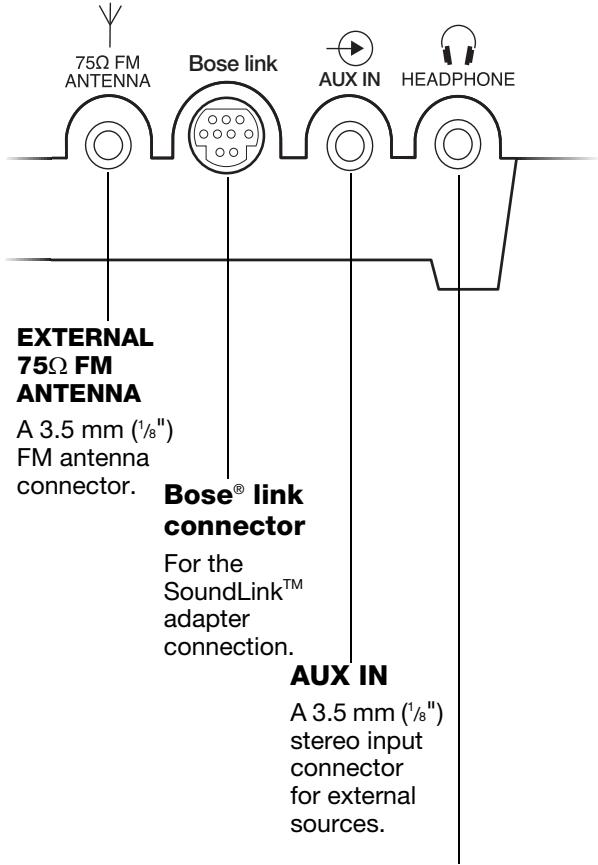
HEADPHONE
A 3.5 mm ('/8") stereo headphone connector. When headphones are connected, the Wave® music system speakers are muted.
Connecting an external FM antenna
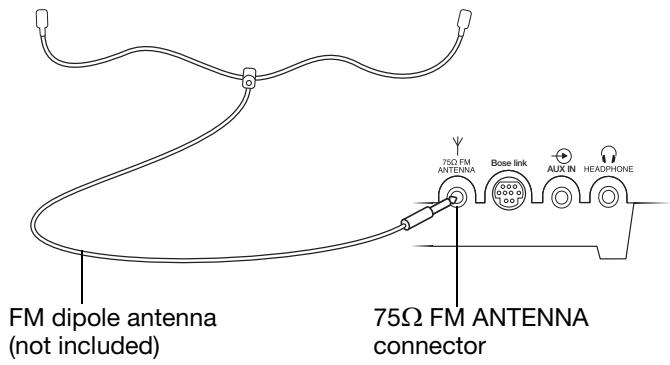
The Wave® music system power cord includes a built-in FM antenna. If you experience poor reception after adjusting the position of the power cord, you may need to use an external FM antenna. An external FM dipole antenna can be ordered through Bose Customer Service. See the phone numbers listed inside the back cover of this guide.
To connect an external FM antenna:
- Plug the 3.5 ~mm ( 1 / 8 3 ) plug of the FM antenna into the 75 FM ANTENNA connector on the rear panel of your Wave® music system.
- Extend the ends of the antenna to establish optimum FM reception.
- Extend the ends of the antenna as far from the unit and other external equipment as possible to establish optimum reception.
Using headphones
For private listening, connect headphones to the headphone connector on the rear panel of the Wave® music system.
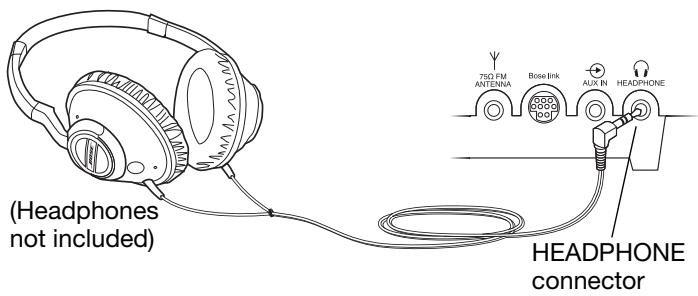
The speakers are automatically muted when you plug in your headphones.
Press Volume ▲ or ▼ to adjust the listening level of your headphones.
Note: The speakers will automatically unmute when headphones are disconnected from the Wave® music system. Because headphone volume levels may vary from speaker volume levels, be sure to lower the volume of the Wave® music system before connecting or disconnecting headphones.
Note: If an alarm sounds while using headphones, it will sound through the Wave® music system speakers.
CAUTION: Long-term exposure to loud music may cause hearing damage. It is best to avoid extreme volume when using headphones, especially for extended periods.
Adding audio devices
You can play the audio from your TV, a video game, or a cassette tape through your Wave® music system for greater enjoyment.
Connecting an audio device to your Wave® music system requires one of the following cables:
- Male-to-male 3.5 ~mm (1 / 8") stereo cable

- Dual RCA male to 3.5 ~mm (1/8" male stereo cable
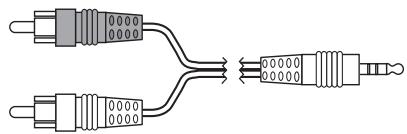
To obtain the correct cable, contact Bose® Customer Service or visit a local electronics store. See the phone numbers listed inside the back cover of this guide.
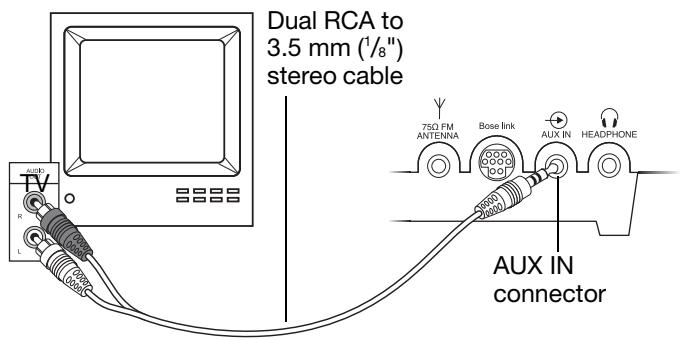
To connect an audio device, such as your TV, to your Wave® music system:
- Connect one end of the stereo cable to the output of the audio device.
- Connect the other end of the cable to the AUX IN connector on the rear panel of your Wave® music system.
- Turn on your Wave® music system and the audio device.
Stop Alarm
- Press SoundLink/AUX.
If AUX does not appear on the system display, press the button again.
- Press and hold Volume or to adjust the listening level.

Note: If the volume level of your Wave® music system cannot be adjusted high enough, try increasing the volume level of the connected audio device.
Factory defaults have been set to satisfy most owners.
However, if you wish to adjust the system settings, use the information that follows.
Using the setup menu
The setup menu allows you to customize the operation of the Wave® music system.
Press and hold Alarm Time (Menu) until - SETUP MENU - is displayed.

- Press Tune/MP3 until the menu item you want to change is displayed.
- Press Time - or Time + to change the value or selection.
- Press Alarm Time (Menu) to exit the setup menu or wait 10 seconds for the setup menu to end automatically.
Tune / MP3

Time


Menu
Wave® music system Setup Menu
| System Setting | Menu Item | Factory Setting | Choices | Description |
| Snoopze Control | SNOOZE - | 10 MIN | 10 MIN, 20 MIN, 30 MIN, 40 MIN, 50 MIN, 60 MIN | Determines the snooze time. |
| Continuous Play | CONT PLAY - | NO | NO, AUX, FM, AM | Determines which source will automatically play after a CD ends. |
| Clock Time Format | TIME - | 12 HOUR | 12-HOUR, 24-HOUR | Sets the clock display for 12-hour (AM/PM) or 24-hour (military) time. |
| Display High Brightness Level | BRIGHT HI - | 12 | 8-15 | Sets the display brightness level when the unit detects high ambient light conditions. |
| Display Low Brightness Level | BRIGHT LO - | 4 | 1-8 | Sets the display brightness level when the unit detects low ambient light conditions. |
| Room CodeCodes apply only if the SoundLink™adapter is not connected and your Wave® system is connected to a Lifestyle® system in another room. | ROOM - | B __ - | B __ -, C __ -, D __ -, E __ -, F __ -, G __ -, H __ -, I __ -, J __ -, K __ -, L __ -, M __ -, N __ -, O __ - | Sets the room code for your Wave® music system when it is connected to your Lifestyle® system through a Bose® link network.The dashes following the room letter indicate how the microswitches should be set on the Lifestyle® remote control. |
| System Reset | RESET ALL - | NO | NO, YES | Restores the Wave® music system to factory settings. |
Adjusting the snooze time
This setting determines the duration of time the system remains silent when the snooze function is activated.
- Press and hold Alarm Time (Menu) until -SETUP MENU - is displayed.

- Press Tune/MP3 once until SNOOZE - 10 MIN is displayed.
- Press Time - or Time + to change the snooze time to 10-60 minutes (in 10-minute increments).
- Press Alarm Time (Menu) to exit the setup menu or wait 10 seconds for the setup menu to end automatically.


Choosing what plays after a CD ends
Your Wave® music system has a continuous play feature. When a CD stops playing, you can choose to have another source start playing automatically.
- Press and hold Alarm Time (Menu) until -SETUP MENU - is displayed.

- Press Tune/MP3 two times until CONT PLAY - is displayed.
Tune / MP3
- Press Time - or Time + to select FM/AM radio or AUX.
e


- Press Alarm Time (Menu) to exit the setup menu or wait 10 seconds for the setup menu to end automatically.

Menu
Changing the clock time format
You can choose to have the display show the time in 12-hour (AM/PM) or 24-hour (military) time.
- Press and hold Alarm Time (Menu) until - SETUP MENU - is displayed.

- Press Tune/MP3 three times until TIME - is displayed.
Tune / MP3

- Press Time - or Time + to select 12 HOUR or 24 HOUR.


- Press Alarm Time (Menu) to exit the setup menu or wait 10 seconds for the setup menu to end automatically.

Adjusting the display brightness
The brightness level of the display automatically adjusts itself for low and high ambient light conditions. This feature brightens the display for better visibility in high ambient light conditions and dims the display making it less intrusive in low ambient light conditions. High and low brightness settings can be set independently.
- Press and hold Alarm Time (Menu) until - SETUP MENU - is displayed.

- Press Tune/MP3 four times until BRIGHT HI - is displayed.
Tune / MP3

- Press Time - or Time + to set the high display brightness level to a value from 8-15.
1


- Press Tune/MP3 once until BRIGHT LO - is displayed.
Tune / MP3

- Press Time - or Time + to set the low display brightness level from 1-8.
Time


- Press Alarm Time (Menu) to exit the setup menu or wait 10 seconds for the setup menu to end automatically.

Menu
Setting the room code
Your Wave® music system comes from the factory ready to operate as a second room (room code B) when connected to a Bose® link enabled Lifestyle® system. If you want to use your Wave® music system with your Lifestyle® system beyond a second room you will need to change the room code to match that of the remote control you are using for that room.
Refer to your Lifestyle® system owner's guide for more information on room codes.
- Press and hold Alarm Time (Menu) until -SETUP MENU - is displayed.

Menu
- Press Tune/MP3 six times until ROOM-B- is displayed. The dashes following the room letter indicate how the microswitches should be set on the Lifestyle remote control.

Tune / MP3
- Press Time - or Time + to select a room code other than room B.
- Press Alarm Time (Menu) to exit the setup menu or wait 10 seconds for the setup menu to end automatically.

Menu
Performing a system reset
If you wish, you can restore your Wave® music system to the original factory settings.
- Press and hold Alarm Time (Menu) until - SETUP MENU - is displayed.

Menu
- Press Tune/MP3 seven times until RESET ALL -NO is displayed.

Tune / MP3
- Press Time - or Time + to change RESET ALL - NO to RESET ALL - YES.

Time

-
When PRESS 2 TO CONFIRM appears on the display, press Presets button 2. When the reset is complete, DEFAULTS RESET is displayed.
-
Press Alarm Time (Menu) to exit the setup menu or wait 10 seconds for the setup menu to end automatically.

Cleaning
Use only a soft dry cloth to clean the enclosure of your Wave® music system. If necessary, you may use a soft-bristled attachment to gently vacuum the front of the enclosure. Do not use any liquid cleaning solutions, solvents, chemicals, alcohol, ammonia, or abrasives.
CAUTION: Do not allow liquids to spill into any openings in the enclosure. If liquids get into the unit, turn it off immediately. Call Bose® Customer Support as soon as possible to arrange for service. See the list of phone numbers inside the back cover.
Replacing the remote control battery
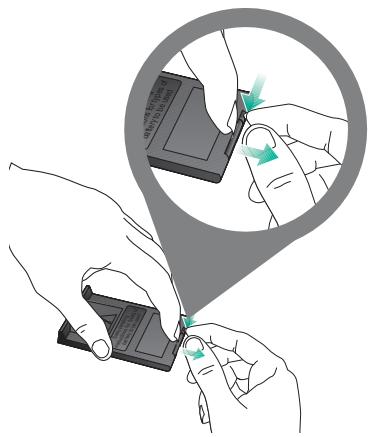
To replace the remote battery:
- Place the remote face down on a flat surface.
- Using your finger, push the tab lock to the side as shown and hold. Slide the battery compartment open.
- Remove the old battery and install the new one with the plus (+) symbol facing up.
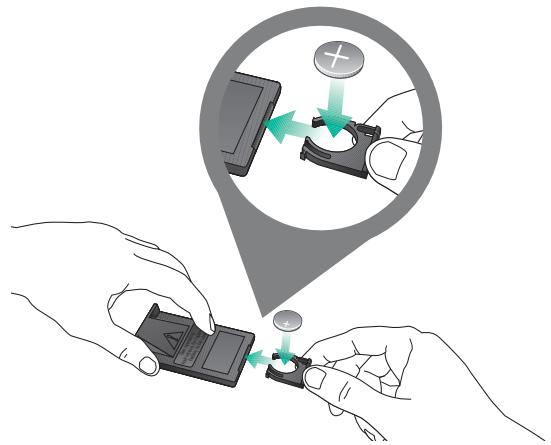
- Gently slide the battery compartment closed. It locks automatically.
WARNING: Keep the remote control battery away from children. It may cause a fire or chemical burn if mishandled. Do not recharge, disassemble, heat above 212^ F ( 100^ C ), or incinerate. Dispose of a used battery promptly. Replace only with a battery of the correct type and model number.
CAUTION: Danger of explosion if battery is incorrectly replaced. Replace only with Duracell, Eveready, Energizer, Maxell, Toshiba, or Shun Wo CR2032 or DL2032 3-volt lithium battery.
Troubleshooting
| Problem | What to do |
| System does not function | ·Make sure the power cord is fully plugged into an operating electrical outlet. ·Press On/Off to see if the display lights. |
| No sound | ·Turn the volume up. ·Press Mute. ·Eject the CD and reload it. ·Check connections for an auxiliary source. ·Press SoundLink/AUX to listen to an external source connected to the AUX IN input. ·Make sure the external source is turned on. ·Disconnect headphones. |
| Remote control is inconsistent or does not work | ·Operate the remote control closer to the unit. ·Check that the remote control battery is installed with positive (+) polarity facing up. ·Replace the remote control battery. ·Check for interference from room lighting, sunlight, or dust or dirt on lens. ·Try the unit in a different location. |
| AM reception is weak | ·Adjust the internal antenna by rotating the unit slightly one way and then the other. ·Move the unit farther from a TV, refrigerator, fluorescent lamps, halogen lamps, dimmer switches, or other electronic equipment that generates electrical noise. ·If neither suggestion works, you may be in an area of weak AM signal coverage. |
| FM reception is weak | ·Extend the power cord as much as possible. The power cord acts as an FM antenna. ·Try an external antenna. Call Bose® Customer Service to order an external FM antenna. |
| CD does not play | ·Check that the CD source is selected. The CD icon should appear on the display. If not, press CD. ·Check that the CD was loaded label-side up. ·Check that the disc surface is clean. If not, try cleaning it. ·Check that an audio CD was loaded, not a DVD. ·Try another disc. |
| Computer does not recognize the SoundLink™ USB key (in its list of connected devices). | ·Remove the SoundLink™ USB key from your computer, wait 30 seconds, and insert it again. ·If you are using a USB hub, make sure the hub is powered. ·Try a different USB port. If you are using a powered USB hub, try moving the SoundLink™ USB key to a USB port on the computer. ·Remove the SoundLink™ USB key, restart your computer, and insert the USB key again. ·Refer to the owner's guide, help system, or technical support for your computer to learn how to detect and install new hardware. |
| Computer and Wave®system do not connect. | |
| Symptom A:SoundLINK orCOMPUTER neverappear on the Wave®system display and nolights blink. | Press the SoundLink/AUX button to turn on the system and select the computer.Make sure the SoundLink™ adapter is connected to the Wave®system.Unplug the Wave®music system for 30 seconds and plug it back in. |
| Symptom B:CONNECTING remainson the Wave®systemdisplay and the adapterlight blinks continuously.- NO SIGNAL - eventuallyappears on the systemdisplay. | Make sure the USB key is plugged in and your computer is turned on.Decrease the distance between the Wave®system and your computer.See “Connection range” on page 25.Try moving the Wave®system away from possible sources of interference such asanother wireless device, a microwave oven, or a wireless computer network router.If you are using a desktop computer, try moving the USB key to a port that providesa more direct path to the adapter. Or use a USB extension cable, available forpurchase at computer stores.Remove the USB key from your computer, wait 30 seconds and insert it again.Disconnect the power supply from the Wave®system and reconnect it.Try restoring the wireless link between the speaker and the USB key. See “Manuallylinking the SoundLink™ adapter and USB key” on page 24. |
| No sound when thecomputer music plays. | Press the SoundLink/AUX button on the SoundLink™ remote to select your computeras the source.COMPUTER should be displayed.Make sure your Wave®system volume is turned up and the sound is not muted.Make sure the volume on your computer is turned up and is not muted.Make sure your music application is running and the volume is turned up and notmuted.Check your computer Sound settings to make sure “Bose SoundLink Audio” isselected as the audio output device.Close or quit the music application on your computer and restart it.Restart your computer. |
| Reception of sound fromthe computer is poor or thesound is dropping out. | Move the SoundLink™ adapter farther from the right side of the Wave®system.Charge the angle of the antenna on the SoundLink™ USB key.Decrease the distance between the Wave®system and your computer. See “Conne-c tion range” on page 25.Try moving the Wave®system away from possible sources of interference such asanother wireless device, a microwave oven, or a wireless computer network router.Use a USB extension cable, available for purchase at computer stores. Plug the USBkey into the appropriate end of the cable and the computer into the other end.Close other applications that can tax your computer memory.If you continue to experience reception problems, contact Bose®Customer Service.Refer to the address list included in the carton. |
| Play/Pause and Seekbuttons do not controlmusic on the computer | Make sure your computer media player or Internet radio application is selected as theactive window.Note: Not all players and Internet radio services support this form of playback control. |
Manually linking the SoundLink™ adapter and USB key
You may be using a replacement SoundLink™ USB key or SoundLink™ adapter or troubleshooting the wireless connection. In either case, you should link the USB key and adapter manually.
- Using the Wave® music system remote control, press the SoundLink/AUX button to select the computer as the music source.
- Press and hold the Presets 5 button on the remote control until DISCOVERABLE is displayed and flashing on the Wave® system display.
- With your computer turned on, lift the antenna on the SoundLink™ USB key to the vertical position and plug the key into a USB port on your computer.
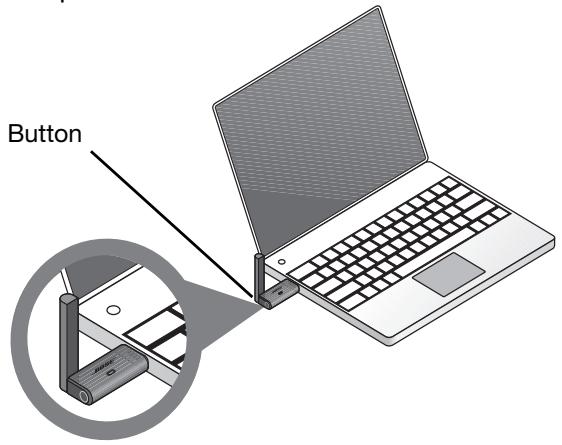
- Press and hold the button on the USB key for more than 3 seconds until the light begins to flash. When the USB power light changes from flashing to solid and the Wave® system emits a beep, linking is complete.
Customer service
For additional help in solving problems, see notes about the product at:
www owners. Bose.com
To contact Bose® Customer Service for help, or to replace a lost remote control, see the phone numbers inside the back cover of your Wave® music system guide.
Limited warranty
Your Bose Wave® music system is covered by a limited transferable warranty. Details of the limited warranty are provided on the product registration card that is included in the carton. Please complete the information section on the card and mail it to Bose. Failure to do so will not affect your limited warranty rights.
What you must do to obtain Limited Warranty Service:
Return product, with proof of purchase from an authorized Bose dealer, using the following procedures:
- Contact the Bose organization in your country/region (visit global.Bose.com for Bose contact information in your country/region) for specific return and shipping instructions;
- Label and ship the product, freight prepaid, to the address provided by the Bose organization in your country; and
- Place any necessary return authorization number prominently on the outside of the carton. Cartons not bearing a return authorization number, where required, will be refused.
Technical information
AC power rating
120V~50/60Hz 60W
Dimensions
Wave® music system: 14.6" W x 8.6" D x 4.2" H (36.8 cm x 21.9 cm x 10.6 cm)
SoundLink™ adapter: 3.6" H x 2.6" D x 1" W (9.1 cm H x 7.63 cm D x 2.3 cm W)
Weight
Wave® music system: 8.7 lb (3.9 kg)
SoundLink™ adapter: 0.33 lb (150 gm +/-10 gm)
Connection range
Wireless capability covers a range of up to 60 ft (18.5 m), which can vary according to the type of home construction and signal obstructions (multiple walls, metal appliances, etc.). It can also be affected by the presence of other wireless devices (such as network routers or microwave ovens.)
Computer requirements
Compatible with computers running Windows XP or Vista systems or Mac OS X (10.4 or later).
Requires use of a USB port on the computer or a powered USB hub connected to the computer.
Bose® system requirement
Exclusive use of the Bose link connector on the rear of the Wave® system.
Bluetooth® QD ID
SoundLink™ USB key: B015403
SoundLink™ Adapter: B123456789
The Bluetooth® word mark and logos are registered trademarks owned by Bluetooth SIG, Inc. and any use of such marks by Bose Corporation are under license.
A
AC power connector 3
AC power rating 25
acoustic waveguide 2
adapter placement 3
alarm on or off 13
alarm settings 13
alarm volume level 13
alarms, using the 13
AM 9
AM reception 3, 22
AM/PM (12-hour) time 5, 17, 19
ambient light conditions 17, 19
audio CD 11
audio device, connecting 16
audio equipment, other 16
automatically shut down 14
AUX IN connector 15, 16
auxiliary source 22
B
backup memory 5, 10
battery disposal 21
battery replacement 21
beeping sound 4
Bose® link connector 3, 15
Bose link 3, 15, 17, 20
Bose system requirement 25
brightness level 17, 19
C
carton 24
CD2,11
CD play mode 11
CD source 11, 22
CD source information 11
CD track 11
clean the enclosure 21
cleaning 21
clock display 7
clock setup mode 5
clock time 5, 7
clock time format 5, 19
clock, setting 5
computer 2, 4, 8, 22
computer as the source 8
Computer requirements 25
computer shut down 14
connecting other equipment 15
Connection range 25
connections 22
continuous play 17
customer service 22, 24
customizing operation 17
D
demonstration CD 5
Dimensions 25
dipole antenna 15
disc player 11
disconnect 4
DISCOVERABLE message 24
display 7,13,22
display brightness 17, 19
DVD 22
E
electrical noise 3, 22
electrical outlet 22
external equipment 15
external FM antenna 15, 22
external source 15, 22
F
factory settings 2, 17, 20
FM 9
FM antenna 3, 15, 22
FM reception 3, 15, 22
FM source 9
frequency band 9
H
headphones 15, 16, 22
1
interference 3
internal antenna 22
internal speakers 8
Internet radio 8
L
Lifestyle® systems 15, 17, 20
light, flashing 4, 24
light, solid 4, 24
linking manually 24
listening level 16
listening to FM/AM radio 9
location, selecting 3
loud music 16
M
Mac computer 8
military (24-hour) time 5, 17, 19
MP3 CDs 2, 12
music application 8
music files, navigating 12
music source 2
N
no sound 22
0
operating information 7
P
patented 2
personalize 2
personalizing 17
play mode 11, 12
playing compact discs 11
pooreception 15
power cord 3, 15, 22
power outage 5, 10
preset number 10
presets 10
press and hold operations 6
previous track 8
Q
quick recall 10
R
radio 2
radio station 9, 10
rear panel 15, 16
registration card 24
remote control 6
remote control battery 21, 22
research 2
restore audio 6
room code, setting 17, 20
S
scan 8
scan through a track 11
second room 20
setting alarm 13
setup menu 17, 19, 20
shipping carton 3
shipping instructions 24
skip 8, 11, 12
sleep timer setup mode 14
snoopze 14
snooze control 17
snooze time 14, 18
sound card 8
sounding alarm 13, 14
SoundLink™ 2
SoundLink™ USB key 4
SoundLinkTM 2
station frequency 9, 10
stereo cable 16
stereo headphone connector 15
stereo input connector 15
stopping a sounding alarm 13
stored presets 10
storing a radio station 10
system operation 2
system reset 20
system settings 2, 7, 17, 18, 19, 20
system setup mode 20
T
talk radio broadcasts 10
TALK RADIO mode 10
tapered waveguide 2
technical information 25
time increment 18
track number 11
tuning the radio 9
turning alarm on and off 13
turning the radio on 9
TV 16
U
unpacking 3
USB hub 4
USB key 2, 4, 8
USB port 4
V
video game 16
volume level 7, 16, 22
W
wake to a CD track, setting 13
wake to a FM/AM radio, setting 13
wake-up time 13
warranty 24
waveguide speaker technology 2
weak AM reception 22
weak FM reception 22
weight 25
wireless connection 2, 4