
S660C - Smartphone BENQ - Notice d'utilisation et mode d'emploi gratuit
Retrouvez gratuitement la notice de l'appareil S660C BENQ au format PDF.


| Type de produit | Smartphone à clapet |
| Marque | BenQ |
| Modèle | S660C |
| Poids | Environ 80 g (avec batterie standard) |
| Dimensions (L×l×P) | Environ 80 × 43 × 22 mm |
| Type de batterie | Lithium-ion rechargeable, capacité environ 600 mAh |
| Temps de charge | Environ 4 heures |
| Autonomie en veille | Jusqu'à 200 heures (dépend du réseau) |
| Autonomie en communication | Jusqu'à 3 heures (dépend du réseau) |
| Écran principal | Écran TFT couleur, résolution 128×160 pixels, affichage 65 000 couleurs |
| Écran externe | Écran OLED monochrome, 96×64 pixels |
| Réseau | GSM 900/1800 MHz, GPRS |
| Mémoire interne | Jusqu'à 500 contacts dans le répertoire téléphone, 500 SMS |
| Mémoire de la carte SIM | Dépend de la carte SIM |
| Fonctions principales | Appels, SMS/EMS, répertoire, agenda, alarme, calculatrice, convertisseur de devises, chronomètre, minuteur, mémos vocaux, jeux (Champion Soccer, Dragon Fight), WAP, Java, profils personnalisables, numérotation vocale |
| Sécurité | Code PIN, verrouillage du téléphone, verrouillage de la carte SIM, verrouillage de l'écran |
| Entretien et nettoyage | Utiliser un chiffon doux et sec. Ne pas utiliser de détergents forts ou de solvants organiques. |
| Pièces détachées et réparabilité | Utiliser uniquement des accessoires BenQ d'origine. Contacter un revendeur agréé pour toute réparation. |
| Informations générales | Notice d'utilisation disponible en téléchargement. Température de fonctionnement : -20°C à 55°C. DAS : GSM900 max 1,34 mW/g, DCS1800 max 0,725 mW/g. |
FOIRE AUX QUESTIONS - S660C BENQ
Questions des utilisateurs sur S660C BENQ
0 question sur cet appareil. Repondez a celles que vous connaissez ou posez la votre.
Poser une nouvelle question sur cet appareil
Téléchargez la notice de votre Smartphone au format PDF gratuitement ! Retrouvez votre notice S660C - BENQ et reprennez votre appareil électronique en main. Sur cette page sont publiés tous les documents nécessaires à l'utilisation de votre appareil S660C de la marque BENQ.
MODE D'EMPLOI S660C BENQ
BenQ
S660C Mobile Phone
User's Manual
Copyright
© 2004. BENQ Corporation. All rights reserved. No part of this publication may be reproduced, transmitted, transcribed, stored in a retrieval system or translated into any language or computer language, in any form or by any means, electronic, mechanical, magnetic, optical, chemical, manual or otherwise, without the prior written permission of BENQ Corporation.
- This publication includes images from CorelDRAW® 9 which are protected by the copyright laws of the U.S., Canada and elsewhere. Used under license.
Disclaimer
BENQ Corporation makes no representations or warranties, either expressed or implied, with respect to the contents thereof and specifically disclaims any warranties, merchantability or fitness for any particular purpose. Further, BENQ Corporation reserves the right to revise this publication and to make changes from time to time in the contents thereof without obligation of BENQ Corporation to notify any person of such revision or changes.
Safety Information
For your safety, please read the guidelines below carefully before you use your phone:
Exposure to Radio Frequency Signals
Max. SAR measurement: GSM900: 1.34 mW/g; DCS1800: 0.725 mW/g.
Your wireless handheld portable telephone is a low power transmitter and receiver. When it is ON, it receives and also sends out radio frequency (RF) signals.
European and international agencies have set standards and recommendations for the protection of public exposure to RF electromagnetic energy.
International Commission on Non-Ionizing Radiation Protection (ICNIRP) 1996
- Verband Deutscher Elektringenieure (VDE) DIN-0848
- Directives of the European Community, Directorate General V in Matters of Radio Frequency Electromagnetic Energy
- National Radiological Protection Board of the United Kingdom, GS 11, 1988
American National Standards Institute (ANSI) IEEE. C95.1- 1992
- National Council on Radiation Protection and Measurements (NCRP). Report 86
Department of Health and Welfare Canada. Safety Code 6
These standards are based on extensive scientific review. For example, over 120 scientists, engineers and physicians from universities, government health agencies and industry reviewed the available body of research to develop the updated ANSI Standard.
The design of your phone complies with these standards when used normally.
Antenna Care
Use only the supplied or approved replacement antenna. Unauthorized antennas, modifications or attachments may damage the phone and violate FCC regulations.
Phone Operation
Normal Position: Hold the phone as you would any other telephone with the antenna pointed up and over your shoulder.
For your phone to operate most efficiently, do not touch the antenna unnecessarily when the phone is in use. Contact with the antenna affects call quality and may cause the phone to operate at higher power level than otherwise needed.
Batteries
All batteries can cause property damage, injury or burns if a conductive material such as jewelry, keys or beaded chains touches exposed terminals. The material may complete electrical circuit and become quite hot. To protect against such unwanted current drain, exercise care in handling any charged battery, particularly when placing it inside your pocket, purse or other container with metal objects. When battery is detached from the phone, your batteries are packed with a protective battery cover; please use this cover for storing your batteries when not in use.
Driving
Check the laws and regulations on the use of wireless telephones in the areas where you drive. Always obey them. Also, if using your phone while driving, please:
- Give full attention to driving--driving safety is your first responsibility.
- Use hands-free operation, if available.
- Pull off the road and park before making or answering a call if driving conditions so require.
Electronic Devices
Most modern electronic equipment is shielded from RF signals. However, certain electronic equipment may not be shielded against the RF signals from your wireless phone.
Pacemakers
The Health Industry Manufacturers Association recommends that a minimum separation of six (6") inches be maintained between a handheld wireless phone and a pacemaker to avoid potential interference with the pacemaker. These recommendations are consistent with the independent research by and recommendations of Wireless Technology Research.
Persons with pacemakers:
- Should ALWAYS keep the phone more than six inches from their pacemaker when the phone is turned ON.
- Should not carry the phone in a breast pocket.
- Should use the ear opposite the pacemaker to minimize the potential for interference.
If you have any reason to suspect that the interference is taking place, turn your phone OFF immediately.
Hearing Aids
Some digital wireless phones may interfere with some hearing aids. In the event of such interference you may want to consult your hearing aid manufacturer to discuss alternatives.
Other Medical Devices
If you use any other personal medical device, consult the manufacturer of your device to determine if they are adequately shielded from external RF energy. Your physician may be able to assist you in obtaining this information.
Turn your phone OFF in health care facilities when any regulations posted in these areas instruct you to do so. Hospitals or health care facilities may be using equipment that could be sensitive to external RF energy.
Vehicles
RF signals may affect improperly installed or inadequately shielded electronic systems in motor vehicles. Check with the manufacturer or its representative regarding your vehicle. You should also consult the manufacturer of any equipment that has been added to your vehicle.
Posted Facilities
Turn your phone OFF in any facility where posted notice so requires.
Aircraft
FCC regulations prohibit using your phone while in the air. Switch OFF your phone before boarding an aircraft.
Blasting Areas
To avoid interfering with blasting operations, turn your phone OFF when in a "blasting area" or in area posted "TURN OFF TWO-WAY RADIO." Obey all signs and instructions.
Potentially Explosive Atmospheres
Turn your phone OFF and do not remove the battery when in any area with a potentially explosive atmosphere and obey all signs and instructions. Sparks, from your battery, in such areas could cause an explosion or fire resulting in bodily injury or even death.
Areas with a potentially explosive atmosphere are often, but not always clearly marked. They include fueling areas such as gasoline stations; below deck on boats; fuel or chemical transfer or storage facilities; vehicles using liquefied petroleum gas (such as propane or butane); areas where the air contains chemicals or particles, such as grain, dust, or metal powders; and any other area where you would normally be advised to turn off your vehicle engine.
For Vehicles Equipped with an Air Bag
An air bag inflates with great force. DO NOT place objects, including both installed or portable wireless equipment, in the area over the air bag or in the air bag deployment area. If in-vehicle wireless equipment is improperly installed and the air bag inflates, serious injury could result.
Table of Contents
Safety Information
1.Preparing Your Phone For Use. 1
Inserting a SIM Card. 1
Installing a Battery and Charging the Phone 2
Turning the Phone On. 5
- Getting to Know Your Phone 8
Your Phone at a Glance. 8
Active Flip Feature. 10
Status Indicator Light 10
Standby Screen. 11
External Display 11
Icons in the External Display's Status Bar. 12
Main Screen 14
Icons in the Main Display's Status Bar. 16
Using the Keys in the Standby Mode 18
Menu Navigation 23
3.Using Your Phone 33
Making a Phone Call 33
Ending a Phone Call 33
Answering a Phone Call 34
Rejecting an Incoming Call 35
Turning Off the Ring Tone for an Incoming Call 35
Making an International Call. 35
Making an Emergency Call 36
Dialing an Extension Number 36
Speed Dialing 36
Voice Dialing 37
Listening to Voicemails 38
Phone Book. 39
Adding Contacts to the Phone Book. 39
Finding Contacts in the Phone Book 44
Using a Location Number to Access a Contact's Data... 46
Last Missed, Dialed, and Received Calls. 47
Operations During a Call 49
Call Menu 51
Using the Silent Profile. 54
Shortcuts Menu 55
Setting Function Shortcuts 55
Setting Phone Number Shortcuts. 58
Using Function and Phone Number Shortcuts. 59
Messages Menu 60
Create 62
SIM Folder 65
Inbox. 66
Template 69
Outbox 69
Drafts. 70
Voicemail. 70
Message Settings. 71
Cleanup Messages. 74
Memory Status 74
Voice Memo. 75
Input Modes 76
Changing the Text Input Mode. 76
Letter Input Mode (ABC) 77
Numeric Input Mode (123) 77
Predictive Input Mode (iTap) 78
Symbol Input Mode 79
Direct Connection to URLs 80
- Menu 82
Phone Book. 82
Find 82
Add. 82
Edit. 83
Copy 83
Delete 83
Caller Groups. 83
Privacy Manager 84
Business Card 86
Activate 87
My Number 87
SIM Status. 87
Call Records 88
Missed Calls. 88
Received Calls. 88
Dialed Calls. 88
Delete All. 88
Call Duration 89
Call Cost. 90
Messages 91
Organizer 92
Calendar. 92
To Do List 94
Note. 95
Tools. 96
AlarmClock. 96
Shortcuts 97
Voice Memo 97
98
Currency Converter 98
Stopwatch 100
Countdown Timer 100
Memory Status 101
Service Number 101
SIM Toolkit Menu. 101
Games. 102
Champion Soccer 102
Dragon Fight. 107
Internet. 108
WAP Service 108
Start Browser 109
WAP Message 117
Enter Address 117
Resume 117
Clear Cache 117
WAP Settings. 117
JAVA 121
Multimedia 126
Picture 126
Animation. 127
Melody 127
My Melodies. 127
Composer 129
Help 132
Settings 133
Date & Time 133
Time. 133
Format 133
Secondary Time. 134
Power On/Off. 134
Profiles 135
Display 140
Theme 140
Wallpaper 140
Welcome Message 141
Contrast 142
Brightness 142
Backlight Setting 142
OLED Duration. 142
OLED Animation Setting 143
Audio. 143
Power Saving Mode. 143
Call Settings 144
CallDivert. 144
Call Barring 145
Call Waiting. 146
Auto Redial. 146
Show Number 146
Fixed Dial Number 147
Active Line 147
Connect Alert. 148
Minute Beep 148
Network 148
Mode Selection. 148
Available List 149
Band Setting 149
Connection Mode 149
Security 150
PIN Code. 150
Phone Lock. 151
SIM Lock 151
Screen Lock 152
Language 153
Input Mode. 153
Flip Activate 153
User Group 154
Restore 154
5.Care and Maintenance 155
6.Troubleshooting 157

Preparing Your Phone For Use
Inserting a SIM Card
- Turn the phone over, and release the battery latch. Lift the battery off the phone.
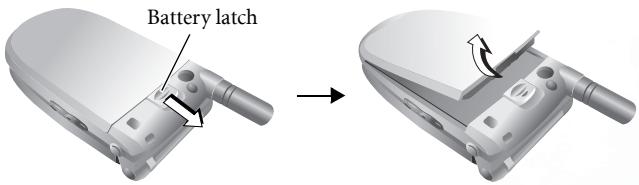

Do not remove the battery when the phone is on. Doing so could cause you to lose personal settings or data stored either on your SIM card or in the phone's memory.
- Slide the SIM card in under the metal plate in the SIM card slot, with the SIM card's metal contacts facing down and the cut corner at the top right.
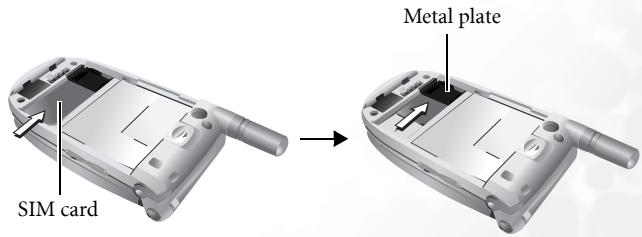

A SIM card can be easily damaged if its metal contacts become scratched. Therefore, take special care when holding or inserting it.

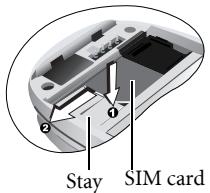
If you wish to remove the SIM card, you must first press down the stay, then push the SIM card out of the slot.
Installing a Battery and Charging the Phone
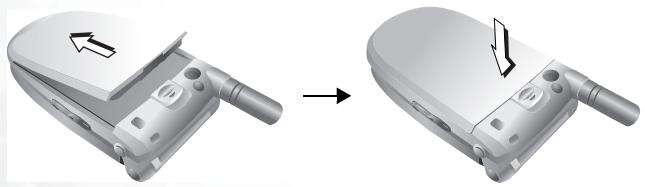
- With the battery's metal contacts facing down, align the protruding tabs on the end with the holes in the battery bay of the phone. Then push the battery toward the end of the bay to insert the battery's tabs into the holes. Press down to click the battery in place.
- Insert the charger connector into the charger socket on the bottom of the phone. Make sure that the connector is inserted in the correct orientation (with the arrow pointing up).
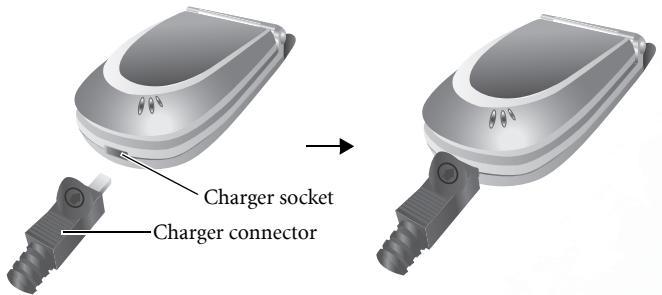
- Insert the charger into a power outlet.
- Once the phone is fully charged, remove the charger from both the power outlet and the phone.

- Charging requires approximately 4 hours.
- When charging the phone while it is turned off, the external and main displays will be activated, and the status indicator light will flash blue (during the charging process, the external display will show the time and cycle through 3 animations, then turn off temporarily. This is normal.
- During charging, in the external display's battery indicator the lines showing the battery power level will scroll until the battery is fully charged.
- When charging while the phone is turned off, the main display
shows the

animation. If the charging is performed while the
phone is on, the main display shows the icon. The lines showing the battery power level will scroll until the battery is fully charged.
- After the battery is fully charged, the status indicator light will flash purple.
- When the battery is out of power, the phone will play an alert sound to remind you to recharge it and then will automatically turn off.

Do not remove the battery while the phone is charging.
Turning the Phone On
- Open the phone's flip.
- Press and hold to turn the phone on. The phone will display the welcome animation.


- You can select and set a welcome animation, image, or message that will display when you turn on your phone, as well as the music that will be played. Go to the menu: Settings Display Welcome Message. For details, please refer to page 141.
-
If the welcoming music goes on too long, once the standby screen comes up, you can press to stop playback.
-
Enter your PIN1 number. If you enter the PIN1 number incorrectly, press (Clear) to delete the incorrect numerals. Press and hold to delete all numerals that have been entered. After completing entry of your PIN1 number, press OK to confirm.

The PIN (Personal Identification Number) is a password provided by a network operator with a SIM card. You need this password in order to use the SIM card.

If you enter the PIN incorrectly 3 times in a row, the SIM card will lock down and no longer be usable. If this happens, you must enter the PUK (Personal Unblocking Key) for that SIM card in order to unlock it. Please contact your network operator to obtain a PUK.

To cancel PIN password authentication, go to the menu Settings Security PIN Code PIN1 Code. Please see page 150.
-
When the PIN code entered has been accepted, the phone will automatically search for the designated network. This search process may take a few seconds.
-
The phone will then ask you whether you wish to activate the phone book stored in the phone's memory or on your SIM card. Press to highlight the desired phone book and then press OK to open the phone book you have selected.
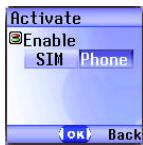
- After you open the phone book on the SIM card, any data you browse, store, or delete will be from the SIM card's phone book. If you open the phone book in the phone's memory, any data that you view, store, or delete will be from the phone's phone book.

If at some later point, you wish to switch phone books, go to the following menu Phone Book Activate.
- The standby screen will be displayed, as well as network signal
strength and the name of the network operator. You can now use the phone.

If the phone cannot detect the network, the on-screen signal strength meter will show no bars.

If the phone links to a network that you are not authorized to use, the signal strength meter will show a level of zero. You will only be able to make emergency calls.

Getting to Know Your Phone
Your Phone at a Glance
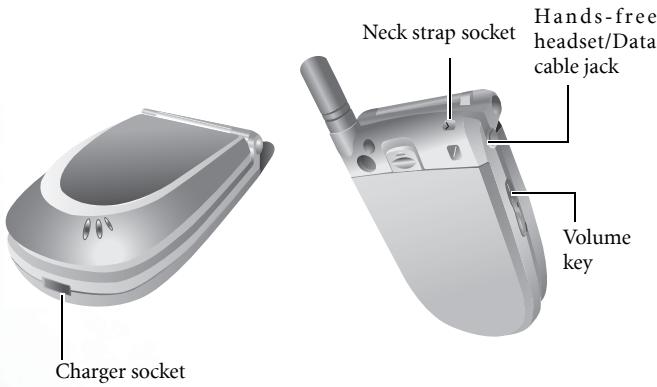
The figure below shows the main parts of your phone:
Front view 1
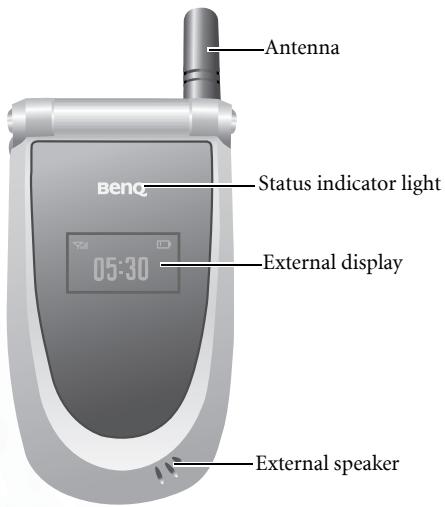
Front view 2
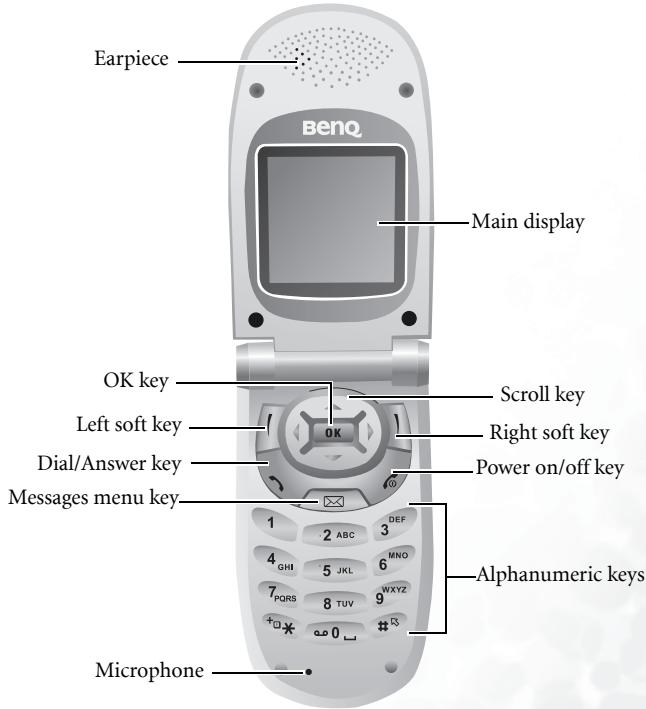
Bottom and top views
Active Flip Feature
Opening the flip allows you to answer an incoming call. Closing the flip ends a call, cancels dialing, or rejects an incoming call.

You can turn the active flip feature on or off. To do so, go to the menu: Settings Flip Activate.
Status Indicator Light
The status indicator light has the following functions:
- Flashes blue when the phone detects a network or is charging.
- Flashes purple when the battery is fully charged.
- Flashes blue rapidly when there is an incoming call.

To turn off the status indicator light, you must start up the power saving mode. Go to this menu: Settings Power Saving Mode.
Standby Screen
External Display
When the flip is closed, the external display's status bar will show icons for network signal strength, battery power, and alarm (if active). The current time and an animation will appear in sequence. The external display can also alert you to incoming calls, text messages, and missed calls.

- If you wish to set the time shown on the external display, go to the menu Settings Date & Time Time. See page 133.
- In the default setting, the external display will show the time and several animations in sequence for one cycle. The external display will then temporarily power off. After it has powered off, you can turn it back on by pressing either the up or down arrow on the volume
key located on the left side of the phone.
- You can set the external display's cycling mode by using the menu Settings Display OLED Duration. See page 142.
- You can choose the animations to be shown on the external display by using the menu: Settings Display OLED Animation Setting. See page 143.
- You can go to the menu Settings Profiles Personal to change the name of the profile to your own user name. When this profile is activated and the phone's flip is opened, your own name will appear on the external display. For details, see page 136.
Icons in the External Display's Status Bar
| Icon | Function | Description |
| Till | Signal strength | Signal strength of the network. The more bars indicated, the stronger the signal. |
| Battery status | Shows the current level of battery power. The more bars indicated, the more power that remains. Four bars: fully charged. No bars: immediate charging needed. When charging the phone, the icon will scroll through the bars until the battery is fully charged. | |
| Text message | Shows that a text message is being received or that there are unread text messages. If the icon flashes, this indicates that the SIM card's text message memory is full. For information about the text message function, see page 60, "Messages Menu". | |
| Voicemail | Indicates that there are voicemails (this icon will only appear if the function is supported by your network vendor). | |
| Alarm | The alarm is turned on. To set the alarm, go to the menu Tools → Alarm Clock. See page 96. | |
| Vibrating alert | In the standby screen, press and hold down the key to activate the vibrating alert. See page 54, "Using the Silent Profile". | |
| Normal | Shows that the Normal profile is in use. To set the profile, go to this menu: Settings → Profiles. See page 135. | |
| Meeting | Shows that the Meeting profile is in use. | |
| # | Outdoors | Shows that the Outdoors profile is in use. |
| ○ | Personal | Shows that the Personal profile is in use. |
| # | Handsfree | Shows that the Handsfree profile is in use. |
| # | Divert | Shows that the call divert function is active. To set the call divert function go to the menu Settings → Call Settings → Call Divert. See page 144. |
| △ | Roaming | Roaming has been activated (not your regular network) |
Main Screen
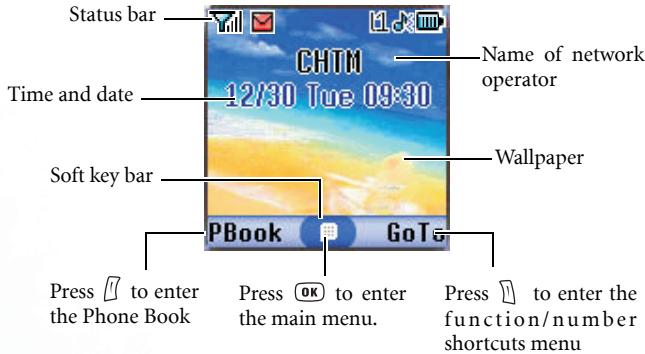

- You can set the animation or image you wish to use as wallpaper when the phone is in standby mode by going to the menu Multimedia Picture or Animation. Alternatively, you can go to the menu Settings Display Wallpaper. See page 126 and page 140.
- To set the current time and date, as well as the format in which they will be shown in the main display's standby screen, go to the menu Settings Date & Time. See page 133.
- You can go to the menu Settings Profiles Personal to change the name of the profile to your own user name. When this profile is activated, your own name will appear in the standby screen on the main display. For details, see page 136.
- For enhanced security, you can use the screen lock function. Go to the menu Settings Security Screen Lock. If the screen lock is activated, and you have not performed any tasks with the phone for a set time, the phone will automatically bring up the screen lock image. The purpose is to protect any personal data on your phone from being read by other persons. To restore the original display screen, you must enter a password that you provide for this function. For details on settings, see page 152.
- After the standby screen remains for 10 seconds, the soft key bar, time and date, as well as all the other words currently displayed will automatically disappear, showing the full-screen wallpaper. You can also press to display/hide the status bar and words normally shown on the standby screen.
Icons in the Main Display's Status Bar
| Icon | Function | Description |
| Yill | Signal strength | Signal strength of the network. The more bars indicated, the stronger the signal. |
| III | Battery status | Shows the current level of battery power. The more bars indicated, the more power that remains. Four bars: fully charged. No bars: immediate charging needed. When charging the phone, the icon will scroll through the bars until the battery is fully charged. |
| G | GPRS network | GPRS services have been activated on your SIM card. |
| Text message | • Shows that a text message is being received or that there are unread text messages. If the icon appears in red, this indicates that the SIM card's text message memory is full. For information about the text message function, see page 60, "Messages Menu". | |
| Voicemail | Indicates that you have voicemail messages (this icon will only appear if the function is supported by your network operator). | |
| Alarm | The alarm is turned on. To set the alarm, go to the menu Tools → Alarm Clock. See page 96. | |
| Line in use | Shows the number of the line currently in use. To set the line, go to the menu Settings → Call Settings → Active Line. For details, see page 147. | |
| Vibrate | In the standby screen, press and hold to activate the silent profile. See page 54, "Using the Silent Profile". | |
| Normal | Shows that the Normal profile is in use. To set the operating mode, go to the menu Settings → Profiles. See page 135. | |
| Meeting | Shows that the Meeting profile is in use. | |
| Outdoors | Shows that the Outdoors profile is in use. | |
| Personal | Shows that the Personal profile is in use. | |
| Handsfree | Shows that the Handsfree profile is in use. | |
| Divert | Shows that the call divert function is active. To make settings for this function, go to the menu Settings → Call Settings → Call Divert. See page 144. | |
| Roaming | Roaming has been activated (not your regular network) | |
Using the Keys in the Standby Mode

In this user manual, "long-press" means to press and hold down a key for about two seconds before release. "Press" means to press a key and release immediately.

The chart below is meant only to introduce the commands accessible with keys when the phone is in standby mode. For information on other key commands available in other operating modes, see the pertinent sections in this user manual.
Function keys

-
When any key is pressed, the phone will provide aural feedback through keypad tones. To activate or cancel this aural feedback, enter the menu Settings Profiles. Scroll to the profile currently in use and press Edit). Then select Keypad Tone. You can also go to Settings Audio Keypad Tone to turn the aural feedback on or off. See page 138 and page 143.
-
After turning the phone on, press any key to activate keypad and display backlighting. To turn the backlighting on or off, and to set the duration of backlighting, go to Settings Display Backlight Setting. See page 142.
| Key | Commands and functions |
| Power on/off key •Long-press to turn the phone on or off. •Press this key to reject incoming calls or cancel a call being dialed. | |
| Send/Answer key •Press to send or answer a call. •Long-press and your phone will automatically call the last number dialed. •Press to access the list of last missed/dialed/received calls. | |
| OK | OK key •Press to open up the main menu and show its first item. |
| Left soft key •Press to access the Phone Book (when PBook is shown). •Press to save the phone number keyed in from the standby screen to the Phone Book (when Save is shown). | |
| Right soft key •Press this key to enter the menu for function and phone number shortcuts (when GoTo is shown). For information about the shortcuts menu, see page 55. •Press this key to delete entered digits one by one; long-press to delete all digits entered (when Clear is shown). •Long-press to turn the silent profile on or off. | |
| Scroll key •Press to open the main menu and show its first item. •Long-press to activate voice dialing. •Long-press to activate the voice memo function. | |
| Messages menu key •Press this key to enter the Messages menu. For a description of the Messages menu, see page 60. | |
| Asterisk key •Press this key to enter an asterisk " * ". •To make an international call, long-press this key until the display shows "+" , Then enter the recipient's country code, area code and phone number. | |
| Voicemail key •Long-press to dial your voicemail number. | |
| # key •Press to enter "#". •For extensions: After entering a phone number, long-press to enter a "P" and then enter the extension number. | |
| 1 ~ 9wxyz | Alphanumeric keys • Press to enter digits in a phone number. • Shortcut key: Long-press a key to immediately access the function, or dial the number, that it represents. See page 55, "Shortcuts Menu". |
| A | Volume key • Long-press the upper or lower portion of this key, located on the left side of the phone, to adjust the ring tone volume. Press the upper portion of this key or to increase the volume. Press the lower portion of this key or to decrease the volume. When there is an incoming call, long-press the upper portion of the volume key to reject the call; long-press the lower portion to turn off the ring tone. |
Alphanumeric keys
| Key | Digit | Key | Digit/Symbol/Function |
| 1 | 1 | 7RQRS | 7 |
| 2 ABC | 2 | 8 TUV | 8 |
| 3 DEF | 3 | 9WXYZ | 9 |
| 4 GHJ | 4 | 000 | 0 |
| 5 JHL | 5 | * * | * + (long-press) |
| 6 MNO | 6 | # | # P(long-press after entering a phone number) |

Long-pressing an alphanumeric key will access the function it represents, or dial the number that has been assigned to it (shortcut function).
Menu Navigation
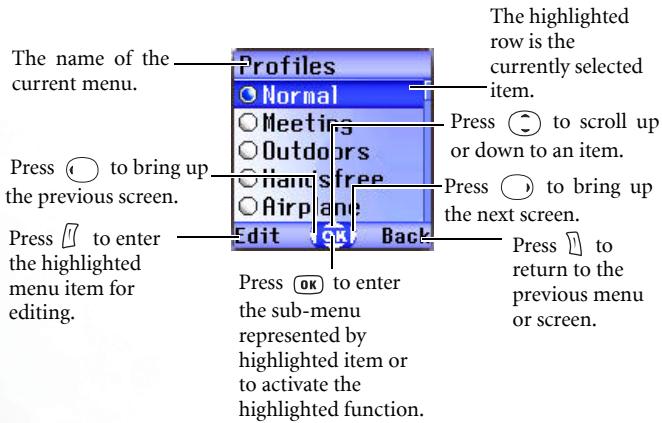
When the phone is in standby mode, press OK to bring up the main menu and highlight the first item in that menu: Phone Book.

For details on how to use the various functions listed in the menu, see page 82, "Menu".

You can choose a display color for the menus by going to the menu Settings Display Theme. See page 140.
Main menu
The main menu item to which you have scrolled will be displayed as an animation.
The name of the main menu item you have scrolled to.

Each icon represents a sub-menu.
Indicates that pressing will return the display to the standby screen.
Sub-menus
Pop-up menus
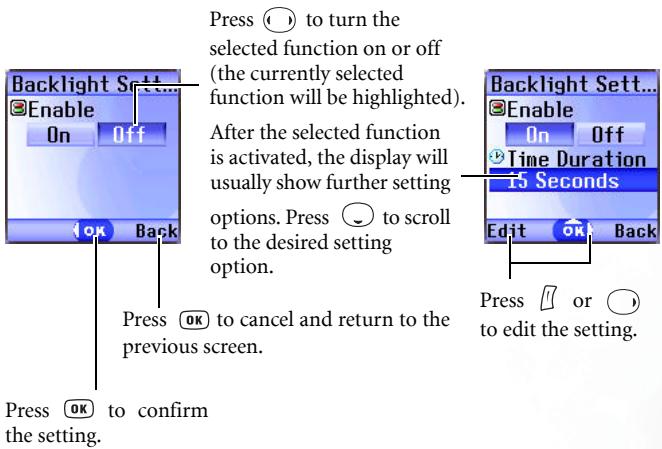
Turning a function on or off
Menu navigation example
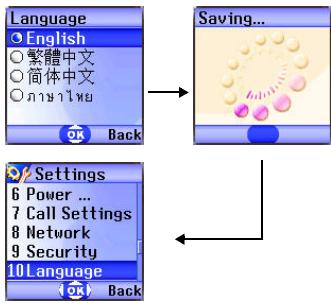
The example given below demonstrates how to use menus to change the language setting.
Regular access
1.In the standby mode, press OK or to open the main menu.
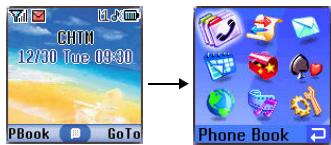
2.In the main menu, press to scroll to the Settings menu icon. Press OK to enter this menu.
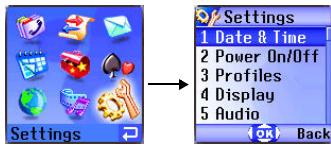
3.In the Settings menu, press to scroll to the Language item (press to bring up the next screen, or press to bring up the previous screen), then press OK to enter the Language menu.
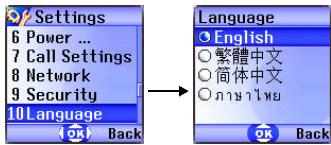
- Press to scroll to the language you wish to use.
Then press OK to confirm your selection. If, for example, you wish to set English as the display language, scroll to highlight English, and then press OK. The display will automatically return to the Settings menu, displayed in English.
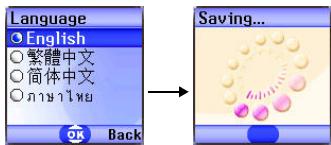

- Press (Back) repeatedly or press once to return to the standby screen.
Access through number shortcuts
1.In the standby mode,press or to bring up the main menu.
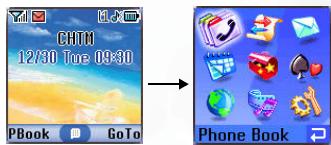
2.The location of items in the main menu corresponds to the position of the 1 to keys in the alphanumeric keypad. Thus, pressing 9^WXYZ will bring up the Settings menu.
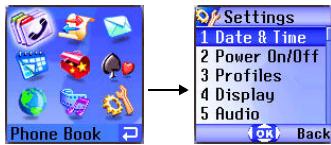
3.In the Settings menu, the alphanumeric keys 1 to represent menu items 1 to 10. Since Language is item number 10 in the Settings menu, pressing 00 will bring up the Language sub-menu.
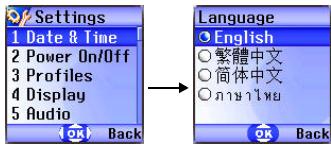
- Press the alphanumeric key that corresponds to the language you wish to select, as it is listed in the Language sub-menu. For example, if you wish to set English as the display language, press 1.
- Press (Back) repeatedly or press once to return to the standby screen.
Main menu map
| Select | To enter | ||
| Phone Book 1 Find 2 Add 3 Edit 4 Copy 5 Delete | Phone Book 6 Caller Group 7 Privacy ... 8 Business ... 9 Activate 10 My Number | Phone Book 7 Privacy ... 8 Business ... 9 Activate 10 My Number SIM Status Back | |
| When using the phone book stored in your SIM card's memory, the seventh item is SIM Status. There is no Privacy Manager item. | |||
| Call Records 1 Missed Calls 2 Received ... 3 Dialed Calls 4 Delete All 5 Call Duration OK Back | Call Records 2 Received ... 3 Dialed Calls 4 Delete All 5 Call Duration 6 Call Cost OK Back | ||
| Messages 1 Create 2 SIN Folder ... 3 Inbox (0) 4 Template 5 Outbox (0) OK Back | Messages 6 Drafts (0) 7 Voicemail 8 Message ... 9 Cleanup ... 10 Memory ... OK Back | ||
| Select | To enter | |
| Organizer 1 Calendar 2 To Do List 3 Note Back | ||
| Tools 1 Alarm Clock 2 Shortcuts 3 Voice Memo 4 Calculator 5 Currency (OK) Back | Tools 5 Currency ... 6 Stopwatch 7 Countdown ... 8 Memory ... 9 Service ... (OK) Back | |
| Game 1 Champion Soc 2 Dragon Fight Back | ||
| Internet 1 MAP Service 2 JAVA Back | ||
| Multimedia 1 Picture 2 Animation 3 Melody Back | ||
| Settings 1 Date & Time 2 Power On/Off 3 Profiles 4 Display 5 Audio Back | Settings 6 Power Saving 7 Call Settings 8 Network 9 Security 10 Language Back | |

Using Your Phone
Making a Phone Call
Open the flip and make sure that the standby screen is shown on the main display. Enter the desired number using the alphanumeric keys to dial your call.

During a call, you can use the options. See page 51, "Call Menu".
To modify a phone number that you have entered, press Clear) to delete individual digits. Long-press Clear or press to delete all digits entered and return to the standby screen.
Ending a Phone Call
Press or close the flip to end a call. The display will show the total call time, and then return to the standby screen.

To cancel a call that is being dialed, press or close the flip.

If the flip function has not been activated, you cannot end a call or cancel dialing by closing the flip. To activate or cancel the flip function, go to the menu Settings Flip Activate.

If you also have a call waiting or on hold, after you press 5 , the display will show a menu to allow you to choose the call you wish to end.
Answering a Phone Call
When a call is received, your phone rings or vibrates, with the display showing the caller's number (if supported by your network vendor). If the caller is a contact stored in the Phone Book, the phone will show the name recorded in the Phone Book.

- If the caller is a member of a caller group, the ring tone assigned to this group will sound. The display will show the animation that is associated with this group as well, to help you identify the caller.
- For information on how to set up caller groups in the Phone Book, see page 39, "Adding Contacts to the Phone Book".
Depending on whether your phone's flip is open or closed, you can do one of the following to answer a call:
- If the flip is closed, opening it will allow you to answer the call.

If the flip function has not been activated, you cannot answer a call by opening the flip. To activate or cancel the flip function, go to the menu Settings Flip Activate.
- If the flip is already open, press to answer the call.

If you wish to change the answering mode so that you can press any key to answer a call, go the menu Settings Profiles. After selecting the currently active profile, press Edit) and go to Answer Mode Any Key.
Rejecting an Incoming Call
- Regardless of whether the flip is open or closed, you can reject an incoming call by long-pressing the upper portion of the volume key on the left side of the phone.
- When the flip is open, you can reject an incoming call by closing the flip or pressing .

If the flip function has not been activated, you cannot close the flip to reject an incoming call. To activate or cancel the flip function, go to the menu Settings Flip Activate.
Turning Off the Ring Tone for an Incoming Call
Regardless of whether the flip is open or closed, you can temporarily mute the ring tone for an incoming call to avoid disturbing others. To do this, long-press the lower portion of the volume key on the left side of the phone. After the ring tone has been turned off, you can still open the flip to answer the call.
Making an International Call
- Enter the outgoing international call code, or long-press until "+" appears on the display.
- Enter the recipient's country code, area code and phone number. Dial the call by pressing
Making an Emergency Call
To call emergency services, enter 112 (the international emergency number) and then press to dial the call. You can make an emergency call even if your phone is locked or cannot access your network, or there is no SIM card inserted, so long as you are within range of a network of the type supported by your phone.
Dialing an Extension Number
After you enter a telephone number, long-press #, The phone display will show "P". At this point, you can enter the desired extension number, and then press to dial it.
Speed Dialing

You must assign a number key as the shortcut for a particular phone number in order to use speed dialing for that phone number. For information on how to set up a shortcut, see page 55, "Shortcuts Menu".
After you have assigned a number key to serve as the shortcut key for a particular phone number, you can long-press this key when the phone is in the standby mode to dial the corresponding phone number. For example, if you have selected 2_ABC as the shortcut key for a certain phone number, long-pressing 2_ABC will dial this number.
Voice Dialing
- In the standby mode, long-press
- After a beep, when the display shows the "Recording..." screen, you can speak the voice dialing prompt for the number you wish to dial. Once the phone has correctly identified the contact associated with this voice dialing prompt, two situations may occur:
a. If there is only one phone number stored for the contact identified, your phone will automatically dial this number.
b. If there are two or more phone numbers stored for the contact identified, the display will show the contact's Phone Book data. You can then scroll to the number you wish to dial, pressing or OK to make the call.

To use voice dialing to make a call, you must have stored a voice dialing prompt for the desired number in Phone Book. For details, see page 39, "Adding Contacts to the Phone Book".
Listening to Voicemails
When your voicemail inbox contains new messages, your network vendor will send a text message notifying you that you have new voicemail messages (if the network vendor supports it, the icons
and will be shown in the external and main display's status bars, respectively. There are two ways to access and listen to voicemail:
- When the phone is in standby mode, long-press _0 to directly dial the voicemail phone number and listen to your voicemail messages.
- Go to the menu Messages Voicemail to dial the voicemail number.

If the voicemail number is not stored on your SIM card or in the phone itself, you will not be able to access your voicemail by long-pressing 0 , Generally speaking, network operators will store the voicemail number on a SIM card before giving it to you. If so, you will be able to dial your voicemail number by long-pressing 0 when the phone is in standby mode, without needing to first manually store this number. If however your network vendor did not store the number on your SIM card, you will need to do this yourself. To save or modify a voicemail phone number, go to the menu Messages → Message Settings → Voicemail No.
Phone Book
Adding Contacts to the Phone Book
The Phone Book will have different formats and data headings depending on whether you have chosen to use a phone book stored on your SIM card or in your phone's memory.

The phone book in your phone's memory can store up to 500 contacts. The capacity of a phone book on your SIM card depends on the particular service provided by your network vendor.
SIM card Phone Book
- In the standby screen, enter the phone number that you wish to store, then press Save). The screen will show the Phone Book data fields for a new contact.
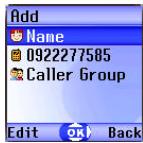
- Press to scroll to the contact data field that you wish to edit. Press (Edit), or simply begin keying in data to enter and edit the currently selected field. After completing data entry and settings, press 0K to store the data for this contact.
The data fields provided by a SIM card phone book are as follows:

The contact's name.

The contact's mobile phone number.

Used to select a caller group for the contact. Press 心 to select a group and then press OK.
When there is an incoming call from this contact, the ring tone assigned to this group will sound and the display will show the animation/image associated with the group.

To set a ring tone and animation/image for each caller group, go to the menu Phone Book Caller Group. See page 83.

You can also go the menu Phone Book Caller Group to set a caller group for a contact.
Phone Book in the phone's memory
- In the standby screen, enter the phone number you wish to store, and then press (Save). The display will show the default data fields for a new contact.
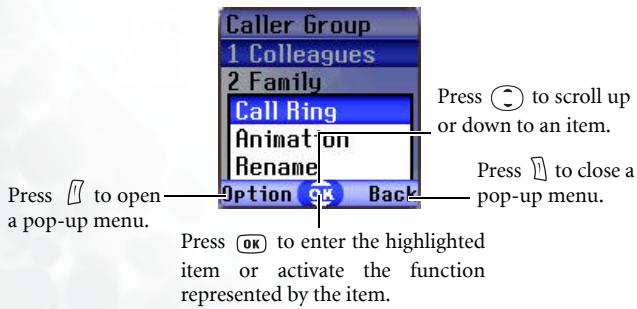
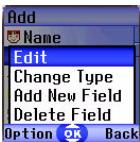
- In the contact data screen, scroll to the data field that you wish to edit, and then press (Options) to bring up a pop-up menu. You can then use the following options with the contact data:
- Edit: Edit the information in the selected field.
In the contact data screen, press or begin entering data to directly edit the data in the currently selected field.
- Change Type: Change the category of the phone number (for example, from Mobile Number to Home Number). This option can only be used in the phone number data field.
- Add New Field: Adds other data fields for a contact.
-
Delete Field: Removes the selected data field.
-
After completing the data for the various fields, you must press OK in order for the contact's data to be stored in the Phone
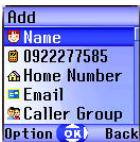
Book.
If you do not wish to save a modified Phone Book record, press or (Back) to abort.
You can also add a new contact by going to the menu Phone Book → Add.
- The default data fields for a contact are as follows:
| The contact's name. | |
| The contact's mobile phone number. | |
| The contact's home phone number. | |
| The contact's e-mail address. | |
| Used to assign a contact to a caller group. Press to select a group, and then press OK. | |
| Used to assign a voice dialing prompt to a phone number. After the beep, speak the contact's name into the microphone. After it is successfully recorded, the phone will play back this voice dialing prompt. |
- In addition to the contact data fields described above, you can also add the data fields listed below by pressing (Option) when the Phone Book screen is visible and then selecting Add New Field.
| The contact's mobile phone number. | |
| The contact's home phone number. | |
| The contact's work phone number. | |
| Other phone number for the contact. | |
| The contact's home address. | |
| The contact's work address. | |
| The contact's company name. | |
| The contact's department name. | |
| The contact's job title. | |
| Used for notes about the contact. | |
| Used to mark dates of special significance associated with the contact. | |
| Used to set a ring tone for the contact. When there is an incoming call from the contact, the phone will play this ring tone. A ring tone set in this field will replace the one associated with the contact's caller group, if any. | |
| Used to set the animation/image that will appear on the phone's display when there is an incoming call from the contact. The animation/image set in this field will replace the animation/image associated with the contact's caller group, if any. |
Finding Contacts in the Phone Book
In the standby mode, press (PBook) to display contacts stored in the Phone Book.
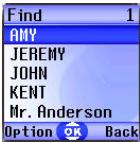
There are two ways to locate a specific contact in the Phone Book:
- Press to scroll through the names (listed in alphabetical order) until the one you want is highlighted.
- Press the alphanumeric key that corresponds to the first letter of the name you wish to locate the appropriate number of times. For instance, if the name starts with "K", you would press twice for "K". The names starting with "K" will appear, with the first one highlighted. Press to scroll to the name you want.
You can also go to the menu Phone Book Find, and then enter the full name or the first letter of the name to locate a contact.
When the desired contact's name is highlighted, you can do one of the following:
- Press to dial the first phone number saved in that contact.
- Press (Option) to bring up a pop-up menu, which contains the following items:
■ Edit: Edit the Phone Book data for this contact. When you are finished, press OK. For more information on editing, see page 39.
If you do not wish to save a modified Phone Book record, press (Back) or to abort.
- Copy to SIM (Phone): If you are currently using a phone
book stored in the phone's memory, you can copy the contact's data to the phone book stored on your SIM card. Conversely, if you are currently using a phone book stored on your SIM card, you can copy the contact's data to the phone book stored in the phone's memory.

The only information that can be copied from a phone book stored in the phone's memory to the one on your SIM card is a contact's name, phone number, and caller group. If a contact has more than one phone number associated with it, when that contact's data is copied from the phone to the SIM card's phone book, each phone number will be stored as separate contact.
-
Delete: Erases the contact's data from the Phone Book.
-
Press OK to show the information in all data fields for that contact. You can then perform the following tasks:
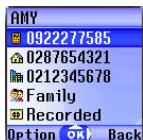
Scroll to the number that you wish to dial, and then press or 0k
- Scroll to the desired data field. If the complete contents cannot be displayed on the screen, or there is no content to display (for example, Note ), press to display the complete contents (if the data field is for a voice dialing prompt , you can press to play the sound of this voice dialing prompt.
Press (Option) to bring up a pop-up menu that contains the following items:
- Edit: Used to edit the Phone Book data for this contact. For information on editing, see page 39.
If you do not wish to save a modified Phone Book record,
press or (Back) to abort.
- Copy to SIM (Phone): If you are currently using a phone book stored in the phone's memory, you can copy the contact's data to the phone book stored on your SIM card. Conversely, if you are currently using a phone book stored on your SIM card, you can copy the contact's data to the phone book stored in the phone's memory.
- Delete: Erases the contact's data from the Phone Book.
- Send: Dial the currently highlighted number.
Using a Location Number to Access a Contact's Data

A contact's location number represents the position where this contact's data is stored in the phone book on your SIM card or in your phone's memory.
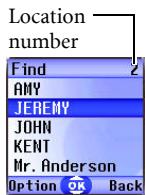
To access data for a contact while the phone is in standby mode, enter the location number for this contact, and then press #3. The display will show the data for the contact stored at this location.
For example, to display the contact data stored in the fifth position in the Phone Book, you would press 5^(k) and then #^B .
When the contact's data appears, you can perform the following tasks:
- Scroll to the number that you wish to dial, and then press or OK to dial this number.
- Press (Option) to edit, copy, or delete the data for this contact, or dial the currently highlighted number (equivalent to the Send option).
Last Missed, Dialed, and Received Calls
There are two ways you can view the last missed, dialed, and received calls on your phone, as well as information on their date and time:
-
If there have been any missed calls, the display will show a missed call message along with the number of calls that were missed. Press (View), and then press to scroll to the desired phone number.
-
In the standby mode, press to view the list of the most recent missed, dialed, and received calls. Press to scroll to the desired phone number.
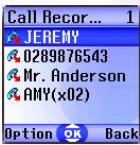
The icon will appear beside missed calls; the icon will appear beside dialed calls; the will appear beside received calls.
If a phone number has already been stored in the information for a contact in the Phone Book, the display will show the name of this contact.
If a call for the same number has been missed, dialed, or received two or more times, a note such as "x02" will appear beside the record of the call to show the number of times it was missed, dialed, or received.
If your network operator is not able to display a certain call's number, the list will not show a number for the call.
When the number for a missed, dialed, or received call is highlighted, you can perform the following tasks:
- Press to re-dial the number.
-
Press (Option) to bring up a pop-up menu:
-
Call: Dial the phone number.
- Save (Edit): If the phone number for the call has not been stored in the Phone Book, select the Save option to create a contact for this number in the Phone Book. If this phone number is already stored under a contact in the Phone Book, select the Edit option to edit this information for this contact. For information about editing Phone Book data, see page 39, "Adding Contacts to the Phone Book".
-
Delete: Erases the record of the call from the list.
-
Delete All: Erases all the calls in the list.
-
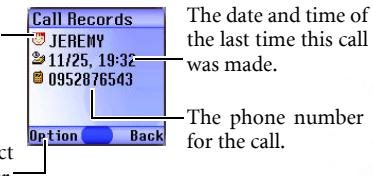
Press OK to display the details on this call.
This name of the contact for the call (if the phone number has not been stored in the Phone Book, "Unknown" will be displayed.
Press (Option) to select whether to dial the number; store or edit it, or erase the record of the call.
Operations During a Call

The following options marked with an asterisk (*) are dependent on network support on may require a subscription.
Adjusting the Earpiece Volume
During a call, you can press the volume key on the left side of the phone to adjust call volume.
Mute
Press (Mute) to turn off the microphone. The person on the other end of the line will not be able to hear your voice. To restore the microphone's function, press (Unmute).
Putting a Call on Hold*
- When the only call is active:
a. Press (Hold) to hold this call.
b. Press to end this call.
- When the only call is on hold:
a. Press (Unhold) to resume the call.
b. Press to end this call.
- When there is an active call and a call on hold.
a. Press (Swap) to resume the call that is on hold, and put the active call on hold.
b. Press to show on the display a list of calls that you can end.
Making a Second Call*
Enter a phone number, or select one from the phone number or call record, and then press to dial it. The currently active call will automatically be placed on hold. However, if there is already one active call and another on hold, this action will fail.
Call Waiting*
If there is an incoming call while you are on the phone, a tone will sound through the earpiece and the display will show that a second call is currently waiting. You can handle the waiting call and currently active call in the following ways:
- Answer the waiting call: Press The currently active call will automatically be placed on hold. However, if there is already another call on hold, a menu will appear on the display allowing you to select a call to end and then answer the waiting call.
- Reject the waiting call: Press l or l (End). Pressing l (End) will immediately reject the waiting call; pressing l will bring up a menu on the display that you can use to select a call to end.
Call Menu
If you press OK during a call, it will bring up the call menu. Press to scroll to the desired item (press to scroll through the menu page by page) and then press OK to enter that item; press Back) to return to the pervious menu; press to return directly to the call menu.
Items marked with an asterisk (*) depend on network support and may require a subscription.
Phone Book
Accesses data in the Phone Book. For details, see page 39, "Phone Book".
Call Records
Allows you to view information on missed, received, and dialed calls. See page 47, "Last Missed, Dialed, and Received Calls".
Conference*
Conference calls allow you to converse with more than one party at a time. The conference menu contains the following options:

The maximum number of parties that can be accommodated during a conference call depends on the particular service provided by a network vendor.
Hold/Unhold/Swap*
Toggles the call status.
Join/Private
Adds a party that is on hold to the current conference call, or isolates a single party in a conference call and puts all other parties on hold.
Forward
Allows two parties to connect, while ending one's own call (one of the two parties may be involved in an active call while the other is either on hold or being dialed), so as to allow the two parties to have their own call.
SendDTMF
When the phone is connected with other devices or services, you can send DTMF (Dual Tone Modulation Frequency) strings. DTMF strings are keypad tones that can be sent via the microphone as you dial another number. Your phone will emit the tones in order to communicate with answering machines, pagers, computerized telephone services, and so forth.
Enter the phone number and then press OK to send the DTMF string.
End Call
End All
Ends all calls, whether active or on hold.
End Active
Ends only the active call.
End Hold
Ends only a call or calls on hold.
End One
Ends only a single call.
Hold/Unhold/Swap
Toggles the call status.
Mute/Unmute
Activates/cancels the silent mode.
SMS
Enters the SMS (Short Message Service - i.e. text message) menu. For details on the SMS menu, see page 60, "Messages Menu".
Calculator
Allows you to use the calculator. For information about the calculator, see page 98.
STK
Brings up the menu for the STK (SIM Toolkit) services provided by your network vendor.
Using the Silent Profile
From the standby screen, you can long-press to activate the Silent profile. Once it is activated, the phone will alert you to an incoming call by vibrating with no ring tone.
- When you long-press to activate the Silent profile, the phone will vibrate for one second. The icon will appear in the main display's status bar (the external display will show) to remind you that your phone is currently using the Silent profile.
- To cancel the Silent profile and restore the previously active vibrant and ring tone settings, long-press .

This feature is very convenient for switching to the Silent profile during, say, a meeting to avoid the disruption caused by a ring tone.

To set and select a profile, please enter the main menu's Settings Profiles. See page 135.
Shortcuts Menu
You can use the Shortcuts menu to assign 9 alphanumeric keys as shortcuts to commonly used functions or frequently dialed numbers.
Entering the Shortcuts Menu
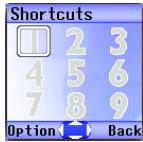
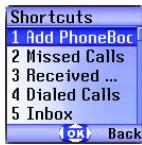
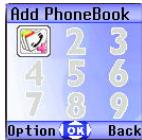
From the standby screen, press (GoTo) to enter the Shortcuts menu. The numbers 1 to 9 displayed in the menu's default screen represent the corresponding 9 alphanumeric keys on the phone.
Setting Function Shortcuts
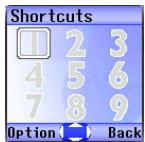
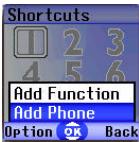
- In the Shortcuts menu, press to move the selection box to the number key you wish to use as a shortcut key ( 1 is selected in the example on the right). You can also press the actual alphanumeric key 1 to select it.
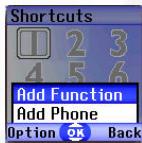
- Press (Option) to bring up a pop-up menu, and use to select Add Function. Then press OK.
- From the Add Function menu, press to select the function to be represented by the shortcut key 1, and then press OK. Alternatively, you can press a corresponding alphanumeric key to select the function you want.

The functions listed in the Add Function menu are selected from various other menus. For details on these functions, see page 82, "Menu".
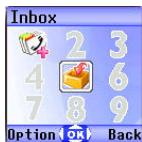
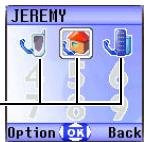
- After 1 has been set as the function shortcut key, the '1' icon in the shortcut menu screen will be replaced by the icon for the function assigned to 1 . The top of the screen will display the name of the function currently assigned to this key.
- Repeat the above step to add or modify function shortcut key assignments.
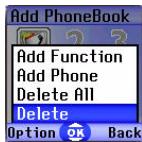
- To cancel a shortcut key and restore the key's original function, use to move the selection box to the icon for the shortcut key that you wish to cancel, and then press (Option). Select Delete to cancel the shortcut.

If you select Delete All, all shortcut settings will be cancelled.
Setting Phone Number Shortcuts
- The method for setting a phone number shortcut key is largely the same as for a function shortcut key. After selecting the shortcut key, press (Option) to bring up a pop-up menu. After selecting Add Phone, press OK to confirm.
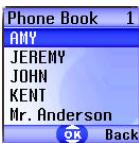
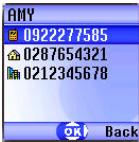
2.From the Phone Book,select a contact,and then press 0k - Next, from the list of phone numbers for this contact, select the one that you wish to access through the shortcut key, and then press OK.
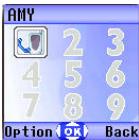
- After you have set the shortcut key, the number icon for the key will be replaced by an icon representing a phone number shortcut. The upper part of the screen will display the name of the contact to whom the phone number accessible by the shortcut key belongs.
- Repeat the above step to add or modify a phone number shortcut.
Different categories of phone numbers will be represented by different phone number shortcut icons.
Using Function and Phone Number Shortcuts
There are two ways to use shortcuts:
- From the standby screen, long-press ① to ⑨ to access the function represented by that key or dial the number it represents.
- From the standby screen, press (GoTo) to enter the Shortcuts menu. You can then:
a. Press to move the selection box to the icon corresponding to the desired key. Then press OK to access the assigned function or dial the assigned phone number.
b. Press the corresponding key to 9^WAY to access the function represented by that key or dial the number it represents.
Messages Menu
Your phone supports SMS (Short Messaging Service) text messaging and EMS (Enhanced Messaging Service), which allows you to add graphics and ring tones to your messages. You can use this menu to view, edit, and send SMS and EMS messages.
From the standby screen, press to enter the Messages menu. You can also press when in the standby screen and then enter
from the main menu by selecting
Additional information about messaging
- Memory for storing messages is divided between SIM card memory and the phone's own memory. In the first level of the Messages menu, except for the SIM Folder option, messages saved in Inbox, Outbox, and Drafts are all stored in the phone's memory.
- When a new message is received, or when there are unread messages in the phone's or SIM card's memory, the icon will appear in the external display's status bar; the main display will show the icon in its status bar to remind you that you have unread messages.
- When a message has arrived, it will be saved either to the phone's memory or to your SIM card's memory, depending on the preferred memory you have selected in the menu: Messages Message Settings Short Message Settings Save New Msg To (See page 71). Messages saved to the phone's memory will be stored in the menu: Messages Inbox; messages saved to your SIM card's memory will be stored in the menu: Messages SIM Folder Inbox.
-
If the phone's memory is already full, any new messages will remain stored in the SIM card's memory (in the menu Messages → SIM Folder → Inbox) until the SIM card's memory is itself full.
-
If there is a flashing icon on the external display, and the main display shows a red icon, this means that the SIM card's message memory is full. When the SIM card's memory is full, your phone will not be able to receive any new messages. If this has occurred, when you go to the Messages menu, the display will show a "SIM Full!" message to remind you of the current situation.
- If the number of messages stored in the phone's memory has reached 500, when you enter the Messages menu, the "Message Full!" screen will appear. If there is less than 1K remaining in the phone's memory, the "Memory Insufficient!" screen will appear. In either of these two situations, any messages received will be saved to the SIM card, and you will no longer be able to edit any messages.
- In the Messages menu, the number (such as "(1)", "(3)") following the name of each message folder represents the number of messages saved in that folder.
The items in the Messages menu are as follows:
Create
- Used to bring up the message editing screen so you can write a new message. Use the alphanumeric keys to enter text.
For information on how to use the input methods provided by the phone for writing messages, see page 76, "Input Modes".
If no text has been entered in the editing screen, press to return to the standby screen; if some text has been entered, pressing will bring up the prompt "Back to Idle?", to make sure you wish to abort the message being edited. If you press (Yes), you will return to the standby screen; if you press (No), you can continue writing the message.
-
When writing a message, press (Option) to perform the following tasks:
-
Insert: You can insert the following types of objects:
-
Text: This is a list of templates that can be used instead of entering all the characters individually. You can use the factory default templates or templates of your own that you previously saved to the list.
To create your own quick message templates, go the menu Messages Template. See page 69.
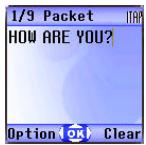
■Picture: You can select an EMS icon from the EMS icon library to insert into your message. Press to select the name of the icon you wish to insert, and then press (View) to view the icon. Press OK to insert the icon into your message.
■ Animation: You can select an EMS animation from the EMS animation library to insert into your message. Press to select the name of the animation you wish to insert, and then press (View) to view the animation. Press OK to insert the animation into your message.
■Melody: You can select an EMS ring tone from the EMS ring tone library to insert into your message. When the recipient of the message reads it, the inserted ring tone will be played by the recipient's phone. Scroll to the name of the ring tone you wish to use, and then press OK to insert the ring tone into your message. The inserted ring tone will be displayed as musical note within the message's text.

You can insert an EMS icon or animation at any position within a message's content.
- Text Alignment: Used to select the type of text alignment for the message's content.
- After you have finished editing the message, press OK. A screen in which you can edit the recipient's number will appear. There are two ways you can enter the recipient's phone number:
-
Key in the recipient's phone number in the number editing screen.
-
Before entering any phone number, you can press (Select) and then select a recipient from the list of contacts in the Phone Book. Follow the steps below:
a. Press to scroll to the name of contact, and then press (Select) to select that contact.
b. The display will show all the phone numbers stored for the contact you selected. Press (Select) to select the desired phone number.
If the number is too long, press to display the complete number.
c. After the number has been selected, you must press OK to return to the list of contacts in the Phone Book. A check mark will appear beside the contact whose number you selected as recipient for your message. You can use the same steps to select the numbers of other contacts.
d. After you have selected all the numbers you wish to dial, press OK and the display will show all these numbers.
-
After the numbers to be dialed have appeared on the screen, press OK to use the following options with this message:
-
Send Message: Sends the message to the numbers selected previously.
When a message is to be sent, a copy of the message will be saved to the Outbox folder. If the save fails, the "Save to Outbox Failed!" screen will appear and the send operation will stop. -
Preview: Allows you to view the contents of the message.
-
Save to Draft: Saves the message to the Drafts folder, for sending at a later time.
- Edit Content: Allows you to edit the contents of the message.
SIM Folder
The messages in the SIM folder are the messages stored in your SIM card's memory.
Inbox
If your SIM card was previously used in another phone, any messages received on that phone are stored here. When the SIM card is used in your S660C, and the phone's memory is full, any further messages that you receive will also be stored in the SIM card's inbox.
The procedure for using this option is largely identical with that described below for using the phone's Inbox. However, after selecting a message and pressing (Option), the menu displayed includes four additional options:
- Move to Phone: Moves the selected message from your SIM card's memory to the phone's memory.
- Move All to Phone: Moves all messages to the phone's memory.
-
Copy to Phone: Copies the selected message from your SIM card's memory to the phone's memory.
-
Copy All to Phone: Copies all messages to the phone's memory.
The messages moved to the phone will be erased from the SIM card's memory, and cannot be moved back.
When there is 1K or less of free space in the phone's memory, the screen will display the message "Memory Insufficient!" and you will not be able to move or copy messages from the SIM card to the phone.
Only complete messages can be copied to the phone's memory.
Outbox
If your SIM card was previously used in another phone, saved messages or backups of sent messages will be stored here.
Inbox
- When new messages are received, the icon will appear on the external display, along with a text indicator of the number of messages received. After you open the flip, the main display will show the number of messages that have been received.
- You can press OK to read the messages in the inbox. You can also press Back) to return to the standby screen (The icon will appear in the standby screen's status bar, indicating that there are unread messages) and then enter the menu Messages Inbox to read messages. A list of all new messages will appear on the screen, with each message record showing the sender's phone number. (If the sender is a contact stored in the Phone Book, the display will show the name of the contact in the Phone Book, rather than the phone number.)
- Press to scroll to the message record you would like to view.
You can now:
- Press (Option), which will present the following choices:
Create: Allows you to write and send a new message.
- Delete: Deletes the selected message.
- Call: You can use the phone number used to send the message to call the sender.
■Forward: Allows you to edit the content of this message and forward it to another person.
- Save to Phone Book: Saves the phone number of the message's sender to the Phone Book. For information on how to save, see page 39, "Adding Contacts to the Phone Book".
- Delete All: Deletes all the messages in the inbox.
-
Press OK to read the message's content. Then press (Option) to display the following options:
-
Reply: Allows you to write and send a reply message.
- Delete: Deletes the message being read.
- Call: Uses the number from which the message was sent to call the sender (listed in the "Sender" item on the display), or dial a phone number shown in the contents of the message (the displayed number option). Scroll to the desired number, and then press OK to dial the number.
■Forward: Lets you edit the message's contents, and then forward it to another person.
Details: Allows you to view the date and time when the message was sent. -
Save: Allows you to save the following content:
-
Save the phone number from which the message was sent (the number shown on the display in the "Sender Info" item) to the Phone Book.
- Save the phone number displayed in the message's contents. (the option for a directly displayed number).
- If the message is an EMS message with an attached picture or ring tone, you can save these objects to your phone's memory (such as by selecting the option for "Picture/Animation" shown on the display). Depending on the type of the object, the phone will save it to the corresponding EMS object library in the Multimedia menu. For example, if the object is an EMS animation, it will be saved to an available position in the Multimedia Animation menu where you can use it in composing future messages.
If you are saving a picture or animation, you can select the Save as Wallpaper option, setting it as the wallpaper for the standby screen.
If you are saving a melody, you can also select the Save as Ring Tone option, setting it as the ring tone that will play when there is an incoming call.
For details on the Multimedia menu, see page 126.
- Save All: Saves all the objects attached to the message.
Template
You can use the quick message templates in this menu to compose a message without having to enter the entire text character by character. You can use the factory default templates, or templates that you previously saved to the list. Scroll to the desired template and then press OK to enter its text into your message. You can then edit the text as you wish and then send the message.
To create your own quick message templates, press (Option) and then select Add. You can then enter the text for the template, pressing OK to save it.
If a template is one of the factory defaults, you will not be able to use the editing function to modify it.
Outbox
This option preserves a backup copy of messages that you previously sent. Scroll to the desired message record, and then you can:
- Press (Option) to access the following options:
Resend: Allows you to edit and send the message to its original recipients.
■Forward: Allows you to edit and forward the message to other recipients.
- Delete: Removes the message.
- Delete All: Deletes all the messages in the Outbox.
- Press OK to read the message. After reading the message, you can press (Option) to execute the following options:
Resend: Allows you to edit and send the message to its original recipients.
■Forward: Allows you to edit and forward the message to other recipients.
- Delete: Deletes the message.
Drafts
This option allows you to preserve message drafts that you have saved. Scroll to the desired message record, and then you can:
-
Press (Option) to access the following options:
-
Send: Allows you to edit and send the message.
Forward: Allows you to edit and forward the message. - Delete: Deletes the message.
-
Delete All: Deletes all messages in the Drafts folder.
-
Press OK to directly edit the contents of the message.
Voicemail
Used to dial the voicemail number provided by your network vendor to listen to your voicemails.

Your network vendor will provide you with your voicemail inbox number and a number for accessing any other voicemail services. For detailed information about voicemail services, contact your network operator to see if you need to save a specific phone number to your phone in order to access your voicemail inbox.
Message Settings
This menu item includes a number of options for adjusting message settings:
Voicemail No.
You can save your voicemail phone number here.
Short Message Setting
Save New Msg to
Here you can determine whether a new message will be saved to the phone's memory or to your SIM card's memory.
Service Center No.
This feature allows you to save the message center's phone number for sending your messages. The messages that you send are sent to recipients through this message center.
Enter the message number provided by the network vendor. After you are finished, press OK to confirm.
Bearer Mode
This can be set according to whether you are using a GPRS network system or a regular GSM dialup network. If you are using a GPRS network, you can use both the GPRS and dialup network to send and receive SMS messages. If however you are using a dialup network, you are restricted to using only the dialup network for sending and receiving SMS messages.
- GPRS: Use only the GPRS network to send and receive SMS messages.
- CSD: Use only the dialup network to send and receive SMS messages.
- GPRS Preferred: Use the GPRS network preferentially. Only if there is no GPRS network present will the dialup network be used.
- CSD Preferred: Use the dialup network preferentially. Only if there is no GPRS network will the GPRS network be used.
Validity Period
This sets the duration that an undeliverable SMS message that you send can be stored at the message center. During this period, the message center will continue to attempt to deliver the message to the designated number.
Message Type
You can request that your network operator convert your text messages to different types.
Status Report
After activating this function, the network vendor will report to you when a message has been delivered.
Direct Reply
You can request that your reply to an SMS be sent directly through the sender's message center.
Broadcast
Cell broadcast messages are general messages that your network operator broadcasts to all phones within a particular area. These messages are broadcast in numbered channels. For example, channel 030 might be for local weather, 060 for traffic reports, 080 for information about local hospitals, taxis, pharmacies, and so forth.
You can receive cell broadcast messages that your network operator broadcasts, and select your preferred topics and languages.

For more information about available channels and a list of the information they provide, contact your network operator.

When you receive a cell broadcast, the content will be displayed twice in ticker-tape fashion.
Receive
Allows you to select whether or not to receive cell broadcast messages.
Topics
Allows you to decide what information you wish to receive from your network operator's cell broadcasts. The topics listed in the Topics list represent the broadcast information that you have selected to receive from your network operator.
If you have not previously saved any topics, you can press (Option) and then select the Add option so that you can enter the desired range of topic numbers (that is, the channel numbers). The upper and lower limits of the range are the highest and lowest channel numbers,
respectively. The largest possible range is 0 to 65534. You are no longer limited to selecting only single channels, but can specify a range. After the list has stored the topic range, you can select a specific topic and then press (Option) to add it to the list. You can also edit or delete selected topics.
Language
You can limit the cell broadcast information that you receive from your network operator to a specific language.
Press (Select) to select your preferred language, and then press OK.
Cleanup Messages
Allows you to erase specific messages based on the message category that you select in this menu.
Memory Status
Displays the amount of remaining available memory, including pictures, animations and ring tones stored on the phone.
Voice Memo
- When the phone is in the standby mode, long-press .
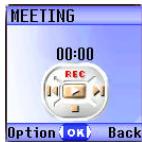
- Press (Option) to bring up a pop-up menu. Select Add and then press OK. The voice memo screen will appear. Use to navigate to the button icons on the screen and access Voice Memo functions:
a. Press to record.
b. Press to stop recording.
c. Press 0k to play the voice memo.
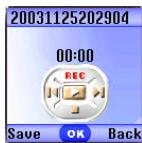
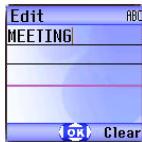
- After you are finished recording, press (Save) to save the voice memo. Enter the name of the recording and then press OK.
- After you save the voice memo, the display will show the name of the voice memo. You can now:
a. Press (Option), and then select whether you wish to record a new voice memo, rename the current voice memo, or delete the current voice memo.
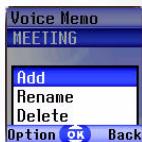
b. Press OK to play the voice memo. In the voice memo screen, you can press to play the previous or next memo.
Input Modes
Changing the Text Input Mode
When the display shows the editing screen, you will be able to see the name of the current text input mode in the upper right corner of the screen. Press #3 to change the input mode.
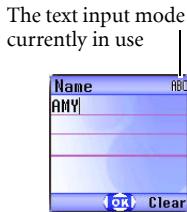
The input mode icons (names) that may appear in the upper right corner of the screen represent the following input modes:

Uppercase letters input mode.

Lowercase letters input mode.

iTap (predictive input mode) for uppercase letters.

iTap (predictive input mode) for lowercase letters.

Numeric input mode (123).

You can set the default input mode to the one you most frequently use. Go the menu Settings Input Mode. See page 153.
Letter Input Mode (ABC)
In this mode, press the key containing the desired letter repeatedly to scroll through the available characters in order until it is reached.
How to use the letter input mode
- You must press the key corresponding to the desired letter the correct number of times in order to enter the letter you want. Display letters for entry according to the order shown on each key. Pressing a key once will display the first letter listed on the key, while pressing it twice will display the second letter, and so on.
- When you have entered a letter and wish to enter the next letter, either wait for two seconds until the cursor moves to the next text entry position, or immediately press the key for the next letter.
- Press 0 to enter a space before beginning a new word.
- While entering text, press to move the cursor left or right; press to move the cursor up or down. Press once to delete a character; long-press to delete all entered content.
Numeric Input Mode (123)
The numeric input mode allows you to use the alphanumeric keys 1 to 0.00 . to enter numbers.
Predictive Input Mode (iTap)
iTap analyzes letters as they being inputted, making intelligent predictions about the words you are attempting to enter, and speeding up text entry.
How to use iTap
- Press once the alphanumeric key corresponding to the first letter of the word you wish to enter without considering where that letter falls in the sequence of characters available through that key. Then press the key corresponding to the second letter, and so forth. The phone will predict which word you wish to enter based on the set of keys you have pressed. The predicted word will be shown in the lower left portion of the screen. This word may change as you continue to press other keys; therefore, before you have entered a complete word, you do not need to worry if the displayed word does not yet match the word you intend to enter.
- After pressing keys for a complete word, if the displayed word does not match the one you intended to enter, press to view other candidate words and locate the desired word.
- Once the correct word is displayed on the screen, press OK to enter this word. A space will automatically be inserted after the word.
- While entering text, press to move the cursor left or right; press to move the cursor up or down. Press once to delete a character; long-press to delete all entered text.
Example of iTap in use
To enter "COME HOME" in the message editing screen using iTap, use the following steps:
- Press # to switch to iTap for uppercase letters (ITAP).
- Press 2_ABC 6 Mto select C, O, M, E.
- Press 0k to enter "COME" as text. A space will automatically be inserted after "COME".
- Press 4_GH 6^MNO 6^MNO 3^DEF to enter "HOME".
- Since "GOOD" is not the word that you wish to enter, press to display the next candidate word, "HOME".
- Press OK to place "HOME" into the message.
Symbol Input Mode
When editing messages, press to open the symbols field along the bottom of the screen. Use to move the selection box to the symbol you wish to enter, and then press OK to place it in the message text.
Direct Connection to URLs
Your phone provides handy preset URL text hotkeys, enabling you to enter a complete URL more quickly and conveniently, and making Internet access more efficient and enjoyable.
From the standby screen, you can rapidly key in numerical URLs. If, for example, you wish to enter "http://123.com" you need only key in "123" and then press OK. The full URL will appear on the screen. OK automatically adds the necessary "http://" prefix and the ".com" domain suffix. To actually connect to this website, simply press to confirm and the phone's browser will be started up so that you can get online.
When entering a URL, you can also use 0k to access the following functions:
- After pressing OK once, further presses of OK will switch to the URL suffixes shown in the chart:
| Number of times | Output result |
| 0 | . com |
| 1 | . com.tw |
| 2 | . net |
| 3 | . net.tw |
| 4 | . com.cn |
| 5 | . net.cn |
-
You can convert (+) (*) into the (.). that appears in URL addresses. For example, if you enter 123^456 in the standby screen, and then press OK, the URL "http://123.456.com" will appear on the screen.
-
After you press OK to enter "http://" press # to enter "/" and "-". For example, if after you enter "123" and then press OK once-causing "http://123.com" to appear on the screen-you press again, the URL will change to "http://123.com/" Pressing again will switch between "/" and "-".
- When the screen shows the desired URL, press to connect to the Internet and access this URL address.

Menu
The phone's menus provide various features. The main menu consists of 9 icons. Each icon represents a particular menu item, which is used to access related sub-menus.
For information about navigating menus, see page 23, "Menu Navigation".

Phone Book
This menu provides various functions for managing the Phone Book, including the ability to add, locate, and copy contact data; add contacts to a caller group; and so forth.
Find
Used to locate a contact in the Phone Book. You can enter the full name of the desired contact, or if you are not sure about the spelling of the contact's name, simply enter the first letter, and then press OK. The phone will locate all contacts whose names begin with this letter, and you can scroll to the field containing the contact you want. For details on what to do after locating the desired contact, see page 44, "Finding Contacts in the Phone Book".
Add
Used to add a new contact to the Phone Book. You can follow the procedure described on page 39, "Adding Contacts to the Phone Book".
Edit
After selecting a particular contact, you can follow the procedure described on page 39 for editing the data for this contact.
Copy
If you are using the phone book stored in the phone's memory, you can copy contact data to the SIM card's phone book, and vice versa. You can select a contact to copy from one phone book to the other, and copy all contacts in one phone book to the other by choosing the option Copy All Phone Book to SIM (Copy All SIM Phone Book to Phone).
Delete
Deletes a contact from the Phone Book. You can delete one contact at a time, or delete all contacts at once. If you select the option to delete all contacts, you will be asked for your phone password (the default password is "1234").
Caller Groups
Caller groups are combinations of phone settings used to identify a particular group of contacts, such as work colleagues, family members, or friends. For example, you can associate a ring tone and animation with one group, and when a member of that group calls, the phone will use the group's ring tone and display its animation.
The phone provides 5 caller groups: Colleagues, Family, Friends, VIP, Others.
After you scroll the caller group that you wish to configure, you can perform the following tasks:
- Press (Option): Used to select the ring tone or animation/image that will help you identify the caller group to which a particular caller belongs, or to rename the caller group.
-
Press OK : Allows you to view a list of all contacts that belong to the caller group. Press to highlight the desired contact, and then press (Option) to access the following options:
-
Add: Add a contact to the caller group. Press to select a contact to add, and when finished press OK.
- Delete: Deletes the selected contact from the contact group.
Privacy Manager
This option allows you to set your phone to reject certain calls, or alternatively, specify which calls to accept, rejecting all others.
- First, create a list of calls that you wish to accept (Accept List) or a list of calls that you wish to reject (Reject List), by scrolling to the corresponding item. Then press Edit and the names of the contacts who are already on the selected list will be displayed. If the list is empty, press Option and then select
Add to choose contacts to include in the list.
- You can select all the members of a caller group to be added to a list, or you can select contacts from the Phone Book individually (the screen will first display the caller group option). Press to scroll to the caller group or contacts that you wish to add to the list, and then press (Select) to make your selections; press (Cancel) to clear the caller group or contacts that you have selected.
- When you are finished, press OK . The screen will display the names of the contacts you have added to the list. If needed, you can press (Option) to add or remove contacts. When you have confirmed the list, press (Back) to return to the Privacy Manager menu.
- Lastly, select whether to activate the Accept List or the Reject List. Press to scroll to the list that you wish to activate, and then press OK to confirm your choice.
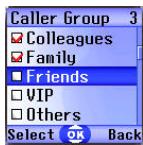
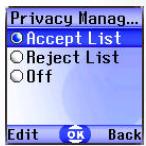
If you choose to activate the Accept List, from now on your phone will only be able to receive calls from contacts in the Accept List. If, on the other hand, you choose to activate the Reject List, your phone will not be able to receive calls from contacts in the Reject List.

The same contact cannot be included in both the Accept List and the Reject List.

If you are currently using the phone book on your SIM card, you will not have access to the Privacy Manager feature.
Business Card
You can use this option to enter your own business card information. The data fields are as follows:

Your name.

Your mobile phone number.

Your e-mail address.

Your company's address.

Your job title.
Press to scroll to the data field you wish to edit, and then press Edit),press , or begin entering text to edit the data in this field. After you are finished entering the data you wish to, press 0k to save all the business card data.
Activate
Used to activate the phone book stored in the phone's memory or on your SIM card. Press to highlight the desired phone book and then press OK.
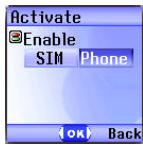
My Number
This option allows you to save your SIM card number and name to your SIM card's memory.
Press (Option) and select Add. Now select whether you want to enter your name or number and then press (Edit) or to begin entering the information. When you are finished, press OK, and the screen will display the name you have stored in your SIM card's memory. You can press (Option) to add more data, edit the currently selected data, or delete the currently selected data.
SIM Status
Used to view how many additional entries can be stored in the SIM card's phone book and the maximum number of entries that it can store.

Call Records
Your network operator must support this feature in order for you to be able to use it.
This menu includes a list of your missed calls, dialed calls, and received calls. Call costs and time are also recorded.
Missed Calls
Shows your most recent missed calls.
Press to scroll to the missed call that you wish to select. You can now choose to view, edit, or delete the number for the missed call. The procedure is the same as that described on page 47, "Last Missed, Dialed, and Received Calls".
Received Calls
Shows your most recent received calls.
The procedure for using this feature is the same as that described on page 47, "Last Missed, Dialed, and Received Calls".
Dialed Calls
Shows your most recent dialed calls.
The procedure for using this feature is the same as that described on page 47, "Last Missed, Dialed, and Received Calls".
Delete All
Deletes all call records.
Call Duration

This feature is only accessible if supported by your network operator.
Last Call Time
Shows the duration of the last call.
All Calls Time
Shows the total time for all calls.
Received Calls Time
Shows the total time for all received calls.
Dialed Calls Time
Shows the total time for all dialed calls.
Clear
Cleared call time records.

You must enter your PIN2 code in order to zero call times.

What is a PIN2 code?
- The PIN2 is the second PIN code. Its main use is in controlling restricted services-for example, call time limits and restricted phone numbers.
- If the PIN2 code is incorrectly entered three times consecutively, the PIN2 code will be locked. To unlock the PIN2 code, you will need to enter the PUK2 code, which you obtain from your network operator.
Call Cost
Last Call Cost
Shows the cost of your last call.

Requires the support of the network operator.
All Calls Cost
Shows the total cost of all calls.

Requires the support of the network operator.
Clear
Cleared call cost records.

Requires entry of the PIN2 code.
Call Cost Limit
Shows the current limit set for total call costs.
Set Cost Limit
Allows you to set a limit for total call costs. If call costs exceed this limit, the phone will no longer be able to dial pay calls. When this feature is activated, the remaining cost will be displayed in the information box on the screen each time you end a call.

Requires entry of the PIN2 code.
Set Units
Allows you to first enter the unit price and a currency for calculating call costs.

Requires entry of the PIN2 code.

Messages
For a description of the features available in the messages menu, see page 60, "Messages Menu".
Calendar
You can use the Calendar to set up memos for forthcoming events such as a meeting, an appointment, or a friend's birthday. The Calendar will also remind you about events you have previously scheduled.
- When you open the Calendar, the phone will show the calendar for the current date.

If you have not set the current date on your phone, go the menu Settings Date & Time. See page 133.
In the Calendar screen, press to move the red box to the date where you wish create a memo. You can also press (Option) and select the Go to Date option, then enter the desired date, pressing OK to confirm your selection of that date.
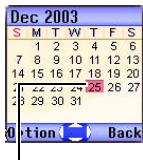
When the Calendar is opened, the current date will be highlighted by a red box.
- When the red box is highlighting the desired date, press (Option) and select the Add option to open the memo editor.
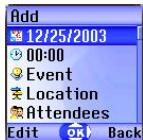
- In the memo editor screen, scroll to the data field you wish to edit, and then press (Edit) or , or press alphanumeric
keys to begin entering data. You can enter data in these fields:
| Change the memo's assigned date. In the Calendar screen, press to scroll to the date where you wish to create the memo, and then press OK. | |
| Enter a time for the event associated with the memo by using the appropriate number keys. | |
| Enter a name for the event associated with the memo. | |
| Enter the scheduled location for the event associated with the memo. | |
| Enter the names of the participants in the event associated with the memo. | |
| Record any notes about the event associated with the memo. | |
| Scroll to this option to set up your phone to remind you about an event. On the appointed date, when the scheduled time arrives, the memo will appear on the screen and the Alarm Clock will ring. First press to activate this feature. The time field will appear beneath, and you can enter the time when you wish to be reminded about the event. |
- After completing entry of data in each of the fields, you must press 0k to save the memo to that date. The phone will display this date's memo list, including the event name and time for the memo you just saved. If the Alarm Clock has been set to remind you about the event associated with the memo, the icon will
appear beside the event name.
- You can now perform the following tasks:
a. Press (Option) to select whether to edit or delete the memo.
b. Press OK to view the information in the memo. Then press (Option) to edit or delete the memo
c. Press (Back) to return to the Calendar screen. You can move the red box to other dates to create additional memos (dates that already contain memos will be marked by a yellow box); you can also create a second memo for the same date. The procedure is identical to that described previously.
-
After creating all the event memos you wish, return to the Calendar screen. You can now press (Option) and select:
-
Delete All: Deletes all currently saved memos.
- Auto Delete: If this feature is activated, all event memos for dates prior to the current date will be automatically deleted.
To Do List
You can use this feature to create a list of work tasks or personal projects.
- Press (Option) and then select Add to bring up the editor window. After entering the name of the task, press OK to create this to do item.
- In the list screen, scroll to the desired to do item, and then press (Option) to add a new to do item, or to edit or delete the selected to do item. If there are two or more items in the list,
you can select Delete All to delete all of them.
- In the list screen, if there are any to do items that have already been completed, you can scroll to the item and then press OK to mark it to remind yourself that the task has been done. If you press (Option), you can activate the Auto Delete, which will automatically clear any to do items that you have marked as completed.
Note
You can use this feature to create a list of notes.
- Press (Option) and select Add to bring up the editor screen. Enter the desired text and press OK.
- A message on the screen will ask whether you wish to add a password for this note. If you press (Yes), you will from then on need to enter the phone password in order to view the contents of the note. Press (No) to save the note without adding a password.

The default phone password is 1234. To change the password, go to the menu Settings Security Phone Lock. See page 151.
Alarm Clock

If you activate the Alarm Clock feature, when the specified date and time arrive, the phone will sound the alarm, even if your phone is turned off.
Use the following steps to set an alarm:
- Select an alarm you wish to set and activate.
- Press to select the feature for activation. The configuration fields for the alarm will appear in the lower part of the screen.
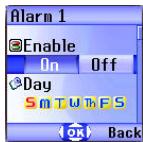
Day
Used to set the alarm to go off on a particular day from Monday to Sunday. Press Edit) to display the days of the week. Press (Select) to make your selection. When done, press 0k to return to the Alarm Ring screen. The Day field will now indicate the days on which the alarm will go off.
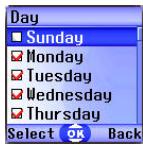
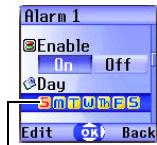
The days on which the alarm will go off.
Time
Allows you enter the time when an alarm will go off.
Time Duration
Allows you to set the length of the alarm. Press Edit) to select the desired alarm duration and then press OK.
- Lastly, you must press OK to save all your current Alarm Clock settings. After completing Alarm Clock settings, will appear in the external display's status bar; will appear in the main display's status bar.

When the alarm rings, there are two ways to turn it off:
- Press (Snoopze) to stop the alarm. The alarm will ring again five minutes later.
- Press to turn off the alarm. The alarm will not ring until the next scheduled time.
Shortcuts
For a description of the features accessible through the Shortcuts menu, see page 55, "Shortcuts Menu".
Voice Memo
For a description of the features accessible through the Voice Memo menu, see page 75, "Voice Memo".
Calculator
Allows you to use the phone as a calculator. Use to perform the mathematical operations shown on the screen.

You can enter numbers up to a maximum of 8 digits in length.
Entered numbers and calculation results will appear in this field.
Press to enter a decimal point.
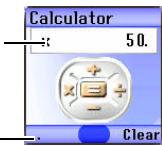
Currency Converter
Below is a description of the Currency Converter screen:
Once you enter the Currency Converter screen, the default currencies will be displayed, as shown in this example:
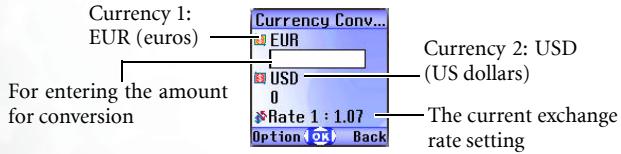
- To set the currencies for conversion, press
Option) and select either Currency 1 (to set the currency at the top of the screen) or Currency 2 (to set the currency at the bottom of the screen), then press 0k to confirm. After selecting a currency from the list, press 0k
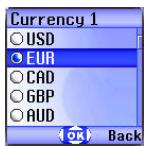
- Used to set the exchange rate.
Press (Option) and select Rate Setting, then enter the rate for converting from Currency 1 to Currency 2. The conversion calculation result will be displayed in the same line as the bottom currency on the screen. Use the () to view the calculation result. The calculation can provide precision up to two decimal places.
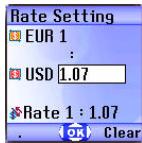
The exchange rate field can accommodate a maximum of five digits (including decimal digits).
Press to enter a decimal point.
- After returning to the Currency Converter screen, you can select one of the currencies and then enter an amount that you wish to convert into the other currency.
You can enter amounts up to six digits long.
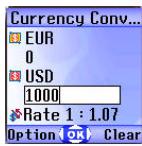
- After pressing OK the converted amount will appear in the field for the other currency.
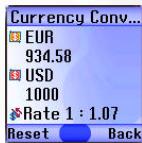
Stopwatch
- Press OK to start the stopwatch.
- While the stopwatch is running, you can press (Split) to save up four elapsed times (such as in a race). The display will show the saved times in the lower part of the screen.

Pressing (Back) while the stopwatch is running will bring up the "Quit?" warning message (the stopwatch will continue to run). Press (Yes) to stop the stopwatch or (No) to return to the timer screen.
- Press OK to halt the stopwatch.
- Once the stopwatch is halted, press (Reset) to zero the stopwatch.
Countdown Timer
- Enter the amount of time to count down. You can set any time up to 23 hours, 59 minutes and 59 seconds.
- When you press 0k , the countdown timer will begin counting down to zero. When the countdown is finished, the screen will display the "Time's Up" message and an alert sound will be played. Press (Exit) to leave the screen.
- Press 0k to stop the countdown timer.
- After the countdown timer is stopped, you can press (Reset) and enter a new time to count down.
- When the countdown timer is running, press (Back). The
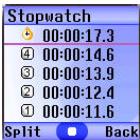
"Stop Timer?" message will appear. If you press (Yes), the countdown timer will stop and return to the timer screen. If you press (No), you will exit the countdown timer screen, but the countdown timer will continue the countdown. You can then perform other tasks, and when the countdown is finished, the "Time's Up" message will appear and an alert sound will be played. Press (Exit) to exit the screen.
Memory Status
Shows the amount of memory, including space for storing pictures, animations, and ring tones on the phone. The amount will be displayed as "Remaining Usable Memory / Total Usable Memory".
Service Number
This option can be used to display the service number that the network operator has stored on the SIM card.

Requires network operator support.
SIM Toolkit Menu
Your network operator provided you with the mobile services in this SIM Toolkit (STK, for short) menu. Depending on the particular services provided by the network operator, this menu may contain a number of extra options. However, if the network operator has not provided any STK services, this menu will not appear on the screen. For detailed information, contact your network operator.

Requires network operator support.
Games
Your phone provides a number of exciting games that you can use to entertain yourself when you have a spare moment.
Champion Soccer
This game lets you manage one of the world's top eight soccer teams in its quest to win the greatest prize in world soccer.

- After choosing this option, select Start to enter the game's opening screen. Press OK and select START to begin a new round of play.
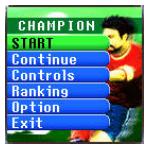
- Select World Cup Mode or Arcade Mode.

- In the World Cup Mode, you can select your own team with the opposing team selected at random by the phone. If your team wins, you face the next team as you make a challenge for the World Cup title. In the Arcade Mode, you can select your own team and the opposing team to play a single game. Press OK to select a flag representing a national team, and then press OK to confirm.

- After the message announcing the first half appears, press 0k to begin the game.

Game Controls
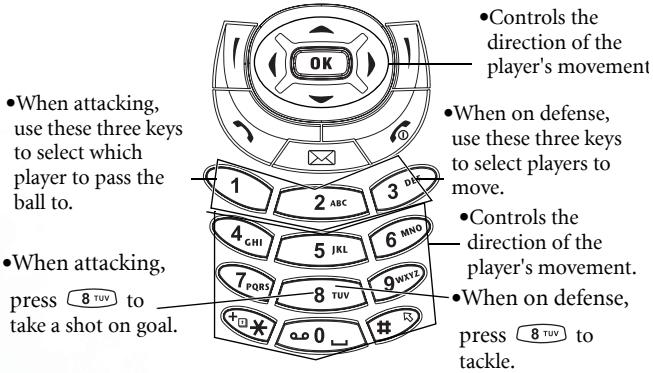
During the game, you need to control your three players on the pitch, while your goalkeeper is controlled by the phone.
- When attacking, use 4_out to 0 , +0 and # (the alphanumeric keys, excepting 8_tuv ) to move the players. Use 1 to 3_DEF to pass the ball (you will see the player's number on the screen), and when near the goal, press 8_tuv to take a shot on goal.
-
When on defense, use 4_GH to 9^WXY , +25 and #^CX (the alphanumeric keys, excepting 8^tuv ) to move a player. Use 1 to 3^DEF to select a player to move (you will be able to see the player's number on the screen). When a player on the opposing team is near the goal, use 8^tuv to tackle.
-
If you want to stop a game during play, press l and
Game screen
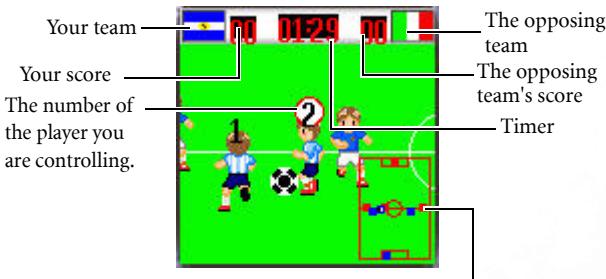
Full pitch view
White point: The position of the player you are controlling
Black point: The ball's location
Blue points: Your teammates
Red points: Players on the opposing team.
Game options
- START: Begins a new game.
- Continue: Resumes an interrupted game. Usable only in the World Cup Mode.
- Controls: Brings up an explanation of how to use keys during a game.
-
Ranking: Records the rankings of the teams after a tournament in the World Cup Mode is completed.
-
Option:
Sound: Press to adjust the volume, or to turn off background music.
■ Mini Map: Shows/hibes the full pitch view.
Time: Sets the duration of a half.
- Exit: Quits this game.
Dragon Fight
The flying dragon that you control must make incursions into hostile territory and destroy enemies. Select Start to enter the game's opening screen, and then press OK to begin play. The more enemies you destroy, the higher your score. If you collide into an enemy, you lose one flying dragon.

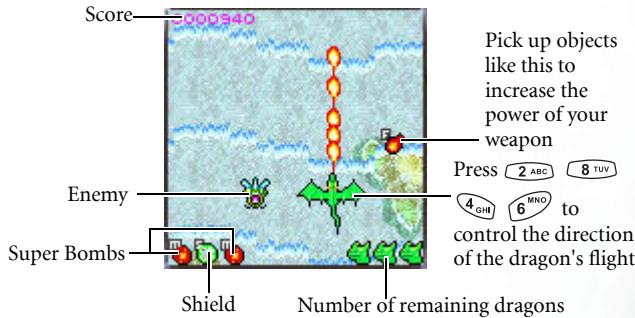

Press 5 to launch a firestorm or bring up a protective shield


Press to increase the power of your weapon.

Internet
Your phone includes a built-in WAP browser, allowing you to use the phone for mobile Internet connectivity. You can browse the online services offered by the network operator or ISP, such as information on financial news, sports, travel, and entertainment. To use the phone to get online, necessary WAP and GPRS settings must be made in this menu.

You must apply to a network operator for WAP services and complete WAP and GPRS settings in this menu before you will be able to take advantage of mobile Internet connectivity. In general, once the service you have applied for has been activated, the network operator will automatically transmit the needed settings to your phone. If this is not the case, you must perform this configuration yourself. For information about WAP and GPRS services and configuration details, contact a network operator providing these services.
WAP Service

Your phone provides the following methods for activating the browser and getting online.
- From the standby screen, activate the browser and get online by using the feature that allows you to connect directly to URLs. For details, see page 80, "Direct Connection to URLs".
-
Activate the browser from the three options in the menu Internet WAP Service:
-
Start Browser: Starts up the browser and connects to the homepage.
- WAP Message: Starts up the browser and accesses the WAP inbox for reading text messages.
- Enter Address: Starts up the browser and connects to the URL that you enter.
Start Browser
Starts up the browser and connects to the homepage.
Browsing a webpage
Referring to the soft key commands at the bottom of the screen, press and to perform needed tasks while browsing a webpage. Press to scroll up or down a webpage. For details on browsing a webpage, inquire with the network operator providing WAP services. Your Internet connectivity service will determine the layout and content of the webpages you view. Depending on the specifics of your service, they way you browse the Internet on your phone will differ.
How to close the browser and end the online session
- While online, press or long-press .
- If you are already viewing a WAP webpage, long-press or from the browser's menu select Exit.
How to display the browser's menu
While viewing a WAP webpage, press OK to display the browser's menu. Referring to the soft key commands at the bottom of the screen, press and to access the various options. Press the corresponding alphanumeric keys to directly select an option. The browser menu contains the following items:
Back
Selecting this option will take you to the page you viewed previously.
Home
Returns to the home page. To designate a particular page to be your home page, go to 9 Settings 1 Homepage.
Exit
Closes the browser and returns you to the main menu screen.
Inbox
When your phone receives a message that can only be viewed using a WAP browser, you enter this WAP inbox to read the message.
Bookmarks
You can open the Bookmarks menu and select webpage bookmarks.
View
Allows you to see the current bookmarks and bookmarks folders. Scroll to the desired bookmark or bookmarks folder, and you can:
-
Press (Go) to link to the webpage that the bookmark represents. If you have selected a bookmarks folder, select the desired bookmark from within the folder, and then press (Go).
-
Press (Menu) to display the following options:
Details: Displays the bookmark's title and the URL it represents.
- Delete: Removes the bookmark or bookmarks folder.
NewBookmark: Creates a new bookmark.
New Folder: Creates a new bookmarks folder.
- Move to Folder: Moves a bookmark to the designated folder.
- Delete All: Deletes all bookmarks and bookmarks folders.
Hotkeys: Allows you set a numerical key as a hotkey for a bookmark. After completing the setting, you can press this numerical key to directly link to the webpage represented by the bookmark.
Mark Site
Adds the current webpage to your bookmarks list.
GoTo URL
Press Edit) and enter the URL of the webpage that you wish to browse, and then scroll to the Go option and press (Go) to link to that URL.
Save Items
When viewing a webpage, if you discover that it contains an image that can be downloaded, you can access this option to save the image to your phone. Subsequently, this image will be available for use when you are composing messages or choosing a standby screen wallpaper.
Reload
Reloads the current webpage.
Settings
You can enter this item to making the following settings:
For detailed information about the following settings, contact your ISP.
Homepage
Designates a homepage. When you start up the WAP browser or if you select Home from the browser's menu, the screen will display the homepage you designate.
a. Press (Edit) and then enter the URL of the webpage that you wish to use as your homepage. (Some WAP service providers do not allow users to set a homepage.)
b. Select the Save option to designate the URL you entered as your homepage. Select Use Default to use the homepage designated by your WAP service provider.
Scroll Mode
You can select two scrolling modes: Block or Smooth. In the Block mode, as many words as will fit in a line are shown for a few seconds, then the next line is shown, and so on. In the Smooth mode, the content scrolls smoothly on the screen. You can also adjust the scrolling speed: Fast, Medium, Slow.
Send Referrer
This option allows you to determine whether the browser will send an HTTP referrer header.
Key Press Timeout
This option sets the amount of time that the phone waits during text entry before automatically advancing the cursor to the next entry position. As long as the same key is re-pressed within the interval of time set here, it will continue to cycle through the characters available through that key.
Set Proxy
Your phone can save the settings for six WAP proxy servers. You can select one of these proxy settings for use as a default so that your phone will connect to that proxy server when you begin an Internet session. You can also go to the menu Internet Wap Service Wap Settings to select the server that you wish to activate. See page 117.
Circuit Prompt
The Circuit Prompt is a message displayed before each circuit data call is made. It reads, "Circuit is down. Start a data call?" You can choose to enable or disable this feature.
Security
Secure Prompt
The Secure Prompt message is displayed before you leave a secure area. It reads, "Entering a non-secure area. OK?" You can choose to enable or disable this feature.
Current Certificate
Displays information on the certificate currently in use.
CA Certificates
Displays information on the built-in certificate. A certificate is a digital ID issued by a trusted third party known as a certificate authority (CA). The phone uses CA certificates to authenticate websites that send information to the phone.
Authentication
You can decide whether your phone should store your user name and passwords for websites that require them. If you allow your phone to authenticate you automatically, you will not need to re-enter your user name and password each time you visit the same website.
Advanced
Restart Browser
Restarts the browser, and automatically returns to the designated homepage. This feature is provided for your convenience if network errors occur, allowing you to restart the browser and reestablish your Internet connection.
Downloads
If this option is enabled, you will not be able to download images, background audio, and objects.
View Title Region
You can choose whether or not to have the browser display webpage titles. You can also set this option so that titles exceeding a certain length will be split into separate lines. (The first line of the browser displays a "G" and a globe image, while the second is the "title region". The actual webpage content begins on the third line.)
About…
From here, you can view information about the version of the browser that you are using.
WAP Message
Starts up the browser and displays the WAP inbox so you can read WAP messages.
Enter Address
Starts up the browser and connects to the URL you enter.
Resume
Returns to the last webpage you viewed.
Clear Cache
Clearly webpage content that the browser temporarily stores in memory.
WAP Settings
In this menu, you can make settings for the WAP servers of six different network operators, and select the server that you would like to use when connecting to the Internet.
The first time that you start your phone after inserting a SIM card, the ISP name of the network operator issuing the SIM card will appear in this menu's first group of settings. This indicates that your network operator's WAP server settings will be saved under the name shown. The phone will activate this group of settings for use in connecting to the Internet.
To activate another set of WAP server settings, scroll to the group of settings you wish to use and then press OK. The phone will activate these settings for use in connecting to the Internet.
By scrolling to a particular group of WAP server settings that you wish to modify, and then pressing (Option), you can create a new group of settings, edit the settings, or delete the settings.
WAP server settings include the fields listed below. Press (Edit) to edit the setting in each field. When you are finished with the settings for all fields, you must press OK in order for this group of WAP server settings to be saved.
- Profile Name: Gives the WAP server settings a name.
- Homepage: Sets the webpage that the browser will link to when it is started up. After you enter this item, key in the URL for the webpage that you would like to use as the homepage — for example, http://wap.yahoo.com.
- IP Address: Enter the IP address used for accessing the mobile Internet.
- Port: Enter the connection port specified by the network operator — for example, 9201.
- Bearer Mode: Before connecting to the Internet, you must set this item according to whether your Internet connection bearer mode is a GPRS network system or a GSM dialup network. Doing so will allow you to properly link to the data network to browse WAP pages, download Java programs, and so forth. If you are using a GPRS network, you can use both the GPRS and dialup network to connect to the Internet. If, however, you are using a dialup network, you are restricted to using only the dialup network to connect to the Internet.
GPRS/CSD: Use the GPRS network preferentially. Only if there is no GPRS network present will the dialup network be used.
GPRS: Use only the GPRS network.
CSD/GPRS: Use the dialup network preferentially. Only if there is no dialup network will the GPRS network be used.
CSD: Use only the dialup network.

A dialup network is a GSM Circuit Switch Data Service (CSD for short). Using a dialup network can be likened to using a home computer's modem, in that before connecting to the Internet a number must be dialed. As for GPRS, it like the LANs used at company, where users do not need to dial a number to access the network. Regular GSM users who are not using a GPRS network system can only have a dialup connection to the Internet.
- GPRS: To modify settings for a GPRS account, press Edit to edit the settings in each field. GPRS settings include the following fields:
APN: Enter the APN (Access Point Name) assigned by your network operator.
- User Name: If needed, enter the user name provided by your network operator.
- Password: If needed, enter the account password provided by your network operator.
-
CSD: If you are using a GSM network, you must configure and activate a CSD account. Press Edit) to edit the settings in the following fields:
-
Dial Number: When you start up the browser to connect to the Internet, you phone will dial this number. Your telecoms network operator or ISP will provide this number to you.
- User Name: This is your user account name, and is provided by your network operator.
- Password: The account password provided by the network provider.
■Line Type: This is the type of dialup connection. Press to select.
Baud Rate: The default value is 9600, which is the standard speed for data connections with a GSM mobile phone. - Auth Type: This is information needed for telecommunications protocol authentication.
JAVA
Your phone provides Java support, allowing you to download and install Java applications that you like, such as various Java games, from sites provided by your network operator. You can then run these Java applications directly on your phone. If you do not need an application, you can remove it from your phone at any time, replacing it with another downloaded application.
The JAVA menu contains the following items:
| Appli-cation Browser | All Java applications will be listed in this menu. The Application Browser menu serves as a file manager, and includes the option to place Java applications into groups, similar to folders, for convenient organization of and access to the Java applications you download. |
| Environ-ment Settings | This sets a file size limit for downloads, allows you to complete necessary Java online settings, and displays memory usage within Java (space in use/space available). |
| OTA | Use this option to set the Java website URL that you wish to connect to, and start up the browser to get online and download Java applications. |
JAVA Settings
Before you can begin downloading Java applications, you must go to the menu Internet JAVA Environment Settings Internet Setting, and then press (Edit) to complete the settings below. When you are finished making all settings, you must press OK to save them.
-
Profile Name: Provides a name for this Internet setting.
-
Network Access: Some types of Java games are only playable online (for example, mahjong), and using the phone to go online entails an extra cost. However, it may not be possible to determine from a game's name alone whether or not it is an online game. Therefore, this setting allows you to be presented a prompt asking if you wish to go online to play a game before actually running the program.
-
Always Ask: Each time you attempt to launch an online game, you will be asked if you want to connect to the Internet.
■ Ask Once per AP: You will only be asked if you want to go online the first time you attempt to launch an online game. The next time you attempt to launch the game, the same choice that you made the first time will be applied. -
Never Ask: Each time you launch an online game, the phone will automatically connect to the Internet, and you will not be asked to confirm.
-
DNS: Here you can enter the IP address of the Domain Name Server that you wish to use.
- Bearer Mode: Before you download a Java application from the Internet, you must set the network system that you are using to either GPRS or CSD (dialup).
- Based on the bearer mode that you have set, you will need to make further settings for either the GPRS or dialup network. For details on configuring GPRS and dialup network access, see page 119.
Downloading JAVA applications
- To download Java applications from the Internet, go the menu Internet JAVA OTA, and enter the URL for the download site. Pressing OK will start up the Java download program and link to the specified site to begin downloading a Java application.
- If you provide a confirm command, the Java application will be automatically installed into the MyApps group in the JAVA Application Browser and terminate the Internet connection. After installation is complete, you can enter a new URL to download a Java application from another site.
- In addition, you can also use the WAP browser to download Java applications. The browser screen will first display information about the applications. After you have read this information, you can run the download command shown on the screen to begin downloading the desired application to the MyApps group on the phone.
Managing and running JAVA applications
To manage and run Java applications installed on the phone, go to the menu JAVA Applications Browser. All Java applications will be listed in this menu. The Applications Browser menu serves as a file manager, and the groups listed within it can be thought of as folders used to organize different types of Java applications.
When you enter the Applications Browser menu, you will see the default group MyApps, where all downloaded Java applications will initially be installed. The name of this group cannot be changed, and the group itself cannot be deleted. Press OK to enter MyApps, and then select the name of the desired Java application. You can now:
- Press (Option) to access the following options:
Content: Displays information about the Java application.
- Delete: Deletes the Java application.
■Move: Removes the Java application from the MyApps group and places it in another group in the Applications Browser. Scroll to the group where you wish to move the application and then press OK.
To move a Java application to a group other than MyApps when it is currently the only group, you must press (Option) in the JAVA Applications Browser menu and select New to create a new group.
- Press OK to show the names of the executable files of the applications. Scroll to the desired executable file and press OK to run the corresponding Java application.

After starting up a Java application, use the keys corresponding to the commands shown in the soft key bar in the lower part of the screen to control that application.

- Use only BenQ-certified Java applications in order to ensure that they will run properly on your phone.
- You must complete related settings in the menu JAVA → Environment Settings → Internet Setting in order to use a Java program to get online or to download Java games.

The default Java applications contained in MyApps may differ according to localized configurations. Once you begin running an application, simply follow the on-screen instructions. You can delete it in order to install other application software.
Picture
This image library stores the phone's default pictures, as well as images received in EMS messages, or downloaded through WAP services or using multimedia communications tools.

The file formats supported by the phone are BMP, PNG, GIF, JPEG (progressive or arithmetic-encoded saves not supported), and EMS picture.
Scroll to the desired picture to access the following options:
- Press OK to display this picture. Pressing will display the next or previous picture; pressing will show the full-screen picture.
-
Press (Option) to perform the following tasks with the picture:
-
Rename: Allows you to provide the picture with a new name.

The phone's default picture cannot be renamed, so this option is not present for it.
- Delete: Deletes the picture.

The phone's default picture cannot be deleted, so this option is not present for it.
- Send: Sends the picture in a message.

Only pictures supporting EMS can be sent with a message, so non-EMS pictures do not offer this option. For information about messaging features, see page 60, "Messages Menu".
Information: Displays the picture's name, file size, and whether the file is a default picture, a picture you have saved or one you downloaded yourself (noted as User Defined).
- Set Wallpaper: Use the picture as the wallpaper for the standby screen.
Animation
This animation library stores the phone's default animations, as well as animations received in EMS messages, or downloaded through WAP services or using multimedia communications tools. The procedure for using this menu is the same as that described above for the Picture menu.

The phone supports the following animation file formats: GIF, EMS animation.

Only animations that support the EMS format can be sent with a message.
Melody
My Melodies
This ring tone library includes the phone's default ring tones, as well as ring tones received in EMS messages, or downloaded through WAP services or using multimedia communications tools, or that you have created yourself with theComposer function.

The phone supports the following music file formats: MIDI, SMAF.
Scroll to the desired ring tone, and press (Option) to perform the following tasks with the ring tone:
- Set Ringtone: Makes the ring tone the alert sound for incoming calls.

Ring tones that support the EMS format (such as Chimes High) cannot be set as the phone's alert sound for incoming calls, so they do not offer this menu option.
- Rename: Allows you to give a new name to the ring tone.

The phone's default ring tones cannot be renamed, so they do not present this option.
- Edit: Allows you to edit the ring tone.

The phone's default ring tone cannot be edited, and onlyComposer offers this option. For information on how to edit ring tones, see page 129, "Composer".
- Delete: Deletes user-edited ring tones.

The phone's default ring tones cannot be deleted. Only user-created or downloaded ring tones provide this option.
- Send: Sends the ring tone in a message.

Only EMS format ring tones (such as ChimesHigh) can be sent with a message. Non-EMS ring tones (including default ring tones and user-created ring tones that can be set as the alert sound for incoming calls) do not provide this option. For information about messaging features, see page 60, "Messages Menu".
- Information: Displays the name of the ring tone, its file size, and whether it is a default ring tone, or a file that you have saved or downloaded yourself (noted as User Defined).
Composer
You can edit your own polyphonic ring tone melodies, and use them as alert sounds for incoming calls.
A polyphonic ring tone consists of musical tones in multiple channels. The Composer function allows you to create a maximum of 8 channels, mixing them to create the final polyphonic ring tone.
Note format
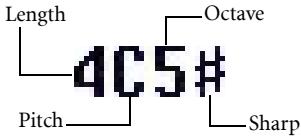
Entering default notes
Press 1 to 7_rave to enter the eight pitches in an octave as quarter notes: Do Re Mi Fa So La Ti. The screen will display: 4C5, 4D5, 4E5, 4F5, 4G5, 4A5 and 4B5.

The "4" on the left shows that the represented note is a quarter note; the "5" indicates that it is in the fifth octave.
Entering a default rest
Press to enter a quarter rest: 40.
Adjusting the length of a note
The default note length is a quarter note (the screen uses the number 4 to represent a quarter note). Press 8 × 10 to increase the note's length (the number on the screen will increase); press 9^w+h to reduce the note's length (the number on the screen will decrease). Various note lengths are represented by the numbers shown in the chart:
| On-screen number | 1 | 2 | 3 | 4 | 5 | 6 | 7 | 8 |
| Note length | 1/16 | 1/8 | 3/16 | 1/4 | 3/8 | 1/2 | 3/4 | 1 |
Adjusting a note's octave
The default notes just entered are in the middle octave (represented on the screen by the number 5). Press 0 to adjust a note's octave. The octave of a note is represented by the numbers shown in the chart:
| On-screen number | Represented octave |
| 4 | Lower octave |
| 5 | Middle octave |
| 6 | Higher one octave |
| 7 | Higher two octaves |
Adding a sharp to a note
Press # to add a sharp '#', which raises the note a semitone. To remove a sharp from a note, press #
A sharp cannot be added to an E or B note.
Steps for creating a polyphonic ring tone
- The first time you enter theComposer menu, you will see 8 channels that you can select for editing. Each channel can be used to save one passage of music that you have created. Scroll to the channel that you wish to edit, and then press OK to enter the ring tone editing window to begin composing the music for this channel.
-
Edit notes according to the procedures described above.
-
To modify a note after you have entered several notes, press to move the cursor to the right of the note that you wish to change. You can then proceed with adjusting the length, octave, sharp/ unsharp, and so on.
-
Press to delete a highlighted note.
-
When editing the music in a channel, press (Option) to access the following options:
-
Play: Plays the notes in the channel.
- Instrument: Allows you select the instrument that will play the notes in the channel.
-
Time Beat: Sets the tempo (tempo range: 40 to 200).
-
After you are finished editing the notes in the channel, press OK to return to the channel list. You can now repeat the above steps to create another channel of music.
-
When you are finished with all the channels that you wish to fill with notes, press (Option) in the channel list screen to access the following options:
-
Play All: Plays the polyphonic ring tone that results from mixing all channels.
- Play Channel: Plays the channel you have currently scrolled to (if this channel does not contain any music that you created, this option will not appear).
- Save: Select this option and your phone will automatically mix the music you have created in the channels into a polyphonic ring tone, and save this ring tone to the menu Multimedia Melody My Melodies. Press OK and enter a name for the ring tone and it will be saved.
Help
Displays information on how to use the phone's keys in composing ring tones.
Date & Time
Used to set the time and date, as well as the format in which the time and date will be displayed on the startup screen.
Time
- Press to select either the Auto or Set mode for this item:
Auto: Automatic time zone adjustment. If during travel, you move between time zones, the phone will automatically adjust the time displayed on the screen based on the time zone prompts provided by the local network operator so that you always have access to accurate local time.
Set: You phone will display the time you have set, and when you travel to other time zones, the phone will ignore time zone prompts issued by the local network operator.
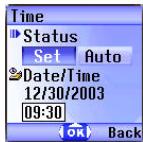
- After selecting the Set mode, you can complete the date and time fields.
Format
This option is used to decide the format in which the time and date will appear in the standby screen.
Secondary Time
Allows you to display the time in another designated time zone. If you choose to activate this option, the standby screen will display the time in that time zone along with your local time.
Time in secondary time zone
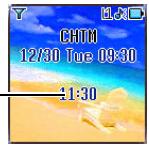
Power On/Off
Allows you turn the phone on and off at specified times to conserve power.

When riding in an airplane or in any other situation where you cannot use a mobile phone, remember to deactivate the Power On/Off option.
Power On
Designates a time for the phone to be automatically turned on. If this option is activated, the phone will be automatically turned on at the designated time each day.
Power Off
Designates a time for the phone to be automatically turned off. If this option is activated, the phone will be automatically turned off at the designated time each day.
Profiles
A profile is a group of settings that determine whether the phone will alert you to incoming calls through a ring tone or a vibrating alert, and how ring tones in general are used on the phone. These settings allow the phone's operation to best suit the environment you are in.
- Press to scroll to the desired profile and then press OK to activate this profile. You can choose from among the following profiles:
Normal
This is the default profile. Once this profile is activated, the main display's status bar will show the icon; the external display will show the
Meeting
The options in this profile have been preset to suit a meeting environment (for example, only a vibrating alert is used, with no audible ring tone and no keypad tones). Once this profile is activated, the main display's status bar will show the icon; the external display will show the icon.
Outdoors
The options in this profile have been preset to suit an outdoor activity (for example, use of the highest ring tone volume, activation of both ring tone and vibrating alerts, and use of keypad tones). Once this profile is activated, the main display's status bar will show the icon; the external display will show the icon.
Handsfree
This profile is only active when a hands-free kit is attached to the phone. Once this profile is activated, the main display's status bar will show the icon; the external display will show the icon.
Airplane
When you are on a plane, you can select this profile to turn off the phone. Once this profile is activated, the phone will automatically be powered off, and all alarms will be suspended. If the phone is turned off by long-pressing 1 , the alarms will still turn the phone at the appointed times.
Personal
You can use this profile as a group of custom settings, and rename the profile if desired. After activating this profile, besides the appearance of the icon in the main display's status bar and the icon on the external display, "Personal" will appear as well. If however you have renamed this profile, the name you chose will appear
on the standby screens.
The default profile name "Personal" or the name you give to this profile will only appear on the external display when the phone's flip is opened.
- Press to scroll to the desired profile, and then press (Edit) to modify the settings listed below and adjust the profile to suit a particular environment.
After entering the Edit menu, the setting for each option will be displayed, providing a overview of the profile.
Vibrate
Includes the following setting options:
- Ring Only: When there is an incoming call, the phone will use a ring tone but no vibrating alert.
- Vibrate Only: When there is an incoming call, the phone will use a vibrating alert but no ring tone.
- Ring & Vibrate: When there is an incoming call, the phone will use both a vibrating alert and a ring tone.
- Vibrate then Ring: When there is an incoming call, the phone will first use a vibrating alert and then a ring tone.
Call Ring
Your phone includes various types of ring tone melodies. Scroll to the desired ring tone, and after one second or so you will be able to hear that ring tone. Press OK to confirm your selection.
Message Ring
The ring tone that your phone uses when a message is received.
Alarm Ring
The ring tone used by the Alarm Clock.
Calendar Ring
The ring tone used for Calendar events for which you have set an alarm.
Keypad Tone
Determines whether keypad tones are played when keys are pressed.
Ring Volume
Press to adjust the ring tone volume or mute the ring tone.

Answer Mode
- Send Key: Allows incoming calls to be answered only by pressing .
- Any Key: Allows any key except to be used to answer an incoming call. In this mode, is used to reject an incoming call, and not to answer.
- Automatic: If the Automatic answer mode is activated, the phone will ring for five seconds, and then the incoming call will be automatically answered (only the Handsfree profile allows this setting).
Rename
Allows you to provide a new name for the profile (only available for the Personal profile).
Restore
Returns the above settings for the profile to their factory default values.
Requires entry of the phone password, whose default value is 1234.
Display
Theme
A display theme consists of a combination of display color and the standby screen wallpaper. Different display colors are paired with different preset wallpapers, so when you change the display color, the standby screen wallpaper will also change. Scroll to the color that you wish to use and then press (View) to preview the color matched with the standby screen wallpaper. Press OK to confirm the setting.

After you press (View) to enter the preview mode, pressing will allow you to browse the wallpapers matched to the colors.
Wallpaper
Designates the wallpaper used for the main display's standby screen. Scroll to the name of the wallpaper that you wish to use, and then press (View) to view this wallpaper. After you press (View) to enter the preview mode, pressing will display the next or previous wallpaper; pressing will display the wallpaper in full screen. Press OK to confirm your selection of the standby screen wallpaper.

You can also use this feature to change the wallpaper matched with a color in the Theme option.
Welcome Message
Used to select and configure the animation/picture/text that is displayed when the phone is turned on, as well as the music that is played.
- Animation: Only the animation selected in this option will be displayed when the phone is turned on.
- Picture: Only the picture selected in this option will be displayed when the phone is turned on. Images that have been saved from messages can also be set for use in the welcome screen.
- Text: Only the welcome message entered in this option will be displayed when the phone is turned on.
Limit on length of entered text: 15 letters or numbers.
- Picture and Text: The picture and welcome message set in this option will be displayed when the phone is turned on.

Regardless of the settings you have made for the animation/picture/text to be displayed when the phone is turned on, the phone will play the music set in this option. Therefore, after making settings for the animation/picture/text used for the startup screen, the startup music must also be set.
- Off: Returns the settings for startup music and animation to their factory default values.
Contrast
Press to adjust the contrast of the screen's display. Press OK to confirm the setting.

Brightness
Press to adjust the brightness of the phone's display backlighting. Press OK to confirm the setting.
Backlight Setting
You can turn the phone's keypad backlighting and display backlighting on or off, as well as set the length of time that backlighting will remain activated after the flip is opened or a key is pressed. After turning backlighting on, you can scroll to the Time Duration option and then press (Edit) to set this length of time. When done, press OK.
OLED Duration
-
Default: After the external display cycles through displays of the time and animations, it will power off, and will only power on again when you press the upper or lower part of the volume key on the left side of the phone, or open and then close the flip (if a new message is received or there is an incoming call, the external display will also power on and then, after cycling through the programmed items, power off once more).
-
Cycle: After the external display cycles through displays of the time and animations, it will power off. After 15 seconds, the external display will automatically power on and again cycle through the programmed items.
- Always On: The external display will remain on, cycling continuously through displays of the time and animations.

Because the S660C's external display drains power from the battery when it is on, selecting Cycle or Always On will reduce battery life.
OLED Animation Setting
You can set the animations to show on the external display. Press (Select) to make your selections; press (Cancel) to clear the animations that you have selected. When you are finished, press to confirm your selections.
Audio
This menu allows you to set various sounds that the phone uses.

Some of the options provided in this menu and the Profiles menu are identical (for example, Call Ring). Therefore the particular setting that the phone uses will depend on which menu you last used to make the setting.
Power Saving Mode
After you activate the power saving mode, keypad and display backlighting will be turned off, as will the status indicator lights on the flip, in order to conserve power.
Call Settings
Call Divert

Requires the support of the network operator.
Forward All
Forwards all incoming calls to a designated phone number or voicemail inbox. When you use this feature, you must enter a phone number to which to forward incoming calls.
After the Forward All mode is activated, the standby screen will display the icon.
When Busy
The phone will divert incoming calls to another number when you are in the middle of another call.
No Reply
Forwards incoming calls to another number when you do not answer.
Not Reachable
Diverts incoming calls when your phone is turned off or outside network coverage.
Cancel All
Cancels all call divert options.
Call Barring
You can request that your network operator block the dialing or receiving of certain calls. The call barring services below require the support of your network operator. To activate or cancel any of the options below, you must enter the network password provided by the network operator.
All Outgoing
Blocks dialing of any calls from the phone.
Intl. Out
If this option is activated, no international calls can be made with your phone.
Intl. Except Home
If this option is activated, your phone can only be used to dial local calls and calls to your home country from abroad. Other international calls will be barred.
All Incoming
Rejects all incoming calls.
Incoming When Roaming
If you are in another country (using roaming), activating this option will cause the phone to reject all incoming calls.
Cancel All
Cancels all call barring settings. You must enter the network password in order to cancel these settings.
Change Password
You can change the network password, which can be obtained from the network operator.
Call Waiting
If there is an incoming call when you are in the middle of another call, the screen will display the number of the incoming call and call waiting message to alert you. You can activate, cancel, or view the status of this feature from this menu.
You must apply to the network operator for the call waiting service in order to use this feature.
Auto Redial
If there is no answer at a number you have dialed, the phone will automatically redial.
Show Number
You can decide whether or not to display your phone number on the recipient's phone when you make a call.
On: When you call someone, the recipient's phone will display your phone number.
Off: Your phone number will not be shown on the recipient's phone.
If this feature is turned off, you may not be able to make phone calls in certain countries, such as Singapore and China.
Preset: Whether your phone number will be displayed on a recipient's phone will be determined by the default set by the network operator.
Fixed Dial Number
After this feature is activated, the phone will only be able to dial numbers on the Fixed Dial Number list. If a number is not on the list, calls cannot be made to this number.

When you activate or cancel this feature, you must enter the PIN2 code.

If the PIN2 code is entered incorrectly three consecutive times, the PIN2 code will be locked down. You will need the PUK2 code to unlock the PIN2 code. Contact your network operator to obtain the PUK2 code.
Before activating the Fixed Dial Number feature, you must press (View), then press (Option) and select Add to create a Fixed Dial Number list. You must enter the PIN2 code, and then add a new number to your Fixed Dial Number list.
After creating the list, you can view, edit and delete numbers in the list.
Active Line
This feature allows you to use two different phone numbers on one phone. You can designate one number for dialing calls, while accepting incoming calls dialed to both numbers without needing to use two phones. Select either Line 1 or Line 2. The number you select (1 or 2) will appear on the standby screen.

This feature requires the support of the network operator.
Connect Alert
This feature allows the phone to provide a ring tone or vibrating alert, or flash the backlighting when the recipient of a call has answered.
Minute Beep
Once this option is activated, the phone will emit a beep once every minute during a call.
Network
Generally speaking, the choice of the network that your phone uses is configured automatically. When turned on, the phone will automatically connect to the network provided by your network operator, or will automatically connect to the roaming network when you are outside the coverage of your regular network.
If you wish to change the connection network, this menu will allow you to select the network you want to use. When outside the coverage of your regular network in your home country or when abroad, you can manually select the local network system.

Your network operator must be able to support network selection in order for you to use this feature.
Mode Selection
You can choose whether the network selection mode that the phone will use when it is turned on is automatic or manual.
Automatic: If this option is selected, when outside the coverage of your regular network, the phone will automatically search for usable networks.
Manual: If this option is selected, when outside the coverage of your regular network, the phone will list all the networks of telecom vendors and allow you to choose.
Available List
Allows you to manually select a network. Your phone will list all the networks of telecoms vendors so you can choose.

Not all networks listed will necessarily be available for use. If you require further information, contact your network operator.
Band Setting
According to your requirements, you can set an appropriate band in the GSM network system.
Connection Mode
Used to set whether the phone will also search for a GPRS network when it is turned on.
- GPRS & GSM: When it is turned on, the phone will search for available GPRS and GSM networks.
- GSM Only: When it is turned on, the phone will search only for a GSM network.
Security
You can use a PIN code, phone password, and SIM card lock authentication to prevent unauthorized use of the phone.
PIN Code
A PIN (Personal Identification Number) code is a password provided by a network operator. When PIN code authentication is activated, it will prevent unauthorized use of the SIM card. Unless the correct PIN code is entered when the phone is turned on, the SIM card cannot be used, even if it is inserted in another phone.

If the PIN code is entered incorrectly three consecutive times, this will cause the SIM card to lock down, and a PUK1 code provided by the network operator will be required to unlock it. After unlocking, the PIN code will be automatically set to activate once the phone is turned on.
PIN1 Code
Used to activate/deactivate or change the PIN1 code. Before changing settings for the PIN1 code feature, the previously set PIN1 code must be entered.
If you wish to change the PIN1 code, you must press in the Enable item to select On, so that you will be able to enter and confirm the new password.
PIN2 Code
Used to change the PIN2 code. The procedure is the same as for the PIN1 code.
Phone Lock
Activates/deactivates or changes the phone's startup password. The startup password prevents unauthorized persons from using your phone. Once the phone's password is activated, the phone will be locked down when it is turned on unless this password is correctly entered. If an incorrect password is entered, your phone will remain locked down, and cannot be unlocked even if the SIM card is replaced by another one. When the phone is locked, you will only be able to make emergency calls.
Once the phone password is activated, you must enter the password each time the phone is turned on in order to unlock the phone (there is no limit on the number of attempts to enter the phone password).
The procedure for setting the phone password is the same as for the PIN1 code (the default phone password is 1234).
SIM Lock
Using this feature, you can prevent unauthorized persons from using your phone with other SIM cards. After you activate the SIM Lock feature, only the SIM card present when the feature was activated will be accepted by the phone. If a new SIM card is inserted in the phone, when the phone is turned on and a PIN code is entered, the phone will request entry of a SIM Lock password (there is no limit on the number of attempts to enter the SIM Lock password.
If the password is entered correctly, the phone will be able to recognize the new SIM card and use it normally. The next time the phone is turned on with this SIM card inserted, the phone will not ask again for you to enter the SIM Lock
password.
Your phone can recognize a maximum of three different SIM cards.
Before setting the SIM Lock feature, you must enter the previously set SIM Lock password (the default SIM Lock password is 1234). The password must be between 4 and 8 digits in length.
Screen Lock
Used to create a security screenshot. When you have not performed any tasks with the phone for a set period of time, the phone will automatically activate the screenshot shown on the left, the purpose being to prevent personal information on the phone from

being viewed by others. To return to the original screen, after pressing any key, you must enter the password you set for this feature.
The steps for setting the Screen Lock feature are as follows:
- You must first enter the Screen Lock password that was previously set (the default password is 1234).
- Press in the Enable option to select On, and then press to scroll to the Timeout item.
-
In the Timeout item, press (Edit) or press to set the period of inactivity before the phone will enter the Screen Lock mode.
-
After completing settings, press OK. The phone will prompt you to enter and confirm the Screen Lock password. You have two choices:
a. If you do not wish to change the password, press OK to activate the Screen Lock feature using the previously set password.
b. If you wish to change the password, enter the new password in the New Password and Confirm fields, then press OK to use the new password and activate the Screen Lock feature.
Language
You can select the language that the phone will use to display information.
Input Mode
You can set the default input mode that will be automatically activated whenever you open the editing window for entering information into a message, the Phone Book, and so forth.
Flip Activate
Activates/deactivates the active flip feature.
User Group
User Group
Used to create a closed group of callers based on a service provided by the network operator. The members of a User Group can call each other, but cannot conduct calls with anyone outside the group unless special provisions are made. This option can be used to select whether or not to activate this service.
Outside Access
When the User Group service is activated, enabling Outside Access will allow users in the group to make calls to numbers outside the group. However, incoming calls will still be restricted to calls from within the group.
Restore
Restores all of the phone's settings to their factory defaults.

Care and Maintenance
Take note of the points noted below to ensure that you are using the phone properly and to extend the lifespan of the phone.
- Store the phone and its accessories out of the reach of children.
- Keep the phone and accessories dry, and use the phone in environments where the temperature is between -20^ and 55^ . High or low temperatures outside this range may damage the phone.
- If possible, do not use or store the phone in excessively dusty or dirty environments.
- Do not remove the warranty seal on the phone yourself, nor allow an unauthorized dealer to do so.
- Do not use strong detergents or organic solvents to wipe or clean the phone.
- If your phone or its accessories are not operating normally, contact an authorized dealer immediately.
-
Use only genuine BenQ accessories such as batteries, battery charger and hands-free kit to ensure the phone's normal operation and preserve battery life, as well as protect the safety of your person and belongings. Use of non-BenQ accessories will not allow your phone to achieve optimal performance, and may cause the phone to malfunction. Any malfunctions or damage caused by the use of third-party accessories are not be covered by the terms of the product warranty, and will void the product warranty.
-
Avoid allowing objects that may discharge electricity to contact the charging socket on the bottom of the phone or the metal contacts on the battery, as this may cause short circuits and put you in danger.

Troubleshooting
If you encounter problems while using the phone, or if it performs erratically, you can consult the information in the chart below. If your particular problem cannot be resolved using the information in the chart, contact the dealer where you purchased the phone.
| Problem | Possible cause | Solution |
| Poor reception | ·The network signal is too weak at your current location — for example, in a basement or near a tall building-because wireless transmissions can not effectively reach it. | Move to a location where the network signal can be properly received. |
| ·The network is busy at the current time (for example, during peak times, there may be too much network traffic to handle additional calls). | Avoid using the phone at such times, or try again after waiting a short time. | |
| ·You are too far away from a base station for your network operator. | You can request a service area map from your network operator. | |
| Echo or noise | ·Poor network trunk quality on the part of your network operator. | Hang up the phone and dial again. You may be switched to a better-quality network trunk or phone line. |
| ·Poor local telephone line quality. | ||
| Shortened standby time | ·The standby time is related to your network operator's system configuration. The same phone used with different network operators' systems will not provide exactly the same length of standby time. | If you are located in an area where signaling is weak, temporarily shut off the phone. |
| ·The battery is depleted. In high-temperature environments, battery life will be shortened. | Use a new battery. | |
| ·If you are not able to connect to the network, the phone will continue to send out signals as it attempts to locate a base station. Doing so consumes battery power and will consequently shorten standby time. | Change your location to one where the network is accessible, or temporarily turn off your phone. | |
| You cannot switch your phone on. | ·Battery power has been depleted. | Recharge the phone's battery. |
| SIM card error | ·SIM card malfunction or damage. | Take the SIM card to your network operator for testing. |
| ·SIM card inserted improperly. | Insert the SIM card properly. | |
| ·Debris on the SIM card contacts. | Use a soft, dry cloth to clean the SIM card contacts. | |
| Unable to connect to the network. | ·SIM card invalid. | Contact your network operator. |
| ·You are not within the network's service area. | Check the service area with your network operator. | |
| ·Poor signal. | Move to an open space, or if you are inside a building, move closer to a window. | |
| You cannot answer incoming calls. | ·You have activated Accept List or Reject List in the Privacy Manager option. | Go to the menu Phone Book → Privacy Manager and then select Off in order to deactivate this option. |
| ·You have activated the Call Barring feature. | Go to the menu Settings → Call Settings → Call Barring, and then select Cancel All. | |
| You cannot make outgoing calls. | ·You have activated the Call Barring feature. | Go to the menu Settings → Call Settings → Call Barring, and then select Cancel All. |
| ·You have activated the Fixed Dial Number feature. | Go to the menu Settings → Call Settings → Fixed Dial Number, and then select Off to turn off this feature. | |
| PIN Code is blocked. | ·You have entered an incorrect PIN code three consecutive times. | Contact your network operator. If the network operator provides the SIM card's PUK code, use the PUK code to unlock the SIM card. |
| Battery will not charge. | ·The battery or battery charger is damaged. | Contact the dealer. |
| ·The phone's temperature is below 0°C or higher than 45°C. | Adjust the battery charging environment to avoid extremes of temperature. | |
| ·Poor contact between the battery and charger. | Check all connectors to make sure all connections have been properly made. | |
| Unable to enter information into the Phone Book. | ·The Phone Book's memory is already full. | Delete unnecessary data from the Phone Book. |
| Unable to select certain features. | ·Your network operator does not support these features, or you have not applied for services that provide these features. | Contact your network operator. |
- BenQ
- S660C Mobile Phone
- User's Manual
- Copyright
- Disclaimer
- Safety Information
- Exposure to Radio Frequency Signals
- Antenna Care
- Phone Operation
- Batteries
- Driving
- Electronic Devices
- Pacemakers
- Hearing Aids
- Other Medical Devices
- Vehicles
- Posted Facilities
- Aircraft
- Blasting Areas
- Potentially Explosive Atmospheres
- For Vehicles Equipped with an Air Bag
- Table of Contents
- Multimedia 126
- Settings 133
- Network 148
- Security 150
- Language 153
- Input Mode. 153
- 5.Care and Maintenance 155
- 6.Troubleshooting 157
- Preparing Your Phone For Use
- Inserting a SIM Card
- Installing a Battery and Charging the Phone
- Turning the Phone On
- Getting to Know Your Phone
- Your Phone at a Glance
- Front view 2
- Bottom and top views
- Active Flip Feature
- Status Indicator Light
- Standby Screen
- External Display
- Main Screen
- Using the Keys in the Standby Mode
- Function keys
- Menu Navigation
- Main menu
- Sub-menus
- Pop-up menus
- Turning a function on or off
- Menu navigation example
- Regular access
- Access through number shortcuts
- Main menu map
- Using Your Phone
- Making a Phone Call
- Ending a Phone Call
- Answering a Phone Call
- Rejecting an Incoming Call
- Turning Off the Ring Tone for an Incoming Call
- Making an International Call
- Making an Emergency Call
- Dialing an Extension Number
- Speed Dialing
- Voice Dialing
- Listening to Voicemails
- Phone Book
- Adding Contacts to the Phone Book
- SIM card Phone Book
- Phone Book in the phone's memory
- Finding Contacts in the Phone Book
- Using a Location Number to Access a Contact's Data
- Last Missed, Dialed, and Received Calls
- Operations During a Call
- Adjusting the Earpiece Volume
- Mute
- Putting a Call on Hold*
- Making a Second Call*
- Call Waiting*
- Call Menu
- Call Records
- Conference*
- Hold/Unhold/Swap*
- Join/Private
- Forward
- SendDTMF
- End Call
- End All
- End Active
- End Hold
- End One
- Hold/Unhold/Swap
- Mute/Unmute
- SMS
- Calculator
- STK
- Using the Silent Profile
- Shortcuts Menu
- Entering the Shortcuts Menu
- Setting Function Shortcuts
- Setting Phone Number Shortcuts
- Using Function and Phone Number Shortcuts
- Messages Menu
- Additional information about messaging
- Create
- SIM Folder
- Inbox
- Outbox
- Template
- Drafts
- Voicemail
- Message Settings
- Voicemail No.
- Short Message Setting
- Save New Msg to
- Service Center No.
- Bearer Mode
- Validity Period
- Message Type
- Status Report
- Direct Reply
- Broadcast
- Receive
- Topics
- Language
- Cleanup Messages
- Memory Status
- Voice Memo
- Input Modes
- Changing the Text Input Mode
- Letter Input Mode (ABC)
- How to use the letter input mode
- Numeric Input Mode (123)
- Predictive Input Mode (iTap)
- How to use iTap
- Example of iTap in use
- Symbol Input Mode
- Direct Connection to URLs
- Menu
- Find
- Add
- Edit
- Copy
- Delete
- Caller Groups
- Privacy Manager
- Business Card
- Activate
- My Number
- SIM Status
- Missed Calls
- Received Calls
- Dialed Calls
- Delete All
- Call Duration
- Last Call Time
- All Calls Time
- Received Calls Time
- Dialed Calls Time
- Clear
- What is a PIN2 code?
- Call Cost
- Last Call Cost
- All Calls Cost
- Call Cost Limit
- Set Cost Limit
- Set Units
- Messages
- Calendar
- To Do List
- Note
- Alarm Clock
- Day
- Time
- Time Duration
- Shortcuts
- Currency Converter
- Stopwatch
- Countdown Timer
- Service Number
- SIM Toolkit Menu
- Games
- Champion Soccer
- Game Controls
- Game screen
- Game options
- Dragon Fight
- Internet
- WAP Service
- Start Browser
- Browsing a webpage
- How to close the browser and end the online session
- How to display the browser's menu
- Back
- Home
- Exit
- Bookmarks
- View
- Mark Site
- GoTo URL
- Save Items
- Reload
- Settings
- Homepage
- Scroll Mode
- Send Referrer
- Key Press Timeout
- Set Proxy
- Circuit Prompt
- Security
- Secure Prompt
- Current Certificate
- CA Certificates
- Authentication
- Advanced
- Restart Browser
- Downloads
- View Title Region
- About…
- WAP Message
- Enter Address
- Resume
- Clear Cache
- WAP Settings
- JAVA
- JAVA Settings
- Downloading JAVA applications
- Managing and running JAVA applications
- Picture
- Animation
- Melody
- My Melodies
- Composer
- Note format
- Entering default notes
- Entering a default rest
- Adjusting the length of a note
- Adjusting a note's octave
- Adding a sharp to a note
- Steps for creating a polyphonic ring tone
- Help
- Date & Time
- Format
- Secondary Time
- Power On/Off
- Power On
- Power Off
- Profiles
- Normal
- Meeting
- Outdoors
- Handsfree
- Airplane
- Personal
- Vibrate
- Call Ring
- Message Ring
- Alarm Ring
- Calendar Ring
- Keypad Tone
- Ring Volume
- Answer Mode
- Rename
- Restore
- Display
- Theme
- Wallpaper
- Welcome Message
- Contrast
- Brightness
- Backlight Setting
- OLED Duration
- OLED Animation Setting
- Audio
- Power Saving Mode
- Call Settings
- Call Divert
- Forward All
- When Busy
- No Reply
- Not Reachable
- Cancel All
- Call Barring
- All Outgoing
- Intl. Out
- Intl. Except Home
- All Incoming
- Incoming When Roaming
- Change Password
- Call Waiting
- Auto Redial
- Show Number
- Fixed Dial Number
- Active Line
- Connect Alert
- Minute Beep
- Network
- Mode Selection
- Available List
- Band Setting
- Connection Mode
- PIN Code
- PIN1 Code
- PIN2 Code
- Phone Lock
- SIM Lock
- Screen Lock
- Input Mode
- Flip Activate
- User Group
- Outside Access
- Care and Maintenance
- Troubleshooting
Marque : BENQ
Modèle : S660C
Catégorie : Smartphone