
GFX5 - Pédale d'effets ZOOM - Notice d'utilisation et mode d'emploi gratuit
Retrouvez gratuitement la notice de l'appareil GFX5 ZOOM au format PDF.


| Type de produit | Pédale d'effets pour guitare |
| Marque | ZOOM |
| Modèle | GFX-5 |
| Dimensions (L x P x H) | 390 x 220 x 75 mm |
| Poids (sans piles) | 2,8 kg |
| Alimentation | Adaptateur secteur 9V DC, 300 mA (centre négatif) ou 4 piles AA alcalines |
| Autonomie des piles | Environ 10 heures avec piles alcalines |
| Affichage | Afficheur LED alphanumérique 6 chiffres + indicateur 2 chiffres |
| Nombre d'effets | 74 types |
| Modules d'effets | 8 modules (Boost, ISO/COMP, Drive, EQ, ZNR, Cabinet, Modulation, Reverb) |
| Mémoire de patches | 120 patches (60 utilisateur + 60 présélection) |
| Fonctions spéciales | ARRM (modulation cyclique), Energizer, échantillonneur 6 secondes, machine à rythmes 60 motifs, accordeur chromatique intégré, hold delay |
| Pédale d'expression | Intégrée, avec commutateur de poussée |
| Entrées | Input guitare (jack mono), Aux In (mini jack stéréo) |
| Sorties | Output (2 x jack mono), casque (jack stéréo) |
| Nettoyage | Chiffon doux et sec ; ne pas utiliser de solvants |
| Sécurité | Utiliser adaptateur spécifié ; ne pas ouvrir le boîtier ; éviter températures extrêmes, humidité, chocs |
| Pièces détachées et réparabilité | Adaptateur secteur AD-0006 disponible en option ; réparation par un technicien qualifié |
| Informations générales | Processeur d'effets pour guitare conçu pour la scène, avec boîtier robuste |
FOIRE AUX QUESTIONS - GFX5 ZOOM
Questions des utilisateurs sur GFX5 ZOOM
0 question sur cet appareil. Repondez a celles que vous connaissez ou posez la votre.
Poser une nouvelle question sur cet appareil
Téléchargez la notice de votre Pédale d'effets au format PDF gratuitement ! Retrouvez votre notice GFX5 - ZOOM et reprennez votre appareil électronique en main. Sur cette page sont publiés tous les documents nécessaires à l'utilisation de votre appareil GFX5 de la marque ZOOM.
MODE D'EMPLOI GFX5 ZOOM
Operation Manual
#
#
#
#

USAGE AND SAFETY PRECAUTIONS 2
Introduction 3
Controls and Functions 4
Getting Ready to Play 6
Inserting the batteries 6
Getting connected 6
Quick Guide 8
Playing Patches (Play Mode) 10
Panel display in play mode 10
Selecting a patch 10
Using the internal tuner (bypass/mute function) 11
Adjusting the sound of a patch 12
Using the Rhythm Function 14
Turning Effects On and Off With Your Feet (Manual Mode) 16
Changing the Sound of a Patch (Edit Mode) 17
Patch configuration 17
Basiceditmodesteps 17
Changing a patch name 18
Storing and Swapping Patches 19
Other Functions 20
Changing effects in real time 20
Using the hold delay function 23
Using the sampler function 25
Calibrating the expression pedal 26
Resetting the GFX-5 to the factory default condition 27
Effect Types and Parameters 28
BOOST module 28
ISO/COMP (Isolator/Compressor) module 28
DRIVE module 29
EQ (Equalizer) module 30
ZNR (ZOOM Noise Reduction) module 30
CABINET module 30
MOD (Modulation) module 31
REV (Delay/Reverb) module 33
TOTAL module 34
Troubleshooting 35
Specifications 35
GFX-5 Patch List 36
USAGE AND SAFETY PRECAUTIONS
SAFETY PRECAUTIONS
In this manual, symbols are used to highlight warnings and cautions for you to read so that accidents can be prevented. The meanings of these symbols are as follows:

This symbol indicates explanations about extremely dangerous matters. If users ignore this symbol and handle the device the wrong way, serious injury or death could result.

This symbol indicates explanations about dangerous matters. If users ignore this symbol and handle the device the wrong way, bodily injury and damage to the equipment could result.
Please observe the following safety tips and precautions to ensure hazard-free use of the GFX-5.

Power requirements
Since power consumption of this unit is fairly high, we recommend the use of an AC adapter whenever possible. When powering the unit from batteries, use only alkaline types.
[AC adapter operation]
- Be sure to use only an AC adapter which supplies 9V DC, 300mA and is equipped with a "center minus" plug (Zoom AD-0006). The use of an adapter other than the specified type may damage the unit and pose a safety hazard.
- Connect the AC adapter only to an AC outlet that supplies the rated voltage required by the adapter.
- When disconnecting the AC adapter from the AC outlet, always grasp the adapter itself and do not pull at the cable.
- When not using the unit for an extended period, disconnect the AC adapter from the AC outlet.
[Battery operation]
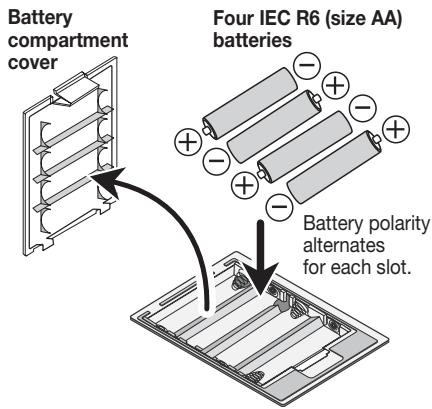
- Use four conventional IEC R6 (size AA) batteries (alkaline).
- The GFX-5 cannot be used for recharging.
Pay close attention to the labelling of the battery to make sure you choose the correct type. - When not using the unit for an extended period, remove the batteries from the unit.
- If battery leakage has occurred, wipe the battery compartment and the battery terminals carefully to remove all remnants of battery fluid.
- While using the unit, the battery compartment cover should be closed.
![ZOOM GFX5 - [Battery operation] - 1](/content/2025/01/152279/images/e8a0630064121bc785d6cdb9ea4e86402f07643cc0deb5b5428e8a4dbff6d11a.jpg)
Environment
Avoid using your GFX-5 in environments where it will be exposed to:
- Extreme temperature
High humidity or moisture - Excessive dust or sand
- Excessive vibration or shock

Handling
Since the GFX-5 is a precision electronic device, avoid applying excessive force to the switches and buttons. Also take care not to drop the unit, and do not subject it to shock or excessive pressure.

Alterations
Caution Never open the case of the GFX-5 or attempt to modify the product in any way since this can result in damage to the unit.

Connecting cables and input and output jacks
You should always turn off the power to the GFX-5 and all other equipment before connecting or disconnecting any cables. Also make sure to disconnect all cables and the AC adapter before moving the GFX-5.
Usage Precautions
- Electrical interference
For safety considerations, the GFX-5 has been designed to provide maximum protection against the emission of electromagnetic radiation from inside the device, and protection from external interference. However, equipment that is very susceptible to interference or that emits powerful electromagnetic waves should not be placed near the GFX-5, as the possibility of interference cannot be ruled out entirely.
With any type of digital control device, the GFX-5 included, electromagnetic interference can cause malfunctioning and can corrupt or destroy data. Care should be taken to minimize the risk of damage.
- Cleaning
Use a soft, dry cloth to clean the GFX-5. If necessary, slightly moisten the cloth. Do not use abrasive cleanser, wax, or solvents (such as paint thinner or cleaning alcohol), since these may dull the finish or damage the surface.
Please keep this manual in a convenient place for future reference.
Introduction
Thank you for selecting the ZOOM GFX-5. This product is a sophisticated Guitar Effects Processor with the following features.
- Versatile array of effects
The Variable Architecture Modeling System (VAMS) developed by ZOOM adapts the internal configuration of the unit to achieve exactly the desired sound. The GFX-5 provides 74 choices, ranging from distortion and modulation effects to booster functions and a cabinet simulator that duplicates the sound of various guitar amps.
Full complement of distortion effects
33 distortion type effects not only recreate the characteristics of famous vintage amps but also duplicate the sound and operation of renowned compact effects and pedals. The [TURBO] key lets you boost the sound pressure in an instant, and the [EDGE] key creates a bright treble edge. A wide variety of drive sounds are only a keypress away.
120 ready-to-use patches
Effect module setting combinations can be stored as patches. The GFX-5 offers 60 user patches which can be freely modified, plus 60 preset patches. Together, these 120 settings let you make great music straight away.
Intuitive operation and key layout
The knobs and keys on the panel of the unit are designed for maximum usability. Choose distortion types or adjust equalizer settings in a flash. The expression pedal is great for controlling effect parameters in real time. The GFX-5 practically comes alive during a performance.
Newly developed ARRM feature
ARRM (Auto-Repeat Real-time Modulation) is a fascinating concept. Using built-in control waveforms, it lets you rhythmically shape the signal in many ways. Create totally novel sounds that will captivate listeners. You can even use the expression
pedal to adjust the modulation depth of the ARRM feature.
- Integrated drum machine
60 built-in rhythm patterns using natural-sounding PCM sources are available, which is great for practice or a quick jam session. ARRM cycles can be synchronized to the rhythm tempo, letting you alter effects in sync with the flow of the music. The creative possibilities are limitless.
6-second sampling feature
A guitar phrase or the signal from an input source such as a CD player can be sampled for up to 6 seconds and stored in the internal memory. The recorded sample can be played back at a slower speed without altering the pitch. This is a great tool for enhancing a live performance or for copying a lick or fast-playing phrase.
- Energize creates dynamic sound
The Energize is another innovation with immense appeal. Simply by turning a knob, you can optimize the sound characteristics to match the playback system. Enjoy powerful, dynamic sound even with a small guitar amp or an audio system with flat response.
Designed for use on stage
The GFX-5 can be powered either from an AC adapter or from batteries. With one set of alkaline batteries, the unit will operate continuously for up to 10 hours. A special mode lets you switch major effects on or off with your foot or specify the rhythm tempo during a performance. Operate the unit like compact effects, while accessing a vast array of functions.
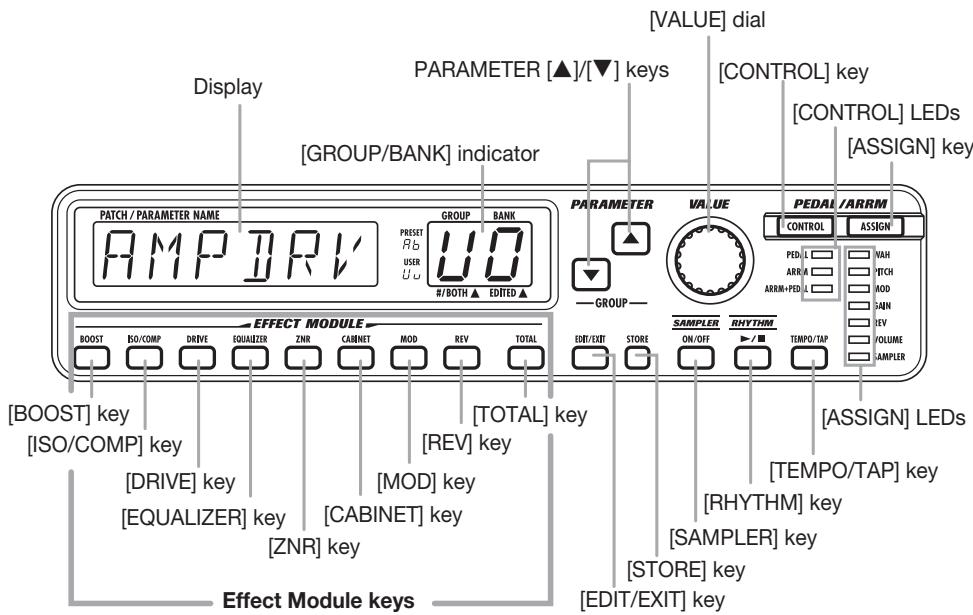
Controls and Functions
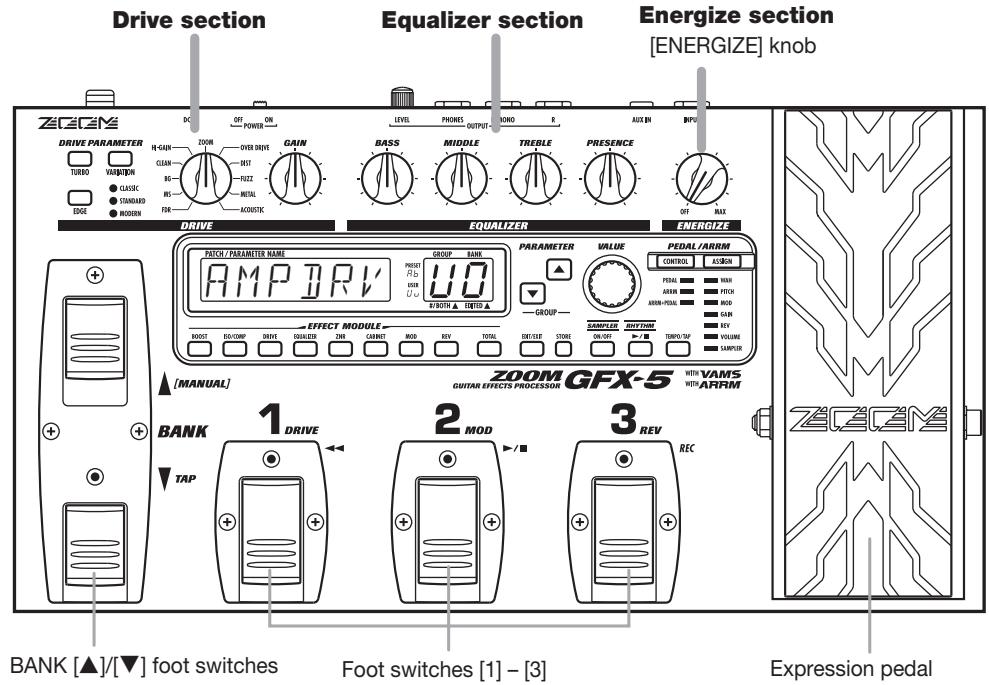
Top Panel
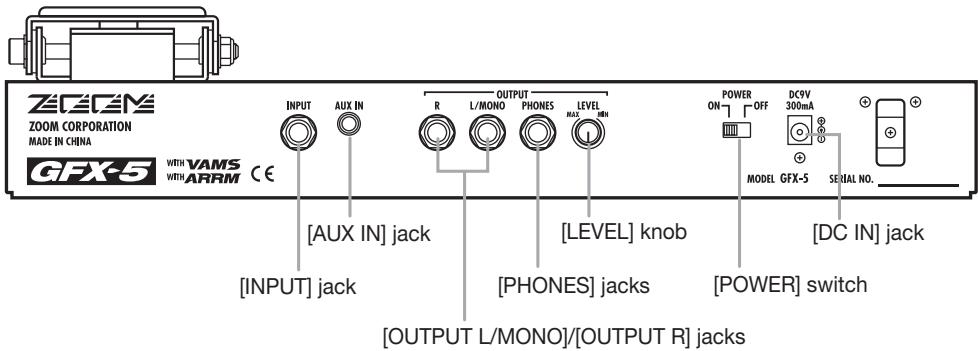
Rear Panel
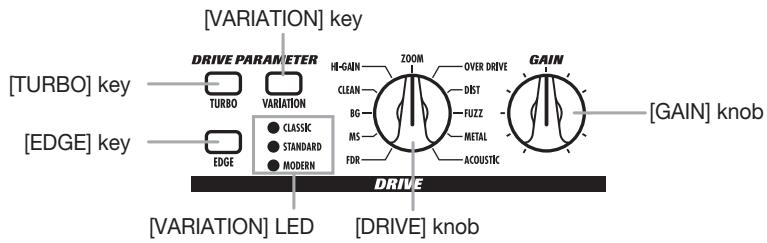
Drive section
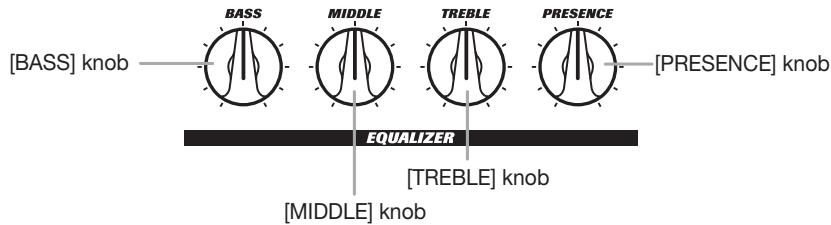
Equalizer section
Getting Ready to Play
Inserting the batteries
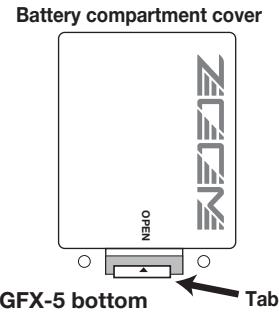
To use the GFX-5 on battery power, insert batteries as shown below.
- Turn the unit over and open the battery compartment cover. (Push the tab to unlock and then raise the cover.)
- Insert the batteries with correct (+) (-) polarity into the battery compartment.
- Close the battery compartment cover. (Make sure that the tab is properly engaged.)
NOTE
- When not using the unit for an extended period, remove the batteries to prevent the possibility of damage by leaking battery fluid.
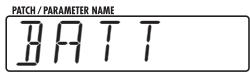
- When the indication "BATT" appears on the display, the batteries are almost exhausted. Replace the batteries as soon as possible with fresh ones.
Getting connected
- Make sure that the amplifier and the GFX-5 are switched off.
Turn the volume at the amplifier to minimum. - To power the unit from the AC adapter, insert the small plug of the adapter cable into the [DC IN] jack on the GFX-5. Then plug the adapter into an AC outlet.
- Connect the guitar to the [INPUT] jack of the GFX-5, using a mono cable.
- Connect the [OUTPUT] jack of the GFX-5 to the guitar amp, using a mono cable.
- To monitor the sound with headphones, plug the phones into the [PHONES] jack.
- Turn power on in the following order: GFX-5 amplifier.
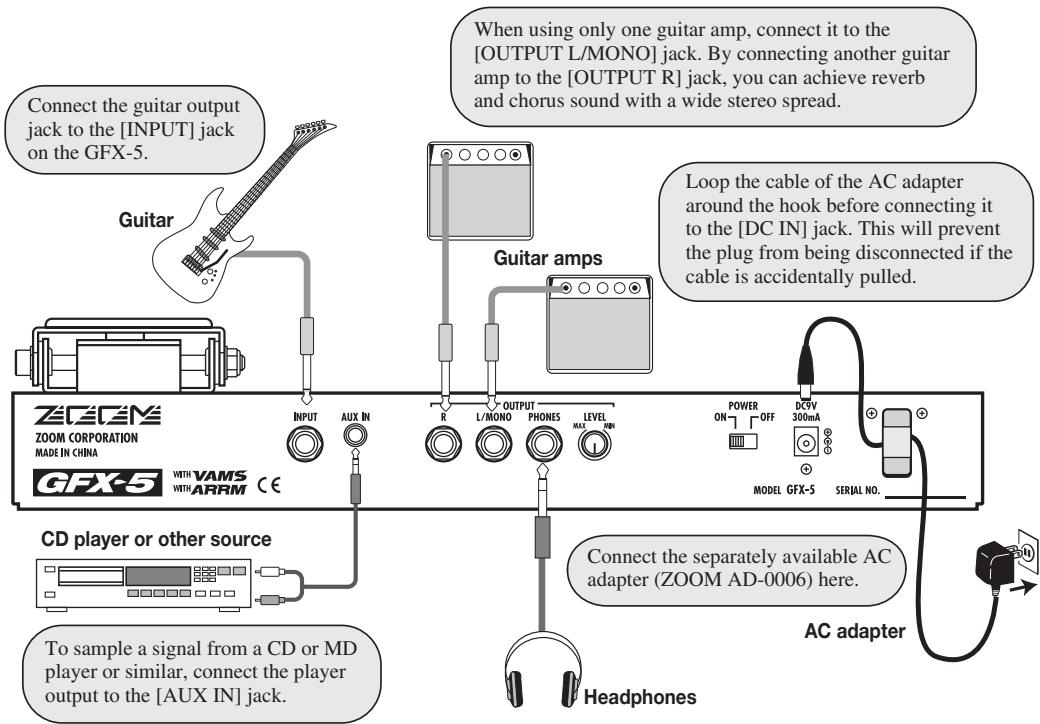
NOTE
If you turn the GFX-5 on while the amplifier is already powered up, damage to the speaker may result. Always turn power to the amplifier on last. When turning off the system, proceed in the opposite order.
- Raise the volume setting of the instrument and amplifier, and adjust the [LEVEL] knob on the rear panel of the GFX-5.
- While playing your instrument, turn the [ENERGIZER] knob until the sound quality is as desired.
The [ENERGIZE] knob serves to match the unit to the playback environment. As you turn the knob, the display changes as follows.
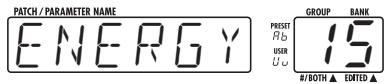
Energize setting (oF, 1 - 30)
Turning the knob clockwise emphasizes the low range, and turning it counterclockwise emphasizes the high range. The "oF" setting means that the Energize function is turned off.
HINT
The Energize setting applies to the output sound of all signals except those from the [AUX IN] jack.
- To turn the system off, proceed in the opposite order than when turning it on.
Quick Guide
When you turn on the GFX-5, it is in play mode. This section explains the basic steps in this mode, allowing you to use the unit right away.
Selecting a patch
1 To select a patch, press one of the foot switches [1] - [3] whose LED is not lit.
The single effects (effect modules) in the GFX-5 can be combined, and parameter settings for each effect can be changed to achieve a desired sound. Such a combination of effects with certain parameter settings is called a patch. Patches are always called onto the panel in banks of three, and the foot switches [1] - [3] are used to select the patch.
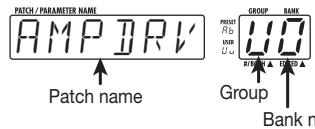
[Display in play mode]
To switch to a patch in another group or bank, use the BANK [▲]/[▼] foot switches and then the foot switches [1] - [3].
Patches are organized in user groups (U, u) which can be modified and preset groups (A, b) which are read-only. Each group comprises ten banks numbered from 0 to 9, and each bank has three patches.
The BANK [ ] / [ ] foot switches select groups and banks in the order A0-A9,b0-b9,U0-U9, u0-u9.
- You can also use the PARAMETER [] / [] keys to directly switch groups.
For a detailed explanation of patch switching, see page 10.
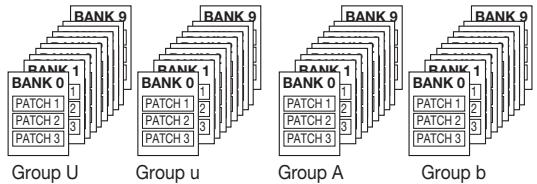
User groups
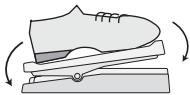
Altering an effect with the pedal
1 Move the expression pedal up or down while playing your instrument.
The effect depth or volume or another parameter of the effect will change in real time as you move the expression pedal. (Which parameter changes depends on the patch.)
- For some patches, the pedal has no effect.
For an explanation of effect control with the pedal, see page 20.
Move back and forth
[TURBO] key Setting this key to ON will increase the sound pressure of the patch.
Changing the sound of a patch in play mode
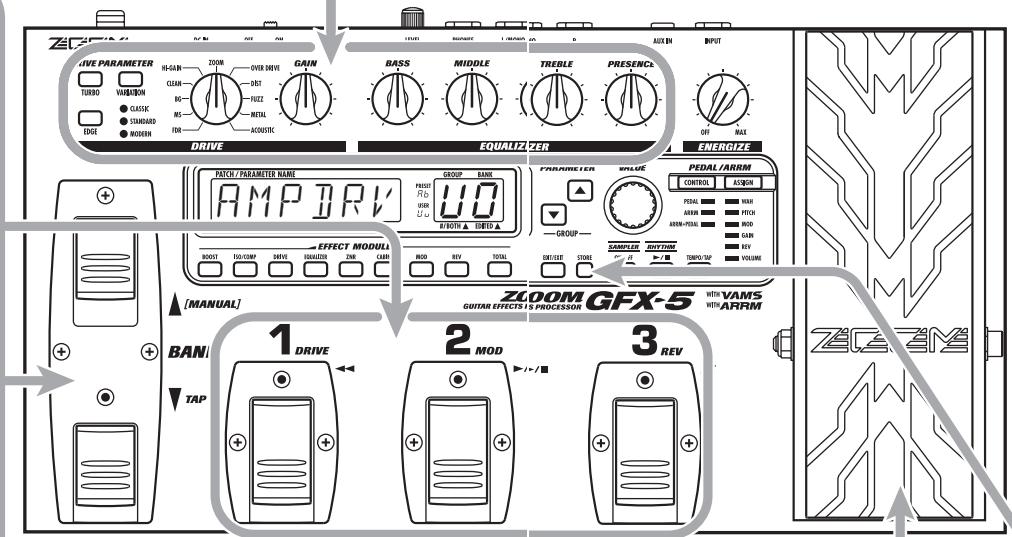
While playing your instrument, operate the following knobs and keys.
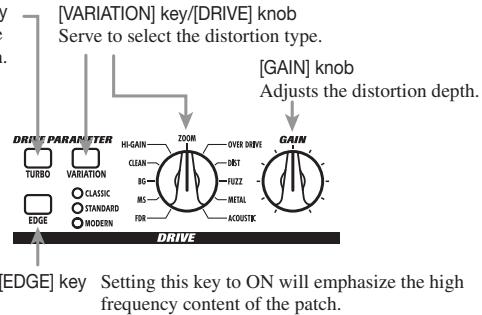
[Drive section]
Equalizer section
The knobs adjust boost/cut for each frequency range.

For a detailed explanation of how to edit effects, see page 17.
To switch the effect module on or off, push the expression pedal fully down.
The expression pedal also incorporates a push-down switch that allows on/off control of a specific effect module.
For an explanation of how to select the module to be operated with the pedal, see page 20.
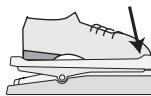
Push down all the way
Storing effects
1 Press the [STORE] key.
The GFX-5 goes into store standby mode.
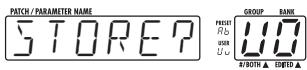
If necessary, use the BANK [] / [] foot switches and the foot switches [1] - [3] to select the bank and patch number in which to store the current effect settings.
- If a patch from a preset group was selected, the patch number 1 of "U0" (user group) will be selected as the default store target.
To carry out the store process, press the [STORE] key once more.
To cancel the operation, press the [EDIT/EXIT] key.
For a detailed explanation of the store procedure, see page 19.
For information on how to return the user group patches to the factory default condition, see page 27
Playing Patches (Play Mode)
The condition where you call up patches stored in the memory of the GFX-5 and use them for playing your instrument is called play mode. When you turn the GFX-5 on, it is initially always in this mode. The various operations possible in play mode are described in this section.
Panel display in play mode
In play mode, the panel shows the following information.
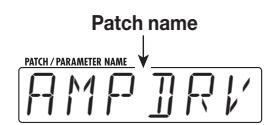
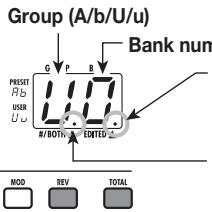
number (0 - 9) When a dot () is shown here, an effective parameter has been changed.
When a dot (. is shown here, patches can be selected from a user group or preset group.
- Keys for effect modules that are ON in the currently selected patch are lit.
Selecting a patch
- To select a patch in play mode, press one of the foot switches [1] - [3] whose LED is not lit.
The LED of the foot switch for the patch that is currently selected is lit.
NOTE
If you press the foot switch whose LED is lit, the unit goes into bypass/mute mode ( p. 11).
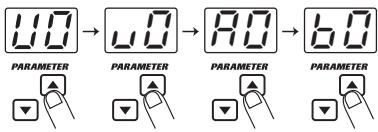
- To select a patch in another group or bank, use the BANK [▲]/[▼] foot switches and then the foot switches [1] - [3] to select the group and bank.
For example, if you repeatedly press the BANK
[▲] foot switch, the group/bank is switched as follows.
User groups

Preset groups

- To directly switch groups, use the PARAMETER [] / [] keys.
Pressing the PARAMETER [▲] key moves to the next higher group and pressing the PARAMETER [▼] key moves to the next lower group.
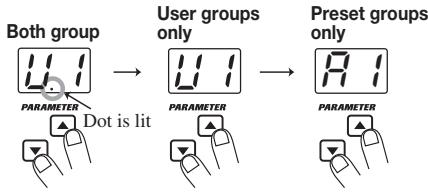
- If you want to select only patches from a user group or preset group, press both PARAMETER[▲] /[▼] keys together.
Each time you press both PARAMETER [ ] / [ ] keys together, the group type changes.
Using the internal tuner (bypass/mute function)
The GFX-5 has a built-in auto-chromatic tuner for guitars. To use the tuner function, the built-in effects must be bypassed (temporarily turned off) or the unit must be muted (original sound and effect sound turned off).
- To set the GFX-5 to the bypass (mute) condition, press the foot switch of the currently selected patch (the switch whose LED is lit) in play mode.
Pressing and immediately releasing the foot switch sets the GFX-5 to the bypass condition. The expression pedal is automatically switched to function as a volume pedal.
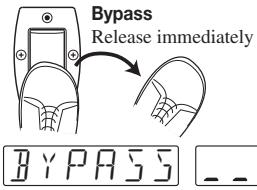
Pressing and holding the foot switch for more than one second sets the GFX-5 to the mute condition.
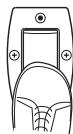
Mute Press and release after more than 1 second

- Play the open string you want to tune.
The [GROUP/BANK] indicator shows the note which is closest to the current pitch. Adjust the pitch so that the indicator shows the desired note.
The note is shown on the left part of the indicator.
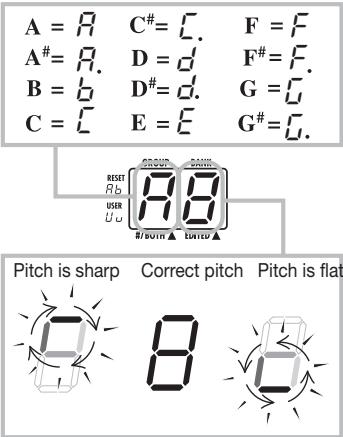
The more the pitch is off, the faster the rotation of the indicator.
- To change the reference pitch of the tuner, use the [VALUE] dial.
The current reference pitch is briefly shown on the display. The default setting after power-on is center A = 440Hz
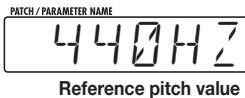
While the reference pitch is shown, you can change the pitch by turning the [VALUE] dial.
The setting range is 435 - 445Hz in 1-Hz steps. When the GFX-5 is turned off and on again, it will be reset to 440Hz .
- To return to the play mode, press one of the foot switches [1] - [3].
The patch of that foot switch becomes active again.
NOTE
If you switch the bank/group while using the tuner, the tuner function will be temporarily disabled. When you return to the original bank/ group, the tuner function becomes active again.
Adjusting the sound of a patch
After selecting a patch in play mode, you can use the knobs and keys on the panel to adjust parameters such as distortion type and depth, equalizer settings, etc.
- In play mode, select the patch you want to use.
- To change the distortion type, use the [DRIVE] knob and [VARIATION] key in the drive section.
The distortion type used for the DRIVE module can be switched with the [DRIVE] knob and [VARIATION] key. Turn the [DRIVE] knob to select a general distortion category (amp or effect pedal type), and use the [VARIATION] key to select a variation within that category.
Each push of the [VARIATION] key cycles through the CLASSIC STANDARD MODERN OFF (DRIVE module off) settings, and the corresponding LED lights up. For details on category and variation characteristics, see page 29.
(1) Select general distortion category with [DRIVE] knob.
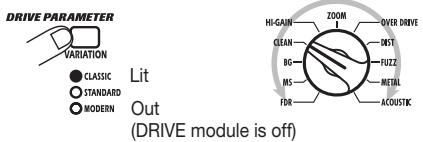
(2) Select variation in selected category with [VARIATION] key.
NOTE
If you turn the [DRIVE] knob or push the [VARIATION] key while a patch is selected for which the DRIVE module is off (effect module [DRIVE] key not lit), the DRIVE module is automatically turned on ([DRIVE] key lights up).
- To adjust the gain (distortion depth) of the DRIVE module, turn the [GAIN] knob in the drive section.
When you turn the knob, the current gain setting appears on the [GROUP/BANK] indicator, and the "EDITED" dot appears. When you return the gain to the original setting, the dot disappears.
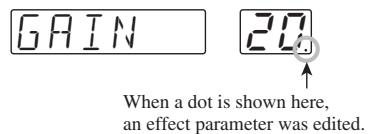
NOTE
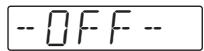
If you turn the [GAIN] knob while a patch is selected for which the DRIVE module is off, the indication “-OFF-” appears on the display and the knob has no effect.

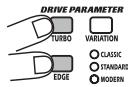
- If necessary, use the [TURBO] key or [EDGE] key to adjust the overall sound of the patch.
The [TURBO] key and [EDGE] key let you touch up the sound of each patch. The [TURBO] key increases the overall sound pressure (intensity) of the patch, and the [EDGE] key enhances the treble. You can also set both keys to ON together.
- To provide EQ adjustment, use the knobs in the equalizer section.
The knobs in the equalizer provide boost or cut in the following ranges.
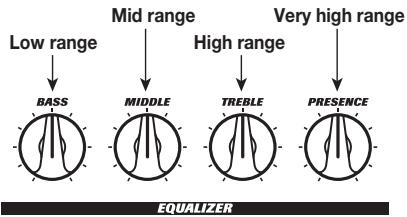
While you operate a knob, the display shows the name of the current range, and the [GROUP/ BANK] indicator shows the current setting (-12 - 0 - 12) .

NOTE
If you turn a knob in the equalizer section while a patch is selected for which the EQUALIZER module is off (effect module [EQUALIZER] key not lit), the indication “-OFF-” appears on the display and the knob has no effect. Press the [EQUALIZER] key to turn it on first.
- To switch an effect module on or off, press the effect module key for that module.
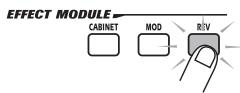
The light of the effect module key comes on or goes out, and the module is toggled between on and off.
- To adjust the overall volume level of the patch (patch level), turn the [VALUE] dial.
The patch level is a parameter that controls the combined original sound and effect sound level. It can be set in the range of 1 - 30. During adjustment, the [GROUP/BANK] indicator shows the actual setting.

HINT
Any changes you have made in play mode will be lost when you switch the patch. If necessary, store the patch to retain the changes ( p.19) .
Using the Rhythm Function
The GFX-5 incorporates 60 rhythm patterns which can be selected for playback. This is convenient for practice or a quick jam session.
1. To activate the rhythm function, press the [RHYTHM] key in play mode.
The key lights up and rhythm pattern playback starts. The [TEMPO/TAP] key flashes in sync with the current tempo.
![ZOOM GFX5 - To activate the rhythm function, press the [RHYTHM] key in play mode. - 1](/content/2025/01/152279/images/40d0f5df706d0ec2d315974a8d3050eb9ed2aa91308baa0492eb8461887a82c1.jpg)
2. To change the rhythm pattern, turn the [VALUE] dial while the rhythm pattern name is shown on the display.
3. To change the tempo, press the [TEMPO/TAP] key and then turn the [VALUE] dial.
When you press the [TEMPO/TAP] key, the current tempo setting (BPM) appears on the display. While this is shown, turning the [VALUE] dial will change the tempo.
![ZOOM GFX5 - To change the tempo, press the [TEMPO/TAP] key and then turn the [VALUE] dial. - 1](/content/2025/01/152279/images/05af126804e3421566409a1f4d60c7eff1a3e47f068efbb7ff0caa7f70beaeac.jpg)
If you tap the [TEMPO/TAP] key repeatedly, the interval of the last two taps is automatically detected and taken as the new tempo (tap tempo setting function).
![ZOOM GFX5 - To change the tempo, press the [TEMPO/TAP] key and then turn the [VALUE] dial. - 2](/content/2025/01/152279/images/555740cfe7506cb601493b8fa8377e57b00d1042d26075c1dd136c927e8ee6cc.jpg)
HINT
The tempo set in this way can be synchronized to the control waveform cycle for the ARRM function ( p. 20). It can also be linked to the DELAY TIME parameter of the REV module ( p. 34).
4. To change the volume of the rhythm sound, press the PARAMETER [▲]/[▼] keys during rhythm pattern playback to bring up the indication "LVL xx" (where xx is a number) on the display, and then turn the [VALUE] dial.
The rhythm pattern playback volume changes.
![ZOOM GFX5 - To change the volume of the rhythm sound, press the PARAMETER [▲]/[▼] keys during rhythm pattern playback to bring up the indication "LVL xx" (where xx is a number) on the display, and then turn the [VALUE] dial. - 1](/content/2025/01/152279/images/a2899eaf81957f260724b970a82a7b0efb6ced190b80f3e16af7d970d428b9d5.jpg)
HINT
By pressing one of the PARAMETER [ ] / [ ] keys repeatedly, you can cycle through the rhythm pattern name, tempo, and playback volume indication.
5. To stop rhythm pattern playback, press the [RHYTHM] key once more.
HINT
- When the GFX-5 is in manual mode ( p. 16), you can use the BANK [▼] switch to bring up the tempo indication on the display or to set the tap tempo.
- If a rhythm pattern is played while editing a patch, only the tempo can be changed.
Rhythm pattern list
| Rhythm pattern | Display | Indicator |
| 8 BEAT 1 | BEAT | 1 |
| 8 BEAT 2 | 2 | |
| 8 BEAT 3 | 3 | |
| 8 BEAT 4 | 4 | |
| 8 BEAT 5 | 5 | |
| 8 BEAT SHUFFLE 1 | SHUFL | 1 |
| 8 BEAT SHUFFLE 2 | 2 | |
| 16 BEAT 1 | 16 BEAT | 1 |
| 16 BEAT 2 | 2 | |
| 16 BEAT 3 | 3 | |
| 16 BEAT 4 | 4 | |
| 16 BEAT SHUFFLE | 16 SHFL | |
| 3/4 | 3/4 | |
| 6/8 ROCK | 6/8 | |
| 5/4 | 5/4 | 1 |
| 5/4 ROCK | 2 | |
| ROCK'n ROLL 1 | R'nK | 1 |
| ROCK'n ROLL 2 | 2 | |
| ROCK 1 | ROCK | 1 |
| ROCK 2 | 2 | |
| 1970s ROCK | 19ROCK | |
| HARD ROCK 1 | HARD | 1 |
| HARD ROCK 2 | 2 | |
| HARD ROCK 3 | 3 | |
| METAL 1 | METAL | 1 |
| METAL 2 | 2 | |
| THRASH | THRASH | |
| PUNK | PUNK | |
| POP 1 | POP | 1 |
| POP 2 | 2 |
| Rhythm pattern | Display | Indicator |
| DANCE 1 | DANCE | 1 |
| DANCE 2 | 2 | |
| DANCE 3 | 3 | |
| FUNK 1 | FUNK | 1 |
| FUNK 2 | 2 | |
| BALLAD 1 | BALLAD | 1 |
| BALLAD 2 | 2 | |
| BLUES 1 | BLUES | 1 |
| BLUES 2 | 2 | |
| COUNTRY | CONTRY | |
| BOSSA NOVA | BOSSA | |
| JAZZ 1 | JAZZ | 1 |
| JAZZ 2 | 2 | |
| REGGAE | REGGAE | |
| SKA | SKA | |
| LATIN 1 | LATIN | 1 |
| LATIN 2 | 2 | |
| SAMBA 1 | SAMBA | 1 |
| SAMBA 2 | 2 | |
| AFRO | AFRO | |
| MOTOWN | MOTOWN | |
| EUROBEAT | EURO | |
| FUSION | FUSION | |
| OLDIES | OLDIES | |
| METRO (triple time) | METRO | 3 |
| METRO (quadruple time) | 4 | |
| METRO (quintuple time) | 5 | |
| METRO (sextuple time) | 6 | |
| METRO (septuple time) | 7 | |
| METRO | METRO |
Turning Effects On and Off With Your Feet (Manual Mode)
Manual mode is a special mode in which you can use the foot switches to turn effect modules on and off or to change the rhythm pattern tempo. This is useful for example if you want to turn only certain effect modules on and off during a performance.
1. To switch the GFX-5 to manual mode, hold the BANK [▲] switch depressed while the unit is in play mode.
The indication "MANUAL" appears on the display, showing that the GFX-5 has switched to manual mode.
![ZOOM GFX5 - To switch the GFX-5 to manual mode, hold the BANK [▲] switch depressed while the unit is in play mode. - 1](/content/2025/01/152279/images/2b0e401d64021fbb444e56e2ad75aaeb405621d42ef4a49bb4ddfef2a4f816fd.jpg)
2. To switch effect modules on and off, press one of the foot switches [1] - [3].
When the GFX-5 is in manual mode, the modules DRIVE, MOD, and REV can be turned on and off with foot switches [1] - [3]. The modules are assigned as follows.
![ZOOM GFX5 - To switch effect modules on and off, press one of the foot switches [1] - [3]. - 1](/content/2025/01/152279/images/80dc2636f631b2e3e191a680fcd5195438d097446adec900a3b75c087b324b66.jpg)
3. To change the tempo of the rhythm pattern, tap the BANK [▼] switch repeatedly in the desired interval.
The interval of the last two taps is automatically detected and taken as the new tempo.
![ZOOM GFX5 - To change the tempo of the rhythm pattern, tap the BANK [▼] switch repeatedly in the desired interval. - 1](/content/2025/01/152279/images/2d5b3630aa9ca435a0ca7ccf17101c324f1f75374e1511cacab074ab93646bc9.jpg)
HINT
By programming a patch beforehand to link the ARRRM control waveform ( p. 20) or the DELAY TIME parameter of the REV module ( p. 34) to the pattern tempo, you can control these parameters manually during a performance.
4. To return to play mode, press the BANK [▲] switch once more.
Changing the Sound of a Patch (Edit Mode)
The edit mode allows you to freely alter the parameters that make up a patch, so that you can create your own patches. This section describes how to do this.

Patch configuration
Each patch of the GFX-5 consists of several effects (effect modules), as shown in the illustration above. A patch is a stored combination of modules, each with their distinct parameter settings.
Within each module, there are several different but related effects which are called effect types. For example, the MOD (modulation) module comprises effect types such as CHORUS, PHASER, and WAH, of which one can be selected.
The elements that determine the sound of a patch are called effect parameters. Each module has certain effect parameters, whose value can be adjusted with the effect module keys, PARAMETER [ ] / [ ] keys, [VALUE] dial, etc.
NOTE
Also within the same module, different effect types will have different parameters.
Basic edit mode steps
This section describes the basic procedure for editing patches in edit mode. For information on effect types and parameters in the various modules, see the section "Effect Types and Parameters" on pages 28 - 34.
1. In play mode, select the patch you want to edit.
Patches for editing can be selected from either a user group (U / u) or a preset group (A, b). However,
patches from a preset group are read-only. When you have altered such a patch and you want to store it, you must select a user group patch as store target (patch number 1 in the user group bank "U0" is automatically preselected).
2. To activate the edit mode, press the [EDIT/EXIT] key.
The first time you switch to edit mode after the unit was turned on, the parameter PATLVL (patch level) of the TOTAL module will be selected.
![ZOOM GFX5 - To activate the edit mode, press the [EDIT/EXIT] key. - 1](/content/2025/01/152279/images/c6676b8082c7ec71d3eb75b0fb7f535dca5c0d01fe0dffad1d2c67d7f7b2279f.jpg)
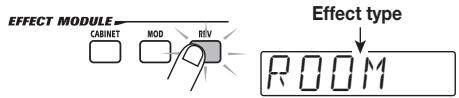
3. Press the effect module key for the module that you want to edit.
The effect type currently selected for that module is shown on the display.
HINT
If a module is selected that is currently off, the key flashes more slowly.
4. To toggle the on/off status of the selected module, press the same key again while the effect type is being shown.
The effect type display changes to "OFF-".
To return the effect module to "on" status, press the key again.
- To change the effect type for the selected module, turn the [VALUE] dial.
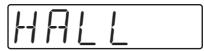
- To change a parameter value, press one of the PARAMETER [] / [] keys.
When you press the key, the parameters of the currently selected effect type are called up on the display one by one. The [GROUP/BANK] indicator shows the parameter value.
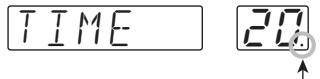
When a dot is shown here, the patch was edited. If you return the parameter to the original value, the dot will disappear.
- Turn the [VALUE] dial to change the parameter value.
For some modules such as DRIVE and EQUALIZER, effect types and parameters can be changed directly with the knobs and keys on the panel. - Repeat steps 3 - 7 to edit other modules.
- When editing is completed, press the [EDIT/EXIT] key.
The unit returns to the play mode. If any element of the patch has been changed, the "EDITED" dot is shown on the [GROUP/BANK] indicator.
NOTE
If you wish to keep the patch, be sure to perform the store operation ( p. 19). Otherwise all changes will be permanently lost as soon as you switch to another patch.
Changing a patch name
If you wish, you can assign a new name to an edited patch. Proceed as follows.
- In edit mode, press the [TOTAL] key.
- Use the PARAMETER [] / [] keys to bring up the patch name on the display.
The flashing character is the one that can be changed.

- Use the PARAMETER [ ] / [ ] keys to select the character, and turn the [VALUE] dial to change the character.
Available characters are listed on page 34.
4. Repeat step 3 until the name is as desired. Then press the [EDIT/EXIT] key to return to the play mode.
Do not forget to store the patch ( p.19) to retain the edited name.
Storing and Swapping Patches
This section describes how to store an edited patch in memory, and how to swap patches in a user group.
- In play mode, manual mode, or edit mode, press the [STORE] key.
The GFX-5 enters the store standby condition. The patch name and the indications "STORE" or "SWAP" are shown alternately on the display. The [GROUP/BANK] indicator shows the current group and bank number, and the LED of the respective foot switch lights up.

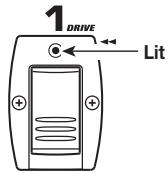
HINT
To change the name of a patch before storing, see page 18.
- Turn the [VALUE] dial to select either "STORE" or "SWAP".
When "STORE" is selected, you can save the current patch in any user group patch slot. When "SWAP" is selected, you can exchange the current user group patch with any other user group patch. This is convenient for example if you want to change the order of patches for use during a performance.
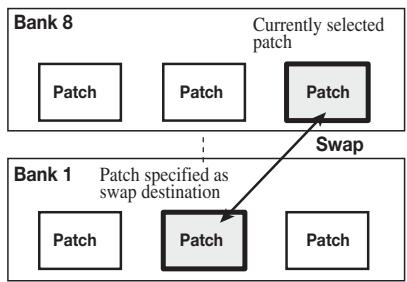
NOTE
If the original patch is from a preset group, the "SWAP" option is not displayed.
- Use the PARAMETER [] / [] keys and the BANK [] / [] foot switches to select the group and bank for the store/swap target.
- Use the foot switches [1] - [3] to select the patch number of the store/swap target. The LED of the respective foot switch lights up.
NOTE
A preset group cannot be selected as store target. If you press the [STORE] key while a patch from a preset group is selected, the patch number 1 of "U0" (user group) will be automatically selected as the default store target.
- Press the [STORE] key once more.
The store or swap operation is performed and the unit returns to the original mode. If the patch in step 1 was being edited, the editing changes are stored and the "EDITED" dot disappears.
If you press the [EDIT/EXIT] key instead of the [STORE] key, the store/swap operation is canceled and the unit returns to the original mode.
Other Functions
This section explains special functions such as varying a particular effect parameter in real time, using the hold delay and sampler functions, and returning the patches to the factory default condition. Pedal calibration is also explained.
Changing effects in real time
The GFX-5 allows you to vary a particular effect parameter in real time. For example, you could use the expression pedal as control source and the effect type P-WAH of the MOD module as control target. Operating the pedal then will change the filter frequency, resulting in a pedal wah effect.
The newly developed ARRM feature lets you use an internally generated control waveform instead of the expression pedal. This makes it possible to easily create cyclic variations of an effect parameter. If you select the control waveform (triangle wave) as control source and the effect type P-WAH of the MOD module as control target, you get a cyclic wah sound even without operating the pedal.
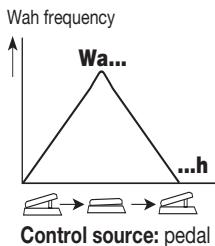
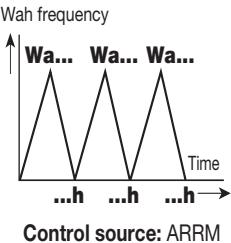
You can go even further. It is possible to control the ARRM modulation depth with the expression pedal, and to link the control waveform cycle to the rhythm pattern.
The procedure for using the expression pedal and ARRM feature to alter parameters in real time is described below.
Selecting the control source and control target
First, select the element (expression pedal, ARRM, or a combination of both) to be used as control source.
- In play mode, select the patch.
- Press the [CONTROL] key repeatedly to select the control source.
With each push of the key, the source cycles through the following settings, and the corresponding [CONTROL] LED lights up: PEDAL ARRM ARRM + PEDAL. The meaning of each selection is explained below.
PEDAL
The expression pedal serves as control source, to vary an effect parameter or the volume with your foot.
- ARRM
The ARRM (Auto-Repeat Real-time Modulation) feature is active. The effect parameter is varied cyclically, using an internally generated control waveform.
ARRM + PEDAL
The ARRM feature is active, but its modulation depth can be adjusted with the expression pedal.
- Repeatedly press the [ASSIGN] key to select the module to be used as control target.
With each push of the key, the target cycles through the following settings, and the corresponding [ASSIGN] LED lights up: WAH PITCH MOD GAIN REV VOLUME SAMPLER.
The meaning of each selection is explained below.
WAH
The effect type P-WAH (pedal wah) of the MOD module is selected as control target, and the wah frequency (FREQ parameter) can be adjusted with the pedal or the ARRM function. Also if another effect type is selected for the MOD module, it will be switched to P-WAH while this LED is lit.
PITCH
The effect type P-PIT (pedal pitch) of the MOD module is selected as control target, and the effect sound pitch can be adjusted with the pedal or the ARRM function (resulting in a pitch shift effect). Also if another effect type is selected for the MOD module, it will be switched to P-PIT while this LED is lit.
- MOD
The currently selected effect type of the MOD module is selected as control target and can be adjusted with the pedal or the ARRM function. The actual parameter that is adjusted depends on the effect type.
GAIN
The GAIN parameter (for some effect types the RESONANCE/TOP parameter) of the DRIVE module is selected as control target and can be adjusted with the pedal or the ARRM function (resulting in a change in distortion intensity).
REV
The currently selected effect type of the REV module is selected as control target and can be adjusted with the pedal or the ARRM function. The actual parameter that is adjusted depends on the effect type.
VOLUME
The master volume can be adjusted with the pedal or the ARRM function.
SAMPLER
The built-in sampler playback volume can be adjusted with the pedal or the ARRM function. The sampler function can be switched on and off by fully depressing the expression pedal.
HINT
- For information on the controlled parameter when MOD, GAIN, or REV is selected, see pages 31 - 34.
- If the module that was selected as control target is currently off, it will be switched temporarily to on.
- The control source and control target settings are stored individually for each patch. If you want to retain your settings, store the patch ( p. 19).
Controlling the ARRM operation
When "ARRM" or "ARRM + PEDAL" is selected as control source, the control waveform type and frequency can be set in edit mode.
- Press the [EDIT/EXIT] key to activate edit mode, and select the TOTAL module.
The ARRM function settings are part of the TOTAL module.
- Use the PARAMETER [] / [] keys to bring up the indication "R-WAVE" on the display, and turn the [VALUE] dial to select a control waveform from the following options.
The following waveform settings are available. - To set the control waveform cycle, use the PARAMETER [] / [] keys to bring up the indication "R-SYNC" on the display,
| 1 | upslope sawtooth wave | |
| 2 | upslope shark fin wave | |
| 3 | downslope sawtooth wave | |
| 4 | downslope shark fin wave |
| 5 | triangle wave | |
| 6 | squared triangle wave | |
| 7 | sine wave | |
| 8 | square wave |
and turn the [VALUE] dial to select a setting.
The control waveform cycle is based on the rhythm pattern tempo and can be set in measures and beats. The following settings are available.
0.5: eighth note
b1: 1 measure
1: quarter note
b2: 2 measures
2: half note
b3: 3 measures
3: dotted half note
b4: 4 measures
Setting the expression pedal action range
When "ARRM" or "ARRM + PEDAL" is selected as control source, the action range of the pedal (the amount by which the parameter changes in response to moving the pedal) can be set.
7. With the TOTAL module selected as editing target, use the PARAMETER [▲]/[▼] keys to bring up the indication "R-MODE" on the display.
When you turn the [VALUE] dial in this condition, you can select one of the following settings for parameter change direction and range.
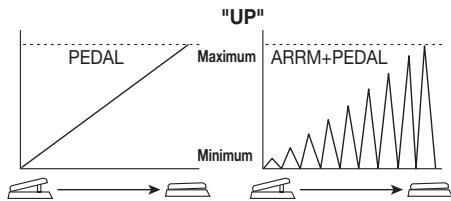
UP
When the control source is "PEDAL", the parameter is minimum when the pedal is fully raised and maximum when the pedal is fully pushed down.
When the control source is "ARRM + PEDAL", the parameter change caused by ARRM (the waveform amplitude) will increase from minimum to maximum as the pedal is pushed down.
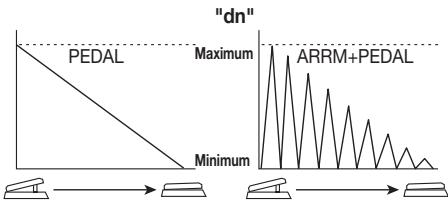
- dn
With this setting, pedal action is opposite to that with the "UP" setting. In the raised condition, the
parameter is maximum and it decreases gradually as the pedal is pushed down.
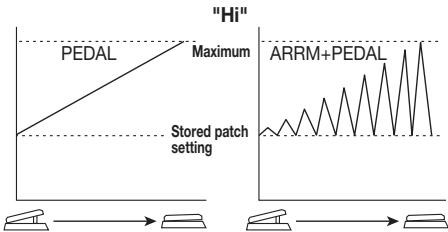
Hi
When the control source is "PEDAL", the current patch setting for the parameter applies when the pedal is fully raised and the setting increases to maximum as the pedal is pushed down.
When the control source is "ARRM + PEDAL", the parameter change caused by ARRM (the waveform amplitude) will increase from the current patch setting to maximum as the pedal is pushed down.
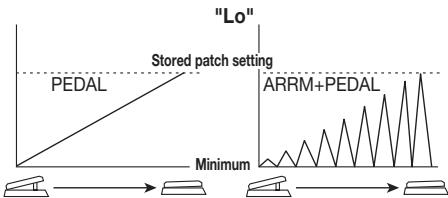
Lo
When the control source is "PEDAL", the parameter is minimum when the pedal is fully raised and gradually increases up to the current patch setting as the pedal is pushed down.
When the control source is "ARRM + PEDAL", the parameter change caused by ARRM (the waveform amplitude) will increase from minimum to the current patch setting as the pedal is pushed down.
- When you have completed the setting procedure, press the [EDIT/EXIT] key to return to the play mode. If necessary, store the patch to retain any changes ( p. 19).
Checking the effect
9. Play your instrument to try out the settings.
When the control source is "PEDAL", the effect parameter of the control target should change according to how you operate the pedal.
When the control source is "ARRM", the effect parameter should change cyclically according to the selected waveform.
When the control source is "ARRM + PEDAL", the control waveform should change according to how you operate the pedal.
HINT
Regardless of which control source is selected, pushing the expression pedal all the way down switches the control target effect module (or the sampler function) on and off.
Using the hold delay function
The REV module comprises a hold delay (HLDDLY) effect that allows recording and playing a guitar phrase of up to two seconds. You can also play the phrase in reverse or perform loop playback to create interesting "sound-on-sound" layers.
- In play mode, select the patch to use with hold delay.
- Press the [EDIT/EXIT] key to activate edit mode, and select "HLDDLY" as effect type for the REV module.
- To set the recording time, use the PARAMETER [ ] / [ ] keys to bring up the indication "TIME" on the display, and then turn the [VALUE] dial.
The hold delay effect has three parameters: TIME, MODE, and MIX. The TIME parameter determines the hold delay recording interval. The setting range is as follows.
1-99: 10-990 milliseconds (10-ms units)
1.0-2.0: 1.0-2.0 seconds (100-ms units)
- Mn (Manual): Recording is controlled manually (max. 2 seconds).
4. To set the phrase playback mode, use the PARAMETER [] / [] keys to bring up the indication "MODE" on the display, and then turn the [VALUE] dial.
The MODE parameter determines the way the recorded phrase is played back. The following settings are available.
- nL (Normal): Normal direction playback
- So (Sound-on-sound): Recorded contents are played back repeatedly to create an overlay. By repeating the recording procedure after the previous pass is finished, multiple layers can be created.
- rS (Reverse): Reverse direction playback
5. To set the mixing balance between original sound and delay sound, use the PARAMETER [] / [] keys to bring up the indication "MIX" on the display, and then turn the [VALUE] dial.
The MIX parameter controls the mixing ratio of the delayed sound. A setting of 30 results in equal levels of original sound and delayed sound.
6. Use the [CONTROL] key and [ASSIGN] key to select "PEDAL" as control source and "REV" as control target.
7. Store the patch and return to play mode.
When a patch in which hold delay can be used is selected in play mode, the [REV] key LED and the [ASSIGN] key LED are flashing.
8. To turn hold delay on, push the expression pedal all the way down.
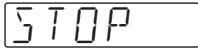
The [ASSIGN] key LED stops flashing and stays constantly lit, indicating that the unit is in the recording standby condition. The display shows "STOP".
9. While playing your guitar, press the foot switch [3] to start recording.
The indication "REC" is shown on the display. The actual operation depends on the TIME parameter and MODE parameter.
TIME parameter set to a numeric value
Recording starts as soon as you push the foot switch [3] and continues for the duration set with the TIME parameter. After recording ends, loop playback starts automatically.
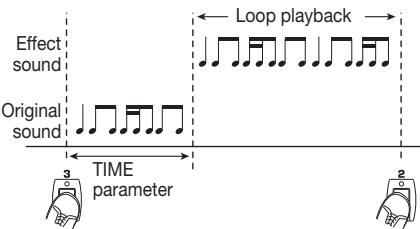
Foot switch [3]
Foot switch [2]
TIME parameter set to "Mn"
Recording starts as soon as you push the foot switch
[3] and continues until you press the foot switch
once more, or until two seconds have elapsed. After recording ends, loop playback starts automatically.
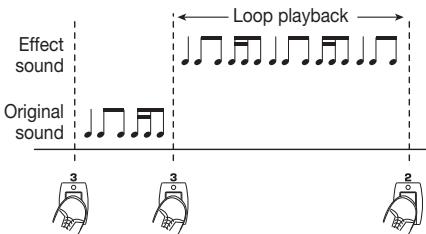
Foot switch [3]
Foot switch [2]
TIME parameter set to "Mn" and MODE parameter set to "So" (See below)
Everything you play between one press of foot switch [3] until the next time you press the foot switch is recorded in overdub mode. During this time, the display shows "OVRREC".
NOTE
- While you are using the hold delay function, the patch cannot be switched. To switch to another patch, you must first turn hold delay off by pushing the expression pedal all the way down.
- While the GFX-5 is in manual mode, the hold delay function cannot be used. If you try to turn hold delay on in this mode, the manual mode is canceled. (The reverse also applies.)
10. To stop playback, press the foot switch [2].
When playback stops, the recorded contents are automatically erased.
![ZOOM GFX5 - To stop playback, press the foot switch [2]. - 1](/content/2025/01/152279/images/556b1ecca208acd86517229e36309cf69ac9fbbaf3abce06b44f662666f742e4.jpg)
Foot switch [3]
11. To turn hold delay off, push the expression pedal once more all the way down.
The unit returns to play mode.
Using the sampler function
The GFX-5 incorporates a sampler function that allows recording the input signal in the internal memory.
This can be used to record a phrase from a guitar connected to the [INPUT] jack or the sound from an external source such as a CD or MD player connected to the [AUX IN] jack. The maximum recording duration is six seconds. A recorded phrase can also be played back at a slower speed without changing the pitch. This is convenient for example to copy an up-tempo phrase from a CD.
1. Connect the input source to the [INPUT] jack or [AUX IN] jack ( p. 7).
2. Turn power to the GFX-5 on and press the [SAMPLER] key in play mode.
The GFX-5 switches to sampler mode and the indication "GT" appears on the display.
![ZOOM GFX5 - Turn power to the GFX-5 on and press the [SAMPLER] key in play mode. - 1](/content/2025/01/152279/images/db8662177781cf92a909263f32bb092400853bad02996e72a4f45780c3ebed78.jpg)
![ZOOM GFX5 - Turn power to the GFX-5 on and press the [SAMPLER] key in play mode. - 2](/content/2025/01/152279/images/dee0851f012f6b8117c2a5e2df506233fb70331e3a53ea68d488106b02efdc3d.jpg)
Rewind
![ZOOM GFX5 - Turn power to the GFX-5 on and press the [SAMPLER] key in play mode. - 3](/content/2025/01/152279/images/62d300453252e8e17dd8a56c391de7564ea07588121a8f15813a69df715711a6.jpg)
Play/Stop
![ZOOM GFX5 - Turn power to the GFX-5 on and press the [SAMPLER] key in play mode. - 4](/content/2025/01/152279/images/0811d31f1bd782ab2fffc94857af19df5829b7441e7847822ec88f4ff0ecc748.jpg)
Record
NOTE
In sampler mode, the foot switches [1] - [3] operate as shown above. Therefore the patch cannot be changed until the unit returns to the play mode.
HINT
For patches where SAMPLER is selected as control target, the sampler function can be turned on and off by fully depressing the expression pedal ( p.21) .
3. To select the input source for sampling, use the PARAMETER [] / [] keys to bring up the indication "GT" or "AUX" on the display.
GT/AUX is the parameter for selecting the sampling input source. By turning the [VALUE] dial, you can toggle between the two settings.
GT
Signal at [INPUT] jack is sampled.
AUX
Signal at [AUX IN] jack is sampled.
HINT
- When "GT" is selected, the signal is always sampled after effect processing. When "AUX" is selected, the signal is always sampled before effect processing.
- When recording from the [AUX IN] jack, you can minimize noise and distortion by turning the [LEVEL] knob on the rear panel up past the midway point and adjusting the output level of the external source so that the volume is about equal to that of a guitar.
- In sampler mode, the MOD module and REV module cannot be used. (These modules are automatically turned off.)
4. To start sampling, press the foot switch [3] and play the phrase you want to record (or start playback at the external source component).
During sampling, the effect module keys light up in sequence to show the elapsed sampling time. The LED of foot switch [3] is also lit.
![ZOOM GFX5 - To start sampling, press the foot switch [3] and play the phrase you want to record (or start playback at the external source component). - 1](/content/2025/01/152279/images/eb95e82779c1d670f5c15a4ab034b63a81cf80f67ca34e9ff3bed35dc0f17885.jpg)
- To stop sampling, press the foot switch [2].
Sampling stops and playback immediately starts from the beginning. If you do not stop sampling manually, it will end automatically when the maximum sampling time is up (6 seconds), and playback will begin.
- Use the PARAMETER [] / [] keys to bring up the indication "SPMODE" on the display.
SPMODE is a parameter that determines how the recorded sample is played back. Turn the [VALUE] dial to select one of the following settings.
n1
Normal speed playback
n2
Half tempo, half pitch playback
P2
Half tempo, normal pitch playback
n4
Quarter tempo, quarter pitch playback
P4
Quarter tempo, normal pitch playback
![ZOOM GFX5 - To start sampling, press the foot switch [3] and play the phrase you want to record (or start playback at the external source component). - 2](/content/2025/01/152279/images/29f6aa5f43bb487e3c55944c5a72c484a98bde903b8f4658a16c5c1b895b935a.jpg)
Sample play mode
- Use the foot switches [1]/[2] to control sample playback (start/stop/rewind).
When using the sampler function for the first time, the recorded sample is played back only once (one-shot playback). During playback, the LED of foot switch [2] lights up. The current playback position is indicated by the lit/out status of the effect module keys.
- To repeatedly play the sample, use the PARAMETER [▲]/[▼] keys to bring up the indication "SPPLAY" on the display, and turn the [VALUE] dial to select "rP".
The recorded sample is now played back repeatedly. By changing the setting to "1S", you can return to one-shot playback.
- To adjust the playback volume, use the PARAMETER [] / [] keys to bring up the indication "SP LVL" on the display, and turn the [VALUE] dial.
The playback volume can be changed over the range of 0 - 30. Choose a value that gives the best results in your system.
![ZOOM GFX5 - To start sampling, press the foot switch [3] and play the phrase you want to record (or start playback at the external source component). - 3](/content/2025/01/152279/images/a3f53e688a53ae8f58aadc64e61ab878c23fe01c04d7a77272f3df8c5ae03512.jpg)
HINT
While the sampler function is active, you can also use the expression pedal to adjust the playback level.
- To return to play mode, press the [SAMPLER] key while playback is stopped.
NOTE
- When you return to play mode, the recorded contents are lost.
- The sampler function cannot be used together with the rhythm function.
Calibrating the expression pedal
The expression pedal is adjusted for optimum operation at the factory, but sometimes, readjustment may be necessary. If pushing the pedal fully down does not have a strong effect, or if the volume or sound changes excessively even when the pedal is only lightly pushed, calibrate the pedal as follows.
- Turn power to the GFX-5 on while keeping the [ASSIGN] key depressed.
The indication "MIN" is shown on the display.
- With the expression pedal fully raised, press the [STORE] key.
The display indication changes to "MAX".
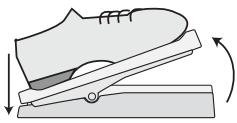

- Push the expression pedal fully down and then lift your foot off the pedal.
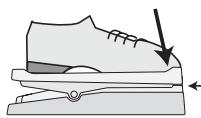
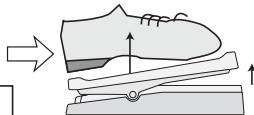
Push strongly, so that pedal touches here.
When foot is lifted, pedal returns slightly.
- Press the [STORE] key.
The adjustment is complete, and the unit returns to the play mode.
HINT
- The position of the pedal in step 3 determines the module on/off switching point. If you want the pedal to perform on/off switching with a lighter touch, set the pedal in step 3 to a somewhat higher position.
- If the display shows "ERROR", repeat the procedure from step 2.
Resetting the GFX-5 to the factory default condition
The patches in the user groups can be returned to their original condition at any time, even if you have changed them.
- Turn power to the GFX-5 on while keeping the [STORE] key depressed.
The indication "ALINIT" is shown on the display.
- Press the [STORE] key once more.
All patches are reset to the factory default condition, and the unit automatically switches to play mode.
By pressing the [EDIT/EXIT] key before carrying out step 2, you can cancel the operation and go directly to play mode.
Effect Types and Parameters
In this section, all effect types and parameters of the modules in the GFX-5 are explained. As shown in the illustration, the GFX-5 has eight effect modules which can be thought of as being connected in series. It is possible to use all effect modules together, or to switch individual modules on and off. Nearly all modules incorporate several effect types, of which one can be selected at a time.
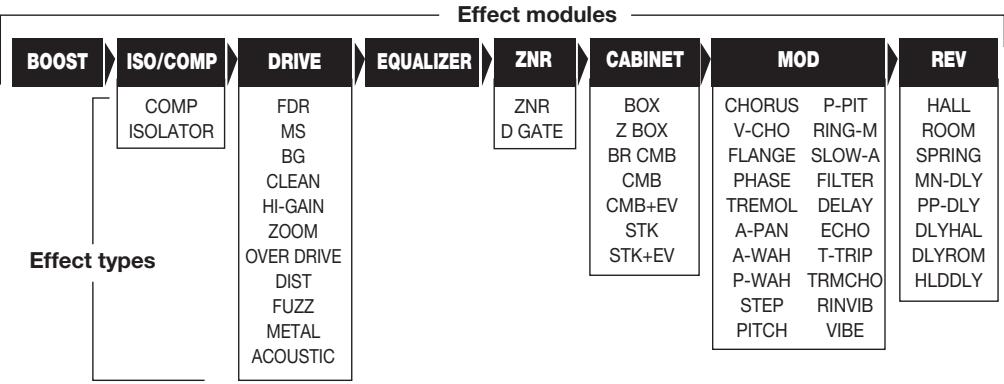
The effect types and parameters that can be used in each module are listed below. The pedal symbol (▲) indicates that this parameter can be assigned to the expression pedal and ARRM function for operation in real time ( p. 20).
BOOST module
This module amplifies the input signal. The amount of boost can be set to Low (1) or High (2).
| Parameter 1 | GAIN | 1, 2 | Selects the boost amount. |
ISO/COMP (Isolator/Compressor) module
The isolator allows cutting or emphasizing a particular band. The compressor serves to reduce excessive signal levels.
| TYPE 1: COMP (Compressor) | |||||
| Universal type compressor that controls attack rate in two stages. | |||||
| Parameter 1 | ATTACK | Parameter 2 | SENS | Parameter 3 | LEVEL |
| FS(FAST)/SL(SLOW) | 0 - 10 | 1-8 | |||
| Adjusts time interval from signal onset to start of compression. | Adjusts compressor sensitivity. | Adjusts signal level after passing module. | |||
| TYPE 2: ISOLTR (Isolator) | |||||
| Isolator that allows cutting or emphasizing a particular band. | |||||
| Parameter 1 | HIGH | Parameter 2 | MID | Parameter 3 | LOW |
| oF(OFF), -12 - 12 | oF(OFF), -12 - 12 | oF(OFF), -12 - 12 | |||
| Adjusts high-range mix. | Adjusts midrange mix. | Adjusts low-range mix. | |||
| Parameter 4Parameter 4 | FREQ L | Parameter 5 | FREQ H | Parameter 6 | LEVEL |
| 5 - 8.0, 0.0(5=50Hz, 8.0=8kHz, 0.0=10kHz) | 5 - 8.0, 0.0(5=50Hz, 8.0=8kHz, 0.0=10kHz) | 1 - 8 | |||
| Adjusts crossover frequency for low and mid range. | Adjusts crossover frequency for mid and high range. | Adjusts signal level after passing module. | |||
DRIVE module
This module comprises 30 types of distortion and acoustic simulator effects. Normally, effect types are chosen with the [DRIVE] knob and the [VARIATION] key, but the [VALUE] dial can also be used.
| TYPE 1AFFDR | |||||
| CLASSIC | FD BLU | STANDARD | FD CLN | MODERN | FD DRV |
| Classic bluesy sound of a built-in tube amp | Clean sound of a built-in tube amp | Drive sound of a built-in tube amp | |||
| TYPE 2AFMS | |||||
| CLASSIC | MS OLD | STANDARD | MS CRU | MODERN | MS DRV |
| Old-style sound of a British tube stack amp | Crunch sound of a British tube stack amp | Drive sound of a British tube stack amp | |||
| TYPE 3AFBG | |||||
| CLASSIC | BG OLD | STANDARD | BG DRV | MODERN | BG MTL |
| Old-style sound of a tube combo amp with gutsy midrange | Drive sound of a tube stack amp with gutsy midrange | Metal sound of a tube stack amp with gutsy midrange | |||
| TYPE 4: CLEAN | |||||
| CLASSIC | VX CRU | STANDARD | JAZZ C | MODERN | MACH |
| Old-style crunch sound | Clean and bright combo amp sound | Warm and powerful combo amp sound | |||
| TYPE 5: HI-GAIN | |||||
| CLASSIC | MP 1 | STANDARD | PV DRV | MODERN | SL DRV |
| High-gain tube preamp sound | Tube stack amp sound for heavy metal | Warm and modern tube stack amp sound | |||
| TYPE 6: ZOOM (ZOOM original effects) | |||||
| CLASSIC | 9002 | STANDARD | Z LEAD | MODERN | Z PWR |
| ZOOM's original 9002 type sound | ZOOM's traditional rich lead sound | ZOOM's original powerful amp type sound | |||
| TYPE 7: OVER DRIVE | |||||
| CLASSIC | V-OD | STANDARD | OD | MODERN | PD 1 |
| Dry overdrive sound | Overdrive sound with cabinet character | Overdrive sound with wide application range, from booster to hard distortion | |||
| TYPE 8: DIST (Distortion) | |||||
| CLASSIC | V-DIST | STANDARD | TB DST | MODERN | HP DST |
| Characteristic dry distortion sound | Distortion sound with extreme signal boost | Extreme distortion sound | |||
- Parameters for TYPE 1 - 8 are the same.
| Parameter 1 | GAIN | Parameter 2 | TONE | Parameter 3 | LEVEL |
| 1-30 | 0-10 | 1-8 | |||
| Adjusts distortion intensity. | Adjusts tone. | Adjusts signal level after passing module. | |||
| TYPE 9: FUZZ | |||||
| CLASSIC | WILDFZ | STANDARD | FUZZ | * For this type, the parameter of WILDFZ/FUZZ parameters are the same. | |
| Older-style, high-gain aggressive fuzz sound | Nostalgic sixties style standard fuzz sound | ||||
| Parameter 1 | GAIN | Parameter 2 | TONE | Parameter 3 | |
| 1-30 | 0-10 | 1-8 | |||
| Adjusts distortion intensity. | Adjusts tone. | Adjusts signal level after passing module. | |||
| TYPE 9: FUZZ | |||||
| MODERN | UF 1 | ||||
| ZOOM original fuzz sound with oscillation control | |||||
| Parameter 1 | GAIN | Parameter 2 | RESO | Parameter 3 | LEVEL |
| 1-30 | 0-10 | 1-8 | |||
| Adjusts distortion intensity. | Adjusts oscillation level. | Adjusts signal level after passing module. | |||
TYPE 10: METAL
| CLASSIC | MTZ | STANDARD | METAL | MODERN | MT 7TH |
| Traditional metal style sound with prominent midrange | ZOOM's original metal sound with low range and high range boost | Metal sound for 7-string guitar | |||
| Parameter 1 | GAIN | Parameter 2 | TONE | Parameter 3 | LEVEL |
| 1-30 | 0-10 | 1-8 | |||
| Adjusts distortion intensity. | Adjusts tone. | Adjusts signal level after passing module. | |||
TYPE 11: ACOUSTIC (Acoustic Simulator)
| CLASSIC | AC FAT | STANDARD | AC STD | MODERN | AC BRI |
| Changes the sound of an electric guitar to resemble an acoustic guitar. The [VARIATION] key selects sound character variations. | |||||
| Parameter 1 | TOP | Parameter 2 | BODY | Parameter 3 | LEVEL |
| 1 - 10 | 1 - 10 | 1 - 8 | |||
| Adjusts characteristic acoustic guitar string sound. | Adjusts body resonance. | Adjusts signal level after passing module. | |||
EQ (Equalizer) module
This is a 4-band equalizer. Parameters 1 - 3 and parameter 5 can also be adjusted with the knobs on the panel.
TYPE 1: ZNR (ZOOM Noise Reduction)
| Parameter 1 | PRESEN | Parameter 2 | TREBLE | Parameter 3 | MIDDLE |
| -12 - 12 | -12 - 12 | -12 - 12 | |||
| Adjusts boost/cut in high range (center frequency 8 kHz). | Adjusts boost/cut in mid-high range (center frequency 3.125 kHz). | Adjusts boost/cut in midrange (center frequency 800 Hz). | |||
| Parameter 4 | BASS F | Parameter 5 | BASS G | Parameter 6 | LEVEL |
| 1, 2 | -12 - 12 | 1 - 8 | |||
| Selects center frequency for low range. 1 = 63 Hz, 2 = 125 Hz. | Adjusts boost/cut for low range selected with BASS F. | Adjusts signal level after passing equalizer module. | |||
ZNR (ZOOM Noise Reduction) module
This module serves for cutting noise during play pauses. It offers a choice of noise reduction and noise gate which cuts the sound off completely during play pauses.
The original noise reduction developed by ZOOM cuts noise during performance pauses without impairing the sound quality.
Vintage type noise gate with distinctive cutoff characteristics.
- Parameters for TYPE 1 and 2 are the same.
TYPE 2: D GATE
| Parameter 1 | |
| 1-8 | Adjusts sensitivity. Set the value for maximum noise reduction without producing an unnatural cutoff. |
CABINET module
Simulates the sound of a speaker cabinet.
| TYPE 1: BOX | TYPE 5: CMB+EV (Combo + EV) |
| Simulates a small amp cabinet. | Simulates an EV speaker in a combo amp cabinet. |
| TYPE 2: Z BOX (ZOOM Box) | TYPE 6AFSTK (Stack) |
| Simulates a cabinet with ZOOM's original sound character. | Simulates a stack amp cabinet. |
| TYPE 3: BR CMB (Bright Combo) | TYPE 7: STK+EV (Stack + EV) |
| Simulates a bright combo amp cabinet. | Simulates an EV speaker in a stack amp cabinet. |
| TYPE 4: CMB (Combo) | |
| Simulates a conventional combo amp cabinet. |
- All parameters for this module are the same.
| Parameter 1 | DEPTH |
| 0 - 10 | Adjusts the intensity of the cabinet effect. |
MOD (Modulation) module
This module contains modulation type effects such as chorus and flanger, effects that drastically change the sound such as wah, filter, and ring modulator, and pitch altering effects such as pitch shift and vibrato.
TYPE 1:CHORUS
| Parameter 1 | DEPTH | Parameter 2 | RATE | Parameter 3 | MIX |
| 0 - 10 | 1 - 30 | 0 - 30 | |||
| Adjusts modulation intensity. | Adjusts modulation speed. | Adjusts mixing balance of original sound and effect sound. | |||
TYPE 2: V-CHO (Vintage Chorus)
| Simulates the warm sound of a vintage chorus. | |||||
| Parameter 1 | DEPTH | Parameter 2 | RATE | Parameter 3 | MIX |
| 0 - 10 | 1 - 30 | 0 - 30 | |||
| Adjusts modulation intensity. | Adjusts modulation speed. | Adjusts mixing balance of original sound and effect sound. | |||
TYPE 3: FLANGE (Flanger)
| Parameter 1 | DEPTH | Parameter 2 | RATE | Parameter 3 | FB |
| 0 - 10 | 1 - 30 | -10 - 10 | |||
| Adjusts modulation intensity. | Adjusts modulation speed. | Adjusts feedback ratio. Higher values in positive or negative direction result in stronger characteristics. | |||
TYPE 4:PHASE (Phaser)
| Parameter 1 | POSI | Parameter 2 | RATE | Parameter 3 | COLOR |
| AF, bF | 1 - 30 | 1 - 4 | |||
| Selects connection point of MOD module. AF: after CABINET module bF: before DRIVE module | Adjusts modulation speed. | Selects sound character. | |||
TYPE 5: TREMOL (Tremolo)
| Periodically varies the level of the sound. | |||||
| Parameter 1 | DEPTH | Parameter 2 | RATE | Parameter 3 | CLIP |
| 0 - 10 | 1 - 30 | 0 - 10 | |||
| Adjusts modulation intensity. | Adjusts modulation speed. | Adjusts modulation waveform clip. Larger values result in more intense modulation. | |||
TYPE 6: A-PAN (Auto-Pan)
| Parameter 1 | WIDTH | Parameter 2 | RATE | Parameter 3 | CLIP |
| 0 - 10 | 1 - 30 | 0 - 10 | |||
| Adjusts effect width. | Adjusts modulation speed. | Adjusts modulation waveform clip. | |||
TYPE 7: A-WAH (Auto Wah)
| This effect gives a varying wah sound that depends on the picking intensity. | |||||
| Parameter 1 | POSI | Parameter 2 | RESO | Parameter 3 | SENS |
| AF, bF | 1 - 10 | -10 - -1, 1 - 10 | |||
| Selects connection point of MOD module. | Adjusts wah effect intensity. | Adjusts sensitivity. Negative values result in downward wah. | |||
TYPE 8: P-WAH (Pedal Wah)
| This pedal wah effect lets you control wah with the expression pedal. | |||||
| Parameter 1 | POSI | Parameter 2 | FREQ | Parameter 3 | DIRMIX |
| AF, bF | ≤1 - 10 | 0 - 10 | |||
| Selects connection point of MOD module. | Adjusts wah effect center frequency. | Adjusts original sound mix. | |||
TYPE 9: STEP
| This is a special effect with step-like filter characteristics. | |||||
| Parameter 1 | DEPTH | Parameter 2 | RATE | Parameter 3 | RESO |
| 0 - 10 | 1 - 30 | 0 - 10 | |||
| Adjusts modulation intensity. | Adjusts modulation speed. | Adjusts effect character intensity. | |||
TYPE 10: PITCH (Pitch Shifter)
| Parameter 1 | SHIFT | Parameter 2 | TONE | Parameter 3 | BAL |
| -12 --1, dt, 1 - 12, 24 | 0 - 10 | 0 - 30 | |||
| Sets the pitch shift amount. The "dt" setting results in a detune effect. | Adjusts effect tone. | Adjusts balance between original sound and effect sound. | |||
TYPE 11: P-PIT (Pedal Pitch)
| This effect lets you vary the pitch in real time, using the expression pedal. | ||||||
| Parameter 1 | TYPE | Parameter 2 | TONE | [P-PIT] | ||
| Pedal minimum value | Pedal maximum value | |||||
| 1 - 16 | 0 - 10 | |||||
| Selects the pedal pitch type. The pitch change for each type is shown in the table at right. | Adjusts effect tone. | 1 | -100 cent | Original sound only | ||
| 2 | Original sound only | -100 cent | ||||
TYPE 12: RING M (Ring Modulator)
| Produces a metallic sound. | |||||
| Parameter 1 | POSI | Parameter 2 | RATE | Parameter 3 | BAL |
| AF, bF | 1 - 30 | 0 - 30 | |||
| Selects connection point of MOD module. | Sets frequency for ring modulation effect. The tone changes depending on the frequency setting. | Adjusts balance between original sound and effect sound. | |||
TYPE 13: SLOW-A (Slow Attack)
| This effect automatically creates a "violin playing" sound with soft attack. | |||||
| Parameter 1 | POSI | Parameter 2 | TIME | Parameter 3 | CURVE |
| AF, bF | 1 - 30 | 1 - 10 | |||
| Selects connection point of MOD module. | Adjusts attack speed. | Adjusts attack curve. | |||
TYPE 14: FILTER
| This effect tracks the picking action and controls filter opening accordingly. | |||||
| Parameter 1 | POSI | Parameter 2 | TIME | Parameter 3 | RANGE |
| AF, bF | 1 - 30 | 1 - 10 | |||
| Selects connection point of MOD module. | Adjusts filter attack speed. | Sets adjustable filter range. | |||
TYPE 15: DELAY
| Delay effect with a delay time of up to 500 milliseconds. | |||||
| Parameter 1 | TIME | Parameter 2 | FB | Parameter 3 | MIX |
| 1 - 50 | 0 - 10 | 0 - 30 | |||
| Adjusts delay time in 10-ms steps. | Adjusts number of repeat cycles (feedback) for delay sound. | Adjusts effect sound level. | |||
TYPE 16:ECHO
| Delay effect with warm sound, up to 500 millisecond delay time. | |||||
| Parameter 1 | TIME | Parameter 2 | FB | Parameter 3 | MIX |
| 1 - 50 | 0 - 10 | 0 - 30 | |||
| Adjusts delay time in 10-ms steps. | Adjusts number of repeat cycles (feedback) for delay sound. | Adjusts effect sound level. | |||
TYPE 17: T-TRIP (Time Trip)
| This delay effect varies the delay time according to the picking intensity. | |||||
| Parameter 1 | SENS | Parameter 2 | FB | Parameter 3 | BAL |
| 1 - 50 | -10 - 10 | 0 - 30 | |||
| Adjusts effect sensitivity. | Adjusts number of repeat cycles (feedback) for delay sound. | Adjusts balance between original sound and effect sound. | |||
TYPE 18:TRMCHO (Tremolo ^+ Chorus)
| This is a combined tremolo and chorus effect. | |||||
| Parameter 1 | TRMRAT | Parameter 2 | CHORAT | Parameter 3 | CHOMIX |
| 1 - 30 | 1 - 30 | 0 - 30 | |||
| Adjusts tremolo speed. | Adjusts modulation speed of chorus effect. | Adjusts chorus sound mix. | |||
TYPE 19: RINVIB (Ring Modulator + Vibrato)
| This is a combined ring modulator and vibrato effect. | |||||
| Parameter 1 | RINRAT | Parameter 2 | VIBRAT | Parameter 3 | VIBDEP |
| 1 - 30 | 1 - 30 | 0 - 10 | |||
| Adjusts ring modulation effect frequency. | Adjusts vibrato effect speed. | Adjusts vibrato effect depth. | |||
TYPE 20: VIBE (Vibrato)
| This is an automatic vibrato effect. | |||||
| Parameter 1 | DEPTH | Parameter 2 | RATE | Parameter 3 | BAL |
| 0 - 10 | 1 - 30 | 0 - 30 | |||
| Adjusts effect depth. | Adjusts effect speed. | Adjusts balance between original sound and effect sound. | |||
REV (Delay/Reverb) module
This module comprises various spatial effects including delay and reverb.
TYPE 1: HALL (Hall Reverb)
| This is a reverber effect which simulates the acoustics of a concert hall. | |||||
| TYPE 2: ROOM (Room Reverb) | |||||
| This is a reverber effect which simulates the acoustics of a room. | |||||
| TYPE 3: SPRING (Spring Reverb) | |||||
| This is a reverber effect which simulates a spring type reverber machine. | * Parameters for TYPE 1 - 3 are the same. | ||||
| Parameter 1 | TIME | Parameter 2 | TONE | Parameter 3 | MIX |
| 1 - 30 | 0 - 10 | 0 - 30 | |||
| Adjusts reverber duration (reverb time). | Adjusts effect tone. | Adjusts reverb sound level. | |||
TYPE 4: MN-DLY (Mono delay)
This is a monaural delay with a duration of up to 1.5 seconds.
TYPE 5: PP-DLY (Ping-Pong Delay)
When two amplifiers are used, this serves as a ping-pong delay effect with a duration of up to 1.5 seconds. When one amplifier is used, the effect is a mono delay.
- Parameters for TYPE 4 and 5 are the same.
| Parameter 1 | TIME | Parameter 2 | FB | Parameter 3 | MIX |
| 1 - 99, 1.0 - 1.5,t1 - t9 | 0 - 10 | 0 - 30 | |||
| Adjusts delay time from 10 ms to 990 ms in 10-ms steps (1 - 99), and over 1 second in 100-ms steps (1.0 - 1.5). t1 - t9 select a particular note using the rhythm pattern tempo as reference (see table below). | Adjusts number of repeat cycles (feedback) for delay sound. | Adjusts delay sound level. | |||
| [TIME parameter] | t1: half note | t2: dotted quarter note | t3: quarter note | t4: dotted eighth note | t5: half triplet note |
| t6: eighth note | t7: dotted sixteenth note | t8: quarter triplet note | t9: sixteenth note |
TYPE 6: DLYHAL (Delay + Hall Reverb)
This is a combined delay and hall reverb effect.
TYPE 7: DLYROM (Delay + Room Reverb)
This is a combined delay and room reverb effect.
- Parameters for TYPE 6 and 7 are the same.
| Parameter 1 | DLYTIM | Parameter 2 | DLYMIX | Parameter 3 | REVMIX |
| 1 - 50,t1 - t9 | 0 - 15 | 0 - 15 | |||
| Adjusts delay time in 10-ms steps. t1 - t9 select a particular note using the rhythm pattern tempo as reference (see table above). | Adjusts delay sound mix. | Adjusts reverb sound mix. | |||
TYPE 8: HLDDLY (Hold Delay)
This is a hold delay effect that lets you record a phrase of up to 2 seconds during a performance and play it back repeatedly. (For details, see page 23.)
| Parameter 1 | TIME | Parameter 2 | MODE | Parameter 3 | MIX |
| 1 - 99, 1.0 - 2.0, Mn | nL, So, rS | 0 - 30 | |||
| Adjusts recording time. (For settings, see page 23.) | Selects playback mode for recorded phrase. Settings are nL (normal direction playback), So (Sound-on-sound), and rS (reverse direction playback). | Adjusts effect sound mix. | |||
TOTAL module
The TOTAL module is not an independent effect module. It serves to set parameters that affect all patches.
| Parameter 1 | PATLVL | Parameter 2 | MINVOL | Parameter 3 | R-MODE |
| 1 - 30 | 0 - 10 | UP, dn, Hi, Lo | |||
| Sets final patch level. A setting of 25 means that input signal and output signal levels are equal. | Sets the minimum value when using expression pedal as volume pedal. | Selects expression pedal action range. (For details, see page 22.) | |||
| Parameter 4 | R-WAVE | Parameter 5 | R-SYNC | Parameter 6 | Patch name |
| 1 - 9 | 0 - 3, b1 - b4 | Available characters are listed below. | |||
| Selects control waveform type. (For details, see page 21.) | Sets control waveform cycle. (See table below.) | Use PARAMETER [▲]/[▼] keys to select input position, and turn [VALUE] dial to select character. | |||
[R-SYNC parameter]
| 0.5: eighth note | b1: 1 measure |
| 1: quarter note | b2: 2 measures |
| 2: half note | b3: 3 measures |
| 3: dotted half note | b4: 4 measures |
[Available characters]
| Space | / | ( ) | ✘ | + | - | / | 0 | I | 己 | 乙 | 4 | 5 | 6 | 7 | 8 |
| Space | / | ( ) | * | + | - | / | 0 | 1 | 2 | 3 | 4 | 5 | 6 | 7 | 8 |
| 9 | / | = | ? | ? | R | ? | C | ? | E | F | G | H | I | J | K |
| 9 | < | = | ? | @ | A | B | C | D | E | F | G | H | I | J | K |
| L | M | N | O | P | Q | R | S | T | U | V | W | X | Y | Z | \ |
| L | M | N | O | P | Q | R | S | T | U | V | W | X | Y | Z | \ |
Troubleshooting
No sound, or very low volume
Is the power switch set to ON?
- Are [INPUT] jack and [OUTPUT] jack connected correctly to instrument and amplifier?
- Is the shielded cable defective?
- Is GFX-5 set to mute condition?
- Is [LEVEL] knob turned down?
- Is expression pedal raised?
For some patches, the expression pedal controls the volume. Set it to a suitable position.
Cannot record from [AUX IN] jack
- Is input source set to "GT"? Set it to "AUX".
Sound is unnaturally distorted
- Adjust level and gain parameters of effect modules.
- Set [TURBO] key and [EDGE] key to OFF.
- Set BOOSTER or ISO/COMP module to OFF.
When a guitar with high output is used with the above effects, unwanted distortion may occur depending on the DRIVE module effect type.
High noise levels
- Adjust ZNR parameter. If problem persists, try reducing GAIN. If BOOSTER or ISO/COMP module is used, try decreasing GAIN parameter of DRIVE module.
Cannot play rhythm pattern or volume is very low
Is rhythm volume set to low value? Increase LVL parameter to suitable setting.
Expression pedal on/off switching does not work properly.
- Try the procedure described in "Calibrating the Expression Pedal" on page 26.
Bypassed sound is unnatural
- The Energize works also in the bypass condition. Set the Energize to "oF."
Specifications
| Effect Programs | 74 types | Outputs | |
| Effect Modules | 8 modules | Line output | 2 x standard mono phone jacks |
| Patch Memory | USER: 60 patches | Maximum output level +3 dBm | |
| PRESET: 60 patches | Output load impedance 10 kilohms or higher | ||
| Total 120 patches | |||
| Sampler | 16-bit linear recording/playback | Headphone output | Standard stereo phone jack |
| Maximum recording time 6 seconds | 50 mW into 32 ohms load | ||
| Sampling Frequency | 31.25 kHz | Display | 6-digit alphanumeric LED display |
| A/D Conversion | 20-bit, 64-times oversampling | 2-digit 7-segment LED display | |
| D/A Conversion | 20-bit, 8-times oversampling | ||
| Power Requirements | |||
| Inputs | AC adaptor | 9 V DC, center minus, 300 mA | |
| Guitar input | Standard mono phone jack | (ZOOM AD-0006) | |
| Rated input level -20 dBm | Batteries | 4 x IEC R6 (size AA) | |
| Input impedance 470 kilohms | Continuous operation: approx. 10 hours (with alkaline batteries) | ||
| AUX input | Miniature stereo phone jack | ||
| Rated input level -20 dBm | |||
| Input impedance 20 kilohms | External Dimensions | 390 (W) x 220 (D) x 75 (H) mm | |
| Weight | 2.8 kg (without batteries) |
^0dBm = 0.775Vrms
Design and specifications are subject to change without notice.
GFX-5 Patch List
Demonstration
Modelling
| GROUP/BANK | No. | NAME | COMMENTS |
| U0A0 | 1 | AMPDRV | Natural amp sound |
| 2 | NUANCE | Overdrive sound for fingerpicking | |
| 3 | ALLCLN | Versatile, quality clean sound | |
| U1A1 | 1 | MS9000 | Majestic stack drive sound |
| 2 | PV PWR | U.S. hard rock sound | |
| 3 | FD TWN | U.S. clean combo amp sound | |
| U2A2 | 1 | LD-DIST | Smooth distortion for lead |
| 2 | PEDWAH | Wild pedal wah | |
| 3 | BEATS | Reborn Mersey beat style | |
| U3A3 | 1 | POWER | Powerful distortion |
| 2 | MT 7TH | Heavy metal sound for 7-string guitar | |
| 3 | ARMWAH | Pedal wah with ARRM | |
| U4A4 | 1 | MLT-OD | Multi-use smooth overdrive |
| 2 | TECH-M | Artful SFX sound | |
| 3 | FLANGE | Deeply flanging sound |
| GROUP/BANK | No. | NAME | COMMENTS |
| U5 A5 | 1 | MS OLD | Vintage MS sound |
| 2 | MS MTL | High-gain sound for hard rock | |
| 3 | USBLUS | U.S. blues sound | |
| U6 A6 | 1 | MARK | Mark series combo amp sound |
| 2 | SLDN | Heavy rock amp sound | |
| 3 | MACDRV | Modern, clean crunch sound | |
| U7 A7 | 1 | MP 1 | Vintage high-gain pre-amp sound |
| 2 | CRY-B | Vintage wah like Cry B | |
| 3 | D-COMP | Pedal compressor | |
| U8 A8 | 1 | PD 1 | ZOOM PD-01 |
| 2 | FZFACE | Vintage fuzz | |
| 3 | MTZONE | Effect pedal sound for metal | |
| U9 A9 | 1 | SD+CE | Combination of vintage overdrive and chorus |
| 2 | DIST+ | Vintage pedal distortion | |
| 3 | OLDVIB | Nostalgic VIB tone |
Sound Variation
Artist/Line Sound
| GROUP/BANK | No. | NAME | COMMENTS |
| u0b0 | 1 | ARMPHA | Periodically changes the phase with ARRM |
| 2 | BOOTS | Pedal octavever | |
| 3 | WAVE | ARRM sound for arpeggio and chord playing | |
| u1b1 | 1 | ZLEAD | The ultimate lead |
| 2 | CLNWAH | Clean wah | |
| 3 | 12STR | 12-string acoustic guitar | |
| u2b2 | 1 | U-FUZZ | ZOOM compact fuzz |
| 2 | TRMCHO | Combination of tremolo and chorus | |
| 3 | INSECT | SFX sound with various colour | |
| u3b3 | 1 | ARMPIT | Pedal pitch shifter with ARRM |
| 2 | AT-WAH | Pedal touch-sensitive wah | |
| 3 | VIOLIN | Violin playing | |
| u4b4 | 1 | STEP | ZOOM original step sound |
| 2 | JET | Standard jet sound | |
| 3 | TALK | Make the midrange talk |
| GROUP/BANK | No. | NAME | COMMENTS |
| u5b5 | 1 | VHALEN | Heavy lead and backing |
| 2 | VAI PT | Vai style pitch shifter | |
| 3 | PAT-M | Metheney sound | |
| u6b6 | 1 | GARYBD | Gary style ballad solo |
| 2 | ERIC | Heavy blues sound | |
| 3 | CATS | Rockabilly crunch sound | |
| u7b7 | 1 | L-DRV | Multi-use distortion |
| 2 | D-FEEL | Overdrive line sound | |
| 3 | JMP | Amp-like line sound | |
| u8b8 | 1 | AUTO-W | Auto wah line sound |
| 2 | EDGE | Crisp distortion | |
| 3 | JC CHO | Bright combo line sound | |
| u9b9 | 1 | BOX | Line sound with cabinet resonance |
| 2 | TURBO | Smooth overdrive line sound | |
| 3 | L-FUNK | Funky phaser |

CATCH US IF YOU CAN
ZOOM CORPORATION
NOAH Bldg., 2-10-2, Miyanishi-cho, Fuchu-shi, Tokyo 183-0022, Japan
PHONE: +81-42-369-7116 FAX: +81-42-369-7115
Web Site: http://wwwzoomo.co.jp
- Operation Manual
- #
- USAGE AND SAFETY PRECAUTIONS
- SAFETY PRECAUTIONS
- Power requirements
- [AC adapter operation]
- [Battery operation]
- Environment
- Handling
- Alterations
- Connecting cables and input and output jacks
- Usage Precautions
- - Electrical interference
- - Cleaning
- Introduction
- - Versatile array of effects
- Full complement of distortion effects
- ready-to-use patches
- Intuitive operation and key layout
- Newly developed ARRM feature
- - Integrated drum machine
- 6-second sampling feature
- - Energize creates dynamic sound
- Designed for use on stage
- Controls and Functions
- Getting Ready to Play
- Inserting the batteries
- NOTE
- Getting connected
- HINT
- Quick Guide
- Selecting a patch
- Altering an effect with the pedal
- Changing the sound of a patch in play mode
- Equalizer section
- Storing effects
- Playing Patches (Play Mode)
- Panel display in play mode
- Using the internal tuner (bypass/mute function)
- Adjusting the sound of a patch
- Using the Rhythm Function
- To activate the rhythm function, press the [RHYTHM] key in play mode.
- To change the rhythm pattern, turn the [VALUE] dial while the rhythm pattern name is shown on the display.
- To change the tempo, press the [TEMPO/TAP] key and then turn the [VALUE] dial.
- To change the volume of the rhythm sound, press the PARAMETER [▲]/[▼] keys during rhythm pattern playback to bring up the indication "LVL xx" (where xx is a number) on the display, and then turn the [VALUE] dial.
- To stop rhythm pattern playback, press the [RHYTHM] key once more.
- Turning Effects On and Off With Your Feet (Manual Mode)
- To switch the GFX-5 to manual mode, hold the BANK [▲] switch depressed while the unit is in play mode.
- To switch effect modules on and off, press one of the foot switches [1] - [3].
- To change the tempo of the rhythm pattern, tap the BANK [▼] switch repeatedly in the desired interval.
- To return to play mode, press the BANK [▲] switch once more.
- Changing the Sound of a Patch (Edit Mode)
- Patch configuration
- Basic edit mode steps
- In play mode, select the patch you want to edit.
- To activate the edit mode, press the [EDIT/EXIT] key.
- Press the effect module key for the module that you want to edit.
- To toggle the on/off status of the selected module, press the same key again while the effect type is being shown.
- Changing a patch name
- Storing and Swapping Patches
- Other Functions
- Changing effects in real time
- Selecting the control source and control target
- PEDAL
- - ARRM
- ARRM + PEDAL
- WAH
- PITCH
- - MOD
- GAIN
- REV
- VOLUME
- SAMPLER
- Controlling the ARRM operation
- and turn the [VALUE] dial to select a setting.
- Setting the expression pedal action range
- With the TOTAL module selected as editing target, use the PARAMETER [▲]/[▼] keys to bring up the indication "R-MODE" on the display.
- UP
- - dn
- Hi
- Lo
- Checking the effect
- Play your instrument to try out the settings.
- Using the hold delay function
- To set the phrase playback mode, use the PARAMETER [] / [] keys to bring up the indication "MODE" on the display, and then turn the [VALUE] dial.
- To set the mixing balance between original sound and delay sound, use the PARAMETER [] / [] keys to bring up the indication "MIX" on the display, and then turn the [VALUE] dial.
- Use the [CONTROL] key and [ASSIGN] key to select "PEDAL" as control source and "REV" as control target.
- Store the patch and return to play mode.
- To turn hold delay on, push the expression pedal all the way down.
- While playing your guitar, press the foot switch [3] to start recording.
- TIME parameter set to a numeric value
- TIME parameter set to "Mn"
- TIME parameter set to "Mn" and MODE parameter set to "So" (See below)
- To stop playback, press the foot switch [2].
- To turn hold delay off, push the expression pedal once more all the way down.
- Using the sampler function
- Connect the input source to the [INPUT] jack or [AUX IN] jack (→ p. 7).
- Turn power to the GFX-5 on and press the [SAMPLER] key in play mode.
- To select the input source for sampling, use the PARAMETER [] / [] keys to bring up the indication "GT" or "AUX" on the display.
- GT
- AUX
- To start sampling, press the foot switch [3] and play the phrase you want to record (or start playback at the external source component).
- Calibrating the expression pedal
- Resetting the GFX-5 to the factory default condition
- Effect Types and Parameters
- BOOST module
- ISO/COMP (Isolator/Compressor) module
- DRIVE module
- EQ (Equalizer) module
- ZNR (ZOOM Noise Reduction) module
- CABINET module
- MOD (Modulation) module
- REV (Delay/Reverb) module
- TYPE 4: MN-DLY (Mono delay)
- TYPE 5: PP-DLY (Ping-Pong Delay)
- TYPE 6: DLYHAL (Delay + Hall Reverb)
- TYPE 7: DLYROM (Delay + Room Reverb)
- TYPE 8: HLDDLY (Hold Delay)
- TOTAL module
- Troubleshooting
- No sound, or very low volume
- Cannot record from [AUX IN] jack
- Sound is unnaturally distorted
- High noise levels
- Cannot play rhythm pattern or volume is very low
- Expression pedal on/off switching does not work properly.
- Bypassed sound is unnatural
- Specifications
- ZOOM CORPORATION
Marque : ZOOM
Modèle : GFX5
Catégorie : Pédale d'effets