
G3 - Multi-effets pour guitare ZOOM - Notice d'utilisation et mode d'emploi gratuit
Retrouvez gratuitement la notice de l'appareil G3 ZOOM au format PDF.


| Type de produit | Multi-effets pour guitare |
| Marque | ZOOM |
| Modèle | G3 |
| Effets simultanés | 6 |
| Types d'effets | 116 (compresseurs, overdrive, distorsion, modulations, délais, réverbérations, etc.) |
| Banques et patches | 10 banques x 10 patches (100 patches utilisateur) |
| Écran | 3 écrans LCD rétroéclairés |
| Convertisseur A/N et N/A | 24 bits, 128x suréchantillonnage |
| Fréquence d'échantillonnage | 44,1 kHz |
| Entrée instrument | Jack mono 6,35 mm, impédance 1 MΩ, niveau nominal -20 dBm, sélecteur actif/passif |
| Sorties | Jack stéréo 6,35 mm (ligne/casque, 20 mW + 20 mW), sortie XLR symétrique (pré/post, ground lift) |
| Boucleur (Looper) | Jusqu'à 40 secondes, synchronisable avec les rythmes, fonction overdub et undo |
| Accordeur | Chromatique et accordages spécifiques (guitare, open, drop, etc.), pitch standard 435-445 Hz |
| Rythmes intégrés | 41 motifs (rock, métal, funk, jazz, etc.) |
| Pédale d'expression | Intégrée (modèle G3X) ou externe en option (ZOOM FP01/FP02) |
| Alimentation | Adaptateur secteur DC 9V (ZOOM AD-16), 4 piles AA (6 h en alkaline), ou USB bus power |
| Dimensions (G3) | 170 mm (prof.) × 234 mm (larg.) × 54 mm (haut.) |
| Poids (G3) | 1,2 kg |
| Connectique USB | Audio USB (16 bits, 44,1 kHz), interface audio et mise à jour firmware |
| Logiciel compagnon | Compatible ZOOM Edit & Share (éditeur et librarian) |
| Nettoyage | Utiliser un chiffon doux et sec ; ne pas utiliser de solvants ou produits abrasifs |
FOIRE AUX QUESTIONS - G3 ZOOM
Questions des utilisateurs sur G3 ZOOM
0 question sur cet appareil. Repondez a celles que vous connaissez ou posez la votre.
Poser une nouvelle question sur cet appareil
Téléchargez la notice de votre Multi-effets pour guitare au format PDF gratuitement ! Retrouvez votre notice G3 - ZOOM et reprennez votre appareil électronique en main. Sur cette page sont publiés tous les documents nécessaires à l'utilisation de votre appareil G3 de la marque ZOOM.
MODE D'EMPLOI G3 ZOOM
Guitar Effects & Amp Simulator
G3/G3X
OPERATION MANUAL
Thank you very much for purchasing the ZOOM GB/GBX.
Please read this manual carefully to learn about all the functions of the GB3/GB3X so that you will be able to use it fully for a long time.
Keep this manual in a convenient place for reference when necessary.
Contents
Usage and safety precautions 2
Introduction 3
Terms Used in This Manual. 3
Part Names. 4
Turning the power on. 6
Adjusting effects. 8
Selecting Patches 12
Storing Patches. 14
Setting patch-specific parameters 16
Changing Various Settings 20
Using the Tuner 26
Using Rhythms 28
Using the Looper 30
Using Audio Interface Functions 36
Adjusting the expression pedal. 37
Updating the firmware. 38
Restoring the GB/GBX to its factory default settings. 39
Effect Types and Parameters 40
Troubleshooting 58
Specifications 59
Rhythm List 59
Usage and safety precautions
SAFETY PRECAUTIONS
In this manual, symbols are used to highlight warnings and cautions that you must read to prevent accidents. The meanings of these symbols are as follows:

Warning
Something that could cause serious injury or death.

Caution
Something that could cause injury or damage to the equipment.
Other symbols

Required (mandatory) actions

Prohibited actions

Warning
Operation using an AC adapter
Use only a ZOOM AD-16 AC adapter with this unit.
Do not use do anything that could exceed the ratings of outlets and other electrical wiring equipment. Before using the equipment in a foreign country or other region where the electrical voltage differs from that indicated on the AC adapter, always consult with a shop that carries ZOOM products beforehand and use the appropriate AC adapter.
Operation using batteries
Use 4 conventional 1.5-volt AA batteries (alkaline or nickel-metal hydride).
Read battery warning labels carefully.
Always close the battery compartment cover when using the unit.
Alterations
Never open the case or attempt to modify the product.

Precautions
Product handling
1 Do not drop, bump or apply excessive force to the unit.
1 Be careful not to allow foreign objects or liquids to enter the unit.
Operating environment
Do not use in extremely high or low temperatures.
Do not use near heaters, stoves and other heat sources.
Do not use in very high humidity or near splashing water.
Do not use in places with excessive vibrations.
Do not use in places with excessive dust or sand.
AC adapter handling
When disconnecting the AC adapter from an outlet, always pull the body of the adapter itself.
During lightning storms or when not using the unit for a long time, disconnect the power plug from the AC outlet.
Battery handling
Install the batteries with the correct + / - orientation.
Use a specified battery type. Do not mix new and old batteries or different brands or types at the same time. When not using the unit for an extended period of time, remove the batteries from the unit.
If a battery leak should occur, wipe the battery compartment and the battery terminals carefully to remove all battery residue.
Connecting cables with input and output jacks
Always turn the power OFF for all equipment before connecting any cables.
Always disconnect all connection cables and the AC adapter before moving the unit.
Volume
Do not use the product at a loud volume for a long time.
Usage Precautions
Interference with other electrical equipment
In consideration of safety, the G3/G3X has been designed to minimize the emission of electromagnetic radiation from the device and to minimize external electromagnetic interference. However, equipment that is very susceptible to interference or that emits powerful electromagnetic waves could result in interference if placed nearby. If this occurs, place the G3/G3X and the other device farther apart. With any type of electronic device that uses digital control, including the G3/G3X, electromagnetic interference could cause malfunction, corrupt or destroy data and result in other unexpected trouble. Always use caution.
Cleaning
Use a soft cloth to clean the panels of the unit if they become dirty. If necessary, use a damp cloth that has been wrung out well. Never use abrasive cleansers, wax or solvents, including alcohol, benzene and paint thinner.
Malfunction
If the unit becomes broken or malfunctions, immediately disconnect the AC adapter, turn the power OFF and disconnect other cables. Contact the store where you bought the unit or ZOOM service with the following information: product model, serial number and specific symptoms of failure or malfunction, along with your name, address and telephone number.
Copyrights
- Windows®, Windows Vista® and Windows® 7 are trademarks or registered trademarks of Microsoft®.
- Macintosh® and Mac OS® are trademarks or registered trademarks of Apple Inc.
- All other trademarks, product names and company names mentioned in this documentation are the property of their respective owners.
Note: All trademarks and registered trademarks mentioned in this manual are for identification purposes only and are not intended to infringe on the copyrights of their respective owners.
Six simultaneous effects
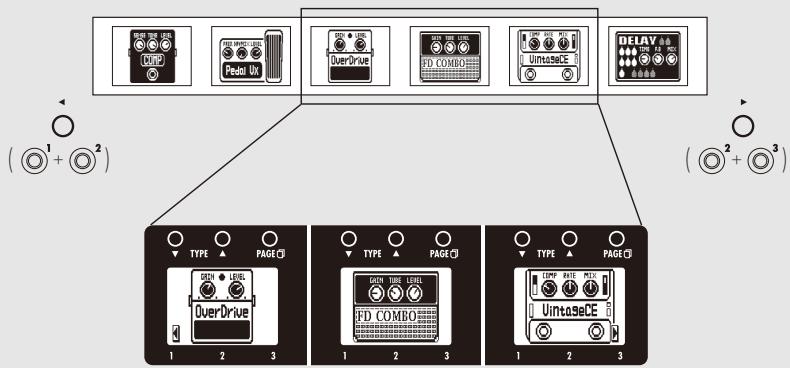
You can select and arrange the order of up to six effects as you like and use them simultaneously. With the SCROLL keys, you can quickly change which effects are shown.
Feels just like using effect pedals
Three effects can be shown on the displays at the same time, allowing you to control them intuitively using the parameter knobs and footswitches.
Realistic amplifier modeling
Using our new ZFX-IV DSP, we have faithfully recreated the distortion rich with harmonics and the compression characteristic of tube amps.
The precisely-crafted modeled sounds are extremely responsive to picking dynamics and guitar volume control.
Combine diverse effects as you like
With over 100 types of effects that you can freely combine, the G3/G3X is a multi-effects unit that will let your imagination run wild.
Looper that can be synchronized with rhythms
The looper can be synchronized with rhythms and record phrases of up to 40 seconds.
Works with ZOOM Edit & Share software
The GB3/GB3X can be used with Edit & Share software, which is a patch editor and librarian, on a computer to back up patches and change the order of effects.
See the ZOOM website (http://wwwzoom.co.jp/) for further information about Edit & Share.
Terms Used in This Manual
Patch
The ON/OFF status and the parameter settings of each effect are stored as "patches." Use patches to recall and save effects. The GB/GBX can store 100 patches.
Bank
A set of 10 patches is called a "bank." The GB/GBX has 10 banks labeled A-J.
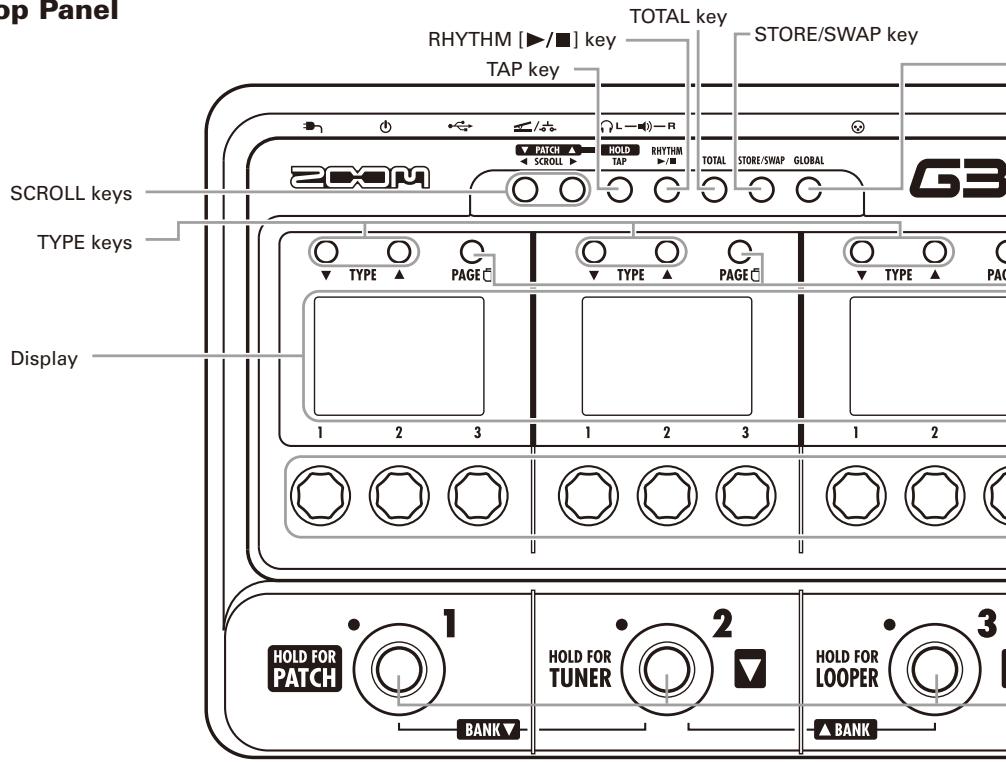
Top Panel
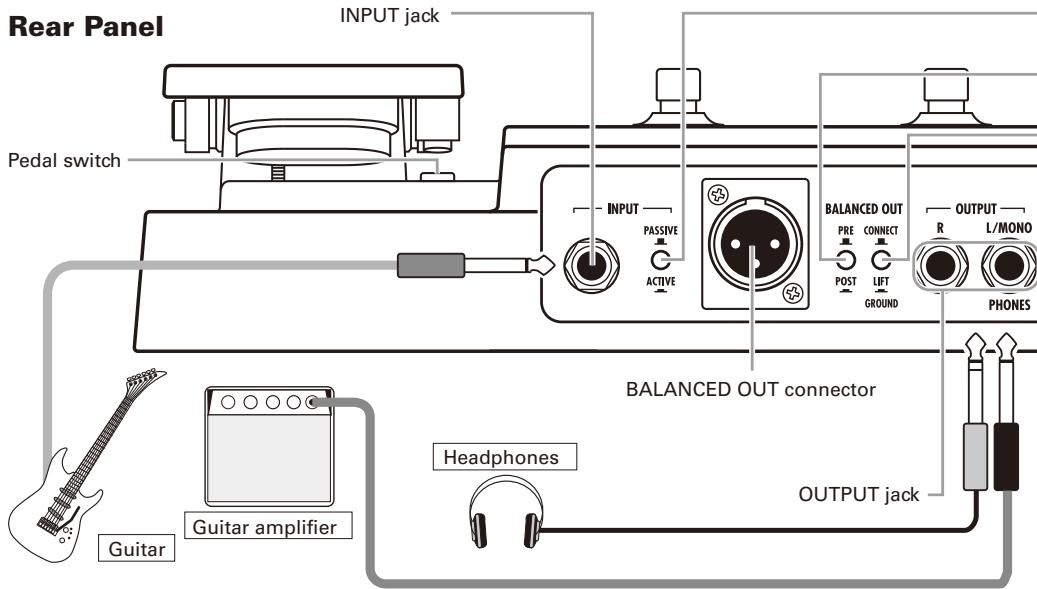
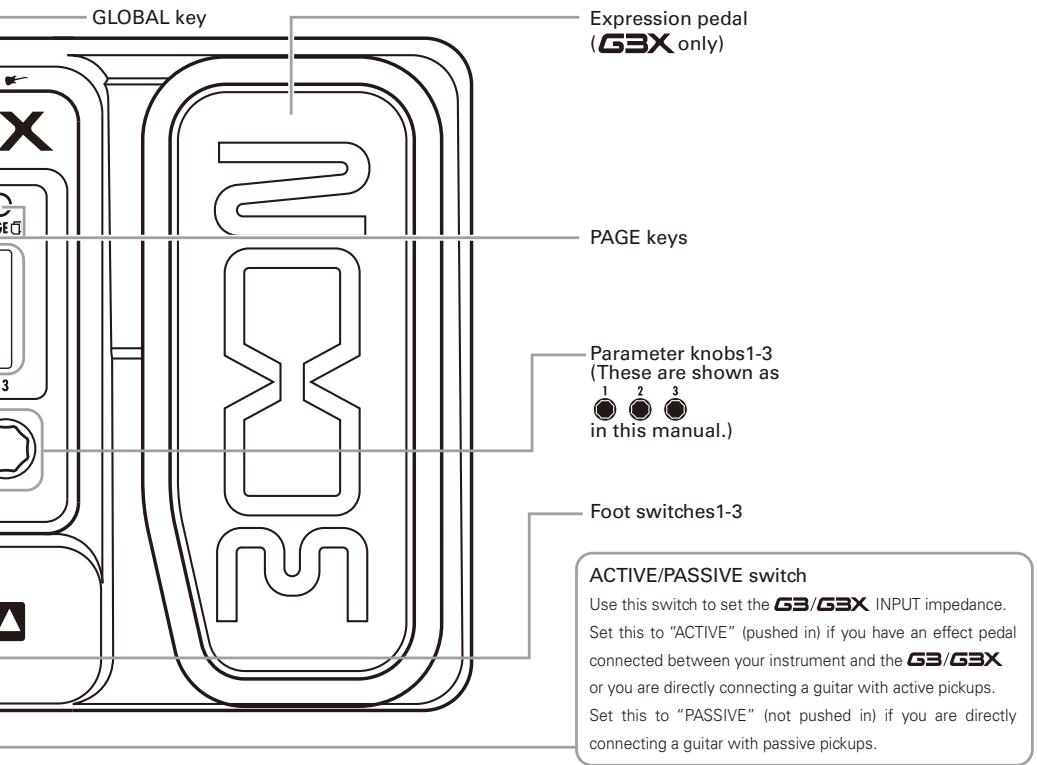
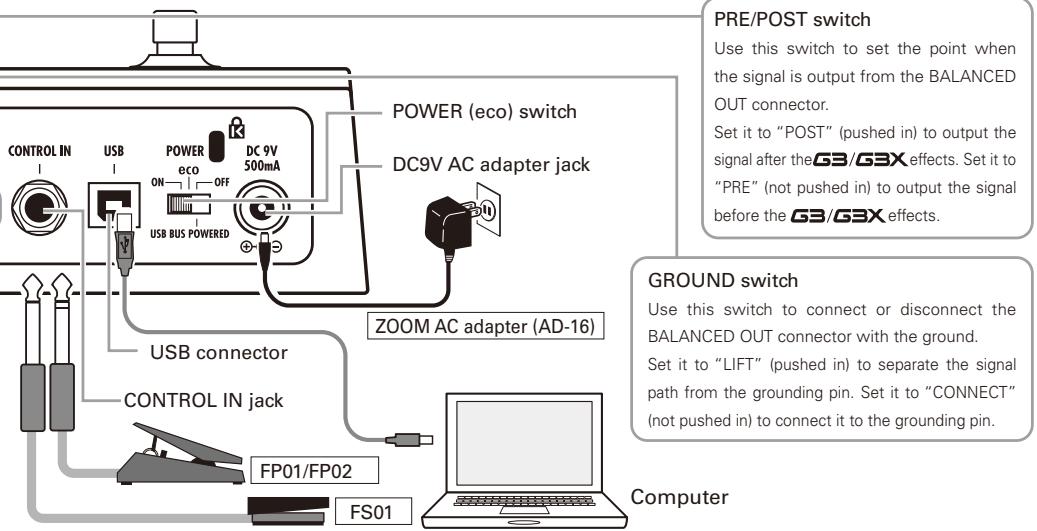
Rear Panel
To turn the power on
- Lower the amplifier's volume all the way.
When using batteries
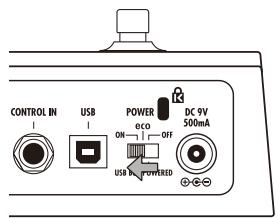
Insert batteries into the battery compartment and set the POWER switch to ON.
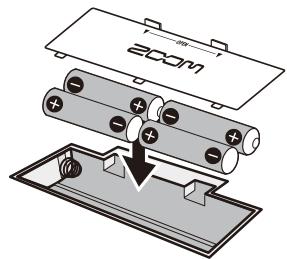
Bottom of the unit

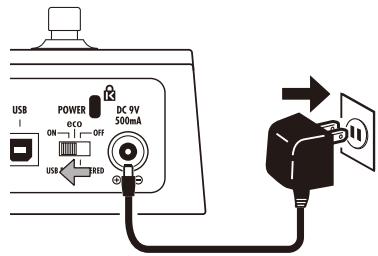
When using an adapter
Connect the AC adapter and set the POWER switch to ON.
- Turn the amplifier's power on and raise its volume.
Using the POWER switch eco setting
If the G3 /G3X is not used for about 25 minutes, it will automatically switch to standby.
If a guitar signal is being input, the G3 / G3X will not automatically switch to standby.
Display information
Home Screens show the current patch
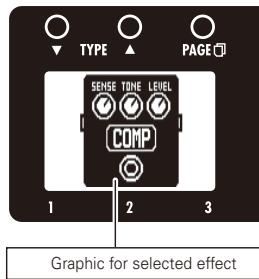
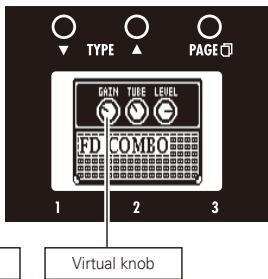
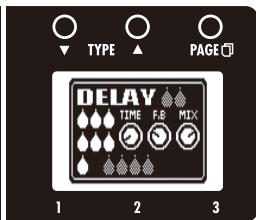
HINT
- The positions of the virtual knobs change with the parameter values.
■ Edit Screens show parameters being edited
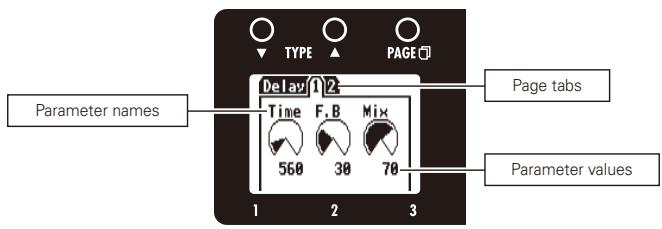
HINT
- If there are 4 or more parameters that can be adjusted, multiple page tabs will be shown.
Confirm that the Home screens are shown.
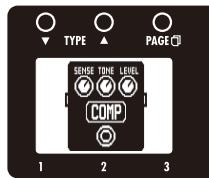
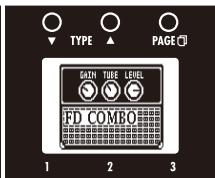
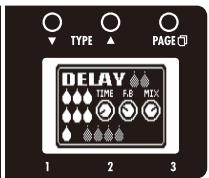
1 | To turn effects ON and OFF


Turns the effect ON/OFF.
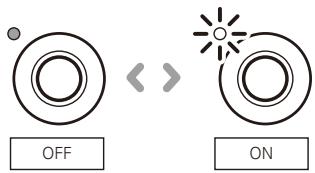
NOTE
- An effect is ON when its footswitch LED is lit.
- An effect is OFF when its footswitch LED is not lit.
2 | To select an effect type
Press

TYPE

- The effect type changes.
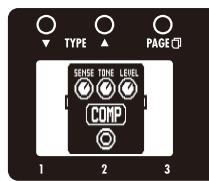
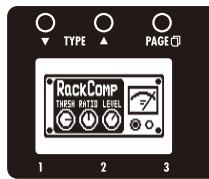
HINT
- See page 40 for information about effect types and parameters.
- When the GLOBAL menu AUTO SAVE function is ON, changes made will be saved automatically. (See page 24.)
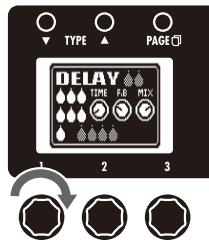
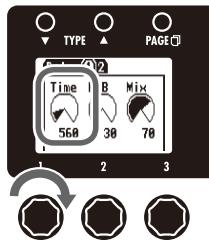
3 | To adjust parameters
- Turn


and


- The editing screen opens where you can adjust parameters.
NOTE
- Time, rate and some other effect parameters can be set in note durations that are synchronized to the tempo.
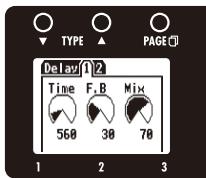
4 | To change the page
Press

PAGE

- The next page opens.
Effect processing capacity
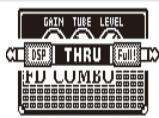
The G3/G3X allows you to combine six effects as you like. However, if you combine effect types that require great amounts of processing power (amp models, for example), the available processing capacity might not be enough. If the processing required for an effect exceeds the available capacity, the effect is bypassed and a "DSP Full!" message appears. This can be avoided by changing one or more of the effect types or setting them to THRU.
NOTE
- An effect requires the same amount of processing power whether it is on or off.
HINT
- Press and hold the PAGE button for at least one second to immediately set an effect to THRU.
5 | To scroll through the effects shown

Example: If you press

HINT
You can also scroll using the footswitches.
- Left: Press

) simultaneously.
Right: Press

() simultaneously.
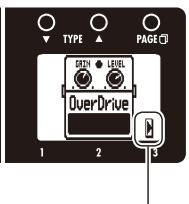
This shows there are more effects in this direction.
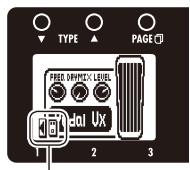
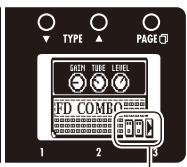
This shows the number of effects hidden in this direction.
About scrolling the effects
With the G3/G3X, you can arrange and use up to six effects simultaneously. The display shows three of these effects at a time. By scrolling, you can move to different parts of the effect chain and view effects that might have been hidden.
Confirm that the Home display is shown.
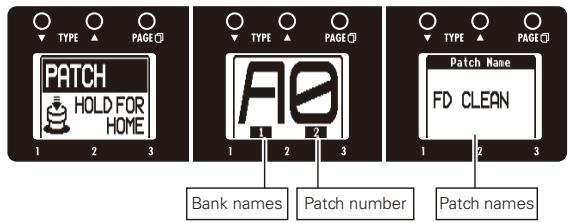
1 To activate patch selection
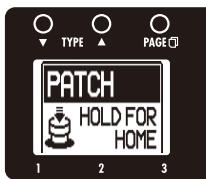
- Press and Hold 0.1N oL D P A T C H for 1 second.
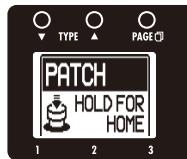
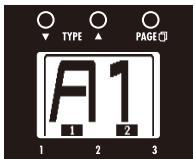
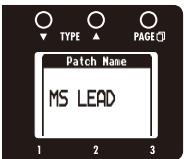
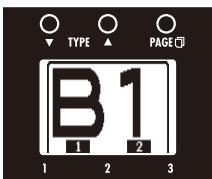
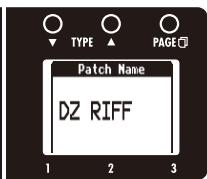
- The screens show the patch bank, number and name.
2 | To change the patch
- Press ^2 to select the next lower patch.
- Press to select the next higher patch.
- Turn of the middle effect.

- The patch number and name changes.
HINT
- You can also change patches
by pressing as you
press and hold

3 | To change the bank
- Press 1 and 2 at the same time to select the next lower bank.
- Press and at the same time to select the next higher bank.
-
Turn 1 of the middle effect.
-
The patch bank and name changes.
NOTE
- When pressing two footswitches at the same time, the sound could be affected by the footswitch that is pressed slightly earlier. To avoid this, do not make sound when switching banks.
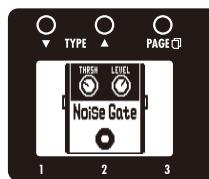
4 | To return to the Home Screens
- Press and hold HOLD FOR PATCH for 1 second.

When the AUTO SAVE function is ON, settings are saved automatically after parameters are adjusted.
1 | To store a patch or swap
STORE/SWAP
Press


STORE/SWAP
- O blinks and the screens appear as below.
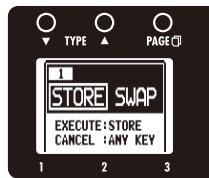
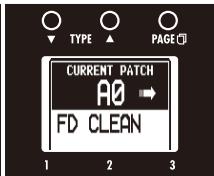
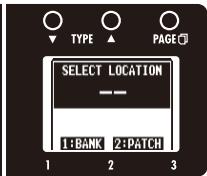
Selected patch
Saved/swapped patch destination
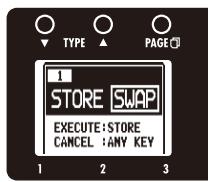
2 | To select whether to store or swap the patch
- Turn of the left effect.

Store
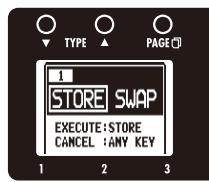
Swap
3 | To set where to store or swap the new patch
To change the patch number where stored/swapped
- Turn

of the right effect.
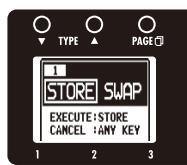
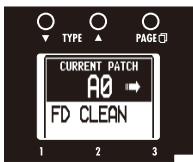
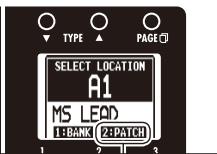
Change the patch number
To change the bank where stored/swapped
- Turn

of the right effect.

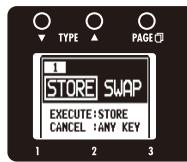
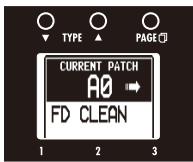
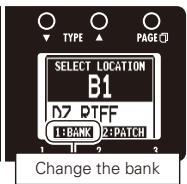
NOTE
- When the GLOBAL menu AUTO SAVE function is ON, the currently active patch cannot be selected as the destination.
4 | To complete patch storing/swapping
Press
STORE/SWAP

- After "COMPLETE!" appears on the display, the store/swap patch opens.
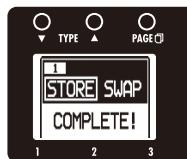
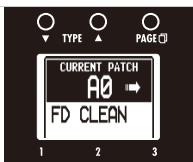
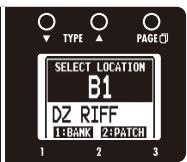
HINT
- To cancel this, press any key instead of STORE/SWAP
1 | To activate the TOTAL menu
Press

TOTAL
NOTE
- Settings made for TOTAL parameters are saved separately for each patch.
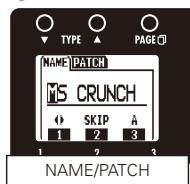
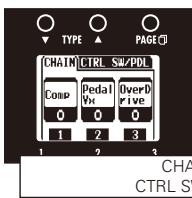
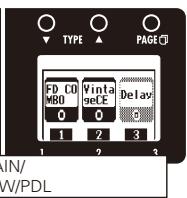
2 | To change the patch name
- Turn


and

of the left effect.
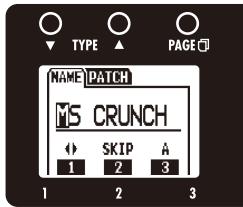

:Turn

to move the cursor.

:Turn

to change the type of character/symbol.

:Turn

to change the character.
NOTE
- The following characters and symbols can be used.
! $ % & ' ) + , - ; = @ [ ] ^ _ ` { } ~A-Z, a-z, 0-9, (space)
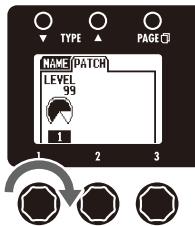
3 | To adjust the patch level
Press

of the left effect and turn

NOTE
The setting range is 0-120.
HINT
- To change the overall volume of all patches, adjust the master level. (See page 20.)

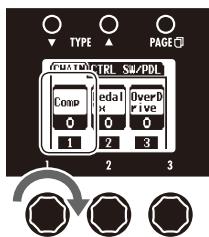
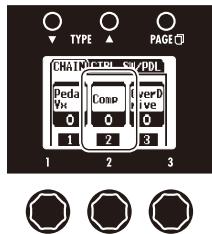
4 | To change the order of the effects
- Turn 1, 2 and 3 of the middle and right effects to change effect positions.
HINT
- Effects that are OFF appear gray.
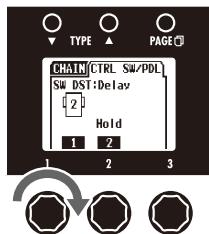
5 | To set an optional footswitch function
Press

and turn

of the middle effect.

- Effect functions that can be assigned are shown.
HINT
- BYPASS/MUTE: Use to bypass or mute the effect.
- TAP TEMPO: Press the footswitch repeatedly at the desired tempo to set the tempo used for rhythms, the looper and effects.
NO ASSIGN: No function is assigned to the footswitch.
If the selected parameter has multiple functions, use to select one.
NOTE
- In order to use the function set, the corresponding effect must also be ON.
See "Effect types and parameters" for details about the functions that can be assigned for each effect. - If you connect a ZOOM FP01 or FP02 pedal to the G3X, you can use it as a volume pedal.
6 | To set an expression pedal function
Using the built-in expression pedal of the G3X or an optional external expression pedal (ZOOM FP01/FP02) connected to a G3, you can control volume and effect parameters in real-time.
To select the controlled parameter
- Press of the middle effect and turn of the right effect.
- Parameters that can be assigned to the expression pedal are shown on the right display.
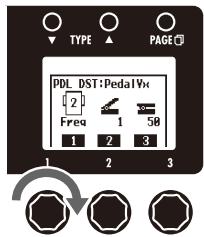
NOTE
- If multiple effects that support AUTO ASSIGN are active, all their corresponding parameters will be assigned to the expression pedal at the same time.
- See "Effect types and parameters" for details about the functions that can be assigned for each effect.
HINT
- INPUT VOL: Controls the input level.
- OUTPUT VOL: Controls the output level. (Does not affect the volume of the rhythm or looper).
- AUTO ASSIGN: When an effect that supports auto assign is selected, a parameter will be assigned to the pedal automatically as follows.
| Effect type | Parameter |
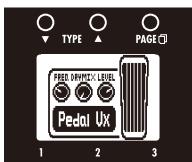
| PedalVx | Freq |
| PedalCry | Freq |
| TheVibe | Speed |
| PDL Pitch | Bend |
| PDL MnPitch | Bend |
- NO ASSIGN: no function is assigned to the footswitches.
- The effect that assigned to the expression pedal can be used to turn an effect ON/OFF with the pedal switch.
Set the parameter range that the pedal can adjust
- Turn 2 of the right effect to set the minimum value.
- Turn 3 of the right effect to set the maximum value.
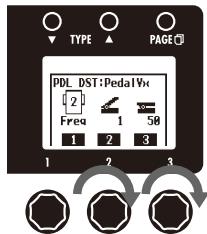
HINT
- The minimum value can be set higher than the maximum value. When set this way, pushing the pedal down decreases the effect, while letting it up increases the effect.
- When using AUTO ASSIGN, the minimum and maximum values of parameters are set automatically and cannot be changed.
7 To exit the TOTAL menu
1 | To activate the GLOBAL menu
Press


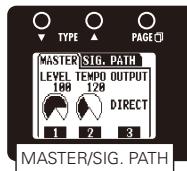
NOTE
- Global parameter settings affect all patches.
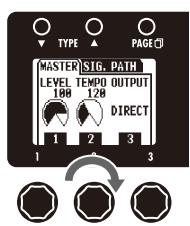
2 | To adjust the master level
- Turn

of the left effect.

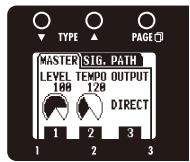


NOTE
The setting range is 0-120.
3 To set the master tempo
- Turn

of the left effect.
NOTE
The setting range is 40-250.
- This tempo setting is used by every effect, rhythms and the looper.
Setting the tempo by tapping
- Press two or more times at the desired tempo.


HINT
You can also set the tempo using an FS01 footswitch (sold separately). (See page 17)
4 | To select the connected equipment
- Turn

of the left effect.
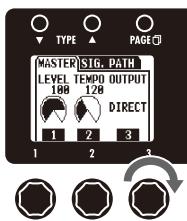
| Parameter value | Meaning |
| DIRECT | Use when connected to headphones or monitor speakers |
| COMBO FRONT | Use when connected to an ordinary combo amp input |
| STACK FRONT | Use when connected to an ordinary stack amp input |
| COMBO POWER AMP | Use when connected to an ordinary combo amp return |
| STACK POWER AMP | Use when connected to an ordinary stack amp return |
5 | To change the direction of the signal flow
- Press on the left effect.

- Turn to set the signal flow direction.
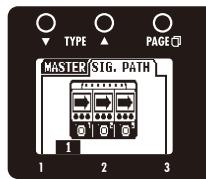
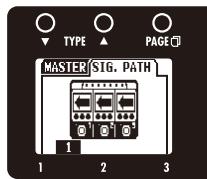
6 | To set the amount of time until the backlight dims
- Turn of the middle effect.

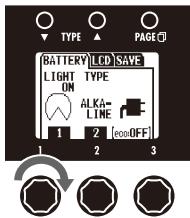
NOTE
- The setting options are ON and 1-30 seconds.
HINT
- The amount of power consumed can be reduced by dimming the backlight.
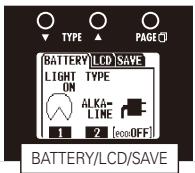
7 To select the battery type
- Turn 2 of the middle effect to set the battery type to ALKALINE or Ni-MH (nickel-metal hydride).
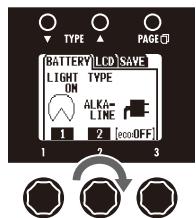
:Operating on batteries :Operating on adapter power :Operating on USB bus power
NOTE
- Set the battery type correctly in order to allow the remaining battery charge to be shown accurately.
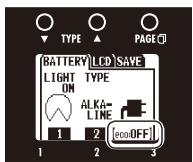
8 | To check the eco mode status
- The eco mode ON/OFF status is shown beneath the power icon.
9 | To adjust the display contrast
- Press O of the middle effect.

- Turn , and of the middle effect.
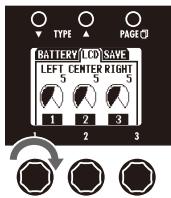
1 : Left display
2 : Center display
3 : Right display
10 | To set the auto save function
- Press O of the middle effect.

- Turn 1 of the middle effect.
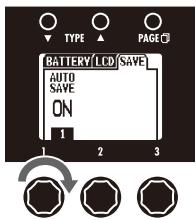
HINT
- ON: Patch changes will be saved automatically.
- OFF: Patch changes will not be saved until they are saved manually. (See page 14.)
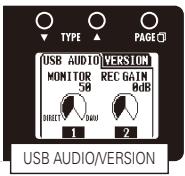
11 | To adjust the USB audio monitoring balance
- Turn of the right effect.
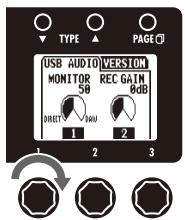
NOTE
- This adjusts the balance between the output signal from the DAW software (computer) and the DIRECT signal from the unit (after effects).
The setting range is 0-100. - Set to 0 to monitor only the DIRECT signal or 100 to monitor only the DAW (computer) output signal.
12 | To adjust the recording level
- Turn 2 of the right effect.


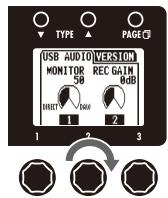
NOTE
- This adjusts the level of the signal sent to the DAW software (computer).
- The setting range is ± 6 dB.
13 | To view the firmware versions
- Press of the right effect.

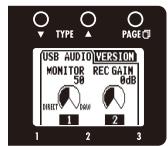
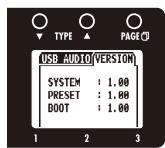
HINT
- Check the ZOOM website (http://www.zoom.co.jp) for the latest firmware versions.
14 | To exit the GLOBAL menu

1 | To activate the tuner
- Press ^2 for 1 second.
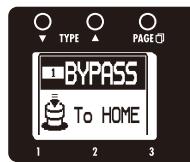
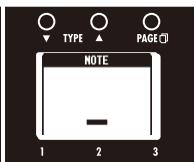
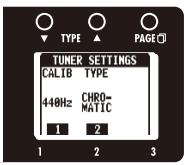
NOTE
1 -Turn switch be MUTE.
of the left effect to between BYPASS and
2 | To change the tuner's standard pitch
- Turn of the right effect.
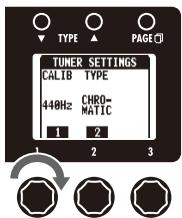
NOTE
The standard pitch for middle A can be adjusted to 435 - 445Hz
- The standard pitch setting is saved even when the power is turned OFF.
3 | To select the tuner type
- Turn of the right effect.
CHROMATIC
The chromatic tuner shows the nearest pitch name (semitone) and how far the input sound is from that pitch.
Other tunes types
Depending on the selected type, the nearest string name and how far the sound input is from that pitch are shown. Select from the following tunings.
| Display | Meaning | String number/Note name | ||||||
| 7 | 6 | 5 | 4 | 3 | 2 | 1 | ||
| GUITAR | Standard tuning for guitars, including 7-string guitars | B | E | A | D | G | B | E |
| OPEN A | In open A tuning, the open strings make an A chord | - | E | A | E | A | C# | E |
| OPEN D | In open D tuning, the open strings make a D chord | - | D | A | D | F# | A | D |
| OPEN E | In open E tuning, the open strings make an E chord | - | E | B | E | G# | B | E |
| OPEN G | In open G tuning, the open strings make a G chord | - | D | G | D | G | B | D |
| DADGAD | This alternate tuning is often used for tapping, etc. | - | D | A | D | G | A | D |
4 | To use a drop tuning
- Turn

of the right effect.
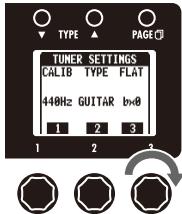
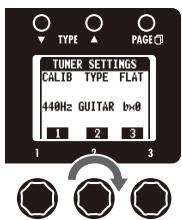
NOTE
- You can lower the tuning by one (b × 1) , two (b × 2) or three (b × 3) semitones.
- Drop tuning is not possible when the TYPE is set to CHROMATIC.
5 | To tune the guitar
- Play the open string that you want to tune and tune it.
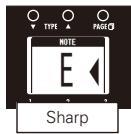
CHROMATICTUNER
The name of the nearest note and the pitch accuracy are shown.
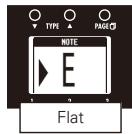
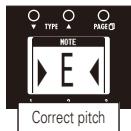
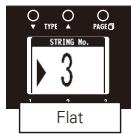
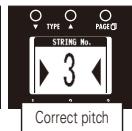
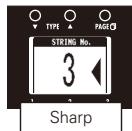
OTHERTUNERS
The number of the nearest string and the pitch accuracy are shown.
HINT
- The keys above the displays also light to show the pitch accuracy.
Pitch too low
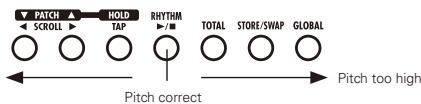
6 | To end tuning
Press

1 | To activate a rhythm
Press

RHYTHM

- The rhythm pattern starts to play and the rhythm setting screens open.

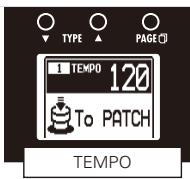
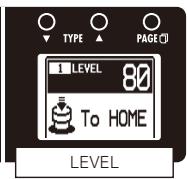
HINT
- You can use a rhythm pattern while using the looper.
2 To select the rhythm pattern
- Turn

of the left effect.

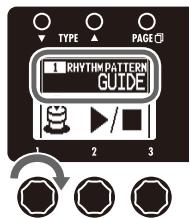
NOTE
See page 59 for types of patterns.
3 To adjust the tempo
- Turn

of the middle effect.

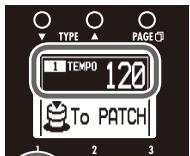
HINT
- You can also set the tempo using


NOTE
The setting range is 40-250.
- This tempo setting is used by every effect, rhythms and the looper.
4 | To adjust the rhythm level
- Turn 1 of the right effect.
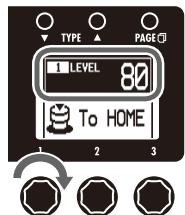
NOTE
The setting range is 0-100.
5 | To stop the rhythm
Press

HINT
Press again to restart rhythm pattern playback.
6 | To complete setting the rhythm
The rhythm stops and the previous screen reappears
To select a patch (and keep the rhythm playing)
To return to the Home Screens (and keep the rhythm playing)
1 | To activate the Looper
Press

for 1 second.
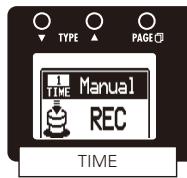
2 | To set the recording time
- Turn

on the left effect.

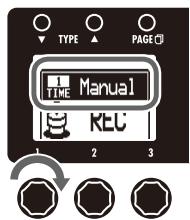
Manual
Use the footswitch to start and stop recording.
Note mark
Set the recording time by setting the tempo and the number of quarter notes.
NOTE
- The looper can record 1.5-40 seconds (20 seconds when UNDO is enabled).
- If the setting (number of quarter notes) would not fall in this range, it will automatically be adjusted.
- Changing the recording time will erase the currently recorded loop.
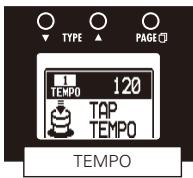
3 | To adjust the tempo
- Turn

of the middle effect.
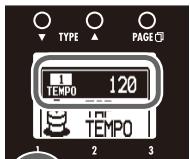
HINT
- You can also set the tempo using
- If no loop has been recorded yet, you can also set the tempo by tapping 2.
NOTE
The setting range is 40-250.
- Changing the tempo will erase the currently recorded loop.
- This tempo setting is used by every effect, rhythms and the looper.
4 | To record a phrase and play it back
Press

Recording standby
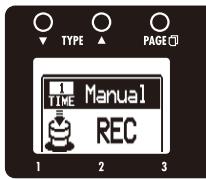
Recording
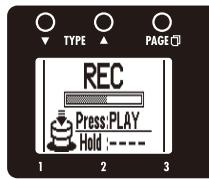
Loop playing back
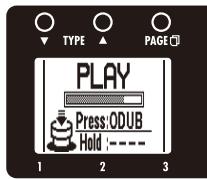
If set to "Manual"
- When is pressed again or the maximum recording time (about 40 seconds) is reached, loop playback starts (and "PLAY" appears on the display).
If set to a note mark
- After recording continues for the set time, loop playback starts (and "PLAY" appears on the display).
HINT
During recording, press to cancel recording.

NOTE
- During rhythm playback, recording will start after the precount.
- Since quantization is applied during rhythm playback, even if you stop the recording a little out of time, adjustment will be made automatically and the loop will play with correct timing.
5 To stop loop playback
Press

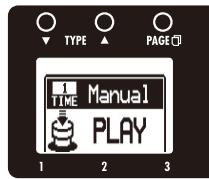
6 | To overdub a recorded loop
To start over dubbing
- During loop playback, press

Loop playing back
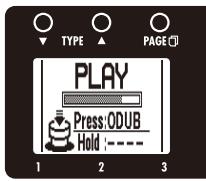
Over dubbing
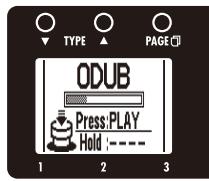
To end overdubbing
- Press again.
Over dubbing
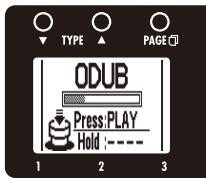
Loop playing back
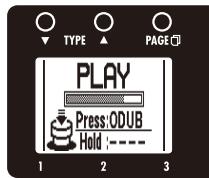
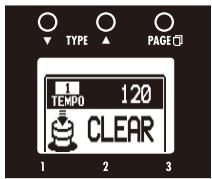
7 To erase the loop
Press

for 1 second.
- "CLEAR" appears on the display.
8 | To adjust the loop volume
To adjust the volume of the looped phrase
- Turn

of right effect.
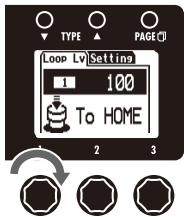
NOTE
The setting range is 0-100.
To adjust the volume of the rhythm
Press

PAGE
of the right effect and turn


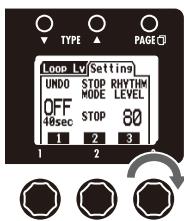
NOTE
The setting range is 0-100.
9 | To return to the Home Screens
Press

HINT
- You can return to the Home Screens while the loop is playing.
NOTE
- Returning to the Home Screens will not erase the loop.
- Turning the power OFF will erase the loop.
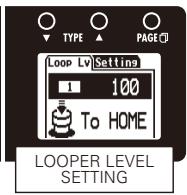
10 | To change the Looper settings
- Press O of the right effect.
PAGE
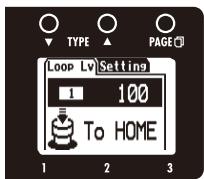

To activate the Undo function
- Turn 1 of the right effect.
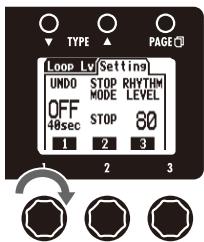
NOTE
- When Undo is ON, the maximum loop recording time is limited to 20 seconds.
HINT
- When Undo is ON, you can cancel the last overdubbing by pressing for 1 second. After undoing, you can also redo by pressing for 1 second again, restoring the last overdubbing.
To select the STOP MODE
- Turn 2 of the right effect.

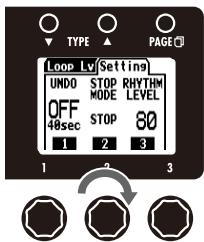
| STOP MODE | How loop playback stops |
| STOP | Playback stops immediately |
| FINISH | Playback stops after the loop plays to its end |
| FADE OUT | Playback stops after fading out |
HINT
Even when set to "FINISH" or "FADE OUT", you can stop loop playback immediately by pressing and holding down
This unit can be used with computers running the following operating systems.
Compatible OS
Windows
Windows® XP SP3 (32bit) or newer
Windows® Vista SP1 (32bit, 64bit) or newer
Windows® 7 (32bit, 64bit)
32bit: Intel® Pentium® 4 1.8GHz or faster, RAM 1GB or more
64bit: Intel Pentium Dual-Core 2.7GHz or faster, RAM 2GB or more
Mac
OS X 10.5/10.6/10.7
Intel® Core Duo 1.83GHz or faster
RAM 1GB or more
Quantization (bit-rate)
16-bit
Sampling frequency
44.1kHz
For details about recording, playback and other functions, please see the included startup guide.
HINT
- You can adjust the balance between the signals from the G3/G3X and the computer. (See page 24.)
- You can adjust the recording level. (See page 25.)
- When its POWER switch is set to OFF, the G3/G3X can be connected to a computer by USB and powered by its USB bus.
NOTE
- To monitor the signal of your connected guitar after it has passed through your DAW software (computer), set the USB AUDIO MONITOR balance to 100. (See page 24.)
At other settings, the signals from the computer and the G3/G3X will be mixed, causing the output signal to sound like a flanger effect is being used.
1 | To calibrate its sensitivity
While pressing

GLOBAL
, set the POWER switch to ON.
GLOBAL

USB
POWER
ECO

K
- Following the instructions shown, operate the pedal and press
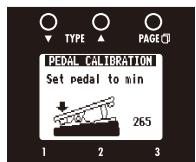
STORE/SWAP
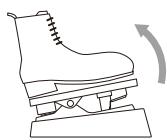
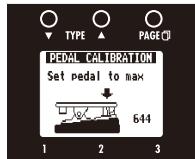
O each time.
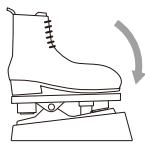
- When calibration is over, "OK!" appears on the screen and play mode starts.
HINT
- If "ERROR!" appears, restart calibration from the beginning.
2 | To adjust the torque
You can use a 5mm hex key (Allen wrench) to adjust the torque of the expression pedal.
- Insert the hex key into the torque adjustment screw on the side of the pedal.
Turn it clockwise to tighten the pedal, and turn it counterclockwise to loosen the pedal.
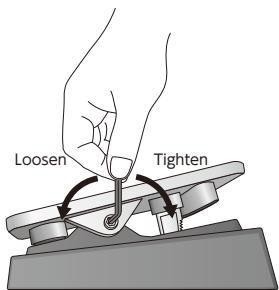
NOTE
- Be careful when loosening a torque adjustment screw, because if you loosen it too much, it could come off inside the unit, making it impossible to hold the pedal in place.
To download the latest firmware Update application:
- Visit the ZOOM website (http://wwwzoomo.co.jp).
HINT
- Open the GLOBAL menu to check the current firmware versions. (See page 25.)
1 | To prepare to update the firmware
- Confirm that the POWER switch is set to OFF.

- While pressing both USB cable.


, connect the unit to a computer using the
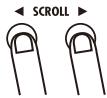
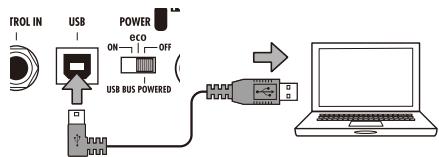

- The VERSION UPDATE screen appears.
VERSION UPDATE
Ready for version update!
2 | To update the firmware
- Launch the firmware update application on your computer, and execute the update.
NOTE
- Do not disconnect the USB cable while the firmware is being updated.
HINT
- See the ZOOM website for instructions about how to use the application.
3 | To complete updating
- When the G3/G3X has finished updating, "Complete!" appears on the display.

- Disconnect the USB cable.
HINT
- Updating the firmware will not erase saved patches.
Restoring the G3/G3X to its factory default settings
1. To use the All Initialize function
- While pressing STORE/SWAP, set the POWER switch to ON.
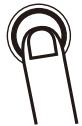
STORE/SWAP
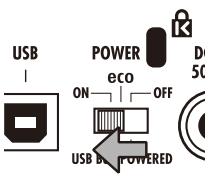

- The All Initialize screen appears.
All Initialize
Are You Sure?
YES:STORE
NO : ANY KEY
2. To execute the All Initialize function
STORE/SWAP
Press
NOTE
- Press any key other than STOK/SWAP to cancel.
HINT
- Executing the All Initialize function will restore all the settings of the G3/G3X, including its patches, to factory defaults. Do not use this function unless you are certain that you want to do this.
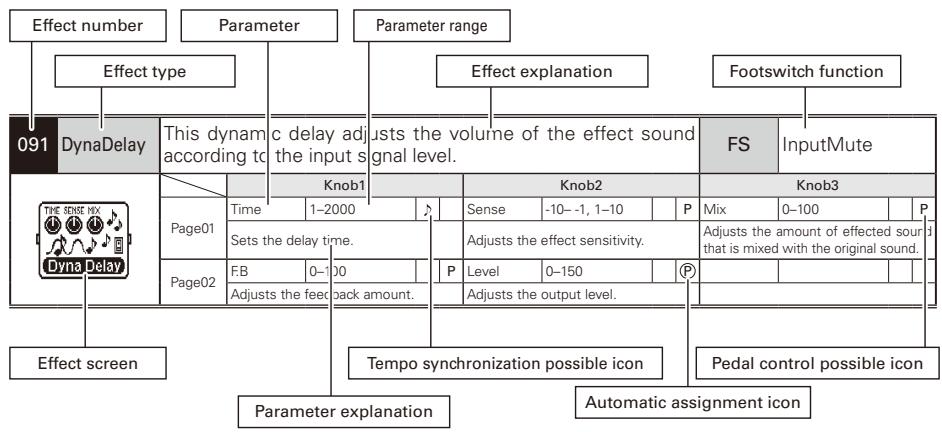
■ Effect Types and Parameters
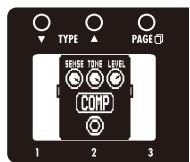
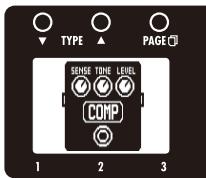
| 001 Comp | This compressor in the style of the MXR Dyna Comp. | ||||||||||
| Knob1 | Knob2 | Knob3 | |||||||||
| Page01 | Sense | 0-10 | P | Tone | 0-10 | Level | 0-150 | P | |||
| Adjusts the compressor sensitivity. | Adjusts the tone. | Adjusts the output level. | |||||||||
| Page02 | ATTCK | Slow, Fast | |||||||||
| Sets compressor attack speed toFast or Slow. | |||||||||||
| 002 RackComp | This compressor allows more detailed adjustment than COMP. | ||||||||||
| Knob1 | Knob2 | Knob3 | |||||||||
| Page01 | THRSH | 0-50 | P | Ratio | 1-10 | Level | 0-150 | P | |||
| Sets the level that activates thecompressor. | Adjusts the compression ratio. | Adjusts the output level. | |||||||||
| Page02 | ATTCK | 1-10 | |||||||||
| Adjusts the compressor attack rate. | |||||||||||
| 003 M Comp | This compressor provides a more natural sound. | ||||||||||
| Knob1 | Knob2 | Knob3 | |||||||||
| Page01 | THRSH | 0-50 | P | Ratio | 1-10 | Level | 0-150 | P | |||
| Sets the level that activates thecompressor. | Adjusts the compression ratio. | Adjusts the outal output level. | |||||||||
| Page02 | ATTCK | 1-10 | |||||||||
| Adjusts the compressor attack rate. | |||||||||||
| 004 SlowATTCK | This effect slows the attack of each note, resulting in a violin-like performance. | ||||||||||
| Knob1 | Knob2 | Knob3 | |||||||||
| Page01 | Time | 1-50 | P | Curve | 0-10 | P | Level | 0-150 | P | ||
| Adjusts the attack time. | Set the curve of volume change duringattack. | Adjusts the output level. | |||||||||
| Page02 | |||||||||||
| 005 ZNR | ZOOM's unique noise reduction cuts noise during pauses in playing without affecting the tone. | ||||||||||
| Knob1 | Knob2 | Knob3 | |||||||||
| Page01 | THRSH | 1-25 | P | DETCT | Gtrl, Efxln | Level | 0-150 | P | |||
| Adjusts the effect sensitivity. | Sets control signal detection level. | Adjusts the output level. | |||||||||
| Page02 | |||||||||||
| 006 NoiseGate This is a noise gate that cuts the sound during playing pauses. | |||||||||||||
| THICK LEVEL Noise Gate | Page01 | Knob1 | Knob2 | Knob3 | |||||||||
| THRSH | 1-25 | P | Level | 0-150 | P | ||||||||
| Adjusts the effect sensitivity. | Adjusts the output level. | ||||||||||||
| Page02 | |||||||||||||
| 007 DirtyGate This vintage style gate features a characteristic way of closing. | |||||||||||||
| THICK LEVEL DIRTY CATE | Page01 | Knob1 | Knob2 | Knob3 | |||||||||
| THRSH | 1-25 | P | Level | 0-150 | P | ||||||||
| Adjusts the effect sensitivity. | Adjusts the output level. | ||||||||||||
| Page02 | |||||||||||||
| 008 GraphicEQ This unit has a six band equalizer. | |||||||||||||
| ParaEQ This is a 2-band parametric equalizer. | |||||||||||||
| ParaEQ | Page01 | Knob1 | Knob2 | Knob3 | |||||||||
| Freq1 | 20Hz-20kHz | Q1 | 0.5, 1, 2, 4, 8, 16 | Gain1 | -12-12 | ||||||||
| Adjusts center frequency of EQ1. | Adjusts EQ1 Q. | Adjusts EQ1 gain. | |||||||||||
| Page02 | Freq2 | 20Hz-20kHz | Q2 | 0.5, 1, 2, 4, 8, 16 | Gain2 | -12-12 | |||||||
| Adjusts center frequency of EQ2. | Adjusts EQ2 Q. | Adjusts EQ2 gain. | |||||||||||
| Page03 | Level | 0-150 | P | ||||||||||
| Adjusts the output level. | |||||||||||||
| 010 CombFLTR This effect uses the comb filter that results from fixing the modulation of the flanger like an equalizer. | |||||||||||||
| CombFLTR | Page01 | Knob1 | Knob2 | Knob3 | |||||||||
| Freq | 1-50 | P | Reso | -10-10 | P | Mix | 0-100 | P | |||||
| This sets the emphasized frequency. | Adjusts the intensity of the resonance sound of the effect. | Adjusts the amount of effected sound that is mixed with the original sound. | |||||||||||
| Page02 | HiDMP | 0-10 | Level | 0-150 | P | ||||||||
| Adjusts the treble attenuation of the effect sound. | Adjusts the output level. | ||||||||||||
| 011 AutoWah This effect varies wah in accordance with picking intensity. | |||||||||||||
| AutoWah | Page01 | Knob1 | Knob2 | Knob3 | |||||||||
| Sense | -10-1, 1-10 | P | Reso | 0-10 | P | Level | 0-150 | P | |||||
| Adjusts the sensitivity of the effect. | Adjusts the intensity of the resonance sound. | Adjusts the output level. | |||||||||||
| Page02 | |||||||||||||
| 012 Resonance This effect varies the resonance filter frequency according to picking intensity. | |||||||||||||
| AutoResonance | Page01 | Knob1 | Knob2 | Knob3 | |||||||||
| Sense | -10-1, 1-10 | P | Reso | 0-10 | P | Level | 0-150 | P | |||||
| Adjusts the sensitivity of the effect. | Adjusts the intensity of the resonance sound. | Adjusts the input level. | |||||||||||
| Page02 | |||||||||||||
| 013 Cry | This effect varies the sound like a talking modulator. | ||||||||||||
| Knob1 | Knob2 | Knob3 | |||||||||||
| Page01 | Range | 1-10 | P | Reso | 0-10 | P | Sense | -10-1, 1-10 | P | ||||
| Adjusts the frequency range processed by the effect. | Adjusts the intensity of the modulation resonance sound. | Adjusts the sensitivity of the effect. | |||||||||||
| Page02 | Bal | 0-100 | P | Level | 0-150 | P | |||||||
| Adjusts the balance between original and effect sounds. | Adjusts the output level. | ||||||||||||
| 014 M-Filter | This envelope filter has the flavor of a MOOG MF-101 low pass filter and can be set in a wide range. | ||||||||||||
| Knob1 | Knob2 | Knob3 | |||||||||||
| Page01 | Freq | 0-100 | P | Sense | 0-10 | P | Reso | 0-10 | P | ||||
| Sets minimum frequency of envelope filter. | Sets effect sensitivity. | Sets effect resonance. | |||||||||||
| Page02 | Type | HPF, BPF, LPF | Chara | 2Pole, 4Pole | VLCTY | Fast, Slow | |||||||
| Sets filter type. | Adjusts amount of filter applied. | Sets speed of filter action. | |||||||||||
| Page03 | Bal | 0-100 | P | Level | 0-150 | P | |||||||
| Adjusts the balance between original and effect sounds. | Adjusts the output level. | ||||||||||||
| 015 Step | This special effect gives the sound a stepped quality. | ||||||||||||
| Knob1 | Knob2 | Knob3 | |||||||||||
| Page01 | Depth | 0-100 | Rate | 0-50 | P | Reso | 0-10 | P | |||||
| Sets the depth of the modulation. | Sets the speed of the modulation. | Adjusts the intensity of the modulation resonance sound. | |||||||||||
| Page02 | Shape | 0-10 | Level | 0-150 | P | ||||||||
| Adjusts the effect envelope. | Adjusts the output level. | ||||||||||||
| 016 SeqFLTR | The sequence filter has the flavor of a Z.Vex Seek-Wah. | ||||||||||||
| Knob1 | Knob2 | Knob3 | |||||||||||
| Page01 | Step | 2-8 | PTTRN | 1-8 | Speed | 1-50 | P | ||||||
| Adjusts number of sequence steps. | Sets effect pattern. | Sets modulation speed. | |||||||||||
| Page02 | Shape | 0-10 | Reso | 0-10 | P | Level | 0-150 | P | |||||
| Sets effect sound envelope. | Sets effect resonance. | Adjusts the output level. | |||||||||||
| 017 RndmFLTR | This filter effect changes character randomly. | ||||||||||||
| Knob1 | Knob2 | Knob3 | |||||||||||
| Page01 | Speed | 1-50 | P | Range | 0-100 | P | Reso | 0-10 | P | ||||
| Sets modulation speed. | Adjusts frequency range affected. | Sets effect resonance. | |||||||||||
| Page02 | Type | HPF, BPF, LPF | Chara | 2Pole, 4Pole | Bal | 0-100 | P | ||||||
| Sets filter type. | Adjusts amount of filter applied. | Adjusts the balance between original and effect sounds. | |||||||||||
| Page03 | Level | 0-150 | P | ||||||||||
| Adjusts the output level. | |||||||||||||
| 018 Booster | The booster increases signal gain to make the sound more powerful. | ||||||||||||
| Knob1 | Knob2 | Knob3 | |||||||||||
| Page01 | Gain | 0-100 | P | Tone | 0-100 | Level | 0-150 | P | |||||
| Adjusts the gain. | Adjusts the tone. | Adjusts the output level. | |||||||||||
| Page02 | |||||||||||||
| 019 OverDrive | Simulation of the Boss OD-1, the compact effect box that was the first to take the "overdrive" title. | ||||||||||||
| Knob1 | Knob2 | Knob3 | |||||||||||
| Page01 | Gain | 0-100 | P | Tone | 0-100 | Level | 0-150 | P | |||||
| Adjusts the gain. | Adjusts the tone. | Adjusts the output level. | |||||||||||
| Page02 | |||||||||||||
| 020 T Scream | Simulation of the Ibanez TS808, which is loved by many guitarists as a booster and has inspired numerous clones. | ||||||||||||
| Knob1 | Knob2 | Knob3 | |||||||||||
| Page01 | Gain | 0-100 | P | Tone | 0-100 | Level | 0-150 | P | |||||
| Adjusts the gain. | Adjusts the tone. | Adjusts the output level. | |||||||||||
| Page02 | |||||||||||||
| 021 Governor | Simulation of the Guv'nor distortion effect from Marshall. | ||||||||||||
| Knob1 | Knob2 | Knob3 | |||||||||||
| Page01 | Gain | 0-100 | P | Tone | 0-100 | Level | 0-150 | P | |||||
| Adjusts the gain. | Adjusts the tone. | Adjusts the output level. | |||||||||||
| Page02 | |||||||||||||
| 022 Dist+ | Simulation of the MXR distortion+ effect that made distortion popular worldwide. | ||||||||||||
| Knob1 | Knob2 | Knob3 | |||||||||||
| Page01 | Gain | 0-100 | P | Tone | 0-100 | Level | 0-150 | P | |||||
| Adjusts the gain. | Adjusts the tone. | Adjusts the output level. | |||||||||||
| Page02 | |||||||||||||
| 023 Dist 1 | Simulation of the Boss DS-1 distortion pedal, which has been a long-seller. | ||||||||||||
| Knob1 | Knob2 | Knob3 | |||||||||||
| Page01 | Gain | 0-100 | P | Tone | 0-100 | Level | 0-150 | P | |||||
| Adjusts the gain. | Adjusts the tone. | Adjusts the output level. | |||||||||||
| Page02 | |||||||||||||
| 024 Squeak | Simulation of the popular Pro Co Rat famous for its edgy distortion sound. | ||||||||||||
| Knob1 | Knob2 | Knob3 | |||||||||||
| Page01 | Gain | 0-100 | P | Tone | 0-100 | Level | 0-150 | P | |||||
| Adjusts the gain. | Adjusts the tone. | Adjusts the output level. | |||||||||||
| Page02 | |||||||||||||
| 025 FuzzSmile | Simulation of the Fuzz Face, which has made rock history with its humorous panel design and smashing sound. | ||||||||||||
| Knob1 | Knob2 | Knob3 | |||||||||||
| Page01 | Gain | 0-100 | P | Tone | 0-100 | Level | 0-150 | P | |||||
| Adjusts the gain. | Adjusts the tone. | Adjusts the output level | |||||||||||
| Page02 | |||||||||||||
| 026 GreatMuff | Simulation of the Electro-Harmonix Big Muff, which is loved by famous artists around the world for its fat, sweet fuzz sound. | ||||||||||||
| Knob1 | Knob2 | Knob3 | |||||||||||
| Page01 | Gain | 0-100 | P | Tone | 0-100 | Level | 0-150 | P | |||||
| Adjusts the gain. | Adjusts the tone. | Adjusts the output level。 | |||||||||||
| Page02 | |||||||||||||
| 027 MetalWRLD | Simulation of the Boss Metal Zone, which is characterized by long sustain and a powerful lower midrange. | ||||||||||||
| Knob1 | Knob2 | Knob3 | |||||||||||
| Page01 | Gain | 0-100 | P | Tone | 0-100 | Level | 0-150 | P | |||||
| Adjusts the gain. | Adjusts the tone. | Adjusts the output level。 | |||||||||||
| Page02 | |||||||||||||
| 028 HotBox | Simulation of the compact Matchless Hotbox pre-amplifier with a built-in tube. | ||||||||||||
| Knob1 | Knob2 | Knob3 | |||||||||||
| Page01 | Gain | 0-100 | P | Tone | 0-100 | Level | 0-150 | P | |||||
| Adjusts the gain. | Adjusts the tone. | Adjusts the output level. | |||||||||||
| Page02 | |||||||||||||
| 029 Z Clean | ZOOM original unadorned clean sound. | ||||||||||||
| Knob1 | Knob2 | Knob3 | |||||||||||
| Page01 | Gain | 0-100 | P | Tone | 0-100 | Level | 0-150 | P | |||||
| Adjusts the gain. | Adjusts the tone. | Adjusts the output level. | |||||||||||
| Page02 | |||||||||||||
| 030 Z MP1 | An original sound created by merging characteristics of an ADA MP1 and a MARSHALL JCM800. | ||||||||||||
| Knob1 | Knob2 | Knob3 | |||||||||||
| Page01 | Gain | 0-100 | P | Tone | 0-100 | Level | 0-150 | P | |||||
| Adjusts the gain. | Adjusts the tone. | Adjusts the output level. | |||||||||||
| Page02 | |||||||||||||
| 031 Z Bottom | A high gain sound that emphasizes low and middle frequencies. | ||||||||||||
| Knob1 | Knob2 | Knob3 | |||||||||||
| Page01 | Gain | 0-100 | P | Tone | 0-100 | Level | 0-150 | P | |||||
| Adjusts the gain. | Adjusts the tone. | Adjusts the output level. | |||||||||||
| Page02 | |||||||||||||
| 032 Z Dream | A high gain sound for lead playing based on the Mesa Boogie Road King Series II Lead channel. | ||||||||||||
| Knob1 | Knob2 | Knob3 | |||||||||||
| Page01 | Gain | 0-100 | P | Tone | 0-100 | Level | 0-150 | P | |||||
| Adjusts the gain. | Adjusts the tone. | Adjusts the output level. | |||||||||||
| Page02 | |||||||||||||
| 033 Z Scream | An original high gain sound balanced from low to high frequencies. | ||||||||||||
| Knob1 | Knob2 | Knob3 | |||||||||||
| Page01 | Gain | 0-100 | P | Tone | 0-100 | Level | 0-150 | P | |||||
| Adjusts the gain. | Adjusts the tone. | Adjusts the output level | |||||||||||
| Page02 | |||||||||||||
| 034 Z Neos | A crunch sound modeled on the sound of a modified British class A combo amplifier. | ||||||||||||
| Knob1 | Knob2 | Knob3 | |||||||||||
| Page01 | Gain | 0-100 | P | Tone | 0-100 | Level | 0-150 | P | |||||
| Adjusts the gain. | Adjusts the tone. | Adjusts the output level. 0-150 | |||||||||||
| Page02 | |||||||||||||
| 035 Z Wild | A high gain sound with even more overdrive boost. | ||||||||||||
| Knob1 | Knob2 | Knob3 | |||||||||||
| Page01 | Gain | 0-100 | P | Tone | 0-100 | Level | 0-150 | P | |||||
| Adjusts the gain. | Adjusts the tone. | Adjusts the output level. I | |||||||||||
| Page02 | |||||||||||||
| 036 Lead | Lead a bright and smooth distortion sound. | |||||||||
| LEAD LEAD LEAD LEAD LEAD LEAD LEAD LEAD LEAD LEAD LEAD LEAD LEAD LEAD LEAD LEAD LEAD LEAD LEAD LEAD LEAD LEAD LEAD LEAD LEAD LEAD LEAD LEAD LEAD LEAD LEAD LEAD LEAD LEAD LED LEAD LEAD LEAD LEAD LEAD LEAD LEAD LEAD LEAD LEAD LEAD LEAD LEAD LEAD LEAD LEAD LEAD LEAD LEAD LEAD LEAD LEAD LEAD LEAD LEAD LEAD LEAD LEAD LEAD LEAD LEAD LEAD LEAD | Lead a bright and smooth distortion sound. | |||||||||
| Page01 | Knob1 | Knob2 | Knob3 | |||||||
| Gain | 0-100 | P | Tone | 0-100 | Level | 0-150 | P | |||
| Adjusts the gain. | Adjusts the tone. | Adjusts the output level. | ||||||||
| Page02 | ||||||||||
| 037 ExtremeDS | This distortion effect boasts the highest gain in the world. | |||||||||
| EXTREME DISTORTION | Page01 | Knob1 | Knob2 | Knob3 | ||||||
| Gain | 0-100 | P | Tone | 0-100 | Level | 0-150 | P | |||
| Adjusts the gain. | Adjusts the tone. | Adjusts the output level. | ||||||||
| Page02 | ||||||||||
| 038 Aco.Sim | This effect changes the tone of an electric guitar to make it sound like an acoustic guitar. | |||||||||
| ACCOASTIC TRUENJOY FD COMBO | Page01 | Knob1 | Knob2 | Knob3 | ||||||
| Top | 0-100 | P | Body | 0-100 | Level | 0-150 | P | |||
| Adjusts the unique string tone of acoustic guitars. | Adjusts the body resonance of acoustic guitars. | Adjusts the output level. | ||||||||
| Page02 | ||||||||||
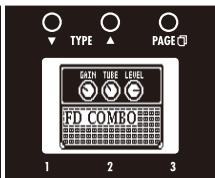
| 039 FD COMBO | Modeled sound of a Fender Twin Reverb ('65), which is loved by guitarists in various genres. | |||||||||
| FD COMBO FD COMBO | Page01 | Knob1 | Knob2 | Knob3 | ||||||
| Gain | 0-100 | P | Tube | 0-100 | Level | 0-150 | P | |||
| Adjusts the gain. | Adjusts tube amp compression. | Adjusts the output level. | ||||||||
| Page02 | Trebl | 0-100 | Middl | 0-100 | Bass | 0-100 | ||||
| Adjusts volume of high frequencies. | Adjusts volume of middle frequencies. | Adjusts volume of low frequencies. | ||||||||
| Page03 | Prese | 0-100 | CAB | See Table 1 | ||||||
| Adjusts volume of super-high frequencies. | Selects cabinet. | |||||||||
| 040 DELUXE-R | This models the sound of a Fender Deluxe Reverb made in 1965. | |||||||||
| DELUXE-R FD VIBRO | Page01 | Knob1 | Knob2 | Knob3 | ||||||
| Gain | 0-100 | P | Tube | 0-100 | Level | 0-150 | P | |||
| Adjusts the gain. | Adjusts tube amp compression. | Adjusts the output level. | ||||||||
| Page02 | Trebl | 0-1200 | Middl | 0-100 | Bass | 0-100 | ||||
| Adjusts volume of high frequencies. | Adjusts volume of middle frequencies. | Adjusts volume of low frequencies. | ||||||||
| Page03 | Prese | 0-100 | CAB | See Table 1 | ||||||
| Adjusts volume of super-high frequencies, Selects cabinet. | ||||||||||
| 041 FD VIBRO | Modeled sound of a '63 Fender Vibroverb. | |||||||||
| FD VIBRO FD VIBRO | Page01 | Knob1 | Knob2 | Knob3 | ||||||
| Gain | 0-100 | P | Tube | 0-100 | Level | 0-150 | P | |||
| Adjusts the gain. | Adjusts tube amp compression. | Adjusts the output level. | ||||||||
| Page02 | Trebi | 0-100 | Middl | 0-100 | Bass | 0-100 | ||||
| Adjusts volume of high frequencies. | Adjusts volume of middle frequencies. | Adjusts volume of low frequencies. | ||||||||
| Page03 | Prese | 0-100 | CAB | See Table 1 | ||||||
| Adjusts volume super-high frequencies. | Selects cabinet. | |||||||||
| 042 US BLUES | Crunch sound of a Fender Tweed Bassman. | |||||||||
| US BLUES US BLUES | Page01 | Knob1 | Knob2 | Knob3 | ||||||
| Gain | 0-100 | P | Tube | 0-100 | Level | 0-150 | P | |||
| Adjusts the gain. | Adjusts tube amp compression. | Adjusts the output level. | ||||||||
| Page02 | Trebl | 0-1500 | Middl | 0-100 | Bass | 0-100 | ||||
| Adjusts volume of high frequencies. | Adjusts volume of middle frequencies. | Adjusts volume of low frequencies. | ||||||||
| Page03 | Prese | 0-100 | CAB | See Table 1 | ||||||
| Adjusts volume of super-high frequencies Selects cabinet. | ||||||||||
| 043 VX COMBO | Modeled sound of a British combo amplifier representing the 1960s Liverpool sound. | ||||||||||
| Knob1 | Knob2 | Knob3 | |||||||||
| Page01 | Gain | 0-100 | P | Tube | 0-100 | Level | 0-150 | P | |||
| Adjusts the gain. | Adjusts tube amp compression. | Adjusts the output level. | |||||||||
| Page02 | Treib | 0-100 | Middl | 0-100 | Bass | 0-100 | |||||
| Adjusts volume of high frequencies. | Adjusts volume of middle frequencies. | Adjusts volume of low frequencies. | |||||||||
| Page03 | Prese | 0-100 | CAB | See Table 1 | |||||||
| Adjusts volume of super-high frequencies. | Selects cabinet. | ||||||||||
| 044 VX JMI | This simulates the sound of an early model of a class-A British combo amp. | ||||||||||
| Knob1 | Knob2 | Knob3 | |||||||||
| Page01 | Gain | 0-100 | P | Tube | 0-100 | Level | 0-150 | P | |||
| Adjusts the gain. | Adjusts tube amp compression. | Adjusts the output level. | |||||||||
| Page02 | Treib | 0-100 | Middl | 0-100 | Bass | 0-100 | |||||
| Adjusts volume of high frequencies. | Adjusts volume of middle frequencies. | Adjusts volume of low frequencies. | |||||||||
| Page03 | Prese | 0-100 | CAB | See Table1 | |||||||
| Adjusts volume of super-high frequencies. | Selects cabinet. | ||||||||||
| 045 BG CRUNCH | Crunch sound of a Mesa Boogie MkIII combo amp. | ||||||||||
| Knob1 | Knob2 | Knob3 | |||||||||
| Page01 | Gain | 0-100 | P | Tube | 0-100 | Level | 0-150 | P | |||
| Adjusts the gain. | Adjusts tube amp compression. | Adjusts the output levels. | |||||||||
| Page02 | Treib | 0-100 | Middl | 0-100 | Bass | 0-100 | |||||
| Adjusts volume of high frequencies. | Adjusts volume of middle frequencies. | Adjusts volume of low frequencies. | |||||||||
| Page03 | Prese | 0-100 | CAB | Seetable 1 | |||||||
| Adjusts volume of super-high frequencies. | Selects cabinet. | ||||||||||
| 046 MATCH 30 | Modeled sound of a DC-30 (channel 1), the Matchless flagship combo amp. | ||||||||||
| Knob1 | Knob2 | Knob3 | |||||||||
| Page01 | Gain | 0-100 | P | Tube | 0-100 | Level | 0-150 | P | |||
| Adjusts the gain. | Adjusts tube amp compression. | Adjusts the output-level. | |||||||||
| Page02 | Treib | 0-100 | Middl | 0-100 | Bass | 0-100 | |||||
| Adjusts volume of high frequencies. | Adjusts volume of middle frequencies. | Adjusts volume of low frequencies. | |||||||||
| Page03 | Prese | 0-100 | CAB | Sleetable 1 | |||||||
| Adjusts volume of super-high frequencies. | Selects cabinet. | ||||||||||
| 047 CAR DRIVE | This models the sound of a Carr Mercury high-end small combo amp. | ||||||||||
| Knob1 | Knob2 | Knob3 | |||||||||
| Page01 | Gain | 0-100 | P | Tube | 0-100 | Level | 0-150 | P | |||
| Adjusts the gain. | Adjusts tube amp compression. | Adjusts the outputlevel. | |||||||||
| Page02 | Treib | 0-100 | Middl | 0-100 | Bass | 0-100 | |||||
| Adjusts volume of high frequencies. | Adjusts volume of middle frequencies. | Adjusts volume of low frequencies. | |||||||||
| Page03 | Prese | 0-100 | CAB | seeTable 1 | |||||||
| Adjusts volume of super-high frequencies. | Selects cabinet. | ||||||||||
| 048 TW ROCK | This crunch sound uses the drive channel of a Two Rock Emerald 50, an American boutique amplifier. | ||||||||||
| Knob1 | Knob2 | Knob3 | |||||||||
| Page01 | Gain | 0-100 | P | Tube | 0-100 | Level | 0-150 | P | |||
| Adjusts the gain. | Adjusts tube amp compression. | Adjusts the output level. | |||||||||
| Page02 | Treib | 0-100 | Middl | 0-100 | Bass | 0-100 | |||||
| Adjusts volume of high frequencies. | Adjusts volume of middle frequencies. | Adjusts volume of low frequencies. | |||||||||
| Page03 | Prese | 0-100 | CAB | SeeTable 1 | |||||||
| Adjusts volume of super-high frequencies. | Selects cabinet. | ||||||||||
| 049 TONE CITY This models the sound of a Sound City 50 Plus Mark 2, a legendary British amplifier. | ||||||||||
| Knob1 | Knob2 | Knob3 | ||||||||
| Page01 | Gain | 0-100 | P | Tube | 0-100 | Level | 0-150 | |||
| Adjusts the gain. | Adjusts tube amp compression. | Adjusts the output level. | ||||||||
| Page02 | Treib | 0-100 | Middl | 0-100 | Bass | 0-100 | ||||
| Adjusts volume of high frequencies. | Adjusts volume of middle frequencies. | Adjusts volume of low frequencies. | ||||||||
| Page03 | Prese | 0-100 | CAB | See Table 1 | ||||||
| Adjusts volume of super-high frequencies. | Selects cabinet. | |||||||||
| 050 HW STACK Modeled sound of the legendary Hiwatt Custom 100 all-tube amplifier from the UK. | ||||||||||
| Knob1 | Knob2 | Knob3 | ||||||||
| Page01 | Gain | 0-100 | P | Tube | 0-100 | Level | 0-150 | |||
| Adjusts the gain. | Adjusts tube amp compression. | Adjusts the output level. | ||||||||
| 055 | MS DRIVE | The high gain sound of a JCM2000 Marshall stack amp. | ||||||||||
| Knob1 | Knob2 | Knob3 | ||||||||||
| Page01 | Gain | 0-100 | P | Tube | 0-100 | Level | 0-150 | |||||
| Adjusts the gain. | Adjusts tube amp compression. | Adjusts the output level. | ||||||||||
| Page02 | Treib | 0-100 | Middl | 0-100 | Bass | 0-100 | ||||||
| Adjusts volume of high frequencies. | Adjusts volume of middle frequencies. | Adjusts volume of low frequencies. | ||||||||||
| Page03 | Prese | 0-100 | CAB | See Table 1 | ||||||||
| Adjusts volume of super-high frequencies. | Selects cabinet. | |||||||||||
| 056 | BGN DRIVE | This simulates the lead sound from channel 3 of a Bogner Ecstasy. | ||||||||||
| Knob1 | Knob2 | Knob3 | ||||||||||
| Page01 | Gain | 0-100 | P | Tube | 0-100 | Level | 0-150 | |||||
| Adjusts the gain. | Adjusts tube amp compression. | Adjusts the output level. | P | |||||||||
| Page02 | Treib | 0-100 | Middl | 0-100 | Bass | 0-100 | ||||||
| Adjusts volume of high frequencies. | Adjusts volume of middle frequencies. | Adjusts volume of low frequencies. | ||||||||||
| Page03 | Prese | 0-100 | CAB | See Table 2 | ||||||||
| Adjusts volume of super-high frequencies. | Selects cabinet. | |||||||||||
| 057 | BG DRIVE | The high gain sound of the Mesa Boogie Dual Rectifier red channel (Vintage mode). | ||||||||||
| Knob1 | Knob2 | Knob3 | ||||||||||
| Page01 | Gain | 0-100 | P | Tube | 0-100 | Level | 0-150 | |||||
| Adjusts the gain. | Adjusts tube amp compression. | Adjusts the output level. | P | |||||||||
| Page02 | Treib | 0-100 | Middl | 0-100 | Bass | 0-100 | ||||||
| Adjusts volume of high frequencies. | Adjusts volume of middle frequencies. | Adjusts volume of low frequencies. | ||||||||||
| Page03 | Prese | 0-100 | CAB | 0-100 | ||||||||
| Adjusts volume of super-high frequencies. | Selects cabinet. | |||||||||||
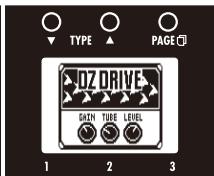
| 058 | DZ DRIVE | The 3-channel high gain sound of a Diezel Herbert, which is a handmade German guitar amplifier that allows control of three independent channels. | ||||||||||
| Knob1 | Knob2 | Knob3 | ||||||||||
| Page01 | Gain | 0-100 | P | Tube | 0-100 | Level | 0-150 | |||||
| Adjusts the gain. | Adjusts tube amp compression. | Adjusts the output level. | ||||||||||
| Page02 | Treib | 0-100 | Middl | 0-100 | Bass | 0-100 | ||||||
| Adjusts volume of high frequencies. | Adjusts volume of middle frequencies. | Adjusts volume of low frequencies. | ||||||||||
| Page03 | Prese | 0-100 | CAB | See Table 3 | ||||||||
| Adjusts volume of super-high frequencies. | Selects cabinet. | |||||||||||
| 059 | ALIEN | This simulates the high-gain sound of the Engl Invader, which features a powerful low-end. | ||||||||||
| Knob1 | Knob2 | Knob3 | ||||||||||
| Page01 | Gain | 0-100 | P | Tube | 0-100 | Level | 0-150 | |||||
| Adjusts the gain. | Adjusts tube amp compression. | Adjusts the output level. | ||||||||||
| Page02 | Treib | 0-100 | Middl | 0-100 | Bass | 0-100 | ||||||
| Adjusts volume of high frequencies. | Adjusts volume of middle frequencies. | Adjusts volume of low frequencies. | ||||||||||
| Page03 | Prese | 0-100 | CAB | See Table 4 | ||||||||
| Adjusts volume of super-high frequencies. | Selects cabinet. | |||||||||||
| 060 | REVO-1 | This simulates the high-gain sound of a Krank Revolution 1 Plus. | ||||||||||
| Knob1 | Knob2 | Knob3 | ||||||||||
| Page01 | Gain | 0-100 | P | Tube | 0-100 | Level | 0-150 | |||||
| Adjusts the gain. | Adjusts tube amp compression. | Adjusts the output level. | ||||||||||
| Page02 | Treib | 0-100 | Middl | 0-100 | Bass | 0-100 | ||||||
| Adjusts volume of high frequencies. | Adjusts volume of middle frequencies. | Adjusts volume of low frequencies. | ||||||||||
| Page03 | Prese | 0-100 | CAB | See Table 5 | ||||||||
| Adjusts volume of super-high frequencies. | Selects cabinet. | |||||||||||
| 061 Tremolo | This effect varies the volume at a regular rate. | ||||||||||
| Page01 | Knob1 | Knob2 | Knob3 | ||||||||
| Depth | 0-100 | P | Rate | 0-50 | P | Level | 0-150 | P | |||
| Adjust the depth of the modulation. | Adjusts the rate of the modulation. | Adjusts the output level. | |||||||||
| Page02 | Wave | UP 0-UP 9, DWN 0-DWN 9, TRI 0-TRI 9 | P | ||||||||
| Sets the modulation waveform. | |||||||||||
| 062 Slicer | This effect creates a rhythmical sound by continuously slicing the input. | ||||||||||
| Page01 | Knob1 | Knob2 | Knob3 | ||||||||
| PTTRN | 1-20 | Speed | 1-50 | P | Bal | 0-100 | P | ||||
| Sets effect pattern. | Sets modulation speed. | Adjusts the balance between original and effect sounds. | |||||||||
| Page02 | THRSH | 0-50 | Level | 0-150 | P | ||||||
| Adjusts effect threshold. | Adjusts the output level. | ||||||||||
| 063 Phaser | This effect adds a phasing variation to the sound. | ||||||||||
| Page01 | Knob1 | Knob2 | Knob3 | ||||||||
| Rate | 1-50 | P | Color | 4 STG, 8 STG, inv 4, inv 8 | Level | 0-150 | P | ||||
| Sets the speed of the modulation. | Sets the tone of the effect type. | Adjusts the output level. | |||||||||
| Page02 | |||||||||||
| 064 DuoPhase | This effect combines two phasers. | ||||||||||
| Page01 | Knob1 | Knob2 | Knob3 | ||||||||
| RateA | 1-50 | P | RateB | 1-50, SyncA, RvrsA | Level | 0-150 | P | ||||
| Adjusts speed of LFO A modulation. | Adjusts speed of LFO B modulation. | Adjusts the output level. | |||||||||
| Page02 | ResoA | 0-10 | ResoB | 0-10 | Link | Seri, Para, STR | |||||
| Adjusts resonance of LFO A modulation. | Adjusts resonance of LFO B modulation. | Sets how two phasers are connected. | |||||||||
| Page03 | DPT_A | 1-100 | DPT_B | 1-100 | P | ||||||
| Adjusts depth of LFO A modulation. | Adjusts depth of LFO B modulation. | ||||||||||
| 065 WarpPhase | This phaser has a one way effect. | ||||||||||
| Page01 | Knob1 | Knob2 | Knob3 | ||||||||
| Speed | 1-50 | P | Reso | 0-10 | Level | 0-150 | P | ||||
| Sets modulation speed. | Sets effect resonance. | Adjusts the output level. | |||||||||
| Page02 | DRCTN | Go, Back | |||||||||
| Sets direction of warping. | |||||||||||
| 066 Chorus | This effect mixes a shifted pitch with the original sound to add movement and thickness. | ||||||||||
| Page01 | Knob1 | Knob2 | Knob3 | ||||||||
| Depth | 0-100 | Rate | 1-50 | Mix | 0-100 | P | |||||
| Sets the depth of the modulation. | Sets the speed of the modulation. | Adjusts the amount of effected sound that is mixed with the original sound. | |||||||||
| Page02 | Tone | 0-10 | Level | 0-150 | P | ||||||
| Adjusts the tone. | Adjusts the output level. | ||||||||||
| 067 Detune | By mixing an effect sound that is slightly pitch-shifted with the original sound, this effect type has a chorus effect without much sense of modulation. | ||||||||||
| Page01 | Knob1 | Knob2 | Knob3 | ||||||||
| Cent | -25-25 | PreD | 0-50 | Mix | 0-100 | P | |||||
| Adjusts the detuning in cents, which are fine increments of 1/100-semitone. | Sets the pre-delay time of the effect sound. | Adjusts the amount of effected sound that is mixed with the original sound. | |||||||||
| Page02 | Tone | 0-10 | Level | 0-150 | P | ||||||
| Adjusts the tone. | Adjusts the output level. | ||||||||||
| 068 | VintageCE | This is a simulation of the BOSS CE-1. | |||||||||
| Knob1 | Knob2 | Knob3 | |||||||||
| Page01 | Comp | 0-9 | Rate | 1-50 | P | Mix | 0-100 | P | |||
| Sets the sensitivity of the compressor. | Sets the speed of the modulation. | Adjusts the amount of effected sound that is mixed with the original sound. | |||||||||
| Page02 | Level | 0-150 | |||||||||
| Adjusts the output level. | |||||||||||
| 069 | StereoCho | This is a stereo chorus with a clear tone. | |||||||||
| Knob1 | Knob2 | Knob3 | |||||||||
| Page01 | Depth | 0-100 | Rate | 1-50 | P | Mix | 0-100 | P | |||
| Sets the depth of the modulation. | Sets the speed of the modulation. | Adjusts the amount of effected sound that is mixed with the original sound. | |||||||||
| Page02 | Tone | 0-10 | Level | 0-150 | P | ||||||
| Adjusts the tone. | Adjusts the output level. | ||||||||||
| 070 | Ensemble | This is a chorus ensemble that features three-dimensional movement. | |||||||||
| Knob1 | Knob2 | Knob3 | |||||||||
| Page01 | Depth | 0-100 | Rate | 1-50 | P | Mix | 0-100 | P | |||
| Sets the depth of the modulation. | Sets the speed of the modulation. | Adjusts the amount of affected sound that is mixed with the original sound. | |||||||||
| Page02 | Tone | 0-10 | Level | 0-150 | P | ||||||
| Adjusts the tone. | Adjusts the output level. | ||||||||||
| 071 | VinFLNGR | This analog flanger sound is similar to an MXR M-117R. | |||||||||
| Knob1 | Knob2 | Knob3 | |||||||||
| Page01 | Depth | 0-100 | Rate | 0-50 | P | Reso | -10-10 | P | |||
| Sets the depth of the modulation. | Sets the speed of the modulation. | Adjusts the intensity of the modulation resonance. | |||||||||
| Page02 | PreD | 0-50 | Mix | 0-100 | P | Level | 0-150 | P | |||
| Sets pre-delay time of effect sound. | Adjusts the amount of effected sound that is mixed with the original sound. | Adjusts the output level. | |||||||||
| 072 | Flanger | This is a jet sound like an ADA flanger. | |||||||||
| Knob1 | Knob2 | Knob3 | |||||||||
| Page01 | Depth | 0-100 | Rate | 0-50 | P | Reso | -10-10 | P | |||
| Sets the depth of the modulation. | Sets the speed of the modulation. | Adjusts theIntensity of the modulation resonance. | |||||||||
| Page02 | PreD | 0-50 | Mix | 0-100 | P | Level | 0-150 | P | |||
| Sets pre-delay time of effect sound. | Adjusts the amount of effected sound that is mixed with the original sound. | Adjusts the output level. | |||||||||
| 073 | DynaFLNGR | The volume of the effect sound changes according to the input signal level with this dynamic flanger. | |||||||||
| Knob1 | Knob2 | Knob3 | |||||||||
| Page01 | Depth | 0-100 | Rate | 0-50 | P | Sense | -10-1, 1-10 | P | |||
| Sets the depth of the modulation. | Sets the speed of the modulation. | Adjusts the sensitivity of the effect. | |||||||||
| Page02 | Reso | -10-10 | Level | 0-150 | P | ||||||
| Adjusts the intensity of the modulation resonance. | Adjusts the output level. | ||||||||||
| 074 | Vibrato | This effect automatically adds vibrato. | |||||||||
| Knob1 | Knob2 | Knob3 | |||||||||
| Page01 | Depth | 0-100 | Rate | 0-50 | P | Bal | 0-100 | P | |||
| Sets the depth of the modulation. | Sets the speed of the modulation. | Adjusts the balance between original and effect sounds. | |||||||||
| Page02 | Tone | 0-10 | Level | 0-150 | P | ||||||
| Adjusts the tone. | Adjusts the output level. | ||||||||||
| 075 | Octave | This effect adds sound one octave and two octaves below the original sound. | |||||||||
| Knob1 | Knob2 | Knob3 | |||||||||
| Page01 | Oct1 | 0-100 | Oct2 | 0-100 | P | Dry | 0-100 | P | |||
| Adjusts the level of the sound one octave below the effect sound. | Adjusts the level of the sound two octaves below the effect sound. | Adjusts the volume of the unaffected sound. | |||||||||
| Page02 | Chara | 0-100 | Tone | 0-10 | P | Level | 0-150 | P | |||
| Adjusts effect character. | Adjusts the tone. | Adjusts the output level. | |||||||||
| 076 PitchSHFT | This effect shifts the pitch up or down. | ||||||||||
| PitchSHFT | Knob1 | Knob2 | Knob3 | ||||||||
| Page01 | Shift | -12-12, 24 | Tone | 0-10 | Bal | 0-100 | P | ||||
| Adjusts the pitch shift amount in semitones. Selecting "0" gives a detuning effect. | Adjusts the tone. | Adjusts the balance between original and effect sounds. | |||||||||
| Page02 | Fine | -25-25 | Level | 0-150 | P | ||||||
| Allows fine adjustment of pitch shift amount in Cent (1/100 semitone) steps. | Adjusts the output level. | ||||||||||
| 077 MonoPitch | This is a pitch shifter with little sound variance for monophonic (single note) playing. | ||||||||||
| Page01 | Shift | -12-12, 24 | Tone | 0-10 | Bal | 0-100 | P | ||||
| Adjusts the pitch shift amount in semitones. Selecting "0" gives a detuning effect. | Adjusts the tone. | Adjusts the balance between original and effect sounds. | |||||||||
| Page02 | Fine | 25-25 | Level | 0-150 | P | ||||||
| Allows fine adjustment of pitch shift amount in Cent (1/100 semitone) steps. | Adjusts the output level. | ||||||||||
| 078 HPS | This intelligent pitch shifter outputs the effect sound with the pitch shifted according to scale and key settings. | ||||||||||
| Page01 | Scale | -6, 5, 4, -3, -m, m, 3, 4, 5, 6 (See Table 2) | Key | C, C#, D, D#, E, F, F#, G, G#, A, A#, B | Mix | 0-100 | P | ||||
| Sets the pitch of the pitch-shifted sound added to the original sound. | Sets the tonic (root) of the scale used for pitch shifting. | Adjusts the amount of effected sound that is mixed with the original sound. | |||||||||
| Page02 | Tone | 0-10 | Level | 0-150 | P | ||||||
| Adjusts the tone. | Adjusts the output level. | ||||||||||
| 079 BendCho | This effect provides pitch bending that uses the input signal as trigger and processes each note separately. | ||||||||||
| Page01 | Knob1 | Knob2 | Knob3 | ||||||||
| Depth | 0-100 | Time | 0-50 | P | 0-100 | P | |||||
| Adjusts the effect depth. | Sets time before effect starts. | Adjusts the balance between original and effect sounds. | |||||||||
| Page02 | Mode | Up, Down | Tone | 0-10 | Level | 0-150 | P | ||||
| Sets direction of pitch bend. | Adjusts the tone. | Adjusts the output level. | |||||||||
| 080 RingMod | This effect produces a metallic ringing sound. Adjusting the "Freq" parameter results in a drastic change of sound character. | ||||||||||
| Page01 | Knob1 | Knob2 | Knob3 | ||||||||
| Freq | 1-50 | Tone | 0-10 | Bal | 0-100 | P | |||||
| Sets the frequency of the modulation. | Adjusts the tone. | Adjusts the balance between original and effect sounds. | |||||||||
| Page02 | Level | 0-150 | P | ||||||||
| Adjusts the output level. | |||||||||||
| 081 BitCrush | This effect creates a lo-fi sound. | ||||||||||
| Page01 | Knob1 | Knob2 | Knob3 | ||||||||
| Bit | 4-16 | SMPL | 0-50 | P | 0-100 | P | |||||
| Sets bit depth. | Sets sampling rate. | Adjusts the balance between original and effect sounds. | |||||||||
| Page02 | Tone | 0-10 | Level | 0-150 | P | ||||||
| Adjusts the tone. | Adjusts the output level. | ||||||||||
| 082 Bomber | This effect produces an explosive sound when picking. | FS | Trigger | ||||||||
| Page01 | Knob1 | Knob2 | Knob3 | ||||||||
| PTTRN | HndGn, Arm, Bomb, Thndr | Decay | 1-100 | P | 0-100 | P | |||||
| Sets type of effect sound. | Sets length of reverberations. | Adjusts the balance between original and effect sounds. | |||||||||
| Page02 | THRSH | 0-50 | Power | 0-30 | Tone | 0-10 | |||||
| Adjusts effect threshold. | Adjusts strength of explosive sound. | Adjusts the tone. | |||||||||
| Page03 | Level | 0-150 | P | ||||||||
| Adjusts the output level. | |||||||||||
| 083 MonoSynth | This effect produces the sound of a monophonic (single-note playing) guitar synthesizer that detects the pitch of the input signal. | |||||||||
| Page01 | Knob1 | Knob2 | Knob3 | |||||||
| Synth | 0-100 | P | Dry | 0-100 | P | Level | 0-150 | P | ||
| Adjusts synthesizer sound level. | Adjusts level of original sound. | Adjusts the output level. | ||||||||
| Page02 | Wave | Sine, Tri, SawUp, SawDn | Tone | 0-10 | Speed | 0-100 | P | |||
| Sets waveform. | Adjusts the tone. | Adjusts smoothness of pitch change. | ||||||||
| 084 Z-Organ | This effect simulates an organ sound. | |||||||||
| Page01 | Knob1 | Knob2 | Knob3 | |||||||
| Upper | 0-100 | P | Lower | 0-100 | P | Dry | 0-100 | P | ||
| Adjusts volume of high frequencies. | Adjusts volume of low frequencies. | Adjusts level of original sound. | ||||||||
| Page02 | HPF | 0-10 | LPF | 0-10 | Level | 0-150 | P | |||
| Adjusts high-pass filter cutoff frequency. | Adjusts low-pass filter cutoff frequency. | Adjusts the output level. | ||||||||
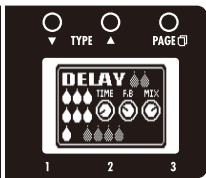
| 085 Delay | This long delay has a maximum length of 2500 ms. | FS | Hold, InputMute | |||||||
| Page01 | Knob1 | Knob2 | Knob3 | |||||||
| Time | 1-2500 | F | FB | 0-100 | P | Mix | 0-100 | P | ||
| Sets the delay time. | Adjusts the feedback amount. | Adjusts the amount of effected sound that is mixed with the original sound. | ||||||||
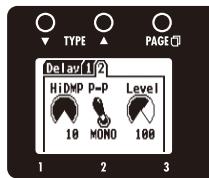
| Page02 | HiDMP | 0-10 | P-P | MONO, P-P | Level | 0-150 | P | |||
| Adjusts the treble attenuation of the delay sound. | Sets delay output to mono or ping-pong. | Adjusts the output level. | ||||||||
| 086 TapeEcho | This effect simulates a tape echo. Changing the "Time" parameter changes the pitch of the echoes. | FS | InputMute | |||||||
| Page01 | Knob1 | Knob2 | Knob3 | |||||||
| Time | 1-2000 | P | FB | 0-100 | P | Mix | 0-100 | P | ||
| Sets the delay time. | Adjusts the feedback amount. | Adjusts the amount of effected sound that is mixed with the original sound. | ||||||||
| Page02 | HiDMP | 0-10 | Level | 0-150 | P | |||||
| Adjusts the treble attenuation of the delay sound. | Adjusts the output level. | |||||||||
| 087 ModDelay | This delay effect allows the use of modulation. | FS | InputMute | |||||||
| Page01 | Knob1 | Knob2 | Knob3 | |||||||
| Time | 1-2000 | F | FB | 0-100 | P | Mix | 0-100 | P | ||
| Sets the delay time. | Adjusts the feedback amount. | Adjusts the amount of effected sound that is mixed with the original sound. | ||||||||
| Page02 | Rate | 1-50 | P | Level | 0-150 | P | ||||
| Sets the speed of the modulation. | Adjusts the output level. | |||||||||
| 088 AnalogDly | This analog delay simulation has a long delay with a maximum length of 2500 ms. | FS | Hold, InputMute | |||||||
| Page01 | Knob1 | Knob2 | Knob3 | |||||||
| Time | 1-2500 | F | FB | 0-100 | P | Mix | 0-100 | P | ||
| Sets the delay time. | Adjusted the feedback amount. | Adjusts the amount of effected sound that is mixed with the original sound. | ||||||||
| Page02 | HiDMP | 0-10 | P-P | MONO, P-P | Level | 0-150 | P | |||
| Adjusts the treble attenuation of the delay sound. | Sets delay output to mono or ping-pong. | Adjusts the output level. | ||||||||
| 089 ReverseDL | This reverse delay is a long delay with a maximum length of 1250 ms. | FS | Hold, InputMute | |||||||
| Page01 | Knob1 | Knob2 | Knob3 | |||||||
| Time | 10-1250 | F | FB | 0-100 | P | Bal | 0-100 | P | ||
| Sets the delay time. | Adjusts the feedback amount. | Adjusts the balance between original and effect sounds. | ||||||||
| Page02 | HiDMP | 0-10 | Level | 0-150 | P | |||||
| Adjusts the treble attenuation of the delay sound. | Adjusts the output level. | |||||||||
| 090 MultiTapD | This effect produces several delay sounds with different delay times. | FS | InputMute | |||||||
| Knob1 | Knob2 | Knob3 | ||||||||
| Page01 | Time | 1-2500 | P | PTTRN | 1-8 | Mix | 0-100 | P | ||
| Sets the delay time. | Sets the tap pattern, which varies from rhythmicall to random patterns. | Adjusts the amount of effected sound that is mixed with the original sound. | ||||||||
| Page02 | Tone | 0-10 | Level | 0-150 | P | |||||
| Adjusts the tone. | Adjusts the output level. | |||||||||
| 091 DynaDelay | This dynamic delay adjusts the volume of the effect sound according to the input signal level. | FS | InputMute | |||||||
| Knob1 | Knob2 | Knob3 | ||||||||
| Page01 | Time | 1-2000 | Sense | -10-1, 1-10 | P | Mix | 0-100 | P | ||
| Sets the delay time. | Adjusts the effect sensitivity. | Adjusts the amount of effected sound that is mixed with the original sound. | ||||||||
| Page02 | FB | 0-100 | P | Level | 0-150 | P | ||||
| Adjusts the feedback amount. | Adjusts the output level. | |||||||||
| 092 FilterDly | This effect filters a delayed sound. | FS | InputMute | |||||||
| Knob1 | Knob2 | Knob3 | ||||||||
| Page01 | Time | 1-2000 | FB | 0-100 | P | Mix | 0-100 | P | ||
| Sets the delay time. | Adjusts the feedback amount. | Adjusts the amount of effected sound that is mixed with the original sound. | ||||||||
| Page02 | Rate | 1-50 | Depth | 0-100 | P | Reso | 0-10 | P | ||
| Sets the speed of the modulation. | Sets the depth of the modulation. | Adjusts the intensity of the modulation resonance. | ||||||||
| Page03 | Level | 0-150 | P | |||||||
| Adjusts the output level. | ||||||||||
| 093 PitchDly | This effect applies pitch shift to a delayed sound. | FS | InputMute | |||||||
| Knob1 | Knob2 | Knob3 | ||||||||
| Page01 | Time | 1-2000 | Pitch | -12-12 | P | Mix | 0-100 | P | ||
| Sets the delay time. | Sets volume of pitch shift applied to delayed sound. | Adjusts the amount of effected sound that is mixed with the original sound. | ||||||||
| Page02 | FB | 0-100 | P | Tone | 0-10 | Level | 0-150 | P | ||
| Adjusts the feedback amount. | Adjusts the tone. | Adjusts the output level. | ||||||||
| 094 StereoDly | This stereo delay allows the left and right delay times to be set separately. | FS | InputMute | |||||||
| Knob1 | Knob2 | Knob3 | ||||||||
| Page01 | TimeL | 1-1000 | TimeR | 1-1000 | P | Mix | 0-100 | P | ||
| Adjusts delay time of left channel delay. | Adjusts delay time of right channel delay. | Adjusts the amount of effected sound that is mixed with the original sound. | ||||||||
| Page02 | LchFB | 0-100 | P | RchFB | 0-100 | P | Level | 0-150 | ||
| Adjusts delay feedback of left channel. | Adjusts delay feedback of right channel. | Adjusts the output level. | ||||||||
| Page03 | LchLv | 0-100 | P | RchLv | 0-100 | P | ||||
| Adjusts delay output of left channel. | Adjusts delay output of right channel. | |||||||||
| 095 PhaseDly | This effect applies a phaser to a delayed sound. | FS | InputMute | |||||||
| Knob1 | Knob2 | Knob3 | ||||||||
| Page01 | Time | 1-2000 | FB | 0-100 | P | Mix | 0-100 | P | ||
| Sets the delay time. | Adjusts the feedback amount. | Adjuststhe amount of effected sound that is mixed with the original sound. | ||||||||
| Page02 | Rate | 1-50 | Color | 4 STG, 8 STG, inv 4, inv 8 | Level | 0-150 | P | |||
| Sets the speed of the modulation. | Sets the tone of the effect type. | Adjusts the output level. | ||||||||
| 096 TrgHldDly | This delay samples and holds using picking as the trigger. | FS | InputMute | |||||||
| Knob1 | Knob2 | Knob3 | ||||||||
| Page01 | Time | 10-1000 | Duty | 25-100 | Mix | 0-100 | P | |||
| Sets the delay time. | Sets the time that the sample-and-hold sound is produced. | Adjusts the amount of effected sound that is mixed with the original sound. | ||||||||
| Page02 | THRSH | 0-30 | Level | 0-150 | P | |||||
| Adjusts effect threshold. | Adjusts the output level. | |||||||||
| 097 HD Reverb | This is a high-definition reverb. | FS | InputMute | |||||||||
| HD Reverb | Knob1 | Knob2 | Knob3 | |||||||||
| Page01 | Decay | 0-100 | Tone | 0-10 | Mix | 0-100 | P | |||||
| Sets the duration of the reverberations. | Adjusts the tone. | Adjusts the amount of effected sound that is mixed with the original sound. | ||||||||||
| Page02 | PreD | 1-200 | HPF | 0-10 | Level | 0-150 | P | |||||
| Adjusts the delay between input of the original sound and start of the reverb sound. | Adjusts high-pass filter cutoff frequency. | Adjusts the output level. | ||||||||||
| 098 Hall | This reverb effect simulates the acoustics of a concert hall. | FS | InputMute | |||||||||
| HALL | Knob1 | Knob2 | Knob3 | |||||||||
| Page01 | Decay | 1-30 | P | Tone | 0-10 | Mix | 0-100 | P | ||||
| Sets the duration of the reverberations. | Adjusts the tone. | Adjusts the amount of effected sound that is mixed with the original sound. | ||||||||||
| Page02 | PreD | 1-100 | Level | 0-150 | P | |||||||
| Adjusts the delay between input of the original sound and start of the reverb sound. | Adjusts the output level. | |||||||||||
| 099 Room | This reverb effect simulates the acoustics of a room. | FS | InputMute | |||||||||
| ROOM | Knob1 | Knob2 | Knob3 | |||||||||
| Page01 | Decay | 1-30 | P | Tone | 0-10 | Mix | 0-100 | P | ||||
| Sets the duration of the reverberations. | Adjusts the tone. | Adjusts the amount of effected sound that is mixed with the original sound. | ||||||||||
| Page02 | PreD | 1-100 | Level | 0-150 | P | |||||||
| Adjusts the delay between input of the original sound and start of the reverb sound. | Adjusts the output level. | |||||||||||
| 100 TiledRoom | This reverb effect simulates the acoustics of a tiled room. | FS | InputMute | |||||||||
| TiledRoom | Knob1 | Knob2 | Knob3 | |||||||||
| Page01 | Decay | 1-30 | P | Tone | 0-10 | Mix | 0-100 | P | ||||
| Sets the duration of the reverberations. | Adjusts the tone. | Adjusts the amount of effected sound that is mixed with the original sound. | ||||||||||
| Page02 | PreD | 1-100 | Level | 0-150 | P | |||||||
| Adjusts the delay between input of the original sound and start of the reverb sound. | Adjusts the output level. | |||||||||||
| 101 Spring | This reverb effect simulates a spring reverb. | FS | InputMute | |||||||||
| NEW ROOM | Knob1 | Knob2 | Knob3 | |||||||||
| Page01 | Decay | 1-30 | P | Tone | 0-10 | Mix | 0-100 | P | ||||
| Sets the duration of the reverberations. | Adjusts the tone. | Adjusts the amount of effected sound that is mixed with the original sound. | P | |||||||||
| Page02 | PreD | 1-100 | Level | 0-150 | P | |||||||
| Adjusts the delay between input of the original sound and start of the reverb sound. | Adjusts the output level. | |||||||||||
| 102 Arena | This reverb effect simulates the acoustics of a large enclosure such as a sports arena. | FS | InputMute | |||||||||
| BRENN REVERB | Knob1 | Knob2 | Knob3 | |||||||||
| Page01 | Decay | 1-30 | P | Tone | 0-10 | Mix | 0-100 | P | ||||
| Sets the duration of the reverberations. | Adjusts the tone. | Adjusts the amount of effected sound that is mixed with the original sound. | ||||||||||
| Page02 | PreD | 1-100 | Level | 0-150 | P | |||||||
| Adjusts the delay between input of the original sound and start of the reverb sound. | Adjusts the output level. | |||||||||||
| 103 EarlyRef | This effect reproduces only the early reflections of reverb. | |||||||||||
| DEHY SHEET MIX | Knob1 | Knob2 | Knob3 | |||||||||
| Page01 | Decay | 1-30 | Shape | -10-10 | P | Mix | 0-100 | P | ||||
| Adjusts the duration of the reverb. | Adjusts the effect envelope. | Adjusts the amount of effected sound that is mixed with the original sound. | ||||||||||
| Page02 | Tone | 0-10 | Level | 0-150 | P | |||||||
| Adjusts the tone. | Adjusts the output level. | |||||||||||
| 104 Air | This effect reproduces the ambience of a room, to create spatial depth. | ||||||||||
| Knob1 | Knob2 | Knob3 | |||||||||
| Size | 1-100 | Tone | 0-10 | Mix | 0-100 | P | |||||
| Sets the size of the space. | Adjusts the tone. | Adjusts the amount of effected sound that is mixed with the original sound. | |||||||||
| Ref | 0-10 | P | Level | 0-150 | P | ||||||
| Adjusts the amount of reflection from the wall. | Adjusts the output level. | ||||||||||
| 105 Comp+OD | This effect combines compressor and overdrive. | ||||||||||
| Knob1 | Knob2 | Knob3 | |||||||||
| Comp | 0-10 | Gain | 0-100 | P | Level | 0-150 | |||||
| Sets compressor strength. | Sets overdrive gain. | Adjusts the output level. | |||||||||
| Tone | 0-100 | ||||||||||
| Sets overdrive tone. | |||||||||||
| 106 Comp+Phsr | This effect combines compressor and phaser. | ||||||||||
| Knob1 | Knob2 | Knob3 | |||||||||
| Comp | 0-10 | Rate | 1-50 | P | Level | 0-150 | |||||
| Sets compressor strength. | Sets the speed of the modulation. | Adjusts the output level. | |||||||||
| Color | 4 STG, 8 STG, inv 4, inv 8 | ||||||||||
| Sets phaser color. | |||||||||||
| 107 Comp+AWah | This effect combines compressor and auto-wah. | ||||||||||
| Knob1 | Knob2 | Knob3 | |||||||||
| Comp | 0-10 | Sense | 10-1, 1-10 | P | Level | 0-150 | |||||
| Sets compressor strength. | Sets auto-wah sensitivity. | Adjusts the output level. | |||||||||
| Reso | 0-10 | P | |||||||||
| Sets resonance of auto-wah. | |||||||||||
| 108 Cho+Dly | This effect combines chorus and delay. | ||||||||||
| Knob1 | Knob2 | Knob3 | |||||||||
| ChoRt | 1-50 | P | ChoMx | 0-100 | P | DlyTm | 1-2000 | ||||
| Adjusts chorus rate. | Adjusts chorus mix. | Adjusts delay time. | |||||||||
| DlyF8 | 0-100 | P | DlyMx | 0-100 | P | Level | 0-150 | ||||
| Adjusts delay feedback. | Adjusts delay mix. | Adjusts the output level. | |||||||||
| 109 Dly+Rev | This effect combines delay and reverb. | ||||||||||
| Knob1 | Knob2 | Knob3 | |||||||||
| DlyTm | 1-1500 | DlyMx | 0-100 | P | RevMx | 0-100 | |||||
| Adjusts delay time. | Adjusts delay mix. | Adjusts delay mix. | |||||||||
| DlyF8 | 0-100 | P | Level | 0-150 | P | ||||||
| Adjusts delay feedback. | Adjusts the output level. | ||||||||||
| 110 Cho+Rev | This effect combines chorus and reverb. | ||||||||||
| Knob1 | Knob2 | Knob3 | |||||||||
| ChoRt | 1-50 | P | ChoMx | 0-100 | P | RevMx | 0-100 | ||||
| Adjusts chorus rate. | Adjusts chorus mix. | Adjusts reverb mix. | |||||||||
| Level | 0-150 | P | |||||||||
| Adjusts the output level. | |||||||||||
| 111 FLG+VCho | This effect combines flanger and vintage chorus. | ||||||||||
| Knob1 | Knob2 | Knob3 | |||||||||
| FlgDp | 0-100 | P | FlgRt | 0-50 | P | ChoMx | 0-100 | ||||
| Adjusts flanger depth. | Adjusts flanger rate. | Adjusts vintage chorus mix. | |||||||||
| ChoRt | 1-50 | P | Level | 0-150 | P | ||||||
| Adjusts vintage chorus rate. | Adjusts the output level. | ||||||||||
| 112 PedalVx | This simulates a vintage British wah pedal. | ||||||||||
| Knob1 | Knob2 | Knob3 | |||||||||
| Page01 | Freq | 1-50 | DryMX | 0-100 | P | Level | 0-150 | P | |||
| Adjusts the emphasized frequency. | Adjusts the mix with the unaffected sound. | Adjusts the output level. | |||||||||
| Page02 | |||||||||||
| 113 PedalCry | This simulates a vintage CRYBABY wah pedal. | ||||||||||
| Knob1 | Knob2 | Knob3 | |||||||||
| Page01 | Freq | 1-50 | DryMX | 0-100 | P | Level | 0-150 | P | |||
| Adjusts the emphasized frequency. | Adjusts the mix with the unaffected sound. | ||||||||||
| Page02 | |||||||||||
| 114 TheVibe | This vibe sound features unique undulations. | ||||||||||
| Knob1 | Knob2 | Knob3 | |||||||||
| Page01 | Speed | 0-50 | Depth | 0-100 | P | Bias | 0-100 | P | |||
| Sets modulation speed. | Sets the depth of the modulation. | Adjusts bias of waveform modulation. | |||||||||
| Page02 | Wave | 0-100 | P | Mode | VIBRT, CHORS | Level | 0-150 | P | |||
| Adjusts modulation waveform. | Sets effect to vibrato or chorus. | Adjusts the output level. | |||||||||
| 115 PDL Pitch | Use an expression pedal to change the pitch in real time with this effect. | ||||||||||
| Knob1 | Knob2 | Knob3 | |||||||||
| Page01 | Color | 1-9(See Table 3) | Tone | 0-10 | Bend | 0-100 | P | ||||
| Sets the type of pitch change control with the expression pedal. | Adjusts the tone. | Sets the amount of pitch shift. | |||||||||
| Page02 | Mode | Up, Down | Level | 0-150 | P | ||||||
| Sets the direction of the pitch change to Up or Down. | Adjusts the output level. | ||||||||||
| 116 PDL MnPit | This is a pitch shifter specially for monophonic sound (single-note playing), which allows the pitch to be shifted in real time with the expression pedal. | ||||||||||
| Knob1 | Knob2 | Knob3 | |||||||||
| Page01 | Color | 1-9(See Table 3) | Tone | 0-10 | Bend | 0-100 | P | ||||
| Sets the type of pitch change control with the expression pedal. | Adjusts the tone | Sets the amount of pitch shift. | |||||||||
| Page02 | Mode | Up, Down | Level | 0-150 | P | ||||||
| Sets the direction of the pitch change to Up or Down. | Adjusts the output level. | ||||||||||
Table 1
| Type | Modeled cabinet and speakers |
| FD COMBO 2x12 | Fender Twin Reverb ('65) cabinet with 2x12-inch Jensen speakers |
| DELUXE-R 1X12 | Fender Deluxe Reverb cabinet with 1x12-inch Jensen speaker |
| FD VIBRO 2x10 | Fender Vibroverb ('63) cabinet with 2x10-inch Jensen speakers |
| US BLUES 4x10 | Fender Tweed Bassman cabinet with 4x10-inch Jensen speakers |
| VX COMBO 2x12 | British combo amp cabinet with 2x12-inch Celestion Alnico speakers |
| VX JMI 2x12 | Early model British combo amp cabinet with 2x12-inch Celestion Alnico speakers |
| BG CRUNCH 1x12 | Mesa Boogie MkIII cabinet with 1x12-inch Electro Voice speaker |
| MATCH 30 2x12 | Matchless DC30 cabinet with 2x12-inch Celestion speakers |
| CAR DRIVE 1x12 | Carr Mercury cabinet with 1x12-inch Eminence speaker |
| TW ROCK 1x12 | Two Rock Emerald 50 cabinet with 1x12-inch Fane speaker |
| TONE CITY 4x12 | Cabinet with 4x12-inch Fane speakers |
| HW STACK 4x12 | Hiwatt Custom 100 cabinet with 4x12-inch Fane speakers |
| TANGERINE 4x12 | Orange Graphic 120 cabinet with 4x12-inch Celestion speakers |
| B-BREAKER 2x12 | Marshall Bluesbreaker cabinet with 2x12-inch Celestion speakers |
| MS CRUNCH 4x12 | Marshall 1959 cabinet with 4x12-inch Celestion speakers |
| MS 1959 4x12 | Marshall 1959 B cabinet with 4x12-inch Celestion speakers |
| MS DRIVE 4x12 | Marshall JCM2000 cabinet with 4x12-inch Celestion speakers |
| BGN DRIVE 4x12 | Bogner Ecstasy cabinet with 4x12-inch Celestion speakers |
| BG DRIVE 4x12 | Mesa Boogie Dual Rectifier cabinet with 4x12-inch Celestion speakers |
| DZ DRIVE 4x12 | Diezel Herbert cabinet with 4x12-inch Celestion speakers |
| ALIEN 4x12 | Engl Invader cabinet with 4x12-inch Celestion speakers |
| REVO-1 4x12 | Krank Revolution 1 Plus cabinet with 4x12-inch Eminence speakers |
| OFF | No cabinet used. |
Table 2
| Setting | Scale used | Interval |
| -6 | Major | 6th down |
| -5 | 5th down | |
| -4 | 4th down | |
| -3 | 3rd down | |
| -m | Minor | 3rd down |
| m | 3rd up |
| Setting | Scale used | Interval |
| 3 | Major | 3rd up |
| 4 | 4th up | |
| 5 | 5th up | |
| 6 | 6th up |
Table 3
| Color | Pedal min | Pedal max |
| 1 | 0 cent | +1 octave |
| 2 | 0 cent | +2 octaves |
| 3 | 0 cent | -100 cents |
| 4 | 0 cent | -2 octave |
| 5 | 0 cent | --∞ |
| Color | Pedal min | Pedal max |
| 6 | -1 octave + original | +1 octave + original |
| 7 | -700 cents + original | +500 cents + original |
| 8 | Doubling | Detuned + original |
| 9 | ~∞ (0 Hz) + original | +1 octave + original |
The unit will not turn ON
- Confirm that the POWER switch is set to "ON". When using bus power, set the switch to "OFF" before connecting the USB cable.
- When using batteries, confirm that they still have a charge.
No sound or very low volume
- Check the connections ( P4 - 5)
- Adjust the patch level ( P16) .
- Adjust the master level ( P20).
- When adjusting the volume with an expression pedal, make sure that a suitable volume setting has been set with the pedal.
- Confirm that unit is not in mute mode ( P26).
There is a lot of noise
- Check shielded cables for defects.
- Use only a genuine ZOOM AC adapter.
The sound distorts strangely/has an odd timbre
- Set the OUTPUT parameter according to the output equipment ( P21) .
- Set the ACTIVE/PASSIVE switch according to the type of guitar pickups or the device connected directly to the G3/G3X ( P5).
An effect is not working
- If the effect processing capacity is exceeded, "DSP Full!" appears on the effect graphic. In this case, the effect is bypassed ( P10)
The expression pedal is not working well
- Check the expression pedal settings ( P18) .
- Adjust the expression pedal ( P37) .
The recorded level in a DAW is low
- Check the recording level setting ( P25)
Batteries lose their charge quickly
- Confirm that you are not using manganese batteries. Alkaline batteries should provide 6 hours of continuous operation.
- Check the battery setting ( P23) .
- Set the type of battery being used to enable the remaining charge to be shown more accurately.
| Effect types | 116 types | |
| Number of simultaneous effects | 6 | |
| Number of user banks/patches | 10 patches x 10 banks | |
| Sampling frequency | 44.1kHz | |
| A/D conversion | 24-bit with 128x oversampling | |
| D/A conversion | 24-bit with 128x oversampling | |
| Signal processing | 32-bit floating point & 32-bit fixed point | |
| Frequency characteristics | 20-20 kHz +1 dB, -3 dB (10 kΩ load) | |
| Display | LCD x 3 | |
| Input | Standard monaural phone jackRated input level -20dBmInput impedance 1MΩACTIVE/PASSIVE (switch selectable) | |
| Output R | Standard monaural phone jackMaximum output level:Line: +5 dBm (with output load impedance of 10 kΩ or more) | |
| L/MONO/PHONES | Standard stereo phone jack (line/headphones)Maximum output level:Line: +5 dBm (with output load impedance of 10 kΩ or more)Headphones: 20 mW + 20 mW (into 32 Ω load) | |
| BALANCED OUTPUT | XLR connectorOutput impedance100 Ω (HOT-GND, COLD-GND), 200 Ω (HOT-COLD)PRE/POST (switch selectable)GND LIFT (switch selectable) | |
| Control input | For FP01/FP02/FS01 | |
| Power | AC adapter DC9V (center minus plug), 500 mA (ZOOM AD-16)Batteries 6 hours of continuous operation using 4 AAalkaline batteriesUSB Bus power | |
| Dimensions | G3 170mm(D) x 234mm(W) x 54mm(H)G3X 175mm(D) x 323mm(W) x 66mm(H) | |
| USB | USB Audio | |
| Weight | G3 1.2kgG3X 1.6kg | |
| Options | FP01/FP02 expression pedal and FS01 foot switch | |
- 0dBm = 0.775Vrms
Rhythm List
| # | PatternName | TimSig |
| 1 | GUIDE | 4/4 |
| 2 | 8Beat1 | 4/4 |
| 3 | 8Beat2 | 4/4 |
| 4 | 8Beat3 | 4/4 |
| 5 | 8SHFFL | 4/4 |
| 6 | 16Beat1 | 4/4 |
| 7 | 16Beat2 | 4/4 |
| 8 | 16SHFFL | 4/4 |
| 9 | Rock | 4/4 |
| 10 | Hard | 4/4 |
| 11 | Metal1 | 4/4 |
| 12 | Metal2 | 4/4 |
| 13 | Thrush | 4/4 |
| 14 | Punk | 4/4 |
| # | PatternName | TimSig |
| 15 | DnB | 4/4 |
| 16 | Funk1 | 4/4 |
| 17 | Funk2 | 4/4 |
| 18 | Hiphop | 4/4 |
| 19 | R'nR | 4/4 |
| 20 | Pop1 | 4/4 |
| 21 | Pop2 | 4/4 |
| 22 | Pop3 | 4/4 |
| 23 | Dance1 | 4/4 |
| 24 | Dance2 | 4/4 |
| 25 | Dance3 | 4/4 |
| 26 | Dance4 | 4/4 |
| 27 | 3Per4 | 3/4 |
| 28 | 6Per8 | 3/4 |
| # | PatternName | TimSig |
| 29 | 5Per4_1 | 5/4 |
| 30 | 5Per4_2 | 5/4 |
| 31 | Latin | 4/4 |
| 32 | Ballad1 | 4/4 |
| 33 | Ballad2 | 3/4 |
| 34 | Blues1 | 4/4 |
| 35 | Blues2 | 3/4 |
| 36 | Jazz1 | 4/4 |
| 37 | Jazz2 | 3/4 |
| 38 | Metro3 | 3/4 |
| 39 | Metro4 | 4/4 |
| 40 | Metro5 | 5/4 |
| 41 | Metro |
| BANK / PATCH | PATCH NAME | COMMENT | |
| Demo | A | 0 | WAH BGN This drive sound uses the BGN DRIVE effect. Press the expression pedal down to use pedal wah. |
| 1 | TREM FD This uses FD COMBO for a clean sound. Use the expression pedal to control the Tremolo effect. | ||
| 2 | DZ Bend This high-gain sound combines DZ DRIVE and PDL Mono Pitch. | ||
| 3 | Movejet The expression pedal controls the Resonance of the Flanger in this simple flanger sound. | ||
| 4 | FunkyWah This is a funky pedal wah sound. Turn the compressor and phaser ON for a perfect tone for single-note muted backing lines. | ||
| 5 | MS Echo Use the expression pedal with this 70s Marshall sound to control the TapeEcho Mix. | ||
| 6 | MultiMod This rich modulation sound with a wide stereo feel is created by a combination of DuoPhase and StereoChorus effects. | ||
| 7 | ShuffleAT Using the Slicer, this patch automatically generates a shuffle backing pattern. | ||
| 8 | DriveA-Wah Combining a nice drive sound with auto-wah, this patch sings in response to dynamics with both single note lines and chords. | ||
| 9 | Taste-AC You don't need to change your axe in the middle of a show. This patch uses the acoustic simulator for a tone with a lot of air. | ||
| B | 0 | GoodFuzz With this patch, you can get a great fuzz sound no matter what the volume setting of the guitar. The clear sound when the volume is around 2 is really great! | |
| 1 | Jazz This sound is good for jazz with a cool tone. | ||
| 2 | Fripper This ambient ReverseDelay sound uses a spacious loop. Use the expression pedal to control the ReverseDelay. | ||
| 3 | Horn Short reflections from the Air effect make this patch sound like a wind instrument. This is great for playing sax-style phrases. | ||
| 4 | Clean FLNG Instead of chorus, this clean sound is modulated by a flanger effect. Suits a retro atmosphere. | ||
| 5 | DST&VIBRO This bluesy drive sound combines DIST and FD VIBRO effects. | ||
| 6 | Fast Filt This filter sound responds quickly to picking dynamics. Single note lines work best with this effect. | ||
| 7 | CRY&BLUES This crunch sound uses the B-BREAKER effect. Use the expression pedal to assign PedalCry. | ||
| 8 | BoostCity This drive sound uses the TONE CITY effect. Turn the Booster ON for an even more powerful sound. | ||
| 9 | Heaven This patch creates a chord sound that will make you feel like you are in Heaven. This is recommended for long chord backing parts. | ||
| Richie Kotzen | C | 0 | StereoFunk This auto-wah sound is cool and funky. The Air effect creates wide stereo imaging. |
| 1 | Tele CInRW A wide stereo chorus and hard compression create a clean sound for backing parts. | ||
| 2 | 410BIsSolo Delay and reverb are added to the US BLUES 4x10 combo sound. Hit an open chord, let it ring and check the sustain! | ||
| 3 | Str CIn LD This combines chorus and delay in a tone with aggressive compression. The tone is clean, but suitable when you want to solo through a high gain amp. | ||
| 4 | Trem Clean This clean sound has a vintage feel. Use the expression pedal to control the tremolo. | ||
| 5 | Elec Rhythm This rhythm sound for classic hard rock uses a little EarlyRef. Remember the shorts and the backpack? | ||
| 6 | Washed Out The CAR DRIVE, Cho+Dly and Comp in this patch create a big overdriven tone that sounds like multiple layered guitars. | ||
| 7 | BigFatFing This dirty, big-bottomed flanged guitar sound transforms a clean amp into a fat rocking sound! | ||
| 8 | Robo Funk M Comp, RdnnFLTR, and ParaEQ create a sick funk sound best for quick staccato single-note lines. | ||
| 9 | Fool Frnds This emulates the sound of an acoustic guitar plugged directly into an amp. Reverb is optional. | ||
| Kiko Loureiro | D | 0 | MatchVibe This classic rock tone uses MATCH 30. Turn OverDrive on for leads or TheVibe on for backing. |
| 1 | Revolving This heavy sound with a beautiful low end is great for riffs. Boost and delay can also be added in this patch that is great for modern metal style solos. | ||
| 2 | Livid This clean sound uses a chorus and two delays to create width perfect for arpeggios and chords. | ||
| 3 | ValleyRock Add flanger and delay to this 80s Heavy Rock sound for a Van Halen flavor. | ||
| 4 | IndieDrive This indie rock patch has two types of delays that can be used independently or simultaneously. | ||
| 5 | MetallicCh A slight chorus gives this modern heavy sound greater width. | ||
| 6 | Progressng This prog metal solo tone for fast picking has an effective modulated ping-pong delay. | ||
| 7 | Enfermo This heavy rock tone uses the Booster to maximize lead sounds. | ||
| 8 | 7 mirrors This is a tribute to the enigmatic master guitarist Allan Holdsworth. | ||
| 9 | HolyShift This sound features pitch shifting and is great for solos. Use the expression pedal to control the HPS Mix. | ||
| Rob Caggiano | E | 0 | Honeydrip This is a very usable sound for single note lines and lead playing. |
| 1 | It's Alive This killer sound for solos has a vocal quality depending on the guitar note pitch. | ||
| 2 | Tropicana This lead tone features the TANGERINE amp sound. | ||
| 3 | Thrash Em No explanation needed for this exemplary thrash sound. | ||
| 4 | Zipper This really obnoxious fuzziéd-out sound has some depth added by the Air effect. | ||
| 5 | Solottery Using BG CRUNCH, this smooth and squashed solo sound adds nice warmth with AnalogDly. | ||
| 6 | Creeper This ominous and creepy sound is great with an amp. | ||
| 7 | Heavy D This heavy tone that uses Z Bottom and BG DRIVE was designed with drop D tuning in mind. | ||
| 8 | Classic This patch has a very Classic Rock feel to it and is great with an amp. | ||
| 9 | Wood This sound uses Governor, M Comp and DELUXE-R for a woody drive tone. The Cry effect adds the feeling of a human voice. | ||
G3 / G3X presets have been created by professional guitarists.

ANK C:Richie Kotzen

ANK D: Kiko Loureiro

ANK E:Rob Caggiano

ANK F: Mike Orlando
Manufacturer names and product names mentioned in this patch list are trademarks or registered trademarks of their respective owners and do not indicate any affiliation with ZOOM CORPORATION.
All product and artist names are intended only to illustrate sonic characteristics that were used as reference in the development of this product.
| BANK/ patch | Patch NAME | COMMENT |
| Mike Orlando | 0 | XtremeWah This is a spacious and distorted auto wah sound. The expression pedal controls the delay feedback. |
| 1 | HeavyMedal This very saturated distortion sound is great for heavy metal and rock, as well as rhythm and lead playing. | |
| 2 | MetaSynCor Synth octaves and a lush delay make this tone huge. The expression pedal controls the synth. | |
| 3 | StackedUp This is a classic British rock tone. The expression pedal controls the delay. | |
| 4 | AngelFaze This patch adds a tone that sound like an acoustic sound with a beautiful phase effect. The expression pedal controls the FilterDly Mix. | |
| 5 | MrGoveron This uses the Governor effect to produce an overdrive sound good for rock. Use the expression pedal to control the Delay Mix. | |
| 6 | PitchedOut This insane pitch transposition sound is great for tricky solos. The expression pedal controls the HPS Mix. | |
| 7 | Open Wah! This cry effect is great for soloing and chord playing. The expression pedal controls the delay of DLY+Reverb. | |
| 8 | CrunchCore Chorus adds width to this big rock sound. Use the expression pedal to control the StereoCho Mix. | |
| 9 | DreamScape With this clean filter effect the notes seem to take off in a pitch-changing delay. This is great for special effects and unaccompanied moments. | |
| Amp Modeling | 0 | FD COMBO This is the clean sound of the FD COMBO. Press the expression pedal down to turn PedalVx ON. |
| 1 | DELUXE-R This crunch sound uses the DELUXE-R effect. Turn the HotBox ON to boost it even more. | |
| 2 | FD VIBRO This crunch sound uses the FD VIBRO model. Use the expression pedal to add Tremolo. | |
| 3 | US BLUES This crunch sound uses the US BLUES model. Use the expression pedal to add TapeEcho. | |
| 4 | VX COMBO This crunch sound uses the VX COMBO model. Use the expression pedal to add Ensemble. | |
| 5 | VX JMI This crunch sound uses VX JMI. Turn the Booster ON for solos. | |
| 6 | BG CRUNCH This crunch sound uses the BG CRUNCH model. EarlyRef provides the secret ingredient. | |
| 7 | MATCH 30 This clean sound uses the MATCH30 model and gets more width from the Air effect. | |
| 8 | CAR DRIVE This crunch sound uses CAR DRIVE and features resonance characteristic of a small amp. | |
| 9 | TW ROCK This crunch sound uses the TW ROCK model. Reverbations from the PhaseDly stand out. | |
| H | 0 | TONE CITY This crunch sound uses the TONE CITY model. Use the expression pedal to add Flanger. |
| 1 | HW STACK This clean sound uses the HW STACK model and gives the sound a 3D feeling with a combination of EarlyRef and Air effects. | |
| 2 | TANGERINE This crunch sound uses the TANGERINE effect. Try turning the Phaser ON. | |
| 3 | B-BREAKER This crunch sound uses the B-Breaker model. The open tone is characteristic of an open-back amp. | |
| 4 | MS CRUNCH This solo sound combines MS CRUNCH and T Scream and features ping-pong Delay. | |
| 5 | MS 1959 This is the MS 1959 crunch. The Vibe is ready to be activated at the head of the chain. | |
| 6 | MS DRIVE This drive sound uses the MS DRIVE model. Turn Comp ON to get a clean sound. | |
| 7 | BGN DRIVE This drive sound is based on the BGN DRIVE effect. Use the expression pedal to control the StereoDly Mix. | |
| 8 | BG DRIVE This is the high-gain sound of the BG DRIVE model. Move the expression pedal to raise the pitch by 2 octaves! | |
| 9 | DZ DRIVE This high-gain sound uses DZ DRIVE and features a crisp, tight tone. | |
| I | 0 | ALIEN This high-gain sound uses the ALIEN effect. This monstrous tone features a fat low-end. |
| 1 | REVO-1 This high-gain sound uses REVO-1. The NoiseGate shuts out noise. | |
| 2 | JB Crunch This long reverb sound is ideal for emotional performances like when Jeff Beck plays "Amazing Grace." | |
| 3 | BrianDL This patch was inspired by the sound used by Queen's Brian May in "Brighton Rock." The delay flying left and right every two beats is the key. | |
| 4 | Smooth This smooth distortion sound is inspired by Eric Johnson's performance of "Cliffs of Dover." | |
| 5 | Hendrix Press down on the pedal to turn PedalVx ON in this Jimi Hendrix sound. Use the expression pedal to control wah and The Vibe. | |
| 6 | MetalKirk This modeled Mesa Boogie Dual Rectifier sound is perfect for riffs with the right amount of gain. Use the expression pedal to turn wah ON. | |
| 7 | U2... This dotted-eighth-note delay that bounces left and right was popularized by U2's guitarist The Edge. | |
| 8 | E.V.H This captures the crisp rifling sound of Van Halen's "You Really Got Me." | |
| 9 | Beatle AC This is the characteristic thick crunch sound used by The Beatles in their early days. | |
| J | 0 | J.Page This is the sound used by Jimmy Page live at Madison Square Garden. Turn the wah ON to get it! |
| 1 | Layla... This tone can be heard in Eric Clapton's eternal hit Layla. Enjoy it with a Strat in a between pickup setting. | |
| 2 | Mr.Moore This extreme Marshall sound is a tribute to Gary Moore. | |
| 3 | M.S-Wah Everyone has tried Michael Schenker's half-cocked wah sound once, right? | |
| 4 | JazzFusion John S cofield inspired this crunch with chorus sound. This patch is perfect for funky jazz fusion. | |
| 5 | Step Chord Use the tap button to match the tempo of the song that you play and strum a power cord just once to create a new arrangement. | |
| 6 | FilterCLN The M-Filter responds slowly to picking dynamics for a clean sound. This effect is good for cutting, arpeggios and other chord playing. | |
| 7 | Theremin This patch simulates the strange sound of a Theremin using the MonoSynth effect. Use your arm to change the pitch in large increments for a more convincing performance. | |
| 8 | Atom This hall sound is created by setting the pitch delay interval to two. | |
| 9 | DreamSeq This special effect sound uses Z Dream and SeqFLTR effects. Use the expression pedal to control the StereoDly Mix. |
- Guitar Effects & Amp Simulator
- G3/G3X
- OPERATION MANUAL
- Contents
- Usage and safety precautions
- SAFETY PRECAUTIONS
- Warning
- Operation using an AC adapter
- Operation using batteries
- Alterations
- Precautions
- Product handling
- Operating environment
- AC adapter handling
- Battery handling
- Connecting cables with input and output jacks
- Volume
- Usage Precautions
- Interference with other electrical equipment
- Cleaning
- Malfunction
- Copyrights
- Six simultaneous effects
- Feels just like using effect pedals
- Realistic amplifier modeling
- Combine diverse effects as you like
- Looper that can be synchronized with rhythms
- Works with ZOOM Edit & Share software
- Terms Used in This Manual
- Patch
- Bank
- To turn the power on
- When using batteries
- When using an adapter
- Using the POWER switch eco setting
- Display information
- Home Screens show the current patch
- HINT
- ■ Edit Screens show parameters being edited
- | To turn effects ON and OFF
- NOTE
- | To select an effect type
- | To adjust parameters
- | To change the page
- Press
- Effect processing capacity
- | To scroll through the effects shown
- About scrolling the effects
- To activate patch selection
- | To change the patch
- | To change the bank
- | To return to the Home Screens
- | To store a patch or swap
- | To select whether to store or swap the patch
- | To set where to store or swap the new patch
- To change the patch number where stored/swapped
- To change the bank where stored/swapped
- | To complete patch storing/swapping
- | To activate the TOTAL menu
- | To change the patch name
- - Turn
- and
- | To adjust the patch level
- | To change the order of the effects
- | To set an optional footswitch function
- | To set an expression pedal function
- To select the controlled parameter
- Set the parameter range that the pedal can adjust
- To exit the TOTAL menu
- | To activate the GLOBAL menu
- | To adjust the master level
- To set the master tempo
- Setting the tempo by tapping
- | To select the connected equipment
- | To change the direction of the signal flow
- | To set the amount of time until the backlight dims
- To select the battery type
- | To check the eco mode status
- | To adjust the display contrast
- | To set the auto save function
- | To adjust the USB audio monitoring balance
- | To adjust the recording level
- | To view the firmware versions
- | To exit the GLOBAL menu
- | To activate the tuner
- | To change the tuner's standard pitch
- | To select the tuner type
- CHROMATIC
- Other tunes types
- | To use a drop tuning
- | To tune the guitar
- CHROMATICTUNER
- OTHERTUNERS
- | To end tuning
- | To activate a rhythm
- To select the rhythm pattern
- To adjust the tempo
- | To adjust the rhythm level
- | To stop the rhythm
- | To complete setting the rhythm
- | To activate the Looper
- | To set the recording time
- Manual
- Note mark
- | To adjust the tempo
- | To record a phrase and play it back
- Recording standby
- Recording
- Loop playing back
- If set to "Manual"
- If set to a note mark
- To stop loop playback
- | To overdub a recorded loop
- To start over dubbing
- To end overdubbing
- To erase the loop
- | To adjust the loop volume
- To adjust the volume of the looped phrase
- To adjust the volume of the rhythm
- | To return to the Home Screens
- | To change the Looper settings
- To activate the Undo function
- To select the STOP MODE
- Compatible OS
- Windows
- Mac
- Quantization (bit-rate)
- Sampling frequency
- | To calibrate its sensitivity
- While pressing
- | To adjust the torque
- To download the latest firmware Update application:
- | To prepare to update the firmware
- VERSION UPDATE
- | To update the firmware
- | To complete updating
- Restoring the G3/G3X to its factory default settings
- To use the All Initialize function
- All Initialize
- To execute the All Initialize function
- ■ Effect Types and Parameters
- The unit will not turn ON
- No sound or very low volume
- There is a lot of noise
- The sound distorts strangely/has an odd timbre
- An effect is not working
- The expression pedal is not working well
- The recorded level in a DAW is low
- Batteries lose their charge quickly
- G3 / G3X presets have been created by professional guitarists.
Marque : ZOOM
Modèle : G3
Catégorie : Multi-effets pour guitare