
STUDIO 1202 - Mixeur audio ZOOM - Notice d'utilisation et mode d'emploi gratuit
Retrouvez gratuitement la notice de l'appareil STUDIO 1202 ZOOM au format PDF.


| Type de produit | Processeur d'effets audio multi-effets |
| Marque | ZOOM |
| Modèle | STUDIO 1202 |
| Dimensions (L x H x P) | 482 x 44 x 115 mm |
| Poids | 1,4 kg |
| Alimentation | Adaptateur secteur fourni |
| Fréquence d'échantillonnage | 44,1 kHz |
| Conversion analogique/numérique | 16 bits linéaire, suréchantillonnage 64x |
| Conversion numérique/analogique | 16 bits, 44,1 kHz |
| Nombre total de programmes | 512 (32 effets x 16 motifs) |
| Banques d'effets | A et B |
| Contrôles principaux | INPUT, MIX, OUTPUT, EQ HIGH/LOW, EDIT1, EDIT2, sélecteur d'effet, sélecteur de motif, commutateur de banque |
| Connecteurs d'entrée | L/MONO, R (impédance 7 kΩ mono, 14 kΩ stéréo) |
| Connecteurs de sortie | L, R (impédance 330 Ω ou plus) |
| Connecteur supplémentaire | EFFECT OFF (pour pédale FS01 en option) |
| Types d'effets disponibles | Réverbérations (Hall, Room, Plate, Vocal, Ambience, etc.), Delay, Echo, Chorus, Flanger, Pitch Shifter, Tremolo, ZNR, effets composites (série/parallèle) |
| Utilisation en série ou parallèle | Possible avec les effets composites (indiqués par / dans le nom) |
| Nettoyage | Chiffon doux et sec ; ne pas utiliser de solvants ou produits abrasifs |
| Précautions de sécurité | Ne pas ouvrir le boîtier, utiliser uniquement l'adaptateur fourni, éviter températures extrêmes, humidité, poussière et chocs |
| Accessoire optionnel | Pédale de footswitch FS01 pour activation/désactivation des effets |
FOIRE AUX QUESTIONS - STUDIO 1202 ZOOM
Questions des utilisateurs sur STUDIO 1202 ZOOM
0 question sur cet appareil. Repondez a celles que vous connaissez ou posez la votre.
Poser une nouvelle question sur cet appareil
Téléchargez la notice de votre Mixeur audio au format PDF gratuitement ! Retrouvez votre notice STUDIO 1202 - ZOOM et reprennez votre appareil électronique en main. Sur cette page sont publiés tous les documents nécessaires à l'utilisation de votre appareil STUDIO 1202 de la marque ZOOM.
MODE D'EMPLOI STUDIO 1202 ZOOM
Thank you for selecting the ZOOM STUDIO 1202 (hereafter called "The 1202"). The 1202 is a sophisticated effect processor with the following features:
- A total of 512 preset effect programs (32 effects x 16 patterns) makes the unit immediately usable for a wide variety of creative applications.
- 44.1kHz sampling frequency assures high performance, ideal for processing sound sources such as guitar, bass, synthesizer, etc.
- Full stereo configuration—a first in this class—creates rich, natural reverb sounds. Using the two channels individually is also possible.
Please take the time to read this manual carefully, in order to get the most out of your 1202 and to ensure optimum performance and reliability.
Safety Precautions
Please observe the following safety tips and precautions to ensure hazard-free use of the 1202.
- Power requirements
The 1202 is powered by the supplied AC adapter. Do not use any other kind of AC adapter to prevent malfunction and safety hazards.
When using the 1202 in an area with a different line voltage, please consult your local ZOOM distributor about acquiring a proper AC adapter.
- Environment
Avoid using your 1202 in environments where it will be exposed to:
- Temperature extremes
High humidity or moisture - Excessive dust or sand
- Excessive vibration or shock
- Handling
Since the 1202 is a precision electronic device, avoid applying excessive force to the switches and buttons. Also take care not to drop the unit, and do not subject it to shock or excessive pressure.
- Alterations
Never open the case of the 1202 or attempt to modify the product in any way since this can result in damage to the unit.
- Connecting cables and input and output jacks
You should always turn off the power to the 1202 and all other equipment before connecting or disconnecting any cables. Also make sure to disconnect all cables and the AC adapter before moving the 1202.
Usage Precautions
- Electrical interference
The 1202 uses digital circuitry that may cause interference and noise if placed too close to other electrical equipment, such as TV sets and radio receivers. If such problems occur, move the 1202 further away from the affected equipment. Also, when fluorescent lights or devices with built-in motors are close to the 1202, the unit may not function properly.
- Cleaning
Use a soft, dry cloth to clean the 1202. If necessary, slightly moisten the cloth. Do not use abrasive cleanser, wax, or solvents (such as paint thinner or cleaning alcohol), since these may dull the finish or damage the surface.
Please keep this manual in a convenient place for future reference.
Names and Functions of Controls and Connectors

Front Panel
Rear Panel


(1)
)

HIGH EQ
(7)
INPUT
DRY WET
MIX LEVEL
(4)
OUTPUT
(5)
LOW
Echo Trem/Echo
Delay Pit/Echo
Reverse Ela/Echo
PowerCho/Echo
F
Gate Trem/Rev
Gate Pit/Dev
Sioo Fit/Rev
Drum Fla/Rev
Percus. Cho/Rev
(3)

ZOOMSTUDIO
EFFECT ON/OFF
FS01
MODEL
1202
SERIAL NO.
ZOOM CORPORATION
MADE IN JAPAN/FABRIQUE AU JAPAN
Front Panel
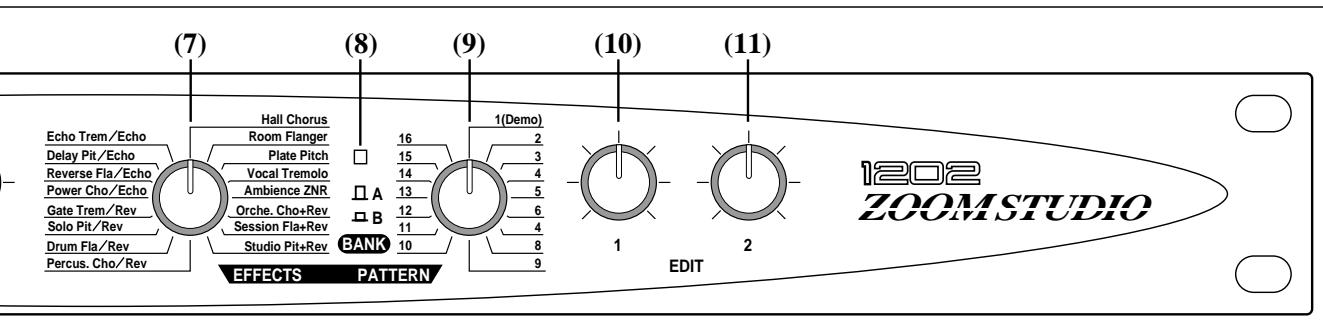
(1) INPUT control
Serves to adjust the volume of the sound source connected to the input.
(2) LED indicator
When the 1202 is turned on, this indicator lights up in green. If the level of the input signal is too high, the indicator turns red to show that the sound will be distorted. Adjust the INPUT control so that the indicator flashes briefly red on the highest signal peaks.
(3) MIX control
Serves to adjust the level balance between the original sound and the effect sound. When the control is turned fully counterclockwise, only the original sound is heard. When the control is turned fully clockwise, only the effect sound is heard.
(4) OUTPUT control
Serves to adjust the output signal level.
(5) EQ LOW control
(6) EQ HIGH control
These controls serve to adjust the low and high frequency range of the effect signal.


When a compound effect (indicated by a / in the effect name) is selected for bank B, the EQ LOW and EQ HIGH controls affect only the reverb or the echo effect sound.
(7) EFFECT selector
Serves to select the effect type to be used. There are 16 different effect types for bank A and bank B.
(8) BANK switch
Serves to select the effect bank A or B.
(9) PATTERN selector
Determines the application pattern of the selected effect. For each effect, 16 different patterns are available.
(10)EDIT1 control
(11)EDIT2 control
These controls serve to adjust the parameters of the currently selected effect. Which parameters can be controlled depends on the selected effect and the selected pattern. (Refer to the supplied preset program list.)
Rear Panel
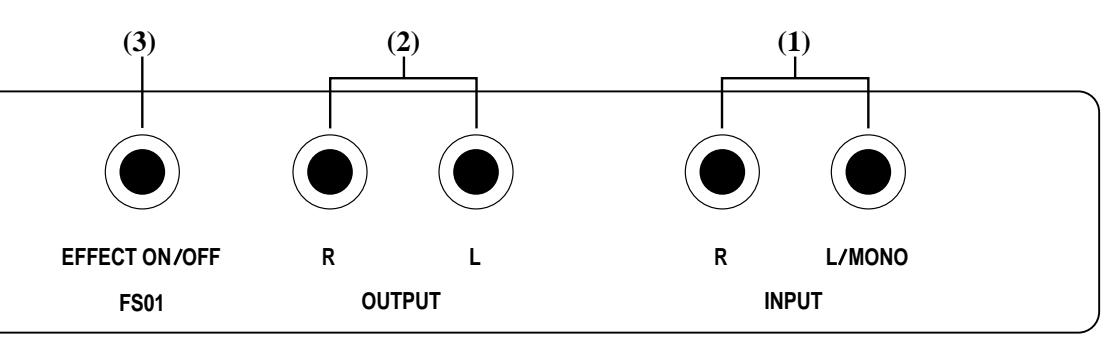
(1) INPUT connector
Serves for connection of the sound source signal from an instrument, mixer send, etc.

When wishing to use equipment with low output, such as a guitar, electric bass or microphone, a preamplifier or a mixer with an integrated preamplifier must be connected between the equipment and the 1202.
(2) OUTPUT connector
Serves for connection to the return input of the instrument or mixer, or to the playback system.
(3) EFFECT OFF connector
By connecting the optional foot switch FS01 to this jack, effects can be switched on and off externally. When OFF is selected, only the original signal is output, and the power LED on the front panel flashes in orange.
(4) POWER (AC adapter) connector
Serves for connection of the supplied AC adapter. Be sure to use only the supplied adapter. When the AC adapter is plugged into an AC outlet, the 1202 will be automatically switched on.
Specification
Preset Programs:
512 (16 Effects × 2 Banks; A/B × 16 Patterns)
Program Controls:
2 (EDIT 1, EDIT 2)
Effect EQ:
HIGH, LOW
Level & Mix Controls:
INPUT, MIX (100% DRY — 100% EFFECT), OUTPUT
Rear I/O:
INPUTS (L/MONO, R); -10dBm - +4dBm / 7k (MONO), 14k (STEREO)
OUTPUTS (L, R) ; -10dBm - +4dBm / 330 or more
EFFECT OFF (with optional foot switch FS01)
A/D Conversions:
2 channels, 16 bit Linear, 44.1kHz 64 times over sampling
D/A Conversions:
2 channels, 16 bit, 44.1kHz
Dimensions:
W 482× H44× D115mm
Weight:
1.4kg
Setup Examples
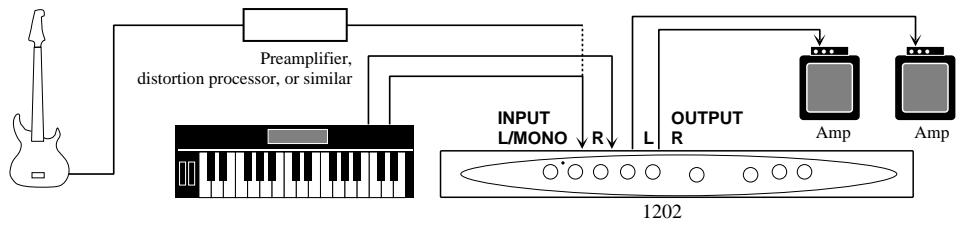
1. Connection between instrument and playback system
This example demonstrates the use of the 1202 as an instrument effector. For a monaural setup, use only the left (L) connector. The MIX control should normally be set to the center position.
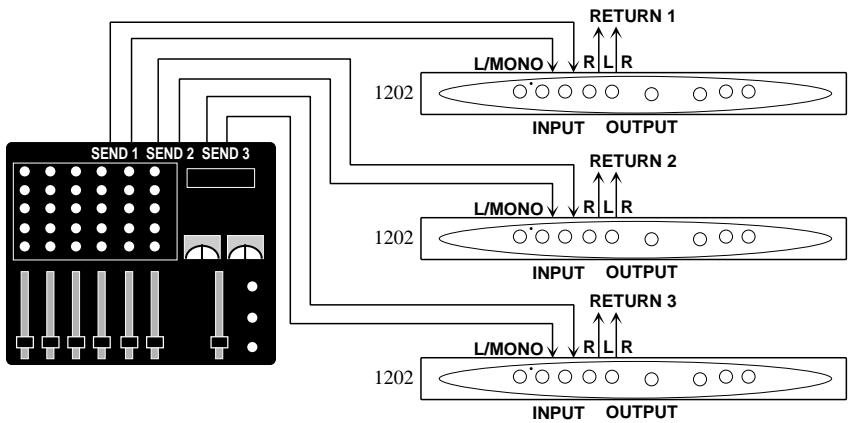
2. Connection in send/return loop of a mixer
This type of connection allows use of the 1202 for any instrument or sound source connected to the mixer. The MIX control should normally be turned fully clockwise.
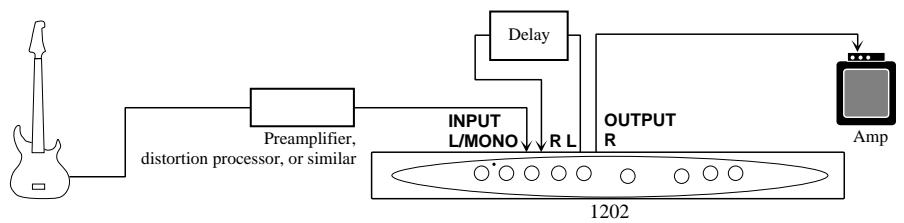
3. Successive use of two effect types
When a compound effect (indicated by a / in the effect name) is selected, two types of effects can be used in series, as shown in this example. It is also possible to insert an external effector between the first and second effect.
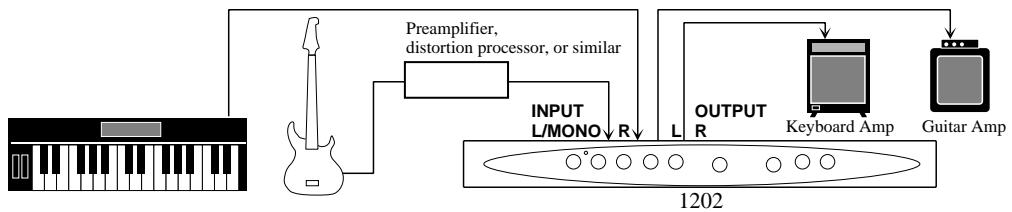
4. Parallel use of two effect types
When a compound effect (indicated by a / in the effect name) is selected, two types of effects can be used separately, as shown in this example.
BANK A
| Effects | Description | Patterns | EDIT 1 | EDIT 2 |
| 1. Hall | Simulates a medium-sized concert hall | Pattern 2–16: Variations with different reverb time 1: 2.2Sec/2–16: 1.0–3.8Sec | Diffusion | Attack |
| 2. Room | Simulates an acoustically dead space such as a rehearsal studio | Pattern 2–16: Variations with different reverb time 1: 0.7Sec/2–16: 0.5–3.3Sec | Diffusion | High Cut |
| 3. Plate | Reverb with rich bass | Pattern 2–16: Variations with different reverb time 1: 4.2Sec/2–16: 3.0–9.0Sec | Pre Delay 0–100mS | High Mpy |
| 4. Vocal | Reverb for adding depth and suppleness, to vocals | Pattern 2–16: Variations with different reverb time 1: 4.5Sec/2–16: 1.7–4.5Sec | Pre Delay 0–100mS | Attack |
| 5. Ambience | Reverb for brightening up the sound and adding depth | Pattern 2–16: Variations with different reverb time 1: 1.2Sec/2–16: 0.6–3.4Sec | High Damp | Density |
| 6. Orche. | Reverb with very wide sound stage and distinct body | Pattern 2–16: Variations with different reverb time 1: 1.5Sec/2–16: 0.5–3.3Sec | Pre Delay 0–100mS | Density |
| 7. Session | Simulates a small, acoustically live room | Pattern 2–16: Variations with different reverb time 1: 1.0Sec/2–16: 0.6–3.4Sec | Diffusion | High Cut |
| 8. Studio | Simulates a large studio with high ceiling | Pattern 2–16: Variations with different reverb time 1: 0.9Sec/2–16: 0.5–3.3Sec | Pre Delay 0–100mS | High Cut |
- For each effect, pattern 1 is called DEMO (standard setting).
[EDIT 1/2 Parameters]
Diffusion: Adjusts the reverb spread.
Attack: Stresses the reverb attack.
High Cut: Attenuates the high frequency components in the reverb.
Pre Delay: Adjusts the interval between the original sound and the reverb.
High Mpy: Adjusts the duration of high-frequency reverb components.
High Damp: Adjusts the speed with which the high-frequency reverb components are attenuated.
Density: Adjusts the reverb density.
BANK A
| Effects | Description | Patterns | EDIT 1 | EDIT 2 |
| 9. Percus. | Conventional type reverb suitable for all kinds of percussion | Pattern 2-16: Variations with different reverb time 1: 1.8Sec/2-16: 0.6-3.4Sec | Diffusion | High Damp |
| 10. Drums | Reverb suitable for adding body to snare drums | Pattern 2-16: Variations with different reverb time 1: 1.7Sec/2-16: 0.5-3.3Sec | High Damp | Density |
| 11. Solo | Reverb with pronounced predelay, ideal for reed solos | Pattern 2-16: Variations with different gate time 1: 3.5Sec/2-16: 2.3-55Sec | Pre Delay 0-100mS | High Cut |
| 12. Gate | Intense gate type reverb | Pattern 2-16: Variations with different gate time 1: 448mS/2-16: 88-1,152mS | Density | Gate Threshold |
| 13. Power | Gate type reverb for creating a heavy sound | Pattern 2-16: Variations with different gate time 1: 312mS/2-16: 88-1,152mS | High Damp | Gate Threshold |
| 14. Reverse | Effect similar to a tape recorder running backwards | Pattern 2-16: Variations with different gate time 1: 858mS/2-16: 88-1,152mS | Diffusion | Gate Threshold |
| 15. Delay | Long delay up to 740 ms, with cross-feedback between L and R. Use EDIT 1/2 to adjust L/R delay time. | Pattern 2-8: Variations with different feedback time. The delay time variation range is 0.4 to 180 mS. Pattern 9-16: Variations with different feedback time. The delay time variation range is 11 to 370 mS. L: 185mSR: 173mS | Delay Time 1 0.4-180mS OR 11-370mS | Delay Time 2 0.4-180mS OR 11-370mS |
| 16. Echo | Fully discrete two-channel echo. Use EDIT 1/2 to adjust L/R delay time. | Pattern 2-8: Variations with different feedback time. The delay time variation range is 0.4 to 180 mS. Pattern 9-16: Variations with different feedback time. The delay time variation range is 11 to 370 mS. L: 173mSR: 185mS | Delay Time 1 0.4-180mS OR 11-370mS | Delay Time 2 0.4-180mS OR 11-370mS |
- For each effect, pattern 1 is called DEMO (standard setting).
[EDIT 1/2 Parameters]
Gate Threshold: Adjusts the gate threshold.
Delay Time 1/2: Adjusts the interval between the original sound and delay sound, and between delay components.
BANK B
| Effects | Description | Patterns | EDIT 1 | EDIT 2 |
| 17. Chorus | Chorus with a total of six voices for L and R | Pattern 2–16: Variations with different modulation depth | Mod Delay | Mod Freq 0.13–1.39Hz |
| 18. Flanger | Flanger with wide sweep range | Pattern 2–16: Variations with different modulation rate 1: 0.76Hz/2–16: 0.1–1.9Hz | Mod Depth | Mod F/B |
| 19. Pitch | Pitch shifter with a range of up to one octave up or down. When changing the pattern, the pitch is shifted along the major scale (*see right page illustration). | Patterns 2–8 are negative pitch shift variations, and patterns 10–16 are positive pitch shift variations. Pattern 9 is a detune effect. 1: +10Cents | Semi Tone Shift | Detune Width Pattern2–8: 0–+13Cent Pattern1,10–16: 0–-7Cent |
| 20. Tremolo | Tremolo with delay and opposite phase for L/R | Pattern 2–16: Variations with different modulation rate 1: 2.54Hz/2–16: 0.14–5.24Hz | Delay Time 11–370mS | Delay F/B |
| 21. ZNR | Zoom noise reduction. Use EDIT 1/2 to adjust the L and R depth of the effect. | Pattern 2–16: Variations with different threshold. Select the pattern which yields the best noise reduction. | Depth-L | Depth-R |
| 22. Cho+Rev | Serial connection of chorus and reverb | Pattern 2–16: Variations with different modulation depth 1: Rev Time = 1.9Sec | Rev Time 0.5–3.3Sec | Rev Mix |
| 23. Fla+Rev | Serial connection of flanger and reverb | Pattern 2–16: Variations with different modulation rate 1: 0.22Hz, Rev Time = 3.1Sec | Rev Time 0.5–3.3Sec | Mod Depth |
| 24. Pit+Rev | Serial connection of pitch shifter and reverb. When changing the pattern, the pitch is shifted along the major scale. | Patterns 2–8 are negative pitch shift variations, and patterns 10–16 are positive pitch shift variations. Pattern 9 is a detune effect. 1: -10Cents, Rev Time = 2.7Sec | Rev Time 0.5–3.3Sec | Rev Mix |
- For each effect, pattern 1 is called DEMO (standard setting).
[EDIT 1/2 Parameters]
Mod Delay: Adjusts the delay until the start of modulation.
Mod Freq: Adjusts the modulation rate.
Mod Depth: Adjusts the modulation depth.
Mod F/B: Adjusts the modulation feedback amount.
Semi Tone Shift: Adjusts the pitch in semitone steps.
Detune Width: Pitch fine adjustment. Pitch moves in different directions for left and right channels.
Delay Time: Adjusts the interval between the original sound and delay sound, and between delay components.
Delay F/B: Adjusts the delay feedback amount.
Depth L/R: Adjusts the depth of the ZNR effect.
Rev Time: Adjusts the reverb time.
Rev Mix: Controls the volume of the reverb sound only.
BANK B
| Effects | Description | Patterns | EDIT 1 | EDIT 2 |
| 25. Cho/Rev | Parallel effect with chorus in the left channel and rever in the right channel | Pattern 2–16: Variations with different modulation depth 1: Rev Time = 1.7Sec | Rev Time 0.5–3.3Sec | Rev Mix |
| 26. Fla/Rev | Parallel effect with flanger in the left channel and rever in the right channel | Pattern 2–16: Variations with different modulation rate 1: 0.76Hz, Rev Time = 2.7Sec | Rev Time 0.5–3.3Sec | Rev Mix |
| 27. Pit/Rev | Parallel effect with pitch shifter in the left channel and rever in the right channel | Patterns 2–8 are negative pitch shift variations, and patterns 10–16 are positive pitch shift variations. Pattern 9 is a detune effect. 1: +7Semi Tone, Rev Time = 1.9Sec | Rev Time 0.5–3.3Sec | Rev Mix |
| 28. Trem/Rev | Parallel effect with tremolo in the left channel and rever in the right channel | Pattern 2–16: Variations with different modulation rate 1: 3.5Hz, Rev Time = 0.7Sec | Rev Time 0.5–3.3Sec | Rev Mix |
| 29. Cho/Echo | Parallel effect with chorus in the left channel and echo in the right channel | Pattern 2–16: Variations with different modulation depth 1: Delay Time = 185mS | Delay Time 11–370mS | Echo Mix |
| 30. Fla/Echo | Parallel effect with flanger in the left channel and echo in the right channel | Pattern 2–16: Variations with different modulation rate 1: 0.27Hz, DLY Time = 126mS | Delay Time 11–370mS | Echo Mix |
| 31. Pit/Echo | Parallel effect with pitch shifter in the left channel and echo in the right channel | Patterns 2–8 are negative pitch shift variations, and patterns 10–16 are positive pitch shift variations. Pattern 9 is a detune effect. 1: -5Semi Tone, DLY Time = 150mS | Delay Time 11–370mS | Echo Mix |
| 32. Trem/Echo | Parallel effect with tremolo in the left channel and echo in the right channel | Pattern 2–16: Variations with different modulation rate 1: 4.62Hz, DLY Time = 161mS | Delay Time 11–370mS | Echo Mix |
- For each effect, pattern 1 is called DEMO (standard setting).
[EDIT 1/2 Parameters]
Echo Mix: Controls the volume of the echo sound only.
![ZOOM STUDIO 1202 - [EDIT 1/2 Parameters] - 1](/content/2024/12/152251/images/7ea8abba7f197693fa14ddb0f77bdd1ad2e9c35e6744082839ecdbd138e69276.jpg)
* Pitch Shift Intervals
![ZOOM STUDIO 1202 - [EDIT 1/2 Parameters] - 2](/content/2024/12/152251/images/4cd782393dfece3f6df69ca23e2d90afdcd0fe6d145a6cd13ada1d215784ee38.jpg)
![ZOOM STUDIO 1202 - [EDIT 1/2 Parameters] - 3](/content/2024/12/152251/images/d2d9ca8245464d43f7b6af163ad6367b5651b2c956b4da86adbc5a0f8cd2046c.jpg)
- Safety Precautions
- - Power requirements
- - Environment
- - Handling
- - Alterations
- - Connecting cables and input and output jacks
- Usage Precautions
- - Electrical interference
- - Cleaning
- Names and Functions of Controls and Connectors
- Front Panel
- INPUT control
- LED indicator
- MIX control
- OUTPUT control
- EQ LOW control
- EQ HIGH control
- EFFECT selector
- BANK switch
- PATTERN selector
- (10)EDIT1 control
- (11)EDIT2 control
- Rear Panel
- INPUT connector
- OUTPUT connector
- EFFECT OFF connector
- POWER (AC adapter) connector
- Specification
- Setup Examples
- Connection between instrument and playback system
- Connection in send/return loop of a mixer
- Successive use of two effect types
- Parallel use of two effect types
- [EDIT 1/2 Parameters]
- BANK B
Marque : ZOOM
Modèle : STUDIO 1202
Catégorie : Mixeur audio