
DI2510F - Photocopieur KONICA MINOLTA - Notice d'utilisation et mode d'emploi gratuit
Retrouvez gratuitement la notice de l'appareil DI2510F KONICA MINOLTA au format PDF.


| Type de produit | Photocopieur numérique multifonction (copie, impression, fax) |
| Marque | KONICA MINOLTA |
| Modèle | DI2510F |
| Vitesse de copie | 25 copies/minute (A4) |
| Résolution de copie | 600 x 600 dpi |
| Format de papier | A3, A4, A5, B4, B5 |
| Capacité du chargeur de documents | 50 feuilles (recto-verso automatique) |
| Capacité des bacs papier | Bac standard 500 feuilles, bac multifonction 100 feuilles |
| Recto-verso | Automatique intégré |
| Fonctions fax | Super G3, mémoire 500 pages, envoi PC |
| Écran tactile | Écran LCD monochrome rétroéclairé |
| Dimensions (L x P x H) | 620 x 670 x 630 mm |
| Poids | Environ 65 kg |
| Alimentation électrique | 230 V, 50 Hz, 1.5 kW |
| Consommation énergétique | Max. 1.5 kW, veille 100 W |
| Niveau sonore | Moins de 65 dB(A) en fonctionnement |
| Entretien | Nettoyage régulier du chargeur, vitre d'exposition et bac de récupération |
| Sécurité | Verrouillage administrateur, code à 8 chiffres, protection contre les accès non autorisés |
| Pièces détachées courantes | Cartouche toner, tambour, kit de maintenance, bac de récupération de toner |
| Réparabilité | Indice de réparabilité : 7/10 (estimation) |
| Accessoires optionnels | Unité de finition, module réseau, kit de numérisation vers dossier |
| Logiciel inclus | PageScope pour gestion réseau |
| Informations générales | Manuel d'utilisation disponible en français, anglais, allemand |
FOIRE AUX QUESTIONS - DI2510F KONICA MINOLTA
Questions des utilisateurs sur DI2510F KONICA MINOLTA
0 question sur cet appareil. Repondez a celles que vous connaissez ou posez la votre.
Poser une nouvelle question sur cet appareil
Téléchargez la notice de votre Photocopieur au format PDF gratuitement ! Retrouvez votre notice DI2510F - KONICA MINOLTA et reprennez votre appareil électronique en main. Sur cette page sont publiés tous les documents nécessaires à l'utilisation de votre appareil DI2510F de la marque KONICA MINOLTA.
MODE D'EMPLOI DI2510F KONICA MINOLTA
User Manual
[Additional Functions]
The essentials of imaging
www.konicaminolta.net
Di2510/Di3010/Di3510 Di2510f/Di3510f
natural_image
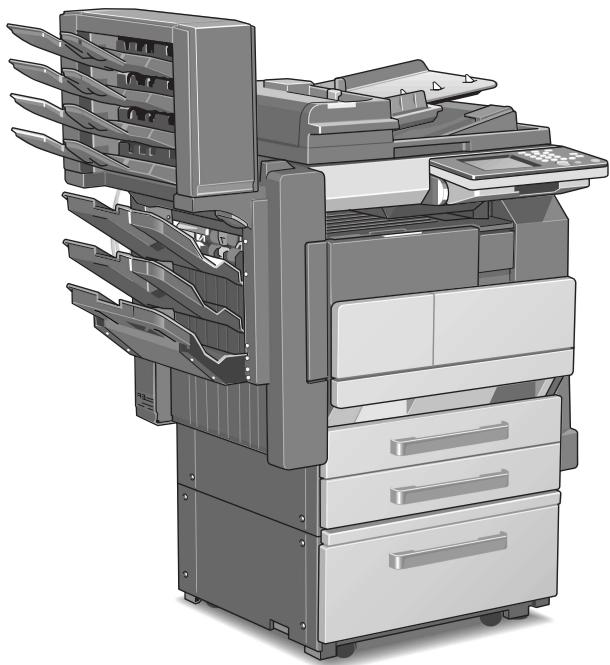
Illustration of a multi-tiered printer or scanner system with multiple blades and control panels (no text or symbols visible)
Administrator Management Screens
Administrator Settings
Setting Machine Access
Removing Penalties
A maximum of 999 copies can be specified at one time with this machine.
1.1 Administrator Management Screens
To display the Administrator Management screens
This explains the method for displaying the Administrator Management screens.
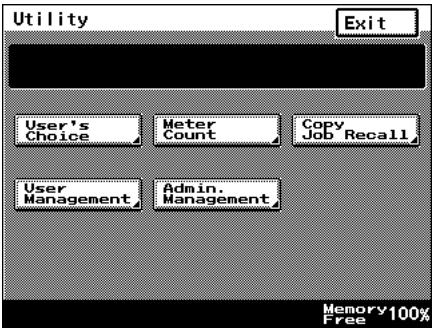
1 Press the [Utility] key.
2 Touch [Admin. Management].
3 Use the 10-Key Pad to type in the 8-digit administrator code (Admin. Password), and then touch [Enter].

Note
f the administrator code is incorrectly entered, the message "Incorrect administrator code. Try again." appears accompanied by a beeping sound. Fol-
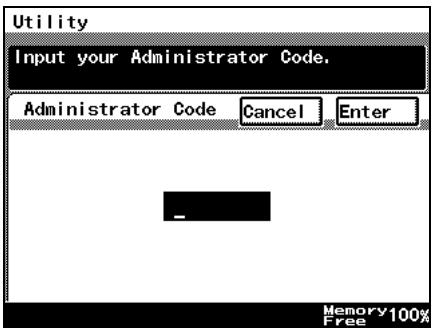
low the instructions in the message that appears and type in the correct administrator code.
If the “Access Lock” function is set to “ON”, incorrectly typing the administrator code is counted as an incorrect attempt to access the machine. After three incorrect attempts to access the machine, even if the correct administrator code is entered on a later attempt, an error message appears and access to the Administrator Management screen is denied. To allow access to the Administrator Management screen, turn the machine off, then on again, and then type in the correct administrator code.
Keep the administrator code in a safe place hidden from the general user.
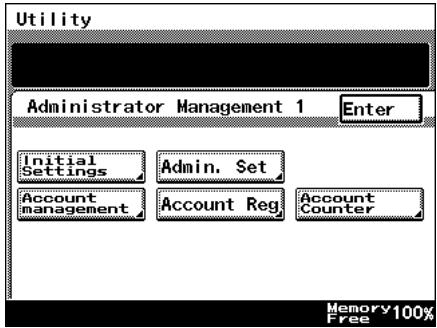
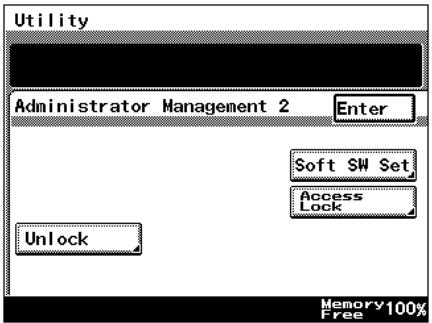
4 Touch [Admin. 1] or [Admin. 2] to display the desired screen.
- For details on the Administrator Management 2 screen, refer to page 1-5.
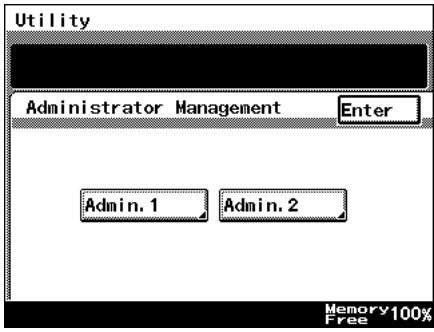
5 From the screen that appeared, touch the key for the operation that you wish to perform or the function whose setting you wish to specify.

Note
After account management settings have been specified for the Di2510/Di3010/Di3510, the [Account Reg], [Account Counter] keys appear only if one of following options is installed.
Printer Controller, Network Interface Card Network Scan Kit (or Internet Fax & Network Scan Kit).
If "Copy Track Mode" is set to "1000 Accounts" or "OFF", neither the [Account Reg] nor the [Account Counter] keys will appear.
1.2 Administrator Settings
Changing the administrator access code
This explains the method to specify or change the administrator access code.
To set the administrator access code
1 Follow the procedure described in "To display the Administrator Management screens" on page 1-1 to display the Administrator Management screen.
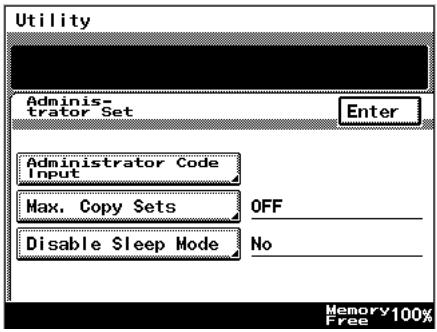
2 Touch [Admin. 1], and then touch [Admin. Set].
3 Touch [Administrator Code Input].
4 Touch [Current Code], and then use the 10-Key Pad to type in the currently specified 8-digit administrator code (Admin. Password).
- Press the [C] key to erase all entered text.
- To return to the previous screen, touch [Cancel].
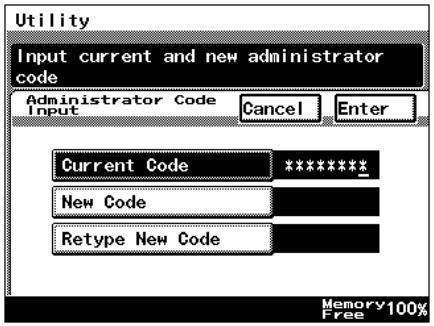
5 Touch [New Code], and then use the 10-Key Pad to type in the new 8-digit administrator code (Admin. Password).
○ Press the [C] key to erase all entered text.
○ To return to the previous screen, touch [Cancel].
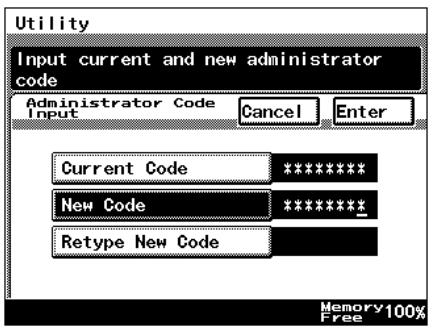
6 Touch [Retype New Code], and then use the 10-Key Pad to retype the new 8-digit administrator code (Admin. Password).
○ Press the [C] key to erase all entered text.
○ To return to the previous screen, touch [Cancel].
7 Touch [Enter].
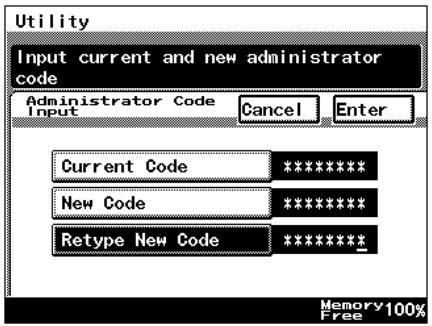

Note
If an incorrect administrator code is entered, an error message appears.
Type in the correct administrator code. The error message may appear in any of the following cases.
The code entered beside "Current Code" does not match the registered administrator code.
The code entered beside "New Code" is not an 8-digit number.
The code entered beside "Retype New Code" does not match the code entered beside "New Code".
If the “Access Lock” function is set to “ON”, incorrectly typing the administrator code is counted as an incorrect attempt to access the machine. After three incorrect attempts to access the machine, even if the correct administrator code is entered on a later attempt, an error message appears and the administrator code cannot be changed. To change the administrator code, turn the machine off, then on again, and then type in the correct administrator code.
1.3 Setting Machine Access
Access Lock
The “Access Lock” function is used to specify whether (“On”) or not (“Off”) access to Administrator mode, lock jobs and user boxes is monitored.
If the “Access Lock” function is set to “On”, the number of incorrect attempts to access Administrator mode, lock jobs and user boxes is counted. After three incorrect attempts, access to the machine is denied. To allow Administrator mode to be accessed again, turn the machine off, then on again. However, to allow lock jobs and user boxes to be accessed again, the penalty must be removed. For more details, refer to the Printer Controller User Manual.
To make settings for the "Access Lock" function
1 Follow the procedure described in "To display the Administrator Management screens" on page 1-1 to display the Administrator Management screen.
2 Touch [Admin. 2], and then touch [Access Lock].
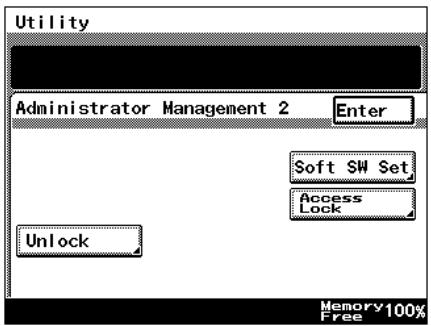
3 To use the "Access Lock" function, touch [ON]. To stop using the "Access Lock" function, touch [OFF].
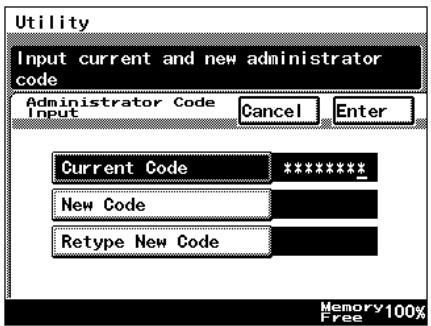
4 Touch [Enter].
- To return to the previous screen, touch [Cancel].
5 Continue touching [Enter] to return to the Utility screen, and then touch [Exit] to return to the Basics screen.
1.4 Removing Penalties
Unlock
If the “Access Lock” function is set to “ON” and the optional printer controller is installed, the penalty must be removed in order to allow access after incorrect attempts to access lock jobs and user boxes. For more details, refer to the User Manual for the printer controller.
In addition, to allow access after incorrect attempts to access Administrator mode, turn the machine off, then on again.
Copyright
2003
KONICA MINOLTA BUSINESS TECHNOLOGIES, INC.
The information contained in this manual is subject to change without notice to incorporate improvements made on the product or products the manual covers.