PI1802E - Imprimante KONICA MINOLTA - Notice d'utilisation et mode d'emploi gratuit
Retrouvez gratuitement la notice de l'appareil PI1802E KONICA MINOLTA au format PDF.


| Type de produit | Imprimante multifonction monochrome |
| Résolution d'impression | 1200 x 1200 dpi |
| Vitesse d'impression | 18 pages par minute |
| Capacité du bac d'alimentation | 250 feuilles |
| Connectivité | USB 2.0, Ethernet |
| Dimensions approximatives | 400 x 360 x 250 mm |
| Poids | 10 kg |
| Compatibilités | Windows, macOS, Linux |
| Type de toner | Toner laser |
| Capacité du toner | 3000 pages (standard) |
| Fonctions principales | Impression, copie, numérisation |
| Entretien et nettoyage | Nettoyage régulier de l'unité de transfert et du tambour |
| Pièces détachées et réparabilité | Accessibilité des pièces pour maintenance |
| Sécurité | Protection par mot de passe, impression sécurisée |
| Informations générales | Garantie de 1 an, support technique disponible |
FOIRE AUX QUESTIONS - PI1802E KONICA MINOLTA
Questions des utilisateurs sur PI1802E KONICA MINOLTA
0 question sur cet appareil. Repondez a celles que vous connaissez ou posez la votre.
Poser une nouvelle question sur cet appareil
Téléchargez la notice de votre Imprimante au format PDF gratuitement ! Retrouvez votre notice PI1802E - KONICA MINOLTA et reprennez votre appareil électronique en main. Sur cette page sont publiés tous les documents nécessaires à l'utilisation de votre appareil PI1802E de la marque KONICA MINOLTA.
MODE D'EMPLOI PI1802E KONICA MINOLTA
The essentials of imaging
www.minolta.com
PageScope Light for Pi1802e
Welcome
PageScope Light is a device control utility program provided by the HTTP server built into the printer controller. With a standard Web browser, this utility can be used as a tool for remote control of the printer controller.
Trademark Acknowledgements
Minolta is a registered trademark of MINOLTA CO., LTD.
PageScope is a trademark of MINOLTA CO., LTD.
Ethernet is a registered trademark of Xerox Corporation.
Microsoft, Windows, and Windows NT are either registered trademarks or trademarks of Microsoft Corporation in the United States and/or other countries.
Netscape and the Netscape N and Ship's Wheel logos are registered trademarks of Netscape Communications Corporation in the U.S. and other countries. Netscape Navigator is also a trademark of Netscape Communications Corporation and may be registered outside the U.S.
Novell and NetWare are registered trademarks of Novell, Inc.
PCL is a registered trademark of Hewlett-Packard Company Limited.
All other product names are trademarks or registered trademarks of their respective holders.
Copyright 2001 MINOLTA CO., LTD.
Screen images shown in this manual may differ slightly from actual ones. In addition, the explanations are given using Internet Explorer as the Web browser.
Specifications are subject to change without prior notice.
CONTENTS
1 System Requirements .... 1
2 Access .... 1
2.1 Operation ......2
2.2 Entering the Password ......2
2.3 Selecting the Display Language ......2
3 Screen Configuration .... 3
4 Description of Each Page 4
4.1 System Tab 4
4.2 Job Tab 7
4.3 Printer Tab 8
4.4 Network Tab 10
1 System Requirements
The following items are required to use this utility.
Computer
- Software
| Operation System | Web Browser |
| Windows 95/98/Me/NT 4.0/2000 | Internet Explorer 4 or higherNetscape Navigator 4 or higher |
Digital Copier
- The printer controller Pi1802e with the NIC (Network Interface Card) installed
Network
- Ethernet 10/100 BaseT
- TCP/IP Protocol
2 Access
PageScope Light can be accessed directly from a Web browser.
- Start the Web browser.
- In the Address Bar, enter the IP address of the printer controller as shown below.
http:/// (Example) When the IP address of the printer controller is 192.9.200.200:
http://192.9.200.200/
- This causes PageScope Light screen to appear.
2.1 Operation
PageScope Light operation is identical to that for Internet Web pages. Clicking a hot link jumps to the link destination, and the Back and Forward buttons scroll through pages backwards and forward.
If an error message appears due to an incorrect setting, click the Back button to return to the previous page, and then try specifying the setting again.
In addition, if the Minolta PageScope Light logo in the top-left corner of the page is clicked, the Minolta Web site opens up in the browser.
2.2 Entering the Password
The Password input box appears in the page where PageScope Light settings can be changed.
The password is required in order to specify PageScope Light settings. Once the password is entered, it is valid until PageScope Light is closed.
A password is required to perform this function.
Password
Note
- The initial default administrator password is sysadm.
- Change the password using the Preference menu on the System tab.
2.3 Selecting the Display Language
If necessary, the display language of PageScope Light can be changed to match the operating environment.
Start up PageScope Light, click the Preference menu at the left of the screen, and then select the desired setting under Panel Language. This setting only applies to the display language of PageScope Light.
3 Screen Configuration
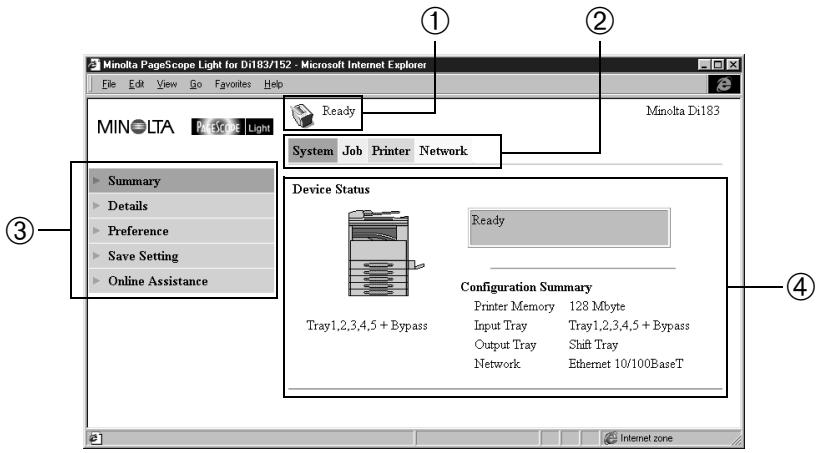
The configuration of the PageScope Light screen is shown below.
text_image
Minolta PageScope Light for Di183/152 - Microsoft Internet Explorer File Edit View Go Favorites Help MINOLTA PageScope Light Ready System Job Printer Network Minolta Di183 Summary Details Preference Save Setting Online Assistance Device Status Ready Configuration Summary Printer Memory 128 Mbyte Tray1,2,3,4,5 + Bypass Input Tray Tray1,2,3,4,5 + Bypass Output Tray Shift Tray Network Ethernet 10/100BaseT ① ② ③ ④① Status display section
The status of the system is shown with icons and text.
 |  |  |  |
| Ready | Attention | Error | Trouble |
② Tabs
The categories that can be controlled by PageScope Light are displayed.
- System Used to control and set the system structure for the Digital Copier
• Job Used to control the print jobs - Printer Used for setting the printer controller
• Network Used for specifying network settings
③ Menus
The information and settings for the selected tab are displayed.
④ Information and setting details
The details of the selected menu are displayed.
4 Description of Each Page
This section contains descriptions of the information and settings that are displayed when each tab is clicked.
4.1 System Tab
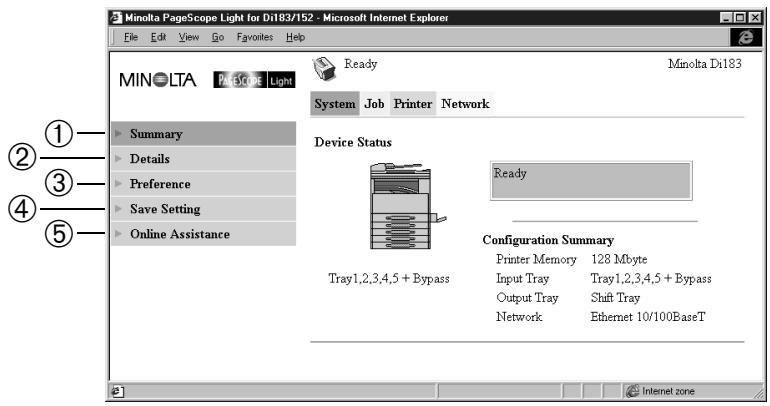
On the System tab, information concerning the system structure for the Digital Copier can be checked and set. Checking and setting can be performed with the ① Summary, ② Details, ③ Preference, ④ Save Setting, and ⑤ Online Assistance menus.
text_image
Minolta PageScope Light for Di183/152 - Microsoft Internet Explorer File Edit View Go Favorites Help MINOLTA PageScope Light Ready Minolta Dt183 System Job Printer Network Device Status Ready Configuration Summary Printer Memory 128 Mbyte Input Tray Tray1,2,3,4,5 + Bypass Output Tray Shift Tray Network Ethernet 10/100BaseT Tray1,2,3,4,5 + Bypass① Summary
A summary of the status and the system structure of the Digital Copier is displayed.
② Details
The details of the status and the system structure of the Digital Copier are displayed.
- Input Tray It shows the current status of all the Input Trays installed on the Digital Copier.
- Output Tray It shows the Output Tray installed on the Digital Copier.
- ROM Version
It shows version of firmware installed on the Digital Copier and printer controller.
- Interface Info
It shows information about network interface and local interface.
- Consumable It shows the current status of Digital Copier consumables.
③ Preference
The password for PageScope Light can be changed, and environment settings such as the page update interval time and the display language can be specified.
The initial default password is sysadm.
Note
- When changing the password, enter a new password that is more than 4 characters long, less than 8 characters, and case-sensitive.
④ Save Setting
The current printer controller settings can be saved in a file, or the settings can be changed by importing a saved settings file.
Save Setting
To save the settings in a file, specify the location where the file will be saved, and then click the Save button.
Restore Setting
Click the Browse button and specify the file. (You can type in the path to the settings file into the text box.) Clicking the Restore button sends the setup file specified in FileName and changes the settings of the printer controller accordingly.
Important!
- Clicking the Restore button changes the setup of the Printer Controller in accordance with the specified setup file. Make sure you select the correct file that contains the setup you want before clicking Restore.
⑤ Online Assistance
Enter information concerning product support and check it when necessary.
4.2 Job Tab
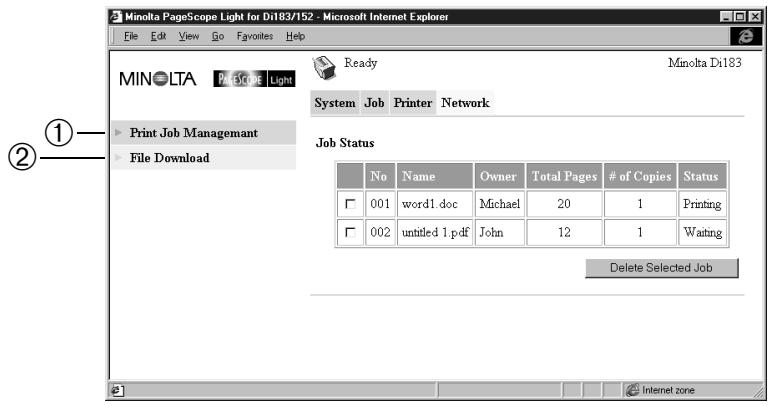
Use the Job tab to manage print jobs sent to the printer controller. Checking and setting can be performed with the ① Print Job Management and ② File Download menus.
text_image
Minolta PageScope Light for D183/152 - Microsoft Internet Explorer File Edit View Go Favorites Help MINOLTA Print Scope Light Ready Minolta D183 System Job Printer Network Print Job Management File Download Job Status No Name Owner Total Pages # of Copies Status 001 word1.doc Michael 20 1 Printing 002 untitled 1.pdf John 12 1 Waiting Delete Selected Job Internet zone① Print Job Management
A list of print jobs (maximum 50) sent from clients is displayed in the order that the jobs were sent.
Jobs that have been printed are automatically deleted.
To delete a job, put a check mark in the box at the left of the list, and then click the Delete Selected Job button.
② File Download
Click the Browse button and specify the file that you wish to print. (You can type in the path to the file into the text box). Then, click the Send button to print the file.
4.3 Printer Tab
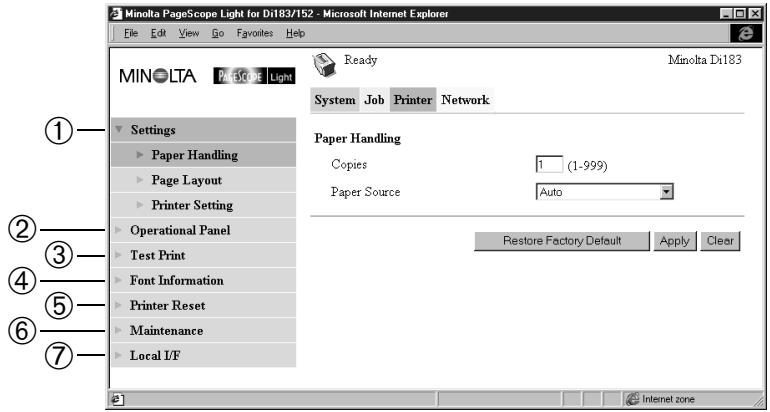
Use the Printer tab for configuring the printer controller settings.
Checking and setting can be performed with the ① Settings,
② Operational Panel, ③ Test Print, ④ Font Information, ⑤ Printer Reset, ⑥ Maintenance, and ⑦ Local I/F menus.
text_image
Minolta PageScope Light for Di183/152 - Microsoft Internet Explorer File Edit View Go Favorites Help MINOLTA PageScope Light Ready Minolta Di183 System Job Printer Network Settings Paper Handling Page Layout Printer Setting Operational Panel Test Print Font Information Printer Reset Maintenance Local I/F Paper Handling Copies 1 (1-999) Paper Source Auto Restore Factory Default Apply Clear ①— ②— ③— ④— ⑤— ⑥— ⑦—① Settings
You can use this menu to make various printer settings.
- Paper Handling Sets the input tray.
• Page Layout Sets the paper size for printing. - Printer Setting Sets the PCL setting for the printer controller.
② Operational Panel
It shows the status of the printer.
③ Test Print
Use this to print to the printer configuration page or the PCL font list.
④ Font Information
It shows a list of PCL fonts built into the printer controller.
⑤ Printer Reset
Clicking the Reset button resets the printer controller.
⑥ Maintenance
The printer controller can be initialized and counter values can be checked.
- Initialize Use this to update the printer controller firmware and to restore the initial factory default settings.
- Counter The total number of prints made since the Digital Copier was set up can be checked.
⑦ Local I/F
Use this to view and configure local interface information.
In the Timeout setting, you can set a value (from 5 to 255 seconds) specifying how much time should be allowed to pass after data is received through the parallel port before it is decided that a job is finished.
4.4 Network Tab
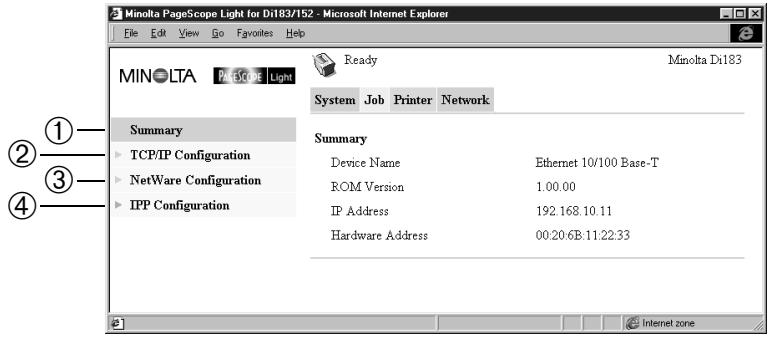
Use the Network tab for configuring the network settings. Checking and setting can be performed with the ① Summary, ② TCP/IP Configuration, ③ NetWare Configuration, and ④ IPP Configuration menus.
text_image
Minolta PageScope Light for Dl183/152 - Microsoft Internet Explorer File Edit View Go Favorites Help MINOLTA PageScope Light Ready Minolta Dt183 System Job Printer Network Summary TCP/IP Configuration NetWare Configuration IPP Configuration Summary Device Name Ethernet 10/100 Base-T ROM Version 1.00.00 IP Address 192.168.10.11 Hardware Address 00:20:6B:11:22:33 Internet zone① Summary
Use this to view a summary of the NIC (Network Interface Card) which is installed in the printer controller.
② TCP/IP Configuration
It lets you change the TCP/IP settings for the printer controller.
IP Address Input the IP address you want to assign to the printer controller.
Subnet Mask Input the network subnet mask.
Default Gateway
If the network has a router, input the IP address of the router.
DHCP Select this option when a DHCP server is used to automatically assign the IP address.
IP Address in NVRAM
Select this option when a static IP address is used.
Note
- The TCP/IP settings should be specified by the network administrator.
- If no IP address is specified while IP Address in NVRAM is selected, a DHCP request will be sent.
③ NetWare Configuration
It lets you view and configure NetWare environment settings for the printer controller.
Note
- For this setting, it is necessary to set up the printers to be used, the print server and the print queue on a NetWare file server.
- NetWare Setting
Enable NetWare
Check this option to enable IPX/SPX on the printer controller. The NetWare environment is disabled while this option is unchecked.
Print Server Name
Type in the print server name for logging in the NetWare server. For the print server name, use the name of the print server registered in the NetWare file server.
Print Server Password/Password Retype
Type in the password here when a password is defined on the print server registered in the NetWare file server. Type the same password into the Password Retype field for confirmation.
Preferred File Server
Type in the name of the preferred file server when setting up for bindery and bindery emulation. The print server must always be configured on a preferred file server. Failure to properly configure the preferred file server can cause incorrect printing results.
Preferred NDS Tree
If the print server is operating on NDS, type in the preferred NDS tree name. (If you do not know what the tree is, input whoami at the DOS command line.)
Print Queue Scan Rate
Specify the print server's queue scan interval in seconds.
Connection Mode
Set a connection mode that corresponds with the NetWare environment being used.
- NetWare Status
Use this to check the status of connection to the NetWare file server.
④ IPP Configuration
It lets you change Internet Printing Protocol (IPP) settings for the printer controller. You can configure the printer functions that are controlled by IPP and the printer information that can be seen from IPP clients.
Note
- Standard access for IPP printing is:
http://
Enable IPP Check this option to enable IPP on the printer controller. You cannot use IPP print unless this option is checked.
Printer Name Type in a name to identify the printer during IPP printing.
Printer Location Type in the location of the printer.
Printer Information Type in a description of the printer.
More Printer Information Specify a URL where detailed information about this particular printer can be found.
Printer Driver Installer
Specify a URL where the printer driver installer can be found.
Printer Make and Model
Type in the printer manufacturer name and model name.
More Printer Information - Manufacturer
Specify a URL where detailed information about the printer manufacturer particular printer can be found.
Operations Supported
Use these settings to specify the IPP printing operations supported by the printer.
Document Format Supported
Put a check mark next to the document data formats that the printer supports for IPP printing.
Document Format
Select the default document data format. The uses this data format for IPP printing when no data format is specified by the client.
Message from Operator
Type in a message from the printer administrator to users.
job-k-octets-supported
It shows the upper limit of the total job size that the printer can receive in kilo-octet units.
1 kilo-octet = 1 Kilo-Byte

natural_image
Blue circular logo with horizontal white stripes (no text or symbols)MINOLTA
Copyright
2001 MINOLTA CO., LTD.
Printed in Taiwan
The information contained in this manual is subject to change without notice to incorporate improvements made on the product or products the manual covers.