P34K V3 - Ordinateur portable GIGABYTE - Notice d'utilisation et mode d'emploi gratuit
Retrouvez gratuitement la notice de l'appareil P34K V3 GIGABYTE au format PDF.


| Intitulé | Description |
|---|---|
| Type de produit | Ordinateur portable gaming |
| Processeur | Intel Core i7-4720HQ |
| Carte graphique | NVIDIA GeForce GTX 970M |
| Écran | 15.6 pouces Full HD (1920 x 1080) |
| RAM | 16 Go DDR3L |
| Stockage | SSD de 512 Go |
| Alimentation électrique | Adaptateur secteur 180W |
| Dimensions approximatives | 385 x 260 x 23 mm |
| Poids | 2.2 kg |
| Connectivité | Wi-Fi 802.11ac, Bluetooth 4.0 |
| Ports | USB 3.0, HDMI, Mini DisplayPort, Ethernet |
| Type de batterie | Li-ion |
| Tension | 11.1V |
| Fonctions principales | Jeux, multimédia, productivité |
| Entretien et nettoyage | Nettoyage régulier des ventilateurs et des grilles d'aération |
| Pièces détachées et réparabilité | Accès facile aux composants internes pour mise à niveau |
| Sécurité | Protection par mot de passe, TPM 2.0 |
| Informations générales | Idéal pour les gamers et les professionnels en déplacement |
FOIRE AUX QUESTIONS - P34K V3 GIGABYTE
Questions des utilisateurs sur P34K V3 GIGABYTE
0 question sur cet appareil. Repondez a celles que vous connaissez ou posez la votre.
Poser une nouvelle question sur cet appareil
Téléchargez la notice de votre Ordinateur portable au format PDF gratuitement ! Retrouvez votre notice P34K V3 - GIGABYTE et reprennez votre appareil électronique en main. Sur cette page sont publiés tous les documents nécessaires à l'utilisation de votre appareil P34K V3 de la marque GIGABYTE.
MODE D'EMPLOI P34K V3 GIGABYTE
P34
USER'S MANUAL
使用手册
English
V5.0
Congratulations on your purchase of the GIGABYTE Notebook.
This manual will help you to get started with setting up your notebook. The final product configuration depends on the model at the point of your purchase. GIGABYTE reserves the right to amend without prior notice. For more detailed information, please visit our website at www.gigabyte.com
Using GIGABYTE Notebook for the First Time
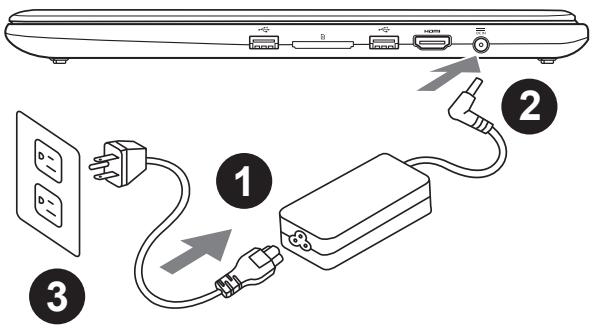
1 Connect the power cord to the AC adapter.
2 Connect the AC adapter to the DC-in jack on the right side of the notebook.
3 Connect the power cord to the power outlet.
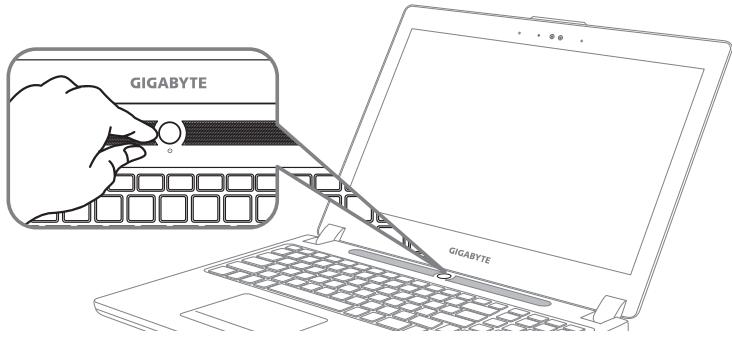
Switching on the Power
After you turn on the Notebook for the very first time, do not turn it off until the operating system has been configured. Please note that the volume for the audio will not function until Windows® Setup has completed.
Booting Up the Notebook for the First Time
Depending on your configuration, the Microsoft® Windows® Boot Screen will be the first screen that you will see as the notebook starts up. Follow the on-screen prompts and instructions and enter your personal information to complete the setup of the Windows® Operating System.
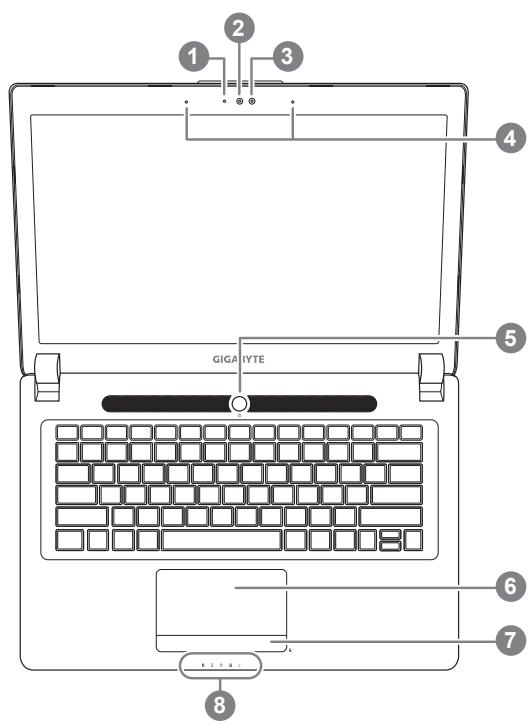
Top View
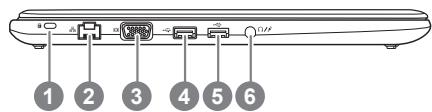
Left View
1 Webcam Status LED Indicator
2 Webcam
3 Light sensor
4 Microphone x 2
5 Power Button
6 TouchPad
7 Battery Indicator Button 1
8 LED Indicators 2
Press the right button of touchpad to check the remaining battery power. Right-click to show the remaining power percentage. As shown below, the battery life indicator is available when the laptop is shut down, in stand-by or hibernation.(Battery mode)
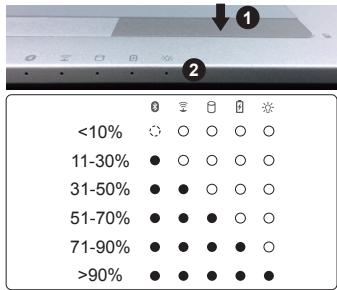
Bluetooth Status LED
Wireless Lan Status LED
HDD Status LED
Battery Status LED
Power Status LED
1 Kensington Lock Slot
2 Ethernet Port
3 D-sub (VGA) Port
4 USB Port (Support USB Charge)
5 USB Port
6 Combo Audio Jack
Right View
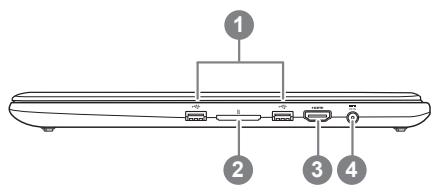
1 USB Port x2
2 SD Card Reader
3 HDMI Port
4 DC-in Jack
Base View
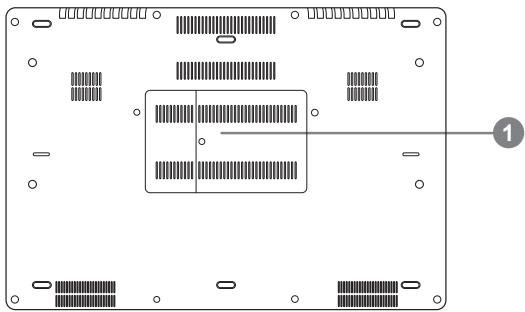
1 Memory Compartment

Warning:
DO NOT remove the built-in lithium battery. For any service needs, please contact your local GIGABYTE Authorized Service Center.
Hotkeys
The computer employs hotkeys or key combinations to access most of the computer's controls like screen brightness and volume output. To activate hotkeys, press and hold the
| Hotkey | Function | Description |
| Fn+F1 Z² | Sleep | Put the computer in Sleep mode. |
| Fn+F2 @ | Wireless LAN | Enables/disable the Wireless LAN function. |
| Fn+F3 ※ | Brightness Down | Decrease the screen brightness. |
| Fn+F4 ※A | Brightness Up | Increase the screen brightness. |
| Fn+F5 LCD/® | Display Toggle | Switche display output between the display screen, external monitor (if connected) and both. |
| Fn+F6 @ | Screen Display Toggle | Turn the screen display on and off. |
| Fn+F7 @× | Speaker Toggle | Turn the speaker on and off. |
| Fn+F8 @ | Volume Down | Decrease the sound volume. |
| Fn+F9 @A | Volume Up | Increase the sound volume. |
| Fn+F10 @ | Touchpad Toggle | Turn the internal touchpad on and off. |
| Fn+F11 @ | Bluetooth | Enable/disable the Bluetooth function. |
| Fn+F12 @ | Webcam | Turn the internal webcam on and off. |
| Fn+Space @ | Keyboard Backlight Toggle | Turn the keyboard backlight on and off. |
GIGABYTE Software Application
GIGABYTE Smart Manager
You can activate GIGABYTE Smart Manager by double clicking on the shortcut icon on the desktop if the machine you purchased has the operation system built-in. GIGABYTE Smart Manager is an icon-based control interface, enabling users to intuitionally access common system setup as well as GIGABYTE exclusive utilities. Please be noted that the GIGABYTE Smart Manager interface, icons, utilities and software versions may vary based on the purchased models. Please operate GIGABYTE Smart Manager according to the actual version built-in.
Setup Your System for RAID 0/1
WARNING
- Please backup your data before you build and run RAID 0/1 on your system.
- RAID 1 needs two storage drives of the same specification and capacity in your laptop.
- RAID 0 needs two storage drives of the same specification in your laptop. Different capacity is acceptable.
1
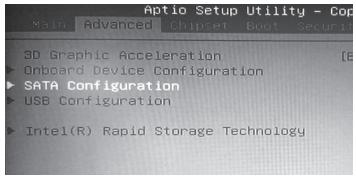
- Press F2 when computer starts to Enter BIOS setup utility.
- Go to Advanced > SATA configuration.
2
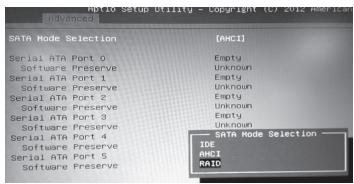
- Change "SATA Mode selection" from "AHCI" to "RAID".
- Press F10 to save and exit. The system will restart automatically.
3

Intel® Rapid Storage...
- Once the system restarts. Go to "All Apps" found at the bottom of the screen on Windows 8 and execute Intel Rapid Storage program.
4

Intel®快速儲存技術
- You will see the Intel Rapid Storage Technology Screen, Click> Create.
5


Create Volume.
Select Controller
Intel(R) Mobile Express Chipset SATA RAID Controller
Select Volume Type
Flexible data protection (Recovery)
Real-time data protection (RAID 1)
Optimized disk performance (RAID 0)
Back
Create Volume
Cancel
Under Select Volume Type choose Optimized disc performance (RAID 0/1), Click >NEXT.
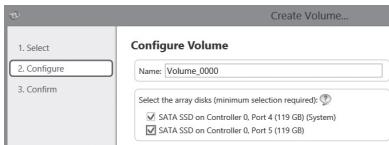
- Under Configure Volume you may set Name to your preferred name and select both controllers.
- Click > Next. You will see Confirm Volume Creation. Click > Create volume.
- Wait until the system migration is complete and restart the laptop.
WARNING
- You can backup original recovery image through this application in case of losing by device damage.
- You can backup original recovery image to USB disk and restore the system if any storage system replacement with the recovery USB disk.
- Before you restore the system through the recovery USB disk, please make sure that you have already made the backup of your data.
- Please DO NOT shut down or un Plug the system when performing backup through recovery USB disk.
1
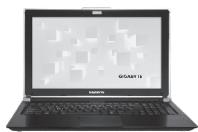

- Please plug in the USB disk which is at least 20GB in capacity to make the original image (backup the data in USB first. All data will be eliminated during the creation of recovery USB disk)
2
- Insert the driver disk to your optical drive and run the install of "Smart USB Backup" (for none-ODD model, please use USB ODD device or download from http://www.gigabyte.com
3
- Run the "Smart USB Backup" after finishing the install.
4
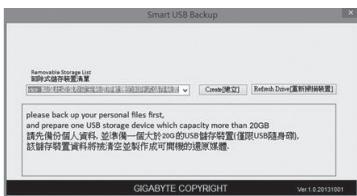
- Select your USB disk from the dropdown list and start to create the recovery USB disk.
5
- The window will pop out when the creation of recovery disk is done.
- Please press F12 on starting the system when you need to restore the system. Select "boot from recovery USB disk" and the system will be restored.
- The time needed for restore will be around 30 mins(time needed may vary by USB disk model).
System Recovery (Restore your laptop operating system)
When something is going wrong with the laptop operating system, the storage of the laptop has a hidden partition containing a full back up image of the operating system that can be used to restore the system to factory default settings.

Note
- If the storage has been switched or the partition deleted, the recovery option will no longer be available and a recovery service will be needed.
- The recovery function is only available on devices with O/S preinstalled. Devices with DOS do not have the recovery function.
Launch System Recovery
The system recovery feature is preinstalled before the laptop is shipped from the factory. The option menu allows you to launch the Windows recovery tool to reinstall the operating system to factory default.
The brief introduction below will show you how to start the recovery tool and restore your system.

All ready to go
Make sure your PC is plugged in. This will take a few minutes.
Windows 7 Recovery Guide
1 Turn off and restart the laptop.

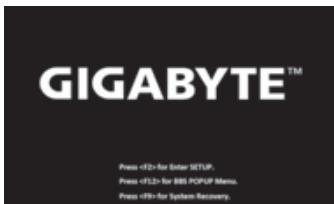
During the laptop turn on process, press and hold F9 key to launch the tool.

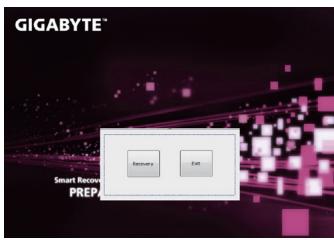
The recovery will be activated and you will see the option buttons on the window. Click on "Recovery" to start it.

Caution
Once the "Recovery" is selected, your personal data and files will be deleted after the laptop starts restoring, and the operating system will be reset to factory default settings.

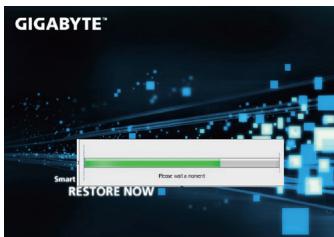
A progress indicator bar will show on the window when the recovery process is running. Please make sure the AC-adapter is plugged in and do not turn off the laptop.
5

Reboot the laptop after the system recovery is complete.
Windows 8 Recovery Guide
1 Turn off and restart the laptop.
2
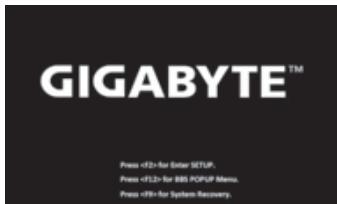
During the laptop turn on process, press and hold F9 key to launch the tool.
3
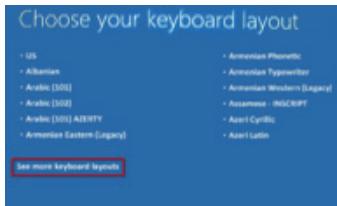
Choose your keyboard layout.
You can press "See more keyboard layouts" to see next page of languages.
4

Choose "Troubleshoot" to enter the recovery settings.
(Also you can choose "Continue" to exit recovery system and continue to Windows 8 for files or data backup.)

There are two options for system recovery
- Refresh your PC
You can refresh your laptop to improve the system stability without losing your files.
- Reset your PC
If you want to remove all of your files, you can reset your PC completely.
Caution: All personal data and files will be lost.
5

Choose "Refresh your PC"
[Click on "Next"] > [Choose a target operating system.] > [Click on "Windows 8".] > [Click on "Refresh" to execute recovery function.]

Here are what will happen
- Your files and personalization settings won't be changed.
- Your PC settings will be restored to factory default settings.
- Apps from Windows Store will be kept.
- Apps you installed from discs or websites will be removed.
- A list of removed apps will be saved on your desktop.

Choose "Reset your PC"
[Click on "Next"] > [Choose a target operating system.] > [Click on "Windows 8".] > [Choose an option to recover your system]
Just remove my files
Only personal data and files will be removed, but computer settings will be kept.
Fully clean the drive
The drive will be completely restored to factory default settings. It takes more time. > [Click on "Reset" to execute recovery function.]

Here are what will happen
- All of your personal files and apps will be removed.
- Your PC settings will be restored to factory default settings.

Advanced options

System Restore
Use a restore point recorded on your PC to restore Windows.

System Image Recovery
Recover Windows using a specific system image file.

Automatic Repair
Fix problems that keep Windows from loading.

Command Prompt
Use the Command Prompt for advanced trobeshooting.

UEFI Firmware Settings
Change settings in your PC's UEFI firmware.
Windows 8.1 Recovery Guide
1 Turn off and restart the laptop.
2
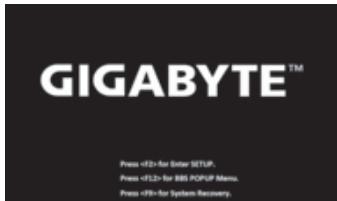
During the laptop turn on process, press and hold F9 key to launch the tool.
3

Choose "Troubleshoot" to enter the recovery settings. (Also you can choose "Continue" to exit recovery system and continue to Windows 8.1 for files or data backup.)

There are two options for system recovery
- Refresh your PC
You can refresh your laptop to improve the system stability without losing your files.
- Reset your PC
If you want to remove all of your files, you can reset your PC completely.
Caution: All personal data and files will be lost.
4

Choose "Refresh your PC"
Choose an account to continue.

Here are what will happen
- Your files and personalization settings won't be changed.
- Your PC settings will be restored to factory default settings.
- Apps from Windows Store will be kept.
- Apps you installed from discs or websites will be removed.
- A list of removed apps will be saved on your desktop.

Choose "Reset your PC"
Just remove my files
Only personal data and files will be removed, but computer settings will be kept.
Fully clean the drive
The drive will be completely restored to factory default settings. It takes more time. > [Click on "Reset" to execute recovery function.]

Here are what will happen
- All of your personal files and apps will be removed.
- Your PC settings will be restored to factory default settings.

Advanced options

System Restore Use a restore point recorded on your PC to restore Windows.

System Image Recovery Recover Windows using a specific system image file.

Automatic Repair Fix problems that keep Windows from loading.

Command Prompt Use the Command Prompt for advanced trobleshooting.

UEFI Firmware Settings Change settings in your PC's UEFI firmware.

Startup Settings Change Windows Startup behavior.
Appendix
Warranty & Service:
Warranty and service and related information please refer to the warranty card or GIGABYTE service website as the below link: http://www.gigabyte.com/support-downloads/technical-support.aspx
FAQ:
FAQ (Frequent Asked Questions) please refer to the below link: http://www.gigabyte.com/support-downloads/faq.aspx