
LinkPlanner - Routeur Wi-Fi Cambium Networks - Notice d'utilisation et mode d'emploi gratuit
Retrouvez gratuitement la notice de l'appareil LinkPlanner Cambium Networks au format PDF.


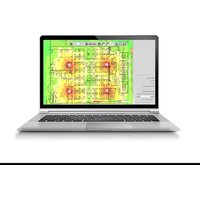
| Type de produit | Logiciel de planification de réseaux sans fil |
| Marque | Cambium Networks |
| Modèle | LinkPlanner |
| Fonctions principales | Planification de liaisons point à point et point à multipoint, analyse de visibilité, calcul de débit, estimation de performance |
| Configuration minimale requise | Processeur 2 GHz, 4 Go RAM, 500 Mo d'espace disque, Windows 7/8/10 |
| Systèmes d'exploitation supportés | Windows 7, 8, 10, 11 |
| Langues disponibles | Anglais |
| Licence | Gratuit (freeware) |
| Mise à jour | Mises à jour régulières disponibles en téléchargement |
| Support technique | Documentation en ligne, forum communautaire, assistance par email |
| Documentation | Manuel utilisateur inclus dans l'installation |
| Site officiel | www.cambiumnetworks.com |
| Entretien et nettoyage | Mettre à jour régulièrement le logiciel et nettoyer les fichiers temporaires |
| Sécurité | Utiliser un compte administrateur pour l'installation, télécharger uniquement depuis le site officiel |
| Pièces détachées et réparabilité | Non applicable (logiciel) |
FOIRE AUX QUESTIONS - LinkPlanner Cambium Networks
Questions des utilisateurs sur LinkPlanner Cambium Networks
0 question sur cet appareil. Repondez a celles que vous connaissez ou posez la votre.
Poser une nouvelle question sur cet appareil
Téléchargez la notice de votre Routeur Wi-Fi au format PDF gratuitement ! Retrouvez votre notice LinkPlanner - Cambium Networks et reprennez votre appareil électronique en main. Sur cette page sont publiés tous les documents nécessaires à l'utilisation de votre appareil LinkPlanner de la marque Cambium Networks.
MODE D'EMPLOI LinkPlanner Cambium Networks
cnMaestro™ Quick Start Guide
Quickly connect and configure Cambium Access Points (AP) on cnMaestro.
Note: Account creation is required only for first time users. You can skip to Step 2 if your account already exists. To add another device to the same WLAN, skip to Step 3.
Getting Started
1. Creating a cnMaestro Account:
a. Open https://cloud.cambiumnetworks.com and create an account by clicking Register.
b. Once registered, Sign in with your credentials at https://cloud.cambiumnetworks.com.
c. Create a Cambium ID; choose Account Type NMS and Account View Enterprise.
2. Creating a WLAN and AP Group:
a. From your cnMaestro Dashboard, click Wi-Fi Profiles -> WLANs -> New.
b. Choose your preferred SSID and Security (recommended: WPA2 Enterprise) and other required details, then click Save.
Your WLAN is created successfully.
c. From your cnMaestro Dashboard, click Wi-Fi Profiles 1 -> AP Groups -> New.
d. On the Basic Tab, Enter AP Group Name (example: Shop Floor Indoor).
e. On the Basic Tab, click Add WLAN. Choose the WLAN created in step 2.b, then click Add.
f. Navigate to the Management Tab and create an Admin Password, then click Save.
Your AP Group is created successfully.
3. Onboarding Your Device:
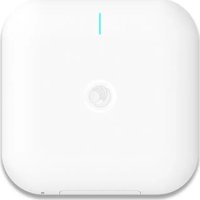
a. Unpack and power on your Access Point.
b. To connect the AP to your network, plug in a LAN cable with an active internet connection to Ethernet port.
c. From the cnMaestro Home Navigation Menu, click Onboard -> Claim Device -> Enter MSN (Serial Number of Device).
d. Once the device has been claimed, click the Edit icon next to the device to configure.
e. From the Configure tab, select the AP group created in Step 2 and click Save.
f. Click the Approve icon next to the newly added AP.
Congratulations, you have successfully set up your device. You can now go to the Main Dashboard to start monitoring your device!

- Verifying the Operating Status:
| LED Color | Status Indication |
| The device is booting up.If LEDs remain amber for more than 5 minutes, device failed to boot up. | |
| • The device is successfully up and accessible.• Wi-Fi services are up, if configured. | |
| cnMaestro connection is successful. |
Glossary
| Term | Description |
| System Dashboard | Displays connection health, vulnerabilities of devices connected. |
| Device Dashboard | Displays connected clients by radio, throughput, SNR, and performance details |
| Notifications | Real-time system status alarms, alarms history, and events |
| Configuration | Single place to configure device location, radios, and status |
| Details | Overview of device, network, and neighbors list |
| Performance | Detailed performance reports for past 7 days |
| Sites | Deploy APs at multiple sites |
| Guest Portal | Create captive portals for guests |
| Software Update | Update device firmware |
| Tools | Various tools, including Wi-Fi Analyzer to optimize network |
| Clients | List of clients connected to the network and usage details |
| SSID | 32-character name that identifies your wireless network |
| WLAN | Wireless network in your home for devices to connect to the interne! |
| AP Group | A group of APs that share the same configuration |
| Admin Password | Password needed to access critical information and change rights for your network |
Contacting Support
| Main Site https://www.cambiumnetworks.com |
| Support Site https://support.cambiumnetworks.com |
| Community https://community.cambiumnetworks.com |
| Support Phone https://www.cambiumnetworks.com/support/contact-support |
To learn more about cnMaestro, see cnMaestro User Guide
Marque : Cambium Networks
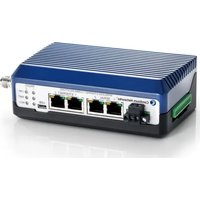
Modèle : LinkPlanner
Catégorie : Routeur Wi-Fi