
X64 - Vidéoprojecteur 3M - Notice d'utilisation et mode d'emploi gratuit
Retrouvez gratuitement la notice de l'appareil X64 3M au format PDF.


| Type de produit | Projecteur multimédia |
| Marque | 3M |
| Modèle | X64 |
| Résolution native | 1024 x 768 (XGA) |
| Technologie d'affichage | LCD (3 panneaux) |
| Luminosité | Environ 2500 lumens (estimation) |
| Rapport de contraste | 500:1 (estimation) |
| Formats d'image | 4:3, 16:9, 14:9, SMALL |
| Correction trapèze | Verticale automatique et manuelle |
| Entrées vidéo | COMPUTER IN1, COMPUTER IN2, COMPOSANT, S-VIDEO, VIDEO |
| Entrées audio | AUDIO IN1, AUDIO IN2, AUDIO IN3 (L/R) |
| Ports supplémentaires | USB (B), RS-232C (CONTROL), MONITOR OUT |
| Fonctions de l'image | Mode image (Normal, Cinéma, Dynamique, etc.), Gamma, Température de couleur |
| Fonctions spéciales | Capture d'écran (MyScreen), verrouillage par mot de passe, détecteur de mouvement |
| Bruit acoustique | Environ 30 dB (mode Normal), 25 dB (mode Whisper) |
| Haut-parleur intégré | Oui, 1 haut-parleur |
| Télécommande | Infrarouge avec fonctions souris et clavier (via USB) |
| Alimentation | 100-240 V CA, 50/60 Hz |
| Consommation électrique | Environ 300 W (lampe allumée) |
| Poids | Environ 3,5 kg (estimation) |
| Dimensions (L x P x H) | Environ 300 x 220 x 100 mm (estimation) |
| Lampe | Lampe UHP, durée de vie environ 2000 heures (mode Normal), 3000 heures (mode Whisper) |
| Filtre à air | Filtre lavable, période de nettoyage recommandée toutes les 100 heures |
| Sécurité | Barre antivol, verrou Kensington, mot de passe PIN, détecteur de transition |
FOIRE AUX QUESTIONS - X64 3M
Questions des utilisateurs sur X64 3M
0 question sur cet appareil. Repondez a celles que vous connaissez ou posez la votre.
Poser une nouvelle question sur cet appareil
Téléchargez la notice de votre Vidéoprojecteur au format PDF gratuitement ! Retrouvez votre notice X64 - 3M et reprennez votre appareil électronique en main. Sur cette page sont publiés tous les documents nécessaires à l'utilisation de votre appareil X64 de la marque 3M.
MODE D'EMPLOI X64 3M
3M
Projecteur numérique
X64
Guide de l'utilisateur

Merci d'avoir acheté ce projecteur.
⚠ AVERTISSEMENT ▶ Avant d'utiliser ce produit, veuillez lire tous les manuels de ce produit. Assurez-vous de lire d'abord le « Guide de sécurité du produit ». Après les avoir lus, rangez-les dans un endroit sûr pour référence future.
À propos de ce manuel
Divers symboles sont utilisés dans ce manuel. La signification de ces symboles est décrite ci-dessous.
⚠ AVERTISSEMENT Ce symbole indique des informations qui, si elles sont ignorées, pourraient éventuellement entraîner des blessures corporelles ou même la mort en raison d'une manipulation incorrecte.
⚠️ ATTENTION Ce symbole indique des informations qui, si elles sont ignorées, pourraient éventuellement entraîner des blessures corporelles ou des dommages matériels en raison d'une manipulation incorrecte.
Veuillez vous référer aux pages indiquées après ce symbole.
REMARQUE • Les informations contenues dans ce manuel sont sujettes à modification sans préavis.
- Le fabricant décline toute responsabilité pour les erreurs qui pourraient apparaître dans ce manuel.
- La reproduction, le transfert ou la copie de tout ou partie de ce document n'est pas autorisée sans consentement écrit exprès.
Reconnaissance des marques de commerce
• Mac est une marque déposée d'Apple Computer, Inc. • VESA et SVGA sont des marques de la Video Electronics Standard Association. - Windows est une marque déposée de Microsoft Corporation.
Toutes les autres marques sont la propriété de leurs détenteurs respectifs.
Sommaire
Sommaire
À propos de ce manuel. . . . . . . . . Sommaire 2 Caractéristiques du projecteur..... 3 Préparations 3 Contenu de l'emballage . . . . . . . . . . . 3 Fixation du cache de l'objectif ..... 3 Nomenclature 4 Projecteur Panneau de commande 5 Panneau arrière 5 Télécommande Installation 7 Disposition. 7 Connexion de vos appareils ..... 10 Connexion à l'alimentation électrique ..... 1 Utilisation de la barre et du logement de sécurité . . .1 Télécommande ..... 1 : Mise en place des piles 13 À propos du signal de la télécommande. . . . 13 Changement de la fréquence du signal de la télécommande 14 Utilisation comme souris et clavier PC simples . . .14 Mise sous/hors tension 15 Mise sous tension . . . . . . . . . . 15 Mise hors tension. . . . . . . . . . . 15 Fonctionnement 16 Réglage du volume ..... 16 Coupure temporaire du son ..... 16 Sélection d'un signal d'entrée ..... 16 Recherche d'un signal d'entrée ..... 1 Sélection d'un format d'image ..... 17 Réglage du pied du projecteur . .18 Réglage du zoom et de la mise au point ..... 18 Utilisation de la fonction de réglage automatique . .19 Réglage de la position ..... 19 Correction des distorsions trapézoïdales. .20 Utilisation de la fonction de zoom ..... 20 Gel de l'écran. . . . . . . . . . . . 21 Effacement temporaire de l'écran . . .21 Utilisation de la fonction menu ..... 22 [Non-texte] 1 MENU FACILE.... 24 FORMAT, CORRECTION TRAPÈZE AUTO ☐ EXÉCUTER, CORRECTION TRAPÈZE ☐, MODE IMAGE, LUMINOSITÉ, CONTRASTE, COULEUR, TEINTE, NETTETÉ, Whisper, Miroir, Réinitialiser, Temps filtre, LANGUE, Aller au menu avancé... Menu IMAGE 26 LUMINOSITÉ, CONTRASTE, GAMMA, TEMPÉRATURE COULEUR, COULEUR, TEINTE, NETTETÉ, MA MÉMOIRE Menu IMAGE 29 FORMAT, SURBALAYAGE, POSITION V, POSITION H, PHASE H, TAILLE H, RÉGLAGE AUTO EXÉCUTER Menu ENTRÉE 31 PROGRESSIF, RÉDUCTION DE BRUIT VIDÉO, ESPACE COULEUR, COMPOSANTE, FORMAT VIDÉO, VERROUILLAGE TRAME, ENTRÉE ORDINATEUR, RÉGLAGE RÉSOLUTION Menu RÉGLAGE 34 CORRECTION TRAPÈZE AUTO ☐ EXÉCUTER, CORRECTION TRAPÈZE ☐, WHISPER, MIROIR, VOLUME, HAUT-PARLEUR, AUDIO Menu ÉCRAN.... 36 LANGUE, POSITION MENU, EFFACER, DÉMARRAGE, MyScreen, Verrouillage MyScreen, MESSAGE, NOM SOURCE Menu OPTION 40 RECHERCHE AUTO, CORRECTION TRAPÈZE AUTO ☐, MARCHE AUTO, ARRÊT AUTO, TEMPS LAMPE, TEMPS FILTRE, MA TOUCHE, SERVICE, SÉCURITÉ Entretien 51 Lampe 51 Filtre à air 53 Autres soins 54 Dépannage ..... 55 Messages associés....55 Concernant les voyants....56 Arrêt du projecteur.....57 Réinitialisation de tous les réglages 57 Phénomènes pouvant être facilement confondus avec des défauts de l'appareil. .58
Spécifications.... 60
Caractéristiques techniques (en anglais uniquement)
(Veuillez vous référer à la fin de ce manuel, bien que ce soit uniquement en anglais.)
Caractéristiques du projecteur
Ce projecteur a la capacité de projeter divers signaux d'image sur un écran. Ce projecteur nécessite un espace d'installation minimal et peut produire une grande image projetée même à courte distance.
Ce projecteur dispose d'une variété de ports d'entrée/sortie et d'un faible niveau de bruit. Ces caractéristiques vous offrent une large utilisation de ce projecteur.
Préparatifs
Contenu de l'emballage
Votre projecteur doit être livré avec les articles indiqués ci-dessous. Contactez immédiatement votre revendeur si un article manque.
REMARQUE • Conservez les matériaux d'emballage d'origine pour un futur réexpédition. Pour déplacer le projecteur, assurez-vous d'utiliser les matériaux d'emballage d'origine. Soyez particulièrement prudent avec la partie de l'objectif.
Projecteur
Télécommande (avec deux piles AA)
Cordon d'alimentation
Câble VGA
Câble RCA Vidéo/Audio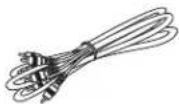
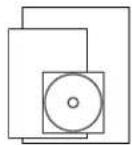
Guide de l'utilisateur, Guide de sécurité du produit, Guide de démarrage rapide, Garantie et enregistrement de garantie, Déclaration DEEE, Cache-objectif et sangle (le cache-objectif est fixé au projecteur).
Câble USB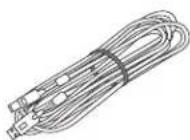
Câble RCA Composant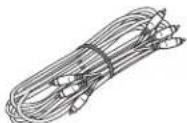
Étiquette de sécurité
Sacoche souple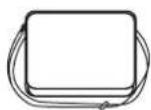
Fixation du cache-objectif
Pour éviter de perdre le cache-objectif, fixez-le au projecteur à l'aide de la sangle fournie.
- Fixez la sangle au trou de sangle du cache-objectif. Enfilez une extrémité de la sangle dans le trou de sangle du cache-objectif et faites une boucle à l'extrémité, puis passez l'autre extrémité de la sangle dans la boucle. Ne faites pas de nœud à la sangle à l'une ou l'autre extrémité.
- Fixez la sangle au trou de sangle du projecteur. Enfilez l'autre extrémité de la sangle dans le trou de sangle du projecteur et faites une boucle. Passez le cache-objectif avec l'extrémité de la sangle dans la boucle.

Nomenclature
Nomenclature
Projecteur
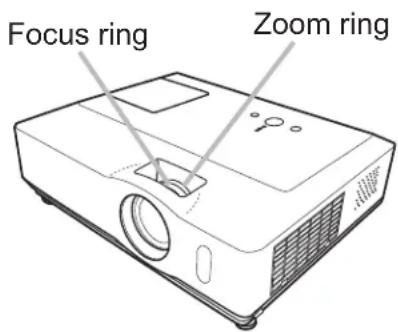
(1) Volet de la lampe (51) L'unité de lampe se trouve à l'intérieur. (2) Bague de mise au point (18) (3) Bague de zoom (18) (4) Panneau de commande (5) (5) Boutons de pied élévateur (x 2) (18) (6) Pieds élévateurs (x 2) (18) (7) Capteur de télécommande (13) (8) Objectif (18, 54) (9) Cache-objectif (3) (10) Ouvertures d'admission d'air (11) Cache du filtre (53) Le filtre à air et l'ouverture d'admission d'air se trouvent à l'intérieur. (12) Haut-parleur (35) (13) Ouverture d'évacuation d'air (14) Prise d'entrée CA (12) (15) Interrupteur d'alimentation (15) (16) Panneau arrière (5) (17) Barre de sécurité (12) (18) Fente de sécurité (12)

⚠ AVERTISSEMENT ▶ CHAUD ! : Ne touchez pas autour du volet de la lampe et des ouvertures d'évacuation d'air pendant l'utilisation ou juste après, car c'est trop chaud.
⚠️ ATTENTION ▶ Maintenez une ventilation normale pour éviter que le projecteur ne chauffe. Ne couvrez pas, ne bloquez pas et n'obstruez pas les ouvertures. Ne placez rien qui pourrait coller ou être aspiré par les ouvertures, autour des ouvertures d'admission d'air. Nettoyez périodiquement le filtre à air.
▶ Ne manipulez pas les boutons de pied élévateur sans tenir le projecteur, car il pourrait tomber. ▶ Ne regardez pas dans l'objectif ou les ouvertures pendant que la lampe est allumée, car la lumière intense est nocive pour les yeux.
Panneau de commande
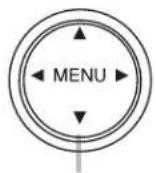
(1) Bouton STANDBY/ON (15) (2) Bouton INPUT (16, 22) (3) Bouton MENU (22)
Il se compose de quatre boutons de navigation.
(4) Voyant POWER (15, 56) (5) Voyant TEMP (56) (6) Voyant LAMP (56)
(6) (5)
(4)
(1) (2)(3)
Panneau arrière
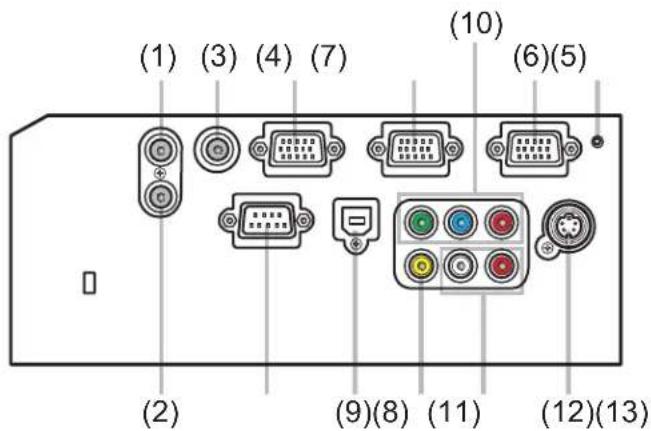
(1) Port AUDIO IN1 (10) (2) Port AUDIO IN2 (10) (3) Port AUDIO OUT (10) (4) Port COMPUTER IN1 (10) (5) Port COMPUTER IN2 (10) (6) Port MONITOR OUT (10) (7) Interrupteur d'arrêt (☐57)
(8) Port CONTROL (10) (9) Port USB (10) (10) Port COMPONENT (Y, Cb/Pb, Cr/Pr) (10) (11) Port VIDEO (10) (12) Port S-VIDEO (10) (13) Ports AUDIO IN3 (L, R) (10)
⚠️ ATTENTION ▶ N'utilisez pas la barre et la fente de sécurité pour empêcher le projecteur de tomber, car elles ne sont pas conçues à cet effet.
▶ N'utilisez l'interrupteur d'arrêt que lorsque le projecteur ne s'éteint pas par la procédure normale, car appuyer sur cet interrupteur arrête le fonctionnement du projecteur sans le refroidir.
Nomenclature
Télécommande
(1) Bouton VIDEO (17) (2) Bouton COMPUTER (16) (3) Bouton SEARCH (17) (4) Bouton STANDBY/ON (15) (5) Bouton ASPECT (17) (6) Bouton AUTO (19) (7) Bouton BLANK (21) (8) Bouton MAGNIFY - ON (20) (9) Bouton MAGNIFY - OFF (14, 20) (10) Bouton HOME (14) (11) Bouton END (14) (12) Bouton PAGE UP (14) (13) Bouton PAGE DOWN (14) (14) Bouton VOLUME (16) (15) Bouton MUTE (14, 16) (16) Bouton FREEZE (21) (17) Bouton MY BUTTON - 1 (42) (18) Bouton MY BUTTON - 2 (42) (19) Bouton KEYSTONE (20) (20) Bouton POSITION (19, 22) (21) Bouton MENU (22) (22) Boutons de navigation ▲/▼/◄/► (14, 22, 23) (23) Bouton ENTER (14, 22, 23) (24) Bouton ESC (14, 22) (25) Bouton RESET (14, 22, 23) (26) Couvercle du compartiment à piles (13)

Dos de la télécommande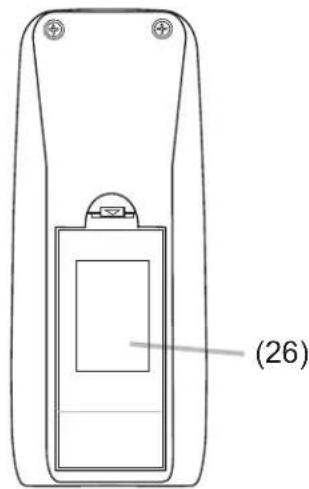
Installation
Installez le projecteur en fonction de l'environnement et de la manière dont il sera utilisé.
Disposition
Reportez-vous aux illustrations et aux tableaux ci-dessous pour déterminer la taille de l'écran et la distance de projection.
Les valeurs indiquées dans le tableau sont calculées pour un écran pleine taille : 1024×768.
(a) Taille de l'écran (diagonale) (b) Distance de projection (±10 %) (c1), (c2) Hauteur de l'écran (±10 %)
Sur une surface horizontale
Suspendu au plafond
| aScreen size (diagonal) | 4:3 screen 16:9 screen | ||||||||||||||||
| bProjection distance | c1Screen height | c2Screen height | bProjection distance | c1Screen height | c2Screen height | ||||||||||||
| min. max. min. max. | |||||||||||||||||
| inch m inch | inch m inch | inch cm | inch cm | inch m inch | inch m inch | cm inch | cm inch | inch | |||||||||
| 30 | 0.8 | 0.9 | 35 | 1.1 | 43 | 41 | 16 | 5 | 2 | 1.0 | 39 | 1.2 | 47 | 39 | 15 | -1 | 0 |
| 40 | 1.0 | 1.2 | 47 | 1.4 | 57 | 55 | 22 | 6 | 2 | 1.3 | 52 | 1.6 | 62 | 51 | 20 | -2 | -1 |
| 50 | 1.3 | 1.5 | 59 | 1.8 | 71 | 69 | 27 | 8 | 3 | 1.6 | 65 | 2.0 | 78 | 64 | 25 | -2 | -1 |
| 60 | 1.5 | 1.8 | 71 | 2.2 | 86 | 82 | 32 | 9 | 4 | 2.0 | 78 | 2.4 | 94 | 77 | 30 | -2 | -1 |
| 70 | 1.8 | 2.1 | 83 | 2.5 | 100 | 96 | 38 | 11 | 4 | 2.3 | 91 | 2.8 | 109 | 90 | 35 | -3 | -1 |
| 80 | 2.0 | 2.4 | 95 | 2.9 | 115 | 110 | 43 | 12 | 5 | 2.6 | 104 | 3.2 | 125 | 103 | 41 | -3 | -1 |
| 90 | 2.3 | 2.7 | 107 | 3.3 | 129 | 123 | 49 | 14 | 5 | 3.0 | 117 | 3.6 | 141 | 116 | 46 | -4 | -1 |
| 100 | 2.5 | 3.0 | 119 | 3.6 | 144 | 137 | 54 | 15 | 6 | 3.3 | 130 | 4.0 | 156 | 129 | 51 | -4 | -2 |
| 120 | 3.0 | 3.6 | 143 | 4.4 | 172 | 165 | 65 | 18 | 7 | 4.0 | 156 | 4.8 | 188 | 154 | 61 | -5 | -2 |
| 150 | 3.8 | 4.6 | 179 | 5.5 | 216 | 206 | 81 | 23 | 9 | 4.9 | 195 | 6.0 | 235 | 193 | 76 | -6 | -2 |
| 200 | 5.1 | 6.1 | 239 | 7.3 | 288 | 274 | 108 | 30 | 12 | 6.6 | 261 | 8.0 | 314 | 257 | 101 | -8 | -3 |
| 250 | 6.4 | 7.6 | 299 | 9.1 | 360 | 343 | 135 | 38 | 15 | 8.3 | 326 | 10.0 | 392 | 322 | 127 | -10 | -4 |
| 300 | 7.6 | 9.1 | 359 | 11.0 | 432 | 411 | 162 | 46 | 18 | 9.9 | 391 | 12.0 | 471 | 386 | 152 | -12 | -5 |
Installation
Disposition (suite)

- Laissez un espace de 30 cm ou plus entre les côtés du projecteur et d'autres objets tels que les murs.
- Consultez votre revendeur avant une installation spéciale telle qu'une suspension au plafond.
⚠ AVERTISSEMENT ▶ Placez le projecteur dans une position horizontale stable. Si le projecteur tombe ou est renversé, il pourrait causer des blessures et/ou des dommages au projecteur. L'utilisation d'un projecteur endommagé pourrait alors entraîner un incendie et/ou une électrocution.
- Ne placez pas le projecteur sur une surface instable, inclinée ou vibrante, comme un support branlant ou incliné.
- Ne placez pas le projecteur sur le côté, à l'avant ou à l'arrière.
- Consultez votre revendeur avant une installation spéciale telle qu'une suspension au plafond.
▶ Placez le projecteur dans un endroit frais et assurez-vous qu'il y a une ventilation suffisante. La température élevée du projecteur pourrait provoquer un incendie, des brûlures et/ou un dysfonctionnement du projecteur.
- Ne bouchez pas, ne bloquez pas et ne couvrez pas les évents du projecteur.
- Laissez un espace de 30 cm ou plus entre les côtés du projecteur et d'autres objets tels que des murs.
- Ne placez pas le projecteur sur un objet métallique ou sur quelque chose de peu résistant à la chaleur.
- Ne placez pas le projecteur sur un tapis, des coussins ou de la literie.
- Ne placez pas le projecteur en plein soleil ou à proximité d'objets chauds tels que des radiateurs.
- Ne placez rien près de l'objectif ou des évents du projecteur, ni sur le dessus du projecteur.
- Ne placez rien qui pourrait être aspiré ou coller aux évents situés sous le projecteur. Ce projecteur a également des évents d'admission sous la base.
▶ Ne placez pas le projecteur dans un endroit où il pourrait être mouillé. Mouiller le projecteur ou introduire du liquide à l'intérieur pourrait provoquer un incendie, une électrocution et/ou un dysfonctionnement du projecteur.
- Ne placez pas le projecteur dans une salle de bain ou à l'extérieur.
- Ne placez rien contenant du liquide à proximité du projecteur.
⚠ATTENTION ▶ Évitez de placer le projecteur dans un endroit enfumé, humide ou poussiéreux. Placer le projecteur dans de tels endroits pourrait provoquer un incendie, une électrocution et/ou un dysfonctionnement du projecteur.
- Ne placez pas le projecteur à proximité d'humidificateurs, d'espaces fumeurs ou d'une cuisine.
▶ Positionnez le projecteur de manière à empêcher la lumière de frapper directement le capteur de télécommande du projecteur.
Installation
Connexion de vos appareils
Assurez-vous de lire les manuels des appareils avant de les connecter au projecteur. Vérifiez que tous les appareils sont compatibles avec ce produit et préparez les câbles nécessaires à la connexion.
Reportez-vous aux illustrations suivantes pour les connecter.
![graph TD subgraph PC A["PC"] --> B["RS-232C"] B --> C["AUDIO OUT"] C --> D["RGB OUT"] D --> E["USB"] E --> F["AUDIO OUT"] F --> G["RGB OUT"] end subgraph Monitor H["Monitor"] --> I["RGB IN"] I --> J[" Speakers"] J --> K["AUDIO IN"] K --> L["Speaker"] end M["VCR/DVD player"] --> N["Y C#P5 C#PR L R VI…](/content/2026/06/1240377/images/10923bd7bc3f62fc2783062eb8e08b286c363a89208667eb35b0edbc6cd08547.jpg)
⚠ AVERTISSEMENT ▶ Ne démontez pas et ne modifiez pas le projecteur et ses accessoires.
▶ Veillez à ne pas endommager les câbles et n'utilisez pas de câbles endommagés.
⚠️ ATTENTION ▶ Éteignez tous les appareils et débranchez leurs cordons d'alimentation avant de les connecter au projecteur. Connecter un appareil sous tension au projecteur peut générer des bruits extrêmement forts ou d'autres anomalies pouvant entraîner un dysfonctionnement ou des dommages à l'appareil et au projecteur.
▶ Utilisez des câbles appropriés ou spécialement conçus. Demandez à votre revendeur quels câbles non fournis peuvent être nécessaires, notamment en termes de longueur ou de présence de ferrite. Pour les câbles avec ferrite à une seule extrémité, connectez l'extrémité avec la ferrite au projecteur.
▶ Assurez-vous que les appareils sont connectés aux bons ports. Une connexion incorrecte peut entraîner un dysfonctionnement ou des dommages à l'appareil et au projecteur.
Connexion de vos appareils (suite)
REMARQUE • Assurez-vous de lire les manuels des appareils avant de les connecter au projecteur et vérifiez que tous les appareils sont compatibles avec ce produit. Avant de connecter un PC, vérifiez le niveau du signal, la synchronisation et la résolution.
- Certains signaux peuvent nécessiter un adaptateur pour être transmis à ce projecteur.
- Certains PC disposent de plusieurs modes d'affichage qui peuvent inclure des signaux non pris en charge par ce projecteur.
- Bien que le projecteur puisse afficher des signaux avec une résolution allant jusqu'à UXGA (1600x1200), le signal sera converti à la résolution du panneau du projecteur avant d'être affiché. La meilleure qualité d'affichage sera obtenue si les résolutions du signal d'entrée et du panneau du projecteur sont identiques.
- Lors de la connexion, assurez-vous que la forme du connecteur du câble correspond au port de connexion. Et veillez à bien serrer les vis des connecteurs.
- Lors de la connexion d'un ordinateur portable au projecteur, assurez-vous d'activer la sortie RVB externe du PC. (Réglez le PC portable sur l'affichage CRT ou sur l'affichage simultané LCD et CRT.) Pour plus de détails sur la procédure, reportez-vous au manuel d'instructions du PC portable correspondant.
- Lorsque la résolution de l'image est modifiée sur un PC en fonction d'une entrée, la fonction de réglage automatique peut prendre un certain temps et peut ne pas être terminée. Dans ce cas, vous ne pourrez peut-être pas voir une case à cocher pour sélectionner "Oui/Non" pour la nouvelle résolution sous Windows. La résolution reviendra alors à la résolution d'origine. Il peut être recommandé d'utiliser d'autres moniteurs CRT ou LCD pour modifier la résolution.
- Dans certains cas, ce projecteur peut ne pas afficher une image correcte ou afficher une image à l'écran. Par exemple, le réglage automatique peut ne pas fonctionner correctement avec certains signaux d'entrée. Un signal d'entrée à synchronisation composite ou synchronisation sur G peut perturber ce projecteur, de sorte que le projecteur peut ne pas afficher une image correcte.
À propos de la fonction Plug-and-Play
Plug-and-Play est un système composé d'un PC, de son système d'exploitation et de périphériques (c'est-à-dire des dispositifs d'affichage). Ce projecteur est compatible VESA DDC 2B. La fonction Plug-and-Play peut être utilisée en connectant ce projecteur à un PC compatible VESA DDC (canal de données d'affichage).
- Profitez de cette fonctionnalité en connectant un câble RVB au port COMPUTER IN1 (compatible DDC 2B). La fonction Plug-and-Play peut ne pas fonctionner correctement si tout autre type de connexion est tenté.
- Veuillez utiliser les pilotes standard de votre PC car ce projecteur est un moniteur Plug-and-Play.
Installation
Connexion de l'alimentation électrique
Tout d'abord, assurez-vous que l'interrupteur d'alimentation du projecteur est réglé sur la position OFF (marquée "O").
- Insérez le connecteur du cordon d'alimentation dans la prise d'entrée CA du projecteur.
- Branchez fermement la fiche du cordon d'alimentation dans la prise de courant.

Prise d'entrée CA Cordon d'alimentation
⚠ AVERTISSEMENT ▶ Veuillez faire preuve d'une prudence particulière lors du branchement du cordon d'alimentation, car des connexions incorrectes ou défectueuses peuvent entraîner un incendie et/ou une décharge électrique.
- Utilisez uniquement le cordon d'alimentation fourni avec le projecteur. S'il est endommagé, contactez votre revendeur pour obtenir un nouveau cordon approprié.
- Branchez le cordon d'alimentation uniquement sur une prise de courant adaptée à la plage de tension spécifiée pour le cordon. La prise de courant doit être proche du projecteur et facilement accessible. Retirez le cordon d'alimentation pour une séparation complète.
- Ne modifiez jamais le cordon d'alimentation.
Utilisation de la barre et de la fente de sécurité
Une chaîne ou un câble antivol commercial d'un diamètre maximal de 10 mm peut être fixé à la barre de sécurité du projecteur.
Ce produit dispose également d'une fente de sécurité pour le verrou Kensington.
Pour plus de détails, consultez le manuel de l'outil de sécurité.

⚠️ ATTENTION ▶ N'utilisez pas la barre et la fente de sécurité pour empêcher le projecteur de tomber, car elles ne sont pas conçues à cet effet.
▶ Ne placez pas de chaîne ou de câble antivol près des évents d'échappement. Ils pourraient devenir trop chauds.
REMARQUE • La barre et la fente de sécurité ne constituent pas une mesure de prévention complète contre le vol. Elles sont destinées à être utilisées comme mesure de prévention supplémentaire.
Télécommande
Insertion des piles
Veuillez insérer les piles dans la télécommande avant de l'utiliser. Si la télécommande commence à mal fonctionner, essayez de remplacer les piles. Si vous n'utilisez pas la télécommande pendant une longue période, retirez les piles de la télécommande et rangez-les dans un endroit sûr.
- Tenez la partie crochet du couvercle du compartiment à piles et retirez-le.
- Alignez et insérez les deux piles AA en respectant les bornes positive et négative comme indiqué sur la télécommande.

- Replacez le couvercle du compartiment à piles dans le sens de la flèche et enclenchez-le.
⚠ AVERTISSEMENT ▶ Manipulez toujours les piles avec précaution et utilisez-les uniquement comme indiqué. Une utilisation inappropriée peut entraîner une explosion, une fissure ou une fuite des piles, ce qui pourrait provoquer un incendie, des blessures et/ou une pollution de l'environnement.
- Veillez à n'utiliser que les piles spécifiées. N'utilisez pas de piles de types différents en même temps. Ne mélangez pas une pile neuve avec une pile usagée.
- Assurez-vous que les bornes plus et moins sont correctement alignées lors de l'insertion d'une pile.
- Tenez les piles hors de portée des enfants et des animaux domestiques.
- Ne rechargez pas, ne court-circuitez pas, ne soudez pas et ne démontez pas une pile.
- Ne jetez pas une pile au feu ou dans l'eau. Conservez les piles dans un endroit sombre, frais et sec.
- Si vous constatez une fuite de la pile, essuyez la fuite puis remplacez la pile. Si le liquide adhère à votre corps ou à vos vêtements, rincez abondamment à l'eau immédiatement.
- Respectez les lois locales concernant l'élimination des piles.
À propos du signal de la télécommande
La télécommande fonctionne avec le capteur de télécommande du projecteur. Ce projecteur dispose d'un capteur de télécommande à l'avant.
Le capteur détecte le signal dans la plage suivante lorsque le capteur est actif :
60 degrés (30 degrés à gauche et à droite du capteur) dans un rayon d'environ 3 mètres.

REMARQUE • Le signal de la télécommande réfléchi par l'écran ou autre peut être utilisable. S'il est difficile d'envoyer le signal directement au capteur, essayez de faire réfléchir le signal.
- La télécommande utilise la lumière infrarouge pour envoyer des signaux au projecteur (LED de classe 1), alors assurez-vous d'utiliser la télécommande dans une zone sans obstacles qui pourraient bloquer le signal de la télécommande vers le projecteur.
- La télécommande peut ne pas fonctionner correctement si une lumière forte (comme la lumière directe du soleil) ou une lumière provenant d'une source très proche (comme une lampe fluorescente à onduleur) éclaire le capteur de télécommande du projecteur. Ajustez la position du projecteur pour éviter ces lumières.
Télécommande
Changement de la fréquence du signal de la télécommande
La télécommande fournie propose deux choix de fréquence de signal : Mode 1 : NORMAL et Mode 2 : HIGH. Si la télécommande ne fonctionne pas correctement, essayez de changer la fréquence du signal.
Pour régler le mode, maintenez enfoncée simultanément la combinaison de deux boutons listés ci-dessous pendant environ 3 secondes.
(1) Régler sur Mode 1 : NORMAL... boutons MUTE et RESET (2) Régler sur Mode 2 : HIGH... boutons MAGNIFY OFF et ESC. Veuillez noter que l'option REMOTE FREQ. dans le menu SERVICE de l'OPTION (44) du projecteur à contrôler doit être réglée sur le même mode que la télécommande.

Utilisation comme souris et clavier simples du PC
La télécommande fournie fonctionne comme une souris et un clavier simples du PC, lorsque le port USB (type B) du projecteur est connecté au port USB (type A) du PC via un câble de souris.
(1) Touche HOME : appuyez sur le bouton HOME. (2) Touche END : appuyez sur le bouton END. (3) Touche PAGE UP : appuyez sur le bouton PAGE UP. (4) Touche PAGE DOWN : appuyez sur le bouton PAGE DOWN. (5) Bouton gauche de la souris : appuyez sur le bouton ENTER. (6) Déplacer le pointeur : utilisez les boutons curseur ▲, ▼, ◀ et ▶. (7) Touche ESC : appuyez sur le bouton ESC. (8) Bouton droit de la souris : appuyez sur le bouton RESET.
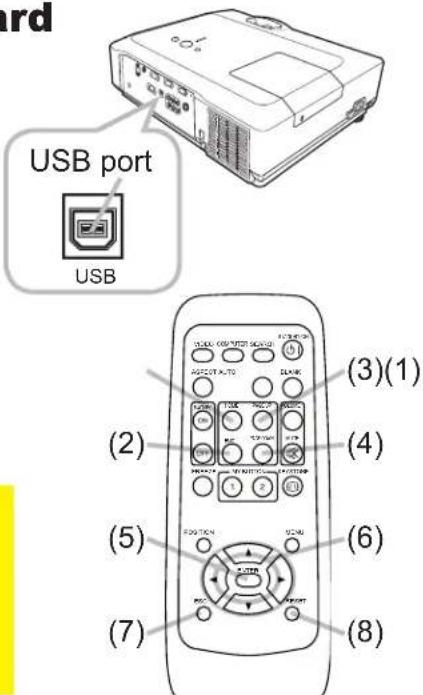
⚠️ ATTENTION ▶ Une utilisation inappropriée de la fonction souris et clavier simples pourrait endommager votre équipement. Pendant l'utilisation de cette fonction, connectez ce produit uniquement à un PC. Assurez-vous de consulter les manuels de votre PC avant de connecter ce produit au PC.
REMARQUE • Si la fonction souris et clavier simples de ce produit ne fonctionne pas correctement, veuillez vérifier les points suivants.
- Lorsque le câble de souris connecte ce projecteur à un PC équipé d'un dispositif de pointage intégré (par exemple une boule de commande) comme un PC portable, ouvrez le menu de configuration du BIOS, puis sélectionnez la souris externe et désactivez le dispositif de pointage intégré, car le dispositif de pointage intégré peut avoir priorité sur cette fonction.
- Windows 95 OSR 2.1 ou supérieur est requis pour cette fonction. De plus, cette fonction peut ne pas fonctionner selon les configurations du PC et les pilotes de souris.
- Vous ne pouvez pas appuyer sur deux boutons en même temps (par exemple, appuyer sur deux boutons simultanément pour déplacer le pointeur de la souris en diagonale).
- Cette fonction n'est activée que lorsque le projecteur fonctionne correctement. Cette fonction n'est pas disponible pendant le préchauffage de la lampe (l'indicateur POWER clignote en vert), et pendant le réglage du volume et de l'affichage, la correction de la distorsion trapézoïdale, le zoom sur l'écran, l'utilisation de la fonction BLANK, ou l'affichage du menu.
Mise sous/hors tension
Mise sous tension
- Assurez-vous que le cordon d'alimentation est fermement et correctement connecté au projecteur et à la prise.
- Retirez le cache de l'objectif et mettez l'interrupteur d'alimentation sur la position ON (marquée "I").
Le témoin POWER s'allume en orange fixe (56). Attendez ensuite quelques secondes, car les boutons peuvent ne pas fonctionner pendant ces quelques secondes.
- Appuyez sur le bouton STANDBY/ON du projecteur ou de la télécommande.
La lampe du projecteur s'allume et le témoin POWER commence à clignoter en vert. Lorsque l'alimentation est complètement activée, le témoin arrête de clignoter et s'allume en vert fixe (56).

Pour afficher l'image, sélectionnez un signal d'entrée conformément à la section "Sélection d'un signal d'entrée" (16).
Mise hors tension
- Appuyez sur le bouton STANDBY/ON du projecteur ou de la télécommande. Le message "Power off?" apparaît à l'écran pendant environ 5 secondes.
- Appuyez à nouveau sur le bouton STANDBY/ON pendant que le message apparaît. La lampe du projecteur s'éteint et le témoin POWER commence à clignoter en orange. Ensuite, le témoin POWER arrête de clignoter et s'allume en orange fixe lorsque le refroidissement de la lampe est terminé (56).
- Assurez-vous que le témoin POWER est allumé en orange fixe, puis mettez l'interrupteur d'alimentation sur la position OFF (marquée "O"). Le témoin POWER s'éteint. Remettez le cache de l'objectif.

N'allumez pas le projecteur pendant environ 10 minutes ou plus après l'avoir éteint. Le rallumer trop tôt pourrait raccourcir la durée de vie de certains composants consommables du projecteur.
ATTENTION ▶ Une lumière intense est émise lorsque le projecteur est sous tension. Ne regardez pas dans l'objectif du projecteur et ne regardez pas à l'intérieur du projecteur par l'une de ses ouvertures.
▶ Ne touchez pas autour de la lampe et des évents d'échappement pendant ou juste après l'utilisation, car c'est trop chaud.
REMARQUE • Mettez sous/hors tension dans le bon ordre. Mettez sous tension le projecteur avant les appareils connectés. Mettez hors tension le projecteur après que tous les appareils connectés sont hors tension.
- Le projecteur dispose de la fonction AUTO ON, qui permet de l'allumer automatiquement. Pour plus d'informations, voir l'élément AUTO ON du menu OPTION (40).
- Utilisez l'interrupteur d'arrêt (57) uniquement lorsque le projecteur n'est pas éteint par la procédure normale.
Fonctionnement
Fonctionnement
Réglage du volume
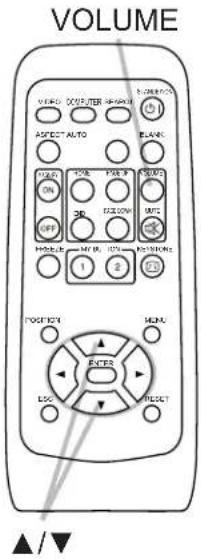
1 Appuyez sur le bouton VOLUME de la télécommande. * Une boîte de dialogue apparaîtra à l'écran pour vous aider à régler le volume. 2 Utilisez les boutons curseur ▲/▼ pour régler le volume. * Pour fermer la boîte de dialogue et terminer l'opération, appuyez à nouveau sur le bouton VOLUME. Même si vous ne faites rien, la boîte de dialogue disparaîtra automatiquement après quelques secondes. - Lorsque ✗ est sélectionné pour le port d'entrée d'image actuel, le réglage du volume est désactivé. Voir l'élément AUDIO du menu SETUP (35).
Coupure temporaire du son
1 Appuyez sur le bouton MUTE de la télécommande.
Une boîte de dialogue apparaîtra à l'écran indiquant que vous avez coupé le son. Pour rétablir le son, appuyez sur le bouton MUTE ou VOLUME. Même si vous ne faites rien, la boîte de dialogue disparaîtra automatiquement après quelques secondes.
- Lorsque ✗ est sélectionné pour le port d'entrée d'image actuel, le son est toujours coupé. Voir l'élément AUDIO du menu SETUP (35).

Sélection d'un signal d'entrée
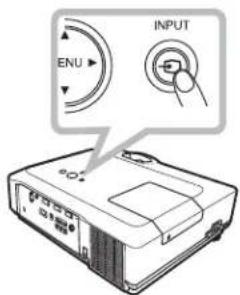
1 Appuyez sur le bouton INPUT du projecteur.
• Chaque fois que vous appuyez sur le bouton, le projecteur change de port d'entrée comme ci-dessous.
![graph LR A["COMPUTER IN 1"] --> B["COMPUTER IN 2"] B --> C["VIDEO ← S-VIDEO ← COMPONENT (Y, Cb/Pb, Cr/Pr)"]](/content/2026/06/1240377/images/e884ad326f3b2fe5cd063955611eb909e06e8df8110ecaf9b020511cfe661fcc.jpg)
COMPUTER
1. Appuyez sur la touche COMPUTER de la télécommande.
• Chaque fois que vous appuyez sur la touche, le projecteur commute son port d'entrée comme ci-dessous.
![graph LR A["→ COMPUTER IN 1 → COMPUTER IN 2"] --> B["—"]](/content/2026/06/1240377/images/7366a8ded7a4d839b89c949b5af114e55d963ddfd6b8baa45cecb67f9af1daaf.jpg)
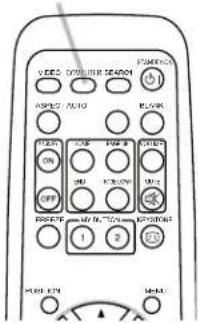
- Si la touche COMPUTER est enfoncée pour passer d'un signal provenant du port VIDEO, S-VIDEO ou COMPONENT, lorsque TURN ON est sélectionné pour l'élément AUTO SEARCH du menu OPTION (40), le projecteur vérifiera d'abord le port COMPUTER IN1. Si aucun signal n'est détecté sur ce port, le projecteur vérifiera le port COMPUTER IN2.
(suite à la page suivante)
Sélection d'un signal d'entrée (suite)
1. Appuyez sur la touche VIDEO de la télécommande.
Chaque fois que vous appuyez sur la touche, le projecteur commute son port d'entrée comme ci-dessous.

VIDEO
- Si la touche VIDEO est enfoncée pour passer d'un signal provenant du port COMPUTER IN1 ou IN2, lorsque TURN ON est sélectionné pour l'élément AUTO SEARCH du menu OPTION (40), le projecteur vérifiera d'abord le port COMPONENT. Si aucun signal n'est détecté sur ce port, le projecteur vérifiera l'autre port dans l'ordre ci-dessus.
Recherche d'un signal d'entrée
1. Appuyez sur la touche SEARCH de la télécommande.
Le projecteur commencera à vérifier ses ports d'entrée afin de trouver des signaux d'entrée.
Lorsqu'un signal est trouvé, le projecteur arrête la recherche et affiche l'image. Si aucun signal n'est trouvé, le projecteur revient à l'état sélectionné avant l'opération.
![graph LR A["→ COMPUTER IN 1 → COMPUTER IN 2"] --> B["VIDEO ← S-VIDEO ← COMPONENT (Y, Cb/Pb, Cr/Pr) ←"]](/content/2026/06/1240377/images/a352ac6e6a10798e04dadef0aa7c5f9c9dd68130b30868ebd7650bb5bd51864e.jpg)
SEARCH
Sélection d'un format d'image
1 Appuyez sur la touche ASPECT de la télécommande.
• Chaque pression sur la touche fait défiler les modes de format d'image dans l'ordre.
○ Pour un signal d'ordinateur
NORMAL → 4:3 → 16:9 → SMALL

○ Pour un signal vidéo, un signal S-vidéo ou un signal vidéo composante
4:3 → 16:9 → 14:9 → SMALL

ASPECT
○ En l'absence de signal
4:3 (fixe)
- La touche ASPECT ne fonctionne pas lorsqu'aucun signal approprié n'est entré.
- Le mode NORMAL conserve le réglage de format d'image d'origine.
Fonctionnement
Réglage du pied élévateur du projecteur
Lorsque la surface de pose du projecteur est légèrement inégale à gauche ou à droite, utilisez les pieds élévateurs pour placer le projecteur horizontalement.
Les pieds permettent également d'incliner le projecteur afin de projeter selon un angle adapté à l'écran, en élevant la partie avant du projecteur dans une limite de 10 degrés.

Ce projecteur est équipé de 2 pieds élévateurs et de 2 boutons élévateurs. Un pied élévateur est réglable en appuyant sur le bouton élévateur situé du même côté que le pied.
- En tenant le projecteur, appuyez sur les boutons élévateurs pour déverrouiller les pieds élévateurs.
- Positionnez la partie avant du projecteur à la hauteur souhaitée.
- Relâchez les boutons élévateurs pour verrouiller les pieds élévateurs.
- Après vous être assuré que les pieds élévateurs sont verrouillés, posez délicatement le projecteur.
- Si nécessaire, les pieds élévateurs peuvent être tournés manuellement pour effectuer des réglages plus précis. Tenez le projecteur lorsque vous tournez les pieds.

Pour déverrouiller un pied élévateur, appuyez sur le bouton élévateur situé du même côté que le pied.

Pour un réglage fin, tournez le pied.
⚠️ ATTENTION ▶ Ne manipulez pas les boutons élévateurs sans tenir le projecteur, car il pourrait tomber.
▶ N'inclinez pas le projecteur au-delà de 10 degrés en élevant sa partie avant à l'aide des pieds réglables. Une inclinaison dépassant cette limite pourrait entraîner un dysfonctionnement, réduire la durée de vie des consommables ou endommager le projecteur lui-même.
Réglage du zoom et de la mise au point
- Utilisez la bague de zoom pour régler la taille de l'image.
- Utilisez la bague de mise au point pour régler la netteté de l'image.
Utilisation de la fonction de réglage automatique
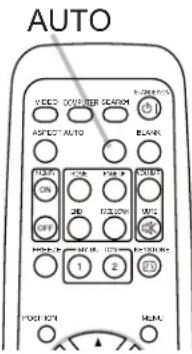
- Appuyez sur le bouton AUTO de la télécommande. L'appui sur ce bouton effectue les opérations suivantes.
○ Pour un signal d'ordinateur
La position verticale, la position horizontale et la phase horizontale seront automatiquement ajustées. Et la taille horizontale sera automatiquement réglée par défaut.
Assurez-vous que la fenêtre de l'application est réglée à sa taille maximale avant d'utiliser cette fonction. Une image sombre peut encore être mal ajustée. Utilisez une image lumineuse lors du réglage.
○ Pour un signal vidéo, un signal S-vidéo ou un signal vidéo composant
Le format vidéo le mieux adapté au signal d'entrée respectif sera sélectionné automatiquement. Cette fonction n'est disponible que lorsque AUTO est sélectionné pour l'élément VIDEO FORMAT du menu INPUT (32).
La position verticale et la position horizontale seront automatiquement réglées par défaut. Pour un signal vidéo composant, la phase horizontale sera également automatiquement réglée par défaut.
- L'opération de réglage automatique nécessite plusieurs secondes. Veuillez également noter qu'elle peut ne pas fonctionner correctement avec certaines entrées. Lorsque cette fonction est exécutée pour un signal vidéo, un élément supplémentaire tel qu'une ligne peut apparaître en dehors de l'image.
- Les éléments ajustés par cette fonction peuvent varier lorsque FINE ou DISABLE est sélectionné pour l'élément AUTO ADJUST de l'élément SERVICE du menu OPTION (43).
Réglage de la position
- Appuyez sur le bouton POSITION de la télécommande lorsqu'aucun menu n'est affiché.
L'indication "POSITION" apparaîtra à l'écran.
- Utilisez les boutons curseur ▲/▼/◄/► pour ajuster la position de l'image.
Si vous souhaitez réinitialiser l'opération, appuyez sur le bouton RESET de la télécommande pendant l'opération.
Pour terminer cette opération, appuyez à nouveau sur le bouton POSITION. Même si vous ne faites rien, la boîte de dialogue disparaîtra automatiquement après quelques secondes.

POSITION
- Lorsque cette fonction est exécutée sur un signal vidéo, un signal S-vidéo ou un signal vidéo composant, une image supplémentaire, telle qu'une ligne supplémentaire, peut apparaître en dehors de l'image.
- Lorsque cette fonction est exécutée sur un signal vidéo, un signal S-vidéo ou un signal vidéo composant, la plage de cet ajustement dépend du réglage OVER SCAN dans le menu IMAGE (29). Il n'est pas possible d'ajuster lorsque OVER SCAN est réglé sur 10.
- Si le bouton POSITION est enfoncé alors qu'un menu est affiché à l'écran, l'image affichée ne change pas de position, mais le menu se déplace.
Fonctionnement
Correction des distorsions trapézoïdales
Appuyez sur la touche KEYSTONE de la télécommande. Une boîte de dialogue apparaîtra à l'écran pour vous aider à corriger la distorsion.
Utilisez les touches curseur ▲/▼ pour sélectionner AUTO ou MANUAL.
Effectuez l'opération et appuyez sur la touche ◀/▶ pour exécuter la fonction suivante.
AUTO exécute la correction automatique du trapèze vertical.
MANUAL affiche une boîte de dialogue pour le contrôle manuel du trapèze.
Utilisez les touches ▲/▼ pour l'ajustement.
Pour fermer la boîte de dialogue et terminer cette opération, appuyez à nouveau sur la touche KEYSTONE. Même si vous ne faites rien, la boîte de dialogue disparaîtra automatiquement après quelques secondes.
La plage ajustable de cette correction variera selon les signaux d'entrée. Cette fonction peut ne pas fonctionner correctement.
Lorsque V INVERT ou H/V INVERT est sélectionné pour l'élément MIRROR dans le menu SETUP, si l'écran du projecteur est incliné ou incliné vers le bas, la correction du trapèze peut ne pas fonctionner correctement.
Y : Lorsque le réglage du zoom est réglé sur TÉLÉ (téléobjectif), la correction de distorsion peut être excessive. Cette fonction doit être réglée sur la pleine largeur (grand angle) lorsque
Y : Lorsque le projecteur est placé au niveau, la correction de distorsion peut ne pas fonctionner.
Y : Lorsque le projecteur est incliné à près de degrés ou plus, la correction de distorsion peut ne pas fonctionner.
Y : Cette fonction sera indisponible lorsque le détecteur de transmission est activé.
Utilisation de la fonction d'agrandissement
Appuyez sur le bouton ON de MAGNIFY sur la télécommande.
L'indication MAGNIFY apparaîtra à l'écran et le projecteur passera en mode MAGNIFY. L'indication disparaîtra
après quelques secondes sans opération.
Utilisez les boutons curseur ▲/▼ pour ajuster le niveau de zoom.
Pour déplacer la zone de zoom, appuyez sur le bouton POSITION en mode MAGNIFY,
puis utilisez les boutons curseur ▲/▼/◀/▶ pour déplacer la zone.
Pour finaliser la zone de zoom, appuyez à nouveau sur le bouton POSITION.
Pour quitter le mode MAGNIFY et restaurer l'écran normal,
appuyez sur le bouton OFF de MAGNIFY sur la télécommande.
Y : Le projecteur quitte automatiquement le mode MAGNIFY lorsque le signal est changé ou lorsque les conditions d'affichage sont modifiées.
Lorsque le projecteur quitte le mode M.A.N.I.A., la condition de distorsion trapézoïdale clé peut être restaurée.
REMARQUE • Le niveau de zoom peut être ajusté finement. Observez attentivement pour trouver le niveau souhaité.
Figer l'écran
1 Appuyez sur le bouton FREEZE de la télécommande.
L'indication « FREEZE » apparaîtra à l'écran (cependant, l'indication n'apparaîtra pas si TURN OFF est sélectionné pour l'élément MESSAGE dans le menu SCREEN (39)), et le projecteur passera en mode FREEZE.
Pour quitter le mode FREEZE et restaurer l'écran normal, appuyez à nouveau sur le bouton FREEZE.
FREEZE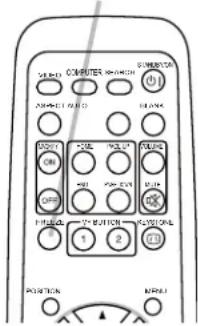
- Le projecteur quitte automatiquement le mode FREEZE lorsque l'un des boutons du projecteur ou de la télécommande est enfoncé :
STANDBY/ON, SEARCH, COMPUTER, VIDEO, BLANK, AUTO, VOLUME, MUTE, KEYSTONE, MENU, MAGNIFY et MY BUTTON1/2 (sauf si MY MEMORY ou PICTURE MODE est assigné) (42).
- Si le projecteur continue de projeter une image fixe pendant une longue période, le panneau LCD pourrait être marqué. Ne laissez pas le projecteur en mode FREEZE trop longtemps.
Masquage temporaire de l'écran
1 Appuyez sur le bouton BLANK de la télécommande.
L'écran vide sera affiché à la place de l'écran du signal d'entrée. Veuillez vous référer à l'élément BLANK dans le menu SCREEN (36).
Pour quitter l'écran vide et revenir à l'écran du signal d'entrée, appuyez à nouveau sur le bouton BLANK.
- Le projecteur revient automatiquement à l'écran du signal d'entrée lorsque l'un des boutons du projecteur ou de la télécommande est enfoncé (sauf les boutons ASPECT, POSITION, MAGNIFY ou FREEZE, et sauf MY BUTTON1/2 si AUTO KEYSTONE ☑ EXECUTE ou MY MEMORY ou PICTURE MODE est assigné (☐42)).
REMARQUE • Le son n'est pas lié à la fonction d'écran vide.
Si nécessaire, réglez d'abord le volume ou coupez le son.
Fonctionnement
Utilisation de la fonction menu
Ce projecteur dispose des menus suivants :
PICTURE, IMAGE, INPUT, SETUP, SCREEN, OPTION et EASY MENU.
Le menu EASY MENU regroupe les fonctions fréquemment utilisées, tandis que les autres menus sont classés par objectif et regroupés dans le menu Avancé.
Chacun de ces menus s'utilise de la même manière. Les opérations de base de ces menus sont les suivantes.


1 Appuyez sur le bouton MENU de la télécommande ou du projecteur.
* Le menu Avancé ou le menu EASY MENU, qui a la priorité juste après la mise sous tension, s'affiche.
Si vous souhaitez déplacer la position du menu, utilisez les boutons curseur après avoir appuyé sur le bouton POSITION. Pendant que le projecteur affiche un menu, le bouton MENU du projecteur fonctionne comme les boutons curseur.
Dans le menu EASY MENU
- Si vous souhaitez passer au menu Avancé, sélectionnez "Aller au menu Avancé..."
- Utilisez les boutons curseur ▲/▼ pour sélectionner un élément à utiliser.
- Utilisez les boutons de curseur ◀/▶ pour faire fonctionner l'élément.
(suite à la page suivante)
![MENU FACILE [ORDINATEUR 1] : FORMAT 4:3, CORRECTION TRAPÈZE AUTO EXÉCUTER, CORRECTION TRAPÈZE (√) +0, MODE IMAGE PERSONNALISÉ, LUMINOSITÉ +0, CONTRASTE +0, COULEUR +0, TEINTE +0, NETTETÉ 4, MODE SILENCIEUX NORMAL, MIROIR NORMAL, RÉINITIALISER EXÉCUTER, TEMPS FILTRE 0h, LANGUE ANGLAIS, Aller au menu…](/content/2026/06/1240377/images/b7f132a6c50336e1f5ef17bb2560196e3873ce407de66d84c90c7ff9b9189c4e.jpg)
MENU FACILE
Utilisation de la fonction menu (suite)
Dans le menu avancé
- Utilisez les boutons de curseur ▲/▼ pour sélectionner un menu. Si vous souhaitez le changer en MENU FACILE, sélectionnez MENU FACILE. Appuyez ensuite sur le bouton de curseur ▶ ou sur le bouton ENTER pour sélectionner un élément. Le menu de niveau inférieur de l'élément sélectionné apparaîtra.
![MENU [ORDINATEUR 1] : IMAGE, LUMINOSITÉ +0, IMAGE, CONTRASTE +0, ENTRÉE, GAMMA DÉFAUT-1, CONFIGURATION, TEMPÉRATURE COULEUR ÉLEVÉE, ÉCRAN, COULEUR +0, OPTION, TEINTE +0, MENU FACILE, NETTETÉ 4, MA MÉMOIRE ENREGISTRER-1.](/content/2026/06/1240377/images/bca2f9e2141469290a02d25831c237b1b17aad40ed1f0d76774be61d0c19dc3a.jpg)
Menu avancé
- Utilisez les boutons de curseur ▲/▼ pour sélectionner un élément à faire fonctionner.
Appuyez ensuite sur le bouton de curseur ▶ ou sur le bouton ENTER pour continuer. Le menu de fonctionnement de l'élément sélectionné apparaîtra.
- Utilisez les boutons de curseur ▲/▼ pour faire fonctionner l'élément.
- Certaines fonctions ne peuvent pas être exécutées lorsqu'un certain port d'entrée est sélectionné ou lorsqu'un certain signal d'entrée est affiché.
- Lorsque vous souhaitez réinitialiser l'opération, appuyez sur le bouton RESET de la télécommande pendant l'opération. Notez que certains éléments (par exemple LANGUE, PHASE H, VOLUME) ne peuvent pas être réinitialisés.
- Dans le menu avancé, lorsque vous souhaitez revenir à l'affichage précédent, appuyez sur le bouton de curseur ◀ ou sur le bouton ESC de la télécommande.
- Appuyez à nouveau sur le bouton MENU de la télécommande pour fermer le menu et terminer cette opération. Même si vous ne faites rien, la boîte de dialogue disparaîtra automatiquement après environ 10 secondes.
MENU FACILE
À partir du MENU FACILE, les éléments indiqués dans le tableau ci-dessous peuvent être exécutés.
Sélectionnez un élément à l'aide des boutons curseur ▲/▼. Puis exécutez-le conformément au tableau suivant.
![MENU FACILE [ORDINATEUR 1] : FORMAT 4:3, CORRECTION TRAPÈZE AUTO EXÉCUTER, CORRECTION TRAPÈZE (✓) +0, MODE IMAGE PERSONNALISÉ, LUMINOSITÉ +0, CONTRASTE +0, COULEUR +0, TEINTE +0, NETTETÉ 4, MODE SILENCIEUX NORMAL, MIROIR NORMAL, RÉINITIALISER EXÉCUTER, TEMPS FILTRE 0h, LANGUE ANGLAIS, Aller au menu…](/content/2026/06/1240377/images/aff9b4bdaa495476745d88ae34926e03d219d7f267fa17846fd65ab6cc604dd8.jpg)
| Item Description | |||
| ASPECT | Using the ◀/► buttons switches the mode for aspect ratio. See the ASPECT item in IMAGE menu 29). | ||
| AUTO KEYSTONE/EXECUTE | Using the ► button executes the auto keystone function. See AUTO KEYSTONE EXECUTE item in SETUP menu 34). | ||
| KEYSTONE | Using the ◀/► buttons corrects the vertical keystone distortion. See KEYSTONE item in SETUP menu 34). | ||
| PICTURE MODE | Using the ◀/► buttons switches the picture mode. The picture modes are combinations of GAMMA and COLOR TEMP settings. Choose a suitable mode according to the projected source. | ||
| COLOR TEMP GAMMA | |||
| NORMAL #2 MID DEFAULT #1 DEFAULT | |||
| CINEMA #3 LOW DEFAULT #2 DEFAULT | |||
| DYNAMIC #1 HIGH DEFAULT #3 DEFAULT | |||
| BOARD(BLACK) #4 Hi-BRIGHT-1 DEFAULT #4 DEFAULT | |||
| BOARD(GREEN) #5 Hi-BRIGHT-2 DEFAULT #4 DEFAULT | |||
| WHITEBOARD #2 MID DEFAULT #5 DEFAULT | |||
| DAYTIME | #6 Hi-BRIGHT-3 DEFAULT | #6 DEFAULT | |
| When the combination of GAMMA and COLOR TEMP differs from pre-assigned modes above, the display on the menu for the PICTURE MODE is “CUSTOM”. Please refer to GAMMA (26) and COLOR TEMP (26) items in PICTURE menu.When this function is performed, a certain extra such as a line may appear. | |||
(suite à la page suivante)
MENU FACILE (suite)
| Item Description | |
| BRIGHTNESS | Using the ◀/► buttons adjusts the brightness.See BRIGHTNESS item in PICTURE menu 📊26). |
| CONTRAST | Using the ◀/► buttons adjusts the contrast.See CONTRAST item in PICTURE menu (📖26). |
| COLOR | Using the ◀/► buttons adjusts the strength of whole color.See COLOR item in PICTURE menu (📖26). |
| TINT | Using the ◀/► buttons adjusts the tint.See TINT item in PICTURE menu (📖26). |
| SHARPNESS | Using the ◀/► buttons adjusts the sharpness.See SHARPNESS item in PICTURE menu (📖27). |
| WHISPER | Using the ◀/► buttons turns off/on the whisper mode.See WHISPER item in SETUP menu (📖35). |
| MIRROR | Using the ◀/► buttons switches the mode for mirror status.See MIRROR item in SETUP menu (📖35). |
| RESET | Performing this item resets all of EASY MENU items except FILTER TIME and LANGUAGE.A dialog is displayed for confirmation. Selecting RESET using the▲ button performs resetting. |
| FILTER TIME | Performing this item resets the filter time which counts usage time of the air filter.A dialog is displayed for confirmation. Selecting RESET using the▲ button performs resetting.See FILTER TIME item in OPTION menu (📖41). |
| LANGUAGE | Using the ◀/► buttons changes the display language.See LANGUAGE item in SCREEN menu (📖36). |
| Go to Advanced Menu... | Select “Go to Advanced Menu...” on the menu, and press the ► or ENTER button to use the menu of PICTURE, IMAGE, INPUT, SETUP, SCREEN or OPTION. |
Menu IMAGE
À partir du menu IMAGE, les éléments indiqués dans le tableau ci-dessous peuvent être exécutés.
Sélectionnez un élément à l'aide des boutons curseur ▲/▼, puis appuyez sur le bouton curseur ▶ ou sur le bouton ENTER pour exécuter l'élément. Ensuite, exécutez-le conformément au tableau suivant.
![MENU [ORDINATEUR 1] : IMAGE, LUMINOSITÉ +0, IMAGE, CONTRASTE +0, ENTRÉE, GAMMA DÉFAUT-1, CONFIGURATION, TEMPÉRATURE COULEUR ÉLEVÉE, ÉCRAN, COULEUR +0, OPTION, TEINTE +0, MENU FACILE, NETTETÉ 4, MA MÉMOIRE ENREGISTRER-1.](/content/2026/06/1240377/images/ad114c0a5adb3b19d3b15054f79543c9bca9def466ede1a83a20a8eb1cb064d0.jpg)
| Item Description | |
| BRIGHTNESS | Using the ▲/▼ buttons adjusts the brightness.Light ⇔ Dark |
| CONTRAST | Using the ▲/▼ buttons adjusts the contrast.Strong ⇔ Weak |
| GAMMA | Using the ▲/▼ buttons switches the gamma mode.#1 DEFAULT ⇔ #1 CUSTOM ⇔ #2 DEFAULT ⇔ #2 CUSTOM#6 CUSTOM #3 DEFAULT#6 DEFAULT #3 CUSTOM#5 CUSTOM ⇔ #5 DEFAULT ⇔ #4 CUSTOM ⇔ #4 DEFAULTTo adjust the "CUSTOM" modes, see "To adjust CUSTOM function in GAMMA and COLOR TEMP" (28). |
| COLOR TEMP | Using the ▲/▼ buttons switches the color temperature mode.#1 HIGH DEFAULT ⇔ #1 HIGH CUSTOM ⇔ #2 MID DEFAULT#6 HI-BRIGHT-3 CUSTOM #2 MID CUSTOM#6 HI-BRIGHT-3 DEFAULT #3 LOW DEFAULT#5 HI-BRIGHT-2 CUSTOM #3 LOW CUSTOM#5 HI-BRIGHT-2 DEFAULT ⇔ #4 HI-BRIGHT-1 CUSTOM ⇔ #4 HI-BRIGHT-1 DEFAULTTo adjust the "CUSTOM" modes, see "To adjust CUSTOM function in GAMMA and COLOR TEMP" (28). |
| COLOR | Using the ▲/▼ buttons adjusts the strength of whole color.Strong ⇔ Weak• This item can be selected only for a video signal, s-video or component video signal. |
| TINT | Using the ▲/▼ buttons adjusts the tint.Greenish ⇔ Reddish• This item can be selected only for a video signal, s-video or component video signal. |
(suite à la page suivante)
Menu IMAGE (suite)
| Item Description | |
| SHARPNESS | Using the ▲/▼ buttons adjusts the sharpness.Strong ⇔ WeakThere may be some noise and/or the screen may flicker for a moment when an adjustment is made. This is not a malfunction. |
| MY MEMORY | This projector has 4 memories for adjustment data (for all the items of PICTURE menu).Selecting a function using the ▲/▼ buttons and pressing the ▶ or ENTER button performs each function. LOAD-1, LOAD-2, LOAD-3, LOAD-4Performing a LOAD function loads the data from the memory linked in the number included in the function's name, and adjusts the picture automatically depending on the data.The LOAD functions whose linked memory has no data are skipped.Remember that the current adjusted condition will be lost by loading data. If you want to keep the current adjustment, please save it before performing a LOAD function.There may be some noise and the screen may flicker for a moment when loading data. This is not malfunction.You can perform the LOAD function using MY BUTTONs. Please see MY BUTTON item in OPTION menu (📖42).SAVE-1, SAVE-2, SAVE-3, SAVE-4Performing a SAVE function saves the current adjustment data into the memory linked in the number included in the function's name.Remember that the current data being stored of a memory will be lost by saving a new data into the memory. LOAD-1, LOAD-2, LOAD-3, LOAD-4Performing a LOAD function loads the data from the memory linked in the number included in the function's name, and adjusts the picture automatically depending on the data.The LOAD functions whose linked memory has no data are skipped.Remember that the current adjusted condition will be lost by loading data. If you want to keep the current adjustment, please save it before performing a LOAD function.There may be some noise and the screen may flicker for a moment when loading data. This is not malfunction.You can perform the LOAD function using MY BUTTONs. Please see MY BUTTON item in OPTION menu (📖42).SAVE-1, SAVE-2, SAVE-3, SAVE-4Performing a SAVE function saves the current adjustment data into the memory linked in the number included in the function's name.Remember that the current data being stored of a memory will be lost by saving a new data into the memory. |
Menu IMAGE (suite)
Pour régler la fonction PERSONNALISÉE dans GAMMA et TEMPÉRATURE DE COULEUR
La sélection d'un mode dont le nom inclut CUSTOM dans l'élément GAMMA ou COLOR TEMP, puis l'appui sur le bouton ▶ ou ENTER, affiche une boîte de dialogue pour vous aider à régler le mode.
Choisissez un élément à l'aide des boutons ◀/▶, puis réglez le niveau à l'aide des boutons ▲/▼.
- Lorsque cette fonction est exécutée, des lignes ou d'autres distorsions peuvent apparaître.
![ENTRÉE, GAMMA [PERSONNALISÉ-1]](/content/2026/06/1240377/images/4bc2db9e3b5e90dc33b9c4c8f468d54c836bcfc9ffb7856f2645e09c4a6bb724.jpg)
GAMMA COLOR TEMP
![DÉCALAGE, GAIN, R G B, R G B, +0 +0 +0, +0 +0 +0, TEMPÉRATURE COULEUR [PERSONNALISÉ-1]](/content/2026/06/1240377/images/68bc16d0566b4aabc94bd67d8b67d0104ef107431525a6e5435e986347d5ad7b.jpg)
Vous pouvez afficher un motif de test en haut de l'écran pour vérifier l'effet de votre réglage en appuyant sur le bouton ENTER. Chaque fois que vous appuyez sur le bouton ENTER, le motif change comme ci-dessous.
Aucun motif ⇒ Échelle de gris de 9 niveaux
↑
↓
Dégradé ⇔ Échelle de gris de 15 niveaux
- Vous pouvez également régler chaque fonction sans afficher de motifs de test.

pour régler GAMMA
Vous pouvez modifier la luminosité de certaines tonalités.
Les huit barres d'égalisation correspondent à huit niveaux de tonalité du motif de test (échelle de gris de 9 niveaux) à l'exception du plus sombre à l'extrémité gauche. Si vous souhaitez régler la deuxième tonalité à partir de l'extrémité gauche sur le motif de test, utilisez la barre d'égalisation "1". La tonalité la plus sombre à l'extrémité gauche du motif de test ne peut pas être contrôlée avec aucune barre d'égalisation.
pour régler COLOR TEMP
Vous pouvez modifier l'intensité de chacune des 3 couleurs (rouge, vert, bleu).
Les réglages OFFSET modifient l'intensité des couleurs sur l'ensemble des tons du mire de test.
Les réglages GAIN affectent principalement l'intensité des couleurs sur les tons plus clairs du mire de test.
Menu IMAGE
À partir du menu IMAGE, les éléments indiqués dans le tableau ci-dessous peuvent être effectués.
Sélectionnez un élément à l'aide des boutons curseur ▲/▼, puis appuyez sur le bouton curseur ▶ ou sur le bouton ENTER pour exécuter l'élément. Ensuite, effectuez-le conformément au tableau suivant.
![MENU [ORDINATEUR 1] SÉLECTION : IMAGE FORMAT 4:3, IMAGE SURBALAYAGE 5, ENTRÉE POSITION V 26, CONFIGURATION POSITION H 142, ÉCRAN PHASE H 16, OPTION TAILLE H 1344, MENU FACILE RÉGLAGE AUTO EXÉCUTER](/content/2026/06/1240377/images/66dcbdb4af7d4a6c9588a3775923aa64181db1c3bb98fc00aefbc0ed8328ed4b.jpg)
| Item Description | |
| ASPECT | Using the ▲/▼ buttons switches the mode for aspect ratio.For a computer signalNORMAL ⇔ 4:3 ⇔ 16:9 ⇔ SMALLFor a video signal, s-video signal or component video signal4:3 ⇔ 16:9 ⇔ 14:9 ⇔ SMALLFor no signal4:3 (fixed)This item can be selected only for a proper signal.NORMAL mode keeps the original aspect ratio setting. |
| OVER SCAN | Using the ▲/▼ buttons adjusts the over-scan ratio.Large (It reduces picture) ⇔ Small (It magnifies picture)This item can be selected only for a video, s-video and component video signal.When this adjustment is too large, certain degradation may appear at the frame area of the picture. In such a case, please adjust small. |
| V POSITION | Using the ▲/▼ buttons adjusts the vertical position.Up ⇔ DownOver-adjusting the vertical position may cause noise to appear on the screen. If this occurs please reset the vertical position to the default setting. Pressing RESET button when V POSITION is selected will reset V POSITION to the default setting.When this function is performed on a video signal, s-video signal, or component video signal, the range of this adjustment depends on OVER SCAN (above) setting. It is not possible to adjust when OVER SCAN is set to 10. |
| H POSITION | Using the ▲/▼ buttons adjusts the horizontal position.Left ⇔ RightOver-adjusting the horizontal position may cause noise to appear on the screen. If this occurs please reset the horizontal position to the default setting. Pressing RESET button when H POSITION is selected will reset H POSITION to the default setting.When this function is performed on a video signal, s-video signal, or component video signal, the range of this adjustment depends on OVER SCAN (above) setting. It is not possible to adjust when OVER SCAN is set to 10. |
(suite à la page suivante)
Menu IMAGE (suite)
| Item Description | |
| H PHASE | Using the ▲/▼ buttons adjusts the horizontal phase to eliminate flicker.Right ⇔ LeftThis item can be selected only for a computer signal or component video signal. |
| H SIZE | Using the ▲/▼ buttons adjusts the horizontal size.Large ⇔ SmallThis item can be selected only for a computer signal.When this adjustment is excessive, the picture may not be displayed correctly. In such a case, please reset the adjustment by pressing the RESET button during this operation. |
| AUTO ADJUST EXECUTE | Executing this item performs the automatic adjustment feature.For a computer signalThe vertical position, the horizontal position and the horizontal phase (43) will be automatically adjusted. And the horizontal size will be automatically set to the default.Make sure that the application window is set to its maximum size prior to attempting to use this feature. A dark picture may still be incorrectly adjusted. Use a bright picture when adjusting.For a video signal, s-video signal or component video signalThe video format best suited for the respective input signal will be selected automatically.This function is available only when the AUTO mode is selected to VIDEO FORMAT item in INPUT menu (32).The vertical position and horizontal position will be automatically set to the default.For a component video signal, also the horizontal phase will be automatically set to the default.The automatic adjustment operation requires several seconds. Also please note that it may not function correctly with some input. When this function is performed for a video signal, a certain extra such as a line may appear outside a picture.The items adjusted by this function may vary when FINE or DISABLE is selected for AUTO ADJUST item of SERVICE item in OPTION menu (43). |
Menu INPUT
À partir du menu INPUT, les éléments indiqués dans le tableau ci-dessous peuvent être effectués.
Sélectionnez un élément à l'aide des boutons curseur ▲/▼, puis appuyez sur le bouton curseur ▶ ou sur le bouton ENTER pour exécuter l'élément. Ensuite, effectuez-le conformément au tableau suivant.
![MENU [ORDINATEUR 1] : IMAGE, IMAGE, ENTRÉE, CONFIGURATION, ÉCRAN, OPTION, MENU FACILE, PROGRESSIF, RÉDUCTION BRUIT VIDÉO, ESPACE COULEUR, COMPOSANTE, FORMAT VIDÉO, VERROUILLAGE TRAME, ENTRÉE ORDINATEUR, RÉSOLUTION, FILM, MOYEN, AUTO, COMPOSANTE, AUTO, ÉTEINDRE, SÉLECTION](/content/2026/06/1240377/images/b7ece88e881cebbd0b9f85b8b4f554cd04574926ce69fce727e97c2ff30d727e.jpg)
| Item Description | |
| PROGRESSIVE | Using the ▲/▼ buttons switches the progress mode.TV ⇔ FILM ⇔ TURN OFFThis function is performed only for an interlaced signal of a video, s-video or component video of 525i (480i) or 625i (576i) signal.When TV or FILM is selected, the screen image will be sharp. FILM adapts to the 2-3 Pull-Down conversion system. But these may cause a certain defect (for example, jagged line) of the picture for a quick moving object. In such a case, please select TURN OFF, even though the screen image may lose the sharpness. |
| VIDEO NR | Using the ▲/▼ buttons switches the noise reduction mode.HIGH ⇔ MID ⇔ LOWThis function performs only for a video, s-video or component video of 525i(480i) or 625i(576i) signal.When this function is excessive, it may cause a certain degradation of the picture. |
| COLOR SPACE | Using the ▲/▼ buttons switches the mode for color space.AUTO ⇔ RGB ⇔ SMPTE240 ⇔ REC709 ⇔ REC601This item can be selected only for a computer signal or component video signal except SCART RGB signal.The AUTO mode automatically selects the optimum mode.The AUTO operation may not work well at some signals. In such a case, it might be good to select a suitable mode except AUTO. |
| COMPONENT | Using the ▲/▼ buttons switches the function of the COMPONENT (Y, Cb/Pb, Cr/Pr) port.COMPONENT ⇔ SCART RGBWhen the SCART RGB is selected, COMPONENT (Y, Cb/Pb, Cr/Pr) and VIDEO ports will function as a SCART RGB port. A SCART cable is required for a SCART RGB input to the projector. For your reference, see the TECHNICAL part. |
(suite à la page suivante)
Menu INPUT (suite)
| Item Description | |
| VIDEO FORMAT | The video format for S-VIDEO port and VIDEO port can be set.(1) Use the ◀/► buttons to select the input port.(2) Using the ▲/▼ buttons switches the mode for video format.AUTO ⇔ NTSC ⇔ PAL ⇔ SECAM 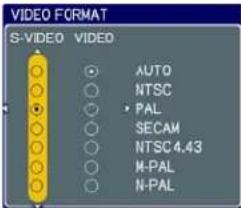 ⇨ N-PAL ⇔ M-PAL ⇔ NTSC4.43 ↕This item is performed only for a video signal from VIDEO port or S-VIDEO port.The AUTO mode automatically selects the optimum mode.The AUTO operation may not work well for some signals. If the picture becomes unstable (e.g. an irregular picture, lack of color), please select the mode according to the input signal. ⇨ N-PAL ⇔ M-PAL ⇔ NTSC4.43 ↕This item is performed only for a video signal from VIDEO port or S-VIDEO port.The AUTO mode automatically selects the optimum mode.The AUTO operation may not work well for some signals. If the picture becomes unstable (e.g. an irregular picture, lack of color), please select the mode according to the input signal. |
| FRAME LOCK | Using the ▲/▼ buttons turns the frame lock function on/off.TURN ON ⇔ TURN OFFThis item can be performed only on a computer signal with a vertical frequency of 50 to 60 Hz.When the TURN ON is selected, a moving pictures are displayed more smoothly.This function may cause a certain degradation of the picture. In such a case, please select TURN OFF. |
| COMPUTER IN | The computer input signal type for COMPUTER IN1 and IN2 ports can be set.(1) Use the ◀/► buttons to select the input port to be set.COMPUTER (IN)1 ⇔ COMPUTER (IN)2 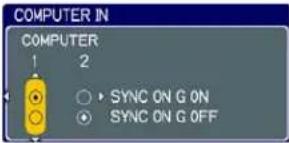 (2) Use the ▲/▼ buttons to select the computer input signal type.SYNC ON G ON ⇔ SYNC ON G OFFSelecting SYNC ON G ON allows reception of sync on Green signal.When SYNC ON G ON is selected, the picture may be distorted with certain input signals. In such a case, remove the signal connector first and select SYNC ON G OFF on the menu, and then reconnect the signal. (2) Use the ▲/▼ buttons to select the computer input signal type.SYNC ON G ON ⇔ SYNC ON G OFFSelecting SYNC ON G ON allows reception of sync on Green signal.When SYNC ON G ON is selected, the picture may be distorted with certain input signals. In such a case, remove the signal connector first and select SYNC ON G OFF on the menu, and then reconnect the signal. |
(suite à la page suivante)
Menu INPUT (suite)
| Item Description | |
| RESOLUTION | The resolution for the COMPUTER IN1 and IN2 input signals can be set on this projector.(1) In INPUT menu select RESOLUTION using the ▲/▼ buttons and press the ▶ button.The RESOLUTION menu will be displayed.(2) In the RESOLUTION menu, select the resolution you wish to display using the ▲/▼ buttons.Selecting AUTO will set a resolution appropriate to the input signal. 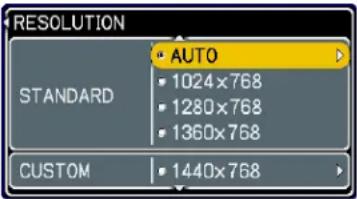 (3) STANDARDPressing the ▶ or ENTER button when selecting a STANDARD resolution will automatically adjust the horizontal and vertical positions, clock phase and horizontal size and automatically select an aspect ratio. STANDARDS↓ (3) STANDARDPressing the ▶ or ENTER button when selecting a STANDARD resolution will automatically adjust the horizontal and vertical positions, clock phase and horizontal size and automatically select an aspect ratio. STANDARDS↓ (3) CUSTOM(3)-1 To set a custom resolution use the ▲/▼ buttons to select the CUSTOM and the CUSTOM RESOLUTION box will be displayed. Set the horizontal (HORZ) and vertical (VERT) resolutions using the ▲/▼/◄/► buttons. Although not all resolutions are guaranteed. CUSTOM↓ (3) CUSTOM(3)-1 To set a custom resolution use the ▲/▼ buttons to select the CUSTOM and the CUSTOM RESOLUTION box will be displayed. Set the horizontal (HORZ) and vertical (VERT) resolutions using the ▲/▼/◄/► buttons. Although not all resolutions are guaranteed. CUSTOM↓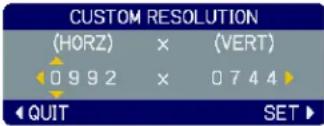 (3)-2 To save the setting place the cursor on the right-most digit and press the ▶ button.The horizontal and vertical positions, clock phase and horizontal size will be automatically adjusted and an aspect ratio will be automatically selected.COMPUTER 1992x744 @60Hz (3)-2 To save the setting place the cursor on the right-most digit and press the ▶ button.The horizontal and vertical positions, clock phase and horizontal size will be automatically adjusted and an aspect ratio will be automatically selected.COMPUTER 1992x744 @60Hz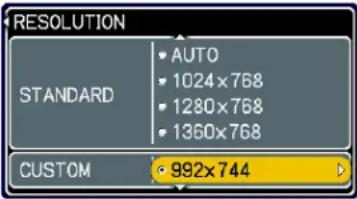 (3)-3 To revert back to the previous resolution without saving changes place the cursor on the left-most digit and press the ◀ button.The screen will then return to the RESOLUTION menu displaying the previous resolution.• For some pictures, this function may not work well. (3)-3 To revert back to the previous resolution without saving changes place the cursor on the left-most digit and press the ◀ button.The screen will then return to the RESOLUTION menu displaying the previous resolution.• For some pictures, this function may not work well. |
Menu SETUP
À partir du menu SETUP, les éléments indiqués dans le tableau ci-dessous peuvent être exécutés.
Sélectionnez un élément à l'aide des boutons curseur ▲/▼, puis appuyez sur le bouton curseur ▶ ou sur le bouton ENTER pour exécuter l'élément. Ensuite, effectuez-le conformément au tableau suivant.
![MENU [COMPUTER 1] PICTURE AUTO KEYSTONE Ⓧ EXECUTE IMAGE KEYSTONE Ⓧ +0 INPUT WHISPER NORMAL SETUP MIRROR NORMAL OPTION VOLUME 16 EASY MENU SPEAKER TURN ON AUDIO](/content/2026/06/1240377/images/f98b85f4a60129d6bdc1871993d001d056dc22ba2404bd628890936f1061dee2.jpg)
| Item Description | |
| AUTO KEYSTONE/EXECUTE | Selecting this item performs the automatic keystone distortion correction. Projector automatically corrects vertical keystone distortion due to the (forward/backward) setup angle by itself.This function will be executed only once when selected in the menu. When the slant of the projector is changed, execute this function again.The adjustable range for correction will vary among inputs. For some input, this function may not work well.When V:INVERT or H&V:INVERT is selected to the MIRROR item in the SETUP menu, if the projector screen is inclined or angled downward, this function may not work correctly.When the zoom adjustment is set to the TELE (telephoto focus), this function may be excessive. This function should be used when the zoom adjustment is set to the full WIDE (wide-angle focus) whenever possible.When the projector is placed on the level (about ±0°), this function may not work.When the projector is inclined to near ±30 degree or over, this function may not work well.This function will be unavailable when the Transition Detector is on (49). |
| KEYSTONE/ | Using the ▲/▼ buttons corrects the vertical keystone distortion.Shrink the top of the image ⇔ Shrink the bottom of the imageThe adjustable range of this function will vary with the type of input signal. For some input, this function may not work well.This function will be unavailable when the Transition Detector is on (49). |
(suite à la page suivante)
Menu SETUP (suite)
| Item Description | |
| WHISPER | Using the ▲/▼ buttons turns off/on the whisper mode.NORMAL ⇔ WHISPERWhen WHISPER is selected, acoustic noise and screen brightness are reduced. |
| MIRROR | Using the ▲/▼ buttons switches the mode for mirror status.    NORMAL ⇔ H:INVERT ⇔ V:INVERT ⇔ H&V:INVERT NORMAL ⇔ H:INVERT ⇔ V:INVERT ⇔ H&V:INVERT If the Transition Detector is TURN ON and MIRROR status is changed, Transition Detector Alarm (☐49) will be displayed when projector is restarted after the power switch is turned off. If the Transition Detector is TURN ON and MIRROR status is changed, Transition Detector Alarm (☐49) will be displayed when projector is restarted after the power switch is turned off. |
| VOLUME | Using the ▲/▼ buttons adjusts the volume.High ⇔ Low |
| SPEAKER | Using the ▲/▼ buttons turns on/off the built-in speaker.TURN ON ⇔ TURN OFFWhen TURN OFF is selected, the built-in speaker does not work. |
| AUDIO | Allocates the audio ports.(1) Choose a picture input port using the ▲/▼ buttons.COMPUTER (IN)1 ⇔ COMPUTER (IN)2↓VIDEO ⇔ S-VIDEO ⇔ COMPONENT(2) Select the audio port to be interlocked with the input port using the ◀/►buttons.1 ⇔ 2 ⇔ 3 ⇔ XWhen XIs selected to an input port, any audio ports do not work interlocking with the input port, and any items in AUDIO menu are invalid. |
Menu SCREEN
À partir du menu SCREEN, les éléments indiqués dans le tableau ci-dessous peuvent être exécutés.
Sélectionnez un élément à l'aide des boutons curseur ▲/▼, puis appuyez sur le bouton curseur ▶ ou sur le bouton ENTER pour exécuter l'élément. Ensuite, effectuez-le conformément au tableau suivant.
![MENU [COMPUTER 1] PICTURE IMAGE INPUT SETUP SCREEN OPTION EASY MENU LANGUAGE MENU POSITION BLANK START UP MyScreen MESSAGE SOURCE NAME ENGLISH BLACK ORIGINAL TURN OFF TURN ON SELECT](/content/2026/06/1240377/images/3097026b8555940b9e028c3a8fb96ec289fff4f2a128f3883618f99032021ec0.jpg)
| Item Description | ||
| LANGUAGE | Using the ▲/▼ buttons switches the OSD (On Screen Display) language.ENGLISH ⇔ FRANÇAIS ⇔ DEUTSCH ⇔ ESPAÑOL ⇔ ITALIANO↑↓TÜRKÇE↑↓POLSKI↑↓SUOMI↑↓PYCCKИЙ ⇔ SVENSKA ⇔ 한글 ⇔ 繁體中文 ⇔ 简体中文 ⇔ 日本語 | |
| MENU POSITION | Using the ▲/▼/◄/► buttons adjusts the menu position.To quit the operation, press MENU button on the remote control or keep no operation for about 10 seconds. | |
| BLANK | Using the ▲/▼ buttons switches the mode for the blank screen.The blank screen is a screen for the temporarily blanking feature(21). It is displayed by pressing BLANK button.MyScreen ⇔ ORIGINAL ⇔ BLUE ⇔ WHITE ⇔ BLACK↑ | |
| Feature | ||
| MyScreen | Screen can be registered by the MyScreen item(38). | |
| ORIGINAL Screen preset as the standard screen. | ||
| BLUE, WHITE,BLACK | Plain screens in each color. | |
| • To avoid remaining as an afterimage, the MyScreen or ORIGINAL screen will change to the plain black screen after several minutes. | ||
(suite à la page suivante)
Menu SCREEN (suite)
| Item Description | |
| START UP | Using the ▲/▼ buttons switches the mode for the start-up screen. The start-up screen is a screen displayed when no signal or an unsuitable signal is detected.MyScreen ⇔ ORIGINAL ⇔ TURN OFF |
| MyScreen Screen can be registered by the MyScreen item (38). | |
| ORIGINAL Screen preset as the standard screen. | |
| TURN OFF Plain black screen. | |
| • To avoid remaining as an afterimage, the MyScreen or ORIGINAL screen will change to the BLANK screen (36) after several minutes. If also the BLANK screen is the MyScreen or ORIGINAL, the plain black screen is instead used.• When the TURN ON is selected to the MyScreen PASSWORD of SECURITY item in OPTION menu (46), the START UP is fixed to MyScreen. | |
(suite à la page suivante)
Menu SCREEN (suite)
| Item Description | |
| MyScreen | This item allows you to capture an image for use as a MyScreen image which can be used as the BLANK screen and START UP screen. Display the image you want to capture before executing the following procedure.1. Selecting this item displays a dialog titled “MyScreen”. It will ask you if you start capturing an image from the current screen.Please wait for the target image to be displayed, and press the ENTER button when the image is displayed. The image will freeze and the frame for capturing will appear.To stop performing, press the RESET or ESC button.2. Using the ▲/▼/◄/► buttons adjusts the frame position.Please move the frame to the position of the image which you want to use.The frame may not be able to be moved for some input signals.To start registration, press the ENTER button.To restore the screen and return to the previous dialog, press the RESET or ESC button.Registration takes several minutes.When the registration is completed, the registered screen and the following message are displayed for several seconds:“MyScreen registration is finished.”If the registration failed, the following message is displayed:“A capturing error has occurred. Please try again.”• This function cannot be selected when the TURN ON is selected to the MyScreen Lock item (below).• This function cannot be selected when TURN ON is selected to the MyScreen PASSWORD of SECURITY item in OPTION menu (46). |
| MyScreen Lock | Using the ▲/▼ buttons turns on/off the MyScreen lock function.TURN ON ⇔ TURN OFFWhen the TURN ON is selected, the MyScreen item is locked. Use this function for protecting the current MyScreen.• This function cannot be selected when TURN ON is selected to the MyScreen PASSWORD of SECURITY item in OPTION menu (46). |
(suite à la page suivante)
Menu SCREEN (suite)
| Item Description | |
| MESSAGE | Using the ▲/▼ buttons turns on/off the message function.TURN ON ⇔ TURN OFFWhen the TURN ON is selected, the following message function works."AUTO IN PROGRESS" while automatically adjusting"NO INPUT IS DETECTED""SYNC IS OUT OF RANGE""Searching..." while searching for the input"Detecting..." while an input signal is detectedThe indication of the input signal displayed by changingThe indication of the aspect ratio displayed by changingThe indication of the PICTURE MODE displayed by changingThe indication of the MY MEMORY displayed by changingThe indication of "FREEZE" and "II" while freezing the screen bypressing FREEZE button.When TURN OFF is selected, please remember if the picture isfreezing. Do not mistake freezing for a malfunction (21). |
| SOURCE NAME | Each input port for this projector can have a name applied to it.(1) Use the ▲/▼ buttons on the SCREEN menu toselect SOURCE NAME and press the ▶ button.The SOURCE NAME menu will be displayed.(2) Use the ▲/▼ buttons on the SOURCENAME menu to select the port to be namedand press the ▶ button. Right side of themenu is blank until a name is specified.The SOURCE NAME dialog will be displayed.(3) The current name will be displayed on thefirst line. Use the ▲/▼/◄/► buttons and theENTER or INPUT button to select and entercharacters. The RESET button can be used toerase 1 character at a time. The name can be amaximum of 16 characters.(4) To change an already inserted character, pressthe ▲ button while the cursor is on the [A-N]row to move the cursor to the name displayed onthe first line and use the ◀/► buttons to selectcharacter to be changed. Once a character in thename is selected use the▼ button to move thecursor back down to the character entry area toselect and enter characters as described above.(5) Select ▼ and press ENTER or INPUTbuttons when finished entering text.To revert to the previous name without saving changes press theESC or ◀ button and the INPUT button simultaneously. |
Menu OPTION
À partir du menu OPTION, les éléments indiqués dans le tableau ci-dessous peuvent être exécutés.
Sélectionnez un élément à l'aide des touches de curseur ▲/▼, puis appuyez sur la touche de curseur ▶ ou sur la touche ENTER pour exécuter l'élément, à l'exception des éléments LAMP TIME et FILTER TIME. Ensuite, procédez selon le tableau suivant.
![MENU [COMPUTER 1] PICTURE IMAGE INPUT SETUP SCREEN OPTION EASY MENU AUTO SEARCH AUTO KEYSTONE AUTO ON AUTO OFF LAMP TIME FILTER TIME MY BUTTON SERVICE SECURITY TURN ON TURN ON 0min 1234h 123h SELECT](/content/2026/06/1240377/images/903d1d1b4103f4191d4a747f414a9f1d022b710561419e45f35ea117344f9e50.jpg)
| Item Description | |
| AUTO SEARCH | Using the ▲/▼ buttons turns on/off the automatic signal search function.TURN ON ⇔ TURN OFFWhen the TURN ON is selected, detecting no signal automatically cycles through input ports in the following order. The search is started from the current port. Then when an input is found, the projector will stop searching and display the image.[IMAGE] |
| AUTO KEYSTONE [IMAGE] | Using the ▲/▼ buttons turns on/off the automatic keystone function.TURN ON ⇔ TURN OFFTURN ON: Automatic keystone distortion correction will be executed whenever changing the slant of the projector.TURN OFF: This function is disabled. Please execute the AUTO KEYSTONE [IMAGE] EXECUTE in the SETUP Menu for automatic keystone distortion correction.When the projector is suspended from the ceiling this feature will not function properly so select the TURN OFF.This function will be unavailable when the Transition Detector is on (49). |
| AUTO ON | Using the ▲/▼ buttons turns on/off the AUTO ON function.TURN ON ⇔ TURN OFFWhen set to the TURN ON, the lamp in projector will be automatically turned on without the usual procedure (15), only when the projector is supplied with the power after the power was cut while the lamp was on.This function does not work as long as the power has been supplied to the projector while the lamp is off.After turning the lamp on by the AUTO ON function, if neither input nor operation is detected for about 30 minutes, the projector is turned off, even though the AUTO OFF function (41) is disabled. |
(suite à la page suivante)
Menu OPTION (suite)
| Item Description | |
| AUTO OFF | Using the ▲/▼ buttons adjusts the time to count down to automatically turn the projector off.Long (max. 99 minutes) ⇔ Short (min. 0 minute = DISABLE)  When the time is set to 0, the projector is not turned off automatically.When the time is set to 1 to 99, and when the passed time with no-signal or an unsuitable signal reaches at the set time, the projector lamp will be turned off.If one of the projector's buttons or the remote control buttons is pressed or one of the commands (except get commands) is transmitted to the CONTROL port during the corresponding time, projector will not be turned off.Please refer to the section “Turning off the power” (15). When the time is set to 0, the projector is not turned off automatically.When the time is set to 1 to 99, and when the passed time with no-signal or an unsuitable signal reaches at the set time, the projector lamp will be turned off.If one of the projector's buttons or the remote control buttons is pressed or one of the commands (except get commands) is transmitted to the CONTROL port during the corresponding time, projector will not be turned off.Please refer to the section “Turning off the power” (15). |
| LAMP TIME | The lamp time is the time counted after the last resetting. It is shown in OPTION menu as the usage time of the lamp.Pressing RESET button or the ▶ button displays a dialog.To reset the lamp time, select RESET using the ▲ button.RESET ⇔ CANCEL• Please reset the lamp time only when you have replaced the lamp, for a suitable indication about the lamp.• For the lamp replacement, see the section "Lamp" (51). |
| FILTER TIME | The filter time is the time counted after the last resetting. It is shown in the OPTION menu as the usage time of the air filter.Pressing the RESET button or the ▶ button displays a dialog.To reset the filter time, select the RESET using the ▲ button.RESET ⇔ CANCEL• Please reset the filter time only when you have cleaned or replaced the air filter, for a suitable indication about the air filter.• For the air filter cleaning, see the section "Air filter" (53). |
| MY BUTTON | This item is to assign one of the following functions to MY BUTTON 1 and 2 on the remote control (6).Choose 1 or 2 on the MY BUTTON menu using the ◀/► button first. Then using the ▲/▼ buttons sets one of the following functions to the chosen button.COMPUTER1: Sets port to COMPUTER IN1.COMPUTER2: Sets port to COMPUTER IN2.COMPONENT: Sets port to COMPONENT(Y, Cb/Pb, Cr/Pr)S-VIDEO: Sets port to S-VIDEO.VIDEO: Sets port to VIDEO.INFORMATION: Displays a dialog of INPUT INFORMATION(44).AUTO KEYSTONE ☐ EXECUTE:Performs automatic keystone distortion correction (34).MY MEMORY:Loads one of adjustment data stored (27).When the current adjustment when no data is saved is not saved to memory a dialog is displayed in memory, a dialog is displayed. No saved dataIf you want to keep the current adjustment, please press the◄button to quit. Otherwise the current adjusted condition will be lost by loading a data.PICTURE MODE: Changes the PICTURE MODE (24).FILTER RESET:Displays the filter time reset confirmation dialogue (41).VOLUME+: Set the volume up.VOLUME-: Set the volume down. No saved dataIf you want to keep the current adjustment, please press the◄button to quit. Otherwise the current adjusted condition will be lost by loading a data.PICTURE MODE: Changes the PICTURE MODE (24).FILTER RESET:Displays the filter time reset confirmation dialogue (41).VOLUME+: Set the volume up.VOLUME-: Set the volume down. |
| SERVICE | Selecting this item displays the SERVICE menu.Select an item using the ▲/▼ buttons, and press the ► button or the ENTER button to execute the item.FAN SPEED ⇔ AUTO ADJUST ⇔ GHOST ⇔ FILTER MESSAGE ⇔ KEY LOCK FAN SPEEDUsing the ▲/▼ buttons switches the rotation speed of the cooling fans. The HIGH is the mode for use at highlands etc. Note that the projector is noisier when the HIGH is selected.HIGH ⇔ NORMAL FAN SPEEDUsing the ▲/▼ buttons switches the rotation speed of the cooling fans. The HIGH is the mode for use at highlands etc. Note that the projector is noisier when the HIGH is selected.HIGH ⇔ NORMAL  |
(suite à la page suivante)
Menu OPTION (suite)
| Item Description | |
| SERVICE(continued) | AUTO ADJUSTUsing the ▲/▼ buttons enables/disables the automatic adjustment. When DISABLE is selected, the automatic adjustment feature is disabled, although rough adjustment is automatically performed depending on the basic setting.FINE ⇔ FAST ⇔ DISABLEFINE: Finer tuning including H.SIZE adjustment.FAST: Faster tuning, setting H.SIZE to prearranged data for the input signal.Depending on conditions, such as input image, signal cable to the projector, environment around the projector, etc., the automatic adjustment may not work correctly. In such a case, please choose DISABLE to disable the automatic adjustment, and make adjustment manually.GHOST1. Select a color element of ghost using the ◀/▶buttons.2. Adjust the selected element using the ▲/▼ buttons to disappear ghost.FILTER MESSAGEUse the ▲/▼ button to set the timer for the interval to show the message for cleaning up the air filter.50h ⇔ 100h ⇔ 200h ⇔ 300h ⇔ 400h ⇔ 500h↑→TURN OFF ⇔ 800h ⇔ 700h ⇔ 600h ←After choosing a choice except “TURN OFF”, the message “REMINDER *** HRS PASSED AFTER THE LAST FILTER CHECK” will appear after the timer reaches the interval time set by this feature (55).When the “TURN OFF” is chosen, the message will not appear.Utilize this feature to keep the air filter clean, setting the suitable time according to your environment of this projector.Please check and clean the air filter periodically, even if there is no message. If the air filter becomes to be blocked by dust or others, the internal temperature will rise, which could cause malfunction, or reduce the lifetime of the projector.Please be careful with the operating environment of the projector and the condition of the air filter. |
(suite à la page suivante)
Menu OPTION (suite)
| Item Description | |
| SERVICE(continued) | KEY LOCKUsing the ▲/▼ buttons turns on/off the key lock feature. When TURN ON is selected, the buttons on the projector except the STANDBY/ON button are locked.TURN ON ⇔ TURN OFFPlease use to avoid a mischief and touching accidentally. This function does not have any effect on the remote control.REMOTE FREQ.Use the ▲/▼ button to change the projector's remote sensor setting.1:NORMAL ⇔ 2:HIGHItems with a checkmark are on. The factory default setting is for both 1:NORMAL and 2: HIGH to be on. If the remote control does not function correctly set this to either only 1 or only 2 (14).Neither can be turned off at the same time.INFORMATIONSelecting this item displays a dialog titled “INPUT INFORMATION”. It shows the information about the current input.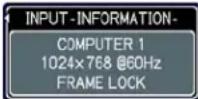 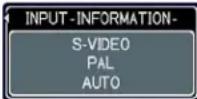  The “FRAME LOCK” message on the dialog means the frame lock function is working (32).This item can't be selected for no signal and sync out.FACTORY RESETSelecting RESET using the button ▲ performs this function. By this function, all the items in all of menus will collectively return to the initial setting. Note that the items LAMP TIME, FILTER TIME, LANGUAGE and SECURITY are not reset.RESET ⇔ CANCEL The “FRAME LOCK” message on the dialog means the frame lock function is working (32).This item can't be selected for no signal and sync out.FACTORY RESETSelecting RESET using the button ▲ performs this function. By this function, all the items in all of menus will collectively return to the initial setting. Note that the items LAMP TIME, FILTER TIME, LANGUAGE and SECURITY are not reset.RESET ⇔ CANCEL |
(suite à la page suivante)
Menu OPTION (suite)
| Item Description | |
| SECURITY | This projector is equipped with security functions.User registration is required before using the security functions.Please contact your local dealer.1. Using Security Features1.1 Inputting the PASSWORD1.1-1 Use the ▲/▼ buttons on the OPTION menu to select SECURITY and press the ▶ button. The ENTER PASSWORD box will be displayed.The factory default PASSWORD is 4473.This PASSWORD can be changed (1.2 Changing the PASSWORD).• It is strongly recommended the factory default PASSWORD to be changed as soon as possible.1.1-2 Use the ▲/▼/◄/► buttons to enter the registered PASSWORD. Move the cursor to the right side of the ENTER PASSWORD box and press the ► button to display the SECURITY menu.If an incorrect PASSWORD is input the ENTER PASSWORD box will be displayed again. If incorrect PASSWORD is input 3 times the projector will turn off. Afterwards the projector will turn off every time an incorrect PASSWORD is input.1.2 Changing the PASSWORD1.2-1 Use the ▲/▼ buttons on the SECURITY menu to select SECURITY PASSWORD CHANGE and press the ► button to display the ENTER NEW PASSWORD box.1.2-2 Use the ▲/▼/◄/► buttons to enter the new PASSWORD.1.2-3 Move the cursor to the right side of the ENTER NEW PASSWORD box and press the ► button to display the NEW PASSWORD AGAIN box, enter the same PASSWORD again.1.2-4 Move the cursor to the right side of the NEW PASSWORD AGAIN box and press the ► button and the NOTE NEW PASSWORD box will be displayed for about 20 seconds, please make note of the PASSWORD during this time.Pressing the ENTER button will close the NOTE NEW PASSWORD box.• Please do not forget your PASSWORD.   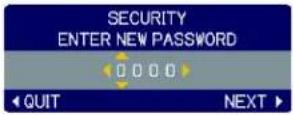  |
(suite à la page suivante)
Menu OPTION (suite)
| Item Description | |
| SECURITY(continued) | 1.3 If you have forgotten your PASSWORD1.3-1 Follow the procedure in 1.1-1 to display the ENTER PASSWORD box.1.3-2 While the ENTER PASSWORD box is displayed, press and hold the RESET button for about 3 seconds or press and hold the INPUT and ▶ buttons on the projector for about 3 seconds.The 10-digit Inquiring Code will be displayed.If there is no key input for about 55 seconds while the Inquiring Code is displayed the menu will close. If necessary repeat the process from 1.3-1.1.3-3 Contact your dealer with the 10-digit Inquiring Code. Your PASSWORD will be sent after your user registration information is confirmed.2. Using the MyScreen PASSWORD FunctionThe MyScreen PASSWORD function can be used to prohibit access to the MyScreen function and prevent the currently registered MyScreen image from being overwritten.2.1 Turning on the MyScreen PASSWORD Function2.1-1 Use the ▲/▼ buttons on the SECURITY menu to select MyScreen PASSWORD and press the ▶ button to display the MyScreen PASSWORD on/off menu.2.2 Setting the PASSWORD2.2-1 Display the MyScreen PASSWORD on/off menu using the procedure in 2.1-1.2.2-2 Use the ▲/▼ buttons on the MyScreen PASSWORD on/off menu to select TURN ON.The ENTER PASSWORD box (small) will be displayed.2.2-3 Use the ▲/▼/◄/► buttons to enter the PASSWORD.Move the cursor to the right side of the ENTER PASSWORD box (small) and press the ►button to display the PASSWORD AGAIN box, enter the same PASSWORD again. 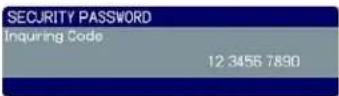   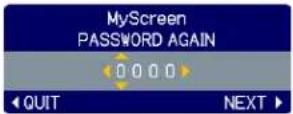 |
(suite à la page suivante)
Menu OPTION (suite)
| Item Description | |
| SECURITY(continued) | 2.2-4 Move the cursor to the right side of the PASSWORD AGAIN box and press the ▶ button to display the PASSWORD for about 20 seconds, please make note of the PASSWORD during this time.  Pressing the ENTER button will return to MyScreen PASS WORD on/off menu.When a PASSWORD is set for MyScreen:• The MyScreen registration function (and menu) will be unavailable.• The MyScreen Lock function (and menu) will be unavailable.• The START UP setting will be locked on MyScreen (and the menu will be unavailable).Turning the MyScreen PASSWORD off will allow normal operation of both functions.• Please do not forget your MyScreen PASSWORD.2.3 Turning the PASSWORD off2.3-1 Follow the procedure in 2.1-1 to display the MyScreen PASSWORD on/off menu.2.3-2 Select TURN OFF to display the ENTER PASSWORD box (large). Enter the registered PASSWORD and the screen will return to the MyScreen on/off menu.If an incorrect PASSWORD is input the menu will close. If necessary repeat the process from 2.3-1.2.4 If you have forgotten your PASSWORD2.4-1 Follow the procedure in 2.1-1 to display the MyScreen PASSWORD on/off menu.2.4-2 Select TURN OFF to display the ENTER PASSWORD box (large). The 10-digit Inquiring Code will be displayed inside the box. Pressing the ENTER button will return to MyScreen PASS WORD on/off menu.When a PASSWORD is set for MyScreen:• The MyScreen registration function (and menu) will be unavailable.• The MyScreen Lock function (and menu) will be unavailable.• The START UP setting will be locked on MyScreen (and the menu will be unavailable).Turning the MyScreen PASSWORD off will allow normal operation of both functions.• Please do not forget your MyScreen PASSWORD.2.3 Turning the PASSWORD off2.3-1 Follow the procedure in 2.1-1 to display the MyScreen PASSWORD on/off menu.2.3-2 Select TURN OFF to display the ENTER PASSWORD box (large). Enter the registered PASSWORD and the screen will return to the MyScreen on/off menu.If an incorrect PASSWORD is input the menu will close. If necessary repeat the process from 2.3-1.2.4 If you have forgotten your PASSWORD2.4-1 Follow the procedure in 2.1-1 to display the MyScreen PASSWORD on/off menu.2.4-2 Select TURN OFF to display the ENTER PASSWORD box (large). The 10-digit Inquiring Code will be displayed inside the box.  2.4-3 Contact your dealer with the 10-digit Inquiring Code. Your PASSWORD will be sent after your user registration information is confirmed.3. Using the PIN LOCK FunctionPIN LOCK is a function which prevents the projector from being used unless a registered Code is input.3.1 Registering the PIN Code3.1-1 Use the ▲/▼ buttons on the SECURITY menu to select PIN LOCK and press the ▶ button or the ENTER button to display the PIN LOCK on/off menu. 2.4-3 Contact your dealer with the 10-digit Inquiring Code. Your PASSWORD will be sent after your user registration information is confirmed.3. Using the PIN LOCK FunctionPIN LOCK is a function which prevents the projector from being used unless a registered Code is input.3.1 Registering the PIN Code3.1-1 Use the ▲/▼ buttons on the SECURITY menu to select PIN LOCK and press the ▶ button or the ENTER button to display the PIN LOCK on/off menu.  |
(suite à la page suivante)
Menu OPTION (suite)
| Item Description | |
| SECURITY(continued) | 3.1-2 Use the ▲/▼ buttons on the PIN LOCKon/off menu to select TURN ON and thePIN BOX will be displayed. 3.1-3 Input a 4 part PIN Code using the ▲,▼,◀,▶, COMPUTER and INPUT buttons.A PIN Code again box will appear. Reenterthe same PIN Code. This will complete thePIN Code registration.If there is no key input for about 55 seconds while the PIN BOX or thePIN Code again box are displayed the menu will close. If necessaryrepeat the process from 3.1-1.Afterwards, anytime the projector is restarted after AC power is turned offthe PIN BOX will be displayed. Enter the registered PIN Code.The projector can be used after entering the registered PIN Code. If anincorrect PIN Code is input the PIN BOX will be displayed again.If an incorrect PIN Code is input 3 times the projector will turn off.Afterwards the projector will turn off every time an incorrect PIN Code isinput. The projector will also turn off if there is no key input for about 5minutes while the PIN BOX is displayed.This function will activate only when the projector is started after ACpower is turned off.Please do not forget your PIN Code.3.2 Turning Off the PIN LOCK Function3.2-1 Follow the procedure in 3.1-1 to display the PIN LOCK on/off menu.Use the ▲/▼ buttons to select TURN OFF and the PIN BOX will bedisplayed.Enter the registered PIN Code to turn the PIN LOCK function off.If an incorrect PASSWORD is entered the menu will close.3.3 If you have forgotten your PIN Code3.3-1 While the PIN BOX is displayed, press andhold the RESET button for 3 seconds orpress and hold the INPUT and ▶ buttonsfor 3 seconds. The 10-digit Inquiring Codewill be displayed.If it passes for about 5 minutes after the PIN BOX is displayed theprojector will turn off.3.3-2 Contact your dealer with the 10-digit Inquiring Code. Your PASSWORDwill be sent after your user registration information is confirmed. 3.1-3 Input a 4 part PIN Code using the ▲,▼,◀,▶, COMPUTER and INPUT buttons.A PIN Code again box will appear. Reenterthe same PIN Code. This will complete thePIN Code registration.If there is no key input for about 55 seconds while the PIN BOX or thePIN Code again box are displayed the menu will close. If necessaryrepeat the process from 3.1-1.Afterwards, anytime the projector is restarted after AC power is turned offthe PIN BOX will be displayed. Enter the registered PIN Code.The projector can be used after entering the registered PIN Code. If anincorrect PIN Code is input the PIN BOX will be displayed again.If an incorrect PIN Code is input 3 times the projector will turn off.Afterwards the projector will turn off every time an incorrect PIN Code isinput. The projector will also turn off if there is no key input for about 5minutes while the PIN BOX is displayed.This function will activate only when the projector is started after ACpower is turned off.Please do not forget your PIN Code.3.2 Turning Off the PIN LOCK Function3.2-1 Follow the procedure in 3.1-1 to display the PIN LOCK on/off menu.Use the ▲/▼ buttons to select TURN OFF and the PIN BOX will bedisplayed.Enter the registered PIN Code to turn the PIN LOCK function off.If an incorrect PASSWORD is entered the menu will close.3.3 If you have forgotten your PIN Code3.3-1 While the PIN BOX is displayed, press andhold the RESET button for 3 seconds orpress and hold the INPUT and ▶ buttonsfor 3 seconds. The 10-digit Inquiring Codewill be displayed.If it passes for about 5 minutes after the PIN BOX is displayed theprojector will turn off.3.3-2 Contact your dealer with the 10-digit Inquiring Code. Your PASSWORDwill be sent after your user registration information is confirmed. |
(suite à la page suivante)
Menu OPTION (suite)
| Item Description | |
| SECURITY(continued) | 4. Using the Transition Detector FunctionWhile the Transition Detector function is ON, when power switch is started to supply to the projector, it might react as below.• Transition Detector alarm shown below might appear on screen, if the projector has been moved or re-installed.• Transition Detector alarm might appear on screen, if the MIRROR setting has been changed.• Keystone adjustment feature has been prohibited as long as the Transition Detector function is ON.4.1 Turning On the Transition Detector Function4.1-1 Use the ▲/▼ buttons on the SECURITY menu to select TRANSITION DETECTOR and press the ▶ or the ENTER button to display the TRANSITION DETECTOR on/off menu.Select TURN ON and the current angle and mirror setting will be recorded.• This feature may not function properly if the projector is not in a stable position when TURN ON is selected.4.1-2 If this function is set to TURN ON when the vertical angle of the projector or mirror setting at which the projector is turned on is different than the previously recorded the Transition Detector Alarm will be displayed and the projector will not display the input signal.Set the Transition Detector off in the SECURITY menu to display the input signal.If the Transition Detector ALARM is displayed for about 5 minutes the lamp will turn off. This function will activate only when the projector is started after turning off the AC power.4.2 Setting the Transition Detector PASSWORD4.2-1 Use the ▲/▼ buttons on the SECURITY menu to select TRANSITION DETECTOR and press the ▶ or the ENTER button to display the TRANSITION DETECTOR on/off menu.4.2-2 Use the ▲/▼ buttons on the TRANSITION DETECTOR on/off menu to select TURN ON. The ENTER PASSWORD box (small) will be displayed.4.2-3 Use the ▲/▼/◄/► buttons to enter a PASSWORD. Move the cursor to the right side of the ENTER PASSWORD box (small) and press the ▶ button to display the PASSWORD AGAIN box, enter the same PASSWORD again. |
(suite à la page suivante)
Menu OPTION (suite)
| Item Description | |
| SECURITY(continued) | 4.2-4 Move the cursor to the right side of the PASSWORD AGAIN box and press the ▶ button to display the PASSWORD for about 20 seconds, please make note of the PASSWORD during this time.Pressing the ENTER button will return to the TRANSITION DETECTOR on/off menu.• Please do not forget your Transition Detector PASSWORD.4.3 Setting the Transition Detector off4.3-1 Follow the procedure in 4.1-1 to display the TRANSITION DETECTOR on/off menu.4.3-2 Select TURN OFF to display the ENTER PASSWORD box (large). Enter the registered PASSWORD and the screen will return to the TRANSITION DETECTOR on/off menu. If an incorrect PASSWORD is input the menu will close. If necessary repeat the process from 4.3-1.4.4 If you have forgotten your PASSWORD4.4-1 Follow the procedure in 4.1-1 to display the TRANSITION DETECTOR on/off menu.4.4-2 Select TURN OFF to display the ENTER PASSWORD box (large). The 10-digit Inquiring Code will be displayed inside the box.4.4-3 Contact your dealer with the 10-digit Inquiring Code. Your PASSWORD will be sent after your user registration information is confirmed. 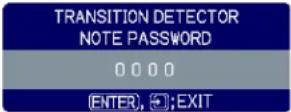 |
Maintenance
Lampe
Une lampe a une durée de vie limitée. Une utilisation prolongée de la lampe peut assombrir les images ou dégrader les couleurs. Notez que chaque lampe a une durée de vie différente, et certaines peuvent éclater ou griller peu après leur mise en service.
Il est recommandé de préparer une nouvelle lampe et de la remplacer rapidement. Pour préparer une nouvelle lampe, contactez votre revendeur et indiquez le numéro de type de la lampe.
Numéro de type : 78-6969-9917-2
Remplacement de la lampe
- Éteignez le projecteur et débranchez le cordon d'alimentation. Laissez le projecteur refroidir pendant au moins 45 minutes.
- Préparez une nouvelle lampe. Si le projecteur est monté au plafond, ou si la lampe est cassée, demandez également au revendeur de remplacer la lampe.
En cas de remplacement par vous-même, suivez la procédure suivante.
- Desserrez la vis (indiquée par une flèche) du capot de la lampe, puis faites glisser le capot sur le côté pour le retirer.
- Desserrez les 2 vis (indiquées par une flèche) de la lampe, puis soulevez lentement la lampe par les poignées.
- Insérez la nouvelle lampe, puis resserrez fermement les 2 vis de la lampe desserrées à l'étape précédente pour la verrouiller en place.
- Replacez le volet de la lampe et fixez fermement la vis du volet.
- Allumez le projecteur et réinitialisez le temps de lampe à l'aide de l'option LAMP TIME dans le menu OPTION.
(1) Appuyez sur le bouton MENU pour afficher un menu. (2) Sélectionnez "Go to Advanced Menu ..." dans le menu à l'aide des boutons ▼/▲, puis appuyez sur le bouton ▶. (3) Sélectionnez "OPTION" dans la colonne de gauche du menu à l'aide des boutons ▼/▲, puis appuyez sur le bouton ▶.
(4) Sélectionnez "LAMP TIME" à l'aide des boutons ▼/▲, puis appuyez sur le bouton ▶. Une boîte de dialogue apparaîtra.
(5) Appuyez sur le bouton ▲ pour sélectionner "RESET" dans la boîte de dialogue. Cela réinitialise le temps de lampe.

⚠️ ATTENTION ▶ Ne touchez aucune partie intérieure du projecteur lorsque la lampe est retirée.
REMARQUE • Ne réinitialisez le temps de lampe que lorsque vous avez remplacé la lampe, pour une indication appropriée concernant la lampe.
Lampe (suite)
Avertissement concernant la lampe

HAUTE TENSION

HAUTE TEMPÉRATURE, HAUTE PRESSION
⚠ AVERTISSEMENT ▶ Le projecteur utilise une lampe en verre à vapeur de mercure à haute pression. La lampe peut se briser avec un bruit fort, ou griller, si elle est secouée ou rayée, manipulée chaude, ou avec le temps. Notez que chaque lampe a une durée de vie différente, et certaines peuvent éclater ou griller peu après le début de leur utilisation. De plus, lorsque l'ampoule éclate, il est possible que des éclats de verre volent dans le boîtier de la lampe, et que du gaz contenant du mercure s'échappe par les évents du projecteur.
▶ À propos de l'élimination d'une lampe : Ce produit contient une lampe au mercure ; ne la jetez pas à la poubelle. Éliminez-la conformément aux lois environnementales.
- Pour le recyclage des lampes, consultez www.lamprecycle.org (aux États-Unis).
- Pour l'élimination du produit, contactez votre agence gouvernementale locale ou consultez www.eiae.org (aux États-Unis) ou www.epsc.ca (au Canada).
Pour plus d'informations, appelez votre revendeur.

Débranchez la fiche de la prise de courant
- Si la lampe se brise (elle fera un bruit fort), débranchez le cordon d'alimentation de la prise et demandez une lampe de remplacement à votre revendeur local. Notez que les éclats de verre pourraient endommager l'intérieur du projecteur ou causer des blessures lors de la manipulation. Ne tentez donc pas de nettoyer le projecteur ou de remplacer la lampe vous-même.
- Si la lampe se brise (elle fera un bruit fort), aérez bien la pièce et veillez à ne pas respirer le gaz qui sort des évents du projecteur, ni à le mettre dans vos yeux ou votre bouche.
- Avant de remplacer la lampe, éteignez le projecteur et débranchez le cordon d'alimentation, puis attendez au moins 45 minutes pour que la lampe refroidisse suffisamment. Manipuler la lampe chaude peut provoquer des brûlures et endommager la lampe.

- Ne dévissez jamais les vis autres que celles désignées (marquées par une flèche).
- N'ouvrez pas le volet de la lampe lorsque le projecteur est suspendu au plafond. C'est dangereux, car si l'ampoule de la lampe est cassée, les éclats tomberont à l'ouverture du volet. De plus, travailler en hauteur est dangereux, alors demandez à votre revendeur local de remplacer la lampe même si l'ampoule n'est pas cassée.
- N'utilisez pas le projecteur avec le volet de la lampe retiré. Lors du remplacement de la lampe, assurez-vous que les vis sont bien serrées. Des vis desserrées pourraient entraîner des dommages ou des blessures.

- Utilisez uniquement la lampe du type spécifié.
- Si la lampe se brise peu après sa première utilisation, il est possible qu'il y ait des problèmes électriques ailleurs que dans la lampe. Si cela se produit, contactez votre revendeur local ou un représentant du service après-vente.
- Manipulez avec précaution : les chocs ou les rayures peuvent provoquer l'éclatement de l'ampoule de la lampe pendant l'utilisation.
- L'utilisation de la lampe pendant de longues périodes peut l'assombrir, l'empêcher de s'allumer ou la faire éclater. Lorsque les images semblent sombres ou que la tonalité des couleurs est médiocre, remplacez la lampe dès que possible. N'utilisez pas de lampes anciennes (usagées) ; cela peut provoquer une casse.
Filtre à air
Veuillez vérifier et nettoyer le filtre à air périodiquement. Lorsque les indicateurs ou un message vous invitent à nettoyer le filtre à air, faites-le dès que possible. Remplacez le filtre à air s'il est endommagé ou trop encrassé. Pour vous procurer un nouveau filtre à air, contactez votre revendeur et indiquez-lui le numéro de type du filtre.
Numéro de type : 78-8118-9897-8
Lorsque vous remplacez la lampe, remplacez également le filtre à air. Un filtre à air du type spécifié sera fourni avec une lampe de rechange pour ce projecteur.
Nettoyage du filtre à air
- Éteignez le projecteur et débranchez le cordon d'alimentation. Laissez le projecteur refroidir suffisamment.
- Utilisez un aspirateur sur le couvercle du filtre et autour de celui-ci.
- Tirez sur les boutons du couvercle du filtre tout en le soulevant. L'ensemble du filtre, composé du couvercle du filtre, du filtre à air et du cadre du filtre, se détachera.
- Utilisez un aspirateur pour la ventilation du projecteur et le côté cadre du filtre de l'ensemble du filtre. Si le filtre à air est endommagé ou trop encrassé, remplacez-le en suivant les procédures 5 à 7 ci-dessous. Sinon, passez directement à la procédure 8.
- Tirez le bouton du cadre du filtre vers le haut tout en maintenant le couvercle du filtre. Le cadre du filtre se détachera et le filtre à air apparaîtra.
- Remplacez le filtre à air par un neuf.
- Remettez le cadre du filtre en place.
- Remettez l'unité de filtre dans le projecteur.
- Allumez le projecteur et réinitialisez le temps de filtre à l'aide de l'élément FILTER TIME du menu EASY.
Cache du filtre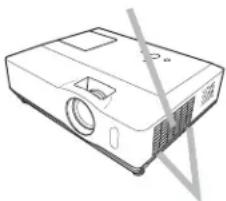
Boutons du cache du filtre
Unité de filtre
Cadre du filtre
Cache du filtre
(1) Appuyez sur le bouton MENU pour afficher un menu. (2) Pointez sur "FILTER TIME" à l'aide des boutons ▼/▲, puis appuyez sur le bouton ▶. Une boîte de dialogue apparaîtra. (3) Appuyez sur le bouton ▲ pour sélectionner "RESET" dans la boîte de dialogue. Cela réinitialise le temps de filtre.
⚠ AVERTISSEMENT ▶ Avant de vous occuper du filtre à air, assurez-vous que le câble d'alimentation n'est pas branché, puis laissez le projecteur refroidir suffisamment.
▶ Utilisez uniquement le filtre à air du type spécifié. N'utilisez pas le projecteur sans le filtre à air ou le couvercle du filtre. Cela pourrait provoquer un incendie ou un dysfonctionnement du projecteur. ▶ Nettoyez le filtre à air périodiquement. Si le filtre à air est obstrué par de la poussière ou autre, les températures internes augmentent et peuvent provoquer un incendie, une brûlure ou un dysfonctionnement du projecteur.
REMARQUE • Ne réinitialisez le temps du filtre que lorsque vous avez nettoyé ou remplacé le filtre à air, pour une indication appropriée concernant le filtre à air.
- Le projecteur peut afficher un message tel que « VÉRIFIEZ LE FLUX D'AIR » ou s'éteindre, pour empêcher l'augmentation de la chaleur interne.
Entretien
Autres soins
Intérieur du projecteur
Afin d'assurer une utilisation sûre de votre projecteur, faites-le nettoyer et inspecter par votre revendeur environ une fois par an.
Entretien de l'objectif
Si l'objectif est rayé, sale ou embué, cela peut entraîner une détérioration de la qualité d'affichage. Veuillez prendre soin de l'objectif, en étant prudent lors de la manipulation.
- Éteignez le projecteur et débranchez le cordon d'alimentation. Laissez le projecteur refroidir suffisamment.
- Après vous être assuré que le projecteur est suffisamment refroidi, essuyez légèrement l'objectif avec un chiffon de nettoyage pour objectif disponible dans le commerce. Ne touchez pas l'objectif directement avec la main.
Entretien du boîtier et de la télécommande
Un entretien incorrect peut avoir des effets néfastes tels qu'une décoloration, un écaillage de la peinture, etc.
- Éteignez le projecteur et débranchez le cordon d'alimentation. Laissez le projecteur refroidir suffisamment.
- Après vous être assuré que le projecteur est suffisamment refroidi, essuyez légèrement avec de la gaze ou un chiffon doux.
Si le projecteur est extrêmement sale, trempez un chiffon doux dans de l'eau ou un nettoyant neutre dilué dans de l'eau, essorez-le bien, puis essuyez délicatement. Ensuite, essuyez délicatement avec un chiffon doux et sec.
⚠ AVERTISSEMENT ▶ Avant tout entretien, assurez-vous que le câble d'alimentation n'est pas branché, puis laissez le projecteur refroidir suffisamment. Un entretien effectué alors que le projecteur est à haute température pourrait provoquer des brûlures et/ou un dysfonctionnement du projecteur.
▶ Ne tentez jamais de nettoyer l'intérieur du projecteur vous-même. Cela est dangereux. ▶ Évitez de mouiller le projecteur ou d'introduire des liquides à l'intérieur. Cela pourrait provoquer un incendie, une décharge électrique et/ou un dysfonctionnement du projecteur. - Ne placez pas d'objets contenant de l'eau, des nettoyants ou des produits chimiques à proximité du projecteur. - N'utilisez pas d'aérosols ou de sprays.
⚠️ ATTENTION ▶ Veuillez entretenir le projecteur correctement comme suit. Un entretien incorrect pourrait non seulement causer une blessure, mais aussi des effets néfastes tels qu'une décoloration, un écaillage de la peinture, etc.
▶ N'utilisez pas de nettoyants ou de produits chimiques autres que ceux spécifiés dans ce manuel.
▶ Ne polissez pas et n'essuyez pas avec des objets durs.
Dépannage
Si un fonctionnement anormal se produit, arrêtez immédiatement d'utiliser le projecteur.
⚠ AVERTISSEMENT ▶ N'utilisez jamais le projecteur si des anomalies telles que fumée, odeur étrange, bruit excessif, boîtier, éléments ou câbles endommagés, pénétration de liquides ou de corps étrangers, etc. se produisent. Dans de tels cas, débranchez immédiatement la fiche d'alimentation de la prise de courant. Après vous être assuré que la fumée ou l'odeur a cessé, contactez votre revendeur ou votre société de service.
Si un problème survient avec le projecteur, les vérifications et mesures suivantes sont recommandées avant de demander une réparation.
Si cela ne résout pas le problème, veuillez contacter votre revendeur ou votre société de service. Ils vous indiqueront les conditions de garantie applicables.
Messages associés
Lorsqu'un message apparaît, vérifiez-le et traitez-le conformément au tableau suivant. Bien que ces messages disparaissent automatiquement après quelques minutes, ils réapparaîtront à chaque mise sous tension.
| Message Description | |
| NO INPUT IS DETECTED*** | There is no input signal.Please confirm the signal input connection, and the status of the signal source. |
| SYNC IS OUT OF RANGE****fH**kHz FV**Hz | The horizontal or vertical frequency of the input signal is not within the specified range.Please confirm the specs for your projector or the signal source specs. |
| CHECK THE AIR FLOW | The internal temperature is rising.Please turn the power off, and allow the projector to cool down at least 20 minutes. After having confirmed the following items, please turn the power ON again.Is there blockage of the air passage aperture?Is the air filter dirty?Does the peripheral temperature exceed 35°C?If the same indication is displayed after the remedy, please set FAN SPEED of the SERVICE item in the OPTION menu to HIGH. |
| REMINDER*** HRS PASSED AFTER THE LAST FILTER CHECK.FILTER MAINTENANCE IS ESSENTIAL TO REMOVE WARNING MESSAGE, RESET FILTER TIMER.SEE MANUAL FURTHER INFO. | A note of precaution when cleaning the air filter.Please immediately turn the power off, and clean or change the air filter referring to the “Air Filter” section of this manual. After you have cleaned or changed the air filter, please be sure to reset the filter timer (53). |
Concernant les voyants
Lorsque le fonctionnement des voyants LAMP, TEMP et POWER diffère de l'habitude, vérifiez et traitez-le conformément au tableau suivant.
| POWER indicator | LAMP indicator | TEMP indicator | Description |
| Lighting In Orange | Turned off | Turned off | The projector is in a standby state.Please refer to the section “Power on/off”. |
| Blinking In Green | Turned off | Turned off | The projector is warming up.Please wait. |
| Lighting In Green | Turned off | Turned off | The projector is in an on state. Ordinary operations may be performed. |
| Blinking In Orange | Turned off | Turned off | The projector is cooling down.Please wait. |
| Blinking In Red | (discretionary) | (discretionary) | The projector is cooling down. A certain error has been detected.Please wait until POWER indicator finishes blinking, and then perform the proper measure using the item descriptions below. |
| Blinking In Red or Lighting In Red | Lighting In Red | Turned off | The lamp does not light, and there is a possibility that interior portion has become heated.Please turn the power off, and allow the projector to cool down at least 20 minutes. After the projector has sufficiently cooled down, please make confirmation of the following items, and then turn the power on again.Is there blockage of the air passage aperture?Is the air filter dirty?Does the peripheral temperature exceed 35°C?If the same indication is displayed after the remedy, please change the lamp referring to the section “Lamp”. |
| Blinking In Red or Lighting In Red | Blinking In Red | Turned off | The lamp door has not been properly fixed.Please turn the power off, and allow the projector to cool down at least 45 minutes. After the projector has sufficiently cooled down, please make confirmation of the attachment state of the lamp door. After performing any needed maintenance, turn the power on again.If the same indication is displayed after the remedy, please contact your dealer or service company. |
| Blinking In Red or Lighting In Red | Turned off | Blinking In Red | The cooling fan is not operating.Please turn the power off, and allow the projector to cool down at least 20 minutes. After the projector has sufficiently cooled down, please make confirmation that no foreign matter has become caught in the fan, etc., and then turn the power on again.If the same indication is displayed after the remedy, please contact your dealer or service company. |
Concernant les voyants (suite)
| POWER indicator | LAMP indicator | TEMP indicator | Description |
| BlinkingIn RedorLightingIn Red | Turned off | LightingIn Red | There is a possibility that the interior portion has become heated.Please turn the power off, and allow the projector to cool down at least 20 minutes. After the projector has sufficiently cooled down, please make confirmation of the following items, and then turn the power on again.Is there blockage of the air passage aperture?Is the air filter dirty?Does the peripheral temperature exceed 35°C?If the same indication is displayed after the remedy, please set FAN SPEED of SERVICE item in OPTION menu to HIGH (42). |
| LightingIn Green | Simultaneous blinking in Red | It is time to clean the air filter.Please immediately turn the power off, and clean or change the air filter referring to the section “Air Filter”. After cleaning or changing the air filter, please be sure to reset the filter timer. After the remedy, reset the power to ON. | |
| LightingIn Green | Alternative blinking in Red | There is a possibility that the interior portion has become overcooled.Please use the unit within the usage temperature parameters (5°C to 35°C).After the treatment, reset the power to ON. | |
REMARQUE • Lorsque la partie intérieure a surchauffé, pour des raisons de sécurité, le projecteur s'éteint automatiquement et les voyants peuvent également s'éteindre. Dans ce cas, débranchez le cordon d'alimentation et attendez au moins 45 minutes. Après que le projecteur a suffisamment refroidi, veuillez vérifier l'état de fixation de la lampe et du volet de la lampe, puis rallumez-le.
Arrêt du projecteur
Uniquement si le projecteur ne peut pas être éteint par la procédure habituelle (15), appuyez sur l'interrupteur d'arrêt avec une épingle ou un objet similaire, puis débranchez la fiche d'alimentation de la prise secteur. Avant de le rallumer, attendez au moins 10 minutes pour que le projecteur refroidisse suffisamment.
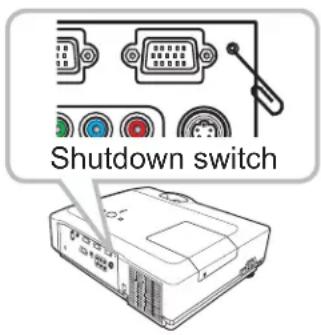
Réinitialisation de tous les réglages
S'il est difficile de corriger certains réglages incorrects, la fonction FACTORY RESET de l'élément SERVICE du menu OPTION (44) peut réinitialiser tous les réglages (sauf LANGUAGE, FILTER TIME, LAMP TIME, FILTER MESSAGE, etc.) aux valeurs par défaut d'usine.
Phénomènes pouvant être facilement confondus avec des défauts de la machine
Concernant les phénomènes confondus avec un défaut de la machine, vérifiez et traitez-les selon le tableau suivant.
| Phenomenon Cases not involving a machine defect | Reference page | |
| Power does not come on. | The electrical power cord is not plugged in.Correctly connect the power cord. | 12 |
| The main power source has been interrupted during operation such as by a power outage (blackout), etc.Please disconnect the power plug from the power outlet, and allow the projector to cool down at least 10 minutes, then turn the power on again. | 12, 15 | |
| Either there is no lamp and/or lamp door, or either of these has not been properly fixed.Please turn the power off and disconnect the power plug from the power outlet, and allow the projector to cool down at least 45 minutes. After the projector has sufficiently cooled down, please make confirmation of the attachment state of the lamp and lamp door, and then turn the power on again. | 51, 52 | |
| Neither sounds nor pictures are outputted. | The signal cables are not correctly connected.Correctly connect the connection cables. | 10 |
| Signal source does not correctly work.Correctly set up the signal source device by referring to the manual of the source device. | - | |
| The input changeover settings are mismatched.Select the input signal, and correct the settings. | 16, 17 | |
| Sound does not come out. | The signal cables are not correctly connected.Correctly connect the audio cables. | 10 |
| The MUTE function is working.Restore the sound pressing MUTE or VOLUME button on the remote control. | 16 | |
| The volume is adjusted to an extremely low level.Adjust the volume to a higher level using the menu function or the remote control. | 16 | |
| The AUDIO/SPEAKER setting is not correct.Correctly set the AUDIO/SPEAKER in SETUP menu. | 35 | |
| No pictures are displayed. | The lens cover is attached.Remove the lens cover. | 4, 15 |
| The signal cables are not correctly connected.Correctly connect the connection cables. | 10 | |
Phénomènes pouvant être facilement confondus avec des défauts de la machine (suite)
| Phenomenon Cases not involving a machine defect | Reference page | |
| No pictures are displayed. (continued) | The brightness is adjusted to an extremely low level. Adjust BRIGHTNESS to a higher level using the menu function. | 25, 26 |
| The computer cannot detect the projector as a plug and play monitor. Make sure that the computer can detect a plug and play monitor using another plug and play monitor. | 11 | |
| The BLANK screen is displayed. Press BLANK button on the remote control. | 21 | |
| Video screen display freezes. | The FREEZE function is working. Press FREEZE button to restore the screen to normal. | 21 |
| Colors have a faded-out appearance, or Color tone is poor. | Color settings are not correctly adjusted. Perform picture adjustments by changing the COLOR TEMP, COLOR, TINT and/or COLOR SPACE settings, using the menu functions. | 25, 26, 31 |
| COLOR SPACE setting is not suitable. Change the COLOR SPACE setting to AUTO, RGB, SMPTE240, REC709 or REC601. | 31 | |
| Pictures appear dark. | The brightness and/or contrast are adjusted to an extremely low level. Adjust BRIGHTNESS and/or CONTRAST settings to a higher level using the menu function. | 25, 26 |
| The WHISPER function is working. Select NORMAL for WHISPER item in the SETUP menu. | 25, 35 | |
| The lamp is approaching the end of its product lifetime. Replace the lamp. | 51, 52 | |
| Pictures appear blurry. | Either the focus and/or horizontal phase settings are not properly adjusted. Adjust the focus using the focus ring, and/or H PHASE using the menu function. | 18, 30 |
| The lens is dirty or misty. Clean the lens referring to the section “Caring for the lens”. | 55 | |
REMARQUE • Bien que des points lumineux ou sombres puissent apparaître à l'écran, cela est une caractéristique unique des écrans à cristaux liquides et ne constitue ni n'implique un défaut de la machine.
Spécifications
Spécification
| Item Specification | ||
| Product name=Liquid crystal projector | ||
| Liquid Crystal Panel | Panel size=1.6 | cm (0.63 type) |
| Drive system= | TFT active matrix | |
| Pixels=786,432 | pixels (1024 horizontal x 768 vertical) | |
| Lens | Zoom lens,F=1.7 ~ 1.9 f = 19.5~ 23.4 mm (approximately) | |
| Lamp=220W UHB | ||
| Audio output=7 W | ||
| Power supply=AC 100-120V/3.5A, AC220-240V/1.5A | ||
| Power consumption=320W | ||
| Temperature range=5 ~ 35°C (Operating) | ||
| Size | 340 (W) x 100 (H) x 270 (D) mm* Not including protruding parts. Please refer to the following figure. | |
| Weight (mass)=approx. 3.5 kg | ||
| Ports | Computer input portCOMPUTER IN1 ....D-sub 15 pin mini x1COMPUTER IN2 ....D-sub 15 pin mini x1Computer output portMONITOR OUT ....D-sub 15 pin mini x1Video input portY, Cb/Pb, Cr/Pr (Component video) ....RCA x3S-VIDEO....mini DIN 4 pin x1VIDEO ....RCA x1Audio input/output portAUDIO IN1....Stereo mini x1AUDIO IN2....Stereo mini x1AUDIO IN3....RCA x2AUDIO OUT....Stereo mini x1OthersUSB ....USB-B x1CONTROL ....D-sub 9 pin x1 | |
Spécifications (suite)
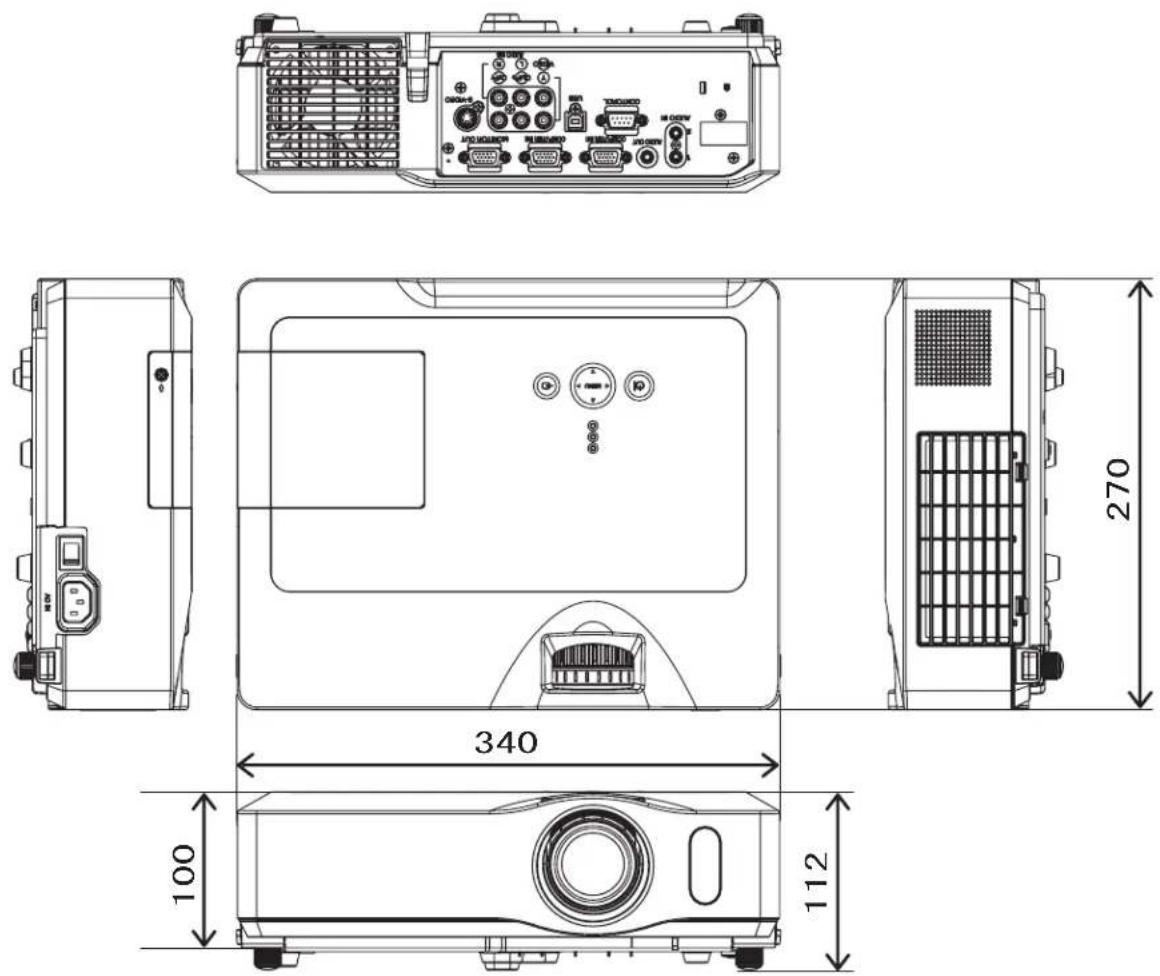
[unité : mm]
TECHNIQUE
Exemple de signal PC
| Resolution (H x V) | H. frequency (kHz) | V. frequency (Hz) | Rating Signal mode |
| 720 x 400 37.9 | 85.0 VESA TEXT | ||
| 640 x 480 31.5 | 59.9 VESA VGA (60Hz) | ||
| 640 x 480 37.9 | 72.8 VESA VGA (72Hz) | ||
| 640 x 480 37.5 | 75.0 VESA VGA (75Hz) | ||
| 640 x 480 43.3 | 85.0 VESA VGA (85Hz) | ||
| 800 x 600 35.2 | 56.3 VESA SVGA (56Hz) | ||
| 800 x 600 37.9 | 60.3 VESA SVGA (60Hz) | ||
| 800 x 600 48.1 | 72.2 VESA SVGA (72Hz) | ||
| 800 x 600 46.9 | 75.0 VESA SVGA (75Hz) | ||
| 800 x 600 53.7 | 85.1 VESA SVGA (85Hz) | ||
| 832 x 624 49.7 | 74.5 Mac 16" mode | ||
| 1024 x 768 48.4 | 60.0 VESA XGA (60Hz) | ||
| 1024 x 768 56.5 | 70.1 VESA XGA (70Hz) | ||
| 1024 x 768 60.0 | 75.0 VESA XGA (75Hz) | ||
| 1024 x 768 68.7 | 85.0 VESA XGA (85Hz) | ||
| 1152 x 864 67.5 | 75.0 VESA | ||
| 1280 x 960 60.0 | 60.0 VESA | ||
| 1280 x 1024 64.0 | 60.0 VESA SXGA (60Hz) | ||
| 1280 x 1024 80.0 | 75.0 VESA SXGA (75Hz) | ||
| 1280 x 1024 91.1 | 85.0 VESA SXGA (85Hz) | ||
| 1600 x 1200 75.0 | 60.0 VESA UXGA (60Hz) | ||
| 1280 x 768 47.7 | 60.0 VESA W-XGA (60Hz) | ||
| 1400 x 1050 65.2 | 60.0 VESA $XGA+ (60Hz) |
REMARQUE • Assurez-vous de vérifier le type de prise, le niveau du signal, la synchronisation et la résolution avant de connecter ce projecteur à un PC.
- Certains PC peuvent avoir plusieurs modes d'affichage. L'utilisation de certains de ces modes ne sera pas possible avec ce projecteur.
- Selon le signal d'entrée, l'affichage en taille réelle peut ne pas être possible dans certains cas. Reportez-vous au nombre de pixels d'affichage ci-dessus.
- Bien que le projecteur puisse afficher des signaux avec une résolution allant jusqu'à UXGA (1600x1200), le signal sera converti à la résolution du panneau du projecteur avant d'être affiché. La meilleure performance d'affichage sera obtenue si les résolutions du signal d'entrée et du panneau du projecteur sont identiques.
- L'ajustement automatique peut ne pas fonctionner correctement avec certains signaux d'entrée.
- L'image peut ne pas être affichée correctement lorsque le signal de synchronisation d'entrée est une synchronisation composite ou une synchronisation sur G.
Signaux de réglage initial
Les signaux suivants sont utilisés pour les réglages initiaux. La synchronisation du signal de certains modèles de PC peut être différente. Dans ce cas, ajustez les éléments V POSITION et H POSITION dans le menu IMAGE.

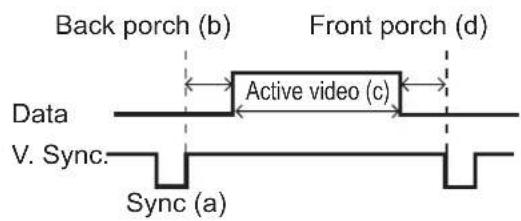
| computer Signal | Horizontal signal timing (μs) | computer Signal | Vertical signal timing (lines) | ||||||
| (A) (B) (C) (D) (a) (b) (c) (d) | |||||||||
| TEXT 2.0 | 3.0 | 20.3 | 1.0 | EXT 3 | 42 400 | 1 | |||
| VGA (60Hz) | 3.8 | 1.9 | 25.4 | 0.6 | VGA (60Hz) | 2 33 480 | 10 | ||
| VGA (72Hz) | 1.3 | 4.1 | 20.3 | 0.8 | VGA (72Hz) | 3 28 480 | 9 | ||
| VGA (75Hz) | 2.0 | 3.8 | 20.3 | 0.5 | VGA (75Hz) | 3 16 480 | 1 | ||
| VGA (85Hz) | 1.6 | 2.2 | 17.8 | 1.6 | VGA (85Hz) | 3 25 480 | 1 | ||
| SVGA (56Hz) | 2.0 | 3 | 6 22.2 | 0.7 | SVGA (56Hz) | 2 22 600 | 1 | ||
| SVGA (60Hz) | 3.2 | 2 | 2 20.0 | 1.0 | SVGA (60Hz) | 4 23 600 | 1 | ||
| SVGA (72Hz) | 2.4 | 1 | 3 16.0 | 1.1 | SVGA (72Hz) | 6 23 600 | 37 | ||
| SVGA (75Hz) | 1.6 | 3 | 2 16.2 | 0.3 | SVGA (75Hz) | 3 21 600 | 1 | ||
| SVGA (85Hz) | 1.1 | 2 | 7 14.2 | 0.6 | SVGA (85Hz) | 3 27 600 | 1 | ||
| Mac 16" mode | 1.1 | 3.9 | 14.5 | 0.6 | Mac 16" mode | 3 | 39 | 624 | |
| XGA (60Hz) | 2.1 | 2.5 | 15.8 | 0.4 | XGA (60Hz) | 6 29 768 | 3 | ||
| XGA (70Hz) | 1.8 | 1.9 | 13.7 | 0.3 | XGA (70Hz) | 6 29 768 | 3 | ||
| XGA (75Hz) | 1.2 | 2.2 | 13.0 | 0.2 | XGA (75Hz) | 3 28 768 | 1 | ||
| XGA (85Hz) | 1.0 | 2.2 | 10.8 | 0.5 | XGA (85Hz) | 3 36 768 | 1 | ||
| 1152 x 864(75Hz) | 1.2 | 2 | 4 10.7 | 0.6 | 1152 x 864(75Hz) | 3 32 | 864 1 | ||
| 1280 x 960(60Hz) | 1.0 | 2 | 9 | 11.9 | 0.9 | 1280 x 960(60Hz) | 3 36 | 960 1 | |
| SXGA (60Hz) | 1.0 | 2.3 | 11.9 | 0.4 | SXGA(60Hz) | 3 | 38 | 1024 | |
| SXGA (75Hz) | 1.1 | 1.8 | 9.5 | 0.1 | SXGA (75Hz) | 3 | 38 | 1024 | |
| SXGA (85Hz) | 1.0 | 1.4 | 8.1 | 0.4 | SXGA (85Hz) | 3 | 44 | 1024 | |
| UXGA (60Hz) | 1.2 | 1.9 | 9.9 | 0.4 | UXGA (60Hz) | 3 | 46 | 1200 | |
| W-XGA (60Hz) | 1.7 | 2 | 5 16.0 | 0.8 | W-XGA | (60Hz) 3 23 768 | 1 | ||
| SXGA+ (60Hz) | 1.2 | 2.0 | 11.4 | 0.7 | SXGA+ (60Hz) | 3 | 33 | 1050 | |
Connexion aux ports

ⒶCOMPUTER IN1, ⒷCOMPUTER IN2, ⒸMONITOR OUT
Prise mini D-sub 15 broches
• Signal vidéo : RVB séparé, analogique, 0,7 Vc-c, 75 Ω terminé (positif) • Signal de synchro H/V : niveau TTL (positif/négatif) • Signal de synchro composite : niveau TTL

| Pin | Signal Pin Signal | ||
| 1 | Video Red 10 Ground | ||
| 2 | Video Green 11 (No connection) | ||
| 3 | Video Blue | 12 | A: SDA (DDC data)B, C: (No connection) |
| 4 | (No connection) | ||
| 5 | Ground 13 H. sync / Composite sync. | ||
| 6 | Ground Red 14 V. sync. | ||
| 7 | Ground Green | 15 | A: SCL (DDC clock)B, C: (No connection) |
| 8 | Ground Blue | ||
| 9 | (No connection) -- |
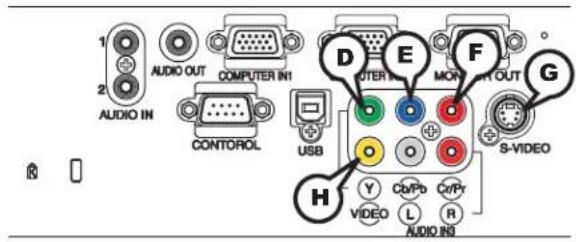
COMPOSANTE VIDÉO Ⓓ Y, Ⓔ Pb/Cb, Ⓕ Pr/Cr
Prise RCA x3
• Système : 525i(480i), 525p(480p), 625i(576i), 750p(720p), 1125i(1080i)
| Port S | gnal |
| Y | Component video Y, 1.0±0.1Vp-p, 75Ω terminator with composite |
| Pb/Cb | Component video Pb/Cb, 0.7±0.1Vp-p, 75Ω terminator |
| Pr/Cr | Component video Pr/Cr, 0.7±0.1Vp-p, 75Ω terminator |
©GS-VIDÉO
Prise Mini DIN 4 broches

| Pin Signal | |
| 1 | Color signal 0.286Vp-p (NTSC, burst), 75Ω terminatorColor signal 0.300Vp-p (PAL/SECAM, burst) 75Ω terminator |
| 2 | Brightness signal, 1.0Vp-p, 75Ω terminator |
| 3 | Ground |
| 4 | Ground |
HVIDÉO
Prise RCA
• Système : NTSC, PAL, SECAM, PAL-M, PAL-N, NTSC4.43
• 1,0 ± 0,1 Vc-c, terminaison 75 Ω
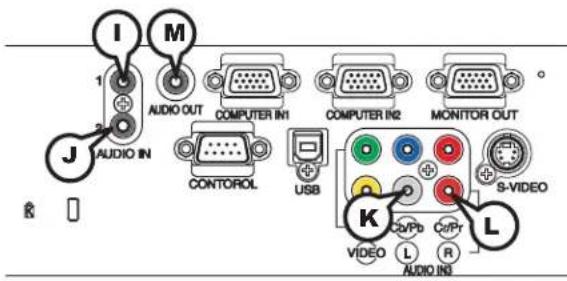
①ENTRÉE AUDIO 1, ②ENTRÉE AUDIO 2
Prise stéréo mini ∅3,5
• 200 mVeff, terminaison 47 kΩ
ENTRÉE AUDIO 3 ⒿL, ⓁR
Prise RCA x2
• 200 mVeff, terminaison 47 kΩ
M AUDIO OUT
∅3.5 stéréo mini jack
• 200 mVrms, impédance de sortie 1 kΩ
Pour entrer le signal SCART RVB ;
Pour entrer le signal SCART RVB au projecteur, utilisez un câble SCART vers RCA.
Connectez les fiches en vous référant à l'exemple ci-dessus. Pour plus de références, veuillez consulter votre revendeur.

NUSB
Prise USB type B
| Pin | Signal |
| 1 | 5V |
| 2 | Data |
| 3 | Data |
| 4 | Ground |
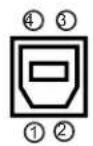
©CONTROL
Fiche D-sub 9 broches
- Pour plus de détails sur la communication RS-232C, veuillez vous référer à la page suivante.

| Pin Signal Pin Signal Pin Signal | ||||
| 1 (No connection) 4 (No connection) 7 RTS | ||||
| 2 RD 5 Ground 8 CTS | ||||
| 3 TD 6 (No connection) 9 (No connection) | ||||
Commande par le réseau

Port CONTROL, câble RS-232C (croisé) du projecteur au port RS-232C de l'ordinateur
![graph TD A["RD (2)"] --> B["RD (2)"] A --> C["TD (3)"] A --> D["GND (5)"] A --> E["RTS (7)"] A --> F["CTS (8)"] A --> G["(-9)"] H["CD"] --> I["RD"] H --> J["TD"] H --> K["DTR"] H --> L["GND"] H --> M["DSR"] H --> N["RTS"] H --> O["DTS"] H --> P["RI"]](/content/2026/06/1240377/images/f5461951dff90254d4c0208c4fe7c29c52cf5d20929d96914d63734b6fd579e7.jpg)
Connexion du câble
- Éteignez le projecteur et l'ordinateur.
- Connectez le port CONTROL du projecteur à un port RS-232C de l'ordinateur à l'aide d'un câble RS-232C (croisé). Utilisez un câble conforme aux spécifications indiquées à la page précédente.
- Allumez l'ordinateur, puis une fois l'ordinateur démarré, allumez le projecteur.
Paramètres de communication
19200 bps, 8N1
1. Protocole
Composé d'un en-tête (7 octets) + données de commande (6 octets)
2. En-tête
BE + EF + 03 + 06 + 00 + CRC_low + CRC_high
CRC_low : octet inférieur du drapeau CRC pour les données de commande
CRC_high : octet supérieur du drapeau CRC pour les données de commande
3. Données de commande
Tableau des données de commande
| byte_0 byte_1 byte_ | 2 byte_3 byte_4 byte_ | 5 | |
| Action Type Setting code | |||
| low high low high low high | |||
Action (octet_0 - 1)
| Action Classification Content | |
| 1 Set Change setting to desired value. | |
| 2 Get Read projector internal setup value. | |
| 4 Increment Increment setup value by 1. | |
| 5 Decrement Decrement setup value by 1. | |
| 6 Execute Run a command. |
Demande d'état du projecteur (commande Get)
(1) Envoyez le code de demande suivant du PC au projecteur. (2) Le projecteur renvoie le code de réponse '1DH' + données (2 octets) au PC.
En-tête + Commande + données ('02H' + '00H' + type (2 octets) + '00H')
Modification des réglages du projecteur (commande Set)
(1) Envoyez le code de réglage suivant du PC au projecteur. (2) Le projecteur modifie le réglage en fonction du code de réglage ci-dessus. (3) Le projecteur renvoie le code de réponse '06H' au PC.
En-tête + données de commande ('01H' + '00H' + type (2 octets) + code de réglage (2 octets))
Utilisation des réglages par défaut du projecteur (commande Reset)
(1) Le PC envoie le code de réglage par défaut suivant au projecteur. (2) Le projecteur modifie le réglage spécifié à la valeur par défaut. (3) Le projecteur renvoie le code de réponse '06H' au PC.
En-tête + données de commande ('06H' + '00H' + type (2 octets) + '00H')
Augmentation de la valeur de réglage du projecteur (commande Incrément)
(1) Le PC envoie le code d'incrémentation suivant au projecteur. (2) Le projecteur augmente la valeur de réglage selon le code de réglage ci-dessus. (3) Le projecteur renvoie le code de réponse '06H' au PC.
En-tête + données de commande ('04H' + '00H' + type (2 octets) + '00H')
Diminution de la valeur de réglage du projecteur (commande Décrément)
(1) Le PC envoie le code de décrémentation suivant au projecteur. (2) Le projecteur diminue la valeur de réglage selon le code de réglage ci-dessus. (3) Le projecteur renvoie le code de réponse '06H' au PC.
En-tête + données de commande ('05H' + '00H' + type (2 octets) + '00H')
Lorsque le projecteur ne peut pas comprendre la commande reçue
Lorsque le projecteur ne peut pas comprendre la commande reçue, le code d'erreur '15H' est renvoyé au PC.
Parfois, le projecteur ne peut pas recevoir correctement la commande. Dans ce cas, la commande n'est pas exécutée et le code d'erreur « 15H » est renvoyé au PC. Si ce code d'erreur est renvoyé, envoyez à nouveau la même commande.
Lorsque le projecteur ne peut pas exécuter la commande reçue.
Lorsque le projecteur ne peut pas exécuter la commande reçue, le code d'erreur « 1CH » + « xxxxH » est renvoyé au PC.
Lorsque la longueur des données est supérieure à celle indiquée par le code de longueur, le projecteur ignore les données excédentaires. Inversement, lorsque la longueur des données est inférieure à celle indiquée par le code de longueur, un code d'erreur est renvoyé au PC.
REMARQUE : le fonctionnement ne peut pas être garanti lorsque le projecteur reçoit une commande ou des données non définies.
- Prévoyez un intervalle d'au moins 40 ms entre le code de réponse et tout autre code.
- Le projecteur émet des données de test lorsque l'alimentation est mise sous tension et lorsque la lampe est allumée. Ignorez ces données.
- Les commandes ne sont pas acceptées pendant la période de préchauffage.
Tableau des commandes de communication RS-232C
| Names Operation Type Header | Command Data | ||||||||
| CRC Action Type Setting Code | |||||||||
| Power Set Turn | off BE EF 03 06 00 2A D3 01 00 00 60 00 00 | ||||||||
| Turn on BE EF 03 06 00 BA D2 01 00 00 60 01 00 | |||||||||
| Get | BE EF 03 06 00 19 D3 02 00 00 60 00 00 | ||||||||
| [Example return]00 00 01 00 02 00 [Off][On][Cool down] | |||||||||
| Input Source | Set | COMPUTER1 | BE EF | 03 | 06 00 | FE D2 | 01 00 | 00 20 | 00 00 |
| COMPUTER2 | BE EF 03 06 00 3E D0 01 00 00 20 04 00 | ||||||||
| COMPONENT | BE EF | 03 | 06 00 | AE D1 | 01 00 | 00 20 | 05 00 | ||
| S-VIDEO | BE EF 03 06 00 9E D3 01 00 00 20 02 00 | ||||||||
| VIDEO | BE EF 03 06 00 6E D3 01 00 00 20 01 00 | ||||||||
| Get | BE EF | 03 | 06 00 | CD D2 | 02 00 | 00 20 | 00 00 | ||
| Error Status | Get | BE EF | 03 | 06 00 | D9 D8 | 02 00 | 20 60 | 00 00 | |
| [Example return]00 00 01 00 02 00 03 00 [Normal][Cover error][Fan error][Lamp error]04 00 05 00 06 00 07 00 [Temp error][Air flow error][Lamp time error][Cold error]08 00 [Filter error] | |||||||||
| BRIGHTNESS | Get | BE EF | 03 | 06 00 | 89 D2 | 02 00 | 03 20 | 00 00 | |
| Increment | BE EF 03 06 00 | EF D2 04 00 03 20 00 00 | |||||||
| Decrement | BE EF | 03 | 06 00 | 3E D3 | 05 00 | 03 20 | 00 00 | ||
| BRIGHTNESS Reset | Execute | BE EF | 03 | 06 00 | 58 D3 | 06 00 | 00 70 | 00 00 | |
| CONTRAST | Get | BE EF | 03 | 06 00 | FD D3 | 02 00 | 04 20 | 00 00 | |
| Increment | BE EF 03 06 00 9B D3 04 00 04 20 00 00 | ||||||||
| Decrement | BE EF 03 06 00 4A D2 05 00 04 20 00 00 | ||||||||
| CONTRAST Reset | Execute | BE EF | 03 | 06 00 | A4 D2 | 06 00 | 01 70 | 00 00 | |
| PICTURE MODE | Set | NORMAL | BE EF | 03 | 06 00 | 23 F6 | 01 00 | BA 30 | 00 00 |
| CINEMA | BE EF | 03 | 06 00 | B3 F7 | 01 00 | BA 30 | 01 00 | ||
| DYNAMIC | BE EF | 03 | 06 00 | E3 F4 | 01 00 | BA 30 | 04 00 | ||
| BOARD(BLACK) | BE EF | 03 | 06 00 | E3 EF | 01 00 | BA 30 | 20 00 | ||
| BOARD(GREEN) | BE EF | 03 | 06 00 | 73 EE | 01 00 | BA 30 | 21 00 | ||
| WHITEBOARD | BE EF | 03 | 06 00 | 83 EE | 01 00 | BA 30 | 22 00 | ||
| DAYTIME BE EF | 03 06 00 E3 C7 01 00 BA 30 40 00 | ||||||||
| Get | BE EF | 03 | 06 00 | 10 F6 | 02 00 | BA 30 | 00 00 | ||
| [Example return]00 00 01 00 04 00 10 00 [Normal][Cinema][Dynamic][Custom]20 00 21 00 22 00 40 00 [BOARD(BLACK)] [BOARD(GREEN)] [WHITEBOARD] [DAYTIME] | |||||||||
| GAMMA | Set | #1 DEFAULT | BE EF | 03 | 06 00 | 07 E9 | 01 00 | A1 30 | 20 00 |
| #1 CUSTOM | BE EF | 03 | 06 00 | 07 FD | 01 00 | A1 30 | 10 00 | ||
| #2 DEFAULT | BE EF | 03 | 06 00 | 97 E8 | 01 00 | A1 30 | 21 00 | ||
| #2 CUSTOM | BE EF | 03 | 06 00 | 97 FC | 01 00 | A1 30 | 11 00 | ||
| #3 DEFAULT | BE EF | 03 | 06 00 | 67 E8 | 01 00 | A1 30 | 22 00 | ||
| #3 CUSTOM | BE EF | 03 | 06 00 | 67 FC | 01 00 | A1 30 | 12 00 | ||
| #4 DEFAULT | BE EF | 03 | 06 00 | F7 E9 | 01 00 | A1 30 | 23 00 | ||
| #4 CUSTOM | BE EF | 03 | 06 00 | F7 FD | 01 00 | A1 30 | 13 00 | ||
| #5 DEFAULT | BE EF | 03 | 06 00 | C7 EB | 01 00 | A1 30 | 24 00 | ||
| #5 CUSTOM | BE EF | 03 | 06 00 | C7 FF | 01 00 | A1 30 | 14 00 | ||
| #6 DEFAULT | BE EF | 03 | 06 00 | 57 EA | 01 00 | A1 30 | 25 00 | ||
| #6 CUSTOM | BE EF | 03 | 06 00 | 57 FE | 01 00 | A1 30 | 15 00 | ||
| Get | BE EF | 03 | 06 00 | F4 F0 | 02 00 | A1 30 | 00 00 | ||
| User Gamma Pattern Set Off | Set Off | BE EF 03 06 00 FB FA 01 | 00 80 30 00 | 00 00 | |||||
| 9 step gray scale | BE EF | 03 | 06 00 | 6B FB | 01 00 | 80 30 | 01 00 | ||
| 15 steps gray scale | BE EF | 03 | 06 00 | 9B FB | 01 00 | 80 30 | 02 00 | ||
| Ramp | BE EF 03 | 06 00 | 0B FA 01 | 100 80 30 00 | 3 00 | ||||
| Get | BE EF 03 | 06 00 | C8 FA 02 00 | 80 30 00 00 | |||||
| User Gamma Point 1 | Get | BE EF | 03 | 06 00 | 08 FE | 02 00 | 90 30 | 00 00 | |
| Increment | BE EF 03 | 06 00 | E FE 04 00 | 90 30 00 00 | |||||
| Decrement | BE EF 03 | 06 00 | BF FF 05 00 | 90 30 00 00 | |||||
| User Gamma Point 2 | Get | BE EF | 03 | 06 00 | F4 FF | 02 00 | 91 30 | 00 00 | |
| Increment | BE EF 03 | 06 00 | 92 FF 04 | 00 91 30 00 | 00 00 | ||||
| Decrement | BE EF | 03 | 06 00 | 43 FE | 05 00 | 91 30 | 00 00 | ||
| User Gamma Point 3 | Get | BE EF | 03 | 06 00 | B0 FF | 02 00 | 92 30 | 00 00 | |
| Increment | BE EF 03 | 06 00 | D6 FF 04 00 | 92 30 00 00 | |||||
| Decrement | BE EF | 03 | 06 00 | 07 FE | 05 00 | 92 30 | 00 00 | ||
| User Gamma Point 4 | Get | BE EF | 03 | 06 00 | 4C FE | 02 00 | 93 30 | 00 00 | |
| Increment | BE EF 03 | 06 00 | A FE 04 00 | 93 30 00 00 | |||||
| Decrement | BE EF 03 | 06 00 | FB FF 05 00 | 93 30 00 00 | |||||
| User Gamma Point 5 | Get | BE EF | 03 | 06 00 | 38 FF | 02 00 | 94 30 | 00 00 | |
| Increment | BE EF 03 | 06 00 | E FF | 04 00 94 30 00 | 00 00 | ||||
| Decrement | BE EF 03 | 06 00 | EF FE | 05 00 94 30 00 | 00 00 | ||||
| User Gamma Point 6 | Get | BE EF | 03 | 06 00 | C4 FE | 02 00 | 95 30 | 00 00 | |
| Increment | BE EF 03 | 06 00 | A2 FE 04 00 | 95 30 00 00 | |||||
| Decrement | BE EF 03 | 06 00 | 73 FF 05 | 00 95 30 00 | 00 00 | ||||
| User Gamma Point 7 | Get | BE EF | 03 | 06 00 | 80 FE | 02 00 | 96 30 | 00 00 | |
| Increment | BE EF 03 | 06 00 | E6 FE 04 00 | 96 30 00 00 | |||||
| Decrement | BE EF 03 | 06 00 | 37 FF 05 | 00 96 30 00 | 00 00 | ||||
| User Gamma Point 8 | Get | BE EF | 03 | 06 00 | 7C FF | 02 00 | 97 30 | 00 00 | |
| Increment | BE EF | 03 | 06 00 | 1A FF | 04 00 | 97 30 | 00 00 | ||
| Decrement | BE EF | 03 | 06 00 | CB FE | 05 00 | 97 30 | 00 00 | ||
| COLOR TEMP | Set | HIGH | BE EF | 03 | 06 00 | 0B F5 | 01 00 | B0 30 | 03 00 |
| CUSTOM-1 (HIGH) | BE EF | 03 | 06 00 | CB F8 | 01 00 | B0 30 | 13 00 | ||
| MID | BE EF | 03 | 06 00 | 9B F4 | 01 00 | B0 30 | 02 00 | ||
| CUSTOM-2 (MID) | BE EF | 03 | 06 00 | 5B F9 | 01 00 | B0 30 | 12 00 | ||
| LOW | BE EF | 03 | 06 00 | 6B F4 | 01 00 | B0 30 | 01 00 | ||
| CUSTOM-3 (LOW) | BE EF | 03 | 06 00 | AB F9 | 01 00 | B0 30 | 11 00 | ||
| Hi-BRIGHT-1 | BE EF | 03 | 06 00 | 3B F2 | 01 00 | B0 30 | 08 00 | ||
| CUSTOM-4 (Hi-BRIGHT-1) | BE EF 03 | 06 00 | FB FF 01 00 | B0 30 | 18 00 | ||||
| Hi-BRIGHT-2 | BE EF | 03 | 06 00 | AB F3 | 01 00 | B0 30 | 09 00 | ||
| CUSTOM-5 (Hi-BRIGHT-2) | BE EF 03 | 06 00 | B FE 01 00 | B0 30 | 19 00 | ||||
| Hi-BRIGHT-3 | BE EF | 03 | 06 00 | 5B F3 | 01 00 | B0 30 | 0A 00 | ||
| CUSTOM-6 (Hi-BRIGHT-3) | BE EF 03 | 06 00 | B FE 01 00 | B0 30 | 1A 00 | ||||
| Get | BE EF | 03 | 06 00 | C8 F5 | 02 00 | B0 30 | 00 00 | ||
| COLOR TEMP GAIN R | Get | BE EF | 03 | 06 00 | 34 F4 | 02 00 | B1 30 | 00 00 | |
| Increment | BE EF | 03 | 06 00 | 52 F4 | 04 00 | B1 30 | 00 00 | ||
| Decrement | BE EF | 03 | 06 00 | 83 F5 | 05 00 | B1 30 | 00 00 | ||
| COLOR TEMP GAIN G | Get | BE EF | 03 | 06 00 | 70 F4 | 02 00 | B2 30 | 00 00 | |
| Increment | BE EF | 03 | 06 00 | 16 F4 | 04 00 | B2 30 | 00 00 | ||
| Decrement | BE EF | 03 | 06 00 | C7 F5 | 05 00 | B2 30 | 00 00 | ||
| COLOR TEMP GAIN B | Get | BE EF | 03 | 06 00 | 8C F5 | 02 00 | B3 30 | 00 00 | |
| Increment BE EF 03 | 06 00 EA F5 | 04 00 | B3 30 00 00 | ||||||
| Decrement BE EF 03 | 06 00 3B F4 | 05 00 | B3 30 00 00 | ||||||
| COLOR TEMPOFFSET R | Get BE EF 03 06 | 00 04 F5 02 | 00 B5 | 30 00 00 | |||||
| Increment BE EF 03 | 06 00 62 F5 | 04 00 | B5 30 00 00 | ||||||
| Decrement BE EF 03 | 06 00 B3 F4 | 05 00 | B5 30 00 00 | ||||||
| COLOR TEMPOFFSET G | Get BE EF 03 06 | 00 40 F5 02 | 00 B6 | 30 00 00 | |||||
| Increment BE EF 03 | 06 00 26 F5 | 04 00 | B6 30 00 00 | ||||||
| Decrement BE EF 03 | 06 00 F7 F4 | 05 00 | B6 30 00 00 | ||||||
| COLOR TEMPOFFSET B | Get BE EF 03 06 | 00 BC F4 | 02 00 B7 30 | 00 00 | |||||
| Increment BE EF 03 | 06 00 | DA F4 | 04 00 B7 | 30 00 00 | |||||
| Decrement BE EF 03 | 06 00 0B F5 | 05 00 | B7 30 00 00 | ||||||
| COLOR | Get BE EF 03 06 | 00 B5 72 02 | 00 02 | 22 | 00 | 00 | |||
| Increment BE EF 03 | 06 00 D3 72 | 04 00 | 02 22 | 00 00 | |||||
| Decrement | BE EF | 03 | 06 00 | 02 73 | 05 00 | 02 22 | 00 00 | ||
| COLOR Reset | Execute | BE EF | 03 | 06 00 | 80 D0 | 06 00 | 0A 70 | 00 00 | |
| TINT | Get | BE EF | 03 | 06 00 | 49 73 | 02 00 | 03 22 | 00 00 | |
| Increment BE EF 03 | 06 00 2F 73 | 04 00 | 03 22 | 00 00 | |||||
| Decrement BE EF 03 | 06 00 FE 72 | 05 00 | 03 22 | 00 00 | |||||
| TINT Reset | Execute | BE EF | 03 | 06 00 | 7C D1 | 06 00 | 0B 70 | 00 00 | |
| SHARPNESS | Get | BE EF | 03 | 06 00 | F1 72 | 02 00 | 01 22 | 00 00 | |
| Increment | BE EF | 03 | 06 00 | 97 72 | 04 00 | 01 22 | 00 00 | ||
| Decrement | BE EF | 03 | 06 00 | 46 73 | 05 00 | 01 22 | 00 00 | ||
| SHARPNESS Reset | Execute | BE EF | 03 | 06 00 | C4 D0 | 06 00 | 09 70 | 00 00 | |
| MY MEMORY Load | Set | 1 | BE EF | 03 | 06 00 | 0E D7 | 01 00 | 14 20 | 00 00 |
| 2 | BE EF | 03 | 06 00 | 9E D6 | 01 00 | 14 20 | 01 00 | ||
| 3 | BE EF | 03 | 06 00 | 6E D6 | 01 00 | 14 20 | 02 00 | ||
| 4 | BE EF | 03 | 06 00 | FE D7 | 01 00 | 14 20 | 03 00 | ||
| MY MEMORY Save | Set | 1 | BE EF | 03 | 06 00 | F2 D6 | 01 00 | 15 20 | 00 00 |
| 2 | BE EF | 03 | 06 00 | 62 D7 | 01 00 | 15 20 | 01 00 | ||
| 3 | BE EF | 03 | 06 00 | 92 D7 | 01 00 | 15 20 | 02 00 | ||
| 4 | BE EF | 03 | 06 00 | 02 D6 | 01 00 | 15 20 | 03 00 | ||
| PROGRESSIVE | Set | TURN OFF | BE EF | 03 | 06 00 | 4A 72 | 01 00 | 07 22 | 00 00 |
| TV | BE EF | 03 | 06 00 | DA 73 | 01 00 | 07 22 | 01 00 | ||
| FILM | BE EF | 03 | 06 00 | 2A 73 | 01 00 | 07 22 | 02 00 | ||
| Get | BE EF | 03 | 06 00 | 79 72 | 02 00 | 07 22 | 00 00 | ||
| VIDEO NR | Set | LOW | BE EF | 03 | 06 00 | 26 72 | 01 00 | 06 22 | 01 00 |
| MID | BE EF | 03 | 06 00 | D6 72 | 01 00 | 06 22 | 02 00 | ||
| HIGH | BE EF | 03 | 06 00 | 46 73 | 01 00 | 06 22 | 03 00 | ||
| Get | BE EF | 03 | 06 00 | 85 73 | 02 00 | 06 22 | 00 00 | ||
| ASPECT | Set | 4:3 | BE EF | 03 | 06 00 | 9E D0 | 01 00 | 08 20 | 00 00 |
| 16:9 | BE EF | 03 | 06 00 | 0E D1 | 01 00 | 08 20 | 01 00 | ||
| 14:9 | BE EF | 03 | 06 00 | CE D6 | 01 00 | 08 20 | 09 00 | ||
| SMALL | BE EF | 03 | 06 00 | FE D1 | 01 00 | 08 20 | 02 00 | ||
| NORMAL | BE EF | 03 | 06 00 | 5E DD | 01 00 | 08 20 | 10 00 | ||
| GetBE EF 03 06 00 91 70 02 00 09 | BE EF22 00 00 | 03 | 06 00 | AD D0 | 02 00 | 08 20 | 00 00 | ||
| OVER SCAN Get | |||||||||
| Increment BE EF 03 | 06 00 F7 70 | 04 00 | 09 22 00 00 | ||||||
| Decrement BE EF 03 | 06 00 26 71 | 05 00 | 09 22 00 00 | ||||||
| OVER SCAN Reset | Execute | BE EF | 03 | 06 00 | EC D9 | 06 00 | 27 70 | 00 00 | |
| V POSITION | Get | BE EF | 03 | 06 00 | 0D 83 | 02 00 | 00 21 | 00 00 | |
| Increment BE EF 03 | 06 00 | 6B 83 | 04 00 00 | 21 00 00 | |||||
| Decrement | BE EF | 03 | 06 00 | BA 82 | 05 00 | 00 21 | 00 00 | ||
| V POSITION Reset | Execute | BE EF | 03 | 06 00 | E0 D2 | 06 00 | 02 70 | 00 00 | |
| H POSITION | Get | BE EF | 03 | 06 00 | F1 82 | 02 00 | 01 21 | 00 00 | |
| Increment BE EF 03 | 06 00 97 82 | 04 00 | 01 21 00 00 | ||||||
| Decrement BE EF 03 | 06 00 46 83 | 05 00 | 01 21 00 00 | ||||||
| H POSITION Reset | Execute | BE EF | 03 | 06 00 | 1C D3 | 06 00 | 03 70 | 00 00 | |
| H PHASE | Get | BE EF | 03 | 06 00 | 49 83 | 02 00 | 03 21 | 00 00 | |
| Increment BE EF 03 | 06 00 2F 83 | 04 00 | 03 21 00 00 | ||||||
| Decrement | BE EF | 03 | 06 00 | FE 82 | 05 00 | 03 21 | 00 00 | ||
| H SIZE | Get | BE EF | 03 | 06 00 | B5 82 | 02 00 | 02 21 | 00 00 | |
| Increment | BE EF | 03 | 06 00 | D3 82 | 04 00 | 02 21 | 00 00 | ||
| Decrement BE EF 03 | 06 00 02 83 | 05 00 | 02 21 00 00 | ||||||
| H SIZE Reset | Execute | BE EF | 03 | 06 00 | 68 D2 | 06 00 | 04 70 | 00 00 | |
| AUTO ADJUST | Execute | BE EF | 03 | 06 00 | 91 D0 | 06 00 | 0A 20 | 00 00 | |
| COLOR SPACE | Set | AUTO | BE EF | 03 | 06 00 | 0E 72 | 01 00 | 04 22 | 00 00 |
| RGB BE EF 03 | 06 00 | 9E 73 | 01 00 04 22 | 01 00 | |||||
| SMPTE240 | BE EF | 03 | 06 00 | 6E 73 | 01 00 | 04 22 | 02 00 | ||
| REC709 | BE EF | 03 | 06 00 | FE 72 | 01 00 | 04 22 | 03 00 | ||
| REC601 | BE EF | 03 | 06 00 | CE 70 | 01 00 | 04 22 | 04 00 | ||
| Get | BE EF | 03 | 06 00 | 3D 72 | 02 00 | 04 22 | 00 00 | ||
| COMPONENT | Set | COMPONENT | BE EF | 03 | 06 00 | 4A D7 | 01 00 | 17 20 | 00 00 |
| SCART RGB | BE EF | 03 | 06 00 | DA D6 | 01 00 | 17 20 | 01 00 | ||
| Get | BE EF | 03 | 06 00 | 79 D7 | 02 00 | 17 20 | 00 00 | ||
| C-VIDEO FORMAT | Set | AUTO | BE EF | 03 | 06 00 | A2 70 | 01 00 | 11 22 | 0A 00 |
| NTSC | BE EF | 03 | 06 00 | C2 74 | 01 00 | 11 22 | 04 00 | ||
| PAL | BE EF | 03 | 06 00 | 52 75 | 01 00 | 11 22 | 05 00 | ||
| SECAM | BE EF | 03 | 06 00 | 52 70 | 01 00 | 11 22 | 09 00 | ||
| NTSC4.43 | BE EF | 03 | 06 00 | 62 77 | 01 00 | 11 22 | 02 00 | ||
| M-PAL | BE EF | 03 | 06 00 | C2 71 | 01 00 | 11 22 | 08 00 | ||
| N-PAL | BE EF | 03 | 06 00 | 32 74 | 01 00 | 11 22 | 07 00 | ||
| Get BE EF 03 | 06 00 31 76 | 02 00 | 11 22 | 00 00 | |||||
| S-VIDEO FORMAT | Set | AUTO | BE EF | 03 | 06 00 | E6 70 | 01 00 | 12 22 | 0A 00 |
| NTSC | BE EF 03 | 06 00 | 66 74 01 00 | 12 22 04 00 | |||||
| PAL | BE EF | 03 | 06 00 | 16 75 | 01 00 | 12 22 | 05 00 | ||
| SECAM | BE EF | 03 | 06 00 | 16 70 | 01 00 | 12 22 | 09 00 | ||
| NTSC4.43 | BE EF | 03 | 06 00 | 26 77 | 01 00 | 12 22 | 02 00 | ||
| M-PAL | BE EF | 03 | 06 00 | 86 71 | 01 00 | 12 22 | 08 00 | ||
| N-PAL | BE EF | 03 | 06 00 | 76 74 | 01 00 | 12 22 | 07 00 | ||
| Get BE EF 03 | 06 00 75 76 | 02 00 | 12 22 00 00 | ||||||
| FRAME LOCK | Set | TURN OFF | BE EF | 03 | 06 00 | CB D6 | 01 00 | 14 30 | 00 00 |
| TURN ON | BE EF | 03 | 06 00 | 5B D7 | 01 00 | 14 30 | 01 00 | ||
| Get | BE EF | 03 | 06 00 | F8 D6 | 02 00 | 14 30 | 00 00 | ||
| COMPUTER IN1 | Set | SYNC ON G ON | BE EF | 03 | 06 00 | CE D6 | 01 00 | 10 20 | 03 00 |
| SYNC ON G OFF | BE EF | 03 | 06 00 | 5E D7 | 01 00 | 10 20 | 02 00 | ||
| Get | BE EF | 03 | 06 00 | 0D D6 | 02 00 | 10 20 | 00 00 | ||
| COMPUTER IN2 | Set | SYNC ON G ON | BE EF | 03 | 06 00 | 32 D7 | 01 00 | 11 20 | 03 00 |
| SYNC ON G OFF | BE EF | 03 | 06 00 | A2 D6 | 01 00 | 11 20 | 02 00 | ||
| Get | BE EF | 03 | 06 00 | F1 D7 | 02 00 | 11 20 | 00 00 | ||
| KEYSTONE V | Get | BE EF | 03 | 06 00 | B9 D3 | 02 00 | 07 20 | 00 00 | |
| Increment | BE EF | 03 | 06 00 | DF D3 | 04 00 | 07 20 | 00 00 | ||
| Decrement | BE EF | 03 | 06 00 | 0E D2 | 05 00 | 07 20 | 00 00 | ||
| KEYSTONE V Reset | Execute | BE EF | 03 | 06 00 | 08 D0 | 06 00 | 0C 70 | 00 00 | |
| AUTO KEYSTONE EXECUTE | Execute | BE EF | 03 | 06 00 | E5 D1 | 06 00 | 0D 20 | 00 00 | |
| WHISPER | Set | NORMAL | BE EF | 03 | 06 00 | 3B 23 | 01 00 | 00 33 | 00 00 |
| WHISPER | BE EF | 03 | 06 00 | AB 22 | 01 00 | 00 33 | 01 00 | ||
| Get | BE EF | 03 | 06 00 | 08 23 | 02 00 | 00 33 | 00 00 | ||
| MIRROR | Set | NORMAL | BE EF | 03 | 06 00 | C7 D2 | 01 00 | 01 30 | 00 00 |
| H:INVERT | BE EF | 03 | 06 00 | 57 D3 | 01 00 | 01 30 | 01 00 | ||
| V:INVERT | BE EF | 03 | 06 00 | A7 D3 | 01 00 | 01 30 | 02 00 | ||
| H&V:INVERT | BE EF | 03 | 06 00 | 37 D2 | 01 00 | 01 30 | 03 00 | ||
| Get | BE EF | 03 | 06 00 | F4 D2 | 02 00 | 01 30 | 00 00 | ||
| VOLUME-COMPUTER1 | Get | BE EF | 03 | 06 00 | CD CC | 02 00 | 60 20 | 00 00 | |
| Increment | BE EF | 03 | 06 00 | AB CC | 04 00 | 60 20 | 00 00 | ||
| Decrement | BE EF | 03 | 06 00 | 7A CD | 05 00 | 60 20 | 00 00 | ||
| VOLUME-COMPUTER2 | Get | BE EF | 03 | 06 00 | FD CD | 02 00 | 64 20 | 00 00 | |
| Increment | BE EF | 03 | 06 00 | 9B CD | 04 00 | 64 20 | 00 00 | ||
| Decrement | BE EF | 03 | 06 00 | 4A CC | 05 00 | 64 20 | 00 00 | ||
| VOLUME-COMPONENT | Get | BE EF | 03 | 06 00 | 01 CC | 02 00 | 65 20 | 00 00 | |
| Increment | BE EF | 03 | 06 00 | 67 CC | 04 00 | 65 20 | 00 00 | ||
| Decrement | BE EF | 03 | 06 00 | B6 CD | 05 00 | 65 20 | 00 00 | ||
| VOLUME-S-Video | Get | BE EF | 03 | 06 00 | 75 CD | 02 00 | 62 20 | 00 00 | |
| Increment | BE EF | 03 | 06 00 | 13 CD | 04 00 | 62 20 | 00 00 | ||
| Decrement | BE EF | 03 | 06 00 | C2 CC | 05 00 | 62 20 | 00 00 | ||
| VOLUME-Video | Get | BE EF | 03 | 06 00 | 31 CD | 02 00 | 61 20 | 00 00 | |
| Increment | BE EF | 03 | 06 00 | 57 CD | 04 00 | 61 20 | 00 00 | ||
| Decrement | BE EF | 03 | 06 00 | 86 CC | 05 00 | 61 20 | 00 00 | ||
| MUTE | Set | TURN OFF | BE EF | 03 | 06 00 | 46 D3 | 01 00 | 02 20 | 00 00 |
| TURN ON | BE EF | 03 | 06 00 | D6 D2 | 01 00 | 02 20 | 01 00 | ||
| Get | BE EF | 03 | 06 00 | 75 D3 | 02 00 | 02 20 | 00 00 | ||
| SPEAKER | Set | TURN ON | BE EF | 03 | 06 00 | FE D4 | 01 00 | 1C 20 | 01 00 |
| TURN OFF | BE EF | 03 | 06 00 | 6E D5 | 01 00 | 1C 20 | 00 00 | ||
| Get | BE EF | 03 | 06 00 | 5D D5 | 02 00 | 1C 20 | 00 00 | ||
| AUDIO-COMPUTER1 Set AU | DIO1 BE EF 03 06 00 6E | DC 01 00 30 20 01 00 | |||||||
| AUDIO2 BE EF 03 06 00 9E | DC 01 00 30 20 02 00 | ||||||||
| AUDIO3 BE EF 03 06 00 0E | DD 01 00 30 20 03 00 | ||||||||
| Turn off | BE EF | 03 | 06 00 | FE DD | 01 00 | 30 20 | 00 00 | ||
| Get | BE EF 03 06 00 CD DD 02 00 30 20 00 00 | ||||||||
| AUDIO-COMPUTER2 Set AU | DIO1 BE EF 03 06 00 5E | DD 01 00 34 20 01 00 | |||||||
| AUDIO2 BE EF 03 06 00 | AE DD | 01 00 34 20 02 00 | |||||||
| AUDIO3 BE EF 03 06 00 3E | DC 01 00 34 20 03 00 | ||||||||
| Turn off | BE EF | 03 | 06 00 | CE DC | 01 00 | 34 20 | 00 00 | ||
| Get | BE EF | 03 | 06 00 | FD DC | 02 00 | 34 20 | 00 00 | ||
| AUDIO-COMPONENT Set | AUDIO1 BE EF 03 06 00 A2 DC 01 00 35 20 01 00 | ||||||||
| AUDIO2 BE EF 03 06 00 | 52 DC | 01 00 35 20 02 00 | |||||||
| AUDIO3 BE EF 03 06 00 | C2 DD | 01 00 35 20 03 00 | |||||||
| Turn off | BE EF | 03 | 06 00 | 32 DD | 01 00 | 35 20 | 00 00 | ||
| Get | BE EF | 03 | 06 00 | 01 DD | 02 00 | 35 20 | 00 00 | ||
| AUDIO-S-VIDEO Set | AUDIO1 BE EF 03 06 00 D6 DD 01 00 32 20 01 00 | ||||||||
| AUDIO2 BE EF 03 06 00 | 26 DD | 01 00 32 20 02 00 | |||||||
| AUDIO3 BE EF 03 06 00 B6 DC 01 00 32 20 03 00 | |||||||||
| Turn off | BE EF | 03 | 06 00 | 46 DC | 01 00 | 32 20 | 00 00 | ||
| Get | BE EF | 03 | 06 00 | 75 DC | 02 00 | 32 20 | 00 00 | ||
| AUDIO-VIDEO Set | AUDIO1 | BE EF | 03 | 06 00 | 92 DD | 01 00 | 31 20 | 01 00 | |
| AUDIO2 BE EF 03 06 00 | 62 DD | 01 00 31 20 02 00 | |||||||
| AUDIO3 BE EF 03 06 00 F2 DC | 01 00 31 20 03 00 | ||||||||
| Turn off | BE EF | 03 | 06 00 | 02 DC | 01 00 | 31 20 | 00 00 | ||
| Get | BE EF | 03 | 06 00 | 31 DC | 02 00 | 31 20 | 00 00 | ||
| IR REMOTE FREQ. NORMAL Set | Off | BE EF | 03 | 06 00 | FF 3D | 01 00 | 30 26 | 00 00 | |
| On | BE EF 03 06 00 6F 3C 01 00 30 26 01 00 | ||||||||
| Get | BE EF 03 06 00 CC 3D 02 00 30 26 00 00 | ||||||||
| IR REMOTE FREQ. HIGH Set | Off | BE EF | 03 | 06 00 | 03 3C | 01 00 | 31 26 | 00 00 | |
| On | BE EF 03 06 00 93 3D 01 00 31 26 01 00 | ||||||||
| Get | BE EF 03 06 00 30 3C 02 00 31 26 00 00 | ||||||||
| LANGUAGE Set ENGLISH BE EF 03 06 00 F7 D3 | 01 00 05 30 | 00 00 | |||||||
| FRANÇAIS BE EF | 03 06 00 67 | D2 01 | 00 05 30 01 | 00 | |||||
| DEUTSCH | BE EF 03 | 06 00 97 | D2 01 00 | 05 30 02 00 | |||||
| ESPAÑOL | BE EF 03 | 06 00 07 | D3 01 00 | 05 30 03 00 | |||||
| ITALIANO | BE EF 03 | 06 00 37 | D1 01 00 | 05 30 04 00 | |||||
| NORSK | BE EF | 03 | 06 00 | A7 D0 | 01 00 | 05 30 | |||
| NEDERLANDS | BE EF 03 | 06 | 00 57 D0 01 | 00 05 30 06 | 00 | ||||
| PORTUGUÊS | BE EF | 03 | 06 00 | C7 D1 | 01 00 | 05 30 | |||
| 日本語 | BE EF 03 | 06 | 00 37 D4 01 | 00 05 30 08 | 00 | ||||
| 简体中文 | BE EF 03 | 06 | 00 A7 D5 | 01 00 05 | 30 09 00 | ||||
| 繁體中文 | BE EF 03 | 06 | 00 37 DE | 01 00 05 | 30 10 00 | ||||
| 한글 | BE EF 03 | 06 | 00 57 D5 01 | 00 05 30 | 0A 00 | ||||
| SVENSKA | BE EF | 03 | 06 00 | C7 D4 | 01 00 | 05 30 | |||
| PYССКИЙ | BE EF | 03 | 06 00 | F7 D6 | 01 00 | 05 30 | |||
| SUOMI | BE EF | 03 | 06 00 | 67 D7 | 01 00 | 05 30 | |||
| POLSKI | BE EF | 03 | 06 00 | 97 D7 | 01 00 | 05 30 | |||
| TÜRKÇE | BE EF | 03 | 06 00 | 07 D6 | 01 00 | 05 30 | |||
| Get | BE EF | 03 | 06 00 | C4 D3 | 02 00 | 05 30 | |||
| MENU POSITION H | Get | BE EF | 03 | 06 00 | 04 D7 | 02 00 | 15 30 | 00 00 | |
| Increment | BE EF | 03 | 06 00 | 62 D7 | 04 00 | 15 30 | 00 00 | ||
| Decrement | BE EF | 03 | 06 00 | B3 D6 | 05 00 | 15 30 | 00 00 | ||
| MENU POSITION H Reset | Execute | BE EF | 03 | 06 00 | DC C6 | 06 00 | 43 70 | 00 00 | |
| MENU POSITION V | Get | BE EF | 03 | 06 00 | 40 D7 | 02 00 | 16 30 | 00 00 | |
| Increment | BE EF | 03 | 06 00 | 26 D7 | 04 00 | 16 30 | 00 00 | ||
| Decrement | BE EF | 03 | 06 00 | F7 D6 | 05 00 | 16 30 | 00 00 | ||
| MENU POSITION V Reset | Execute | BE EF | 03 | 06 00 | A8 C7 | 06 00 | 44 70 | 00 00 | |
| BLANK | Set | MyScreen | BE EF | 03 | 06 00 | FB CA | 01 00 | 00 30 | 20 00 |
| ORIGINAL | BE EF 03 | 06 | 00 FB E2 01 | 00 00 30 | 40 00 | ||||
| BLUE | BE EF | 03 | 06 00 | CB D3 | 01 00 | 00 30 | 03 00 | ||
| WHITE | BE EF 03 | 06 00 | 6B D0 01 | 00 00 30 | 05 00 | ||||
| BLACK | BE EF | 03 | 06 00 | 9B D0 | 01 00 | 00 30 | 06 00 | ||
| Get | BE EF | 03 | 06 00 | 08 D3 | 02 00 | 00 30 | 00 00 | ||
| BLANK On/Off | Set | TURN OFF | BE EF | 03 | 06 00 | FB D8 | 01 00 | 20 30 | 00 00 |
| TURN ON | BE EF | 03 | 06 00 | 6B D9 | 01 00 | 20 30 | 01 00 | ||
| Get | BE EF | 03 | 06 00 | C8 D8 | 02 00 | 20 30 | 00 00 | ||
| START UP | Set | MyScreen | BE EF | 03 | 06 00 | CB CB | 01 00 | 04 30 | 20 00 |
| ORIGINAL | BE EF 03 | 06 | 00 0B D2 01 | 00 04 30 | 00 00 | ||||
| TURN OFF | BE EF | 03 | 06 00 | 9B D3 | 01 00 | 04 30 | 01 00 | ||
| Get | BE EF | 03 | 06 00 | 38 D2 | 02 00 | 04 30 | 00 00 | ||
| MyScreen LOCK | Set | TURN OFF | BE EF | 03 | 06 00 | 3B EF | 01 00 | C0 30 | 00 00 |
| TURN ON | BE EF | 03 | 06 00 | AB EE | 01 00 | C0 30 | 01 00 | ||
| Get | BE EF | 03 | 06 00 | 08 EF | 02 00 | C0 30 | 00 00 | ||
| MESSAGE | Set | TURN OFF | BE EF | 03 | 06 00 | 8F D6 | 01 00 | 17 30 | 00 00 |
| TURN ON | BE EF | 03 | 06 00 | 1F D7 | 01 00 | 17 30 | 01 00 | ||
| Get | BE EF | 03 | 06 00 | BC D6 | 02 00 | 17 30 | 00 00 | ||
| AUTO SEARCH | Set | TURN OFF | BE EF | 03 | 06 00 | B6 D6 | 01 00 | 16 20 | 00 00 |
| TURN ON | BE EF | 03 | 06 00 | 26 D7 | 01 00 | 16 20 | 01 00 | ||
| Get | BE EF | 03 | 06 00 | 85 D6 | 02 00 | 16 20 | 00 00 | ||
(suite à la page suivante)
Tableau des commandes de communication RS-232C (suite)
| Names Operation Type Header | Command Data | |||||||
| CRC Action Type Setting Code | ||||||||
| AUTO KEYSTONE Set TURN OFF BE EF 03 06 00 EA D1 01 00 0F 20 00 00 | ||||||||
| TURN ON BE EF 03 06 00 | 7A D0 01 00 0F 20 01 00 | |||||||
| Get | BE EF 03 06 00 D9 D1 02 00 0F 20 00 00 | |||||||
| AUTO ON | Set | TURN OFF | BE EF | 03 | 06 00 | 3B 89 | 01 00 | 20 31 |
| TURN ON | BE EF | 03 | 06 00 | AB 88 | 01 00 | 20 31 | ||
| Get | BE EF | 03 | 06 00 | 08 89 | 02 00 | 20 31 | ||
| AUTO OFF | Get | BE EF | 03 | 06 00 | 08 86 | 02 00 | 10 31 | |
| Increment | BE EF 03 06 00 E86 04 00 0 31 | 00 00 | ||||||
| Decrement | BE EF | 03 | 06 00 | BF 87 | 05 00 | 10 31 | ||
| LAMP TIME | Get | BE EF | 03 | 06 00 | C2 FF | 02 00 | 90 10 | |
| LAMP TIME Reset | Execute | BE EF | 03 | 06 00 | 58 DC | 06 00 | 30 70 | |
| FILTER TIME | Get | BE EF | 03 | 06 00 | C2 F0 | 02 00 | A0 10 | |
| FILER TIME Reset | Execute | BE EF | 03 | 06 00 | 98 C6 | 06 00 | 40 70 | |
| MY BUTTON-1 | COMPUTER1 | BE EF | 03 | 06 00 | 3A 33 | 01 00 | 00 36 | |
| COMPUTER2 | BE EF | 03 | 06 00 | FA 31 | 01 00 | 00 36 | ||
| COMPONENT | BE EF | 03 | 06 00 | 6A 30 | 01 00 | 00 36 | ||
| S-VIDEO | BE EF | 03 | 06 00 | 5A 32 | 01 00 | 00 36 | ||
| VIDEO | BE EF | 03 | 06 00 | AA 32 | 01 00 | 00 36 | ||
| INFORMATION | BE EF | 03 | 06 00 | FA 3E | 01 00 | 00 36 | ||
| AUTO KEYSTONE EXECUTE | BE EF 03 06 00 | 6A 3F | 01 00 00 36 | 11 00 | ||||
| MY MEMORY | BE EF | 03 | 06 00 | 9A 3F | 01 00 | 00 36 | ||
| PICTURE MODE | BE EF | 03 | 06 00 | 0A 3E | 01 00 | 00 36 | ||
| FILTER RESET | BE EF | 03 | 06 00 | 3A 3C | 01 00 | 00 36 | ||
| VOLUME + | BE EF | 03 | 06 00 | CA 3C | 01 00 | 00 36 | ||
| VOLUME - | BE EF | 03 | 06 00 | 3A 39 | 01 00 | 00 36 | ||
| Get | BE EF 03 06 00 | 933 02 00 0 36 | 00 00 | |||||
| MY BUTTON-2 | COMPUTER1 | BE EF | 03 | 06 00 | C6 32 | 01 00 | 01 36 | |
| COMPUTER2 | BE EF 03 06 00 | 630 01 00 01 36 | 04 00 | |||||
| COMPONENT | BE EF 03 06 00 | 9631 01 00 01 36 | 05 00 | |||||
| S-VIDEO | BE EF | 03 | 06 00 | A6 33 | 01 00 | 01 36 | ||
| VIDEO | BE EF | 03 | 06 00 | 56 33 | 01 00 | 01 36 | ||
| INFORMATION | BE EF | 03 | 06 00 | 06 3F | 01 00 | 01 36 | ||
| AUTO KEYSTONE EXECUTE | BE EF 03 06 00 | 96 3E | 01 00 01 36 | 11 00 | ||||
| MY MEMORY | BE EF | 03 | 06 00 | 66 3E | 01 00 | 01 36 | ||
| PICTURE MODE | BE EF | 03 | 06 00 | F6 3F | 01 00 | 01 36 | ||
| FILTER RESET | BE EF | 03 | 06 00 | C6 3D | 01 00 | 01 36 | ||
| VOLUME + | BE EF | 03 | 06 00 | 36 3D | 01 00 | 01 36 | ||
| VOLUME - | BE EF | 03 | 06 00 | C6 38 | 01 00 | 01 36 | ||
| Get | BE EF | 03 | 06 00 | F5 32 | 02 00 | 01 36 | ||
| MAGNIFY | Get | BE EF | 03 | 06 00 | 7C D2 | 02 00 | 07 30 | |
| Increment | BE EF | 03 | 06 00 | 1A D2 | 04 00 | 07 30 | ||
| Decrement | BE EF 03 06 00 CB D3 05 00 07 30 | 00 00 | ||||||
| FREEZE | Set | NORMAL | BE EF | 03 | 06 00 | 83 D2 | 01 00 | 02 30 |
| FREEZE | BE EF | 03 | 06 00 | 13 D3 | 01 00 | 02 30 | ||
| Get | BE EF 03 06 00 B0 D2 02 00 02 30 00 00 | |||||||
Utilisation prévue
Avant d'utiliser cet appareil, veuillez lire attentivement ce manuel dans son intégralité. Les projecteurs multimédia 3M TM sont conçus, fabriqués et testés pour une utilisation en intérieur, avec des lampes 3M, des supports de montage au plafond 3M et des tensions locales nominales.
L'utilisation d'autres lampes de remplacement, une utilisation en extérieur ou des tensions différentes n'a pas été testée et pourrait endommager le projecteur et ses périphériques et/ou créer une condition de fonctionnement potentiellement dangereuse.
Les projecteurs multimédia 3M et les systèmes d'affichage mural sont conçus pour fonctionner dans un environnement de bureau normal.
- de 16 °C à 29 °C (60 °F à 85 °F) • 10-80 % HR (sans condensation) • 0-1828 m (0-6000 pieds) au-dessus du niveau de la mer
L'environnement de fonctionnement ambiant doit être exempt de fumée, de graisse, d'huile et d'autres contaminants en suspension dans l'air qui peuvent affecter le fonctionnement ou les performances du projecteur.
L'utilisation de ce produit dans des conditions défavorables annulera la garantie du produit.
Laissez-nous vous aider à tirer le meilleur parti de votre prochaine présentation. Nous proposons tout, des fournitures de présentation aux conseils pour de meilleures réunions. Et nous sommes le seul fabricant de transparents qui propose un programme de recyclage pour vos transparents usagés. Pour les dernières nouvelles, des références pratiques et des échantillons gratuits, appelez-nous sans frais aux États-Unis continentaux et au Canada, 24 heures sur 24, ou visitez notre site Web sur Internet.


http://www.3m.com/meetings courriel : meetings@mmm.com
3M Austin Center
Bâtiment A145-5N-01
6801 River Place Blvd.
Austin, TX 78726-9000
3M Canada
C.P. 5757
London, Ontario
N6A 4T1
3M Mexico, S.A. de C.V.
Apartado Postal 14-139
Mexico, D.F. 07000
Mexico
3M Europe
Boulevard de l'Oise
95006 Cerge Pontoise Cedex
France
Litho in China
© 3M 2007
78-6971-1366-6 Rev. A



- M
- PROJECTEUR NUMÉRIQUE
- X
- GUIDE DE L'UTILISATEUR
- MERCI D'AVOIR ACHETÉ CE PROJECTEUR
- À PROPOS DE CE MANUEL
- RECONNAISSANCE DES MARQUES DE COMMERCE
- SOMMAIRE
- CARACTÉRISTIQUES TECHNIQUES (EN ANGLAIS UNIQUEMENT)
- CARACTÉRISTIQUES DU PROJECTEUR
- PRÉPARATIFS
- CONTENU DE L'EMBALLAGE
- FIXATION DU CACHE-OBJECTIF
- NOMENCLATURE
- PROJECTEUR
- PANNEAU DE COMMANDE
- PANNEAU ARRIÈRE
- TÉLÉCOMMANDE
- INSTALLATION
- DISPOSITION
- DISPOSITION (SUITE)
- CONNEXION DE VOS APPAREILS
- CONNEXION DE VOS APPAREILS (SUITE)
- À PROPOS DE LA FONCTION PLUG-AND-PLAY
- CONNEXION DE L'ALIMENTATION ÉLECTRIQUE
- UTILISATION DE LA BARRE ET DE LA FENTE DE SÉCURITÉ
- INSERTION DES PILES
- À PROPOS DU SIGNAL DE LA TÉLÉCOMMANDE
- CHANGEMENT DE LA FRÉQUENCE DU SIGNAL DE LA TÉLÉCOMMANDE
- UTILISATION COMME SOURIS ET CLAVIER SIMPLES DU PC
- MISE SOUS/HORS TENSION
- MISE SOUS TENSION
- MISE HORS TENSION
- FONCTIONNEMENT
- RÉGLAGE DU VOLUME
- COUPURE TEMPORAIRE DU SON
- SÉLECTION D'UN SIGNAL D'ENTRÉE
- SÉLECTION D'UN SIGNAL D'ENTRÉE (SUITE)
- APPUYEZ SUR LA TOUCHE VIDEO DE LA TÉLÉCOMMANDE
- RECHERCHE D'UN SIGNAL D'ENTRÉE
- APPUYEZ SUR LA TOUCHE SEARCH DE LA TÉLÉCOMMANDE
- SÉLECTION D'UN FORMAT D'IMAGE
- APPUYEZ SUR LA TOUCHE ASPECT DE LA TÉLÉCOMMANDE
- ○ POUR UN SIGNAL D'ORDINATEUR
- ○ POUR UN SIGNAL VIDÉO, UN SIGNAL S-VIDÉO OU UN SIGNAL VIDÉO COMPOSANTE
- ○ EN L'ABSENCE DE SIGNAL
- RÉGLAGE DU PIED ÉLÉVATEUR DU PROJECTEUR
- RÉGLAGE DU ZOOM ET DE LA MISE AU POINT
- UTILISATION DE LA FONCTION DE RÉGLAGE AUTOMATIQUE
- RÉGLAGE DE LA POSITION
- CORRECTION DES DISTORSIONS TRAPÉZOÏDALES
- UTILISATION DE LA FONCTION D'AGRANDISSEMENT
- FIGER L'ÉCRAN
- APPUYEZ SUR LE BOUTON FREEZE DE LA TÉLÉCOMMANDE
- MASQUAGE TEMPORAIRE DE L'ÉCRAN
- APPUYEZ SUR LE BOUTON BLANK DE LA TÉLÉCOMMANDE
- UTILISATION DE LA FONCTION MENU
- DANS LE MENU EASY MENU
- UTILISATION DE LA FONCTION MENU (SUITE)
- DANS LE MENU AVANCÉ
- MENU FACILE
- MENU IMAGE
- MENU IMAGE (SUITE)
- POUR RÉGLER LA FONCTION PERSONNALISÉE DANS GAMMA ET TEMPÉRATURE DE COULEUR
- POUR RÉGLER GAMMA
- POUR RÉGLER COLOR TEMP
- MENU INPUT
- MENU INPUT (SUITE)
- MENU SETUP
- MENU SCREEN
- MENU SCREEN (SUITE)
- MENU OPTION
- MENU OPTION (SUITE)
- MAINTENANCE
- LAMPE
- NUMÉRO DE TYPE
- REMPLACEMENT DE LA LAMPE
- LAMPE (SUITE)
- AVERTISSEMENT CONCERNANT LA LAMPE
- HAUTE TENSION
- HAUTE TEMPÉRATURE, HAUTE PRESSION
- FILTRE À AIR
- NETTOYAGE DU FILTRE À AIR
- ENTRETIEN
- AUTRES SOINS
- INTÉRIEUR DU PROJECTEUR
- ENTRETIEN DE L'OBJECTIF
- ENTRETIEN DU BOÎTIER ET DE LA TÉLÉCOMMANDE
- DÉPANNAGE
- MESSAGES ASSOCIÉS
- CONCERNANT LES VOYANTS
- ARRÊT DU PROJECTEUR
- RÉINITIALISATION DE TOUS LES RÉGLAGES
- PHÉNOMÈNES POUVANT ÊTRE FACILEMENT CONFONDUS AVEC DES DÉFAUTS DE LA MACHINE
- SPÉCIFICATIONS
- SPÉCIFICATIONS (SUITE)
- TECHNIQUE
- SIGNAUX DE RÉGLAGE INITIAL
- CONNEXION AUX PORTS
- ⒶCOMPUTER IN1, ⒷCOMPUTER IN2, ⒸMONITOR OUT
- COMPOSANTE VIDÉO Ⓓ Y, Ⓔ PB/CB, Ⓕ PR/CR
- ©GS-VIDÉO
- HVIDÉO
- ①ENTRÉE AUDIO 1, ②ENTRÉE AUDIO
- ENTRÉE AUDIO 3 ⒿL, ⓁR
- M AUDIO OUT
- NUSB
- ©CONTROL
- COMMANDE PAR LE RÉSEAU
- CONNEXION DU CÂBLE
- PARAMÈTRES DE COMMUNICATION
- PROTOCOLE
- EN-TÊTE
- DONNÉES DE COMMANDE
- DEMANDE D'ÉTAT DU PROJECTEUR (COMMANDE GET)
- MODIFICATION DES RÉGLAGES DU PROJECTEUR (COMMANDE SET)
- UTILISATION DES RÉGLAGES PAR DÉFAUT DU PROJECTEUR (COMMANDE RESET)
- AUGMENTATION DE LA VALEUR DE RÉGLAGE DU PROJECTEUR (COMMANDE INCRÉMENT)
- DIMINUTION DE LA VALEUR DE RÉGLAGE DU PROJECTEUR (COMMANDE DÉCRÉMENT)
- LORSQUE LE PROJECTEUR NE PEUT PAS COMPRENDRE LA COMMANDE REÇUE
- LORSQUE LE PROJECTEUR NE PEUT PAS EXÉCUTER LA COMMANDE REÇUE
- UTILISATION PRÉVUE
- M AUSTIN CENTER
- M CANADA
- M MEXICO, S.A. DE C.V
- M EUROPE
Marque : 3M
Modèle : X64
Catégorie : Vidéoprojecteur