
F@ST 3000 - Modem SAGEM - Notice d'utilisation et mode d'emploi gratuit
Retrouvez gratuitement la notice de l'appareil F@ST 3000 SAGEM au format PDF.


| Type de produit | Modem routeur avec passerelle VoIP |
| Marque | SAGEM |
| Modèle | F@ST 3000 |
| Dimensions (approx.) | 200 x 150 x 40 mm |
| Poids (approx.) | 500 g |
| Alimentation | Adaptateur secteur externe, connecteur PWR |
| Interfaces | ADSL (ligne), Ethernet 10/100, USB 2.0, téléphone VoIP (RJ11) |
| Fonctions principales | Modem ADSL, routage, pare-feu, passerelle VoIP, serveur DHCP |
| Configuration | Via interface web (192.168.30.1), utilisateur root / mot de passe 1234 |
| Protocoles VoIP | H.323, avec support Gatekeeper |
| Entretien et nettoyage | Débrancher avant nettoyage. Utiliser un chiffon doux et sec. Ne pas utiliser de produits liquides ou abrasifs. |
| Sécurité | Utiliser uniquement l'adaptateur secteur fourni. Ne pas exposer à l'humidité ou à des températures extrêmes. |
| Pièces détachées et réparabilité | Aucune pièce détachable par l'utilisateur. En cas de panne, contacter le service après-vente. |
| Informations générales | Passerelle résidentielle pour accès Internet et téléphonie VoIP. Livrée avec CD-ROM d'installation, câble ADSL, adaptateur téléphone. |
FOIRE AUX QUESTIONS - F@ST 3000 SAGEM
Questions des utilisateurs sur F@ST 3000 SAGEM
0 question sur cet appareil. Repondez a celles que vous connaissez ou posez la votre.
Poser une nouvelle question sur cet appareil
Téléchargez la notice de votre Modem au format PDF gratuitement ! Retrouvez votre notice F@ST 3000 - SAGEM et reprennez votre appareil électronique en main. Sur cette page sont publiés tous les documents nécessaires à l'utilisation de votre appareil F@ST 3000 de la marque SAGEM.
MODE D'EMPLOI F@ST 3000 SAGEM
13 Internet access Configuration
| Quick Configuration |
| ‘Internet Service Provider' parameters |
| These parameters are required to access the Internet. They are provided by your ISP. Please refer to your subscription. |
| User Name |fti/gt4gg3t |
| Password********** |
| Cancel Exit Next >> |
14 Internet access Configuration (cont.)
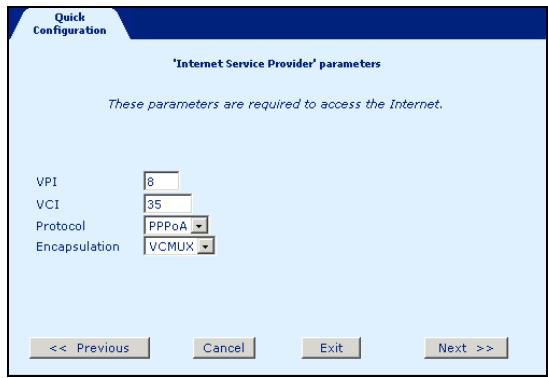
- Enter the parameters delivered by your Internet Access Provider or keep the default values (VPI, VCI, Protocol and encapsulation).
- Click Next to continue the configuration.
16 Voice over IP (VoIP) Configuration of your SAGEM F@st™ 3000
- Click H323 in the VoIP menu; the following screen appears.
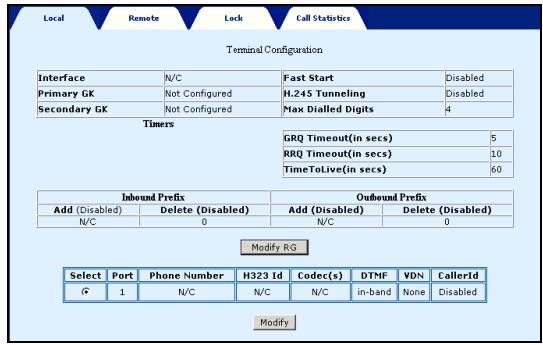
- Click Select then on the Modify button to enter the parameters delivered by your Internet Access Provider (IAP).
1 Pack - Unit Presentation
Your pack includes the following elements:
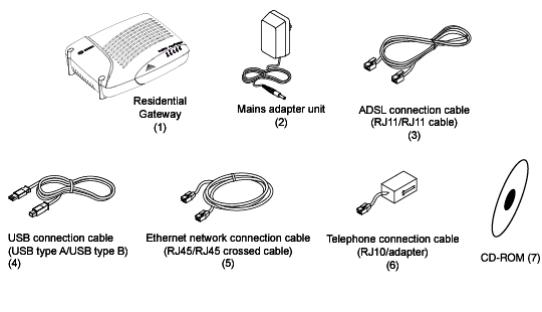
The SAGEM F@st™ 3000 Residential Gateway presents in rear panel, the connectors for the following connections :
ADSL Line item 2,
VoIP telephone line item 3,
- Mains adapter unit item 4,
- Ethernet connection item 8,
USB connection item 9.
On the SAGEM F@st™ 3000, the display LEDs indicate the active / inactive state of the power supply, ADSL line, Ethernet, USB and telephone interfaces.
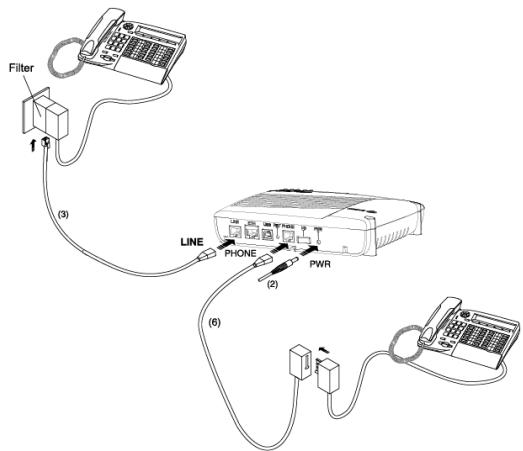
3 Connection of the telephone terminal on VoIP
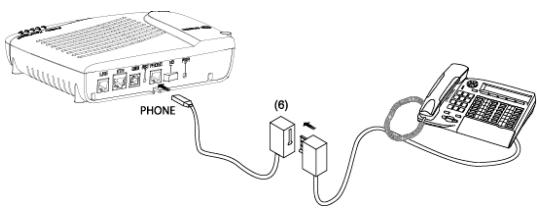
- Connect the second telephone set to the PHONE connector in using the phone adaptor (6).
2 Setting-up of the filter and connection of the ADSL line
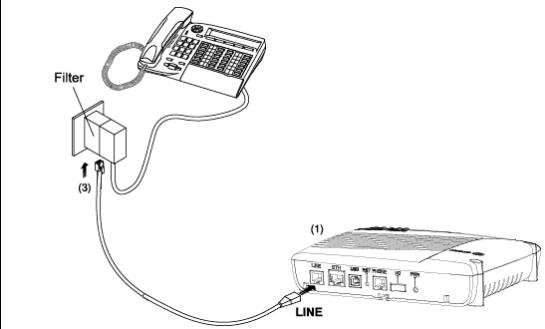
- Connect the ADSL line lead (3) to the LINE connector of the SAGEM F@st™ 3000.
4 Powering up the residential gateway
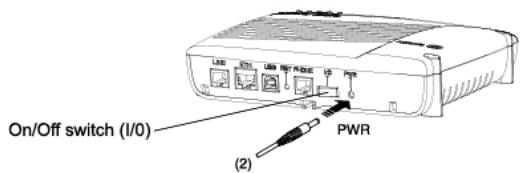
- Connect the mains adapter unit cable to the PWR socket on the rear panel of the residential gateway.
- Set the On/Off (I/O) switch to On (the «I» position). The PWR LED comes on.
5 ADSL Synchronization
In less than two minutes, the Residential Gateway synchronizes automatically with your ADSL line. The LINE LED is then lit on steady.
6 Lauching CD-ROM
- Insert the CD-ROM in your computer's appropriate drive; the following screen appears.
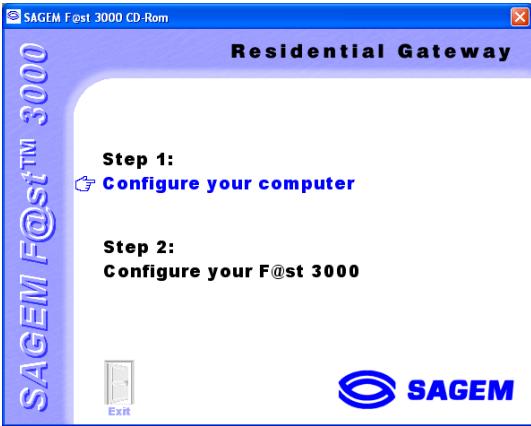
- Click Configure your computer (step 1).
7 Interfaces choice
The following screen appears :
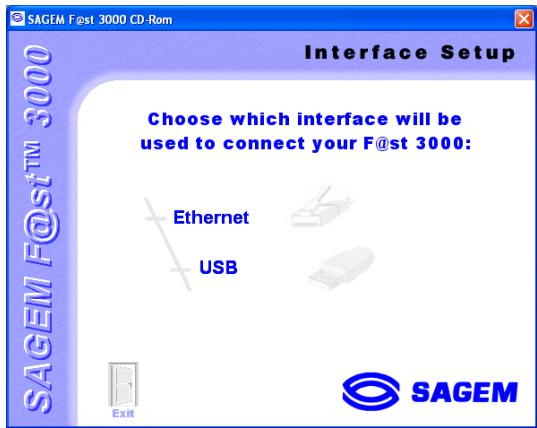
Choose which computer's interface will be used to connect your SAGEM F@st™ 3000:
- Ethernet (selection of the network card),
USB (drivers' installation).
Remark: If your computer is equipped with an Ethernet card, we advise you to configure by the Ethernet port.
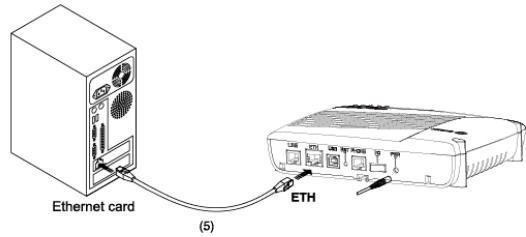
8 Configuring the Ethernet interface
- Click Ethernet then follow the displayed process.
- Connect as figure here after (at the right moment).
- Go to the item 11: Configure your SAGEM F@st™ 3000 (step 2).
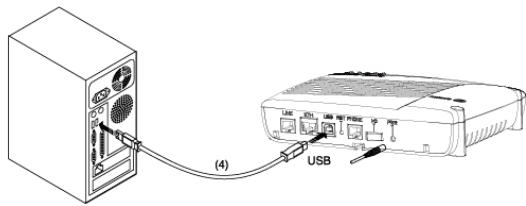
9 Installation and Connection on USB
- Click USB ; the following screen appears:
SAGEM
Switch on your SAGEM F@st 3000 to complete the installation. Connect it to the USB port of your computer.
If your SAGEM F@st 3000 is already connected to the USB port of your computer, switch the F@st 3000 off then switch it on again.


Finish
- Connect as figure here after (when that asks you).
11 Access to your SAGEM F@st™ 3000 (continue)
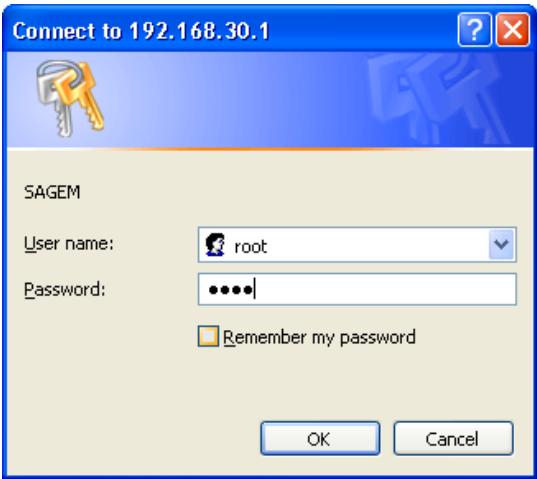
In the "UserID field", enter root and in the "Password" field, enter 1234.
- Then click OK to valid.
Remark: The bar of the screen shows the equipment's IP address (192.168.30.1).
10 Access to your SAGEM F@st™ 3000
When the configuration of your computer (step 1) is done, you proceed to the step 2.
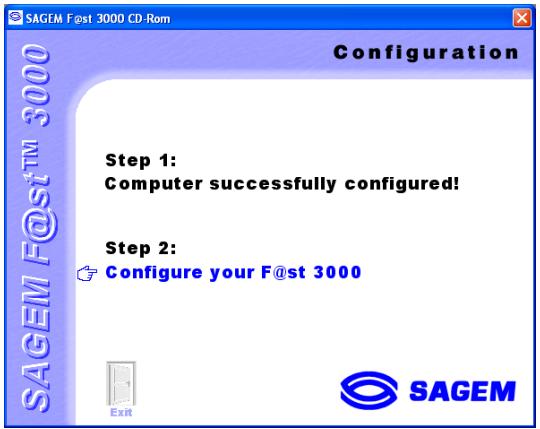
- Click Configure your SAGEM F@st™ 3000.
12 Configure your SAGEM F@st™ 3000
The welcome screen appears.
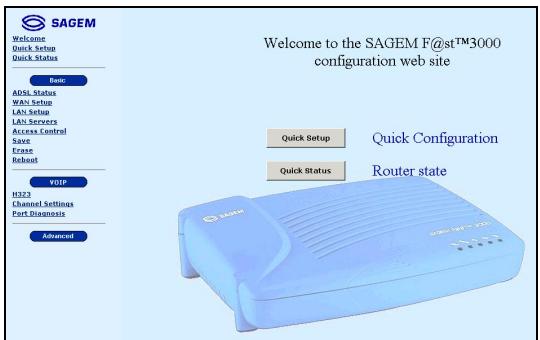
- Click the Quick Setup button or select Quick Setup from the list on the left of the screen.
17 Voice over IP (VoIP) Configuration of your SAGEM F@st™ 3000 (cont.)

- Enter the following parameters: Phone No., H323 Id., Codec.
Then click the Submit button.
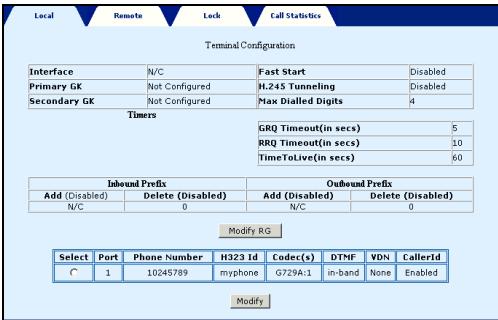
- Click the
Modify RG
button.
19 Voice over IP (VoIP) Configuration of your SAGEM F@st™ 3000 (cont.)
- Select the "Use GateKeeper" field.
- Enter the primary address provided by your Internet Access Provider (IAP).
- Click the submit button to take the parameters entered into account.
The following screen appears.
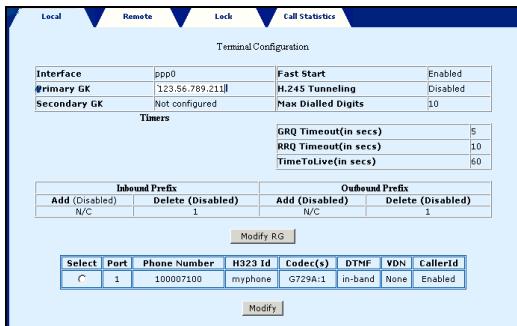
- Verify the parameters entered.
18 Voice over IP (VoIP) Configuration of your SAGEM F@st™ 3000 (cont.)
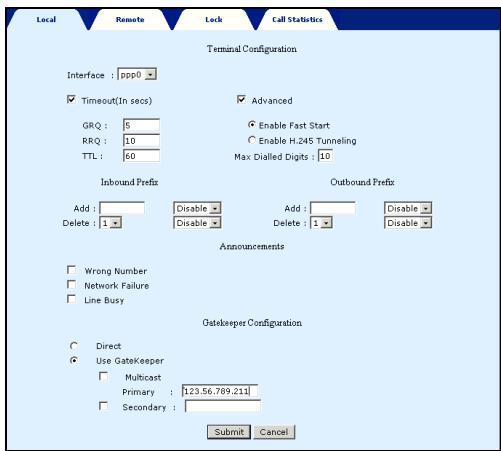
In the scroll down list of the "Interface" field, select ppp0 (don't take the reboot invit into account).
- Check the box of the "Advanced" field.
- Select the "Enable Fast Start" field.
In the "Max Dialled Digits" field, enter the desirated value.
20 Voice over IP (VoIP) Configuration of your SAGEM F@st™ 3000 (cont.)
- Select Quick Status from the list on the left of the screen; the following screen appears.
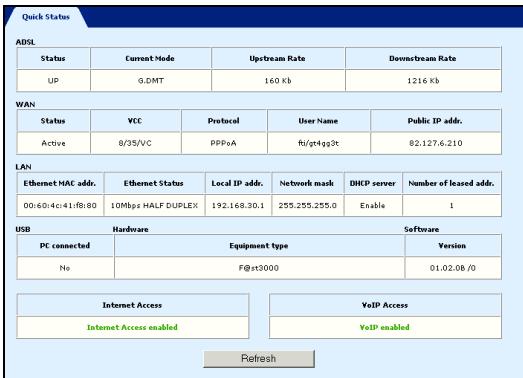
- In normal operation, the Internet Access and VoIP Access status are displayed in green characters respectively "Internet Access enabled" and "VoIP enabled".
You can now surf and/or phone on Internet.
- Internet access Configuration
- Internet access Configuration (cont.)
- Voice over IP (VoIP) Configuration of your SAGEM F@st™ 3000
- Pack - Unit Presentation
- Connection of the telephone terminal on VoIP
- Setting-up of the filter and connection of the ADSL line
- Powering up the residential gateway
- ADSL Synchronization
- Lauching CD-ROM
- Interfaces choice
- Configuring the Ethernet interface
- Installation and Connection on USB
- SAGEM
- Access to your SAGEM F@st™ 3000 (continue)
- Access to your SAGEM F@st™ 3000
- Configure your SAGEM F@st™ 3000
- Voice over IP (VoIP) Configuration of your SAGEM F@st™ 3000 (cont.)
- Modify RG
- Voice over IP (VoIP) Configuration of your SAGEM F@st™ 3000 (cont.)
- Voice over IP (VoIP) Configuration of your SAGEM F@st™ 3000 (cont.)
- Voice over IP (VoIP) Configuration of your SAGEM F@st™ 3000 (cont.)
Marque : SAGEM
Modèle : F@ST 3000
Catégorie : Modem