
WP 12-32 - Téléphone sans fil SAGEM - Notice d'utilisation et mode d'emploi gratuit
Retrouvez gratuitement la notice de l'appareil WP 12-32 SAGEM au format PDF.


| Type de produit | Téléphone sans fil DECT |
| Marque | SAGEM |
| Modèle | WP 12-32 |
| Alimentation de base | Adaptateur secteur 230 V (réf. 872101) |
| Alimentation combiné | Pile rechargeable NiMH (réf. 872102) – autonomie : environ 10h en communication, 120h en veille |
| Nombre de combinés maximum | Jusqu'à 6 combinés |
| Répertoire | 50 noms et numéros |
| Liste d'appels | 20 entrées (appels reçus et émis) |
| Identification de l'appelant | Oui (sous abonnement) |
| Fonctions | Appels externes, internes, mains-libres, secret, transfert d'appel, mise en attente, rappel, sonnerie silencieuse, réglage volume écouteur/sonnerie, choix de mélodies (6 combiné + 6 base) |
| Écran | Affichage LCD avec indicateurs (batterie, mode silencieux, hors de portée, etc.) |
| Langues disponibles | Anglais, allemand, espagnol, italien, néerlandais, portugais, français |
| Compatibilité autocommutateur | Oui, avec support tonalité et rupture temporisée |
| Entretien | Nettoyer avec un chiffon humide ou une lingette antistatique ; ne pas utiliser de produits ménagers |
| Sécurité | Utiliser uniquement l'adaptateur et les piles fournis ; ne pas ouvrir ; débrancher en cas d'orage |
| Garantie | 12 mois |
| Pièces détachées | Adaptateur, piles, fascias (3), clip ceinture ; disponibles via helpline |
| REN (Ringer Equivalence Number) | 1 (pour 1 base et jusqu'à 6 combinés) |
FOIRE AUX QUESTIONS - WP 12-32 SAGEM
Questions des utilisateurs sur WP 12-32 SAGEM
0 question sur cet appareil. Repondez a celles que vous connaissez ou posez la votre.
Poser une nouvelle question sur cet appareil
Téléchargez la notice de votre Téléphone sans fil au format PDF gratuitement ! Retrouvez votre notice WP 12-32 - SAGEM et reprennez votre appareil électronique en main. Sur cette page sont publiés tous les documents nécessaires à l'utilisation de votre appareil WP 12-32 de la marque SAGEM.
MODE D'EMPLOI WP 12-32 SAGEM

This equipment is not designed for making emergency telephone calls when the power fails. Alternative arrangements should be made for access to emergency services.
This product is intended for connection to analogue public switched telephone networks and private switchboards in the United Kingdom and Eire.
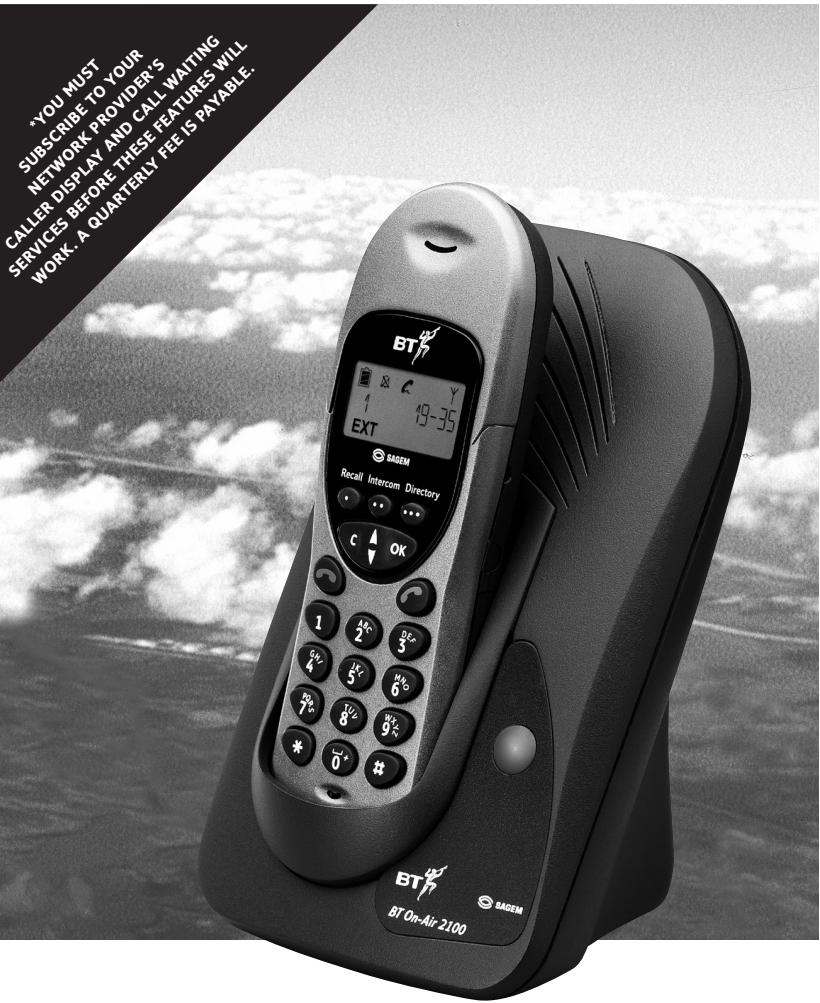
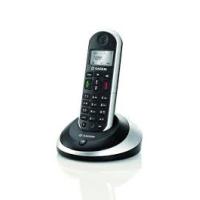
BT On-Air 2100 Classic
Digital Cordless Telephone
User Guide
At a glance
Handset
Shows the status of the handset battery. When the battery is fully charged, the icon is completely shaded. As the battery is used, the shaded area is reduced.
Display
Battery
Displayed when the handset ringer has been switched off. Incoming calls will not cause the handset to ring.
Silent mode
External Call
Displayed during an external call.
Recall
For use with Switchboards and Select Services.
Clear/Secrecy
When accessing the Menu, allows you to clear or return to the previous menu.
Allows you to talk to someone in the same room without your caller being able to hear the conversation.
Red phone
To end a call and turn the power off.
Keypad
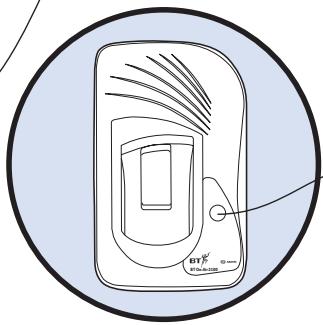
Base
In Use
Shows that the handset is in use.
Handsfree
Indicates when handsfree mode is active.
In range
Indicates that you are in range of the base station.
Internal (Intercom) Call
Displayed during a call with another handset (an internal call).
Directory
Allows quick access to your phonebook without having to go via the menu.
Intercom
Enables internal calls and call transfer between handsets.
OK button
To confirm settings.
Green phone/Handsfree
To answer a call and switch the power on. When on a call, allows you to use handsfree. Also, press and hold to enter the radial and calls list.
Up/Down
Lets you move through the options and lists and enter the menu structure.
Page button
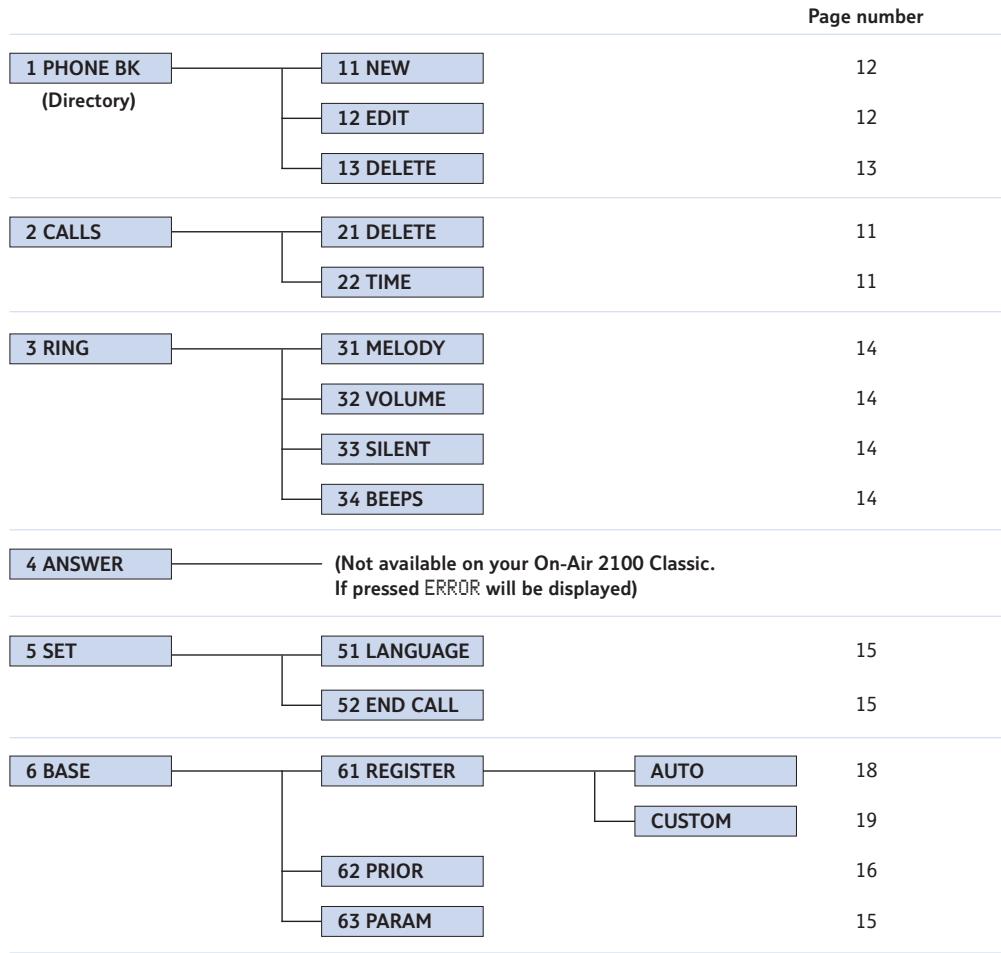
Quick Guide to the Menu Structure
Important
If you make a mistake you can return to the previous menu by pressing the CLEAR button. If you keep pressing the CLEAR button you will return to the idle screen.
In this guide
At a glance 1
Quick guide to the menu structure 2
Introduction 4
Unpacking your BT On-Air 2100 Classic 4
For your records 4
Safety information 4
Setting up 5
Plan the location 5
Using the telephone 8
Making and ending calls 8
Call timer 8
Handsfree 9
Secrecy 9
Redial 9
Caller Display 10
Calls list 10
Call Waiting 11
Name and number directory 11
13
Internal calls 13
Transferring calls 13
Handset settings 14
Base settings 15
Using additional handsets and bases 18
Registering additional handsets 18
To de-register a handset from the base 20
General information 21
Guarantee 21
Technical information 21
Switchboard compatibility 22
Recall 22
Switchboard external line access code 23
Wall mounting 25
Wall mounting template 26
Index 28
Introduction
Unpacking your BT On-Air 2100 Classic
If anything is missing, please contact your place of purchase immediately.
One BT On-Air 2100 base.
One BT On-Air 2000 Classic handset.
One power supply for base station.
One telephone line cord.
One NiMH rechargeable battery installed pack and battery compartment cover.
One handset belt clip.
Three removable handset fascias.
Self adhesive label.
Four rubber feet.
For your records
Date of purchase:
Place of purchase:
Serial number:
For guarantee purposes proof of purchase is required so please keep your receipt.
Enter your System Code here.

The pre-set System Code number is 0000. See page 15 for information on your System Code.
Safety information
General
Only use the power supply included with the product. Using an unauthorised power supply will invalidate your guarantee and may damage the telephone. The item number for the mains power supply is 872101.
Do not open the handset or base station. This could expose you to high voltages or other risks. Contact the helpline for all repairs.
Radio signals transmitted between the handset and base may cause interference to hearing aids.
It is recommended that advice from a qualified expert be sought before using this product in the vicinity of emergency/intensive care medical equipment.
It is recommended that if you have a pacemaker fitted you check with a medical expert before using this product.
Never dispose of batteries in a fire. There is a serious risk of explosion and/or the release of highly toxic chemicals.
Cleaning
Simply clean the handset and base station with a damp (not wet) cloth, or an antistatic wipe. Never use household polish as this will damage the product. Never use a dry cloth as this may cause a static shock.
Environmental
Do not expose to direct sunlight.
The product may heat up when the batteries are being recharged. This is normal. However, we recommend that you do not place the product on antique/veneered wood to avoid damage.
Do not stand your product on carpets or other surfaces which generate fibres, or place it in locations preventing free flow of air over its surfaces.
Do not submerge any part of your product in water and do not use it in damp or humid conditions, such as in bathrooms.
Do not expose your product to fire, explosive or other hazardous conditions.
There is a slight chance that your phone could be damaged by an electrical storm. We recommend that you unplug the power and telephone line cord for the duration of the storm.
Setting up
Please note that your handset is already registered to the base station.
Plan the location
Situate your product close enough to the telephone and mains power sockets so that the cables will reach. The only way to disconnect the product from the power supply is to remove the power adaptor from the mains power socket. Therefore you must ensure you plan the location so that the mains power is easily accessed.
Make sure it is at least 1 metre away from other electrical products to avoid interference.
Do not situate the product in the bathroom or other humid areas.

Connect the power supply and switch on.
Important
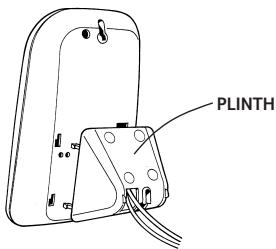
You must thread the power supply cable into the socket on the underside of your base. The power cable connector and socket are coloured red.
WARNING
Please take care that the power supply and telephone line cord are connected to the correct sockets as incorrect placement could damage your equipment.
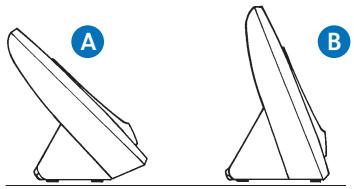
Once connected, put the plinth back on the base to prevent it from rocking on the table.
There are two positions for the plinth when joining it to the base, both can be used for desk mounting and one for wall mounting. Position A is for desk mounting only and position B is for desk or wall mounting (see Wall mounting on page 25).
Rubber feet
Hold the black plastic square between thumb and forefinger and peel off individual feet from backing sheet as shown. These are to stop your base from moving and to protect your work surface.
If you decide on position B, place 2 of the rubber feet on the plinth and 2 on the base.

Plug the power adaptor into the wall socket and switch on. When the power is switched on, the button on your base will light up.
WARNING
Do not connect the telephone line cord to the phone socket until your handset is fully charged. This will prevent the risk of the phone being answered before the battery is charged. Answering the phone before the battery is fully charged may prevent it from reaching its optimum capacity.

Charge the battery in the handset for at least 16 hours
WARNING
Under no circumstances should non-rechargeable batteries be used. Only use the approved batteries. Using unapproved batteries will invalidate your guarantee and may damage the telephone.
Under ideal conditions the battery should give about 10 hours talk time and 120 hours standby when the batteries have been fully charged.
Fully discharging the batteries at least once a week will help them to last as long as possible. However, the charge capacity of rechargeable batteries will reduce with time as they wear out, so reducing the talk/standby time of the handset. Eventually they will need to be replaced. New batteries can be obtained from the Helpline on 0870 240 4682.
When the battery has been charged for at least 16 hours the display will show the symbol; you can then connect the telephone line cord to the base.

Empty

1/3

2/3

Full
Battery low warning
If the handset battery symbol is empty and you hear warning beeps, you will need to recharge your handset before you can use it.
Battery performance
Your handset is supplied with NiMH batteries. These need to be initially charged continuously for 16 hours to reach full charge.
Note that the battery charge icon does not indicate the correct level when the batteries are first installed. The batteries must first be fully charged.
Helpline
If you are experiencing difficulty, please call the BT On-Air Helpline on 0870 240 4682.
To replace the handset battery
If you need to replace the handset battery, slide off the battery cover. Remove the old battery by disconnecting the small plug inside the battery compartment.
Connect the plug of the new battery.
Replace the battery cover.
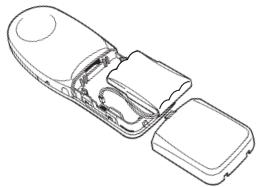
Please pay attention not to damage the charging contacts on the handset.

Connect the telephone line cord (after charging your handset)
Plug the line cord into the telephone wall socket.

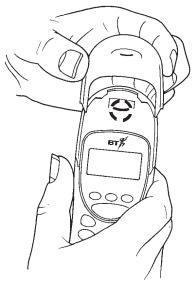
Changing your handset fascias
There are 3 removable handset fascias to choose from. Simply slide the fascias off and replace with another.

Attach the belt clip
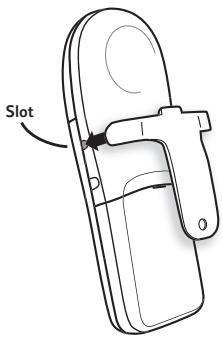
Fit the belt clip onto the back of the handset.
Using the telephone
To switch the handset power on and off

Press and hold the GREEN PHONE button until the display check sequence has happened and only the battery icon is displayed.

If you release the button before this has happened the handset will remain switched off.
Press and hold the RED PHONE button to switch the handset off.
Making and ending calls
To make an external call

Press the GREEN PHONE button. The display shows the symbol.

Dial the number.
Preparatory dialling

First enter the number to be dialled. The number is shown in the display. (If you make a mistake press C to remove the incorrect digit).

If you have entered the number correctly, press the GREEN PHONE button to dial the number.
Call timer
Your handset will automatically time the duration of all external calls. The handset display shows the call duration both during your call and for a few seconds after it is completed.
To end a call

Press the RED PHONE button.
To receive an external call

Press the GREEN PHONE button to answer the call.
To adjust the earpiece volume
You can adjust the volume during a call.
Press the UP button to increase the volume.
Press the DOWN button to decrease the volume.
The display shows the current volume level.
Note
The symbol on your handset display indicates when you are in range of the base station. If the symbol disappears you are out of range and will need to move closer to the base station.
Handsfree
Handsfree allows you to talk to your caller without holding the handset.
To use handsfree
During a call you can switch to handsfree mode.

Whilst on a call press the GREEN PHONE button.
When handsfree is active you see the symbol flashing

To switch handsfree off, press the GREEN PHONE button again.

To adjust the volume use the UP or DOWN button to increase or decrease the volume.
Note
When you end your call the handsfree volume will return to the default setting of volume level 2.
Secrecy
When on a call you can talk to someone in the same room, without your caller hearing.
To switch secrecy on/off

During a call, press the C button. C will now flash to show it is in operation.

Press the C button again to resume your call.
Redial
Your handset automatically saves up to 20 telephone numbers dialled and received into a calls list.
Redial list

Press and hold the GREEN PHONE button.
The display will show CALLS and then the last number that was dialled or received.

Use the UP or DOWN button to scroll to the number you require.

Press the GREEN PHONE button to dial the number.
Note
If you press the OK button when a number in the radial list is displayed you will see the time and date of the call.
Note
To delete the radial list (and calls list), see page 11.
Caller Display
Important
To use Caller Display you must first subscribe to your Network Provider's Caller Display Service. A quarterly fee is payable.
For more information on BT Select Services call BT free on 0800 800 150.
If you have subscribed to a Caller Display Service you can see who is calling you on your handset display, (unless the number has been withheld).
Important
The Caller Display Service will not operate when your base station is connected to a switchboard.
Whether you take a call or not, the caller's details are stored in the Calls list. The Calls list holds the telephone numbers of the last 20 people who called you.
You can display, scroll through and dial numbers on the list.
When you receive a call the caller's number will appear on the display. If the caller has withheld their number then will appear on the display. If for some reason the caller's number is not available then will appear on the display.
Calls list
The Calls list contains both the telephone numbers of the people who have called you and the telephone numbers that you have dialled. The Calls list holds 20 telephone numbers and
they are stored in the order they were either received or dialled. If you have stored a name to go with the number in your handset directory, the name will be displayed instead. If you receive more than one call from the same telephone number then it will only appear once in the list.
If a call is received when the Calls list is full, then the oldest entry will be deleted automatically.
If no number is received for a call then no entry will appear in the Calls list.
To view and dial a number in the Calls list

Press and hold the GREEN PHONE button. The display will show CALLS.
The most recently received or dialled number will be displayed.

Press the DOWN button to scroll backwards through the Calls list towards the older calls in the list.

Press the UP button to scroll forwards through the Calls list towards the most recent calls.
When the number you wish to call is displayed, press the GREEN PHONE button. The number will be dialled automatically.

Press the C button to exit.
Note
If you press the OK button when a number in the Calls list is displayed you will see the time and date of the call.
To delete all numbers shown in the redial and calls list

Press the DOWN button until CALLS is displayed.

Press the OK button. The display will show DELETE.

Press the OK button to confirm. The display will show DONE. All numbers in the radial and calls list have been deleted.

Press the C button twice to exit.
To view the length of the last call

Press the DOWN button until CALLS is displayed.

Press the OK button to confirm.

Press the DOWN button until TIME is displayed.

Press the OK button to confirm.

The length of the last call will be shown on the display.

Press the C button twice to exit.
Call Waiting
Important
To use Call Waiting you must first subscribe to your Network Provider's Call Waiting Service. A quarterly fee is payable.
For more information on BT Select Services call BT free on 0800 800 150.
If an incoming call arrives while you are already engaged on a telephone call, you will hear a soft beep every 5 seconds (this beep is not audible to the person you are speaking to).
Instead of the engaged tone, the second caller will hear an announcement to hold on as you are aware that there is a second call.
To use Call Waiting

You can answer the second call, without disconnecting your first caller, by pressing the RECALL button. The first caller will be put on hold.

When you have spoken to the second caller you can return to the first caller by pressing the RECALL button again. You can switch back and forth between the two calls without disconnecting either if you wish.

If you wish to disconnect the first call press the RED PHONE button after speaking to the first caller.

The handset will then ring. Press the GREEN PHONE button again and continue with the second caller.
The second caller will only be charged for their call from the moment you answer and not while they are waiting for your initial contact.
50 Name and number directory
You can store up to 50 of your most frequently used names and numbers.
Quick guide to directory settings menu
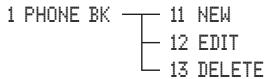
To store a name and number in the directory

Press the DOWN button until PHONE BK is displayed.

Press OK to confirm.

Use the DOWN button to scroll to NEH.

Press OK to confirm.

Enter the name using the letters on the keypad.
Entering names
Use the keypad letters to enter names by using a long press of the button, i.e. if you press and hold the 8 button the following characters appear, T, U, V. You can enter names of up to 8 characters.
For example, if you wish to store the name TOM:

To enter the letter T, press 8 the cursor will automatically move to the right and display the next chosen letter.
To enter O, press 6 and hold.
To enter the M, press 6.
If you enter a digit incorrectly you can delete it by pressing the C button.

Press OK to confirm.
Enter the telephone number you want to store.

Press OK to confirm.
The display will then show DONE.
Press the C button twice to exit.
To dial a number from the directory
Directory


Press the Directory button to enter the directory.
Use the UP or DOWN button to find the entry you want to dial.
Or
To search alphabetically, press the relevant keypad number, for example to find TOM, press the 8 button and scroll through the entries under T.

Press the GREEN PHONE button to dial the number.
To edit directory numbers

Press the DOWN button until PHONE BK is displayed.

Press OK to confirm.

Use the UP or DOWN button to scroll to EDIT.

Press OK to confirm.

Use the UP or DOWN button to find the entry you want to amend.

Press OK to confirm.

Use the C button to delete numbers or letters.

Edit the entry using the numbers/letters on the keypad.

Press the OK button to store the new entry.
The display will then show DONE.

Press the C button twice to exit.
To delete directory numbers

Press the UP or DOWN button until the display shows PHONE BK.

Press the OK button.

Press the DOWN button until the display shows DELETE.

Press the OK button.

Use the UP or DOWN button to select the name and number you want to delete.

Press the OK button to delete.
The directory name and number has been deleted.
The display will show DONE. (If there are no numbers in the directory to delete the display will show EMPTY).

Press the C button twice to exit.
Paging handsets
You can alert handset users that they are wanted, or locate a missing handset. (Paging calls cannot be answered by a handset.)
To page a handset from the base

Press the button on the base. All handsets registered with the base will ring.
To end paging, press the button again.
Or

Press the RED PHONE button on any handset.
Internal calls
If you have multiple handsets registered to a base you can make internal calls between handsets.
To make an internal call to another handset
Intercom

Press the INTERCOM button.
123
Enter the number of the handset you want to call.
Or

Enter the digit if you want to call all the handsets.

Press the RED PHONE button to disconnect the call.
Transferring calls
You can transfer an external call to another handset registered to the base.
To transfer an external call between handsets

While on an external call:
Press the OK button.
123
Enter the number of the handset to which you want to transfer the call.

Press the GREEN PHONE button to transfer the call.
If you wish you can talk to the other handset user first.

Press the RED PHONE button to disconnect the call.
Handset settings
Quick guide to handset settings menu
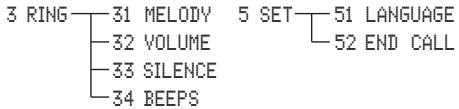
Ringer melody

Press the UP or DOWN button until the display shows RING.

Press the OK button.
The display will show MELOODY.

Press the OK button.

Use the UP or DOWN button to select the melody you require.
There are 6 melodies to choose from.

Press OK to confirm.
The display will show DONE.

Press the C button twice to exit.
Ringer volume

Press the UP or DOWN button until the display shows RING.

Press the OK button.

Press the DOWN button until the display shows VOLUME.

Press the OK button.

Use the UP or DOWN button to select the volume you require. There are 4 volume levels to choose from.

Press OK to confirm.
The display will show DONE.

Press the C button twice to exit.
Silent ring

Press the UP or DOWN button until the display shows RING.

Press the OK button.

Press the DOWN button until the display shows SILENT.

Press the OK button.

Use the UP or DOWN button to select either OFF or ON.

The display will show the 品 symbol to indicate a silent ring.

The display will show DONE.
Press the C button twice to exit.
Note
When silent ring is switched on the handset will not ring or emit any keypad beeps.
Keypad beeps

Press the UP or DOWN button until the display shows RING.

Press the OK button.

Press the DOWN button until the display shows BEEPS.

Use the UP or DOWN button to select either OFF or ON.

Press OK to confirm.

The display will show DONE.
Press the C button twice to exit.
To change the display language

Press the UP or DOWN button until the display shows SET.

Press the OK button.

Press the DOWN button until the display shows LANGUAGE.

Press the OK button.

Use the UP or DOWN button to select the language you require (English, German, Spanish, Italian, Dutch, Portuguese or French).

Press OK to confirm.

The display will show DONE.
Press the C button twice to exit.
To switch automatic end call on or off
If you switch automatic end call ON you can end a call by simply placing the handset back on the base. This means you won't always have to press the RED PHONE button to end a call.

Press the UP or DOWN button until the display shows SET.

Press the OK button.

Press the DOWN button until the display shows END CALL.

Press the OK button.

Use the UP or DOWN button to select either OFF or ON.

Press OK to confirm.

The display will show DONE.
Press the C button twice to exit.
Base settings
System Code
Your base station has a default setting of 0000 but you may want to change this to prevent unauthorised use of the handset.
If you change your System Code keep record of the new number by writing it in the space provided on page 4.
To change your System Code

Press the UP or DOWN button until the display shows BASE.

Press the OK button.

Press the DOWN button until the display shows PARM.

Press the OK button.

The display will show F.

Press the 1 button.
OLD CODE
Enter the existing code (0000 if not changed). As you enter each digit in turn, the dash will stop flashing.
NEW CODE
Four dashes will be shown on the display. Enter your new System Code. As you enter each digit in turn the dash will disappear.
CONFIRM CODE
Enter your new System Code again.

Press the C button twice to exit.
To change the base station ringer melody
Press the UP or DOWN button until the display shows BASE.
Press the OK button.
Press the DOWN button until the display shows PARM.
Press the OK button.
Press the 2 button.
PQRS Press the 7 button.
Press the 1 button.
Use the UP or DOWN button to select the melody you require. The base will play a sample melody on each press. There are 6 melodies to choose from.
Press OK to confirm.
Press the C button to exit.
To change the base station ringer volume
Press the UP or DOWN button until the display shows BASE.
Press the OK button.
Press the DOWN button until the display shows PARM.
Press the OK button.
The display will show F.
( _B^C 2 ) Press the 2 button.
PQ2 Press the 7 button.
& A c & 2 Press the 2 button.
Use the UP or DOWN button to select the volume. The base will play a sample ring on each press. There are 4 volume levels to choose from (no ringing, low, medium and high).
Press OK to confirm.
The display will show F.
Press the C button to exit.
Base station priority
If you are using multiple bases, you can select which base your handset will use.
To change base station priority
Press the UP or DOWN button until the display shows BASE.
Press the OK button.
Press the DOWN button until the display shows PRIORITY.
Press the OK button.
The display will show NONE.
Use the UP or DOWN button to select either NONE, 1, 2, 3 or 4.
Press OK to confirm.
The display will show DONE.
Press the C button twice to exit.
To view the date and time

Press the UP or DOWN button until the display shows BASE.

Press the OK button.

Press the DOWN button until the display shows PARM.

Press the OK button.

The display will show F.
Press the 1 button twice.
The display will show the current date.

Press the DOWN button to display the time.

Press the C button twice to exit.
Note
If you subscribe to a Caller Display Service the time and date will be set automatically.
To set the time

Press the UP or DOWN button until the display shows BASE.

Press the OK button.

Press the DOWN button until the display shows PARM.

Press the OK button.

The display will show F.

Press the 1 button.

Press the 2 button.
The current time is displayed.
Enter the time.

Press OK to confirm.
The display will show F.
Press the C button to exit.
To set the date

Press the UP or DOWN button until the display shows BASE.

Press the OK button.

Press the DOWN button until the display shows PARM.

Press the OK button.

The display will show F.
Press the 1 button.

Press the 3 button.

The current date is displayed i.e. 05 02 2002.

Enter the date.

Press the UP button to go back a digit if you make a mistake and enter the correct digit. (Please note that you cannot change the 20 of 2002).

Press OK to confirm.
The display will show F.
Press the C button to exit.
Using additional handsets and bases
Using additional handsets and bases
Up to six handsets can be registered and operated from any one base. This allows you to make internal calls between two handsets while a third is making an external call.
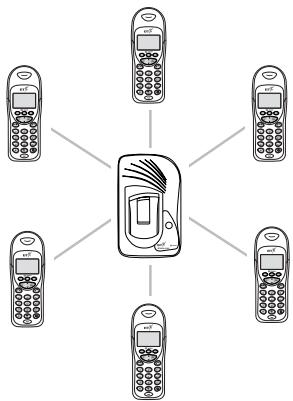
Each handset can also be registered on up to four bases.
Each additional handset you purchase must be registered to a base.
Your handset supplied is pre-registered (as Handset 1) to its base (as Base 1).
Note
To register a non BT On-Air additional handset i.e. another DECT GAP compatible handset to the On-Air 2100 Classic base please follow the instructions in your handset's user guide.
Registering additional handsets
If you purchase new handsets to use with your current BT On-Air 2100, they will not be preregistered to a base station. You will need to do this before you can use them.
To register a handset to a base station (if you have not changed the System Code from 0000)
Note
Please note that when you register a handset in the following way any previous base that the handset has been registered to will be deleted. To prevent the deletion of other registered bases please register using the process on page 18 even if you have not changed the system code from 0000.
If you have registered your handset to more than one base you can prioritise which base you want your handset to use. For instructions on base station priority, see page 16.
At the base:-
Press and hold down the button on the base until it starts to flash.
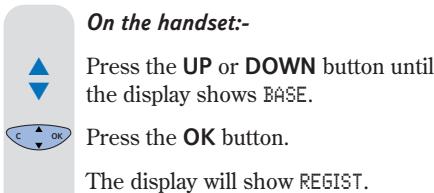
Note
If the handset has not been registered to any other base you do not need to press the UP or DOWN button to display BASE. Once charged and switched on the display will show REGIST already. Simply carry out the following instructions to register.
Note
To check whether registration has been successful, press the GREEN PHONE button and listen for the dial tone. If there is no dial tone either you have not registered the handset correctly or the telephone line cord is not plugged in properly.
To register a new handset to a base (if you have changed System code from 0000)
On the handset:-

Press the UP or DOWN button until the display shows BASE.

Press the OK button.

The display will show REGIST.
Press the OK button.
The display will show AUTO.

Press the DOWN button until CUSTOM is displayed.
The available bases will be displayed.

Use the UP or DOWN button to select the base you want to register your handset to.

Press the OK button.
The display will show CODE?.
The display will show ---- Enter your 4 digit base system code (once only).

Press the OK button.
At the base:-

Press and hold the button on the base until it begins to flash.
On the handset:-
The display will show 2, 3, 4, 5, 6.
Use the UP or DOWN button to select the handset you wish to register.

Press the OK button.
The display will show REGIST and then return to:
To de-register a handset from the base

Press the UP or DOWN button until the display shows BASE.

Press the OK button.

Press the DOWN button until the display shows PARM.

Press the OK button.

Press the 3 button twice.

Enter your base system code (0000 if not changed).
All registered handset numbers are displayed.

Enter the number of the handset you wish to de-register.

Press the C button to exit.
Note
When planning to use a handset with more than one base, we recommend that you:
- Number each handset (from 1-6).
- Register your handset(s) at base 2 (and 3 & 4 if used) using the same internal number as at base 1.
When registered to more than one base, the base unit will automatically allocate itself a number.
Helpline
If you are experiencing difficulty, please call the BT On-Air Helpline on 0870 240 4682.
General information
Guarantee
Your BT On-Air 2100 Classic is guaranteed for a period of 12 months from the date of purchase.
Subject to the terms listed below the guarantee will provide for the repair of, or at BT's or its agent's discretion the option to replace the BT On-Air 2100 Classic, or any component thereof, (other than batteries), which is identified as faulty or below standard, or as a result of inferior workmanship or materials. Products over 28 days old from the date of purchase may be replaced with a refurbished product.
The conditions of this guarantee are:
- The guarantee shall only apply to defects that occur within the 12 month guarantee period.
Proof of purchase is provided. - The equipment is returned to BT or its agent as instructed.
- This guarantee does not cover any faults or defects caused by accidents, misuse, fair wear and tear, neglect, tampering with the equipment, or any attempt at adjustment or repair other than through approved agents.
- This guarantee does not affect your statutory rights.
Within the 12-month guarantee period:
If you experience a problem with your product you should contact the Helpline on 0870 240 4682. Calls are charged at national call rates. If the problem is not remedied, you will be advised to return your product to the Helpline.
Outside the 12-month guarantee period:
If your product needs repair after the guarantee period has ended, the repair must meet the approval requirements for connection to the telephone network. We recommend that you call the Helpline on 0870 240 4682 and ask for details of our recommended repair agents.
If you have to return your product
If the Helpline are unable to remedy your problem they will ask you to return the product. Pack the base station and handset securely, preferably in the original packaging. All parts must be returned, including line cords, power supplies and original batteries. (Please note that we can not take responsibility for goods damaged in transit). Use the self adhesive Freepost label to post your product.
If you have lost the label please call the Helpline for instructions.
Important
Keep proof of posting
Make sure the Post Office give you proof of posting.
Technical information
How many handsets can you have?
All items of telephone equipment have a Ringer Equivalence Number (REN) which is used to calculate the number of items that may be connected to any one telephone line. The BT On-Air 2100 Classic (with up to 6 handsets) has a total REN of 1. Any other instrument provided by BT may be assumed to have a REN of 1 unless stated otherwise.
Helpline
If you are experiencing difficulty, please call the BT On-Air Helpline on 0870 240 4682.
A total REN of 4 is allowed per telephone line. (For example: if the BT On-Air Classic is used in conjunction with three extension telephones, each with a REN of 1, then the total REN = 4
Only use approved power supply item code: 872101.
Only use approved batteries supply item code: 872102.
RTTE
This apparatus was designed in compliance with European Council decision Number 98/482/EC relative to pan-European connection in view to its connection on the Public Switched Telephone Network (PSTN). It is in conformity with Standards TBR21, TBR38(*)ETSI 201 121.
(*) Terminals integrating an analogue handset function.
If problems arise, your supplier should be contacted first.
The EC marking attests product conformity with the essential requirements in compliance with Directives 73/23/EC for User Safety, 89/336/EC for Electromagnetic perturbations and 98/13/EC for Telecommunication network access.
The manufacturer declares that the products have been manufactured in conformity with Annex III of RTTE Directive 99/05/EC.
Please note this product does not support earth recall.
Switchboard compatibility
Generally this telephone may be connected to switchboards which support tone signalling and timed break recall. In the event of any difficulties please consult your switchboard service provider.
Recall
To activate Recall
This is of use when connected to some switchboards i.e. to transfer calls or for some BT Select Services or those services available via your Network Provider. It is only available when a call is in progress.
When you need to use recall during a call:-
Press the RECALL button.
appears on the display.
To switch between tone and pulse dialling

Press the UP or DOWN button until the display shows BASE.

Press the OK button.

Press the UP or DOWN button until the display shows PARM.

Press the OK button.

The display will show F.

Press the 2 button twice.

Use the UP or DOWN button to select either 1 for tone or 2 for pulse (the default setting is tone).
Press the OK button to confirm.

Press the C button to exit.
Switchboard external line access code
When you connect your telephone to a switchboard, you can set the switchboard's external line access code so that when you make an external call using the handset directory, radial list or preparatory dialling the code is automatically dialled before the number.
To set the external line access code

Press the UP or DOWN button until the display shows BASE.

Press the OK button.

Press the UP or DOWN button until the display shows PARM.

Press the OK button.

Press the 2 button.

Press the 4 button.

Press the 1 button.
Enter the switchboard external line access code, e.g. 9.
You can enter codes up to 8 digits in length.

Press OK to confirm,

Press the C button to exit.
To set the number of digits

Press the UP or DOWN button until the display shows BASE.

Press the OK button.

Press the UP or DOWN button until the display shows PARM.

Press the OK button.

The display will show F.
Press the 2 button.

Press the 4 button.

Press the 2 button.
Enter the number of digits you dial to make internal calls to other extensions on your switchboard.

Press OK to confirm.

Press the C button to exit.
Note
For the external line access code to be dialled for external calls only, it is important that all external numbers stored in your handset memories contain more digits than the number of digits required to make an internal call to other extensions on your switchboard.
This is most likely to occur when you have local external numbers stored in the handset memories without the area code. To overcome potential problems ensure that all numbers are stored complete with area code.
To activate and de-activate the external line access code

Press the UP or DOWN button until the display shows BASE.

Press the OK button.

Press the UP or DOWN button until the display shows PARM.

Press the OK button.

The display will show F.

Press the 2 button.

Press the 4 button.

Press the 3 button.

Use the UP or DOWN button to select 0 to de-activate, or 1 to activate.

Press OK to confirm.
Press the C button to exit.
Wall mounting
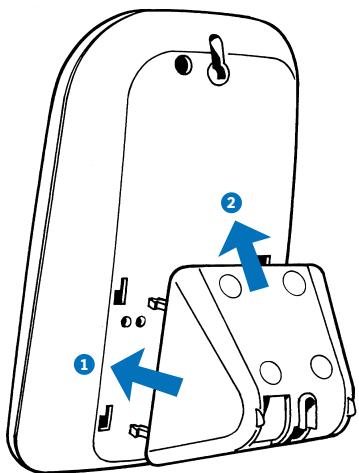
Push the base-mount forward onto the rear of the base.
Once slotted into the rear of the base, slide upwards to lock into position.
If wall mounting your BT On-Air 2100 Classic, use this guide for position.
- Make sure that you are not drilling into any hidden wiring and check that the power cable will reach from the mains socket to the charger. Switch the power adaptor off at the mains and remove the adaptor plug from its socket.
- Drill two holes 25mm deep using a 3mm drill, 122mm apart to take the wall plugs.
- Put wall plugs into the drill holes and then insert both screws. Leave 2-3mm between the head of the screw and the wall. You are now able to mount the base to the wall.
- Fit the base onto the two screws. If necessary, tighten or loosen the screws for the best fit.
- Put the handset back in the base and switch the power back on at the wall socket.
Wall mounting template
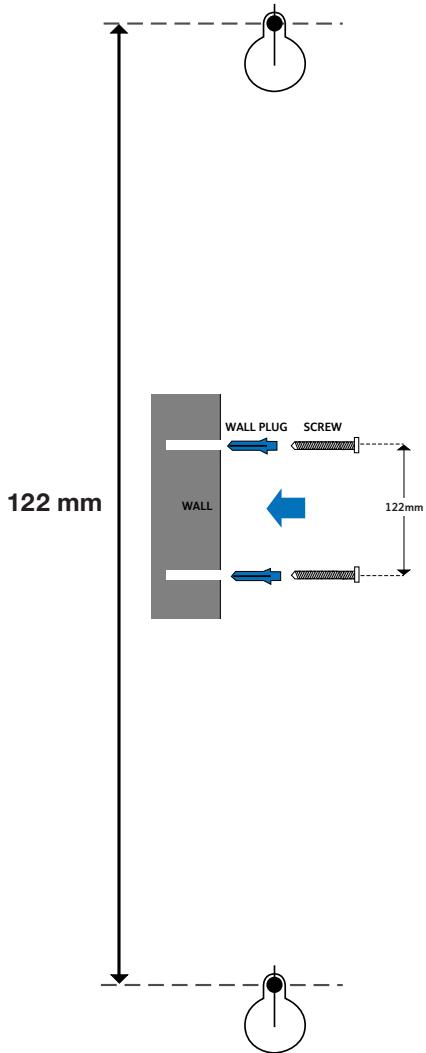
Index
Additional handsets and bases 18
Automatic end call 15
Base settings 15
Base station priority 16
Battery
charge 6
low warning 6
performance 6
replacing 7
Belt clip 7
Caller Display 10
Call timer 8
Call waiting 11
Calls
end 8
external 8
internal 13
make 8
receive 8
redial 9
secrecy 9
transfer 13
Calls list 10
Date - set 17
Delete calls/redial list 11 directory 13
De-register handsets 20
Desk mounting 5
Directory 11
delete 13
dial 12
edit 12
store 12
Display language 15
Earpiece volume 8
End a call 8
External line access code 23
General information 21
Guarantee 21
Handset fascias 7
Handset power 8
Handset settings 14
Handsfree 9
Helpline 6
Internal calls 13
Keypad beeps 14
Language 15
Length of last call 11
Making calls 8
Melody
base 16
handset 14
Menu structure 2
Name and number memory 11
delete 13
dial 12
edit 12
store 12
On/Off automatic end call 15
power 8
secrecy 9
Paging 13
Power on/off 8
Power supply 5
Preparatory dialling 8
Priority base selection 16
Pulse dialling 23
Recall 22
Receiving calls 8
Redial 9
Registering additional handsets 18
REN 21
Returning your product 21
Ringer volume
base 16
handset 14
Safety information 4
Secrecy 9
Setting up 5
Silent ring 14
Store a number 12
Switchboard external line access code 23
Switchboard compatibility 22
System code 15
Technical information 21
Telephone line cord 7
Time - set 17
Tone dialling 23
Transferring calls 13
View date and time 17
Volume
base ringer 16
earpiece 8
handset ringer 14
Wall mounting 25
Wall mounting template 26

Offices worldwide
The telecommunications services described in this publication
are subject to availability and may be modified from time to time.
Services and equipment are provided subject to British Telecommunications
plc's respective standard conditions of contract. Nothing in this publication
forms any part of any contract.
TouchtoneTM is a registered trade mark of
British Telecommunications plc in the UK.
© British Telecommunications plc 2002.
Registered Office: 81 Newgate Street, London EC1A 7AJ.
Registered in England No. 1800000.
Designed by: The Art & Design Partnership Limited.
Printed in Europe. On-Air 2100 Classic. Issue 2 (11/02) 1
- BT On-Air 2100 Classic
- Digital Cordless Telephone
- At a glance
- Handset
- Base
- In Use
- Handsfree
- In range
- Internal (Intercom) Call
- Directory
- Intercom
- OK button
- Green phone/Handsfree
- Up/Down
- Page button
- Quick Guide to the Menu Structure
- Important
- In this guide
- Introduction
- Unpacking your BT On-Air 2100 Classic
- For your records
- Safety information
- General
- Cleaning
- Environmental
- Setting up
- Plan the location
- Connect the power supply and switch on.
- WARNING
- Rubber feet
- Charge the battery in the handset for at least 16 hours
- Battery low warning
- Battery performance
- Helpline
- To replace the handset battery
- Connect the telephone line cord (after charging your handset)
- Changing your handset fascias
- Attach the belt clip
- Using the telephone
- To switch the handset power on and off
- Making and ending calls
- To make an external call
- Preparatory dialling
- Call timer
- To end a call
- To receive an external call
- To adjust the earpiece volume
- Note
- To use handsfree
- Secrecy
- To switch secrecy on/off
- Redial
- Redial list
- Caller Display
- Calls list
- To view and dial a number in the Calls list
- To delete all numbers shown in the redial and calls list
- To view the length of the last call
- Call Waiting
- To use Call Waiting
- Name and number directory
- Quick guide to directory settings menu
- To store a name and number in the directory
- To dial a number from the directory
- To edit directory numbers
- To delete directory numbers
- Paging handsets
- To page a handset from the base
- Internal calls
- To make an internal call to another handset
- 123
- Or
- Transferring calls
- To transfer an external call between handsets
- Handset settings
- Quick guide to handset settings menu
- Ringer melody
- Ringer volume
- Silent ring
- Keypad beeps
- To change the display language
- To switch automatic end call on or off
- Base settings
- System Code
- To change your System Code
- OLD CODE
- NEW CODE
- CONFIRM CODE
- To change the base station ringer melody
- To change the base station ringer volume
- Base station priority
- To change base station priority
- To view the date and time
- To set the time
- To set the date
- Using additional handsets and bases
- Registering additional handsets
- To register a handset to a base station (if you have not changed the System Code from 0000)
- At the base:-
- To register a new handset to a base (if you have changed System code from 0000)
- On the handset:-
- To de-register a handset from the base
- General information
- Guarantee
- The conditions of this guarantee are:
- Within the 12-month guarantee period:
- Outside the 12-month guarantee period:
- If you have to return your product
- Keep proof of posting
- Technical information
- How many handsets can you have?
- RTTE
- Switchboard compatibility
- Recall
- To activate Recall
- To switch between tone and pulse dialling
- Switchboard external line access code
- To set the external line access code
- To set the number of digits
- To activate and de-activate the external line access code
- Wall mounting
- Wall mounting template
- Index
- Offices worldwide
Marque : SAGEM
Modèle : WP 12-32
Catégorie : Téléphone sans fil