
HD-V9000 - Lecteur multimédia PIONEER - Notice d'utilisation et mode d'emploi gratuit
Retrouvez gratuitement la notice de l'appareil HD-V9000 PIONEER au format PDF.


| Type de produit | Lecteur multimédia professionnel |
| Marque | Pioneer |
| Modèle | HD-V9000 |
| Dimensions (L x H x P) | 430 x 88 x 360 mm |
| Poids | 5,5 kg |
| Alimentation | 100-240 V AC, 50/60 Hz |
| Consommation électrique | 35 W (max) |
| Formats de lecture | Fichiers vidéo (MPEG-2, H.264), audio (MP3, AAC), images (JPEG) |
| Sorties vidéo | HDMI, Composite, Composante |
| Sorties audio | Analogique stéréo, numérique coaxiale et optique |
| Entrées | USB (hôte), SDHC |
| Réseau | Ethernet 10/100/1000 Base-T |
| Fonctions principales | Lecture de contenu multimédia, mise à jour firmware via SDHC/USB/LAN, contrôle via HD PILOT |
| Entretien et nettoyage | Nettoyer avec un chiffon doux et sec. Ne pas utiliser de produits chimiques. |
| Sécurité | Ne pas débrancher l'appareil pendant une mise à jour du firmware. Utiliser une prise électrique facilement accessible. |
| Pièces détachées et réparabilité | Carte SDHC recommandée pour les mises à jour. Contactez un service agréé pour les réparations. |
| Informations générales | Utilisation en réseau via HD PILOT, mise à jour à distance possible. Compatible avec les systèmes de contrôle. |
FOIRE AUX QUESTIONS - HD-V9000 PIONEER
Questions des utilisateurs sur HD-V9000 PIONEER
0 question sur cet appareil. Repondez a celles que vous connaissez ou posez la votre.
Poser une nouvelle question sur cet appareil
Téléchargez la notice de votre Lecteur multimédia au format PDF gratuitement ! Retrouvez votre notice HD-V9000 - PIONEER et reprennez votre appareil électronique en main. Sur cette page sont publiés tous les documents nécessaires à l'utilisation de votre appareil HD-V9000 de la marque PIONEER.
MODE D'EMPLOI HD-V9000 PIONEER
Firmware Update Procedure for HD-V9000
Notes
- Do not disconnect the power cord during firmware update.
This may cause a problem. - Do not perform other operations during firmware update.
Firmware Update Startup (SDHC card / USB memory)
Updating will begin when firmware stored on a SDHC card or USB memory is detected.
1. Copy new firmware (n-firmware_vX_XX.tar.gz) to a SDHC card or USB memory and put it in the player.
SDHC card: Copy in [system] folder
USB memory: Copy in root directory
Notes
- Do not use any application while downloading the file.
- The file extension should be“.gz”.
2. HD-V9000 must be in standby (power-off) mode when the SDHC card or USB memory is inserted.
3. Turn on the player.
If firmware is stored on a SDHC card or USB memory that is recognized by the player, the firmware update will automatically begin.
During the update, the LCD front panel display on the player shows "UPDATE SD XX.XX" or "UPDATE USB XX.XX."
Firmware version is displayed as "XX.XX."
The firmware update will be completed in approx. ten minutes..
The LCD back light is automatically turned off during the update process. The LCD back light will not light up again even if the keys are pressed.
Note:
Firmware cannot be updated if the SDHC card or USB memory is write-protected (locked).
4. Check the firmware update results.
When the firmware update has been successfully completed, "SUCCEED" is displayed on the LCD front panel of the player.
After a few seconds, the player will automatically restart. After the player restarts, the player has been successfully updated.
If updating is interrupted or failed, "FAILURE" is displayed on the LCD front panel of the player. When you press the STANDBY key, the player turns Off (Standby).
5. Check the Firmware Version
You can check the firmware version by either of the following methods:
(1). Press and hold the Display key on the player. The version is displayed on the first line of the LCD front panel.
(2). Go to the [Set-up Menu], select., [Player Property] option which shows the player's "Firmware Version."
HD PILOT Updating (LAN)
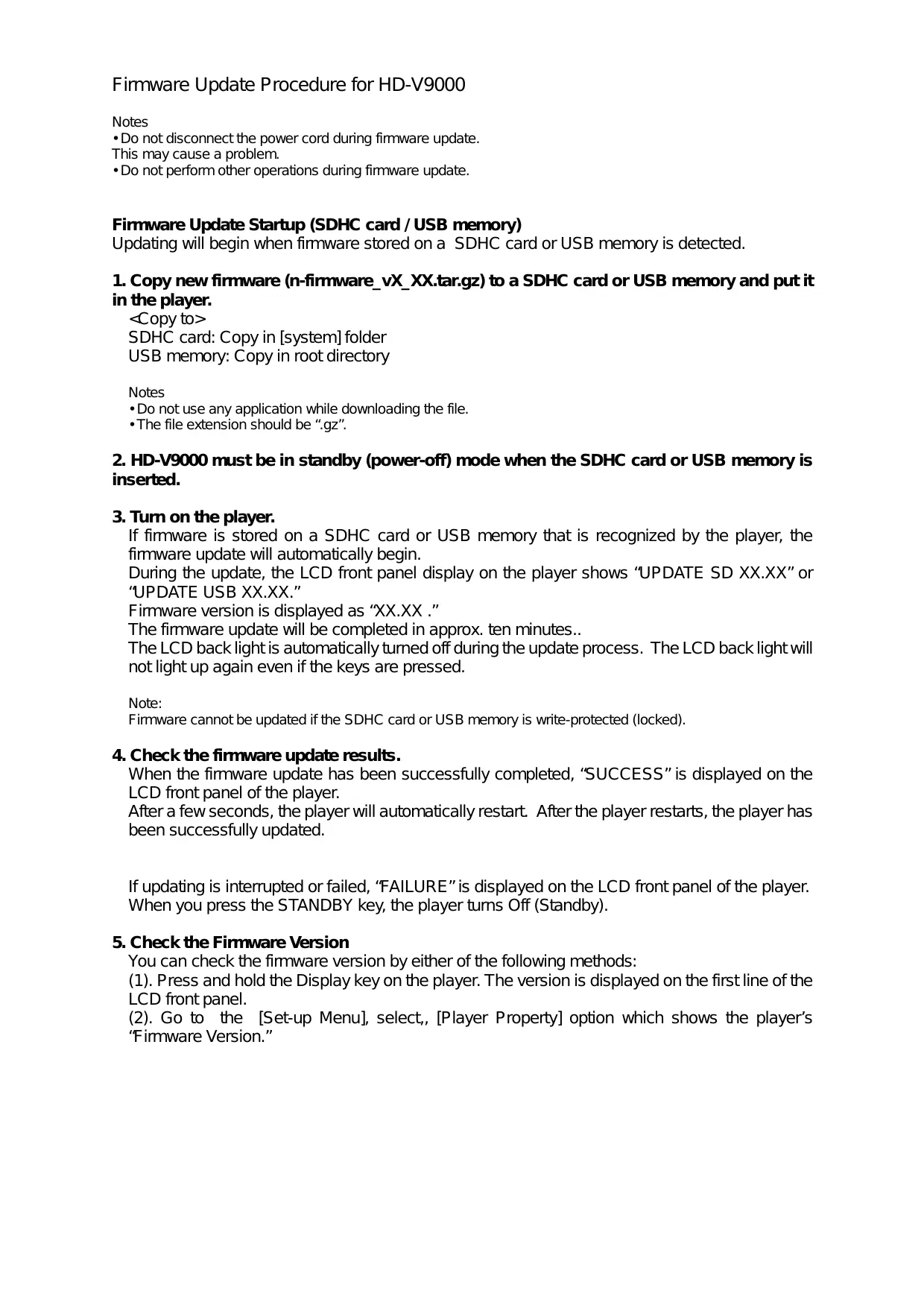
When HD PILOT is single or group connected via the network, [Firmware Update Players] on the [Tasks] menu is active.
Click this to open the [Firmware Update] screen.
This can be used to upload new firmware to the HD-V9000.
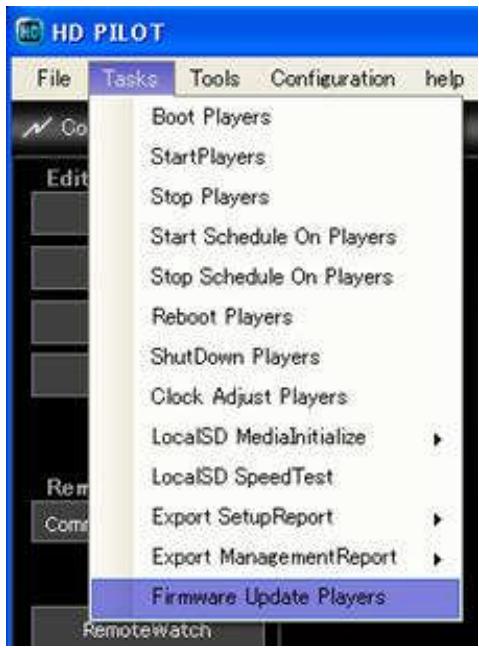
First, click the [browse] button to select firmware file.
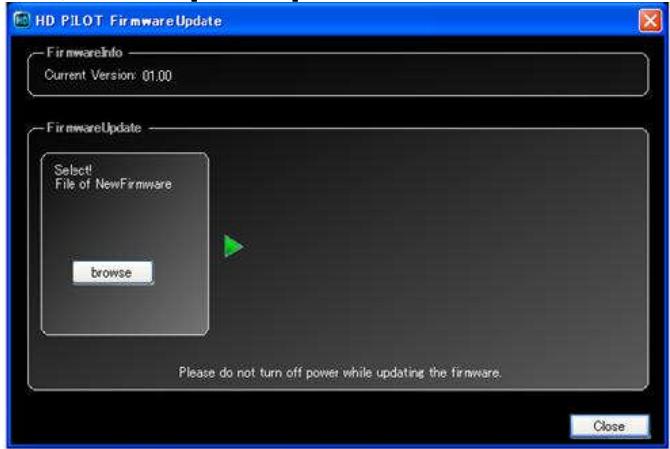
When selected, the screen shown below appears.
Check that new version of firmware has been selected and which version of firmware is currently applied on the HD-V9000.
If the information is correct, click [send] button to begin sending firmware file, then wait
NOTE: With group connections, the version currently applied on the first HD-V9000 in the group is displayed as the currently applied firmware version.
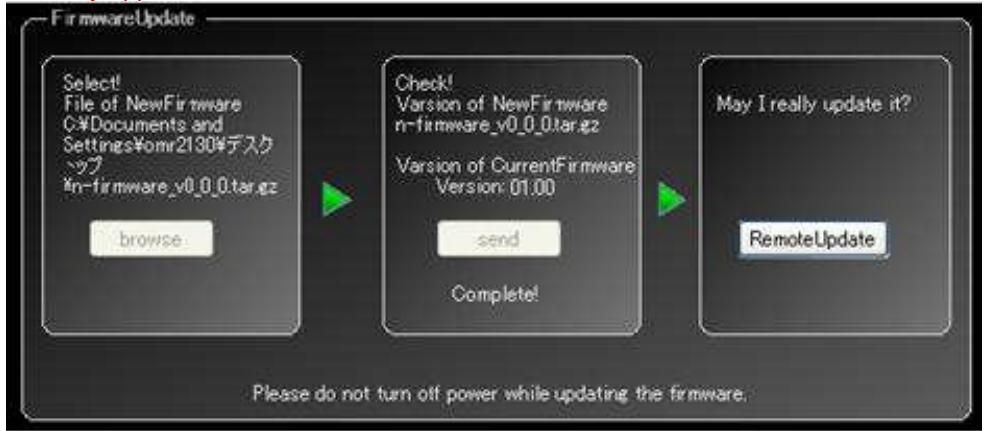
Once file has been received a screen like the one above appears.
Once you are ready, click [RemoteUpdate] button.
Application of firmware starts on the HD-V9000. Several minutes are required for firmware to be applied.
HD PILOT waits for application of firmware to be completed on the HD-V9000.
Once HD PILOT confirms that application of firmware has been successfully completed, the following message appears:
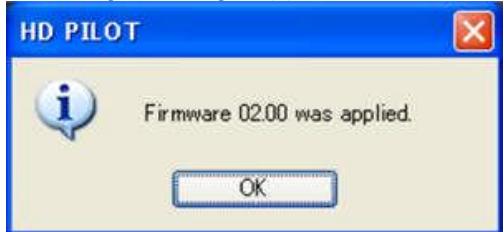
This version number is only an example.
Click [OK] button to close the [FirmwareUpdate] screen.
HD PILOT and the HD-V9000 are now connected, and the online functions of HD PILOT can be used.
NOTE: Do not turn off the HD-V9000's power during the process.
NOTE: Before executing, insert an SDHC card with at least 40 MB of free space into the HD-V9000.
NOTE: This function cannot be executed with serial connections.
NOTE: The screens shown above are from the development stage: the actual firmware file names and version indications will differ.
NOTE: With group connections, the selected firmware is applied to all HD-V9000s.

- Firmware Update Procedure for HD-V9000
- Notes
- Firmware Update Startup (SDHC card / USB memory)
- Copy new firmware (n-firmware_vX_XX.tar.gz) to a SDHC card or USB memory and put it in the player.
- HD-V9000 must be in standby (power-off) mode when the SDHC card or USB memory is inserted.
- Turn on the player.
- Check the firmware update results.
- Check the Firmware Version
- HD PILOT Updating (LAN)
Marque : PIONEER
Modèle : HD-V9000
Catégorie : Lecteur multimédia