
AI DRIVER FOR MAC OS X - Pilote audio YAMAHA - Notice d'utilisation et mode d'emploi gratuit
Retrouvez gratuitement la notice de l'appareil AI DRIVER FOR MAC OS X YAMAHA au format PDF.


| Type de produit | Pilote audio pour macOS |
| Version | AI Driver pour Mac OS X |
| Systèmes d'exploitation compatibles | Mac OS X 10.4 ou ultérieur |
| Configuration minimale | CPU G4 1 GHz, mémoire vive 512 Mo, disque dur 100 Mo |
| Configuration recommandée | CPU G5 1,8 GHz Dual ou CoreSolo 1,5 GHz, mémoire vive 1 Go |
| Fonctions principales | Transfert audio/MIDI via FireWire, gestion des connexions mLAN, configuration de la fréquence d'échantillonnage |
| Installation | Via le fichier Yamaha AI Driver.mpkg, redémarrage requis |
| Désinstallation | Suppression manuelle des fichiers listés dans la notice |
| Dépannage | Vérifier le gestionnaire de connexions, les câbles FireWire, les paramètres de latence |
| Type de licence | Licence logicielle, utilisation sur un seul ordinateur |
| Marque | YAMAHA |
| Modèle compatible | n8, n12, mLAN16E2 (MOTIF XS8) |
| Connexion | FireWire (IEEE 1394) |
| Fréquence d'échantillonnage | 44,1 kHz, 48 kHz, etc. (réglable) |
| Résolution audio | 24 bits |
| Nombre de canaux audio | 12 canaux en entrée/sortie |
| MIDI | 16 pistes de lecture, contrôle à distance |
| Latence | 5 ms (recommandé) à 50 ms (minimum) |
| Gestionnaire de connexions | Icône dans la barre de menus, activation/désactivation |
| Site web | http://www.yamahasynth.com/ |
FOIRE AUX QUESTIONS - AI DRIVER FOR MAC OS X YAMAHA
Questions des utilisateurs sur AI DRIVER FOR MAC OS X YAMAHA
0 question sur cet appareil. Repondez a celles que vous connaissez ou posez la votre.
Poser une nouvelle question sur cet appareil
Téléchargez la notice de votre Pilote audio au format PDF gratuitement ! Retrouvez votre notice AI DRIVER FOR MAC OS X - YAMAHA et reprennez votre appareil électronique en main. Sur cette page sont publiés tous les documents nécessaires à l'utilisation de votre appareil AI DRIVER FOR MAC OS X de la marque YAMAHA.
MODE D'EMPLOI AI DRIVER FOR MAC OS X YAMAHA
AI Driver for Mac OS X
Installation Guide
ATTENTION
SOFTWARE LICENSE AGREEMENT
PLEASE READ THIS SOFTWARE LICENSE AGREEMENT (“AGREEMENT”) CAREFULLY BEFORE USING THIS SOFTWARE. YOU ARE ONLY PERMITTED TO USE THIS SOFTWARE PURSUANT TO THE TERMS AND CONDITIONS OF THIS AGREEMENT. THIS AGREEMENT IS BETWEEN YOU (AS AN INDIVIDUAL OR LEGAL ENTITY) AND YAMAHA CORPORATION (“YAMAHA”).
BY DOWNLOADING, INSTALLING, COPYING, OR OTHERWISE USING THIS SOFTWARE YOU ARE AGREEING TO BE BOUND BY THE TERMS OF THIS LICENSE. IF YOU DO NOT AGREE WITH THE TERMS, DO NOT DOWNLOAD, INSTALL, COPY, OR OTHERWISE USE THIS SOFTWARE. IF YOU HAVE DOWNLOADED OR INSTALLED THE SOFTWARE AND DO NOT AGREE TO THE TERMS, PROMPTLY DELETE THE SOFTWARE.
1. GRANT OF LICENSE AND COPYRIGHT
Yamaha hereby grants you the right to use one copy of the software program(s) and data (“SOFTWARE”) accompanying this Agreement. The term SOFTWARE shall encompass any updates to the accompanying software and data. The SOFTWARE is owned by Yamaha and/or Yamaha’s licensor(s), and is protected by relevant copyright laws and all applicable treaty provisions. While you are entitled to claim ownership of the data created with the use of SOFTWARE, the SOFTWARE will continue to be protected under relevant copyrights.
- You may use the SOFTWARE on a single computer.
- You may make one copy of the SOFTWARE in machine-readable form for backup purposes only, if the SOFTWARE is on media where such backup copy is permitted. On the backup copy, you must reproduce Yamaha's copyright notice and any other proprietary legends that were on the original copy of the SOFTWARE.
- You may permanently transfer to a third party all your rights in the SOFTWARE, provided that you do not retain any copies and the recipient reads and agrees to the terms of this Agreement.
2. RESTRICTIONS
- You may not engage in reverse engineering, disassembly, decompilation or otherwise deriving a source code form of the SOFTWARE by any method whatsoever.
- You may not reproduce, modify, change, rent, lease, or distribute the SOFTWARE in whole or in part, or create derivative works of the SOFTWARE.
- You may not electronically transmit the SOFTWARE from one computer to another or share the SOFTWARE in a network with other computers.
- You may not use the SOFTWARE to distribute illegal data or data that violates public policy.
- You may not initiate services based on the use of the SOFTWARE without permission by Yamaha Corporation.
- Copyrighted data, including but not limited to MIDI data for songs, obtained by means of the SOFTWARE, are subject to the following restrictions which you must observe.
- Data received by means of the SOFTWARE may not be used for any commercial purposes without permission of the copyright owner.
- Data received by means of the SOFTWARE may not be duplicated, transferred, or distributed, or played back or performed for listeners in public without permission of the copyright owner.
- The encryption of data received by means of the SOFTWARE may not be removed nor may the electronic watermark be modified without permission of the copyright owner.
3. TERMINATION
This Agreement becomes effective on the day that you receive the SOFTWARE and remains effective until terminated. If any copyright law or provisions of this Agreement is violated, the Agreement shall terminate automatically and immediately without notice from Yamaha. Upon such termination, you must immediately destroy the licensed SOFTWARE, any accompanying written documents and all copies thereof.
4. DISCLAIMER OF WARRANTY ON SOFTWARE
You expressly acknowledge and agree that use of the SOFTWARE is at your sole risk. The SOFTWARE and related documentation are provided “AS IS” and without warranty of any kind. NOTWITHSTANDING ANY OTHER PROVISION OF THIS AGREEMENT, YAMAHA EXPRESSLY DISCLAIMS ALL WARRANTIES AS TO THE SOFTWARE, EXPRESS, AND IMPLIED, INCLUDING BUT NOT LIMITED TO THE IMPLIED WARRANTIES OF MERCHANTABILITY, FITNESS FOR A PARTICULAR PURPOSE AND NON-INFRINGEMENT OF THIRD PARTY RIGHTS. SPECIFICALLY, BUT WITHOUT LIMITING THE FOREGOING, YAMAHA DOES NOT WARRANT THAT THE SOFTWARE WILL MEET YOUR REQUIREMENTS, THAT THE OPERATION OF THE SOFTWARE WILL BE UNINTERRUPTED OR ERROR-FREE, OR THAT DEFECTS IN THE SOFTWARE WILL BE CORRECTED.
5. LIMITATION OF LIABILITY
YAMAHA'S ENTIRE OBLIGATION HEREUNDER SHALL BE TO PERMIT USE OF THE SOFTWARE UNDER THE TERMS HEREOF. IN NO EVENT SHALL YAMAHA BE LIABLE TO YOU OR ANY OTHER PERSON FOR ANY DAMAGES, INCLUDING, WITHOUT LIMITATION, ANY DIRECT, INDIRECT, INCIDENTAL OR CONSEQUENTIAL DAMAGES, EXPENSES, LOST PROFITS, LOST DATA OR OTHER DAMAGES ARISING OUT OF THE USE, MISUSE OR INABILITY TO USE THE SOFTWARE, EVEN IF YAMAHA OR AN AUTHORIZED DEALER HAS BEEN ADVISED OF THE POSSIBILITY OF SUCH DAMAGES. In no event shall Yamaha's total liability to you for all damages, losses and causes of action (whether in contract, tort or otherwise) exceed the amount paid for the SOFTWARE.
6. THIRD PARTY SOFTWARE
Third party software and data (“THIRD PARTY SOFTWARE”) may be attached to the SOFTWARE. If, in the written materials or the electronic data accompanying the Software, Yamaha identifies any software and data as THIRD PARTY SOFTWARE, you acknowledge and agree that you must abide by the provisions of any Agreement provided with the THIRD PARTY SOFTWARE and that the party providing the THIRD PARTY SOFTWARE is responsible for any warranty or liability related to or arising from the THIRD PARTY SOFTWARE. Yamaha is not responsible in any way for the THIRD PARTY SOFTWARE or your use thereof.
- Yamaha provides no express warranties as to the THIRD PARTY SOFTWARE. IN ADDITION, YAMAHA EXPRESSLY DISCLAIMS ALL IMPLIED WARRANTIES, INCLUDING BUT NOT LIMITED TO THE IMPLIED WARRANTIES OF MERCHANTABILITY AND FITNESS FOR A PARTICULAR PURPOSE, as to the THIRD PARTY SOFTWARE.
- Yamaha shall not provide you with any service or maintenance as to the THIRD PARTY SOFTWARE.
- Yamaha is not liable to you or any other person for any damages, including, without limitation, any direct, indirect, incidental or consequential damages, expenses, lost profits, lost data or other damages arising out of the use, misuse or inability to use the THIRD PARTY SOFTWARE.
7. GENERAL
This Agreement shall be interpreted according to and governed by Japanese law without reference to principles of conflict of laws. Any dispute or procedure shall be heard before the Tokyo District Court in Japan. If for any reason a court of competent jurisdiction finds any portion of this Agreement to be unenforceable, the remainder of this Agreement shall continue in full force and effect.
8. COMPLETE AGREEMENT
This Agreement constitutes the entire agreement between the parties with respect to use of the SOFTWARE and any accompanying written materials and supersedes all prior or contemporaneous understandings or agreements, written or oral, regarding the subject matter of this Agreement. No amendment or revision of this Agreement will be binding unless in writing and signed by a fully authorized representative of Yamaha.
SPECIAL NOTICES
- The software and this Installation Guide are the exclusive copyrights of Yamaha Corporation.
- Please read carefully the Software Licensing Agreement at the front of this Installation Guide before installing the software.
- Copying of the software or reproduction of this Installation Guide in whole or in part by any means is expressly forbidden without the written consent of the manufacturer.
- Yamaha makes no representations or warranties with regard to the use of the software and documentation and cannot be held responsible for the results of the use of this Installation Guide and the software.
- Future upgrades of application and system software and any changes in specifications and functions will be announced at the following website.
http://www.yamahasynth.com/ - The screen displays as illustrated in this Installation Guide are for instructional purposes, and may appear somewhat different from the screens which appear on your computer.
- Copying of the commercially available musical data including but not limited to MIDI data and/or audio data is strictly prohibited except for your personal use.
• Apple, Mac and Macintosh are trademarks of Apple Inc., registered in the U.S. and other countries. - FireWire, the FireWire symbol and the FireWire logo are trademarks of Apple Inc.
- The company names and product names in this Installation Guide are the trademarks or registered trademarks of their respective companies.
Contents
SOFTWARE LICENSE AGREEMENT .... 1
SPECIAL NOTICES...... 2
What is AI Driver? 3
System Requirements for Software 3
How this guide is organized.... 4
Installing the software 4
Uninstalling the Software 9
Troubleshooting 10
What is AI Driver?
AI Driver is based on mLAN technology. It enables you to connect a single n8, n12 or mLAN16E2 to a computer and transfer audio/MIDI signals via a FireWire cable.
NOTE
- The MOTIF XS8 is equipped with the mLAN16E2 as standard.
- To activate AI Driver on your computer, you will need to use version 1.02 or later version of the n8/n12/mLAN16E2 IEEE 1394 firmware. Please download the latest version of the software from the following site. http://www.yamahasynth.com/download/
System Requirements for Software
The system requirements below are necessary for using AI Driver.
NOTE
- The system requirements below may differ slightly depending on the particular operating system.
- For details on minimum requirements for other DAW software, refer to the respective owner's manual.
- For information about the minimum system requirements and latest information on AI Driver, check the web site below. http://www.yamahasynth.com/download/
OS:Mac OS X 10.4 or later
- Hard Disk: Free disk space of 100 MB or more; high-speed hard disk
- Recommended system requirements (*1)
CPU: G5 1.8 GHz Dual or CoreSolo 1.5 GHz
or higher
Available Memory: 1 GB or more
•Minimum system requirements (*1)
CPU: G4 1 GHz or higher
Available Memory: 512 MB or more
*1 The recommended/minimum system requirements listed here apply when playing the audio/MIDI data described below on a typical DAW. This may differ depending on the particular DAW you are using.
Recommended system requirements
Frequency/resolution: 44.1 kHz/24 bit
Audio playback tracks: 15
Audio recording tracks: 2
MIDI playback tracks: 16
MIDI Remote Control/Automation
Send effects (plug-in): 3
Insert effects (plug-in): 9
Plug-in synthesizer: 2
Latency: 5 msec or less
Minimum system requirements
Frequency/resolution: 44.1 kHz/24 bit
Audio playback tracks: 15
MIDI Remote Control/Automation
Send effects (plug-in): 3
Insert effects (plug-in): 9
Plug-in synthesizer: none
Latency: about 50 msec
How this guide is organized
Installing the software (page 4)
Explains how to install AI Driver.
Troubleshooting (page 10)
Explains how to solve problems that you may encounter while you are using the n8/n12 or mLAN16E2 along with your computer.
Installing the software

CAUTION
- Keep in mind that noise may be generated when installing or uninstalling AI Driver. Before performing either of these operations, make sure to lower the output level of each device.
If you have already installed AI Driver or mLAN Tools on your computer:
AI Driver or mLAN Tools already installed on your computer will be deleted when installing AI Driver.
AI Driver enables you to connect a single n8, n12 or mLAN16E2 to a computer and transfer audio/MIDI signals via a FireWire cable.
Follow the steps below to install the software.
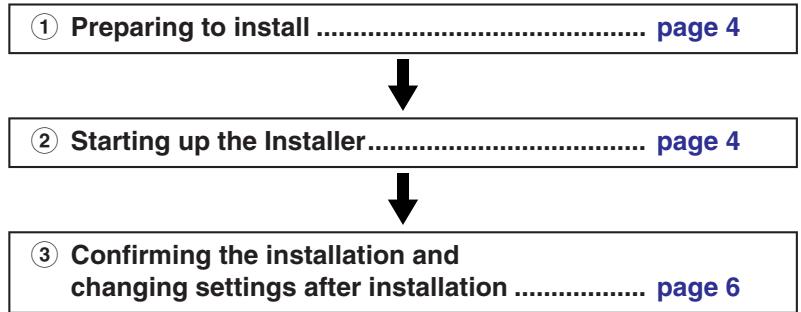
flowchart
graph TD
    A["① Preparing to install ...... page 4"] --> B["② Starting up the Installer ...... page 4"]
    B --> C["③ Confirming the installation and changing settings after installation ...... page 6"]
NOTE
- If an error message appears, follow the on-screen instructions.
Preparing to install
1 Make sure that the power to the n8/n12 or mLAN16E2-equipped device is turned off.
2 Disconnect all MIDI cables that connect MIDI devices to MIDI IN/OUT jacks on the n8/n12 or mLAN16E2-equipped device.
3 Using a FireWire cable, connect the n8/n12 or mLAN16E2 directly to the computer (without using a hub), and disconnect all other FireWire devices from the computer.
4 Start the computer and log in to the Administrator account.
5 Exit any open applications and close all open windows.
Starting up the Installer
6 After the downloaded compressed file is properly extracted, double-click the "Yamaha AI Driver.mpkg" file.
NOTE
- If your computer does not satisfy the system requirements, a dialog box appears indicating that “This software cannot be installed on this computer.”
7 A dialog box appears asking if you want to install the software. Click [Continue].
The “Welcome…” window appears.
![YAMAHA AI DRIVER FOR MAC OS X - A dialog box appears asking if you want to install the software. Click [Continue]. - 1](/content/2025/01/114614/images/c389fda4e3d51961472ef52ae399ef663bd6cb6dc3f5224313341efa4e5d8f4b.jpg)
This package contains a program that determines if the software can be installed. Are you sure you want to continue?
If you're not sure about the source of this package, click Cancel to prevent it from running the program and installing the software.
Cancel
Continue
8 Click [Continue].
The “Select a Destination” window appears.
NOTE
- This step may not be necessary depending on the particular version of the operating system.
- Only the boot disk can be selected for the installer.
9 Click [Continue].
The “Installation Type” window appears.
10 Click [Install].
The “Authenticate” window appears.
11 Enter the Administrator name and the password, then click [OK].
A message appears prompting you to restart the computer after the installation.
12 Click [Continue Installation].
The “Install” window appears indicating the installation progress.
When the installation is complete, the “Finish Up” or “Summary” window appears.
NOTE
- Installation cannot be canceled after clicking [Continue Installation].
13 Click [Restart] to restart the computer.
When canceling the installation
If you've cancelled an installation before it is complete, the software may not have been installed properly. To install the software properly, resume the procedure from Step 6.
Establishing a connection
14 After you restart the computer, the following window appears. Click [OK].
Yamaha AI Driver
![YAMAHA AI DRIVER FOR MAC OS X - After you restart the computer, the following window appears. Click [OK]. - 1](/content/2025/01/114614/images/1985cf9139fcae8f880c98615996b9c7b1bb1e0e54ac6de9ae8a2e85ade73108.jpg)
The driver icon blinks on launching/quitting Connection Manager, or powering off/on or disconnecting/connecting FireWire device while Connection Manager is working.
Do not power off/on to the device or disconnect/connect an FireWire cable while the driver icon is blinking.
Investigating connected device.
Do not ask this again.
OK
NOTE
- This window appears every time when Connection Manager starts. If you do not want this window to appear, click the check box to the left of “Do not ask this again,” then click [OK].
15 Turn on the power to the n8/n12 or mLAN16E2-equipped device.
AI Driver is activated, and Connection Manager starts to establish a connection. The process of making AI Driver connection settings is complete.
mLAN Connection Manager
Connecting n12.
Do not power off/on to the device or disconnect/connect an FireWire cable.

NOTE
- If AI Driver has been installed and its connection settings have been made, you can physically connect the n8/n12 or mLAN16E2 to your computer regardless of the power on/off status of the devices. To use the n8/n12 or mLAN16E2 along with the computer, Connection Manager must be enabled (see page 6). When you connect the n8/n12 or mLAN16E2 to the computer, Connection Manager automatically makes all connection settings. During this process, the driver icon (✗) (see page 6) flashes. Wait until the icon stops flashing and stays lit.
- When you connect the n8/n12 or mLAN16E2 to the computer for the first time or you connect a different device than you have used before, a message (similar to the one shown in Step 15) appears indicating that the two devices are in the process of establishing a connection.
CAUTION
- The flashing driver icon means that Connection Manager is checking a FireWire device that is connected to the computer. Do NOT turn off or on the power to any connected FireWire device, or disconnect or connect any FireWire cable while the driver icon is flashing.
Confirming the installation and changing settings after installation
Confirming the installation
Status menu
If the installation is successful, an AI Driver icon is added to the status menu. To call up the menu, click on the icon (✗).
NOTE

- When Connection Manager is disabled, the driver icon is white. When Connection Manager is enabled, the driver icon is blue. To use the n8/n12 or mLAN16E2 along with a computer, you must enable Connection Manager. While Connection Manager is checking a FireWire device that is connected to the computer, the driver icon flashes.
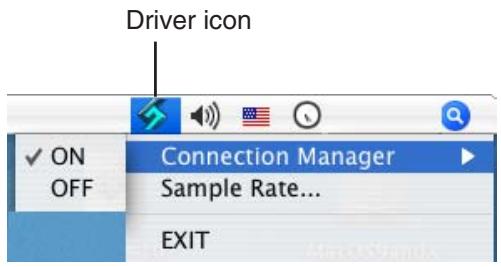
- Connection Manager
Enables/disables Connection Manager.
- Sample Rate...
Specifies the sampling frequency.
- EXIT
Exit AI Driver, then removes the driver icon from the status menu. To display the driver icon on the status menu again, from the hard disk to which OS X is installed (usually Macintosh HD) double-click [Application] → [mLAN Tools] → [mLAN Manager]. Connection Manager will start in the same condition (enabled/disabled) when the icon is removed.
NOTE

- The default setting of Connection Manager for AI Driver is “On”.
Audio MIDI Setup (MIDI Devices)
From the hard disk to which OS is installed (usually Macintosh HD) click [Application] → [Utilities] → [Audio MIDI Setup] to display the following window.
On the “MIDI Devices” window, the MIDI driver is shown as “mLAN Network.”
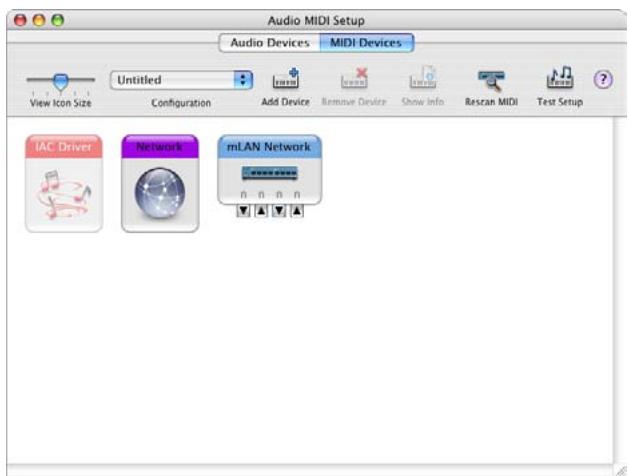
Double-click the "mLAN Network" icon on the window above to open the "mLAN Network Properties" window.
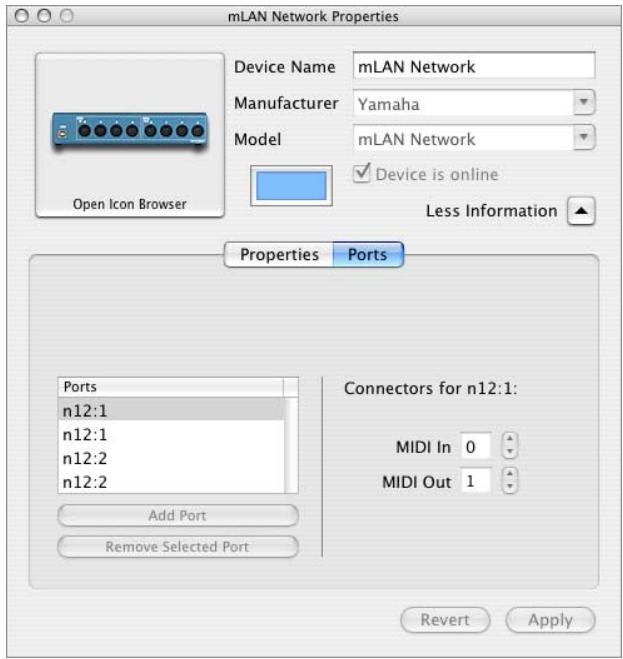
The ports on the “mLAN Network Properties” are shown in the following sequence: output, input, output, and so on. For example, if you are using the n12, it is shown as an MIDI device with two input and two output ports, and the port names are “n12:1, n12:1, n12:2, n12:2”
For Digital Performer of Mark of the Unicorn Inc. and Logic Pro of Apple Inc.:
Before using the DAW software, make the following settings.
First, click the [Add Device] icon to add a new external device to the “Audio MIDI Setup” window (page 6). The new external devices require as many as MIDI ports for the device you intend to use. Next, connect each MIDI input/output plugs into the input/output plugs of the MIDI driver.

flowchart
graph TD
    A["IAC Driver"] --> B["Network"]
    B --> C["mLAN Network"]
    C --> D["n8/n12 ①"]
    C --> E["n8/n12 ②"]
For example:
n8/n12:
Add two new external devices and connect them to MIDI driver.
mLAN16E2:
Add three new external devices and connect them to MIDI driver.
NOTE
- Entering the device name on the new external device properties makes it easy to operate the device with your DAW software.
- This setting may be unnecessary for the latest version of your DAW software.
Audio MIDI Setup (Audio Devices)
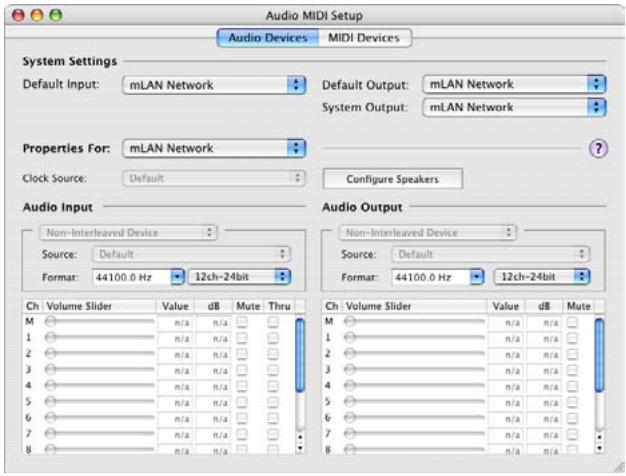
From the Audio MIDI Setup, select [Audio Devices], then select “mLAN Network” from the pull-down menu in [Properties For]. In the [Audio Input] and [Audio Output] fields, the current audio settings are shown.
NOTE
- By selecting “mLAN Network” for [Default Output] in System Settings, you will be able to output audio signals of the system sound and audio player software (e.g., iTunes, etc.) from the n8/n12 or mLAN16E2.
- The sampling frequency cannot be changed from the “Audio Devices” window. Change the sampling frequency from the Sample Rate window (page 8).
Changing settings after installation
NOTE
- If you perform the following operations while AI Driver is being used by an application (such as a DAW), the application may not work properly. Quite the application, then perform the following operations.
- Turning Connection Manager on/off
- Turning the n8/n12 or mLAN16E2-equipped device on/off
- Plugging/unplugging the FireWire cable
Sample Rate
(Click the driver icon on the status menu → Sample Rate)
This dialog box enables you to set the sampling frequency.
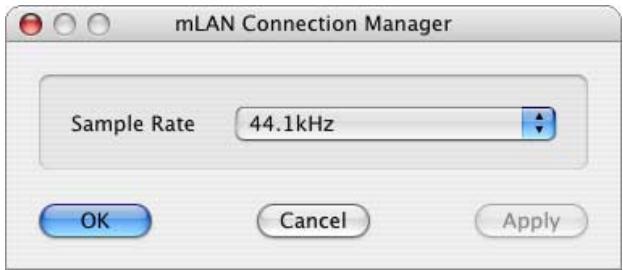
Click the arrows in the Sample Rate box, then select the desired sampling frequency. Click [OK] to apply the selection and close the dialog box. By clicking [Apply], your selection will be applied and the dialog box will remain open. While you are changing the sample rate, a window appears indicating that the setting is being changed.
NOTE
- If you are using the n8/n12, the n8/n12 [COMP] indicators flash while the sampling frequency is being changed.
Audio driver settings on DAW software
In the Audio driver settings of your DAW software, select “mLAN Network.”
For more information on the port assignments, refer to the n8/n12 or MOTIF XS6/7/8 Owner's Manual.
NOTE
- For Cubase 4/Cubase Studio 4/Cubase AI4, installing Extensions for Steinberg DAW sets the ports automatically. If you are using the n8/n12, refer to the n8/n12 Owner's Manual. For mLAN16E2, refer to the Extensions for Steinberg DAW for MOTIF XS6/7/8 Owner's Manual that comes with the Extensions for Steinberg DAW installer.
Setting the driver I/O buffer size (latency)
To use DAW software with an audio device, you will need to set the driver's buffer size (or the sample buffer size) depending on the recommended/minimum system requirements for each audio device and DAW software, the number of audio/MIDI tracks being recorded/played back on the DAW software and the number of plug-in software.
You can set the driver's I/O buffer size (latency) on the audio driver settings menu of your DAW software.
While higher I/O buffer size reduces load to the computer CPU but produces latency (time lag) during recording/playback, the small buffer size may result in noise or the sound cutting off.
Make sure to set the I/O buffer size to an appropriate value depending on the speed of your computer, the CPU power available in DAW, etc.
Uninstalling the Software
To uninstall AI Driver, you must remove the following folders and files from the boot disk (usually Macintosh HD).
/Applications/mLAN Tools/
/System/Library/Extensions/Yamaha1394AudioDriver.kext
/System/Library/Extensions/YamahaOGTAsync.kext
/System/Library/Frameworks/mLANEnablerFramework.framework
/System/Library/Frameworks/mLANQt.framework
/Library/Application Support/mLAN/
/Library/Audio/MIDI Drivers /Yamaha1394MIDI.plugin
/Library/Preferences/com.yamaha.mLAN Manager.plist
/User/(Account name)/Library/Preferences/com.yamaha.mLAN Manager.plist
/User/(Account name)/mLAN/
NOTE
- "(Account name)" indicates the account name when AI Driver is installed.
Troubleshooting
No sound is heard, or the sound is too faint.
Setting on the computer
- The volume settings within your application must be set to appropriate levels.
- Make sure that Connection Manager is enabled. (The driver icon should be blue.) If not, click the driver icon on the status menu, then select [Connection Manager] → [ON].
Refer to "Confirming the installation" (see page 6). - Make sure that other settings of AI Driver appropriate.
Refer to “Unable to transfer/receive audio data or MIDI data” item in this chapter.
Setting on the n8/n12, mLAN16E2-equipped device and other external devices
- Make sure that the speakers or headphones are connected correctly.
- Make sure that the power to your amplifier and other external devices are turned on.
- The volume of all connected tone generators and playback devices must be set to an appropriate level.
- Make sure that a signal from an external device or the DAW is being sent to the n8/n12's input or mLAN16E2's input.
- The cable that connects the n8/n12 or mLAN16E2-equipped device and the external device may be damaged.
■ The sound is distorted.
Setting on the computer, n8/n12, mLAN16E2-equipped device and other external devices
- Make sure that audio was recorded at an appropriate level.
- The cable that connects the n8/n12 or mLAN16E2-equipped device and the external device may be damaged.
Noise.
Setting on the computer
- Make sure that your computer satisfies the system requirements.
Refer to "System Requirements for Software" (see page 3).
- Make sure that the latency setting of the driver is appropriate.
Refer to “Setting the driver I/O buffer size (latency)” (see page 8).
- Make sure that the sampling frequency is appropriate. A high sampling frequency may be the cause of noise, depending on the computer's capacity and speed.
Refer to "Sample Rate" (see page 8).
- If your computer's hard disk is slow, problems may occur during recording and playback.
- Try increasing the computer's memory capacity.
- Quit all applications that are running in the background, when you use AI Driver. If such software is running, driver operation may become unstable and create noise. When you are not using AI Driver, you can start up these applications again.
Connecting the n8/n12 or mLAN16E2
- The FireWire cable may be damaged. Cables that do not satisfy S400 standards may cause noise.
- There may be a noise-inducing device (such as a device containing a power inverter, etc.) near a FireWire cable. Move the cable away from any possible sources of noise.
Setting on the n8/n12, mLAN16E2-equipped device and other external devices
- There may be a noise-inducing device (such as a device containing a power inverter, etc.) near cables connecting the n8/n12, mLAN16E2-equipped device or an external device. Move the cables away from any possible sources of noise.
■ The computer processing speed is too slow.
The computer's CPU meter indicates a heavy processing load.
■ Playback response is delayed.
■ Insufficient tracks for recording or playback.
Setting on the computer
- Make sure that your computer satisfies the system requirements.
Refer to "System Requirements for Software" (see page 3). - If you are not using AI Driver, you can reduce the load on the computer by disabling Connection Manager. (Click the driver icon on the status menu, then select [Connection Manager] [OFF].)
Refer to "Confirming the installation" (see page 6).
■ An application, such as a DAW, fails to recognize AI Driver (audio/MIDI).
Setting on the computer
- Make sure that Connection Manager is enabled. (The driver icon should be blue.) If not, click the driver icon on the status menu, then select [Connection Manager] → [ON].
Refer to "Confirming the installation" (see page 6).
- Make sure that other settings of AI Driver appropriate. Refer to “Unable to transfer/receive audio data or MIDI data” item in this chapter.
■ Unable to transfer/receive audio data or MIDI data.
Setting on the computer
- AI Driver may not have been installed or set up correctly.
- Make sure that Connection Manager is enabled. (The driver icon should be blue.) If not, click the driver icon on the status menu, then select [Connection Manager] → [ON].
Refer to "Confirming the installation" (see page 6).
Connecting the n8/n12 or mLAN16E2
- Make sure that the FireWire cable is connected properly, and that the power to the n8/n12 or mLAN16E2-equipped device has been turned on. Disconnect the FireWire cable once, then insert it again.
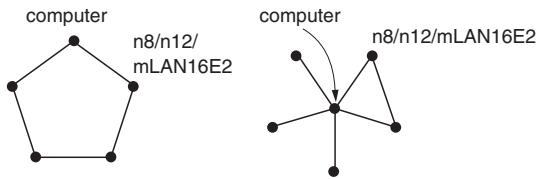
- There may be a loop connection. Check the cabling to make sure that none of the devices are connected in a loop.
Example of loop connection
flowchart
graph TD
    A["computer"] --> B["n8/n12/mLAN16E2"]
    C["computer"] --> D["n8/n12/mLAN16E2"]
    B --> E["Central Node"]
    D --> E
    E --> F["Node 1"]
    E --> G["Node 2"]
    E --> H["Node 3"]
    E --> I["Node 4"]
    E --> J["Node 5"]
●: FireWire-equipped device
- If FireWire devices other than the n8/n12 or mLAN16E2 are connected to the computer, disconnect all FireWire devices from your computer except for the n8/n12 or mLAN16E2, and try connecting a single n8/n12 or mLAN16E2 device to your computer.
- There may be multiple FireWire interfaces installed on the computer.
- Use only the standard FireWire interface of your computer and remove other FireWire interfaces since AI Driver supports only the standard interfaces.
■ Unable to transfer/receive MIDI data or Program changes.
Setting on the computer, n8/n12, mLAN16E2-equipped device and other external devices
- In music applications, such as a DAW, make sure the correct MIDI ports have been selected. If you set the [MIDI Devices] on [Audio MIDI Setup] in Utilities, the MIDI ports will be shown from an application as the name set within [Audio MIDI Setup]. Select the appropriate MIDI ports.
- Make sure the transmission and reception channels of each device or an application (such as a DAW) match.
- Make sure the MIDI settings of the mLAN16E2-equipped device are appropriate.
Refer to the Owner's Manual for each mLAN16E2-equipped device.
- Make sure that the power to the transmitting and receiving devices is turned on.
Connecting the n8/n12 or mLAN16E2
- Make sure that the FireWire cable is connected properly.
- Make sure that the FireWire cable is not broken.
The driver icon in the status menu has disappeared.
- Double-click [Application] [mLAN Tools] [mLAN Manager] to start mLAN Manager.
- Make sure that the latest version of AI Driver has been installed. If AI Driver on your computer is old, install the latest version.
Cannot use other connected Firewire devices correctly.
- Click the driver icon on the status menu, then select [Connection Manager] → [OFF] to disable Connection Manager.
Refer to "Confirming the installation" (see page 6).
NOTE
- For information on audio problems such as no sound or excess noise, refer to the Troubleshooting section of the n8/n12 or mLAN16E2-equipped device Owner's Manual as well as the Troubleshooting section of this Installation Guide.
- AI Driver for Mac OS X
- Installation Guide
- ATTENTION
- SOFTWARE LICENSE AGREEMENT
- GRANT OF LICENSE AND COPYRIGHT
- RESTRICTIONS
- TERMINATION
- DISCLAIMER OF WARRANTY ON SOFTWARE
- LIMITATION OF LIABILITY
- THIRD PARTY SOFTWARE
- GENERAL
- COMPLETE AGREEMENT
- SPECIAL NOTICES
- Contents
- What is AI Driver?
- NOTE
- System Requirements for Software
- OS:Mac OS X 10.4 or later
- How this guide is organized
- Installing the software (page 4)
- Troubleshooting (page 10)
- Installing the software
- CAUTION
- Preparing to install
- Starting up the Installer
- A dialog box appears asking if you want to install the software. Click [Continue].
- Click [Continue].
- Click [Continue].
- Click [Install].
- Enter the Administrator name and the password, then click [OK].
- Click [Continue Installation].
- Click [Restart] to restart the computer.
- When canceling the installation
- Establishing a connection
- After you restart the computer, the following window appears. Click [OK].
- Turn on the power to the n8/n12 or mLAN16E2-equipped device.
- Confirming the installation and changing settings after installation
- Confirming the installation
- Status menu
- Audio MIDI Setup (MIDI Devices)
- For Digital Performer of Mark of the Unicorn Inc. and Logic Pro of Apple Inc.:
- Audio MIDI Setup (Audio Devices)
- Changing settings after installation
- Sample Rate
- (Click the driver icon on the status menu → Sample Rate)
- Audio driver settings on DAW software
- Setting the driver I/O buffer size (latency)
- Uninstalling the Software
- Troubleshooting
- No sound is heard, or the sound is too faint.
- Setting on the computer
- Setting on the n8/n12, mLAN16E2-equipped device and other external devices
- ■ The sound is distorted.
- Setting on the computer, n8/n12, mLAN16E2-equipped device and other external devices
- Noise.
- Connecting the n8/n12 or mLAN16E2
- ■ The computer processing speed is too slow.
- The computer's CPU meter indicates a heavy processing load.
- ■ Playback response is delayed.
- ■ Insufficient tracks for recording or playback.
- ■ An application, such as a DAW, fails to recognize AI Driver (audio/MIDI).
- ■ Unable to transfer/receive audio data or MIDI data.
- ■ Unable to transfer/receive MIDI data or Program changes.
- The driver icon in the status menu has disappeared.
- Cannot use other connected Firewire devices correctly.
Marque : YAMAHA
Modèle : AI DRIVER FOR MAC OS X
Catégorie : Pilote audio