CARDFILER - Instrument de musique YAMAHA - Notice d'utilisation et mode d'emploi gratuit
Retrouvez gratuitement la notice de l'appareil CARDFILER YAMAHA au format PDF.


| Type d'appareil | Instrument de musique électronique |
| Fonction principale | Gestionnaire de fichiers pour cartes mémoire |
| Compatibilité OS | Windows, Macintosh |
| Connexion MIDI | Oui |
| Affichage | Écran intégré |
| Gestion des fichiers | Création, suppression, renommage |
| Formats supportés | SMF (Standard MIDI Files) |
| Configuration MIDI | Paramètres OMS pour Mac, configuration MIDI pour Windows |
| Transmission de fichiers | Oui |
| Réception de fichiers | Oui |
| Messages d'erreur | Affichage intégré |
| Logiciel inclus | Oui, pour Windows et Mac OS |
| Support technique | Non précisé |
| Alimentation | Non précisé |
| Dimensions | Non précisé |
| Poids | Non précisé |
FOIRE AUX QUESTIONS - CARDFILER YAMAHA
Questions des utilisateurs sur CARDFILER YAMAHA
0 question sur cet appareil. Repondez a celles que vous connaissez ou posez la votre.
Poser une nouvelle question sur cet appareil
Téléchargez la notice de votre Instrument de musique au format PDF gratuitement ! Retrouvez votre notice CARDFILER - YAMAHA et reprennez votre appareil électronique en main. Sur cette page sont publiés tous les documents nécessaires à l'utilisation de votre appareil CARDFILER de la marque YAMAHA.
MODE D'EMPLOI CARDFILER YAMAHA
Card Filer Owner's Manual
Contents
What is the Card Filer? 2
Starting the Card Filer 3
Top display. 4
Menu Bar 4
MIDI Device Setup 5
MIDI Port Setup (Windows) 5
OMS Settings (Macintosh) 6
Receiving Files 7
Transmitting Files. 9
Controls 11
Deleting files and folders 11
Renaming files and folders 12
Converting SMFs 13
Error Messages 15
- Click on the red-colored text to jump to the related item in this manual.
The software and this owner's manual are exclusive copyrights of Yamaha Corporation. - Copying of the software or reproduction of this manual in whole or in part by any means is expressly forbidden without the written consent of the manufacturer.
- Yamaha makes no representations or warranties with regard to the use of the software and documentation and cannot be held responsible for the results of the use of this manual and the software.
- Copying of the commercially available music sequence data and/or digital audio files is strictly prohibited except for your personal use.
- The company names and product names in this Owner's Manual are the trademarks or registered trademarks of their respective companies.
- The screen displays as illustrated in this Owner's Manual are for instructional purposes, and may appear somewhat different from the screens which appear on your computer.
This owner's manual assumes that you are already familiar with basic Windows/Macintosh operation. If you are not, please refer to the owner's manual which came with your Windows/Mac OS software before using Card Filer.
For information about hardware requirements, the interconnection of devices and the installation of the Card Filer software, refer to the separate "Installation Guide" as well as the Owner's Manual for the respective MIDI device.
What is the Card Filer?
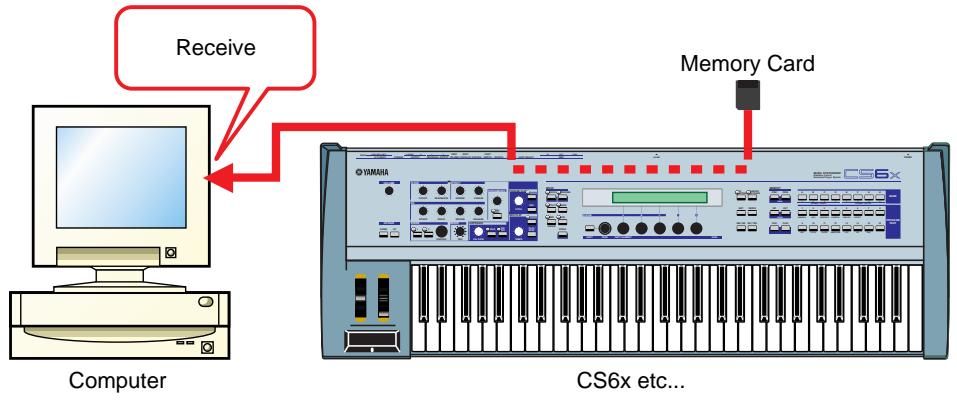
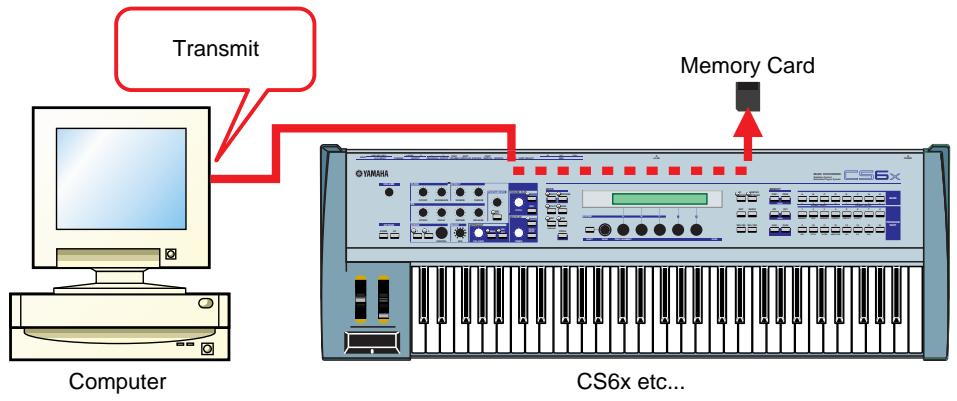
With the Card Filer, you can receive and transmit data between your computer and your MIDI instrument. You can also use it to manage the files stored on your MIDI instrument's Memory Card via your computer. The card file can perform the following four functions.
Receive MIDI instrument Data
You can save your MIDI instrument's Memory Card data on your computer (Page 8).
Transmit MIDI instrument Data
You can transmit data from your computer to your MIDI instrument's Memory Card (Page 9).
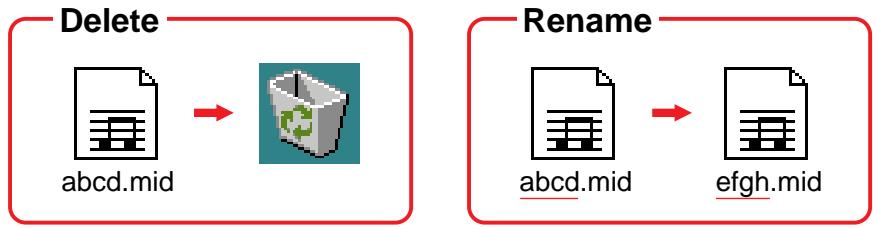
Manage Files on Memory Card
You can delete and rename files/folders on your MIDI instrument's Memory Card using your computer (Page 11).
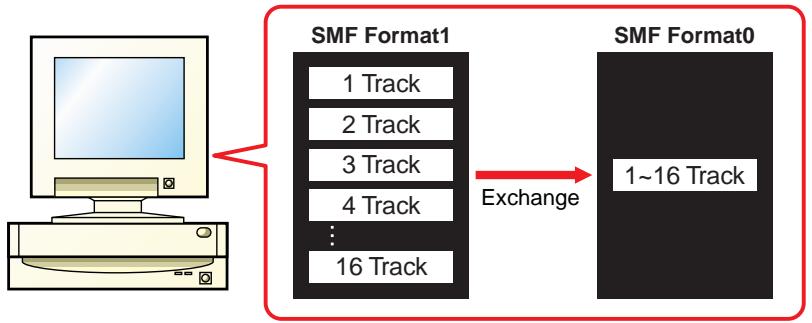
SMF Format Conversion
You can convert Standard MIDI Files on your computer from Format 1 to Format 0 so that they can be played back on your MIDI instrument (Page 13).
Starting the Card Filer
5 NOTE You will get an error message if your computer's MIDI driver has not been properly installed or if your computer and MIDI instrument are not interconnected correctly. For details about Error Messages, see page 15.
Once you have connected your MIDI instrument to your computer and installed the Card Filer software, you are ready to start using the Card Filer.
On Windows
Click [Start], go to Program Files YAMAHA Card FileroCard Filero and click the "Card Filero" icon.
On Macintosh
5 NOTE If you are using the Card Filer on a Macintosh computer, open the "Chooser" from the Apple menu and turn off "Apple Talk."
Open the "YAMAHA Card Filer" folder and double-click the "Card Filer" icon.
Top display
When you start the Card Filer, the "top display" will appear as shown below.
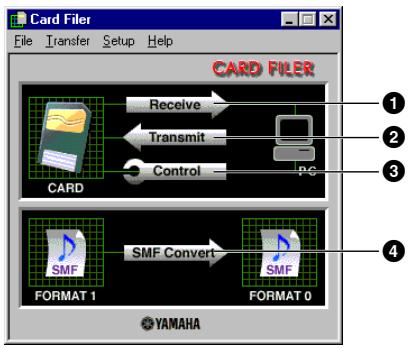
1 Opens the "Receive" window where you can transfer data from your MIDI instrument's Memory Card to your computer, then save it.
Opens the "Transmit" window where you can transfer data from your computer to your MIDI instrument.
Opens the "Control" window where you can delete and rename files/folders on your MIDI instrument.
4 Opens the "SMF Convert" window where you can convert SMF files on your computer from Format 1 to Format 0.
Menu Bar
File

Transfer

Setup
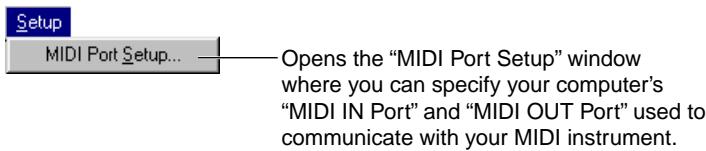
Help

MIDI Device Setup
You will need to specify the MIDI device drivers through which your computer will communicate with your MIDI instrument. Follow the procedure below.
NOTE If you are using a Macintosh, refer to the section "OMS Settings" on page 6.
MIDI Port Setup (Windows)
1. Select "MIDI Port Setup" from the "Setup" menu.
The "MIDI Port Setup" dialog box is displayed.
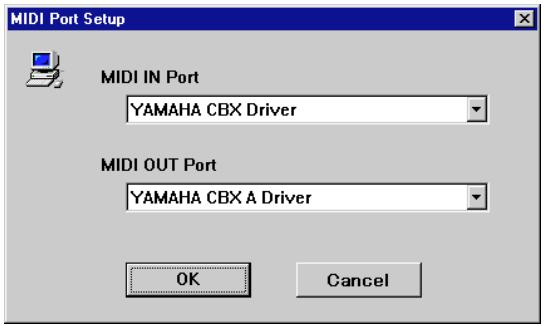
2. Click on each of the “▼” buttons for the “MIDI IN Port” or “MIDI OUT Port”, select the MIDI driver from the drop-down list that is displayed.
- If the MIDI instrument's TO HOST terminal is connected directly to the computer's serial port. Select the "Yamaha CBX Driver" for the "MIDI IN Port", and the "Yamaha CBX A Driver" for the "MIDI OUT Port".
- If the MIDI instrument's MIDI ports are connected to the computer via a MIDI interface. For both the "MIDI IN Port" and "MIDI OUT Port", select the MIDI driver that is compatible with the MIDI interface you are using.
NOTE For information about how to install YAMAHA CBX Driver, refer to the README file in the "Mididrv" folder of the included CD-ROM.
3. Click [OK].
OMS Settings (Macintosh)
The Card Filer software uses OMS (Open Music System) for MIDI input/output. To use the Card Filer software, OMS must be installed beforehand.
5 NOTE For information about installing OMS, refer to the separate Installation Manual.
About OMS
Card Filer uses the OMS (Open Music System) to transfer MIDI data to an external MIDI device. OMS is a system extension that goes in the Mac OS System folder, designed to manage the MIDI data stream (input & output) in a computer, to enable MIDI data transfer between MIDI software and hardware attached to the computer. OMS is a de facto standard of the MIDI environment under the Mac OS, and various music software manufacturers have released OMS-compatible sequencer and other software.
OMS has the following merits:
- As OMS-compatible MIDI applications communicate with various MIDI devices via OMS, it is no longer necessary for you to set up multiple MIDI drivers for those applications. Thus, you can avoid conflicts between different drivers with the same purpose (MIDI control).
- Once a Studio Setup is read in OMS, any OMS-compatible application will be aware of it, even if you need to reconfigure the routing of the MIDl data stream or change the current Studio Setup. OMS-compatible applications will commonly recognize the new configuration.
- You can have different Studio Setups to choose one from, to switch to a different MIDI routing (patches between MIDI devices and software) fast and easily.
- Every time the OMS Setup application is opened, any MIDI device connected to the computer is automatically detected, and its icon appears with a current MIDI status (channel number, port number, patches, etc.). Once devices are configured with OMS Setup, however, you need not care too much about the status.
- OMS can drive various MIDI interfaces, including the standard type (16 channels) and the multi-port type (16 channels per port). If you use a multi-port type, you can control over 16 channels simultaneously via OMS.
5 NOTE For more information about OMS features, see the READ ME file included with OMS.
Setting up OMS
Setup files for the CS6x, CS6R etc., have already been created for use with the Card Filer; please use the appropriate file for your device. The following example is for the CS6x.
- First, interconnect the "TO HOST" terminal of the CS6x and the Macintosh serial port, then set the "Host Select" switch of the CS6x to "Mac."
- Double-click the "OMS Setup" icon in the "OMS Application" folder.
- Choose "Open" from the "File" menu and select "CS6x-Modem" from within the "OMS setup for YAMAHA" folder.
NOTE If you are using a computer with no modem port (such as the Performa series), look in the "CS6x-Printer" folder instead.
4. Choose "Make Current" from the "File" menu. The setup for your CS6x is now saved as the current studio setup.
5. Choose "Quit" from the "File" menu to close OMS Setup.
5 NOTE The Card Filer is not compatible with versions of OMS earlier than 2.0.
OMS Port Setup
Having set up OMS, you now need to start up the Card Filer and set the OMS ports.
- First, start up the Card Filer by double-clicking its icon.
NOTE If AppleTalk is enabled, you will get an alert message. Click "OFF." It will take some time for AppleTalk to be disabled.
2. Choose "OMS Port Setup" from the Card Filer's "Setup" menu, then select the port settings. In the following example, the tone generator is a CS6x and its settings are applied to OMS.
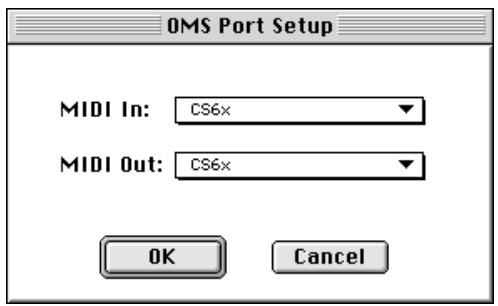
MIDI In
Select "CS6x."
MIDI Out
Select "CS6x."
- Click [OK] to close OMS Port Setup.
Receiving Files
You can save on your MIDI instrument's Memory Card data on your computer.
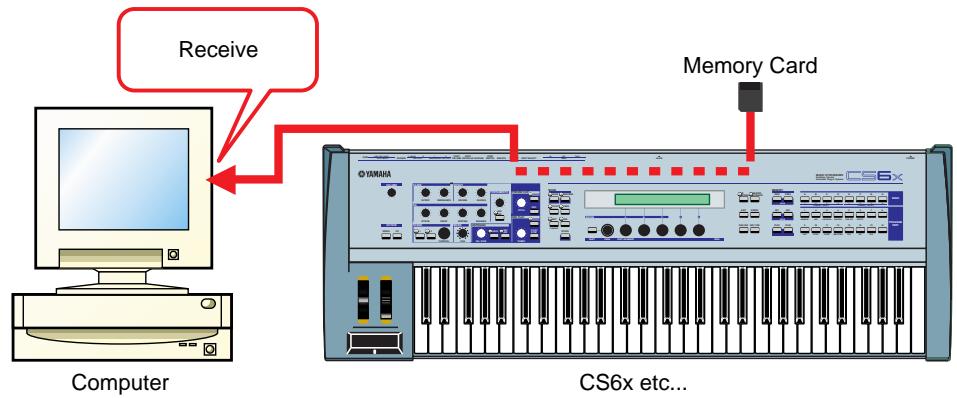
5 NOTE You do not need to perform a bulk dump from your MIDI instrument.