
ROG XONAR PHOEBUS - Carte son ASUS - Notice d'utilisation et mode d'emploi gratuit
Retrouvez gratuitement la notice de l'appareil ROG XONAR PHOEBUS ASUS au format PDF.

| Type de produit | Carte son interne PCI Express |
| Marque | ASUS |
| Modèle | ROG XONAR PHOEBUS |
| Processeur audio | ASUS CM8888 HDT (jusqu'à 192 kHz / 24 bits) |
| Convertisseur numérique-analogique (DAC) | Texas Instruments PCM1796 (avant), Cirrus Logic CS4362A (autres canaux) |
| Amplificateur casque | Texas Instruments TPA6120A2 (jusqu'à 600 ohms, 6,8 Vrms) |
| Convertisseur analogique-numérique (ADC) | Cirrus Logic CS5381 |
| Rapport signal/bruit (SNR) sortie ligne avant | 118 dB (A pondéré) |
| Rapport signal/bruit (SNR) entrée ligne | 118 dB (A pondéré) |
| Distorsion harmonique totale + bruit (THD+N) sortie ligne avant | 0,00039 % (-108 dB) |
| Réponse en fréquence | < 10 Hz - 46 kHz (à -3 dB, 24 bits / 96 kHz) |
| Canaux audio | 7.1 canaux |
| Connecteurs externes | Sortie casque (3,5 mm), entrée micro (3,5 mm), entrée ligne (3,5 mm), sorties avant/centrée/caisson/arrière/latérale, S/PDIF optique Toslink |
| Connecteurs internes | Entrée auxiliaire (4 broches), sortie S/PDIF (en-tête), alimentation 6 broches PCIe |
| Interface bus | PCI Express x1 (compatible x4, x8, x16) |
| Alimentation | Via connecteur 6 broches de l'alimentation PCIe (en complément du bus PCIe) |
| Technologies audio | Dolby Digital Live, Dolby Headphone, Dolby Virtual Speaker, Dolby Pro-Logic IIx, GX 3.0 (EAX), ASIO 2.0, Xear Surround, Flex Bass II, Xear SingFX |
| Logiciel de contrôle | Xonar Audio Center (égaliseur 10 bandes, effets d'environnement, gestion des profils) |
| Compatibilité système d'exploitation | Windows Vista / 7 / XP (32/64 bits), MCE2005 |
| Dimensions (approx.) | 17,5 x 10,5 cm (carte standard PCIe) |
| Poids (approx.) | 200 g |
| Entretien et nettoyage | Dépoussiérer avec un chiffon sec et doux. Éviter l'humidité et les solvants. |
| Sécurité | Décharger l'électricité statique avant manipulation. Brancher l'alimentation 6 broches avant utilisation. |
| Pièces détachées et réparabilité | Non réparable par l'utilisateur. Contacter le support ASUS pour toute pièce ou réparation. |
FOIRE AUX QUESTIONS - ROG XONAR PHOEBUS ASUS
Questions des utilisateurs sur ROG XONAR PHOEBUS ASUS
0 question sur cet appareil. Repondez a celles que vous connaissez ou posez la votre.
Poser une nouvelle question sur cet appareil
Téléchargez la notice de votre Carte son au format PDF gratuitement ! Retrouvez votre notice ROG XONAR PHOEBUS - ASUS et reprennez votre appareil électronique en main. Sur cette page sont publiés tous les documents nécessaires à l'utilisation de votre appareil ROG XONAR PHOEBUS de la marque ASUS.
MODE D'EMPLOI ROG XONAR PHOEBUS ASUS
1. Introduction
1.1 Contenu du paquet
• Carte audio PCI Express 7.1 canaux Xonar™ Phoebus • Boîtier de contrôle Phoebus - CD de pilotes • Adaptateur optique S/PDIF TOSLINK x1 • Câble d'alimentation ATX 4P vers 6P x1 - Guide de démarrage rapide
1.2 Configuration système requise
• Un emplacement PCI Express 1.0 (ou supérieur) compatible pour la carte audio - Connecteur de câble d'alimentation périphérique à 6 broches provenant de l'alimentation de votre ordinateur • Microsoft® Windows® Vista/Win 7 (32/64 bits) / XP (32/64 bits) / MCE2005 - Processeur Intel® Pentium® 4 1,4 GHz ou AMD Athlon 1400 ou plus rapide • Plus de 256 Mo de mémoire système • Plus de 60 Mo d'espace de stockage disponible pour l'installation des pilotes • Lecteur de CD-ROM (ou DVD-ROM) pour l'installation du logiciel - Casque haute qualité, haut-parleurs analogiques amplifiés ou décodeur Dolby Digital pour profiter de la haute fidélité de la carte audio
1.3 Spécifications générales
| Items | Description |
| Audio Performance | |
| Output Signal-to-Noise Ratio (A-Weighted) | 118dB for Front channel of Line-out112dB for other channels of Line-out110dB for Headphone-out with 600ohm load |
| Input Signal-to-Noise Ratio (A-Weighted): | 118dB |
| Output Total Harmonic Distortion + Noise at 1kHz (-3dB) : | 0.00039% (-108dB) for Front channel of Line-out0.00063% (-102dB) for other channels of Line-out0.0019% (-94dB) for Headphone-out with 600ohm load |
| Input Total Harmonic Distortion + Noise at 1kHz (-3dB) : | 0.0003% (-110dB) for Line-in |
| Frequency Response (-3dB, 24-bit/96kHz format): | < 10Hz to 46KHz |
| Output / Input Full-Scale Voltage | 2 Vrms (5.65 Vp-p) |
| Headphone Output Full-Scale Voltage | Up to 6.8 Vrms (supports headphones with up to 600ohms impedance) |
| Bus Compatibility | |
| PCI Express | - PCI Express Rev.1.0a specification compatible- Max. full 2.5Gbps bandwidth per direction and optimized latency for high-definition audio processing- Compatible with x1, x4, x8, x16 PCI Express slots |
| Main Chipset | |
| Audio Processor | ASUS CM8888 HDT High-Definition Sound Processor (Max. 192KHz / 24bit) |
| 24-bit D-A Converter of Digital Sources | Texas Instruments PCM1796 * 1 for Front-Out (123dB SNR, Max. 192kHz/24bit)Cirrus-Logic CS4362A * 1 for other 6 channels (114dB SNR, Max. 192kHz/24bit) |
| High Fidelity Headphone Amplifier | Texas Instruments 6120A2*1 (120dB SNR, -117dB THD+N @ Vcc±12V, RL=600Ω, f=1kHz) |
| 24-bit A-D Converter for Analog Inputs | Cirrus-Logic CS5381* 1 (120dB SNR, Max. 192kHz/24bit) |
| Sample Rate and Resolution | |
| Analog Playback Sample Rate and Resolution | 44.1K/48K/88.2K/96K/176.4K/192KHz @ 16/24bit |
| Analog Recording Sample Rate and Resolution | 44.1K/48K/88.2K/96K/176.4K/192KHz @ 16/24bit |
| S/PDIF Digital Output | 44.1K/48K/88.2K/96K/176.4K/192KHz @ 16/24bit, Dolby Digital |
(suite à la page suivante)
| Items | Description |
| I/O Ports | |
| Analog Output Jack | 3.5mm jack * 1 (Headphone out) |
| Analog Input Jack | 3.5mm jack * 1 (Shared by Line-In / Mic-In) |
| Digital S/PDIF Output | High-bandwidth TOS-Link combo port supports 192KHz/24bit |
| Other line-level analog input (for TV Tuner or CD-ROM): | Aux-In (4-pin header on the card) |
| Driver Features | |
| Operation System | Windows Vista / Win 7(32/64bit) / XP(32/64bit) / MCE2005 |
| Dolby® Digital Live | Dolby Digital Live encodes any audio signal on PC in real-time to Dolby Digital (AC3) 5.1 surround sounds to your home theater environment through one single S/PDIF connection |
| Dolby® Headphone | Dolby Headphone technology allows users to listen to music, watch movies, or play games with the dramatic 5.1-channel surround or realistic 3D spacious effects through any set of stereo headphones. |
| Dolby® Virtual Speaker | Dolby Virtual Speaker technology simulates a highly realistic 5.1-speaker surround sound listening environment from as few as two speakers. |
| Dolby® Pro-Logic IIxx | Dolby Pro-Logic IIx is the well-known technology to process any native stereo or 5.1-channel audio into a 7.1-channel output, creating a seamless, natural surround soundfield. |
| DirectSound3D Game EXtensions 3.0 | GX 3.0 supports EAX gaming sound effects and DirectSound 3D hardware enhanced functions for more games on Windows Vista/Win 7 & XP. (DirectX/ DirectSound 3D compatible) |
| Smart Volume NormalizerTM | Normalizes the volume of all audio sources into a constant level and also enhances your 3D sound listening range and advantages in gaming |
| FlexBassTM | Professional Bass Management / Enhancement system |
| Xear 3DTM Virtual Speaker Shifter | Virtual 7.1 speaker positioning |
| Other Effects | 10-band Equalier / 27 Environment Effects |
| ASIO 2.0 Driver Support: | Supports 44.1K/48K/88.2K/96K/176.4K/192KHz @16/24bit with very low latency |
2. À propos du matériel
2.1 Carte de traitement audio Xonar Phoebus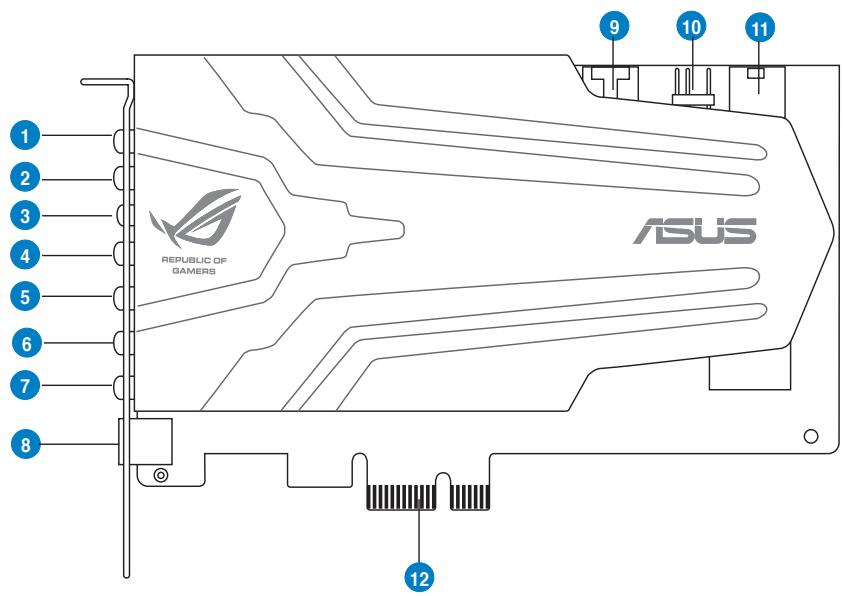
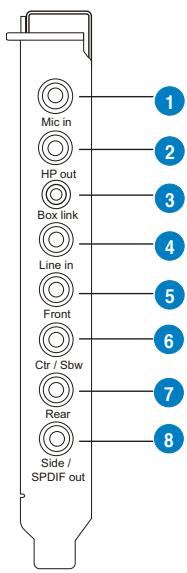
| No | Item | Description |
| 1 | Microphone Input Port | Connect your external PC microphone to this 3.5mm jack for voice input. Built-in high-quality Microphone pre-amplifier. |
| 2 | Headphone Output Port | Connect your headphones to this jack. |
| 3 | Box Link | Connect the Xonar Phoebus Control Box to this 2.5mm port. |
| 4 | Line Input Port | Connect analog devices like MP3 players, CD players, music synthesizers, and other line-level sound sources to this 3.5mm jack for audio recording or processing. |
| 5 | Front Output Port | For 2 channel speaker systems, connects to the front left / right input on the powered speakers. |
| 6 | Center/Subwoofer Out Port | Connect to the center / subwoofer input on 5.1/7.1 powered analog speakers. |
| 7 | Rear Output Port | Connect to the back surround input on 7.1 powered analog speakers. |
| 8 | S/PDIF Output / Side Out port | Digital output jack. Connect to an external digital decoder or digital speaker systems, Home Theater systems, AV receivers for outputting digital audio including PCM, Dolby Digital, DTS, WMA-Pro, etc. Connect to the surround channel input on 5.1 powered analog speakers. |
| 9 | Aux Input Header | 4-pin header. Usually connects to the Analog Audio output of TV tuner card or other sound source inside your PC system. (To monitor your TV tuner card's audio from this Aux-In, you must enable the “monitor” function for Aux-In in the Xonar Audio Center software's recording mixer.) |
| 10 | S/PDIF Out Header | Connects to the graphics card with HDMI support. |
| 11 | Power connector | Connects to the 6-pin power cable of your power supply unit. |
| 12 | PCI Express Bus Golden Fingers | Inserts into the PCI Express slot on your motherboard. |
3. Installation du matériel Xonar
3.1 Préparation de votre ordinateur

Avant de procéder aux étapes d'installation suivantes, il est recommandé de désactiver votre périphérique audio intégré dans les paramètres du BIOS, ou de désinstaller toute autre carte son de votre PC. (Pour les paramètres du BIOS ou la désinstallation d'autres cartes son, reportez-vous aux manuels de votre carte mère et de votre carte son)
- Éteignez l'ordinateur, le moniteur et tous les autres périphériques connectés à votre ordinateur.
- Débranchez le cordon d'alimentation de l'ordinateur de votre ordinateur et de la prise de courant.
- Touchez le panneau arrière ou latéral en métal de l'ordinateur pour éviter l'électricité statique.
- Retirez le capot du châssis.
- Retirez le support métallique d'un emplacement PCIE disponible pour la carte audio Xonar Phoebus.
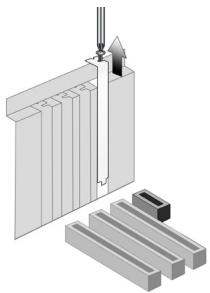
3.2 Installation de la carte de traitement audio
- Orientez le support de la carte audio Xonar Phoebus vers le panneau arrière de votre ordinateur et insérez doucement la carte audio dans un emplacement PCI Express disponible. Assurez-vous qu'elle est complètement insérée dans l'emplacement PCI Express. (Avertissement ! Ne forcez pas la carte audio dans l'emplacement. Assurez-vous que les broches dorées du connecteur PCI Express de la carte sont alignées avec le connecteur PCI Express de la carte mère avant d'insérer la carte dans l'emplacement PCI Express. Si elle ne s'insère pas correctement, retirez-la doucement et réessayez.)
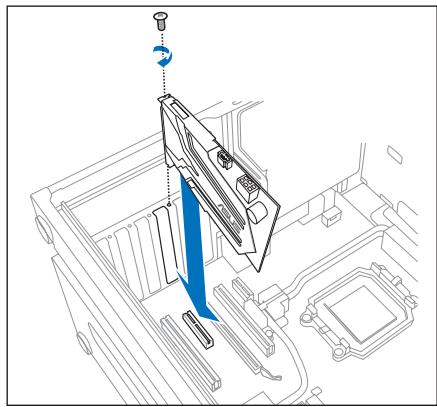
- Fixez le support de la carte audio à l'arrière de votre ordinateur avec la vis que vous avez retirée. Reportez-vous à la section 3.1.
- Connectez le câble d'alimentation de votre alimentation au connecteur d'alimentation de la carte audio Xonar Phoebus.
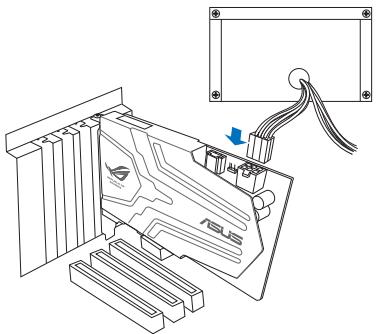

La carte audio haute qualité PCI Express nécessite une alimentation supplémentaire de votre ordinateur. Si le câble d'alimentation n'est pas connecté correctement, la carte audio ne fonctionnera pas du tout.
3.3 Connexion de la carte tuner TV
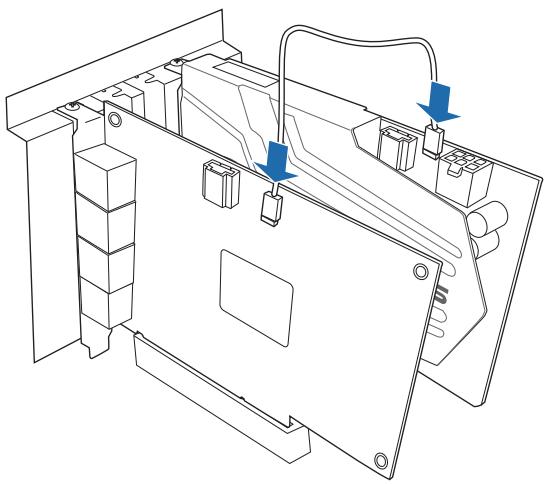
Si vous avez une carte tuner TV traditionnelle PCI ou PCI Express sur votre PC, vous devrez peut-être la connecter à la carte audio pour envoyer le son du tuner à vos haut-parleurs PC.
- Fixez la carte tuner TV PCI/PCI Express et vissez-la dans le panneau arrière.
- Connectez la sortie audio du tuner TV à l'entrée Aux-In de la carte audio, comme indiqué dans la figure ci-dessous.

Pour une qualité audio TV optimale, Xonar utilise l'enregistrement ADC pour numériser le signal et le renvoyer en lecture DAC. Veuillez sélectionner Aux-In comme source d'enregistrement dans le mélangeur d'enregistrement du Xonar Audio Center et activez le bouton de surveillance pour transmettre ce signal à la sortie audio. Avec cette configuration, vous pouvez même activer des effets sonores tels que Pro-Logic IIx pour étendre l'audio TV stéréo en son surround 5.1 ou 7.1 canaux. L'audio TV sur votre PC deviendra encore meilleur que sur votre téléviseur !
4. Installation du logiciel
4.1 Installation du pilote de la carte audio
- Après avoir installé votre carte audio, allumez votre ordinateur. Windows détecte automatiquement votre carte audio et recherche les pilotes de périphérique. Lorsque vous êtes invité à fournir les pilotes audio, cliquez sur Annuler.
- Insérez le CD de support dans le lecteur optique. Si le mode AutoPlay de Windows® est activé sur votre système, l'installation démarre automatiquement. Sinon, double-cliquez sur setup.exe depuis votre CD de support.
- Suivez les instructions à l'écran pour terminer l'installation.

La version et le contenu du CD de support sont sujets à modification sans préavis.
4.2 Désinstallation ou réinstallation du logiciel
4.2.1 Désinstallation du logiciel
- Cliquez sur Démarrer -> Paramètres -> Panneau de configuration.
- Double-cliquez sur l'icône Ajout/Suppression de programmes.
- Cliquez sur le bouton Modifier ou supprimer des programmes.
- Sélectionnez chaque programme que vous souhaitez supprimer, puis cliquez sur le bouton Ajouter/Supprimer (ou Modifier/Supprimer).
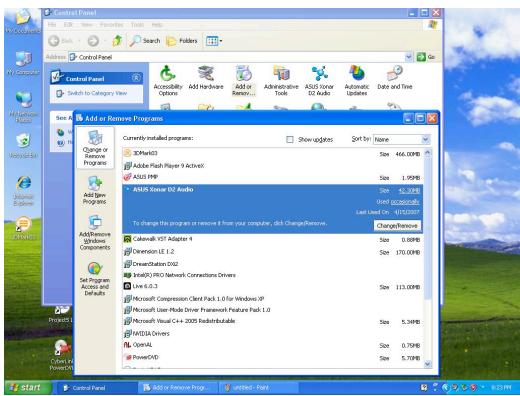
- Dans la boîte de dialogue de l'assistant InstallShield, sélectionnez l'option Supprimer.
- Redémarrez votre ordinateur lorsque vous y êtes invité.
4.2.2 Réinstallation du logiciel
Pour réinstaller le pilote de la carte Xonar Phoebus :
- Avant de réinstaller un logiciel, il est recommandé de désinstaller le logiciel existant.
- Après avoir terminé la désinstallation du logiciel, suivez à nouveau le processus d'installation pour réinstaller le même logiciel ou une version mise à jour.
5. Connexion des haut-parleurs et des périphériques
5.1 Connexion à la boîte de contrôle Phoebus
5.1.1 Connexion de la boîte Phoebus
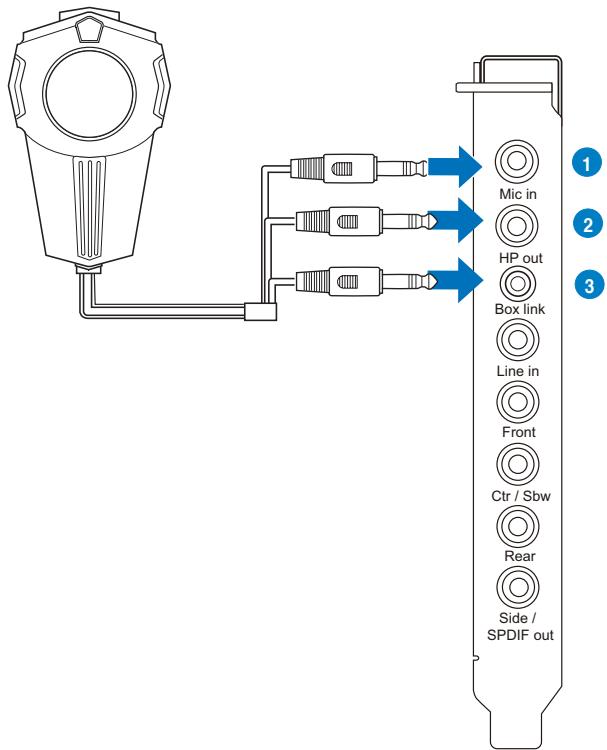
| No | Item | Description |
| 1 | Microphone Input Port | Connect the microphone's 3.5mm plug from the Phoebus Control Box into this Mic-In port for voice communication, recording or karaoke. |
| 2 | Headphone Port | The headphone port has a built-in high-quality amplifier to drive headphones. Connect the Phoebus Control box directly to this port. |
| 3 | Box Link Port | Connect the Phoebus Control box directly to this port. |
5.1.2 Connexion de la boîte Phoebus avec un casque et un microphone externes
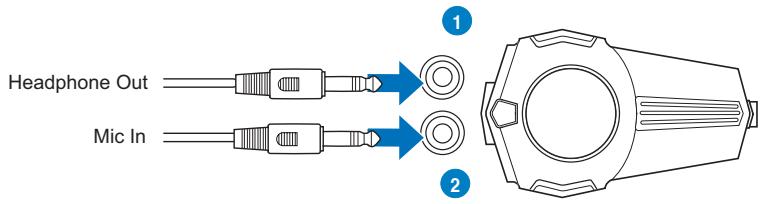
| No | Item | Description |
| 1 | Headphone Port | Connect headphone to headphone port on Phoebus Control box |
| 2 | Microphone Input Port | Connect microphone's 3.5mm plug to Phoebus Control Box Mic-In port. |
5.2 Connexion de systèmes de haut-parleurs numériques (home cinéma)
La Xonar Phoebus permet la lecture via votre système home cinéma, offrant une expérience sonore surround impressionnante. Une seule connexion par câble numérique peut transmettre un son numérique de haute qualité depuis n'importe quelle source audio de votre PC vers des haut-parleurs numériques ou des récepteurs AV.
![graph TD A["Speaker"] --> B["Front Left"] A --> C["Central"] A --> D["Subwoofer"] A --> E["Rb Surround"] A --> F["Lb Surround"] A --> G["Rs Surround"] H["Decoder Box"] --> I["Amplifier"] J["SpaDIF / Side"] --> K["1"] L["Mic In"] --> K M["Headphone Ou"] --> K N["Box Link"] --> K O["Line In"] --> K P[…](/content/2025/12/114127/images/8f52e2e7b457dba05c366535614b36d33f2151e539974181394b216b1f3e131f.jpg)
| No | Item | Description |
| 1 | Optical adapter | Plug the optical TOSLINK adapter into the S/PDIF-Out connector. |
| 2 | Optical cable | Connect your decoder's S/PDIF-In port to the optical adapter with the TOSLINK optical cable. |
5.3 Connexion de casques stéréo
5.3.1 Connexion de casques stéréo
Connexion de casques stéréo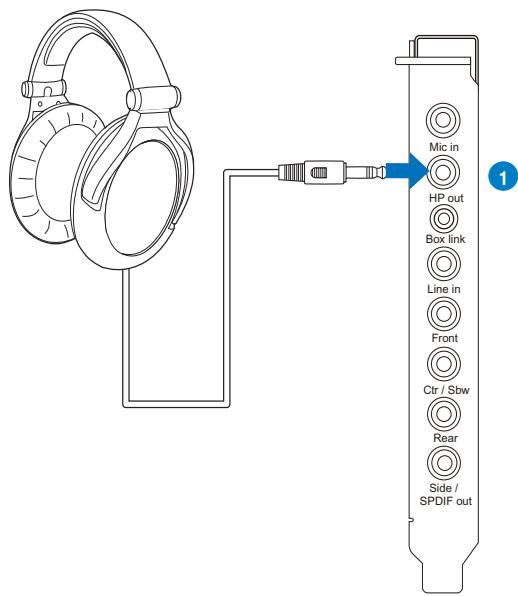
| No | Item | Description |
| 1 | Headphone Out Port | The Headphone Out Port has a built-in high-quality amplifier to drive headphones. Please connect your stereo headphones directly to this jack. |
Connexion de casques 5.1 canaux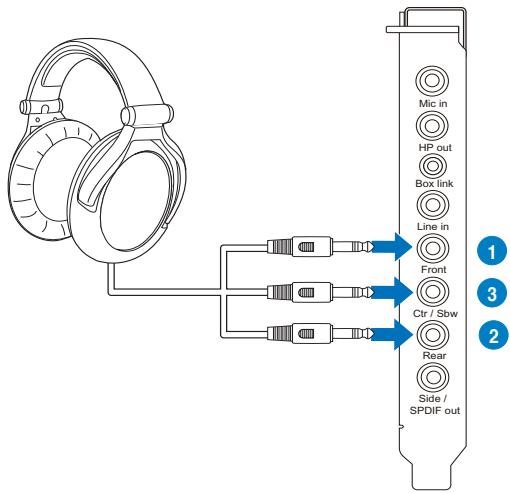
| No | Item | Description |
| 1 | Front Out | Connect the front-channel 3.5mm plug of your 5.1 headphones into this jack. |
| 2 | Back Surround Out | Connects to the Back Surround input port with the mini-jack cable. |
| 3 | Center/Subwoofer Out | Connect the Center/Bass-channel 3.5mm plug of your 5.1 headphone into this jack. |
5.4 Connexion de systèmes de haut-parleurs analogiques
5.4.1 Connexion d'un amplificateur de puissance analogique
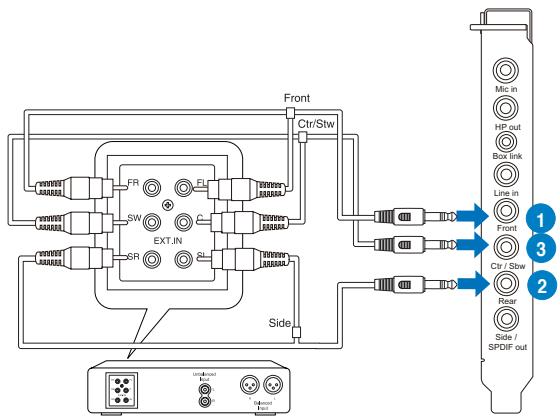
| No | Item | Description |
| 1 | Front Out | Connects to the “left front” and “right front” input ports of the analog amplifier with the mini-jack to RCA cable. |
| 2 | Back Surround Out | Connects to the Back Surround input port with the mini-jack cable. |
| 3 | Center/Subwoofer | Connects to the “Center” and “subwoofer” input ports of the analog amplifier with the mini-jack to RCA cable. |
5.4.2 Connexion de haut-parleurs 2/2.1 canaux
2 haut-parleurs![graph TD A["Audio INPUTS"] --> B["Microphone"] A --> C["Microphone with USB cable"] B --> D["CD/SPDIF out"] C --> D E["Line in"] --> D F["Front"] --> D G["Rear"] --> D H["Box Link"] --> D I["Mic in"] --> D J["HP o"] --> D K["Line in"] --> D](/content/2025/12/114127/images/288cb3c180f417d880e0f876713e6d61d24ee16d736ef6ea4bf28391e0f72eb7.jpg)
| No | Item | Description |
| 1 | Front Out Port | Connect the 2 channel speaker set's 3.5mm plug into this Front Out jack. |
4 haut-parleurs![graph TD A["Audio INPUTS Side"] --> B["Audio INPUTS Front"] C["Audio INPUTS Side"] --> D["Audio INPUTS Front"] E["Audio INPUTS Side"] --> F["Audio INPUTS Front"] G["Audio INPUTS Side"] --> H["Audio INPUTS Front"] I["Audio INPUTS Side"] --> J["Audio INPUTS Front"] K["Audio INPUTS Side"] --> L["Audio…](/content/2025/12/114127/images/c3106a1fcc452d9411c09a1b2fc8b3e015e9b66225d420e446996e855ec269e3.jpg)
| No | Item | Description |
| 1 | Front Out | Connects to the Front input port of the 4/4.1 speakers with the mini-jack cable. |
| 2 | Back Surround Out | Connects to the Back Surround input port with the mini-jack cable. |
Haut-parleurs 5.1![graph TD A["Audio Inputs"] --> B["Front"] A --> C["Side"] A --> D["Center/ Subwoofer"] B --> E["Output 1: Mic in"] C --> F["Output 2: HP out"] D --> G["Output 3: Box link"] D --> H["Output 4: Line in"] D --> I["Output 5: Front"] D --> J["Output 6: Ctr / Sbw"] D --> K["Output 7: Rear"] D --> L["Outpu…](/content/2025/12/114127/images/04006d0027f6dac2d133779e979e35617c5bb37bb1a439397b5dbcb686a4060d.jpg)
| No | Item | Description |
| 1 | Front Out | Connects to the Front input port of the 5.1 speakers with the mini-jack cable. |
| 2 | Back Surround Out | Connects to the Back Surround input port with the mini-jack cable. |
| 3 | Center/Subwoofer | Connects to the Center/Subwoofer input port of the 5.1 speakers with the mini-jack cable.. |
Connexion de haut-parleurs 7.1 canaux
Haut-parleurs 7.1
![graph TD A["Input"] --> B["AUDIO INPUTS"] B --> C["Side"] C --> D["Audio INPUTS"] D --> E["Front"] E --> F["Subwoofer"] F --> G["Center/"] G --> H["Audio INPUTS"] H --> I["Side"] I --> J["Audio INPUTS"] J --> K["Back to Audio Input"] K --> L["Output 1: Mic in"] K --> M["Output 2: HP out"] K --> N["O…](/content/2025/12/114127/images/c3464ca4131294e95fec5680664ee4c0be496447c9885fbdd63c089c1d23d258.jpg)
| No | Item | Description |
| 1 | Front Out | Connects to the Front input port of the 7.1 speakers with the mini-jack cable. |
| 2 | Side Surround Out | Connects to the Surround input port of the 7.1 speakers with the mini-jack cable. |
| 3 | Back Surround Out | Connects to the Back Surround input port of the 7.1 speakers with the mini-jack cable. |
| 4 | Center/Subwoofer | Connects to the Center/Subwoofer input port of the 7.1 speakers with the mini-jack cable. |
5.5 Connexion du microphone
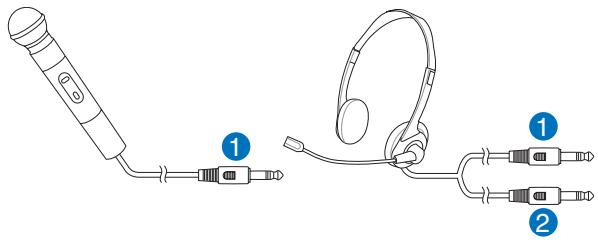
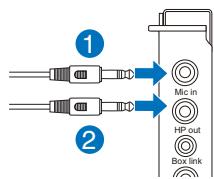
| No | Item | Description |
| 1 | Microphone Input Port | Connect the microphone’s 3.5mm plug into this Mic-In port for voice communication, recording, or karaoke. |
| 2 | Headphone Port | The headphone port has a built-in high-quality amplifier to drive headphones. Connect your stereo headphones directly to this jack. |
5.6 Connexion de sources audio Line-In
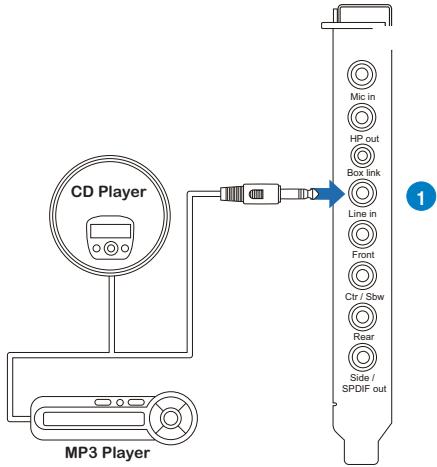
| No | Item | Description |
| 1 | Line Input Jack | Connect the 3.5mm plug of the CD/MP3 Player or any other Line level analog audio sources into this Line-In jack for sound recording. |
6. Guide du pilote Xonar Phoebus
6.1 Introduction à l'interface graphique du centre audio Xonar Phoebus
- Après avoir terminé l'installation du pilote et redémarré votre ordinateur, vous trouverez l'icône du centre audio Xonar Phoebus dans la barre d'état système en bas à droite de l'écran. Double-cliquez sur cette icône pour ouvrir l'utilitaire Xonar Audio Center.


Si l'icône est introuvable dans la barre d'état système, accédez au Panneau de configuration Windows et double-cliquez sur l'icône "Xonar Phoebus Audio Center".
6.1.1 Menu contextuel des fonctions
Xear Audio Center propose plusieurs effets sonores. Il existe un menu contextuel pour chaque périphérique de sortie / entrée et vous pouvez accéder à la page des effets sonores pour profiter de la musique, des films et des jeux.
Pour ouvrir le menu contextuel :
- Double-cliquez sur le bouton gauche de la souris sur l'icône du périphérique.
- Cliquez avec le bouton gauche de la souris sur l'icône du périphérique.
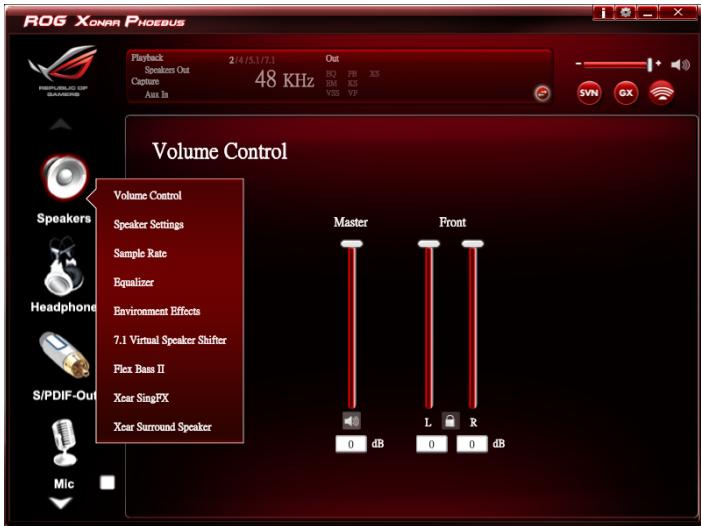
6.1.2 Panneau d'état audio
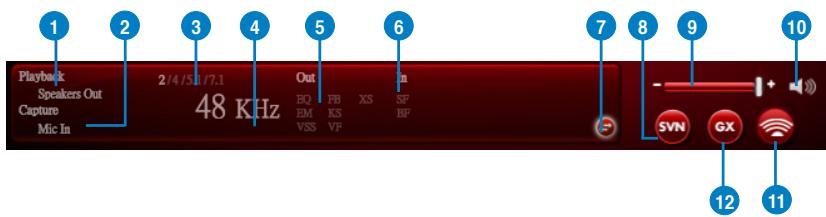
| No | Item | Description |
| 1 | Playback (Speaker Out) | Indicates the output default device. |
| 2 | Capture (Mic In) | Indicates the input default device. |
| 3 | Speaker Numbers | Indicates the speaker numbers for Speaker device only. |
| 4 | Sample Rate | Indicates the sample rate of playback sources. |
| 5 | Audio Output effect indicator | Indicates the playback sound effect status.Abbreviation of Sound effect:EQ: EqualizerEM: Environment EffectsVSS: 7.1 Virtual Speaker ShifterFB: Flex Bass IIKS: Xear SingFX for key shiftingVF: Xear SingFX for vocal fadingXS: Xear Surround |
| 6 | In effect indicator | Indicates the playback sound effect status.Abbreviation of Sound effect:SF: Xear SingFX for microphone echoSF: Xear SingFX for Magic Voice |
| 7 | Switch to Profile Panel button | Click to switch the status bar to the Profile panel. |
| 8 | Smart Volume Normalizer (SVN) (Vista / XP only) | Click to enable the SVN function. SVN is abbreviated from Smart Volume Normalization, which normalizes the volume of all audio sources into a constant level and also enhances your 3D sound listening range and advantages in gaming. |
| 9 | Volume Adjust | Click to increase or decrease volume. |
| 10 | Mute / Unmute | Click to mute or unmute a device. |
| 11 | SonarMax | Click to enable SonarMax with amplified 3D/2D sounds. |
| 12 | GX | Click to enable GX 2.0. |
6.1.3 Panneau de profil
Ce panneau de profil pour les effets sonores contient un mode prédéfini et un mode défini par l'utilisateur.
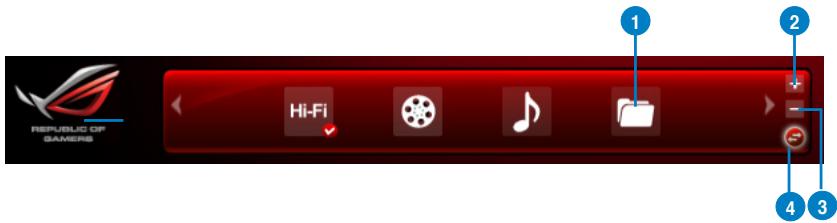
| No | Item | Description |
| 1 | Profile Mode | Click to select the presets in profile mode. |
| 2 | Add Profile | Adjust specific sound effects (EQ, EM etc...) settings and click “+” to create a user-defined mode. |
| 3 | Delete Profile | Click to delete a user-defined mode. |
| 4 | Switch Button | Click to switch between the Profile panel and Audio Status Panel. |
6.2 Introduction aux fonctions du haut-parleur
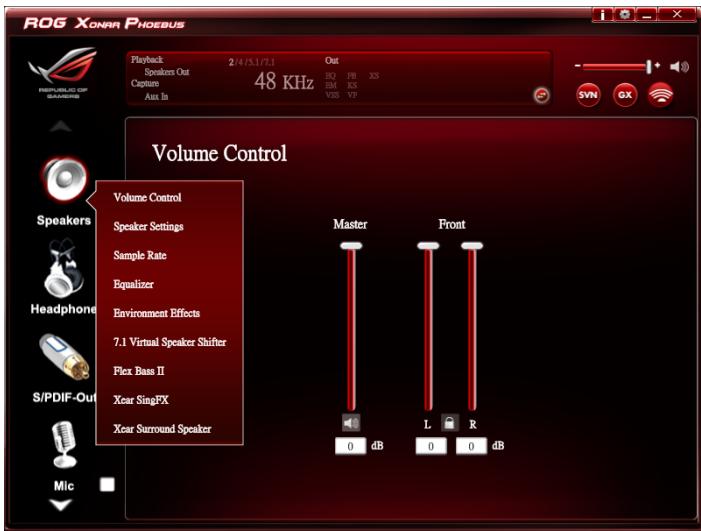

Cliquez sur l'icône du périphérique à droite pour ouvrir le menu contextuel.
6.2.1 Dolby® Home Theater (Windows® 7 uniquement)
Introduction aux fonctions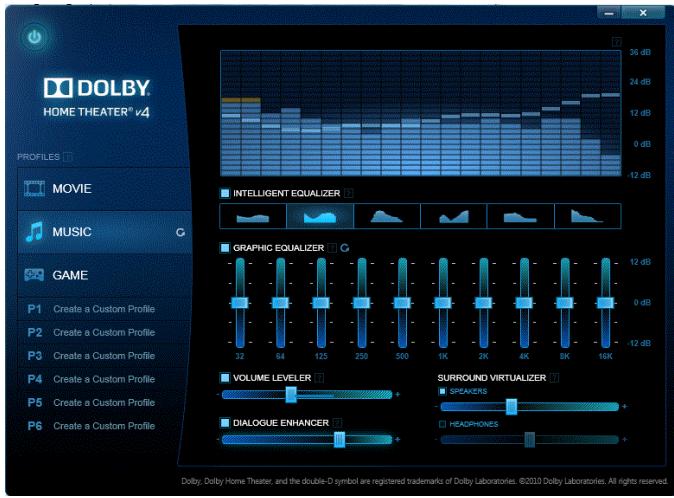

- Les éléments suivants seront remplacés par Dolby® Home Theater V4 sous le système d'exploitation Windows® 7.
- 7.1 Déplacement virtuel du haut-parleur
- Égaliseur à 10 bandes
- Reportez-vous au manuel officiel de Dolby pour les fonctions de Dolby® Home Theater V4.
6.2.2 Contrôle du volume
Introduction aux fonctions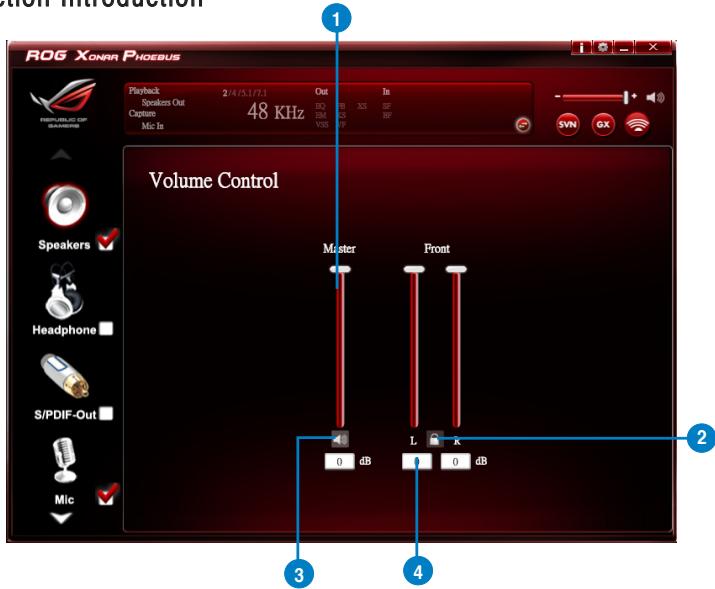
Cette fonction vous permet de contrôler le volume du haut-parleur.
| No | Item | Description |
| 1 | Volume Control bar | Master – Adjust the volume level for all channels. Front - Adjust the volume level for the front channel. |
| 2 | Left/ Right Channel Lock | Click to lock the left / right channel to sync L/R channel. |
| 3 | Mute / Un-mute | Click to mute or ummute all channels. |
| 4 | dB Input Area | Key in a dB value in this field to set the volume level. |
6.2.3 Réglage des enceintes
Présentation de la fonction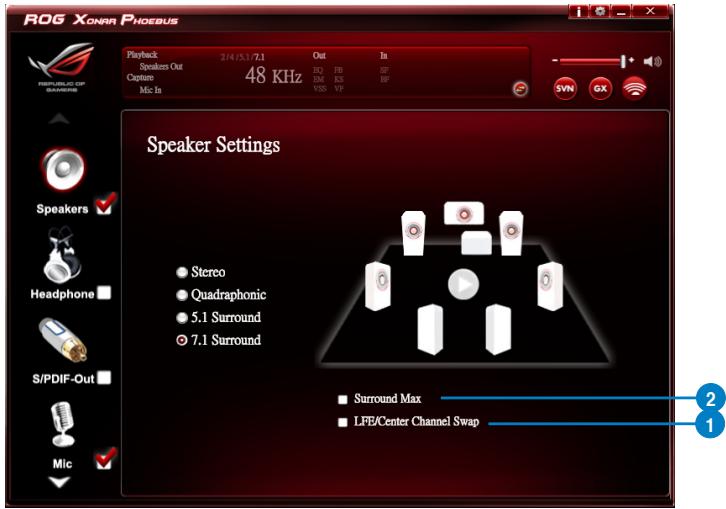
Cette fonction vous permet de définir le nombre d'enceintes (stéréo, quadriphonique, surround 5.1, surround 7.1).
| No | Item | Description |
| 1 | LFE / Center Channel Swap | When enabled, the function can swap the audio stream between Center/LFE. (Available for 5.1 and above) |
| 2 | Surround Max | When enabled, the function allows the stereo to have the benefits of multi-surround effects. |
6.2.4 Taux d'échantillonnage
Présentation de la fonction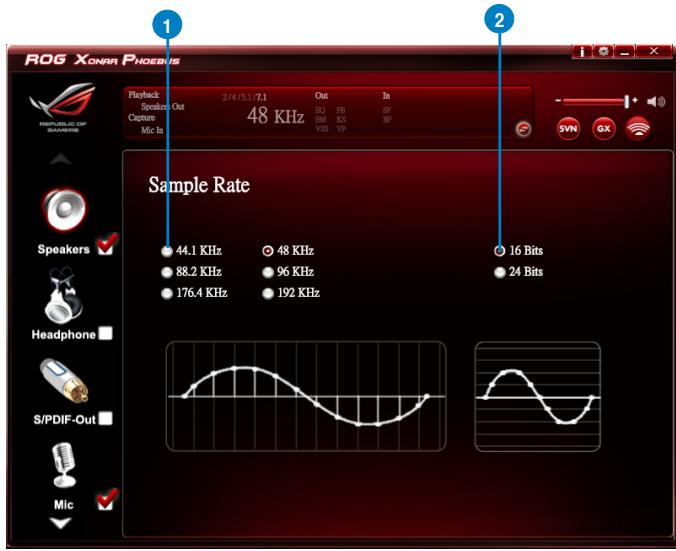
Cette fonction vous permet de définir le taux d'échantillonnage pour les enceintes.
| No | Item | Description |
| 1 | Sample Rate button | 44.1 KHz - set the playback sample rate to 44.1K48 KHz - set the playback sample rate to 48K88.2 KHz - set the playback sample rate to 88.2K96 KHz - set the playback sample rate to 96K176.4 KHz - set the playback sample rate to 176K192 KHz - set the playback sample rate to 192K |
| 2 | Bit Depth button | 16bit - set the playback bit depth to 16bit24bit - set the playback bit depth to 24bit |
6.2.5 Égaliseur
Présentation de la fonction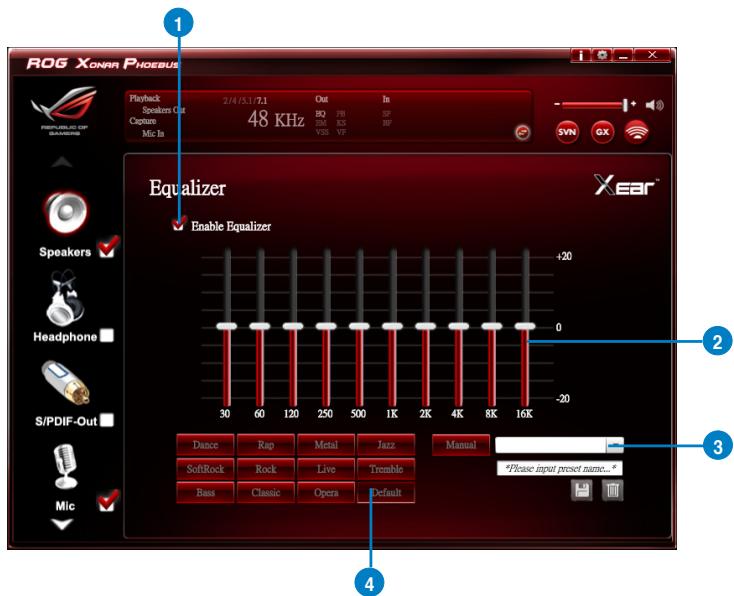
Cette fonction d'égalisation à 10 bandes vous permet de régler manuellement les bandes de l'égaliseur et de créer des préréglages personnalisés ou de cliquer pour sélectionner un mode d'égalisation prédéfini.
| No | Item | Description |
| 1 | EQ enable/disable switch | Click to enable / disable EQ. |
| 2 | EQ band controller | Change the gain setting for each band (30/ 60/ 120/ 250/ 500/ 1K/ 2K/ 4K/ 8K/ 16K). |
| 3 | Manual mode | Change the gain setting for each band, key in a name in the input field and then clicksaveto add your new setting. New setting will appear in the Manual Mode List. Clicktrashto delete settings. |
| 4 | Preset mode | Select a preset mode for equalizer that is designed accordingly. There are 12 preset modes such as Bass, Treble, Live, Rock, Jazz, etc. |
6.2.6 Effet d'environnement
Présentation de la fonction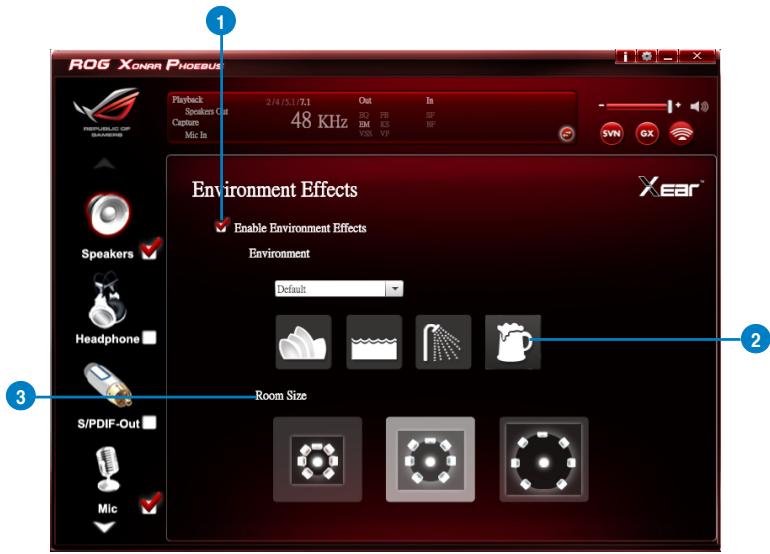
Cette fonction fournit 28 émulations d'environnement spéciales pour différentes réflexions sonores et réverbérations.
| No | Item | Description |
| 1 | Environment Effect enable/disable switch | Click on the check box to enable / disable Environment Effect. |
| 2 | Environment Effect mode | Click on an Environment Effect button or drop the dropdown list to choose an Environment Effect. |
| 3 | Room Size | Change the Room Size icon to simulate a larger or smaller space. |
6.2.7 Décalage virtuel d'enceintes 7.1
Présentation de la fonction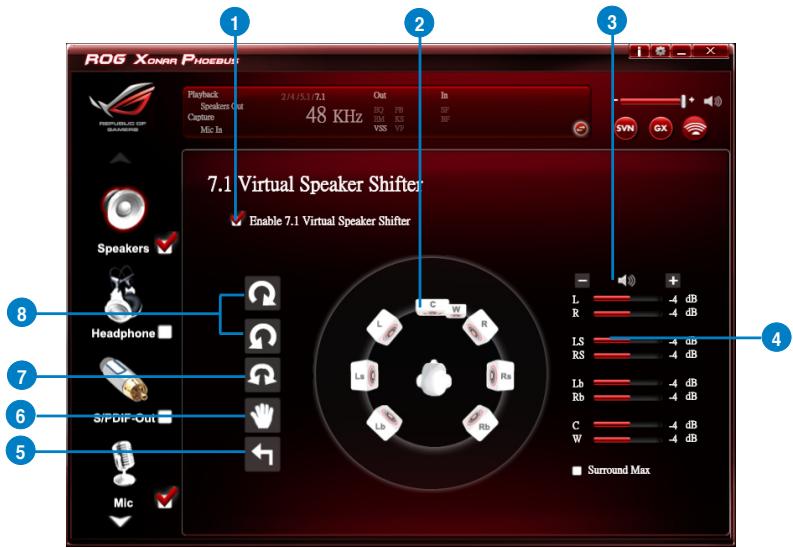
| No | Item | Description |
| 1 | 7.1 Virtual speaker shifter enable/disable switch | Click on the check box to enable / disable 7.1 Virtual Speaker to simulate the speaker direction and distance. |
| 2 | Virtual Speaker (L/R/Ls/Rs/Lb/Rb/C/W) | Each virtual speaker virtualizes one channel of the 7.1 channel speakers in the real world. |
| 3 | Volume Control | Each virtual speaker virtualizes one channel of the 7.1 channel speakers in the real world. |
| 4 | Volume indicator | Indicate the volume of each channel. |
| 5 | Reset | Reset the location of virtual speakers / virtual listener to default. |
| 6 | Manual Shifting (Free Moving Mode) | Use the pointer to click and drag to move the location of individual virtual speakers. |
| 7 | Manually Rotation Mode | Use mouse to rotate the virtual speakers on the screen manually. |
| 8 | Auto Rotation Mode | The virtual speakers rotate clockwise or counterclockwise slowly. |
6.2.8 Flex Bass II
Introduction à la fonction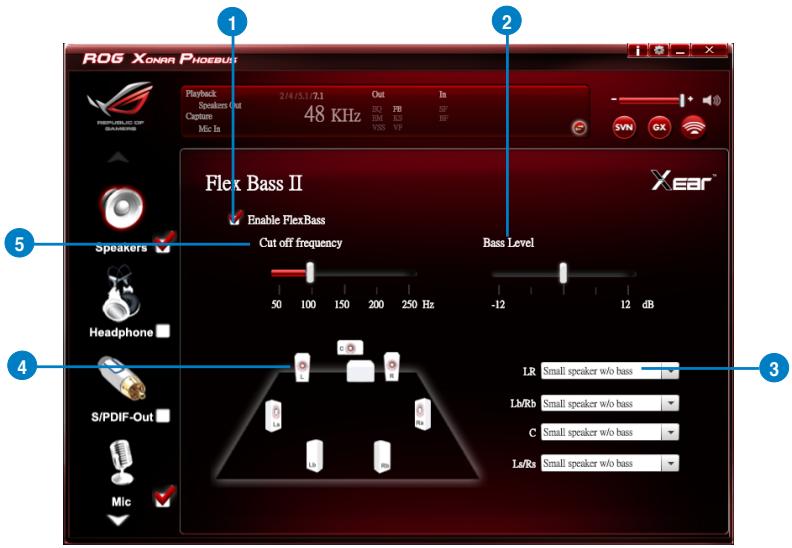
Cette fonction vous permet d'augmenter ou de diminuer la force du LFE. Cette fonction coupe la bande de fréquences graves (50~250 Hz) du contenu musical stéréo (par exemple, MP3, WMA, CD Audio) et la transfère au subwoofer ou à chaque enceinte.
| No | Item | Description |
| 1 | Flex Bass II enable/ disable switch | Click on this check box to enable / disable Flex Bass II. |
| 2 | Bass Level | The bass level range is from -12 to 12dB. |
| 3 | Speaker Size | Small Speaker w/o bassWhen the speaker size is set to small, you can hear the sound resonance more obvious and reverberation from subwoofer. |
| 4 | Speaker Diagram | You can also check the speaker size from this home theater diagram. |
| 5 | Cut Off Frequency | The cut off range of low frequency is from 50Hz to 250Hz. |
6.2.9 Xear SingFX
Introduction à la fonction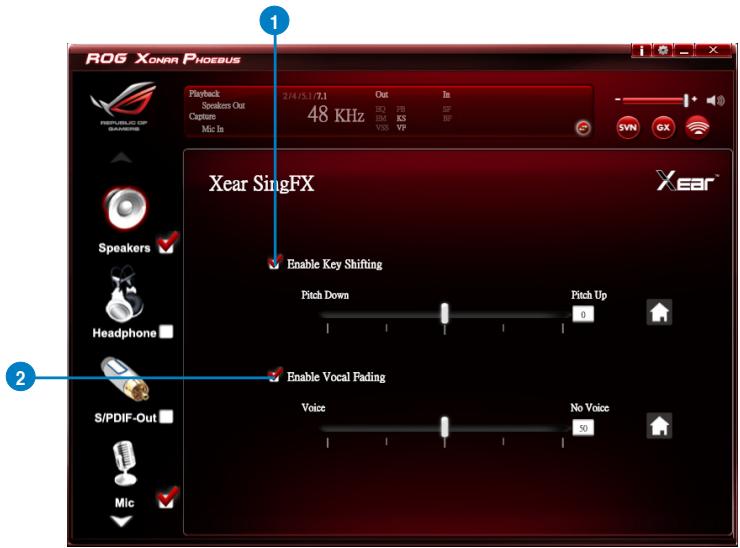
La fonction Xear SingFX offre deux fonctionnalités pour les applications karaoké.
| No | Item | Description |
| 1 | Key Shifting switch | It provides the key change function. There are four steps to shift up or down. Use the slide bar to change the key level. |
| 2 | Vocal Fading | It provides the vocal removing function for any stereo music content (eg. Mp3, WMA and CD). Use the slide bar to change the vocal fading level. |
6.2.10 Xear Surround Speaker
Introduction à la fonction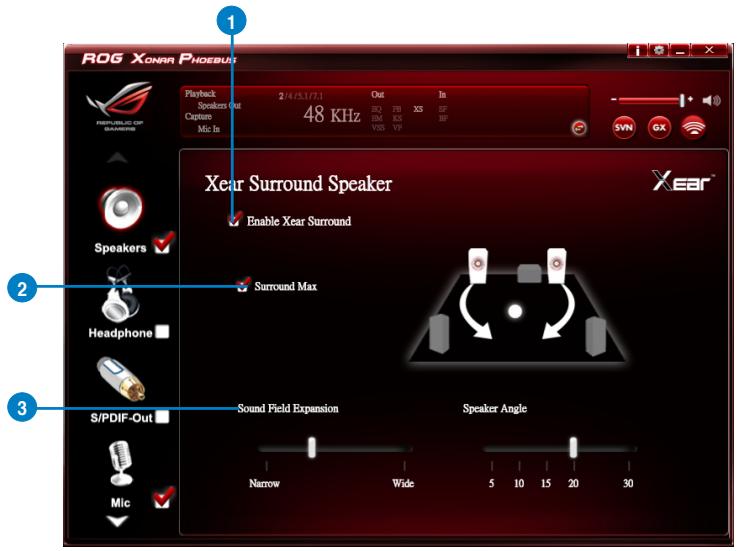
| No | Item | Description |
| 1 | Xear Surround Speaker enable/disable switch | The Xear Surround Speaker allows you to enjoy the multichannel effects on stereo. Click the checkbox to enable or disable it. |
| 2 | Surround Max | Click the checkbox to enable or disenable the Surround Max. |
| 3 | Sound Field Expansion & Speaker Angle | Change to simulate a larger or smaller space. |
6.3 Introduction à la fonction casque
Introduction à la fonction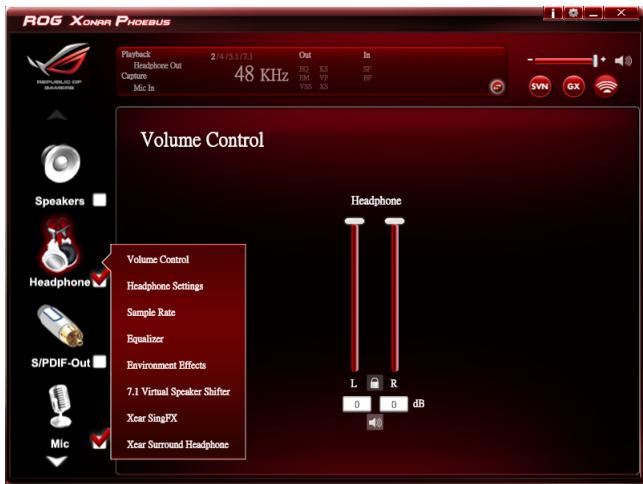

Cliquez sur l'icône de l'appareil sur le côté droit pour ouvrir le menu contextuel.
6.3.1 Dolby® Home Theater (Windows® 7 uniquement)
Introduction à la fonction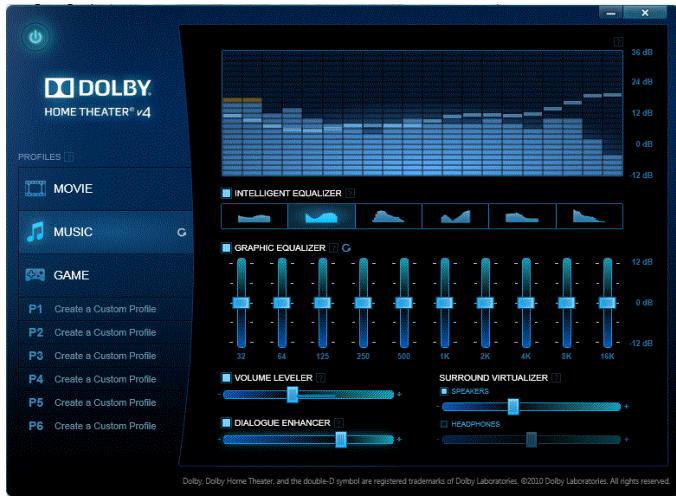

- Les éléments suivants seront remplacés par Dolby® Home Theater V4 sous le système d'exploitation Windows® 7.
- 7.1 Virtual Speaker Shifter
- Égaliseur 10 bandes
Reportez-vous au manuel officiel de Dolby pour les fonctions Dolby® Home Theater V4.
6.3.2 Contrôle du volume
Introduction aux fonctions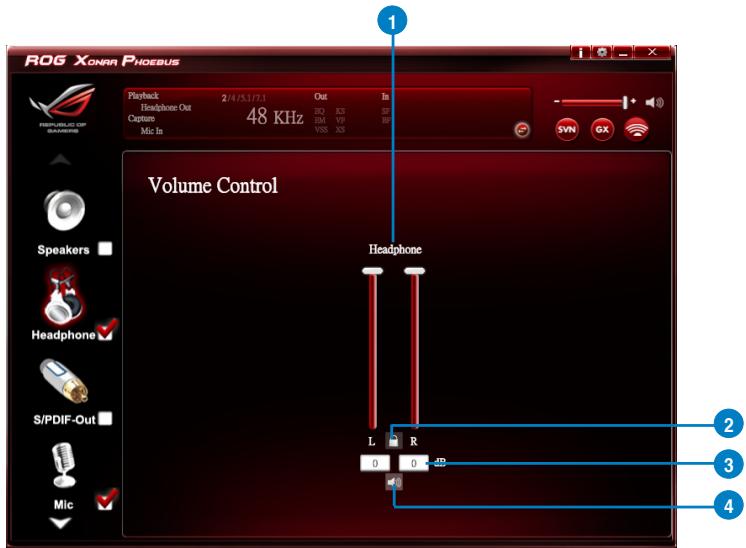
| No | Item | Description |
| 1 | Volume control bar | Adjust the volume level for all channels. |
| 2 | Left/ Right Channel Lock | Click the lock/ unlock button to lock / unlock the left channel and right channel to sync L/R channel. |
| 3 | dB Input Area | Key in a dB value in this text box to set the volume level. |
| 4 | Mute / Un-mute | Click this button to enable / disable the mute function |
6.3.3 Paramètres du casque
Introduction aux fonctions
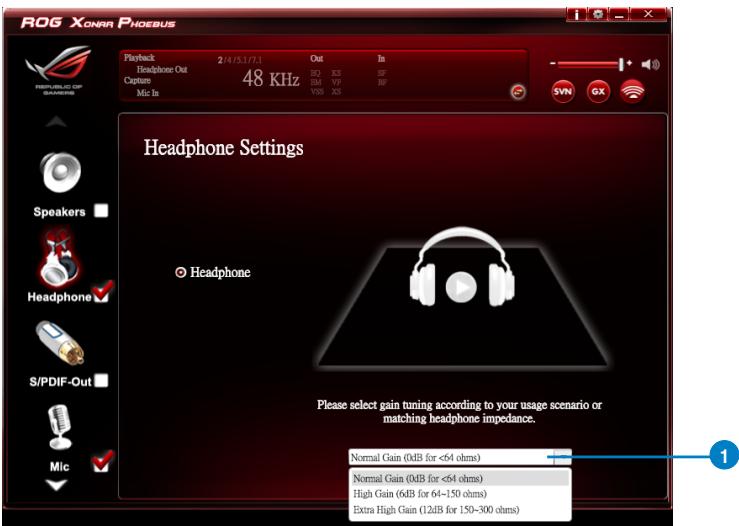

Vous pouvez régler le gain en fonction de l'impédance de votre casque.
| No | Item | Description |
| 1 | Normal Gain | 0dB for < 64 ohms |
| High Gain | 6dB for 64 ~150 ohms | |
| Extra High Gain | 12dB for >ohms |
6.3.4 Taux d'échantillonnage
Introduction aux fonctions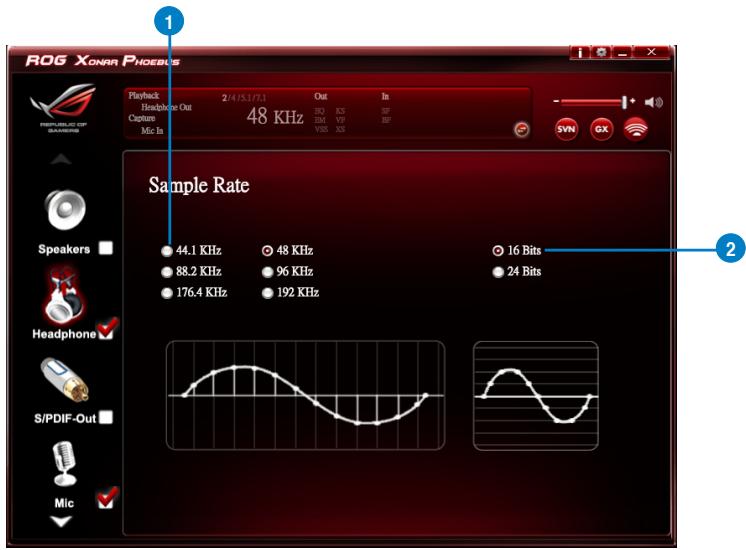
Cette page de fonctions permet de définir le taux d'échantillonnage pour le périphérique casque.
| No | Item | Description |
| 1 | Sample Rate button | 44.1 KHz - set the playback sample rate to 44.1K48 KHz - set the playback sample rate to 48K88.2 KHz - set the playback sample rate to 88.2K96 KHz - set the playback sample rate to 96K176.4 KHz - set the playback sample rate to 176K192 KHz - set the playback sample rate to 192K |
| 2 | Bit Depth button | 16bit - set the playback bit depth to 16bit24bit - set the playback bit depth to 24bit |
6.3.5 Égaliseur
Introduction aux fonctions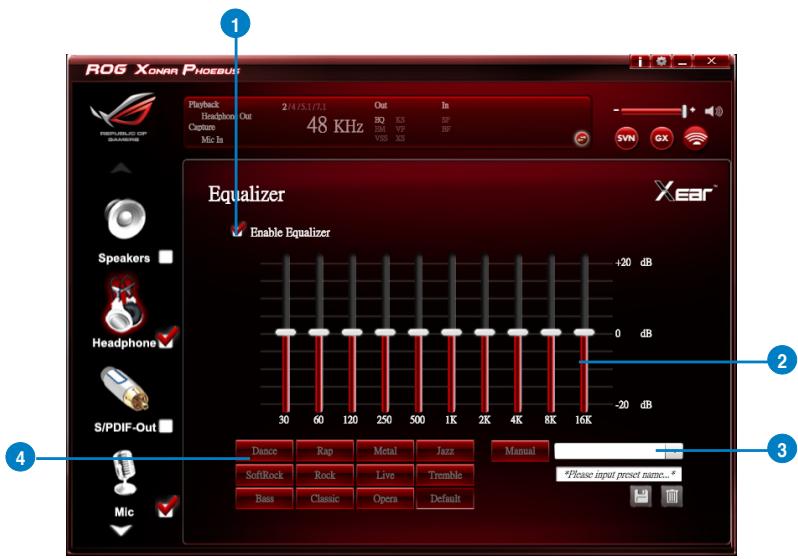
Cette fonction d'égaliseur à 10 bandes vous permet de régler manuellement les bandes de l'égaliseur et de créer des préréglages personnalisés ou de cliquer pour sélectionner un mode d'égalisation prédéfini.
| No | Item | Description |
| 1 | EQ enable/disable switch | Click on this check box to enable / disable the Equalizer. |
| 2 | EQ band controller | Change the gain setting for each band (30/ 60/ 120/ 250/ 500/ 1K/ 2K/ 4K/ 8K/ 16K) |
| 3 | Manual mode | Change the gain setting for each band and key in a name in the input field, and then clicksaveto add your new setting. The new setting will appear in the Manual Mode List. Clicktrashto delete settings. |
| 4 | Preset mode | Select a preset mode for equalizer that is designed accordingly. There are 12 preset modes, such as Bass, Treble, Live, Rock, Jazz and so on. |
6.3.6 Effets d'environnement
Introduction aux fonctions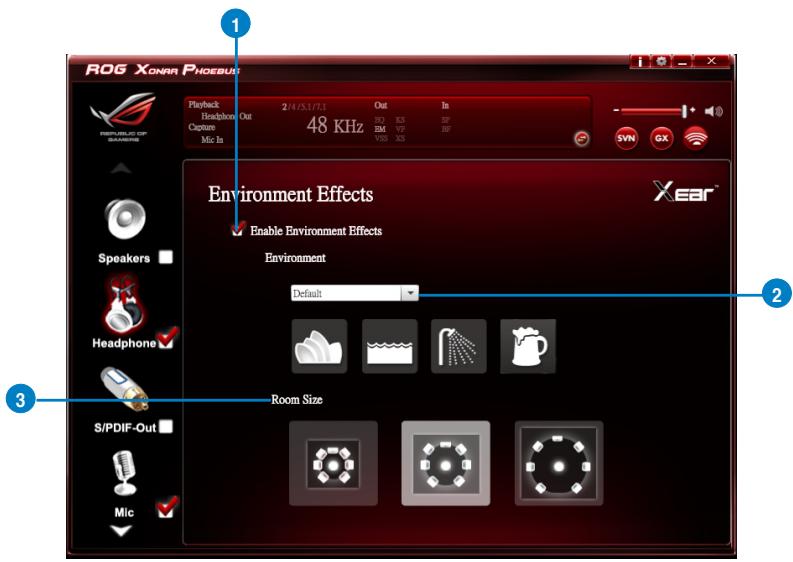
Cette fonction fournit 28 émulations d'environnement spéciales pour vous permettre de profiter de différentes réflexions et réverbérations sonores.
| No | Item | Description |
| 1 | Environment Effect enable/disable switch | Click on this check box to enable / disable the Environment Effects. |
| 2 | Environment Effect mode | Click on an Environment effect button or drop the dropdown list to choose an Environment effect. |
| 3 | Room Size | Change the “Room Size” to simulate a larger or smaller space. |
6.3.7 Virtual Speaker Shifter
Présentation de la fonction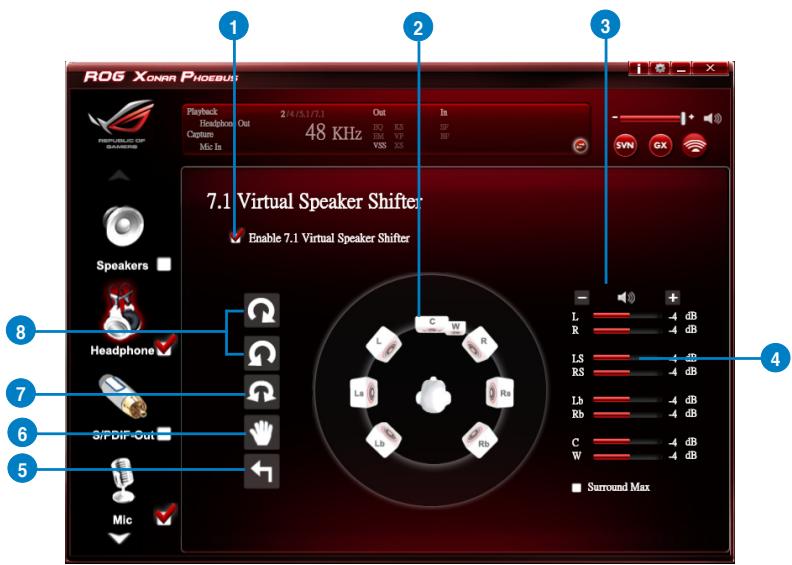
| No | Item | Description |
| 1 | 7.1 Virtual Speaker Shifter enable/disable switch | The 7.1 Virtual Speaker simulates the speaker direction and distance. Click the check box to enable / disable it. |
| 2 | Virtual Speaker (L/R/Ls/Rs/Lb/Rb/C/W) | Each virtual speaker virtualizes one channel of the 7.1 channel speakers in the real world. |
| 3 | Volume Control | Each virtual speaker virtualizes one channel of the 7.1 channel speakers in the real world. |
| 4 | Volume indicator | Indicate the volume of each channel. |
| 5 | Reset | Reset the location of virtual speakers / virtual listener to default. |
| 6 | Manual Shifting (Free Moving Mode) | Use the pointer to click and drag to move the location of individual virtual headphones. |
| 7 | Manually Rotation Mode | Use the mouse to rotate the virtual speakers on the screen manually. |
| 8 | Auto Rotation Mode | The virtual speakers rotate clockwise or counterclockwise slowly. |
6.3.8 Xear SingFX
Présentation de la fonction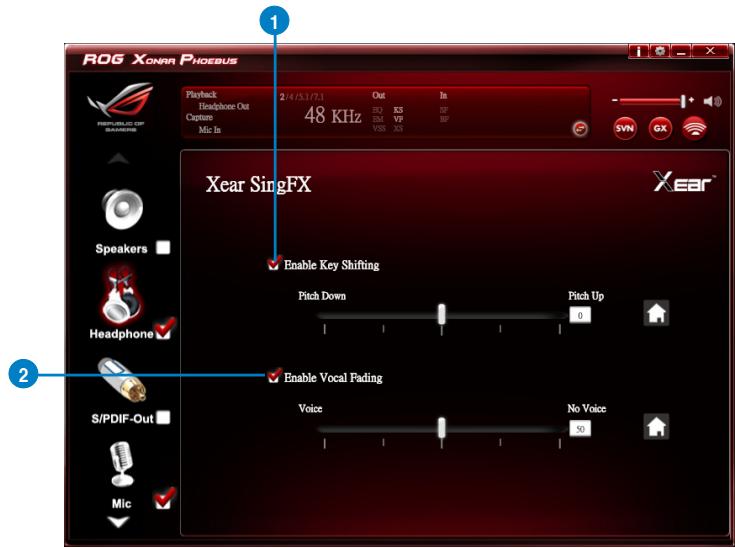
La fonction Xear SingFX offre deux fonctionnalités pour les applications de karaoké.
| No | Item | Description |
| 1 | Key Shifting switch | It provides the key change function. There are four steps to shift up or down. Use the slide bar to change the key level. |
| 2 | Vocal Fading | It provides the vocal removing function for any stereo music content (eg. Mp3, WMA and CD). Use the slide bar to change the vocal fading level. |
6.3.9 Xear Surround Headphone
Présentation de la fonction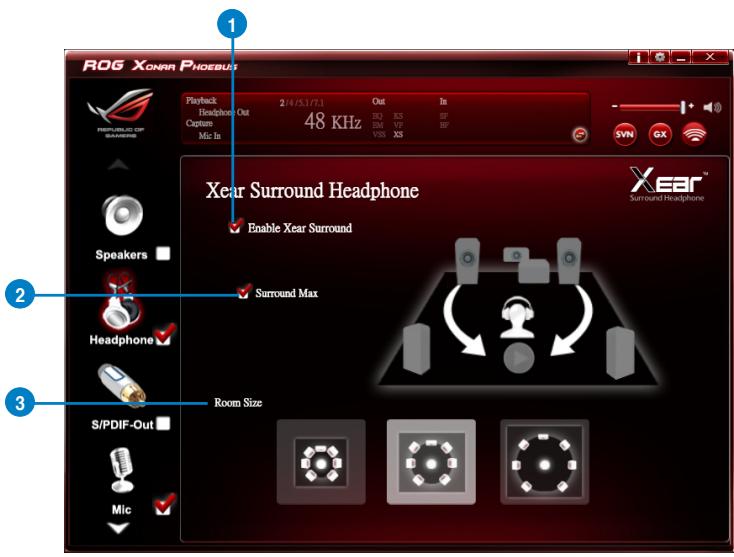
| No | Item | Description |
| 1 | Xear Surround Headphone enable/disable switch | The Xear Surround Headphone allows you to enjoy multichannel effects on stereo. Click the check box to enable or disable it. |
| 2 | Surround Max | Click the check box to enable or disenable the Surround Max. |
| 3 | Room Size | Change the “Room Size” to simulate a larger or smaller space. |
6.4 Présentation de la fonction S/PDIF
Présentation de la fonction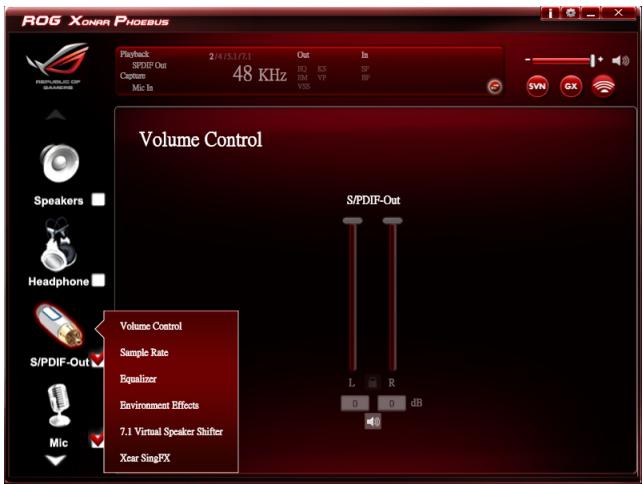

Cliquez sur l'icône de l'appareil sur le côté droit pour ouvrir le menu contextuel.
6.4.1 Contrôle du volume
Présentation de la fonction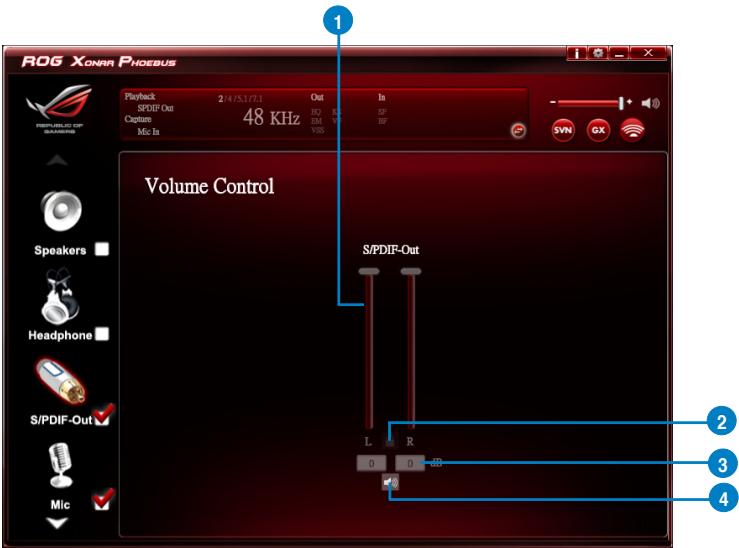
| No | Item | Description |
| 1 | Volume Control bar | Adjust the volume level for all channels. |
| 2 | Left/ Right Channel Lock | Click the lock/ unlock button to lock / unlock the left channel and right channel to sync L/R channel. |
| 3 | dB Input Area | Key in a dB value in this text box to set the volume level. |
| 4 | Mute / Un-mute | Click the button to enable / disable the mute function. |
6.4.2 Taux d'échantillonnage
Présentation de la fonction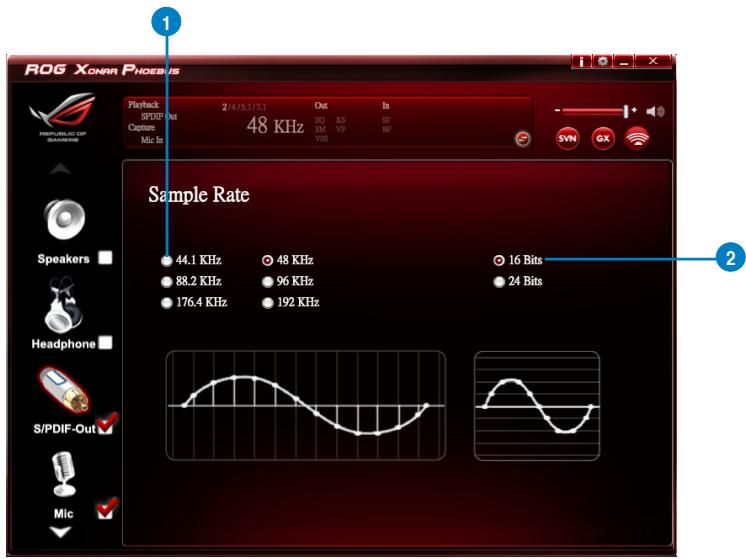
Cette fonction vous permet de définir le taux d'échantillonnage pour le périphérique S/PDIF.
| No | Item | Description |
| 1 | Sample Rate button | 44.1 KHz - set the playback sample rate to 44.1K48 KHz - set the playback sample rate to 48K88.2 KHz - set the playback sample rate to 88.2K96 KHz - set the playback sample rate to 96K176.4 KHz - set the playback sample rate to 176K192 KHz - set the playback sample rate to 192K |
| 2 | Bit Depth button | 16bit - set the playback bit depth to 16bit24bit - set the playback bit depth to 24bit |
6.4.3 Égaliseur
Présentation de la fonction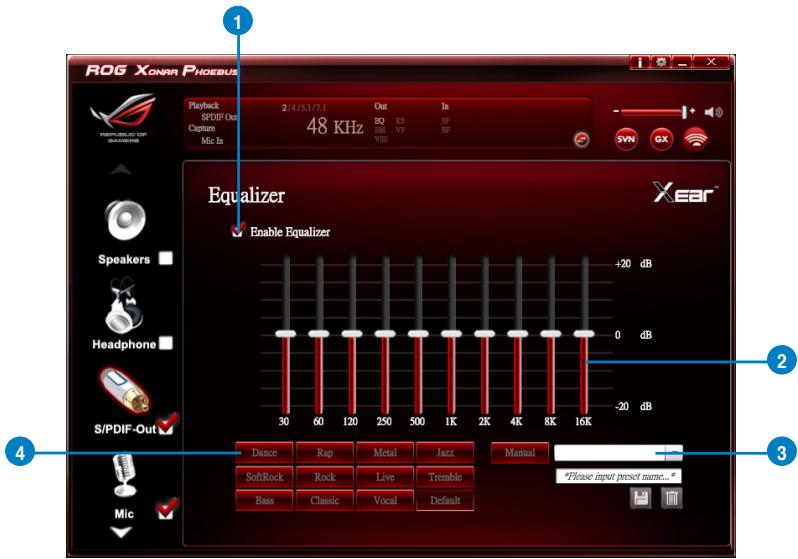
La fonction d'égalisation à 10 bandes vous permet de régler manuellement les bandes de l'égaliseur et de créer des préréglages personnalisés, ou de cliquer pour sélectionner un mode d'égalisation prédéfini.
| No | Item | Description |
| 1 | EQ enable/disable switch | Click on this check box to enable / disable the Equalizer. |
| 2 | EQ band controller | Change the gain setting for each band (30/ 60/ 120/ 250/ 500/ 1K/ 2K/ 4K/ 8K/ 16K) |
| 3 | Manual mode | Change the gain setting for each band and key in a name in the input field, and then clicksaveto add your new setting. The new setting will appear in the Manual Mode List. Clicktrashto delete settings. |
| 4 | Preset mode | Select a preset mode for equalizer that is designed accordingly. There are 12 preset modes, such as Bass, Treble, Live, Rock, Jazz and so on. |
6.4.4 Effets d'environnement
Présentation de la fonction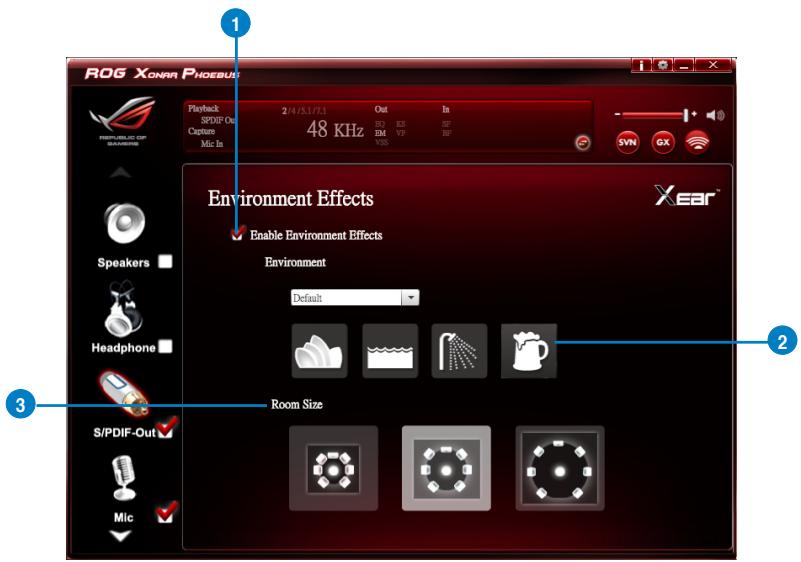
Cette fonction fournit 28 émulations d'environnements spéciaux pour vous permettre de profiter de différentes réflexions sonores et réverbérations.
| No | Item | Description |
| 1 | Environment Effect enable/disable switch | Click on this check box to enable / disable the Environment Effects. |
| 2 | Environment Effect mode | Click on an Environment Effect button or drop the dropdown list to choose an Environment Effect. |
| 3 | Room Size | Change the “Room Size” to simulate a larger or smaller space. |
6.4.5 Virtual Speaker Shifter
Présentation de la fonction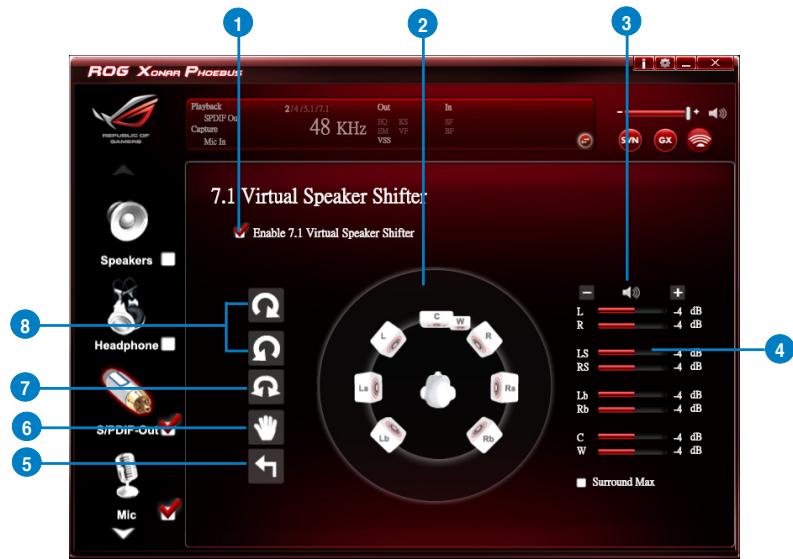
| No | Item | Description |
| 1 | 7.1 Virtual speaker shifter enable/disable switch | The 7.1 Virtual Speaker simulates the speaker direction and distance. Click the check box to enable / disable it. |
| 2 | Virtual Speaker (L/R/Ls/Rs/Lb/Rb/C/W) | Each virtual speaker virtualizes one channel of the 7.1 channel speakers in the real world. |
| 3 | Volume Control | Each virtual speaker virtualizes one channel of the 7.1 channel speakers in the real world. |
| 4 | Volume indicator | Indicate the volume of each channel. |
| 5 | Reset | Reset the location of virtual speakers / virtual listener to default. |
| 6 | Manual Shifting (Free Moving Mode) | Use the pointer to click and drag to move the location of individual virtual headphones. |
| 7 | Manually Rotation Mode | Use the mouse to rotate the virtual speakers on the screen manually. |
| 8 | Auto Rotation Mode | The virtual speakers rotate clockwise or counterclockwise slowly. |
6.4.6 Xear SingFX
Présentation de la fonction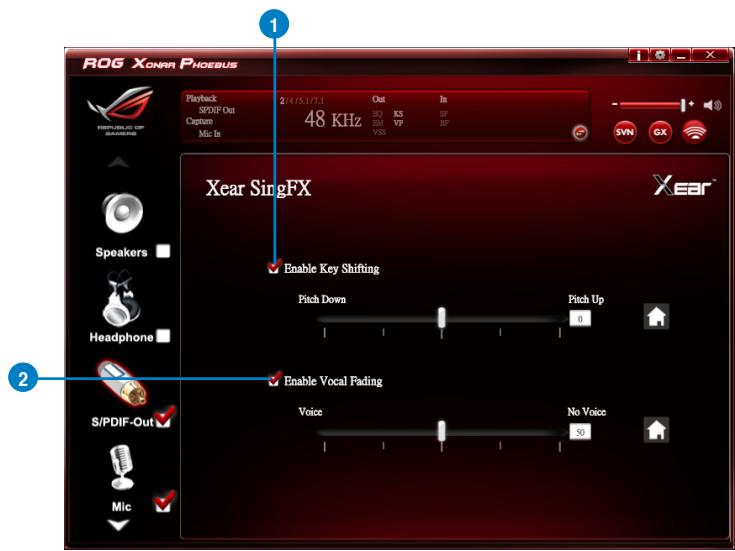
La fonction Xear SingFX offre deux fonctionnalités pour les applications de karaoké.
| No | Item | Description |
| 1 | Key Shifting switch | It provides the key change function. There are four steps to shift up or down. Use the slide bar to change the key level. |
| 2 | Vocal Fading | It provides the vocal removing function for any stereo music content (eg. Mp3, WMA and CD). Use the slide bar to change the vocal fading level. |
6.5 Présentation de la fonction microphone
Présentation de la fonction
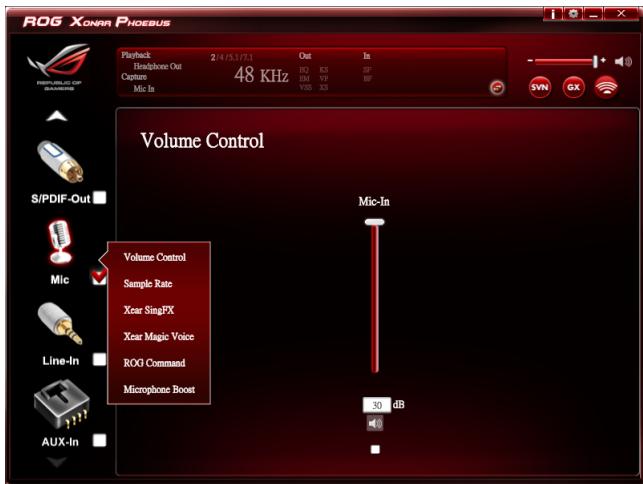

Cliquez sur l'icône de l'appareil sur le côté droit pour ouvrir le menu contextuel.
6.5.1 Contrôle du volume
Introduction à la fonction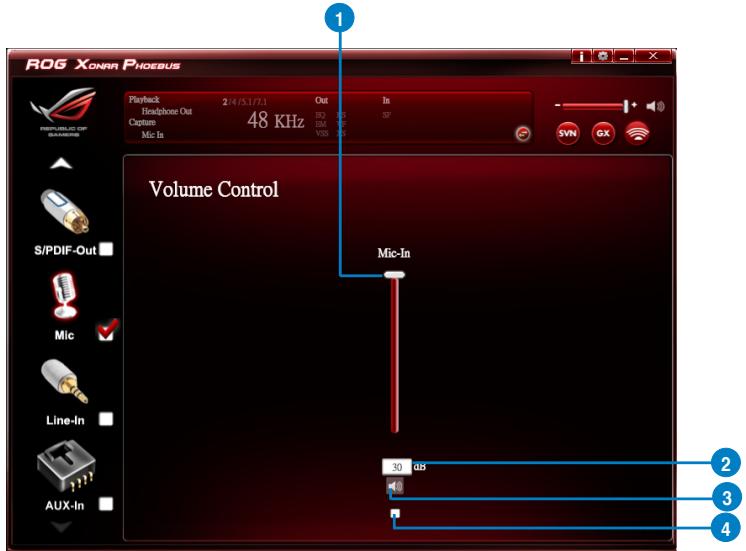
| No | Item | Description |
| 1 | Volume Control bar | Adjust the volume level of all channels. |
| 2 | dB Input Area | Key in a dB value in this text box to set the volume level. |
| 3 | Mute / Un-mute | Click the button to enable / disable the mute function. |
| 4 | Monitor | Click the checkbox to enable monitoring. |
6.5.2 Taux d'échantillonnage
Introduction à la fonction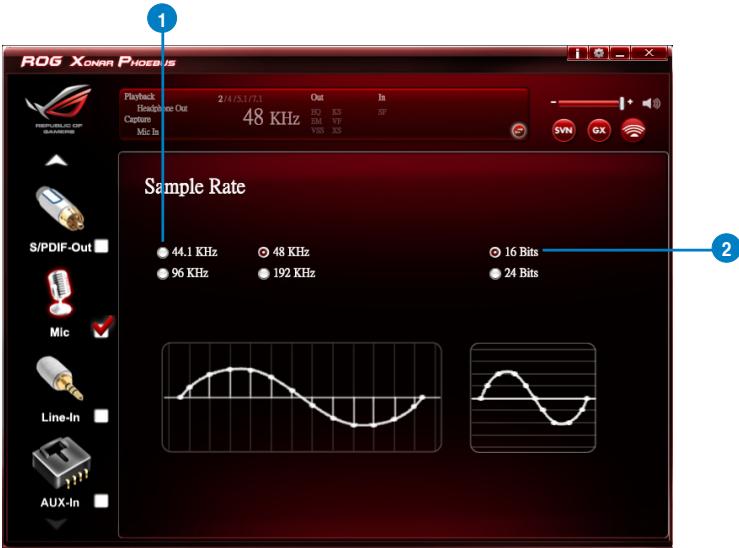
Cette fonction vous permet de définir le taux d'échantillonnage pour le périphérique microphone.
| No | Item | Description |
| 1 | Sample Rate button | 44.1 KHz - set the playback sample rate to 44.1K48 KHz - set the playback sample rate to 48K96 KHz - set the playback sample rate to 96K192 KHz - set the playback sample rate to 192K |
| 2 | Bit Depth button | 16bit - set the playback bit depth to 16bit24bit - set the playback bit depth to 24bit |
6.5.3 Xear SingFX
Introduction à la fonction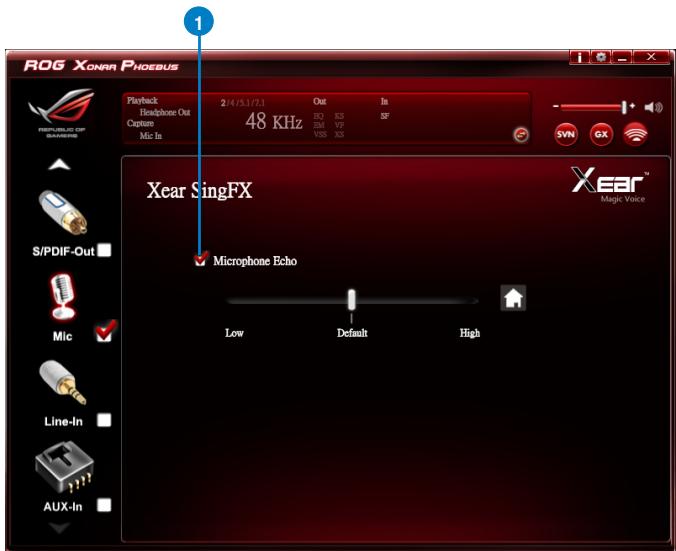
La fonction Xear SingFX offre deux fonctionnalités pour les applications de karaoké.
| No | Item | Description |
| 1 | Microphone Echo | Click the check box to enable / disable the Microphone Echo function. Use the slide bar to adjust the echo level. |
6.5.4 Xear Magic Voice
Introduction à la fonction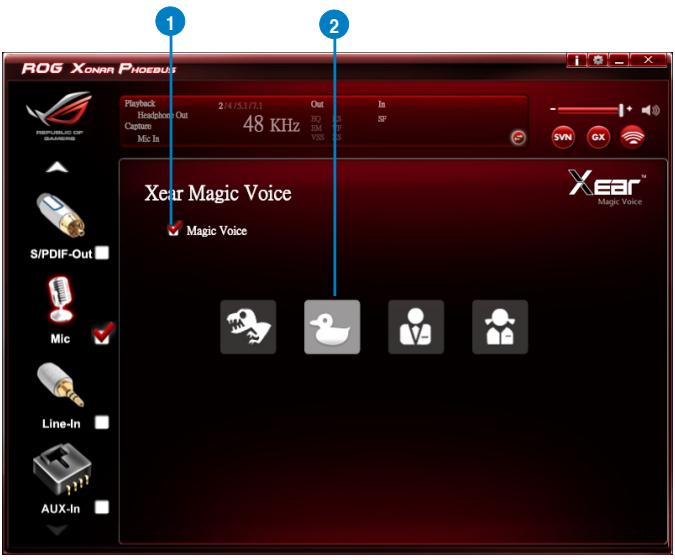
Lorsque vous discutez avec vos amis en ligne (par exemple, Messenger, VOIP, applications de jeux en ligne), utilisez les effets "Magic Voice" pour simuler des voix amusantes.

Choisissez un seul type de voix à la fois.
| No | Item | Description |
| 1 | Xear Magic Voice | Click this check box to enable / disable the Microphone Magic Voice function. |
| 2 | Magic Voice mode (Monster/Carton/Male/Female) | Click to choose a magic voice mode. |
6.5.5 ROG Command Beam Forming
Introduction à la fonction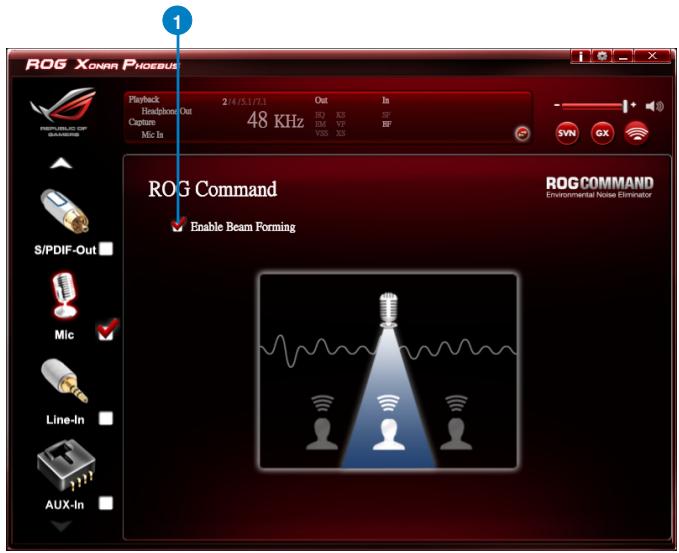

La fonction Beam Forming n'est disponible que lorsque la boîte de contrôle est connectée à la carte audio sans aucun autre microphone externe.
| No | Item | Description |
| 1 | Beaming Forming | Click the check box to enable / disable the Beam Forming function. |
6.5.6 ROG Command ENC (suppression du bruit environnemental)
Introduction de la fonction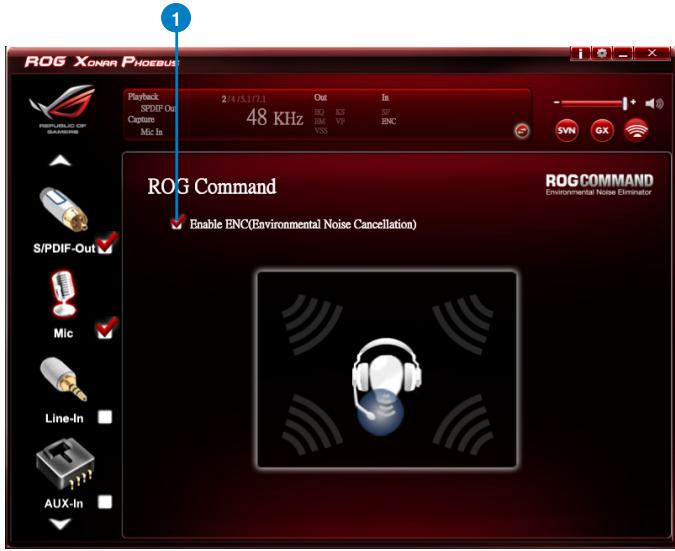

L'ENC n'est disponible que lorsque la boîte de contrôle est connectée à la carte audio avec des microphones externes.
| No | Item | Description |
| 1 | Environmental Noise Cancellation | Click the check box to enable / disable the Environmental Noise Cancellation function. |
6.5.7 Amplification du microphone
Introduction de la fonction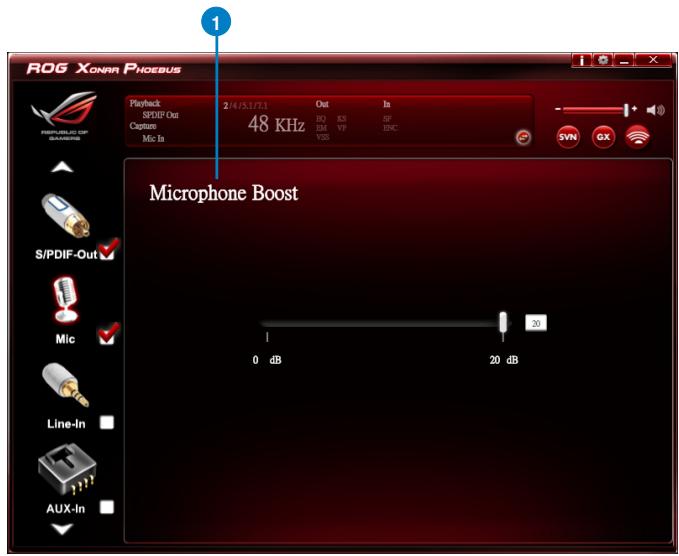
| No | Item | Description |
| 1 | Microphone Boost | Drag the slide bar to boost microphone volume and sensitivity |
6.6
Introduction de la fonction du périphérique d'entrée ligne
Introduction de la fonction
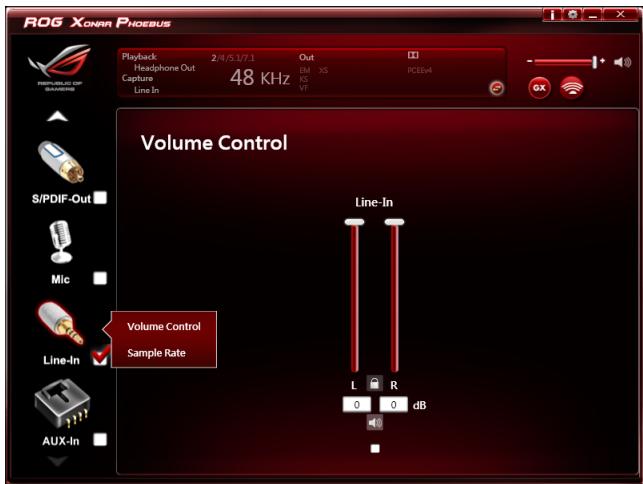

Cliquez sur l'icône du périphérique à droite pour ouvrir le menu contextuel.
6.6.1 Contrôle du volume
Introduction de la fonction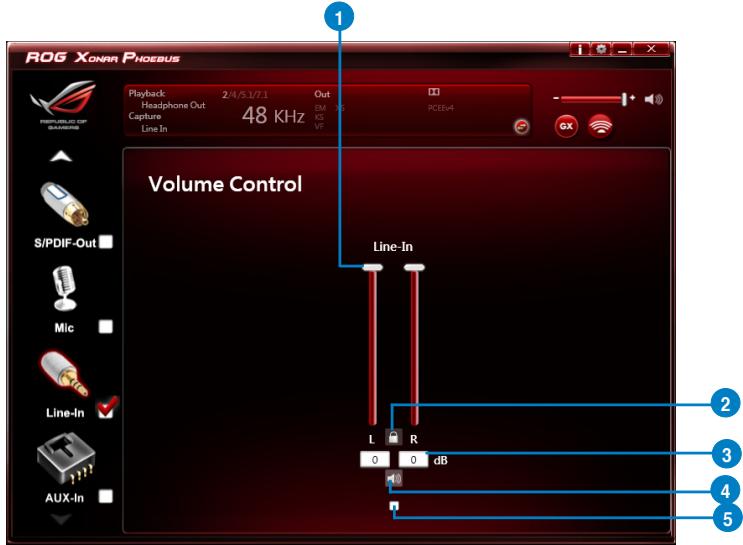
| No | Item | Description |
| 1 | Volume Control bar | Adjust the volume level of all channels. |
| 2 | Left/ Right Channel Lock | Click the lock/ unlock button to lock / unlock the left channel and right channel to sync L/R channel. |
| 3 | dB Input Area | Key in a dB value in this text box to set the volume level. |
| 4 | Mute / Un-mute | Click the button to enable / disable the mute function. |
| 5 | Monitor | Click the checkbox to enable monitoring. |
6.6.2 Taux d'échantillonnage
Introduction de la fonction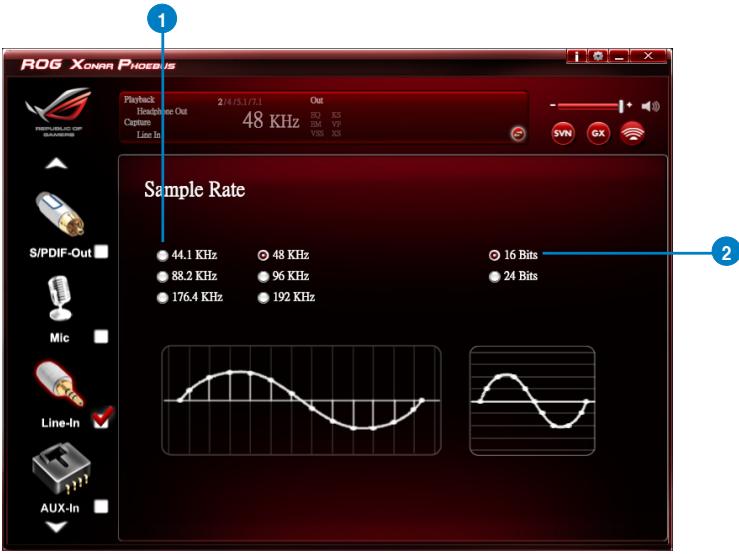
Cette fonction vous permet de définir le taux d'échantillonnage pour le périphérique d'entrée ligne.
| No | Item | Description |
| 1 | Sample Rate button | 44.1 KHz - set the playback sample rate to 44.1K48 KHz - set the playback sample rate to 48K88.2 KHz - set the playback sample rate to 88.2K96 KHz - set the playback sample rate to 96K176.4 KHz - set the playback sample rate to 176K192 KHz - set the playback sample rate to 192K |
| 2 | Bit Depth button | 16bit - set the playback bit depth to 16bit24bit - set the playback bit depth to 24bit |
6.7 Introduction de la fonction du périphérique d'entrée auxiliaire
Introduction de la fonction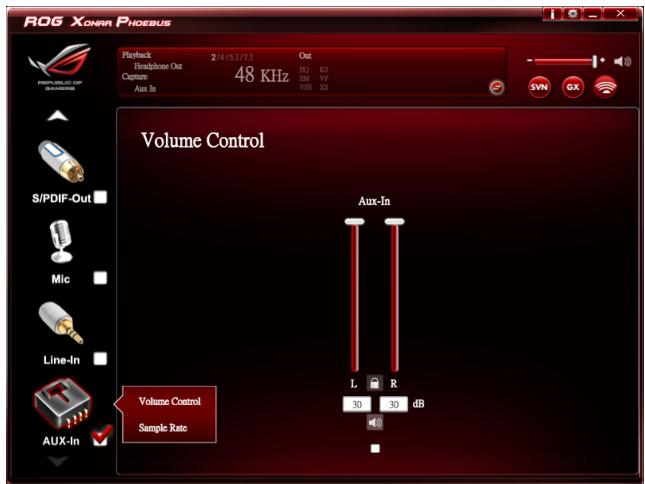

Cliquez sur l'icône de l'appareil sur le côté droit pour ouvrir le menu contextuel.
6.7.1 Contrôle du volume
Introduction à la fonction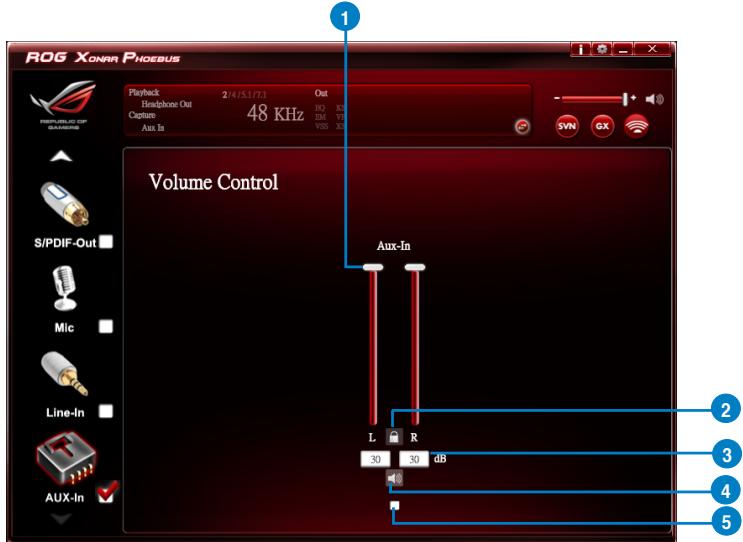
| No | Item | Description |
| 1 | Volume Control bar | Adjust the volume level for all channels. |
| 2 | Left/ Right Channel Lock | Click the lock/ unlock button to lock / unlock the left channel and right channel to sync L/R channel. |
| 3 | dB Input Area | Key in a dB value in this text box to set the volume level. |
| 4 | Mute / Un-mute | Click the button to enable / disable the mute function. |
| 5 | Monitor | Click the checkbox to enable monitoring. |
6.7.2 Taux d'échantillonnage
Introduction à la fonction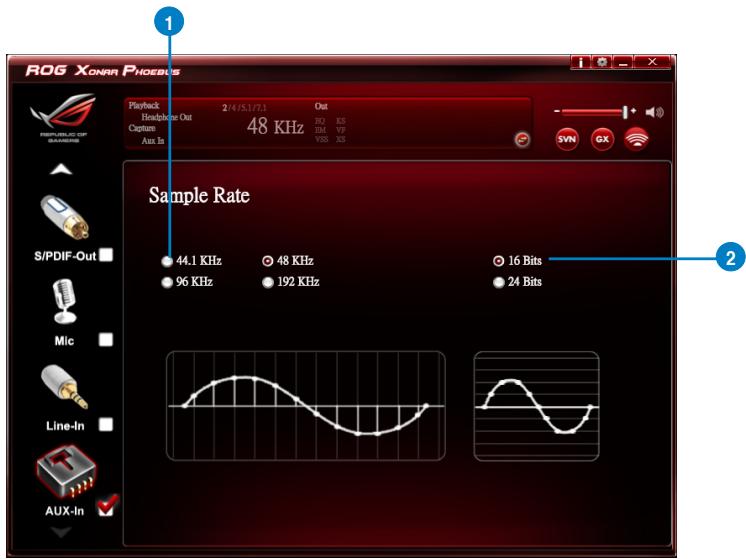
Cette fonction vous permet de définir le taux d'échantillonnage pour le périphérique d'entrée auxiliaire.
| No | Item | Description |
| 1 | Sample Rate button | 44.1 KHz - set the playback sample rate to 44.1K48 KHz - set the playback sample rate to 48K96 KHz - set the playback sample rate to 96K192 KHz - set the playback sample rate to 192K |
| 2 | Bit Depth button | 16bit - set the playback bit depth to 16bit24bit - set the playback bit depth to 24bit |
6.8 Introduction à la page d'informations
Cette page répertorie les informations sur le pilote et le logo de la marque des technologies. Vous pouvez y obtenir des détails sur le matériel et le logiciel ainsi que des références légales.
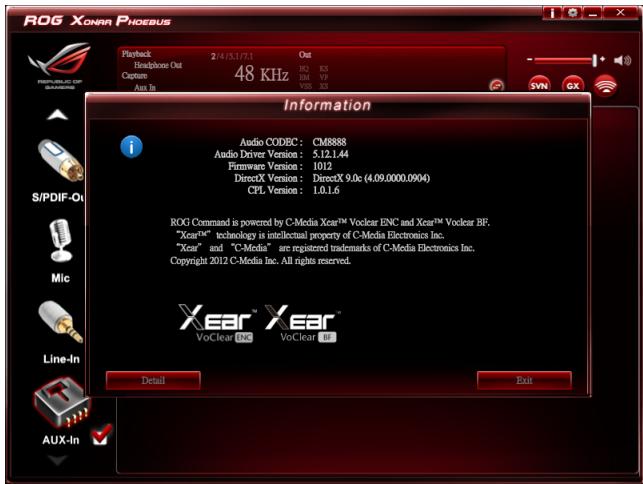

Cliquez sur l'icône de l'appareil sur le côté gauche pour ouvrir le menu contextuel.
6.9 Introduction à la fonction de l'icône de la barre d'état système
Ouvrez la "Liste des fonctions de l'icône de la barre d'état système CPL" en cliquant avec le bouton droit sur l'icône de la barre d'état système.
- Ouvrir : cliquez sur l'élément Ouvrir pour restaurer le logiciel CPL de l'audio USB.
- Contrôle du volume : cliquez sur l'élément Contrôle du volume pour lancer le mixeur de volume du système d'exploitation Windows, qui vous permet de contrôler séparément le volume des haut-parleurs et d'autres périphériques audio.
- Windows Media Player : cliquez sur l'élément Windows Media Player pour lancer le lecteur Windows Media de Microsoft.
- Enregistreur de sons : cliquez sur l'élément Enregistreur de sons pour ouvrir l'enregistreur de sons de Windows.
- Propriétés multimédia : ouvrez la page Propriétés multimédia du système d'exploitation Windows pour sélectionner la fréquence d'échantillonnage et le débit binaire de travail.
(1) Sélectionnez le périphérique Haut-parleurs, puis cliquez sur le bouton Propriétés.
(2) Cliquez sur l'onglet Avancé, puis cliquez sur la liste déroulante pour ouvrir la liste des formats par défaut pris en charge, comme illustré dans le diagramme ci-dessous.
(3) Suivez la même procédure pour modifier la fréquence d'échantillonnage et le débit binaire du périphérique Microphone.
6. Ouvrir ASIO : cliquez pour ouvrir ASIO.
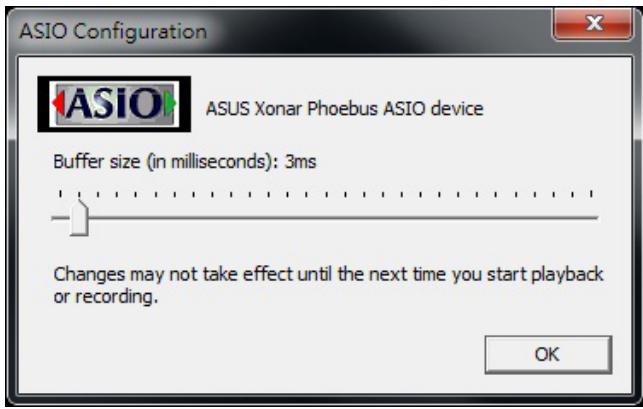
7. Paramètres : cliquez sur Paramètres pour lancer la page Paramètres avancés, comme illustré ci-dessous.
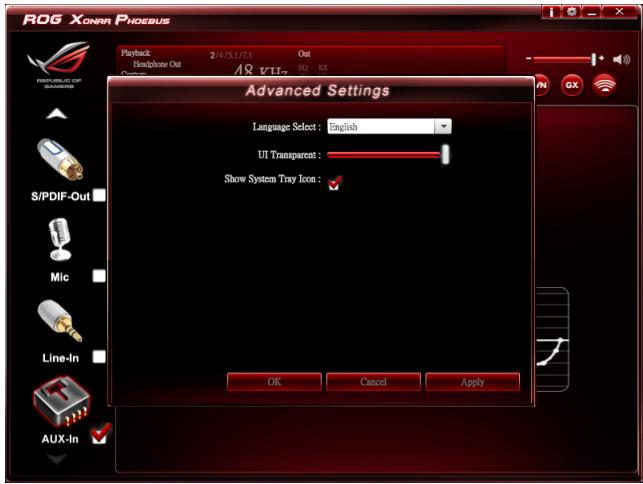
(1) Sélection de la langue : modifiez la langue de l'interface utilisateur.
(2) Transparence de l'interface : ajustez la transparence de l'interface utilisateur.
(3) Afficher l'icône de la barre d'état système : cochez la case Afficher l'icône de la barre d'état système pour afficher l'icône du centre audio Xear dans la barre d'état système.
8. Quitter : cliquez sur Quitter pour retirer l'icône de la barre d'état système.
7. Dépannage et FAQ
7.1 Dépannage
1 : Je n'arrive pas à installer le pilote de la carte audio sur mon PC.
Instructions :
(1) Assurez-vous que la carte audio est correctement insérée dans le slot PCI Express de votre carte mère. (2) Vérifiez que le Gestionnaire de périphériques de Windows a détecté un périphérique audio multimédia. Si aucun périphérique n'est trouvé, essayez de rechercher du nouveau matériel. (3) Essayez de redémarrer Windows. (4) Retirez la carte et insérez-la dans un autre slot PCI Express.
2 : Impossible de trouver le centre audio Xonar Phoebus.
Instructions :
(1). Assurez-vous d'avoir installé le pilote. (2). Recherchez l'icône du centre audio Xonar Phoebus dans la zone de notification en bas à droite de l'écran. Double-cliquez sur l'icône pour lancer l'utilitaire du centre audio Xonar Phoebus.

(3). Si vous ne trouvez pas l'icône dans la zone de notification, accédez au Panneau de configuration Windows et double-cliquez sur l'icône "Centre audio Xonar Phoebus" pour la rendre à nouveau visible dans la zone de notification.
(4). Une fois l'installation du pilote terminée, il est recommandé de redémarrer votre ordinateur pour terminer la configuration. Si l'icône n'apparaît toujours pas, essayez de réinstaller le package de pilotes.
3. Je n'entends aucun son provenant de mes haut-parleurs analogiques
Instructions :
(1). La carte audio Xonar Phoebus PCI Express nécessite un câble d'alimentation pour fournir une alimentation supplémentaire en plus de l'alimentation de base du bus PCI Express. Veuillez vérifier que vous avez bien branché la petite prise d'alimentation à 6 broches sur le connecteur d'alimentation de la Xonar Phoebus. Si vous n'avez pas branché l'alimentation interne, le centre audio Xonar Phoebus vous affichera un message d'avertissement et ne vous permettra pas d'effectuer des opérations lorsque vous double-cliquerez sur l'icône du centre audio Xonar Phoebus dans la zone de notification.
(2). Assurez-vous d'avoir correctement connecté vos haut-parleurs et de les avoir mis sous tension. (3). Assurez-vous que le volume principal de l'appareil ou le lecteur logiciel n'est PAS en sourdine dans le centre audio Xonar Phoebus. (4). Si vous utilisez l'encodeur Dolby Digital Live via la sortie S/PDIF, la sortie analogique sera coupée pour éviter les interférences entre votre système de haut-parleurs numériques et vos haut-parleurs analogiques ou votre casque. Veuillez vérifier si c'est le cas. (5). Accédez à l'option Son et audio du Panneau de configuration Windows pour vérifier si le périphérique de lecture par défaut est défini sur Périphérique audio Xonar Phoebus, et non sur un autre périphérique codec AC97 ou HDA intégré. Si ce n'est pas le cas, définissez-le sur Périphérique audio Xonar Phoebus et redémarrez vos applications. (6). Essayez de redémarrer Windows.
4. Je n'entends aucun son provenant de la sortie S/PDIF
Instructions :
(1). Assurez-vous d'avoir activé la sortie S/PDIF dans l'interface graphique du centre audio (page principale). (2). Assurez-vous d'avoir connecté la bonne prise de sortie S/PDIF de la carte à la prise d'entrée S/PDIF du décodeur (récepteur AV). (3). Vous devrez peut-être sélectionner la bonne entrée et le bon mode de votre décodeur ou récepteur AV. Pour la sortie Dolby Digital ou DTS, vous devrez peut-être vérifier que le récepteur AV est en mode de décodage correspondant. (4). Si vous utilisez une sortie PCM 192 kHz, assurez-vous que votre décodeur prend en charge le décodage 192 kHz. Essayez de passer à 44,1 kHz ou 48 kHz d'abord.
5. Je n'entends pas l'entrée audio (micro, entrée ligne, AUX, etc.) provenant de mes haut-parleurs Instructions :
(1). Sélectionnez la bonne entrée comme source d'enregistrement. Si vous utilisez Windows Vista/Win 7, accédez également au panneau de configuration audio du système pour vérifier que le périphérique d'enregistrement/entrée par défaut est correct. (2). N'oubliez pas d'activer le bouton de surveillance numérique pour cette source d'enregistrement.
6. Je n'entends pas le son du tuner TV depuis mes haut-parleurs.
Instructions :
(1) Si vous utilisez une carte tuner TV traditionnelle avec sortie audio analogique, connectez-la à l'entrée Aux-In de la carte audio.
(2) Sélectionnez Aux comme source d'enregistrement et n'oubliez pas d'activer le bouton de surveillance numérique dans la page du mélangeur d'enregistrement. (3) Si vous utilisez une carte tuner TV avec sortie audio numérique au lieu d'analogique, vérifiez que le son n'est pas coupé et que d'autres applications peuvent lire normalement. Si le problème persiste, consultez le guide de l'utilisateur du logiciel de la carte tuner TV.
7.2 FAQ
Q1 : La Xonar Phoebus prend-elle en charge Windows Vista / Win 7 ?
Réponse :
Oui, le pack de pilotes Xonar Phoebus prend en charge Windows Vista / Win 7 32/64 bits et la plupart des fonctionnalités clés sont disponibles. De plus, la Xonar Phoebus prend en charge la technologie exclusive GX sur Windows Vista / Win 7, qui peut restaurer le matériel DirectSound 3D et les effets sonores de jeu EAX sur Vista / Win 7 pour de nombreux jeux DirectX existants.
Q2 : Pourquoi la Xonar Phoebus prend-elle en charge la technologie Dolby ?
Réponse :
Dolby est la SEULE marque et technologie reconnue par l'industrie de l'électronique grand public et disponible sur une large gamme d'équipements audio. La Xonar Phoebus inclut ces fonctionnalités pour faire de votre PC un puissant centre multimédia et de divertissement.
Q3 : La Xonar Phoebus prend-elle en charge EAX sur Vista / Win 7 ?
Réponse :
Oui, la Xonar Phoebus peut prendre en charge EAX non seulement sous Windows XP mais aussi sous Vista / Win 7 grâce à la technologie innovante GX3.0.
Q4 : Pourquoi ai-je besoin de Dolby pour les jeux PC ?
Réponse :
(1). Dolby Headphone est disponible sur les dernières consoles de jeux, comme la XBOX360, la PS3 et la Wii. Dolby peut offrir la meilleure expérience sonore de jeu et une compatibilité avec les systèmes home cinéma ou TV. (2). Dolby Headphone est la meilleure technologie de positionnement sonore 3D, de modélisation spatiale et de virtualisation 5.1 canaux pour les casques et enceintes stéréo classiques.
Q6 : La sortie son PCM via S/PDIF sera-t-elle limitée à 2 canaux même si les sorties analogiques sont différentes ?
Réponse :
La spécification du protocole S/PDIF (IEC-60958) ne peut transporter que des données PCM 2 canaux ou des données non-PCM AC3/DTS. Ainsi, lorsque l'utilisateur sélectionne la sortie PCM pour S/PDIF, la carte audio Xonar Phoebus délivrera toujours des données PCM 2 canaux via le port de sortie S/PDIF. Pour obtenir un son surround 5.1, vous pouvez sélectionner DDO, ce qui permet à la Xonar Phoebus de délivrer un son surround 5.1 pour les films DVD, et même pour la musique stéréo.


- INTRODUCTION
- CONTENU DU PAQUET
- CONFIGURATION SYSTÈME REQUISE
- À PROPOS DU MATÉRIEL
- INSTALLATION DU MATÉRIEL XONAR
- PRÉPARATION DE VOTRE ORDINATEUR
- INSTALLATION DE LA CARTE DE TRAITEMENT AUDIO
- CONNEXION DE LA CARTE TUNER TV
- INSTALLATION DU LOGICIEL
- INSTALLATION DU PILOTE DE LA CARTE AUDIO
- DÉSINSTALLATION OU RÉINSTALLATION DU LOGICIEL
- DÉSINSTALLATION DU LOGICIEL
- RÉINSTALLATION DU LOGICIEL
- CONNEXION DES HAUT-PARLEURS ET DES PÉRIPHÉRIQUES
- CONNEXION À LA BOÎTE DE CONTRÔLE PHOEBUS
- CONNEXION DE LA BOÎTE PHOEBUS
- CONNEXION DE LA BOÎTE PHOEBUS AVEC UN CASQUE ET UN MICROPHONE EXTERNES
- CONNEXION DE SYSTÈMES DE HAUT-PARLEURS NUMÉRIQUES (HOME CINÉMA)
- CONNEXION DE CASQUES STÉRÉO
- CONNEXION DE SYSTÈMES DE HAUT-PARLEURS ANALOGIQUES
- CONNEXION D'UN AMPLIFICATEUR DE PUISSANCE ANALOGIQUE
- CONNEXION DE HAUT-PARLEURS 2/2.1 CANAUX
- CONNEXION DE HAUT-PARLEURS 7.1 CANAUX
- HAUT-PARLEURS
- CONNEXION DU MICROPHONE
- CONNEXION DE SOURCES AUDIO LINE-IN
- GUIDE DU PILOTE XONAR PHOEBUS
- INTRODUCTION À L'INTERFACE GRAPHIQUE DU CENTRE AUDIO XONAR PHOEBUS
- MENU CONTEXTUEL DES FONCTIONS
- POUR OUVRIR LE MENU CONTEXTUEL
- PANNEAU D'ÉTAT AUDIO
- PANNEAU DE PROFIL
- INTRODUCTION AUX FONCTIONS DU HAUT-PARLEUR
- DOLBY® HOME THEATER (WINDOWS® 7 UNIQUEMENT)
- CONTRÔLE DU VOLUME
- RÉGLAGE DES ENCEINTES
- TAUX D'ÉCHANTILLONNAGE
- ÉGALISEUR
- EFFET D'ENVIRONNEMENT
- DÉCALAGE VIRTUEL D'ENCEINTES
- FLEX BASS II
- XEAR SINGFX
- XEAR SURROUND SPEAKER
- INTRODUCTION À LA FONCTION CASQUE
- PARAMÈTRES DU CASQUE
- INTRODUCTION AUX FONCTIONS
- EFFETS D'ENVIRONNEMENT
- VIRTUAL SPEAKER SHIFTER
- XEAR SURROUND HEADPHONE
- PRÉSENTATION DE LA FONCTION S/PDIF
- PRÉSENTATION DE LA FONCTION MICROPHONE
- PRÉSENTATION DE LA FONCTION
- XEAR MAGIC VOICE
- ROG COMMAND BEAM FORMING
- ROG COMMAND ENC (SUPPRESSION DU BRUIT ENVIRONNEMENTAL)
- AMPLIFICATION DU MICROPHONE
- INTRODUCTION DE LA FONCTION DU PÉRIPHÉRIQUE D'ENTRÉE LIGNE
- INTRODUCTION DE LA FONCTION
- INTRODUCTION DE LA FONCTION DU PÉRIPHÉRIQUE D'ENTRÉE AUXILIAIRE
- INTRODUCTION À LA PAGE D'INFORMATIONS
- INTRODUCTION À LA FONCTION DE L'ICÔNE DE LA BARRE D'ÉTAT SYSTÈME
- OUVRIR ASIO : CLIQUEZ POUR OUVRIR ASIO
- PARAMÈTRES : CLIQUEZ SUR PARAMÈTRES POUR LANCER LA PAGE PARAMÈTRES AVANCÉS, COMME ILLUSTRÉ CI-DESSOUS
- QUITTER : CLIQUEZ SUR QUITTER POUR RETIRER L'ICÔNE DE LA BARRE D'ÉTAT SYSTÈME
- DÉPANNAGE ET FAQ
- DÉPANNAGE
- JE N'ARRIVE PAS À INSTALLER LE PILOTE DE LA CARTE AUDIO SUR MON PC
- INSTRUCTIONS
- IMPOSSIBLE DE TROUVER LE CENTRE AUDIO XONAR PHOEBUS
- JE N'ENTENDS AUCUN SON PROVENANT DE MES HAUT-PARLEURS ANALOGIQUES
- JE N'ENTENDS AUCUN SON PROVENANT DE LA SORTIE S/PDIF
- JE N'ENTENDS PAS L'ENTRÉE AUDIO (MICRO, ENTRÉE LIGNE, AUX, ETC.) PROVENANT DE MES HAUT-PARLEURS INSTRUCTIONS
- JE N'ENTENDS PAS LE SON DU TUNER TV DEPUIS MES HAUT-PARLEURS
- FAQ
- Q1 : LA XONAR PHOEBUS PREND-ELLE EN CHARGE WINDOWS VISTA / WIN
- RÉPONSE
- Q2 : POURQUOI LA XONAR PHOEBUS PREND-ELLE EN CHARGE LA TECHNOLOGIE DOLBY
- Q3 : LA XONAR PHOEBUS PREND-ELLE EN CHARGE EAX SUR VISTA / WIN
- Q4 : POURQUOI AI-JE BESOIN DE DOLBY POUR LES JEUX PC
- Q6 : LA SORTIE SON PCM VIA S/PDIF SERA-T-ELLE LIMITÉE À 2 CANAUX MÊME SI LES SORTIES ANALOGIQUES SONT DIFFÉRENTES
Marque : ASUS
Modèle : ROG XONAR PHOEBUS
Catégorie : Carte son