
DOCUPRINT M760 - Imprimante laser XEROX - Notice d'utilisation et mode d'emploi gratuit
Retrouvez gratuitement la notice de l'appareil DOCUPRINT M760 XEROX au format PDF.


| Type de produit | Imprimante jet d'encre couleur |
| Modèle | Xerox DocuPrint M760 |
| Dimensions (approx.) | 445 x 335 x 210 mm |
| Poids (approx.) | 6 kg |
| Alimentation | AC, cordon d'alimentation inclus |
| Connectivité | USB, parallèle |
| Capacité du bac papier | Jusqu'à 150 feuilles |
| Bac by-pass | Oui, pour supports spéciaux (bannières, enveloppes, cartes) |
| Modes d'impression | Brouillon, eXpress, Normal, Meilleure |
| Fonctions principales | Impression de photos, bannières, étiquettes, transparents, transfert textile |
| Guide utilisateur en ligne | Disponible via Démarrer > Programmes > Xerox DocuPrint M750/M760 |
| Entretien courant | Nettoyage et alignement des têtes d'impression |
| Cartouche d'encre noire | Haute capacité (700 pages) : H100 ; Standard (400 pages) : Y100 |
| Cartouches couleur | Cyan Y101, Magenta Y102, Jaune Y103 ; Multipack Y104 |
| Tête d'impression | Noire P100, Couleur P105 |
| Support client | Site web : www.xerox.com ; Téléphone : 1-800-TEAM XRX |
FOIRE AUX QUESTIONS - DOCUPRINT M760 XEROX
Questions des utilisateurs sur DOCUPRINT M760 XEROX
0 question sur cet appareil. Repondez a celles que vous connaissez ou posez la votre.
Poser une nouvelle question sur cet appareil
Téléchargez la notice de votre Imprimante laser au format PDF gratuitement ! Retrouvez votre notice DOCUPRINT M760 - XEROX et reprennez votre appareil électronique en main. Sur cette page sont publiés tous les documents nécessaires à l'utilisation de votre appareil DOCUPRINT M760 de la marque XEROX.
MODE D'EMPLOI DOCUPRINT M760 XEROX
Quick Reference Guide
701P31954

DocuPrint M750/M760

X
Table of Contents
QUICK REFERENCE GUIDE
1.
BASIC INFORMATION
Basic Information 1-1
Printer Components and Parts 1-1
Printer Components 1-2
Connections 1-2
Control Panel 1-2
Printer Components 1-3
Paper Thickness Dial 1-3
Print Heads 1-3
Printer Components 1-4
2.
HOW TO PRINT
How to Print 2-1
How to Print 2-2
Printing Banners 2-3
Printing Cards 2-4
Printing Envelopes 2-5
Printing A Single Envelope 2-5
Printing Several Envelopes 2-6
Printing Iron-On 2-7
Printing Labels 2-8
Printing Photographs 2-9
Printing Transparency 2-10
3.
MAINTENANCE
Maintaining Your Printer 3-1
Changing an Ink Cartridge 3-2
Cleaning and Aligning the Print Head 3-5
Cleaning the Print Head 3-5
Changing the Print Head 3-6
Printing a Test Print 3-6
4.
TROUBLESHOOTING
Troubleshooting 4-1
Error Indicators 4-2
Error Indicators 4-3
Paper Feeding Problems 4-4
Print Quality Problems 4-5
Print Quality Problems 4-7
Printer Problems 4-9
Printer Problems 4-11
Printer Problems 4-12
Printer Problems 4-13
5.
SERVICE AND SUPPORT
Service and Support 5-1
Ordering Supplies 5-2
Ink Cartridge/Print Head Re-Order Numbers 5-2
BASIC INFORMATION

Chapter One
Basic Information
To find more complete information about your printer, refer to the Online User Guide. To access the Online User Guide, select Start>Programs>Xerox DocuPrint M750/M760>User Guide.
Printer Components and Parts
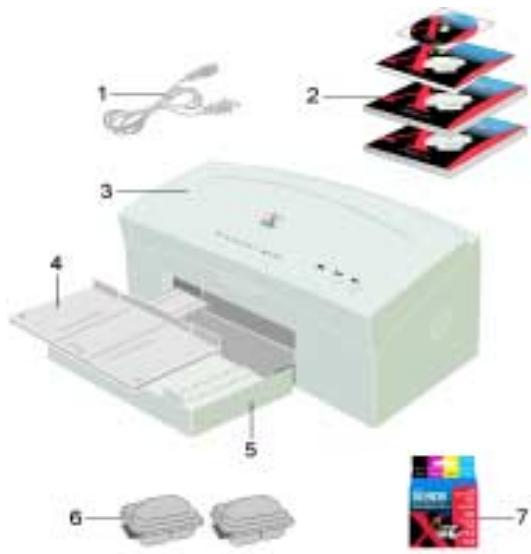
- AC power cord
- CD, Getting Started Guide, Quick Reference Guide, a Warranty Card (in most countries).
- M750/M760 color printer
- Output tray
5.Papertray - Print heads (2)
- Ink cartridges (4)
BASIC
INFORMATION
PRINTER COMPONENTS
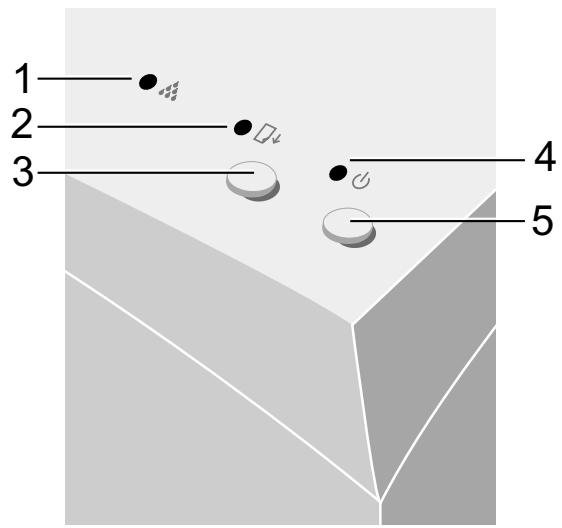
Printer Components
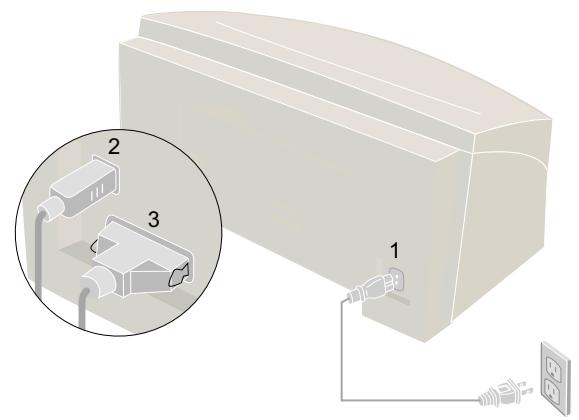
Connections
- AC power cord
- USB cable -OR- 3. Parallel cable
Control Panel
-
Ink status light:
-
Fast blink - Ink cartridge missing, wrong ink cartridge, or out of ink
-
Slow blink - Cover open or low ink
-
Paper status light:
-
Fast blink - Out of paper or paper jam
-
Resume button:
-
Resumes printing after clearing a paper jam or loading paper
-Prints a test page -
Power light:
Light on - Power on
Light off - Power off
Slow blink-Incoming data
- Power button:
Power on
Low power mode
PRINTER COMPONENTS
Printer Components
Paper Thickness Dial
The paper thickness dial allows you to choose envelope or paper printing. An envelope icon shows the setting for envelope printing and a paper icon shows the setting for paper printing.
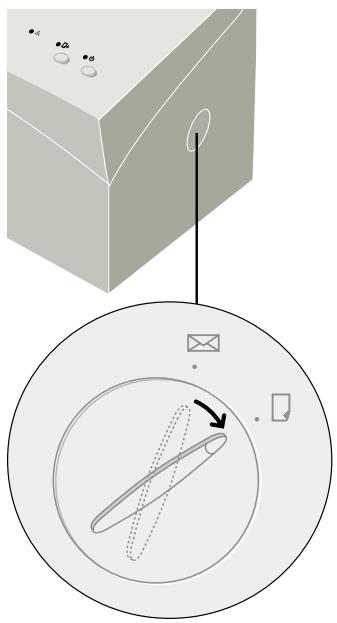
1
Print Heads
This edge of the print head can be easily damaged. When you remove it, be careful not to set it down on this edge.

Note: Always keep the dial in the paper position, except when printing envelopes.
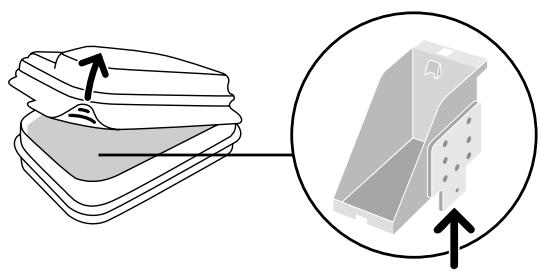

Caution: Be careful not to set print heads down on this edge, as they damage easily.
PRINTER COMPONENTS
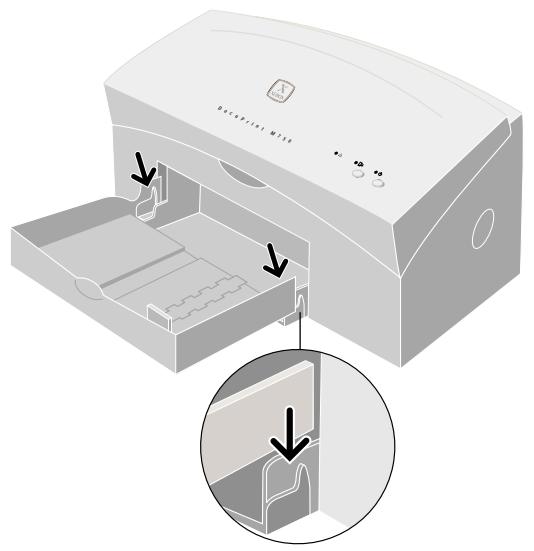
Printer Components
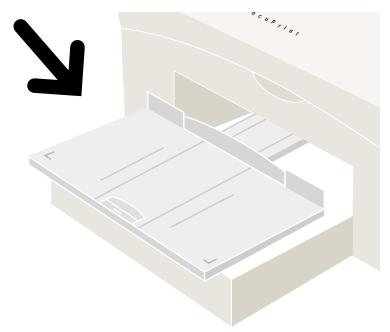
Paper Tray
The paper tray lowers onto the printer.
Output Tray
The output tray rests on the top of the paper tray and slides into the printer.
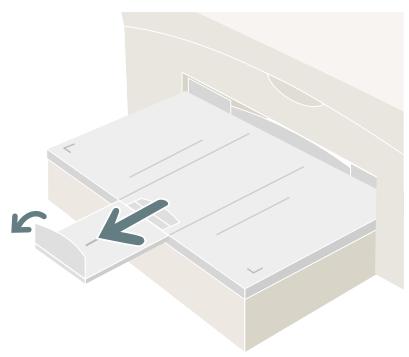
Output Tray Extension
The output tray extension pulls out and flips up.
PRINTER COMPONENTS
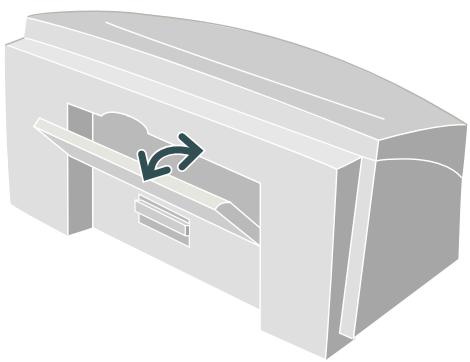
Bypass Tray
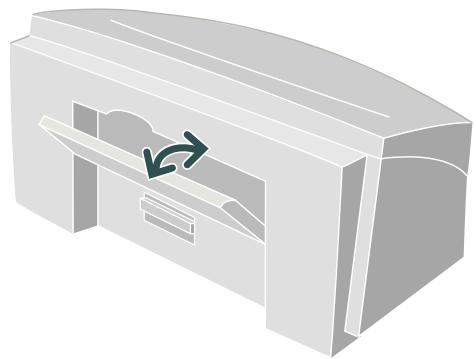
The bypass tray feeds one sheet at a time. The bypass tray is used for banner paper, envelopes, and heavy weight media. The bypass tray is located on the back of the printer. To use the bypass tray, flip it down.
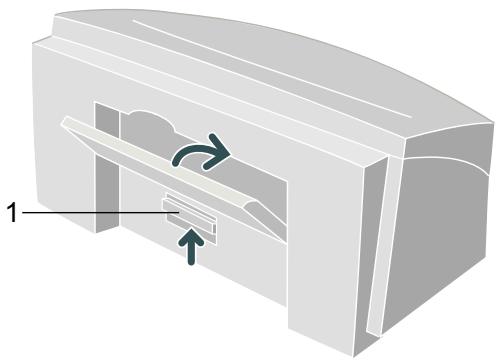
Rear Access Door
- The rear access door is located on the back of the printer underneath the bypass tray. The bypass door must be closed before you can open the rear access door. The rear access door is available to help you clear paper jams.
PRINTER COMPONENTS

Chapter Two
HOW TO PRINT
How to Print
This chapter contains the following information:
How to print
- Printing banners
- Printing cards
- Printing envelopes
- Printing iron-on
- Printing labels
- Printing photographs
- Printing transparencies

Tip: The eXpress mode is specially designed to print good quality significantly faster than the normal mode. To take advantage of eXpress mode printing we suggest you set the printer default for print quality to the eXpress mode. This way it will always be available when you print. Simply do the following:
For Windows 95/98
- Select Start>Settings>Printers.
- Click on DocuPrint M750 or DocuPrint M760.
- Select Properties.
- Select Printer/Output tab.
- Select eXpress in the Print quality menu.
- Click on OK to save settings.
For Windows NT/2000
- Select Start>Settings>Printers.
- Right click onDocuPrint M750 or DocuPrint M760 printer.
- Select Document Defaults for Windows NT or Printer Preferences (Windows 2000).
- Select Paper/Output tab.
- Select eXpress in the Print Quality menu.
- Click on OK to save settings.
How to Print
1 Open the document you want to print and select File: Print.
2 Select Properties, then select the following options. When you have finished making your selections, choose OK to print:
- Copies: Type how many copies you want to print.
- Orientation: Choose Portrait or Landscape.
- Print Order: Check Collate or Reverse print order.
-
Print Document As:
-
Brilliant Color (photos, graphics, and text)
-
Greyscale (black and white)
-
Paper size: Choose the size of the paper you want to print on.
- Paper source: Choose either Tray 1 or the Bypass tray (a flip tray located on the back of the printer)
- Paper type: Choose the type of paper you want to print on.
Print quality:
- Draft: Draft print quality and fastest printing speed.
- eXpress: This special feature is designed for printing good quality business graphics faster.
- Normal: Best overall print quality and speed.
- Best: Best print quality, but prints less quickly.
Saved settings: Choose from pre-set options.
Printing Banners
For printing banners we recommend you use 20 lb. or 70gm^2 paper. You can feed up to five sheets of banner paper through the bypass tray.
After you open your document and select File: Print, click on the Properties button, then the Paper/Output tab, then select Banner in the Paper size listbox. In the paper source list box select bypass tray.
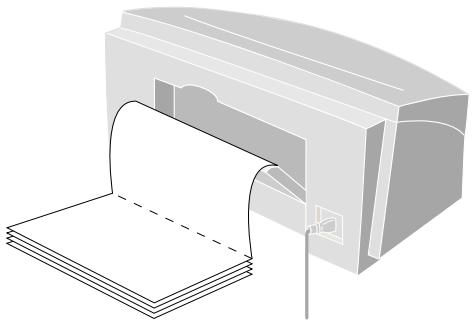
Tear off the number of sheets you will need to print your banner (5 maximum).
Tear off the perforated edges, if the paper has any and fan the stack to separate the edges.
Open the bypass tray, which is located on the back of the printer.
Place the unattached edge into the bypass tray slot on the back of the printer. Push the paper down until resistance is met. If inserted correctly, the banner feeds into the printer, then pauses until you click OK to print.
Sheets will continue to feed until printing is complete.
1
2
3
4
5
6
2
Printing Cards
You can use your printer to print index cards, postcards, and birthday cards. Choose any card size in the Paper size selection menu or use the Custom selection to print on other card sizes not found in the selection menu.

After you open your document and select File: Print, click on the Properties button, then the Paper/Output tab, then select the desired size in the Paper size listbox.

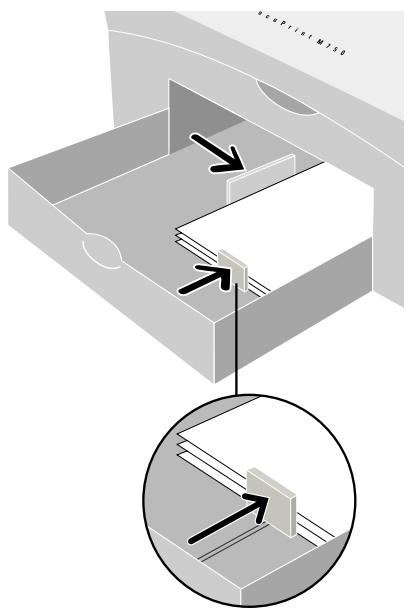
Remove any other media in the paper tray and place up to 30 cards in Tray 1. Place the cards in the right side of the tray.

Pull the paper length guide all the way out. Pull the gray tab on the end of the adjuster up.

Adjust the guides snugly against the cards and print.
Printing Envelopes
There are two methods you can use for printing envelopes:
- For printing a single envelope use the bypass tray on the back of the printer.
For printing several envelopes use the regular paper tray.
Printing A Single Envelope
On the right side of the printer turn the paper thickness dial to envelope.
Open your document and select File: Print, click on the Properties button, then Paper/Output tab, then select the envelope size in the Paper size listbox.
In the Paper source listbox, choose bypass tray.
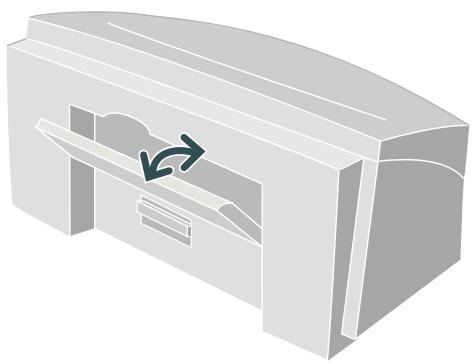
Open the bypass tray on the back of the printer.
Insert the envelope with the addressable side facing up and the flap pointing toward the left side. If inserted correctly the envelope feeds into the printer, then pauses until you click OK to print.
1
2
3
4
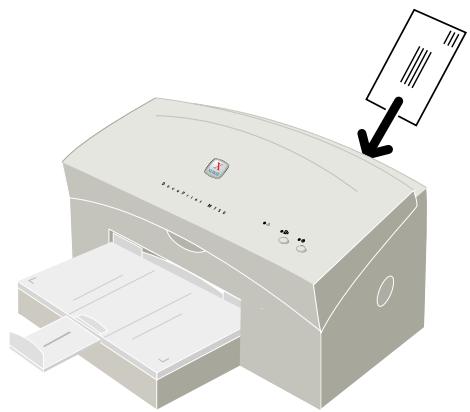

Note: If you find that the printing on your envelope is not correct, try reversing the orientation of the envelope and print again. After printing, remember to change the dial back to the paper position.

Note: When envelopes are completed: Remember to change the Paper/Output properties back before printing any documents. Turn the paper thickness guide back to paper/normal. Replace the envelopes with paper.
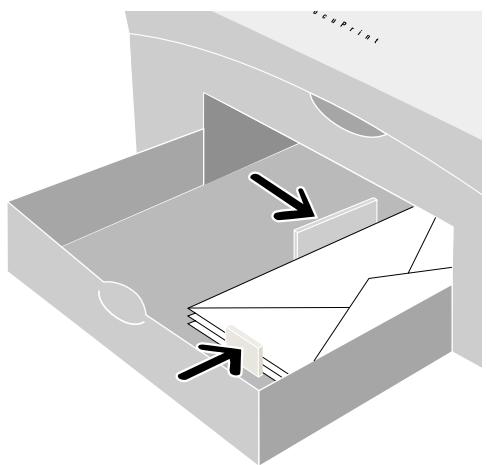

Note: If you find that the printing on your envelope is not correct, try reversing the orientation of the envelope and print again.
Printing Several Envelopes
On the right side of the printer turn the paper thickness dial to envelope.
After you open your document and select File: Print, click on the Properties button, then the Paper/Output tab, then select the envelope size in the Paper size listbox.
Remove any other media from the paper tray.
Pull the paper length guide all the way out. Pull the gray tab on the end of the adjuster up.
Insert the envelopes addressable side down with the flap of the envelope pointing toward the left side.
Adjust the guides snugly against the envelopes and print.
PRINTING IRON-ON
Printing Iron-On
You can use the Iron-Transfer feature to put an image on to shirts or other cloth material. All you need is iron-on transfer paper, which you can buy at most computer or office supply stores.
After you open the document you want to transfer to the shirt, select File: Print.
Click on the Properties button, then the Paper/ Output tab, then select Iron-on transfer in the Paper type listbox. The image will automatically be flipped so that the image you see on the shirt will be as you see it on the PC screen.
Load the transfer paper, printable side down, in Tray 1. Refer to the instructions included with the iron-on transfer paper to determine the side to print on.
Adjust the guides snugly against the transfer paper and print the image.
Follow the instructions included with the iron-on transfer paper to transfer the image to the shirt.
2
3
4
5
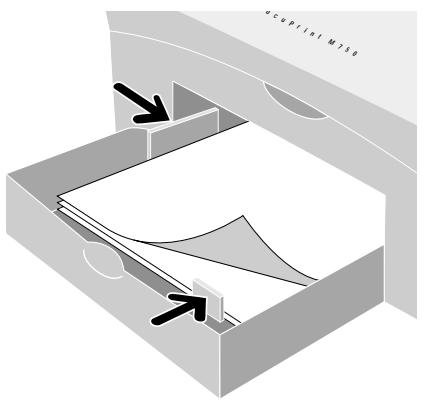

Tip: First print the image on plain paper. Place the print on top of a sheet of labels and hold up to the light. You should be able to check that the print is properly aligned on the labels. If not, make the proper adjustments in your application.
Printing Labels
You can use your M750/M760 printer to print sheets of labels. Use only US letter or A4-sized labels. For best results use labels that are specifically designed for ink jet printers.
1
After you open your document and select File: Print, click on the Properties button, then the Paper/Output tab, then select Plain paper in the Paper type listbox.
2
Fan the edges of the label sheets to separate them.
3
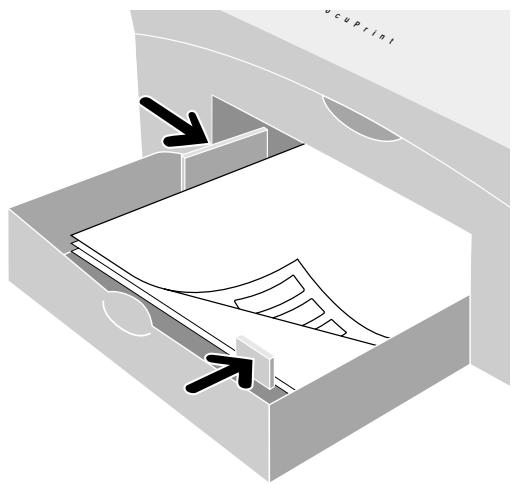
Remove any other paper in Tray 1 and load up to 30 sheets of labels face down.
4
Adjust the paper guides snugly against the stack and print.
PRINTING PHOTOSGRAPHS
Printing Photographs
For best results use Xerox photo gloss paper.
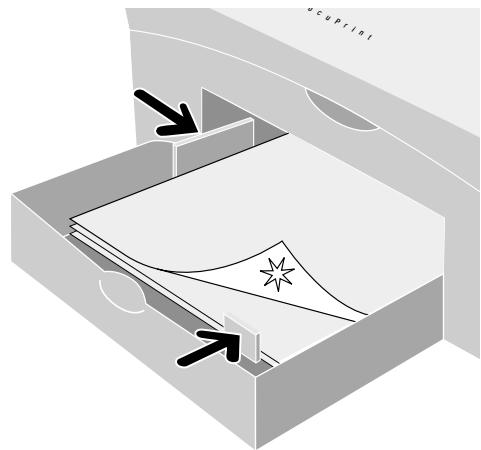
After you open your document and select File: Print, click on the Properties button, then the Paper/Output tab, then click on the Paper/ Output tab, and select Photo quality glossy paper in the Paper type listbox. The print quality automatically changes to Best.
Remove any other media and place the paper in Tray 1 with the glossy side down and print.

Note: If printing multiple copies, remove each sheet promptly and allow it to dry before handling.
1
2

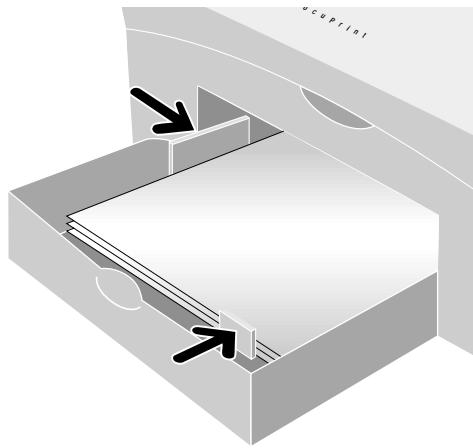
Note: Make sure you place transparencies roughside down in the tray. Also, remember that transparencies take longer to dry than plain paper. Allow for longer drying time before handling.
Printing Transparency
For best results use a Xerox ink jet transparency or a transparency specifically designed for ink jet printers. Do not use transparencies designed for laser printers. Using these will cause the ink to smear.

After you open your document and select File: Print, then click on the Properties button, then the Paper/Output tab, and select Ink jet transparency in the Paper type listbox.

In the Print quality toolbox select eXpress or Best. The eXpress mode will give you good quality and print faster. Best will print slower, but will give you the highest quality for your overhead presentation.

Remove any other media and place up to 30 transparencies in Tray 1 with the rough side down. If your transparency has an adhesive strip you can peel it off after printing. You can print with the adhesive strip facing either way.

Adjust the guides against the transparencies and print.

Chapter Three
MAINTENANCE
Maintaining Your Printer
This chapter contains the following information:
- Changing an ink cartridge
- Cleaning and aligning the print head
Changing the print head
CHANGING AN INK CARTRIDGE
Changing an Ink Cartridge
You can change an ink cartridge using the Maintenance tab in the Status window:
1
Open the Maintenance tab by selecting: Start >Settings > Printers. Select the DocuPrint M750/M760 icon.
2
Select Printer > Properties. Select the Paper/ Output tab and click on the Status button, then select the Maintenance tab.
3
Click the Change button. A window opens, prompting you to select the item you are installing. Choose a color ink cartridge. Click OK. Open the printer cover. The print head moves to the center of the printer.
4
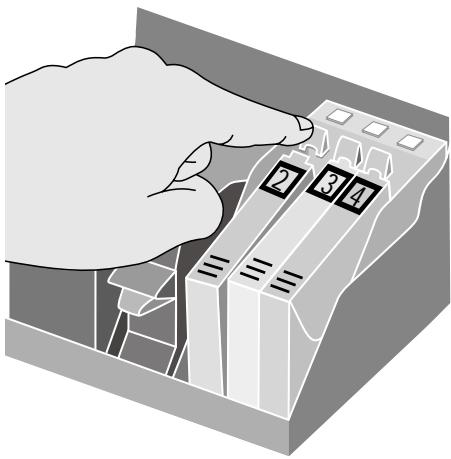
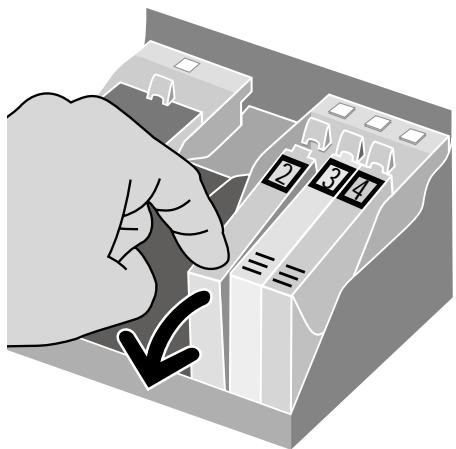
Remove the empty ink cartridge from the print head by pushing the tab forward and rocking the cartridge out.
CHANGING AN INK CARTRIDGE
Remove the new ink cartridge from its package. Slowly remove the protective strip from the cartridge in the direction of the arrow.
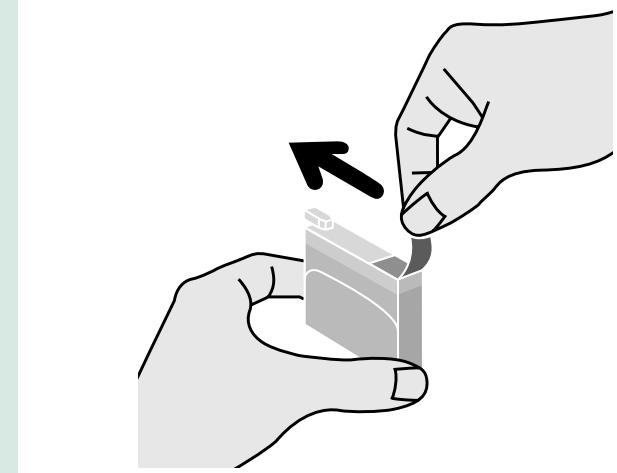

Caution: Do not touch the uncovered opening in the ink cartridge, as ink will get on your hands.
CHANGING AN INK CARTRIDGE

Caution: Do not force the ink cartridge into the print head.
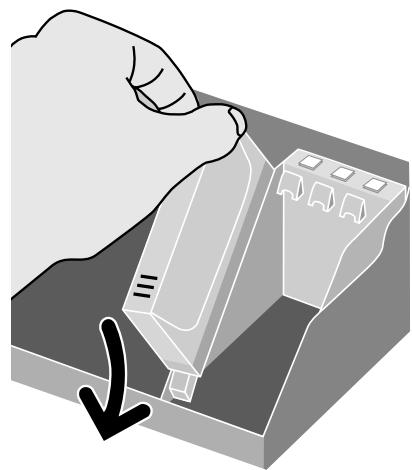
6
Insert the ink cartridge into the correct location on the color print head. The ink cartridges and corresponding locations are color-coded and numbered.
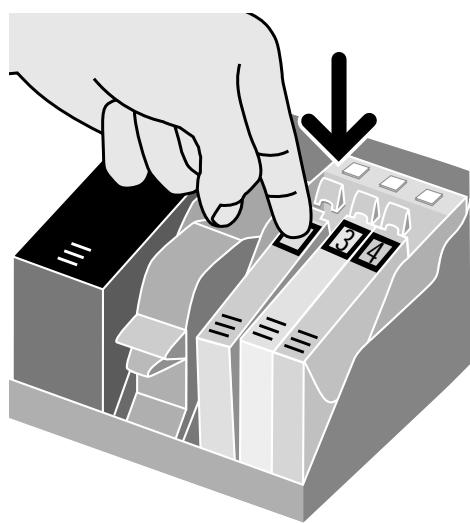
7
Snap the ink cartridge into position.
8
Close the printer cover and select Finish.
CLEANING AND ALIGNING THE PRINT HEAD
Cleaning and Aligning the Print Head
Cleaning the Print Head
The clean function is used to restore the print head when the nozzles become dirty or clogged with dried ink.
Open the Maintenance tab by selecting: Start >Settings > Printers. Select the DocuPrint M750/M760 icon.
Select Printer > Properties. Select the Paper/ Output tab and click on the Status button, then select the Maintenance tab.
Select Clean... to display the Clean Print Head window.
Select the black print head, color print head, or both, depending on which you want to clean.
When you select Clean, the printer cleans the selected print head(s). This button is disabled if neither head is checked.
Aligning the Print Head
Open the Maintenance tab by selecting: Start >Settings > Printers. Select the DocuPrint M750/M760 icon.
Select Printer > Properties. Select the Paper/Output tab and click on the Status button, then select the Maintenance tab.
Select Align... to display the Align Print Head window and follow the instructions that display.
1
2
3
4
5
1
2
3
Changing the Print Head
1
Open the Maintenance tab by selecting: Start >Settings > Printers. Select the DocuPrint M750/M760 icon.
2
Select Printer > Properties. Select the Paper/ Output tab and click on the Status button, then select the Maintenance tab.
3
Select Change... to display the Change window and follow the instructions that display.
Printing a Test Print
A test print is useful for checking print quality and checking that your printer is functioning normally.
1
Print a test print by pressing and holding the Resume button for more than two seconds.
TROUBLESHOOTING

Chapter Four
TROUBLESHOOTING
Troubleshooting
This chapter contains the following information:
Error indicators
- Paper feeding problems
Print quality problems
- Printer problems
Error Indicators
| Symptom | Diagnosis and/or Solution |
| All lights blinking | ·The print carriage isn't centering properly. To clear a carriage position error: 1. Open the printer cover and clear any obstructions. 2. Make sure the color ink cartridges are seated properly by pressing the end of each cartridge to snap it into position. 3. If the error still continues, call the Xerox Customer Support Center. ·A self-test or system error. To correct a system error unplug the power cord to the printer, then reconnect the power cord. If this doesn’t resolve the problem, call the Xerox Customer Support Center. |
| Green power light is blinking slowly | ·The printer is warming up. ·The printer is receiving data. |
| Red resume light is blinking fast | ·Out of paper or paper did not feed properly. Check paper tray or check the paper path. |
Error Indicators
| Symptom | Diagnosis and/or Solution |
| Red ink light is blinking fast | • The printer is out of ink. Change the ink cartridge. • There are no ink tank(s) installed. Install an ink cartridge. • There are no print head(s) installed. Install a new print head. • A different ink brand is being used. Get Xerox brand ink cartridges and change the ink cartridges. |
| Red ink light is blinking slowly | • The printer cover is open, close the cover. |
Paper Feeding Problems
| Symptom | Diagnosis and/or Solution |
| Paper sticks together | ·Make sure there isn't too much paper in the tray. Depending on the thickness of your paper, the paper tray can hold up to 150 sheets of paper. ·Make sure you are using the correct type of paper. Remove paper from the feeder and flex or fan the paper. ·Humid conditions may cause some paper to stick together. |
| More than one sheet of paper being fed | ·There may be different types of paper in the tray. Load paper of only one type, size, and weight. |
| Paper skews or buckles | ·Make sure there isn't too much paper in the tray. Depending on the thickness of your paper, the feeder can hold up to 150 sheets of paper. ·Try another type of paper. Make sure the paper is not bowed in the tray. ·Make sure the paper guides are adjusted snugly against the paper. |
| Transparencies stick together in the paper exit | ·Use only transparencies specially designed for an ink jet printer. ·Remove each transparency as it leaves the printer. |
| Envelopes skew or fail to feed correctly | ·Make sure that the paper guide is against the left side of the envelopes. |
| Problem feeding glossy paper | ·There are many different glossy papers available on the market which range in thickness. Xerox recommends using Kodak glossy paper with the M750 and M760 printers for optimum feed performance. |
Print Quality Problems
| Symptom | Diagnosis and/or Solution |
| Printed document is blank Note: Do not disconnect the power cord from the wall outlet. | • Print a test print by pressing and holding the Resume button for more than two seconds. If the test print is good check the printer cable or the PC. • If the test print is blank try cleaning the print heads up to 3 times using the Clean function found in the Maintenance tab of the printer driver. • If the printer has been left without power for more than a few hours remove the print heads and clean with a damp cloth. Use a clean cloth, dampened only with water, to gently clean the nozzles (the copper-colored area on the bottom of the print head). When cleaning the color print heads, wipe the nozzles in only one direction so that the colors do not mix. |
| Light or blurred characters | • You may be using Draft quality. Try selecting a better print quality mode in the Paper/Output tab, under Print quality. (Normal, eXpress, Best) • The ink cartridge may be running out of ink. Replace the Ink cartridge if the ink light is blinking. • Make sure you are using good quality paper. Try another type of paper. • You may be printing on the wrong side of the paper. • The print head may need cleaning. Clean the print head up to 3 times using the Clean function found in the Maintenance tab of the printer driver. • If not printing on envelopes, make sure Paper thickness dial on the side of the printer is in the paper position. |
Print Quality Problems
| Symptom | Diagnosis and/or Solution |
| Envelope printing smudges or streaks | Make sure the Paper Thickness dial on the right side of the printer is in the envelope position. |
| Printed image is clipped or off the edge of the media | Change the document margins in the application that you are using to be within the recommended printable area: 3mmMake sure you selected the correct Paper size on the Paper/Output tab. |
| Smudged or dark characters | Try another type of paper. Make sure the paper is straight and unwrinkled.Let ink dry before handling the paper. In the Paper/Output tab, change the Print quality setting to Normal or eXpress quality mode. |
| Vertical straight lines are broken or jagged in tables, borders, and graphs | The print heads may be mis-aligned. Align the print heads using the Align function found in the Maintenance tab of the printer driver. |
| Printed color is significantly different from screen colors | One or more of the color ink cartridges have run out of ink.Install a new ink cartridge.The print head may need cleaning. Clean the print head up to 3 times using the Clean function found in the Maintenance tab of the printer driver. |
| Black and white is printing instead of expected color printing | The print settings may be incorrect. Check that printing is not set to Greyscale in the Paper/Output tab. |
Print Quality Problems
| Symptom | Diagnosis and/or Solution |
| Color print quality is poor | Try using a different kind of paper. Make sure that the Paper Type setting in the Page/Output tab is correct for the type of paper loaded. Change the Print Quality setting in the Paper/Output tab to Normal or Best. |
| Printer carriage moves, but no characters are printing | If printing text, the black ink cartridge may be out of ink. If the ink status light is blinking change the black ink cartridge. |
| Unexpected characters are printed or characters are missing | Make sure your application has the M750/M760 selected as the default printer. The printer cable may not be securely connected to the printer and the computer, or the printer cable may not the correct type. Check the printer cable. The print head may need cleaning. Clean the print head up to 3 times using the Clean function found in the Maintenance tab of the printer driver. |
| Color images are fuzzy, colors overlap, dark bands | The print heads are mis-aligned. Align the print heads using the Align function found in the Maintenance tab of the printer driver. |
| Horizontal white lines in solids or characters | The print head may need cleaning. Clean the print head up to 3 times using the Clean function found in the Maintenance tab of the printer driver. The ink cartridge may be running out of ink. Replace the ink cartridge. If printing on transparencies, try changing the fill pattern in your application software. If connected to a power strip, keep the power to the printer on at all times. The printer requires a small amount of power to prevent the ink in the nozzles from drying. |
Print Quality Problems
| Symptom | Diagnosis and/or Solution |
| When making multiple prints from the bypass tray, prints have fine white lines | Try changing the paper source from bypass to Tray 1. You can still feed paper through the bypass tray. The system automatically feeds from the bypass tray when paper is inserted into the by-pass slot. |
| Transparency print quality is poor | Make sure you have selected Transparency from the paper/ output property page. Check to make sure you are printing on the rough side of the transparency. Make sure you are using ink jet transparencies. |
| Solid black areas on my prints are light and do not stand out | The black density is dependent on the paper you are using as well as the print mode you have selected. If you are not satisfied with the black density of your print, choose a higher quality print mode or pick a different paper to improve the density. |
Printer Problems
| Symptom | Diagnosis and/or Solution |
| Printer does not print | A paper jam has occurred. If this is the case, the paper light will be blinking. Print a test print by pressing and holding the Resume button for more than two seconds. If the test print is good, the problem is most likely not with the printer. The USB or parallel cable is not connected properly. The USB or parallel cable is defective. Swap the cable with one known to work. If necessary, replace the cable. If using a parallel cable, ensure that it is IEEE std 1284 - 1994 compliant. The printer port is configured incorrectly. Check the printer settings in Windows to make certain that the print job is being sent to the correct port (for example, LPT1). The printer may be configured incorrectly within the PC application. Check the application to verify that all print settings are correct. The printer driver may be incorrectly installed. Uninstall the existing printer driver, and re-install the printer driver. |
Printer Problems
| Symptom | Diagnosis and/or Solution |
| Paper feed problems | ·Out of paper. Add paper. ·When the red Resume light is blinking fast, it may indicate a paper jam. Clear the paper jam and press the Resume button on the front of the printer. ·Remove all paper from the paper tray, fan the paper and reinstall it in the paper tray. Press and release the Resume button to continue the print job. If paper misfeeds continue, remove the stack of paper, turn it over, and reinstall the paper in the paper tray. Then press and release the Resume button to continue the print job. ·Paper has not been loaded properly. Remove and re-insert the paper correctly. ·There is too much paper in the paper tray. Remove some paper. |
| Printed document does not match selected printer settings | ·Some PC software applications override the settings selected on the M750/M760 printer driver. In this case, choose the desired settings from the software application. |
Printer Problems
| Symptom | Diagnosis and/or Solution |
| Printed document is blank Note: Do not disconnect the power cord from the wall outlet. | ·Print a test print by pressing and holding the Resume button for more than two seconds. If the test print is good check the printer cable or the PC. ·If the test print is blank try cleaning the print heads up to 3 times using the Clean function found in the Maintenance tab of the printer driver. ·If the printer has been left without power for more than a few hours remove the print heads. Use a clean cloth, dampened only with water, to gently clean the nozzles (the copper-colored area on the bottom of the print head). When cleaning the color print heads, wipe the nozzles in only one direction so that the colors do not mix. |
| Printed page is partly blank | ·The page orientation setting may be incorrect in the print driver. Change the page orientation in the Print Setup dialog box. ·The actual paper size and the paper size settings in the printer driver do not match. Load the correct paper in the printer or change the paper size selection in the printer driver. ·The printer cable may be incorrect. If not USB, the printer cable type should be IEEE std 1284 - 1994 compliant. ·One of the ink cartridges may be empty. Change the ink cartridge. |
Printer Problems
| Symptom | Diagnosis and/or Solution |
| Printer prints extra characters, wrong data, or prints incorrect characters | ·The printer cable may be connected improperly. Check the cable connection. ·There may be a problem with the printer driver software. Exit Windows and reboot the computer. Turn printer off and on to purge old data from printer buffer. ·The printer cable may be incorrect. Parallel printer cable type should be IEEE std 1284 - 1994 compliant. ·Printer cable may be too long. Printer cable should be less than 6 feet long. ·If printer is connected through a switch box or scanner try connecting directly to PC. |
| Printer produces meaningless characters or symbols | ·Your parallel cable may not be IEEE 1284-1994 compliant. ·The parallel cable may not be securely connected to the printer or PC. ·Make sure your application has the M750/M760 Printer selected as the default. |
| Bi-directional communications error appears in the status window | ·Verify that your printer is plugged in to AC power. ·Verify your parallel cable is IEEE1284-1994 compliant. ·Ensure that your PC is set for ECP or Bi-directional mode. Running ECP with DMA turned on may cause problems with bi-di error status. Turn DMA off when using ECP. On some model PC's you can not turn off DMA. Try setting the Windows device driver to "printer mode". Contact your computer manufacturer or TEAM XRX 1-800-832-6979 for assistance. |
Printer Problems
| Symptom | Diagnosis and/or Solution |
| Printer prints very slowly | You may be using Best mode print quality. Change the Print Quality setting in the print driver to Normal or eXpress. Close all applications not needed to print the job. If you are using Windows 95/98/NT 4.0, the Spooling Setting may be set incorrectly. Select: Start > Settings > Printers. Click the M750/M760 icon with the right mouse button, select Properties, click the Details tab, and then click the Spool Settings button. Select the desired spool setting from the available choices. The Temp (Temporary) folder on your hard drive may contain too many files. Delete *.tmp and *.prn files stored in C:\Windows\Temp or your PC's hard drive. If installing an NT driver, NT will set the driver's spool data format to RAW. The user must manually change it to PMJOURNAL to get much better speed from the driver. Go to the printer properties by selecting Start> Settings> Printers then right click on M750 or M760 and select Properties. Go to the Details tab then select the Spool Settings button. Ensure that the Spool Data Format is set to PMJOURNAL instead of RAW or EMF then select OK. Print speed is a function of document size and document complexity. Print speed can also be effected by the speed of your PC. If you are using Windows 98 or Windows 2000 try printing from the USB port. If using the parallel port ensure it is in ECP mode. |
PRINTER PROBLEMS
SERVICE AND SUPPORT

Chapter Five
Service and Support
If you are unable to solve a problem using this guide or the printer driver Online Guide, do one of the following:
Browse to:
http://WWW.XEROX.COM
In the U.S. and Canada Call the Xerox Customer Support Center at:
1-800-TEAM XRX (1-800-832-6979)
If possible, call from a telephone near your PC and the printer. Make sure that both your PC and your printer are turned on.
SERVICE AND
SUPPORT
Before calling, have the following information ready:
M750/M760 serial number, which is located on the back of the printer.
- Your operating system version (Windows 95/98, NT 4.0, 2000)
Amount of memory in your PC.
Information about the problem, including description of the problem, any error messages and any steps you have taken to solve the problem.
Ordering Supplies
Order Xerox DocuPrint M750/760 supplies from your local Xerox dealer or representative.
Ink Cartridge/Print Head Re-Order Numbers
| High capacity black ink cartridge (700 page yield) | H100 |
| Black Ink Cartridge (400 page yield) | Y100 |
| Cyan Ink Cartridge | Y101 |
| Magenta Ink Cartridge | Y102 |
| Yellow Ink Cartridge | Y103 |
| Ink Cartridge Multi Pack (4) | Y104 |
| Black Printhead | P100 |
| Color Printhead | P105 |
INDEX
X
Index
QUICK REFERENCE
GUIDE
A
Alignment, Print Head 3-5
B
Banners, Printing 2-3
Bypass Tray 1-5
C
Cards, Printing 2-4
Changing
Ink Cartridge 3-2
Print Head 3-6
Cleaning, Print head 3-5
Connections 1-2
Control Panel 1-2
D
Door, Rear Access 1-5
INDEX
E
Envelopes
Printing Several 2-6
Printing Single 2-5
Error Indicators, Diagnosis &/or Solution 4-2
1
Ink Cartridge
Changing 3-2
Re-Order Numbers 5-2
Iron-On, Printing 2-7
L
Labels, Printing 2-8
0
Online UserGuide, Accessing 1-1
Output Tray 1-4
Output Tray Extension 1-4
P
Paper Feeding Problems, Diagnosis &/or
Solution 4-4
Paper Thickness Dial 1-3
Paper Tray 1-4
Print Head
Alignment 3-5
Changing 3-6
Cleaning 3-5
Re-Order Numbers 5-2
Print Quality Problems,
Diagnosis &/or Solution 4-5
Printer Components and Parts 1-1
Bypass Tray 1-5
Connections 1-2
Control Panel 1-2
Output Tray 1-4
Output Tray Extension 1-4
Paper Thickness Dial 1-3
Paper Tray 1-4
Print Heads 1-3
Rear Access Door 1-5
Printer Problems, Diagnosis &/or Solution 4-8
Printing 2-1
Banners 2-3
Cards 2-4
Envelopes 2-5
Iron-On 2-7
Labels 2-8
Photographs 2-9
Several Envelopes 2-6
Single Envelope 2-5
Problem Diagnosis & Solution 4-1
Error Indicators 4-2
Paper Feeding 4-4
Print Quality 4-5
Printer 4-8
R
Rear Access Door 1-5
s
Service and Support 5-1
Customer Support Center 5-1
Ink Cartridge Re-Order Numbers .5-2
Ordering Supplies 5-2
Print Head Cartridge Re-Order Numbers 5-2
Web Address 5-1
Supplies, Ordering 5-2
T
Transparencies, Printing 2-10
- Quick Reference Guide
- X
- Table of Contents
- 1.
- BASIC INFORMATION
- 2.
- HOW TO PRINT
- 3.
- MAINTENANCE
- 4.
- TROUBLESHOOTING
- 5.
- SERVICE AND SUPPORT
- Chapter One
- Printer Components and Parts
- BASIC
- INFORMATION
- PRINTER COMPONENTS
- Connections
- Control Panel
- Paper Thickness Dial
- Print Heads
- Output Tray
- Output Tray Extension
- Bypass Tray
- Rear Access Door
- Chapter Two
- For Windows 95/98
- For Windows NT/2000
- Open the document you want to print and select File: Print.
- Select Properties, then select the following options. When you have finished making your selections, choose OK to print:
- Printing Banners
- Printing Cards
- Printing Envelopes
- Printing A Single Envelope
- Printing Several Envelopes
- PRINTING IRON-ON
- 2
- 3
- 4
- 5
- Printing Labels
- 1
- PRINTING PHOTOSGRAPHS
- Printing Photographs
- Printing Transparency
- Chapter Three
- Maintaining Your Printer
- CHANGING AN INK CARTRIDGE
- 6
- 7
- 8
- CLEANING AND ALIGNING THE PRINT HEAD
- Cleaning the Print Head
- Aligning the Print Head
- Changing the Print Head
- Printing a Test Print
- Chapter Four
- Error Indicators
- Paper Feeding Problems
- Print Quality Problems
- Printer Problems
- Chapter Five
- http://WWW.XEROX.COM
- 1-800-TEAM XRX (1-800-832-6979)
- SERVICE AND
- SUPPORT
- Ordering Supplies
- INDEX
- QUICK REFERENCE
- GUIDE
- A
- B
- C
- D
- E
- L
- 0
- P
- R
- s
- T
Marque : XEROX
Modèle : DOCUPRINT M760
Catégorie : Imprimante laser