VNET+4PS - Bryter Smart-AVI - Gratis bruksanvisning og manual
Finn enhetens veiledning gratis VNET+4PS Smart-AVI i PDF-format.


Brukerspørsmål om VNET+4PS Smart-AVI
0 spørsmål om dette apparatet. Svar på dem du kjenner, eller still ditt eget.
Still et nytt spørsmål om dette apparatet
Last ned instruksjonene for din Bryter i PDF-format gratis! Finn veiledningen din VNET+4PS - Smart-AVI og ta den elektroniske enheten tilbake i hendene. På denne siden er alle dokumenter som er nødvendige for bruken av enheten din publisert. VNET+4PS av merket Smart-AVI.
BRUKSANVISNING VNET+4PS Smart-AVI
What's in the Box?
| PART NO. QTY DESCRIPTION | ||
| VNET+4PS 1 4X | 1 KVM | WUXGA, USB2.0, Audio switch |
| Power Supply | P55VD | C2A |
| User Manual 1 | ||
Technical Specifications
| VIDEO | |
| Format | VGA RGB Analog (75Ω, 0.7Vp-p) |
| Resolution | Up to 1600x1200 @ 85Hz2048x1536 @ 60Hz |
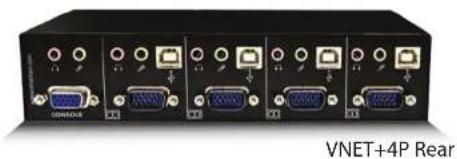
| Input Interface | (4) HD-15 Male |
| Output Interface | (1) HD-15 Female |
| H Frequency Range | 30-95KHz |
| V Frequency Range 50 | 180Hz |
| AUDIO | |
| Frequency Response 20 | Hz to 20 KHz |
| Impedance 600 ohm | |
| Nominal Level 0-1.0 V | |
| Common Mode Rejection at 60dB | |
| Input Interface (8) 3.5 mm Stereo Audio | |
| Output Interface (2) 3.5 mm Stereo Audio | |
| USB | |
| Signaling | USB 1.1 and 1.0 |
| Input Interface (4) USB Type B | |
| Output Interface (2) USB Type A | |
| CONTROL | |
| Front Panel | Tact Switch |
| OTHER | |
| Power | External 100-240 VAC/5VDC2A @10W |
| Dimensions | 7.875"W x 1.625"H x 3.5"D |
| Weight | 7 lbs. |
| Approvals | UL, CE, ROHS Compliant |
| Operating Temp. | 32-131°F (0-55 °C) |
| Storage Temp. | 4-185 °F (-20-85 °C) |
| Humidity | Up to 95% |
| Emulation | NO KEYBOARD OR MOUSE EMULATION |
© Copyright 2011 Smart-AVI, All Rights Reserved
NOTICE
The information contained in this document is subject to change without notice. Smart-AVI makes no warranty of any kind with regard to this material, including but not limited to, implied warranties of merchantability and fitness for any particular purpose.
Smart-AVI will not be liable for errors contained herein or for incidental or consequential damages in connection with the furnishing, performance or use of this material.
No part of this document may be photocopied, reproduced or translated into another language without prior written consent from Smart-AVI.
For more information, visit www.smartavi.com.
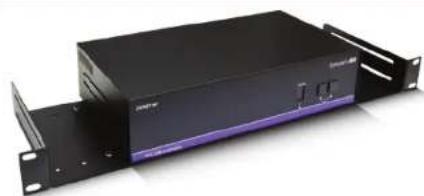
Rack Mountable Option
natural_image
Black server rack unit with purple stripe and black top panel, no visible text or symbolsOur SmartRack is the perfect solution to allow virtually all SmartAVI devices to be custom mounted in a standard 19" server rack. The SmartRack is fully adjustable and can secure/organize several devices.

SmartAVI, Inc. / Twitter: smartavi 11651 Vanowen St. North Hollywood, CA 91605 Tel: (818) 503-6200 Fax: (818) 503-6208 http://www.SmartAVI.com
Smart-AVI SMART AUDIO VIDEO INNOVATION
Installation Manual
VNET+4P
4-Port Cross-platform WUXGA KVM with USB Keyboard and Mouse, Stereo Audio, and Microphone
natural_image
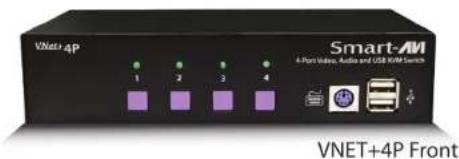
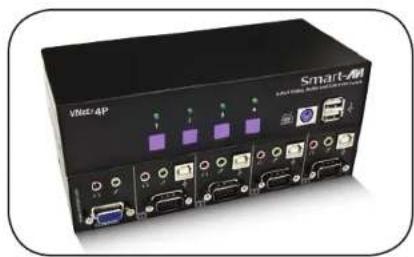
Front view of a Smart Air device with ports and indicator lights (no readable text or symbols)Control 4 Computers, PC or Mac on one Display with USB Keyboard and Mouse, Stereo Audio and Microphone
www.smartavi.com
Introduction
The VNET+4P is a cross-platform KVM WUXGA switch capable of sharing one WUXGA Monitor between four computers, PC or Mac. View four computers with WUXGA on a single screen, saving money and desktop space.
Features
• Supports Mac, PC, Linux and Sun
• Supports High Resolution 1920x1200 60Hz WUXGA
• Supports USB keyboard and mouse
• Balanced stereo audio output
• Front panel tactile switch with LED indicator
• Supports Auto-scan mode for simple discovery
Applications
• Home Theater Integration
• Digital Signage Deployment
• Information Kiosks/Displays
• Film/Recording Studios
In the medical or industrial field, where it may not be practical (or safe) to have one or more CPUs in the general vicinity, SmartAVI's VNET Switch Series is the perfect solution, allowing for either PC or Mac signals to be extended from computer to the display.
Another practical use for one of our VNET Switch would be for media recording studios, where soundproofing and space issues come into play. Using a VNET Switch eliminates the inherent "hum" of a powered CPU and gives you the freedom of using your keyboard, mouse and monitor without having to find room for the computer itself in the same workspace.
Product - Installation Diagram
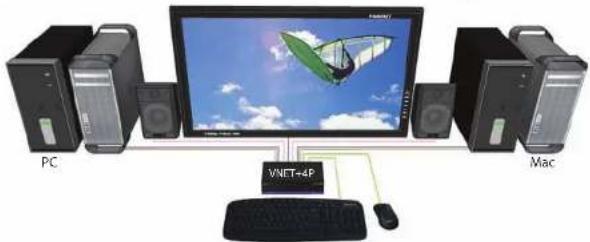
flowchart
graph TD
    PC["PC"] --> VNET["VMNET+4P"]
    VNET --> Mac["Mac"]
    Mac --> VNET
    VNET --> PC
    style VNET fill:#f9f,stroke:#333
    style PC fill:#ccf,stroke:#333
    style Mac fill:#cfc,stroke:#333
Installation
- Turn off all computers and the display.
- Connect the display to the "OUT" VGA connector on the VNET+4P.
- Connect USB mouse and keyboard to the "OUT" USB connector on the VNET+4P.
- Connect speakers to the "OUT" audio connector on the VNET+4P.
- Connect the power cord and power on the VNET+4P.
- Power on the computers and the display.
-
Use the front panel buttons to select the desired input port.
-
Connect the VGA extension cables, USB cables, and audio cables (not included) to the computers and to the "IN" ports on the VNET+4P.
Switching Between Ports
Front Panel Control
To switch ports using the front panel, press either the up or down button to cycle through the available ports. The selected port number will be indicated on the LED display.