
2407WFP - Televizor DELL - Besplatni korisnički priručnik
Pronađite besplatno priručnik za uređaj 2407WFP DELL u PDF formatu.


Pitanja korisnika o 2407WFP DELL
0 pitanje o ovom uređaju. Odgovorite na one koje znate ili postavite svoje.
Postavi novo pitanje o ovom uređaju
Preuzmite upute za vaš Televizor u PDF formatu besplatno! Pronađite svoj priručnik 2407WFP - DELL i uzmite svoju elektroničku napravu natrag u ruke. Na ovoj stranici objavljeni su svi dokumenti potrebni za korištenje vaše naprave. 2407WFP marke DELL.
KORISNIČKI PRIRUČNIK 2407WFP DELL
Dell™ 2407WFP-HC Flat Panel Monitor User's Guide
About Your Monitor
Front View
Back View
Side View
Bottom View
Monitor Specifications
Universal Serial Bus (USB) Interface
Card Reader Specifications
Plug and play capability
Caring for Your Monitor
Using Your Adjustable Monitor Stand
Attaching the Stand
Organizing Your Cables
Using the Tilt, Swivel and Vertical Extension
Removing the Stand
Setting Up Your Monitor
Connecting Your Monitor
Using the Front Panel Buttons
Using the OSD
Setting the Optimal Resolution
Using the Dell™ Soundbar (Optional)
Rotating Your Monitor
Changing the Rotation of Your Monitor
Rotating Your Operating System
Solving Problems
Monitor Specific Troubleshooting
Common Problems
Video Problems
Product Specific Problems
Universal Serial Bus (USB) Specific Problems
Dell™ Soundbar (Optional) Troubleshooting
Card Reader Troubleshooting
Appendix
FCC Identification Information
Safety Instructions
Contacting Dell
Notes, Notices, and Cautions

NOTE: A NOTE indicates important information that helps you make better use of your computer.

NOTICE: A NOTICE indicates either potential damage to hardware or loss of data and tells you how to avoid the problem.

CAUTION: A CAUTION indicates a potential for property damage, personal injury, or death.
Some warnings may appear in alternate formats and may be unaccompanied by an icon. In such cases, the specific presentation of the warning is mandated by regulatory authority.
Information in this document is subject to change without notice.
© 2007 Dell Inc. All rights reserved.
Reproduction in any manner whatsoever without the written permission of Dell Inc. is strictly forbidden.
Trademarks used in this text: Dell, the DELL logo, Inspiron, Dell Precision, Dimension, OptiPlex, Latitude, PowerEdge, PowerVault, PowerApp, and Dell OpenManage are trademarks of DellInc; Microsoft, Windows, and Windows NT are registered trademarks of Microsoft Corporation; Adobe is a trademark of Adobe Systems Incorporated, which may be registered in certain jurisdictions. ENERGY STAR is a registered trademark of the U.S. Environmental Protection Agency. As an ENERGY STAR partner, Dell Inc. has determined that this product meets the ENERGY STAR guidelines for energy efficiency.
Other trademarks and trade names may be used in this document to refer to either the entities claiming the marks and names or their products. Dell Inc. disclaims any proprietary interest in trademarks and trade names other than its own.
Model 2407WFP-HC
March 2007
Rev. A01
Back to Contents Page
About Your Monitor
Dell™ 2407WFP-HC Flat Panel Monitor
Front View
Back View
Side View
Bottom View
Monitor Specifications
Universal Serial Bus(USB) Interface
Card Reader Specifications
Plug and play capability
Caring for Your Monitor
Front View
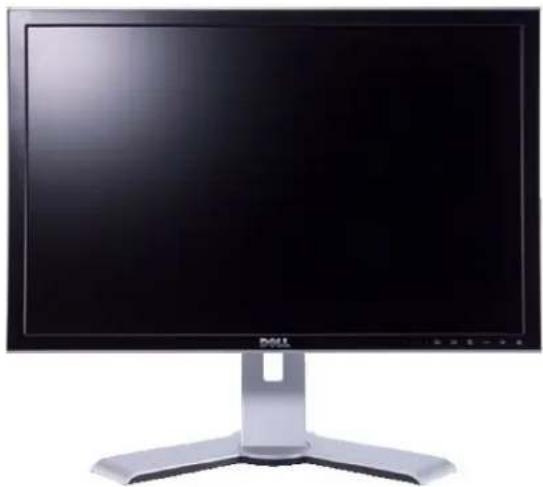
natural_image
Front view of a black computer monitor with three tripod legs (no visible text or symbols)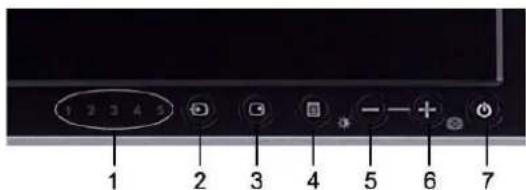
1 Input indicators
2 Input Source Select
3 PIP (Picture In Picture) / PBP (Picture By Picture) Select
4 OSD Menu / Select
5 Brightness & Contrast / Down (-)
6 Auto-adjust / Up (+)
7 Power button (with power light indicator)
Back View
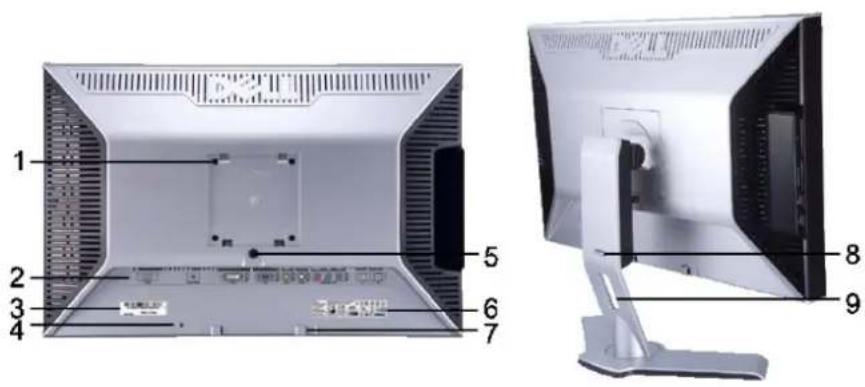
1 VESA mounting holes (100mm) (Behind attached base plate)
2 Connectors label
3 Barcode serial number label
4 Security lock slot
5 Monitor Lock/Release Button
6 Regulatory rating label
7 Dell Soundbar mounting brackets
8 Lock down/release button
9 Cable management hole
Use to mount the monitor.
Indicate the positions and types of connectors.
Refer to this label if you need to contact Dell for technical support.
Use a security lock with the slot to help secure your monitor.
Press to release the stand from the monitor.
List the regulatory approvals.
Attach the optional Dell Soundbar.
Push the monitor down, press the button to unlock the
monitor, and then lift the monitor to the desired height.
Help organize cables by placing them through the hole.
Side View
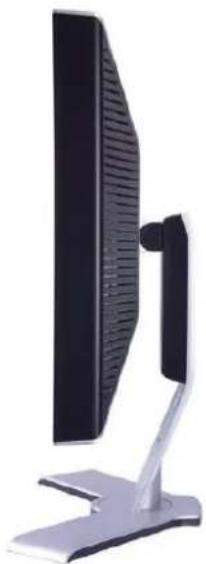
natural_image
Side view of a desktop computer monitor with a stand (no visible text or symbols)Right side
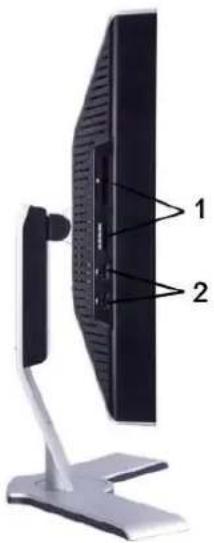
Left side
1 Card reader: for details please refer to Card Reader Specifications
2 USB downstream ports
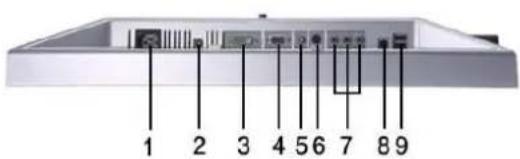
Bottom View
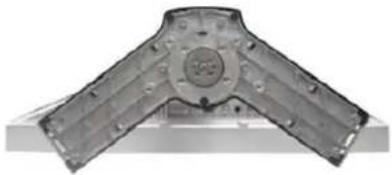
natural_image
Metal mechanical component with two symmetrical arms and a central circular feature (no text or symbols visible)1 AC power cord connector
2 DC power connector for Dell™ Soundbar
3 DVI connector
4 VGA connector
5 Composite video connector
6 S-Video connector
7 Component video connectors
8 USB upstream port
9 USB downstream ports
Monitor Specifications
General
Flat Panel
The following table lists the flat panel specification:
| Screen type | Active matrix - TFT LCD |
| Screen dimensions | 24 inches (24-inch viewable image size) |
| Preset display area: | |
| Horizontal | 518.4 mm (20.4 inches) |
| Vertical | 324.0 mm (12.7 inches) |
| Pixel pitch | 0.270 mm |
| Viewing angle | +/- 89° (vertical) typ, +/- 89° (horizontal) typ |
| Luminance output | 400 cd/m ^2 (typ) |
| Contrast ratio | 1000:1 (typ) |
| Faceplate coating | Antiglare with hard-coating 3H |
| Backlight | 6 CCFLs U-type backlight, 92% wide color gamut |
| Response Time | 6 ms typical (Grey to Grey) / 16 ms typical (Black to White) |
Resolution
The following table lists the recommended resolution:
| Horizontal scan range | 30 kHz to 81 kHz (automatic) |
| Vertical scan range | 56 Hz to 76 Hz, exception 1920 x 1200 at 60 Hz only |
| Optimal preset resolution | 1920 x 1200 at 60 Hz |
| Highest preset resolution | 1920 x 1200 at 60 Hz |
Video Supported Modes
| Video display capabilities (DVI playback) | 480p/576p/720p/1080p (Supports HDCP) |
| Video display capabilities (Composite playback) | NTSC/PAL |
| Video display capabilities (S-Video playback) | NTSC/PAL |
| Video display capabilities (Component playback) | 480i/480p/576i/576p/720p/1080i |
Preset Display Modes
The following table lists the preset modes for which Dell guarantees image size and centering:
| Display Mode | Horizontal Frequency (kHz) | Vertical Frequency (Hz) | Pixel Clock (MHz) | Sync Polarity (Horizontal/Vertical) |
| VGA, 720 x 400 | 31.5 | 70.1 | 28.3 | -/+ |
| VGA, 640 x 480 | 31.5 | 59.9 | 25.2 | -/- |
| VESA, 640 x 480 | 37.5 | 75.0 | 31.5 | -/- |
| VESA, 800 x 600 | 37.9 | 60.3 | 40.0 | +/+ |
| VESA, 800 x 600 | 46.9 | 75.0 | 49.5 | +/+ |
| VESA, 1024 x 768 | 48.4 | 60.0 | 65.0 | -/- |
| VESA, 1024 x 768 | 60.0 | 75.0 | 78.8 | +/+ |
| VESA, 1152 x 864 | 67.5 | 75.0 | 108.0 | +/+ |
| VESA, 1280 x 1024 | 64.0 | 60.0 | 108.0 | +/+ |
| VESA, 1280 x 1024 | 80.0 | 75.0 | 135.0 | +/+ |
| VESA, 1600 x 1200 | 75.0 | 60.0 | 162.0 | +/+ |
| VESA, 1920 x 1200 | 74.0 | 60.0 | 154.0 | +/- |
Electrical
The following table lists the electrical specification:
Video input signals
Analog RGB, 0.7 Volts +/-5%, 75 ohm input impedance Digital DVI-D TMDS, 600mV for each differential line, 50 ohm input impedance S-video, Y Input 1 volt(p-p), C Input 0.286 volt(p-p), 75 ohm input impedance Composite, 1 volt(p-p), 75 ohm input impedance Component: Y, Pb, Pr are all 0.5\~1volt(p-p), 75 ohm input impedance
Synchronization input signals
separate horizontal and vertical, 3.3V CMOS or 5V TTL level, positive or negative sync. SOG (Sync on green)
AC input voltage / frequency / current
100 to 240 VAC / 50 or 60 Hz ± 3 Hz / 2.0A (Max.)
Inrush current
120V: 40A (Max.) 240V: 80A (Max.)
Physical Characteristics
The following table lists the physical characteristics:
Signal cable type
D-sub: Detachable, Analog, 15pin, shipped attached to the monitor
DVI-D: Detachable, Digital, 24pin, shipped detached from the monitor
S-video: Not included with display
Composite: Not included with display
Component: Not included with display
Dimensions (with stand):
Height (fully extended in portrait mode)
584.7 mm (23.0 inches)
Height (compressed/locked in landscape mode)
387.9 mm (15.3 inches)
Width
559.7 mm (22.0 inches)
Depth
195.0 mm ( 7.7 inches)
Weight
Monitor (Stand and Head)
8.3 Kg (18.3 lb)
Monitor Flat panel only (VESA Mode) 6.5 Kg (14.3 lb)
Weight with packaging 11.2 Kg (24.7 lb)
Environmental
The following table lists the environmental limitation:
Temperature:
Operating 5° to 35°C (41° to 95°F)
Non-operating Storage: 0° to 60°C (32° to 140°F)
Shipping: -20° to 60°C(-4° to 140°F)
Humidity:
Operating 10% to 80% (non-condensing)
Non-operating Storage: 5% to 90% (non-condensing)
Non-operating Storage: 5% to 90% (non-condensing)
Altitude:
Operating 3,657.6 m (12,000 ft) max
Non-operating 12,192 m (40,000 ft) max
Thermal dissipation 375.0 BTU/hour (maximum)
Power Management Modes
If you have VESA's DPMS compliance display card or software installed in your PC, the monitor can automatically reduce its power consumption when not in use. This is referred to as 'Power Save Mode'*. If activity from keyboard, mouse or other input devices is detected by the computer, the monitor will automatically "wake up".
The following table shows the power consumption and signaling of this automatic power saving feature:
| VESA Modes | Horizontal Sync | Vertical Sync | Video | Power Indicator | Power Consumption |
| Normal operation | Active | Active | Active | Green | 110W (maximum)*57W (normal)** |
| Active-off mode | Inactive | Inactive | Blanked | Amber | Less than 2 W |
| Switch off | - | - | - | Off | Less than 1 W (at 230 V) |
* With Audio + USB
** Without Audio + USB
* Zero power consumption in OFF mode can only be achieved by disconnecting the main cable from the monitor.
Pin Assignments
VGA Connector
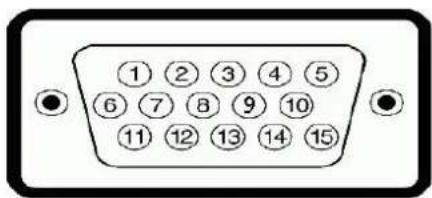
| Pin Number | 15-pin Side of the Connected Signal Cable |
| 1 | Video-Red |
| 2 | Video-Green |
| 3 | Video-Blue |
| 4 | GND |
| 5 | Self-test |
| 6 | GND-R |
| 7 | GND-G |
| 8 | GND-B |
| 9 | Computer 5V/3.3V |
| 10 | GND-sync |
| 11 | GND |
| 12 | DDC data |
| 13 | H-sync |
| 14 | V-sync |
| 15 | DDC clock |
DVI Connector
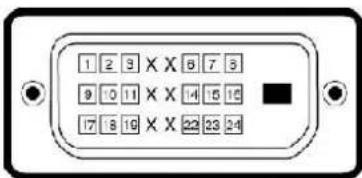
| Pin Number | 24-pin Side of the Connected Signal Cable |
| 1 | TMDS RX2- |
| 2 | TMDS RX2+ |
| 3 | TMDS Ground |
| 4 | Floating |
| 5 | Floating |
| 6 | DDC Clock |
| 7 | DDC Data |
| 8 | Floating |
| 9 | TMDS RX1- |
| 10 | TMDS RX1+ |
| 11 | TMDS Ground |
| 12 | Floating |
| 13 | Floating |
| 14 | +5V / +3.3V power |
| 15 | Self test |
| 16 | Hot Plug Detect |
| 17 | TMDS RX0- |
| 18 | TMDS RX0+ |
| 19 | TMDS Ground |
| 20 | Floating |
| 21 | Floating |
| 22 | TMDS Ground |
| 23 | TMDS Clock+ |
| 24 | TMDS Clock- |
S-video Connector

| Pin Number | 5-pin Side of the Connected Signal Cable (Cable not included) |
| 1 | GND |
| 2 | GND |
| 3 | LUMA |
| 4 | CHROMA |
| 5 | GND |
Composite Video Connector

LUMA COMPOSITE CHROMA
Component Video Connector

| Pin Number | 3-pin Side of the Connected Signal Cable (Cable not included) |
| 1 | Y (Luminance signal) |
| 2 | Pb (Color differential signal) |
| 3 | Pr (Color differential signal) |
Universal Serial Bus (USB) Interface
This monitor supports High-Speed Certified USB 2.0 interface.
| Transfer speed | Data Rate | Power Consumption |
| High speed | 480 Mbps | 2.5W (Max., each port) |
| Full speed | 12 Mbps | 2.5W (Max., each port) |
| Low speed | 1.5 Mbps | 2.5W (Max., each port) |
USB Upstream Connector
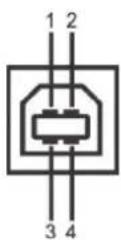
| Pin Number | 4-pin Side of the connector |
| 1 | DMU |
| 2 | VCC |
| 3 | DPU |
| 4 | GND |
USB Downstream Connector
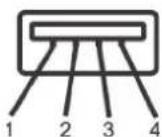
| Pin Number | 4-Pin Side of the Signal Cable |
| 1 | VCC |
| 2 | DMD |
| 3 | DPD |
| 4 | GND |
USB Ports
• 1 upstream - rear
• 4 downstream - 2 on rear; 2 on left side
NOTE: USB 2.0 capability requires 2.0 capable computer
NOTE: The monitor's USB interface works only when the monitor is on or in power save mode, If you switch the monitor off and then on, attached peripherals may take a few seconds to resume normal functionality.
Card Reader Specifications
Overview
- The Flash Memory Card Reader is a USB storage device that allows users to read and write information from and into the memory card.
- The Flash Memory Card Reader is automatically recognized by Windows® 2000, XP and Vista.
- Once installed and recognized, each separate memory card (slot) appears as a separate drive/drive letter.
- All standard file operations (copy, delete, drag-and-drop, etc.) can be performed with this drive.
Features
The Flash Memory Card Reader has the following features:
• Supports Windows 2000, XP and Vista operating systems
• No Windows 9X support from Dell
• Mass Storage Class device (No drivers are required under Windows 2000, XP and Vista)
- USB-IF certification
• Supports various memory card media
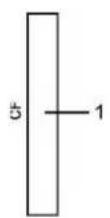
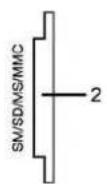
The following table lists the slot to support what kind of memory card:
| Slot Number | Flash memory cards type |
| 1 | Compact Flash type I/II Card (CF I/II) / CF form factor ATA hard drives to USB 2.0 bus |
| 2 | Smart Media Card (SMC)Memory Stick Card (MS)/ High Speed Memory Stick (HSMS) / Memory Stick Pro Card (MS PRO) / Memory Stick Duo (with Adapter)Secure Digital Card (SD)/ Mini Secure Digital (with Adapter)/ TransFlash Card (with Adapter)MultiMedia Card (MMC) / Reduced Size MultiMedia Card (with Adapter) |
General
Connection type USB 2.0 High Speed Device (USB Full Speed Device compatible)
Supported OS Windows 2000, XP and Vista
Performance
Transfer Speed Read: 480 Mb/s (max.) Write: 480 Mb/s (max.)
Plug and Play Capability
You can install the monitor in any Plug and Play-compatible system. The monitor automatically provides the computer system with its Extended Display Identification Data (EDID) using Display Data Channel (DDC) protocols so the system can configure itself and optimize the monitor settings. If desired, the user can select different settings, but in most cases monitor installation is automatic.
Caring for Your Monitor

CAUTION: Read and follow the safety instructions before cleaning the monitor.

CAUTION: Before cleaning the monitor, unplug the monitor power cable from the electrical outlet.
- To clean your antistatic screen, lightly dampen a soft, clean cloth with water. If possible, use a special screen-cleaning tissue or solution suitable for the antistatic coating. Do not use benzene, thinner, ammonia, abrasive cleaners, or compressed air.
- Use a lightly-dampened, warm cloth to clean the plastics. Avoid using detergent of any kind as some detergents leave a milky film on the plastics.
- If you notice a white powder when you unpack your monitor, wipe it off with a cloth. This white powder occurs during the shipping of the monitor.
- Handle your monitor with care as darker-colored plastics may scratch and show white scuff marks more than lighter-colored monitor.
• To help maintain the best image quality on your monitor, use a dynamically changing screen saver and power off your monitor when not in use.
Back to Contents Page
Appendix
Dell™ 2407WFP-HC Flat Panel Monitor
FCC Identification Information
Safety Instructions
Contacting Dell
FCC Identification Information
FCC Class B
This equipment generates, uses, and can radiate radio frequency energy and, if not installed and used in accordance with the manufacturer's instruction manual, may cause interference with radio and television reception. This equipment has been tested and found to comply with the limits for a Class B digital device pursuant to Part 15 of the FCC Rules.
This device complies with Part 15 of the FCC Rules. Operation is subject to the following two conditions:
- This device may not cause harmful interference.
- This device must accept any interference received, including interference that may cause undesired operation.

NOTICE: The FCC regulations provide that changes or modifications not expressly approved by Dell™ Inc. could void your authority to operate this equipment.
These limits are designed to provide reasonable protection against harmful interference in a residential installation. However, there is no guarantee that interference will not occur in a particular installation. If this equipment does cause harmful interference with radio or television reception, which can be determined by turning the equipment off and on, you are encouraged to try to correct the interference by one or more of the following measures:
• Reorient the receiving antenna.
- Relocate the system with respect to the receiver.
- Move the system away from the receiver.
- Plug the system into a different outlet so that the system and the receiver are on different branch circuits.
If necessary, consult a representative of Dell™ Inc. or an experienced radio/television technician for additional suggestions.
The following information is provided on the device or devices covered in this document in compliance with the FCC regulations:
• Product name: Dell™ 2407WFP-HC
• Model number: Dell™ 2407WFPb
• Company name:
Dell Inc.
Worldwide Regulatory Compliance & Environmental Affairs
One Dell Way
Round Rock, Texas 78682 USA
512-338-4400

NOTE: For Further regulatory information, see your Product Information Guide.
CAUTION: Safety Instructions

CAUTION: Use of controls, adjustments, or procedures other than those specified in this documentation may result in exposure to shock, electrical hazards, and/or mechanical hazards.
Read and follow these instructions when connecting and using your computer monitor:
- To help avoid damaging your computer, be sure that the voltage selection switch on the power supply for the computer is set to match the alternating current (AC) power available at your location:
- 115 volts (V)/60 hertz (Hz) in most of North and South America and some Far Eastern countries such as Japan, South Korea (also 220 volts (V)/60 hertz (Hz)), and Taiwan.
o 230 volts (V)/50 hertz (Hz) in most of Europe, the Middle East, and the Far East.
- Always be sure that your monitor is electrically rated to operate with the AC power available in your location.

NOTE: This monitor does not need or have a voltage selection switch for setting the AC voltage input. It will automatically accept any AC input voltage according to the ranges defined in the "Electrical Specifications" section in the User's Guide.
- Do not store or use the monitor in locations that are exposed to heat, direct sunlight, or extreme cold.
- Avoid moving the monitor between locations with large temperature differences.
- Do not subject the monitor to severe vibration or high impact conditions. For example, do not place the monitor inside a car trunk.
- Do not store or use the monitor in locations exposed to high humidity or dusty environment.
- Do not allow water or other liquids to spill on or into the monitor.
- Keep flat panel monitor in room temperature conditions. Excessive cold or hot conditions can have an adverse effect on the liquid crystal of the display.
- Never insert anything metallic into the monitor openings. Doing so may create the danger of electric shock.
• To avoid electric shock, never touch the inside of the monitor. Only a qualified technician should open the monitor case.
- Never use your monitor if the power cable has been damaged. Ensure that nothing rests on your computer's cables and that the cables are not located where they can be stepped on or tripped over.
- Be sure to grasp the plug, not the cable, when disconnecting the monitor from an electric socket.
- Openings in the monitor cabinet are provided for ventilation. To prevent overheating, these openings should not be blocked or covered. Avoid using the monitor on a bed, sofa, rug, or other soft surface, as doing so may block the ventilation openings in the bottom of the cabinet. If you place the monitor in a bookcase or an enclosed space, be sure to provide adequate ventilation and air flow.
- Place your monitor in a location with low humidity and minimum dust. Avoid places similar to a damp basement or dusty hallway.
- Do not expose the monitor to rain or use it near water (in kitchens, next to swimming pools, etc.). If the monitor accidentally gets wet, unplug it and contact an authorized dealer immediately. You can clean the monitor with a damp cloth when necessary, being sure to unplug the monitor first.
- Place the monitor on a solid surface and treat it carefully. The screen is made of glass and can be damaged if dropped or hit sharply.
- Locate your monitor near an easily accessible electric outlet.
- If your monitor does not operate normally - in particular, if there are any unusual sounds or smells coming from it - unplug it immediately and contact an authorized dealer or service center.
- Do not attempt to remove the back cover, as you will be exposed to an electrical shock hazard. The back cover should only be removed by qualified service personnel.
- High temperatures can cause problems. Don't use your monitor in direct sunlight, and keep it away from heaters, stoves, fireplaces, and other sources of heat.
- Unplug the monitor when it is going to be left unused for an extended period of time.
- Unplug your monitor from the electric outlet before any service is performed.
- LAMP(S) INSIDE THIS PRODUCT CONTAIN(S) MERCURY AND MUST BE RECYCLED OR DISPOSED OFF ACCORDING TO LOCAL, STATE OR FEDERAL LAWS. FOR MORE INFORMATION, GO TO WWW.DELL.COM/HG OR CONTACT THE ELECTRONIC INDUSTRIES ALLIANCE AT WWW.EIAF.ORG.
Contacting Dell
You can contact Dell through the Internet and by phone:
- For support through the web, go to support.dell.com.
- For worldwide support through the web, use the Choose A Country/Region menu near the bottom of the page, or see the web addresses listed in the following table.
- For support by e-mail, see the e-mail addresses listed in the following table.

NOTE: Toll-free numbers are for use within the country for which they are listed.

NOTE: In certain countries, support specific to Dell™ XPS™ computers is available at a separate telephone number listed for participating countries. If you do not see a telephone number listed that is specific for XPS computers, you may contact Dell through the support number listed and your call will be routed appropriately.
- For support by phone, use the phone numbers and codes provided in the following table. If you need assistance in determining which codes to use, contact a local or an international operator.

NOTE: The contact information provided was deemed correct at the time that this document went to print and is subject to change.
| Country (City) International Access Code Country Code City Code | Service Type | Area Codes, Local Numbers, and Toll-Free Numbers Web and E-Mail Address |
| Anguilla | Online Support | www.dell.com/ai |
| E-mail Address | la-techsupport@dell.com | |
| Technical Support, Customer Service, Sales | toll-free: 800-335-0031 | |
| Antigua and Barbuda | Online Support | www.dell.com.ag |
| la-techsupport@dell.com | ||
| Technical Support, Customer Service, Sales | 1-800-805-5924 | |
| Aomen Country Code:853 | Technical Support | toll-free:0800-105 |
| Customer Service (Xiamen, China) | 34 160 910 | |
| Transaction Sales (Xiamen, China) | 29 693 115 | |
| Argentina (Buenos Aires) | Online Support | www.dell.com.ar |
| International Access Code: 00Country Code: 54City Code: 11 | E-mail for Desktops and Portables | la-techsupport@dell.com |
| E-mail for Servers and EMC® Storage Products | la-techsupport@dell.com | |
| Customer Service | toll-free: 0-800-444-0730 | |
| Technical Support-Dell PowerAppTM, Dell PowerEdgeTM, Dell PowerConnectTM, and Dell PowerVaultTM | toll-free: 0-800-222-0154 | |
| Technical Support Services | toll-free: 0-800-444-0724 | |
| Sales | 0-810-444-3355 | |
| Aruba | Online Support | www.dell.com.aw |
| la-techsupport@dell.com | ||
| Technical Support, Customer Service, Sales | toll-free: 800-1578 | |
| Australia (Sydney)International Access Code: 0011Country Code: 61City Code: 2 | Online Support | support.ap.dell.com |
| support.ap.dell.com.contactus | ||
| Technical Support | ||
| Technical Support for XPS computers onlycomputers only | toll-free: 1300 790 877 | |
| Home and Home Office | toll-free: 1300-655-533 | |
| Medium and Large Business | toll-free: 1800-633-559 | |
| Small Business, Education, Local Government | toll-free: 1800-060-889 | |
| Customer Service | toll-free: 1300-662-196 | |
| Austria (Vienna)International Access Code: 900Country Code: 43City Code: 1 | Online Support | support.euro.dell.com |
| tech_support_central_europe@dell.com | ||
| Technical Support for XPS computers onlycomputers only | 08 20 24 05 30 81 | |
| Home/Small Business Sales | 08 20 24 05 30 00 | |
| Home/Small Business Fax | 08 20 24 05 30 49 | |
| Home/Small Business Customer Service | 08 20 24 05 30 14 | |
| Home/Small Business Support | 08 20 24 05 30 17 | |
| Preferred Accounts/Corporate Customer Service | 08 20 24 05 30 16 | |
| Preferred Accounts/Corporate Support | 08 20 24 05 30 17 | |
| Switchboard | 0820 240 530 00 | |
| Bahamas | Online Support | www.dell.com/bs |
| la-techsupport@dell.com | ||
| Technical Support, Customer Service, Sales | toll-free: 1-866-874-3038 | |
| Barbados | Online Support | www.dell.com/bb |
| la-techsupport@dell.com | ||
| Technical Support, Customer Service, Sales | 1-800-534-3142 | |
| Belgium (Brussels)International Access Code: 00Country Code: 32City Code: 2 | Online Support | support.euro.dell.com |
| Technical Support for XPS computers onlycomputers only | 02 481 92 96 | |
| General Support | 02 481 92 88 | |
| General Support Fax | 02 481 92 95 | |
| Customer Service | 02 713 15 .65 | |
| Corporate Sales | 02 481 91 00 | |
| Fax | 02 481 92 99 | |
| Switchboard | 02 481 91 00 | |
| Bermuda | Online Support | www.dell.com/bm |
| la-techsupport@dell.com | ||
| Technical Support, Customer Service, Sales | 1-877-890-0751 | |
| Bolivia | Online Support | www.dell.com/bo |
| la-techsupport@dell.com | ||
| Technical Support, Customer Service, Sales | toll-free: 800-10-0238 | |
| Brazil International Access Code: 00 Country Code: 55 City Code: 51 | Online Support | www.dell.com/br |
| BR_TechSupport@dell.com | ||
| Customer Service and Tech Support | 0800 970 3355 | |
| Technical Support Fax | 51 2104 5470 | |
| Customer Service Fax | 51 2104 5480 | |
| Sales | 0800 970 3390 | |
| British Virgin Islands | Technical Support, Customer Service, Sales | toll-free: 1-866-278-6820 |
| Brunei Country Code: 673 | Technical Support (Penang, Malaysia) | 604 633 4966 |
| Customer Service (Penang, Malaysia) | 604 633 3101 or toll-free: 801 1012 | |
| Transaction Sales (Penang, Malaysia) | 604 633 3101 or toll-free: 801 1012 | |
| Canada (North York, Ontario) International Access Code: 011 | Online Order Status | www.dell.ca/ostatus |
| Online Support | support.ca.dell.com | |
| AutoTech (automated Hardware and Warranty Support) | toll-free: 1-800-247-9362 | |
| Customer Service | ||
| Home/Home Office | toll-free: 1-800-847-4096 | |
| Small Business | toll-free: 1-800-906-3355 | |
| Medium/Large Business, Government, Education | toll-free: 1-800-387-5757 | |
| Hardware Warranty Phone Support | ||
| XPS Computers Only | toll-free: 1-866-398-8977 | |
| Computers for Home/Home Office | toll-free: 1-800-847-4096 | |
| Computers for Small/Medium/Large Business, Government | toll-free: 1-800-387-5757 | |
| Printers, Projectors, Televisions, Handheld, Digital Jukebox, and Wireless | 1-877-335-5767 | |
| Sales | ||
| Home and Home Office Sales | toll-free: 1-800-999-3355 | |
| Small Business | toll-free: 1-800-387-5752 | |
| Medium/Large Business, Government | toll-free: 1-800-387-5755 | |
| Spare Parts and Extended Service | 1 866 440 3355 | |
| Cayman Islands | Online Support | la-techsupport@dell.com |
| Technical Support, Customer Service, Sales | 1-877-262-5415 | |
| Chile (Santiago) Country Code: 56 City Code: 2 | Online Support | www.dell.com/cl |
| la-techsupport@dell.com | ||
| Sales and Customer Support | toll-free: 1230-020-3397 or 800-20-1385 | |
| China (Xiamen) Country Code: 86 City Code: 592 | Online Support | support.dell.com.cn |
| Technical Support E-mail | cn_support@dell.com | |
| Customer Service E-mail | customer_cn@dell.com | |
| Technical Support Fax | 592 818 1350 | |
| Technical Support - XPS computers only | toll-free: 800 858 0540 | |
| Technical Support - DellTM DimensionTM and Dell InspironTM | toll-free: 800 858 2969 | |
| Technical Support - Dell OptiPlexTM, Dell LatitudeTM, and Dell PrecisionTM | toll-free: 800 858 0950 | |
| Technical Support - Servers and Storage | toll-free: 800 858 0960 | |
| Technical Support - Projectors, PDAs, Switches, Routers, etc. | toll-free: 800 858 2920 | |
| Technical Support - Printers | toll-free: 800 858 2311 | |
| Customer Service | toll-free: 800 858 2060 | |
| Customer Service Fax | 592 818 1308 | |
| Home and Small Business | toll-free: 800 858 2222 | |
| Preferred Accounts Division | toll-free: 800 858 2557 | |
| Large Corporate Accounts GCP | toll-free: 800 858 2055 | |
| Large Corporate Accounts Key Accounts | toll-free: 800 858 2628 | |
| Large Corporate Accounts North | toll-free: 800 858 2999 | |
| Large Corporate Accounts North Government and Education | toll-free: 800 858 2955 | |
| Large Corporate Accounts East | toll-free: 800 858 2020 | |
| Large Corporate Accounts East Government and Education | toll-free: 800 858 2669 | |
| Large Corporate Accounts Queue Team | toll-free: 800 858 2572 | |
| Large Corporate Accounts South | toll-free: 800 858 2355 | |
| Large Corporate Accounts West | toll-free: 800 858 2811 | |
| Large Corporate Accounts Spare Parts | toll-free: 800 858 2621 | |
| Colombia | Online Support | www.dell.com/co |
| la-techsupport@dell.com | ||
| Technical Support, Customer Service, Sales | 01-800-915-4755 | |
| Costa Rica | Online Support | www.dell.com/cr |
| la-techsupport@dell.com | ||
| Technical Support, Customer Service, Sales | 0800-012-0231 | |
| Czech Republic (Prague) International Access Code: 00 Country Code: 420 | Online Support | support.euro.dell.com |
| czech_dell@dell.com | ||
| Technical Support | 22537 2727 | |
| Customer Service | 22537 2707 | |
| Fax | 22537 2714 | |
| Technical Fax | 22537 2728 | |
| Switchboard | 22537 2711 | |
| Denmark (Copenhagen) International Access Code: 00 Country Code: 45 | Online Support | support.euro.dell.com |
| Technical Support for XPS computers onlycomputers only | 7010 0074 | |
| Technical Support | 7023 0182 | |
| Customer Service - Relational | 7023 0184 | |
| Home/Small Business Customer Service | 3287 5505 | |
| Switchboard - Relational | 3287 1200 | |
| Switchboard Fax - Relational | 3287 1201 | |
| Switchboard - Home/Small Business | 3287 5000 | |
| Switchboard Fax - Home/Small Business | 3287 5001 | |
| Dominica | Online Support | www.dell.com/dm |
| la-techsupport@dell.com | ||
| Technical Support,Customer Service, Sales | toll-free: 1-866-278-6821 | |
| Dominican Republic | Online Support | www.dell.com/do |
| la-techsupport@dell.com | ||
| Technical Support, Customer Service, Sales | 1-800-156-1588 | |
| Ecuador | Online Support | www.dell.com/ec |
| la-techsupport@dell.com | ||
| Technical Support, Customer Service, Sales (calling from Quito) | toll-free: 999-119-877-655-3355 | |
| Technical Support, Customer Service, Sales (calling from Guayaquil) | toll-free: 1800-999-119-877-655-3355 | |
| El Salvador | Online Support | www.dell.com/sv |
| la-techsupport@dell.com | ||
| Technical Support, Customer Service, Sales | 800-6132 | |
| Finland (Helsinki) International Access Code: 990 Country Code: 358 City Code: 9 | Online Support | support.euro.dell.com |
| fi_support@dell.com | ||
| Technical Support | 0207 533 555 | |
| Customer Service | 0207 533 538 | |
| Switchboard | 0207 533 533 | |
| Fax | 0207 533 530 | |
| Sales under 500 employees | 0207 533 540 | |
| Sales over 500 employees | 0207 533 533 | |
| France (Paris) (Montpellier) International Access Code: 00 Country Code: 33 City Codes: (1) (4) | Online Support: | support.euro.dell.com |
| Technical Support for XPS computers only | 0825 387 129 | |
| Home and Small Business | ||
| Technical Support | 0825 387 270 | |
| Customer Service | 0825 823 833 | |
| Switchboard | 0825 004 700 | |
| Switchboard (calls from outside of France) | 04 99 75 40 00 | |
| Sales | 0825 004 700 | |
| Fax | 0825 004 701 | |
| Fax (calls from outside of France) | 04 99 75 40 01 | |
| Corporate | ||
| Technical Support | 0825 004 719 | |
| Customer Service | 0825 338 339 | |
| Switchboard | 01 55 94 71 00 | |
| Sales | 01 55 94 71 00 | |
| Fax | 01 55 94 71 01 | |
| Germany (Frankfurt) International Access Code: 00 Country Code: 49 City Code: 69 | Online Support | support.euro.dell.com |
| tech_support_central_europe@dell.com | ||
| Technical Support for XPS computers only | 069 9792 7222 | |
| Technical Support | 069 9792-7200 | |
| Home/Small Business Customer Service | 0180-5-224400 | |
| Global Segment Customer Service | 069 9792-7320 | |
| Preferred Accounts Customer Service | 069 9792-7320 | |
| Large Accounts Customer Service | 069 9792-7320 | |
| Public Accounts Customer Service | 069 9792-7320 | |
| Switchboard | 069 9792-7000 | |
| Greece International Access Code: 00 | Online Support | support.euro.dell.com |
| Technical Support | 00800-44 14 95 18 | |
| Gold Service Technical | 00800-44 14 00 83 | |
| Country Code: 30 | Support | |
| Switchboard | 2108129810 | |
| Gold Service Switchboard | 2108129811 | |
| Sales | 2108129800 | |
| Fax | 2108129812 | |
| Grenada | Online Support | www.dell.com/gd |
| la-techsupport@dell.com | ||
| Technical Support, Customer Service, Sales | toll-free: 1-866-540-3355 | |
| Guatemala | Online Support | www.dell.com/gt |
| la-techsupport@dell.com | ||
| Technical Support, Customer Service, Sales | 1-800-999-0136 | |
| Guyana | Online Support | la-techsupport@dell.com |
| Technical Support, Customer Service, Sales | toll-free: 1-877-270-4609 | |
| Hong Kong International Access Code: 001 Country Code: 852 | Online Support | support.ap.dell.com |
| support.dell.com.cn/email | ||
| Technical Support - XPS computers only | 00852-3416 6923 | |
| Technical Support - Dimension and Inspiron | 00852-2969 3188 | |
| Technical Support - OptiPlex, Latitude, and Dell Precision | 00852-2969 3191 | |
| Technical Support - Servers and Storage | 00852-2969 3196 | |
| Technical Support - Projectors, PDAs, Switches, Routers, etc. | 00852-3416 0906 | |
| Customer Service | 00852-3416 0910 | |
| Large Corporate Accounts | 00852-3416 0907 | |
| Global Customer Programs | 00852-3416 0908 | |
| Medium Business Division | 00852-3416 0912 | |
| Home and Small Business Division | 00852-2969 3105 | |
| India | Online Support | support.ap.dell.com |
| Portable and Desktop Support | ||
| Desktop Support E-mail | india_support_desktop@dell.com | |
| Portable Support E-mail | india_support_notebook@dell.com | |
| Phone Numbers | 080-25068032 or 080-25068034 or your city STD code + 60003355 or toll-free: 1-800-425-8045 | |
| Server Support | ||
| india_support_Server@dell.com | ||
| Phone Numbers | 080-25068032 or 080-25068034 or your city STD code + 60003355 or toll-free: 1800 425 8045 | |
| Gold Support Only | ||
| eec_ap@dell.com | ||
| Phone Numbers | 080-25068033 or your city STD code + 60003355 or toll-free: 1-800-425-9045 | |
| XPS Support Only | ||
| Indiaxps_AP@dell.com | ||
| Phone Numbers | 080-25068066 or toll-free: 1-800-425-2066 | |
| Customer Service | ||
| Home and Small Business | India_care_HSB@dell.com toll-free: 1800-4254051 | |
| Large Corporate Accounts | India_care_REL@dell.com toll-free: 1800-4252067 | |
| Sales | ||
| Large Corporate Accounts | 1600 33 8044 | |
| Home and Small Business | 1600 33 8046 | |
| Ireland (Cherrywood)International Access Code: 00Country Code: 353City Code: 1 | Online Support | support.euro.dell.com |
| dell_direct_support@dell.com | ||
| Technical Support | ||
| XPS computers only | 1850 200 722 | |
| Business computers | 1850 543 543 | |
| Home computers | 1850 543 543 | |
| At Home Support | 1850 200 889 | |
| Sales | ||
| Home | 1850 333 200 | |
| Small Business | 1850 664 656 | |
| Medium Business | 1850 200 646 | |
| Large Business | 1850 200 646 | |
| Sales E-mail | Dell_IRL_Outlet@dell.com | |
| Customer Service | ||
| Home and Small Business | 01 204 4014 | |
| Business (greater than 200 employees) | 1850 200 982 | |
| General | ||
| Fax/Sales Fax | 01 204 0103 | |
| Switchboard | 01 204 4444 | |
| U.K. Customer Service (dial within U.K. only) | 0870 906 0010 | |
| Corporate Customer Service (dial within U.K. only) | 0870 907 4499 | |
| U.K. Sales (dial within U.K. only) | 0870 907 4000 | |
| Italy (Milan)International Access Code: 00Country Code: 39City Code: 02 | Online Support | support.euro.dell.com |
| Home and Small Business | ||
| Technical Support | 02 577 826 90 | |
| Customer Service | 02 696 821 14 | |
| Fax | 02 696 821 13 | |
| Switchboard | 02 696 821 12 | |
| Corporate | ||
| Technical Support | 02 577 826 90 | |
| Customer Service | 02 577 825 55 | |
| Fax | 02 575 035 30 | |
| Switchboard | 02 577 821 | |
| Jamaica | Online Support | la-techsupport@dell.com |
| Technical Support, Customer Service, Sales (dial from within Jamaica only) | 1-800-440-9205 | |
| Japan (Kawasaki)International Access Code: 001Country Code: 81City Code: 44 | Online Support | support.jp.dell.com |
| Technical Support - XPS computers only | toll-free: 0120-937-786 | |
| Technical Support outside of Japan - XPS computers only | 81-44-520-1235 | |
| Technical Support - Dimension and Inspiron | toll-free: 0120-198-226 | |
| Technical Support outside of Japan - Dimension and Inspiron | 81-44-520-1435 | |
| Technical Support - Dell Precision, OptiPlex, and Latitude | toll-free:0120-198-433 | |
| Technical Support outside of Japan - Dell Precision, OptiPlex, and Latitude | 81-44-556-3894 | |
| Technical Support - Dell PowerApp, Dell PowerEdge, Dell PowerConnect, and Dell PowerVault | toll-free: 0120-198-498 | |
| Technical Support outsideof Japan - PowerApp, PowerEdge, PowerConnect, and PowerVault | 81-44-556-4162 | |
| Technical Support - Projectors, PDAs, Printers, Routers | toll-free: 0120-981-690 | |
| Technical Support outside of Japan - Projectors, PDAs, Printers, Routers | 81-44-556-3468 | |
| Faxbox Service | 044-556-3490 | |
| 24-Hour Automated Order Status Service | 044-556-3801 | |
| Customer Service | 044-556-4240 | |
| Business Sales Division - up to 400 employees | 044-556-1465 | |
| Preferred Accounts Division Sales - over 400 employees | 044-556-3433 | |
| Public Sales - government agencies, educational institutions, and medical institutions | 044-556-5963 | |
| Global Segment Japan | 044-556-3469 | |
| Individual User | 044-556-1657 | |
| Individual User Online Sales | 044-556-2203 | |
| Individual User Real Site Sales | 044-556-4649 | |
| Korea (Seoul) International Access Code: 001 Country Code: 82 City Code: 2 | Online Support | support.ap.dell.com |
| Technical Support for XPS computers only | toll-free: 080-999-0283 | |
| Technical Support, Customer Service | toll-free: 080-200-3800 | |
| Technical Support - Dimension, PDA, Electronics, and Accessories | toll-free: 080-200-3801 | |
| Sales | toll-free: 080-200-3600 | |
| Fax | 2194-6202 | |
| Switchboard | 2194-6000 | |
| Latin America | Customer Technical Support (Austin, Texas, U.S.A.) | 512 728-4093 |
| Customer Service (Austin, Texas, U.S.A.) | 512 728-3619 | |
| Fax (Technical Support and Customer Service) (Austin, Texas, U.S.A.) | 512 728-3883 | |
| Sales (Austin, Texas, U.S.A.) | 512 728-4397 | |
| SalesFax (Austin, Texas, U.S.A.) | 512 728-4600 or 512 728-3772 | |
| Luxembourg International Access Code: 00 Country Code: 352 | Online Support | support.euro.dell.com |
| Support | 342 08 08 075 | |
| Home/Small Business Sales | +32 (0)2 713 15 96 | |
| Corporate Sales | 26 25 77 81 | |
| Customer Service | +32 (0)2 481 91 19 | |
| Fax | 26 25 77 82 | |
| Malaysia (Penang) International Access Code: 00 Country Code: 60 City Code: 4 | Online Support | support.ap.dell.com |
| Technical Support - XPS computers only | toll-free: 1 800 885 784 | |
| Technical Support - Dell Precision, OptiPlex, and Latitude | toll-free: 1 800 880 193 | |
| Technical Support - Dimension, Inspiron, and Electronics and Accessories | toll-free: 1 800 881 306 | |
| Technical Support - PowerApp, PowerEdge, PowerConnect, and PowerVault | toll-free: 1800 881 386 | |
| Customer Service | toll-free: 1800 881 306(option6) | |
| Transaction Sales | toll-free: 1 800 888 202 | |
| Corporate Sales | toll-free: 1 800 888 213 | |
| MexicoInternational Access Code: 00Country Code: 52 | Online Support | www.dell.com/mx |
| la-techsupport@dell.com | ||
| Technical Support | 001-866-563-4425 | |
| Sales | 50-81-8800or 01-800-888-3355 | |
| Customer Service | 001-877-384-8979or 001-877-269-3383 | |
| Main | 50-81-8800or 001-800-888-3355or001-866-851-1754 | |
| Montserrat | Online Support | la-techsupport@dell.com |
| Technical Support,Customer Service, Sales | toll-free: 1-866-278-6822 | |
| Netherlands Antilles | Online Support | la-techsupport@dell.com |
| Technical Support,Customer Service, Sales | 001-800-882-1519 | |
| Netherlands (Amsterdam)International Access Code: 00Country Code: 31City Code: 20 | Online Support | support.euro.dell.com |
| Technical Support for XPS computers only | 020 674 45 94 | |
| Technical Support | 020 674 45 00 | |
| Technical Support Fax | 020 674 47 66 | |
| Home/Small Business Customer Service | 020 674 42 00 | |
| Relational Customer Service | 020 674 4325 | |
| Home/Small Business Sales | 020 674 55 00 | |
| Relational Sales | 020 674 50 00 | |
| Home/Small Business Sales Fax | 020 674 47 75 | |
| Relational Sales Fax | 020 674 47 50 | |
| Switchboard | 020 674 50 00 | |
| Switchboard Fax | 020 674 47 50 | |
| New ZealandInternational Access Code: 00Country Code: 64 | Online Support | support.ap.dell.com |
| support.ap.dell.com/contactus | ||
| Technical Support for XPS computers only | toll-free: 0800 335 540 | |
| Technical Support,Customer Service, Sales | 0800 441 567 | |
| Nicaragua | Online Support | www.dell.com/ni |
| la-techsupport@dell.com | ||
| Technical Support,Customer Service, Salesz | 001-800-220-1377 | |
| Norway (Lysaker)International Access Code: 00Country Code: 47 | Online Support | support.euro.dell.com |
| Technical Support for XPS computers only | 815 35 043 | |
| Technical Support | 671 16882 | |
| Relational Customer Service | 671 17575 | |
| Home/Small Business Customer Service | 23162298 | |
| Switchboard | 671 16800 | |
| Fax Switchboard | 671 16865 | |
| Panama | Online Support | www.dell.com/pa |
| la-techsupport@dell.com | ||
| Technical Support,Customer Service, Sales | 011-800-507-1264 | |
| Peru | Online Support | www.dell.com/pe |
| la-techsupport@dell.com | ||
| Technical Support,Customer Service, Sales | 0800-50-669 | |
| Poland (Warsaw)International Access Code:011 | Online Support | support.euro.dell.com |
| pl_support_tech@dell.com | ||
| Customer Service Phone | 57 95 700 | |
| Country Code: 48City Code: 22 | Customer Service | 57 95 999 |
| Sales | 57 95 999 | |
| Customer Service Fax | 57 95 806 | |
| Reception Desk Fax | 57 95 998 | |
| Switchboard | 57 95 999 | |
| PortugalInternational Access Code: 00Country Code: 351 | Online Support | support.euro.dell.com |
| Technical Support | 707200149 | |
| Customer Service | 800 300 413 | |
| Sales | 800 300 410 or 800 300 411 or 800 300 412 or 21 422 07 10 | |
| Fax | 21 424 01 12 | |
| Puerto Rico | Online Support | www.dell.com/pr |
| la-techsupport@dell.com | ||
| Technical Support | toll-free: 1-866-390-4695 | |
| or 1-866-851-1760 | ||
| Customer Service and Sales | 1-877-537-3355 | |
| St. Kitts and Nevis | Online Support | www.dell.com/kn |
| la-techsupport@dell.com | ||
| Technical Support, Customer Service, Sales | toll-free: 1-866-540-3355 | |
| St. Lucia | Online Support | www.dell.com/lc |
| la-techsupport@dell.com | ||
| Technical Support, Customer Service, Sales | toll-free: 1-866-464-4352 | |
| St. Vincent and the Grenadines | Online Support | www.dell.com/vc |
| la-techsupport@dell.com | ||
| Technical Support, Customer Service, Sales | toll-free: 1-866-464-4353 | |
| Singapore (Singapore)International Access Code: 005Country Code: 65 | NOTE: The phone numbers in this section should be called from within Singapore or Malaysia only. | |
| Online Support | support.ap.dell.com | |
| Technical Support - XPS computers only | toll-free: 1800 394 7464 | |
| Technical Support - Dimension, Inspiron, and Electronics and Accessories | toll-free: 1800 394 7430 | |
| Technical Support - OptiPlex, Latitude, and Dell Precision | toll-free: 1800 394 7488 | |
| Technical Support - PowerApp, PowerEdge, PowerConnect, and PowerVault | toll-free: 1800 394 7478 | |
| Customer Service | toll-free: 1800 394 7430(option6) | |
| Transaction Sales | toll-free: 1 800 394 7412 | |
| Corporate Sales | toll-free: 1 800 394 7419 | |
| Slovakia (Prague)International Access Code: 00Country Code: 421 | Online Support | support.euro.dell.com |
| czech_dell@dell.com | ||
| Technical Support | 02 5441 5727 | |
| Customer Service | 420 22537 2707 | |
| Fax | 02 5441 8328 | |
| Tech Fax | 02 5441 8328 | |
| Switchboard (Sales) | 02 5441 7585 | |
| South Africa (Johannesburg)International Access Code: 09/091Country Code: 27City Code: 11 | Online Support | support.euro.dell.com |
| dell_za_support@dell.com | ||
| Gold Queue | 011 709 7713 | |
| Technical Support | 011 709 7710 | |
| Customer Service | 011 709 7707 | |
| Sales | 011 709 7700 | |
| Fax | 011 706 0495 | |
| Switchboard | 011 709 7700 | |
| Southeast Asian and Pacific Countries | Technical Support, Customer Service, and Sales (Penang, Malaysia) | 604 633 4810 |
| Spain (Madrid)International Access Code: 00Country Code: 34City Code: 91 | Online Support | support.euro.dell.com |
| Home and Small Business | ||
| Technical Support | 902 100 130 | |
| Customer Service | 902 118 540 | |
| Sales | 902 118 541 | |
| Switchboard | 902 118 541 | |
| Fax | 902 118 539 | |
| Corporate | ||
| Technical Support | 902 100 130 | |
| Customer Service | 902 115 236 | |
| Switchboard | 91 722 92 00 | |
| Fax | 91 722 95 83 | |
| Sweden (Upplands Vasby)International Access Code: 00Country Code: 46City Code: 8 | Online Support | support.euro.dell.com |
| Technical Support for XPS computers only | 77 134 03 40 | |
| Technical Support | 08 590 05 199 | |
| Relational Customer Service | 08 590 05 642 | |
| Home/Small Business Customer Service | 08 587 70 527 | |
| Employee Purchase Program (EPP) Support | 020 140 14 44 | |
| Technical Support Fax | 08 590 05 594 | |
| Sales | 08 587 705 81 | |
| Switzerland (Geneva)International Access Code: 00Country Code: 41City Code: 22 | Online Support | support.euro.dell.com |
| Tech_support_central_Europe@dell.com | ||
| Technical Support for XPS computers only | 0848 33 88 57 | |
| Technical Support - Home and Small Business | 0844 811 411 | |
| Technical Support - Corporate | 0844 822 844 | |
| Customer Service - Home and Small Business | 0848 802 202 | |
| Customer Service - Corporate | 0848 821 721 | |
| Main | 0848 335 599 | |
| Fax | 022 799 01 90 | |
| Sales | 022 799 01 01 | |
| TaiwanInternational Access Code: 002Country Code: 886 | Online Support | support.ap.dell.com |
| support.dell.com.cn/email | ||
| Technical Support - XPS computers only | toll-free: 0080 186 3085 | |
| Technical Support - OptiPlex, Latitude, Inspiron, Dimension, and Electronics and Accessories | toll-free: 0080 186 1011 | |
| Technical Support - servers and storage | toll-free: 0080 160 1256 | |
| Customer Service | toll-free: 0080 160 1250 (option 5) | |
| Transaction Sales | toll-free:0080 165 1228 | |
| Corporate Sales | toll-free: 0080 165 1227 | |
| ThailandInternational Access Code: 001Country Code: 66 | Online Support | support.ap.dell.com |
| Technical Support (OptiPlex, Latitude, and Dell Precision) | toll-free: 1800 0060 07 | |
| Technical Support (PowerApp, PowerEdge, PowerConnect, and PowerVault) | toll-free: 1800 0600 09 | |
| Customer Service | toll-free: 1800 006 007 (option7) | |
| Corporate Sales | toll-free: 1800 006 009 | |
| Transaction Sales | toll-free: 1800 006 006 | |
| Trinidad/Tobago | Online Support | www.dell.com/tt |
| la-techsupport@dell.com | ||
| Technical Support, Customer Service, Sales | 1-888-799-5908 | |
| Turks and Caicos Islands | Online Support | www.dell.com/tc |
| la-techsupport@dell.com | ||
| Technical Support, Customer Service, Sales | toll-free: 1-877-441-4735 | |
| U.K. (Bracknell)International Access Code: 00Country Code: 44City Code: 1344 | Online Support | support.euro.dell.com |
| dell_direct_support@dell.com | ||
| Customer Service Online | support.euro.dell.com/uk/en/ECare/Form/Home.asp | |
| Sales | ||
| Home and Small Business Sales | 0870 907 4000 | |
| Corporate/Public Sector Sales | 01344 860 456 | |
| Customer Service | ||
| Home and Small Business | 0870 906 0010 | |
| Corporate | 01344 373 185 | |
| Preferred Accounts (500-5000 employees) | 0870 906 0010 | |
| Global Accounts | 01344 373 186 | |
| Central Government | 01344 373 193 | |
| Local Government & Education | 01344 373 199 | |
| Health | 01344 373 194 | |
| Technical Support | ||
| XPS Computers Only | 0870 366 4180 | |
| Corporate/Preferred Accounts/PAD (1000+ employees) | 0870 908 0500 | |
| Other Dell Products | 0870 353 0800 | |
| General | ||
| Home and Small Business Fax | 0870 907 4006 | |
| Uruguay | Online Support | www.dell.com/uy |
| la-techsupport@dell.com | ||
| Technical Support, Customer Service, Sales | toll-free: 000-413-598-2521 | |
| U.S.A. (Austin, Texas)International Access Code: 011Country Code: 1 | Dell Services for the Deaf, Hard-of-Hearing, or Speech-Impaired | toll-free: 1-877-DellTMTY(1-877-335-5889) |
| Fax | toll-free: 1-800-727-8320 | |
| Technical Support | support.dell.com | |
| XPS | toll-free: 1-800-232-8544 | |
| Home and Home Office | toll-free: 1-800-624-9896 | |
| Portable and Desktop AutoTech | toll-free: 1-800-247-9362 | |
| Small Business | toll-free: 1-800-456-3355 | |
| Medium and Large Business | toll-free: 1-877-671-3355 | |
| State and Local Government | toll-free: 1-800-981-3355 | |
| Federal Government | toll-free: 1-800-727-1100 | |
| Healthcare | toll-free: 1-800-274-1550 | |
| K-12 Education | toll-free: 1-888-977-3355 | |
| Higher Education | toll-free: 1-800-274-7799 | |
| Printers, Projectors, PDAs, and MP3 Players | toll-free: 1-877-459-7298 | |
| Customer Service | toll-free: 1-800-624-9897 | |
| Automated Order Status | toll-free: 1-800-433-9014 | |
| Small Business | toll-free: 1-800-456-3355 | |
| Medium and Large Business | toll-free: 1-877-671-3355 | |
| State and Local Government | toll-free: 1-800-981-3355 | |
| Federal Government | toll-free: 1-800-727-1100 | |
| Healthcare | toll-free: 1-800-274-1550 | |
| K-12 Education | toll-free: 1-888-977-3355 | |
| Higher Education | toll-free: 1-800-274-7799 | |
| Employee Purchase Program (EPP) | toll-free: 1-800-695-8133 | |
| Financial Services | www.dellfinancialservices.com | |
| Leases and Loans | toll-free: 1-877-577-3355 | |
| Dell Preferred Accounts (DPA) | toll-free: 1-800-283-2210 | |
| Sales | 1-800-289-3355 or 1-800-879-3355 | |
| Dell Outlet Store | toll-free: 1-888-798-7561 | |
| Software and Peripherals Sales | toll-free: 1-800-671-3355 | |
| U.S. Virgin Islands | Online Support | www.dell.com/vi |
| la-techsupport@dell.com | ||
| Technical Support, Customer Service, Sales | toll-free: 1-877-702-4360 | |
| Venezuela | Online Support | www.dell.com/ve |
| la-techsupport@dell.com | ||
| Technical Support, Customer Service, Sales | 0800-100-4752 |
Back to Contents Page
Back to Contents Page
Setting Up Your Monitor
Dell™ 2407WFP-HC Flat Panel Monitor
If you have a DelIT desktop with no internet access
- Right-click on the desktop and click Properties.
- Select the Settings tab.
- Select Advanced. if you are using Windows XP, click the Adapter tab.
- Identify your graphics controller supplier from the description at the top of the window (e.g. NVIDIA, ATI, Intel etc.).
- Follow the directions listed below for your identified Graphics Adapter:
- ATI:
- ATI Folder on the CD (RADEON & RAGE family only; excludes mobile and FireGL platforms).
- Run the installation by double clicking the executable file,
- After installing the drivers, attempt to set the resolution to 1920x1200 again.
○ NVIDIA:
- NVidia folder on the CD (GEFORCE & TNT2 family only; excludes mobile and QUADRO chipsets).
- Run the installation by double clicking the executable file.
- After installing the drivers, attempt to set the resolution to 1920x1200 again.

NOTE: If you are unable to set the resolution to 1920x1200, please contact DellT to inquire about a Graphics Adapter that supports these resolutions.
Back to Contents Page
Back to Contents Page
Setting Up Your Monitor
Dell™ 2407WFP-HC Flat Panel Monitor
If you have a DellT desktop or a DellT portable computer with internet access
-
Go to http://support.dell.com, enter your service tag, and download the latest driver for your graphics card.
-
After installing the drivers for your Graphics Adapter, attempt to set the resolution to 1920x1200 again.
NOTE: If you are unable to set the resolution to 1920x1200, please contact DellT to inquire about a Graphics Adapter that supports these resolutions.
Back to Contents Page
Back to Contents Page
Setting Up Your Monitor
Dell™ 2407WFP-HC Flat Panel Monitor
If you have non DellT desktop, portable computer, or graphic card
- Right-click on the desktop and click Properties.
- Select the Settings tab.
- Select Advanced.
- Identify your graphics controller supplier from the description at the top of the window (e.g. NVIDIA, ATI, Intel etc.).
- Please refer to the graphic card provider website for updated driver (for example, http://www.ATI.com OR http://www.NVIDIA.com).
- After installing the drivers for your Graphics Adapter, attempt to set the resolution to 1920x1200 again.
NOTE: If you are unable to set the resolution to 1920x1200, please contact the manufacturer of your computer or consider purchasing a graphics adapter that will support the video resolution of 1920x1200.
Back to Contents Page
Back to Contents Page
Setting Up Your Monitor
Dell™ 2407WFP-HC Flat Panel Monitor
Important instructions and graphic drivers to set the display resolution to 1920x1200 (Optimal)
For optimal display performance while using the Microsoft Windows® operating systems, set the display resolution to 1920 x 1200 pixels by performing the following steps:
-
Right-click on the desktop and click Properties.
-
Select the Settings tab.
-
Move the slider-bar to the right by pressing and holding left-mouse button and adjust the screen resolution to 1920x1200.
-
Click OK.
If you do not see 1920x1200 as an option, you may need to update your graphics driver. Please choose the scenario below that best describes the computer system you are using, and follow the provided directions:
1: If you have a Dell™ desktop with no internet access.
2: If you have a Dell™ desktop or a Dell™ portable computer with internet access,
3: If you have non Dell™ desktop, portable computer, or graphic card.
Back to Contents Page
Dell™ 2407WFP-HC Flat Panel Monitor
User Guide
- Important instructions and graphic drivers to set the display resolution to 1920x1200 (Optimal)
Information in this document is subject to change without notice. © 2007 Dell Inc. All rights reserved.
Reproduction in any manner whatsoever without the written permission of Dell Inc. is strictly forbidden.
Trademarks used in this text: Dell, the DELL logo, Inspiron, Dell Precision, Dimension, OptiPlex, Latitude, PowerEdge, PowerVault, PowerApp, and Dell OpenManage are trademarks of DellInc; Microsoft, Windows, and Windows NT are registered trademarks of Microsoft Corporation; Adobe is a trademark of Adobe Systems Incorporated, which may be registered in certain jurisdictions. ENERGY STAR is a registered trademark of the U.S. Environmental Protection Agency. As an ENERGY STAR partner, Dell Inc. has determined that this product meets the ENERGY STAR guidelines for energy efficiency.
Other trademarks and trade names may be used in this document to refer to either the entities claiming the marks and names or their products. Dell Inc. disclaims any proprietary interest in trademarks and trade names other than its own;
Model 2407WFP-HC
March 2007 Rev. A01
Back to Contents Page
Rotating Your Monitor
Dell™ 2407WFP-HC Flat Panel Monitor
Changing the Rotation of Your Monitor
Rotating Your Operating System
Changing the Rotation of Your Monitor
Before you rotate the monitor, your monitor should be fully vertically extended (Vertical Extension) and fully tilted (Tilt) up to avoid hitting the bottom edge of the monitor.
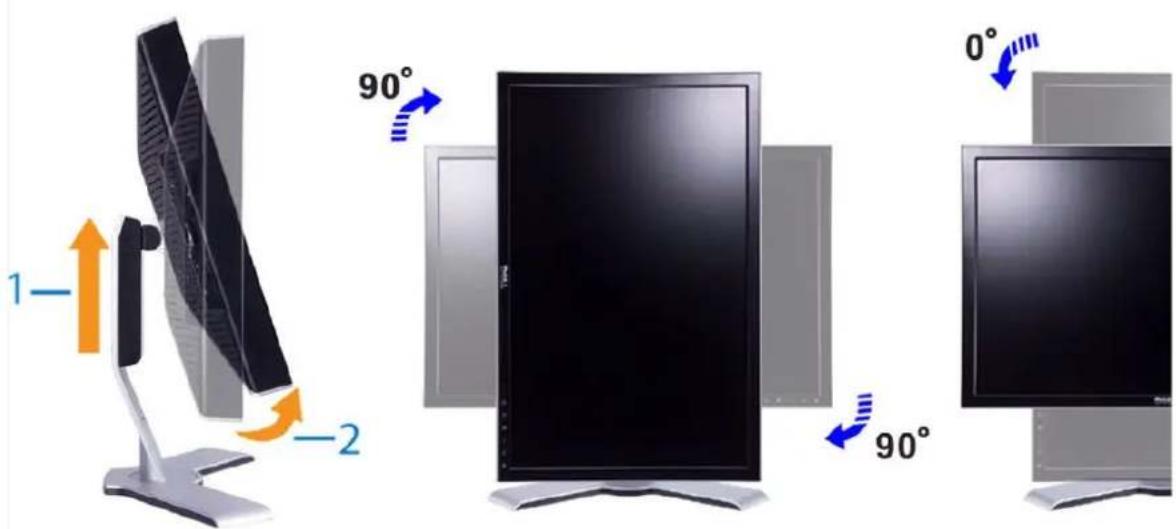
NOTE: To take advantage of the "Display Rotation" function (Landscape versus Portrait view) an updated graphics driver is required for your Dell™ Computer not included with this monitor. Please download the graphics driver from support.dell.com and refer to the "download" section for "Video Drivers" for latest driver updates.
NOTE: When in "Portrait View Mode", you may experience performance degradation in graphic-intensive applications (3D Gaming etc.)
Rotating Your Operating System
After you have rotated your monitor, you need to complete the procedure below to rotate your operating system.
NOTE: If you are using the monitor with a non-Dell computer, you need to go to the graphics driver website or your computer manufacturer website for information on rotating your operating system.
-
Right-click on the desktop and click Properties.
-
Select the Settings tab and click Advanced.
-
If you have ATI, select the Rotation tab and set the preferred rotation.
If you have nVidia, click the nVidia tab, in the left-hand column select NVRotate, and then select the preferred rotation.
If you have Intel, select the Intel graphics tab, click Graphic Properties, select the Rotation tab, and then set the preferred rotation.
NOTE: If you do not see the rotation option or it is not working correctly, go to support.dell.com and download the latest driver for your graphics card.
Back to Contents Page
Back to Contents Page
Setting Up Your Monitor
Dell™ 2407WFP-HC Flat Panel Monitor
Connecting Your Monitor
Using the Front Panel Buttons
Using the OSD
Using the Dell ^™ Soundbar (Optional)
Connecting Your Monitor
CAUTION: Before you begin any of the procedures in this section, follow the Safety Instructions.
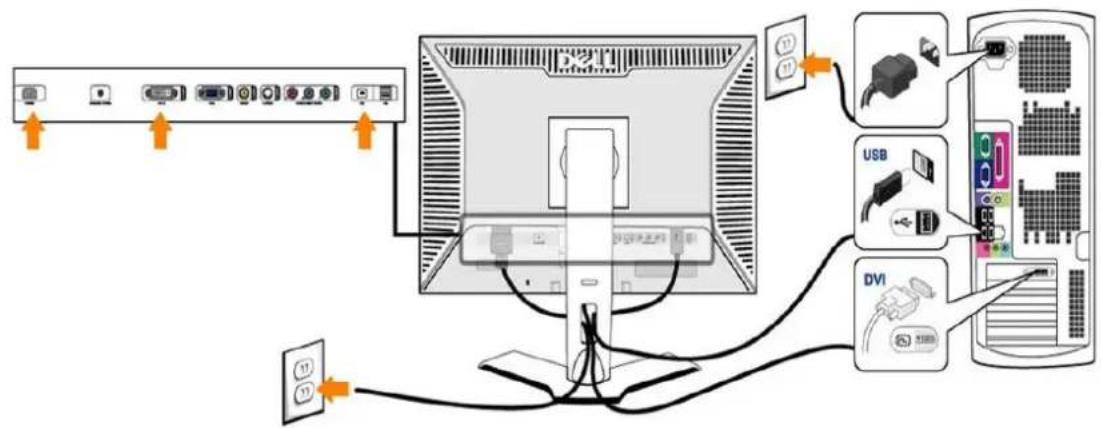
or
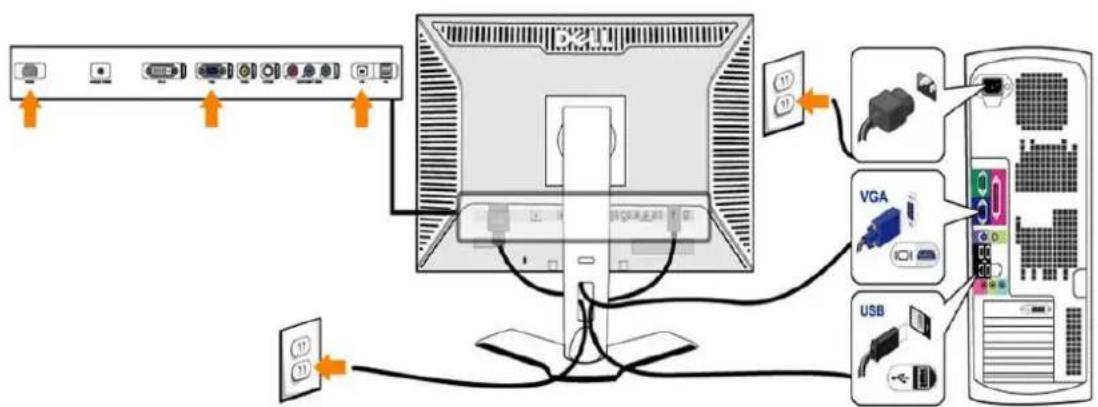
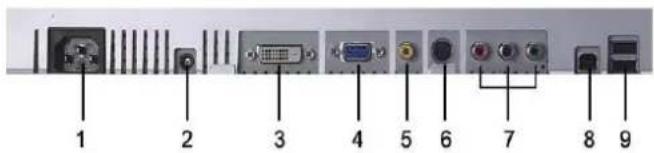
1 AC power cord connector
2 DC power connector for Dell™ Soundbar
3 DVI connector
4 VGA connector
5 Composite video connector
6 S-Video connector
7 Component video connectors
8 USB upstream port
9 USB downstream ports
To connect your monitor to the computer perform the following steps/instructions.
- Turn off your computer and disconnect the power cable.
- Connect either the white (digital DVI-D) or the blue (analog VGA) display connector cable to the corresponding video port on the back of your computer. Do not use both cables on the same computer. The only case in which both cables can be used is if they are connected to two different computers with appropriate video systems. (Graphics are for illustration only. System appearance may vary).
- Connect the upstream USB port (cable supplied) to an appropriate USB port on your computer
- Connect USB peripherals to the downstream USB ports (rear or side) on the monitor. (See rear or bottom view for details.)
- Plug the power cables for your computer and monitor into a nearby outlet.
• Turn on the monitor and computer.
If your monitor displays an image, installation is complete. If it does not display an image, see Solving Problems. - Use the cable holder on the monitor stand to neatly organize the cables.
NOTE: If your computer does not support the DVI connector, you can leave the cable unconnected or remove it.
NOTE: For USB peripherals already connected to your computer, changing the USB connection to your monitor is not necessary.
Using the Front Panel Buttons
Use the control buttons on the front of the monitor to adjust the characteristics of the image being displayed. As you use these buttons to adjust the controls, an OSD shows their numeric values as they change.

A

B

C

D

E

F
A

Input Source Select
Use Input Source Select button to select between five different video signals that may be connected to your monitor.
- VGA input
- DVI-D input
- S- Video input
- Composite video input
- Component video input
As you cycle through the inputs you will see the following messages to indicate currently selected input source. It may take seconds for the image to appear.
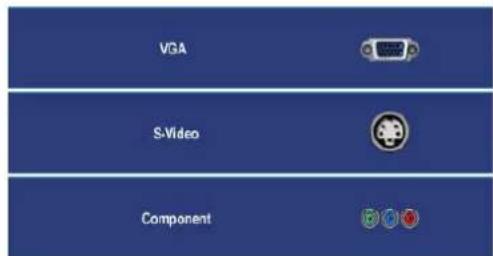
or
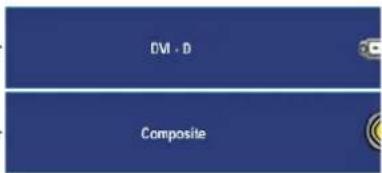
or

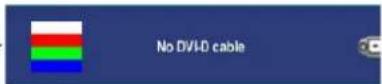
If either VGA or DVI-D input is selected and both VGA and DVI-D cables are not connected, a floating dialog box as shown

or
If either S-Video or Composite input is selected and both cables are not connected or the video source is turned off, the s have an image. If any button is pressed (except power button), the monitor displays the following message:

| B |  PIP / PBP Select PIP / PBP Select | Use this button to activate PIP (Picture-in-Picture) / PBP (Picture-by-Picture) modes adjustment.Pressing this button continually cycles the monitor through the following modes : OFF-->PIP-->PBP. You will see the fo messages corresponding to the mode selected.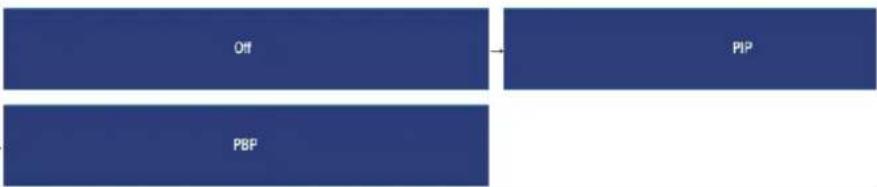 |
| C |  OSD Menu / Select OSD Menu / Select | The MENU button is used to launch the on-screen display(OSD) and select the OSD Menu. SeeAccessing the Menu System |
| D |  Brightness/Contrast Hot Key Brightness/Contrast Hot Key | Use this button for direct access to the "Brightness" and "Contrast" control menu. |
| D,E |  Down (-) and Up (+) Down (-) and Up (+) | Use these buttons for navigating and adjusting the slider-bar(decrease/increase ranges) controls in the OSD. |
| E |   | Use this button to activate automatic setup and adjust menu. The following dialog appears on a black screen as the monit to the current input:Auto Adjust In ProgressAuto Adjustment allows the monitor to self-adjust to the incoming video signal. After using Auto Adjustment, you can furth monitor by using the Pixel Clock (Coarse) and Phase (Fine) controls under Image Settings.NOTE: Auto Adjust will not occur if you press the button while there are no active video input signals or attached cables. |
| F |  Power button(with power light indicator) Power button(with power light indicator) | The green LED indicates the monitor is on and fully functional. An amber LED indicates DPMS power save mode.The Power button turns the monitor on and off. |
Using the OSD
Accessing the Menu System
NOTE: If you change the settings and then either proceed to another menu, or exit the OSD menu, the monitor automatically saves those changes. The cha settings and then wait for the OSD menu to disappear.
- Push the MENU button to launch the OSD menu and display the main menu.
Main Menu for Analog (VGA) Input
| [8A/3] |  | [SYBX] |  | [8EAS] |  | [20H4] | [04DV] | [0Y76] |
| EXIT | BRIGHTNESS & CONTRAST | AUTO ADJUST | INPUT SOURCE | COLOR SETTINGS | IMAGE MODES | DISPLAY SETTINGS | MENU SETTINGS | PIP SETTINGS |
Or
Main Menu for non Analog (non VGA) Input

NOTE: AUTO ADJUST is only available when you are using the analog (VGA) connector.
- Push the ⏻ and ⚠ buttons to move between the setting options. As you move from one icon to another, the option name is highlighted. See the table for a
complete list of all the options available for the monitor. - Push the MENU button once to activate the highlighted option.
- Push ⏻ and Ⓕ button to select the desired parameter.
- Push MENU to enter the slide bar and then use the ⏻ and ⚠ buttons, according to the indicators on the menu, to make your changes.
- Select the "back" option to return to the main menu or "exit" to exit the OSD menu.
| Icon | Menu and Submenus | Description |
| EXIT | Select to exit the main menu. | |
| BRIGHTNESS & CONTRAST | This menu is to activate Brightness/Contrast adjustment. | |
| Back Brightness 50 Contrast 50 Exit Menu | ||
| Back Brightness | Push to go back to the main menu. | |
| Brightness adjusts the luminance of the backlight. Push the button to increase brightness and push the button to decrease brightness (min 0 ~ max 100). | ||
| Contrast | Adjust Brightness first, and then adjust Contrast only if further adjustment is necessary. Push the button to increase contrast and push the button to decrease contrast (min 0 ~ max 100). The Contrast function adjusts the degree of difference between darkness and lightness on the monitor screen. | |
| Exit Menu | Push to exit the OSD main menu. | |
| AUTO ADJUST | Even though your computer recognizes your monitor on startup, the Auto Adjustment function optimizes the display | |
| Auto adjustment in progress | ||
| NOTE: In most cases, Auto Adjust produces the best image for your configuration. | ||
| NOTE: AUTO ADJUST option is only available when you are using the analog (VGA) connector. | ||
| INPUT SOURCE | The INPUT SOURCE menu is to select between different video signals that may be connected to your monitor.BackVGADVI-DS-VideoCompositeComponentScan for SourcesExit Menu | |
 | BackVGA | Push to go back to the main menu.Select VGA input when you are using the analog (VGA) connector. Push to select the VGA input source. |
 | DVI-D | Select DVI-D input when you are using the Digital (DVI) connector. Push to select the DVI input source. |
 | S-Video | Select S-Video input when you are using S-Video connector. Push to select the S-Video input source. |
 | Composite | Select Composite input when you are using composite video connector. Push to select the composite input source. |
 | Component | Select Component input when you are using component video connector. Push to select the component input source. |
| Scan for Sources | Push to scan for available input signals. | |
| Exit Menu | Push to exit the OSD main menu. | |
| [ZC60] | COLOR SETTINGS | Color Settings adjusts the color setting mode and color temperature.There are different color setting sub-menus for VGA/DVI-D and Video input.Color setting submenu for VGA/DVI-D input   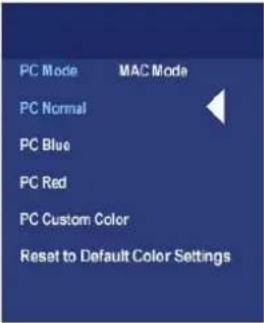 Color ResetExit Menu Color ResetExit Menu |
| BackColor Settings Mode(VGA/DVI-D) | Push  main menu.To add main menu.To add  for mode for PC and Mac. for mode for PC and Mac. | |
| Color Adjustment | PC Blue: PC Blue is selected to obtain a bluish tint. This color setting is typically used for text based applications (SpPC Red: Red Preset is selected to obtain a redder tint. This color setting is typically used for color intensive applicatic etc.).PC Custom: Use the plus and minus buttons to increase or decrease each of the three colors (R, G, B) independently,NOTE: Color temperature is a measure of the 'warmth' of the image colors (red/green/blue). The two available press accordingly. Select each one to see how each range suits your eye...or utilize the 'Custom Color' option to customizeColor setting submenu for Video/DVI-HD input | |
| To achieve the different color domain for PC RGB and HD YPbPr (HD YPbPr is suitable for HD video playback over D display over DVI.).Return your monitor color settings to those that were set at the time of manufacture.Pushto exit the OSD main menu. | ||
| Color Format(Video/DVI-HD) | ||
| Color Reset | ||
| Exit Menu | ||
 | IMAGE MODES | There are 3 image modes for different usage.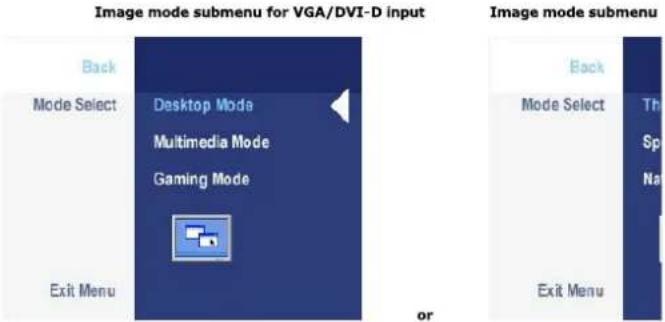 NOTE: Image modes are different between the VGA/DVI-D and Video inputsPushto go back to the main menu. NOTE: Image modes are different between the VGA/DVI-D and Video inputsPushto go back to the main menu. |
| Back | ||
| VGA/DVI-D input | ||
 | Desktop Mode | Mode suitable for desktop applications. |
| Multimedia Mode | Mode for multimedia applications, eg video playback. | |
| Gaming Mode | Mode suitable for gaming applications. | |
 | Video input | Mode suitable for movie playback. |
| Theater Mode | ||
 | Sports ModeNature ModeExit Menu | Mode suitable for sports scenes.Mode suitable for nature scenes.Push to exit the OSD main menu. |
| [4200] | DISPLAY SETTINGS | 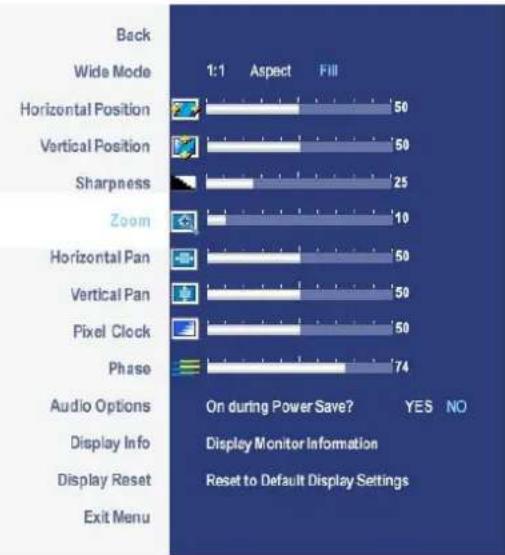 |
| BackWide ModeH PositionV PositionSharpnessZoomHorizontal PanVertical PanPixel ClockPhaseAudio OptionDisplay InfoDisplay Reset | Push to go back to the main menu.Adjust the image ratio as 1:1, aspect or full screen.NOTE: Wide Mode adjustment is not required at optimal preset resolution 1920 x 1200.Use the and buttons to adjust image left and right. Minimum is '0' (-). Maximum is '100' (+).Use the and buttons to adjust image up and down. Minimum is '0' (-). Maximum is '100' (+).This feature can make the image look sharper or softer. Use or to adjust the sharpness from '0' to '100'.Use the Zoom function to zoom in to specific area of interest.Using the and keys to zoom in and out.After zooming in, the horizontal and vertical pan function allows you to pan the enlarged image left/right and iUse the and buttons to adjust image left and right. Minimum is '0' (-). Maximum is '100' (+).Use the and buttons to adjust image up and down. Minimum is '0' (-). Maximum is '100' (+).The Phase and Pixel Clock adjustments allow you to adjust your monitor to your preference. These settings are accer 'Image Settings'.Use the and buttons to adjust for best image quality.If satisfactory results are not obtained using the Phase adjustment, use the Pixel Clock (coarse) adjustment and theNOTE: Pixel Clock and Phase Adjustments are only available for "VGA" input.To turn on or off Audio Power during Power Save mode.All the settings related to this monitor.Reset the image to the original factory setting. | |
| Exit Menu | Pushto exit the OSD main menu. | |
| [XY5] | MENU SETTINGS | 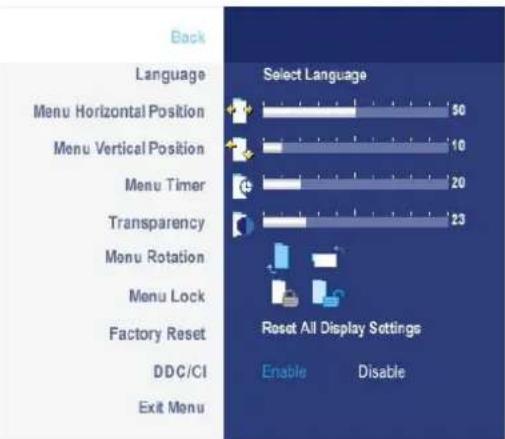 |
| BackLanguageMenu Horizontal PositionMenu Vertical PositionMenu TimerTransparencyMenu RotationMenu LockFactory ResetDDC/ICIExit Menu | Pushto go back to the main menu.Language option to set the OSD display to one of five languages (English, Espanol, Francais, Deutsch, Japanese).andbuttons move OSD left and right.andbuttons move OSD up and down.OSD Hold Time: Sets the length of time the OSD will remain active after the last time you pressed a button.Use theandbuttons to adjust the slider in 5 second increments, from 5 to 60 seconds.This function is used to adjust the OSD background from opaque to transparent.Rotates the OSD by 90 degrees counter-clockwise. Your can adjust according to your Display Rotation.Controls user access to adjustments. When 'Yes' (+) is selected, no user adjustments are allowed. All buttons are loNOTE:When the OSD is locked, pressing the menu button will take the user directly to the OSD settings menu, with unlock and allow user access to all applicable settings.Reset all OSD settings to the factory preset values.DDC/CI(Display Data Channel/Command Interface) allows your monitor parameters (brightness, color balance etc) is disable this feature by selecting "Disable".Enable this feature for best user experience and optimum performance of your monitor.  | |
| [XY3] | PIP SETTINGS | This function brings up a window displaying image from another input source.PIP/PBP submenu when PIP/PBP OFF (main source is VGA/DVI-D input) PIP/PBP submenu when PI |
| Back Mode PIP Source Exit Menu | or | Back Mode PIP Source Exit Menu | or | NOTE: When using D | |
| PIP/PBP submenu when PIP/PBP ON (main source is VGA/DVI-D input) | PIP/PBP submenu when PIF | ||||
| Back Mode PIP Source PIP Size PIP Position PIP Brightness PIP Contrast PIP Hue/Tint PIP Saturation Exit Menu | Back Mode PIP Source PIP Size PIP Position PIP Contrast Exit Menu | ||||
| When PIP/PBP activated | Push to go back to the main menu. There is two modes: PIP (Picture in Picture) and PBP (Picture By Picture) Use to select "Off", "PIP" or "PBP". | ||||
| PIP/PBP Source | When PIP/PBP is activated, select "Swap" to exchange the input source for the main screen and PIP/PBP wind | ||||
| PIP Position | Select an input signal for PIP/PBP. (VGA/DVI/S-Video/Composite/Component) Use to select. | ||||
| PIP Size | Select PIP window size. Use to select. | ||||
| PIP/PBP Contrast | Adjust the contrast level of the picture in PIP/PBP Mode. reduce the contrast increases the contrast | ||||
| PIP/PBP Hue/Tint | This function shifts the color of PIP/PBP image to green or purple. This is used to adjust for desired flesh tone color. shifts image color towards green shifts image color towards purple | ||||
| PIP/PBP Saturation | Adjust the color saturation of PIP/PBP image. makes the image look more monochrome makes the image look more colorful | ||||
| Exit Menu | Push to exit the OSD main menu. | ||||
OSD Warning Messages
Your monitor will prompt you to achieve the best performance when you select PBP. You may see the following messages under certain combinations of input sources in PBP mode.


When the monitor does not support a particular resolution mode you will see the following message :

This means that the monitor cannot synchronize with the signal that it is receiving from the computer. See Monitor Specifications for the Horizontal and Vertical frequency ranges addressable by this monitor. Recommended mode is 1920 X 1200.
You will see the following message before the DDC/CI function is disabled.

When monitor enters Power Save mode, the following message appears :

Activate the computer and wake up the monitor to gain access to the OSD
If you press any button other than the power button one of the following messages will appear depending on the selected input:
VGA / DVI-D input


In PIP mode, when the monitor does not sense the selected second signal input, one of the following messages will appear depending upon the selected input as long as the OSD screen is closed.
- VGA
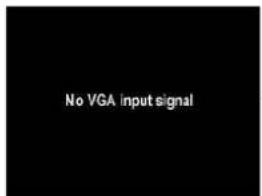
- DVI-D
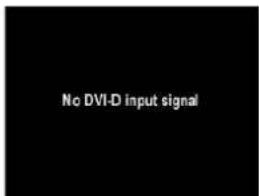
- S-Video
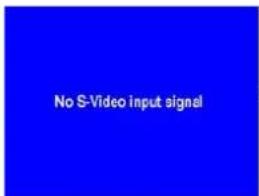
- Composite
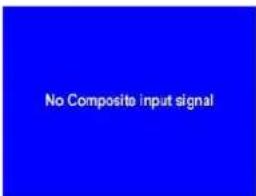
If either VGA or DVI-D input is selected and both VGA and DVI-D cables are not connected, a floating dialog box as shown below appears.

or

NOTE: When the cable is connected back to the input of the monitor, any active PIP/PBP window will disappear. Please enter PIP/PBP submenu to bring ba
NOTE: The PIP/PBP functions can bring up a picture from a second image source. Thus you can watch images from 1 PC source (D-Sub or DVI) and 1 Video 5 functions will not allow for 2 PC sources or 2 Video sources to perform PIP/PBP.
See Solving Problems for more information.
Using the Dell™ Soundbar (Optional)
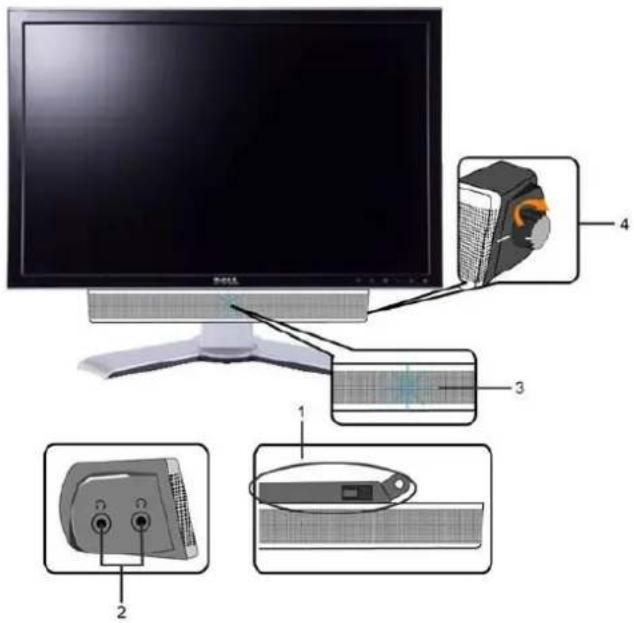
- Attach mechanism
- Headphone connectors
- Power indicator
- Power/Volume control
Soundbar Attachment to the Monitor
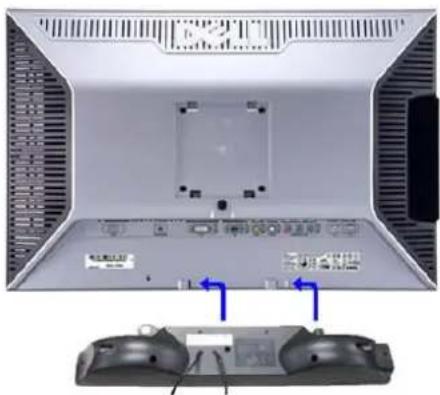
natural_image
Back view of a computer monitor with ventilation grilles and control buttons, showing two rear-mounted motors (no visible text or symbols)NOTE: Soundbar Power Connector - 12V DC output is for optional Dell™ Soundbar only.
NOTICE: Do not use with any device other than Dell Soundbar.
- Working from the rear of the monitor, attach Soundbar by aligning the two slots with the two tabs along the bottom rear of the monitor.
- Slide the Soundbar to the left until it snaps into place.
- Connect the Soundbar with the DC power connector.
- Insert the mini stereo plug from the rear of the Soundbar into the computer's audio output jack.
Back to Contents Page
Solving Problems
Dell™ 2407WFP-HC Flat Panel Monitor
Monitor Specific Troubleshooting
Common Problems
Video Problems
Product Specific Problems
Universal Serial Bus (USB) Specific Problems
Dell™ Soundbar (Optional) Troubleshooting
Card Reader Troubleshooting
CAUTION: Before you begin any of the procedures in this section, follow the Safety Instructions.
Troubleshooting the Monitor
Self-Test Feature Check
Your monitor provides a self-test feature that allows you to check whether your monitor is functioning properly. If your monitor and computer are properly connected but the monitor screen remains dark, run the monitor self-test by performing the following steps:
- Turn off both your computer and the monitor.
- Unplug the video cable from the back of the computer. To ensure proper Self-Test operation, remove both Digital (white connector) and the Analog (blue connector) cables from the back of computer.
- Turn on the monitor,
The floating dialog box should appear on-screen (against a black background) if the monitor cannot sense a video signal and is working correctly. While in self-test mode, the power LED remains green. Also, depending upon the selected input, one of the dialogs shown below will continuously scroll through the screen.


- This box also appears during normal system operation if the video cable becomes disconnected or damaged.
- Turn off your monitor and reconnect the video cable; then turn on both your computer and the monitor.
If your monitor screen remains blank after you use the previous procedure, check your video controller and computer system, because your monitor is functioning properly.
NOTE: Self test feature check is not available for S-Video, Composite and Component video modes.
Common Problems
The following table contains general information about common monitor problems you might encounter.
| COMMON SYMPTOMS | WHAT YOU EXPERIENCE | POSSIBLE SOLUTIONS |
| No Video/ Power LED off | No picture | Check connection integrity at both ends of the video cableElectric outlet verificationEnsure power button depressed fully |
| No Video/ Power LED on | No picture or no brightness | Increase brightness & contrast controls via OSDPerform monitor self-test feature checkCheck for bent or broken pins |
| Poor Focus | Picture is fuzzy, blurry or ghosting | Auto Adjust via OSDAdjust Phase and Pixel Clock controls via OSDEliminate video extension cablesPerform monitor resetLower video resolution or increase font size |
| Shaky/Jittery Video | Wavy picture or fine movement | Auto Adjust via OSDAdjust Phase and Pixel Clock controls via OSDPerform monitor resetCheck environmental factorsRelocate and test in another room |
| Missing Pixels | LCD screen has spots | Cycle power on-offThese are pixels that are permanently off and is a natural defect that occurs in LCD technology |
| Stuck-on Pixels | LCD screen has bright spots | Cycle power on-offThese are pixels that are permanently on and is a natural defect that occurs in LCD technology |
| Brightness Problems | Picture too dim or too bright | Perform monitor reset on "Factory Reset"Auto Adjust via OSDAdjust brightness & contrast controls via OSD |
| Geometric Distortion | Screen not centered correctly | Perform monitor reset on "Display Reset"Auto Adjust via OSDAdjust brightness & contrast controls via OSDEnsure monitor is in proper video modeNOTE: When using '2: DVI-D', the positioning adjustments are not available. |
| Horizontal/Vertical Lines | Screen has one or more lines | Perform monitor reset on "Display Reset"Auto Adjust via OSDAdjust Phase and Pixel Clock controls via OSDPerform monitor self-test feature check and determine if these lines are also in self-test modeCheck for bent or broken pinsNOTE: When using '2: DVI-D', the Pixel Clock and Phase adjustments are not available. |
| Sync Problems | Screen is scrambled or appears torn | Perform monitor reset on "Display Reset"Auto Adjust via OSDAdjust Phase and Pixel Clock controls via OSDPerform monitor self-test feature check to determine if scrambled screen appears in self-test modeCheck for bent or broken pinsBoot up in the "safe mode" |
| LCD Scratched | Screen has scratches or smudges | Turn monitor off and clean the screenFor cleaning instruction, seeCaring for Your Monitor. |
| Safety Related Issues | Visible signs of smoke or sparks | Do not perform any troubleshooting stepsMonitor needs to be replaced |
| Intermittent Problems | Monitor malfunctions on & off | Ensure monitor is in proper video modeEnsure video cable connection to computer and to the flat panel is securePerform monitor reset on "Factory Reset"Perform monitor self-test feature check to determine if the intermittent problem occurs in self-test mode |
| Missing Color | Picture missing color | Perform monitor self-test feature checkCheck connection integrity at both end of the video cableCheck for bent or broken pins |
| Wrong Color | Picture color not good | Change the color to "PC Custom Color" or "MAC Custom Color"Adjust R/G/B value of "PC Custom Color" or "MAC Custom Color"Change the Color Format to "PC RGB" or "YPbPr" (for Video/DVI-HD inputs) |
| Image retention from a static image left on the monitor for a long period of time | Faint shadow from the static image displayed appears on the screen | Use the Power Management feature to turn off the monitor at all times when not in useAlternatively, use a dynamically changing screensaver |
Video Problems
| COMMON SYMPTOMS | WHAT YOU EXPERIENCE | POSSIBLE SOLUTIONS |
| No Video | No signal indicator is displayed | Check Video Input SelectionComposite: Yellow colored RCA jackS-Video: Typically a round 4 pin jackComponent: Red, Blue, Green colored RCA jacks |
| Low Quality DVD playback | Picture not crisp and some color distortion | Check DVD connectionComposite gives good pictureS-Video gives better pictureComponent: Red, Blue, Green colored RCA jacks |
| Blinking Video | Video is blinking or discontinuous | Check DVD connectionComposite gives good pictureS-Video gives better pictureComponent: Red, Blue, Green colored RCA jacksCheck if DVD player is HDCP compliant.Some non-compliant players may exhibit blinking video and others will display a raster screen. |

NOTE: When choosing S-Video, Composite or Component video, Auto Adjust function is not available.
Product Specific Problems
| SPECIFIC SYMPTOMS | WHAT YOU EXPERIENCE | POSSIBLE SOLUTIONS |
| Screen image is too small | Image is centered on screen, but does not fill entire viewing area | Perform monitor reset on "Factory Reset" |
| Cannot adjust the monitor with the buttons on the front panel | OSD does not appear on the screen | Turn the monitor off and unplug the power cord and then plug back and power on |
| The monitor will not go into power saving mode. | No picture, the LED light is green. When press "+" or "Menu" key, the message " No S-Video input signal ", " No Composite input signal " or " No Component input signal " will appear. | Move mouse or hit any key on the keyboard on the computer or activate video player, then access the OSD to set Audio to " off " state. |
| No Input Signal when user controls pressed | No picture, the LED light is green. When press "+" or "Menu" key, the message " No S-Video input signal ", " No Composite input signal " or " No Component input signal " will appear. | Check the signal source Make sure the Computer is not in power saving by moving mouse or pressing any key on the keyboard.Check to make sure Video Source to S-Video, Composite or Component is powered and playing video media.Check whether the signal cable is plugged in and seated properly. Re-plug the signal cable if necessary.Re-boot the computer or video player. |
| The monitor will not fill the entire screen. | The picture can't fill the height or width of the screen. | Due to the non-standard formats of DVDs, the monitor may not show the full screen pictures. |

NOTE: When choosing DVI-D mode, Auto Adjust function is not available.
Universal Serial Bus (USB) Specific Problems
| SPECIFIC SYMPTOMS | WHAT YOU EXPERIENCE | POSSIBLE SOLUTIONS |
| USB interface is not working | USB peripherals are not working | Check that your monitor is powered ON.Reconnect the upstream cable to your computer.Reconnect the USB peripherals (downstream connector).Switch off and then turn on the monitor again.Reboot the computer. |
| High Speed USB 2.0 interface is slow. | High Speed USB 2.0 peripherals working slowly or not at all. | Check that your computer is USB 2.0 capable.Verify USB 2.0 source on your computer.Reconnect the upstream cable to your computer.Reconnect the USB peripherals (downstream connector).Reboot the computer. |
Troubleshooting the Dell™ Soundbar
| COMMON SYMPTOMS | WHAT YOU EXPERIENCE | POSSIBLE SOLUTIONS |
| No Sound | No power to Soundbar - the power indicator is off.(built-in DC power supply. i.e. 2407WFP-HC) | Turn the Power/Volume knob on the Soundbar clockwise to the middle position; check if the power indicator (green LED) on the front of the Soundbar is illuminated.Confirm that the power cable from the Soundbar is plugged into the monitor.Confirm that the monitor has power.If the monitor has no power, seeMonitor Specific Troubleshootingfor monitor common problem. |
| No Sound | Soundbar has power - power indicator is on. | Plug the audio line-in cable into the computer's audio out jack.Set all Windows volume controls to their maximum.Play some audio content on the computer (i.e. audio CD, or MP3).Turn the Power/Volume knob on the Soundbar clockwise to a higher volume setting.Clean and reseat the audio line-in plug.Test the Soundbar using another audio source (i.e. portable CD player). |
| Distorted Sound | Computer's sound card is used as the audio source. | Clear any obstructions between the Soundbar and the user.Confirm that the audio line-in plug is completely inserted into the jack of the sound card.Set all Windows volume controls to their midpoints.Decrease the volume of the audio application.Turn the Power/Volume knob on the Soundbar counter-clockwise to a lower volume setting.Clean and reseat the audio line-in plug.Troubleshoot the computer's sound card.Test the Soundbar using another audio source (i.e. portable CD player). |
| Distorted Sound | Other audio source is used. | Clear any obstructions between the Soundbar and the user.Confirm that the audio line-in plug is completely inserted into the jack of the audio source.Decrease the volume of the audio source.Turn the Power/Volume knob on the Soundbar counter-clockwise to a lower volume setting.Clean and reseat the audio line-in plug. |
| Unbalanced Sound Output | Sound from only one side of Soundbar | Clear any obstructions between the Soundbar and the user.Confirm that the audio line-in plug is completely inserted into the jack of the sound card or audio source.Set all Windows audio balance controls (L-R) to their midpoints.Clean and reseat the audio line-in plug.Troubleshoot the computer's sound card.Test the Soundbar using another audio source (i.e. portable CD player). |
| Low Volume | Volume is too low. | Clear any obstructions between the Soundbar and the user.Turn the Power/Volume knob on the Soundbar clockwise to the maximum volume setting.Set all Windows volume controls to their maximum.Increase the volume of the audio application.Test the Soundbar using another audio source (i.e. portable CD player). |
Troubleshooting the Card Reader
NOTICE: Do not remove the device while reading or writing media. Doing so may cause loss of data or malfunction in the media.
| Problem | Cause | Solution |
| Drive letter is not assigned. (Windows XP only) | Conflict with network drive letter. | A. Right-click My Computer on the desktop, and then click Manage. Under Computer Management, click Desk Management.B. In the list of drives in the right panel, right-click Removable Device and t click Change Drive Letter and Paths.C. Click Change, and in the drop-down box, specify a drive letter for the Removable Device, choosing one that is not assigned to the mapped netw drives.D. Click OK, and then click OK again |
| Drive letter is assigned, but the media is not accessible | The media needs reformatting. | Right-click the drive in Explorer and choose Format from the resulting menu |
| The media has been ejected during writing or erasing. | Displays the error message, "Error copying file or folder."Displays the error message, "Cannot write folder (folder name) or file (file name)," during writing, or, "Cannot remove folder (folder name) or file(file name),". While erasing, you cannot write or erase in the same folder or file name. | Reinsert the media and write or erase again.Format the media for writing or erasing the same folder or file name. |
| Despite the disappearance of the pop-up window, the media has been ejected while the LED was blinking. | Although the pop-up window disappears during writing, if you eject your media while the LED is still blinking, then you cannot complete your action on the media. | Format the media for writing or erasing the same folder or file name. |
| Cannot format or write on the media. | Write protect switch is enabled. | Verify that the write- protect switch of the media is unlocked. |
Back to Contents Page
Using Your Adjustable Monitor Stand
Dell™ 2407WFP-HC Flat Panel Monitor
Attaching the Stand
Organizing Your Cables
Using the Tilt, Swivel and Vertical Extension
Removing the Stand
Attaching the Stand
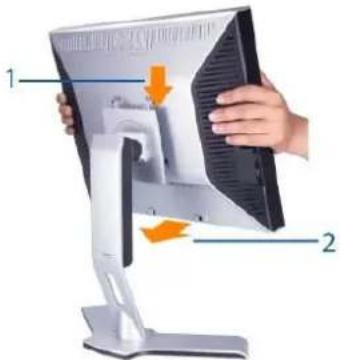
natural_image
Illustration of a computer monitor with a hand holding the screen, showing internal components and an orange arrow indicating motion (no text or symbols present)- Place the stand on a flat surface.
- Fit the groove on the back of the monitor onto the 2 tabs of upper stand.
- Lower the monitor so that the monitor mounting area snaps on or locks to stand.
Organizing Your Cables
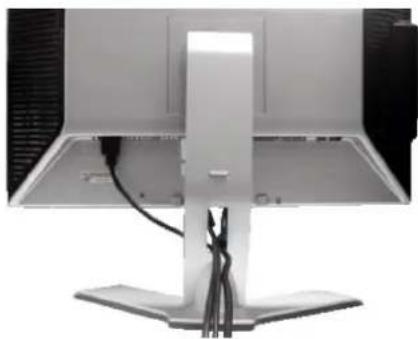
natural_image
Computer monitor with stand and cables, no visible text or symbolsAfter attaching all necessary cables to your monitor and computer, (See Connecting Your Monitor for cable attachment,) use the Cable management hole to neatly organize all cables as shown above.
Using the Tilt, Swivel and Vertical Extension
Tilt/Swivel
With the built-in pedestal, you can tilt and/or swivel the monitor for the most comfortable viewing angle.
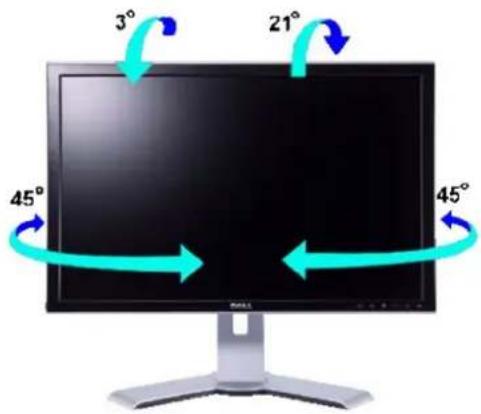
NOTE: Stand is detached and extended when the monitor is shipped from the factory.
Vertical Extension
Stand extends vertically up to 100mm via the Lock down / release button.
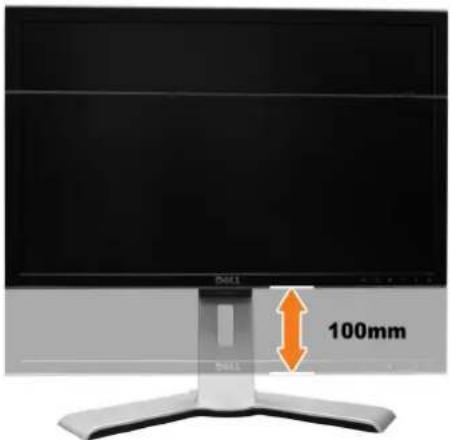
natural_image
Computer monitor with 100mm height indicator and side-mounted stand (no text or symbols on the device itself)NOTE: If locked in the down position, push the monitor down. Press the Lock down / release button on the bottom rear of stand to unlock the monitor. Lift the monitor up and extend the stand to the desired height.
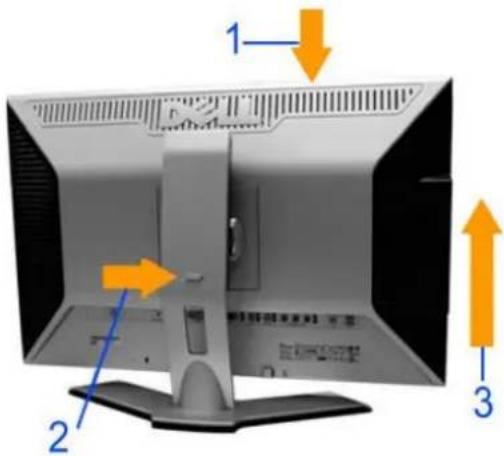
NOTICE: Before relocating or moving the monitor to a different location, make sure that the stand is locked down. To lock it down, lower the height of the panel until it clicks and is locked into place.
Removing the Stand
After placing the monitor panel on a soft cloth or cushion, press and hold the Monitor Lock / Release Button, and then remove the stand.
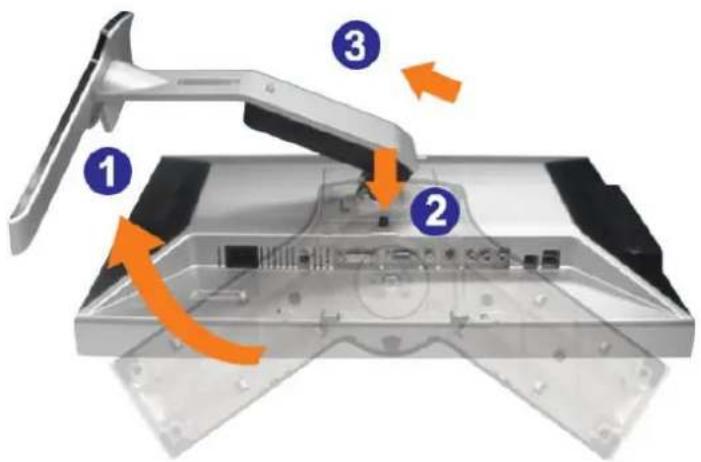
NOTE: To prevent scratches on the LCD screen while removing the stand, ensure that the monitor is placed on a clean surface.
Back to Contents Page




- Dell™ 2407WFP-HC Flat Panel Monitor User's Guide
- About Your Monitor
- Using Your Adjustable Monitor Stand
- Setting Up Your Monitor
- Rotating Your Monitor
- Solving Problems
- Appendix
- Notes, Notices, and Cautions
- Front View
- Back View
- Side View
- Bottom View
- Monitor Specifications
- General
- Flat Panel
- Resolution
- Video Supported Modes
- Preset Display Modes
- Electrical
- Physical Characteristics
- Environmental
- Power Management Modes
- Pin Assignments
- S-video Connector
- Composite Video Connector
- Component Video Connector
- Universal Serial Bus (USB) Interface
- USB Upstream Connector
- USB Ports
- Card Reader Specifications
- Overview
- Features
- Performance
- Plug and Play Capability
- Caring for Your Monitor
- FCC Identification Information
- FCC Class B
- CAUTION: Safety Instructions
- Contacting Dell
- If you have a DelIT desktop with no internet access
- - ATI:
- ○ NVIDIA:
- If you have a DellT desktop or a DellT portable computer with internet access
- If you have non DellT desktop, portable computer, or graphic card
- Important instructions and graphic drivers to set the display resolution to 1920x1200 (Optimal)
- Dell™ 2407WFP-HC Flat Panel Monitor
- Changing the Rotation of Your Monitor
- Rotating Your Operating System
- Connecting Your Monitor
- Using the Front Panel Buttons
- Using the OSD
- Accessing the Menu System
- OSD Warning Messages
- VGA / DVI-D input
- Soundbar Attachment to the Monitor
- Troubleshooting the Monitor
- Self-Test Feature Check
- Common Problems
- Troubleshooting the Card Reader
- Attaching the Stand
- Organizing Your Cables
- Using the Tilt, Swivel and Vertical Extension
- Tilt/Swivel
- Vertical Extension
- Removing the Stand
Marka : DELL
Model : 2407WFP
Kategorija : Televizor