
VPA-B211P-SPACE-E - Car accessory ALPINE - Free user manual and instructions
Find the device manual for free VPA-B211P-SPACE-E ALPINE in PDF.


| Product type | Multimedia car stereo with CD/DVD player |
| Brand | ALPINE |
| Model | VPA-B211P-SPACE-E |
| Dimensions (W x H x D) | 178 x 50 x 160 mm (standard DIN size) |
| Weight | Approximately 1.2 kg |
| Power supply | 12 V DC (vehicle) |
| Output power | 4 x 50 W (max) |
| Radio receiver | FM/AM with RDS |
| Optical disc player | CD, CD-R/RW, DVD, DVD-R/RW |
| Bluetooth connectivity | Hands-free and audio streaming |
| USB ports | 1 x USB (audio and video playback) |
| Auxiliary input | 1 x 3.5 mm AUX |
| Speaker outputs | 4 channels (front/rear) |
| Preamp outputs | 2 x RCA (front/rear) |
| Display | 2.4-inch color LCD screen (title display) |
| Care and cleaning | Clean with a soft dry cloth. Do not use solvents. |
| Safety | Turn off the device before cleaning. Observe polarity when connecting. |
| Spare parts and repairability | Contact ALPINE customer service for any repairs. |
| Operating temperature | -20 °C to +60 °C |
| Warranty | 2 years (parts and labor) |
Frequently Asked Questions - VPA-B211P-SPACE-E ALPINE
User questions about VPA-B211P-SPACE-E ALPINE
0 question about this device. Answer the ones you know or ask your own.
Ask a new question about this device
Download the instructions for your Car accessory in PDF format for free! Find your manual VPA-B211P-SPACE-E - ALPINE and take your electronic device back in hand. On this page are published all the documents necessary for the use of your device. VPA-B211P-SPACE-E by ALPINE.
USER MANUAL VPA-B211P-SPACE-E ALPINE
Please read before using this equipment.
7300 Warden Ave., Suite 203, Markham,
Ontario L3R 9Z6, Canada
Phone 1-800-ALPINE-1 (1-800-257-4631)
ALPINE ELECTRONICS OF AUSTRALIA PTY. LTD.
6-8 Fiveways Boulevard Keysborough,
Victoria 3173, Australia
Phone 03-9769-0000
ALPINE ELECTRONICS GmbH
Frankfurter Ring 117, 80807 München, Germany
Phone 089-3242640
ALPINE ELECTRONICS OF U.K. LTD.
Alpine House
Fletchamstead Highway, Coventry CV4 9TW, U.K.
Phone 0870-33 33 763
ALPINE ELECTRONICS FRANCE S.A.R.L.
(RCS PONTOISE B 338 101 280)
98, Rue de la Belle Etoile, Z.I. Paris Nord II
B.P. 50016, 95945 Roissy Charles de Gaulle
Cedex, France
Phone 01-48638989
Operating Instructions

WARNING
WARNING 2
CAUTION 2
PRECAUTIONS 3
Getting Started
Feature 4
When Using the Remote Control 4
Battery Replacement 4
Turning Power On and Off 4
Initial System Start-Up 5
Switching between NTSC and PAL 5
Lowering Volume Quickly 5
Switching a Source 5
Other Useful Features
Switching Each Monitor Source (VIDEO)
(SOURCE SELECT Function) 5
Switching the function of the remote sensor 6
Setup
Setup Operation 6
Setting the Navigation Mode 7
Navigation Audio Interruption Volume Adjustment 7
Setting the Display Type. 7
Setting the Volume Level 7
Setting the Rear Camera 7
Switching the Visual Input Signal (Rear Camera) 7
Setting the AUX Mode 7
Naming External Devices 7
Adjusting the External Input Audio Level 7
Switching the Visual Input Signal (AUX) 7
Setting the External Rear Monitor Output 8
Setting the External Device Interrupt Mode 8
Setting the VISUALIZER Mode Display 8
Playing MP3/WMA Data 8
Setting the Scroll 8
Switching Background Textures 8
Demonstration Function 8
DVD/Video CD Operation (Optional)
Playing DVD/Video CD 9
Fast-forwarding / Fast-reversing 9
Finding the Beginning of Chapters or Tracks 9
Playing Still Frames (pausing) 9
Chapter/Track/Title Repeat Playback 9
CD/MP3/WMA Operation (Optional)
Playing CD/MP3/WMA 10
Folder/File Search 10
M.I.X. (Random Play) 11
Repeat Play 11
iPod™ Operation (Optional)
Playback 11
Searching for a desired Song 12
Searching by Playlist 12
Searching by Artist Name. 12
Searching by Album Name 12
Random Play Shuffle (M.I.X) 13
Repeat Play 13
Navigation System (Optional)
Switching the Navigation Screen 13
Auxiliary Device (Optional)
Operating Auxiliary Devices 14
TV Operation (Optional)
Operating TV Unit 15
Automatic Memory of Channel Presets 15
Information
In Case of Difficulty 16
Specifications 17
Installation and Connections
Installation 17
Connections 18
System Example 20
Operating Instructions
WARNING

WARNING
This symbol means important instructions. Failure to heed them can result in serious injury or death.
DO NOT DISASSEMBLE OR ALTER.
Doing so may result in an accident, fire or electric shock.
KEEP SMALL OBJECTS SUCH AS BATTERY OUT OF THE REACH OF CHILDREN.
Swallowing them may result in serious injury. If swallowed, consult a physician immediately.
USE ONLY IN CARS WITH A 12 VOLT NEGATIVE GROUND.
(Check with your dealer if you are not sure.) Failure to do so may result in fire, etc.
BEFORE WIRING, DISCONNECT THE CABLE FROM THE NEGATIVE BATTERY TERMINAL.
Failure to do so may result in electric shock or injury due to electrical shorts.
DO NOT SPLICE INTO ELECTRICAL CABLES.
Never cut away cable insulation to supply power to other equipment. Doing so will exceed the current carrying capacity of the wire and result in fire or electric shock.
DO NOT DAMAGE PIPE OR WIRING WHEN DRILLING HOLES.
When drilling holes in the chassis for installation, take precautions so as not to contact, damage or obstruct pipes, fuel lines, tanks or electrical wiring. Failure to take such precautions may result in fire.
DO NOT USE BOLTS OR NUTS IN THE BRAKE OR STEERING SYSTEMS TO MAKE GROUND CONNECTIONS.
Bolts or nuts used for the brake or steering systems (or any other safety-related system), or tanks should NEVER be used for installations or ground connections. Using such parts could disable control of the vehicle and cause fire etc.
DO NOT ALLOW CABLES TO BECOME ENTANGLED IN SURROUNDING OBJECTS.
Arrange wiring and cables in compliance with the manual to prevent obstructions when driving. Cables or wiring that obstruct or hang up on places such as the steering wheel, shift lever, brake pedals, etc. can be extremely hazardous.
USE THIS PRODUCT FOR MOBILE 12V APPLICATIONS.
Use for other than its designed application may result in fire, electric shock or other injury.
MAKE THE CORRECT CONNECTIONS.
Failure to make the proper connections may result in fire or product damage.
USE THE CORRECT AMPERE RATING WHEN REPLACING FUSES.
Failure to do so may result in fire or electric shock.

CAUTION
This symbol means important instructions. Failure to heed them can result in injury or material property damage.
USE SPECIFIED ACCESSORY PARTS AND INSTALL THEM SECURELY.
Be sure to use only the specified accessory parts. Use of other than designated parts may damage this unit internally or may not securely install the unit in place. This may cause parts to become loose resulting in hazards or product failure.
DO NOT INSTALL IN LOCATIONS WITH HIGH MOISTURE OR DUST.
Avoid installing the unit in locations with high incidence of moisture or dust. Moisture or dust that penetrates into this unit may result in product failure.
HAVE THE WIRING AND INSTALLATION DONE BY EXPERTS.
The wiring and installation of this unit requires special technical skill and experience. To ensure safety, always contact the dealer where you purchased this product to have the work done.
ARRANGE THE WIRING SO IT IS NOT CRIMPED OR PINCHED BY A SHARP METAL EDGE.
Route the cables and wiring away from moving parts (like the seat rails) or sharp or pointed edges. This will prevent crimping and damage to the wiring. If wiring passes through a hole in metal, use a rubber grommet to prevent the wire's insulation from being cut by the metal edge of the hole.
DO NOT MIX NEW BATTERIES WITH OLD BATTERIES. INSERT WITH THE CORRECT BATTERY POLARITY.
When inserting the batteries, be sure to observe proper polarity (+ and -) as instructed. Rupture or chemical leakage from the battery may cause fire or personal injury.
Operation of some of the functions of this unit is very complex. Because of this, it was deemed necessary to place these functions into a special screen. This will restrict operation of these functions to times when the vehicle is parked. This ensures the focus of the driver's attention will be on the road and not on the monitor. This has been done for the safety of the driver and passengers.
Setup Operation and Search Function cannot be made if the car is moving. The car must be parked and the parking brake must be engaged for the procedure described in the Owner's Manual to be valid. The warning "CAN'T OPERATE WHILE DRIVING," will be displayed if any attempts are made to perform these operations while driving.
- Be sure to disconnect the cable from the (-) battery post before installing your VPA-B211P/VPA-B211E. This will reduce any chance of damage to the unit in case of a short-circuit.
- Be sure to connect the colour coded leads according to the diagram. Incorrect connections may cause the unit to malfunction or damage to the vehicle's electrical system.
- When making connections to the vehicle's electrical system, be aware of the factory installed components (e.g. on-board computer). Do not tap into these leads to provide power for this unit. When connecting the VPA-B211P/VPA-B211E to the fuse box, make sure the fuse for the intended circuit of the VPA-B211P/VPA-B211E has the appropriate amperage. Failure to do so may result in damage to the unit and/or the vehicle. When in doubt, consult your ALPINE dealer.
- The VPA-B211P/VPA-B211E uses female RCA-type jacks for connection to other units (e.g., amplifier) having RCA connectors. You may need an adaptor to connect other units. If so, please contact your authorized ALPINE dealer for assistance.
Apple, the Apple logo, and iPod are trademarks of Apple Computer, Inc., registered in the U.S. and other countries.
Getting Started
Operation is carried out from the remote control.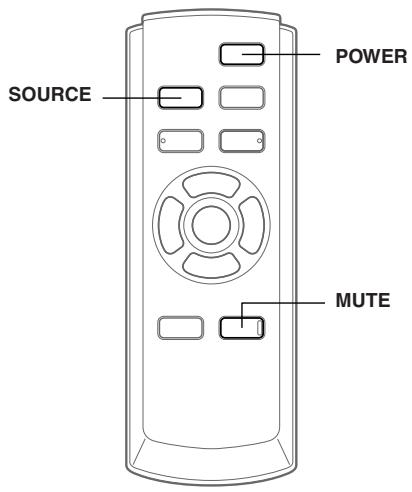
Feature
If the unit is connected to an ALPINE Ai-NET compatible device (DVD/HDD Player, DVD/CD Changer, Adapter for iPod, etc.), operation with the supplied remote control can be carried out. You can also display the screen on the external monitor. If the unit is connected to an ALPINE navigation system, you can display navigation screens on the external monitor. For details on the function of connected devices, refer to the Owner's Manual.
When Using the Remote Control
- Point the remote control at the remote control eye within about 2 meters.
- It may not be possible to operate the remote control if the remote control eye is exposed to direct sunlight.
- The remote control is a small, lightweight precision device. To avoid damage, short battery life, operational errors, and poor response, observe the following.
- Do not subject the remote control to excessive shock.
- Do not put in a trouser pocket.
- Keep away from food, moisture, and dirt.
- Do not place in direct sunshine.
- Connect the supplied remote control eye. Failing to do so will result in a loss of remote control operation. Refer to "Connections" (pages 18).
- If an ALPINE monitor is connected as the external front monitor, connect the remote control input lead to the remote control output lead of the monitor. In this case, you do not need to connect the supplied remote control eye.
Battery Replacement
Applicable battery: Use two "AAA" sized dry batteries or equivalent.
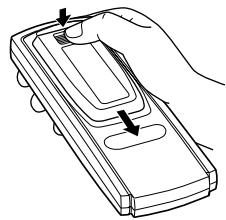
1 Opening the battery cover
Slide out the battery cover while firmly pressing in the direction of the arrow.
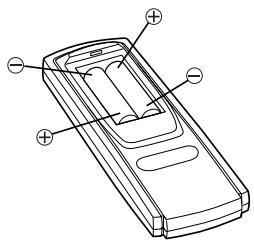
2 Replacing the battery
Insert the batteries, observing the polarities as illustrated.
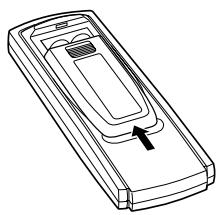
3 Closing the cover
Slide the cover as illustrated until a click is heard.
Turning Power On and Off
Some of this unit's functions cannot be performed while the vehicle is in motion. Be sure to stop your vehicle in a safe location and apply the parking brake, before attempting these operations.
Press POWER to turn on/off the unit.
Initial System Start-Up
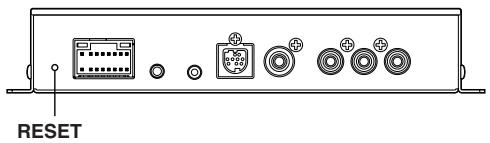
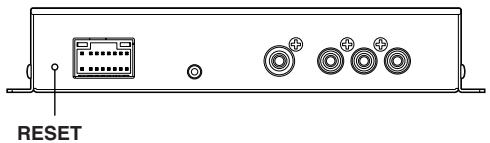
Be sure to press the RESET button when using the unit for the first time, after installing the CD changer, after changing the car battery, etc.
1 Turn off the unit power. 2 Press RESET with a ball-point pen or similar pointed object.
Switching between NTSC and PAL
Set the output configuration to NTSC or PAL.
Press and hold POWER for at least 2 seconds.
- PAL is the standard and there is no need to change the setting. The system is set to PAL at time of shipment from the factory.
Lowering Volume Quickly
Activating this function will instantly lower the volume level.
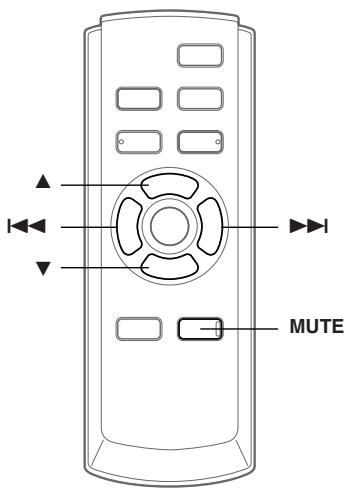
Press MUTE.
No volume is output.
Pressing MUTE again brings the audio back to its previous level.
Switching a Source
Press SOURCE.
- Source can be switched by setting FRONT on the VIDEO SOURCE SEL screen. Refer to "Switching Each Monitor Source (VIDEO SOURCE SELECT Function)" (this page).
Other Useful Features
Switching Each Monitor Source (VIDEO SOURCE SELECT Function)
If the optional expansion box (VPE-S431) is connected, you can connect up to 2 external rear monitors.
The source is switched between the external front monitor and the external rear monitor using the VIDEO SOURCE SELECT function.
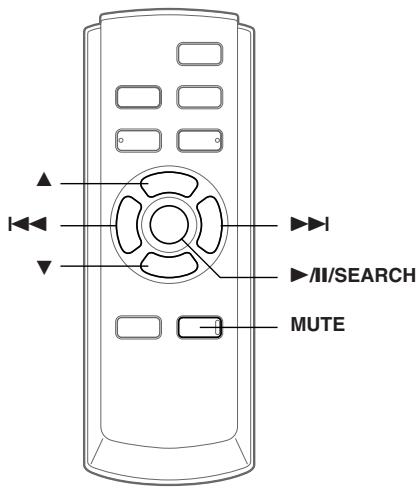
1 Press and hold MUTE for at least 2 seconds. The SETUP screen is displayed. 2 Press or to select VIDEO SOURCE SEL. 3 Press II/SEARCH or I. The VIDEO SOURCE SEL. screen is displayed. 4 Press or to select a monitor from which the source of FRONT/REAR 1/REAR 2 is set.
FRONT: External front monitor REAR 1: External rear monitor connected to AUX OUT1 of the optional expansion box (VPE-S431). REAR 2: External rear monitor connected to AUX OUT2 of the optional expansion box (VPE-S431).
5 Press I or to select the desired source. 6 To return to the SETUP screen, select RETURN and press /II/SEARCH or I. To finish the setting, press and hold MUTE for at least 2 seconds.
- The optional expansion box (VPE-S431) is required to connect an external rear monitor.
- REAR 1/REAR 2 can be set when "Setting the External Rear Monitor Output" (page 8) is turned on.
- If the source of REAR 1/REAR 2 is set to NAVIGATION, though the source name of the rear monitor is displayed as DVD, the navigation screen is output.
Switching the function of the remote sensor
The remote sensor of the external monitor can be switched, as you prefer.
1 Press or on the SETUP screen and select REMOTE CONTROL SEL. 2 Press I or and select a monitor using the remote control.
The monitor which has a priority to the remote control operation is changed.
FRONT: The remote control eye of this unit is effective. REAR-1: The remote sensor of the external rear monitor connected to AUX OUT1 of the optional expansion box (VPE-S431) is effective, and the remote control can operate only the source selected for this terminal. REAR-2: The remote sensor of the external rear monitor connected to AUX OUT2 of the optional expansion box (VPE-S431) is effective, and the remote control can operate only the source selected for this terminal.
3 To finish the setting, press and hold MUTE for at least 2 seconds.
- REAR-1/REAR-2 is adjustable when the external expansion box (VPE-S431) is connected.
- If REAR-1 or REAR-2 is set, DVD operation is not possible from the unit's supplied remote control.
Setup
Setup Operation
The Parking Brake must be engaged to access the SETUP mode screen. Attempting to access this screen while driving will display the warning-CANT OPERATE WHILE DRIVING.
The following steps 1 to 4 are common operations to each "Setting item" of Setup. Refer to each section for details.
1 Press and hold MUTE for at least 2 seconds. The SETUP screen is displayed. 2 Select the desired setting item by pressing either or .
Setting items:
NAV. ↔ NAV.MIX LEVEL ↔ DISPLAY-TYPE SEL. ↔ VOLUME LEVEL ↔ CAMERA-IN ↔ CAMERA-IN SIG. ↔ REMOTE CONTROL SEL.* ↔ VIDEO SOURCE SEL.* ↔ AUX IN-1 (2, 3) ↔ AUX IN-1 (2, 3) NAME ↔ AUX IN-1 (2, 3) LEVEL ↔ AUX IN-1 (2, 3) SIG. ↔ MONITOR OUT-1 ↔ MONITOR OUT-2 ↔ IN-INT MUTE ↔ VISUALIZER SEL. ↔ PLAY MODE ↔ AUTO SCROLL ↔ BACKGROUND SEL. ↔ DEMO ↔ NAV.
- Refer to the "Switching Each Monitor Source (VIDEO SOURCE SELECT Function)" (page 5). 3 Pressing or changes to the setting. 4 To finish the setting, press and hold MUTE for at least 2 seconds.
Setting the Navigation Mode
When you connect an optional navigation equipment, set it to ON.
Setting item: NAV.
Setting contents: OFF/ON
ON: Navigation source is displayed.
OFF: Navigation source is not displayed. The settings related to the navigation cannot be changed from this unit.
Navigation Audio Interruption Volume Adjustment
With an Alpine navigation system connected to the VPA-B211P/VPA-B211E, the voice guidance of the navigation system will be mixed with the DVD or CD play.
You can adjust the volume level of the voice guidance.
Setting item: NAV. MIX LEVEL
Setting contents: OFF, +1 to +15
- When NAV. is turned on, the setting can be made. Refer to "Setting the Navigation Mode" (this page).
Setting the Display Type
Depending on your external monitor, the screen may not be correctly displayed. In this case, change the type.
Setting item: DISPLAY-TYPE SEL.
Setting contents: TYPE1 / TYPE2
Setting the Volume Level
The volume level can be set for each source.
Setting item: VOLUME LEVEL
Setting contents: LOW / MID / HIGH
- The sound level increases as follows: LOW → MID → HIGH .
Setting the Rear Camera
When the rear camera is connected, rear pictures are output on the screen.
Setting item: CAMERA-IN
Setting contents: OFF/ON
ON: When the shift lever is set to reverse (R), the rear camera picture is shown on the screen.
OFF: The rear pictures are not output.
- By shifting to reverse (R) , the rear pictures are output. This function is effective when the reverse wire is properly connected.
Switching the Visual Input Signal (Rear Camera)
After setting to ON in "Setting the Rear Camera," then this setting may be carried out.
Setting item: CAMERA-IN SIG.
Setting contents: NTSC / PAL
- When ON is set in "Setting the Rear Camera" (this page), the setting can be made.
Setting the AUX Mode
Setting items: AUX IN-1 to 3
Setting contents: OFF/ON
OFF: AUX source is not displayed.
ON: AUX source is displayed.
- OFF is not selected when the optional DVD player or DVD changer is connected.
- AUX IN-3 is adjustable when the external expansion box (VPE-S431) is connected.
Naming External Devices
When more than one external device is connected, you can name each (up to 3) as you like.
Setting item: AUX IN-1 to 3 NAME
Setting contents: AUX-1 (2, 3) / VCR / GAME-1, 2 / TV 1 / EXT-DVD / DVB-T 2
1 When an optional TV is connected, set the unit to TV. Refer to "TV Operation" (page 15). 2 VPA-B211P only. - The selected source name is displayed instead of AUX source name.
Adjusting the External Input Audio Level
Setting item: AUX IN-1 to 3 LEVEL
Setting contents: LOW / HIGH
LOW: Decreases the external input audio level
HIGH: Increases the external input audio level
Switching the Visual Input Signal (AUX)
After setting to ON in "Setting the AUX mode," then this setting may be carried out.
Setting item: AUX IN-1 to 3 SIG.
Setting contents: NTSC / PAL
Setting the External Rear Monitor Output
Set it to ON when you use the external rear monitor.
Setting items: MONITOR OUT-1, 2
Setting contents: OFF/ON
ON: By setting the connected external rear monitor to ON, the remote control will be usable.
OFF: When either MONITOR OUT-1 or 2 is set to OFF, only one monitor can be set by the VIDEO SOURCE SELECT function.
- When the optional expansion box (VPE-S431) is connected, the setting can be made.
Setting the External Device Interrupt Mode
If an Alpine Versatile Link Terminal (KCA-410C) is connected to the VPA-B211P/VPA-B211E, an Auxiliary Source will be allowed to interrupt the current audio source. For example, you can listen to the voice guidance of your navigation system when it occurs even while you are playing a CD or DVD. The CD/DVD player will be automatically muted during voice guidance. For further details, please refer to the manual for KCA-410C.
Setting item: IN-INT. MUTE
Setting contents: OFF/ON
OFF: Sound will be output in Interrupt mode.
ON: Sound will not be output in Interrupt mode.
- The auxiliary device being connected must have an Interrupt wire with a negative trigger for this function to operate automatically. Otherwise, a separate switch needs to be added to switch it manually.
Setting the VISUALIZER Mode Display
Set VISUALIZER to your preference. Other than in the OFF setting, VISUALIZER can be displayed on the rear monitor. When you select SCAN, the screen shows a continuous series of 6 images, one after the other.
Setting item: VISUALIZER SEL.
Setting contents: MODE-1 to MODE-6 / SCAN / OFF
- When the optional expansion box (VPE-S431) is connected, the VISUALIZER setting can be made.
- To display VISUALIZER on the rear monitor, refer to "Switching Each Monitor Source (VIDEO SOURCE SELECT Function)" (page 5) and set the REAR 1 and REAR 2 sources to VISUALIZER.
Playing MP3/WMA Data
When using discs containing both CD data and MP3/WMA data.
Setting item: PLAY MODE
Setting content: CD-DA / CD/MP3
CD: Plays only the CD data on discs containing both CD data and MP3/WMA data.
MP3: Both CD data and MP3/WMA file tracks can be played back.
- Perform this setting before inserting a disc. If a disc has already been inserted, perform the setting after you remove the disc. If you use an MP3 changer, you have to change discs.
Setting the Scroll
Scroll display is available if titles are entered in the disc. Scroll display of CD text, folder names, file names and tag information is also enabled.
Setting item: AUTO SCROLL
Setting contents: AUTO / MANUAL
AUTO: Turns on the AUTO scroll mode. Scroll display is repeated as long as the mode is turned on.
MANUAL: Turns off the AUTO scroll mode. Scroll display is done once as a track is changed.
Switching Background Textures
You can select the background textures of the setup screen from 4 types.
Setting item: BACKGROUND SEL.
Setting contents: TYPE1 to 4
Demonstration Function
This unit is equipped with a demonstration function capable of showing basic operations of respective sources on the display.
Setting item: DEMO
Setting contents: OFF/ON
ON: Turns on the demonstration mode to show the basic operations.
OFF: Turns off the demonstration mode.
- The demonstration operation is automatically repeated until the function is turned off.
DVD/Video CD Operation
(Optional)
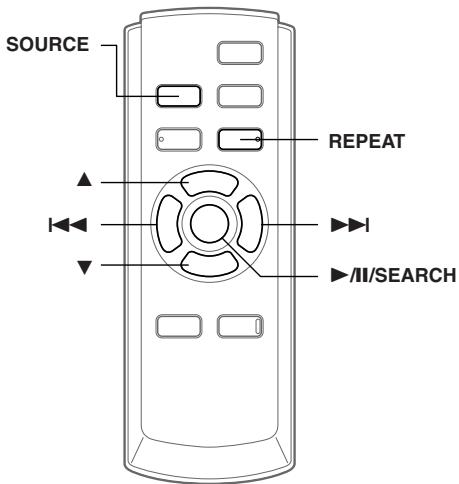
Basic operations of an ALPINE DVD player/Changer compatible with Ai-NET can be done from the unit's supplied remote control. Refer to the Owner's Manual of the connected DVD player/Changer.
Playing DVD/Video CD
WARNING
It is dangerous for the driver to watch the TV/DVD/Video while driving the vehicle. The driver may be distracted from looking ahead and an accident could occur.
Install the VPA-B211P/VPA-B211E correctly so that the driver cannot watch TV/DVD/Video unless the vehicle is stopped and the emergency brake is applied.
If the VPA-B211P/VPA-B211E is not installed correctly, the driver will be able to watch the TV/DVD/Video while driving the vehicle and may be distracted from looking ahead and cause an accident. The driver or other people could be severely injured.
- If you try to activate the auxiliary device while driving, the display will show the warning-PICTURE OFF FOR YOUR SAFETY.
1 Press SOURCE to activate the DVD mode.
Playback starts.
2 Press either or to select a disc (DVD changer connected).
Fast-forwarding/Fast-reversing
1 During playback, press and hold I (fast-reverse) or (fast-forward). 2 Release I or to return to normal playback.
Finding the Beginning of Chapters or Tracks
During playback, press I or
The chapter/track switches each time the button is pressed, and playback of the selected chapter/track starts.
▶▶I: Press this to start playback from the beginning of the following chapter or track. Press this to start playback from the beginning of the current chapter or track.
- Some DVDs do not have chapters.
Supplementary explanation
"Chapters" are divisions of movies or musical selections on DVDs. "Tracks" are divisions of movies or musical selections on video and music CDs.
Playing Still Frames (pausing)
1 During playback, press /II/SEARCH. 2 Press II/SEARCH to resume playback.
Chapter/Track/Title RepeatPlayback
Use this function to play the disc's titles, chapters or tracks repeatedly.
During playback, press REPEAT.
The repeat mode switches each time the button is pressed.
DVD
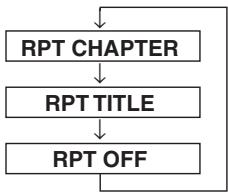
The chapter is played repeatedly.
The title is played repeatedly.
The mode returns to normal playback. (Factory default)
VIDEO CD
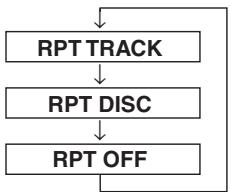
The track is played repeatedly.
The entire disc is played repeatedly.
(Factory default)
- The track/disc repeat modes cannot be used on video CDs with playback control (PBC).
- For some discs it is not possible to switch the repeat mode.
CD/MP3/WMA Operation (Optional)
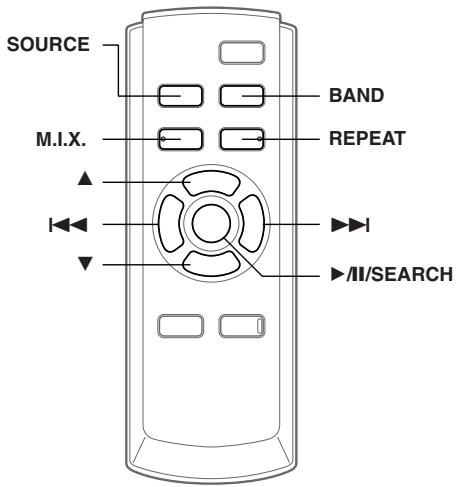
Playing CD/MP3/WMA
1 Press SOURCE to activate the CD mode. 2 Press or to select a disc (when a CD changer is connected). 3 Press I or to select the desired track.
Returning to the beginning of the current track:
Press
Fast backward:
Press and hold
Advancing to the beginning of the next track:
Press ▶I.
Fast forward:
Press and hold ▶I.
4 To pause playback, press ▶/II/SEARCH.
Pressing ▶/II/SEARCH again will resume playback.
- CD playback information (track no., TEXT etc.) will be displayed on the monitor during playback.
- MP3/WMA playback information (folder no., file no., tag information, etc.) will be displayed on the monitor during playback.
- The MP3/WMA indicator is lit during MP3/WMA playback.
- "NO SUPPORT" is displayed when text information is not compatible with the VPA-B211P/VPA-B211E.
- The DVD changer (optional) is controllable as well as the CD changer.
- If using two changers, the Versatile Link Terminal (KCA-410C) must be used. In this case, press BAND to select the changer mode.
- If the HDA-5460 model is connected to the unit, some operations (for example changing the source, selecting the file by holding buttons up or down, etc.), can be carried out on this unit.
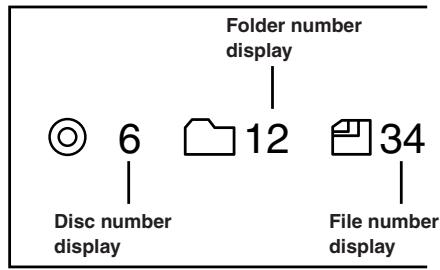
MP3/WMA Play Display
The disc number, folder number and file number will be displayed as described below.
Folder/File Search
You can display the names of folders/files and search for a folder/file to play.
1 Press and hold ▶/II/SEARCH for at least 2 seconds during playback.
The Folder Name list is displayed.
2 Press ▲ or ▼ to select the desired folder. 3 Press ▶ II/SEARCH to play back the first file in the selected folder.
To search for a file in the selected folder
1 After selecting the folder in step 2, press ▶ or TITLE to change to the file search mode of the selected folder. - If there is a file name list in the folder, ▶▶ is displayed. 2 Press ▲ or ▼ to select a file and press ▶/II/SEARCH or ▶▶ II.
The selected file is played back.
- Folder Name Search mode is cancelled by pressing and holding ▶ AI/SEARCH for at least 2 seconds.
- "ROOT" is displayed for the root folder which does not have folder name.
- While in File Name Search mode, press or TITLE to switch to Folder Name Search mode.
Press M.I.X. in the play or pause mode.
The M.I.X. mode switches each time the button is pressed.
CD mode:
M.I.X. → M.I.X. ALL* → (off) → M.I.X.
M.I.X.: Tracks are played back in random sequence.
M.I.X. ALL: The tracks on all the CDs in the current magazine will be included in the random playback sequence.
- When a CD changer equipped with the All M.I.X. function is connected.
MP3/WMA mode:
M.I.X. FOLDER → M.I.X. → (off) → M.I.X. FOLDER
M.I.X. FOLDER: Only files in a folder are played back in random sequence.
M.I.X.: All files in a disc are played back in random sequence, and playback shifts to the next disc.
Press M.I.X. again and select OFF to deactivate the M.I.X. play.
Repeat Play
During playback, press REPEAT.
The repeat mode switches each time the button is pressed.
CD mode:
REPEAT → REPEAT ALL ** → (off) → REPEAT
REPEAT: Only a track is repeatedly played back.
REPEAT ALL: A disc is repeatedly played back.
MP3/WMA mode:
REPEAT → REPEAT FOLDER → REPEAT ALL** → (off) → REPEAT
REPEAT: Only a file is repeatedly played back.
REPEAT FOLDER: Only files in a folder are repeatedly played back.
REPEAT ALL: A disc is repeatedly played back.
** When a CD changer is connected.
Press REPEAT again and select OFF to deactivate the repeat play.
iPod™ Operation (Optional)
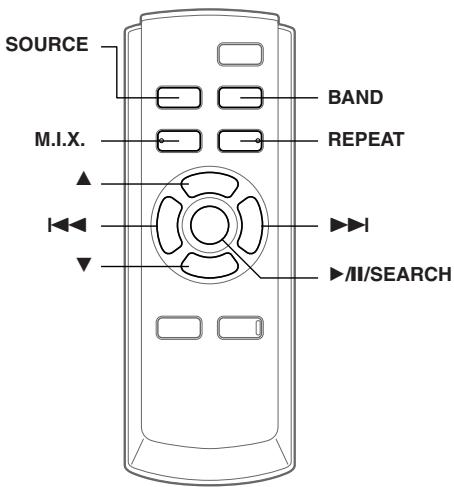
An iPod™ or iPod™ mini can be controlled from the VPA-B211P/VPA-B211E, when connected to an optional Alpine Interface Adapter for iPod™ (KCA-420i). While connected to the VPA-B211P/VPA-B211E, operation from the iPod™ is no longer possible.
- For details, refer to the Owner's Manual of the connected Interface adapter for iPod™ (KCA-420i).
- For each function, refer to the iPod's documentation.
Playback
1 Press SOURCE to switch to the iPod mode. 2 Press I or to select the desired song.
Return to the beginning of the current song:
Press
Fast backward:
Press and hold
Advance to the beginning of the next song:
Press ▶▶.
Fast forward:
Press and hold
3 To pause playback, press ▶II/SEARCH.
Pressing ▶II/SEARCH again will resume playback.
- If a song is playing on the iPod when it is connected to the adapter, it will continue playing after the connection.
- If using the iPod with a changer, the Versatile Link Terminal (KCA-410C) must be used. In this case, press BAND to select the changer mode applicable to the iPod.
- Only alphanumeric characters (ISO-8859-1) can be displayed.
- If the artist, album or song name, created in iTunes, has too many characters, songs may not be played back when connected to the adapter. Therefore, a maximum of 250 characters is recommended. The maximum number of characters for this unit is 64.
- Some characters may not be correctly displayed.
- "NO SUPPORT" is displayed when text information is not compatible with the VPA-B211P/VPA-B211E.
Searching for a desired Song
For iPod containing several hundred or several thousand files, finding the desired file can be troublesome. VPA-B211P/ VPA-B211E offer a variety of search functions to make this easier. - If all songs in the iPod are associated with a playlist, access to each song is more efficient.
Searching by Playlist
1 Press and hold /II/SEARCH for at least 2 seconds.
The search mode selection screen is displayed.
2 Press or to select PLAYLIST SEARCH and press /II/SEARCH.
4 Press II/SEARCH to play back a selected playlist.
3 *l Press or , and select a playlist.
To search for a song in the selected playlist
1 After selecting the playlist in step 3*1, press ▶ to change to the song search mode of the selected playlist. - If there is a song name list in the playlist, >> is displayed. 2 Press ▲ or ▼ to select a song and press ▶/II/SEARCH or ▶▶I. The selected song is played back.
- If you choose "iPod name" of iPod in step 3*1, all songs in iPod are played back.
- Pressing ⊣ returns to the search mode selection screen.
- The search mode is cancelled by pressing and holding ▶/II/SEARCH for at least 2 seconds.
Searching by Artist Name
1 Press and hold ▶/II/SEARCH for at least 2 seconds.
The search mode selection screen is displayed.
2 Press ▲ or ▼ to select ARTIST SEARCH and press ▶/II/SEARCH.
3*2 Press ▲ or ▼, and select an artist. 4 Press ▶/II/SEARCH to play back all songs of the selected artist.
12-EN
To search for an album of the selected artist
1 After selecting the artist in step 3*2, press ▶ to change to the album search mode of the selected artist. - If there is an album list of the artist, >> is displayed. - Select ALL, and press ▶▶ to change to the album search mode for all albums.
2*3 Press ▲ or ▼ to select an album.
3 Press ▶/II/SEARCH to play back all songs of the selected album.
To search for a song of the selected album
1 After selecting the album in step 2*3, press ▶ to change to the song search mode of the selected album. - If there is a song name list in the album, >> is displayed. - Select ALL, and press ▶▶ to change to the song search mode for all songs of the selected artist. 2 Press ▲ or ▼ to select a song and press ▶/II/SEARCH or ▶▶. The selected song is played back.
- If you choose ALL in step 3*2, all songs in iPod are played back.
- If you choose ALL in step 2*3, all songs of the selected artist are played back.
- Pressing ⊣ returns to the search mode selection screen.
- The search mode is cancelled by pressing and holding ▶/II/SEARCH for at least 2 seconds.
Searching by Album Name
1 Press and hold ▶/II/SEARCH for at least 2 seconds.
The search mode selection screen is displayed.
2 Press ▲ or ▼ to select ALBUM SEARCH and press ▶/II/SEARCH.
3*4 Press ▲ or ▼, and select an album. 4 Press ▶/II/SEARCH to play back all songs of the selected album.
To search for a song of the selected album
1 After selecting the album in step 3*4, press ▶ to change to the song search mode of the selected album. - If there is a song name list in the album, >> is displayed. - Select ALL, and press ▶▶ to change to the song search mode for all songs in the iPod. 2 Press ▲ or ▼ to select a song and press ▶/II/SEARCH or ▶▶II. The selected song is played back.
- If you choose ALL in step 3*4, all songs in iPod are played back.
- Pressing ⊣ returns to the search mode selection screen.
- The search mode is cancelled by pressing and holding ▸ / ℹ / ⚙ SEARCH for at least 2 seconds.
Random Play Shuffle (M.I.X.)
The Shuffle function of the iPod is displayed as M.I.X. on the monitor.
Shuffle Albums (M.I.X. ALBUMS):
Select an album randomly in the iPod, and plays back the songs of the album in sequential order. If a song has been selected in the playlist/artist search mode before selecting Shuffle Album, only the albums within the playlist/artist are selected randomly. The songs of the album are played back sequentially.
Shuffle Songs (M.I.X. SONGS):
All songs in the iPod are played back in random sequence. If a song has been selected in the playlist/artist search mode before selecting Shuffle song, only the songs of the playlist/artist/album are played back randomly.
1 Press M.I.X. in the play or pause mode.
The songs will be played back in random sequence.
M.I.X. ALBUMS → M.I.X. SONGS → (off) → M.I.X. ALBUMS
2 To cancel M.I.X. play, select (off) with the above procedure.
- For details of the search mode, refer to "Searching for a desired Song" (page 12).
- If a song is selected in the album search mode before selecting Shuffle (M.I.X.), the songs will not play back randomly even when Shuffle album is selected.
- If there is no album in the playlist, Shuffle (M.I.X.) will not function even when Shuffle album is selected.
Repeat Play
Only Repeat One is available for the iPod.
Repeat One: A single song is repeatedly played back.
1 Press REPEAT to play back repeatedly the track being played.
The song will be played repeatedly.
REPEAT → (off) → REPEAT
2 To cancel repeat play, select (off) with the above procedure.
- During repeat playback, no other songs are selectable by pressing or touching ← or ▶
Navigation System (Optional)

Switching the Navigation Screen
If an optional Alpine Navigation System is connected to the unit, the Navigation screen can be displayed on the monitor.
1 Press SOURCE to activate the NAV. mode.
The Navigation screen is displayed.
The operation is possible with the supplied navigation remote control.
For navigation operation, refer to the Owner's Manual of the navigator.
- NAV. set to on by following "Setting the Navigation Mode" (page 7).
Auxiliary Device (Optional)
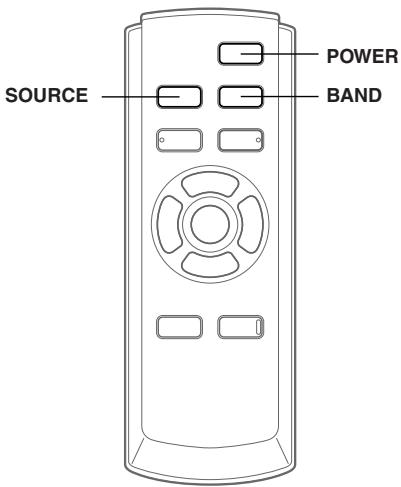
Operating Auxiliary Devices
To operate your devices connected to the AUX terminals, follow the procedure described below.
WARNING
It is dangerous for the driver to watch the TV/DVD/Video while driving the vehicle. The driver may be distracted from looking ahead and an accident could occur.
Install the VPA-B211P/VPA-B211E correctly so that the driver cannot watch TV/DVD/Video unless the vehicle is stopped and the emergency brake is applied.
If the VPA-B211P/VPA-B211E is not installed correctly, the driver will be able to watch the TV/DVD/Video while driving the vehicle and may be distracted from looking ahead and cause an accident. The driver or other people could be severely injured.
- If you try to activate the auxiliary device while driving, the display will show the warning-PICTURE OFF FOR YOUR SAFETY.
1 Press SOURCE to activate the AUX mode. The external input screen is displayed.
2 Press BAND to change to the AUX mode.*
AUX-1 → AUX-2 → AUX-3*2 → AUX-1
*1 AUX-1 to AUX-3 are displayed if AUX IN set to ON in "Setting the AUX mode" (page 7), or the name which is given as the source name in "Naming External Devices" on page 7 is displayed. *2 AUX-3 is displayed when the optional expansion box (VPE-S431) is connected.
3 Press and hold POWER for at least 2 seconds.
- The setting of switching NTSC/PAL, which you have set in this section, can be used in the same way in "Switching the Visual Input Signal (AUX)" on page 7.
TV Operation (Optional)
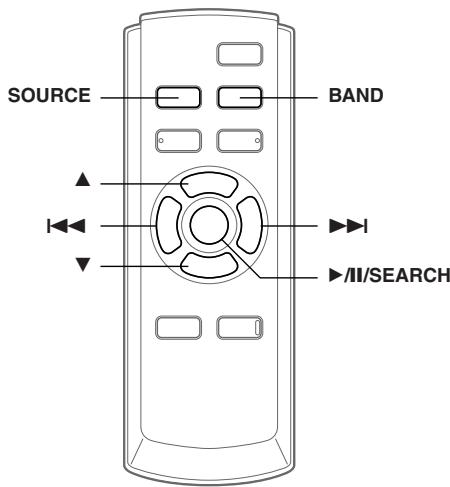
When connected with an ALPINE TV unit (sold separately), you can use the remote control supplied with the VPA-B211P/VPA-B211E to operate the TV. Set the AUX NAME to TV. Refer to "Naming External Devices" page 7.
TV is connected to AUX IN-2. - When the optional expansion box (VPE-S431) is connected, connect TV to AUX IN-3. - Be sure to connect this unit or VPE-S431 remote control output lead to the TV unit's remote control input lead.
Operating TV Unit

WARNING
It is dangerous for the driver to watch the TV while driving the vehicle. The driver may be distracted from looking ahead and an accident could occur.
Install the VPA-B211P/VPA-B211E correctly so that the driver cannot watch TV unless the vehicle is stopped and the emergency brake is applied.
If the VPA-B211P/VPA-B211E is not installed correctly, the driver will be able to watch the TV while driving the vehicle and may be distracted from looking ahead and cause an accident. The driver or other people could be severely injured.
- If you try to activate the auxiliary device while driving, the display will show the warning-PICTURE OFF FOR YOUR SAFETY.
1 Press SOURCE to activate the AUX mode. 2 Press BAND to select the TV mode.
AUX-1 → TV → AUX-1
When VPE-S431 is connected:
AUX-1 → AUX-2 → TV → AUX-1
3 Press ◀ or ▶ to automatically seek for a channel downward or upward respectively.
The unit will stop at the next channel it finds. Press the same button again to seek the next channel.
Automatic Memory of Channel Presets
1 Press ▸ /II/SEARCH.
The auto preset operation starts.
After completion, the memorized channel number list displays and the first memorized station is automatically received.
2 To receive a memorized station, press ▲ or ▼.
Information
In Case of Difficulty
If you encounter a problem, please turn the power off, then on again. If the unit is still not functioning normally, please review the items in the following checklist. This guide will help you isolate the problem if the unit is at fault. Otherwise, make sure the rest of your system is properly connected, or consult your authorized Alpine dealer.
Basic
No function or display.
- Vehicle's ignition is off.
- If connected according to the instructions, the unit will not operate with the vehicle's ignition off.
- Improper power lead connections.
- Check power lead connections.
- Blown fuse.
- Check the fuse on the battery lead of the unit; replace with the proper value if necessary.
- Internal micro-computer malfunctioned due to interference noise, etc.
- Press the RESET switch with a ballpoint pen or other pointed article.
No sound or unnatural sound.
- Connections are not properly or securely made.
- Check the connections and firmly connect.
Screen not displayed.
- Connections to the DVD, CD player, navigation system are not securely made.
- Check the connections and firmly connect.
Navigation system inoperative.
- Connections to the navigation system are incorrect.
- Check the connections with the navigation system and connect the cables correctly and firmly.
Remote control of the rear monitor is inoperative.
- The VPE-S431 is not connected.
- Make sure the VPE-S431 is correctly connected.
Make sure the cable is not bent excessively.
Indication for CD change
HI-TEMP
- Protective circuit of the changer is activated due to high temperature.
- The indicator will disappear when the temperature returns to within operation range.
ERROR01
- Malfunction in the CD Changer.
- Consult your Alpine dealer. Press the magazine eject button and pull out the magazine. Check the indication. Insert the magazine again.
If the magazine cannot be pulled out, consult your Alpine dealer.
- Magazine ejection not possible.
- Press the magazine eject button. If the magazine does not eject, consult your Alpine dealer.
ERROR02
- A disc is left inside the CD Changer.
- Press the Eject button to activate the eject function. When the CD Changer finishes the eject function, insert an empty CD magazine into the CD Changer to receive the disc left inside the CD Changer.
NO MAGAZINE
- No magazine is loaded into the CD Changer.
- Insert a magazine.
NO DISC
No indicated disc. - Choose another disc.
NO iPod
- The iPod is not connected.
- Make sure the iPod is correctly connected. Make sure the cable is not bent excessively.
- The iPod's battery remains low.
- Refer to the iPod's documentation and charge the battery.
NO SONG
There are no songs in the iPod. - Download songs to the iPod and connect to the KCA420i.
ERROR
- Communication error
- Turn the ignition key off, and then set to ACC or ON again.
- Check the display by reconnecting between the iPod and the adapter, using the iPod cable.
- Caused by the iPod Software Version not being compatible with the optional adapter KCA-420i.
- Refer to the Owner's Manual of the optional adapter KCA-420i, and update the iPod Software Version to be compatible with the optional adapter KCA-420i.
Indication for AUX Mode
I/F BOX ERROR
(AUX3 mode only)
- The optional expansion box (VPE-S431) is not correctly connected.
- Make sure the VPE-S431 is correctly connected, and the cable is not bent excessively.
Specifications
External dimensions
| Wide | 180 mm (7-1/8") |
| Height | 35 mm (1-3/8") |
| Depth | 160 mm (6-1/4") |
| Weight | 0.75 kg (1lb 10 oz) |
Installation
Velcro fastener Mounting
When mounting the unit with the Velcro fasteners, be sure to choose a flat location.
Do not hang the unit from the bottom of the dashboard or rear deck with the Velcro fasteners.
1 Remove the protective paper and attach two pieces of velcro fastener to the bottom of the VPA-B211P/VPA-B211E.
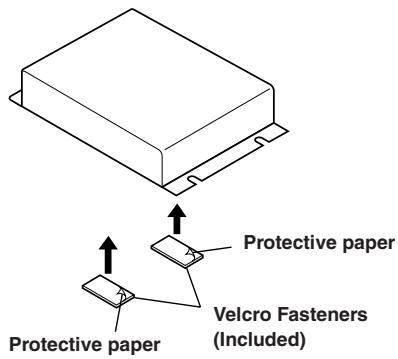
2 Check the position, and then fix the VPA-B211P/VPA-B211E to the floor carpet.
Screw-down Mounting
1 Using the adapter as a template, hold it in the mounting location and mark the holes to be drilled. Before drilling, make sure that there are no objects that could be damaged behind the mounting surface. 2 Drill holes and secure the adapter with the self-tapping screws (M4 x 14) supplied.
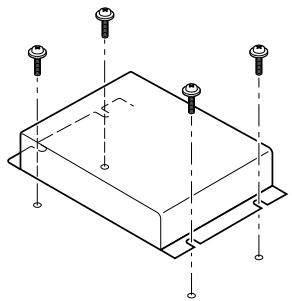
Connections * If an ALPINE monitor is connected as the external front monitor, connect this lead. In this case, you do not need to connect the remote control eye.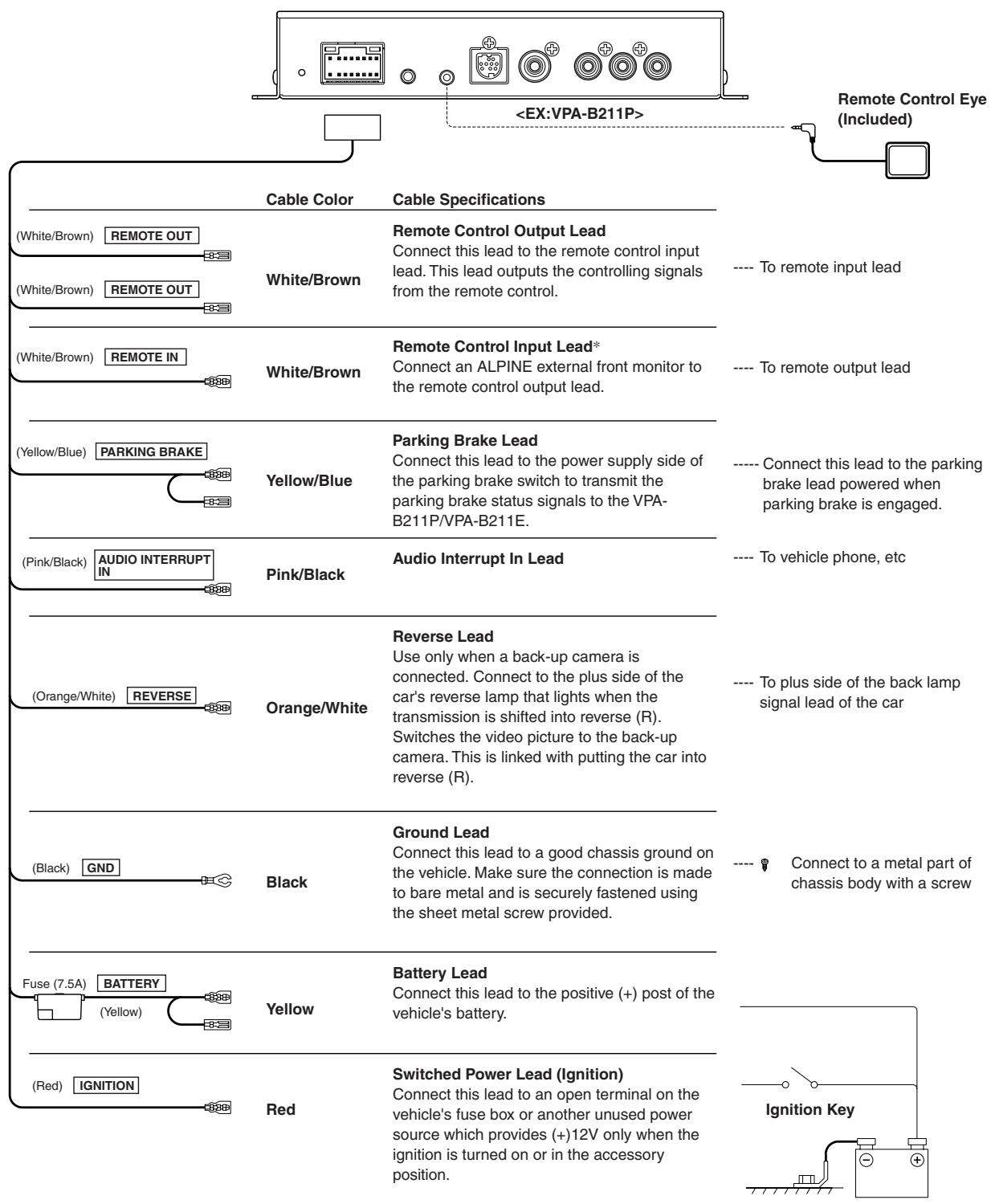
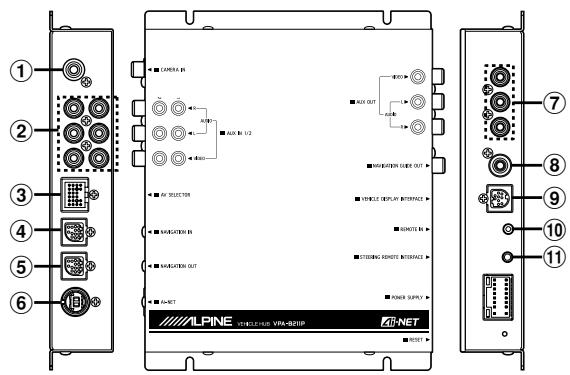
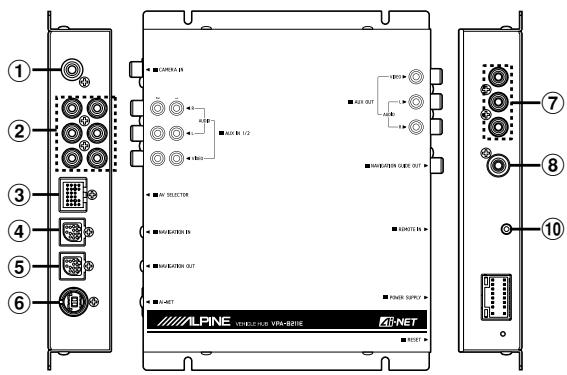
1 CAMERA Input Terminal
Use when connecting a back-up camera.
2 AUX Input Terminals
If these terminals are connected to the optional expansion box (VPE-S431), the AUX input terminals are not used on this unit. Connect AUX IN 1, 2 and 3, and the AUX OUT 1 and 2 terminals of the extension box (VPE-S431) to the external device(s).
③ AV Select Connector
When this connector is connected to the optional expansion box (VPE-S431), connect this to the HEAD UNIT terminal of VPE-S431.
④ RGB Input Terminal
Connect this to the RGB output terminal of the Navigation System.
⑤ RGB Output Terminal
Connect a 13P RGB terminal equipped ALPINE monitor 13P RGB terminal using the RGB cable supplied with the unit.
⑥ Ai-NET Connector
Connect this to the output connector of other product equipped with Ai-NET.
⑦ AUX Video/Audio Output Terminal
To output Video/Audio to the external front monitor.
⑧ Navigation Guide Output Terminal
Output navigation sound is monaural. Connect this to the audio output (left) of the connected device.
Vehicle Display Interface Terminal
Outputs Vehicle Display Interface control signals.
Connect this to the optional Vehicle Display Interface box.
Remote Control Eye Jack
Connect this to the remote control sensor unit.
Steering Remote Control Interface Connector
To steering remote control interface box.
- Removing the cover to use the AV SELECTOR terminal.
Connect the DVD Player, DVD Changer
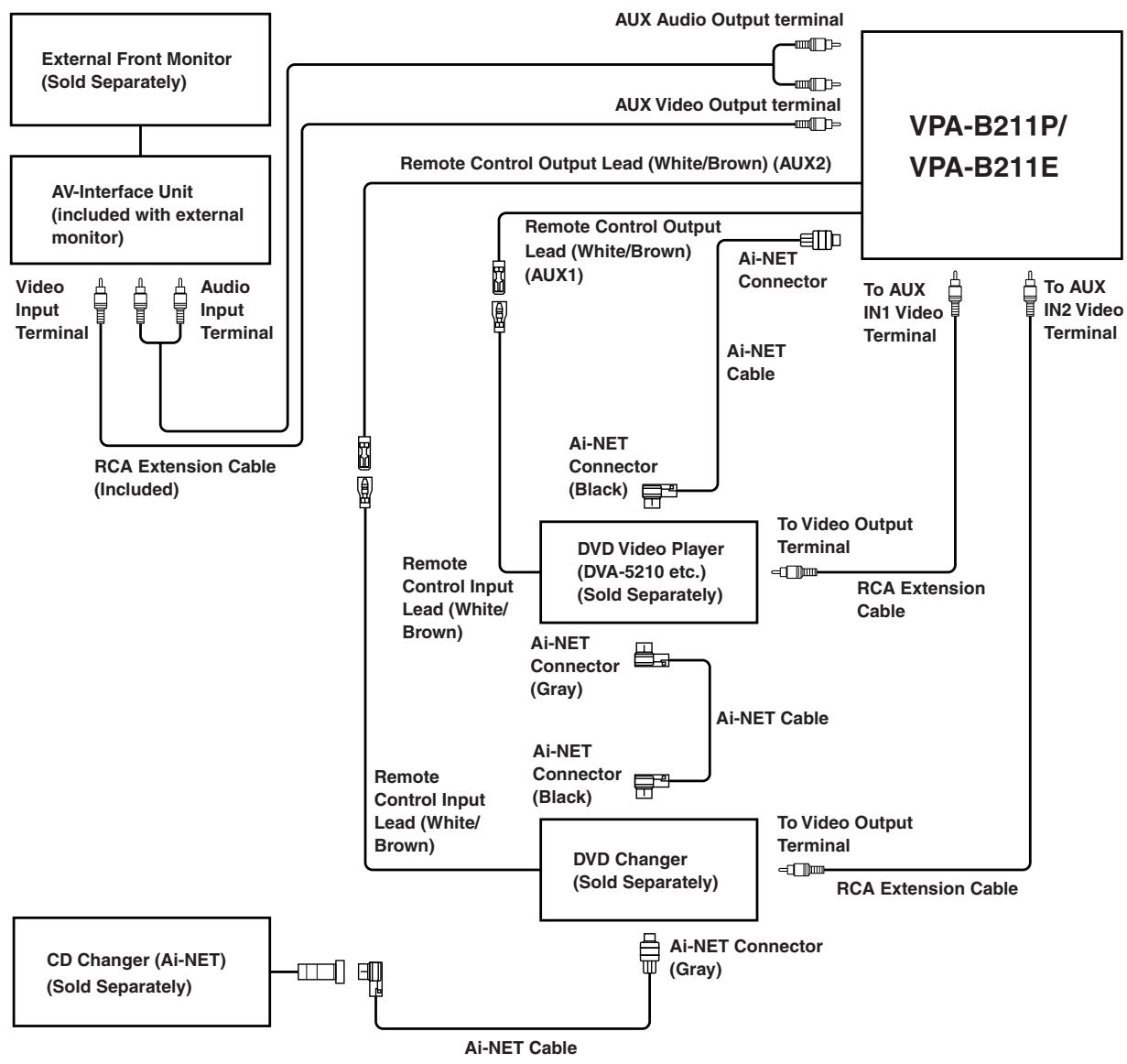
- If either a DVD video player or DVD changer is connected, connect this to AUX1.
- If both a DVD video player and DVD changer are connected, connect the DVD video player to AUX1 and the DVD changer to AUX2.
- Set the DVD video player and DVD changer to Ai-NET compatible.
- An optional display interface box is required depending on the connected devices. However, the display interface box may not be installable, depending on the vehicle or the connected device. For details, consult your nearest ALPINE dealer.
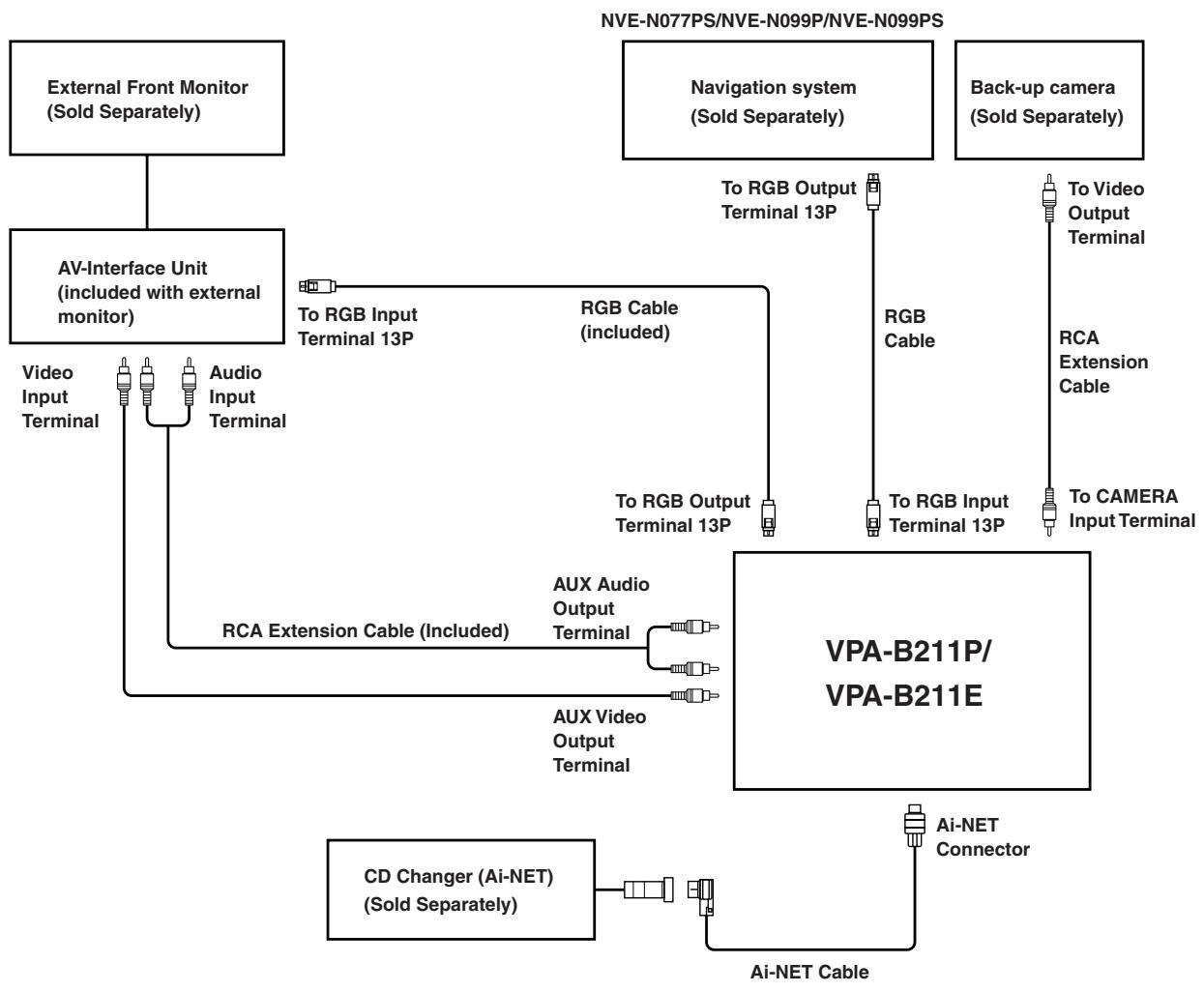
- If the RGB input terminal and output terminal are reversely connected, be aware that the navigation mode will not be displayed.
- If the unit and an ALPINE navigation system are connected, use an optional RGB cable, or the RGB cable supplied with the navigation device. If the RCA cable is connected, the navigation and interrupt function are not controllable from the unit.
- An optional display interface box is required depending on the connected devices. However, the display interface box may not be installable, depending on the vehicle or the connected device. For details, consult your nearest ALPINE dealer.
* Use only when the rear monitor is connected.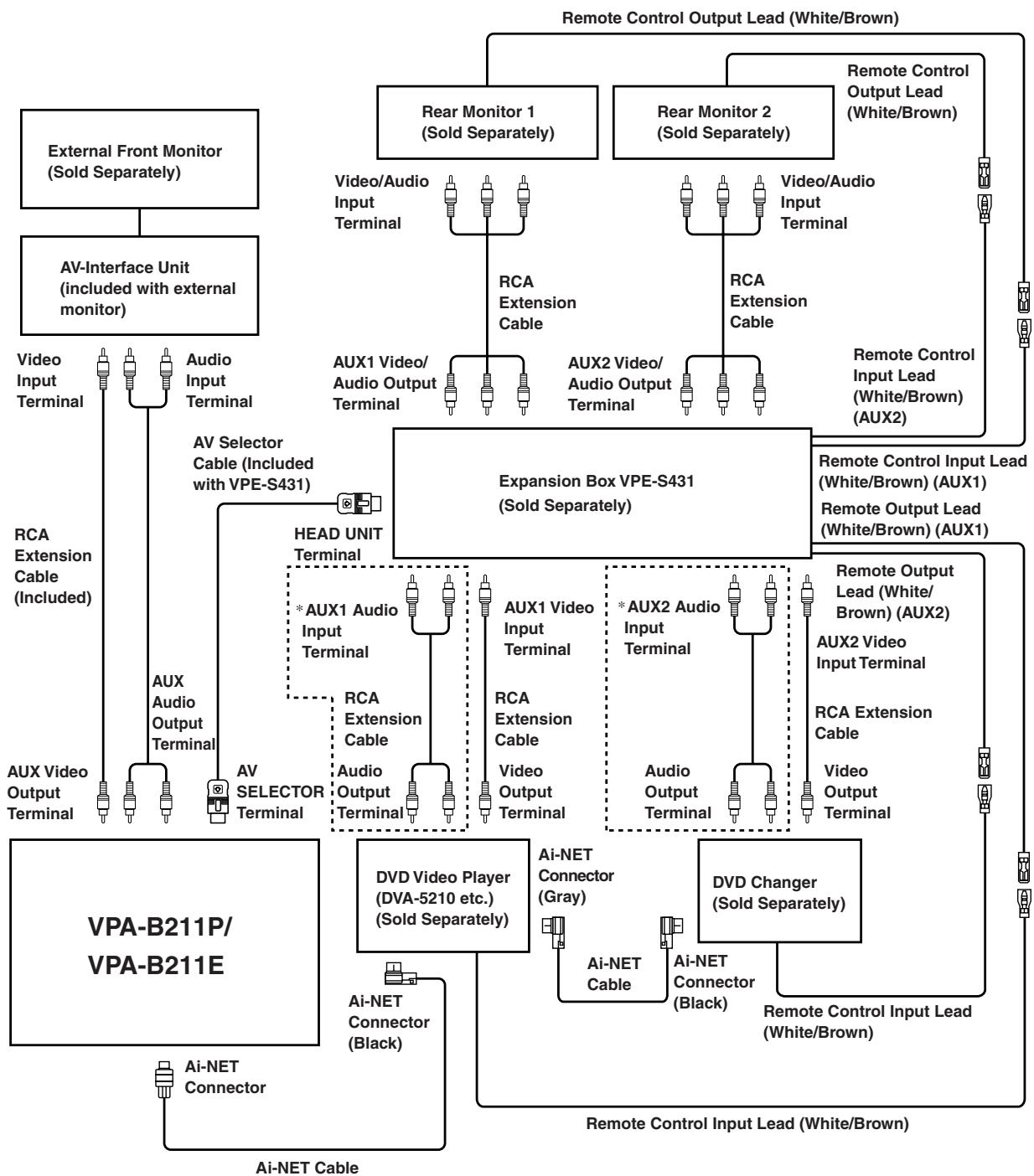
- If either DVD video player or DVD changer is connected, connect this to AUX1.
- If both a DVD video player and DVD changer are connected, connect the DVD video player to AUX1 and the DVD changer to AUX2.
- Set the DVD video player and the DVD changer to Ai-NET compatible.
- An optional display interface box is required depending on the connected devices. However, the display interface box may not be installable, depending on the vehicle or the connected device. For details, consult your nearest ALPINE dealer.
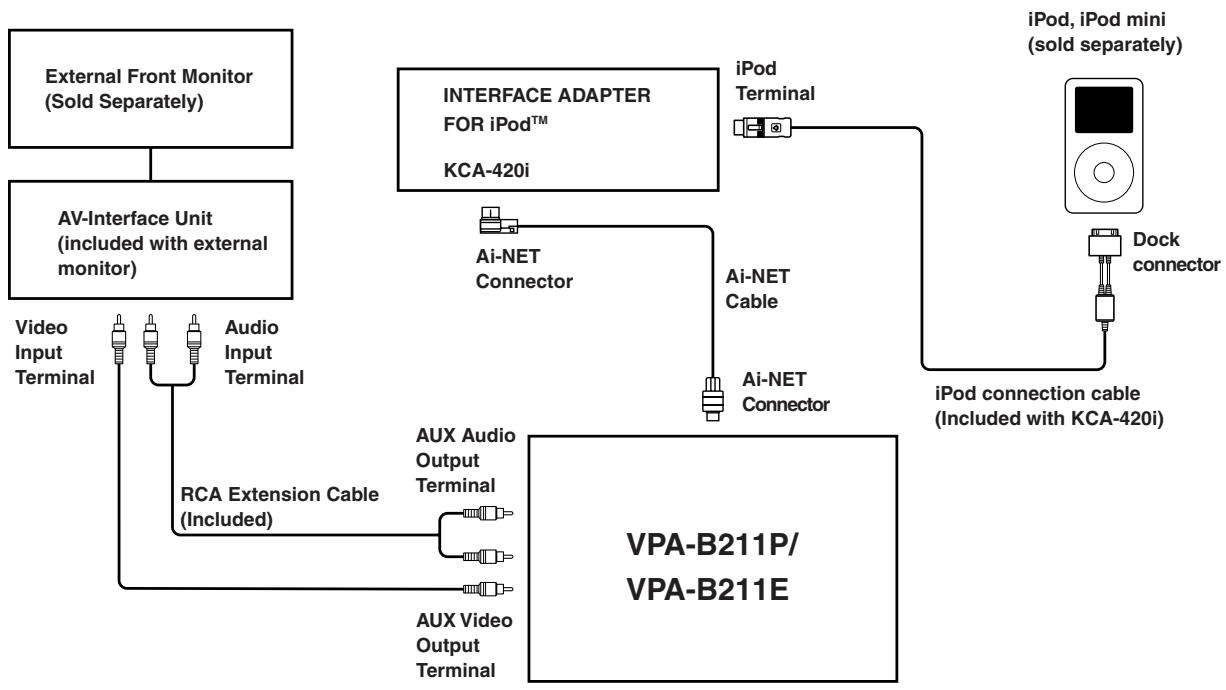
- An optional display interface box is required depending on the connected devices. However, the display interface box may not be installable, depending on the vehicle or the connected device. For details, consult your nearest ALPINE dealer.
Connect the Navigation system, External speaker designed for navigation sound.
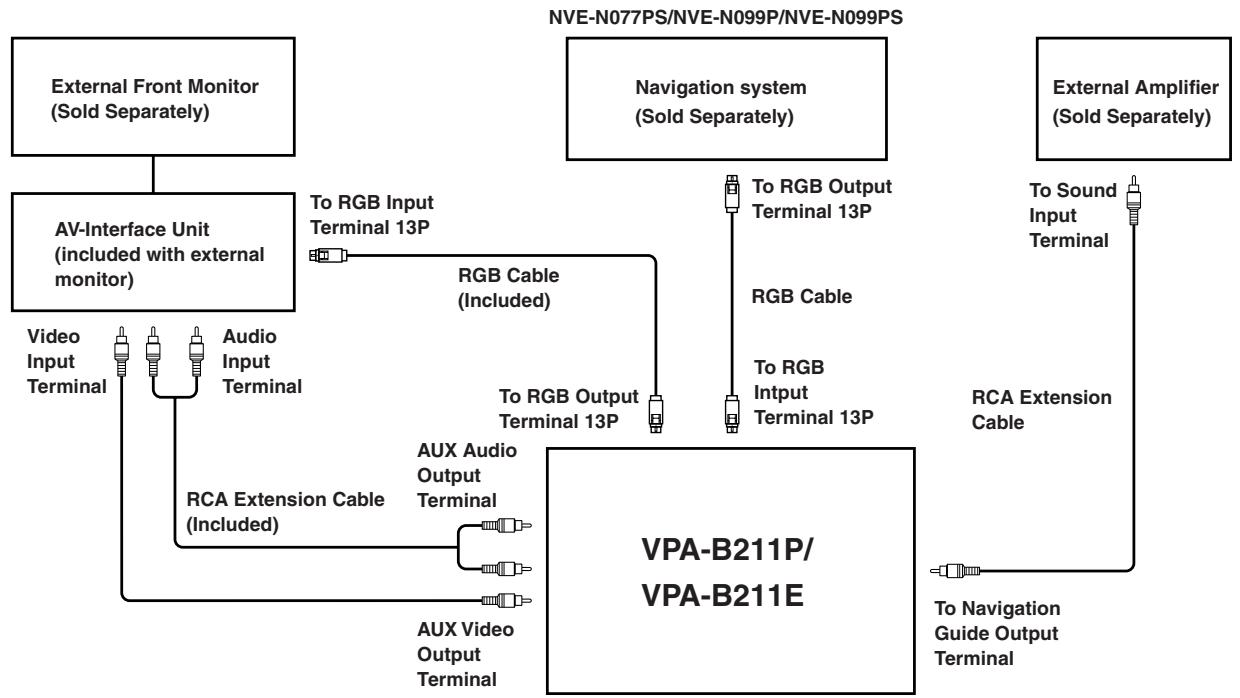
- If the RGB input terminal and output terminal are reversely connected, be aware that the navigation mode will not be displayed.
- If the unit and an ALPINE navigation system are connected, use an optional RGB cable or the RGB cable supplied with the navigation device. If the RCA cable is connected, the navigation and interrupt function are not controllable from the unit.
- An optional display interface box is required depending on the connected devices. However, the display interface box may not be installable, depending on the vehicle or the connected device. For details, consult your nearest ALPINE dealer.
Filling in this Product Information Card is voluntary. If you fill in this card and send it to Alpine, your data will be tabulated into reference data for future Alpine product development. In addition, in the future you may receive information about new products or Survey Mail requesting additional opinions about Alpine products or services. If you agree to the above term, please sign your name in the indicated space and return the card. Any additional comments or inquiries may be sent to: Person in charge of Customer Service department Alpine Electronics (Europe) GmbH. Frankfurter Ring 117, 80807 Munchen, Germany Phone: +49-(0)89-32 42 640
Q1.PRODUCT PURCHASED
- Cassette Player
- CD Player
- MD Player
- DVD Player
- CD Changer
- Amplifier
- Speaker
- Subwoofer
- Monitor Controller
- Video Monitor
- Navigation
- Processor/Equalizer
- CD/Video CD Changer
- Other.
Q2. MODEL NUMBER:
Q3. DATE OF PURCHASE:
Month: Year:
Q4. If navigation system, which monitor?
- Alpine → (Model No.).
- Other → (Brand Name)
Q5. STORE TYPE WHERE PURCHASED:
- Car Audio Specialist
- Audio/Video
- Electronics/Appliance Store
- Car Accessories Shop
- Other.
Q6. Type of vehicle in which this unit is
installed:
Make: Model:
Purchased Model
Year: Year:
Q7. How was this vehicle purchased?
- Purchase
- Lease
Q8. Purpose of buying this unit?
- Addition
- Replacement
- Previous brand replaced?
- Factory installed
- Alpine
- Alpha
- Other → (Brand Name)
Q9. Have you purchased Alpine
products before?
- First time
- Two or More times
Q10. When you purchased this Alpine unit, did you compare it with other brands?
1. Yes → (Brand Name)
- No
Q11. GENDER
- Male
- Female
Q12. AGE
Q13. MARITAL STATUS
- Single
- Married
Q14. OCCUPATION
- Company Owner/Self-employed/
Freelance
- Manager
- Company Employee
- Civil Servant
- Educator
- Student
- Other
Q15 Comments
Q1. Purchased device
HAVE YOU PURCHASED THE PRODUCT:
vehicle? 1. Purchase 2. Lease
- Addition
- Replacement
1

- OPERATING INSTRUCTIONS
- WARNING
- GETTING STARTED
- OTHER USEFUL FEATURES
- SETUP
- DVD/VIDEO CD OPERATION (OPTIONAL)
- CD/MP3/WMA OPERATION (OPTIONAL)
- IPOD™ OPERATION (OPTIONAL)
- NAVIGATION SYSTEM (OPTIONAL)
- AUXILIARY DEVICE (OPTIONAL)
- TV OPERATION (OPTIONAL)
- INFORMATION
- INSTALLATION AND CONNECTIONS
- DO NOT DISASSEMBLE OR ALTER
- KEEP SMALL OBJECTS SUCH AS BATTERY OUT OF THE REACH OF CHILDREN
- USE ONLY IN CARS WITH A 12 VOLT NEGATIVE GROUND
- BEFORE WIRING, DISCONNECT THE CABLE FROM THE NEGATIVE BATTERY TERMINAL
- DO NOT SPLICE INTO ELECTRICAL CABLES
- DO NOT DAMAGE PIPE OR WIRING WHEN DRILLING HOLES
- DO NOT USE BOLTS OR NUTS IN THE BRAKE OR STEERING SYSTEMS TO MAKE GROUND CONNECTIONS
- DO NOT ALLOW CABLES TO BECOME ENTANGLED IN SURROUNDING OBJECTS
- USE THIS PRODUCT FOR MOBILE 12V APPLICATIONS
- MAKE THE CORRECT CONNECTIONS
- USE THE CORRECT AMPERE RATING WHEN REPLACING FUSES
- CAUTION
- USE SPECIFIED ACCESSORY PARTS AND INSTALL THEM SECURELY
- DO NOT INSTALL IN LOCATIONS WITH HIGH MOISTURE OR DUST
- HAVE THE WIRING AND INSTALLATION DONE BY EXPERTS
- ARRANGE THE WIRING SO IT IS NOT CRIMPED OR PINCHED BY A SHARP METAL EDGE
- DO NOT MIX NEW BATTERIES WITH OLD BATTERIES. INSERT WITH THE CORRECT BATTERY POLARITY
- FEATURE
- WHEN USING THE REMOTE CONTROL
- BATTERY REPLACEMENT
- OPENING THE BATTERY COVER
- REPLACING THE BATTERY
- CLOSING THE COVER
- TURNING POWER ON AND OFF
- PRESS POWER TO TURN ON/OFF THE UNIT
- INITIAL SYSTEM START-UP
- SWITCHING BETWEEN NTSC AND PAL
- PRESS AND HOLD POWER FOR AT LEAST 2 SECONDS
- LOWERING VOLUME QUICKLY
- PRESS MUTE
- SWITCHING A SOURCE
- PRESS SOURCE
- SWITCHING EACH MONITOR SOURCE (VIDEO SOURCE SELECT FUNCTION)
- SWITCHING THE FUNCTION OF THE REMOTE SENSOR
- SETUP OPERATION
- SETTING ITEMS
- SETTING THE NAVIGATION MODE
- NAVIGATION AUDIO INTERRUPTION VOLUME ADJUSTMENT
- SETTING THE DISPLAY TYPE
- SETTING THE VOLUME LEVEL
- SETTING THE REAR CAMERA
- SWITCHING THE VISUAL INPUT SIGNAL (REAR CAMERA)
- SETTING THE AUX MODE
- NAMING EXTERNAL DEVICES
- ADJUSTING THE EXTERNAL INPUT AUDIO LEVEL
- SWITCHING THE VISUAL INPUT SIGNAL (AUX)
- SETTING THE EXTERNAL REAR MONITOR OUTPUT
- SETTING ITEMS: MONITOR OUT
- SETTING CONTENTS: OFF/ON
- SETTING THE EXTERNAL DEVICE INTERRUPT MODE
- SETTING ITEM: IN-INT. MUTE
- SETTING THE VISUALIZER MODE DISPLAY
- SETTING ITEM: VISUALIZER SEL
- SETTING CONTENTS: MODE-1 TO MODE-6 / SCAN / OFF
- PLAYING MP3/WMA DATA
- SETTING ITEM: PLAY MODE
- SETTING CONTENT: CD-DA / CD/MP
- SETTING THE SCROLL
- SETTING ITEM: AUTO SCROLL
- SETTING CONTENTS: AUTO / MANUAL
- SWITCHING BACKGROUND TEXTURES
- SETTING ITEM: BACKGROUND SEL
- DEMONSTRATION FUNCTION
- SETTING ITEM: DEMO
- DVD/VIDEO CD OPERATION
- (OPTIONAL)
- PLAYING DVD/VIDEO CD
- PRESS SOURCE TO ACTIVATE THE DVD MODE
- FAST-FORWARDING/FAST-REVERSING
- FINDING THE BEGINNING OF CHAPTERS OR TRACKS
- DURING PLAYBACK, PRESS I OR
- SUPPLEMENTARY EXPLANATION
- PLAYING STILL FRAMES (PAUSING)
- CHAPTER/TRACK/TITLE REPEATPLAYBACK
- DURING PLAYBACK, PRESS REPEAT
- DVD
- VIDEO CD
- PLAYING CD/MP3/WMA
- MP3/WMA PLAY DISPLAY
- FOLDER/FILE SEARCH
- TO SEARCH FOR A FILE IN THE SELECTED FOLDER
- PRESS M.I.X. IN THE PLAY OR PAUSE MODE
- CD MODE
- MP3/WMA MODE
- REPEAT PLAY
- PLAYBACK
- SEARCHING FOR A DESIRED SONG
- SEARCHING BY PLAYLIST
- PRESS AND HOLD /II/SEARCH FOR AT LEAST 2 SECONDS
- PRESS OR TO SELECT PLAYLIST SEARCH AND PRESS /II/SEARCH
- PRESS II/SEARCH TO PLAY BACK A SELECTED PLAYLIST
- TO SEARCH FOR A SONG IN THE SELECTED PLAYLIST
- SEARCHING BY ARTIST NAME
- PRESS AND HOLD ▶/II/SEARCH FOR AT LEAST 2 SECONDS
- PRESS ▲ OR ▼ TO SELECT ARTIST SEARCH AND PRESS ▶/II/SEARCH
- EN
- TO SEARCH FOR AN ALBUM OF THE SELECTED ARTIST
- TO SEARCH FOR A SONG OF THE SELECTED ALBUM
- SEARCHING BY ALBUM NAME
- PRESS ▲ OR ▼ TO SELECT ALBUM SEARCH AND PRESS ▶/II/SEARCH
- RANDOM PLAY SHUFFLE (M.I.X.)
- SHUFFLE ALBUMS (M.I.X. ALBUMS)
- SHUFFLE SONGS (M.I.X. SONGS)
- TO CANCEL M.I.X. PLAY, SELECT (OFF) WITH THE ABOVE PROCEDURE
- PRESS REPEAT TO PLAY BACK REPEATEDLY THE TRACK BEING PLAYED
- TO CANCEL REPEAT PLAY, SELECT (OFF) WITH THE ABOVE PROCEDURE
- SWITCHING THE NAVIGATION SCREEN
- PRESS SOURCE TO ACTIVATE THE NAV. MODE
- OPERATING AUXILIARY DEVICES
- PRESS BAND TO CHANGE TO THE AUX MODE
- OPERATING TV UNIT
- AUTOMATIC MEMORY OF CHANNEL PRESETS
- IN CASE OF DIFFICULTY
- BASIC
- NO FUNCTION OR DISPLAY
- NO SOUND OR UNNATURAL SOUND
- SCREEN NOT DISPLAYED
- NAVIGATION SYSTEM INOPERATIVE
- REMOTE CONTROL OF THE REAR MONITOR IS INOPERATIVE
- INDICATION FOR CD CHANGE
- HI-TEMP
- ERROR
- NO MAGAZINE
- NO DISC
- NO IPOD
- NO SONG
- INDICATION FOR AUX MODE
- I/F BOX ERROR
- (AUX3 MODE ONLY)
- SPECIFICATIONS
- INSTALLATION
- VELCRO FASTENER MOUNTING
- SCREW-DOWN MOUNTING
- CONNECT THE DVD PLAYER, DVD CHANGER
- CONNECT THE NAVIGATION SYSTEM, EXTERNAL SPEAKER DESIGNED FOR NAVIGATION SOUND
- Q1.PRODUCT PURCHASED
- Q1. PURCHASED DEVICE
Brand : ALPINE
Model : VPA-B211P-SPACE-E
Category : Car accessory